
Z2300 - Instant Camera POLAROID - Free user manual and instructions
Find the device manual for free Z2300 POLAROID in PDF.


| Product Type | Instant camera with built-in printer |
| Brand | Polaroid |
| Model | Z2300 |
| Dimensions | Approx. 118 x 76 x 34.6 mm (without protrusions) |
| Weight | Approx. 264 g (without battery or memory card) |
| Power | Rechargeable lithium-ion battery 7.4 V; AC adapter 9 V / 3 A |
| Display | 3.0-inch color TFT LCD (230,000 dots) |
| Photo Resolution | Up to 10 M (3648x2736, FW interpolation) |
| Video Resolution | HD 1280x720 (30 fps), VGA 640x480, QVGA 320x240 |
| Internal Memory | 32 MB (15 MB available for images) |
| Memory Support | SD/SDHC card up to 32 GB (optional) |
| Lens | Focal length 6 mm; focusing range: standard 1.0 m to infinity, macro 0.19-0.24 m |
| Digital Zoom | 2.4x in capture mode, 4x in playback mode |
| Flash | Effective range: 1.2 to 2.1 m |
| Built-in Printing | ZINK Zero Ink printer for 2x3 inch prints (5x7.6 cm) |
| Main Functions | Scene modes (Auto, Portrait, Landscape, Sports, etc.), red-eye correction, dynamic lighting, direct printing, editing (cropping, borders, etc.) |
| Care and Cleaning | Clean the lens with a soft, dry cloth; do not use solvents or abrasive products |
| Safety | Do not expose to humidity, do not disassemble the device; use only the specified battery |
| Spare Parts and Repairability | Contact Polaroid customer service; no user-serviceable parts |
| General Information | Manual available in multiple languages; PC compatibility (Windows, Mac) |
Frequently Asked Questions - Z2300 POLAROID
User questions about Z2300 POLAROID
0 question about this device. Answer the ones you know or ask your own.
Ask a new question about this device
Download the instructions for your Instant Camera in PDF format for free! Find your manual Z2300 - POLAROID and take your electronic device back in hand. On this page are published all the documents necessary for the use of your device. Z2300 by POLAROID.
USER MANUAL Z2300 POLAROID
This device complies with Part 15 of the FCC Rules. Operation is subject to the following two conditions:
(1) This device may not cause harmful interference, and
(2) This device must accept any interference received, including interference that may cause undesired operation.
Note:
This equipment has been tested and found to comply with the limits for Class B digital devices, pursuant to Part 15 of the FCC rules. These limits are designed to provide reasonable protection against harmful interference in a residential installation. This equipment generates uses and can radiate radio frequency energy and, if not installed and used in accordance with the instructions, may cause harmful interference to radio communications. However, there is no guarantee that interference will not occur in a particular installation. If this equipment does cause harmful interference to radio or television reception, which can be determined by turning the equipment off and on, the user is encouraged to try to correct the interference by one or more of the following measures:
Reorient or relocate the receiving antenna.
- Increase the separation between the equipment and receiver.
- Connect the equipment into an outlet on a circuit different from that to which the receiver is connected.
■ Consult the dealer or an experienced radio/TV technician for help.
Use of shielded cable is required to comply with Class B limits in Subpart B of Part 15 of the FCC rules.
Do not make any changes or modifications to the equipment unless otherwise specified in the manual. If such changes or modifications should be made, you could be required to stop operation of the equipment.
Notice
If static electricity or electromagnetism causes data transfer to discontinue midway (fail), restart the application or disconnect and connect the communication cable (USB, etc.) again.
©2008 by Polaroid All rights reserved.
"Polaroid", "Polaroid and Pixel", and "Polaroid PoGo" are trademarks of Polaroid Corporation. The ZINK™ Technology and ZINK™ trademarks are owned by ZINK Imaging, Inc. Used under license.
Changes are periodically made to this document. Changes, technical inaccuracies, and typographic errors will be corrected in subsequent editions.
For service, support and warranty information, visit www.polaroid.com.

This product contains electrical or electronic materials. The presence of these materials may, if not disposed of properly, have potential adverse effects on the environment and human health. Presence of this label on the product means it should not be disposed of as unsorted waste and must be collected separately. As a consumer, you are responsible for ensuring that this product is disposed of properly. To find out how to properly dispose of this product, please go to www.polaroid.com and click on Company or call the customer service number for your country listed in the instruction manual.
READ THIS FIRST
Trademark Information
Microsoft® and Windows® are U.S. registered trademarks of Microsoft Corporation.
Pentium® is a registered trademark of Intel Corporation.
Macintosh is a trademark of Apple Inc.
SD^TM is a trademark.
- Other names and products may be trademarks or registered trademarks of their respective owners.
Product Information
■ Product design and specifications are subject to change without notice. This includes primary product specifications, software, software drivers, and user's manual. This User Manual is a general reference guide for the product.
- The product and accessories that come with your camera may be different from those described in this manual. Retailers often specify slightly different product inclusions and accessories to suit their market requirements, customer demographics, and geographical preferences. Products very often vary between retailers especially with accessories such as batteries, chargers, AC adapters, memory cards, cables, pouches, and language support. Occasionally a retailer will specify a unique product color, appearance, and internal memory capacity. Contact your dealer for precise product definition and included accessories.
The illustrations in this manual are for the purposes of explanation and may differ from your camera.
The manufacturer assumes no liability for any errors or discrepancies in this user manual.
EN-2
SAFETY INSTRUCTIONS
Please read all Warnings and Cautions before using this product.
Warnings
If foreign objects or water enter the camera, turn the power off and remove the battery.
Continued use may cause personal injury. Please consult our friendly customer service.
If the camera has been dropped or its case has been damaged, turn the power off and remove the battery.
Continued use may cause personal injury. Please consult our friendly customer service.
Do not disassemble, change or repair the camera.
Service should only be performed by a qualified technician. Please contact our friendly customer service should you have any questions.
Do not use the camera in areas near water.
Continued use may cause personal injury. Please consult our friendly customer service.
Do not place the camera on unstable surfaces.
This might cause the camera to fall and cause damage.
Keep the battery out of the reach of children.
Adult supervision is recommended when the product is being operated by young children.
Do not use the camera while you are walking, driving or riding a motorcycle.
This may result in you having an accident.
For optimal performance please use the camera at temperatures between 60^ and 90^ (15.6°C and 32.2°C) and humidities between 20 to 80%.
Do not use the camera near sand as this may damage the camera.


Cautions
| Do not fire the flash close to anyone's eyes. This may cause damage to the person's eyesight. | ○ |
| Do not subject the LCD display to impact. This may damage the glass on the screen or cause the internal fluid to leak. If the internal fluid comes in contact with your eyes, flush with fresh water and seek medical attention. | ○ |
| A camera is a precision instrument. Do not drop, strike or use excessive force when handling the camera. This may cause damage to the camera. | ○ |
| Do not use the camera in humid, steamy, smoky, or dusty places. This may cause fire or electric shock. | ○ |
| Do not immediately remove the battery after a long period of continuous use. The battery may become warm during continued use; this is normal. Touching a warm battery may cause personal injury. | ○ |
| Do not wrap the camera or place it in cloth or blankets. This may cause heat to build up and deform the case, resulting in personal injury. Use the camera in a well-ventilated area. | ○ |
| Do not leave the camera in places where the temperature may rise significantly, such as the inside a car. This may adversely affect the performance of the product. | ○ |
| Before moving the camera, disconnect all cords and cables. Failure to do this may damage cords and cables, resulting in personal injury or damage to the product. | ○ |
Notes on Battery Usage
When you use the battery, carefully read and strictly observe the Safety Instructions and the notes described below:
Use only the specified battery (7.4V).
- Avoid extremely cold environments as low temperatures can shorten the battery life and reduce camera performance.
- When you are using a new rechargeable battery or a rechargeable battery that has not been used for an extended period of time (a battery that passed the expiry date is an exception), it may affect the number of images that can be captured. To maximize its performance and lifetime, we recommend that you fully charge the battery and discharge it for at least one complete cycle before use.
The camera may feel warm after a long period of continuous use. This is normal and not a malfunction.
If the battery is not to be used for a long period of time, remove it from the camera. If stored for a long time in a fully charged condition, its performance may be impaired.
Always keep the battery terminals clean.
- Only use the specified battery or its equivalent with this product.
Properly dispose the battery when it will no longer charge.
- Do not short the terminals of the battery.
Questions?
Call our toll-free customer service number. Look for the insert with this icon:
Or visit www.polaroid.com.

Notes on Handling Polaroid™ ZINK Premium Photo Paper™ and Print Care
We recommend the use of 2x3" Premium ZINK Paper®- purchased separately.
POLZ2X310 (10 pack)
POLZ2X330 (30 pack)
POLZ2X350 (50 pack)
The 2x3" Premium ZINK Paper® offers the following features.
improved quality, borderless, 2x3" color prints
Brighter, sharper images
Improved color balance
Peel-off, sticky-backed photo paper
Prints dry-to-touch
Smudge-proof, water-resistant, tear-resistant photos
Prints using ZINK® Zero Ink® Printing Technology from ZINK Imaging
Works with 2x3 ZINK® compatible Polaroid products
- Keep the photo pack in a cool and dry place.
- Do not leave the photo pack in a place where the temperature is extremely high (e.g. a car or on the beach) for long periods.
If the photo pack has been kept in a place where the temperature is extremely high or low, leave it at normal room temperature for an hour before starting to print. - Do not touch or pull the print during printing.
- Do not bend, fold or scratch prints and avoid touching the print surface.
- Do not leave the prints in extremely hot locations (such as on hot sand, concrete or close to a heating appliance).
- Keep the prints in a cool and dry place.
- Do not store the photo pack and prints in moist areas (store them in areas that have less than 20% humidity).
EN-6
CONTENTS
8 INTRODUCTION
8 Overview
8 Package Contents
9 GETTING TO KNOW YOUR CAMERA
9 Front View
10 Rear View
11 LCD Display
13 GETTING STARTED
14 Installing Polaroid PoGo™ Premium ZINK Paper™
15 Charging the Battery
16 Initial Settings
18 CAPTURE MODE
18 Capturing Images
19 Setting the Self-timer
20 Setting the Scene Mode
22 Setting Manual White Balance
22 Recording Shots into Multiple Image Layout
23 Find Blur Function
24VIDEO MODE
24 Recording Video Clips
25 Playing Back Video Clips
26 PLAYBACK MODE
26Playback of Still Images
27 Erasing Images
27 Removing Red-eye
28 Dynamic Lighting Feature
29 DPOF Settings
30 Protecting Images
31 Attaching Voice Memos
32 INSTANT DIGITAL PRINTER FUNCTIONS AND FEATURES
32 Printing
33 Editing your Images
36 MENU OPTIONS
36 Capture Menu
39 Video Menu
40Playback Menu
42 Setup Menu
44 TRANSFERRING FILES TO YOUR COMPUTER
44 Downloading Your Files
45 EDITING SOFTWARE INSTALLATION
46 SPECIFICATIONS
47 APPENDIX
47 Possible Number of Shots
49 Troubleshooting
INTRODUCTION
Overview
Congratulations on your purchase of your new Polaroid PoGo™ Instant Digital Camera. This camera is a full featured digital camera with built-in full color printer. Take digital images like any other digital camera, review them on this camera, and print just the ones you want.
Package Contents
Carefully unpack your camera and ensure that you have the following items:
Instant Digital Camera
Quick Guide
Software CD-ROM
USB cable
Camera strap
Rechargeable lithium-ion battery
AC adapter
AC adaptor plug*4
10 sheets 2x3" Premium ZINK Paper™
Optional Accessories:
SD/SDHC memory card

- Accessories and components may vary by retailer.
Should any of these components be missing, please call our friendly customer service to assist you.
EN-8
GETTING TO KNOW YOUR CAMERA
Front View
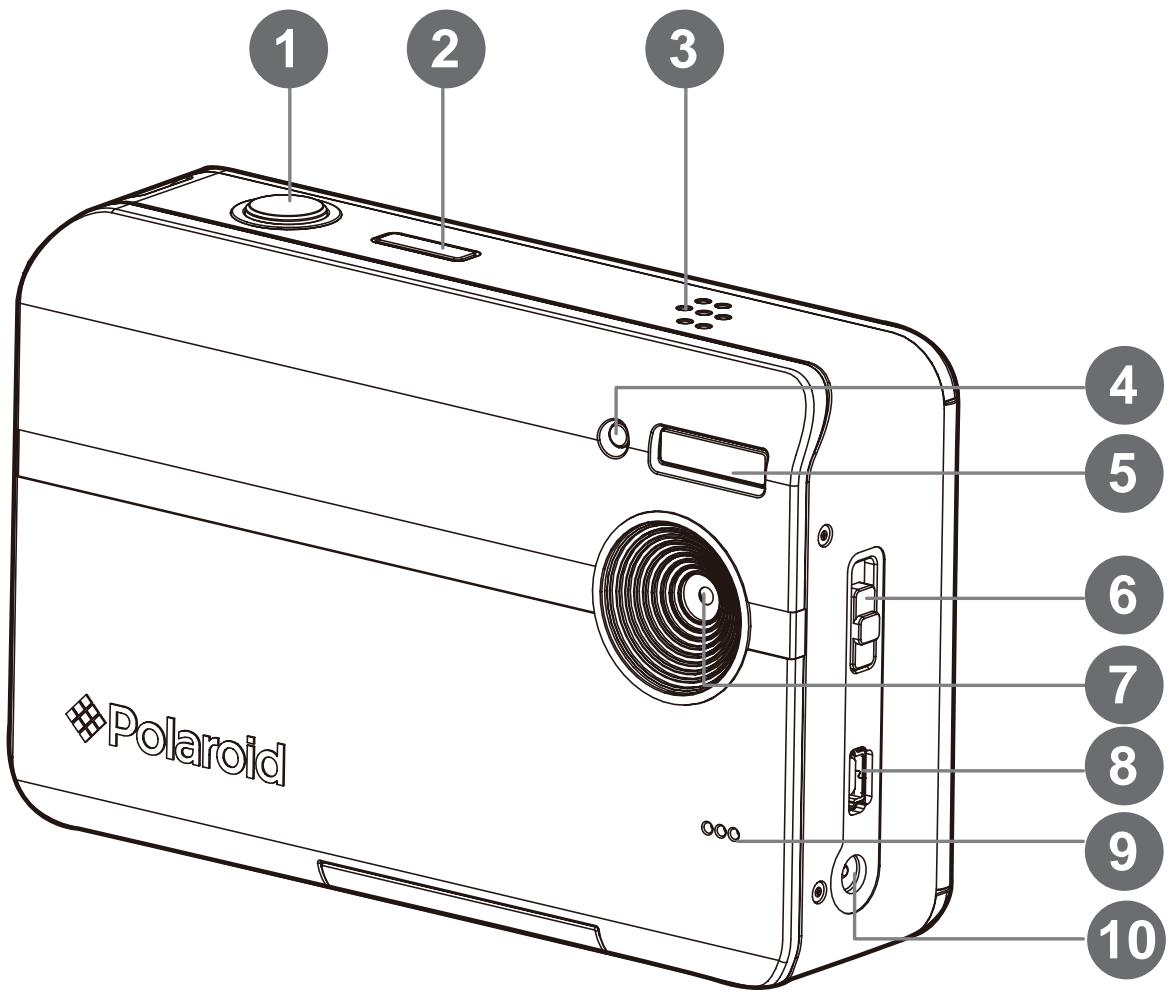
- Shutter button
- Power button
- Speaker
- Self-timer LED
- Flash
- Focus switch
- Lens
- USB terminal
- Microphone
10.DC IN 9V terminal
Rear View
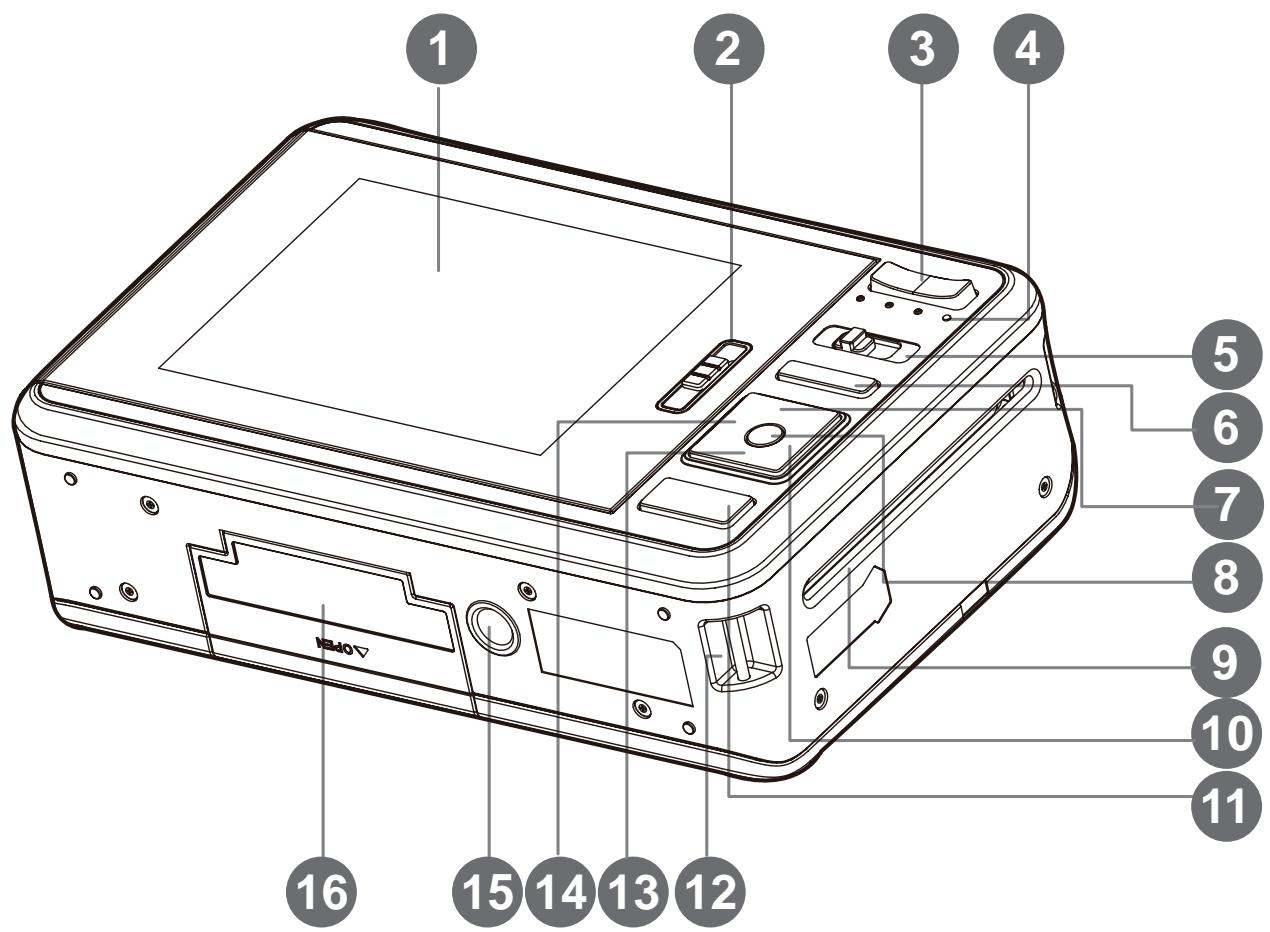
- LCD display
- Paper tray door latch
- Zoom in button Zoom out button
- Status LED
- Mode button
- Menu button
- Up button Display button
- OK Set button
-
Photo exit slot
-
Right button Flash mode button
- Print button
- Hand strap holder
- Down button
Delete button
14.Left button Self-timer button - Tripod socket
- Battery / SD card door
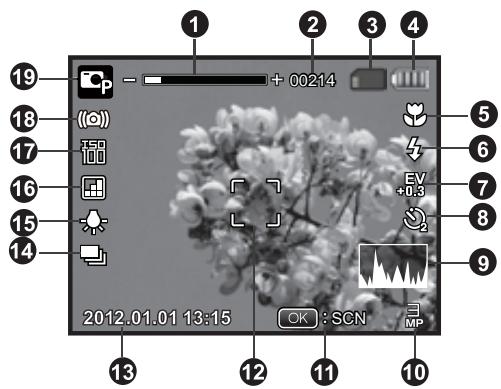
LCD Display
Capture mode
- Zoom status
- Available number of shots
- Storage media
[INT] Internal memory (no card)
[ ] SD/SDHC memory card
- Battery level
[mm] Full battery power
Medium battery power
[ ] Low battery power
[□] No battery power
- Focus setting
[Blank] Normal
[ ] Macro
- Flash mode
[A] Auto
[4] Flash On
[4] Flash Off
[4] Red-eye
- [ ] Exposure
compensation
(Adjust exposure
compensation value with
the / buttons)
- Self-timer & Self-portrait icon
[Off] Off
[2] 2 sec.
[16] 10 sec.
[10+2] 10+2 sec.
-
[ ] Histogram
-
Image size resolution
[IO] 3648x2736 (FW interpolation)
[8] 3264 x 2448 (FW interpolation)
[MP] 2560x1920
[3] 2048x1536
[vgr] 640×480
- OK key: SCN hint icon
- Main focus area
- Date and time
- Capture mode icon
[ ] Single
[ ] Continuous
[图] AEB (Auto Exposure
Bracketing)
[El] Album Shot
[B] Burst
[Cont flash]
[预] Pre-shot
[图] Coupl.shot
- White balance
Auto
[+] Incand.
[Fl] Fluoresc.1
[2] Fluoresc.2
[+] Daylight
[Cloudy]
[Manual WB]
- Image quality
[ ] Fine
Standard
Economy
17.ISO
Auto
ISO 100
ISO200
[1] ISO 400
18.Slow shutter warning
19. Scene mode
[ ] Auto
[ ] Program AE
[ ] Anti-shake
[ ] Fisheye
[ ] Portrait
[ ] Landscape
[ ] Sports
[ ] Night Portrait
[ ] Night Scene
[ ]Candlelight
[ ] Fireworks
[ ] Text
[ ] Sunset
[ ] Sunrise
[ ] Splash Water
[ ] Flow Water
[ ] Snow
[ ] Beach
[ ] Pets
[图] Photo border
[ ] Natural Green
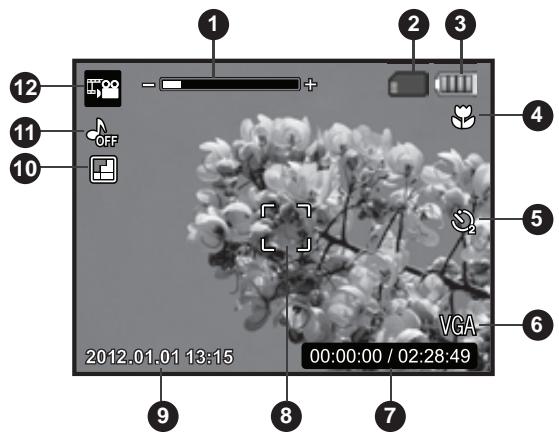
Video mode
- Zoom status
- Storage media
- Battery level
- Focus setting
- Self-timer icon
- Video resolution
- Available recording time/Elapsed time during recording
- Main focus area
- Date and time
- Video quality
- Audio off icon
- Mode icon
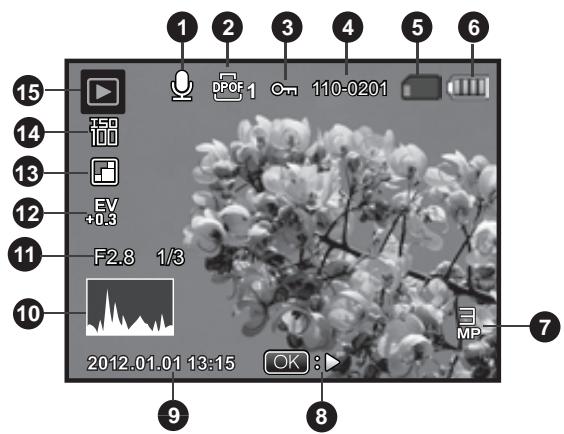
Playback mode - Still image playback
- Voice memo
- DPOF icon
- Protect icon
- File / Folder number
- Storage media
- Battery condition
- Image size resolution
- OK key: Play hint icon
- Date and time
- Histogram
11.Shutter speed value/Aperture value - Exposure value
- Image quality
14.ISO - Mode icon
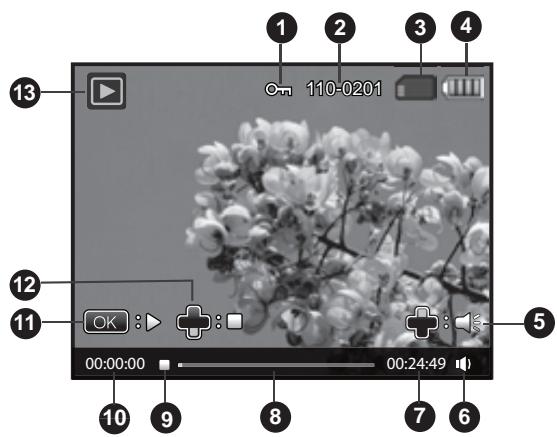
Playback mode - Video playback
- Protect icon
- File / Folder number
- Storage media
- Battery condition
- Up key:Volume adjust icon
- Volume
- Total recorded time
- Video status bar
- Video condition icon
- Elapsed time
- OK key: Play/Pause hint icon
- Down key: Stop hint icon
13.Mode icon
GETTING STARTED
Preparation
-
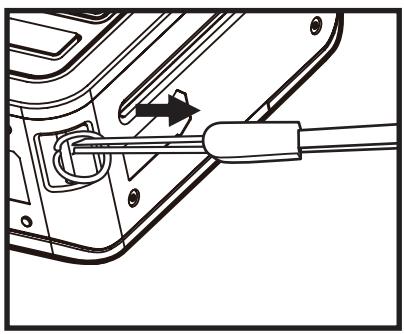
Attach the camera's hand strap as shown in the illustration.
-
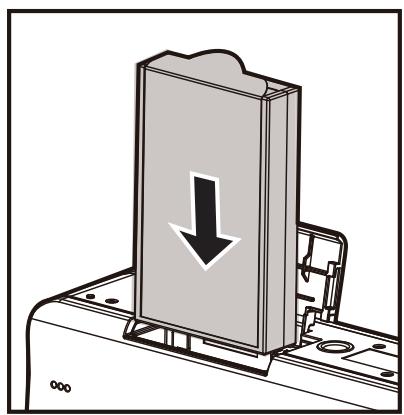
Open the battery/SD card door.
- Insert the battery in the correct orientation as shown in the illustration.
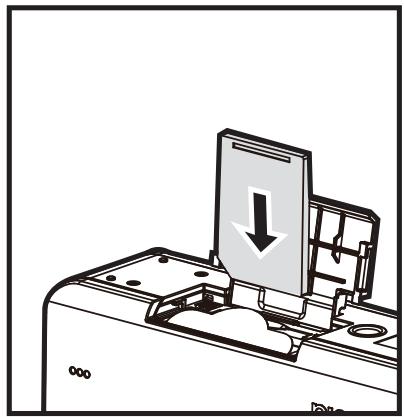
- Insert an SD/SDHC memory card (Optional).
The camera has 32MB internal memory (15MB available for image storage), but you can load an SD/SDHC memory card to expand the camera's memory capacity.
- Be sure to format the memory card with this camera before its initial usage.
- Close the battery/SD card door and make sure it is locked securely.

- To prevent valuable data from being accidentally erased from an SD/SDHC memory card, you can slide the write protect tab (on the side of the SD/SDHC memory card) to "LOCK".
To save, edit, or erase data on an SD/SDHC memory card, you must unlock the card. - To prevent damaging of an SD/SDHC memory card, be sure to turn off the power when inserting or removing the SD/SDHC memory card. If inserting or removing the SD/SDHC memory card with the power on, the camera will automatically turn off.
Installing Polaroid PoGo™ Premium ZINK Paper™
Insert the photo paper before printing images.
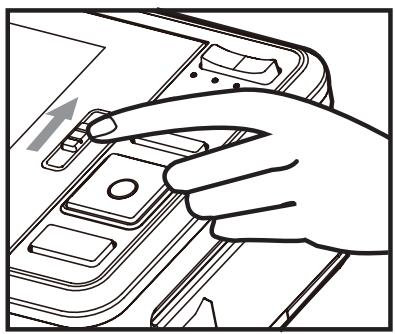
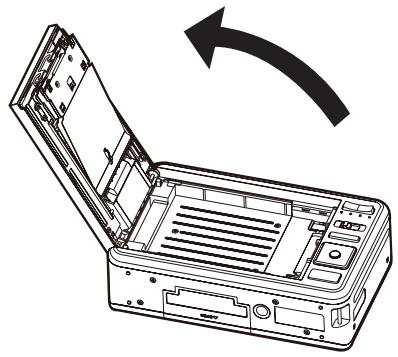
- Slide the latch on the paper tray door as shown in the illustration.
- Unwrap the 10-pack of Polaroid PoGo™ Premium ZINK Paper™.
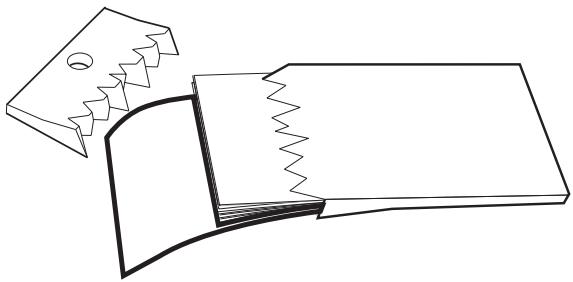
- Slide the 10-pack of Polaroid PoGo™ Premium ZINK Paper™ into the paper tray.
Make sure the ZINK Smart Sheet™ is placed and loaded with the bar code face down.
Shiny side of paper faces up.
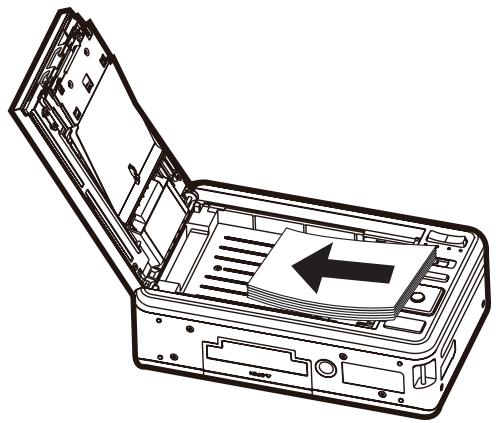
- Close the paper tray door.
The ZINK Smart Sheet™ will automatically eject.

The paper compartment must be empty before refilling. Do not fill the paper compartment with more than one 10-pack of Premium ZINK Paper™. Having more than 10 sheets of paper may damage the printer.
Avoid bending the Premium ZINK Paper™.
■ Only hold the Premium ZINK Paper™ by its edges; avoid touching the printing surface with your fingers.
EN-14
Charging the Battery
The AC adapter charges the battery and also powers the camera. Make sure that the camera is turned off and the battery is inserted before starting.
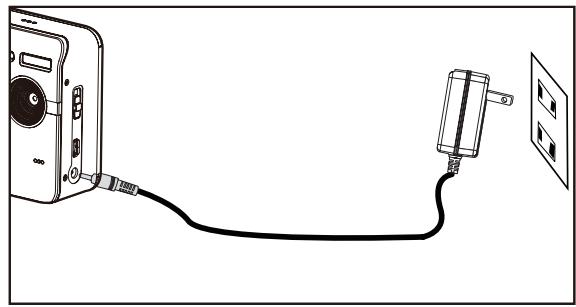
- Insert one end of the AC adapter into the DC IN 9V terminal of the camera.
- Insert the other end of the AC adapter into a wall outlet.
The status LED is red when charging and is green when charging is complete.
- Charging time varies according to the ambient temperature and the age of the battery.

The battery may feel warm after it has been charged or immediately after being used. This is normal and not a malfunction.
When using the camera in cold areas, keep the camera and battery warm.
Notes on the AC power cord
AC Power Cord must meet the requirement of countries where you use this projector. Please confirm your AC plug type below and ensure that the proper AC Power Cord is used. Please ensure that your outlet fits the plug.
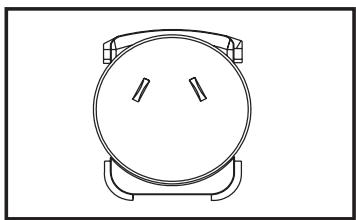
For Australia and Mainland China
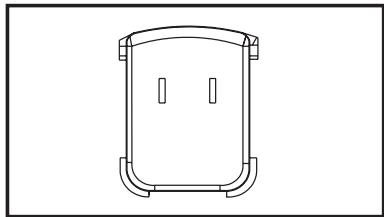
For the U.S.A. and Canada
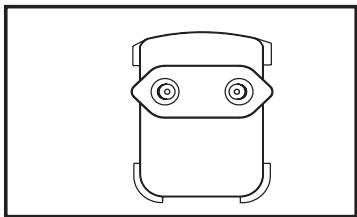
For Continental Europe
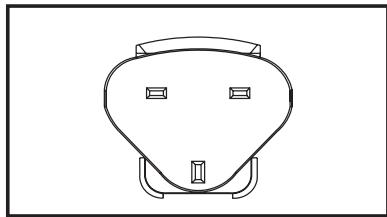
For the U.K.
Initial Settings
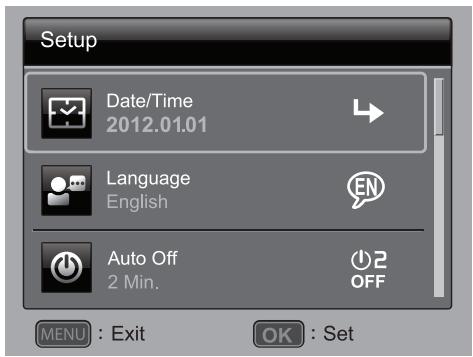
Setting the Date and Time
The date/time needs to be set when:
The camera is turned on for the first time.
The camera is turned on after leaving the camera without the battery for an extended period of time.
When the date and time information is not displayed on the LCD display, follow these steps to set the correct date and time.
- Toggle the MODE button, and set the camera mode to [O] or [B]; or press the button.
- Press the MENU button.
- Select the [Setup] at the end of the Menu with the / buttons, and press the OK button.
- Select [Date/Time] with the / buttons, and press the OK button.
-
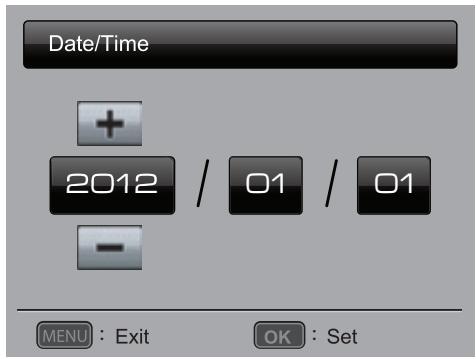
Select the date format with the / buttons, and press the OK button.
-
Select the item's field with the / buttons and adjust the value for the date and time with the / buttons.
The time is displayed in 24-hour format.
After confirming all settings are correct, press the OK button. -
To exit from the [Setup] menu, press the MENU button.
Choosing your Language
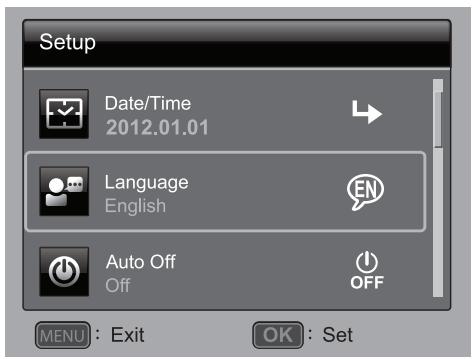
Specify what language in the menus and messages are to be displayed on the LCD display.
- Toggle the MODE button, and set the camera mode to [O] or [B]; or press the button.
- Press the MENU button.
- Select the [Setup] at the end of the Menu with the / buttons, and press the OK button.
- Select [Language] with the / buttons and press the OK button.
- Select the displayed language with the / / / buttons and press the OK button. The setting will be stored.
- To exit from the [Setup] menu, press the MENU button.
Formatting the Memory Card or Internal Memory
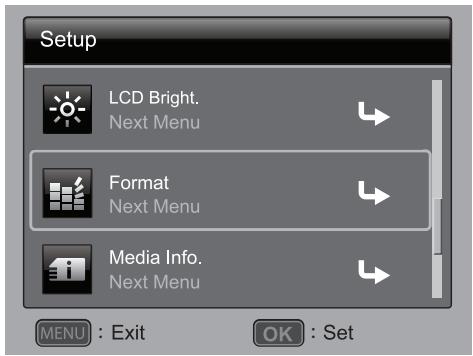
This utility formats the internal memory (or memory card) and erases all stored images and data.
- Toggle the MODE button, and set the camera mode to [O] or [O]; or press the button.
- Press the MENU button.
- Select the [Setup] at the end of the Menu with the / buttons, and press the OK button.
- Select [Format] with the / buttons, then press the OK button.
-
Select [Confirm] with the / buttons, and press the OK button.
-
To cancel formatting, select [Cancel] and press the OK button.
-
To exit from the [Setup] menu, press the MENU button.
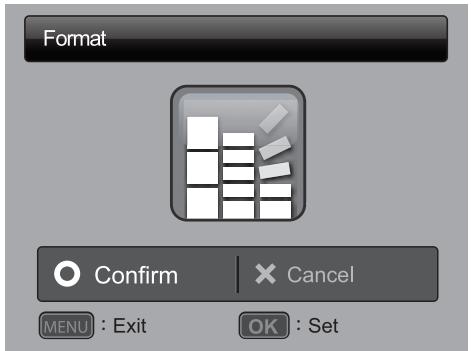

Photos or movies deleted by formatting cannot be recovered. Download photos and movies to your computer before you format the memory card.
CAPTURE MODE
Capturing Images
Your camera is equipped with a 3.0" full color TFT LCD display to help you compose images, playback recorded images/video clips or adjust menu settings.
-
Press the button to turn the power on.
-
Toggle the MODE button, and set the camera mode to [a].
Set the focus switch to [ ] if you want to capture a close-up image.
- Toggle the ±b button to select the appropriate flash mode setting.
-
Compose your image in the LCD display.
-
Pressing the + button zooms in on the subject, and enlarges the subject on the LCD display.
-
Pressing the - button provides a wider angle image.
-
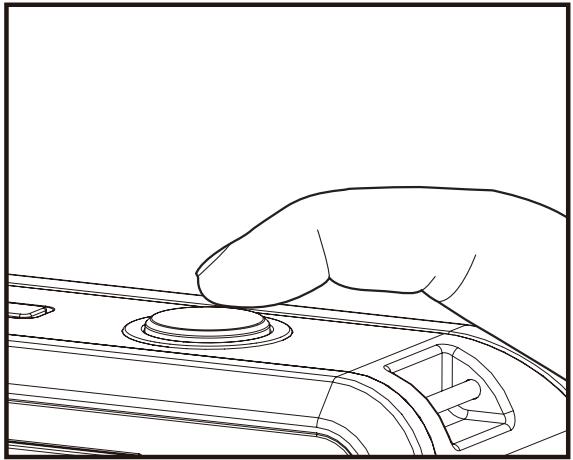
To take a picture press the shutter button.
Questions?
Call our toll-free customer service number. Look for the insert with this icon:
Or visit www.polaroid.com.

Setting the Self-timer
This setting allows images to be captured with self-timer.
- Toggle the button to select the setting.
Each press of the button moves the icon one step through the sequence and displays it on the screen.
-
Compose your image in the LCD display.
-
Press the shutter button.
The self-timer LED flashes and the camera beeps (if beep is turned on). The image will be captured after the preset time has elapsed.
The countdown is displayed on the LCD screen.
- To cancel the self-timer during operation, press the OK button or shutter button.
The table below will help you to choose the appropriate self-timer mode:
| Self-timer mode | Description |
| [Ø2s] 2 sec. | The image is captured about 2 seconds after the shutter is pressed. |
| [Ø10s] 10 sec. | The image is captured about 10 seconds after the shutter is pressed. |
| [Ø10+2s] 10+2 sec. | The first image is captured about 10 seconds after the shutter button is pressed, and then a second image is captured 2 seconds later. The 10+2 mode is convenient when capturing group images in succession. |

The "10+2 sec." self-timer function cannot be used in the following capture modes: [ ] , [ ] , [ ] , [ ] , [ ] , [ ] , [ ] and [ ] .
The self-timer setting is automatically cancelled after an image is captured.
Setting the Scene Mode
By simply selecting one of the available scene modes, you can capture the image with the most appropriate settings.
- Toggle the MODE button, and set the camera mode to [O], and press the OK button.
- Select the desired scene mode with the / / / buttons, and press the OK button.
3.Compose your image and press the shutter button.
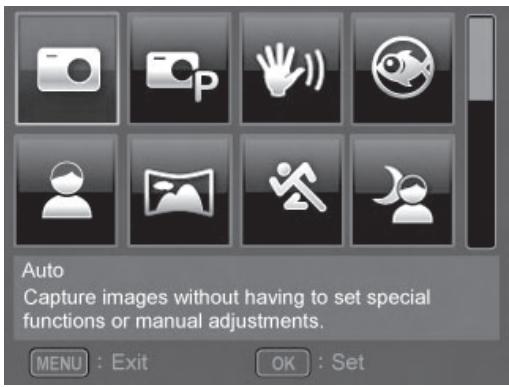
The table below will help you choose the appropriate scene mode:
| Scene mode | Description |
| Auto | Select this mode when you want to capture images without having to set special functions or manual adjustments. |
| Program AE | Select this mode when you want to set parameters manually other than the shutter speed and the aperture value. |
| Anti-shake | Select this mode when you want to minimize the influences of hand shaking when capturing an image. |
| Fisheye | Select this mode when you want to simulate a fisheye lens effect or to make a distorted hemisphere-like image. |
| Portrait | Select this mode when you want to have optimized settings for Portrait capture. |
| Landscape | Select this mode when you want to capture an image with infinity focus, hard sharpness and high saturation. |
| Sports | Select this mode when you want to capture fast-moving subjects. |
| Night Portrait | Select this mode when you want to capture people with an evening or night scene background. |
| Night Scene | Select this mode when you want to capture dark scenes such as night views. |
| Candlelight | Select this mode when you want to capture photos of candlelight scene, without spoiling the ambience. |
| Fireworks | Select this mode when you want to capture fireworks clearly with optimal exposure. The shutter speed becomes slower, so using a tripod is recommended. |
| Text | Select this mode when you want to capture an image that contains black and white subjects like printed documents. |
| Sunset | Select this mode when you want to capture a sunset. This mode helps keep the deep hues in the scene. |
| Sunrise | Select this mode when you want to capture a sunrise. This mode helps keep the deep hues in the scene. |
| Splash Water | Select this mode when you want to capture photos of splashing water. |
| Flow Water | Select this mode when you want to capture the soft flowing water. |
| Pets | Select this mode when you want to capture your pets. Shoot from their eye level. |
| Snow | Select this mode when you want to capture clear snow scenes without darkened subjects and bluish tint. |
| Beach | Select this mode when you want to capture bright beach scenes and sunlit water surfaces. |
| Photo border | Select this mode when you want to personalize your photo by adding suitable frame to your photo. |
| Natural Green | Select this mode when you want to capture the green scenery background such as forest. This mode helps to brighten the colors. |
Setting Manual White Balance
This manually sets the white balance and stores it. Use this feature if one of the pre-selected white balance lighting settings does not produce overall good image quality for the lighting used in your image.
- Toggle the MODE button, and set the camera mode to [O].
- Press the MENU button.
- Select [White Balance] with the / buttons, and press the OK button.
- Select [Manual] with the / buttons, and press the OK button.
-
Select [New WB] with the / buttons, and press the OK button.
-
To use the previously set white balance data, select [Use Data], and press the OK button.
-
Place a white paper in the middle of the scene, with all lights that will be used in the photo turned on. Zoom in on the paper, so it almost fills the frame. Then, select [Confirm] from the Manual WB menu.
This establishes for the camera exactly what white should look like under the current lighting conditions, and it will adjust its white balance accordingly.
The setting is memorized and will remain if the camera is shut off then back on.
Recording Shots into Multiple Image Layout
The Album Shot mode enables you to easily record images and combine three shots into a single image.
- Toggle the MODE button, and set the camera mode to [O].
- Press the MENU button, and select [Capture Md.] icon with the / buttons. Press the OK button.
- Select [Album Shot] with the / buttons, and press the OK button.
- Press the MENU button.
- Press the shutter button to capture the first image.
- Press the shutter button again to capture the second and third images.
The camera returns to normal preview display by pressing the button. Press the button again to switch back to album shot preview display.
This shot can only be recorded if there are 3 shots recorded in each of the available frames.
Find Blur Function
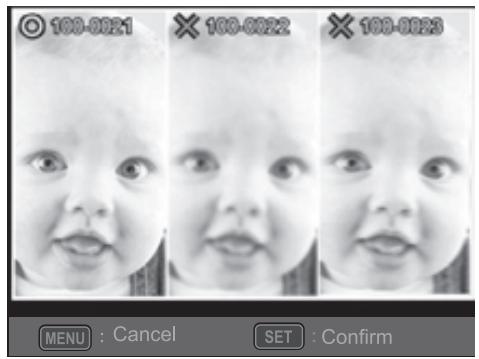
With the camera's new "Find Blur" function, this camera finds the blurry photo when capture under Continuous.
- Toggle the MODE button, and set the camera mode to [O]
- Press the MENU button, and select [Find Blur] icon with the / buttons. Set "Find Blur" on.
- Press the shutter button to return to preview display.
- Press the shutter button down fully to capture your image.
- Press the OK (Confirm) button to save the best image.
Press the MENU (Cancel) button to save all images.
VIDEO MODE
Recording Video Clips
This mode allows you to record video clips at a resolution of 1280x720(30fps) / 320 x 240 / 640 x 480 pixels.
- Toggle the MODE button, and set the camera mode to [ ]
- Compose the image.
- Press the shutter button.
The recording starts.
- Pressing the shutter button again and the recording stops.
The recording time depends on the available memory on the memory card and the subject of the image being recorded.
The zoom function cannot be used during video recording.
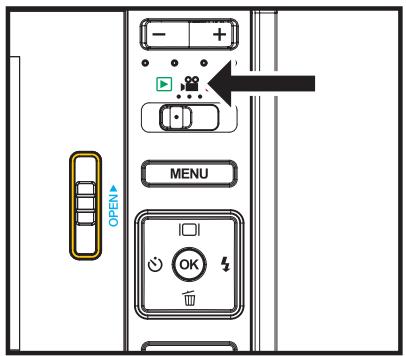

When recording a video clip, the flash and "10+2 sec." self-timer function cannot be used.
If the write speed of your SD/SDHC memory card is not fast enough for recording video clips in the currently selected quality, the video recording will stop. Should this happen, select a lower video quality.
A video recording will stop automatically when a video clip becomes approx. 4GB or 25minutes.
Playing Back Video Clips
You can play back recorded video clips on the camera. You can also play back sound if recorded with the video.
- Toggle the MODE button to [ ]
The last image appears on the screen.
-
Select the desired video clip with the / buttons.
-
Press the OK button.
A press of the / buttons during playback allows fast forward / fast reverse playback.
- To stop video playback, press the button. This stops playback and returns you to the beginning of the video clip.
- To pause video playback, press the OK button. Pressing the OK button again resumes playback.

Video clips cannot be displayed rotated or enlarged.
Windows Media player or QuickTime Player is recommended to play back the video clip on your computer.
- QuickTime Player is a free media player available at www.apple.com; and compatible with Mac and Windows computers.
For more information about the operation of the media player, refer to its respective help documentation.
- When watching a movie on a computer, frames may drop, it may not play smoothing, and the audio may stop suddenly depending on the computer's capabilities.
PLAYBACK MODE
Playback of Still Images
You can play back your still images on the LCD display.
- Toggle the MODE button to [▶].
The last image appears on the screen.
- The images can be displayed in forward or reverse sequence using the / buttons.
To view the previous image, press the button.
To view the next image, press the button.
- Pressing the + button enlarges the image.
- To return to normal magnification, press the - button.
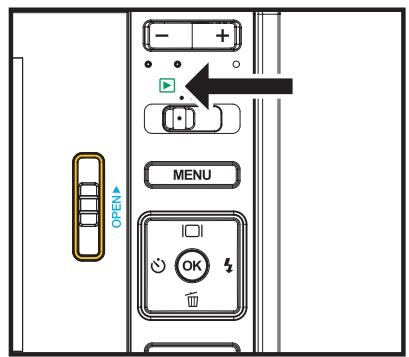
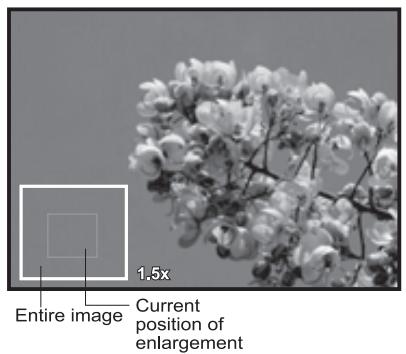

Video clips cannot be rotated.
An [ ] icon is displayed with images which have an audio memo recorded.
Erasing Images
Erasing a single image / Erasing all images
- Toggle the MODE button to [ ]
The last image appears on the screen.
- Select the image you want to erase with the
/ buttons.
- Press the OK button.
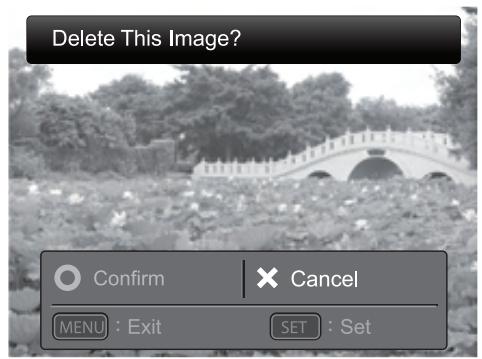
- Select [Single] or [All] with the / buttons, and press the OK button.
[Single]: Erases the selected image or the last image.
[All]: Erases all of the images except for the protected images.
- Select [Confirm] with the / buttons, and press the OK button.
- To not erase, select [Cancel], and press the OK button.
- To exit from the menu, press the MENU button.
Removing Red-eye
You can use this function to remove the red-eye effect after an image is taken.
- Toggle the MODE button to [ ]
The last image appears on the screen. - Select the image that you want to edit with the
/ buttons. - Press the MENU button.
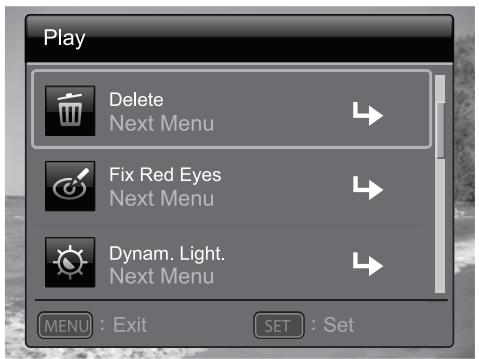
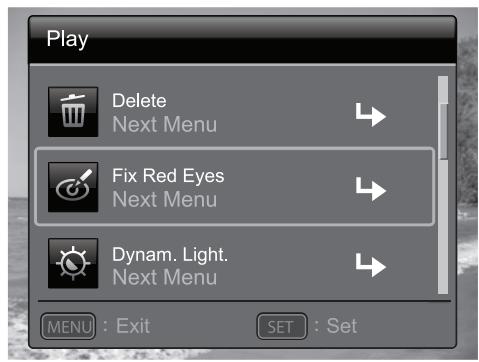
- Select [Fix Red Eyes] with the / buttons, and press the OK button.
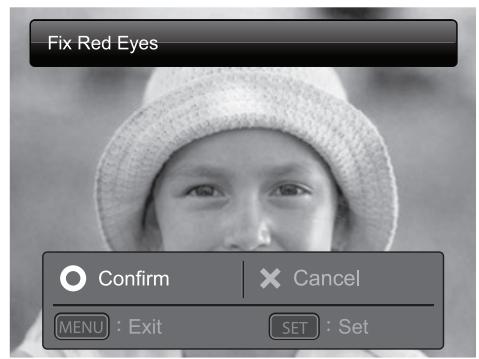
- Select [Confirm] with the / buttons, and press the OK button.
- View the changes on the corrected image.
-
To save your corrected image, select [Confirm] with the / buttons, and press the OK button.
-
When this process ends, this replaces the original image with the corrected image.
Dynamic Lighting Feature
This feature compensates for the unfavorable lighting conditions by brightening underexposed areas and balancing overexposed areas.
- Toggle the MODE button to [ ]
The last image appears on the screen. - Select the image that you want to edit with the / buttons.
- Press the MENU button.
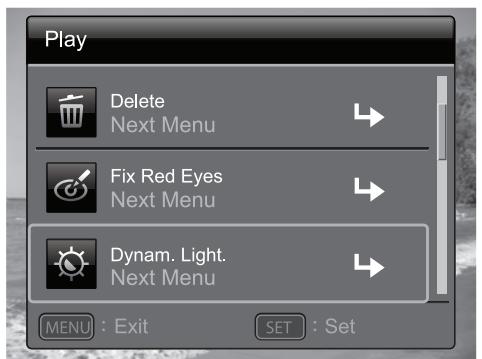
- Select [Dynam. Light.] with the / buttons, and press the OK button.
- Select [High] or [Low] with the / buttons, and press the OK button.
- View the changes on the corrected image.
- To save your corrected image, select [Confirm] with the / buttons, and press the OK button.
- When this process ends, this replaces the original image with the corrected image.
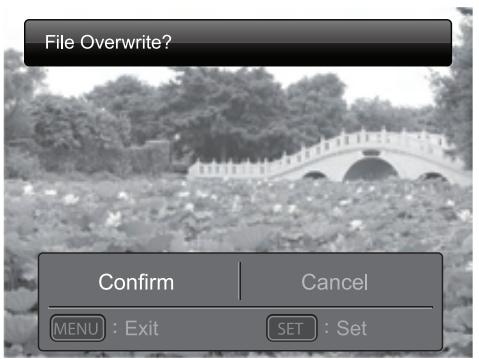
DPOF Settings
DPOF is the abbreviation for Digital Print Order Format, which allows you to embed printing information on your memory card. You can select the images to be printed and how many prints to make with the DPOF menu in the camera and insert the memory card to the card compatible printer. When the printer starts printing, it will read the embedded information on the memory card and print the specified images.
- Toggle the MODE button to [ ]
The last image appears on the screen.
-
Select the image that you want to set DPOF with the / buttons.
-
Press the MENU button.
-
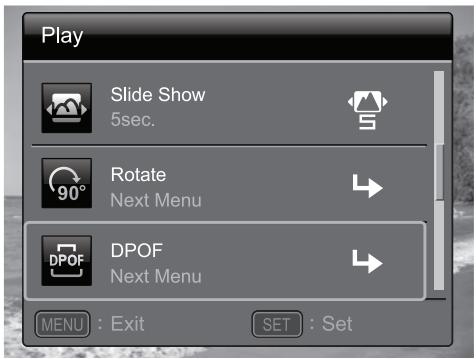
Select [DPOF] with the / buttons, and press the OK button.
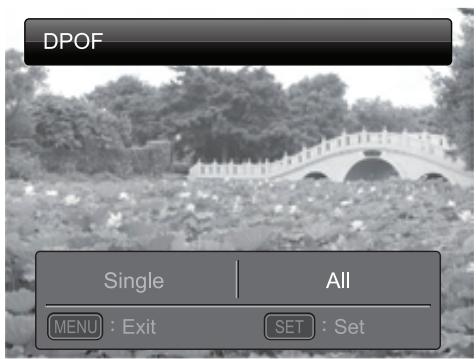
The DPOF setting screen is displayed.
- Select [Single] or [All] with the / buttons, and press the OK button.
[Single]: Sets DPOF for each individual image.
[All]: Sets DPOF for all images at once.
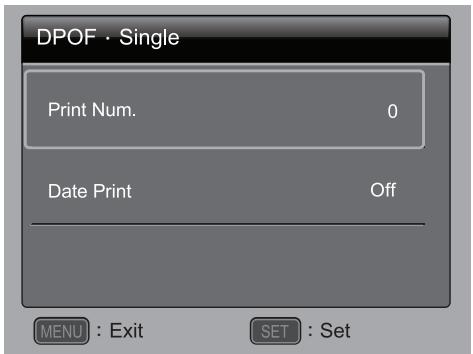
- Select [Print Num.] with the / buttons, and press the OK button.
This displays the number of prints setting screen.
-
Set the number of prints with the / buttons, and press the OK button.
-
Select [Date Print] with the / buttons, and press the OK button.
The date setting screen appears.
- Select date to [On] or [Off] with the / buttons, and press the OK button.
[On]: The date of the image will also be printed.
[Off]: The date of the image will not be printed.
The DPOF icon [DPOF] is displayed on each image that has set up DPOF settings.

The date that is printed on the image is the date set on the camera. To print the correct date on the image, set the date on the camera before you capture the image. Refer to the section in this manual titled "Setting the Date and Time" for further details.
Protecting Images
To prevent images from accidentally being erased, follow the steps below:
- Toggle the MODE button to [ ]
The last image appears on the screen. - Select the image that you want to protect with the / buttons.
- Press the MENU button.
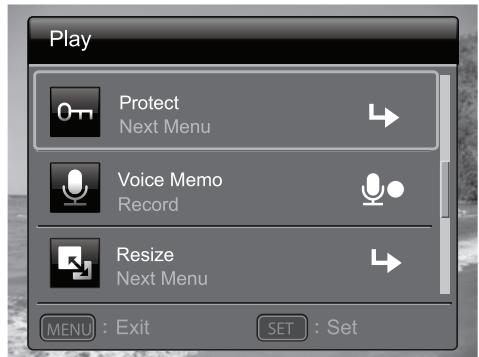
- Select [Protect] with the / buttons, and press the OK button.
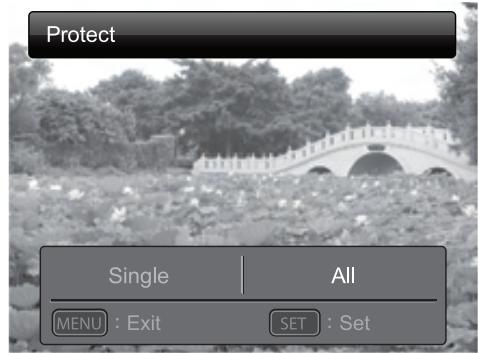
- Select [Single] or [All] with the / buttons, and press the OK button.
- Select [Set] with the / buttons, and press the OK button.
Protection is applied to the image and the camera returns to the playback mode.
The protect icon [ 一 _ 一 ] is displayed with protected images.
When [All] has been selected, [ ] is displayed on all the images.
Canceling the Protection
To cancel protection for only one image, display the image on the LCD display you want to remove the protection.
- Toggle the MODE button to [ ]
The last image appears on the screen.
-
Select the image that you want to cancel protection with the / buttons.
-
Press the MENU button.
- Select [Protect] with the / buttons from the playback menu, and press the OK button.
- Select [Single] or [All] with the / buttons, and press the OK button.
- Select [Cancel Protect] with the / buttons, and press the OK button.
The removal of image protection is executed and the camera returns to the playback mode.

- Formatting an SD/SDHC memory card overrides protection, and erases all images regardless of their protected status.
Attaching Voice Memos
You may record a voice memo for a still image (up to 30 seconds in length). Only one voice memo per image.
- Toggle the MODE button to [ ].
The last image appears on the screen.
- Select the image to which you want to attach the voice memo with the / buttons.
- Press the MENU button.
- Select [Voice Memo] with the / buttons, and press the OK button.
- Press the OK button.
[30s] is displayed on the screen and the recording starts.
- To stop recording a voice memo as it is being recorded, press the OK button again.
An [ ] icon is displayed with images that have a voice memo.

■ RE-REC mode can only be used for the recorded and selected file, and it can record voice memo repeatedly to replace the previous recordings.
Playing back voice memo
A press of the OK button displays []_1/30s and plays back the voice memo.
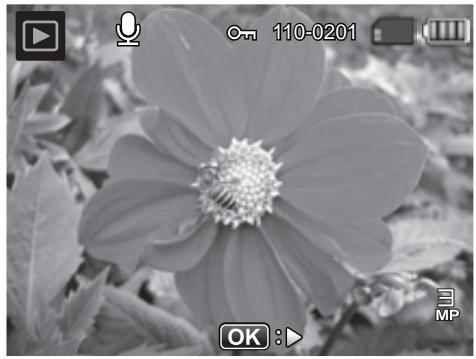

Voice memo is only available for still images.
INSTANT DIGITAL PRINTER FUNCTIONS AND FEATURES
Printing
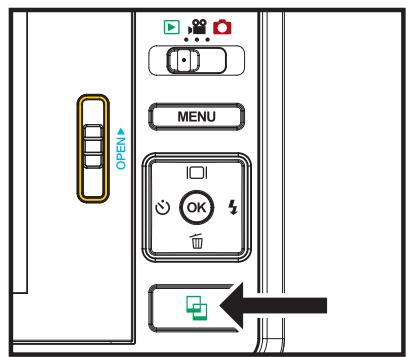
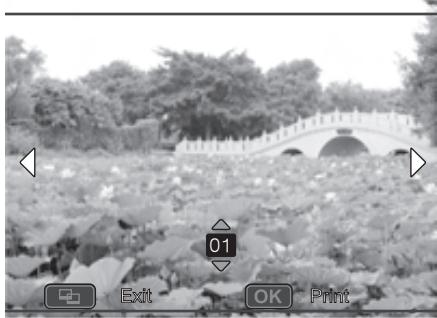
- Press the button to enter the Print mode.
- Select the image that you want to print with the / buttons.
- Set the number of prints with the / buttons, and press the OK button.
By default the print quantity is 1.
-
Select [Print] with the / buttons, and press the OK button.
-
Select [Reset] the camera returns to print preview display without saving the settings.
Press the MENU button to exit print setting, and the camera returns to print preview display.
After the printing process is complete, the camera returns to print preview display. -
Press to exit print setting, go back to Capture / Movie / Playback mode.
Editing your Images
The camera has features that allow you to perform several photo editing functions on your images before printing. You can remove red-eye effects, crop images to specific sizes and more.
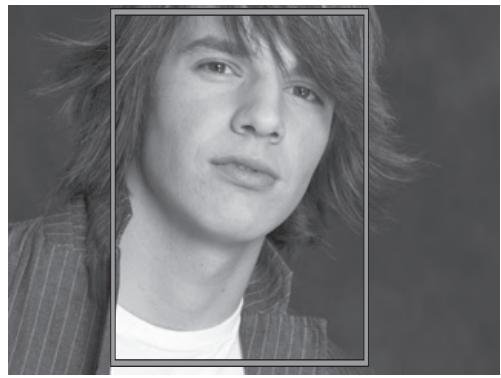
Passport Print
a. Press the button to enter the Print mode, and press the MENU button.
b. Opt for the [Passport Print] feature with the / buttons, and press the OK button.
c. Select the item's field with the / buttons, and press the OK button.
d. Select the image that you want to edit with the / buttons.
e. Press the OK button again and press the / / / buttons to select the image portion that you want to crop and press the OK button.
f. Select [Confirm] with the / buttons, and press the OK button. The new bordered image is saved as a new file.
- Select [Cancel] will enter print menu without saving the settings.
g. To proceed with image printing, select [Confirm] with the / buttons on the "Print Now?" menu.
After the printing process is complete, the camera returns to the main Print preview display.
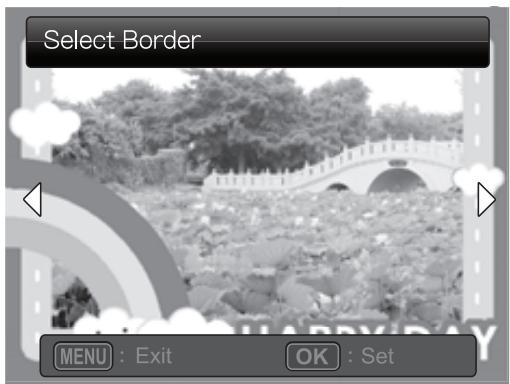
Adding Photo Border
a. Press the button to enter the Print mode, and press the MENU button.
b. Opt for the [Photo Border] feature with the / buttons, and press the OK button.
c. Select [Add Border] with the / buttons, and press the OK button.
d. Select the image that you want to edit with the / buttons.
e. Press the OK button again and select the photo border that you want to choose with the / buttons, and press the OK button.
f. Select [Confirm] with the / buttons, and press the OK button. The new bordered image is saved as a new file.
- Select [Cancel] will enter print menu without saving the settings.
g. To proceed with image printing, select [Confirm] with the / buttons on the "Print Now?" menu.
After the printing process is complete, the camera returns to the main Print preview display.
Cropping Images
a. Press the button to enter the Print mode, and press the MENU button.
b. Opt for the [Crop] feature with the / buttons, and press the OK button.
c. Select the image that you want to edit with the / buttons.
d. Press the OK button again to enter the cropping mode. You should see the highlighted crop box.
e. Press the + / - buttons.
- Pressing the + button enlarges the image.
- To return to normal magnification, press the - button.
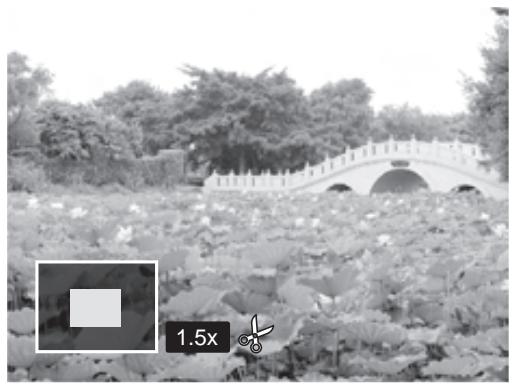
f. Press the / / / buttons to select the image portion that you want to crop and press the OK button.
g. Select [Confirm] with the / buttons, and press the OK button. The cropped image is saved as a new file.
- Select [Cancel] will enter print menu without saving the settings.
h. To proceed with image printing, select [Confirm] with the / buttons on the "Print Now?" menu.
After the printing process is complete, the camera returns to the main Print preview display.
Adding Polaroid Border
a. Press the button to enter the Print mode, and press the MENU button.
b. Opt for the [Polaroid Border] feature with the / buttons, and press OK button.
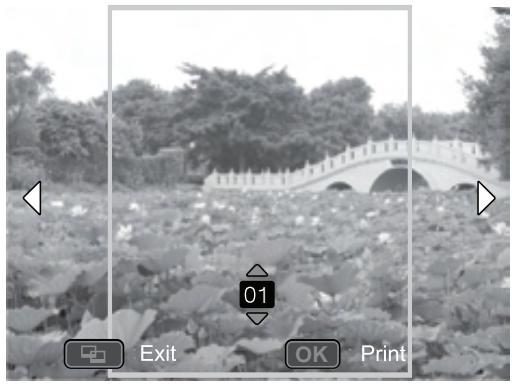
c. Set "Polaroid Border" on with the / buttons, and press the OK button.
- an outline in the standard print selection screen that shows which part of the image will be printed.
Adding Data Imprint
a. Press the button to enter the Print mode.
a. After selecting your image in the preview mode, press the MENU button. Opt for the [Date/File] feature with the / buttons, and press OK button.
b. Select the data that you want to print on your image with the / buttons, and press the OK button.
If you wish to print this image, set the number of prints with the / buttons, and press the OK button.
- Should you select date or date & file, the print data will be the date the image was taken: not the date the image was printed.

- Do not turn off the camera while printing.
- Do not open the paper tray door while printing.
Questions?
Call our toll-free customer service number. Look for the insert with this icon:
Or visit www.polaroid.com.
MENU OPTIONS
Capture Menu
This menu is for the basic settings to be used when capturing still images.
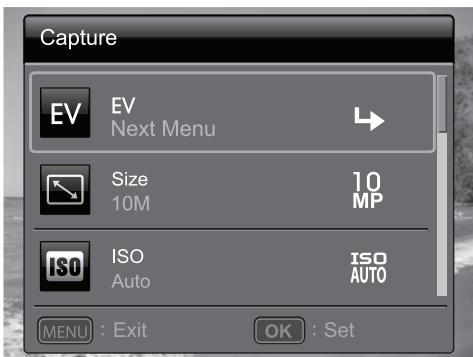
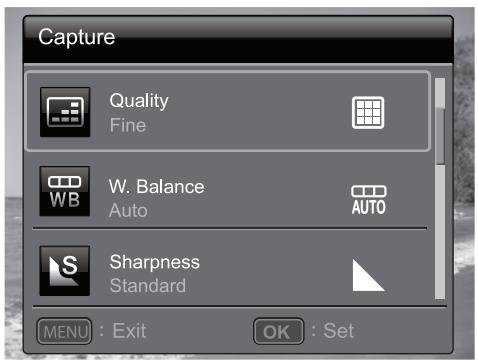
- Toggle the MODE button, and set the camera mode to [O].
- Press the MENU button.
- Select the desired option with the / buttons, and press the OK button to enter its respective menu.
- Select the desired setting with the / buttons, and press the OK button.
- To exit from the menu, press the MENU button.
EV
Your camera adjusts the exposure of each shot automatically. However, if the subject is very dark, or very bright, you may override the camera's automatic exposure setting to make the subject brighter or darker. This is called EV compensation. The EV compensation can be adjusted from -2.0EV to +2.0EV.
Size
This sets the size of the image that will be captured.
- 10M(FW interpolation) / 8M(FW interpolation) / 5M / 3M / VGA
ISO
This sets the sensitivity for capturing images. When the sensitivity is raised (and the ISO number is increased), images taken under low lighting or darker areas of the image will be seen, but the image may be more pixelated/grainier overall. As a "rule of thumb" the higher the ISO value the more grain in the image.
- Auto / ISO 100 / ISO 200 / ISO 400
Quality
This sets the quality (compression) at which the image is captured.
- Fine / Standard / Economy
EN-36
White Balance
This sets the white balance for a variety of lighting conditions and adjusts the images overall color according to the surrounding light conditions. Use this function if image color appears unnatural.
- Auto / Incand. / Fluoresc.1 / Fluoresc.2 / Daylight / Cloudy / Manual WB
Sharpness
This sets the sharpness of the image that will be captured.
- Hard / Standard / Soft
Color
This sets the overall color of the image that will be captured.
- Standard / Vivid / Color Accent (Red) / Color Accent (Green) / Color Accent (Blue) / Sepia / B&W / Blue / Red / Green / Yellow / Purple
Saturation
This sets the saturation of the image that will be captured.
- High / Standard / Low
Metering
This sets the metering method for calculating the exposure.
- Center: Averages the light metered from the entire frame, but gives greater weight to the subject matter at the center.
- Spot: A very small portion of the center of the screen is measured to calculate the correct exposure.
- Average: The exposure is measured all of the image area.
Capture Mode
This sets the recording method at the time of capturing images.
- Single: Captures one image at a time.
- Continuous: Permits continuous capture of up to 3 images.
- AEB: Permits 3 consecutive images in the order of standard exposure, underexposure and overexposure compensation.
-
- Album Shot: * Creates an album-like layout to combine 3 shots into a single image.
- Burst Permits continuous photography while pressing and holding the shutter button. As long as you hold the shutter button pressed, images are captured until the memory capacity is exhausted.
- Cont flash Permits continuous capture of up to 3 images with flash.
- Pre-shot Let's you capture the background first, then have someone to capture you in front of it.
- Coupl.shot Uses separate areas to combine two shots. You can include yourself in the shot.
Find Blur
Refer to the section in this manual titled "Find Blur" for further details.
- On / Off
Date Print
The date the image was captured will be printed on it. This function must be activated before the image is captured.
- On / Off
Setup
Refer to the section in this manual titled "Setup Menu" for further details.
Video Menu
This menu is for the basic settings to be used when recording video clips.
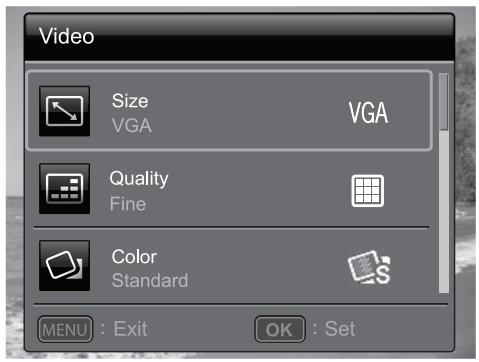
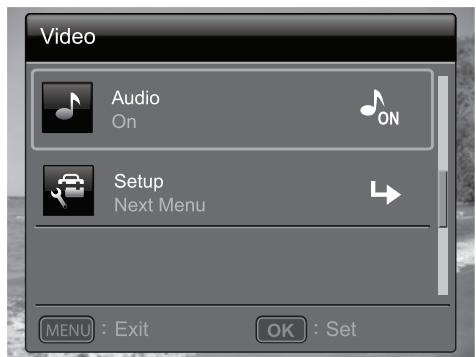
- Toggle the MODE button, and set the camera mode to [].
- Press the MENU button.
- Select the desired option with the / buttons, and press the OK button to enter its respective menu.
- Select the desired setting with the / buttons, and press the OK button.
- To exit from the menu, press the MENU button.
Size
This sets the size of the video clip that will be captured.
- HD / VGA / QVGA
Quality
This sets the quality (compression) at which the video clip is captured.
- Fine / Standard
Color
This sets the color of the video clip that will be captured.
- Standard / Vivid / Color Accent (Red) / Color Accent (Green) / Color Accent (Blue) / Sepia / B&W / Blue / Red / Green / Yellow / Purple
Audio
This sets whether or not to record audio at the time of video recording.
- On / Off
Setup
Refer to the section in this manual titled "Setup Menu" for further details.
Playback Menu
In the [ ] mode, choose which settings are to be used for playback.
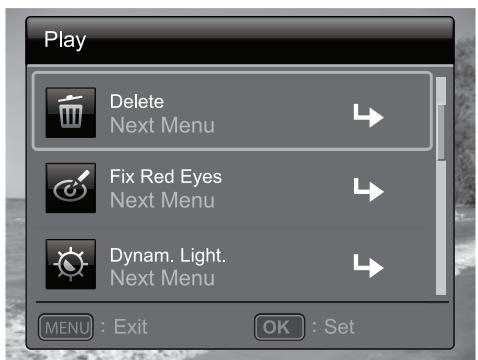
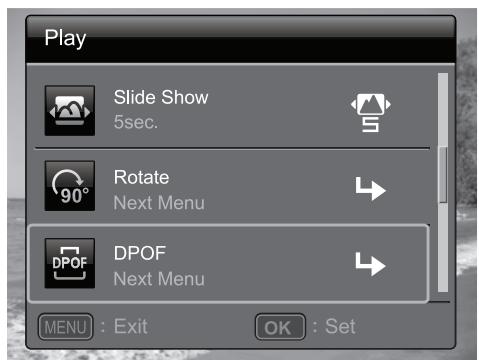
- Toggle the MODE button, and set the camera mode to [ ]
- Press the MENU button.
- Select the desired option with the / buttons, and press the OK button to enter its respective menu.
- Select the desired setting with the / buttons, and press the OK button.
- To exit from the menu, press the MENU button.
Delete
Refer to the section in this manual titled "Erasing Images" for further details.
Fix Red Eyes
Refer to the section in this manual titled "Removing Red-eye" for further details.
Dynam. Light.
Refer to the section in this manual titled "Dynamic Lighting Feature" for further details.
Slide Show
This function enables you to play back your still images automatically in order one image at a time.
- 3 Sec. / 5 Sec. / 10 Sec.
Rotate
If you wish to rotate a still image 90 degrees to the right, select +90^ ; if you wish to rotate it 90 degrees to the left, select -90^ . Video clips cannot be rotated.
- +90° / -90°
DPOF
Refer to the section in this manual titled "DPOF Settings" for further details.
Protect
Refer to the section in this manual titled "Protecting Images" for further details.
EN-40
Voice Memo
Refer to the section in this manual titled "Attaching Voice Memos" for further details.
Resize
Resizes a previously saved image. Resizing replaces the original image with the changed image. It is only possible to resize to a smaller size.
Qual. Change
Changes the quality (compression) of a recorded image. Compress images down to half of their size or less, overwrite old size images with newly compressed images. It is only possible to reduce the image quality/size, never to increase it.
Copy to Card
Allows you to copy your files from the camera's internal memory to a SD/SDHC memory card. Of course, you can only do this if you have a memory card installed and some files in internal memory. All files remain in the internal memory, even after copy to the SD/SDHC memory card from the internal memory.
- Cancel / Confirm
Setup
Refer to the section in this manual titled "Setup Menu" for further details.
Setup Menu
Set your camera's operating environment.
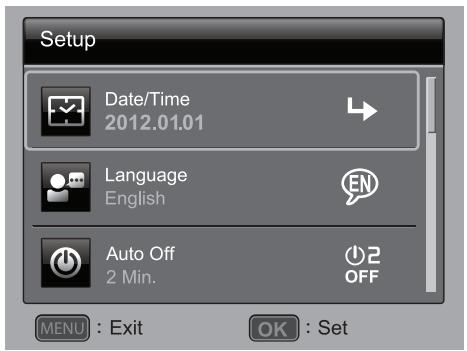
- Toggle the MODE button, and set the camera mode to [O] or [B]; or press the button.
- Press the MENU button.
- Select the [Setup] at the end of the Menu with the / buttons, and press the OK button.
- Select the desired option item with the / buttons, and press the OK button to enter its respective menu.
- Select the desired setting with the / buttons, and press the OK button.
- To exit from the menu, press the MENU button.
Date/Time
Refer to the section in this manual titled "Setting the Date and Time" for further details.
Language
Refer to the section in this manual titled "Choosing the Language" for further details.
Auto Off
If no operation is performed for a specific period of time, the power to the camera is automatically turned off. This feature is useful for reducing battery usage.
- Off / 1 Min. / 2 Min. / 3 Min.
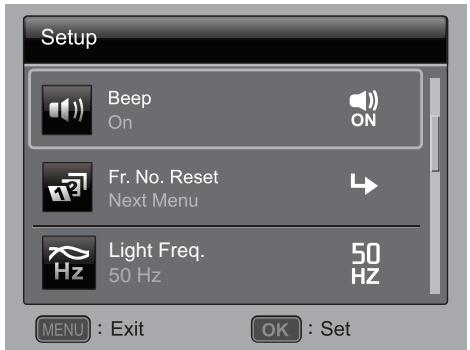
Beep
This sets whether or not to mute the camera sound each time you press the camera's buttons.
- On / Off
Fr. No. Reset
This creates a new folder. The captured images are recorded to the newly created folder from number 0001.
- Cancel / Confirm
EN-42
Light Freq.
This camera supports different lighting frequencies: 50 Hz and 60 Hz. When photographing under fluorescent lighting, select the correct frequency setting depending in your local area's voltage.
- 50 Hz / 60 Hz
LCD Bright.
Select a brightness level for the LCD monitor.
- Standard / Bright
Format
Refer to section in this manual titled " Formatting the Memory Card or Internal Memory" for further details.
Media Info.
This displays the free capacity of the internal memory or the memory card.
Sys. Info.
This displays the firmware version of the camera.
Sys. Reset
This returns all basic settings to the camera's default settings. The time setting will not be reset.
- Cancel / Confirm
TRANSFERRING FILES TO YOUR COMPUTER
System Requirement
| Windows | Macintosh |
| ■ Pentium III 1GHz or equivalent ■ Windows 2000/XP/Vista ■ 512MB RAM ■ 150MB available hard disk space ■ CD-ROM drive ■ Available USB port | ■ PowerPC G3/G4/G5 ■ OS 9.0 or later ■ 256MB RAM (512 MB recommended) ■ 128MB available hard disk space ■ CD-ROM drive ■ Available USB port |
Downloading Your Files
- Turn on your camera.
- Connect the camera to your computer with the USB cable.
- Select [PC] using the / buttons and press the SET button.
- From the Windows desktop, double click on "My Computer".
- Look for a new "removable disk" icon.
- Double click on the removable disk and locate the DCIM folder.
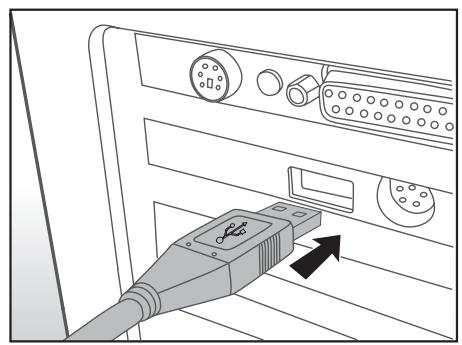
■ Your recorded images and video clips will be inside the folders of DCIM folder.
- Copy&Paste or Drag-N-Drop image and video files to a folder on your computer.
Mac users: Double-click the "untitled" or "unlabeled" disk drive icon on your desktop. iPhoto may automatically launch.

Black screen appears when camara is conneted with PC without battery inside.
EDITING SOFTWARE INSTALLATION
There are 2 types of software that are included on the CD-ROM:
ArcSoft Medialmpression™ - Easily, creatively, and productively manage your multimedia files. Create your own movies or photo slide shows, and share your photo, video and music files easily through simple email attachments or popular photo printing and video sharing websites.
Print Creations - brings you a family of fun and easy print-project software that brings out the creativity in you. You can personalize the designs with your own digital pictures and text based on professionally designed templates and layouts. Projects can be printed at home or saved as image files for sharing with family and friends by email or the web.
To install software:
- Insert the CD-ROM that came with the camera into your CD-ROM drive. The welcome screen appears.
- Click the respective software name. Follow the on-screen instructions to complete the installation.

For more information about the operation of the software, refer to its respective help documentation.
■ For Windows XP/Vista/7 users, please make sure to install and use the software in "Administrator" mode.
The software is not supported by Mac.
Questions?
Call our toll-free customer service number. Look for the insert with this icon:
Or visit www.polaroid.com.

SPECIFICATIONS
| Item | Description |
| Image sensor | 1/3.2" CMOS sensor |
| Image resolution | Still image 10M (3648x2736 FW interpolation); 8M (3264x2448 FW interpolation); 5M (2560 x 1920); 3M (2048x1536); VGA (640x480) Video clip 1280x720(30fps), 640x480, 320x240 |
| LCD display | 3.0" full color TFT LCD (230K) |
| Recording media | 32MB internal memory (15MB available for image storage) Supports SD/SDHC memory card (up to 32GB) (optional) |
| File format | DCF, JPEG (EXIF 2.2), Motion-JPEG (AVI), HD720p/30fps |
| Lens | Focal length: 6mm |
| Focus Range | Standard: 1.0m - infinity Macro: 0.19m - 0.24m |
| Digital zoom | 2.4x (Capture mode) 4x (Playback mode) |
| Flash effective range | 1.2~2.1m |
| Terminals | DV IN 9V USB 2.0 compliant |
| Power supply | Rechargeable Lithium-ion battery (7.4V) AC adapter (9V/3A) |
| Dimensions | Approx. 118 x 76x 34.6mm (without protruding parts) |
| Weight | Approx. 264g (without battery and memory card) |
- Design and specifications are subject to change without notice.
APPENDIX
Possible Number of Shots
Possible number of shots (still image)
The table shows the approximate shots that you can capture at each setting based on the capacity of the internal memory and the SD/SDHC memory card.
| Size | Quality | Internal Memory | SD/SDHC memory card capacity | |||||
| 1GB | 2GB | 4GB SDHC | 8GB SDHC | 16GB SDHC | 32GB SDHC | |||
| IO MP 3648x2736 (FW interpolation) | Fine | 7 | 486 | 989 | 1943 | 3954 | 7957 | 15962 |
| Standard | 12 | 725 | 1476 | 2899 | 5900 | 11871 | 23814 | |
| Economy | 15 | 1010 | 2054 | 4035 | 8211 | 16522 | 33143 | |
| 8 MP 3264 x 2448 (FW interpolation) | Fine | 9 | 560 | 1140 | 2240 | 4559 | 9174 | 18404 |
| Standard | 14 | 856 | 1741 | 3420 | 6960 | 14005 | 28094 | |
| Economy | 18 | 1155 | 2349 | 4613 | 9389 | 18891 | 37895 | |
| 5 MP 2560 x 1920 | Fine | 11 | 745 | 1517 | 2980 | 6064 | 12203 | 24479 |
| Standard | 18 | 1146 | 2331 | 4579 | 9318 | 18749 | 37612 | |
| Economy | 24 | 1504 | 3060 | 6010 | 12231 | 24610 | 49368 | |
| 3 MP 2048 x 1536 | Fine | 16 | 998 | 2030 | 3986 | 8113 | 16324 | 32746 |
| Standard | 24 | 1503 | 3058 | 6005 | 12221 | 24590 | 49327 | |
| Economy | 32 | 2007 | 4083 | 8018 | 16319 | 32834 | 65864 | |
| VGA 640 x 480 | Fine | 47 | 3012 | 6126 | 12028 | 24478 | 49251 | 98797 |
| Standard | 68 | 4310 | 8765 | 17210 | 35024 | 70469 | 99999 | |
| Economy | 81 | 5032 | 10235 | 20097 | 40898 | 82286 | 99999 | |
Possible recording time / sec (video clip)
| Size | Quality | Internal Memory | SD/SDHC memory card capacity | |||||
| 1GB | 2GB | 4GB SDHC | 8GB SDHC | 16GB SDHC | 32GB SDHC | |||
| HD 1280 x 720 | □ Fine | 00:00:05 | 00:06:04 | 00:12:21 | 00:24:16 | 00:49:23 | 01:39:22 | 03:19:20 |
| □ Standard | 00:00:06 | 00:06:49 | 00:13:53 | 00:27:16 | 00:55:31 | 01:51:42 | 03:44:05 | |
| VGA 640 x 480 | □ Fine | 00:00:07 | 00:07:35 | 00:15:25 | 00:30:17 | 01:01:38 | 02:04:01 | 04:08:48 |
| □ Standard | 00:00:12 | 00:13:34 | 00:27:36 | 00:54:12 | 01:50:18 | 03:41:57 | 07:25:13 | |
| Q-VGA 320 x 240 | □ Fine | 00:00:21 | 00:22:25 | 00:45:36 | 01:29:33 | 03:02:15 | 06:06:42 | 12:15:36 |
| □ Standard | 00:00:31 | 00:33:16 | 01:07:40 | 02:12:53 | 04:30:26 | 09:04:08 | 18:11:31 | |
- The table above shows the approximate maximum recording times. These are the total times for all clips. A video recording will stop automatically when a video clip becomes approx. 4GB or 25minutes.
- We recommend a memory card of at least 10MB/Sec write speed to prevent auto stop or unexpected results. If you experience an error using a slower SD/SDHC memory card, you can set your camera's video recording to QVGA (320 x 240) and standard quality.
- SDHC Class6 or above is required for HD movie recording.
Troubleshooting
Refer to the symptoms and solutions listed below before sending the camera for repairs. If the problem persists, contact your local reseller or service center.
| Symptom | Cause | Solutions / Corrective Actions |
| The camera does not come on. | The battery is not inserted. | Insert the battery correctly. |
| The battery is dead. | Recharge the battery. | |
| The battery runs out quickly. | The battery is not fully charged. The battery is not used for an extended period of time after being charged. | Fully charge the battery and discharge it for at least one complete cycle before use to maximize its performance and lifetime. |
| The battery or camera feels warm. | Long period of continuous use of the camera or the flash. | -------- |
| Even if I press the shutter button, the camera does not take a picture. | The shutter button is not pressed all the way down. | Press the shutter button all the way down. |
| The memory card is full. | Insert a new memory card, or delete unwanted files. | |
| The memory card is write-protected. | Remove the write-protection. | |
| Images do not appear on the LCD display. | LCD display is dark. | Adjust the brightness of the LCD display in the menu. |
| The images appear to be blurry or out of focus. | The subject is too close. | Get your subject within the effective focus range. |
| The contents on the memory card cannot be played back. | You played back a memory card that was not formatted by this camera. | Insert a memory card that was formatted on this camera. |
| Files cannot be deleted. | The file is protected. | Cancel protection. |
| The memory card is write-protected. | Remove the write-protection. | |
| Even when the camera's buttons are pressed, it does not operate. | The battery is running low. | Recharge the battery. |
| The date and time are wrong. | The correct date and time is not set. | Set the correct date and time. |
| Cannot download images. | The free space on the hard disk in your computer may be insufficient. | Check whether the hard disk has space for running Windows, and if the drive for loading image files has a capacity at least that of the memory card inserted in the camera. |
| The battery power may be too low. | Plug in the AC adapter and recharge the battery. |
Troubleshooting when using the camera's built-in printer:
| Problem | Solution | |
| Do not: | Do: | |
| The photo has streaks. | Send another image to be printed. | 1. Turn off the camera. 2. Open the paper tray door and remove the photo paper. 3. Place the ZINK Smart Sheet™ upside down (with watermark facing down) in the paper tray. 4. Close the paper tray door. 5. Press the button to turn the power on. 6. The ZINK Smart Sheet™ will automatically eject. 7. Once The ZINK Smart Sheet™ has ejected, open the paper door and reload the paper. 8. Resume printing. If streaks are still present, then repeat this process. |
| The paper jammed before printing (nothing has been ejected). | Send another image to be printed. | 1. Open the paper tray door. Check if there is paper in the tray. ■ If so, ensure the paper is loaded correctly. ■ If not, add a new pack of Polaroid Premium ZINK Paper™. |
| The paper jammed while printing (part of the image has already ejected). | Pull out paper. | 1. Turn off the camera. 2. Open the paper tray door and remove the excess photo paper. 3. Close the paper tray door. 4. Press the print button again. This should eject the jammed paper. 5. Reload the paper after the jammed paper has been cleared. |
| If all else fails... | -------- | 1. Turn off the camera. 2. Open the battery/SD card door. 3. Remove the battery and reinsert it. 4. Close the battery/SD card door. 5. Turn on the camera. |
| Low battery. | -------- | Plug the AC adapter to charge the battery and operate the camera to print images. |
| Out of paper. | Turn off the camera. | Open the paper door and reload a new pack of Premium ZINK Paper to continue printing or the OK button to cancel printing and return to the menu. |
- Note:
- Notice
- READ THIS FIRST
- Trademark Information
- Product Information
- EN-2
- SAFETY INSTRUCTIONS
- Warnings
- Cautions
- Notes on Battery Usage
- Questions?
- Notes on Handling Polaroid™ ZINK Premium Photo Paper™ and Print Care
- EN-6
- CONTENTS
- INTRODUCTION
- Overview
- Package Contents
- Optional Accessories:
- EN-8
- GETTING TO KNOW YOUR CAMERA
- Front View
- Rear View
- LCD Display
- Capture mode
- Video mode
- Playback mode - Still image playback
- Playback mode - Video playback
- GETTING STARTED
- Preparation
- Installing Polaroid PoGo™ Premium ZINK Paper™
- EN-14
- Charging the Battery
- Notes on the AC power cord
- Initial Settings
- Setting the Date and Time
- Choosing your Language
- Formatting the Memory Card or Internal Memory
- Capturing Images
- Setting the Self-timer
- Setting the Scene Mode
- Setting Manual White Balance
- Recording Shots into Multiple Image Layout
- Find Blur Function
- Recording Video Clips
- Playing Back Video Clips
- PLAYBACK MODE
- Playback of Still Images
- Erasing Images
- Erasing a single image / Erasing all images
- Removing Red-eye
- Dynamic Lighting Feature
- DPOF Settings
- Protecting Images
- Canceling the Protection
- Attaching Voice Memos
- Playing back voice memo
- INSTANT DIGITAL PRINTER FUNCTIONS AND FEATURES
- Printing
- Editing your Images
- Passport Print
- Adding Photo Border
- Cropping Images
- Adding Polaroid Border
- Adding Data Imprint
- MENU OPTIONS
- Capture Menu
- EV
- Size
- ISO
- Quality
- EN-36
- White Balance
- Sharpness
- Color
- Saturation
- Metering
- Find Blur
- Date Print
- Setup
- Video Menu
- Audio
- Playback Menu
- Delete
- Fix Red Eyes
- Dynam. Light.
- Slide Show
- Rotate
- DPOF
- Protect
- EN-40
- Voice Memo
- Resize
- Qual. Change
- Copy to Card
- Setup Menu
- Date/Time
- Language
- Auto Off
- Beep
- Fr. No. Reset
- EN-42
- Light Freq.
- LCD Bright.
- Format
- Media Info.
- Sys. Info.
- Sys. Reset
- TRANSFERRING FILES TO YOUR COMPUTER
- Downloading Your Files
- EDITING SOFTWARE INSTALLATION
- SPECIFICATIONS
- APPENDIX
- Possible Number of Shots
- Possible number of shots (still image)
- Troubleshooting
Brand : POLAROID
Model : Z2300
Category : Instant Camera