VC-1 - Electronic musical instrument ROLAND - Free user manual and instructions

Find the device manual for free VC-1 ROLAND in PDF.

📄 156 pages PDF ⬇️ English EN 💬 AI Question 🖨️ Print
Notice ROLAND VC-1 - page 6
View the manual : Français FR English EN
Table of contents Click a title to go to the page
Manual assistant
Powered by ChatGPT
Waiting for your message
Product information

Brand : ROLAND

Model : VC-1

Category : Electronic musical instrument

Download the instructions for your Electronic musical instrument in PDF format for free! Find your manual VC-1 - ROLAND and take your electronic device back in hand. On this page are published all the documents necessary for the use of your device. VC-1 by ROLAND.

USER MANUAL VC-1 ROLAND

Æ— To resize thickness, move all items on the front cover and registration marks to left or right. V-Card VG-1 Owner’s Manual Thank you, and congratulations on your choice of the Roland D-50 for V-Synth/ VariOS: VC-1. The VC-1 brings Roland’s famed D-50 back to life in the form of the V-Synth/VariOS for an all-hardware simulation. Before using this unit, carefully read the sections entitled: “USING THE UNIT SAFELY" and ‘IMPORTANT NOTES" (p. 2; p. 3). These sections provide important information concerning the proper operation of the unit. Additionally, in order to feel assured that you have gained a good grasp of every feature provided by your new unit, Owners manual should be read in its entirety. The manual should be saved and kept on hand as a convenient reference. Microsoft and Windows are registered trademarks of Microsoft Corporation

  • 2 Windows® is known officially as: “Mic Windows® operating system."
  • Apple and Macintosh are registered trademark of Apple Computer, Inc.
  • MacOS is a trademark of Apple Computer, Inc. are trademarks or regis respective owne AI product names mentioned in this document red trademarks of their

For Vsunth verins Copyright © 2004 ROLAND CORPORATION All rights reserved. No part of this publication may be reproduced in any form without the written permission of ROLAND CORPORATION.

INSTRUCTIONS FOR THE PREVENTION OF FIRE, ELECTRIC SHOCK, OR INJURY TO PERSONS | About À\ WARNING and /\ CAUTION Notices About the Symbols Used for instructions intended to alert the user to the risk of death or severe injury should the unit be used improperly. A\WARNING Used for instructions intended to alert the user to the risk of injury or material damage should the unit be used improperly. À CAUTION

  • Material damage refers to damage or other adverse effects caused with respect to the home and all its furnishings, as well to domestic animals or pets.

The À symbol alerts the user to important instructions or warnings.The specific meaning of the symbol is determined by the design contained within the triangle. In the case of the symbol at left, it is used for general cautions, warnings, or alerts to danger. The © symbol alerts the user to items that must never be carried out (are forbidden). The specific thing that must not be done is indicated by the design contained within the circle. In the case of the symbol at left, it means that the unit must never be disassembled.

The @ symbol alerts the user to things that must be carried out. The specific thing that must be done is indicated by the design contained within the circle. In the case of the symbol at left, it means that the power- cord plug must be unplugged from the outlet.

- ALWAYS OBSERVE THE FOLLOWING

À WARNING | Before using this unit, make sure to read the instructions below, and the Owner’s Manual. Do not open or perform any internal modifi- cations on the unit. Do not attempt to repair the unit, or replace parts within it (except when this manual provides specific instructions directing you to do so). Refer all servicing to your retailer, the nearest Roland Service Center, or an authorized Roland distributor, as listed on the “Information” page. Never use or store the unit in places that are:

Subject to temperature extremes (e.g., direct sunlight in an enclosed vehicle, near a heating duct, on top of heat-generating equipment); or are Damp (e.g., baths, washrooms, on wet floors); or are + Humid; or are + Exposed to rain; or are + Dusty; or are + Subject to high levels of vibration. À WARNING | Do not allow any objects (e.g., flammable material, coins, pins); or liquids of any kind Q (water, soft drink, etc.) to penetrate the unit. © In households with small children, an adult should provide supervision until the child is capable of following all the rules essential for the safe operation of the unit.

Protect the unit from strong impact. (Do not drop it!)

DO NOT play a CD-ROM disc on a conven- tional audio CD player. The resulting sound may be of a level that could cause permanent hearing loss. Damage to speakers or other system components may result. A CAUTION | Never climb on top of, nor place heavy objects on the unit.

Æ— To resize thickness, move all items on the front cover and registration marks to left or right.

CIE vcT_e.book 3K—% 2004#4R2H HA F#3#219 In addition to the items listed under “USING THE UNIT SAFELY” on page 2, please read and observe the following: Placement + Do not expose the unit to direct sunlight, place it near devices that radiate heat, leave it inside an enclosed vehicle, or otherwise subject it to temper- ature extremes. Excessive heat can deform or discolor the unit. Before Using Cards Using PC Cards + Carefully insert the PC card all the way in—until it ) is firmly in place.

+ _ Never touch the terminals of the PC card. Also, avoid getting the terminals dirty. Handling CD-ROMs +_ Avoid touching or scratching the shiny underside (encoded surface) of the disc. Damaged or dirty CD-ROM discs may not be read properly. Keep your discs clean using a commercially available CD cleaner.

IMPORTANT NOTES ….. Introduction … Using with the V-Synth......…..ssssssssssse D Panel Descriptions... 0 Try Out the Sounds... Turning On the Power . Selecting Patches and Playing Sounds … Viewing Various Information Applying Effects to the Sound... Applying an Effect by Touching to the Pad … Applying an Effect by Passing Over the D Beam Assigning Parameters to the Controllers How to Make the Patch Factors... Saving Patches You’ve Created Naming à Patch Saving Patches. . Reset to Default Factory Settings Transferring Patches To and From the D-50/550.. Transferring Patches from the D-50 to the VC-1.. Transferring Patches from the VC-1 to the D- 50/50. COPYINg à REVED TYPE rm Overview of the VC-1 Memory Structure The Basic Concept of a Tone Structure of Tone Parameters Creating a Patch... How to Make the Patch Settings . Useful Functions for Editing…… Tone Parameters.. Common Parameters Partial Parameters . Settings for the Entire VC-1 How to Make the System Function Settings: Initializing the System Settings …….. Connecting to Your Computer via USB Recovering the System from the CD-ROM... Exchanging MIDI Messages with Your Computer. + 1e

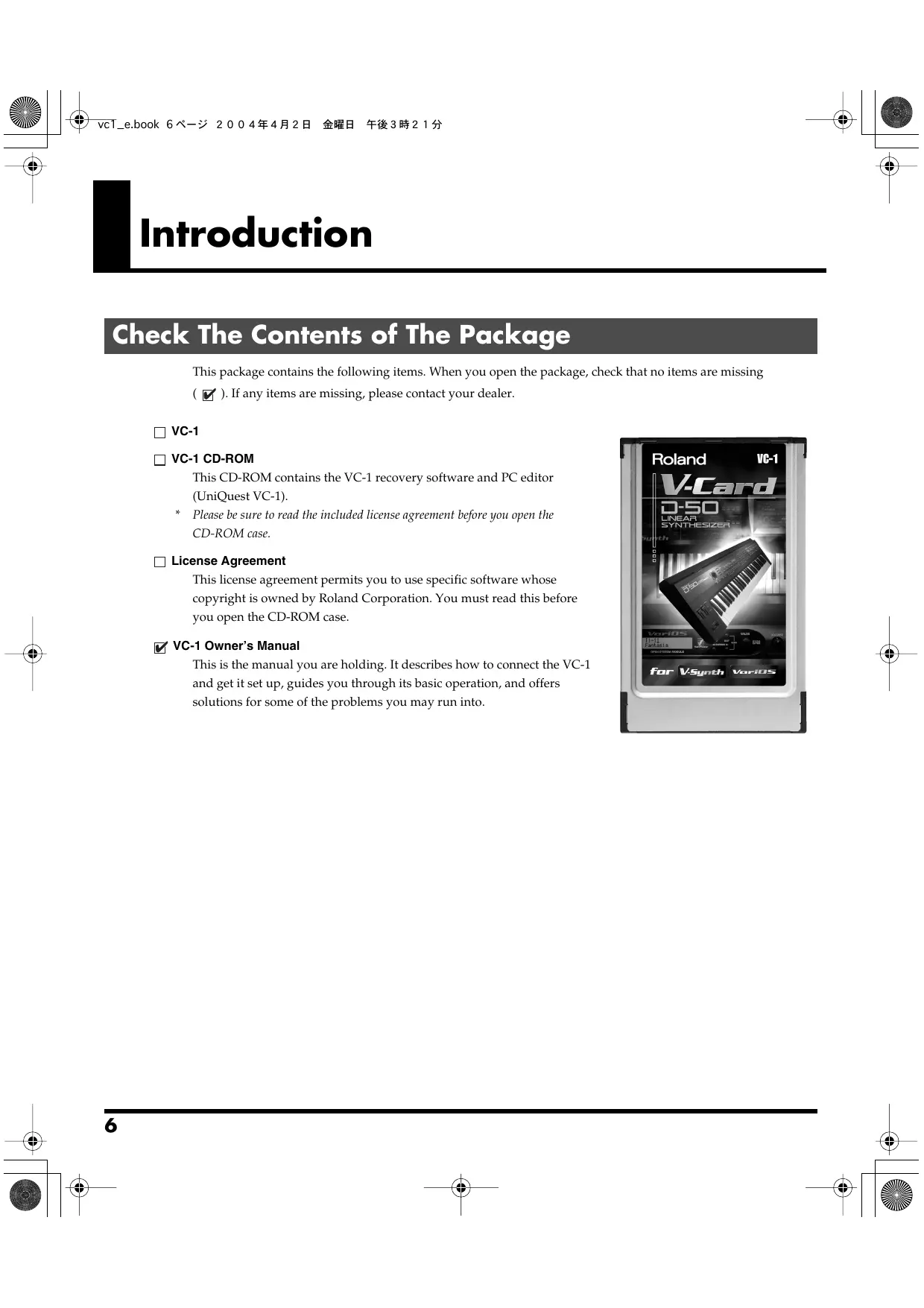
Introduction heck The Contents of The Package This package contains the following items. When you open the package, check that no items are missing (W ). If any items are missing, please contact your dealer. D vcA O Vc-1 CD-ROM This CD-ROM contains the VC-1 recovery software and PC editor (UniQuest VC-1): Please be sure to read the included license agreement before you open the CD-ROM case. [ License Agreement This license agreement permits you to use specific software whose copyright is owned by Roland Corporation. You must read this before you open the CD-ROM case. w VC-1 Owner's Manual This is the manual you are holding. It describes how to connect the VC-1

Er — For Vsynth verts and get it set up, guides you through its basic operation, and offers solutions for some of the problems you may run into.

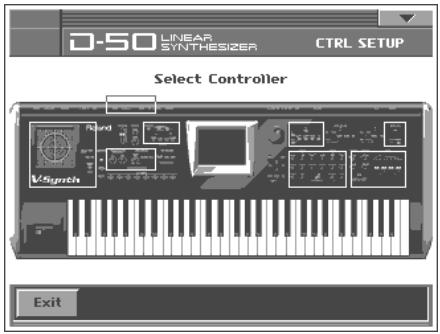
Introduction The VC-1 is a PC card containing the V-Synth/VariOS system program. Just insert the VC-1 in the PC CARD slot of the V-Synth/VariOS, turn on the power, and you are ready to go. The program is automatically loaded from the VC-1, transforming the V-Synth/VariOS into a D-50! Perfect Simulation of the D-50’s Tones! The VC-1 comes complete with all 64 of the D-50's preset patches, including the famous preset tones “Fantasia” and “Digital Native Dance.” It also is programmed with the D-50/D-550 sound libraries PN-D50-01-04 (with 256 patches). Since it naturally handles MIDI bulk dumps, you can use the VC-1 to create your own original tunes exactly as you would with your D-50. Of course, this gives you a perfect simulation of the D-50's tones, from the sound generator algorithms to editing of the parameters! It even reproduces the subtle nuances obtained when playing the instrument. In addition, it also comes with an additional 64 new patches, which use waves (28 types) that are so large that the original D-50 would have been technologically incapable of containing them.) Editing and Performances That Surpass the Original! V-Synth: VariOS: All sound generator parameters are assignable to the V-Synth's full complement of editing controls. Parameters can also be edited with the touch panel, allowing you to almost instantly turn your creative inspirations (no matter how fleeting) into sounds you can use. Plus, the Time-Trip Pad (used instead of a joystick), the D-Beam controller, the C2 assignable control knobs, and other controls use performance parameters capable of outputting Control Change messages. This allows you to express your emotions directly as you play. Whether the fun of creating sounds or pleasure of performing, this far outdoes the original. CrRL sEruP Select Controner Lines Aer The C1, C2, and C3 knobs correspond to Tone Balance, Reverb Balance, and Portamento Time, respectively. In addition, you can install the included UniQuest VC-1 encoder in your computer for complete freedom in editing a wide variety of sound module parameters, giving you sound creation capabilities far exceeding those of the original D-50.

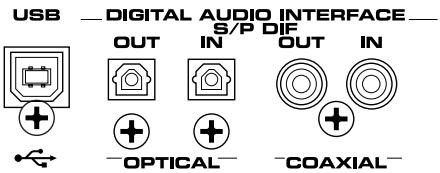
IE »} veT_e.book 8K—% 2004Æ4A2H HA FH3#21% Introduction Pro Spec Legacy Synthesizer! improves the response and dynamic range from the time you press the keys to the moment the sounds are played. The V-Synth or VariOS hardware is used as the means of outputting sounds, which means its also compatible with digital outputs (optical/ coaxial). This gives you a legacy synthesizer with professional “7 —GPTICAL— -COAXIAL- Internal processing upgraded with the latest technology vastly specs good enough for the latest recording environments. S/P Di IN UT

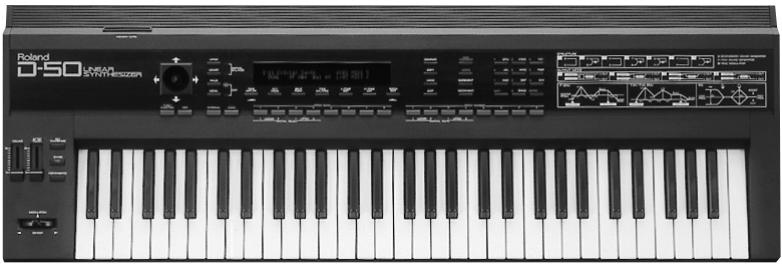
What is the digi ital synthesizer: D-50? The D-50, released in 1987, was Roland's first fully digital synthesizer. Equipped with an LA (Linear Arithmetic Synthesis) format sound generator that combined PCM and subtractive synthesis, it opened the door to countless new sounds for levels of creativity surpassing, anything up Lo that point. The D-50 is a renowned, historically significant synthesizer that Roland, the company that laid the foundation for digital synthesizers, is proud to have created. The D-550, also released in 1987, shrank the D-50's powerful synthesizer engine into a mere two rack spaces. Now, more than fifteen years after it came on the scene, the D-50 continues to be used by. creative artists around the world. There are numerous sound libraries stocked with many original patches. In the course of time, however, keyboards and buttons age and wear out. It looked like the day would come when the D-50' sounds would no longer be heard. In taking up the challenge of realizing new possibilities for the synthesizer, Roland has created a revolution in technology. At the same time, we want you to continue to using your treasured D-50 with peace of mind. Hence, the VC-1, which transforms your V-Synth/VariOS into a D-50, not only sweeps away any worries about your D-50 growing old, but also offers new potential that goes beyond the original instrument. We hope that you will discover and enjoy the unrealized potential that the D-50 still offers. And if you have never played the D-50, you definitely need to check out its vintage sounds.

IE vel ebook 9K—% 2004#4A2H @ÆA ÆFK3#219 Try Out the Sounds... Turning On the Power Selecting Patches and Playing “Sounds Viewing Various Information . Applying Effects to the Sound Applying an Effect by Touching to the Pad... Applying an Effect by Passing Over the D Beam Assigning Parameters to the Controllers How to Make the Patch Factors Settings Common to AII Screens … CONTROL... OUTPUT (Output Mode) CHASE TONE TUNE . .. . .. . .. . Saving Patches You’ve Created... 33 Naming a Patch. 3 Saving Patches. . Reset to Default Factory Settings Transferring Patches To and From the D-50/550 Transferring Patches from the D-50 to the VC- Transfer the patch from the memory card to the D-50/550 Transferring Patches from the D-50/550 to the VC-1 Saving Transferred Patches with the VC-1.… .. Transferring Patches from the VC-1 to the D-50/550... COPYING à REVETD TYPE rm. Overview of the VC-1.. MCMOTY SHTUCHUTE TH Basic CONCCpt Of à TORE mm. SLTUCHUTC Of TONE ParAMELETS mn. Creating a Patch. How to Make the Patch Settings. Useful Functions for Editing . Editing a Value. . Undoing an editing Operation . Editing with the Panel Controls (Partial Sclech 52 Silencing the Sound of the Partial Copying Tone Settings Copying Parameter Settings... Auditioning the Sound Before Editing Initializing Patch Settings Tone Parameters Common Parameters…….. Structure P-ENV (Pitch Envelope) LFO (Low Frequency Oscillaton). EQ/CHORUS (Faualizer/Chorus Partial Parameters.…… WG Form (WG Waveform) WG PITCH.. TVF (Time Variant Filter) TVA (Time Variant Amplifier) MOD (MOdUAHION) mn. Settings for the Entire VC-1 How to Make the System Function Settings … Initializing the System Settings... Connecting to Your Computer via USB... Recovering the System from the CD-ROM... Selecting the V-Synth’s USB Storage Mode . Connecting the V-Synth to Your Computer via USB... 84 Recovering the System ” Canceling the USB Connection … ÆExchanging MIDI Messages with Your Computer.

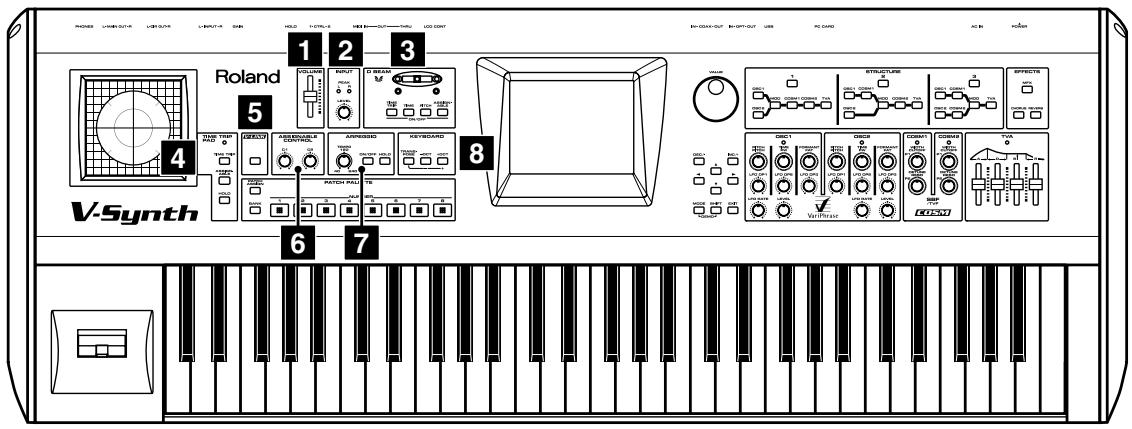
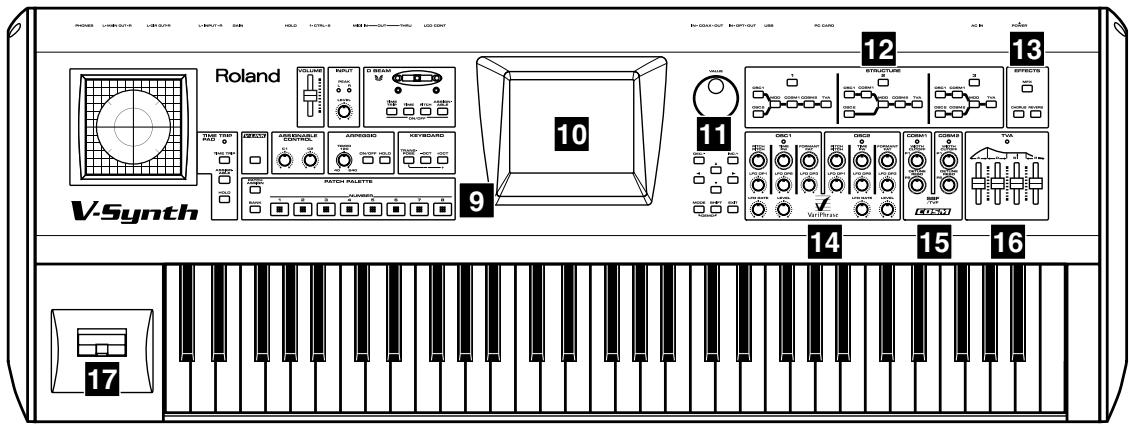
IE vel_e.book 10 2004#4R21A &HA F#3H219 Panel Descriptions When using the V-Synth with the VC-1, the actual functions of the V-Synth’s buttons and knobs may not correspond to the functions ascribed to these controls on the V-Synth's panel. Here is a description of the names and functions in each section of the V-Synth when it is used with the VC-1. Please read this material together with “Panel Descriptions” in the V-Sy ynth Owner’s Manual. Controls whose functions do not match what is shown on the panel are indicated with a [M] mark. Front Panel EX VOLUNE siider Adjusts the overall volume that is output from the rear panel MAIN OUT jacks and PHONES jack. (p. 15)

Not used with the VC-1. [I] Eos You can apply a variety of effects to sounds simply by moving your hand

  • The Time Trip effect is not applied. VEN Display Function Indicators (L, R) IFthe D Beam controller is on, these will light when you move your hand over the controller. ITIME TRIP] [TIME] IPITCH] IASSIGNABLE] Switches the D Beam controller on/off. The effect to be controlled can be selected by pressing the relevant button. (p. 20)

À c IE ebook 113% 2004#4R2H @MRE FH3H215 EX Panel Descriptions E ne rai Pao By touching the pad surface with your finger you can apply a variety of effects to the sound

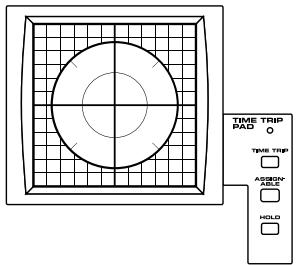
  • The Time Trip effect is not applied. [TE] Display Function Indicator This will light when you touch the Time Trip Pad. ITIME TRIP] This switches the Time Trip Pad on and off. The effect being controlled switches IASSIGNABLE] | according to the buttons pressed. (p. 19) IHOLD] Switches hold on/off for the effect controlled by the Time Trip pad [5 PAT Not used with the VC-1. [TE]

E ASSIGNABLE CONTROL

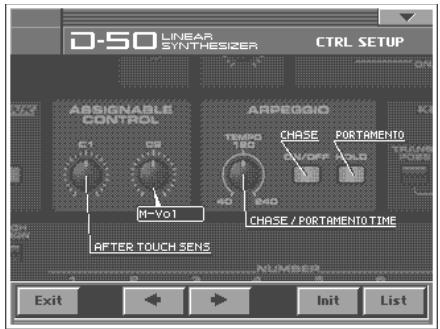
You can use them to modify the sound in realtime. Display _| Function [C1] Adjusts the Aftertouch Sens (p.79). [TÆ] These can be assigned a variety of D-50 different functions, allowing you to change the tone [C2] in real time. (p. 22) ARPEGGIO You can use them to modify the sound in realtime Î 7

  • The Arpeggiator is not available for use. [IE] Display | Function [TEMPO] | Adjusts the Chase time (p. 81) or the Portamento time (p. 28). ION/OFF] | Switches the Chase function on/off. HOLD] Switches the Portamento function on/off. [TE] El keveoaro Here you can change the pitch range of the keyboard. Display Function Modifies the pitch range of the Keyboard in semitone steps (-12 - +12 semitones) [TRANSPOSE] | Set the desired amount of transposition by holding down [TRANSPOSE] and pressing OCT] or [-OCT] Pressing [+OCT] or [-OCT] transposes the pitch of the keyboard in 1 octave units (- 3-43 octaves) [-OCT], [+OCT]
  • Changes you make the KEYBOARD settings are only temporary—they will be discarded as soon as the pouver is turned off. If you want you Keep any changes you've made, you must save them in the VC-1. (“How to Make the System Function Settings” (p. 78))

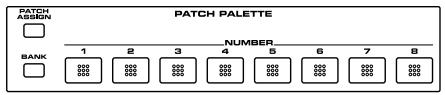
El Parc PaLerTe Here you can recall patches. [TE] Display Function INUMBER] (1-8) These buttons let you select patches. [TE] IBANK] You can change the Patch Palette bank by holding down this button and pressing NUMBER] (1-8) [PATCH ASSIGN] Not used with the VC-1. [TE] splay This displays information regarding the operation you are performing. The explanations in this manual include illustrations that depict what should typically be shown by the display. Note, however, that your unit may incorporate a newer, enhanced version of the system (e.g., includes newer sounds), so that you actually see in the display may not always match wohat appears in the manual. M] oiai and buttons Display Function VALUE Dial This is used to modify values. If you hold down [SHIFT] as you turn the VALUE dial, the value will change in greater increments. IDECY-], [INC/+] This is used to modify values. IFyou keep on holding down one button while pressing the other, the value change accelerates. If you press one ofthese buttons while holding down [SHIFT], the value will change in bigger increments. (p. 51) [ALIWII-@ID] Moves the cursor location up/down/left/right. (p. 51) IMODE] Opens the Mode Menu window. ISHIFT] This button is used in conjunction with other buttons to execute various functions. IEXIT] Return to the PATCH TOP screen, or close the currently open window. In some screens, this causes the currently executing function to be aborted.

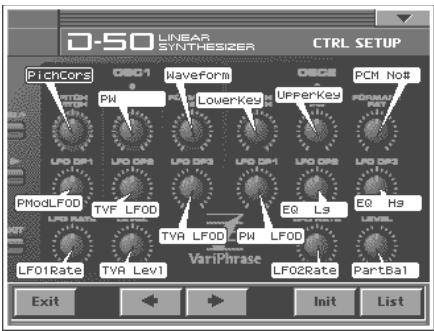
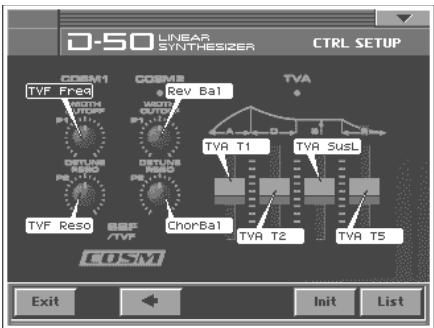
À c IE ebook 133% 2004#4R2H @MRE FH3H215 EX Panel Descriptions ÎE srrucrure Switches the various functions on/off. [IE] Æ errecrs Here you can switch the onboard effects (chorus and reverb) on/off. When an effect is on, the indicator for its button will light. Display Function IMEX] Switches chorus of the UPPER tone on and off. ICHORUS] | Switches chorus of the LOWER tone on and off. [I] IREVERB] | Switches reverb on and off. I osc1, osc2 These can be assigned a variety of the D-50s different functions, allowing you to change the tone in real time. (p. 23) [TE] ÎE cosmt, cosm2 These can be assigned a variety of the D-0s different functions, allowing you to change the tone in real time. (p. 23) [TE]

These can be assigned a variety of the D-0s different functions, allowing you to change the tone in real time. (p. 23) [TE] HA Pitch Bend/Modulation Lever This allows you to control pitch bend or apply vibrato.

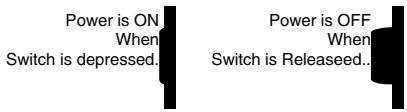
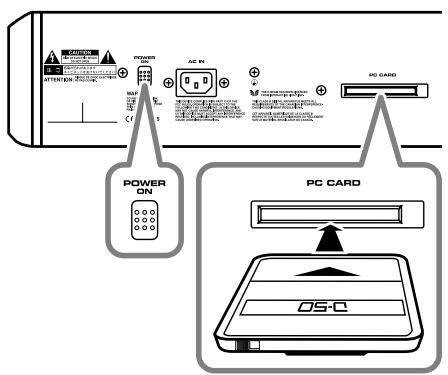
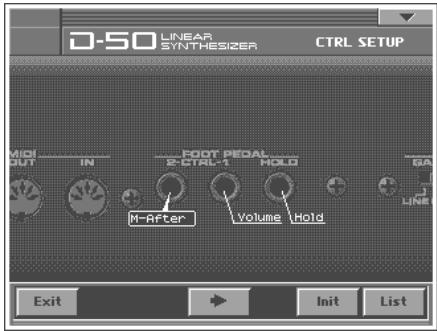
IE vel_e.book 14K— 2004#4R21A &HA F#3#219 Panel Descriptions Rear Panel Roland ::555.555.-255.55650 POWER Switch Press to turn the power on/off. (p.15) Power is ON Pouer is OFF When Wen Switch is depressed. Switch is Releaseed. Bac init Connect the included power cord to this inlet. E pc caro siot The VC-1 can be inserted here. Carefully insert the PC card all the way in—until it is firmly in place. Never insert or pull out while the VC-1 (V-Synth) is turned on. E use connector You can connect it to your personal computer to send or receive MIDI messages. (p. 83) E DIGITAL AUDIO INTERFACE Connector These connectors input/output a digital audio signal stereo; conforming to IEC60958). The output signal is identical to the signal that is output from the MAIN OUT jacks. *_ 1EC60958 is a digital interface format used for consumer digital audio devices E LCD CONTRAST Knob Adjusts the display contrast. MIDI Connectors (IN, OUT, THRU) These connectors can be connected to original D-50 (or other MIDI devices) to receive and transmit MIDI messages. (p. 83) E cri 12 PEDAL Jacks You can connect optional expression pedals (EV-5, BOSS FS-SU, etc.) to these jacks. Display Function CTRL 1 PEDAL Adjusts the volume. By assigning a desired function to a pedal, you can use it to select or modify sound. (p. 23) CTRL 2 PEDAL E #00 PEDAL Jack An optional pedal switch (DP series, BOSS FS-SU, etc.) can be connected to this jack for use as a hold pedal EE inPur sacks (L,R) Not used with the VC-1. [TE] El oirecr our Jacks (L, R) Not used with the VC-1. [TI 2] MAIN OUT Jacks (L (MONO), R) These jacks output the audio signal to the connected mixer/amplifier system in stereo. For mono output, use the L jack. (p. 15) ÎLE PHONES Jack This is the jack for connecting headphones (sold separatelÿ). (p. 15)
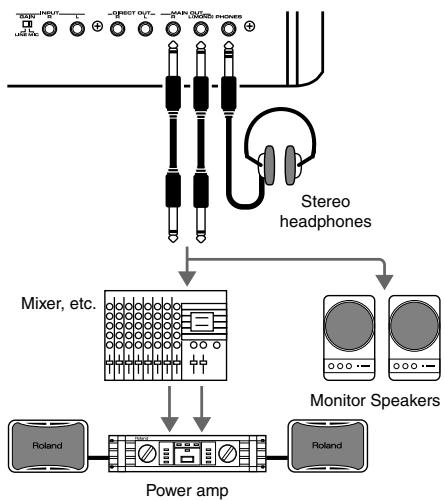
IE ebook 15K—% 2004#4R2H HA #F#3#214 & Ï -+|l@ Try Out the Sounds To prevent malfunction and/or damage to speakers or other devices, always turn down the volume, and turn off the power on all devices before making any connections.

1. Before hooki thi , make sure that th LOF ee ae

efore hooking anything up, make sure that the power on all o! HS 50565550 your gear is turned OFF.

2. Connect the V-Synth to your amp/speaker system.

3. After correctly inserting the VC-1 into the PC card slot in the V- |

Synth's rear panel, switch ON the POWER switch.

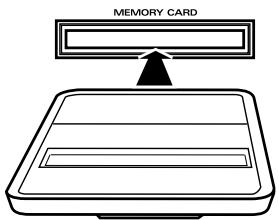
  • Cardfully insert the PC card all the way in—until it is firmly in place. ! ! es
  • This unit is equipped with a protection circuit. À brief interoal (a few seconds) after power up is required before the unit will operate normally. Ÿ Ÿ Mixer etc
  • Always make sure to have the volume level turned down before = switching on power. Even with the volume all the way down, you may El Monitor Speakers still hear some sound when the power is switched on, but this is normal, | | and does not indicate a malfunction. Never insert or pull out while the VC-1 (V-Synth) is turned on. Power amp

4. Tum on the power for any connected amplifiers or speakers.

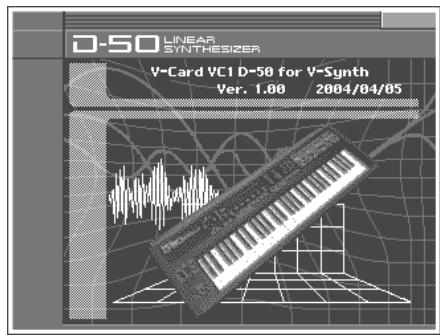
5. Wait for the VC-1 to start up. When it has started up normally, a screen like the following will appear. The

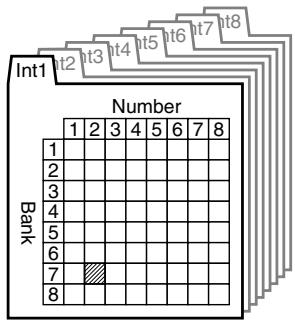
Try Out the Sounds Selecting Patches and Playing Sounds The VC-1 comes with a wide range of onboard sounds, including single tones called patches. A Patch is represented by a Patch Bank (Pre1-6, Int1-8), a Bank (1-8) and a Number (1-8). Patch bank (Pre 1-6) Patch bank (Int1-8) Pret Number Number 1121341516 2[8[4[s[6[7[8
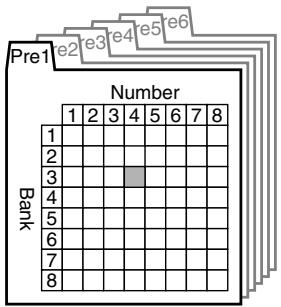
É 8 FA D Patch No. P1-34 Patch No.: 1-72 Patch Banks | included patches | Overwrite | Remarks Prei D-50 No Original D-50 preset patches Pre2 VC1 No Newly added patches [TE] Pre3 PN-D50-01 No D-50/D-550 sound library & Pre4 PN-D50-02 No D-50/D-550 sound library ù Pre5 PN-D50-03 No D-50/D-550 sound library Pre6 PN-D50-04 No D-50/D-550 sound library Inti same as Prel Yes - Int2 same as Pre2 Yes - Int3 same as Pre3 Yes - Int4 same as Pred Yes - Int5 same as Pre5 Yes - Int6 same as Pre6 Yes - Int7 Glank) Yes - Int8 Elank) Yes - There are three ways of patch selection. + Selecting Patches with the VALUE dial. + Selecting Patches from the list. + Selecting Patches with Patch Palette.

-+|l@ Try Out the Sounds Selecting Patches with the VALUE dial

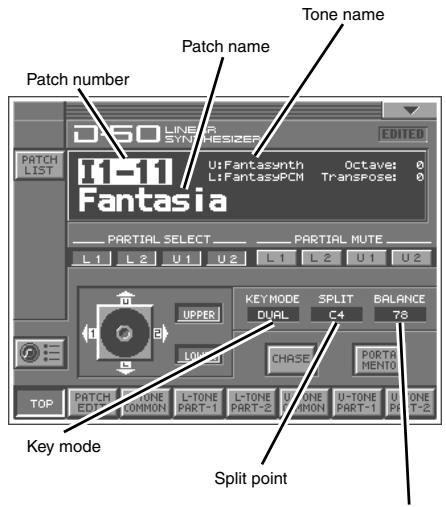
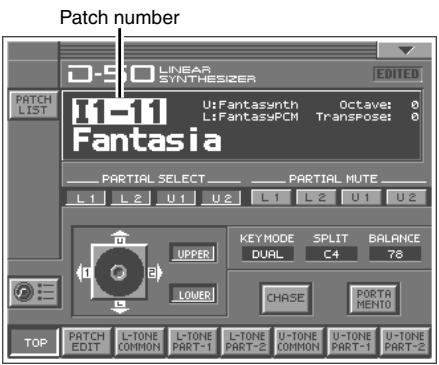
Make sure the PATCH TOP screen is displayed. If the PATCH Patch number TOP screen—shown right—is not displayed, press [EXIT] once or twice until the PATCH TOP screen appears. Play the keyboard to hear what the selected patch sounds like. To change to a different patch, touch the Patch number to highlight it, and then turn the VALUE dial or press [INC/+], [DEC/-]. At this time you can switch more rapidly by holding down [SHIFT] while you perform these operations. Selecting Patches from the List
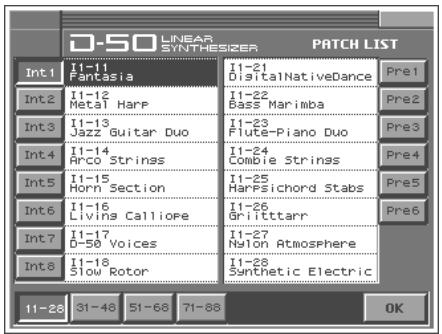
You can easily find the desired patch by selecting it from the patch list. Make sure the PATCH TOP screen is displayed. If the PATCH TOP screen is not displayed, press [EXIT] once or twice until the PATCH TOP screen appears. Touch <List> in the upper left area of the display. The PATCH List window appears. Select a patch from the list. Either turn the VALUE dial or use IINC/+], [DEC/] to select a patch. You can also select a patch by touching it on the display. To view higher-numbered patches, touch <31-48>—<71-88>, located at bottom of the screen. To view other Patch banks, touch <Pre1>—<Pre6>, <Inti>—<int8>, located at either side of the screen. Touch <OK>. The patch is selected and the PATCH LIST window closes. PATCH LIST. Selecting Patches with Patch Palette
You can select patches of currently selected Patch Bank instantly by simply pressing NUMBER [1]-[8]. Make sure the PATCH TOP screen is displayed. Press NUMBER [1]-[8] to select a patch. To switch between patch

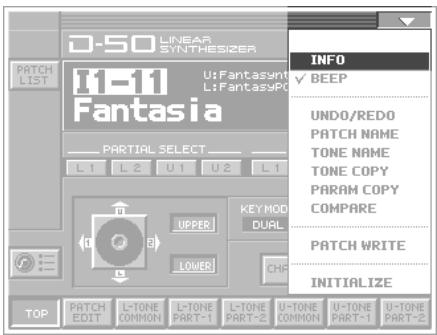
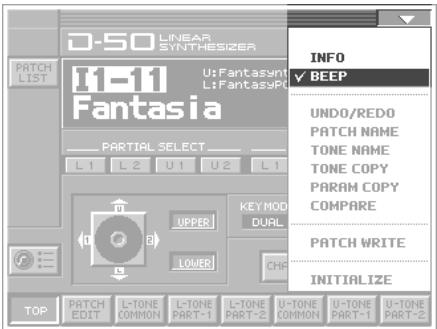
1. Inthe upper right of the screen, touch < Y >. A pulldown menu appears.

3. This window shows the following information.

Ver.: The VC-L's program version

4. When you have finished viewing the information, press [EXIT] to close the window.

Enabling or Disabling the Beep Tone

You can specify whether or not a beep tone will be heard when you touch a valid point on the touch screen. At the factory setting, the beep tone will be sounded.

1. In the upper right of the screen, touch < W >. A pulldown menu

With this setting, the beep tone will be heard. If you perform the same procedure once again, the check mark will be cleared and the beep tone will no longer be heard.
The performance controlling functions (we call them factors in this manual) in each Patch can be edited by taking the following procedure A patch consists of several Factors as show below. Tone Tune
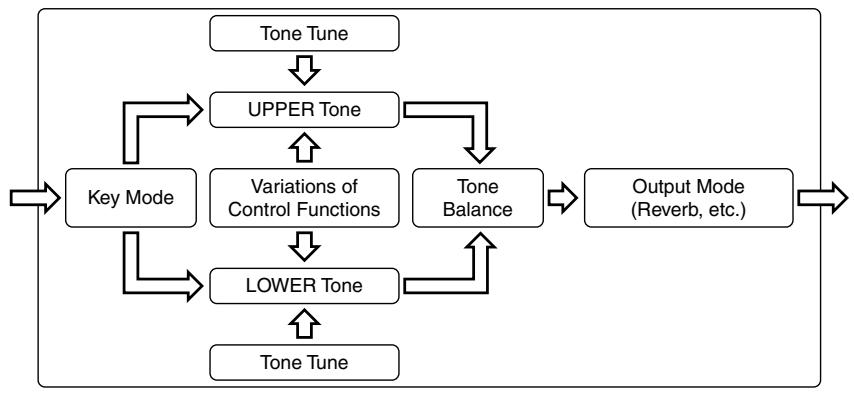
Ù À { Key Mode | [ Control Functions Variations of Tone [ES Output Mode Balance (Reverb, etc.) [] Lu LS Caen

Tone Tune located at the left side of the V-Synth's front panel. The Time Trip Pad settingsare | |F saved with each patch. This means that you can create patches that contain Time Ü Trip Pad settings you like un

1. Access the PATCH TOP Screen.

2. Choose the function that you want to control from the Time Trip pad, and press

the TIME TRIP PAD button for that function. Applying an Effect by Touching to the Pad és You can apply a variety of effects by touching your fingertip to the Time Trip pad

Button Functions ITIME TRIP] This provides the same effect as the D-30's joystick (tone balance or partial balance). IASSIGNABLE] Apply the effect that is specified by each patch. (CTRL Setup; p. 26) IHOLD] you can cause the effect to be held even after you take your finger offthe Time Trip pad.

3. While you play the keyboard to produce sound, place your fingertip on the Time Trip pad and move your

finger in the following way. If [TIME TRIP] is on Using the Time Trip Pad, the following two volume balance controls can be adjusted at the same time. + Volume balance of the two Partial sounds of either Tone ; Upper or Lower. +_ Volume balance of the Upper and the Lower tones.

IE ebook 20K—% 2004#4AR2H HA +F#3#214 Applying Effects to the Sound The tone for which the partial balance is to be controlled is selected using the Tone Select button. When you touch the Time Trip pad, the volume balance changes as shown below. Changing the partial balance creates huge changes in the tone, providing very distinctive effects. UPPER volume increases, LOWER volume decreases H D Partial 1 decreases Partial 2 increases Partial 1 increases Partial 2 decreases UPPER volume decreases, LOWER volume increases

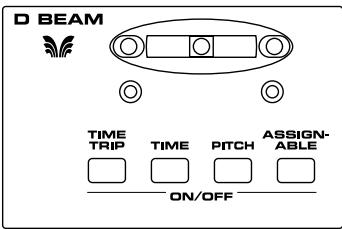
The D Beam controller can be used simply by waving your hand over it. It can be used to apply various effects, depending on the function that is assigned to it. You can also create effects in which the sound changes instantaneously, in a way that would not be possible by operating a knob or the bender lever. The D Beam controller settings are saved with each patch This means that you can create patches that contain D Beam settings you like.
1. Access the PATCH TOP Screen

2. Choose the function that you want to control from the D Beam controller, and press the D BEAM button

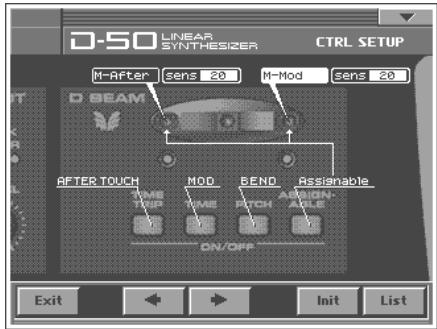
for that function to turn on the D Beam controller. Buttons Functions [TIME TRIP] This provides the same effect as that when, after the key is played, itis then pressed with even greater force. (Aftertouch) [TIME] This provides the same effect as that achieved by tilting the modulation level away from you. (Modulation) [PITCH] This provides the same effect as that achieved by tilting the pitch bend level to the left and right. (Pitch Bend) IASSIGNABLE] Apply the effect thatis specified by each patch. (“How to Make the Patch Factors” (P: 26)

3. While playing the keyboard to produce sound, place your hand over the D Beam, and slowly move it up

4. To turn off the D Beam controller, once again press the button that you pressed in step 2, so its indicator

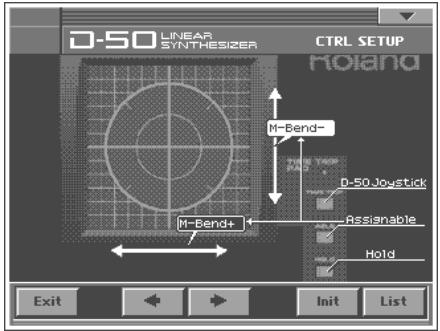
Applying Effects to the Sound ssigning Parameters to the Controllers You can assign a variety of patch factors (p. 133), tone parameters (p. 134), and other settings to the V- Synth’s complement of controller sections, such as the Time Trip pad, the D Beam Controller, and the OSC1/08C2 sections. This is referred to as the Control Setup. With intuitive editing of sound sources with the knobs and sliders and greater performance expression with the Time Trip Pad, you can use the D-50 in ways that go way beyond the original instrument. Controllers Parameters TIME TRIP PAD, D BEAM, C2 Knob MIDI Control Change Message Patch Factor (p. 133) Tone Parameters (p. 134) Partial Parameters (p. 135) OsCI, OSC2,

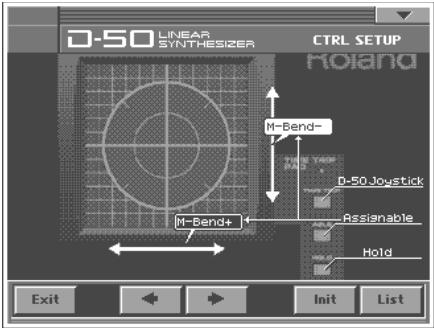
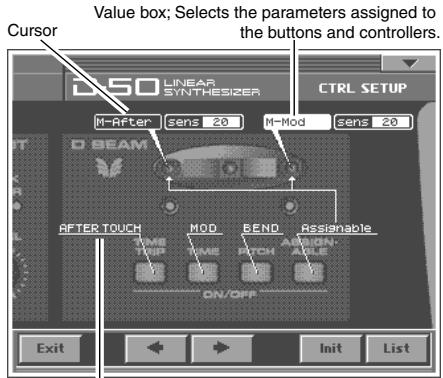
Access the PATCH TOP Screen. Touch <CTRL SET> in the lower left of the screen. The CTRL SETUP window appears. Touch the Time Trip pad, D-Beam Controller, or other controller to which you want to assign the parameter. The display of that controller section expands in the screen. The screen features at this time function as follows. When editing a parameter that requires you to specify a value, move the cursor to the value box of that parameter. Then modify the value by either turning the VALUE dial or pressing [INC/+] or IDEC/-]. Parameters marked by can be controlled by specific CTRL Setup. For details on each parameter, refer to the corresponding reference page. The on-screen keys have the following functions. Keys Functions L_n | Switches the set of controller to be enlarged in the display. Cursor Value box; Selects the parameters assigned to the buttons and controllers. CTRL sEruP CrRL seruP Displays the parameters to be assigned as a list. Returns to the CTRL SET screen. Restores the assigned parameters to their original factory condition. When you have finished CTRL Setup, touch <OK> to close the CTRL Setup window.
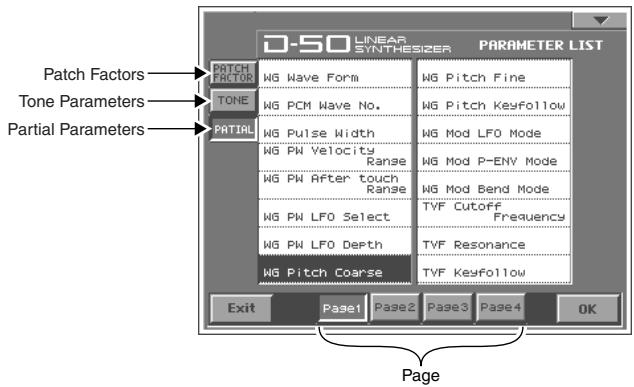
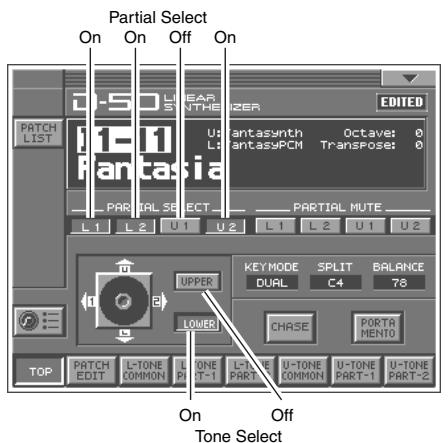
IE ebook 24K—% 2004#4R2H HA #F#3H214 Applying Effects to the Sound LIST (OSC1, OSC2, COSMI, COSM2 and TVA) +_ Tone Parameters; The Tones (UPPER or LOWER) to be applied are specified with the Tone Select button. + Partial Parameters; The Partials (L1, L2, L3 or L4) to be applied are specified with the Partial Select button. PARAMETER LIST Specify the Tones or the Partials to be applied The partials to which the tone parameters assigned to the different knobs and sliders (OSC1, OSC2, COSM1, COSM2 and TVA) are applied are specified with the Tone Select button or the Partial Select button. +_ Tone Parameters; The Tones (UPPER or LOWER) to be applied are specified with the Tone Select button. + Partial Parameters; The Partials (L1, L2, L3 or L4) to be applied are specified with the Partial Select button. Partial Select On Off On (oi) EDITED LOWER Li L2 ut u2 (On) (On) (Om) (OM (On) ‘Tone Select The Tone Select or the Partial Select setting will be written by the Patch Write Procedure.
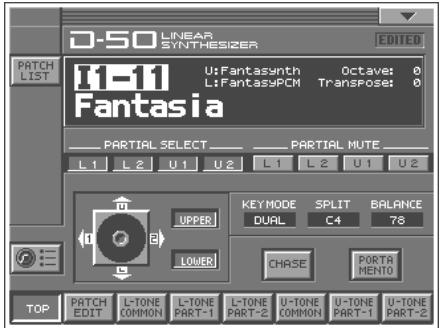
The Display shows several Factors at a time. If necessary, Scroll up or down the Display to find the Factor to be edited. (Patch Parameters; p. 26) Access the PATCH TOP Screen. Touch <PATCH EDIT> at the bottom of the screen. Touch one of the tabs in the left of the screen to select the desired editing screen. <CONTRL>: Control Edit, Portamento Edit (p. 28) <OUTPUT>: Output Mode (p.29) <CHASE>: Chase Edit (p. 31) Co) url) <TONE TUNE>: Te Tune - ® » Ce pr <MIDB: function (p. Ex RE PE PE ON EN | When editing a parameter that requires you to specify a value, move the cursor to the value box of that parameter. Then modify the value by either turning the VALUE dial or pressing [INC/+] or [DEC/-]. Repeat steps 3-4 to set patch factors. If you wish to save the changes you've made, perform the Save operation (p. 34). If you do not wish to save changes, press [EXIT] to return to the PATCH TOP screen. If you return to the PATCH TOP screen without saving, the display will indicate “EDITED,” reminding you that the patch settings have been modified. If you turn off the power or select a different patch while the display indicates “EDITED,” your edited patch will be lost. Settings Common to All Screens UPPER/LOWER (Tone Select Button) You can select the tone to be controlled, upper tone, lower tone or both tone, with the Time Trip Pad. KEY MODE Lil ue. Key Mode refers to the Upper and Lower Tones are played on the keyboard. ie Value: WHOLE, DUAL, SPLIT, SEP, WHOL:S, DUAL:S, SPL-US, | SPL-LS, SEP-S uen M ouac À c4 ge) EE

À c IE ebook 273% 2004#4R2H @MRE ÆFH3#215 EX Applying Effects to the Sound Display Description WHOLE Upper Tone can be played in 16 voice polyphony DUAL Both Upper and Lower Tones are played by each key in 8 voices polyphony. The Split mode divides the keyboard into upper and lower sections, where two SPLIT different Tones can be played in 8 voices polyphony. That is, the VC-1 works like two 8 voice synthesizers. The Split Point (where the keyboard is divided into two sections) is shown next to the Key Mode indication. SEP This mode is effective when an external MIDI device is controlling the VC- (Separate) 1. (“MIDI Implementation” (p. 140)) (ak Sole) The Upper Tone is monophonic. Mia Sole) Both Upper and Lower Tones are monophonic. SPLUS The Upper Tone is monophonic, and the Lower Tone is 8 voices polyphonic. (Split Upper Solo) ’ 3 SPL-LS The Lower Tone is monophonic, and the Upper Tone is 8 voices polyphonic. (Split Lower Solo) ; SEP-S This mode is effective when an external a MIDI device is controlling the VC-1. (Separate Solo) (“MIDI Implementation” (p. 140)) SPLIT The Split Point can be changed as follows. Value: C2-C7 C2-B2 C3-B3 (C4B4 C5-B5 C6-B6 C7 {middle C) BALANCE (Tone Balance) The volume balance of the Upper and the Lower Tone can be change. Value: 0-100 CHASE (Chase Button) Switches the Chase function on and off. Touch the button once to switch the function on; touch it again to switch the function off again. Value: OFF, ON PORTAMENTO (Portamento Button) Switches the Portamento function on and off. Portamento is a slide from one pitch to another, and is often used for violin performance. Touch the button once to switch the function on; touch it again to switch the function off again. Value: OFF, ON

QIES IE ebook 28K—% 2004#4AR2H HA #F#3#214 Applying Effects to the Sound CONTROL Patch Controls determine how the Control Functions actually affect the Upper and the Lower Tones. Bend (Bender Range) This sets the variable range of the pitch change caused by moving the Bender lever fight and left, The variable range set here may result differently depending on the setting of the Tone Parameter Bender Mode (p. 67). Value: 0-12 AfterPB (Aftertouch, Pitch Bender) This sets the sensitivity of the aftertouch effect on pitch. Higher

Portamento Euit TEDNED values mean higher sensitivity. À Minus setting decreases the pitch, and a plus setting increases it Value: -12-+12 Hold (Hold Mode) This selects the Tone that on the Pedal Hold effect. When the Key mode is Whole, Pedal Hold always works whichever of the above three modes may be selected. Value: U, L, UL Time (Portamento Time) Display | Function U | Works on the Upper Tone. L | Works on the Lower Tone. UL | Works on the both Tones. This sets the portamento time from one note to another. Higher values make the time longer. Value: 0-100 Mode (Portamento Mode) This selects the Tone that should take on the Portamento effect. When the Key Mode is Whole, Portamento always works whichever of the above three modes may be selected. Value: U, L, UL Even when Portamento is set to ON, the Portamento ON/OFF message sent from an external device can change the setings of Portamento. Display | Function U | Works on the Upper Tone. L | Works on the Lower Tone. UL | Works on the both Tones.

-+|l@ Applying Effects to the Sound OUTPUT (Output Mode) The Output Mode determines how the Tones take on the reverb effect, and how the Tones appear at the outputs. A sound reverberated in an acoustic environment consists of three parts. First, you hear the direct sound as it travels from the source outward. Next the early reflection resounds once, or several time, from the walls, ceiling and floor. Finally, you hear the reverberated sound as it reflects many times in the environment. Sound Generator Mode (Output Mode) Direct Sound Pme et Listener Selects one of the following four output modes. Value: 1-4 Display Function Stereo reverb works on the mixed sound of Upper and Lower Tones, and id sent out in stereo. The Mixture of Upper and Lower takes on stereo reverb, and the direct sound is sent out separately for Upper and Lower.

(ae Lou Ce LR —7— vor Only the Upper Tone takes on reverb. Upper and lower Tones are sent out separately. LE ne M Ê Vase

Only the Lower Tone takes on reverb, Upper and Lower Tones are sent out separately. QIES

IE vel_e.book 30% 2004#4R21A &HA F#3#219 Applying Effects to the Sound RevType (Reverb Type) Selects one of the 32-reverb types. Value: 1-32 Display | Description Display | Description T | Small Hall 17 | Bright Hall 2 | Medium Hall 18 | Large Cave 3 | Large Hall 19 | Steel Pan 4 | Chapel 20 | Delay (248 ms) 5 | Box 21 | Delay (838 ms) 6 | Small Metal Room 22 | Cross Delay (157 ms) 7_| Small Room 23 | Cross Delay (252 ms) 8 | Medium Room 24 | Cross Delay (274-137 ms) 9 | Medium Large Room 25 | Gate Reverb 10 | Large Room 26 | Reverse Gate (860 ms) 11 | Single Delay (102 ms) 27 | Reverse Gate (480 ms) 12 | Cross Delay (180 ms) 28 | Slap Back 13 | Cross Delay (224 ms) 29 | Slap Back 14 | Cross Delay(148-296 ms) 30 | Slap Back 15_| Short Gate (200 ms) 31 | Twisted Space 16 | Long Gate (480 ms) 32 | Space The reverb types 17-32 in individual banks can be used only with the patches (64 patches) contained in that bank. Reverb types from a bank other han the internal banks (any from 1 through 32) can be copied to a reverb type in the KA internal banks (any from 17 through 32). Î Revbal (Reverb Balance) Sets the volume of the reverb and direct sounds. Value: 0-100 Display | Function 100 | The volume of the reverb sound = maximum, the volume of the direct sound = 0. © | The volume of the reverb sound = 0, the volume of the direct sound = maximum. Vol (Total Volume) Sets the volume of both tones, and therefore adjusts the volume difference between Patches. Value: 0-100

Applying Effects to the Sound CHASE The Chase Play function makes it possible to output the Lower Tone slightly later than the Upper Tone, which is actually played on the keyboard. This function, however, is only available in Dual or Whole Key Mode Mode (Chase Mode) Sets how tones sound. Depending on the Chase Level and Velocity, the number of repeats of the delayed sound differ. Value: UL, ULL, ULU + When the Key Mode is Dual Display Function uL The Upper Tone then the Lower Tone is played. l ULL M | Te Upper, then the Lower Tone is repeated. 10) ou ES | nn the Lower and the Upper Tone Î “ra “Es alternate. + When the Key Mode is Whole Display Function uL The Upper Tone is played twice.

uLL Upper Tone is repeated. ULU — — Upper Tone is repeated. Level (Chase Level) Sets the volume of the chase sound. Value: 0-100 Time (Chase Time) GA Adjusts the sounding time. Higher value is longer time. Value: 0-100

IE ebook 32K—% 2004#4AR2H @&HA #F#3#214 & Ï Applying Effects to the Sound -+|l@ TONE TUNE The relative pitch of the Upper and the Lower Tones can be separately set. By setting slightly different pitches, a detune effect can be obtained. Also, by lowering the pitch of the Upper Tone, and raising the pitch of the Lower Tone, the pitches of the Two Tones can become exactly the same. LKey (Key Shift of the Lower Tone) Allows you to shift the pitch of the Lower Tone in semi-tone steps. Value: -24-+24 (+/- 2 octave) UKey (Key Shift of the Upper Tone) Allows you to shift the pitch of the Upper Tone in semi-tone steps. Value: -24-+24 (+/- 2 octave) LTune (Fine Tuning of the Lower Tone) Le ns (an(s (uns (ans (ame) Allows you to Tune the pitch of the Lower Tone. Value: -50-+50 (approx. +/- 2 cents) UTune (Fine Tuning of the Upper Tone) Allows you to Tune the pitch of the Upper Tone. Value: -50-+50 (approx. +/- 2 cents) MIDI You can change the setting of the MIDI Functions included Patch Factor as follows. TxCH (Transmit Channel) The transmit channel of each Patch can be set to a deferent number from the basic channel. At B, the channel number is the same as the Basic Channel. Value: B, 1-16 TxPC (Transmit Program Change Number) A Program Change number to be transmitted can be set for each patch individually. AEOFF, the Program Change number preprogrammed in each Patch is transmitted. da = —- Value: OFF, 1100 Le MES (an(s (uns (ans (me TxBS (Transmit Bank Select Switch) [TÆ] A Bank Select number MSB to be transmitted can be set for each patch individually (LSB = 0). At OFF, the Bank Select number preprogrammed in each Patch is transmitted. Value: OFF, 0-99 SepCH (Receive Channel in Separate Mode) A receive MIDI Channel in separate mode can be set for each Patch individually. At OFF, the receive channel set in MIDI Functions commonly set for System Function is used. (p. 81) Value: OFF, 1-16

IE ebook 33K—% 2004#4AR2H HA +F#3#214 & Ï -+|l@ Saving Patches You’ve Created When you edit the settings of a patch, the PATCH TOP screen displays <EDITED> to remind you that the patch's settings have been modified. If <EDITED> is displayed, you will lose your edited patch settings if you switch to another patch or turn off the power. If you want to keep a patch whose settings you have edited, assign a name to the patch and then perform the Save operation. Naming a Patch Before you save the patch, here’s how to give it a new name. Editing Patch or Tone names is called Naming. + A Patch name can have up to 18 letters. + A Tone name can have up to 10 letters.

1. Make sure that the patch that you want to name is selected.

2. Touch < W > in the upper right of the screen. A pulldown menu

(or <TONE NAME>). The window for naming appears. re PATCH NAME TOHE NAME TONE COPY PARAM COPY COMPARE fo] ueren)| PATCHURITE Las] M Fr) INITIALIZE

4. Touch the on-screen alphabetic or numeric keys to enter the new

name in the text box. The on-screen keys have the following functions. PATCH Name

Keys Functions Melle le ni Move the cursor in the text box 10 the desired — = Gi Gi CG Œ | iput location. Er en en on Turn this on when you want to input uppercase letters or symbols. Turn this on when you want to insert a charac- ter at the cursor location. Erases all characters in the text box. Deletes the character at the cursor location. Deletes the character that precedes the cursor location. You can also move the input location cursor by pressing the [ <@ Jor [ > ]cursor buttons. Pressing [ À Jill change the character at the cursor location to uppercase, and pressing [ W Jwill change it to lowercase.

5. When you have finished inputting, touch <OK3 to finalize the patch name.

Changes you make to sound settings are temporary, and will be lost if you turn off the power or select another sound. If you keep the modified sound, you must save it in the VC-1 (PATCH WRITE). When you perform the save procedure, the data that previously occupied the save destination will be lost. However, the factory setting data can be recovered by performing the Factory Reset. (p. 35) Never insert or remove the VC-1 while the V-Synth is turned on. Patches cannot be saved to PC cards other than the VC. Make sure that the patch you wish to save is selected. Touch < W > in the upper right of the screen. A pulldown menu appears. In the pulldown menu, touch <PATCH WRITE>. The PATCH à UNDO/REDO WRITE window appears. PATCH NAME. TONE NAME TONE COPY PARAM COPY COMPARE PATCH MRITE. INITIALIZE Turn the VALUE dial to specify the save-destination patch. When you touch <ReName», the PATCH NAME window will appear, allowing you to rename the patch. _- lo) = | ouerl| By touching <Compare> you can check the save-destination patch. This can help prevent important patches from being [EI EEE accidentally overwritten and lost. Touch <Compare> to turn it on. Now you can play the patch that is in the currently selected save destination. Play the keyboard to sound the save destination patch, then check whether you really want to overwrite it. The patch auditioned using the Compare function may sound slightly different than when it is played normally. Touch <Execute> to execute the Save operation. Destnanion Patch Opens the Name Window. (Compare function LICE

Saving Patches You've Created This restores all data in the VC-1 to the factory-set condition (Factory Reset). If there is important data you've created that's stored in the VC-1, all such data is discarded when a Factory Reset is performed. If you want to keep the existing data, save it as describe below. Transmit it to an original D-50 (or an external MIDI device), and save it (p. 40). Transmit it to a PC using V-Synth USB function, and save it (p. 83). Press [MODE]. The MODE MENU window appears. Touch <FACTORY RESET>. The Factory Reset screen appears. MODE MENU Factory Reset L/ “oi . Es

Touch <OK> Touch <Execute> to execute the Factory Reset. When the display indicates “Completedl,” the factory reset operation has been completed.

Transferring Patches To and From the D-50/550 You can use MIDI to transmit patch data (64 patches) saved on your D-50 and receive the data with the VC:1 (V-Synth). This procedure is known as “bulk load.” This is an easy and convenient way to take your own original patches (64 patches) created with the D-50 and use them with the VC-1 Conversely, you can also send patch data edited using the VC-1 via MIDI to the D-50. This procedure is called “bulk dump.”

  • Read this material together with the D-50/550 Owner's Manual. Transferring Patches from the D-50 to the VC-1 +_ Patches (64 patches) bulk loaded from the D-50 to the VC-1 are temporarily transferred to the patch bank that includes the current patch. Currently Patch Sample | > | Destination Patch Bank Sample T-11:Fantasia = [int-ii - Inti-88 16-88:Big Wave = [int6-11 - Int6-88 + The patches (64 patches) originally residing in the bulk load destination will appear to have been overwritten, but actually nothing will have been lost. The patches are restored when you turn the power off, then on again.

Er — + The transferred patch data (64 patches) will be lost if you turn off the power. Be sure to save the data 4 (“Saving Transferred Patches with the VC-1” (p. 39). + Patches saved to memory cards used with the D-50/550 (M-256D) cannot be transferred directly from these memory cards to the VC-1. First, transfer the patch data to the D-50/550 from the memory card (M- 256D), then transfer the patch data from the D-50/550 to the VC-1. LL — M-256D | D-50 | VC-1:Int1 | — Number Number Number

L 4 Use the following procedure. Transfer the patch from the memory card to the D-50/550 (p. 37)

Transferring Patches from the D-50/550 to the VC-1 (p.38)

Saving Transferred Patches with the VC-1 (p.39)

IE vel_e.book 37 X— 2004#4R21A &HA F#3#219 Transferring Patches To and From the D-50/550 Transfer the patch from the memory card to the D-50/550 All the 64 Patches data stored on the Memory Card can be loaded to the D-50/550/s internal memory. Using the D-50 5 =

2-1 2-2 4 [EXT] 3 5 6-1 6-2 Insert the Memory Card (M-256D) into the D-50 Card Slot. Turn the Memory Protect of the D-50 to OFF. 2-1. Press the [TUNE/FUNCTION] button. 2-2. Select “Protect” with the Selector button and turn it OFF with the joystick. Press the [DATA TRANSFER] button. Select “(Card -> Int)” with the corresponding Selector button. Press [ENTER] button. When the data transfer is completed, the display shows “Complete.” Return the Memory Protect of the D-50 to On. 6-1. Press the [TUNE/FUNCTION] button. 6-2. Select “Protect” with the Selector button and turn it ON with the joystick. Using the D-550

IE } veT_e.book 38 —% 2004#4R2A &MRA F#3#215 Transferring Patches To and From the D-50/550 Transferring Patches from the D-50/550 to the VC-1

  • You cannot bulk load data when a patch in the Preset Banks (Prel — Pre6) is selected.
  • The VC-1 display does not change immediately following the bulk load. This is due to the fact that the work area is the bulk load destination (p. 44). You can confirm the outcome of the transfer by switching patches with the VALUE dial. Using the D-50

1. Use a MIDI cable to connect the D-50's MIDI OUT connector to the V-Synth's MIDI IN connector.

2. Set the D-50 and V-Synth to the same MIDI channel (the basic channel; p. 80).

3. Press the D-50's [DATA TRANSFER] button.

4... While pressing the D-50's [DATA TRANSFER] button, specify “B.Dump” with the Selector button.

5. Press the D-50’s [ENTER] button to begin the bulk dump. When the data transfer is completed, the D-50's

display shows “Complete.”

6. Press the [EXIT] button on the D-50 to return to the play mode.

Using the D-550 rave] nos [os] | = lo corr uno em mlilalslalslelzle «li» | exr | cor [arr ave emo] 1|2le8l4ls]elr)le) [alo|, lexrenfsurr louasel PME LE) î 4 6 3,5

1. Use a MIDI cable to connect the D-550's MIDI OUT connector to the V-Synth's MIDI IN connector.

2. Set the D-550 and V-Synth to the same MIDI channel (the basic channel; p. 80).

3. Press the D-550's [DATA TRANS] button.

4. Select “(B.Dump}” with the D-550's [ <@{ or [ Be ] buttons.

5. Hold down the [DATA TRANS] button and press the D-550's [ENTER] button to begin the bulk dump.

When the data transfer is completed, the D-550's display shows “Complete.”

6. Press the [EXIT] button on the D-550 to return to the play mode.

Transferring Patches To and From the D-50/550 Saving Transferred Patches with the VC-1 The transferred patch data (64 patches) will be lost if you turn off the power. Be sure to save the data.

1. Press [MODE] on the VC-1. The MODE MENU window appears.

3. Touch <Bank Copy> in the left of the screen. The Bank Copy

move the cursor to the value box of that parameter. Then modify the value by either turning the VALUE dial or pressing [INC/+] or IDEC/. Source Bank Selects the save-source bank. Value: P1 -P6, [1-18 Destination Bank Selects the save-destination bank. Value: [1-18 MODE MENU FACTORY RESET

5. Touch <OK> to execute the Save operation. If you want to cancel without executing, touch <Cancel>.

QIES IE ebook 40K—% 2004#4R2H HA #F#3#214 Transferring Patches To and From the D-50/550

Transferring Patches from the VC-1 to the D-50/550 Using the D-50

1. Use a MIDI cable to connect the V-Synth's MIDI OUT connector to the D-50's MIDI IN connector.

2. Set the D-50 and V-Synth to the same MIDI channel (the basic channel; p. 80).

3. Turn the Memory Protect of the D-50 to OFF.

3-1. Press the [TUNE/FUNCTION] button. 3-2. Select “Protect” with the Selector button and turn it OFF with the joystick.

4. Enable reception of bulk load data on the D-50.

6. Press [MODE] on the V-Synth. The MODE MENU window appears.

8. Touch <B.Dump> in the left of the screen. The MIDI Bulk Dump

9. Modify the value by either turning the VALUE dial or pressing,

IINC/+] or [DEC/]. Source Bank Selects the Patch Bank in the VC-1 with the patch data to transfer to the D-50. Value: [1 -18, P1 -P6

10. Touch <OK>. The bulk dump starts. If you want to cancel without

executing, touch <Cancel>.

11. When the data transfer is completed, the D-50's display shows “Complete.”

12. Press the [EXIT] button on the D-50 to return to the play mode.

2. Set the D-550 and V-Synth to the same MIDI channel (the basic channel; p. 80).

3. Turn the Memory Protect of the D-550 to OFF.

3-1. Press the D-550's [TUNE] button. 3-2. Select ’Protect” with the [ <@{ ]or [ BB ] buttons, and turn it OFF with the [VALUE].

4. Enable reception of bulk load data on the D-550.

4-1. Press the D-550's [DATA TRANS] button. 4-2. Select (B.Load}” with the D-550's [ <@{ ]or [ Bæ- ] buttons, then press the [ENTER] button while holding the [DATA TRANS] button. 4-3. Press the [ENTER] button again.

6. Press [MODE] on the V-Synth. The MODE MENU window appears.

8. Touch <B.Dump> in the left of the screen. The MIDI Bulk Dump

screen appears. O2: DATA TRANSFER

9. Modify the value by either turning the VALUE dial or pressing,

LNC/+] or [DEC/-]. Source Bank Selects the Patch Bank in the VC-1 with the patch data to transfer to the D-50. Value: [1 -18, P1 -P6

10. Touch <OK>. The bulk dump starts. If you want to cancel without

executing, touch <Cancel>. QIES W- +

11. When the data transfer is completed, the D-50's display shows “Complete.”

12. Press the [EXIT] button on the D-50 to return to the play mode.

Copying a Reverb Type In addition to the patches (64 patches), 16 reverb types (17-32 are also saved to the VC-1's patch banks (Pre 1-6, Int 1-8). Different reverb types 17-82 are saved to each patch bank. The reverb types you can use vary with the selected patch as described below. + Allshared common reverb types (1-16) can be used. Common + The reverb types 17-82 in individual banks can be used only Reverb Type (NOT rewritable) with the patches (64 patches) contained in that bank. TE + Reverb types from a bank other than the internal banks (any s\6/7|8 e froirhr2l from 1 through 32) can be copied to a reverb type in the internal LP LRIEES banks (any from 17 through 32). +_ This is convenient when, for example, you want to use Reverb Preset Bank internal Bank Type 25 (Gate Reverb) from the Patch Bank Pre 1 as Reverb Type 30 in the Patch Bank Int 1. Pret int

  • Reverb Types (17-32) are transferred simultaneously with patch data Reverb Type Reverb Type : {NOT reurilable) (reuritable) aühen patch data is transferred from the D-50 to the VC-1 (bulk loaded) IDE) hab or from the VC- to the D-50 (bulk dumped). [22/25 fesfea 25/26/27 28| ls ofsofs1(se) E

1. Press [MODE] on the VC-1. The MODE MENU window appears.

Transferring Patches To and From the D-50/550

3. Touch <REVERB COPY> in the left of the screen. The REVERB

COPY screen appears.

4. Modify the value by either turning the VALUE dial or pressing,

IINC/+] or [DEC/]. Source Bank Selects the source Patch Bank of Reverb Type. Value: P1- P6, [1-18 Selects the source Reverb Type. Value:1 - 32 Destination Bank Selects the destination Patch Bank of Reverb Type. Value: [1-18 Selects the destination Reverb Type. Value: 17 -32

5. Touch <OK>. The display will ask “Are You Sure?”, then touch <Execute> to execute the Reverb Copy

operation. If you want to cancel without executing, touch <Cancel>. When the reverb copy is completed, the display shows “Complete.”

IE } veT_e.book 44K—% 2004#4R2A &MRA F#3#21% Bov-rviv of the VC-1 Mem Structure V-Synth [2 KASCTA ES Patch D 1 VC-1 Write Select Patch Write = Patch:Intt é Bank Save Patch:Intt é Bulk Load Patch (64) (64) (64) Inti-Int8 (512) | Inti-Int8 (12) Wave Power ON Wave Bulk Dump Wave (128) RE) (100) Eure Work Area When the VC-1 is inserted in the V-Synth’s PC CARD slot, the system program and patch data is loaded from the VC-1 into the V-Synth. The section where the system and patch data is loaded is called the Work Area. Content loaded to the Work Area is cleared when the V-Synth’s power is turned off. For this reason, if you remove the VC-1 from the V-Synth and switch the power off, then on again, the V-Synth reverts to its ordinary state. In addition, banks (containing data for 64 patches) bulk dumped from an original D-50 (or other MIDI device) are also stored temporarily in the Work Area. Bulk dumped data is cleared if the power is simply turned off, so be sure to save the data to the VC-1 (p. 34). BA remporary Area Patch data selected for performance is further taken from the Work Area and placed in memory called the Temporary Area. Editing of tones and factors is performed on patches in this Temporary Area. Edited patch data is lost if the power is simply turned off, so be sure to save these to the VC-1 (p. 34)

Overview of the VC-1 The Basic Concept of a Tone Throughout the process of programming the D-50, the operation remains simple and logical. You can think of the D-50 having powerful synthesizers built in. Each of these hypothetical synthesizers could béhave like a convention analog synthesizer, or a PCM sampled synthesizer. Any combination of two synthesizers can achieve some remarkable cross-modulation effects. Tone El mn © Partial 1 ENV for pitch control 3LFO's

Partial The VC-1 (D-50) appears to have four powerful synthesizers built in. Each of these hypothetical 4

Er — synthesizer could behave like a conventional analog synthesizer, or a PCM sampled synthesizer. Consequently, They are referred to as Partials, since they are far more than just a pure synthesizer. These Partials are combined in pairs to form a TONE, À Tone could either be a mix of the two Partials, or they could take advantage of the LA version of cross modulation. Synthesizer sound generator A Synthesizer sound generator works like a conventional analog type synthesizer with an oscillator, a filter, an amplifier and two ENV's. \ WG Pitch Envelope Envelope Generator Generator Processor

Overview of the VC-1 PCM sound generator A PCM sound generator provides 128 different PCM sampled sounds (= waveform). ; WG TVA i ROM DSP PCM Wave L_linterpolator! Memory P Pitch Processor Envelope Generator E structure Structure, which is one of the Common Parameters, determines which two of the hypothetical synthesizers (a synthesizer sound generator or a PCM sound generator) are to be used as Partial 1 and Partial 2. + These two Partial sounds (Partial 1 and Partial 2) can simply be mixed as show below. By mixing two Partials, fatter sounds can be obtained. This is effective for making strings or organ type

Er — sounds. + Partial 1 can be mixed with the ring-modulated sound of Partials 1 and 2. (“Ring Modulator” (p. 47)) Erre A Tone consists of two Partials (Partials 1 and 2) and a Common block. Some Common parameters apply to both Partials (Partial 1 and 2) . “Structure” is one of the Common parameters. It decides which of the two sound generators is used for each Partial. Other Common parameters are an ENV for pitch, three LFO modules, equalizer, chorus, etc.

Overview of the VC-1 T x Ring Modulator à The Ring Modulator multiplies two sounds, creating an unusual and metallic sound that contains complicated harmonics. For instance, two waveforms ( (D and © )are multiplied and waveform (@) is created. This is effective for making metallic sounds. \ J EE ratch During live performance, you can easily select a Patch, which is the combination of two Tones (Upper re and Lower), together with programmed EQ, chorus and reverberation. These other parameters are referred to as Factor.

"+ 1 Variations of | Key Mode || Control Functions Tone Balance

Overview of the VC-1 Structure of Tone Paramete Depending on which generators are selected in the Partial Block, greatly different Tone Parameters will be used. Some Tone Parameters used for the Synthesizer sound generators are irrelevant to the PCM generator. In a Structure with those of Partial 1 g modulation, some parameters of Partial 2 are automatically set to Partial (Symihesizer Sound Generator) wG | > Eric) (Aero) [4] Frequency Pulse i Width i Partial (PCM Sound Generator)

Er — WG (Wave Generator) In the WG (Wave Generator), the pitch and waveform are controlled. Pitch The basic pitch of a Partial (sound generator) can be set here. The pitch is a Common parameter, and is therefore controlled by P-ENV and Î LFO-1. E wavetorm, PCM Wave Number This select the waveform of the sound source. When a synthesizer sound generator is selected, the waveform can be controlled by the Pulse Width controls. El puise wiah This changes the waveform of the sound source. The pulse width is controlled by any LFO (= Common parameter).

Overview of the VC-1 TVF (Time Variant Filter) This fitter passes lower frequency harmonies and euts off the higher ones. By changing the cutoff point and the resonance, the waveform changes. EX cutott Frequency This sets the cutoff point. The cutoff point can be controlled by EX TVF ENV and any LFO (= Common parameter). EF resonance This emphasizes the cut off point, making more unusual or electronic sounds. TVA (Time Variant Amplifier) This controls the volume of the Partial. 6 FE This determines the volume of the sound. When a synthesizer sound generators used, the level can be controlled with the El TVF ENV and LFO (Common Parameter) . When a PCM sound generator is used, the El TVA ENV controls the level. ENV (Envelope Generator) This generators a control signal (envelope curve) which controls the pitch, timbre and volume of each

Er — Partial (sound generator). 4 P-ENV This is the ENV which controls pitch. It can be set for two selected Partial at once. Le EE This ENV controls the cutoff point, and can be set for each Partial separately. rue This ENV controls the volume level. This is can be set for each Partial separately. LFO (Low Frequency) This oscillator generates low frequencies only. Any of the three LFO's can be used for the two partials, Vibrato, PWM growl or tremolo effects can be obtained using these LFO'S

  • A different LFO can be used for each section or a Partial Parameters. I :ro1 This can control Œ :ro2 This can control Æ Pulse Width, EX Cutoff Frequency or M Level. I 103 This can control Æ Pulse Width, EX Cutoff Frequency or I Level. Pitch, El Pulse Width, EX Cutoff Frequency or [A Level.

How to Make the Patch Settings A number of patch Factors and Tone Parameters are shown in each window.

With the VC-1, you have total control over a wide variety of settings. Each item that can be set is known as a “parameter.” When you change the values of parameters, you are doing what is referred to as “editing.” This chapter explains the procedures used in creating patches, and the functions of the patch parameters. There are two methods of sound creation. Editing an existing sound. Initializing all the parameters of a certain Partial, and then editing the Partial. (p. 56) Changes you make to sound settings are temporary, and till be lost if you turn off the power or select another sound. If you want to keep the modified sound, you must save it. (“Saving Patches” (p. 34)) Access the PATCH TOP screen, and select the patch whose settings you wish to modify (p. 16). If you want to create all your patches from the ground up, rather than the patches that have already been prepared, carry out the Initialize operation (p. 56). The parameters are organized into several editing groups. Touch one of the buttons at the bottom of the screen to select the edit group containing the parameters you want to set. Touch one of the tabs in the left of the screen to select the desired editing screen. When editing a parameter that requires you to specify a value, move the cursor to the value box of that parameter. Then modify the value by either turning the VALUE dial or pressing [INC/+] or IDEC/-]. You can also modify a value by dragging over the touch screen. Repeat steps 2-4 to complete a patch. If you wish to save the changes you've made, perform the Save operation (p. 34). If you do not wish to save changes, press [EXIT] to return to the PATCH TOP screen. If you return to the PATCH TOP screen without saving, the display will indicate “EDITED,” reminding you that the patch settings have been modified. If you turn off the power or select a different patch aohile the display indicates “EDITED,” your edited patch will be lost. CIC

Creating a Patch The VC-1 provides numerous ways in which you can edit your own patches more conveniently. Editing a Value To edit a value, you can use the VALUE dial, [INC/+] or [DEC/-].In each VC-1 screen, you can select a value using the cursor as described earlier, and modify its value. Each parameter has its own range of possible values. You CANNOT set any value smaller than the minimum value or greater than the maximum value. Cursor Buttons Press [ À LE W LI <@ Lor [ BB ] (the cursor buttons) to move the cursor. VALUE dial + Turning the VALUE dial clockwise increases the value, and turning it counterclockwise decreases its value. +_ Hold down [SHIFT] as you move the VALUE dial to increase value increments to make large value changes more quickly. [INC/+] and [DEC/-] = pass + Press [INC/#] to increase the selected value, and [DEC/-] to decrease it. 0,0 & +_ Keep the button pressed for continuous adjustment. 4 D, Î + For faster value increases, keep [INC/4] pressed down and press [DEC/:]. To decrease O0 , © values quickly, keep [DEC/-] pressed down and press [INC/+]. ee] + Hold down [SHIFT] while using [INC/+] or [DEC/-], the value will change in larger steps. Undoing an editing Operation The Undo function returns the current value of the parameter to the original value before being edited. This only refers to the last parameter that has been adjusted.

1. In the upper right of the screen, touch < W >. A pulldown menu

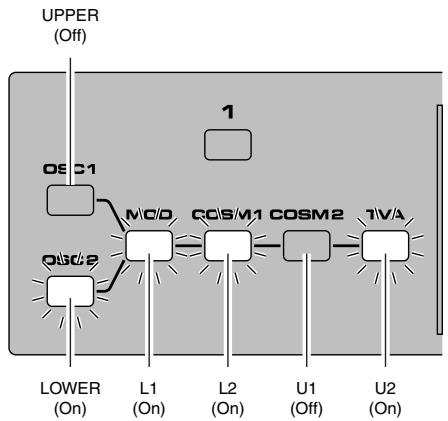
IE ebook 52K—% 2004#4AR2H HA #F#3#214 & Ï Creating a Patch -+|l@ Editing with the Panel Controls (Partial Select) You can assign a variety of parameters (such as TVF Resonance or TVA Level) to the knobs and sliders at the right of the front panel for direct, intuitive editing of the parameters. The partials to which the tone parameters assigned to the different knobs and sliders are applied are specified in the PATCH TOP screen or with STRUCTURE [1] at the right of the front panel. You can use the knobs and sliders to edit the tone parameters of the partial whose indicator is lit. Li L2 Ut U2 Off Off On Off (Of) (Of) (On) (Of) The Partial select setting will be written into the VC-1 by taking the saving procedure. (p. 34) Silencing the Sound of the Partial While editing a Partial parameter, any Partial sound can be muted (Partial Mute). Partials to be muted are specified in the PATCH TOP screen or with STRUCTURE [3] at the right of the front panel. The partial is muted when the indicator is off; muting is defeated when the indicator is lit. U1 u2 = __(f# (On) 1 L2 (OM (of) The Partial Mute setting will be written into the VC-1 by taking the saving procedure. (p. 34) Off Off Off On À 52

IE ebook 53K—% 2004#4AR2H HA #F#3#214 & Ï Creating a Patch -+|l@ Copying Tone Settings A Tone from another Patch can be copied to the patch currently selected (Tone Copy).

1. Make sure the PATCH TOP screen is displayed.

TONE MAME window appears.

4. Touch some buttons (checkbox) in the left side of the screen to

6. Touch <Execute> to execute the copy operation. If you want to cancel without executing, touch

1. Make sure the PATCH TOP screen is displayed.

2. Touch < W > in the upper right of the screen. À pulldown menu

appears. UNDO/REDO PATCH NAME TONE NAME TONE COPY PARAM COPY

3. In the pulldown menu, touch <PARAM COPY>. The PARAM

COPY window appears. COMPARE (o] PATCH WRITE zou INITIALIZE

4. Touch some button (valuebox) in the left side of the screen to

select the object you want to copy. near TONE (Source Tone) Select the Tone to be copied. Lee Value: UPPER, LOWER ee Peer El PARTIAL (Source Partial) Select the Partial parameter to be copied. Value: ALL, COMMON, PART-1, PART-2 Display Function ALL AILthe parameters <COMMON> | Common parameters <PART-1> | Partial L's parameters <PART-2> | Partial 2 parameters El SLOCK (Source Block) If either PART-1 or PART-2is selected in EX , any of the following Blocks can be selected. Value: ALL, WG, TVF, TVA Display | Function <ALL> | All parameters <WG> | WG parameters (p. 64) <TVF> _| TVF parameters (p. 68) <TVA> _| TVA parameters (p.73)

5. Touch some button (valuebox) in the right side of the screen to select the destination Tone.

TONE (Destination Tone) Select the location for the Source Tone. Value: UPPER, LOWER

  • When TA is set to Allor COMMON, FA setting i ignored.

6. Touch <Execute> to execute the copy operation. If you want to cancel without executing, touch

<CANCEL>. Auditioning the Sound Before Editing While editing a parameter, you may wish to hear the original sound before it was edited. The Compare function allows you to call the original Patch without erasing the edited sound.

1. Inthe upper right of the screen, touch < W >. A pulldown menu appears.

3. Touch <COMPARES to turn it on, and the original sound may be heard by playing the keyboard.

4. Touch <COMPARE> again to turn it of, and the edited sound will come back.

5. Touch <OK> to return to the PATCH TOP screen.

IE ebook 56K—% 2004#4AR2H HA #F#3#214 & Ï Creating a Patch -+|l@ Initializing Patch Settings Initialize means to return the settings of the currently selected patch to a standard set of values. The Initialize operation will affect only the currently selected patch in temporary area; the patches that are stored in internal memory and work area will not be affected. If you wish to restore all of the VC-1's settings to their factory values, perform a Factory Reset (p. 35).

1. Access the PATCH TOP screen, and select the patch that you wish

to initialize (p. 16).

2. Touch < W > in the upper right of the screen. A pulldown menu

window appears. PATCH WRITE

4. Touch some buttons (checkbox) in the screen to select the object

you want to initialize (0). = iniaurze <Check All>: Mark all object. <PATCH FACTOR>: _ Patch factor settings. (p. 26) <CTRL SETUP>: Control setup settings. (p. 26) <COMMON>: Common parameter settings. (p. 57) <PART-1>: Partial-1 parameter settings. (p. 63) <PART-2>: Partial-2 parameter settings. (p. 63)

5. Touch <Execute>. Theinitialization will be carried out, and you'll

be returned to the PATCH TOP screen.

Value: 1-7 & Number Partial 1_| Partial2_| Combination of two Partials Î 1 : s s Mixture of Partial 1 and partial 2. 21 s s Mixture of Partial 1 and ring-modulation.

3 P s Mixture of Partial 1 and partial 2.

4 P s Mixture of Partial 1 and ring-modulati = ixture of Partial 1 and ring-modulation,

s\ D s p Mixture of Partial 1 and ring-modulation 6 P p Mixture of Partial 1 and partial 2.

7 P p Mixture of Partial 1 and ring-modulation. DH 8 S : Synthesizer Sound Generator P : PCM Sound Generator, [A : Ring Modulator Balance (Partial Balance) [TE] Adjusts the volume balance of the Upper and Lower Tone. Value: 0-99

Tone Parameters P-ENV (Pitch Envelope) P-ENV E (Envelope) Velo (Velocity Range) Sets the maximum effect of the velocity that controls the pitch of the P-ENV. At higher values, the keyboard velocity has a greater, effect on the envelope. Value: 0-2 TKF (Keyfollow (Time)) Sets the time of the P-ENV depending on the key played. Higher values change the time more drastically. Value: 0-4

Er — P-ENV Time Edit The envelope curve is determined by times and levels. + Point 1 Point 2 Point 3 SusL Pitch O T1 T2 T3 T4 Lo! EndL key Off) Point 4 Point 0 _ {key On)

Tone Parameters Ti (Time 1) Sets the time needed from point 0 (the moment the key is pressed) to point 1. Value: 0-50 T2 (Time 2) Sets the time needed from point 1 to point 2. Value: 0-50 T3 (Time 3) Sets the time needed from point 2 to point 3. Value: 0-50 T4 (Time 4) Sets the time needed from the moment the key is released to point 4. Value: 0-50 P-ENV Level Edit LO (Level 0) Sets the pitch created the moment a key is pressed. Value: -50-+50 L1 (Level 1) Sets the pitch of the point 1. Value: -50-+50 L2 (Level 2) Sets the pitch of the point 2. Value: -50-+50 SusL (Sustain Level) Sets the pitch of point 3. Value: -50-+50 EndL (End Level) Sets the pitch of point 4. Value: -50-+50 shorter than what is actually set, or even zero. If the Levels of two adjacent points are set to similar values, the time between these ttvo points may prove to be

IE ebook 60K—% 2004#4AR2H HA #F#3#214 & Ï Tone Parameters -+|l@ The maximum variable range of each level will depend on the Velocity Range in P-ENV. (p. 58) Velocity Range | Level | Range a +50 | +loctave -50 | -loctave ï +50 | +1.5 octave -50 | -L5octave 2 +50 | +2octave 50 | -2octave Pitch Mod (Pitch Modulation) Depending on how the LFO in WG modulation (p.67) is set, the vibrato set here may have no effect at all. LFOD (LFO Depth) Sets the depth of LFO-1, that controls the WG pitch. Higher values deepen the effect. Value: 0-100 Lever (Pitch Lever Modulation) Sets the sensitivity of the vibrato depth controlled by the bender lever. Higher values deepen the effect. Value: 0-100 After (Pitch Aftertouch Modulation) This sets the sensitivity of the vibrato depth controlled by aftertouch. Higher values deepen the vibrato effect. Value: 0-100 LFO (Low Frequency Oscillator) The parameters of LFO-2 and LFO-3 can be set like LFO-1, except for a few parameters. Wave (LFO Waveform) Selects the waveform of the LFO. Value: TRI, SAW, SQU, RND Display Waveform LFO-Z Edit TRI (Triangle) DVAVAYS 7 TRI SAW (Sawtooth) NN SQU (Square) LIL PATCH Ri] NE | RE] EE] RND (Random) _ | Waveform changes randomly. Ce RS EE NS UE Rate (LFO Rate) Sets the rate (frequency) of the LFO. Higher values quicken the rate. Value: 0-100

Fr A IE NET ebook 61 X—% 2004#4R2H SRE FH3H214 nn 4 Tone Parameters Delay (Delay Time) This sets the time needed for the LFO to appear, from the moment a key is pressed. Higher values increase the delay time. Value: 0-100 Sync Selects the timing of the LFO oscillation as follows. For LFO-2 and LFO-3, KEY cannot be selected. Value: OFF, ON, KEY Display OFF LFO does not sync to the keyboard. oN When a key is played after all keys have been released, the LFO begins its wave generating process from the beginning. KEY LFO begins its wave generation from the beginning each time a new key is played. EQ/CHORUS (Equalizer/Chorus) EQ Edit (Equalizer) In the equalizer section, the frequency characteristic of the sound can be modified. The Equalizer consists of the following parameters. LowFreq (Low Frequency) Sets the frequency where the gain is altered in the low to middle range. Value: 63, 75, 88, 105, 125, 150, 175, 210, 250, 300, 350, \r420, 500, 600, 700, 840 Hz LowFreq LowGain Level 0 LowGain (Low Gain) GE Sets the gain of the lower frequencies. “+” settings raise the gain, and “-” settings lower it. Value: -12-+12 dB = Frequency

IE } veT_e.book 62K—% 2004#4R2A &MREA F#3#21% Tone Parameters HiFreq (High Frequency) Sets the frequency where the gain is altered in the middle to high range. Value: 250, 300, 350, 420, 500, 600, 700, 840 Hz, 1.0, 1.2,\r1.4, 17, 2.0, 24, 2.8, 34, 4.0, 4.8, 5.7, 6.7, 8.0, 9.5 KHz HiQ (High Q) Sets the width of the frequency band where the gain is boosted or cut. With a higher value, the frequency band is narrower, and vice versa. Value: 0.3, 0.5, 0.7, 1.5, 2.0, 3.0, 4.2, 6.0 HiGain (High Gain) GE Sets the gain of the Hf frequency. ‘’ settings raise the gain and “- !’ settings lower it. Value: -12-+12 dB Chorus Edit Type (Chorus Type) Selects one of the 8 basic chorus effects. Value: 1-8 Display | Type 1 Chorus 1 2 Chorus 2 3 Flanger 1 4 Flanger 2 5 Feedback Chon 6 Tremolo 7 Chorus Tremolo 8 Dimension Rate (Chorus Rate) GIE Sets the rate of the chorus effect. Higher values quicken the rate. Value: 0-100 Depth (Chorus Depth) BEM Sets the depth of the chorus effect. Higher values deepen the effect. Value: 0-100 Level 0 Level 0 Ha is Height. HiFreq Frequency HiFreq Frequency

QIES IE ebook 63K—% 2004#4AR2H HA #F#3#214 & Ï Tone Parameters Value | Balance Balance (Chorus Balance) GIE alance (Chorus Balance) 100 | Only the chorus sound is heard. This sets the volume balance of the chorus of the chorus sound Poe 50 | Chorus sound = Normal sound Ac norma sounc. © | Only the normal sound is heard. Value: 0-100 Partial Paramete Restriction of the available parameters caused by Structure Depending on what Structure (p. 57) is used, the available parameters may be different.

1. Some parameters included in a Partial that uses a PCM sound generator are invalid. The

ET mark is shown when the parameters apply even for PCM sounds.

2. With Ring Modulation, some parameters in Partial 2 will automatically become the same as

for Partial 1. Therefore, the values shown in the display are irrelevant with the actual values. The RIZ] mark is shown for such parameters. <FORM> (p.64) <PITCH>: (p.66) <TVB>: (p.68) <TVA>: (p.73) <MOD>: (p.76)

IE } veT_e.book 64K—% 2004#4R2A &MRA F#3#215 Tone Parameters WG Form (WG Waveform) WG Form (Waveform) Wave (Wavetorm) Selects the waveform of the synthesizer sound generator Value: SQU, SAW WG Waveform Display Waveform SQU (square) “LILI SAW Gawtooth) | NIK A sawtooth wonveform is produced by processing a square Waveform at the TVE, that is, all the woaveform are square at WG even when a sawtooth is selected. PCM (PCM Wave Number) EE! This selects one of the 127 different sampled waves of the PCM sound generator. (p. 138) Value: 1-127 WG PW (WG Pulse Width)

Er — PW (Pulse Width) 100 A square waveform has exactly the same width, up and down but

à Pulse waveform has different widths. The ratio of upper width to lower is called pulse width. Depending on the set pulse width 97% value, the harmonie content of the sound changes greatly. 5 Value: 0-100

  • When a sawtooth is selected with WG Waveform, pulse width 50% raises the pitch by an octave.

With ‘-” values, the pulse width becomes smaller by playing the keyboard harder, and with “+” values, the pulse width becomes

wider by playing the keyboard harder. Le) Value: -7-+7 After (Aftertouch Range) Sets the sensitivity of the aftertouch that controls the pulse width.

With “=” values, the pulse width becomes smaller with stronger 7 aftertouch, and with “+” values, the pulse width becomes wider with stronger aftertouch. Value: -7+7 LFO (LFO Select) GIE Pulse Width Modulation (PWM) means changing the pulse width periodically. LFO Select decides which of the LFO's is to be used for modulating the pulse width. Value: +1, -1, +2, -2, +3,-3 Display | LFO (Phase) #1 LFO-1 (+) El LFO-1 () Posiive Phase (+) @) +2 LFO-2 (+) Î 2 LFO-2 (-) +3 LFO-3 (+) -3 LFO-3 (-) Negative Phase (-) LFOD (LFO Depth) EN This sets the depth of the PWM. Higher values Deepen the effect. Value: 0-100

Tone Parameters WG PITCH WG Pitch Coars (Pitch Coarse) EI] Sets the standard pitch of a Partial in semi-tone steps. The standard pitch is the pitch at C5 (middle C) key. Value: C1-C7 Fine (Pitch Fine) 2] GE The standard pitch can be altered over about +/- 50 cents. Value: -50-+50 KF (Keyfollow (pitch)) HE] Pitch

Usually, the keyboard to a synthesizer assigns a semi-tone to +31 (Octave) 2, 8/2 54 1 each key. This parameter can change the pitch ratio as show L below. The value represents how many octaves are changed 2l over 12 keys. Value: -1, 1/2, -1/4, 0, 1, 1/4, 3/8, 1/2,5/8,3/4,7/8,1,5/4, 3/2,2,s1,s2 1 or s2 may be selected for slightly stretching octaves.

Er — sl: Pitch 1 cent higher than one octave. + s2: Pitch 5 cents higher than one octave L

Tone Parameters WG Mod (WG Modulation) LFO (LFO Mode) EI] Selects one of the following four vibrato modes. Value: OFF, (+), (+), A&L N 1] Display | Description orme OFF. No vibrato is obtained Œ Vibrato is on. o Vibrato is on but inverted. Vibrato can be obtained only by Aftertouch “+ is selected. A&L y | and Bender Lever. 10)

ENV (P-ENV Mode) HE] GE Selects one of the following three modes, determining how the pitch is controlled by P-ENV. Value: OFF, (+), (-) "4" is selected. Display | Description OFF No alteration. @ Pitch changes with the set P-ENV curve. (@] Pitch changes with the P-ENV curve inverted. VAR "." is selected. Bend (Bender Mode) Ka! Selects how the pitch is controlled by the bender lever as follows. Value: OFF, KEY, NOM Display | Description OFF No pitch alteration by moving the lever right or the left. KF Pitch changes within the Bender range, set in Patch Factors, plus Keyfollow (Pitch) of WG. NOM | Pitch changes within the Bender range, set in Patch Factors.

IE ebook 68K—> 2004#4AR2H @&HA #F#3#214 Tone Parameters -+|l@ Bender Mode Example: + _Ifthe Bender range is set to 12 (1 octave), and the Keyfollow (Pitch) of WG is set to 2, the maximum pitch change caused by moving the Bender Lever is 2 octaves. + When the Keyfollow (Pitch) of WG is set to zero, there is no pitch change caused by the Bender lever. TVF (Time Variant Filter) TVF Freq (Cutoff Frequency) Sets the cutoff point of the TVF. As you lower the value, higher 1eno7 D, LT frequencies are removed and the waveform gradually become an approximation of a sine wave, then the sound will finally fade out. Value: 0-100

harmonics are emphasized and the sound will become more Gutoif Point Frequency unusual, more electronic in nature. Î Value: 0-30 _ È VAS ann sd £ Gutoif Point Frequency t 0 NN, AS Gutoif Point Frequency : È \ PRER 0 Gutoif Point Frequency KF(Keyfollow (Cutoff Point)) CIE Pitch Keyfollow can change the cutoff point depending on the key +31 (Octave) 2,42 514 played. Just like the Keyfollow of WG pitch, the value L 8 represents how many octaves change over 12 keys. el aa Value: -1,-1/2,-1/4,0,1,1/4,3/8,1/2,5/8,3/4,7/8,1,5/4, L 5/8 3/2,2 4/2 A 14 318 LA BP (Bias Point) L'. 1e You can add a further change (= bias level) to the Keyfollow oÙ = curve, and set the range (bias direction) where the bias level is L valid. The bias range is where the bias level is valid on the : keyboard. It can be set with the bias point (where the bias : range begins) and bias direction ( < or > ). Value: <A1-<C7, >A1->C7 Middle C (C4) Display Example | Example Function >C4 The bias level is only valid on the keyboard above the C4 key. <C4 The bias level is only valid on the keyboard below the C4 key. BLevel (Bias Level) The bias level can be set. “+” values raise the curve, and “-” value lower the curve.

Middle C (C4) The curve in the picture represents the Keyfollow value with the bias level added. + TVF Keytollow (Cutoff Point}: 0 + Bias Direction: >C4 TVF ENV (TVF Envelope) Depth (ENV Depth) Sets the depth of the TVF ENV modulation that changes the TVF cutoff Point. Higher values deepen the effect. EE Value: 0-100 pren Velo (Velocity Range) Sets the sensitivity of the velocity than controls the depth of the TVF ENV. Athigher values, the effect is deeper by playing harder. Value: 0-100 DKF (Keyfollow (Depth)) This can change the TVF ENV depth depending on the key played. Higher values change the depth more drastically. Value: 0-4 TKF (Keyfollow (Time)) This can change the time of the TVF ENV depending on the key played. Higher values change the time more drastically. Value: 0-4

Tone Parameters TVF ENV Time An envelope curve is determined by times and levels.

Key On Key Off T1 (Time 1) Sets the time needs to reach point 1 from the moment the key is pressed. Value: 0-100 T2 (Time 2) Sets the time needed to reach point 2 from point 1. Value: 0-100

Er — T8 (Time 3) Sets the time needed to reach point 3 from point 2. Value: 0-100 T4 (Time 4) GE Sets the time needed to reach point 4 from point 3. Value: 0-100 T5 (Time 5) GE Sets the time needed to reach point 5 from the moment the key is released. Value: 0-100

IE ebook 72K—% 2004#4R2H @&HA #F#3#214 & Ï Tone Parameters -+|l@ TVF ENV Level L1 (Level 1) Sets the of point 1. Value: 0-100 L2 (Level 2) Sets the level of point 2. = Value: 0-100 L3 (Level 3) Sets the level of point 3. Value: 0-100 TUF ENV Level SusL (Sustain Level) This sets the level of point 4. Value: 0-100 EndL (End Level) To lower the level after releasing the key, set this to 0, and to raise the level, set it to 100. Value: 0, 100 The End Level is retained until you release and play the key again. If the Levels of two adjacent points are set to similar values, the time between these ttvo points may prove to be shorter han what is actually set, or even zero

Tone Parameters TVA (Time Variant Amplifier) TVA Level F7 Sets the volume of a Partial. Higher values may cause sound distortion. If so, lower the value. Even when the Level is set to zero here, the sound may not be completely muted if the TVA ENV curve is high. Value: 0-100 Velo (Velocity Range) 2] Sets the sensitivity of the velocity that controls the volume of the sound. “=” values lower the level by harder playing, and “+” values raise the level by harder playing. Value: -50-+50 BP (Bias Point) 2 You can change the overall volume of the keyboard (= bias level) from the set level, and set the range (bias direction) where the bias level is valid. This bias range is where the bias level is valid on the keyboard. It can be set with the bias point (Where he

Tone Parameters TVA ENV (Envelope) Velo (Velocity Follow (Time 1)) EE] Sets the sensitivity of the velocity than controls the Time 1 of the TVA ENV. Increasing the sensitivity shortens Time 1, by stronger playing. Value: 0-4 TKF (Keyfollow (Time)) HI] Fe change eine TVA ENV depanaing on etes UT OT played. 0 to 4 are valid. Higher values change the time more : drastically PAUN — MN > DN Value: 0-4 TVA ENV Time An envelope curve is determined by times and levels. 4

Er — Point 1 Point 2 Point 3 T T2 T3 T4 Key On Key Off Ti (Time 1) EX] GE Sets the time needed to reach point 1 from the moment the key is pressed. Value: 0-100 T2 (Time 2) ED GE Sets the time needed to reach point 2 from point 1. Value: 0-100 T8 (Time 3) GED GE Sets the time needed to reach point 3 from point 2. Value: 0-100

Tone Parameters T4 (Time 4 Sets the time needed to reach point 4 from point 3. Value: 0-100 T5 (Time 5) RE Sets the time needed to reach point 5 from the moment the key is released. Value: 0-100 TVA ENV Level L1 (Level 1) EI Sets the level of point 1. Value: 0-100 L2 (Level 2) EI Sets the level of point 2. Value: 0-100 L3 (Level 3) ET TVR ENY Lever Sets the level of point 3. Value: 0-100 SusL (Sustain Level) FE] EM Sets the level of point 4. Value: 0-100

Er — EndL (End Level) E] To lower the level after releasing the key, set this to 0, and to raise the level, set it to 100. Value: 0, 100 The End Level remains until the key is released and played again. That is, at a value of 100, the sound remains. However, the PMC Sound Generator's One-shot sounds do not remain even when set to 100. If the levels of Hvo adjacent points are set to similar values, the time between these favo points may prove to be shorter than what is actually set, or even zero.

Tone Parameters MOD (Modulation) TVF MOD LFO (LFO Select) Selects the LFO that changes cutoff point periodically (creating growl effects). Value: +1, -1, +2, -2, +3,-3 Display | LFO (Phase) # LFO-1 El LFO1 () Posiive Phase (+) +2 __|LFO26) 2 LFO2 () | +3 LFO-3 (+) «@ >) 3 LFO3 () Î Negative Phase (-) LFOD (LFO Depth) GA Sets the depth of a growl effect. Higher values deepen the effect Value: 0-100 After (Aftertouch Range) Sets the sensitivity of the aftertouch that controls the cutoff point. “-” values lower the cutoff point by stronger Aftertouch, and “+” values aise it. Value: -7-+7

After (Aftertouch Range) EI] Sets the sensitivity of the aftertouch that controls the volume. “-” values lower the volume by stronger aftertouch. And “+” values increase the volume by stronger aftertouch. Value: -7-+7

-+|l@ Settings that affect the entire operating environment of the VC-1, such as tuning and MIDI message reception, are referred to as System functions. This section explains how to make settings for the System functions and describes the functions of the different System parameters. How to Make the System Function Settings

1. Press [MODE]. The MODE MENU window appears.

2. Touch <SYSTEM>. The SYSTEM screen appears.

MODE MENU FACTORY RESET

the value by either turning the VALUE dial or pressing [INC/+] or IDEC/.

4. Repeat steps 3 to make the settings for the System function.

5. After you have edited the settings of the System function, touch

<Write>, located in the lower right of the screen. DSo% SYSTEM Changes you make to the System function seftings are only temporary—they will be discarded as soon as the power is turned off. If you want to Keep any changes you've made in the system settings, you must save them in VC-1 When you perform the save procedure, the data that previously occupied the save destination will be lost. However, he factory setting data can be recovered by performing the Initialization procedure. (Factory Reset; p. 35)

Settings for the Entire VC-1 Sound Se Master Tune Adjusts the overall tuning of the VC-1. The display shows the frequency of the A4 note (center A). Value: 427 - 452 Hz Sound Character Sets whether the output characteristics of the sound are the same as those of the D-50 (D-50) or the V-Synth (V-Synth). Value: D-50, V-Synth Digital Freq (Digital Frequency) Sets the sampling frequency of the digital output. Value: 44.1, 48, 96 kHz Keyboard Octave (Octave Shift) Transposes the pitch of the keyboard in 1 octave units. Value: -3-3 Transpose Modifies the pitch range of the keyboard in semitone steps. Value: -12 - +12 KBD Sens (Keyboard Sensitivity) Adjusts the keyboard's touch. Value: LIGHT, MEDIUM, HEAVY Aftertouch Sens Keuboarä Pedal Polarity MIDI Sound Setting Pélarity nor Pros.c Exclusive Bank5 US 1 L'on Display _| Function Light weight synthesizer LIGHT | Keyboard like MEDIUM | Standard HEAVY | Acoustic piano simulation Specifies the Aftertouch sensitivity. Higher values will allow Aftertouch to be applied more easily. Normally you will leave this at “50.” Value: 0 - 100

IE ebook 80K—> 2004#4AR2H HA +F#3#214 Settings for the Entire VC-1 Pedal Polarity Hold (Hold Pedal) Select the polarity of the Hold pedal. On some pedals, the electrical signal output by the pedal when it is pressed or released is the opposite of other pedals. If your pedal has an effect opposite of what you expect, set this parameter to "REVERSE.” If you are using a Roland pedal (that has no polarity switch), set this parameter to “STANDARD.” Value: STANDARD, REVERSE Pedali, Pedal2 (Control Pedal 1, Control Pedal 2) MIDI Selects the polarity of the pedal. On some pedals, the electrical signal output by the pedal when it is pressed or released is the opposite of other pedals. If your pedal has an effect opposite of what you expect, set this parameter to “REVERS.” If you are using a Roland pedal (that has no polarity switch), set this parameter to “STANDARD.” Value: STANDARD, REVERSE MIDI MIDI CH (MIDI Channel) Sets the Basic Channel (MIDI channel on which the VC-1 receives and transmits messages). Value: 1-16 The transmit change can be set to a different number from the Basic Channel individually from each Patch (p. 32). Control Determines how to receive messages from an external MIDI device. (“Key Mode Alteration” (p. 126) Value: B.CH, G.CH, MdeOFF BSoee = Sound Mastertune Setting Keuboarä Peisrity Display Function B.CH When the VC-L is being controlled in Mono mode, it receives the Voice ee massages (except for Note Event, Pitch Bender) on the Basic Channel (Basic Channel mode) from the external device. When the VC-L is being controlled in Mono mode, by an external device G.CH that has a Global Channel (one number smaller than the basic channel) (Global Channel mode) it can receive all the Voice massages (except for Note Event, Pitch Bender) On the Global Channel. In this mode, the VC-1 does NOT receive the Mode massages from the MdeOFF ; external MIDI device, but is assigned to the Key mode as set on the (Mode Message OFF mode) | Ve

Settings for the Entire VC-1 SeparateCH (Receive Channel in Separate Mode) When SEP (Separate Mode) or SEP-S (Separate Solo Mode) is selected, the Upper and Lower Tones can be controlled on different channels. The Lower Tone is controlled by the basic channel, and the Upper Tone is controlled by the receive channel set here. The V-Synth's keyboard can control only the Upper Tone Value: 1-16

  • The receive channel of ench Patch can be set to a different number from the channel set here. (p. 32) Local (Local Switch) Local OFF separates the keyboard section from the synthesizer section in the VC-1. Therefore, Performance information is sent from the MIDI OUT connector, but the VC-1 does NOT make any sound. The Performance information fed into the MIDI IN connector, however, can control the VC-1's synthesizer section. Value: Off, On Prog.C (Program Change Switch) To receive or transmit Program Change messages, set this to On. Program Change messages are transmitted only when a Patch is selected by operating the V-Synth's panel buttons, or when the Program Change number to be transmitted is altered also on the V-Synth's panel. IN other words, Program Change messages are not transmitted by patch selection with the Program Change messages sent from an external MIDI device. Value: Off, On *_ The Program Change Number of ench Patch can be set to a different number from the number set here. (p. 32)

Er — Exclusive (Exclusive Switch) To receive or transmit Exclusive messages (Roland ID Number only), set this to On, P-Dump or TxEdit. Value: Off, On, P-Dump, TxEdit Display _| Function On Normally. P-Dump | The patch data that you select is transmitted. TxEDIT | The parameter data that you edited is transmitted.

  • When set to P-Dump, the Patch you select is transmitted to an external device. However, it cannot be transmitted by Patch Shift with the pedal switch, or by patch selection with the Program Change messages sent from an external device. Bank.S (Bank Select Switch) To receive or transmit Bank Select messages, set this to On. Value: Off, On USB MIDI (USB MISI Switch) If you want to exchange MIDI messages with a sequencer or UNI QUEST editor via USB connector, set this to On. (“Exchanging MIDI Messages with Your Computer” (p. 88)) Value: Off, On

The current settings of the system functions can be restored to a set of standard settings, or to the factory settings (System Initialize). Access the System Edit screen. Touch <lnit>, located in the lower right of the screen. If you want the factory settings to be in effect the next time the VC-1 is powered up, touch <Write> to save the settings. BSOee = Sound Masterlune Scumacharacter Digiatrrea Settngl +10: _| Keyboard PES Tismpose kenSens aretouisens Pedal 10 eat Peace Polarity MIDI QIES

Recovering the System from the CD-ROM If while running the VC-1 from a computer you happen to delete (format) any of the VC-1's folders or files or change file or folder names, the VC-1 will fail to operate correctly. In such instances, recover the VC's program from the CD-ROM included with the VC-1. Use the following procedure. Selecting the V-Synth’s USB Storage Mode (p. 83)

Connecting the V-Synth to Your Computer via USB (p. 84)

Turn off the power of VC-1 (V-Synth) once, then pull out the VC-1 from the PC CARD slot.

SAME PA svren Turn on the power of V-Synth again. Wait for the V-Synth to start tr [m} up normally. use Press [MODE] to access the V-Synth MODE MENU window. PA Touch <SYSTEM>. The SYSTEM Com Master screen appears. In the left side of the screen, touch the <MIDI USB> tab. The SYSTEM Com MIDI/USB screen appears. Touch <USB Setup>. The SYSTEM Com USB Setting window appears. Ten

9. When a WARNING window like the following appears, touch

<Write> to save the system settings. ACCEPT Connecting the V-Synth to Your Computer via USB MANN The installation procedure will differ depending on your system. Please proceed to one of the following sections, depending on the system you use. + Windows XP/2000/Me/98 (p. 84) + Macintosh (p. 85) 8 Windows XP/2000/Me/98

1. Make sure that the power of the VC-1 is turned off.

2. Startup your computer.

3. Connect the V-Synth and your computer using a USB cable. Ar

4. Tum on the power of V-Synth.

5. Insert the VC-1 into the PC CARD slot of the V-Synth rear panel. FI

Connecting to Your Computer via USB Touch <PC Card> to establish the connection with your computer. When the USB connection is established for first time, the driver installation will begin. À dialog box of “Found new hardware” will appear near the Windows task tray. Installation is completely automatic. Please wait for it to be completed. When installation is completed, open My Computer and you will see a new drive icon. os Icon name Windows 98/Me/2000 | Removable Disk Windows XP VC-1 USE Storage Once the V-Synth is connected, you can recover system files by operating your computer. (p. 86) 6 Macintosh

Make sure that the power of the V-Synth is turned off. Start up your computer. Connect the V-Synth and your computer using a USB cable. Turn on the power of V-Synth. Insert the VC-1 into the PC CARD slot of the V-Synth rear panel. Press [MODE] to access the V-Synth MODE MENU window. Touch <USB>. The USB Storage screen appears. Touch <PC Card> to establish the connection with your computer. When the USB connection is established, a new drive icon will appear on your desktop.

USE Storage Once the V-Synth is connected, you can recover system files by operating your computer. (p. 86)

1. Insert the V-Card CD-ROM into the CD-ROM drive of your computer (NOT V-Synth driver CD-ROM!).

2. Using your computer, copy the SYRB1.BIN file on the V-Card CD-ROM to the SYRB1.BIN file

(overwriting it) within the VC-1. Do not perform the following actions while “Access” (the access indicator) in the USB Storage screen is blinking. Doing so may cause your computer to freeze, and may also damage the files in the drive. + Do not disconnect the USB cable + Do not remove the PC card while it is being accessed + Do not sleep, restart, or shut down your computer + Do not turn off the power of V-Synth. Canceling the USB Connection When recovery of the system data is finished, stop the USB connection to safely disconnect the USB cable and turn off the power to the V-Synth.

1. Inthe V-Synth's USB Storage screen, make sure that “Access”

(the access indicator) is not blinking.

2. Perform the ‘Eject” operation on your computer.

2-1. Windows 98/Me/2000/XP: In My Computer, right-click the ’Removable Disk” icon and execute “Eject/” 2-2. Macintosh: Select the VC-1 drive icon on your desktop, and either choose ‘’Eject” from the “Special” menu, or drag the icon into the trash.The drive icon will disappear from the desktop, and the USB connection will be cancelled. Press [EXIT]. The USB Storage screen will close. USE Storage You can now safely disconnect the USB cable or turn off the power to the V-Synth with the USB cable still connected. If you press [EXIT] without performing the “Eject” operation on your computer, a WARNING window like the following will appear. Touch <EXECUTES to close this window only if you are unable to perform the “'Eject” operation on your computer. ANNE CANCEL EXEQUE -+|l@

IE } veT_e.book 87 X—% 2004#4R2A $MREA F#3#215 Connecting to Your Computer via USB f " The VC-1's File Structure à AS seen from your computer, the VC-'s file structure is as follows. + _ You can use the computer to copy (back up) these files to the computer (e.g,, the hard disk). VS?" System Program Me] SYRB 1 BIN VariOS System Program—1+ [e] YPI-01 for Yari0S: BIN + Do not perform operations on your computer to System Parameter—{ pe] VC 1.510 erase (format) or rename these folders or files. NCI1PI0 Ifthe VC-1 fails to operate correctly, use the CD- Evei Fr p10 ROM included with the VC-1 to perform the VC- Bvci Lspi0 1 recovery. This will erase all the data that has Evei mn p10 been saved on the VC-1. Patches of Internal Bank Be Lspio Elvciniépio Elvcim7p10

Connecting to Your Computer via USB Exchanging MIDI Messages with Your Computer F n ñ What is the USB MIDI Driver? à The USB MIDI Driver is a software which Comparer passes data between the VC-1 and the application (sequencer software, UniQuest pplication (sequencer software, UniQues nn editor, ete.) that is running on the USB- connected computer. USB connecter The USB MIDI Driver sends data from the USB USB cable Driver 7 À LT USB connecter EME application to the VC-1, and passes data from the VC-1 to the application. V-Synih In order to use the VC-1 as a USB MIDI device from your computer, you must first install the USB MIDI driver. The USB MIDI driver is on the “V-Synth Driver CD-ROM.” (NOT VC-1 CD-ROM!) In order to use USB in MIDI mode, you must install the driver from the V-Synth Driver CD-ROM into your computer (included the V-Synth package). The correct driver and the installation procedure will depend on your system and on the other programs you are using. Be sure to read the Readme file on the CD-ROM before installation os Folder Windows XP/2000 \Midi\Usb_xp2k\Readme_e.htm Windows Me/98 \Midi\Usb_me98\Readme_e.htm Macintosh (OMS) \OS_9\English\Readme_OMS-E.HTM Macintosh (FreeMIDI) | \OS_9\English\Readme_FM-E.HTM Mac OS X \OS_X\Readme-E.HTM

  • The most recent version of the USB-MIDI driver can be downloaded from the Roland Website; http://www.roland.com/products/en/VC-1/ This URL may change without notice.

IE } veT_e.book 89 K—% 2004#4R2A &MRA F#3#215 Vars Panel Description... VariOS Menu Try Out the Sounds... Turning On the Power. Selecting Patches and Playing Sounds. Determining the MIDI Keyboard Routings: Setting the MIDI Receive Channel... Selecting Patches with the VALUE knob. Applying Effects to the Sound Applying Effects by Turning Knob: How to Make the Patch Factors … Transferring Patches To and From the D-50/550 Transferring Patches from the D-50 to the VC-1. Transferring Patches from the VC-1 to the D-50/550 Overview of the VC-1. Memory Structure... The Basic Concept of a Tone. Structure of Tone Parameters

—_4 Creating Patches. Naming a Patch. Saving Patches … Initializing Patch Settings . Reset to Default Factory Settings Copying a Patch Bank .116 Settings for the Entire VC-1 117 How to Make the System Function Settings .117 Saving the System Settings … Initializing the System Settings (Init) Connecting to Your Computer via USB. Recovering the System from the CD-ROM Exchanging MIDI Messages with Your Computer.

4 vel_e.book 90 2004#4R21A &HA F#3H219 Panel Description When using the VariOS with the VC-1, the actual functions of the VariOS's buttons and knobs may not correspond to the functions ascribed to these controls on the VariOS's panel. Here is a description of the names and functions in each section of the VariOS when it is used with the VC-1. Please read this material together with “Names of Things and What They Do” in the VariOS User Guide. Controls whose functions do not match what is shown on the panel are indicated with a [M] mark. Front Panel PC CARD Slot The VC-1 can be inserted here. E cuc21c3 knobs Display Functions Î C1 (PITCH) The volume balance of the Upper and the Lower Tone can be change. [TE] C2 (TIME) This sets the volume of the reverb and direct sounds. [TÆ] This sets the portamento time from one note to another. If Portamento Switch (p. 99) is set to C3 (FORMANT) OFF, C3 knob may have no effect. [TE] E inaicators Display _| Functions MIDI Lights when a MIDI message is received. TEMPO | This does NOT function for VC-1. [TE] PC Lights when the MIDI mode of the VariOS is “PC” (p. 119). USB Lights when connected to a computer via USB. EE oisptey Various information is shown here according to the operations you perform. The explanations in this manual include illustrations that depict what should typically be shown by the display. Note, however, that your unit may incorporate a newer, enhanced version of the system (e.g., includes newer sounds), so that you actually see in the display may not always match twohat appears in the manual.

IE } veT_e.book 91K—% 2004#4R2A &MREA F#3#215 Panel Description E venu sutton Accesses the various functions of the VariOS. ME ex Button Returns you to the previously displayed screen. Depending on the content of the menu, this button also functions as CANCEL. CURSOR Buttons Used to move the cursor. E vauue via Turn this dial to edit a value. Pressing the VALUE dial will function as ENTER (confirm). If you turn the VALUE dial while pressing it, the value will change in larger steps. EE VoL UNE knob Adjusts the overall volume that is output from the MAIN OUT jacks and the PHONES jack. By pressing the VOLUME knob you can audition (preview) the current sample. I PHoNES Jack You can connect a set of headphones to this jack. Use headphones with an impedance in the range of 32 - 600 ohms. [I POWER switoh Turns the power of the VariOS on/off (p. 94). The power is on when the switch is in the inward position, and off when the switch Power is ON Power is OFF Whenf When is in the outward position. Switch is depressed Suitch is Releaseed.

Panel Description Rear Panel A 5] [6]

secs © AC Inlet Connect the supplied power cord here A crounding Terminal Depending on the circumstances of a particular setup, you may experience a discomforting sensation, or perceive that the surface feels gritty to the touch when you touch this device, microphones connected to it, or the metal portions of other objects. This is due to an infinitesimal electrical charge, which is absolutely harmless. However, if you are concerned about this, connect the ground terminal (see figure) with an external ground. When the unit is grounded, a slight hum may occur, depending on the particulars of your installation. If you are unsure of the connection method, contact the nearest Roland Service Center, or an authorized Roland distributor, as listed on the “Information” page. Unsuitable places for connection: Water pipes (may result in shock or electrocution)

Er — Gas pipes (may result in fire or explosion) Telephone-line ground or lightning rod (may be dangerous in the event of lightning) LC El ss connector Use à USB cable to connect the VariOS to your computer. EX moi connectors Connect external MIDI devices here (p. 101). Use MIDI cables (sold separately) to make connections. Display | Functions IN Receives MIDI messages from an external device. OUT Transmits MIDI messages 10 an external device. Æ pic aL OUT connectors These jacks output digital audio signals (stereo). Two types are provided; optical and coaxial. Output settings are made in the screen where you specify the effect signal flow. You can use both types of OUT: connector simultaneously; they will output the same sound. A nur sacks Not used with the VC-1. [TE] OUTPUT Jacks Connect your amp or mixer to these jacks. Display Functions DIRECT OUT | This does NOT function for VC-1. [TE] MAIN OUT Output the audio signal in stereo. If you want Lo use monaural output, connect only the L'jack 92 . d

Try Out the Sounds Turning On the Pow To prevent malfunction and/or damage to speakers or other devices, always turn down the volume, and turn off the power on all devices before making any connections.

1. Before hooking anything up, make sure that the power on all of

your gear is turned OFF, 66% é + &

2. Connect the VariOS to your amp/speaker system. MIDI IN

3. After correctly inserting the VC-1 into the PC card slot in the

VariOS's front panel, switch ON the POWER switch. MDI OUT |

  • Carefully insert the PC card al the voay in until it is firmly in place. (a — 2 ui epipped it a protection iront À br interont re (NME dl seconds) after power up is required before the unit will operate normally. MIDI Keyboard J :
  • Always make sure to have the volume level turned down before switching on power. Even with the volume all the way down, you may still hear = Fe) some sound when the power is switched on, but this is normal, and does Monitor Speaker à not indicate a malfunction. 2

Never insert or pull out while the VC-1 (VariOS) is turned on.

4. Tum on the power for any connected amplifiers or speakers.

5. Wait for the VC-1 to start up. When it has started up normally, a screen like the following will appear. The

Try Out the Sounds Selecting Patches and Playing Sounds The VC-1 comes with a wide range of onboard sounds, including single tones called patches. A Patch is represented by a Patch Bank (Prel — 6, Intl 8), a Bank (1-8) and a Number (1-8). Patch bank (Pre 1-6) Patch bank (Int1-8) Pret Number Number 1[21314/516[718 1[21814[s{6[718

gi ga DE IE G (ô] x al E 8 D Patch No. P1-34 Patch No.: 1-72 Patch Banks | Included patches | Overwrite | Remarks Pret D-50 No Original D-50 preset patches Pre2 VC No Newly added patches es Pre3 PN-D50-01 No D-50/D-550 sound library 7 ) 7 Pre4 PN-D50-02 No D-50/D-550 sound library à Pre5 PN-D50-03 No D-50/D-550 sound library Pre6 PN-D50-04 No D-50/D-550 sound library Int1 same as Prel Yes = Int2 same as Pre2 Yes : Int3 same as Pre3 Yes : Int4 same as Pre4 Yes : Ints same as Pre5 Yes : Int6 same as Pre6 Yes : Int7 (blank) Yes : Int8 (blank) Yes = Use the following procedure. Determining the MIDI Keyboard Routings. (p. 9%)

Setting the MIDI Receive Channel (p.97)

Selecting Patches with the VALUE knob (p.97)

1. Press the [MENU] button so it's lighted, and access the MENU

2. Turn the [VALUE] knob to select “MIDI Settings,” and press the

3. Turn the [VALUE] knob to select “MIDI Mode,” and press the

4. Turn the [VALUE] knob to select a routing.

MIDI Mode Select the MIDI keyboard routing. Normally, you should set the MIDI mode to “PC.” Value: PC, Internal Display_| Description Routing Computer :usB Sequencer UniQuest (Editor)

QG — Section Varos When USE is not connected =, Mini our {and when your computer is Fe a G) not powered up), the MIDI Sound GE—+ connectors on {he rear panel of Generator A Moi the VariOS are connected —Gie— 2 D ere greator LU En LL

Computer sus Sequencer UniQuest (Editor) The MIDI connectors of the +; rear panel of the VariOS are in Jour INYOUT -VaioS External MIDI connected directly to the sound xx generator section. —|= Internal ER. nor — 6" E mon Sang &)

5. Press the [MENU] button to turn off its illumination.

*_ The “PC indicator” on the front panel of the VariOS shows the current MIDI Mode status. When this is lit, “PC mode is selected. When dark, “Internal” mode is selected. Setting the MIDI Receive Channel The VariOS will receive Note-on and Control change messages on the channel you specify here. If you've connected a MIDI keyboard, set this channel to match the transmit channel of your MIDI keyboard

1. Press the [MENU] button so it's lighted, and access the MENU

2. Turn the [VALUE] knob to select “MIDI Setting,” and press the

3. Turn the [VALUE] knob to select “MIDI CH,” and press the

MIDI CH Sets the Basic Channel (MIDI channel on which the VC-1 receives and transmits messages). Value: 1-16

5. Press the [MENU] button to turn offits illumination.

Selecting Patches with the VALUE knob

1. Make sure the PATCH TOP screen is displayed. If the PATCH TOP screen is not displayed, press [EXIT]

several times until the PATCH TOP screen appears.

2. Play the keyboard to hear what the selected patch sounds like. To change to a different patch, turn the

[VALUE] knob. + Athis time you can switch more rapidly by holding down [VALUE] knob while you perform these operations. + Usethe[ <Æ{ Jor[ D ]buttons to move the cursor to the value you want to edit. (Patch Bank 4€} Number) 4 CURSOR D Cursor Cursor

Applying Effects to the Sound The performance controlling functions (we call them factors in this manual) in each Patch can be edited by taking the following procedure A patch consists of several Factors as show below.

me | Ù À Variations of Tone Output Mode [rer toce }[ cons Functions [ Balance | (Reverb, etc.) [] Lu LS Caen

Applying Effects by Turning Knobs és By turning the [C1], [C2] and [C3] knobs while you play, you can control the various functions that ve

Er — been assigned to them

  • How each Control Function actually affects the sound differs depending on the individual patch. Some Patches may not be affected at all. Display Description C1 (PITCH) The volume balance of the Upper and the Lower Tone can be change. [TÆ] C2 (TIME) This sets the volume of the reverb and direct sounds. [TÆ] This sets the portamento time from one note to another. f Portament Switch (p.99) is set 10 OFF, C3 (FORMANT) C3 knob may have no effect. [TE]

Applying Effects to the Sound How to Make the Patch Factors The Display shows several Factors at a time. If necessary, Scroll up or down the Display to find the Factor to be edited.

1. Press the [MENU] button so it's lighted, and access the MENU

2. Turn the [VALUE] knob to select “Patch Settings,” and press the

3. Turn the [VALUE] knob to select the factor that you want to edit, and press the [VALUE] knob.

4. Turn the [VALUE] knob to specify the value, then press [EXIT].

5. Repeat steps 3 —4 to set patch factors.

6. _ If you wish to save the changes you've made, perform the Save operation (p. 114). If you return to the

PATCH TOP screen without saving, the PATCH TOP screen will indicate < patch settings have been modified. >,reminding you that the If you turn off the power or select a different patch while the display indicates < 2: >," your edited patch will be lost.

Er — Chase Switch Switches the Chase function on and off. The Chase Play function Euiteh makes it possible to output the Lower Tone slightly later than the QEF Upper Tone, which is actually played on the keyboard. This = function, however, is only available in Dual or Whole Key Mode. Value: Off, On Portament Switch Switches the Portamento function on and off. Portamento is a Copé, nt Suitch slide from one pitch to another, and is often used for violin QFF performance. = Value: Off, On Key Mode Key Mode refers to the Upper and Lower Tones are played on the 3 ode see hole Value: Whole, Dual, Split, Separate, Whole-S, Dual-S, Split-US, Split-LS, Separate-S

4 vel_e.book 100 K— 2004#4A2A &MA ÆFKk3#215 Applying Effects to the Sound Display Description Whole Upper Tone can be played in 16 voice polyphony. Dual Both Upper and Lower Tones are played by each key in 8 voices polyphony. Split The Split mode divides the keyboard into upper and lower sections, where two different Tones can be played in 8 voices polyphony. That is, the VC-1 works like two 8 voice synthesizers. The Split Point (where the keyboard is divided into two sections) is shown next to the Key Mode indication. Separate This mode is effective when an external MIDI device is controlling the VC-1. (“MIDI Implementation” (p. 140) Whole-S (Whole Solo) The Upper Tone is monophonic. Dual-S (Dual Solo) Both Upper and Lower Tones are monophonic. Split-US Split Upper Solo) The Upper Tone is monophonie, and the Lower Tone is 8 voices polyphonic Split LS Split Lower Solo) The Lower Tone is monophonie, and the Upper Tone is 8 voices polyphonic Separate-S (Separate Solo) This mode is effective when an external a MIDI device is controlling the VC-1. (“MIDI Implementation” (p. 140) *_ Poly Mode or Mono Mode is another element that determines how to output the UPPER and LOWER Tones. Split Point The Split Point can be changed as follows. Value: C2 -C7 C2-B2 C3-B3 C4-B4 C5-B5 C6-B6 C7 Partial Mute When editing a Partial parameter, nay Partial sound can be muted. Value (left side): L1, L2, U1, U2 {middle C) Value (right side): Off, On

Transferring Patches To and From the D-50/550 You can use MIDI to transmit patch data (64 patches) saved on your D-50 and receive the data with the VC:1 (VariOS). This procedure is known as “bulk load.” This is an easy and convenient way to take your own original patches (64 patches) created with the D-50 and use them with the VC-1 Conversely, you can also send patch data edited using the VC-1 via MIDI to the D-50/550. This procedure is called “bulk dump.”

  • Read this material together with the D-50/550 Owner's Manual. Transferring Patches from the D-50 to the VC +_ Patches (64 patches) bulk loaded from the D-50 to the VC-1 are temporarily transferred to the patch bank that includes the current patch. Currently Patch Sample | = | Destination Patch Bank Sample N-11:Fantasia Int1-11-Int1-88 16-88:Big Wave Int6-11 - Int6-88 +_ The patches (64 patches) originally residing in the bulk load destination will appear to have been overwritten, but actually nothing will have been lost. The patches are restored when you turn the power off, then on again. + _ The transferred patch data (64 patches) will be lost if you turn off the power. Be sure to save the data (“Saving Transferred Patches with the VC-1” (p. 104)). + Patches saved to memory cards (M-256D) used with the D-50/550 cannot be transferred directly from

Er — these memory cards to the VC-1. First, transfer the patch data to the D-50/550 from the memory card (M- 256D), then transfer the patch data from the D-50/550 to the VC-1.

Aueg CROGEUTE Aueg CROGEUTE Aug CNGGECNE L x 4 Use the following procedure. Transfer the patch from the memory card to the D-50/550 (p. 102)

Transferring Patches from the D-50/550 to the VC-1 (p. 103)

Saving Transferred Patches with the VC-1 (p. 104)

IE vel_e.book 102 K—: 2004#4A2A &MA ÆFk3#215 Transferring Patches To and From the D-50/550 Transfer the patch from the memory card to the D-50/550 Using the D-50 + ne =] [en jen [ms | me | = & == _ SZ + eee D sep S ee FT = Si SÉchonà

1. Insert the Memory Card (M-256D) into the D-50 Card Slot.

2. Turn the Memory Protect of the D-50 to OFF.

2-1. Press the [TUNE/FUNCTION] button. 2-2. Select “Protect” with the Selector button and turn it OFF with the joystick.

3. Press the [DATA TRANSFER] button.

5. Press [ENTER] button. When the data transfer is completed, the display shows “Complete.”

6. Return the Memory Protect of the D-50 to On.

6-1. Press the [TUNE/FUNCTION] button. < 6-2. Select “Protect” with the Selector button and turn it ON with the joystick. Î Using the D-550 rune | moi [or | | = Lo copy [uno came wlil2lslals|elzls «l»|4 exr | eorr |wrire ue . carD| 1 2 3 | 4 5 | 6 7 |8 q|D> v (ENTEA| sHirr |CATSE| 3 , 6 5 3

1. Insert the Memory Card (M-256D) into the D-550 Card Slot.

5. Press the [WRITE] button to turn the Memory Protect OFF temporarily.

6. Press the [ENTER] button again. When the data transfer is completed, the display shows “Complete.”

Transferring Patches To and From the D-50/550 Transferring Patches from the D-50/550 to the VC-1

  • You cannot bulk load data when a patch in the Preset Banks (Pre1 — Preé) is selected.
  • The VC-1 display does not change immediately following the bulk load. This is due to the fact that the work area is the bulk load destination (p. 107). You can confirm the outcome of the transfer by switching patches with the VALUE dial. Using the D-50

1. Use a MIDI cable to connect the D-50's MIDI OUT connector to the VariOS's MIDI IN connector.

2. Set the D-50 and VariOS to the same MIDI channel (the basic channel; p. 117)

3. Turn the MIDI Mode of the VariOS to Internal (p. 119)

4. Press the D-50's [DATA TRANSFER] button.

5. While pressing the D-50's [DATA TRANSFER] button, specify “B.Dump)" with Selector button.

6. Press the D-50's [ENTER] button to begin the bulk dump. When the data transfer is completed, the D-50's

display shows “Complete.” LC

7. Press the [EXIT] button on the D-50 to return to the play mode.

1. Use a MIDI cable to connect the D-550's MIDI OUT connector to the VariOS's MIDI IN connector.

2. Set the D-550 and VariOS to the same MIDI channel (the basic channel; p. 117).

3. Turn the MIDI Mode of the VariOS to Internal (p. 119)

4. Press the D-550's [DATA TRANS] button.

5. Select “(B.Dump}” with the D-550' [ <@{ Jor [ BB ]button.

6. Hold down the D-550’s [DATA TRANS] button and press the D-550’s [ENTER] button to begin the bulk

dump. When the data transfer is completed, the D-550's display shows “Complete.”

7. Press the [EXIT] button on the D-550 to return to the play mode.

Transferring Patches To and From the D-50/550 Saving Transferred Patches with the VC-1 The transferred patch data (64 patches) will be lost if you turn off the power. Be sure to save the data.

1. Press the [MENU] button so it's lighted, and access the MENU

2. Turn the [VALUE] knob to select “Bank Save,” and press the

again to carry out the bank save operation. When the operation is complete, the display will indicate “’Completed!” Transferring Patches from the VC-1 to the D-50/550 Using the D-50

1. Use a MIDI cable to connect the VariOS’s MIDI OUT connector to the D-50’s MIDI IN connector.

2. Set the D-50 and VariOS to the same MIDI channel (the basic channel; p. 117)

3. Turn the MIDI Mode of the VariOS to Internal (p. 119).

4. Turn the Memory Protect of the D-50 to OFF.

4-1. Press the [TUNE/FUNCTION] button. 4-2. Select “Protect” with the Selector button and turn it OFF with the joystick.

5. Enable reception of bulk load data on the D-50.

5-1. Press the D-50's [DATA TRANSFER] button. 5-2. While pressing the D-50's [DATA TRANSFER] button, specify (B.Load) with the Selector button. 5-3. Press the D-50's ENTER] button.

6. Turn the Exclusive Sw of the VariOS to On.

Bank. Select Bank Selects the Patch Bank in the VC-1 with the patch data to transfer to the D-50. Value: 11-18, P1-P6

11. Press the [VALUE] knob, and the display will ask “Are You Sure?”

Press [VALUE] knob once again to carry out the bank dump operation.

12. When the data transfer is completed, the D-50's display shows

13. Press the [EXIT] button on the D-50 to return to the play mode.

1. Use a MIDI cable to connect the VariOS's MIDI OUT connector to the D-550's MIDI IN connector.

2. Set the D-550 and VariOS to the same MIDI channel (the basic channel; p. 117).

3. Turn the MIDI Mode of the VariOS to Internal (p. 119).

4. Turn the Memory Protect of the D-550 to OFF.

4-1. Press the [TUNE] button. 4-2. Select Protect” with the [ <@{ ]or [ BB ]buttons, and turn it OFF with the [VALUE].

5. Enable reception of bulk load data on the D-550.

5-1. Press the D-550's [DATA TRANS] button. 5-2. Select “(B.Load)” with the D-550's [ <@{ Jor [ BB ] buttons, then press the [ENTER] button while holding the [DATA TRANS] button. 5-3. Press the [ENTER] button again.

6. Turn the Exclusive Sw of the VariOS to On.

Bank. Select Bank Selects the Patch Bank in the VC-1 with the patch data to transfer to the D-550. Value: 11-18, P1-P6

11. Press the [VALUE] knob, and the display will ask “Are You Sure?”

Press [VALUE] knob once again to carry out the bank dump operation.

12. When the data transfer is complete, the D-550's display shows

13. Press the [EXIT] button on the D-550 to return to the play mode.

fa La) IE >) veT_ebook 107 K—> 2004#Æ4A2A SHE FHIH21# nn 4 Bov-rviv of the VC-1 Mem Structure Vario [2 KASCTA ES Patch D 1 VC-1 Write D D Select Patch Write Patch:Intt Bank Save Patch:Intt Bulk Load Patch (64) ——— (64) ——— (64) Inti=Int8 (512) Inti=Int8 (512) Wave Power ON Wave Bulk Dump Wave (128) RE) (100) Eure Work Area When the VC-1 is inserted in the VariOS's PC CARD slot, the system program and patch data is loaded from the VC-1 into the VariOS. The section where the system and patch data is loaded is called the Work Area. Content loaded to the Work Area is cleared when the VariOS's power is turned off. For this reason, if you remove the VC-1 from the VariOS and switch the power off, then on again, the VariOS reverts to its ordinary state. In addition, banks (containing data for 64 patches) bulk dumped from an original D-50 (or other MIDI device) are also stored temporarily in the Work Area. Bulk dumped data is cleared if the power is simply turned off, so be sure to save the data to the VC-1 (p. 114). A remporary area Patch data selected for performance is further taken from the Work Area and placed in memory called the Temporary Area. Editing of tones and factors is performed on patches in this Temporary Area. Edited patch data is lost if the power is simply turned off, so be sure to save these to the VC-1 (p.114).

Overview of the VC-1 The Basic Concept of a Tone Throughout the process of programming the D-50, the operation remains simple and logical. You can think of the D-50 having powerful synthesizers built in. Each of these hypothetical synthesizers could béhave like a convention analog synthesizer, or a PCM sampled synthesizer. Any combination of two synthesizers can achieve some remarkable cross-modulation effects. Tone El mn © Partial 1 ENV for pitch control 3LFO's

Partial The VC-1 (D-50) appears to have four powerful synthesizers built in. Each of these hypothetical 4

Er — synthesizer could behave like a conventional analog synthesizer, or a PCM sampled synthesizer. Consequently, They are referred to as Partials, since they are far more than just a pure synthesizer. These Partials are combined in pairs to form a TONE, À Tone could either be a mix of the two Partials, or they could take advantage of the LA version of cross modulation. Synthesizer sound generator A Synthesizer sound generator works like a conventional analog type synthesizer with an oscillator, a filter, an amplifier and two ENV's. \ WG Pitch Envelope Envelope Generator Generator Processor

Overview of the VC-1 PCM sound generator A PCM sound generator provides 128 different PCM sampled sounds (= waveform). ; WG TVA i ROM DSP PCM Wave L_linterpolator! Memory P Pitch Processor Envelope Generator E structure Structure, which is one of the Common Parameters, determines which two of the hypothetical synthesizers (a synthesizer sound generator or a PCM sound generator) are to be used as Partial 1 and Partial 2. + These two Partial sounds (Partial 1 and Partial 2) can simply be mixed as show below. By mixing two Partials, fatter sounds can be obtained. This is effective for making strings or organ type

Er — sounds. + Partial 1 can be mixed with the ring-modulated sound of Partials 1 and 2. (“Ring Modulator” (p. 110) Erre A Tone consists of two Partials (Partials 1 and 2) and a Common block. Some Common parameters apply to both Partials (Partial 1 and 2) . “Structure” is one of the Common parameters. It decides which of the two sound generators is used for each Partial. Other Common parameters are an ENV for pitch, three LFO modules, equalizer, chorus, etc.

Overview of the VC-1 Ring Modulator à The Ring Modulator multiplies two sounds, creating an unusual and metallic sound that contains complicated harmonics. For instance, two waveforms ( (D and © )are multiplied and waveform (@) is created. This is effective for making metallic sounds. (O)

\. D, EE ratch During live performance, you can easily select a Patch, which is the combination of two Tones (Upper re

Er — and Lower), together with programmed EQ, chorus and reverberation. These other parameters are referred to as Factor.

Overview of the VC-1 Structure of Tone Paramete Depending on which generators are selected in the Partial Block, greatly different Tone Parameters will be used. Some Tone Parameters used for the Synthesizer sound generators are irrelevant to the PCM generator. In a Structure with those of Partial 1 g modulation, some parameters of Partial 2 are automatically set to Partial (Symihesizer Sound Generator) wG | > Eric) (Aero) [4] Frequency Pulse i Width i Partial (PCM Sound Generator)

Er — WG (Wave Generator) In the WG (Wave Generator), the pitch and waveform are controlled. Pitch The basic pitch of a Partial (sound generator) can be set here. The pitch is a Common parameter, and is therefore controlled by P-ENV and Î LFO-1. E wavetorm, PCM Wave Number This select the waveform of the sound source. When a synthesizer sound generator is selected, the waveform can be controlled by the Pulse Width controls. El puise wiah This changes the waveform of the sound source. The pulse width is controlled by any LFO (= Common parameter).

IE »} veT_e.book 112K—% 2004#4R2R ÀMHEA FH3H219 Overview of the VC-1 TVF (Time Variant Filter) This fitter passes lower frequency harmonies and cuts off the higher ones. By changing the cutoff point and the resonance, the waveform changes. EX cutott Frequency This sets the cutoff point. The cutoff point can be controlled by Æf TVF ENV and any LFO (= Common parameter). E resonance This emphasizes the cut off point, making more unusual or electronic sounds. This controls the volume of the Partial. [6 ET This determines the volume of the sound. When a synthesizer sound generators used, the level can be controlled with the IE TVF ENV and LFO (Common Parameter) . When a PCM sound generator is used, the FA TVA ENV controls the level. ENV (Envelope Generator) This generators a control signal (envelope curve) which controls the pitch, timbre and volume of each Partial (sound generator). P-ENV This is the ENV which controls pitch. It can be set for two selected Partial at once. Le EE This ENV controls the cutoff point, and can be set for each Partial separately. E rue This ENV controls the volume level. This is can be set for each Partial separately. LFO (Low Frequency) This oscillator generates low frequencies only. Any of the three LFO's can be used for the two partials, Vibrato, PWM growl or tremolo effects can be obtained using these LFO'S *_ A different LFO can be used for each section or a Partial Parameters. I F0: This can control [EE Pitch, El Pulse Width, EX Cutoff Frequency or M Level. Œ :ro2 This can control Æ Pulse Width, EX Cutoff Frequency or M Level. Œ ro: This can control Æ Pulse Width, EX Cutoff Frequency or M Level.

Creating Patches When you edit the settings of a patch, the PATCH TOP screen displays <> to remind you that the patch's settings have been modified. If <> is displayed, you will lose your edited patch settings if you switch to another patch or turn off the power. If you want to keep a patch whose settings you have edited, assign a name to the patch and then perform the Save operation Naming a Patc Before you save the patch, here’s how to give it a new name. Editing Patch or Tone names is called Naming + A Patch name can have up to 16 letters.

1. Make sure that the patch that you want to name is selected.

2. Press the [MENU] button so it's lighted, and access the MENU

3. Turn the [VALUE] knob to select “Utility,” and press the [VALUE]

4. Tum the [VALUE] knob to select “Patch Name,” and press the

location where you want to enter a character.

6. Turn the [VALUE] knob to specify the desired character. By

turning the [VALUE] knob while pressing it, you can conveniently shift between spaces, uppercase characters, lowercase characters, Cursor numerals, and symbols.

7. Press the [VALUE] knob, and the display will ask “Are You Sure?"

s the [VALUE] knob once again to finalize the name. If you press the [EXIT] button you’re returned to the name entry screen. In any of the name entry screens, you can press the [EXIT] button to discard the currently edited name and return to the previous screen.

Creating Patches Saving Patches Changes you make to sound settings are temporary, and will be lost if you turn off the power or select another sound. If you keep the modified sound, you must save it in the VC-1 (PATCH WRITE). When you perform the save procedure, the data that previously occupied the save destination will be lost However, the factory setting data can be recovered by performing the Factory Reset. (“Reset to Default Factory Settings” (p. 115)

  • Never insert or remove the VC-1 while the VariOS is turned on. Patches cannot be saved to PC cards other than the VC.

1. Make sure that the patch that you want to save is selected.

2. Press the [MENU] button so it's lighted, and access the MENU

3. Turn the [VALUE] knob to select “Patch Write,” and press the h Write

5. Press the [VALUE] knob, and the display will ask Are You Sure?”

Press [VALUE] knob once again to carry out the patch save operation.

Creating Patches Initializing Patch Settings Initialize means to return the settings of the currently selected patch to a standard set of values. The Initialize operation will affect only the currently selected patch in temporary area; the patches that are stored in internal memory and work area will not be affected. If you wish to restore all of the VC-1's settings to their factory values, perform a Factory Reset (p. 115).

1. Press the [MENU] button so it's lighted, and access the MENU

2. Turn the [VALUE] knob to select “Utility,” and press the [VALUE]

3. Turn the [VALUE] knob to select Patch Initialize,” and press the

[VALUE] knob. ë Initialize

4. The display will ask “OK?” Press [VALUE] knob once again to

carry out the Patch initialize operation. Reset to Default Factory Settings This restores all data in the VC-1 to the factory-set condition (Factory Reset).

Er — If there is important data you've created that's stored in the VC-1, all such data is discarded when a Factory Reset is performed. If you want to keep the existing data, save it as describe below. + Transmit it to an original D-50 (or an external MIDI device) and save it (p. 104).

1. Press the [MENU] button so it's lighted, and access the MENU

2. Turn the [VALUE] knob to select “Utility,” and press the [VALUE]

3. Turn the [VALUE] knob to select “Factory Reset,” and press the

4. Press [VALUE] knob once again to carry out the factory reset

operation. When the operation is completed, the display will indicate “Completed!”

Creating Patches Copying a Patch Bank

Er — Specify the copy-destination Patch Bank Value: 11-18 Press the [VALUE] knob, and the display will ask “Are You Sure?” Press [VALUE] knob once again to carry out the bank copy operation. When the operation is complete, the display will indicate “’Completed!”

À r IE ebook 1175 2004#4B2F @MRE FÉ3M#215 EX Settings for the Entire VC-1 Settings that affect the entire operating environment of the VC-1, such as tuning and MIDI message reception, are referred to as System functions. This section explains how to make settings for the System functions and describes the functions of the different System parameters. How to Make the System Function Settings

1. Press the [MENU] button so it's lighted, and access the MENU

2. Turn the [VALUE] knob to select “MIDI Settings” or “System,”

and press the [VALUE] knob.

3. Turn the [VALUE] knob to select the factor that you want to edit,

5. Repeat steps 2 —4 to set system settings.

6. After you have edited the settings of the System function, perform the Save operation (p. 120)

  • Changes you make to the System function settings are only femporary they will be discarded as soon as the power Î is turned off. If you want to Keep any changes you've made in the system settings, you must save them in VC-1 MIDI MIDI CH (MIDI Channel) Sets the Basic Channel (MIDI channel on which the VC-1 receives and transmits messages). Value: 1-16 Control Determines how to receive messages from an external MIDI device. (“Key Mode Alteration” (p. 126) Value: Basic CH, Global CH, Mode Message OFF

4 vel_e.book 118 K—: 2004#4A2A &MA ÆFKk3#215 Settings for the Entire VC-1 Display Function Basic CH When the VC-L is being controlled in Mono mode, it receives the Voice massages (Basic Channel mode) {except for Note Event, Pitch Bender) on the Basic Channel from the external device. When the VC-1 is being controlled in Mono mode, by an external device that has a Global Channel (one number smaller than the basic channel) it can receive all the Voice massages (except for Note Event, Pitch Bender) On the Global Channel. Mode Message OFF In this mode, the VC-1 does NOT receive the Mode massages from the external MIDI (Mode Message OFF mode) _ | device, but is assigned to the Key mode as set on the VC-1 Global CH (Global Channel mode) Separate CH (Receive Channel in Separate Mode) When SEP (Separate Mode) or SEP-S (Separate Solo Mode) is selected, the Upper and Lower Tones can be controlled on different channels. The Lower Tone is controlled by the basic channel, and the Upper Tone is controlled by the receive channel set here. Value: 1-16 ProgramChange Sw (Program Change Switch) To receive or transmit Program Change messages, set this to On. Program Change messages are transmitted only when a Patch is selected by operating the VariOS's panel buttons, or when the Program Change number to be transmitted is altered also on the VariOS’s panel. IN other words, Program Change messages are not transmitted by patch selection with the Program Change messages sent from an external MIDI device. Value: OFF, ON Exclusive Sw (Exclusive Switch) To receive or transmit Exclusive messages (Roland ID Number only), set this to On, P-Dump or TxEdit Value: OFF, ON, P-Dump, Tx Edit Display | Function On Normally P-Dump | The patch data that you select is tran TXEDIT | The parameter data that you edited is transmitted mitted.

  • When set to P-Dump, the Patch you select is transmitted to an external device. However, it cannot be transmitted by Patch Shift with the pedal switch, or by patch selection with the Program Change messages sent from an external device. BankSelect Sw (Bank Select Switch) To receive or transmit Bank Select messages, set this to On. Value: OFF, ON

NS c &= ebook 1195 2004#4R2F @ME FÉ3#215 EX Settings for the Entire VC-1 System Master Tune Adjusts the overall tuning of the VC-1. The display shows the frequency of the A4 note (center A). Value: 427 - 452 Hz Sound Character Sets whether the output characteristics of the sound are the same as those of the D-50 or the VariOS. Value: D-50, VariOS MIDI Mode Select the MIDI keyboard routing. Normally, you should set the MIDI mode to “PC.” Value: PC, Internal Display | Description When using a USB conne: interface (Roland VariC n, the MIDI connectors on the rear panel of the VariOS will function as a USB MIDI xternal MIDI)

When USB is not connected (and when your computer is not powered up), the MIDI connectors on the rear panel of the VariOS are connected directly to the sound generator section. Internal _ | The MIDI connectors of the rear panel of the VariOS are connected directly to the sound generator section. C1/C2/C3 Knob (Knob Switch) [TE] Enables or disables control of the C1/C2/C3 knobs.

Settings for the Entire VC-1 Saving the System Settings Changes you make to the System function settings are only temporary — they will be discarded as soon as the power is turned off. If you want to keep any changes you've made in the system settings, you must save them in the VC-1. (System Save)

1. Press the [MENU] button so it's lighted, and access the MENU

2. Turn the [VALUE] knob to select “System,” and press the

again to carry out the system save operation.

Er — The current settings of the system functions can be restored to a set of standard settings, or to the factory settings. (System Initialize)

1. Press the [MENU] button so it's lighted, and access the MENU

2. Turn the [VALUE] knob to select “System,” and press the

3. Turn the [VALUE] knob to select “Systemini

again to carry out the system initialize operation.

5. If you want the factory settings to be in effect the next time the

VC-1 (VariOS) is powered up, you must save system.

Connecting to Your Computer via USB Recovering the System from the CD-ROM If while running the VC-1 from a computer you happen to delete (format) any of the VC-1's folders or files or change file or folder names, the VC-1 will fail to operate correctly. In such instances, recover the VC's program from the CD-ROM included with the VC-1. Use the following procedure. Connecting the VariOS to Your Computer via USB (p. 121)

Canceling the USB Connection (p. 122) Connecting the VariOS to Your Computer via USB

  • First, you must install the driver from the VariOS Driver CD-ROM into your computer (included the VariOS package) r

1. Make sure that the power of the VC-1 is turned off.

2. Connect the VariOS and your computer using a USB cable, then start up your computer.

3. Hold down the [MENU] [ <Æ{ ] and [VALUE] knob, turn on the

4. Insert the VC-1 into the PC CARD slot of the VariOS.

5. The VC-1 inserted in the VariOS will be recognized by your

computer as a drive, and will be mounted as the drive name shown in the following table. os Drive Name Windows 98, Me, 2000 Removable Disk Windows XP, Macintosh | VC-1 Once the VariOS is connected, you can recover system files by operating your computer. (p. 122)

Connecting to Your Computer via USB Recovering the System

1. Insert the V-Card CD-ROM into the CD-ROM drive of your computer (NOT VariOS driver CD-ROM!).

2. Using your computer, copy the VPI-01 for VariOS.BIN file on the V-Card CD-ROM to the VPI-01 for

VariOS.BIN file (overwriting it) within the VC-1. Canceling the USB Connection When recovery of the system data is finished, stop the USB connection to safely disconnect the USB cable and turn off the power to the VariOS.

1. Perform the “Eject” operation on your computer.

1-1. In the task tray, double-click the eject icon. Then click the item that indicates the PC card drive (this will differ depending on your version of Windows; see below) to unmount the drive. LE VariOS’s Drive Name Windows XP, 2000 | USB high-capacity storage device Windows Me USB disk 1-2. Windows 98: In My Computer, right-click the ’Removable Disk” icon and execute “Eject.”

Er — 1-3. Macintosh: Select the VC-1 drive icon on your desktop, and either choose “Eject” from the “Special” menu, or drag the icon into the trash. The drive icon will disappear from the desktop, and the USB connection will be cancelled. You can now safely disconnect the USB cable or turn off the power to the V-Synth with the USB cable still connected.

Connecting to Your Computer via USB

f " The VC-1's File Structure à AS seen from your computer, the VC-'s file structure is as follows. + _ You can use the computer to copy (back up) VC-1 these files to the computer (e.g,, the hard disk). VSynih System Program—1 fe] SYRB 1 EIN +_ Do not perform operations on your computer to Vari0S System Program—1+ [@] vPI-01 for Vari0S.BIN erase (format) or rename these folders or files. System Paremeter—j pr] VC 1.510 + _Ifthe VC-1 fails to operate correctly, use the CD- Elvcinpio ROM included with the VC-1 to perform the VC- Edvcim2p10 1 recovery. This will erase all the data that has Elvci3p10 b 1. » een saved on the VC-1 patches one Bank Elvcimapio YCILISP10 Elvciniépio Elvcim7p10

Connecting to Your Computer via USB Exchanging MIDI Messages with Your Computer F n ñ What is the USB MIDI Driver? à The USB MIDI Driver is a software which Comparer passes data between the VC-1 and the licati ftware, UniQuest application (sequencer software, UniQues! Po editor, ete.) that is running on the USB- connected computer. The USB MIDI Driver sends data from the Us M PE comen Dir USB cable application to the VC-1, and passes data from the VC-1 to the application. [1 US8 connector TE GES 595%660[) Vars K J In order to use the VC-1 as a USB MIDI device from your computer, you must first install the USB MIDI d driver. The USB MIDI driver is on the “VariOS Driver CD-ROM.” (NOT VC-1 CD-ROM!) Î The correct driver and the installation procedure will depend on your system and on the other programs you are using. Be sure to read the VariOS User Guide before installation.

  • The most recent version of the USB-MIDI driver can be doonlonded from the Roland Website; http/www.roland.com/products/en/VC-1/. This URL may change without notice 124 }l (CO)

fa La) IE >) veT_ebook 126 N—2 2004#Æ4AR2F SHE FH3H21# nn 4 Key Mode Alteration Poly Mode or Mono Mode is an element that determines how to output the Upper and Lower Tones. Mono Mode, Poly Mode There are two ways of the The VC-1 can use either mode. Name Functions Allows the control of more than one Key message on one channel ata a time. Poly Mode | The VC-1is 16 or 8 voices polyphonic (depending on the patch used). So the Poly Mode can be used the VC-1 is controlled by a keyboard or sequencer. Allows only one MIDI massage on one channel. The VC-1 is 8 voices polyphonic using 8 MIDI channels. The Mono mode is ideal for a MIDI Guitar System (GR-33, GR-20, Mono Mode | etc.) hat has Mono mode, and transmits the messages of each string separately on a different channel. In the other words, Mono mode makes it possible to reproduce guitar sounds without spoiling the natural characteristics of the instrument. Select Poly or Mono mode depending on the type of Mode Message sent from the external MIDI device. When Mono mode messages are received by the VC-1, the messages can now be received on a channel group (= eight consecutive MIDI channels, the basic channel being the lowest number)

  • The Mono mode of the VC-1 allows it to receive only the note and bender messages for each channel, therefore it is NOT possible to set a different sound for each note separately. Using the V-Synth When the VC-1 (V-Synth) is being controlled by an external MIDI device, the Key mode selected in each Patch affects how the Tones are played and how the control messages run as shown in the following pictures. Poly Mode Key Mode Mode Message Off Mono Mode WHOLE TT »| 1 mo | me Keypoars WHOL-S [sesessel Q Receive Channel (Whole Solo) (Group)

NS c &= ebook 127 K—5% 2004#4B2F @ME FÉ3#215 EX Key Mode Alteration Poly Mode Key Mode Mono Mode y Mode Message Off Lower Upper Lower Upper | [Gaccoseulneeoeses DUAL ®x EPP TT ennemi Rojpoad Receive Channel Lower Upper TE SN DUAL-S H Ff F1 Keyboard (Dual Solo) Receive Channel (Group) [rs] Receive Channel Lower Upper SPLIT Upper RATE Receive Channel Louer Upper SPL-US RE — (Split Upper Solo) |: Rjpoard Receive Channel (Group) SPL-LS (Split Lower Solo) Receive Channel [Louer Upper Al A[6c000000[00000000] x SEP : (Separate) à Receive Channel Receive Channel Lower Upper E “[ocoocoe] [ed SEP-S i x ” (Geparate Solo) COTE] Receive Channel CS Receive Channel (Group) % : Program Change Message D: Basic Channel 8 : Split Point & : Global Channel [9] : Number of Voices [ : Receive Channel in Separate Mode

IE >} veT_e.book 128 K—% 2004#4R2R ÀMHEA FH3H219 Key Mode Alteration When the VC-1 (VariOS) is being controlled by an external MIDI device, the Key mode selected in each Patch affects how the Tones are played and how the control messages run as shown in the following pictures. Poly Mode Key Mode Mono Mode y Mode Message Off Upper Upper # [oo000000 [pesserel Whole 5 |, Revue Fee anni Upper Upper Whole-S El (Whole Solo) ReceBnannel Roca Channel Lower Upper er User Hinssslleneenil Dual 24 : J Recei® Channel Lower Upper ë Dual-S ü v—1 (Dual Solo) TT Receive Channel (Group) Recehe Ohannel Lower Upper Split LL. Aceive Ghannel Lower Upper Split-US (Split Upper Solo) LL Receive Channel Lower Upper Receive Channel û Go Split-LS (Split Lower Solo) = Receive Channel

IE vel_e.book 129 K—: 2004#4A2A &MA ÆFKk3#215 € Key Mode Alteration Poly Mode Key Mode Mono Mode y Mode Message Off Lower Upper Lower Upper 5o000000[00000000] nl lEscocccc] Separate à Receive Channel Hecoe Channel (Group) Lower Upper Lower Upper , ca [Free Separate-S (Separate Solo) — Receive Channel Receive Channel (Group) » : Program Change Message ga : Split Point [1 : Number of Voices BE: Basic Channel : Global Channel [ : Receive Channel in Separate Mode

n = MIDI channel number: OH - FH (ch1 - 16) mm, I = Bank number: 00 00H -7F 7FH (bank:1 - bank 16384) + Not transmitted when Bank Select Switch (SYSTEM MIDI) is OFF. ‘The Patches corresponding to each Bank Select are as follows. BANK SELECT

  • Global channel is equal to “base channel - 1. 3. Exclusive Communication Andifbasic channel is 1, global channel is 16. @POLY (Controller number 127) m3.1 Message structure Status and byte ardbyie Al exclusive communications are based on following structure {Roland Exclusive BnH 7FH 00H Format Type IV ) n = MIDI channel number: 0H - FH (ch.1 - 16) Bye Description
  • These Mode Messages (2nd byte = 123-127) are also recognized as AIl Sounds. a FH Exclusive status Off and Reset AIl Controllers. b 4H Roland ID# € dev Device-ID #= MIDI basic channel 1 : d MH ModerID#(D-50) System Realtime Message À OH ConmandiDé . If aa Address MSB] [ ] depend on Command-ID @Active Sensing 8 bbH Address ] Status Eh ccH Address LSB ] FEH ü ddH Data L [ 1 + When Active Sensing is received, the unit will begin monitoring the intervals of j sum Checksum all further messages. While monitoring, if the interval between messages K FH EOX (End OfExclusive) exceeds 300 ms, the same processing will be carried out as when AI Notes Off are received, and message interval monitoring wil be halled. Summed value of the all bytes beteen Command-ID and EOX (f-j) must be 00H (7 bits). It doesn't include Command-ID and FOX. @System Exclusive Message Status 3.2 Address mapping FOH System Exclusive @Temporary area FH ÆEOX (End Of Exclusive) Addre Description xclusive message can change either each parameter individually or a KO] © UpeFatal2 tempare & parameters of a paleh or tone 100-0100] Upper Common temp-area ù Refer Lo Section 3 10 see details 100-0140] LowerPartiall temprarea Not received when the Exclusive Switch (SYSTEM MIDI) is OFF. on lowefatal2 lemparea 100-0240] LowerCommon temp-area 00-03-00] Patch temp-area @Work area You can transmit/receive data in the currently selected patch bank using the following address. Addres Description 02-00-00] Patch Memory 1-1 02-03-40] Patch Memory 1-2 103-5C-40] Patch Memory 8-8 03-60-00] Reverb Data 17 103-62-78] Reverb Data 18 104-0C-08] Reverb Data 32 Each patch memory consists of the followings. Offset Description 1060-00-00] Upper Partal-1 100-0040] Upper Partal-2 10-01-00] Upper Common 10-01-40] Lower Partal-1 100-02-00] Lower Partal-2 100-0240] Lower Common 100-03-00] Patch 143 |

ffseï Address Description LUE DD Rob Dan [1 00H 0000 EPP [nana PHP LS DU 0000 aan |. Reverb Dai | 2 LEE DOOD EPP _|_aana EDP LE HE DoTVaas | Reverb Dan 1 27H 0000 EPP [nana PHP LS 376 bytes of data is mutually related, and each one has no meaning individually

  • 3: table 3 (Patch Parameter - Partal Select) BIN_] DEC Description Opper Pari ONE, Upper Para OI, 00008] 0 | Lower Partal? Off,Lower Partiall Off Dpper PartialL Of, Upper Partail OI, 90018 | 1 | Lowver Partial? Of,Lower Partiall On 3 | Upper PartialZ Of, Upper Parti Of, 0010 | 2° | Lower Partal? On,Lower Partiall Of Upper PartialB Off, Upper Partlall Of, 9011B 5 | Lower Partial? On,Lower Partall On Dpper PartialL OF, Upper Parti On, 91008] 4] Lower Partal? Off,Lower Partiall Off Dpper PartialZ Of, Upper Parti On, MB | 5 | Lower Partial? OffLower Partiall On Dpper Partial Of, Upper Parti On, 01108 | 6 | Lower Partal? On,Lower Partiall Of Upper PartialB Off, Upper Parti On, O11B | 7 | Lower Partial? On,Lower Partall On Dpper Partial£ On, Dpper Parall OF, 10008] 5] Lower Partal? Off,Lowver Partiall Off Dpper Partial£ On, Dpper Partalt OF, 10018 | 9 | Lower Partal? OffLower Partiall On Dpper Partial£ On, Dpper Partall Of, 10108] 10 | Lower Partal? On,Lower Partiall Off Upper PartialB On, Upper Partall OF, 1011B | 11 | Lower Partial? On,Lower Partall On Dpper Partial£ On, Dpper Paralt On, 11008] 12] Lower Partal? Off,Lowver Partiall Off 3 | Opper Partial On, Upper Parall On, 018 | 13 | Lower Partial? OffLower Partiall On Dpper Partial? On, Dpper Farhall On, 1108] 14 | Lower Partal? On,Lower Partiall Of 3 | Upper Partial? On, Upper Partall On, 1118 | 15 | Lower Partial? On,Lower Partall On

4. Supplementary Material

& Decimal and Hexadecimal Table {An “H' is appended to the end of numbers in hexadecimal notation.) In MIDI documentation, data values and addresses/sizes of Exclusive messages, ete. are expressed as hexadecimal values for each 7 bits. The following table shows how these correspond to decimal numbers. DH JD) H [0], H |0] 4H Ton felan jeune [on Ton fe an Je [in [7 | 2 fon fu) 2x fes [2H | | 6H

30 [ER (62 [SR [oi | SER | 26 | 7H QE [es [or [9 [SE [127 | D: decimal, H: hexadecimal Decimal values such as MIDI channel, bank select, and program change are listed as one greater than the values given in the above table. A 7-bit byte can express data in the range of 128 steps. For data where greater precision is required, we must use two or more bytes. For example, two hexadecimal numbers aa bbH expressing two 7-bit bytes would indicate a value of aa x 128+bb. In the case of values which have a +/- sign, 00H = -64, 40H = +/-0, and 7FH = +63, so that the decimal expression would be 64 less than the value given in the above chart. In the case of two types, 00 00H = -8192, 40 00H = +/-0, and 7F 7FH 8191. For example, if aa bbH were expressed as decimal, this would be aa BbH - 40 00H = aa x 128+bb - 64 x 128. Data marked “Use nibbled data” is expressed in hexadecimal in 4-bit units. À value expressed as a 2-byte nibble Oa ObH has the value of a x 16+b. <Example1> What is the decimal expression of 5AH? From the preceding table, SAH = 90 <Example2> What is the decimal expression of the value 12 34H given as hexadecimal for each 7 bits? From the preceding table, since 12H = 18 and 34H = 52 18 x 128452 = 2356 <Example3> What is the decimal expression of the nibbled value OA 03 09 0D? From the preceding table, since LAH = 10, 03H (AO x 16+3) x 16+9) x 16+13 = 41885 3,09H 9, 0DH = 13 <Example4> What is the nibbled expression of the decimal value 1258? 6 ) 1258 Since from the preceding table, 0 = 00H, 4 = (4H, 14 = EH, 10 = (AH, the result is: 00 04 0E OAH.

  • 1 Only V-Synth can be transmitted. Notes *2 Can be set to O or X manually, and memorized.

IE vel_e.book 149 K—: 2004#4A2A &MA ÆFKk3#215 Specifications VC-1: V-Card D-50 for V-Synth/VariOS Appearance PC CARD (68pin, Type II) Sound Generator D-50 Compatible LA (Linear Arithmetic) Synthesis Polyphony 16 voices Wavetorms Synthesizer: 2 PCM: 128 Internal (User) Memory Banks: 8 Patches: 512 Preset Memory Banks: 6 Patches: 384 Accessories Î CD-ROM (Card Recovery Data, Editor “UniQuest VC-1”) Card Case

  • In fhe interest of product improvement, the specifications and/or contents of this unit are subject to change without prior notice.

INSTRUCTIONS FOR THE PREVENTION OF FIRE, ELECTRIC SHOCK, OR INJURY TO PERSONS | About À\ WARNING and /\ CAUTION Notices About the Symbols Used for instructions intended to alert the user to the risk of death or severe injury should the unit be used improperly. A\WARNING Used for instructions intended to alert the user to the risk of injury or material damage should the unit be used improperly. À CAUTION

  • Material damage refers to damage or other adverse effects caused with respect to the home and all its furnishings, as well to domestic animals or pets.

The À symbol alerts the user to important instructions or warnings.The specific meaning of the symbol is determined by the design contained within the triangle. In the case of the symbol at left, it is used for general cautions, warnings, or alerts to danger. The © symbol alerts the user to items that must never be carried out (are forbidden). The specific thing that must not be done is indicated by the design contained within the circle. In the case of the symbol at left, it means that the unit must never be disassembled.

The @ symbol alerts the user to things that must be carried out. The specific thing that must be done is indicated by the design contained within the circle. In the case of the symbol at left, it means that the power- cord plug must be unplugged from the outlet.

- ALWAYS OBSERVE THE FOLLOWING

À WARNING | Before using this unit, make sure to read the instructions below, and the Owner’s Manual. Do not open or perform any internal modifi- cations on the unit. Do not attempt to repair the unit, or replace parts within it (except when this manual provides specific instructions directing you to do so). Refer all servicing to your retailer, the nearest Roland Service Center, or an authorized Roland distributor, as listed on the “Information” page. Never use or store the unit in places that are:

Subject to temperature extremes (e.g., direct sunlight in an enclosed vehicle, near a heating duct, on top of heat-generating equipment); or are Damp (e.g., baths, washrooms, on wet floors); or are + Humid; or are + Exposed to rain; or are + Dusty; or are + Subject to high levels of vibration. À WARNING | Do not allow any objects (e.g., flammable material, coins, pins); or liquids of any kind Q (water, soft drink, etc.) to penetrate the unit. © In households with small children, an adult should provide supervision until the child is capable of following all the rules essential for the safe operation of the unit.

Protect the unit from strong impact. (Do not drop it!)

DO NOT play a CD-ROM disc on a conven- tional audio CD player. The resulting sound may be of a level that could cause permanent hearing loss. Damage to speakers or other system components may result. A CAUTION | Never climb on top of, nor place heavy objects on the unit.

Æ— To resize thickness, move all items on the front cover and registration marks to left or right.

Æ— To resize thickness, move all items on the front cover and registration marks to left or right. V-Card VG-1 Owner’s Manual Thank you, and congratulations on your choice of the Roland D-50 for V-Synth/ VariOS: VC-1. The VC-1 brings Roland’s famed D-50 back to life in the form of the V-Synth/VariOS for an all-hardware simulation. Before using this unit, carefully read the sections entitled: “USING THE UNIT SAFELY" and ‘IMPORTANT NOTES" (p. 2; p. 3). These sections provide important information concerning the proper operation of the unit. Additionally, in order to feel assured that you have gained a good grasp of every feature provided by your new unit, Owners manual should be read in its entirety. The manual should be saved and kept on hand as a convenient reference. Microsoft and Windows are registered trademarks of Microsoft Corporation

  • 2 Windows® is known officially as: “Mic Windows® operating system."
  • Apple and Macintosh are registered trademark of Apple Computer, Inc.
  • MacOS is a trademark of Apple Computer, Inc. are trademarks or regis respective owne AI product names mentioned in this document red trademarks of their

For Vsunth verins Copyright © 2004 ROLAND CORPORATION All rights reserved. No part of this publication may be reproduced in any form without the written permission of ROLAND CORPORATION.