EasyManual
KR-117 - Musical instrument ROLAND - Free user manual and instructions
Find the device manual for free KR-117 ROLAND in PDF.


User questions about KR-117 ROLAND
0 question about this device. Answer the ones you know or ask your own.
Ask a new question about this device
Download the instructions for your Musical instrument in PDF format for free! Find your manual KR-117 - ROLAND and take your electronic device back in hand. On this page are published all the documents necessary for the use of your device. KR-117 by ROLAND.
USER MANUAL KR-117 ROLAND
WARNING: To reduce the risk of fire or electric shock, do not expose this apparatus to rain or moisture.

CAUTION
RISK OF ELECTRIC SHOCK
DO NOT OPEN

ATTENTION
: RISQUE DE CHOC ELECTRIQUE NE PAS OUVRIR
CAUTION: TO REDUCE THE RISK OF ELECTRIC SHOCK,
DO NOT REMOVE COVER (OR BACK).
NO USER-SERVICEABLE PARTS INSIDE.
REFER SERVICING TO QUALIFIED SERVICE PERSONNEL.

The lightning flash with arrowhead symbol, within an equilateral triangle, is intended to alert the user to the presence of uninsulated "dangerous voltage" within the product's enclosure that may be of sufficient magnitude to constitute a risk of electric shock to persons.

The exclamation point within an equilateral triangle is intended to alert the user to the presence of important operating and maintenance (servicing) instructions in the literature accompanying the product.
INSTRUCTIONS PERTAINING TO A RISK OF FIRE, ELECTRIC SHOCK, OR INJURY TO PERSONS.
IMPORTANT SAFETY INSTRUCTIONS SAVE THESE INSTRUCTIONS
WARNING - When using electric products, basic precautions should always be followed, including the following:
- Read these instructions.
- Keep these instructions.
- Heed all warnings.
- Follow all instructions.
- Do not use this apparatus near water.
- Clean only with a dry cloth.
- Do not block any of the ventilation openings. Install in accordance with the manufacturers instructions.
- Do not install near any heat sources such as radiators, heat registers, stoves, or other apparatus (including amplifiers) that produce heat.
-
Do not defeat the safety purpose of the polarized or grounding-type plug. A polarized plug has two blades with one wider than the other. A grounding type plug has two blades and a third grounding prong. The wide blade or the third prong are provided for your safety. If the provided plug does not fit into your outlet, consult an electrician for replacement of the obsolete outlet.
-
Protect the power cord from being walked on or pinched particularly at plugs, convenience receptacles, and the point where they exit from the apparatus.
- Only use attachments/accessories specified by the manufacturer.
- Unplug this apparatus during lightning storms or when unused for long periods of time.
- Refer all servicing to qualified service personnel. Servicing is required when the apparatus has been damaged in any way, such as power-supply cord or plug is damaged, liquid has been spilled or objects have fallen into the apparatus, the apparatus has been exposed to rain or moisture, does not operate normally, or has been dropped.
For the U.K.
WARNING: THIS APPARATUS MUST BE EARTHED
IMPORTANT: THE WIRES IN THIS MAINS LEAD ARE COLOURED IN ACCORDANCE WITH THE FOLLOWING CODE. GREEN-AND-YELLOW: EARTH, BLUE: NEUTRAL, BROWN: LIVE
As the colours of the wires in the mains lead of this apparatus may not correspond with the coloured markings identifying the terminals in your plug, proceed as follows:
The wire which is coloured GREEN-AND-YELLOW must be connected to the terminal in the plug which is marked by the letter E or by the safety earth symbol ④ or coloured GREEN or GREEN-AND-YELLOW.
The wire which is coloured BLUE must be connected to the terminal which is marked with the letter N or coloured BLACK.
The wire which is coloured BROWN must be connected to the terminal which is marked with the letter L or coloured RED.
USING THE UNIT SAFELY
INSTRUCTIONS FOR THE PREVENTION OF FIRE, ELECTRIC SHOCK, OR INJURY TO PERSONS
About WARNING and CAUTION Notices
| ▲WARNING | Used for instructions intended to alert the user to the risk of death or severe injury should the unit be used improperly. |
| ▲CAUTION | Used for instructions intended to alert the user to the risk of injury or material damage should the unit be used improperly. * Material damage refers to damage or other adverse effects caused with respect to the home and all its furnishings, as well to domestic animals or pets. |
About the Symbols
| A | The △ symbol alerts the user to important instructions or warnings. The specific meaning of the symbol is determined by the design contained within the triangle. In the case of the symbol at left, it is used for general cautions, warnings, or alerts to danger. |
| B | The ⊙ symbol alerts the user to items that must never be carried out (are forbidden). The specific thing that must not be done is indicated by the design contained within the circle. In the case of the symbol at left, it means that the unit must never be disassembled. |
| C | The ● symbol alerts the user to things that must be carried out. The specific thing that must be done is indicated by the design contained within the circle. In the case of the symbol at left, it means that the power-cord plug must be unplugged from the outlet. |
ALWAYS OBSERVE THE FOLLOWING
WARNING
- Before using this unit, make sure to read the instructions below, and the Owner's Manual.

- Connect mains plug of this model to a mains socket outlet with a protective earthing connection.

- Do not open or perform any internal modifications on the unit.

-
Do not attempt to repair the unit, or replace parts within it (except when this manual provides specific instructions directing you to do so). Refer all servicing to your retailer, the nearest Roland Service Center, or an authorized Roland distributor, as listed on the "Information" page.
-
Never use or store the unit in places that are:

- Subject to temperature extremes (e.g., direct sunlight in an enclosed vehicle, near a heating duct, on top of heat-generating equipment); or are

- Damp (e.g., baths, washrooms, on wet floors); or are

- Humid; or are
- Exposed to rain; or are
- Dusty; or are
-
Subject to high levels of vibration.
-
Make sure you always have the unit placed so it is level and sure to remain stable. Never place it on stands that could wobble, or on inclined surfaces.

- The unit should be connected to a power supply only of the type described in the operating instructions, or as marked on the bottom of unit.

- Use only the attached power-supply cord. Also, the supplied power cord must not be used with any other device.

- Do not excessively twist or bend the power cord, nor place heavy objects on it. Doing so can damage the cord, producing severed elements and short circuits. Damaged cords are fire and shock hazards!

-
This unit, either alone or in combination with an amplifier and headphones or speakers, may be capable of producing sound levels that could cause permanent hearing loss. Do not operate for a long period of time at a high volume level, or at a level that is uncomfortable. If you experience any hearing loss or ringing in the ears, you should immediately stop using the unit, and consult an audiologist.
-
Do not allow any objects (e.g., flammable material, coins, pins); or liquids of any kind (water, soft drinks, etc.) to penetrate the unit.


-
Immediately turn the power off, remove the power cord from the outlet, and request servicing by your retailer, the nearest Roland Service Center, or an authorized Roland distributor, as listed on the "Information" page when:
-
The power-supply cord, or the plug has been damaged; or
- If smoke or unusual odor occurs
- Objects have fallen into, or liquid has been spilled onto the unit; or
- The unit has been exposed to rain (or otherwise has become wet); or
-
The unit does not appear to operate normally or exhibits a marked change in performance.
-
In households with small children, an adult should provide supervision until the child is capable of following all the rules essential for the safe operation of the unit.

WARNING
- Protect the unit from strong impact. (Do not drop it!)

-
Do not force the unit's power-supply cord to share an outlet with an unreasonable number of other devices. Be especially careful when using extension cords—the total power used by all devices you have connected to the extension cord's outlet must never exceed the power rating (watts/amperes) for the extension cord. Excessive loads can cause the insulation on the cord to heat up and eventually melt through.
-
Before using the unit in a foreign country, consult with your retailer, the nearest Roland Service Center, or an authorized Roland distributor, as listed on the "Information" page.

- Batteries must never be recharged, heated, taken apart, or thrown into fire or water.


DO NOT play a CD-ROM disc on a conventional audio CD player. The resulting sound may be of a level that could cause permanent hearing loss. Damage to speakers or other system components may result.
- Do not put anything that contains water (e.g., flower vases) on this unit. Also, avoid the use of insecticides, perfumes, alcohol, nail polish, spray cans, etc., near the unit. Swiftly wipe away any liquid that spills on the unit using a dry, soft cloth.
CAUTION
- The unit should be located so that its location or position does not interfere with its proper ventilation.

- Always grasp only the plug on the power-supply cord when plugging into, or unplugging from, an outlet or this unit.

-
At regular intervals, you should unplug the power plug and clean it by using a dry cloth to wipe all dust and other accumulations away from its prongs. Also, disconnect the power plug from the power outlet whenever the unit is to remain unused for an extended period of time. Any accumulation of dust between the power plug and the power outlet can result in poor insulation and lead to fire.
-
Try to prevent cords and cables from becoming entangled. Also, all cords and cables should be placed so they are out of the reach of children.

- If the unit could become a hazard if it moves, all caster wheels should be locked or fixed in place once the unit has been placed at the place of installation, or has been loaded onto a vehicle.

- Never climb on top of, nor place heavy objects on the unit.

CAUTION
- Never handle the power cord or its plugs with wet hands when plugging into, or unplugging from, an outlet or this unit.

- Before moving the unit, disconnect the power plug from the outlet, and pull out all cords from external devices.

Before cleaning the unit, turn off the power and unplug the power cord from the outlet (p. 21).

- Whenever you suspect the possibility of lightning in your area, pull the plug on the power cord out of the outlet.

- If used improperly, batteries may explode or leak and cause damage or injury. In the interest of safety, please read and observe the following precautions.

- Carefully follow the installation instructions for batteries, and make sure you observe the correct polarity.
- Avoid using new batteries together with used ones. In addition, avoid mixing different types of batteries.
- Remove the batteries whenever the unit is to remain unused for an extended period of time.
- If a battery has leaked, use a soft piece of cloth or paper towel to wipe all remnants of the discharge from the battery compartment. Then install new batteries. To avoid inflammation of the skin, make sure that none of the battery discharge gets onto your hands or skin. Exercise the utmost caution so that none of the discharge gets near your eyes. Immediately rinse the affected area with running water if any of the discharge has entered the eyes.
-
Never keep batteries together with metallic objects such as ballpoint pens, necklaces, hairpins, etc.
-
Used batteries must be disposed of in compliance with whatever regulations for their safe disposal that may be observed in the region in which you live.

- Be careful when opening/closing the lid so you do not get your fingers pinched (p. 20). Adult supervision is recommended whenever small children use the unit.

- Always keep the following parts including with the KR and small components that may be removed out of the reach of small children to avoid accidental ingestion of these parts.

Included Parts
- Piano leg washers
- Bolts, washers, and springs used in attaching the pedals
- Cord clamps used for securing pedal cords, other cord clamps (using double-sided tape), and cord clamp attachment screws
- Pedal stay securing screws
Removable parts
- USB memory anti-theft lock (iron plate), Anti-theft lock securing screw
In addition to the items listed under "IMPORTANT SAFETY INSTRUCTIONS" and "USING THE UNIT SAFELY" on pages 3 and 4, please read and observe the following:
Power Supply
- Do not connect this unit to same electrical outlet that is being used by an electrical appliance that is controlled by an inverter (such as a refrigerator, washing machine, microwave oven, or air conditioner), or that contains a motor. Depending on the way in which the electrical appliance is used, power supply noise may cause this unit to malfunction or may produce audible noise. If it is not practical to use a separate electrical outlet, connect a power supply noise filter between this unit and the electrical outlet.
- Before connecting this unit to other devices, turn off the power to all units. This will help prevent malfunctions and/or damage to speakers or other devices.
- Although the LCD and LEDs are switched off when the POWER switch is switched off, this does not mean that the unit has been completely disconnected from the source of power. If you need to turn off the power completely, first turn off the POWER switch, then unplug the power cord from the power outlet. For this reason, the outlet into which you choose to connect the power cord's plug should be one that is within easy reach and readily accessible.
- Batteries are supplied with the unit. The life of these batteries may be limited, however, since their primary purpose was to enable testing.
Placement
- Using the unit near power amplifiers (or other equipment containing large power transformers) may induce hum. To alleviate the problem, change the orientation of this unit; or move it farther away from the source of interference.
- This device may interfere with radio and television reception. Do not use this device in the vicinity of such receivers.
- Noise may be produced if wireless communications devices, such as cell phones, are operated in the vicinity of this unit. Such noise could occur when receiving or initiating a call, or while conversing. Should you experience such problems, you should relocate such wireless devices so they are at a greater distance from this unit, or switch them off.
- Do not expose the unit to direct sunlight, place it near devices that radiate heat, leave it inside an enclosed vehicle, or otherwise subject it to temperature extremes. Also, do not allow lighting devices that normally are used while their light source is very close to the unit (such as a piano light), or powerful spotlights to shine upon the same area of the unit for extended periods of time. Excessive heat can deform or discolor the unit.
- When moved from one location to another where the temperature and/or humidity is very different, water droplets (condensation) may form inside the unit. Damage or malfunction may result if you attempt to use the unit in this condition. Therefore, before using the unit, you must allow it to stand for several hours, until the condensation has completely evaporated.
- Do not allow rubber, vinyl, or similar materials to remain on the unit for long periods of time. Such objects can discolor or otherwise harmfully affect the finish.
- Do not allow objects to remain on top of the keyboard. This can be the cause of malfunction, such as keys ceasing to produce sound.
- Do not paste stickers, decals, or the like to this instrument. Peeling such matter off the instrument may damage the exterior finish.
Maintenance
-
Since your piano has a polished finish that is as delicate as that found on finely crafted wooden furniture, it needs careful, periodic care. A few important suggestions concerning the proper care of the unit follow.
-
For dusting, using a soft, clean cloth and/or piano-use feather duster. Be sure to wipe gently. Even the tiniest grains of sand or grit can leave scratches on the surface if too much force is applied while wiping.
- Do not use any cleaners or detergents, since they might deteriorate the surface of the cabinet, and produce cracks.
-
If the cabinet's surface loses its luster, wipe it thoroughly with a soft cloth dampened with a little of the polishing liquid. Do not use any cleaners or detergents, since they might deteriorate the surface of the cabinet, and produce cracks. Do not use dusting cloths that contain chemicals.
-
Never use benzine, thinners, alcohol or solvents of any kind, to avoid the possibility of discoloration and/or deformation.
- The pedals of this unit are made of brass. Brass eventually darkens as the result of the natural oxidization process. If the brass becomes tarnished, polish it using commercially available metal polishing.
Repairs and Data
- Please be aware that all data contained in the unit's memory may be lost when the unit is sent for repairs. Important data should always be backed up on an external memory, or written down on paper (when possible). During repairs, due care is taken to avoid the loss of data. However, in certain cases (such as when circuitry related to memory itself is out of order), we regret that it may not be possible to restore the data, and Roland assumes no liability concerning such loss of data.
Additional Precautions
- Please be aware that the contents of memory can be irretrievably lost as a result of a malfunction, or the improper operation of the unit. To protect yourself against the risk of loosing important data, we recommend that you periodically save a backup copy of important data you have stored in the unit's memory on an external memory.
- Unfortunately, it may be impossible to restore the contents of data that was stored on an external memory once it has been lost. Roland Corporation assumes no liability concerning such loss of data.
- Use a reasonable amount of care when using the unit's buttons, sliders, or other controls; and when using its jacks and connectors. Rough handling can lead to malfunctions.
- Never strike or apply strong pressure to the display.
- When connecting / disconnecting all cables, grasp the connector itself—never pull on the cable. This way you will avoid causing shorts, or damage to the cable's internal elements.
-
A small amount of heat will radiate from the unit during normal operation.
-
To avoid disturbing your neighbors, try to keep the unit's volume at reasonable levels. You may prefer to use headphones, so you do not need to be concerned about those around you (especially when it is late at night).
- When you need to transport the unit, pack it in shock-absorbent material. Transporting the unit without doing so can cause it to become scratched or damaged, and could lead to malfunction.
- Do not apply undue force to the music rest while it is in use.
- Use only the specified expression pedal (EV-7/5; sold separately). By connecting any other expression pedals, you risk causing malfunction and/or damage to the unit.
-
Use a cable from Roland to make the connection. If using some other make of connection cable, please note the following precautions.
-
Some connection cables contain resistors. Do not use cables that incorporate resistors for connecting to this unit. The use of such cables can cause the sound level to be extremely low, or impossible to hear. For information on cable specifications, contact the manufacturer of the cable.
- Before opening or closing the keyboard lid, always make sure that no pets or other small animals are located on top of the instrument (in particular, they should be kept away from the keyboard and its lid). Otherwise, due to the structural design of this instrument, small pets or other animals could end up getting trapped inside it. If such a situation is encountered, you must immediately switch off the power and disconnect the power cord from the outlet. You should then consult with the retailer from whom the instrument was purchased, or contact the nearest Roland Service Center.
Handling Floppy Disks (Using Optional Floppy Disk Drive)
-
Floppy disks contain a plastic disk with a thin coating of magnetic storage medium. Microscopic precision is required to enable storage of large amounts of data on such a small surface area. To preserve their integrity, please observe the following when handling floppy disks:
-
Never touch the magnetic medium inside the disk.
- Do not use or store floppy disks in dirty or dusty areas.
- Do not subject floppy disks to temperature extremes (e.g., direct sunlight in an enclosed vehicle). Recommended temperature range: 10 to 50^ (50 to 122^ ).
-
Do not expose floppy disks to strong magnetic fields, such as those generated by loudspeakers.
-
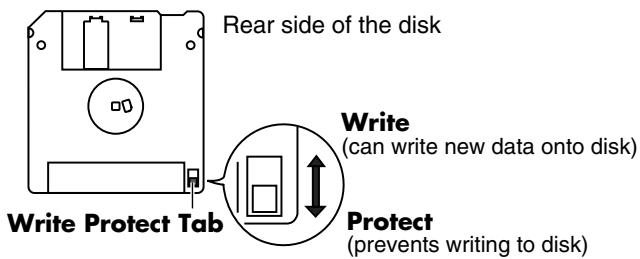
Floppy disks have a "write protect" tab which can protect the disk from accidental erasure. It is recommended that the tab be kept in the PROTECT position, and moved to the WRITE position only when you wish to write new data onto the disk.
- The identification label should be firmly affixed to the disk. Should the label come loose while the disk is in the drive, it may be difficult to remove the disk.
-
Store all disks in a safe place to avoid damaging them, and to protect them from dust, dirt, and other hazards. By using a dirty or dust-ridden disk, you risk damaging the disk, as well as causing the disk drive to malfunction.
-
Disks containing performance data for this unit should always be locked (have their write protect tab slid to the "Protect" position) before you insert them into the drive on some other unit (except the PR-300, or a product in the HP-G, HPi, MT, KR, or Atelier families), or into a computer's drive. Otherwise (if the write protect tab remains in the "Write" position), when you perform any disk operations using the other device's disk drive (such as checking the contents of the disk, or loading data), you risk rendering the disk unreadable by this unit's disk drive.
Before Using External Memory
Using External Memory
- Never touch the terminals of the External memory. Also, avoid getting the terminals dirty.
-
External memories are constructed using precision components; handle the cards carefully, paying particular note to the following.
-
To prevent damage to the cards from static electricity, be sure to discharge any static electricity from your own body before handling the external memories.
- Do not touch or allow metal to come into contact with the contact portion of the external memories.
- Do not bend, drop, or subject cards to strong shock or vibration.
- Do not keep cards in direct sunlight, in closed vehicles, or other such locations (storage temperature: 0 to 50^ ).
- Do not allow cards to become wet.
-
Do not disassemble or modify the external memories.
-
When connecting external memory, make sure to press it until it is fully inserted.
- Insert the external memory in the External Memory port evenly and without undue force. Forcing the external memory may damage the External Memory port.
- Do not insert any object other than the external memory (e.g., wires, coins, other types of disks, etc.) in the External Memory port. This may damage the External Memory port.
- Do not subject the External Memory port cover or connected External memory to excessive stress.
- Close the external memory cover when using the External memory for extended periods
Handling CD-ROMs
-
Avoid touching or scratching the shiny underside (encoded surface) of the disc. Damaged or dirty CD-ROM discs may not be read properly. Keep your discs clean using a commercially available CD cleaner.
-
GS ( GS ) is a registered trademark of Roland Corporation.
- XG lite (XG) is a registered trademark of Yamaha Corporation.
- Mac OS is a trademark of Apple Computer, Inc.
- Microsoft and Windows are registered trademarks of Microsoft Corporation.
- This device in part makes use of Independent JPEG Group software.
- All product names mentioned in this document are trademarks or registered trademarks of their respective owners.
Thank you, and congratulations on your choice of the Roland KR Intelligent Piano.
While the KR Intelligent Piano certainly allows you to achieve authentic piano performances, it also features easy-to-use Automatic Accompaniment and numerous other useful functions. In order to enjoy reliable performance of your new keyboard for many years to come, please take the time to read through this manual in its entirety.
Main Features
Roland Digital Grand Brings Refinement to Interior Style
The KR's grand piano cabinet exhibits elegance in form with a beautiful black, mirror-like surface. With features just like those found on an acoustic grand, such as a top that opens and closes and folding retractable keyboard lid (KR117M), this instrument is a perfect match for lounge or living room.
The KR117M lid also features hands-free closure for enhanced safety.
Lusciously Resounding, Richly Expressive Piano Sound
The KR reproduces the rich tones of a high-quality grand piano, from the sounds of the hammers as they strike the strings to the sounds made as the keys are released. 128-voice polyphony ensures full responsiveness, even with heavy use of the pedals.
What's more, The "Piano Designer" feature allows you to create your own favorite piano tones.
True Grand Piano Feel
The KR features Roland's Progressive Hammer Action keyboard, which reproduces the feel of a grand piano, with a firm, weighty touch in the lower registers and a lighter response in the upper registers. This keyboard also faithfully reproduces the distinctive "click" that's produced when a grand piano's keys are played (Escapement function).
In addition to the ability of adjusting the key weight, a "Hammer Response" function, which reproduces the subtle action of the hammers, is also incorporated, so there are two key-touch controls that come into play when determining the precise character of the keyboard. Additionally, the instrument's pedals are firm and responsive, lending your performances fuller and more detailed expressiveness.
○ Accomplish Tasks Easily with the Main Buttons
Almost all of the KR's common functions, including playing back songs, displaying notations, running the automatic accompaniment, selecting tones, and so on can be accomplished using the Main buttons to the left of the screen.
Full Complement of Player Piano Functions
You can also use the CD drive to play back a wide variety of music on the CD included with the instrument as well as songs on CD-ROMs containing saved SMF files, player piano CDs, and audio CDs. Moreover, you can add song data by copying songs saved on USB memory and CDs to the KR's "Favorite."
The KR117M and KR115M includes a "Moving Keys" function that plays the keys along with the song, providing exquisite performances that are played automatically.
Also included is a convenient remote control, which you can use for selecting songs, adjusting volume balances, switching the Moving Keys function on and off, and even for switching the images that appear in external displays--simply and easily. You can connect an external display or television set to the piano for enlarged displays of the Song Select screen, lyrics screen, slide shows, and notations.
Easy-To-Use "Music Assistant" Automatic Accompaniment Feature
You can select from an amazing 500 settings to get automatic accompaniment that perfectly matches the song you are playing.
Each song's Music Assistant settings are shown in a manner that is easy to grasp, so playing along with the changes in the accompaniment is a snap.
For easy enjoyment of Music Assistant, the KR also includes songs that you can perform while reading the chord charts.
Utilizes External Memory-the New Media
You can save song data created on the KR to External memory (sold separately). Extremely portable, high-capacity external memory also connects easily to computers, allowing song data to be transferred easily. Taking further advantage of the high-capacity memory, you can also play back audio files with the KR.
Connect External Speakers to Produce Concert Hall Presence
You can connect an amp and speakers to the KR and play the sounds of the reverb and accompaniment through the external speakers to produce the effect of being enveloped by an orchestra.
The KR is equipped with XLR connectors, a very convenient feature when the instrument is used on stage.
How To Use This Manual
The KR Owner's Manual consists of three volumes, Quick Start, Owner's Manual, and the USB Install Guide.
Please start out by reading "Before You Start Playing" (p. 18) in the Owner's Manual (this volume). This explains how to connect the KR's power cord and how to turn on the instrument's power.
After turning on the KR's power, please continue by reading Quick Start.
By trying out the various procedures while reading the Quick Start, you can easily learn how to play the KR and make use of its major functions (especially procedures that involve use of the "main buttons").
The Owner's Manual describes procedures, from basic operation to procedures for special applications (for example, using the KR as an accompanist and creating songs), that will help you master the KR's many performance functions.
When connecting a computer to the USB port, be sure to read the USB Install Guide. This describes the procedure for installing the driver needed to connect via USB.
- For more on system requirements, refer to the "USB Installation Guide." However, note that the KR is not compatible with Mac OS 9.
Conventions Used in This Manual
This manual uses the following conventions in the interest of simpler, more concise instructions.
- Button names are enclosed in square brackets "[ ]", as in One Touch Program [Piano] button.
- For easier readability, some screens and colors used here may differ in part from actual screens and colors.
- On screen text is enclosed in angled brackets <<> , as in Exit .
- The act of lightly contacting the Touch Screen with your finger is called "touching."
- An asterisk (*) or a at the beginning of a paragraph indicates a note or precaution. These should not be ignored.
(p. **) refers to pages within the manual.
Contents
USING THE UNIT SAFELY. 4
IMPORTANT NOTES. 6
Introduction 8
Main Features. 8
How To Use This Manual 9
Conventions Used in This Manual. 9
Panel Descriptions 14
Performance Pads. 14
Record/Playback 15
Jack Panel (Left Side of Bottom Panel) 16
Right Side of Bottom Panel 17
Before You Start Playing 18
Opening and Closing the Top (KR117) 18
Opening and Closing the Top (KR115) 19
Raising the Music Rest. 19
Using the Music Holders (KR115). 20
Installing Batteries in the Remote Control. 20
Opening and Closing the Lid 20
Connecting the Power Cord. 21
Connect the Pedal Cable. 21
Turning the Power On and Off 21
About the Pedals. 22
Adjusting the Sound's Volume and Brilliance 22
Connecting Headphones 23
Connecting a Microphone 23
Connecting an External Display. 24
Making the Connections. 24
About the Touch Screen 25
Adjusting the Contrast of the Screen 25
Main Screens 25
Piano Screen 25
Basic Screen 25
Using the Main Icons. 26
The [Option] Button and The [Exit] Button ....26
The Scroll Bar and The Page Icon. 26
Chapter 1 Performance. 27
Playing the Keyboard Like a Piano (One-Touch Piano) 27
Performing with a Variety of Tones (Tone Buttons) 28
Playing Percussion Instruments or Sound Effects 29
Using Keywords to Search for Tones (Tone Search) 30
Performing with Multiple Sounds Layered Together (Layer) 31
Playing Different Tones with the Left and Right
Hands (Split) 32
Shifting the Keyboard Pitch in Octave Steps (Octave Shift) 33
Adding Reverberation to the Sound (Reverb). 34
Adding the Surround Sound Effect to the Accompaniment Using External Speakers
(Surround) 36
Giving More Breadth to the Accompaniment Sound 36
Selecting the Part for the Effect 37
Selecting the Tone to Which the Effect is Applied. 37
Changing the Amount of Surround Effect.....38
Using the Internal Speakers to Add Three-Dimensional Spatiality to the Accompaniment Sounds (Advanced 3D) 39
Selecting the Part for the Effect 40
Selecting the tone to which the effect is applied. 41
Making Detailed Settings for Advanced 3D 42
Adding Liveliness to the Sound (Dynamic Emphasis). 43
Adjusting the Sound to Achieve the Preferred Tone Quality (Equalizer) 44
Applying Effects to the Sound (Effects) 46
Adding Effects to Mic Vocals (Vocal Effect) 47
Enjoying Karaoke Performances with Music Files 53
Using the Metronome 54
Using the Metronome. 54
Changing the Metronome Settings. 55
Chapter 2 Automatic Accompaniment .57
Music Styles and Automatic Accompaniment 57
Performing Using Automatic Accompaniment (One-Touch Arranger) 58
About Chords 59
Playing Chords with Simple Fingering (Chord Intelligence) 59
Viewing Chord Fingerings (Chord Finder). 60
Selecting Music Styles (Music Style Buttons) 61
Using Keywords to Search for Music Styles (Style Search) 62
Selecting Music Styles on External Memories. 63
Playing Only Music Style Rhythm Patterns 64
Adjusting the Accompaniment Tempo. 64
Starting and Stopping the Accompaniment 65
Having the Accompaniment Start
Simultaneously When You Play the
Stopping Automatic Accompaniment 66
Having a Count Sound Play at the End of
the Intro (Countdown) 67
Modifying an Accompaniment 68
Changing the Accompaniment Pattern
(Fill In Buttons) 68
Changing Accompaniment Patterns in the
Screen. 69
Changing the Instrumental Makeup of
Music Styles (Style Orchestrator) 69
Adding Harmony to the Right-Hand Part
(Melody Intelligence) 70
Playing Sounds in the Left Hand During a
Performance (Lower Tone) 71
Playing the Piano with Accompaniment Added
(Piano Style Arranger) 72
Adjusting the Volume Balance for Each Part
(Balance) 73
Changing the Volume Balance Between
the Accompaniment and the Keyboard
(Balance Knob) 73
Adjusting the Volume Balance for Each
Performance Part (Part Balance) 73
Chapter 3 Song Playback......75
Playing a Song. 75
Listening to Songs on CDs (Only for
Instrument Equipped with CD Drive)............77
Using Keywords to Search for Songs
(Song Search) 81
Registering the Songs You Like (Favorites)......82
Removing Songs From Favorites. 83
Using the Remote Control. 84
How to Use the Remote Control. 84
About the Remote Control 85
Chapter 4 Practice Functions......87
Displaying the Notation 87
Touching Notes to Confirm the Sounds
(Touch the Notes) 88
Scrolling the Notation Along with the
Performances (AutoSync DigiScore) 88
Making Detailed Settings for the Notation
Display. 89
Saving Notations as Image Data. 92
Adjusting the Tempo 94
Setting the Tempo by Pressing the Button in
Time (Tap Tempo) 94
Playing Back at a Fixed Tempo
(Tempo Mute) 95
Match the Tempo Before You Begin Playing
(Count In) 96
Muting Some Parts Before Playing
(Track Buttons) 97
Setting Markers for Repeated Practice
(Marker) 98
Placing a Marker within a Song. 98
Playback from a Marker Location 99
Erasing a Marker 99
Moving a Marker 100
Playing Back the Same Passage Over and
Over. 101
Transposing Keyboard Sounds and Songs
Played Back (Transpose) 102
Chapter 5 Recording and Saving the Performance 104
Recording a New Song (New Song) 105
Recording With Accompaniment. 107
Recording Along with a Song 109
Recording While Selecting the Track Buttons
(Redoing Recordings) 110
Erasing Recorded Performances. 111
Erasing the Performance on Specific
Tracks. 111
Changing How Recording Stops. 111
Recording Songs Starting with Pickups. 112
Using External Memories 113
Connecting and Ejecting an External
Memory 113
Formatting Media (Format) 114
Saving Songs. 116
Deleting Saved Songs. 119
Copying Songs on External Memories to
Favorites. 120
Copying Songs Saved in Favorites to
External Memories. 121
Chapter 6 Creating Performance Data Including Moving Keys
(A/V sync) 122
Recording. 122
Making the Connections 122
Making Advanced A/V Sync Output
Settings 126
Playback (Aux Input) 127
Making the Connections 127
Making Advanced A/V Sync Input Settings 128
Chapter 7 User Program Registration 129
Saving Performance Settings (User Program) 130
Calling Up Saved User Programs 131 Changing the Way User Programs Are Called Up .131
Saving the User Program Sets. 131
Loading Saved User Program Sets. 132
Deleting Saved User Program Sets 133
Copying Sets of User Programs on External Memories to the User Memory............133 Coping Sets of User Programs Stored in the User Memory to External Memories.....134
Using the Pedal to Switch User Programs 134 Selecting the Pedal Used for Switching Settings (Pedal Shift) 134 Sequential Loading of User Program Sets Stored (Load Next) 134
Simultaneously Switching User Program and Transmitting PC Numbers. 135
Chapter 8 Creating and Editing Songs 136
Multitrack Recording with 16 Parts (16-Track Sequencer) 136
The 16-Track Sequencer Screen 136
Modifying the Settings of Each Part 137
Getting the Most Suitable Part Tones for the Musical Genre (Tone Set) 138
Recording a Performance 139
Changing the Recording Method (Rec Mode) 140 Recording While Erasing the Previous Recording (Replace Recording) 140 Layering a Recording Over Previously Recorded Sounds (Mix Recording) 141 Repeated Recording at the Same Location (Loop Recording) 141 Re-Recording Part of Your Performance (Punch-in Recording) 142
Composing an Accompaniment By Entering
Chords (Chord Sequencer) 143
Inputting Chords without Playing the Keyboard 144
Editing Songs 145
Basic Operation of the Editing Functions 145
Undoing Edits (Undo) 145
Copying Measures (Copy) 146
Correcting Timing Discrepancies (Quantize). 146
Deleting Measures (Delete) 147
Inserting Blank Measures (Insert). 147
Transposing Individual Parts (Transpose). 148
Making Measures Blank (Erase) 148
Exchanging Parts (Part Exchange). 149
Correcting Notes One by One (Note Edit) 149
Modifying the Tone Changes in a Song (PC Edit) 150
Changing the Beat in the Middle of a Song (Beat Map). 150
Changing the Tempo of Recorded Songs. 151
Changing the Tempo Within the Song. 151
Adjusting the Tempo While Listening to a Song. 151
Adjusting the Tempo at a Particular Measure. 152
Chapter 9 Creating Music Styles 153
Creating Original Styles (User Styles) 153
Creating New Styles by Combining Internal Music Styles (StyleComposer) 153
Creating a Style from a Song You Composed Yourself (Style Converter) 155
Saving a User Style 158
Deleting Saved User Styles 159
Copying Styles on External Memories to the User Memory 160
Copying Styles Saved in the User Memory to External Memories 160
Chapter 10 Various Settings .........161
Changing the Settings for One-Touch Arranger. 161 Procedure . 161 Adjusting the Keyboard Touch (Key Touch). 161 Changing Music Styles Without Changing the Tone or Tempo (One Touch Setting) . 162 Changing the Keyboard's Split Point (Split Point) . 162 Changing How Chords Are Played and Specified (Arranger Config) . 162
Placing a Marker in the Middle of a Measure....164
Changing the Settings for the Count. 164
Other Settings. 165
Procedure. 165
Changing the Tuning (Tuning). 166
Assigning Functions to Pedals and
Performance Pads (Pedal Setting/
User Functions) 167
Changing the Bend Range (Pedal Setting).....169
Changing Standard Pitch (Master Tune)......170
Changing the Language (Language) 170
Selecting Images To Be Shown on the KR and External Displays (User Image Display) 170
Changing the Screen Message When the
Power Is Turned On (Opening Message).....171
Remembering the Settings Even When the
Power is Turned Off (Memory Backup).....171
Restoring the Factory Settings.
(Factory Reset). 172
Changing the Functions of the Remote Control's Buttons 172
Changing the Infrared Transmission Function Settings. 174
Calibrating the Touch Screen (Touch Screen) 175
Changing the Part That Makes the Keys Move (Only for Instrument Equipped with Moving Key) 175
Changing the CD Settings (Only for Instrument Equipped with CD Drive) 177 Setting the Type of CD To Be Played Back ....177
Showing a Series of Images on an External Display (Slide Show) 178
Running a Slide Show of Images Stored on External Memory 178
Changing Slide Shows 178
Setting the Image Display Duration 179
Selecting the Part to Which the Effect is Added (EffectsPart) 179
Formatting the User Memory 180
Automatically Starting the Quick Tour. 180
Adjusting the Piano Designer Resonance............181
Disabling Functions Other Than Piano Performance (Panel Lock) 181
Detailed Song Playback Settings............182 Changing the Tone Settings When Playing Back Songs (Play Mode)............182
Viewing Song Information (Information) 182
Hiding theLyrics (Lyrics) 182
Changing the Parts Assigned to the Track Buttons During SMF Playback (Track Assign) 183
Chapter 11 Connecting External Devices. 185
Connecting an External Display or Television. 185
Connecting an External Display. 185
Connecting a Television. 186
Changing the Settings for Showing Images with the External Display and the Television (External Display) 186 Explanation of Each Items 187
Connecting Video Equipment (V-LINK) 187
Using the V-LINK function 187
Connecting MIDI Devices 188
Connectors 188
Making the Connections 188
Performing in Ensemble with MIDI Instruments (MIDI Ensemble). 189
MIDI Settings. 189
Selecting the Transmit Channel (Tx Channel) 190
Disconnecting the Internal Sound Generator and Keyboard (Local Control) 190
Sending Tone Change Messages (Program Change/Bank Select MSB/Bank Select LSB) 191
Sending Recorded Performance Data to a MIDI Device (Composer MIDI Out)............191
Connecting to Audio Equipment 191
Connectors 191
Making the Connections 192
Connecting External Speakers............194 Changing the Aux Output Jacks Settings.....194 Setup Examples With Surround Set to "Surround" or "Ensemble". 194
Connecting a Computer............195
Connect to the MIDI Connectors............195
Connect to the USB Connector............195
Making the Settings for the USB Driver............196
Appendices 197
Troubleshooting 197
Error Messages 201
Tone List. 202
Drum Set List. 205
Effects List. 209
Music Style List (KR117). 210
Music Style List (KR115). 211
Chord List 212
Internal Song List. 214
Parameters Stored to Internal Memory 216
Music Files That the KR Can Use 217
The KR allows you to use the following music files. 217
About the KR Sound Generator. 217
Main Specifications. 219
Index 221
Panel Descriptions
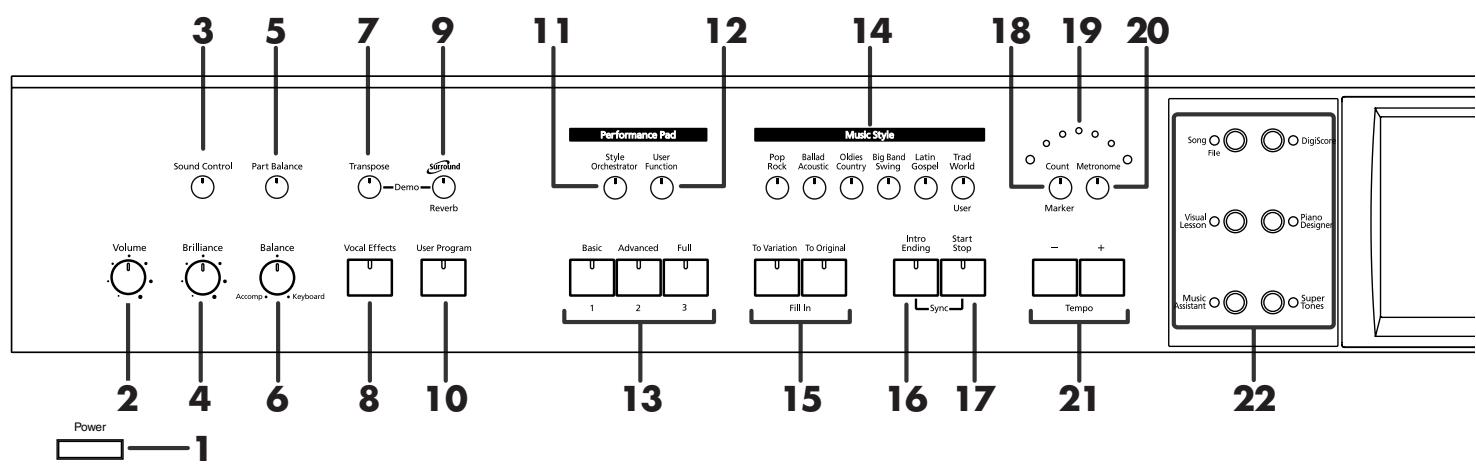
- The KR117 is the model that was used for producing all of the panel depictions that appear within this Owner's Manual.
1. [Power] switch
Pressed to switch the power on and off (p. 21).
- The KR115's [Power] switch is located at the left of the keyboard.
2. [Volume] knob
Adjusts the overall volume (p. 22).
3. [Sound Control] button
Add liveliness to the sound to give it superb clarity and distinctness (p. 43).
4. [Brilliance] knob
Adjusts the brightness of the sound (p. 22).
5. [Part Balance] button
This adjusts the relative volume levels of each of the performance parts (p. 73).
6. [Balance] knob
Changes the volume balance for sounds played with the keyboard and for songs and accompaniments (p. 73).
7. [Transpose] button
Transposes the pitch of the keyboard or the song being played (p. 102).
8. [Vocal Effects] Button
Applies a variety of effects to vocals from the microphone (p. 47).
9. [Surround/Reverb] button
Adds reverberation to the sound (p. 34).
Adds three-dimensional breadth to the sound (p. 36).
10.[User Program] button
Stores the selected functions and states of the buttons (p. 130).
Performance Pads
11.[Style Orchestrator] button
This is used to change the arrangement type for automatic accompaniment with the Performance Pads (p. 69).
12.[User Function] button
This is used to assign a variety of functions to the Performance Pads (p. 167).
13.[1]-[3] buttons
The operation of each is changed depending on the buttons numbered 11-12.
14.Music Style buttons
Selects a Music Style for automatic accompaniment (p. 61).
Pressing the [User] button selects a User Style that you've made yourself or a Music Style on external memory (p. 63).
15.Fill In buttons
Inserts a fill-in in an automatic accompaniment and changes the accompaniment pattern (p. 68).
[To Variation] button
[To Original] button
16.[Intro/Ending] button
Play an intro or ending during automatic accompaniment (p. 65).
17.[Start/Stop] button
Starts and stops automatic accompaniment (p. 65).
18.[Count/Marker] button
You can change the count settings (p. 67, p. 96).
These allow you to add and move markers in the notation as well as repeat playback of song segments simply and easily (p. 98).
19.Beat indicator
This lights up in correspondence with the beat of the selected song or accompaniment.
20.[Metronome] button
Activates the built-in metronome (p. 54).
21.Tempo [-] [+ ] buttons
Adjusts the tempo.
Press the [-] and [+] buttons at the same time to return to the original tempo.
![ROLAND KR-117 - 21.Tempo [-] [+ ] buttons - 1](/content/2025/01/130864/images/e9ae5c924ec6e63c8db2b43cb267f6c80f4333f9518e5c09b5cfc91546530b8d.jpg)
22. Main Buttons
See the Quick Start
[Song/File] button
Use this button to select internal songs or songs from
external memories (p. 75).
[DigiScore] button
Displays notations (p. 87).
[Visual Lesson] button
You can use the practice function.
[Piano Designer] button (p. 181)
[Music Assistant] button
[Super Tones] button
23.Touch Screen
This lets you perform a variety of operations just by touching the screen (p. 25).
24.Dial
Use this to change on-screen values.
25.[Exit] button
Returns you to the previous screen.
26.[Option] button
Displays a screen for advance function settings.
27.Contrast knob
Adjusts the contrast of the screen (p. 25).
28.[Tone] buttons
They are used to choose the kinds of tones (tone groups) played by the keyboard (p. 28).
[Piano] button
[Organ] button
[Guitar/Bass] button
[Strings] button
[Sax/Brass] button
[Voice] button
29. One Touch Program button
[Piano] button
Makes the optimal settings for a piano performance (p. 27).
[Arranger] button
Makes the optimal settings for playing with automatic accompaniment (p. 58).
30.[Melody Intelligence] button
Adds harmony to the sounds played with the keyboard (p. 70).
Record/Playback
31.[Menu] button
You can select functions for playing back, recording or editing a song (p. 111,p. 136, p. 153, p. 182).
32.Track buttons
Used to play back or record each track of a song (p. 97, p. 110).
33.[Reset] button
Resets the song playback-start location to the beginning of the song.
34.[▶/■ (Play/Stop)] button
Starts and stops playback or recording a song.
35.[ (Rec)] button
When pressed, this button places the instrument in recording standby (p. 105, p. 136).
36.[ (Bwd)] button
Rewinds the song.
37.[ (Fwd)] button
Fast-forwards the song.
38.Infrared Receiver
Point the remote control at this sensor when using the remote control to operate the KR (p. 85).
39.[Wonderland/Game] button
Here you can learn about instruments while having fun. See the Quick Start
40.External Memory port
Connects an external memory to play (p. 75) and save songs (p. 113).
- Be sure to close the cover of the External Memory port after connecting external memory to the External Memory port.
Jack Panel (Left Side of Bottom Panel)
Jack Panel (Front)

Jack Panel (Rear)

Pedal

11
12
ain Output
13

Video Out

Ext Display
8
9
1. Phones jacks
A set of headphones can be connected here (p. 23).
2. Mic Volume knob
Adjusts the volume level for the microphone (p. 23).
3. Mic jack
Used for connecting microphones (p. 23).
4. Aux Input jacks
You can connect other sound generating devices or audio equipment here and have their sound be played through the KR's speakers (p. 193).
This is also used for transmitting and receiving performance data included in player piano data. (p. 127).
5. MIDI Out/In connectors
Connect to external MIDI devices to exchange performance data (p. 188).
6. USB connector
You can connect a computer and exchange performance data between the instrument and the computer (p. 178, p. 195).
7. Expression Pedal jack
You can connect an expression pedal (optional EV-7) to use this as an expression pedal.
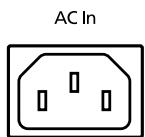
8. AC inlet
Connect the included power cord to this inlet (p. 21).
9. Pedal connector
Connect the pedal cord here (p. 21).
10.Input jacks
You can connect other sound generating devices or audio equipment here and have their sound be played through the KR's speakers (p. 191).
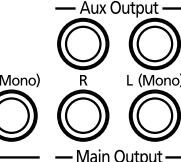
11.Aux Output jacks
You can connect amps and external speakers here and play accompaniment or surround sound (p. 194).
12.Main Output jacks
These jacks can be connected to your audio system to enjoy more powerful sound (p. 191).
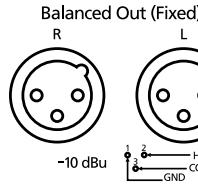
13.Balanced Out (Fixed) jacks
This provides balanced audio signal output. Connect a mixer or other such device here (p. 122).
14. Video Out jack
Connect a television here. This allows you to display the Song Select screen, slide show, lyrics, and notations on the connected television set (p. 185).
This cannot be used simultaneously with the Ext Display connector.
15. Ext Display connector
Connect a external display here. You can display the Song Select screen, slide show, lyrics, and notations on the external display (p. 185).
This cannot be used simultaneously with the Video Out jack.
Right Side of Bottom Panel
CD Drive (Instrument with Moving Key)
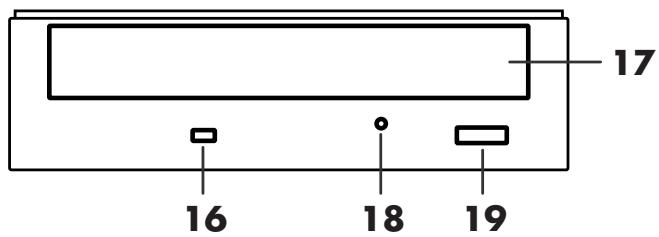
16.Access Indicator
This indicator will light when the inserted CD is being read.
17.Disc tray
Place the CD to be loaded on this tray.
18.Emergency eject hole
This hole allows the disc tray to be opened in case of an emergency.
19.Eject button
Press this button to eject the CD.
- You cannot eject the CD unless the power is on.
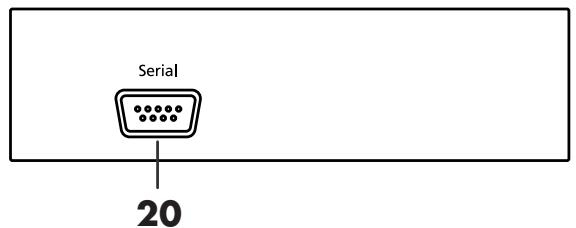
20. Serial connector
Connect a external equipment here.
Bottom Panel (Front Right)
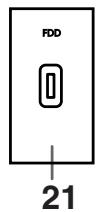
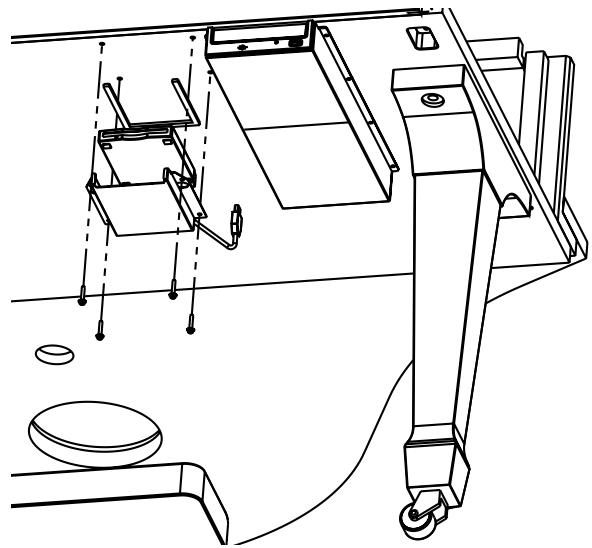
21.Floppy disk drive connector
Connects an optional floppy disk drive to play and save songs.
- Use floppy disk drive available from Roland.
- Attach the floppy disk drive to left of CD drive. For details of the attachment, refer to the owner's manual of the floppy disk drive.
Before You Start Playing
Opening and Closing the Top (KR117)
Opening only the front top
WARNING
Children must not be permitted to open or close the top on their own—adult supervision is required. Because the top is very heavy, always use two or more people when opening and closing the top, and be sure to handle it carefully.
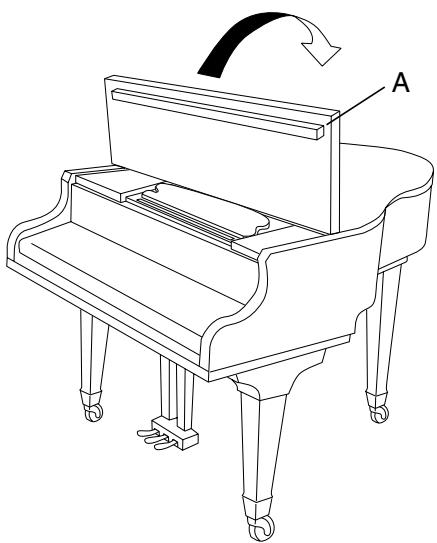
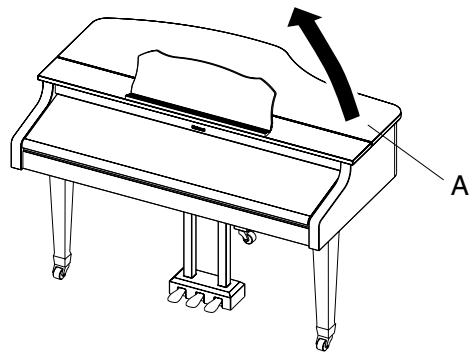
- Lift the right front (the upper note side: A in the figure) of the board with both hands, fold it back, and then lay it down slowly on the top.
Opening both the front top and the top
- Follow Step 1 to open the front top. Then lift the right front (the upper note side B: in the figure) of the board with both hands.
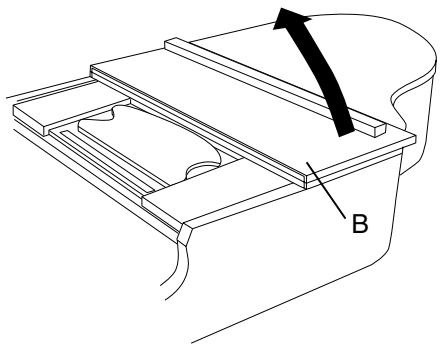
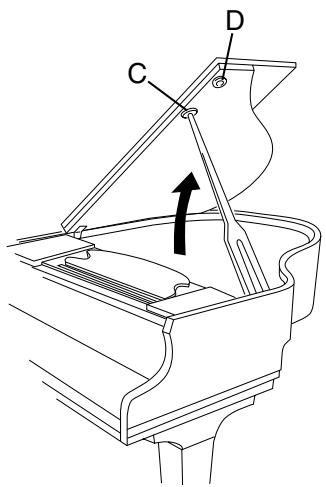
- While holding up the top with one hand, lift up the top stick and insert its end into the appropriate top slip.
CAUTION
Do not move the piano with the top in the open position. The top stick may disengage from the socket, causing the top to fall.
WARNING
When opening the top, be careful not to open it too far. Opening the top at an angle in excess of 30 degrees may damage the unit, or cause the top to drop. Also, before opening the top, make sure that no one is in the path of the top as it is opened.
About the Topsticks and Topslip
The KR117 has two topsticks, each a different length.
You can use the different topsticks to change the amount the top is left open.
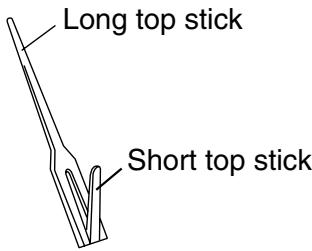
The topsticks and topslip work together as illustrated below.
The long top stick: for inner top slip (C)
The short top stick: for outer top slip (D)
CAUTION
If you use the wrong top slip, the top stick could slip out of the top slip, causing the top to fall. Make sure that the end of the top stick is inserted securely into the top slip.
To close the top, reverse the opening procedure.
Opening and Closing the Top (KR115)
Raising the Music Rest
- Gently raise the music rest, then secure it in place.
- To collapse the stand, fold in the metal fittings while supporting the stand with both hands and gently fold down the stand.
CAUTION
Always be sure to put the music rest in the upright position before opening and raising the piano top. Be sure to leave the music rest in the upright position before closing the piano top.
Open the Top board
WARNING
Children must not be permitted to open or close the top on their own—adult supervision is required.
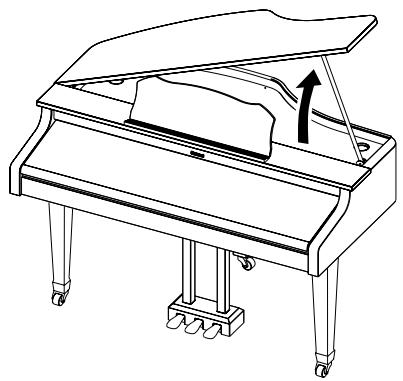
- Lift the right front (the upper note side: A in the figure) of the board with both hands, fold it up.
- While holding up the top with one hand, lift up the top stick and insert its end into the appropriate top slip.
WARNING
When opening the top, be careful not to open it too far. Opening the top at an angle in excess of 20 degrees may damage the unit, or cause the top to drop. Also, before opening the top, make sure that no one is in the path of the top as it is opened.
CAUTION
Do not move the piano with the top in the open position. The top stick may disengage from the socket, causing the top to fall.
To close the top, reverse the opening procedure.
Raising the Music Rest
KR117
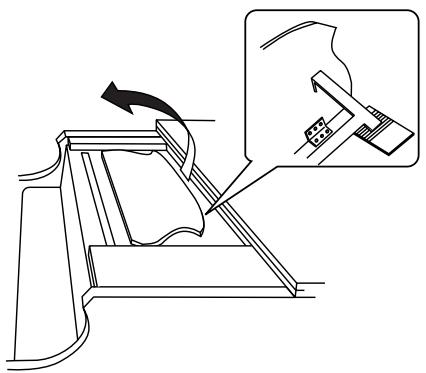
- Open the front top.
- Hold the music rest with both hands, then raise it forward.
- Place the music rest prop, at the rear of the music rest, into a slot.
KR115
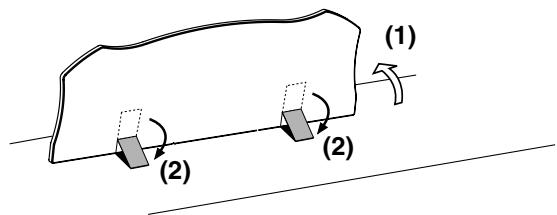
- Gently raise the music rest, then secure it in place as shown in the figure.
- To collapse the stand, fold in the metal fittings while supporting the stand with both hands and gently fold down the stand.
Using the Music Holders (KR115)
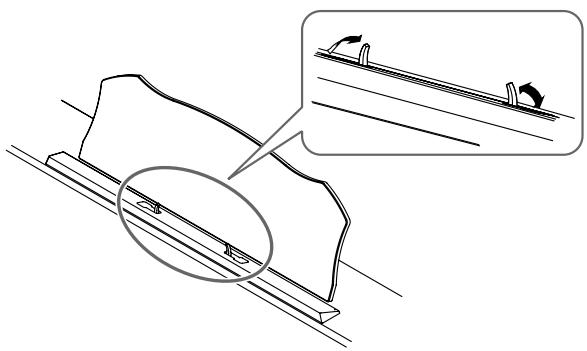
You can use the holders to hold pages in place. When not using the holders, leave them folded down.
Installing Batteries in the Remote Control
Install the batteries provided in the remote control.
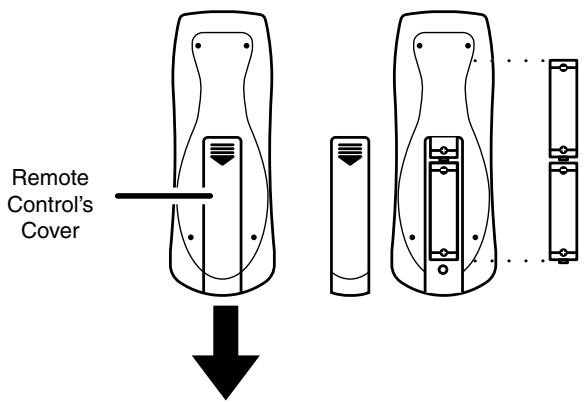
Remote Control's (Rear)
- Open the battery cover on the back of the remote control.
- Insert the supplied AA batteries, as shown in the figure of remote control.
- Close the battery cover.
NOTE
Be careful to observe the correct polarity (+, -) direction) when installing the batteries.
MEMO
For more information on the remote control button functions, refer to "Using the Remote Control" (p. 84).
Opening and Closing the Lid
- When opening the lid, use both hands to gently lift the lid and slide it inward.
- When closing the lid, be sure to use both hands to grasp the lid, slowly pulling it down towards you, and gently lower it until it stops (fully closed).
CAUTION
When opening and closing the lid, be careful not to let your fingers get caught. Small children should use it only under the supervision of an adult.
CAUTION
When moving the piano, for safety's sake be sure to close the lid first.
NOTE
Make sure you don't have anything (such as sheet music) on the keyboard when you close the lid.
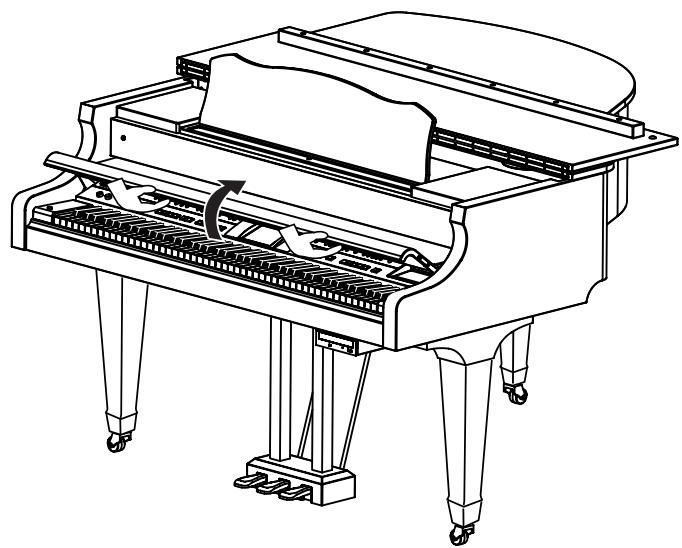
KR117
NOTE
Although the KR117's cover is designed to close slowly when you let go of it, it will close immediately if it has been opened only slightly. Take care not to catch or pinch your fingers in the cover.
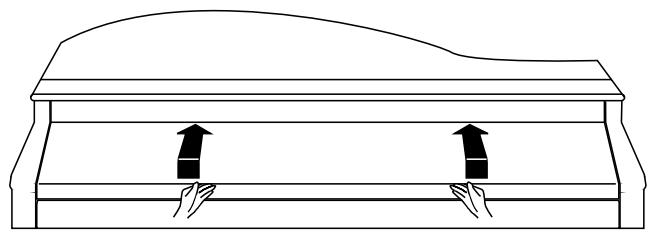
KR115
Connecting the Power Cord

Screw


Screw


Cord Cramp

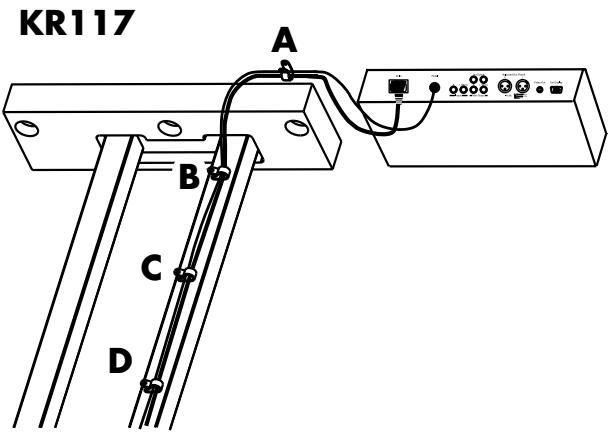
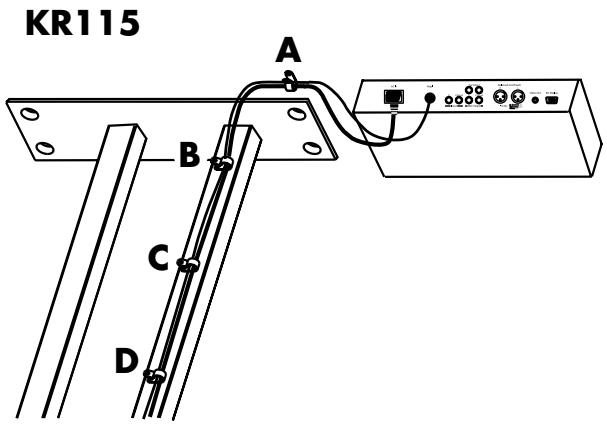
- Connect the supplied power cord to the AC inlet jack.
- Connect the pedal cord to the Pedal jack.
- Cramp the power cord and pedal cord with Cord Cramp ⑥ and screw ⑤ at A (see the picture above).
- Cramp the power cord and pedal cord with Cord Cramp ⑥ and screw ⑤ at B, C and D (see the picture above).
- Plug the power cord into an AC outlet.
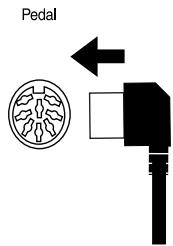
Connect the Pedal Cable
Insert the pedal cable into the Pedal connector on the jack panel of the KR.
Turning the Power On and Off
NOTE
Turn on power to your various devices in the order specified. By turning on devices in the wrong order, you risk causing malfunction and/or damage to speakers and other devices.
To turn the power on, turn the [Volume] knob all the way down, and then press the [Power] switch.
The power will turn on.
After a few seconds, you will be able to play the keyboard to produce sound.
Use the [Volume] knob to adjust the volume.
NOTE
This unit is equipped with a protection circuit. A brief interval (a few seconds) after power up is required before the unit will operate normally.
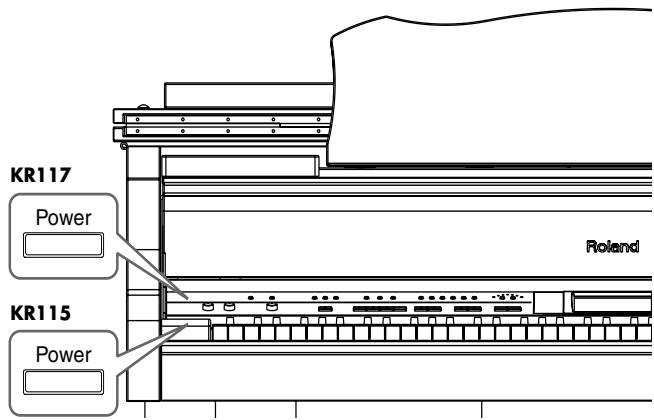
To turn the power off, turn the [Volume] knob all the way to the left, and press the [Power] switch.
The power will be turned off.
- If you need to turn off the power completely, first turn off the POWER switch, then unplug the power cord from the power outlet. Refer to "Power Supply" (p. 6).
About the Pedals
The pedals have the following functions, and are used mainly for piano performance.
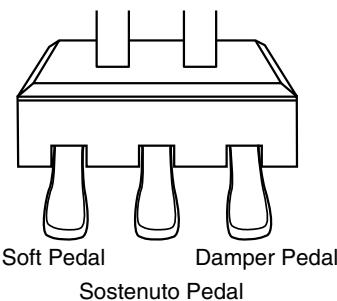
Damper pedal (right pedal)
While this pedal is pressed, notes will be sustained even after you take your fingers off the keys.
The length of the sustain changes subtly according to the extent to which the pedal is depressed.
On an acoustic piano, holding down the damper pedal will allow the remaining strings to resonate in sympathy with the sounds that you played from the keyboard, adding a rich resonance.
The KR simulates this damper resonance.

You can change the amount of resonance applied with the damper pedal. Please refer to "Adjusting the Piano Designer Resonance" (p. 181).
Sostenuto pedal (center pedal)
This pedal sustains only the sounds of the keys that were already played when you pressed the pedal.
Soft pedal (left pedal)
When you hold down this pedal and play the keyboard, the sound will have a softer tone.

You can assign functions to the pedal. Refer to "Assigning Functions to Pedals and Performance Pads (Pedal Setting/User Functions)" (p. 167).
Adjusting the Sound's Volume and Brilliance
Turn the [Volume] knob to adjust the overall volume.
Turn the [Brilliance] knob to adjust the brightness of the sound.
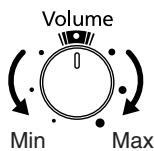
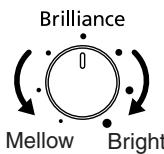
You can use the remote control to change the volume.
Connecting Headphones
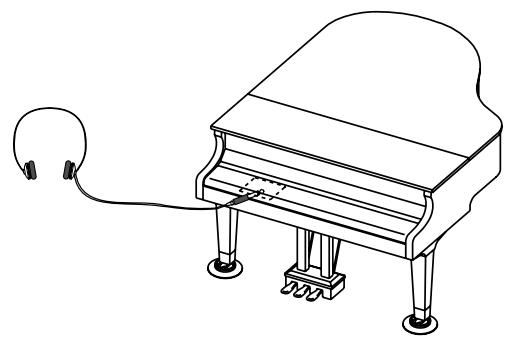
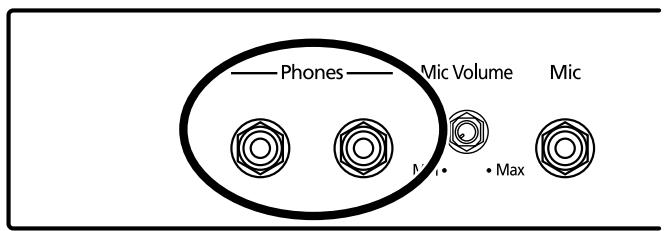
The KR has two jacks for plugging in headphones. This allows two people to listen through headphones simultaneously, making it very useful for lessons and performing piano pieces for four hands. Additionally, this allows you to play without bothering others around you, even at night.
Plug the headphones into the Phones jack located at the bottom left of the piano.
Connecting headphones will automatically mute the sound from the internal speakers.
The headphone volume is adjusted by the [Volume] knob of the KR.
NOTE
Use Stereo headphones.
Some Notes on Using Headphones
- To prevent damage to the cord, handle the headphones only by the headset or the plug.
- Connecting the headphones when the volume of connected equipment is turned up may result in damage to the headphones. Lower the volume on the KR before plugging in the headphones.
- Listening at excessively high volume levels will not only damage the headphones, but may also cause hearing loss. Use the headphones at a moderate volume level.
Connecting a Microphone
You can connect a microphone into the Mic jack, and enjoy karaoke with the KR.
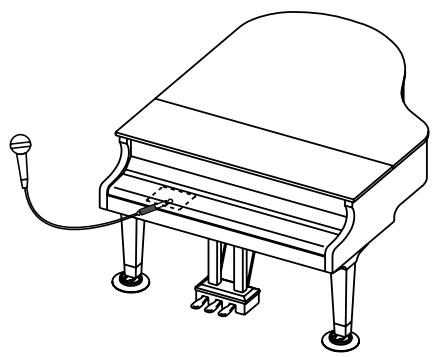
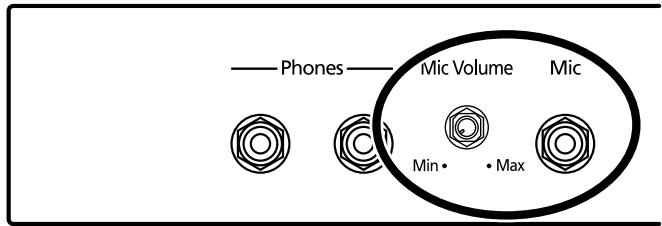
- Connect a microphone (sold separately) to the Mic jack on the lower-left area of the instrument.
-
Rotate the [Mic Volume] knob in front of the Mic jack to adjust the volume level for the microphone.
-
Adjust the mic echo (p. 48).
Some Notes on Using a Microphone
- Be careful of high volume levels when using mikes late at night or early in the morning.
- When connecting a microphone to the KR, be sure to lower the volume. If the volume control is too high when the microphone is plugged in, noise may be produced by the speakers.
-
Howling could be produced depending on the location of microphones relative to speakers. This can be remedied by:
-
Changing the orientation of the microphone.
- Relocating microphone at a greater distance from speakers.
- Lowering volume levels.
Connecting an External Display
You can connect a computer monitor or other such external display to the instrument, and display notations and lyrics on the larger screen, and display whatever images as you like.
For more about the external display settings, refer to "Changing the Settings for Showing Images with the External Display and the Television (External Display)" (p. 186). For more on displaying images, refer to "Selecting Images To Be Shown on the KR and External Displays (User Image Display)" (p. 170)

If your instrument came with a remote control, you can use the remote control to switch screens. For more information, refer to "Using the Remote Control" (p. 84).
Displays That Can Be Connected to This Instrument
In general, a great many of the VGA monitors and multiscan monitors that are available on the market are compatible with this instrument. However, before you connect any monitor, make sure it meets the following specifications:
Resolution 640x480 pixels
Horizontal scan frequency 31.5 kHz
Vertical scan frequency 60 Hz
- Connector 3-row, 15-pin D-Sub type
Signal Analog

Confirm that the display to be used is compatible with the frequencies mentioned above. Using a display that is not compatible with the above frequencies may result in incorrect image output when images move, and in certain cases may even damage the display.
Making the Connections

To prevent malfunction and/or damage to speakers or other devices, always turn down the volume, and turn off the power on all devices before making any connections.
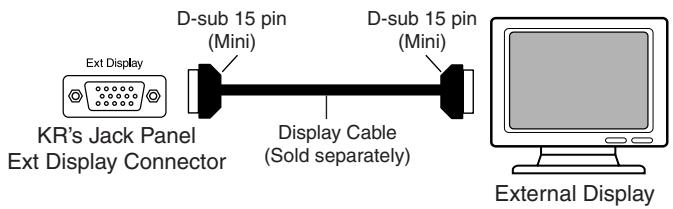
-
Turn off the power to the KR and the display to be connected.
-
Use display cable (sold separately) to connect the display to the Ext Display connector on the KR.
- Turn on the KR.
- Turn on the connected display.

For more on handling the external display, refer to your display's owner's manual.
Turning the Power Off
After use, turn off the power using the following procedure.
- Turn the volume all the way down on the KR.
- Turn off the KR.
- Turn off the connected display.
About the Touch Screen
The KR makes use of a touch screen.
This lets you carry out a wide variety of actions just by touching the screen lightly.
NOTE
The touch screen is operated by touching it lightly with your finger. Pressing hard, or using a hard object can damage the touch screen. Be careful not to press too hard, and be sure to use only your fingers to operate the touch screen.
NOTE
The positioning of the touch screen may become displaced due to changes in the surrounding environment and over time. If this happens, follow the steps in "Calibrating the Touch Screen (Touch Screen)" (p. 175) to correct the pointer position.
NOTE
Do not place items on the touch screen.
Adjusting the Contrast of the Screen
To adjust the contrast of the screen, turn the Contrast knob located at the right side of the screen.
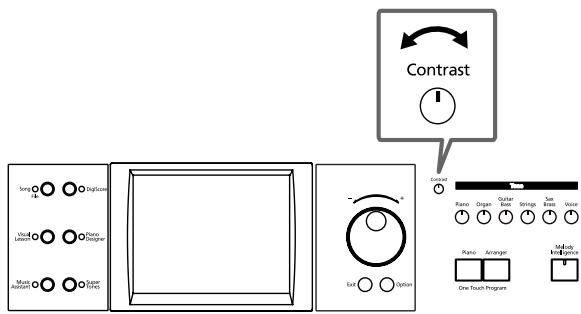
Main Screens
Piano Screen
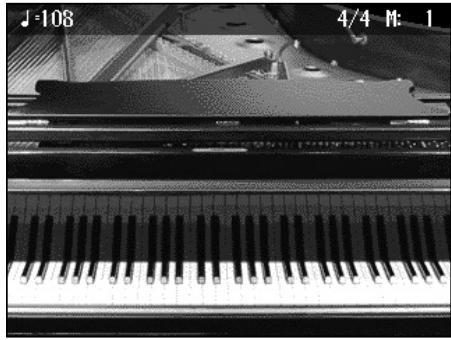
Immediately after the power is turned on, the Piano screen like the one below is displayed. For details, refer to p. 27.
Basic Screen
The following screen is called Basic screen.
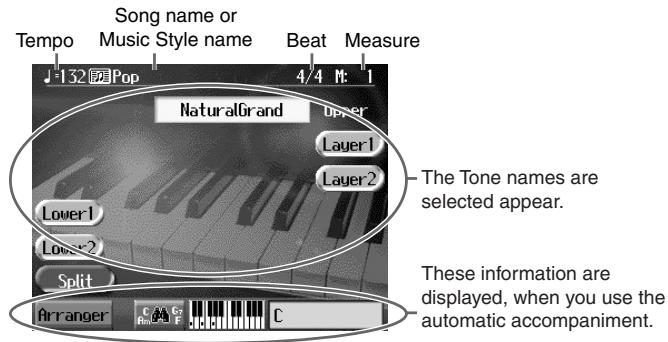
You can usually display this screen by pressing [Exit] button several times.
Follow either of the procedures described below to display it.
- Press the One Touch Program [Arranger] button. The Basic screen appears and the settings are made for automatic accompaniment.
- Press the One Touch Program [Piano] button, then press one of the Tone buttons, then press the [Exit] button.
Using the Main Icons
You can many other screens besides the Basic screen to do things. The on-screen graphics that appear three dimensional work like buttons. These are called "Icons."
The main icons you can use on these screens are as follows.
| ←→ | Some screens consist on two or more pages. You can display the next page or the previous page of the screen by touching these icons. |
| Lyrics | When you select an internal song or music files that includes the lyrics data, this icon appears in the Piano screen or Basic screen. Touch this to display the lyrics. |
NOTE
The explanations in this manual include illustrations that depict what should typically be shown by the display. Note, however, that your unit may incorporate a newer, enhanced version of the system (e.g., includes newer sounds), so what you actually see in the display may not always match what appears in the manual.
The [Option] Button and The [Exit] Button
![ROLAND KR-117 - The [Option] Button and The [Exit] Button - 1](/content/2025/01/130864/images/48d04190b5a4ec861588e3da81524b6c134efc19b40bc0b5ac424c355c228157.jpg)
The [Option] Button
This displays a screen for advance function settings.
The screen that opens differs depending on the screen that was displayed when the button was pressed.
The [Exit] Button
Touch to cancel the settings currently being made and close the screen displayed. Normally, pressing the [Exit] button one or more times returns you to the Basic screen.
The Scroll Bar and The Page Icon
The Song and Tone selection screens feature a scroll bar at the right of the screen list, with page icons at the top and bottom of the scroll bar.
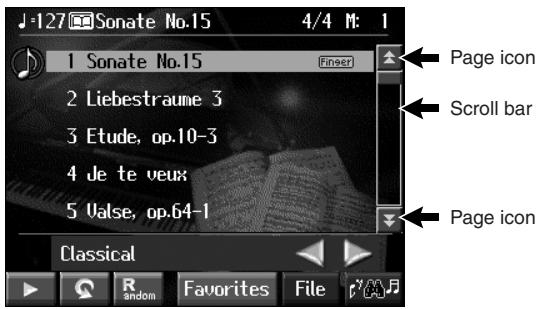
Touch the scroll bar and drag up and down to scroll through the list.
Touch the page icons <空> to change pages.
Chapter 1 Performance
Playing the Keyboard Like a Piano (One-Touch Piano)
You can create the optimal settings for a piano performance with the press of a single button.

1. Press the One Touch Program [Piano] button.
A "Piano screen" like the one shown below will appear.
![ROLAND KR-117 - Press the One Touch Program [Piano] button. - 1](/content/2025/01/130864/images/e8280b8ec991bd92ce30aba75dc123f03d53f635c88287c617897de9fe4d963c.jpg)
When you press the One Touch Program [Piano] button, the KR will switch to the following settings, regardless of the current panel settings.
- If the keyboard has been split into upper and lower sections (p. 32), the keyboard returns to a single section.
- The pedals return to their usual functions (p. 22).
- The Grand Piano sound is automatically selected.
- The effect is automatically set to "Damper Resonance" (p. 46).
![ROLAND KR-117 - Press the One Touch Program [Piano] button. - 2](/content/2025/01/130864/images/7431cc1215211d8714b48f1dbb21244f4ee82f80f7f3e5abc6985ae59ed63198.jpg)
Since this instrument faithfully reproduces real acoustic piano action and response, keys played in the top one-and-one-half-octave range continue to resonate, regardless of the damper pedal action, and the tone in this range is audibly different. The Key Transpose setting (p. 102) can also be used to change the range that is unaffected by the damper pedal.
![ROLAND KR-117 - Press the One Touch Program [Piano] button. - 3](/content/2025/01/130864/images/1b0b4df3432ddc46f0ea37ff51b15fe387b76948ab4fda08cca35055d8371124.jpg)
You can change the piano performance settings by touching the [Piano Designer] button. For more details, refer to "[Piano Designer] Button" in the Quick Start.
![ROLAND KR-117 - Press the One Touch Program [Piano] button. - 4](/content/2025/01/130864/images/82e4269c13d72394c0bb3dc5b4cd24e8030a0db3ac4a78c73d0dd54e59da8fb1.jpg)
When you select an internal song or music file that includes the lyrics data,
![ROLAND KR-117 - Press the One Touch Program [Piano] button. - 5](/content/2025/01/130864/images/8c5238686773411a50c63970a5349d05000d358880ea6afff0f22615fec8d2f1.jpg)
< > appears in the Piano screen or Basic screen when headphones are connected. You can add three-dimensional breadth to the sound from the headphones (p.39).
Performing with a Variety of Tones (Tone Buttons)
The KR comes with a many built-in instrument sounds and effects. This lets you enjoy perform in a wide range of musical styles.
The built-in sounds are called "Tones." The sounds are organized into six tone groups, which are assigned to the Tone buttons.

For more about the names of Tones, take a look at the "Tone List" (p. 202).

1. Press any one of the Tone buttons to select a tone group.
You'll see that button's indicator light up.
The screen displays the tone names included in the tone group you've selected.
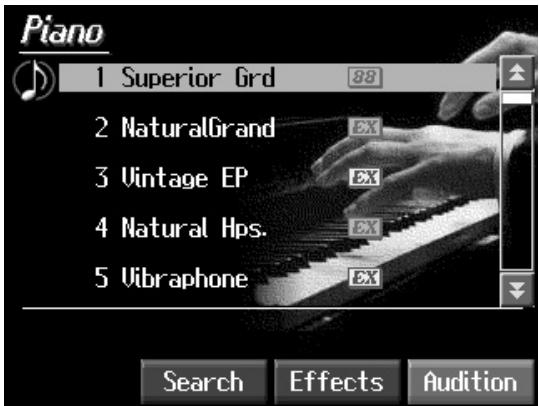
This screen is called the "Tone selection screen."
Tones indicated by is called an "EX voice." These voices are especially recommended.
Tones indicated by 88 mark is the 88-key multisampled piano tone.
Tones indicated by the red or 89 mark produce the "Key Off Sound."
What "Key Off Sound" does is recreate the tonal changes produced when the fingers are released from the keys.
Tones indicated by the blue icon sound "playing noises" when some keys are played. "Playing noises" refer to noises such as the sound of guitar strings as they are rubbed and other sounds that enhance realism in performance expression.
Tones indicated by "GS" is GS tones.
Touch and drag up and down in the scroll bar to scroll through the screen and display other tones.
Touch the page icons <空> to change pages.
You can touch < Audition> for an audio demonstration of a particular tone.
You can touch the scroll bar and drag up and down to scroll through the list.
You can touch
You can do searches for tones according to search parameters or by name by touching
2. Touch a tone name to select the tone.
You'll hear the tone you've selected when you play the keyboard.
You can use the dial to scroll through the screen as you switch the Tones to be played.
3. Press the [Exit] button.
This returns you to the Basic screen or the previous screen.
■ Playing Percussion Instruments or Sound Effects
You can use the keyboard to play percussion sounds or effects like sirens and animal sounds.

- Press the [Super Tones] button and watch the indicator light up.
- Touch <>> <>> several times to display the "Drums" screen or the "SFX (SOUND EFFECT)" screen.
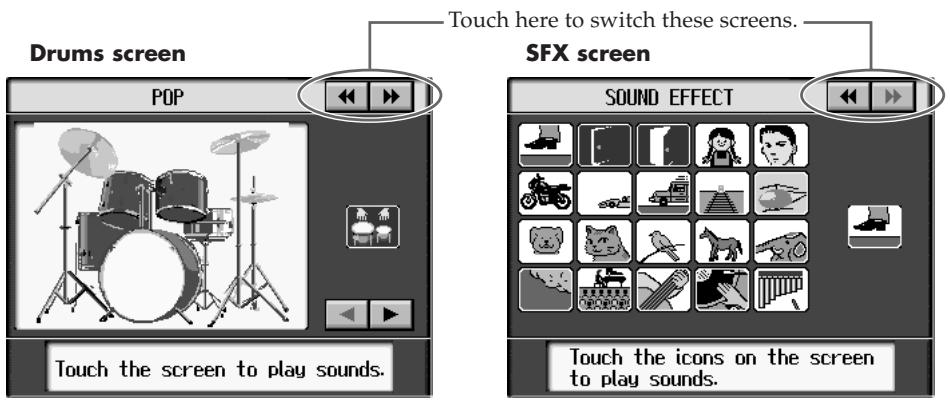
Each note of the keyboard will play a different sound.
You can also have play sounds by touching the screen.
You can select other drum tones by pressing the < 4 > or < 5 > buttons.
3. Press the [Exit] button several times.
This returns you to the Basic screen or the previous screen.
![ROLAND KR-117 - Press the [Exit] button several times. - 1](/content/2025/01/130864/images/a00356ba254388f41df9f233cd6b80658aaa9781e58f1991569afde061497414.jpg)
The combination of sounds assigned to the keyboard varies according to the drum set. Take a look at the "Drum Set List" (p. 205) and "SFX Set"(p. 208).
Using Keywords to Search for Tones (Tone Search)
You can search for tones that match the conditions you set for instrument or musical style. You can also search the tones using the first character of the tone name.
1. Press any Tone button.
The tone selection screen appears.
2. Touch .
The following "Tone search screen" appears.
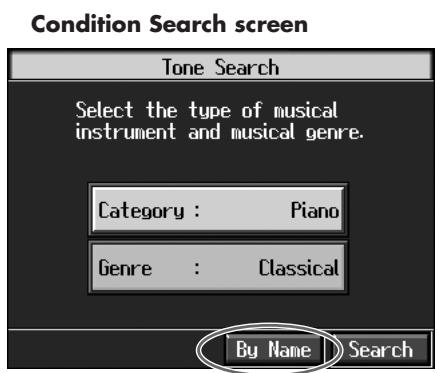
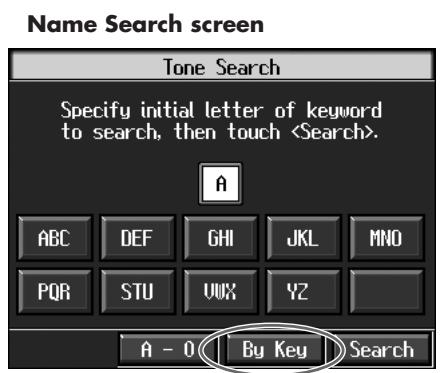
Touch here to switch these screens.
Searching by Conditions
3. Touch or , then use the dial to select the search conditions.
4. Touch.
The search results appear in the display.
Touch the tone name to select the tone.
After selecting the tone, press the [Exit] button several times to return to the tone selection screen.
Searching by Tone Name
3 Touch.
Touch
4. Decide which character is to be used for the search.
The selected character appears in the middle of the screen.
Enter the character you're searching for. For example, touching ABC in succession cycles you through the available choices in that character group ("A"→"B"→"C"...).
Touching A - 0 selects the type of character. Each time you touch A - 0 , the character switches between alphabets and numerals.
5. Touch.
The search results appear in the display.
Touch the tone name to select the Tone.
Press the [Exit] button several times to return to the Basic screen or the previous screen.

In condition search, tones satisfying all of the selected search criteria are sought.
Performing with Multiple Sounds Layered Together (Layer)
Two tones sounding together when you press a single key is referred to as a "layer performance."
For instance, it's possible to play the Tones for both Piano and Strings simultaneously.

Grand Piano 1
| Strings 1 |
| Strings 2 |
1. Touch on the Basic screen.
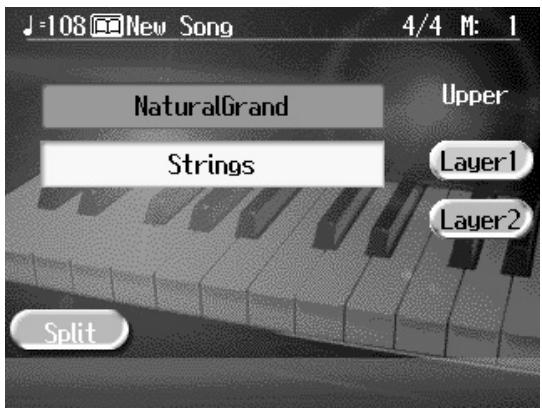
The tone that was sounding before you switched to layer performance, plus the tone indicated in the lower part of the display, are now played together.
Here, the tone appearing in the upper part of the display is called the "upper tone," and the tone appearing in the lower part of the display is called the "layer tone."
In the same manner, you can touch < Layer 2> to layer further sounds.
Changing the Tones
- Touch the name of the tone to be changed.
Touch here to highlight the tone name. - Press a Tone button to select the new tone (p. 28).
- When you have selected the tone, press the [Exit] button.
The display returns to the Basic screen.
Cancelling the Layer
- Touch
.
Touch < Layer 2> to have < Layer 2> play as well.
The
Now when you play the keys, only the tone indicated on the screen is sounded.
MEMO
When you select an internal song or music file that includes the lyrics data,
MEMO
< O> appears in the Piano screen or Basic screen when headphones are connected. You can add three-dimensional breadth to the sound from the headphones (p. 39).
MEMO
When you touch Octave < - > < + > on the tone selection screen, the pitch of the keyboard's sound is changed in octave units. To learn more, see "Shifting the Keyboard Pitch in Octave Steps (Octave Shift)" (p. 33).
MEMO
You can change the balance of the Upper and Layer Tone volume. For instructions, see "Adjusting the Volume Balance for Each Performance Part (Part Balance)" (p. 73).
Playing Different Tones with the Left and Right Hands (Split)
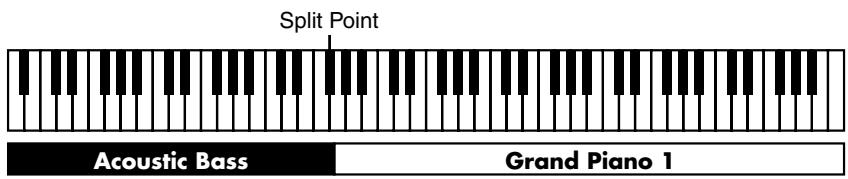
Dividing the keyboard into right-hand and left-hand areas, then playing different sounds in each section is called "split performance." The boundary key is called the "split point."
The split point key is included in the left-hand keyboard area. Each time power to the keyboard is turned on, the split point is reset to "F#3."
1. At the Basic screen, touch .
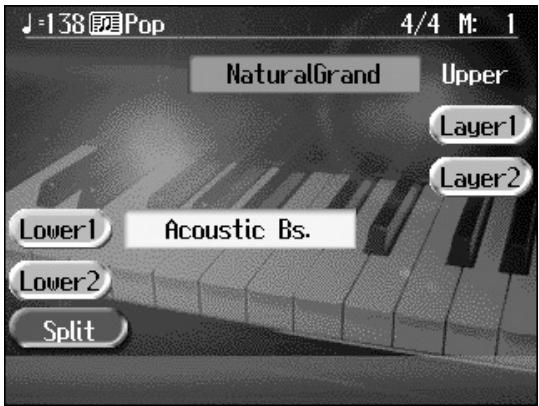
The tone sounding prior to the split performance is played in the right-hand section of the keyboard, and the tone indicated at the left of the screen is played in the left-hand section of the keyboard.
Here, the tone appearing at the right part of the display is called the "upper tone," and the tone appearing at the left part of the display is called the "lower tone."
You can turn the tones on and off by touching <Lower 1> or <Lower 2> .
Changing the Tones
- Touch the name of the tone to be changed.
- Press a Tone button to select the tone (p. 28).
- When you have selected the tone, press the [Exit] button.
The display returns to the Basic screen.
Cancelling the Split
- Touch
.
The

You can change the split point; refer to "Changing the Keyboard's Split Point (Split Point)" (p. 162).

When you select an internal song or music file that includes the lyrics data,

< O> appears in the Piano screen or Basic screen when headphones are connected. You can add three-dimensional breadth to the sound from the headphones (p. 39).

When you touch Octave < - > < + > in the tone selection screen, the pitch of the keyboard's sound is changed in octave units. To learn more, see "Shifting the Keyboard Pitch in Octave Steps (Octave Shift)" (p. 33).

You can change the volume balance between the upper and lower parts of the keyboard; refer to "Adjusting the Volume Balance for Each Performance Part (Part Balance)" (p. 73).
Turning On Layer and Split Performance Simultaneously
Turning on either Layer Performance or Split Performance allows you to divide the keyboard into a upper and a lower part and play with two Tones layered in the lower part, and three Tones layered in the upper part.
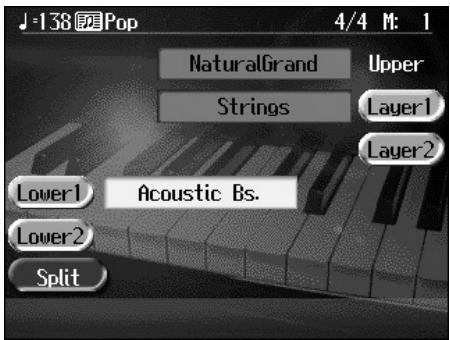
■ Shifting the Keyboard Pitch in Octave Steps (Octave Shift)
When using layer performance (p. 31) or split performance (p. 32), you can change the pitch of the keyboard's sound in octave units. This function is called "Octave Shift."
For example, when playing a Layer performance, if you change the pitch of one of the tones and then layer it, it changes the impression created with the tone.
- On the Basic screen, touch
or .
The KR switches to layer performance or split performance.
- To apply Octave Shift, touch the name of the tone you've selected.
- Press the Tone button to display the Tone selection screen.
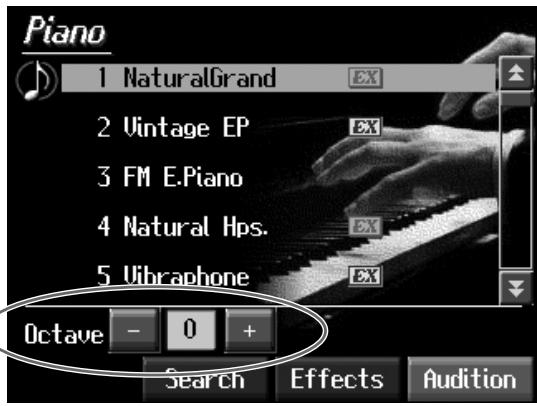
4. Touch Octave - or + in the lower part of the screen to adjust the pitch of the sound.
Each time you touch < + > , the pitch is raised one octave.
Each time you touch < -> , the pitch is lowered one octave.
The sound can be changed from two octaves lower than the original sound (-2) to two octaves above the original (+2).
Press the [Exit] button to return to the Basic screen or the previous screen.

When the keyboard has been divided into upper and lower sections, the damper pedal is applied to only the upper section. If you want to add lingering reverberations to the notes of the lower section, see "Assigning Functions to Pedals and Performance Pads (Pedal Setting/User Functions)" (p. 167).
Adding Reverberation to the Sound (Reverb)
Apply a reverb effect to the notes you play with the KR.
Reverb makes it sound as if you are playing in a concert hall.

1. Press the [Surround/Reverb] button and watch the its indicator light up.
A "Reverb screen" like the one shown below appears.
![ROLAND KR-117 - Press the [Surround/Reverb] button and watch the its indicator light up. - 1](/content/2025/01/130864/images/c092aae203a086fa8b6d43fb77dd6850fd7bf7fa02d32983fbae865d2712dac5.jpg)
Touch to switch the screens.
2. Touch an icon to select the performance space.
| Display | Explanation |
| Hall1 | Hall with bright reverberation |
| Hall2 | Hall with warm reverberation |
| Room1 | Room reverberation |
| Cathedral | High-ceilinged cathedral |
| Ground | Wide open space with no reverberations |
| Room2 | Small room |
| Lounge | Larger room |
| Studio | A recording studio |
| Gymnasium | In a gymnasium |
| Hall3 | Large concert hall reverberation |
| Dome | A domed ballpark |
| Cave | Adds the extended reverberations found inside a cave |
| GS Room1 | Reproduces an indoor-type reverb. Provides a clear, expansive reverberation. |
| GS Room2 | |
| GS Room3 | |
| GS Hall1 | Reproduces the reverberation found in a hall. Gives reverberation with a greater sense of depth than GS Room. |
| GS Hall2 | |
| GS Plate | Reproduces a plate echo (reverberation created using the vibrations of a metal plate). |
| GS Delay | A delayed sound that is added to the original, similar to the reflected sounds of mountain echoes. |
| GS Pan Delay | The reflected sounds are panned (shifted) laterally. |
3. Touch the slider beneath the icons to adjust the effect selected.
Touch and slide the knob on the screen to the right for a deeper reverb, and to the left for less.
You can also move the slider with the dial.
When you press the [Exit] button, the reverb effect is activated, and you return to the previous screen.
Cancelling the Effect
4. Press the [Surround/Reverb] button, and watch the indicator light go out.
The reverb effect is eliminated.
![ROLAND KR-117 - Press the [Surround/Reverb] button, and watch the indicator light go out. - 1](/content/2025/01/130864/images/9e0889666e138477337405d263cd41d7156b7ef14874facf5c8be4e0fa1159fa.jpg)
No effect is applied when the slider is moved all the way to the left. In this case, the button's indicator won't light up when you press the [Surround/Reverb] button.
Adding the Surround Sound Effect to the Accompaniment Using External Speakers (Surround)
You can connect an amp or external speaker to the Aux Output jacks and play accompaniment and reverb sounds through it. By using an external speaker this way, it will seem that you are surrounded by the accompaniment or reverb. This is called the "surround effect."

Giving More Breadth to the Accompaniment Sound
- Connect amp or external speaker to the Aux output jacks.
- Press the [Surround/Reverb] button and watch the indicator light up.
- Touch
.
The "Surround Screen" appears.
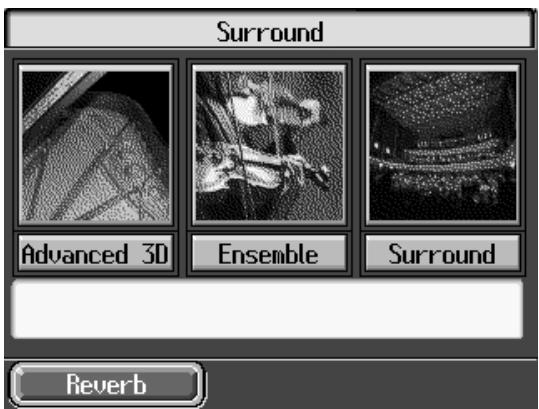
4 Touch the Type icon
5. When you have selected the type, press the [Exit] button.
Cancelling the Effect
- Touch the Type icon
and watch the light go out.
The surround effect is eliminated, and the effect is no longer applied to any of the parts.
NOTE
For more on speaker settings when the Surround function is used, refer to "Connecting External Speakers" (p. 194).
NOTE
Only Advanced 3D can be switched on and off when nothing is connected to the Aux Output jacks.
Selecting the Part for the Effect
- Press the [Surround/Reverb] button and watch the indicator light up.
- Touch
. - On the Surround Screen, press the [Option] button.
The following screen appears.
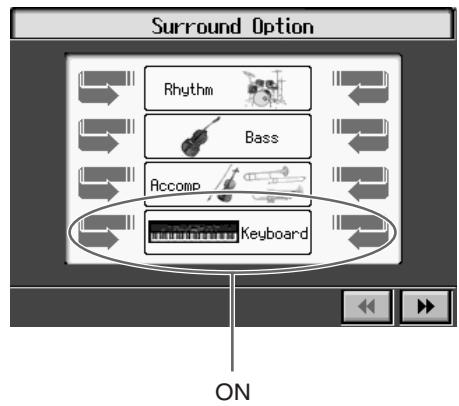
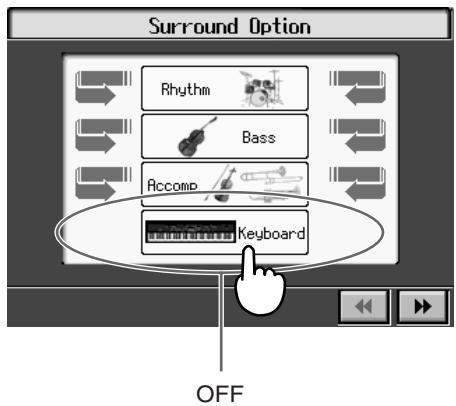
- Touch the icon to switch individual parts on or off.
When you press the [Exit] button, the Surround effect is activated, and you return to the previous screen.
- Touch a part's icon to switch the surround on and off.
The sounds of parts set to ON are played from the external speaker and the KR's internal speaker. Parts set to OFF are played only from the KR's speaker.
When you press the [Exit] button, the surround effect is activated, and you return to the previous screen.
Selecting the Tone to Which the Effect is Applied
With "Keyboard" in Surround set to On, you can select the parts to which the surround effect is to be applied.
- Press the [Surround/Reverb] button and watch the indicator light up.
- Touch
to display the Surround screen. - On the Surround Screen, press the [Option] button.
Touch to display the following screen.

No surround effect is applied, even if the Type icon indicates "On," if all parts are switched off.

When you select the
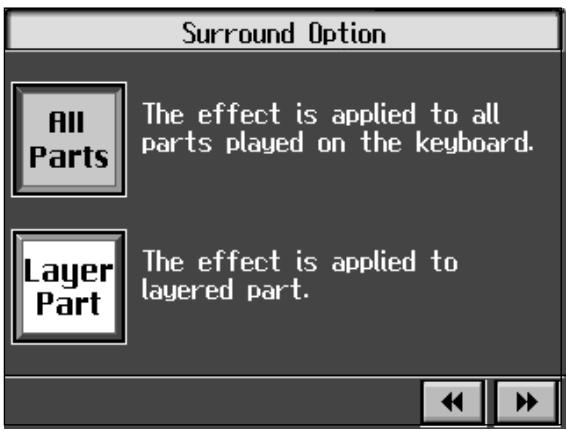
4. Touch or .
| Display | Explanation |
| All Parts | The effect is applied to all tones played with the keyboard (the left-hand tone, right-hand tone, and layer tone). |
| Layer Part | The effect is applied only to the layer part. When not using a layer performance (p. 31), the Surround effect is not applied to the keyboard performance, even if <Keyboard> on the Surround Screen is set to On. |
When you press the [Exit] button, you return to the Surround Screen.
Changing the Amount of Surround Effect
- Press the [Surround/Reverb] button and watch the indicator light up.
- Touch
to display the Surround screen. - On the Surround Screen, press the [Option] button.
Touch to display the following screen.
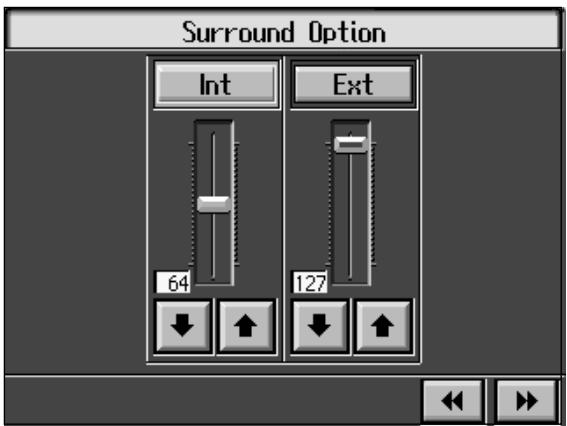
- Touch the "Int" and "Ext" sliders to adjust the volume levels of the external speaker and the KR's speaker.
When you press the [Exit] button, you return to the Surround screen.

This setting is enabled only when the
Using the Internal Speakers to Add Three-Dimensional Spatiality to the Accompaniment Sounds (Advanced 3D)
You can add three-dimensional breadth to the sounds you play with automatic accompaniment (p. 57), or to internal songs or music files. With this effect, called "Advanced 3D," you seem to be surrounded by the sound of the performance.

- Press the [Surround/Reverb] button and watch the indicator light up.
- Touch
.
3 On the Surround Screen, touch the Type icon.
Three-dimensional breadth is added to the sound.
Adding Depth to Sounds Played Through Headphones
When you have headphones connected, the screen for selecting the type of surround effect changes as shown below.
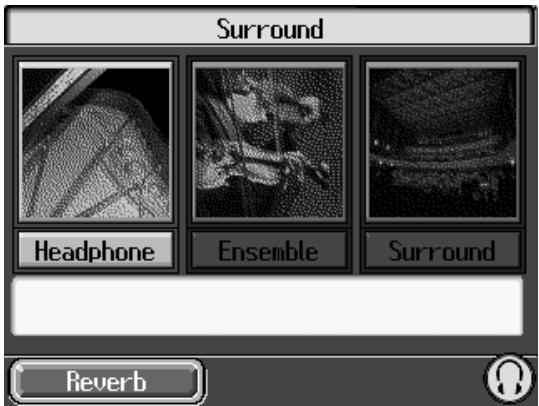
* You cannot select the Type icon


appears in the screen
when headphones are connected.
Selecting the Part for the Effect
- Press the [Surround/Reverb] button and watch the indicator light up.
- Touch
to display the Surround screen. - Press the [Option] button.
The following screen appears.
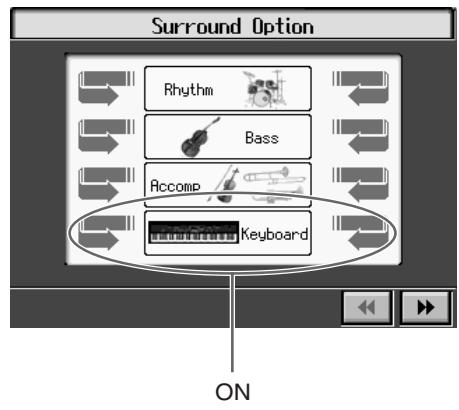
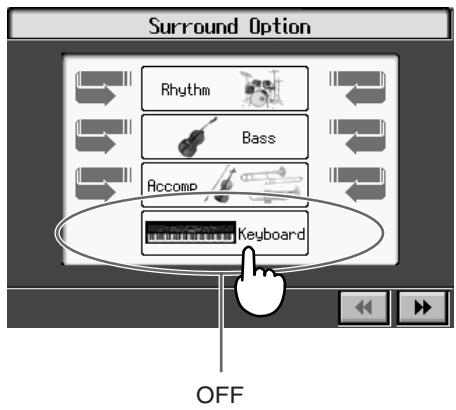
- Touch the icon to switch the effect on or off for each individual part. When you press the [Exit] button, the Advanced 3D effect is activated, and you return to the previous screen.
Cancelling the Effect
- Touch the Type icon <Advanced 3D> and watch the light go out.
The Advanced 3D effect is eliminated, and the effect is no longer applied to any of the parts.

The Advanced 3D effect is not applied, even when you touch ON , if all parts are turned off.
Selecting the tone to which the effect is applied
- Press the [Surround/Reverb] button and watch the indicator light up.
- Touch
to display the Surround screen. - Press the [Option] button.
- Touch to display the following screens.
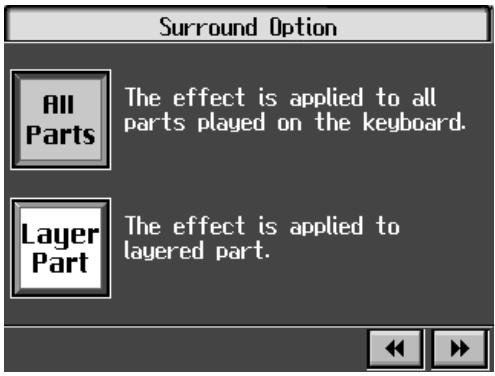
- Touch the icon to select the value.
| Parameter | Display | Explanation |
| Part | All Parts | The effect is applied to all tones played with the keyboard (the lower tone, upper tone, and layer tone). |
| Layer Part | The effect is applied only to the layer part. When not using a layer performance (p. 31), the Advanced 3D effect is not applied to the keyboard performance, even if <Keyboard> on the Surround Option screen is set to On. |
- When you press the [Exit] button, you return to the Surround screen.
Making Detailed Settings for Advanced 3D
- Press the [Surround/Reverb] button and watch the indicator light up.
- Touch
to display the Surround screen. - Press the [Option] button.
- Touch to display the following screens.
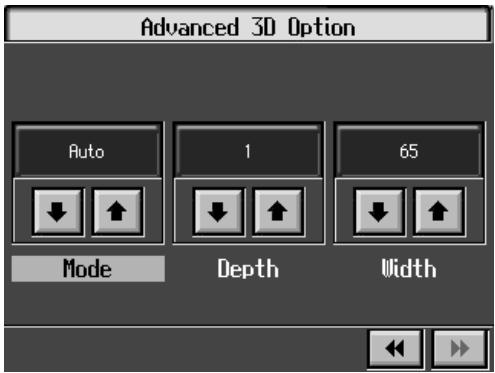
- Touch for the parameter being set to select the value.
| Parameter | Display | Explanation |
| Mode | Auto | This selects settings that are adjusted for use with headphones when headphones are connected. When no headphones are connected, settings adjusted for speakers are selected. |
| Speaker | Settings adjusted for listening to sounds through speakers are selected. | |
| Headphone | Settings adjusted for listening to sounds through headphones are selected. | |
| Depth | 1-4 | Changes the apparent depth of the sound. The effect is applied more as the value is increased. |
| Width | 1-128 | Changes the breadth of the sound. |
You can also change the value with the dial.
- When you press the [Exit] button, you return to the Surround screen.
Adding Liveliness to the Sound (Dynamic Emphasis)
You can add liveliness to the sound to give it superb clarity and distinctness.

Press the [Sound Control] button, to display the "Dynamic Emphasis screen."
The Dynamic Emphasis function is switched on, enlivening the sound.
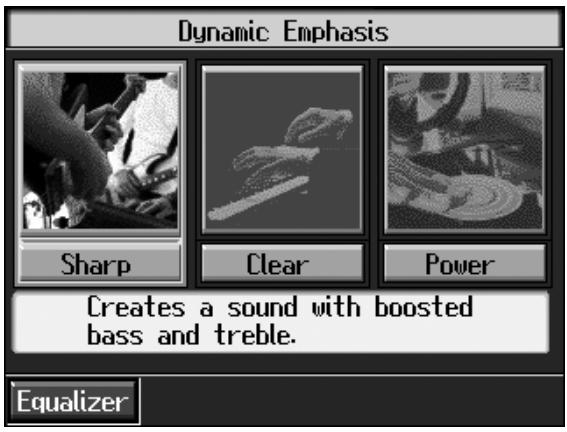
2 Touch the Type icon to select the type.
| Indicator | Description |
| Sharp | Creates a sound with boosted bass and treble. |
| Clear | Produces a sound with chords in the low registers that are clear and distinct. |
| Power | Creates a sound with boosted bass. |
Cancelling the Dynamics Emphasis
3 Press the [Sound Control] button once more, and the indicator light goes out.
Adjusting the Sound to Achieve the Preferred Tone Quality (Equalizer)
The KR features a built-in, five-band digital equalizer.
An equalizer boosts or cuts specific sound pitches (frequency ranges) to adjust the sound balance for the overall performance. For example, you can boost the highs to get a crisp sound, or boost the low end for a more powerful sound.
You can also adjust the sound to compensate for the acoustical characteristics of the performance space.
If raising the slider for each frequency ends up distorting the sound, you can correct the distortion with the Master Level slider.
Press the [Sound Control] button, to display the "Dynamic Emphasis screen."
2. TouchEqualizer>.
The "Equalizer screen" appears.
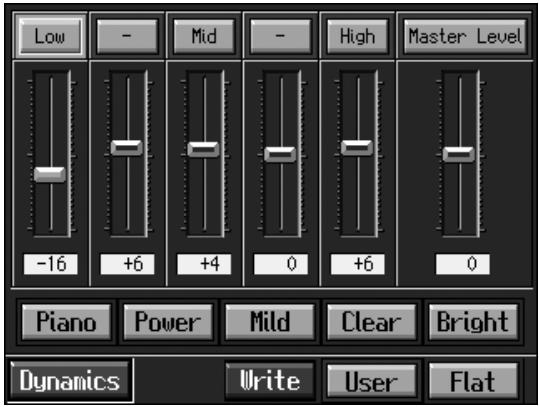
- Touch the Type icon to make your selection.
| Display | Explanation |
| Piano | The optimal settings for piano performance are selected. |
| Power | Boosts both the low- and high-frequency ranges. |
| Mild | Lows and highs are restrained for a pleasant-sounding tone. |
| Clear | This setting slightly boosts the midrange for a simple pop feeling. |
| Bright | This setting boosts the high frequencies for a brilliant, sparkling sound. |
| Flat | All slider values are set to “0.” |
| User | Store your own preferred settings (p. 45). |
4. Touch the slider to make adjustment.
| Displayed | Settings Value | Explanation |
| Low | -60-0-+60 | Low-frequency range. This is the range of frequencies for instruments like drums, bass, organ, guitar and strings. |
| - | -60-0-+60 | Mid-low-frequency range. This is the range of frequencies for lower brass and woodwind instruments. |
| Mid | -60-0-+60 | Midrange. This is the range of frequencies where most instrument sounds are concentrated. |
| - | -60-0-+60 | Mid-high-frequency range. The ear is most sensitive to this frequency range. |
| High | -60-0-+60 | High-frequency range. These frequencies add brilliance to the sound. |
| Master Level | -60-0-+60 | You can temper the distortion in the sound by lowering the level. Raising the level too much may cause the sound to become distorted. |
You can also move the slider with the dial.
When you press the [Exit] button, the equalization is placed in effect, and you return to the previous screen.
Cancelling the Effect
5. Touch.
Storing the Settings
You can store adjusted equalizer settings to
Even after editing the settings, you can touch
- Press the [Sound Control] button and watch the indicator light up.
- Touch
.
The "Equalizer screen" appears.
- Adjust the equalizer.
- Touch
.
The settings are stored.
Even after editing the settings, you can touch
Applying Effects to the Sound (Effects)
You can apply a wide range of different effects to the notes you play on the keyboard.
- First, press the Tone button to select a Tone (p. 28).
The "Tone selection screen" appears.
- Then, touch
.
The "Effects screen" appears.
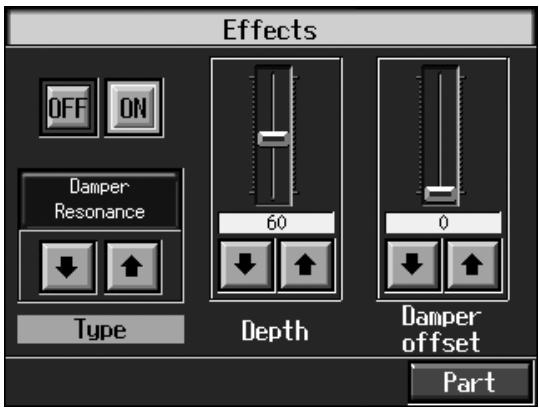
Applying Effects to the Sound
- Touch
.
The effect selected with
Selecting the Type of Effect
- Touch
to select the type of effect.
Setting the Effect
The parameters that can be set change according to the type selected in Step 4.
- Touch for the parameter being set to select the value.
You can also move the slider with the dial.
Press the [Exit] button to return to the Tone selection screen.
Cancelling the Effect
- On the Effects screen, touch
.

For more on the effect types, refer to the "Effects List" (p. 209).

You may find effects not being applied to certain parts when different effects are applied to the upper tone, layer tone, and lower tone. In such instances, you can select which effect is to have priority (p. 179).
Adding Effects to Mic Vocals (Vocal Effect)
With a microphone connected, you can add effects to the microphone vocals.
Adding effects to the vocals is referred to as "Vocal Effect."
How to select Vocal Effect

For details on connecting a microphone, refer to
"Connecting a Microphone" (p. 23).

1. Press the [Vocal Effects] button.
The "Vocal Effects screen" appears.
![ROLAND KR-117 - Press the [Vocal Effects] button. - 1](/content/2025/01/130864/images/f5dad85a24745713910168c08572bbbabd1d75308dbebf518237419056fadd2d.jpg)
2. Touch any one of the icons.
| Icon | Explanation | Page |
| Echo | Adjusts the microphone echo. | p. 48 |
| Transformer | Alters the microphone vocals. | p. 48 |
| Harmonist | Adds harmonies to the original voice. | p. 49 |
| Vocal Count In | Allows you to start songs and Automatic Accompaniment using your own tempo. | p. 50 |
| Vocal Keyboard | Allows you to produce sounds conforming to the vocal scale. | p. 51 |
| Music Files | You can play a specific part as harmony while playing back a song. | p. 52 |
3. When you press the [Exit] button, the effect is applied and you return to the previous screen.
![ROLAND KR-117 - When you press the [Exit] button, the effect is applied and you return to the previous screen. - 1](/content/2025/01/130864/images/87d2a817d37bac7f288817fd179130370da14ce3cd04f4e5c957e4d3ffed3dcf.jpg)
If your KR features a built-in CD drive, you can play back the included CD and add vocal effects to vocal parts on CDs.
![ROLAND KR-117 - When you press the [Exit] button, the effect is applied and you return to the previous screen. - 2](/content/2025/01/130864/images/340afedf0b03f2379bd6470e1a03473b8da5f6103a658e21b57cb360704568a0.jpg)
You can adjust the microphone volume with the Mic Volume knob on the (left) underside of the KR.
Cancelling the Vocal Effect
- Press the [Vocal Effects] button and watch the indicator light go out. The Vocal Effect function is cancelled.
Adjusting the Echo (Echo)
- Touch
in Step 2 of "How to select Vocal Effect" (p. 47).
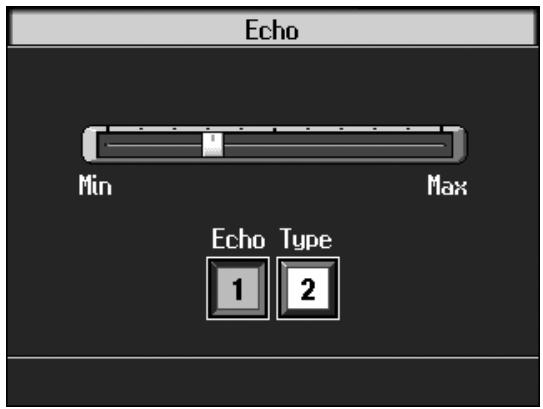
- Touch the Echo Type <1> or <2> to change the echo type.
| Displayed | Explanation |
| 1 | Adds basic reverberations. |
| 2 | Adds reverberations for a karaoke-type echo. |
- Touch the bar graph to adjust the amount of echo applied to the vocal. Press the [Exit] button to return to the Vocal Effects screen.
Altering Vocals (Transformer)
You can modify the way your voice sounds through the microphone. This is called the "Voice Transformer" function.
- Touch
in Step 2 of "How to select Vocal Effect" (p. 47).
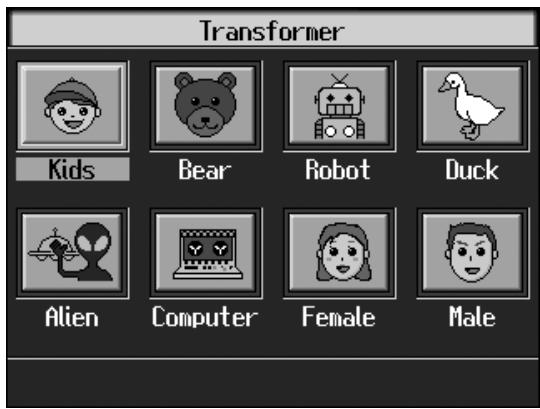
2. Touch any one of the icons.
Here's what the different icons do.
| Display | Explanation |
| Kids | Transforms the input into the sound of a child's voice. |
| Bear | Transforms the input sound into the voice of a large animal. |
| Robot | Transforms the input into the sound of a robot's voice. |
| Duck | Transforms the input into a duck's quacking sound. |
| Alien | Transforms the input into an alien voice. |
| Computer | Transforms the input into a voice like that from a computer. |
| Female | Transforms male voices into female voices. |
| Male | Transforms female voices into male voices. |
3. Sing through the microphone.
Your voice is transformed according to the item you selected.
Cancelling the Effect
4. Once again, touch the icon you selected in Step 2.
The Voice Transformer effect is eliminated.
Press the [Exit] button to return to the Vocal Effects screen.
Adding Harmonies (Harmonist)
You can sing with a harmony accompaniment, even when you're playing solo. This is called the "Harmonist" function.
1. Touch in Step 2 of "How to select Vocal Effect" (p. 47).
Touch to switch the screen.
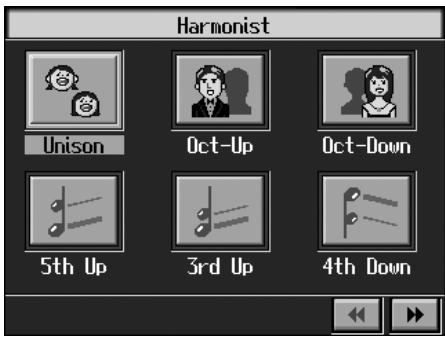
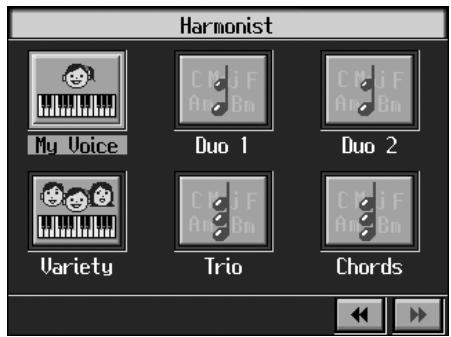
2. Touch any one of the icons.
Here's what the different icons do.
| Display | Explanation |
| Unison | Sounds like two people singing the same melody. |
| Oct-Up | Adds another voice one octave higher than the original. |
| Oct-Down | Adds another voice one octave lower than the original. |
| 5th Up | Adds harmony a fifth above the original. |
| 3rd Up | Adds harmony a third above the original. |
| 4th Down | Adds harmony a major fourth below the original. |
| My Voice | The melody played on the keyboard is played as the harmony. The harmony is added to your voice regardless of the pitch. |
| Duo 1 | The added harmony matches the chords specified on the keyboard. Adding harmony to a single voice gives the effect of two people singing together. |
| Duo 2 | |
| Variety | The melody played on the keyboard is played as the harmony. The harmony added is matched to the pitch; for example, higher pitches are used for female voices, lower pitches for male voices. |
| Trio | The added harmony matches the chords specified on the keyboard. This adds a two-voice harmony that makes it seem that a trio is singing. |
| Chords | The added harmony matches the chords specified on the keyboard. You can change the way harmonies are added with the Melody Intelligence type (p. 70). |
Cancelling the Effect
3. Touch the Harmonist type you selected in Step 2 again.
The Harmonist function is cancelled.
Press the [Exit] button to go back to the Vocal Effects screen.
- Enabling the Start of Songs and Automatic Accompaniment with the Sound of Your Voice (Vocal Count In)
You can start songs and the Automatic Accompaniment by counting into the microphone.
1. Touch in Step 2 of "How to select Vocal Effect" (p. 47).
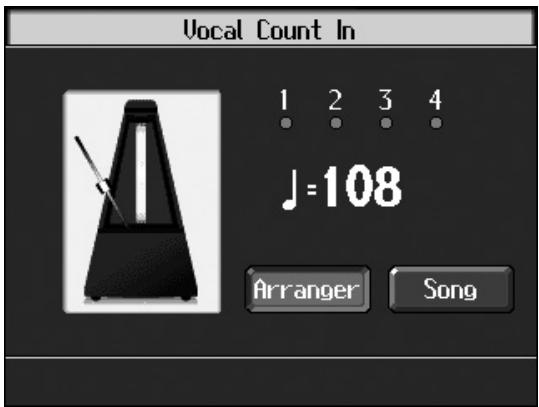
2. Touch or .
| Display | Explanation |
| Arranger | Automatic Accompaniment starts at the tempo used for the count. |
| Song | The song starts at the tempo used for the count. |
3. Count to four ("One, two, three, four") into the microphone.
Count out the number of beats per measure in the time signature of the selected song or Music Style.
For example, if you select a time signature of 4/4 , then count to four; count to three when 3/4 time is selected.
The tempo is automatically set according to the interval between the counts as you speak into the microphone, and the song or Arranger begins.
Press the [Exit] button to return to the Vocal Effects screen.
Playing Instrument Sounds at Vocal Pitches (Vocal Keyboard)
You can have melodies sung into the microphone played with the KR's internal Tones.
1. Touch in Step 2 of "How to select Vocal Effect" (p. 47).
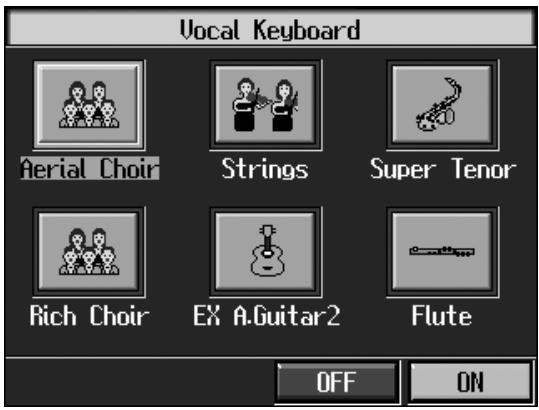
2. If the <OFF> icon is selected, touch the <ON> icon.
3. Touch any of the icons to select a Tone.
You can also select the Tone by pressing the Tone button.
When you sing into the microphone, the sung pitches are played using the selected Tone.
Cancelling the Effect
4. Touch.
The Vocal Keyboard function is cancelled.
Press the [Exit] button to go back to the Vocal Effects screen.

When you play the keys while using Vocal Keyboard, the tone selected for Vocal Keyboard is played.
Adding Harmonies to a Specified Part (Music Files)
When you sing while playing back a specified part from song data, harmony is added based on pitches of the specified part.
1. Select the song to which you want to add harmony.
To select a song stored in external memory, connect the external memory to the external memory port.
2. Touch in Step 2 of "How to select Vocal Effect" (p. 47).
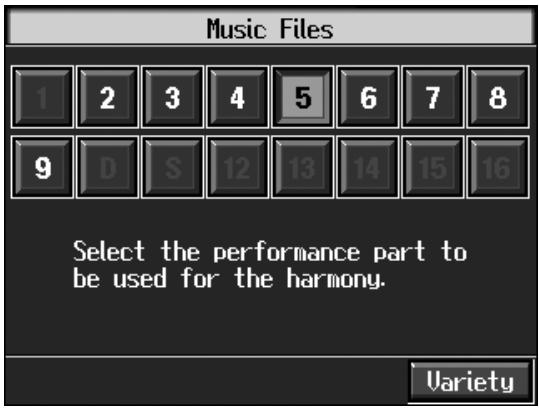
3. Touch the icon for the part to which you want to add harmony.
When you play back the song and sing into the microphone, harmonies are added using the pitches of the specified part.
4. Touch.
When Variety is ON, the melody played on the keyboard is played as the harmony. The harmony added is matched to the pitch.
Cancelling the Effect
5. Touch the icon you selected in Step 3 again.
The Music Files function is cancelled.
Press the [Exit] button to go back to the Vocal Effects screen.
■Enjoying Karaoke Performances with Music Files
- Connect a microphone.
- Adjust the volume level and the amount of echo applied.
On the KR, use the Vocal Effect function to adjust the echo (p. 48).
You can also enjoy this effect with the Voice Transformer function (p. 48) and Harmonist function (p. 49).
- Select a song.
To select a song stored in external memory, connect the external memory to the external memory port. For instructions on how to select songs, refer to "Playing a Song" (p. 75).
- Adjust the tempo as required with the Tempo [-] [+] buttons.
- If necessary, change the key of the song (Transpose: p. 102).
When you press the [▶/■ (Play/Stop)] button, the accompaniment starts playing.
Sing along with the accompaniment.
When you play back a Music File with lyrics, the lyrics appear on screen.
- Press the [▶/■ (Play/Stop)] button to stop the accompaniment.

Commercial music files designed for "karaoke" sing-along are also available.
Consult your KR dealer when purchasing music files. Refer to "Music Files That the KR Can Use" (p. 217).

On the KR, lyrics can also be shown on an external display. Refer to "Connecting an External Display" (p. 185) and "Changing the Settings for Showing Images with the External Display and the Television (External Display)" (p. 186).

You can stop lyrics from being displayed. Refer to "Hiding theLyrics(Lyrics)" (p. 182).
Using the Metronome
The KR features a built-in metronome. During playback of the song and accompaniment, the metronome plays at that tempo and beat.

Using the Metronome
1. Press the [Metronome] button and watch the indicator light up.
You will hear the metronome.
The following "Metronome screen" appears.
![ROLAND KR-117 - Press the [Metronome] button and watch the indicator light up. - 1](/content/2025/01/130864/images/9263dc7d3d45b3b3be275c224146aa20dc9a420ff05586a202612563c7c4a9fe.jpg)
You can press the [Exit] button to have the metronome continue to play while you return to the previous screen.
Stopping the Metronome
2. Press the [Metronome] button once more, and the indicator light goes out.
Changing the Metronome Settings
Adjusting the Tempo
You can adjust the tempo of the metronome. The tempo and beat of the metronome changes automatically if you use an Automatic Accompaniment or play back a song.
- Press the Tempo [-] or [+] buttons to adjust a tempo.
You can adjust the metronome tempo over a range of = 10 - 500
Pressing the Tempo [-] and [+] buttons simultaneously returns the selected song accompaniment to the basic tempo.
Changing the Beat of the Metronome
- On the Metronome screen, touch
. - Select the beat with the dial.
Changing the Volume
The volume of the metronome can be adjusted to ten different levels.
- On the Metronome screen, touch
. - Select the volume with the dial.
Choosing sets the volume to the lowest level, and choosing sets it to the highest level.
Choose OFF to silence the metronome sound.
Changing the Type of Sound
You can change the sound the metronome makes.
The setting is at "Normal metronome sound" when the KR is powered up.
- On the Metronome screen, touch
. - Select the sound with the dial.
| Displayed | Explanation | Displayed | Explanation |
| Normal metronome sound | Electronic metronome sound | ||
| いさに、 | “1,2,3” in Japanese | One, two, | “1,2,3” in English |

When 04 is selected, only the upbeat will sound.
| Displayed | Explanation | Displayed | Explanation |
| Dog and cat sounds | Wood block | ||
| Triangle and castanet | Hand clap |
Changing How the Metronome Beat (Pattern) Sounds
You can set the Metronome to play at even smaller intervals.
- On the Metronome screen, touch
. - Select the pattern with the dial.
| Displayed | Explanation | Displayed | Explanation |
| Normal | Usual sound | Dotted half-note intervals | |
| Half-note intervals | Dotted quarter-note intervals | ||
| Quarter-note intervals | Dotted eighth-note intervals | ||
| Eighth-note intervals | Sixteenth-note intervals | ||
| +Doublei | Single back beat added | +TriFl | Triplet rhythm added |
| +Shuffl | Shuffle rhythm added |
Turning Off the Beat Light (Beat Indicator)
The beat light flashes in time with the metronome, accompaniment Styles, and song tempos, but you can set it so that it stays off at all times.
- Touch
in the Metronome screen. - Select ON/OFF (Beat Indicator off) with the dial.
Chapter 2 Automatic Accompaniment
Music Styles and Automatic Accompaniment
What is Automatic Accompaniment?
Press the One Touch Program [Arranger] button for Automatic Accompaniment's optimum settings. Automatic Accompaniment is a function that provides you with accompaniment in a variety of musical genres, just by specifying chords in the left hand. Automatic Accompaniment lets you play with an orchestra, even when performing alone!
What Are Music Styles?
Accompaniment patterns in various musical genres are called "Music Styles."
There are many different kinds of music around the world, and each has its own unique features. What gives jazz or classical music their unmistakable sounds are a unique combination of elements like instrumentation, melody, and phrasing, which interact to create the musical character.
Elements of Music Styles
A Music Style consists of a set of six sections called "divisions."
| Division | Explanation |
| Intro | Played at the start of a song. |
| Original | The basic accompaniment pattern. |
| Variation | This is a variation on the Original accompaniment pattern. |
| Fill In To Original | This is a one-measure phrase inserted at a point where the mood changes and the accompaniment returns to the original. |
| Fill In To Variation | This is a one-measure phrase inserted at a point where the mood changes and the accompaniment moves ahead to the variation. |
| Ending | The conclusion of a song. |
In addition, the accompaniment Styles are composed of up to a maximum of eight performance parts: "Rhythm," "Bass," "Accompaniment 1," "Accompaniment 2," "Accompaniment 3," "Accompaniment 4," "Accompaniment 5," and "Accompaniment 6."

For instructions on playing the Automatic Accompaniment, refer to "Selecting Music Styles (Music Style Buttons)" (p. 61).
Performing Using Automatic Accompaniment (One-Touch Arranger)
Here's how to create the settings for Automatic Accompaniment.

1. Press the One Touch Program [Arranger] button.
The Basic screen like the one shown below appears.
![ROLAND KR-117 - Press the One Touch Program [Arranger] button. - 1](/content/2025/01/130864/images/09c2cc4ec0d8677ab50fc6572c75be7662f937842d3858839724fdc40af347ca.jpg)
Observe the settings:
- The keyboard is split into left- and right-hand parts, with accompaniment chords specified for the left-hand side of the keyboard.
- A tone appropriate for the selected Music Style is chosen.
- The tempo and beat for the selected Music Style is set.
2. Play a chord on the Lower-part of keyboard.
The accompaniment begins, starting from the intro.
Play chords with the left hand, and the melody with the right.
When you change chords in the left hand, the accompaniment also changes.
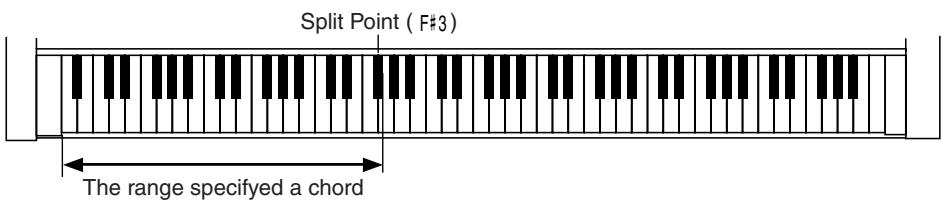
3. Press the [Intro/Ending] button.
After the ending plays, the accompaniment stops.
![ROLAND KR-117 - Press the [Intro/Ending] button. - 1](/content/2025/01/130864/images/0c34eaec7fa4f66b2c9e89d10ff6e30a89352ee57cedfa9c8ba8267a4f70b6cc.jpg)
< O> appears in the Piano screen or Basic screen when headphones are connected. You can add three-dimensional breadth to the sound from the headphones (p. 39).
![ROLAND KR-117 - Press the [Intro/Ending] button. - 2](/content/2025/01/130864/images/8ddecaaab9a75249eb5a3056a0b970a62e797f4e45e28b53d23cbf281635736e.jpg)
Normally, when you change a Music Style, the tempo and tone change to selections that go well with the selected Music Style. If you do not want to change the tempo and tone, refer to "Changing Music Styles Without Changing the Tone or Tempo (One Touch Setting)" (p. 162).
![ROLAND KR-117 - Press the [Intro/Ending] button. - 3](/content/2025/01/130864/images/926178f211223000eb5f61a2891be2f7ca27214b86e8a12c734ed1d98a6eadbf.jpg)
For instructions on selecting Music Styles, refer to "Selecting Music Styles (Music Style Buttons)" (p. 61).
![ROLAND KR-117 - Press the [Intro/Ending] button. - 4](/content/2025/01/130864/images/47d5b384e5330cfabe1f7a02c6fd77337cc8972ec133b90514ae75a067eb4944.jpg)
For instructions on starting and stopping the accompaniment, refer to "Starting and Stopping the Accompaniment" (p. 65).
![ROLAND KR-117 - Press the [Intro/Ending] button. - 5](/content/2025/01/130864/images/dac614cd03e60387feaa665b6c8cc22a21142662f2bfc87a3e67a2dd6930633a.jpg)
You can change the range in which chords are played. Please refer to "Changing the Keyboard's Split Point (Split Point)" (p. 162).
About Chords
A chord is produced when several notes are played simultaneously. Chords are indicated by the pitch of the fundamental note of the chord (the root) and the chord type, which is determined by the other notes of the chord.
For example, the C m chord is expressed in terms of the root note "C" and the chord type "m" (minor). C m is made up of the three notes "C," "E", "G."
"C m" is indicated as the chord name on the Basic screen.
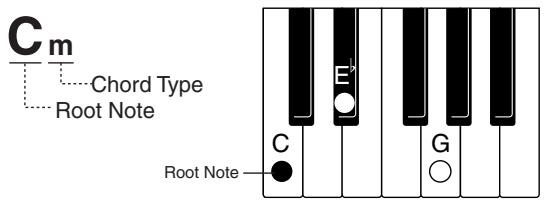
All chord roots are indicated as a letter, sometimes with # or added, and correspond to the notes shown below.
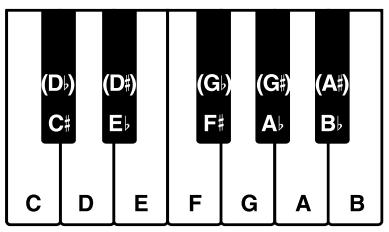
Playing Chords with Simple Fingering (Chord Intelligence)
"Chord Intelligence" is a feature that chooses the accompaniment chords the moment you play a key.
To play a "C" chord, for example, you normally have to play the three keys C, E, and G. But with Chord Intelligence, you only have to press the C key to start a "C" chord accompaniment.
- Intelligence 1
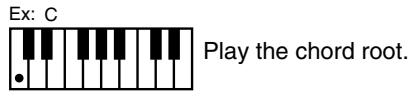
Major
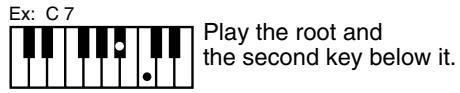
Seventh
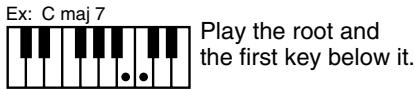
Major Seventh
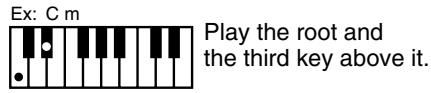
Minor
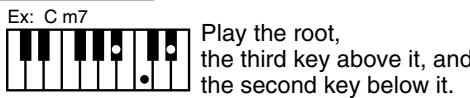
Minor Seventh
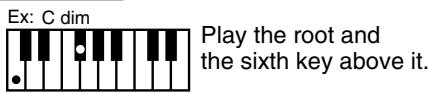
Diminished

Normally, settings used for the Chord Intelligence function are selected, but there may be settings that are not used. You can also change the rules governing how chords are played. For more information, see "Changing How Chords Are Played and Specified (Arranger Config)" (p. 162).

For more information about chord fingering, refer to the "Chord List" (p. 212).
Viewing Chord Fingerings (Chord Finder)
Whenever you are not sure how a certain chord is fingered, you can display the notes of the chord on the screen.
1. On the Basic screen, touch <
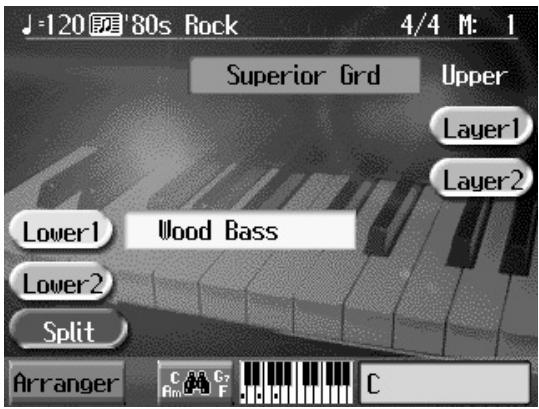
2. Touch the root of the chord you want to learn about.
The chord fingering appears on screen.
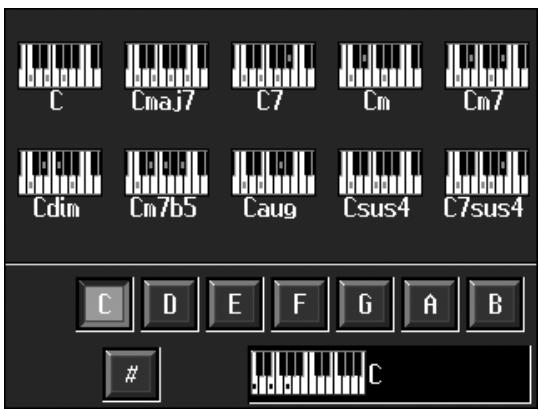
For example, if you wanted to see the fingering for a C# chord, you would touch C , then touch # .
Press the [Exit] button to go back to the Basic screen.
Selecting Music Styles (Music Style Buttons)
You can select a variety of different Music Styles by pressing the Music Style buttons.
Four different preset styles are assigned to the Music Style.

- Press the One Touch Program [Arranger] button.
- Press one of the Music Style buttons to select the Music Style group.
Watch the indicator button light up.
Five of the Music Styles included in that group are displayed on the screen.
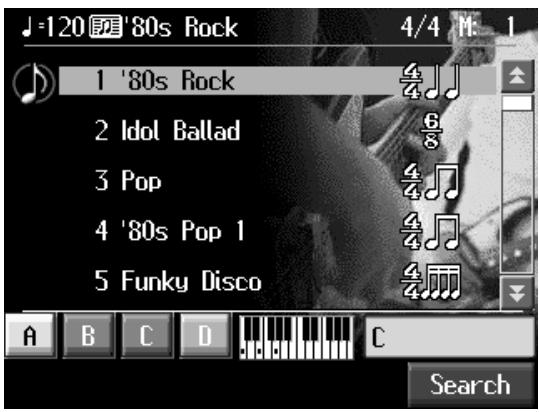
This screen is called the "Style Selection screen."
Touch and drag up and down in the scroll bar to scroll through the screen and display other styles.
Touch the page icons < 空> to change pages.
You can touch
- Touch a Music Style name to select the Music Style.
You can use the dial to automatically switch pages and select Styles.
- Touch Preset A , B , C , or D in the lower part of the screen.
When the Music Style is selected, Preset A is selected.
When any of the Presets from A through D are selected, the Music Style tempo,
Upper Tone, Style Orchestrator settings (p. 69) and other settings change.
- Press the [Exit] button.
The display returns to the Basic screen.
When you play a chord in the left-hand part of the keyboard, the selected Music Style is automatic.

For more on the Music Style names, refer to the "Music Style List (KR117)" (p. 210).
Using Keywords to Search for Music Styles (Style Search)
You can search for Music Styles that match the tempo of the song, musical genre, or other criteria you set.
You can also search Music Styles using the first character of the Style names.
- Press one of the Music Style buttons.
- Touch
.
The following "Style Search screen" appears.
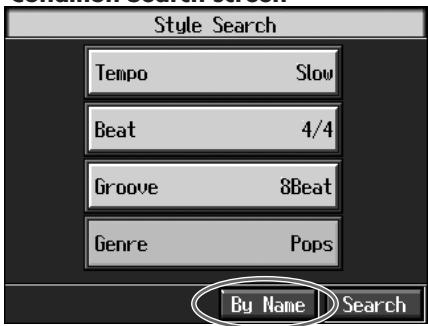
Condition Search screen
Name Search screen
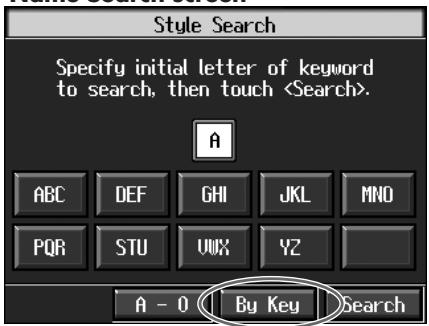
Touch here to switch these screens.
Searching by Conditions
- Touch the parameter you want to set, then use the dial to select the search conditions.
- Touch
.
The search results appear in the display.
Touch a Music Style name to select a Music Style.
Press the [Exit] button to return to the Style Search screen.
Searching by Music Style Name
- Touch
.
Touch
- Decide which character you'll use for the search.
The selected character appears in the middle of the screen.
Enter the character you are searching for. For example, touching ABC in succession cycles you through the available choices in that character group ("A"→"B"→"C"…).
Touch < A - 0> to toggle between alphabets and numerals.
- Touch
.
The search results appear on the display.
Touch a Music Style name to select a Music Style.
Press the [Exit] button several times to return to the Basic screen or the previous screen.

Only the KR's internal Music Styles are searchable.

In a condition search, the KR looks for Music Styles satisfying all of the selected search criteria.
■ Selecting Music Styles on External Memories
You can play other User Styles saved to external memories (sold separately) or User memory (p. 158).

1. Press the Music Style [User] button.
![ROLAND KR-117 - Press the Music Style [User] button. - 1](/content/2025/01/130864/images/cce65549c4a146da994371986383a460f546469f1db3e7bafabd45b65c57fa8b.jpg)
2. Touch in the lower left of the screen.
When you touch
Touching
3. Touch <> to select the storage media to which the
accompaniment Style is saved.
The names of the accompaniment styles stored on the selected storage media are displayed.
4. Select a Music Style, and touch the Music Style name.
5. Press the One Touch Program [Arranger] button.
You can now perform in the selected Music Style.
Music Styles selected from external memories are stored until the power is turned off. Even after ejecting the external memory, by pressing the Music Style [User] button, you can perform using the most recently selected Music Style.
![ROLAND KR-117 - Press the One Touch Program [Arranger] button. - 1](/content/2025/01/130864/images/24c6336cc1a25a12f5ecd12db70cfc8ad150f055985bb917d5c1ddc668d9ff9b.jpg)
You can save multiple user Styles to user memory. Take a look at "Saving a User Style" (p. 158).
Playing Only Music Style Rhythm Patterns
You can also play only the rhythm patterns of Music Styles.

- Select a Music Style (p. 61).
- Press the One Touch Program [Piano] button.
The performance is set so that only the rhythm patterns are played.
- Press the [Intro/Ending] button.
The Rhythm part of accompaniment begins, starting from the Intro.
Just as with regular Automatic Accompaniment, you can add intros and endings by pressing the [Intro/Ending] button, and make changes to the rhythm patterns with the Fill In button (p. 68).
Adjusting the Accompaniment Tempo
NOTE
Some Music Styles do not include rhythm patterns. When you select these Style patterns, no rhythm patterns are played, even when you play on the left side of the keyboard.

When the Basic screen is displayed, you can use the Tempo [-] [+] buttons or the dial to change the tempo.
The tempo is indicated on the upper left of the screen.
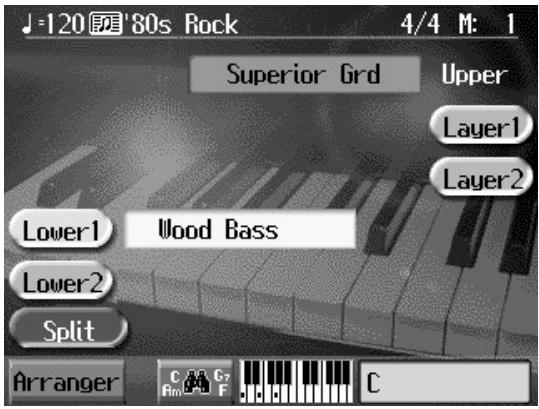
Pressing the Tempo [-] [+] buttons simultaneously returns the selected Music Style or song to the basic tempo.
You can change the tempo of Automatic Accompaniment even while the accompaniment is playing.
Starting and Stopping the Accompaniment
Pressing the One Touch Program [Arranger] button activates Sync Start for the accompaniment (which starts the accompaniment simultaneously when you play on the lower section of the keyboard), and automatically sets an appropriate intro for the accompaniment. You can also change the way the accompaniment starts and stops.

Having the Accompaniment Start Simultaneously When You Play the Keyboard (Sync Start)
- Press the [Intro/Ending] button and [Start/Stop] button simultaneously, causing the indicators of both buttons to flash.
The Sync Start settings go into effect.
- Play a chord on the lower-part of keyboard.
As you play the keys, the intro and accompaniment begins simultaneously.
O Changing the Intro
When set for Sync Start (the indicators of both the [Intro/Ending] button and [Start/Stop] button are flashing), you can use the following procedure to change the intro, or prevent the intro from playing.
Starting without an Intro
Press the [Intro/Ending] button and watch the indicator go out.
Now when you play a chord with the keyboard, the accompaniment starts without the intro.
To Start with a Short Intro Added
Touch <Arranger> in the Basic screen to open the arranger screen.
Touch the Intro < 2> .
Now when you specify a chord with the keyboard, a short intro is played, and the accompaniment starts.

Sync Start is set immediately after the One Touch Program [Arranger] button is pressed.
Starting at the Press of a Button
- Press the [Intro/Ending] button and [Start/Stop] button simultaneously, and the indicators lights go out.
The Sync Start function is cancelled.
- Play a chord on the lower part of keyboard.
Choose the chord to be played when the accompaniment begins playing.
- Press the [Intro/Ending] button or the [Start/Stop] button.
When you press the [Intro/Ending] button, the intro plays, and the accompaniment starts. When you press the [Start/Stop] button, the accompaniment starts without the intro.
When you touch Intro < 2> on the Basic screen, a short intro plays.
Chord Tones and Bass Tones
When you play the keys in the left-hand side of the keyboard while the [Start/Stop] button's indicator is not lit, chords play. This note is called the "Chord Tone," and the root of the chord being played at the same time is called the "Bass Tone."
Stopping Automatic Accompaniment
Stopping with an Added Ending
- Press the [Intro/Ending] button.
An ending plays and the Automatic Accompaniment stops.
Stopping at the Same Time the Button is Pressed
- Press the [Start/Stop] button.
The Automatic Accompaniment stops as soon as you press the button.
MEMO
You can change the sound of the chord tone and bass tone. Take a look at "Changing How Chords Are Played and Specified (Arranger Config)" (p. 162).
Having a Count Sound Play at the End of the Intro (Countdown)
If an intro plays before your performance, you can have a count-in sound played to the end of the intro, helping you hear when to start playing.
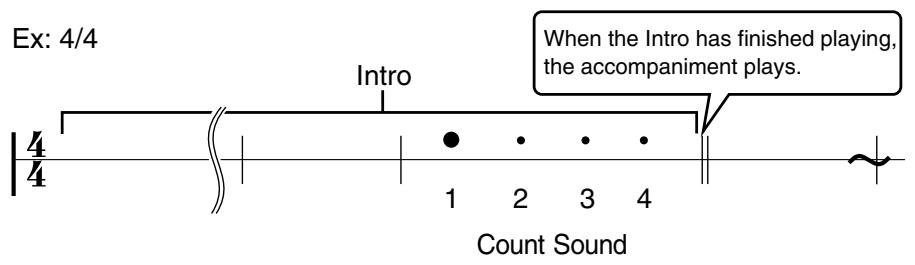
1. Press the [Count/Marker] button and watch the indicator light up.
The following "Count screen" appears.
![ROLAND KR-117 - Press the [Count/Marker] button and watch the indicator light up. - 1](/content/2025/01/130864/images/4ddcf47e3d752d800d113ddb9d8d9343ea19e7484276f19c4c5178d3c186e92d.jpg)
2. Touch to set this to "Count Down" or "Count In/Down."
When you press the One Touch Program [Arranger] button, the performance starts, and the countdown sound plays at the end of the intro.
Cancelling the Countdown
3. Press the [Count/Marker] button and the indicator light goes out.
![ROLAND KR-117 - Press the [Count/Marker] button and the indicator light goes out. - 1](/content/2025/01/130864/images/ed384bb681eaaed690f791557d13f1b88123552007a559f92e02fee385168ea4.jpg)
When set to "Count In/ Down," a count sound is added before playback of the song begins.
![ROLAND KR-117 - Press the [Count/Marker] button and the indicator light goes out. - 2](/content/2025/01/130864/images/2dee8994c1d2e62c0d083fdca58849c255379afa3ea9ff9be47117340a397bf3.jpg)
For more about settings on the Countdown screen, refer to "Changing the Settings for the Count" (p. 164).
Modifying an Accompaniment
When you use Automatic Accompaniment, you can easily add Fill Ins to the accompaniment patterns, change arrangements, and make other changes.
Changing the Accompaniment Pattern (Fill In Buttons)
There are two accompaniment patterns: the Original, and a Variation. In addition, a fill-in (or short phrase) is added at the points where the accompaniment patterns change, which adds more interest to the song. It can be effective to use the simpler original pattern for the first half of the song, and the variation pattern for the second half.
What's a "Fill In"?
A short improvisational phrase inserted at the bar line is called a "Fill In." The KR automatically plays the appropriate phrase for the selected Music Style.

You can add variation to the Automatic Accompaniment by assigning different functions to the Performance Pads and pedals. For more information, see "Assigning Functions to Pedals and Performance Pads (Pedal Setting/User Functions)" (p. 167).

Press the Fill In [To Variation] button and watch the indicator light up.
The instrument is set so that the variation performance pattern is played.
Press the Fill In [To Original] button and watch the indicator light up.
The instrument is set so that the original performance pattern is played.
Pressing these buttons during a performance inserts a one-bar fill-in at the appropriate place and time.
Adding a Fill-in without Changing the Accompaniment Pattern
You can play only the fill-in, without changing the accompaniment pattern. Press the lit [To Original] or [To Variation] Fill In button during the performance.
Changing Accompaniment Patterns in the Screen
You can change accompaniment patterns in intros, fill-ins, endings, and so on by touching the screen. This lets you enjoy even more advanced performances.
1. Press the One Touch [Arranger] button.
The Arranger basic screen is displayed.
2. Touch .
The following screen appears.
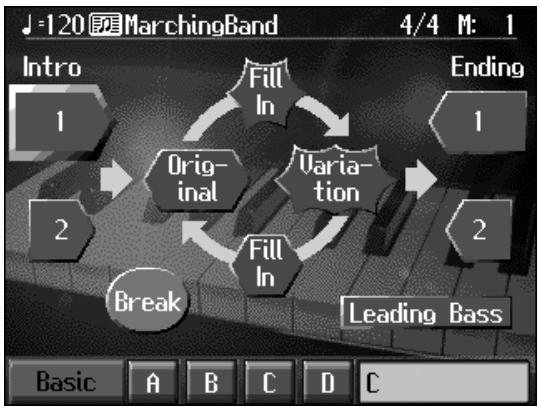
Touch the screen to change the accompaniment pattern.
Changing the Instrumental Makeup of Music Styles (Style Orchestrator)
You can change the arrangement of an accompaniment. This function is called "Style Orchestrator." Each Music Style has three different accompaniment arrangements.

For more information about leading bass, refer to p. 168.

1. Press the [Style Orchestrator] button and watch the indicator light up.
The instrument is set to allow you to change the arrangement with the Performance Pads.
2. Press Performance Pad [1]-[3] to change the arrangement for the accompaniment.
Watch the indicator of the button you pressed light up.
| Button | Explanation |
| 1 (Basic) | This is the simplest arrangement. |
| 2 (Advanced) | This is a more involved arrangement. |
| 3 (Full) | This is the most elaborate arrangement. |
![ROLAND KR-117 - Press Performance Pad [1]-[3] to change the arrangement for the accompaniment. - 1](/content/2025/01/130864/images/98b5f11c45e605ceaa93bc76185f8a3f1fe5ab708a96998fc1ef535d6d5f7106.jpg)
When you press the [User Function] buttons, the [Style Orchestrator] button's indicator goes out, and the function of the Performance Pads changes. For details refer to p. 94 and p. 167.
![ROLAND KR-117 - Press Performance Pad [1]-[3] to change the arrangement for the accompaniment. - 2](/content/2025/01/130864/images/d0f7267c2ebe92b523fc1e7c3b5082e4e756dbbafe70ee1b185156bada873b4a.jpg)
When simple Music Styles are selected, there may be no change in the arrangement even when you use the Style Orchestrator function.
Adding Harmony to the Right-Hand Part (Melody Intelligence)
You can add harmony to the notes you play on the keyboard.
While an Automatic Accompaniment is playing, the matching harmony is automatically added to the notes you are playing with the right hand. This function is called "Melody Intelligence."

1. Press the [Melody Intelligence] button and watch the indicator light up.
When you play something on the right-hand section of the keyboard, harmony is added.
The following "Melody Intelligence screen" appears.
![ROLAND KR-117 - Press the [Melody Intelligence] button and watch the indicator light up. - 1](/content/2025/01/130864/images/2997303e86ccf11924df73c797158bfa14e67eab051236f94ff711364821dfc3.jpg)
2. Select and touch a harmony type.
Then when you play a melody on the keyboard, a harmony style is automatically added.
When you press the [Exit] button, you're returned to the previous screen, while the Melody Intelligence function remains selected.
3. Press the [Melody Intelligence] button once more and the indicator light goes out.
The Melody Intelligence function is cancelled.
![ROLAND KR-117 - Press the [Melody Intelligence] button once more and the indicator light goes out. - 1](/content/2025/01/130864/images/cd90ec373c1e58c4571268049213641cf1174336d012074eb57e86a6b2812370.jpg)
With some harmonies, Tones may change automatically. Also, when you play several keys at the same time, in some cases harmony may be added to one note.
Playing Sounds in the Left Hand During a Performance (Lower Tone)
Normally, when using Automatic Accompaniment in a performance, sounds are not produced by playing the left-hand part of the keyboard. When you touch the <Lower 1> or <Lower 2> icon, you can have Tones from the left side of the keyboard play simultaneously with the Automatic Accompaniment.
1. Press the One Touch Program [Arranger] button.
This sets the Automatic Accompaniment.
2. On the Basic screen, touch < Lower 1>.
Now when you play a chord in the left-hand keyboard area, the notes you play will sound, and the accompaniment chord changes.
In the same manner, you can play the lower tone by touching Lower 2 .
By touching both Lower 1 and Lower 2 , you can get a Layer performance for the left-hand.
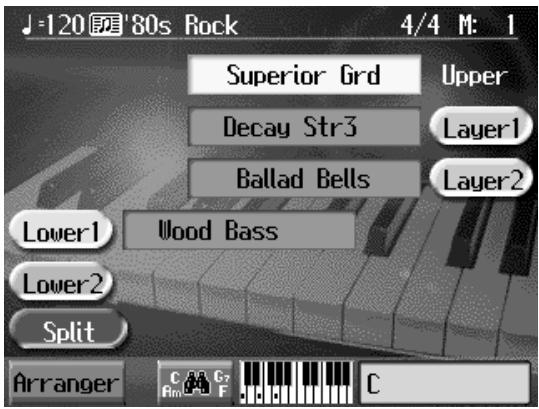
Stopping the Sound in the Left-hand
3. Touch < Lower 1>.
The <Lower 1> icon returns to the original color.
To have <Lower 2> play as well, also touch <Lower 2> .
The lower Tones stop playing.
Playing the Piano with Accompaniment Added (Piano Style Arranger)
Usually with Automatic Accompaniment, you play chords on the left-hand side of the keyboard and the melody on the right-hand side. Chords can also be recognized over the entire keyboard, allowing you to perform using Automatic Accompaniment without splitting the keyboard. This function is called "Piano Style Arranger."
This makes it possible to add an accompaniment automatically as you play a song by playing chords in the ordinary way, without giving any thought to the location of a keyboard split.
- Press the One Touch Program [Arranger] button.
- Touch
to turn the Split function off.
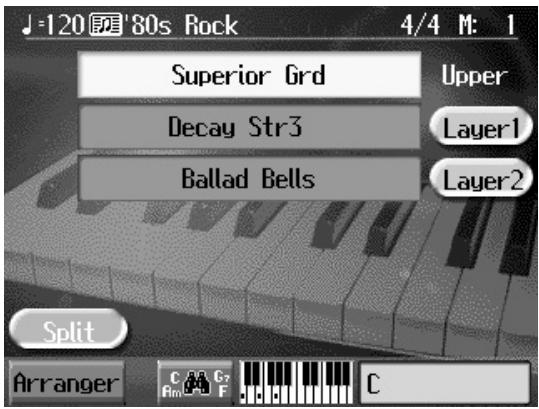
- Select a Music Style (p. 61).
- Play the keyboard.
The accompaniment starts when you play a chord anywhere on the keyboard.
Adjusting the Volume Balance for Each Part (Balance)
You can adjust the volume balance between the accompaniment and the keyboard, and the volume balance for each of the parts in a Music Style.
Changing the Volume Balance Between the Accompaniment and the Keyboard (Balance Knob)
You can change the volume balance between a song and accompaniment and the notes you play on the keyboard.
1. Adjust the volume balance with the Balance knob.
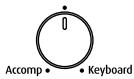
Balance
Adjusting the Volume Balance for Each Performance Part (Part Balance)
You can adjust the volume of each performance part in a Music Style, and the balance between parts when playing multiple Tones on the keyboard.
NOTE
When this knob is turned completely to the Accompaniment side, no sounds from the keyboard are audible, even when the keys are pressed. You can usually leave the knob at the center position.

1. Press the [Part Balance] button and watch the indicator light up.
The following "Part Balance screen" appears.
![ROLAND KR-117 - Press the [Part Balance] button and watch the indicator light up. - 1](/content/2025/01/130864/images/17a85df1d5f7460e17a1f336ae26f28665c86bc938d811e3f28ffa5d1a884310.jpg)
The volume balance between the performance parts in the Music Style is indicated.
| Display | Performance part |
| Rhythm | Music Style Rhythm Part |
| Bass | Music Style Bass Part |
| Accomp1 | Accompaniment 1-6 |
| Accomp2 | |
| Accomp3 | |
| Accomp4 | |
| Accomp5 | |
| Accomp6 | |
| Chord Tone | Chord Tone (p. 66) |
| Bass Tone | Bass Tone (p. 66) |
| WAV | Audio File |
| CD (Only with models featuring CD Drive) | Audio CD |
When you touch
![ROLAND KR-117 - Press the [Part Balance] button and watch the indicator light up. - 2](/content/2025/01/130864/images/6483dc5bae785aa66adf0075c57d4d6cda98d8f14994e53b997de3e0c842921a.jpg)
This shows the volume balance between the keyboard's Tones when either layer performance (p. 31) or split performance (p. 32) are used, or the volume balance when using the keyboard to play percussion instruments or sound effects (p. 29).
| Displayed | Tone Part |
| Drm/SFX | Percussion instruments or sound effects played with the keys |
| Upper | Upper Tone |
| Lower 1 | Lower Tone 1 |
| Lower 2 | Lower Tone 2 |
| Layer 1 | Layer Tone 1 |
| Layer 2 | Layer Tone 2 |
When you touch
Chapter 3 Song Playback
Playing a Song
Now, let's try practicing while playing back internal songs, commercial music files, and songs saved to external memories.
You can use rewind or fast-forward to go to any desired measure, and play back from that point.
You can also play audio files (p. 80).

Selecting the Song
When playing back songs on optional external memory, first connect the external memory to the external memory port.
1. Press the [Song] button.
The following "Song Selection screen" appears.
![ROLAND KR-117 - Press the [Song] button. - 1](/content/2025/01/130864/images/8e187e1e5f7e7ebc73f1390806e31d301df31796afe1ba56537439c5ced01d45.jpg)
Touch and drag up and down in the scroll bar to scroll through the screen and display other songs.
Touch the page icons < 空> to change pages.
Finger : The fingering is included in the notation.
Chord : The chords are indicated in the notation.
Lyric : You can display song lyrics.
Audio: For audio files.
When you touch < _random >, songs selected from all of the internal songs are played in random order.
When you touch < > , all of the songs in the genre you have selected are played in order, starting from the selected song. When the last song is finished, playback resumes from the first song in the genre.
![ROLAND KR-117 - Press the [Song] button. - 2](/content/2025/01/130864/images/0bca2414be27a48b37e07857107c5a2587510f074f386ff0bacc0513a9f5b266.jpg)
About Random Performances
When "Favorites" is selected as the genre, songs registered in "Favorites" are played back in random order.
When "External Memory" is selected as the genre, the songs in the folder appearing on the screen are played back in random order.
< > : The selected song is played back. This changes to < > while the song is played back; playback stops when you touch < > .
By touching
- Touch <> to select the song genre.
- Touch the name of the song to be played back. You use and the dial to select songs.
Playing back
- Press the [▶/■ (Play/Stop)] button.
The button indicator lights up, and playback of the song begins.
Stopping the Song
- Press the [▶/■ (Play/Stop)] button once again.
The button indicator light goes out, and the song stops.
When the song is finished, playback stops automatically.
Press the [▶ (Reset)] button to return to the beginning of the song.
Record/Playback Buttons
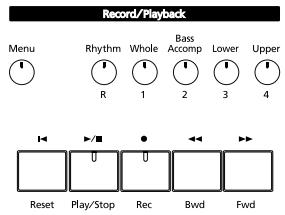
Track buttons (Rhythm, Whole, Bass/Accomp, Lower, Upper):
Each performance part of the song being played back is assigned to a track button. Use these buttons to select the performance parts that are muted or played. For more detailed information, refer to p. 97.
[Reset] button: Returns to the beginning of the song.
[▶/■ (Play/Stop)] button:
Plays back the song, or if the song is currently being played, it stops the song.
[ (Rec)] button: Records the performance. For more detailed information, refer to p. 104.
[Bwd] button: Moves back the playback position of the song one measure each time the button is pressed. Moves back the playback position of the song one second each when an audio file is being played back. When held down, the song "rewinds" continuously.
[▶ (Fwd)] button: Advances the playback position of the song one measure each time the button is pressed. Advances the playback position of the song one second each when an audio file is being played back. When held down, the song is forwarded continuously.
Holding down the [▶/■ (Play/Stop)] button and pressing the [▶▶ (Fwd)] button moves you to the end of the song.

If there is recorded song data, the "Delete song" screen appears.
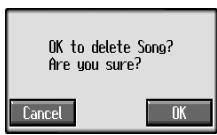
If it's okay to delete the song, touch
NOTE
When you select a song, the measure number in the Basic screen is highlighted. The performance data is being loaded while the indication is highlighted; please wait a few moments for this to be completed.
NOTE
When using markers to specify a section to be repeated (p. 101), you can rewind and fast forward only within the range between Marker A and Marker B.
■ Listening to Songs on CDs (Only for Instrument Equipped with CD Drive)
Cautions
Handling CDs
- Do not leave discs exposed to direct sunlight for extended periods.
- Handle CDs with your finger and thumb, holding the disc by the center hole and outer rim. Do not touch or scratch the disc's recording surface (the green side).
- Do not drop or stack discs.
- Do not place heavy objects on discs or subject them to strong impact.
- Do not affix stickers or other such materials on the label side. Placing stickers on the disc may result in errors when data writing and scratch the disc.
- Use a felt-tip marker or other soft-tipped implement to write titles and other information on the label side of discs.
- Store discs in their original cases or other suitable cases for protection.
- Before using the CD, please read the warning on the CD cover.
Cleaning Discs
- If a disc becomes dusty or soiled, gently wipe the disc with a soft cloth. Always wipe outwards from the center using light, gentle strokes. Do not wipe the disk in a circular pattern.
Precautions Concerning Use of the CD
- CD-R/RW discs to which audio tracks have been added, and CDs with mixed audio tracks and data will not play back properly.
- The KR is capable of playing back only commercial CDs that conform the official standards-those that carry the "COMPACT DISC DIGITAL AUDIO" logo. The usability and sound quality of audio discs that incorporate copyright protection technology and other non-standard CDs cannot be guaranteed.
- For more detailed information on audio discs featuring copyright protection technology and other non-standard CDs, please consult the disc vendor.
- You cannot save songs and styles to CDs, and you cannot delete songs or styles recorded to CDs. Furthermore, you cannot format CDs.
- The prescribed format for CD-R/RW discs is "ISO9660 Level 1 Mode 1."
- You may be unable to read using other formats.
CDs That Can Be Played Back
- Commercially available audio CDs
- CD-ROMs containing saved SMF music files
- CD included with the KR
- Player piano CDs
- CDs created with the A/V Sync function (p. 122)
NOTE
You may not be able to play back certain commercially available player piano CDs.
Insert the CD in the CD Drive
- Press the eject button and open a disc tray.
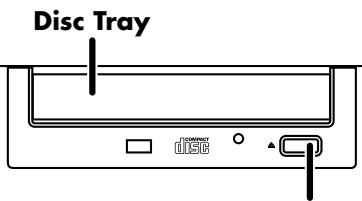
Eject Button
- Put a CD on a disc tray.
- Press the eject button again to close the disc tray.
Removing a CD
- Press the eject button and open a disc tray.
- Remove the CD from the disc tray.
If a disc tray does not open
If the power is turned off with the disc still in the drive (such as due to a power failure), the disc tray cannot be opened by pressing the eject button. In this case, you can insert a piece of wire to force the tray open.
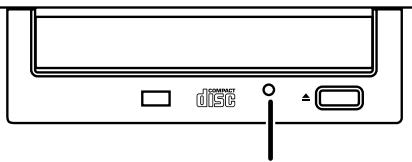
Emergency Eject Hole
Make sure the KR's power has been turned OFF before attempting to engage the emergency eject hole. If you insert something while the power is on, the disc could be damaged, or unexpected problems may occur.
Playing Back Songs on CDs
You can play back the CD included with the KR, CDs with player piano CDs, audio CDs, and CD-ROMs to which SMF music files are saved.
- Place the CD you want to play in the CD drive.
- Touch <> to select "CD" as the genre.
If using the remote control, press the remote control's [EXTERNAL] button, then select "CD" as the genre.
- Press the [ / ] button to start playback of the CD's songs.
The songs on the CD are played.
When the KR is set to play back all songs (p. 75), once the song currently being played back is finished, the next song starts playing automatically. After all of the songs on the CD have been played, playback automatically resumes from the beginning of the CD. When the KR is set to play back a single song (p. 75), playback stops automatically when the song is finished.
- Press the [▶/■] button once more to stop playback of the songs.
When Selecting Songs in Folders
- Touch the folder name.
- Touch < ▶ (Play)> at the bottom left of the screen.
After a moment, a list of songs in the folder is displayed.
You can also select the folder using the dial or the [ (Bwd)] or [ (Fwd)] button on the remote; the folder can then be opened by pressing the [ /■ (PLAY)] button.
-
Touch a song from the list that appears to select the song you want to play back.
-
Depending on the number of songs contained in a folder, this may take some time.
NOTE
If there is any song data already recorded, a screen appears asking you to confirm that the song is to be erased. If you do not mind erasing the data, touch OK>. If you do not want to erase the data, touch
NOTE
If a folder contains 500 or more files and/or folders, some of the files and folders may not be displayed.
About Audio Files
Audio files in the following format can be played back:
"WAV" extension
16 bit linear
- Sampling rate of "44.1 kHz"
- Stereo
You cannot use the following functions in playing back audio files.
Marker (p. 98)
- Displaying notations (p. 87)
- Registering "Favorites" (p. 82)
- Transposing (p. 102)
- Changing tempos (p. 94)
- Track Mute (p. 97)
Recording (p. 105)
Search (p. 81)
- Saving or performing other procedures during playback of audio files may cause the song to stop while it is playing.
Using Keywords to Search for Songs (Song Search)
You can search for songs that match the conditions you set regarding the song tempo or genre.
You can also search the songs using the first character of the song name.
- Press the [Song] button.
- Touch < 月>.
The following "Song Search screen" appears.
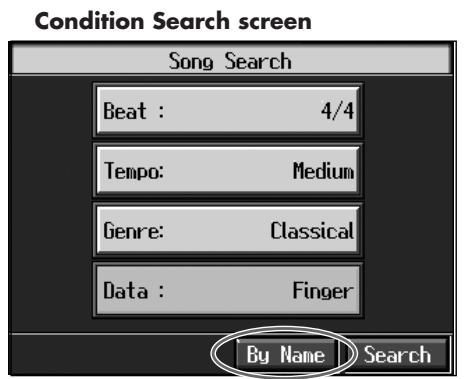
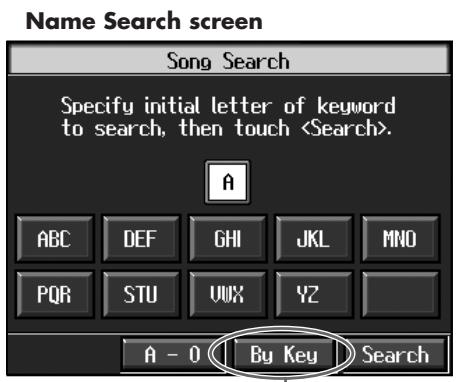
Touch here to switch these screens.
Searching by Conditions
- Touch the parameter you want to set, then use the dial to select the search conditions.
With , songs are searched according to data included in the internal songs. You can use four different criteria in searches: "Lyrics," "Chords," "Finger" (fingering numbers), and "Any." By selecting a song containing any of this data, then displaying it in the KR's notation, you can display information about the selected data.
- Touch
.
The search results appear in the display.
Touch the song name to select the song..
Press the [Exit] button to return to the Song Selection screen.
Searching by Song Name
- Touch
.
Touch
- Decide which character you will use for the search.
The selected character appears in the middle of the screen.
Enter the character you are searching for. For example, touching < ABC> in succession cycles you through the available choices in that character group ("A'' ''B'' ''C'') Touch < A - 0> to toggle between alphabets and numerals.
- Touch
.
The search results appear in the display.
Touch the song name to select the song..
Press the [Exit] button several times to return to the previous screen.

Only the KR's internal songs are searchable.
Registering the Songs You Like (Favorites)
You can register songs you are currently practicing or enjoy playing to "Favorites," allowing you to select these songs easily.
Selecting the Song
1. Press the [Song] button.
The Song Selection screen appears (p. 75).
![ROLAND KR-117 - Press the [Song] button. - 1](/content/2025/01/130864/images/c9002ad32d14adb3ce8f5e6e46f1effe939db14dd5a3118e71929c8aecd9327a.jpg)
2. Touch the song name to select the song to be registered.
Registering to Favorites
3. Touch
A screen like the one shown below appears.
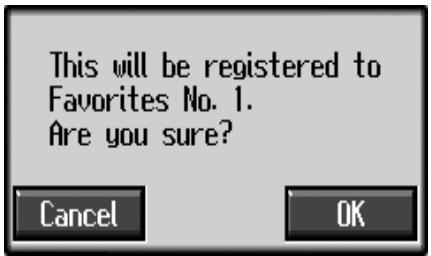
4. Touch.
The selected song is registered to Favorites.
Now you can select the registered song by selecting Favorites for the genre in the Song Selection screen.
MEMO
You can also register songs on external memory to the Favorites. For details, refer to "Copying Songs on External Memories to Favorites" (p. 120).
NOTE
You cannot register audio files and audio CD to the Favorites.
■ Removing Songs From Favorites
This deletes registered songs for Favorites.
1. Touch <> <> in the Song Selection screen to select the
"Favorites" from the genre category.
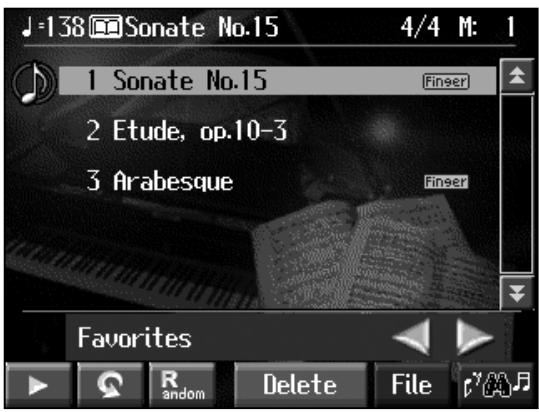
2. Touch the name of the song to be deleted.
3. Touch.
A screen like the one shown below appears.
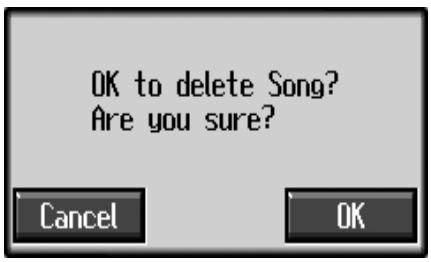
4. Touch.
The song is deleted.
Using the Remote Control
You can use the included remote control to easily start and stop performances and switch songs.
How to Use the Remote Control
When using the remote control, aim the remote control at the infrared receiver, keeping in mind the range of operation (below).
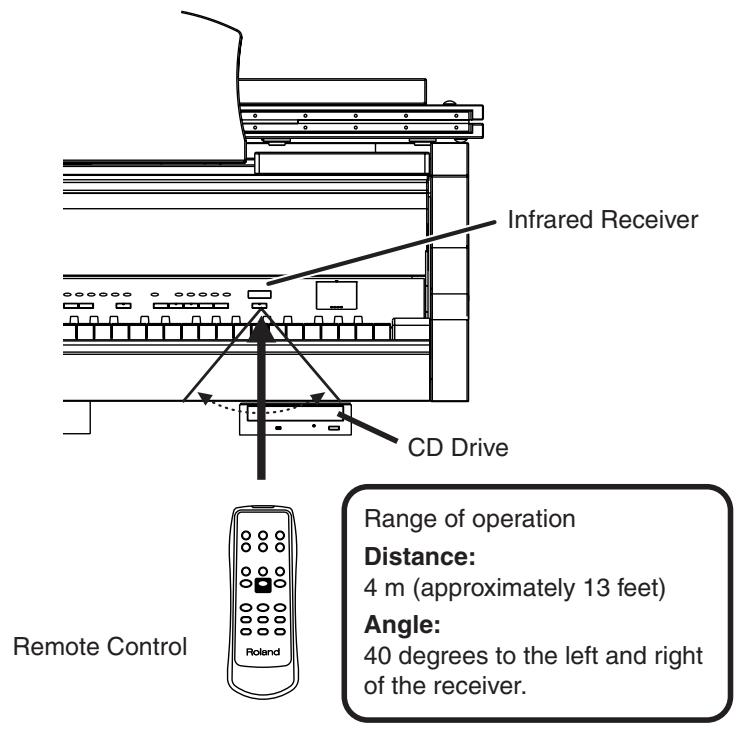
Precautions Concerning Use of the Remote Control
- The remote control is able to transmit only one operation at a time.
- The remote control may not operate even within the range of operation if there is an obstacle between it and the main unit.
- Using the remote control near other equipment that uses remote control systems may result in operational errors.
- The life of the battery depends on the amount and conditions of use. If the operational range of the remote control decreases, change the batteries.
- If you will not be using the remote control for a long period of time, remove the batteries.
- The remote's response may suffer if the remote's sensor is situated under spotlights or exposed to other such strong lighting.

Refer to "Installing Batteries in the Remote Control" (p. 20).

Information from the remote is not received when Remote Sensor setting is switched off. Refer to "Switching ON/OFF of the Remote Control" (p. 172).
About the Remote Control
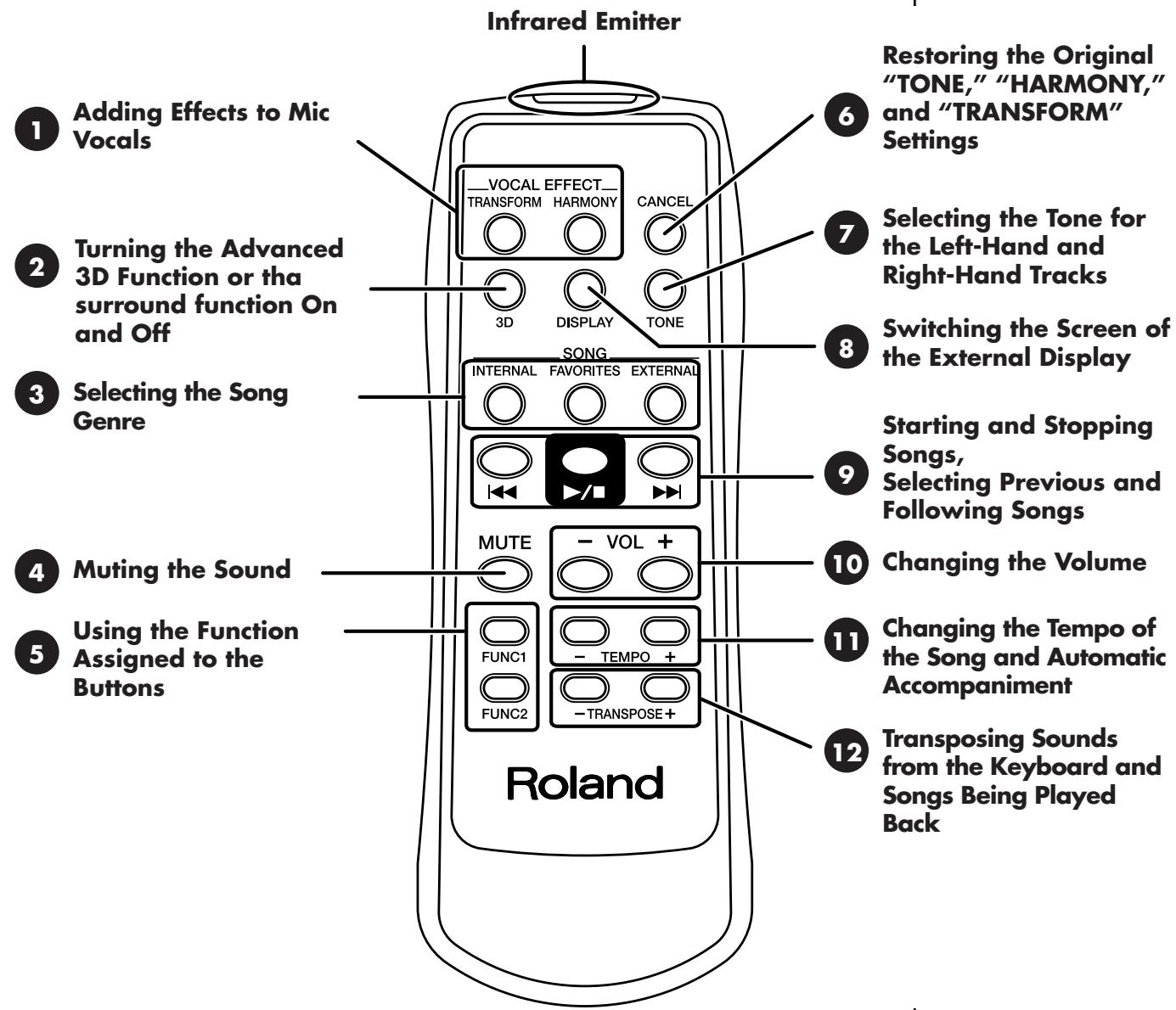
You can also switch the functions for the [▶/■] (Play/Stop) button, the [FUNC 1] [FUNC 2] button, the TEMPO [-] [+] button, and the TRANSPOSE [-] [+] button. Please refer to "Changing the Functions of the Remote Control's Buttons" (p. 172).
| Button | Explanation | |
| 1 | TRANSFORM | This changes the vocals from the mic. The setting switches each time you press the button, cycling through male, female, Kids, and normal voice settings. |
| HARMONY | This adds harmonies to the mic vocals. The harmony setting switches each time you press the button, cycling through Music Files (p. 52), Oct-Up (p. 49), Oct-Down (p. 49), and normal voice settings. | |
| 2 | 3D | This adds greater breadth to the sound. Pressing this button toggles the Surround effect and the Advanced 3D effect on and off. |
| 3 | INTERNAL | This switches the genres of the internal songs. |
| FAVORITES | Selects songs in the "Favorites." | |
| EXTERNAL | When you press the button with external memory or a disk connected or CD, the connected storage media is selected. | |
| 4 | MUTE | This mutes all of the sounds. |
| 5 | FUNC1, FUNC2 | You can use the function assigned to this button. You can also change the function assigned to the button (p. 172). |
| 6 | CANCEL | The settings for the [TONE] button, [HARMONY] button, and [TRANSFORM] button are restored to their original values. The left and right tracks switch to a piano tone. |
| 7 | TONE | Pressing the button successively changes tone of the Lower track, Upper track, and User track. |
| 8 | DISPLAY | Each press of the button takes you to the next selection among the available choices, which are, in order: panel, notations, notations+keyboard, lyrics, slide show. You can press the [DISPLAY] button while the Tempo screen or Volume screen is displayed to clear the Tempo screen or Volume screen. * Some songs may not feature screens with lyrics. |
| 9 | ▲▼ | Pressing the [▲▼] button at the beginning of the song selects the previous song. Pressing the [▲▼] button at a point other than the beginning of the song returns you to the beginning of the song. |
| ▼/■ | This starts and stops playback of the song. Playback alternately starts and stops each time you press the [▼/■] button. You can also assign functions to the button (p. 172). | |
| ▶ | When you press the [▶] button, the next song is selected. | |
| 10 | VOL - + (Volume) | You can adjust the volume. |
| 11 | TEMPO - + | This adjusts the tempo. You can also assign functions to the button (p. 172). |
| 12 | TRANSPOSE - + | This transposing sounds from the keyboard and songs being played back. You can also assign functions to the button (p. 172). |
Chapter 4 Practice Functions
With the KR, you can enjoy practice using a variety of functions.
Displaying the Notation
The KR can display notations not only for the internal songs, but for music files and performances recorded with the KR. This is very convenient for performing while reading the music and for checking songs that have been recorded. When you play back a music file with lyrics, the lyrics appear on screen.
Selecting the song
When playing back songs on external memories, first connect the external memory to the external memory port.
1. Press the [Song] button to select a song.
For details refer to "Playing a Song" (p. 75).
2. Press the [DigiScore] button.
The "Notation screen" appears.
![ROLAND KR-117 - Press the [DigiScore] button. - 1](/content/2025/01/130864/images/e5a660551aff761f86ae28a1b19124167cc8177db845ed57164533d46128e213.jpg)
3. Press the [▶/■ (Play/Stop)] button.
Playback of the song begins, and the notation advances along with the progression of the performance.
Notes Regarding the Notation Display
- Since the displayed notation data is read from external memory or the internal memory, some time may be required for the notation to be displayed.
- The displayed notations are based on music files. Priority is placed on the readability of the displayed music, not on the accurate rendition of difficult, high-level performances. Thus, there may be discrepancies seen when compared with commercially available printed music. The display is not intended for viewing advanced songs requiring precisely detailed notations, or complex songs.
- On the notation display screen, lyrics and notes may extend beyond the range displayed on the screen and may not be visible.
- Playback may start over from the beginning if you display the notation or change the displayed part during playback of the song.

Using "Visual Lesson," you can select practice songs suited to your skill level.
Additionally, you can have the results your performance indicated in points and check the content in the notation. Refer to the Quick Start.

In some internal songs, the fingering is displayed. The fingering numbers shown in the screen indicate one possible fingering.

Chord names can be displayed in some of the internal songs and recorded performances using the KR's Chord Sequencer (p. 143).

You can make more advanced settings for the notation by pressing the [Option] button.

No notes are shown in the notation if the selected part contains no data. To change the part being displayed, refer to "Making Detailed Settings for the Notation Display" (p. 89).

You cannot display the notation for audio files nor audio CD's song.
Touching Notes to Confirm the Sounds
(Touch the Notes)

In the Notation screen, you can have notes played by touching the notes on the screen.
When you display the keyboard in the screen (p. 90), the keys on the keyboard for the notes you touch are then shown in the display. This allows you confirm notes by sight, sound, and touch.
In addition, when you trace part of the notation with your finger, the traced segment is played back. This allows you to easily play back phrases you like.
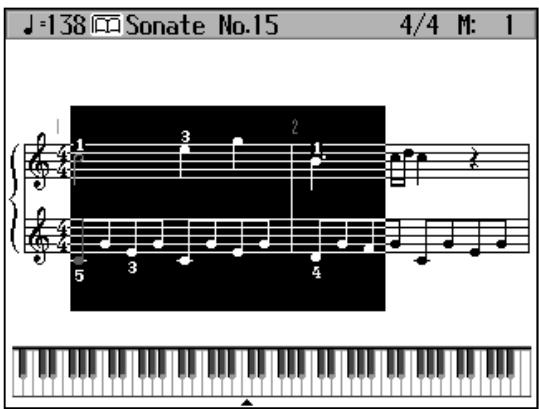
■ Scrolling the Notation Along with the Performances (AutoSync DigiScore)
You can have the notation displayed in the screen scroll automatically as you play, even when the song is not being played back. No more frantically trying to turn to the next page in the notation while you are performing.
This also lets you play difficult passages more slowly and otherwise practice at your own pace.
- Auto Sync DigiScore is linked to the performance of the part shown in the screen. The notation does not scroll if you are playing a part that is not currently displayed.
When the Bouncing Ball is Blue
Start playing at the point where the ball is bouncing.
The bouncing ball follows along and the notation scrolls as you play.
When the Bouncing Ball is Red.
If nothing is played for a short while, the bouncing ball turns red. At this time, if you play a phrase near the position of the bouncing ball, the ball automatically moves to the point in the notation where you are playing.

You can change the AutoSync DigiScore settings. Refer to p. 90.
When you play four or more notes while the bouncing ball is red, the ball moves to the point where you are playing.
When you play fewer than four notes, the bouncing ball does not jump to the new position, and the notation does not scroll.
The bouncing ball will move within the range of the notation displayed on the external display or television. If you start playing at a point that is not currently shown in the external display or television, the bouncing ball does not jump to the new position, and the notation does not scroll.
Making Detailed Settings for the Notation Display
You can change the part appearing on the notation display and change the manner in which the notation is displayed.
1. Press the [DigiScore] button to display the Notation screen.
2. Press the [Option] button.
A screen like the one shown below appears.
![ROLAND KR-117 - Press the [Option] button. - 1](/content/2025/01/130864/images/3e23e6d91c89ad646ebcfe6feea3a43168b91b3b2c81f5c333bb85508154c1f2.jpg)
Switch the screens
You can select the parts to be displayed in the notation by touching the four icons at the lower left of the screen.
| Icon | Description |
| The upper part and lower part are displayed. | |
| The upper part is displayed. | |
| The lower part is displayed. | |
| The User part is displayed. |
You can also touch
![ROLAND KR-117 - Press the [Option] button. - 2](/content/2025/01/130864/images/d26aca2cbd357961665bbb56690b4e96643e2f833eefc738d3ffbe7dd38f1b04.jpg)
Under certain conditions, the bouncing ball may not move as expected.
![ROLAND KR-117 - Press the [Option] button. - 3](/content/2025/01/130864/images/6b0fad126e82231b79b9cb044ecffd7c6289ebac2ef407da4bd1a6f7510a685e.jpg)
You can change the parts to be displayed when you touch each of the icons (p. 91).
![ROLAND KR-117 - Press the [Option] button. - 4](/content/2025/01/130864/images/88ba8e86781c2bd36178e8fb24343ef4778a9bfe213766848e1e3c9a710086f5.jpg)
In some internal songs, the fingering is displayed. The fingering numbers shown in the screen indicate one possible fingering.
![ROLAND KR-117 - Press the [Option] button. - 5](/content/2025/01/130864/images/1f8569610bf1514e7918634eec50fcd4583c9e24634a2cc5dc30256bb70fd71a.jpg)
Chord names can be displayed in some of the internal songs and recorded performances using the KR's Chord Sequencer (p. 144).
![ROLAND KR-117 - Press the [Option] button. - 6](/content/2025/01/130864/images/0476cf0ee71b9c62cae7ce9054cf0f59a4b49aaf12a50b7b2bd8ed49fdf1476f.jpg)
Touch for the parameter being set to select the value.
Press the [Exit] button to return to the Notation screen.
| Item | Setting | |
| Zoom Sets whether or not the enlarged notation is displayed. | On | Displays an enlarged notation. |
| Off | Displays the notation at the normal size. | |
| Keyboard Sets whether the keyboard is displayed beneath the notation. | On | Displayed. |
| Off | Not displayed. | |
| AutoSync DigiScore Sets the function whereby the notation screen scrolls automatically as you play, even if the song is not played back. | Off | The notation screen does not scroll automatically. |
| Jump | The notation screen scrolls automatically. When the bouncing ball is blue, playback begins from the point in the notation where the ball is set. When the bouncing ball is red, and you start playing a phrase at a point in the notation close to where the ball is located, the ball moves to the point where you are playing. This position is determined after you play at least four notes of the phrase. | |
| Next Note | The notation screen scrolls automatically from the current position in the song as you play. | |
| Lyrics This setting determines whether or not lyrics in songs that contain lyrics data appear in the notation. | On | The lyrics are displayed. |
| Off | Not displayed. | |
| Finger Numbers This setting determines whether or not the fingering in songs that contain fingering data appears in the notation. | On | The fingering is displayed. |
| Off | Not displayed. | |
| Chords This setting determines whether or not chord names in songs that contain chord data appears in the notation. | On | The chord names are displayed. |
| Off | Not displayed. | |
| Pitches Sets whether or not the note names appear in the music when the notation is expanded. | Off | Not displayed. |
| C, D, E | The pitch names (C, D, E) are displayed. | |
| Do, Re, Mi (Fixed) | The pitch names (fixed Do) are displayed. | |
| Do, Re, Mi (Movable) | The syllable names (movable Do) are displayed. | |
| Pedal Sets the pedal function. | Basic | Controls each of the pedal movements. |
| Replay | You can start and stop playback of song data with the left pedal. Pressing the pedal in rapid succession moves you back in the song the number of measures equal to the number of times you press the pedal, after which playback resumes. This allows you to use the pedal to rewind quickly, a useful feature when, for example, you want to repeatedly listen to a difficult phrase. | |
| Page1 | Scrolls the notation in the KR's display. Pressing the center pedal scrolls to the next page. Pressing the left pedal scrolls to the previous page. | |
| Page2 | Scrolls the notation in the external display. Pressing the center pedal scrolls to the next page. Pressing the left pedal scrolls to the previous page. | |
| Resolution Sets the minimum note length indicated in the notation. | 16th note | Notes down to sixteenth notes are indicated. |
| 32nd note | Notes down to thirty-second notes are indicated. | |
| Clef L Determines whether a treble or bass clef is shown in the notation for the lower part. | Auto | Display is switched automatically. |
| G Clef | G (treble) clef is displayed in the notation. | |
| F Clef | F (bass) clef is displayed in the notation. | |
| Clef R Determines whether treble or bass clef is shown in the notation for the upper part. | Auto | Display is switched automatically. |
| G Clef | G (treble) clef is displayed in the notation. | |
| F Clef | F (bass) clef is displayed in the notation. | |
| Key Notation is displayed in the specified key. | Auto | Key is switched automatically. |
| # x 6 - 0 - b x 5 | Notation is displayed in the specified key. | |
| Item | Setting | |
| User Part Selects the part to display when “User” is selected as the part to be displayed. | User Track, Parts 1-16 | |
| Lower Part Selects the part to display when “Lower” is selected as the part to be displayed. | Lower Track, Parts 1-16 | |
| Upper Part Selects the part to display when “Upper” is selected as the part to be displayed. | Upper Track, Part 1-16 | |
| Item | Setting | |
| Bouncing Ball This setting determines whether or not the animated ball is shown bouncing in time with the song as it is played back. | On | Displayed. |
| Off | Not displayed. | |
| Color Notation This settings determines whether or not the note in the current position is colored. | On | The note is displayed in color. |
| Off | Not displayed. | |
Saving Notations as Image Data
You can take notations that are displayed on the KR and save them to external memories. You can also use saved image data to your computer.
- Insert the external memory onto which you want to save the image data in the KR's external memory port.
- Record the performance (p. 105). Alternatively, press the [Song] button to select a song.
- Press the [DigiScore] button. The Notation screen appears.
- Press the [Option] button.
- Touch
.
A screen like the one shown below appears.
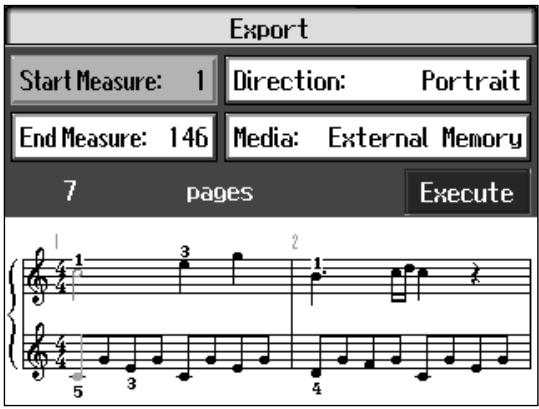
NOTE
Other than for your own personal enjoyment, use of the notations that are output without the permission of the copyright holder is prohibited by law.
6. Touch the respective parameter and set the range of image data and other settings with the dial.
| Item | Setting | Description |
| Start measure | 1, 2- | Selects the measure at which output begins. |
| End Measure | – song end | Selects the measure at which output ends. |
| Direction | Portrait, Landscape | Sets the orientation of the notation being output. |
| Media | External Memory, Disk | Selects the media for the save destination. |
7. Touch .
The notation is saved to the external memory as image data in BMP ( bitmap) format.
- You cannot save copyrighted song data.
- Other than for your own personal enjoyment, use of the notations that are output without the permission of the copyright holder is prohibited by law.
Saving Your Visual Lesson Performance Results
When you practice with Visual Lesson, the notation showing the model performance appears in the screen above the notation for your own performance. You can save these notation in BMP ( bitmap) format.
- While in the "performance results confirmation screen" in Visual Lesson, press the [Option] button.
- Touch the parameter whose setting you want to change.
- Set the value with the dial.
- Touch
.
NOTE
Do not remove the external memory while "save" is in progress.
Adjusting the Tempo
This changes the song and Music Style tempos.
If songs seem difficult to play at their original speed, you may find it helpful to first practice with the tempo slowed down. Then, after becoming more familiar with the song, you can practice it at a gradually faster tempo.
Changing the tempo has no effect on the pitch of the notes. And you can change the tempo even when the song is in progress.

Adjusting the Tempo with the Tempo [-] [+] Buttons
Pressing the [+] button once increases the tempo by one unit. Holding down the button makes the tempo increase continuously.
Pressing the [-] button once decreases the tempo by one unit. Holding down the button makes the tempo decrease continuously.
Pressing the [-] [+] buttons simultaneously returns the selected Music Style or song to the basic tempo.
Setting the Tempo by Pressing the Button in Time (Tap Tempo)
You can also set the tempo by pressing the Performance Pad. This feature is called "Tap Tempo." By using the Tap Tempo function, you can quickly set the tempo you are thinking of, without specifying the tempo in numerical terms.

Assigning Functions to the Performance Pads
- Press the [User Function] button and watch the indicator light up.
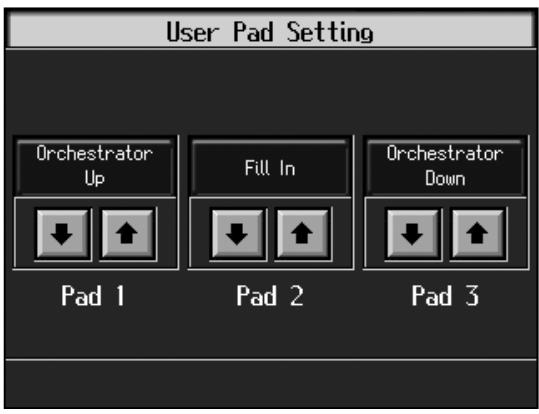
- Touch for the Performance Pad to which the function is assigned, then select "Tap Tempo."
- Press the [Exit] button; the tempo is indicated in the upper left of the screen.
Specifying the Tempo
- Press the Pad to which "Tap Tempo" is assigned at least twice.
The tempo is set to the song you used when tapping the button.
■ Playing Back at a Fixed Tempo (Tempo Mute)
If a song has tempo changes, it helps to practice the song first at a steady tempo. Overriding tempo changes is called "Tempo Muting."
- Hold down the [▶/■ (Play/Stop)] button and press one of the Tempo [-] [+] buttons.
When tempo muting is in effect, the tempo display appears in reverse video.
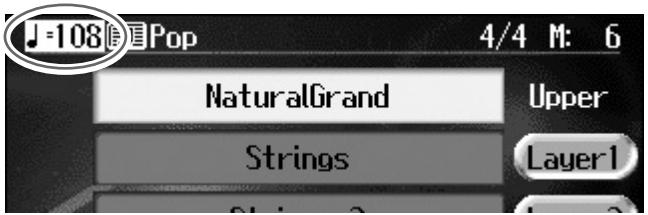
When you play back the song, it will play at a constant tempo.
Cancel the Tempo Mute Setting
- Hold down the [▶/■ (Play/Stop)] button and press one of the Tempo [-] [+] buttons.
Tempo muting is canceled.
Tempo Mute will also be cancelled when you select a different song.

You can also assign the Tap Tempo function to the pedal, and use the pedal to specify the tempo. For details, refer to "Assigning Functions to Pedals and Performance Pads (Pedal Setting/User Functions)" (p. 167).

You can start the song by giving the count through the microphone. For more detailed information, refer to "Enabling the Start of Songs and Automatic Accompaniment with the Sound of Your Voice (Vocal Count In)" (p. 50).
Match the Tempo Before You Begin Playing (Count In)
When you're playing along with a song, you can listen to the tempo before you start playing by adding a count-in.
This audible count before the song playback is called a "Count In."

1. Press the [Count/Marker] button and watch the indicator light up.
The following "Count screen" appears.
![ROLAND KR-117 - Press the [Count/Marker] button and watch the indicator light up. - 1](/content/2025/01/130864/images/f74681c3dc08feb6e73d9a514c7e7cf43533e191d389f461d749b6cd13c67ee9.jpg)
2. Touch to set this to "Count In" or "Count In/Down."
With this setting, two measures count down before the song playback starts.
Cancelling the Count In
1. Press the [Count/Marker] button so its indicator is turned off.
By pressing [Exit] instead of the [Count/Mark] button, you can close the Count settings screen without cancelling the count.
![ROLAND KR-117 - Press the [Count/Marker] button so its indicator is turned off. - 1](/content/2025/01/130864/images/25807668a8d6628cf51dabe2c8a556a980e07176e1abaed2aa24a5fa888d39e5.jpg)
You can have a count sound be played before the song starts playing back by holding down the [ (Reset)] button while you press the [ / (Play/stop)] button. The status of the Count settings won't be affected by your use of this procedure.
![ROLAND KR-117 - Press the [Count/Marker] button so its indicator is turned off. - 2](/content/2025/01/130864/images/b790613e1b04a173d142269e007e59e14e1641dec5466cb49534a02a64e5834b.jpg)
For more about other settings on the Count settings screen, refer to "Changing the Settings for the Count" (p. 164).
Muting Some Parts Before Playing (Track Buttons)
With commercially available music files for piano lessons, the part for each hand can be played back independently. This makes it easy to practice hands separately. For example, you can follow along with your right hand while you listen to that same right-hand part be played, or you can practice the left-hand part while the right-hand part plays.
A music file for piano lessons may be assigned to the five Track buttons as shown below.
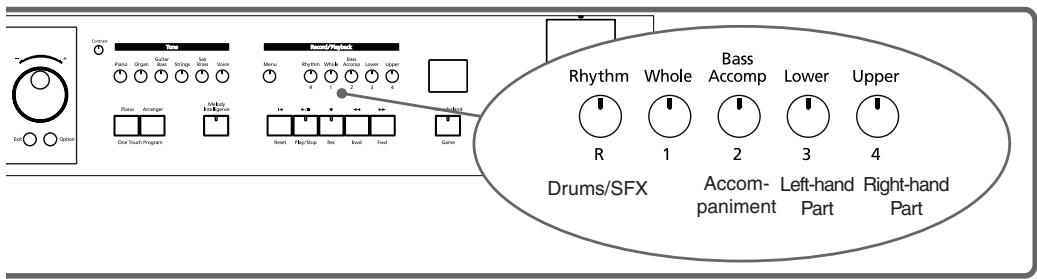
By using these Track buttons, you can eliminate the sound of specific parts. This is referred to as "muting."
By recording your own performances to the Track Buttons in this fashion, you can mute parts the same way. For details, refer to "Recording While Selecting the Track Buttons (Redoing Recordings)" (p. 110).
- Select the song that you wish to play back (p. 75).
Selecting the Part that You'll be Playing
- Press any one of the Track buttons to make the button's indicator light or flash go dark.
The sound for the selected part no longer plays.
For example, when practicing the right hand, press the [4/Upper] button.
When you play back the song, the right-hand performance will not sound. Practice your right-hand performance along with the left-hand playback.
Playing Back a Song
- Press the [▶/■ (Play/Stop)] button.
The song will begin playing back.
The part you selected in step 2 will not sound.
Once again press the button you selected in step 2. The button's indicator will light up, and the part will be heard once again.
Even while the song is playing, you can press the track buttons to mute or un-mute the sound.
Stopping the Song
- Press the [▶/■ (Play/Stop)] button.
The song will stop.

For more on music files, refer to "Music Files That the KR Can Use" (p. 217).

You cannot mute individual parts separately in audio files and audio CDs.

If a single Track button includes more than one instrument and you want to mute just one of those instruments, take a look at "Modifying the Settings of Each Part" (p. 137).

When a single Part is not played, it is called "Minus One." Using Minus One, you can mute out a particular instrument and play the part yourself.

When playing back SMF files for Roland Piano Digital series instruments, and the [3/ Lower] button and [4/Upper] button do not correctly control the lower/ upper performances, please change the "Track Assign" settings. Please refer to "Changing the Parts Assigned to the Track Buttons During SMF Playback (Track Assign)" (p. 183).

You can adjust the balance between the keyboard and song volume levels. Check out "Adjusting the Volume Balance for Each Performance Part (Part Balance)" (p. 73).
Setting Markers for Repeated Practice (Marker)
By setting markers at points in a song that you want to practice repeatedly, you can then easily go to and repeat play back of the selected measures.
Placing a Marker within a Song
You can place two separate markers (Marker A and Marker B) in one song. These markers are placed at the beginning of a measure to make the beginning and end of a section of music. Placing markers is a handy way to start playback at the same place as many times as you like. You can add markers or move to a marker even while playback is in progress.
Access the Marker Screen
First, select the song in which you'll set the markers (p. 75).
- Press the [Count/Marker] button.
- Touch
.
The Marker screen appears.
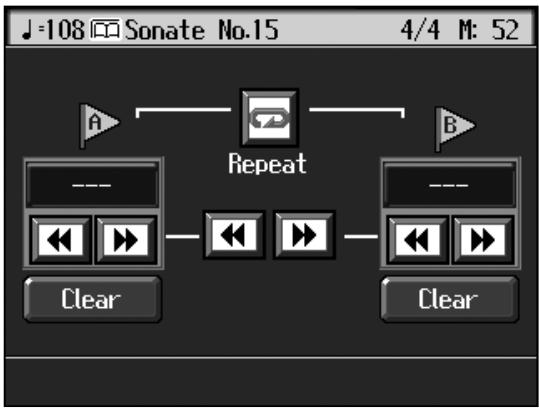
Placing Markers
- Go to the measure where you want to set a marker using the [ (Bwd)] and [ (Fwd)] buttons.
- Touch < - - > for Marker A.
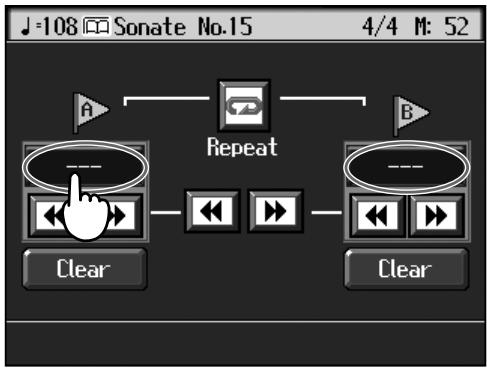
NOTE
You cannot place markers in audio files and in audio CDs.
Marker A is placed at the beginning of the measure you selected.
"---" on the screen will change to the number of the measure where you placed the marker.
5. In the same way, touch the Marker B < - - > to set Marker B.
It is not possible to assign marker B to the same location or a measure before marker A.
■Playback from a Marker Location
1. At the marker screen, touch the measure number of the marker you want to go to.
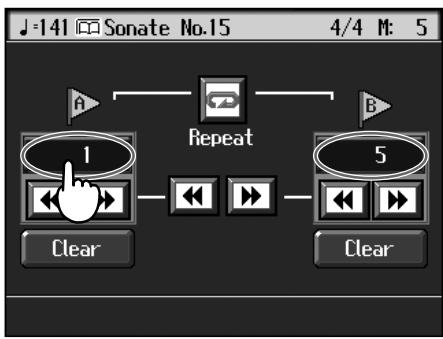
Playback will start from wherever Marker A or Marker B are set.
When you play the song, playback starts from the position of the marker.
With the song playing back, playback will continue if you touch Marker A or Marker
B on the Marker screen.
Erasing a Marker
1. Touch for the marker you want to erase.
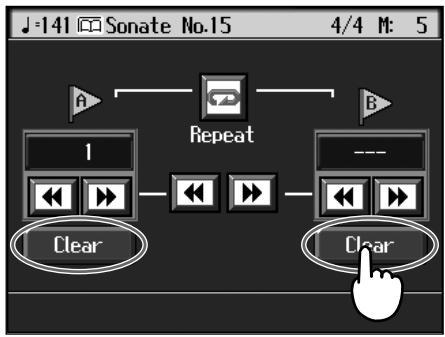
The marker disappears and the on-screen display changes to < - - >

Markers can also be assigned in units of beats rather than measures. Refer to "Placing a Marker in the Middle of a Measure" (p. 164).
■ Moving a Marker
You can move a marker that has been placed in a song. You can also move the section of music defined by Markers A and B forward or back, without changing the number of measures of marked.
- On the Marker screen, touch or for the marker to be moved.
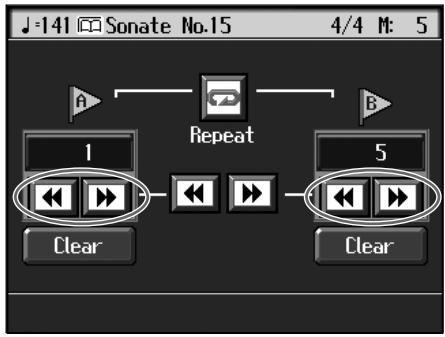
When you touch l , the marker is moved to a previous part of the song.
When you touch the marker is moved to a later part of the song.
Moving Markers A and B without Changing the Interval Between Them
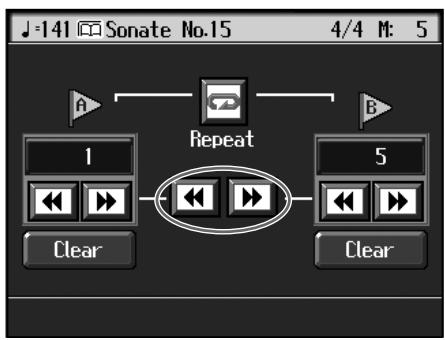
- On the Marker screen, touch or in the middle of the screen.
For example, if you have Marker A set at the beginning of the fifth measure, and
Marker B set at the beginning of the ninth measure, when you touch in the middle of the screen, Marker A is moved to the beginning of the first measure, and Marker B is moved to the beginning of the fifth measure.
Touch to shift Marker A to the beginning of the ninth measure and Marker B to the beginning of the thirteenth measure.


Playing Back the Same Passage Over and Over
You can play back a particular passage over and over. This is convenient when you want to focus on a passage.
1. First, set Marker A and Marker B to define the measures you want to repeat.
For instance, suppose you want to play back the passage from the fifth through eighth measures over and over. You should place Marker A at the beginning of the fifth bar and Marker B at the beginning of the ninth bar.
2. Touch in the Marker screen.
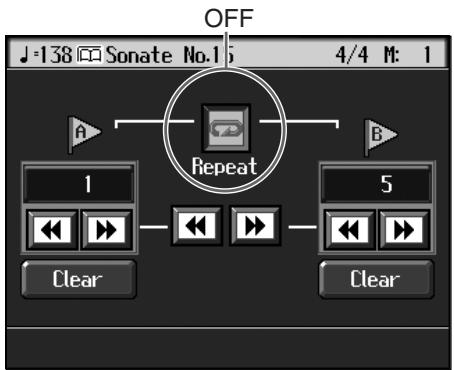
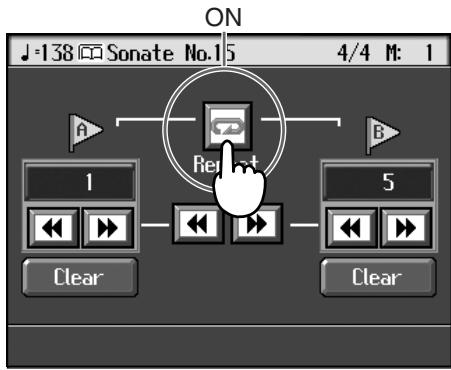
The setting is made for repeated playback of the passage from marker A to marker B. When you play the song, the marked section of music plays back repeatedly.
Cancelling Repeat Playback
3. Touch in the Marker screen, and the icon returns to the original color.
Repeat playback is cancelled.

When is On
- If neither Marker A nor Marker B is set, the song is played back from the beginning to the end.
- If you only place marker A, playback repeats from marker A to the end of the song.
- If you only place marker B, playback repeats from the beginning of the song to marker B.
Transposing Keyboard Sounds and Songs Played Back (Transpose)
By using the "Transpose function," you can transpose your performance without changing the notes you play. For example, even if the song is in a difficult key with many sharps (#) or flats (\b), you can transpose it to a key that is easier for you to read and play.
You can also use this function to play back a song in a different key.
When accompanying a vocalist, you can easily transpose the pitch to a range that is comfortable for the singer, while still playing the notes as written (i.e., with the same fingering positions).

You cannot transpose audio files and audio CDs.

First make sure you have selected the song to be transposed (p. 75).
1. Press the [Transpose] button.
A "Transpose screen" like the one below appears.
![ROLAND KR-117 - Press the [Transpose] button. - 1](/content/2025/01/130864/images/42adab1421cd84aba45f202f250a4a7941351f9c0439d5405f007905c92fdbc7.jpg)
2. Touch one of the three icons to select the song or sounds to be transposed.
| Icon | Target | Settings Value |
| Keyboard sound | -6-0-5 | |
| Song to be played back | -24-0-24 | |
| Keyboard sounds, songs being played back | -6-0-5 |
- Touch the screen keyboard or to select the transposition value.
Each time you press or ,it transposes the key by a semitone.
When you touch a value of "0" is set.
You can also use the dial to change the transposition value.
When you transpose a song or the keyboard, the [Transpose] button's indicator lights up. As you play the keyboard or play back the song, the notes are transposed.
When you press the [Exit] button, the transposition remains in effect, and you're returned to the previous screen.
Cancelling Transposition
4. Press the [Transpose] button and the indicator light goes out.
Transposition is cancelled.
The next time you press the [Transpose] button, illuminating the indicator, the music is transposed by the value set here.
Example: Playing a song in E major while playing the keys for C major
In this example, C is the root note in the key of C major. E , the root of E major, is the
third in C major. It is up four keys, including the black keys, so touch enter "4" for the setting.
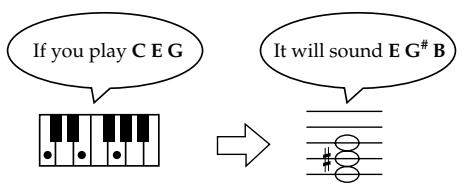
MEMO
The transposition value reverts to "0" when you turn off the power or select another song.
Chapter 5 Recording and Saving the Performance
You can easily record performances using the five track buttons.
A recorded performance can be played back to listen to your own playing, or to add additional parts.
You can use the KR to make the following kinds of recordings.
- Recording just your own keyboard performance "Recording a New Song (New Song)" (p. 105)
- Recording performances using Automatic Accompaniment "Recording With Accompaniment" (p. 107)
- Recording along with the internal songs and songs on external memories "Recording Along with a Song" (p. 109)
- Re-recording "Recording While Selecting the Track Buttons (Redoing Recordings)" (p. 110)
If the Following Screen Appears
If you've recorded a song or changed a song's settings (see p. 137), the following message appears on the screen when you try to choose another song.
If it's okay to delete the song, touch
If you do not want to delete the song, touch
NOTE
Recorded performances are discarded when another song is selected, or when the power is turned off. Be sure to save important performances on an external memory (p. 116) or register the song to the Favorites (p. 82).
NOTE
You cannot record while playing along with audio files and audio CDs.
NOTE
You cannot save songs to CDs, and you cannot delete songs recorded to CDs. Furthermore, you cannot format CDs.
Recording a New Song (New Song)
This records keyboard performances without the use of the internal songs or Automatic Accompaniment.

Settings for Recording Performances
- Press One Touch Program [Piano] button.
This sets the KR for performance without the use of Automatic Accompaniment.
- Decide on the tone of the performance (p. 28).
Use the Tone buttons and the touch screen to select the tone.
When you have finished choosing the settings, press the [Exit] button to display the Basic screen.
Recording Settings
- Press the [ (Rec)] button.
If you press the [ (Rec)] button when a song has already been selected, the following message appears.
- Touch
.
This switches the KR to the settings required for recording a new song.
The KR is put in recording standby.
To cancel recording, press the [ (Rec)] button once more.
- Decide on the tempo and beat.
If necessary, press the [Metronome] button to play the metronome.
When you have finished making the settings, press the [Exit] button to display the Basic screen.

If you select
Start Recording
6. Press the [▶/■ (Play/Stop)] button.
A two-bar count-in plays, then recording starts.
Even without pressing the [▶/■ (Play/Stop)] button, recording starts when you play the keyboard. There is no count-in played when you start by playing rather than pushing the [▶/■ (Play/Stop)] button.
When recording starts, the [▶/■ (Play/Stop)] and [● (Rec)] buttons' indicators light up.
Stop Recording
7. Press the [▶/■ (Play/Stop)] button.
Recording stops.
The performance is recorded to the [1/Whole] button.
Listening to the Recorded Performance
8. Press the [ (Reset)] button, then press the [ /■ (Play/Stop)] button.
The recorded performance is played back.
When you press the [▶/■ (Play/Stop)] button, playback stops.
Track buttons assignments for recorded performances
When you record only a keyboard performance, the performance will be assigned to the track buttons as follows.
- Normal performance (playing a single Tone from the entire keyboard) The performance is recorded to the [1/Whole] button.
- Layer performance
- The performance is recorded to the [1/Whole] button.
- Split performance
- The lower part of the keyboard is recorded to the [3/Lower] button, and the upper part of the keyboard is recorded to the [4/Upper] button.
- Layer performance and Split performance
- The lower part of the keyboard is recorded to the [3/Lower] button, and the upper part of the keyboard is recorded to the [4/Upper] button.
- Drum set or sound effect performance Recorded on the [R/Rhythm] button.
NOTE
Any performance that has been recorded is deleted when the power to the KR is turned off. If you do not want a performance deleted, then save it to an external memory or to Favorites. Refer to "Saving Songs" (p. 116).
NOTE
When "Auto Start (p. 180)" is set to "ON," and no action is taken for a certain period of time after you have recorded a performance, a confirmation screen asking you if you want to delete the song appears in the display.
If you touch OK, the song is deleted and the demo begins. If you want to return to the previous screen and continue with the recorded performance, touch Cancel>.
Recording With Accompaniment
Try recording a performance along with the Automatic Accompaniment.
Settings for Recording Performances
- Press the One Touch Program [Arranger] button.
This chooses the setting for Automatic Accompaniment.
- Decide on the Music Style.
When you have finished choosing the settings, press the [Exit] button to display the Basic screen.
Recording Settings
- Press the [ (Rec)] button.
You press the [ (Rec)] button and the following messages will appear, when a song has already been recorded.
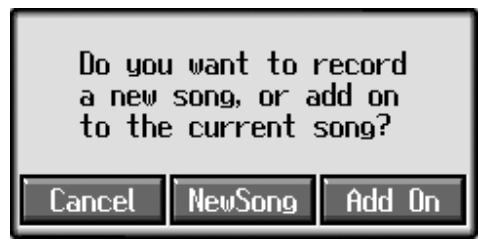
- Touch
.
This switches the KR to the settings required for recording a new song.
The KR is put in recording standby.
To cancel recording, press the [ (Rec)] button once more.
- Decide on the tempo.
Start Recording
- Play a chord on the lower part of the keyboard.
An Automatic Accompaniment intro starts, and recording starts at the same time.
Stop Recording
- Press the [Intro/Ending] button.
An ending plays, then the Automatic Accompaniment, and recording stop at the same time.
Listening to the Recorded Performance
- Press the [ (Reset)] button, then press the [ /■ (Play/Stop)] button.
The recorded performance plays back.
When you press the [▶/ (Play/Stop)] button, playback stops.
MEMO
If you select
MEMO
You can change how recording is stopped when recording a performance with Automatic Accompaniment. To learn how, see "Changing How Recording Stops" (p. 111).
Track buttons assignments for recorded performances
Performances that have been recorded using Automatic Accompaniment are assigned to the track buttons as shown below.
| Track button | Performance Recorded |
| [R/Rhythm] | The rhythm part of an Automatic Accompaniment is recorded here. In addition, drum sets and effect sounds that are selected with the keys in a performance are recorded to this track. |
| [1/Whole] | When using Piano Style accompaniment (p. 72), the performance played on the keyboard is recorded here. |
| [2/ Bass Accomp] | The Automatic Accompaniment bass part and accompaniment part are recorded here. |
| [3/Lower] | When the KR is set so that sounds from performances on the left-hand side of the keyboard are played while the Automatic Accompaniment sounds (p. 71), your own performance on the left-hand side of the keyboard is recorded here. |
| [4/Upper] | Your own performance on the right-hand side of the keyboard is recorded here. |

Music Styles are composed of eight parts. For details, refer to "Music Styles and Automatic Accompaniment" (p. 57).
Recording Along with a Song
Try recording along with internal songs and songs on external memories. Here, record your right-hand performance along with the song accompaniment.
Settings for Recording Performances
- Select a song.
For more on how to select songs, refer to p. 75.
- Decide on the tone and tempo of the performance.
- Press the [DigiScore] button to display the notation.
For instructions on displaying the notation, refer to p. 87
Recording Settings
- Press the [ (Rec)] button.
A screen like the one shown below appears.
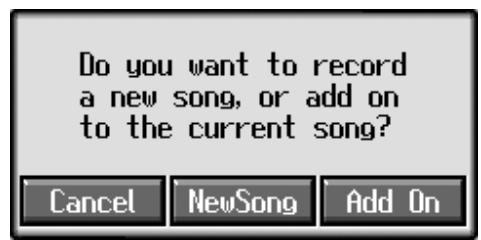
- Touch
.
With this setting, you can record while listening to the selected song.
Selecting the Track to Record
- Press the track button for the track that you want to record (i.e., the track that you want to play yourself).
The indicator of the button you pressed will blink, and the KR enters recording-standby mode.
Since in this example we will record the upper part performance, press the [4/ Upper] button to make the button's indicator light blink.
To cancel recording, press the [ (Rec)] button once more.
Start Recording
- Press the [▶/■ (Play/Stop)] button.
A two-bar count-in plays, then recording starts.
Even without pressing the [▶/■ (Play/Stop)] button, recording starts when you play the keyboard. There is no count-in played when you start by playing the keyboard instead of pushing the [▶/■ (Play/Stop)] button.
When recording starts, the [▶/■ (Play/Stop)] and [● (Rec)] buttons' indicators light.
Stop Recording
- Press the [▶/■ (Play/Stop)] button.
MEMO
The song tempo is stored within the song you selected.
NOTE
Only drum sets or SFX set are recorded to the [R/Rhythm] button.
Recording stops.
Listening to the Recorded Performance
9. Press the [ (Reset)] button, then press the [ /■ (Play/Stop)] button.
The recorded performance is played back.
When you press the [▶/■ (Play/Stop)] button, playback stops.
Recording While Selecting the Track Buttons (Redoing Recordings)
When you want to re-record, specify the Track button for the performance you want to re-record, and then record again.
When you select a previously recorded Track button and re-record, everything from the point at which you begin recording up to the point where you stop recording will be replaced by the newly re-recorded performance.
1. Use the [ (Bwd)] and [ (Fwd)] buttons to go to the measure where you want to begin recording.
2. Press the [ (Rec)] button.
A screen like the one shown below appears.
![ROLAND KR-117 - Press the [ (Rec)] button. - 1](/content/2025/01/130864/images/b29bdd0010851c8250f81b49952912a4bad72b701b650c15fe3bd41d031e23b8.jpg)
3. Touch .
4. Press the Track button for the track you want to re-record.
The indicator for the selected Track button starts blinking.
The [▶/■ (Play/Stop)] button's indicator flashes, and the KR is put in recording standby.
To cancel recording, press the [ (Rec)] button once more.
5. Press the [▶/■ (Play/Stop)] button to begin recording.
Rerecording the Accompaniment Part of Automatic Accompaniment
When rerecording an Automatic Accompaniment performance, set Sync Start (p. 65), then specify a chord or press the [Start/Stop] button.
6. Press the [▶/■ (Play/Stop)] button to stop recording.
If you also want to rerecord the ending of the Automatic Accompaniment, press the [Intro/Ending] button.
![ROLAND KR-117 - Press the [▶/■ (Play/Stop)] button to stop recording. - 1](/content/2025/01/130864/images/0815fe3da85b15fff90ef79a8ceb5936be3aec037a7c218ee9c6c69e24b03db3.jpg)
When you want to record over again after deleting all of the previous recording, refer to "Erasing Recorded Performances" (p. 111).
![ROLAND KR-117 - Press the [▶/■ (Play/Stop)] button to stop recording. - 2](/content/2025/01/130864/images/33a5e0f6b548c28748c6ac9c4c8765014a2168c0b872395d3c200083edc5ac35.jpg)
The song tempo is stored within the song you selected. If you want to change the tempo of the recorded song, refer to "Changing the Tempo of Recorded Songs" (p. 151) and "Changing the Tempo Within the Song" (p. 151).
Erasing Recorded Performances
You can use the following method to delete a recorded performance.
1. Hold down the [Song] button and press the [ (Rec)] button.
A screen like the one shown below appears.
![ROLAND KR-117 - Hold down the [Song] button and press the [ (Rec)] button. - 1](/content/2025/01/130864/images/d43433173f3b09086ac64efcd115d10b23a674397b00078e84a469da17e66b1f.jpg)
2. Touch.
This deletes the recorded song.
When you touch
■ Erasing the Performance on Specific Tracks
You can select and erase performances on specific tracks.
1. Hold down the Track button for the track containing the performance you want to erase, then press the [ (Rec)] button.
The Track button's light goes dark, and the recorded music is erased.
Changing How Recording Stops
When recording an Automatic Accompaniment performance, you can change the accompaniment and the way recording mode stops.
1. Press the [Menu] button and watch the indicator light up.
The "Composer Menu" or the "A/V Sync" screen appears.
2. Touch .
A screen like the one shown below appears.
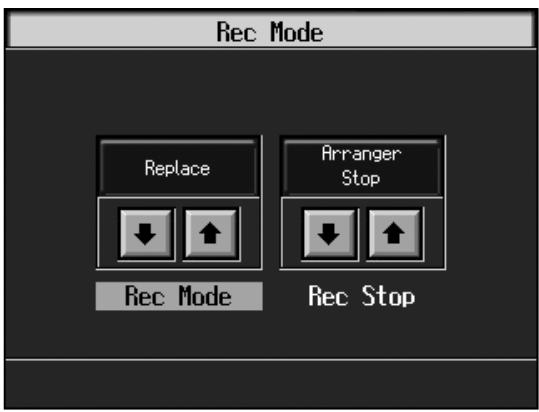
3. Touch to switch between "Arranger Stop" and "Composer Stop."
| Display | Explanation |
| Arranger Stop | Recording stops at the same time the Automatic Accompaniment stops. |
| Composer Stop | Recording does not stop, even when the Automatic Accompaniment stops. When you press the [▶/■ (Play/Stop)] button, recording stops. |
Recording Songs Starting with Pickups
You can record songs that start with pickup beats (songs that start on a beat other than the measure's first beat).
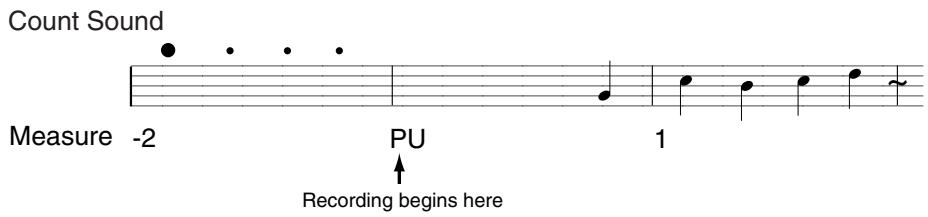
Carry out Steps 1-4 on p. 105 to prepare for recording.
If the [ (Rec)] button's indicator is not lit, press the [ (Rec)] button so the indicator is lit.
The KR is put in recording standby.
1. Press the [ (Bwd)] button one time.
The measure number in the upper right of the Basic screen changes to "PU," and the KR is set to record a song starting with a pickup.
![ROLAND KR-117 - Press the [ (Bwd)] button one time. - 1](/content/2025/01/130864/images/cbdbdaaf9d56e698851ec58aa6b68a779f30ccb9be64aa9321a4c24274476767.jpg)
Start recording. After a one-measure count, recording begins.
Using External Memories
If you install separately available external memory or a floppy disk drive, you'll be able to save songs you've recorded and listen to commercially available music data.
Connecting and Ejecting an External Memory
1. Press the External Memory port cover and open the cover.
Press the cover in; the cover will open.
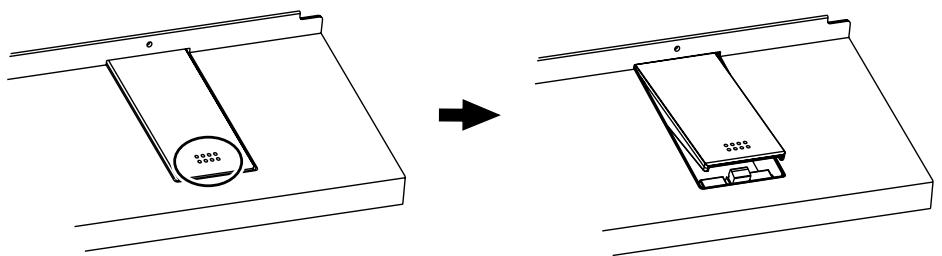
2. Connect the external memory to the External Memory port.
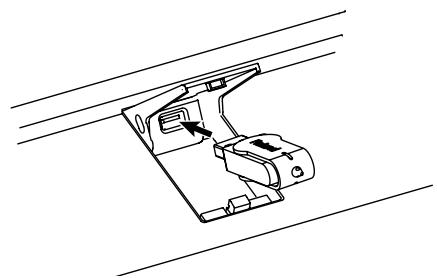
3. Press the cover in again to close the cover.
- Always keep the Ext Memory port cover closed except when connecting and disconnecting external memory.
Locking the External Memory Port Cover
When connecting external memory (sold separately), you can lock the memory port cover to prevent theft of the connected external memory.
1. Connect the external memory to the external memory port.
2. Press the External Memory port cover to close the cover.
3. Secure the lock using the anti-theft lock screws included with the instrument.
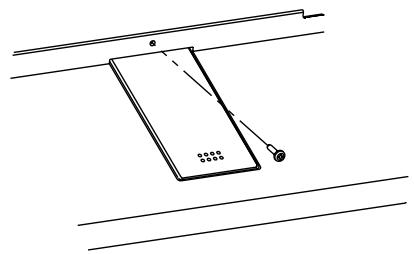

If connecting an optional floppy disk drive, substitute "floppy disk" wherever the term "external memory" appears here.
NOTE
Use external memory available from Roland. Proper functioning cannot be guaranteed if other external memory products are used.
NOTE
Carefully insert the an external memory all the way in—until it is firmly in place.
NOTE
Take care not to lose the anti-theft lock screws. Also be sure to use only the included screws to secure the anti-theft lock.
■ Formatting Media (Format)
The process of preparing external memory or disks so that they can be used with the KR is called "initialization" (formatting).
In certain cases, particularly with floppy disks, the media is formatted for a specific type of device. If the media format does not match the KR's, you will not be able to use that media with the KR.

- Connect the external memory to the external memory port.
- Press the [Song/File] button.
- Touch
.
A "File screen" like the one below appears.
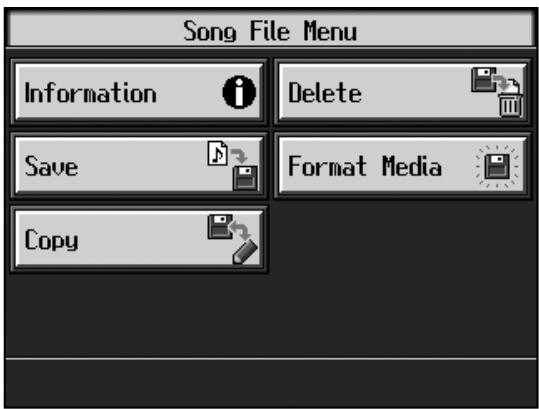
- Touch
.
The following screen appears.
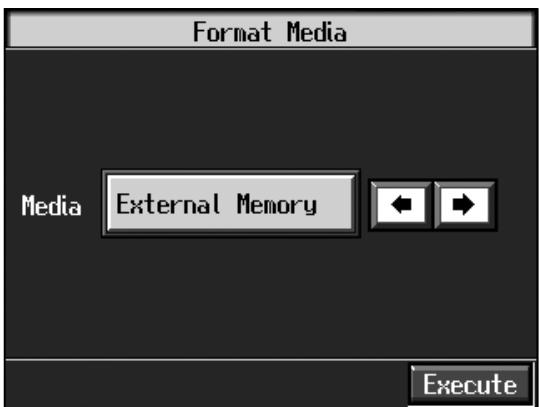
Press the [Exit] button to go back to the previous screen.
NOTE
When an external memory is initialized, all of the data saved on the external memory is erased. If you're formatting a used external memory for reuse, be sure to check first to make sure the external memory doesn't contain any data you don't want to lose.
NOTE
When initializing floppy disks, check to make sure that the disk's write protect tab is slid to the "write" position(p. 7).
- Touch
to select the storage media to be initialized. - Touch
.
A confirmation screen appears. If you want to quit the initialization, touch
- Touch
.
Initialization of the external memory begins.
When initialization is completed, you're returned to the previous screen.
NOTE
Do not remove the storage media until the initialization is completed.
NOTE
Do not eject the floppy disk while data is being read from or written to the disk. This may scratch the disk's magnetic surface, rendering the memory unusable. (The disk drive's indicator lights brightly while data is being read from or written to the disk. At all other times, the indicator is lit more dimly, or is not lit at all.)
NOTE
If "Error" appears on screen, take a look at "Error Messages" (p. 201).
Saving Songs
A recorded performance is discarded when you switch off the power or choose another song. Storing recorded performances and other data to external memories or the Favorites is called "saving." Be sure to save important songs to external memories or Favorites.
What are "Favorites?"
You can register songs you are currently practicing or particularly like to "Favorites," allowing you to select these songs easily (p. 82).
When you register a song on an external memory to Favorites, you can then play back the song without connecting the external memory to the external memory connector.
If a recorded performance is saved to Favorites, the performance won't be erased when the power is turned off.
Preparations for Saving Data
When saving to external memories, connect the external memory to the external memory port.
- Press the [Song/File] button.
- Touch
.
The "Song File screen" appears.
- Touch
.
The following "Save Song screen" appears.
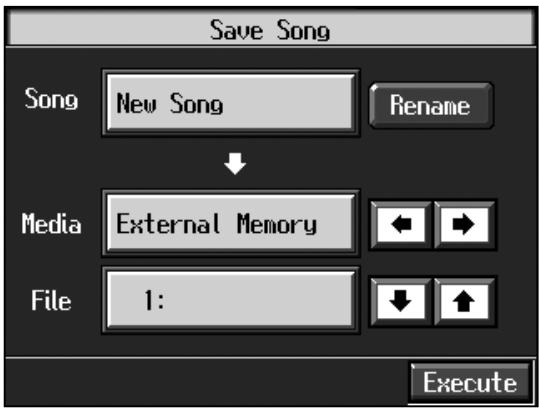

Substitute the words "floppy disk" for "external memory" if using a separately purchased floppy disk drive.

When using a new storage media, first initialize (format) the external memory on the KR. Take a look at " Formatting Media (Format)" (p. 114).

Some commercially available music files cannot be saved because they are copy protected.

When saving to floppy disks, first check to make sure that the floppy disk's protect tab is set to the "Write" position (p. 7).

If not handled with care, a floppy disk and an external memory can be damaged, or the data on it become corrupted, making playback impossible. We recommend saving your songs on two different media.

When you want to clear all of the content saved to the "Favorites" and restore the settings to the original factory condition on the KR, refer to " Formatting the User Memory" (p. 180).
Determining the Name of the Song to be Saved
4. Touch.
The following "Rename screen" appears.
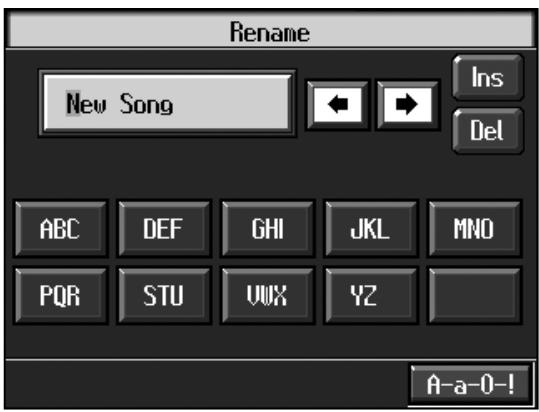
When you touch , the cursor moves.
When you touch the icon for the letter or character to be input, the character appears at the cursor location. For example touching ABC in succession cycles you through the available choices in that character group ("A"→"B"→"C"...).
Each touch of <A-a-0-!> cycles the type of characters through "English (upper case)," "English (lower case)," "numerals," "symbols," then back to "English (upper case)." When you touch <Del> , the character at the cursor position is deleted.
When you touch <Ins> , a space is inserted at the cursor position.
5. When you have finished with the name, press the [Exit] button.
Determining the Save Destination
6. Touch to select the save-destination storage media.
7. Touch to select the save-destination song number.
If a song name is displayed with a number a song is already saved to that number. If you select a number with a previously saved song and then proceed to save a new song, the previously saved song will be erased. If you do not want to lose a saved song, select a number with no song name indicated in the save-destination column.
Selecting the Save Setting (when saving to external memories)
8. Press the [Option] button.
9. Touch "Tone Compatibility" to select the tone compatibility format.
Some Tones are unique to the KR. Data that is recorded using these tones may not play back correctly on other Roland Digital Pianos or Music Players. When you want to save data so that it can be played back on another devices, save the data with "MT" set as the Tone compatibility format.
| Display | Explanation |
| KR | The song is saved as data capable of reproducing performances with richness of expression using this unit's special Tones. |
| MT | Data is saved in a form that can also be played on the Roland Digital Pianos or Music Players other than this unit. You can listen to songs saved in this format on the Roland HP-G/R series and KR series keyboards as well as on Roland MT series devices. |
When data saved with "MT" as the Tone compatibility format is played back on this instrument, some of the nuances that were part of the performance at the time the data was recorded may be altered.
Even with data saved with "MT" as the Tone compatibility format, an exact reproduction of the original performance may be unobtainable when using GS devices other than Roland Pianos and Music Players.
Selecting the File Format (when saving to external memories)
10. Touch to select the file format.
| Display | Explanation |
| SMF | Saves the song as an SMF (Standard MIDI Files). Songs saved in this SMF format can be listened to on many instruments that can play SMF music files (p. 217). A song recorded using commercial music files can’t be saved in “Save As SMF” format for reasons of copyright protection. |
| i-format | Saves the song in this unit’s format. You can listen to songs saved in this format on the Roland HP-G/R series and KR series keyboards as well as on Roland MT series devices. This format is called “i-format”. |
11. Press the [Exit] button.
Save
12. Touch to start saving.
The time required for saving ranges from several seconds to half a minute or more. Don't take the external memory out of the external memory port until the saving process is finished.
Press the [Exit] button to return to the Song File screen.
NOTE
Depending on the playback instrument, some notes may drop out or sound different.
NOTE
Never turn off the power while the saving operation is in progress. Doing so will damage the KR's internal memory, making it unusable.
MEMO
It's a good idea to get into the habit of moving the write-protect tab on the floppy disk to the "Protect" position when you've finished saving your data. Keeping the tab at "Protect" prevents operations that could erase your songs by mistake.
Deleting Saved Songs
This deletes songs that have been saved on external memories, or to Favorites. To delete a song on an external memory, first connect the external memory to the external memory port.
- Press the [Song/File] button.
- Touch
. The "Song File screen" appears. - Touch
.
A "Delete Song screen" appears.
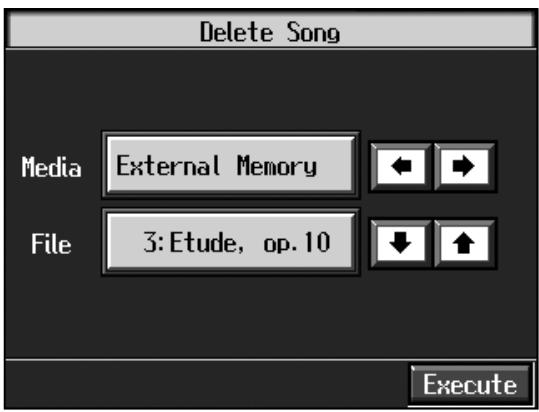
- Touch
to select the storage media. - Touch
to select the song to be deleted. - Touch
.
The selected song is deleted.
Do not eject the external memory from the external memory port until the operation is finished.
Press the [Exit] button to return to the Song File screen.
NOTE
Never turn off the power while the operation is in progress. Doing so will damage the KR's internal memory, making it unusable.
Copying Songs on External Memories to Favorites
You can take songs saved on external memories and copy them to Favorites.
You can also copy songs in Favorites to external memories.
- Connect the external memory with the song to be copied to the external memory port.
- Press the [Song/File] button.
- Touch
. The "Song File screen" appears. - Touch
. The following "Copy Song screen" appears.
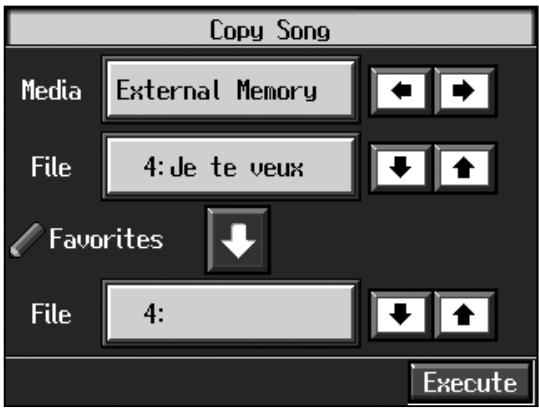
Specifying the Copy Source
- Touch the
to select the copy source storage media. - Touch the
to select the song you want to copy.
When "Copy All" is selected, songs within the selected folder on the external memory are copied to Favorites.
Specifying the Copy Destination
- Touch < Favorites> to select the copy destination for the song.
If a song name is displayed with a number, a song is already saved to that number. If you select a number with previously saved song data and proceed to copy to that location, the previously saved song will be erased. If you don't want to erase a previously saved song, choose a number with no song name appears in the destination column.
8. Touch .
Do not eject the external memory from the external memory port until the copy is finished.
The song from the external memory is copied to Favorites.
■ Copying Songs Saved in Favorites to External Memories
Songs that've been saved to Favorites can be copied onto external memories.
In this case, in the "Copy Song screen" in Step 4 above, touch the arrow icon in the center to point the arrow upwards. This sets the KR to copy the song in Favorites to the external memory.
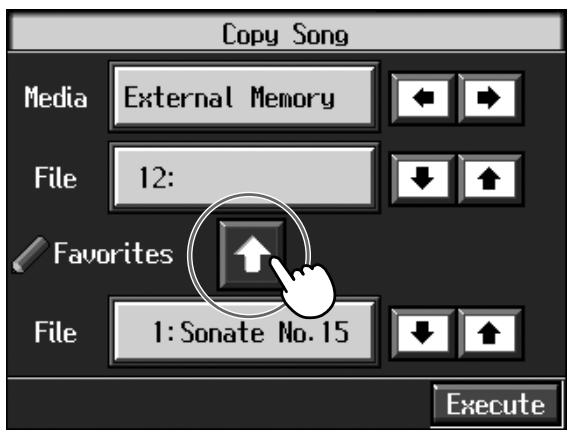
The rest of the procedure is identical to that used for copying songs from external memories to Favorites.
NOTE
Never turn off the power while the operation is in progress. Doing so will damage the KR's internal memory, making it unusable.
NOTE
Some song data cannot copy because they are copy protected.
Chapter 6 Creating Performance Data Including
Moving Keys (A/V sync)
With this instrument you can create performance data that, like the CD included with the KR, contains Moving Keys data.
By connecting a Roland CD-2 or similar recording device, you can record not just your piano performances, you can also connect a microphone to record vocals along with the piano performance.
Moreover, you can connect video equipment to the KR and record video images along with the other data as well.
Recording
Making the Connections
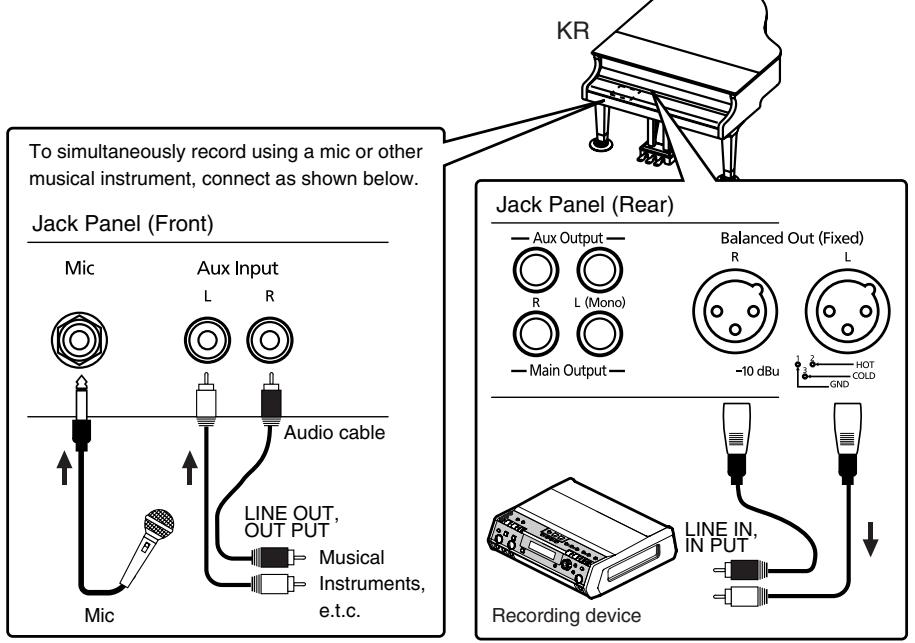
When connecting audio recording devices
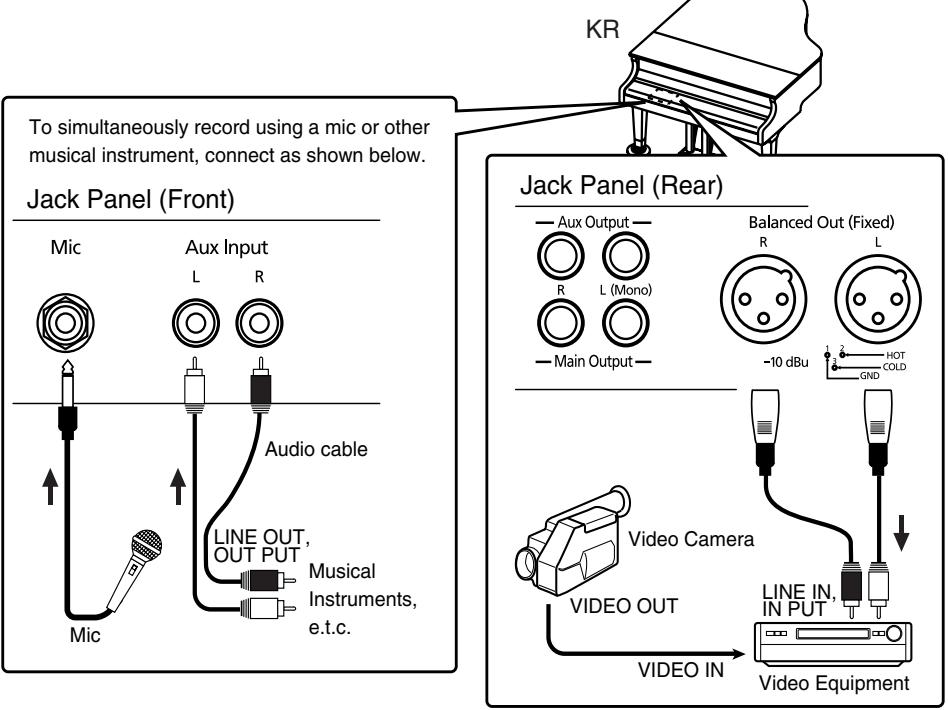
When connecting video recording devices
NOTE
If both the output for A/V Sync and AUX input are connected simultaneously, please set "Mode" of the Aux input to "Off."
If this is set to anything other than "Off," make sure to disconnect any cables connected to Aux Out or Balanced Out.
If such connections are left intact, you may likely encounter a loud, continuous beep tone.
1. Press the [Menu] button.
The "A/V Sync" display will appear.
If the "Composer Menu" screen appears, touch to switch the page.
![ROLAND KR-117 - Press the [Menu] button. - 1](/content/2025/01/130864/images/aa1cec84e020fd87ff5c588d41a927e7e5525fbe426c54ba2d6c87d6be585309.jpg)
2. Touch the .
The following display will appear.
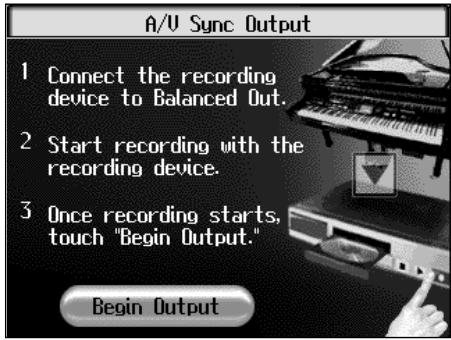
3. Start recording with the connected device.
4. Touch the .
The following message appears.
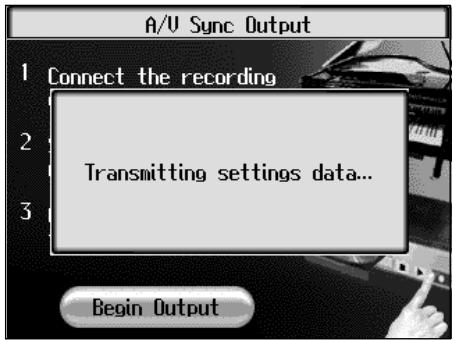
When the transmission of the initial setup ends, the following message appears.
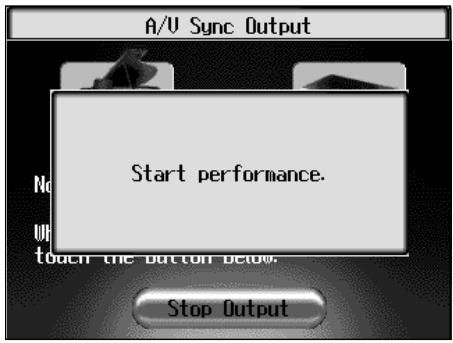
- When the "Start performance" message appears, start playing the KR.
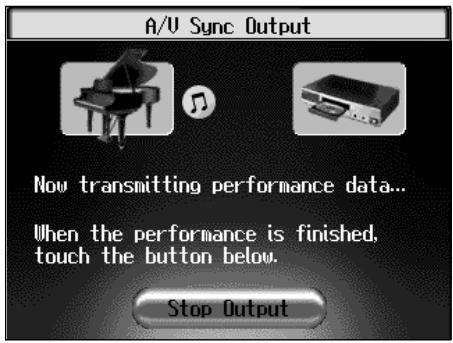
- When you have finished the performance, touch
. - Stop recording with the connected device.
When you touch the
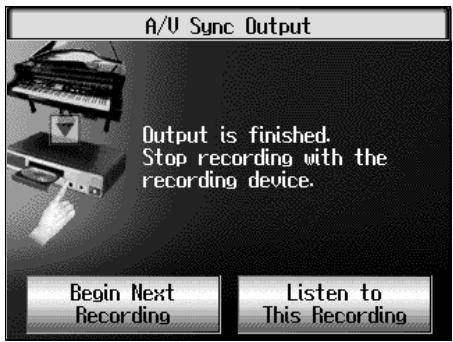
Press the [Exit] button to exit the A/V sync function.
When you record other songs, touch the
When you hear the performance recorded to the connected equipment, touch the
NOTE
When you display other screen to change tones etc. while outputting data, press [Menu] button once again to display the "A/V Sync" screen, then touch the .
A screen like the one shown below appears.
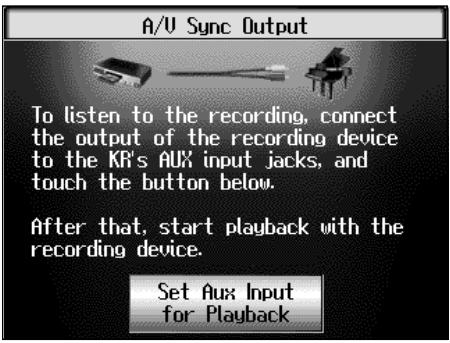
When you touch the
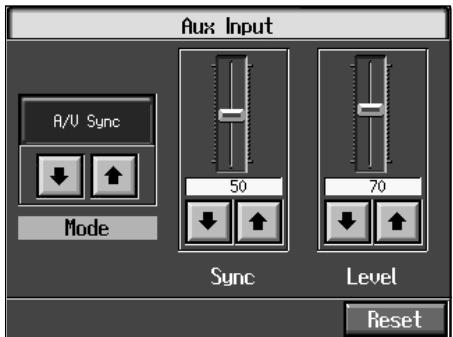
Change the setting and the connections.
Refer to "Making Advanced A/V Sync Input Settings" (p. 128).
Note
With certain Surround settings, data may not be output from the KR as you intend. Turn Surround off when using the A/V sync function. Alternatively, you can switch Surround on and turn on all parts other than the keyboard with the part On/Off settings.
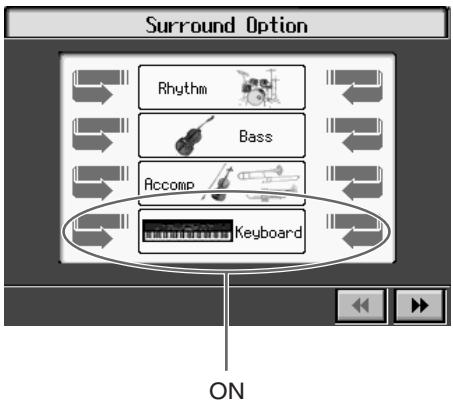
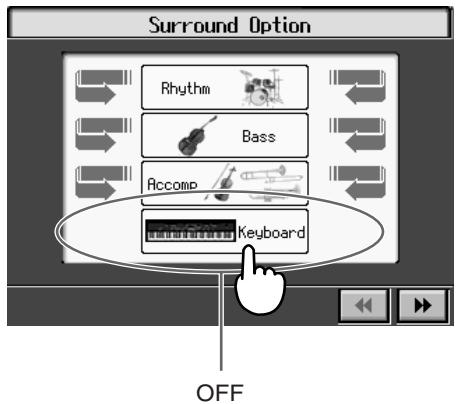
NOTE
Playing back CDs to which this performance data is recorded on CD players other than the KR's internal CD player may result in damage to the speakers. To listen to these CDs, either play them back on the KR's internal CD player or connect to the KR in accordance with the instructions in "Playback (Aux Input)" (p. 127).
Making Advanced A/V Sync Output Settings
1. Press the [Menu] button.
The "A/V Sync" display will appear.
If the "Composer Menu" screen appears, touch to switch the page.
2. Touch the .
The following display will appear.
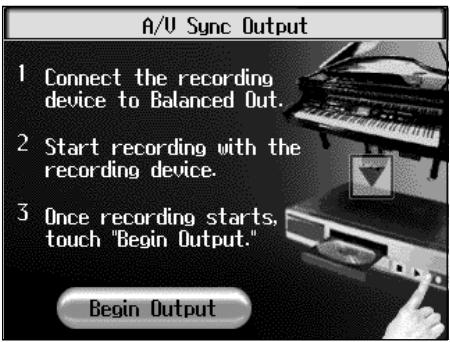
3. Press the [Option] button.
The following display will appear.
![ROLAND KR-117 - Press the [Option] button. - 1](/content/2025/01/130864/images/bf95362d54c761f5ca35e9f0e69775b1dcf3b012b94383cd15b9a4aeb295302a.jpg)
4. Touch the
When the sound has been distorted, touch the
| Parameter | Setting | Explanation |
| Output Mode | Balanced Out, AUX Out | Output connectors |
| Level | 0–127 | Audio level other than keyboard performance data |
You can confirm the settings by touching "Audition."
Playback (Aux Input)
Making the Connections
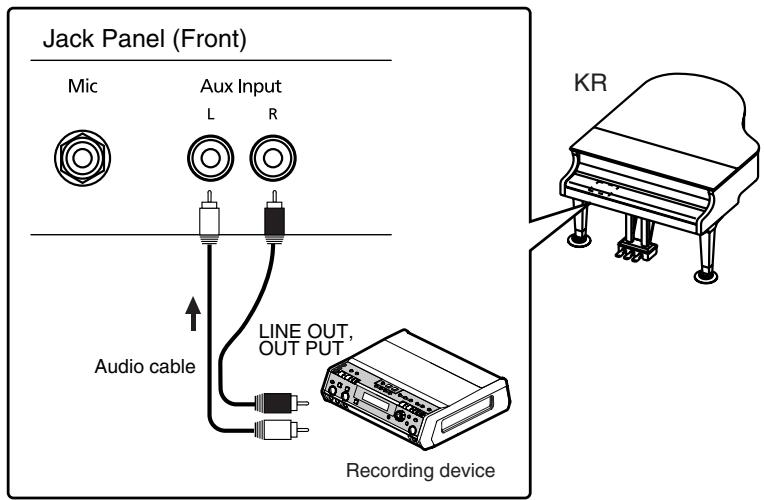
When connecting audio recording devices
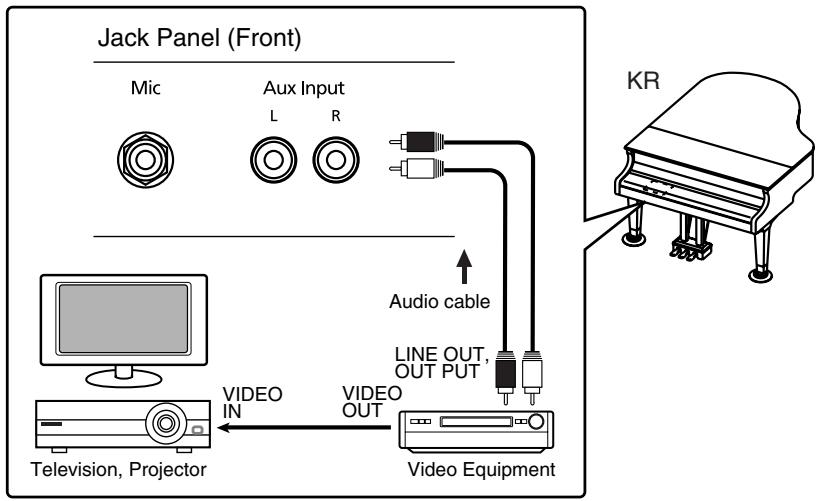
When connecting video recording devices
1. Press the [Menu] button.
The "A/V Sync" display will appear.
2. Touch to switch the page, then touch the .
The following display will appear.
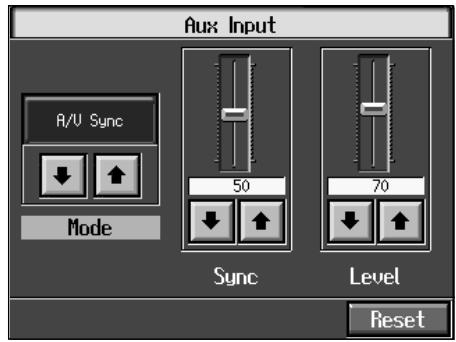
NOTE
If both the output for A/V Sync and AUX input are connected simultaneously, please set "Mode" of the Aux input to "Off."
If this is set to anything other than "Off," make sure to disconnect any cables connected to Aux Out or Balanced Out.
If such connections are left intact, you may likely encounter a loud, continuous beep tone.
3. Touch the to select "A/V sync."
When you display the "Song selection screen" after you set "A/V Sync" for the
4. Play back the performance on the connected device.
Making Advanced A/V Sync Input Settings
1. Press the [Menu] button.
The "A/V Sync" display will appear.
If the "Composer Menu" screen appears, touch to switch the page.
2. Press the [Option] button.
The following display will appear.
![ROLAND KR-117 - Press the [Option] button. - 1](/content/2025/01/130864/images/218c85b6a108bd5c729c8f2733787738199b8afea56ca710691ac45ac5e123cc.jpg)
3. Touch the slider or to set for the parameter.
| Parameter | Setting | Explanation |
| Sync | 0–100 | On rare occasions, the keyboard performance and accompaniment sounds may not be synchronized properly. In such instances, you can adjust the timing of the keyboard performance sounds so that they are in time with the accompaniment. |
| Level | 0–127 | Audio level other than keyboard performance data |
NOTE
When "A/V Sync" is selected, the KR automatically distinguishes the type of the encoded signal, then starts playing. In some cases, however, it doesn't play correctly. In such cases, press
The
MEMO
If the level is set to "0," only the keyboard performance sound from the device connected to the Aux Input jacks will be heard.
Chapter 7 User Program Registration
You can register the currently selected tones, transposition and volume balance, and a variety of other settings as "favorite performance settings" (User Program). This allows you to call up the registered favorite performance settings whenever you need them. Registering the settings you often use is makes it even more convenient for you.

For more on what can be registered to a User Program, refer to "Parameters Stored to Internal Memory" (p. 216).
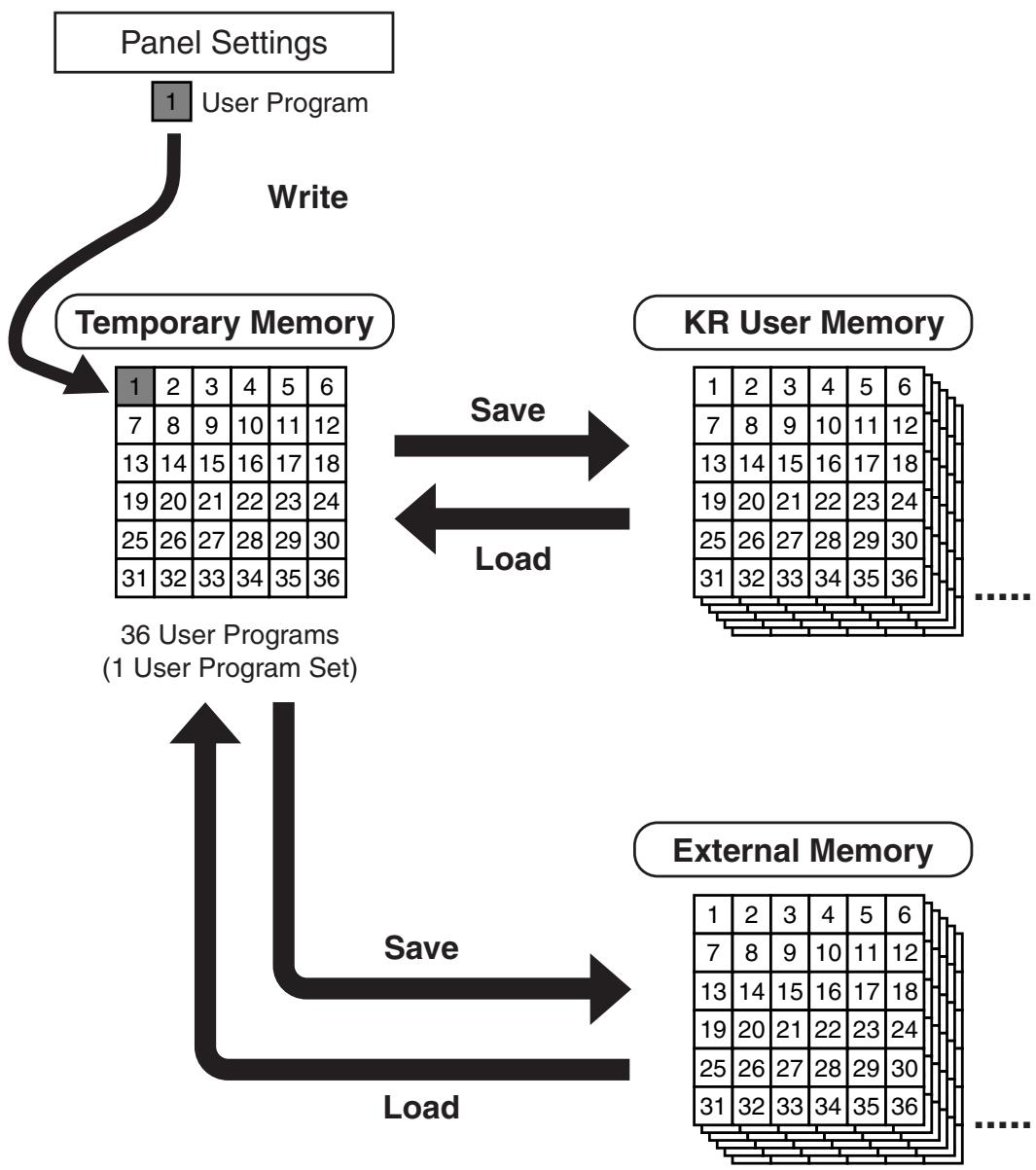
Saving Performance Settings (User Program)
Any collection of settings, including those describing the current status of your data selections or settings Automatic Accompaniment, can be saved to the [User Program] button. You can then call up the stored settings by pressing the [User Program] button. Saving your preferred combinations of Music Styles and Tones, as well as other frequently used settings, makes it more convenient.
You can register up to 36 User Programs to the KR.
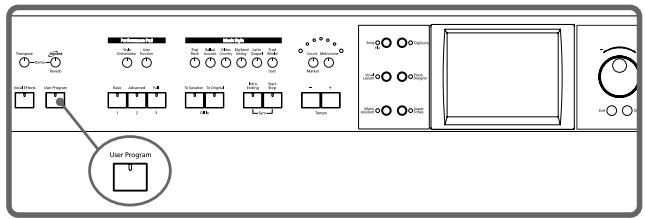
For more on what can be registered to a User Program, refer to "Parameters Stored in the User Program" (p. 216).
- Set the Music Style, Tone, and other data until the settings are the way you want them.
- Press the [User Program] button.
A "User Program screen" like the one shown below appears.
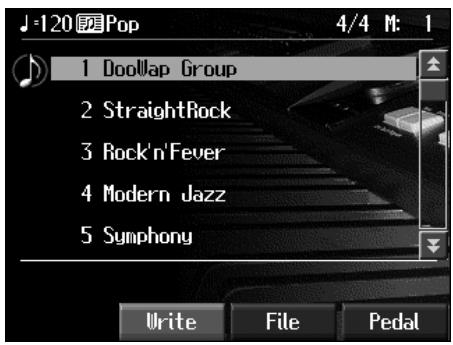
- Touch
.
A "Write User Program screen" like the following appears.
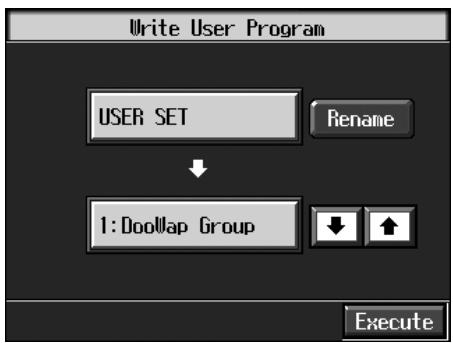
Giving a name to a set of User Programs
- Touch
.
A "Rename screen" like the following appears.
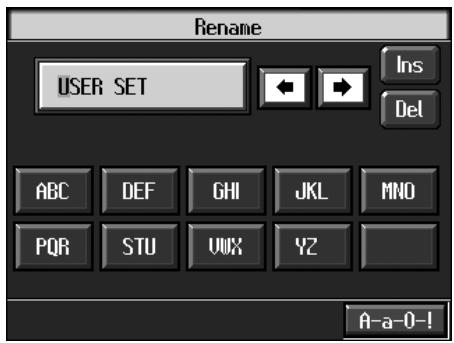
When you touch 左 , the cursor moves.
When you touch the icon for the character to be input, the character appears of the cursor potion.
For example, touching the <ABC> icon in succession cycles you through the available choices in that character group (A B C A ) .
Each touch of < A - a - 0 - !> cycles the type of characters through "upper case," "lower case," "numerals," "symbols," then back to "English (upper case)."
When you touch <Del> , the character at the cursor position is deleted.
When you touch <Ins> , a space is inserted at the cursor position.
- When you have finished with the name, press the [Exit] button.
You're returned to the Write User Program screen.
Determining the Write Destination
- Touch to select the write-destination number.
- Touch
.
The current performance settings are saved to the [User Program] button.
- Never turn off the power while the display indicates
. Doing so will damage the KR's internal memory, making it unusable.
You can restore the content registered to the [User Program] button to the original factory settings. Refer to "Restoring the Factory Settings (Factory Reset)" (p. 172).
Calling Up Saved User Programs
You can easily call up settings saved to the [User Program] button.
1. Press the [User Program] button.
The "User Program screen" appears.
Touch the scroll bar and drag up or down to scroll through the screen and display other name of User Programs.
Touch the page icons < 空 > < 空> to change pages.
2. Touch the name of the User Program you want to call up.
When you touch the name of the User Program, the buttons or other performance settings instantly change to the previously saved settings.
Changing the Way User Programs Are Called Up
When calling up User Programs by touching program names in the "User Program screen," you can select different types of settings depending on how long you touch the touch panel.
- Press the [User Program] button.
- Press the [Option] button.
A settings screen like the following appears.
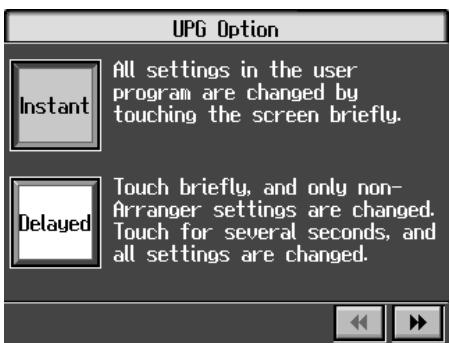
3. Touch or to select the setting.
| Display | Explanation |
| Instant | Immediately after a User Program name is touched, the Automatic Accompaniment settings also switch. |
| Delayed | When you continue to touch the User Program name for a few moments, the Automatic Accompaniment settings are switched |
- Press the [Exit] button to return to the User Program screen.
For further information about the content stored in the User Programs, refer to p. 216.
Saving the User Program Sets
You can take the 36 User Programs saved to the [User Program] button and save them as a set to an external memory, or to user memory.
When saving to an external memory, first connect an external memory to the external memory port.
For more on working with the external memory, refer to "Using External Memories" (p. 113).
- Press the [User Program] button.
- Touch
. - Touch
.
A "Save User Program screen" like the following appears.
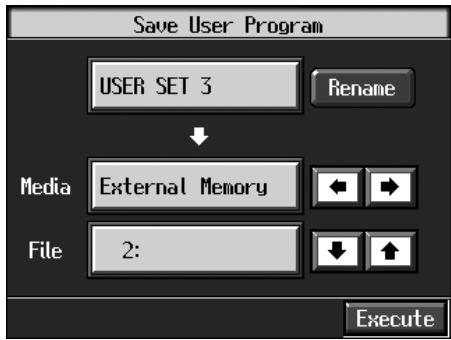
Giving a Name to a Set of User Programs
4. Touch.
The Rename screen appears.
When you touch 左 the cursor moves.
When you touch the icon for the character to be input, the character appears at the cursor position. For example touching the <ABC> icon in succession cycles you through the available choices in that character group (A B C A ) .
Each touch of <A-a-0-!> cycles the type of characters through "English (upper case)," "English (lower case)," "numerals," "symbols," then back to "English (upper case)."
When you touch <Del> , the character at the cursor position is deleted.
When you touch <Ins> , a space is inserted at the cursor position.
- When you have finished with the name, press the [Exit] button.
Determining the Save Destination
- Touch
to select the save-destination strage media. - Touch
to select the save-destination User Program number.
If a User Program set name is displayed, a User Program set saved to that number is already.
If you select a number with previously saved User Program set data, then save a new set of data to that same number, the older User Program set will be deleted. If you don't want to lose any previously saved User Programs, select a number in the save-destination column that does not yet have a name.
Saving
- Touch
to begin the save.
Press the [Exit] button to return to the User Program File screen.
- Never turn off the power or eject the external memory from the external memory port while the operation is in progress. Doing so will damage the KR's internal memory, making it unusable.
When clearing the set of saved User Programs, refer to "Deleting Saved User Program Sets" (p. 133).
- Loading Saved User Program Sets
User Programs that have been saved on external memories or in user memory can be called up, on an individual set basis, to the [User Program] button.
- Note that calling up these User Programs results in the deletion of all User Programs currently recorded to the [User Program] button.
When loading a set of User Programs from an external memory, first connect the external memory to the external memory port.
For more on working with the external memory, refer to "Using External Memories" (p. 113).
- Press the [User Program] button.
- Touch
. - Touch
.
A "Load User Program screen" like the following appears.
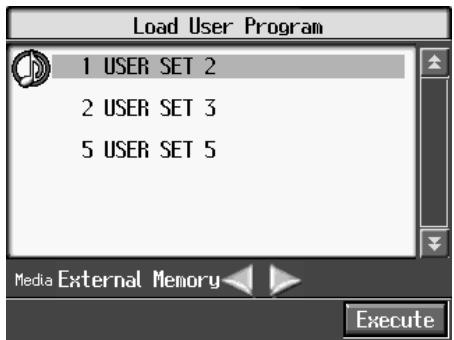
**Specifying the Set of User Programs to be Loaded**
- Touch < > to select the storage media to be read from.
Touch the scroll bar and drag up or down to scroll through the screen and display other name of User Programs.
- Touch the name of User Program to load.
- Touch
.
The selected User Programs are loaded to the [User Program] button.
- Never turn off the power or eject the external memory from the external memory port while the operation is in progress. Doing so will damage the KR's internal memory, making it unusable.
Deleting Saved User Program Sets
You can delete individual User Program sets saved to external memories or in user memory.
When deleting a set of User Programs on an external memory, first connect the external memory to the external memory port.
For more on working with the external memory, refer to "Using External Memories" (p. 113).
- Press the [User Program] button.
- Touch
. - Touch
.
A "Delete User Program screen" like the following appears.
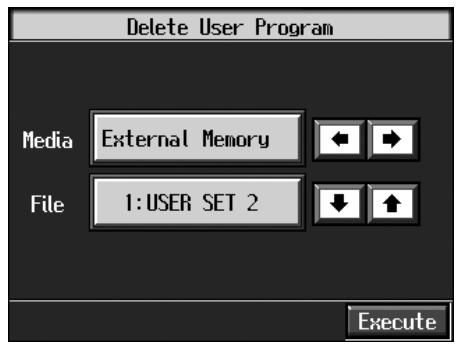
- Touch
to select the stray media. - Touch
to select the set of User Programs to be deleted. - Touch
.
The selected User Programs are deleted.
- Never turn off the power or eject the external memory from the external memory port while the operation is in progress. Doing so will damage the KR's internal memory, making it unusable.
Copying Sets of User Programs on External Memories to the User Memory
You can copy sets of User Programs saved on external memories and to user memory.
You can also copy sets of User Programs saved in user memory and to external memories.
- Connect the external memory with the settings to be copied to the external memory port.
- Touch the [User Program] button.
- Touch
. - Touch < Copy>.
A "Copy User Programs screen" like the following appears.
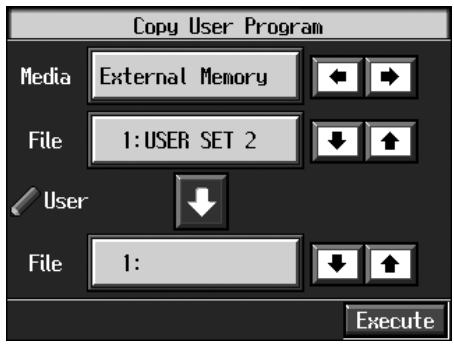
Specifying the Copy Source
- Touch
to select the strage media. - Touch
to select the set of User Programs you want to copy.
If "All" is selected, all of the sets of User Programs on the external memory are copied to user memory.
Specifying the Copy Destination
- Touch
to select the copy destination for the set of User Programs.
If a User Program name is displayed, already a User Program saved to that number is already.
If you select a number with User Programs data, and then copy data to that number, the previously saved User Programs are deleted. If you do not want to delete the saved User Programs, select a number in the save-destination column for which no name is displayed.
- Touch
.
The set of User Programs on the external memory is saved to user memory.
- Never turn off the power or eject the external memory from the external memory port while the operation is in progress. Doing so will damage the KR's internal memory, making it unusable.
Coping Sets of User Programs Stored in the User Memory to External Memories
You can take User Program sets saved in user memory and copy them to external memories.
In this case, in the Copy User Programs screen in Step 4 above, touch the large arrow icon in the center to get the arrow to point up. This sets the KR to copy the User Program set in the user memory to the external memory.
The rest of the procedure is identical to that used for copying sets of User Program set from external memories to user memory.
Using the Pedal to Switch User Programs
You can assign the function of the sequential switching of the "User Programs" to the pedal. That way, each time you depress the pedal, the KR switches to the next User Program. Great for use in concerts and similar situations, this allows you to prepare and save your User Programs in the sequence they are to be used, and then call up User Programs in the appropriate order while you perform, simply by depressing the pedal.
- Press the [User Program] button.
- Touch
in the lower part of the screen.
A "PEDAL screen" like the following appears.
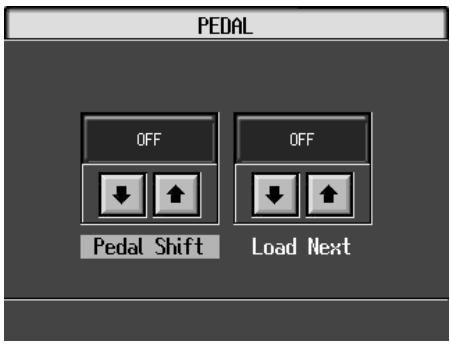
The Pedal Shift and Load Next settings are stored in each User Program set.
If you want to use the Load Next function to switch among User Programs saved to external memory, make sure to set Load Next in all of the User Program sets to "ON." Also, be sure to set the Pedal Shift value so it is for the same pedal.
Selecting the Pedal Used for Switching Settings (Pedal Shift)
- Touch
to select the setting.
| Display | Explanation |
| OFF | You can use a function assigned to the pedal. |
| Left Pedal | The left pedal is dedicated to switching User Programs. The function assigned to the left pedal cannot be used. |
| Center Pedal | The center pedal is dedicated to switching User Programs. The function assigned to the center pedal cannot be used. |
Press the [Exit] button to return to the User Program screen.
Sequential Loading of User Program Sets Stored (Load Next)
When using the pedal to switch your User Programs, you can also call up sequential sets of User Programs as saved to external memory. This feature is called the "Load Next" function.
- Touch
to select the setting.
| Display | Explanation |
| OFF | Switches Load Next off. The next press of the pedal after the 36th User Program is called up returns you to the first User Program of the same User Program set. |
| ON | Switches Load Next on. The next press of the pedal after the 36th User Program has been called up takes you to the first User Program in the next User Program set. |
Press the [Exit] button to return to the User Program screen.
Simultaneously Switching User Program and Transmitting PC Numbers
You can have PC (Program Change) numbers be transmitted to an external MIDI device when you switch the User Program on the KR.
You can register PC number settings to each of the User Programs, just as you can with button settings and other settings preferences.
Calling Up the Performance Settings to Be Set
- Press the [User Program] button, then touch the name of the performance setting you want to set.
Setting the Transmission of the PC
- Press the [Option] button.
- Touch < > to switch the page to display the following screen.
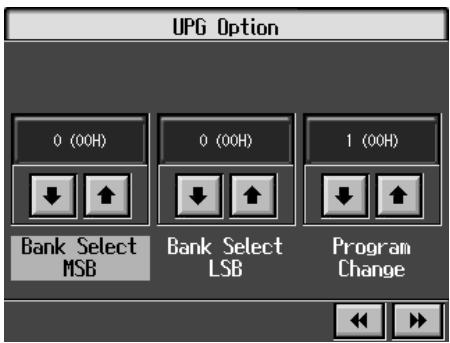
- Touch for the parameter and make the settings.
| Display | Description |
| Bank Select MSB | Sets the Bank Select MSB. |
| Bank Select LSB | Sets the Bank Select LSB. |
| Program Change | Sets the Program Change messages (Program Numbers). |
| Tx PC Channel | This prevents the PC number from being transmitted (Off), or sets the transmission channel (Channel 1–16). |
- Press the [Exit] button.
The User Program screen returns to the display.
Touch
For more detailed information, refer to "Saving
Performance Settings (User Program)'' (p. 130).
Chapter 8 Creating and Editing Songs
Multitrack Recording with 16 Parts (16-Track Sequencer)
Multitrack recording always you to listen to previously recorded material while continuing to add performances of other parts.
The KR is capable of multitrack recording of up to sixteen parts. Since each part's performance is recorded using one tone, you can layer performances, using up to sixteen tones for the data in one song. The function used to layer these sixteen parts, one at a time, is called the "16-Track Sequencer."
16-Track Sequencer
You can record performances for up to 16 parts, overlaying them part by part, to create a single song.
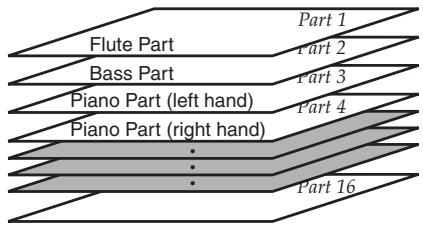
16-Track Sequencer and Track Buttons
In addition to the "16-Track Sequencer" function, the "Track Buttons" (p. 97) are another of the unit's playing/recording functions.
These five "Track buttons" are used for organizing the 16-Track Sequencer's sixteen parts. This allows you to use the 16-Track Sequencer to add more sounds to performances recorded with the Track buttons, and make even more detailed edits of the songs.
You can easily play back the original song data with the 16-Track Sequencer, mute parts by pressing the Track buttons, and more.
You cannot use the Track buttons while the "16-Track Sequencer screen" is displayed.
The Track buttons correspond to 16-track sequencer parts as shown below.
| Track button | Part |
| [R/Rhythm] | D (10), S (11) |
| [1/Whole] | 1 |
| [2/Bass Accompl] | 2, 5–9, 12–16 |
| [3/Lower] | 3 |
| [4/Upper] | 4 |
Since the 16-Track Sequencer records one tone to one part, you cannot use Layer performance (p. 31), Split performance (p. 32), or other such functions to record two or more tones simultaneously. Also, you can't record the performance with Automatic Accompaniment.
When you want to record with Automatic Accompaniment, then you should use the Track buttons for recording. (Refer to "Recording With Accompaniment" (p. 107)
Commercially Available Music Files
Commercially available song file recorded in Roland's SMF format is also composed of sixteen parts.
By loading the song file from the external memory and using the 16-Track Sequencer, you can then also edit the song file.
Although with commercially available Roland SMF music data, Part 11 is included in the [2/Bass Accompl] track button, other tracks match to the corresponding Track buttons.
* With some commercially available music files, you cannot edit the data.
The 16-Track Sequencer Screen
When recording with 16-track Sequencer, display the 16-track Sequencer screen.
1. Press the [Menu] button.
The "Composer Menu" or the "A/V Sync" screen appears.
![ROLAND KR-117 - Press the [Menu] button. - 1](/content/2025/01/130864/images/c0a356afcd6392d69c4e890807f69153fc2cb1d0e057c8132b70dadc8d192eba.jpg)
![ROLAND KR-117 - Press the [Menu] button. - 2](/content/2025/01/130864/images/d23ef62e904fd463c742c393b6b33dc5f1b1c45898bb098e3b6aa74df3256f67.jpg)
![ROLAND KR-117 - Press the [Menu] button. - 3](/content/2025/01/130864/images/2a5c09bf7c79a6e8b2dcbc0beb803752c9fbb6db9ecdcfdc2ab0e79d72e0066f.jpg)
2. Touch to switch the page, then touch <16trk Sequencer>.
A "16-track Sequencer screen" like the one shown below appears.
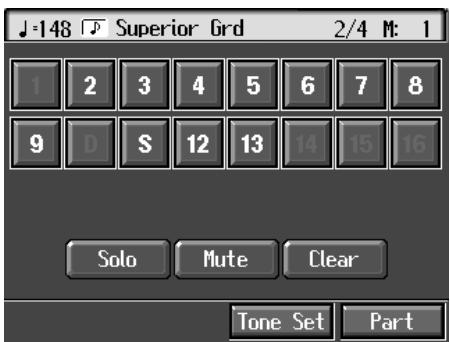
| Icon | Explanation |
| <1><16> | Touch to select the part to be recorded, or the part whose settings are to be changed. The button for the selected part changes color. |
| 2 | This Part to be played back |
| 2 | This part is selected (Movement) |
| - | The Part not to be played back (Muted Part) |
| 2 | Parts that do not have performance data recorded to them. |
| Solo | Only the selected Part is played back. |
| Mute | This allows you to prevent the sound for the selected part from playing. |
| Clear | The performance data for the selected part is deleted. |
| Part | This displays the Part Settings screen, in which you can make detailed settings for each part. For details refer to p. 137. |
| Tone Set | The Tone Set screen appears. For details refer to p. 138. |
Modifying the Settings of Each Part
You can change the Tones and volume, as well as mute the playback, for each individual part in songs recorded with the 16-track Sequencer and the internal songs.
Because commercially available Roland SMF music files are also made up of 16 Parts, you can change the settings for the individual Parts and play them back in the same way.
First, select the song for which the settings are to be made (p. 75).
- Display the 16-track Sequencer screen (p. 136).
- Touch the screen to choose the Part for which you want to make settings.
Change the settings for the selected Part.
| Display | Function |
| Solo | Only the selected Part is played back. |
| Mute | Toggles playback of the selected Part to on or off. |
| Clear | The performance data for the selected part is deleted. |
- When you touch
, a message asking you to confirm the deletion appears. To erase the recorded sound, touch . If you don't want to erase the recorded sound, touch . Once a performance has been erased, it can't be restored. - You cannot touch
during playback of the song.
3. Touch to make more detailed settings for the selected part.
A screen like the one shown below appears.
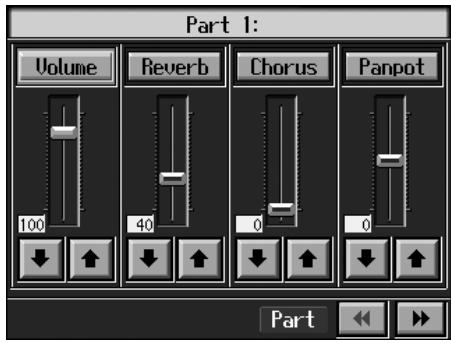
You can change the Tone for the selected Part by pressing a Tone button while this screen is displayed. When selecting Part 10 or 11, you can touch
4. Touch for the corresponding item to change the setting.
You can adjust the values by touching the desired parameter and turning the dial or by touching and dragging the slider.
| Display | Explanation |
| Volume | Changes the volume level. |
| Reverb | Changes the amount of reverb effect applied to the sound. |
| Chorus | Changes the amount of chorus applied. |
| Panpot | Shifts the direction from which the sound is heard between left and right. Touch to shift the sound to the right, or touch to shift it to the left. |
What's Panpot?
Panpot is the control that determines the placement of the sound in the stereo sound field between left and right speakers. By altering the Panpot setting, you can change the perceived location of the sound between the left and right speakers.
When you press the [▶/■ (Play/Stop)] button, you hear what the song sounds like as you change the settings. When you press the [▶/■ (Play/Stop)] button, playback of the song stops.
5. Touch to make settings for other parts.
The Part name appears at the upper part of the screen. Change the settings for other parts as needed.
6. Hold down the [ (Rec)] button and press the [ (Reset)] button.
This operation set the changes in the settings.
The song can then be saved to an external memory or to user memory.
If you do not want to delete a song after changing the settings for the individual parts, save the song to an external memory or to user memory (p. 116).
- You cannot save the settings that determine whether sounds for each individual part are played or not (solo and mute).
If the Following Message Appears
If you try to display another screen after you've changed the song's settings for each Part, a message like the one below may appear.
Touch <OK> to change the song's settings.
Touch
Getting the Most Suitable Part Tones for the Musical Genre (Tone Set)
"Tone Set" is a function that automatically assigns the most suitable tones for the selected musical style.
When you're creating a song, you can assign Tone sets, then change the Tones to suit the ideas you have for your song.
- Display the 16-track Sequencer screen (p. 136).
- Touch
in the lower part of the screen.
A screen like the one shown below appears.
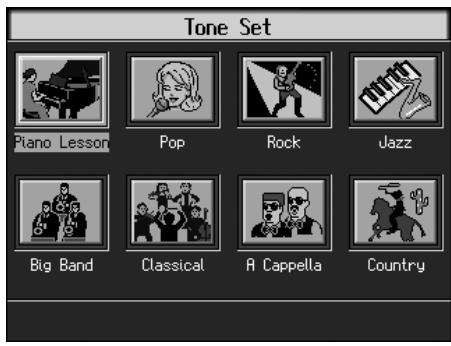
- Touch the screen to select a musical genre.
- Press the [Exit] button.
The 16-track Sequencer screen appears.
Tones for each part are assigned automatically.
- In some genres, some parts may have no tone assigned.
■ Recording a Performance
Start Recording
Selecting the Part to Record
- Display the 16-track Sequencer screen (p. 136).
- Touch the number for the Part you want to record.
The button for the touched part being set turns orange. You can only record drum sounds or effect sounds on Part D (10) or Part S (11). You can select drum sets or effect sounds by selecting Part D (10) or Part S (11) and touching
Selecting the Sound to Play
- Use the Tone buttons to choose a Tone to play.
After selecting a Tone, press the [Exit] button to call up the "16-Track Sequencer screen."
Recording the Performance
- Press the [Reset] button.
Recording will start at the beginning of the song. If you want to record from a point other than the beginning, use the [ (Bwd)] and [ (Fwd)] buttons to select another measure to begin.
- Press the [ (Rec)] button and watch the indicator is light up.
The KR is put in recording standby.
- Press the [▶/■ (Play/Stop)] button.
A two-bar count-in sounds, then recording starts.
- Press the [▶/■ (Play/Stop)] button.
Recording stops.
When one part is recorded, continue by selecting and recording another part. Continue layering parts to finish recording the song.
If necessary, choose a recording method. For more on how to record, refer to the following paragraph. If you record for the first time, there's no need to select the recording method.
* Any performance that has been recorded is deleted when the power to the KR is turned off. It is a good idea to save song data to an external memory or user memory. For more information, refer to "Saving Songs" (p. 116).
Prepare for New Song Recording
Selecting the Song to Record
- Hold down the [Song] button and press the [ (Rec)] button.
The following screen is displayed if there is any previously recorded performance or any song with changed settings.
Touch <OK> to delete the song.
Determining the Song's Beat and Tempo
- Press the [Metronome] button to select the beat (p. 54).
→ You can't change a song's beat once it's been recorded. If you want to compose a song whose beat changes partway through the song, take a look at "Changing the Beat in the Middle of a Song (Beat Map)" (p. 150). - Press the Tempo [-] and [+] buttons to set the basic tempo of the song.
If you do not need the metronome sound, press the [Metronome] button once more.
When using song data that has already been recorded, the recording is made using the source song's basic tempo. To change the basic tempo of a song, please refer to "Changing the Tempo of Recorded Songs" (p. 151).
Changing the Recording Method (Rec Mode)
You can use any of the four methods below to record with the KR.
Although you will normally be using "Replace Recording," where previously recorded material is erased when new sounds are recorded, you'll find that you can record songs easily by using this method in combination with other recording methods.
Replace Recording (p. 140)
This is the normal method for recording. New material is recorded as previously recorded material is erased.
Mix Recording (p. 141)
New notes are recorded on top of notes previously recorded.
This convenient feature makes it easy for you to record melodies over prerecorded accompaniment.
Loop Recording (p. 141)
Specified measures are recorded repeatedly, while new notes are combined with existing music. A convenient feature for creating rhythm parts. Loop Recording allows you to record over and over within a selected segment, adding a different percussion sound with each pass.
Punch-in Recording (p. 142)
You can re-record only a specified passage as you listen to a recorded performance.
Immediately after the power is turned on, Replace Recording is selected.
Changing the Recording Method
1. Press the [Menu] button.
The "Composer Menu" or the "A/V Sync" screen appears.
![ROLAND KR-117 - Press the [Menu] button. - 1](/content/2025/01/130864/images/a0def963d2cce3a98109b7769cadba437de7126858cf6038e069d234f80e84f9.jpg)
2. Touch .
A "Rec Mode screen" like the following appears.
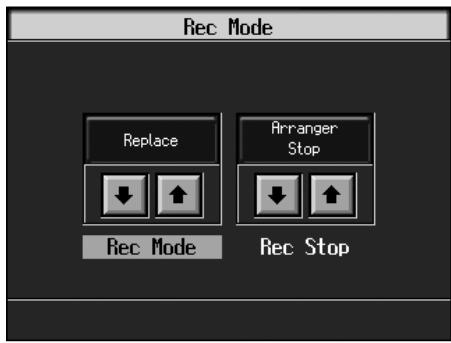
- Touch
to select the recording mode.
| Display | Recording Method |
| Replace | Replace Recording |
| Mix | Mix Recording |
| Loop | Loop Recording |
| Auto Punch-In/Out | Punch-in recording of the interval between set markers. |
| Manual Punch-In/Out | Punch-in recording starting from the point at which the pedal, the Performance Pad or the [● (Rec)] button is pressed. For more about Punch In Recording, refer to p. 142. |
| Tempo | You can add tempo changes to a recorded composition. See p. 151. |
4. Press the [Exit] button.
Returns to the "Composer Menu" screen.
■ Recording While Erasing the Previous Recording (Replace Recording)
The recording process where previous material is erased as new material is recorded is called "replace recording." This setting is in effect when you turn on the power.
1. In the "Rec Mode screen" (p. 140), select .
Press the [Exit] button to return to The "Composer Menu" screen.
The KR is set to the replace recording mode.
Record the performance using the procedures described in Chapter 4 (p. 104), "Multitrack Recording with 16 Parts (16-Track Sequencer)" (p. 136).
Layering a Recording Over Previously Recorded Sounds (Mix Recording)
You can record a performance layered over a previously recorded performance. This method is called "Mix Recording."
- In the "Rec Mode screen," select
.
Press the [Exit] button to return to The "Composer Menu" screen.
The KR is set to the mix recording mode.
Record the performance using the procedures described in "Recording While Selecting the Track Buttons (Redoing Recordings)" (p. 110), "Multitrack Recording with 16 Parts (16-Track Sequencer)" (p. 136), or other methods.
- After you have finished with mix recording, return to the usual replace recording mode.
Repeated Recording at the Same Location (Loop Recording)
You can record a specified passage over and over, layering sounds with each pass. This method is called "Loop Recording." This is handy when recording a Rhythm Part.
For example, use this method to make a Loop Recording of a four-measure segment. First record the bass drum, the snare drum next, then the hi-hat and so on, layering a different instrument onto the same four measures. After you have finished recording the four-measure rhythm pattern, you can then use the procedure in "Copying Measures (Copy)" (p. 146) to create as many copies of the four measures as you need to complete your Rhythm part.
- Place A and B markers at the beginning and end of the passage you want to record.
Take a look at "Setting Markers for Repeated Practice (Marker)" (p. 98).
If you haven't recorded anything yet, then use "Blank Recording" to create the necessary number of measures before placing the markers.
What is Blank Recording?
Blank Recording is recording a number of silent measures with no content.
- Set the basic tempo and beat of the song.
- Hold down the [ (Rec)] button and press the [▶/■ (Play/Stop)] button.
The indicators for the [ (Rec)] and [▶/■ (Play/Stop)] buttons both light up, then after two measures of the count sound, recording begins.
- Without performing anything, record only the required number of measures, then press the [▶/■ (Play/Stop)] button.
The indicators for the [ (Rec)] and [▶/■ (Play/Stop)] buttons both go out, and recording stops.
- In the Rec Mode screen (p. 140), select
.
Press the [Exit] button to return to The "Composer Menu" screen.
The recording method changes to loop recording.
- Press the [ (Rec)] button.
- Press the Track button for the track to be recorded.
The KR is put in recording standby.
- Press the [▶/■ (Play/Stop)] button to begin recording.
Recording starts from Marker A.
When the song reaches Marker B, it then returns to Marker A, where recording continues.
Each time the recording is looped, the newest sounds are layered over previously recorded sounds.
-
When you press the [▶/■ (Play/Stop)] button, recording stops.
-
After you have finished with loop recording, return to the usual replace recording mode (p. 140).
Loop Recording Shortcut
You can also use the method described below to set Loop Recording.
- Place A and B markers at the beginning and end of the passage you want to record.
Take a look at "Setting Markers for Repeated Practice (Marker)" (p. 98).
If you haven't recorded anything yet, then perform "Blank Recording" for the necessary number of measures before placing the markers.
- Touch the
icon in the Marker screen (p. 99).
This sets the loop recording mode.
Start a recording.
- After you have finished with loop recording, touch the
icon in the "Marker screen" once more to return to the usual replace recording mode.
Re-Recording Part of Your Performance (Punch-in Recording)
You can re-record part of a passage as you listen to a recorded performance. This recording method is called "Punch-in Recording." This convenient function lets you record over a specified points in a part as you listen to a prerecorded performance in another section.
User Punch-In Recording by the following two methods:
Recording the Region Defined by Markers A and B (Auto Punch-In/Out)
Before you start recording, place markers A and B to define the passage you want to re-record. Make the setting for punch-in recording, and re-record just the passage between markers A and B.
Recording From the Point at Which the Pedal or Buttons Are Pressed (Manual Punch-In/Out)
You can play back a performance and depress the pedal at the desired place to start re-recording. Depressing the pedal a second time cancels recording and returns you to playback.
Instead of pressing the pedal, you can press a performance pad or the[ (Rec)] button to start and cancel recording.
Recording a Passage Specified by Markers
- Before you start re-recording, place markers A and B to define the passage.
Following the procedures described in "Setting Markers for Repeated Practice (Marker)" (p. 98), use Markers A and B to specify the passage.
- In the Rec Mode screen (p. 140), select
.
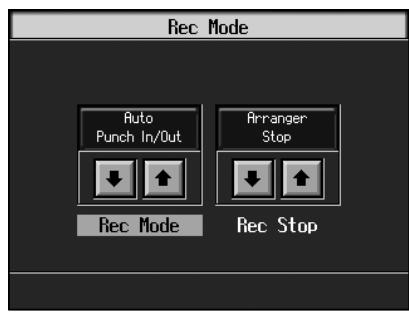
This changes the recording mode to "Punch-In Recording."
Press the [Exit] button to return to The "Composer Menu" screen.
- Begin recording.
Begin recording using the procedures described in "Recording While Selecting the Track Buttons (Redoing Recordings)" (p. 110) or "Multitrack Recording with 16 Parts (16-Track Sequencer)" (p. 136).
Up until the specified passage, the previously recorded performance plays back.
When you reach the specified passage, sounds are erased as recording starts; begin playing now.
When you reach the end of the specified passage, recording stops, and the KR returns to playback of the previously recorded performance.
- When you press the [▶/■ (Play/Stop)] button, the song stops.
Starting Recording from the Measure Specified by Buttons and Pedals
If using the Performance Pads or pedals, you must first change the function of the pedals and Pads. Follow the procedures in "Assigning Functions to Pedals and Performance Pads (Pedal Setting/User Functions)" (p. 167), and assign
- In the Rec Mode screen (p. 140), select
.
This changes the recording mode to "Punch-In Recording."
Press the [Exit] button to return to The "Composer Menu" screen.
2. Begin recording.
Begin recording using the procedures described in "Recording While Selecting the Track Buttons (Redoing Recordings)" (p. 110) or "Multitrack Recording with 16 Parts (16-Track Sequencer)" (p. 136).
The previously recorded performance will be played back.
Press the pedal to which Punch In/Out is assigned (p. 167), a performance pad, or the [ (Rec)] button to begin recording, then start your performance.
Recording stops when you press the pedal, the Performance Pad, or the [ (Rec)] button again, and the previously recorded performance is played back.
3. When you press the [▶/■ (Play/Stop)] button, the performance stops.
- When you're finished with Punch-In Recording, return to the ordinary Replace Recording mode. Take a look at "Changing the Recording Method" (p. 140).
Composing an Accompaniment By Entering Chords (Chord Sequencer)
You can enter a chord progression and choose the places where the accompaniment pattern will change to create an accompaniment for a song. This feature is called "Chord Sequencer."
Thanks to the chord sequencer, you can create an accompaniment ahead of time and play along with your right hand.
- Press the [Menu] button and watch the indicator light up.
The "Composer Menu" screen appears.
- Touch <凹> to switch the page, then touch
.
The screen like the one shown below is called "Chord Sequencer screen."
This is the "cursor." The cursor shows where the chord change or other information is input.
This is the end of the song. When continuing to add input, insert measures by touching .
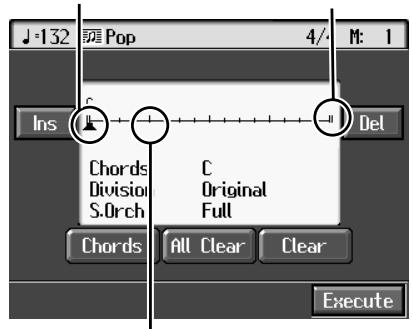
This indicates the position where the accompaniment pattern (Division) or the Style Orchestrator changes.
| Display | Explanation |
| Ins | One measure is inserted before the measure where the cursor is positioned. |
| Del | The measure in which the cursor is positioned is deleted. |
| Chords | Allows input of chords without playing the keyboard. Refer to “Inputting Chords without Playing the Keyboard” (p. 144). |
| All Clear | Deletes all of the data that's been input. |
| Clear | Deletes the data at the cursor position. |
| Execute | Records the input chord progression. Touch this icon when you have finished inputting all of the chords. |
-
Press a Music Style button or the touch screen to select a Music Style (p. 61).
-
Press the [Exit] button.
You are returned to the Chord Sequencer screen.
- Enter the chord progression and the accompaniment pattern.
Refer to "Inputting Chords with the Chord Sequencer."
- When you have finished inputting all the data, touch
.
When storage of the data is complete, return to The "Composer Menu" screen.
Now, press the [▶/■ (Play/Stop)] button, and try playing the melody along with the accompaniment you created.
- Songs you've created are discarded as soon as you turn off the power. If you do not want to delete the song, save it to an external memory or to user memory. Refer to "Saving Songs" (p. 116).
Inputting Chords with the Chord Sequencer
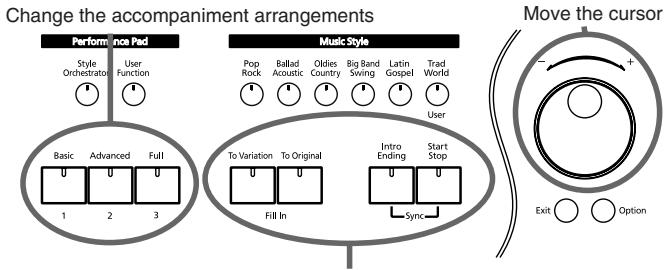
Select the accompaniment pattern (Division)
- Use the dial to move the cursor to the input position.
Use the [ (Bwd)] and [ (Fwd)] buttons to move the cursor one measure at a time.
- Enter the chord progression and the changes in the accompaniment pattern and arrangement.
Just as when performing with Automatic Accompaniment, press the keys to specify a chord, and press a button to select the accompaniment pattern (p. 68). You can change the Style Orchestrator with the Performance Pads (p. 69).
- Touch once to insert one measure before the measure where the cursor is currently positioned.
If you touch <Del> , the measure where the cursor is currently positioned is deleted, while the measures that follow are moved forward.
To remove what you have input, move the cursor to the position with input you want to delete, then touch
You can only insert an intro at the beginning of a song. When you add an intro, the number of bars corresponding to the length of the intro is inserted automatically.
Functions That Can Be Assigned to the Pedals and the Performance Pads
For instructions on assigning functions, refer to "Assigning Functions to Pedals and Performance Pads (Pedal Setting/ User Functions)" (p. 167).
- Inputting a short Intro and Ending Assign "Intro 2/Ending 2" to a pedal or pad.
- Inputting a "Variation" or "Original" without a Fill-In Assign "Original/Variation" to a pedal or pad.
- Using the keyboard to input slash chords (such as Fm/C) Assign "Leading Bass" to a pedal or pad.
- Inputting a break somewhere within the song Assign "Break" to a pedal or pad.
- Insert half fill-ins (fill-ins lasting half a measure) Assign "Half Fill In" to a pedal or pad.
Check the Accompaniment You Inserted
Here's how to play back as much of the accompaniment as you have input.
- Press the [ (Reset)] button to return to the beginning of the song.
- When you press the [▶/■ (Play/Stop)] button, the performance is played back.
- Playback stops when you press the [▶/■ (Play/Stop)] button once more.
■ Inputting Chords without Playing the Keyboard
You can use <Chords> at the bottom left of the Chord Sequencer screen to specify chords on the screen.
- At the Chord Sequencer screen, touch
. A screen like the one shown below appears.
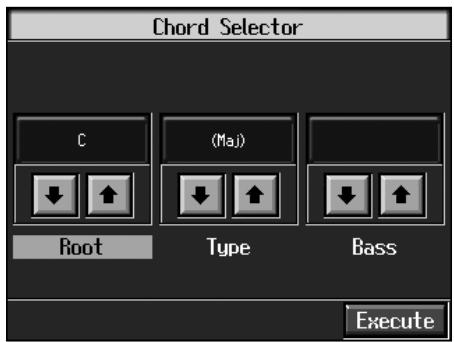
- Touch in each to specify the chords.
- Touch
to enter the chord. You are returned to the Chord Sequencer screen.
Editing Songs
There are many ways you can edit performances recorded using the KR Track button or 16-track sequencer.
Basic Operation of the Editing Functions
- While songs are being loaded, the measure number in the upper right of the screen is highlighted (text and background are inverted). Start editing the song only after the measure number is no longer highlighted.
Selecting the Editing Function
- Press the [Menu] button and watch the indicator light up.
The "Composer Menu" or the "A/V Sync" screen appears.
- Touch <> to switch the page, then touch
.
A "Song Edit screen" like the following appears.
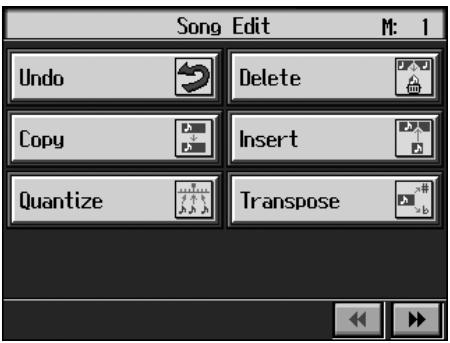
- Touch an editing function to select that function.
For more detailed information, refer to the corresponding page for each function.
| Function | Explanation | Page |
| Undo | Undoes editing operations that have been performed. | p. 145 |
| Copy | Copies measures | p. 146 |
| Quantize | Evens out sounds in recorded performances. | p. 146 |
| Delete | Deletes measures. | p. 147 |
| Insert | Inserts a blank measure. | p. 147 |
| Transpose | Transposes parts individually. | p. 148 |
| Erase | Erases data in measures, creating blank measures. | p. 148 |
| Part Exchange | Exchanges the sounds in parts. | p. 149 |
| Note Edit | Allows corrections to be made note by note. | p. 149 |
| PC Edit | Allows editing of the Tones changes that occur during a song. | p. 150 |
"PC" stands for "Program Change," which is a command that tells an instrument to change the sound it's using. With songs that rely on the use of a variety of sounds, a "PC" needs to be located at every point within the song where the Tone is to be changed
* Some edits can't be undone, not even by choosing "Undo." We recommend saving songs to external memories or to user memory before editing. For more on how to save songs, refer to "Saving Songs" (p. 116).
Editing
- Touch the item to be edited.
- Set the value with the dial.
To cancel the operation once it is underway, press the [Exit] button.
- When you're done making all the settings, touch
.
When you are finished editing the setting, return to the "Song Edit screen."
Press the [Exit] button to return to The "Composer Menu" screen.
You can play back edited songs by pressing the [▶/■ (Play/Stop)] button in the "Song Edit screen."
Undoing Edits (Undo)
You can cancel an editing operation that you've just carried out. This is handy when you want to undo an edit and restore data to the way it was before.
- There are some edits that can't be restored.
At Step 3 of "Selecting the Editing Function" (p. 145), select
Editing functions that can be undone appear on screen.
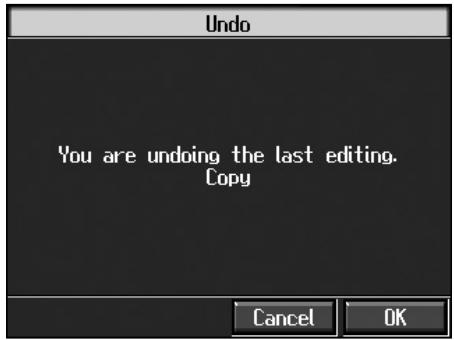
If you touch <Cancel> , the undo is cancelled, and you're returned to the Song Edit screen.
If you touch <OK> , the confirmation message appears on screen. Touch <OK> to undone the most recent edit.
■ Copying Measures (Copy)
You can copy a portion of a performance to a different bar in the same Part or to a measure in another Part. This is handy when you're composing a song that repeats a similar phrase.
Ex. To copy measures 5-7 to measure 8.
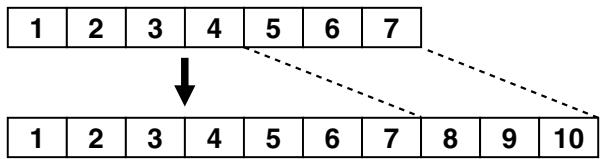
At Step 3 of "Selecting the Editing Function" (p. 145), select
A screen like the one shown below appears.
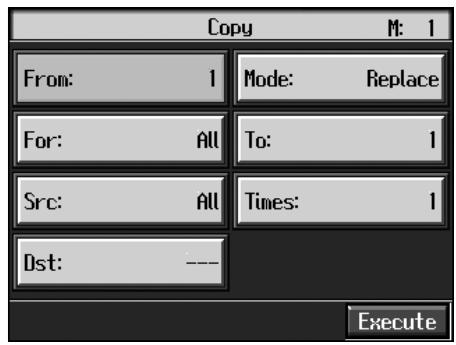
| Item | Content |
| From | Measure number of the first measure of the segment to be copied |
| For | Number of measures to be copied |
| Src | Copy-source Track button or part number Choosing “All” copies all Parts. “- - - ” appears in the <Dst> column. If you choose a Track, you can only copy to the selected Track. You cannot copy to the other Track. “- - - ” appears in the <Dst> column. |
| Dst | Copy-destination part number |
| Mode | Data can be copied in the following three ways: |
| Replace If there is a performance recorded at the copy destination, this previous recording is erased, and the copied data is written in its place. | |
| Mix If there is a performance recorded at the copy destination, the copied data is layered over the previous recording. If the Tones used for the copy source and copy destination are different, the copy-destination Tone is used. | |
| Insert If there is a performance recorded at the copy destination, the copied portion is inserted without erasing the previous recording. The song is lengthened by the number of inserted measures. |
| Item | Content |
| To | Copy-destination measure number When “End” is selected, the data is copied to the end of the song. |
| Times | Number of times the data is to be copied |
Correcting Timing Discrepancies (Quantize)
You can correct for timing discrepancies in a recorded performance by automatically aligning the music with the timing you specify. This is called "Quantizing."
As an example, let's say that the timing of some quarternotes in a performance is a little off. In this case, you can quantize the performance with quarter-note timing, thus making the timing accurate.
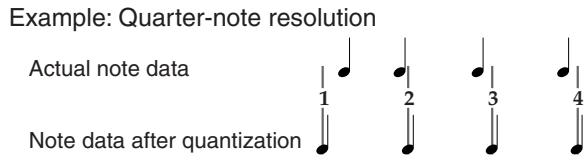
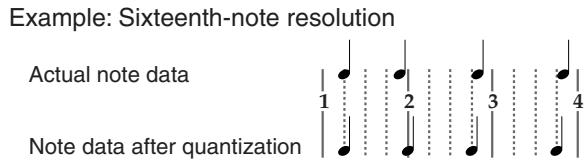
At Step 3 of "Selecting the Editing Function" (p. 145), select
A screen like the one shown below appears.
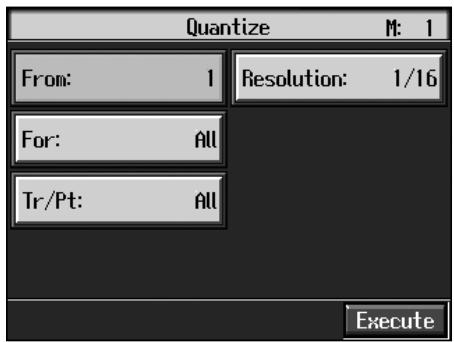
| Item | Content |
| From | Measure number of the first measure of the segment to be quantized |
| For | Number of measures to be quantized |
| Tr/Pt | Track button or part number to be quantized Choosing “All” quantizes the same passage in all Parts. |
| Resolution | Quantization timing Select one of the following values 1/2 (half note), 1/4 (quarter note), 1/6 (quarter-note triplet), 1/8 (eighth note), 1/12 (eighth-note triplet), 1/16 (sixteenth note), 1/24 (sixteenth-note triplet), 1/32 (thirty-second note) |
When finished with the Quantize settings, return to the Song Edit screen.
■ Deleting Measures (Delete)
You can delete a part of a performance measure by measure. When a portion of a performance is deleted, the rest of the performance is shifted up to fill the gap. Erasing measures in a specified passage is called "deleting."
Ex. To delete measures (bars) 5-8
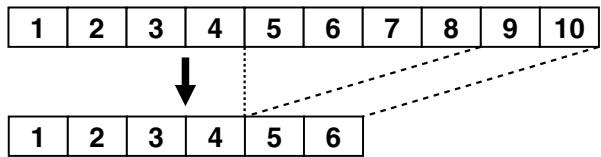
At Step 3 of "Selecting the Editing Function" (p. 145), select
A screen like the one shown below appears.
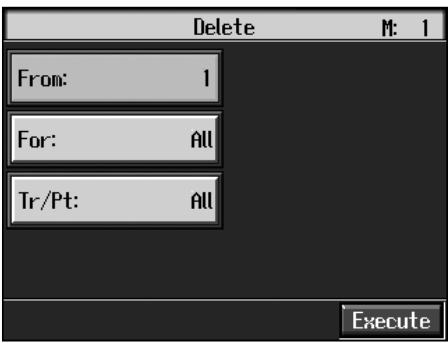
| Item | Content |
| From | Measure number of the first measure of the segment to be deleted |
| For | Number of measures to be deleted |
| Tr/Pt | Track button or part number to be deleted When “All” is selected, the same portion of all parts is deleted. |
Inserting Blank Measures (Insert)
You can add a blank measure at a location you specify. This addition of a blank measure is called "insertion."
Ex. To insert measures (bars) 5-7
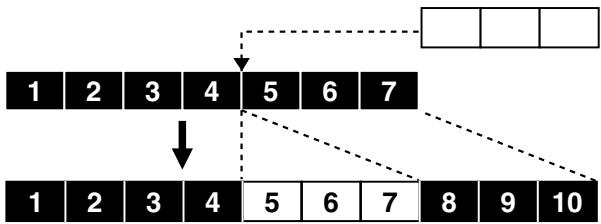
At Step 3 of "Selecting the Editing Function" (p. 145), select
A screen like the one shown below appears.
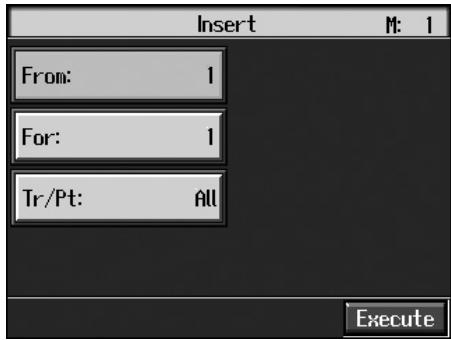
| Item | Content |
| From | Measure number of the first measure of the segment to be inserted |
| For | Number of measures to be inserted |
| Tr/Pt | Track button or part number where data will be inserted When “All” is selected, blank measures are inserted at the same place in all parts. |
Transposing Individual Parts (Transpose)
You can transpose specified parts and tracks individually.
At Step 3 of "Selecting the Editing Function" (p. 145), select
A screen like the one shown below appears.
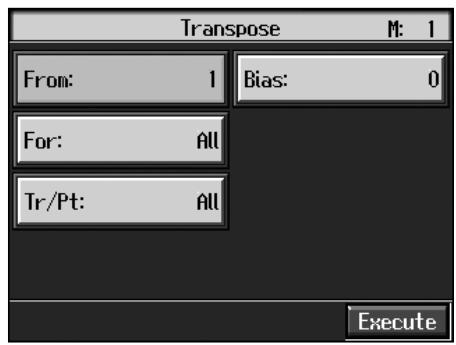
| Item | Content |
| From | Measure number of the first measure of the segment to be transposed |
| For | Number of measures to be transposed |
| Tr/Pt | Track button or part number to be transposed When “All” is selected, the same portion of all parts is transposed. |
| Bias | The range of transposition You can select the range to transpose the data, from -24 (two octaves down) to +24 (two octaves up), adjustable in semitones. |
- You cannot transpose performances of the drum sets and sound effect sets (such as the Rhythm Track).
Making Measures Blank (Erase)
You can delete the performance data in a specified block of measures, turning them into blank measures without reducing the length of the song. This process is called "erasing."
Ex. To erase measures (bars) 5-8
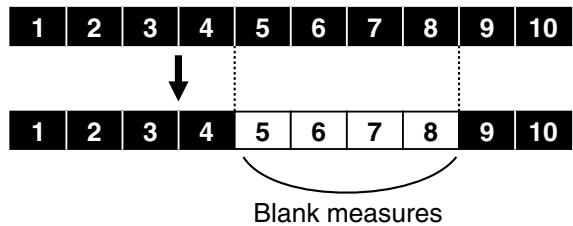
Follow the steps in "Selecting the Editing Function" (p. 145) to choose
A screen like the one shown below appears.
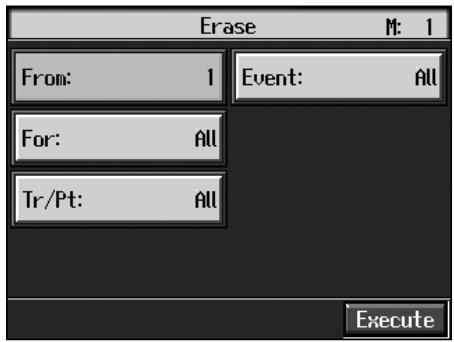
| Item | Content |
| From | Measure number of the first measure of the segment to be erased |
| For | Number of measures to be erased |
| Tr/Pt | Track button or part number to be erased When “All” is selected, the same portion of all parts is erased. |
| Event | Select from the following types of performance data to erase: |
| All All performance data, including notes, tempos, tones switches, volume changes, etc., are erased. | |
| Tempo Tempo data is erased. Erasing the tempo data for all measures results in a single, constant tempo. | |
| Prog.Charge Erases the data for switching Tones (p. 145). | |
| Note Erases only notes. | |
| Except Note Erases all of the performance data except for the notes. | |
| Event | Expression Erases Expression (volume change) information. |
| Lyric Erases only lyrics. |
Exchanging Parts (Part Exchange)
You can exchange the notes recorded for a particular part with the notes recorded for another part. This process of exchanging parts is called "part exchange."
At Step 3 of "Selecting the Editing Function" (p. 145), select
A screen like the one shown below appears.
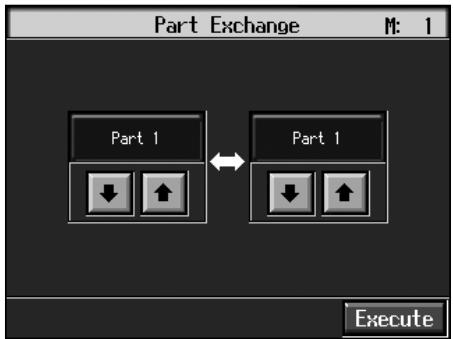
Touch each to choose Parts you want to exchange.
Correcting Notes One by One (Note Edit)
You can make corrections in a recorded performance one note at a time. This process of making changes in individual notes is called "note editing."
You can make these corrections by using note editing:
- Deleting misplayed notes
- Changing the scale of a single note
- Changing the force used in playing a single key (velocity)
- Change the finger number
At Step 3 of "Selecting the Editing Function" (p. 145), select
A screen like the one shown below appears.
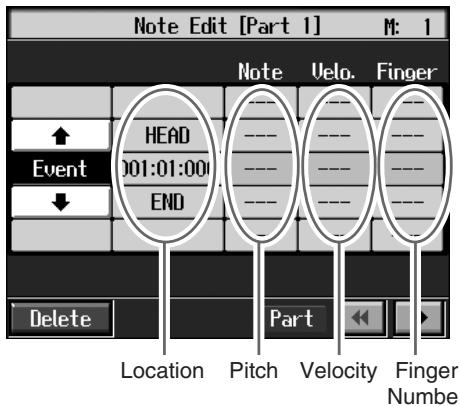
The note-location display uses "Measure: Beat: Tick" as the format. A tick is a unit of time that's shorter than a beat.
Touch to select the part with the note to be corrected. The Part number appears at the top of the screen.
Use the [ (Bwd)] button and the [ (Fwd)] button or use <><> on the screen to find the note to be corrected.
When you've found the note you want to correct, touch "Note" or "Velo." for the note.
Use the dial to correct the pitch or velocity. If you want to delete the note, touch
When you're done making all the settings, press the [Exit] button.
Modifying the Tone Changes in a Song (PC Edit)
In some songs, the instrument sound changes during the course of the song (that is, the Tone changes in the middle of a Part). In such songs, an instruction to switch the Tone is inserted at the place where you want the sound to change. This instruction is called a "Program Change" (PC), and actions such as deleting program changes, or changing the selected Tone by them are called "PC editing."
- It is not possible to insert a program change into a measure or beat that does not contain a program change.
At Step 3 of "Selecting the Editing Function" (p. 145), select
A screen like the one shown below appears.
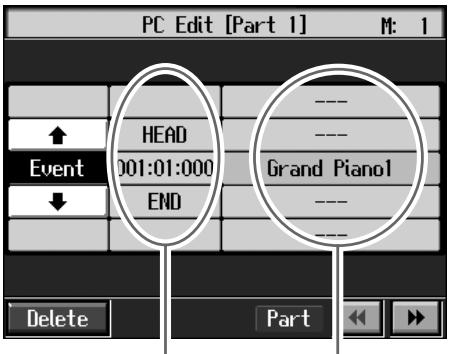
Location
Tone Name
The PC-location display uses "Measure: Beat: Tick" as the format. A tick is a unit of time that's shorter than a beat.
Touch to select the part with the program change to be edited.
The Part number appears at the top of the screen.
Use the [ (Bwd)] button and the [ Fwd)] button or use < > < > on the screen to find the program change to be edited.
When you've found the Program Change you want to modify, touch "Tone Name" on the screen.
Press a Tone button to select a Tone group, then select a Tone with the dial. When selecting Part 10 or 11, select the drum set or effect sound.
If you want to delete the Program Change, touch
Changing the Beat in the Middle of a Song (Beat Map)
You can create songs that have beat changes during the course of the song.
-
You can't change a song's beat once it's been recorded. Before recording the performance, determine the beat to be used.
-
Press the [Menu] button.
The "Composer Menu" or the "A/V Sync" screen appears.
- Touch
.
The following screen is displayed if there is any previously recorded performance or any song with changed settings.
Touch <OK> to change the song's settings.
Touch
A screen like the one shown below appears.
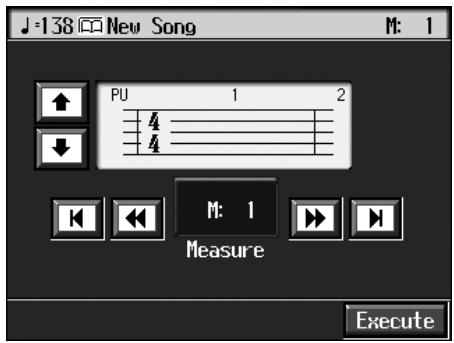
If you've recorded a song or changed a song's settings (see p. 137), a message asking you to confirm the deletion appears.
- Use <><> in the screen or the [ (Bwd)] and [ (Fwd)] buttons to move to the measure whose beat you want to change.
The measure number appears in the top-right area of the screen.
Touch < 1 > to move to the beginning of the song.
Touch < to move to the end of the song.
-
Touch in each to set the beat.
-
Touch
.
The beat change starts with the measure you selected. Repeat Steps 3-5 to make beat settings in other measures as needed.
Recording the Performance
- Press the [Exit] button twice.
The screen displayed before you pressed the [Menu] button appears.
- Press the [ (Reset)] button to return the measure number to "1."
- Start a recording.
Record the performance using the procedures described in "Chapter 5 Recording and Saving the Performance" (p. 104). Specify the measure, then change the beat.
Changing the Tempo of Recorded Songs
You can change the basic tempo of a composition. The basic tempo was initially set when the song was recorded.
- Press the Tempo [-] and [+ ] buttons to choose a tempo.
- Hold down the [ (Rec)] button and press the [ (Reset)] button.
The song's basic tempo changes.
The change in basic tempo is discarded when you turn off the power or choose a different song. Save important song data to external memory or to user memory (p. 116).
- If the song you're working on has tempo changes, press the [I (Reset)] button to go back to the beginning of the song before you carry out this operation.
Changing the Tempo Within the Song
You can add tempo changes to a recorded composition.
The KR stores song tempo information and performance data separately. Therefore, when making changes to the tempo in a song, you must record the changes in the tempo information independently of the performance data.
This recording of the tempo is called "Tempo Recording."
Adjusting the Tempo While Listening to a Song
You can add ritardando and other such gradual tempo changes.
Setting the Rec Mode to "Tempo"
- Press the [Menu] button.
The "Composer Menu" or the "A/V Sync" screen appears.
- Touch
.
A screen like the one shown below appears.
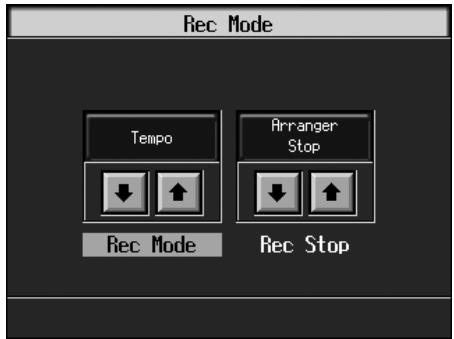
- Touch the
to select .
This makes the setting for tempo recording.
Press the [Exit] button a number of times to switch to the screen where the measure number is indicated in the upper right of the screen.
When the KR goes into Tempo Recording, the tempo indication is highlighted.
Recording the Tempo
- Use the [ (Bwd)] and [ Fwd)] buttons to move slightly before the measure where you want to change the tempo.
- Press the [ (Rec)] button and watch the indicator is flashing.
The KR is put in recording standby.
- When you press the [▶/■ (Play/Stop)] button, recording begins.
- When you get to the place where you want to change the tempo, use the Tempo [-] and [+] buttons or the dial to vary the tempo as desired.
- When you press the [▶/■ (Play/Stop)] button, recording stops.
The song's tempo changes.
- You cannot record performances while in Tempo Recording mode. When you're finished tempo recording, go back to the ordinary Replace Recording. Take a look at "Changing the Recording Method (Rec Mode)" (p. 140).
Adjusting the Tempo at a Particular Measure
You can create a tempo change at the beginning of a selected measure. This is handy when you want to make a sudden change in tempo.
First, carry out Steps 1-3 of "Changing the Tempo Within the Song" (p. 151) to make the "Tempo Recording" settings.
- Use the [ (Bwd)] and [ (Fwd)] buttons to move to the measure where you want to change the tempo. The measure number appears in the top-right area of the Basic screen.
- Press the [ (Rec)] button and watch the indicator is flashing. The KR is put in recording standby.
- Use the Tempo [-] [+] buttons or the dial to change the tempo.
- Press the [▶/■ (Play/Stop)] button.
The song's tempo changes starts with the measure you selected.
While tempo recording is being used to write tempo, the tempo display in the screen will be highlighted.
-
When you press the [ / ] (Play/Stop) button, the change in tempo stops.
-
You cannot record performances while in Tempo Recording mode. When you're finished tempo recording, go back to the ordinary Replace Recording. Take a look at "Changing the Recording Method (Rec Mode)" (p. 140).
If you want to restore the previous tempo, delete the tempo data at the place where the tempo was recorded. For an explanation of how to delete the information of tempo settings, refer to "Making Measures Blank (Erase)" (p. 148).
Tempo Recording Shortcut
Hold down the [ (Rec)] button and press one of the Tempo [-] [+] buttons to switch to the Tempo Recording settings. Record tempo information. In this case, tempo recording is canceled when recording ends.
Chapter 9 Creating Music Styles
Creating Original Styles (User Styles)
Although the KR features a variety of internal Music Styles, you can also create your own. These original Styles are called "User Styles."
You can use either of the two methods described below to create a User Style.
StyleComposer
With this method, you combine internal Music Styles to create new Styles. You can create a new Style by selecting from among the Rhythm, Bass, Accompaniment 1,
Accompaniment 2, Accompaniment 3, Accompaniment 4, Accompaniment 5, and Accompaniment 6 parts in different styles.
Style Converter (p. 155)
Create a new Style by extracting the portions you need from songs composed with the 16-track sequencer.
When you're composing a song, there's no need to specify all the chords. You can specify just some of the chords, and the KR automatically chooses the other chords and arranges the Style.
Style Converter features an "Auto mode" that allows you to easily create Styles from songs with a single chord, and a "Manual mode," in which you create Styles from songs with three kinds of chords—major, minor, and seventh chords.
Creating New Styles by Combining Internal Music Styles (StyleComposer)
You can create a new style by selecting from among the Rhythm, Bass, Accompaniment 1, Accompaniment 2, Accompaniment 3, Accompaniment 4, Accompaniment 5, and Accompaniment 6 parts in different Styles. This function is called the "StyleComposer."
- You can only combine the KR's built-in Styles.
Displaying the StyleComposer Screen
1. Press the [Menu] button.
The "Composer Menu" or the "A/V Sync" screen appears.
![ROLAND KR-117 - Press the [Menu] button. - 1](/content/2025/01/130864/images/05efc046d980f5a123fb812372884a734bd29c216446260576fedb59544bbe1d.jpg)
![ROLAND KR-117 - Press the [Menu] button. - 2](/content/2025/01/130864/images/f1478476ab1f95d3c5145636334783b1f474d0d90cc2345bc191412d0b81d0c9.jpg)
![ROLAND KR-117 - Press the [Menu] button. - 3](/content/2025/01/130864/images/9525c694e60ec28ef09ca6dd65aab45ea1770516457d74a1c441372a60db1e64.jpg)
- Touch < > to display the following screen.
![ROLAND KR-117 - Press the [Menu] button. - 4](/content/2025/01/130864/images/03bb4ef6d8e267b538fcf11b1f52735671f0a3ebaf110ee07efb0fefde591a53.jpg)
3. Touch .
- If a User Style has already been recorded, a message like the one shown below appears.
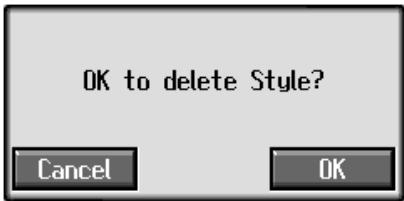
Touch
When you touch < OK> , the previously recorded User Style is deleted, and a new User Style is created.
A "StyleComposer screen" like the one shown below appears.
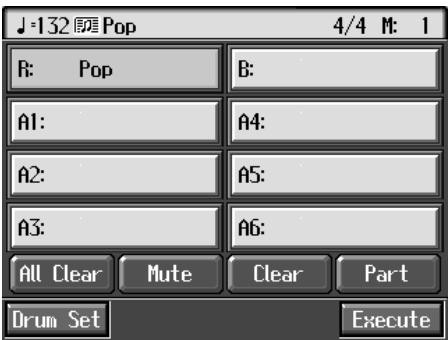
| Display | Part |
| R | Rhythm |
| B | Bass |
| A1 | Accompaniment 1 |
| A2 | Accompaniment 2 |
| A3 | Accompaniment 3 |
| A4 | Accompaniment 4 |
| A5 | Accompaniment 5 |
| A6 | Accompaniment 6 |
| Icon | Function |
| All Clear | Deletes all of the settings. |
| Mute | You can mute the sound of particular Parts in specific Divisions. For more information, take a look at “Muting Parts for a Particular Division” (p. 154). |
| Clear | Deletes the Styles in selected parts. |
| Icon | Function |
| Part | The Part Settings screen is displayed, allowing you to make detailed settings to each part. For more information, take a look at “Editing the Volume and Effect Settings for Each Part” (p. 155). |
| Execute | Records the created Style to the Music Style [User] button. Touch this when you have finished creating the Style. |
Selecting the Styles Assigned to Each Part
- Touch the part to be set.
- Press a Music Style button, then select a Style with the touch screen or the dial.
When you have decided on a Style, press the [Exit] button to display the StyleComposer screen.
- Repeat steps 3 and 4 to determine the Styles for each Part.
Deciding on a Style
- Touch
.
You have created a new Style.
The User Style is recorded to the Music Style [User] button. Try playing with the new Style.
- If you turn off the power or record a new User Style, any User Style you've previously recorded is lost. If you do not want to delete the Style, save it to an external memory or to user memory. Take a look at "Saving a User Style" (p. 158).
Muting Parts for a Particular Division
You can mute the sound of particular Parts in specific Divisions.
For example, all parts are played when you use a "Variation" accompaniment pattern, whereas if you select the "Original" accompaniment pattern, every part other than
"Accompaniment 1" is muted. With this arrangement, when the accompaniment pattern changes from the original to the variation, it creates a more elaborate effect in the accompaniment.
→ For more on Divisions, refer to the "Style Arrangements" (p. 155).
- Touch the StyleComposer screen to choose the Part you want to mute out.
- Press the Fill In [To Variation] or [To Original] button to switch to the division that you want to mute.
- Touch
on the screen.
The Part you chose is only muted out in the Division you selected.
If you want to hear the muted-out Part, touch
- To mute out a Division that changes after a few seconds (intro, ending, or fill-in), touch
immediately after switching to the Division.
Editing the Volume and Effect Settings for Each Part
Displaying the Part settings screen
1. At the StyleComposer screen, touch.
A screen like the one shown below appears.
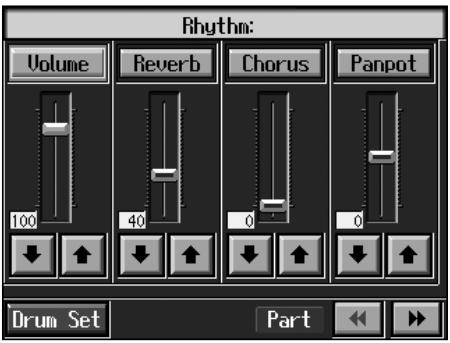
Modifying the Settings of Each Part
2. Touch the to select the part with
the settings to be changed.
The part name and Tone name are indicated in the upper part of the screen.
3. Touch for each parameter to change the value.
You can also change the values by touching each parameter name and then using the dial.
| Display | Explanation |
| Volume | Adjusts the volume. |
| Reverb | Adjusts the amount of reverb effect applied to the sound. |
| Chorus | Adjusts the amount of chorus effect applied to the sound. |
| Panpot | Changes the left-right direction from which the sound appears to come. When you touch the sound moves to the right; touch to move the sound to the left. |
You can change the Tone for the selected Part by pressing a Tone button to change the Tone while this screen is displayed. When selecting Rhythm Part, you can touch
Finishing the Settings
4. Press the [Exit] button.
The StyleComposer screen appears.
- Creating a Style from a Song - You Composed Yourself (Style Converter)
You can take a song you've composed yourself and extract the portions you need to create your own original Style.
When you're composing a song, there's no need to specify all the chords. You can specify some of the chords, and the KR automatically chooses the other chords and arranges the style. This function is called the "Style Converter."
Style Converter features an "Auto mode" that allows you to easily create Styles from songs with a single chord, and a "Manual mode," in which you create Styles from songs with three kinds of chords-major, minor, and seventh chords.
When creating a song in order to create an music style, it's good practice to consider the arrangement of the music style.
Style Arrangements
Music Styles created with the Style Converter function are composed of eight parts: "Rhythm,"
"Bass,"Accompaniment 1,Accompaniment 2,
"Accompaniment 3,"Accompaniment 4,Accompaniment 5, "Accompaniment 6."
A song progresses in predictable a sequence, such as intro, melody A, melody B, bridge and ending.
With the KR, such changes in songs are allocated to the following six performance states. We call these six parts of a song "Divisions."
| Division | Performance division |
| Intro | The intro is played at the start of a song. |
| Ending | This is played at the end of a song. |
| Original | This is a basic accompaniment pattern. |
| Variation | This is a developmental accompaniment pattern. It is a variation on an Original. |
| Fill-In To Variation | This is a one-measure phrase inserted at a juncture where the mood changes. It is used to make a song more lively. |
| Fill-In To Original | This is a one-measure phrase inserted at a juncture where the mood changes. It is used to make a song more sedate. |
You can make a song more lively or more restrained by increasing or reducing played parts by Divisions. You can also modify a song by changing the Tone of the parts in the Divisions.
Creating Styles in Auto Mode
Points to note when creating songs
- Use one of the major, minor, or diminished seventh chords to create the song. We recommend using diminished seventh chords to compose the song.
- It is convenient to record the sounds shown below for the Parts of the 16-track sequencer.
| Rhythm | Bass | Accomp 1 | Accomp 2 | Accomp 3 |
| D (10) | 2 | 7 | 8 | 9 |
When using parts other than Part 2, 7, 8, 9, and D , refer to "Changing an Extracted Part" (p. 157).
Creating songs
1. Use the 16-track sequencer to record the song.
Record the song after referring to "Multitrack Recording with 16 Parts (16-Track Sequencer)" (p. 136) and other related sections.
When using music data, first select a song (p. 75).
Displaying the Style Converter screen
2. Press the [Menu] button.
The "Composer Menu" or the "A/V Sync" screen appears.