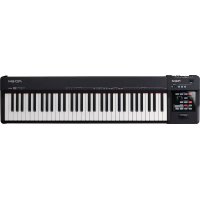
AT-60SL - Numeric keypad ROLAND - Free user manual and instructions
Find the device manual for free AT-60SL ROLAND in PDF.


User questions about AT-60SL ROLAND
0 question about this device. Answer the ones you know or ask your own.
Ask a new question about this device
Download the instructions for your Numeric keypad in PDF format for free! Find your manual AT-60SL - ROLAND and take your electronic device back in hand. On this page are published all the documents necessary for the use of your device. AT-60SL by ROLAND.
USER MANUAL AT-60SL ROLAND
Before using this unit, carefully read the sections entitled: "IMPORTANT SAFETY INSTRUCTIONS" (Owner's manual p. 2), "USING THE UNIT SAFELY" (Owner's manual p. 3), and "IMPORTANT NOTES" (Owner's manual p. 5). These sections provide important information concerning the proper operation of the unit. Additionally, in order to feel assured that you have gained a good grasp of every feature provided by your new unit, Owner's manual should be read in its entirety. The manual should be saved and kept on hand as a convenient reference.

CAUTION
RISK OF ELECTRIC SHOCK DO NOT OPEN

ATTENTION: BISQUE DE CHOC ELECTRIQUE NE PAS OUVBIR
CAUTION: TO REDUCE THE RISK OF ELECTRIC SHOCK, DO NOT REMOVE COVER (OR BACK). NO USER-SERVICEABLE PARTS INSIDE. REFER SERVICING TO QUALIFIED SERVICE PERSONNEL.

The lightning flash with arrowhead symbol, within an equilateral triangle, is intended to alert the user to the presence of uninsulated "dangerous voltage" within the product's enclosure that may be of sufficient magnitude to constitute a risk of electric shock to persons.

The exclamation point within an equilateral triangle is intended to alert the user to the presence of important operating and maintenance (servicing) instructions in the literature accompanying the product.
INSTRUCTIONS PERTAINING TO A RISK OF FIRE, ELECTRIC SHOCK, OR INJURY TO PERSONS.
IMPORTANT SAFETY INSTRUCTIONS SAVE THESE INSTRUCTIONS
WARNING - When using electric products, basic precautions should always be followed, including the following:
- Read these instructions.
- Keep these instructions.
- Heed all warnings.
- Follow all instructions.
- Do not use this apparatus near water.
- Clean only with a dry cloth.
- Do not block any of the ventilation openings. Install in accordance with the manufacturers instructions.
- Do not install near any heat sources such as radiators, heat registers, stoves, or other apparatus (including amplifiers) that produce heat.
-
Do not defeat the safety purpose of the polarized or grounding-type plug. A polarized plug has two blades with one wider than the other. A grounding type plug has two blades and a third grounding prong. The wide blade or the third prong are provided for your safety. When the provided plug does not fit into your outlet, consult an electrician for replacement of the obsolete outlet.
-
Protect the power cord from being walked on or pinched particularly at plugs, convenience receptacles, and the point where they exit from the apparatus.
- Only use attachments/accessories specified by the manufacturer.
- Never use with a cart, stand, tripod, bracket, or table except as specified by the manufacturer, or sold with the apparatus. When a cart is used, use caution when moving the cart/apparatus combination to avoid injury from tip-over.
- Unplug this apparatus during lightning storms or when unused for long periods of time.
- Refer all servicing to qualified service personnel. Servicing is required when the apparatus has been damaged in any way, such as power-supply cord or plug is damaged, liquid has been spilled or objects have fallen into the apparatus, the apparatus has been exposed to rain or moisture, does not operate normally, or has been dropped.

For the U.K.
IMPORTANT: THE WIRES IN THIS MAINS LEAD ARE COLOURED IN ACCORDANCE WITH THE FOLLOWING CODE.
BLUE: NEUTRAL
BROWN: LIVE
As the colours of the wires in the mains lead of this apparatus may not correspond with the coloured markings identifying the terminals in your plug, proceed as follows:
The wire which is coloured BLUE must be connected to the terminal which is marked with the letter N or coloured BLACK. The wire which is coloured BROWN must be connected to the terminal which is marked with the letter L or coloured RED.
Under no circumstances must either of the above wires be connected to the earth terminal of a three pin plug.
USING THE UNIT SAFELY
INSTRUCTIONS FOR THE PREVENTION OF FIRE, ELECTRIC SHOCK, OR INJURY TO PERSONS
About WARNING and CAUTION Notices
| ▲WARNING | Used for instructions intended to alert the user to the risk of death or severe injury should the unit be used improperly. |
| ▲CAUTION | Used for instructions intended to alert the user to the risk of injury or material damage should the unit be used improperly. * Material damage refers to damage or other adverse effects caused with respect to the home and all its furnishings, as well to domestic animals or pets. |
About the Symbols
| ▲ | The △ symbol alerts the user to important instructions or warnings. The specific meaning of the symbol is determined by the design contained within the triangle. In the case of the symbol at left, it is used for general cautions, warnings, or alerts to danger. |
| ◎ | The ⊙ symbol alerts the user to items that must never be carried out (are forbidden). The specific thing that must not be done is indicated by the design contained within the circle. In the case of the symbol at left, it means that the unit must never be disassembled. |
| ◎ | The ● symbol alerts the user to things that must be carried out. The specific thing that must be done is indicated by the design contained within the circle. In the case of the symbol at left, it means that the power-cord plug must be unplugged from the outlet. |
ALWAYS OBSERVE THE FOLLOWING
WARNING
- Before using this unit, make sure to read the instructions below, and the Owner's Manual.

For AT-60SL
- Do not open or perform any internal modifications on the unit.

For AT-80SL
- Do not open or perform any internal modifications on the unit. (The only exception would be where this manual provides specific instructions which should be followed in order to put in place user-installable options; see p. 251.)

- Do not attempt to repair the unit, or replace parts within it (except when this manual provides specific instructions directing you to do so). Refer all servicing to your retailer, the nearest Roland Service Center, or an authorized Roland distributor, as listed on the "Information" page.

-
Never use or store the unit in places that are:
-
Subject to temperature extremes (e.g., direct sunlight in an enclosed vehicle, near a heating duct, on top of heat-generating equipment); or are
- Damp (e.g., baths, washrooms, on wet floors); or are
- Humid; or are
- Exposed to rain; or are
- Dusty; or are
-
Subject to high levels of vibration.
-
Make sure you always have the unit placed so it is level and sure to remain stable. Never place it on stands that could wobble, or on inclined surfaces.


- The unit should be connected to a power supply only of the type described in the operating instructions, or as marked on the rear side of unit.

- Use only the attached power-supply cord. Also, the supplied power cord must not be used with any other device.

- Do not excessively twist or bend the power cord, nor place heavy objects on it. Doing so can damage the cord, producing severed elements and short circuits. Damaged cords are fire and shock hazards!

- This unit, either alone or in combination with an amplifier and headphones or speakers, may be capable of producing sound levels that could cause permanent hearing loss. Do not operate for a long period of time at a high volume level, or at a level that is uncomfortable. If you experience any hearing loss or ringing in the ears, you should immediately stop using the unit, and consult an audiologist.

- Do not allow any objects (e.g., flammable material, coins, pins); or liquids of any kind (water, soft drinks, etc.) to penetrate the unit.

WARNING
-
Immediately turn the power off, remove the power cord from the outlet, and request servicing by your retailer, the nearest Roland Service Center, or an authorized Roland distributor, as listed on the "Information" page when:
-
The power-supply cord, or the plug has been damaged; or
- If smoke or unusual odor occurs
- Objects have fallen into, or liquid has been spilled onto the unit; or
- The unit has been exposed to rain (or otherwise has become wet); or
-
The unit does not appear to operate normally or exhibits a marked change in performance.
-
In households with small children, an adult should provide supervision until the child is capable of following all the rules essential for the safe operation of the unit.

- Protect the unit from strong impact. (Do not drop it!)

- Do not force the unit's power-supply cord to share an outlet with an unreasonable number of other devices. Be especially careful when using extension cords—the total power used by all devices you have connected to the extension cord's outlet must never exceed the power rating (watts/amperes) for the extension cord. Excessive loads can cause the insulation on the cord to heat up and eventually melt through.

- Before using the unit in a foreign country, consult with your retailer, the nearest Roland Service Center, or an authorized Roland distributor, as listed on the "Information" page.


For AT-80SL
- Always turn the unit off and unplug the power cord before attempting installation of the light bulbs (p. 20).

- Do not put anything that contains water (e.g., flower vases) on this unit. Also, avoid the use of insecticides, perfumes, alcohol, nail polish, spray cans, etc., near the unit. Swiftly wipe away any liquid that spills on the unit using a dry, soft cloth.

CAUTION
- The unit should be located so that its location or position does not interfere with its proper ventilation.

- Always grasp only the plug on the power-supply cord when plugging into, or unplugging from, an outlet or this unit.

CAUTION

- At regular intervals, you should unplug the power plug and clean it by using a dry cloth to wipe all dust and other accumulations away from its prongs. Also, disconnect the power plug from the power outlet whenever the unit is to remain unused for an extended period of time. Any accumulation of dust between the power plug and the power outlet can result in poor insulation and lead to fire.
- Try to prevent cords and cables from becoming entangled. Also, all cords and cables should be placed so they are out of the reach of children.
- Never climb on top of, nor place heavy objects on the unit.
- Never handle the power cord or its plugs with wet hands when plugging into, or unplugging from, an outlet or this unit.
-
If you need to move the instrument, take note of the precautions listed below. At least two persons are required to safely lift and move the unit. It should be handled carefully, all the while keeping it level. Make sure to have a firm grip, to protect yourself from injury and the instrument from damage.
-
Check to make sure the knob bolt securing the unit to the stand have not become loose. Fasten them again securely whenever you notice any loosening.
- Disconnect the power cord.
- Disconnect all cords coming from external devices.
- Close the lid.
- Fold down the music stand.

- Before cleaning the unit, turn off the power and unplug the power cord from the outlet (p. 20).


- Whenever you suspect the possibility of lightning in your area, pull the plug on the power cord out of the outlet.

- Be careful when opening/closing the lid so you do not get your fingers pinched (p. 20). Adult supervision is recommended whenever small children use the unit.

- Should you remove the knob bolts, make sure to put them in a safe place out of children's reach, so there is no chance of them being swallowed accidentally.

For AT-80SL
- Should you remove screws and light bulbs, make sure to put them in a safe place out of children's reach, so there is no chance of them being swallowed accidentally.

Important Notes
In addition to the items listed under "IMPORTANT SAFETY INSTRUCTIONS" and "USING THE UNIT SAFELY" on pages 2 and 3, please read and observe the following:
Power Supply
- Do not connect this unit to same electrical outlet that is being used by an electrical appliance that is controlled by an inverter (such as a refrigerator, washing machine, microwave oven, or air conditioner), or that contains a motor. Depending on the way in which the electrical appliance is used, power supply noise may cause this unit to malfunction or may produce audible noise. If it is not practical to use a separate electrical outlet, connect a power supply noise filter between this unit and the electrical outlet.
- Before connecting this unit to other devices, turn off the power to all units. This will help prevent malfunctions and/or damage to speakers or other devices.
- Although the LCD and LEDs are switched off when the POWER switch is switched off, this does not mean that the unit has been completely disconnected from the source of power. If you need to turn off the power completely, first turn off the POWER switch, then unplug the power cord from the power outlet. For this reason, the outlet into which you choose to connect the power cord's plug should be one that is within easy reach.
Placement
- Using the unit near power amplifiers (or other equipment containing large power transformers) may induce hum. To alleviate the problem, change the orientation of this unit; or move it farther away from the source of interference.
- This device may interfere with radio and television reception. Do not use this device in the vicinity of such receivers.
- Noise may be produced if wireless communications devices, such as cell phones, are operated in the vicinity of this unit. Such noise could occur when receiving or initiating a call, or while conversing. Should you experience such problems, you should relocate such wireless devices so they are at a greater distance from this unit, or switch them off.
-
Observe the following when using the unit's floppy disk drive. For further details, refer to "Before Using Floppy Disks" (p. 6).
-
Do not place the unit near devices that produce a strong magnetic field (e.g., loudspeakers).
- Install the unit on a solid, level surface.
-
Do not move the unit or subject it to vibration while the drive is operating.
-
Do not expose the unit to direct sunlight, place it near devices that radiate heat, leave it inside an enclosed vehicle, or otherwise subject it to temperature extremes. Also, do not allow lighting devices that normally are used while their light source is very close to the unit (such as a piano light), or powerful spotlights to shine upon the same area of the unit for extended periods of time. Excessive heat can deform or discolor the unit.
-
When moved from one location to another where the temperature and/or humidity is very different, water droplets (condensation) may form inside the unit. Damage or malfunction may result if you attempt to use the unit in this condition. Therefore, before using the unit, you must allow it to stand for several hours, until the condensation has completely evaporated.
- Do not allow rubber, vinyl, or similar materials to remain on the unit for long periods of time. Such objects can discolor or otherwise harmfully affect the finish.
- Do not allow objects to remain on top of the keyboard or pedal board. This can be the cause of malfunction, such as keys ceasing to produce sound.
- Do not paste stickers, decals, or the like to this instrument. Peeling such matter off the instrument may damage the exterior finish.
Maintenance
- To clean the unit, use a dry, soft cloth; or one that is slightly dampened. Try to wipe the entire surface using an equal amount of strength, moving the cloth along with the grain of the wood. Rubbing too hard in the same area can damage the finish.
- Never use benzine, thinners, alcohol or solvents of any kind, to avoid the possibility of discoloration and/or deformation.
Repairs and Data
- Please be aware that all data contained in the unit's memory may be lost when the unit is sent for repairs. Important data should always be backed up on a floppy disk, or written down on paper (when possible). During repairs, due care is taken to avoid the loss of data. However, in certain cases (such as when circuitry related to memory itself is out of order), we regret that it may not be possible to restore the data, and Roland assumes no liability concerning such loss of data.
Additional Precautions
- Please be aware that the contents of memory can be irretrievably lost as a result of a malfunction, or the improper operation of the unit. To protect yourself against the risk of loosing important data, we recommend that you periodically save a backup copy of important data you have stored in the unit's memory on a floppy disk.
- Unfortunately, it may be impossible to restore the contents of data that was stored on a floppy disk once it has been lost. Roland Corporation assumes no liability concerning such loss of data.
- Use a reasonable amount of care when using the unit's buttons, sliders, or other controls; and when using its jacks and connectors. Rough handling can lead to malfunctions.
- Never strike or apply strong pressure to the display.
-
A small amount of noise may be heard from the display during normal operation.
-
When connecting / disconnecting all cables, grasp the connector itself—never pull on the cable. This way you will avoid causing shorts, or damage to the cable's internal elements.
- A small amount of heat will radiate from the unit during normal operation.
- To avoid disturbing your neighbors, try to keep the unit's volume at reasonable levels. You may prefer to use headphones, so you do not need to be concerned about those around you (especially when it is late at night).
- When you need to transport the unit, pack it in shock-absorbent material. Transporting the unit without doing so can cause it to become scratched or damaged, and could lead to malfunction.
- Do not apply undue force to the music stand while it is in use.
-
Use a cable from Roland to make the connection. If using some other make of connection cable, please note the following precautions.
-
Some connection cables contain resistors. Do not use cables that incorporate resistors for connecting to this unit. The use of such cables can cause the sound level to be extremely low, or impossible to hear. For information on cable specifications, contact the manufacturer of the cable.
Before Using Floppy Disks Handling the Floppy Disk Drive
- Install the unit on a solid, level surface in an area free from vibration.
- Avoid using the unit immediately after it has been moved to a location with a level of humidity that is greatly different than its former location. Rapid changes in the environment can cause condensation to form inside the drive, which will adversely affect the operation of the drive and/or damage floppy disks. When the unit has been moved, allow it to become accustomed to the new environment (allow a few hours) before operating it.
- To insert a disk, push it gently but firmly into the drive—it will click into place. To remove a disk, press the EJECT button firmly. Do not use excessive force to remove a disk which is lodged in the drive.
- Never eject a disk while reading or writing is in progress, since that can damage the magnetic surface of the disk, rendering it unusable. (The disk drive's indicator will light up at full brightness when the drive is busy reading or writing data. Ordinarily, the indicator will be less brightly lit, or be extinguished.)
- Remove any disk from the drive before powering up or down.
- To prevent damage to the disk drive's heads, always try to hold the floppy disk in a level position (not tilted in any direction) while inserting it into the drive. Push it in firmly, but gently. Never use excessive force.
- To avoid the risk of malfunction and/or damage, insert only floppy disks into the disk drive. Never insert any other type of disk. Avoid getting paper clips, coins, or any other foreign objects inside the drive.
Handling Floppy Disks
-
Floppy disks contain a plastic disk with a thin coating of magnetic storage medium. Microscopic precision is required to enable storage of large amounts of data on such a small surface area. To preserve their integrity, please observe the following when handling floppy disks:
-
Never touch the magnetic medium inside the disk.
- Do not use or store floppy disks in dirty or dusty areas.
- Do not subject floppy disks to temperature extremes (e.g., direct sunlight in an enclosed vehicle). Recommended temperature range: 10 to 50^ (50 to 122^ ).
-
Do not expose floppy disks to strong magnetic fields, such as those generated by loudspeakers.
-
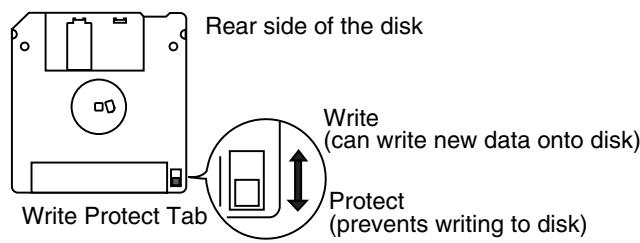
Floppy disks have a "write protect" tab which can protect the disk from accidental erasure. It is recommended that the tab be kept in the PROTECT position, and moved to the WRITE position only when you wish to write new data onto the disk.
- The identification label should be firmly affixed to the disk. Should the label come loose while the disk is in the drive, it may be difficult to remove the disk.
- Store all disks in a safe place to avoid damaging them, and to protect them from dust, dirt, and other hazards. By using a dirty or dust-ridden disk, you risk damaging the disk, as well as causing the disk drive to malfunction.
-
Disks containing performance data for this unit should always be locked (have their write protect tab slid to the "Protect" position) before you insert them into the drive on some other unit (except the PR-300, or a product in the HP-G, MT, KR, or Atelier families), or into a computer's drive. Otherwise (if the write protect tab remains in the "Write" position), when you perform any disk operations using the other device's disk drive (such as checking the contents of the disk, or loading data), you risk rendering the disk unreadable by this unit's disk drive.
-
GS (G) is a registered trademark of Roland Corporation.
- Microsoft and MS-DOS are registered trademarks of Microsoft Corporation.
- Apple and Macintosh are registered trademark of Apple Computer, Inc.
- IBM and IBM PC are registered trademark of International Business Machines Corporation.
- All product names mentioned in this document are trademarks or registered trademarks of their respective owners.
- XG lite (XGite) is a registered trademark of Yamaha Corporation.
Main Features
We want to take a moment to thank you for your purchase of the Roland AT-80S Luxury/AT-60S Luxury "Atelier Series" Organ. The AT-80S Luxury/AT-60S Luxury is an electronic organ which provides a generous collection of rich organ sounds. In addition, it is designed to be easy to learn and use. In order to enjoy reliable performance of your new keyboard for many years to come, please take the time to read through this manual in its entirety.
- The AT-80S Luxury and AT-60S Luxury are abbreviated in this text as "AT-80SL" and "AT-60SL," respectively.
Basic concepts of the ATELIER series
A full complement of organ sounds
A wide range of basic organ sounds, ranging from jazz organ and pipe organ to theatre organ, are onboard so you are sure to enjoy having access to all the sounds you expect from an organ.
Panel layout based on a tradition of emphasis on realtime operation
Based on the idea that you should be able to sit down and begin playing immediately, the operation buttons of the panel are arranged by function as dictated by classic organ traditions, ensuring easy and intuitive operation. All models of the ATELIER series feature the same operability, allowing you to start playing immediately even if you switch models.
High-quality sounds that you can use without editing
In addition to a full range of organ sounds, high-quality sounds such as strings and brass are also included onboard. You can simply select sounds and enjoy playing the organ—no need to perform complicated editing operations.
Expansive lower keyboard with damper pedal for piano-like expressiveness
Piano is indispensable to the performance of contemporary music. On the ATELIER series, the lower keyboard features an expanded range that gives you the expressive power of a piano. The keyboard also features half-damper pedal capability and initial touch sensitivity, both indispensable for piano performance.
All models provide high-quality grand piano sounds.
Design utilizes your existing music data
The ATELIER series is designed so that even on new models, you will feel right at home and can begin playing immediately. Data compatibility has also been carefully taken into account, and song data or registration data from earlier models can be used without change.
Music styles from around the world
Many of the best-loved musical styles from around the world (rhythm and automatic accompaniment patterns) are built in, allowing you to enjoy an international range of performances.
Utilizes SMF music files
Compatible with GM2, the world standard in SMF music files, and equipped with its own floppy disk drive, the ATELIER brings you access to the wealth of SMF music files available on the market. You can also mute parts, allowing you to practice the part for each hand separately, and enjoy performing ensemble with the music files.
Features
RSS reverb technology is used to create a high-quality ambience that surrounds the listener (AT-80SL)
The AT-80SL provides an AUX OUT for RSS Ambience, allowing you to enjoy very high quality RSS reverb sound. In addition, a speaker is built into the panel, ensuring that the performer will also enjoy the exceptional sound quality.
Highly Realistic Rhythms and Automatic Accompaniment Functions
All rhythms use data from performances by professional drummers, featuring high-quality patterns with all the grooves and subtle nuance of the real thing. In addition, you can use automatic accompaniments that are perfectly matched to each rhythm to enjoy the feeling of playing with your own band in the background.
Active Expression sounds
For some of the sounds, moving the expression pedal will vary not only the volume but also the tone, or add other sounds. From pianissimo to fortissimo, the tonal character of the sound itself will change as you perform a crescendo, or strings may appear behind the piano, creating dynamic changes in tonality.
"Music Assistant" and "Quick Registration" functions
The "Music Assistant" function makes it easy to recall appropriate rhythm and sound settings simply by selecting a desired atmosphere for your song. The "Quick Registration" function lets you use keywords to select wonderful registrations created by top-ranking organizers such as Hector Olivera.
Human voices and phrases
In addition to a full array of organ sounds, the ATELIER-S series provides human voices such as "Jazz Scat," and human voice phrases such as "Amen."
Harmony Intelligence
The Harmony Intelligence function automatically adds harmony to the upper keyboard sound according to the chord you play in the lower keyboard. This gives you greater tonal depth and a more powerful performance.
Rhythm Customize Function Lets You Arrange the Internal Rhythms
You can use the "Rhythm Customize" function to edit the internal rhythms, for example by adding a single cymbal at the end or changing the drum tone in a pattern. You can also save edited rhythms to the instrument as well as to floppy disks.
76-note lower keyboard for plenty of range
The 76-note range can be split into zones, allowing a solo voice, pedal bass voice, percussion, etc., to be played independently for an even wider range of performance possibilities. Since the lower keyboard can be divided into a maximum of four parts, you have at your command expressive power that rivals that of a three-manual organ.
In addition, you can use the Drums/SFX function to play drum sounds or sound effects from the entire lower keyboard.
Newly developed jazz organ style footage sound generator (AT-80SL)
The AT-80SL features a new "digital harmonic bar" function that lets you adjust the volume of each footage. In addition to the rich sounds of the ATELIER series, you can enjoy the versatile tonal expressions of a jazz organ.
Music score display in the LCD screen
The large LCD screen allows recorded data or loaded music data to be displayed as a musical score. You can enjoy the convenience of playing from a score, or checking the score of a song you recorded.
Furthermore, the instrument features a color LCD panel for great visibility and comfortable operation.
Video output of lyrics (AT-80SL)
You can connect a television to view the lyrics from SMF music files.
Conventions Used in This Manual
This manual uses the following conventions in the interest of simpler, more concise instructions.
- Button names are enclosed in square brackets ( c 1 1 ) , as in [Harmony Intelligence] button.
- On screen text is enclosed in angled brackets <<> , as in Exit .
- [+] [-], [] [▼], [] [▲] means that you should press one or the other button. Example: Value [-][+] buttons, Reverb [] [▼] buttons, Tempo [] [▲] buttons.
- The text incorporates AT-80SL screen shots and panel diagrams. Thus, there will be some portions where the information differs from that for the AT-60SL.
- For easier readability, some screens and colors used here may differ in part from actual screens and colors.
- The act of lightly contacting the Touch Screen with your finger is called "touching."
- An asterisk (*) or a at the beginning of a paragraph indicates a note or precaution. These should not be ignored.
(p. **) refers to pages within the manual.
Contents
USING THE UNIT SAFELY 3
Important Notes. 5
Main Features. 7
Conventions Used in This Manual 9
Panel Descriptions 16
Before You Start Playing 20
Opening/Closing the Lid 20
Setting Up the Music Rest 20
Connecting the Power Cord. 20
Turning the Power On and Off 20
Turning On the Power 20
Turning Off the Power 21
Using Headphones 21
Using a Microphone 22
Turning On the Lights (AT-80SL) 22
About the Bench 23
Restoring All the Factory Default Settings 23
Restoring All Settings Other Than the User Memory to the Original Factory Settings 25
About the Display 26
Understanding the Main and Related Screens 26
Convenient Functions 30
Listening to the Demo Songs 30
Music Assistant Function 32
Music Assistant Search 34
Choose a Keyword for Quick Registration Selection 36
About the Quick Guide function 38
About the Index menu. 38
Chapter 1 Selecting and Playing Sounds 40
Selecting Voices 40
About the Voices and Parts 40
Functions of the Upper/Lower/Pedal Bass Sound Select Buttons 41
Selecting the Upper and Lower Voices 42
Selecting Pedal Bass Voice 43
Selecting Solo Voice 44
Selecting a Voice Using the [Others] Button 45
Performing with a Human Voice. 47
Performing with an Active Expression Voice 49
Creating Organ Sounds (Footage) (AT-80SL) 50
Adjust the Volume Balance. 52
Transpose the Pitch in Octave Units (Octave Shift) 54
Playing Drum Sounds or Sound Effects from the Entire Lower Keyboard (Drums/SFX) 56
Changing Drums/SFX Sets 57
Playing a Lower Voice with Percussion Instrument Sounds and a Voice Phrase
(Manual Percussion) 58
Changing the Manual Percussion Sets 59
Sustaining Notes in the Lower Part (Lower Hold) 60
Chapter 2 Using Rhythm Performance 61
Selecting a Rhythm 61
Using Rhythms Stored in User Memory 62
Rhythm Search 63
Playing Rhythm 65
Starting at the Press of a Button 65
Starting the Rhythm Automatically When You Play the Lower Keyboard or Pedalboard
(Sync Start) 66
Stopping the Rhythm 67
Changing a Rhythm's Tempo 67
Playing the Count Sound at the End of the Intro 68
Playing Rhythm and Automatic Accompaniment 68
Adding Variety to the Rhythm or Automatic Accompaniment 69
Changing the Arrangement of the Rhythm and Accompaniment (Style Orchestrator).... 69
Playing Chords with Simple Fingering 70
Leading Bass Function 72
A Simple Way to Make Automatic Accompaniment Settings (One Touch Program) 74
Using a Rhythm from a Disk 76
Inserting and Ejecting a Floppy Disk 76
Reviewing the Styles on a Music Style Disk 77
Copying Rhythms on Disks into User Memory 78
Restoring the Rhythm Stored in the User Memory to Their Original Factory Settings 80
Copying Rhythms Saved in User Memory to Floppy Disks 81
Changing the Order of the Rhythms Stored in User Memory 83
Changing the Names of Rhythms Stored in User Memory 85
87
Chapter 3 Using the Registration Buttons .89
Storing Registrations 90
Recalling a Registration 91
How to Recall a Registration (DELAYED) 91
How to Recall a Registration (INSTANT) 91
Changing the Timing of Recalling Registrations 92
Automatically Registering When You Switch Panel Settings 93
Assigning a Name to a Registration Set 94
Formatting Disks 96
Saving Registration Sets to a Floppy Disk 98
Loading Previously Saved Registration Sets Into the AT-80SL/60SL 101
Loading a Set of Registrations 101
Loading an Individual Registration 103
Recalling the Order that the Registrations are Saved on the Floppy Disk (Load Next)... 106
Deleting a Set of Registrations from a Floppy Disk 108
Changing the Order of Registration on Floppy Disk 110
Using Registrations Created on an Earlier Model 111
Chapter 4 Using the Performance Functions. 114
Transposing to a Different Key (Key Transpose) 114
Adjusting the Brightness of the Sound 115
Adding Decay to the Sound (Damper Pedal) 115
Pitch Bend and Vibrato Effects 116
Using the Foot Switches 117
Changing the Function of the Foot Switch 118
Using the Foot Switch to Switch Registrations 119
Adjusting the Overall Volume Using an Expression Pedal 120
Adjusting the Depth of the Expression Pedal 121
Chapter 5 Applying Various Effects to the Sound 122
Adding Harmony to a Melody (Harmony Intelligence) 122
Changing the Type of Harmony Intelligence 122
Adding Modulation to the Sound (Rotary Effect) 124
Rotary Speed 125
Rotary Color 126
Chorus Effect 127
Sustain Effect 128
Changing the Sustain Length 129
Reverb Effect 130
Changing the Reverb Type 131
Changing the Wall Type 132
Changing the Depth of the Reverb 133
Chapter 6 Using the Lower Keyboard Effectively 135
Making Effective Use of the Lower Keyboard 135
Playing the Solo Voice on the Lower Keyboard (Solo [To Lower] Button) 137
Changing How the Solo Voice Responds 138
Layering the Solo Voice and Lower Voice 138
Changing the Solo Split Point 139
Using the Lower Keyboard to Play the Bass Voice ([Bass Split] Button) 140
Changing the Bass Split Point 141
Using the Lower Keyboard to Play the Bass Voice (Pedal [To Lower] Button) 142
Chapter 7 Recording/Playing Back What You Play 143
What is a Track Button? 144
Displaying the Track Buttons 145
Playing Back Performance Songs Stored on Floppy Disk and SMF Music Files 145
Silencing a Specific Track (Track Mute) 147
Muting Individual Tracks of Performance Data 148
Viewing a Notation 149
Changing the Notation Settings. 150
Recording a Performance 152
Playing Back a Performance Song. 153
Add a Count Sound to Match the Timing (Count In Play) 153
Recording Each Part Separately 154
Re-Recording. 155
Erasing a Performance Song (Song Clear) 156
Changing the Name of a Performance Song (Rename) 156
Saving Performance Songs Onto Floppy Disk 158
Loading Performance Songs Into the AT-80SL/60SL 159
Deleting Performance Songs Stored on Disk. 160
Layering a New Recording onto SMF Music Files 161
Using Song with a Different Tempo Than That of the Performance Song 162
Re-Recording Part of Your Performance (Punch-in Recording) 162
Recording and Layering Drum Parts (Loop Recording) 163
Count-In Recording. 164
Chapter 8 Editing Your Musical Performance Data............165
Deleting a Specific Measure (Delete Measure) 165
Delete the Recording from a Track (Delete Track) 166
Erase Recording (Erase Event) 168
Copying Measures (Copy) 170
Correct Timing Inaccuracies (Quantize) 171
Chapter 9 Creating Original Accompaniment Rhythms............173
Preparations for Creating User Rhythms. 174
Displaying the Rhythm Customize Screen 174
Selecting the Division 175
Loading the Rhythm 176
Making the Division Settings 177
Editing the Rhythm 178
Changing and Deleting the Instruments Used 181
Deleting Rhythms You Have Created. 182
Changing the Name of a User Rhythm (Rename) 182
Saving User Rhythms to the User Memory or Floppy Disk 183
Chapter 10 Various Other Settings 184
Adjusting How the Instrument Responds 184
Turning Aftertouch On/Off 184
Adjusting the Depth of Aftertouch 184
Adjusting the Initial Touch Sensitivity 185
Changing the Pedalboard Polyphony 185
Performance Function Settings. 186
Selecting the Range of Keys to Which the Damper Pedal will Apply 186
Changing the Function of the Expression Pedal 186
Selecting the Range of Keys to Which the Pitch Bend/Vibrato Lever will Apply 187
Changing the Pitch Bend Range 188
Rhythm Settings. 188
Turning Chord Hold On/Off 188
Count Down Sound 189
Preventing Rhythm Tempos from Switching Automatically 189
Registration Settings 190
Changing the Timing at Which Arranger Settings are Recalled 190
Changing the Timing at Which Transposition Settings are Recalled 190
Composer settings 191
Switching the Display of Lyrics On or Off 191
Changing the Key When Playing Back Songs (Play Transpose) 191
Changing the Metronome Setting 192
Adjusting the Metronome Volume 192
Changing the Sound of the Metronome 193
Setting the Beat 193
Other Settings. 194
Adjust the Standard Pitch (Master Tune) 194
Mic Echo 194
Enabling Transmission of PC Numbers. 195
Setting the PC Number. 195
MIDI IN Mode 196
Selecting the MIDI Transmit Channel 196
Repositioning the Touch Screen. 197
Displaying a Graphic at Power-up (AT-80SL) 198
Deleting an Image Stored in Internal Memory 199
Switching the Background of the Main Screen 200
Eliminating the Bouncing Ball from the Main Screen. 201
Using the V-LINK function 201
Chapter 11 Connecting with External Device. 203
Name and Functions of Jack and Connectors (AT-80SL) 203
Name and Functions of Jack and Connectors (AT-60SL) 204
Connecting to Audio Equipment 205
Connecting a Computer 206
Connecting a MIDI Devices 207
Connecting MIDI Devices 208
Connecting a Television to View the Lyrics (AT-80SL) 209
Switching the TV Format 209
Connecting External Speakers or an external Reverb Unit to Broaden the Reverb
(RSS Reverb) (AT-80SL). 210
Switching the Aux Out On/OFF 210
Switching the Aux Out Mode. 210
Appendices
Troubleshooting 213
Error Message 218
Voice List (AT-80SL) 220
Voice List (AT-60SL) 223
Drums/SFX Set List (AT-80SL) 225
Drums/SFX Set List (AT-60SL) 229
Manual Percussion List (AT-80SL) 233
Manual Percussion List (AT-60SL) 234
Instruments List (Rhythm Customize Function) 235
Rhythm List (AT-80SL) 242
Rhythm List (AT-60SL) 244
Music Style Disk List (AT-80SL/60SL). 246
Chord List 247
Glossary 249
About ATELIER Series Sound Generator 250
Replacing the Illumination Bulbs (AT-80SL Only) 251
Before you continue 251
Required items 251
Panel illumination 251
Remplacement des ampôules (AT-80SL) 253
Settings That Are Stored After the Power Is Turned Off 255
Settings That Are Stored After the Power Is Turned Off 255
Settings That Are Stored In the Registration Buttons 255
Settings That Are Stored In the Individual Registration Buttons 255
Demo Song List 257
Short Cut List 260
Main Specifications 261
Index 264
Panel Descriptions
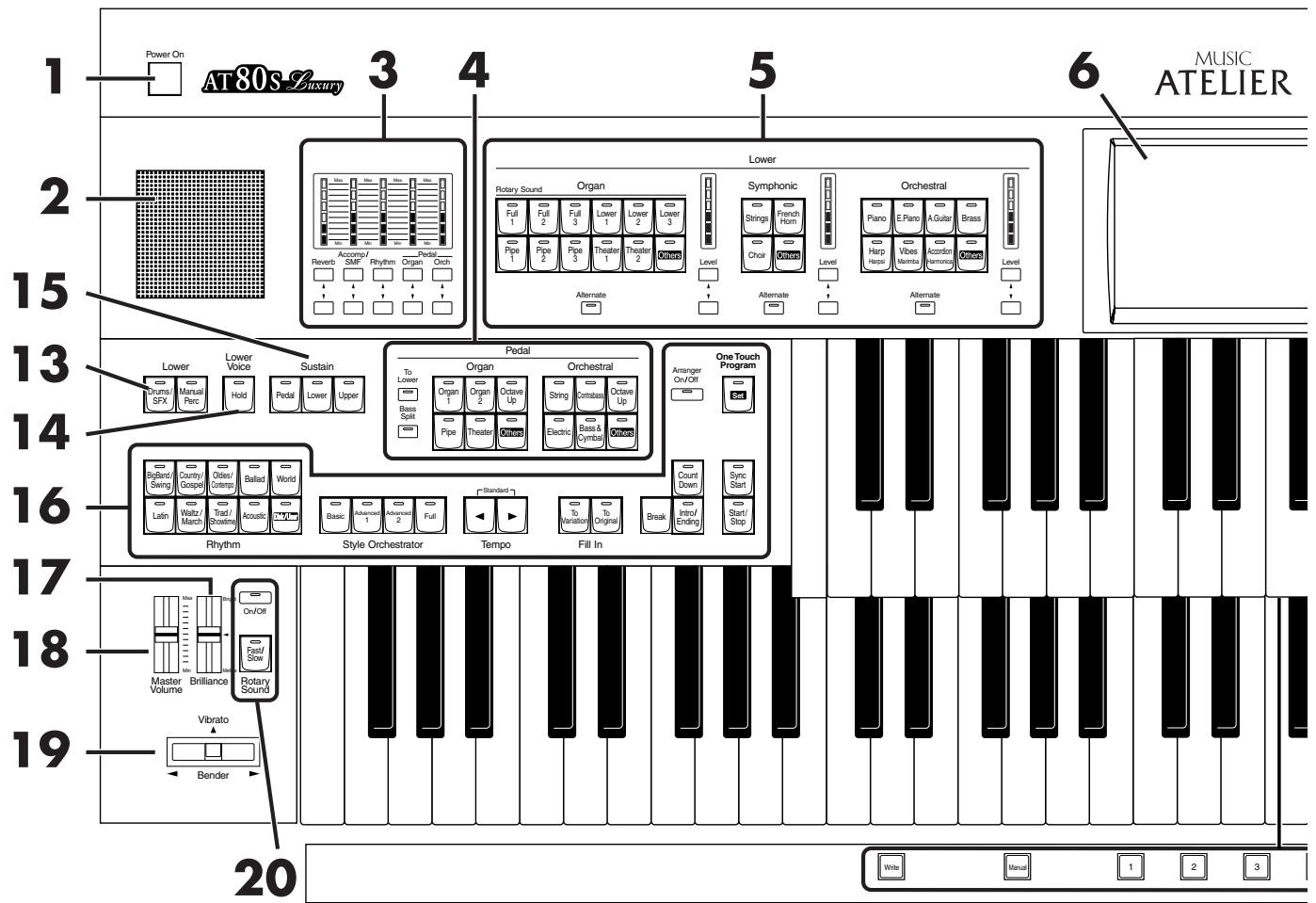
AT-80SL
- [Power On] switch p. 20
- Panel Speaker
- Part Balance [▲] [▼] buttons → p. 52
Part Balance Indicator - Pedal Bass Voice select buttons p. 43
Pedal Organ Part
Pedal Orchestral Part
[To Lower] button p. 142
[Bass Split] button p. 140 - Lower Voice select buttons Lower Organ Part Lower Symphonic Part Lower Orchestral Part [Alternate] button Level [A][▼] buttons p. 52 Level indicator p. 52
- Touch Screen p. 26
- Harmony Intelligence button p. 122
- Transpose [-] [+ ] buttons p. 114
9.Composer p.143
[Reset] button
[Play/Stop] button
[Rec] button p. 143
[Song] button
[Registration] button p. 101
[Demo] button p. 30, p. 146
-
Floppy Disk Drive p. 76, p. 96, p. 145
-
Upper Voice select buttons p. 42
Upper Organ Part
Upper Symphonic Part
Upper Orchestral Part
[Alternate] button
Level [▲] [▼] buttons p. 52
Level indicator p. 52 - Solo Voice select buttons p. 44
Solo Part
[To Lower] button p. 137
[Alternate] button
Level [▲] [▼] buttons → p. 52
Level indicator p. 52
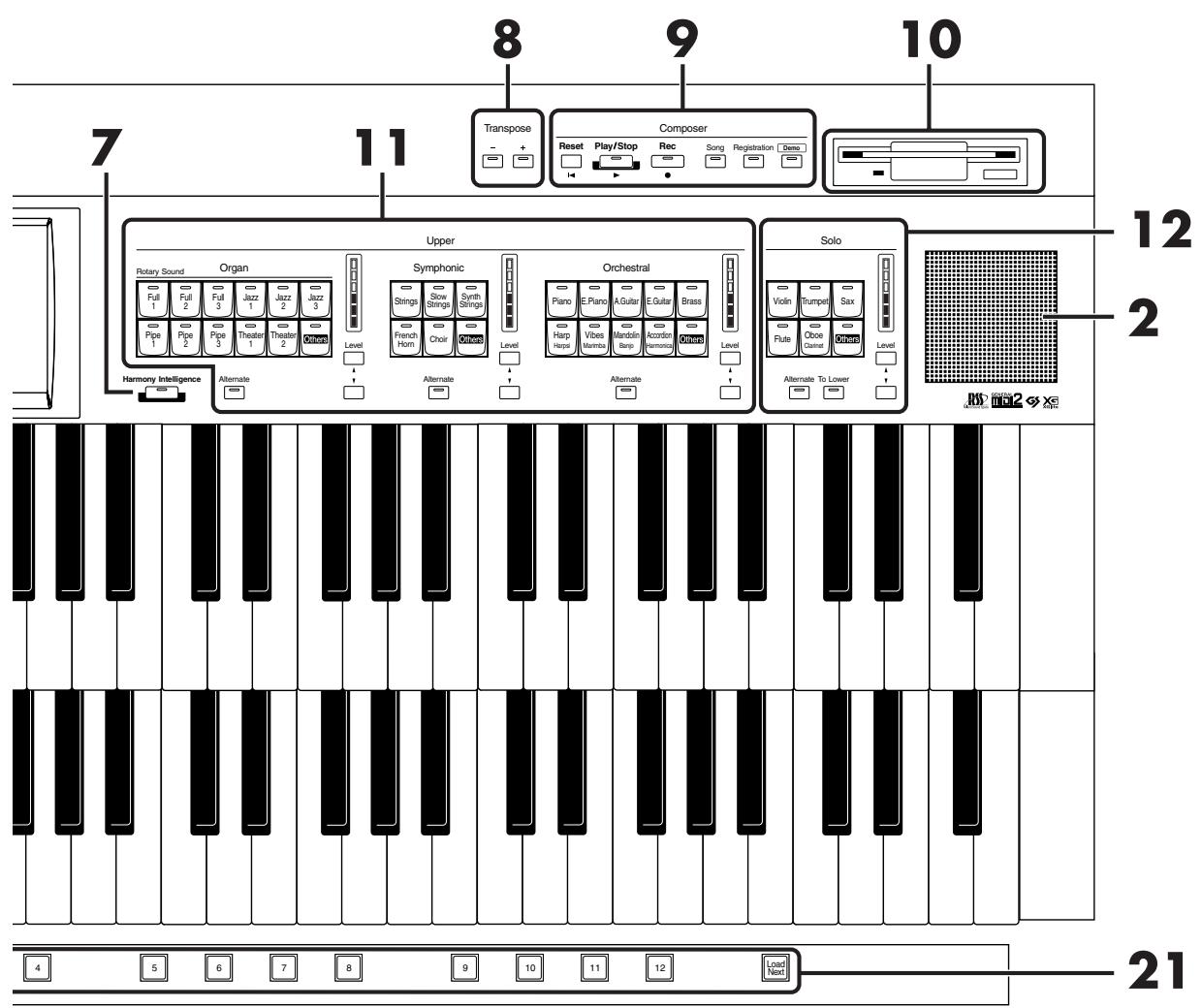
13. Lower
[Drums/SFX] button p. 56
[Manual Perc] button p. 58
14. Lower Voice [Hold] button p. 60
15. Sustain p. 128
[Pedal] button
[Lower] button
[Upper] button
16. Rhythm select buttons p. 61
Style Orchestrator buttons p. 69
Tempo [ ] [ ] buttons p. 67
Fill In [To Variation] button p. 69
Fill In [To Original] button p. 69
[Break] button p. 69
[Count Down] button p. 68
[Intro/Ending] button p. 65, p. 66, p. 67
[Sync Start] button p.66
[Start/Stop] button p. 65, p. 67
Arranger [On/Off] button p. 68
[One Touch Program] button p. 74
17. [Brilliance] slider p. 115
-
[Master Volume] slider p. 20
-
[Bender/Vibrato] lever p. 116
-
Rotary Sound p. 124
[On/Off] button
[Fast/Slow] button
21. Registration buttons
[Write] button p. 90
[Manual] button p. 93
Registration [1]–[12] buttons → p. 89
[Load Next] button p. 106
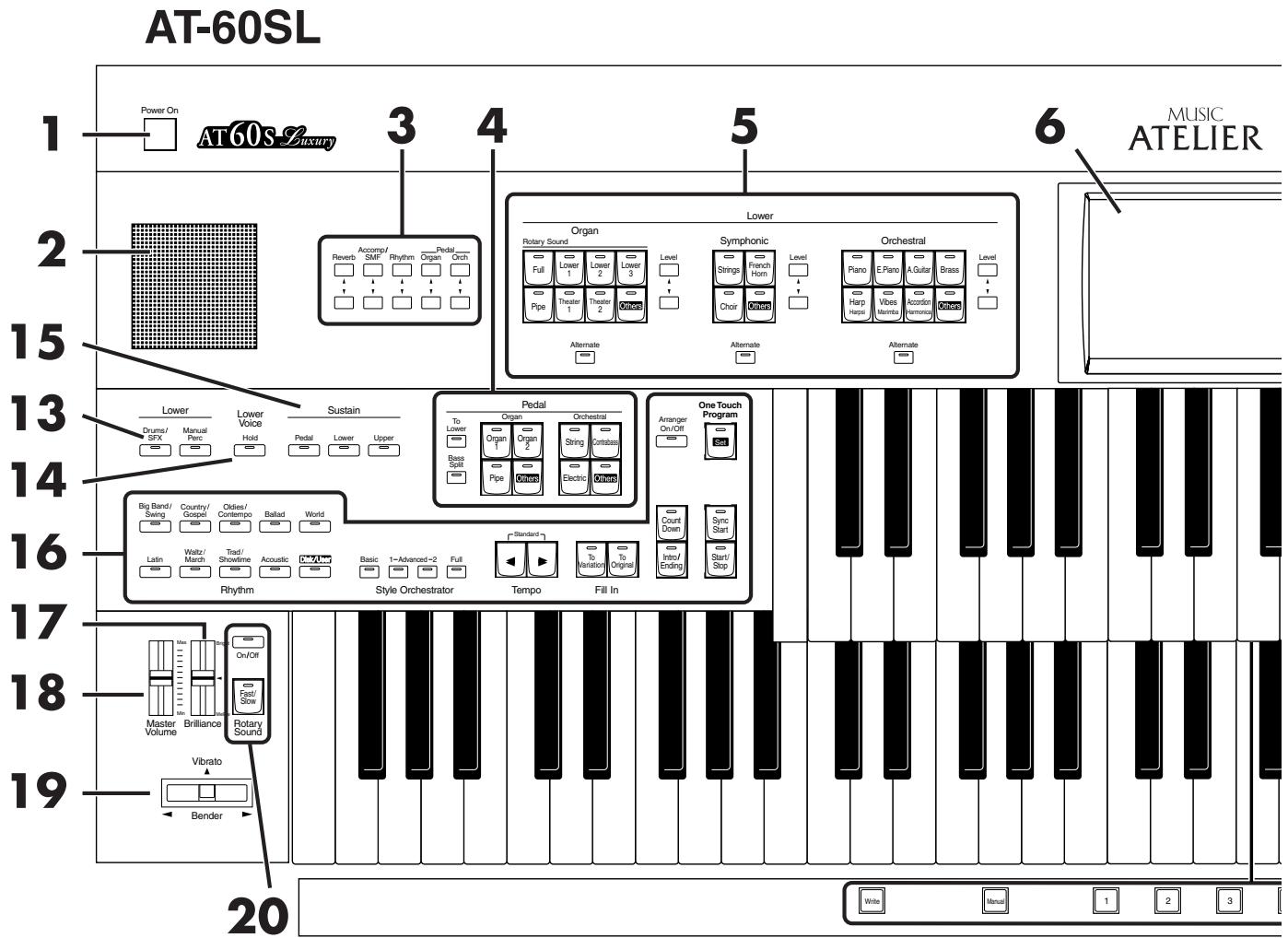
- [Power On] switch p. 20
- Panel Speaker
- Part Balance [▲] [▼] buttons → p. 52
- Pedal Bass Voice select buttons p. 43
Pedal Organ Part
Pedal Orchestral Part
[To Lower] button p. 142
[Bass Split] button p. 140
- Lower Voice select buttons p. 42
Lower Organ Part
Lower Symphonic Part
Lower Orchestral Part
[Alternate] button
Level [ ][ ] buttons p. 52
- Touch Screen p. 26
- [Harmony Intelligence] button p. 122
- Transpose [-] [+ ] buttons p. 114
9.Composer p.143
[Reset] button
[Play/Stop] button
[Rec] button p. 143
[Song] button
[Registration] button p. 101
[Demo] button p. 30, p. 146
-
Floppy Disk Drive p. 76, p. 96, p. 145
-
Upper Voice select buttons p. 42
Upper Organ Part
Upper Symphonic Part
Upper Orchestral Part
[Alternate] button
Level [▲] [▼] buttons → p. 52
- Solo Voice select buttons p. 44
Solo Part
[Alternate] button
[To Lower] button p. 137
Level [▲] [▼] buttons → p. 52

13. Lower
[Drums/SFX] button p. 56
[Manual Perc] button p. 58
- Lower Voice [Hold] button p. 60
15. Sustain p. 128
[Pedal] button
[Lower] button
[Upper] button
16. Rhythm select buttons p. 61
Style Orchestrator buttons p. 69
Tempo [][] buttons p. 67
Fill In [To Variation] button p. 69
Fill In [To Original] button p. 69
[Count Down] button p. 68
[Intro/Ending] button p. 65, p. 66, p. 67
[Sync Start] button p. 66
[Start/Stop] button p. 65, p. 67
Arranger [On/Off] button p.68
[One Touch Program] button p. 74
-
[Brilliance] slider p. 115
-
[Master Volume] slider p. 20
-
[Bender/Vibrato] lever p. 116
20. Rotary Sound p. 124
[On/Off] button
[Fast/Slow] button
21. Registration buttons
[Write] button p. 90
[Manual] button p. 93
Registration [1]-[8] buttons p. 89
[Load Next] button p. 106
Before You Start Playing
Opening/Closing the Lid
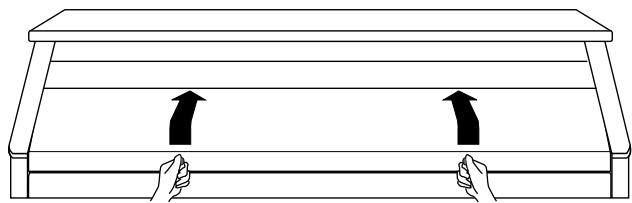
- To open the lid, hold it with both hands and lift it straight up. Then, slide it to the rear.
- To close the lid, slowly pull it forward until it stops. Then, gently lower it into place.
NOTE
Be careful not to get your fingers caught when opening or closing the lid. Adult supervision is recommended when small children are going to be using the instrument.
NOTE
To prevent accidents, be sure to close the lid before moving the organ.
NOTE
Make sure you don't have anything (such as sheet music) on the keyboard when you close the lid.
Setting Up the Music Rest

- Lift the music rest gently.
- To collapse the music rest, fold in the metal fittings while supporting the music rest with hand and gently fold down the stand.
NOTE
Do not apply excessive force to the installed music rest.
Connecting the Power Cord
- First, make sure that the [Power On] switch at the panel's left side is OFF (not pushed in).
Upper position

- Connect the supplied power cord to the AC Inlet connector, then plug the other end into an AC outlet.
NOTE
Only use the power cord supplied with this instrument.
NOTE
Whenever you do not intend to use the instrument for extended periods of time, pull out the power cord from the AC outlet.
Turning the Power On and Off
NOTE
Once the connections have been completed, turn on or off power to your various devices in the order specified. By turning on or off devices in the wrong order, you risk causing malfunction and/or damage to speakers and other devices.
■Turning On the Power
-
Make sure of the following before the power is turned on.
-
Is the power cord correctly connected to the AC inlet?
- Is the power cord correctly connected to the AC outlet?
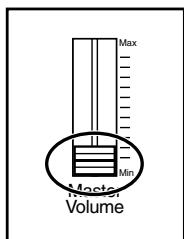
- Is the [Master Volume] slider (located at the left of the Lower Keyboard) set to the Min (minimum) position?
- Press the [Power On] button to turn on the power.
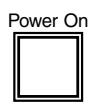
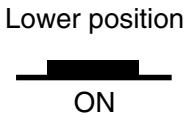
The Power indicator lights in red.
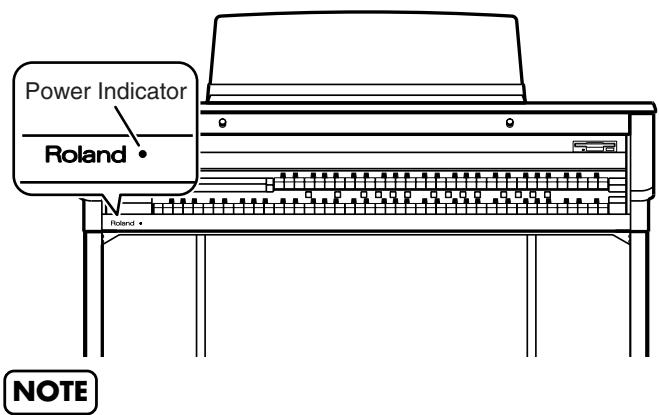
This unit is equipped with a protection circuit. A brief interval (a few seconds) after power up is required before the unit will operate normally.
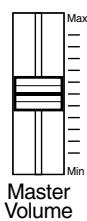
- The [Master Volume] slider located on the left of the Lower Keyboard panel is an overall control for adjusting the volume of the entire instrument.
Now adjust the [Master Volume] slider to a suitable level. The volume will be increased when the Expression Pedal is pressed down, and decreased when the pedal is returned.

■Turning Off the Power
- Before switching the power off, set the [Master Volume] slider to the Min (minimum) position.
- Press the [Power On] button to turn off the power.

Using Headphones
The AT-80SL/60SL features a Phones jack. This allows you to play without having to worry about bothering others around you, even at night.
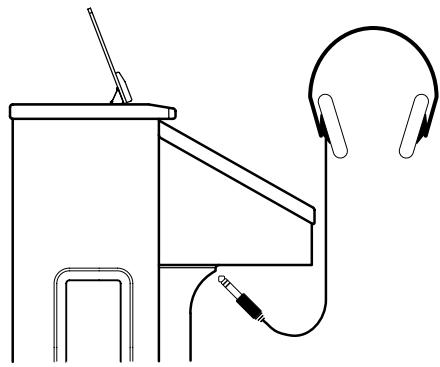
- Connect your headphones to the [Phones] jack underneath the left side of the keyboard.
The sound from the built-in speakers stops.
Now, sound is heard only through the headphones.

Phones
- Adjust the headphones volume with the [Master Volume] slider and Expression pedal.

Accepts connection of Stereo headphones.
Some Notes on Using Headphones

CAUTION
- To prevent damage to the cord, handle the headphones only by the headset or the plug.
- Headphones may be damaged if the volume is too high when they are plugged in. Lower the volume on the AT80SL/60SL before plugging in headphones.
- To prevent possible auditory damage, loss of hearing, or damage to the headphones, the headphones should not be used at an excessively high volume. Use the headphones at a moderate volume level.
Using a Microphone
The AT-80SL/60SL is equipped with a Mic jack.
Since this instrument has a Mic In jack, you can use a microphone to enjoy a variety of possibilities such as singing along with your performance, or singing along with SMF music files (sold separately).
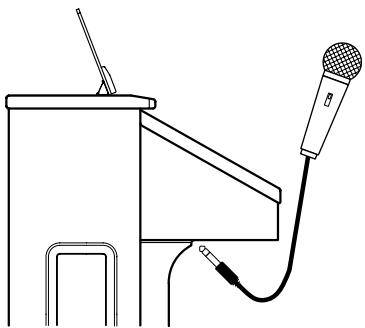
- Connect your microphone to the [Mic In] jack underneath the left side of the keyboard.
- Use the [Mic Volume] knob to adjust the volume level for the microphone.

You can adjust the depth of the echo applied to sound from the microphone (p. 194).

The microphone must be purchased separately. When purchasing a microphone, please consult the vender where you bought the AT-80SL/60SL.

(AT-80SL only)
If the Input switch is set to "RSS," RSS reverb will be applied to the sound from the microphone. You can use the [Mic Volume] knob to adjust the microphone volume (p. 210).
Some Notes on Using a Microphone

CAUTION
- To avoid disturbing others, be careful of the volume level when playing late at night or very early in the morning.
- When connecting a microphone to the AT-80SL/60SL, be sure to lower the volume. If the volume control is too high when the microphone is plugged in, noise may be produced by the speakers.
-
Howling could be produced depending on the location of microphones relative to speakers. This can be remedied by:
-
Changing the orientation of the microphone.
- Relocating the microphone so it is farther from the speakers.
- Lowering volume levels.
Turning On the Lights (AT-80SL)
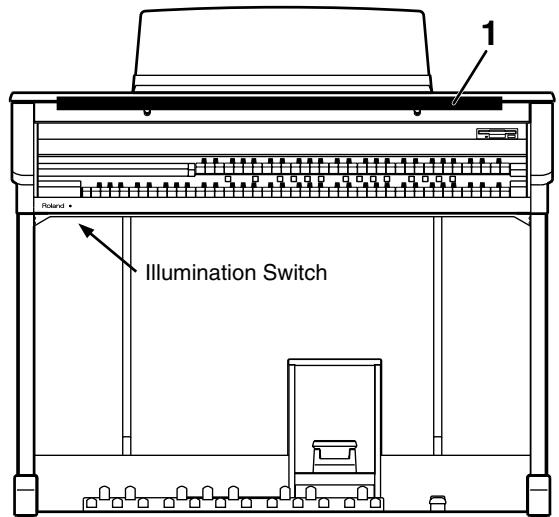
After turning on the power, turn on the [Illumination] switch (located underneath the left-hand side of the keyboard).

On Illumination
The panel illumination of the instrument will light.
Cautions When Using Illumination

CAUTION
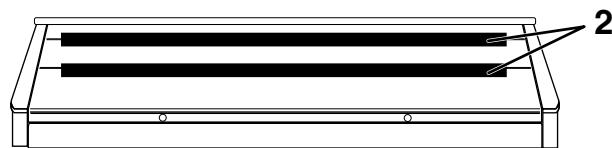
When the illumination is used for an extended period, the light bulbs and the metal parts near the light bulb (see diagram below) will become hot. Be careful not to touch these areas. In particular, be careful of the following locations.
- Panel illumination light bulb
Do not touch the light bulb or nearby parts. When closing the lid, be sure to hold the handles.
- Metal fittings of the cover
After closing the lid, do not touch this area.

The bulbs used for illumination can be replaced. For details on replacing a bulb, refer to "Replacing the Illumination Bulbs (AT-80SL Only)" (p. 251).
About the Bench
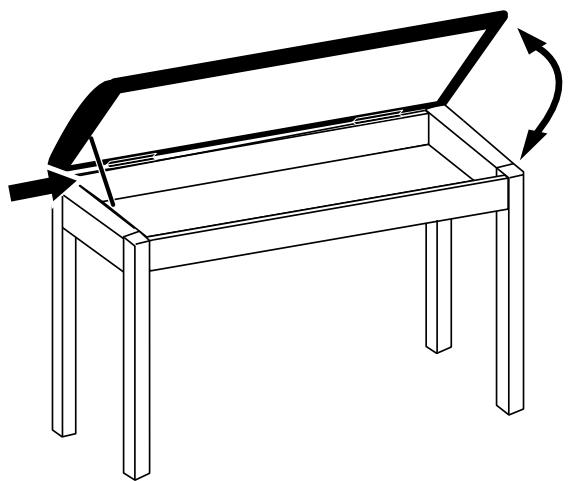
The bench seat can be opened, and sheet music and other items can be stored inside.
Caution When Using the Bench

CAUTION
When opening/closing the seat, be careful not to pinch your fingers.
Restoring All the Factory Default Settings
You can restore all of the settings stored in the AT-80SL/ 60SL to what they were when the instrument shipped from the factory. This function is called "Factory Reset."
- Make sure there is no floppy disk in the disk drive before carrying out the procedure.
- Touch
on the Main screen.
The System screen appears.
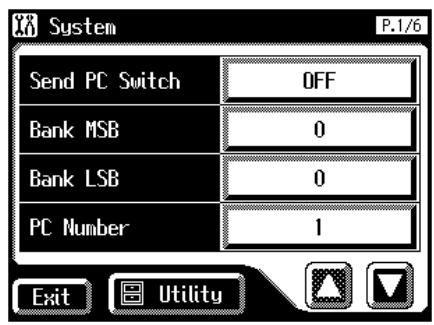
- In the System screen, touch
to open the Utility screen.
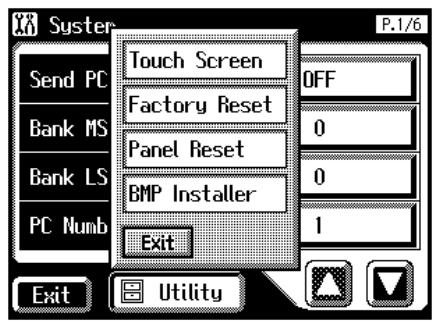
- In the Utility screen, touch
.
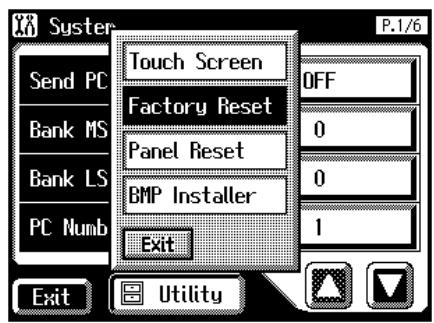

To restore all settings other than the User memory (p. 62) to their original factory settings, touch
The confirmation message appears on screen.
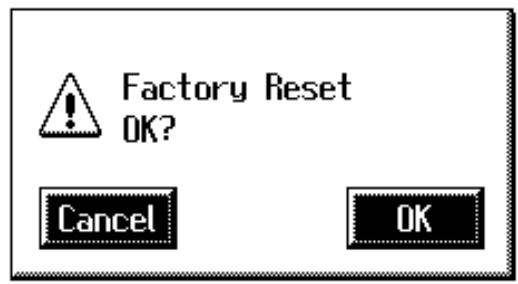
If you touch
- When you touch <OK> , the Factory Reset operation will begin, and the settings will return to the factory-set condition.
NOTE
Never switch off the power while this operation is in progress!
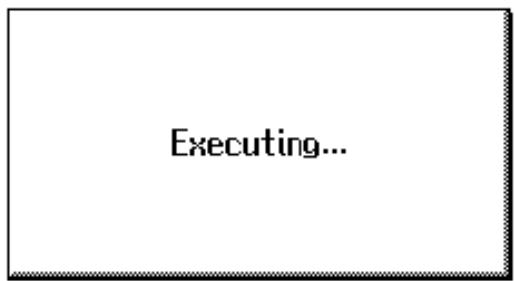
NOTE
Loading factory default settings will erase any Registrations currently in the memory of the AT-80SL/60SL. To save the registrations you are currently using, refer to "Saving Registration Sets to a Floppy Disk" (p. 98).
NOTE
To reset only the User memory (p. 62) to its original factory settings, refer to p. 78.
You can also use the following method to return to the factory-set condition.
- Make sure there is no floppy disk in the disk drive before carrying out the procedure.
- Turn down the volume to the minimum level, then turn off the power.
- While holding down the [One Touch Program] button, press the [Power On] switch to turn the power on.

The following screen appears.
Factory Preset is Loaded.
NOTE
Never switch off the power while this operation is in progress!
Restoring All Settings Other Than the User Memory to the Original Factory Settings
You can restore all of the settings other than the User memory (p. 62) to their original factory settings.
This function is called "Panel Reset."
What is the User Memory?
The User memory is the area within the instrument where User rhythms you create as well as rhythms from Music Style Disks are stored.
You can also copy rhythms (p. 78) saved on floppy disks to the User memory.
- Make sure there is no floppy disk in the disk drive before carrying out the procedure.
- Touch
on the Main screen.
The System screen appears.
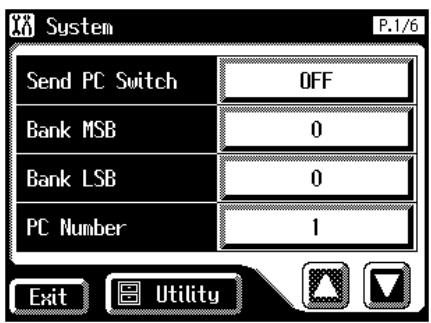
- In the System screen, touch
to open the Utility screen.
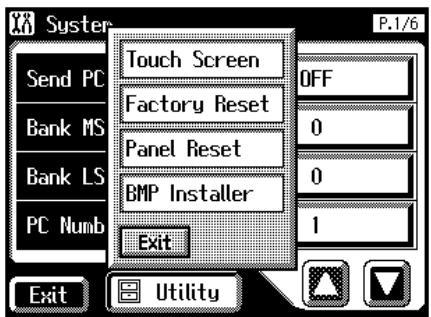
- In the Utility screen, touch
.
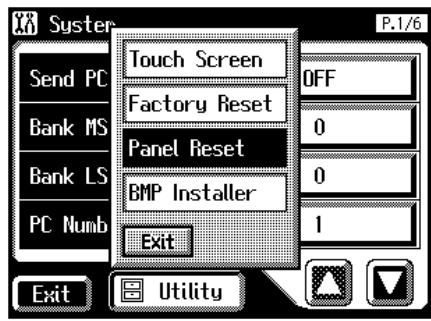
The confirmation message appears on screen.
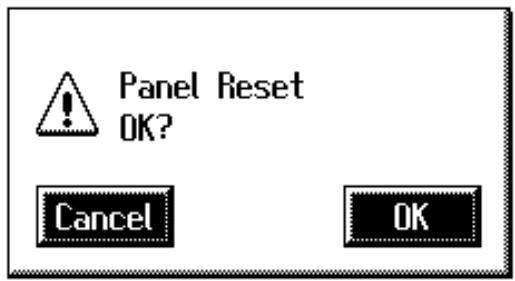
If you touch <Cancel> , the Panel Reset will not be performed, and you will return to the System screen.
- When you touch <OK> , the Panel Reset operation will begin, and the settings will return to the factory-set condition.
NOTE
Never switch off the power while this operation is in progress!
NOTE
To reset only the User memory (p. 62) to its original factory settings, refer to p. 80.
About the Display
The AT-80SL/60SL makes use of a Touch Screen. This lets you carry out a wide variety of actions just by touching the screen lightly.
Understanding the Main and Related Screens
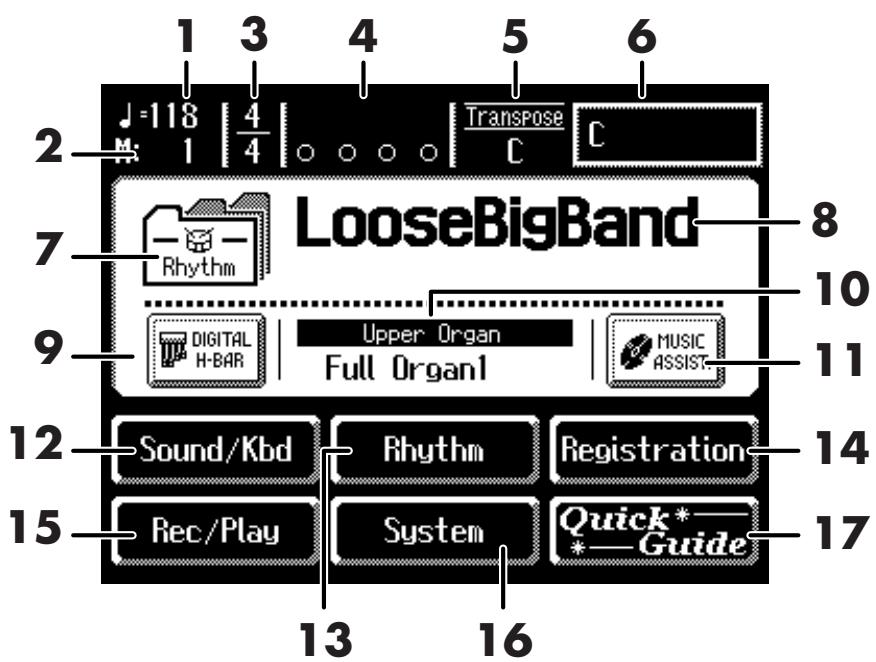
Main Screen
| Number | Explanations |
| 1 | Tempo |
| 2 | Measure |
| 3 | Beat |
| 4 | Bouncing Ball A ball will bounce in time with the rhythm or song. |
| 5 | Transpose Displays the transpose setting. |
| 6 | Chord Name Displays the name of the chord that is played in the lower keyboard. |
| 7 | Indication button Pressed to choose which name to have indicated; either the Rhythm Name, Song Name, or Registration Name. |
| 8 | Rhythm Name/Song Name/Registration Name |
| 9 | Digital H-Bar (AT-80SL only) You can display the Footage screen (p. 50). |
| 10 | Voice Name Displays the name of the upper keyboard voice. |
| 11 | MUSIC ASSIST (Music Assistant) Press this when you want to use the Music Assistant function (p. 32). |
| 12 | Sound/Kbd (Sound/Keyboard) Select a voice (tone), or make settings for the effect depth, keyboard, etc. |
NOTE
The explanations in this manual include illustrations that depict what should typically be shown by the display. Note, however, that your unit may incorporate a newer, enhanced version of the system (e.g., includes newer sounds), so what you actually see in the display may not always match what appears in the manual.
NOTE
The Touch Screen is operated by touching it lightly with your finger. Pressing hard, or using a hard object can damage the Touch Screen. Be careful not to press too hard, and be sure to use only your fingers to operate the Touch Screen.
NOTE
The positioning of the Touch Screen may become displaced due to changes in the surrounding environment and over time. If this happens, follow the steps in "Repositioning the Touch Screen" (p. 197) to correct the pointer position.
NOTE
Do not place items on the touch screen.
MEMO
You can adjust the brightness of the screen (p. 203, p. 204).
MEMO
You can set the Main screen so that the bouncing ball does not appear (p. 201).
| Number | Explanations |
| 13 | Rhythm Play the internal rhythms, and play disk rhythms or copy them in internal memory. Rhythm-related settings can also be made here. |
| 14 | Registration Load registrations from disk into internal memory, or save registrations to disk. Registration-related settings can also be made here. |
| 15 | Rec/Play Play back or record a song. You can also view a score display while a song plays. |
| 16 | System Make various settings. |
| 17 | Quick Guide Displays the Quick Guide screen. While the Quick Guide screen is displayed, you can press the keyboard, a button, or a foot switch to jump to the related setting screen (p. 38). |
| V-LINK | This icon is displayed when the V-LINK function is on. →V-LINK function (p. 201) |
| SMF | This icon is displayed when the instrument contains SMF music files. |
| EDITED | This icon is displayed when any portion of the recorded song has been altered. |
| This icon appears in the display when an Active Expression voice is selected. →Active Expression Voice (p. 49) | |
| EX | This icon appears in the display when an EX voice is selected. →Ex Voice (p. 45) |
About the principal icons and the Utility screen
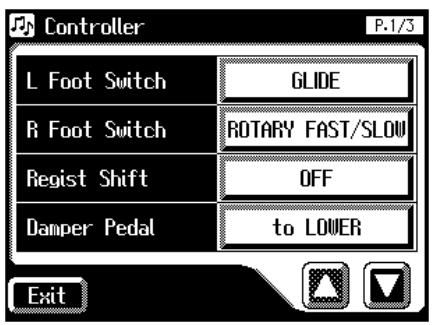
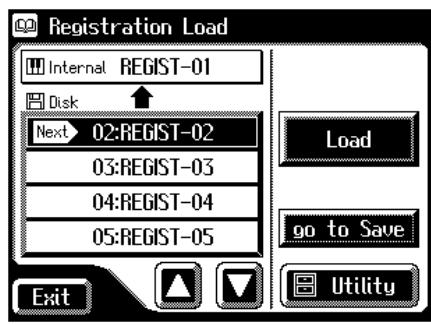
| Button | Meaning |
| Depending on the function, some screens are spread over multiple pages. You can touch < > to display the next or previous page of the screen. | |
| Exit | Touch this when you want to exit (close) the currently displayed screen. Normally, touching < > several times takes you back to the Main screen. |
Sub-windows
You can touch
This type of screen is called a "sub-window."
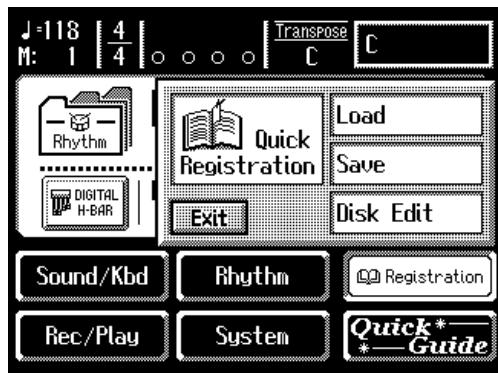
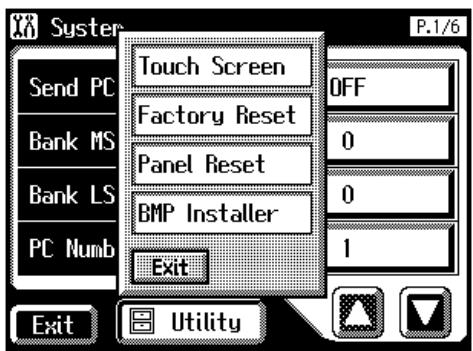

When you touch a menu in the sub-window, the subwindow will close, and the selected menu screen will appear.

In a sub-window, touch
Sub-windows for setting values
When you are making settings in the System screen, the following type of screen appears.
| Factory | Return to the factory settings. |
| - + | Modify the value. |
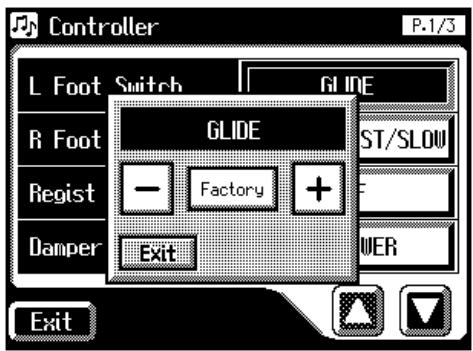
Convenient Functions
Listening to the Demo Songs
The AT-80SL/60SL provides demo songs. Here's how to play the Demo songs, and fully appreciate the sounds, Rhythms, and Automatic Accompaniment that are available with the AT-80SL/60SL.
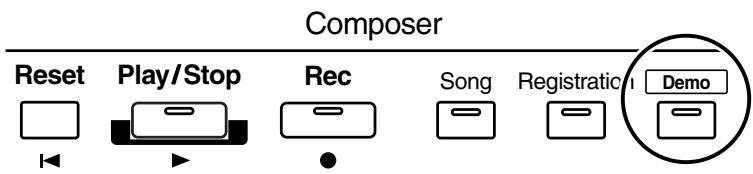
1. Make sure that a floppy disk is not inserted in the disk drive.
If a floppy disk is in the disk drive, press the Eject button and remove the floppy disk.
2. Press the [Demo] button to make the indicator light.
The Demo Screen appears.
![ROLAND AT-60SL - Press the [Demo] button to make the indicator light. - 1](/content/2025/01/130755/images/fa4070f7a7c1f885bec044ebe93d0faba0a8e361c7da4c84c7d78c169f118a7a.jpg)
3. Touch <> or <> on screen to select the demo song.
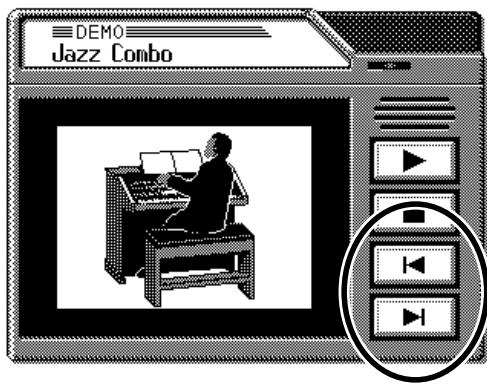
4. Touch < ▶> to start playback of the demo song. When the selected demo song ends, the next demo song will begin playing.

For details on the composer of each demo song and their profiles, refer to "Demo Song List" (p. 257).
- Touch < 1 > to stop playback of the demo song.
- Press the [Demo] button to exit the demonstration screen.
If the following screen appears
If the performance song in the unit has not been saved to floppy disk, the following message appears, and it will not be possible to play the Demo songs.
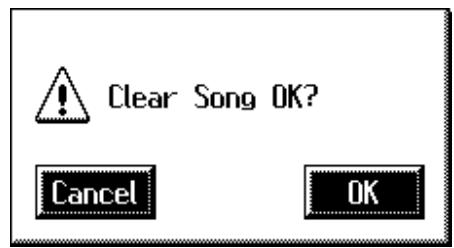
- If you want to delete the performance data, touch
.
If you do not want to delete the performance data, touch

You can play/stop the demo songs by pressing the panel [Play/Stop] button.

The performance data can be saved on a floppy disk. If you wish to save the musical data to a floppy disk, refer to "Saving Performance Songs Onto Floppy Disk" (p. 158).

All rights reserved. Unauthorized use of this material for purposes other than private, personal enjoyment is a violation of applicable laws.

The data for the Demo song that is being played is not available at the MIDI Out connector.
Music Assistant Function
A collection of the world's best, most well-known songs were carefully selected, then the optimum panel settings for each of them were determined, and the resulting data was stored inside the instrument.
Simply select the keyword that most closely suggests the character of the song you have in mind, and a rhythm performance, a sound for the melody, and other selections will be made for you. Once you've selected a keyword, all you have to do is play the keyboard to start performing.
1. Display the Main screen.
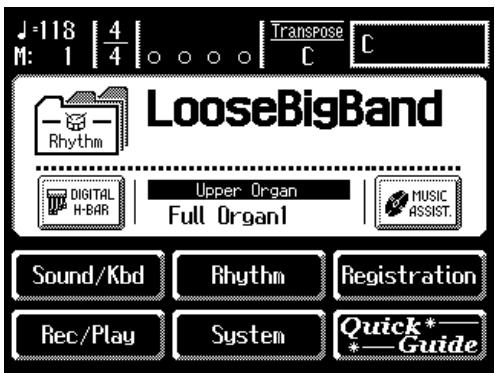
2. Touch on the Main screen.
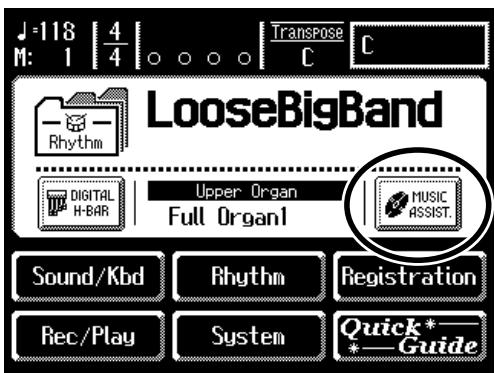
The Music Assistant screen appears.
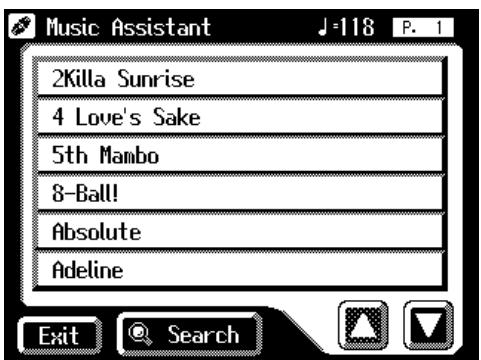

If some other screen is displayed, touch
3. Touch <><> to switch screens, and touch a keyword appropriate for the character of the song.
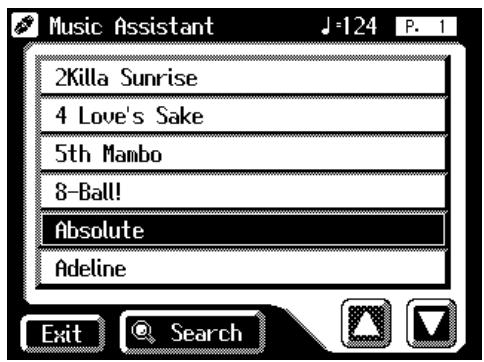
The Registration buttons [1]-[4] flash.
Panel settings appropriate for the keyword will automatically be called up for the Registration [1]-[4] buttons.
4. On the Lower keyboard, play a chord.
At the moment you play the keyboard, the Intro will begin, and then the Rhythm and Automatic Accompaniment will play.
5. Press a Registration button from [1] through [4] to switch the panel settings.
6. To end the Music Assistant function, press the [One Touch Program] button, extinguishing its indicator.
Music Assistant Search
You can specify a song name and other search terms and use these for a Music Assistant search.
1. Touch on the Main screen.
The Music Assistant screen appears.
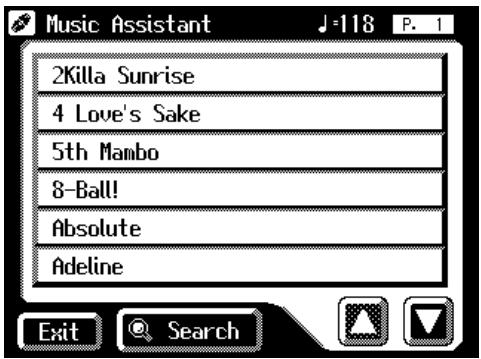
2. Touch on the Music Assistant screen.
A sub-window appears.
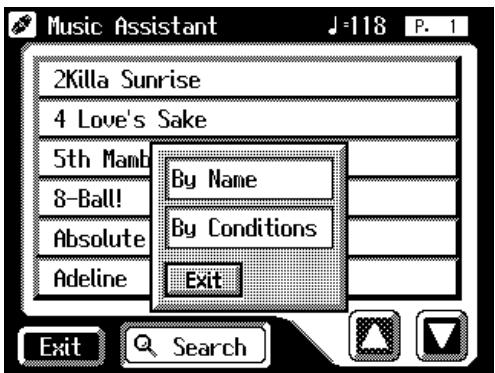
Searching by Music Assistant name
3. Touch .
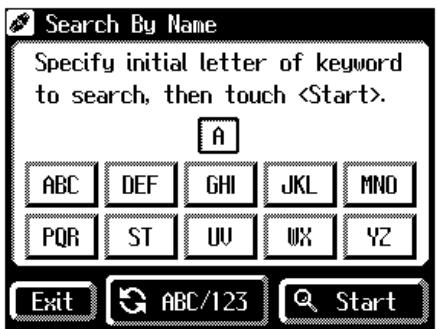

If some other screen is displayed, touch
4. Decide which character you will use for the search.
The selected character appears in the middle of the screen.
Enter the character you are searching for. For example, touching ABC in succession cycles you through the available choices in that character group ("A"→"B"→"C"...).
Touch <ABC/123> to toggle between alphabets and numerals.
5. Touch (Start Search).
The results of the search appear in the display.
To cancel the search, touch
6. Touch a Music Assistant name to select a Music Assistant.
Touch
Searching by conditions
3. Touch.
You can use four different criteria in searches: "Tempo," "Rhythm," "Genre," and "Scene."
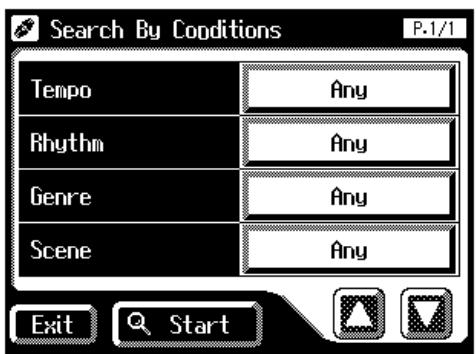
4. Touch the value for the search term.
5. Touch < - > < +> to adjust the settings.
6. Touch (Start Search).
The results of the search appear in the display.
To cancel the search, touch
7. Touch a Music Assistant name to select a Music Assistant.
Touch
Choose a Keyword for Quick Registration Selection
You can select a voice appropriate for your performance by selecting from keywords representing your situation, location, musical genre, etc. You can call up registrations created by top-level organizers, and refer to them for hints on how to select and layer sounds when creating your own registrations.
1. Touch on the Main screen.
The sub-window appears.
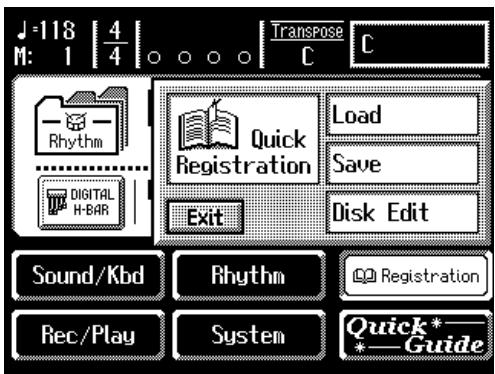
2. Touch .
The Quick Registration screen appears.
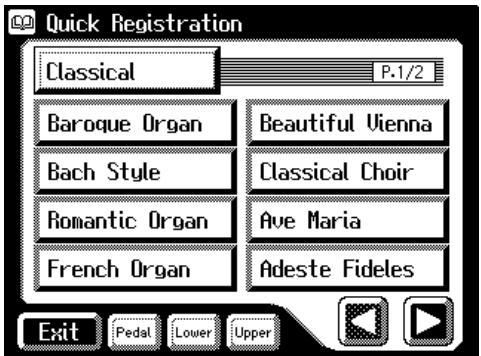
3. Touch a button that shows a Quick Registration group.
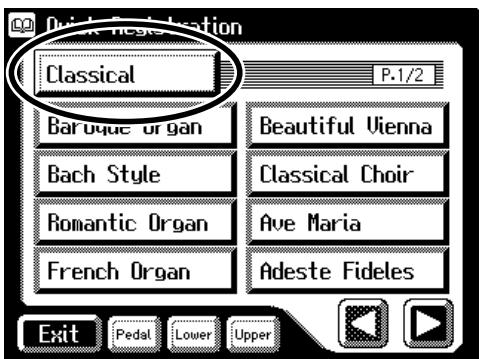
A sub-window appears, allowing you to select a Quick Registration group.
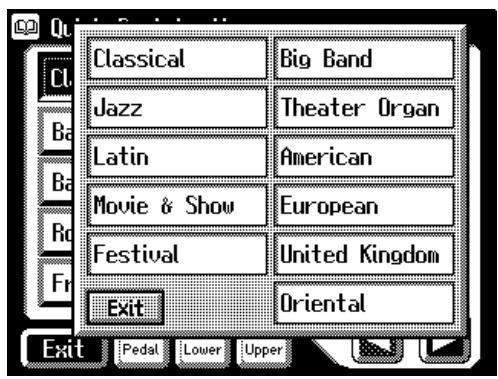
4. In the sub-window, touch a sound Quick Registration group name to select the desired Quick Registration group.
The sub-window closes, and the Quick Registration screen returns to the display.
5. Touch , , or , switching the respective button's indicator on or off, to select the keyboard to which the voice is to be assigned.
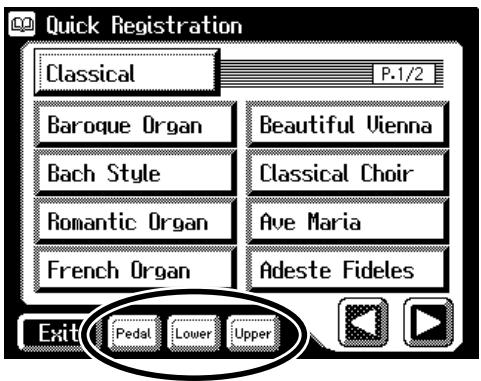
| Setting | Keyboard for which you select a voice |
| Upper | Upper keyboard |
| Lower | Lower keyboard |
| Pedal | Pedalboard |
6. Touch <> <> to switch pages, and touch the desired keyword.
The voice will be assigned to the selected keyboard.
Repeat Steps 5 and 6 if you want to make any further changes in the voice setting.
About the Quick Guide function
The AT-80SL/60SL offers a Quick Guide function, which makes it easy for you to access various functions. While the Quick Guide screen is displayed, you can press the keyboard, a button, or a foot switch to jump to the related setting screen.
1. Touch on the Main screen.
The following Quick Guide screen appears for several seconds.
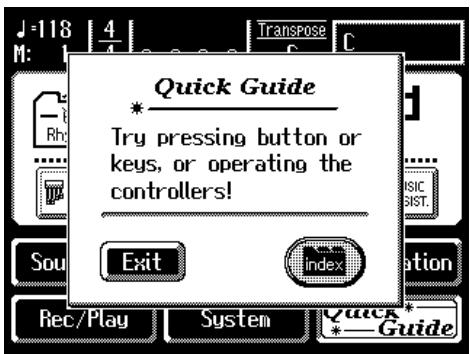
2. While the Quick Guide screen is displayed, press a button, keyboard, pedal, or foot switch.
You will be taken to the screen that contains settings related to the button, keyboard, pedal, or foot switch that you pressed.
3. Make settings in the screen to which you jumped.
4. When you are finished making settings, touch to close the screen.
The Main screen appears.
About the Index menu
In the Quick Guide screen, you can touch
1. Touch on the Main screen.
The following Quick Guide screen.
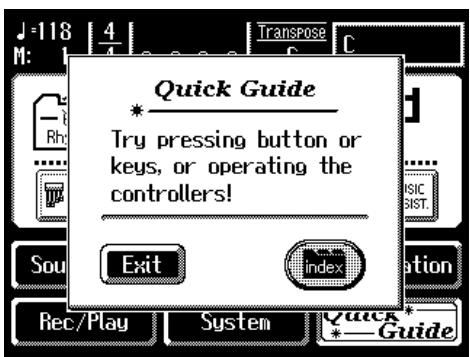

If some other screen is displayed, touch

For more on keys, buttons, and controllers that can be used with the Quick Guide function, refer to "Settings That Are Stored After the Power Is Turned Off" (p. 255).
- While the Quick Guide screen is displayed, touch
. The following screen appears.
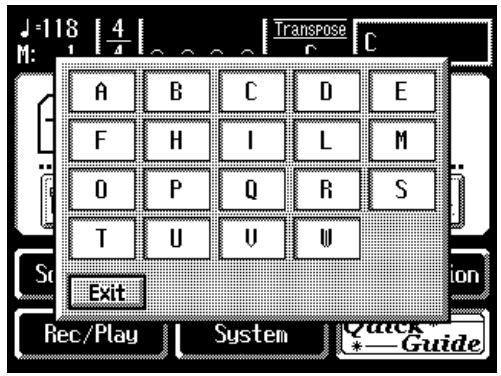
- Touch a letter of the alphabet A-W to select the first letter of the desired keyword.
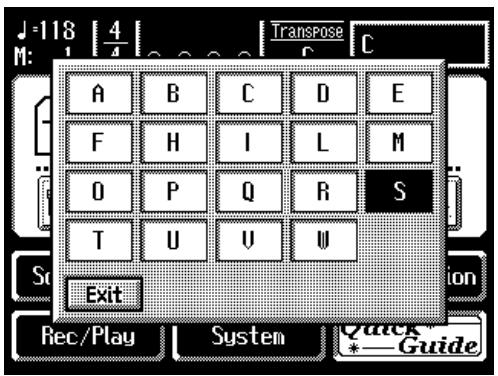
The Quick Guide Index screen appears, and the keywords will be displayed.
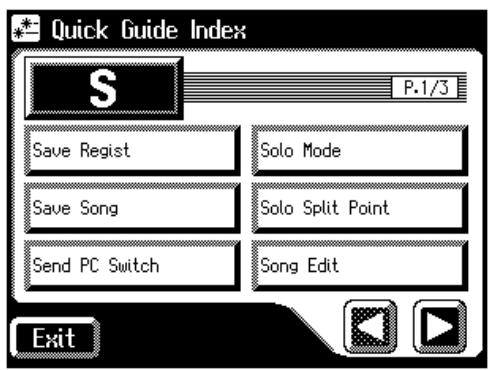
- Touch the desired keyword.
The setting screen for the specified keyword appears.
- Make settings in the setting screen that appeared.
- Touch
.
The Main screen appears.
Chapter 1 Selecting and Playing Sounds
Selecting Voices
You can play the sounds of various instruments on the AT-80SL/60SL. These sounds are called "Voices."
About the Voices and Parts
The AT-80SL/60SL has two manual keyboards and a pedalboard. From top to bottom these are called the "Upper Keyboard," "Lower Keyboard," and "Pedalboard."
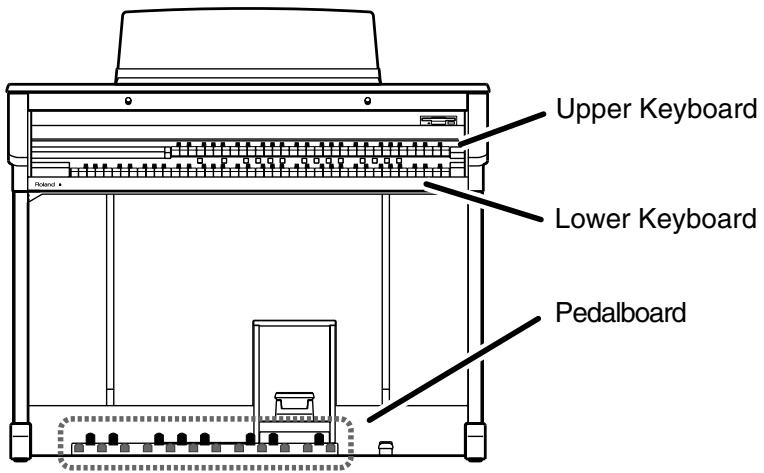
Three parts, "Organ," "Symphonic," and "Orchestral" are assigned to the Upper and Lower keyboards, respectively, and you can select one voice from each part. Plus, with the addition of the "Solo" part voice, you can have up to three voices playing simultaneously (the Solo voice can be played in either the Upper or Lower keyboard).
The Pedalboard has two parts: "Pedal Organ" and "Pedal Orchestral." You can select one voice for each part, meaning that it is possible to play up to two voices simultaneously.
| Keyboard | Parts |
| Upper Keyboard | Upper Organ |
| Upper Symphonic | |
| Upper Orchestral | |
| Solo (This voice is sounded only when the Solo [To Lower] button be extinguished) | |
| Lower Keyboard | Lower Organ |
| Lower Symphonic | |
| Lower Orchestral | |
| Solo (This voice is sounded only when the Solo [To Lower] button lights up) | |
| Pedalboard | Pedal Organ |
| Pedal Orchestral |

To play a Solo voice on the Lower keyboard, select the Solo voice and press the Solo [To Lower] button (p. 137).

To play a Pedal Bass voice on the Lower keyboard, select the Pedal Bass voice and press the [Bass Split] button (p. 140).
Functions of the Upper/Lower/Pedal Bass Sound Select Buttons
AT-80SL
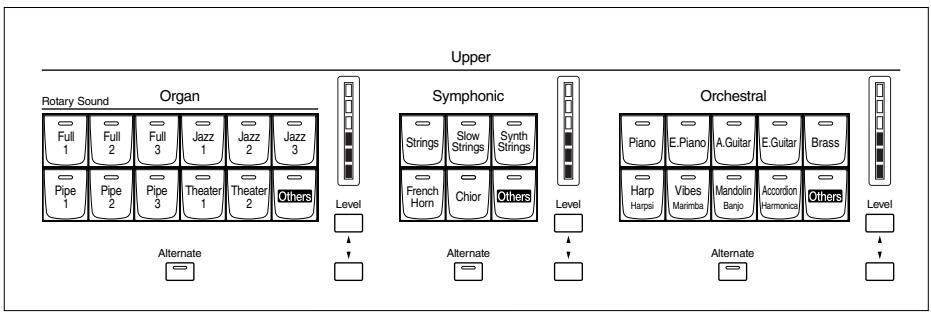
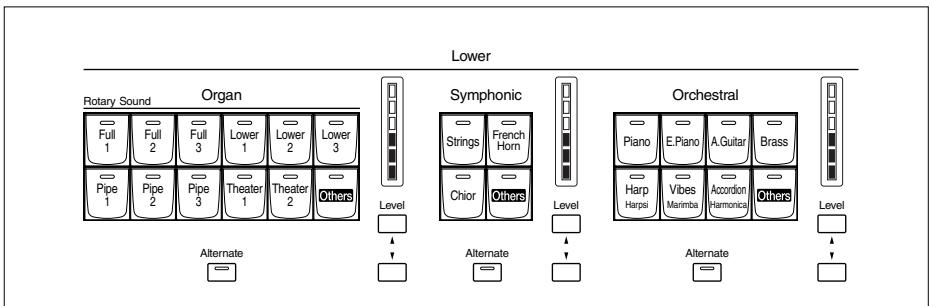
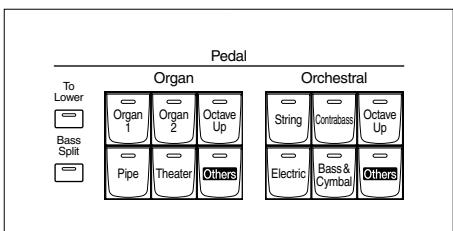
Each time you press a voice button, its indicator will switch between being lit and being turned off. Voices that have their button indicator lit can be played.
Two voices of the same family are assigned to each voice button. Buttons with voices from two different families have the names of both voices printed on them.
The [Alternate] button switches between these two voices.
| The [Alternate] button | Voice that will be selected |
| The [Alternate] button is not lit. | The voice indicated on the button is selected. |
| The [Alternate] button is lit. | Another voice of the same family or the voice indicated on the bottom half of the button is selected. |
NOTE
No sounds are produced, even when the keys are played, when the Voice button is unlit and all footage voices are off.
Selecting the Upper and Lower Voices
Press the "Organ," "Symphonic," or "Orchestral" buttons for each Keyboard (Upper/Lower) to select the desired voice.
When the power is turned on, the Upper keyboard will play "Full Organ1" and the Lower keyboard will play "Lower Organ1."
Example: Selecting "Full Organ 5" for the Upper Organ, "Strings 5" for the Upper Symphonic, and Upper Orchestral "Grand Piano" for the Upper Orchestral.
1. Press the Upper Organ [Full 2] button (indicator lights).
The name of the selected voice appears in the display for several seconds.
![ROLAND AT-60SL - Press the Upper Organ [Full 2] button (indicator lights). - 1](/content/2025/01/130755/images/651748febfdbfc4aaa1c9683e0b57763c0df2f6668e68268a525934f7e70addb.jpg)
Now when you play the Upper keyboard, the "Full Organ 2" will sound.
2. Press the Upper Organ [Alternate] button (the indicator lights).
When you play the Upper keyboard, the "Full Organ 5" will sound.
Each time you press the [Alternate] button you will switch between the two voices which are assigned the button.
3. Press the Upper Symphonic [Strings] button (the indicator lights).
Now when you play the Upper keyboard, the two voices "Full Organ 5" and "Strings 5" will sound simultaneously (mixed together).
4. Press the Upper Orchestral [Piano] button (the indicator lights).
When you play the Upper keyboard, "Grand Piano" will be added, producing a mixture of three different voices.
![ROLAND AT-60SL - Press the Upper Orchestral [Piano] button (the indicator lights). - 1](/content/2025/01/130755/images/f0abe4006c366db7e06d010c0c485e2a7c9012324e264133906242a5a593cd54.jpg)
The lower voice can be selected in the same way as the upper voice.
Selecting Pedal Bass Voice
Immediately after the power is turned on, the Pedal Bass voice will sound single notes using the "Organ Bass1" voice.
Press the buttons of the various parts of "Pedal Organ" and "Pedal Orchestral" to select voices.
AT-80SL
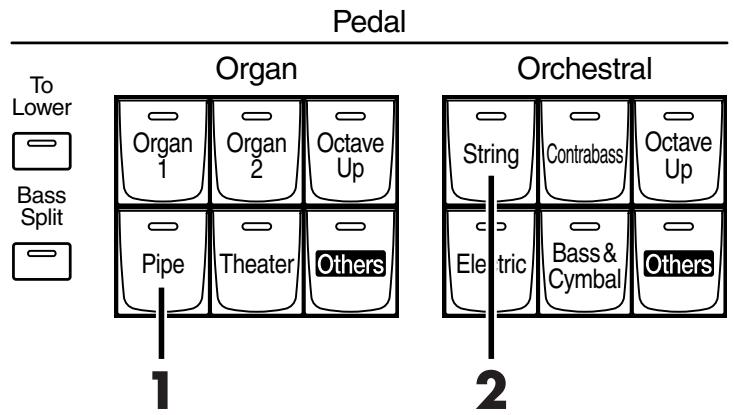
Example: Select "Pipe Org. Bs" for the Pedal Organ part, and select "String Bass" for the Pedal Orchestral part
1. Press the Pedal Organ [Pipe] button (indicator lights).
The name of the selected voice appears in the display for several seconds.
![ROLAND AT-60SL - Press the Pedal Organ [Pipe] button (indicator lights). - 1](/content/2025/01/130755/images/1ff53ba87829684817f43f9a4ecf9bae7cc4422b5299a07e4e0e53bb010c4b86.jpg)
Now when you play the Pedalboard, "Pipe Org. Bs" (Pipe Organ Bass) will be heard.
2. Press the Pedal Orchestral [String] button (indicator lights).
Now when you play the Pedalboard, the two voices Pipe Organ Bass and String Bass will sound simultaneously (mixed together).
![ROLAND AT-60SL - Press the Pedal Orchestral [String] button (indicator lights). - 1](/content/2025/01/130755/images/d73674c61d568634a8b8c0a6b7d686452ef0c3a3eebb4a462b6f9e78dfa51f26.jpg)
Normally, playing the pedalboard will sound one note at a time. Settings can be adjusted to allow multiple notes to be played on the Pedalboard (p. 185).
![ROLAND AT-60SL - Press the Pedal Orchestral [String] button (indicator lights). - 2](/content/2025/01/130755/images/3606da774b533762918b7d33ccacba1cd868622e723c715dabbaed5c908f1850.jpg)
If you press the Pedal [To Lower] button (indicator lights p. 142) or [Bass Split] button (indicator lights p. 140), the Pedal Bass voice can now be played by the Lower keyboard, not by the Pedalboard.
![ROLAND AT-60SL - Press the Pedal Orchestral [String] button (indicator lights). - 3](/content/2025/01/130755/images/b83a35f8e604a6890a8df90afd00346e91a4a1e239d0aff95ce266fd14a68b55.jpg)
AT-80SL have the [Octave Up] button. Play the Pedalboard once more. Notice that when the [Octave Up] button is on, the selected Pedal Bass voice will sound an octave higher.
Selecting Solo Voice
The Solo section of the Upper keyboard is monophonic, that is, the Solo voice will only sound for the highest note played on the Upper keyboard. This allows you to play full chords and have the selected Solo voice playing the highest (solo) note.
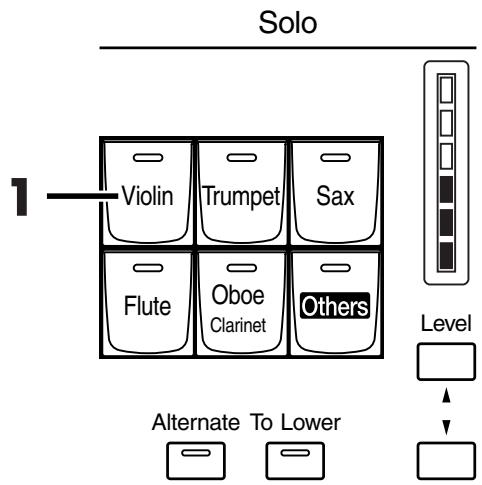
AT-80SL
Example: Selecting "Trumpet" for the Solo part
1. Press the Solo [Trumpet] button (indicator lights).
The name of the selected voice appears in the display for several seconds.
![ROLAND AT-60SL - Press the Solo [Trumpet] button (indicator lights). - 1](/content/2025/01/130755/images/5bed7fba304d60272897a7e1c0adf292488e920a6f0ef6fbec4f8c3704d98322.jpg)
Play the Upper keyboard. The selected voice will sound by the highest note played.
When you press the [Alternate] button, the two voices assigned to the button will alternate.
![ROLAND AT-60SL - Press the Solo [Trumpet] button (indicator lights). - 2](/content/2025/01/130755/images/a6f481389a8cd03bacac375d9635d31b93941b36da8b979ba6e03a7e6e48ecde.jpg)
By pressing the Solo [To Lower] button, you can play the Solo voice from the Lower keyboard. For details refer to "Playing the Solo Voice on the Lower Keyboard (Solo [To Lower] Button)" (p. 137).
![ROLAND AT-60SL - Press the Solo [Trumpet] button (indicator lights). - 3](/content/2025/01/130755/images/5361ec8cc2d6a528b89fb781404b7e26c5745a2875efdf3e3a8744fc1d997693.jpg)
It is possible to change how a Solo voice will sound. Normally, the Solo voice will be sounded by the highest note you play on the Upper keyboard, but you can make settings so that the last-played note will sound the Solo voice. For details, refer to "Changing How the Solo Voice Responds" (p. 138).
Selecting a Voice Using the [Others] Button
Notice that there is an [Others] button for each part. By using the [Others] button, you can select all voices.
As with the other voice buttons, the [Others] button can be assigned two voices (one voice for "Pedal Organ" and one for "Pedal Orchestral"). You can use the [Alternate] button to switch between these two voices.
1. Press the [Alternate] button for the Part for which you wish to specify a voice to select ON (lit) or OFF (dark).
The setting of the [Alternate] button: ON (lit) or OFF (dark), determines to which of the two available locations a newly selected voice will be assigned.
2. Press the [Others] button for the Part for which you wish to specify a voice.
The Others Voice screen appears for several seconds.
![ROLAND AT-60SL - Press the [Others] button for the Part for which you wish to specify a voice. - 1](/content/2025/01/130755/images/abea6984516521bc6708dbce832fd0e10ccc6e7aa1c3414a904d22cb15d075ef.jpg)
3. Touch a button that shows a sound group.
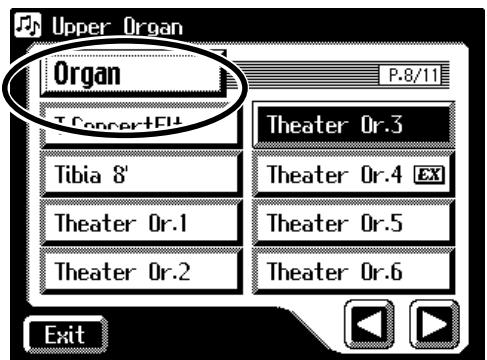

Step 1 is unnecessary in the case of Pedal Bass Part.
NOTE
When you press the [Others] button, the Others Voice screen appears in the display screen, but the basic screen will reappear if you wait several seconds without touching the screen.
If you want to change the voice for the [Others] button, press the [Others] button once more, then select the voice by quickly touching the screen while the Others Voice screen appears in the display.

A voice indicated by is called an "EX voice." These voices are especially recommended.
A sub-window appears, allowing you to select a sound group.
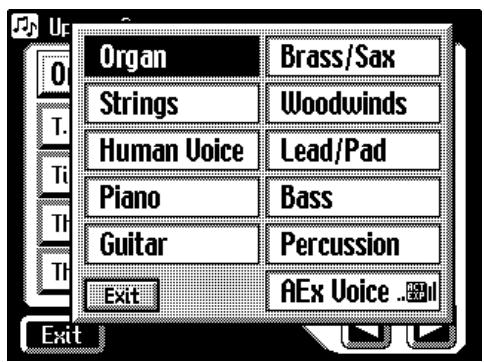
4. In the sub-window, touch a sound group name to select the desired sound group.
The indicator of the selected [Others] button will blink.
The Others Voice screen appears, showing the sounds of the specified sound group.
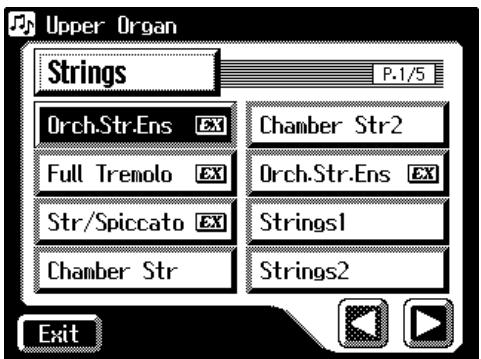
5. Touch <><> to switch screens, and touch a voice name to select a voice.
6. Once again, press the blinking [Others] button to confirm the voice.
The indicator of the [Others] button will change from blinking to lit.
![ROLAND AT-60SL - Once again, press the blinking [Others] button to confirm the voice. - 1](/content/2025/01/130755/images/42c4c953205382616668ae2b3a18aa1e9a230c1c16007b3866f2541c1ae92e43.jpg)
You can touch
![ROLAND AT-60SL - Once again, press the blinking [Others] button to confirm the voice. - 2](/content/2025/01/130755/images/ea329177db08970cd75a8dd8de0a9c77fbe9dfb6f109af425232282f7c45a9fb.jpg)
You can also confirm the voice by touching
![ROLAND AT-60SL - Once again, press the blinking [Others] button to confirm the voice. - 3](/content/2025/01/130755/images/55edbd899ba8e41a260908f23f82544cefaec23b6702866acdfbc0ac43b93444.jpg)
For more information about the voices that can be assigned to an [Others] button, please refer to "Voice List" (p. 220).
Performing with a Human Voice
In addition to sounds such as organ and piano, you can also play "human voice," which produces a vocal-like sound.
1. Press the [Alternate] button for the Part for which you wish to specify a voice to select ON (lit) or OFF (dark).
The setting of the [Alternate] button: ON (lit) or OFF (dark), determines to which of the two available locations a newly selected voice will be assigned.
2. Press the [Others] button for the Part for which you wish to specify a voice.
The Others Voice screen appears for several seconds.
![ROLAND AT-60SL - Press the [Others] button for the Part for which you wish to specify a voice. - 1](/content/2025/01/130755/images/789778e03f30de42d8fc85462b30443c6577a8e6274ed1eb1c08a9d0bc9dc6fb.jpg)
3. Touch a button that shows a sound group.
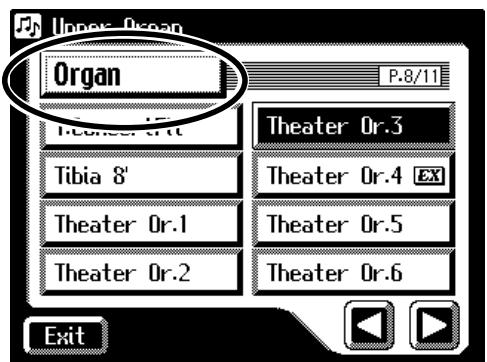
A sub-window appears, allowing you to select a sound group.
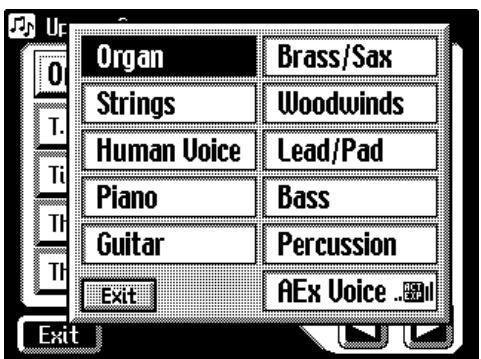

For more information about the voices that can be assigned to an [Others] button, please refer to "Voice List" (p. 220).

Step 1 is unnecessary in the case of Pedal Bass Part.

When you press the [Others] button, the Others Voice screen appears in the display screen, but the Main screen will reappear if you wait several seconds without touching the screen.
If you want to change the voice for the [Others] button, press the [Others] button once more, then select the voice by quickly touching the screen while the Others Voice screen appears in the display.
4. In the sub-window, touch .
The indicator of the selected [Others] button will blink.
The Others Voice screen appears, showing the sounds of the Human Voice group.
The Others Voice screen will appear, and the sounds of the Human Voice group will appear.
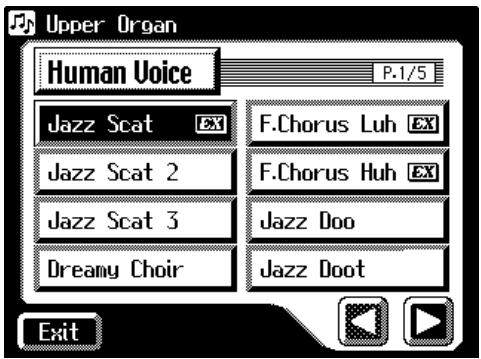
5. Touch <><> to switch the screen, and touch a voice name to select the desired voice.
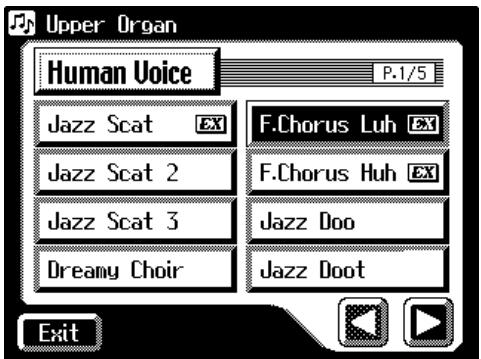
6. Once again, press the [Others] button for the part whose sound you wish to set to confirm the voice.
The indicator of the [Others] button will change from blinking to lit.
![ROLAND AT-60SL - Once again, press the [Others] button for the part whose sound you wish to set to confirm the voice. - 1](/content/2025/01/130755/images/2b70197735c697b6a7610f045bba92015363c66db8bb0aaf6eeb1b7546050a38.jpg)
For some human voices, such as "Jazz Scot," the sound will change depending on the strength at which you play the keyboard. If the Utility menu setting "Initial Touch" (p. 185) is "OFF," the sound will not change in response to the dynamics of your keyboard playing.
![ROLAND AT-60SL - Once again, press the [Others] button for the part whose sound you wish to set to confirm the voice. - 2](/content/2025/01/130755/images/70b96b2b7eef851347bd23e095bdf6b9ef2ffb09443b22018227efddea96a96f.jpg)
You can also confirm the voice by touching Exit in the Others Voice (Other Voice select) screen. You can also press the key for the part containing a changed voice to confirm the voice setting.
Performing with an Active Expression Voice
Some voices are "Active Expression voices," for which advancing the expression pedal will not only vary the volume, but will also add other voices.
1. Touch the [Others] button of the Part to which you want to assign an Active Expression voice.
"Active Expression voices" can be assigned to the [Others] buttons of the Upper Orchestral part, Lower Orchestral part, Pedal Orchestral, and Solo part. The Others Voice screens appear.
2. Touch a button that shows a sound group.
A sub-window appears, allowing you to select a sound group.
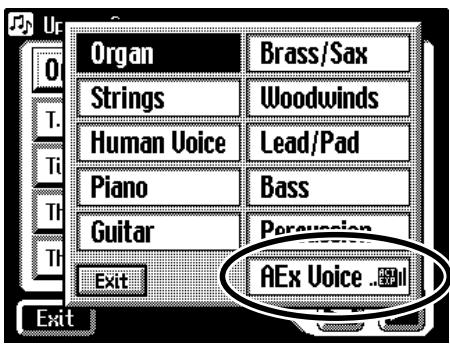
3. In the sub-window, touch (Active Expression Voice).
The indicator of the selected [Others] button will blink.
The Others Voice (Others Voice Select) screen appears, and only the Active Expression Voices from the entire collection are displayed.
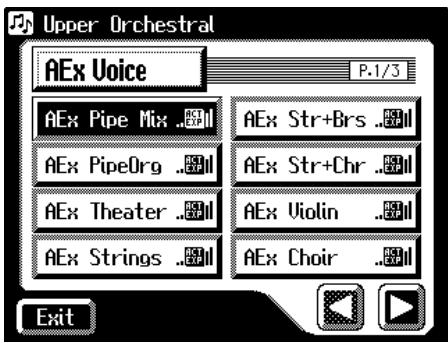
4. Touch <><> to change screens, and touch a voice name.
5. Once again, press the [Others] button for the part whose sound you wish to set to confirm the voice.
The indicator of the [Others] button will change from blinking to lit. An active expression voice will be selected.
![ROLAND AT-60SL - Once again, press the [Others] button for the part whose sound you wish to set to confirm the voice. - 1](/content/2025/01/130755/images/9bebce9587d5d67fdaeac20343b7a54ad5adadbf9a688475fdd8702264ca9054.jpg)
For details on the active expression voices that are available, refer to "Voice list" (p. 220).
NOTE
Although you can select an Active Expression voice with the [Others] button for parts other than Lower Orchestral, Upper Orchestral, Pedal Orchestral, and Solo, no Active Expression effect is
applied. The

(Active Expression) icon does not appear when an Active Expression voice is selected for a part for which the Active Expression effect is not being used.

Sounds marked by
"..support the
Active Expression function.

You can also confirm the voice by touching
Creating Organ Sounds (Footage) (AT-80SL)
You can touch
Footage Screen
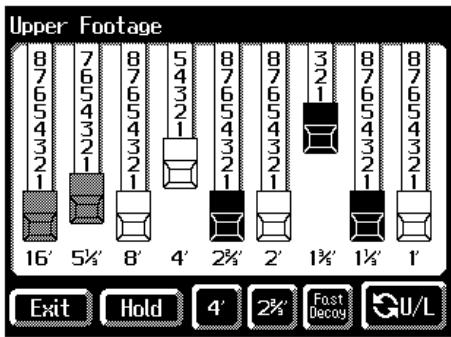
By touching the harmonic bars and sliding them, you can adjust the volume of each footage.
The volume can be adjusted over nine steps (0-8).
When a harmonic bar is pulled out all the way (8), the volume is loudest. When it is pushed in all the way (0), there will be no sound.
Footage Voices of Differing Pitch (feet)
As the number decreases, the pitch will become correspondingly higher. The Footage are organized as follows.
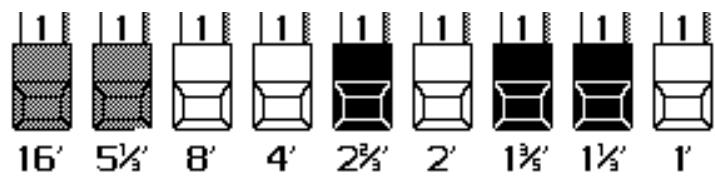
1 octave 5th root 1 octave 1 octave 2 octave 2 octave 3 octave below 5th 5th 3rd 5th
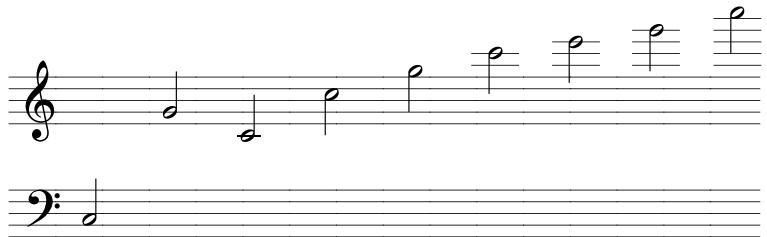
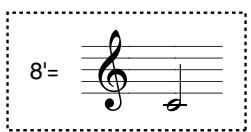

You can touch < / L > to switch between the Upper Footage screen and Lower Footage screen.

The Footage screen will be displayed for several seconds, then it will close automatically.
If you touch
1. Display the Main screen.
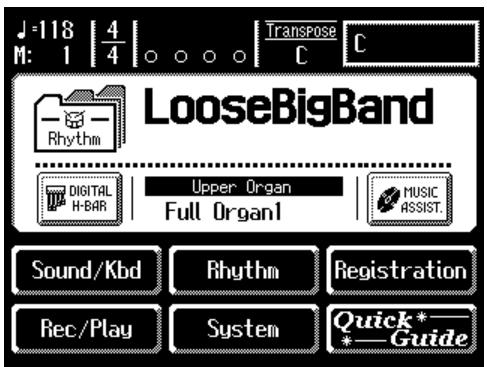
2. Touch on the Main screen.
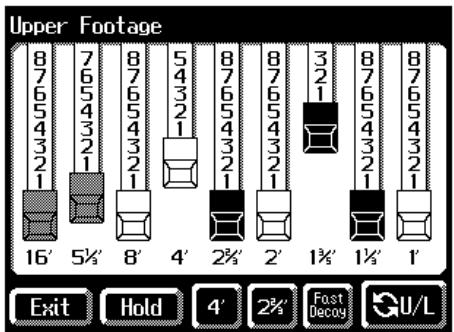
You can adjust the volume of individual footages by touching and sliding (dragging) the harmonic bars.
Try layering combinations of pitches for the various footages.
3. Touch the Percussion < 4^> or < 22/3^ > .
Play the Upper keyboard and notice that an attack has been added.
What is the Percussion?
These add a crisp sound with an attack to the Footage voices of the Upper part.
| Button | Explanation |
| Percussion <4'> | Percussion one octave above |
| Percussion <2 2/3'> | Percussion one octave and a fifth above |
| <Fast Decay> | Shortens the decay time of the percussion (short percussion) |
4. Touch Percussion .
The percussive sound will decay more quickly.
5. Touch.
The Main screen appears in the display, and the Digital H-Bar icon lights. To switch the Footage off, touch
NOTE
Pitch bend, glide, and sustain effects are not applied to the footage.
NOTE
Percussion < 4^> and < 22/3^ cannot be used simultaneously.
Adjust the Volume Balance
The AT-80SL/60SL allows you to adjust the volume balance individually for each Part.
AT-80SL
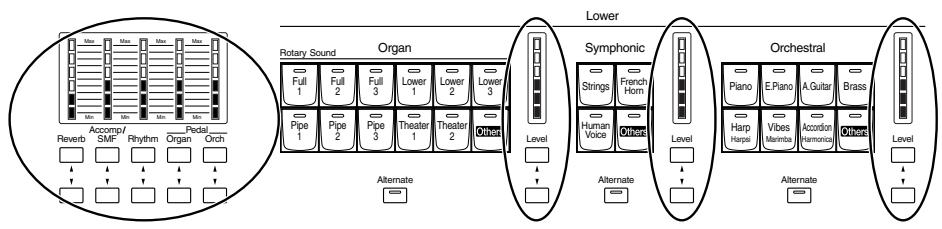
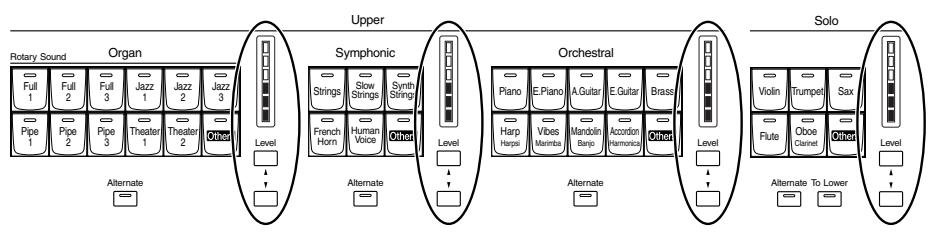
The following buttons are used to adjust the volume of a multiple number of Parts.
| Button | Part |
| Accomp/SMF [▲] [▼] button | Automatic Accompaniment (except Bass) |
| Playback of performance songs from something other than the Atelier performance songs (for example: SMF music files) | |
| Rhythm [▲] [▼] button (When the [Manual Perc] button is ON) | Manual percussion |
| Rhythm [▲] [▼] button (When the [Manual Perc] button is OFF) | Rhythm performance |
| Drums/SFX | |
| Pedal Organ [▲] [▼] button | Pedal Organ voice |
| Bass note of automatic accompaniment |
1. The volume levels of each part are adjusted using the corresponding [] and [] buttons.
Pressing the upper button ([▲] button) will increase the volume.
Pressing the lower button ([▼] button) will decrease the volume.
The volume can be set to any value from 0 to 12.
When the volume value shown in the display is 0, that part will produce no sound.
You can also press the [▲] button and [▼] button of the part whose volume you wish to adjust, so that the "Part Balance Monitor screen" is displayed for several seconds, allowing you to check the volume balance.
![ROLAND AT-60SL - The volume levels of each part are adjusted using the corresponding [] and [] buttons. - 1](/content/2025/01/130755/images/0721d6793a5e83f6950b2cbc607ec8375f3d7f970d570a30cd892a90016da38e.jpg)
You can check the volume by viewing the Level indicators of each part on AT-80SL.
![ROLAND AT-60SL - The volume levels of each part are adjusted using the corresponding [] and [] buttons. - 2](/content/2025/01/130755/images/63279ac5d915a2a747bda2f9b0664d1687130e5e43559e97d0ea96aa3533cbe8.jpg)
![ROLAND AT-60SL - The volume levels of each part are adjusted using the corresponding [] and [] buttons. - 3](/content/2025/01/130755/images/1271aa83f71250365fd11eae9a74125b1844df0015414071c2b0b40396712aaf.jpg)
The Part Balance Monitor screen is displayed for several seconds and then closes automatically. If you touch
Transpose the Pitch in Octave Units (Octave Shift)
The pitch of the sound played by the keyboard can be adjusted in one-octave steps. This function is called "Octave Shift." You can apply an Octave shift to all Parts.
1. Touch on the Main screen.
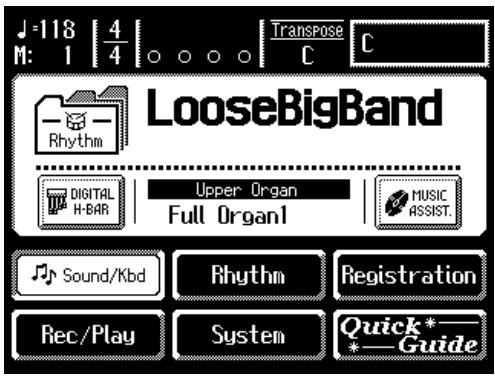
The Sound/Keyboard screen appears.
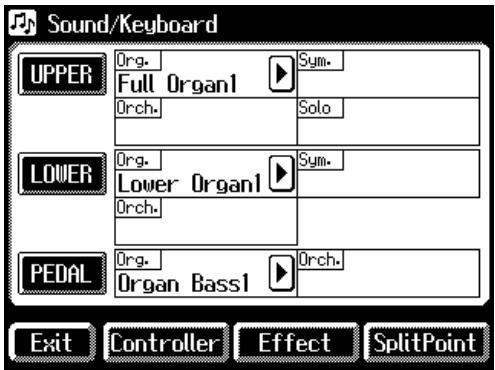
2. Touch either <UPPER> , <LOWER> , or <PEDAL> .
| Menu | Part whose pitch will change |
| UPPER | To change the pitch of the Upper and Solo part |
| LOWER | To change the pitch of the Lower part |
| PEDAL | To change the pitch of the Pedal part |
3. Touch <> <> to display the Octave Shift.
4. Touch the part display of the part whose Octave Shift settings you wish to change.
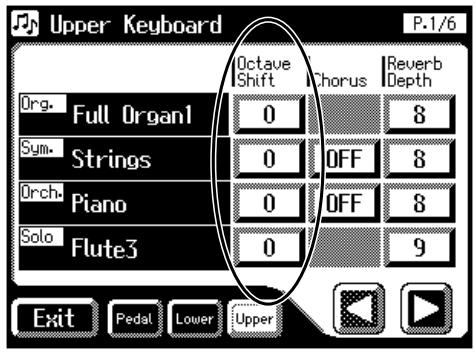
5. Touch < - > < +> to adjust the settings.
The value can be set to a range of + / - 3 octaves.
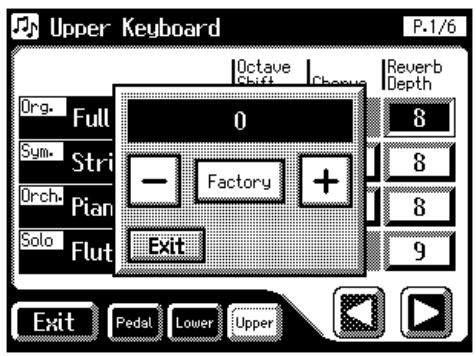
6. Touch.
You will return to the Upper Keyboard/Lower Keyboard/Pedalboard screen.

You can open the
Pedalboard screen, Lower
Keyboard screen, or Upper
Keyboard screen with
touching

When the power is turned on, the Octave Shift setting for each part of the Pedal Bass will be set to -1 (1 octave down).
If you turn on the [Octave Up] button on the AT-80SL, the Octave Shift will be automatically set to "0" regardless of the previous setting. When you turn off the [Octave Up] button on the AT-80SL, the Octave Shift will always return to "-1" regardless of the previous setting.

Please note that when you apply the Octave Shift function to certain voices, their pitch could be stretched beyond their recommended note ranges, and they may not sound as expected. Care should be taken when using Octave Shift.
Playing Drum Sounds or Sound Effects from the Entire Lower Keyboard (Drums/SFX)
You can use the Lower keyboard to play various drum sounds (drum set). In this case, the Lower voices will no longer sound.
AT-80SL
AT-60SL
1. Press the [Drums/SFX] button, getting its indicator to light up.
The [Drums/SFX] button indicator will alternate between on (lit) and off (dark) each time it is pressed.
The Drums/SFX (drums/sound effects) screen will be displayed for several seconds.
AT-80SL
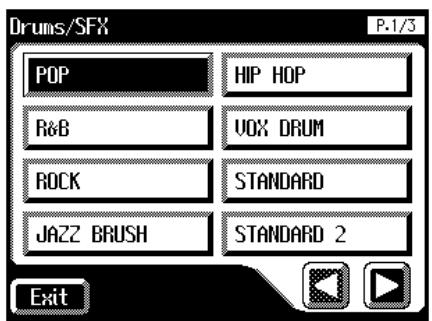
AT-60SL
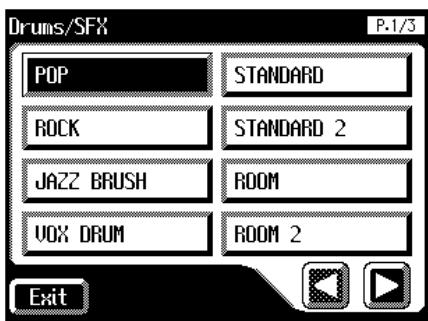
2. Play the Lower keyboard and listen to the various drum sounds on each key.

Refer to "Drum Set List" (p. 225) for details on which drum sound or Sound Effect will be played by each note.
NOTE
It is not possible to select and play both [Drums/ SFX] and [Manual Perc] buttons simultaneously.
NOTE
For some drum sets, there will be keys that do not sound.
Changing Drums/SFX Sets
Immediately after the power is turned on, the POP drum set will sound. As the drum set, you can choose the types of drum set and sound effect. When you change the drum set, the sound produced by each note will change.
1. Press the [Drums/SFX] button, getting its indicator to light up.
The Drums/SFX screen will be displayed for several seconds.
AT-80SL
AT-60SL
![ROLAND AT-60SL - Press the [Drums/SFX] button, getting its indicator to light up. - 1](/content/2025/01/130755/images/f97aa5a48a12e72722b1c6fb2e66b1bf9680c652771349eea71feb1b3db184b2.jpg)
![ROLAND AT-60SL - Press the [Drums/SFX] button, getting its indicator to light up. - 2](/content/2025/01/130755/images/ca35d3ce284ef263f9f28abc912598263459d28debb2d3cb76c992d6fa649325.jpg)
2. While the Drums/SFX screen is displayed, touch a Drum/SFX set name in the screen.
The [Drums/SFX] button indicator will begin to blink.
AT-80SL
You can select from 18 different Drum Sets and one set of Sound Effects as follows:
POP, R&B, ROCK, JAZZ BRUSH, HIP HOP, VOX DRUM, STANDARD, STANDARD2, ROOM, ROOM2, POWER, ELECTRONIC, TR-808, DANCE, JAZZ, BRUSH, BRUSH2, ORCHESTRA, SOUND EFFECTS
AT-60SL
You can select from 16 different Drum Sets and one set of Sound Effects as follows:
POP, ROCK, JAZZ BRUSH, VOX DRUM, STANDARD, STANDARD2, ROOM, ROOM2, POWER, ELECTRONIC, TR-808, DANCE, JAZZ, BRUSH, BRUSH2, ORCHESTRA, SOUND EFFECTS
3. Press the [Drums/SFX] button once again.
The [Drums/SFX] button indicator will be lit constantly, and the selected Drum Set Type will be applied.
![ROLAND AT-60SL - Press the [Drums/SFX] button once again. - 1](/content/2025/01/130755/images/57b22b54d458eec2fde3e77f2c45d3e3413f9fad202ccb6f9d35125c01bd7864.jpg)
For the types of drum set and the sound effects played by each key, refer to "Drum/SFX Set List" (p. 225).
![ROLAND AT-60SL - Press the [Drums/SFX] button once again. - 2](/content/2025/01/130755/images/a7b8dee1ba9f03da2a754930243244511f9e17ddf77a32c965ac04444faf5613.jpg)
After the Drums/SFX (drums/sound effects) screen is displayed, it will close automatically after several seconds unless you touch the screen to select a drums/sound effects set. If you wish to switch drums/ sound effect sets, quickly select the desired drums/ sound effect set while the Drums/SFX (drums/ sound effects) screen is displayed.
![ROLAND AT-60SL - Press the [Drums/SFX] button once again. - 3](/content/2025/01/130755/images/a39149b28ce9962574a18e7dddbd2932cb835ee1419a04b9639a7c5d1cf25b1d.jpg)
You can also confirm the Drums/SFX set by touching
Playing a Lower Voice with Percussion Instrument Sounds and a Voice Phrase (Manual Percussion)
You can play various drum sounds and Sound Effects using the bottom 15 keys of the Lower keyboard. This is convenient when you wish to play the Lower voice together with drum sounds or Sound Effects.
AT-80SL
AT-60SL
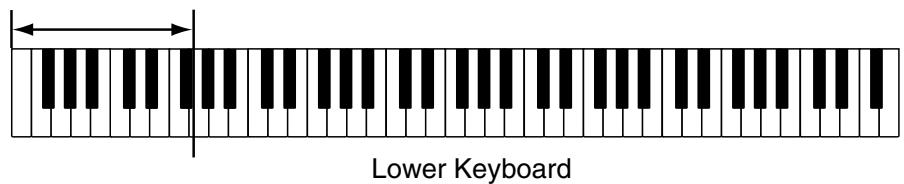
the keys for Drum sounds or Sound Effects
1. Press the [Manual Perc] button (indicator lights).
The button will alternate between ON (lit) and OFF (dark) each time it is pressed.
The Manual Percussion screen will be displayed for several seconds.
![ROLAND AT-60SL - Press the [Manual Perc] button (indicator lights). - 1](/content/2025/01/130755/images/394ececde5655ea41217207e2b4caf735628fa92883dd0afda162b11ebd5b8f9.jpg)
AT-80SL
![ROLAND AT-60SL - Press the [Manual Perc] button (indicator lights). - 2](/content/2025/01/130755/images/f3823c206911252eda74590b9b1ec5399ef3bfa380ad2a6b8559ec6c6688d22f.jpg)
AT-60SL
2. When you play the bottom 15 keys of the Lower keyboard the chosen drum sound is played on each key.
NOTE
It is not possible to select and play both [Drums/ SFX] and [Manual Perc] buttons simultaneously. (p. 56).
Changing the Manual Percussion Sets
Immediately after the power is turned on, the PERC SET1 drum set will sound.
You can choose the type of Manual Percussion Set. When you change the Manual Percussion Set, the sound played by each of the 15 lowest notes of the Lower keyboard will change.
1. Press the [Manual Perc] button (indicator lights).
The Manual Percussion screen will be displayed for several seconds.
AT-80SL
AT-60SL
![ROLAND AT-60SL - Press the [Manual Perc] button (indicator lights). - 1](/content/2025/01/130755/images/fcc541e45216178e76667585e169c8a0e1742c27727e28e8aed77342fc694d1d.jpg)
![ROLAND AT-60SL - Press the [Manual Perc] button (indicator lights). - 2](/content/2025/01/130755/images/dc5e828c759956f1249be845ed2e142dc5a7fc5b31010601f05c2f55d29de921.jpg)
2. While the Manual Percussion screen is displayed, touch a manual percussion set name in the screen.
The [Manual Perc] button indicator will begin to flash.
AT-80SL
You can select from 14 different Manual Percussion Sets;
PERC SET1, PERC SET2, PERC SET3, ORCHESTRA SET, ORCHESTRA SET2, LATIN SET, ASIAN SET, VOICE PHRASE, VOICE PHRASE 2, VOICE PHRASE 3, SFX SET, SFX SET 2, JAPANESE SET, JAPANESE SET 2
AT-60SL
You can select from 7 different Manual Percussion Sets;
PERC SET1, PERC SET2, LATIN SET, VOICE PHRASE, VOICE PHRASE2, SFX SET, JAPANESE SET
3. Press the [Manual Perc] button once again.
The [Manual Perc] button indicator will be lit constantly, and the selected Manual Percussion Set will be applied.
![ROLAND AT-60SL - Press the [Manual Perc] button once again. - 1](/content/2025/01/130755/images/2ce8137edc1ec2f672522ce6ab6331a951cd6f61f50b551c13ee2ebdb65df566.jpg)
Refer to "Drum Set List" (p. 225) for details on which percussion sound will be played by each note.
![ROLAND AT-60SL - Press the [Manual Perc] button once again. - 2](/content/2025/01/130755/images/bc664d9a6acd27605a7d8589c4abc6977cc799ce6f615461c1b1f334591d7198.jpg)
The Manual Percussion screen will automatically close after several seconds if you do not touch the screen to select a manual percussion set. If you wish to change the manual percussion set, you must select a manual percussion set quickly while the manual percussion screen is displayed.
![ROLAND AT-60SL - Press the [Manual Perc] button once again. - 3](/content/2025/01/130755/images/ae5c641c3a6a1a3e1bf7fab2a61426323d50f9b3d99967dc8226f4e12a948a4c.jpg)
You can also confirm the Manual Percussion set by touching
Sustaining Notes in the Lower Part (Lower Hold)
You can have Lower voice continue to sound after you release you fingers from the keys, until the next key is played.
AT-80SL
Lower Voice
AT-60SL
Lower Voice
1. Press the Lower Voice [Hold] button (confirm that the indicator is lit).
The Lower voice will continue sounding.
While the Lower Voice [Hold] button is lit, pressing a key will cause the note to continue sounding.
2. When you press the Lower Voice [Hold] button to make the indicator go dark, the notes which had continued to sound will stop.
Chapter 2 Using Rhythm Performance
The AT-80SL/60SL lets you enjoy playing along with a rhythmic accompaniment.
Selecting a Rhythm
The AT-80SL/60SL provides various Rhythms and Automatic Accompaniments (Music Styles).
These are organized into 10 groups.
AT-80SL
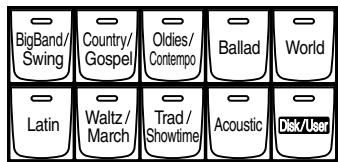
Rhythm
AT-60SL
Big Band/ Swing
Country/Gospel
Oldies/ Contempo
Ballad
World

。


一

一

W


Acc

Up

V


A

089


Rhythm
m - 1 0 ;
1. Press a Rhythm button to select a Rhythm group.
The indicator will light.
A Rhythm screen like the following appears.
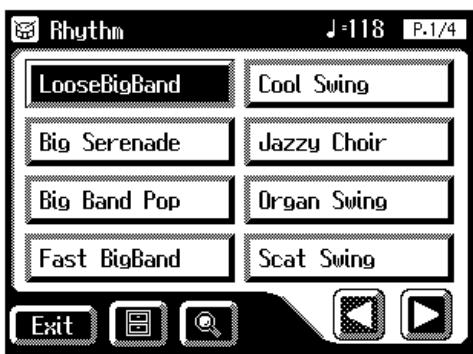
The rhythms in the selected rhythm group appears in the display.
2. Touch <><> to switch screens, and touch a rhythm name to select the desired rhythm.
The indicator of Rhythm button will blink.
3. Press the Rhythm button once again (indicator lights constantly).
The Rhythm button's indicator will change from blinking to light. The Rhythm has now been applied.

For more on the internal rhythms, refer to the "Rhythm List" (p. 242, p. 244).

You can also open the Rhythm screen by touching

You can also confirm the rhythm by touching
Using Rhythms Stored in User Memory
The AT-80SL/60SL features a User memory.
What is the User Memory?
The User memory is the area within the instrument where User rhythms you create as well as rhythms from Music Style Disks are stored.
You can also copy User rhythms saved on floppy disks to the User memory (p. 173).
The AT-80SL/60SL is shipped from the factory with rhythms already stored in User memory. You can replace these rhythms with rhythms loaded in from Music Style Disks, or with User rhythms you've created and saved using the Rhythm Customize function (p. 173).
The content of User memory is retained even while the AT-80SL/60SL's power is turned off.
You can call up rhythms in User memory by pressing the [Disk/User] button.
Calling Up Rhythms Stored in User Memory
- Press the [Disk/User] button.
The Rhythm screen appears.
- Touch < > on the Rhythm screen.
The rhythms stored in User Memory are displayed.
- Touch <><> to switch screens, and touch a rhythm name to select the desired rhythm.
The indicator of [Disk/User] button will blink.
- After selecting a rhythm, press the flashing [Disk/User] button once more.
The [Disk/User] button stops flashing and remains lit, indicating that the rhythm has been selected.

If you wish to store a disk Rhythm in the User memory, refer to "Copying Rhythms on Disks into User Memory" (p. 78).

If you want to restore the original rhythms that User memory contained at the time the instrument was shipped from the factory, refer to "Restoring the Rhythm Stored in the User Memory to Their Original Factory Settings" (p. 80).

If a floppy disk containing saved rhythms is in the disk drive, then when you
touch < > , the rhythms on the floppy disk are displayed.

You can also confirm the rhythm by touching
Rhythm Search
You can search for Rhythm that match the tempo of the song, musical genre, or other criteria you set.
You can also search Rhythm using the first character of the Rhythm names.
1. Touch on the Main screen.
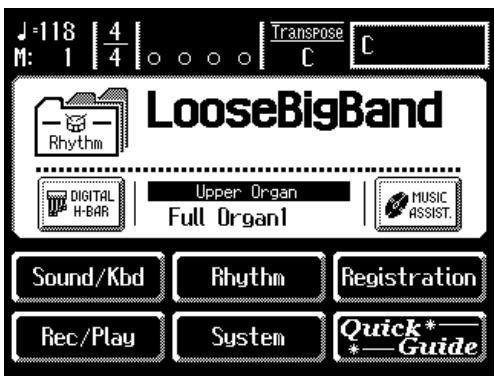
The following Rhythm screen appears.
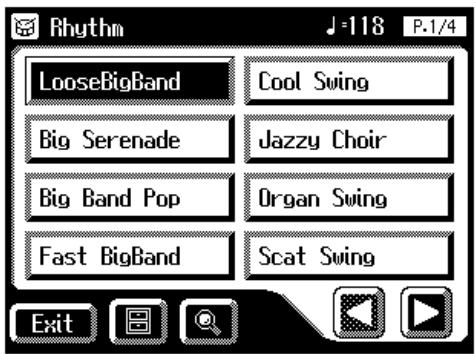
2. Touch < 0 > on the Main screen.
A sub-window appears.
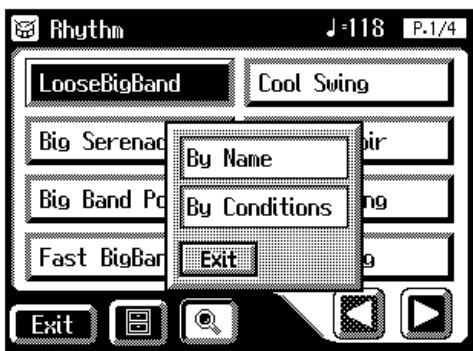

If some other screen is displayed, touch

You can also open the Rhythm screen by pressing Rhythm buttons.

You can also search only for rhythms other than the internal rhythms accessed with the [Disk/User]
button. The icon does not appear in the display while [Disk/User] button rhythms are displayed.
Searching by Rhythm name
- Touch
. - Decide which character you will use for the search.
The selected character appears in the middle of the screen.
Enter the character you are searching for. For example, touching ABC in succession cycles you through the available choices in that character group ("A"→"B"→"C"…).
Touch <ABC/123> to toggle between alphabets and numerals.
- Touch
(Start Search).
The search results appear in the display.
To cancel the search, touch
- Touch a Rhythm name to select a Rhythm.
Touch
Searching by Conditions
- Touch
.
You can use four different criteria in searches: "Tempo," "Beat," "Groove," and "Genre."
- Touch the value for the search term.
- Touch < - > < +> to adjust the settings.
- Touch
(Start Search).
The search results appear in the display.
To cancel the search, touch
- Touch a Rhythm name to select a Rhythm.
Touch
Playing Rhythm
There are two ways to start the Rhythm:
- Manually by pressing the [Start] button,
- Automatically by playing a note on the Lower keyboard or Pedalboard (Sync Start).
You can press (Sync Start) or the [Intro/Ending] button to start the rhythm from the intro, or stop the rhythm at the ending.
AT-80SL
AT-60SL
Starting at the Press of a Button
Starting with an Added Intro
- Press the [Intro/Ending] button.
The Intro is played and the Rhythm starts.
While the Intro is playing, the [Intro/Ending] button indicator will light, until the Intro ends then the button indicator will go dark.
Making the Intro Short and Simple
- Press the [To Variation] or [To Original] button.
[Start/Stop] button indicator will blink.
The indicator for the [To Variation] or [To Original] button will blink.
- Press the [Start/Stop] button.
A short Intro is played and the Rhythm starts.
Starting Without an Intro
- Press the [Start/Stop] button.
The Rhythm starts without an Intro being played.

The functions of the [Intro/ Ending] button and [Start/ Stop] button can be assigned to the foot switches located on each side of the Expression Pedal (p. 118).

For more on the [To Variation] and [To Original] buttons, refer to "Adding Variety to the Rhythm or Automatic Accompaniment" (p. 69).
Starting the Rhythm Automatically When You Play the Lower Keyboard or Pedalboard (Sync Start)
Starting with an Added Intro
- Press the [Sync Start] button to make the indicator light up.
- Press the [Intro/Ending] button.
The [Intro/Ending] button's indicator will blink.
- Play either the Lower keyboard or the Pedalboard.
The Intro is played and the Rhythm starts.
While the Intro is playing, the [Intro/Ending] button indicator will light, until the Intro ends then the button indicator will go dark.
Making the Intro Short and Simple
- Press the [Sync Start] button to make the indicator light up.
- Press the [To Variation] or [To Original] button.
[Start/Stop] button indicator will blink.
The indicator for the [To Variation] or [To Original] button will blink.
- Play either the Lower keyboard or the Pedalboard.
A short Intro is played and the Rhythm starts.
Starting Without an Intro
- Press the [Sync Start] button to make the indicator light up.
- Play either the Lower keyboard or the pedalboard.
The Rhythm starts without an Intro being played.
NOTE
If the Arranger function is ON (the Arranger [On/Off] button indicator is lit), it is not be able to start the Rhythm by playing the Pedalboard (p. 68).

For more on the [To
Variation] and [To
[Original] buttons, refer to
"Adding Variety to the
Rhythm or Automatic
Accompaniment" (p. 69).
Stopping the Rhythm
Stopping with an Ending
1. Press the [Intro/Ending] button.
An Ending is played, then the Rhythm stops.
While the Ending is playing, the [Intro/Ending] button indicator will light, until the Ending finishes the button indicator will be turned off.
Making the Ending Short and Simple
1. Press the [To Variation] or [To Original] button, and then press the [Start/Stop] button.
A short Ending is played, then the Rhythm stops.
Stopping without an Ending
1. Press the [Start/Stop] button.
The Rhythm stops without an Ending being played.
Changing a Rhythm's Tempo
You can change the tempo of the Rhythm or Automatic Accompaniment (p. 68).
Tempo
1. Press the Tempo [←] and [▶] buttons to change the tempo (speed) of the Rhythm or Automatic Accompaniment.
| Tempo [▲] button | The tempo becomes slower |
| Tempo [▲] button | The tempo becomes faster |
By pressing the Tempo [ ] and [▶] buttons simultaneously, the tempo is returned to the standard (preset) tempo for the selected Rhythm.
The value of the tempo currently set (20-500 beats per minute) can be checked in the Main screen and Rhythm screen.
MEMO
The functions of the [Intro/ Ending] button and [Start/ Stop] button can be assigned to the foot switches located on each side of the Expression Pedal (p. 118).

If you switch rhythms when "Auto Std Tempo" (p. 189) is on, the tempo changes to match the rhythm. If you switch rhythms when "Auto Std Tempo" is off, the tempo remains unchanged even when you switch the rhythm.

You can confirm the tempo and beat with the "bouncing ball" in the Main screen (p. 26).
Playing the Count Sound at the End of the Intro
If an intro is played before your performance, you can have a countdown played to the end of the intro, allowing you to understand easily where you are to start playing.
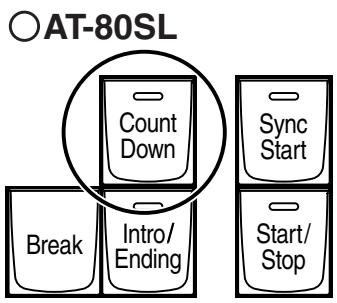
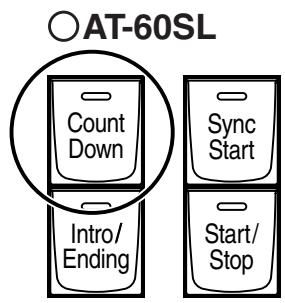
- Press the [Count Down] button, getting the indicator to light.
- Press the [Intro/Ending] button.
The intro plays, and a countdown plays to the end of the intro.
When the [Sync Start] button is lit, specifying the chord on the Lower keyboard starts the intro, and again, a countdown is given.
- To stop the countdown, press the [Count Down] button, turning off the indicator light.
Playing Rhythm and Automatic Accompaniment
The Arranger function of the AT-80SL/60SL can add an Automatic Accompaniment to each Rhythm. Based on the selected Rhythm, the Arranger function automatically adds an accompaniment that is suitable for the chord being pressed on the Lower keyboard.
Arranger
On/Off

- Press the Arranger [On/Off] button (indicator lights.)
| Arranger [On/Off] button | Function |
| Indicator is lit (On) | Rhythm and Automatic Accompaniment |
| Indicator is not lit (Off) | Rhythm (Drums only) |
- Start the rhythm (p. 65).
The rhythm and the automatic accompaniment will play together.
If the Arranger [On/Off] button is ON and no Pedal Bass voice is selected, the Automatic Accompaniment will play the bass sound.

You can change the countdown sound (p. 189).
NOTE
When the Arranger [On/ Off] button is on, Sync Start (p. 66) on the pedalboard cannot be used.
NOTE
The lower voice is not played during the performance of the intro and ending, even when the Lower keyboard is played.
Adding Variety to the Rhythm or Automatic Accompaniment
You can add variety to the rhythm or automatic accompaniment by changing the rhythm pattern of the rhythm or the arrangement of the automatic accompaniment, or by inserting a break (i.e., stopping the rhythm for one measure).
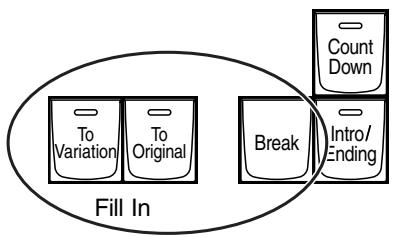
AT-80SL
AT-60SL
Fill In
| Button name | Function |
| Fill In [To Variation] button | After the Fill-In has played, play the Variation Rhythm pattern. |
| Fill In [To Original] button | After the Fill-In has played, play the Original Rhythm pattern. |
| [Break] button <AT-80SL only> | Stop the rhythm at the end of that measure (Break). |
What's a fill-in?
A Fill In is a short phrase that is inserted at a break in the melody or at a point where the character of the song changes (between Chorus's or Verses).
Changing the Arrangement of the Rhythm and Accompaniment (Style Orchestrator)
You can change the arrangement of the accompaniment. This function is called "Style Orchestrator." For each rhythm, there are four types of arrangement for the accompaniment.
The following buttons are called Style Orchestrator buttons.
AT-80SL
Style Orchestrator
AT-60SL
Style Orchestrator
1. Press the Style Orchestrator buttons to change the arrangement of the accompaniment.
The indicator of the button you pressed will light.
The [Basic] button produces the simplest arrangement, and the [Full] button produces the most florid.
NOTE
AT-60SL has no [Break] button.
MEMO
The functions of the Fill In [To Variation] button and Fill In [To Original] button can be assigned to the foot switches located on each side of the Expression Pedal. Please refer to "Changing the Function of the Foot Switch" (p. 118).
Playing Chords with Simple Fingering
"Chord Intelligence" is a feature that intelligently plays the correct accompaniment chords the moment you play a key specifying a chord on the Lower keyboard during Automatic Accompaniment.
For example, in order to make the instrument detect a "C Major" chord, you must normally play the three keys "C," "E," and "G." If you use the Chord Intelligence function, you can simply press a single "C" key in the lower keyboard to sound a C Major chord with the voice selected for the Lower part.
1. Touch on the Main screen.
The Rhythm screen appears.
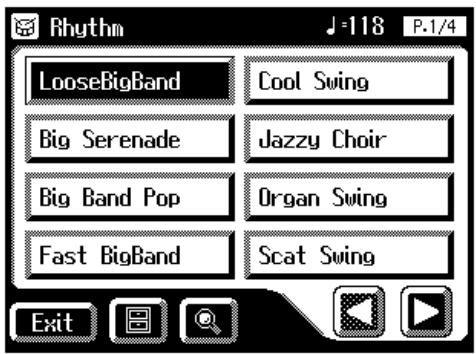
2. Touch < 0 (Utility) on the Rhythm screen.
The Utility screen appears.
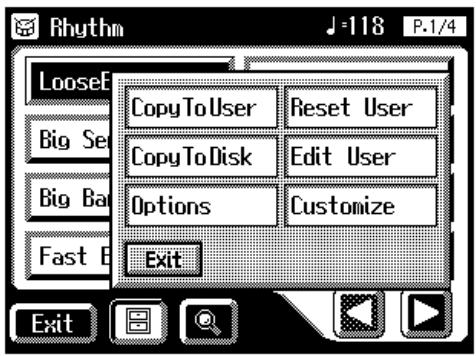

For more information about chord fingering, refer to the "Chord List" (p. 247).

You can also open the rhythm screen by pressing a Rhythm button.

If you press the root note of the chord (p. 249) in the lower keyboard when the Chord Intelligence function is off, all notes in that chord will sound.
For example, if you press the root "C" of the C major chord in the lower keyboard, the notes of the C major chord "C," "E," and "G" will be sounded by the voice selected for the lower part.
3. Touch .
The Rhythm Options screen appears.
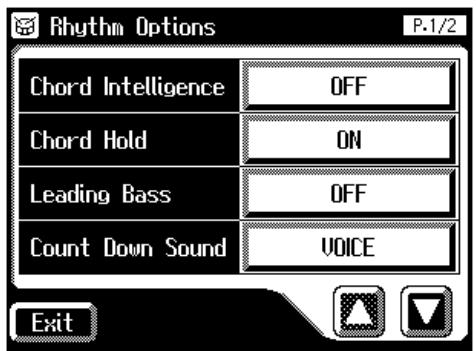
4. Touch the Chord Intelligence setting to turn it "ON."
The Chord Intelligence function can now be used.
Each time you touch the Chord Intelligence setting, it will be switched ON/OFF.
5. If you wish to turn off the Chord Intelligence function, switch it "OFF."

When the Leading Bass function (p. 72) is on and the Chord Intelligence function is off, you can specify chords with a combination of the lower keyboard and pedalboard.

When you touch the [One Touch Program] button, the Chord Intelligence setting will automatically be turned ON.
Leading Bass Function
When Automatic Accompaniment is used, and the Pedal [To Lower] button is ON, the Pedal Bass voice will normally play the root note (p. 249) of the chord you play on the Lower keyboard.
If the Leading Bass function is enabled, the lowest note of the chord you play on the Lower keyboard will then be used as the bass note (the bottom note of the chord). This allows the bass to be a note other than the root of the chord you play and the bass note will change when inverted chords are played (p. 249).
1. Touch on the Main screen.
The Rhythm screen appears.
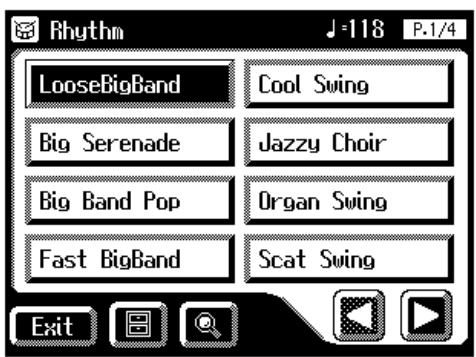
2. Touch < 0 (Utility) on the Rhythm screen.
The Utility screen appears.
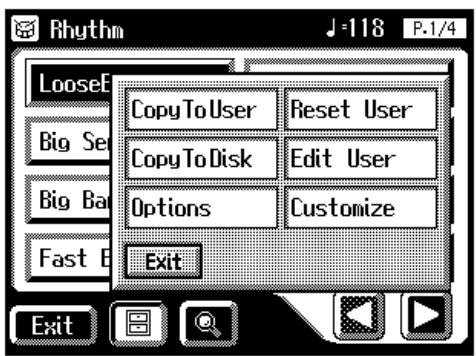

You can also open the Rhythm screen by pressing the Rhythm buttons.

When the Leading Bass function is on and the Chord Intelligence function (p. 70) is off, you can specify chords with a combination of the lower keyboard and pedalboard.
3. Touch .
The Rhythm Options screen appears.
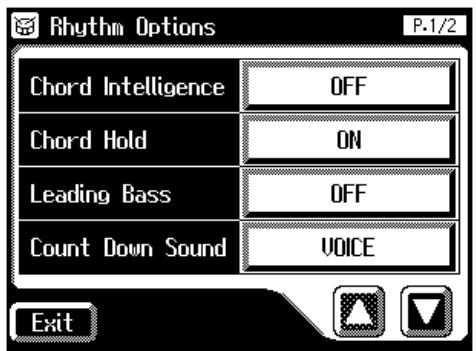
4. Touch the Leading Bass setting to turn it "ON."
Each time you touch the Leading Bass setting, it will be switched ON/OFF.
5. To turn off the Leading Bass function, set the Leading Bass setting to "OFF."

You can assign the Leading Bass functions to either of the foot switches located on each side of the Expression Pedal. Please refer to "Changing the Function of the Foot Switch" (p. 118).
A Simple Way to Make Automatic Accompaniment Settings (One Touch Program)
The AT-80SL/60SL provides a very convenient [One Touch Program] button. By simply pressing this button once, the Arranger function will be turned ON, and keyboard voices that are most appropriate for playing with the currently selected Rhythm/Automatic Accompaniment are selected.
By pressing the [One Touch Program] button, you can make the following settings.
- Panel settings (e.g., sounds and volume) suitable for the rhythm
- Arranger [On/Off] button lit (Automatic Accompaniment playing)
- [Sync Start] button lit, [Intro/Ending] button blinking (Waiting for Sync Start)
- Chord Intelligence function is ON (p. 70)
What is Sync Start?
Sync Start is a function that starts the rhythm at the moment that you play the lower keyboard.
What is Chord Intelligence?
"Chord Intelligence" is a feature that intelligently decides on accompaniment chords the moment you play some keys specifying a chord during automatic accompaniment.
The panel settings specified by the One Touch Program function are as follows.
16 panel settings for each rhythm (4 panel settings × 4 groups)
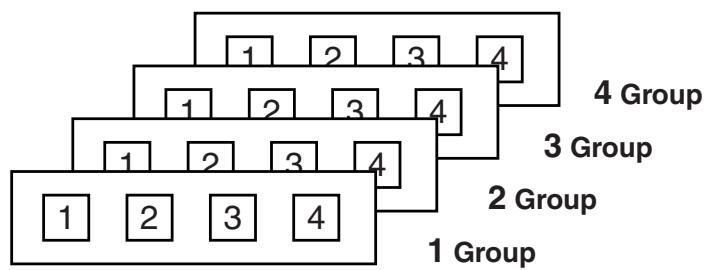
- Select a Rhythm (p. 61).
- Press the [One Touch Program] button.
The [One Touch Program] button's indicator will light.
An One Touch Program Group (One Touch Program Group select) screen like the one shown below will be displayed for several seconds.
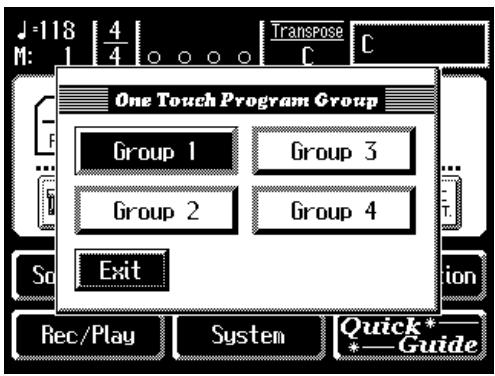
- While the One Touch Program Group screen is displayed, touch the screen to select a One Touch Program group.
If you fail to select a One Touch Program group while the One Touch Program Group screen is displayed, "Group 1" will be selected automatically.
Panel settings appropriate for the rhythm and automatic accompaniment will automatically be called up for Registration [1]-[4] buttons.
- Press the Registration [1] - [4] button to select panel settings.
- On the Lower keyboard, play a chord.
At the moment you play the lower keyboard, the Intro will begin, and then the Rhythm and Automatic Accompaniment will play.
- Press the [Intro/Ending] or [Start/Stop] button to stop the Rhythm.
Rhythm and Automatic Accompaniment stops.
- Press the [One Touch Program] button, extinguishing its indicator.
You will return to the panel settings that were in effect prior to pressing the [One Touch Program] button.
MEMO
To redisplay the One Touch Program Group screen, while holding down the Registration [Write] button, press the [One Touch Program] button. Touch the One Touch Program Group screen to reselect the group.
MEMO
When you press the [One Touch Program] button, the "Arranger Update" setting will automatically change to "INSTANT" (p. 92).
Using a Rhythm from a Disk
The AT-80SL/60SL contains built-in Rhythms (Music Styles). Additional Rhythms (Music Styles) are available on the Music Style disk included are available. Here's how to select a Rhythm (Music Style) from a Music Style disk.
Inserting and Ejecting a Floppy Disk
1. Hold the floppy disk face up, and push it into the disk drive until it clicks into place.
The disk drive is on the right side of the unit, above the keyboard.
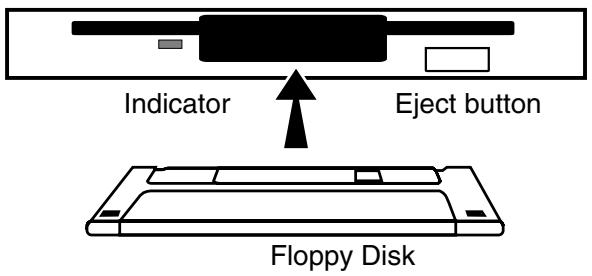
2. Press the Eject button.
The end of the floppy disk comes out of the slot. Gently grasp the end of the floppy disk and pull it out.
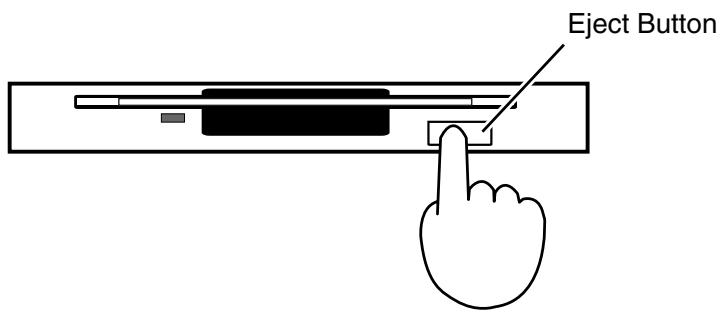
NOTE
All rights reserved.
Unauthorized use of
commercially available
Music Style disk for
purposes other than
private, personal
enjoyment is a violation of
applicable laws.
NOTE
If you're using the disk drive for the first time, be sure to read the important notes on p. 6.
NOTE
Never eject a disk while reading or writing is in progress, since that can damage the magnetic surface of the disk, rendering it unusable. (The disk drive's indicator will light up at full brightness when the drive is busy reading or writing data. Ordinarily, the indicator will be less brightly lit, or be extinguished.)
Reviewing the Styles on a Music Style Disk
1. Press the Rhythm [Disk/User] button (confirm that its indicator is lit).
The Rhythm screen appears.
AT-80SL
AT-60SL
![ROLAND AT-60SL - Press the Rhythm [Disk/User] button (confirm that its indicator is lit). - 1](/content/2025/01/130755/images/2fc2f9c856064490354936ac8088294c6ad3640a8647f792616b9bfa88db42a2.jpg)
![ROLAND AT-60SL - Press the Rhythm [Disk/User] button (confirm that its indicator is lit). - 2](/content/2025/01/130755/images/660ebed3a5770133fc09cc5b1a66637925d3b17e0f9149eb6a757f3c3c912107.jpg)
2. Insert the Music Style disk into the disk drive.
The Rhythm screen will show the Rhythms on the music style disk. Rhythms from the music style disk are indicated by an "图" icon.
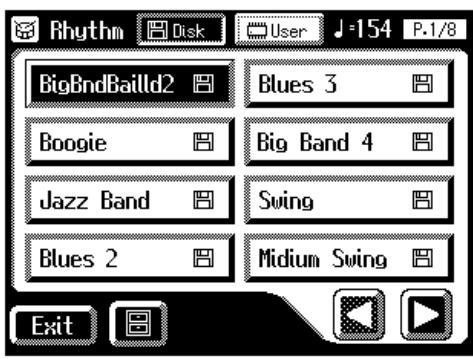
3. Touch < Disk> , causing it to light up; the rhythms on the music style disk are displayed.
4. Touch the Rhythm screen to select a Rhythm on the Music Style disk.
The [Start/Stop] button indicator will blink while the Rhythms are being loaded into internal memory.
When loading is finished, you will be able to play the selected rhythm.
5. Press the [Start/Stop] button or the [Intro/Ending] button.
The selected Rhythm is played.
![ROLAND AT-60SL - Press the [Start/Stop] button or the [Intro/Ending] button. - 1](/content/2025/01/130755/images/d11b4496056b3c20e8e70ac872ea7bcd2ad5ca354b50c9d447255c1f1cd34d1f.jpg)
When < > is lit, the rhythms stored in User memory are displayed.
![ROLAND AT-60SL - Press the [Start/Stop] button or the [Intro/Ending] button. - 2](/content/2025/01/130755/images/6a623e72bba6f01101e70da877934c0a481bb3c177cabee648aa09a7276b6b72.jpg)
If rhythms from a music style disk are stored in internal memory, you can recall the Rhythms simply by pressing the [Disk/ User] button (p. 78).
Copying Rhythms on Disks into User Memory
While the AT-80SL/60SL comes with rhythms already loaded in its User memory (p. 62), you can replace these with Music Style Disk rhythms. Rhythms loaded from the disk into internal memory will not be lost even if the power is turned off. It is convenient to load frequently-used disk Rhythms into internal memory.
- Insert the Music Style disk into the disk drive.
- Touch
on the Main screen.
The Rhythm screen appears.
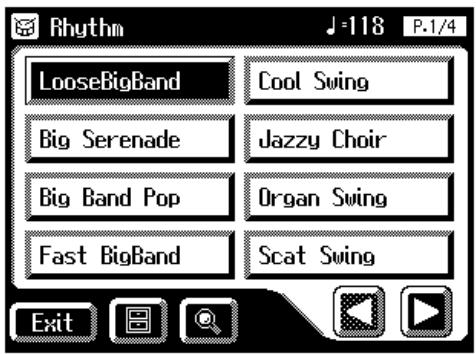
- Touch < 0> (Utility) on the Rhythm screen.
The Utility screen appears.
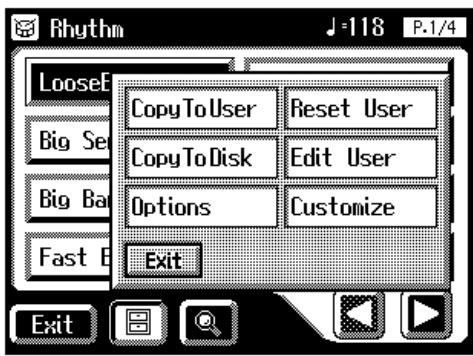
- Touch
.
The Copy To User screen appears.
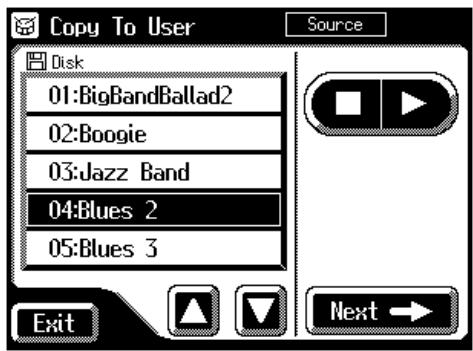
- Touch <> <> to select the Music Style Disk rhythm you want to copy to the User memory.
Rhythm [Disk/User] button indicator will blink.
- After selecting the Music Style Disk Rhythm, touch
.
The following screen appears.
AT-80SL
AT-60SL
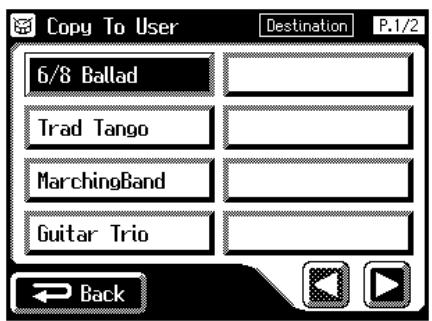
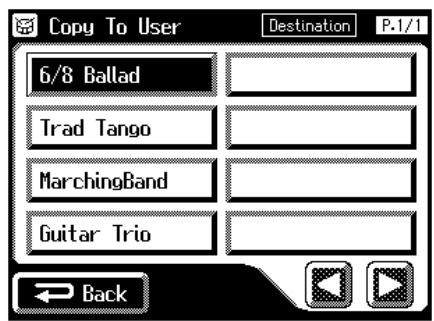
Touch
- Touch the screen to switch screens, and touch the save-destination rhythm.
The following screen appears.
AT-80SL
AT-60SL
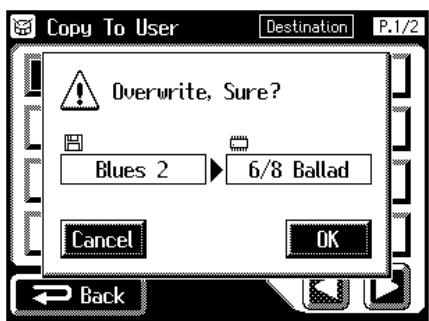
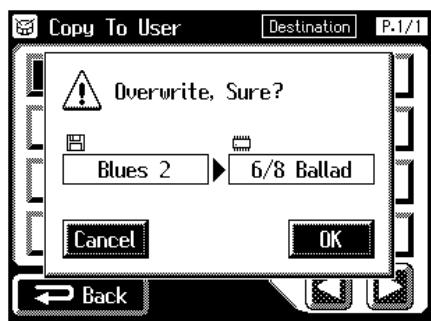
To cancel operation, touch

At this time, you can press
< > or the [Start/ Stop] button to play the rhythm to make sure of your choice.
8. To store the Rhythm in internal memory, touch .
The saving of the rhythm to internal memory begins.
Once the Rhythm has been accommodated in memory, the Rhythm screen will reappear.
Restoring the Rhythm Stored in the User Memory to Their Original Factory Settings
Use the following procedure to restore only the rhythm stored in the User Memory to their factory settings.
- Touch
on the Main screen. - Touch < (Utility) on the Rhythm screen.
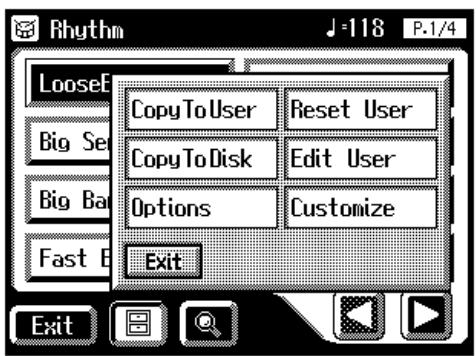
- Touch
on the Sub-window.
The confirmation message appears on the screen.
- Touch
.
The Rhythm that had been stored in the User Memory button will return to the factory settings.
NOTE
Never remove the disk or turn off the power while the Rhythm data is being loaded from disk into the AT-80SL/60SL. If you do so, the Rhythm data will not be loaded into the AT-80SL/60SL, and malfunctions could result. After returning the Rhythm stored in the [Disk/User] button to the factory settings (see following section), reload the Rhythm from disk.

To restore all of the factory settings, use the Factory Reset operation (p. 23).

You can restore the User Memory to the factory settings in the screen.
- Press the [Power On] button to turn off the power.
- Hold down the Rhythm [Disk/User] button, and press the [Power On] button.
Never turn off the power while the following screen is displayed.

Presetting... Don't Power Off
The Rhythm that had been stored in the User Memory will return to the factory settings.
Copying Rhythms Saved in User Memory to Floppy Disks
You can take rhythms saved in User memory (p. 62) and copy them to floppy disks.
- Make sure that the disk drive contains a disk that was formatted (p. 96) by the ATELIER.
- Press the Rhythm [Disk/User] button.
The Rhythm screen appears.
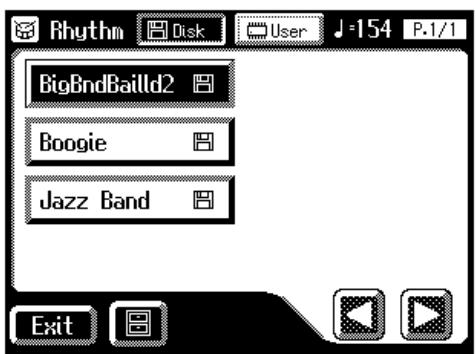
- Touch
. - Touch the Rhythm name to select the rhythm you want to copy to the floppy disk.
AT-80SL
AT-60SL
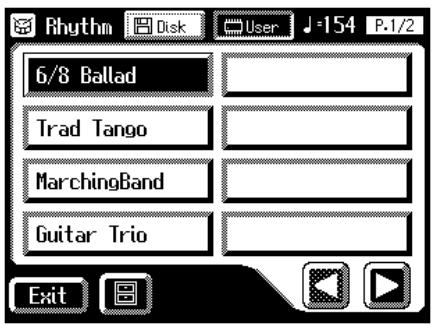
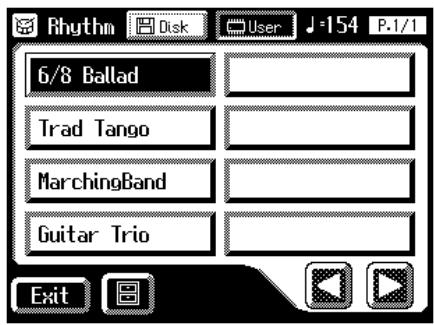

When < 凹Disk> is lit, the rhythms stored on the floppy disk are displayed.
5. Touch < 0> (Utility) on the Rhythm screen.
The Utility screen appears.
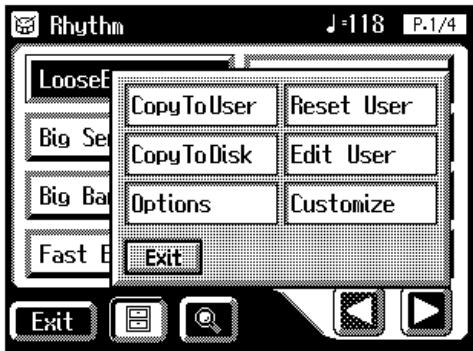
6. Touch on the Rhythm screen.
The Copy to Disk screen appears.
7. Touch <> <> to select the copy-destination number.
Numbers which have not been used in the saving operation will be displayed as "- - - - - -".
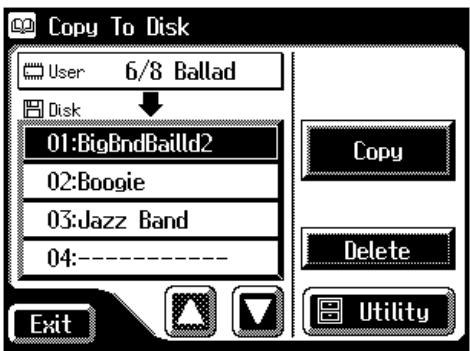
To cancel the copy, touch the
8. Touch to copy the rhythm to the floppy disk.
Copying of the rhythm to the floppy disk begins.
When the rhythm is saved, the Rhythm screen returns to the display.
Changing the Order of the Rhythms Stored in User Memory
You can rearrange the order of the rhythms stored in User memory (p. 62).
1. Touch on the Main screen.
The Rhythm screen appears.
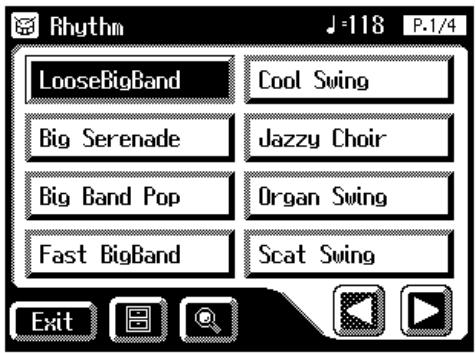
2. Touch < 0 (Utility) on the Rhythm screen.
The Utility screen appears.
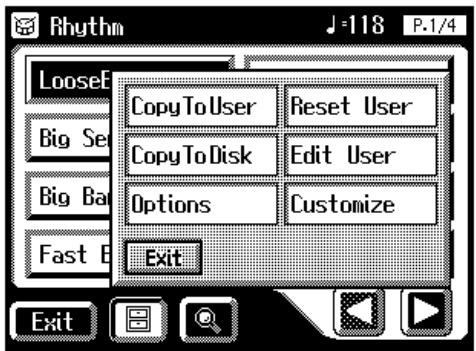
3. Touch .
The Edit User screen appears.
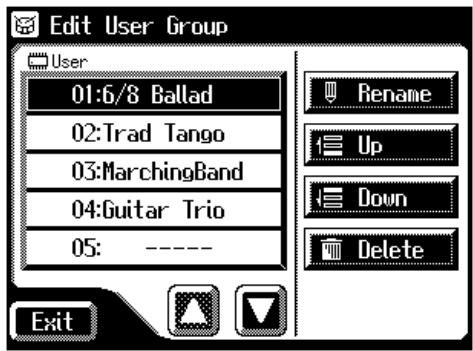
- Touch <> <> in the screen to select a rhythm.
- Touch <Up> or <Down> to move the rhythm.
| Button | Meaning | Description |
| Rename | Modify the name | The Rename screen appears. You can touch the screen and rename the selected rhythm (p. 85). |
| Up | Change the order (upward) | The selected rhythm will be moved earlier in the order. |
| Down | Change the order (downward) | The selected rhythm will be moved later in the order. |
| Delete | Delete the Rhythm | The selected rhythm will be deleted (p. 87). |
- Touch
.
Changing the Names of Rhythms Stored in User Memory
You can rename rhythms stored in User memory (p. 62).
- Touch
on the Main screen.
The Rhythm screen appears.
- Touch < 0 (Utility) on the Rhythm screen.
The Utility screen appears.
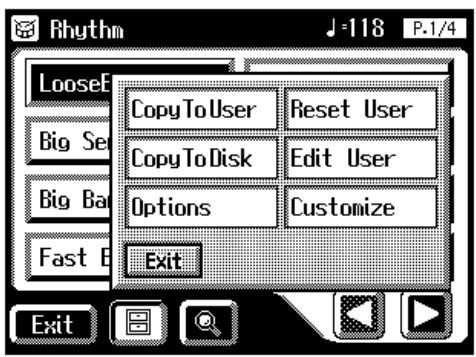
- Touch
.
The Edit User screen appears.
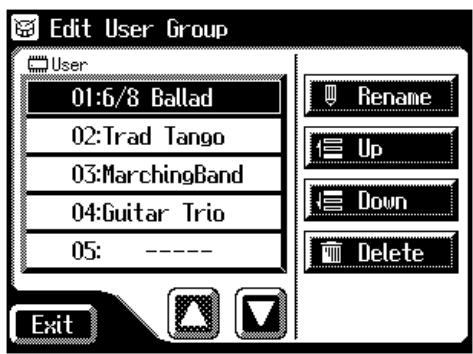
- Touch <><> to select the rhythm whose name you want to change.
- Touch
.
The Rename screen appears.
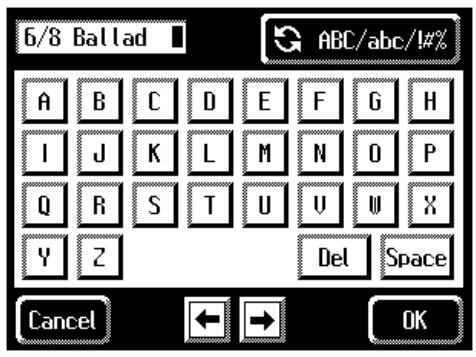
6. Touch < / abc / 1% > to change among uppercase/ lowercase/symbols.
Each touch of the character switch button takes you to the next available choice, like this: uppercase lowercase symbols uppercase ....
7. Touch the screen to specify the desired character.
The following characters can be selected.
| Uppercase | A B C D E F G H I J K L M N O P Q R S T U V W X Y Z |
| Lowercase | a b c d e f g h i j k l m n o p q r s t u v w x y z |
| Symbols | ! " # % & ' ( ) *+, -. / :=? ^_0123456789 |
| Del | Delete a character. |
| Space | Insert a space. |
| ← → | Move the cursor (the symbol that indicates the location at which characters will be input) to left or right. |
To cancel the operation, touch
8. When you're done making the settings, touch .
The Rhythm has now been named. The Edit User screen reappears.
9. Touch.
Deleting Rhythms Stored in User Memory
You can delete rhythms stored in User memory (p. 62).
- Touch
on the Main screen.
The Rhythm screen appears.
- Touch < 0> (Utility) on the Rhythm screen.
The Utility screen appears.
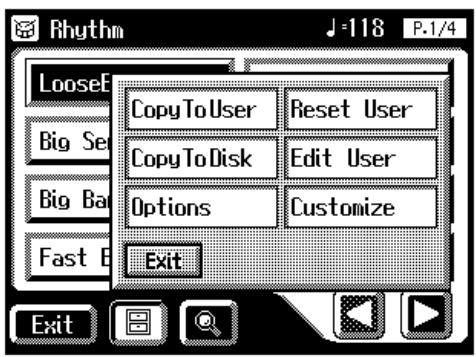
- Touch
.
The Edit User screen appears.
- In the screen, touch <> <> to select the rhythm that you wish to delete.
5. Touch.
The following display appears.
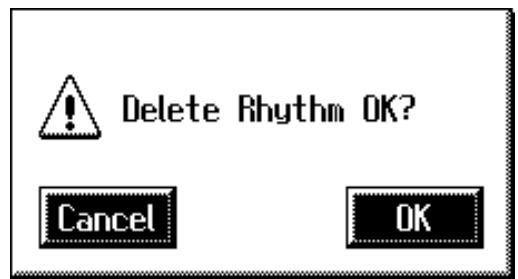
To cancel operation, touch
6. If you are sure that you wish to delete the rhythm, touch .
When a rhythm is deleted, the deleted rhythm name will change to "----".
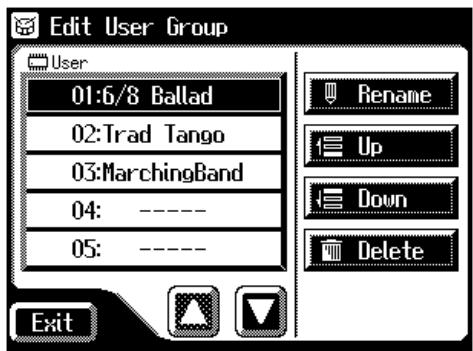
Chapter 3 Using the Registration Buttons
The AT-80SL/60SL allows you to store sound settings and panel settings in the Registration buttons. The AT-80SL has a total of twelve registration buttons (the AT-60SL has eight), and one set of panel settings can be registered to each button, for a total of twelve types (eight types on the AT-60SL) of panel settings. Each set of panel settings that has been stored in a Registration button is called a "Registration."
This provides a convenient way to change large numbers of panel settings during a performance, or to recall a complex panel setting.
AT-80SL

Settings that have been stored to Registration buttons [1]-[12] (on the AT-60SL, Registration buttons [1]-[8]) are remembered even if the power is turned off. If you wish to restore the settings stored in the Registration buttons to their factory settings, use the "Factory Reset" operation (p. 23).
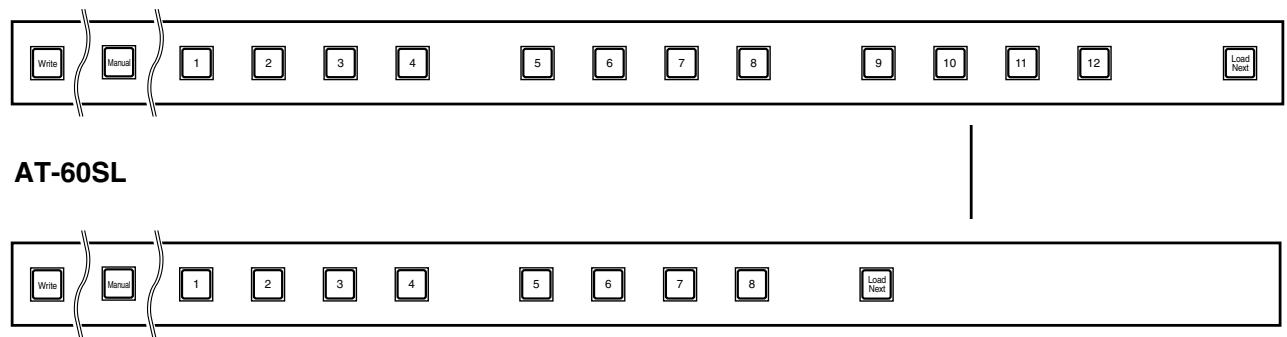
About the Registration Buttons
In addition to assigning voices and rhythms to the Registration buttons, you can also store the following settings:
- Panel button settings (for example, settings for the Level [▲] [▼] buttons and Solo [To Lower] button)
- Controller settings (functions assigned to foot switches, pitch bend range, etc.)
- Other types of settings (reverb type, tempo settings, degree of initial touch, etc.)
If you would like to know all of the settings that can be recorded to the Registration buttons, refer to “Settings That Are Stored After the Power Is Turned Off” (p. 255).
Furthermore, you can group the settings assigned to the Registration buttons as a single set, and then register and save up to a maximum of 99 sets onto a single floppy disk (p. 98).
In addition to the settings recorded to the Registration buttons, the following data is also saved when Registration sets are saved to floppy disks.
- Registration Name p. 94
- Registration Shift p. 119
Arranger Update p. 92 - Trans. Update (Transpose Update) p. 190
- Exp. Curve (Expression Curve) p. 121

Recorded performance data and rhythms from User memory are not stored in Registration sets. When a rhythm saved in User memory is assigned to a Registration set, that rhythm is copied beforehand to the User memory.
Procedure for Creating Registration Sets
You can change voice and other panel settings by pressing the Registration buttons during performance of songs.
Prepare the Registrations
A convenient way to make the sequence of Registration buttons to be pressed easy to understand is to store the panel settings starting from the Registration [1] button, continuing with subsequent buttons in accordance with the progression of the song.
Save the Registrations to the floppy disk
If you want to use more than eight Registrations in a song, save the settings for Registration buttons [1]–[12] (on the AT-60SL, Registration buttons [1]–[8]) to a floppy disk as a set, then continue to store further panel settings again, starting from Registration button [1]. Save all of the Registration sets you have set to the floppy disk.
Arrange the Registrations in the sequence they are to be used
Save the Registration sets to the floppy disk in the order they are to be used in the song. You can use the Disk Edit function (p. 110) to alter the sequence and names of rhythms contained on the floppy disk (p. 94) as well as delete such rhythms (p. 108).
Using Registration Sets
Call up the Registration sets saved on the floppy disk to the AT-80SL/ 60SL
Insert the floppy disk containing the saved Registration sets into the disk drive, and read the Registration sets into the AT-80SL/60SL.
Switch the Registration sets as you perform
Press the Registration buttons to switch Registrations as you play the song. To call up the next Registration Set, press the [Load Next] button, then press the Registration buttons.
Storing Registrations

- Make all the panel settings that you wish to store.
- While holding down the [Write] button, press one of the Registration buttons [1]-[12] (on the AT-60SL, Registration buttons [1]-[8]).
The panel settings will be stored in the selected Registration button.

You can also assign the "Right + Load Next" to the foot switch and use it to call up subsequent Registration sets (p. 119).

For details on the settings that are stored in a Registration, refer to "Settings That Are Stored After the Power Is Turned Off" (p. 255).
Recalling a Registration
Settings that have been registered to Registration buttons [1]-[12] (on the AT-60SL, Registration buttons [1]-[8]) can be recalled in two ways: "INSTANT" and "DELAYED."
At the factory this is set to "DELAYED."
How to Recall a Registration (DELAYED)
Recalling voices and other panel settings
- Press and immediately release one of the Registration buttons [1]-[12] (on the AT-60SL, Registration buttons [1]-[8]).
Recalling settings for Rhythm and Automatic Accompaniment in addition to the panel settings
- Press and hold a Registration button [1]-[12] (on the AT-60SL, Registration buttons [1]-[8]) for several seconds.
The indicator of the rhythm select button will blink, and the panel settings and settings related to rhythm performance and automatic accompaniment will be recalled.
How to Recall a Registration (INSTANT)
Recalling panel settings of a voice, or when recalling settings for rhythm performance and Automatic Accompaniment in addition to panel settings
- Press and immediately release one of the Registration buttons [1]-[12] (on the AT-60SL, Registration buttons [1]-[8]).

When changing the way Registrations are called up, refer to "Changing the Timing of Recalling Registrations" (p. 92).
Changing the Timing of Recalling Registrations
Settings for Rhythm play and Automatic Accompaniment are recalled when you continue holding a Registration button [1]–[12] (on the AT-60SL, Registration buttons [1]–[8]) for several seconds, but you can change this so that the settings are recalled the instant you press the button.
1. Touch on the Main screen.
The sub-window appears.
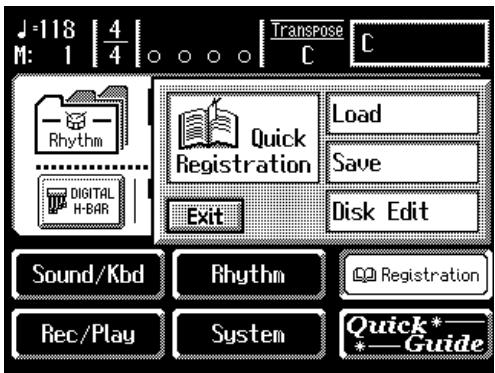
2. Touch.
The Registration Load screen appears.
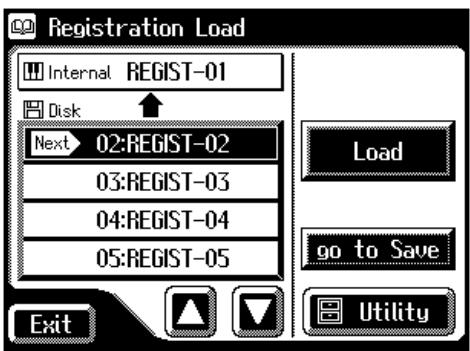
3. Touch .
The Utility screen appears.
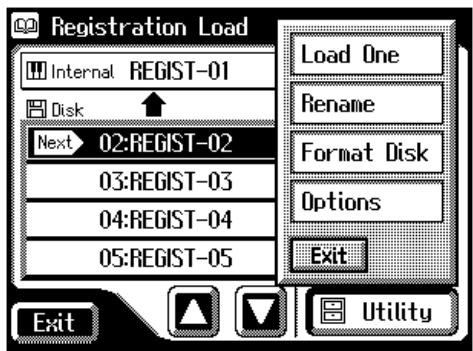

You can also open the Registration Load screen by pressing the [Registration] button on the panel.
4. Touch .
The Registration Options screen appears.
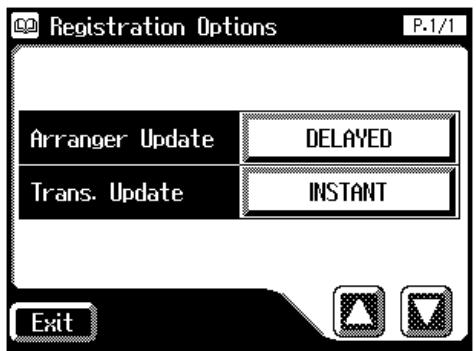
5. Touch the Arranger Update setting to switch between "DELAYED" and "INSTANT."
Each time you touch the Arranger Update setting, it will alternate between "DELAYED" and "INSTANT."
| Setting | Descriptions |
| DELAYED | When you press and hold a Registration button for several seconds, the settings for Rhythm and Automatic Accompaniment will be recalled in addition to the panel settings. If you press and immediately release a Registration button, only the settings that are not related to Rhythm or Automatic Accompaniment will be recalled. |
| INSTANT | Settings for Rhythm and Automatic Accompaniment will be recalled the instant that you press a Registration button [1]-[12] (on the AT-60SL, Registration buttons [1]-[8]). |
6. Touch.
Automatically Registering When You Switch Panel Settings
When the [Manual] button is ON (lit), all panel settings you make will be stored automatically in the [Manual] button as they are made, thus updating the Registration that had been previously saved.


You can change the timing of recalling the transpose setting when you press a Registration button. For details refer to "Changing the Timing at Which Transposition Settings are Recalled" (p. 190).
NOTE
The settings stored in the [Manual] button will return to their default values when the power is turned off.
Assigning a Name to a Registration Set
When saving Registration sets, names like "REGIST-01-99" will be assigned by default, but you can assign a name that will help you later to identify the contents of the Registration set.
1. Touch on the Main screen.
The sub-window appears.
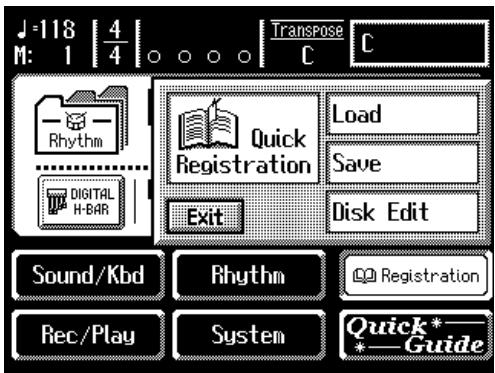
2. Touch.
The Registration Save screen appears.
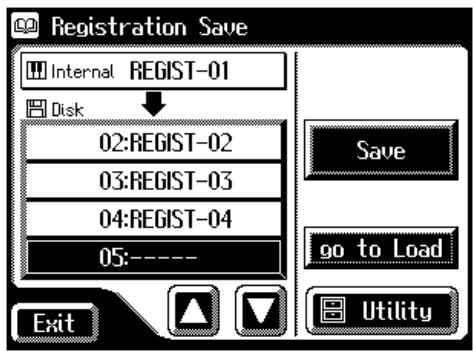
3. Touch to open the Utility screen.
The Utility screen appears.
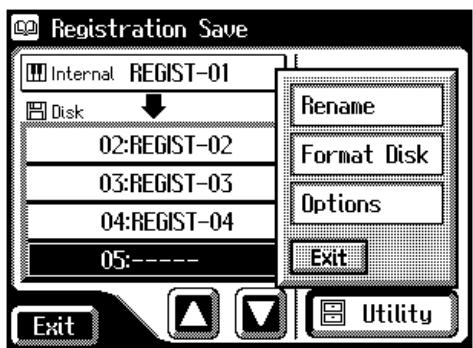
MEMO
When you touch
4. Touch .
The Rename screen appears.
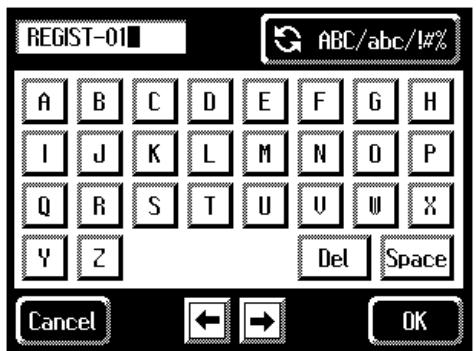
5. Touch < / abc / 1% > to change among uppercase/ lowercase/symbols.
Each touch of the character switch button takes you to the next available choice, like this: uppercase lowercase symbols uppercase ....
6. Touch the screen to specify the desired character.
The following characters can be selected.
| Uppercase | A B C D E F G H I J K L M N O P Q R S T U V W X Y Z |
| Lowercase | a b c d e f g h i j k l m n o p q r s t u v w x y z |
| Symbols | !“# % &’( )*+, -. / :=?^_0123456789 |
| Del | Delete a character. |
| Space | Insert a space. |
| ← → | Move the cursor (the symbol that indicates the location at which characters will be input) to left or right. |
To cancel the operation, touch <Cancel> .
7. When you're done making the settings, touch .
The Registration set in the AT-80SL/60SL's internal memory has now been named.
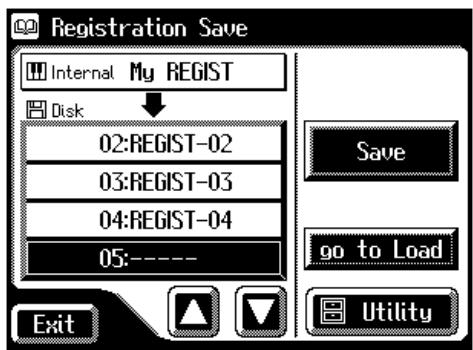

The Rename screen can also be opened in the following ways.
Main screen
Registration Load screen
Formatting Disks
Before any floppy disk (new or used) can be used with the AT-80SL/60SL it must first be formatted (prepared).
Formatting a floppy disk erases all information stored on the disk, and puts it in a format that is acceptable for the device in which it will be used. If a floppy disk is in a format that doesn't match the format of this unit, you won't be able to use that floppy disk.
- Make sure that the write protect tab of the floppy disk is in the "Write" (permit) position.
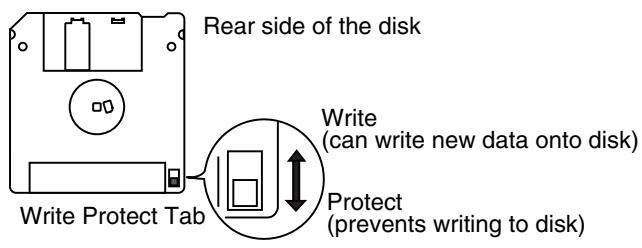
- With the label of the floppy disk facing upward, insert it into the disk drive until it clicks into position.
The disk drive is located to the upper right of the AT-80SL/60SL's keyboard.
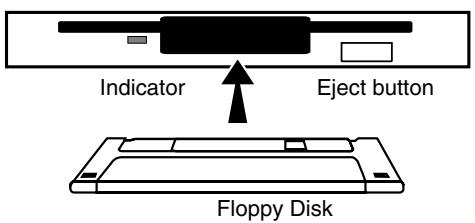
- Touch
on the Main screen.
The sub-window appears.
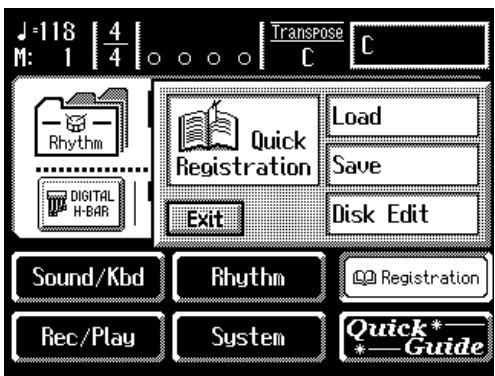
NOTE
Formatting a disk destroys all data previously stored on the disk. If you're formatting a used floppy disk for reuse, be sure to check first to make sure the disk doesn't contain any data you don't want to lose.
4. Touch.
The Registration Save screen appears.
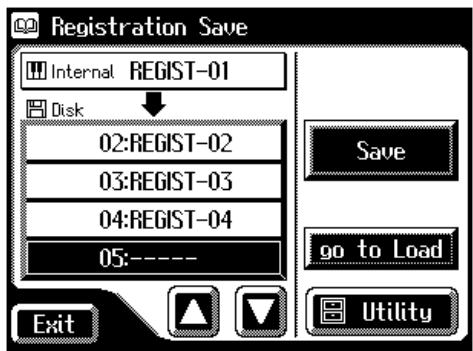
5. Touch .
The Utility screen appears.
6. Touch .
The Format Disk screen appears.
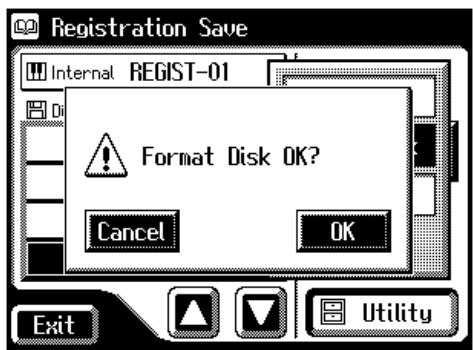
If you touch
7. Touch to start formatting.
While formatting is in progress, the following display appears.
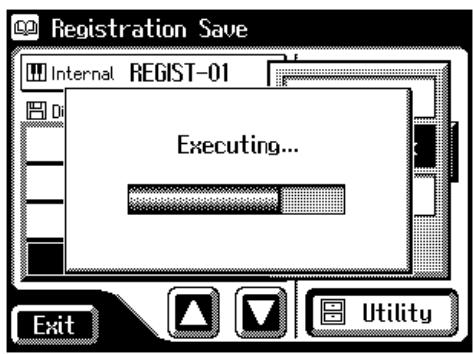
When the format is finished, the Registration Save screen returns.
NOTE
Never attempt to remove the floppy disk until formatting is complete.
Saving Registration Sets to a Floppy Disk
With the settings of Registration buttons [1]–[12] (on the AT-60SL, Registration buttons [1]–[8]) considered as one set, a single floppy disk can store up to 99 sets of data. We recommend that complex panel settings or Registrations you wish to keep be saved on disk. Furthermore, when you save registrations created on the AT-80SL/60SL to floppy disks, you can call up their settings on other Atelier Series instruments and use the registrations the same way.
- Make sure that the disk drive contains a disk that was formatted (p. 96) by the AT-80SL/60SL.
- Touch
on the Main screen. The sub-window appears.
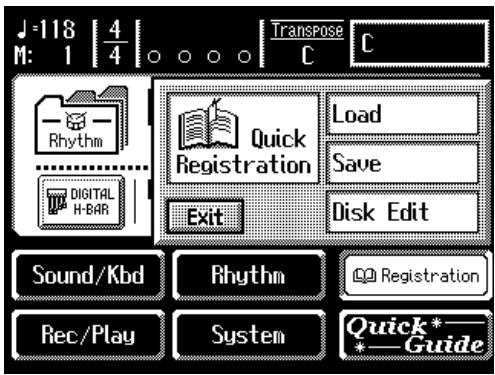
- Touch
.
The Registration Save screen appears.
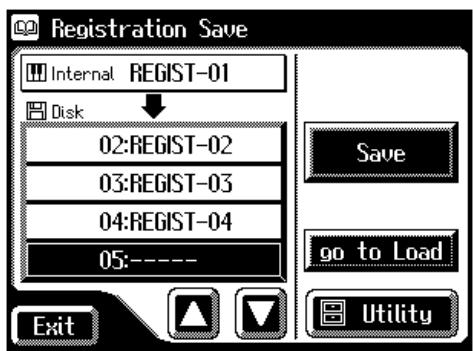
MEMO
When you touch
MEMO
If you wish to assign a name before you save, refer to "Assigning a Name to a Registration Set" (p. 94).
4. Touch <>> <> in the screen to select the save-destination number.
Numbers which have not been used in the saving operation will be displayed as "---".
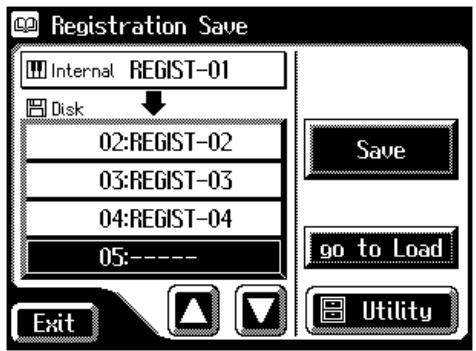
To cancel the Save operation, touch the
5. Touch.
The Save Format screen appears.
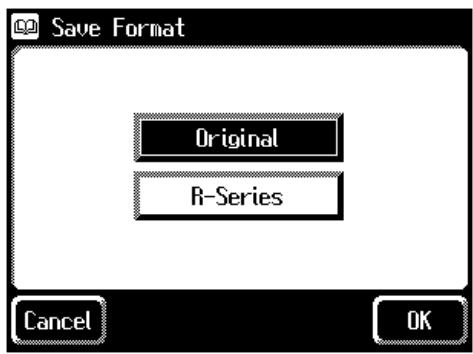
6. Touch or .
| Settings | Description |
| Original | Save formats that can be used with the AT-SL Series When saved in this format, the data can also be used by AT-45, AT-15 and AT-S Series devices. |
| R-Series | Save formats that can be used with AT-R Series devices |
7. Touch.
Saving of the registration data will begin.
When saving ends, the "----" in the screen will change to the registration name that you saved.
If you have assigned a name, the Registration set will be saved to floppy disk with that name.
If the following screen appears
If you select a number at which a registration has already been saved and touch
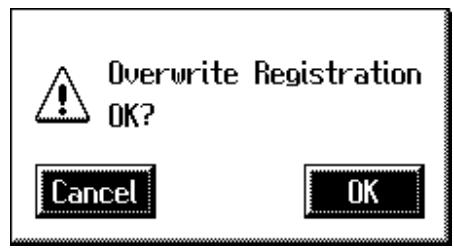
If you wish to update the contents of the Registration data
- Touch
.
If you wish to save new data instead of updating the registration
- Touch
.
Rewriting of the Registration will be canceled.
- In the Registration Save screen, select the number that is displayed as "-----" (a number that currently does not contain registration data).
- Save the Registration (p. 98).
When saving is complete, the saved registration name will be displayed.
Loading Previously Saved Registration Sets Into the AT-80SL/60SL
Here's how to recall a previously saved Registration set from the floppy disk into the memory of the AT-80SL/60SL. Registrations can be selected in the following three ways.
Loading a Set of Registrations (Load) p. 101
You can load a "set" (a collection of settings for Registration buttons [1]–[12] on the AT-80SL, Registration buttons [1]–[8] on the AT-60SL) from floppy disk.
Loading an Individual Registration (Load One) p. 103
Recall the settings of one of the Registration [1]–[12] buttons (on the AT-60SL, Registration buttons [1]–[8]).
Recalling the Order that the Registrations are Saved on the Floppy Disk (Load Next) p. 106
Press the [Load Next] button to recall registration sets in the order in which they are saved on the floppy disk.
Loading a Set of Registrations
- Insert the floppy disk containing the Registration into the disk drive.
- Touch
on the Main screen.
The sub-window appears.
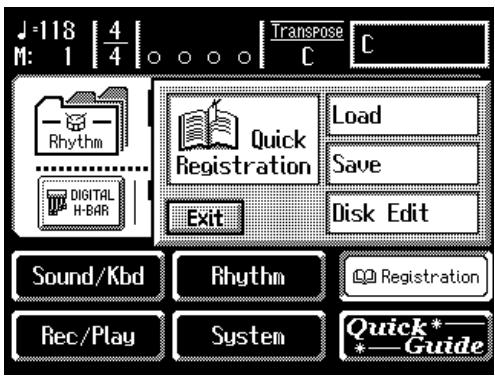
NOTE
Be aware that when you load Registrations from a disk, the Registrations that were previously in internal memory will be lost. It is a good idea to save important Registrations to floppy disk (p. 98).
MEMO
You can also open the Registration Load screen by pressing the [Registration] button, instead of performing steps 2 and 3.
3. Touch.
The Registration Load screen appears.
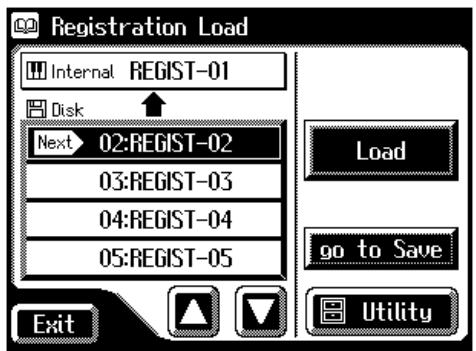
4. In the screen, touch <> <> to select the Registration that you wish to load into internal memory.
To cancel operation, touch
5. Touch.
The registration data will start being read.
When the Registration has been loaded, the Registration Load screen will reappear.
When you use the Registrations saved on the AT-90/AT-80/AT-30, refer to "Using Registrations Created on an Earlier Model" (p. 111)

When you touch
Loading an Individual Registration
- Insert the floppy disk containing the Registration into the disk drive.
- Touch
on the Main screen.
The sub-window appears.
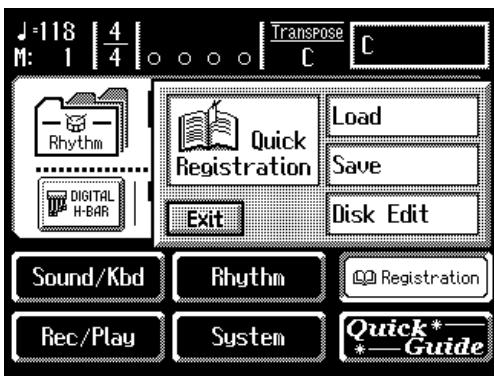
- Touch
.
The Registration Load screen appears.
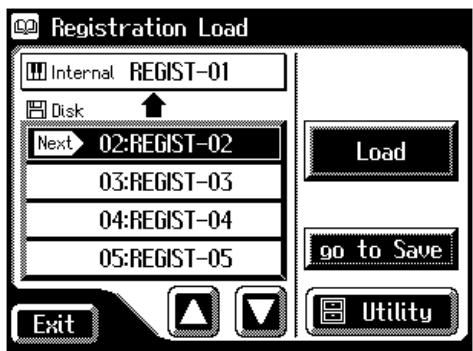
- In the screen, touch <> <> to select the registration that you wish to load into internal memory.
- Touch
to open the Utility screen.
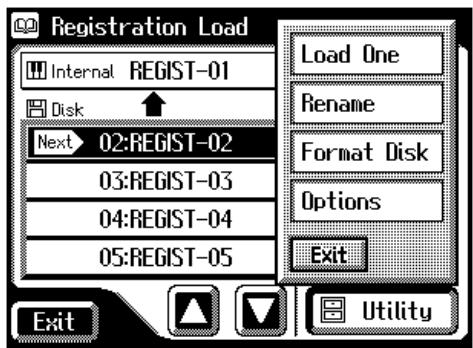

You can also open the Registration Load screen by pressing the [Registration] button, instead of performing steps 2 and 3.
6. Touch .
The Load One Registration screen appears.
AT-80SL
AT-60SL
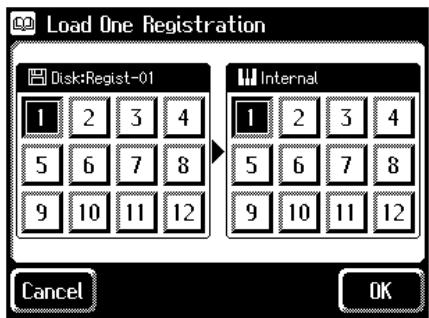
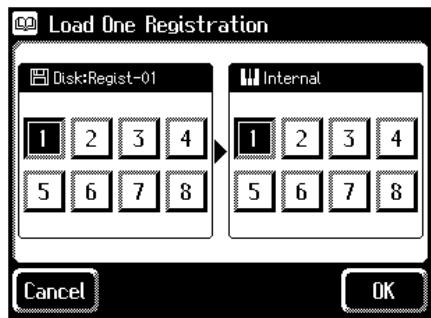
7. In the screen, touch Disk < 1> - < 12> (on the AT-60SL, Disk < 1> - < 8 > ) to select the number of the registration button that you wish to load from disk into internal memory.
AT-80SL
AT-60SL
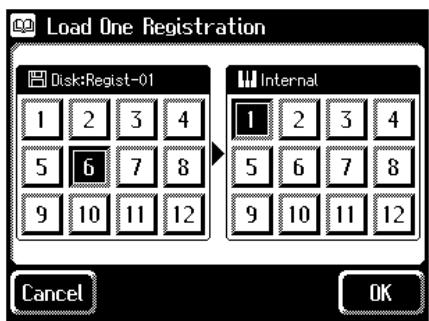
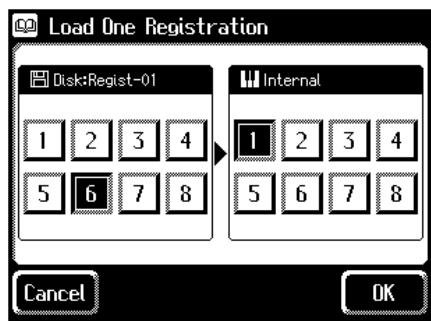
8. In the screen, touch Internal <1> - <12> (on the AT-60SL, Internal <1> - <8> ) to select the number of the storage-destination button.
AT-80SL
AT-60SL
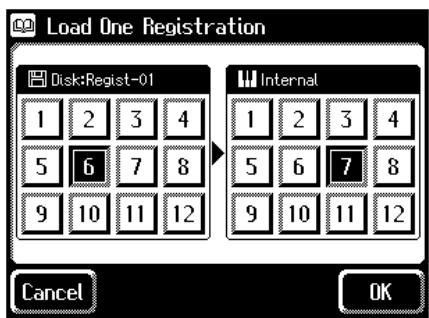
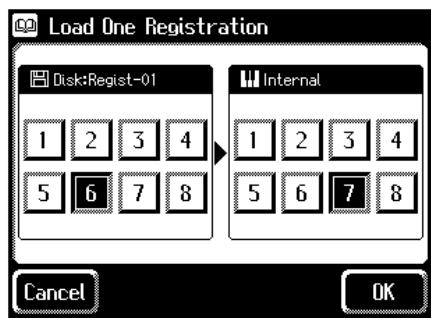
To cancel this operation, touch <Cancel> .
9. When you're done making the settings, touch .
The following display appears.
Executing...
When the Registration has been loaded, the basic screen will reappear.
Recalling the Order that the Registrations are Saved on the Floppy Disk (Load Next)
On the AT-80SL/60SL, you can simply press the [Load Next] button to successively recall registrations in the order in which they were saved on the floppy disk. This function is called "Load Next."
When you will be performing live, you can save registration sets to floppy disk in the order in which you will be performing. Then while you perform, you can recall the next registration set easily and smoothly.
1. Insert the floppy disk on which the registrations are saved into the floppy disk drive.
2. Press the [Load Next] button.
The first registration saved on the floppy disk will be recalled into the AT80SL/60SL.
The following screen appears.
![ROLAND AT-60SL - Press the [Load Next] button. - 1](/content/2025/01/130755/images/ddb1c8b051f368c146dc50ca08da2ff9e37f2c909abc7092edafb978a908a99b.jpg)
3. Press one of the registration [1]–[12] buttons (on the AT-60SL, registration [1]–[8] buttons).
The registration will be loaded (recalled into internal memory).
4. Repeat steps 2 and 3 to successively recall the registration sets.

By using the "Disk Edit" function, you can modify the order or the name of the registrations saved on disk, or delete an unwanted registration (p. 94, p. 108, p. 110).
| Button | Description |
| Undo | Return to the registration that had been selected before you pressed the [Load Next] button. |
| OK | Finalize the registration. It will not be possible to return to the previous registration. |

Instead of performing step 3, you can also load the registration by touching
Checking the next registration set
- Access the Main screen.
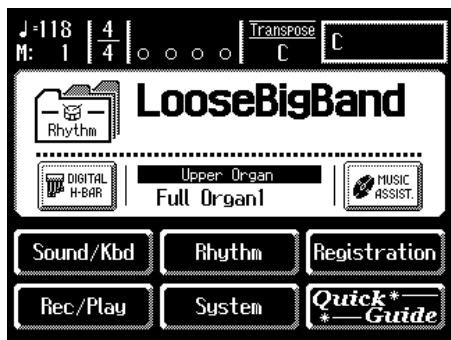
- Touch the <> icon several times to switch to <> .
The Main screen display will switch to the registration.
If the next registration set is loaded
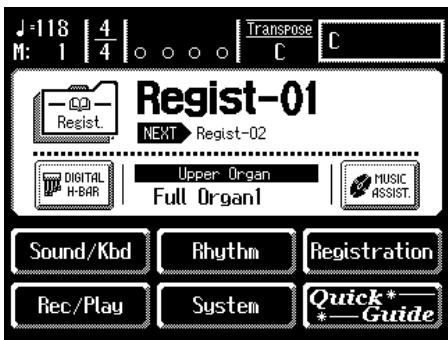
"Next" will indicate the name of the next registration set.
Deleting a Set of Registrations from a Floppy Disk
Here's how to delete a Registration set that was saved to a floppy disk.
- Insert the floppy disk containing the Registration into the disk drive.
- Touch
on the Main screen.
The sub-window appears.
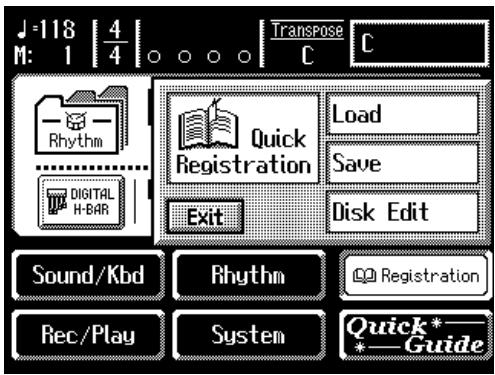
- Touch
.
The Registration Disk Edit screen appears.
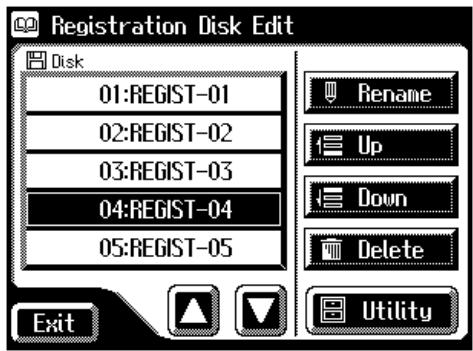
| Button | Meaning | Description |
| Rename | Modify the name | The Rename screen appears. You can touch the screen and rename the selected registration (p. 94). |
| Up | Change the order (upward) | The selected registration will be moved earlier in the order (p. 110). |
| Down | Change the order (downward) | The selected registration will be moved later in the order (p. 110). |
| Delete | Delete the Registration | The selected registration will be deleted. |
- In the screen, touch <>> <> to select the registration that you wish to delete.
- Touch
.
The following display appears.
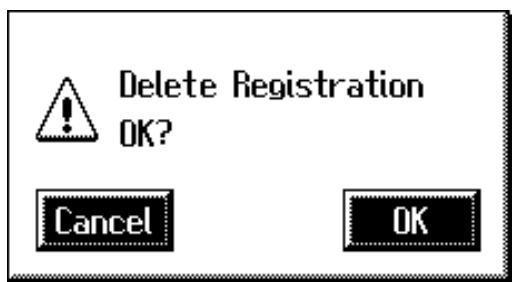
To cancel operation, touch
- If you are sure that you wish to delete the registration, touch OK>.
When the Registration has been deleted, the Registration Disk Edit screen will reappear.
When a registration is deleted, the deleted registration name will change to

Changing the Order of Registration on Floppy Disk
After saving registrations on floppy disk, you can change the order or name of the registrations (p. 94), or delete a registration (p. 108). This is very convenient when you are preparing to use the [Load Next] button (Load Next function p. 106) to recall successive registrations while you play.
- Insert the floppy disk containing the Registration into the disk drive.
- Touch
on the Main screen.
The sub-window appears.
- Touch
.
The Registration Disk Edit screen appears.
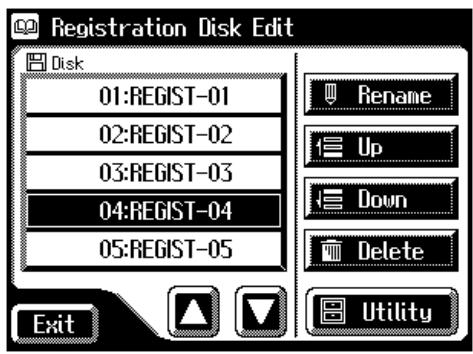
- Touch <>><> in the screen to select a registration.
- Touch <Up> or <Down> to move the registration.
| Button | Mean | Description |
| Rename | Modify the name | The Rename screen appears. You can touch the screen and rename the selected registration (p. 94). |
| Up | Change the order (upward) | The selected registration will be moved earlier in the order. |
| Down | Change the order (downward) | The selected registration will be moved later in the order. |
| Delete | Delete the Registration | The selected registration will be deleted (p. 108). |
- Touch
.
Using Registrations Created on an Earlier Model
Registrations that were created on the ATELIER series (AT-90/80/30) or ATELIER-R series (AT-90R/80R/60R/30R/20R) can be used on the AT-80SL/60SL.
When using a set of registrations that was created on the AT-90/80/60 models, your registrations will be converted to work in the AT-80SL/60SL models and loaded into internal memory. When loading these registrations the music style that was originally used can also be loaded into the [Disk/ User] button to complete the accurate reproduction of the original registration.
Recalling a registration that was created on the "AT-90/80/30"
- Insert the floppy disk that contains Registrations created on an earlier model of the ATELIER series.
- Touch
on the Main screen.
The sub-window appears.
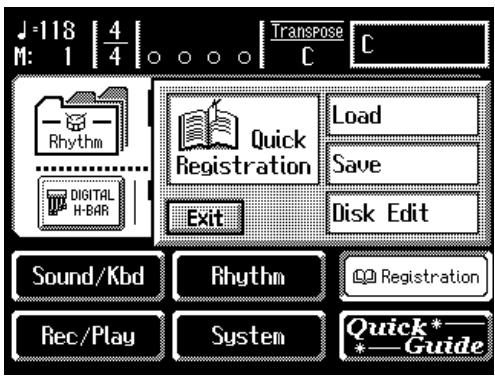
- Touch
.
The Registration Load screen appears.
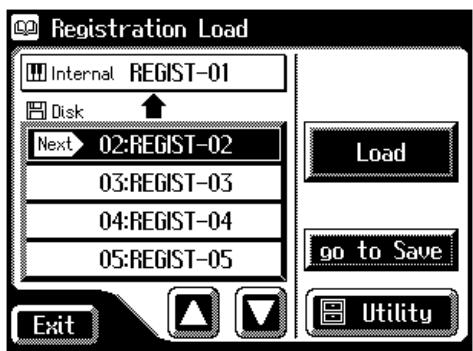

This operation is not necessary when recalling a registration that was created on a model in the AT-R series.

You can also open the Registration Load screen by pressing the [Registration] button, without performing steps 2 and 3.
- Touch <><> to select the registration that you wish to load into internal memory.
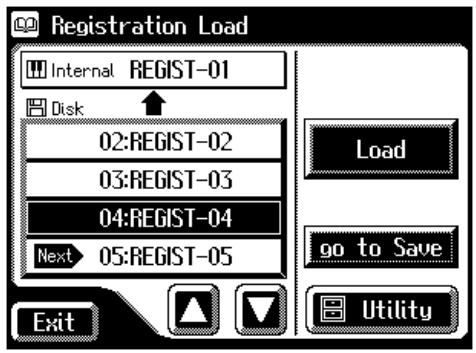
To cancel operation, touch
- Touch
.
The following screen appears.
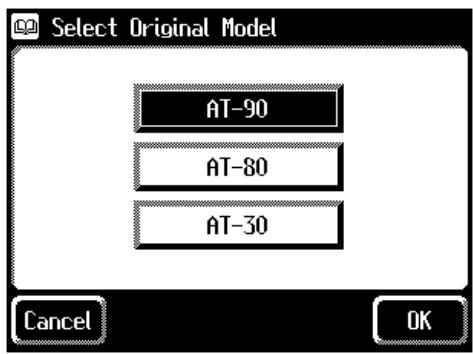
To cancel operation, touch
- Touch the screen to select the model on which the Registration was created.
- Touch
to confirm the model on which the Registration was created.
If the Rhythm used by the Registration is found in the internal memory of the AT-80SL/60SL, the Registration will be loaded into internal memory. When loading is complete, the Registration Load screen will reappear.
NOTE
If the Rhythm of the [Disk/ User] button has been rewritten, there may be cases in which the Registration cannot be loaded correctly.
If internal memory does not contain a rhythm specified by the registration
The number of the included music style disk that contains that rhythm will be displayed.
AT-80SL
AT-60SL
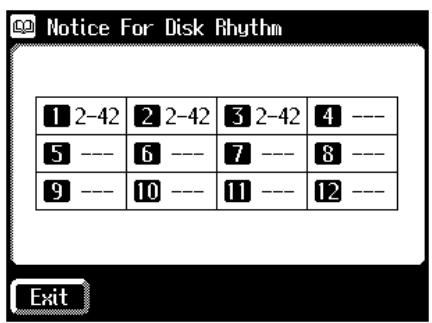
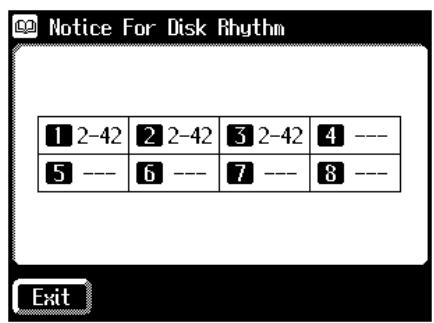
8. Make a note of the number of the music style disk, and touch .
A similar rhythm that does exist in internal memory will be substituted for the rhythm that does not exist, and the registration will be loaded.
Loading a AT-90/80/30 rhythm into the [Disk/User] button
If you wish to use a Rhythm used by an earlier model of the ATELIER series with a Registration that you loaded, load the Rhythm from the Music Style disk into the [Disk/User] button.
9. Remove the Registrations floppy disk from the disk drive, and insert the Music Style disk.
10. Load the Rhythm whose number you noted in step 8 into the [Disk/User] button (p. 78).
Chapter 4 Using the Performance Functions
Transposing to a Different Key (Key Transpose)
You can transpose the key of a performance without having to shift the position of your fingers on the keyboard. This feature is called "Key Transpose."
For example: you may play in the familiar C major scale while your music will sound in any key of your choice.
Transpose
1. Set the value for the transposition with the Transpose [-] and [+] buttons.
Each time you press a Transpose [-][+] button, the pitch will be transposed by a semitone.
Acceptable values range from A , to G (in semitone steps).
The specified value will be displayed in the Main screen.
![ROLAND AT-60SL - Set the value for the transposition with the Transpose [-] and [+] buttons. - 1](/content/2025/01/130755/images/01d1a97e8c3370b37c86f06d23ff2ca56d5f452e182c39d6936dea00cf22b9f5.jpg)
State of the Transpose [-] [+] buttons
| If transposed (non-C) | One of the Transpose [-] [+] button indicators is lit. |
| If not transposed (C) | The Transpose [-] [+] button indicators are extinguished. |
2. By pressing the Transpose [-] [+] buttons simultaneously, you can restore the default setting C.
![ROLAND AT-60SL - By pressing the Transpose [-] [+] buttons simultaneously, you can restore the default setting C. - 1](/content/2025/01/130755/images/77aaf79c1ebc35c6895249e09db21ee0ea45485c14b35b5e014eaf2eef5976cb.jpg)
The transposition setting is stored in the Registration. For details on the settings that are stored in the Registration, refer to "Settings That Are Stored After the Power Is Turned Off" (p. 255).
![ROLAND AT-60SL - By pressing the Transpose [-] [+] buttons simultaneously, you can restore the default setting C. - 2](/content/2025/01/130755/images/afc708e3b4a2a096f38d860ff82d09cbbe1e321347de60f5187944eac132135e.jpg)
You can change the timing at which the transposition settings saved in a Registration will be recalled. For details refer to "Changing the Timing at Which Transposition Settings are Recalled" (p. 190).
Adjusting the Brightness of the Sound
Using the Brilliance slider, you can adjust the brightness of the sound.
1. For a brighter sound, push the slider away from you. For a mellower sound, pull the slider toward you.
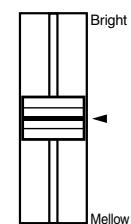
Brilliance
You can adjust not only the treble range but the bass as well with the [Brilliance] slider. You can suppress the lower frequencies by moving the slider downwards.
Adding Decay to the Sound (Damper Pedal)
When you depress the Damper (Sustain) pedal, a decay effect will be added to the voices.
While you continue depressing the damper pedal, notes will be sustained even if you release the keys.
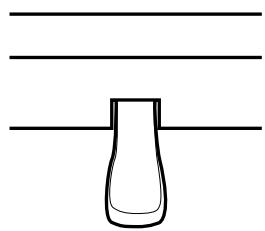
By default the decay effect will be applied to the voices played on the Lower keyboard.
NOTE
This setting is not stored in the Registration.
MEMO
You can modify the setting so that decay is only applied to notes played on the Upper keyboard (p. 187).
NOTE
Decay cannot be added to the Solo voices.
MEMO
Decay can be applied to Pedal Bass voices played on the Lower keyboard (when the Pedal [To Lower] or [Bass Split] button indicators are lit). In this case, a decay will not be applied to the pedal bass voice.
Pitch Bend and Vibrato Effects
When you move the Pitch Bend/Vibrato lever to the left or right, you can obtain a smooth change in the pitch of the notes being played (Pitch Bend effect). Move the lever to the right to raise the pitch, and to the left to lower it. Also, when you push the lever away from you, a vibrato effect can be obtained.
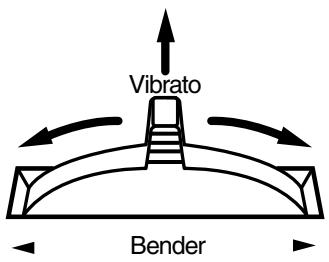
By default (immediately after the power is turned on) the Pitch Bend effect is added to the voices of all the sections being played on the Upper keyboard.

You can also adjust the range of the pitch which is shifted by the Pitch Bend lever. For details, refer to "Changing the Pitch Bend Range" (p. 188).

Please note that only the appropriate voices will allow vibrato to be added (p. 220).

You can change the settings so that both the Pitch Bend and Vibrato effects are applied to the Lower keyboard voice or the voices on the Pedalboard. Please refer to "Selecting the Range of Keys to Which the Pitch Bend/ Vibrato Lever will Apply" (p. 187).
Using the Foot Switches
On either side of the expression pedal are two Foot Switches. Different functions are assigned to each of these two foot switches.
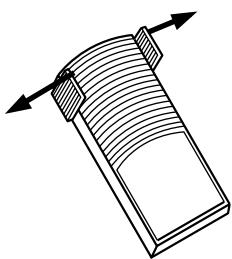
You can also change the functions assigned to the left and right Foot Switches. Please refer to “Changing the Function of the Foot Switch” (p. 118).
With the factory settings, the following functions are assigned to the left and right Foot Switches.
| Right Foot Switch | Switch the Rotary effect between Fast/Slow. If Rotary is turned on, the Rotary effect will switch between “Fast” and “Slow” each time you press the Foot Switch. |
| Left Foot Switch | Glide (an effect by which the pitch is lowered by a semitone while the foot switch is pressed, and is returned to what is originally was when you release your foot). While you are pressing the Foot Switch, the pitch will be temporarily lowered. When you release the Foot Switch, the pitch will return to normal gradually. |
You can store functions to be assigned to the foot switch to individual Registration buttons (p. 90).
NOTE
If "Regist Shift" is turned "RIGHT," "LEFT," or "RIGHT + Load Next," the foot switch will function only to switch registrations (p. 119).
MEMO
The Glide effect will only be applied to the keyboard section that has been specified as being the destination for the Pitch bend/Vibrato lever. Please refer to "Selecting the Range of Keys to Which the Pitch Bend/Vibrato Lever will Apply" (p. 187).
Changing the Function of the Foot Switch
You can select any of the following functions and assign them to either Foot Switch on the right or left side of the Expression Pedal.
- Touch
on the Main screen.
The Sound/Keyboard screen appears.
- Touch
.
The Controller screen appears.
- Touch <><> to display the L Foot Switch or R Foot Switch.
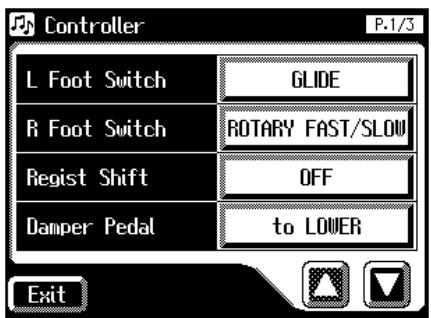
- Touch <L Foot Switch> or <R Foot Switch> setting.
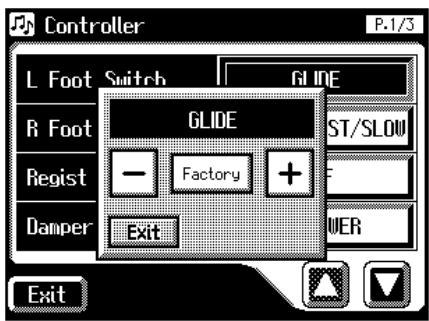
- Touch <-> <+> to change the setting.
- Touch
.
| Available functions | Description |
| ROTARY FAST/SLOW | Switch the Rotary speed between "FAST" and "SLOW." |
| GLIDE | While the Foot Switch is pressed, the pitch will temporarily be lowered, and will gradually return to normal when you release the Foot Switch. When the power is turned on, Glide effect is added to the voice of all the sections being played on Upper keyboard. |
| LEADING BASS | The Leading Bass function (p.72) will operate only while you continue pressing the Foot Switch. |
| RHYTHM START/STP | Start/Stop the Rhythm. |
| COMP PLAY/STOP | The same function as theComposer [Play/Stop] button. Each time you press the Foot Switch, the performance data will play back or stop. |
| INTRO/ENDING | Play an Intro or Ending. |
| FILL IN TO VAR | After inserting a Fill-In, playback will switch to the variation pattern. |
| FILL IN TO ORIG | After inserting a Fill-In, playback will switch to the original pattern. |
| ORCHESTRATOR | Switch the Style Orchestrator button.If the Style Orchestrator [Basic] button or [Advanced2] button is selected, the [Basic] and [Advanced2] buttons will be switched.If the [Advanced1] button or [Full] button is selected, the [Advanced1] button and [Full] button will be switched. |
| BREAK | Stop the rhythm at the end of that measure. |
| DAMPER OF UPPER | Notes played on the Upper keyboard will be sustained only while you continue pressing the Foot Switch. |
| DAMPER OF LOWER | Notes played on the Lower keyboard will be sustained only while you continue pressing the Foot Switch. |
NOTE
If the "Regist Shift (Registration Shift)" setting (p. 119) is "RIGHT," "LEFT," or "RIGHT + Load next," the Foot Switch will be dedicated to switching through the Registrations, and the "R Foot Switch" or "L Foot Switch" setting will be ignored (p. 119).
Using the Foot Switch to Switch Registrations
You can use the Foot Switch as a dedicated switch for selecting Registrations in order.
NOTE
The Regist Shift settings are stored to each individual Registration Set. When "RIGHT + Load Next" is assigned to the foot switch and the Load Next function is used to switch Registration Sets saved to a floppy disk, set the Regist Shift setting to "RIGHT + Load Next" for all saved Registrations.
1. Touch on the Main screen.
The Sound/Keyboard screen appears.
2. Touch .
The Controller screen appears.
3. Touch <>> <> to display the Regist Shift.
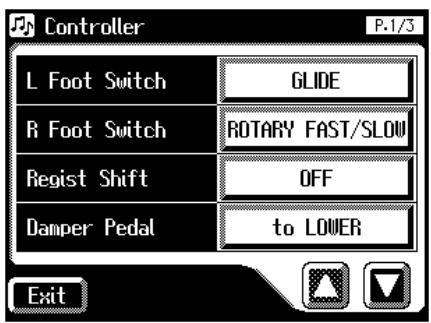
4. Touch the Regist Shift setting.
5. Touch <-> <+> to change the setting.
6. Touch.

This setting remains stored in memory even while the power is turned off.
| Setting | Descriptions |
| OFF | You can use a function assigned to the foot switch. |
| RIGHT | The right foot switch is dedicated to switching registrations. The function assigned to the right foot switch cannot be used. |
| LEFT | The left foot switch is dedicated to switching registrations. The function assigned to the left foot switch cannot be used. |
| Setting | Descriptions |
| RIGHT + Load Next | The right foot switch is dedicated to switching registrations. The function assigned to the right foot switch cannot be used. Selecting the Registration [12] button (on the AT-60SL, registration [8] button) and pressing the right foot switch activates the Load Next function, calling up the next registration saved to the disk. The Registration Load window appears in the display. When you then press the right foot switch again, the Registration Set is confirmed, and the Registration [1] button is selected. Example: 1→2→3...→12 (8, on the AT-60SL)→ Load Next→(Next Registration) 1 |
What is "Load Next"?
You can use the Load Next function to call up Registrations in the order saved to the floppy disk.
When you will be performing live, you can save registration sets to floppy disk in the order in which you will be performing. Then while you perform, you can recall the next registration set easily and smoothly.
Checking the next registration set
- Display the Main screen (p. 26).
- Touch the <> icon several times to switch to <.> .
The Main screen display will switch to the registration.
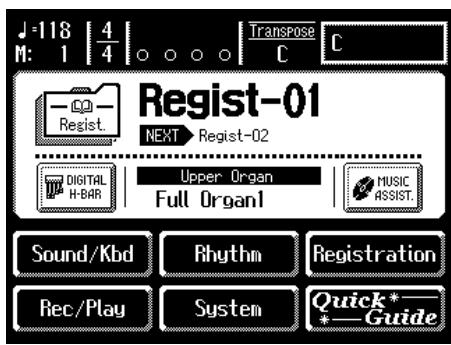
"Next" will indicate the name of the next registration set.
Adjusting the Overall Volume Using an Expression Pedal
You can use the expression pedal to adjust the overall volume. When you depress the Expression Pedal, the volume increases. The volume decreases as you tilt the pedal back.
Decrease the volume
Increase the volume
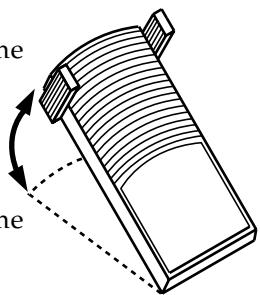
Using the expression pedal enables you to give your performances even richer musical expressiveness.
The expression pedal features the following special characteristics:
- Completely releasing the expression pedal does not lower the volume to zero. If you do want to turn down the volume completely, set the [Master Volume] slider to the Min (Minimum) position.
- Even as you release your foot from the expression pedal and lower the volume, the lower-range portion will linger on. This provides a natural-sounding resonance.
- When an Active Expression voice is selected, the expression pedal can be used to produce changes in the voice (p. 49).

You can specify how the Expression Pedal will affect the sound when it is pressed (p. 121).

You can also specify whether the Expression Pedal will or will not control the volume during the recording of your performance (p. 186).

Likewise you can specify whether the Expression Pedal will or will not control the volume during the playback of recorded performance (p. 187).
Adjusting the Depth of the Expression Pedal
You can set the amount of effect applied when you step on the expression pedal.
- Touch
on the Main screen.
The Sound/Keyboard screen appears.
- Touch
.
The Controller screen appears. - Touch <> to display the Exp. Curve (Expression Curve).
- Touch
setting.
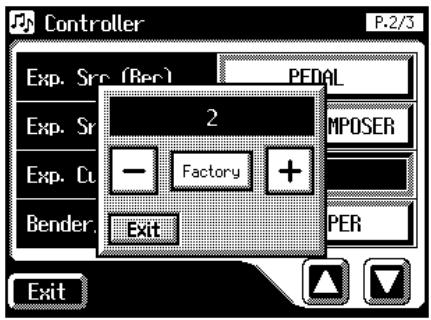
- Touch <-> <+> to change the setting.
| Setting | Descriptions |
| 1 | The position of the expression pedal does not really affect the rhythm performances and Automatic Accompaniment. This setting is convenient when you do not want to have the rhythm or Automatic Accompaniment volume change much. |
| 2 | The expression pedal is applied to the rhythms and Automatic Accompaniment just as it is to the keyboard performance. The volume is easily adjusted according to the angle of the expression pedal, making this setting perfect for use in songs with big changes in dynamics. |
| 3 | The expression pedal is applied to the rhythms and Automatic Accompaniment just as it is to the keyboard performance. The expression affect is applied more gently than with Setting 2, so this setting is appropriate for quieter songs with less intense dynamic changes. |
| 4 | The expression pedal does not affect the rhythms and Automatic Accompaniment at all. This setting is suitable for ensemble performances and other performances featuring multiple instruments. |
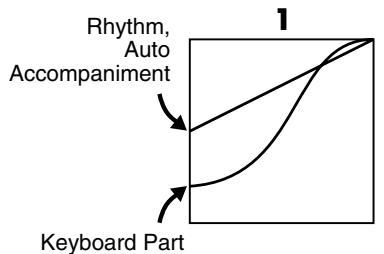
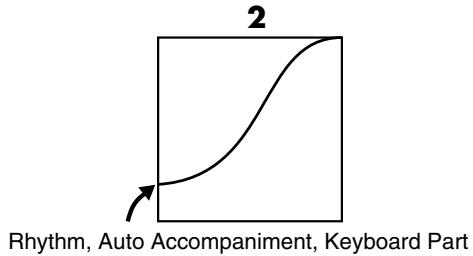
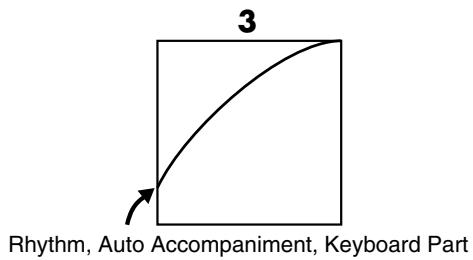
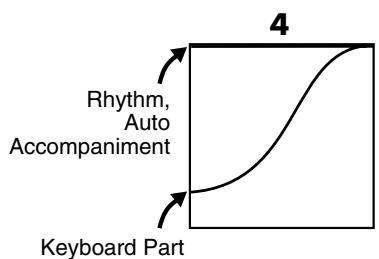
- Touch
.

This setting remains stored in memory even while power is turned off.
Chapter 5 Applying Various Effects to the Sound
The AT-80SL/60SL allows you to apply various effects to the sounds you play from the keyboard.
Adding Harmony to a Melody (Harmony Intelligence)
Harmony appropriate for the chord you play in the lower keyboard can be added to the highest note played in the upper keyboard. This function is called "Harmony Intelligence."
When you press the [Harmony Intelligence] buttons, the voice most suitable for the selected harmony intelligence will be selected automatically.
1. Press the [Harmony Intelligence] button, getting its indicator to light up.
Each time you press the button, the indicator will alternate between ON (lit) and OFF.
The Harmony Intelligence screen appears for several seconds.
![ROLAND AT-60SL - Press the [Harmony Intelligence] button, getting its indicator to light up. - 1](/content/2025/01/130755/images/173dfa46b53a888346b92731954c3c3644a36a0bc037d3e034be3406c7585dbf.jpg)
Changing the Type of Harmony Intelligence
There are 18 different Harmony types (AT-80SL).
There are 12 different Harmony types (AT-60SL).
When you press the [Harmony Intelligence] button to turn it on (lit), a voice most suitable for the selected harmony intelligence will be selected automatically. The manner in which notes will sound also depends on the Harmony type.
1. Press the [Harmony Intelligence] button, getting its indicator to light up.
The Harmony Intelligence screen appears for several seconds.
![ROLAND AT-60SL - Press the [Harmony Intelligence] button, getting its indicator to light up. - 1](/content/2025/01/130755/images/0c57626b55ad0832bc3cf2e818f5cdf8ae32ae321079951b7653ecb9c927330e.jpg)
AT-80SL
AT-60SL
![ROLAND AT-60SL - Press the [Harmony Intelligence] button, getting its indicator to light up. - 2](/content/2025/01/130755/images/8d59d87d349fb558a43ecb2a09a400556c159522d706d2741ec16c54d21ed232.jpg)
2. Touch <> <> to switch screens, and touch the screen to select the desired harmony intelligence.
The [Harmony Intelligence] button's indicator will blink.
| Model | Harmony Intelligence Type |
| AT-80SL | ORGAN, BIG BAND, STRINGS, BLOCK, HYMN, TRADITIONAL, HARP, DUET, COMBO, JAZZ SCAT, COUNTRY, BROADWAY, OCTAVE 1, OCTAVE 2, 1 NOTE, 2 NOTES, 3 NOTES, 4 NOTES |
| AT-60SL | ORGAN, BIG BAND, STRINGS, BLOCK, HYMN, TRADITIONAL, HARP, COMBO, JAZZ SCAT, BROADWAY, OCTAVE 1, OCTAVE 2 |
3. Press the [Harmony Intelligence] button once again.
The [Harmony Intelligence] button indicator will light, indicating that the selected harmony intelligence has been confirmed.
The way in which the keys you press are sounded by each type of harmony intelligence is described below.
| Type | Solo Voice | Upper Voice | Number of notes of the harmony |
| ORGAN | — | Theater Or.3 | 3 |
| BIG BAND | Trumpet | Flugel Horn | 4 |
| STRINGS | Strings 1 | Strings 1 | 4 |
| BLOCK | Vibraphone | Piano 1 | 5 |
| HYMN | Choir | Choir | 4 |
| TRADITIONAL | Currently Selected Tone | 3 | |
| HARP | — | Harp | 2 |
| DUET | Trumpet | Tp. Section | 1 |
| COMBO | Clarinet | Trombone | 2 |
| JAZZ SCAT | Jazz Scat | Jazz Scat | 3 |
| COUNTRY | Full Organ1 | Jazz Guitar | 3 |
| BROADWAY | Celesta | Theater Or.1 | 3 |
| OCTAVE 1 | Currently Selected Tone | 2 | |
| OCTAVE 2 | Currently Selected Tone | 2 | |
| 1 NOTE | Currently Selected Tone | 2 | |
| 2 NOTES | Currently Selected Tone | 3 | |
| 3 NOTES | Currently Selected Tone | 4 | |
| 4 NOTES | Currently Selected Tone | 5 | |
![ROLAND AT-60SL - Press the [Harmony Intelligence] button once again. - 1](/content/2025/01/130755/images/bc9433a939c3e0be3506b5ce51f7b876752cdab817d0716098140ac0f746432b.jpg)
You can also confirm the Harmony Intelligence settings by touching
![ROLAND AT-60SL - Press the [Harmony Intelligence] button once again. - 2](/content/2025/01/130755/images/a30ba1e2edfd4377f36e52de07d2309c74fffac55ff67e622fafe078ab7d17ee.jpg)
Harp-type harmony intelligence does not sound the keys you play. Use your left hand to play a chord in the lower keyboard and use your right hand to play a glissando in the upper keyboard, and a beautiful harp glissando will be produced.
![ROLAND AT-60SL - Press the [Harmony Intelligence] button once again. - 3](/content/2025/01/130755/images/35d5656d540d4e6e982b1b5ba19b5d66a0908b5e33e533b4cda0ccfd09eede3a.jpg)
The number of notes of the harmony will depend on the Harmony Intelligence type.
Adding Modulation to the Sound (Rotary Effect)
Rotary is an effect which simulates the sound of rotating speakers. There is a choice of two settings: Fast and Slow.
Rotary Sound
- Select the voice to which you wish to apply the Rotary effect.
- Press the Rotary Sound [On/Off] button (confirm that its indicator is lit).
The Rotary effect will be applied to the voice.
- Press the Rotary Sound [Fast/Slow] button to switch between Rotary Fast (LED lit) and Rotary Slow (LED turned off).
| Rotary [Fast/Slow] button | Effect |
| LED lit (Fast) | The effect obtained is equivalent to speakers being rapidly rotated. |
| LED turned off (Slow) | Effect simulating the slow rotation of speakers. |
When you switch the rotary effect from "Fast" to "Slow," the modulation will slow down gradually, and when you switch from "Slow" to "Fast" the modulation will speed up gradually.
NOTE
For more on the tones to which the Rotary effect can be applied, refer to Voice List (AT-80SL) (p. 220) and Voice List (AT-60SL) (p. 223).
MEMO
You can assign the Rotary Sound [Fast/Slow] button function to the foot switches located on each side of the Expression Pedal (p. 118).
Rotary Speed
You can make fine adjustments to the speaker rotation speed of the rotary effect (p. 124).
- Touch
on the Main screen.
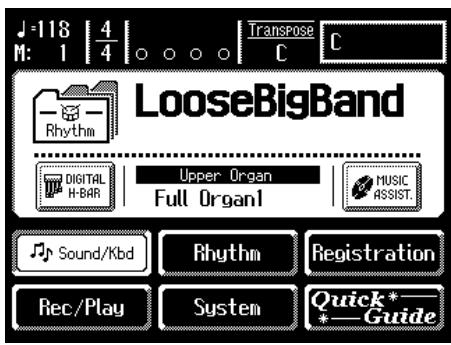
The Sound/Keyboard screen appears.
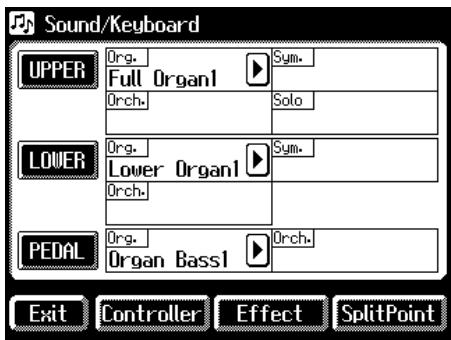
- Touch
.
The Effect screen appears.
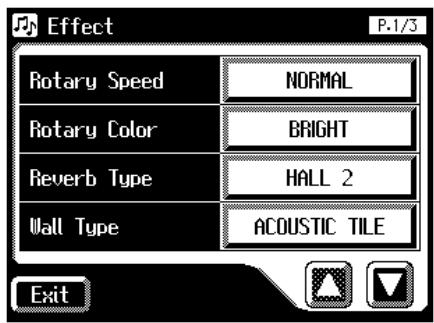
-
Touch <><> to display the Rotary Speed.
-
Touch the value setting buttons for Rotary Speed to adjust the setting.
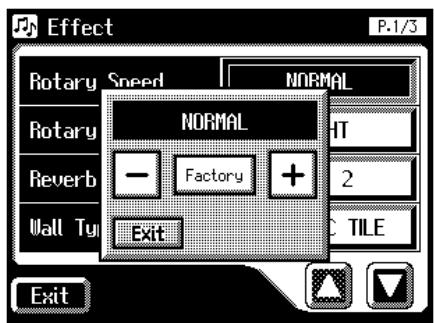
- Touch <-> <+> to edit the value. Settings SLOW, NORMAL, FAST
- Touch
.

These settings remain stored in memory even while the power is off.
Rotary Color
This setting allows you to choose the brightness of the Rotary sound obtained when using the Rotary effect (p. 124).
- Touch
on the Main screen.
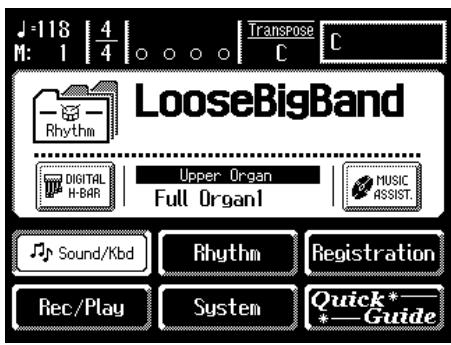
The Sound/Keyboard screen appears.
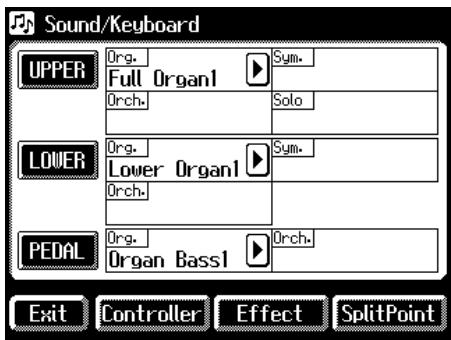
- Touch
.
The Effect screen appears.
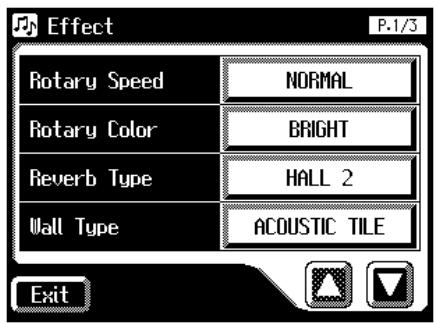
-
Touch <> <> to display the Rotary Color.
-
Touch the value setting buttons for Rotary Color to adjust the setting.
Each time you touch the Rotary Color setting, it will switch between "BRIGHT" and "MELLOW."
Settings BRIGHT, MELLOW
- Touch
.

These settings remain stored in memory even while the power is off.
Chorus Effect
Chorus is an effect that adds expansiveness to a sound, making one instrument sound like several.
You can apply a chorus effect for the "Upper Symphonic," "Upper Orchestral," "Lower Symphonic," and "Lower Orchestral" voices.
1. Touch on the Main screen.

The Sound/Keyboard screen appears.
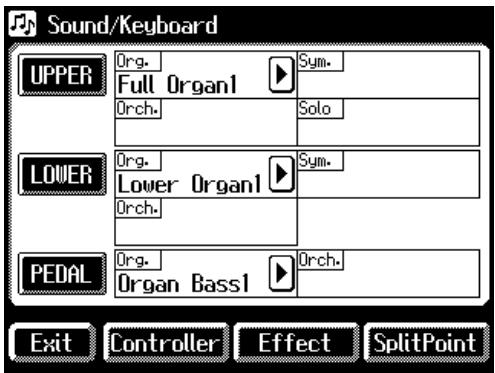
2. Touch either <UPPER> or <LOWER> .
| Menu | Description |
| UPPER | To apply chorus to the Upper part |
| LOWER | To apply chorus to the Lower part |

For some of the voices, Chorus may already be turned ON.
- For the part to which you wish to apply the chorus effect, touch the Chorus "ON/OFF" display to change the setting. Each time you touch the Chorus setting, it will alternate ON/OFF.
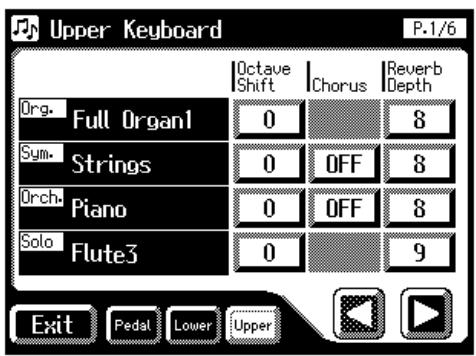
| Indication | Description |
| ON | The Chorus effect will be applied to the voice. |
| OFF | The Chorus effect will not be applied to the voice. |
- Touch
.
Sustain Effect
Sustain allows you to add a sustain effect or decay to each voice after the keys are released.
The Sustain effect can be added to the Upper (except the Solo part), Lower, and Pedal voices.
AT-80SL
Sustain
AT-60SL
Sustain
- Press the Sustain [Pedal] [Lower] [Upper] button for the keyboard to which you wish to apply Sustain (indicator lights).
The Sustain effect can be applied simultaneously to the voices of the Upper part (except the Solo part), Lower part, and Pedal Bass part.
NOTE
Some voices do not allow the Chorus effect to be applied. For details refer to "Voice List" (p. 220).
MEMO
You can open the Lower Keyboard screen or Upper Keyboard screen with touching <Lower> , and <Upper> .
NOTE
The Sustain effect will not be applied to the Solo part voice.
MEMO
The length of Sustain can be modified independently for each keyboard (p. 129).
Changing the Sustain Length
The sustain length can be set independently (SHORT, MIDDLE (Medium) or LONG) for the Upper and Lower keyboards and Pedalboard. You can make a separate setting for each keyboard.
- Touch
on the Main screen.
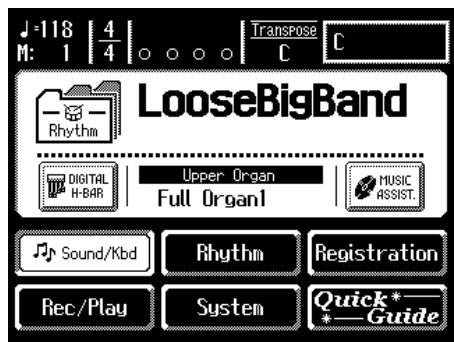
The Sound/Keyboard screen appears.
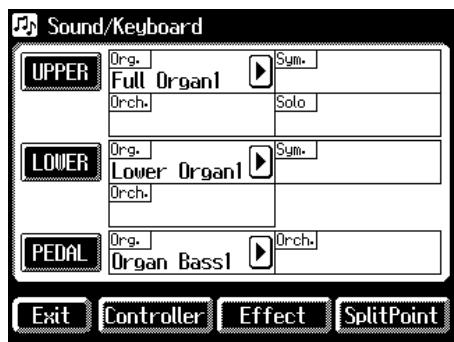
- Touch either <UPPER> , <LOWER> , or <PEDAL> .
| Menu | Part whose sustain length you wish to change |
| UPPER | To change the length of the Upper part. |
| LOWER | To change the length of the Lower part. |
| PEDAL | To change the length of the Pedal part. |
- Touch <><> to display the Sustain Length.
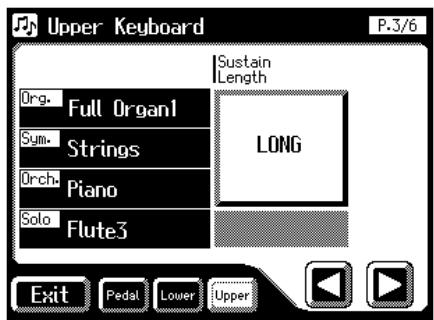

You can open the Pedalboard screen, Lower Keyboard screen, or Upper Keyboard screen with touching
- For the part whose sustain length you wish to adjust, touch the Sustain "SHORT/MIDDLE/ LONG" display.
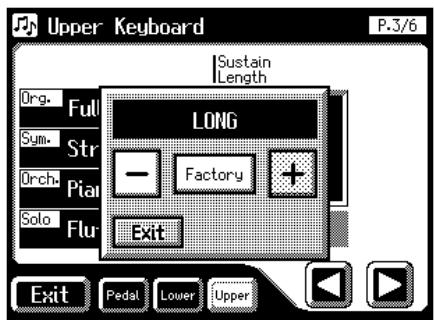
- Touch <><+ to change the value. Settings SHORT, MIDDLE, LONG
- Touch
.
Reverb Effect
Reverb is an effect that adds a sense of spaciousness to the sound, creating the illusion of playing in a large or small concert hall, a large or small room, a small club, etc.
AT-80SL
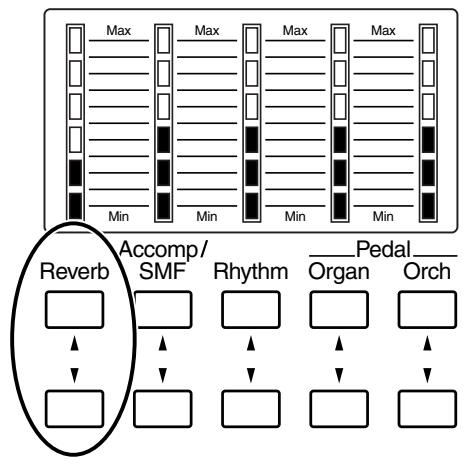
1. Press the Reverb [▲] or [▼] buttons to adjust the overall Reverb amount.
When you press the up button [] , additional Reverb is applied. Pressing the down button [] decreases the Reverb level. If none of the Reverb indicators are lit, the Reverb effect will not be heard.
When you press the Reverb [▲] [▼] buttons, the Part Balance Monitor screen appears. In the Part Balance Monitor screen you can check the reverb depth.
![ROLAND AT-60SL - Press the Reverb [▲] or [▼] buttons to adjust the overall Reverb amount. - 1](/content/2025/01/130755/images/0e5db0c51697a23a25ff03335ba6ccfe7eaa5527fb6f5e247234ba934a0d8059.jpg)
![ROLAND AT-60SL - Press the Reverb [▲] or [▼] buttons to adjust the overall Reverb amount. - 2](/content/2025/01/130755/images/69bd9f3f3e6f419bb5d867376b7c1f4d8ea9b3794bf66993f77cf71b3cdedf1b.jpg)
The Part Balance Monitor screen is displayed for several seconds and then closes automatically. If you touch
![ROLAND AT-60SL - Press the Reverb [▲] or [▼] buttons to adjust the overall Reverb amount. - 3](/content/2025/01/130755/images/5ed29f501d1444612288e23833faf3c760e83c9f8f28590463eb00681c5c0ffd.jpg)
You can change the type of reverb, the reverb depth for each part, and the wall type. For details refer to Changing the Reverb Type (p. 131), Changing the Depth of the Reverb (p. 133), and Changing the Wall Type (p. 132).
Changing the Reverb Type
By changing the reverberations of the notes, you can enjoy the atmosphere of performance in a wide variety of different locations. You can select from the following 11 types of Reverb.
- Touch
on the Main screen.
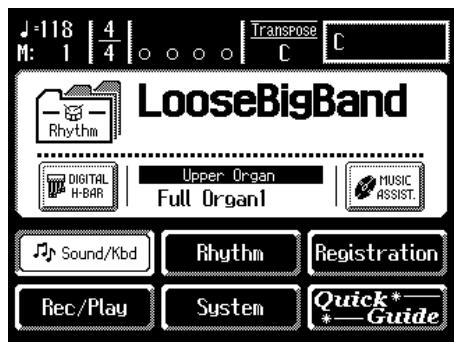
The Sound/Keyboard screen appears.
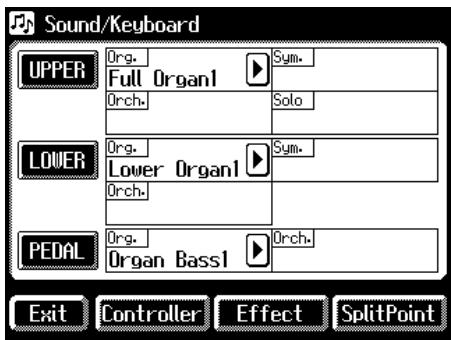
- Touch
.
The Effect screen appears.
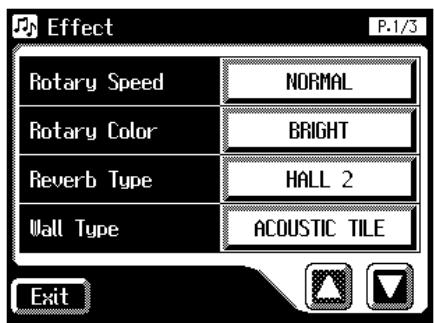
-
Touch <> <> to display the Reverb Type.
-
Touch the value setting buttons for Reverb Type to adjust the setting.
The following screen appears.
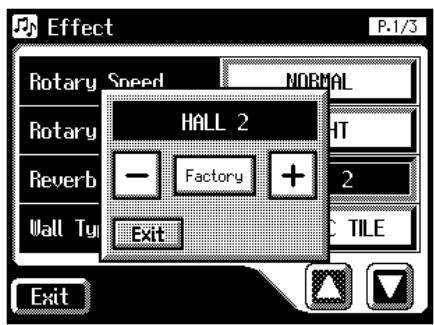
- Touch <-> <+> to edit the setting.
| Display | Description |
| ROOM 1 | Simulates the reverb of a conference room |
| ROOM 2 | Simulates the reverb of a performance lounge |
| ROOM 3 | Simulates the reverb of a large, open room |
| HALL 1 | Simulates the reverb of a large concert hall |
| HALL 2 | Simulates the reverb of a small concert hall |
| SMALL CHURCH | The reverberation of a small church |
| LARGE CHURCH | The reverberation of a large church |
| CATHEDRAL | The reverberation of a cathedral |
| PLATE | Applies a bright, metallic reverb |
| DELAY | An echo-like sound repeated several times |
| PAN DELAY | Similarly to the above but where the sound is panned between the left and right speakers |
NOTE
It is not possible to modify the delay time (delay interval) when "DELAY" or "PAN DELAY" is selected.
- Touch
.
Changing the Wall Type
By changing the type of reverb (p. 131) you can experience the feeling of performing in various different locations, and by changing the Wall Type (wall material) you can make further adjustments to the way in which reverberation occurs.
- Touch
on the Main screen.
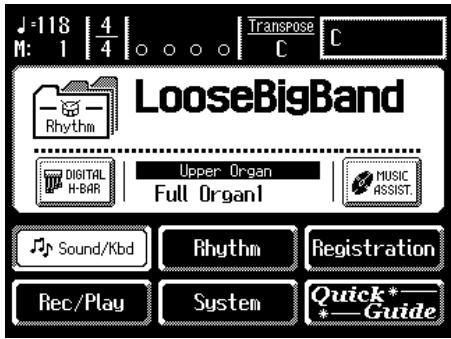
The Sound/Keyboard screen appears.
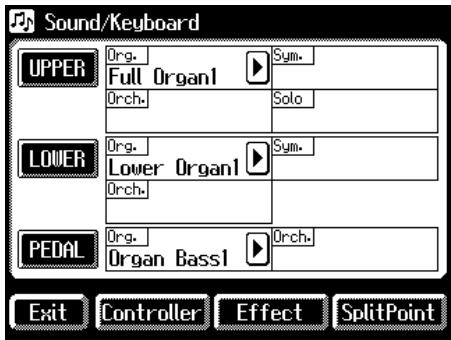
- Touch
.
The Effect screen appears.
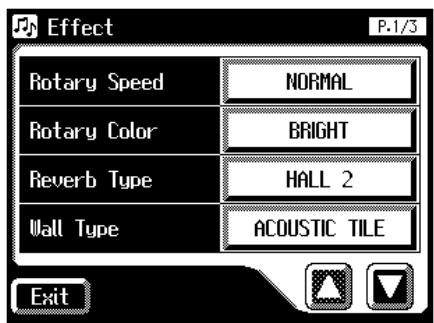
-
Touch <> <> to display the Wall Type.
-
Touch the value setting buttons for Wall Type to adjust the setting.
The following screen appears.
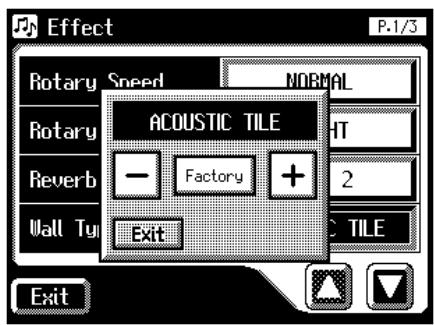
- Touch <-> <+> to change the setting.
| Display | Description |
| DRAPERY | Pleated curtain |
| CARPET | Carpet |
| ACOUSTIC TILE | Acoustical tile, sound-absorptive tile |
| WOOD | Wood |
| BRICK | Brick |
| PLASTER | Plaster |
| CONCRETE BLOCK | Concrete block |
| MARBLE | Marble |
- Touch
.
Changing the Depth of the Reverb
The depth of the Reverb can be set (0-10).
To adjust the reverb depth for Upper/ Lower/Pedal/Solo
- Touch
on the Main screen.
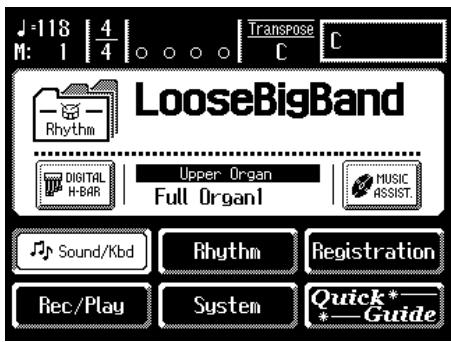
The Sound/Keyboard screen appears.
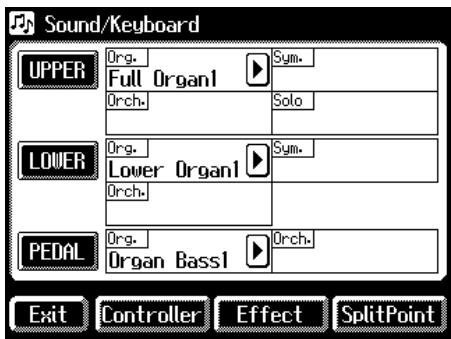
- Touch
, , or .
The Upper Keyboard screen, Lower Keyboard screen, or Pedalboard screen will be displayed.
Upper
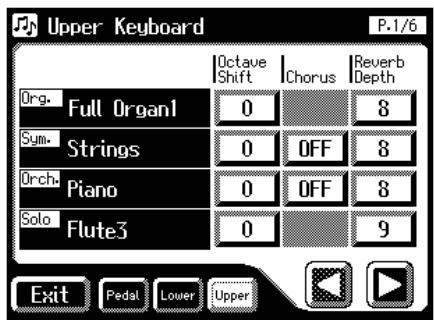
Lower
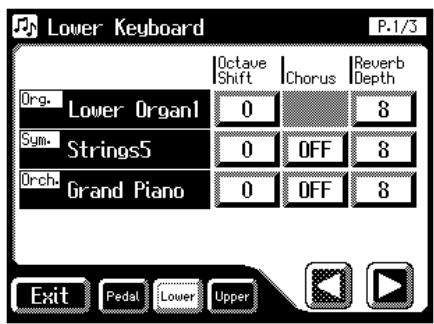
Pedal
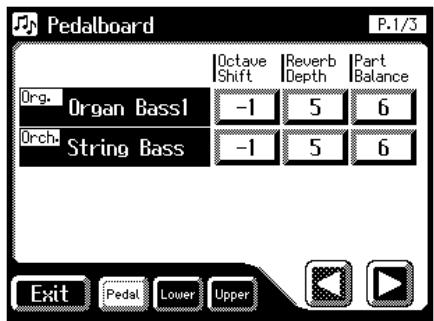
- Touch <><> to display the Reverb Depth
- Touch the part whose reverb depth you wish to adjust.
The following screen appears.
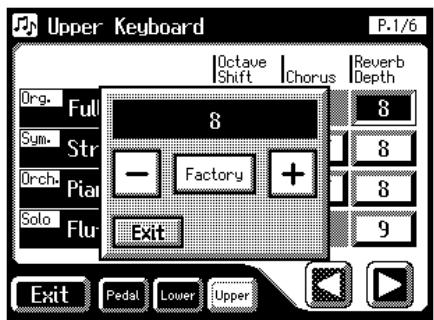
- Touch <-> <+> to adjust the setting. Settings 0-10
- Touch
.
To adjust the reverb depth for something other than Upper/Lower/ Pedal/Solo
- Touch
on the Main screen.
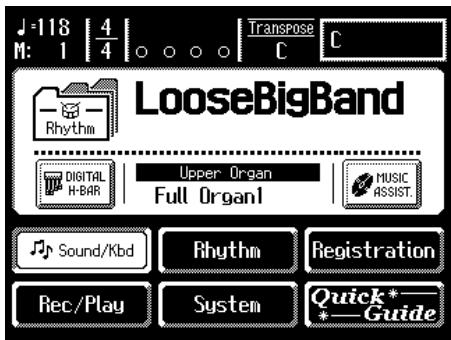
The Sound/Keyboard screen appears.
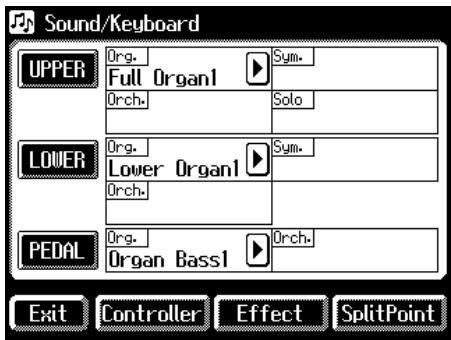
- Touch
.
The Effect screen appears.
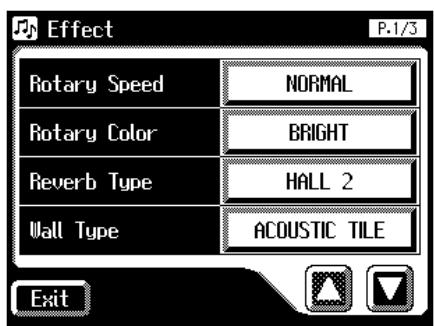
- Touch <> to display the Rev Depth (Reverb Depth).
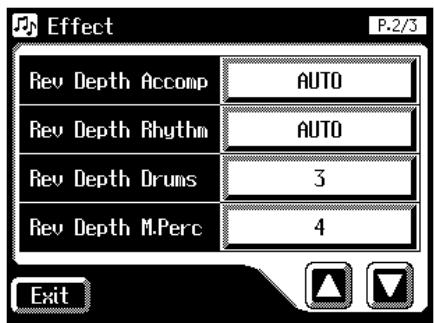
Part Accomp, Rhythm, Drums, M.Perc, A.Bass
- Touch the part whose reverb depth you wish to adjust.
The following screen appears.
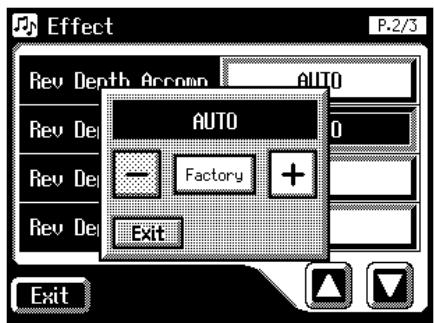
- Touch <-> <+> to adjust the setting.
Settings 0-10, AUTO (Accomp, Rhythm, A.Bass only)
For the three Parts of the Accomp, Rhythm and Accompaniment Bass, you have the option of selecting the "AUTO" setting. Parts for which "AUTO" is selected will be set to the Reverb Depth that is most suitable for the Rhythm currently selected.
- Touch
.
Chapter 6 Using the Lower Keyboard Effectively
Making Effective Use of the Lower Keyboard
Since the lower keyboard of the AT-80SL/60SL provides a generous 76 notes, you can use it to play piano pieces with ease. In addition, you can divide the keyboard into two or more sections and play solo voices, play the pedal bass voice, or combine a variety of uses for even more versatility.
For example, the following applications are possible.
Using the Lower Keyboard to Play the Solo Voice
- Press the Solo [To Lower] button in the Solo section to Play the Solo voice to the Lower keyboard (p. 137).
Drums/SFX
■ Manual Perc.
Bass
Lower
Solo


Using the Lower Keyboard to Play the Bass Part by Hand
- Press the [Bass Split] button in the Pedal section to play the Pedal Bass voice from the Lower keyboard (p. 140).
Drums/SFX
■ Manual Perc.
Bass
Lower
Solo


Using the Lower Keyboard to Play Drum Sounds or Sound Effects
- Press the [Manual Perc] button to play drum sounds or sound effects with the Lower voice on the lower keyboard (p. 142).
Drums/SFX
Manual Perc.
Bass
Lower
Solo
Chapter 6 Using the Lower Keyboard Effectively
Playing Drum Sounds from the Entire Lower Keyboard
- Press the [Drums/SFX] button (p. 56).
Drums/SFX
Manual Perc.
Bass
Lower
Solo





Using the Lower Keyboard to Play Drum Sounds and Solo Voice
- Press the [Drums/SFX] button (p. 56), and then press the Solo [To Lower] button (p. 137)
Drums/SFX
Manual Perc.
Bass
Lower
Solo





By changing the combination of voices that are played on the Lower keyboard, and by changing the Solo Split Point (p. 139) and Bass Split Point (p. 141), you can create the following types of setup.
Drums/SFX
Manual Perc.
Bass
Lower
Solo







Drums/SFX
■ Manual Perc.
Bass
Lower
Solo







Drums/SFX
Manual Perc.
Bass
Lower
Solo






Playing the Solo Voice on the Lower Keyboard (Solo [To Lower] Button)
Normally, the solo voice will sound on the upper keyboard.
By using the Solo [To Lower] button, you can play the solo voice in the right-hand side of the lower keyboard that includes the B4 key. The state in which the keyboard is divided in this way is called "split," and the location at which the keyboard is divided to play the solo voice in the lower keyboard is called the "Solo Split Point."
![ROLAND AT-60SL - Playing the Solo Voice on the Lower Keyboard (Solo [To Lower] Button) - 1](/content/2025/01/130755/images/9eedb3b20364f278c380740f1fc9c5c35ca18c69f082e7683c771718b799d6f7.jpg)
- Select a Solo voice (p. 44).
- Press the Solo [To Lower] button (indicator lights).
When you play the Lower keyboard, the Solo voice will sound in the range to the right of the Solo Split Point.
![ROLAND AT-60SL - Playing the Solo Voice on the Lower Keyboard (Solo [To Lower] Button) - 2](/content/2025/01/130755/images/0929a5d04570d709ce0d46f8baf94313cb43f028da709a4f0a25da80b1b345d1.jpg)
- To turn off the Solo split, press the Solo [To Lower] button (indicator turns off).
The Solo voice will no longer sound in the Lower keyboard; the Solo voice will now be played in the Upper keyboard.
![ROLAND AT-60SL - Playing the Solo Voice on the Lower Keyboard (Solo [To Lower] Button) - 3](/content/2025/01/130755/images/054be08480d6bb60118343566e49a6f3bd909c4651a720f1bc2aca8fa7caba6c.jpg)
The key used for the solo split point is included in the Solo voice range.
![ROLAND AT-60SL - Playing the Solo Voice on the Lower Keyboard (Solo [To Lower] Button) - 4](/content/2025/01/130755/images/24b9f6b3eaef83bc6d164d96ddd2bc04341b3324d0064bd371b5e06ec640d1ee.jpg)
If the Solo [To Lower] is ON, the Solo voice will not be heard from the upper keyboard.
![ROLAND AT-60SL - Playing the Solo Voice on the Lower Keyboard (Solo [To Lower] Button) - 5](/content/2025/01/130755/images/8dda7886cc449c99bfee1a9864b8b1fa8eab7d3f8f78de3082737b773897639f.jpg)
You can adjust the Solo Split Point (p. 139).
![ROLAND AT-60SL - Playing the Solo Voice on the Lower Keyboard (Solo [To Lower] Button) - 6](/content/2025/01/130755/images/e5271d13e307408106dcd116e64d447c32e698abbb7dbd14bc0ee797bbc53214.jpg)
You can change how the Solo voice will sound (p. 138).
![ROLAND AT-60SL - Playing the Solo Voice on the Lower Keyboard (Solo [To Lower] Button) - 7](/content/2025/01/130755/images/1e9cb9894dbc49427239100b74c000b8a932e7edd03fdae45f5e1174ca445c56.jpg)
You can layer the Solo voice with the Lower voice so that they will sound together (p. 138).
Changing How the Solo Voice Responds
When the Solo voice is assigned to the Upper keyboard or the Lower keyboard, you can specify how the Solo voice will respond when more than one key is pressed.
- Touch
on the Main screen.
The Sound/Keyboard screen appears.
- Touch
.
The Upper Keyboard screen appears.
- Touch <><> to display the Solo Mode.
- Touch the Solo Mode setting (the TOP NOTE, LAST NOTE, or POLYPHONIC indication).
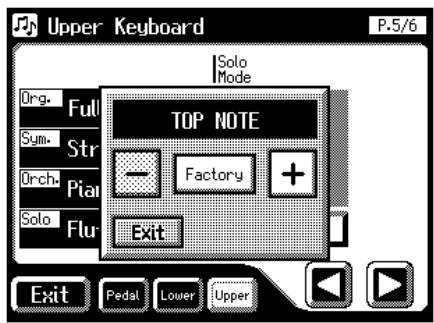
- Touch <-> <+> to change the setting.
| Setting | Descriptions |
| TOP NOTE | The Solo voice will sound the highest note that is played for the Solo part. |
| LAST NOTE | he Solo voice will sound the note that was most recently played for the Solo part. |
| POLYPHONIC | The Solo voice will sound all notes that are played for the Solo part. |
- Touch
.
Layering the Solo Voice and Lower Voice
When the Solo voice is being played by the Lower keyboard (i.e., when the Solo [To Lower] button is ON), you can specify whether the Lower voice and the Solo voice will sound together (layered), or will sound separately (split).
- Touch
on the Main screen.
The Sound/Keyboard screen appears.
- Touch
.
The Upper Keyboard screen appears.
- Touch <0><0 to display the Solo To Lower Mode.
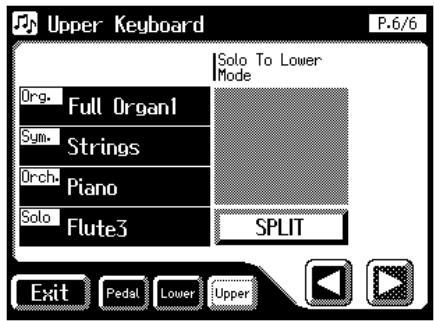
- Touch the Solo To Lower Mode setting to switch between "SPLIT" and "LAYER."
Each time you touch the Solo To Lower Mode setting, it will alternate between "SPLIT" and "LAYER."
| Setting | Descriptions |
| SPLIT | The parts will sound separately. |
| LAYER | The Lower voice and Solo voice will sound together. |
- Touch
.
Changing the Solo Split Point
This setting is used to determine the Solo Split Point (lower limit of the playable range of the Solo voice) on the Lower keyboard to any desired position.
- Touch
on the Main screen.
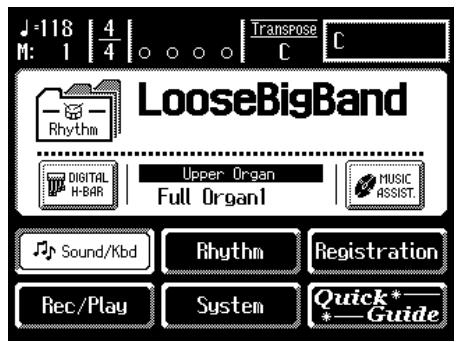
The Sound/Keyboard screen appears.
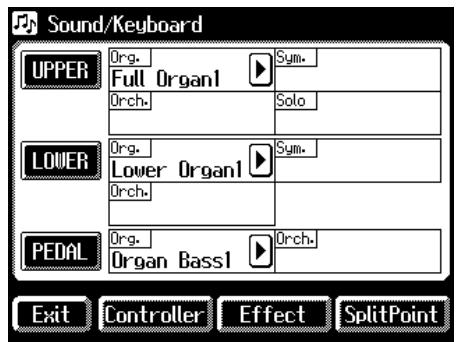
- Touch
.
The Split Point screen appears.
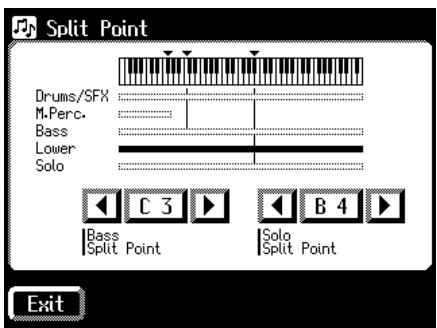
- Touch <1> <2> to change the Solo Split Point.
Settings E1 to G7
- Touch
.

You can also set the split point by pressing the key of the lower keyboard that you want to be the Solo Split Point.
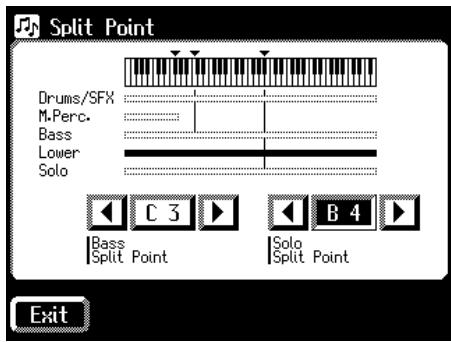
- While touching the Solo Split Point value (E1-G7 indication) in the Split Point screen, press the key in the Lower keyboard that you want to specify as the Solo Split Point.
The Solo Split Point will be set in the Split Point screen.
Using the Lower Keyboard to Play the Bass Voice ([Bass Split] Button)
By using the [Bass Split] button you can play the bass voice in the left-hand side (including C3) of the lower keyboard. The location at which the lower keyboard is divided in this way, to play the pedal bass voice, is called the "Bass Split Point."
![ROLAND AT-60SL - Using the Lower Keyboard to Play the Bass Voice ([Bass Split] Button) - 1](/content/2025/01/130755/images/8894deb80a26b259105a78e744d3058c5e4c1e13a79a9f0bafd2ebd741dca3d5.jpg)
- Select a Pedal Bass voice (p. 43).
- Press the Pedal [Bass Split] button (indicator lights).
When you play the Lower keyboard, the Pedal Bass voice will sound in the range to the left of (and including) the C3 note.
![ROLAND AT-60SL - Using the Lower Keyboard to Play the Bass Voice ([Bass Split] Button) - 2](/content/2025/01/130755/images/5ca9ce919c2359ed04cebb193ed1734ac0702a0b305ec79c9ecbd7d67f8c1d77.jpg)
- To turn off the Bass split, press the Pedal [Bass Split] button (indicator turns off).
The Pedal Bass voice will no longer sound in the Lower keyboard; the Pedal Bass voice will now be played in the pedalboard.
![ROLAND AT-60SL - Using the Lower Keyboard to Play the Bass Voice ([Bass Split] Button) - 3](/content/2025/01/130755/images/0bbeeb73f216bd03aa1de81fbf73baec93471c7e41141ef6423887ed01aeb6fe.jpg)
The bass split point is included in the left-hand area of the keyboard.
![ROLAND AT-60SL - Using the Lower Keyboard to Play the Bass Voice ([Bass Split] Button) - 4](/content/2025/01/130755/images/43563018aefa2f055ee853aa9ff8a256216f8c89c00f13dfb310caf507aae326.jpg)
If the Pedal [Bass Split] is ON, the Pedal Bass voice will not be heard from the pedalboard.
![ROLAND AT-60SL - Using the Lower Keyboard to Play the Bass Voice ([Bass Split] Button) - 5](/content/2025/01/130755/images/75ff147de877c9e2bca9d5cdea6299b323c39b576970c432c376e36da61800f4.jpg)
You can adjust the Bass Split Point (p. 141).
![ROLAND AT-60SL - Using the Lower Keyboard to Play the Bass Voice ([Bass Split] Button) - 6](/content/2025/01/130755/images/52dbf80b84ddfc8e57f3964c8e0c496b746aea1ffcf94fab677a2e70fa096e2f.jpg)
It is not possible to select and play both [Bass Split] and Pedal [To Lower] buttons simultaneously.
![ROLAND AT-60SL - Using the Lower Keyboard to Play the Bass Voice ([Bass Split] Button) - 7](/content/2025/01/130755/images/4b9f41a12648d57a81514f822d148a7d160dee9e2d4500f870a5375785f5e5ef.jpg)
If the [Bass Split] is ON, the Pedal Bass voice will not be heard from the Pedalboard. The Pedal Bass voice will sound from the Lower keyboard.
Changing the Bass Split Point
You can assign the Bass Split Point (the highest key up to which the Pedal Bass voice will sound), to any key of the Lower keyboard.
- Touch
on the Main screen.
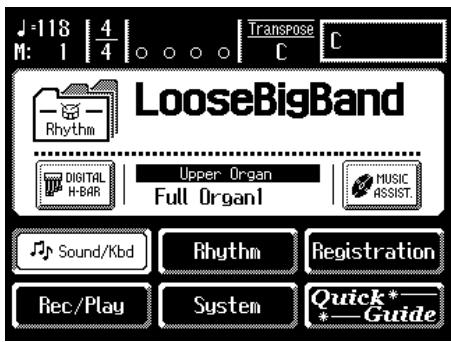
The Sound/Keyboard screen appears.
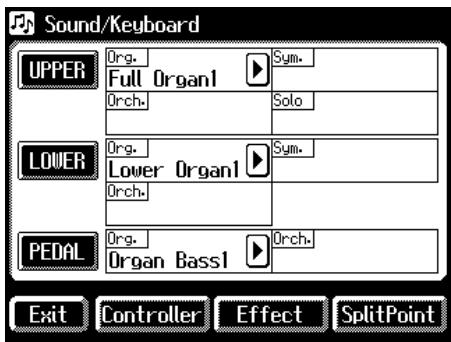
- Touch
.
The Split Point screen appears.
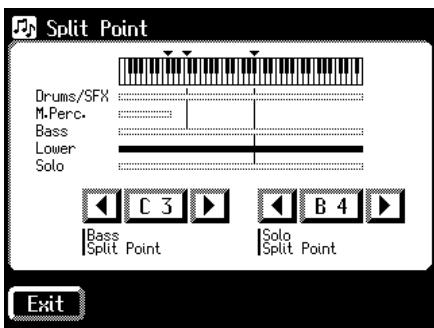
- Touch <4> <5> to modify the Bass Split Point.
Settings E1 to G7
- Touch
.

You can also set the bass split point by playing the desired key of the lower keyboard.
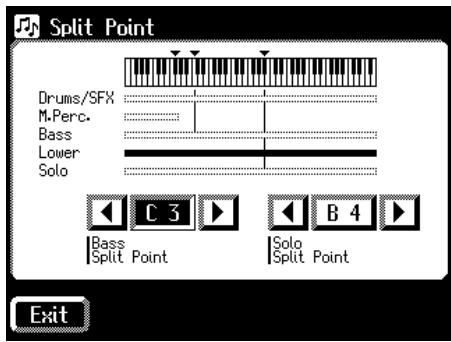
- While touching the Bass Split Point value (E1-G7 indication) in the Split Point screen, press the key in the Lower keyboard that you want to specify as the Bass Split Point.
The bass split point will be set in the Split Point screen.
Using the Lower Keyboard to Play the Bass Voice (Pedal [To Lower] Button)
By using the Pedal [To Lower] button, you can sound the Pedal Bass voice by playing the root note (see p. 249) of a chord on the Lower keyboard in the area that is playing the Lower voice.
![ROLAND AT-60SL - Using the Lower Keyboard to Play the Bass Voice (Pedal [To Lower] Button) - 1](/content/2025/01/130755/images/529f206d2dc89b985d08853b0d9c20fc7ffb14b17893746f0cfbd6521d1de6c2.jpg)
- Select a Pedal Bass voice (p. 43).
- Press the Pedal [To Lower] button (indicator lights).
When you play a chord in the area of the Lower keyboard that sounds the Lower voice, the Pedal Bass voice will also be heard and will play the root note.
If the "Leading Bass" function is on (p. 72), the lowest note played in the lower keyboard will sound the pedal bass voice.
- To turn off the Solo split, press the Pedal [To Lower] button (indicator turns off).
The Pedal Bass voice will no longer sound in the Lower keyboard.
NOTE
If no portion of the Lower keyboard is sounding the Lower voice (the [Drums/ SFX] button is ON), the Pedal Bass voice will not sound.
NOTE
It is not possible to select and play both [Bass Split] and Pedal [To Lower] buttons simultaneously.
NOTE
If the Pedal [To Lower] is ON, the Pedal Bass voice will not be heard from the Pedalboard.
Chapter 7 Recording/Playing Back What You Play
The internal composer can record performances and play back commercial SMF music files.
The composer can be used in the following two ways.
Using the PanelComposer Buttons
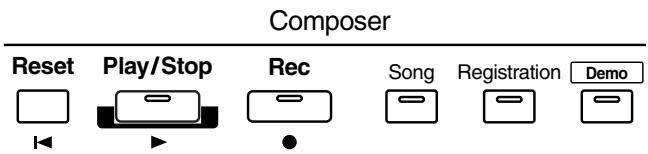
| Button | Description |
| Reset | Returns you to the start of the song. |
| Play/Stop | Starts and stops playback of the song. |
| After the [Rec] button has been pressed, putting the composer in record standby mode, recording then starts when the [Play/Stop] is pressed. | |
| Rec | The unit switches to record standby mode. * In record standby, the [Rec] button is lit, and the [Play/Stop] button flashes. |
| Song | The Song Select screen appears in the display. |
| Registration | The Registration Load screen appears in the display. |
| Demo | When you press the [Demo] button while a floppy disk is in the disk drive, all of the songs on the floppy disk are played back one after another. |
| (When no floppy disk is in the disk drive) The Demo screen opens. |
Touching
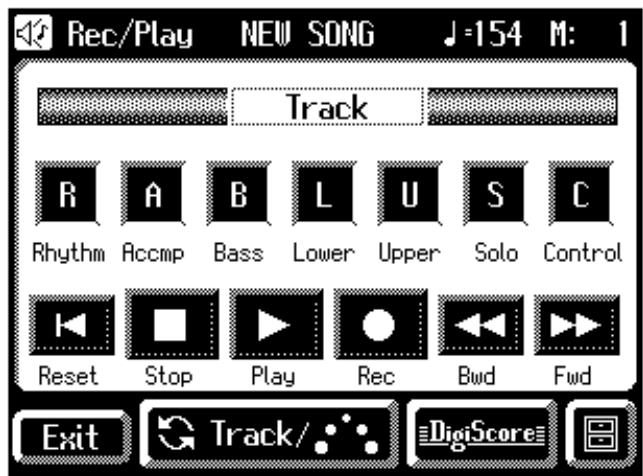
| Button | Description |
| TrackRhythmAccmpBassLowerUpperSoloControl | Buttons for tracks to which performances are recorded light up. A lighted button can be toggled between lighted and unlit by pressing it Tracks are muted when the button's light is off.For more about the track buttons, refer to p. 144. |
| Reset | Returns you to the beginning of the song. |
| Stop | Stops playback of the song. |
| Play | Starts playback of the song. |
| After <Rec> has been touched to put the composer in record standby mode, recording then starts when you touch<Play>. | |
| Rec | The unit switches to record standby mode.* In record standby, <Rec> is lit, and<Play> flashes. |
| Bwd | Rewinds the song. |
| Fwd | Fast forwards the song. |
| Track/ | You can toggle between display of the track buttons, the bouncing ball, or the track mute buttons by touching the button. |
| ElbigScore/ | The Notation screen appears in the display. |
| The Utility screen for theComposer is displayed. |
What is a Track Button?
The recorded performance will be automatically assigned to the seven Track buttons according to the recorded part. You can record or play back independently by specifying the desired Track button; for example, when you wish to re-record a track.
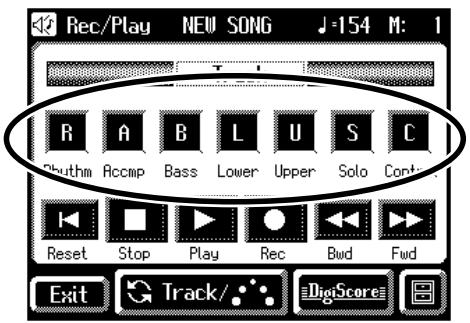
You can record different kinds of performance data into each track:
| Track | Recorded performance |
| Rhythm | Rhythm performance |
| Drums/SFX | |
| Manual percussion | |
| Accmp | Automatic Accompaniment (except Bass) |
| Bass | Pedal Bass Voice Performance Data (Note, Bender, Modulation) |
| Bass part of the Automatic Accompaniment, | |
| Lower | Lower Voice Performance Data (Note, Hold, Bender, Modulation) |
| Upper | Upper Voice Performance Data (Note, Hold, Bender, Modulation, After Touch) |
| Solo | Solo Voice Performance Data (Note, Hold, Bender, Modulation, After Touch) |
| Control | Glide |
| Expression | |
| Reverb Type | |
| Reverb Depth | |
| Solo [To Lower] button (ON/OFF) | |
| Pedal [To Lower] button (ON/OFF) | |
| Transpose [-] [+] button setting | |
| [Harmony Intelligence] button (ON/OFF) | |
| Harmony Intelligence Type | |
| Rotary [Fast/Slow] button (ON/OFF) | |
| Rotary [ON/OFF] button (ON/OFF) | |
| Pedal Bass Mode |
| Track | Recorded performance |
| Control | Solo Mode |
| Solo To Lower Mode | |
| Solo Split Point | |
| [Bass Split] button (ON/OFF) | |
| Bass Split Point | |
| Sustain ON/OFF | |
| Sustain Length | |
| Initial Touch | |
| Wall Type | |
| The Voices assigned for each part | |
| Level [▲][▼] (Part Balance Volume) | |
| The Reverb depth for each part | |
| The Chorus settings (ON/OFF) of the voice | |
| The Octave settings for each part | |
| [Drums/SFX] button (ON/OFF) | |
| Drums/SFX Set | |
| [Manual Percussion] button (ON/OFF) | |
| Manual Percussion Set | |
| Chord Intelligence | |
| Chord Hold | |
| Leading Bass | |
| Lower Voice [Hold] button (ON/OFF) | |
| Tempo setting | |
| Volume of the rhythm Accompaniment part | |
| Reverb depth of the rhythm Accompaniment part | |
| Volume of the rhythm drum part | |
| Reverb depth of the rhythm drum part | |
| Volume of the rhythm bass part | |
| Reverb depth of the rhythm bass part |
MEMO
More information about the track assignments when playing commercial SMF music files, please refer to
"Correspondence Between Track Buttons and Track Mute Buttons When Playing Back Commercial SMF Music Files" (p. 147).
During recording, the control track will store the operations as follows.
- Recording panel operations (Voice selections, Tempo changes, etc.)
Newly recorded performance data will be added without erasing the previously recorded data.
- Recording expression pedal operations
This will depend on the function of the expression pedal.
Recording of expression operations will differ depending on the setting for "Exp. Src (Rec)."
For details refer to "Changing the Function of the Expression Pedal" (p. 186).

If you wish to erase all the recorded data and record new performance data, use the editing function "Erase" (erase performance data) to erase the data (p. 168).
Displaying the Track Buttons
The track buttons will be displayed in the screen when you record or play back a performance.
1. Touch on the Main screen.
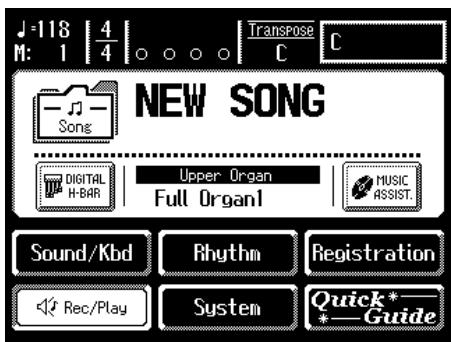
The Rec/Play screen appears.
The following buttons are referred to as the track buttons.


All accompaniment data is grouped to the "Accmp" track button in the Rec/Play screen. In the same manner, the rhythm performance data is grouped to "Rhythm."
If you want to mute only a portion of the rhythms or accompaniment, open up the Track Mute screen, and switch off the Track Mute buttons there (p. 148).
Playing Back Performance Songs Stored on Floppy Disk and SMF Music Files
In addition to playing back the music you recorded on the instrument and saved to a floppy disk, AT-80SL/60SL also lets you enjoy a wide variety of commercially available song files, such as defined below.
SMF Music Files
The Standard MIDI File (SMF) format was designed to provide a means for exchanging performance data among a wide variety of devices. In addition to the song files described earlier, the AT-80SL/60SL is also capable of playing back any Standard MIDI File compatible with the General MIDI 2 or GS formats.
To play back only one song
- Hold the floppy disk with the label facing upwards, and push it into the disk drive until it clicks into place.

The disk drive is on the right side of the unit, above the keyboard.
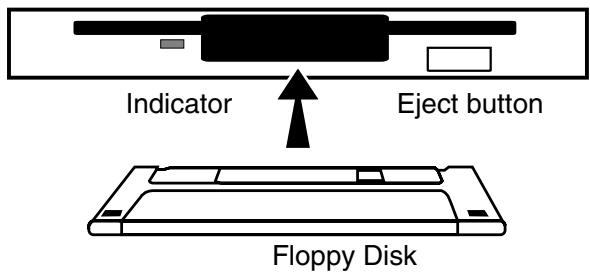

Never eject a disk while reading or writing is in progress, since that can damage the magnetic surface of the disk, rendering it unusable. (The disk drive's indicator will light up at full brightness when the drive is busy reading or writing data. Ordinarily, the indicator will be less brightly lit, or be extinguished.)
When the performance song loaded from a disk is a Standard MIDI File, "SMF" will be displayed on the Main screen.
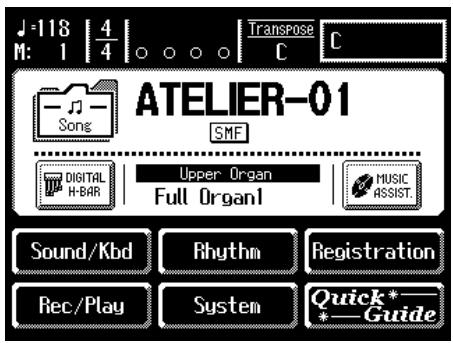
- Press the [Song] button.
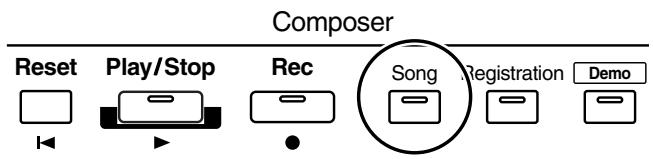
The Song Select screen appears.
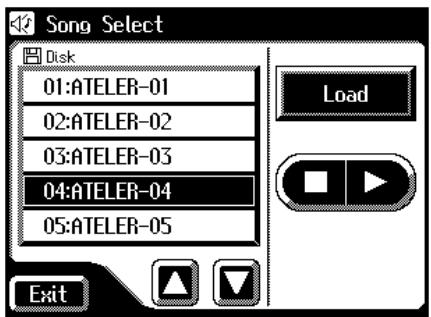
- In the screen, touch <><> to select the song that you wish to play back.
- Touch < 0 > to play back the song.
- Touch < > to stop the song.

You can also play back or stop the music data by touching
- Press the Eject button.
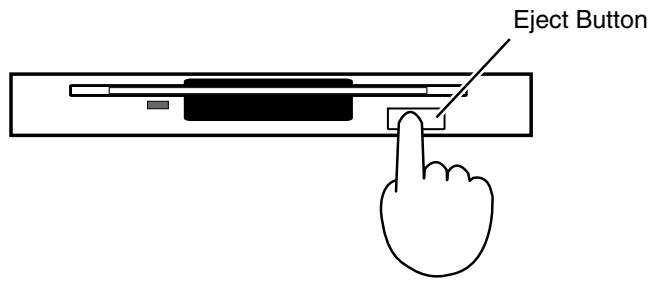
The floppy disk is ejected a little out of the slot. Gently grasp the end of the floppy disk and pull it out.
Playing back all performance data
- Hold the floppy disk with the label facing upwards, and push it into the disk drive until it clicks into place.

The disk drive is on the right side of the unit, above the keyboard.
- Press the [Demo] button.
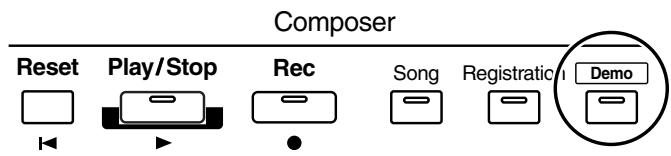
All performance data saved on the floppy disk will be played consecutively.
- To stop playback, press the [Play/Stop] button.
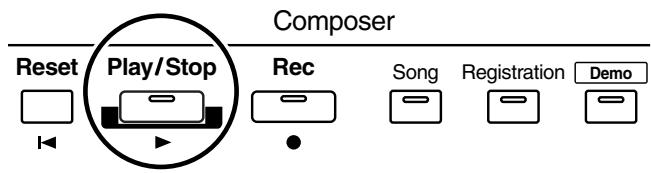
Silencing a Specific Track (Track Mute)
When the Rec/Play screen is displayed, the track button will light to indicate a track in which a performance has been recorded. By turning off these track buttons, you can temporarily silence the sound. This is referred to as "Track Mute."
1. Press the [Song] button.
The Song Select screen appears.
![ROLAND AT-60SL - Press the [Song] button. - 1](/content/2025/01/130755/images/eacbe0756e8ccb55824c6657b4ac5b9ab6f9f43adcdeb6fd9643bafa70b2c08b.jpg)
- In the screen, touch <><> to select the song that you wish to play back.
- Touch
to load the song.
The Rec/Play screen appears.
![ROLAND AT-60SL - Press the [Song] button. - 2](/content/2025/01/130755/images/d4d949343674bc55b0400398e21c7ee741855dea2bb075688f09e177d987dc40.jpg)
![ROLAND AT-60SL - Press the [Song] button. - 3](/content/2025/01/130755/images/4934ace9564985cda3d83b46bb34814d3a1ebaffc35c84af0c9a217ab19f5fe4.jpg)
All accompaniment data is grouped to the "Accmp" track button in the Rec/Play screen. In the same manner, the rhythm performance data is grouped to "Rhythm." If you want to mute only a portion of the rhythms or accompaniment, open up the Track Mute screen, and switch off the Track Mute buttons there (p. 148).
4. Press a track button that is lit, extinguishing the button.
When you play back the performance, track buttons that are not lighted will be muted (silenced).
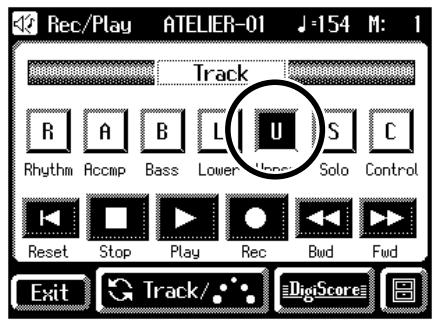
5. Press the track button once again (button lights).
The part that had been muted will return to normal and will be heard.
Correspondence Between Track Buttons and Track Mute Buttons When Playing Back Commercial SMF Music Files
| Track button | Channel |
| Rhythm | 10 |
| Accmp | 5, 6, 7, 8, 9, 11, 12, 13, 14, 15, 16 |
| Bass | 2 |
| Lower | 3 |
| Upper | 4 |
| Solo | 1 |
Correspondence Between Track Buttons and Track Mute Buttons When Playing Back Performance Data Created with an Music Atelier
| Track button | Track Mute button |
| Rhythm | 10, 11 (Drums/SFX), 13 (Manual Percussion) |
| Accmp | 5, 6, 7, 8, 9, 12, 14, 15 |
| Bass | 2 (Bass) |
| Lower | 3 (Lower) |
| Upper | 4 (Upper) |
| Solo | 1 (Solo) |
Muting Individual Tracks of Performance Data
All accompaniment data is grouped to the "Accmp" track button in the Rec/Play screen. In the same manner, the rhythm performance data is grouped to "Rhythm." You can mute only a portion of the rhythms or accompaniment on the Track Mute screen.
1. Touch on the Main screen.
The Rec/Play screen appears.
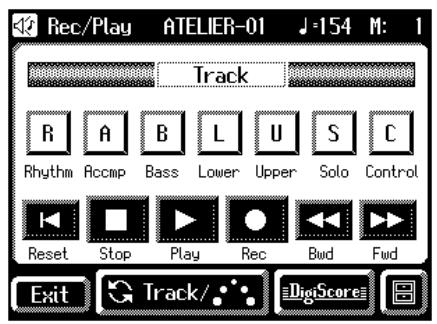
2. Touch < Track/ > a number of times.
The Track Mute screen appears.
Sixteen Track Mute buttons appear in the disp
From the left, these are "Track 1, Track 2 ... Track 15, and Track 16."
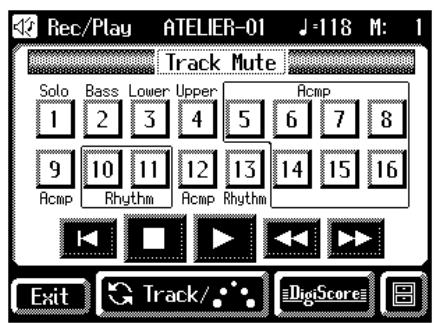
3. Touch the screen to select the track that you wish to mute.
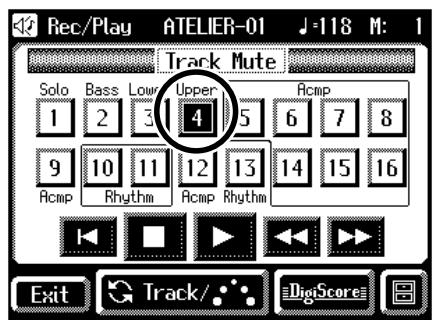
The button you've touched goes out, indicating the sound is muted.
- When you touch an unlit track button, the track button lights up, indicating muting of the track is cancelled.
- Touch
.
NOTE
Track mute will be defeated when you perform the following operations.
- Select different performance data.
The seven Track buttons in the Rec/Play screen (p. 147) correspond to the sixteen Track Mute buttons of the Track Mute screen as shown below.
Commercial SMF Music Files
| Track Mute Button | Track Button |
| 1 (Solo) | Solo |
| 2 (Pedal) | Pedal |
| 3 (Lower) | Lower |
| 4 (Upper) | Upper |
| 5-9, 11–16 (Acmp) | Accmp |
| 10 (Rhythm) | Rhythm |
Performance Data Created on the Atelier
| Track Mute Button | Track Button |
| 1 (Solo) | Solo |
| 2 (Pedal) | Pedal |
| 3 (Lower) | Lower |
| 4 (Upper) | Upper |
| 5-9, 12, 14, 15 (Acmp) | Accmp |
| 10 (Rhythm) | Rhythm |
| 11 (Drums/SFX) | Rhythm |
| 13 (Manual Percussion) | Rhythm |
- The Track Mute button 16 cannot be used with performance data created on an Atelier.
Viewing a Notation
You can display the notations of performances from music files and recordings made on the AT-80SL/60SL. This is very convenient when you want to read the music as you play and to confirm recorded songs.
Selecting Songs
There is no need to select the song when displaying notations for performances recorded with theComposer. Start from Step 5.
- Take the floppy disk containing the song whose notations you want to display and insert it into the floppy disk drive.
- Press the [Song] button.
The Song Select screen appears.
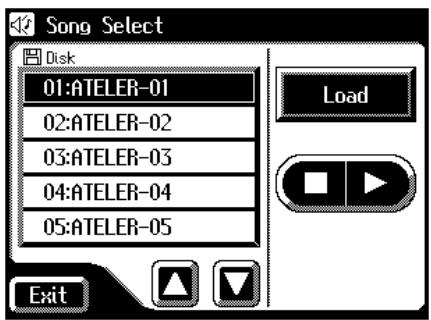
- Touch <><> to select the song whose notation is to be displayed.
- Touch
.
After the song is loaded, the Rec/Play screen opens.
Displaying Notations
- Touch
on the Rec/Play screen.
The Notation screen appears.
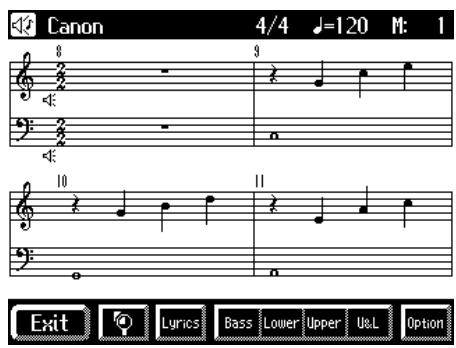
| Display | Explanation |
| Enlarge the notation display. | |
| Lyrics | Display lyrics in the notation. |
| Bass | Display the Bass part notation. |
| Lower | Display the Lower part notation. |
| Upper | Display the Upper part notation. |
| U&L | Display the Upper part and Lower part notations. |
| Option | You can change the part that is displayed, and change the way in which the notation is displayed (p. 150). |

Touching the illustration of speaker on screen, you can mute the part. This is convenient for muting a specific part you want to practice. Touch the speaker icon once more to have the sound play again.
Changing the Notation Settings
- Touch
on the Main Screen.
The Rec/Play screen appears.
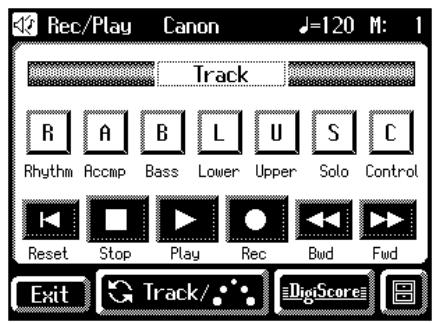
- Touch
.
The Notation screen appears.
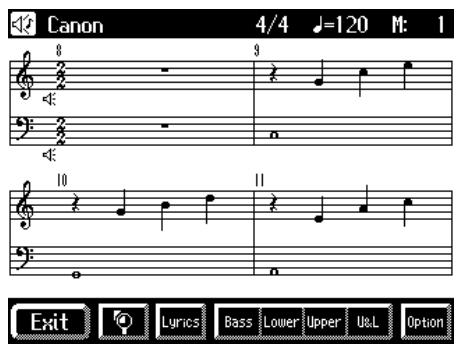
- Touch
.
The Notation Options screen appears.
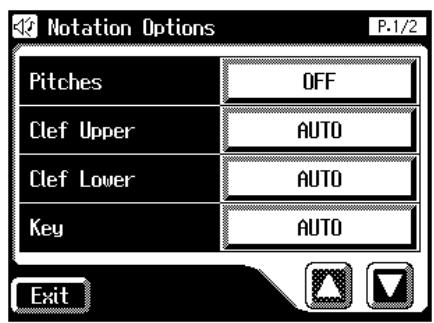
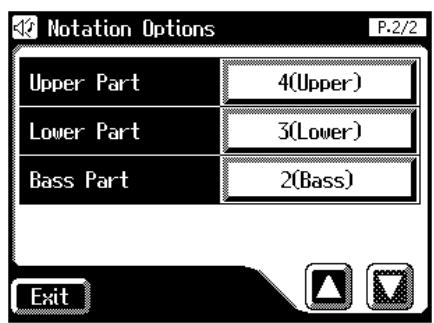
- Touch the button for the item whose setting you want to change.
| Menu | Setting | Explanation |
| Pitch | C,D,E | Letter names (fixed do) are display in the detailed notation. |
| Do,Re,Mi | Solumization syllables (movable do) are displayed in the detailed notation. | |
| OFF | Not displayed | |
| Clef Upper | AUTO | Display is switched automatically. |
| G Clef | Displayed the G-clef staff of the upper part. | |
| F Clef | Displayed the F-clef staff of the upper part. | |
| Clef Lower | AUTO | Display is switched automatically. |
| G Clef | Displayed the G-clef staff of the lower part. | |
| F Clef | Displayed the F-clef staff of the lower part. | |
| Key | AUTO | Key is switched automatically. |
| Db, Ab, Eb, Bb, F, C, G, D, A, E, B, F#, Bbm, Fm, Cm, Gm, Dm, Am, Em, Bm, F#m, C#m, G#, D#m | Display the notation in the selected key. | |
| Upper Part | 1-16 | Select the part to be displayed as the upper part. |
| Lower Part | 1-16 | Select the part to be displayed as the lower part. |
| Bass Part | 1-16 | Select the part to be displayed as the bass part. |
5. Touch <-> <+> to change the setting.
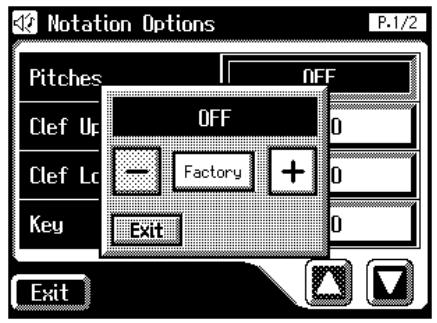
When you touch <Key> , the following screen appears.
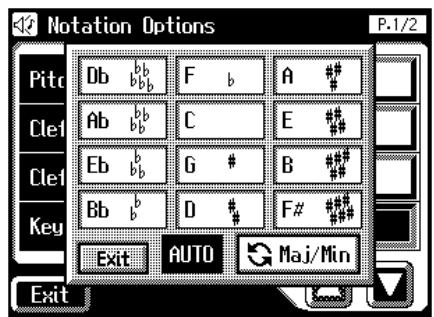
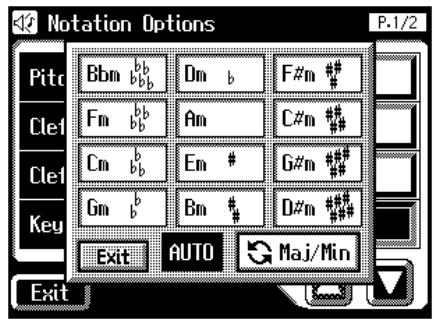

The Key screen is composed of two screens. Touch
< Maj/Min > to switch between the two screens.
- Touch
.
Some notes on a Score screen
- When you start playback of music files, the marks _k=1^n appears. While this appears on the notation, the AT-80SL/60SL is reading data. Please wait until reading of the data is complete.
- In the Notation screen, some lyrics or notes could extend beyond the edges of the screen, and not be displayed.
- The notations that are presented by the display are produced based on the music files. Viewing ease is given priority over precise expression when dealing with complex, high-level music. Because of this, you may find that the notation shown in the display does not match what is provided on commercially available sheet music. The notation display feature is particularly unsuitable for the display of difficult, complex musical works that demand accurate notation. In addition, the display cannot show notes that are briefer than a sixteenth note.
- If you select a part that does not contain performance data, notes will not be displayed in the notation. Use
- If you use the buttons located below the display to change the displayed part while the song is playing, the song may be played back from the beginning.
Recording a Performance
You can record the performance that you play. You can also record your performance while playing rhythms or automatic accompaniment.
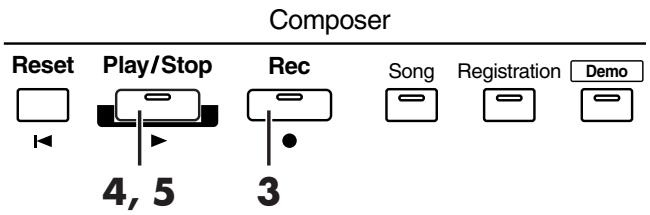
- Select the panel settings needed for recording the performance.
- Make sure that a floppy disk is not inserted in the disk drive.
If a floppy disk is in the disk drive, press the Eject button (p. 146) and remove the floppy disk.
3. Enter the recording standby mode by pressing the [Rec] button.
The [Rec] button indicator will light, and the [Play/Stop] button will blink.
4. Press the [Play/Stop] button to start recording.
When you press the [Play/Stop] button, the metronome will play two measures (bars) of count-in before recording begins.

If you wish to use Rhythm and Automatic Accompaniment as you record, press the [Start/Stop] button instead of the [Play/Stop] button to begin recording. Also, if the [Sync Start] button is lit (i.e., if Sync Start is ON), recording will begin the instant you play the Lower keyboard.
- Press the [Play/Stop] button when you have completed your recording.
The Track indicator where a performance song is recorded will change from a flashing to a constant light. When you press the [Intro/Ending] button (or [Start/Stop] button) while recording a Rhythm performance or Automatic Accompaniment, the Rhythm performance and Automatic Accompaniment will stop. However, the recording itself will continue. Press the [Play/Stop] button to stop recording.

The Play and Stop functions can both be assigned to one of the foot switches located on each side of the Expression Pedal (p. 118).

You can also choose to cancel the metronome count-in before recording starts (p. 192).
Caution
If you press the [Rec] button when a song has been selected from the floppy disk, the selected song will be completely loaded into the AT-80SL/60SL and theComposer will enter into the recording standby mode. To record a new song, use the following procedure.
- Press the [Rec] button to cancel recording standby.
- Take the floppy disk out of the disk drive.
- Delete the performance data (p. 156).
- Press the [Rec] button.
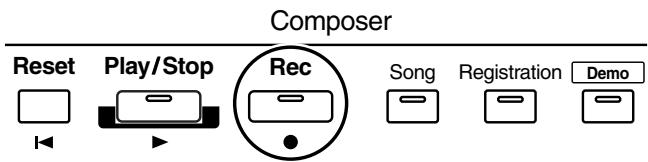
The following screen appears
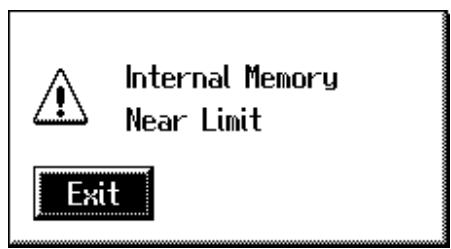
When the instrument's memory is nearing capacity.
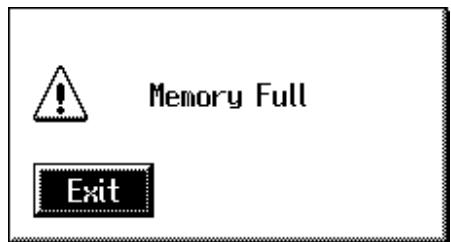
When recording was automatically canceled because the memory limit was reached.
Playing Back a Performance Song
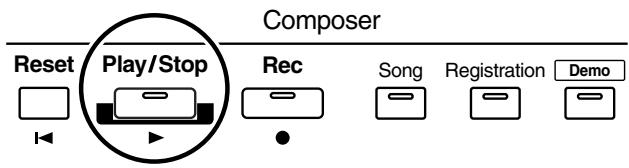
1. Touch on the Main screen.
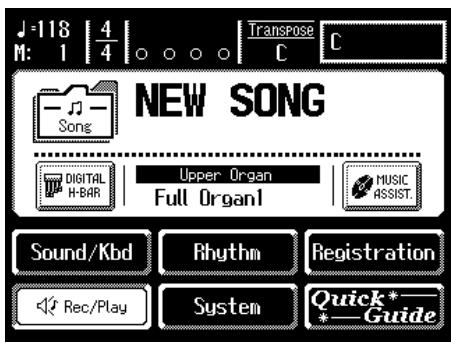
The Rec/Play screen appears.
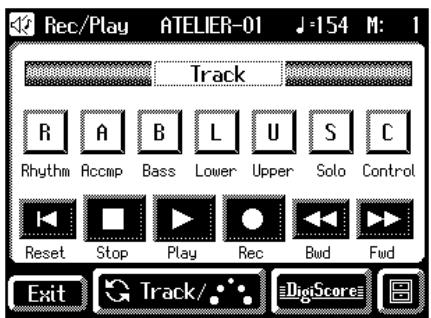
2. Touch.
The location at which playback will start will return to the beginning of measure 1.
If you wish to begin playback from the middle of the song, touch <Bwd> <Fwd> to move to the measure from which you wish to begin playback.
3. Touch to begin playback.
After playback reaches the end of the performance, it will stop automatically.

You can also begin playback by pressing theComposer [Play/Stop] button.
- To stop playback at any point, touch the
button.

You can also stop playback by pressing theComposer[Play/ Stop] button.

The Play and Stop functions can both be assigned to one of the foot switches located on each side of the Expression Pedal (p. 118).

You can specify whether or not the Expression Pedal will affect the playback and what you play while Atelier music file is being played back (p. 187).

If you load performance data (such as SMF music files) that was not designed for an ATELIER Series instrument and play it back, you may find, when playing rhythms and automatic accompaniment, that the music doesn't sound quite like it should. (For example, the wrong sounds could be played). If you want the data to be played back accurately, first press the [Reset] button prior to playback.
Add a Count Sound to Match the Timing (Count In Play)
In cases such as when you want to perform in time with a song, you can have a count sound played before playback of the song begins, allowing you to synchronize your own performance with the song.
Playing back a song after playing the count sound is called "Count In Play."
- Hold down the [Reset] button and press the [Play/Stop] button.
The metronome will play two measures (bars) of count-in before recording begins.
Recording Each Part Separately
In this method, each part (track button) is recorded one after another: first the Rhythm part, then the bass part, etc. If there are any previously recorded performances, you can listen to them as you record additional parts.
- Select the panel settings needed for recording the performance.
- Touch
on the Main screen.
The Rec/Play screen appears.
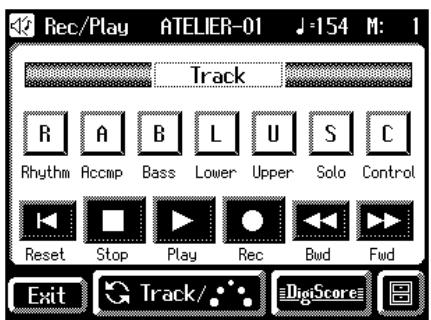
- Touch the
and buttons to select the desired measure (bar) when you start recording.
If you wish to start recording from the beginning of the song, touch the
- In the Rec/Play screen, touch
to enter recording-standby mode.
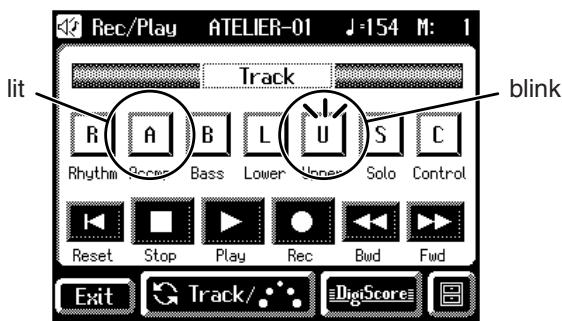
Also, the panelComposer[Rec]buttonindicatorwill light,and [Play/Stop] button will blink.

You can also enter recording-standby mode by pressing the Composer [Rec] button.
- In the Rec/Play screen, touch
to begin recording.
When you touch
As you listen to the performance song previously recorded, record the Part into a new Track.

You can also start recording by pressing theComposer [Play/Stop] button.
- In the Rec/Play screen, touch <Stop> to stop recording.
The track button for which performance data has been recorded will be lit.

You can also stop recording by pressing the Composer [Play/Stop] button.
Re-Recording
If you made a mistake in your performance during recording etc., you can re-record just a portion of the musical data in the track.
NOTE
If you wish to re-record with different settings for voices, tempo, part balance, erase the recorded song (p. 156) and re-record again. If the Control track still contains data from before you re-recorded, the volume or sounds may change during playback.
1. Touch on the Main screen.
The Rec/Play screen appears.
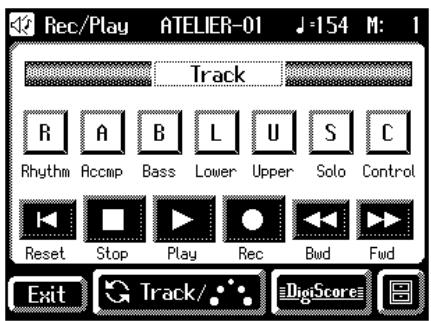
2. Touch the and buttons to select the desired measure (bar) when you start recording.
If you wish to start recording from the beginning of the song, touch the
3. In the Rec/Play screen, touch to enter recording-standby mode.
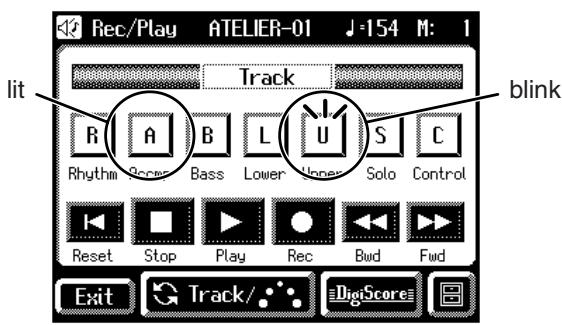
Also, the panelComposer[Rec]buttonindicatorwill light,and [Play/Stop] button will blink.
MEMO
You can also enter recording-standby mode by pressing the Composer [Rec] button.
4. Touch the Track button which you wish to rerecording (button flashes).
The song data of the specified Track (with the exception of the Control Track) will be erased as new song data is recorded.
MEMO
When the Track button is lit constantly, no song data has been recorded on that Track.
5. In the Rec/Play screen, touch to begin recording.
The metronome will sound a two-measure count, and then recording will begin.
MEMO
You can also start recording by pressing theComposer [Play/Stop] button.
6. In the Rec/Play screen, touch <Stop> to stop recording.
The buttons of tracks which were re-recorded will change from flashing to being constantly lit.
MEMO
You can also stop playback by pressing theComposer[Play/ Stop] button.
NOTE
If you wish to keep the existing Expression Pedal data, and record only the panel operations, you can make settings to prevent the operation of the Expression Pedal from being recorded (p. 186).
MEMO
You can use punch-in recording (p. 163) to re-record only the area that you specify.
Erasing a Performance Song (Song Clear)
If you wish to discard your recording and re-record from the beginning, or if you wish to record a new performance, you must erase the previously-recorded data.
1. Touch on the Main screen.
The Rec/Play screen appears.
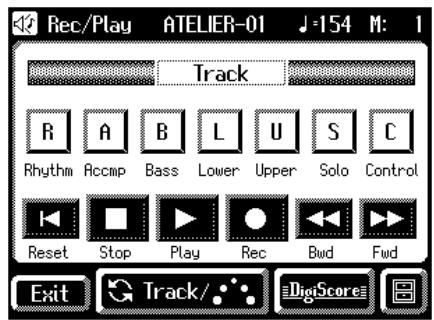
2. Touch < 0 (Utility).
The Utility screen appears.
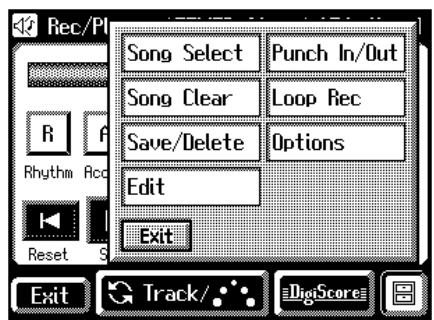
3. Touch .
The following message, asking you to confirm your choice, will be displayed.
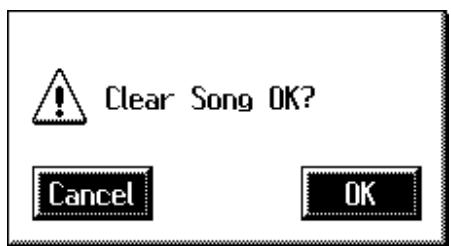
If you touch
4. If you touch <OK> , the performance data will be erased.
Changing the Name of a Performance Song (Rename)
A name is automatically assigned to a performance song that you record. However, at some point you may wish to change the name to something more meaningful.
1. Touch on the Main screen.
The Rec/Play screen appears.
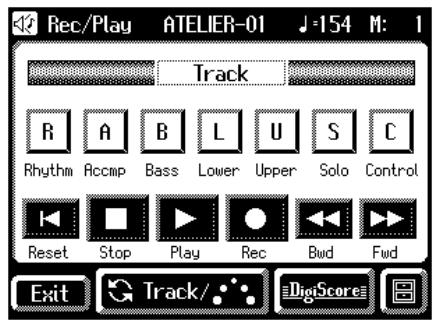
2. Touch < 0> (Utility).
The Utility screen appears.
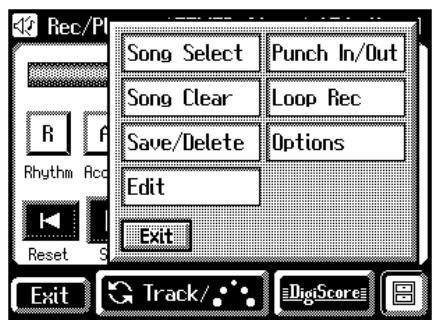
3. Touch .
The Song Save/Song Delete screen appears.
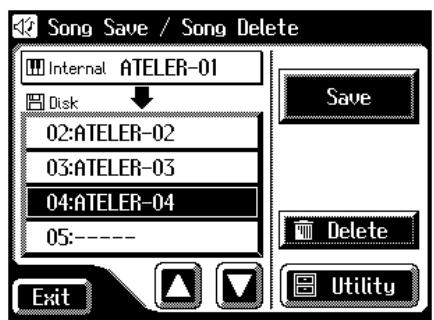
4. Touch to open the Utility screen.
The Utility screen appears.
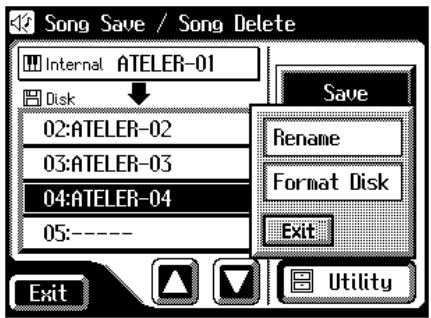
5. Touch .
The Rename screen appears.
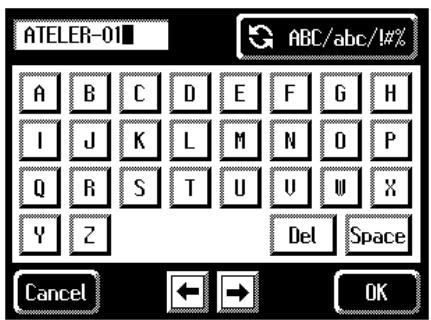
You can also access the Rename screen as follows.
- Touch <0 (Utility) on the Rec/Play screen.
The Utility screen appears.
- In the Utility screen, touch
.
The Edit Menu screen appears.
- Touch
on the Edit Menu screen.
The Rename screen appears.
- Touch the character select button (ABC/abc/10%) to switch among uppercase/lowercase/symbols.
Touch the character select button repeatedly to cycle through the available choices, like this: uppercase lowercase symbols uppercase...
7. Touch the screen to specify the desired character.
The following characters can be selected.
| ABCDEFGHIJKLMNOPQRSTUWXYZ | |
| abcdefghijklmnpqrstuvwxyz | |
| !“#%&'( )*+, -./:=?^_0123456789 | |
| Del | Deletes a character. |
| Space | Inserts a space (blank). |
| ←→ | Move the cursor (the symbol that indicates the location at which characters will be input) to left or right. |
To cancel operation, touch
8. When you're done making the settings, touch .
The new name is now inserted.
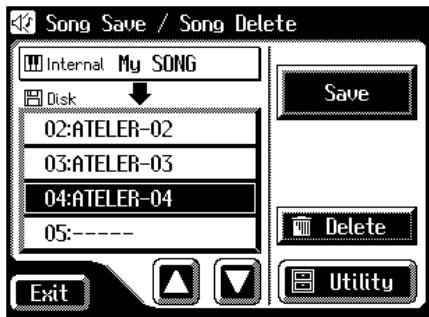
NOTE
You cannot directly change or edit the name of a performance song stored on a disk. The song must first be loaded (p. 159) into the instrument, edited, and then saved to disk again.
Saving Performance Songs Onto Floppy Disk
The performance data that you recorded will disappear when the power of the AT-80SL/60SL is turned off. If you wish to keep the performance data, you can save it on a floppy disk.
If the performance data has never been saved to a floppy disk, a "EDITED" symbol appears on the Main screen. When the performance data is saved to a floppy disk, this symbol will no longer be displayed.
- Make sure that the disk drive contains a disk that was formatted by the AT-80SL/60SL.
- Touch
on the Main screen. The Rec/Play screen appears.
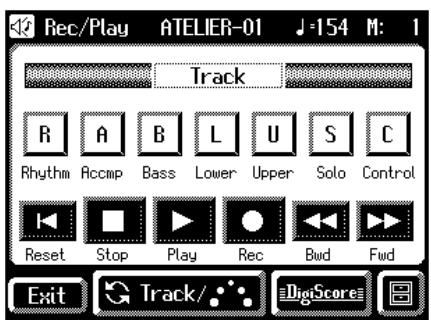
- Touch < 0 (Utility).
The Utility screen appears.
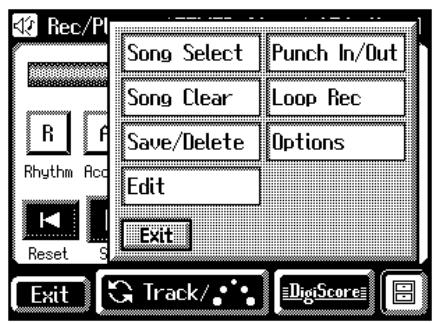
- Touch
.
The Song Save/Song Delete screen appears.
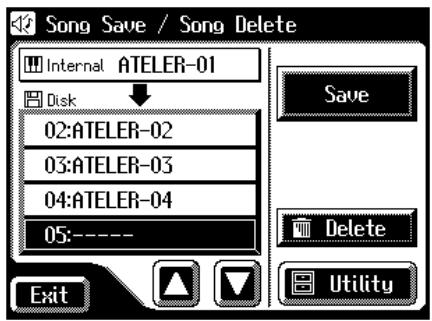
- Touch <> <> to select the number of the save destination.
Numbers which have not been used in the saving operation will be displayed as "----".
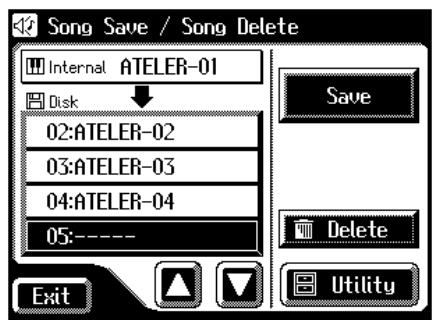
To cancel the Save operation, touch the
- Touch
.
The Save Format screen appears.
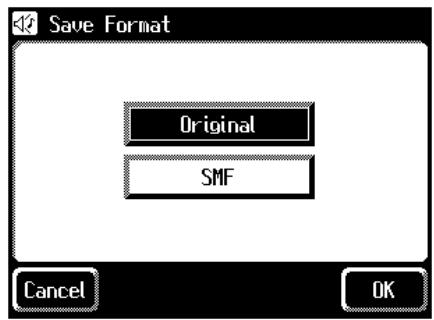
- Touch the screen to select the format in which the data will be saved.
You can select either "ORIGINAL" or "SMF" format.
| Display | Description |
| ORIGINAL | Save data in Atelier format |
| SMF | Saving in SMF Format for Atelier Sound Modules |
- Touch <OK> to finalize the save format.
Saving of the performance data will begin.
NOTE
Performance data saved by the Atelier cannot be played back properly by the sound generator of an instrument that is not a member of the Atelier series.
NOTE
Saving performance data in SMF format (SMF) requires a longer time than saving it in Atelier format (ORIGINAL).
If the following screen appears
If you select a number at which a performance data has already been saved and touch
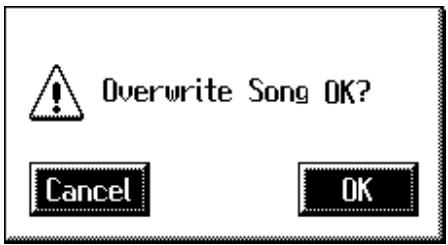
If you wish to update the contents of the performance data
- Touch
.
If you wish to save the data without erasing the performance data already on disk you must rename the song
- Touch
to stop the Save operation. - In the Song Save/Song Delete screen, select the number that is displayed as "-----" (a number that currently does not contain performance data).
- Save the performance data.
When saving is complete, the saved performance name will be displayed.
What is the SMF Format?
SMF (Standard MIDI File) is a data format that was created to provide music files compatibility between manufacturers.
Loading Performance Songs Into the AT-80SL/60SL
To edit (p. 165) or re-record a performance song that is stored on a floppy disk, you must first load that song into the instrument.
- Insert the floppy disk containing the performance data into the disk drive.
- Touch
on the Main screen. The Rec/Play screen appears. - Touch < (Utility). The Utility screen appears.
- Touch
. The Song Select screen appears.
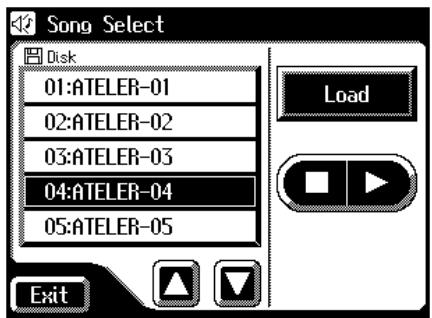
- Touch <> to select the performance data that you wish to load into internal memory.
- Touch
.
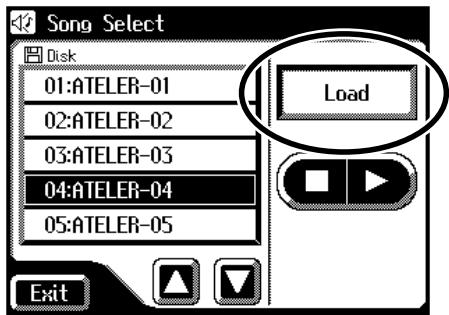
The selected performance data will be loaded into internal memory.
If the following screen appears
The message below is shown when the performance song in the unit has not been saved to disk.
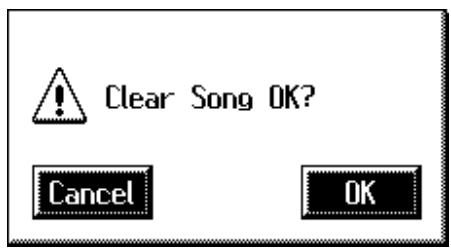
If you wish to erase the performance song
- Touch the
button.
If you wish to save the performance song on a floppy disk
- Touch the
button.
Save the song on a floppy disk (p. 158).
If loading is canceled because the memory limit has been reached, the following message will be displayed:
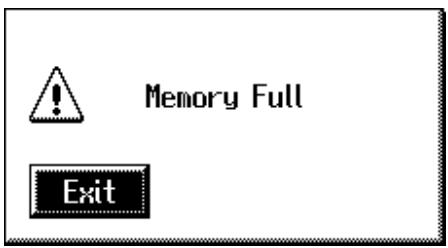
Deleting Performance Songs Stored on Disk
You can delete a performance song that was saved onto a floppy disk.
- Insert the floppy disk containing the performance data into the disk drive.
- Touch
on the Main screen.
The Rec/Play screen appears.
- Touch < 0> (Utility).
The Utility screen appears.
- Touch
.
The Song Save/Song Delete screen appears.
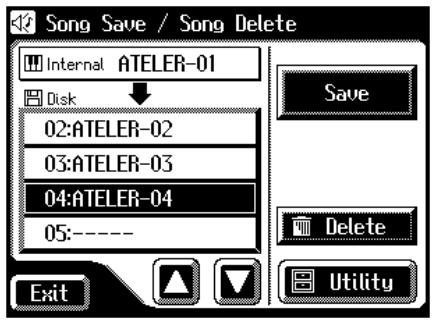
- Touch <> to select the performance data that you wish to delete.
- Touch
.
The confirmation message appears.
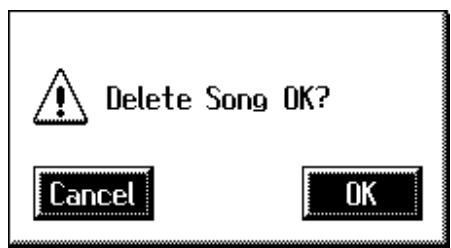
If you touch
- When you touch <OK> the performance data will be deleted.
Layering a New Recording onto SMF Music Files
You can load commercially available SMF music files into the AT-80SL/60SL, and record your own performance on top of it. During recording, the data you've loaded will be played back, while you record your performance.
- Insert a floppy disk containing commercially available SMF music files into the floppy disk drive.
- Touch
on the Main screen.
The Rec/Play screen appears.
- Touch < 日> (Utility). The Utility screen appears.
- Touch
. The Song Select screen appears.
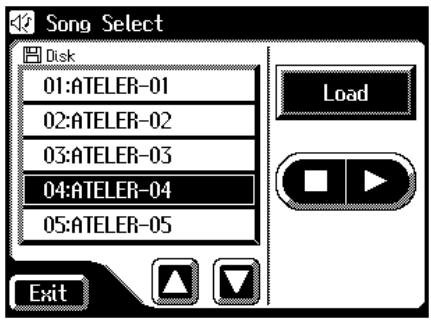
- Touch <>><> to select the performance data that you wish to load into internal memory.
- Touch
(load performance data).
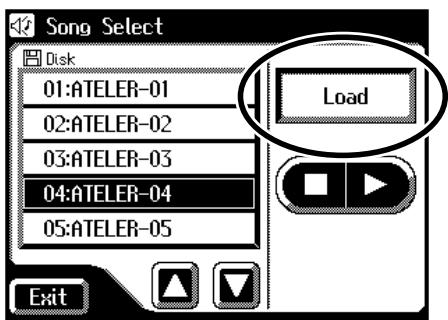
The selected performance data will be loaded into internal memory.
For track assignments of SMF format performance data loaded to the AT-80SL/60SL, refer to p. 147.
- Select the panel settings needed for recording the performance.
- Touch the
button and button to move to the measure at which you wish to begin recording. - In the Rec/Play screen, touch
to enter recording-standby mode.
Also, the panelComposer[Rec]buttonindicatorwill light,and the [Play/Stop] button will blink.

You can also enter recording-standby mode by pressing the Composer [Rec] button.
- Touch the Track button which you wish to recording (button flashes).
- In the Rec/Play screen, touch
to begin recording.
As you record, the music file that was loaded into the AT-80SL/60SL will play back.
- In the Rec/Play screen, touch
to stop recording.
The track button for which performance data has been recorded will be lit.

You can also start and stop recording by pressing theComposer [Play/Stop] button.

The performance data you recorded can be saved on a floppy disk (p. 158).

Commercially sold music files can also be loaded into the AT-80SL/60SL, but for reasons of copyright protection, cannot be saved in SMF format.
Using Song with a Different Tempo Than That of the Performance Song
- Insert the floppy disk containing the performance song whose tempo you want to change into the disk drive.
- Load the performance data into the unit (p. 159).
- Determine the tempo with the Tempo [][] buttons.
- Hold down the panel [Reset] button and press the [Rec] button.
NOTE
You cannot carry out this operation with the
Re-Recording Part of Your Performance (Punch-in Recording)
After you have recorded a performance, you can re-record a specified portion of the performance.
With this method, you listen to the recorded performance, and re-record just the desired area. This recording method is called "Punch-in Recording."
To Specify the Segment to be Recorded Over Again
- Touch
on the Main screen.
The Rec/Play screen appears.
- Touch < 0> (Utility).
The Utility screen appears.
- Touch
.
The Punch In/Out screen appears.
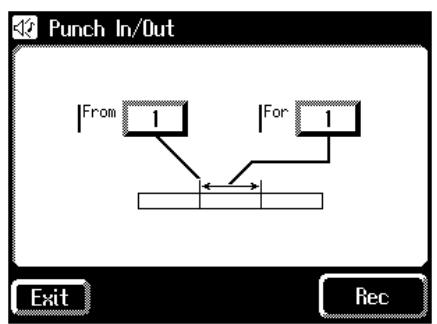
- Touch the "From" value (the measure at which recording will begin).
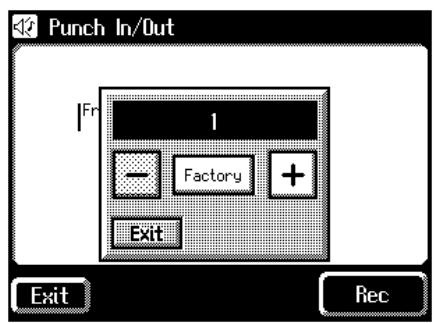
- Touch <-> <+> to specify "From" (the measure at which recording will begin).
- Touch the "For" value (the number of measures that will be re-recorded).
- Touch <-> <+> to set "For" (the number of measures that will be re-recorded).
- Touch
.
The Rec/Play screen appears, and the unit is placed in recording standby.
To Record While Listening to the Song
- Press the Track button which you wish to re-record (indicator flashes).
- Touch
to begin recording.
When you touch
When you reach the first measure of the specified area, recording will begin. When the specified area ends, recording will end, and playback will resume.
While the song is playing back or recording, the Composer [Rec] button's indicator will be lit as follows.
| While the performance is playing back | TheComposer [Rec] button's indicator will flash |
| While you are re-recording | TheComposer [Rec] button's indicator will light constantly |
When recording has ended for the specified area and the data is once again playing back, the [Rec] button's indicator will resume flashing.
11. Touch <Stop> to stop the recording.
The indicator of the track button which recorded the performance will light.
Recording and Layering Drum Parts (Loop Recording)
You can repeatedly record over a specified region of the rhythm part, adding additional notes at each pass. This type of recording is called "Loop Recording."
This recording method is convenient when you wish to layer drum sounds individually for the Rhythm part.
NOTE
"Loop Recording" can be used only when recording the Rhythm part.
- Press the [Drums/SFX] button or the [Manual Perc] button to select a Drum Set or Sound Effect Set (p. 56–p. 59).
- Touch
on the Main screen.
The Rec/Play screen appears.
- Touch the
and on the Rec/Play screen, move to the measure where you wish to start Loop Recording. - Touch < 0> (Utility).
The Utility screen appears.
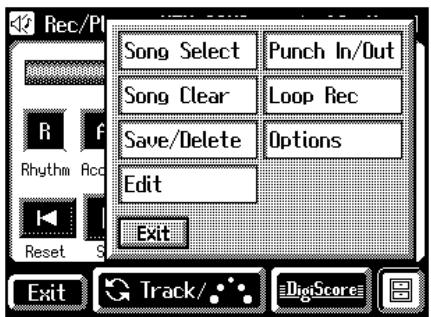
- Touch
.
The Loop Rec screen appears.

- Touch the "For" value (the number of measures that will be recorded repeatedly).
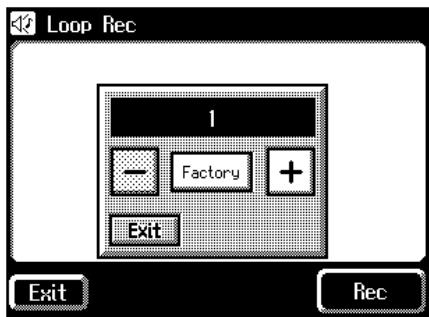
To cancel operation, touch
- Touch <-> <+> to specify the "For" value (the number of measures that will be recorded repeatedly).
- Touch
.
The Rec/Play screen appears, and the unit is placed in recording standby.
- Touch
to begin recording.
When you touch the
- Touch
to stop playback.
The indicator of the Rhythm track button which recorded the performance will light.
Count-In Recording
This setting (ON/OFF) determines whether or not a metronome count-in (2 measures) will be heard after pressing the [Play/Stop] button on recording.
- Touch
on the Main screen.
The Rec/Play screen appears.
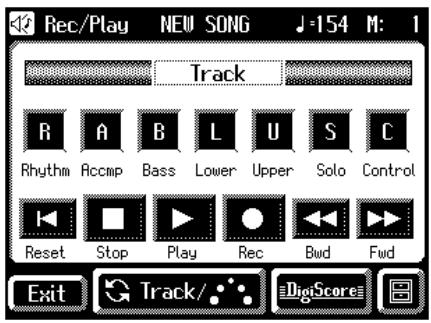
- Touch the Count-In Rec setting (ON/OFF) to switch it between "ON/OFF."
Each time you touch the Count-In Rec setting, it will alternate between ON/OFF.
| Setting | Description |
| ON | A two-measure count will sound before recording |
| OFF | No count will sound before recording |
-
Touch
. -
Touch < 0 (Utility).
The Utility screen appears.
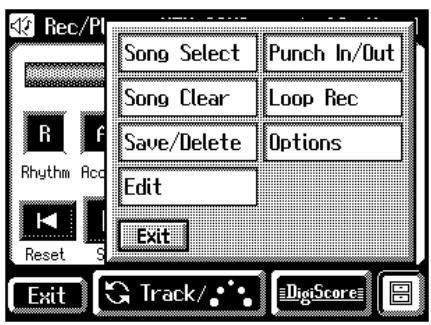
- Touch
.
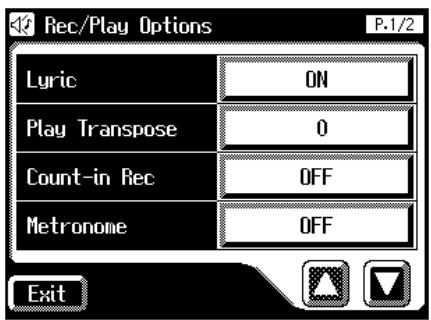
- Touch <><> to display the Count-In Rec.
Chapter 8 Editing Your Musical Performance Data
Song files that you record can be edited using five different functions.
The following editing functions are provided.
| Menu | Descriptions | Page |
| Delete Measure | Deleting a Specific Measure. | p. 165 |
| Delete Track | Delete the Recording from a Track. | p. 166 |
| Erase Event | Erase Recording. | p. 168 |
| Copy | Copying Measures. | p. 170 |
| Quantize | Correct Timing Inaccuracies. | p. 171 |
| Rename | Change the name of the performance data. | p. 156 |
NOTE
Once you edit data, it cannot be restored to its original condition. As a precaution against accidents, we recommend that you save your song to a floppy disk before you edit it (p. 158).
Deleting a Specific Measure (Delete Measure)
You can delete a portion of the performance data. This function lets you delete specified measures (bars) of the song from all tracks. When any part of the song file is deleted, subsequent recording will be moved forward to fill the gap.
Example: To delete measures (bars) 5-8
| 1 | 2 | 3 | 4 | 5 | 6 | 7 | 8 | 9 | 10 |
| 1 | 2 | 3 | 4 | 5 | 6 |
1. Touch on the Main screen.
The Rec/Play screen appears.
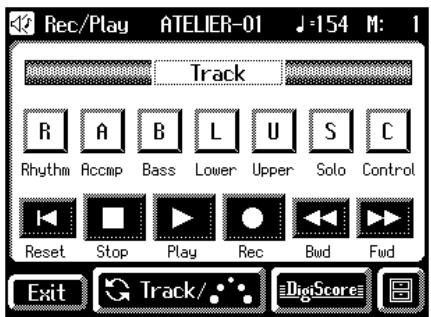
- In the Rec/Play screen, touch < 8> (Utility) to open the Utility screen.

3. In the Utility screen, touch .
The Edit Menu screen appears.
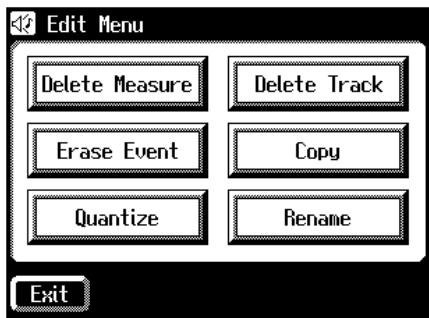
4. Touch .
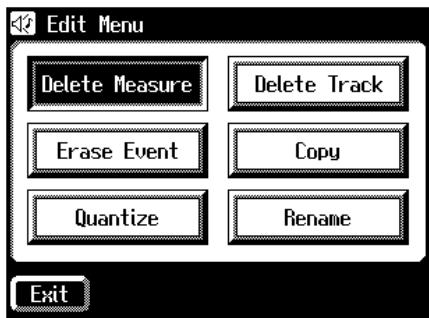
The Delete Measure screen appears.
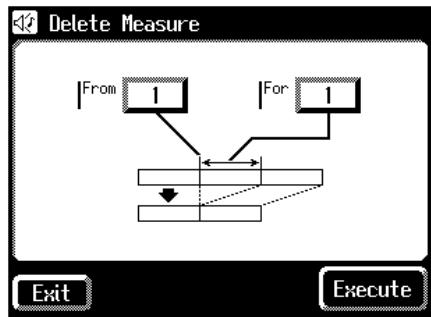
- Touch the "From" value (the first measure that you wish to delete).
- Touch <-> <+> to set "From" (the first measure that you wish to delete).
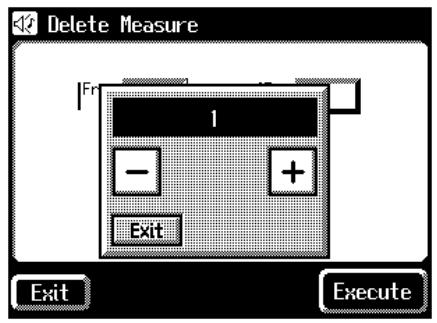
- When you're done making the settings, touch
. - Touch the "For" value (the number of measures that you wish to delete).
- Touch <-> <+> to set "For" (the number of measures that you wish to delete).
To delete to the last measure, select "ALL."
- When you're done making the settings, touch
. - Touch
.
The following display appears.
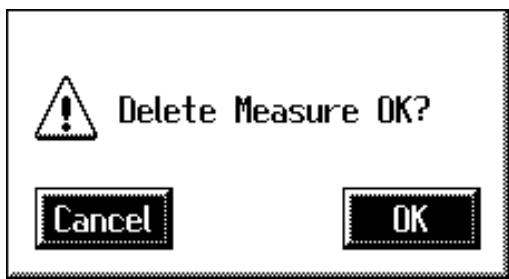
To cancel operation, touch <Cancel> .
- Touch
to delete the measures.
When deletion has been completed, you are returned to the Delete Measure screen.
Delete the Recording from a Track (Delete Track)
The AT-80SL/60SL has seven tracks. This function lets you delete the recording from a track that you specify.

For more on the content stored on each track, refer to p. 144.
- Touch
on the Main screen.
The Rec/Play screen appears.
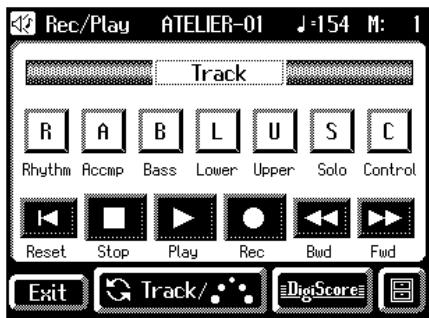
- In the Rec/Play screen, touch < 0> (Utility) to open the Utility screen.
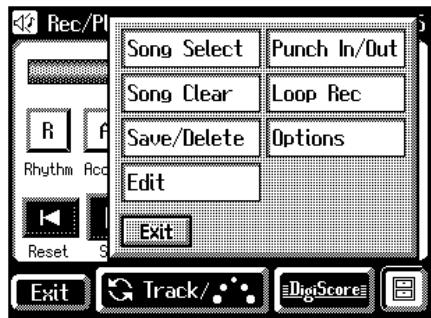
- In the Utility screen, touch
.
The Edit Menu screen appears.
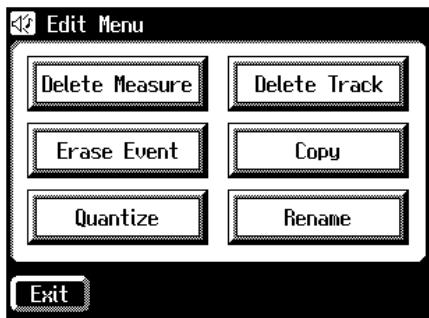
4. Touch .
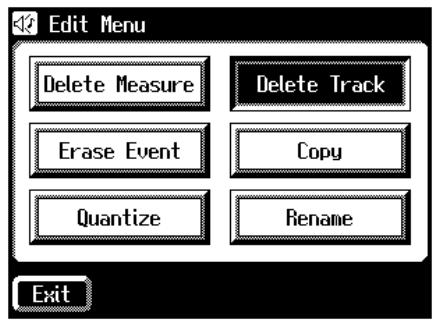
The Delete Track (delete the performance data of a track) screen appears.

- Touch the "Track" value (the track whose performance data you wish to delete).
- Touch <>> <+> to select the "Track" (the track whose performance data you wish to delete).
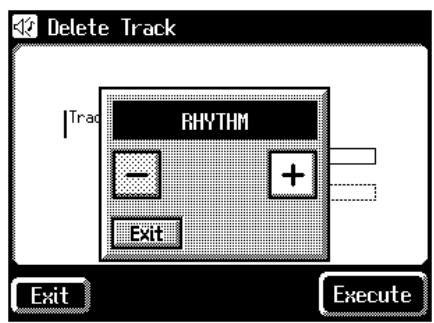
Settings: RHYTHM, ACCOMP, BASS, LOWER, UPPER, SOLO, CONTROL
-
When you're done making the settings, touch
. -
Touch
.
The following display appears.
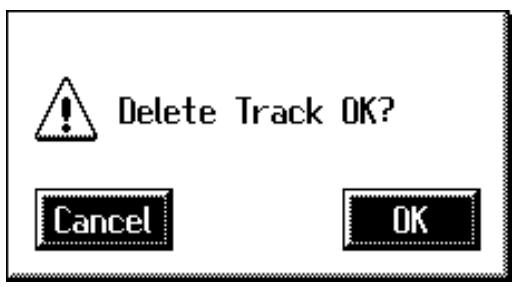
To cancel operation, touch <Cancel> .
- Touch <OK> to delete the performance data.
When the recording has been deleted, the Delete Track screen will reappear.
Erase Recording (Erase Event)
You can erase a specified portion of the performance in a specified area without making the song shorter. This is called the "Erase" function.
As an alternative to the method of erasing all performance data in a specified area, you can erase the following contents of the performance.
| ALL | All recording |
| NOTE | Notes played on the keyboard |
| PANEL | Panel operations, Content Saved to the Control Track (Information Other than Expression, Voice, and Tempo Data) → Refer to p. 144. |
| EXPRESSION | Expression pedal recording |
| VOICE | Voice settings |
| TEMPO | Tempo setting |
Example: Erasing measures (bars) 5-8
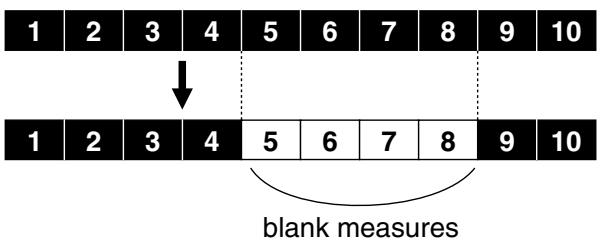
- Touch
on the Main screen.
The Rec/Play screen appears.
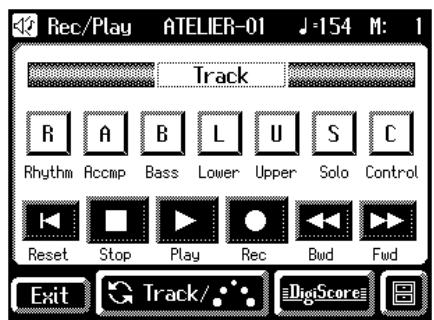
- In the Rec/Play screen, touch < 8> (Utility) to open the Utility screen.
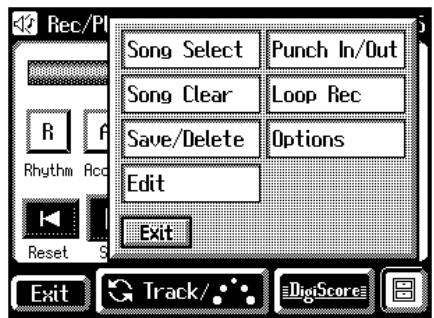
- In the Utility screen, touch
.
The Edit Menu screen appears.
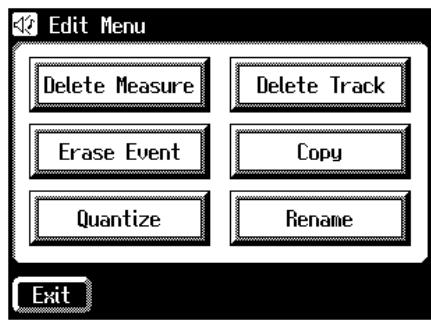
- Touch
.
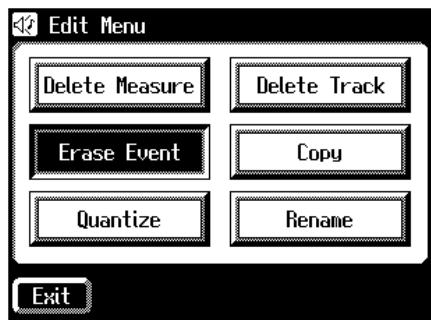
The Erase Event screen appears.
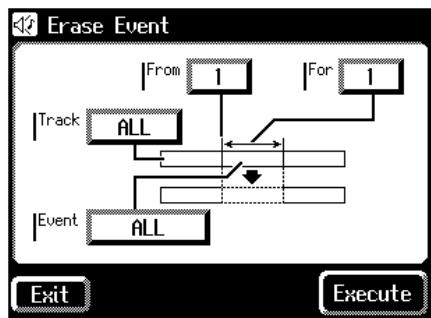
-
Touch the "Event" value (the type of performance data that you wish to erase).
-
Touch <-> <+> to specify the "Event" (the type of performance data that you wish to erase).
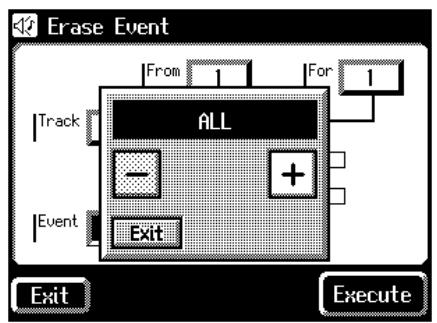
Settings ALL, NOTE, PANEL, EXPRESSION, VOICE, TEMPO
- When you're done making the settings, touch
. - Touch the "Track" value (the track from which data will be erased).
- Touch <-> <+> to specify the "Track" (the track from which data will be erased).
If you have selected EXPRESSION, VOICE and TEMPO as the type of recording to be erased, the Part selection will not be available because the expression control recording is common to all parts.
Settings ALL, RHYTHM, ACCOMP, BASS, LOWER, UPPER, SOLO, CONTROL
If you select "ALL," the recording will be erased from all parts.
10.When you're done making the settings, touch
11. Touch the "From" value (the measure at which erasure will begin).
12. Touch <-> <+> to set "From" (the measure at which erasure will begin).
13.When you're done making the settings, touch
14. Touch the "For" value (the number of measures from which the data will be erased).
15. Touch <><+ to set "For" (the number of measures from which the data will be erased).
If you wish to erase to the last measure (bar), set "for: ALL."
- When you're done making the settings, touch
. - Touch
.
The following display appears.
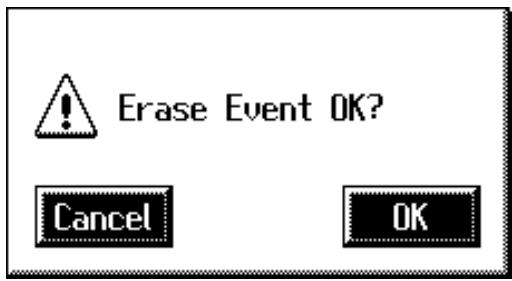
To cancel operation, touch
- Touch <OK> to erase the performance data.
Once the performance data has been erased, you are returned to the Erase Event screen.
Copying Measures (Copy)
This function lets you copy a portion of recorded song to a different measure (bar) location in the same track.
If a recording already exists at the copy destination, it will be erased.
Example: To copy measures (bars) 5-7 to measure (bar) 8
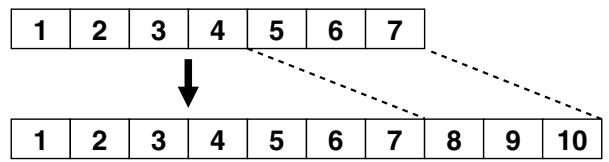
1. Touch on the Main screen.
The Rec/Play screen appears.
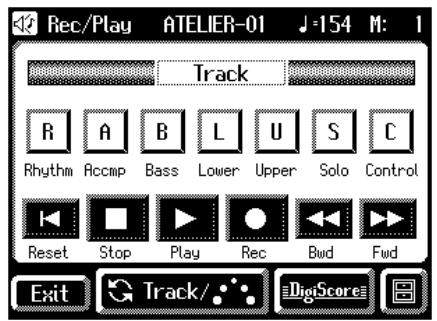
- In the Rec/Play screen, touch < 0> (Utility) to open the Utility screen.
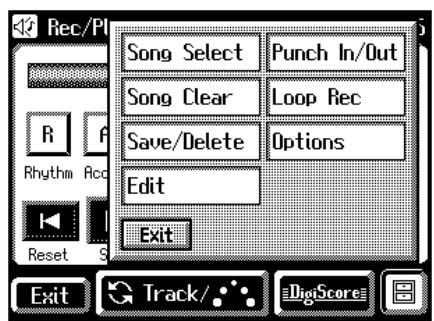
- In the Utility screen, touch
.
The Edit Menu screen appears.
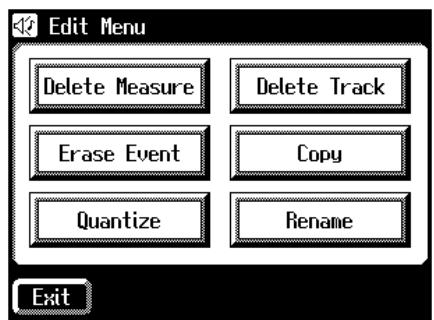
- Touch
.
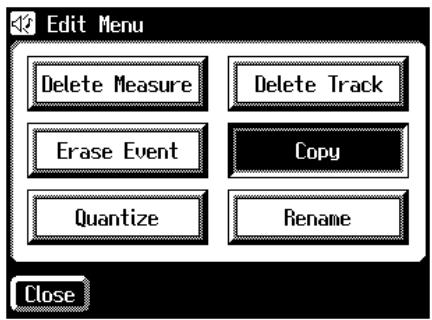
The Copy screen appears.
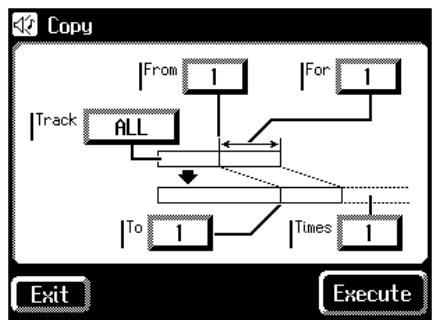
- Touch the "Track" value (the track to be copied).
- Touch <-> <+> to set "Track" (the track to be copied).
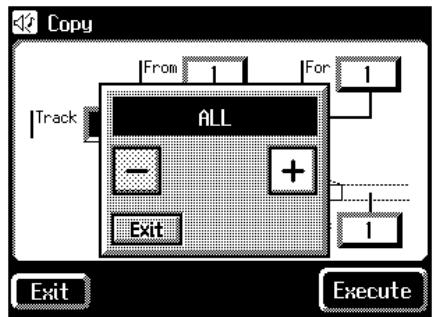
Settings: ALL, RHYTHM, ACCOMP, BASS, LOWER, UPPER, SOLO, CONTROL
If you select "ALL," the recording in all the tracks will be copied.
- When you're done making the settings, touch
. -
Touch the "From" value (the measure at which copying will begin).
-
Touch <><+ to set "From" (the measure at which copying will begin).
10.When you're done making the settings, touch. - Touch the "For" value (the number of measures to be copied).
- Touch <-> <+> to set "For" (the number of measures to be copied).
If you want to specify all of the data up to the final measure, select "ALL."
13.When you're done making the settings, touch
14. Touch the "To" value (the copy-destination measure number).
15. Touch <-> <+> to set "To" (the copy-destination measure number).
If you select "END," the data will be copied following the end of the last measure.
- When you're done making the settings, touch
. - Touch the "Time" value (the number of times that the data will be copied).
- Touch <-> <+> to set "Time" (the number of times that the data will be copied).
19.When you're done making the settings, touch. - Touch
.
The following display appears.

To cancel operation, touch <Cancel> .
- Touch
to copy the measures.
Once the measures have been copied, you are returned to the Copy screen.
Correct Timing Inaccuracies (Quantize)
You can correct for timing discrepancies in a recorded performance by having the music be aligned with a timing you specify. This is called "Quantizing."
For example even if you intend to play at quarter-note timing, the notes may be slightly earlier or later than precise quarter-note intervals. In this case, if you quantize at quarter-note (1/4) timing, you can correctly match the rhythms.
- Touch
on the Main screen.
The Rec/Play screen appears.
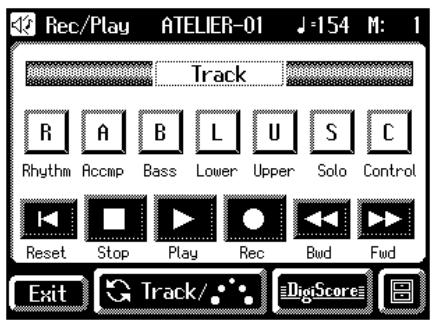
- In the Rec/Play screen, touch < > (Utility) to open the Utility screen.
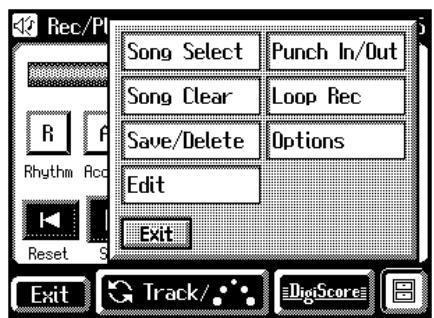
- In the Utility screen, touch
.
The Edit Menu screen appears.
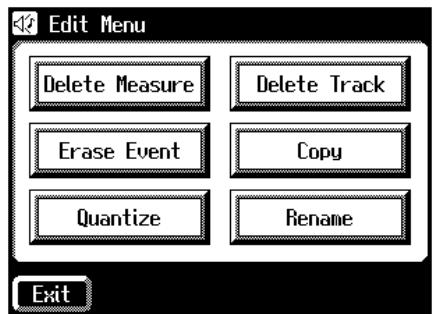
4. Touch .
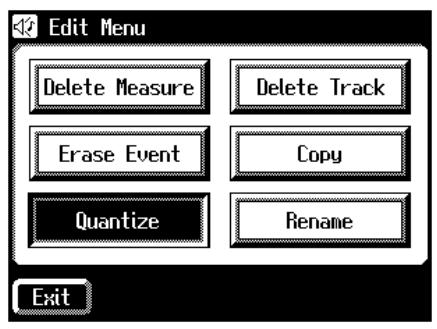
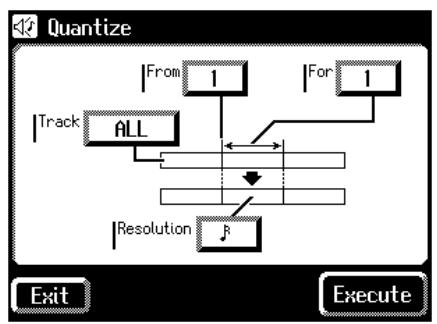
The Quantize screen appears.
- Touch the "Track" value (the track that will be quantized).
- Touch <-> <+> to specify the "Track" (the track that will be quantized).
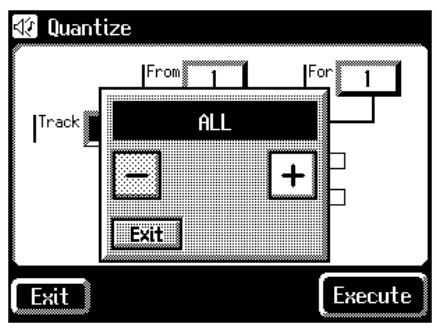
Settings ALL, RHYTHM, ACCOMP, BASS, LOWER, UPPER, SOLO
If you select "ALL," the recording in all the tracks will be quantized.
- When you're done making the settings, touch
. - Touch the "From" value (the measure at which quantization will begin).
- Touch <-> <+> to set "From" (the measure at which quantization will begin).
10.When you're done making the settings, touch
11. Touch the "For" value (the number of measures that will be quantized).
12. Touch <-> <+> to set "For" (the number of measures that will be quantized).
To specify everything through to the last measure, set "for: ALL."
13.When you're done making the settings, touch
14. Touch the "Resolution" value (the resolution at which notes will be aligned).
15. Touch <-> <+> to set "Resolution" (the resolution at which notes will be aligned).
The "Resolution" (the timing to which notes are aligned) can be set to one of the following settings.
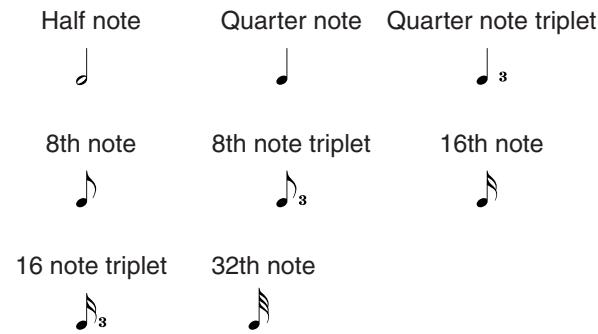
- When you're done making the settings, touch
. - Touch
. The following display appears.
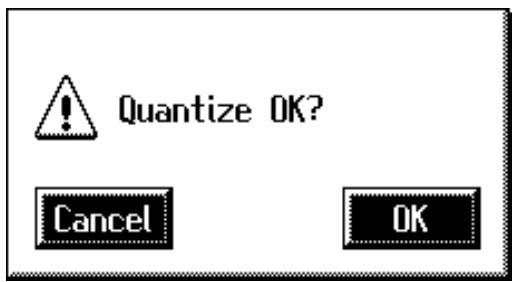
To cancel operation, touch
- Touch
to have the quantization carried out.
When the quantizing is finished, you are returned to the Quantize screen.
Chapter 9 Creating Original Accompaniment Rhythms
You can edit some of the internal rhythms to create your own original rhythms. These original rhythms are called "User rhythms." This function is called "Rhythm Customize."
Process for Creating User Rhythms
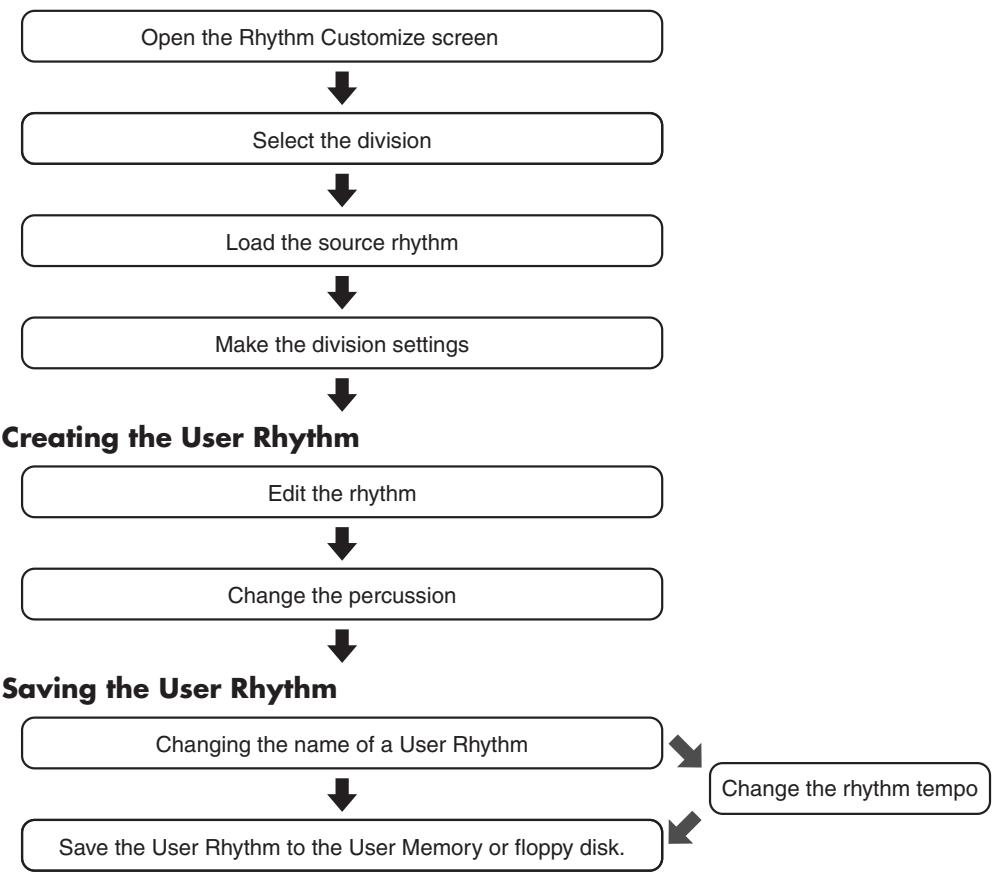
Preparations for Creating User Rhythms
Copying the User Rhythm
- Copy User Rhythm on Floppy Disks to the User Memory
- Copy User Rhythm on User Memory to the Floppy Disks
Preparations for Creating User Rhythms
Displaying the Rhythm Customize Screen
- Touch
on the Main screen.
The Rhythm screen appears.
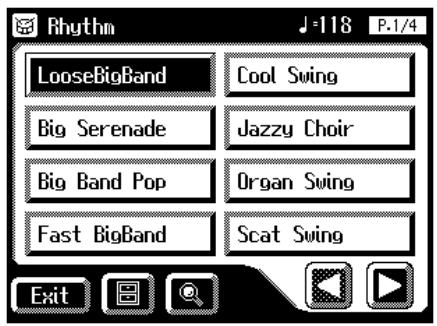
- In the Rhythm screen, touch < 0> (Utility).
The Utility screen appears.
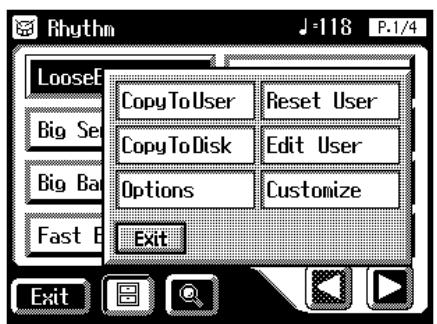
- Touch
.
The Rhythm Customize screen appears.
When opening a new Rhythm Customize screen
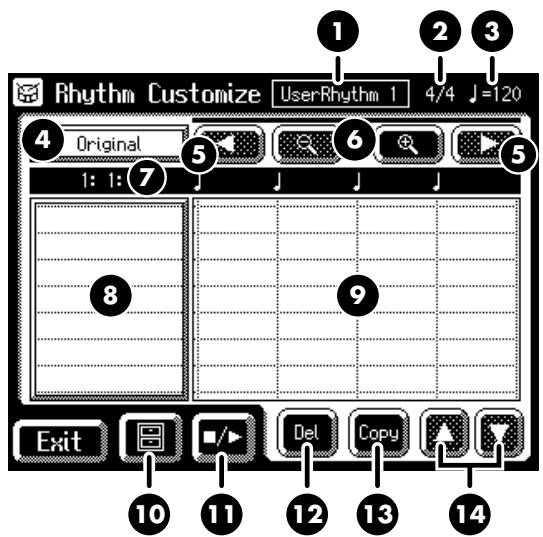
When calling up a source.
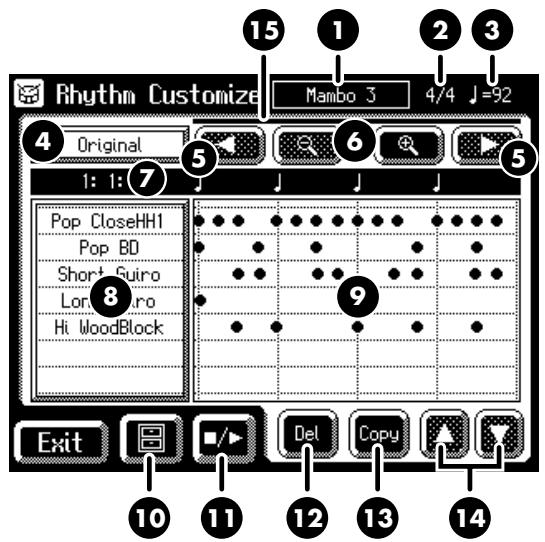
| 1 | Rhythm Name |
| 2 | Beat |
| 3 | Tempo |
| 4 | Division Name (p. 175) |
| 5 | buttonSwitches the page when the rhythm pattern is displayed over multiple pages. |
| 6 | (Zoom Out/Zoom In) buttonExpands (zooms in) and reduces (zooms out) the rhythm pattern display. |
| 7 | Current location (Measure: Beat: Tick) |
| 8 | Instrument NameIndicates the name of the instrument used in the rhythm. |
| 9 | Rhythm Pattern DisplayDisplays the notes in the selected rhythm pattern. |
| 10 | (Ultility) buttonDisplays the menu with settings for the Rhythm Customize function. |
| 11 | (Preview) buttonAllows you to listen to the created rhythm. |
| 12 | (Copy) buttonDeletes the rhythm in the displayed measure. |
| 13 | (Copy) buttonCopies the rhythm in the displayed measure and adds it to the end of that measure. |
| 14 | buttonWhen more than eight different instruments are used in a rhythm, press these buttons to switch through the instrument names. |
| 15 | Scroll BarThis indicates the position of the current measure in the overall rhythm. |
Selecting the Division
What is the Division?
A song progresses in predictable a sequence, such as intro, melody A, melody B, bridge and ending.
With the AT-80SL/60SL, such changes in songs are allocated to the following six performance states. We call these six parts of a song "Divisions."
| Division | Performance division |
| Intro | The intro is played at the start of a song. |
| Original | This is a basic accompaniment pattern. |
| Fill In To Variation | This is a phrase inserted at a juncture where the mood changes. It is used to make a song more lively. After the phrase is played, the variation's accompaniment pattern is played. |
| Variation | This is a developmental accompaniment pattern. It is a variation on an Original. |
| Fill In To Original | This is a phrase inserted at a juncture where the mood changes. It is used to make a song more sedate. After the phrase is played, the original's accompaniment pattern is played. |
| Ending | This is played at the end of a song. |
You can make a song more lively or more restrained by increasing or reducing played parts by Divisions. You can also modify a song by changing the voice of the parts in the Divisions.
- Bring up the Rhythm Customize screen (p. 174).
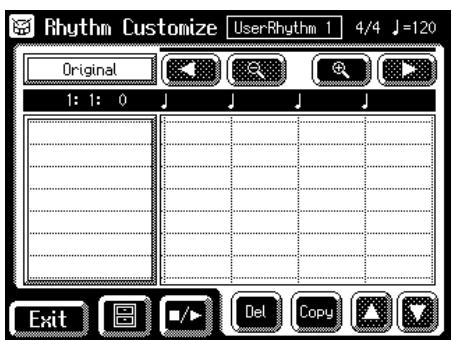
- Touch < 0> (Utility).
The Utility screen appears.
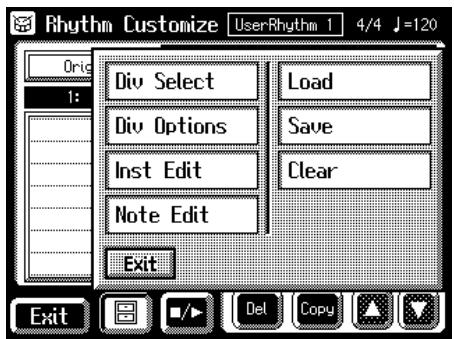
- Touch (Division Select).
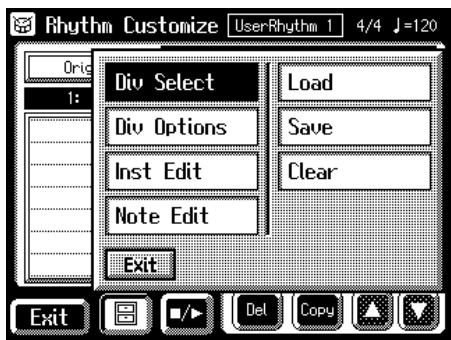

You can open the Division Select screen by touching the Division name indication (p. 174) in the Rhythm Customize screen.
- Touch a Division name to select the Division.
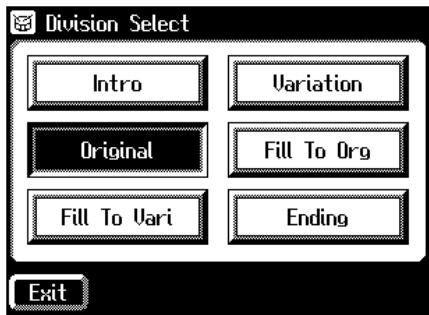
This returns you to the Rhythm Customize screen. The name of the selected division now appears in the Rhythm Customize screen.
You can touch < 1 / 2> to hear how the rhythm sounds.
Loading the Rhythm
Use the Rhythm Customize function to select the rhythm you want to use as the base for the rhythm you are creating.
- Bring up the Rhythm Customize screen (p. 174).
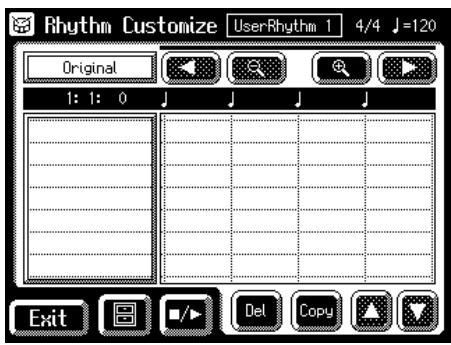
- Touch < 0> (Utility).
The Utility screen appears.
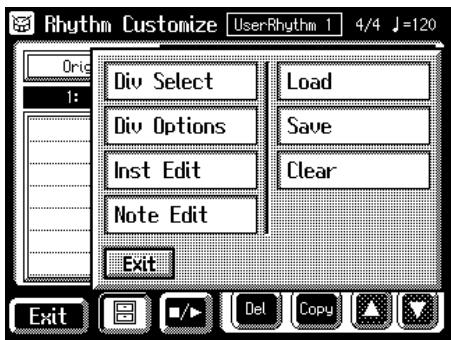
- Touch
.
The Rhythm Load screen appears.
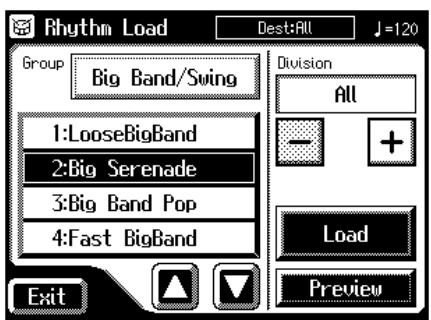
- Touch a Rhythm group name.
The sub-window for selecting the rhythm group appears.
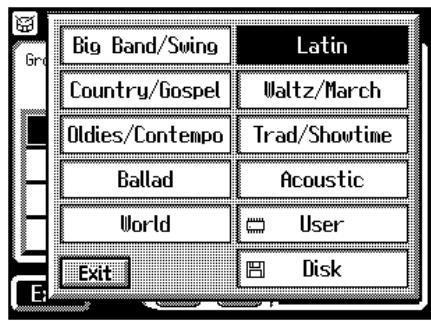
- Touch a Rhythm group name on the sub-window to select the Rhythm group.
The Rhythm Load screen reappears.
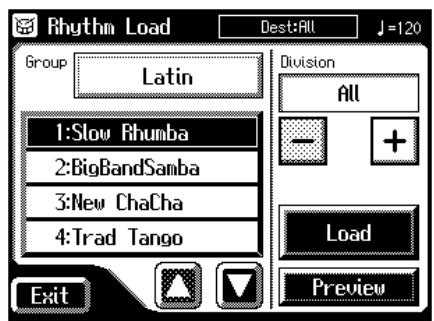
- Touch <> to switch the screen, then touch a rhythm name to select the rhythm.
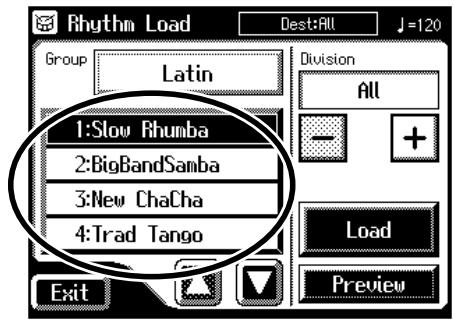
You can touch
to hear how the rhythm sounds. - Touch <-> <+> to select the Division you want to call up.
Selecting "ALL" calls up all of the Divisions.
- Touch
.
The rhythm is called up, and the Rhythm Customize screen returns to the display.
Making the Division Settings
Independent "Drum Set," "Beat," and "Volume" settings can be made for each Division.
- Bring up the Rhythm Customize screen (p. 174).
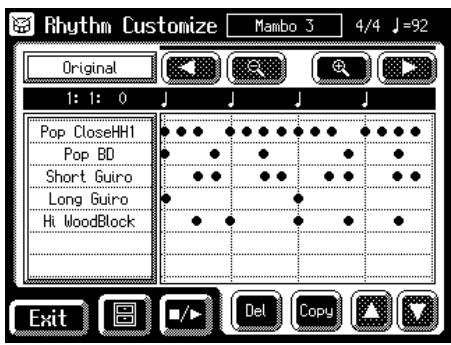
- Touch < 0> (Utility).
The Utility screen appears.
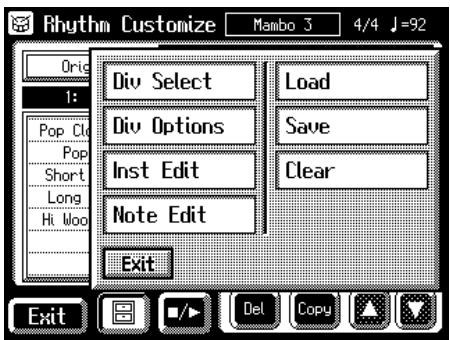
- Touch (Division Options).
The Division Options screen appears.
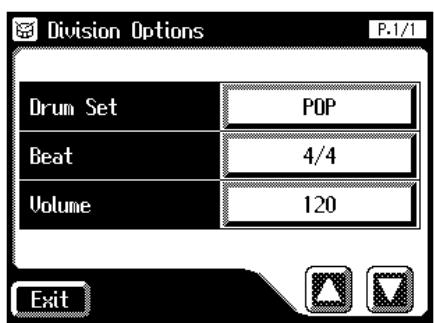
Changing the Drum Set
- Touch the value set for Drum Set
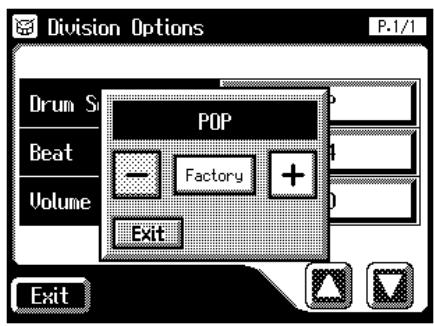
- Touch <-> <+> to change the setting.
- Touch
. The Division Options screen reappears.
Changing the Beat
- Touch the Beat setting.
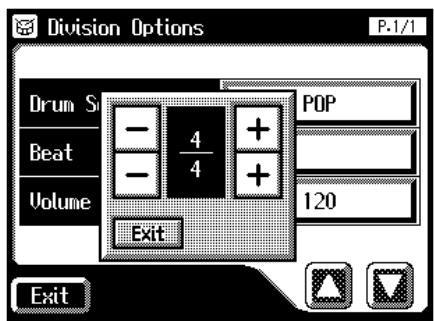
- Touch <-> <+> to change the setting.
- Touch
. The Division Options screen reappears.
Changing the Volume
- Touch the Volume setting.
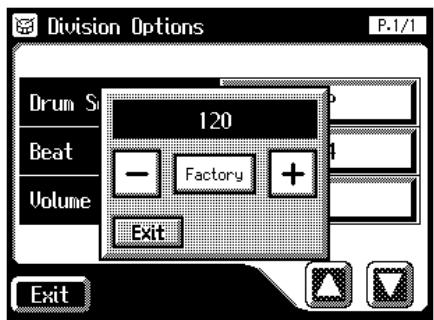
-
Touch <-> <+> to change the setting.
-
Touch
.
The Division Options screen reappears.
■ Editing the Rhythm
Edit the internal rhythm.
What you can do Page Copying the Rhythm in a Selected Measure p. 178 Deleting the Rhythm in a Selected Measure p. 178 Erasing Sounds p. 179 Adding Sounds p. 179 Altering Voices p. 180 Changing the Velocity p. 180 Moving Sounds p. 180 Copying the Rhythm in a Selected Measure
- Bring up the Rhythm Customize screen (p. 174).
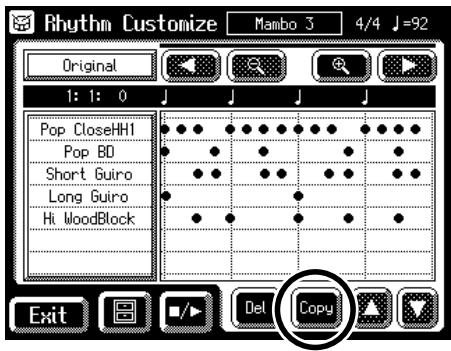
- Touch <Copy> (to copy the selected measure).
The following screen appears.
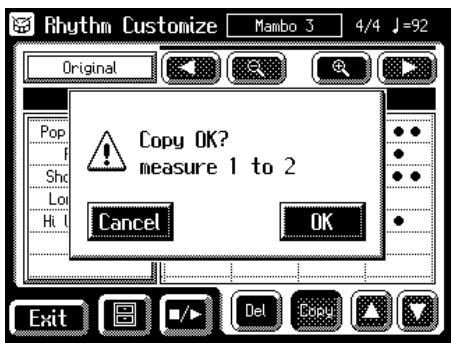
To cancel operation, touch
. - Touch
.
Copies the rhythm in the displayed measure and adds it to the end of that measure.
Deleting the Rhythm in a Selected Measure
- Bring up the Rhythm Customize screen (p. 174).
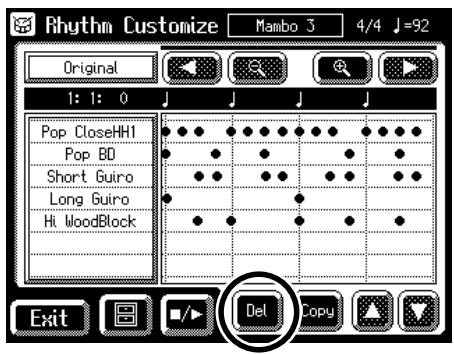
- Touch <Del> (to copy the selected measure).
The following screen appears.
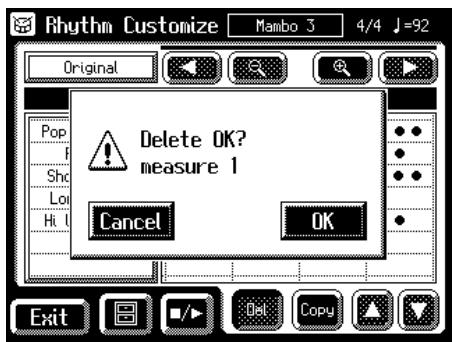
To cancel operation, touch
. - Touch
.
The selected measure is deleted.
Editing the Sounds
You can add and erase sounds, alter voices, and change the velocity.
- Bring up the Rhythm Customize screen (p. 174).
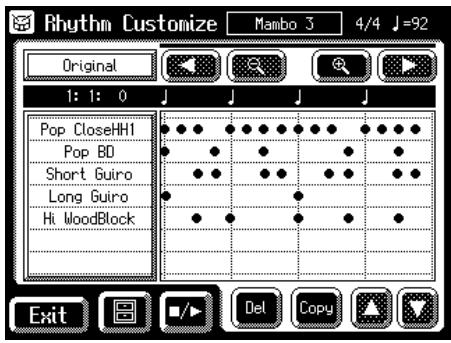
- Touch the point on the screen where the sound you want to edit is located.
When you touch the screen, a line appears at the point you touch. By holding your finger to the screen and moving it to the left or right, you can have the line move along with your finger.
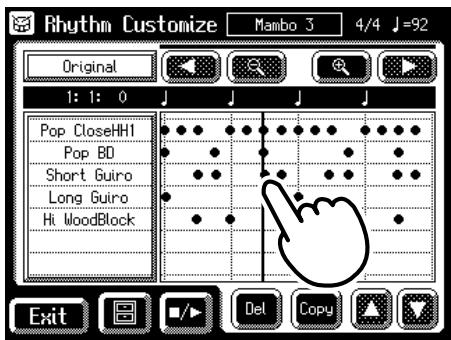
The information on the location (Measure: Beat: Tick) of the line on the screen is displayed.
When you remove your finger from the screen, the Note Edit screen opens, and the note positioned at the line in the Rhythm Customize screen is displayed.
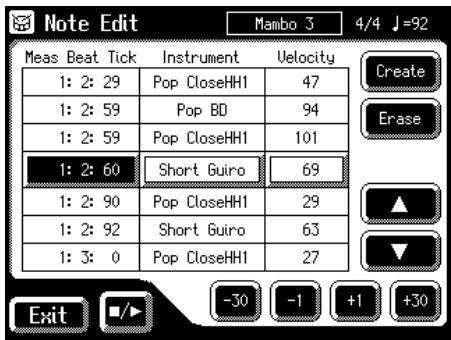

You can touch < to open the Utility screen, and then touch
in the Utility screen to open the Note Edit screen. Erasing Sounds
- Touch < > < > to select the point where you want to delete the sound.
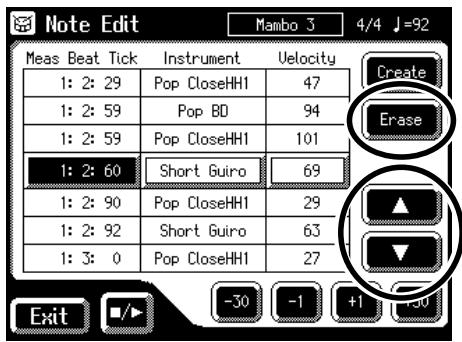
- When you touch <Erase> , the selected sound is erased.
Adding Sounds
- Touch <> <> to select the point where you want to add the sound.
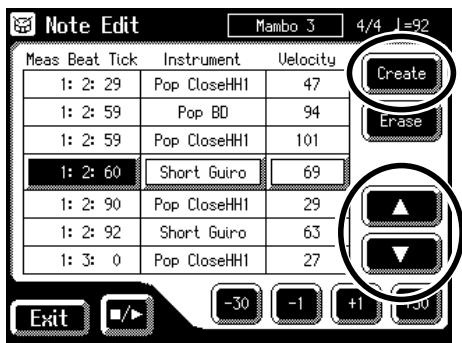
- When you touch < Create , the new sound is added after the selected sound.
Altering Voices
- Touch < > < > to select the sound whose voice you want to change.
- Touch the Instrument name.
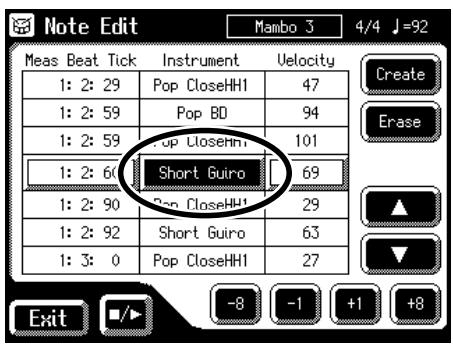
- Touch < -8><-1><+1><+8> to switch the voice.
Changing the Velocity
- Touch <> <> to select the sound whose velocity you want to change.
- Touch the Velocity setting.
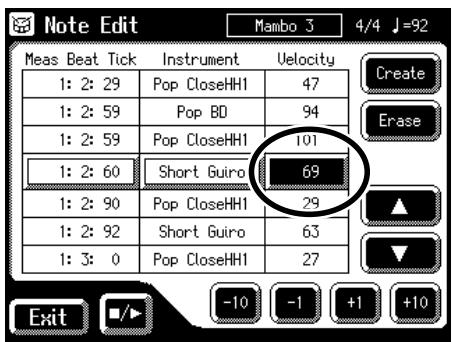
- Touch < -10 > < -1 > < +1 > < +10 > to change the velocity.
Moving Sounds
- Touch <> > <> to select the sound you want to move.
- Touch the "Meas Beat Tick" setting.
The note-location display uses "Measure: Beat: Tick" as the format. A tick is a unit of time that's shorter than a beat.
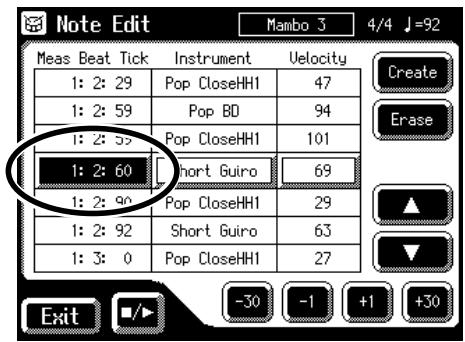
- Touch < -30 > < -1 > < +1 > < +30 > to move the sound.
With the Rhythm Customize function, note locations are expressed in terms of "Measure: Beat: Tick." One tick is the smallest unit used in indicating the location of the note, and there are 120 ticks in a quarter note. Typical notes might be indicated as shown below.
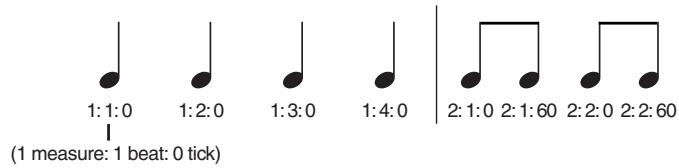
Quarter Note8th Note Triplet
16th Note
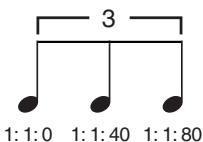
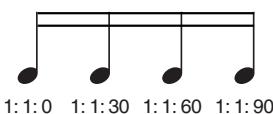
The ticks for each note have the following characteristics.
Quarter Note 0 (Every 120 ticks) 8th Note 0, 60 (Every 60 ticks) 8th Note Triplet 0, 40, 80 (Every 40 ticks) 16the Note 0, 30, 60, 90 (Every 30 ticks) Changing and Deleting the Instruments Used
You can change an instrument used in a rhythm and replace it with another instrument.
- Bring up the Rhythm Customize screen (p. 174).
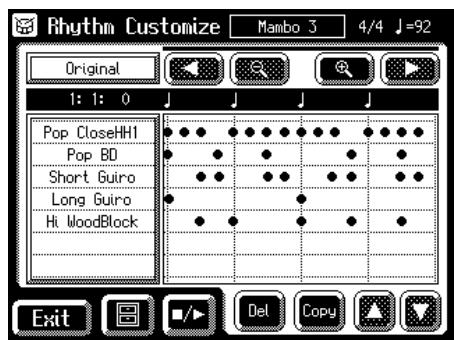
- Touch the section in the Rhythm Customize screen where the instrument names are displayed. The Instrument Edit screen appears.
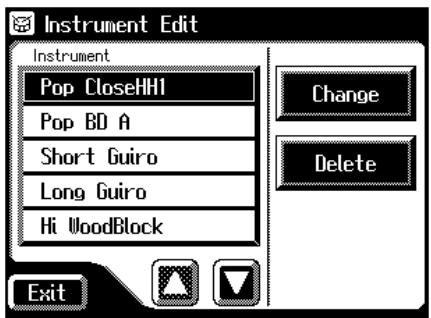

You can open Instrument Edit screen using the following procedure
- Touch < 8> (Utility) in the Rhythm Customize screen (p. 174).
The Utility screen appears.
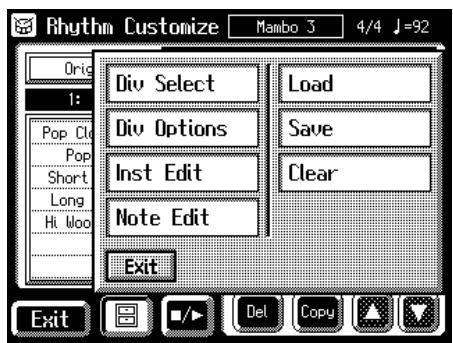
- Touch
(Instrument Edit).
The Instrument Edit screen appears.
hanging the Instrument Used
- Touch <> <> in the screen to select the name of the instrument you want to change.
- Touch
.
The following screen appears.

- Touch <1><2 to switch the screen, then touch the instrument name.
The following screen appears.
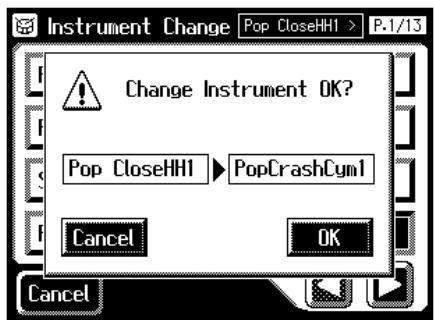
To cancel operation, touch <Cancel> .
- If you want to change the instrument, touch
.
The instrument is changed.
Deleting an Instrument
When an instrument is deleted, all of the sounds using that instrument are deleted from the rhythm.
- Touch <><> in the screen to select the name of the instrument you want to delete.
- Touch
on the Instrument Edit screen.
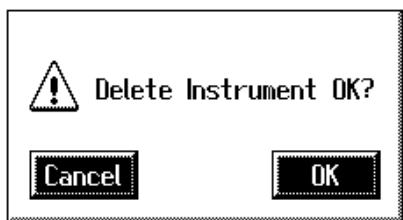
- If you are sure that you wish to delete the instrument, touch
.
The selected instrument is deleted.
■ Deleting Rhythms You Have Created
This deletes User rhythms created by partially editing the internal rhythms.
- Bring up the Rhythm Customize screen (p. 174).
- Touch < 0> (Utility).
The Utility screen appears.
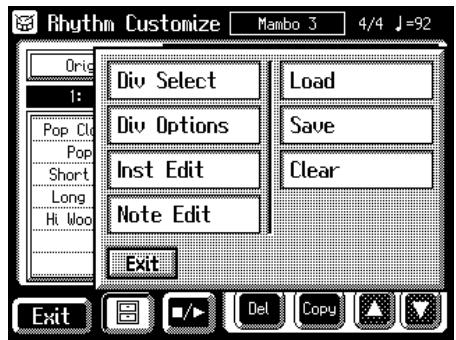
- Touch
.
The following screen appears.
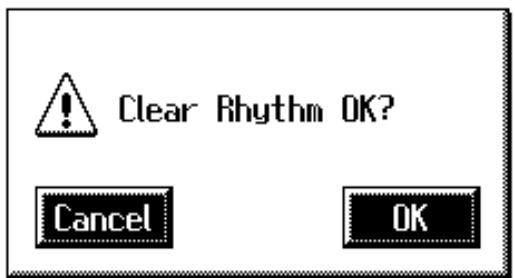
To cancel operation, touch
. - If you are sure that you wish to delete the rhythm, touch
.
Changing the Name of a User Rhythm (Rename)
- Bring up the Rhythm Customize screen (p. 174).
- Touch < 8> (Utility).
The Utility screen appears.
- Touch
.
The Rhythm Save screen appears.
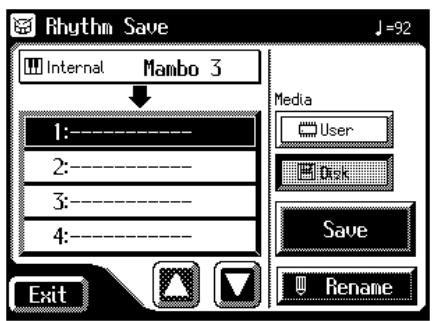
- Touch
.
The Rename screen appears.

- Touch the character select button (ABC/abc/12%) to switch among uppercase/toLowerCase/symbols.
Touch the character select button repeatedly to cycle through the available choices, like this: uppercase lowercase symbols uppercase...
- Touch the screen to specify the desired character.
The following characters can be selected.
ABCDEFGHIJKLMNOPQRSTUWXYZ abcdefghijklmnpqrstuvwxyz !"#%&'( )*+, -./:=?^_0123456789 Del Deletes a character. Space Inserts a space (blank). ←→ Move the cursor (the symbol that indicates the location at which characters will be input) to left or right. To cancel operation, touch
. - When you're done making the settings, touch OK>.
Saving User Rhythms to the User Memory or Floppy Disk
You can take User rhythms created with the Rhythm Customize function and save them in the AT-80SL/60SL's User memory and floppy disks. To call up rhythms saved in User memory, press the [Disk/User] button.
- Bring up the Rhythm Customize screen (p. 174).
- Touch < 0> (Utility).
The Utility screen appears.
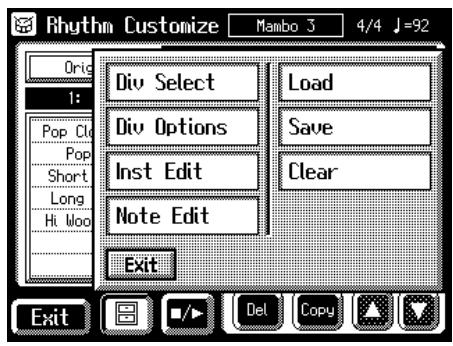
- Touch
.
The Rhythm Save screen appears.
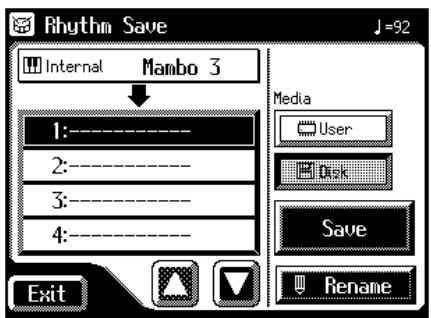
- Touch < > (floppy disk) or
User > (User memory) to determine the save destination.
- Touch <> <> to select the number of the save destination.
Numbers which have not been used in the saving operation will be displayed as "---".
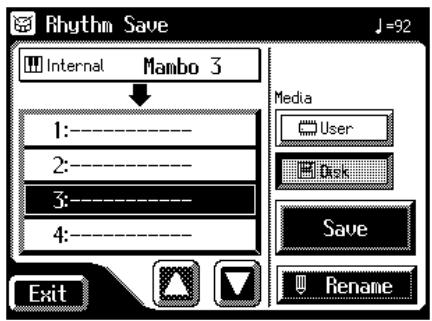
To cancel the save, touch the
to close the Rhythm Save screen. You can change the name of a rhythm by touching.
. - Touch
.
The User rhythms are saved to the User memory or to floppy disks.

You can save rhythms after changing the tempo by touching the Tempo [ ] [▶] button.
If the following screen appears
The following screen appears if you select a number to which a rhythm has already been saved and then touch
. 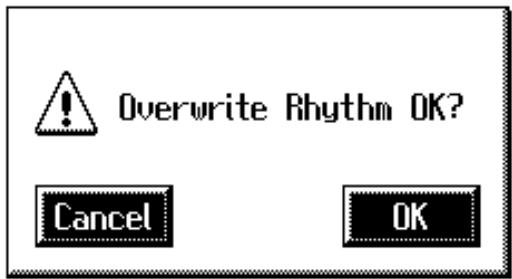
If you wish to overwrite the rhythm
- Touch
.
The Rhythm will be rewritten.
If you wish to save new data instead of updating the rhythm
- Touch
.
Rewriting of the Rhythm will be canceled.
- In the Rhythm Save screen, select the number that is displayed as "----" (a number that currently does not contain rhythm data).
- Save the Rhythm.
Chapter 10 Various Other Settings
Adjusting How the Instrument Responds
■ Turning Aftertouch On/Off
This switches the aftertouch setting for the Upper keyboard. Aftertouch applies vibrato when additional pressure is placed on the keys that are being played.
1. Touch
on the Main screen. The Sound/Keyboard screen appears.
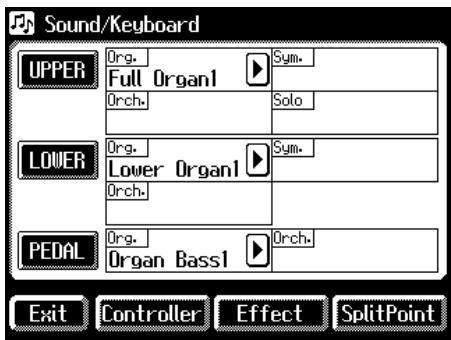
2. Touch
. The Upper Keyboard screen appears.
3. Touch <><> to display the After Touch.
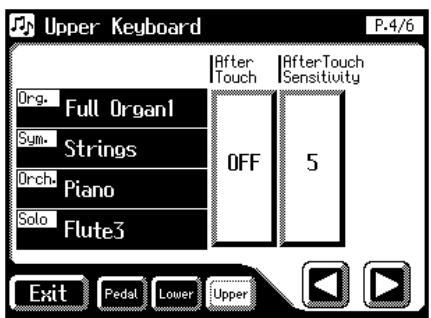
4. Touch the After Touch setting to switch between "ON" and "OFF."
Each time you touch the After Touch setting, it will alternate between "ON" and "OFF."
Settings ON, OFF
5. Touch
. NOTE
Please note that not all the voices on the Upper keyboard are responsive to Aftertouch, even if the feature is set to ON (p. 220).
Adjusting the Depth of Aftertouch
This adjusts the depth of the Aftertouch effect.
- Touch
on the Main screen. The Sound/Keyboard screen appears. - Touch
. The Upper Keyboard screen appears. - Touch <><> to display the After Touch Sensitivity.
4. Touch the After Touch Sensitivity value (1-10).
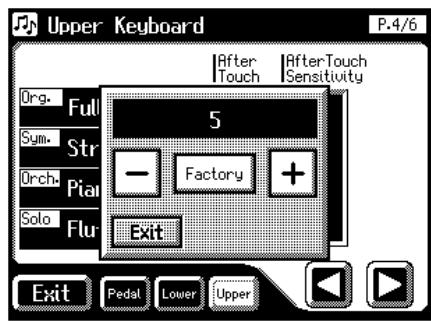
5. Touch <-> <+> to edit the value.
Setting 1-10
Higher settings of this value will allow deeper vibrato to be applied when you apply pressure to the keyboard.
6. Touch
. NOTE
Aftertouch can only be enabled for the Upper keyboard.
Adjusting the Initial Touch Sensitivity
Initial Touch is a function that translates the force used in playing the keys into a directly proportional amount of volume. This adjusts the amount of the Initial Touch effect applied.
- Touch
on the Main screen.
The Sound/Keyboard screen appears.
- Touch either <UPPER> , or <LOWER> .
UPPER To change the initial touch setting of the Upper part LOWER To change the initial touch setting of the Lower part - Touch <><> to display the Initial Touch.
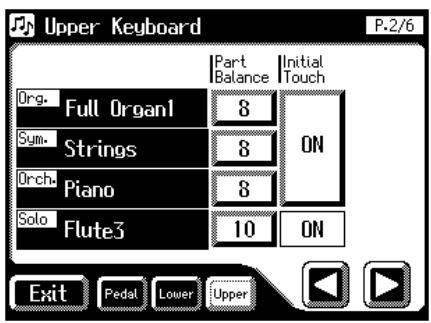
- Touch the Initial Touch value (OFF, 1-10).
Setting OFF, 1-10
Setting Descriptions 1-10 Initial Touch is on. The harder you play the key, the higher the volume. The change in volume when the keys are played forcefully increases as the value is increased. OFF Initial Touch is off. Volume remains constant regardless of how hard you play. - Touch
.
Changing the Pedalboard Polyphony
You can set the Bass Pedalboard to play simultaneous multiple notes or single notes only.
- Touch
on the Main screen. The Sound/Keyboard screen appears. - Touch
. The Pedalboard screen appears. - Touch <><> to display the PedalBass Mode.
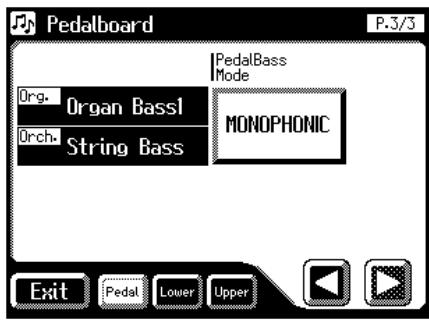
- Touch the PedalBass Mode setting to switch between "MONOPHONIC" and "POLYPHONIC."
Each time you touch the PedalBass Mode setting, it will alternate between "MONOPHONIC" and "POLYPHONIC."
Setting Descriptions MONOPHONIC Only single notes can be played. POLYPHONIC Multiple notes can be played. - Touch
.
Performance Function Settings
Selecting the Range of Keys to Which the Damper Pedal will Apply
You can specify which keyboard will be affected when you press the Damper (Sustain) pedal.
- Touch
on the Main screen.
The Sound/Keyboard screen appears.
- Touch
.
The Controller screen appears.
- Touch <> to display the Damper Pedal.
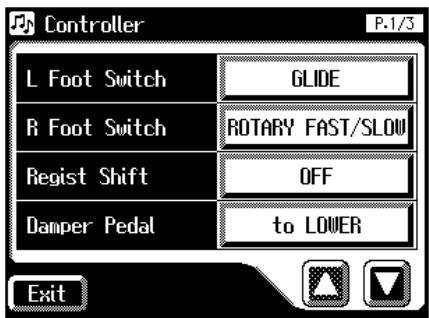
- Touch the Damper Pedal setting to switch between "to UPPER" and "to LOWER."
Each time you touch the Damper Pedal setting, it will alternate between "to UPPER" and "to LOWER."
Setting Descriptions to UPPER The effect is applied to the voices played on the Upper keyboard. to LOWER The effect is applied to the voices played on the Lower keyboard. - Touch
.
NOTE
If the voice is a percussive voice (such as a Piano voice), the tone will be sustained, but fade away just like an acoustic piano. If the voice is a non-percussive instrument (such as a String voice), the tone will be sustained as long as the pedal is depressed.
Changing the Function of the Expression Pedal
Specify how the Expression Pedal will function when your performance is being recorded and when ATELIER song files are being played back.
Function During Recording
Specify whether Expression Pedal operations will be recorded or not while your performance is being recorded.
- Touch
on the Main screen.
The Sound/Keyboard screen appears.
- Touch
.
The Controller screen appears.
- Touch <><> to display the Exp. Src (Rec).
- Touch the Exp. Src (Rec) setting to switch between "PEDAL" and "COMPOSER."
Each time you touch the Exp. Src (Rec) setting, it will alternate between "PEDAL" and "COMPOSER."
Setting Descriptions PEDAL Expression Pedal movements will be recorded. The previous recording will be erased as new songs are recorded. COMPOSER Expression Pedal movements will not be recorded. The previous data will remain without being erased. - Touch
.
Function During Playback
You can specify whether or not the Expression Pedal will function while ATELIER song files are being played back.
- Touch
on the Main screen.
The Sound/Keyboard screen appears.
- Touch
.
The Controller screen appears.
- Touch <> <> to display the Exp. Src (Play).
- Touch the Exp. Src (Play) setting.
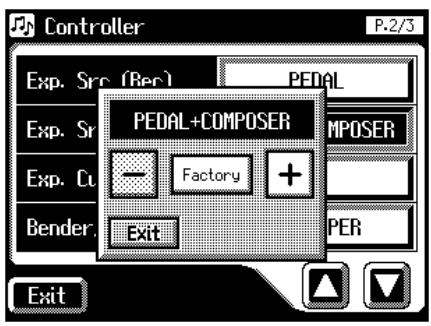
- Touch <-> <+> to change the setting.
Setting Descriptions PEDAL+COMPOSER The Expression Pedal will function. Expression Pedal recording within the song file will also be effective. COMPOSER The Expression Pedal will not function. The Expression Pedal recording within the song file will be effective. PEDAL The Expression Pedal will function. The Expression Pedal recording within the song file will be ignored. - Touch
.
Selecting the Range of Keys to Which the Pitch Bend/Vibrato Lever will Apply
This setting determines which keyboard will be controlled by the Pitch Bend/Vibrato lever.
- Touch
on the Main screen.
The Sound/Keyboard screen appears.
- Touch
.
The Controller screen appears.
- Touch <><> to display the Bender/Vibrato.
- Touch the Bender/Vibrato setting.
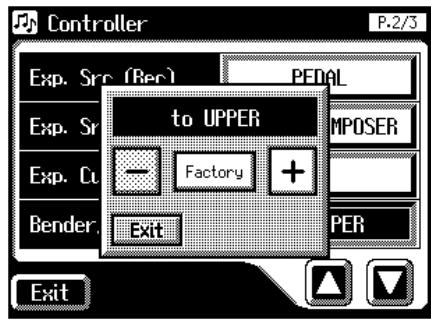
- Touch <-> <+> to change the setting.
Setting Descriptions to UPPER The effect is applied to the voices played on the Upper keyboard. to LOWER The effect is applied to the voices played on the Lower keyboard. to PEDAL The effect is applied to the voices played on the Pedalboard. - Touch
.
Changing the Pitch Bend Range
This setting allows you to choose the maximum amount of Pitch change (range) permissible when using Pitch Bend. The range can be set anywhere between 1-12 (in semitone units; with a maximum of one octave).
- Touch
on the Main screen.
The Sound/Keyboard screen appears.
- Touch
.
The Controller screen appears.
- Touch <> to display the Pitch Bend Range.
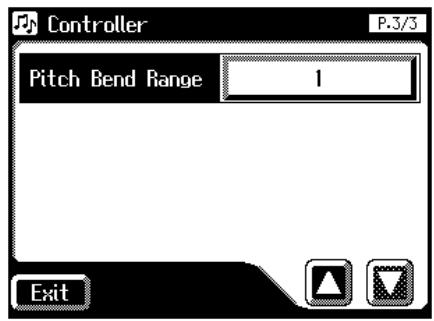
- Touch the Pitch Bend Range setting.
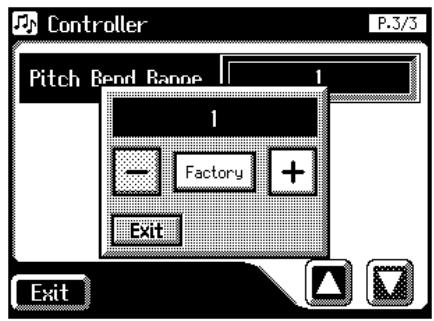
- Touch <-> <+> to change the setting.
Settings 1-12 (semitone steps)
- Touch
.
NOTE
Drums/SFX is fixed at one octave range, regardless of this setting.
Rhythm Settings
■ Turning Chord Hold On/Off
The Chord Hold function can be switched ON/OFF. When Chord Hold is ON, the Automatic Accompaniment will continue playing even when you lift your hand from the keyboard to play a new chord.
- Touch
on the Main screen.
The Rhythm screen appears.
- Touch < 0> (Utility).
The Utility screen appears.
- Touch
.
The Rhythm Options screen appears.
- Touch <>> <> to display the Chord Hold.
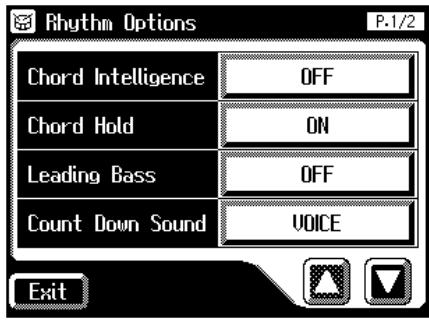
- Touch the Chord Hold setting to switch between "ON" and "OFF."
Each time you touch the Chord Hold setting, it will alternate between "ON" and "OFF."
Setting Descriptions ON The Automatic Accompaniment determined by the chord played on the Lower keyboard is held (even if you release the keys). OFF When you release the keys that you played in the Lower keyboard, the Automatic Accompaniment will stop (be muted). Only the Rhythm (drum) performance will continue. - Touch
.
Count Down Sound
You can change the sound that is used for the count played at the end of the intro with the Intro Countdown function (p. 68).
- Touch
on the Main screen.
The Rhythm screen appears.
- Touch < 8 (Utility).
The Utility screen appears.
- Touch
.
The Rhythm Options screen appears.
- Touch <> to display the Count Down Sound.
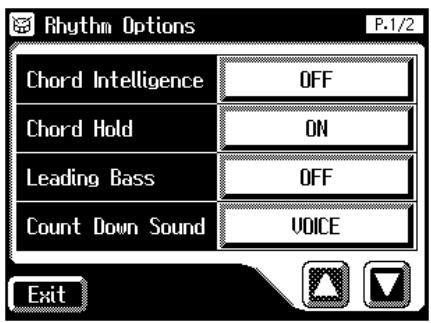
- Touch the Count Down Sound setting to switch between "VOICE" and "STICK."
Each time you touch the Count Down Sound setting, it will alternate between "VOICE" and "STICK."
Setting Descriptions VOICE Human voice count (One, two, three...) STICK Stick sound count - Touch
.
Preventing Rhythm Tempos from Switching Automatically
You can prevent rhythm tempos from switching automatically when you switch rhythms.
- Touch
on the Main screen.
The Rhythm screen appears.
- Touch < 0> (Utility).
The Utility screen appears.
- Touch
.
The Rhythm Options screen appears.
- Touch <><> to display the Auto Std Tempo (Auto Standard Tempo).
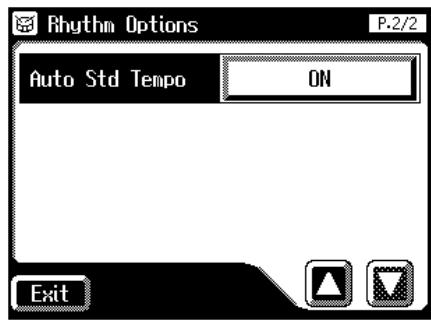
- Touch the Auto Std Tempo setting to switch between "ON" and "OFF."
Each time you touch the Auto Std Tempo setting, it will alternate between "ON" and "OFF."
Setting Descriptions ON Switching the rhythm while the rhythm is stopped automatically changes the tempo settings to those in the new rhythm. OFF The tempo settings are not changed automatically when the rhythms are changed. - Touch
.

This setting remains stored in memory even while power is turned off.
Registration Settings
Changing the Timing at Which Arranger Settings are Recalled
You can specify how the settings related to Rhythm performances and Automatic Accompaniment will be recalled when you press a Registration button.
- Touch
on the Main screen.
The sub-window appears.
- Touch
.
The Registration Load screen appears.
- Touch
.
The Utility screen appears.
- Touch
.
The Registration Options screen appears.
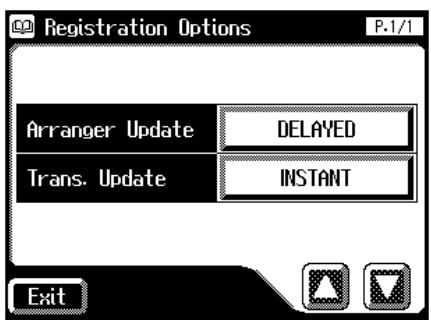
- Touch the Arranger Update setting to switch between "DELAYED" and "INSTANT."
Each time you touch the Arranger Update setting, it will alternate between "DELAYED" and "INSTANT."
Setting Descriptions DELAYED Settings related to Rhythm performances and Automatic Accompaniment will be recalled when you hold a Registration button for several seconds. If you quickly press the Registration button, only the panel settings (voice, etc.) that are not related to Rhythm and Automatic Accompaniment will be updated. INSTANT Settings related to Rhythm performances and Automatic Accompaniment will be recalled the instant you press a button along with all other panel settings. - Touch
.

This setting remains stored in memory even while power is turned off.
Changing the Timing at Which Transposition Settings are Recalled
You can specify how the transpose setting will be recalled when you press a Registration button.
- Touch
on the Main screen.
The sub-window appears.
- Touch
.
The Registration Load screen appears.
- Touch
.
The Utility screen appears.
- Touch
.
The Registration Options screen appears.
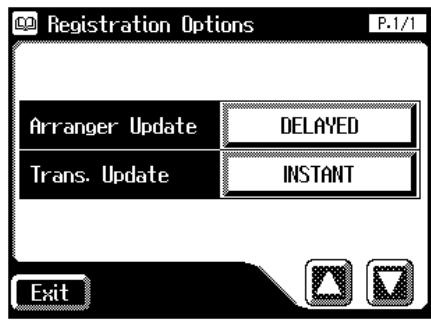
- Touch the Trans. Update (Transpose Update) setting to switch between "DELAYED" and "INSTANT."
Each time you touch the Trans. Update setting, it will alternate between "DELAYED" and "INSTANT."
Setting Descriptions DELAYED Transpose settings will be recalled when you hold a Registration button for several seconds. INSTANT Transpose setting will be recalled the instant you press a button along with all other panel settings. - Touch
.

This setting remains stored in memory even while power is turned off.
Composer settings
Switching the Display of Lyrics On or Off
Some music files have Lyrics included and these Lyrics can be displayed on the screen. You can turn on or off the lyrics display of such music files.
- Touch
on the Main screen.
The Rec/Play screen appears.
- Touch < 8> (Utility).
The Utility screen appears.
- Touch
.
The Rec/Play Options screen appears.
- Touch <>> <> to display the Lyric.
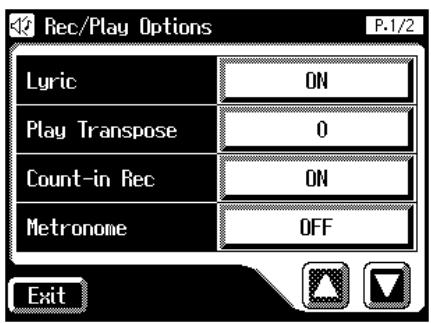
- Touch the Lyric setting to switch between "ON" and "OFF."
Each time you touch the Lyric setting, it will alternate between "ON" and "OFF."
Setting Descriptions ON Lyrics will be displayed OFF Lyrics will not be displayed - Touch
.
NOTE
If you press a voice select button while playing back music files that contains lyrics, the display screen will switch, and the lyrics will no longer be displayed. To re-display the lyrics, touch
on Rec/Play screen once again. MEMO
This setting remains stored in memory even while power is turned off.
Changing the Key When Playing Back Songs (Play Transpose)
SMF music files or a performance that you yourself recorded can be transposed for playback.
- Touch
on the Main screen.
The Rec/Play screen appears.
- Touch < 0> (Utility).
The Utility screen appears.
- Touch
.
The Rec/Play Options screen appears.
- Touch <> to display the Play Transpose.
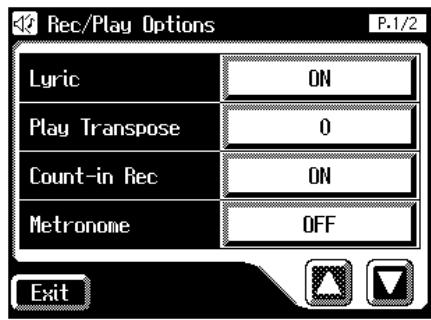
- Touch the Play Transpose setting.
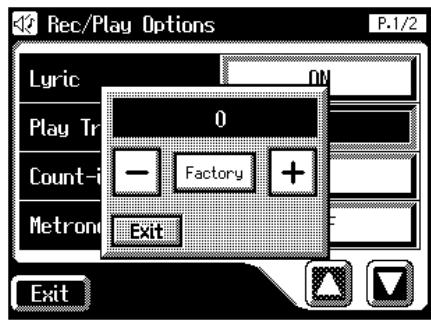
- Touch <-> <+> to change the setting.
The key is transposed by one semitone each time the
< -> or < +> key is touched.
Settings -24 +24 (semitone steps)
- Touch
.
Changing the Metronome Setting
- Touch
on the Main screen.
The Rec/Play screen appears.
- Touch < 0> (Utility).
The Utility screen appears.
- Touch
.
The Rec/Play Options screen appears.
- Touch <><> to display the Metronome.
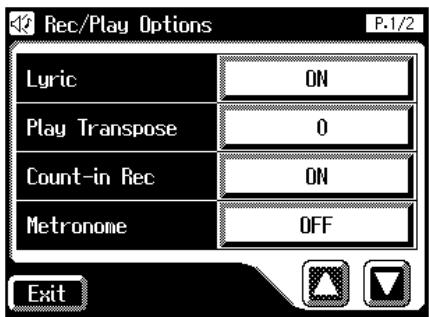
- Touch the Metronome setting.
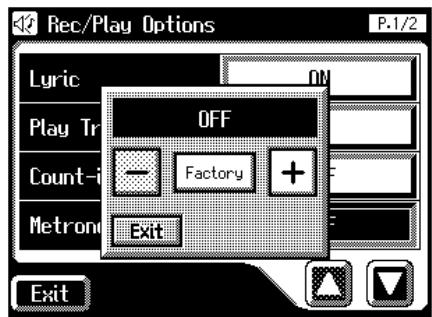
- Touch <-> <+> to change the setting.
Setting Descriptions OFF Not heard at all REC Heard only while recording ON Heard constantly - Touch
.
Adjusting the Metronome Volume
You can adjust the volume of the metronome.
- Touch
on the Main screen. The Rec/Play screen appears. - Touch < 0> (Utility).
The Utility screen appears.
- Touch
.
The Rec/Play Options screen appears.
- Touch <><> to display the Metronome Vol. (Metronome Volume).
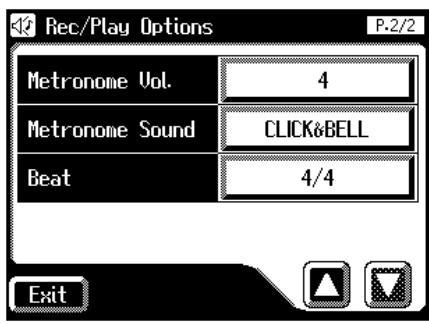
- Touch Metronome Vol. setting.
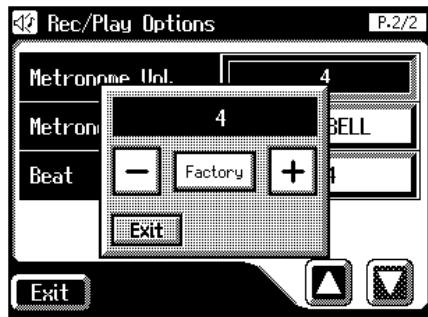
- Touch <-> <+> to change the setting.
Settings 1-10
Increasing the value will raise the volume of the metronome.
- Touch
.
Changing the Sound of the Metronome
You can choose one of 4 different sounds for the metronome.
- Touch
on the Main screen.
The Rec/Play screen appears.
- Touch < 0> (Utility).
The Utility screen appears.
- Touch
.
The Rec/Play Options screen appears.
- Touch <><> to display the Metronome Sound.
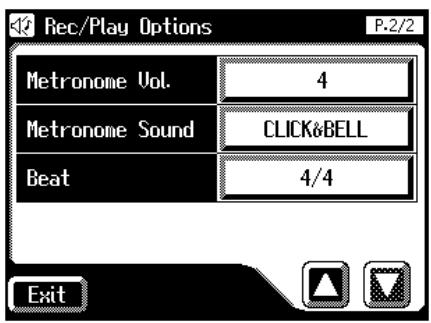
- Touch the Metronome Sound setting.
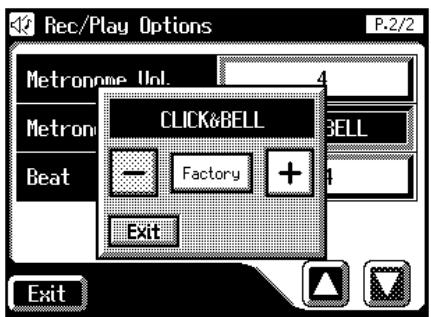
- Touch <-> <+> to change the setting.
Setting Descriptions CLICK&BELL Conventional metronome sound ELECTRONIC Electronic metronome sound VOICE ENG. Human voice (English) VOICE JPN. Human voice (Japanese) - Touch
.

This setting remains stored in memory even while power is turned off.
Setting the Beat
This setting determines the beat to be used when recording performance songs.
- Touch
on the Main screen.
The Rec/Play screen appears.
- Touch < 0> (Utility).
The Utility screen appears.
- Touch
.
The Rec/Play Options screen appears.
- Touch <> <> to display the Beat.
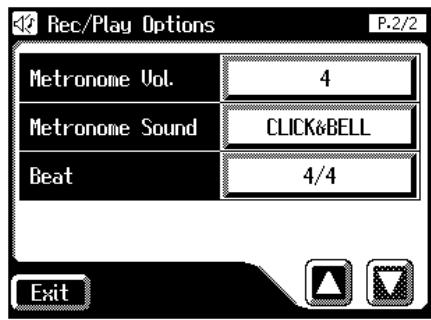
- Touch the Beat setting.
The time signature setting screen appears.
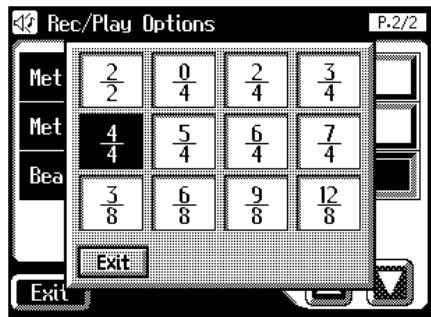
- Touch the time signature that you wish to set.
- Touch
.

When recording Rhythm performances or Automatic
Accompaniment, the beat is set automatically.

You cannot change the beat of previously recorded songs.
Other Settings
Adjust the Standard Pitch (Master Tune)
The basic pitch of an instrument is generally considered as the pitch of the middle A note. The "Master Tune" parameter lets you adjust this basic pitch to match the pitch of any other instruments that are playing together with the AT-80SL/60SL.
- Touch
on the Main screen.
The System screen appears.
- Touch <> <> to display the Master Tune.
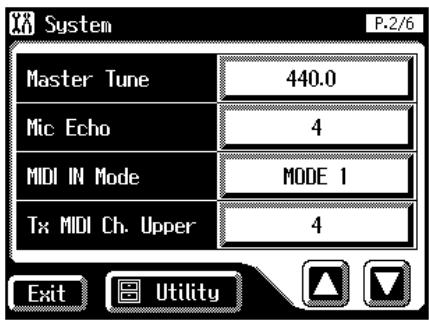
- Touch the Master Tune setting.
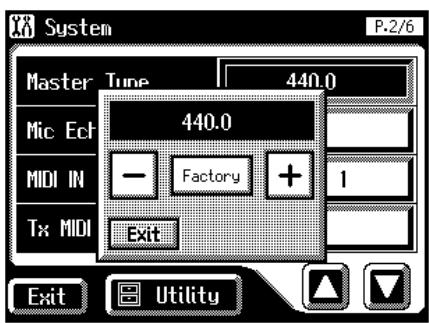
- Touch <-> <+> to change the setting.
Settings 415.3Hz-466.2Hz (0.1 Hz units)
- Touch
.

By touching < > , you can restore the default setting (440.0 Hz).

This setting remains stored in memory even while power is turned off.
■ Mic Echo
You can adjust the Mic echo.

Connecting the Microphone (p. 22)
- Touch
on the Main screen.
The System screen appears.
- Touch <><> to display the Mic Echo.
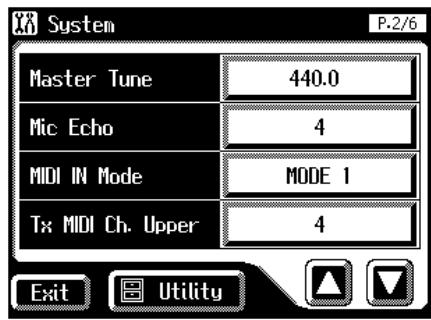
- Touch the Mic Echo setting.
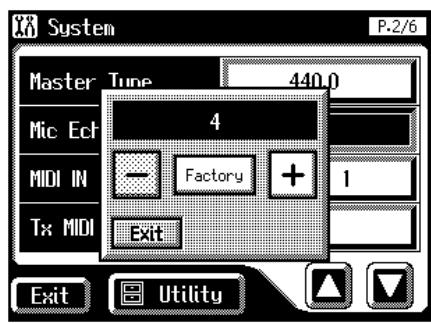
- Touch <-> <+> to change the setting.
Settings 0-12
- Touch
.

By touching < > , you can restore the default setting (4).

This setting remains stored in memory even while power is turned off.
Enabling Transmission of PC Numbers
Transmission of PC (Program Change) numbers can be switched ON/OFF when a Registration is selected.
- Touch
on the Main screen.
The System screen appears.
- Touch <> to display the Send PC Switch.
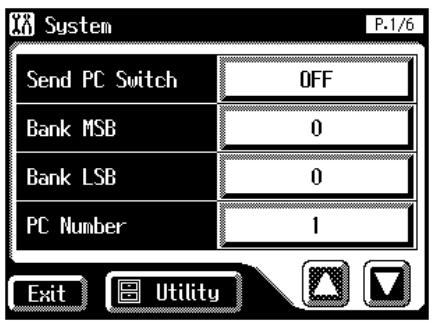
- Touch the Send PC Switch setting to switch between "ON" and "OFF."
Each time you touch the Send PC Switch setting, it will alternate between "ON" and "OFF."
Setting Descriptions ON PC numbers are transmitted OFF PC numbers are not transmitted - Touch
.

This setting remains stored in memory even while power is turned off.
Setting the PC Number
You can specify the Program Change number that will be transmitted from MIDI Out when a Registration is selected.
- Touch
on the Main screen.
The System screen appears.
- Touch <><> to display the Bank MSB (Bank Select MSB), Bank LSB (Bank Select LSB), or PC Number (Program Change Number).
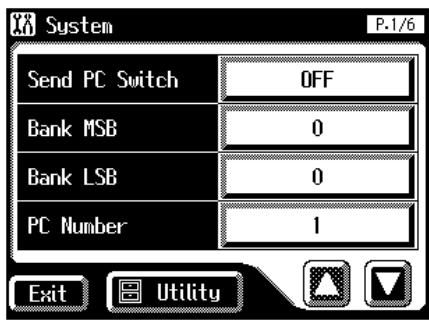
- Touch either
(Bank Select MSB), (Bank Select LSB), or (Program Change Number) setting.
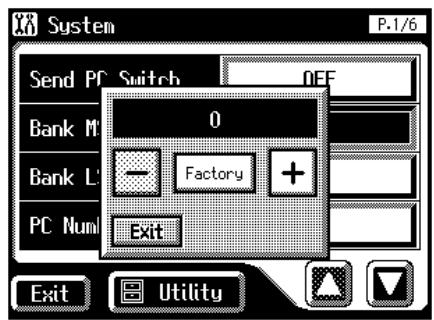
- Touch <-> <+> to change the setting.
Menu Setting Bank MSB 0-127 Bank LSB 0-127 PC Number 1-128 - Touch
.
MIDI IN Mode
This instrument contains two sound generators: one for GM2/GS data playback and one for keyboard performance. Normally, data received at the MIDI In connector will control only the sound generator for GM2/GS data playback. However by changing the MIDI IN Mode setting, you can also control the keyboard sound generator from MIDI In.
1. Touch
on the Main screen. The System screen appears.
2. Touch <><> to display the MIDI IN Mode.
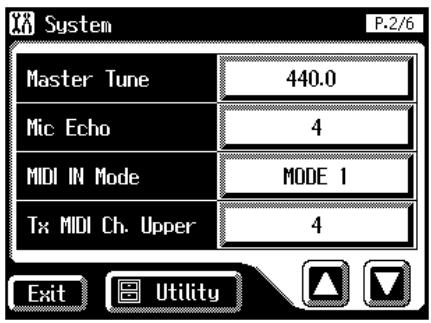
3. Touch the MIDI IN Mode setting to switch between "MODE 1" and "MODE 2."
Each time you touch the MIDI IN Mode setting, it will alternate between "Mode 1" and "Mode 2."
MODE 1 Control the instrument as a GS sound generator MODE 2 Channels 5 through 10 and Channels 12, 14, 15 are transmitted to the GS sound generator, and all other channels are transmitted to the keyboard sound generator. Channel MODE 1 MODE 2 1 GS Solo 2 GS Pedal/GS * 3 GS Lower 4 GS Upper 5–10 GS GS 11 GS Drum/SFX 12 GS GS 13 GS Manual Percussion 14–15 GS GS 16 GS Control - When the pedal part button is ON, data received at the MIDI In connector will control the pedal part of keyboard sound generator. When the pedal part button is OFF, data received at the MIDI In connector will control the GS sound generator.
4. Touch
. 
There are limitations on the types of MIDI messages that can be received by the keyboard sound source. For details refer to the "MIDI IMPLEMENTATION" (sold separately).

This setting remains stored in memory even while power is turned off.
Selecting the MIDI Transmit Channel
When you use the MIDI connectors or the computer connector of the AT-80SL/60SL to transmit musical data to external devices, for each keyboard (Upper, Lower, and Pedal) you can specify the channel on which your playing will be transmitted as MIDI messages.

For details refer to p. 208.
1. Touch
on the Main screen. The System screen appears.
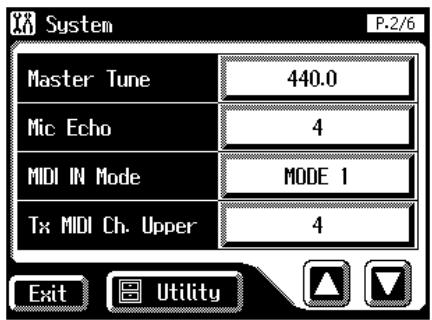
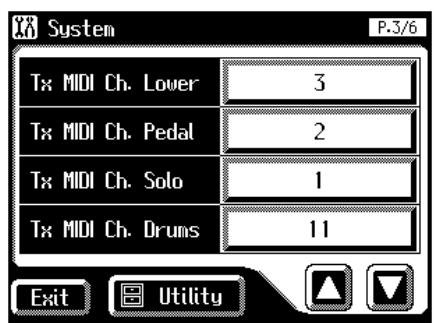
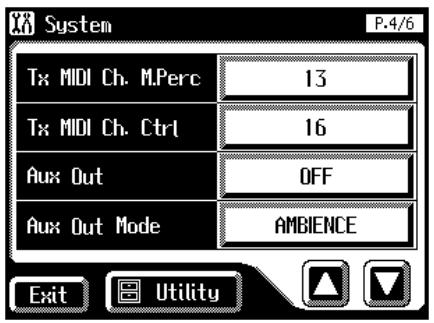
- Touch
, , , , , or (Tx MIDI Ch. Control).
The Control part transmits Expression pedal data and PC numbers.
- Touch <-> <+> to change the setting.
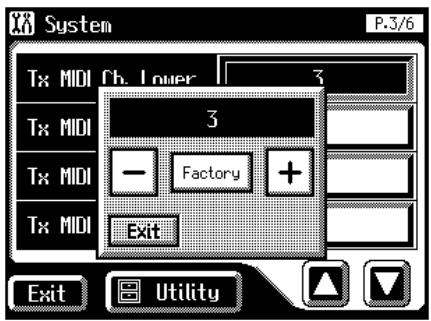
Channel 1-16
- Touch
.
NOTE
MIDI messages for the Solo part will be transmitted only when the Solo [To Lower] button is ON.
■ Repositioning the Touch Screen
If you've been using the Touch Screen for some time, the pointer may be shifted, making the AT-80SL/60SL react incorrectly. You should correct this displacement when necessary by performing calibration (repositioning).
- Touch
on the Main screen.
The System screen appears.
- In the System screen, touch
.
The Utility screen appears.
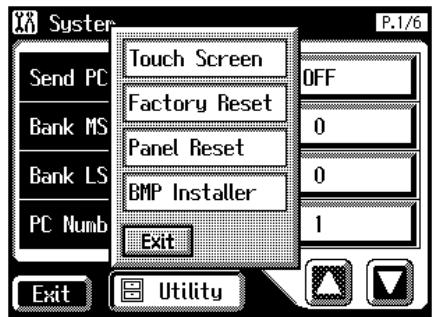
- Touch
.
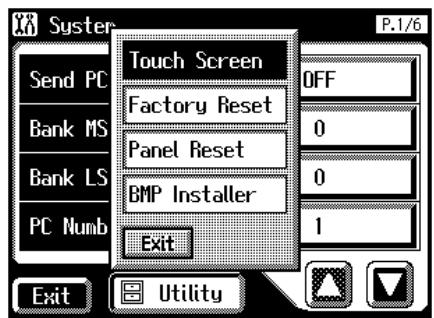
A display will ask for confirmation.
To cancel the operation, touch <Cancel> .
- Touch
on the screen. - Touch the points indicated on the touch screen.
NOTE
Do this carefully, because touching a location that's different from the one indicated for the pointer may make the displacement even worse. Be sure to touch the pointer accurately. If the following display appears, perform the touch panel position adjustment once again.
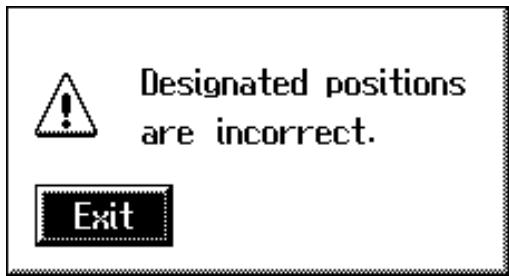
Displaying a Graphic at Power-up (AT-80SL)
The AT-80SL allows you to load a favorite graphic into internal memory, and have it be displayed when the power is turned on.
- Use your computer to create a graphic image file that meets the following criteria:
Size 320 x 240 pixels Color 8 bit (256 colors) Format image saved in BMP format Name 1-8 characters in length (lowercase is ok). A filename extension of“.BMP” (uppercase characters) must be added after the name.The following characters can be used to name an image.A BC D E F G H I J K L M N O P Q R S T U V W X Y Z a b c d e f g h i j k l m n o p q r s t u v w x y z 0 1 2 3 4 5 6 7 8 9 # $ % & ‘ ) - @ ~ {}^ _!NOTEIf you use a character that cannot be used in a name, it will be replaced by another character when displayed. - Use your computer to save the graphic image file on a DOS format floppy disk.
- Insert the floppy disk containing the graphic image file into the floppy disk drive of the AT-80SL.
- Touch
on the Main screen. The System screen appears. - In the System screen, touch
.
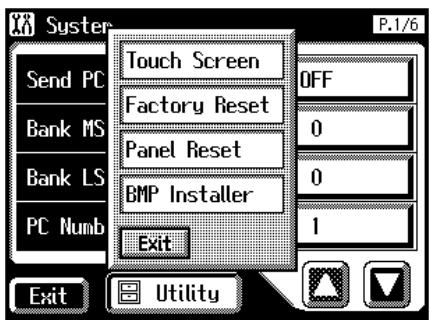
- Touch
. The BMP Installer screen appears.
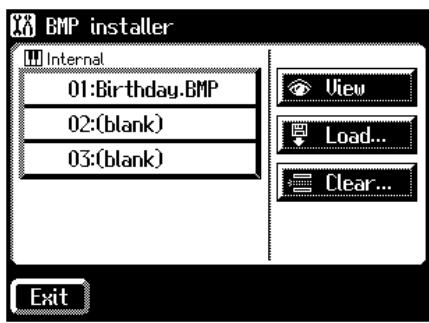
Display Explanation 01-03 Images stored in internal memory View View an image stored in internal memory. Load... Load an image from floppy disk into internal memory. Clear... Delete an image from internal memory. MEMO
The AT-80SL can store up to three images. If two or more images are stored in internal memory, those images will be displayed consecutively after the power is turned on.
- In the screen, touch <01> - <03> to select the destination at which the image is to be saved.
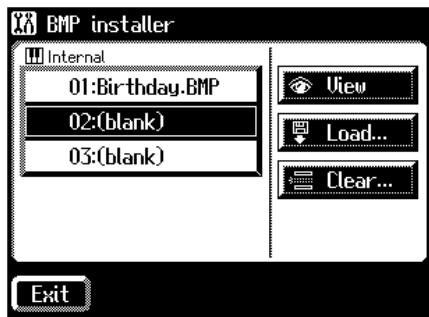
- Touch
. The BMP Load screen appears.
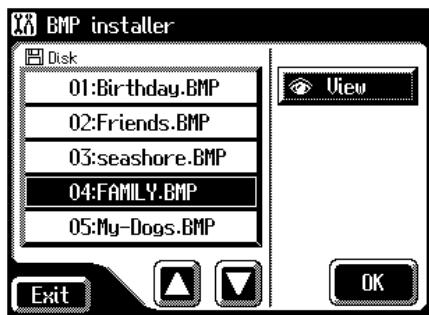
The name of images saved on the floppy disk will be displayed.
- Touch <0><0 to select the image that you want to load into internal memory.

You can touch <View> to verify the image.
10.Touch
. The image will be loaded.

If an image is already stored at the load destination, the following screen will appear.
To erase the currently loaded image, and load the new image
- Touch
.
To cancel image loading
- Touch
.

If the image cannot be loaded, the following screen will appear.
- Deleting an Image Stored in Internal Memory
- Touch
on the Main screen.
The System screen appears.
- In the System screen, touch
.
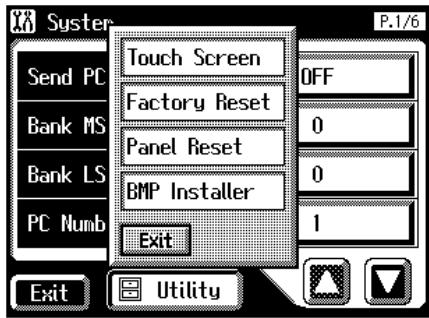
- Touch
.
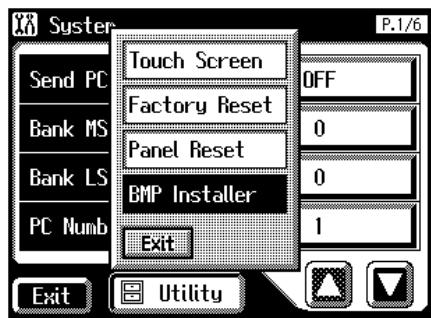
The BMP Installer screen appears.
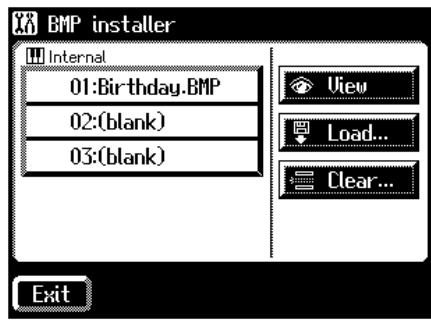
- In the screen, touch <01> - <03> to select the destination at which the image is to be saved.

You can touch <View> to verify the image.
- Touch
The following screen appears.
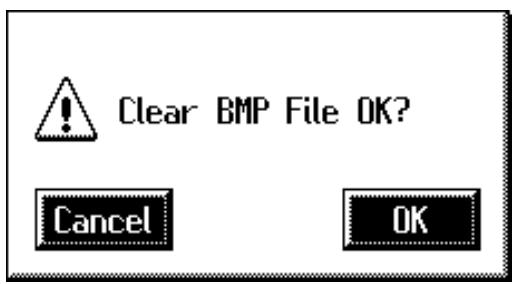
To cancel without deleting the image, touch
. - Touch
.
The image will be deleted.
Switching the Background of the Main Screen
You can change the color and pattern for the main screen's background.
- Touch
on the Main screen.
The System screen appears.
- Touch <><> to display the Main Background.
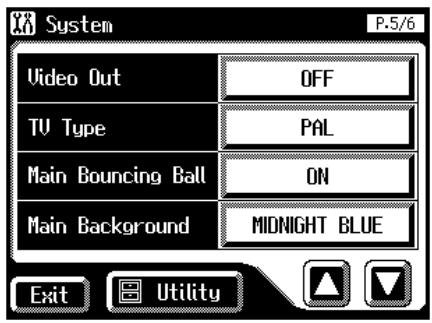
- Touch <-> <+> to change the setting.
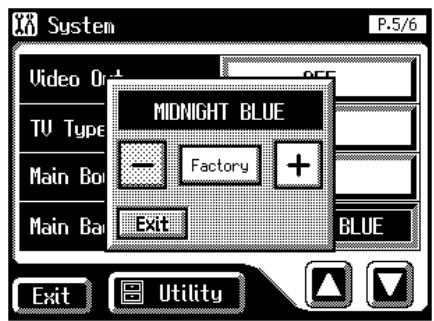
- Touch
.
The System screen appears.
- Touch
on the System Screen.
The main screen appears with the selected background.

This setting remains stored in memory even while power is turned off.
Eliminating the Bouncing Ball from the Main Screen
You can set the main screen so that the bouncing ball does not appear.
- Touch
on the Main screen.
The System screen appears.
- Touch <><> to display the Main Bouncing Ball.
- Touch the Main Bouncing Ball setting to switch between "ON" and "OFF."
Each time you touch the Main Boucing Ball setting, it will alternate between "ON" and "OFF."
Setting Descriptions ON The bouncing ball appears in the main screen. OFF The bouncing ball does not appear in the main screen. - Touch
.

This setting remains stored in memory even while power is turned off.
Using the V-LINK function
Connecting the AT-80SL/60SL to a V-LINK compatible image device allows you to control the images with the AT-80SL/60SL.
V-LINK
V-LINK ( V-LINK ) is functionality promoted by Roland that allows linked performance of music and visual material. By using V-LINK-compatible video equipment, visual effects can be easily liked to, and made part of the expressive elements of a performance.
How to Use the V-LINK
- Touch
on the Main screen. The System screen appears. - Touch <> to display the V-LINK.
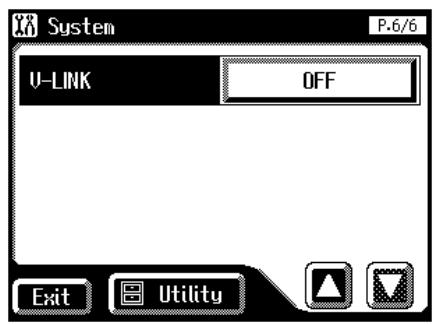
- Touch the V-LINK setting.
- Touch <-> <+> to change the setting.
Setting Descriptions OFF The V-LINK function is switched off. MODE 1 The V-LINK function is switched on. You can now control the video images using the Registration buttons. MODE 2 The V-LINK function is switched on. You can now control the video images using the twelve keys at the very right of the lower keyboard and Registration buttons. No sound is produced when you press any of the twelve keys at the right end of the keyboard. - Touch
.
The V-LINK function is turned on, and the V-LINK icon appears in the main screen.
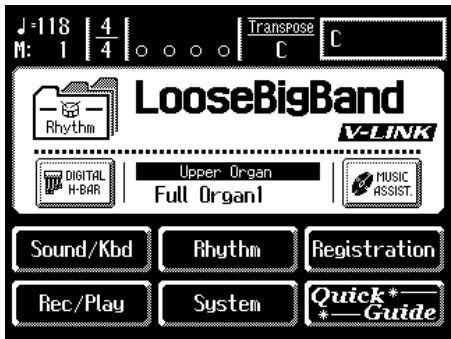

The Send PC Switch settings is automatically switched to ON when V-LINK is on (MODE 1, MODE 2). When the V-LINK function is switched off, the Send PC Switch setting reverts to the setting in effect before V-LINK was switched on.
When V-LINK is set to "MODE 1"
When a Registration button is pressed, "Bank Select" and "Program Change Number" messages are transmitted from the MIDI Out connector as video control messages. At this time, the Control MIDI transmit channel setting is disregarded, and the messages are transmitted via Channel 16.
When V-LINK is set to "MODE 2"
In addition to the functions of "MODE 1," MODE 2 also sets the device to transmit "Note messages" as video control messages from the MIDI Out connector when one of the twelve rightmost keys in the Lower keyboard is pressed.
In this case, the Lower and Solo MIDI transmit channel settings are disregarded, and the messages are transmitted via Channel 16.
NOTE
The MIDI transmit channel used for video control messages is fixed at channel 16.
NOTE
For more on switching video images, refer to the owner's manual for the connected device.

You can also use the following procedure to turn the V-LINK function on.
1. Hold down the Composer [Reset] button and press either the Upper Organ [Full 1] button or the Upper Organ [Full 2] button.
Holding down theComposer [Reset] button and pressing the Upper Organ [Full 1] button switches the instrument to "MODE 1" (p. 201). Holding down theComposer [Reset] button and pressing the Upper Organ [Full 2] button switches the instrument to "MODE 2" (p. 201).
The display changes as shown below, and the AT-80SL/ 60SL switches to Image Control mode.
Video Link System is ON.
The V-LINK function is turned on, and the V-LINK icon appears in the main screen.
![ROLAND AT-60SL - Hold down the Composer [Reset] button and press either the Upper Organ [Full 1] button or the Upper Organ [Full 2] button. - 1](/content/2025/01/130755/images/0f30f9d4333f10d292dcaa280ce7290453062941549323bb3938a3af22f7ff82.jpg)
2. To cancel the V-LINK function, once again hold down the Composer [Reset] button and press either the Upper Organ [Full 1] button or the Upper Organ [Full 2] button.
If set to "MODE 1" (p. 201), holding down theComposer [Reset] button and pressing the Upper Organ [Full 1] button switches the V-LINK function off. If set to "MODE 2" (p. 201), holding down theComposer [Reset] button and pressing the Upper Organ [Full 2] button switches the V-LINK function off.
Name and Functions of Jack and Connectors (AT-80SL)
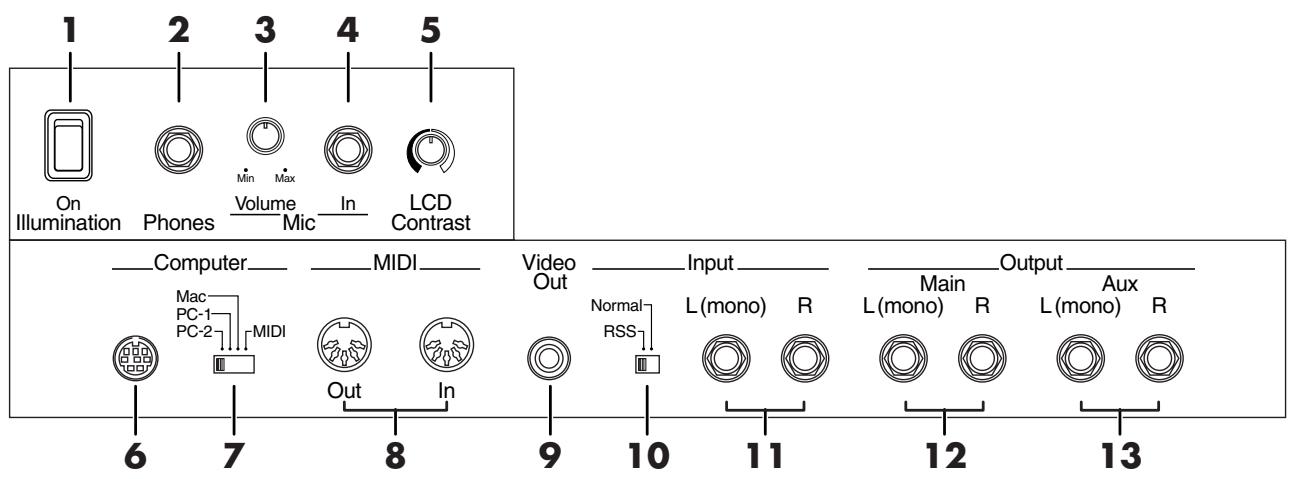
The functions of the jacks on the bottom of the keyboard are described below.
- Illumination Switch p. 22
- Phones Jack p. 21
- Mic Volume Knob p. 22
- Mic In Jack p. 22
- LCD Contrast Knob
Adjust the brightness of the touch panel.
- Computer Connector
You can connect a computer to the AT-80SL and exchange performance data between the two.
- Computer Switch
Set this switch to Mac, PC-1, or PC-2 according to the type computer that's connected. Additionally, this switches between MIDI In connector and the Computer connector.
- MIDI In/Out Connectors
You can connect external MIDI devices to the AT-80SL and exchange performance data between them.
- Video Out Jack
You can connect a TV to display lyrics.
10.Input switch p.205
11.Input L(mono)/R JacksUsing this jack, you can connect other sound generating devices or audio equipment and play sounds from other devices through the AT-80SL's speaker.
12.Output Lmono)/R Jacks
You can some sounds if you connect speakers or other audio equipment to these jacks. You can also hook up a cassette recorder to record your performances.
13.Aux Out L(mono)/R
You can connect an external speaker or a reverb unit to obtain a more spacious reverb.
Name and Functions of Jack and Connectors (AT-60SL)
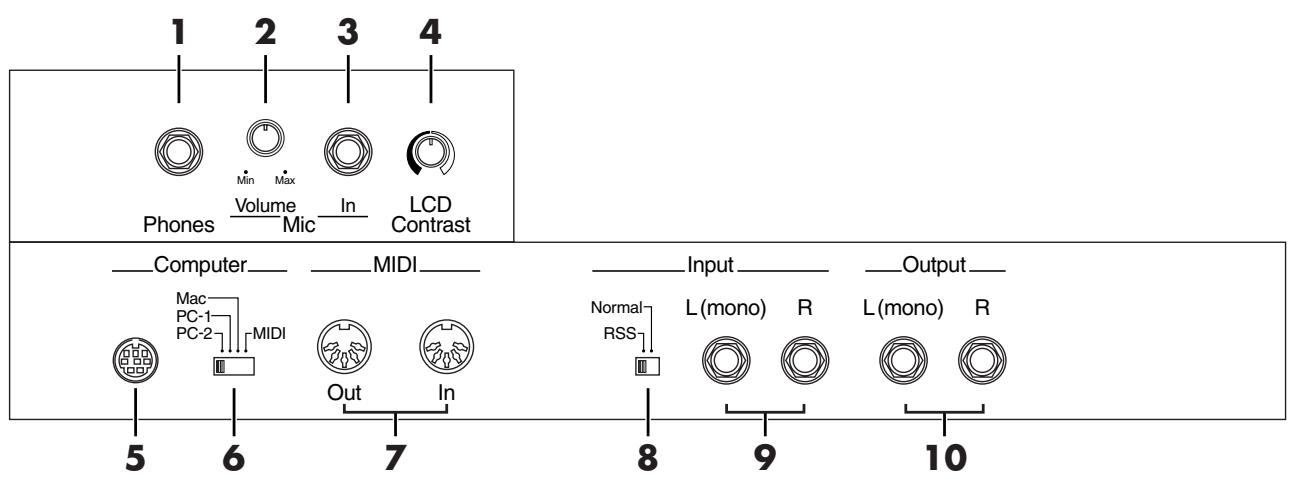
The functions of the jacks on the bottom of the keyboard are described below.
- Phones Jack p. 21
- Mic Volume Knob p. 22
- Mic In Jack p. 22
- LCD Contrast Knob
Adjust the brightness of the touch panel.
- Computer Connector
You can connect a computer to the AT-60SL and exchange performance data between the two.
- Computer Switch
Set this switch to Mac, PC-1, or PC-2 according to the type computer that's connected. Additionally, this switches between MIDI In connector and the Computer connector.
- MIDI In/Out Connectors
You can connect external MIDI devices to the AT-60SL and exchange performance data between them.
- Input switch p. 205
- Input L(mono)/R Jacks
Using this jack, you can connect other sound generating devices or audio equipment and play sounds from other devices through the AT-60SL's speaker.
10.Output L(mono)/R Jacks
You can some sounds if you connect speakers or other audio equipment to these jacks. You can also hook up a cassette recorder to record your performances.
Connecting to Audio Equipment
When you connect the AT-80SL/60SL to audio equipment, you can play the sounds from the AT-80SL/60SL through the speakers on the audio equipment or record your performances on a tape recorder or other recording device.

When connecting, please use an audio cable with a standard phone plug, such as the PCS-100PW (sold separately). When purchasing an audio cable, please consult the vendor where you bought the AT-80SL/60SL.
Connectors
Output Jacks
You can connect audio equipment using audio cables (sold separately) and play the sounds from the AT-80SL/60SL through the speakers on the connected equipment or record your performances on a tape recorder or other recording device.
If the input of the connected device is monaural, you must use the L (Mono) jack.
AT-80SL
Output Main Aux L(mono) R L(mono) R 


AT-60SL

L(mono)
R


Input Jacks
You can connect another sound module, such as audio equipment or an electronic instrument using audio cables (sold separately) and play the sounds from the connected device through the speakers on the AT-80SL/60SL.
If the input of the connected device is monaural, you must use the L (Mono) jack.
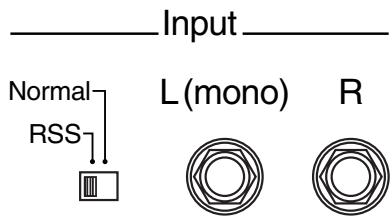
When using the Input jacks to play the sound from an external device through the speakers of the AT-80SL/60SL, you can apply the internal RSS reverb of the AT-80SL/60SL (p. 210).
Input switch position Effect Normal The sound of the external device will be heard without modification. RSS The RSS reverb of the AT-80SL/60SL will be applied to the external device. 
If the Input switch is set to "RSS," you can use the AT-80SL/ 60SL's [Master Volume] slider to adjust the volume of the external device.

If the Input switch is set to "RSS," RSS reverb will also be applied to the sound of the microphone. In this case, use the [Mic Volume] bnob to adjust the microphone volume.
Making the Connections

When connecting, turn on power to your various devices in the order specified. Failure to follow these steps in the order given could cause a malfunction and/or damage to speakers or other equipment.
Playing Sounds from the AT-80SL/60SL Through the Speakers on Audio Equipment or Recording Your Performances on a Recording Device
- Turn the volume all the way down on the AT80SL/60SL and on the device you're about to connect.
- Turn off the power to the AT-80SL/60SL and other connected equipment.
- Use audio cables (sold separately) to make the connection.
-
Switch on the AT-80SL/60SL.
-
Switch on the connected device.
- Adjust the volume level on the AT-80SL/60SL and the connected device.
Recording AT-80SL/60SL Performances on a Recording Device
- Start recording with the connected device.
- Play the keyboard.
- When the performance ends, stop recording on the connected equipment.
After use, turn off the power using the following procedure.
- Turn the volume all the way down on the AT80SL/60SL and on the device you're about to connect.
- Turn off the connected equipment.
- Turn off the AT-80SL/60SL.
Playing Audio Equipment Sounds Through the Speakers on the AT-80SL/60SL
- Turn the volume all the way down on the AT-80SL/60SL and on the device you're about to connect.
- Turn off the power to the AT-80SL/60SL and other connected equipment.
- Use audio cables (sold separately) to make the connection.
- Turn on the connected equipment.
- Turn on the AT-80SL/60SL.
- Adjust the volume level on the AT-80SL/60SL and the connected device.
After use, turn off the power using the following procedure.
- Turn the volume all the way down on the AT80SL/60SL and on the device you're about to connect.
- Turn off the AT-80SL/60SL.
- Turn off the connected equipment.
Connecting a Computer
By connecting this to the serial port of your computer, you can transmit and receive musical data.
Connectors
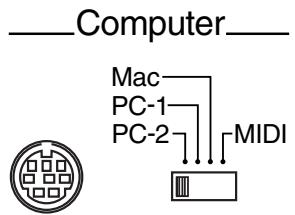
Computer Connector
You can connect a computer to this connector to exchange performance data.
Use a computer cable (sold separately) to make the connection.
The type of cable required will depend on your computer.
Computer Switch
The setting for this switch is made depending on the computer connected- Mac/PC-1/PC-2.
When this switch is set to MIDI, this connector cannot be used.
Making the Connections
NOTE
When connecting, turn on power to your various devices in the order specified. Failure to follow these steps in the order given could cause a malfunction and/or damage to speakers or other equipment.
- Turn off the AT-80SL/60SL and the computer.
- Using a compatible computer cable (sold separately), connect the Computer connector on the bottom of the keyboard with the computer's serial port.
- Set the computer switch on the underside of the keyboard to match the type of computer connected.
Please refer to the connection examples below.
NOTE
Change the setting of the Computer switch only after the power to the unit is off.
- Turn on the computer.
- Turn on the AT-80SL/60SL.
- Make the settings for baud rate (transmission speed) for the computer and the software.

For more information on this procedure, please refer to the owner's manual for your computer.
7. You should also make the settings for the MIDI send channel as needed (p. 174).Connection Examples:
Connection with an Apple Macintosh computer
Use a computer cable (sold separately) to connect the Computer connector on the AT-80SL/60SL to the modem port (or printer port) on the Apple Macintosh. Set the Computer switch to "Mac."
When using the Macintosh "Patch Bay" utility, specify 1 MHz as the Interface Type (MIDI Interface Clock).
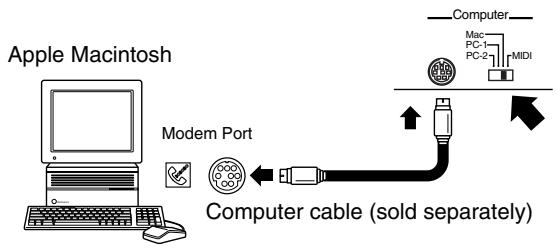
Connection with an IBM PC
Use a computer cable (sold separately) to connect the Computer connector on the AT-80SL/60SL to the COM1 or COM2 serial port on the IBM PC. Set the Computer switch to "PC-2."

Connecting a MIDI Devices
You can connect between your computer and the MIDI connector of the AT-80SL/60SL using a Roland UM-1 or similar USB MIDI interface cable (sold separately).
If the AT-80SL/60SL is connected to a computer in which sequencer software such as Roland's "Visual MT" is installed, a song you've recorded on the AT-80SL/60SL can be saved on your computer.
- In order to make connections to your computer, you must install "MIDI driver" software on your computer. For details, refer to the owner's manual for your MIDI interface.
Use a USB MIDI interface cable to connect the USB connector of your computer to the MIDI connectors of the AT-80SL/60SL.
Set the Computer switch on the AT-80SL/60SL's bottom panel to "MIDI," then turn on the power to the AT-80SL/60SL.
Connecting MIDI Devices
By connecting an external MIDI device and exchanging performance data, you can control the performances on one device from the other. For instance, you can output sound from the other instrument or switch Tones on the other instrument.
What's MIDI?
MIDI, short for "Musical Instrument Digital Interface," was developed as a standard for the exchange of performance data between electronic instruments and computers.
The AT-80SL/60SL is equipped with MIDI connectors and a Computer connector to let it exchange performance data with external devices. These connectors can be used to connect the AT-80SL/60SL to an external device for even greater versatility.
About MIDI Connectors
The AT-80SL/60SL has two kinds of MIDI connectors.
Connecting these to the MIDI connectors on a MIDI instrument makes it possible for the two instruments to control each other.
For instance, you can output sound from the other instrument or switch tones on the other instrument.
You should also set the MIDI send channel as needed.
MIDI

Out
InMIDI Out Connector
Connect the external MIDI device to the MIDI IN connector with an optional MIDI cable. The notes played on the keyboard, movements of the Damper pedal, Expression data, data indicating that a Registration button, etc., was pressed will be transmitted to the external MIDI connector. The Solo voice will be transmitted only if the Solo [To Lower] button is ON.
MIDI In Connector
Connect the external MIDI device to the MIDI out connector with an optional MIDI cable. Performance messages from an external MIDI device are received here.
These incoming messages may instruct the receiving MIDI instrument to play sounds or switch voices.
The AT-80SL/60SL contains two sound generators: one sound generator for its own keyboards and one GS sound generator (p. 250). Normally, musical data transmitted from an external device to the MIDI In connector is sent to the GS sound generator, but you can also set the "MIDI IN Mode" parameter (p. 196) so that the keyboard sound generator is controlled.
Making the Connections
NOTE
When connecting, turn on power to your various devices in the order specified. Failure to follow these steps in the order given could cause a malfunction and/or damage to speakers or other equipment.
- Turn the volume all the way down on the AT80SL/60SL and on the device you're about to connect.
- Switch off the power to the AT-80SL/60SL and the device you're about to connect.
- Set the Computer switch on the bottom of the unit to "MIDI."
- Use a MIDI cable (sold separately) to connect the MIDI connectors to each other.
- Switch on the power to the AT-80SL/60SL and the connected device.
- Adjust the volume level on the AT-80SL/60SL and the connected device.
- You should also set the MIDI send channel as needed.
MEMO
A separate publication titled "MIDI Implementation" is also available. It provides complete details concerning the way MIDI has been implemented on this unit. If you should require this publication (such as when you intend to carry out byte-level programming), please contact the nearest Roland Service Center or authorized Roland distributor.
Connecting a Television to View the Lyrics (AT-80SL)
You can connect a television to view the lyrics from SMF music files.
Making the Connections
NOTE
When connecting, turn on power to your various devices in the order specified. Failure to follow these steps in the order given could cause a malfunction and/or damage to speakers or other equipment.
- Switch off the power to the AT-80SL and television.
- Connect the AT-80SL's Video Out connector to the video input connector on the television with an optional video cable.
- Switch on the television.
- Turn on the AT-80SL.
- Touch
on the Main screen.

- Touch <> to display the Video Out.
- Touch the Video Out setting to select "ON."
Each time you touch the Video Out setting, it will alternate between "ON" and "OFF."
- Touch
. - Play back the music files with lyric (p. 145).
The lyric appears on the display.
NOTE
If lyric will be not displayed on the screen, please switch the TV format.
Switching the TV Format
- Touch
on the Main screen.
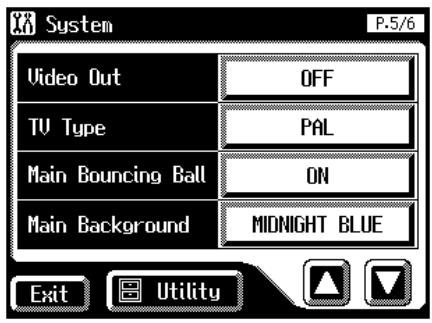
- Touch <> <> to display the TV Format.
- Touch the TV Format setting to switch between "PAL" and "NTSC."
Each time you touch the TV Format setting, it will alternate between "PAL" and "NTSC."
Settings: PAL, NTSC
- Touch
.
MEMO
This setting remains stored in memory even while power is turned off.
Connecting External Speakers or an external Reverb Unit to Broaden the Reverb (RSS Reverb) (AT-80SL)
The AT-80SL has an Aux Out jack on the bottom of the instrument.
By using this Aux Out jack to connect external speakers, you can sound the reverb (reverberation) from the speakers. An external reverb unit can also be connected and used to apply reverb.
Switching the Aux Out On/OFF
1. Touch
on the Main screen. The System screen appears.
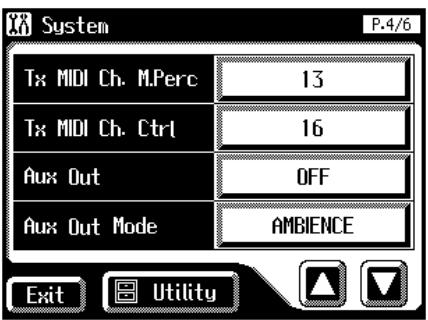
2. Touch <><> to display the Aux Out.
3. Touch the Aux Out setting to switch between "ON" and "OFF."
Each time you touch the Aux Out setting, it will alternate between "ON" and "OFF."
4. Touch
. Switching the Aux Out Mode
1. Touch
on the Main screen. The System screen appears.
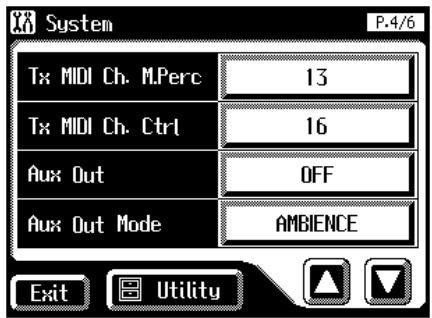
2. Touch <> to display the Aux Out Mode.
3. Touch the Aux Out Mode setting to switch between "AMBIENCE" and "TO EFFECTOR."
Each time you touch the Aux Out Mode setting, it will alternate between "AMBIENCE" and "TO EFFECTOR."
AMBIENCE The reverb sound applied by the ATELIER will be output. TO EFFECTOR The direct sound is output for applying reverb. 4. Touch
. 
You can change the depth of Reverb for each part (p. 133).

This setting remains stored in memory even while power is turned off.
1. Easy System
The RSS reverb plays when a stereo set is connected.

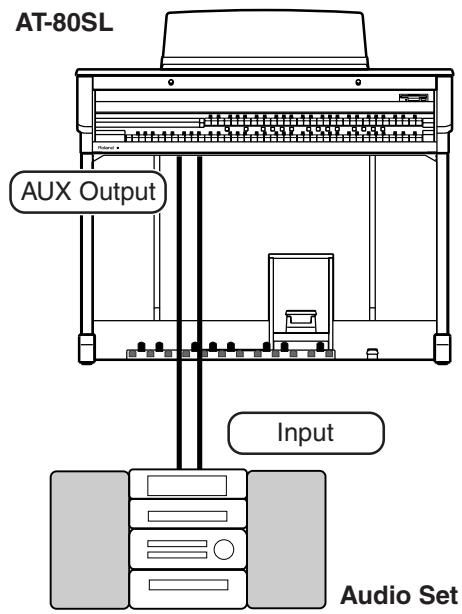
2. Regular System
The RSS reverb is played when rear speakers are set up.

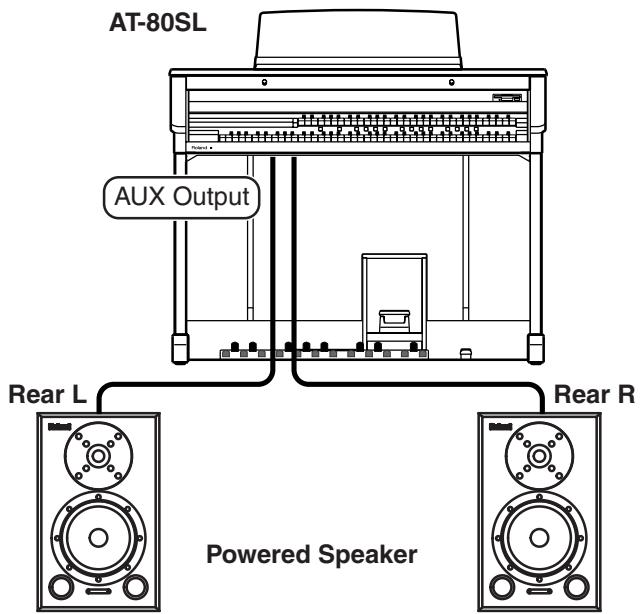
3. System for Small Hall/Midsized Hall
The RSS reverb is played when front and rear speakers are set up.
Aux Out : ON
Aux Out Mode: AMBIENCE
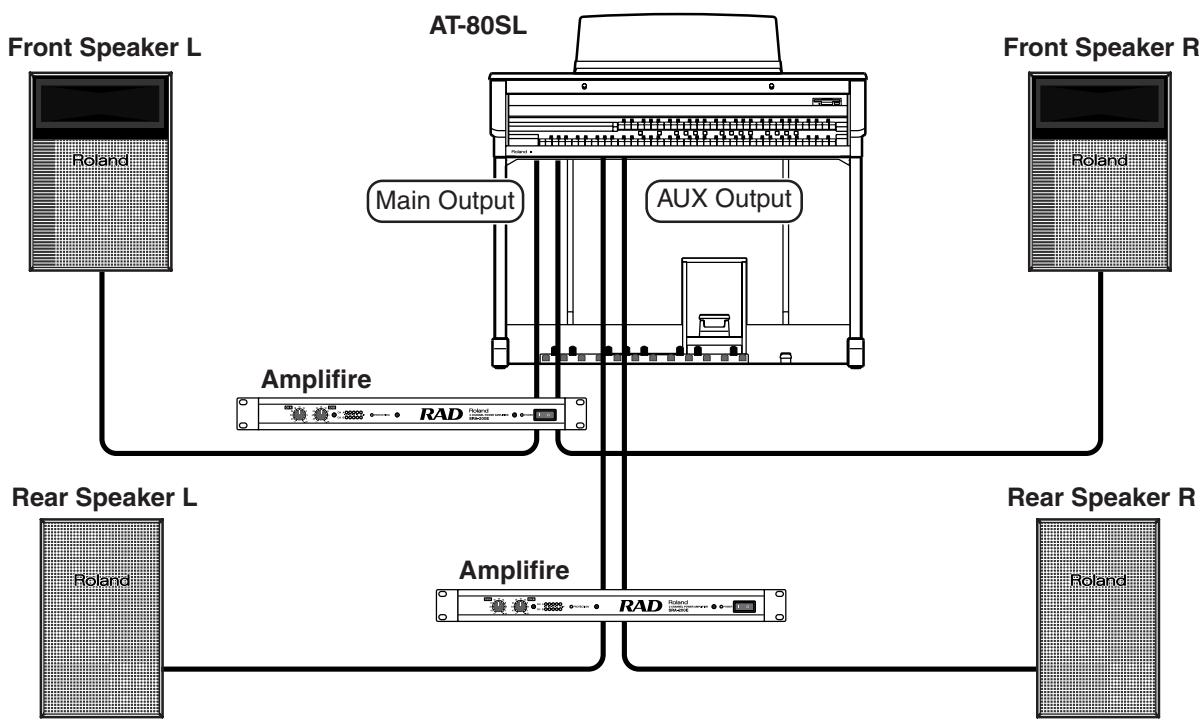
4. System for Large Hall
The RSS reverb is played when front, rear, and side speakers are set up.
Aux Out : ON Aux Out Mode: TO EFFECTOR
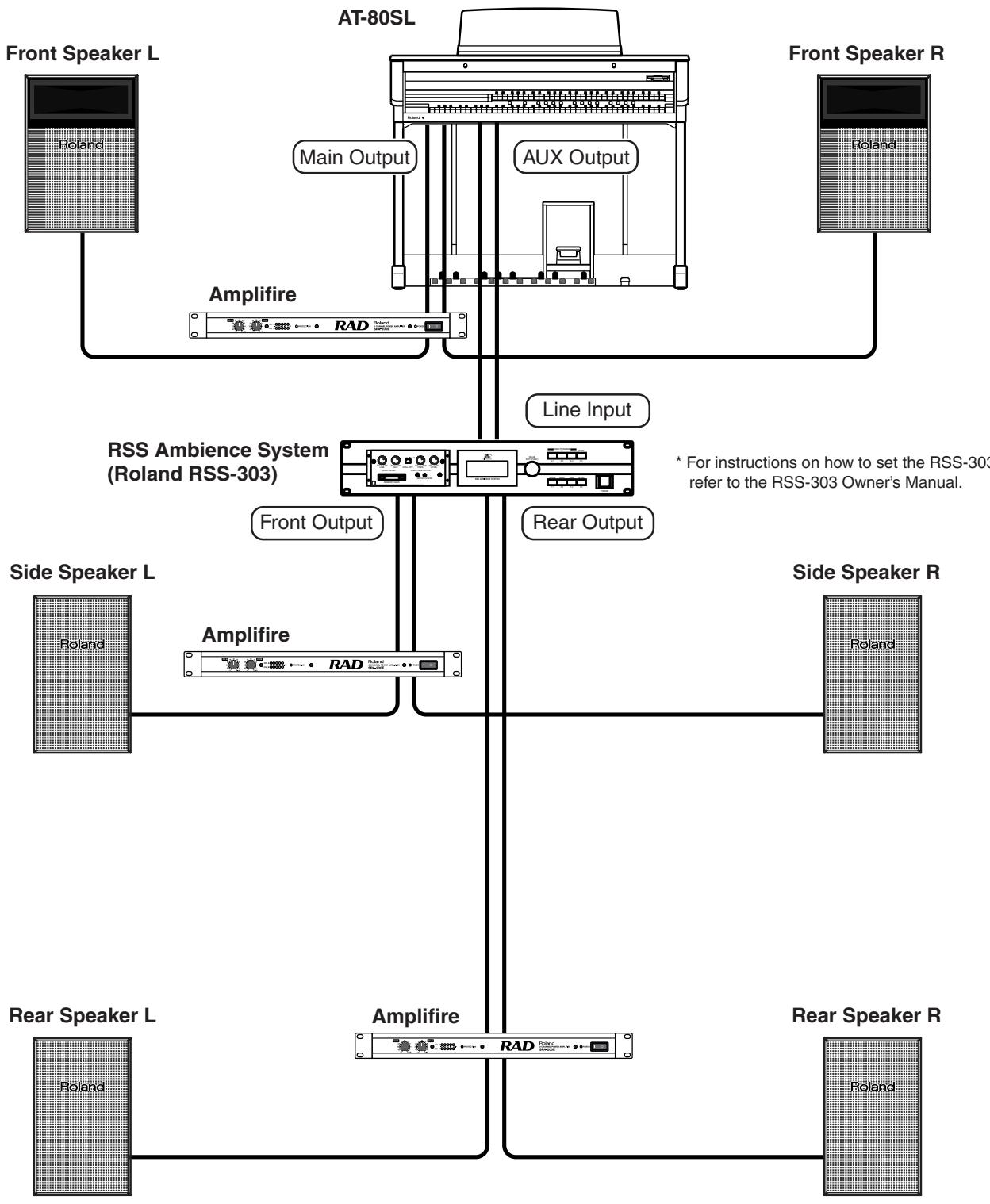
Troubleshooting
If the AT-80SL/60SL does not function in the way you except, first check the following chart. If this does not resolve the problem, consult your dealer or a nearby Roland Service Station.
Problem Check Solution Page When you press the [Power On] switch, the power doesn't come on. Power cord is not connected correctly. Connect the power cord correctly. p. 20 No sound is heard. The [Master Volume] slider is set too low. Turn the [Master Volume] knob toward “Max.” p. 20 Headphones are connected. When you connect the headphones, the sound is heard only through the headphones. If you want sound to be output from the speakers, disconnect the headphones. p. 21 The plug is still plugged into the headphone jack. Disconnect the plug from the headphone jack. p. 21 The volume is set too low on the Level [▲] [▼] buttons. Press the Level [▲][▼] buttons to raise the volume. p. 52 The volume is set too low on the Expression Pedal. Advance the expression pedal. p. 120 You do not have a Voice selected. Voices that have their button indicator lit can be played. Press a voice button to select a voice. p. 40 No sound is heard. (by the Lower keyboard) Drums/SFX are selected for the Lower keyboard, but you are playing a key to which no drum sound is assigned. Turn the Drums/SFX off or play keys to which drums sounds are assigned. p. 56 No sound is heard. (by the Upper keyboard) “Percussion Set 3” has been selected for the Upper keyboard. When “Percussion Set 3” is selected, some keys may have no sound assigned to them. For the upper keyboard, select a voice other than “Percussion Set 3.” p. 42 No sound is heard (when a MIDI instrument is connected). The power of the connected external devices is not turned on. Use the correct procedure to turn on the power of the connected external devices. p. 205 - p. 210 The Computer switch on the bottom of the unit is not set to “MIDI.” Change the setting of the computer switch. p. 208 Damper Pedal does not operate. The damper pedal affects only the Lower keyboard and Upper keyboard. The damper pedal does not affect the Bass pedalboard. You can change the settings so that the damper pedal affects the Upper keyboard. p. 187 The damper pedal does not affect the Solo voice. This is not a malfunction. --- Expression Pedal does not operate. The function of the Expression Pedal during recording or the function during playback has been set to “COMPOSER.” Set the expression pedal function during recording to “PEDAL,” and during playback to “PEDAL” or “PEDAL+COMPOSER.” p. 186 Can’t use the function assigned to the foot switch. If “Regist Shift” (change Registrations) is “RIGHT,” “LEFT,” or “RIGHT + Load Next,” the foot switch will be dedicated to switching the Registration. Turn “Regist Shift” off. p. 119 When the human voice “Jazz Scat” is selected, playing dynamics do not change the sound. The setting of “Initial Touch” is turned OFF. Turn “Initial Touch” on. p. 185 Rotary effect is not be applied. Some sounds do not allow the rotary effect to be applied. This is not a malfunction. --- Chorus effect does not apply. Some sounds do not allow the chorus effect to be applied. This is not a malfunction. --- When you release your fingers from keys in the Lower keyboard while Automatic Accompaniment and Rhythm are playing, the Rhythm performance only remains playing. Chord Hold is at OFF. Turn “Chord Hold” on. The Automatic Accompaniment will play while you press a chord. If Chord Hold is turned ON, the Automatic Accompaniment will continue playing with the Rhythm even when you take your hand off of the Lower keyboard. p. 188 When you release your fingers from keys in the Lower keyboard, the notes continue sounding. The Lower Voice [Hold] button is at ON. Press the Lower Voice [Hold] button to turn it off (dark). p. 60 Even though you press only one key, a multiple number of notes sound. Harmony Intelligence is at ON. Turn “Harmony Intelligence” off. p. 122 Chord Intelligence is turned ON. Turn “Chord Intelligence” off. p. 70 Sound is produced when you take your finger off a key. You have selected a “Marimba Treml” or “Banjo Treml” sound. This is not a malfunction. If you select a “Marimba Treml” or “Banjo Treml” sound, a sound will also be produced when you take your finger off the key. --- Automatic Accompaniment sounds odd. The keys for a chord were not pressed simultaneously. Either turn on the Chord Intelligence function, or play the chord correctly. p. 70 When Chord Intelligence is OFF, the chord is not being pressed correctly. Either turn on the Chord Intelligence function, or play the chord correctly. p. 70 When performance data from a device other than the AT-80SL/60SL is being played together with the Automatic Accompaniment, the Automatic Accompaniment may not be sounded correctly. This is not a malfunction. --- Rhythm sounds odd. When performance data from a device other than the AT-80SL/60SL is being played together with the Automatic Accompaniment, the Rhythm performance may not be sounded correctly. This is not a malfunction. --- Pitch is off Transpose is in effect. Simultaneously press the Transpose [-] [+] buttons to cancel the transposition (the Transpose [-][+] buttons' indicators will go out). p. 114 The tuning is incorrect. Adjust the standard pitch. p. 194 While set for an octave shift, you are playing keys beyond the recommended range. This does not indicate a malfunction. Adjust the Octave Shift setting. p. 54 Recording is not possible. If you wish to erase a previously-recorded track and then re-record, press the track button for the desired track to make that button blink before you begin recording. Press the track button for the desired track to make that button indicator blink before you begin recording. p. 155 If you wish to erase a previously-recorded track and then re-record, touch the track button for the track you want to record in the Rec/Play screen, stopping the button from flashing. On Rec/Play screen, touch the track button for the desired track to make that button indicator blink before you begin recording. p. 155 The recorded performance has disappeared. Any performance that has been recorded is deleted when the power to the unit is turned off. A performance cannot be restored once it's been deleted, so be sure to save it on a floppy disk before you turn off the power. p. 158 The bass note of the Automatic Accompaniment does not sound. When a voice is selected for the Pedal Bass part, the bass of the Automatic Accompaniment will not sound. This is not a malfunction. --- MIDI messages received at MIDI In are not sounded. The Computer switch is not set to “MIDI” position. Set the Computer switch to “MIDI.” p. 208 The Computer switch was set to “MIDI” after the power was turned on. Turn off the power, and then turn the power on once again. p. 208 Sound is distorted / cracked. The Part Balance volume of each part is too high. Press the Part Balance button to lower the volume. p. 52 The Reverb volume has been raised when the volume of each Part Balance button is already raised. Either lower the Reverb volume, or adjust the Part Balance of each part. p. 52 p. 131 The [Master Volume] slider has been used to raise the overall volume excessively. Use the [Master Volume] slider to lower the overall volume. p. 20 Some keys (of certain keyboard parts) sound strange. You are playing notes outside the recommended range of the voice. This is not a malfunction. --- The Rhythm does not change when you press the Registration buttons. The settings at which Registrations are recalled (Registration Arranger Update) has been set to “DELAYED.” Set the timing at which the arranger settings are called up (Registration Arranger Update) to “INSTANT.” p. 92 p. 190 The volume changes during playback of performance data. When recording is performed repeatedly while changing the Part Balance volume, the previously-recorded Part Balance data remains in the Control track. If you wish to get rid of the volume changes, use the Erase function to delete the Part Balance data. p. 168 Bass is heard even though you are not playing the Bass Pedalboard. The Pedal [To Lower] button or the [Bass Split] button is ON. When the Pedal [To Lower] button is ON, the Bass will be sounded by the Lower keyboard. In the Pedal part, press the Pedal [To Lower] button or [Bass Split] button to turn the button off (dark). p. 140 p. 142 When playing the same sound in the Upper keyboard and Lower keyboard, the volume is different. On one of the keyboards, “Initial Touch” is turned ON. Set the initial touch settings of the Upper keyboard and the Lower keyboard to both On, or both Off. p. 185 Lower keyboard cannot be heard. The Lower keyboard will not produce sound while an Intro or Ending is being played. This is not a malfunction. --- The sound is not played correctly. If you layer the same type of sound (for example, Strings 1 and Strings 5), or play an octave-shifted organ sound, the timing at which you play a note or the phase relationship between the two sounds may affect the way in which the sounds are heard, but this is not a malfunction. You are layering sounds of the same type (e.g., Strings 1 and Strings 5). Alternatively, you are playing an organ sound with Octave Shift. This is not a malfunction. --- Can’t play the demo songs. A floppy disk is inserted in the disk drive. In order to play the demo song, you must remove the floppy disk from the disk drive. p. 76 Nothing appears on screen. The AT-80SL/60SL uses a liquid-crystal screen, so text may not be displayed when the ambient temperature is below freezing. Adjust the brightness of the screen. p. 203 Lyrics are not indicated properly in the display. With some music files, the lyrics cannot be displayed correctly. This is not a malfunction. --- In the Notation screen, some lyrics or notes could extend beyond the edges of the screen, and not be displayed. This is not a malfunction. --- A button was pressed while the lyrics were being shown in the display. During the display of lyrics, you could be taken to a different screen if you press a button. If you want to have the lyrics be displayed again, touch <Play> on the Rec/Play screen. p. 143 The Touch Screen doesn’t respond correctly. The positioning of the Touch Screen may become displaced if some time has passed since it was last used Reposition the Touch screen. p. 197 Certain instrument are not heard while playing a song. The track is muted. Turn off track muting. p. 147 p. 148 Can’t use Chord Intelligence function. Chord Intelligence is at OFF. Turn “Chord Intelligence” on. p. 70 Score is not indicated properly in the display. In the Notation screen, some lyrics or notes could extend beyond the edges of the screen, and not be displayed. This is not a malfunction. --- The Notation display feature is particularly unsuitable for the display of difficult, complex musical works that demand accurate notation. This is not a malfunction. p. 151 If you select a part that does not contain performance data, notes will not be displayed in the notation. Change the part that is displayed. p. 150 Vertical lines can be seen in the screen. This is attributable to the design fundamentals of a liquid crystal display, and does not indicate a malfunction. Adjusting the display’s contrast can make such lines less noticeable, so you may want to try adjusting it. p. 203 The Bass Range Sounds Odd, or There Is a Vibrating Resonance. Playing at loud volumes may cause instruments near the AT-80SL/60SL to resonate. Resonance can also occur with fluorescent light tubes, glass doors, and other objects. In particular, this problem occurs more easily when the bass component is increased, and when the sound is played at higher volumes. Use the following measures to suppress such resonance. ·Place speakers so they are 10-15 cm from walls and other surfaces. ·Reduce the volume. ·Move the speakers away from any resonating objects. --- When listening through headphones: Here, a different cause (such as resonance produced by the AT-80SL/60SL) would be suspect. Consult your Roland dealer or nearest Roland Service Center. --- The volume level of the instrument connected to AT-80SL/60SL is too low. Could you be using a connection cable that contains a resistor? Use a connection cable that does not contain a resistor. p. 205 Pressing the expression pedal while playing back Atelier performance data produces a crackling noise The expression pedal function is set to “PEDAL+COMPOSER” during playback of Atelier performance data. When this setting is used, moving the expression pedal while playing back Atelier performance data may create a difference between the expression pedal information in the performance data and the volume as set with the expression pedal, which can result in this kind of sound being produced. Set the expression pedal function to “PEDAL” during playback. p. 187 Tempo not changing even when the source tempo is reselected (when arranging rhythms using the Rhythm Customize function). Auto Std Tempo (Auto Standard Tempo) is set to on. When the Auto Std Tempo setting is set to ON and rhythms are switched while the rhythm is stopped, the tempo is automatically set to the tempo for that rhythm. The tempo setting does not change automatically, even if the rhythms are switched with the Auto Std Tempo setting set to OFF and the rhythm stopped. Turn “Auto Std Tempo” off. p. 189 Unable to save created rhythm to the User Memory “Memory Full” appears in the display. The available memory remaining in the AT-80SL/60SL is not sufficient. First delete some other rhythm saved to the user memory, then save the rhythm you have created to the user memory once again. p. 182 p. 183 There is no sound from the twelve keys at the right of the lower keyboard. The V-LINK function is set Mode 2. When V-LINK setting is Mode 2, the group of twelve keys starting at the very right of the lower keyboard are used for controlling video images. Therefore, no sounds are played even when you press these keys. Turn the V-LINK function off, or select Mode 1 for the V-LINK function. p. 201 Error Message
Error Message Meanings Copy Protected. Can't Save To protect the copyright, this music file cannot be saved as SMF format. When you want to save as Atelier format, you can save only original disk. Can't Save This Song. You can only play the music data. It cannot be saved on a floppy disk or internal memory. Write Protected Disk The protect tab on the floppy disk is set to the Protect position. Change it to the Write position and repeat the procedure. Master Disk This floppy disk cannot store the format or save any data. Insert a different disk and repeat the procedure. Read Only Song. Can't Save A new song cannot be saved onto this floppy disk. No Disk No floppy disk is connected to the disk drive. Insert the disk correctly, and repeat the procedure. Disk Full There is not sufficient space left on the floppy disk for the data to be saved. Save the data onto a different floppy disk or delete music data on the disk. Unknown Disk The floppy disk inserted into the disk drive cannot be read. Please format the floppy disk. Disk Ejected The floppy disk was removed from the disk drive while loading or writing was in progress. Insert the floppy disk and repeat the procedure. Damaged Disk This floppy disk is damaged and cannot be used. Insert a different disk and repeat the procedure. Can't Read This song cannot be read. Can't Play It cannot be read the floppy disk quickly enough. Press the [Reset] button, then press the [Play/Stop] button to play the song. Memory Full The Rhythm data is excessively large, and cannot be loaded. The performance data is excessively large, and cannot be loaded. Since the internal memory is full, recording or editing is not possible. MIDI Buffer Full The AT-80SL/60SL cannot deal with the excessive MIDI data sent from the external MIDI device. Reduce the amount of MIDI data sent to the AT-80SL/60SL. Communication Error A MIDI cable or computer cable has been disconnected. Connect it properly and suurely. Computer I/F Error The Computer Switch is set to a wrong position or the computer is set wrongly. Switch off the AT-80SL/60SL then set the Computer Switch to the correct position and set the computer correctly. After that, switch on the AT-80SL/60SL again. Memory Error There is something wrong with the system. Repeat the procedure from the beginning. Expansion Board Not Found. An error with the instrument. Please contact Roland Service. Internal Memory Near Limit The AT-80SL/60SL is warning you that its memory will soon become full to capacity, so not much more recording can be done. Clear Song OK? To carry out the procedure, you first need to erase performance data in the AT-80SL/60SL. This message asks you to confirm that you don’t mind doing this. To erase the data, touch <OK> on the screen. When you do not want to erase it, touch <Cancel> then save the data on disk. Overwrite Regist OK? This Registration is already being used. To overwrite the previous Registration data in this memory, touch <OK>. If you decide to keep the previous Registration data in this memory and save your settings in an unused memory, select a number for which “---” is displayed, and then save the data. Overwrite Song OK? There already is performance data having the same name on the disk. To replace the existing data with the new version, touch <OK>. To save it as a separate new file, touch <Cancel> first. Then, after changing the name, save it on disk. Overwrite Rhythm OK? Overwrite the internal Rhythm. To replace the Rhythm, touch <OK>. When you do not want to overwrite it, touch <Cancel> then select another Rhythm. Delete Song OK? Delete the song stored on floppy disk. To delete the song, touch <OK>. When you do not want to delete it, touch <Cancel>. Delete Rhythm OK? Delete the Rhythm. To delete the Rhythm, touch <OK>. When you do not want to delete it, touch <Cancel>. Voice List (AT-80SL)
Organ
Full Organ1 *1
Full Organ2 *1
Full Organ3 *1
Full Organ4 *1
Full Organ5 *1
Full Organ6 *1
Full Organ7 *1
Full Organ8 *1
Full Organ9 *1
Ballad Organ *1
GoodOldOrgan *1
Jazz Organ1 *1
Jazz Organ2 *1
Jazz Organ3 *1
Jazz Organ4 *1
Jazz Organ5 *1
Jazz Organ6 *1
ComboJazzOrg *1
LightJazzOrg *1
Rock Organ1
Rock Organ2
Lower Organ1 *1
Lower Organ2 *1
Lower Organ3 *1
Lower Organ4 *1
Lower Organ5 *1
Lower Organ6 *1
Manual Bass *1
Pipe Organ1
Pipe Organ2
Pipe Organ3
Pipe Organ4
Pipe Organ5
Pipe Organ6
Pipe Organ7
..
..
AEx Pipe Mix
AEx PipeOrg
Diapason 8'
FluteCeleste
Gemshorn 8'
Trompet 8'
Hautbois 8'
Viola 8'
ViolaCeleste
Bombarde16
T.ViolCelest *2
T.String 8' *2
T.Vox Humana *2
VoxHumana 8' *2
T.Tuba 8' *2
T. Trumpet 8' *2
T.Sax 8' *2
T.Oboe 8' *2
T. Kinura *2
T.Krumet 8'
Eng.Horn 8'
T.ConcertFlt *2
Tibia 8' *2
Theater Or.1 *2
Theater Or.2 *2
Theater Or.3 *2
Theater Or.4 *2
Theater Or.5 *2
Theater Or.6 *2
Theater Or.7 *2
Theater Ens.
LyricTheater
TheaterQuint
..
AEx T.Mix
AEx Theater *2
Synth.Org.1 *2
Synth. Org.2
Synth.Org.3 *2
Synth. Org.4 *2
Digi Church *2
Metallic Org. *2
Pop. Organ1 *2
Pop. Organ2 *2
Pop. Organ3 *2
Org. Attack1
Org. Attack2
Org. Attack3
Org. Attack4
Org. Click
■ Strings
Full Strings *2
Full Tremolo *2
Str/Spiccato *2
Chamber Str *2
ChamberStr2 *2
Orch.Str.Ens *2
Strings1
Strings2
Strings3 *2
Strings4 *2
Strings5
Strings6
Strings7 *2
Strings8 *2
Rich Pizz. *2
Pizzicato *2
Mellow Pizz. *2
..
AEx Strings
AEx Str+Trml *2
ExStr+Brs
AEx Str+Chr
Slow FullStr *2
Slow Str.1
Slow Str.2
Slow Str.3 *2
Synth. Str.1
Synth. Str.2
Synth. Str.3
Violin *2
AEx Violin *2
Viola *2
Cello *2
Cello 2 *2
Er Hu *2
Human Voice
JazzScat *2
JazzScat2
JazzScat3
DreamyChoir *2
F.Chorus Luh *2
F.Chorus Who *2
Jazz Doo *2
Jazz Doot *2
Jazz Dat *2
Jazz Bap *2
Jazz DowFall *2
Jazz DoohDot *2
Jazz DahDat *2
Jazz Vaaah *2
Jazz Doea *2
Pop Voice *2
AEx M.Chorus *2
AEx F.Chorus *2
Soprano *2
Soprano 2
Tenor
Tenor&Sop.
Classical
Boys Choir
BoysChoir2 *2
Kids Choir *2
Gregorian
Gospel
Choir
Female 1
Female 2 *2
AExChoir
Synth. ChoiR
Synth. Voice *2
Space Voice
Choir Chord
Vocal Menu
Oriental Chr *2
Harp *2
Harp 2 *2
Celtic Harp *2
Nylon Harp *2
Harpvox *2
Koto *2
Taisho Koto *2
Shamisen *2
Sanshin *2
Chung Ruan *2
Pi Pa *2
Sitar *2
HarmonMuteTp *2
Cup Mute Tp. *2
Mute Trumpet *2
MuteTrumpet2 *2
AEx Trumpet *2
Flugel Horn *2
Trombone Solo *2
Trombone *2
Trombone2 *2
F.Horn Solo1 *2
F.Horn Solo2 *2
Soprano Sax *2
Soprano Sax2 *2
Alto Sax Ex *2
Alto Sax *2
Alto Sax2 *2
Blow Sax *2
AEx AltoSax *2
Super Tenor *2
Tenor Sax *2
Tenor Sax2 *2
BaritoneSax *2
■ Woodwinds
Wood Winds *2
Wood Winds 2 *2
AEx Woodwind *2
Flute *2
Flute2 *2
Flute3 *2
AEx Flute *2
Piccolo *2
Synth.Flute
Oboe Solo *2
Oboe *2
AEx Oboe *2
English Horn *2
Bassoon *2
Bassoon 2 *2
ClarithetSolo *2
Clarithet *2
Clarithet2 *2
Clarithet3 *2
Clarithet4 *2
Bs Clarinet *2
Shakuhachi *2
Qu Di *2
Pan Flute *2
Pan Flute 2 *2
Tin Whistle *2
Uillean Pipe *2
Bagpipe *2
BottleBlow *2
Piano
Grand Piano
Bright Piano
Piano1
Piano2
Piano3
..
Honky-tonk
Honky-tonk2
Stage Rhodes *2
Dyno Rhodes *2
Wurly *2
E.Piano1
E.Piano2
E.Piano3
E.Piano4 *2
..
AEx EP+Str
HarpsiSingle *3
HarpsiDouble *3
Harpsichord
Clavi.
Guitar
Nylon-str.Gt *2
Nylon Gt.2 *2
Fl.Guitar *2
Fl.Gtr Roll *2
Requinto Gtr *2
Ac.Gtr Sld *2
Ac.Gtr Hrm *2
Steel-str.Gt *2
12strGuitar *2
.
AEx Gtr+Str *2
SemAc.Guitar *2
JazzGuitar *2
CleanGuitar *2
JC E.Guitar *2
Lp Overdrive *2
Overdrive Gt *2
DistortionGt *2
PowerGuitar *2
Rock Rhythm *2
MutedGuitar *2
..
AEx OD Gtr *2
Hawaiian Gt. *2
Pedal Steel *2
Banjo *2
Banjo Treml *3
Mandolin
Brass/Sax
BrassSect.1 *2
BrassSect.2
Brass 1 *2
Brass 2 *2
Brass 3
Orch.Tutti 1 *2
Orch.Tutti 2 *2
Orch.Tutti 3 *2
Orch.Brs Ens *2
Quad Brass *2
Power Brass *2
FatPop Brass *2
Brass Fall *2
AExOrch.Brs *2
AEx Brass *2
AEx BigBand *2
Twin Tp. *2
Tp. Section *2
Trumpet Fall *2
Twin Bones *2
Bones Sect. *2
Fr.Horn Sect
Fr.HornSect2
Fr.HornSect3
Fr.HornSect4 *2
MutedFr.Horn *2
AEx Fr.Horn *2
Sax.Section *2
Sax.Section2 *2
Sax.Section3 *2
Sax/Brass
Sax&Clarithet *2
Synth.Brass *2
Trumpet Solo *2
Trumpet *2
Trumpet2 *2
Trumpet3
Tp/Shake *2
Mariachi Tp. *2
HumanWhistle *2 ContraBs Oct *2 Marimba Lead/Pad ContraBs+SD *2 MarimbaTreml *3 . AEx Bs+Temp Xylophone Synth. Lead1 *2 . AEx Bs+Tuba *2 Balafon *2 Synth. Lead2 *2 Tuba Steel Drums Synth. Lead3 *2 Tuba2 *2 Steel Drums2 *2 Synth. Lead4 *2 Tuba3 *2 Yang Qin *2 Synth. Lead5 *2 E.Bass1 Santur *2 Retro Lead *2 E.Bass2 *2 Kalimba *2 JP SuperSaw *2 E.Bass3 *2 Music Box *2 CC Solo *2 E.Bass4 *2 SoftMusicBox *2 AEx Lead *2 E.Bass5 *2 Vibra Bells *2 Synth. Pad1 E.Bass Oct *2 Digi Bells *2 Synth. Pad2 Power Bass *2 Finger Snap Synth. Pad3 Synth. Bass1 Footsteps OB Pad *2 Synth. Bass2 Key Typing Soft Pad *2 Voice Thum *2 Bird *2 Mystic Str. *2 ■ Percussion ■ AEx Voice Crystal Pad *2 Polar Night *2 Timpani . AEx Pipe Mix Space Pad *2 Timpani2 . AEx PipeOrg Galactic *2 Soft Timpani . AEx T.Mix Sugar Key *2 AEx TimpRoll *2 . AEx Theater HollowReleases *2 Concert Cym. *2 . AEx Strings AEx GlassPad *2 Short Cymbal . AEx Str+Trml Acco.Classic *2 MalletCymRol . AEx Str+Brs Fr.Musette *2 Crash Cymbal *2 . AEx Str+Chr German Acco. *2 Ride Cymbal . AEx Violin Italian Folk *2 Snare & Roll . AEx M.Chorus Accordion Snare Drum . AEx F.Chorus AEx Acordion *2 Bass Drum . AEx Choir BandoneonFul *2 Triangle *2 . AEx PianoStr Bandoneon *2 Tambourine . AEx EP+Str Blues Harp *2 TambourinRol . AEx Gtr+Str Harmonica *2 Woodblock . AEx OD Gtr Woodblock 2 *2 . AEx Orch.Brts Castanet . AEx Brass Bass Jingle Bell *2 . AEx BigBand Organ Bass1 Church Bell . AEx Fr.Horn Organ Bass2 . AEx Trumpet PedalOrg.16' *1 Perc. Set1 . AEx AltoSax Pedal Org.8' *1 Perc. Set2 . AEx Woodwind Pipe Org. Bs Perc. Set3 *2 . AEx笛 Bombarde Orch.HitMenu . AEx Oboe Theater Bass DanceHitMenu . AEx Lead Str.Bass Pdl *2 AcGtNzMenu . AEx Aces String Bass *2 Jazz Vibes *2 . AEx GlassPad String Bass2 *2 Vibraphone *2 . AEx Acordion Str.Bass Oct *2 Glockenspiel . AEx Bs+Temp Str.BassSolo *2 Celesta . AEx Bs+Tuba Bass+Cymbal *2 Organ Harp . AEx TimpRoll Baby Bass *2 Organ Bell * The AEx voice group consists of all the AEx voices, taken from the entire collection of voices. Contrabass1 *2 Tubular-bell Contrabass2 *2 Hand Bell *2 *1: Rotary: effective, Chorus: ineffective
*2: Vibrato: effective, Aftertouch: effective
Active Expression Voice
Voice List (AT-60SL)
Organ
Full Organ1 *1
Full Organ2 *1
Full Organ3 *1
Full Organ4 *1
Full Organ5 *1
Full Organ6 *1
Full Organ7 *1
Full Organ8 *1
Ballad Organ *1
Jazz Organ1 *1
Jazz Organ2 *1
Jazz Organ3 *1
Jazz Organ4 *1
Jazz Organ5 *1
Jazz Organ6 *1
ComboJazzOrg *1
Rock Organ1
Rock Organ2
Lower Organ1 *1
Lower Organ2 *1
Lower Organ3 *1
Lower Organ4 *1
Lower Organ5 *1
Lower Organ6 *1
Manual Bass *1
..
AEx Pipe Mix
Pipe Organ1
Pipe Organ2
Pipe Organ3
Pipe Organ4
Pipe Organ5
Pipe Organ6
Pipe Organ7
AEx Pipe Mix
AEx PipeOrg
Diapason 8'
FluteCeleste
Gemshorn 8
Trompet 8'
Hautbois 8'
Viola 8'
ViolaCeleste
Bombarde16
T.String 8' *2
VoxHumana 8' *2
T.Tuba 8' *2
T. Trumpet 8' *2
T.Sax 8' *2
T.Oboe 8' *2
T.Krumet 8'
Eng.Horn 8'
Tibia 8' *2
Theater Or.1 *2
Theater Or.2 *2
Theater Or.3 *2
Theater Or.4 *2
Theater Or.5 *2
Theater Or.6 *2
Theater Or.7 *2
AEx Theater *2
Synth.Org.1 *2
Synth. Org.2
Synth. Org.3 *2
Synth.Org.4 *2
Pop. Organ1 *2
Pop. Organ2 *2
Pop. Organ3 *2
Org. Attack1
Org. Attack2
Org. Attack3
Org. Attack4
Org. Click
■ Strings
Chamber Str *2
Orch.Str.Ens *2
Strings1
Strings2
Strings3 *2
Strings4 *2
Strings5
Strings6
Strings7 *2
Strings8 *2
Pizzicato *2
Mellow Pizz. *2
AEx Stri
AEx Str
AExStr+Chr
Slow Str.1
Slow Str.2
Slow Str.3 *2
Synth. Str.1
Synth. Str.2
Synth. Str.3
Violin *2
..
AEx Violin *2
Viola
Cello
Er Hu
*2
*2
*2
*2
Human Voice
JazzScat *2
Dreamy Choi *2
Jazz Doo *2
Jazz Doot *2
Jazz Dat *2
Jazz Bap *2
Jazz DowFall *2
Pop Voice *2
Soprano 2
Classical
Boys Choir
KidsChoir *2
Gregorian
Gospel
Choir
Female 2 *2
..
AExChoir
Synth. ChoiR
Synth. Voice *2
Space Voice
Vocal Menu
Piano
Grand Piano
Piano1
Piano2
Piano3
..
AEx PianoStr
Honky-tonk
Honky-tonk2
Stage Rhodes *2
Dyno Rhodes *2
E.Piano1
E.Piano2
E.Piano3
E.Piano4 *2
..
AEx EP+Str
Harpsichord
Clavi.
Guitar
Nylon-str.Gt *2
Nylon Gt.2 *2
RequintoGtr *2
Ac.Gtr Sld *2
Steel-str.Gt *2
12strGuitar *2
AEx Gtr+Str *2
SemAc.Guitar *2
JazzGuitar *2
CleanGuitar *2
JC E.Guitar *2
Overdrive Gt *2
DistortionGt *2
MutedGuitar *2
Hawaiian Gt. *2
Banjo *2
Banjo Treml *3
Mandolin
Harp *2
Harp 2 *2
Harpvox *2
Koto *2
Taisho Koto *2
Shamisen *2
Sitar *2
Brass/Sax
BrassSect.1 *2
Brass2 *2
Orch.Tutti 1 *2
Orch.Tutti 2 *2
Orch.Brs Ens *2
Quad Brass *2
Power Brass *2
Brass Fall *2
AEx Brass *2
Twin Tp. *2
Tp. Section *2
Twin Bones *2
Fr.Horn Sect
Fr.HornSect2
Fr.HornSect3
Sax.Section *2
Sax.Section2 *2
Sax.Section3 *2
Sax/Brass
Synth.Brass *2
Trumpet *2
Trumpet2 *2
Tp/Shake *2
Mariachi Tp. *2
Cup Mute Tp. *2
Mute Trumpet *2
MuteTrumpet2 *2
Flugel Horn *2
Trombone *2
Trombone2 *2
F.Horn Solo1 *2
F.Horn Solo2 *2
Soprano Sax *2
Soprano Sax2 *2
Alto Sax Ex *2
Alto Sax *2
Alto Sax2 *2
Blow Sax *2
AExAltoSax *2
Super Tenor *2
Tenor Sax *2
Tenor Sax2 *2
■ Woodwinds
Wood Winds *2
Flute *2
Flute2 *2
Flute3 *2
AEx Flute *2
Piccolo *2
Synth.Flute
Oboe *2
English Horn *2
Bassoon *2
Clarithet *2
Clarithet2 *2
Clarithet3 *2
Clarithet4 *2
Bs Clarinet *2
Shakuhachi *2
Qu Di *2
Pan Flute *2
Pan Flute 2 *2
Bagpipe *2
HumanWhistle *2
Lead/Pad
Synth. Lead1 *2
Synth. Lead2 *2
Synth. Lead3 *2
Synth. Lead4 *2
Synth. Lead5 *2
JP SuperSaw *2
Synth. Pad1
Synth. Pad2
Sugar Key *2
HollowReleases *2
Acco.Classic *2
Accordion
Bandoneon *2
Harmonica *2
Bass
Organ Bass1
Organ Bass2
Pipe Org. Bs
Bombarde
Theater Bass
Str.Bass Pdl *2
String Bass *2
String Bass2 *2
Str.Bass Oct
Bass+Cymbal *2
Contrabass1 *2
Contrabass2 *2
ContraBs Oct *2
AEx Bs+Timp
Tuba
Tuba2 *2
Tuba3 *2
E.Bass1
E.Bass2 *2
E.Bass3 *2
E.Bass4 *2
E.Bass Oct *2
Synth. Bass1
Synth. Bass2
Voice Thum *2
■ Percussion
Timpani
*1: Rotary: effective, Chorus: ineffective
*2: VIbrato: effective, Aftertouch: effective
:ActiveExpressionVoice
Timpani2
Short Cymbal
MalletCymRol
Crash Cymbal *2
Ride Cymbal
Snare Drum
Bass Drum
Triangle *2
Tambourine
Woodblock
Woodblock 2 *2
Jingle Bell *2
Church Bell
Perc. Set1
Perc. Set2
Perc.Set3 *2
Orch.HitMenu
Vibraphone *2
Glockenspiel
Celesta
Organ Harp
Organ Bell
Tubular-bell
Marimba
MarimbaTreml *3
Xylophone
Steel Drums
Santur *2
Kalimba *2
Music Box *2
Vibra Bells *2
Finger Snap
Bird *2
AEx Voice
AEx Pipe Mix
AEx PipeOrg
AEx Theater *2
Ex Strings
AExStr+Brs
AEx Str+Chr
AEx Violin *2
AExChoir
AEx PianoStr
AEx EP+Str
AExGtr+Str *2
AEx Brass *2
AEx AltoSax *2
AEx Flute *2
AEx Bs+Timp
- The AEx voice group consists of all the AEx voices, taken from the entire collection of voices.
Drums/SFX Set List (AT-80SL)
POP R&B ROCK JAZZ BRUSH HIP HOP 28 707 Claps 707 Claps 707 Claps 707 Claps Slap 29 Hand Clap 1A [EXC7] Hand Clap 1A Hand Clap 1A [EXC7] Hand Clap 1A [EXC7] Scratch Push 30 Hand Clap 2 [EXC7] Hand Clap 2 Hand Clap 2 [EXC7] Hand Clap 2 [EXC7] Scratch Pull 31 Hand Clap 1B Hand Clap 1B Hand Clap 1B Hand Clap 1B Hand Clap 1B Hand Clap 1B [EXC1] Sticks 32 Pop Pedal HH [EXC1] Pop Pedal HH Rk Pedal HH [EXC1] Pop Pedal HH [EXC1] Square Click 33 Gospel Clap Gospel Clap Gospel Clap Metro.Click1 34 SD Roll SD Roll SD Roll Metro.Bell1 35 Pop BD B Pop BD B Rk BD B Rk BD B 808 BD 2B 36 Pop BD A Pop BD A Rk BD A Pop BD A 808 BD 2A 37 Pop Rim Shot Pop Rim Shot Rk Rim ShotA Jz SD Sweep1 808 Rim Shot 38 Pop SD 1 R&D SD A Rk SD 1A Jz SD A Dnc SD 2A 39 Pop SD Flm B Pop SD Flm B Rk SD Flm Jz SD Sweep2 Hand Clap 1 40 Pop SD 2 Pop SD 3E Rk SD 1E Jz SD B Dnc SD 2B 41 Pop LwTomFlm Pop LwTomFlm Rk LwTom Flm Jz LwTom Flm Lw Tom 1 42 Pop CloseHH1 [EXC1] Pop CloseHH1 [EXC1] Rk CloseHH 1 [EXC1] Pop CloseHH1 [EXC1] 808CloseHH A [EXC1] 43 Pop Lw Tom Pop Lw Tom Rk Lw Tom Jz Lw Tom Lw Tom 2 44 Pop CloseHH2 [EXC1] Pop CloseHH2 [EXC1] Rk CloseHH 2 [EXC1] Pop CloseHH2 [EXC1] 808CloseHH B [EXC1] 45 Pop MdTomFlm Pop MdTomFlm Rk MdTom Flm Jz MdTom Flm Md Tom 1 46 Pop Open HH [EXC1] Pop Open HH [EXC1] Rk Open HH [EXC1] Pop Open HH [EXC1] 808 Open HH [EXC1] 47 Pop Md Tom Pop Md Tom Rk Md Tom Jz Md Tom Md Tom 2 C3 Pop HiTomFlm Pop HiTomFlm Rk HiTom Flm Jz HiTom Flm Hi Tom 1 48 PopCrashCym1 Pop ChinaCym PopCrashCym1 Jz CrashCym1 Crash Cym 1 50 Pop Hi Tom Pop Hi Tom Rk Hi Tom Jz Hi Tom Hi Tom 2 51 PopRideCym1A PopRideCym1A Rk RideCym 1 Jz RideCym 1 Ride Cym 1 52 Pop ChinaCym PopCrashCym1 Pop ChinaCym Jz China Cym Reverse Cym 53 PopRideBell PopRideBell PopRideBell Jz RideCym 2 Ride Bell 54 Tambourine 2 Tambourine 2 Tambourine 2 Tambourine 2 TambourinShk 55 Splash Cym Splash Cym Splash Cym Splash Cym Splash Cym 56 ChaChaCowbel ChaChaCowbel ChaChaCowbel ChaChaCowbel 808 Cowbell 57 PopCrashCym2 PopCrashCym2 China Cym Jz CrashCym2 Crash Cym 2 58 Vibra-Slap 2 Vibra-Slap 2 Vibra-Slap 2 Vibra-Slap 2 Vibra-Slap 1 59 PopRideCym2 PopRideCym1B PopRideCym1B PopRideCym2 Ride Cym 2 C4 Hi Bongo 2 Hi Bongo 2 Hi Bongo 2 Hi Bongo 2 Hi Bongo 1 60 LW Bongo 2 LW Bongo 2 LW Bongo 2 LW Bongo 2 LW Bongo 1 61 Hi CongaSlap Hi CongaSlap Hi Conga Slap Hi Conga Slap Hi CongaMute 62 Hi Conga 2 Hi Conga 2 Hi Conga 2 Hi Conga 2 Hi Conga 1 63 LW Conga 2 LW Conga 2 LW Conga 2 LW Conga 2 LW Conga 2 64 Hi Timbale 2 Hi Timbale 2 Hi Timbale 2 Hi Timbale 2 Hi Timbale 1 65 LW Timbale 2 LW Timbale 2 LW Timbale 2 LW Timbale 2 LW Timbale 1 66 Hi Agogo Hi Agogo Hi Agogo Hi Agogo Hi Agogo 67 LW Agogo LW Agogo LW Agogo LW Agogo LW Agogo 68 Shaker 2 Shaker 2 Shaker 2 Shaker 2 Cabasa 70 Shaker 3 Shaker 3 Shaker 3 Shaker 3 Maracas 71 ShortWhistle [EXC2] ShortWhistle [EXC2] ShortWhistle [EXC2] ShortWhistle [EXC2] ShortWhistle [EXC2] C5 Long Whistle [EXC2] Long Whistle [EXC2] Long Whistle [EXC2] Long Whistle [EXC2] Long Whistle [EXC2] 72 Short Guiro [EXC3] Short Guiro [EXC3] Short Guiro [EXC3] Short Guiro [EXC3] Short Guiro [EXC3] 73 Long Guiro Long Guiro [EXC3] Long Guiro [EXC3] Long Guiro [EXC3] Long Guiro [EXC3] 74 Claves Claves Claves Claves 808 Claves 75 Hi WoodBlock Hi WoodBlock Hi WoodBlock Hi WoodBlock Hi WoodBlock 76 LW WoodBlock LW WoodBlock LW WoodBlock LW WoodBlock LW WoodBlock 77 Mute Cuica [EXC4] Mute Cuica [EXC4] Mute Cuica [EXC4] Mute Cuica [EXC4] Mute Cuica [EXC4] 78 Open Cuica Open Cuica [EXC4] Open Cuica [EXC4] Open Cuica [EXC4] Open Cuica [EXC4] 79 Open Triangle [EXC5] MuteTriangle [EXC5] MuteTriangle [EXC5] MuteTriangle [EXC5] MuteTriangle [EXC5] 80 Open Triangle Open Triangle Open Triangle Open Triangle Open Triangle 81 Shaker 1 Shaker 1 Shaker 1 Shaker 1 Shaker 1 82 Shaker 2 Shaker 2 Shaker 2 Shaker 2 Shaker 1 83 Jingle Bell Jingle Bell Jingle Bell Jingle Bell Jingle Bell C6 Bell Tree Bell Tree Bell Tree Bell Tree Bell Tree 84 Castanets Castanets Castanets Castanets Castanets 85 Mute Surdo [EXC6] Mute Surdo [EXC6] Mute Surdo [EXC6] Mute Surdo [EXC6] Mute Surdo [EXC6] 86 Open Surdo Open Surdo [EXC6] Open Surdo [EXC6] Open Surdo [EXC6] Open Surdo [EXC6] 87 Cana Cana Cana Cana Applause 88 HiTimbaleFlm HiTimbaleFlm HiTimbaleFlm HiTimbaleFlm Dnc SD 2C 89 LoTimbaleFlm LoTimbaleFlm LoTimbaleFlm LoTimbaleFlm Dnc SD 2D 90 HiTimbalePhr HiTimbalePhr HiTimbalePhr HiTimbalePhr Dnc SD 1A 91 Shekere 1 Shekere 1 Shekere 1 Shekere 1 Rm SD 1A 92 Shekere 2 Shekere 2 Shekere 2 Shekere 2 Std2 SD 1 93 LW BongoMute LW BongoMute LW BongoMute LW BongoMute Rm SD 1B 94 Hi BongoMute Hi BongoMute Hi BongoMute Hi BongoMute Std SD 1A 95 ...... ...... ...... ...... Std SD 1B 96 ...... ...... ...... ...... ...... 97 ...... ...... ...... ...... ...... 98 ...... ...... ...... ...... ...... 99 ...... ...... ...... ...... ...... 100 FlamencClapL FlamencClapL FlamencClapL FlamencClapL ...... 101 FlamencClapR FlamencClapR FlamencClapR FlamencClapR ...... 102 BongoCowbelA BongoCowbelA BongoCowbelA BongoCowbelA ...... 103 ...... ...... ...... ...... ...... ---: no sound
[EXC]: will not sound simultaneously with other percussion instruments of the same number
VOX DRUM JAZZ STANDARD STANDARD 2 ROOM ROOM 2 28 707 Claps Slap Slap Slap Slap 29 Hand Clap 1A [EXC7] Scratch Push [EXC7] Scratch Push [EXC7] Scratch Push [EXC7] Scratch Push [EXC7] 30 Hand Clap 2 [EXC7] Scratch Pull [EXC7] Scratch Pull [EXC7] Scratch Pull [EXC7] Scratch Pull [EXC7] 31 Hand Clap 1B Sticks Sticks Sticks Sticks 32 Pop Pedal HH Square Click Square Click Square Click Square Click 33 Gospel Clap Metro.Check1 Metro.Check1 Metro.Check1 Metro.Check1 34 Vox Dut Metro.Bell 1 Metro.Bell 1 Metro.Bell 1 Metro.Bell 1 35 Vox Dom Std BD 2 Std BD 2 Std BD 2 Std BD 2 C2 Vox Trush Std BD 1 Std2 BD 1 Std BD 1 Rm BD 36 Vox Hehho Rim Shot Rim Shot Rim Shot Rim Shot 37 Vox Doyear Std SD 1 Std2 SD 1 Std SD 1 Rm SD 1 38 Vox Thu Hand Clap 1 Hand Clap 1 Hand Clap 1 Hand Clap 1 39 Vox That Std SD 2 Std2 SD 2 Std SD 2 Std2 SD 1 40 Vox Aahhh Lw Tom 2 Lw Tom 2 Rm Lw Tom 2 Rm Lw Tom 2 41 Vox Tu Std Close HH [EXC1] Std2 CloseHH [EXC1] Std Close HH [EXC1] Std2 CloseHH [EXC1] 42 Vox Dooh Lw Tom 1 Lw Tom 1 Rm Lw Tom 1 Rm Lw Tom 1 43 Vox Ptu Std Pedal HH [EXC1] Std2 PedalHH [EXC1] Std Pedal HH [EXC1] Std2 PedalHH [EXC1] 44 Vox Down Md Tom 2 Md Tom 2 Rm Md Tom 2 Rm Md Tom 2 45 Vox Pa Std Open HH [EXC1] Std2 Open HH [EXC1] Std Open HH [EXC1] Std2 Open HH [EXC1] 46 Vox Bom Md Tom 1 Md Tom 1 Rm Md Tom 1 Rm Md Tom 1 C3 Vox Toear Hi Tom 2 Hi Tom 2 Rm Hi Tom 2 Rm Hi Tom 2 48 Vox Aahhu Crash Cym 1 Crash Cym 1 Crash Cym 1 Crash Cym 1 50 Vox Toya Hi Tom 1 Hi Tom 1 Rm Hi Tom 1 Rm Hi Tom 1 51 Vox Thuh Ride Cym 1 Ride Cym 1 Ride Cym 1 Ride Cym 1 52 Vox Cheey China Cym China Cym China Cym China Cym 53 Vox Cymm Ride Bell Ride Bell Ride Bell Ride Bell 54 Vox Tub Tambourine 1 Tambourine 1 Tambourine 1 Tambourine 1 55 Vox Pruru Splash Cym Splash Cym Splash Cym Splash Cym 56 Vox Tut Cowbell Cowbell Cowbell Cowbell 57 Vox Tyun Crash Cym 2 Crash Cym 2 Crash Cym 2 Crash Cym 2 58 Vox Tdum Vibra-Slap 1 Vibra-Slap 1 Vibra-Slap 1 Vibra-Slap 1 59 Vox Afahhh Ride Cym 2 Ride Cym 2 Ride Cym 2 Ride Cym 2 C4 Hi Bongo 2 Hi Bongo 1 Hi Bongo 1 Hi Bongo 1 Hi Bongo 1 60 Lw Bongo 2 Lw Bongo 1 Lw Bongo 1 Lw Bongo 1 Lw Bongo 1 61 Hi CongaSlap Hi CongaMute Hi CongaMute Hi CongaMute Hi CongaMute 62 Hi Conga 2 Hi Conga 1 Hi Conga 1 Hi Conga 1 Hi Conga 1 63 Lw Conga 2 Lw Conga 2 Lw Conga 2 Lw Conga 2 Lw Conga 2 64 Hi Timbale 2 Hi Timbale 1 Hi Timbale 1 Hi Timbale 1 Hi Timbale 1 65 Lw Timbale 2 Lw Timbale 1 Lw Timbale 1 Lw Timbale 1 Lw Timbale 1 66 Hi Agogo Hi Agogo Hi Agogo Hi Agogo Hi Agogo 67 Lw Agogo Lw Agogo Lw Agogo Lw Agogo Lw Agogo 68 Shaker 2 Cabasa Cabasa Cabasa Cabasa 70 Shaker 3 Maracas Maracas Maracas Maracas 71 Short Whistle [EXC2] Short Whistle [EXC2] Short Whistle [EXC2] Short Whistle [EXC2] Short Whistle [EXC2] 72 Long Whistle [EXC2] Long Whistle [EXC2] Long Whistle [EXC2] Long Whistle [EXC2] Long Whistle [EXC2] 73 Short Guiro [EXC3] Short Guiro [EXC3] Short Guiro [EXC3] Short Guiro [EXC3] Short Guiro [EXC3] 74 Long Guiro [EXC3] Long Guiro [EXC3] Long Guiro [EXC3] Long Guiro [EXC3] Long Guiro [EXC3] 75 Claves Claves Claves Claves Claves 76 Hi WoodBlock Hi WoodBlock Hi WoodBlock Hi WoodBlock Hi WoodBlock 77 Lw WoodBlock Lw WoodBlock Lw WoodBlock Lw WoodBlock Lw WoodBlock 78 Mute Cuica [EXC4] Mute Cuica [EXC4] Mute Cuica [EXC4] Mute Cuica [EXC4] Mute Cuica [EXC4] 79 Open Cuica [EXC4] Open Cuica [EXC4] Open Cuica [EXC4] Open Cuica [EXC4] Open Cuica [EXC4] 80 MuteTriangle [EXC5] MuteTriangle [EXC5] MuteTriangle [EXC5] MuteTriangle [EXC5] MuteTriangle [EXC5] 81 Open Triangle [EXC5] Open Triangle [EXC5] Open Triangle [EXC5] Open Triangle [EXC5] Open Triangle [EXC5] 82 Shaker 1 Shaker 1 Shaker 1 Shaker 1 Shaker 1 83 Jingle Bell Jingle Bell Jingle Bell Jingle Bell Jingle Bell C6 Bell Tree Bell Tree Bell Tree Bell Tree Bell Tree 84 Castanets Castanets Castanets Castanets Castanets 85 Mute Surdo [EXC6] Mute Surdo [EXC6] Mute Surdo [EXC6] Mute Surdo [EXC6] Mute Surdo [EXC6] 86 Open Surdo [EXC6] Open Surdo [EXC6] Open Surdo [EXC6] Open Surdo [EXC6] Open Surdo [EXC6] 87 Cana ---- ---- ---- ---- 88 HiTimbaleFIm ---- ---- ---- ---- 89 LoTimbaleFIm ---- ---- ---- ---- 90 HiTimbalePhr ---- ---- ---- ---- 91 Shakee 1 ---- ---- ---- ---- 92 Shakee 2 ---- ---- ---- ---- 93 LW BongoMute ---- ---- ---- ---- 94 Hi BongoMute ---- ---- ---- ---- 95 ---- ---: no sound
[EXC]: will not sound simultaneously with other percussion instruments of the same number
POWER ELECTRONIC TR-808 DANCE 28 Slap Slap Slap SSlap 29 Scratch Push [EXC7] Scratch Push [EXC7] Scratch Push [EXC7] Scratch Push [EXC7] 30 Scratch Pull [EXC7] Scratch Pull [EXC7] Scratch Pull [EXC7] Scratch Pull [EXC7] 31 Sticks Sticks Sticks Dnc SD 1 32 Square Click Square Click Square Click Square Click 33 Metro.Click1 Metro.Click1 Metro.Click1 Metro.Click1 34 Metro.Bell 1 Metro.Bell 1 Metro.Bell 1 Metro.Bell 1 35 Std BD 2 Std BD 2 Std BD 2 Std2 BD 1 36 Pwr BD Elec BD 808 BD 1 808 BD 2A 37 Rim Shot Rim Shot 808 Rim Shot 808 Rim Shot 38 Gated SD Elec SD 808 SD 909 SD 39 Hand Clap 1 Hand Clap 1 Hand Clap 1 Hand Clap 1 40 Std SD 2 Gated SD Std SD 2 Dnc SD 2B 41 Rm Lw Tom 2 Elec LwTom 2 808 LwTom 2 808 LwTom 2 42 Std Close HH [EXC1] Std Close HH [EXC1] 808CloseHH A [EXC1] 808CloseHH A [EXC1] 43 Rm Lw Tom 1 Elec LwTom 1 808 LwTom 1 808 LwTom 1 44 Std Pedal HH [EXC1] Std Pedal HH [EXC1] 808CloseHH B [EXC1] 808CloseHH B [EXC1] 45 Rm Md Tom 2 Elec MdTom 2 808 MdTom 2 808 MdTom 2 46 Std Open HH [EXC1] Std Open HH [EXC1] 808 Open HH [EXC1] 808 Open HH [EXC1] 47 Rm Md Tom 1 Elec MdTom 1 808 MdTom 1 808 MdTom 1 48 Rm Hi Tom 2 Elec HiTom 2 808 Hi Tom 2 808 Hi Tom 2 49 Crash Cym 1 Crash Cym 1 808 Cym 808 Cym 50 Rm Hi Tom 1 Elec HiTom 1 808 Hi Tom 1 808 Hi Tom 1 51 Ride Cym 1 Ride Cym 1 Ride Cym 1 Ride Cym 1 52 China Cym Reverse Cym China Cym China Cym 53 Ride Bell Ride Bell Ride Bell Ride Bell 54 Tambourine 1 Tambourine 1 Tambourine 1 Tambourine 1 55 Splash Cym Splash Cym Splash Cym Splash Cym 56 Cowbell Cowbell Cowbell Cowbell 57 Crash Cym 2 Crash Cym 2 Crash Cym 2 Crash Cym 2 58 Vibra-Slap 1 Vibra-Slap 1 Vibra-Slap 1 Vibra-Slap 1 59 Ride Cym 2 Ride Cym 2 Ride Cym 2 Ride Cym 2 60 Hi Bongo 1 Hi Bongo 1 Hi Bongo 1 Hi Bongo 1 61 Lw Bongo 1 Lw Bongo 1 Lw Bongo 1 Lw Bongo 1 62 Hi CongaMute Hi CongaMute 808 Hi Conga 808 Hi Conga 63 Hi Conga 1 Hi Conga 1 808 McDConga 808 McDConga 64 Lw Conga 2 Lw Conga 2 808 LwConga 808 LwConga 65 Hi Timbale 1 Hi Timbale 1 Hi Timbale 1 Hi Timbale 1 66 Lw Timbale 1 Lw Timbale 1 Lw Timbale 1 Lw Timbale 1 67 Hi Agogo Hi Agogo Hi Agogo Hi Agogo 68 Lw Agogo Lw Agogo Lw Agogo Lw Agogo 69 Cabasa Cabasa Cabasa Cabasa 70 Maracas Maracas 808 Maracas 808 Maracas 71 ShortWhistle [EXC2] ShortWhistle [EXC2] ShortWhistle [EXC2] ShortWhistle [EXC2] 72 Long Whistle [EXC2] Long Whistle [EXC2] Long Whistle [EXC2] Long Whistle [EXC2] 73 Short Guiro [EXC3] Short Guiro [EXC3] Short Guiro [EXC3] Short Guiro [EXC3] 74 Long Guiro [EXC3] Long Guiro [EXC3] Long Guiro [EXC3] Long Guiro [EXC3] 75 Claves Claves 808 Claves 808 Claves 76 Hi WoodBlock Hi WoodBlock Hi WoodBlock Hi WoodBlock 77 Lw WoodBlock Lw WoodBlock Lw WoodBlock Lw WoodBlock 78 Mute Cuica [EXC4] Mute Cuica [EXC4] Mute Cuica [EXC4] Mute Cuica [EXC4] 79 Open Cuica [EXC4] Open Cuica [EXC4] Open Cuica [EXC4] Open Cuica [EXC4] 80 MuteTriangle [EXC5] MuteTriangle [EXC5] MuteTriangle [EXC5] MuteTriangle [EXC5] 81 Open Triangle [EXC5] Open Triangle [EXC5] Open Triangle [EXC5] Open Triangle [EXC5] 82 Shaker 1 Shaker 1 Shaker 1 Shaker 1 83 Jingle Bell Jingle Bell Jingle Bell Jingle Bell C6 Bell Tree Bell Tree Bell Tree Bell Tree 84 Castanets Castanets Castanets Castanets 85 Mute Surdo [EXC6] Mute Surdo [EXC6] Mute Surdo [EXC6] Mute Surdo [EXC6] 86 Open Surdo [EXC6] Open Surdo [EXC6] Open Surdo [EXC6] Open Surdo [EXC6] 87 ----- ----- ----- ----- 88 ----- ----- ----- ----- 89 ----- ----- ----- ----- 90 ----- ----- ----- ----- 91 ----- ----- ----- ----- 92 ----- ----- ----- ----- 93 ----- ----- ----- ----- 94 ----- ----- ----- ----- 95 ----- ----- ----- ----- C7 ----- ----- ----- ----- 96 ----- ----- ----- ----- 97 ----- ----- ----- ----- 98 ----- ----- ----- ----- 99 ----- ----- ----- ----- 100 ----- ----- ----- ----- 101 ----- ----- ----- ----- 102 ----- ----- ----- ----- 103 ----- ----- ----- ----- ---: no sound
[EXC]: will not sound simultaneously with other percussion instruments of the same number
BRUSH BRUSH 2 ORCHESTRA SOUND EFFECT 28 Slap Slap Std Pedal HH [EXC1] ---- 29 Scratch Push [EXC7] Scratch Push [EXC7] Std Open HH [EXC1] ---- 30 Scratch Pull [EXC7] Scratch Pull [EXC7] Ride Cym 1 ---- 31 Sticks Sticks Sticks ---- 32 Square Click Square Click Square Click ---- 33 Metro.Click1 Metro.Click1 Metro.Click1 ---- 34 Metro.Bell 1 Metro.Bell 1 Metro.Bell 1 ---- 35 Bsh BD 2 Bsh BD 2 Concert BD 2 ---- 36 Bsh BD 1 Std2 BD 1 Concert BD 1 ---- 37 Rim Shot Rim Shot Rim Shot ---- 38 Bsh Tap Bsh Tap Concert SD A ---- 39 Bsh Slap Bsh Slap Castanets High Q 40 Bsh Sweep Bsh Sweep Concert SD B Slap 41 Lw Tom 2 Bsh Lw Tom 2 Timpani F Scratch Push [EXC7] 42 Std Close HH [EXC1] Std Close HH [EXC1] Timpani F# Scratch Pull [EXC7] 43 Lw Tom 1 Bsh Lw Tom 1 Timpani G Sticks 44 Std Pedal HH [EXC1] Std Pedal HH [EXC1] Timpani G# Square Click 45 Md Tom 2 Bsh Md Tom 2 Timpani A Metronome Click 46 Std Open HH [EXC1] Std Open HH [EXC1] Timpani A# Metronome Bell 47 Md Tom 1 Bsh Md Tom 1 Timpani B Guitar sliding Finger 48 Hi Tom 2 Bsh Hi Tom 2 Timpani c Guitar cutting noise (down) 49 Crash Cym 1 Crash Cym 1 Timpani c# Guitar cutting noise (up) 50 Hi Tom 1 Bsh Hi Tom 1 Timpani d String slap of double bass 51 Ride Cym 1 Ride Cym 1 Timpani d# FI.Key Click 52 China Cym China Cym Timpani e Laughing 53 Ride Bell Ride Bell Timpani f Screaming 54 Tambourine 1 Tambourine 1 Tambourine 1 Punch 55 Splash Cym Splash Cym Splash Cym Heart Beat 56 Cowbell Cowbell Cowbell Footsteps1 57 Crash Cym 2 Crash Cym 2 ConcertCym 2 Footsteps2 58 Vibra-Slap 1 Vibra-Slap 1 Vibra-Slap 1 Applause 59 Ride Cym 2 Ride Cym 2 ConcertCym 1 Door Creaking 60 Hi Bongo 1 Hi Bongo 1 Hi Bongo 1 Door 61 Lw Bongo 1 Lw Bongo 1 Lw Bongo 1 Scratch 62 Hi CongaMute Hi CongaMute Hi CongaMute Wind Chimes 63 Hi Conga 1 Hi Conga 1 Hi Conga 1 Car-Engine 64 Lw Conga 2 Lw Conga 2 Lw Conga 2 Car-Stop 65 Hi Timbale 1 Hi Timbale 1 Hi Timbale 1 Car-Pass 66 Lw Timbale 1 Lw Timbale 1 Lw Timbale 1 Car-Crash 67 Hi Agogo Hi Agogo Hi Agogo Siren 68 Lw Agogo Lw Agogo Lw Agogo Train 69 Cabasa Cabasa Cabasa Jetplane 70 Maracas Maracas Maracas Helicopter 71 ShortWhistle [EXC2] ShortWhistle [EXC2] ShortWhistle [EXC2] Starship 72 Long Whistle [EXC2] Long Whistle [EXC2] Long Whistle [EXC2] Gun Shot 73 Short Guiro [EXC3] Short Guiro [EXC3] Short Guiro [EXC3] Machine Gun 74 Long Guiro [EXC3] Long Guiro [EXC3] Long Guiro [EXC3] Lasergun 75 Claves Claves Claves Explosion 76 Hi WoodBlock Hi WoodBlock Hi WoodBlock Dog 77 Lw WoodBlock Lw WoodBlock Lw WoodBlock Horse-Gallop 78 Mute Cuica [EXC4] Mute Cuica [EXC4] Mute Cuica [EXC4] Birds 79 Open Cuica [EXC4] Open Cuica [EXC4] Open Cuica [EXC4] Rain 80 MuteTriangle [EXC5] MuteTriangle [EXC5] MuteTriangle [EXC5] Thunder 81 OpenTriangle [EXC5] OpenTriangle [EXC5] OpenTriangle [EXC5] Wind 82 Shaker 1 Shaker 1 Shaker 1 Seashore 83 Jingle Bell Jingle Bell Jingle Bell Stream 84 Bell Tree Bell Tree Bell Tree Bubble 85 Castanets Castanets Castanets Cat 86 Mute Surdo [EXC6] Mute Surdo [EXC6] Mute Surdo [EXC6] ---- 87 Open Surdo [EXC6] Open Surdo [EXC6] Open Surdo [EXC6] ---- 88 ---- ---- ---- ---- 89 ---- ---- ---- ---- 90 ---- ---- ---- ---- 91 ---- ---- ---- ---- 92 ---- ---- ---- ---- 93 ---- ---- ---- ---- 94 ---- ---- ---- ---- 95 ---- ---- ---- ---- C7 ---- ---- ---- ---- 96 ---- ---- ---- ---- 97 ---- ---- ---- ---- 98 ---- ---- ---- ---- 99 ---- ---- ---- ---- 100 ---- ---- ---- ---- 101 ---- ---- ---- ---- 102 ---- ---- ---- ---- 103 ---- ---- ---- ---- ---: no sound
[EXC]: will not sound simultaneously with other percussion instruments of the same numberDrums/SFX Set List (AT-60SL)
POP ROCK JAZZ BRUSH VOX DRUM 28 707 Claps 707 Claps 707 Claps 707 Claps 29 Hand Clap 1A [EXC7] Hand Clap 1A [EXC7] Hand Clap 1A [EXC7] Hand Clap 1A [EXC7] 30 Hand Clap 2 [EXC7] Hand Clap 2 [EXC7] Hand Clap 2 [EXC7] Hand Clap 2 [EXC7] 31 Hand Clap 1B Rk Pedal HH Hand Clap 1B Rk Pedal HH Hand Clap 1B Pop Pedal HH Hand Clap 1B Pop Pedal HH 32 Pop Pedal HH [EXC1] Gospel Clap [EXC1] Gospel Clap [EXC1] Gospel Clap [EXC1] 33 Gospel Clap 34 SD Roll 35 Pop BD B 36 Pop BD A Rk BD 1A Pop BD A Vox Trush 37 Pop Rim Shot Rk Rim ShotA Jz SD Sweep1 Vox Hehho 38 Pop SD 1 Rk SD 1A Jz SD A Vox Dayear 39 Pop SD Flm B Rk SD Flm Jz SD Sweep2 Vox Thu 40 Pop SD 2 Rk SD 1B Jz SD B Vox That 41 Pop LwTomFIm Rk LwTom FIm Jz LwTom Flm Vox Aahhh 42 Pop CloseHH1 [EXC1] Rk CloseHH 1 [EXC1] Pop CloseHH1 [EXC1] Vox Tu 43 Pop Lw Tom Rk Lw Tom Jz Lw Tom Vox Dooh 44 Pop CloseHH2 [EXC1] Rk CloseHH 2 [EXC1] Pop CloseHH2 [EXC1] Vox Ptu 45 Pop MdTomFIm Rk MdTom Flm Jz MdTom Flm Vox Down 46 Pop Open HH [EXC1] Rk Open HH [EXC1] Pop Open HH [EXC1] Vox Pa 47 Pop Md Tom Rk Md Tom Jz Md Tom Vox Bom C3 Pop HiTomFIm Rk HiTom FIm Jz HiTom Flm Vox Toear 48 PopCrashCym1 PopCrashCym1 Jz CrashCym1 Vox Aahhu 50 Pop Hi Tom Rk Hi Tom Jz Hi Tom Vox Toya 51 PopRideCym1A Rk Ride Cym Jz RideCym 1 Vox Thuh 52 Pop ChinaCym Pop ChinaCym Jz China Cym Vox Cheey 53 Pop RideBell Pop RideBell Jz RideCym 2 Vox Cymm 54 Tambourine 2 Tambourine 2 Tambourine 2 Vox Tub 55 Splash Cym Splash Cym Splash Cym Vox Pruru 56 ChaChaCowbel ChaChaCowbel ChaChaCowbel Vox Tut 57 PopCrashCym2 China Cym Jz CrashCym2 Vox Tyun 58 Vibra-Slap 2 Vibra-Slap 2 Vibra-Slap 2 Vox Tdum 59 Pop RideCym2 PopRideCym1B Pop RideCym2 Vox Afahhh 60 Hi Bongo 2 Hi Bongo 2 Hi Bongo 2 Hi Bongo 2 61 LW Bongo 2 LW Bongo 2 LW Bongo 2 LW Bongo 2 62 Hi CongaSlap Hi CongaSlap Hi CongaSlap Hi CongaSlap 63 Hi Conga 2 Hi Conga 2 Hi Conga 2 Hi Conga 2 64 LW Conga 2 LW Conga 2 LW Conga 2 LW Conga 2 65 Hi Timbale 2 Hi Timbale 2 Hi Timbale 2 Hi Timbale 2 66 LW Timbale 2 LW Timbale 2 LW Timbale 2 LW Timbale 2 67 Hi Agogo Hi Agogo Hi Agogo Hi Agogo 68 LW Agogo LW Agogo LW Agogo LW Agogo 69 Shaker 2 Shaker 2 Shaker 2 Shaker 2 70 Shaker 3 Shaker 3 Shaker 3 Shaker 3 71 ShortWhistle [EXC2] ShortWhistle [EXC2] ShortWhistle [EXC2] ShortWhistle [EXC2] 72 Long Whistle [EXC2] Long Whistle [EXC2] Long Whistle [EXC2] Long Whistle [EXC2] 73 Short Guiro [EXC3] Short Guiro [EXC3] Short Guiro [EXC3] Short Guiro [EXC3] 74 Long Guiro [EXC3] Long Guiro [EXC3] Long Guiro [EXC3] Long Guiro [EXC3] 75 Claves Claves Claves Claves 76 Hi WoodBlock Hi WoodBlock Hi WoodBlock Hi WoodBlock 77 LW WoodBlock LW WoodBlock LW WoodBlock LW WoodBlock 78 Mute Cuica [EXC4] Mute Cuica [EXC4] Mute Cuica [EXC4] Mute Cuica [EXC4] 79 Open Cuica [EXC4] Open Cuica [EXC4] Open Cuica [EXC4] Open Cuica [EXC4] 80 OpenTriangle [EXC5] MuteTriangle [EXC5] MuteTriangle [EXC5] MuteTriangle [EXC5] 81 OpenTriangle [EXC5] OpenTriangle [EXC5] OpenTriangle [EXC5] OpenTriangle [EXC5] 82 Shaker 1 Shaker 1 Shaker 1 Shaker 1 83 Jingle Bell Jingle Bell Jingle Bell Jingle Bell C6 Bell Tree Bell Tree Bell Tree Bell Tree 84 Castanets Castanets Castanets Castanets 85 Mute Surdo [EXC6] Mute Surdo [EXC6] Mute Surdo [EXC6] Mute Surdo [EXC6] 86 Open Surdo [EXC6] Open Surdo [EXC6] Open Surdo [EXC6] Open Surdo [EXC6] 87 Cana Cana Cana Cana 88 HiTimbaleFlim HiTimbaleFlim HiTimbaleFlim HiTimbaleFlim 89 LoTimbaleFlim LoTimbaleFlim LoTimbaleFlim LoTimbaleFlim 90 HiTimbalePhr HiTimbalePhr HiTimbalePhr HiTimbalePhr 91 Shekere 1 Shekere 1 Shekere 1 Shekere 1 92 Shekere 2 Shekere 2 Shekere 2 Shekere 2 93 LW BongoMute LW BongoMute LW BongoMute LW BongoMute 94 Hi BongoMute Hi BongoMute Hi BongoMute Hi BongoMute 95 ----- ----- ----- ----- 96 ----- ----- ----- ----- 97 ----- ----- ----- ----- 98 ----- ----- ----- ----- 99 ----- ----- ----- ----- 100 FlamencClapL FlamencClapL FlamencClapL FlamencClapL 101 FlamencClapR FlamencClapR FlamencClapR FlamencClapR 102 BongoCowbelA BongoCowbelA BongoCowbelA BongoCowbelA 103 ----- ----- ----- ----- ---: no sound
[EXC]: will not sound simultaneously with other percussion instruments of the same number
JAZZ STANDARD STANDARD 2 ROOM ROOM 2 28 Slap Slap Slap Slap 29 Scratch Push [EXC7] Scratch Push [EXC7] Scratch Push [EXC7] Scratch Push [EXC7] 30 Scratch Pull [EXC7] Scratch Pull [EXC7] Scratch Pull [EXC7] Scratch Pull [EXC7] 31 Sticks Sticks Sticks Sticks 32 Square Click Square Click Square Click Square Click 33 Metro.Click1 Metro.Click1 Metro.Click1 Metro.Click1 34 Metro.Bell 1 Metro.Bell 1 Metro.Bell 1 Metro.Bell 1 35 Std BD 2 Std BD 2 Std BD 2 Std BD 2 36 Std BD 1 Std BD 1 Std BD 1 Rm BD 37 Rim Shot Rim Shot Rim Shot Rim Shot 38 Std SD 1 Std SD 1 Std SD 1 Rm SD 1 39 Hand Clap 1 Hand Clap 1 Hand Clap 1 Hand Clap 1 40 Std SD 2 Std SD 2 Std SD 2 Std SD 2 41 Lw Tom 2 Lw Tom 2 Rm Lw Tom 2 Rm Lw Tom 2 42 Std Close HH [EXC1] Std Close HH [EXC1] Std Close HH [EXC1] Std Close HH [EXC1] 43 Lw Tom 1 Lw Tom 1 Rm Lw Tom 1 Rm Lw Tom 1 44 Std Pedal HH [EXC1] Std Pedal HH [EXC1] Std Pedal HH [EXC1] Std Pedal HH [EXC1] 45 Md Tom 2 Md Tom 2 Rm Md Tom 2 Rm Md Tom 2 46 Std Open HH [EXC1] Std Open HH [EXC1] Std Open HH [EXC1] Std Open HH [EXC1] 47 Md Tom 1 Md Tom 1 Rm Md Tom 1 Rm Md Tom 1 C3 Hi Tom 2 Hi Tom 2 Rm Hi Tom 2 Rm2 Hi Tom 2 48 Crash Cym 1 Crash Cym 1 Crash Cym 1 Crash Cym 1 50 Hi Tom 1 Hi Tom 1 Rm Hi Tom 1 Rm2 Hi Tom 1 51 Ride Cym 1 Ride Cym 1 Ride Cym 1 Ride Cym 1 52 China Cym China Cym China Cym China Cym 53 Ride Bell Ride Bell Ride Bell Ride Bell 54 Tambourine 1 Tambourine 1 Tambourine 1 Tambourine 1 55 Splash Cym Splash Cym Splash Cym Splash Cym 56 Cowbell Cowbell Cowbell Cowbell 57 Crash Cym 2 Crash Cym 2 Crash Cym 2 Crash Cym 2 58 Vibra-Slap 1 Vibra-Slap 1 Vibra-Slap 1 Vibra-Slap 1 59 Ride Cym 2 Ride Cym 2 Ride Cym 2 Ride Cym 2 60 Hi Bongo 1 Hi Bongo 1 Hi Bongo 1 Hi Bongo 1 61 Lw Bongo 1 Lw Bongo 1 Lw Bongo 1 Lw Bongo 1 62 Hi CongaMute Hi CongaMute Hi CongaMute Hi CongaMute 63 Hi Conga 1 Hi Conga 1 Hi Conga 1 Hi Conga 1 64 Lw Conga 2 Lw Conga 2 Lw Conga 2 Lw Conga 2 65 Hi Timbale 1 Hi Timbale 1 Hi Timbale 1 Hi Timbale 1 66 Lw Timbale 1 Lw Timbale 1 Lw Timbale 1 Lw Timbale 1 67 Hi Agogo Hi Agogo Hi Agogo Hi Agogo 68 Lw Agogo Lw Agogo Lw Agogo Lw Agogo 69 Cabasa Cabasa Cabasa Cabasa 70 Maracas Maracas Maracas Maracas 71 ShortWhistle [EXC2] ShortWhistle [EXC2] ShortWhistle [EXC2] ShortWhistle [EXC2] 72 Long Whistle [EXC2] Long Whistle [EXC2] Long Whistle [EXC2] Long Whistle [EXC2] 73 Short Guiro [EXC3] Short Guiro [EXC3] Short Guiro [EXC3] Short Guiro [EXC3] 74 Long Guiro [EXC3] Long Guiro [EXC3] Long Guiro [EXC3] Long Guiro [EXC3] 75 Claves Claves Claves Claves 76 Hi WoodBlock Hi WoodBlock Hi WoodBlock Hi WoodBlock 77 Lw WoodBlock Lw WoodBlock Lw WoodBlock Lw WoodBlock 78 Mute Cuica [EXC4] Mute Cuica [EXC4] Mute Cuica [EXC4] Mute Cuica [EXC4] 79 Open Cuica [EXC4] Open Cuica [EXC4] Open Cuica [EXC4] Open Cuica [EXC4] 80 MuteTriangle [EXC5] MuteTriangle [EXC5] MuteTriangle [EXC5] MuteTriangle [EXC5] 81 OpenTriangle [EXC5] OpenTriangle [EXC5] OpenTriangle [EXC5] OpenTriangle [EXC5] 82 Shaker 1 Shaker 1 Shaker 1 Shaker 1 83 Jingle Bell Jingle Bell Jingle Bell Jingle Bell C6 Bell Tree Bell Tree Bell Tree Bell Tree 84 Castanets Castanets Castanets Castanets 85 Mute Surdo [EXC6] Mute Surdo [EXC6] Mute Surdo [EXC6] Mute Surdo [EXC6] 86 Open Surdo [EXC6] Open Surdo [EXC6] Open Surdo [EXC6] Open Surdo [EXC6] 87 ----- ----- ----- ----- 88 ----- ----- ----- ----- 89 ----- ----- ----- ----- 90 ----- ----- ----- ----- 91 ----- ----- ----- ----- 92 ----- ----- ----- ----- 93 ----- ----- ----- ----- 94 ----- ----- ----- ----- 95 ----- ----- ----- ----- C7 ----- ----- ----- ----- 96 ----- ----- ----- ----- 97 ----- ----- ----- ----- 98 ----- ----- ----- ----- 99 ----- ----- ----- ----- 100 ----- ----- ----- ----- 101 ----- ----- ----- ----- 102 ----- ----- ----- ----- 103 ----- ----- ----- ----- ---: no sound
[EXC]: will not sound simultaneously with other percussion instruments of the same numberPOWER ELECTRONIC TR-808 DANCE 28 Slap Slap Slap SSlap 29 Scratch Push [EXC7] Scratch Push [EXC7] Scratch Push [EXC7] Scratch Push [EXC7] 30 Scratch Pull [EXC7] Scratch Pull [EXC7] Scratch Pull [EXC7] Scratch Pull [EXC7] 31 Sticks Sticks Sticks Dnc SD 1 32 Square Click Square Click Square Click Square Click 33 Metro.Click1 Metro.Click1 Metro.Click1 Metro.Click1 34 Metro.Bell 1 Metro.Bell 1 Metro.Bell 1 Metro.Bell 1 35 Std BD 2 Std BD 2 Std BD 2 Std2 BD 1 36 Pwr BD Elec BD 808 BD 1 808 BD 2A 37 Rim Shot Rim Shot 808 Rim Shot 808 Rim Shot 38 Gated SD Elec SD 808 SD 909 SD 39 Hand Clap 1 Hand Clap 1 Hand Clap 1 Hand Clap 1 40 Std SD 2 Gated SD Std SD 2 Dnc SD 2B 41 Rm Lw Tom 2 Elec LwTom 2 808 LwTom 2 808 LwTom 2 42 Std Close HH [EXC1] Std Close HH [EXC1] 808CloseHH A [EXC1] 808CloseHH A [EXC1] 43 Rm Lw Tom 1 Elec LwTom 1 808 LwTom 1 808 LwTom 1 44 Std Pedal HH [EXC1] Std Pedal HH [EXC1] 808CloseHH B [EXC1] 808CloseHH B [EXC1] 45 Rm Md Tom 2 Elec MdTom 2 808 MdTom 2 808 MdTom 2 46 Std Open HH [EXC1] Std Open HH [EXC1] 808 Open HH [EXC1] 808 Open HH [EXC1] 47 Rm Md Tom 1 Elec MdTom 1 808 MdTom 1 808 MdTom 1 48 Rm Hi Tom 2 Elec HiTom 2 808 Hi Tom 2 808 Hi Tom 2 49 Crash Cym 1 Crash Cym 1 808 Cym 808 Cym 50 Rm Hi Tom 1 Elec HiTom 1 808 Hi Tom 1 808 Hi Tom 1 51 Ride Cym 1 Ride Cym 1 Ride Cym 1 Ride Cym 1 52 China Cym Reverse Cym China Cym China Cym 53 Ride Bell Ride Bell Ride Bell Ride Bell 54 Tambourine 1 Tambourine 1 Tambourine 1 Tambourine 1 55 Splash Cym Splash Cym Splash Cym Splash Cym 56 Cowbell Cowbell Cowbell Cowbell 57 Crash Cym 2 Crash Cym 2 Crash Cym 2 Crash Cym 2 58 Vibra-Slap 1 Vibra-Slap 1 Vibra-Slap 1 Vibra-Slap 1 59 Ride Cym 2 Ride Cym 2 Ride Cym 2 Ride Cym 2 60 Hi Bongo 1 Hi Bongo 1 Hi Bongo 1 Hi Bongo 1 61 Lw Bongo 1 Lw Bongo 1 Lw Bongo 1 Lw Bongo 1 62 Hi CongaMute Hi CongaMute 808 Hi Conga 808 Hi Conga 63 Hi Conga 1 Hi Conga 1 808 McDConga 808 McDConga 64 Lw Conga 2 Lw Conga 2 808 LwConga 808 LwConga 65 Hi Timbale 1 Hi Timbale 1 Hi Timbale 1 Hi Timbale 1 66 Lw Timbale 1 Lw Timbale 1 Lw Timbale 1 Lw Timbale 1 67 Hi Agogo Hi Agogo Hi Agogo Hi Agogo 68 Lw Agogo Lw Agogo Lw Agogo Lw Agogo 69 Cabasa Cabasa Cabasa Cabasa 70 Maracas Maracas 808 Maracas 808 Maracas 71 ShortWhistle [EXC2] ShortWhistle [EXC2] ShortWhistle [EXC2] ShortWhistle [EXC2] 72 Long Whistle [EXC2] Long Whistle [EXC2] Long Whistle [EXC2] Long Whistle [EXC2] 73 Short Guiro [EXC3] Short Guiro [EXC3] Short Guiro [EXC3] Short Guiro [EXC3] 74 Long Guiro [EXC3] Long Guiro [EXC3] Long Guiro [EXC3] Long Guiro [EXC3] 75 Claves Claves 808 Claves 808 Claves 76 Hi WoodBlock Hi WoodBlock Hi WoodBlock Hi WoodBlock 77 Lw WoodBlock Lw WoodBlock Lw WoodBlock Lw WoodBlock 78 Mute Cuica [EXC4] Mute Cuica [EXC4] Mute Cuica [EXC4] Mute Cuica [EXC4] 79 Open Cuica [EXC4] Open Cuica [EXC4] Open Cuica [EXC4] Open Cuica [EXC4] 80 MuteTriangle [EXC5] MuteTriangle [EXC5] MuteTriangle [EXC5] MuteTriangle [EXC5] 81 Open Triangle [EXC5] Open Triangle [EXC5] Open Triangle [EXC5] Open Triangle [EXC5] 82 Shaker 1 Shaker 1 Shaker 1 Shaker 1 83 Jingle Bell Jingle Bell Jingle Bell Jingle Bell 84 Bell Tree Bell Tree Bell Tree Bell Tree 85 Castanets Castanets Castanets Castanets 86 Mute Surdo [EXC6] Mute Surdo [EXC6] Mute Surdo [EXC6] Mute Surdo [EXC6] 87 Open Surdo [EXC6] Open Surdo [EXC6] Open Surdo [EXC6] Open Surdo [EXC6] 88 ----- ----- ----- ----- 89 ----- ----- ----- ----- 90 ----- ----- ----- ----- 91 ----- ----- ----- ----- 92 ----- ----- ----- ----- 93 ----- ----- ----- ----- 94 ----- ----- ----- ----- 95 ----- ----- ----- ----- C7 ----- ----- ----- ----- 96 ----- ----- ----- ----- 97 ----- ----- ----- ----- 98 ----- ----- ----- ----- 99 ----- ----- ----- ----- 100 ----- ----- ----- ----- 101 ----- ----- ----- ----- 102 ----- ----- ----- ----- 103 ----- ----- ----- ----- ---: no sound
[EXC]: will not sound simultaneously with other percussion instruments of the same numberBRUSH BRUSH 2 ORCHESTRA SOUND EFFECT 28 Slap Slap Std Pedal HH [EXC1] ---- 29 Scratch Push [EXC7] Scratch Push [EXC7] Std Open HH [EXC1] ---- 30 Scratch Pull [EXC7] Scratch Pull [EXC7] Ride Cym 1 ---- 31 Sticks Sticks Sticks ---- 32 Square Click Square Click Square Click ---- 33 Metro.Click1 Metro.Click1 Metro.Click1 ---- 34 Metro.Bell 1 Metro.Bell 1 Metro.Bell 1 ---- 35 Bsh BD 2 Bsh BD 2 Concert BD 2 ---- 36 Bsh BD 1 Std2 BD 1 Concert BD 1 ---- 37 Rim Shot Rim Shot Rim Shot ---- 38 Bsh Tap Bsh Tap Concert SD A ---- 39 Bsh Slap Bsh Slap Castanets High Q 40 Bsh Sweep Bsh Sweep Concert SD B Slap 41 Lw Tom 2 Bsh Lw Tom 2 Timpani F Scratch Push [EXC7] 42 Std Close HH [EXC1] Std Close HH [EXC1] Timpani F# Scratch Pull [EXC7] 43 Lw Tom 1 Bsh Lw Tom 1 Timpani G Sticks 44 Std Pedal HH [EXC1] Std Pedal HH [EXC1] Timpani G# Square Click 45 Md Tom 2 Bsh Md Tom 2 Timpani A Metronome Click 46 Std Open HH [EXC1] Std Open HH [EXC1] Timpani A# Metronome Bell 47 Md Tom 1 Bsh Md Tom 1 Timpani B Guitar sliding Finger 48 Hi Tom 2 Bsh Hi Tom 2 Timpani c Guitar cutting noise (down) 49 Crash Cym 1 Crash Cym 1 Timpani c# Guitar cutting noise (up) 50 Hi Tom 1 Bsh Hi Tom 1 Timpani d String slap of double bass 51 Ride Cym 1 Ride Cym 1 Timpani d# FI.Key Click 52 China Cym China Cym Timpani e Laughing 53 Ride Bell Ride Bell Timpani f Screaming 54 Tambourine 1 Tambourine 1 Tambourine 1 Punch 55 Splash Cym Splash Cym Splash Cym Heart Beat 56 Cowbell Cowbell Cowbell Footsteps1 57 Crash Cym 2 Crash Cym 2 ConcertCym 2 Footsteps2 58 Vibra-Slap 1 Vibra-Slap 1 Vibra-Slap 1 Applause 59 Ride Cym 2 Ride Cym 2 ConcertCym 1 Door Creaking 60 Hi Bongo 1 Hi Bongo 1 Hi Bongo 1 Door 61 Lw Bongo 1 Lw Bongo 1 Lw Bongo 1 Scratch 62 Hi CongaMute Hi CongaMute Hi CongaMute Wind Chimes 63 Hi Conga 1 Hi Conga 1 Hi Conga 1 Car-Engine 64 Lw Conga 2 Lw Conga 2 Lw Conga 2 Car-Stop 65 Hi Timbale 1 Hi Timbale 1 Hi Timbale 1 Car-Pass 66 Lw Timbale 1 Lw Timbale 1 Lw Timbale 1 Car-Crash 67 Hi Agogo Hi Agogo Hi Agogo Siren 68 Lw Agogo Lw Agogo Lw Agogo Train 69 Cabasa Cabasa Cabasa Jetplane 70 Maracas Maracas Maracas Helicopter 71 ShortWhistle [EXC2] ShortWhistle [EXC2] ShortWhistle [EXC2] Starship 72 Long Whistle [EXC2] Long Whistle [EXC2] Long Whistle [EXC2] Gun Shot 73 Short Guiro [EXC3] Short Guiro [EXC3] Short Guiro [EXC3] Machine Gun 74 Long Guiro [EXC3] Long Guiro [EXC3] Long Guiro [EXC3] Lasergun 75 Claves Claves Claves Explosion 76 Hi WoodBlock Hi WoodBlock Hi WoodBlock Dog 77 Lw WoodBlock Lw WoodBlock Lw WoodBlock Horse-Gallop 78 Mute Cuica [EXC4] Mute Cuica [EXC4] Mute Cuica [EXC4] Birds 79 Open Cuica [EXC4] Open Cuica [EXC4] Open Cuica [EXC4] Rain 80 MuteTriangle [EXC5] MuteTriangle [EXC5] MuteTriangle [EXC5] Thunder 81 OpenTriangle [EXC5] OpenTriangle [EXC5] OpenTriangle [EXC5] Wind 82 Shaker 1 Shaker 1 Shaker 1 Seashore 83 Jingle Bell Jingle Bell Jingle Bell Stream 84 Bell Tree Bell Tree Bell Tree Bubble 85 Castanets Castanets Castanets Cat 86 Mute Surdo [EXC6] Mute Surdo [EXC6] Mute Surdo [EXC6] ---- 87 Open Surdo [EXC6] Open Surdo [EXC6] Open Surdo [EXC6] ---- 88 ---- ---- ---- ---- 89 ---- ---- ---- ---- 90 ---- ---- ---- ---- 91 ---- ---- ---- ---- 92 ---- ---- ---- ---- 93 ---- ---- ---- ---- 94 ---- ---- ---- ---- 95 ---- ---- ---- ---- C7 ---- ---- ---- ---- 96 ---- ---- ---- ---- 97 ---- ---- ---- ---- 98 ---- ---- ---- ---- 99 ---- ---- ---- ---- 100 ---- ---- ---- ---- 101 ---- ---- ---- ---- 102 ---- ---- ---- ---- 103 ---- ---- ---- ---- ---: no sound
[EXC]: will not sound simultaneously with other percussion instruments of the same numberManual Percussion List (AT-80SL)
PERC. SET 1
PERC. SET 2
PERC. SET 3
ORCHESTRA SET28 Crash Cymbal Mallet Cymbal Triangle Open Mallet Cymbal 29 Snare Roll Slap Stick Triangle Mute Snare Roll 30 Concert Snare Drum Ratchet Triangle Roll Concert Snare Drum 31 Concert Cymbal Concert Cymbal Wind Chime Up Crash Cymbal 32 Concert BD 1 Concert BD 2 Wind Chime Down Concert BD 2 33 Jingle Bell Bar Chime Vibra Slap MalletCymbal Roll 34 Metronome Bell Finger Snap Finger Cymbal Timpani Roll 35 Timpani Roll Timpani 2 (Low) Gong Roll Timpani 2 (Low) 36 Timpani Timpani 2 (Hi) Mallet Cymbal Roll Timpani 2 (Hi) 37 Church Bell Church Bell 2 Cowbell Triangle Open 38 Big Gong Church Bell 2 Loop Claves Big Gong 39 Hand Clap Castanet (One Shot) Clavs Loop Triangle Roll 40 High Wood Block Castanet Tambourine Tambourine 2 41 Low Wood Block Castanet (Loop) Tambourine 2 Tambourine Roll 42 Tambourine Tambourine 2 Tambourine Roll WindChime Up ORCHESTRA SET 2
LATIN SET
ASIAN
VOICE PHRASE28 Cymbal Roll > Crescendo Bongo Open (Low) [mf/f] Gong Amen 1(Mid) 29 Snare Roll Bongo Open (Hi) [mf/f] Hu Yin Lou (Low) [Open/Mute] Amen 1(Hi1) 30 Dynamic Snare Conga (Low) [Mute/Open] Shu Gu Amen 1(Hi2) 31 Concert Cymbal 2 Conga (Hi) [Mute/Open] Hu Yin Lou (Hi) [Oenp/Mute] Amen 2(Mid) 32 Dynamic Bass Drum Conga [Roll/Thumb] Shu Gu Rim Amen 2(Hi) 33 Short Cymbal Timbales Open (Low) Shou Luo (Low) Amen 3(Mid) 34 Timpani Roll 2 Timbales (Hi) [Open/Rim] Tang Gu [Open/Mute] Amen 3(Hi) 35 Dynamic Timpani (Low) Timbales Fill [Low/Hi] Shou Luo (Hi) Alleluia 1(Mid) 36 Dynamic Timpani (Hi) Claves Nao Bo Alleluia 1(Hi) 37 Cowbell Cuica [Low/Hi] Gu (Roll) Alleluia 2(Hi) 38 Claves Guiro [Long/Short] Xiao Bo Alleluia 2(Mid) 39 Wind Whistle Maracas Gu (Hi) Hey (Hi) 40 High Wood Block Shaker [Long/Short] Banb Gu (Low) [Mid/Flam] Hey (Mid) 41 Low Wood Block Apito [Low/Hi] Banb Gu (Hi) Woo (Mid) 42 Bell Tree Quijada Chen Chen [Open/Close] Woo (Hi) VOICE PHRASE 2
VOICE PHRASE 3
SFX SET
SFX SET 228 Alolalo solo Sabor! Car Engine 2 London Station 29 Alleluia solo Sabor Sabor! Car Horn Train Pass 30 Freedom [Long/Short] Grito-Bah Compressor Firework 31 Glory Grito-Chiquittita Big Shot Thunder 32 Alleluia Baila Baila! Cricket Jungle 33 Soul Arriba Arriba! Horse-Gallop Bird 34 Victory Sacala Sacala! SL 1 Elephant 35 Hey Azucal Azucal! SL 2 Dozilla 36 Woo [Long/Short] Grito-Hahahahaha! Crack Bottle Clock 37 Yeah [Long/Short] A si A si! Ice Ring Hibashi Furin [Short/Long] 38 Yes [Long/Short] Grito-Hoi Hoi Hoi! Glass & Glam Smash Glass 39 One Uno! Pour Bottle Bubble 40 Two Dos! Soda Rain 41 Three Tres! Small Club Wave 42 Aou Quatro! Baby Laughing Drops JAPANESE SET
JAPANESE SET 2C2 28 Wadaiko Hah Doshita (Solo) 29 Wadaiko Rim Hah Doshita 30 Shimedaiko Hah Sorekara Doshita 31 Atarigane Yaretto 32 Atarigane Side Enya koraya 33 Furin Hah Dokkoi 34 Hyoshigi Hai Hai 35 Ohkawa Dokkoi-syo Dokkoi-syo 36 Tsuchumi (Low) Hai Hai (Solo) 37 Tsuchumi (Hi) Dokkoi-syo Dokkoi-syo (Solo) 38 Mokugyo (Low) Dokkoisa 39 Mokugyo (Hi) Korasyo 40 Ho Haiyasaka 41 Iyooh Sora Enyakora 42 Yoh Hoisa Hoisa Manual Percussion List (AT-60SL)
PERC. SET 1 PERC. SET 2 LATIN SET VOICE PHRASE 28 Crash Cymbal Mallet Cymbal Bongo Open (Low) [mf/f] Amen 1(Mid) 29 Snare Roll Slap Stick Bongo Open (Hi) [mf/f] Amen 1(Hi1) 30 Concert Snare Drum Ratchet Conga (Low) [Mute/Open] Amen 1(Hi2) 31 Concert Cymbal Concert Cymbal Conga (Hi) [Mute/Open] Amen 2(Mid) 32 Concert BD 1 Concert BD 2 Conga [Roll/Thumb] Amen 2(Hi) 33 Jingle Bell Bar Chime Timbales Open (Low) Amen 3(Mid) 34 Metronome Bell Finger Snap Timbales (Hi) [Open/Rim] Amen 3(Hi) 35 Timpani Roll Timpani 2 (Low) Timbales Fill [Low/Hi] Alleluia 1(Mid) 36 Timpani Timpani 2 (Hi) Claves Alleluia 1(Hi) 37 Church Bell Church Bell 2 Cuica [Low/Hi] Alleluia 2(Hi) 38 Big Gong Church Bell 2 Loop Guiro [Long/Short] Alleluia 2(Mid) 39 Hand Clap Castanet (One Shot) Maracas Hey (Hi) 40 High Wood Block Castanet Shaker [Long/Short] Hey (Mid) 41 Low Wood Block Castanet (Loop) Apito [Low/Hi] Woo (Mid) 42 Tambourine Tambourine 2 Quijada Woo (Hi) VOICE PHRASE 2 SFX SET JAPANESE SET 28 Alolalo solo Car Engine 2 Wadaiko 29 Alleluia solo Car Horn Wadaiko Rim 30 Freedom [Long/Short] Compressor Shimedaiko 31 Glory Big Shot Atarigane 32 Alleluia Cricket Atarigane Side 33 Soul Horse-Gallop Furin 34 Victory SL 1 Hyoshigi 35 Hey SL 2 Ohkawa C2 Woo [Long/Short] Crack Bottle Tsuzumi (Low) 36 Yeah [Long/Short] Ice Ring Tsuzumi (Hi) 37 Yes [Long/Short] Glass & Glam Mokugyo (Low) 38 One Pour Bottle Mokugyo (Hi) 39 Two Soda Ho 40 Three Small Club Iyooh 41 Aou Baby Laughing Yoh Instruments List (Rhythm Customize Function)
POP
PopCrashCym1
PopCrashCym2
Splash Cym
Pop ChinaCym
PopRideCym1A
Pop RideCym2
Pop RideBell
Cymbal Roll
Pop CloseHH1
Pop CloseHH2
Pop Pedal HH
Pop Open HH
Pop SD 1
Pop SD 2
Pop SD Flm B
Pop SD 3C
Pop SD 3D
Pop SD Flm A
R&B SD B
Rk SD 2A
Rk SD 2B
Jz SD C
Jz SDD
Rm SD 1
Rm SD 2
8850 SD 1
8850 SD 2
SD Roll
Pop Rim Shot
Rk Rim ShotB
Pop Hi Tom
Pop HiTomFlm
Pop Md Tom
Pop MdTomFlm
Pop Lw Tom
Pop LwTomFlm
Pop BD A
Pop BD B
Pop BD C
Rk BD 2
Jz BD 1
Hip BD 1
Std2 BD 2A
Std2 BD 2B
8850 BD 1
8850 BD 2
909 BD 1A
909 BD 1B
909 BD 2
Jungle BD 1A
Jungle BD 1B
Tambourine 2
BongoCowbelA
BongoCowbelB
ChaChaCowbel
Vibra-Slap 2
707 Claps
Hand Clap 1A
Hand Clap 1B
Hand Clap 2
Gospel Clap
FlamencClapL
FlamencClapR
Finger Snap
Hi Bongo 2
Hi BongoMute
Lw Bongo 2
Lw BongoMute
Hi CongaSlap
Hi Conga 2
Lw Conga 2
Hi Timbale 2
HiTimbaleFlm
Lw Timbale 2
LoTimbaleFlm
HiTimbalePhr
Hi Agogo
Lw Agogo
Shaker 1
Shaker 2
Shaker 3
ShortWhistle
Long Whistle
Short Guiro
Long Guiro
Claves
Hi WoodBlock
Lw WoodBlock
Mute Cuica
Open Cuica
MuteTriangle
OpenTriangle
Jingle Bell
Bell Tree
Castanets A
Mute Surdo
Open Surdo
Cana
Shekere 1
Shekere 2
Vox Afahhh B
Vox That B
Vox Aahhh B
R&B
PopCrashCym1
PopCrashCym2
Splash Cym
Pop ChinaCym
PopRideCym1A
PopRideCym1B
Pop RideBell
Cymbal Roll
Pop CloseHH1
Pop CloseHH2
Pop Pedal HH
Pop Open HH
R&B SD A
R&B SD B
Pop SD 3C
Pop SD 3D
Pop SD 3E
Pop SD Flm A
Rk SD 2A
Rk SD 2B
Rk SD Flm
Jz SD C
Jz SDD
Rm SD 1
Rm SD 2
8850 SD 1
8850 SD 2
SD Roll
Pop Rim Shot
Rk Rim ShotB
Pop Hi Tom
Pop HiTomFlm
Pop Md Tom
Pop MdTomFlm
Pop Lw Tom
Pop LwTomFlm
Pop BD A
Pop BD B
Pop BD C
Rk BD 2
Jz BD 1
Hip BD 1
Std2 BD 2A
Std2 BD 2B
8850 BD 1
8850 BD 2
909 BD 1A
909 BD 1B
909 BD 2
Jungle BD 1A
Jungle BD 1B
Tambourine 2
BongoCowbelA
BongoCowbelB
ChaChaCowbel
Vibra-Slap 2
707 Claps
Hand Clap 1A
Hand Clap 1B
Hand Clap 2
Gospel Clap
FlamencClapL
FlamencClapR
Finger Snap
Hi Bongo 2
Hi BongoMute
Lw Bongo 2
Lw BongoMute
Hi CongaSlap
Hi Conga 2
Lw Conga 2
Hi Timbale 2
HiTimbaleFlm
Lw Timbale 2
LoTimbaleFlm
HiTimbalePhr
Hi Agogo
Lw Agogo
Shaker 1
Shaker 2
Shaker 3
ShortWhistle
Long Whistle
Short Guiro
Long Guiro
Claves
Hi WoodBlock
Lw WoodBlock
Mute Cuica
Open Cuica
MuteTriangle
OpenTriangle
Jingle Bell
Bell Tree
Castanets A
Mute Surdo
Open Surdo
Cana
Shekere 1
Shekere 2
Vox Afahhh B
Vox That B
Vox Aahhh B
ROCK
PopCrashCym1
Splash Cym
Pop ChinaCym
China Cym
Rk Ride Cym
PopRideCym1B
Pop RideBell
Cymbal Roll
Rk CloseHH 1
Rk CloseHH 2
Rk Pedal HH
Rk Open HH
Rk SD 1A
Rk SD 1B
Rk SD Flm
Pop SD 3A
Pop SD 3B
Pop SD 3C
Pop SD 3D
Pop SD Flm A
R&B SD B
Jz SD C
Jz SDD
Rm SD 1
Rm SD 2
8850 SD 1
8850 SD 2
SD Roll
Rk Rim ShotA
Rk Rim ShotB
Rk Hi Tom
Rk HiTom Flm
Rk Md Tom
Rk MdTom Flm
Rk Lw Tom
Rk LwTom Flm
Rk BD 1A
Rk BD 1B
Rk BD 2
Pop BD C
Jz BD 1
Hip BD 1
Std2 BD 2A
Std2 BD 2B
8850 BD 1
8850 BD 2
909 BD 1A
909 BD 1B
909 BD 2
Jungle BD 1A
Jungle BD 1B
Tambourine 2
BongoCowbelA
BongoCowbelB
ChaChaCowbel
Vibra-Slap 2
707 Claps
Hand Clap 1A
Hand Clap 1B
Hand Clap 2
Gospel Clap
FlamencClapL
FlamencClapR
Finger Snap
Hi Bongo 2
Hi BongoMute
Lw Bongo 2
Lw BongoMute
Hi CongaSlap
Hi Conga 2
Lw Conga 2
Hi Timbale 2
HiTimbaleFlm
Lw Timbale 2
LoTimbaleFlm
HiTimbalePhr
Hi Agogo
Lw Agogo
Shaker 1
Shaker 2
Shaker 3
ShortWhistle
Long Whistle
Short Guiro
Long Guiro
Claves
Hi WoodBlock
Lw WoodBlock
Mute Cuica
Open Cuica
MuteTriangle
OpenTriangle
Jingle Bell
Bell Tree
Castanets A
Mute Surdo
Open Surdo
Cana
Shekere 1
Shekere 2
Vox Afahhh B
Vox That B
Vox Aahhh B
JAZZ BRUSH
Jz CrashCym1
Jz CrashCym2
Splash Cym
Jz China Cym
Jz RideCym 1
Jz RideCym 2
Pop RideCym2
Cymbal Roll
Pop CloseHH1
Pop CloseHH2
Pop Pedal HH
Pop Open HH
Jz SD A
Jz SD B
Jz SD C
Jz SD D
Jz SD Sweep1
Jz SD Sweep2
Pop SD 3A
Pop SD 3B
Pop SD 3C
Pop SD 3D
Pop SD Flm A
R&BSDB
Rm SD 1
Rm SD 2
8850 SD 1
8850 SD 2
SD Roll
Rk Rim ShotB
Jz Hi Tom
Jz HiTom Flm
Jz Md Tom
Jz MdTom Flm
Jz Lw Tom
Jz LwTom Flm
Pop BD A
Pop BD B
Pop BD C
Rk BD 2
Jz BD 1
Hip BD 1
Std2 BD 2A
Std2 BD 2B
8850 BD 1
8850 BD 2
909 BD 1A
909 BD 1B
909 BD 2
Jungle BD 1A
Jungle BD 1B
Tambourine 2
BongoCowbelA
BongoCowbelB
ChaChaCowbel
Vibra-Slap 2
707 Claps
Hand Clap 1A
Hand Clap 1B
Hand Clap 2
Gospel Clap
FlamencClapL
FlamencClapR
Finger Snap
Hi Bongo 2
Hi BongoMute
Lw Bongo 2
Lw BongoMute
Hi CongaSlap
Hi Conga 2
Lw Conga 2
Hi Timbale 2
HiTimbaleFlm
Lw Timbale 2
LoTimbaleFlm
HiTimbalePhr
Hi Agogo
Lw Agogo
Shaker 1
Shaker 2
Shaker 3
ShortWhistle
Long Whistle
Short Guiro
Long Guiro
Claves
Hi WoodBlock
Lw WoodBlock
Mute Cuica
Open Cuica
MuteTriangle
OpenTriangle
Jingle Bell
Bell Tree
Castanets A
Mute Surdo
Open Surdo
Cana
Shekere 1
Shekere 2
Vox Afahhh B
Vox That B
Vox Aahhh B
- HIP HOP
Crash Cym 1
Crash Cym 2
Splash Cym
Reverse Cym
Ride Cym 1
Ride Cym 2
Ride Bell
Std2 CloseHH
Std2 PedalHH
Hip Open HH
Hip SD
Dnc SD 2B
Dnc SD 2D
Dnc SD 2E
Dnc SD 2H
Dnc SD 1B
Dnc SD 1C
Dnc SD 1D
Dnc SD 3
Rap SD A
Rap SD B
Rap SD C
Jungle SD
Std SD 1A
Std SD 1B
Std SD 1C
Std2 SD 1
Rm SD 1A
Rm SD 1B
Rm SD 1C
Elec SD
808SDA
808 SD B
808 SD C
909 SD A
909 SD B
909 SD C
909 SD D
909 SDE
909 SD F
Concert SD
SD Roll
808 Rim Shot
Sticks 2
Lw Tom 1
Lw Tom 2
Md Tom 1
Md Tom 2
Hi Tom 1
Hi Tom 2
909Comp BD A
909Comp BDB
909 BD 3 A
909 BD 3 B
Hip BD 2B
Hip BD 1
Jungle BD 2
Jungle BD 3A
Jungle BD 3B
808BD2C
808BD2D
808BD2E
808BD2F
808BD2G
808BD3
808BD1
Hip BD 2A
Std BD 1
Rm BD
Elec BD
TambourinShk
808 Cowbell
HipVibraslap
Vibra-Slap 1
Hip HandClap
Hand Clap 1
Finger SnapA
Hi Bongo 1
Lw Bongo 1
Hi CongaMute
Hi Conga 1
Lw Conga 2
Hi Timbale 1
Lw Timbale 1
Hi Agogo
Lw Agogo
Cabasa
Hip Maracas
Maracas
ShortWhistle
Long Whistle
Short Guiro
808 Claves
Hi WoodBlock
Lw WoodBlock
Mute Cuica
Open Cuica
MuteTriangle
OpenTriangle
Jingle Bell
Bell Tree
Castanets A
Mute Surdo
Open Surdo
Small Club
High-Q
Slap A
Slap B
Scratch Push
Scratch Pull
Square Click
Metro.Click1
Metro.Click2
Metro.Click3
Metro.Bell 1
Voice One
Voice Two
Voice Three
Bounce
Techno Hit A
Philly Hit
Shock Wave
Techno Hit B
Bam Hit
Bim Hit
Tape Rewind
Phono Noise
- VOX DRUM
Vox Dut
Vox Dom
Vox Trush
Vox Hehho
Vox Doyear
Vox Thu
Vox That A
Vox That B
Vox Aahhh A
Vox Aahhh B
Vox Tu
Vox Dooh
Vox Ptu
Vox Down
Vox Pa
Vox Bom
Vox Toear
Vox Aahhu
Vox Toya
Vox Thuh
Vox Cheey
Vox Cymm
Vox Tub
Vox Pruru
Vox Tut
Vox Tyun
Vox Tdum
Vox Afahhh A
Vox Afahhh B
Cymbal Roll
Pop Pedal HH
Pop SD 3C
Pop SD 3D
Pop SD Flm A
R&B SD B
Rk SD 2A
Rk SD 2B
Jz SD C
Jz SD D
Rm SD 1
Rm SD 2
8850 SD 1
8850 SD 2
Rk Rim ShotB
Pop BD C
Rk BD 2
Jz BD 1
Hip BD 1
Vox Bum
Std2 BD 2
8850 BD1
8850 BD 2
909BD1A
909 BD 1B
909 BD 2
Jungle BD 1A
Jungle BD 1B
BongoCowbelA
BongoCowbelB
707 Claps
Hand Clap 1A
Hand Clap 1B
Hand Clap 2
Gospel Clap
FlamencClapL
FlamencClapR
Finger Snap
Hi Bongo 2
Hi BongoMute
Lw Bongo 2
Lw BongoMute
Hi CongaSlap
Hi Conga 2
Lw Conga 2
Hi Timbale 2
HiTimbaleFlm
Lw Timbale 2
LoTimbaleFlm
HiTimbalePhr
Hi Agogo
Lw Agogo
Shaker 1
Shaker 2
Shaker 3
ShortWhistle
Long Whistle
Short Guiro
Long Guiro
Claves
Hi WoodBlock
Lw WoodBlock
Mute Cuica
Open Cuica
MuteTriangle
OpenTriangle
Jingle Bell
Bell Tree
Castanets A
Mute Surdo
Open Surdo
Cana
Shekere 1
Shekere 2
STANDARD
Crash Cym 1
Crash Cym 2
Splash Cym
China Cym
Ride Cym 1
Ride Cym 2
Ride Bell
Std Close HH
Std Pedal HH
Std Open HH
Std SD 1
Std SD 2
SD Roll
Rim Shot
Sticks 1
Hi Tom 1
Hi Tom 2
Md Tom 1
Md Tom 2
Lw Tom 1
Lw Tom 2
Std BD 1
Std BD 2
Tambourine 1
Cowbell
Vibra-Slap 1
Hand Clap 1
Finger SnapA
Hi Bongo 1
Lw Bongo 1
Hi CongaMute
Hi Conga 1
Lw Conga 2
Hi Timbale 1
Lw Timbale 1
Hi Agogo
Lw Agogo
Shaker 1
Cabasa
Maracas
ShortWhistle
Long Whistle
Short Guiro
Long Guiro
Claves
Hi WoodBlock
Lw WoodBlock
Mute Cuica
Open Cuica
MuteTriangle
OpenTriangle
Jingle Bell
Bell Tree
Bar Chimes A
Castanets A
Mute Surdo
Open Surdo
High-Q
Slap A
Scratch Push
Scratch Pull
Square Click
Metro.Click1
Metro.Bell 1
STANDARD 2
Crash Cym 1
Crash Cym 2
Splash Cym
China Cym
Ride Cym 1
Ride Cym 2
Ride Bell
Std2 CloseHH
Std2 PedalHH
Std2 Open HH
Std2 SD 1
Std2 SD 2
SD Roll
Rim Shot
Sticks 1
Hi Tom 1
Hi Tom 2
Md Tom 1
Md Tom 2
Lw Tom 1
Lw Tom 2
Std2 BD 1
Std2 BD 2
Tambourine 1
Cowbell
Vibra-Slap 1
Hand Clap 1
Finger SnapA
Finger SnapB
Hi Bongo 1
Lw Bongo 1
Hi CongaMute
Hi Conga 1
Lw Conga 2
Hi Timbale 1
Lw Timbale 1
Hi Agogo
Lw Agogo
Shaker 1
Cabasa
Maracas
ShortWhistle
Long Whistle
Short Guiro
Long Guiro
Claves
Hi WoodBlock
Lw WoodBlock
Mute Cuica
Open Cuica
MuteTriangle
OpenTriangle
Jingle Bell
Bell Tree
Bar Chimes A
Bar Chimes B
Castanets A
Mute Surdo
Open Surdo
High-Q
Slap A
Scratch Push
Scratch Pull
Square Click
Metro.Click1
Metro.Bell 1
ROOM
Crash Cym 1
Crash Cym 2
Splash Cym
China Cym
Ride Cym 1
Ride Cym 2
Ride Bell
Std Close HH
Std Pedal HH
Std Open HH
Std SD 1
Std SD 2
SD Roll
Rim Shot
Sticks 1
Rm Hi Tom 1
Rm Hi Tom 2
Rm Md Tom 1
Rm Md Tom 2
Rm Lw Tom 1
Rm Lw Tom 2
Std BD 1
Std BD 2
Tambourine 1
Cowbell
Vibra-Slap 1
Hand Clap 1
Finger SnapA
Hi Bongo 1
Lw Bongo 1
Hi CongaMute
Hi Conga 1
Lw Conga 2
Hi Timbale 1
Lw Timbale 1
Hi Agogo
Lw Agogo
Shaker 1
Cabasa
Maracas
ShortWhistle
Long Whistle
Short Guiro
Long Guiro
Claves
Hi WoodBlock
Lw WoodBlock
Mute Cuica
Open Cuica
MuteTriangle
OpenTriangle
Jingle Bell
Bell Tree
Bar Chimes A
Castanets A
Mute Surdo
Open Surdo
High-Q
Slap A
Scratch Push
Scratch Pull
Square Click
Metro.Click1
Metro.Bell 1
ROOM2
Crash Cym 1
Crash Cym 2
Splash Cym
China Cym
Ride Cym 1
Ride Cym 2
Ride Bell
Std2 CloseHH
Std2 PedalHH
Std2 Open HH
Rm SD 1
Std2 SD 1
SD Roll
Rim Shot
Sticks 1
Rm2 Hi Tom 1
Rm2 Hi Tom 2
Rm2 Md Tom 1
Rm2 Md Tom 2
Rm2 Lw Tom 1
Rm2 Lw Tom 2
Rm BD
Std2 BD 1
Tambourine 1
Cowbell
Vibra-Slap 1
Hand Clap 1
Finger SnapA
Hi Bongo 1
Lw Bongo 1
Hi CongaMute
Hi Conga 1
Lw Conga 2
Hi Timbale 1
Lw Timbale 1
Hi Agogo
Lw Agogo
Shaker 1
Cabasa
Maracas
ShortWhistle
Long Whistle
Short Guiro
Long Guiro
Claves
Hi WoodBlock
Lw WoodBlock
Mute Cuica
Open Cuica
MuteTriangle
OpenTriangle
Jingle Bell
Bell Tree
Bar Chimes A
Castanets A
Mute Surdo
Open Surdo
High-Q
Slap A
Scratch Push
Scratch Pull
Square Click
Metro.Click1
Metro.Bell 1
POWER
Crash Cym 1
Crash Cym 2
Splash Cym
China Cym
Ride Cym 1
Ride Cym 2
Ride Bell
Std Close HH
Std Pedal HH
Std Open HH
Gated SD
Std SD 2
SD Roll
Rim Shot
Sticks 1
Rm Hi Tom 1
Rm Hi Tom 2
Rm Md Tom 1
Rm Md Tom 2
Rm Lw Tom 1
Rm Lw Tom 2
Pwr BD
Std BD 2
Tambourine 1
Cowbell
Vibra-Slap 1
Hand Clap 1
Finger SnapA
Hi Bongo 1
Lw Bongo 1
Hi CongaMute
Hi Conga 1
Lw Conga 2
Hi Timbale 1
Lw Timbale 1
Hi Agogo
Lw Agogo
Shaker 1
Cabasa
Maracas
ShortWhistle
Long Whistle
Short Guiro
Long Guiro
Claves
Hi WoodBlock
Lw WoodBlock
Mute Cuica
Open Cuica
MuteTriangle
OpenTriangle
Jingle Bell
Bell Tree
Bar Chimes A
Castanets A
Mute Surdo
Open Surdo
High-Q
Slap A
Scratch Push
Scratch Pull
Square Click
Metro.Click1
Metro.Bell 1
ELECTRONIC
Crash Cym 1
Crash Cym 2
Splash Cym
Reverse Cym
Ride Cym 1
Ride Cym 2
Ride Bell
Std Close HH
Std Pedal HH
Std Open HH
Elec SD
Gated SD
SD Roll
Rim Shot
Sticks 1
Elec HiTom 1
Elec HiTom 2
Elec MdTom 1
Elec MdTom 2
Elec LwTom 1
Elec LwTom 2
Elec BD
Std BD 2
Tambourine 1
Cowbell
Vibra-Slap 1
Hand Clap 1
Finger SnapA
Hi Bongo 1
Lw Bongo 1
Hi CongaMute
Hi Conga 1
Lw Conga 2
Hi Timbale 1
Lw Timbale 1
Hi Agogo
Lw Agogo
Shaker 1
Cabasa
Maracas
ShortWhistle
Long Whistle
Short Guiro
Long Guiro
Claves
Hi WoodBlock
Lw WoodBlock
Mute Cuica
Open Cuica
MuteTriangle
OpenTriangle
Jingle Bell
Bell Tree
Bar Chimes A
Castanets A
Mute Surdo
Open Surdo
High-Q
Slap A
Scratch Push
Scratch Pull
Square Click
Metro.Click1
Metro.Bell 1
TR-808
808 Cym
Crash Cym 2
Splash Cym
China Cym
Ride Cym 1
Ride Cym 2
Ride Bell
808CloseHH A
808CloseHH B
808 Open HH
808 SD
Std SD 2
SD Roll
808 Rim Shot
Sticks 1
808 Hi Tom 1
808 Hi Tom 2
808 Md Tom 1
808 Md Tom 2
808 Lw Tom 1
808 Lw Tom 2
808BD1
Std BD 2
Tambourine 1
808 Cowbell
Vibra-Slap 1
Hand Clap 1
Finger SnapA
Hi Bongo 1
Lw Bongo 1
808 Hi Conga
808 Md Conga
808 Lw Conga
Hi Timbale 1
Lw Timbale 1
Hi Agogo
Lw Agogo
Shaker 1
Cabasa
808 Maracas
ShortWhistle
Long Whistle
Short Guiro
Long Guiro
808 Claves
Hi WoodBlock
Lw WoodBlock
Mute Cuica
Open Cuica
MuteTriangle
OpenTriangle
Jingle Bell
Bell Tree
Bar Chimes A
Castanets A
Mute Surdo
Open Surdo
High-Q
Slap A
Scratch Push
Scratch Pull
Square Click
Metro.Click1
Metro.Bell 1
DANCE
808 Cym
Crash Cym 2
Splash Cym
China Cym
Ride Cym 1
Ride Cym 2
Ride Bell
808CloseHHA
808CloseHH B
808 Open HH
909 SD
Dnc SD 2B
SD Roll
808 Rim Shot
Dnc SD 1
808 Hi Tom 1
808 Hi Tom 2
808 Md Tom 1
808 Md Tom 2
808 Lw Tom 1
808 Lw Tom 2
808BD2A
Std2 BD 1
Tambourine 1
808 Cowbell
Vibra-Slap 1
Hand Clap 1
Finger SnapA
Hi Bongo 1
Lw Bongo 1
808 Hi Conga
808 Md Conga
808 Lw Conga
Hi Timbale 1
Lw Timbale 1
Hi Agogo
Lw Agogo
Shaker 1
Cabasa
808 Maracas
ShortWhistle
Long Whistle
Short Guiro
Long Guiro
808 Claves
Hi WoodBlock
Lw WoodBlock
Mute Cuica
Open Cuica
MuteTriangle
OpenTriangle
Jingle Bell
Bell Tree
Bar Chimes A
Castanets A
Mute Surdo
Open Surdo
High-Q
Slap A
Scratch Push
Scratch Pull
Square Click
Metro.Click1
Metro.Bell 1
JAZZ
Crash Cym 1
Crash Cym 2
Splash Cym
China Cym
Ride Cym 1
Ride Cym 2
Ride Bell
Std Close HH
Std Pedal HH
Std Open HH
Std SD 1
Std SD 2
SD Roll
Rim Shot
Sticks 1
Hi Tom 1
Hi Tom 2
Md Tom 1
Md Tom 2
Lw Tom 1
Lw Tom 2
Bsh BD 1
Bsh BD 2
Tambourine 1
Cowbell
Vibra-Slap 1
Hand Clap 1
Finger SnapA
Hi Bongo 1
Lw Bongo 1
Hi CongaMute
Hi Conga 1
Lw Conga 2
Hi Timbale 1
Lw Timbale 1
Hi Agogo
Lw Agogo
Shaker 1
Cabasa
Maracas
ShortWhistle
Long Whistle
Short Guiro
Long Guiro
Claves
Hi WoodBlock
Lw WoodBlock
Mute Cuica
Open Cuica
MuteTriangle
OpenTriangle
Jingle Bell
Bell Tree
Bar Chimes A
Castanets A
Mute Surdo
Open Surdo
High-Q
Slap A
Scratch Push
Scratch Pull
Square Click
Metro.Click1
Metro.Bell 1
BRUSH
Crash Cym 1
Crash Cym 2
Splash Cym
China Cym
Ride Cym 1
Ride Cym 2
Ride Bell
Std Close HH
Std Pedal HH
Std Open HH
Bsh Tap
Bsh Slap
Bsh Sweep
SD Roll
Rim Shot
Sticks 1
Hi Tom 1
Hi Tom 2
Md Tom 1
Md Tom 2
Lw Tom 1
Lw Tom 2
Bsh BD 1
Bsh BD 2
Tambourine 1
Cowbell
Vibra-Slap 1
Finger SnapA
Hi Bongo 1
Lw Bongo 1
Hi CongaMute
Hi Conga 1
Lw Conga 2
Hi Timbale 1
Lw Timbale 1
Hi Agogo
Lw Agogo
Shaker 1
Cabasa
Maracas
ShortWhistle
Long Whistle
Short Guiro
Long Guiro
Claves
Hi WoodBlock
Lw WoodBlock
Mute Cuica
Open Cuica
MuteTriangle
OpenTriangle
Jingle Bell
Bell Tree
Bar Chimes A
Castanets A
Mute Surdo
Open Surdo
High-Q
Slap A
Scratch Push
Scratch Pull
Square Click
Metro.Click1
Metro.Bell 1
BRUSH 2
Crash Cym 1
Crash Cym 2
Splash Cym
China Cym
Ride Cym 1
Ride Cym 2
Ride Bell
Std Close HH
Std Pedal HH
Std Open HH
Bsh Tap
Bsh Slap
Bsh Sweep
SD Roll
Rim Shot
Sticks 1
Bsh Hi Tom 1
Bsh Hi Tom 2
Bsh Md Tom 1
Bsh Md Tom 2
Bsh Lw Tom 1
Bsh Lw Tom 2
Std2 BD 1
Bsh BD 2
Tambourine 1
Cowbell
Vibra-Slap 1
Finger SnapA
Hi Bongo 1
Lw Bongo 1
Hi CongaMute
Hi Conga 1
Lw Conga 2
Hi Timbale 1
Lw Timbale 1
Hi Agogo
Lw Agogo
Shaker 1
Cabasa
Maracas
ShortWhistle
Long Whistle
Short Guiro
Long Guiro
Claves
Hi WoodBlock
Lw WoodBlock
Mute Cuica
Open Cuica
MuteTriangle
OpenTriangle
Jingle Bell
Bell Tree
Bar Chimes A
Castanets A
Mute Surdo
Open Surdo
High-Q
Slap A
Scratch Push
Scratch Pull
Square Click
Metro.Click1
Metro.Bell 1
ORCHESTRA
ConcertCym 1
ConcertCym 2
Splash Cym
Ride Cym 1
Std Close HH
Std Pedal HH
Std Open HH
Concert SD A
Concert SDB
SD Roll
Rim Shot
Sticks 1
Timpani f
Timpani e
Timpani d#
Timpani d
Timpani c#
Timpanic
Timpani B
Timpani A#
Timpani A
Timpani G#
Timpani G
Timpani F#
Timpani F
Concert BD 1
Concert BD 2
Tambourine 1
Cowbell
Vibra-Slap 1
Finger SnapA
Hi Bongo 1
Lw Bongo 1
Hi CongaMute
Hi Conga 1
Lw Conga 2
Hi Timbale 1
Lw Timbale 1
Hi Agogo
Lw Agogo
Shaker 1
Cabasa
Maracas
ShortWhistle
Long Whistle
Short Guiro
Long Guiro
Claves
Hi WoodBlock
Lw WoodBlock
Mute Cuica
Open Cuica
MuteTriangle
OpenTriangle
Jingle Bell
Bell Tree
Bar Chimes A
Castanets A
Castanets B
Mute Surdo
Open Surdo
Applause
Square Click
Metro.Click1
Metro.Bell 1
Key to Abbreviations
Rk Rock
Jz JazzBrush
Hip HipHop
Std Standard
Rm Room
Std2 Standard2
Rm2 Room2
Pwr Power
Elec Electric
Bsh Brush
Hi High
Md Mid
LW Low
Cym Cymbal
HH High
SD SnareDrum
BD BassDrum
FIm Flam
Phr Phrase
Metro. Metronome
Rhythm List (AT-80SL)
Big Band/Swing
LooseBigBand
Big Serenade
Big Band Pop
Fast BigBand
Cool Swing
Jazzy Choi
Organ Swing
Scat Swing
New Big Band
BigBandSwing
BigBndBallad
Big Band
Club Swing
Vocal Swing
Medium Swing
A Cappella
Big Band 2
Jazz Band
ChooChooSwng
Boogie
Combo
Slow Swing
Swing
Blues
Shuffle
Country/Gospel
Cntry Dreams
D Country 1
D Country 2
OldtimeCntry
GospelShuffl
Soft Gospel
Gospel Piano
Gospel Pop
HonkyTonkin'
Hoedown
Twostep
Country Piano
Revival
Gospel Shout
GospelBallad
Gospel 1
CountrySwing
Easy Country
CountryWaltz
Cajun
Gospel 2
Anthem
R&B
Chapel
CtrySerenade
CountryRoads
Oldies/Contempo
Pop Fox
Easy 8-Beat
Rock'n'Fever
JB Soul
Groovin'
Michael'sPop
8-Beat Pop
'70s 1
Let's Twist
Surf fun
Swing Pop
Mersey Beat
Let's Dance
Popular Piano
Easy Listen1
Easy Listen2
Early Rock
'50s Ballad
Slow Dance
Acoustic Pop
Euro Dance
Rollin'
16BeatShuffling
Easy Listen3
Beach Sound
Twist
'50s Pop 1
'50s Pop 2
Easy Listen4
Light Fusion
'70s disco
16-BeatPop 1
Dreamin'
Da Blues
Motown
Pop'n'Roll
16-BeatPop 2
Light HipHop
Sunny Pop
Hip Hop
Rock'n'Roll
ShufflePop 1
ShufflePop 2
Rock'n'Shfll
House Pop
Rock'n'Pop
Cute Pop
Rock'n'Roll2
AcousticRock
Ballad
ContmpBallad
6/8 Ballad
Scat Ballad
8BeatBallad1
8BeatBallad2
Sunny Feelin'
Soft Ballad
Ballad
Love Romance
Love Songs
Torch Song
Torch Song 2
MediumBallad
Pop Ballad
'60s Ballad
Crystal
Classic
World
Paris
French Waltz
Irish
Ireland
Scotland
Hula
Hawaiian
D Marsch 6/8
Sevilla
Habanera
Reggae
Latin
Slow Rhumba
BigBandSamba
New ChaCha
Trad Tango
Mambo 3
Plena
Bossa Nova 1
Piano Latin
Slow Bossa
Slow Beguine
Latin
Rhumba
Bossa Nova
Bossa Nova 2
Bossa Nova 3
Bossa Nova 4
FastBosaNova
NewBossaNova
ChaCha
ChaCha 2
Salsa
Samba
Rhumba 2
Beguine
Mambo
Tango 1
Tango 2
Latin Fusion
Samba Rio
Waltz/March
Quiet Waltz
Slow Waltz
Jazz Waltz
Summer Days
MarchingBand
Parade
March
March 4/4
Last Dance
StringsWaltz
Waltz
Musette
March 6/8
March 2/4
Simple March
Vienna Waltz
Trad/Showtime
Quick Step
Lager Polka
Paso Doble
Foxtrot 2
Stage Waltz
Raindrops
Screen 1
Screen 2
Polka
Charleston
Foxtrot
Ragtime
Music Hall
Broadway
Bubbles
Balloon Trip
Dixieland
PianoBoogie1
Festival
Little Steps
Cinema
Entertaining
■ Acoustic
Guitar Trio
Fireside
G.Pop
G.Fast Pop
G.Slow
G.Shuffle
PianoRagtime
P.Swing
P.Slow
P.Jazz
P.Night
P.Pop
P.Concerto
R.8-Beat 1
R.8-Beat 2
R.16-Beat 1
R.16-Beat 2
R.16-Beat 3
R.16-Beat 4
R.Swing 1
R.Afro&Swing
R.5BeatSwing
R.Shuffle 1
R.Waltz 1
R.March 1
R.5-Beat
R.7-Beat
Disk/User
6/8 Ballad
Trad Tango
MarchingBand
Guitar Trio
Rhythm List (AT-60SL)
Big Band/Swing
LooseBigBand
Big Serenade
Fast BigBand
New Big Band
Organ Swing
Scat Swing
Club Swing
Vocal Swing
BigBandSwing
BigBndBallad
Big Band
Big Band 2
Medium Swing
A Cappella
Combo
Slow Swing
Jazz Band
ChooChooSwng
Boogie
Blues
Swing
Shuffle
Country/Gospel
Cntry Dreams
D Country 1
D Country 2
OldtimeCntry
Soft Gospel
Gospel Pop
Revival
GospelBallad
Hoedown
Twostep
Country Piano
CountrySwing
Gospel 1
Gospel 2
Anthem
R&B
Easy Country
CountryWaltz
Cajun
CountryRoads
Oldies/Contempo
JB Soul
Let's Twist
Surf fun
Swing Pop
Groovin'
Michael's Pop
8-Beat Pop
'70s 1
Mersey Beat
'50s Ballad
Slow Dance
Acoustic Pop
Let's Dance
Popular Piano
Easy Listen1
Easy Listen2
Beach Sound
Twist
'50s Pop 1
'50s Pop 2
Euro Dance
Rollin'
Easy Listen3
16-BeatPop 1
Dreamin'
Motown
Pop'n'Roll
Rock'n'Roll
16-BeatPop 2
Light HipHop
Hip Hop
House Pop
ShufflePop 1
ShufflePop 2
Rock'n'Pop
Cute Pop
Ballad
6/8 Ballad
Scat Ballad
8BeatBallad1
8BeatBallad2
Sunny Feelin'
Soft Ballad
Ballad
Love Romance
Love Songs
Torch Song
MediumBallad
Pop Ballad
'60s Ballad
Crystal
Classic
World
Paris
French Waltz
Irish
Ireland
Scotland
Hula
Hawaiian
D Marsch 6/8
Reggae
Latin
Slow Rhumba
Trad Tango
Mambo 3
Plena
Bossa Nova 1
Slow Bossa
Slow Beguine
Latin
Rhumba
Bossa Nova
Bossa Nova 2
Bossa Nova 3
Bossa Nova 4
FastBosaNova
NewBossaNova
ChaCha
ChaCha 2
Salsa
Samba
Beguine
Mambo
Tango 1
Tango 2
Latin Fusion
Samba Rio
Waltz/March
Quiet Waltz
Slow Waltz
Jazz Waltz
Summer Days
MarchingBand
March
March 4/4
March 6/8
Last Dance
StringsWaltz
Waltz
Musette
March 2/4
Simple March
Trad/Showtime
Quick Step
Lager Polka
Foxtrot 2
Polka
Stage Waltz
Raindrops
Screen 1
Screen 2
Charleston
Foxtrot
Ragtime
Dixieland
Music Hall
Broadway
Festival
Little Steps
PianoBoogie1
Acoustic
Guitar Trio
Fireside
G.Pop
G.Fast Pop
G.Slow
G.Shuffle
PianoRagtime
P.Swing
P.Slow
P.Jazz
P.Night
P.Pop
R.8-Beat 1
R.8-Beat 2
R.16-Beat 1
R.16-Beat 2
R.16-Beat 3
R.16-Beat 4
R.Swing 1
R.5BeatSwing
R.Shuffle 1
R.Waltz 1
R.March 1
R.5-Beat
Disk/User
6/8 Ballad
Trad Tango
MarchingBand
Guitar Trio
Music Style Disk List (AT-80SL/60SL)
Disk 1
01 BigBndBalld2
02 Boogie
03 Jazz Band
04 Blues 2
05 Blues 3
06 Big Band 4
07 Swing
08 MidiumSwing2
09 Slow Swing 2
10 Bluegrass 1
11 Bluegrass 2
12 Cajun
13 Slow Country
14 ContryBallad
15 CountrySwing
16 Two Step 2
17 Train Beat
Twist 2
19 Slow Rock 2
20 Baroque
21 Classic
22 Charleston
23 Dixieland 2
24 Foxtrot
25 Macarena
26 Miami
27 Merenge
28 Reggae
29 Tequila
30 Hawaiian 2
31 Bossa Nova 2
32 FastBosaNova
33 Bossa Nova 5
34 Chacha 3
35 Salsa 2
36 Mambo 2
37 Samba 2
38 Tango 4
39 Beguine 2
40 Easy Listen3
41 Easy Listen4
42 Easy Listen5
43 Easy Listen6
44 Easy Listen7
45 Pop Piano
46 ShufflePop 1
47 Gospel 2
48 GospelBallad
49 French Waltz
50 Vienna Waltz
51 Folk Waltz
52 Slow Waltz 2
53 Swing Waltz
54 March 2/4
55 D Marsch 6/8
56 R&B 2
57 Rock'n'Roll2
58 Rock'n'Roll3
59 Contemp 1
60 Contemp 2
61 Funk 1
62 Dance Pop 2
Disk 2
01 Standard
02 Five
03 Afro & Swing
04 Country Rock
05 ContryWaltz2
06 Western
07 Western 2
08 Ragtime 2
09 PianoBoogie2
10 Reggae 2
11 Volk Musik
12 Bossa Nova 6
13 Rhumba 3
14 Dance Rhumba
15 Dance Mambo
16 Tango 3
17 Tango 5
18 Tango 6
19 Sevilla
20 Pop 1
21 Pop 2
22 Pop 3
23 Ballad 2
24 Ballad 3
25 Simple 8Beat
26 Gt.Arpeggio1
27 Gt.Arpeggio2
28 ThreeFinger1
29 ThreeFinger2
30 Gt.Stroke
31 Gt.Shuffle
32 16BeatShfl2
33 DeutchWalzer
34 Jazz Waltz 2
35 Swing Waltz2
36 SimpleMarch2
37 Folk Dance
38 8Beat Enka
39 16Beat Enka
40 Ondo
41 Schlager 1
42 Schlager 2
43 Schlager 3
44 Contemp 3
45 Rock 1
46 Rock 2
47 Rock 3
48 Funk 2
49 70's disco 2
50 Dance Pop 1
51 Dance Pop 3
52 Dance Pop 4
53 Dance Pop 5
World Style Disk
01 Tejano
02 Country Folk
03 Country Rock
04 CountryBlues
05 Rock'n'Night
06 StridePiano
07 Piano Ballad
08 SFX Movie
09 Scotland 6/8
10 British Pop
11 Disco People
12 70's 8beat
13 On The Town
14 Fast Waltz
15 12/8 Ballad
16 Easy Swing
17 German Waltz
18 Deutsch-Pop
19 Polonaise
20 Ballade 6/8
21 Disco-Beat
22 Party-Beat
23 DtHalfbeat
24 Evergreen
25 Paris Waltz
26 Paris March
27 ChansonTango
28 Java
29 French Pop 1
30 French Pop 2
31 French Pop 3
32 Paso Doble
33 Mood Kayou
34 TasogareTown
35 Enka 1
36 Enka 2
37 16Beat Pop
38 Power 8Beat
39 AshitaNoHero
40 Groupe Sounds
41 House Pop
Chord List
- symbol: Indicates the constituent not of chord.
symbol: Chord shown with an "★" can be played by pressing just the key marked with the "★."
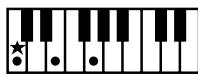
C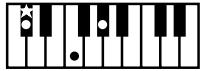
C#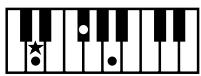
D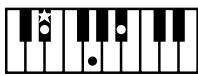
E6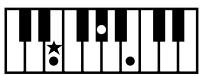
E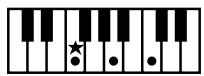
F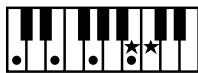
Cmaj7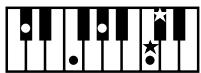
C#maj7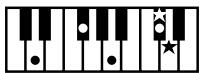
Dmaj7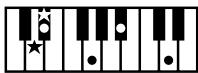
Eb maj7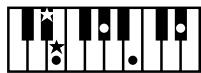
Emaj7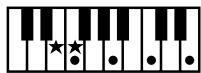
Fmaj7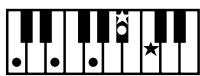
C7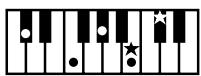
C#7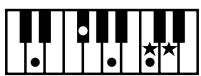
D7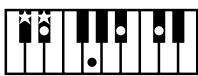
Eb7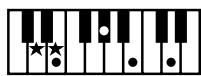
E7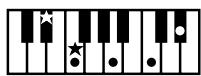
F7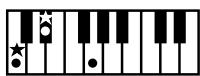
Cm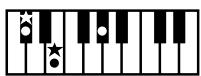
C#m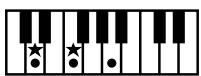
Dm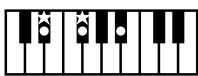
Ebm
Em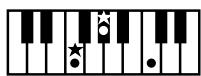
Fm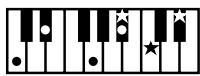
Cm7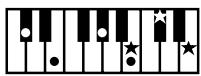
C#m7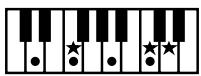
Dm7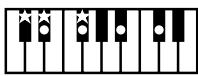
Eb m7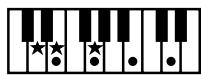
Em7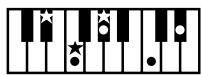
Fm7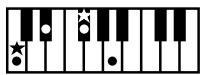
Cdim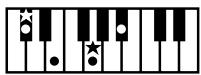
C#dim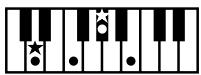
Ddim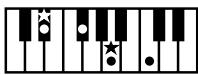
Ebdim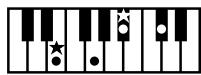
Edim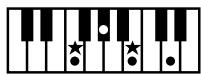
Fdim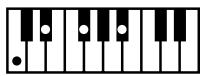
Cm7b5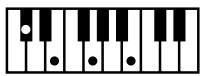
C#m7b5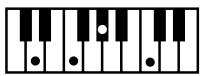
Dm7b5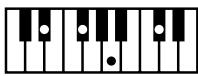
Eb m7b5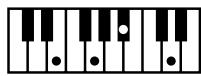
Em7b5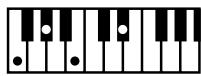
Fm7b5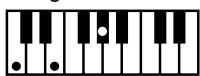
Caug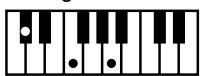
C#aug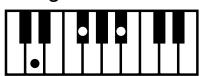
Daug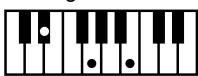
Ebaug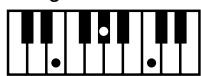
Eaug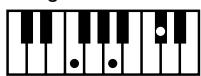
Faug
Csus4
C#sus4
Dsus4
Eb sus4
Esus4
Fsus4
C7sus4
C#7sus4
D7sus4
Eb 7sus4
E7sus4
F7sus4
C6
C#6
D6
Eb6
E6
F6
Cm6
C#m6
Dm6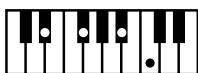
EB m6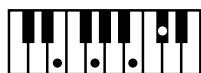
Em6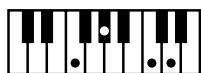
Fm6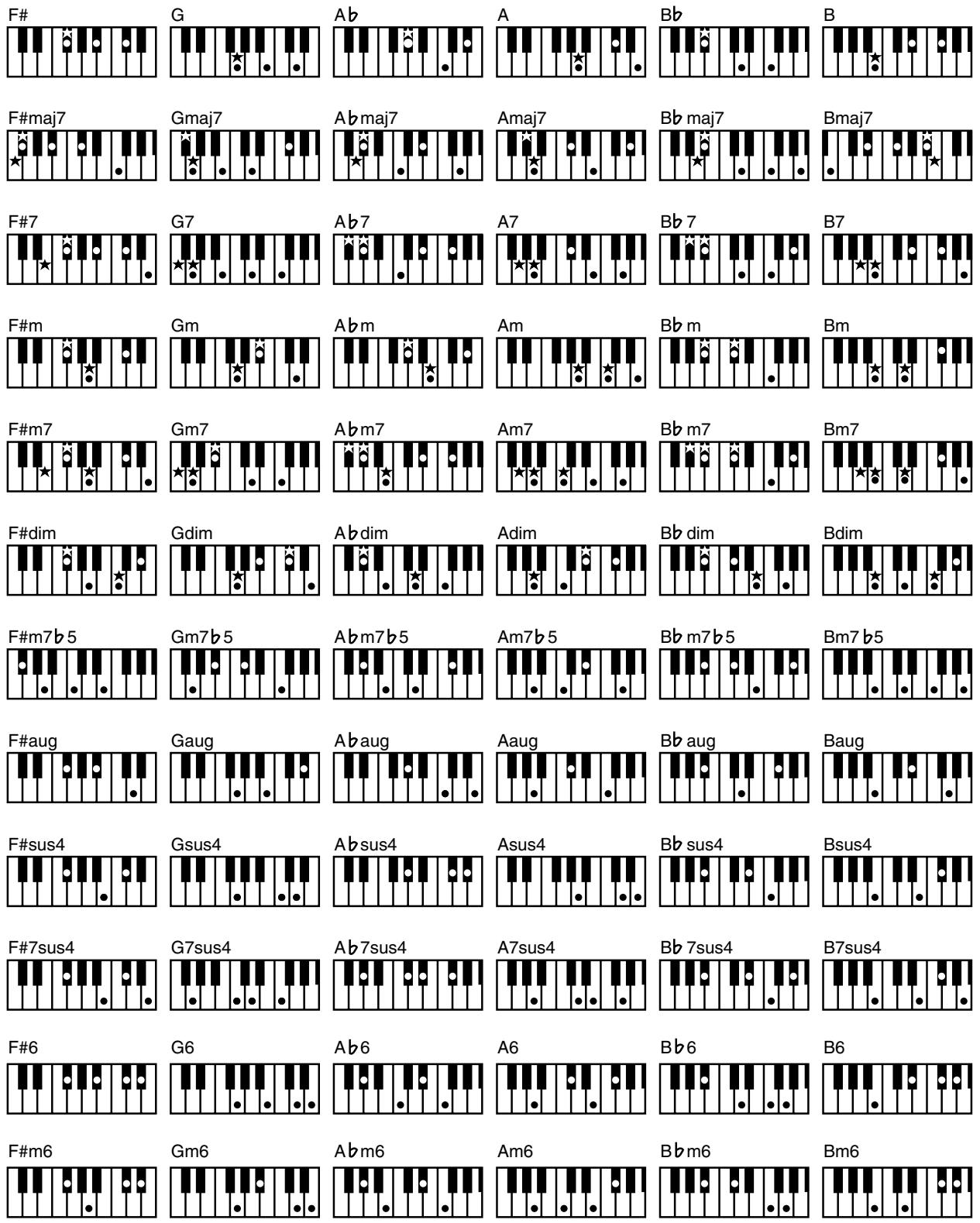
Glossary
Arrangement
This refers to changes that have been made in an original tune, by adding a new accompaniment or by changing the instruments used.
Automatic Accompaniment
Automatic Accompaniment is automatic accompaniment when just a few keys in the lower section of the keyboard are pressed to specify the chord.
Basic Chord
This refers to the most commonly used types of chord, which are generally the following six types: major chords, minor chords, minor seventh chords, minor seventh (5) chords, dominant seventh chords, and diminished seventh chords.
Chord
Notes of two or more pitches sounded simultaneously. Chords consisting of three notes are called "triads," and are the most basic type of chord.
Chorus
An effect that adds spaciousness and richness to the sound.
Ending
This is the last part of the accompaniment. When you stop playing the Automatic Accompaniment, the AT-80SL/60SL plays an Ending appropriate for the Rhythm.
Glide
An effect that temporarily lowers the pitch and then gradually returns it to normal.
Intro
This is the introductory portion of an Automatic Accompaniment performance. The AT-80SL/60SL plays an intro ideally suited to each Rhythm when it starts playing the Automatic Accompaniment.
Inversion
When the lowest note of a chord is the root, the chord is said to be in "root position." In contrast, forms of a chord in which other notes are the lowest pitch are called "inversions."
Mute
To silence a sound. The AT-80SL/60SL provides a Track Mute function that allows you to turn off the track button indicator of a track on which music data has been recorded, so that the corresponding track will temporarily be silenced.
Panel Settings
Settings such as sound selections, tempo, Rotary fast/slow.
Pitch Bend
An effect that smoothly raises or lowers the pitch.
Registration
A unit of data that contains the performance state of the instrument, such as sound selections and panel settings.
Reverb
An effect that simulates the reverberation of a room or concert hall.
Root Note
The root note is the basis of a chord. All chords are built on a root note, which is the part of the chord name given in uppercase letters.
Rotary
An effect which simulates the modulation given to the sound when a rotating speaker is used. The Rotary effect produces two types of modulation: fast or slow.
Split
A function which allows the keyboard to be divided into two or more areas, and a different sound assigned to each area. The point at which the keyboard is divided is called the "Split Point."
Sustain
An effect that adds a decay to each note. The AT-80SL/60SL allows sustain to be applied to the voices of the upper part, lower part, and pedal part.
Vibrato
An effect that cyclically modulates the pitch.
Voice
The AT-80SL/60SL is able to produce the sounds of various instruments. These sounds are called "Voices."
■ About ATELIER Series Sound Generator
The ATELIER series come equipped with GM2/GS sound generators.
General MIDI
General MIDI is a set of recommendations which seeks to provide a way to go beyond the limitations of proprietary designs, and standardize the MIDI capabilities of sound generating devices. Sound generating devices and music files that meet the General MIDI standard bear the General MIDI
GENERAL
Music files bearing the General MIDI logo can be played back using any General MIDI sound generating unit to produce essentially the same musical performance.
General MlDI 2
The upwardly compatible General MIDI 2 (GENERAL) recommendations pick up where the original General MIDI left off, offering enhanced expressive capabilities, and even greater compatibility. Issues that were not covered by the original General MIDI recommendations, such as how sounds are to be edited, and how effects should be handled, have now been precisely defined. Moreover, the available sounds have been expanded. General MIDI 2 compliant sound generators are capable of reliably playing back music files that carry either the General MIDI or General MIDI 2 logo. In some cases, the conventional form of General MIDI, which does not include the new enhancements, is referred to as "General MIDI 1" as a way of distinguishing it from General MIDI 2.
GS format
The GS Format ( GS ) is Roland's set of specifications for standardizing the performance of sound generating devices. In addition to including support for everything defined by the General MIDI, the highly compatible GS Format additionally offers an expanded number of sounds, provides for the editing of sounds, and spells out many details for a wide range of extra features, including effects such as reverb and chorus.
Designed with the future in mind, the GS Format can readily include new sounds and support new hardware features when they arrive.
SMF with Lyrics
SMF LYRICS
"SMF with Lyrics" refers to SMF (Standard MIDI File) that contains the lyrics. When music files carrying the "SMF with Lyrics" logo are played back on a compatible device (one bearing the same logo), the lyrics appears in its display.
XGlite

XG is a tone generator format of YAMAHA Corporation, that defines the ways in which voices are expanded or edited and the structure and type of effects, in addition to the General MIDI 1 specification.
XGite is a simplified version of XG tone generation format. You can play back any XG music files using an XGite tone generator. However, keep in mind that some music files may play back differently compared to the original files, due to the reduced set of control parameters and effects.
Replacing the Illumination Bulbs (AT-80SL Only)

WARNING
- Before replacing any light bulbs, you must turn off the power and disconnect the power cord from the AC outlet.
- Wait until the bulb has cooled to room temperature before attempting to replace it.
- Never touch a bulb while it is still hot.
- If the bulb burns out, replace it as soon as possible.
- In households with small children, make certain that you keep all bulbs or screws that you remove well out of the reach of children, so they don't accidentally put them into their mouths.
- Never turn on the power of the illumination while a bulb is being replaced. If the illumination is powered-on, the bulb will become hot, and may cause burns.
- You must replace the bulb with a bulb of the specified model number.
Before you continue
Note which bulb has burned out.
Before you begin, you must note the location of the bulb that needs to be replaced, to ensure that the illumination is not powered-on while replacing the bulb.
- Leave the power turned off for at least 20 minutes before changing the light bulb.
When the illumination is turned on, the light bulb and the vicinity of the bulb will become hot. Turn off the power of the instrument 20 minutes before changing the light bulb, and verify that the vicinity of the bulb is no longer hot before you exchange the light bulb.
- Obtain the replacement light bulb.Required items
- Phillips screwdriver (no. 2) (when replacing the music rest illumination bulb)
- Slotted screwdriver (when replacing the pedal area illumination bulb)
- Replacement light bulb
Illuminated location Bulb type Panel illumination LAMP FB33 Panel illumination
Remove the panel lamp cover
- Unplug the power cord from the AC outlet.
- Use both hands to slightly raise the cover, slide it toward the rear, and open the cover.
- In four locations of the panel lamp cover (A), loosen screws (B).
NOTE
The panel lamp cover screws cannot be removed from the panel lamp cover.
NOTE
Do not remove any screws other than those in the specified four locations.
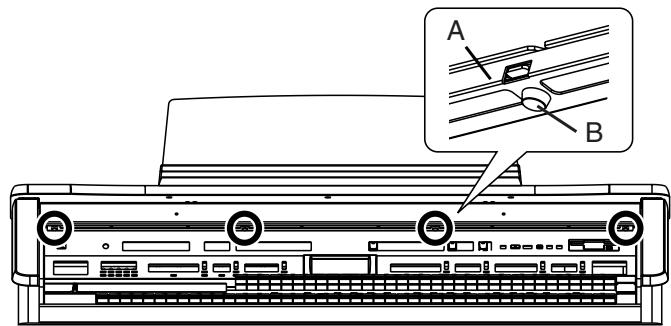
- Lift the panel lamp cover (A) slightly, and remove it from the hook.
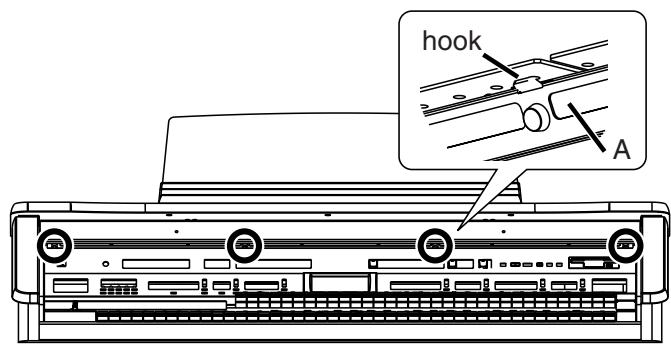
Remove/install the light bulb
- Slightly raise the cover.
- Grasping the body of the light bulb, pull it slowly toward yourself to remove it.
- Align the pins of the new light bulb with the holes of the socket, and insert the bulb straight in.
NOTE
Be aware that if the pins of the light bulb are not aligned with the holes of the socket when installing the bulb, or if the bulb is inserted at an angle, the pins of the bulb could get damaged.
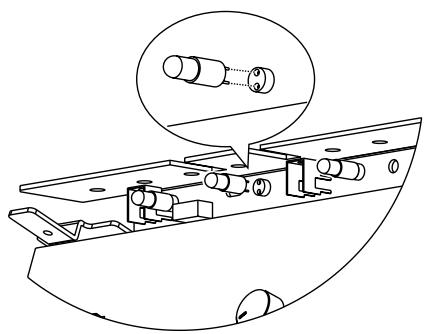
NOTE
Do not disconnect the connector located beside the light bulb.
NOTE
Be careful not to touch the metal by which the lamp board is suspended.
NOTE
Never turn on the power while replacing a light bulb.
Attach the panel lamp cover
- Align the square hole of the panel lamp cover with the hook.
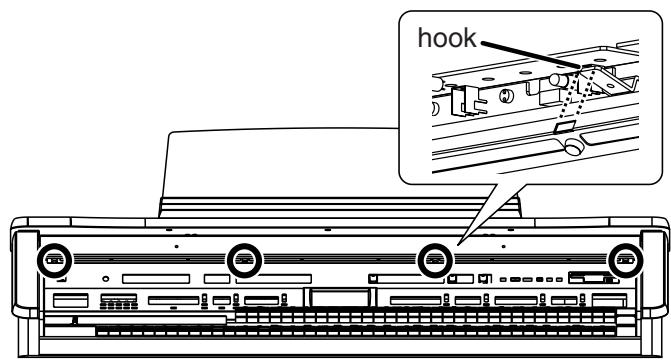
- Hook the square hole of the panel lamp cover onto the hook.
- Grasp the two screws located in the center of the panel lamp cover, and while lifting the panel lamp cover, lightly tighten the screws.
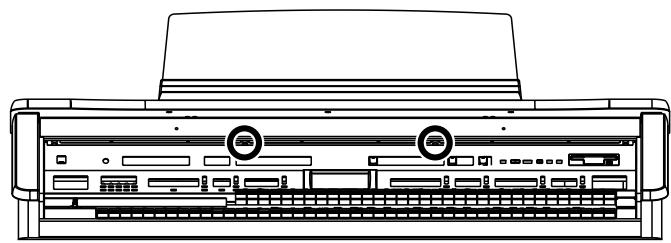
NOTE
Do not completely tighten the two middle screws at this time.
- Firmly tighten the screws at the left and right ends of the panel lamp cover.
- Firmly tighten the two screws at the middle of the panel lamp cover.
NOTE
Make sure to tighten the screws in all four locations.
Remplacement des ampôules (AT-80SL)

WARNING
- Avant de replacer les ampoules, éteignez l'appareil et débranchez le cable d'alimentation de la prise électrique.
- Remplacez l'ampoule une fois qu'elle est refroidie (à la température de la pierce).
- Ne touchez pas une ampoule chaude.
- Si l'ampoule est grillée, remplacez-la le plus tout possible.
- S'il y a des jeunes enfants, faites attention qu'ils ne mettent pas l'ampoule ou les vis enlevées dans leur bouche.
- Ne mettez jamais l'appareil d'éclairage sous tension pendant que vous remplacez une ampoule. Si l'appareil d'éclairage est sous tension pendant le remplacement, l'ampoule chauffera et il y aura risque de brûlure.
- L'ampoule de remplacement doit être du modele spécifique.
Avant de poursuivre le remplacement
- Notez l'ampoule grillée.
Avant d'entrepreneire le remplacement, vous devez.
noter l'emplacement de I'ampoule à remplacer pour
vous assurer que I'éclairage n'est pas allumé pendant
que vous remplacez I'ampoule grillée. - Éteignez l'appareil et laissez-le esteint au moins 20 minutes avant de changer l'ampoule.
Lorsque l'éclairage est allumé, l'ampoule et les surfaces à proximé de l'ampoule seront chaudes. Éteignez l'appareil 20 minutes avant de changer l'ampoule et assurez-vous que les surfaces à proximé de l'ampoule sont refroidies avant de la changer.
- Ayez l'ampoule de remplacement sous la main
Outils nécessaires
- Tournevis à pointe cruciforme (no 2) (pour replacer l'ampoule du lutrin)
- Tournevis pour écrous à fente (pour remplaçer l'ampoule d'éclairage des pédales)
- Ampoule de remplacement
Zone d'éclairage Type d'ampoule Éclairage du panneau AMPOULE FB33 ■ Éclairage du panneau
Retirer le couvercle de la lampe du tableau
- Debranche le cable d'alimentation de la prise.
- Soulevez légèrement le couvercle des deux mains, faites-le glisser vers l'arrière et ouvre-le.
- Dévissez les quatre vis (B) qui retiennent le couvercle (A) de la lampe du tableau.
NOTE
Il n'est pas possible de-retirer complètement les vis du couvercle.
NOTE
Ne retirez pas d'autres vis que les quatre vis montrées dans l'illustration.
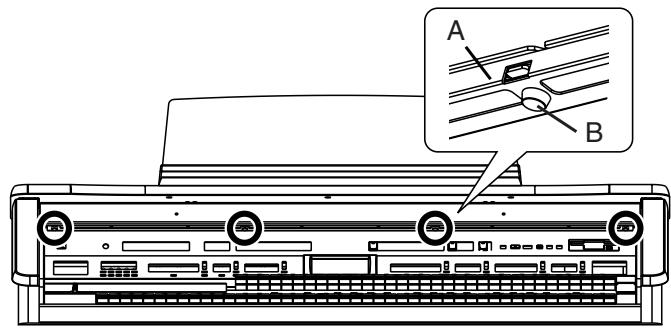
- Soulevez légèrement le couvercle et retirez-le du crochet qui le retient.
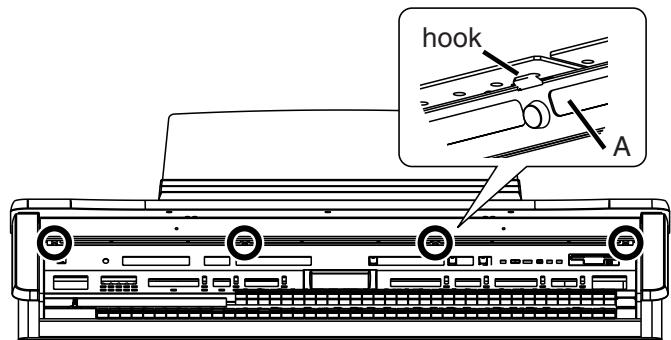
Retrait de l'ampoule grillée et installation de l'ampoule de remplacement
- Soulevez légèrement le couvercle.
- Saisissez l'ampoule. B!(B et tirez-la lentement vers vous pour la retirer.
- Alignez les broches de la nouvelle ampoule et les trous de la douille et insérez l'ampoule tout droit.
NOTE
Assurez you que les broches de l'ampoule soient bien alignées avec les trous de la douille; si l'ampoule est insérée en angle, il y a risqué d'endommager les broches.
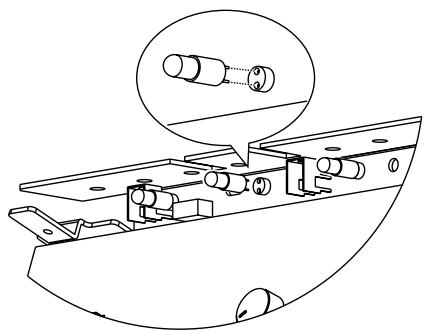
NOTE
Ne déconnectez pas le connecteur situé à côté de l'ampoule.
NOTE
Faites attention de ne pas toucher la pièce métallique à laquelle la plaque de soutien de la lampe est suspendue.
NOTE
N'allumez jamais l'appareil pendant le remplacement d'une ampoule.
Fixer le couvercle de la lampe du tableau
- Alignez l'ouverture angulaire du couvercle de la lampe du tableau et le crochet.
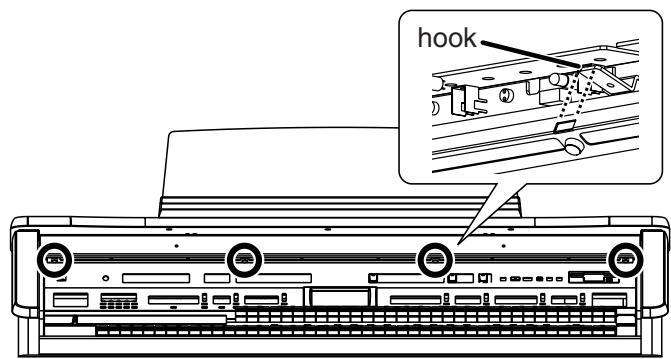
- Accrochez le couvercle de la lampe au crochet.
- Saisissez les deux vis situées au centre du couvercle de la lampe et tout en boulevant le couvercle, vissez-les légèrement.
NOTE
À cette étape, ne vissez pas complètement les vis.
- Vissez complètement les vis aux extrémités gauche et droite du couvercle.
- Vissez complètement les deux vis au centre du couvercle du panneau de la lampe.
NOTE
Les quatre vis doivent être serrées.
Settings That Are Stored After the Power Is Turned Off
Settings That Are Stored After the Power Is Turned Off
Arranger Update
Transpose Update
Master Tune
Rotary Speed
Rotary Color
Registration Shift
Expression Curve
Send PC Switch
MIDI IN Mode
Lyric On/Off
Metronome Sound
Mic Echo
Aux Out Mode
TV Format
Registration Name
Settings That Are Stored In the Registration Buttons
Registration Name
Registration Shift
Arranger Update
Transpose Update
Settings That Are Stored In the Individual Registration Buttons
Reverb Type
Reverb Depth
Solo [To Lower] button (ON/OFF)
Pedal [To Lower] button (ON/OFF)
Key Transpose
Left Foot Switch Assignment
Right Foot Switch Assignment
Damper Pedal Assignment
Aux Out ON/OFF
[Harmony Intelligence] button (ON/OFF)
Harmony Intelligence Type
Rotary [Fast/Slow] button (ON/OFF)
Rotary [ON/OFF] button (ON/OFF)
Bender/Glide Assignment
Pitch Bend Range
Pedal Bass Mode
Solo Mode
Solo To Lower Mode
Solo Split Point
[Bass Split] button (ON/OFF)
Bass Split Point
Sustain buttons (ON/OFF)
Sustain Length
Tx MIDI Channel
After Touch ON/OFF
Initial Touch ON/OFF
PC Number
Bank LSB
Bank MSB
Wall Type
The Voices assigned for each part
Level [ ][ ] (Part Balance Volume)
The Reverb depth for each part
The Chorus settings (ON/OFF) of the voice
The Octave settings for each part
The voices assigned to the [Others] buttons for each part
[Drums/SFX] button (ON/OFF)
[Manual Percussion] button (ON/OFF)
Drum/SFX Set
Manual Percussion Set
Selected Rhythm
[Intro/Ending] button (ON/OFF)
[Sync Start] button (ON/OFF)
Style Orchestrator
Variation ON/OFF
Chord Intelligence ON/OFF
Leading Bass ON/OFF
Arranger [ON/OFF] button (ON/OFF)
Lower Voice [Hold] button (ON/OFF)
Tempo setting
Volume of the rhythm Accompaniment part
Reverb depth of the rhythm Accompaniment part
Volume of the rhythm drum part
Reverb depth of the rhythm drum part
Volume of the rhythm bass part
Reverb depth of the rhythm bass part
MIDI Implementation Chart
Function... Transmitted Recognized Remarks Basic Channel Default 1 (Solo) 1 (Solo) *5 2 (Pedal) 2 (Pedal) *5 3 (Lower) 3 (Lower) *5 4 (Upper) 4 (Upper) *5 11 (Drums/SFX) 11 (Drums/SFX) *5 16 (Expression, PC) 16 (Expression) *5 Changed 1-16 1-16 (GM2/GS) *6 X Mode Default x Mode 3 *10 Messages x Mode 3, 4(M=1) Altered ********** Note Number: True Voice 24-110 0-127 ********** 0-127 Velocity Note ON O *1 O Note OFF x 8n v=64 x After Touch Key's x O *2, 8 Ch's x O *2, 7, 8, 9 Pitch Bend x O *2, 7, 8, 9 Control Change 0, 32 O *1 O *3, 7, 8 Bank select Modulation Portamento time Data entry Volume Panpot Expression General purpose controller (Glide) Hold 1 Portamento Sostenuto Soft Resonance Release Time Attack Time Cut off Decay Time Vibrato Time Vibrato Depth Portamento control Effect1 depth Effect3 depth NRPN LSB, MSB RPN LSB, MSB 1 x O *2, 7, 8 5 x O *2, 7, 8 6, 38 x O *2, 7, 8 7 x O *2, 7, 8, 9 10 x O *3, 7, 8, 9 11 O O *3, 7, 8, 9 16 x O *4 64 O O *3, 7, 8, 9 65 x O *3, 7, 8 66 x O *2, 7, 8 67 x O *2, 7, 8 71 x O *7 72 x O *7 73 x O *7 74 x O *7 75 x O *7 76 x O *7 77 x O *7 84 x O *2, 8 91 x O *3, 7, 8 93 x O *3, 7, 8 98, 99 x O *3, 8 100, 101 x O *2, 7, 8, 9 Prog Change : True # 0-127 *1 O *3, 7, 8, 9 Program number 1-128 ********** 0-127 System Exclusive x O System Common : Song Pos x x x x x x System Real Time : Commands O x O x Aux Message : All sound off x O (120, 126, 127) *7, 8 x O *7, 8 x x x O (123-125) *7, 8, 9 O O x x Notes *1 O x is selectable. *6 With MIDI IN Mode 1*2 O x is selectable by SysEx. (GS Part) *7 Received in GM2 mode*3 Not received in the keyboard part *8 Received in GS mode*4 Can be received in the keyboard part *9 Received in General MIDI mode*5 With MIDI IN Mode 2 *10 Recognize as M=1 even if M≠1. Demo Song List
Song Title Composer Player Copyright Film Score Hector Olivera Hector Olivera © 2004 Roland Corporation VivaTheater! Tony Fenelon Tony Fenelon © 2004 Roland Corporation Accordions Ralf Shink Ralf Shink © 2004 Roland Corporation Greensleeves Traditional Yuri Tachibana © 2004 Roland Corporation Pop Organ Ralf Schink Ralf Schink © 2004 Roland Corporation Pops Orch. Hector Olivera Hector Olivera © 2004 Roland Corporation Jazz Combo Ric Iannone Ric Iannone © 2003 Roland Corporation Slow Waltz Ric Iannone Ric Iannone © 2003 Roland Corporation Hawaiian Ric Iannone Ric Iannone © 2003 Roland Corporation Dixieland Ric Iannone Ric Iannone © 2003 Roland Corporation Country Ric Iannone Ric Iannone © 2003 Roland Corporation Orchestra Hector Olivera Hector Olivera © 2001 Roland Corporation FastBigBand Rosemary Bailey Rosemary Bailey © 2001 Roland Corporation Pipe&Choir Hector Olivera Hector Olivera © 2001 Roland Corporation Soprano W.A.Mozart Hector Olivera © 2001 Roland Corporation Tenor Ric Iannone Ric Iannone © 1999 Roland Corporation PianoStrings Hector Olivera Hector Olivera © 2001 Roland Corporation Soft Gospel Ric Iannone Ric Iannone © 2001 Roland Corporation Organ Swing Hal Vincent Hal Vincent © 2001 Roland Corporation Acoustic Ric Iannone Ric Iannone © 2001 Roland Corporation Jazz Scat Ric Iannone Ric Iannone © 1999 Roland Corporation Pipe organ Hector Olivera Hector Olivera © 1999 Roland Corporation Orchestra2 Hector Olivera Hector Olivera © 1999 Roland Corporation Big Band Ric Iannone Ric Iannone © 1999 Roland Corporation TheaterOrgan Jonas Nordwall Jonas Nordwall © 1995 Rodgers Instruments LLC Choir Hector Olivera Hector Olivera © 1999 Roland Corporation Gregorian Ric Iannone Ric Iannone © 1999 Roland Corporation Soprano2 Rachmaninov S. Hector Olivera © 1999 Roland Corporation - Some demo songs may not be programmed in the AT-60SL.
Profile
Hal Vincent
Hal consistently delights his audiences with his keyboard artistry. He is equally at home on either the organ, piano, or electronic keyboard. Around the world, his concerts generate the often heard comment "...we loved it because he plays our kind of music." This is another of Hal's special skills: a knack for knowing just what music to play on any occasion.
An extensive repertoire combined with more than 30 years of world touring have netted Hal rave reviews while affording him the opportunity to work with some of the top names in show business. Hal has recorded several albums and published books of organ arrangements while establishing himself as an excellent clinician and teacher.
Hector Olivera
Hector Olivera was born in Argentina. He received his education at the Conservatory and the University of Buenos Aires followed by a scholarship at the famous Juilliard School of Music in New York. Olivera has performed extensively throughout the world including concerts at prestigious places such as the Notre Dame Cathedral in Paris and Carnegie Hall in New York. Hector Olivera's expertise involves both the traditional pipe organ and the electronic organ. Presently Olivera tours internationally playing some of the world's most magnificent pipe organs as well as his preferred electronic organ, the Roland Atelier for which he continues to collaborate with its development.
Jonas Nordwall
A native of Portland, Mr. Nordwall received his Bachelor of Music Degree in 1970 from the University of Portland studying with Arthur Hitchcock. Additional study was done with Frederick Geoghegan, the noted English/Canadian organist. As a teenager, Jonas had the privilege to study with Richard Ellsasser, one of the greatest virtuoso organist of 20th century.
Besides serving as Director of Music for the First United Methodist Church in Portland, Oregon and as the Organist for the Oregon Symphony Orchestra.
He has been a featured recitalist for national conventions of the American Theatre Organ Society and was Organist of the year for 1987.
Ralf Schink
Ralf Schink was born in Germany and began playing the electronic organ at the age of 9. After completing his formal education Ralf went on to study at the renowned Swiss Jazz School in Bern, Switzerland as well as the Berklee College of Music in Boston. Since then, his energetic, contemporary style has won him many accolades throughout Europe and around the world. Ralf regularly performs at the Frankfurt Musik Messe, the largest musical fair in Europe. A tremendously versatile and gifted musician, Ralf is comfortable with all types of music. From pop to jazz, Ralf's repertoire appeals to all age groups. Since 1992 Ralf has been working and touring for Roland Europe as demonstrator and product consultant. He regularly tours Europe, Asia and Canada.
Ric Iannone
Ric Iannone began playing the piano and accordion at the age of two and a half. By the time he was seven, he was performing public and private engagements with his musician father. For more than 20 years Ric has performed and traveled extensively throughout the United States and Europe, delighting audiences with his unique playing style and music arrangements. He is equally comfortable playing the organ, piano or keyboard, as a concert artist and product demonstrator.
Rosemary Bailey
Rosemary Bailey began playing the piano at the age of five, performing strictly classical music. She soon diversified and incorporated jazz and traditional popular styles in her repertoire. By the time she was nine years old, Rosemary had begun touring throughout the United states.
Concurrently, she maintained a weekly radio show, The Rosemary Bailey Show, broadcast from Chicago.
Rosemary has performed with many name artists including Victor Borge and Peter Nero as well as the Duke Ellington Orchestra. She was also featured soloist with the Chicago Symphony under the direction of Dr. Leon Stein.
At home on electronic as well as pipe organs, her concert schedule has taken her to such countries as Japan, South Africa, Canada, Italy, Spain, England, Holland, Denmark, Portugal, Germany and Australia.
Rosemary's unique arrangements involve the marriage of her classical and popular music background. Perfect pitch enables her to effortlessly field requests from the audience and adds spontaneity to all her programs.
Rosemary has developed a following of musical devotees wherever she performs and her numerous recordings are sought after by young and old alike.
Tony Fenelon
Tony Fenelon studied at the Conservatory of Music in Melbourne, Australia under famed teacher Roy Shepard. An internationally acclaimed artist, Tony has completed eighteen major concert tours overseas including the United States, U.K. and Japan. He has released seventeen albums, including four gold records. Tony has also been featured regularly as a solo pianist with the Australian Philharmonic Orchestra and the Australian Pops Orchestra. In June of 2003, Tony learned that he had been awarded the distinction of "Organist for the Year 2002" by the American Theatre Organ Society, and 2004 was awarded the distinction of the Medal of the Order of Australia in Queen Elizabeth's Birthday Honours List for his contributions in music.
Yuri Tachibana
Although Yuri Tachibana began playing the piano at age 3, she switched completely to the organ after winning First Prize in an organ competition. She has expanded her work to include a variety of activities, releasing two albums on Columbia Records and performing organ regularly on the "11 PM" TV program for four years. She further contributes articles on a wide range of musical genres, including classical and jazz, is an accomplished arranger, and has published numerous scores. In 2002, she released "Organ Chat" on the King Records label, with all of the album's songs performed on the Music Atelier. This album has won praise for the unique arrangements and impeccable performances. Currently, Ms. Tachibana not only performs in Japan, she is also active in the U.S., Europe, China, and around the world.
Quick Guide Function
Short Cut Screen/Setting While the Quick Guide screen is displayed, Expression Pedal Controller screen/Exp. Curve (Expression Curve) [Bender/Vibrato] lever Controller screen/Bender/Vibrato Upper Keyboard Upper Keyboard screen/After Touch Lower Keyboard Split Point screen Pedalboard Pedalboard screen/PedalBass Mode Left Foot Switch Right Foot Switch Controller screen/L Foot Switch (Left Foot Switch)R Foot Switch (Right Foot Switch) Damper Pedal Controller screen/Damper Pedal [Solo To Lower] button Split Point screen [Bass Split] button Split Point screen Sustain [Upper] button Upper Keyboard screen/Sustain Length Sustain [Lower] button Lower Keyboard screen/Sustain Length Sustain [Pedal] button Pedalboard screen/Sustain Length Rotary [On/Off] button Effect screen/Rotary Color Rotary [Slow/Fast] button Effect screen/Rotary Speed [Count Down] button Rhythm Options screen/Count Down Sound Upper Voice select buttons Solo Voice select buttons [Alternate] button Upper Keyboard screen Lower Voice select buttons [Alternate] button Lower Keyboard screen Pedal Voice select buttons [Alternate] button Pedalboard screen Registration [Write] button Registration Options screen/Arranger Update screen [One Touch Program] button Factory Reset screen [Harmony Intelligence] button Panel Reset screen [Song] button Song Clear screen (If the performance data has never been saved to a floppy disk, the Song Clear screen appears.) Main Specifications
AT-80SL/60SL: MUSIC ATELIER
Controller/Function AT-80SL AT-60SL Manual Keyboard Upper keyboard 56 notes (C3 - G7), Lower keyboard 76 notes (E1 - G7) Pedalboard 20 notes (C2 - G3) Touch Response Initial Touch with Sensitivity (10 levels for each Upper and Lower), After Touch with Sensitivity (10 levels for only Upper) Sound Generator Conforms to GM2/GS/XG Lite Max. Polyphony 192 voices 128 voices Voices 420 Voices (included 31 Active Expression voices) 295 Voices (included 15 Active Expression voices) Upper Part Upper Organ, Upper Symphonic, Upper Orchestral Lower Part Lower Organ, Lower Symphonic, Lower Orchestral Solo Part Solo Pedal Part Pedal Organ, Pedal Orchestral Any two voices can be assigned to each [Others] button. (One for Pedal Organ and Pedal Orchestral [Others] button.) Rhythms 222 Rhythms in 10 Groups 182 Rhythms in 10 Groups Disk Rhythm 12 Rhythms 8 Rhythms Music Style Disk MSE, (MSA series; sold separately) can provide additional Music Styles. Rhythm Customize Pattern editing of the internal rhythms (Drum Set, Beat, Tempo, Note) Number of Accompaniment/SMF play voices 226 voices Arranger Function Arranger On/Off, Start/Stop, Sync Start, Intro/Ending, Intro Count Down, Break, Fill In (To Variation, To Original), Style Orchestrator (Basic, Advanced 1, Advanced 2, Full), One Touch Program, Chord Intelligence, Chord Hold, Leading Bass, Auto Standard Tempo Music Assistant 1,600 settings (4 variatoins for each 400 keywords) 1,200 settings (4 variatoins for each 300 keywords) One Touch Program 3,552 settings (16 settings for each rhythm) 2,912 settings (16 settings for each rhythm) Drum/SFX Sets 18 Drum Sets + 1 SFX Set 16 Drum Sets + 1 SFX Set Manual Percussion Sets 14 Sets 7 Sets Master Tuning 415.3 Hz-466.2 Hz (0.1 Hz Steps) Key Transpose -4 - +7 (in semitones) Playback Transpose -24 - +24 (in semitones) Effects Rotary Sound, Chorus, Sustain, Vibrato, Pitch Bend, Glide RSS Reverb Reverb Harmony Intelligence 18 Types 12 Types Registration Memories 12 8 Registration Functions Load Next, Disk Edit Composer Tracks 7 Tracks Note Storage Approx. 40,000 notes Song Length Max. 999 measures Tempo Quarter note = 20–500 Resolution 120 ticks per quarter note Recording Realtime (Replace, Punch In/Out, Loop) Edit Function Delete Measure, Delete Track, Erase, Copy, Quantize Metronome Beat 2/2, 0/4, 2/4, 3/4, 4/4, 5/4, 6/4, 7/4, 3/8, 6/8, 9/8, 12/8 Volume 10 levels Sound 4 types Disk Storage: 3.5 inch micro floppy disk Disk Format 720 K bytes (2DD), 1.44 M bytes(2HD) Songs Max. 99 songs Rated Power Output 10 W + 10 W + 60 W + 60 W + 100 W (low-range) 40 W + 40 W Speaker Full-range (small) 8 cm x 2 8 cm x 2 Full-range (large) 16 cm x 4 25 cm x 2 Woofer 30 cm x 1 — Display Graphic 320 x 240 dots backlit Color LCD with touch screen Score Great Staff, G Clef Staff, F Clef Staff with note name, with Lyric (Built-in Display) Lyric Yes (Built-in Display, Video Out) Yes (Built-in Display) Pedal Expression Pedal (ready for the Active Expression feature), Damper Pedal Foot Switches 2 pcs. (on the expression pedal, function assignable) Connectors Phones Jack (stereo), Audio Output Jacks (L/mono, R), Audio Input Jacks (L/mono, R), Mic Input Jack, MIDI Connectors (In, Out), Computer Connector, AC Inlet Aux Out jack, Video Out jack — Power Supply AC 117 V, AC 230 V, AC 240 V Power Consumption 340 W (AC 117V) 130 W (AC 117V) 340 W (AC 230V) 130 W (AC 230V) 340 W (AC 240V) 130 W (AC 240V) Finish Dark Walnut Satin Mahogany Dimensions Console 1,350 (W) x 649 (D) x 581 (H) mm53-3/16 (W) x 25-9/16 (D) x 22-7/8 (H) inches 1,338 (W) x 649 (D) x 568 (H) mm52-11/16 (W) x 25-9/16 (D) x 22-3/8 (H) inches Stand 1,328 (W) x 596 (D) x 755 (H) mm52-5/16 (W) x 23-1/2 (D) x 29-3/4 (H) inches 1,324 (W) x 596 (D) x 755 (H) mm52-1/8 (W) x 23-1/2 (D) x 29-3/4 (H) inches Total 1,350 (W) x 649 (D) x 1,328 (H) mm53-3/16 (W) x 25-9/16 (D) x 52-5/16 (H) inches 1,338 (W) x 649 (D) x 1,316 (H) mm52-11/16 (W) x 25-9/16 (D) x 51-13/16 (H) inches Weight Console 67.0 kg147 lbs 12 oz 63.5 kg140 lbs Stand 61.5 kg135 lbs 10 oz 45.5 kg100 lbs 5 oz Total 128.5 kg283 lbs 5 oz 109.0 kg240 lbs 5 oz Accessories Owner's Manual, 3.5 inch micro floppy disk (2HD blank disk), Music Style Disk x 3, Power Cord - In the interest of product improvement, the specifications and/or appearance of this unit are subject to change without prior notice.
Index
A
Active Expression Voice 49
Aftertouch 184
Aftertouch Sensitivity 184
Arranger function 68
Arranger Update 190
Automatic Accompaniment 68
Aux Out 210
Aux Out Mode 210B
Bass Split 140
Beat 193
Bender/Vibrato 187
BMP Installer 198
Bouncing Ball 26
Break 69,118
Brilliance 115C
Calibration 197
Chord Hold 188
Chord Intelligence 70
Chorus Effect 127
Connecting Audio Equipment 205
Computer 206
MIDI Devices 208
Copy 170
Copying Rhythms on Disks into User Memory 78Rhythms Saved in User Memory to Floppy Disks 81
Count Down 68
Count Down Sound 189
Count In Play 153
Count-In Recording 164D
Damper Pedal 115, 186
Delete Measure 165
Delete Track 166
Deleting Performance Songs 160
Registrations on a Floppy Disk 108
Rhythms Stored in User Memory 87
Demo Song 30
Demo Song List 257
Disk Edit 110
Disk Rhythm 76
Drums/SFX 56Drums/SFX Set List 225
Drums/SFX Sets 57E
Editing 165
Effects 122
Erase Event 168
Erasing Performance Song 156
Exp.Curve 121
Exp. Src (Play) 187
Exp. Src (Rec) 186
Expression Pedal 120F
Factory Reset 23
Factory Setting Disk button 80
Fill In 69, 118
Foot Switch 117-118
Footage 50
Formatting Disks 96G
Glide 118
H
Harmony Intelligence 122
Headphones 21
Human Voice 471
Illumination 22
Replacing the Illumination Bulbs 251
Initial Touch Sensitivity 185K
Key Transpose 114
L
LCD Contrast 203-204
Leading Bass 72, 118
Load Next 106
Loading Individual Registration 103Performance Songs 159
Set of Registrations 101Loop Recording 163
Lower Hold 60
Lower Voice 42Lyrics 191
M
Main Screen 26
Background 200
Bouncing Ball 201
Manual Percussion 58
Manual Percussion List 233
Manual Percussion Sets 59
MasterTune 194
Metronome 192
Metronome Sound 193
Metronome Volume 192
Mic Echo 194
Microphone 22
MIDI 208
MIDI IN Mode 196
Music Assistant 32
Music Assistant search 34
Music Style Disk List 246
N
Notation 149
0
Octave Shift 54
One Touch Program 74
P
Panel Reset 25
Part Balance 52
PC Number 195
Pedal Bass Voice 43
Pedal To Lower 142
PedalBass Mode 185
Pitch Bend Range 188
Pitch Bend/Vibrato 116
Play Transpose 191
Playing
Demo Song 30
Performance Song 153
Performance Songs Stored on Floppy Disk 145
Rhythm 65
Punch-in Recording 162
Q
Quick Guide 38
Index menu 38
Quick Registration 36
R
Recording 143
Each Part Separately 154
Performance 152
Re-Recording 155
Regist Shift 119
Registration
Arranger Update 92
Recalling a Registration 91
Storing Registrations 90
Registrations
Created on an Earlier Model 111
Rename
Performance Song 156
Registration 94
Rhythms Stored in User Memory 85
Reverb Effect
Depth of the Reverb 133-134
Reverb Type 131
Wall Type 132
Rhythm 61
Rhythm Customize 173
Rhythm List 242
Rotary Effect 118, 124
Rotary Color 126
Rotary Speed 125
RSSReverb 210
s
Saving
Performance Songs 158
Registration Sets 98
Send PC Switch 195
SMF Format 159
SMF Music Files 145
Solo Mode 138
Solo To Lower 137
Solo To Lower Mode 138
Solo Voice 44
Split Point
Bass Split Point 141
Solo Split Point 139
Style Orchest
Sub-window
Sustain Effect 128
Sustain Length 129
Sync Start 66
T
Tempo 67
Touch Screen 26
Tr. Mute (Track Mute) 148
Track Button 144
TrackMute 147
Track Mute button 148
Trans. Update (Transpose Update) 190
Transpose
Key Transpose 114
Play Transpose 191
TV Format 209
Tx MIDI Ch. (MIDI Transmit Channel 196
U
Upper Voice 42
UserMemory 25,62
UserRhythm 173
V
Video Out 209
Voice 40
Voice List 220
Volume
Master Volume 21
Part Balance 52
Information
When you need repair service, call your nearest Roland Service Center or authorized Roland distributor in your country as
shown below.

EGYPT
Al Fanny Trading Office
9, EBN Hagar A1 Askalany Street
ARD E1 Golf, Heliopolis,
Cairo 11341, EGYPT
TEL: 20-2-417-1828
REUNION
Maison FO - YAM Marcel
25 Rue Jules Hermann,
Chaudron-BP79 97491
Ste Clotilde Cedex,
REUNION ISLAND
TEL: (0262) 218-429
SOUTH AFRICA
That Other Music Shop
(PTY) Ltd.
11 Melle St., Braamfontein, Johannesburg, SOUTH AFRICA
P.O.Box 32918, Braamfontein 2017
Johannesbourg, SOUTH AFRICA
TEL: (011) 403 4105
Paul Bothner (PTY) Ltd.
17 Werdmuller Centre,
Main Road, Claremont 7708
SOUTH AFRICA
P.O.BOX 23032, Claremont 7735
SOUTH AFRICA
TEL: (021) 674 4030

CHINA
Roland Shanghai Electronics
Co., Ltd.
5F. No.1500 Pingliang Road
Shanghai 200090, CHINA
TEL: (021) 5580-0800
Roland Shanghai Electronics
Co,Ltd.
(BEIJING OFFICE)
10F.No.18 Anhuaxil
Chaoyang District, Beijing 100011
CHINA
TEL: (010) 6426-5050
Roland Shanghai Electronics
Co.,Ltd.
(GUANGZHOU OFFICE)
2/F., No.30 Si You Nan Er Jie Yi
Xiang, Wu Yang Xin Cheng,
Guangzhou 510600, CHINA
Tel: (020) 8736-0428
HONG KONG
Tom Lee Music Co., Ltd.
Service Division
22-32 Pun Shan Street, Tsuen
Wan, New Territories,
HONG KONG
TEL: 2415 0911
Parsons Music Ltd.
8th Floor, Railway Plaza, 39
Chatham Road South, T.S.T.
Kowloon, HONG KONG
TEL:233
INDIA
Rivera Digitec (India) Pvt. Ltd.
409, Nirman Kendra Mahalaxmi
Flats Compound Off. Dr. Edw
Moses Road, Mumbai-400011,
INDIA
TEL: (022) 2493 9051
INDONESIA
PT Citra IntiRama
J1. Cideng Timur No. 15J-150
Jakarta Pusat
INDONESIA
TEL: (021) 6324170
KOREA
Cosmos Corporation
1461-9, Seocho-Dong
Seocho Ku, Seoul, KOREA
TEL: (02) 3486-8855
MALAYSIA
BENTLEY MUSIC SDN BHD
140 & 142, Jalan Bukit Bintang
55100 Kuala Lumpur, MALAYSIA
TEL: (03) 2144-3333
PHILIPPINES
G.A. Yupangco & Co. Inc.
339 Gil J. Puyat Avenue
Makati, Metro Manila 1200,
PHILIPPINES
TEL: (02) 899 9801
SINGAPO
Swee Lee Company
150 Sims Drive,
SINGAPORE 387381
TEL: 6846-3676
CRISTOFORIMUSIC PTE
LTD
Blk 3014, Bedok Industrial Park E,
02-2148,SINGAPORE 489980
TEL: 6243-9555
TAIWAN
ROLAND TAIWAN
ENTERPRISE CO.,LTD.
Room 5, 9fl. No. 112 Chung Shan
N.Road Sec.2, Taipei, TAIWAN
R.O.C.
TEL: (02) 2561 3339
THAILAND
Theera Music Co., Ltd.
330 Verng NakornKasem, Soi 2,
Bangkok 10100, THAILAND
TEL: (02) 2248821
VIETNAM
Saigon Music
Suite DP-8
40 Ba Huyen Thanh Quan Street
Hochiminh City, VIETNAM
Tel: (08) 930-1969

NEW ZEALAND
AUSTRALIA
Roland Corporation
Australia Pty., Ltd
38 Campbell Avenue
Dee Why West. NSW 2099
AUSTRALIA
TEL: (02) 9982 8266
NEW ZEALAND
Roland Corporation Ltd.
32 Shaddock Street, Mount Eden,
Auckland, NEW ZEALAND
TEL: (09) 3098 715

AMERICA
ARGENTINA
Instrumentos Musicales S.A.
Ay.Santa Fe 2055
(1123) Buenos Aires
ARGENTINA
TEL: (011) 4508-2700
BRAZIL
Roland Brasil Ltda
Rua San Jose, 780 Sala B
Parque Industrial San Jose
Cotia - Sao Paulo - SP, BRAZIL
TEL: (011) 4615 5666
COSTA RICA
JUAN Bansbach
Instrumentos Musicales
Ave.1.Calle 11,Apartado 10237
San Jose, COSTA RICA
TEL: 258-0211
CHILE
Comercial Fancy II S.A.
Rut.: 96.919.420-1
Nataniel Cox #739, 4th Floor
Santiago - Centro, CHILE
TEL: (02) 688-9540
EL SALVADOR
OMNI MUSIC
75 Avenida Norte y Final
Alameda Juan Pablo II
Edificio No.4010 San Salvador,
EL SALVADOR
TEL: 262-0788
MEXICO
Casa Veerkamp, s.a. de c.v.
Av. Toluca No. 323, Col. Olivar
de los Padres 01780 Mexico D.F.
MEXICO
TEL: (55) 5668-6699
PANAMA
SUPROMUNDIAL, S.A.
Boulevard Andrews, Albrook,
Panama City, REP. DE PANAMA
TEL: 315-0101
PARAGUAY
Distribuidora De
Instrumentos Musicales
J.E. Oleary ESQ. Manduvira
Asuncion PARAGUAY
TEL: (021) 492-124
URUGUAY
Todo Musica S.A.
Francisco Acuna de Figueroa 1771
C.P.: 11.800
Montevideo, URUGUAY
TEL: (02) 924-2335
VENEZUELA
Musicland Digital C.A.
Av. Francisco de Miranda,
Centro Parque de Cristal, Nivel
C2 Local 20 Caracas
VENEZUELA
TEL: (212) 285-8586

AUSTRIA
Roland Austria GES.M.B.H.
Siemensstrasse 4, P.O. Box 74,
A-6063 RUM, AUSTRIA
TEL: (0512) 26 44 260
BELGIUM/HOLLAND/
LUXEMBOURG
Roland Benelux N. V.
Houtstraat 3, B-2260, Oevel
(Westerlo) BELGIUM
TEL: (014) 5758111
CZECH REP.
K-AUDIO
Kardasovska 626.
CZ-198 00 Praha 9,
CZECH REP
TEL: (2) 666 10529
DENMARK
Roland Scandinavia A/S
Nordhavnsvej 7, Postbox 880,
DK-2100 Copenhagen
DENMARK
TEL: 3916 6200
FRANCE
Roland France SA
4, Rue Paul Henri SPAAK,
Parc de l'Esplanade, F 77 462 St.
Thibault, Lagny Cedex FRANCE
TEL: 0160073500
FINLAND
Roland Scandinavia As,
Filial Finland
Elannontie 5
FIN-01510 Vantaa, FINLAND
TEL: (0)96824020
GERMANY
Roland Elektronische
Musikinstrumente HmbH.
Oststrasse 96, 2284 Norderstedt,
GERMANY
TEL: (040) 52 60090
GREECE
STOLLAS S.A.
Music Sound Light
155, New National Road
Patras 26442, GREECE
TEL: 2610 435400
HUNGARY
Roland East Europe Ltd.
Warehouse Area DEPO' Pf.83
H-2046 Torokbalint, HUNGARY
TEL: (23) 511011
IRELAND
Roland Ireland
G2 Calmount Park, Calmunt
Avenue, Dublin 12
Republic of IRELAND
TEL: (01) 4294444
ITALY
Roland Italy S. p. A.
Viale delle Industrie 8,
20020 Arese, Milano, ITALY
TEL: (02) 937-78300
NORWAY
Roland Scandinavia Avd.
Kontor Norge
Lilleakerveien 2 Postboks 95
Lilleaker N-0216 Oslo
NORWAY
TEL:22730074
MY MUSIC
POLAND
UL. Gibraltarska 4.
PL-03664 Warszawa POLAND
TEL: (022) 679 44 19
PORTUGAL
Tecnologias Musica e Audio,
Roland Portugal, S.A.
Cais Das Pedras, 8/9-1 Dto
4050-465 PORTO
PORTUGAL
TEL: (022) 608 00 60
ROMANIA
FBS LINES
Piata Libertatii 1,
535500 Gheorgheni, ROMANIA
TEL: (266) 364 609
RUSSIA
MuTek
3-Bogatvrskaya Str. 1.k.l
107 564 Moscow, RUSSIA
TEL: (095) 169 5043
SPAIN
Roland Electronics
de Espana, S. A.
Calle Bolivia 239,08020
Barcelona, SPAIN
TEL: (93) 308 1000
SWEDEN
Roland Scandinavia A/S
SWEDISH SALES OFFICE
Danvik Center 28, 2 tr.
S-131 30 Nacka SWEDEN
TEL: (0)87020020
SWITZERLAND
Roland (Switzerland) AG
Landstrasse 5, Postfach,
CH-4452 Itingen,
SWITZERLAND
TEL: (061) 927-8383
UKRAINE
TIC-TAC
Mira Str. 19/108
P.O.Box 180
295400 Munkachevo, UKR
TEL: (03131) 414-40
UNITED KINGDOM
Roland (U.K.) Ltd.
Atlantic Close, Swansea
Enterprise Park, SWANSEA
SA7 9FJ,
UNITED KINGDOM
TEL: (01792) 702701

BAHRAIN
Moon S
No.16. Bab Al Bahrain Avenue.
P.O.Box 247, Manama 304.
State of BAHRAIN
TEL: 211 005
CYPRUS
Radex Sound Equipment Ltd.
- Diagorou Street, Nicosia.
CYPRUS
TEL: (022) 66-9426
IRAN
MOCO, INC.
No.41 Nike St., Dr.Shariyati Ave.,
Roberoye Cerahe Mirdamad
Tehran, IRAN
TEL: (021) 285-4169
ISRAEL
Halilit P. Greenspoon &
Sons Ltd.
8 Retzif Ha'aliya Hashnya St.
Tel-Aviv-Yafo ISRAEL
TEL: (03) 6823666
JORDAN
AMMAN Trading Agency
245 Prince Mohammad St.,
Amman 1118, JORDAN
TEL: (06) 464-1200
KUWAIT
Easa Husain Al Yousifi Est.
Abdullah Salem Street,
Safat, KUWAIT
TEL: 243-6399
LEBANON
Chahine S.A.L
Gerge Zeidan St., Chahine Bldg.,
Achrafieh, P.O.Box: 16-5857
Beirut,LEBANON
TEL: (01) 20-1441
QATAR
Al Emadi Co. (Badie Studio
& Stores)
P.O.Box 62Doha, QATAR
TEL: 4423-554
SAUDI ARABIA
aDawliah Universal
Electronics APL
Corniche Road, Aldossary Bldg.,
1st Floor, Alkhobar,
SAUDI ARABIA
P.O.Box 2154, Alkhobar 31952
SAUDI ARABIA
TEL: (03) 898 2081
SYRIA
Technical Light & Sound
Center
Khaled Ebn Al Walid St
Bldg. No. 47, P.O.BOX 13520,
Damascus, SYRIA
TEL: (011) 223-5384
TURKEY
Ant Muzik Aletleri Ithalat
Ve Ihracat Ltd Sti
Sirasylviler Caddesi Sirasylviler
Pasaji No:74/20
Taksim - Istanbul, TURKEY
TEL: (0212) 2499324
U.A.E
Zak Electronics & Musical
Instruments Co. L.L.C.
Zabeel Road, Al Sherooq Bldg.
No. 14, Grand Floor, Dubai, U.A.E.
TEL: (04) 3360715

CANADA
Roland Canada Music Ltd.
(Head Office)
5480 Parkwood Way Richmond
B.C.V6V2M4CANADA
TEL: (604) 270 6626
Roland Canada Music Ltd.
(Toronto Office)
170 Admiral Boulevard
Mississauga On L5T 2N6
CANADA
TEL: (905) 362 9707
U.S.A.
Roland Corporation U.S.
5100 S. Eastern Avenue
Los Angeles, CA 90040-2938
U.S.A.
TEL: (323) 890 3700
As of November 1, 2003 (Roland)

For EU Countries
This product complies with the requirements of European Directives EMC 89/336/EEC and LVD 73/23/EEC.
-For the USA
FEDERAL COMMUNICATIONS COMMISSION RADIO FREQUENCY INTERFERENCE STATEMENT
This equipment has been tested and found to comply with the limits for a Class B digital device, pursuant to Part 15 of the FCC Rules. These limits are designed to provide reasonable protection against harmful interference in a residential installation. This equipment generates, uses, and can radiate radio frequency energy and, if not installed and used in accordance with the instructions, may cause harmful interference to radio communications. However, there is no guarantee that interference will not occur in a particular installation. If this equipment does cause harmful interference to radio or television reception, which can be determined by turning the equipment off and on, the user is encouraged to try to correct the interference by one or more of the following measures:
Reorient or relocate the receiving antenna.
- Increase the separation between the equipment and receiver.
- Connect the equipment into an outlet on a circuit different from that to which the receiver is connected.
- Consult the dealer or an experienced radio/TV technician for help.This device complies with Part 15 of the FCC Rules. Operation is subject to the following two conditions:
(1) This device may not cause harmful interference, and
(2) This device must accept any interference received, including interference that may cause undesired operation.Unauthorized changes or modification to this system can void the users authority to operate this equipment.
This equipment requires shielded interface cables in order to meet FCC class B Limit.
For Canada
NOTICE
This Class B digital apparatus meets all requirements of the Canadian Interference-Caising Equipment Regulations.
AVIS
Cet appeareil numérique de la classe B respecte toutes les exigences du Reglement sur le matériel brouilleur du Canada.