
Sphear Wireless - Earphones FOCAL - Free user manual and instructions
Find the device manual for free Sphear Wireless FOCAL in PDF.


| Product type | Wireless earphone |
| Brand | Focal |
| Model | Sphear Wireless |
| Dimensions (earphone) | Approximately 20 x 25 x 30 mm |
| Weight (earphone) | Approximately 15 g per earphone |
| Battery life | Up to 8 hours |
| Charging time | Approximately 2 hours |
| Connectivity | Bluetooth 4.1 |
| Bluetooth version | 4.1 |
| Supported Bluetooth profiles | A2DP, AVRCP, HSP, HFP |
| Frequency response | 20 Hz – 20 kHz |
| Impedance | 16 ohms |
| Control | Touch control on the earphone |
| Main functions | Play/pause, calls, voice activation, track change |
| Maintenance and cleaning | Clean with a soft, dry cloth. Do not use chemical or abrasive products. |
| Safety | Do not expose to moisture or extreme temperatures. Respect sound levels. |
| Spare parts and repairability | Ear tips and USB charging cable available on the Focal website |
| General information | In-ear earphones with ergonomic design and tangle-free flat cable |
Frequently Asked Questions - Sphear Wireless FOCAL
User questions about Sphear Wireless FOCAL
0 question about this device. Answer the ones you know or ask your own.
Ask a new question about this device
Download the instructions for your Earphones in PDF format for free! Find your manual Sphear Wireless - FOCAL and take your electronic device back in hand. On this page are published all the documents necessary for the use of your device. Sphear Wireless by FOCAL.
USER MANUAL Sphear Wireless FOCAL
Français : page 7
English : page 10
Deutsch : seite 13
Italiano : pagina 16
Español : página 19
SPHEAR WIRELESS®

SPHEAR WIRELESS®
| Type In-ear headphones | |
| Bluetooth® wireless technology | 4.1 |
| Frequency band 2402 MHz - 2480 MHz | |
| Bluetooth® Audio Codecs SBC / aptX | |
| Range 10m | |
| Battery Up to 8h | |
| Frequency response 15 Hz - 22 kHz | |
| THD @ 1kHz / 100dB SPL <0.3 % | |
| Driver | Electrodynamic ( O1/4 "), Sandwich Diaphragm |
| Microphone Omnidirectional | |
Net weight 0.04lb
Please validate your Focal-JMlab warranty, it is now possible to register your product online: www.focal.com/warranty

Package contents
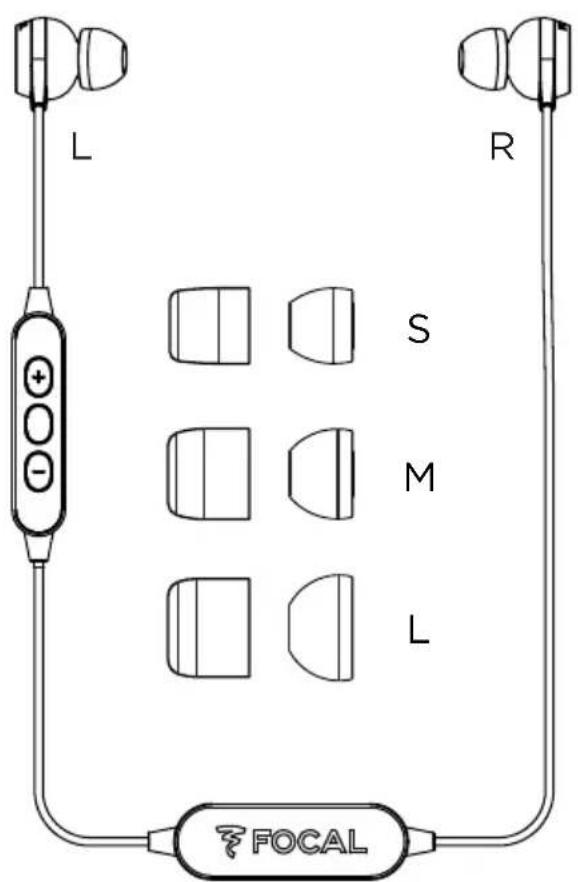
• 1 Sphear Wireless in-ear headphones
• 3 pairs of silicone tips (sizes S/M/L)
• 3 pairs of memory foam tips (sizes S/M/L)
- 1 battery fastening clip for sports activities
- 1 carrying pouch
- 1 USB cable
Charging your headphones
Before using your headphones for the first time, charge the battery for 5 hours to achieve optimum capacity and operating life. Only use the original USB charging cable to avoid any damage. Finish your phone call before charging the headphones as they will turn off when you connect the charger.
To charge your headphones, connect the supplied USB cable to the micro-USB charging jack on the battery pack to a computer's USB port or to a USB AC adapter. The indicator lights up in white during charging and turns off when the headphones are fully charged.
It can take up to 2 hours to charge them fully.
Pairing your headphones with your Bluetooth ® devices
Your Sphear Wireless headphones can save up to 4 Bluetooth ® devices and can connect with 2 devices at the same time.
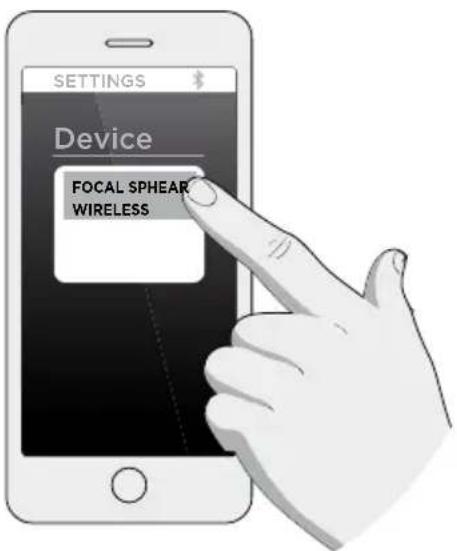
Once your headphones are charged, hold down the on/off button until the light flashes blue and white. The headphones will remain in 'pairing' mode for 5 minutes. Activate the Bluetooth® feature on your Bluetooth® device then connect your Sphear Wireless headphones. For more details, refer to your Bluetooth® device's manual.

CAUTION:
Some Bluetooth ® versions require a password when you want to connect to Sphear Wireless. If this happens, enter 0000 when prompted.
Using the headphones
Turn on the headphones:
Press the on/off button to turn on your headphones. The blue light will flash. If it is the first time you are using them, refer to the 'Pairing your headphones' section. If not, Sphear Wireless will connect to the last device connected. If this is not turned on, it will connect to the one before that, and so on.

CAUTION:
- Your headphones must be turned on before activating the Bluetooth® feature on your Bluetooth® device or you will have to manually reconnect.
- Sphear Wireless will turn off automatically after 5 minutes if there is no saved Bluetooth® device to connect to.
Changing the equaliser mode
Sphear Wireless have two equaliser modes: a natural mode, that stays faithful to the original work, and a Loudness mode for listening in noisy settings or at low volume.
To change the EQ mode, simultaneously press the + and - buttons on the remote control for more than three seconds. A sound signal will let you know the EQ mode has been changed.
On some devices, when you turn off the headphones, they will automatically return to the default settings and to EQ natural mode. If this happens and you want to return to Loudness mode, you will have to reactivate it each time you switch them on by simultaneously pressing the + and - buttons on the remote control for more than 3 seconds.
Storage
Roll the In-Ears up on themselves and place them in the dedicated space inside the carrycase. The thickness of the wires reduces the risk of tangling.
We recommend you clean your headphones regularly to avoid obstructing the output and thus reducing the performance of your in-ear headphones.
Cleaning the tips
Be sure to remove the earbud tips from the in-ear headphones carefully to avoid damaging them. Then clean them using a dry cloth for memory foam tips or a damp cloth for silicone tips.
Cleaning the duct and protective grille
After a while, the output of your headphones may become blocked by ear wax or other impurities (e.g. dust, etc.). We therefore recommend you clean them regularly. To do this, remove the earbud tips from the headphones, then using a soft cloth or cotton bud, lightly rub the grille located inside the duct. Then replace the tips.

WARNING :
Focal reserves the right to cancel the guarantee if the cleaning procedure is not respected.
SPHEAR WIRELESS®
User manual
LED lights
Status Indicator Duration
| Sphear Wireless is in pairing mode | Flashing blue and white 5 mins | |
| Sphear Wireless is turned on but not connected | Quickly flashing blue 5 mins | |
| Sphear Wireless is connected to a Bluetooth® device in stand-by mode | Flashing blue | Every 8 secs |
| You are listening to music | Flashing blue | Every 8 secs |
| Low battery | Flashing white | 3 times every 10 secs until Sphear Wireless runs out of battery |
| Battery charging | White light on | |
| Battery fully charged | White light off | |
Managing your calls and your music:
Feature Button Use Sound and voice signal
| Turning on the headphones | [SD2T] | Long press 4 secs Voice 'Power On' |
| Turning off the headphones |  | Long press 4 secs Voice 'Power Off' |
| Managing your music | ||
| Start or stop music |  | Short press |
| Volume adjustment | Short press | |
| Equaliser adjustment |  | Long press Short sound signal |
| Next track Continuous press | [SKH5] | |
| Previous track Continuous press | [KWA0] | |
| Managing your calls | ||
| Answer / Hang up |  | Short press Short sound signal |
| Decline a call Press 2 secs Long sound sign |  | |
| Double call |  | Double press Short sound signal |
| Turn mic on or off | 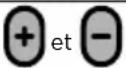 | Short press Short sound signal |
Managing your music
Managing your calls
www.focal.com/conformity
Deutsch
www.focal.com/conformity
Español
www.focal.com/conformity
Nederlands
www.focal.com/conformity
English
EC Declaration of Conformity
• RED Directive (2014/53/EU)
- General Product Safety Directive (2001/95/EC)
• RoHS Directive (2011/65/EU)
The EU declaration is available on our website:
www.focal.com/conformity
Italiano
www.focal.com/conformity
Português
www.focal.com/conformity

Correct elimination of this product.
This marking indicates that within the EU this product should not be disposed of with other household wastes. To prevent any risk to the environment or human health, please recycle them responsibly to encourage the reuse of material resources. To return your used device, please use the return and collection systems available, or contact the retailer where you purchased the product. They can recycle this product safely.

- SPHEAR WIRELESS®
- PACKAGE CONTENTS
- CHARGING YOUR HEADPHONES
- PAIRING YOUR HEADPHONES WITH YOUR BLUETOOTH ® DEVICES
- CAUTION
- USING THE HEADPHONES
- CHANGING THE EQUALISER MODE
- STORAGE
- CLEANING THE TIPS
- CLEANING THE DUCT AND PROTECTIVE GRILLE
- WARNING
- USER MANUAL
- LED LIGHTS
- MANAGING YOUR CALLS AND YOUR MUSIC
- DEUTSCH
- ESPAÑOL
- NEDERLANDS
- ENGLISH
- ITALIANO
- PORTUGUÊS
- CORRECT ELIMINATION OF THIS PRODUCT
Brand : FOCAL
Model : Sphear Wireless
Category : Earphones