
MobilePro Series 8201901 - Keyboard FELLOWES - Free user manual and instructions
Find the device manual for free MobilePro Series 8201901 FELLOWES in PDF.


| Product Type | Wireless Keyboard |
| Brand | Fellowes |
| Model | MobilePro Series 8201901 |
| Dimensions (L x D x H) | 430 x 160 x 25 mm |
| Weight | 0.6 kg |
| Power | 2 AAA batteries |
| Battery Life | Up to 12 months depending on usage |
| Connectivity | 2.4 GHz wireless with nano USB receiver |
| Wireless Range | Up to 10 meters |
| Number of Keys | 104 keys (AZERTY or QWERTY depending on version) |
| Multimedia Keys | 12 shortcut keys |
| Wrist Rest | Integrated, removable |
| Noise Level | Silent (membrane keys) |
| Compatible Operating Systems | Windows, macOS, Linux |
| Operating Temperature | 0°C to 40°C |
| Operating Humidity | 10% to 90% non-condensing |
| Care and Cleaning | Dust with a soft, dry cloth. Do not use chemicals. |
| Safety | Do not expose to water or heat source. Turn off if not used for an extended period. |
| Spare Parts and Repairability | Batteries replaceable by user. For any other repair, contact Fellowes customer service. |
| Warranty | 3 years |
| Package Contents | Keyboard, nano USB receiver, 2 AAA batteries, quick installation guide |
Frequently Asked Questions - MobilePro Series 8201901 FELLOWES
User questions about MobilePro Series 8201901 FELLOWES
0 question about this device. Answer the ones you know or ask your own.
Ask a new question about this device
Download the instructions for your Keyboard in PDF format for free! Find your manual MobilePro Series 8201901 - FELLOWES and take your electronic device back in hand. On this page are published all the documents necessary for the use of your device. MobilePro Series 8201901 by FELLOWES.
USER MANUAL MobilePro Series 8201901 FELLOWES
natural_image
Black foldable keyboard with visible fuses and keys (no text or symbols)PLEASE READ INSTRUCTIONS BEFORE USE. DO NOT DISCARD.
LIRE LES INSTRUCTIONS AVANT UTILISATION. NE PAS JETER.
Thank you for choosing Fellowes. For optimum performance, please read this instruction guide carefully before operation. Keep for reference.
CONTENTS
Bluetooth® Keyboard, Charging Cable and Carrying Case with Wrist Support.
APPEARANCE
![Fellowes. Connect OFF/ON CAPS Charge Power Esc F1 F2 F3 F4 F5 F6 F7 F8 F9 F10 F11 F12 Delete ! 1 " 2 £ 3 $ 4 € % 5 ^ 6 & 7 * 8 ( ) 9 0 — + = Backupware Tab Q W E R T Y U I O P { } ~ [ ] JOS Android Windows A S D F G H J K L : @ , ←J Enter Cape Lock A S D F G H J K L : @ , ←J Enter Z X C V B N M < > ? ↑ PgUp Shift Shi Z X C V B N M < , > control option command command option Home PgOn End](/content/2026/06/1289115/images/a91ba54ef71c18eb0d638ec2dadca34160a4e4ee9e6aba6d692ef31352819f47.jpg)
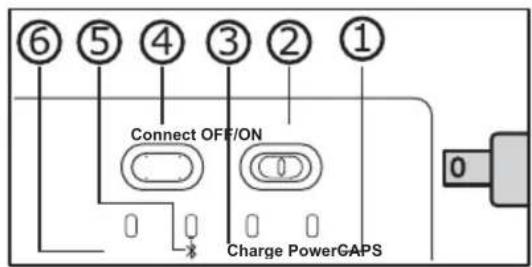
① Power Light
③ Charging Light
⑤ Bluetooth® Status Light
② On/Off Slider
④ Connect Button
⑥ Caps Lock Light
| Key | F n | Function Key Icon | Functionality on iOS | Functionality on Android | Functionality on Windows |
| ESC Key | Esc/Home | Home | Home | Opens Browser Window* | |
| F1 | Virtual Keyboard | Show Keyboard | Show Keyboard | No Functionality | |
| F2 | Select All | Select All | Select All | Select All* | |
| F3 | Copy | Copy | Copy | Copy* | |
| F4 | Paste | Paste | Paste | Paste* | |
| F5 | Cut | Cut | Cut | Cut* | |
| F6 | Change Language | Change Language | Change Language | No Functionality | |
| F7 | Back | Play Previous Track | Play Previous Track | Play Previous Track* | |
| F8 | Play/Pause | Play/Pause | Play/Pause | Play/Pause* | |
| F9 | Next | Play Next Track | Play Next Track | Play Next Track* | |
| F10 | Mute | Mute | Mute | Mute* | |
| F11 | Volume Down | Volume Down | Volume Down | Volume Down* | |
| F12 | Volume Up | Volume Up | Volume Up | Volume Up* | |
| Delete | Lock/Delete | Lock/Delete* | Lock | Delete |
*Press and hold down "FN" key and other function key simultaneously
GETTING STARTED
1. BUTTONS
On/Off Slider Switch: Slide switch ON or OFF to turn the device ON or OFF
Connect Button: After the On/Off Slider Switch is in the ON position, press the Connect Button.
The keyboard is now ready to connect to your device.
2. STATUS LIGHTS
Caps Lock Light: Light will glow blue when Caps Lock is activated.
Bluetooth® Status Light: Press the Connect Button. The Bluetooth® Status Light will blink blue until the keyboard connects with your device. After connecting with your device the blue light will turn off.
Charging Light: Light will glow red while the keyboard is charging. When the keyboard is fully charged the light will turn off.
Power Light: Slide the On/Off Slider Switch to ON. The blue status light will illuminate for four seconds and turn off to save power. Your keyboard is still on.
SPECIFICATION
- Working voltage: 3.0-4.2 V
- Working current: < 2.5 mA
- Standby current: < 0.3 mA
- Charging current: > 100 mA
- Operating temperature: -10 to 55°C
- Operating distance: Up to 10 meters
-
Charging time: < 4 hours
-
Lithium battery capacity: 280 mA
- Battery working time: 90 hours
- Battery life: 3 years
- Battery size: 3.8 x 20 x 35mm
- Keystroke life: 3 million strokes
- Standby time: 90 days
PAIRING INSTRUCTIONS
PAIRING WITH iOS®
Step 1: On the keyboard, slide the power button on. The blue status light will illuminate for 4 seconds and then turn off to save power. Your keyboard is still on.
Step 2: On the iOS device, select: Settings – General – Bluetooth ^ – On.
Step 3: Press the connect button on the keyboard (the Bluetooth ^ indicator light will be blinking blue).
Step 4: The iOS device will display "Fellowes keyboard" as an available device.
Step 5: Select "Fellowes keyboard" on the iOS device. The iOS device will display a code.
Step 6: Type the code on the keyboard and press enter. The keyboard will now be paired to the iOS device.
Step 7: Switch the keyboard to iOS mode by holding the "Fn" key down and hitting the "Q" key.
PAIRING WITH ANDROID™
Step 1: On the keyboard, slide the power button on. The blue status light will illuminate for 4 seconds and then turn off to save power. Your keyboard is still on.
Step 2: On the device, select Settings -> Bluetooth ^ -> Turn Bluetooth ^ on, and select "scan for devices".
Step 3: Press the connect button on the keyboard (the Bluetooth ^ indicator light will blink blue).
Step 4: The Android device will display "Fellowes keyboard" as an available device.
Step 5: Select "Fellowes keyboard" on the Android device. The Android device will display a code.
Step 6: Type the code on the keyboard and press enter. The keyboard will now be paired to the Android device.
Step 7: Switch the keyboard to Android mode by holding the "Fn" key down and hitting the "W" key.
PAIRING WITH WINDOWS®
Step 1: On the keyboard, slide the power button on. The blue status light will illuminate for 4 seconds and then turn off to save power. Your keyboard is still on.
Step 2: On the device, go to Settings -> PC + Devices -> Bluetooth® -> Turn Bluetooth® on, and select "search for a device".
Step 3: Press the connect button on the keyboard (the Bluetooth ^ indicator light will blink blue).
Step 4: The Windows device will display "Fellowes keyboard" as an available device.
Step 5: Select "Fellowes keyboard" on the Windows device. The Windows device will display a code.
Step 6: Type the code on the keyboard and press enter. The keyboard will now be paired to the Windows device.
Step 7: Switch the keyboard to Windows mode by holding the "Fn" key down and hitting the "E" key.
CHARGING INSTRUCTIONS
| Charge | Glowing Red Battery needs charging/charging in progress |
| Turns Off Battery is fully charged |

- Plug the Micro-USB charging cable into the keyboard.
- Plug the USB port into a computer or power adapter, if you have one - not included.
- Charge for 4 hours or until the charge indicator light turns off.
POWER SAVE MODE
The keyboard will enter sleep mode after being idle for 15 minutes. To activate it from sleep mode, press any key and wait 3 seconds.
GENERAL PRECAUTIONS
- This keyboard is not a toy. Keep away from children. Read and follow all instructions and warnings before use.
- Inspect the keyboard and charging cable before use. If any parts are damaged, contact Fellowes Technical Support before resuming use.
- Do not open, disassemble, modify, drop, crush, puncture, incinerate, or shred the Fellowes Bluetooth® keyboard.
- The keyboard is not serviceable. Do not attempt to open, repair, or modify.
- To prevent a short circuit or other potential hazards, do not insert foreign metal objects into the keyboard or its ports.
- Keep keyboard away from moisture and do not use with wet hands. Moisture in or on the keyboard may lead to electrical shock. If exposed to moisture during use, turn off and unplug the charging cable immediately. Contact Fellowes Technical Support before resuming use.
- The keyboard contains a lithium-ion battery. Keep away from heat sources and open flames.
- It is normal for the keyboard to become warm during operation. To prevent overheating, keep the area around the keyboard ventilated. Do not place anything on or around the keyboard during operation. Do not operate the keyboard near a heat source or in direct sunlight. Your keyboard should be used in temperatures between 50-80°F (10-27°C).
- If the keyboard begins to emit a strong odor, becomes hot to the touch, swells or expands, turn it off and unplug the keyboard immediately and contact Fellowes Technical Support.
- If the battery inside the keyboard leaks for any reason, turn off and unplug the keyboard immediately. Do not allow the contents of the battery to contact your skin or eyes. In the event of contact, wash the affected area with large amounts of water and seek medical attention immediately.
- Do not leave the keyboard to charge for more than 4 hours.
CARE AND STORAGE
- Do not store your keyboard in areas of high temperatures (such as in your car) or in high humidity.
- Do not place heavy objects on top of the keyboard.
- Keep the keyboard away from oil, chemicals, and liquids.
- Clean the keyboard with a damp clean cloth.
DISPOSAL
- Do not burn or dispose of your keyboard in a fire or incinerator.
- Do not throw your keyboard away in the trash. The keyboard contains a lithium ion battery. Contact your local electronics recycler to see who near to you can recycle the keyboard for you.
- Please be responsible. Many governments require that you recycle batteries.
TROUBLESHOOT
A. UNABLE TO CONNECT
- Make sure the On/Off Slider Switch is ON.
- Verify that the keyboard is within the operating distance (10 meters/32.8 feet).
- Make sure that the battery for the keyboard and the battery in your mobile device are both charged.
- Make sure Bluetooth ^® is activated on your iOS/Android/Windows device.
- Press the Connect button on the keyboard.
- Confirm that the keyboard has connected to your iOS/Android/Windows device.
- Make sure you selected the correct operating system for your device on the keyboard.
B. UNABLE TO CHARGE KEYBOARD
- Make sure the USB power cable is properly connected to the keyboard and to the USB/power source.
NEED HELP?
Let our experts help you with a solution. For Customer Service call +44 (0) 1302 836800.
FEDERAL COMMUNICATIONS COMMISSION (FCC) NOTICE:
This device complies with Part 15 of the FCC Rules. Operation is subject to the following two conditions: (1) this device may not cause harmful interference, and (2) this device must accept any interference received, including interference that may cause undesired operation. This equipment has been tested and found to comply with the limits of a Class B digital device, pursuant to Part 15 of the FCC Rules. These limits are designed to provide reasonable protection against harmful interference in a residential installation. This equipment generates, uses and can radiate radio frequency energy and, if not installed and used in accordance with the instructions, may cause harmful interference to radio communications. However, there is no guarantee that interference will not occur in particular installations, which can be determined by turning the equipment off and on. The user is encouraged to try to correct the interference by one or more of the following measures:
- Reorient / Relocate the receiving antenna.
- Increase the separation between the equipment and receiver.
- Connect the equipment into an outlet on a circuit different from the one the receiver is connected to.
- Consult the dealer or an experienced radio / TV technician for help.
CAUTION:
Changes or modifications not expressly approved by the manufacturer responsible for compliance could void the user's authority to operate the equipment.
FELLOWES Bluetooth® KEYBOARD WITH CARRYING CASE 2-YEAR LIMITED WARRANTY
Fellowes, Inc. (the "Company") warrants this product to be free from defects in material and workmanship appearing within two (2) years from the date of the original purchase of the product. If such a defect appears during the warranty period, the Company will (at its sole option) either repair or replace the defective product with no charge for service or parts or refund the purchase price, provided that the unit is sent to the Company at the customer's expense to the address on the back of the manual.
This warranty applies only to the initial retail purchaser and does not cover claims resulting from misuse, failure to follow instructions on installation and use, neglect, use of unauthorized attachments, commercial use, use on a current or voltage other than specified on the product, or unauthorized service during the warranty period on conditions otherwise covered by the warranty.
THE DURATION OF ANY IMPLIED WARRANTIES, INCLUDING BUT NOT LIMITED TO ANY IMPLIED WARRANTIES OF MERCHANTABILITY OR FITNESS FOR A PARTICULAR PURPOSE, IS EXPRESSLY LIMITED TO THE DURATION OF THIS LIMITED WARRANTY.
UNLESS REQUIRED BY APPLICABLE LAW, THE CUSTOMER'S EXCLUSIVE REMEDY FOR BREACH OF THIS WARRANTY OR ANY IMPLIED WARRANTY OR OF ANY OTHER OBLIGATION ARISING BY OPERATION OF LAW OR OTHERWISE SHALL BE LIMITED AS SPECIFIED HEREIN TO REPAIR, REPLACEMENT OR A REFUND OF THE PURCHASE PRICE, AT THE COMPANY'S SOLE OPTION.
UNDER NO CIRCUMSTANCE WILL THE COMPANY, ITS AFFILIATES, SUBSIDIARIES, RELATED ENTITIES, RESELLERS OR THEIR RESPECTIVE OFFICERS, DIRECTORS OR EMPLOYEES OR THOSE PERSONS FOR WHOM THEY ARE BY LAW RESPONSIBLE, BE LIABLE FOR CONSEQUENTIAL OR INCIDENTAL DAMAGES SUSTAINED IN CONNECTION WITH THE PRODUCT. THE COMPANY AND THESE OTHER PARTIES DO NOT ASSUME OR AUTHORIZE ANY REPRESENTATIVE OR OTHER PERSON TO ASSUME FOR ANY OF THEM ANY OBLIGATION OR LIABILITY OTHER THAN AS IS EXPRESSLY SET FORTH HEREIN.
The duration, terms and conditions of this warranty are valid worldwide, except where different limitations, restrictions or conditions may be required by local law.
Apple ^® , iPad ^® and iOS ^® are trademarks of Apple, Inc.
Android ^TM is a trademark of Google, Inc.
Windows ^® is a trademark of Microsoft, Inc.
The Bluetooth ^® word mark & logo are registered trademarks of Bluetooth SIG, Inc. Used under license.
MANUEL D'UTILISATION
INSTRUCTIONS D'APPARIEMENT
APPARIEMENT AVEC iOS®
A. CONNEXION IMPOSSIBLE
KENNISGEVING FCC (FEDERAL COMMUNICATIONS COMMISSION, VS):
SKÖTSEL OCH FÖRVARING
ANMÄRKNING OM FEDERAL COMMUNICATIONS COMMISSION (FCC):
B. NIE MOGĘ NAŁADOWAĆ KLAWIATURY
AVISO DA COMISSÃO FEDERAL DE COMUNICAÇÕES (FCC):
Branch Office Zagreb
Via Tosovac, 3
10000 Zagreb
Croazia
Tel. +385 - 1 7776930
Fax. +385 - 1 7776930
Email: imajic@fellowesleonardi.it
POLAND
Fellowes Polska SA
Declaration of Conformity
Fellowes Limited
Yorkshire Way, West Moor Park, Doncaster, South Yorkshire, DN3 3FB, England declares that the Fellowes MobilePro Series Bluetooth Keyboard conforms with the requirements of the Restriction of Hazardous Substances Directive (2011/65/EC), the Low Voltage Directive (2006/95/EC), the Electromagnetic Compatibility Directive (2004/108/EC), the WEEE Directive (2012/19/EU) and below harmonized European EN Standards.
Safety EN 60950-1 (Second Edition)
FCC FCC Part 15 Rules
Radio EN 300 328
RF EN 62479
EMC EN 301 489-1 and EN 301 489-17
Year Affixed: 2015
Itasca, Illinois, USA
July 1, 2015
John Fellowes
W.E.E.E. - This product is classified as electrical and electronic equipment. Should the time come for you to dispose of this product, please ensure that you do so in accordance with European Waste of Electrical and Electronic Equipment (WEEE) Directive and in compliance with local laws that relate to this directive.
For more information on the WEEE Directive please visit www.fellowesinternational.com/WEEE.


- CONTENTS
- GETTING STARTED
- BUTTONS
- STATUS LIGHTS
- SPECIFICATION
- PAIRING INSTRUCTIONS
- PAIRING WITH iOS®
- PAIRING WITH ANDROID™
- PAIRING WITH WINDOWS®
- CHARGING INSTRUCTIONS
- POWER SAVE MODE
- GENERAL PRECAUTIONS
- CARE AND STORAGE
- DISPOSAL
- TROUBLESHOOT
- UNABLE TO CONNECT
- UNABLE TO CHARGE KEYBOARD
- NEED HELP?
- FEDERAL COMMUNICATIONS COMMISSION (FCC) NOTICE:
- CAUTION:
- FELLOWES Bluetooth® KEYBOARD WITH CARRYING CASE 2-YEAR LIMITED WARRANTY
- MANUEL D'UTILISATION
- INSTRUCTIONS D'APPARIEMENT
- APPARIEMENT AVEC iOS®
- CONNEXION IMPOSSIBLE
- KENNISGEVING FCC (FEDERAL COMMUNICATIONS COMMISSION, VS):
- SKÖTSEL OCH FÖRVARING
- ANMÄRKNING OM FEDERAL COMMUNICATIONS COMMISSION (FCC):
- NIE MOGĘ NAŁADOWAĆ KLAWIATURY
- AVISO DA COMISSÃO FEDERAL DE COMUNICAÇÕES (FCC):
- POLAND
- Declaration of Conformity
- Fellowes Limited
Brand : FELLOWES
Model : MobilePro Series 8201901
Category : Keyboard