
DHP-W220AV - Powerline Adapter D-LINK - Free user manual and instructions
Find the device manual for free DHP-W220AV D-LINK in PDF.


| Product Type | Powerline Adapter |
| Model | DHP-W220AV |
| Brand | D-Link |
| Dimensions (W x H x D) | Approx. 10.0 x 6.0 x 3.0 cm |
| Weight | Approx. 150 g |
| Power Supply | AC 100-240 V, 50/60 Hz |
| Data Rate | Up to 500 Mbps |
| Ethernet Ports | 1 x 10/100/1000 Gigabit Ethernet |
| Encryption | 128-bit AES |
| Frequency Range | 2-68 MHz (HomePlug AV) |
| Power Consumption (Standby) | Less than 1 W |
| Operating Temperature | 0°C to 40°C |
| Humidity | 10% to 90% non-condensing |
| LED Indicators | Power, Ethernet, Powerline |
| Pairing Button | Yes |
| Reset Button | Yes |
| Security | Powerline encryption with push button pairing |
| Package Contents | 1 x Powerline adapter, 1 x Ethernet cable, Quick installation guide |
| Standards Compliance | HomePlug AV, IEEE 1901 |
| Certifications | CE, FCC, RoHS |
| Warranty | 1 year limited |
Frequently Asked Questions - DHP-W220AV D-LINK
User questions about DHP-W220AV D-LINK
0 question about this device. Answer the ones you know or ask your own.
Ask a new question about this device
Download the instructions for your Powerline Adapter in PDF format for free! Find your manual DHP-W220AV - D-LINK and take your electronic device back in hand. On this page are published all the documents necessary for the use of your device. DHP-W220AV by D-LINK.
USER MANUAL DHP-W220AV D-LINK
If any of these items are missing from your packaging, contact your reseller.
SYSTEM REQUIREMENTS
• A broadband Internet connection
• An existing Powerline network
- Smartphone, tablet, or computer with Wi-Fi capability
- For access from a web browser:
- Internet Explorer 8, Firefox 12, Chrome 20, or Safari 4 or higher
PRODUCT SETUP
HARDWARE INSTALLATION
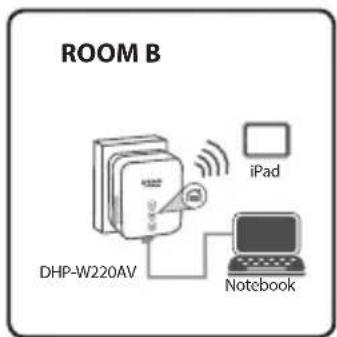
Before you can configure your DHP-W220AV for use, make sure the location being extended is on the same electrical circuit. The diagram below shows an example of a Powerline network:

flowchart
graph LR
    A["ModemInternet"] --> B["HomePlug AV Device"]
    B --> C["DHP-W220AV DHP-W220AV"]
    C --> D["iPad iPad"]
    C --> E["Notebook Notebook"]
    D --> F["Computer"]
    E --> G[" Laptop"]
    style A fill:#f9f,stroke:#333
    style B fill:#ccf,stroke:#333
    style C fill:#cfc,stroke:#333
    style D fill:#fcc,stroke:#333
    style E fill:#cff,stroke:#333
    style F fill:#ffc,stroke:#333
    style G fill:#fcc,stroke:#333

Step 1
Make sure your existing HomePlug AV device is plugged into a power outlet near your cable or DSL modem and connected to your network.
Step 2
In the other room, plug your DHP-W220AV into a wall outlet in a place you want to extend your network.

Step 3
Connect the included Ethernet cable to the LAN port on your DHP-W220AV and to your computer's port. You may also connect to the DHP-W220AV over Wi-Fi with the information on the Wireless Configuration Card to proceed to set up your wireless network.
Your computer and DHP-W220AV are now connected. Please refer to "Setup Wizard" on the next page to connect your DHP-W220AV with your existing Powerline network.
PRODUCT SETUP
SETUP WIZARD
Step 1
Open your web browser and go to http://192.168.0.50.
Step 2
Select admin for the Username and leave the Password blank, then click Login.

Step 3
From the landing page, click SETUP WIZARD and follow the instructions to configure your DHP-W220AV.

Step 4
When prompted, press the Simple Connect Button for 2 seconds on your existing device to connect it to the DHP-W220AV.
Note: If you have not previously secured your existing Powerline network, you will need to set up security for all of your existing Powerline devices. Perform the following steps for each device: press the Simple Connect Button on the DHP-W220AV, then press the Simple Connect Button on your existing Powerline device within 2 minutes.
Step 5
Follow the wizard's steps to set up your Powerline network. Click Save to complete the wizard. For more detailed support, please refer to the User Manual.
TROUBLESHOOTING
SETUP AND CONFIGURATION PROBLEMS
1. HOW DO I CONFIGURE MY EXTENDER MANUALLY?
- On your PC or mobile device, connect to the extender's wireless network. Locate the Wi-Fi name (SSID) and password for your device as printed on the included Wi-Fi Configuration Card.
- Open a web browser and enter the address http://192.168.0.50.
- The default password for the "Admin" account should be left blank.
- If you have changed the password and can not remember it, you will need to reset the extender.
2. HOW DO I RESET MY EXTENDER TO FACTORY DEFAULT SETTINGS?
- Ensure the extender is powered on.
- Press and hold the Simple Connect button for 5 seconds or more.
Note: Resetting the extender to factory defaults will erase the current configuration settings.
To reconfigure your settings, log into the extender as outlined in question 1, then configure the extender.
3. HOW DO I ADD A NEW WIRELESS CLIENT OR PC IF I HAVE FORGOTTEN MY WIRELESS NETWORK NAME (SSID) OR WIRELESS ENCRYPTION KEY?
- For every PC that needs to connect to the extender wirelessly, you will need to ensure you use the correct Wireless Network Name (SSID) and encryption key.
- Use the web based user interface (as described in question 1 above) to check or choose your wireless settings.
- Make sure you write down these settings so that you can enter them into each wirelessly connected PC. You will find a dedicated area on the back of this document to save this important information for future use.
4. WHY CAN I NOT GET AN INTERNET CONNECTION?
- Please contact your ISP to make sure the Broadband service has been enabled/connected by your ISP and that your ISP username and password is correct.
You can find software updates and user documentation on the D-Link website.
Tech Support for customers in
Australia:
Tel: 1300-766-868
24/7 Technical Support
Web: http://www.dlink.com.au
E-mail: support@dlink.com.au
India:
Tel: +91-832-2856000
Toll Free 1800-233-0000
Web: www.dlink.co.in
E-Mail: helpdesk@dlink.co.in
Singapore, Thailand, Indonesia, Malaysia, Philippines, Vietnam:
Singapore - www.dlink.com.sg
Philippines - www.dlink.com.ph
Vietnam - www.dlink.com.vn
Korea:
Tel : +82-2-2028-1810
Monday to Friday 9:00am to 6:00pm
24/7 Technical Support
Web: http://www.dlink.co.nz
E-mail: support@dlink.co.nz
South Africa and Sub Sahara Region:
Tel: +27 12 661 2025
08600 DLINK (for South Africa only)
Monday to Friday 8:30am to 9:00pm South
Africa Time
Web: http://www.d-link.co.za
E-mail: support@d-link.co.za
D-Link Middle East - Dubai, U.A.E.
Plot No. S31102,
Jebel Ali Free Zone South,
P.O.Box 18224, Dubai, U.A.E.
Tel: +971-4-8809022
Fax: +971-4-8809066 / 8809069
Technical Support: +971-4-8809033
General Inquiries: info.me@dlinkmea.com
Tech Support: support.me@dlinkmea.com
Egypt
1, Makram Ebeid Street -
City Light Building - floor 5
Nasrcity - Cairo, Egypt
Tel.: +2 02 23521593 - +2 02 23520852
Technical Support: +2 02 26738470
General Inquiries: info.eg@dlinkmea.com
Tech Support: support.eg@dlinkmea.com
Kingdom of Saudi Arabia
Office # 84,
Al Khaleej Building ( Mujamathu Al-Khaleej)
Opp. King Fahd Road, Olaya
Riyadh - Saudi Arabia
Tel: +966 1121 70008
Technical Support:
+966 1121 70009
General Inquiries: info.sa@ dlinkmea.com
Tech Support: support.sa@ dlinkmea.com
Pakistan
Islamabad Office:
61-A, Jinnah Avenue, Blue Area,
Suite # 11, EBC, Saudi Pak Tower,
Islamabad - Pakistan
Tel.: +92-51-2800397, 2800398
Fax: +92-51-2800399
Karachi Office:
D-147/1, KDA Scheme # 1,
Opposite Mudassir Park, Karsaz Road,
Karachi – Pakistan
Phone: +92-21-34548158, 34326649
Fax: +92-21-4375727
Technical Support: +92-21-34548310, 34305069
General Inquiries: info.pk@dlinkmea.com
Tech Support: support.pk@dlinkmea.com
Iran
Unit 5, 5th Floor, No. 20, 17th Alley, Bokharest
St., Argentine Sq.,
Tehran IRAN
Postal Code : 1513833817
Tel: +98-21-88880918,19
+98-21-88706653,54
General Inquiries: info.ir@dlinkmea.com
Tech Support: support.ir@dlinkmea.com
תָאַעְר
בַרְשָׁה
20
7060 1"n ,49348 n"ɔ ,11707 n"ɔ
03-9215173:70
073-7962797:70
War 3
War 4
Paso 3
Paso 4
Passo 3
Passo 4
步驟 3:
步驟 4:
Langkah 3
Langkah 4
Wireless Network Name [SSID]
Wireless Network Password
Resolução 506


- SYSTEM REQUIREMENTS
- PRODUCT SETUP
- HARDWARE INSTALLATION
- Step 1
- Step 2
- Step 3
- SETUP WIZARD
- Step 4
- Step 5
- TROUBLESHOOTING
- SETUP AND CONFIGURATION PROBLEMS
- HOW DO I CONFIGURE MY EXTENDER MANUALLY?
- HOW DO I RESET MY EXTENDER TO FACTORY DEFAULT SETTINGS?
- HOW DO I ADD A NEW WIRELESS CLIENT OR PC IF I HAVE FORGOTTEN MY WIRELESS NETWORK NAME (SSID) OR WIRELESS ENCRYPTION KEY?
- WHY CAN I NOT GET AN INTERNET CONNECTION?
- Tech Support for customers in
- Australia:
- India:
- Singapore, Thailand, Indonesia, Malaysia, Philippines, Vietnam:
- Korea:
- South Africa and Sub Sahara Region:
- D-Link Middle East - Dubai, U.A.E.
- Egypt
- Kingdom of Saudi Arabia
- Pakistan
- Iran
- תָאַעְר
- War 3
- War 4
- Paso 3
- Paso 4
- Passo 3
- Passo 4
- 步驟 3:
- 步驟 4:
- Langkah 3
- Langkah 4
- Resolução 506
Brand : D-LINK
Model : DHP-W220AV
Category : Powerline Adapter