
B8971 - Calculator OLIVETTI - Free user manual and instructions
Find the device manual for free B8971 OLIVETTI in PDF.


| Product Type | Basic Calculator |
| Brand | Olivetti |
| Model | B8971 |
| Dimensions (L x W x H) | Approx. 10 x 7 x 1.5 cm |
| Weight | Approx. 100 g |
| Power Supply | Button cell battery (LR44) and/or solar cell |
| Display | 8-digit LCD display |
| Arithmetic Functions | Addition, subtraction, multiplication, division |
| Advanced Functions | Percentage, square root, memory |
| Keyboard | Soft rubber keys |
| Power On | Automatic or manual ON button |
| Auto Power Off | Yes, after a few minutes of inactivity |
| Care | Clean with a soft, dry cloth. Do not use chemical products. |
| Safety Instructions | Avoid exposure to moisture, shocks, and extreme temperatures. |
| Batteries | Type LR44 (replacement from bottom) |
| Repairability | Device not user-repairable. No spare parts available. |
| User Guide | Instructions provided (PDF format, 72 pages) |
Frequently Asked Questions - B8971 OLIVETTI
User questions about B8971 OLIVETTI
0 question about this device. Answer the ones you know or ask your own.
Ask a new question about this device
Download the instructions for your Calculator in PDF format for free! Find your manual B8971 - OLIVETTI and take your electronic device back in hand. On this page are published all the documents necessary for the use of your device. B8971 by OLIVETTI.
USER MANUAL B8971 OLIVETTI
SUMMA 303 Professional Printing Calculator
Istruzioni per l'uso Instructions Instructions d'emploi Bedienungsanleitung Instrucciones de uso Instruções para o uso Gebruiksaanwijzing
PUBLICATION ISSUED BY:
Olivetti S.p.A.Strada Monte Navale 2/C, 10015 Ivrea (TO) Italy www.olivetti.com
Copyright © 2025, Olivetti All rights reserved Printed in China
This manual may not be photocopied, translated into any language or reproduced in any form, in whole or in part, without the prior written consent of Olivetti S.p.A. The manufacturer reserves the right to make changes to the product described in this manual at any time and without any notice.
The compliance of this product to quality standards is certified by the ⬇ mark affixed on the product itself.

AVVERTENZE - PRECAUTIONS - AVERTISSEMENTS - HINWEISE - ADVERTENCIAS - ADVERTÊNCIAS - WAARSCHUWINGEN
Before plugging in the AC cord and switching on the calculator, check that the rated voltage indicated on the rating label on the bottom corresponds to the local voltage. The calculator must not be covered when turned on, as this will cause it to overheat. Do not use organic solutions such as alcohol to clean the casing. Do not use or leave the calculator in direct sun light. Locations subject to quick temperature changes, high humidity and dirt should also be avoided. The electrical power socket-outlet shall be near the equipment and shall be easily accessible.
The display switches off automatically after 3 minutes of inactivity. To switch it on again, just press any key; if a calculation is in course it is displayed.
Remarque
natural_image
Line drawing of a printer with a scroll wheel and control panel (no text or symbols)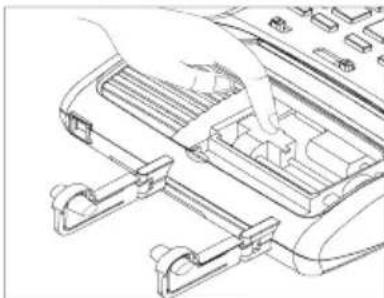
natural_image
Line drawing of a hand inserting a component into a device (no text or symbols visible)Inserimento carta
natural_image
Technical line drawing of a mechanical device with rollers and a handle, showing motion arrows (no text or symbols)Warning and Power off switch
Before plugging in and switching on the calculator, check that the rated voltage indicated on the rating label on the bottom corresponds to the local voltage.
The power off switch is the selector at the top left of the keyboard.
This equipment is not suitable for use in location where children are likely to be present.
Printer cover must always be closed before using/operating the calculator.
Do not touch printer moving parts and sharp edges between the printer mechanism as it may cause injury or pain.
Do not touch paper cutter sharp edges as it may cause injury or pain.
Replacing Ink Roller
-
Please turn Off the power switch or the main power before replacing ink roller.
-
Remove printer cover.
-
Remove ink roller.
-
Insert new ink roller.
-
Close printer cover.

natural_image
Line drawing of a telephone handset with an arrow indicating the handle (no text or symbols present)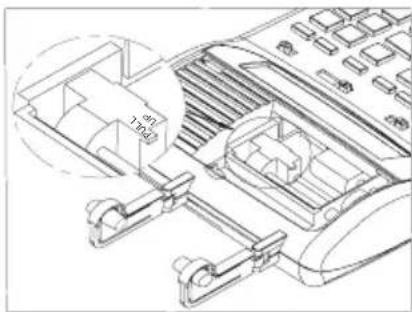
natural_image
Line drawing of a hand inserting a component into a device (no text or symbols visible)Loading paper
-
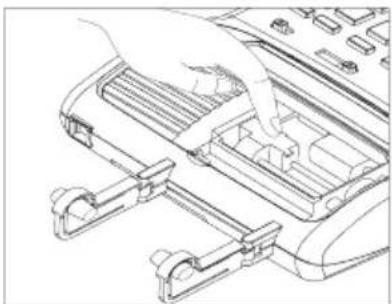
Plug in the calculator and turn it on.
-
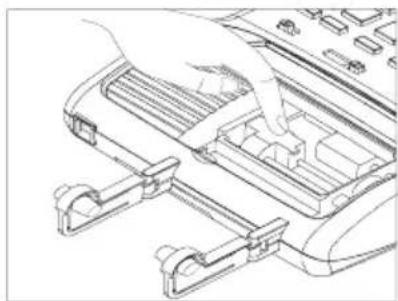
Cut, or tear evenly, the end of the paper roll to get a straight, even edge for proper feeding under the print head.
-
Holding the paper roll in one hand, feed the paper from the bottom of the roll and insert it the paper slot at the back of the calculator.
natural_image
Technical line drawing of a mechanical component with no visible text or symbols-
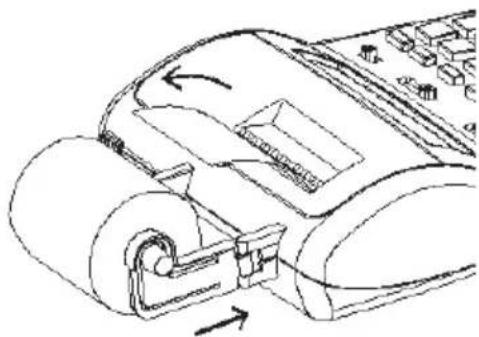
Press paper feed key until the paper catches and advances through the printer.
-
Fit the paper roll between the pair of paper holders.
Keyboard Description
| OFF NP P | Power off/Printer selection switch |
| OFF | Machine is switched off. |
| NP | Printer is activated only when paper feed key or non-add/date key is pressed. |
| P | Printer is activated as long as calculator is turned on. |
| ↓ 5/4 ↑ | Rounding selector |
| ↓ | Absolute round down. |
| 5/4 | Final result is rounded up if the 1^st digit not to be printed is 5 or more and rounded down if the 1^st digit not to be printed is 4 or less. |
| ↑ | Absolute round up. |
| A 0 2 3 4 F | Decimal Point selector |
| A | Add mode. The decimal point is automatically placed before the last two digits in addition and subtraction. |
| 0,2,3,4 | For multiplication and division, decimal point is set to the result of calculation.For addition and subtraction, decimal point is set to all entries.For all the results, number in the decimal place to the last decimal place designated will be rounded. For example, number at 3^rd decimal place is rounded at "2" position. |
| F | Automatic floating point for decimally accurate computing. Decimal point is entered at desired position and the decimal point is automatically shifted to the right is under 12 digits of integer. |
| • GT | Grand Total switch |
| • | Calculation without Grand Total. |
| GT | Any total made with [*] key is automatically accumulated to GT memory.The accumulated grand total can be recalled by pressing the [GT] key. |
| • IC | Item Count switch |
| • | Calculation without Item Count. |
| IC | Number of entries using keys [+], [-], [M+] and [M-] will be counted.The counter is added for [+], [M+] and subtracted for [-], [M-].Result is printed at left when [◇], [*], [M◇] or [M*] key is used. |
| [↑] Paper feed key | Advances the paper roll. |
[Δ] Delta percent key
Automatically compares any two amounts and then calculates and prints the percent change.
[MU] Mark up key
From a known cost of goods and a desired gross margin, automatically calculates and prints the amount of markup and the selling price.
[TAX +] Tax plus key
Calculates an amount including VAT with Tax rate preset by [RATE] key.
[TAX -] Tax minus key
Calculates an amount excluding VAT with Tax rate preset by [RATE] key.
[RATE] Rate key
Enters Tax rate or Currency Exchange rate.
[EURO] Euro currency
Converts the displayed value to Euro currency.
[LOCAL] Local currency
Converts the displayed value to Local currency.
[→] Right shift key
Deletes right most character of a live entry.
[+/-] Sign change key
Reverses the sign on the display.
[C] Clear key
Clears all the accumulator or calculation status except Memory and Grand Total Memory.
[CE] Clear entry key
Clears a live entry.
[%] Percentage key
Completes percent calculation when [x] or [÷] key is used.
[÷] Division key
To divide, enter the number to be divided (dividend) and press the [÷] key; then enter the second number (divisor) and press [=] or other keys as necessary to obtain result.
If pressed repeatedly, makes sequential division calculations.
[X] Multiplication key
To multiply, enter the first number (multiplicand) and press the [x] key; then enter the second number (multiplier) and press [=] or other keys as necessary to obtain result.
If pressed repeatedly, makes sequential multiple calculations.
[=] Equals key
Completes multiplication or division.
[0]-[9], [00], [•] Numeric keys
Any numeral over 12 digits will be ineffective.
When decimal point key is used more than once in one numeral, the first decimal point will be considered as effective.
[-] Minus key
Subtracts an amount from the accumulator.
To subtract the same amount more than once (repeat subtraction), enter the amount once and press this key as many times as necessary.
When pressed immediately after [%] key, works as a percent minus key.
[+] Plus key
Adds an amount to the accumulator.
To add the same amount more than once (repeat addition), enter the amount once and press this key as many times as necessary.
If pressed immediately after [%] key, works as a percent plus key.
[#/P] Non-add / Print key
Prints a live entry as an identifier, e.g. an invoice number with "#" mark, on left hand side of paper roll.
[GT] Grand total key
Prints and clears the Grand Total memory.
Subtotal key
[◇] Gives immediate result of addition and subtraction.
Prints but does not clear the accumulator.
[\*] Total key
Gives total result of addition and subtraction.
Clears the total accumulator.
If the GT switch is selected, automatically accumulates the result in the GT memory.
[M\*] Memory total key
Prints and clears the memory.
[M◇] Memory subtotal key
Prints but does not clear the memory.
[M-] Memory minus key
Subtracts an amount from memory.
If there is a live calculation pending, completes the calculation and subtracts the amount from memory.
[M+] Memory plus key
Adds an amount to memory.
If there is a live calculation pending, completes the calculation and accumulates the result to memory.
Technical Specifications
| Type: | Desktop Adding Machine/Calculator, Electronic Printing Calculator/Display Calculator |
| Basic Operations: | Addition/subtraction (with subtotal and total) and multiplication/division |
| Capacity: | Input and result - 12 digits |
| Decimal System: | Floating(F), Add mode(A), Fixed(0,2,3,4) |
| Functions: | 4 rules, successive calculation, memory calculation, mark-up/down calculation, constant calculation, tax calculation and EURO calculation |
| Printer: | Character wheel selection type |
| Ink Ribbon Cartridge: | IR40T |
| Paper width: | Width 57.5 ± 0.5mm X Diameter 50mm |
| Display: | 12 digit LCD display |
| Power: | Adapter 100-240V AC 50-60HzAC-DC Adaptor YLS0051A-E0600306.0V== 300 mAUsed compatible adaptor or recommended by manufacturer. |
| Operating Temperature: | 0°C ~ 40°C |
| Dimensions: | 240x200x50 mm |
| Weight: | 554 gr |
natural_image
Technical line drawing of a mechanical assembly with no visible text or symbols![OLIVETTI B8971 - [M+] Memory plus key - 1](/content/2026/06/1274139/images/3dfa554b8b76fe3b8a478108a5759ce4ee5ec5294447a1ea8d6f64ffd3acee52.jpg)
natural_image
Line drawing of a telephone handset with a scroll wheel and directional arrow (no text or symbols)![OLIVETTI B8971 - [M+] Memory plus key - 2](/content/2026/06/1274139/images/05ca255204eca0c5c9985f4ba5a5c185b7d8a7661b8b141fc4132a0d54e0f966.jpg)
natural_image
Line drawing of a hand inserting a component into a device (no text or symbols)natural_image
Technical line drawing of a mechanical component with no visible text or symbols[RATE] Touche Taux taxe/change
[C] Touche Correction
[X] Touche Multiplication
[GT] Touche Grand total
[M\*] Touche Total mémoire
[M-] Touche Soustraction mémoire
[M+] Touche Addition mémoire
natural_image
Line drawing of a telephone handset with a black arrow indicating the handle (no text or symbols present)![OLIVETTI B8971 - [M+] Touche Addition mémoire - 1](/content/2026/06/1274139/images/6bc915bc277111360246f898152d6f18f3160e794d27015f5f6f50a235d5acfd.jpg)
natural_image
Technical line drawing of a mechanical device with internal components and mounting bracket (no text or symbols)![OLIVETTI B8971 - [M+] Touche Addition mémoire - 2](/content/2026/06/1274139/images/3b94cad211687c30fbc5ab462f4c5ff98da8af5cade9b9624c1dbe44bcae88b6.jpg)
natural_image
Line drawing of a hand inserting a component into a device (no text or symbols visible)Papier einlegen
natural_image
Technical line drawing of a mechanical device with rollers and adjustment arrows (no text or symbols)[Δ] Taste Differenz in Prozent
[#/P] Taste Keine Addition/Datum
natural_image
Line drawing of a telephone handset with a black arrow indicating the handle (no text or symbols present)
![OLIVETTI B8971 - [#/P] Taste Keine Addition/Datum - 2](/content/2026/06/1274139/images/aef91946a4a8917dccc93aea3d87939ad28069d345c0afc68ebefadbab14bb56.jpg)
natural_image
Line drawing of a hand inserting a component into a device (no text or symbols visible)natural_image
Technical line drawing of a mechanical component with no visible text or symbolsnatural_image
Line drawing of a printer's front panel with a black arrow indicating the print direction (no text or symbols present)![OLIVETTI B8971 - [#/P] Taste Keine Addition/Datum - 3](/content/2026/06/1274139/images/569d2e9558abee8d800cf024d0fe7f9c24e71fe6486d53b50e97678332644c44.jpg)
natural_image
Technical line drawing of a mechanical device with internal components and mounting brackets (no text or symbols)![OLIVETTI B8971 - [#/P] Taste Keine Addition/Datum - 4](/content/2026/06/1274139/images/f195ae14daa63102459acbe8d2412e7631699b50d31b5c450feb6f8c6b220e02.jpg)
natural_image
Line drawing of a hand pressing down on a device panel with no visible text or symbolsIntrodução do papel
natural_image
Technical line drawing of a mechanical component with no visible text or symbolsnatural_image
Line drawing of a telephone handset with a black arrow indicating the handle (no text or symbols present)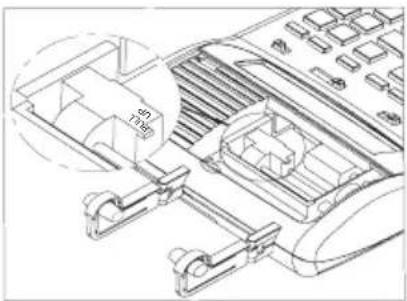
natural_image
Line drawing of a hand pressing down on a device component (no text or symbols visible)Papier invoeren
natural_image
Technical line drawing of a mechanical device with rollers and housing (no text or symbols)[%] Toets percentage
| PrintP | Rounding↓ | Decimal2 | GT● | IC● | ||
| Calculation | Enter | Display | Paper | |||
| Preset TAX = 18.6%(Press & hold until di | [C] | 0.(Blinking) RATE | 0. | |||
| [RATE] | ||||||
| splay blinking) | ||||||
| 18.6 [TAX+] | TAX % | 18.60 | ||||
| Print TAX rate | [RATE] [TAX+] | TAX % | 18.60 | |||
CALCOLO TASSO - TAX CALCULATION - CALCUL DU TAUX - SATZ-BERECHNUNG - CÁLCULO DE TASACIÓN - CÁLCULO DA TAXA - BTW-BEREKENING
| PrintP | Rounding↓ | Decimal2 | GT● | IC● | |||
| Calculation | Enter | Display | Paper | ||||
| Price without tax = 300 | 300 | [TAX+] | TAX+ | 355.80 | 300.0018.60 %55.80 Δ355.80 * | ||
| Price with tax = ? | |||||||
| Price with tax = 355.80 | 355.80 | [TAX-] | TAX- | 300.00 | 355.8018.60 %-55.80 Δ300.00 * | ||
| Price without tax = ? | |||||||
CALCOLO DEL LA PERCENTUALE - PERCENTAGE CALCULATION - CALCUL DU POURCENTAGE - PROZENTSATZ-BERECHNUNG - CÁLCULO DEL PORCENTAJE - CÁLCULO DA PERCENTAGEM - PERCENTAGEBEREKENING
| PrintP | Rounding5/4 | Decimal2 | GT● | IC● | |||
| Calculation | Enter | Display | Paper | ||||
| 1279 = 100% | 1279 | [X] | 1'279.00 | 1,279.00 x | |||
| ? = 12% | 12 | [%] | 153.48 | 12.00 % | |||
| 153.48 * | |||||||
CALCOLO DELL'ADDIZIONE E DELLO SCONTO - ADD-ON AND DISCOUNT CALCULATION - POURCENTAG E DE MAJORATION ET POURCENTAGE DE REMISE - ZUSCHLAG- UND RABATTBERECHNUNG - CÁLCULO DE LA ADICIÓN Y DEL DESCUENTO - CÁLCULO DA ADIÇÃO E DO DESCONTO - BEREKENING VAN TOESLAG EN KORTING
| PrintP | Rounding5/4 | Decimal2 | GT● | IC● | |||
| Calculation | Enter | Display | Paper | ||||
| 180 + 15% - 3% = ? | 180 | [X] | 180.00 | 180.00 x | |||
| 15 | [%] | 27.00 | 15.00 % | ||||
| [+] | 207.00 | 27.00 * | |||||
| [X] | 207.00 | 207.00 +% | |||||
| 3 | [%] | 6.21 | 207.00 x | ||||
| [-] | 200.79 | 3.00 % | |||||
| 6.21 * | |||||||
| 200.79 -% | |||||||
PERCENTUALE DELLA COSTANTE - PERCENTAGE OF CONSTANT - POURCENTAGE DE CONSTANTE - KONSTANTENPROZENTSATZ - PORCENTAJE DE LA CONSTANTE - PERCENTAGEM DA CONSTANTE - PERCENTAGE VAN DE CONSTANTE
| PrintP | Rounding5/4 | Decimal2 | GT● | IC● | |||
| Calculation | Enter | Display | Paper | ||||
| 120 = 100% | 120 | [X] | 120.00 | 120.00 x | |||
| ? = 25% | 25 | [%] | 30.00 | 25.00 % | |||
| 30.00 * | |||||||
| ? = 33% | 33 | [%] | 39.60 | 33.00 % | |||
| 39.60 * | |||||||
RICAVO/PERDITA - MARK UP/DOWN - MARGE DE BENEFICE/PERTE - AUF-/ABSCHLÄGE - PRODUCTO/PÉRDIDA - GANHO/PERDA - WINST-/VERLIESMARGE
| PrintP | Rounding5/4 | Decimal2 | GT● | IC● | |||
| Calculation | Enter | Display | Paper | ||||
| Gross amount including14%TAX = 200Net amount = ? | 200 | [MU] | 200.00 | 200.00 M- 14.00 %- 24.56 Δ*175.44 * | |||
| 14 | [+/-] [=] | 175.44 | |||||
| Purchase price = 60Sale price including32% margin = ? | 60 | [MU] | 60.00 | 60.00 M32.00 %28.24 Δ*88.24 * | |||
| 32 | [=] | 88.24 | |||||
TOTALE GENERALE IN MEMORIA - GRAND TOTAL MEMORY - GRAND TOTAL MEMOIRE - SPEICHER-ENDSUMME - TOTAL GENERAL EN MEMORIA - TOTAL GERAL NA MEMÓRIA - GROOTTOTAAL IN GEHEUGEN
| Print P | Rounding 5/4 | Decimal 2 | GT GT | IC | ||||
| Calculation | Enter | Display | Paper | |||||
| 13.20 | 9.55 | [C] | 0. | 0. C | ||||
| 8.30 | 7.36 | 13.2 | [+] | 13.20 | 13.20 + | |||
| + 2.95 | 18.33 | 8.3 | [+] | 21.50 | 8.30 + | |||
| 24.45 +35.24 =T? | 2.95 | [+] | 24.45 | 2.95 + | ||||
| [*] | GT | 24.45 | 003...... | |||||
| 24.45 ** | ||||||||
| 9.55 | [+] | GT | 9.55 | |||||
| 7.36 | [+] | GT | 16.91 | 9.55 + | ||||
| 18.33 | [+] | GT | 35.24 | 7.36 + | ||||
| [*] | GT | 35.24 | 18.33 + | |||||
| 003...... | ||||||||
| 35.24 ** | ||||||||
| [GT] | 59.69 | 002...... | ||||||
| 59.69 ** | ||||||||
CALCOLO DELLA PERCENTUALE DELTA - DELTA PERCENT CALCULATION - CALCUL DE LA VARIATION EN POURCENTAGE - BERECHNUNG DER DELTA-QUOTE - CÁLCULO DEL PORCENTAJE DELTA - CÁLCULO DA PERCENTAGEM DELTA - BEREKENING VAN PERCENTAGEVERSCHIL
| PrintP | Rounding5/4 | Decimal2 | GT● | IC● | |||
| Calculation | Enter | Display | Paper | ||||
| 2001: 15987 | 11435 | [Δ] | 11'435.00 | 11,435.00 Δ | |||
| 1999: 11435 (=100%) | 15987 | [%] | 39.81 | 15,987.00 = | |||
| Δ% = ? | 4,552.00 Δ* | ||||||
| 39.81 Δ% | |||||||
CALCOLO IN MEMORIA - MEMORY CALCULATION - CALCUL MEMOIRE - BERECHNUNG IM SPEICHER - CÁLCULO EN MEMORIA - CÁLCULO NA MEMÓRIA - BEREKENING IN GEHEUGEN
| PrintP | Rounding5/4 | DecimalF | GT● | IC● | |||
| Calculation | Enter | Display | Paper | ||||
| [C] | 0. | 0. | C | ||||
| 100 + 200 = ? | 100 | [+] | 100. | 100. | + | ||
| 900 - 500 = ? | 200 | [+] | 300. | 200. | + | ||
| 20 X 7 = ? | [*] | 300. | 300. | * | |||
| 12 X 5 = ? | |||||||
| Total ? | [M+] | M | 300. | 300. | M+ | ||
| 900 | [+] | M | 900. | 900. | + | ||
| 500 | [-] | M | 400. | 500. | - | ||
| [*] | M | 400. | 400. | * | |||
| [M+] | M | 400. | 400. | M+ | |||
| 20 | [X] | M | 20. | 20. | x | ||
| 7 | [=] | M | 140. | 7. | = | ||
| 140. | * | ||||||
| [M+] | M | 140. | 140. | M+ | |||
| 12 | [X] | M | 12. | 12. | x | ||
| 5 | [M+] | M | 60. | 5. | = | ||
| 60. | M+ | ||||||
| [M◇] | M | 900. | |||||
| [M*] | 900. | 900. | M◇ | ||||
| 900. | M* | ||||||
| [C] | 0. | 0. | C | ||||
SPEGNIMENTO AUTOMATICO - AUTO POWER OFF - MARCHE AUTO DÉES - AUTO NETZ AUS - AUTOMÁTICO POWER OFF - DESLIGAÇÃO AUTOMÁTICA - AUTO POWER UITGESCHAKELD
| PrintP | Rounding5/4 | DecimalF | GT● | IC● | |||
| Calculation | Enter | Display | Paper | ||||
| (3 X 8) - (6 ÷ 2) = ? | 3 | [X] | 3. | 3. | x | ||
| 8 | [M+] | M | 24. | 8. | = | ||
| after 3 minutes, auto power offpress any key to resume | M | 24. | 24. | M+ | |||
| 6. | ÷ | ||||||
| 2. | = | ||||||
| 3. | M- | ||||||
| 21. | M◇ | ||||||
| 21. | M* | ||||||
There are 13 Euro currency rates available in memory, the default values are preset to 1.
- To select a position in which to set the rate you desire:
- Press and hold the [RATE] key until the "RATE" symbol blinks on the display.
- Press the [EURO] key, the display will show "r-01 1."
- Enter the required rate and press the [EURO] key.
The current rate is now set.
- Press the [+] key, to move on to the next rate.
- Press the [-] key, to move back to previous rate.
- If you want to return the Euro Currency and TAX rates to their default rate, switch OFF the machine, then holding down [C] and [+] switch it ON again. "r-CC" will appear on the display and the default rate is set.
| PrintP | Rounding5/4 | Decimal2 | GT● | IC● | ||
| Calculation | Enter | Display | Paper | |||
| Set Currency rate1.08 in r-02 | [RATE] (Blinking) RATE 0.(Press & hold 3 sec.) | |||||
| [EURO] (+)[EURO] | (Blinking) RATE €(Blinking) RATE E | r-01 1.r-02 1. | ||||
| 1.08 | RATE€ | 1.08 | 1.08 | |||
| 2500+4000+1500= Total Euro currency? | 2500 | [+] | 2'500.00 | 2,500.00 + | ||
| 4000 | [+] | 6'500.00 | 4,000.00 + | |||
| 1500 | [+] | 8'000.00 | 1,500.00 + | |||
| [*] | 8'000.00 | 8,000.00 * | ||||
| [EURO] | € | 7'407.41 | 8,000.00 ÷1.08 =7,407.41 * | |||
| 2500+4000+1500= Total Local currency? | 2500 | [+] | 2' 500.00 | 2,500.00 + | ||
| 4000 | [+] | 6' 500.00 | 4,000.00 + | |||
| 1500 | [+] | 8' 000.00 | 1,500.00 + | |||
| [*] | 8' 000.00 | 8,000.00 * | ||||
| [LOCAL] | LOCAL | 8'640.00 | 8,000.00 x1.08 =8,640.00 * | |||
TAUX DE CHANGE
DIRECTIVE 2002/96/CE ON THE TREATMENT, COLLECTION, RECYCLING AND DISPOSAL OF ELECTRIC AND ELECTRONIC DEVICES AND THEIR COMPONENTS
1. FOR COUNTRIES IN THE EUROPEAN UNION (EU)
The disposal of electric and electronic devices as solid urban waste is strictly prohibited: it must be collected separately. The dumping of these devices at unequipped and unauthorized places may have hazardous effects on health and the environment.
Offenders will be subjected to the penalties and measures laid down by the law.
TO DISPOSE OF OUR DEVICES CORRECTLY:
a) Conta ct the Local Authorities, who will give you the practical information you need and the instructions for handling the waste correctly, for example: location and times of the waste collection centres, etc.
b) When you purchase a new device of ours, give a used device similar to the one purchased to our dealer for disposal.

The crossed dustbin symbol on the device means that:
- When it to be disposed of, the device is to be taken to the equipped waste collection centres and is to be handled separately from urban waste;
- Olivetti guarantees the activation of the treatment, collection, recycling and disposal procedures in accordance with Directive 2002/96/CE (and subsequent amendments).
2. FOR OTHER COUNTRIES (NOT IN THE EU)
The treatment, collection, recycling and disposal of electric and electronic devices will be carried out in accordance with the laws in force in the country in question.
F
DIRECTIVE 2002/96/CE SUR LE TRAITEMENT, LA COLLECTE, LE RECYCLAGE ET LA MISE AU REBUT DES EQUIPEMENTS ELECTRIQUES ET ELECTRONIQUES ET DE LEURS COMPOSANTS
1. POUR LES PAYS DE L'UNION EUROPEENNE (UE)

- SUMMA 303 Professional Printing Calculator
- PUBLICATION ISSUED BY:
- AVVERTENZE - PRECAUTIONS - AVERTISSEMENTS - HINWEISE - ADVERTENCIAS - ADVERTÊNCIAS - WAARSCHUWINGEN
- Remarque
- Inserimento carta
- Warning and Power off switch
- Replacing Ink Roller
- Loading paper
- Keyboard Description
- [Δ] Delta percent key
- [MU] Mark up key
- [TAX +] Tax plus key
- [TAX -] Tax minus key
- [RATE] Rate key
- [EURO] Euro currency
- [LOCAL] Local currency
- [→] Right shift key
- [+/-] Sign change key
- [C] Clear key
- [CE] Clear entry key
- [%] Percentage key
- [÷] Division key
- [X] Multiplication key
- [=] Equals key
- [0]-[9], [00], [•] Numeric keys
- [-] Minus key
- [+] Plus key
- [#/P] Non-add / Print key
- [GT] Grand total key
- Subtotal key
- [\*] Total key
- [M\*] Memory total key
- [M◇] Memory subtotal key
- [M-] Memory minus key
- [M+] Memory plus key
- [RATE] Touche Taux taxe/change
- [C] Touche Correction
- [X] Touche Multiplication
- [GT] Touche Grand total
- [M\*] Touche Total mémoire
- [M-] Touche Soustraction mémoire
- [M+] Touche Addition mémoire
- Papier einlegen
- [Δ] Taste Differenz in Prozent
- [#/P] Taste Keine Addition/Datum
- Introdução do papel
- Papier invoeren
- [%] Toets percentage
- TAUX DE CHANGE
- DIRECTIVE 2002/96/CE ON THE TREATMENT, COLLECTION, RECYCLING AND DISPOSAL OF ELECTRIC AND ELECTRONIC DEVICES AND THEIR COMPONENTS
- FOR COUNTRIES IN THE EUROPEAN UNION (EU)
- TO DISPOSE OF OUR DEVICES CORRECTLY:
- FOR OTHER COUNTRIES (NOT IN THE EU)
- F
- DIRECTIVE 2002/96/CE SUR LE TRAITEMENT, LA COLLECTE, LE RECYCLAGE ET LA MISE AU REBUT DES EQUIPEMENTS ELECTRIQUES ET ELECTRONIQUES ET DE LEURS COMPOSANTS
- POUR LES PAYS DE L'UNION EUROPEENNE (UE)
Brand : OLIVETTI
Model : B8971
Category : Calculator