USER MANUAL PRO FLIGHT MULTI PANEL SAITEK
Pro Flight Multi Panel
USER MANUAL
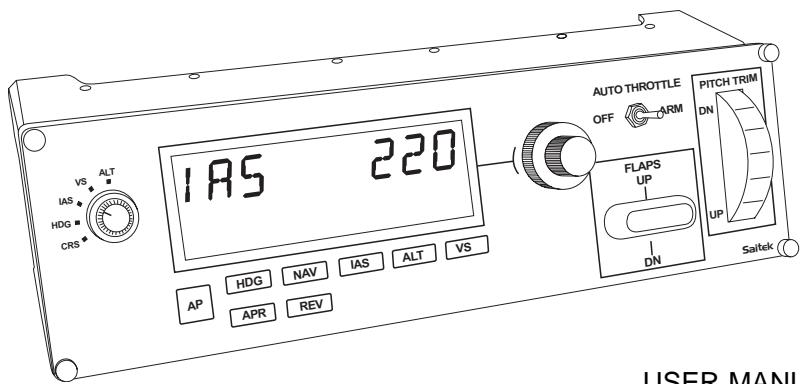
Congratulations on buying the Saitek Pro Flight Multi Panel. The multi panel interacts with Microsoft Flight Simulator X to control a range of functions, including auto pilot settings, flaps and trim controls.
Installing the Pro Flight Multi Panel
Fix the multi panel to the supplied mounting bracket. Insert the screws through the holes at the corners of the panel into the bracket behind and tighten. If you already own a Saitek Pro Flight Yoke System, you can mount the panel and bracket on top of the yoke unit using the screws provided.
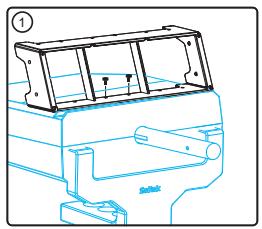
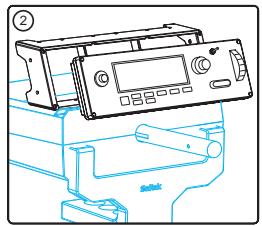
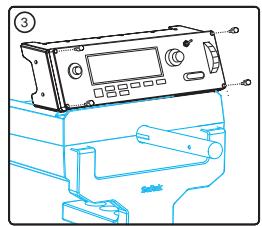
Installation for users of Windows® XP, XP64 and Vista
- With your computer switched on, close down any programs that are currently running and plug the USB cable of your panel into one of your PC's free USB ports. A dialogue window will open on your windows task bar saying your PC is installing drivers. Please note that the LED screen will not light up until the panel software is installed.
- Insert the Installation CD into your CD or DVD drive. If the CD does not run automatically, select Start from the Windows® Taskbar, then Run and type D:\Setup.exe and click OK - where D:\ is letter of your disc drive. For Vista users, if you receive the "User Account Control" prompt, click continue.
- For XP users, when the setup wizard screen appears, click "Next" to continue. For Vista users, when prompted "Do you want to run this program from Saitek?" and "Do you always want to run this program from Saitek?", click "Yes". After reading
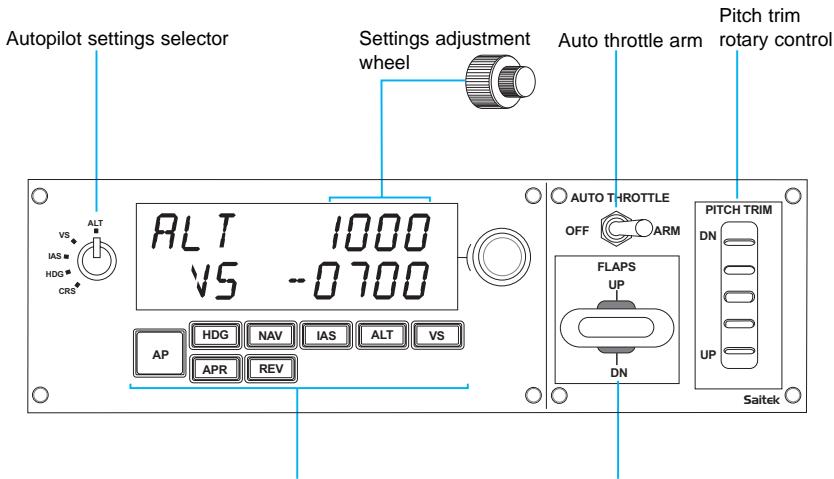
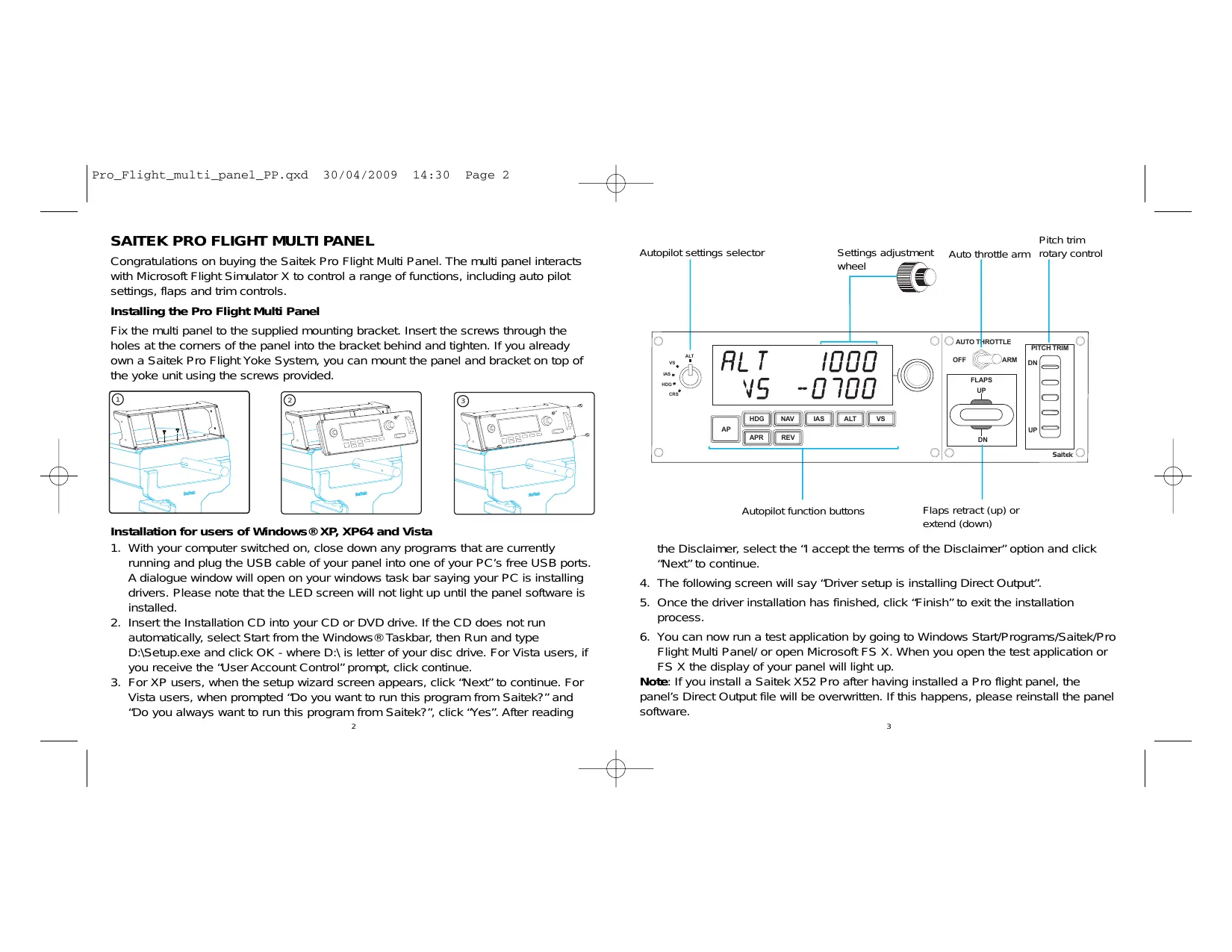
Autopilot function buttons
Flaps retract (up) or extend (down)
the Disclaimer, select the "I accept the terms of the Disclaimer" option and click "Next" to continue.
- The following screen will say "Driver setup is installing Direct Output".
- Once the driver installation has finished, click "Finish" to exit the installation process.
- You can now run a test application by going to Windows Start/Programs/Saitek/Pro Flight Multi Panel/ or open Microsoft FS X. When you open the test application or FS X the display of your panel will light up.
Note: If you install a Saitek X52 Pro after having installed a Pro flight panel, the panel's Direct Output file will be overwritten. If this happens, please reinstall the panel software.

Using the Saitek Pro Flight Multi Panel
AP Master switch to engage or disengage the autopilot
HDG Plane will fly to selected compass heading
NAV Plane will fly to selected NAV1 frequency or GPS
IAS Plane will fly at selected indicated airspeed
ALT Plane will fly to and maintain selected altitude
VS Plane will climb or descend at selected vertical speed
APR Plane will fly on approach to runway localizer
REV Plane will fly on a back course from the localizer
Adjusting autopilot settings
To change the values of the autopilot settings, first turn the selector switch on the left side of the panel to the function you want to adjust. Turn the rotary control to the right of the LED display to increase or decrease the values for the function you have selected.
For example, if you want to adjust the altitude setting, first turn the selector switch on the left to ALT and then increase or decrease the desired altitude setting using the rotary controls on the right.
To engage any of the autopilot functions, first select the function, eg, HDG, NAV etc and then press the autopilot master switch.
It is possible to use each of the autopilot functions individually but more common to use a combination of functions. For example, if you wanted to fly at 20,000 feet at a speed of 150 knots on a heading of 210 degrees, first select the ALT function with the selector knob on the left and adjust altitude to 20,000 with the right rotary controls. Next turn the function selector knob to IAS and adjust speed to 150. Now turn the function selector to HDG and adjust heading to 210. To engage the altitude, speed and heading functions, first switch the autothrottle to "Arm" (this allows the autopilot to control the engines to maintain speed), then press the HDG, IAS and ALT buttons under the LED screen and press the AP button to engage the autopilot. Your plane should now climb or descend to 20,000 feet, turn to heading 210 degrees and maintain a speed of 150 knots.
Please note: Not all aircraft available in Microsoft FS X have the full range of autopilot functions. For instance, the Cessna C172SP Skyhawk and many of the smaller aircraft do not have an autothrottle arm control - using this function on the multi panel will have no effect on the aircraft autopilot.
Troubleshooting
The Pro Flight Multi Panel controls are automatically configured to interact with FS X software. When you open Microsoft FS X you will be asked "Do you trust this program from Saitek?" Click "Yes". You will then be asked "Do you always want to load this plugin when launching Flight Sim X?" Again, click "Yes". If your FS X software does not recognise the multi panel, unplug the USB cable and plug it back in.
If FS X appears not to load, this is because it is waiting for a prompt. To view the prompt window, select it either by pressing Alt + tab or by clicking on the prompt on the Windows task bar. The prompt reads "Microsoft Flight Simulator security warning : will happen once after install". Click Run and when asked "would you like to designate this module?", click yes and FS X will continue to load.
The Pro Flight Multi Panel will not register automatically if you have installed the Pro Flight multi Panel before installing FS X. To register the Pro Flight multi Panel with FS X, click on the "Launch the Flightsim X plugin manually" icon to re-run the program.
Technical Support
Nearly all the products that are returned to us as faulty are not faulty at all - they have just not been installed properly.
If you experience any difficulty with this product, please first visit our website www.saitek.com. The technical support area will provide you with all the information you need to get the most out of your product and should solve any problems you might have.
If you do not have access to the internet, or if the website cannot answer your question, please contact your local Saitek Technical Support Team. We aim to offer quick, comprehensive and thorough technical support to all our users so, before you call, please make sure you have all the relevant information at hand.
To find your local Saitek Technical Support Center, please see the separate Technical Support Center sheet that came packaged with this product.
Conditions of Warranty
- Warranty period is 2 years from date of purchase with proof of purchase submitted.
- Operating instructions must be followed.
- Specifically excludes any damages associated with leakage of batteries. Note: Batteries can leak when left unused in a product for a period of time, so it is advisable to inspect batteries regularly.
- Product must not have been damaged as a result of defacement, misuse, abuse, neglect, accident, destruction or alteration of the serial number, improper electrical voltages or currents, repair, alteration or maintenance by any person or party other than our own service facility or an authorized service center, use or installation of non-Saitek replacement parts in the product or the modification of this product in any way, or the incorporation of this product into any other products, or damage to the product caused by accident, fire, floods, lightning, or acts of God, or any use violative of instructions furnished by Saitek plc.
- Obligations of Saitek shall be limited to repair or replacement with the same or similar unit, at our option. To obtain repairs under this warranty, present the product and proof of purchase (eg, bill or invoice) to the authorized Saitek Technical Support Center (listed on the separate sheet packaged with this product) transportation charges prepaid. Any requirements that conflict with any state or
Federal laws, rules and/or obligations shall not be enforceable in that particular territory and Saitek will adhere to those laws, rules, and/or obligations.
- When returning the product for repair, please pack it very carefully, preferably using the original packaging materials. Please also include an explanatory note.
IMPORTANT: To save yourself unnecessary cost and inconvenience, please check carefully that you have read and followed the instructions in this manual. This warranty is in Lieu of all other expressed warranties, obligations or liabilities. ANY IMPLIED WARRANTYES, OBLIGATIONS, OR LIABILITIES, INCLUDING BUT NOT LIMITED TO THE IMPLIED WARRANTYES OF MERCHANTABILITY AND FITNESS FOR A PARTICULAR PURPOSE, SHALL BE LIMITED IN DURATION TO THE DURATION OF THIS WRITTEN LIMITED WARRANTY. Some states do not allow limitations on how long an implied warranty lasts, so the above limitations may not apply to you. IN NO EVENT SHALL WE BE LIABLE FOR ANY SPECIAL OR CONSEQUENTIAL DAMAGES FOR BREACH OF THIS OR ANY OTHER WARRANTY, EXPRESS OR IMPLIED, WHATSOEVER Some states do not allow the exclusion or limitation of special, incidental or consequential damages, so the above limitation may not apply to you. This warranty gives you specific legal rights, and you may also have other rights which vary from state to state.

This symbol on the product or in the instructions means that your electrical and electronic equipment should be disposed at the end of its life separately from your household waste. There are separate collection systems for recycling in the EU.

For more information, please contact the local authority or your retailer where you purchased the product.
FCC Compliance and Advisory Statement
Warning: Changes or modifications to this unit not expressly approved by the party responsible for compliance could void the user's authority to operate the equipment. This device complies with Part 15 of the FCC Rules. Operation is subject to the following two conditions:
- This device may not cause harmful interference, and;
- This device must accept any interference received, including interference that may cause undesired operation.
NOTE: This equipment has been tested and found to comply with the limits for a Class B digital device, pursuant to Part 15 of the FCC Rules. These limits are designed to provide reasonable protection against harmful interference in a residential installation. This equipment generates, uses and can radiate radio frequency energy and, if not installed and used in accordance with the instructions, may cause harmful interference to radio communications. However, there is no guarantee that interference will not occur in a particular installation. If this equipment does cause harmful interference to radio or television reception, which can be determined by turning the equipment off and on, the user is encouraged to try to correct the interference by one or more of the following measures:
Reorient or relocate the receiving antenna;
- Increase the separation between the equipment and receiver;
- Connect the equipment into an outlet on a circuit different from that to which the receiver is connected;
- Consult the dealer or an experienced radio/TV technician for help.
Mad Catz Inc., 7480 Mission Valley Rd, Suite 101, San Diego, CA 92108-4406
Canada ICES-003
Operation is subject to the following two conditions:
- This device may not cause interference, and;
- This device must accept any interference, including interference that may cause undesired operation of the device.
This Class B digital apparatus complies with Canadian ICES-003.
Installer le Pro Flight Multi Panel
31 Shenley Pavilions,
Chalkdell Drive,
Shenley Woods.
Milton Keynes,
Buckinghamshire MK5 6LB
Germany
Saitek Eleftronik
Vertriebs GmbH
Landsberger Strase 400
81241 Munchen, Germany
France
Saitek / Mad Catz Europe Ltd.
21, Rue dHauteville
Esc.B, 4ème Etage,
F-75010 Paris
USA
Mad Catz Inc.
7480 Mission Valley Rd
Suite 101
San Diego, CA 92108-4406
Mad Catz is a publicly traded company on the TSX/AMEX, symbol MCZ.
Help center call numbers:
www.saitek.com / www.madcatz.com
+1 800 659 2287 (USA)
+16196832815
+44 (0)1454 451900 (UK)
Made in China/ Fabrique en China
31 Shenley Pavilions,
Chalkdell Drive,
Shenley Woods.
Milton Keynes,
Bucks MK5 6LB
Germany
Saitek Eleftronik
Vertriebs GmbH
Landsberger Strase 400
81241 München
France
Mad Catz is a publicly traded company on the TSX/AMEX, symbol MCZ.
Help center call numbers:
+1 800 659 2287 (USA)
+1 619 683 2815 (USA)
+44 (0)1454 451900 (UK)
Made in China/ Fabrique en China
www.saitek.com
www.madcatz.com
Saitek®
Pro Flight Multi Panel
www.saitek.com
Version 1.0 - 24/04/09
PZ70