
DAP-1150 - Access Point D-LINK - Free user manual and instructions
Find the device manual for free DAP-1150 D-LINK in PDF.


| Product Type | Wireless Access Point |
| Model | DAP-1150 |
| Brand | D-Link |
| Wireless Standard | IEEE 802.11b/g/n |
| Frequency Band | 2.4 GHz |
| Maximum Data Rate | 300 Mbps |
| Ports | 1 x 10/100 Fast Ethernet LAN port |
| Antenna Type | 2 x external omni-directional antennas (fixed) |
| Security | WEP 64/128-bit, WPA/WPA2-PSK, WPA2-AES |
| Management | Web-based GUI, SNMP |
| LED Indicators | Power, LAN, WLAN, Status |
| Power Supply | 5V DC / 1A via external power adapter |
| Power Consumption | ~5 Watts |
| Dimensions (W x D x H) | 150 x 110 x 30 mm (5.9 x 4.3 x 1.2 in) |
| Weight | 200 g (0.44 lb) |
| Operating Temperature | 0 to 40 °C (32 to 104 °F) |
| Humidity | 10% to 90% non-condensing |
| Mounting | Wall mountable, desktop placement |
| Reset Button | Yes, pinhole reset |
| Certifications | FCC, CE |
| Package Contents | DAP-1150, power adapter, Ethernet cable, mounting kit, quick install guide |
Frequently Asked Questions - DAP-1150 D-LINK
User questions about DAP-1150 D-LINK
0 question about this device. Answer the ones you know or ask your own.
Ask a new question about this device
Download the instructions for your Access Point in PDF format for free! Find your manual DAP-1150 - D-LINK and take your electronic device back in hand. On this page are published all the documents necessary for the use of your device. DAP-1150 by D-LINK.
USER MANUAL DAP-1150 D-LINK
WIRELESS G ACCESS POINT
Quick Installation Guide+ Руководство по быстрой установке+ Guía de Instalación Rápida+ Guia de Instalação Rápida+ 快速安装指南+ Petunjuk Pemasangan Cepat+ 設置マニュアル+
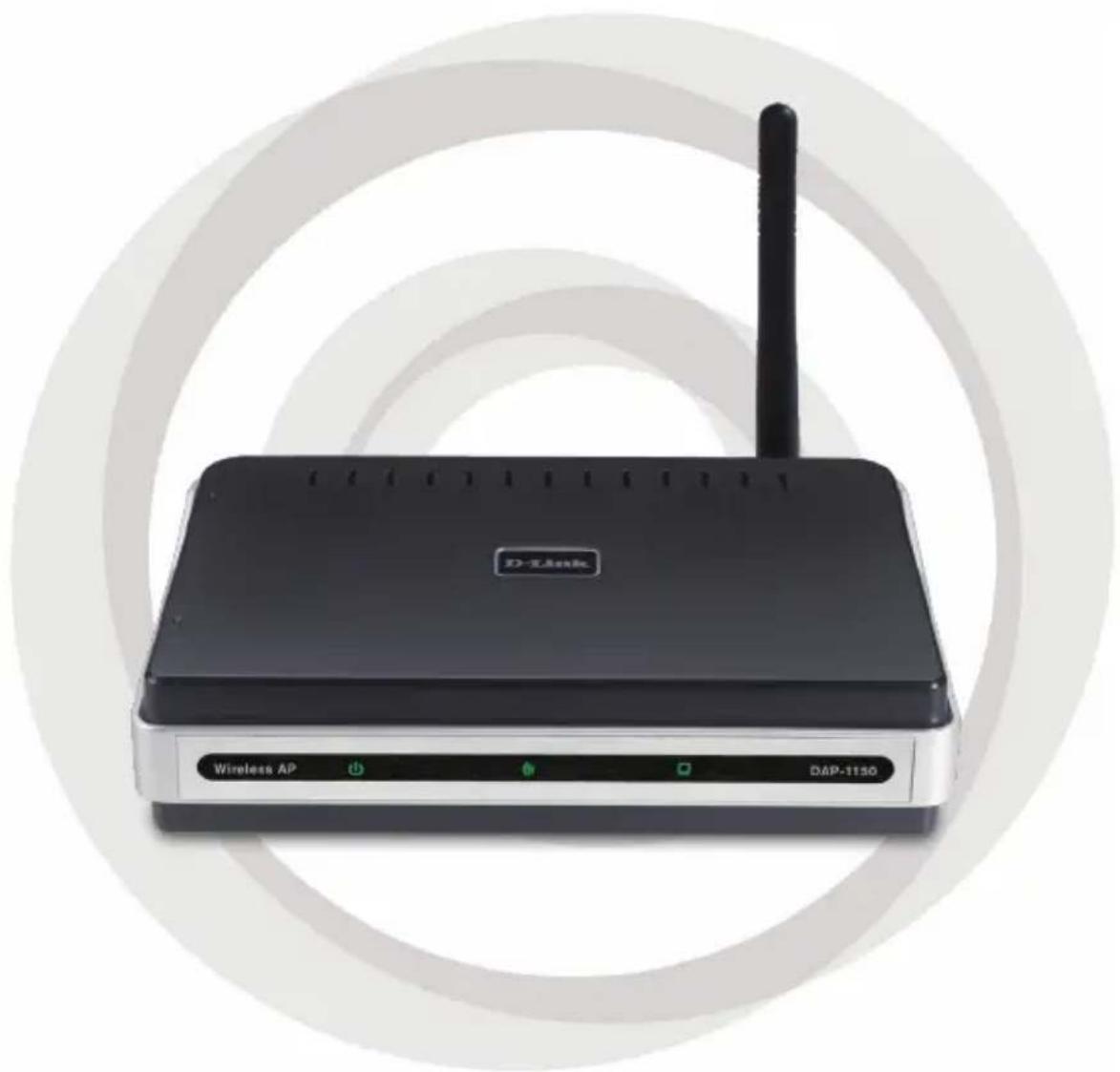
natural_image
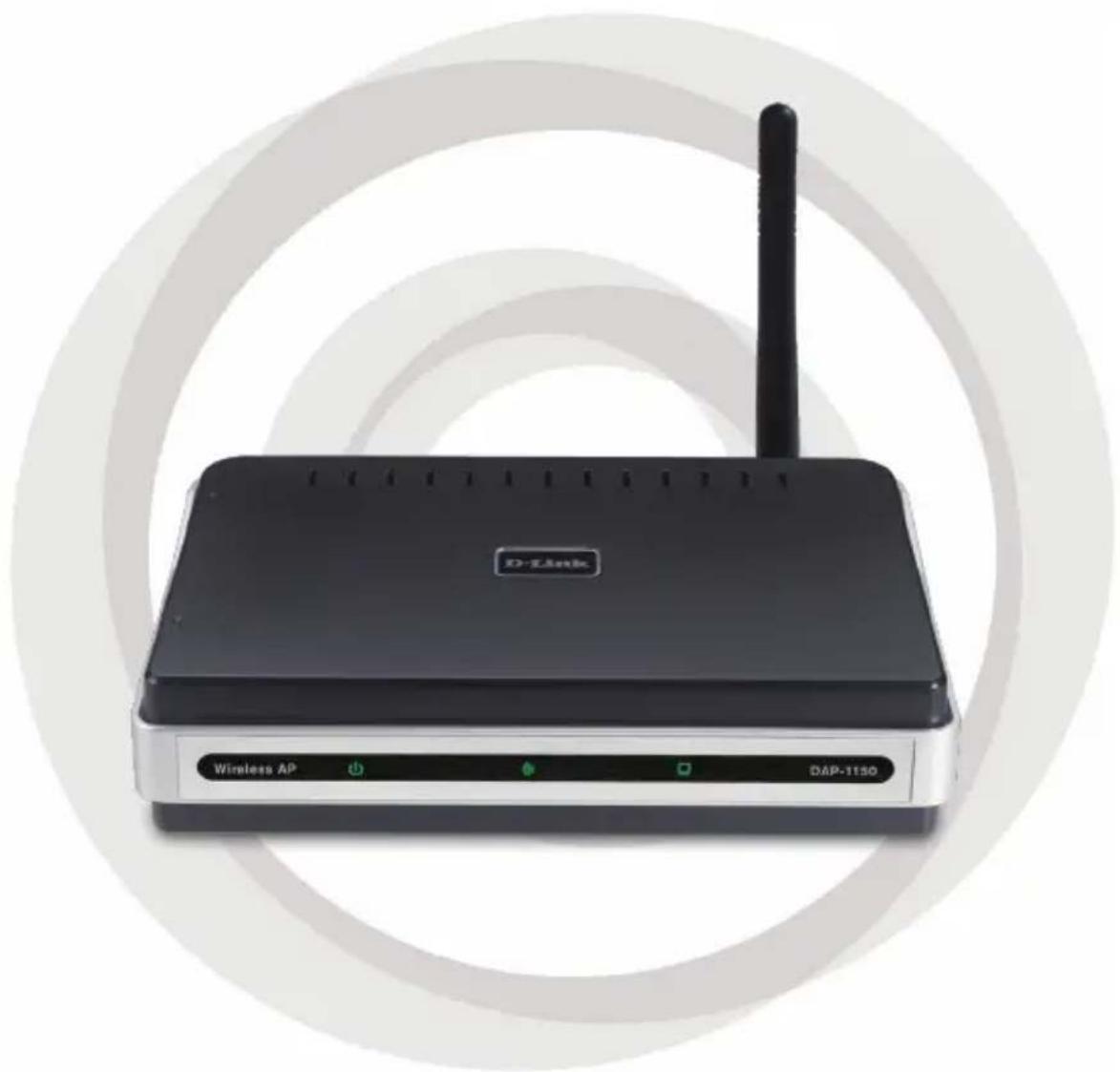
Black D-Link wireless router with antenna and control buttons, no visible text or symbols on the device body
Quick Installation Guide
Version 1.10
DAP-1150
Wireless G Access Point
Package Contents
Open the DAP-1150 package and check to see if all of the following items are included inside:
• DAP-1150 Wireless G Access Point
- Detachable antenna
- Power adapter
• Cat. 5 Ethernet cable
- CD-ROM containing the User's Manual and this Quick Installation Guide

natural_image
Black wireless router with antenna and control buttons (no visible text or symbols)If any of the above item is missing or damaged, contact the reseller from whom you purchased this package immediately.
System Requirements
The DAP-1150 Wireless G Access Point is designed to work with computers equipped with Windows ^® , Macintosh ^® , or Linux-based operating systems.
To configure this Wireless G Access Point, you need a computer with an Ethernet interface and an Internet browser such as Microsoft Internet Explorer 6.0 or above, Netscape Navigator 7.0 or above, or FireFox 1.5 or above.
Setting Up the DAP-1150
Step 1: Connect the Power Adapter.
Check the AC voltage of your AC power outlet against the AC power input of the power adapter. Connect the power adapter supplied with the DAP-1150 to the power socket on the back of this device first, then plug it to your AC power outlet. Check to see that the Power LED on the front panel of the DAP-1150 is turned ON.
WARNING! The DAP-1150's power output is 5 volts DC, 1.2 Ampere. Use only the power adapter supplied with this DAP-1150 or one with the same power specifications. Using a power adapter with a different voltage or plugging your DAP-1150 to a wrong AC voltage outlet will damage this device and will void the warranty for this product.
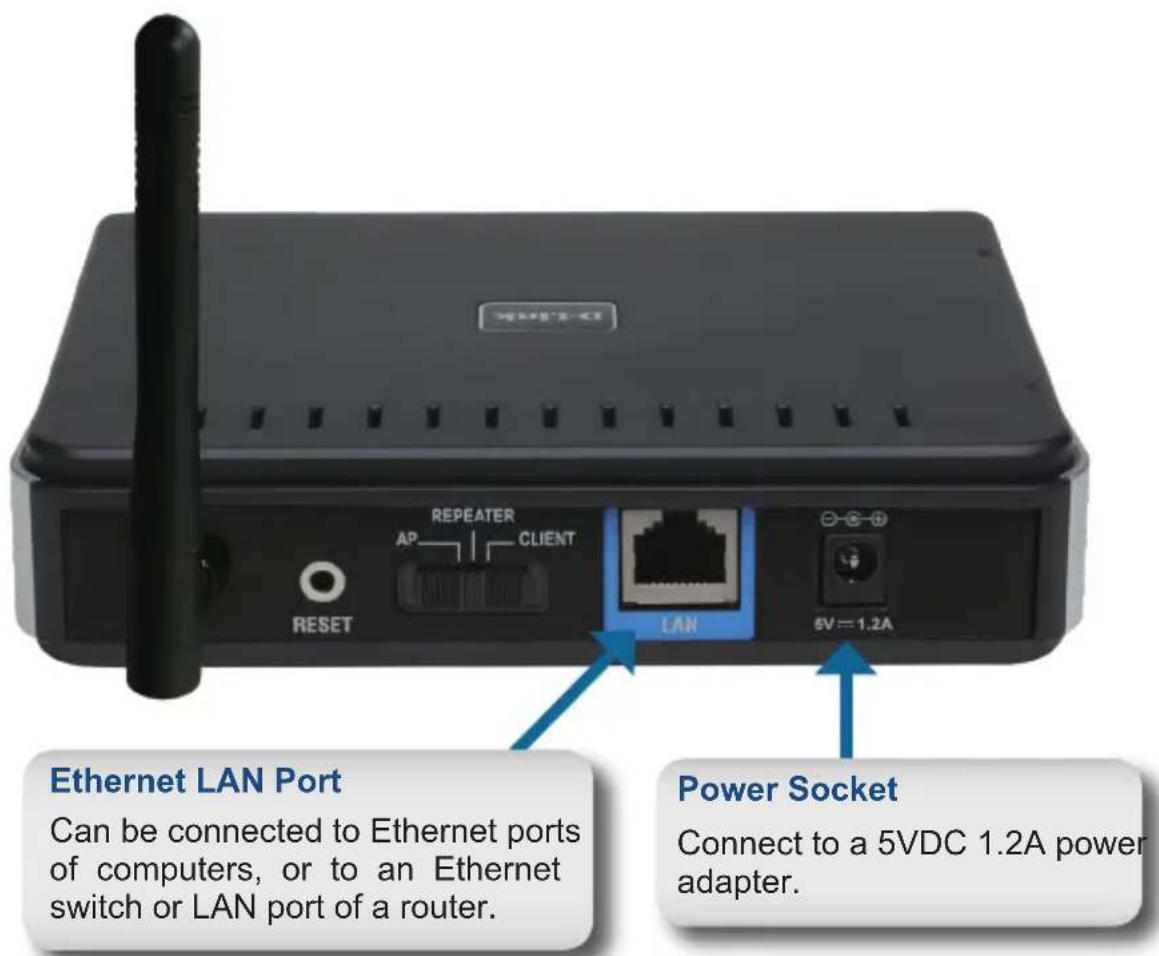
Step 2: Connect the Antenna and Ethernet Cable.
Connect the antenna to the antenna connector on the back of the DAP-1150. Connect one end of the Ethernet cable to LAN port on the back panel of the DAP-1150, and the other end of this cable to your computer's Ethernet port. If your computer is connected to an Ethernet network via an Ethernet switch, connect this end of the cable to the switch's port.
Step 3: Begin Configuring your DAP-1150.
This configuration step presumes that you will use the DAP-1150's default factory setting of operation mode of AP (access point). This mode allows computers and devices equipped with 802.11g standard wireless LAN interfaces to communicate with other wireless computers and devices through the DAP-1150. In addition, the default factory setting provides no wireless security. To set the DAP-1150 to another operation mode and to set its wireless security, refer to its User's Manual.
Run a web browser on your computer. The following login screen will appear:

Once you have logged in, the following Setup screen will appear:

Enter the device name of AP and click Next to continue. It is recommended to change the Device Name if there is more than one D-Link device within the sabnet.
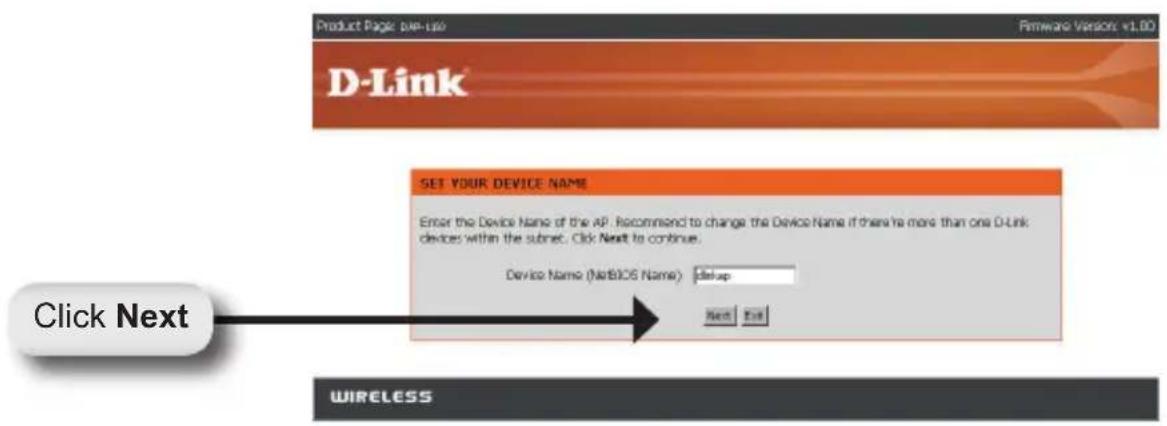
Customize your own password:

Select Auto as the configuration method only if your wireless device supports Wi-Fi Protected Setup.
Skip to page 6 for Manual configuration.
Click Next to continue.

Click Save to save your network settings.

Click Continue to finish the Setup Wizard.

Select Manual as the configuration method to setup your network manually.
Click Next to continue.

Enter a network name and choose the option to Automatically assign a network key. To Manually assign a network key, skip to page 8.
Click Next to continue.

If you choose WPA-PSK encryption, the following screen will display the Network Key to be entered on your wireless clients.
Click Save to finish the Setup Wizard.

If you choose WEP encryption, the following screen will show you your Network Key to enter on your wireless clients.
Click Save to finish the Setup Wizard.
![Product Page: 144-163 Remed Version: [1.00] D-Link WELCOME TO THE D-LINK WIRELESS SETUP WIZARD Please enter the following settings in the wireless device that you are adding to your wireless network and keep a note of it for future reference. Wireless Network Name: d#:16d7 (SDD): Wireless Security Node: WRP Network: Gas: DHCPXW0850M Add Save Add WIRELESS](/content/2026/06/1257174/images/444e1b0bca48ce96a19610b023a0a957e4c0eb13c3dca6653a211ab4083610b9.jpg)
Choose Manually assign a network key to create your own key.
Click Next to continue.
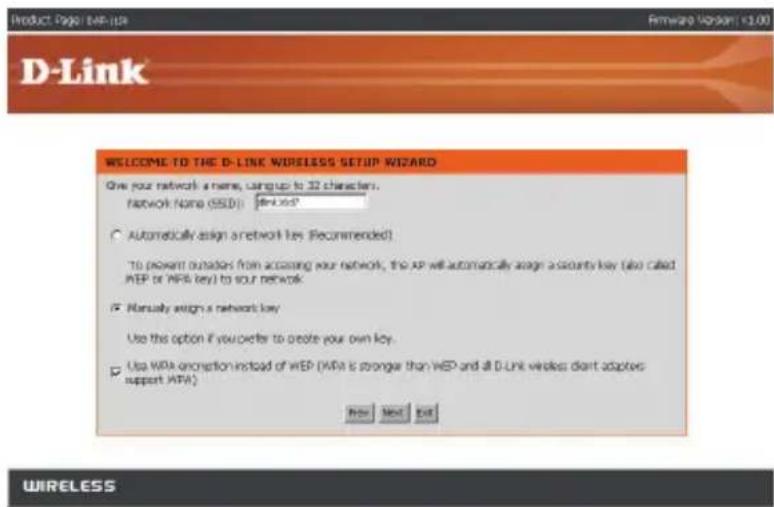
For WPA encryption, enter a Network Key between 8 and 63 characters long or enter exactly 64 characters using 0-9 and A-F.
Click Next to continue.

If you select WPA encryption, the following screen will display the network key to be entered on your wireless clients.
Click Save to finish the Setup Wizard.

For WEP encryption, enter a Network Key exactly 5 or 13 characters long or exactly 10 or 26 characters using 0-9 and A-F.
Click Next to continue.
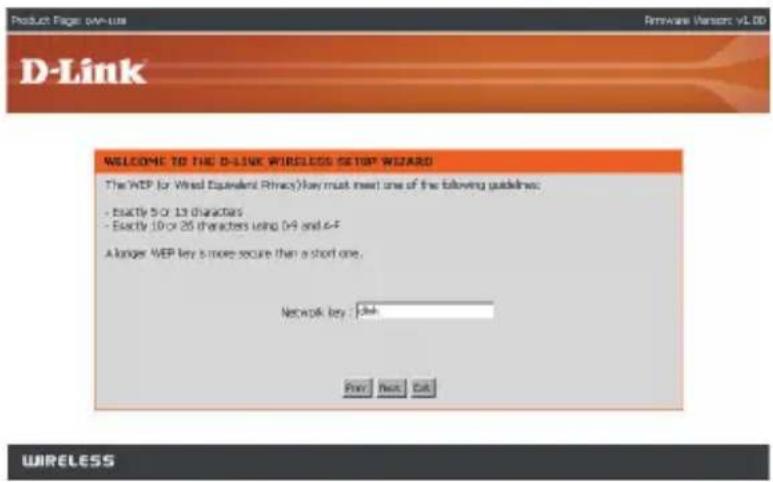
If you select WEP encryption, the following screen will show you your network key to enter on your wireless clients.
Click Save to finish the Setup Wizard.

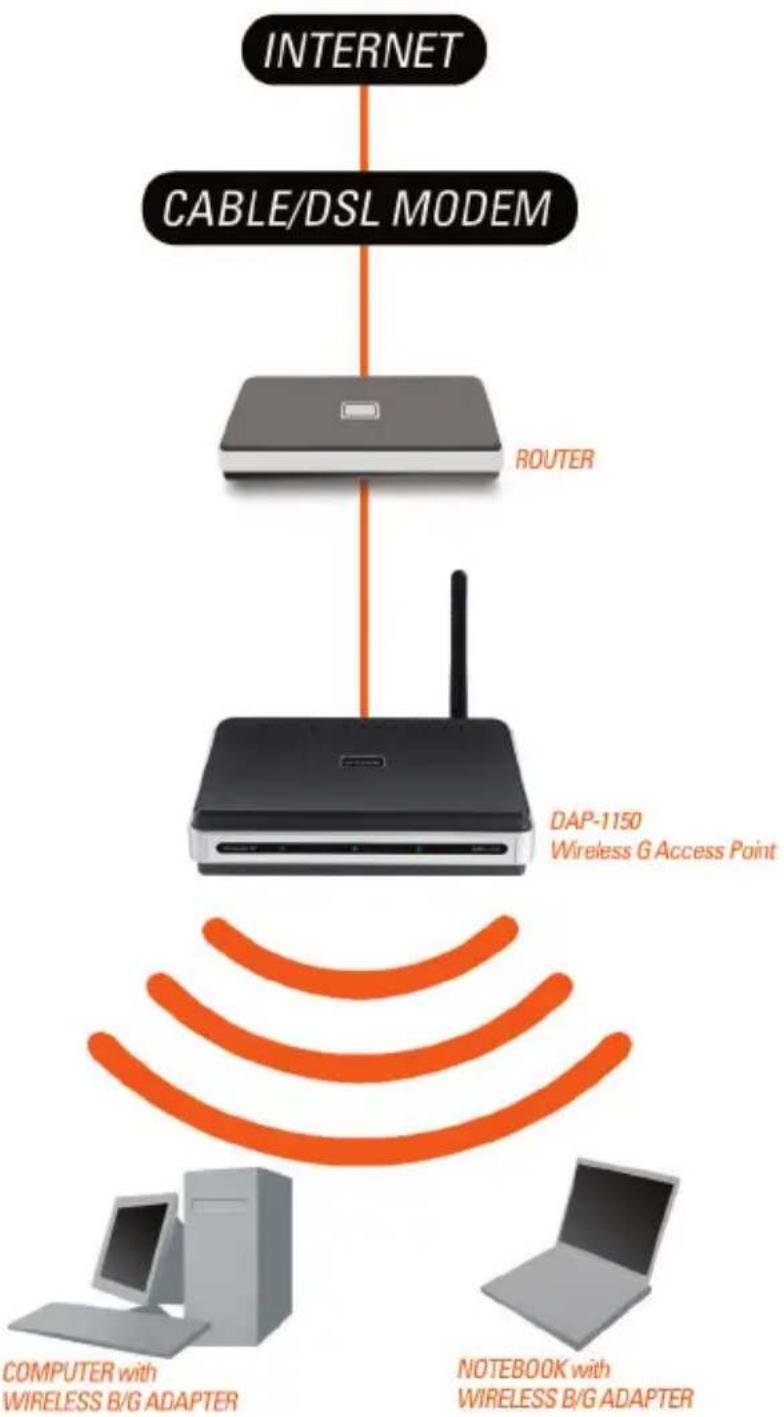
YOUR NETWORK SETUP

flowchart
graph TD
    A["INTERNET"] --> B["CABLE/DSL MODEM"]
    B --> C["ROUTER"]
    C --> D["DAP-1150 Wireless G Access Point"]
    D --> E["COMPUTER with WIRELESS B/G ADAPTER"]
    D --> F["NOTEBOOK with WIRELESS B/G ADAPTER"]
Technical Support
You can find software updates and user documentation on the D-Link website.
Tech Support for customers in
Australia:
Tel: 1300-766-868
24/7(24Hrs, 7days a week) technical support
http://www.dlink.com.au
e-mail: support@dlink.com.au
India:
Tel: 1800-222-002
9.00 AM to 9.00 PM. All days
http://www.dlink.co.in/support/productsupport.aspx
Indonesia, Malaysia, Singapore and Thailand:
Tel: +62-21-5731610 (Indonesia)
Tel: 1800-882-880 (Malaysia)
Tel: +65 6501 4200 (Singapore)
Tel: +66-2-719-8978/9 (Thailand)
24/7, for English Support Only
http://www.dlink.com.sg/support/
e-mail: support@dlink.com.sg
Korea:
Tel: +82-2-2028-1815
Monday to Friday 9:00am to 6:00pm
http://www.d-link.co.kr
e-mail: arthur@d-link.co.kr
New Zealand:
Tel: 0800-900-900
24/7(24Hrs, 7days a week) technical support
http://www.dlink.co.nz
e-mail: support@dlink.co.nz
Technical Support
You can find software updates and user documentation on the D-Link website.
Tech Support for customers in
Egypt:
Tel: +202-2919035 or +202-2919047
Sunday to Thursday 9:00am to 5:00pm
http://support.dlink-me.com
Email: support.eg@dlink-me.com
Iran:
Te: +98-21-88880918,19
Saturday to Thursday 9:00am to 5:00pm
http://support.dlink-me.com
Email : support.ir@dlink-me.com & support@dlink.ir
Israel:
Magshimim 20 St., Matalon center,
Petach Tikva, Israel 49348
Consumer support line: 03-9212886
Business support line: 03-9212608
Pakistan:
Tel: +92-21-4548158 or +92-21-4548310
Monday to Friday 10:00am to 6:00pm
http://support.dlink-me.com
E-mail: zkashif@dlink-me.com
South Africa and Sub Sahara Region:
Tel: +27-12-665-2165
08600 DLINK (for South Africa only)
Monday to Friday 8:30am to 9:00pm South Africa Time
http://www.d-link.co.za
Turkey:
Tel: +90-212-2895659
Monday to Friday 9:00am to 6:00pm
http://www.dlink.com.tr
e-mail: turkiye@dlink-me.com
e-mail: support@d-link.co.za
U.A.E and North Africa:
Tel: +971-4-4278127 (U.A.E)
Sunday to Thursday 9.00AM to 6.00PM GMT+4
Web: http://www.dlink-me.com
E-mail: support.me@dlink-me.com
Saudi ARABIA (KSA):
Telephone : +966 01 217 0008
Facsimile : +966 01 217 0009
e-mail: Support.sa@dlink-me.com
Saturday to Wednesday 9.30AM to 6.30PM
Thursdays 9.30AM to 2.00 PM
natural_image
Black D-Link wireless router with antenna and control buttons (no visible text or symbols on device body)
natural_image
Black wireless router with antenna and control buttons (no visible text or symbols)Настройка пароля:

flowchart
graph TD
    A["INTERNET"] --> B["CABLE/DSL MODEM"]
    B --> C["ROUTER"]
    C --> D["DAP-1150 Wireless G Access Point"]
    D --> E["COMPUTER with WIRELESS B/G ADAPTER"]
    D --> F["NOTEBOOK with WIRELESS B/G ADAPTER"]
Notes
natural_image
Black DAP-1150 wireless router with antenna and control buttons, no visible text or symbols on device body
natural_image
Black wireless router with antenna and control buttons (no visible text or symbols)YOUR NETWORK SETUP
flowchart
graph TD
    A["INTERNET"] --> B["CABLE/DSL MODEM"]
    B --> C["ROUTER"]
    C --> D["DAP-1150 Wireless G Access Point"]
    D --> E["COMPUTER with WIRELESS B/G ADAPTER"]
    D --> F["NOTEBOOK with WIRELESS B/G ADAPTER"]
Notes
SOPORTE TÉCNICO
natural_image
Black D-Link wireless router with antenna and control buttons, no visible text or symbols on the device bodyAccess Point Wireless G
natural_image
Black wireless router with antenna and control buttons (no visible text or symbols)WIRELESS
YOUR NETWORK SETUP

flowchart
graph TD
    A["INTERNET"] --> B["CABLE/DSL MODEM"]
    B --> C["ROUTER"]
    C --> D["DAP-1150 Wireless G Access Point"]
    D --> E["COMPUTER with WIRELESS B/G ADAPTER"]
    D --> F["NOTEBOOK with WIRELESS B/G ADAPTER"]
Notes
Suporte Técnico
natural_image
Black D-Link wireless router with antenna and control buttons, no visible text or symbols on the device body快速安裝手冊
DAP-1150
Wireless G 無線基地台
包裝內容
natural_image
Black wireless router with antenna and control buttons (no visible text or symbols)設定您的密碼:
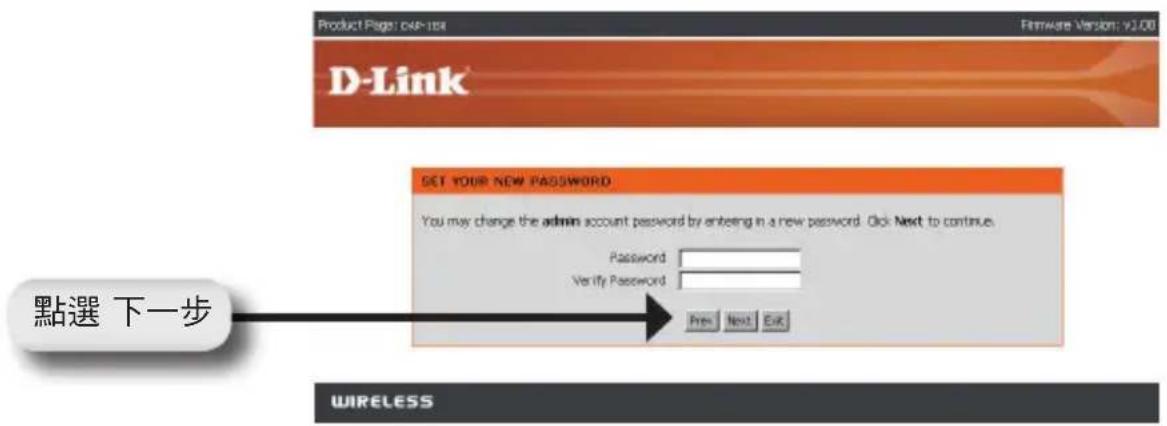
點選 "儲存" 將網路設定儲存

點選 "繼續" 完成設定精靈

YOUR NETWORK SETUP

flowchart
graph TD
    A["INTERNET"] --> B["CABLE/DSL MODEM"]
    B --> C["ROUTER"]
    C --> D["DAP-1150 Wireless G Access Point"]
    D --> E["COMPUTER with WIRELESS B/G ADAPTER"]
    D --> F["NOTEBOOK with WIRELESS B/G ADAPTER"]
Notes
natural_image
Black D-Link wireless router with antenna and control buttons, no visible text or symbols on the device body
Wireless G Access Point
Isi Paket
natural_image
Black wireless router with antenna and control buttons (no visible text or symbols)Men-setting DAP-1150
Langkah 1 : Hubungkan Power Adapter
Klik Continue untuk mengakhiri Setup Wizard.
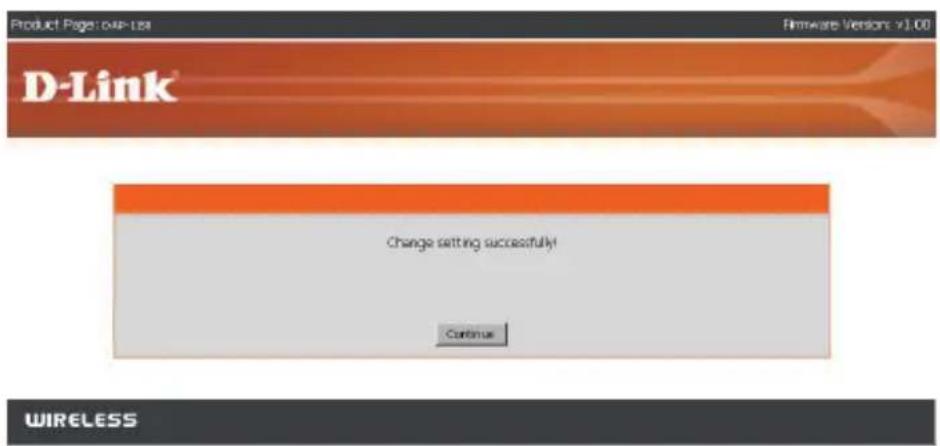
YOUR NETWORK SETUP

flowchart
graph TD
    A["INTERNET"] --> B["CABLE/DSL MODEM"]
    B --> C["ROUTER"]
    C --> D["DAP-1150 Wireless G Access Point"]
    D --> E["COMPUTER with WIRELESS B/G ADAPTER"]
    D --> F["NOTEBOOK with WIRELESS B/G ADAPTER"]
Notes
Dukungan Teknis
natural_image
Black D-Link wireless router with antenna and control buttons, no visible text or symbols on the device body設置マニュアル
Version 1.00
DAP-1150
802.11 G Wireless G Access Point
パッケージの内容
natural_image
Black wireless router with antenna and control buttons (no visible text or symbols)パスワードの設定を行ってください。

YOUR NETWORK SETUP

flowchart
graph TD
    A["INTERNET"] --> B["CABLE/DSL MODEM"]
    B --> C["ROUTER"]
    C --> D["DAP-1150 Wireless G Access Point"]
    D --> E["COMPUTER with WIRELESS B/G ADAPTER"]
    D --> F["NOTEBOOK with WIRELESS B/G ADAPTER"]
Notes
Technical Support
URL:http://www.dlink-jp.com
D-Link®

Ver. 1.10(I)
2008/11/26
290726001150A11


- Quick Installation Guide
- Package Contents
- System Requirements
- Setting Up the DAP-1150
- Step 1: Connect the Power Adapter.
- Step 2: Connect the Antenna and Ethernet Cable.
- Step 3: Begin Configuring your DAP-1150.
- Technical Support
- Tech Support for customers in
- Indonesia, Malaysia, Singapore and Thailand:
- Egypt:
- Iran:
- Israel:
- Pakistan:
- South Africa and Sub Sahara Region:
- Turkey:
- U.A.E and North Africa:
- Saudi ARABIA (KSA):
- Notes
- SOPORTE TÉCNICO
- WIRELESS
- Suporte Técnico
- 快速安裝手冊
- 包裝內容
- Isi Paket
- Men-setting DAP-1150
- Langkah 1 : Hubungkan Power Adapter
- Dukungan Teknis
- 設置マニュアル
- パッケージの内容
- D-Link®
Brand : D-LINK
Model : DAP-1150
Category : Access Point