
BH20 - Earphones Acme United - Free user manual and instructions
Find the device manual for free BH20 Acme United in PDF.


| Product Type | In-ear wireless earbuds |
| Brand | Acme United |
| Model | BH20 |
| Dimensions (earbud) | 25 x 20 x 15 mm |
| Weight (per earbud) | 5 g |
| Charging case weight | 35 g |
| Battery life (earbuds) | Up to 6 hours |
| Battery life with case | Up to 24 hours |
| Charging time (earbuds) | 1.5 hours |
| Charging time (case) | 2 hours (USB-C) |
| Connectivity | Bluetooth 5.0 |
| Bluetooth range | 10 meters |
| Controls | Touch (play/pause, calls, volume) |
| Noise reduction | Passive (silicone ear tips) |
| Water resistance | IPX4 (sweat and splashes) |
| Microphone | Built-in, compatible with hands-free calls |
| Ear tips | 3 sizes (S, M, L) included |
| Care | Clean with a soft, dry cloth; do not use liquids |
| Batteries | Built-in rechargeable lithium-ion |
| Included accessories | Charging case, USB-C cable, silicone ear tips |
Frequently Asked Questions - BH20 Acme United
User questions about BH20 Acme United
0 question about this device. Answer the ones you know or ask your own.
Ask a new question about this device
Download the instructions for your Earphones in PDF format for free! Find your manual BH20 - Acme United and take your electronic device back in hand. On this page are published all the documents necessary for the use of your device. BH20 by Acme United.
USER MANUAL BH20 Acme United
bluetooth headset
www.acme.eu
acme®

4 GB User's manual 82 Warranty card
14 LT Vartotojo gidas 83 Garantinis lapas
Welcome to using this Bluetooth stereo headset, BH20. Please read this user's manual carefully before use.
Introduction
You can enjoy music wirelessly by using BH20. It has the following features:
Pairing with a Bluetooth cell phone or PDA supporting HFP profile
• Answer a call, end a call and reject a call
• Redial last number
- Voice dial
- Adjust the volume
• Call transfer between the headset and your Bluetooth cell phone
- Microphone mute
Pairing with a Bluetooth music device or Bluetooth transmitter supporting A2DP profile
- Enjoy music wirelessly
- Adjust the volume
• Remote control pause / play
• Remote control previous / next track
Overview
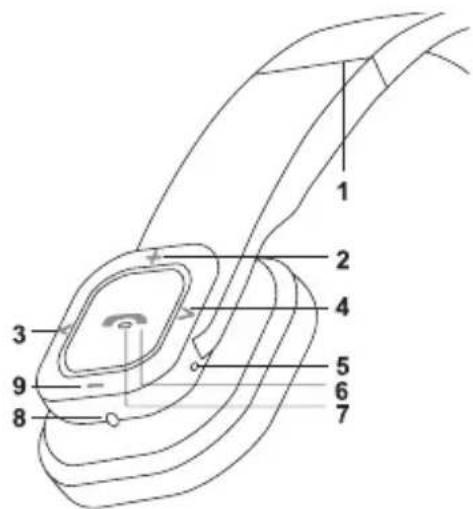
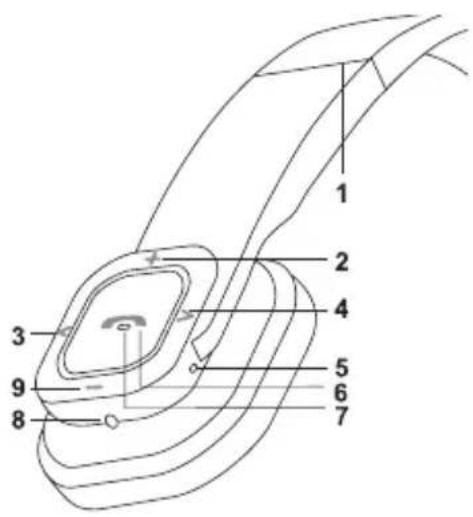
| 1 Foldable and retractable headband | |
| 2 + button: Volume up | |
| 3 <button: Previous track | |
| 4 >button: Next track | |
| 5 Built-in microphone | |
| 6 LED indicator | |
| 7 | Multi-function button (MFB): Power on / power off / answer a call / end a call / reject a call / microphone mute / call transfer / redial last number / voice dial / pause / play |
| 8 Charging jack | |
| 9 - button: Volume down | |
Charging the headset
The headset comes with a built-in rechargeable battery, prior to using it, it is recommended to charge the battery fully for the first time.
When the headset has low power, a red LED flashes twice and the headset emits three "Dong" tones every 20 seconds. Please recharge the battery of the headset.
Connect the USB cable to a computer USB port and the USB cable plug to the charging jack of the headset. Red LED is on while charging. It takes about 3 hours to charge the battery fully. When charging is complete, the red LED will be off.
GB
Getting started
Turning on / off the headset
| Function Operation LED indicator | ||
| Power on Press and hold MFB button for 3~5 seconds until blue LED flashes | Blue LED is on for 1 second | |
| Power off | Press and hold MFB button for 3~5 seconds until red LED flashes | Red LED is on for 1 second |
Note: In order to save power, the headset will turn off automatically if no devices can be connected after 5 minutes.
Pairing the headset with Bluetooth devices
How to enter pairing mode
| Function Operation LED indicator | ||
| Entering pairing mode | Ensure the headset is turned off, otherwise turn it off first and then press and hold MFB button for 6~7 seconds until LED flashes red and blue alternately | LED flashes red and blue alternately |
Remark: Pairing mode will last 2 minutes. If no devices can be connected after 2 minutes, it will return to standby mode automatically.
GB
Pairing the headset with a Bluetooth cell phone
Prior to using the headset for the first time, you have to pair it with a Bluetooth-enabled cell phone. The pairing procedures are subject to different models of cell phones. Please refer to your cell phone user's manual for further information. The general pairing procedures are as follows:
- Place the headset and Bluetooth cell phone where they are easily viewable, no more than 1 metre apart;
- Enter the headset's pairing mode (please refer to "How to enter pairing mode);
- Activate your cell phone's Bluetooth function and set your cell phone to search for Bluetooth devices within range, and select "BH20" from the list of devices shown;
- According to the indication, enter password or PIN No.: "0000";
- If prompted by your cell phone to connect, select "Yes" (this will vary among cell phone models);
- After successful connecting, a blue LED flashes twice or three time every 4 seconds.
You should now be able to make and receive a call using the headset.
Remarks:
- If pairing has failed, please turn off the headset first and then re-pair according to steps 1\~6 mentioned above.
- After pairing is successful, the headset and the cell phone will remember each other, they will no need to re-pair next time. The headset can remember 8 paired devices. When the number of paired devices exceeds 8, the first one will be replaced.
- Every time the headset is turned on, it will connect to the last connected device automatically. If you want to pair it with other devices, please turn off the Bluetooth function of the last connected devices first and pair the headset with the new device according to steps 1\~6 mentioned above.
Re-connecting with a Bluetooth device
Automatic connecting
Every time the headset is turned on, it will connect to the last connected device automatically.
GB
Manual connecting
When the headset doesn't connect to a device supporting HFP, double click MFB button, it will connect to last connected HFP device.
When the headset doesn't connect to a device supporting A2DP, short press MFB button, it will connect to last connected A2DP device.
Remarks:
Before connecting to a Bluetooth device, please turn on the Bluetooth device's Bluetooth function. On some Bluetooth devices, take some Nokia cell phones for example, you have to allow automatic connecting in the cell phone's settings. Please refer to your cell phone's manual for further information.
Wearing the headset
The headband of the headset is foldable and retractable, please adjust according to the actual use. Letter "L" of the headset represents left ear, letter "R" of the headset represents right ear. Please wear the headset according to the indication.
Basic operation
| Function Status of BH20 Operation | |
| Cancel calling Calling Short press MFB button | |
| Answer a call Incoming ring Short press MFB button | |
| Reject a call Incoming ring | Press and hold MFB button for 2 seconds and release it until hearing indication tone |
| End a call During a call Short press MFB button | |
| Volume up During a call | Touch + button, when touch + button all the time, the volume will increase continuously | |
| Volume down During a call | Touch – button, when touching – button constantly, the volume will reduce continuously | |
| Call transfer (headset to mobile phone) | During a call | Press and hold MFB button for 2 seconds and release it until hearing indication tone |
| Call transfer (mobile phone to headset) | During a call | Press and hold MFB button for 2 seconds and release it until hearing indication tone |
| Microphone mute | During a call Short press MFB button twice | |
| Cancel mute | During a call (microphone mute) | Short press MFB button twice |
| Voice dial | Standby mode and connected to a device | Simultaneously press and hold MFB buttons for 2 seconds and release them until hearing indication tone |
| Redial last number | Standby mode and connected to a device | Short press MFB button twice |
| Lock / unlock the buttons | Standby mode | Simultaneously press and hold MFB and + buttons for 2 seconds and release them until hearing indication tone |
| Clear pairing list | Charging | Firstly press and hold MFB button and then press and hold – button for 5 seconds, and release them until red LED flashes once |
GB
Three-way call
| Function Status of BH20 Operation | ||
| End current call and answer a new incoming call | There is a new incoming call Short press MFB button once | |
| Keep current call and answer a new incoming call | There is a new incoming call Short press MFB button twice | |
| Call transfer | During a call (keep another call) | Short press MFB button twice |
| End current call and switch to reserved call | During a call (keep another call) Short press MFB button once | |
Warning: Excessive pressure from earphones and headphones can cause hearing loss.
Notes:
- Not all cell phones support all functions listed above. Please refer to your cell phone's user's manual for further information.
• Certain functions and indication tones may vary with different models of cell phones. - When the volume is adjusted to max. or min., you will hear a indication tone.
- When pressing the answer button on some cell phones, the call will be transferred to the cell phone. You have to switch the call to the headset manually then. Please refer to your cell phone's user's manual for further information.
Music playback
After connecting the headset to a Bluetooth cell phone or Bluetooth transmitter supporting A2DP, you can enjoy music with the headset.
GB
| Function Status of BH20 Operation | |
| Volume up Playing music | Touch + button, when touch + button all the time, the volume will increase continuously |
| Volume down Playing music | Touch – button, when touching – button constantly, the volume will reduce continuously |
| Pause | Playing music Short press MFB button |
| Play Pausing Short press MFB button | |
| Previous track Playing music Touch < button | |
| Next track Playing music Touch > button |
Notes:
- When playing music on some cell phones, the music will be transmitted to the cell phone's speaker instead of the headset. You have to select "transmit the sound via Bluetooth" in the settings menu and then choose "BH20" as speaker device. The music will be transmitted to the headset. Please refer to your cell phone's user's manual for further information.
- When the volume is adjusted to max. or min., you will hear a indication tone.
- If you want to remote control previous/next track, pause / play, it needs your Bluetooth cell phone or Bluetooth transmitter paired with the headset to support AVRCP profile, please refer to the user's manual of your cell phone or Bluetooth transmitter for further information.
FAQs
Why does the red LED flash twice every 20 seconds?
The headset is low on power, it needs to be recharged.
GB
Why isn't the red LED on when charging?
a) Please make sure the charger connects well with the headset;
b) When you didn't use the headset for a long time, the battery may dry up. At this time, you have to charge the battery for 30 minutes, and then the red LED will be on.
How far is the effective range between the headset and Bluetooth cell phone?
According to the Bluetooth standard, the max. controllable range of Class II headset is 10 metres. It varies in different environments.
What to do when my cell phone cannot search and find the headset?
The cell phone will not find the headset if the headset and cell phone are not under the pairing mode. Make sure the headset is in the pairing
mode and in the effective working range, and then the headset can be paired and connected.
Why can't I hear the voice from the headset?
a) Make sure the headset is turned on;
b) Ensure the volume of the headset is not too low or mute;
c) Make sure the headset connects well with your cell phone;
d) Ensure the distance between the headset and your cell phone is in the normal working scope.
Why is there no voice when making a call with the headset?
a) Make sure your cell phone is in a strong signal area;
b) Ensure the headset is in the function range.
Why can't I remotely control the pause, play, previous track and next track functions with the headset when playing music?
The function needs the Bluetooth device paired with the headset to support AVRCP (Audio / Video Remote Control Profile). Please make sure your cell phone or Bluetooth transmitter supports AVRCP profile.
GB
Care and maintenance
Read the following recommendations before using the headset. Following these you will be able to enjoy the product for many years.
- Do not expose the headset to liquid, moisture or humidity to avoid the product's internal circuit being affected.
- Don't use abrasive cleaning solvents to clean the headset.
- Do not expose the headset to extremely high or low temperature as this will shorten the life of electronic devices, destroy the battery or distort certain plastic parts.
- Don't dispose of the headset in a fire as it will result in an explosion.
- Don't expose the headset to contact with sharp objects as this will cause scratches and damage.
- Don't let the headset fall down onto the floor. The internal circuit might get damaged.
- Don't attempt to disassemble the headset as it may get damaged if you are not professional.
In case the headset doesn't function properly, send it to the store you bought it. The staff will help you to solve the problem.
Waste Electrical and Electronic Equipment (WEEE) Symbol
The use of the WEEE symbol indicates that this product may not be treated as household waste. By ensuring this product is disposed of correctly, you will help protect the environment. For more detailed information about the recycling of this product, please contact your local authority, your household waste disposal service provider or the shop where you purchased the product.
LT
„Bluetooth“ stereofoninès ausinès
Apžvalga
Зарядка гарнітури
Warranty card www.acme.eu/warranty
| Product Product model | |
| Product purchase date Seller name, address | |
| Failures (date, description, position of the person who accepts the product, first name, last name and signature) | |
1. Warranty period
Warranty enters into force starting with the day when the buyer acquires the product from the seller. Warranty period is indicated on the package of the product.
2. Warranty conditions
The warranty is valid only by providing an original document of the product acquisition and this warranty sheet, which includes name of the product model, product purchase date, name and address of the seller.
If it is noticed during the warranty period that the product has faults and these faults where not caused by any of the reasons when the warranty is not applied as indicated in the paragraphs below, manufacturer undertakes to replace the product.
The warranty is not applied to regular testing, maintenance and repair or replacement of the parts which are worn out naturally.
The warranty is not applied if damage or failures occurred due to the following reasons:
• Inappropriate installation of the product, ina
usage and/or operating the product without following the manual, technical requirements and safety standards as provided by the manufacturer, and additionally, inappropriate warehousing, falling from heights as well as hard strikes.
• Corrosion, mud, water and sand.
• Repair works, modifications or cleaning, which were performed by a service not authorised by the manufacturer.
- Usage of the spare parts, software or consumptive materials which do not apply to the product.
- Accidents or events or any other reasons which depend on the manufacturer, which includes lightning, water, fire, magnetic field and inappropriate ventilation.
- If the product does not meet standards and specifications of a particular country, in which it was not bought. Any attempt to adjust the product in order to meet technical and safety requirements such as those in the other countries withdraws all the rights to the warranty service.
If no failures are detected in the product, all the expenses in relation to the service are covered by the buyer.
Garantinis lapas www.acme.eu/warranty
LT


- BLUETOOTH HEADSET
- INTRODUCTION
- PAIRING WITH A BLUETOOTH CELL PHONE OR PDA SUPPORTING HFP PROFILE
- PAIRING WITH A BLUETOOTH MUSIC DEVICE OR BLUETOOTH TRANSMITTER SUPPORTING A2DP PROFILE
- OVERVIEW
- CHARGING THE HEADSET
- GB
- GETTING STARTED
- TURNING ON / OFF THE HEADSET
- PAIRING THE HEADSET WITH BLUETOOTH DEVICES
- HOW TO ENTER PAIRING MODE
- PAIRING THE HEADSET WITH A BLUETOOTH CELL PHONE
- REMARKS
- RE-CONNECTING WITH A BLUETOOTH DEVICE
- AUTOMATIC CONNECTING
- MANUAL CONNECTING
- WEARING THE HEADSET
- THREE-WAY CALL
- NOTES
- MUSIC PLAYBACK
- FAQS
- WHY DOES THE RED LED FLASH TWICE EVERY 20 SECONDS
- WHY ISN'T THE RED LED ON WHEN CHARGING
- HOW FAR IS THE EFFECTIVE RANGE BETWEEN THE HEADSET AND BLUETOOTH CELL PHONE
- WHAT TO DO WHEN MY CELL PHONE CANNOT SEARCH AND FIND THE HEADSET
- WHY CAN'T I HEAR THE VOICE FROM THE HEADSET
- WHY IS THERE NO VOICE WHEN MAKING A CALL WITH THE HEADSET
- WHY CAN'T I REMOTELY CONTROL THE PAUSE, PLAY, PREVIOUS TRACK AND NEXT TRACK FUNCTIONS WITH THE HEADSET WHEN PLAYING MUSIC
- CARE AND MAINTENANCE
- WASTE ELECTRICAL AND ELECTRONIC EQUIPMENT (WEEE) SYMBOL
- LT
- „BLUETOOTH“ STEREOFONINÈS AUSINÈS
- APŽVALGA
- WARRANTY CARD WWW.ACME.EU/WARRANTY
- WARRANTY PERIOD
- WARRANTY CONDITIONS
- GARANTINIS LAPAS WWW.ACME.EU/WARRANTY
Brand : Acme United
Model : BH20
Category : Earphones