
MW07 - Mouse Acme United - Free user manual and instructions
Find the device manual for free MW07 Acme United in PDF.


| Product Type | Wireless Optical Mouse |
| Brand | Acme United |
| Model | MW07 |
| Dimensions (L x W x H) | 100 x 60 x 35 mm |
| Weight | 100 g (with batteries) |
| Power Supply | 2 AAA batteries (not included) |
| Battery Life | Up to 12 months |
| Connectivity | RF 2.4 GHz with USB receiver |
| Range | 10 meters |
| Optical Resolution | 1600 DPI |
| Number of Buttons | 5 (left click, right click, scroll wheel, forward, backward) |
| Scroll Wheel | Yes, with click |
| Compatibility | Windows, macOS, Linux |
| Care & Cleaning | Clean with a soft, dry cloth. Do not use liquids. |
| Safety | Keep away from water and moisture. Do not disassemble. |
| Spare Parts & Repairability | AAA batteries easily replaceable. Replacement USB receiver available. |
| Package Contents | Mouse, USB receiver, quick start guide |
| Color | Black |
| Warranty | 2 years |
Frequently Asked Questions - MW07 Acme United
User questions about MW07 Acme United
0 question about this device. Answer the ones you know or ask your own.
Ask a new question about this device
Download the instructions for your Mouse in PDF format for free! Find your manual MW07 - Acme United and take your electronic device back in hand. On this page are published all the documents necessary for the use of your device. MW07 by Acme United.
USER MANUAL MW07 Acme United
wireless optical mouse
www.acme.eu
acme®

4 GB User's manual 44 Warranty card
7 LT Vartotojo gidas 45 Garantinis lapas
- Plug the Nano receiver into a USB port of your computer.
- Open the battery door and install battery (1 x AA).
Mouse Functions

Speed Control
Press the DPI button, then you can toggle the DPI between 800 dpi and 1480 dpi.
Universal Back / Forward
Use the back button to access previous page and use the forward button to access next page.
Receiver Storage
Store or take out the Nano receiver from the Nano receiver storage by push/pull the Nano receiver.
Trouble Shooting
- Check Nano receiver connection; try to inserting Nano Receiver to another USB port on your computer.
- Connection between the mouse and the Nano Receiver. Re-insert the Nano Receiver. Take out the battery and reinstall it.
Note
This device complies with Part 15 of the FCC rules. Operation is subject to the following two conditions:
(1) This device may not cause harmful interference
(2) This device must accept any interference received, including interference that may cause undesired operation.
GB
GB
Safety instructions:
• Do not disassemble the product or remove any parts
- Do not put the product into water or any liquid. Should this happen, ta computer and contact your vendor or after sales service center for maintenance
- Do not put the product close to heat source, or expose it to high temperature.
Caution!
The manufacturer is not responsible for any radio or TV interference caused by unauthorized modifications to this equipment. Such modifications could void the user authority to operate the equipment.
Waste Electrical and Electronic Equipment (WEEE) Symbol
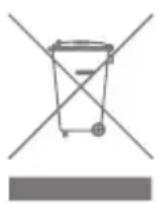
The use of the WEEE symbol indicates that this product may not be treated as household waste. By ensuring this product is disposed of correctly, you will help protect the environment. For more detailed information about the recycling of this product, please contact your local authority, your household waste disposal service provider or the shop where you purchased the product.
Prijungimas
GB
Warranty card www.acme.eu/warranty
| Product Product model | |
| Product purchase date Seller name, address | |
| Failures (date, description, position of the person who accepts the product, first name, last name and signature) | |
1. Warranty period
Warranty enters into force starting with the day when the buyer acquires the product from the seller. Warranty period is indicated on the package of the product.
2. Warranty conditions
The warranty is valid only by providing an original document of the product acquisition and this warranty includes name of the product model, product purchase date, name and address of the seller.
If it is noticed during the warranty period that the product has faults and these faults where not caused by any of the reasons when the warranty is not applied as indicated in the paragraphs below, manufacturer undertakes to replace the product.
The warranty is not applied to regular testing, maintenance and repair or replacement of the parts which are worn out naturally.
The warranty is not applied if damage or failures occurred due to the following reasons:
usage and/or operating the product without following the manual, technical requirements and safety standards as provided by the manufacturer, and additionally, inappropriate warehousing, falling from heights as well as hard strikes.
• Corrosion, mud, water and sand.
Repair works, modifications or cleaning, which were performed by a service not authorised by the manufacturer.
• Usage of the spare parts, software or consump materials which do not apply to the product.
- Accidents or events or any other reasons which depend on the manufacturer, which includes lightning, water, fire, magnetic field and inappropriate ventilation.
- If the product does not meet standards and specifications of a particular country, in which it was not bought. Any attempt to adjust the product in order to meet technical and safety requirements such as those in the countries withdraws all the rights to the warranty service.
If no failures are detected in the product, all the expenses in relation to the service are covered by the buyer.
Garantinis lapas www.acme.eu/warranty
LT
Model: MW07
wireless optical mouse
acme®
www.acme.eu


- WIRELESS OPTICAL MOUSE
- MOUSE FUNCTIONS
- SPEED CONTROL
- UNIVERSAL BACK / FORWARD
- RECEIVER STORAGE
- TROUBLE SHOOTING
- NOTE
- GB
- SAFETY INSTRUCTIONS
- CAUTION
- WASTE ELECTRICAL AND ELECTRONIC EQUIPMENT (WEEE) SYMBOL
- PRIJUNGIMAS
- WARRANTY CARD WWW.ACME.EU/WARRANTY
- WARRANTY PERIOD
- WARRANTY CONDITIONS
- GARANTINIS LAPAS WWW.ACME.EU/WARRANTY
Brand : Acme United
Model : MW07
Category : Mouse