
ARNOVA 9 G3 4GB - Tablet ARCHOS - Free user manual and instructions
Find the device manual for free ARNOVA 9 G3 4GB ARCHOS in PDF.


| Product type | Touchscreen tablet |
| Brand | ARCHOS |
| Model | ARNOVA 9 G3 4GB |
| Dimensions (L x W x H) | 240 x 150 x 10 mm |
| Weight | 450 g |
| Screen | 9 inches, resolution 1024 x 600 pixels, capacitive touchscreen |
| Processor | 1 GHz |
| RAM Memory | 512 MB |
| Internal Storage | 4 GB (expandable via microSD up to 32 GB) |
| Battery | Lithium-ion, battery life up to 6 hours |
| Connectivity | Wi-Fi 802.11 b/g/n, Bluetooth 2.1, USB 2.0, 3.5 mm headphone jack |
| Camera | Front (0.3 MP) and rear (2 MP) |
| Operating System | Android 4.0 (Ice Cream Sandwich) |
| Main Functions | Web browsing, video/audio playback, games, Google Play apps, email, social networks |
| Maintenance and Cleaning | Clean with a soft, dry cloth, avoid abrasive products and moisture |
| Safety | Do not expose to water or extreme temperatures, use only the supplied charger |
| Spare Parts and Repairability | Battery, screen, back cover available; average repairability (disassembly possible with tools) |
| General Information | Made in China, compatible with the range of ARCHOS accessories |
Frequently Asked Questions - ARNOVA 9 G3 4GB ARCHOS
User questions about ARNOVA 9 G3 4GB ARCHOS
0 question about this device. Answer the ones you know or ask your own.
Ask a new question about this device
Download the instructions for your Tablet in PDF format for free! Find your manual ARNOVA 9 G3 4GB - ARCHOS and take your electronic device back in hand. On this page are published all the documents necessary for the use of your device. ARNOVA 9 G3 4GB by ARCHOS.
USER MANUAL ARNOVA 9 G3 4GB ARCHOS
Before using your ARNOVA for the first time, completely charge the battery!
Charging the Battery
- Connect the supplied power cable to the ARNOVA Power connector and to a wall outlet.
- The ARNOVA device will turn on and start charging.
- The Power indicator light is red while the battery is charging.
- It will turn yellow when the battery is fully charged.

Installation Wizard
The first time you start up your ARNOVA, the installation wizard will bring you through a few screens to help you set up the principal settings: language, country, time, etc.
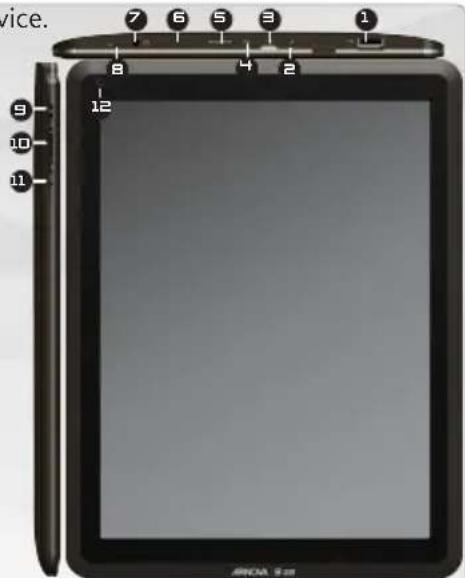
DESCRIPTION OF THE DEVICE
- USB Host port: to connect a keyboard, a mouse or a mass storage USB device.
- Power connector
- Micro-USB port: to connect your ARNOVA to your computer, using the included USB cable (to transfer files)
- Hardware Reset: in the event that your ARNOVA freezes operation, you can press the "pinhole reset" button by using a sharp object such as a toothpick.
- Micro-SD card slot
- Charging indicator
- red light: battery charging
- yellow: battery charged.
- Headphone jack
- Microphone
- On/Off button: enables to turn on or turn off the device.
- Volume buttons
- Home button
- Camera
IMPORTANT:
Your device is frozen. You can turn it off. Press the ON/OFF button for 10 seconds or press the reset button. See Hardware Reset.

CONNECTING TO THE WIFI NETWORK

For this procedure to work, you need to be in a WiFi zone that will allow you to connect to it. Every time the ARNOVA is in range of a network that you have already configured once, it will attempt to make a connection.
How to configure a WiFi network
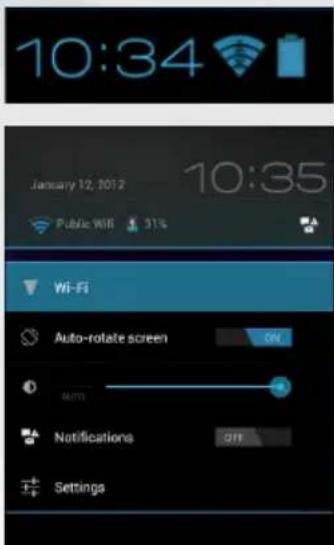
From the status bar, at the bottom right hand of the screen, you can access the WiFi settings quickly.
- Touch the time in the status bar. The status dashboard is displayed.
- Touch the time in the status dashboard. The setting dashboard is displayed below.
- Touch WiFi to open the WiFi settings.
- If the WiFi is off, slide the WiFi switch to the On position. Once the WiFi is on, the ARNOVA will scan for available WiFi networks. Secured networks are indicated with a Lock icon. If the device finds a network that you connected to previously, it connects to it.
- Touch the network you want to connect to.
- Enter the required network information* and touch Connect. We recommend that you select Show password in order to be able to see the characters you are typing. Your ARNOVA will attempt to establish a connection to that WiFi access point.
* For free access WiFi points, there is no need to enter any special information. For secured networks, you will need either a key (a series of numbers and/or letters) of the type WEP, WPA, or WPA2. To obtain the exact connection parameters required, contact the Internet service provider.

THE ARNOVA INTERFACE
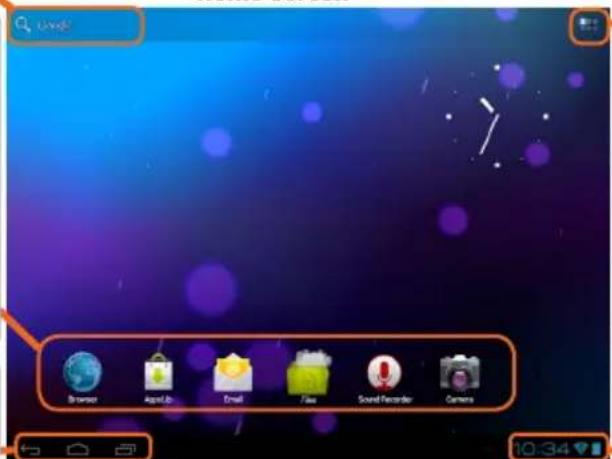
Touch for text search
Your ARNOVA device is equipped with a capacitive touchscreen. Use your fingertip to navigate.
Home screen
These are default Android™ applications (Web Browser, EMail, etc.). Tap on an icon to open the corresponding application. You can customize the Home screen by adding/ removing shortcuts and widgets, changing the wallpaper etc. See next page.
All apps button
Tap on this icon to reveal all the Android™ applications and widgets installed on your ARNOVA (games, various tools, etc.). You can copy them onto the Home screen. You can get more Android™ applications from AppsLib.

The navigation bar displays the Back, Home, and Recent Apps buttons.
The status bar displays notifications and system icons.
Main Touchscreen buttons

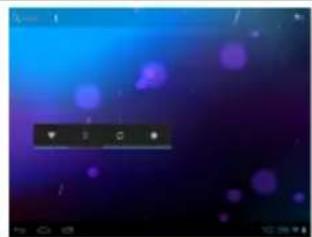
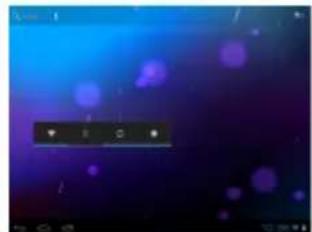
The Back button - to go back to your previous screen.

The Search button - to type terms to search your tablet and the web.

The Home button - to return to the main screen.

The Voice search button - to speak terms to search your tablet and the web.

The Recent Apps button - to navigate among your apps. To remove a thumbnail from the list, swipe it left or right.

The All apps button - to find all your apps and widgets.
CUSTOMIZING YOUR PRODUCT
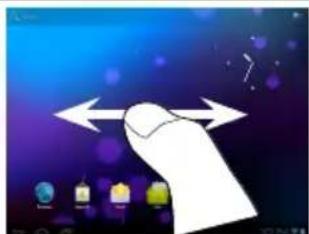
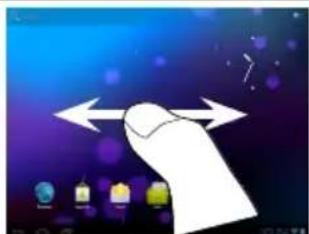
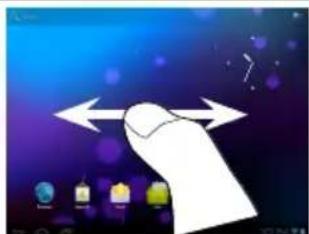
The extended Home screen
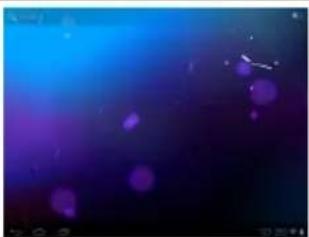
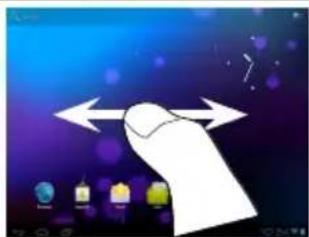
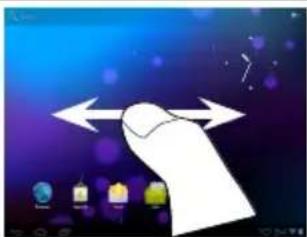
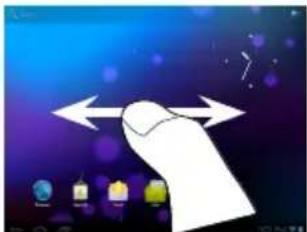
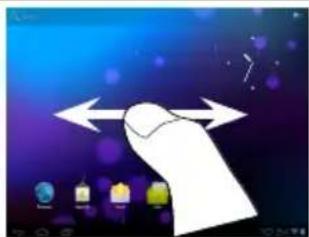
Navigate between different home screen panels by swiping left and right.
Customizing the Home screen panels
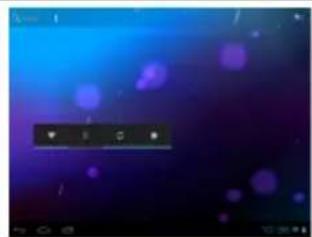
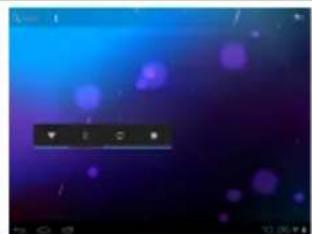
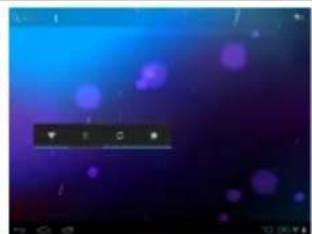
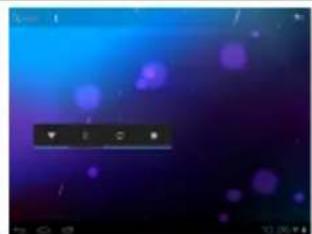
To change your wallpaper, hold your finger on the screen at an empty location, then choose from the list.
Arranging & working with apps
To move a Home screen item, touch and hold your finger onto it until the positioning gridlines appear, then slide it to the desired location, and release your finger.
To remove a Home screen item, touch and hold it, slide your finger towards the top of the screen and drop it over the Remove icon. Removing an item from the All apps screens will uninstall the item.
Zoom: In some apps (such as Browser, and Gallery), you can zoom in and out by placing two fingers on the screen at once and pinching them together (to zoom out) or spreading them apart.
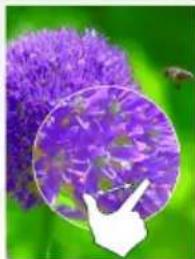
Creating application folders: you can combine several application icons in a folder. Drop one app icon over another on a Home screen and the two icons will be combined.

Changing the Settings
Tap on Settings and choose a menu among these categories: Wireless & networks, Device, Personal, System.
Adding more applications with APPSLIB: with the ARNOVA connected to the Internet, tap on the AppsLib icon. This online library has thousands of applications to download and use.
CUSTOMIZING YOUR PRODUCT
Add widgets
Widgets are like windows into your apps. They're available from an All Apps tab for you to move onto your Home screens.
To see your widgets:
- Touch the All Apps icon on your Home screen.
- Touch Widgets at the top of the screen.
- From the main Widgets screen, you can:
- Move between screens: Swipe left or right. To drag a widget to a Home screen, touch and hold the widget's icon, slide your finger to where you want to place it, and lift your finger. You may be asked to make further choices before the widget activates. If there isn't room where you have dropped it, the widget won't be added to the Home screen.
Use the lock screen
To protect personal information, you can adjust your tablet's lock settings:
- From the Home or All Apps screen, touch the Settings icon.
- Scroll down and touch Security.
- Touch Screen lock.
- Touch the type of lock you'd like to use. After you set a lock here, a lock screen is displayed whenever your screen wakes up, requesting the pattern, PIN, or other specified key.
Extend the life of your battery
If you aren't using Wi-Fi, use the Settings app to turn it off. Turn down screen brightness and set a shorter Sleep timeout: Settings > Device > Display. If you don't need it, turn off automatic syncing for all apps: Settings > Personal > Accounts & sync. Note that this means you need to sync manually to collect messages, email, and other recent information, and won't receive notifications when updates occur.
TRANSFERRING MEDIA
For Windows: note that the below procedure requires at least Windows XP and Windows Media Player 11.
- Connect your tablet to your computer using the USB cable. Your device is automatically detected. It appears as an icon on "My Computer".
- You can transfer your media files to the ARNOVA by copy/pasting them into the respective folders.
- Once all your file transfers are finished, close any program that may have read or written to the ARNOVA.
- You can now unplug the USB cable.
For Macintosh:
You first need to install the free Android File Transfer application (not included).
Download from http://www.android.com/filetransfer.
After you install Android File Transfer, follow these steps:
- If you are using Android File Transfer for the first time, double-click it to open it. After you start Android File Transfer once, it opens automatically whenever you connect your device to your computer.
- Connect your device to your computer with a USB cable. Android File Transfer starts, if it's not already running, and opens a window that displays the contents of your device, along with storage space details at the bottom of the window.
- You can transfer your media files to the ARNOVA by copy/pasting them into the respective folders.
- Once all your file transfers are finished, close any program that may have read or written to the ARNOVA.
- You can now unplug the USB cable.
For Linux: You need to install MTP tools (not included).

REGISTER YOUR PRODUCT!
→ On the web at http://arnovatech.com/register
We recommend that you take a few minutes to register it (http://arnovatech.com/register). This will allow you to get access to ARNOVA technical support (http://arnovatech.com/support).
? NEED HELP?

On our Website: see the Frequently Asked Questions section on http://arnovatech.com/faq

Contact our Technical Support Team: visit http://arnovatech.com/support for e-mail support. Please register your product before contacting Technical Support (see Register your Product).
As we are often updating and improving our products, your device's software may have a slightly different appearance or modified functionality than presented in this Quick Start Guide.
GO!
FIRST USE


THE ARNOVA INTERFACE
FRENCH
All Apps Symbol
CUSTOMIZING YOUR PRODUCT
Change background
CUSTOMIZING YOUR PRODUCT
Add widgets
THE ARNOVA INTERFACE
INTERFACE
Change the background
THE ARNOVA INTERFACE
Applications button
PERSONALIZE YOUR PRODUCT
PERSONALIZE YOUR PRODUCT
Add widgets
ARNOVA INTERFACE
National restrictions
This device is intended for home and office use in all EU countries (and other countries following the EU directive 1999/5/EC) without any limitation except for the countries mentioned below:
Country Restriction Reason/remark
Bulgaria None General authorization required for
outdoor use and public service
France Outdoor use
limited to 10 mW e.i.r.p. within the band 2454-2483.5 MHz
Military Radiolocation use. Refarming of the 2.4 GHz band has been ongoing in recent years to allow current relaxed regulation. Full implementation planned 2012
Italy None If used outside of own premises, general
authorization is required.
Luxembourg: None. General authorization required for network and service supply (not for spectrum).
Norway: Implemented. This subsection does not apply for the geographical area within a radius of 20 km from the centre of Ny-Alesund.
Norway Implemented This subsection does not apply for the
geographical area within a radius of 20 km from the centre of Ny-Ålesund
Russian Federation None Only for indoor applications
Note: Frequency 2454-2483.5 MHz is restricted to indoor use in France.
Consult the declaration of conformity on http://www.arnovatech.com/products/declaration_conformity.html
For the open source files contained herein, please access "Open source license" section located at: Settings\About tablet\Legal information on the device for the relevant copyright and licensing terms. You may obtain a copy of Apache License, Version 2.0 at http://www.apache.org/licenses/LICENSE-2.0. You may also obtain a copy of GNU General Public License, Version 2 at the Free Software Foundation, INC, 51 Franklin Street, Fifth Floor, Boston, MA 02110-1301, USA.
The software bundled with this product includes software files subject to certain open source license requirements. Such open source software files are subject solely to the terms of the relevant open source software license. Such open source software is provided on an “AS IS” basis to the maximum extent permitted by applicable law.
For the open source files contained herein, please access the "Open source license" section located at: Settings\About tablet\Legal information on the device for the relevant copyright and licensing terms. You may obtain a copy of the Apache License, Version 2.0 at http://www.apache.org/licenses/LICENSE-2.0. You may also obtain a copy of the GNU General Public License, Version 2 at the Free Software Foundation, Inc., 51 Franklin Street, Fifth Floor, Boston, MA 02110-1301, USA.
Until the date that is three years after our last shipment of this product, you may obtain a copy of the source code corresponding to the binaries for any GPL-Licensed file by contacting ARNOVA customer service at http://www.arnovatech.com, and ARNOVA will send you a link to such source code or will provide instructions to get the source on a physical medium.
This offer is valid to anyone in receipt of this information.
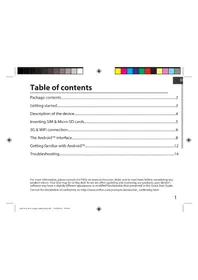
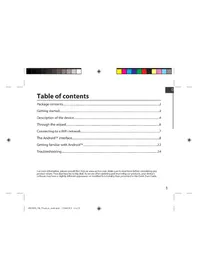
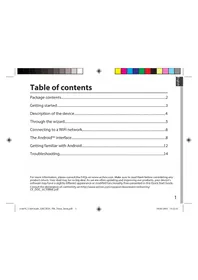

- CHARGING THE BATTERY
- INSTALLATION WIZARD
- DESCRIPTION OF THE DEVICE
- IMPORTANT
- CONNECTING TO THE WIFI NETWORK
- HOW TO CONFIGURE A WIFI NETWORK
- THE ARNOVA INTERFACE
- ALL APPS BUTTON
- MAIN TOUCHSCREEN BUTTONS
- CUSTOMIZING YOUR PRODUCT
- THE EXTENDED HOME SCREEN
- CUSTOMIZING THE HOME SCREEN PANELS
- ARRANGING & WORKING WITH APPS
- CHANGING THE SETTINGS
- ADD WIDGETS
- USE THE LOCK SCREEN
- EXTEND THE LIFE OF YOUR BATTERY
- TRANSFERRING MEDIA
- FOR MACINTOSH
- REGISTER YOUR PRODUCT
- NEED HELP
- GO
- FIRST USE
- FRENCH
- ALL APPS SYMBOL
- CHANGE BACKGROUND
- INTERFACE
- CHANGE THE BACKGROUND
- APPLICATIONS BUTTON
- PERSONALIZE YOUR PRODUCT
- ARNOVA INTERFACE
- NATIONAL RESTRICTIONS
- FOR THE OPEN SOURCE FILES CONTAINED HEREIN, PLEASE ACCESS "OPEN SOURCE LICENSE" SECTION LOCATED AT: SETTINGS\ABOUT TABLET\LEGAL INFORMATION ON THE DEVICE FOR THE RELEVANT COPYRIGHT AND LICENSING TERMS. YOU MAY OBTAIN A COPY OF APACHE LICENSE, VERSION 2.0 AT HTTP://WWW.APACHE.ORG/LICENSES/LICENSE-2.0. YOU MAY ALSO OBTAIN A COPY OF GNU GENERAL PUBLIC LICENSE, VERSION 2 AT THE FREE SOFTWARE FOUNDATION, INC, 51 FRANKLIN STREET, FIFTH FLOOR, BOSTON, MA 02110-1301, USA
Brand : ARCHOS
Model : ARNOVA 9 G3 4GB
Category : Tablet