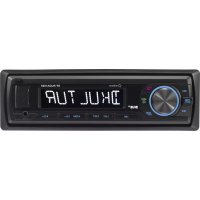
AN-8015BT - Car stereo Renkforce - Free user manual and instructions
Find the device manual for free AN-8015BT Renkforce in PDF.


User questions about AN-8015BT Renkforce
0 question about this device. Answer the ones you know or ask your own.
Ask a new question about this device
Download the instructions for your Car stereo in PDF format for free! Find your manual AN-8015BT - Renkforce and take your electronic device back in hand. On this page are published all the documents necessary for the use of your device. AN-8015BT by Renkforce.
USER MANUAL AN-8015BT Renkforce
© Copyright 2012 by Conrad Electronic SE.
GB Legal notice
These operating instructions are a publication by Corrad Electronic SE, Klaus-Corrad Sir. 1, D-92240 Hirschau (www.conrad.com). All rights including translation reserved. Reproduction by any method, e.g. photoopy, microfiling, or the capture in electronic data processing systems requires the prior written approval by the column. Reprinting, also in part, is prohibited.
These operating instructions represent the technical status at the time of printing. Changes in technology and equipment reserved.
© Copyright 2012 by Conrad Electronic SE.
© Copyright 2012 by Conrad Electronic SE.
NL Colofon
© Copyright 2012 by Conrad Electronic SE.
D AN-8015BT
Autoradio
Bedienungsanleitung
Seite 2-43
GB AN-8015BT
Car radio
Operating Instructions
Page 44-85
F AN-8015BT
Autoradio
Notice d'Emploi
Page 86-127
NL AN-8015BT
Autoradio
Gebruiksaanwijzimg
Pagina 128-169
text_image
② VOL+ VOL- O(15) Stationstasten 1-6
(16) Taste 4 / SHF
(17) Taste 5 / -10
(18) Taste 6 / +10
(19) Taste TA / 7
(20) Taste AF / 8
(21) Taste PTY
(22) Taste 9 / DISP
(23) Anschluss AUX
(24) USB Anschluss
(25) SD/MMC Kartenslot
natural_image
Line drawing of an electronic device with a hand pointing to its cable (no text or symbols)
natural_image
Technical line drawing of a rectangular electronic device with a side panel and mounting holes (no text or symbols)
natural_image
Line drawing of a closed open and partially enclosed device with a handle (no text or symbols)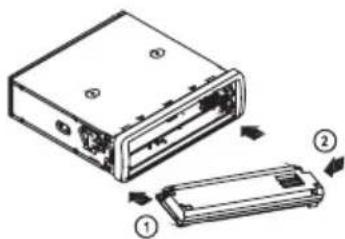
text_image
Diagram of an electronic device showing internal components and directional arrows indicating assembly or movement.natural_image
Diagram of a mechanical component with a pin inserted, showing a triangular feature and a magnified inset (no text or symbols)natural_image
Technical line drawing of a device rear panel with internal components and an arrow indicating a directional component (no text or symbols present)natural_image
Diagram showing a device with a magnified inset of its internal components, no text or symbols present.natural_image
Technical line drawing of a computer rack with connectors and ventilation slots (no text or symbols)natural_image
Diagram of a mechanical or electrical setup with a tool and directional arrows, no visible text or symbols.natural_image
Line drawing of a car interior showing steering wheel and dashboard (no text or symbols)X
natural_image
Line drawing of a car interior showing steering wheel and dashboard (no text or symbols)ok
Freisprechmikrofon
$$ F 1 > F 2 > F 3 > M W 1 > M W 2 $$

• Stationstasten 1-6 (15)
Mechanical Installation 51
Installation Position 51
Removing and Replacing the Front Control Panel 52
Installation in the Radio Slot 53
Removal 54
Remote Control 55
Hands-Free Microphone 56
Electric Connection 57
Connection of the Speakers and the Power Supply 58
Connecting the Aerial 59
Hands-Free Microphone Connection 59
Connecting the LINE Outputs 60
Inserting/Replacing the Remote Control Battery 61
Operation 62
General Operation 62
Menu Settings 63
Selecting the Playback Source 65
Calling the Display Information 65
Setting the Time 65
Radio Mode 66
CD Operation 71
USB/Memory Card Operation 74
Remote Control Functions 74
Bluetooth-Operation 75
Handling 80
Maintenance 81
Troubleshooting 82
Technical Data 84
Disposal 85
Declaration of Conformity 85
Introduction
Dear Customer,
Thank you for purchasing this product.
This product complies with the national and European legal requirements. We kindly request the user to follow the operating instructions, to preserve this condition and to ensure safe operation!
These operating instructions relate to this product. They contain important information concerning commissioning and handling. Please bear this in mind when passing on the product to a third party. Keep these operating instructions for future reference!
All company names and product names are trademarks of the respective owner. All rights reserved.

Fon. +49 9604 / 40 88 80
Fax +49 9604/40 88 48
e-mail: tkb@conrad.de
Mon to Thurs 8.00am to 4.30pm
Fri 8.00am to 2.00pm
Control Elements

Operating Instructions English
text_image
1 19 6 8 3 ① ⑦ ⑩ ④ 21 10 ABS 0 TA 7 PTY VOL 9 A/P DESP ENT- BND PUSH SEL +/-/+/- AIR Bluetooth LOUD SDM SHF RPT A² TA TP PTY BON LOO 81.591 INT. CLASS ROCK POP. FLAT 24 WTR3 ESP SD 1 M 2 SCN 3 RPT 4 SHF 5 F-10 6 F-10 12 13 14 15 16 17 18 23 AUX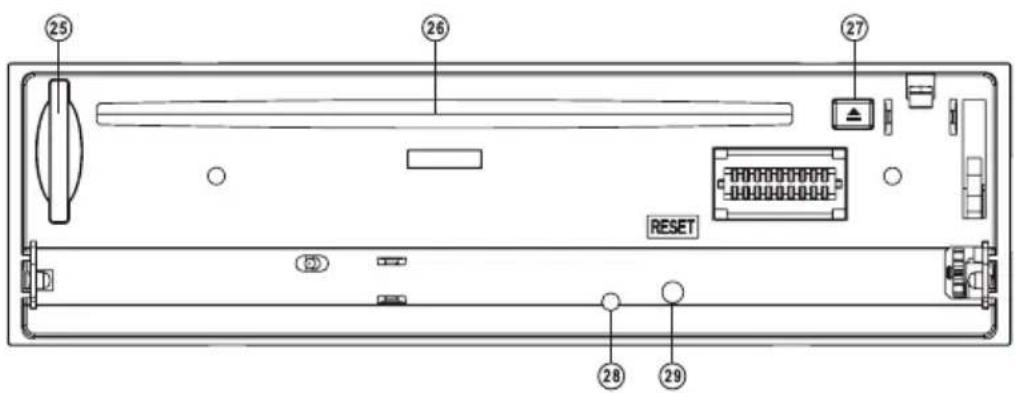
text_image
25 26 27 RESET 28 29
text_image
RENKFORCE PWR/MUTE BND ENT MOD TEL-MENU 1 30 4 12 16 19 20 8 10 9 1 2 5 -10 7 TA AF/REG 0 AMS # # # RPT 6 + 10 9 DIS P # ① ⑥ ⑬ ⑭ ⑮ ⑯
text_image
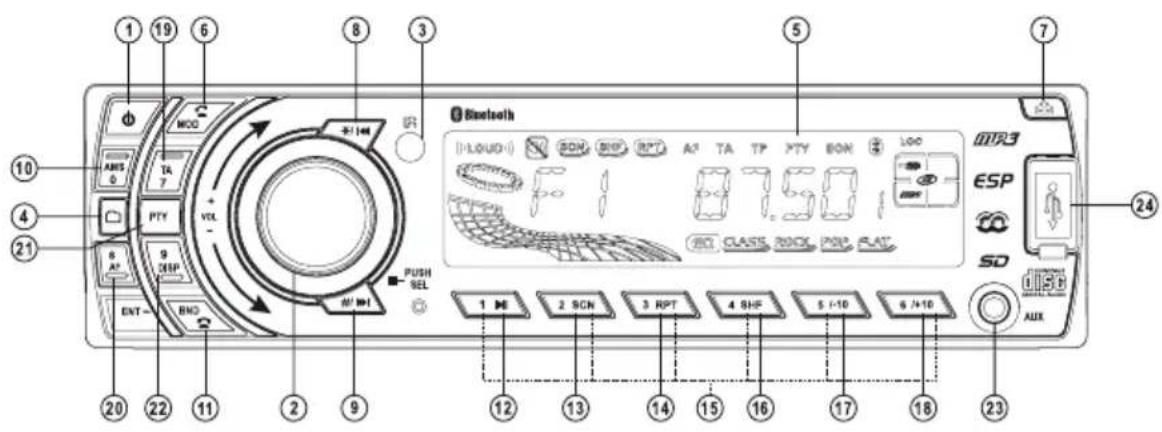
② VOL+ VOL- O(1) PWR / MUTE button Switching On/Off and muting
(2) Volume controller / selection controller Volume control / option selection
(3) IR reception eye Receiver for the IR remote control
(4) Button / TEL-MENU Selection of phone options
(5) Display Display of operating conditions
(6) Button / MOD Answering the phone / switching the input sources
(7) Button Opening the front plate
(8) Button * / Numeric key * / title search or downwards search
(9) Button # / Numeric key # / title search or upwards search
(10) Button AMS / 0 Automatic station storage / numeric button 0
(11) Button BND / 📞 Switching radio reception range / hanging up the phone
(12) Button 1 / ▶II Numeric or station button 1 / playback or pause function
(13) Button 2 / SCN Numeric or station button 2 / sample function
(14) Button 3 / RPT Numeric or station button 3 / repeat function
(15) Station buttons 1-6 Numeric or station buttons
(16) Button 4 / SHF Numeric or station button 4 / random playback
(17) Button 5 / -10 Numeric or station button 5 / title skip 10 down
(18) Button 6 / +10 Numeric or station button 6 / title skip 10 up
(19) Button TA / 7 RDS function TA / numeric button 7
(20) Button AF / 8 RDS function AF/REG / numeric button 8
(21) Button PTY RDS function PTY
(22) Button 9 / DISP Numeric button 9 / switching the display
(23) AUX Connection Connection for external audio sources
(24) USB connection USB memory connection
(25) SD/MMC card slot Card reader for SD/MMC memory cards
(26) CD drive slot CD insert
(27) ▲ Button Button CD ejection
(28) Theft protection LED Flashing LED to scare off potential thieves
(29) RESET button Resetting to the factory settings
(30) Button 📋 / BND / ENT Hanging up the phone / switching radio reception range / button to select options
Intended Use
With the car radio you can receive radio programmes in vehicles, play audio CDs and audio data from suitable media. It also serves as hands-free system for Bluetooth-capable mobile phones.
The device must be connected to speaker.
This device is only approved for connection to 12 V direct current on-board networks with the negative pole of the battery to the car body. The device must only be installed and operated in vehicles with this kind of on-board voltage.
The user must make sure that the way the product is installed protects the product from humidity and wetness.
Any use other than that described above can damage the product and may involve additional risks such as short circuit, fire, electric shock, etc.
No part of the device must be modified or converted, and the casing must not be opened.
When using this product, observe the national provisions that apply for radio operation in your country.

Observe all safety information in these operating instructions!
Product Description
This product is equipped with a removable front control panel, an AM/FM radio unit, a USB interface, an SD/MMC card, a Bluetooth-hands-free system and a CD/CD-R/CD-RW/MP3-player with the following features:
- IR remote control with steering wheel holder
• High output (4 x 40W max.) - 4-channel pre-amplifier output to connect power amplifiers
- AUX input for connecting external audio sources
• Music playback via Bluetooth interface (A2DP)
• Electronic volume, bass, treble, fader and balance control - Digital signal processor for the adaptation of the sound characteristics to various music styles
- Loudness correction
• FM/AM-tuner with RDS-function - Exact electronic tuning of the stations with a PLL-tuner
• 30 programmable station memory slots (18 x FM + 12 x AM) - Manual/automatic station scan in both directions
• Automatic station storage/programme memory search - Alphanumeric display
• ID3-day display for MP3-playback - ISO terminal
Symbols

The exclamation mark symbol indicates that the user must read these operating instructions before commissioning of the device, and observe them during operation.

The "Hand" symbol indicates special advice and operating information.

In case of damage caused by non-compliance with these operating instructions, the warranty/guarantee will expire. We do not assume any liability for consequential damage!
Nor do we assume any liability for damage to property or personal injury caused by improper use or failure to observe the safety information. In such cases the guarantee/warranty will expire!

- For safety reasons, any unauthorized conversions and/or modifications to the product are not permitted.
- The device must only be used with the 12 V DC vehicle power supply (with the negative terminal of the battery connected to the body of the vehicle). Never connect the device to a different power supply.
- Ensure proper commissioning of the device. Observe the operating instructions for it.
- When the product is opened or the safety circuit is jumpered, invisible laser radiation may be emitted. Caution - if proceeding in a different way or using any other controls than those specified in this manual, you may expose yourself to hazardous radiation.
- This product is not a toy and not suitable for children. Children cannot judge the dangers involved when handling electrical devices.
- Do not expose the device to any high temperatures, dripping or splashing water, strong vibrations or heavy mechanical stress.
- Never operate the device unattended.
- Do not leave any packing material unattended. It may become a dangerous toy for children.
- Also observe the safety and operating instructions of any other devices that are connected to the device.
- If you are not sure about the correct connection or if there are any questions that are not covered by the operating instructions, do not hesitate to contact our technical support or another specialist.
Mechanical Installation
In most vehicles the producers plan an installation cut-out for the car radio. The choice of the location depends on safety aspects. Therefore we recommend that you actually install the radio in this place.
The devices require a DIN installation slot of the size 182 x 53mm. These dimensions are standardised and usually complied with by all car manufacturers.
Should there be no slot, please ask your car dealer about the correct place of installation for your car radio.

Please select the place of installation carefully so that the CD tuner neither influences the driver's activity nor distracts him from the traffic.
Only use the supplied installation material to guarantee a safe installation.
Any changes in the vehicle that become necessary for the installation of the car radio or other components must be carried out in such a way that neither traffic security nor the stability of the car are affected. With many cars, the type approval will lapse if you merely saw out a section of the sheet metal.
Since the CD tuner creates heat during operation, the place of installation must be heat-resistant.
Before drilling the attachment holes, make sure that no electric cables, brake lines, the fuel tank or similar are damaged.
When using tools to install your car hi-fi components, observe the manufacturer's safety information.
When installing the car hi-fi system, take into consideration the risk of accident which can arise from devices being torn away in the case of an accident. Therefore, you should secure every component in a place where it cannot be dangerous to passengers.

Before you install the system, check the depth of the installation recess.
Installation Position
The angle of installation to the horizontal must be under 30^ . A CD tuner that is inclined too much may cause problems when playing CDs.
Removing and Replacing the Front Control Panel
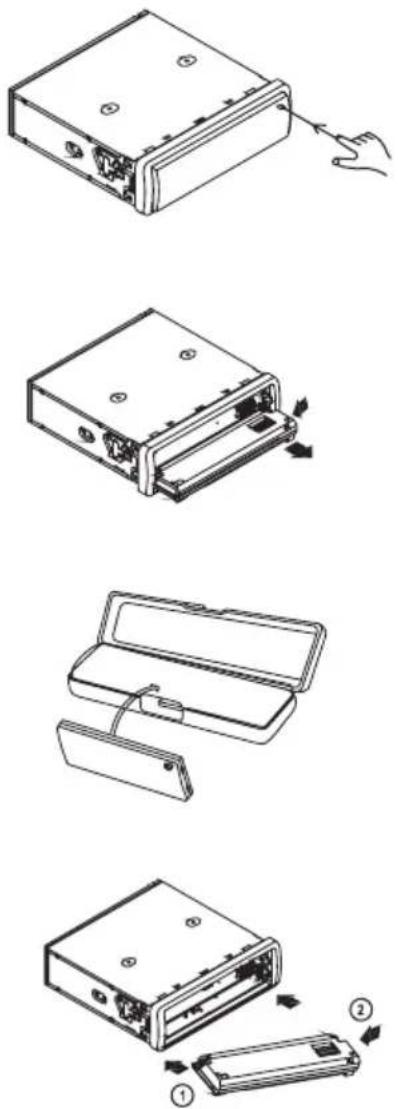
The front control panel can be removed to prevent theft.
- Before you remove the front control panel, push the button ⏻ PWR/MUTE (1) for a long time to turn the product off.
- Press the button (7) to fold down the front operating unit.
- Hold the front operating unit on the right side, carefully push it to the left to unlatch it and pull it from its holder.
- When you remove the front control panel, please put it into the supplied protective cover.
- For replacing the control panel, place the left side into the holder as illustrated in the figure below and press it carefully to the left until the right side also latches in the holder.
- Fold the front operating unit back to the device until the latch latches cleanly.
- Do not press on the display or the buttons.

Make sure to place the front operating unit on the device in the correct direction and it latches cleanly in the holder.
Do not press the front operating unit against the unit too hard. You can fold it closed just by pressing slightly on the device.
Installation in the Radio Slot
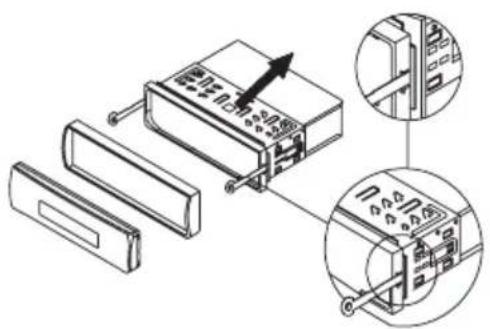
- Remove the two safety screws of the CD drive.
natural_image
Diagram of a mechanical component with a pin inserted, showing a cross-section view (no text or symbols)- Remove the front control panel.
- Carefully remove the plastic frame in the front of the system by bending it slightly to the outside and pulling it off from the unit.
- Unlock the installation frame with the two unlocking keys.
- Remove the installation frame towards the back of the system.
natural_image
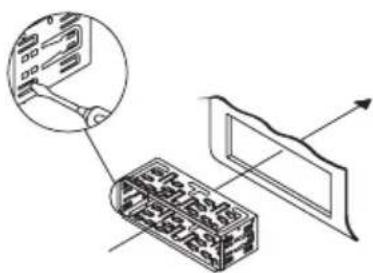
Technical line drawing of a device rear panel with internal components and an arrow indicating a component (no text or symbols present)- Insert the frame into the respective cut-out in the vehicle.
- Bend down some clips in the installation frame until the frame is securely fastened in the recess.
natural_image
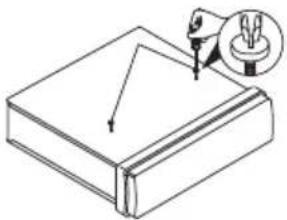
Diagram showing a device with an inset close-up of its internal components, alongside a schematic view of a panel with an arrow indicating direction (no text or symbols present)- Protect your CD tuner from vibrations with the bolt at the back of the unit. In most vehicles, such a safety fastening is provided for. If this is not the case in your car, fasten the CD tuner with the enclosed punched metal strip. For the fastening, proceed as shown in the following figure:

natural_image
Technical line drawing of a computer rack with connectors and ports (no text or symbols)- When you have made all the electrical contacts (see "Electric Connection") insert the CD tuner into the frame until it locks in.
- Push the frame cover of the front operating unit onto the device again.

Keep the two unlocking keys. You will need them for a later removal of the CD tuner.
Removal
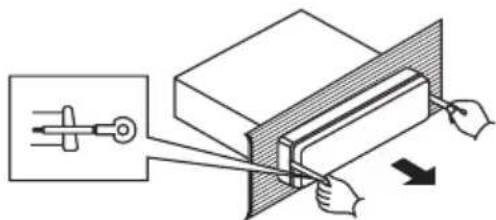
- Remove the front control panel.
- Carefully remove the plastic frame in the front of the system by bending it slightly to the outside and pulling it off from the unit.
- Insert the two unlocking keys into the lateral slots between the CD tuner and the installation frame, until the CD tuner unlocks.
natural_image
Diagram of a mechanical setup with a tool and a block, showing force application (no text or symbols)- Remove the fastening screw at the back of the unit.
- Carefully pull out the radio with the unlocking keys from the installation frame.
- Remove all connection plugs from the device.
Remote Control
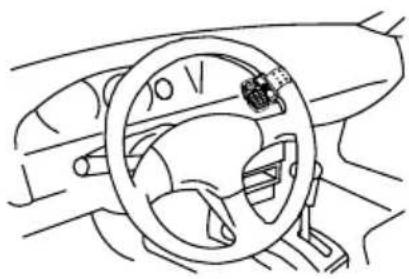
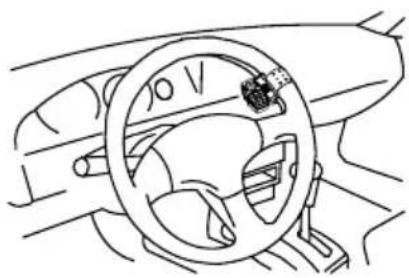
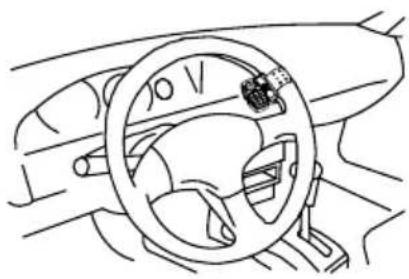
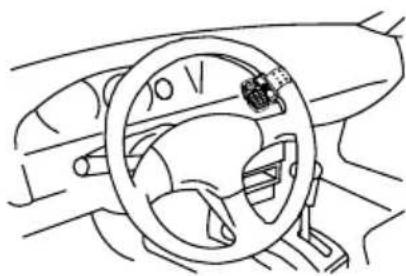
The remote control can be attached right to the steering wheel rim with the included steering wheel holder. The IR reception eye (3) is located in the front cover of the car radio.
Steering wheel assembly:
- Align the steering wheel straight.
- Open the two screws (E) of the steering wheel holder.
- Place the inner part (A) of the steering wheel holder on the inside of the steering wheel (C).
- Pull the rubber band (B) around the steering wheel rim and hook it into the latching tabs under tension (figure 1).
- Cut off any excess rubber band (figure 2).
- Attach the outer part (D) of the steering wheel holder again with the two screws (E) (figure 3).
- Push the remote control onto the steering wheel holder (figures 4 and 5).
- To remove the remote control, operate the safety lever (F) and pull the remote control from the holder (figure 6).


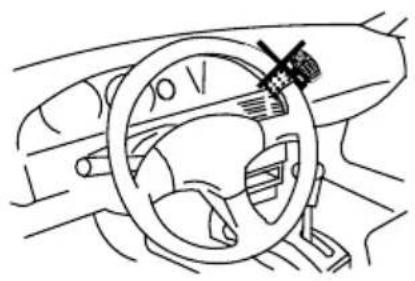
The remote control must not be placed in the airbag trigger area.
The remote control must be installed on the steering wheel so that it cannot impair the driver in steering and operating of the vehicle.
Tighten the holder's rubber band well to ensure that the remote control cannot come loose during the drive.
The remote control must be attached to the inside of the steering wheel to prevent impairment when steering.

The best installation site for the remote control depends on the installation site of the car radio. Before final installation, try it out to ensure proper function. The IR transmitter is located on the rear of the remote control.
natural_image
Line drawing of a car interior showing steering wheel, dashboard, and steering wheel (no text or symbols)X
natural_image
Line drawing of a car interior showing steering wheel and dashboard (no text or symbols)ok
Hands-Free Microphone
The microphone for the hands-free system can be attached to the sunblind, the steering column cover or any other suitable position inside the vehicle.

The microphone and connection line must never be in the airbag trigger area.
- Attach the hands-free microphone in a suitable position with the clamp or the included hook-and-loop tape.
- Place the connection line to the radio installation slot.

The electric connection should be made by a specialist.
To avoid short circuits and resulting damage to the CD tuner, the negative pole (earth) of the vehicle battery must be disconnected during connection.
Only connect the negative pole of the battery when you have completely connected the system and checked the connections.
You should only use a voltmeter or a diode test lamp for checking the voltage on the on-board cables as normal test lamps consume excessive currents and can thus damage the electronic system of the car.
When laying the cables, make sure that they are not squeezed or scoured on sharp edges. Use rubber grommets for the feed-though points.
Connection to the speakers must be two-wire each. Insulate any open connection points. Make sure that the cables are not damaged by sharp edges.
Only use speakers with sufficient load capacity (see "Technical Data").
Observe that all speakers have the correct polarity - that is, that plus and minus marks match.
The connecting cables of the loudspeakers are usually coded: Some speaker manufacturers indicate the (+) wire by means of an additional colour stripe, others use a corrugated cable for the (+) terminal and a smooth one for the (-) terminal.
The system was designed for the operation at speaker impedances of at least 4 Ohm. Never connect speakers with a lower impedance.

In most vehicles the cables for the electric connection and the connection of the speakers have been laid directly to the slot.
If this is not the case, please make sure that any cables placed later are secured by the respective onboard fuses (see vehicle operation manual).
Connection of the Speakers and the Power Supply
text_image
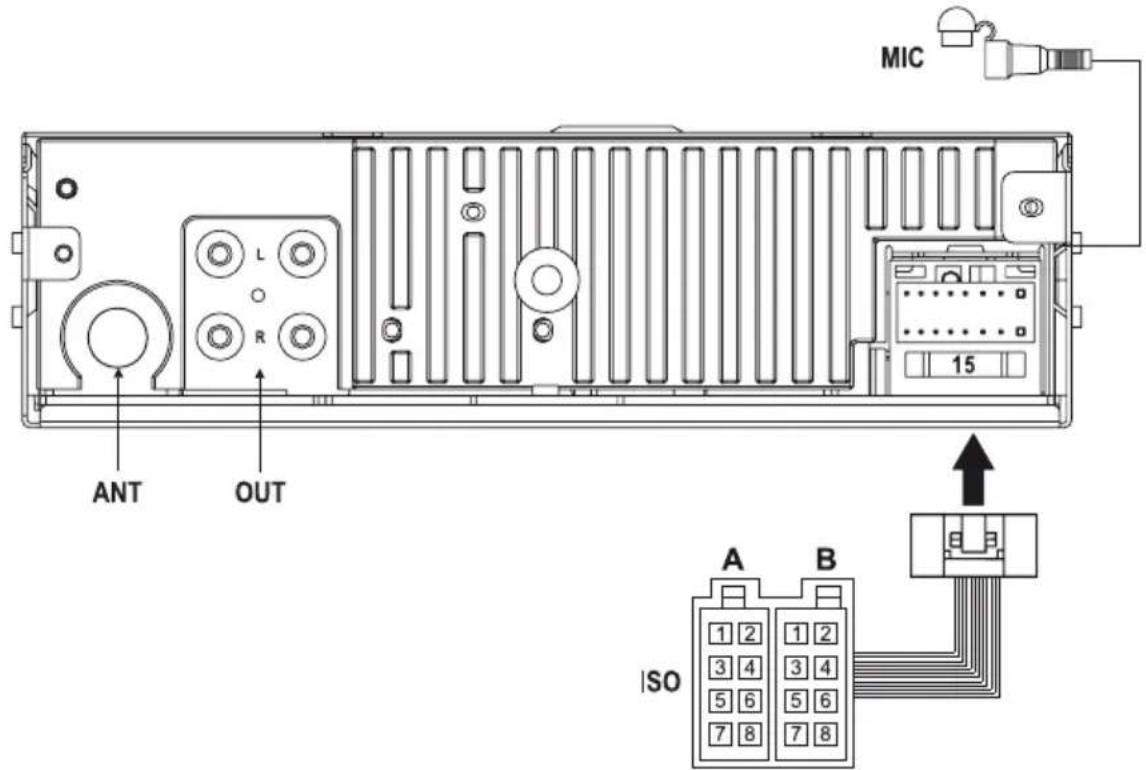
MIC 15 ANT OUT ISO A B 1 2 1 2 3 4 3 4 5 6 5 6 7 8 7 8The car radio has an ISO system plug.
Vehicles equipped with such a system plug can be connected directly to the system if the plug assignment is the same (please check beforehand!). In case of deviating plug assignment, connection takes place via an adapter.
Please refer to the following table for the contact assignment of the ISO system socket. Please ask your car dealer for the respective assignment of your vehicle system plug.
System plug A (power supply) System connector B (speaker connection)
(1) (Not assigned) (1) Speaker rear right (+)
(2) (Not assigned) (2) Speaker rear right (-)
(3) (Not assigned) (3) Speaker front right (+)
(4) Continuous current +12V (4) Speaker front right (-)
(5) Aerial control output (5) Speaker front left (+)
(6) (Not assigned) (6) Speaker front left (-)
(7) Ignition +12V (7) Speaker rear left (+)
(8) Ground (8) Speaker rear left (-)
- The constant current terminal +12V (4) must be connected to a cable that also supplies 12V permanently when the ignition is off (terminal 30 of the on-board network). This terminal serves to save the user settings, time, etc.
- The aerial control output (5) supplies a voltage of +12V when the device is switched on. This cable can be used for the power supply of an electrical aerial and for the voltage for switching on a car amplifier.
- The ignition terminal +12V (7) must be connected to a cable that is only live with +12V when the ignition is on (terminal 15 of the on-board networks).
Do not connect this terminal to continuous current; otherwise the on-board battery could be discharged when the vehicle is parked for a longer period of time.
- Connect the earth connection (8) with the vehicle body.

Adhesive techniques which become ever more common and painted metal parts impair the electric conductivity. Therefore, not every metal part is a suitable earthing point.
Connecting the Aerial
- Connect the aerial plug of your vehicle with the aerial socket ANT at the back of the radio.
- If your vehicle has a different aerial plug, please use a suitable adapter, available in specialist shops.
Hands-Free Microphone Connection
- Connect the plug of the hands-free microphone to the MIC connection at the back of the device.
Connecting the LINE Outputs
The car radio has four LINE outputs for connecting power amplifiers.

For the connection of the cinch sockets only use the shielded cinch wires. Use of any other cables may cause interferences.
Keep the distance of the cables as short as possible.
Do not place the cables near other cables to avoid interferences in the cables.
To avoid distortions or mismatching that could damage the device or power amplifier, cinch connector must only be connected to devices with the suitable cinch terminals. For this, observe also the connection information in the section "Technical Data".
- Connect the sockets OUT FL and FR to the inputs of the power amplifier for the front speakers.
- Connect the sockets OUT RL and RR to the inputs of the power amplifier for the rear speakers.

The red socket is a terminal for the right channel.
The white socket is a terminal for the left channel.
Inserting/Replacing the Remote Control Battery

Remove the battery when the device is not in use for extended periods of time.
Leaking or damaged batteries may cause alkali burns if they come in contact with the skin. Therefore, use suitable protective gloves.
Do not short-circuit the battery and do not throw it into fire. It also must not be recharged. Danger of explosion.
• Take the remote control from the steering wheel holder as described above.
- Slide out the battery compartment cover at the back of the remote control open and remove it.
- Insert the battery with the correct polarity. The positive pole of the battery must point up.
- Close the battery compartment again. The latching tab must latch audibly.
- Attach the remote control in the steering wheel holder again as described above.

flowchart
graph TD
    A["Device 1"] --> B["Device 2"]
    B --> C["Device 3"]
    C --> D["Device 4"]
    D --> E["Device 5"]
- If the remote control no longer functions properly, the battery is discharged and must be replaced with a new one of the same type.
- Battery change takes place as described above.
- Replace the discharged battery with a new 3V-Lithium button cell CR2025.

Only take the device into operation after familiarising yourself with its functions and these operating instructions.
Check all the connections again. When you have done so, reconnect the negative pole of the car battery.
General Operation
PWR / MUTE button (1)
This button switches the radio on and off.
Push this button briefly with the device switched off to switch on the device or with the device switched on to briefly mute the current playback. Pushing again deactivates muting again.
Push this button for approx. 2 sec to switch off the device.

To switch on, any other button (including on the remote control) may be pushed as well.
Muting can also be deactivated by turning the volume controller/selection controller (2).
Display (5)
In the display (5), all information is displayed depending on the currently active function.
RESET button (29)
This button resets all settings to factory settings.
Press this button in the following cases:
- when you have completed the installation and connection
- when the CD tuner does not react to the operation of buttons anymore
- when the display shows undefined characters
Menu Settings
Volume controller/selection controller (2)
In standard operation, the volume is controlled with the volume controller/selection controller (2).
Push the controller briefly once or repeatedly to change the following parameters by turning the controller:
VOL Volume settings
BAS Bass control
TRE Treble control
BAL Balance settings (volume distribution right/left)
FAD Fader settings (volume distribution front/rear)
LOUD Loudness sound correction
LOUD ON The loudness function is active.
LOUD OFF The loudness function is inactive. The sound is not influenced.

The human ear perceives low tones at low volumes less well. An increase of this frequency range for low volume (loudness correction) counteracts this effect and the music playback sounds more natural.
DSP Digital signal processor
DSP OFF The digital signal processor is switched off.
POP The sound characteristic is adapted to pop music.
ROCK The sound characteristic is adapted to rock music.
CLASSIC The sound characteristic is adapted to classical music.
FLAT DSP is active, but there is no sound adaptation.

With the DSP switched on, no sound control is possible with the bass/treble controllers.
To select other functions, push the volume controller/selection controller (2) a little longer (>2 seconds) and then push it again briefly until the desired function appears on the display.
Choose the options for the respective settings by turning the volume controller/selection controller (2) or by pushing the volume buttons (2) at the remote control.
TA SEEK/ALARM
TA SEEK When the radio has lost the traffic information, it will seek a new station with Traffic Announcement coding on its own.
TA ALARM When the radio cannot receive the TA code anymore, there will be an alarm signal.
PI SOUND/MUTE
Device reaction when a transmission area is reached where 2 different stations with different programme identification (PI) are transmitting the same alternative frequency (AF):
PI SOUND The radio switches to the new station for a few seconds and then back.
PI MUTE The new station is muted.
RETUNE L/S
RETUNE L When the radio does not receive traffic announcements any more, the auto-scan starts 90 seconds later.
RETUNE S When the radio does not receive traffic announcements any more, the auto-scan starts 30 seconds later.
MASK DPI/ALL
Device reaction during channel search:
MASK DPI Alternative frequencies with different programme information (PI) are not considered.
MASK ALL Alternative frequencies with different programme information (PI) and alternative frequencies with high signal strength but without RDS information are not considered.
TAVOL
In case of traffic reports and activated TA function, the pre-set volume is selected where the volume set is lower.
Set the desired volume by turning the volume controller/selection controller (2).
CLOCK 12/24
Set the desired time format in this menu item (12h or 24h format).
Button confirmation sound BEEP
BEEP ON A confirmation sound sounds when a button is pushed.
BEEP OFF The confirmation sound is switched off.
Selecting the Playback Source
Press button 2 MOD (6) to select the individual playback sources.
Selection takes place in the following order:
Radio > CD > USB > SD/MMC > AUX > BT AUDIO

If no CD, no USB memory, no SD/MMC card is inserted/plugged in or no Bluetooth source is connected, the corresponding sources are skipped in the selection.
Calling the Display Information
The button 9 / DISP (22) can be used to call different information about the display (5), depending on operating mode. Every push of a button will switch on the information type called. After 5 seconds, the display automatically switches back to the basic display (first display in the list below).
When an RDS station is being received
Radio Mode Time > Receiver frequency > Station name > Programme type
CD/USB/SD operation Time > Receiver frequency > Station name > Programme type > CD/USB/SD information
When no RDS-capable station is being received
Radio Mode Time > Receiver frequency > PTY NONE
CD/USB/SD operation Time > Receiver frequency > PTY NONE > CD/USB/SD information

If the station does not transmit PTY information, PTY NONE is displayed.
Setting the Time
Keep the button 9 / DISP (22) pushed until the hour display for the time in the display flashes.
Set the hour display by turning the volume controller/selection controller (2).
Push the button 9 / DISP (22) briefly until the minutes display for the time in the display flashes.
Set the minutes display by turning the volume controller/selection controller (2).
Briefly push the button 9 / DISP (22) to save the setting.

When receiving an RDS station with time transmission, the time automatically adjusted. The manually set time is then overwritten with the RDS time.
Radio Mode
Receiving concept RDS
The abbreviation RDS stands for Radio Data System, i.e. inaudible, additional information codes are transmitted by the FM RDS station.
The car radio is able to evaluate these coded data that are transmitted by most of the radio stations.
The following important data is transmitted:
- Program Identification (PI)
- Traffic Program (TP)
- Traffic Announcement (TA)
- Program Service (PS)
- Alternative Frequencies (AF)
- Program Type (PTY)
- EON Information (enhanced other networks)
- Clock time (CT)
Program Identification (PI)
This information helps the receiver to identify a station. It enables the receiver to differentiate between areas where the same programme is transmitted. The car radio only switches to a stronger station when the reception grows weaker if the stronger station transmits the same programme identification.
Traffic Programme (TP)
This signal enables the receiver to detect that a station with a traffic programme is being received.
Traffic Announcement (TA)
With this signal the device can detect a traffic announcement and interrupt the current playback of a different audio source.
Program Service (PS)
This information tells the receiver which station it is receiving. It is directly played back in the display of the car radio, e.g. BAYERN 3.
Alternative Frequencies (AF)
A list of alternative frequencies that send the same programme is transmitted. If the transmitter station currently received becomes too weak, the receiver detects from the AF signal on which frequencies it must search for a better station.
Program Type (PTY)
This code gives the receiver information on the type of the transmitted programme (e.g. sports, classic, news etc.). The listener can select his favourite programme more directly.
A national disaster alarm can also be sent this way. However, not all the radio stations offer the PTY service.
EON Information
Many radio station chains with various programmes only have one programme with traffic information. If EON information is transmitted, a radio equipped with an EON function switches to the Traffic Announcement station whenever such announcements are made, even if a different programme of this chain is being played.
If you listen to Bayern 4 for example (no traffic announcement) and the TA function is activated, the radio will switch to Bayern 3 (with traffic announcements) for the time of a traffic announcement.
Clock time (CT)
Many stations transmit the current time in the RDS data. If a radio receives this signal, it sets the in-built clock automatically.
Therefore, when you leave the transmission area, the RDS system has the advantage that it switches to a similar transmitter station that can be better received. However, it only changes when it finds a better station with the same programme.
Short signal attenuations due to the reception cannot be eliminated by the RDS system either, since this would mean that the car radios permanently switches back and forth. The listener would feel much more disturbed by this than by short-term reception problems.
Another advantage of the RDS system is that the station name is displayed. The station name of an RDS station is displayed in the car radio.
Button functions
- Buttons * / ◀◀◀ (8) and # / ▶▶▶ (9)
With these buttons the receiving frequency can be changed to adjust stations in radio operation.
If a button is pushed briefly, the automatic station search is activated. The auto-scan only stops at the next station that can be received well.
To switch off automatic station search and to manually adjust the receiver frequency keep the desired button pushed until the display (5) shows MANUAL.

After some time, the devices switches back to automatic search; the display (5) briefly shows AUTO then.
- Button AMS / 0 (10)
If you press this button briefly, the stations stored on the station storage buttons 1-6 (15) are played for about 5 seconds. To stop the auto-scan, press the button again.
When you keep the button pushed, all the stations that can be received well are stored on the station buttons 1-6 (15).
After this procedure, the stored stations are played for about 5 seconds, as described above.
- Button BAND / (1)
With this button you can select the band range of the radio unit. There are 3 FM and 2 MW areas available:
$$ F 1 > F 2 > F 3 > A M 1 > A M 2 $$

On each of the 5 band ranges, 6 stations can be stored on the station button 1-6 (15).
- Station buttons 1-6 (15)
Short operation > direct selection of a previously stored station.
Long operation > the station currently received is saved to the respective station button.

Each one of the three FM ranges (F1-3) and the two AM ranges (MW1-2) has six station buttons. Therefore you can assign 30 station buttons.
- Button TA / 7 (19)
Short operation > TA function is switched on and off.
When you receive a traffic programme station, the display shows "TP" = traffic programme.
When the TA function is active, "TA" appears in the display.
After activation of the TA function, the receiver will start a search if no traffic announcement station is currently received. The search stops at the next traffic announcement station that can be received well.
If a different audio source is being played (e.g. a CD), the device switches to radio for the duration of a traffic announcement.
When you listen to a radio program at a very low volume, the volume is automatically increased to an easily audible level (see TAVOL in the "Menu settings"). When the traffic announcement is over, the volume you were hearing before is restored.

With the TA-function active, the station search stops only for traffic announcement stations.
- Button AF / 8 (20)
Short operation > AF function is switched on and off.
"AF" will be displayed if the function is active. If the reception of an RDS transmitter station gets weaker or the radio does not receive and RDS station at all, the display flashes. When a station can be received well, the symbol is displayed continuously.
When an RDS station is being received, the name of the station is displayed.
When you leave a transmission area, the radio can only switch to a better sender when the AF function is activated.
Long operation > Regional ID is switched on and off.
Push the button AF / 8 (20) for about 2 seconds until the display shows REG ON or REG OFF. Push the button again longer to switch between these two operating modes. The normal display reappears automatically after a few seconds.
If REG ON is on and the reception gets weaker, the radio only switches to a different frequency with exactly the same program.
When the regional identification is off (REG OFF), and the reception gets weaker, the radio switches to a different transmitter station with the same regional identification but a different programme.
- PTY button (21)
This button activates the PTY function.
There are two different groups of PTY (MUSIC and LANGUAGE). Select them by pressing the PTY button (21) once more.
PTY group MUSIC > PTY group LANGUAGE
To select the desired programme type, push one of the station buttons 1-6 (15). The buttons have the programme types assigned as follows:
Button PTY group MUSIC PTY group LANGUAGE
1 POP M, ROCK M NEWS, AFFAIRS, INFO
2 EASY M, LIGHT M SPORT, EDUCATE, DRAMA
3 CLASSICS, OTHER M CULTURE, SCIENCE, VARIED
4 JAZZ, COUNTRY WEATHER, FINANCE, CHILDREN
5 NATION M, OLDIES SOCIAL, RELIGION, PHONE IN
6 FOLK M TRAVEL, LEISURE, DOCUMENT
Briefly after selection of the programme type, search for a station that sends this programme type will start.

If this scan does not find any station with the selected programme type, the display shows PTY NONE and the previously received transmitter is not changed.
CD Operation
- CD slot (26)
Open the front cover with the ⏻ button (7) and Insert your CD in the CD drive for playback. CD playback starts automatically.

Always insert the CD with the printed side up.
- Button (27)
Press this button to eject a CD.
- Button 1 / ▶II (12)
Push this button during playback to briefly interrupt the CD playback. When you confirm the button again, playback will begin at the point where it was interrupted.
- Buttons * / ◀◀◀ (8) and # / ▶▶▶ (9)
With these buttons you can select individual tracks of a CD or search for a certain section within one CD-track.

The arrows on the buttons indicate the search direction (up or down).
Only push the buttons briefly to jump to the next or previous track.
Push the buttons longer to search a certain section within one track. Playback is muted in this case.
- Buttons 5 / -10 (17) and 6 / +10 (18)
Press these buttons to jump up and down by 10 tracks quickly. It functions like the buttons * /|◀◀ (8) and # /▶▶ (9), but skips 10 tracks every time.
Press this button to play each track in the CD for 10 seconds. SCN appears on the display.
To de-activate this function, press the button again. The SCN display goes out. Playback will be normal from this point onward.
- Button 3 / RPT (14)
Push this button to repeat the current track. RPT appears on the display.
To de-activate this function, press the button again. The RPT display goes out. Playback will be normal from this point onward.
- Button 4 / SHF (16)
Press this button for random playback. The tracks will be played in a random order. SHF appears on the display.
To de-activate this function, press the button again. The SHF display goes out. Playback will be normal from this point onward.
- Search function in MP3 operation
Searching by track number
- Push the button AMS / 0 (10) once until T001- -xxx appears in the display (5).
- Turn the volume controller/selection controller (2) to select the track number.
- Push the button BND / ☎ (11) or ☎ / BND / ENT (30) on the remote control. The selected track is played automatically.
Searching for directory names
- Push the AMS / 0 (10) button twice.
- Turn the volume controller/selection controller (2) to select the directory name.
- Push the button BND / ☎ (11) or ☎ / BND / ENT (30) on the remote control. The first track of the selected directory is played automatically.
Searching for track names
- Push the button AMS / 0 (10) three times until A***** appears in the display (5).
- Turn the volume controller/selection controller (2) to select the first letter.
- Push the volume controller/selection controller (2) for confirmation. The second letter flashes.
- Select other letters as described above.
- Push the button BND / ☎ (11) or ☎ / BND / ENT (30) on the remote control to start search for the track name.
- If several tracks are found with letters entered, the display (5) indicates them.
- Turn the volume control/selection control (2) to select the track.
- Push the button BND / ☎ (11) or ☎ / BND / ENT (30) on the remote control. The selected track is played automatically.

If no track is found with the letters that were entered, the display (5) indicates NO MATCH.
• Display of the ID3 tag information
During playback, the ID3-tag information, including title, sinter, album, etc., appears in the display (5) as a running text.

This information can only be displayed if the ID3 tag data is present in version 1.0 or 2.0 on the CD.
• Operation with mixed mode CDs
Mixed mode CDs (CDs with CD audio files and MP3 files) can be played back with this car radio.
Playback then starts with the MP3 files; then the CD audio files follow.
USB/Memory Card Operation
The CD tuner is equipped with a USB interface and a memory card reader for SD/MMC cards.
MP3 files stored on these media cannot be played.

Due to the great variety of systems with USB and SD/MMC card interfaces and their different functions that are sometimes producer-specific, we cannot guarantee that all media will be recognized and that all the operational functions are available in this CD tuner.
The USB interface is only suited for USB memory sticks, not for the USB ports of MP3 players.
Before disconnecting a USB memory stick or SD/MMC card, switch the playback source with the button /MOD (6), to avoid malfunction or memory loss.
If a USB memory stick or SD/MMC card is not recognised upon connection, remove the storage medium and plug it in again.
The media must be formatted in FAT12, FAT 16 or FAT 32.
- Connect your USB memory stick to the USB port (24).
- When using a memory card, push it into the SD/MMC card slot (25).
- The player switches to the respective input automatically and starts playback.
- Operation is identical with operation for CD-MP3 playback.
Remote Control Functions
Nearly all functions of the device may also be controlled with the included remote control. Additionally, operation of the Bluetooth hands-free system is possible comfortably and securely from the steering wheel.
The buttons with the same designation as on the device have the same function as well.
The functions of the volume controller/selection controller (2), however, are split into two separate operating elements:
- The buttons on the reverse of the remote control assume the functions as for turning the volume controller/selection controller (2).
- The button ≤ / BND / ENT (30) assumes the function as for pushing of the volume controller/selection controller (2).
Bluetooth-Operation

To permit best phone reception and keep electromagnetic irradiation in the vehicle as low as possible, always use an outside aerial in mobile phone operation.
For the mobile phone to automatically answer incoming calls, the automatic call answering function of the car radio (see hands-free device menu) and the mobile phone (see corresponding instructions) must be activated. This is a prerequisite for legal operation of hands-free systems during a drive in many countries.
In Bluetooth operation, the car radio can be used as hands-free system for mobile phones and/or as playback device for Bluetooth A2DP audio streaming. Before transmission between your mobile phone or Bluetooth device and the car radio is possible, however, both devices must be coupled. This process is called "Pairing".
Pairing
- While no Bluetooth device is coupled with the car radio, the Bluetooth icon flashes in the display.
- Switch your Bluetooth device on and activate the pairing mode here (see instructions of the corresponding device). The device scans for Bluetooth devices in the reception range.
- When the car radio was found, your Bluetooth device shows CAR BT.
- Enter the password 0000 to couple the two devices.
• After successful pairing, the display (5) indicates the Bluetooth symbol permanently.

Only one Bluetooth device at a time can be coupled with the car radio. If there is an active Bluetooth connection already, further connections will be rejected.
If the car radio or Bluetooth device with which there is an active connection is switched off or removed from the range, the connection is interrupted. When switching on again or when the Bluetooth device returns into the car radio range again, the connection is automatically re-established. The display briefly shows CONNECT and the flashing Bluetooth icon appears in the display again permanently.
To permit this automatic establishment of connection, this function may have to be activated at the Bluetooth device (read about this in your Bluetooth device's instructions).
Establishing a phone call
- Push the button /TEL-MENU (4) to enter the phone mode.
- Dial the desired number with the number keys.
- The dialled number appears in the display (5).
- Push the button / MOD (6) to dial.

Push the button ☐ / TEL-MENU (4) while entering the number to delete the displayed number and dial a new one if required.
Accepting an incoming phone call
- If calls are not accepted automatically, push the button ≤ / MOD (6) to accept the phone call.
Rejecting an incoming phone call
- Press the button BND / (☐) to reject the phone call.
Ending a phone call
- Push the button BND / (1) to end the phone call.
Redial
- Keep the button / MOD (6) pushed to call the last number dialled again.
- The display shows DIALING and the last number dialled is dialled again.
Call handover
- During a phone call, push the button ≤ / MOD (6) for 2 seconds to hand over the call to the mobile phone or the hands-free system.
Caller ID display
- For an incoming phone call, the caller ID is shown in the display (5).

If the caller suppresses his caller ID or the mobile phone network does not support this feature, the caller ID cannot be displayed.
Hands-free system menu
Keep the button ☐ / TEL-MENU (4) pushed with the Bluetooth connection active to get to the menu of the hands-free device. Briefly push the button ☐ / TEL-MENU (4) repeatedly to select the different menu items:
PRE NUM List of the phone numbers saved (max. 10)
RECEIVED List of the last 10 calls received
DIALED List of the last 10 calls made
MISSED List of the last 10 missed calls
AUTO ANS (MANU ANS) Switching between automatic and manual call acceptance
DEFAULT Resetting to factory settings
General menu operation:
- To select a menu item, push the volume controller/selection controller (2).
• To make a selection, turn the volume controller/selection controller (2).
Store phone numbers in the number memory:
- Select PRE NUM.
- Push the volume controller/selection controller (2).
- Turn the volume controller/selection controller(2) until the desired memory slot (0-9) is displayed.
- Push the volume controller/selection controller (2) again.
- Enter the number to be saved with the numeric keys.
- Push the volume control/selection control (2) to save the number.

Keep the button */←(8) pushed while entering the number to enter a "+"-icon.
Keep the button # /▶(8) pushed while entering the number to make corrections.
Is a number is saved on a memory slop on which a number was already saved, the old number will be deleted.
Selection from the number memory:
- Select PRE NUM.
- Push the volume controller/selection controller (2).
- Select the desired phone number by turning the volume controller/selection controller (2).
- Press the button /MOD (6).
• The connection is established.
Selection from the menu:
- While a number is displayed (from the menu PRE NUM, RECEIVED, DIALED or MISSED), this number can be selected directly by pushing the button ⚫ MOD (6).
Switching between automatic and manual call acceptance:
- Select the AUTO ANS or MANU ANS by turning the volume controller/selection controller (2).
AUTO ANS: The hands-free system will establish the connection with the incoming call automatically.
MANU ANS: the connection to an incoming call must be manually established via the button / MOD (6)
Factory reset:
- Select DEFAULT.
- Push the volume controller/selection controller (2).
All settings in the menu of the hands-free device are reset to factory settings.
Audio streaming
Audio streaming is the transmission of audio data (music) by Bluetooth, e.g. from a mobile phone to the car radio.
If you have am A2DP-capable Bluetooth-device, you may connect it to the car radio by pairing as described above and establish an audio transmission.
- Ensure that the two devices are connected by pairing.
- Start playback/auto transmission at your Bluetooth device (see corresponding operating instructions).
- Push the button / MOD (6) until BT AUDIO is shown in the display (5).
• The audio transmission is now active. - You may now remote-control playback of your Bluetooth device with the buttons * / ◀◀◀ (8), # / ▶▶▶ (9) and 1 / ▶▶II (12).

If you initiate a phone call during audio transmission or accept an incoming call, audio transmission is stopped automatically and must be activated again after the call.
Handling
- If the volume inside your car is too high, you will not hear any acoustic warning signals. This constitutes a danger to yourself and other road users. Therefore, make sure the volume is at a suitable level.
- Inattentiveness on the road may cause serious accidents. Operation of the hi-fi system may therefore only take place if the traffic situation permits and you are not unduly distracted by operating the system.
- For safety reasons, many countries already require that a hands-free system be used to make phone calls during a drive. Phone calls are only permitted in hands-free operation with automatic call acceptance. Dialling is only permitted in the stationary vehicle. Gather the corresponding information before using the hands-free system and comply with the traffic regulations of the country in which you are in this respect.
- Do not listen to excessively loud music over an extended period of time. This may damage your hearing.
Maintenance
Check the technical safety of the car radio regularly, e.g. for damage to the connection cables or to the casing.
If it can be assumed that safe operation is no longer possible, the device must be turned off and precautions are to be taken to ensure that it is not used unintentionally. Disconnect the car power system!
It can be assumed that safe operation is no longer possible if:
- the device is visibly damaged
- if the device does not function for some reason, or
• following considerable stress during transportation
Always observe the following safety information before cleaning or servicing the car radio:

Live components may be exposed if covers are opened or components are removed.
The device must be disconnected from all power sources before any servicing or repair work is carried out.
Capacitors inside the device may still carry voltage even though they have been disconnected from all power sources.
Only qualified experts familiar with the hazards involved and the relevant regulations must perform repairs.
If it becomes necessary to replace a fuse, make sure that only fuses of the prescribed type and nominal current are used (see “Technical Data”).

Never repair fuses or bridge the fuse holder.
- When the power supply has been disconnected (disconnect cable tree plug!) carefully remove the fuse from the fuse holder next to the cable tree connection.
- Replace it with a fuse of the same type.
- After this, you can reconnect the car radio to the board mains and take it into operation.
- Should the fuse trigger again, have the CD tuner repaired in a specialised workshop.
Apart from this, the device does not need any servicing. The device's outside should be cleaned with a soft, dry cloth or a brush only.
Never use any aggressive cleaning agents or chemical solutions that may damage the surface of the casing.
Troubleshooting
With this car radio, you have purchased a product built to the state of the art and operationally safe.
Nevertheless, problems or errors may occur.
Therefore, we would like to describe how to eliminate possible errors here:

Always observe the safety information!
No playback, no display, and the lights are out:
- The vehicle fuse is defective. Look up the respective fuse in the operation manual of your car. Check the fuse.
- The fuse of the CD tuner is defective. Remove the CD tuner and check the fuse.
- The positive line/earth line is loose. Remove the CD tuner and check the connections of the cables.
Playback only through one speaker:
- The balance control is wrongly adjusted. Adjust the balance control as described.
- The speaker connection has come loose. Remove the CD tuner and/or speakers and check the connections.
Playback only through the front or rear speakers:
- The fader control is not adjusted correctly. Adjust the fader control.
- The speaker connection has come loose. Remove the CD tuner and/or speakers and check the connections.
In radio operation hardly any stations can be received:
- The aerial is not pulled out completely. Pull out the aerial to its full length.
- The aerial connection has come loose. Remove the CD tuner and check the connection.
- The aerial is defective. Check the connection, earthing and the aerial itself.
Interferences during radio and CD playback:
- Interferences reach the CD tuner via the positive line. Install an additional interference suppression coil into the positive line. If necessary, also equip the vehicle with spark-plug suppressor sockets, distributor arms etc. to suppress interferences.
Interference noise during CD playback:
- The installation angle of max. 30^ was exceeded.
- The CD surface is scratched or contaminated.
CD-playback not possible:
• The CD was not inserted with the label up.
• The CD surface is very dirty.
• The CD is strongly bent.
• The temperature in the vehicle is too high.
- The humidity in the vehicle is too high, steam condensates on the CD surface and renders the CD illegible. Wait until the humidity has evaporated.
• The CD was created in an incompatible format.
The device does not react to buttons:
- The installed microprocessor requires a reset. Push the button RESET (29) button to the front cover.
- The front cover was not put on the device correctly.
When you press a station button, you only hear hissing:
- No station has been programmed. Program the stations as described above.
Every time you switch off the CD tuner, the station programming gets lost:
- The continuous positive line is not connected, or has come loose. Connect or check the continuous positive line as explained in the instructions or check whether the cable is correctly connected. Check the corresponding fuse of the vehicle.
The Bluetooth audio transmission does not work:
- The connected device does not support the Bluetooth A2DP audio transmission.
- The device is not connected to the car radio. Perform pairing.
The transmission quality in hands-free operation is bad:
• The distance between microphone and vehicle speakers is too low.
• The microphone is only insufficiently aligned with the driver.
- The microphone is located in the air stream of sliding roof, open window, ventilation, etc.
• The distance between speaker and microphone is too large.

Repairs other than those described above must only be carried out by an authorised specialist.
Technical Data
General Information
Operating voltage 12 V/DC
Power input 15 A max.
Fuse 15 A car flat fuse
Battery remote control .... 3V-Lithium button cell CR2025
Tone control ....±10 dB
Output performance 4 x 40 W (max.)
Outputs 4 x speakers
4 x Line out
Interfaces Bluetooth, USB and SD/MMC-Card
Number memory 10
Installation shaft 1 DIN (182 x 53mm)
Mounting depth 170mm
Weight 1.5kg
Radio
Reception range FM 87.5 - 108.0 MHz
MW 522 - 1620 kHz
Station memory 30
FM sensitivity 4 μV (S/N = 30 dB)
Intermediate frequency ...... FM 10.7 MHz
MW 450 kHz
CD-Player
Admissible Media CD / CD-R / CD-RW / MP3
S/N >55 dB
Channel separation ....>40 dB
Frequency response 20 - 20,000 Hz
Product
Electronic devices are recyclable waste and must not be disposed of in the household waste! Dispose of the product according to the applicable statutory provisions at the end of its service life. Remove any inserted battery from the remote control and dispose of it separately from the product.
Batteries and Rechargeable Batteries
You as the end user are required by law (Battery Ordinance) to return all used batteries/rechargeable batteries. Disposing of them in the household waste is prohibited!

Batteries/rechargeable batteries that contain any hazardous substances are labelled with the adjacent icon to indicate that disposal in domestic waste is forbidden. The descriptions for the respective heavy metal are: Cd=cadmium, Hg=mercury, Pb=lead (the names are indicated on the battery/rechargeable battery e.g. below the rubbish bin symbol shown to the left).
You may return used batteries/rechargeable batteries free of charge at the official collection points of your community, in our stores, or wherever batteries/rechargeable batteries are sold!
You thus fulfil your statutory obligations and contribute to the protection of the environment.
Declaration of Conformity
The manufacturer hereby declares that this product complies with the essential requirements and regulations and all other relevant provisions of the 1999/5/EC directive.

The declaration of conformity for this product is available at www.conrad.com.
Table des matières
Page
Introduction 87
text_image
② VOL+ VOL- Onatural_image
Diagram of a mechanical component with a pin inserted, showing a triangular feature and a magnified inset (no text or symbols)natural_image
Technical line drawing of a device rear panel with internal components and an arrow indicating a directional component (no text or symbols present)natural_image
Diagram showing a device with a magnified inset view of its internal components (no text or symbols present)natural_image
Technical line drawing of a server rack with connectors and ports (no text or symbols)natural_image
Diagram of a mechanical or electrical setup with a tool and directional arrows, no visible text or symbolsnatural_image
Line drawing of a car interior showing steering wheel, dashboard, and steering wheel (no text or symbols)X
natural_image
Line drawing of a car interior showing steering wheel and dashboard (no text or symbols)ok
Microphone mains-libres
$$ F 1 > F 2 > F 3 > M W 1 > M W 2 $$

text_image
② VOL+ VOL- Onatural_image
Diagram of a mechanical component with a pin inserted, showing a cross-section view (no text or symbols)natural_image
Technical line drawing of a device rear panel with internal components and an arrow indicating a directional component (no text or symbols present)natural_image
Diagram showing a device with an inset close-up of its internal components, alongside a schematic view of a panel with an arrow indicating direction (no text or symbols present)natural_image
Technical line drawing of a server rack with connectors and ports (no text or symbols)natural_image
Diagram of a mechanical setup with a tool and rotating components, no text or symbols presentnatural_image
Line drawing of a car interior showing steering wheel and dashboard (no text or symbols)X
natural_image
Line drawing of a car interior showing steering wheel and dashboard (no text or symbols)ok
Handsfree microfoon
natural_image
Diagram of a device with a close-up view showing a component being inserted (no text or symbols present)


natural_image
Diagram of a device with a button and arrow pointing to a small component (no text or symbols)$$ F 1 > F 2 > F 3 > M W 1 > M W 2 $$