DVD314M - DVD player SALORA - Free user manual and instructions
Find the device manual for free DVD314M SALORA in PDF.


User questions about DVD314M SALORA
0 question about this device. Answer the ones you know or ask your own.
Ask a new question about this device
Download the instructions for your DVD player in PDF format for free! Find your manual DVD314M - SALORA and take your electronic device back in hand. On this page are published all the documents necessary for the use of your device. DVD314M by SALORA.
USER MANUAL DVD314M SALORA
CLASS 1 LASER PRODUCT
Reverse-engineering of demonteren is verboden
DOLBY PROLOGIC:
text_image
① ② ③ ④ ⑤ ⑥ ⑦ ⑧ POWER 2.5 OPEN CLOSE ▲ PLAY ▶ PHOSE 0 ▼ STOP ▶OPEN/CLOSE (OPENEN/SLUITEN)
STEP (BEELD VOOR BEELD)
REPEAT (REPETEERFUNCTIE)
Toets N/P (NTSC/PAL)
text_image
/Photo 1/7 00:00:15 Filter Repeat: off Mode: Normal JPEG Previewtext_image
/Photo 1/7 00:00:15 Filter Repeat: off Mode: Normal JPEG Preview| Language | Parental Control : 8. Audult Set Password |
| Video | |
| Audio | |
| Rating | |
| Misc |
HET APPARAAT GEEFT DE MELDING "NO DISC" WEER
HET APPARAAT GEEFT DE MELDING "BAD DISC" WEER"
natural_image
Symbol of a trash bin with crossed lines and a solid black rectangle below (no text or labels)SALORA
CLASS 1 LASER PRODUCT
text_image
① ② ③ ④ ⑤ ⑥ ⑦ ⑧ POWER 2.5 CPU CLOSE ▲ PLAT ▶ PAUSE ▲ STOP ▶OPEN/CLOSE (OUVERTURE/FERMETURE)
SETUP (CONFIGURATION)
REV (RECHERCHE ARRIÈRE)
FWD (RECHERCHE AVANT)
STEP (IMAGE PAR IMAGE)
PROGRAM (PROGRAMMATION)
text_image
1/7 00:00:15 / Photo Filter Repeat: off Mode: Intro JPEG Previewtext_image
1/7 00:00:15 / Photo Filter Repeat off Mode: Intro JPEG Preview| Language | Parental Control : 8. Audult Set Password |
| Video | |
| Audio | |
| Rating | |
| Misc |
8.5 MISC SETUP (DIVERS)
SON MAIS PAS D'IMAGE
Assurez-vous que :
IMAGE EN NOIR ET BLANC OU IMAGE FLOUE
Assurez-vous que :
natural_image
Symbol of a trash bin crossed with no text or numbers, representing waste sorting or disposal (no text present)WARNING: TO REDUCE THE RISK OF FIRE OR ELECTRIC SHOCK, DO NOT EXPOSE THIS APPLIANCE TO RAIN OR MOISTURE.
text_image
CAUTION RISK OF ELECTRIC SHOCK DO NOT OPENCAUTION: TO REDUCE THE RISK OF ELECTRIC SHOCK, DO NOT REMOVE COVER (OR BACK). NO USER SERVICEABLE PARTS INSIDE. REFER SERVICING TO QUALIFIED SERVICE PERSONNEL.

The lightening flash with arrowhead symbol, within an equilateral triangle, is intended the alert the user to the presence of uninsulated dangerous voltage within the products enclosure that may be of sufficient magnitude to constitute a risk of electric shock to persons.

The exclamation point within an equilateral triangle is intended to alert user to the presence of important operating and maintenance (servicing) instructions in the literature accompanying the appliance.
CLASS 1 LASER PRODUCT
Laser product symbol: located on the rear panel of the unit, indicate this player is a class laser product, only use weak laser and no hazardous radiation outside of the unit.
-
Read through this instruction manual before installation and use.
-
Do not touch the power plug with wet hand.
-
Switch off the main power when the unit is not in use. (Disconnect the power plug from the power outlet when you do not intend to use the unit for a prolonged period of time.) Before moving the unit, remove the disc from the unit/ tray first.
-
Do not open the cover or touch any of the components exposed out of the unit, only for qualified technicians.
5.Do not expose the unit under direct sunlight or nearby objects that radiate heat to avoid damage the unit.
-
Do not place the unit in moist and humid conditions, which effect the pick-up of the unit lead to out of work.
-
Place the unit on a flat surface and ventilative condition. Please ensure the ventilation holes are not covered to avoid overheating and malfunction.
-
Clear the panel and case with soft dry cloth only, do not apply any kind of thinner, alcohol or sprays.
- The apparatus shall not be exposed to dripping or splashing and that no objects filled with liquids, such as vases, shall be placed on the apparatus
- unplug the apparatus when not using for a long time oriented to disconnect from the Mains power
Macrovision:
This product incorporates copyright protection technology that is protected by method claims of certain U.S patents and other intellectual property rights owned by Macrovision Corporation, and is intended for home and other limited viewing uses only unless otherwise authorized by Macrovision Corporation. Reverse engineering or disassembly is prohibited.
DOLBY PROLOGIC:
Manufactured under license from Dolby Laboratories.
"Dolby", "Pro Logic", and the double-D symbol are trademarks of Dolby Laboratories.
Contents
- Precautions----4
- Front Panel and Rear Panel Illustration ----5
- Remote Control----6
- Connections----8
- Function Operation----11
- MP3/WMA/MPEG4 Playing 15
- Kodak Picture CD Playback----17
- System Setup----18
- Troubleshooting----22
- Technical Specification----24
1. PRECAUTIONS
Before using this unit, be sure to read the applicable items of the operating instructions and these safety suggestions carefully.
Afterwards keep them handy for future reference.
Take special care to follow the warnings indicated on the unit itself as well as in the operating instructions.
Safety
Power Source-The unit should be connected to power supply only of the type described in the operating instructions or as marked on the unit.
Environment
- Water and moisture do not use this unit near water.
For example, near a bathtub, wash bowl, swimming pool, or the like, Damp basements should also be avoided.
- Condensation-moisture may form on the lens in the following conditions.
Immediately after a heater has been turned on.
In a steamy or very humid room.
When the unit is suddenly moved from a cold environment to a warm one, if moisture forms inside this unit, it may not operate properly, to correct this problem wait about one hour for the moisture to evaporate.
- Heat never use or place this unit near a heat source.
Do not leave it in an automobile exposed to direct sun light for a long time with the doors and windows closed as this may deform the cabinet.
2. FRONT PANEL AND REAR PANEL ILLUSTRATION
Front panel

text_image
① ② ③ ④ ⑤ ⑥ ⑦ ⑧ POWER 2.0 OPEN CLOSE ▲ PLAY▼ PULSE4 STOP▼① Power
② Display Screen
③ Sensor
④ Disc Tray
⑤ Open/Close
⑥ Play
⑦ Pause
⑧ STOP
Rear panel

text_image
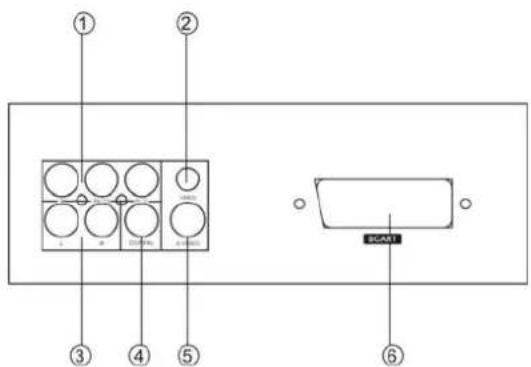
① ② ③ ④ ⑤ SCART① Component Video Output
② Composite Video Output
③ Downmix Left/Right
④ Coaxial Output
⑤ S-video Output
⑥ SCART Output
3. REMOTE CONTROL

text_image
POWER REPEAT A-B OPEN/CLOSE 22 23 N/P 1 2 3 3 SUBTITLE 4 5 6 24 ANGLE 7 8 9 LANGUAGE 0 10+ TIME 25 SETUP TITLE 26 ENTER 27 PBC MENU 28 VOL- VOL- ZOOM 29 10 30 13 RETURN L/R STEP SLOW 31 PROGRAM CLEAR MUTE DISPLAY 14 32 15 16 33 17 PHLV RELAY REV END 18 34 19 V-MODE STEP PLAY/DRIVE 35 36 20 37 21 DVD VIDEO GB-61. Power
2. Repeat
-
N/P
-
Subtitle
-
Angle
-
Language
-
Setup
-
Up button
-
Left button
10.Enter button
11.PBC
- Volume -
13.Zoom
- Return
15.L/R
-
Program
-
Clear
18.PREV
- Next
20.V-Mode
- Stop
22.Open/Close
23.A-B
24.Numeric Button
25.Time
- Title
27.Right Button
-
Menu
-
Down Button
30.Volume +
31.Slow
-
Step
-
Display
-
Mute
35.FWD
- REV
37.Play/Pause
Using the Remote Control
Unless stated other wise, the remote control can operate all the features of the DVD Player, Always point the remote control directly at the remote sensor on the front of the DVD Player, not the TV.
Battery Installation
Remove the battery compartment lid on the rear of the remote control by sliding the lid down, then off.
Place two AAA batteries inside the battery compartment with their + and ends aligned as indicated.
Do not mix old and new batteries or different types of batteries
Replace the battery compartment lid. Slide the lid until you hear it click into place.
Important:
When replacing batteries, please take care to waste them in accordance with current regulation. For this matter please put them in the right assigned place, in order to ensure they are surely recycled while respecting environment.
Do not burn them or burry them.
4. CONNECTIONS
• Turn off the power before connection.
• Turn on the power after finishing connection.
Wires must be firmly connected; especially the plug shall be fully inserted.
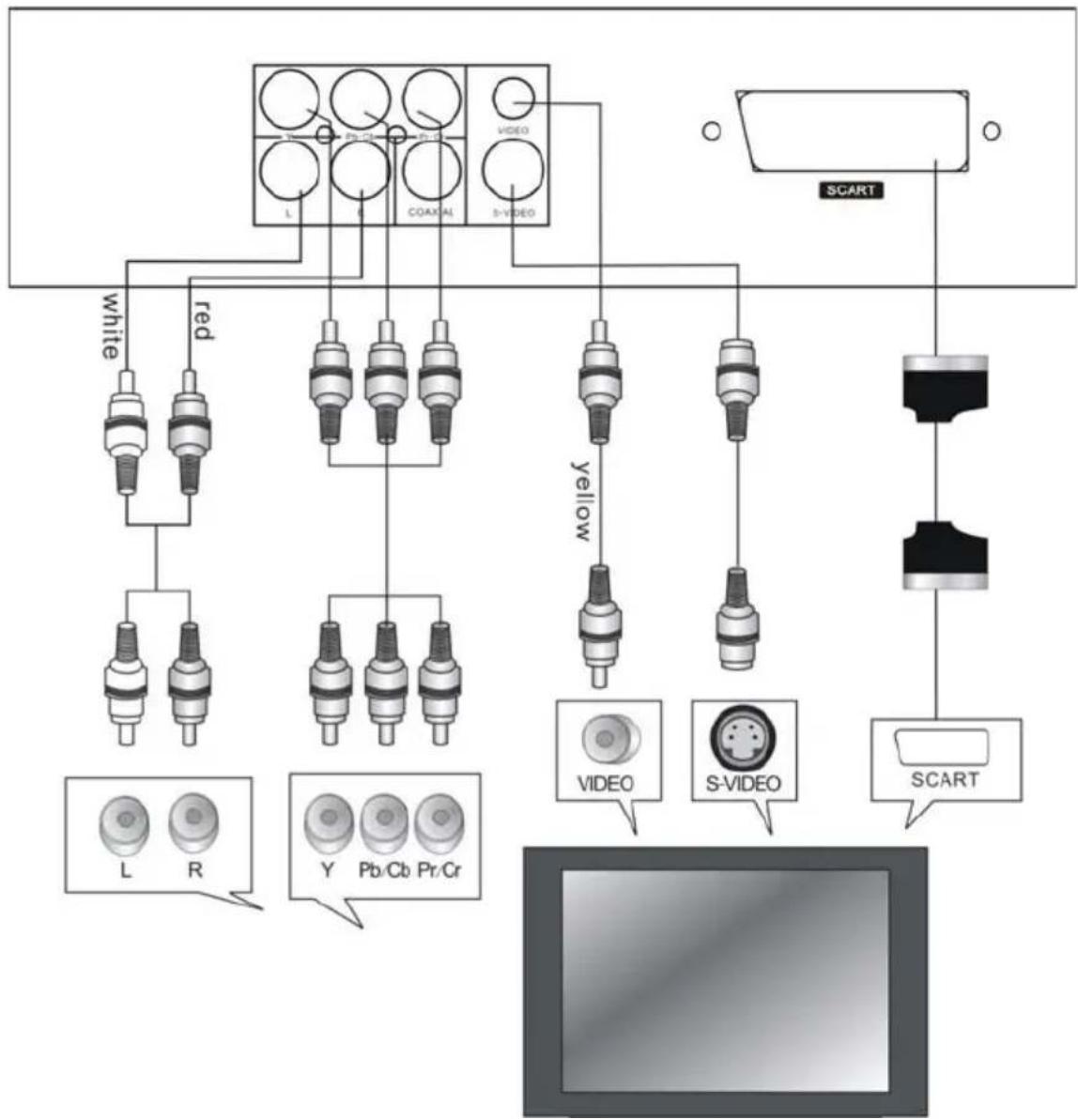
DVD+TV
Notes:
There are the following ways of connecting the player AV output to the TV set:
• S-video cable and left/right audio cable (set the video type to S-VIDEO)
• Composite video cable and left/right audio cable
- Component video cable and left/right audio cable (set the video type to component, if you connecting a progressive scan TV set, please set the video type to P-Scan)
- Scart cable (press V-MODE button to switch the video mode to and set the video type to RGB)
flowchart
graph TD
    A["SCART"] --> B["Video"]
    A --> C["S-VIDEO"]
    A --> D["VIDEO"]
    A --> E["yellow"]
    A --> F["L"]
    A --> G["R"]
    A --> H["Y"]
    A --> I["Pb/Cb"]
    A --> J["Pr/Cr"]
    B --> K["White"]
    C --> L["Red"]
    D --> M["Yellow"]
    E --> N["Black"]
    F --> O["Black"]
    G --> P["Black"]
    H --> Q["Black"]
    I --> R["Black"]
    J --> S["Black"]
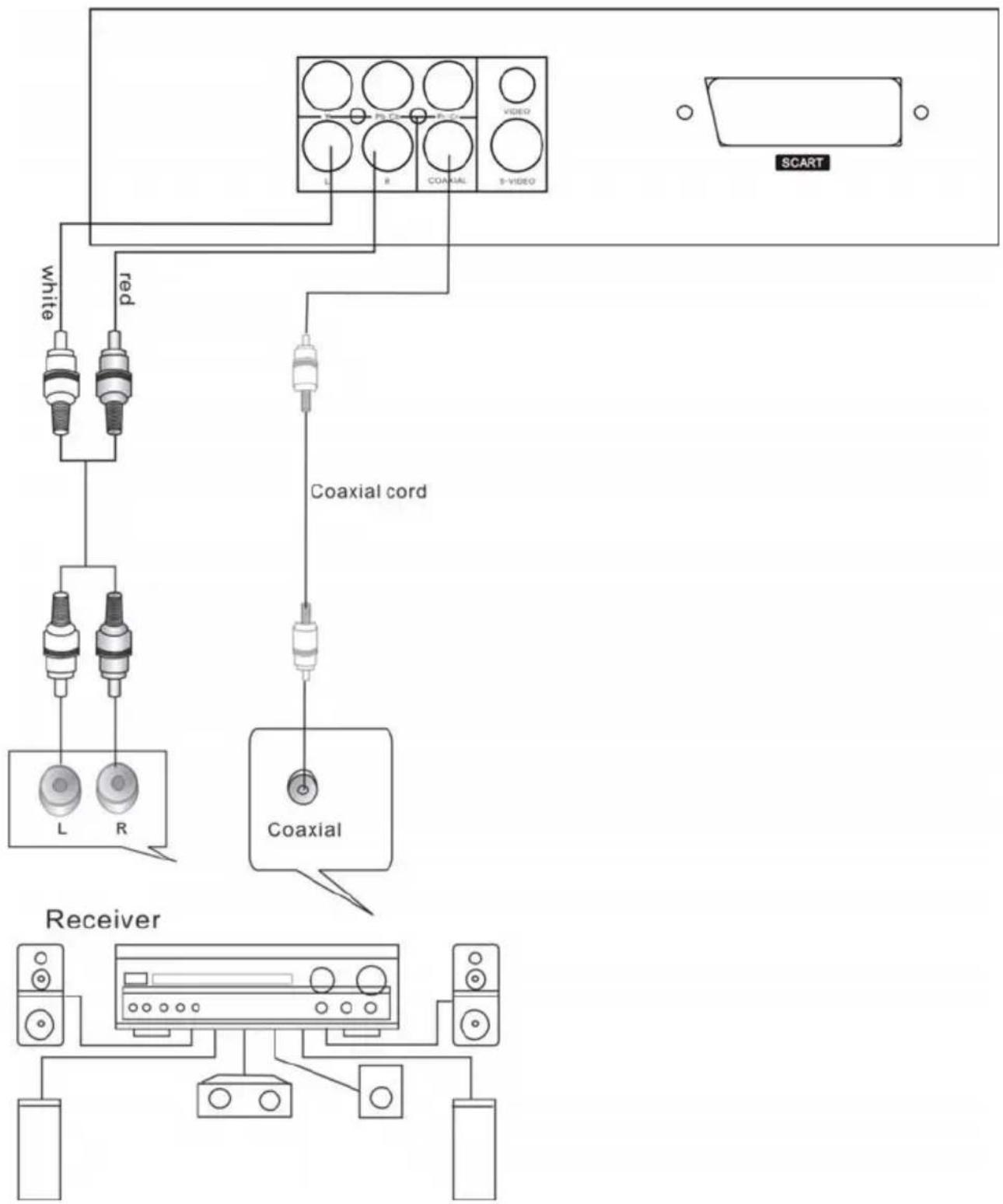
DVD+ AV Amplifier:
Notes:
There are the following ways of connecting the player with amplifier:
• Left/Right audio output
• Coaxial audio output
flowchart
graph TD
    subgraph Receiver
        A["Receiver"] --> B["Coaxial"]
        B --> C["Coaxial cord"]
        C --> D["Coaxial"]
        D --> E["SCART"]
    end
    subgraph Coaxial_cord
        F["White"] --> G["L"]
        H["Red"] --> I["R"]
    end
    subgraph Coaxial
        J["Video"] --> K["L"]
        L["Video"] --> M["R"]
        N["Video"] --> O["Coaxial"]
        P["Video"] --> Q["S-VIDEO"]
    end
    style Receiver fill:#f9f,stroke:#333
    style Coaxial_cord fill:#ccf,stroke:#333
    style Coaxial fill:#cfc,stroke:#333
    style Coaxial_cord fill:#fcc,stroke:#333
    style SCART fill:#fff,stroke:#000
Warning:
Do not connect any amplifier with coaxial connector that does not contain Dolby digital AC 3 or DTS decoder. Any attempt to do so and play of DVD disc will result in damaging your speakers and causing possible hearing injury. Other than DVD disc, VCD and CD can be operated normally without conforming to the above restriction.
Setting of TV system
If you find the image like non-fully zoomed picture, brim picture covered or black & white picture etc, please select PAL or NTSC by systems setting or press N/P button to switch the TV system on the remote control. This DVD disc is capable of supporting different scales picture, as a result, non-full zoomed picture could appear or picture be partially covered on user's TV set.
5.1 Function Buttons On the Front Panel
These button's function is the same as the corresponding buttons on the remote control. For the detail information, please see the following texts.
5.2 Function Buttons On the Remote Control POWER
Press the button to switch the power between ON and OFF.
OPEN/CLOSE
To open the disc tray, press OPEN/CLOSE; To close the disc tray, press OPEN/CLOSE again.
SUBTITLE
Press the button to display different captions (Requires support from disc)
LANGUAGE
Press the button to choose different dubbing languages(Requires support from disc)
TIME
For DVD discs, press the button to choose the desired title and chapter and search the desired title time and chapter time.
For Super VCD, VCD, CD discs, press this button to search the desired disc time and track time and choose the desired track.
Note: During VCD playback, the PBC mode must be set to OFF.
0-10+ keys
These keys are used to input the time, as well as title, chapter and track numbers.
When a numeric item is displayed on the screen, press the 0-10+ keys to select the desired entry, and press ENTER to confirm.
When a VCD is playing (with PBC off), press the 0-9 keys to select a track directly.
CLEAR
Press CLEAR to delete numbers you have entered.
MENU
During DVD playback, press MENU to display the disc menu of the current title.
Note: This function is subject to the disc
SETUP
Press the button to enter the system setting menu. press the button again to exit the menu.
DISPLAY
Press the button to show the information of the current playing disc.
TITLE
Press the button to enter the appointed title. (Requires disc support)
Direction key(UP/DOWN/RIGHT/LEFT)
Press the keys to move the highlighted bar or cursor on any menu to your selection.
ENTER
Press the button to confirm your choice on screen.
REV:
During DVD, CD or VCD playback, press REV to scan in reverse.
The player will review the disc at different times speed. Press PLAY/PAUSE to resume normal playback.
FWD
During DVD, CD or VCD playback, press FWD to scan forward.
The player will cue the disc at different speed. Press PLAY/PAUSE to resume normal playback.
PREV
During DVD, CD or VCD playback, press PREV to play the previous chapter, title or track.
NEXT
During DVD, CD or VCD playback, press NEXT to play the next chapter, title or track.
STEP
Press the key, You can play the disc step by step, in this way, you can catch any picture on the disc (not for mp3, CD). Press PLAY/PAUSE button to play normally.
STOP
Press the button once and the player will be in memory stop state. Continuously press this button twice and the player will be in complete stop state.
Play/Pause
In play state, press the button for the first time and the player will be in pause state. To
resume normal playback press the button again, In pause state or stop state, press the button, the player will be in playing state.
VOLUME +/-
Press VOL+ to increase volume and press VOL- to decrease volume.
REPEAT
Each press of the REPEAT button will change the repeat mode.
During VCD, CD playback, there are three modes: repeat Single, repeat All and Off.
During DVD, playback, there are three modes: Repeat Chapter, Repeat Title and Off.
Note: During VCD playback, the PBC mode must be set to Off
A-B
During playback, press A-B to select point A, press it again to select point B. The player will repeat the section from A to B automatically. Press A-B a third time to cancel A-B repeat and clear points A and B.
Note: During CD/VCD/SVCD playback, points A and B must be within the same track.
During DVD playback, points A and B can be selected from different chapters.
ANGLE
Press the button to view scenes shot from ANGLE difference angles. (Disc support is required)
MUTE
Press MUTE to turn off the audio, press MUTE again to resume normal sound.
L/R
During VCD/SVCD playback, press L/R repeatedly to select the channel of audio-output: Left/Right/Mix/Stereo.
N/P
In the STOP/OPEN TRAY/NO DISC state, Press the button on the remote control and choose AUTO NTSC PAL for the TV system.
PBC
During VCD/SVCD playback, Press PBC to select the mode of PBC On or PBC Off.
SLOW
During DVD, VCD or SVCD playback, press SLOW for slow motion playback.
Once you press SLOW, the disc will play at different speed. Press PLAY/PAUSE to resume normal playback.
V-MODE
In the STOP/OPEN TRAY/NO DISC state, Press V-MODE key, you can select different video output mode.
RETURN
When SVCD/VCD disc playing, press RETURN button to the main menu(PBC ON only).
PROGRAM
The Program Playback option allows entering the order in which the chapters or tracks will be played, up a maximum to 16.
Press Program button to display the Program Menu. According to the highlight, move the cursor to the chapters / tracks you want to play, then press ENTER to confirm. Then press Play or use arrow buttons to highlight the "PLAY" item and press Enter. The chapters / tracks will play in the programmed order. During Program Playback, if Program button pressed, the programmed order and the contents will be displayed on the screen, and the Program Playback will be stopped. Also Stop and Play can be pressed to resume normal playback. To clear the programmed order, use arrow buttons to highlight the "CLEAR" item, then press Enter to modify the programmed order, use arrow buttons to highlight the modifying item and enter the new chapter / track you want to program directly.
ZOOM
As you press the button you view the different ZOOM magnifications of the picture.
Note: This function may differ for different types of discs
6. MP3/WMA/MPEG4 PLAYING
text_image
AVI MP3 MP4 Photo WMA XVID Filter Repeat: off Mode: Normal JPEG Preview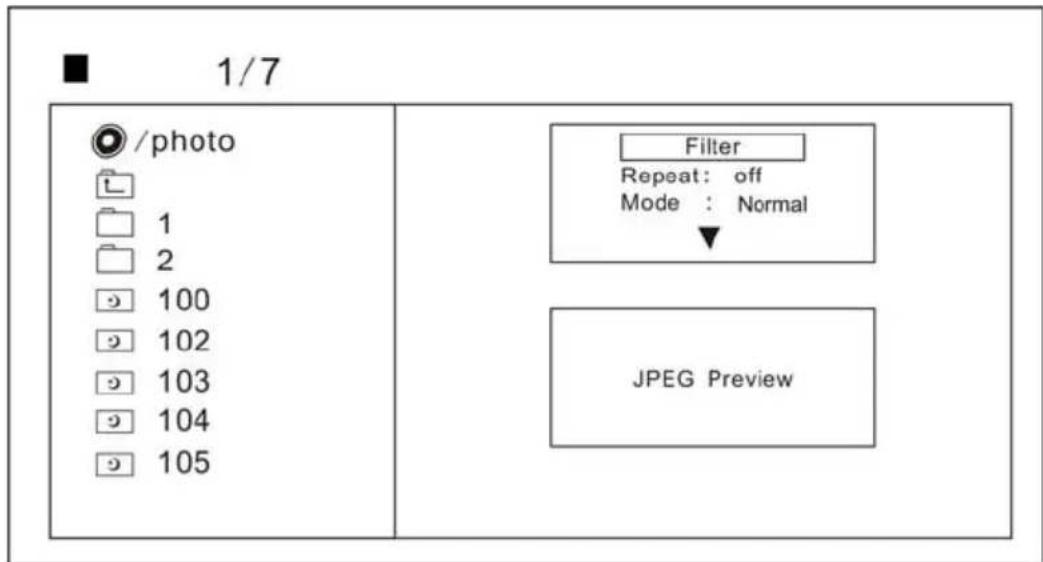
text_image
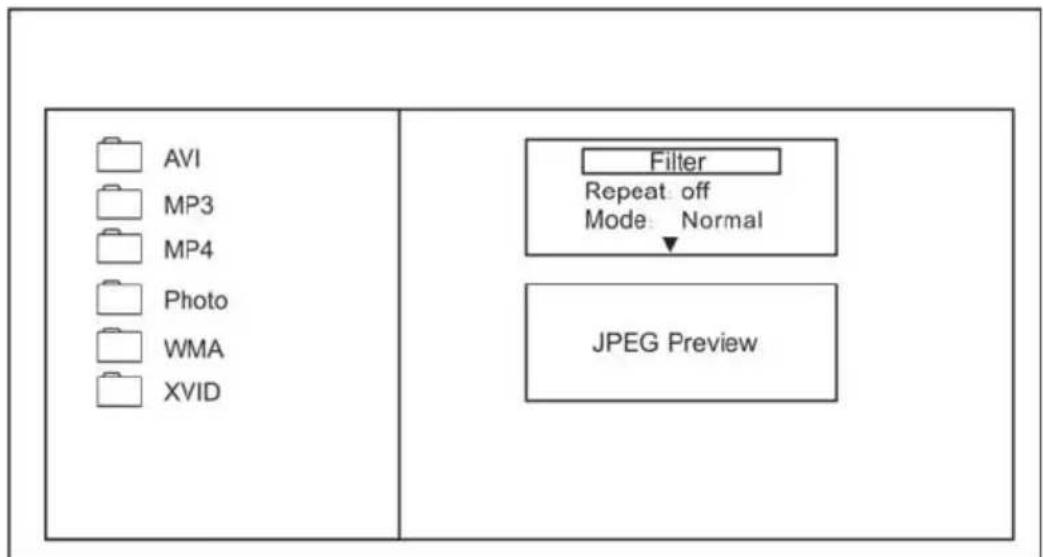
1/7 /photo Filter Repeat: off Mode : Normal JPEG PreviewThe MP3/WMA/MPEG4 disc has such a directory structure as shown in the right picture.
Press Direction key to choose the root directory and then press ENTER button to enter into the sub directory. Press Direction key to choose the desired track and then press ENTER or PLAY to enjoy the music or movie. If you want to return to the upper menu, press Direction key to choose 📁 the icon and press ENTER button.
Filter: Allows selecting the categories of files displayed in the browser list. This
selection is done among the 3 categories: Audio, Photo and Video.
Repeat: To switch different repeat playing mode
Mode: Select different playing mode
Normal: Shuffle mode is cancelled
Shuffle: Shuffle mode enabled. When playback reaches the end of the current chapter/track, playback jumps to a random chapter/track.
As the end of each chapter/track is reached, another random chapter/track will be played until all tracks/chapters have been played or the Shuffle mode is cancelled by toggling to a different "Mode" option.
Music Intro: In this mode, the media will play 10 seconds then skip to next media
Edit Mode: To enable programmed playback mode. When you select the mode, press LEFT Direction key to directory and press ENTER to choose the desired track and press Add to program to start program playback.
Program view: Display program track
Brower view: Display track directory
Add to program: Choice the track press Add to program to add the track of the program play directory
Clear program : In the complete stop state( press the STOP button twice), Choose the track press Clear program to delete the track of the program play directory
7. KODAK PICTURE CD PLAYBACK
The KODAK PICTURE CD disc has such a directory structure as shown in the right picture.

text_image
1/7 photo Filter Repeat: off Mode : Normal JPEG PreviewPress Direction key to choose the root directory and then press ENTER button to enter into the sub directory. Press Direction key to choose the desired picture and then press
ENTER or PLAY to enjoy the picture. If you want to return to the upper menu,
press Direction key to choose the icon and press ENTER button.
Image rotation
In picture play state, press Direction key to rotation the picture, press ANGLE button to change the picture scan mode.
8. SYTSTEM SETUP
DVD menu setup
Press the SETUP button on the remote control, the SETUP MENU (main) will be displayed. After accessing the setup menu, press the direction buttons for up and down movement to select an item desired, then press the ENTER button to confirm .Press LEFT direction button return to the menu of upper level.
To exit the setup, press the SETUP button again. In the SETUP MENU, you may choose any of the following options as you like.
8.1 LANGUAGE SETUP
Select Language in the setup menu, and display the Language submenu:
| Language | OSD Language: EnglishSubtitle : EnglishAudio : EnglishDVD Menu : English |
| Video | |
| Audio | |
| Rating | |
| Misc |
8.1.1 OSD Language
Use this item to select the language of the setup menu and screen display.
8.1.2 Subtitle
This option provides the preset subtitle language.
Follow the operating instructions stated in "DVDMENU SETUP" in combination with the desired option.
8.1.3 Audio
Follow the operating instructions stated in "DVDMENU SETUP" in combination with the desired option.
This option provides the built-in disc dubbing language options.
8.1.4 DVD Menu
This option provides the film's menu language options.
Follow the operating instructions stated in "DVDMENU SETUP" in combination with the desired option.
8.2 VIDEO SETUP
Select Video in the setup menu, and display the Video submenu:
| Language | Aspect Ratio : 4:3View Mode : Auto FitTV System : PALVideo Out : Component |
| Video | |
| Audio | |
| Rating | |
| Misc |
8.2.1 Aspect Ratio
4:3 : Choosing this setting if your DVD player is connected to a normal ratio TV. You can fill the movie to the entire screen of your TV. This might mean that parts of the picture (the left and right edges) won't be seen.
16:9 : Choose this setting if your DVD player is connected to a wide screen TV. If you choose this setting and you don't have a wide screen TV, the images on the screen may appear distorted due to vertical compression.
Notes:
The image display ratio is related to the recorded disc format. Some disc can not display images in the aspect ratio you choose. If you play a disc recorded in 4:3 format on a wide screen TV, black bars will appear on the left and right side of the screen. You must adjust the screen setting depending on the type of the television you have.
8.2.2 View Mode
With this option you can select the different video vision mode on the screen.
8.2.3 TV System
This product supports output of various system, including AUTO, NTSC, PAL.
If your TV set has only NTSC or PAL system, the screen will blink and become colorless when a wrong system is selected. In this case, press the N/P button on the Remote Control to switch the TV TYPE.
Note: For more information of output format, refer to the instructions or your TV set.
8.2.4 Video Output
Selecting the Video Output setting to switch between different video outputs
S-VIDEO: Set the video output to interlacing output.
COMPONENT: Set the video output to YUV output.
P-SCAN: If your TV is progressive TV, please select the option. You can get better picture quality.
RGB: Set the video output to SCART output. If you select SCART connection, you should set up the play mode as RGB state, then it will output normally.
8.3 Audio setup
Select Audio in the setup menu, and display the Audio submenu.
| Language | Digital Output : PCMNight Mode : OffDown Sampling : Off |
| Video | |
| Audio | |
| Rating | |
| Misc |
8.3.1 Digital output
Selecting the Digital Output setting allows the user to adjust the audio output on S/PDIF ports to work in harmony with the audio equipment (e.g. receiver, speakers) connected to the player.
Off Digital audio output is disabled.
PCM Select this option when you are going to use stereo signals (2 channels).
You should combine this option with the option "Lower sampling rate," which we explain further on
All If you select this option the player will use the DVD's original audio track. Use this option when you want to use the Dolby Digital AC3 signals through the optical or coaxial audio output.
8.3.2 Night Mode
To adjust the linear compression ratio, select to ON when playing a disc in the day so as to get better acoustical effect; while at night, you can select to OFF.
8.3.3 Down Sampling
Use the down sampling option when you have selected the "PCM" option in the type of digital audio output:
- ON: Use this option to lower the audio sampling rate.
- OFF: Use this option to deactivate the lowering of the audio sampling rate.
Note: A certain sampling rate is used to record disks (measured in kHz); the higher this sampling rate, the better the sound quality. If you turn it off, make sure that the amplifier that you are using is compatible with 96kHz digital signals.
8.4 RATING SETUP
Select Rating in the setup menu, and display the Rating submenu:
Note: Not all DVDs support ratings.
| Language | Parental Control : 8. Audult Set Password |
| Video | |
| Audio | |
| Rating | |
| Misc |
8.4.1 Parental Control
Selecting a Rating allows the user to set the parental control feature of the player Select Parental Control, and press ENTER to change the different mode.
Note: Unlock the password before setting Parental Control
8.4.2 Set Password
Use the 0-9 keys to input four digits (password), then press ENTER to confirm.
Note: If you forget your password, please use the universal password 8888 to unlock.
8.5 MISC SETUP
Select MISC in the setup menu, and display the submenu:
| Language | Use Default Settings |
| Video | |
| Audio | |
| Rating | |
| Misc |
* Use Default Settings
Reset setup data to factory default and re-load disc
9. Troubleshooting
Please read the user's manual carefully before using the DVD player. If you have any troubles in using this player, try to solve the problems by the suggestions mentioned below. If you can not remove the trouble after using all the suggestions, please contact the company or the technical service center authorized by us. For the sake of your safety, please do not open the cover and repair the player by yourself, if that, it may cause electric shock.
NO PICTURE, SOUND AND INDICATION
- Ensure that the power switch is on.
- Ensure that the wall inlet is ok.
- Ensure that the power cord is not damaged.
- Ensure that the power plug is connected to the inlet tightly.
NO SOUND BUT HAVE PICTURE
- Ensure that the player's audio output has a good connection with TV's audio input.
- Check whether the audio connector is damaged.
- Check whether you have turned down the volume.
- Ensure that you have set the right AUDIO setup of the player.
• Ensure that you have turned your TV to the AV input channel connecting to your player. - Ensure that the audio is not under mute.
NO PICTURE BUT HAVE SOUND
- Ensure that the player's video output has a good connection with TV's video input.
- Ensure that you have turned your TV to the AV input channel connecting to your player.
- Check whether the video connector is damaged.
- Ensure that you have set the right VIDEO settings of the player.
BLACK AND WHITE PICTURE OR SCREEN ROLLING
• Ensure that you have set the right TV SYSTEM (e.g. PAL, NTSC) setting.
FLAWS OF PICTURE OR SOUND
- Check whether the setting of AUDIO is right.
• Check whether the disc is scratched or stained. - Check whether the AV connector and the output terminal is stained.
DISPLAY NO DISC
- Ensure that you have put the disc on the tray.
- Check whether the disc is put in the reverse side.
- Check whether the disc is distorted.
• Check whether the disc is stained or scratched badly.
DISPLAY BAD DISC
- Check whether the disc has had bad quality.
- Ensure that the disc is not stained or damaged badly.
• Ensure that the disc format is compatible to the player. - Ensure that the disc is not deformed.
REMOTE CONTROL IS INSENSITIVE OR DOES NOT WORK
- Check the batteries of remote control and make sure that they are to be powerful and good conductivity.
- Direct the remote control to the IR sensor of the player.
• Check whether there are some obstacles between the remote control and IR sensor.
ABNORMAL FUNCTION OPERATION
- Turn off the power, and then turn on again.
- The disc cannot be taken out of the tray when the player is reading, so you have to turn off the power and turn on again, and press OPEN/CLOSE key immediately to open the tray.
10. Technical specifications
| Signal system PAL/AUTO/NTSC | |
| Frequency Response | 20Hz-20KHz ( at 1KHz 0 dB) |
| Signal-to-Noisy Ratio(Audio) | ≥90 dB ( at 1KHz 0 dB) |
| Audio Distortion + Noise | ≤-60dB ( at 1KHz0dB) |
| Audio Output (Analog audio) | 2.0^+0_-1.0Vrms |
| Video Output Composite: 1.0±0.2Vp-pLoad impedance: 75Ω, imbalance, negative polarity | |
| Power Supply ~220-230V 50 Hz | |
| Dimensions 430X 260 X38 (mm) | |
| Supported Disc DVD/DVD-R/DVD+R/DVD-RW/DVD+RW/VCD/CD/CD-R/CD-RW/MP3/Kodak Picture/Photo CD /MPEG4 | |
| Accessories | Remote Control unitUser Manual |
REFERENCE:
To protect your DVD player, the interval between two consecutive Power button operations must be above 30 seconds.
No using for a period of time, please pull out the plug from the electronic outlet.
The player should be operated only on condition that the type of power supply corresponds to the marking label. Otherwise, it doesn't work or even be damaged.
The player may not be compatible with some encrypted discs.
If the player stops playback by accident, please power it on again.
Appearance and function is subject to change without notice.
11. Recycling
This product bears the selective sorting symbol for waste electrical and electronic equipment (WEEE).
This means that this product must be handled pursuant to European Directive 2002/96/EC in order to be recycled or dismantled to minimize its impact on the environment.
For further information, please contact your local or regional authorities.

natural_image
Symbol of a trash bin crossed with no text or numbers, representing waste sorting or disposal (no text present)Electronic products not included in the selective sorting process are potentially dangerous for the environment and human heath due to the presence of hazardous substances.
SALORA
Gebrauchsanleitung
DVD314M

text_image
Diagram of a device panel with numbered components and labeled connectorsPower (Storm)
Öffnen / Schließen
□ Disaply Screen
Wiedergabe
□ Sensor
Pause
Disc-Lade
Rear panel
text_image
① ② ③ ④ ⑤ STARTTV with progressively scan jack
white = weiß
red = rot
yellow = gelb
Coaxial cord = Koaxial-Kabel
Coaxial = Koaxial
Receiver = Empfänger
Warnung:
OPEN/CLOSE (ÖFFNEN/SCHLIESSEN)
"Mode: Normal" = Modus: Normal
text_image
1/7 00:00:15 / Photo Filter Repeat: off Mode: Intro JPEG Preview"Photo" = Foto
"Filter" = Filter
"Repeat: off" = Wiederholung: aus
| Language | OSD Language: English |
| Video | Subtitle : English |
| Audio : English | |
| DVD Menu : English | |
| Audio | |
| Rating | |
| Misc |
"Language" = Sprache
"Video" = Video
"Audio" = Audio
"Rating" = Klassifizierung
"Language" = Sprache
"Video" = Video
"Audio" = Audio
"Rating" = Klassifizierung
"Language" = Sprache
"Video" = Video
"Audio" = Audio
"Rating" = Klassifizierung
"Night Mode: Off" = Nachtmodus: Aus
"Down Sampling: Off" = Down-Sampling: Aus
8.3.1 Digital Output (Digital-Ausgang)
| Language | Parental Control : 8. Audult Set Password |
| Video | |
| Audio | |
| Rating | |
| Misc |
"Language" = Sprache
"Video" = Video
"Audio" = Audio
"Rating" = Klassifizierung
"Language" = Sprache
"Video" = Video
"Audio" = Audio
"Rating" = Klassifizierung