
DVD329HDMI - DVD player SALORA - Free user manual and instructions
Find the device manual for free DVD329HDMI SALORA in PDF.


Pick your language and provide your email: we'll send you a specifically translated version.
| Product Type | DVD Player |
| Brand | Salora |
| Model | DVD329HDMI |
| Supported Formats | DVD, CD, VCD, MP3, JPEG |
| Video Outputs | HDMI, Composite (RCA) |
| Audio Outputs | Coaxial Digital, Analog Audio (RCA) |
| USB Port | Yes (media file playback) |
| Power Supply | 100-240 V, 50/60 Hz |
| Power Consumption | Approx. 10 W |
| Dimensions (W x D x H) | 360 x 240 x 45 mm |
| Weight | Approx. 1.2 kg |
| Main Functions | Play, Pause, Stop, Next, Previous, Repeat, Program, Zoom |
| Maintenance and Cleaning | Clean with a soft, dry cloth. Do not use chemicals. |
| Safety | Do not expose to moisture. Do not open the casing. Disconnect before cleaning. |
| Spare Parts and Repairability | Remote control and cables included. Limited repairability, contact a professional. |
| General Information | Compatible with HD TVs. Standard home player. |
Frequently Asked Questions - DVD329HDMI SALORA
How to connect the DVD player to the TV?
Use an HDMI cable for best quality. Connect one end to the HDMI output of the player and the other to the HDMI input of your TV. Select the corresponding HDMI source.
The player does not read the disc. What to do?
Check that the disc is clean and free of scratches. Make sure it is compatible (DVD, CD). Clean the disc with a soft cloth from the center outward.
The remote control does not work. How to fix?
Check the batteries and replace if necessary. Point the remote at the player's infrared sensor. Remove obstacles between remote and player.
No picture on screen. Why?
Check the connection cable. Ensure the TV is on the correct input (HDMI or AV). Try a different HDMI cable if possible.
How to play a USB flash drive?
Insert the USB flash drive into the player's port. Use the navigation buttons to select the file. Press the Play button to start playback.
The player does not turn on. What to check?
Check that the power cord is plugged in and the outlet works. Try another outlet. If the problem persists, check the fuse (if applicable) or contact a professional.
How to set the region code?
The region code is preset at the factory. To change it, refer to the manual. Generally, a limited number of changes is possible via a special code.
No sound output. Possible causes?
Check audio connections. Ensure the volume is not muted. For HDMI, audio is transmitted with video. For analog connections, verify cables are properly connected.
How to use the repeat function?
Press the REPEAT button during playback. Choose between repeating chapter, title, or entire disc. Press multiple times to cycle through options.
What to do if the disc is stuck?
Turn off the player and unplug it. Use a thin, non-metal object to gently remove the disc. Do not force it. If necessary, contact a professional.
User questions about DVD329HDMI SALORA
0 question about this device. Answer the ones you know or ask your own.
Ask a new question about this device
No questions yet. Be the first to ask one.
Download the instructions for your DVD player in PDF format for free! Find your manual DVD329HDMI - SALORA and take your electronic device back in hand. On this page are published all the documents necessary for the use of your device. DVD329HDMI by SALORA.
USER MANUAL DVD329HDMI SALORA
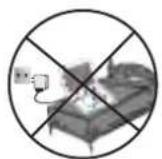
natural_image
Close-up of a metallic CD or DVD disc with a pointed tip, showing surface texture and no visible text or symbols.





natural_image
Technical line drawing of a device rear panel with labeled ports and connectors (no text or symbols present)


flowchart
graph TD
    A["Device Icon"] --> B["Tools Icon"]
    B --> C["Data Storage Icon"]
    C --> D["Data Link Icon"]
    D --> E["Downward Arrow"]
    E --> F["Downward Arrow"]
    F --> G["Downward Arrow"]

flowchart
graph TD
    A["Block 3/4"] --> B["Block 1/2"]
    A --> C["Block 1/4"]
    D["Block 1"] --> E["Down Arrow"]
    F["Down Arrow"] --> G["Down Arrow"]

flowchart
graph TD
    A["User icon"] --> B["Process Icon"]
    C["Mouse icon"] --> D["Search Icon"]
    E["Map icon"] --> F["Security Icon"]
    G["Arrow down"] --> H["Arrow down"]

flowchart
graph TD
    A["Input Icon 1"] --> B["Process Step"]
    C["Input Icon 2"] --> D["Process Step"]
    E["Input Icon 3"] --> F["Process Step"]
    G["Input Icon 4"] --> H["Process Step"]
    I["Input Icon 5"] --> J["Process Step"]
    K["Down Arrow"] --> L["Down Arrow"]

flowchart
graph TD
    A["Input Icon 1"] --> B{Process}
    C["Input Icon 2"] --> B
    D["Input Icon 3"] --> B
    E["Input Icon 4"] --> B
    F["Input Icon 5"] --> B
    B --> G["Output Arrow"]
    B --> H["Down Arrow"]
    B --> I["Down Arrow"]
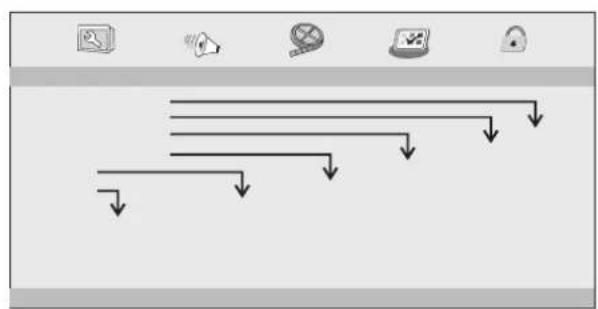
flowchart
graph TD
    A["Top Icon"] --> B["Arrow to Top"]
    C["Arrow to Left"] --> D["Arrow to Left"]
    E["Arrow to Right"] --> F["Arrow to Right"]
    G["Arrow to Bottom"] --> H["Arrow to Bottom"]
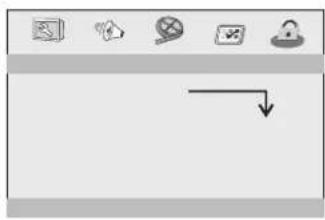
natural_image
Pure graphical interface icons without any text or symbols
natural_image
Computer window interface with icons for news, video, and lock (no readable text or symbols)SALORA


natural_image
Close-up of a metallic CD or DVD disc with a pointed tip, showing surface texture and no visible text or symbols.


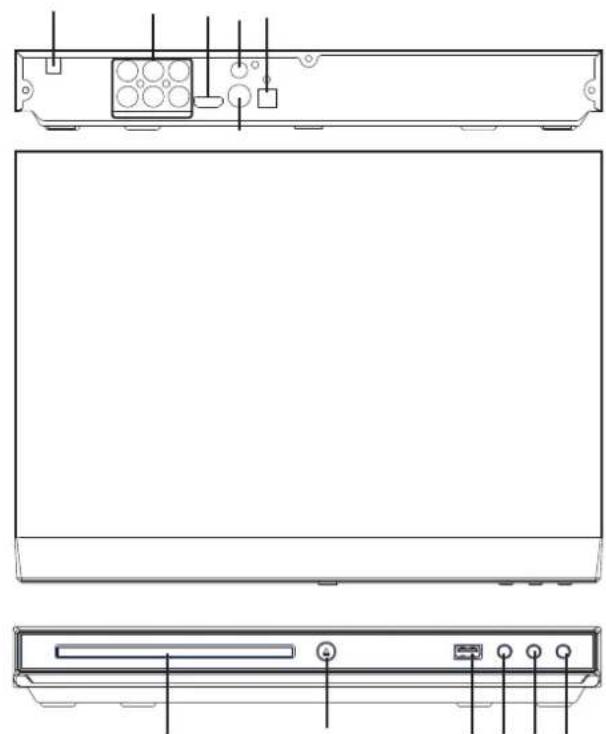
natural_image
Technical line drawing of a device rear panel with labeled ports and connectors (no text or symbols present)


2X size → 3X size → 4X size → 1/2 size → 1/3 size → 1/4size→normal size


flowchart
graph TD
    A["Top Icon"] --> B["Arrow Down"]
    C["Circle Icon"] --> D["Arrow Down"]
    E["Roll Icon"] --> F["Arrow Down"]
    G["Window Icon"] --> H["Arrow Down"]
    I["Head Icon"] --> J["Arrow Down"]

flowchart
graph TD
    A["Block 3/4"] --> B["Block 1/2"]
    A --> C["Block 1/4"]
    D["Block 1"] --> E["Down Arrow"]
    F["Down Arrow"] --> G["Down Arrow"]

flowchart
graph TD
    A["User Interface"] --> B{Process Step}
    B --> C["Action Icon"]
    B --> D["Check Button"]
    B --> E["Save As"]
    B --> F["Lock Icon"]
flowchart
graph TD
    A["Input Icon"] --> B["Process Icon"]
    C["Input Icon"] --> D["Process Icon"]
    E["Input Icon"] --> F["Process Icon"]
    G["Input Icon"] --> H["Process Icon"]
    I["Input Icon"] --> J["Process Icon"]
    K["Input Icon"] --> L["Process Icon"]
    M["Input Icon"] --> N["Process Icon"]
    O["Input Icon"] --> P["Process Icon"]
    Q["Input Icon"] --> R["Process Icon"]
    S["Input Icon"] --> T["Process Icon"]
    U["Input Icon"] --> V["Process Icon"]
    W["Input Icon"] --> X["Process Icon"]
    Y["Input Icon"] --> Z["Process Icon"]

flowchart
graph TD
    A["Input Icon 1"] --> B{Process}
    C["Input Icon 2"] --> B
    D["Input Icon 3"] --> B
    E["Input Icon 4"] --> B
    F["Input Icon 5"] --> B
    B --> G["Output Arrow"]
    B --> H["Down Arrow"]
    B --> I["Down Arrow"]

flowchart
graph TD
    A["Top Icon"] --> B["Arrow to Top"]
    C["Arrow to Left"] --> D["Arrow to Left"]
    E["Arrow to Right"] --> F["Arrow to Right"]
    G["Arrow to Bottom"] --> H["Arrow to Bottom"]

natural_image
Pure graphical toolbar icons without any text or symbols
natural_image
Computer window interface with icons for news, video, and lock (no readable text or symbols)| :1 Vp-p (75Ω) | ||
SALORA


natural_image
Close-up of a metallic CD or DVD disc with a pointed tip, showing surface texture and no visible text or symbols.


natural_image
Technical line drawing of a device rear panel with labeled ports and connectors (no text or symbols present)


flowchart
graph TD
    A["Start"] --> B{Condition}
    B --> C["Process Step"]
    B --> D["End"]

flowchart
graph TD
    A["Block 1: 3/4"] --> B["Block 2: 1/4"]
    A --> C["Downward Arrow"]
    B --> D["Downward Arrow"]

flowchart
graph TD
    A["User Interface"] --> B["Process Icon"]
    C["User Interface"] --> D["Process Icon"]
    E["User Interface"] --> F["Process Icon"]
    G["User Interface"] --> H["Process Icon"]
    I["User Interface"] --> J["Process Icon"]
    K["User Interface"] --> L["Process Icon"]
    M["User Interface"] --> N["Process Icon"]
    O["User Interface"] --> P["Process Icon"]
    Q["User Interface"] --> R["Process Icon"]
    S["User Interface"] --> T["Process Icon"]
    U["User Interface"] --> V["Process Icon"]
    W["User Interface"] --> X["Process Icon"]
    Y["User Interface"] --> Z["Process Icon"]

flowchart
graph TD
    A["Start"] --> B{Decision}
    B -->|Yes| C["Action 1"]
    B -->|No| D["Action 2"]
    C --> E["End"]
    D --> F["End"]

flowchart
graph TD
    A["Input Icon 1"] --> B{Down}
    C["Input Icon 2"] --> D{Down}
    E["Input Icon 3"] --> F{Down}
    G["Input Icon 4"] --> H{Down}
flowchart
graph TD
    A["Start"] --> B{Condition}
    B --> C["Process"]
    B --> D["End"]
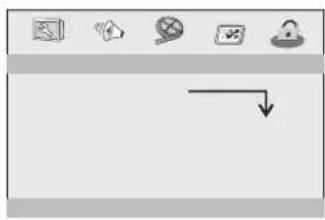
natural_image
Pure graphical toolbar icons without any text or symbols
natural_image
Computer window interface with icons for news, video, and lock (no readable text or symbols)



Table of contents
Click a title to access it
Manual assistant
Powered by Anthropic
Waiting for your message
Product information
Brand : SALORA
Model : DVD329HDMI
Category : DVD player