
DVD340KM - DVD player SALORA - Free user manual and instructions
Find the device manual for free DVD340KM SALORA in PDF.


| Product type | DVD player |
| Brand | Salora |
| Model | DVD340KM |
| Dimensions (L x W x H) | 430 x 210 x 38 mm |
| Weight | 2.0 kg |
| Power supply | AC 110-220 V, 50/60 Hz |
| Power consumption | 12 W |
| Compatible disc formats | DVD video, Audio CD, MPEG4, MP3, KODAK Picture CD, CD-RW (finalized) |
| Video outputs | Composite, S-Video, YUV (component), SCART |
| Audio outputs | Stereo analog, digital coaxial, digital optical |
| Progressive scan | Yes |
| Karaoke function | Yes (2 microphone inputs, volume and echo controls) |
| Additional ports | USB (media playback), card reader |
| Playback functions | Play/pause, stop, forward/reverse search, slow-motion, zoom, repeat, programming, angle (depending on disc) |
| System settings | OSD language, subtitles, audio, video (screen format, TV type), parental control, password |
| Remote control type | Infrared, 2x AAA batteries, range 7 m |
| Operating temperature | 0°C to 40°C |
| Cleaning | Soft lint-free cloth slightly damp; do not use solvents |
| Laser precautions | Class 1, do not stare directly |
| Disposal | Follow local regulations, dispose of via approved recycling channel |
| Package contents | DVD player, audio/video cable, remote control, user manual |
| Repairability | Do not open, refer to a specialist |
Frequently Asked Questions - DVD340KM SALORA
User questions about DVD340KM SALORA
0 question about this device. Answer the ones you know or ask your own.
Ask a new question about this device
Download the instructions for your DVD player in PDF format for free! Find your manual DVD340KM - SALORA and take your electronic device back in hand. On this page are published all the documents necessary for the use of your device. DVD340KM by SALORA.
USER MANUAL DVD340KM SALORA
natural_image
Front view of a black electronic device labeled 'BALORA' with control knobs and buttons (no readable text beyond branding)Aansluitingen
| Table of contents | 1 |
| Safety instructions | 2 |
| Package | 3 |
| Main features | 4 |
| Main unit control | 5 |
| Remote control | 6 |
| System connection | 8 |
| Basic operation | 10 |
| System setup | 16 |
| Specifications | 21 |
| Troubleshooting | 22 |
Safety Instructions

Warning: this mark is a warning sign alerting you of dangerous voltage inside the product.

Caution: this mark is a warning sign alerting you of important operation and maintenance instructions accompanying the product
The design and manufacture of the appliance have fully considered the safety of human body. However inappropriate handling of it may cause such accidents as electric shocks and fire. So, the following safety instruction should be fully observed. Notice: the appliance cannot be handled with wet hand. It should be kept at dry place with proper ventilation.
Power sources
● The power cord is connected to the jack, which means when the appliance is shut, it still connects to the power source.
●The power cord of the appliance should be unplugged from the jack when left unused for a long period of time. When unplugging the power cord, hold tight the plug contact and draw out. Please do not draw the power cord directly.
●Change the power cord in a qualified shop if necessary.
Location
● The appliance should be kept in a place with proper ventilation to prevent being overheated. For example, the appliance should not be put on a bed, sofa, rug, or similar surface that may block the ventilation openings.
● The appliance should be situated away from any heat sources, or any place subjected to direct sun radiation, dust-plagued, or mechanical percussion.
● Heavy weight goods should be removed from the top of the appliance.
Precautions
- If there is anything other than disc drop into the play, please switch off the power source, and resume using it after being checked by qualified maintenance staff.
●There is high voltage inside the player. Do not remove the cover of the set. Qualified service personnel should do all the maintenance operations.
●There is laser system inside the set. This player is classified as CASS 1LASER PRODUCT. Do not let the laser light go direct to you eyes, which may harm you eyes.

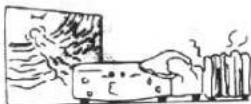
Condensation inside the player
If the player is subject to sharp temperature change, or warm air affected any components, moisture may condense on the lens inside (the so call "sweltering"). For example, if the player is brought directly from a cold to a warm location in winter. With the ensuing condensation, the player may not operation properly. Should this occur, put the player in warm room, and turn the
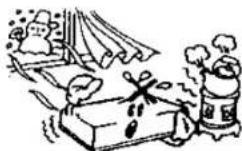
POWER button to ON and wait about an hour or two (the duration) is environment related) for the moisture to evaporate. The player will resume working after the condensation evaporates.
Cleaning
Clean the cabinet, panel and controls with a soft cloth slightly moistened with a mild detergent solution. Do not use any type of abrasive pad, scouring powder, or solvent, such as alcohol or benzene, to avoid damaging the surface or removing the prints on them.
Precaution about the disc
Do not play any cracked, broken, or deformed disc.

Cracked

Broken Deform

Because the disc should be rotated with high speed, so it is very dangerous to play any broken or deform disc. Do not apply any tape or glue on the disc. Otherwise, it may damage the player.
Notice if there is any strange noise or vibration while playing. If the picture or sound skip or the picture distorted, please stop the player immediately.
Package
| DVD player | 1 |
| Audio/Video cable | 1 |
| Remote Control | 1 |
| User Manual | 1 |
Main Features
● Full compatibility with MPEG4, DVD, CD, Mp3, KODAK Picture CD, CD-RW (finalized)
● Component (Y, Pb, Pr), S-video and composite video output
● Progressive Scan
- Scart Output
Disc format supported by this player:

DVD video

Dolby Digital

KODAK picture CD

MP3 files on CD-R/CD-RW

MPEG4
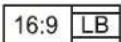
TV Aspect Ratio modes

Parental Lock


You can help protect the environment! Please remember to respect the local regulations: hand in the non-wroking electrical equipments to an appropriate waste disposal center.
This product incorporates copyright protection technology that is protected by method claims of certain U.S. patents and other intellectual property rights owner by Macrovision Corporation and other rights owners. Use of this copyright protection technology must be authorized by Macrovision Corporation, and is intended for home and other limited viewing uses only unless otherwise authorized by Macrovision Corporation.
The product complies with KODAK Picture CD format and will display KODAK Picture CDs. The "KODAK Picture CD Compatible" logo is a trademark of Eastman Kodak Company and is used with permission.
Manufactured under license from Dolby laboratories. "Dobly" and the double-D symbol are trademarks of Dolby laboratories. Confidential Unpublished Works. ©1992-1997 Dolby laboratories, Inc. All rights reserved.
Main Unit Control
Front panel instruction

-
Power
-
Stop
-
DISC tray
8.Microphone
- Open/close
9.Volume knob
- Play/pause
10.LED display
- Previous
11.USB port
-
Next
-
Card Reader
Back panel instruction
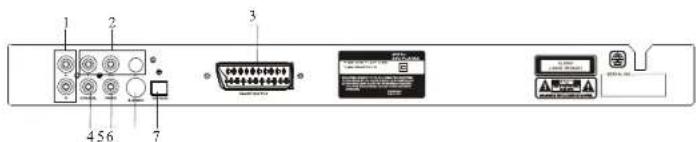
-
Audio L/R output
-
Video output
-
Y, Pb, Pr output
-
S-video output
-
Scart output
-
Optical
-
Coaxial output
Remote Control
Remote control instruction
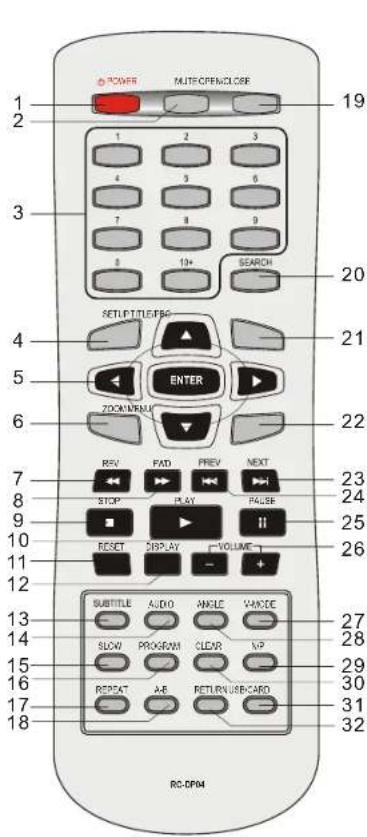
-
Power
-
Mute
-
Number button
-
Setup
-
Direction button
-
Zoom
-
Fast backward
-
Fast forward
-
Stop
-
Play
-
Reset
-
Display
-
Subtitle
-
Audio
-
Slow
-
Program
-
Repeat
18.A-B
-
Open/close
-
Search
-
Title/PBC
-
Menu
-
Next
-
Previous
-
Pause
-
Volume+/Volume-
-
V-mode
-
Angle
29.N/P
-
Clear
-
USB/card
-
Return
The use of remote control
REMOTE CONTROL OPERATION:
1
Remove the battery compartment cover

2
Insert batteries

3
Replace the battery compartment cover

Make sure that the polarities of the batteries match those marked inside the battery compartment
CARE OF REMOTECONTROL
Aim remote control at remote sensor of DVD. Do not drop the unit from a high position or cause high impact.
Do not place the remote control in hot or moist environments.
Do not splash water or any other liquid on remote control.
Do not pull the remote control.
*point remote control directly to the remote sensor.
Pay attention to batteries in the remote control: if the remote control is idle too long, please take out the batteries inside.
Distance:
the remote control work best within 7 metres from the DVD player.
Do not expose the remote control sensor directly to a heat source or it will be malfunction.

System Connection
Connecting to a TV with Audio/Video cable

flowchart
graph LR
    A["Television"] --> B["To video input(yellow)"]
    A --> C["To audio inputs(red, white)"]
    A --> D["To S-video input"]
    B --> E["White"]
    B --> F["Xia"]
    B --> G["Yellow"]
    C --> H["White"]
    C --> I["Xia"]
    C --> J["Yellow"]
    D --> K["White"]
    D --> L["Xia"]
    D --> M["Yellow"]
    E --> N["DVD player"]
    F --> N
    G --> N
    H --> N
    I --> N
    J --> N
    K --> N
    L --> N
    M --> N
If the TV has an S-video input, connect the DVD player with an S-video cable. When using an S-video cable, do not connect the yellow videocab le.
Connecting to a Audio/system and TV equipped with YUV video Input

Connecting to TV and an amplifier equipped with Coaxial or Optical input

flowchart
graph TD
    A["Amplifier"] -->|To Cocal type digital audio input| B["Coastal cable"]
    A -->|To COWAL type digital audio input| C["Optical Cord"]
    D["DVD player"] -->|To CUPPE audio input| E["Television"]
    D -->|To CUPB audio input| F["Television"]
    D -->|To Video input| G["Television"]
Connecting to TV with Scart cable

Basic Operation
After complete connecting the appliances, it can be used with the power switch on. Before using the player, the following work should be done:
-
Switch on the TV, and select AV state of audio input. If it is S-terminal connection, then select S audio mode.
-
If the power amplifier is connected, switch on the power of the amplifier, and select "DVD".
-
Connect the player to the power source.
Step 1: press "OPEN/CLOSE" button, the disc tray will slide out automatically.
Step 2: load the disc tray with disc, and press


"OPEN/CLOSE" key, the screen will indicate "closing", the player will identify the format of different disc, and the indicate it on the upper left of the TV screen. The display of the player will also indicate the type of the disc.
How to play this DVD player
Turn on the TV, player and amplifier.
-
press the "TV/AV" button on the TV, select video mode *if connect with S-video, choose S-video mode *if connect with Y-Cb Cr select YUV mode
-
Select the correct audio output on the amplifier
*Maybe some amplifier is different, please refer to the manual of the amplifier.

Disc play
After reading the disc, the player will go directly to play it:
●when playing DVD disc, it will go to the menu or the title menu of DVD;
●when playing VCD 2.0 disc, it will go to the PBC control display;
- when playing CD disc, it will play in the sequence specified chapter number.
Play:
When the player stop or pause, press "PLAY" button to resume normal play.
Pause
During DVD play, press the "PAUSE" button, play will be pause.
Stop:
During DVD play, the first press of the "STOP" button is memory stop, press "PLAY" button to resume memory play. Press the "STOP" button for the second time to stop it completely.
Previous chapter, next chapter:
●Press "PREV" button, the previous chapter will be played.
- Press "NEXT" button, the next chapter will be played.
Forward and backward:
- press the "FWD" button continuously to search forward at a faster speed X2,X4, X8,X16,X32, and then return to normal.
●Press the "REV" button continuously to search backward at a faster speed X2,X4, X8 X16,X32.and then return to normal.
Notice:
when the PBC function is enabled, the player will only search within a signal song.
DISPLAY
When the following discs are played, press "DISPLAY" button on the remote control, the screen will display the pictures.
When DVD disc is displayed: press "DISPLAY" button, the screen will display the following picture a.
Press "DISPLAY" button for the second time, the screen will display the following picture b.
Press "DISPLAY" button for the third time, the screen will have the following picture c.
Press "DISPLAY" button for forth time, the screen will have the following picture d.
abcd
![Control Time Control Time Control Time Control Time Control Time Control Time Control Time Control Time Control Time Control Time Control Time Control Time Control Time Control Time Control Time Control Time Control Time Control Time Control Time Control Time Control Time Control Time Control Time Control Time Control Time Control Time Control Time Control Time Control Time Control Time Control Time Control Time Control Time Control Time Number of Cycles (0,1,2,3,4) Number of Cycles (0,1,2,3,4) Number of Cycles (0,1,2,3,4) Number of Cycles (0,1,2,3,4) Number of Cycles (0,1,2,3,4) Number of Cycles (0,1,2,3,4) Number of Cycles (0,1,2,3,4) Number of Cycles (0,1, 2,3,4) Number of Cycles (0,1,2,3,4) Number of Cycles (0,1,2,3,4) Number of Cycles (0,1,2,3,4) Number of Cycles (0,1,2,3,4) Number of Cycles (0,1,2,3,4) Number of Cycles (0,1,2,3,4) Number of Ctimes (0,1,2,3,4) Number of Ctimes (0,1,2,3,4) Number of Ctimes (0,1,2,3,4) Number of Ctimes (0,1,2,3,4) Number of Ctimes (0,1,2,3,4) Number of Ctimes (0,1,2,3,4) Number of Ctimes (0,1,2,3,5) Number of Ctimes (0,1,2,3,5) Number of Ctimes (0,1,2,3,5) Number of Ctimes (0,1,2,3,5) Number of Ctimes (0,1,2,3,5) Number of Ctimes (0,1,2,3,5) Number of Ctimes (0,1,2,3,5) Number of Ctimes (0,1-2) [0] [0] [0] [0] [0] [0] [0] [0] [0] [0] Number of Cycles (0) [0] [0] [0] [0] [0] [0] [0] [0] [0] [0]](/content/2026/06/1252855/images/83936bf338fa3473faf8452f7eca6c6166b13adeb812b35e4bc4229b4ada6196.jpg)
Press "DISPLAY" button for the fifth time, the indication will be cleared.
When play VCD, SVCD,
In the state of "PBC" on:
press "DISPLAY" for the first time, the screen display as picture a; press "DISPLAY" for the second time, the screen display as picture b..

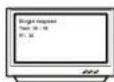
b

In the state of "PBC off":
press "DISPLAY" for the first time, the screen display as picture a; press "DISPLAY" for the second time, the screen display as picture b.

b

press "DISPLAY" for the third time, the screen display as picture a; press "DISPLAY" for the forth time, the screen display as picture b.

t
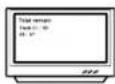
press "DISPLAY" for the fifth time to shut the display
Subtitle
You can select a desired subtitle from available ones (this operation works only with DVD discs with this function) by pressing the "subtitle" button continuously. For example: the second one of the 8 choices is Chinese.


USB&card
1) Power-on the unit.
2) Make sure no disc has been inserted.
3) Insert a USB or memory card inside the connector.
4) Press USB&Card button the player will read the multimedia files located on the USB key or memory card.
Notice: depending on capacity of the device, the reading can take more then 1 minute before launching the video.
SEARCH
Press "SEARCH" button during playback, you can play a disc from the desired position by specifying the time from the beginning of the current title (for DVD VIDEO) or the disc (Video CD/Audio CD). Press "SEARCH" twice, the menu bar appears on the TV screen. Press the numeric buttons (0 to 9) to enter the desired time.
PROGRAM
Press this button and the screen will display info window, press numeric buttons to input the program number what you want, when finished, move the cursor to select the "Start" logo, at this time the unit will start program playback and the screen will display "Program" logo. Press "Clear" to cancel this function.
CLEAR
You can press" CLEAR" button to clear the programmed contents.
ANGLE
When the DVD disc is played, such as sport events, music concerts or dramas, press "ANGLE" button on the remote control, you can enjoy a certain action from different angles (this operation works only with DVD discs with this function).


V-mode
Press the "V-mode" button, the switch between YUV / S-video/RGB can be available.
AUDIO
When playing DVD disc, press "AUDIO" button, the player will display as the figure below.


TITLE
When playing DVD disc, press "TITLE" button to go directly to the title menu, and press "MENU" button to return to the main menu. You can choose to select with direction button or numeric buttons.
(This operation works only with DVD discs with this function)
N/P
Set the format of this player according to the color format of your TV, to match the setting of your TV.
Press "N/P" button to switch within the cycle of NTSC, PAL and Auto
Direction button
When playing the disc, in the menu mode, direction button ↑ " ↓ " " can be applied to realize sections.
Numeric buttons
When playing the disc, select a program or a chapter by pressing one of the numeric button. You can select title, chapter with the left and right button. And then select desired section with numeric button, the selected will be played automatically.
MENU
Press this button and the screen will display" Root Menu", select item according to your preference. (This key is valid to DVD disc possessing multi-layer menu.)
Slow motion
Press "SLOW" button to enjoy slow motion, slow for Forward 1/2, 1/4, 1/8, 1/16.
Volume and mute
Press "volume +/-" buttons to get to the main volume menu, and adjust the main volume with the "volume +/-" buttons.
Press "MUTE" button to close the sound, at this time, the audio signal stop outputting; press "MUTE" again to resume the output of audio signal.
Zoom function
When enjoying a motion or still picture, press "ZOOM" for once, 2 times or 3 times to enlarge the picture by 2 times, 3 times or 4 times.
REPEAT
When playing DVD, press "REPEAT" button continuously, the screen will show circularly as followings:


Repeat play a title Repeat play a chapter
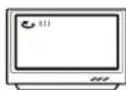

Cancel the repeat play function
When SVCD/VCD is played, press "REPEAT" button continuously, the screen will show circularly as followings, only when the PBC are shut.


Repeat playing one song CancerRepeatplaying the whole disc

play function
Notes: the function is valid when the PBC is OFF.
PBC
Press this button to turn the PBC on or off when playing SVCD VCD2.0 discs.
MP3 operation
Basic operation
MP3 disc is display by menu selection.
Press repeat button to select repeat one ,repeat all, repeat off mode and play.
Disc play
Follow the normal basic operation steps, load the disc, and the player will start to search for disc info and enter into Mp3 menu mode

KAROKE operation

*(Connect microphone according to the sketch map above)
*Adjust "Volume" on the panel to the lowest. Then plug Mic to the "Mic" jack. You can plug in tow microphones each time. Press Karaoke key on the remote control, turning on karaoke.
*Adjust "Volume" to control Mic volume.
*Clear the original sound. If you find the original sound exists when you sing, press AUDIO key to select left channel or right channel (VCD), or press AUDIO key (DVD,SDVD)on remote control to select different sound track to clear the original sound.
Note:
- If howling occurs, please move Mic farther away from TV or speaker. Lower down the volume of TV or speaker. Lower down the Volume of Mic.
- No karaoke function in digital audio output mode.
System Setup
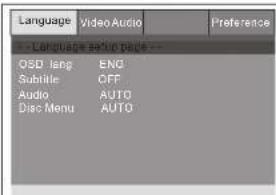
Press Setup button, the main menu will be displayed on the screen In the General Setup Page, press ◀ button to highlight this item. Press ENTER button to access.
Press ▲▼ button to select the setting.
Press OK button to confirm your selection. Press ◀ button to return.
Language setup

In the option user can set OSD menu language (English, French, German, Italian, Spanish). The default: English

Select your preferred language to show the subtitles on the screen. The default is OFF.
The subtitle languages depend on the information available on each disc, you can also change the subtitle language during playback by press the SUBTITLE button.
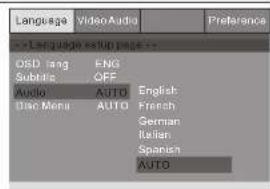
Enter this option, user can select your preferred audio language for DVDs. The default is AUTO. Note:
- The audio language depend on the material on each disc.
2.User can also change the audio language during playback by pressing the Audio button.

This function allows you to choose the menu language stored on the disc.
The default is AUTO.
Note: the disc menu languages depend on the information available on the disc.
Video setup

Enter this option, user can set screen display format (Nomal/PS, Normal/LB, Wide).
The default is 16:9.
Note:
- the function depends on the display ratio with which the DVD disc is recorded.
2: please choose "Wide(16:9)" when using a 16:9 wide screen TV set

Enter this option to select TV type(PAL,AUTO, NTSC).
The default is PAL.

Enter this option to set the angle during playback.
Optional setting: ON, OFF.
The default is ON.
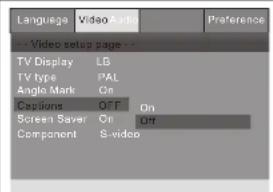
You can select ON to see the caption in the contents of the disc.
Optional setting: ON/OFF.
The default is OFF.

Enter this option to set whether to activate the screen saver function.
The default is ON.

Enter this option to select video output (S-Video, YUV, RGB, Scart)
The default is S-Video.
Audio setup
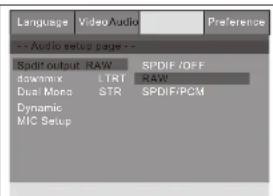
Highlight the SPDIF output option, and press the arrow buttons to choose the audio output mode you prefer.
Press the Enter button to confirm. There are 3 optional audio output modes: RAW, PCM, and OFF.

You can select downmix option when the player is connect to an amplifier (sound system) using analog audio output.
Options setting: LT/RT; Stereo. The default is LT/RT.
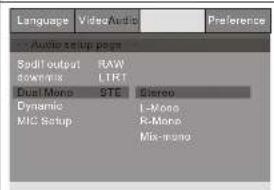
You can select the mode of analog output (DOWNMIX).
Options setting: Stereo L-Mono R-Mono Mix-mono. The default is stereo.

You can select the level of dynamic range compression in the audio output.
Normally, it should be set at OFF. Options setting:
OFF,1/8,1/4,3/8,1/2,5/8,3/4,7/8,FULL.
Microphone setup
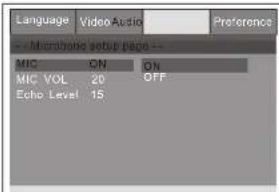
You can select MIC ON to set KAROKE model on.

Adjust the volume of Microphones using VOL1, VOL2 control knobs.
Options setting: 0-20. The default is 20.

Adjust the echo of Microphones using echo control knobs.
Options setting: 0-20. The default is 15.
Reference setup

Enter this option, you can set a password (four numbers). All parental Control features are password protected.
The default is 0000.
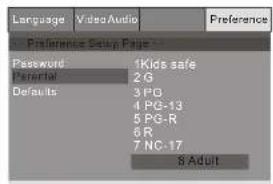
Enter this option to set the parental control level to some unsuitable disc scenes being watched by the children.
Optional parental control levels: KIDS SAFE, G, PG, PG-13, PG-7, PG-R,R, Nc17, ADULT.
The default of this option is ADULT.
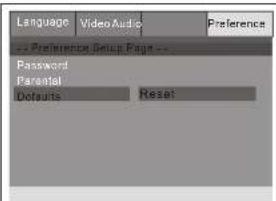
Select this item and press OK button to reset all settings to the original factory settings.
Specifications
DVD PLAYER
| Power Supply | AC 110-240V ~ 50/60Hz |
| Power Consumption | 12w |
| Weight | 2.0kg |
| Dimension | 430X210X38 MM |
| Video System | NTSC/PAL |
| Optical read-out system | Semiconductor ALGaAs Weam, wave length:650nm,780nm |
| Audio Frequency Response | DVD audio:Fs 48KHz PCM4 Hz~22KHz Fs 96KHz PCM4 Hz~44KHz Audio CD Fs 44.1Hz 4Hz~20KHz |
| S/N Ration | ≥90dB |
| Dynamic Range | ≥60dB |
| Rotating Ratio | Within measurable range |
| Operation Condition | Temperature 0°40 ; operation status:horizotion |
Output
| Video output | 1.0 v(p-p),75 Ω |
| S-video output | (Y)1.0V(P-P),75Ω(C)0.286V (P-P),75Ω |
| Audio output(Analog Audio) | 2.0V(rms) |
Troubleshooting
please check the following guide for the possible cause and solution for a problem before connecting the nearest service center or dealer for repairs.
SYMPTOMS AND CORRECTIONS
| SYMPTOMS CORRECTIONS | |
| No power | Check to make sure that the power connection is secure. |
| No picture | Make sure the connection between the player and the TV is secure. |
| Make sure that the TV is in good working condition. | |
| No sound | Make sure the connection between the player and other devices are secure. |
| Make sure that the TV and AMP are in good working condition and setup properly. | |
| Failed to Play | Check that the disc is properly inserted. |
| Clean the disc. | |
| Failed to respond to remote control | Remove obstacles between remote control and unit. |
| Aim remote control at the sensor on the front panel | |
| Check batteries and replace them if necessary. | |
| Picture Disturbance | Check the disc for dirt and scratches. Clean or replace disc. |
| Shut down the unit, wait ten seconds, and restart the unit. | |
| Failed to work with keys | Power surges or brown outs or other electrical phenomena.Shut down the unit, wait ten seconds, and restart the unit. |
Sommaire
Sommaire 1
Connexions
Turn on the TV, player and a





- Aansluitingen
- Safety Instructions
- Power sources
- Location
- Precautions
- Condensation inside the player
- Cleaning
- Precaution about the disc
- Main Features
- Main Unit Control
- Remote Control
- The use of remote control
- CARE OF REMOTECONTROL
- System Connection
- Basic Operation
- How to play this DVD player
- Disc play
- Notice:
- DISPLAY
- When play VCD, SVCD,
- Subtitle
- USB&card
- SEARCH
- PROGRAM
- CLEAR
- ANGLE
- V-mode
- AUDIO
- TITLE
- N/P
- Direction button
- Numeric buttons
- MENU
- Slow motion
- Volume and mute
- Zoom function
- REPEAT
- PBC
- MP3 operation
- KAROKE operation
- Note:
- System Setup
- Language setup
- Video setup
- Audio setup
- Microphone setup
- Reference setup
- Specifications
- Troubleshooting
- Sommaire
- Connexions
- Turn on the TV, player and a
Brand : SALORA
Model : DVD340KM
Category : DVD player