
Profile Flash - Turntable ION - Free user manual and instructions
Find the device manual for free Profile Flash ION in PDF.


| Product Type | Turntable with USB recording and memory card |
| Brand | ION |
| Model | Profile Flash |
| Dimensions (approx.) | 45 x 35 x 12 cm |
| Weight (approx.) | 5 kg |
| Power supply | AC power cable (100-240 V AC) |
| Playback speeds | 33 1/3 and 45 RPM |
| Supported formats | MP3 (playback and recording), vinyl records |
| Recording media | USB flash drive (FAT16/FAT32) and flash memory card |
| Connectivity | Stereo RCA outputs, 1/8" audio input, USB port, memory card slot |
| Main functions | Vinyl playback, MP3 recording to USB/card, MP3 playback, split track function, repeat and random modes |
| Included accessories | Mat, 45 RPM adapter, quick start guide, safety booklet |
| Maintenance and cleaning | Clean the needle with a soft brush; dust off records before playback |
| Safety | Read the safety booklet before use; connect power after all connections |
| Spare parts and repairability | Contact ION Audio or the retailer for technical support |
| General information | Belt-drive turntable, balanced tonearm, display screen, automatic motor stop |
Frequently Asked Questions - Profile Flash ION
User questions about Profile Flash ION
0 question about this device. Answer the ones you know or ask your own.
Ask a new question about this device
Download the instructions for your Turntable in PDF format for free! Find your manual Profile Flash - ION and take your electronic device back in hand. On this page are published all the documents necessary for the use of your device. Profile Flash by ION.
USER MANUAL Profile Flash ION
o Make sure that the items listed below are included in the box:
PROFILE FLASH Turntable Slipmat
45 RPM Adapter Quickstart Guide
Safety Instructions & Warranty Information
- READ SAFETY INSTRUCTION BOOKLET BEFORE USING THE PRODUCT
- Go to http://www.ionaudio.com for product registration.
REAR PANEL FEATURES
-
POWER CABLE - This power cable should be plugged into a wall receptacle AFTER all audio connections are made.
-
POWER ON / OFF SWITCH - Turns PROFILE FLASH on or off.
-
RCA AUDIO OUTPUT CABLES -
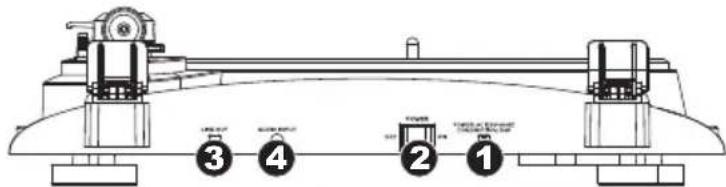
These cables should be plugged into the audio inputs of your home stereo system. (Please note: you can still copy records to your USB device or SD card, even if the audio outputs of the turntable are not connected to a stereo system).
- AUDIO INPUT – Connect a tape player, reel-to-reel machine, or other audio source to this input using a 1/8" stereo cable. Any signal entering this input will be included in the playback or recording mix.
TOP PANEL FEATURES
-
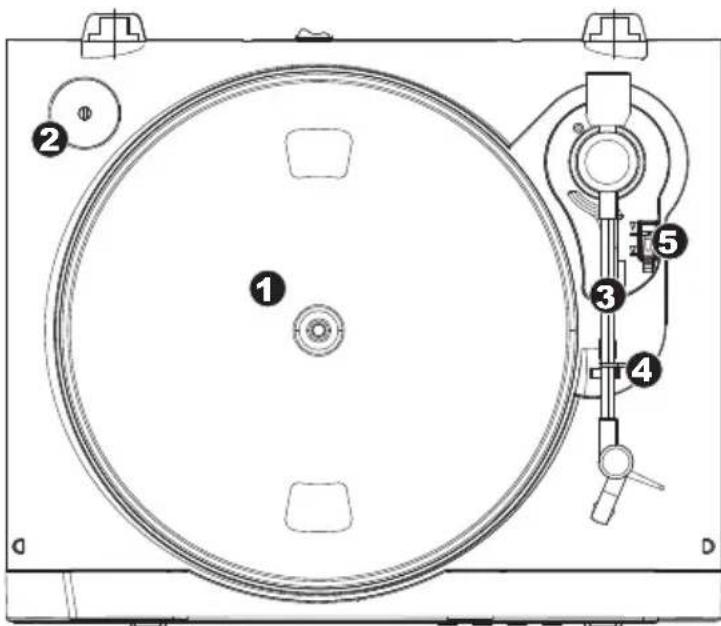
PLATTER - This platter must be securely fastened to the turntable prior to operation. The Motor Drive Belt can be found on the drive ring underneath the platter.
-
45 RPM ADAPTER HOLDER – Holds the included 45 RPM adapter. When not using the adapter, please place it in this holder.
-
TONEARM - PROFILE FLASH comes with a ready to use pre-balanced TONEARM and cartridge. The TONEARM can be raised and lowered by hand, or by pressing the RAISE / LOWER LEVER. Please note that the TONEARM needs to be moved away from resting position (on the ARM CLIP) for the turntable motor to activate. When the TONEARM is placed back in its resting position, the turntable motor will deactivate.
-
ARM CLIP – This specially designed arm clip secures the tone arm while at rest or when not in use. The arm clip has been designed to remain in the up position while unlocked.
-
RAISE / LOWER LEVER – Raises and lowers the tonearm.
IMPORTANT
Make sure that the slipmat is always placed on top of the platter while using the turntable. Failure to use the slipmat may cause damage to your media as well as damage to the turntable.
Remove the plastic cartridge cover (needle cover) before operating the turntable.
FRONT PANEL FEATURES
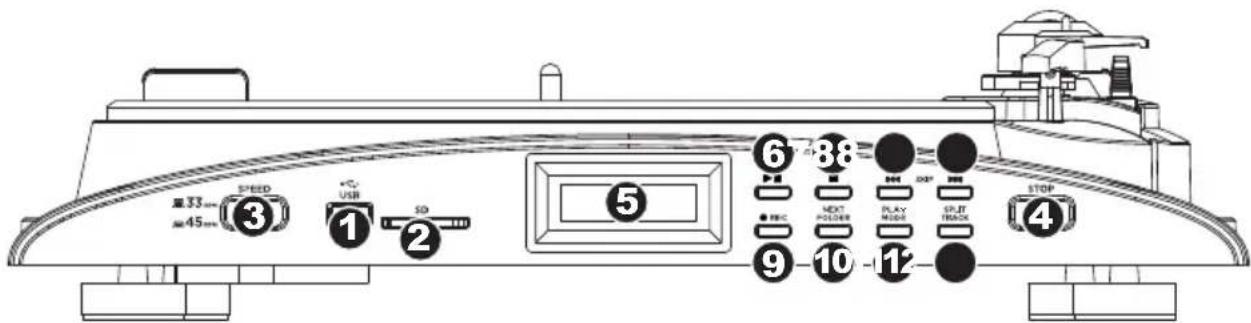
- USB SLOT – Insert USB thumb-drive or connect USB hard-drive (FAT16 or FAT32 only) to this input.
Note: PROFILE FLASH does not support USB hubs. - SD CARD SLOT – Insert SD card into this slot until it clicks. To eject it, push it in once until it clicks, then remove it from the slot.
- 33 / 45 RPM BUTTON – This button controls the RPM of the turntable platter.
- STOP RECORD – This button stops the turntable motor.
- LCD - Shows information pertinent to unit operation.
- PLAY / PAUSE – Press this button to play. While playing, press again to pause. While paused, press again to resume playback.
- STOP (■) – Press this button to stop playback (or recording).
- SKIP ▶/▶- Skips to the previous track or next track (respectively). Press and hold the button down to rewind or fast forward (respectively) through the current track.
- REC – Press this button to enter Record Mode. Record Mode allows you to record music from the turntable platter, or from external audio devices connected to the LINE IN, directly to a connected USB or SD device.
- NEXT FOLDER – Press this button to skip to the next folder on your connected device and play the first available MP3 in that folder.
- PLAY MODE – Press this button to select how PROFILE FLASH will play your tracks:
a. Repeat: The current track will repeat.
b. Repeat All: The entire collection of tracks on your connected device will repeat.
c. Repeat Folder: The collection of tracks in the current folder will repeat.
d. Random: The entire collection of tracks on your connected device will play in random order.
- SPLIT TRACK – When recording to your connected device, you can press this button to create a new track. The new track number will be one higher than the previous one and saved to the same folder on your device.
PLAYING MP3s FROM A DEVICE
- Connect a USB device or SD card with MP3 files to the USB SLOT or SD CARD SLOT respectively. The LCD will show "USB READ" or "CARD READ" when it is properly connected, and "USB" or "CARD" will be shown in the upper right corner.
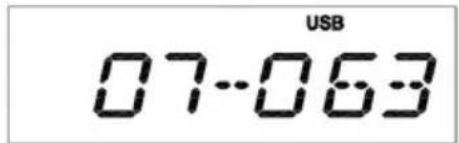
- The LCD will display the total number of folders on the device (on the left) and the total number of available tracks (on the right). Use the SKIP / > buttons to move through the tracks. You can also press the NEXT FOLDER button to jump to the first track of the next folder. The current track will begin playing.
- The LCD will show the "PLAY" icon, the track number, and the time elapsed.
- To skip to another track, use the the SKIP / buttons. The LCD will briefly show the number of the folder and new track. (Note: Pressing NEXT FOLDER will immediately play the first track of the next folder.)

- To pause playback, press the PLAY / PAUSE button. Press it again to resume playback.
• To stop playback, press the STOP (■) button. - To change how PROFILE FLASH plays the tracks, press the PLAY MODE button:
a. Repeat: The current track will repeat.
b. Repeat All: The entire collection of tracks on your connected device will repeat.
c. Repeat Folder: The collection of tracks in the current folder will repeat.
d. Random: The entire collection of tracks on your connected device will play in random order.
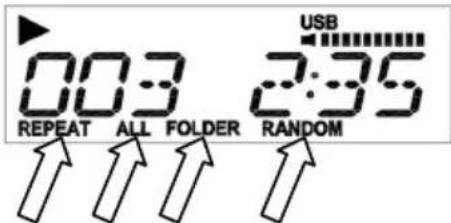
- To eject the device, first stop the current track by pressing the STOP (■) button. If your device is a USB drive, gently pull it from the slot. If your device is an SD card, push it into the slot until it clicks, then gently remove it.
RECORDING MP3s TO A DEVICE
- Connect a USB device or SD card to the USB SLOT or SD CARD SLOT respectively. The LCD will show "USB READ" or "CARD READ" when it is properly connected, and "USB" or "CARD" will be shown in the upper right corner.
- If the device already contains MP3s, the LCD will display the total number of folders on the device (on the left) and the total number of available tracks (on the right).
- Cue up the music you want to record from a record on the PLATTER or a device connected to the AUDIO INPUT.*
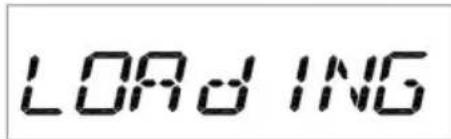
- Press REC. The LCD will display "LOADING." When the "PLAY / PAUSE" icon and time display are flashing on the LCD, PROFILE FLASH is ready to record.
-
To begin recording, press PLAY / PAUSE. Items on the LCD will flash briefly and "REC" will be shown to indicate PROFILE FLASH is recording. The LCD will show the track number and the time elapsed.
-
To start a new track immediately without stopping the recording process, press SPLIT TRACK. The currently recording track will stop and a new recording will begin. (Tracks that are split will be given sequential track numbers and stored in the same folder.)
-
To stop recording, press the STOP (■) button. (The LCD will show "USB READ" or "CARD READ" to show it is rescanning the connected device for your new tracks.)
-
After stopping the recording, you may play your new tracks or eject your device. To eject the device, first stop the current track by pressing the STOP (■) button. If your device is a USB drive, gently pull it from the slot. If your device is an SD card, push it into the slot until it clicks, then gently remove it.


* Note: If you are recording from a device connected to the AUDIO INPUT on the rear panel, we recommend monitoring the volume meter on the upper right corner of the LCD while recording and adjusting your device's volume accordingly. Make sure the level is high enough to be heard but not high enough to produce "clipping" or distortion (indicated by an "X" on the meter).
TROUBLESHOOTING
Refer to the following troubleshooting scenarios if you experience difficulty recording your vinyl.
| PROBLEM CAUSE SOLUTION | ||
| I am not hearing any audio when I am recording. | Needle is not on the record. | Place the needle on the record. |
| Turntable not powered. | Make sure that the turntable is connected to a live power outlet and that it is powered on. | |
| RCA outputs not connected to speaker system. | Make sure you have connected the turntable's RCA outputs to a speaker system and that the speaker system is powered on. | |
| I am experiencing poor sound quality. | Cartridge connection is not secure. | Cartridge must be securely connected to the tonearm whenever you are using the turntable. |
| Vinyl record is dirty or scratched. | Try dusting off and gently wiping the surface of the record before playing it. | |
| My music is playing at a strange pitch. | Incorrect speed selected on the turntable. | Make sure that you are playing your records at the speed they were intended to be played. Select between the two different speeds by pressing 33RPM or 45RPM. |
BEFORE RETURNING THE PRODUCT, please contact ION Audio or your retailer for technical support. Contact information can be found in the Safety Instruction Booklet included with this product.
IMPORTANTE :
IMPORTANT
WICHTIG
IMPORTANTE
BELANGRIJK
Tel: (U.S.) 401.658.3743
E-mail: support@ion-audio.com
www.ionaudio.com
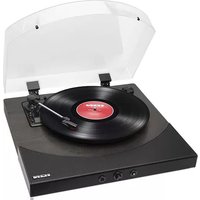

Brand : ION
Model : Profile Flash
Category : Turntable