
Profile Pro - Turntable ION - Free user manual and instructions
Find the device manual for free Profile Pro ION in PDF.


| Product type | Turntable with built-in preamp |
| Brand | ION |
| Model | Profile Pro |
| Speeds | 33 1/3 and 45 RPM |
| Drive | Belt-drive |
| Included cartridge | Yes, moving magnet (MM) with diamond stylus |
| Audio outputs | Stereo RCA, USB (digitization to PC) |
| RIAA preamp | Built-in, switchable (Phono/Line) |
| Tonearm | Straight, adjustable anti-skate, counterweight |
| Special features | Direct digitization via USB, EZ Vinyl Converter software included |
| Dimensions (W x D x H) | 420 x 340 x 120 mm |
| Weight | 4.2 kg |
| Power supply | AC adapter 12 V DC, 500 mA |
| Power consumption | 5 W (operating) |
| Chassis material | Plastic with metal platter |
| Damping feet | Yes, rubber |
| Cover | Dust cover included, transparent |
| Maintenance and cleaning | Clean the stylus with a soft brush, dust the platter with a lint-free cloth |
| Safety | Do not expose to moisture, use the provided adapter, turn off before changing cartridge |
| Spare parts and repairability | Cartridge, belt, 45 RPM adapter available online; repair possible by an authorized technician |
| General information | Warranty: 1 year; PC/Mac compatibility |
Frequently Asked Questions - Profile Pro ION
User questions about Profile Pro ION
0 question about this device. Answer the ones you know or ask your own.
Ask a new question about this device
Download the instructions for your Turntable in PDF format for free! Find your manual Profile Pro - ION and take your electronic device back in hand. On this page are published all the documents necessary for the use of your device. Profile Pro by ION.
USER MANUAL Profile Pro ION
- Make sure that the items listed below are included in the box:
- PROFILE PRO Turntable
- Slipmat
- 45 RPM Adapter
○ USB Cable
○ CD - Quickstart Guide
o Safety Instructions & Warranty Information
- READ SAFETY INSTRUCTION BOOKLET BEFORE USING THE PRODUCT
- Go to http://www.ion-audio.com for product registration.
INTRODUCTION
PROFILE PRO connects directly to your computer to turn your treasured vinyl recordings into digital music. We have included several software packages to aid you in converting your vinyl recordings. You should install one of the following applications to take advantage of computer recording:
EZ Vinyl/Tape Converter (PC only) is the quickest and easiest way to turn your recordings into digital media. EZ Vinyl/Tape Converter conveniently saves your recordings in your iTunes* library. Novice users may find this application preferable. We have included a handy Software Quickstart Guide with step-by-step instructions on software installation and operation.
■ EZ Audio Converter (Mac only) is a basic converter application for Mac OS X and is ideal for novice users. Please refer to the included Software Quickstart Guide for step-by-step instructions on software installation and operation.
To install the software: simply insert the included CD into your computer and follow the on-screen instructions. After you finish converting your vinyl, you can then burn to CD or load onto portable media devices.
REAR PANEL FEATURES

- Power Cable: This power cable should be plugged into a wall receptacle AFTER all audio connections are made.
- RCA Audio Output Cables: These cables should be plugged into the audio inputs of your home stereo system. (Please note: you can still copy records to your computer, even if the audio outputs of the turntable are not connected to a stereo system).
- 1/8" Stereo Line Input: Connect Tape Players, Reel to Reel, or any other audio source here. This signal is sent to the computer through the USB. Make sure that your RCA cables are either plugged into speaker system or not in contact with metal.
- USB Audio Output: Use the included USB Cable to connect your turntable to your computer. The USB connection will provide audio from the turntable and stereo input to your computer. The USB connection will also output audio from your computer through the turntable's RCA outputs. For transferring your vinyl records to your computer, we have provided two different software packages on the included CD. EZ Vinyl/Tape Converter (PC) and EZ Audio Converter (Mac) are the easiest and quickest ways to transfer your vinyl records and should be used if you are a beginner.
GENERAL CONTROLS
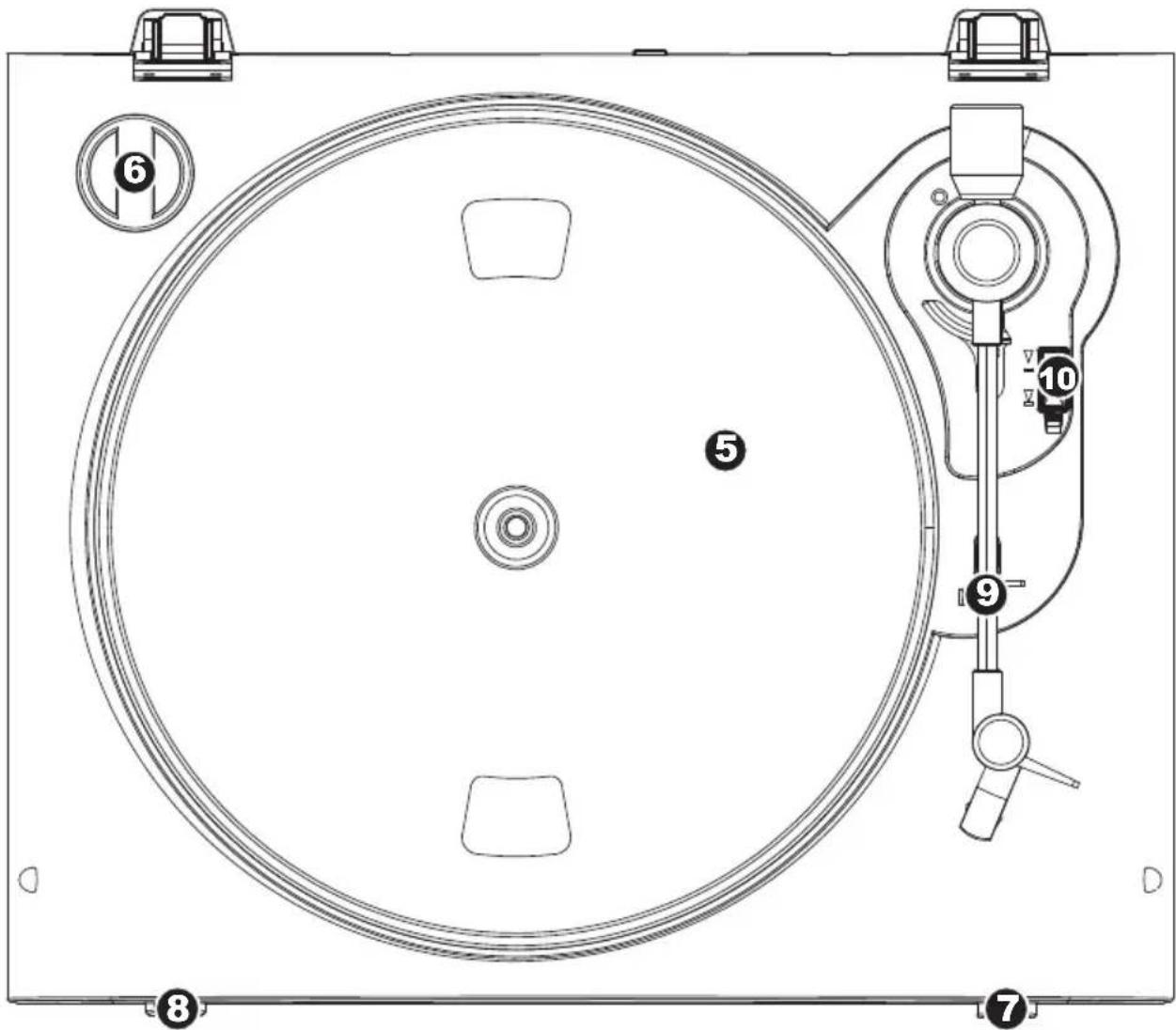
-
Platter: This platter must be securely fastened to the turntable prior to operation. The Motor Drive Belt can be found on the drive ring underneath the platter.
-
45 RPM Adapter Holder: Holds the included 45 RPM adapter. When not using the adapter, please place it in this holder.
-
Stop Button: This button stops the turntable motor.
-
33 and 45 RPM Buttons: These buttons control the RPM of the turntable platter.
-
Arm Clip: This specially designed arm clip secures the tone arm while at rest or when not in use. The arm clip has been designed to remain in the up position while unlocked.
-
Raise / Lower Lever – Raises and lowers the tonearm.
IMPORTANT
Make sure that the slipmat is always placed on top of the platter while using the turntable. Failure to use the slipmat may cause damage to your media as well as damage to the turntable.
Remove the plastic cartridge cover (needle cover) before operating the turntable.
TROUBLESHOOTING
Refer to the following troubleshooting scenarios if you experience difficulty recording your vinyl to your computer.
| PROBLEM CAUSE SOLUTION | ||
| I am not hearing any audio when I am recording. | Needle is not on the record. Place | the needle on the record. |
| Turntable not powered. | Make sure that the turntable is connected to a live power outlet and that it is powered on. | |
| RCA outputs not connected to speaker system. | Make sure you have connected the turntable's RCA outputs to a speaker system and that the speaker system is powered on. | |
| I am experiencing poor sound quality. | Cartridge connection is not secure. | Cartridge must be securely connected to the tonearm whenever you are using the turntable. |
| Vinyl record is dirty or scratched. | Try dusting off and gently wiping the surface of the record before playing it. | |
| I cannot hear my recordings when I try to play them from my computer. | Computer audio output not set correctly. | Make sure that your computer's audio playback options are configured in one of the following ways:In Windows XP, go to Start ▶ Control Panel ▶ Sounds and Audio Devices (on Windows XP) or Start ▶ Control Panel ▶ Sound (on Windows Vista) and make sure that your computer's audio card is selected as the Sound Playback device under the Audio tab.Alternatively, you can play audio from your computer through the turntable's RCA audio outputs. Simply select "USB Audio Codec" as the Sound Playback device and any audio from your computer will play through the turntable's RCA outputs. |
| While the turntable is connected, I cannot listen to any music from my computer. | ||
| When recording into my computer on Windows Vista, my recordings are mono instead of stereo. | Recording input properties in Vista not set to "stereo". | In Vista, you may need to manually specify "stereo" for the recording input.Go to Start ▶ Control Panel ▶ Sound (in Classic View). Then, click on the Recording tab and highlight the Microphone input (USB Audio Codec). Click on Properties to bring up the input settings. Next, click on the Advanced tab and select "2 channel, 16 bit, 44100 Hz (CD quality)" in the Default Format pull-down menu. Lastly, click Apply to accept the settings. |
| My music is playing at a strange pitch. | Incorrect speed selected on the turntable. | Make sure that you are playing your records at the speed they were intended to be played. Select between the two different speeds by pressing 33RPM or 45RPM. |
BEFORE RETURNING THE PRODUCT, please contact ION Audio or your retailer for technical support. Contact information can be found in the Safety Instruction Booklet included with this product.
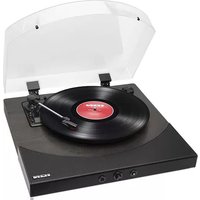

Brand : ION
Model : Profile Pro
Category : Turntable