
Click Smart 310 - Camera LOGITECH - Free user manual and instructions
Find the device manual for free Click Smart 310 LOGITECH in PDF.


| Brand | Logitech |
| Model | ClickSmart 310 |
| Product type | Digital camera / Webcam |
| Power supply | 2 AAA alkaline batteries |
| Photo resolution | High: 352 x 288 pixels (40 photos); Low: 176 x 144 pixels (160 photos) |
| Video resolution | 176 x 144 pixels (15 seconds / 225 frames) |
| Capture modes | Photo, Video, Multiple capture (5 photos at 1 second intervals) |
| Timer | 10 seconds |
| Storage | Internal memory (no memory card) |
| Connectivity | USB via dock |
| Software features | QuickSync transfer, Gallery, Web album creation, Email sending |
| Use as webcam | Yes, with included Logitech software |
| Auto-off | After 30 seconds of inactivity |
| Warranty | 2 years from date of purchase |
| Standards | FCC Part 15 Class B, ICES-003 Class B, RSS-210 |
| Care | Avoid extreme temperatures, exposure to sunlight, immersion in water. Clean with a soft, dry cloth. |
Frequently Asked Questions - Click Smart 310 LOGITECH
User questions about Click Smart 310 LOGITECH
0 question about this device. Answer the ones you know or ask your own.
Ask a new question about this device
Download the instructions for your Camera in PDF format for free! Find your manual Click Smart 310 - LOGITECH and take your electronic device back in hand. On this page are published all the documents necessary for the use of your device. Click Smart 310 by LOGITECH.
USER MANUAL Click Smart 310 LOGITECH
© 2001 Logitech. All Rights Reserved. Logitech, the Logitech logo, and other Logitech marks are owned by Logitech and my be registered. All other trademarks are the property of their respective owners. Logitech assumes no responsibility for any errors that may appear in this manual. Information contained herein is subject to change without notice.
Part Number: 622915-0403
Logitech camera products are intended to be used in a lawful manner. Certain uses of digital PC camera products may be prohibited by local laws in some countries or states, such as the surreptitious recording of audio and/or video communications for certain purposes. If you have any question about whether a proposed use of your product is lawful, you should consult a local legal authority before proceeding.
Limited Warranty. Logitech warrants that any hardware product accompanying this documentation shall be free from significant defects in material and workmanship for a period of two (2) years from the date of purchase. Logitech's limited warranty is nontransferable and is limited to the original purchaser. This warranty gives you specific legal rights, and you may also have other rights which vary under local laws. Remedies. Logitech's entire liability and your exclusive remedy for any breach of warranty shall be, at Logitech's option, to: (a) repair or replace the hardware, provided that the hardware is returned to the point of purchase or such other place as Logitech may direct, with a copy of the sales receipt, or (b) refund the price paid. Any replacement hardware will be warranted for the remainder of the original warranty period or thirty (30) days, whichever is longer. These remedies are void if failure of the hardware has resulted from accident, abuse, or misapplication. DISCLAIMER OF WARRANTY. THE WARRANTIES EXPRESSLY SET FORTH IN THIS AGREEMENT REPLACE ALL OTHER WARRANTIES. LOGITECH AND ITS SUPPLIERS EXPRESSLY DISCLAIM ALL OTHER WARRANTIES, INCLUDING, BUT NOT LIMITED TO, THE IMPLIED WARRANTIES OF MERCHANTABILITY AND FITNESS FOR A PARTICULAR PURPOSE AND NONINFRINGEMENT OF THIRD-PARTY RIGHTS WITH RESPECT TO THE HARDWARE. NO LOGITECH DEALER, AGENT, OR EMPLOYEE IS AUTHORIZED TO MAKE ANY MODIFICATION, EXTENSION, OR ADDITION TO THIS WARRANTY. Some jurisdictions do not allow limitations on how long an implied warranty lasts, so the above limitation may not apply to you.
LIMITATION OF LIABILITY. IN NO EVENT WILL LOGITECH OR ITS SUPPLIERS BE LIABLE FOR ANY COSTS OF PROCUREMENT OF SUBSTITUTE PRODUCTS OR SERVICES, LOST PROFITS, LOSS OF INFORMATION OR DATA, OR ANY OTHER SPECIAL, INDIRECT, CONSEQUENTIAL, OR INCIDENTAL DAMAGES ARISING IN ANY WAY OUT OF THE SALE OF, USE OF, OR INABILITY TO USE ANY LOGITECH PRODUCT OR SERVICE, EVEN IF LOGITECH HAS BEEN ADVISED OF THE POSSIBILITY OF SUCH DAMAGES. IN NO CASE SHALL LOGITECH'S AND ITS SUPPLIERS' TOTAL LIABILITY
EXCEED THE ACTUAL MONEY PAID FOR THE LOGITECH PRODUCT OR SERVICE GIVING RISE TO THE LIABILITY. Some jurisdictions do not allow the exclusion or limitation of incidental or consequential damages, so the above limitation or exclusion may not apply to you. The above limitations will not apply in case of personal injury where and to the extent that applicable law requires such liability.
FCC Compliance and Advisory Statement. This hardware device complies with Part 15 of the FCC Rules. Operation is subject to the following two conditions: 1) this device may not cause harmful interference, and 2) this device must accept any interference received, including interference that may cause undesired operation. This equipment has been tested and found to comply with the limits for a Class B digital device, pursuant to Part 15 of the FCC Rules. These limits are designed to provide reasonable protection against harmful interference in a residential installation. This equipment generates, uses, and can radiate radio frequency energy and, if not installed or used in accordance with the instructions, may cause harmful interference to radio communications. However, there is no guarantee that interference will not occur in a particular installation. If this equipment does cause harmful interference to radio or television reception, which can be determined by turning the equipment off and on, the user is encouraged to try to correct the interference by one or more of the following measures: 1) reorient or relocate the receiving antenna; 2) increase the separation between the equipment and the receiver; 3) connect the equipment to an outlet on a circuit different from that to which the receiver is connected; 4) consult the dealer or an experienced radio/TV technician for help. Any changes or modifications not expressly approved by the party responsible for compliance could void the user's authority to operate the equipment. Where shielded interface cables have been provided with the product or specified additional components or accessories elsewhere defined to be used with the installation of the product, they must be used in order to ensure compliance with FCC regulations.
Canadian DOC Statement. This digital device does not exceed the Class B limits for radio noise emissions from digital apparatus specified in the interference-causing equipment standard entitled "Digital Apparatus," ICES-003 of the Department of Communications.
This device complies with RSS-210 of Industry and Science Canada. Operation is subject to the following two conditions: 1) this device may not cause interference, and 2) this device must accept any interference, including interference that may cause undesired operation of the device.
Register Your Camera! Please take a moment to register your camera on our web site at www.logitech.com. Registration entitles you to free Customer Support. Furthermore, as a registered customer you may chose to be included in special product offers and interesting information about new Logitech products.
It's easy with your Logitech® ClickSmart™ 310 digital camera! Take stunning digital pictures, or make spontaneous videos. Share your creations quickly with family and friends over e-mail, or the Web.
Your camera comes complete for carefree digital pictures and live videos that help you stay in touch.
For digital pictures, turn on the camera, then point and shoot. Your pictures are stored in camera memory. Or shoot video too.
For live video, connect the camera to your computer, then launch the Logitech camera software that's included with your camera.

Getting Ready
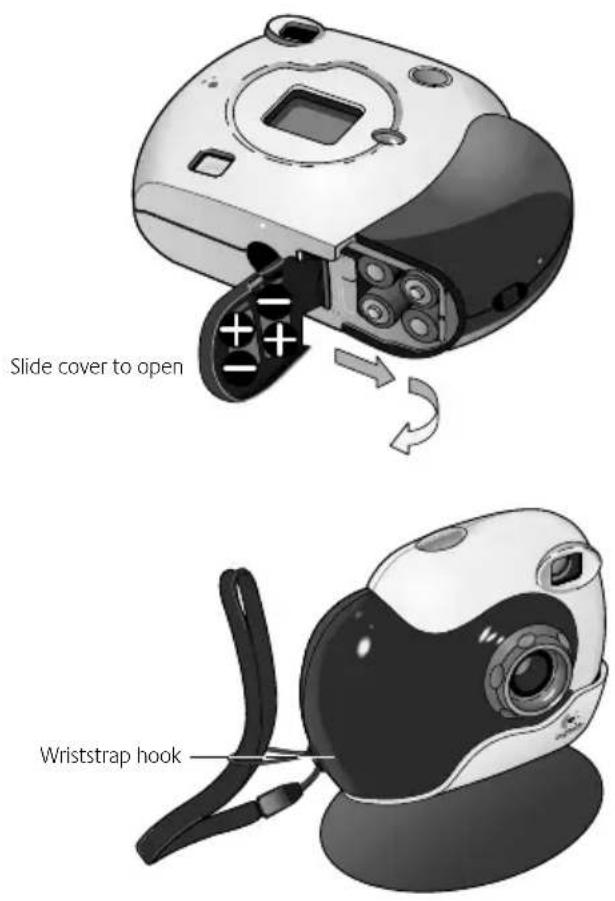
- Insert the four AAA alkaline batteries.
Note Removing the batteries while pictures are stored in camera memory will erase the pictures.
- Insert wriststrap through wriststrap hook.
- Install the Logitech® camera software using your computer's CD-ROM drive. Follow the on-screen instructions.
Taking Pictures and Videos
- Press and hold the On/Select button for one second to turn on the camera. The camera is ready to take a digital picture.
- To change any of the camera's options (e.g., camera mode, resolution, timer, etc.), cycle through the options on the status display by pressing the Mode button. The icon of the active option will flash. Change it by pressing the On/Select button.
- When not in use, the camera turns itself off after 30 seconds to conserve battery power.
- To switch the camera off, press and hold the On/Select button for two seconds.
The Status Display
1. Camera Mode

Photo

Video. Press and hold Shutter button to record; release button to stop.

Multisnap. Pressing the Shutter button once takes a series of five photos at one second intervals.
2. Resolution

High resolution: 352 x 288 pixels for 40 photos

Low resolution: 176 x 144 pixels for 160 photos, or 15 seconds of video (225 frames)
3. Timer
Press Shutter button; photo is taken after 10 seconds.
4. Camera Sounds
On/Off
5. Delete
Press and hold On/Select button for one second to delete last picture. Hold button to delete a series of images.
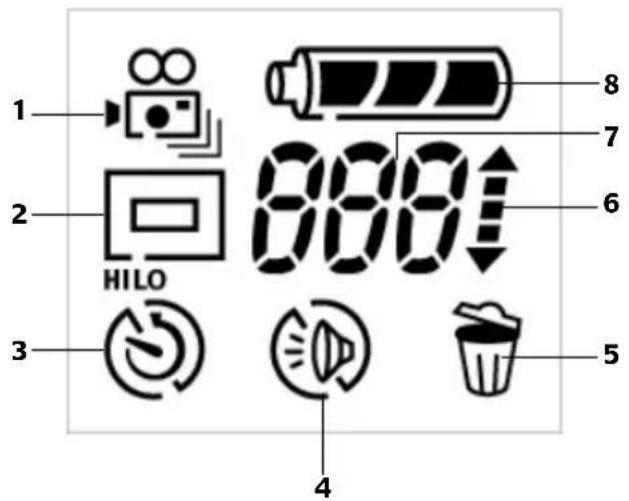
6. Counter - Up/Down
Up arrow: pictures taken
Down arrow: pictures remaining
7. Number of Pictures or Frames of Video
8. Battery Status

Low battery: put pictures/video in computer, then change batteries.
Getting Your Pictures and Videos into the Computer
- Turn on your computer, then place the camera on its stand.
- Plug the USB cable into the camera, then plug the other end into a USB port on your computer.
- The QuickSync™ window displays on your computer screen. From here you can:
• Transfer all your images to the Gallery in your computer. After the transfer, the pictures in the camera are deleted automatically.
- Delete all the pictures in your camera without transferring them.
- Cancel and neither download nor delete your in-camera pictures.

Sharing Your Pictures and Videos
- Download your pictures to the computer (see "Getting Your Pictures and Videos into the Computer").
- If the Logitech ^® camera software does not launch automatically, click the Logitech camera software icon located on the Windows ^® Quick Launch Bar to launch the software.
- To e-mail a photo or video, use the "Attach to an E-mail" button in the Gallery activity. For more information, refer to the Online User's Guide.
It's also easy to share your photos on SpotLife.com using the "Create a Web Album" activity. (A FREE SpotLife.com trial membership is included with your camera.) For more information, refer to the Online User's Guide.
Using the Logitech ^® ClickSmart ^™ 310 as a Web camera
With your Logitech ^® ClickSmart ^™ 310 camera and Logitech camera software, you can do video calling, video e-mail, or live video broadcasting on the Internet right from your PC.
Simply connect the camera to your PC (see “Getting Your Pictures and Videos into the Computer”), and place the camera on your computer monitor or your desktop.
Select “Cancel” in the window that displays, then launch the Logitech camera software. For additional information, refer to the Online User’s Guide.
Tips for Taking Great Pictures and Videos
- Fill the viewfinder with your subject and hold the camera steady.
- The focusing range of the camera is between three feet (40 cm) and infinity.
- For better portraits, hold the camera in a vertical position to include more of your subject.
- Avoid subjects of extreme contrast that have both deep shadows and harsh highlights, normally found in back lighting situations (e.g., when the sun is directly behind your subject). In harsh contrasty light, your subject will appear too dark and it will lack detail.
- Avoid taking pictures in dim light; your pictures will be too dark. Make sure you have plenty of light to take a picture or to record a video.
- Obtain free software updates. Your Logitech ^® camera software automatically checks the Logitech web site and downloads the newest version of the software.
- Don't expose the camera to extremes of cold or heat or strong sunlight. And don't immerse the camera in water.
- Remember that removing the batteries from the camera will delete all pictures and videos stored in camera memory.
-
Get more Information — Important! Access the Online User's Guide:
-
From any activity within the Logitech camera software, click the Help button. A drop-down list box displays.
2 Select "View the How to Guide."
3 The User's Guide displays automatically. To view a topic, click one of the topics listed on the left side of the title page.
Bienvenido
Logitech Addresses and Phone Numbers*
| Country Address | Product Information (Infoline) | Technical Help (Hotline) | |||
| Benelux (B, LUX, NL)LOGITECH Northern Europe B.V. | Maanlander 14CNL - 3824 MPAmersfoort | ∅ +31 (0)10 243 88 97Nederlands∅ +32 (0)2 626 89 63Français (Belg.)∅ +32 (0)2 626 89 61Vlaams (Belg.) | ∅ +31 (0)10 243 88 98Nederlands∅ +32 (0)2 626 89 62Français (Belg.)∅ +32 (0)2 626 89 60Vlaams (Belg.) | ||
| DenmarkLOGITECH Representation | Arhusgade 88, 4.salDK - 2100København ∅ | ∅ +45-35 44 55 16 | ∅ +45-35 44 55 17 | ||
| Deutschland & Eastern European countriesLOGITECH GmbH | Streiflacher Straße 7D - 82110Germering | ∅ +49 (0)69-92 032 165 | ∅ +49 (0)69-92 032 166 | ||
| EspañaLOGITECH Europe S.A. | Logitech España BCN, S.L.Entenza, 332-334 , Atico 2aE - 08029Barcelona | ∅ +34 91-375 33 68 | ∅ +34 91-375 33 69 | ||
| FranceLOGITECH France SARL | 26-28 Rue Danielle CasanovaF - 75002Paris | ∅ +33 (0)1-43 62 34 13 | ∅ +33 (0)1-43 62 34 14 | ||
| HungaryIMSZ Kft. (Logitech) | Vamhaz Krt. 10. 1/131053Budapest - HUNGARY | ∅ +41-21 863 54 00English | ∅ +41-21 863 54 01English | ||
| ItaliaLOGITECH Italia S.r.l | Centro Direzionale ColleoniPalazzo Andromeda 3I - 20041Agrate Brianza, MI | ∅ +39-02 215 1062 | ∅ +39-02 214 0871 | ||
| ÖsterreichLOGITECH Repräsentanz | Rohrergasse 32A - 1130Wen | ∅ +43 (0)1 502 221 349 | ∅ +43 (0)1 502 221 348 | ||
| Schweiz/Suisse/SvizzeraLOGITECH Europe S.A.(Switzerland) | Täfernstrasse 16CH - 5405Baden-Dättwil | ∅ D +41 (0)21 863 54 10∅ F +41 (0)21 863 54 30∅ I +41 (0)21 863 54 60 | ∅ D +41 (0)21 863 54 11∅ F +41 (0)21 863 54 31∅ I +41 (0)21 863 54 61 | ||
| Sweden, Iceland, Norway & FinlandLogitech Representation | Geometrivägen 3-7S - 141 75Kingens Kurva | ∅ +46 (0)8-519 920 19Sweden∅ +47 (0)23 500 084Norway∅ +358 (0)9 817 100 21Finland | ∅ +46 (0)8-519 920 20Sweden∅ +47 (0)23 500 083Norway∅ +358 (0)9 817 100 21Finland | ||
| UK + EireLOGI (U.K.) Ltd. | Unit 8, Shaftsbury Court18 Chalvey ParkGB -Slough, SL1 2ER, Berkshire | ∅ +44 (0)207-309 01 27 | ∅ +44 (0)207-309 01 26 | ||
| Country Address | Product Information (Infoline) | Technical Help (Hotline) | |
| Logitech Headquarters | |||
| European, Middle Eastern & African HeadquartersLOGITECH Europe S.A. | Moulin-du-ChocCH - 1122 Romanel-sur-Morges | +41 (0)21 863 54 00 EnglishFax +41 (0)21 863 54 02 | +41 (0)21 863 54 01 EnglishFax +41 (0)21 863 54 02 |
| Corporate HeadquartersLOGITECH Inc. | 6505 Kaiser DriveUSA - Fremont, CA 94555 | (800) 231-7717 | +1 (702) 269 3457 |
| Asian Pacific HeadquartersLOGITECH Far East Ltd. | #2 Creation Road IVScience-Based - Industrial ParkROC - Hsinchu, Taiwan | +886 (2)-2761-5235 | |
| AustraliaLogitech Australia Computer Peripherals Pty Ltd. | Level 2, 633 Pittwater RoadAUS - Dee Why NSW 2099, Australia | +61 (0)2 8850 1192 | |
| CanadaSales & Marketing Office | 5025 Orbitor Dr., Bldg. 6, Suite 200CDN - Mississauga, ON L4W 4Y5 | (800) 231-7717 | +1 702 269 3457 |
| JapanLOGICOOL Co. Ltd. | Ryoshin Ginza East Mirror Bldg., 7F3-15-10 GinzaChuo-ku, Tokyo, Japan 104-0061 | +81 (3) 3543 2122Fax +81 (3) 3543 2911 | |
| In Latin America and the Caribbean: Contact your local authorized distributor, or call our Customer Support Hotline in the USA, at +1 (702) 269 3457. | |||
| World Wide Web: http://www.logitech.com FTP: ftp://ftp.logitech.com/pub | |||
* Refer to your Registration Card for the most up-to-date addresses and phone numbers.
Note For USA and Canadian customers only: please read the following prior to exchanging or returning your product. To exchange or return your product within the first 30 days, we recommend returning it to the point of purchase. If you return or exchange your product through Logitech, you must first contact Customer Support to obtain a Return Merchandise Authorization (RMA) number. Customer Support will give you an RMA number and a special address for the exchange.

Logitech
Logitech® on the world wide web: www.logitech.com
©2001 Logitech. All rights reserved. Logitech, the Logitech logo, and other Logitech marks are owned by Logitech and may be registered. All other trademarks are the property of their respective owners. Logitech assumes no responsibility for any errors that may appear in this manual. Information contained herein is subject to change without notice.
Part number: 622915-0403
- Part Number: 622915-0403
- Getting Ready
- Taking Pictures and Videos
- The Status Display
- Camera Mode
- Resolution
- Timer
- Camera Sounds
- Delete
- Counter - Up/Down
- Number of Pictures or Frames of Video
- Battery Status
- Getting Your Pictures and Videos into the Computer
- Sharing Your Pictures and Videos
- Using the Logitech ® ClickSmart ™ 310 as a Web camera
- Tips for Taking Great Pictures and Videos
- Bienvenido
Brand : LOGITECH
Model : Click Smart 310
Category : Camera