
Click Smart 420 - Camera LOGITECH - Free user manual and instructions
Find the device manual for free Click Smart 420 LOGITECH in PDF.


| Product Type | Webcam |
| Model | Click Smart 420 |
| Brand | Logitech |
| Dimensions (approx) | 4.5 x 2.8 x 1.6 inches |
| Weight | 0.25 lbs |
| Power Supply | USB powered |
| Connectivity | USB 2.0 |
| Maximum Video Resolution | Full HD 1080p (1920x1080) |
| Frame Rate | 30 fps |
| Field of View | 78 degrees diagonal |
| Autofocus | Yes |
| Built-in Microphone | Yes, stereo |
| Compatible Operating Systems | Windows, macOS, Chrome OS |
| Mounting Options | Clip or tripod mount |
| Cable Length | 1.5 meters (approx) |
| Privacy Shutter | Yes, built-in |
| LED Indicator | Yes, lights when in use |
| Maintenance | Clean lens with a soft, dry cloth |
| Safety Precautions | Do not expose to moisture or extreme temperatures |
| Spare Parts Availability | Not available; contact support for repairs |
Frequently Asked Questions - Click Smart 420 LOGITECH
User questions about Click Smart 420 LOGITECH
0 question about this device. Answer the ones you know or ask your own.
Ask a new question about this device
Download the instructions for your Camera in PDF format for free! Find your manual Click Smart 420 - LOGITECH and take your electronic device back in hand. On this page are published all the documents necessary for the use of your device. Click Smart 420 by LOGITECH.
USER MANUAL Click Smart 420 LOGITECH
natural_image
Black and white photo of a handheld digital camera with a spherical lens and control buttons (no visible text or symbols)QuickCam®
ClickSmart™ 420
Setup
© 2002 Logitech. All Rights Reserved. Logitech, the Logitech logo, and other Logitech marks are owned by Logitech and may be registered. All other trademarks are the property of their respective owners. Logitech assumes no responsibility for any errors that may appear in this manual. Information contained herein is subject to change without notice. Part Number:
FCC Compliance and Advisory Statement. This hardware device complies with Part 15 of the FCC Rules. Operation is subject to the following two conditions: 1) this device may not cause harmful interference, and 2) this device must accept any interference received, including interference that may cause undesired operation. This equipment has been tested and found to comply with the limits for a Class B digital device, pursuant to Part 15 of the FCC Rules. These limits are designed to provide reasonable protection against harmful interference in a residential installation. This equipment generates, uses, and can radiate radio frequency energy and, if not installed or used in accordance with the instructions, may cause harmful interference to radio communications. However, there is no guarantee that interference will not occur in a particular installation. If this equipment does cause harmful interference to radio or television reception, which can be determined by turning the equipment off and on, the user is encouraged to try to correct the interference by one or more of the following measures: 1) reorient or relocate the receiving antenna; 2) increase the separation between the equipment and the receiver; 3) connect the equipment to an outlet on a circuit different from that to which the receiver is connected; 4) consult the dealer or an experienced radio/TV technician for help. Any changes or modifications not expressly approved by the party responsible for compliance could void the user's authority to operate the equipment. Where shielded interface cables have been provided with the product or specified additional components or accessories elsewhere defined to be used with the installation of the product, they must be used in order to ensure compliance with FCC regulations.
Canadian DOC Statement. This digital device does not exceed the Class B limits for radio noise emissions from digital apparatus specified in the interference-causing equipment standard entitled "Digital Apparatus," ICES-003 of the Department of Communications.
This device complies with RSS-210 of Industry and Science Canada. Operation is subject to the following two conditions: 1) this device may not cause interference, and 2) this device must accept any interference, including interference that may cause undesired operation of the device.
It's easy with your Logitech ^ ClickSmart ^TM 420 digital camera plus webcam!
Take spontaneous digital pictures, or make fun videos with sound. Share your creations quickly with family and friends over e-mail, or the Web.
For digital pictures and videos, turn on the camera, and then point and shoot. Your pictures and videos are stored in camera memory. Later, download your images to the computer.
For video instant messaging or online video chat, connect the camera to your computer. Then launch the Logitech® camera software that's included with your camera.

2 Getting Ready
- Insert the four AAA alkaline camera batteries.
- Insert the wrist strap and lens cap.
- Install the Logitech ^® camera software using your computer's CD-ROM drive. Follow the on-screen instructions.
3 Taking Pictures and Videos
- Press and hold the Power button for one second to turn on the camera.
- To take a picture, set the Picture/Video switch to "Picture." Then press the Shutter button to take a picture. If the lens cap is left on, the Lens Cap display icon will blink.
- For videos, set the Picture/Video switch to "Video." Then press and hold the Shutter button to take a video. The Video LED blinks to indicate the camera is recording.
(This LED will blink more rapidly when the camera begins to run out of memory.) Release the Shutter button to stop recording. When not in use, the camera turns itself off after two minutes to conserve battery power. To switch the camera off, press the Power button.

natural_image
3D illustration of a device with internal components and directional arrows indicating rotation (no text or symbols)
natural_image
Black and white photo of a digital camera with a strap, no visible text or symbols2 English
4
The Status Display
1. Camera Mode

Photo. Resolution is 640 x 480 pixels.

Video. Press and hold the Shutter button to record video; release button to stop. Resolution is 320 x 240 pixels.
2. Flash

Press Flash button to select automatic flash with each shot.

Press Flash button to select no flash.
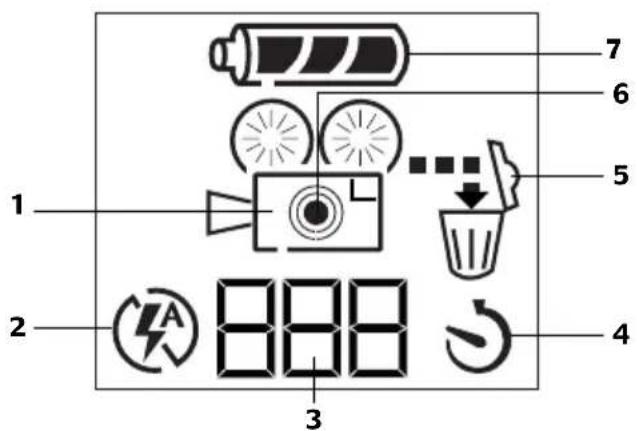
-
Counter. Shows number of pictures or frames of video taken.
-
Timer. Press the Timer button to turn on the timer; the picture is taken after 10 seconds.
-
Delete. Press the Delete button for two seconds to delete the last picture. Before the two seconds are up, you have the option of not deleting your pictures by releasing the Delete button.
-
Lens-cap-on Indicator
-
Battery Status
5
Getting Your Pictures and Videos into the Computer
- Turn on the computer.
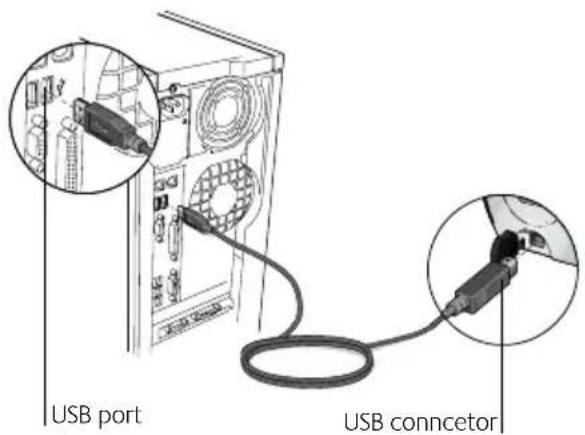
- Open the cover protecting the USB connector on the camera.
- Place the camera on its stand.
- Plug the USB cable into the camera. Plug the other cable end into a USB port on the computer.
-
If there are images in your camera, the QuickSync downloading program launches. Note that the QuickSync™ badge lights up after new images have been taken. It blinks when images are downloaded to the computer.
-
Choose one of the following options:
- Download the images to my computer. This option transfers your images to the Gallery section of the software. You can view new images while downloading to the QuickView window. After the transfer, the images in the camera are deleted automatically. (See the online help system for more information about using QuickView.)
- Delete the images without copying them.
- Cancel. Retains the images in the camera. The images are not deleted nor are they downloaded to the computer.
4 English
6
Tips for Taking Great Pictures and Videos
- Fill the viewfinder with your subject and hold the camera steady for extra time to prevent blurry images.
• Make sure your subject fits within the crop marks in the viewfinder. - Avoid subjects of extreme contrast that have both deep shadows and harsh highlights (e.g., when the sun is directly behind your subject).
- Avoid taking videos in very dim light; your video will be too dark.
- The flash range for your camera is between 3 and 7 feet (0.9 to 2.1 meters). Make sure your subject is within the flash range to obtain the best results.
- Obtain free software updates. Your Logitech ^® camera software automatically checks the Logitech ^® web site and downloads the newest version of the software.
- Share your pictures and videos! Download your pictures to the computer (see "Getting Your Pictures and Videos into the Computer"). To e-mail a photo or video, use the "Attach to an E-mail" button in the Gallery section of the software. For more information, refer to the online how-to guide or help system.
- Use your camera as a webcam. With your camera and software, do video instant messaging, video chat, or live video broadcasting on the Internet right from your PC. Simply connect the camera to your PC, and place the camera on your computer monitor or your desktop. Launch the Logitech ^® camera software. For additional information, refer to the online help system.
- Get more Information. Access the how-to guide and online help system. From within the Logitech ^® camera software, click the Help button. A drop-down list box displays. Select “View the How-to Guide” or choose “Contents and Index” to launch the help system. For additional information about Logitech ^® QuickCam ^® Web cameras, as well as other Logitech ^® products, please visit www.logitech.com.
7 Camera and Battery Warnings!
- Don't expose the camera to extremes of cold or heat. Operating temperature is between 32^ to 104^ F ( 0^ to 40^ C).
- Don't immerse the camera in water.
- Avoid touching the LCM window.
- Remember that when the camera is set to auto-flash, the camera batteries are drained more quickly.
- If the camera detects that its internal memory is defective for any reason, it will automatically re-format the internal memory. All stored images and videos in the camera will be lost.
- When the batteries are low, it's best to change them. If your batteries leak, use normal precaution and follow the battery manufacturer's recommendations.
- When replacing batteries, use alkalines. You may also use other battery types, such as rechargeable nickel metal hydride (NiMH) batteries. But do not mix battery types. Discard all used batteries according to the battery manufacturer's instructions.
- Exercise care when handling batteries. When batteries are misused, they may explode or leak, causing burns and personal injury. When you are not using your camera for long periods of time, remove the batteries and store them in a dry place at normal room temperature.
Warranty
This product comes with a limited two-year warranty. For more information, please read the Product Warranty section found in the how-to guide located on the Logitech® software CD.
Logitech camera products are intended to be used in a lawful manner. Certain uses of digital PC camera products may be prohibited by local laws in some countries or states, such as the surreptitious recording of audio and/or video communications for certain purposes. If you have any question about whether a proposed use of your product is lawful, you should consult a local legal authority before proceeding.
6 English
Logitech ^® Addresses and Telephone Numbers
| Country | Address | InfolineProduct Information | HotlineTechnical Help |
| EUROPEAN, MIDDLE EASTERN & AFRICAN HEADQUARTERS LOGITECH Trading S.A. | Moulin-du-ChocCH 1122 Romanel-sur-Morges | +41 (0)21 863 54 00 EnglishFAX +41 (0) 21 863 54 02 | +41 (0) 21 863 54 01 EnglishFAX +41 (0) 21 863 54 02 |
| CORPORATE HEADQUARTERS LOGITECH Inc. | 6505 Kaiser DriveUSA Fremont, CA 94555 | (800) 231-7717 | +1 702 269 3457 |
| ASIAN PACIFIC HEADQUARTERS LOGITECH Far East Ltd. | #2 Creation Road IVScience-Based - Industrial ParkROC Hsinchu, Taiwan | +886 (2) 27466601 x2206 | |
| AUSTRALIALOGITECH Australia Computer Peripherals Pty Ltd. | Level 2, 633 Pittwater RoadAUS Dee Why NSW 2099, Australia | +61 (02) 9804 6968+61 (02) 9972 3561 | |
| CANADASales & Marketing Office | 5025 Orbitor Dr., Bldg. 6, Suite 200CDN Mississauga, ON L4W 4Y5 | (800) 231-7717 | +1 702 269 3457 |
| JAPANLOGICOOL Co. Ltd. | Ryoshin Ginza East Mirror Bldg.,7F 3-15-10 GinzaChuo-ku, Tokyo, Japan 104-0061 | +81 (3) 3543 2122FAX +81 (3) 3543 2911 | |
| In LATIN AMERICA AND THE CARIBBEAN | Contact your local authorized distributor, or call our Customer Support Hotline in the USA | +1 702 269 3457 | |

Logitech ^® on the world wide web: www.logitech.com
©2002 Logitech. All rights reserved. Logitech, the Logitech logo, and other Logitech marks are owned by Logitech and may be registered. All other trademarks are the property of their respective owners. Logitech assumes no responsibility for any errors that may appear in this manual. Information contained herein is subject to change without notice.
Part number:
Brand : LOGITECH
Model : Click Smart 420
Category : Camera