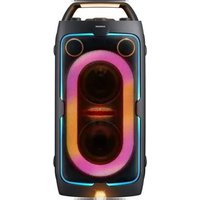
DA-F61 - Speaker SAMSUNG - Free user manual and instructions
Find the device manual for free DA-F61 SAMSUNG in PDF.


User questions about DA-F61 SAMSUNG
0 question about this device. Answer the ones you know or ask your own.
Ask a new question about this device
Download the instructions for your Speaker in PDF format for free! Find your manual DA-F61 - SAMSUNG and take your electronic device back in hand. On this page are published all the documents necessary for the use of your device. DA-F61 by SAMSUNG.
USER MANUAL DA-F61 SAMSUNG
Wireless Audio Portable user manual
Thank you for purchasing this Samsung product. To receive more complete service, please register your product at
www.samsung.com/register
DA-F60/DA-F61
Note that the product has been fully charged when shipped, but the internal battery may self-discharge if not used for a long period of time. If fully discharged, the product may not immediately operate even when the power adaptor is connected. In such a case, wait for charging at least 20 minutes before using. It is recommended to fully charge the product, charge it for more than 3 hours to see the battery indicator turns green (enough) or LED off (full).
CONTENTS
2 What's included
3 Your Wireless Audio Portable
4 Checking and Charging the battery
5 Using the NFC function
6 Using Bluetooth function
7 Using AUX IN function
7 Using the SoundShare function
8 Specifications
8 Software upgrade
9 Troubleshooting
10 Safety Warnings
10 Safety Precautions
English2
WHAT'S INCLUDED
Check for the supplied accessories shown below. The appearance of the accessories may differ slightly from the illustrations.

natural_image
Four line drawings of electronic components: a power adapter, coiled cable, a blank sheet, and a flat panel (no text or symbols)Power Adapter Audio Cable Cover Fabric User Manual
Using the Cover Fabric
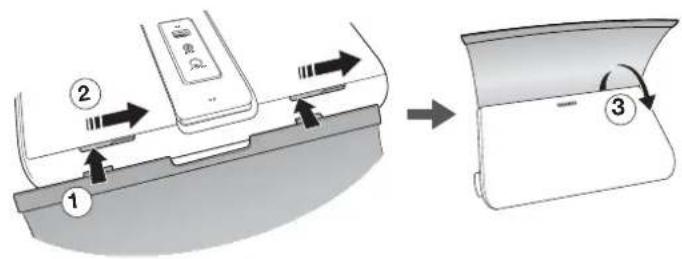
text_image
Diagram showing a device with labeled parts and directional arrows, illustrating a process from component 1 to component 3.Wrap the cover around the product. The cover will be held in place by magnets.
YOUR WIRELESS AUDIO PORTABLE
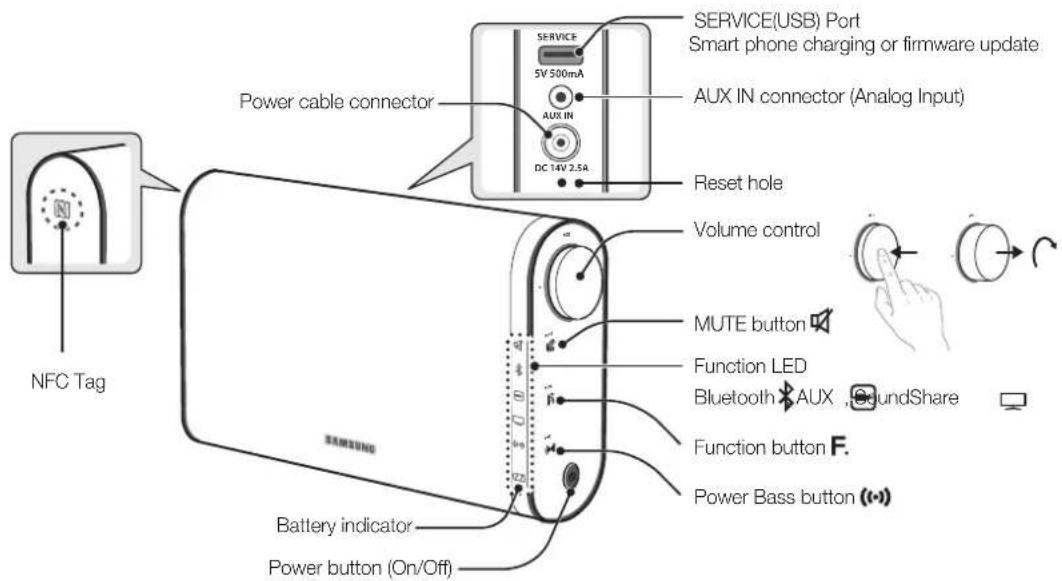
text_image
SERVICE(USB) Port Smart phone charging or firmware update 5V 500mA AUX IN DC 14V 2.5A Power cable connector Reset hole Volume control MUTE button Function LED Bluetooth AUX SoundShare Function button F. Power Bass button (●) Battery indicator Power button (On/Off) NFC TagWhen you charge smart phone via USB, the battery may discharge more quickly.
- Charging a smart phone through the Service (USB) port takes longer than charging the unit using the adapter. It is only chargeable when this product is turned on.
3Englisl
CHECKING AND CHARGING THE BATTERY
You can play this product for 12 hours continuously on one charge. For a full charge, we recommend you charge the battery for about 3 hours.
Checking the battery
The battery status indicator is normally off to conserve battery power. To check the charge level, press and hold the Power button for 5 seconds.

Green 60% or more of full charge
Yellow 30% to 60% of full charge
Red 30% or less
Red blink .... Charge needed
Charge the battery
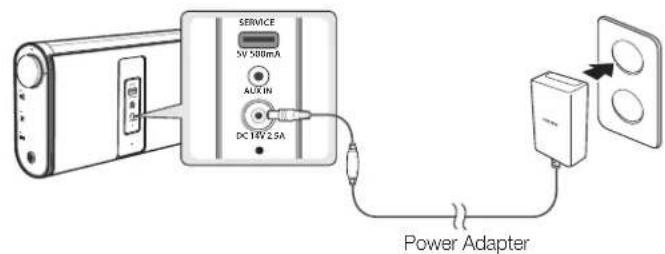
text_image
SERVICE 5V 500mA AUX IN DC 16V 2.5A Power Adapter
OFF ...... Full charge
Green 60% to 99% of full charge
Yellow 30% to 60% of full charge
Red 30% or less
Charge and store the battery at 5°C \~ 35°C.
Do not charge the battery for more than 12 hours or leave the battery fully discharged for a long time. Doing so may shorten the battery life.
Depending on how you use your player, actual battery life may vary and may be shorter than specified.
If the battery has insufficient charges, pressing the power button does not turn on the product. Instead, the battery indicator blinks red a few times and turns off.
While the battery indicator is blinking, all other buttons will not work.
If the battery is fully discharged, all function, volume and bass settings are initialized.
Support
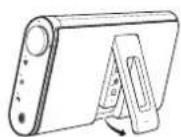
Don't pull the support too hard. You can damage it.
Reset your Product
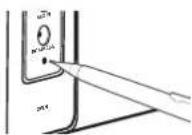
If an error occurs while you are operating this product and it doesn't work properly, press the Reset hole with a pen tip or similar item for 2 seconds.
USING THE NFC FUNCTION
Connect your NFC compatible device via Bluetooth to the Wireless Audio Portable using this simple set-up procedure. You can play music from the smart phone through the Wireless Audio Portable.
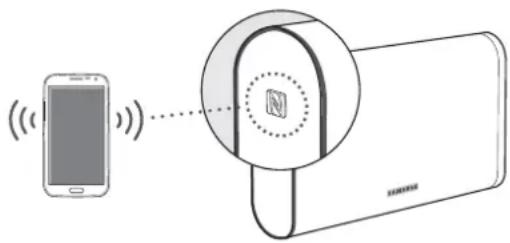
text_image
Diagram showing a smartphone connected to a smart meter with a magnified view of the device's screen and antenna.-
Turn on the NFC function on the smart phone and make sure the screen lock function on the smart phone is off. The smart phone's NFC function will not work if screen lock is on.
-
Gently touch the NFC logo [N] on the left of the Wireless Audio Portable with the NFC supported device.
- If the Wireless Audio Portable is off, it will turn on automatically.
- A pop-up asking whether to proceed with the Bluetooth connection appears on the smart phone. Select
.
- When the connection is complete, the 'connected' message appears.
- To disconnect the NFC device, touch the device to the Wireless Audio Portable's left panel again.
- To connect another NFC device while the first smart phone is still connected, touch that device to the Wireless Audio Portable's left panel. The Wireless Audio Portable will disconnect the first smart phone and connect to the second smart phone.
The NFC function is built into Android devices running Android OS 4.1 Jellybean or later.
- If your device is running an Android OS earlier than Android OS 4.1 Jellybean, you must download the 'Samsung NFC Connection' application from Android market to use the NFC function.
The position of the NFC antenna differs on smart phones. Check where the NFC antenna is located before connecting.
If your smart phone is covered with a thick case, the connection may not succeed.
The N-mark is a trademark or registered trademark of NFC Forum, Inc. in the United States and in other countries.
NFC tagging for Bluetooth connection cannot be established while powering on and off.
NFC tagging for Bluetooth connection will not work while the battery indicator is blinking.
USING BLUETOOTH FUNCTION
You can connect the Wireless Audio Portable to Bluetooth devices and enjoy music with high quality stereo sound, all without wires!
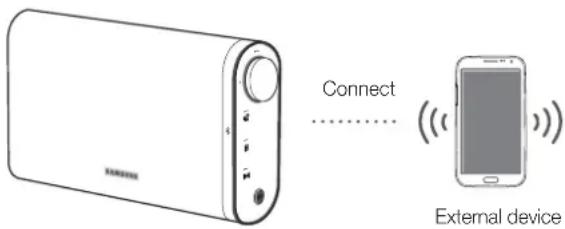
text_image
Connect External device-
Press the 📄 button on the Wireless Audio Portable to select the Bluetooth function.
-
Press the 📄 button for 3 seconds in Bluetooth mode.
-
The Bluetooth indicator blinks quickly and the product changes to the pairing mode.
-
Scan or Search for the Wireless Audio Portable on your Bluetooth device.
-
Select "[Samsung] W_Audio" on the list of items found by the Bluetooth device.
- If the Bluetooth device fails to pair with the Wireless Audio Portable, repeat Steps 2, 3, and 4.
- Play music on the connected device.
A Bluetooth device may cause noise or malfunction, depending on usage, when:
- A part of your body is in contact with the receiving/transmitting system of the Bluetooth device or the Wireless Audio Portable.
English6
- It is subject to electrical variation from obstructions caused by a wall, corner or by office partitioning.
- It is exposed to electrical interference from same frequency-band devices including medical equipment, microwave ovens, and wireless LANs.
The further the distance between the Wireless Audio Portable and Bluetooth device, the worse the quality.
The Bluetooth connection only works when the Bluetooth device is close to the set. The connection is automatically cut off if the Bluetooth device moves out of range. Even within range, the sound quality may be degraded by obstacles such as walls or doors. - In Bluetooth connection mode, the Bluetooth connection will be lost if the distance between the Wireless Audio Portable and the Bluetooth device exceeds 5m.
This wireless device may cause electric interference during its operation.
You may be required to enter a PIN code (password) when connecting the Bluetooth device to the Wireless Audio Portable. If the PIN code input window appears, enter <0000>.
Supported sampling frequencies for apiX and SBC decoding are 44.1kHz and 48kHz.
The AVRCP feature is not supported. You cannot connect to a Bluetooth device that supports only the HF (Hands Free) function.
Connect only to a Bluetooth device that supports the A2DP (AV) function.
Only one Bluetooth device can be paired at a time.
Within the automatic connection trial, connection to another Bluetooth device can be limited. To connect to a different Bluetooth device, switch the product's Bluetooth mode to pairing mode.
USING AUX IN FUNCTION
To enjoy music from an external audio device that does not support Bluetooth communication, use AUX IN of the product.

text_image
SERVICE 5V 500mA AUX IN DC 14V 2.5A Audio Cable Earphones jackExternal device
- Connect the audio cable to the AUX IN terminal.
- Press the ☑ button to select the AUX function.
Before moving or installing this product, be sure to turn off the power and disconnect the power cord.
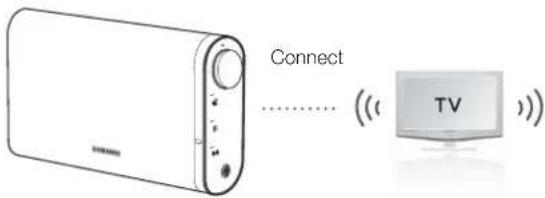
USING THE SOUNDSHARE FUNCTION
Connect the Wireless Audio Portable to a Samsung TV that is compatible with Bluetooth to enjoy TV sound wirelessly.
text_image
Connect TV- Turn on the Samsung TV and Wireless Audio Portable.
- Set 'Add New Device' to 'On' in the TV's 'SoundShare Settings' menu. (Refer to the TV's user manual for details.)
- Press the ☑ button to change the mode of the Wireless Audio Portable to ☐
A message asking whether to proceed with Bluetooth pairing appears.
• The blinks in the standby mode.
- Select
on the TV screen. The Wireless Audio Portable pairs with the TV.
• The indicator blinks, and then stops blinking.
• The Wireless Audio Portable Bluetooth pairing is complete.
- If you want to cancel an existing pairing and pair the Wireless Audio Portable to another TV, press the ☑ button for 3 seconds with the unit in ☐ mode.
SoundShare is supported by some Samsung TVs released after 2012.
Check whether your TV supports SoundShare before you begin. (For more information, refer to the user's guide of your TV.)
The optimal pairing distance is 1m or less.
7Englisl
SPECIFICATIONS
| Model name | DA-F60/DA-F61 |
| Weight | 1.1 kg |
| Dimensions (W x D x H) | 225 x 46.5 x 131 mm |
| Operating temperature range | +5°C--+35°C |
| Operating humidity range | 10 % to 75 % |
- Samsung Electronics Co., Ltd reserves the right to change the specifications without notice.
- Weight and dimensions are approximate.
- For the Power Supply and Power Consumption, refer to the label attached to the product. Open the rear cover to check the label.
% aptXaptX enables high quality Bluetooth stereo audio that delivers wired audio quality wirelessly. - Figures and illustrations in this User Manual are provided for reference only and may differ from actual product appearance.
• An administration fee may be charged if either
(a) an engineer is called out at your request and there is no defect with the product (i.e. where the user manual has not been read).
(b) you bring the unit to a repair centre and there is no defect with the product (i.e. where the user manual has not been read).
• You will be informed of the administration fee amount before a technician visits.
CE
Hereby, Samsung Electronics, declares that this equipment is in compliance with the essential requirements and other relevant provisions of Directive 1999/5/EC.
The original Declaration of Conformity may be found at http://www.samsung.com, go to Support > Search Product Support and enter the model name.
This equipment may be operated in Jordan.
English8
SOFTWARE UPGRADE
Samsung may offer upgrades for the Wireless Audio Portable's system firmware in the future.
To upgrade the firmware, visit samsung.com and find your model by name to locate the available download.
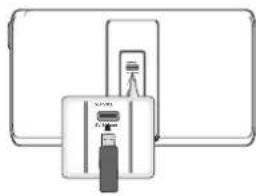
Download the firmware file onto a USB drive and follow the below instructions to upgrade the product.
natural_image
Diagram showing a device connected to a screen, with no visible text or symbols- Turn off the product.
- Insert a USB drive containing the firmware upgrade into the Service (USB) port on the back of the product.
- Press the 🔊 and ⏻ buttons for 5 seconds at the same time. The update process starts.
- All LEDs indicators will blink during the update process.
-
The LEDs will turn off automatically after the update process is complete.
-
Do not disconnect the power or remove the USB drive while upgrades are being applied.
- The product will turn off automatically after completing the firmware upgrade.
- When firmware is upgraded, settings you have made will return to their default (factory) settings. We recommend you write down your settings so that you can easily reset them after the upgrade.
- When the battery indicator LED is red, do not update the product. Doing so could cause the product to malfunction.
If the firmware fails to upgrade, we recommend formatting the USB drive in FAT16 and trying again.
For upgrading purposes, do not format the USB drive in NTFS format because it is not a supported file system.
Depending on the manufacturer, the USB may not be supported.
TROUBLESHOOTING
Before requesting service, please try the following solutions:
The unit will not turn on.
- Connect the power plug to the outlet.
- Your player will not turn on if the battery is completely drained. Recharge the battery and turn the player on again.
- Check if the battery is discharged.
A function does not work when the button is pressed.
- Disconnect the power plug and connect it again.
- Check if the buttons correspond to the functions you want to activate.
Sound is not produced.
• Make sure the unit is properly connected.
- Check if the Mute function is on.
- Check if the volume is set to minimum.
The power of the unit is off.
• The unit automatically turns off in the following situations.
- If there is no KEY input for 8 hours when the cable is connected in AUX mode.
- If the AUX cable in AUX mode is disconnected for 25 minutes.
- If the Bluetooth or SoundShare mode has been disconnected from this unit for 25 minutes.
- It does not turn off when the smart phone is charging.
Sound is not produced in AUX mode.
- Check the power of the external device and whether the music is playing or not.
• Make sure the AUX mode is selected. - Check if the audio cable is connected properly.
• Turn up the volume of the product/external device.
The SoundShare (TV pairing) failed.
- Check whether your TV supports SoundShare. (http://www.samsung.com)
• Check whether your TV has the latest firmware. - Reset the unit.
- If the function doesn't work even though the connection is completed, contact the Samsung call centre.
The Wireless Audio Portable may not search or connect properly in the following cases.
• If there is a strong electrical field around the Wireless Audio Portable.
- If several Bluetooth devices are simultaneously paired to the Wireless Audio Portable.
• If the Bluetooth device is turned off, not in place, or malfunctioning.
SAFETY WARNINGS
CAUTION
RISK OF ELECTRIC SHOCK DO NOT OPEN
TO REDUCE THE RISK OF ELECTRIC SHOCK, DO NOT REMOVE THE COVER(OR BACK). NO USER SERVICEABLE PARTS ARE INSIDE. REFER SERVICING TO QUALIFIED SERVICE PERSONNEL.

This symbol indicates “dangerous voltage” inside the product that presents a risk of electric shock or personal injury.

This symbol indicates important instructions accompanying the product.
WARNING : To reduce the risk of fire or electric shock, do not expose this appliance to rain or moisture.
CAUTION : TO PREVENT ELECTRIC SHOCK, MATCH WIDE BLADE OF PLUG TO WIDE SLOT, FULLY INSERT.
- This apparatus shall always be connected to a AC outlet with a protective grounding connection.
- To disconnect the apparatus from the mains, the plug must be pulled out from the mains socket, therefore the mains plug shall be readily operable.
CAUTION
- Do not expose this apparatus to dripping or splashing. Do not put an object filled with liquid, such as a vase, on the apparatus.
- To turn this apparatus off completely, you must pull the power plug out of the wall socket. Consequently, the power plug must be easily and readily accessible at all times.
SAFETY PRECAUTIONS
Power Supply Precautions
- Do not overload outlets or extension cords.
- This may result in abnormal heat or fire.
- Do not plug in or unplug the power cord with wet hands.
- Do not place the product near heating equipment.
- To clean the power plug blades, remove the plug from the wall outlet and wipe the blades with a dry cloth only.
- Do not bend the power cord or pull it forcefully.
- Do not put heavy objects on the AC power adaptor.
- Do not use the AC adaptor if it is damaged. Do not disconnect the AC adaptor by pulling on its power-cord.
- Do not plug the power cord into a loose or damaged outlet.
- Fully insert the AC adaptor's plug into the wall outlet so that it's plug is firmly attached to the outlet.
- If the connection is unstable, there is a risk of fire.
Installation Precautions
- Do not install the product near equipment or objects that generate heat or produce fire (candles, mosquito coils, heaters, radiators, etc.). Do not install in direct sunlight.
- When moving the product, turn off the power and disconnect all cords (include the power cord) from the unit.
- A damaged cord may cause a fire and poses a risk of electric shock.
- Installing the product in environments with high heat or humidity, dust, or extreme cold, can lead to quality problems or cause the product to malfunction. Before you install the product in an environment that is outside the norm, please contact the Samsung service centre for additional information.
- Place the product upright when installing it on a shelf, cabinet, or desk. Do not place the product on an unstable surface (e.g. a shaky shelf, a tilted desk, etc.).
- Dropping the product can cause it to malfunction and poses a risk of injury. Severe vibration or impact can also cause the product to malfunction and lead to a fire hazard.
• Install your product with enough space around it for the ventilation.
- Leave at least 10cm at the rear of the product and more than 5cm on each side of the product.
- Keep the plastic packing materials out of reach of your children.
- Children playing with the plastic packing materials run the risk of suffocation.
Usage Precautions
- Using for an extended time at high volume may cause serious damage to your hearing.
- If you are exposed to sound louder than 85db for an extended time, you may adversely affect your hearing. The louder the sound is, the more seriously damaged your hearing may become. Note that an ordinary conversation is between 50 to 60 db and road noise is approximately 80 db.
- This product contains dangerous high voltage. Do not attempt to disassemble, repair, or modify it yourself.
- Contact a Samsung service centre when your product is in need of repair.
- Do not place any container that contains liquid on the product (e.g. vase, beverages, cosmetics, chemicals, etc.). Do not allow any metal objects (e.g. coins, hair clips, etc.) or flammable material (e.g. paper, matches, etc.) to enter the product (through the air vents, I/O ports, etc.).
- If any harmful material or liquid enters the product, turn off the product immediately, unplug the power cord, and then contact a Samsung service centre.
- Do not drop the product. In case of a mechanical breakdown, disconnect the power cord and contact a Samsung service centre.
- There is a risk of fire or electric shock.
- Do not hold or pull the product by the power cord or the signal cable.
- A damaged cable can cause the product to malfunction, cause a fire, and poses a risk of electric shock.
- Do not use or keep flammable materials near the product.
-
If the product emits an abnormal sound or a burnt smell or smokes, unplug the power-cord immediately and contact a Samsung service centre.
-
If you smell gas, ventilate the room immediately. Do not touch the power plug of the product. Do not turn the product off or on.
- Do not strike or subject the product to a sudden shock. Do not pierce the product with a sharp object.
Cleaning Precautions
- Never use alcohol, solvents, waxes, benzene, thinners, air freshener, or lubricants to clean the product or spray insecticide on the product.
- Using any of these materials can discolor the exterior coating or cause it to split or peel off, or remove the labelling on the product.
- To clean the product, unplug the power cord, and then wipe the product with a clean, dry, soft cloth (Microfiber, cotton).
- Avoid leaving dust on the product. Dust can scratch its the surface.
Battery Usage Precautions
- Do not subject the product to high temperatures or fire. Do not bring the product into hot, poorly ventilated areas such as saunas or closed vehicles during the summer time.
- There is a risk of fire or the battery could explode.
• Do not expose the product to high humidity. - Humidity and liquids can damage the components and electrical circuits of the product, cause the product to malfunction, and may cause a risk of fire. We recommended that you use the product in environments with temperatures between 5° \~ 35 °C and relative humidities between 10% \~ 75%.
- Do not leave the product connected to the AC adaptor after the battery has been fully charged.
- Disconnect the AC adapter after the battery is fully charged to prevent damage to the battery. Overcharging can decrease the battery's useful life.
- Check the charge status of the battery once a month. If you do not use the product for long periods of time, recharge the battery periodically to maintain battery capacity and functionality.
- Leaving the battery discharged for a long time can reduce its useful life, cause the battery to malfunction, or cause a risk of fire.
11Englisl

Contact SAMSUNG WORLD WIDE
If you have any questions or comments relating to Samsung products, please contact the SAMSUNG customer care centre.
| Area | Contact Centre | Web Site |
| ▪ Asia Pacific | ||
| AUSTRALIA 1300 | 362 603 www.samsung.com/au/support | |
| NEW ZSALAND | 0800 SAMSUNG (0800 728 786) | www.samsung.com/nz/support |
| CHINA 400-810 | 5856 www.samsung.com/cn/support | |
| HONG KONG (852) | 3696 4096 | www.samsung.com/hk/support (Chinese)www.samsung.com/hk_env/support (English) |
| INDIA | 1800 3000 6282 - Toll Free1800 266 8282 - Toll Free3008282 Non Toll Free | www.samsung.com/in/support |
| INDONESIA | 0800112988021-56997777 | www.samsung.com/kd/support |
| JAPAN 0120-327 | 527 www.samsung.com/jp/support | |
| MALAYSIA 1800 | 68-9999 www.samsung.com/my/support | |
| PHILIPPINES | 1-800-10-726/864 (PLDT)1-800-8-726/864[ Globe landline and Mobile]02-4222111 (Other landline) | www.samsung.com/ph/support |
| SINGAPORE 1900 | SAMSUNG(726-7884) www.samsung.com/sg/support | |
| THAILAND | 0-2089-9232,1800 29-3232 | www.samsung.com/th/support |
| TAIWAN 0800-92 | -8999 www.samsung.com/tw/support | |
| VIETNAM 1800 | 586 889 www.samsung.com/yn/support | |
| ▪ MENA | ||
| U.A.F. 800-SAMSUNG(726-7864) | www.samsung.com/ae/support (English)www.samsung.com/ae_ar/support (Arabic) | |
| OMAN | 800-SAMSUNG(726-7864) | |
| KUMAIT 183 225 | (183-CALL) | |
| BAHRAIN | 8000-4726 | |
| QATAR | 800-2255 (800-CALL) | |
| EGYFT | 08000-72678616590 | www.samsung.com/eg/support |
| Area | Contact Centre | Web Site |
| ALGERIA | 021 36 11 00 | www.samsung.com/n_africa/support |
| PAKISTAN | 0800-Samsung (72678) | www.samsung.com/pk/support |
| TUNISIA 80-100 | 0-12 | www.samsung.com/n_africa/support |
| JORDAN | 0800-2227306 5777444 | www.samsung.com/Levant/support (English) |
| SYRIA | 18252273 | www.samsung.com/Levant/support (English) |
| IRAN | 021-8255 | www.samsung.com/iran/support |
| MOROCCO 060 | 100 2255 www.samsung.com/n_africa/support | |
| SAUDI ARABIA | 920021230 | www.samsung.com/sa/supportwww.samsung.com/sa_orn/support (English) |
| TURKEY | 444 77 11 | www.samsung.com/tr/support |
| • Africa | ||
| NIGERIA | 0800-728-7964 | www.samsung.com/africa_en/support |
| Ghana | 0800-100770302-200077 | |
| Cate D'Ivoire | 8000 0077 | www.samsung.com/africa_tr/support |
| SENEGAL | 800-00-0077 | |
| CAMEROON | 7095-0077 | |
| KENYA | 0800 545 545 | www.samsung.com/support |
| UGANDA | 0800 300 300 | |
| TANZANIA | 0685 88 99 00 | |
| RWANDA | 9999 | |
| BURUNDI | 200 | |
| DRC | 499999 | |
| SUDAN | 1969 | |
| SOUTH AFRICA | 0880 SAMSUNG (726 7864) | www.samsung.com/support |
| BOTSWANA | 8007280000 | |
| NAMIBIA | 08 197 267 864 | |
| ZAVBIA | 0211 350370 | |
| MOZAMBQUE | 847267864 / 827267864 | |
© 2013 Samsung Electronics Co., Ltd. All rights reserved.
SAMSUNG
Wireless Audio Portable
دليل المستخدم
text_image
Diagram illustrating the process of moving a mobile phone into a device, with directional arrows and labeled components.text_image
Diagram showing a smartphone connected to a device with wireless signal, including a magnified circular component labeled 'N' and a battery icon..Wireless Audio Portable