EM4586 - Network card / adapter Eminent - Free user manual and instructions
Find the device manual for free EM4586 Eminent in PDF.


User questions about EM4586 Eminent
0 question about this device. Answer the ones you know or ask your own.
Ask a new question about this device
Download the instructions for your Network card / adapter in PDF format for free! Find your manual EM4586 - Eminent and take your electronic device back in hand. On this page are published all the documents necessary for the use of your device. EM4586 by Eminent.
USER MANUAL EM4586 Eminent
text_image
License Agreement Please read the following license agreement carefully. EMINENT Wireless Utility for Windows 7/VistaXP/2003 Copyright (C) EMINENT Europe BV. All Rights Reserved. Thank you for purchasing EMINENT Wireless product! SOFTWARE PRODUCT LICENSE The SOFTWARE PRODUCT is protected by copyright laws and international copyright treaties, as well as other intellectual property laws and treaties. The SOFTWARE PRODUCT is licensed, not sold. 1. GRANT OF LICENSE. This End-User License Agreement grants you the following rights: Installation and Use. You may install and use an unlimited number of copies of the SOFTWARE PRODUCT. Reproduction and Distribution. You may reproduce and distribute an unlimited number of copies of the SOFTWARE PRODUCT; provided that each copy shall be a true and complete copy, including all copyright and trademark notices, and shall be accompanied by a copy of the EULA. Copies of the SOFTWARE PRODUCT may be distributed as a standalone product or included with your own product. I accept the terms of the license agreement I do not accept the terms of the license agreement InstallShield < Back Next > Canceltext_image
Setup Type Select the setup type that best suits your needs. Choose to install Install driver only Install driver and EMINENT WLAN Utility Install Shield < Back Next > Canceltext_image
Ready to Install the Program The wizard is ready to begin installation. Click: Install to begin the installation. If you want to review or change any of your installation settings, click Back. Click Cancel to exit the wizard. Note: 1. Some virus scanner program will block the install package. If the install package does not work properly, please try to close the virus scanner before you run the install package. 2. Please close the UI and disable the adapter of other manufacturers' before you use our products to avoid possible conflict. InstallShield < Back Install Canceltext_image
InstallShield Wizard Complete The InstallShield Wizard has successfully installed 150Mbps Wireless N USB Adapter. Click Finish to exit the wizard.text_image
Networks Connections Eminent Connect automatically Connecttext_image
Networks Eminent Enter the network security key Next Canceltext_image
Networks Eminent Do you want to turn on sharing between PCs and connect to devices on this network? No, don't turn on sharing or connect to devices For networks in public places Yes, turn on sharing and connect to devices For home or work networkstext_image
Networks Connections Wi-Fi Eminent ConnectedEminent Computer Supplies
Postbus 276
6160 AG Geleen
Nederland
Trademarks: all brand names are trademarks and/or registered trademarks of their respective holders. The information contained in this document has been created with the utmost care. No legal rights can be derived from these contents. Eminent cannot be held responsible, nor liable for the information contained in this document.
Eminent is a member of the Intronics Group

EMINENT
EM4586 Dualband Wireless USB Adapter
en
Manual
EM4586 - Dualband Wireless USB Adapter
Table of contents
1.0 Introduction ......2
1.1 Packing contents 2
2.0 Installing and connecting the EM4586 (driver only) 3
2.1 Installing the driver .... 3
2.2 Connecting using the driver (Wireless zero configuration) Windows XP ...... 6
2.3 Connecting using the driver (WLAN AutoConfig) Windows Vista 8
2.4 Connecting using the driver (WLAN AutoConfig) Windows 7 .... 10
2.5 Connecting using Windows 8 (WLAN AutoConfig) 11
3.0 Frequently Asked Questions and other related information 13
4.0 Service and support 14
5.0 Warning and points of attention 14
6.0 Warranty conditions 16
7.0 Declaration of Conformity 16
1.0 Introduction
Congratulations with the purchase of this high-quality Eminent product! This product has undergone extensive testing by Eminent's technical experts. Should you experience any problems with this product, you are covered by a five-year Eminent warranty. Please keep this manual and the receipt in a safe place.
Register your product now on www.eminent-online.com and receive product updates!
1.1 Packing contents
The following parts need to be present in the packing:
• EM4586 Wireless USB adapter
• CD-ROM with software, wizard and manual
- 2 x 4dBi antennas
• 1,5 meter USB extension cable
2.0 Installing and connecting the EM4586 (driver only)
2.1 Installing the driver
- Take the EM4586 and supplied CD-ROM out of the packing.
- Plug the EM4586 into a free USB port of your computer. Windows will detect new hardware. Any popup screens need to be closed.
- Insert the CD-ROM in your computer's CD-ROM or DVD player.
- The wizard starts automatically.
- Choose your language and click 'Next'.
- Choose 'Install software' and click 'Next'.
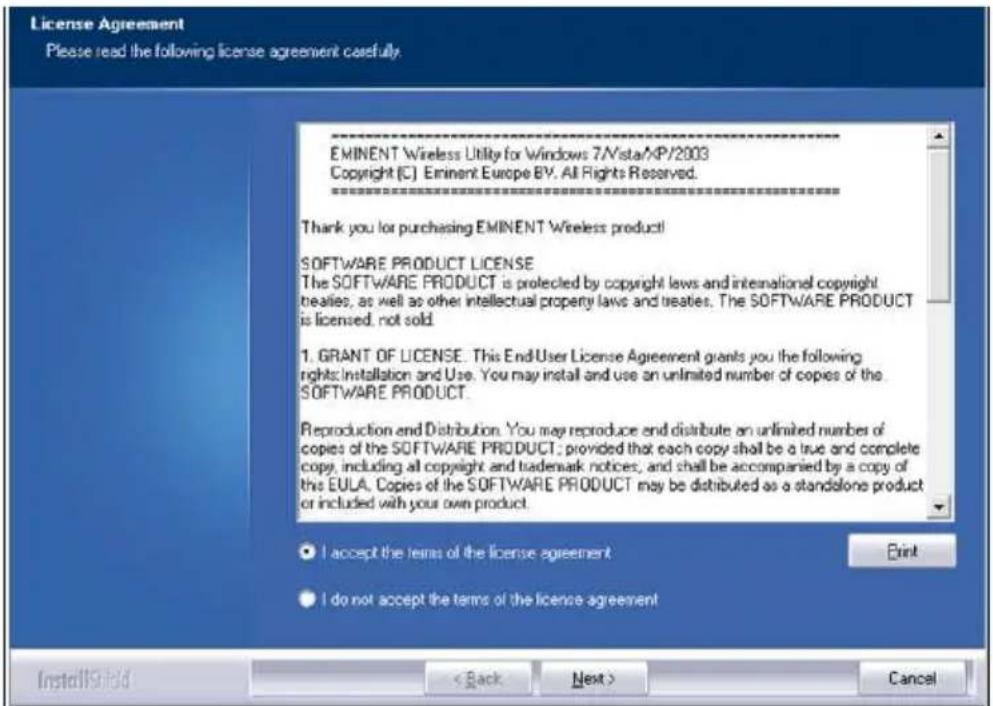
- When the License of Agreement is shown, you need to click 'I accept the terms of the license agreement' as shown in the following image:
text_image
License Agreement Please read the following license agreement carefully. EMINENT Wireless Utility for Windows 7/VistaXP/2003 Copyright (C) Eminent Europe BV. All Rights Reserved. Thank you for purchasing EMINENT Wireless product! SOFTWARE PRODUCT LICENSE The SOFTWARE PRODUCT is protected by copyright laws and international copyright treaties, as well as other intellectual property laws and treaties. The SOFTWARE PRODUCT is licensed, not sold. 1. GRANT OF LICENSE. This End User License Agreement grants you the following rights: installation and Use. You may install and use an unlimited number of copies of the SOFTWARE PRODUCT. Reproduction and Distribution. You may reproduce end distribute an unlimited number of copies of the SOFTWARE PRODUCT; provided that each copy shall be a true and complete copy, including all copyright and trademark notices, and shall be accompanied by a copy of the EULA. Copies of the SOFTWARE PRODUCT may be distributed as a standalone product or included with your own product. I accept the terms of the license agreement I do not accept the terms of the license agreement InstallShield < Back Next > CancelImage 1 - Installing
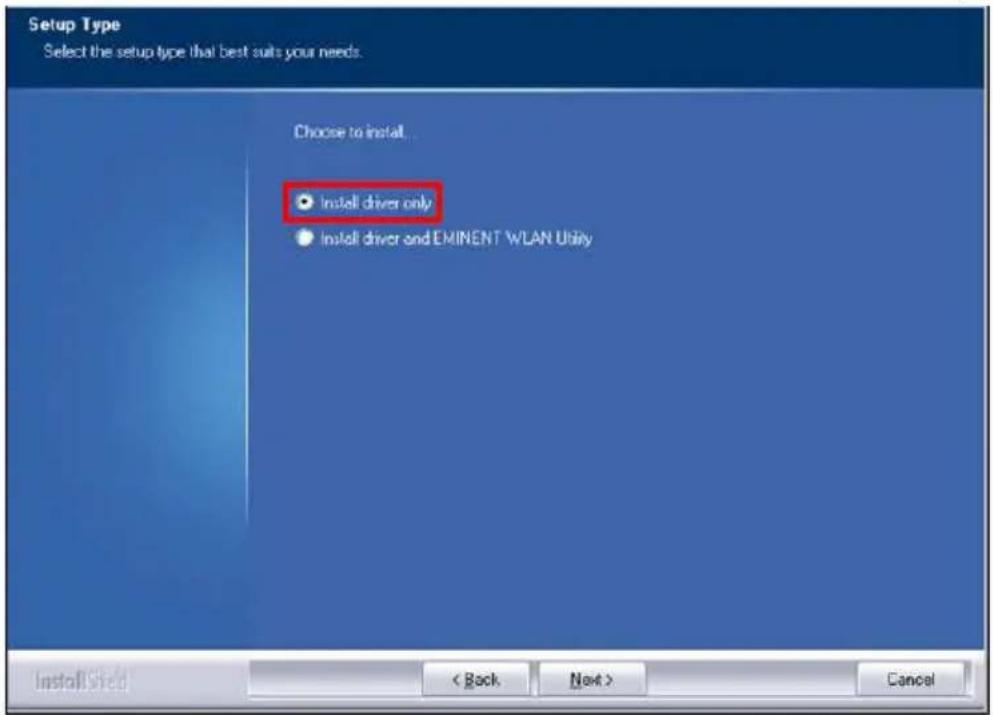
- Click 'Next' after which a new screen will be shown. You need to click 'Install driver only' and click 'Next' as shown in the following image:
text_image
Setup Type Select the setup type that best suits your needs. Choose to install • Install driver only • Install driver and EMINENT WLAN Utility Install Seed < Back Next > CancelImage 2- Installing
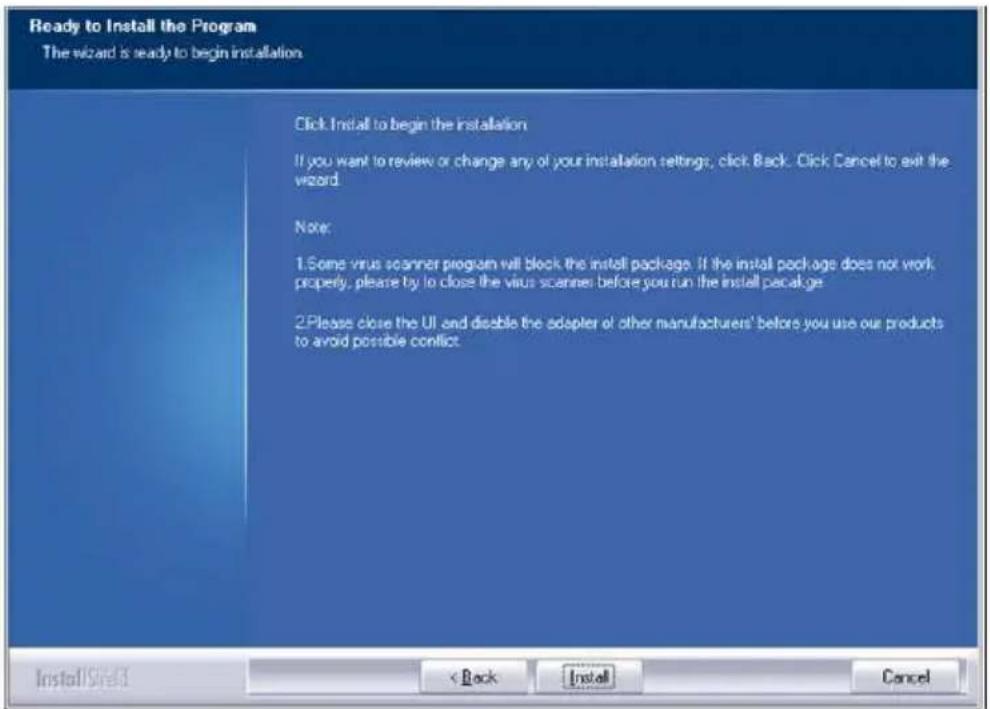
- A new screen will appear with important notes. Please read these notes. Refer to the following image:
text_image
Ready to Install the Program The wizard is ready to begin installation Click Install to begin the installation If you want to review or change any of your installation settings, click Back. Click Cancel to exit the wizard. Note: 1. Some virus scanner program will block the install package. If the install package does not work properly, please try to close the virus scanner before you run the install package 2. Please close the UI and disable the adapter of other manufacturers' before you use our products to avoid possible conflict. Install Site 3 < Back Install CancelImage 3 - Installing
- Click 'Install' to install the driver.
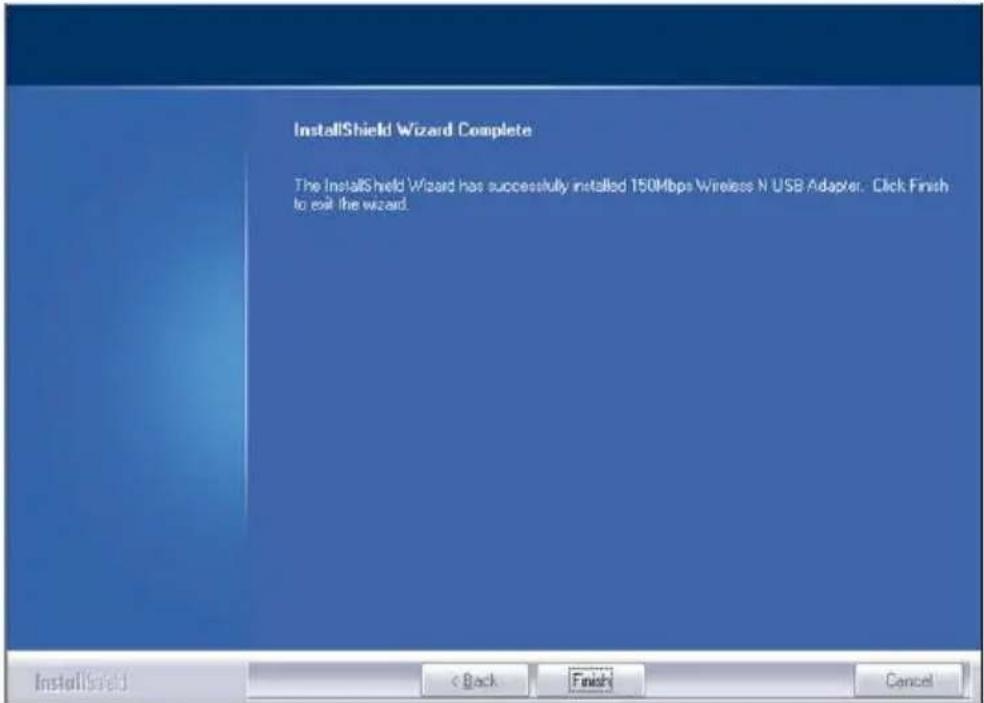
- Once the driver has been installed, click 'Finish' to complete the installation, as shown in the following image:
text_image
InstallShield Wizard Complete The InstallShield Wizard has successfully installed 150Mbps Wireless N USB Adapter. Click Finish to exit the wizard.Image 4 - Installing
Note: If you are using Windows Vista or Windows 7, Windows may ask (Administrator) permission to install the driver.
2.2 Connecting using the driver (Wireless zero configuration) Windows XP
Note: Make sure the wireless router or wireless modem you want to connect to already has a working internet connection. Also make sure you have the wireless security key at hand.
- If correct, an icon of the wireless connection ( ) will be added to your taskbar.
- Click the icon after which the available wireless networks will be shown. Refer to the following image:

text_image
Wireless Network Connection Choose a wireless network Click an item in the list below to connect to a wireless network in range or to get more information. Network Tasks Refresh network list Set up a wireless network for a home or small office Related Tasks Learn about wireless networking Change the order of preferred networks Change advanced settings Eminent Security-enabled wireless network (WPA2) ConnectImage 5 - Connecting
- Select your network and click 'Connect'.
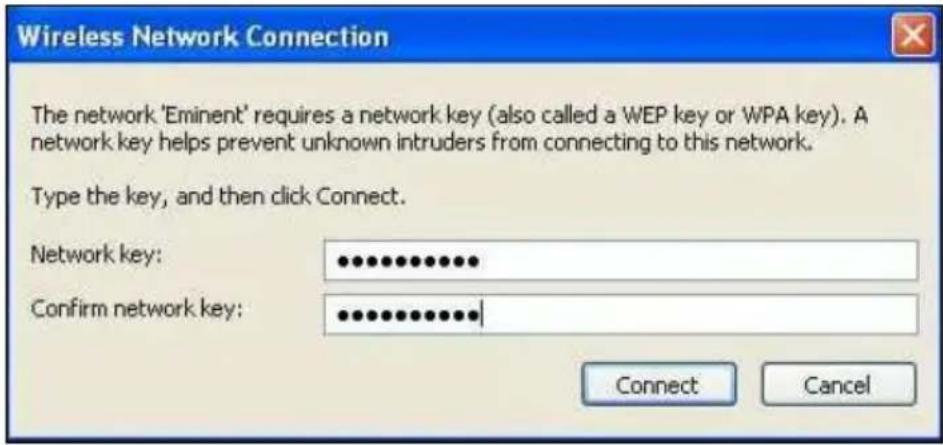
- If correct, Windows will now ask you to fill out your wireless security key. You also need to confirm the wireless security key and then click 'Connect'. Refer to the following image:
text_image
Wireless Network Connection The network 'Eminent' requires a network key (also called a WEP key or WPA key). A network key helps prevent unknown intruders from connecting to this network. Type the key, and then click Connect. Network key: ••••••••••••• Confirm network key: •••••••••••••• Connect CancelImage 6 - Connecting
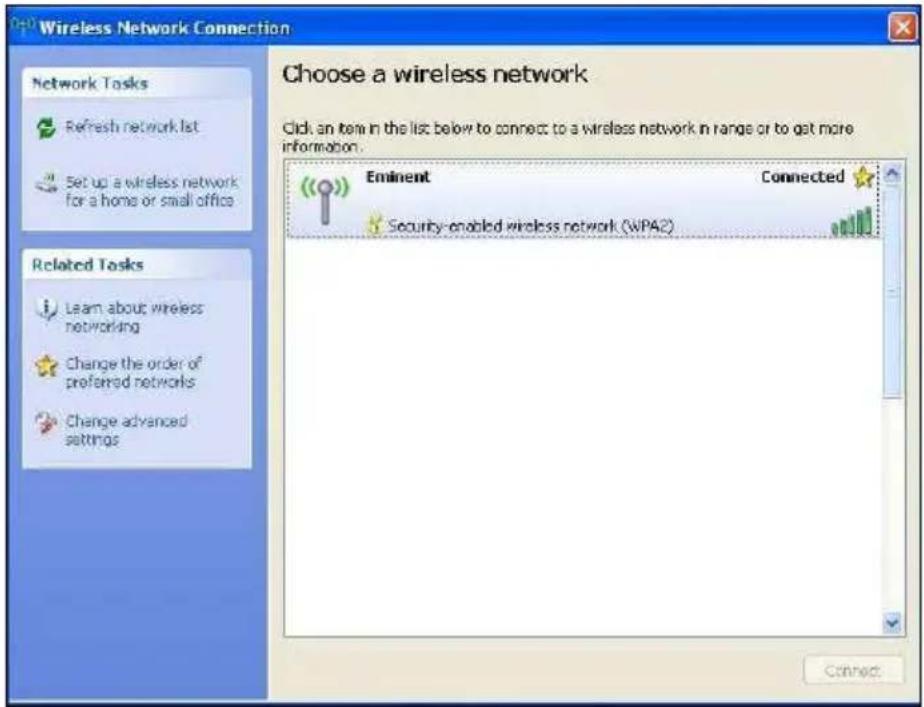
- If your wireless security key has been filled out correctly, your network will be connected as shown in the following image:
text_image
Wireless Network Connection Choose a wireless network Click an item in the list below to connect to a wireless network in range or to get more information. Eminent Connected Security-enabled wireless network (WPA2) Connect: Network Tasks Refresh network list Set up a wireless network for a home or small office Related Tasks Learn about wireless networking Change the order of preferred networks Change advanced settingsImage 7 - Connecting
- You are now able to access the internet.
2.3 Connecting using the driver (WLAN AutoConfig) Windows Vista
Note: Make sure the wireless router or wireless modem you want to connect to already has a working internet connection. Also make sure you have the wireless security key at hand.

- If correct, an icon of the wireless connection ( ) will be added to your taskbar.
- Click the icon.
- A new pop up screen appears, which tells you wireless networks are available. Choose 'Connect to a network' after which the available wireless networks will be listed. Refer to the following image:

text_image
Connect to a network Select a network to connect to Show All Eminent Security-enabled network Set up a connection or network Open Network and Sharing Center Connect CancelImage 8 - Connecting
- Click 'Connect'.
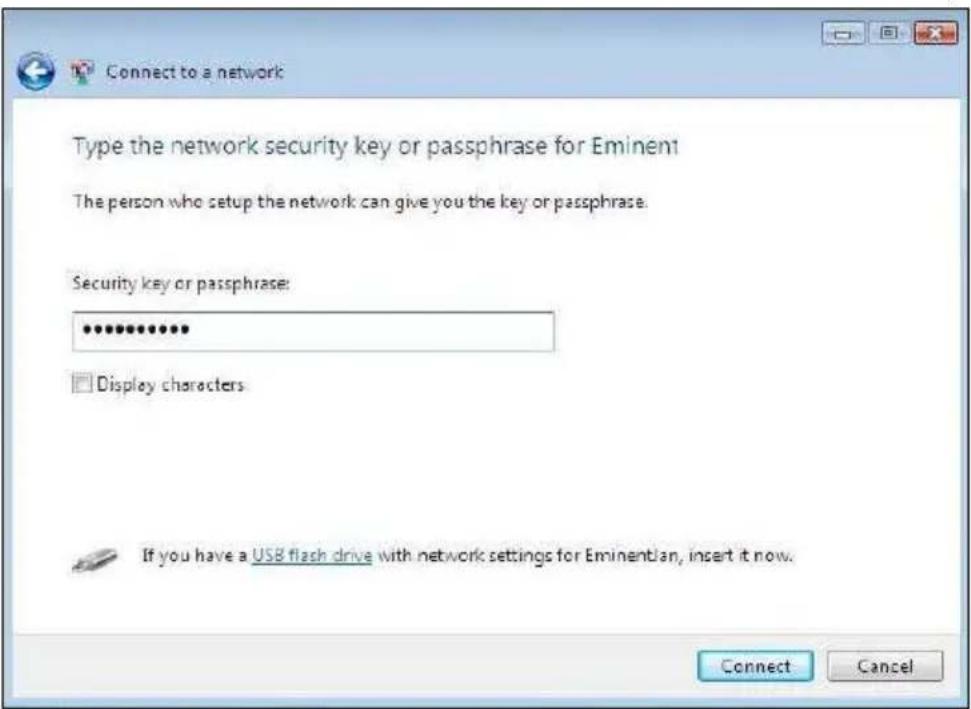
- If correct, Windows will now ask you to fill out your wireless security key and click 'Connect'. Refer to the following image:
text_image
Connect to a network Type the network security key or passphrase for Eminent The person who setup the network can give you the key or passphrase. Security key or passphrase: ****** Display characters If you have a USB flash drive with network settings for Eminentian, insert it now. Connect CancelImage 9 - Connecting
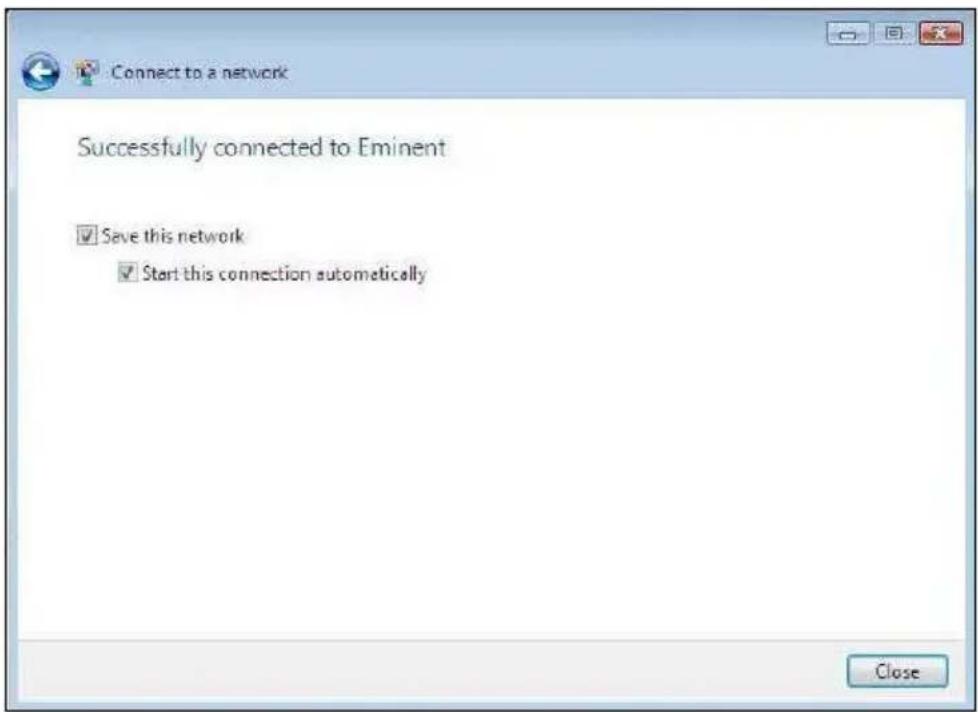
- If your wireless security key has been filled out correctly, your network will be connected. Windows will then show a connected screen and asks you to save this network and to start this connection automatically. Mark both options and click 'Close'. Refer to the following image:
text_image
Connect to a network Successfully connected to Eminent ✓ Save this network ✓ Start this connection automatically CloseImage 10 - Connecting

- The following icon will be visible in the taskbar: . This icon tells you an internet connection has been established. You will now be able to access the internet.
Hint: If Windows ask a location to add the wireless connection to, you need to choose 'Home' or 'Work'.
2.4 Connecting using the driver (WLAN AutoConfig) Windows 7
Note: Make sure the wireless router or wireless modem you want to connect to already has a working internet connection. Also make sure you have the wireless security key at hand.

-
If correct, an icon of the wireless connection ( ) will be added to your taskbar.
-
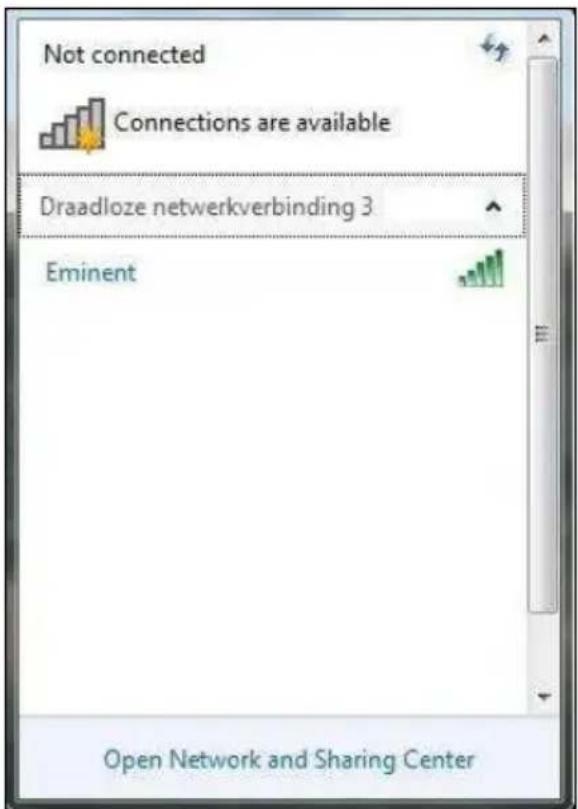
Click the icon after which a list of available wireless networks will be listed as shown in the following image:
text_image
Not connected Connections are available Draadloze netwerkverbinding 3 Eminent Open Network and Sharing CenterImage 11 - Connecting
-
Select the network you want to connect to and click 'Connect'.
-
If correct, Windows will now ask you to fill out your wireless security key and click 'OK'. Refer to the following image:

text_image
Connect to a Network Type the network security key Security key: Hide characters OK CancelImage 12 - Connecting
- If your wireless security key has been filled out correctly, your network will be connected. The following icon will be visible in the taskbar: This icons tells you an internet connection has been established. You will now be able to access the internet.
Hint: If Windows ask a location to add the wireless connection to, you need to choose 'Home' or 'Work'.
2.5 Connecting using Windows 8 (WLAN AutoConfig)
- If correct, an icon of the wireless connection ( ) will be added to your taskbar.
- Click the icon after which a list of available wireless networks will be listed as shown in the following image:

text_image
Wi-Fi EminentImage 13 - Connecting
- Select the network you want to connect to and click 'Connect' as shown in the following image:

text_image
Networks Connections Eminent Connect automatically ConnectImage 14 - Connecting
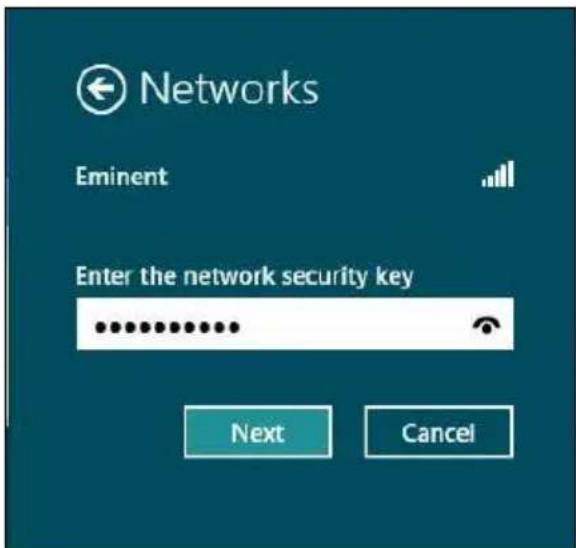
- If correct, Windows will now ask you to fill out your wireless security key and click 'Next'. Refer to the following image:
text_image
Networks Eminent Enter the network security key Next CancelImage 15 - Connecting
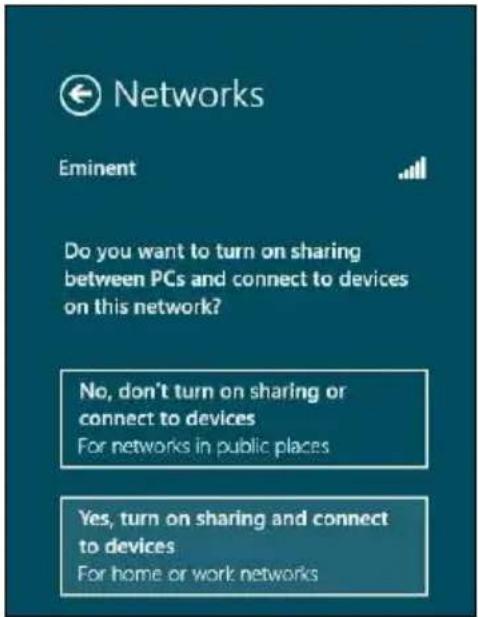
- If your wireless security key has been filled out correctly, Windows will ask you to share your connection. Typically, most people will use the EM4586 in a home or work environment, so you can choose the 'Yes, turn on sharing and connect to devices' option, as shown in the following image:
text_image
Networks Eminent Do you want to turn on sharing between PCs and connect to devices on this network? No, don't turn on sharing or connect to devices For networks in public places Yes, turn on sharing and connect to devices For home or work networksImage 16 - Connecting
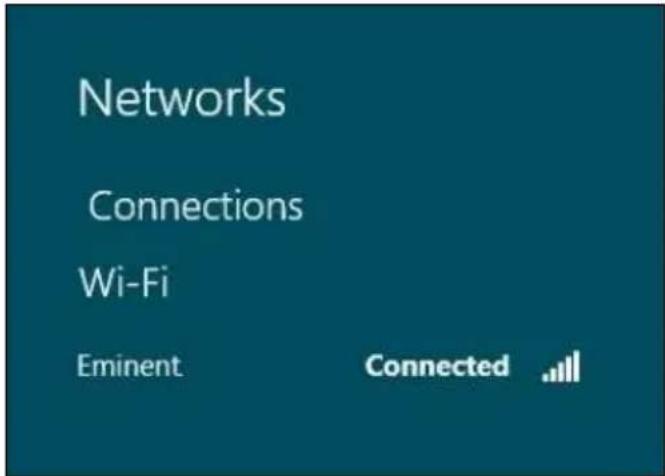
- Your network will be connected, as shown in the following image:
text_image
Networks Connections Wi-Fi Eminent ConnectedImage 17 - Connecting
- This image tells you an internet connection has been established. You will now be able to access the internet.
3.0 Frequently Asked Questions and other related information
The latest Frequently asked questions for your product can be found on the support page of your product. Eminent will update these pages frequently to assure you have the most recent information. Visit www.eminent-online.com for more information about your product.
4.0 Service and support
This users manual has been carefully written by Eminent's technical experts. If you have problems installing or using the product, please fill out the support form at the website www.eminent-online.com/support.
You can also contact us by phone. Below you will find a list with phone numbers for each supported country.
| Country | Phone number | Rate per minute* |
| Belgium (Dutch) | 070 277 286 €0.30 | |
| Belgium (French) | 070 277 286 €0.30 | |
| Denmark | +45 69918565 Local Costs | |
| Finland | +35 8942415826 Local Costs | |
| Germany | +49 (0)30 887 89 | Local Costs |
| 298 | ||
| Italy | +39 0240042016 Local Costs | |
| Norway | +47 21075033 Local Costs | |
| Spain | 807 080 042 €0.41 | |
| Sweden | +46 840 309985 Local Costs | |
| The Netherlands | 0900-3646368 €0.45 | |
| UK (London) | +44 (0)203 318 | Local Costs |
| 9998 | ||
| Hungary | 1-4088902 (From Budapest) | Local Costs |
| Hungary | 06-1-4088902(From the rest of Hungary) | Local Costs |
| Hungary | +36 1-4088902(International) | Local Costs |
* Rates mentioned in this table do not include cell phone charges.
5.0 Warning and points of attention
Due to laws, directives and regulations set out by the European parliament, some (wireless) devices could be subject to limitations concerning its use in certain European member states. In certain European member states the use of such devices could be prohibited. Contact your (local) government for more information about this limitations.
Always follow up the instructions in the manual*, especially where it concerns devices which need to be assembled.

Warning: In most cases this concerns an electronic device. Wrong/improper use may lead to (severe) injuries!
Repairing of the device should be done by qualified Eminent staff. The warranty immediately voids when products have undergone self repair and/or by misuse. For extended warranty conditions, please visit our website at www.eminent-online.com/warranty.
*Tip: Eminent manuals are written with great care. However, due to new technological developments it can happen that a printed manual does not longer contain the most recent information.
If you are experiencing any problems with the printed manual or you can not find what you are looking for, please always check our website www.eminent-online.com first for the newest updated manual.
Also, you will find frequently asked questions in the FAQ section. It is highly recommended to consult the FAQ section. Very often the answer to your questions will be found here.
6.0 Warranty conditions
The five-year Eminent warranty applies to all Eminent products unless mentioned otherwise before or during the moment of purchase. When having bought a second-hand Eminent product the remaining period of warranty is measured from the moment of purchase by the product's first owner. The Eminent warranty applies to all Eminent products and parts inextricably connected to and/or mounted on the main product. Power supply adapters, batteries, antennas and all other products not integrated in or directly connected to the main product and/or products of which, without reasonable doubt, can be assumed that wear and tear show a different pattern than the main product are not covered by the Eminent warranty. Products are not covered by the Eminent warranty when subjected to incorrect/improper use, external influences and/or when opened by parties other than Eminent.
7.0 Declaration of Conformity
To ensure your safety and compliance of the product with the directives and laws created by the European Commission you can obtain a copy of the Declaration of Conformity concerning your product by sending an e-mail message to: info@eminent-online.com. You can also send a letter to:
Eminent Europe BV
PO Box 276
6160 AG Geleen
The Netherlands
Clearly state ‘Declaration of Conformity’ and the article code of the product of which you would like to obtain a copy of the Declaration of Conformity.

text_image
EMINENTWWW.EMINENT-ONLINE.COM
Trademarks: all brand names are trademarks and/or registered trademarks of their respective holders.
The information contained in this document has been created with the utmost care. No legal rights can be derived from these contents. Eminent cannot be held responsible, nor liable for the information contained in this document.
Eminent is a member of the Intronics Group

EMINENT
EM4586
text_image
License Agreement Please read the following license agreement carefully. EMINENT Wireless Utility for Windows 7/Vista/NP/2003 Copyright (C) Eminent Europe BV. All Rights Reserved. Thank you for purchasing EMINENT Wireless product! SOFTWARE PRODUCT LICENSE The SOFTWARE PRODUCT is protected by copyright laws and international copyright treaties, as well as other intellectual property laws and treaties. The SOFTWARE PRODUCT is licensed, not sold. 1. GRANT OF LICENSE. This End-User License Agreement grants you the following rights: Installation and Use. You may install and use an unlimited number of copies of the SOFTWARE PRODUCT. Reproduction and Distribution. You may reproduce and distribute an unlimited number of copies of the SOFTWARE PRODUCT; provided that each copy shall be a true and complete copy, including all copyright and trademark notices, and shall be accompanied by a copy of this EULA. Copies of the SOFTWARE PRODUCT may be distributed as a standalone product or included with your own product. I accept the terms of the license agreement I do not accept the terms of the licenses agreement InstallShield < Back Next > CancelImage 1 – Installation
text_image
Setup Type Select the setup type that best suits your needs. Choose to install Install driver only Install driver and EMINENT WLAN Utility Install Shield < Back Next > CancelImage 2- - Installation
text_image
Ready to Install the Program The wizard is ready to begin installation. Click: Install to begin the installation. If you want to review or change any of your installation settings, click Back. Click Cancel to exit the wizard. Note: 1. Some virus scanner program will block the install package. If the install package does not work properly, please try to close the virus scanner before you run the install package 2. Please close the UI and disable the adapter of other manufacturers' before you use our products to avoid possible conflict. Install Speed < Back Install CancelImage 3 – Installation
text_image
InstallShield Wizard Complete The InstallShield Wizard has successfully installed 150Mbps Wireless N USB Adapter. Click Finish to exit the wizard.Image 4 – Installation
text_image
Wireless Network Connection Choose a wireless network Click an item in the list below to connect to a wireless network in range or to get more information. Network Tasks Refresh network list Set up a wireless network for a home or small office Related Tasks Learn about wireless networking Change the order of preferred networks Change advanced settings Eminent Security-enabled wireless network (WPA2) ConnectImage 5 – Connexion
text_image
Wireless Network Connection The network 'Eminent' requires a network key (also called a WEP key or WPA key). A network key helps prevent unknown intruders from connecting to this network. Type the key, and then click Connect. Network key: ••••••••••••• Confirm network key: •••••••••••••• Connect CancelImage 6 – Connexion
text_image
Wireless Network Connection Choose a wireless network Click an item in the list below to connect to a wireless network in range or to get more information. Eminent Connected Security-enabled wireless network (WPA2) Connect: Network Tasks Refresh network list Set up a wireless network for a home or small office Related Tasks Learn about wireless networking Change the order of preferred networks Change advanced settingsImage 7 – Connexion
text_image
Connect to a network Select a network to connect to Show All Eminent Security-enabled network Set up a connection or network Open Network and Sharing Center Connect CancelImage 8 – Connexion
text_image
Connect to a network Type the network security key or passphrase for Eminent The person who setup the network can give you the key or passphrase. Security key or passphrase: ****** Display characters If you have a USB flash drive with network settings for Eminentlan, insert it now. Connect CancelImage 9 – Connexion
text_image
Connect to a network Successfully connected to Eminent ✓ Save this network ✓ Start this connection automatically CloseImage 10 - Connexion
text_image
Not connected Connections are available Draadloze netwerkverbinding 3 Eminent Open Network and Sharing CenterImage 11 - Connexion
text_image
Connect to a Network Type the network security key Security key: Hide characters OK CancelImage 12 – Connexion
text_image
Networks Connections Eminent Connect automatically ConnectImage 14 – Connexion
text_image
Networks Eminent Enter the network security key Next CancelImage 15 - Connexion
text_image
Networks Eminent Do you want to turn on sharing between PCs and connect to devices on this network? No, don't turn on sharing or connect to devices For networks in public places Yes, turn on sharing and connect to devices For home or work networksImage 16 – Connexion
text_image
Networks Connections Wi-Fi Eminent ConnectedImage 17 – Connexion
4.0 Service et assistance
Trademarks: all brand names are trademarks and/or registered trademarks of their respective holders.
The information contained in this document has been created with the utmost care. No legal rights can be derived from these contents. Eminent cannot be held responsible, nor liable for the information contained in this document.
Eminent is a member of the Intronics Group

EMINENT
EM4586
text_image
License Agreement Please read the following license agreement carefully. EMINENT Wireless Utility for Windows 7/VistaXP/2003 Copyright (C) Eminent Europe BV. All Rights Reserved. Thank you for purchasing EMINENT Wireless product! SOFTWARE PRODUCT LICENSE The SOFTWARE PRODUCT is protected by copyright laws and international copyright treaties, as well as other intellectual property laws and treaties. The SOFTWARE PRODUCT is licensed, not sold. 1. GRANT OF LICENSE. This EndUser License Agreement grants you the following rights: Installation and Use. You may install and use an unlimited number of copies of the SOFTWARE PRODUCT. Reproduction and Distribution. You may reproduce and distribute an unlimited number of copies of the SOFTWARE PRODUCT; provided that each copy shall be a true and complete copy, including all copyright and trademark notices, and shall be accompanied by a copy of this EULA. Copies of the SOFTWARE PRODUCT may be distributed as a standalone product or included with your own product. I accept the terms of the license agreement I do not accept the terms of the licence agreement InstallShield < Back Next > Canceltext_image
Setup Type Select the setup type that best suits your needs. Choose to install... Install driver only Install driver and EMINENT WLAN Utility Install Shield < Back Next > Canceltext_image
Ready to Install the Program The wizard is ready to begin installation. Click: Install to begin the installation. If you want to review or change any of your installation settings, click Back. Click Cancel to exit the wizard. Note: 1. Some virus scanner program will block the install package. If the install package does not work properly, please try to close the virus scanner before you run the install package. 2. Please close the UI and disable the adapter of other manufacturers' before you use our products to avoid possible conflict. InstallShield < Back Install Canceltext_image
InstallShield Wizard Complete The InstallShield Wizard has successfully installed 150Mbps Wireless N USB Adapter. Click Finish to exit the wizard.text_image
Wireless Network Connection Choose a wireless network Click an item in the list below to connect to a wireless network in range or to get more information. Network Tasks Refresh network list Set up a wireless network for a home or small office Related Tasks Learn about wireless networking Change the order of preferred networks Change advanced settings Eminent Security-enabled wireless network (WPA2) ConnectImagen 5 - Conexión
text_image
Wireless Network Connection The network 'Eminent' requires a network key (also called a WEP key or WPA key). A network key helps prevent unknown intruders from connecting to this network. Type the key, and then click Connect. Network key: •••••••••••• Confirm network key: ••••••••••••• Connect CancelImagen 6 - Conexión
text_image
Wireless Network Connection Choose a wireless network Click an item in the list below to connect to a wireless network in range or to get more information. Eminent Connected Security-enabled wireless network (WPA2) ConnectImagen 7 - Conexión
text_image
Connect to a network Select a network to connect to Show All Eminent Security-enabled network Set up a connection or network Open Network and Sharing Center Connect CancelImagen 8 - Conexión
text_image
Connect to a network Type the network security key or passphrase for Eminent The person who setup the network can give you the key or passphrase. Security key or passphrase: ****** Display characters: If you have a USB flash drive with network settings for Eminemian, insert it now. Connect CancelImagen 9 - Conexión
text_image
Connect to a network Successfully connected to Eminent ✓ Save this network ✓ Start this connection automatically Closetext_image
Not connected Connections are available Draadloze netwerkverbinding 3 Eminent Open Network and Sharing Centertext_image
Networks Connections Eminent Connect automatically Connecttext_image
Networks Eminent Enter the network security key Next Canceltext_image
Networks Eminent Do you want to turn on sharing between PCs and connect to devices on this network? No, don't turn on sharing or connect to devices For networks in public places Yes, turn on sharing and connect to devices For home or work networkstext_image
Networks Connections Wi-Fi Eminent ConnectedTrademarks: all brand names are trademarks and/or registered trademarks of their respective holders.
The information contained in this document has been created with the utmost care. No legal rights can be derived from these contents. Eminent cannot be held responsible, nor liable for the information contained in this document.

Eminent is a member of the Intronics Group
EMINENT
EM4586 Adattatore USB wireless Dual Band
it
Manuale
EM4586 Adattatore USB wireless Dual Band
Contenuti
text_image
License Agreement Please read the following license agreement carefully. EMINENT Wireless Utility for Windows 7/VistaXP/2003 Copyright (C) Eminent Europe BV. All Rights Reserved. Thank you for purchasing EMINENT Wireless product! SOFTWARE PRODUCT LICENSE The SOFTWARE PRODUCT is protected by copyright laws and international copyright treaties, as well as other intellectual property laws and treaties. The SOFTWARE PRODUCT is licensed, not sold. 1. GRANT OF LICENSE. This End/User License Agreement grants you the following rights: Installation and Use. You may install and use an unlimited number of copies of the SOFTWARE PRODUCT. Reproduction and Distribution. You may reproduce and distribute an unlimited number of copies of the SOFTWARE PRODUCT; provided that each copy shall be a true and complete copy, including all copyright and trademark notices, and shall be accompanied by a copy of the EULA. Copies of the SOFTWARE PRODUCT may be distributed as a standalone product or included with your own product. I accept the terms of the license agreement I do not accept the terms of the licence agreement InstallShield < Back Next > Canceltext_image
Setup Type Select the setup type that best suits your needs. Choose to install... • Install driver only • Install driver and EMINENT WLAN Utility Installased < Back Next > Canceltext_image
Ready to Install the Program The wizard is ready to begin installation. Click: Install to begin the installation. If you want to review or change any of your installation settings, click Back. Click Cancel to exit the wizard. Note: 1. Some virus scanner program will block the install package. If the install package does not work properly, please try to close the virus scanner before you run the install package. 2. Please close the UI and disable the adapter or other manufacturers' before you use our products to avoid possible conflict. InstallShield < Back Install Canceltext_image
InstallShield Wizard Complete The InstallShield Wizard has successfully installed 150Mbps Wireless N USB Adapter. Click Finish to exit the wizard.text_image
Wireless Network Connection Choose a wireless network Click an item in the list below to connect to a wireless network in range or to get more information. Network Tasks Refresh network list Set up a wireless network for a home or small office Related Tasks Learn about wireless networking Change the order of preferred networks Change advanced settings Eminent Security-enabled wireless network (WPA2) Connecttext_image
Wireless Network Connection The network 'Eminent' requires a network key (also called a WEP key or WPA key). A network key helps prevent unknown intruders from connecting to this network. Type the key, and then click Connect. Network key: •••••••••••• Confirm network key: ••••••••••••• Connect Canceltext_image
Wireless Network Connection Choose a wireless network Click an item in the list below to connect to a wireless network in range or to get more information. Eminent Connected Security-enabled wireless network (WPA2) Connect: Network Tasks Refresh network list Set up a wireless network for a home or small office Related Tasks Learn about wireless networking Change the order of preferred networks Change advanced settingstext_image
Connect to a network Select a network to connect to Show All Eminent Security-enabled network Set up a connection or network Open Network and Sharing Center Connect Canceltext_image
Connect to a network Type the network security key or passphrase for Eminent The person who setup the network can give you the key or passphrase. Security key or passphrase: ****** Display characters If you have a USB flash drive with network settings for Eminentlan, insert it now. Connect Canceltext_image
Connect to a network Successfully connected to Eminent ✓ Save this network ✓ Start this connection automatically Closetext_image
Not connected Connections are available Draadloze netwerkverbinding 3 Eminent Open Network and Sharing Centertext_image
Connect to a Network Type the network security key Security key: Hide characters OK Canceltext_image
Networks Connections Eminent Connect automatically Connecttext_image
Networks Eminent Enter the network security key Next Canceltext_image
Networks Eminent Do you want to turn on sharing between PCs and connect to devices on this network? No, don't turn on sharing or connect to devices For networks in public places Yes, turn on sharing and connect to devices For home or work networkstext_image
Networks Connections Wi-Fi Eminent ConnectedEminent Computer Supplies
P.O. Box 276
6160 AG Geleen
Paesi Bassi

text_image
EMINENTWWW.EMINENT-ONLINE.COM
Trademarks: all brand names are trademarks and/or registered trademarks of their respective holders. The information contained in this document has been created with the utmost care. No legal rights can be derived from these contents. Eminent cannot be held responsible, nor liable for the information contained in this document.
Eminent is a member of the Intronics Group

EMINENT
EM4586
Dualband-WLAN-USB-Adapter
de
Benutzerhandbuch
EM4586 Dualband-WLAN-USB-Adapter
Inhalt
text_image
License Agreement Please read the following license agreement carefully. EMINENT Wireless Utility for Windows 7/Vista/NP/2003 Copyright (C) Eminent Europe BV. All Rights Reserved. Thank you for purchasing EMINENT Wireless product! SOFTWARE PRODUCT LICENSE The SOFTWARE PRODUCT is protected by copyright laws and international copyright treaties, as well as other intellectual property laws and treaties. The SOFTWARE PRODUCT is licensed, not sold. 1. GRANT OF LICENSE. This End-User License Agreement grants you the following rights: Installation and Use. You may install and use an unlimited number of copies of the SOFTWARE PRODUCT. Reproduction and Distribution. You may reproduce and distribute an unlimited number of copies of the SOFTWARE PRODUCT; provided that each copy shall be a true and complete copy, including all copyright and trademark notices, and shall be accompanied by a copy of this EULA. Copies of the SOFTWARE PRODUCT may be distributed as a standalone product or included with your own product. I accept the terms of the license agreement I do not accept the terms of the license agreement InstallShield < Back Next > Canceltext_image
Setup Type Select the setup type that best suits your needs. Choose to install... Install driver only Install driver and EMINENT WLAN Utility Install Shed < Back Next > Canceltext_image
Ready to Install the Program The wizard is ready to begin installation. Click: Install to begin the installation If you want to review or change any of your installation settings, click Back. Click Cancel to exit the wizard. Note: 1. Some virus scanner program will block the install package. If the install package does not work properly, please try to close the virus scanner before you run the install package. 2. Please close the UI and disable the adapter of other manufacturers' before you use our products to avoid possible conflict. InstallShield < Back Install Canceltext_image
InstallShield Wizard Complete The InstallShield Wizard has successfully installed 150Mbps Wireless N USB Adapter. Click Finish to exit the wizard.text_image
Wireless Network Connection Choose a wireless network Click an item in the list below to connect to a wireless network in range or to get more information. Network Tasks Refresh network list Set up a wireless network for a home or small office Related Tasks Learn about wireless networking Change the order of preferred networks Change advanced settings Eminent Security-enabled wireless network (WPA2) Connecttext_image
Wireless Network Connection The network 'Eminent' requires a network key (also called a WEP key or WPA key). A network key helps prevent unknown intruders from connecting to this network. Type the key, and then click Connect. Network key: ••••••••••••• Confirm network key: •••••••••••••• Connect Canceltext_image
Wireless Network Connection Choose a wireless network Click an item in the list below to connect to a wireless network in range or to get more information. Eminent Connected Security-enabled wireless network (WPA2) Connect: Network Tasks Refresh network list Set up a wireless network for a home or small office Related Tasks Learn about wireless networking Change the order of preferred networks Change advanced settingstext_image
Connect to a network Select a network to connect to Show All Eminent Security-enabled network Set up a connection or network Open Network and Sharing Center Connect Canceltext_image
Connect to a network Type the network security key or passphrase for Eminent The person who setup the network can give you the key or passphrase. Security key or passphrase: ****** Display characters If you have a USB flash drive with network settings for Eminentian, insert it now. Connect Canceltext_image
Connect to a network Successfully connected to Eminent ✓ Save this network ✓ Start this connection automatically Closetext_image
Not connected Connections are available Draadloze netwerkverbinding 3 Eminent Open Network and Sharing Centertext_image
Connect to a Network Type the network security key Security key: Hide characters OK Canceltext_image
Networks Connections Eminent Connect automatically Connecttext_image
Networks Eminent Enter the network security key Next Canceltext_image
Networks Eminent Do you want to turn on sharing between PCs and connect to devices on this network? No, don't turn on sharing or connect to devices For networks in public places Yes, turn on sharing and connect to devices For home or work networkstext_image
Networks Connections Wi-Fi Eminent Connectedwww.eminent-online.com/support.
Trademarks: all brand names are trademarks and/or registered trademarks of their respective holders.
The information contained in this document has been created with the utmost care. No legal rights can be derived from these contents. Eminent cannot be held responsible, nor liable for the information contained in this document.
Eminent is a member of the Intronics Group

EMINENT
EM4586
text_image
License Agreement Please read the following license agreement carefully. EMINENT Wireless Utility for Windows 7/VistaXP/2003 Copyright (C) Eminent Europe BY. All Rights Reserved. Thank you for purchasing EMINENT Wireless product! SOFTWARE PRODUCT LICENSE The SOFTWARE PRODUCT is protected by copyright laws and international copyright treaties, as well as other intellectual property laws and treaties. The SOFTWARE PRODUCT is licensed, not sold. 1. GRANT OF LICENSE. This End-User License Agreement grants you the following rights:Installation and Use. You may install and use an unlimited number of copies of the SOFTWARE PRODUCT. Reproduction and Distribution. You may reproduce and distribute an unlimited number of copies of the SOFTWARE PRODUCT; provided that each copy shall be a true and complete copy, including all copyright and trademark notices, and shall be accompanied by a copy of this EULA. Copies of the SOFTWARE PRODUCT may be distributed as a standalone product or included with your own product. I accept the terms of the license agreement I do not accept the terms of the licence agreement InstallShield < Back Next > Canceltext_image
Setup Type Select the setup type that best suits your needs: Choose to install... • Install driver only • Install driver and EMINENT WLAN Utility InstallShield < Back Next > Canceltext_image
Ready to Install the Program The wizard is ready to begin installation. Click Install to begin the installation. If you want to review or change any of your installation settings, click Back. Click Cancel to exit the wizard. Note: 1. Some virus scanner program will block the install package. If the install package does not work properly, please try to close the virus scanner before you run the install package. 2. Please close the UI and disable the adapter of other manufacturers/ before you use our products to avoid possible conflict. Install Shield < Back Install Canceltext_image
InstallShield Wizard Complete The InstallShield Wizard has successfully installed 150Mbps Wireless N USB Adapter. Click Finish to exit the wizard.- kép - Telepítés
text_image
Wireless Network Connection Choose a wireless network Click an item in the list below to connect to a wireless network in range or to get more information. Network Tasks Refresh network list Set up a wireless network for a home or small office Related Tasks Learn about wireless networking Change the order of preferred networks Change advanced settings Eminent Security-enabled wireless network (WPA2) Connecttext_image
Wireless Network Connection The network 'Eminent' requires a network key (also called a WEP key or WPA key). A network key helps prevent unknown intruders from connecting to this network. Type the key, and then click Connect. Network key: Confirm network key: Connect Canceltext_image
Wireless Network Connection Choose a wireless network Click an item in the list below to connect to a wireless network in range or to get more information. Eminent Connected Security-enabled wireless network (WPA2) Connect:text_image
Connect to a network Select a network to connect to Show All Eminent Security-enabled network Set up a connection or network Open Network and Sharing Center Connect Canceltext_image
Connect to a network Type the network security key or passphrase for Eminent The person who setup the network can give you the key or passphrase. Security key or passphrase: ****** Display characters If you have a USB flash drive with network settings for EminentJan, insert it now. Connect Canceltext_image
Connect to a network Successfully connected to Eminent ✓ Save this network ✓ Start this connection automatically Closetext_image
Not connected Connections are available Draadloze netwerkverbinding 3 Eminent Open Network and Sharing Centertext_image
Connect to a Network Type the network security key Security key: Hide characters OK Canceltext_image
Networks Connections Eminent Connect automatically Connecttext_image
Networks Eminent Enter the network security key ...... Next Canceltext_image
Networks Eminent Do you want to turn on sharing between PCs and connect to devices on this network? No, don't turn on sharing or connect to devices For networks in public places Yes, turn on sharing and connect to devices For home or work networkstext_image
Networks Connections Wi-Fi Eminent Connected .- kép - Kapcsolódás
Eminent Computer Supplies
P.O. Box 276
6160 AG Geleen
The Netherlands
Tel. +31 46 436 21 56
Trademarks: all brand names are trademarks and/or registered trademarks of their respective holders. The information contained in this document has been created with the utmost care. No legal rights can be derived from these contents. Eminent cannot be held responsible, nor liable for the information contained in this document.
Eminent is a member of the Intronics Group