
RC-EX16B - Bluetooth speaker JVC - Free user manual and instructions
Find the device manual for free RC-EX16B JVC in PDF.


| Product type | Portable system with CD player, radio and cassette deck |
| Brand | JVC |
| Model | RC-EX16B |
| Dimensions (W x H x D) | 420 x 178 x 249 mm |
| Weight | Approximately 3.2 kg (without batteries) |
| Power supply | AC 230 V ~ 50 Hz or DC 9 V (6 R20/D batteries) |
| Power consumption | 12 W operation, 3 W standby |
| Speakers | 2 x 9 cm cone (4 Ω) |
| Output power | 4 W (2 W + 2 W) at 4 Ω (10% THD) |
| Audio sources | Audio CD, cassette, FM/AM tuner |
| Tuner | FM 87.5-108 MHz, AM 530-1710 kHz |
| Cassette deck | Playback and recording, normal type I tape |
| CD player | 1 CD, CD-R/RW compatible, MP3 playback |
| Headphone jack | 1 x 3.5 mm stereo jack |
| Remote control | Yes, included |
| Supplied accessories | Power cord, remote control, batteries for remote |
| Maintenance | Clean the exterior with a soft dry cloth; disconnect power before cleaning |
| Safety | Do not expose to rain or moisture; unplug the plug to completely disconnect power |
Frequently Asked Questions - RC-EX16B JVC
User questions about RC-EX16B JVC
0 question about this device. Answer the ones you know or ask your own.
Ask a new question about this device
Download the instructions for your Bluetooth speaker in PDF format for free! Find your manual RC-EX16B - JVC and take your electronic device back in hand. On this page are published all the documents necessary for the use of your device. RC-EX16B by JVC.
USER MANUAL RC-EX16B JVC
Thank you for purchasing this JVC product.
Please read these instructions carefully before starting operation to be sure to
obtain optimum performance and a longer service life from the unit.
SAFETY PRECAUTIONS
IMPORTANT for the U.K.
DO NOT cut off the mains plug from this equipment. If the plug fitted is not suitable for the power points in your home or the cable is too short to reach a power point, then obtain an appropriate safety approved extension lead or consult your dealer.
BE SURE to replace the fuse only with an identical approved type, as originally fitted.
If nonetheless the mains plug is cut off ensure to remove the fuse and dispose of the plug immediately, to avoid a possible shock hazard by inadvertent connection to the mains supply.
If this product is not supplied fitted with a mains plug then follow the instructions given below:
IMPORTANT
DO NOT make any connection to the terminal which is marked with the letter E or by the safety earth symbol or coloured green or green-and-yellow.
The wires in the mains lead on this product are coloured in accordance with the following code:
Blue: Neutral
Brown:Live
As these colours may not correspond with the coloured markings identifying the terminals in your plug proceed as follows:
The wire which is coloured blue must be connected to the terminal which is marked with the letter N or coloured black.
The wire which is coloured brown must be connected to the terminal which is marked with the letter L or coloured red.
IF IN DOUBT - CONSULT A COMPETENT ELECTRICIAN.
Caution - OFF switch!
Disconnect the mains plug to shut the power off completely. The switch in any position does not disconnect the mains line. The power cannot be remote controlled.
CAUTION
To reduce the risk of electrical shocks, fire, etc.:
- Do not remove screws, covers or cabinet.
- Do not expose this appliance to rain or moisture.
IMPORTANT FOR LASER PRODUCTS
- CLASS 1 LASER PRODUCT
- CAUTION: Do not open the top cover. There are no user serviceable parts inside the unit; leave all servicing to qualified service personnel.
- CAUTION: Visible and invisible laser radiation when open and interlock failed or defeated. Avoid direct exposure to beam.
- REPRODUCTION OF LABEL: CAUTION LABEL, PLACED INSIDE THE UNIT.
CAUTION - INVISIBLE LASER RADIATION WHEN OPEN AND INTERLOCKSEDEFEATED.AVOID EXPOSURE TO BEAM.
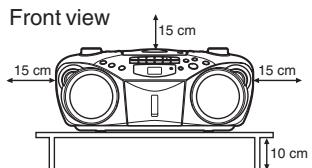
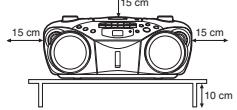
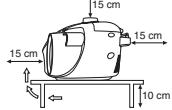
Caution: Proper Ventilation
To avoid risk of electric shock and fire, and to prevent damage, locate the apparatus as follows:
1 Front:
No obstructions and open spacing.
2 Sides/Top/Back:
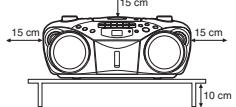
No obstructions should be placed in the areas shown in the illustration on the right.
3 Bottom:
Place on the level surface. Maintain an adequate air path for ventilation by placing on a stand with a height of 10cm or more.
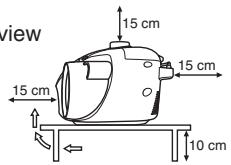
Side view
GETTING STARTED
POWERING UP
This CD portable system operates on battery or AC power.
BATTERY POWER
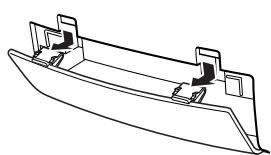
Insert six batteries R20 (SUM-1)/D (13D) (not supplied) and you can take your system just about anywhere. Open the battery compartment door on the back of the unit by pressing down the two tabs and pulling out the cover. Insert batteries as marked on the back.
Important Battery Information
- If you are not going to use your system for a month or more, be sure to remove batteries because they can leak and cause damage.
- Dispose of batteries in the proper manner, according to federal, state, and local regulations.
- Discard leaky batteries immediately. Leaking batteries can cause skin burns or other personal injury.
AC POWER
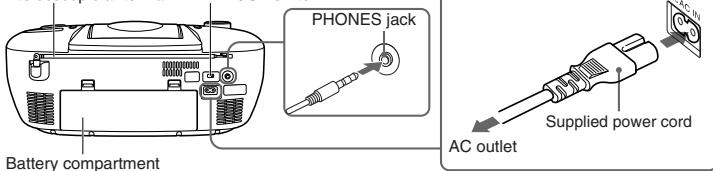
Plug the power supply cord into the AC IN jack on the back of the unit, and into an AC power outlet.
CAUTIONS:
ONLY USE JVC POWER CORD PROVIDED WITH THIS UNIT TO AVOID MALFUNCTION OR DAMAGE TO THE UNIT. REMOVE BATTERIES WHEN USING THE POWER CORD.
2. BE SURE TO UNPLUG THE POWER CORD FROM THE OUTLET WHEN GOING OUT OR WHEN THE UNIT IS NOT IN USE FOR AN EXTENDED PERIOD OF TIME.
USING HEADPHONES
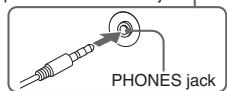
Connect commercially available headphones to the PHONES jack on the rear of the main unit. While the headphones are connected, the speakers do not produce any sound. Before connecting the headphones, make sure to turn down the sound volume.
ANTENNAS
The AM antenna is built in, so adjusting the position of the unit may help AM reception. The FM telescopic antenna on the back of the unit can be extended and rotated for better FM reception.
GENERAL CONTROLS
FUNCTION switch - Move the switch to select which part of this system you want to select - TUNER, TAPE or CD.
VOLUME - Turn the volume knob to increase or decrease the volume to desired level.
HBS - Press so that the HBS indicator lights. You can enjoy powerful bass sound with the Hyper-Bass Sound effect.
POWER OFF - Move FUNCTION to OFF/TAPE with no cassette button pressed, to turn the unit off.
USING THE RADIO
TUNING IN RADIO STATIONS
Move FUNCTION to TUNER to turn the radio on.
- Set BAND to AM or FM.
- Tune in desired station by turning the TUNING knob.
- To turn off the radio, move FUNCTION to OFF/TAPE.
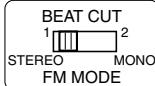
BEAT CUT/FM MODE SWITCH
- When recording an AM broadcast
When recording an AM broadcast, beats may occur. If this happens, set the switch to "1" or "2." - Changing the FM reception mode
When an FM stereo broadcast is hard to receive or noisy, set the switch to "MONO." Reception improves.
To restore the stereo effect, switch to "STEREO."

USING THE TAPE
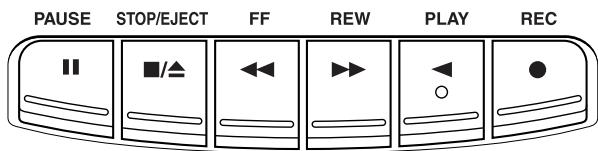
PAUSE II - Press to interrupt tape play or record mode. Press a second time to resume tape play or tape record mode.
STOP/EJECT / - Press to stop the current tape activity, or to open the cassette compartment door when no buttons are active.
FF - In stop mode, press to advance the tape toward the end. (When the tape reaches the end, press STOP/EJECT to release the depressed button.)
REW - In stop mode, press to rewind the tape toward the beginning. (When the tape reaches the end, press STOP/EJECT /Δ to release the depressed button.)
PLAY - Press to play cassettes
REC Press to record from the radio or CD player.
PLAYING A CASSETTE TAPE
- Move FUNCTION to OFF/TAPE.
- Press STOP/EJECT to open the cassette compartment door.
- Insert a cassette tape into the compartment with the exposed part of the tape facing up and the side you want to play facing toward you.
- Close the door securely.
- Press REW or FF to move the tape to the desired starting point.
- Press PLAY to begin playing the tape. The cassette tape plays until it reaches the end of the side, then it automatically stops.
RECORDING ON CASSETTE TAPES
You can record from the radio or the CD player.
For best recording, use normal bias tape.
It should be noted that it may be unlawful to re-record pre-recorded tapes, records, or discs without the consent of the owner of copyright in the sound or video recording, broadcast or cable program and in any literary, dramatic, musical, or artistic work embodied therein.
ERASE PROTECTION
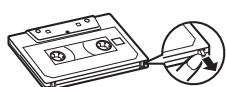
When you record new material, the cassette deck records over whatever is on a tape. To protect a tape from accidental erasure, break off one or both plastic tabs (one for each tape side) on the top of the cassette tape. If you decide later to record on the tape, seal the hole with a piece of cellophane tape.
WARNING
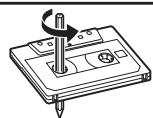
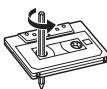
A little bit of slack in your tape can cause scratches on the tape, or worse yet, the tape could break. If you notice some slack in the tape, use a pencil to tighten it up before you insert it in the tape deck.
TIP
The use of tapes longer than 120 minutes is not recommended, since characteristic deterioration may occur and these tapes easily jam in the pinch-roller and the capstan.
- Insert a cassette tape into the tape deck and close the door.
- Move FUNCTION to TUNER and select a radio station.
- Press REC to begin recording. REC and PLAY lock down.
- Press STOP/EJECT to end recording.
- To turn off the radio, slide FUNCTION to OFF/TAPE.
- To temporarily pause the recording, press PAUSE II on the cassette deck. Press PAUSE II again to resume recording.
SYNCHRONIZED RECORDING FROM A CD
-
Insert a cassette tape into the tape deck and close the door.
-
Move FUNCTION to CD.
- Insert the CD you want to record into CD compartment.
-
Select the track you want to record by pressing 1 (skip/search) or 2 (skip/search).
-
Press REC to start recording.
Note that the tape continues to run when the CD finishes playing, or the CD continues to play when the tape reaches the end.
TIP
Using the PAUSE button on the cassette deck instead of the STOP/EJECT button to momentarily interrupt recording gives you a much cleaner sound recording.
USING THE CD
LOADING A CD
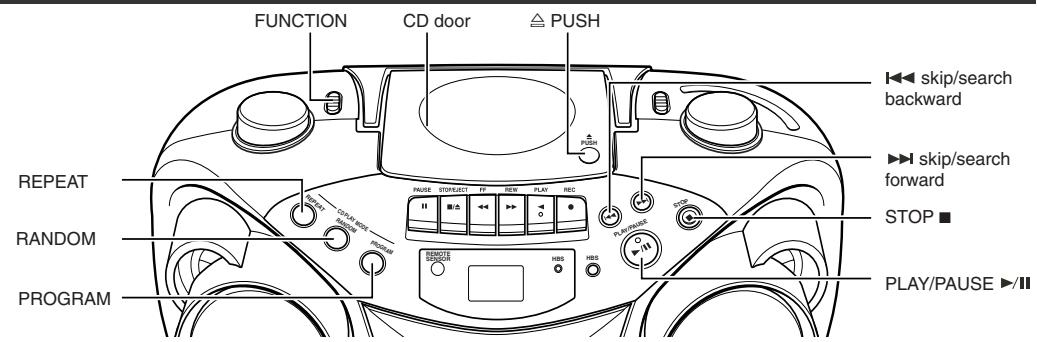
- Move FUNCTION to CD; “--” flashes, then “no” appears in the display if no CD is loaded.
- Press PUSH to open the CD door.
- Place a CD into the tray with the label facing up.
- Close the CD door. Then the total number of tracks appears.
- To remove the CD, press PUSH, grasp the CD by its edges, and carefully pull it out.
PLAYING A CD
Press PLAY/PAUSE to play all the tracks in order starting with track 1. The current track number appears in the display.
Note: Press PLAY/PAUSE to temporarily stop the CD. The indicator and the track number flash in the display. Press PLAY/PAUSE again to resume playing the CD.
- Adjust VOLUME to a comfortable level.
- Press STOP to stop playing the CD. Wait a few seconds for the CD to stop turning, then press PUSH to open the CD compartment door and remove the CD.
AUTOMATIC SEARCH
Automatic search lets you quickly locate the beginning of any track on the CD, including the track currently playing. If the CD is playing:
- Press (skip/search) once to return to the beginning of the current track, press twice to return to the beginning of the previous track.
Press (skip/search) to skip to the beginning of the next track.
If the CD is stopped, repeatedly press (skip/search) or (skip/search) until the display shows the number of the track you want to play, then press PLAY/PAUSE III. The CD player starts playing the selected track.
TRACK SEARCH
- In play mode, press and hold (skip/search) to move forward through a track at high speed.
- In play mode, press and hold (skip/search) to move backward through a track at high speed.
REPEAT
The REPEAT button allows you to repeat one track (REP 1) or all tracks (REP ALL). To scroll through the choices, continuously press and release REPEAT and check the display to see which choice you have selected.
The following chart illustrates how REPEAT works in various modes

RANDOM
Press RANDOM so that "RAND" appears in the display. Start play by pressing PLAY/PAUSE II, and the tracks are played in random order.
To quit random play, press RANDOM again.
PROGRAMMING
Press PROGRAM to enter program edit mode.
"00" and "PROG" will flash in the display. Press (skip/search) or (skip/search) to select the track number and press PROGRAM to store the number in program place. You can repeat these steps to program up to 20 tracks. Note that programming more than 20 tracks will overwrite the tracks already programmed. During program play, "PROG" lights steadily. To confirm the program order, press PROGRAM in stop mode. Each time you press PROGRAM, the program number appears, then the corresponding track number flashes in order from the first programmed track.
To clear the entire program in the memory, turn the unit off, or open the CD door.
This unit has been designed only to play back the following CDs.
Digital audio CD
- Recordable digital audio CD (CD-R)
- Rewritable digital audio CD (CD-RW)
When playing a CD-R or CD-RW
You can play back finalized CD-R or CD-RW recorded in music CD format. (If a CD-RW has been recorded in a different format, erase all the data on the CD-RW completely before recording on it.)
- You can play back CD-R or CD-RW like an audio CD.
- Some CD-R or CD-RW may not be played back on this unit because of their disc characteristics, damage or stain on them, or if the player lens is dirty.
- The reflection factor of CD-RW is lower than that of other CDs, possibly causing CD-RW to take longer time to read.
- CD-R and CD-RW of MP3 format cannot be played back.
Caution for DualDisc playback
The Non-DVD side of a "DualDisc" does not comply with the "Compact Disc Digital Audio" standard. Therefore, the use of Non-DVD side of a DualDisc on this product may not be recommended.
CARE AND MAINTENANCE
CLEANING THE EXTERIOR
- Disconnect the system from AC power before cleaning the exterior of the unit with a soft dust cloth.
HANDLING CDS
- Do not touch the signal surfaces. Hold by the edges, or by one edge and the hole.
- Do not affix labels or adhesive tape to the label surfaces. Also, do not scratch or damage the label.
- Discs rotate at high speed inside the player. Do not use damaged (cracked or warped) discs.
CLEANING CDS
- Dirty discs can cause poor sound quality. Always keep discs clean by wiping them gently with a soft cloth from the inner edge toward the outer perimeter.
- If a disc becomes dirty, wet a soft cloth in water, wring it out well, wipe the dirt away gently, and then remove any water drops with a dry cloth.
- Do not use record cleaning sprays or antistatic agents on discs. Also, never clean discs with benzene, thinner, or other volatile solvents which may cause damage to the disc surface.
TAPE CARE
- Do not expose tapes to sunlight or store in hot places. High temperatures may warp the shell or damage the tape itself.
- Keep cassettes in their boxes when not in use.
- Cassette tapes can be erased by magnetic fields produced by magnets, electric motors, electrical transformers, and other devices. Keep tapes away from magnets and magnetic fields.
CLEANING THE TAPE HEADS
Iron oxide particles from the magnetic tape can build up on the parts that come in contact with the tape. These deposits can cause incomplete erasure, muffled playback sound, and might prevent automatic stop.
To clean a cassette deck, open the compartment door, press PLAY and gently clean the heads, capstan, and pinch wheel with a head cleaner.
Always unplug the power cord before cleaning, and allow 30 minutes drying time after using a liquid cleaner. Clean heads after every 25 hours of use.
- Demagnetize the head occasionally with a head demagnetizing cassette (available from many audio equipment stores).
- Never use any metal objects on or near the tape heads.
- Do not allow any cleaning material to fall into the tape assembly.
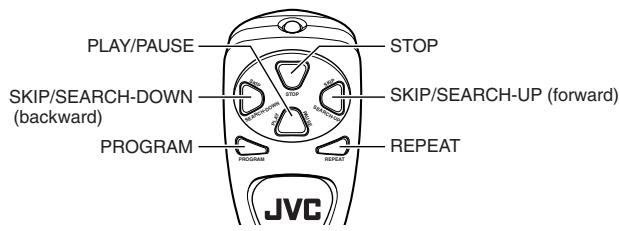
REMOTE FUNCTIONS (FOR CD OPERATION ONLY)
When inserting batteries R03 (UM-4) / AAA (24F)
Match the polarity (+ and -) on the batteries with the + and - markings in the battery compartment on the back of the unit.
TROUBLESHOOTING TIPS
| Problem | Solution |
| System doesn't turn on. | ·Make sure power cord is securely plugged into the AC power outlet (or that the batteries are fresh). ·Unplug the unit for a moment, and then plug it back in again. ·Check the outlet by plugging in another device. |
| No sound | ·Adjust volume setting. ·Make sure you have selected the correct function: CD, TAPE, or TUNER and the headphones are disconnected. |
| Poor radio reception | ·Adjust the FM telescopic antenna for better FM reception. ·Rotate the unit to achieve better AM reception. ·Try turning off electrical appliances near the unit, such as TV, hair dryers, vacuum cleaners, or fluorescent lights. |
| CD doesn't play. | ·Make sure the tray contains a CD. ·Make sure the CD's label is facing up. ·Make sure that pause mode is not activated. ·Make sure CD function is selected. |
| CD sound skips. | ·Clean the CD (as explained in “CARE AND MAINTENANCE”). ·Check CD for warping, scratches, or other damage. ·Check for vibration or shock that may affect the unit; move system if necessary. |
| Distorted or noisy recordings | ·Inspect the recording head and clean it if necessary. ·Demagnetize recording head (as explained in “CARE AND MAINTENANCE”). |
SPECIFICATION
CD player
CD capacity
Dynamic range
Signal-to-noise ratio
Tuner
Frequency ranges
Antenna
Cassette deck section
Frequency response
Wow and flutter
General
Speaker
Power output
Output terminals
Power supply
Power consumption
Dimensions
Mass
Accessories provided
:1CD
:60dB
:75dB
: FM 88 - 108 MHz
: AM 540 - 1 600 kHz
: Telescopic antenna for FM
Ferrite core antenna for AM
: 60 Hz - 10 000 Hz
:0.15% (WRMS)
: 9 cm cone × 2 (4 Ω)
: 4 W (2 W + 2 W) at 4 Ω (10% THD) (IEC268-3)
:PHONES × 1 (03.5mm, stereo)
: AC 230 V\~, 50 Hz
DC 9 V ("R20 (SUM-1)/D (13D)" × 6)
: 12 W (at operation), 3 W (on standby)
: 420mm W × 178 mm H × 249 mm D
: Approx. 3.2kg (without batteries)
: AC power cord × 1
Remote control unit × 1
Batteries for the remote control unit R03 (UM-4)/AAA (24F) × 2
RC-EX16B/RC-EX16A
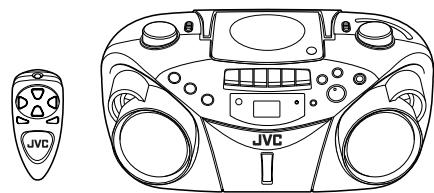


INSTRUCTIONS
Thank you for purchasing this JVC product.
Please read these instructions carefully before starting operation to be sure to
obtain optimum performance and a longer service life from the unit.
[VT1374-004A[F]
0205NSMBICORI
©2005 Victor Company of Japan, Limited
SAFETY PRECAUTIONS
Caution — ( ) OFF switch!
Disconnect the mains plug to shut the power off completely. The switch in any position does not disconnect the mains line. The power cannot be remote controlled.
CAUTION
To reduce the risk of electrical shocks, fire, etc.:
1. Do not remove screws, covers or cabinet
2. Do not expose this appliance to rain or moisture.
1. CLASS 2011 LABOR PRODUCT
- CLASS 1EASER PRODUCT
- CAUTION: Do not open the top cover. There are no user serviceable parts inside
the unit; leave all servicing to qualified service personnel. - CAUTION: Visible and invisible laser radiation when open and interlock failed or defeated. Avoid direct exposure to beam.
- REPRODUCTION OF LABEL: CAUTION LABEL, PLACED INSIDE THE UNIT.
CAUTION - INVASIBLE LASER RADIATION WHEN OPEN AND INTERBLOCKS
DEFEATED. AVOID EXPOSURE TO BEAM.
Caution: Proper Ventilation
To avoid risk of electric shock and fire, and to prevent damage, locate the apparatus as follows:
- Front:
No obstructions and open spacing.
2 Sides/Top/Back:
No obstructions should be placed in the areas shown by the dimensions below.
3 Bottom:
Place on the level surface. Maintain an adequate air path for ventilation by placing on a stand with a height of 10cm or more.
Front view
Side view
GETTING STARTED
POWERING UP
This CD portable system operates on battery or AC power.
FM telescopic antenna
BEAT CUT/FM MODE switch
BATTERY POWER
Insert six batteries R20 (SUM-1)/D (13D) (not supplied) and you can take your system just about anywhere. Open the battery compartment door on the back of the unit by pressing down the two tabs and pulling out the cover. Insert batteries as marked on the back.
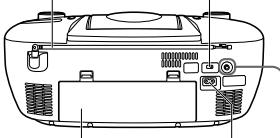
Battery compartment AC IN jack
Important Battery Information
- If you are not going to use your system for a month or more, be sure to remove batteries because they can leak and cause damage.
- Dispose of batteries in the proper manner, according to federal, state, and local regulations.
- Discard leaky batteries immediately. Leaking batteries can cause skin burns or other personal injury.
AC POWER
Plug the power supply cord into the AC IN jack on the back of the unit, and into an AC power outlet.
CAUTIONS:
- ONLY USE JVC POWER CORD PROVIDED WITH THIS UNIT TO AVOID MALFUNCTION OR DAMAGE TO THE UNIT. REMOVE BATTERIES WHEN USING THE POWER CORD.
- BE SURE TO UNPLUG THE POWER CORD FROM THE OUTLET WHEN GOING OUT OR WHEN THE UNIT IS NOT IN USE FOR AN EXTENDED PERIOD OF TIME.
USING HEADPHONES
Connect commercially available headphones to the PHONES jack on the rear of the main unit. While the headphones are connected, the speakers do not produce any sound. Before connecting the headphones, make sure to turn down the sound volume.
ANTENNAS
The AM antenna is built in, so adjusting the position of the unit may help AM reception. The FM telescopic antenna on the back of the unit can be extended and rotated for better FM reception.
GENERAL CONTROLS
FUNCTION switch - Move the switch to select which part of this system you want to select - TUNER, TAPE or CD.
VOLUME - Turn the volume knob to increase or decrease the volume to desired level.
HBS - Press so that the HBS indicator lights. You can enjoy powerful bass sound with the Hyper-Bass Sound effect.
POWER OFF - Move FUNCTION to OFF/TAPE with no cassette button pressed, to turn the unit off.
USING THE RADIO
TUNING IN RADIO STATIONS
Move FUNCTION to TUNER to turn the radio on.
- Set BAND to AM or FM.
- Tune in desired station by turning the TUNING knob.
To turn off the radio, move FUNCTION to OFF/TAPE
BEAT CUT/FM MODE SWITCH
- When recording an AM broadcast
When recording an AM broadcast, beats may occur. If this happens, set the switch to "1" or "2." - Changing the FM reception mode
When an FM stereo broadcast is hard to receive or noisy, set the switch to
“MONO.
Reception improves.
To restore the stereo effect, switch to "STEREO."
USING THE TAPE
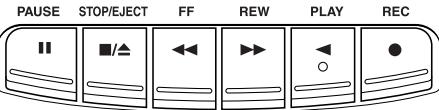
PAUSE II - Press to interrupt tape play or record mode. Press a second time to resume tape play or tape record mode.
STOP/EJECT Press to stop the current tape activity, or to open the cassette compartment door when no buttons are active.
FF - In stop mode, press to advance the tape toward the end. (When the tape reaches the end, press STOP/EJECT to release the depressed button.)
REW▶ - In stop mode, press to rewind the tape toward the beginning. (When the tape reaches the end, press STOP/EJECT ▪/▲ to release the depressed button.)
PLAY - Press to play cassettes.
REC - Press to record from the radio or CD player
PLAYING A CASSETTE TAPE
- Move FUNCTION to OFF/TAPE
- Press STOP/EJECT to open the cassette compartment door.
- Insert a cassette tape into the compartment with the exposed part of the tape facing up and the side you want
to play facing toward you
- Close the door securely.
- Press REW or FF to move the tape to the desired starting point.
- Press PLAY to begin playing the tape. The cassette tape plays until it reaches the end of the side, then it automatically stops.
RECORDING ON CASSETTE TAPES
You can record from the radio or the CD player.
For best recording, use normal bias tape.
It may be unlawful to record or play back copyrighted material without the consent of the copyright owner.
ERASE PROTECTION
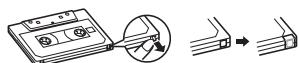
When you record new material, the cassette deck records over whatever is on a tape. To protect a tape from accidental erasure, break off one or both plastic tabs (one for each tape side) on the top of the cassette tape. If you decide later to record on the tape, seal the hole with a piece of cellophane tape.
WARNING
A little bit of slack in your tape can cause scratches on the tape, or worse yet, the tape could break. If you notice some slack in the tape, use a pencil to tighten it up before you insert it in the tape deck.
TIP
The use of tapes longer than 120 minutes is not recommended, since characteristic deterioration may occur and these tapes easily jam in the pinch-roller and the capstan.
- Insert a cassette tape into the tape deck and close the door
- Move FUNCTION to TUNER and select a radio station.
- Press REC to begin recording. REC and PLAY lock down.
- Press STOP/EJECT /△ to end recording.
- To turn off the radio, slide FUNCTION to OFF/TAPE.
- To temporarily pause the recording, press PAUSE II on the cassette deck. Press PAUSE II again to resume recording.
SYNCHRONIZED RECORDING FROM A CD
- Insert a cassette tape into the tape deck and close the door.
- Move FUNCTION to CD.
- Insert the CD you want to record into CD compartment.
- Select the track you want to record by pressing (skip/search) or (skip/search).
- Press REC to start recording.
Note that the tape continues to run when the CD finishes playing, or the CD continues to play when the tape reaches the end.
TIP
Using the PAUSE II button on the cassette deck instead of the STOP/EJECT / button to momentarily interrupt recording gives you a much cleaner sound recording.
USING THE CD
LOADING A CD
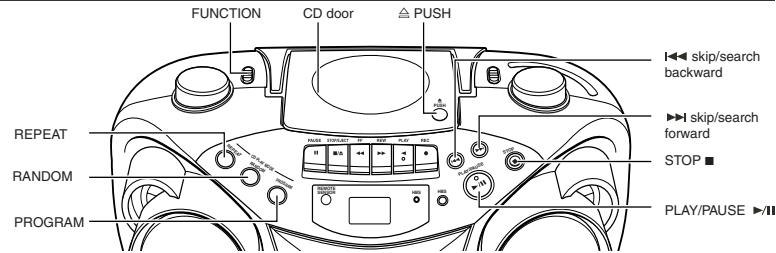
- Move FUNCTION to CD: “--” flashes, then “no” appears in the display if no CD is loaded.
- Press PUSH to open the CD door.
- Place a CD into the tray with the label facing up
- Close the CD door. Then the total number of tracks appears.
- To remove the CD, press PUSH, grasp the CD by its edges, and carefully pull it out.
PLAYING A CD
Press PLAY/PAUSE to play all the tracks in order starting with track 1. The current track number appears in the display.
Note: Press PLAY/PAUSE /II to temporarily stop the CD. The indicator and the track number flash in the display. Press PLAY/PAUSE /II again to resume playing the CD.
- Adjust VOLUME to a comfortable level.
- Press STOP to stop playing the CD. Wait a few seconds for the CD to stop turning, then press PUSH to open the CD compartment door and remove the CD.
AUTOMATIC SEARCH
Automatic search lets you quickly locate the beginning of any track on the CD, including the track currently playing. If the CD is playing:
- Press (skip/search) once to return to the beginning of the current track, press twice to return to the beginning of the previous track.
Press (skip/search) to skip to the beginning of the next track.
If the CD is stopped, repeatedly press (skip/search) or (skip/search) until the display shows the number of the track you want to play, then press PLAY/PAUSE II. The CD player starts playing the selected track.
TRACK SEARCH
- In play mode, press and hold (skip/search) to move forward through a track at high speed.
- In play mode, press and hold (skip/search) to move backward through a track at high speed.
REPEAT
The REPEAT button allows you to repeat one track (REP 1) or all tracks (REP ALL). To scroll through the choices, continuously press and release REPEAT and check the display to see which choice you have selected. The following chart illustrates how REPEAT works in various modes.
→NORMAL→ REP1→ REPALL
RANDOM
Press RANDOM so that "RAND" appears in the display. Start play by pressing PLAY/PAUSE II, and the tracks are played in random order.
To quit random play, press RANDOM again.
PROGRAMMING
Press PROGRAM to enter program edit mode.
"00" and "PROG" will flash in the display. Press (skip/search) or (skip/search) to select the track number and press PROGRAM to store the number in program place. You can repeat these steps to program up to 20 tracks. Note that programming more than 20 tracks will overwrite the tracks already programmed. During program play, "PROG" lights steadily. To confirm the program order, press PROGRAM in stop mode. Each time you press PROGRAM, the program number appears, then the corresponding track number flashes in order from the first programmed track.
To clear the entire program in the memory, turn the unit off, or open the CD door.
This unit has been designed only to play back the following CDs.
Digital audio CD
- Recordable digital audio CD (CD-R)
- Rewritable digital audio CD (CD-RW)
When playing a CD-R or CD-RW
You can play back finalized CD-R or CD-RW recorded in music CD format. (If a CD-RW has been recorded in a different format, erase all the data on the CD-RW completely before recording on it.)
- You can play back CD-R or CD-RW like an audio CD.
- Some CD-R or CD-RW may not be played back on this unit because of their disc characteristics, damage or stain on them, or if the player lens is dirty.
The reflection factor of CD-RW is lower than that of other CDs, possibly causing CD-RW to take longer time to read.
- CD-R and CD-RW of MP3 format cannot be played back
Caution for DualDisc playback
The Non-DVD side of a "DualDisc" does not comply with the "Compact Disc Digital Audio" standard. Therefore, the use of Non-DVD side of a DualDisc on this product may not be recommended.
CARE AND MAINTENANCE
CLEANING THE EXTERIOR
- Disconnect the system from AC power before cleaning the exterior of the unit with a soft dust cloth.
HANDLING CDS
- Do not touch the signal surfaces. Hold by the edges, or by one edge and the hole
- Do not affix labels or adhesive tape to the label surfaces. Also, do not scratch or damage the label.
- Discs rotate at high speed inside the player. Do not use damaged (cracked or warped) discs.
CLEANING CDS
- Dirty discs can cause poor sound quality. Always keep discs clean by wiping them gently with a soft cloth from the inner edge toward the outer perimeter.
If a disc becomes dirty, wet a soft cloth in water, wring it out well, wipe the dirt away gently, and then remove any water drops with a dry cloth. - Do not use record cleaning sprays or antistatic agents on discs. Also, never clean discs with benzene, thinner, or other volatile solvents which may cause damage to the disc surface.
TAPE CARE
- Do not expose tapes to sunlight or store in hot places. High temperatures may warp the shell or damage the tape itself.
- Keep cassettes in their boxes when not in use.
- Cassette tapes can be erased by magnetic fields produced by magnets, electric motors, electrical transformers, and other devices. Keep tapes away from magnets and magnetic fields.
CLEANING THE TAPE HEADS
Iron oxide particles from the magnetic tape can build up on the parts that come in contact with the tape. These deposits can cause incomplete erasure, muffled playback sound, and might prevent automatic stop.
To clean a cassette deck, open the compartment door, press PLAY and gently clean the heads, capstan, and pinch wheel with a head cleaner.
Always unplug the power cord before cleaning, and allow 30 minutes drying time after using a liquid cleaner. Clean heads after every 25 hours of use.
- Demagnetize the head occasionally with a head demagnetizing cassette (available from many audio equipment stores).
- Never use any metal objects on or near the tape heads.
- Do not allow any cleaning material to fall into the tape assembly
REMOTE FUNCTIONS (FOR CD OPERATION ONLY)
PLAY/PAUSE STOP When inserting batteries R03 (UM-4) / AAA (24F) Match the polarity (+ and -) on the batteries with the + and - markings in the battery compartment on the back of the unit.
PROGRAM REPEAT
When inserting batteries R03 (UM-4)/AAA (24F)
Match the polarity (+ and -) on the batteries with the +
and - markings in the battery compartment on the back of the unit.
TROUBLESHOOTING TIPS
| Problem | Solution |
| System doesn't turn on. | • Make sure power cord is securely plugged into the AC power outlet (or that the batteries are fresh). • Unplug the unit for a moment, and then plug it back in again. • Check the outlet by plugging in another device. |
| No sound | • Adjust volume setting. • Make sure you have selected the correct function: CD, TAPE, or TUNER and the headphones are disconnected. |
| Poor radio reception | • Adjust the FM telescopic antenna for better FM reception. • Rotate the unit to achieve better AM reception. • Try turning off electrical appliances near the unit, such as TV, hair dryers, vacuum cleaners, or fluorescent lights. |
| CD doesn't play. | • Make sure the tray contains a CD. • Make sure the CD's label is facing up. • Make sure that pause mode is not activated. • Make sure CD function is selected. |
| CD sound skips. | • Clean the CD (as explained in "CARE AND MAINTENANCE"). • Check CD for warping, scratches, or other damage. • Check for vibration or shock that may affect the unit; move system if necessary. |
| Distorted or noisy recordings | • Inspect the recording head and clean it if necessary. • Demagnetize recording head (as explained in "CARE AND MAINTENANCE"). |
SPECIFICATION
CD player
CD capacity : 1 CD
Dynamic range : 60 dB
Signal-to-noise ratio : 75 dB
Speaker
Power output
(10% THD) (IEC268-3)
Output terminal
9 cm cone × 2 (4 Ω)
4 W (2 W + 2 W) at 4
(10% THD) (IEC268-3)
Output terminal
PHONES × 1 (0 3.5mm
Power supply
Dimensions
Mass
Mass
Accessories provided
420mm W × 178 mm H
249 mm (D)
Approx. 3.2kg (without
batteries)
AC power cord × 1
control unit 100 (SM-4)/A/4 (24E)×2
Tuner
Frequency ranges : FM 88
AM 540 - 1600 kHz
Antenna
Telescopic antenna for FM
Ferrite core antenna for AM
(13D)×6)
Power consumption : 12 W (at operation), 3 W (on
Power supply
(13D)×6)
Power consumption : 12 W (at operation), 3 W (on
Cassette deck section
Frequency response : 60 Hz - 10 000 Hz
Wow and flutter : 0.15% (WRMS)
Remote control unit ×
Batteries for the remote
control unit P03 (UM 4) / AAA
Accessories provided . AC power cord x 1Remote control unit x 1
Remote control unit x
Batteries for the remote
control unit RO3 (OM-4)/AAA (100%)
Design and specifications are subject to change without notice.
RC-EX16B/RC-EX16A
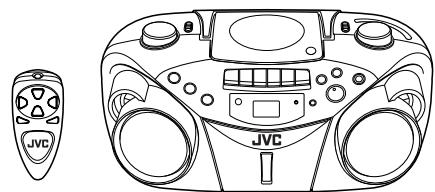


INSTRUCTIONS
Thank you for purchasing this JVC product.
Please read these instructions carefully before starting operation to be sure to obtain optimum performance and a longer service life from the unit.
0205NSMBICORI
EN ©2005 Victor Company of Japan, Limited
LVT1374-007A [EN]
SAFETY PRECAUTIONS
Caution - OFF switch!
Disconnect the mains plug to shut the power off completely. The switch in any position does not disconnect the mains line. The power cannot be remote controlled.
CAUTION
To reduce the risk of electrical shocks, fire, etc.:
1. Do not remove screws, covers or cabinet.
2. Do not expose this appliance to rain or moisture
IMPORTANT FOR LASER PRODUCTS
-
CLASS 1 LASER PRODUCT
-
CAUTION: Do not open the top cover. There are no user serviceable parts inside the unit: leave all servicing to qualified service personnel.
- CAUTION: Visible and invisible laser radiation when open and interlock failed or defeated. Avoid direct exposure to beam.
- REPRODUCTION OF LABEL: CAUTION LABEL, PLACED INSIDE THE UNIT.
CAUTION - INVISIBLE LASER RADIATION WHEN OPEN AND INTERLOCKS DEFeated. AVOID EXPOSURE TO BEAM.
VORSICHT! UNSICHTBARE LASERSTRAHUNG TRITT AUS, WENN DECKEL GEÖFFNET UND WENN SICHERHEITSVERRIGELUNG UBERBRUCKT IST. NICT DEM STRAHL AUSSETZEN!
WARNING - OSYNLIG ALUS STRÄNLING NAR DENNA DEL APPNAD OCH SPARR AR URKOPPLAD STRÄLEN AN FARGIL.
ADVARSEL USYNLG LASERSTRALING VED ABNING NAR SIKKERHEDSAFBRYDERE ER UDE AF FUNKTION. UNDG AUDSETTELSE FOR STRALING.
Caution: Proper Ventilation
To avoid risk of electric shock and fire, and to prevent damage, locate the apparatus as follows:
1 Front
No obstructions and open spacing.
2 Sides/Top/Back:
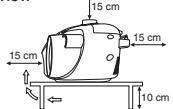
No obstructions should be placed in the areas shown by the dimensions below.
3 Bottom:
Place on the level surface. Maintain an adequate air path for ventilation by placing on a stand with a height of 10cm or more.
Front view
Side view
GETTING STARTED
POWERING UP
This CD portable system operates on battery or AC power.
BATTERY POWER
Insert six batteries R20 (SUM-1)/D (13D) (not supplied) and you can take your system just about anywhere. Open the battery compartment door on the back of the unit by pressing down the two tabs and pulling out the cover. Insert batteries as marked on the back.
Important Battery Information
- If you are not going to use your system for a month or more, be sure to remove batteries because they can leak and cause damage.
- Dispose of batteries in the proper manner, according to federal, state, and local regulations.
- Discard leaky batteries immediately. Leaking batteries can cause skin burns or other personal injury.
AC POWER
Plug the power supply cord into the AC IN jack on the back of the unit, and into an AC power outlet.
CAUTIONS:
1. ONLY USE JVC POWER CORD PROVIDED WITH THIS UNIT TO AVOID MALFUNCTION OR DAMAGE TO THE UNIT. REMOVE BATTERIES WHEN USING THE POWER CORD.
2. BE SURE TO UNPLUG THE POWER CORD FROM THE OUTLET WHEN GOING OUT OR WHEN THE UNIT IS NOT IN USE FOR AN EXTENDED PERIOD OF TIME.
USING HEADPHONES
Connect commercially available headphones to the PHONES jack on the rear of the main unit. While the headphones are connected, the speakers do not produce any sound. Before connecting the headphones, make sure to turn down the sound volume.
ANTENNAS
The AM antenna is built in, so adjusting the position of the unit may help AM reception. The FM telescopic antenna on the back of the unit can be extended and rotated for better FM reception.
GENERAL CONTROLS
FUNCTION switch -Move the switch to select which part of this system you want to select - TUNER, TAPE on CD.
VOLUME - Turn the volume knob to increase or decrease the volume to desired level.
HBS - Press so that the HBS indicator lights. You can enjoy powerful bass sound with the Hyper-Bass Sound effect.
POWER OFF - Move FUNCTION to OFF/TAPE with no cassette button pressed, to turn the unit off.
USING THE RADIO
TUNING IN RADIO STATIONS
Move FUNCTION to TUNER to turn the radio on
- Set BAND to AM or FM.
- Tune in desired station by turning the TUNING knob.
To turn off the radio, move FUNCTION to OFF/TAPE
BEAT CUT/FM MODE SWITCH
- When recording an AM broadcast
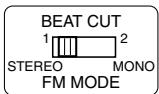
When recording an AM broadcast, beats may occur. If this happens, set the switch to "1" or "2." - Changing the FM reception mode
When an FM stereo broadcast is hard to receive or noisy, set the switch to "MONO."
Reception improves.
To restore the stereo effect, switch to "STEREO."
USING THE TAPE
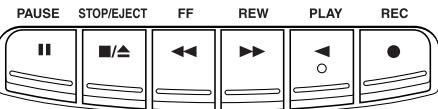
PAUSE II - Press to interrupt tape play or record mode. Press a second time to resume tape play or tape record mode.
STOP/EJECT - Press to stop the current tape activity, or to open the cassette compartment door when no buttons are active.
FF In stop mode, press to advance the tape toward the end. (When the tape reaches the end, press STOP/EJECT /A to release the depressed button.)
REW - In stop mode, press to rewind the tape toward the beginning. (When the tape reaches the end, press STOP/EJECT to release the depressed button.)
PLAY - Press to play cassettes.
REC Press to record from the radio or CD player.
PLAYING A CASSETTE TAPE
- Move FUNCTION to OFF/TAPE.
- Press STOP/EJECT to open the cassette compartment door
- Insert a cassette tape into the compartment with the exposed part of the tape facing up and the side you want
to play facing toward you. - Close the door securely.
-
Press REW or FF to move the tape to the desired starting point.
-
Press PLAY to begin playing the tape. The cassette tape plays until it reaches the end of the side, then it automatically stops.
RECORDING ON CASSETTE TAPES
You can record from the radio or the CD player
For best recording, use normal bias tape.
It may be unlawful to record or play back copyrighted material without the consent of the copyright owner.
ERASE PROTECTION
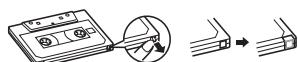
When you record new material, the cassette deck records over whatever is on a tape. To protect a tape from accidental erasure, break off one or both plastic tabs (one for each tape side) on the top of the cassette tape. If you decide later to record on the tape, seal the hole with a piece of cellophane tape.
WARNING
A little bit of slack in your tape can cause scratches on the tape, or worse yet, the tape could break. If you notice some slack in the tape, use a pencil to tighten it up before you insert it in the tape deck.

TIP
The use of tapes longer than 120 minutes is not recommended, since characteristic deterioration may occur and these tapes easily jam in the pinch-roller and the capstan.
- Insert a cassette tape into the tape deck and close the door.
- Move FUNCTION to TUNER and select a radio station.
- Press REC to begin recording. REC and PLAY lock down.
- Press STOP/EJECT to end recording
- To turn off the radio, slide FUNCTION to OFF/TAPE
- To temporarily pause the recording, press PAUSE II on the cassette deck. Press PAUSE II again to resume recording.
SYNCHRONIZED RECORDING FROM A CD
- Insert a cassette tape into the tape deck and close the door.
- Move FUNCTION to CD.
- Insert the CD you want to record into CD compartment.
- Select the track you want to record by pressing I (skip/search) or (skip/search).
- Press REC to start recording.
Note that the tape continues to run when the CD finishes playing, or the CD continues to play when the tape reaches the end.
TIP
Using the PAUSE button on the cassette deck instead of the STOP/EJECT button to momentarily interrupt recording gives you a much cleaner sound recording.
USING THE CD
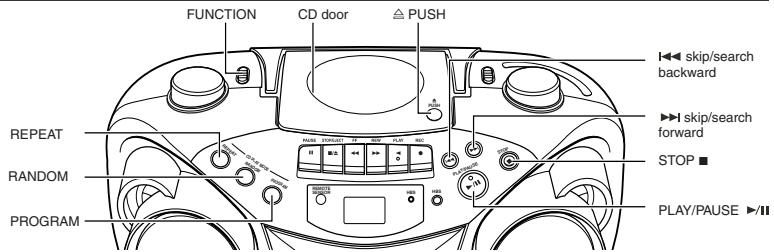
LOADING A CD
- Move FUNCTION to CD; “—” flashes, then “no” appears in the display if no CD is loaded.
- Press PUSH to open the CD door.
- Place a CD into the tray with the label facing up.
- Close the CD door. Then the total number of tracks appears
- To remove the CD, press PUSH, grasp the CD by its edges, and carefully pull it out.
PLAYING A CD
Press PLAY/PAUSE to play all the tracks in order starting with track 1. The current track number appears in the display.
Note: Press PLAY/PAUSE /II to temporarily stop the CD. The indicator and the track number flash in the display. Press PLAY/PAUSE /II again to resume playing the CD.
- Adjust VOLUME to a comfortable level.
- Press STOP to stop playing the CD. Wait a few seconds for the CD to stop turning, then press PUSH to open the CD compartment door and remove the CD.
AUTOMATIC SEARCH
Automatic search lets you quickly locate the beginning of any track on the CD, including the track currently playing. If the CD is playing:
- Press (skip/search) once to return to the beginning of the current track, press twice to return to the beginning of the previous track.
Press (skip/search) to skip to the beginning of the next track
If the CD is stopped, repeatedly press (skip/search) or (skip/search) until the display shows the number of the track you want to play, then press PLAY/PAUSE II. The CD player starts playing the selected track.
TRACK SEARCH
- In play mode, press and hold (skip/search) to move forward through a track at high speed.
- In play mode, press and hold (skip/search) to move backward through a track at high speed
REPEAT
The REPEAT button allows you to repeat one track (REP 1) or all tracks (REP ALL). To scroll through the choices, continuously press and release REPEAT and check the display to see which choice you have selected. The following chart illustrates how REPEAT works in various modes.
→NORMAL→REP1→REPALL
RANDOM
Press RANDOM so that "RAND" appears in the display. Start play by pressing PLAY/PAUSE II, and the tracks are played in random order.
To quit random play, press RANDOM again.
PROGRAMMING
Press PROGRAM to enter program edit mode.
"00" and "PROG" will flash in the display. Press (skip/search) or (skip/search) to select the track number and press PROGRAM to store the number in program place. You can repeat these steps to program up to 20 tracks. Note that programming more than 20 tracks will overwrite the tracks already programmed. During program play, "PROG" lights steadily. To confirm the program order, press PROGRAM in stop mode. Each time you press PROGRAM, the program number appears, then the corresponding track number flashes in order from the first programmed track.
To clear the entire program in the memory, turn the unit off, or open the CD door.
This unit has been designed only to play back the following CDs.
Digital audio CD
- Recordable digital audio CD (CD-R)
- Rewritable digital audio CD (CD-RW)
When playing a CD-R or CD-RW
You can play back finalized CD-R or CD-RW recorded in music CD format. (If a CD-RW has been recorded in a different format, erase all the data on the CD-RW completely before recording on it.)
- You can play back CD-R or CD-RW like an audio CD.
- Some CD-R or CD-RW may not be played back on this unit because of their disc characteristics, damage or stain on them, or if the player lens is dirty.
The reflection factor of CD-RW is lower than that of other CDs, possibly causing CD-RW to take longer time to read.
- CD-R and CD-RW of MP3 format cannot be played back.
Caution for DualDisc playback
The Non-DVD side of a "DualDisc" does not comply with the "Compact Disc Digital Audio" standard. Therefore, the use of Non-DVD side of a DualDisc on this product may not be recommended.
CARE AND MAINTENANCE
CLEANING THE EXTERIOR
- Disconnect the system from AC power before cleaning the exterior of the unit with a soft dust cloth.
HANDLING CDS
- Do not touch the signal surfaces. Hold by the edges, or by one edge and the hole.
- Do not affix labels or adhesive tape to the label surfaces. Also, do not scratch or damage the label.
Discs rotate at high speed inside the player. Do not use damaged (cracked or warped) discs.
CLEANING CDS
- Dirty discs can cause poor sound quality. Always keep discs clean by wiping them gently with a soft cloth from the inner edge toward the outer perimeter.
- If a disc becomes dirty, wet a soft cloth in water, wring it out well, wipe the dirt away gently, and then remove any water drops with a dry cloth.
- Do not use record cleaning sprays or antistatic agents on discs. Also, never clean discs with benzene, thinner, or other volatile solvents which may cause damage to the disc surface.
TAPE CARE
- Do not expose tapes to sunlight or store in hot places. High temperatures may warp the shell or damage the tape itself.
- Keep cassettes in their boxes when not in use.
- Cassette tapes can be erased by magnetic fields produced by magnets, electric motors, electrical transformers, and other devices. Keep tapes away from magnets and magnetic fields.
CLEANING THE TAPE HEADS
Iron oxide particles from the magnetic tape can build up on the parts that come in contact with the tape. These deposits can cause incomplete erasure, muffled playback sound, and might prevent automatic stop.
To clean a cassette deck, open the compartment door, press PLAY and gently clean the heads, capstan, and pinch wheel with a head cleaner.
Always unplug the power cord before cleaning, and allow 30 minutes drying time after using a liquid cleaner. Clean heads after every 25 hours of use.
- Demagnetize the head occasionally with a head demagnetizing cassette (available from many audio equipment stores).
- Never use any metal objects on or near the tape heads.
- Do not allow any cleaning material to fall into the tape assembly.
REMOTE FUNCTIONS (FOR CD OPERATION ONLY)
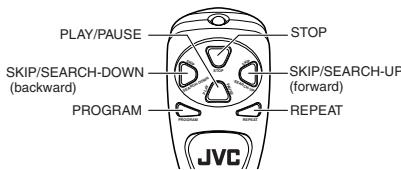
When inserting batteries R03 (UM-4) / AAA (24F)
Match the polarity (+ and -) on the batteries with the +
and - markings in the battery compartment on the back of the unit.
TROUBLESHOOTING TIPS
| Problem | Solution |
| System doesn't turn on. | ·Make sure power cord is securely plugged into the AC power outlet (or that the batteries are fresh). ·Unplug the unit for a moment, and then plug it back in again. ·Check the outlet by plugging in another device. |
| No sound | ·Adjust volume setting. ·Make sure you have selected the correct function: CD, TAPE, or TUNER and the headphones are disconnected. |
| Poor radio reception | ·Adjust the FM telescopic antenna for better FM reception. ·Rotate the unit to achieve better AM reception. ·Try turning off electrical appliances near the unit, such as TV, hair dryers, vacuum cleaners, or fluorescent lights. |
| CD doesn't play. | ·Make sure the tray contains a CD. ·Make sure the CD's label is facing up. ·Make sure that pause mode is not activated. ·Make sure CD function is selected. |
| CD sound skips. | ·Clean the CD (as explained in "CARE AND MAINTENANCE"). ·Check CD for warping, scratches, or other damage. ·Check for vibration or shock that may affect the unit; move system if necessary. |
| Distorted or noisy recordings | ·Inspect the recording head and clean it if necessary. ·Demagnetize recording head (as explained in "CARE AND MAINTENANCE"). |
SPECIFICATION
CD player
CD capacity : 1 CD
Dynamic range : 60 dB
Signal-to-noise ratio : 75 dB
General
Speaker : 9 cm cone × 2 (4 Ω)
Power output
(10% THD) (IEC268-3)
Output terminals
D.
Power supply
Power consumption
∴ m = 3/2 ;
Dimensions
Mass
Accessories provid
Remote control unit × 1
control unit R03 (UM-4)/AAA
(24F)×2
Design and specifications are subject to change without notice.
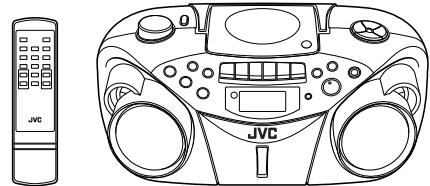


INSTRUCTIONS
Thank you for purchasing this JVC product.
Please read these instructions carefully before starting operation to be sure to obtain optimum performance and a longer service life from the unit.
FIRST THINGS
This portable system operates on battery or AC power.
FM telescopic antenna BEAT CU
INSERTING BATTERIES
1 Open the battery compartment cover.
Pull the battery compartment cover toward you while pressing the sections marked by the arrows.
2 Insert six R20 (SUM-1)/D (13D)-size batteries. (not supplied)
Be sure to insert the batteries with the (+) and (-) terminals positioned correctly.
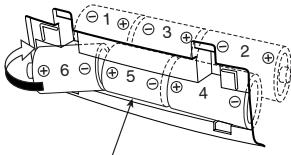
R20 (SUM-1)/D (13D)-size batteries
0305NSMBICOPL
EN ©2005 Victor Company of Japan, Limited
LVT1382-009A [B]
SAFETY PRECAUTIONS
IMPORTANT for the U.K.
DO NOT cut off the mains plug from this equipment. If the plug fitted is not suitable for the power points in your home or the cable is too short to reach a power point, then obtain an appropriate safety approved extension lead or consult your dealer.
BE SURE to replace the fuse only with an identical approved type, as originally fitted.
If nonetheless the mains plug is cut off ensure to remove the fuse and dispose of the plug immediately, to avoid a possible shock hazard by inadvertent connection to the mains supply.
If this product is not supplied fitted with a mains plug then follow the instructions given below:
IMPORTANT
DO NOT make any connection to the terminal which is marked with the letter E or by the safety earth symbol or coloured green or green-and-yellow.
The wires in the mains lead on this product are coloured in accordance with the following code:
Blue: Neutral
Brown:Live
As these colours may not correspond with the coloured markings identifying the terminals in your plug proceed as follows:
The wire which is coloured blue must be connected to the terminal which is marked with the letter N or coloured black.
The wire which is coloured brown must be connected to the terminal which is marked with the letter L or coloured red.
IF IN DOUBT - CONSULT A COMPETENT ELECTRICIAN.
Caution — ( )/I STANDBY/ON switch!
- Disconnect the mains plug to shut the power off completely. The ON/STANDBY/ON switch in any position does not disconnect the mains line. The power can be remote controlled.
CAUTION
To reduce the risk of electrical shocks, fire, etc.:
1. Do not remove screws, covers or cabinet.
2. Do not expose this appliance to rain
IMPORTANT FOR LASER PRODUCTS
-
CLASS 1 LASER PRODUCT
-
CAUTION: Do not open the top cover. There are no user serviceable parts inside the unit; leave all servicing to qualified service personnel.
- CAUTION: Visible and invisible laser radiation when open and interlock failed or defeated. Avoid direct exposure to beam.
- REPRODUCTION OF LABEL: CAUTION LABEL, PLACED INSIDE THE UNIT
CAUTION -
INvisible LASER RADIATION WHEN OPEN AND INTERLOCKS
DEFEATED. AVOID EXPOSURE TO BEAM
VORSICHT
UNSICHTBARE LASERSTRAHLUNG TRITT AUS, WENN DECKEL
GEFFNET UN AND WEN SICHERETIEVERIGELONG UBBREBRICKT IST NOTCH DEM STRAHI AUSSETZEN
WARNING -
OSYNLIG LASERSTRALNING NAR DENNA DEL AR ÖPPNAD OCH
SPARR AR URKOPPLAD STRALEN AR FARLIG.
ADVARSEL -
USYNLIG LASERSTRÄLING VED ÅBNING NAR
SIKKERHEDSAFBRYDERE UR DE AF FUNKTION. UNDA UDS/ETTEL SE FOR STRALING
Caution: Proper Ventilation
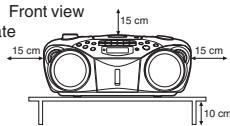
To avoid risk of electric shock and fire, and to prevent damage, locate the apparatus as follows:
1 Front:
No obstructions and open spacing.
2 Sides/Top/Back:
No obstructions should be placed in the areas shown in the illustrations on the right.
3 Bottom:
Place on the level surface. Maintain an adequate air path for ventilation by placing on a stand with a height of 10cm or more.
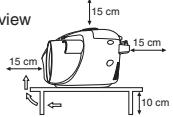
Side view
Replace the battery compartment cover.
Inserting Batteries into the Remote Control Unit:
Match the polarity (+ and -) of the batteries. R03 (UM4)/AAA (24F) × 2 (supplied)

Note: The battery power will be switched off when you plug the power cord into the AC IN jack on the unit.
CAUTION:
To avoid battery leakage or explosion, handle batteries properly
If you are not going to use your system for a month or more, remove the batteries from the battery compartment.
- Dispose of batteries in the proper manner, according to federal, state, and local regulations.
- Do not mix with different battery types or with new and old ones, or do not attempt to charge a battery not intended to be recharged.
- Discard leaky batteries immediately. Leaking batteries can cause skin burns or other personal injury.
SUPPLYING AC POWER
Plug the power cord into the AC IN jack on the back of the unit, and into an AC power outlet.
Note: To switch off the system completely, unplug the power cord.
CAUTIONS:
- ONLY USE JVC POWER CORD PROvided WITH THIS UNIT TO AVOID MALFUNCTION OR DAMAGE TO THE UNIT. REMOVE BATTERIES WHEN USING THE POWER CORD.
- BE SURE TO UNPLUG THE POWER CORD FROM THE OUTLET WHEN GOING OUT OR WHEN THE UNIT IS NOT IN USE FOR AN EXTENDED PERIOD OF TIME.
USING HEADPHONES
Connect commercially available headphones to the PHONES jack on the rear of the main unit. While the headphones are connected, the speakers do not produce any sound. Before connecting the headphones, make sure to turn down the sound volume.
ANTENNAS
The AM antenna is built in, so adjusting the position of the unit may help AM reception. The FM telescopic antenna on the back of the unit can be extended and rotated for better FM reception.
NAMES OF PARTS AND CONTROLS
Top and front sides:
Main unit
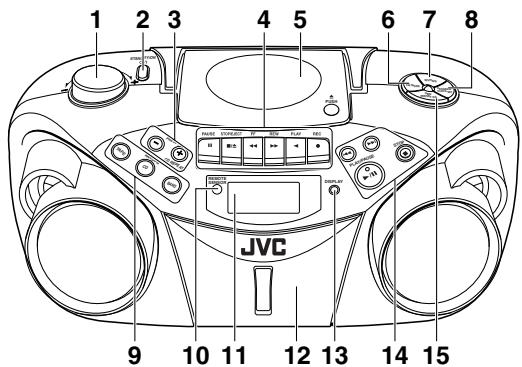
1 VOLUME knob
STANDBY/ON button
3 PRESET - button
PRESET + /CDREPEATbutton
4 Tape operation buttons
PAUSE II button
STOP/EJECT 一 / ▲ button
FF 一 button
REW▶ button
PLAY 一 button
REC button
5 CD door
6 FM MODE button
7 MUTING button
8 PROGRAM/CLOCK SET button
9 TAPE button
CD/RANDOM button
TUNER/BAND button
10 REMOTE SENSOR
11 Display window
12 Cassette deck
13 DISPLAY button
14按钮
▶按钮
PLAY/PAUSE button
STOP■button
15 HBS/PRESET EQ button
Names of buttons:
Remote control unit
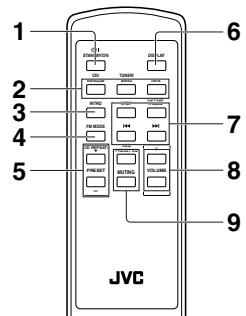
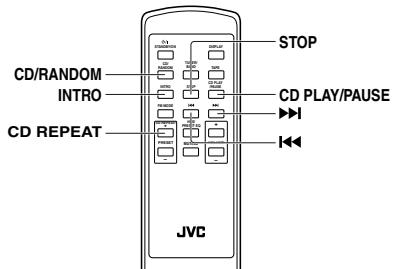
2 CD/RANDOM button
TUNER/BAND button
TAPE button
3 INTRO button
4 FM MODE button
5 PRESET +/CD REPEAT button
1STANDBY/ON()//button
PRESET - button
6 DISPLAY button
7 STOP button
CD PLAY/PAUSE button
按钮
▶按钮
VOLUME+button
VOLUME+ button
VOLUME - buttonHDC/PREFET-50
HBS/PRSETEQ button MINING
MUTING button
ADJUSTING THE SOUND
Turn the VOLUME knob (or press VOLUME + / - button on the remote control unit) to increase or decrease the volume to desired level. The volume level can be adjusted in 31 steps from "00" to "30".
- Turning off the sound temporarily
During playback, press MUTING to turn the sound off. The MUTING indicator appears in the display window. Press it again to restore the sound.
- Reinforcing the bass sound
Press and hold HBS/PRESET EQ so that the HBS indicator appears in the display window. You can enjoy powerful bass sound with the Hyper-Bass Sound effect.
- Selecting the sound mode
You can select one of the 5 preset sound modes.
Press HBS/PRESET EQ repeatedly until the indicator for the sound mode you want appears in the display window.
CLASSIC: Enriched sound with fine treble and ample bass.
ROCK : Powerful sound emphasizing treble and bass.
POP : More presence in the vocals and midrange
JAZZ: Accented lower frequencies for jazz-type music
FLAT: Equalizer effect is canceled.
USING THE RADIO
TUNING IN RADIO STATIONS
- Press TUNER/BAND to enter the tuner mode.
2 Press TUNER/BAND to select the band, FM or AM
3 Press and hold or for more than 1 second
The unit starts searching and stops when a station of sufficient signal strength is tuned in.
If you press or briefly and repeatedly, the frequency changes step by step.
Changing the FM reception mode
When an FM stereo broadcast is hard to receive or noisy, press FM MODE so that the MONO indicator appears in the display window.
To restore the stereo effect, press FM MODE again so that the MONO indicator goes off.
The MONO will be cancelled also when changing the station.
PRESETTING STATIONS
You can preset 10 FM and 10 AM stations.
1 Press TUNER/BAND to select the band, FM or AM
2 Press or to tune in the station you want to preset
3 Press PROGRAM/CLOCK SET.

4 Press PRESET + /CD REPEAT or PRESET - to select the preset number while the PROG indicator is blinking.
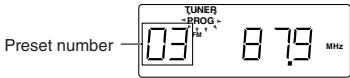
5 Press PROGRAM/CLOCK SET while the PROG indicator is blinking.
The tuned station in step 2 is stored in the preset number selected in step 4. Storing a new station on a used number erases the previously stored one.
6 Repeat steps 2 to 5 to preset other stations, using different preset numbers.
Tuning in a preset station
1 Press TUNER/BAND to select the band, FM or AM.
2 Press PRESET + /CD REPEAT or PRESET - repeatedly until the desired preset number appears.
Notes:
- In some cases, test frequencies have been already memorized for the tuner since the factory examined the tuner preset function before shipment. This is not a malfunction. You can preset the stations you want into memory by following the presetting method.
- If you unplug the AC power cord or if a power failure occurs, the preset stations will be erased in a few days. If this happens, preset the stations again.
GENERAL CONTROLS
STANDBY/ON / - Press to turn on/off the unit
The display window lights up when the unit is turned on. (Note, however, that the display window does not light even when the unit is turned on if the unit is operated on batteries.)
SETTING THE CLOCK
1 Press DISPLAY.
The clock flashes on the display window.
2 Press and hold PROGRAM/CLOCK SET for more than 2 seconds. The hour digits start flashing.
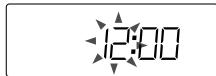
3 Press or to adjust the hour, then press PROGRAM/CLOCK SET. The minute digits start flashing.
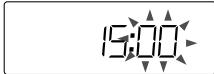
4 Press or adjust the minutes, then press PROGRAM/CLOCK SET.
Notes:
- If there is a power failure, the clock loses the setting and is reset to "0:00." The clock indication will keep flashing until you set the clock again.
- You can also set the clock when the unit is in STANDBY mode. In this case, follow the procedures from step 2.
To show the clock when CD or tuner is selected
Press DISPLAY
Each time you press the button, the display changes the clock indication and the normal indication alternately. (Operating the unit while clock indication is displayed changes the display to the normal indication.)
USING THE TAPE
Forward direction
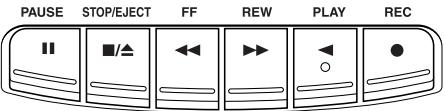
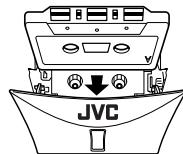
PAUSE II - Press to interrupt tape play or record mode. Press a second time to resume tape play or tape record mode.
STOP/EJECT / - Press to stop the current tape activity, or to open the cassette compartment door when no buttons are active.
FF In stop mode, press to advance the tape toward the end. (When the tape reaches the end, press STOP/EJECT / to release the depressed button.)
REW In stop mode, press to rewind the tape toward the beginning. (When the tape reaches the end, press STOP/EJECT to release the depressed button.)
PLAY - Press to play cassettes.
REC Press to record from the radio or CD player.
PLAYING A CASSETTE TAPE
-
Press TAPE to enter the tape mode.
-
Press STOP/EJECT / to open the cassette compartment door.
- Load a cassette. Use only a type-I normal tape.
- Close the door securely.
- Press PLAY to begin playing the tape. The cassette tape plays until it reaches the end of the side, then it automatically stops.
Fast-winding a tape
Press REW or FF
When the tape reaches the end, press STOP/EJECT to release REW or FF
RECORDING ON CASSETTE TAPES
You can record from the radio or the CD player.
- It should be noted that it may be unlawful to re-record pre-recorded tapes, records, or discs without the consent of the owner of copyright in the sound or video recording, broadcast or cable program and in any literary, dramatic, musical, or artistic work embodied therein.
- The recording level is automatically set correctly, so it is not affected by the other sound settings. Thus, during recording you can adjust the sound you are actually listening to without affecting the recording level.
- If recordings you have made have excessive noise or static, the unit may be too close to a TV. Increase the distance between the TV and the unit.
- You can only use type I tape for recording.
- DO NOT turn off the unit while playing back or recording a tape. The cassette deck or tapes may be damaged.
DO NOT use type II and type IV tapes since the unit is not compatible with such tapes. - The use of C-120 or longer tape is not recommended, since characteristic deterioration may occur and this tape easily jams in the pinch rollers and the capstans.
To protect your recordings
Cassettes have two small tabs on the back to protect against unexpected erasure or re-recording. To protect your recording, remove these tabs.
To re-record on a protected tape, cover the holes with adhesive tape.
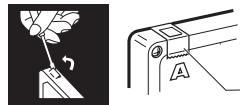
Adhesive tape
- Insert a cassette tape into the cassette deck and close the door.
- Press TUNER/BAND and select a radio station.
- Press BEC to begin recording, BEC and PLAY are locked down.
- Press STOP/EJECT /▲ to stop recording
When recording an AM broadcast
When recording an AM broadcast, beats may occur. If this happens, set the BEAT CUT switch to "1" or "2".
BEAT CUT
1 2
TIP
To temporarily pause the recording, press PAUSE II on the cassette deck. Press PAUSE II again to resume recording.
SYNCHRONIZED RECORDING FROM A CD
- Insert a cassette tape into the cassette deck and close the door.
- Press CD/RANDOM
- Place a CD you want to record into CD compartment.
-
Select the track you want to record by pressing I or
-
Press REC to start synchronized recording.
Notes:
- When the tape reaches the end, the CD playback enters in pause.
To continue recording: turn over the tape and press REC
press PLAY/PAUSE /II.
To stop the CD playback: press STOP
- When the CD playback stops, the cassette tape continues running
To stop the cassette tape, press STOP/EJECT /
TIP
Using the PAUSE button on the cassette deck instead of the STOP/EJECT / button to momentarily interrupt recording gives you a much clearer sound recording.
ERASING
When recording on a pre-recorded tape, the previous recording is erased and only the new recording is heard next time the tape is played back.
Erasing a recording on a tape without making a new recording
1. Press TAPE to enter the tape mode
2. Press REC to start recording.
USING THE CD
THINGS TO KNOW BEFORE PLAYING CDs
Playable CDs
Only CDs bearing these marks can be used with this system.


been designed only to play back the following CDs:
Recordable digital audio CD (CD-R)
- Rewritable digital audio CD (CD-RW)
When playing a CD-R or CD-BW
You can play back finalized CD-R or CD-RW recorded in music CD format. (If a CD-RW has been
recorded in a different format, erase all the data on the CD-RW completely before recording on it.)
- You can play back CD-R or CD-RW like an audio CD.
- Some CD-R or CD-RW may not be played back on this unit because of their disc characteristics, damage or stain on them, or if the player lens is dirty.
The reflection factor of CD-RW is lower than that of other CDs, possibly causing CD-RW to take longer time to read.
- CD-R and CD-RW of MP3 format cannot be played back
Caution for DualDisc playback
The Non-DVD side of a "DualDisc" does not comply with the "Compact Disc Digital Audio" standard. Therefore, the use of Non-DVD side of a DualDisc on this product may not be recommended.
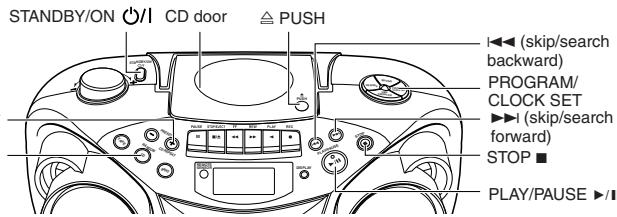
LOADING A CD
- Press CD/RANDOM; "00 00:00" flashes, then "no disc" appears in the display if no CD is loaded
- Press PUSH to open the CD door.
- Place a CD into the tray with the label facing up
- Close the CD door. Then the total number of tracks and total playing time appear.
- To remove the CD, press PUSH, grasp the CD by its edges, and carefully pull it out.
PLAYING A CD
Press PLAY/PAUSE to play all the tracks in order starting with track 1
The current track number and elapsed playing time appear in the display.
Note: Press PLAY/PAUSE II to temporarily stop the CD. The elapsed playing time flashes in the display Press PLAY/PAUSE II again to resume playing the CD.
- Adjust VOLUME to a comfortable level
- Press STOP to stop playing the CD. Wait a few seconds for the CD to stop turning, then press PUSH to open the CD door and remove the CD.
AUTOMATIC SEARCH
Automatic search quickly locates the beginning of any track on the CD, including the track currently playing. If the CD is playing:
- Press once to return to the beginning of the current track, press twice to return to the beginning of the previous track.
Press to skip to the beginning of the next track.
If the CD is stopped, repeatedly press or until the display shows the number of the track you want to play, then press PLAY/PAUSE II. The CD player starts playing the selected track.
TRACK SEARCH
- In play mode, press and hold to move forward through a track at high speed.
- In play mode, press and hold to move backward through a track at high speed.
REPEAT
The CD REPEAT button repeats one track (REPEAT 1) or all tracks (REPEAT ALL). To scroll through the choices, continuously press and release CD REPEAT, and check the display to see which choice you have selected. The following chart illustrates how REPEAT works in various modes.
→NORMAL→REPEATALL→REPEAT1
RANDOM
In CD mode, press CD/RANDOM. The RANDOM indicator appears in the display and random playback starts.
To quit random playback, press CD/RANDOM again
PROGRAMMING
-
Press CD/RANDOM to enter CD mode.
-
Press PROGRAM/CLOCK SET in stop mode
The PROG indicator starts blinking in the display window
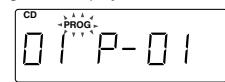
3 Press or to select a desired track to be programmed while the PROG indicator is blinking.

4 Press PROGRAM/CLOCK SET while the PROG indicator is blinking
5 Repeat steps 3 and 4 to program other tracks.
6 Press PLAY/PAUSE while the PROG indicator is blinking.
The tracks are played in the order you have programmed.
Stopping programmed playback
Press STOP ■. The PROG indicator goes off and the unit exits from programmed playback
Checking the program contents
Before starting programmed playback, press PROGRAM/CLOCK SET
Each time you press the button, the programmed tracks are shown in the display window.
Adding tracks in the program
1 Press PROGRAM/CLOCK SET repeatedly until "00" appears as a track number.
2 Press or to select a new track number, then press PROGRAM/CLOCK SET.
Editing the program
1 Press PROGRAM/CLOCK SET repeatedly until the program number you want to edit appears.
2 Press or to select a new track number, then press PROGRAM/CLOCK SET.
Erasing the entire program in the memory
Press PROGRAM/CLOCK SET so that the PROG indicator blinks, and press STOP while the PROG indicator blinks.
The stored program is also cleared when the CD door is opened.
Note
You can program up to 20 tracks in any desired order. The 21st program will overwrite the program number "01".
INTRO PLAYBACK
Every track or every programmed track of a CD can be played for the beginning ten seconds.
Press INTRO on the remote control unit. The INTRO indicator appears in the display window and intro playback starts. To use intro playback for programmed and random playback, press the button after starting playback.
To quit intro playback, press INTRO again.
CARE AND MAINTENANCE
CLEANING THE EXTERIOR
- Disconnect the system from AC power before cleaning the exterior of the unit with a soft dry cloth.
HANDLING DISCS
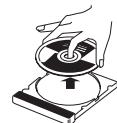
- Remove the disc from its case by holding it at the edge while pressing the center hole lightly.
- Do not touch the shiny surface of the disc, or bend the disc.
- Put the disc back in its case after use to prevent warping.
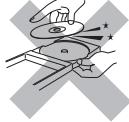
- Be careful not to scratch the surface of the disc when placing it back in its case.
- Avoid exposure to direct sunlight, temperature extremes, and moisture
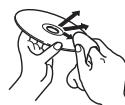
To clean the disc
- Wipe the disc with a soft cloth in a straight line from center to edge.
- DO NOT use any solvent-such as conventional record cleaner, spray, thinner, or benzine-to clean the disc.
HANDLING CASSETTE TAPES

- If the tape is loose in its cassette, take up the slack by inserting a pencil in one of the reels and rotating.
- If the tape is loose, it may get stretched, cut, or caught in the cassette.
careful not to touch the tape surface.

-
Avoid storing tapes in any of the following places:
-
In dusty places
- In direct sunlight or heat
- In moist areas
-
On a TV or speaker
-
Near a magnet
CLEANING THE TAPE HEADS
Clean the heads after every 10 hours of use with a wet-type head cleaning tape (available at electronic and audio shops).
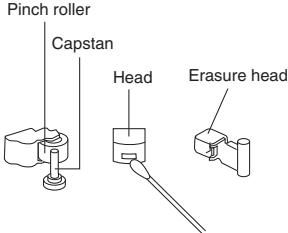
To demagnetize the head
Turn off the unit, and use a head demagnetizer (available at electronic and audio shops).
TROUBLESHOOTING TIPS
| Problem | Solution |
| System does not turn on. | • Make sure the power cord is securely plugged into the AC power outlet (or that the batteries are fresh). • Unplug the unit for a moment, and then plug it back in again. • Check the outlet by plugging in another device. |
| No sound | • Adjust the volume setting. • Make sure you have selected the correct function: CD, TAPE, or TUNER and the headphones are disconnected. |
| Poor radio reception | • Adjust the FM telescopic antenna for better FM reception. • Rotate the unit to achieve better AM reception. • Try turning off electrical appliances near the unit, such as TV, hair dryers, vacuum cleaners, or fluorescent lights. |
| CD does not play. | • Make sure the tray contains a CD. • Make sure the CD's label is facing up. • Make sure that pause mode is not activated. • Make sure the CD function is selected. |
| CD sound skips. | • Clean the CD (as explained in "CARE AND MAINTENANCE"). • Check the CD for warping, scratches, or other damage. • Check for vibration or shock that may affect the unit; move system if necessary. |
| Distorted or noisy recordings | • Inspect the recording head and clean it if necessary. • Demagnetize recording head (as explained in "CARE AND MAINTENANCE"). |
Resetting the unit
If "TROUBLESHOOTING TIPS" does not eliminate malfunctioning (failure to operate or display properly, etc.), press the RESET button on the rear of the unit with something having a sharp point, while the unit is turned on.
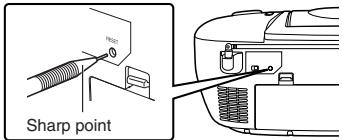
Note:
Resetting causes the unit to restore its factory default settings and results in all the settings made by the user being deleted.
SPECIFICATIONS
CD player
CD capacity : 1 CD
Dynamic range : 60 dB
Signal-to-noise ratio : 75 dB
Tuner
Frequency ranges : FM 87.5 - 108.0 MHz
: AM 522 - 1 629 kHz
Antenna : Telescopic antenna for FM
Ferrite core antenna for AM
Cassette deck section
Frequency response : 60 Hz - 10 000 Hz
Wow and flutter : 0.15
General
Speaker : 9 cm cone × 2 (4 Ω)
Power output : 4 W (2 W + 2 W) at 4 Ω (10% THD) (IEC268-3)
Output terminals : PHONES × 1 (0 3.5 mm, stereo)
Power supply
DC 9V (R20(SUM-1)/D(13D)°×6)
Power consumption : 13 W (at operation), 5 W (on standby)Dimensions : 420 mm (LH) - 178 mm (LH) - 940 mm
Dimensions : 420 mm (W) x 170 mm (H) x 240 mm (B) Mass : Approx. 3.2 kg (without batteries)
Accessories provided : AC power cord × 1
Remote control unit × 1
Batteries for the remote control unit R03 (UM-4)/AAA (24F)× 2
Design and specifications are subject to change without notice.


INSTRUCTIONS
Thank you for purchasing this JVC product.
Please read these instructions carefully before starting operation to besure to obtain optimum performance and a longer service life from the
sure to obtain optimum performance and a longer service life from the unit.
LVT1382-010A [E/EN]

N ©2005 Victor Company of Japan, Limited
SAFETY PRECAUTIONS
Caution — O/| STANDBY/ON switch!
Disconnect the mains plug to shut the power off completely. The STANDBY/ON switch in any position does not disconnect the mains line. The power can be remote controlled.
CAUTION
To reduce the risk of electrical shocks, fire, etc.:
1. Do not remove screws, covers or cabinet.
2. Do not expose this appliance to rain or moisture.
IMPORTANT FOR LASER PRODUCTS
- CLASS 1 LASER PRODUCT
- CAUTION: Do not open the top cover. There are no user serviceable parts inside the
unit; leave all servicing to qualified service personnel. - CAUTION: Visible and invisible laser radiation when open and interlock failed or defeated. Avoid direct exposure to beam.
- REPRODUCTION OF LABEL: CAUTION LABEL, PLACED INSIDE THE UNIT.
CAUTION - INVISIBLE LARER RADIATION WHEN OPEN AND INTERLOCKSE DEFEATED. AVOID EXPOSURE TO BEAM
VORSICH! UNSICHTBARE LASERSTRAHUNG TRITT'AUS, WENN DECKEL GEÖFFNET UND WENN SICHHERTESVVERRIEGELUNG UBERBRUCKT IST. NICT DEM STRAHL AUSSETZEN!
VARNING - OSYNLIG LASERSTRAÑING NAR DENNA DEL A PRPPND OCH SPARR AR UKORPPLAD STRÁLEN A RARLIF.
ADVARSEL USYNLIG LASERSTRALING VED ABNING NAR SIKHERHEDSAFBYDERE ER UDE AF FUNKTION. UNDG A UDSATTETALSE FOR STRALING.
Caution: Proper Ventilation
To avoid risk of electric shock and fire, and to prevent damage, locate the apparatus as follows:
1 Front:
No obstructions and open spacing.
2 Sides/Top/Back:
No obstructions should be placed in the areas shown by the dimensions below.
3 Bottom:
Place on the level surface. Maintain an adequate air path for ventilation by placing on a stand with a height of 10cm or more.
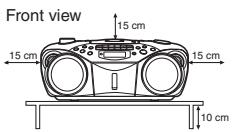
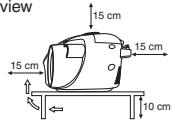
Side view
FIRST THINGS
This portable system operates on battery or AC power.
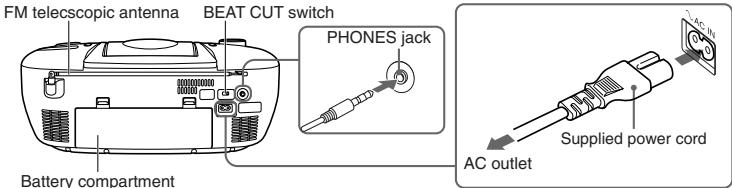
INSERTING BATTERIES
Open the battery compartment cover.
Pull the battery compartment cover toward you while pressing the sections marked by the arrows.
2 Insert six R20 (SUM-1)/D (13D)-size batteries. (not supplied)
Be sure to insert the batteries with the (+) and (-) terminals positioned correctly.
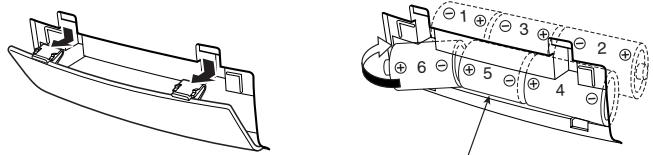
R20 (SUM-1)/D (13D)-size batteries
3 Replace the battery compartment cover.
Inserting Batteries into the Remote Control Unit:
Match the polarity (+ and -) of the batteries. R03 (UM4)/AAA (24F) × 2 (supplied)

Note: The battery power will be switched off when you plug the power cord into the AC IN jack on the unit.
CAUTION:
To avoid battery leakage or explosion, handle batteries properly.
- If you are not going to use your system for a month or more, remove the batteries from the battery compartment.
- Dispose of batteries in the proper manner, according to federal, state, and local regulations.
- Do not mix with different battery types or with new and old ones, or do not attempt to charge a battery not intended to be recharged.
- Discard leaky batteries immediately. Leaking batteries can cause skin burns or other personal injury.
SUPPLYING AC POWER
Plug the power cord into the AC IN jack on the back of the unit, and into an AC power outlet.
Note: To switch off the system completely, unplug the power cord.
CAUTIONS:
- ONLY USE JVC POWER CORD PROVIDED WITH THIS UNIT TO AVOID MALFUNCTION OR DAMAGE TO THE UNIT. REMOVE BATTERIES WHEN USING THE POWER CORD.
- BE SURE TO UNPLUG THE POWER CORD FROM THE OUTLET WHEN GOING OUT OR WHEN THE UNIT IS NOT IN USE FOR AN EXTENDED PERIOD OF TIME.
USING HEADPHONES
Connect commercially available headphones to the PHONES jack on the rear of the main unit. While the headphones are connected, the speakers do not produce any sound. Before connecting the headphones, make sure to turn down the sound volume.
ANTENNAS
The AM antenna is built in, so adjusting the position of the unit may help AM reception. The FM telescopic antenna on the back of the unit can be extended and rotated for better FM reception.
NAMES OF PARTS AND CONTROLS
Top and front sides:
Main unit
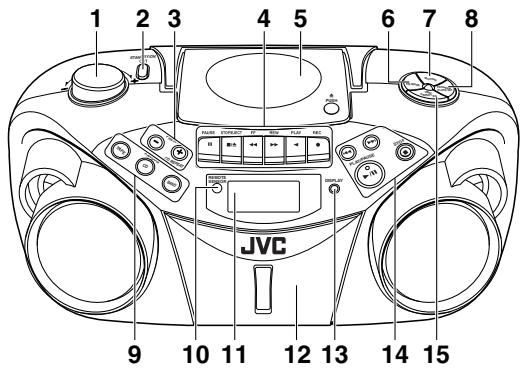
1 VOLUME knob
2 STANDBY/ON button
3 PRESET - button
PRESET + /CDREPEATbutton
4 Tape operation buttons
PAUSE II button
STOP/EJECT button
FF 一 button
REW▶ button
PLAY button
REC button
CD door
FM MODE button
MUTING button
PROGRAM/CLOCK SET button
9 TAPE button
CD/RANDOM button
TUNER/BAND button
10 REMOTE SENSOR
11 Display window
12 Cassette deck
13 DISPLAY button
14按钮
▶按钮
PLAY/PAUSE▶按钮
STOP ■ button
15 HBS/PRESET EQ button
Names of buttons:
Remote control unit
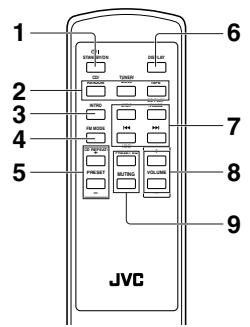
1 STANDBY/ON button
2 CD/RANDOM button
TUNER/BAND button
TAPE button
3 INTRO button
4. FM MODE button
5 PRESET + /CD REPEAT button
PRESET - button
6 DISPLAY button
7 STOP button
CD PLAY/PAUSE button
按钮
▶ button
VOLUME+button
VOLUME - button
HBS/RESET EO
MUTING button
ADJUSTING THE SOUND
Turn the VOLUME knob (or press VOLUME + / - button on the remote control unit) to increase or decrease the volume to desired level. The volume level can be adjusted in 31 steps from "00" to "30".
- Turning off the sound temporarily
During playback, press MUTING to turn the sound off. The MUTING indicator appears in the display window. Press it again to restore the sound. - Reinforcing the bass sound
Press and hold HBS/PRESET EQ so that the HBS indicator appears in the display window. You can enjoy powerful bass sound with the Hyper-Bass Sound effect. - Selecting the sound mode
You can select one of the 5 preset sound modes.
Press HBS/PRESET EQ repeatedly until the indicator for the sound mode you want appears in the display window.
CLASSIC: Enriched sound with fine treble and ample bass.
ROCK : Powerful sound emphasizing treble and bass.
POP : More presence in the vocals and midrange.
JAZZ: Accented lower frequencies for jazz-type music.
FLAT: Equalizer effect is canceled.
USING THE RADIO
TUNING IN RADIO STATIONS
1 Press TUNER/BAND to enter the tuner mode.
2 Press TUNER/BAND to select the band, FM or AM.
3 Press and hold or → for more than 1 second.
The unit starts searching and stops when a station of sufficient signal strength is tuned in.
If you press or briefly and repeatedly, the frequency changes step by step
Changing the FM reception mode
When an FM stereo broadcast is hard to receive or noisy, press FM MODE so that the MONO indicator appears in the display window.
To restore the stereo effect, press FM MODE again so that the MONO indicator goes off.
The MONO will be cancelled also when changing the station.
PRESETTING STATIONS
You can preset 10 FM and 10 AM stations.
1 Press TUNER/BAND to select the band, FM or AM.
2 Press or to tune in the station you want to preset.
3 Press PROGRAM/CLOCK SET.
The PROG indicator starts blinking in the display window.
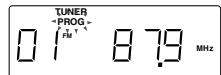
4 Press PRESET + /CD REPEAT or PRESET - to select the preset number while the PROG indicator is blinking.
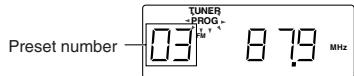
5 Press PROGRAM/CLOCK SET while the PROG indicator is blinking.
The tuned station in step 2 is stored in the preset number selected in step 4. Storing a new station on a used number erases the previously stored one.
6 Repeat steps 2 to 5 to preset other stations, using different preset numbers.
Tuning in a preset station
1 Press TUNER/BAND to select the band, FM or AM.
2 Press PRESET +/CD REPEAT or PRESET - repeatedly until the desired preset number appears.
Notes:
- In some cases, test frequencies have been already memorized for the tuner since the factory examined the tuner preset function before shipment. This is not a malfunction. You can preset the stations you want into memory by following the presetting method.
- If you unplug the AC power cord or if a power failure occurs, the preset stations will be erased in a few days. If this happens, preset the stations again.
GENERAL CONTROLS
STANDBY/ON / - Press to turn on/off the unit.
The display window lights up when the unit is turned on. (Note, however, that the display window does not light even when the unit is turned on if the unit is operated on batteries.)
SETTING THE CLOCK
1 Press DISPLAY.
The clock flashes on the display window.
2 Press and hold PROGRAM/CLOCK SET for more than 2 seconds. The hour digits start flashing.
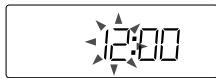
3 Press or to adjust the hour, then press PROGRAM/CLOCK SET. The minute digits start flashing.
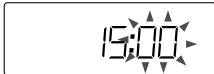
4 Press or adjust the minutes, then press PROGRAM/CLOCK SET.
Notes:
- If there is a power failure, the clock loses the setting and is reset to "0:00." The clock indication will keep flashing until you set the clock again.
- You can also set the clock when the unit is in STANDBY mode. In this case, follow the procedures from step 2.
To show the clock when CD or tuner is selected
Press DISPLAY.
Each time you press the button, the display changes the clock indication and the normal indication alternately. (Operating the unit while clock indication is displayed changes the display to the normal indication.)
USING THE TAPE
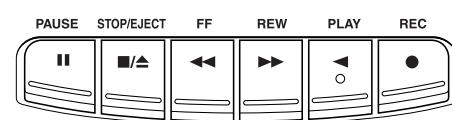
Forward direction
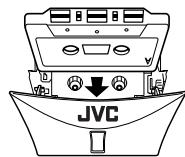
PAUSE II - Press to interrupt tape play or record mode. Press a second time to resume tape play or tape record mode.
STOP/EJECT / - Press to stop the current tape activity, or to open the cassette compartment door when no buttons are active.
FF In stop mode, press to advance the tape toward the end. (When the tape reaches the end, press STOP/EJECT to release the depressed button.)
REW In stop mode, press to rewind the tape toward the beginning. (When the tape reaches the end, press STOP/EJECT to release the depressed button.)
PLAY - Press to play cassettes.
REC Press to record from the radio or CD player.
PLAYING A CASSETTE TAPE
- Press TAPE to enter the tape mode.
- Press STOP/EJECT to open the cassette compartment door.
- Load a cassette. Use only a type-I normal tape.
- Close the door securely.
- Press PLAY to begin playing the tape. The cassette tape plays until it reaches the end of the side, then it automatically stops.
Fast-winding a tape
Press REW or FF
When the tape reaches the end, press STOP/EJECT / to release REW or FF
RECORDING ON CASSETTE TAPES
You can record from the radio or the CD player.
- It may be unlawful to record or play back copyrighted material without the consent of the copyright owner.
- The recording level is automatically set correctly, so it is not affected by the other sound settings. Thus, during recording you can adjust the sound you are actually listening to without affecting the recording level.
- If recordings you have made have excessive noise or static, the unit may be too close to a TV. Increase the distance between the TV and the unit.
- You can only use type I tape for recording.
- DO NOT turn off the unit while playing back or recording a tape. The cassette deck or tapes may be damaged.
- DO NOT use type II and type IV tapes since the unit is not compatible with such tapes.
- The use of C-120 or longer tape is not recommended, since characteristic deterioration may occur and this tape easily jams in the pinch rollers and the capstans.
To protect your recordings
Cassettes have two small tabs on the back to protect against unexpected erasure or re-recording.
To protect your recording, remove these tabs.
To re-record on a protected tape, cover the holes with adhesive tape.
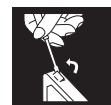
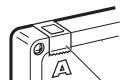
Adhesive tape
- Insert a cassette tape into the cassette deck and close the door.
- Press TUNER/BAND and select a radio station.
-
Press REC to begin recording. REC and PLAY are locked down.
-
Press STOP/EJECT to stop recording.
When recording an AM broadcast

1
When recording an AM broadcast, beats may occur. If this happens, see the BEAT CUT switch to "1" or "2."
TIP
To temporarily pause the recording, press PAUSE II on the cassette deck. Press PAUSE II again to resume recording.
SYNCHRONIZED RECORDING FROM A CD
- Insert a cassette tape into the cassette deck and close the door.
- Press CD/RANDOM.
- Place a CD you want to record into CD compartment.
- Select the track you want to record by pressing I or
- Press REC to start synchronized recording.
Notes:
- When the tape reaches the end, the CD playback enters in pause.
To continue recording:
turn over the tape and press REC
- When the CD playback stops, the cassette tape continues running
To stop the cassette tape, press STOP/EJECT /A
TIP
Using the PAUSE II button on the cassette deck instead of the STOP/EJECT button to momentarily interrupt recording gives you a much clearer sound recording.
ERASING
When recording on a pre-recorded tape, the previous recording is erased and only the new recording is heard next time the tape is played back.
Erasing a recording on a tape without making a new recording
1. Press TAPE to enter the tape mode.
2. Press REC to start recording.
USING THE CD
THINGS TO KNOW BEFORE PLAYING CDs
Playable CDs:
Only CDs bearing these marks can be used with this system.


This unit has been designed only to play back the following CDs
Digital audio CD
- Recordable digital audio CD (CD-R)
Rewritable digital audio CD (CD-RW)
When playing a CD-R or CD-RW
You can play back finalized CD-R or CD-RW recorded in music CD format. (If a CD-RW has been
recorded in a different format, erase all the data on the CD-RW completely before recording on it.)
- You can play back CD-R or CD-RW like an audio CD.
- Some CD-R or CD-RW may not be played back on this unit because of their disc characteristics, damage or stain on them, or if the player lens is dirty.
The reflection factor of CD-RW is lower than that of other CDs, possibly causing CD-RW to take longer time to read.
- CD-R and CD-RW of MP3 format cannot be played back.
Caution for DualDisc playback
The Non-DVD side of a "DualDisc" does not comply with the "Compact Disc Digital Audio" standard. Therefore, the use of Non-DVD side of a DualDisc on this product may not be recommended.
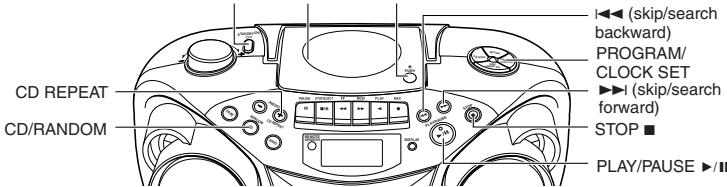
STANDBY/ON CD door PUSH
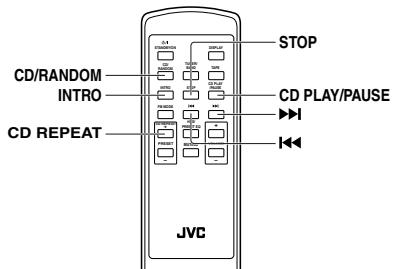
LOADING A CD
- Press CD/RANDOM; "00 00:00" flashes, then "no disc" appears in the display if no CD is loaded.
- Press PUSH to open the CD door.
- Place a CD into the tray with the label facing up
- Close the CD door. Then the total number of tracks and total playing time appear.
- To remove the CD, press PUSH, grasp the CD by its edges, and carefully pull it out.
PLAYING A CD
Press PLAY/PAUSE to play all the tracks in order starting with track 1.
The current track number and elapsed playing time appear in the display.
Note: Press PLAY/PAUSE II to temporarily stop the CD. The elapsed playing time flashes in the display. Press PLAY/PAUSE II again to resume playing the CD.
- Adjust VOLUME to a comfortable level.
- Press STOP to stop playing the CD. Wait a few seconds for the CD to stop turning, then press PUSH to open the CD door and remove the CD.
AUTOMATIC SEARCH
Automatic search quickly locates the beginning of any track on the CD, including the track currently playing. If the CD is playing:
- Press once to return to the beginning of the current track, press twice to return to the beginning of the previous track.
- Press to skip to the beginning of the next track.
If the CD is stopped, repeatedly press or until the display shows the number of the track you want to play, then press PLAY/PAUSE II. The CD player starts playing the selected track.
TRACK SEARCH
- In play mode, press and hold to move forward through a track at high speed.
- In play mode, press and hold to move backward through a track at high speed.
REPEAT
The CD REPEAT button repeats one track (REPEAT 1) or all tracks (REPEAT ALL). To scroll through the
choices, continuously press and release CD REPEAT, and check the display to see which choice you have selected. The following chart illustrates how REPEAT works in various modes.

RANDOM
In CD mode, press CD/RANDOM. The RANDOM indicator appears in the display and random playback starts.
To quit random playback, press CD/RANDOM again.
PROGRAMMING
1 Press CD/RANDOM to enter CD mode.
2 Press PROGRAM/CLOCK SET in stop mode.
The PROG indicator starts blinking in the display window.
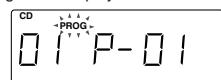
3 Press or to select a desired track to be programmed while the PROG indicator is blinking.

4 Press PROGRAM/CLOCK SET while the PROG indicator is blinking.
5 Repeat steps 3 and 4 to program other tracks
6 Press PLAY/PAUSE while the PROG indicator is blinking.
The tracks are played in the order you have programmed.
Stopping programmed playback
Press STOP. The PROG indicator goes off and the unit exits from programmed playback
Checking the program contents
Before starting programmed playback, press PROGRAM/CLOCK SET
Each time you press the button, the programmed tracks are shown in the display window.
Adding tracks in the program
1 Press PROGRAM/CLOCK SET repeatedly until "00" appears as a track number.
2 Press or to select a new track number, then press PROGRAM/CLOCK SET.
Editing the program
1 Press PROGRAM/CLOCK SET repeatedly until the program number you want to edit appears.
2. Press or to select a new track number, then press PROGRAM/CLOCK SET.
Erasing the entire program in the memory
Press PROGRAM/CLOCK SET so that the PROG indicator blinks, and press STOP while the PROG indicator blinks.
The stored program is also cleared when the CD door is opened.
Note:
You can program up to 20 tracks in any desired order. The 21st program will overwrite the program number "01".
INTRO PLAYBACK
Every track or every programmed track of a CD can be played for the beginning ten seconds.
Press INTRO on the remote control unit. The INTRO indicator appears in the display window and intro playback starts. To use intro playback for programmed and random playback, press the button after starting playback.
To quit intro playback, press INTRO again.
CARE AND MAINTENANCE
CLEANING THE EXTERIOR
- Disconnect the system from AC power before cleaning the exterior of the unit with a soft dry cloth.
HANDLING DISCS
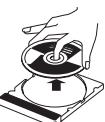
- Remove the disc from its case by holding it at the edge while pressing the center hole lightly.
- Do not touch the shiny surface of the disc, or bend the disc.
- Put the disc back in its case after use to prevent warping.
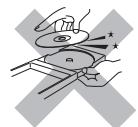
- Be careful not to scratch the surface of the disc when placing it back in its case.
- Avoid exposure to direct sunlight, temperature extremes, and moisture
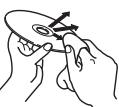
To clean the disc
- Wipe the disc with a soft cloth in a straight line from center to edge.
- DO NOT use any solvent-such as conventional record cleaner, spray, thinner, or benzine-to clean the disc.
HANDLING CASSETTE TAPES
If the tape is loose in its cassette, take up the slack by inserting a pencil in one of the reels and rotating.
If the tape is loose, it may get stretched, cut, or caught in the cassette.

- Be careful not to touch the tape surface.

-
Avoid storing tapes in any of the following places:
-
In dusty places
- In direct sunlight or heat
- In moist areas
- On a TV or speaker
Near a magnet
CLEANING THE TAPE HEADS
Clean the heads after every 10 hours of use with a wet-type head cleaning tape (available at electronic and audio shops).
Pinch roller
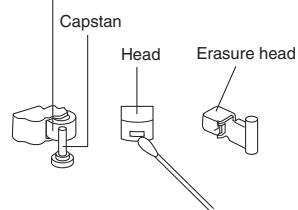
To demagnetize the head
Turn off the unit, and use a head demagnetizer (available at electronic and audio shops).
TROUBLESHOOTING TIPS
| Problem | Solution |
| System does not turn on. | ·Make sure the power cord is securely plugged into the AC power outlet (or that the batteries are fresh). ·Unplug the unit for a moment, and then plug it back in again. ·Check the outlet by plugging in another device. |
| No sound | ·Adjust the volume setting. ·Make sure you have selected the correct function: CD, TAPE, or TUNER and the headphones are disconnected. |
| Poor radio reception | ·Adjust the FM telescopic antenna for better FM reception. ·Rotate the unit to achieve better AM reception. ·Try turning off electrical appliances near the unit, such as TV, hair dryers, vacuum cleaners, or fluorescent lights. |
| CD does not play. | ·Make sure the tray contains a CD. ·Make sure the CD's label is facing up. ·Make sure that pause mode is not activated. ·Make sure the CD function is selected. |
| CD sound skips. | ·Clean the CD (as explained in "CARE AND MAINTENANCE"). ·Check the CD for warping, scratches, or other damage. ·Check for vibration or shock that may affect the unit; move system if necessary. |
| Distorted or noisy recordings | ·Inspect the recording head and clean it if necessary. ·Demagnetize recording head (as explained in "CARE AND MAINTENANCE"). |
Resetting the unit
If "TROUBLESHOOTING TIPS" does not eliminate malfunctioning (failure to operate or display properly, etc.), press the RESET button on the rear of the unit with something having a sharp point, while the unit is turned on.
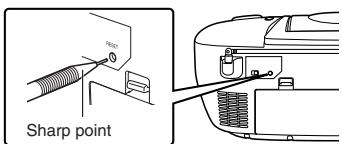
Note:
Resetting causes the unit to restore its factory default settings and results in all the settings made by the user being deleted.
SPECIFICATIONS
CD player
CD capacity : 1 CD
Dynamic range : 60 dB
Signal-to-noise ratio : 75 dB
Tuner
Frequency ranges : FM 87.5 - 108.0 MHz
:AM522-1629kHz
Antenna : Telescopic antenna for FM
Ferrite core antenna for AM
Cassette deck section
Frequency response : 60 Hz - 10 000 Hz
Wow and flutter : 0.15% (WRMS)
General
Speaker : 9 cm cone × 2 (4 Ω)
Power output : 4 W (2 W + 2 W) at 4 Ω (10% THD) (IEC268-3)
Output terminals : PHONES × 1 (0 3.5 mm, stereo)
Power supply
DC 9 V ("R20 (SUM-1)/D (13D)" × 6)
Power consumption : 13 W (at operation), 3 W (on standby)
Diaper : 120 mm (H) - 170 mm (L) - 240 mm
Dimensions : 420 mm (W) x 178 mm (H) x 249 mm (D)
Mass : Approx. 3.2 kg (without batteries)
Accessories provided : AC power cord x 1 .
Remote control unit × 1 Batteries for the remote control unit R03 (UM-4)/AAA (24F) × 2
Design and specifications are subject to change without notice.
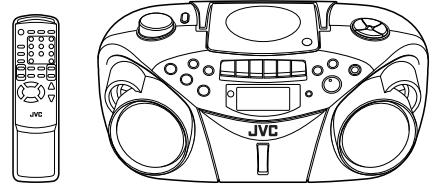


INSTRUCTIONS
Thank you for purchasing this JVC product.
Please read these instructions carefully before starting operation to be
sure to obtain optimum performance and a longer service life from the unit.
LVT1385-007A [B]

©2005 Victor Company of Japan, Limited
SAFETY PRECAUTIONS
IMPORTANT for the U.K.
DO NOT cut off the mains plug from this equipment. If the plug fitted is not suitable for the power points in your home or the cable is too short to reach a power point, then obtain an appropriate safety approved extension lead or consult your dealer.
BE SURE to replace the fuse only with an identical approved type, as originally fitted.
If nonetheless the mains plug is cut off ensure to remove the fuse and dispose of the plug immediately, to avoid a possible shock hazard by inadvertent connection to the mains supply.
If this product is not supplied fitted with a mains plug then follow the instructions given below:
IMPORTANT.
DO NOT make any connection to the terminal which is marked with the letter E or by the safety earth symbol or coloured green or green-and-yellow.
The wires in the mains lead on this product are coloured in accordance with the following code:
Blue: Neutral
Brown:Live
As these colours may not correspond with the coloured markings identifying the terminals in your plug proceed as follows:
The wire which is coloured blue must be connected to the terminal which is marked with the letter N or coloured black.
The wire which is coloured brown must be connected to the terminal which is marked with the letter L or coloured red.
IF IN DOUBT - CONSULT A COMPETENT ELECTRICIAN.
Caution — /| STANDBY/ON switch!
Disconnect the mains plug to shut the power off completely. The / STANDBY/ON switch in any position does not disconnect the mains line. The power can be remote controlled.
CAUTION
To reduce the risk of electrical shocks, fire, etc.:
-
Do not remove screws, covers or cabinet.
-
Do not expose this appliance to rain or moisture.
IMPORTANT FOR LASER PRODUCTS
- CLASS 1 LASER PRODUCT
- CAUTION: Do not open the top cover. There are no user serviceable parts inside the unit; leave all servicing to qualified service personnel.
- CAUTION: Visible and invisible laser radiation when open and interlock failed or defeated. Avoid direct exposure to beam.
- REPRODUCTION OF LABEL: CAUTION LABEL, PLACED INSIDE THE UNIT.
| CAUTION - | INVASIBLE LASER RADIATION WHEN OPEN AND INTERLOCKSCATTERED. AVOID EXPOSURE TO BEAM. |
| VORSICH! | UNSICHTBARE LASERSTRAHUNG TRITT AUS, WENN DECKEL GEOFFNET UND WENN SICHIRHETSVERRIEGELUNG UBERBRUCKT IST. NICTH DEM STRAHL USATZSEN! |
| VARNING - | OSYNLG LASERSTÄRNUNG NÜR DENNA DELI AR ÖPPNAD OCH SPÄRR AR UKROPPLAD STRÄLEN AR FARIUNG. |
| ADVARSEL - USYNLIG LASERSTRÄLING VED ÅBNING NÁR SIKHERHEDSAFBYDERE ER UDE AF FUNKTIUM. UNDGÅ UDSÄETTELSE FOR STRALING. |
CAUTION
- Do not block the ventilation openings or holes.
(If the ventilation openings or holes are blocked by a newspaper or cloth, etc., the heat may not be able to get out.) - Do not place any naked flame sources, such as lighted candles, on the apparatus.
- When discarding batteries, environmental problems must be considered and local rules or laws governing the disposal of these batteries must be followed strictly.
- Do not expose this apparatus to rain, moisture, dripping or splashing and that no objects filled with liquids, such as vases, shall be placed on the apparatus.
Caution: Proper Ventilation
To avoid risk of electric shock and fire, and to prevent damage, locate the apparatus as follows:
1 Front:
No obstructions and open spacing
2 Sides/Top/Back
No obstructions should be placed in the areas shown in the illustrations on the right.
3 Bottom:
Place on the level surface. Maintain an adequate air path for ventilation by placing on a stand with a height of 10cm or more.
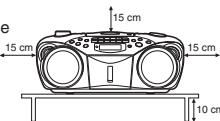
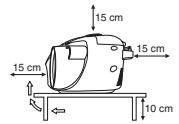
FIRST THINGS
This portable system operates on battery or AC power.
FM telescopic antenna
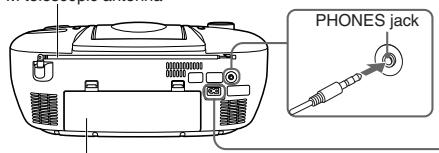
Battery compartment
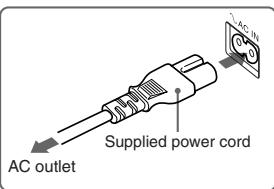
INSERTING BATTERIES
Open the battery compartment cover.
Pull the battery compartment cover toward you while pressing the sections marked by the arrows.
Insert six R20 (SUM-1)/D (13D)-size batteries. (not supplied)
Be sure to insert the batteries with the (+) and (-) terminals positioned correctly.
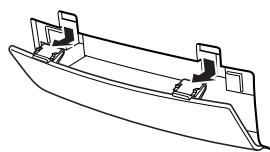
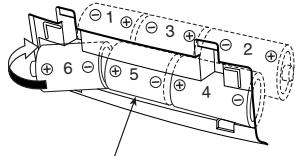
R20 (SUM-1)/D (13D)-size batteries
3 Replace the battery compartment cover.
Inserting Batteries into the Remote Control Unit:
Match the polarity (+ and -) of the batteries. R03 (UM-4)/AAA (24F)×2 (supplied)

Note: The battery power will be switched off when you plug the power cord into the AC IN jack on the unit.
CAUTION:
To avoid battery leakage or explosion, handle batteries properly
- If you are not going to use your system for a month or more, remove the batteries from the battery compartment.
- Dispose of batteries in the proper manner, according to federal, state, and local regulations.
- Do not mix with different battery types or with new and old ones, or do not attempt to charge a battery not intended to be recharged.
- Discard leaky batteries immediately. Leaking batteries can cause skin burns or other personal injury.
SUPPLYING AC POWER
Plug the power cord into the AC IN jack on the back of the unit, and into an AC power outlet. Note: To switch off the system completely, unplug the power cord.
CAUTIONS:
A. ONLY USE JVC POWER CORD PROVIDED WITH THIS UNIT TO AVOID MALFUNCTION OR DAMAGE TO THE UNIT. REMOVE BATTERIES WHEN USING THE POWER CORD.
2. BE SURE TO UNPLUG THE POWER CORD FROM THE OUTLET WHEN GOING OUT OR WHEN THE UNIT IS NOT IN USE FOR AN EXTENDED PERIOD OF TIME.
USING HEADPHONES
Connect commercially available headphones to the PHONES jack on the rear of the main unit. While the headphones are connected, the speakers do not produce any sound. Before connecting the headphones, make sure to turn down the sound volume.
ANTENNAS
The AM antenna is built in, so adjusting the position of the unit may help AM reception. The FM telescopic antenna on the back of the unit can be extended and rotated for better FM reception.
NAMES OF PARTS AND CONTROLS
Top and front sides:
Main unit
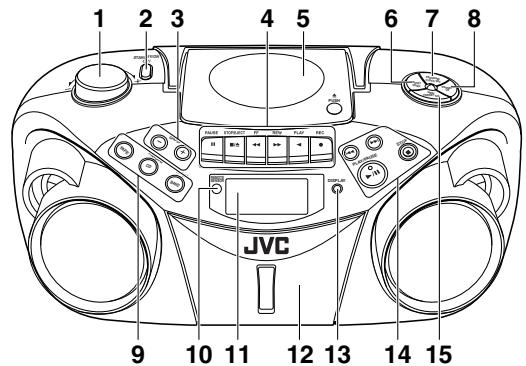
1 VOLUME knob
2 STANDBY/ON (1)/I button
3 GROU
GROUP + button
4 Tape operation buttons
PAUSE II button
STOP/EJECT button
FF 一 button
REW▶ button
PLAY button
REC·button
5. CD door
6. PRESET DOWN button
7 PROGRAM/CLOCK SET button
Names of buttons:
Remote control unit
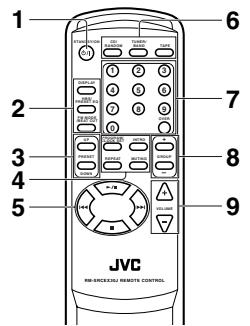
1 STANDBY/ON button
2 DISPLAY button
HBS/PRESET EQ button
FM MODE/BEAT CUT button
3 PRESET UP/DOWN buttons
4 PROGRAM/CLOCK SET button
INTRO button
REPEAT button
MUTING button
5.▶/按钮
1按钮
▶按钮
■ button
按钮
■按钮
6 CD/RANDOM button
TUNER/BAND button
TAPE button
Number buttons
GROUP+/-buttons
VOLUME+/-buttons
■ button
GENERAL CONTROLS
STANDBY/ON (1) / 1 - Press to turn on/off the unit.
The display window lights up when the unit is turned on. (Note, however, that the display window does not light even when the unit is turned on if the unit is operated on batteries.)
SETTING THE CLOCK
Before operating the unit any further, first set the clock built in this unit.
The clock uses 24-hour indication.
1 Press STANDBY/ON () / to turn off the unit, if it is turned on.
The clock flashes on the display window.
2 Press and hold PROGRAM/CLOCK SET for more than 2 seconds.
The hour digits start flashing.
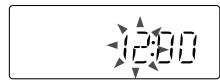
3 Press or to adjust the hour, then press PROGRAM/CLOCK SET.
The minute digits start flashing.
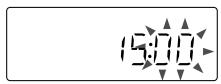
4 Press or to adjust the minutes, then press PROGRAM/CLOCK SET.
Notes:
- If there is a power failure, the clock loses the setting and is reset to "0:00." The clock indication will keep flashing until you set the clock again.
- You can also set the clock when the unit is in STANDBY mode. In this case, follow the procedures from step 2.
To show the clock when the unit is on.
Press DISPLAY.
Each time you press the button, the display changes the clock indication and the normal indication alternately.
(Operating the unit while clock indication is displayed changes the display to the normal indication.)
ADJUSTING THE SOUND
Turn the VOLUME knob (or press VOLUME + / - button on the remote control unit) to increase or decrease the volume to desired level. The volume level can be adjusted in 31 steps from "MIN" to "MAX".
- Turning off the sound temporarily
During playback, press MUTING on the remote control unit to turn the sound off. The MUTING indicator appears in the display window. Press it again to restore the sound.
- Reinforcing the bass sound
Press and hold HBS/RESET EQ so that the HBS indicator appears in the display window. You can enjoy powerful bass sound with the Hyper-Bass Sound effect.
- Selecting the sound mode
You can select one of the 5 preset sound modes.
Press HBS/PRESET EQ repeatedly until the indicator for the sound mode you want appears in the display window.
CLASSIC: Enriched sound with fine treble and ample bass.
ROCK:Powerful sound emphasizing treble and bass.
POP : More presence in the vocals and midrange.
JAZZ:Accented lower frequencies for jazz-type music.
FLAT: Equalizer effect is canceled.
USING THE RADIO
TUNING IN RADIO STATIONS
- Press TUNER/BAND to enter the tuner mode.
2 Press TUNER/BAND to select the band, FM or AM.
3 Press and hold or for more than 1 second.
The unit starts searching and stops when a station of sufficient signal strength is tuned in.
If you press or → briefly and repeatedly, the frequency changes step by step.
Changing the FM reception mode
When an FM stereo broadcast is hard to receive or noisy, press FM MODE/BEAT CUT on the remote control unit so that the MONO indicator appears in the display window.
To restore the stereo effect, press FM MODE/BEAT CUT again so that the MONO indicator goes off. The FM MODE will be changed to STEREO also when changing the station.
PRESETTING STATIONS
You can preset 20 FM and 10 AM stations.
1 Press TUNER/BAND to select the band, FM or AM.
2 Press or to tune in the station you want to preset.
3 Press PROGRAM/CLOCK SET
The PROGRAM indicator and the preset number start blinking in the display window.
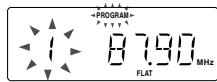
4 Press PRESET UP or PRESET DOWN to select the preset number while the PROGRAM indicator is blinking.
You can use the number buttons on the remote control unit to select the preset number directly. Example: To select preset number 5, press 5. To select preset number 15, press OVER, 1, then 5. To select preset number 20, press OVER, 2, then 0.
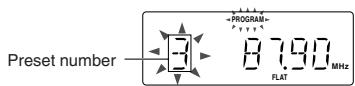
5 Press PROGRAM/CLOCK SET while the PROGRAM indicator is blinking.
The tuned station in step 2 is stored in the preset number selected in step 4.
Storing a new station on a used number erases the previously stored one.
When the PROGRAM indicator stops blinking, the tuned station is stored in the preset number without pressing PROGRAM/CLOCK SET.
If you use the number buttons to select the preset number in step 4, pressing PROGRAM/CLOCK SET is not necessary in this step.
6 Repeat steps 2 to 5 to preset other stations, using different preset numbers.
Tuning in a preset station
1 Press TUNER/BAND to select the band, FM or AM.
2 Press PRESET UP or PRESET DOWN repeatedly until the desired preset number appears.
You can use the number buttons on the remote control unit to select the preset number directly. Example:
To select preset number 5, press 5.
To select preset number 15, press OVER, 1, then 5.
To select preset number 20, press OVER, 2, then 0.
Note
If you unplug the AC power cord or if a power failure occurs, the preset stations will be erased in a few days. If this happens, preset the stations again.
USING THE TAPE
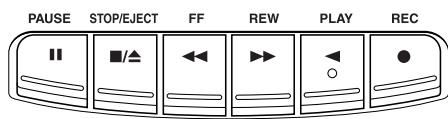
Forward direction
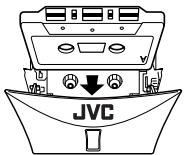
PAUSE II - Press to interrupt tape play or record mode. Press a second time to resume tape play or tape record mode.
STOP/EJECT - Press to stop the current tape activity, or to open the cassette compartment door when no buttons are active.
FF - In stop mode, press to advance the tape toward the end. (When the tape reaches the end, press STOP/EJECT to release the depressed button.)
REW▶- In stop mode, press to rewind the tape toward the beginning. (When the tape reaches the end, press STOP/EJECT to release the depressed button.)
PLAY - Press to play cassettes
REC Press to record from the radio or CD player.
PLAYING A CASSETTE TAPE
- Press TAPE to enter the tape mode.
- Press STOP/EJECT / to open the cassette compartment door.
- Load a cassette. Use only a type-I normal tape.
- Close the door securely.
- Press PLAY to begin playing the tape. The cassette tape plays until it reaches the end of the side, then it automatically stops.
Fast-winding a tape
Press REW or FF
When the tape reaches the end, press STOP/EJECT / to release REW or FF
RECORDING ON CASSETTE TAPES
You can record from the radio or the CD player.
- It should be noted that it may be unlawful to re-record pre-recorded tapes, records, or discs without the consent of the owner of copyright in the sound or video recording, broadcast or cable program and in any literary, dramatic, musical, or artistic work embodied therein.
- The recording level is automatically set correctly, so it is not affected by the other sound settings. Thus, during recording you can adjust the sound you are actually listening to without affecting the recording level.
-
If recordings you have made have excessive noise or static, the unit may be too close to a TV. Increase the distance between the TV and the unit.
-
You can only use type I tape for recording.
-
DO NOT turn off the unit while playing back or recording a tape. The cassette deck or tapes may be damaged.
DO NOT use type II and type IV tapes since the unit is not compatible with such tapes. - The use of C-120 or longer tape is not recommended, since characteristic deterioration may occur and this tape easily jams in the pinch rollers and the capstans.
To protect your recordings
Cassettes have two small tabs on the back to protect against unexpected erasure or re-recording.
To protect your recording, remove these tabs.
To re-record on a protected tape, cover the holes with adhesive tape.
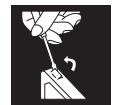
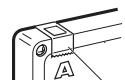
- Adhesive tape
- Insert a cassette tape into the cassette deck and close the door.
- Press TUNER/BAND and select a radio station.
-
Press REC to begin recording. REC and PLAY are locked down.
-
Press STOP/EJECT / to stop recording.
Using the beat-cut function
When recording an AM broadcast, beats may occur. If this happens while recording an AM broadcast, press FM MODE/BEAT CUT on the remote control unit to select the better beat-cut setting, "CUT-1" or "CUT-2".
TIP
To temporarily pause the recording, press PAUSE II on the cassette deck. Press PAUSE II again to resume recording.
SYNCHRONIZED RECORDING FROM A CD
- Insert a cassette tape into the cassette deck and close the door.
- Press CD/RANDOM.
- Place a CD you want to record into CD compartment.
- Select the track you want to record by pressing or
-
Press FEC to start synchronized recording
-
When the tape reaches the end, the CD playback enters in pause.
To continue recording:
turn over the tape and press REC.
To continue the CD playback: press PLAY/PAUSE /II.
To stop the CD playback: press STOP.
When the CD playback stops, the cassette tape continues running.
To stop the cassette tape, press STOP/EJECT ■/▲.
TIP
Using the PAUSE button on the cassette deck instead of the STOP/EJECT / button to momentarily interrupt recording gives you a much clearer sound recording.
ERASING
When recording on a pre-recorded tape, the previous recording is erased and only the new recording is heard next time the tape is played back.
Erasing a recording on a tape without making a new recording
1. Press TAPE to enter the tape mode
2. Press REC to start recording
USING THE CD
THINGS TO KNOW BEFORE PLAYING CDs
Playable CDs:
Only CDs bearing these marks can be used with this system.


This unit has been designed only to play back the following CDs
Digital audio CD
- Recordable digital audio CD (CD-R)
- Rewritable digital audio CD (CD-RW)
When playing a CD-R or CD-RW
You can play back finalized CD-R or CD-RW recorded in music CD format or in MP3 format. (If a CD-RW has been recorded in a different format, erase all the data on the CD-RW completely before recording on it.)
- You can play back CD-R or CD-RW like an audio CD.
- Some CD-R or CD-RW may not be played back on this unit because of their disc characteristics, damage or stain on them, or if the player lens is dirty.
The reflection factor of CD-RW is lower than that of other CDs, possibly causing CD-RW to take longer time to read.
Notes for MP3 files
- The unit can only recognize files with "MP3" or "mp3" as the extensions, which can be in any combination of upper and lower cases. The file name needs to be up to 20 characters.
This unit recognizes files and folders on a disc in the following conditions: - up to 999 MP3 files,
- up to 99 folders (including the root folder).
- up to 8th layers (including the root folder).
Note that the number of the folders or layers mentioned above may increase and can be played back
Note that the number of the leader or layer mentioned above may increase and can be played back depending on the contents recorded on the disc.
It is recommended that you record your material at a 44.1-kHz sampling rate, using the 128-kbps data transfer rate. - Some MP3 files or discs may not be played back because of their characteristics or recording conditions.
- MP3 discs require a longer readout time than normal discs because of the complexity of the folder/file configuration.
- MP3i and MP3 Pro are not available.
- The title, artist name and album name can be displayed as the ID3 TAG (ID3v1/1.1) information.
Caution for DualDisc playback
The Non-DVD side of a "DualDisc" does not comply with the "Compact Disc Digital Audio" standard. Therefore, the use of Non-DVD side of a DualDisc on this product may not be recommended.
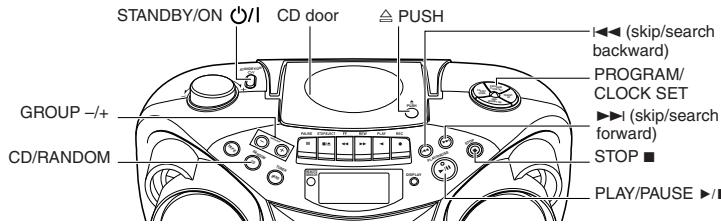
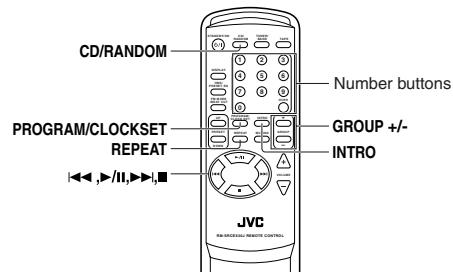
LOADING A CD
- Press CD/RANDOM; "READING" appears, then "NO DISC" appears in the display if no CD is loaded.
- Press PUSH to open the CD door.
- Place a CD into the tray with the label facing up
- Close the CD door. Then the total number of tracks and total playing time appear.
- To remove the CD, press PUSH, grasp the CD by its edges, and carefully pull it out
- When loading an MP3 disc, the MP3 indicator lights, and the total number of groups (albums) and total number of tracks appear in the display window.
Total number of groups - Total number of tracks
PLAYING A CD
Press PLAY/PAUSE to play all the tracks in order starting with track 1
The current track number and elapsed playing time appear in the display.
Notes for MP3 files
- When an MP3 disc is loaded, after the current track number and elapsed playing time are displayed for 5 seconds, the ID3 TAG information (title, artist name and album name) scrolls through the display window once, if the MP3 disc has ID3 TAG information. For displaying the disc information, see "Displaying the disc information".
- When an MP3 disc is loaded, it may take more than 30 seconds to be read, depending on the amount of information compiled in the disc.
Notes
- Press PLAY/PAUSE II to temporarily stop the CD. The track number and elapsed playing time flash in the display. Press PLAY/PAUSE II again to resume playing the CD.
-
Adjust VOLUME to a comfortable level.
-
Press STOP to stop playing the CD. Wait a few seconds for the CD to stop turning, then press PUSH to open the CD door and remove the CD.
- "NO DISC" may appear when the disc is loaded upside down. Reload the disc correctly.
Skipping
- To skip back to the previous track
During playback, press once to return to the beginning of the current track, press twice to skip back to the beginning of the previous track.
To skip to the next track
During playback, press to skip to the beginning of the next track.
Selecting a desired track directly
Use the number buttons on the remote control unit.
In case of an audio CD:
Example:
To select track 8, press 8.
To select track 21, press OVER, 2, then 1.
Playback starts from the specified track.
In case of an MP3 disc:
Example:
To select track 8, press 8
To select track 21, press OVER, 0, 2, then 1.
To select track 115, press OVER, 1, 1, then 5.
Search - locating a desired position on the disc (audio CD only)
Press and hold or during playback.
Monitor the sound and release the button when the desired position is located.
Selecting a desired group (album) and track (MP3 disc only)
1 In stop mode, press GROUP + or GROUP - repeatedly until the desired group (album) number is displayed.
2. Press or to select a desired track from the current group (album).
3 Press PLAY/PAUSE to start playback
Note
During playback, if you press GROUP + or GROUP -, playback skips to the first track of the next or previous group (album), and the track number is shown in the display window.
Checking the remaining time (audio CD only)
Press and hold DISPLAY (on either the main unit or the remote control unit) for more than 1 second during playback.
Each time you press and hold the button, the display changes in the following order:
Track number being played and elapsed playing time.
Track number being played and remaining time of the track ("TRACK" and "REMAIN" appear.)
↓
Track number being played and remaining time of the disc ("TOTAL" and "REMAIN" appear.)
Displaying the disc information (MP3 disc only)
In stop mode:
When you press or to select a track, the group (album) number and group name/file name scroll through the display window, and then the current group (album) number and track number are displayed again.
During playback:
When you press and hold DISPLAY for more than 1 second, the title, artist name and album name scroll through the display window once, and then the track number being played and elapsed playing time are displayed again.
If the track has no text information, "NO INFO" appears instead.
REPEAT
The REPEAT button repeats one track (REPEAT 1) or all tracks (REPEAT ALL). To scroll through the choices, continuously press and release REPEAT, and check the display to see which choice you have selected. The following chart illustrates how REPEAT works in various modes.
→NORMAL→REPEATALL→REPEAT1
(For audio CD)
→NORMAL→REPEAT ALL→REPEAT GROUP→REPEAT 1→ (For MP3 disc)
RANDOM
In CD mode, press CD/RANDOM so that "RANDOM" appears in the display and random playback starts. To quit random play, press CD/RANDOM again.
PROGRAMMING
1 Press CD/RANDOM to enter CD mode, if the unit is in TUNER or TAPE mode.
You can press CD/RANDOM on the remote control unit to enter CD mode
2 Press PROGRAM/CLOCK SET in stop mode.
The PROGRAM indicator appears in the display window.
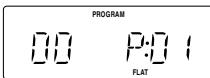
3 Press or to select a desired track to be programmed.
You can use the number buttons on the remote control unit to select a desired track.

4 Press PROGRAM/CLOCK SET.
5 Repeat steps 3 and 4 to program other tracks.
6 Press PLAY/PAUSE II.
The tracks are played in the order you have programmed
- Stopping programmed playback
Press STOP
Checking the program contents
Before starting programmed playback, press PROGRAM/CLOCK SET when "PROGRAM" is displayed. Each time you press the button, the programmed tracks are shown in the display window.
Adding tracks in the program
1 Press PROGRAM/CLOCK SET repeatedly until "00" appears as a track number.
2 Press or (or the number buttons on the remote control unit) to select a new track number, then press PROGRAM/CLOCK SET.
Editing the program
1 Press PROGRAM/CLOCK SET repeatedly until the program number you want to edit appears.
2 Press ← or → (or the number buttons on the remote control unit) to select a new track number, then press PROGRAM/CLOCK SET.
Erasing the entire program in the memory
Press PROGRAM/CLOCK SET so that the "PROGRAM" appears, and press STOP while the "PROGRAM" is displayed.
The program is also cleared when you open the CD door, turn off the unit or change to other audio
sources.
Note
You cannot program more than 40 tracks.
--FULL--" is displayed.
For MP3 disc:
1 Press PROGRAM/CLOCK SET in stop mode.
The PROGRAM indicator appears in the display window.
2 Press GROUP + or GROUP - to select a desired group (album).
The first track number in the selected group (album) is shown.
3 Press or to select a desired track in the group (album).
You can use the number buttons on the remote control unit to select a desired track.
4 Press PROGRAM/CLOCK SET
5 Repeat steps 2 to 4 to program other tracks.
6 Press PLAY/PAUSE /II.
The tracks are played in the order you have programmed
INTRO PLAYBACK
Every track or every programmed track of a CD (excluding the CD of MP3 format) can be played for the beginning ten seconds.
Press INTRO on the remote control unit. The INTRO indicator appears in the display window and intro playback starts.
CARE AND MAINTENANCE
CLEANING THE EXTERIOR
- Disconnect the system from AC power before cleaning the exterior of the unit with a soft dry cloth.
HANDLING DISCS

- Remove the disc from its case by holding it at the edge while pressing the center hole lightly.
- Do not touch the shiny surface of the disc, or bend the disc.
- Put the disc back in its case after use to prevent warping.

- Be careful not to scratch the surface of the disc when placing it back in its case.
- Avoid exposure to direct sunlight, temperature extremes, and moisture.

To clean the disc
- Wipe the disc with a soft cloth in a straight line from center to edge.
DO NOT use any solvent - such as conventional record cleaner, spray, thinner, or benzine - to clean the disc.
HANDLING CASSETTE TAPES

- If the tape is loose in its cassette, take up the slack by inserting a pencil in one of the reels and rotating.
- If the tape is loose, it may get stretched, cut, or caught in the cassette.

- Be careful not to touch the tape surface.

-
Avoid storing tapes in any of the following places:
-
In dusty places
-
In direct sunlight or heat
-
In moist areas
-
On a TV or speaker
Near a magnet
CLEANING THE TAPE HEADS
Clean the heads after every 10 hours of use with a wet-type head cleaning tape (available at electronic and audio shops).

To demagnetize the head
Turn off the unit, and use a head demagnetizer (available at electronic and audio shops).
TROUBLESHOOTING TIPS
| Problem | Solution |
| System does not turn on. | • Make sure the power cord is securely plugged into the AC power outlet (or that the batteries are fresh). • Unplug the unit for a moment, and then plug it back in again. • Check the outlet by plugging in another device. |
| No sound | • Adjust the volume setting. • Make sure you have selected the correct function: CD, TAPE, or TUNER and the headphones are disconnected. |
| Poor radio reception | • Adjust the FM telescopic antenna for better FM reception. • Rotate the unit to achieve better AM reception. • Try turning off electrical appliances near the unit, such as TV, hair dryers, vacuum cleaners, or fluorescent lights. |
| CD does not play. | • Make sure the tray contains a CD. • Make sure the CD's label is facing up. • Make sure that pause mode is not activated. • Make sure the CD function is selected. |
| CD sound skips. | • Clean the CD (as explained in "CARE AND MAINTENANCE"). • Check the CD for warping, scratches, or other damage. • Check for vibration or shock that may affect the unit; move system if necessary. |
| Distorted or noisy recordings | • Inspect the recording head and clean it if necessary. • Demagnetize recording head (as explained in "CARE AND MAINTENANCE"). |
SPECIFICATIONS
CD player
CD capacity : 1 CD
Dynamic range : 60 dB
Signal-to-noise ratio : 75 dB
Tuner
Frequency ranges
:AM530-1710kHz
Antenna
Ferrite core antenna for AM
Cassette deck section
Frequency response : 60 Hz - 10 000 Hz
Wow and flutter : 0.15% (WRMS)
General
Speaker : 9 cm cone × 2 (4 Ω)
Power output : 4W (2W + 2W) at
Output terminals : PHONES × 1 (0.3.5 mm, stereo)
Power supply : AC 230 V~, 50 Hz
DC 9 V ("R20 (SUM)
Power consumption : 18 W (at operation), 3 W (on standby)
Dimensions : 420 mm (W) × 178 mm (H) × 249 mm (D)
Mass : Approx. 3.4kg (without batteries)
Accessories provided : AC power cord × 1
Remote control unit × 1
Batteries for the remote control unit R03 (UM-4)/AAA (24F)× 2
Design and specifications are subject to change without notice.
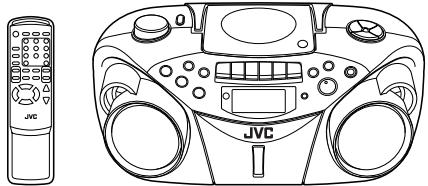


INSTRUCTIONS
Thank you for purchasing this JVC product.
Please read these instructions carefully before starting operation to be sure to obtain optimum performance and a longer service life from the unit.
LVT1385-008A [E/EN]

©2005 Victor Company of Japan Limited
SAFETY PRECAUTIONS
Caution — ( )/STANDBY/ON switch!
- Disconnect the mains plug to shut the power off completely. The STANDBY/ON switch in any position does not disconnect the mains line. The power can be remote controlled.
CAUTION
To reduce the risk of electrical shocks, fire, etc.:
1. Do not remove screws, covers or cabinet.
2. Do not expose this appliance to rain or moisture.
IMPORTANT FOR LASER PRODUCTS
-
CLASS 1 LASER PRODUCT
-
CAUTION: Do not open the top cover. There are no user serviceable parts inside the unit; leave all servicing to qualified service personnel.
- CAUTION: Visible and invisible laser radiation when open and interlock failed or defeated. Avoid direct exposure to beam.
- REPRODUCTION OF LABEL: CAUTION LABEL, PLACED INSIDE THE UNIT
CAUTION - INVASIBLE LASER BADIATION WHEN OPEN AND INTERBLOCKS
APPROBEE EXAMINATION OF DEFEATED.AVOID EXPOSURE TO BEAM.
VORSICHT!
UNSICHTBARE LASERSTRAHLUNG TRITT AUS, WENN DECKEL
GEOFFUND AND WEN SHERICHTEISVERREGLIEUNBERBRUCKT IST, NICKD FROM STRAHL AUSSETZEN
VARNING - OSYNLIG LASERSTRALNING NAR DENNA DEL AR ÖPPNAD OCH
SPARR AR URKOPPLAD STRALEN AR FARLIG
ADVARSEL USYNLIG LASERSTRALING VED ABNING NAR SIKKERHEDSAFBRYDERE URE AF FUNKTION. UNDG A UDSAETTALSE FOR STRALING.
CAUTION
- Do not block the ventilation openings or holes.
(If the ventilation openings or holes are blocked by a newspaper or cloth, etc., the heat may not be able to get out.) - Do not place any naked flame sources, such as lighted candles, on the apparatus.
- When discarding batteries, environmental problems must be considered and local rules or laws governing the disposal of these batteries must be followed strictly.
- Do not expose this apparatus to rain, moisture, dripping or splashing and that no objects filled with liquids, such as vases, shall be placed on the apparatus.
Caution: Proper Ventilation
To avoid risk of electric shock and fire, and to prevent damage, locate
the apparatus as follows:
1 Front
No obstructions and open spacing
2 Sides/Top/Back
No obstructions should be placed in the areas shown by the dimensions below. 3 Bottom:
Place on the level surface. Maintain an adequate air path for ventilation by placing on a stand with a height of 10cm or more.
Front view
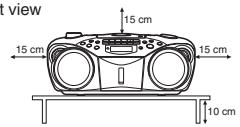
Side view
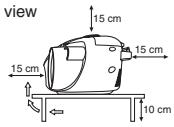
FIRST THINGS
This portable system operates on battery or AC power.
FM telescopic antenna
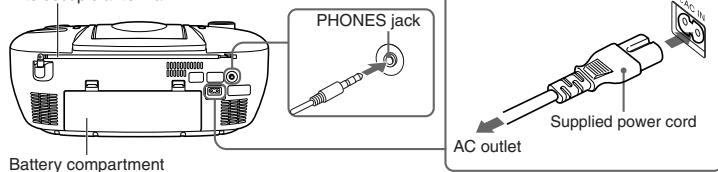
INSERTING BATTERIES
1 Open the battery compartment cover.
Pull the battery compartment cover toward you while pressing the sections marked by the arrows.
2 Insert six R20 (SUM-1)/D (13D)-size batteries. (not supplied)
Be sure to insert the batteries with the (+) and (-) terminals positioned correctly.
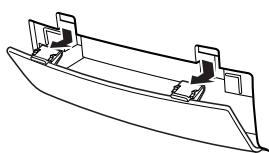
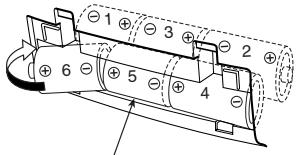
R20 (SUM-1)/D (13D)-size batteries
3 Replace the battery compartment cover.
Inserting Batteries into the Remote Control Unit:
Match the polarity (+ and -) of the batteries. R03 (UM-4)/AAA (24F)×2 (supplied)
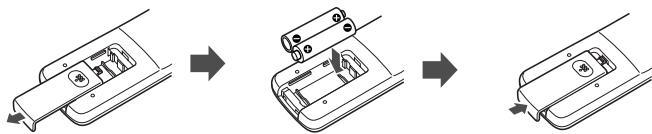
Note: The battery power will be switched off when you plug the power cord into the AC IN jack on the unit.
CAUTION:
To avoid battery leakage or explosion, handle batteries properly
If you are not going to use your system for a month or more, remove the batteries from the battery compartment.
- Dispose of batteries in the proper manner, according to federal, state, and local regulations.
- Do not mix with different battery types or with new and old ones, or do not attempt to charge a battery not intended to be recharged.
Discard leaky batteries immediately. Leaking batteries can cause skin burns or other personal injury.
SUPPLYING AC POWER
Plug the power cord into the AC IN jack on the back of the unit, and into an AC power outlet.
Note: To switch off the system completely, unplug the power cord.
CAUTIONS:
- ONLY USE JVC POWER CORD PROVIDED WITH THIS UNIT TO AVOID MALFUNCTION OR DAMAGE TO THE UNIT. REMOVE BATTERIES WHEN USING THE POWER CORD.
- BE SURE TO UNPLUG THE POWER CORD FROM THE OUTLET WHEN GOING OUT OR WHEN THE UNIT IS NOT IN USE FOR AN EXTENDED PERIOD OF TIME.
USING HEADPHONES
Connect commercially available headphones to the PHONES jack on the rear of the main unit. While the headphones are connected, the speakers do not produce any sound. Before connecting the headphones, make sure to turn down the sound volume.
ANTENNAS
The AM antenna is built in, so adjusting the position of the unit may help AM reception. The FM telescopic antenna on the back of the unit can be extended and rotated for better FM reception.
NAMES OF PARTS AND CONTROLS
Top and front sides:
Main unit
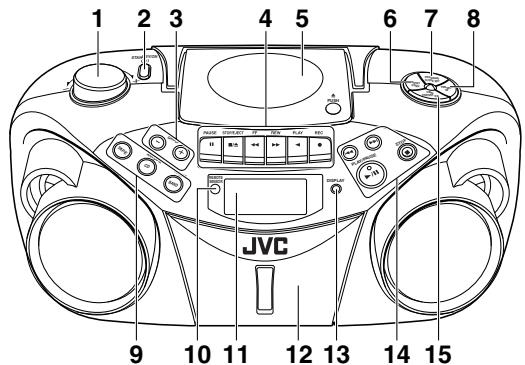
1 VOLUME knob
2 STANDBY/ON OI button
3 GROUP - button
GROUP + button
4 Tape operation buttons
PAUSE II button
STOP/EJECT 1/▲ button
FF按钮
REW▶ button
PLAY button
BEC·button
5. CD door
6 PRESET DOWN button
7 PROGRAM/CLOCK SET button
Names of buttons:
Remote control unit
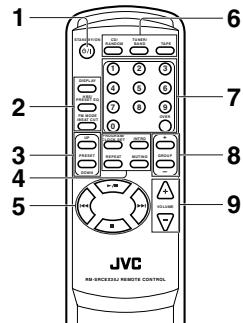
1 STANDBY/ON button
2 DISPLAY button
HBS/PRESET EQ button
FM MODE/BEAT CUT button
3 PRESET UP/DOWN buttons
4 PROGRAM/CLOCK SET button
INTRO button
REPEATbutto
MUTING button
5. button
1按钮
▶按钮
■ button
6 CD/RANDOM button
TUNER/BAND button
TAPE button
7.Number buttons
-
GROUP+/- buttons
-
VOLUME+/- buttons
6 VOLUME 1/7 button
GENERAL CONTROLS
STANDBY/ON () / / - Press to turn on/off the unit.
The display window lights up when the unit is turned on. (Note, however, that the display window does not turn light even when the unit is turned on if the unit is operated on batteries.)
SETTING THE CLOCK
Before operating the unit any further, first set the clock built in this unit.
The clock uses 24-hour indication.
1 Press STANDBY/ON (')/| to turn off the unit, if it is turned on.
The clock flashes on the display window.
2 Press and hold PROGRAM/CLOCK SET for more than 2 seconds.
The hour digits start flashing.
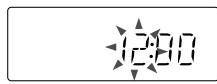
3 Press or to adjust the hour, then press PROGRAM/CLOCK SET.
The minute digits start flashing.
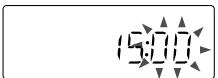
4 Press or to adjust the minutes, then press PROGRAM/CLOCK SET.
Notes:
-
If there is a power failure, the clock loses the setting and is reset to "0:00." The clock indication will keep flashing until you set the clock again.
-
You can also set the clock when the unit is in STANDBY mode. In this case, follow the procedures from step 2.
To show the clock when the unit is on.
Press DISPLAY.
Each time you press the button, the display changes the clock indication and the normal indication alternately.
(Operating the unit while clock indication is displayed changes the display to the normal indication.)
ADJUSTING THE SOUND
Turn the VOLUME knob (or press VOLUME + / - button on the remote control unit) to increase or decrease the volume to desired level. The volume level can be adjusted in 31 steps from "MIN" to "MAX".
- Turning off the sound temporarily
During playback, press MUTING on the remote control unit to turn the sound off. The MUTING indicator appears in the display window. Press it again to restore the sound. - Reinforcing the bass sound
Press and hold HBS/PRESET EQ so that the HBS indicator appears in the display window. You can enjoy powerful bass sound with the Hyper-Bass Sound effect. - Selecting the sound mode
You can select one of the 5 preset sound modes.
Press HBS/PRESET EQ repeatedly until the indicator for the sound mode you want appears in the display window.
CLASSIC: Enriched sound with fine treble and ample bass.
ROCK:Powerful sound emphasizing treble and bass.
POP : More presence in the vocals and midrange
JAZZ: Accented lower frequencies for jazz-type music.
FLAT: Equalizer effect is canceled.
USING THE RADIO
TUNING IN RADIO STATIONS
1 Press TUNER/BAND to enter the tuner mode.
2 Press TUNER/BAND to select the band, FM or AM.
3 Press and hold ← or → for more than 1 second.
The unit starts searching and stops when a station of sufficient signal strength is tuned in.
If you press or → briefly and repeatedly, the frequency changes step by step.
Changing the FM reception mode
When an FM stereo broadcast is hard to receive or noisy, press FM MODE/BEAT CUT on the remote control unit so that the MONO indicator appears in the display window.
To restore the stereo effect, press FM MODE/BEAT CUT again so that the MONO indicator goes off. The FM MODE will be changed to STEREO also when changing the station.
PRESETTING STATIONS
You can preset 20 FM and 10 AM stations.
1 Press TUNER/BAND to select the band, FM or AM.
2 Press or to tune in the station you want to preset.
3 Press PROGRAM/CLOCK SET
The PROGRAM indicator and the preset number start blinking in the display window.
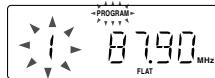
4 Press PRESET UP or PRESET DOWN to select the preset number while the PROGRAM indicator is blinking.
You can use the number buttons on the remote control unit to select the preset number directly.
Example: To select preset number 5, press 5. To select preset number 15, press OVER, 1, then 5.
To select preset number 20, press OVER, 2, then 0.
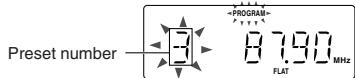
5 Press PROGRAM/CLOCK SET while the PROGRAM indicator is blinking
The tuned station in step 2 is stored in the preset number selected in step 4.
Storing a new station on a used number erases the previously stored one.
When the PROGRAM indicator stops blinking, the tuned station is stored in the preset number without pressing PROGRAM/CLOCK SET.
If you use the number buttons to select the preset number in step 4, pressing PROGRAM/CLOCK SET is not necessary in this step.
6 Repeat steps 2 to 5 to preset other stations, using different preset numbers.
Tuning in a preset station
1 Press TUNER/BAND to select the band, FM or AM.
2 Press PRESET UP or PRESET DOWN repeatedly until the desired preset number appears.
You can use the number buttons on the remote control unit to select the preset number directly.
Example:
To select preset number 5, press 5.
To select preset number 15, press OVER, 1, then 5.
To select preset number 20, press OVER. 2, then 0
Note
If you unplug the AC power cord or if a power failure occurs, the preset stations will be erased in a few days. If this happens, preset the stations again.
USING THE TAPE
PAUSE STOP/EJECT FF REW PLAY BEC
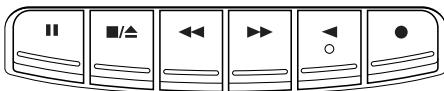
Forward direction
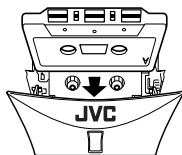
PAUSE II - Press to interrupt tape play or record mode. Press a second time to resume tape play or tape record mode.
STOP/EJECT / - Press to stop the current tape activity, or to open the cassette compartment door when no buttons are active.
FF - In mode, press to advance the tape toward the end. (When the tape reaches the end, press STOP/EJECT to release the depressed button.)
REW▶- In stop mode, press to rewind the tape toward the beginning. (When the tape reaches the end, press STOP/EJECT ▪ to release the depressed button.)
PLAY - Press to play cassettes
REC Press to record from the radio or CD player.
PLAYING A CASSETTE TAPE
- Press TAPE to enter the tape mode
- Press STOP/EJECT / to open the cassette compartment door.
- Load a cassette. Use only a type-I normal tape.
- Close the door securely.
- Press PLAY to begin playing the tape. The cassette tape plays until it reaches the end of the side, then it automatically stops.
Fast-winding a tape
Press REW or FF
When the tape reaches the end, press STOP/EJECT / to release REW or FF .
RECORDING ON CASSETTE TAPES
You can record from the radio or the CD player.
It may be unlawful to record or play back copyrighted material without the consent of the copyright owner.
- The recording level is automatically set correctly, so it is not affected by the other sound settings. Thus, during recording you can adjust the sound you are actually listening to without affecting the recording level.
If recordings you have made have excessive noise or static, the unit may be too close to a TV. Increase the distance between the TV and the unit.
- You can only use type I tape for recording
- DO NOT turn off the unit while playing back or recording a tape. The cassette deck or tapes may be damaged.
- DO NOT use type II and type IV tapes since the unit is not compatible with such tapes.
- The use of C-120 or longer tape is not recommended, since characteristic deterioration may occur and this tape easily jams in the pinch rollers and the capstans.
To protect your recordings
Cassettes have two small tabs on the back to protect against unexpected erasure or re-recording
To protect your recording, remove these tabs.
To re-record on a protected tape, cover the holes with adhesive tape.
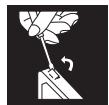
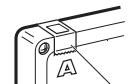
Adhesive tape
- Insert a cassette tape into the cassette deck and close the door.
- Press TUNER/BAND and select a radio station.
- Press REC to begin recording. REC and PLAY are locked down.
- Press STOP/EJECT /△ to stop recording
Using the beat-cut function
When recording an AM broadcast, beats may occur. If this happens while recording an AM broadcast, press FM MODE/BEAT CUT on the remote control unit to select the better beat-cut setting, "CUT-1" or "CUT-2".
TIP
To temporarily pause the recording, press PAUSE II on the cassette deck. Press PAUSE II again to resume recording.
SYNCHRONIZED RECORDING FROM A CD
- Insert a cassette tape into the cassette deck and close the door.
- Press CD/RANDOM.
- Place a CD you want to record into CD compartment.
- Select the track you want to record by pressing I or
-
Press REC to start synchronized recording.
-
When the tape reaches the end, the CD playback enters in pause.
To continue recording: turn over the tape and press REC o
To continue the CD playback: press PLAY/PAUSE /II.
To stop the CD playback: press STOP - When the CD playback stops, the cassette tape continues running
To stop the cassette tape, press STOP/EJECT /
TIP
Using the PAUSE button on the cassette deck instead of the STOP/EJECT / button to momentarily interrupt recording gives you a much clearer sound recording.
ERASING
When recording on a pre-recorded tape, the previous recording is erased and only the new recording is heard next time the tape is played back.
Erasing a recording on a tape without making a new recording
-
Press TAPE to enter the tape mode.
-
Press REC to start recording
USING THE CD
THINGS TO KNOW BEFORE PLAYING CDs
Playable CDs:
Only CDs bearing these marks can be used with this system.

This unit has been designed only to play back the following CDs
Digital audio CD
- Recordable digital audio CD (CD-R)
- Rewritable digital audio CD (CD-RW)
When playing a CD-R or CD-RW
You can play back finalized CD-R or CD-RW recorded in music CD format or in MP3 format. If a CD-RW has been recorded in a different format, erase all the data on the CD-RW completely before recording
on it.)
- You can play back CD-R or CD-RW like an audio CD.
- Some CD-R or CD-RW may not be played back on this unit because of their disc characteristics
damage or stain on them, or if the player lens is dirty.
The reflection factor of CD-RW is lower than that of other CDs, possibly causing CD-RW to take longer time to read.
Notes for MP3 files
-
The unit can only recognize files with "MP3" or "mp3" as the extensions, which can be in any combination of upper and lower cases. The file name needs to be up to 20 characters.
This unit recognizes files and folders on a disc in the following conditions: -
up to 999 MP3 files
-
up to 99 folders (including the root folder),
- up to 8th layers (including the root folder)
Note that the number of the folders or layers mentioned above may increase and can be played back depending on the contents recorded on the disc.
It is recommended that you record your material at a 44.1-kHz sampling rate, using the 128-kbps data transfer rate.
- Some MP3 files or discs may not be played back because of their characteristics or recording
conditions.
- MP3 discs require a longer readout time than normal discs because of the complexity of the folder/file configuration.
- MP3i and MP3 Pro are not available.
The title, artist name and album name can be displayed as the ID3 TAG (ID3v1/1.1) information
Caution for DualDisc playback
The Non-DVD side of a "DualDisc" does not comply with the "Compact Disc Digital Audio" standard. Therefore, the use of Non-DVD side of a DualDisc on this product may not be recommended.
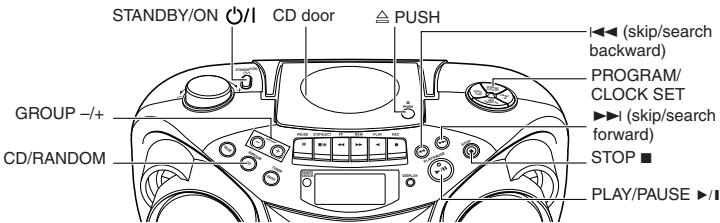
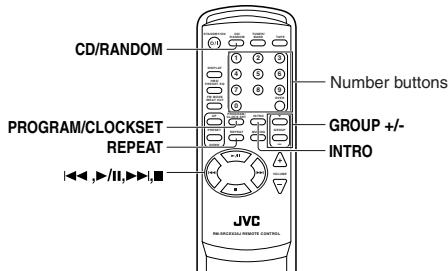
LOADING A CD
- Press CD/RANDOM; "READING" appears, then "NO DISC" appears in the display if no CD is loaded.
-
Press PUSH to open the CD door.
-
Place a CD into the tray with the label facing up.
-
Close the CD door. Then the total number of tracks and total playing time appear.
-
To remove the CD, press PUSH, grasp the CD by its edges, and carefully pull it out.
-
When loading an MP3 disc, the MP3 indicator lights, and the total number of groups (albums) and total number of tracks appear in the display window.
Total number of tracks
PLAYING A CD
Press PLAY/PAUSE to play all the tracks in order starting with track 1
The current track number and elapsed playing time appear in the display.
Notes for MP3 files
- When an MP3 disc is loaded, after the current track number and elapsed playing time are displayed for 5 seconds, the ID3 TAG information (title, artist name and album name) scrolls through the display window once, if the MP3 disc has ID3 TAG information. For displaying the disc information, see "Displaying the disc information".
- When an MP3 disc is loaded, it may take more than 30 seconds to be read, depending on the amount of information compiled in the disc.
Notes
- Press PLAY/PAUSE to temporarily stop the CD. The track number and elapsed playing time flash in the display. Press PLAY/PAUSE again to resume playing the CD.
- Adjust VOLUME to a comfortable level.
- Press STOP to stop playing the CD. Wait a few seconds for the CD to stop turning, then press
PUSH to open the CD door and remove the CD - "NO DISC" may appear when the disc is loaded upside down. Reload the disc correctly
Skipping
To skip back to the previous track:
uring playback, press I- once to return to the beginning of the current track, press twice to skip back
the beginning of the previous track
to skip to the next track.
uring playback, press▶▶I to skip to the beginning of the next track.
Selecting a desired track directly
Use the number buttons on the remote control unit
In case of an audio CD:
Example
To select track 8, press 8.
To select track 21, press OVER, 2, then 1.
Playback starts from the specified track.
In case of an MP3 disc:
Example:
To select track 8, press 8.
To select track 21, press OVER, 0, 2, then 1.
To select track 115, press OVER 1.1 then 5
Search - locating a desired position on the disc (audio CD only)
Press and hold or during playback
Monitor the sound and release the button when the desired position is located.
Selecting a desired group (album) and track (MP3 disc only)
1 In stop mode, press GROUP + or GROUP - repeatedly until the desired group (album) number is displayed.
press or to select a desired track from the current group (album).
3 Press PLAY/PAUSE to start playback
Note
During playback, if you press GROUP + or GROUP -, playback skips to the first track of the next or previous group (album), and the track number is shown in the display window.
Checking the remaining time (audio CD only)
Press and hold DISPLAY (on either the main unit or the remote control unit) for more than 1 second during playback.
Each time you press and hold the button, the display changes in the following order
Track number being played and elapsed playing time.
Track number being played and remaining time of the track ("TRACK" and "REMAIN" appear.)
↓
Track number being played and remaining time of the disc ("TOTAL" and "REMAIN" appear.)
Displaying the disc information (MP3 disc only)
In stop mode:
When you press or to select a track, the group (album) number and group name\file name scroll through the display window, and then the current group (album) number and track number are displayed again.
During playback
When you press and hold DISPLAY for more than 1 second, the title, artist name and album name scroll through the display window once, and then the track number being played and elapsed playing time are displayed again.
If the track has no text information, "NO INFO" appears instead.
REPEAT
The REPEAT button repeats one track (REPEAT 1) or all tracks (REPEAT ALL). To scroll through the choices, continuously press and release REPEAT, and check the display to see which choice you have selected. The following chart illustrates how REPEAT works in various modes.
→NORMAL→REPEAT ALL→REPEAT 1 (For audio CD)
→NORMAL→REPEAT ALL→REPEAT GROUP→REPEAT 1 (For MP3 disc)
HANDLING CASSETTE TAPES

- If the tape is loose in its cassette, take up the slack by inserting a pencil in one of the reels
and rotating - If the tape is loose, it may get stretched, cut, or caught in the cassette.

- Be careful not to touch the tape surface.
- Avoid storing tapes in any of the following places:
- In dusty places
- In direct sunlight or heat
- In moist areas
- On a TV or speaker
Near a magnet
G THE TAPE HEADS
Clean the heads after every 10 hours of use with a wet-type head cleaning tape (available at electronic and audio shops).

RANDOM
In CD mode, press CD/RANDOM so that "RANDOM" appears in the display and random playback starts. To quit random play, press CD/RANDOM again.
PROGRAMMING
1 Press CD/RANDOM to enter CD mode, if the unit is in TUNER or TAPE mode.
You can press CD/RANDOM on the remote control unit to enter CD mode.
2 Press PROGRAM/CLOCK SET in stop mode.
The PROGRAM indicator appears in the display window.
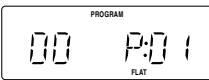
3 Press or to select a desired track to be programmed.
You can use the number buttons on the remote control unit to select a desired track.

4 Press PROGRAM/CLOCK SET
5 Repeat steps 3 and 4 to program other tracks.
6 Press PLAY/PAUSE
The tracks are played in the order you have programmed
1. Stopping programmed playback
Press STOP
Checking the program contents
Before starting programmed playback, press PROGRAM/CLOCK SET when "PROGRAM" is displayed.
Each time you press the button, the programmed tracks are shown in the display window.
Adding tracks in the program
1 Press PROGRAM/CLOCK SET repeatedly until "00" appears as a track number
2 Press | or (or the number buttons on the remote control unit) to select a new track number, then press PROGRAM/CLOCK SET.
Editing the program
1 Press PROGRAM/CLOCK SET repeatedly until the program number you want to edit appears.
2 Press or (or the number remote buttons on the remote control unit) to select a new track number, then press PROGRAM/CIOCK SET
Erasing the entire program in the memory
Press PROGRAM/CLOCK SET so that the "PROGRAM" appears, and press STOP while the "PROGRAM" is displayed.
The program is also cleared when you open the CD door, turn off the unit or change to other audio sources.
Note
You cannot program more than 40 tracks.
--FULL--" is displayed.
For MP3 disc
- Press PROGRAM/CLOCK SET in stop mode
The PROGRAM indicator appears in the display window.
Press GROUP + or GROUP - to select a desired group (album).
The first track number in the selected group (album) is shown.
3 Press or to select a desired track in the group (album)
You can use the number buttons on the remote control unit to select a desired track.
4 Press PROGRAM/CLOCK SET
Repeat steps 2 to 4 to program other tracks.
Press PLAY/PAUSE▶/II
The tracks are played in the order you have programmed
INTRO PLAYBACK
Every track or every programmed track of a CD (excluding the CD of MP3 format) can be played for the beginning ten seconds.
Press INTRO on the remote control unit. The INTRO indicator appears in the display window and intro playback starts.
To demagnetize the head
Turn off the unit, and use a head demagnetizer (available at electronic and audio shops).
TROUBLESHOOTING TIPS
| Problem | Solution |
| System does not turn on. | ·Make sure the power cord is securely plugged into the AC power outlet (or that the batteries are fresh). ·Unplug the unit for a moment, and then plug it back in again. ·Check the outlet by plugging in another device. |
| No sound | ·Adjust the volume setting. ·Make sure you have selected the correct function: CD, TAPE, or TUNER and the headphones are disconnected. |
| Poor radio reception | ·Adjust the FM telescopic antenna for better FM reception. ·Rotate the unit to achieve better AM reception. ·Try turning off electrical appliances near the unit, such as TV, hair dryers, vacuum cleaners, or fluorescent lights. |
| CD does not play. | ·Make sure the tray contains a CD. ·Make sure the CD's label is facing up. ·Make sure that pause mode is not activated. ·Make sure the CD function is selected. |
| CD sound skips. | ·Clean the CD (as explained in "CARE AND MAINTENANCE"). ·Check the CD for warping, scratches, or other damage. ·Check for vibration or shock that may affect the unit; move system if necessary. |
| Distorted or noisy recordings | ·Inspect the recording head and clean it if necessary. ·Demagnetize recording head (as explained in "CARE AND MAINTENANCE"). |
SPECIFICATIONS
CD play
CD capacity : 1 CD
Dynamic range : 60 dB
Signal-to-noise ratio : 75 dB
Tuner
Frequency ranges
FM 87.5 - 108.0 MHz
AM 530 - 1710 kHz
Telescopic antenna for FM
Cassette deck section
Frequency response
Wow and flutter
60 Hz - 10 000 Hz
0.15% (WRMS)
General
Speaker : 9 cm cone × 2 (4 Ω)
Power output : 4 W (2 W + 2 W) at 4 Ω (10% THD) (IEC268-3)
Output terminals : PHONES × 1 (0.3.5 mm, stereo)
Power supply : AC 230 V ~, 50 Hz
DC 9 V ("R20 (SUM-1)/D (13D)" × 6)
Power consumption : 18 W (at operation), 3 W (on standby)
Dimensions : 420mm (W) × 178mm (H) × 249mm (D)
Mass : Approx. 3.4kg (without batteries)
Accessories provided : AC power cord × 1
Remote control unit × 1
Batteries for the remote control unit R03 (UM-4)/AAA (24F)× 2
CARE AND MAINTENANCE
CLEANING THE EXTERIOR
- Disconnect the system from AC power before cleaning the exterior of the unit with a soft dry cloth.
HANDLING DISCS
Remove the disc from its case by holding it at the edge while pressing the center hole lightly.
Do not touch the shiny surface of the disc, or bend the disc
Put the disc back in its case after use to prevent warping.
Be careful not to scratch the surface of the disc when placing it back in its case. Avoid exposure to direct sunlight, temperature extremes, and moisture.
To clean the disc
Wipe the disc with a soft cloth in a straight line from center to edge.
DO NOT use any solvent - such as conventional record cleaner, spray, thinner, or benzine - to clean the disc.
Design and specifications are subject to change without notice.

- SAFETY PRECAUTIONS
- IMPORTANT FOR THE U.K
- IMPORTANT
- CAUTION - OFF SWITCH
- CAUTION
- IMPORTANT FOR LASER PRODUCTS
- CAUTION: PROPER VENTILATION
- GETTING STARTED
- POWERING UP
- BATTERY POWER
- IMPORTANT BATTERY INFORMATION
- AC POWER
- CAUTIONS
- USING HEADPHONES
- ANTENNAS
- GENERAL CONTROLS
- USING THE RADIO
- TUNING IN RADIO STATIONS
- BEAT CUT/FM MODE SWITCH
- USING THE TAPE
- PLAYING A CASSETTE TAPE
- RECORDING ON CASSETTE TAPES
- ERASE PROTECTION
- WARNING
- TIP
- SYNCHRONIZED RECORDING FROM A CD
- LOADING A CD
- PLAYING A CD
- AUTOMATIC SEARCH
- TRACK SEARCH
- REPEAT
- RANDOM
- PROGRAMMING
- WHEN PLAYING A CD-R OR CD-RW
- CAUTION FOR DUALDISC PLAYBACK
- CARE AND MAINTENANCE
- CLEANING THE EXTERIOR
- HANDLING CDS
- CLEANING CDS
- TAPE CARE
- CLEANING THE TAPE HEADS
- SPECIFICATION
- CD PLAYER
- TUNER
- CASSETTE DECK SECTION
- GENERAL
- RC-EX16B/RC-EX16A
- INSTRUCTIONS
- CAUTION — ( ) OFF SWITCH
- CLASS 2011 LABOR PRODUCT
- USING THE CD
- REMOTE FUNCTIONS (FOR CD OPERATION ONLY)
- TROUBLESHOOTING TIPS
- FIRST THINGS
- INSERTING BATTERIES
- CAUTION — ( )/I STANDBY/ON SWITCH
- REPLACE THE BATTERY COMPARTMENT COVER
- NOTE: THE BATTERY POWER WILL BE SWITCHED OFF WHEN YOU PLUG THE POWER CORD INTO THE AC IN JACK ON THE UNIT
- SUPPLYING AC POWER
- NAMES OF PARTS AND CONTROLS
- NAMES OF BUTTONS
- ADJUSTING THE SOUND
- CHANGING THE FM RECEPTION MODE
- PRESETTING STATIONS
- NOTES
- SETTING THE CLOCK
- TO SHOW THE CLOCK WHEN CD OR TUNER IS SELECTED
- TO PROTECT YOUR RECORDINGS
- WHEN RECORDING AN AM BROADCAST
- ERASING
- THINGS TO KNOW BEFORE PLAYING CDS
- PLAYABLE CDS
- WHEN PLAYING A CD-R OR CD-BW
- STOPPING PROGRAMMED PLAYBACK
- CHECKING THE PROGRAM CONTENTS
- ADDING TRACKS IN THE PROGRAM
- EDITING THE PROGRAM
- ERASING THE ENTIRE PROGRAM IN THE MEMORY
- INTRO PLAYBACK
- HANDLING DISCS
- TO CLEAN THE DISC
- HANDLING CASSETTE TAPES
- TO DEMAGNETIZE THE HEAD
- RESETTING THE UNIT
- SPECIFICATIONS
- INSERT SIX R20 (SUM-1)/D (13D)-SIZE BATTERIES. (NOT SUPPLIED)
- INSERTING BATTERIES INTO THE REMOTE CONTROL UNIT
- TUNING IN A PRESET STATION
- NOTE
- POWER SUPPLY
- IF IN DOUBT - CONSULT A COMPETENT ELECTRICIAN
- CAUTION — /| STANDBY/ON SWITCH
- TO SHOW THE CLOCK WHEN THE UNIT IS ON
- TURNING OFF THE SOUND TEMPORARILY
- REINFORCING THE BASS SOUND
- SELECTING THE SOUND MODE
- FAST-WINDING A TAPE
- USING THE BEAT-CUT FUNCTION
- NOTES FOR MP3 FILES
- SKIPPING
- IN CASE OF AN MP3 DISC
- SEARCH - LOCATING A DESIRED POSITION ON THE DISC (AUDIO CD ONLY)
- SELECTING A DESIRED GROUP (ALBUM) AND TRACK (MP3 DISC ONLY)
- CHECKING THE REMAINING TIME (AUDIO CD ONLY)
- DISPLAYING THE DISC INFORMATION (MP3 DISC ONLY)
- SELECTING A DESIRED TRACK DIRECTLY
- IN STOP MODE
- DURING PLAYBACK
- G THE TAPE HEADS
- FOR MP3 DISC
- CD PLAY
Brand : JVC
Model : RC-EX16B
Category : Bluetooth speaker