
DAP-3690 - Access Point D-LINK - Free user manual and instructions
Find the device manual for free DAP-3690 D-LINK in PDF.


| Product Type | Concurrent Dual Band Outdoor PoE Access Point |
| Model | DAP-3690 |
| Brand | D-Link |
| Wireless Standards | IEEE 802.11n on 2.4 GHz and 5 GHz |
| Antenna | 4 x Dipole Antennas (detachable) |
| Ports | 1 x Gigabit Ethernet (RJ-45) with PoE, 1 x Console (RJ-45) |
| Power Supply | PoE (Power over Ethernet) via included PoE base unit; Power adapter 100-240V AC |
| Mounting | Wall mount and pole mount kits included |
| Grounding | Grounding wire included; connection point on bottom of unit |
| Surge Protection | Built-in surge arrestors on antenna ports |
| Enclosure | Outdoor-rated, weatherproof |
| Operating Modes | Access Point (AP), WDS, WDS with AP |
| Management | Web-based interface (HTTP), Console cable |
| Default IP Address | 192.168.0.50 |
| System Requirements | PC with Ethernet adapter; Web browser (IE 7+, Firefox 3+) |
| Package Contents | Access Point, PoE base unit, 4 antennas, grounding wire, power cord, power adapter, mounting kits, console cable, console cable waterproof enclosure, 2 LAN port waterproof enclosures, CD-ROM |
| Safety Compliance | Professional installation required; grounding per local electrical code |
| Dimensions (Approx.) | Not specified in manual; typical outdoor AP size ~250x180x50 mm |
| Weight (Approx.) | Not specified; estimated ~1.5 kg with mounting hardware |
Frequently Asked Questions - DAP-3690 D-LINK
User questions about DAP-3690 D-LINK
0 question about this device. Answer the ones you know or ask your own.
Ask a new question about this device
Download the instructions for your Access Point in PDF format for free! Find your manual DAP-3690 - D-LINK and take your electronic device back in hand. On this page are published all the documents necessary for the use of your device. DAP-3690 by D-LINK.
USER MANUAL DAP-3690 D-LINK
Quick Installation Guide
AirPremie® N
Concurrent Dual Band Outdoor PoE Access Point
This document will guide you through the basic installation process for your new D-Link Dual Band Outdoor Access Point.
DAP-3690

natural_image
Technical line drawing of a D-Link component with heat exchanger and wires (no text or symbols)Quick Installation Guide
Documentation also available on
CD and via the D-Link Website
DAP-3690 Quick Install Guide
This installation guide provides basic instructions for installing the DAP-3690 Wireless Access Point on your network. For additional information about how to use the Access Point, please see the User's Manual which is available on the CD included in this package or from the D-Link support website.
System Requirements
Minimum System Requirements:
- Computers with Windows ^® , Macintosh ^® , or Linux-based operating system with an Ethernet adapter installed
- Internet Explorer version 7.0 or Mozilla Firefox® version 3.0 and above
Package Contents
• DAP-3690 Concurrent Dual Band Outdoor PoE Access Point
• CD-ROM (with Product Documentation)
- PoE Base Unit
• Four Dipole Antennas
- Grounding Wire
- Power Cord
- Power Adapter
- Mounting Kits
- Console Cable
- Console Cable Waterproof Enclosure
- Two LAN port Waterproof Enclosure
If any of the above items are missing, please contact your reseller.
Before You Begin
This chapter describes safety precautions and product information you have to know and check before installing DAP-3690.
Professional Installation Required
- Please seek assistance from a professional installer who is well trained in the RF installation and knowledgeable in the local regulations.
- The DAP-3690 is distributed through distributor and system installer with professional technicians and will not be sold directly through retail store. To keep you safe and install the hardware properly, please read and follow these safety precautions.
Safety Precautions
To keep you safe and install the hardware properly, please read and follow these safety precautions.
- If you are installing an antenna for the first time, for your safety as well as others', please seek assistance from a professional installer who has received safety training on the hazards involved.
- Keep safety as well as performance in mind when selecting your installation site, especially where there are electric power and phone lines.
-
When installing your antenna, note the following:
-
Do not use a metal ladder;
- Do not work on a wet or windy day;
-
Wear shoes with rubber soles and heels, rubber gloves, long sleeved shirt or jacket.
-
When the system is operational, avoid standing directly in front of the antenna.
Strong RF fields are present when the transmitter is on.
- A safety grounding system is necessary to protect your outdoor installation from lightning strikes and the build-up of static electricity. When mounting the Outdoor AP on the antenna mast, you have to connect the Outdoor AP to the same grounding system* with the AC wall outlet.
* The grounding system must comply with the National Electrical Code and safety standards that apply in your country.
- Always check with a qualified electrician if you are in doubt as to whether your outdoor installation is properly grounded.
Physical Installation
Step 1: Connect the Ethernet cable ^1 with the Waterproof Enclosure to the Ethernet port on the DAP-3690 and attach the Grounding Wire ^2 .
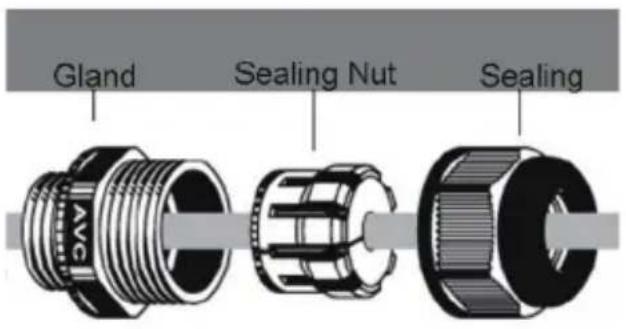
^1 Ethernet cable is not provided in package please find standard RJ45 Ethernet cable.
^2 The unit must be properly grounded to protect against power surges. The grounding point can be found on the bottom of the unit.
Step 2: Default we have Surge Arrestors on DAP-3690, please attach four Antennas on Surge Arrestors.

natural_image
Line drawing of a portable electronic device with two connectors and ventilation grilles (no text or symbols)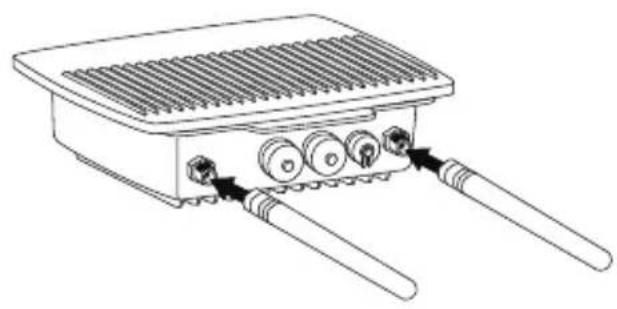
natural_image
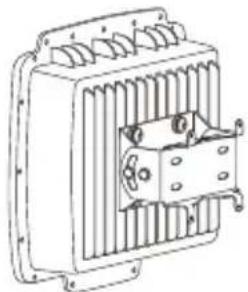
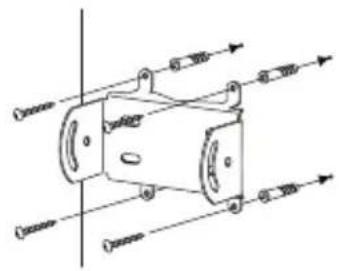
Line drawing of a heat exchanger or cooling unit with three cooling fans and two leads (no text or symbols)Install Wall mount Kits Step 3 (A):
1

2

natural_image
Pure mechanical diagram showing a cylindrical component with directional arrows, no text or symbols present3

natural_image
Technical line drawing of a mechanical or electrical component with no visible text or symbols4
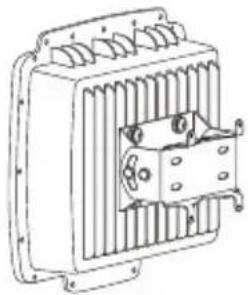
Complete

natural_image
Technical line drawing of a transformer with cooling fins and mounting brackets (no text or symbols)Physical Installation (continued)
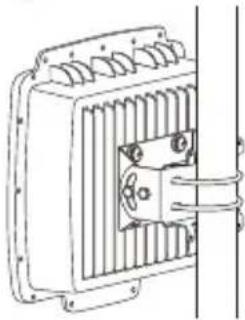
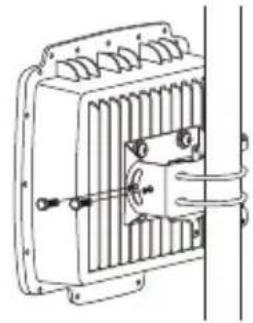
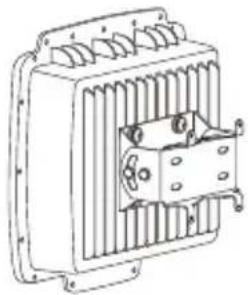
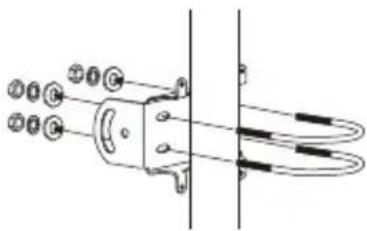
Install Pole mount Kits Step 3 (B):
1

2

3
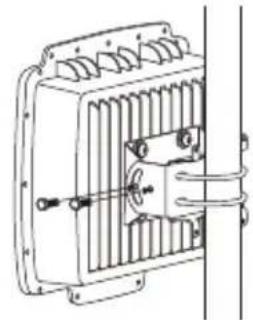
natural_image
Technical line drawing of an electric motor or transformer with cooling fins and a shaft (no text or symbols)4

Physical Installation: Console Cable ^1
Step 1: Connect the Console Cable with the waterproof enclosure to the console port (RJ-45 side) on the DAP-3690.
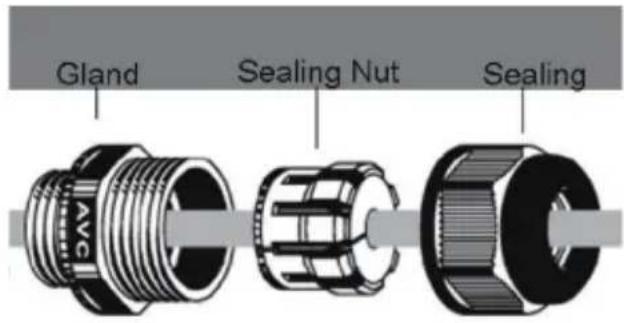
Step 2: Connect Console Cable (RS232 side) to Laptop or PC. If supplied Console cable is too short, please extend Console Cable by Cat.5e Ethernet cable and Cat.5e RJ45 Modular Inline Coupler ^2 .

natural_image
Line drawing of a laptop connected to an electronic device (no text or symbols present)Connecting the DAP-3690
Outdoor PoE Access Point to Your Network
Hardware Installation Overview
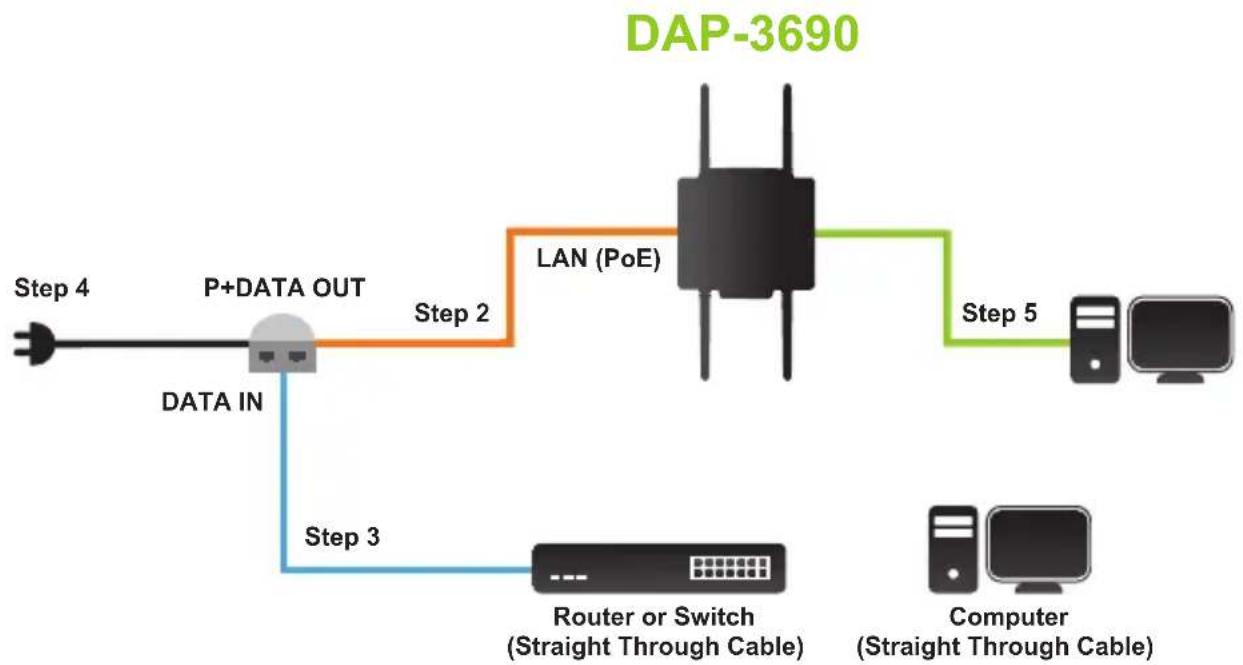
flowchart
graph LR
    A["Input"] --> B["P+DATA OUT"]
    B -->|Step 2| C["LAN (PoE)"]
    C --> D["Computer"]
    B -->|Step 3| E["Router or Switch (Straight Through Cable)"]
    C --> F["Computer (Straight Through Cable)"]
    style A fill:#f9f,stroke:#333
    style D fill:#ccf,stroke:#333
    style E fill:#cfc,stroke:#333
    style F fill:#fcc,stroke:#333
Step 1: Complete Physical Installation first.
Step 2: Connect the Ethernet (connected to the DAP-3690 in Step 1 on page 4) to the P+ DATA OUT port on the PoE based unit.
Step 3: Connect an Ethernet cable from a router/switch or PC to the DATA IN port on the PoE base unit.
Step 4: Attach the power adapter to the connector labeled POWER IN on the PoE base unit. Attach the power cord to the power adapter and into an electrical outlet.
Step 5: For Console Cable requirement, please complete "Physical Install: Console Cable" on page 5 and connect console cable to your Laptop or PC.
Your Setup is Complete!
AP Mode:

flowchart
graph TD
    A["DAP-3690"] --> B["PoE Base Unit"]
    B --> C["Switch"]
    C --> D["Internet"]
    D --> E["PC"]
    E --> F["Computer with Wireless N Adapter"]
    F --> G["NB"]
    style A fill:#f9f,stroke:#333
    style B fill:#ccf,stroke:#333
    style C fill:#cfc,stroke:#333
    style D fill:#fcc,stroke:#333
    style E fill:#cff,stroke:#333
    style F fill:#ffc,stroke:#333
    style G fill:#fcf,stroke:#333
WDS and WDS with AP mode:

flowchart
graph TD
    subgraph PC1
        A["Switch"] --> B["PC2"]
        B --> C["PC1"]
        D["PC1"] --> E["Switch"]
        F["PC2"] --> G["Switch"]
        H["PC2"] --> I["Switch"]
        J["PC1"] --> K["Switch"]
        L["PC2"] --> M["Switch"]
        N["PC1"] --> O["Switch"]
        P["PC2"] --> Q["Switch"]
        R["PC1"] --> S["Switch"]
        T["PC2"] --> U["Switch"]
        V["PC1"] --> W["Switch"]
        X["PC2"] --> Y["Switch"]
        Z["PC1"] --> AA["Switch"]
        AB["PC2"] --> AC["Switch"]
        AD["PC1"] --> AE["Switch"]
        AF["PC2"] --> AG["Switch"]
        AH["PC1"] --> AI["Switch"]
        AJ["PC2"] --> AK["Switch"]
        AL["PC1"] --> AM["Switch"]
        AN["PC2"] --> AO["Switch"]
        AP["WDS with APWDS"] --> AQ["DAP-3690DAP-36"]
    end
* Maximum Wireless signal rate derived from IEEE 802.11n specifications. Actual data throughput will vary. Network conditions and environmental factors, including volume of network traffic, building materials and construction, and network overhead lower actual data throughput rate.
Configuration
Connect the DAP-3690 to a Local Computer
If you are configuring the DAP-3690 locally (without connecting its power injector to a wired LAN), connect a PC to the power injector's Ethernet port using a Category 5 Ethernet cable.
- Assign a static IP address to your PC which is in the same network segment with the DAP-3690. As the default IP address of this unit is 192.168.0.50, you may choose from 192.168.0.1 to 192.168.0.254, except 192.168.0.50.

- Test the link status between your PC and the DAP-3690. Start a command prompt and execute a continuous ping command "ping 192.168.0.50 –t". If ping to the wireless bridge is successful (as shown below), open Internet browser and enter the bridge's IP address in the address filed and press Enter.
![Microsoft Windows XP [版本 5.1.2600] (C) Copyright 1985-2001 Microsoft Corp. C:\Documents and Settings\27490>ping 192.168.0.50 -t Pinging 192.168.0.50 with 32 bytes of data: Request timed out. Request timed out. Request timed out. Reply from 192.168.0.50: bytes=32 time=1ms TTL=64 Reply from 192.168.0.50: bytes=32 time=8ns TTL=64 Reply from 192.168.0.50: bytes=32 time=9ns TTL=64 Reply from 192.168.0.50: bytes=32 time=6ns TTL=64 Reply from 192.168.0.50: bytes=32 time=6ns TTL=64 Reply from 192.168.0.50: bytes=32 time=7ns TTL=64 Reply from 192.168.0.50: bytes=32 time=6ns TTL=64 Reply from 192.168.0.50: bytes=32 time=5ns TTL=64 DAP-3690 is still initializing DAP-3690 is ready](/content/2026/06/1236904/images/587bc39a0fca5e927f00e92af66989bde96a783410f8ee26c53668ac38427852.jpg)
Note: Considering convenient configuration, it is recommended to configure local and remote DAP-3690 respectively on two computers. TTL time may vary depending on the operating system.
Technical Support
You can find software updates and user documentation on the D-Link website.
Tech Support for customers in
Australia:
Tel: 1300-766-868
24/7 Technical Support
Web: http://www.dlink.com.au
E-mail: support@dlink.com.au
India:
Tel: +91-22-27626600
Toll Free 1800-22-8998
Web: www.dlink.co.in
E-Mail: helpdesk@dlink.co.in
Singapore, Thailand, Indonesia, Malaysia, Philippines, Vietnam:
Singapore - www.dlink.com.sg
Philippines - www.dlink.com.ph
Vietnam - www.dlink.com.vn
Korea:
Tel : +82-2-2028-1810
Monday to Friday 9:00am to 6:00pm
24/7 Technical Support
Web: http://www.dlink.co.nz
E-mail: support@dlink.co.nz
South Africa and Sub Sahara Region:
Tel: +27 12 661 2025
08600 DLINK (for South Africa only)
Monday to Friday 8:30am to 9:00pm South
Africa Time
Web: http://www.d-link.co.za
E-mail: support@d-link.co.za
Saudi Arabia (KSA):
Tel: +966 01 217 0008
Fax: +966 01 217 0009
Saturday to Wednesday 9.30AM to 6.30PM
Thursdays 9.30AM to 2.00 PM
E-mail: Support.sa@dlink-me.com
D-Link Middle East - Dubai, U.A.E.
Plot No. S31102,
Jebel Ali Free Zone South,
P.O.Box 18224, Dubai, U.A.E.
Tel: +971-4-8809022
Fax: +971-4-8809066 / 8809069
Technical Support: +971-4-8809033
General Inquiries: info.me@dlink-me.com
Tech Support: support.me@dlink-me.com
Egypt
1, Makram Ebeid Street - City Lights Building
Nasrcity - Cairo, Egypt
Floor 6, office C2
Tel.: +2 02 26718375 - +2 02 26717280
Technical Support: +2 02 26738470
General Inquiries: info.eg@dlink-me.com
Tech Support: support.eg@dlink-me.com
Kingdom of Saudi Arabia
Office # 84,
Al Khaleej Building ( Mujamathu Al-Khaleej)
Opp. King Fahd Road, Olaya
Riyadh - Saudi Arabia
Tel: +966 1 217 0008
Technical Support:
+966 1 2170009 / +966 2 6522951
General Inquiries: info.sa@dlink-me.com
Tech Support: support.sa@dlink-me.com
Pakistan
Islamabad Office:
61-A, Jinnah Avenue, Blue Area,
Suite # 11, EBC, Saudi Pak Tower,
Islamabad - Pakistan
Tel.: +92-51-2800397, 2800398
Fax: +92-51-2800399
Karachi Office:
D-147/1, KDA Scheme # 1,
Opposite Mudassir Park, Karsaz Road,
Karachi – Pakistan
Phone: +92-21-34548158, 34326649
Fax: +92-21-4375727
Technical Support: +92-21-34548310, 34305069
General Inquiries: info.pk@dlink-me.com
Tech Support: support.pk@dlink-me.com
Technical Support
Iran
Unit 5, 5th Floor, No. 20, 17th Alley, Bokharest
St., Argentine Sq.,
Tehran IRAN
Postal Code : 1513833817
Tel: +98-21-88880918,19
+98-21-88706653,54
General Inquiries: info.ir@dlink-me.com
Tech Support: support.ir@dlink-me.com
Morocco
M.I.T.C
Web:www.dlink.com.tr
Teknik Destek: support.tr@dlink.com.tr
ISRAEL
בְרָה לַלְרָה
20
49348 n"ɔ, 170n 17
- т. п
073-277-11-77 :הכלה
natural_image
Line drawing of a portable electronic device with two connectors and ventilation grilles (no text or symbols)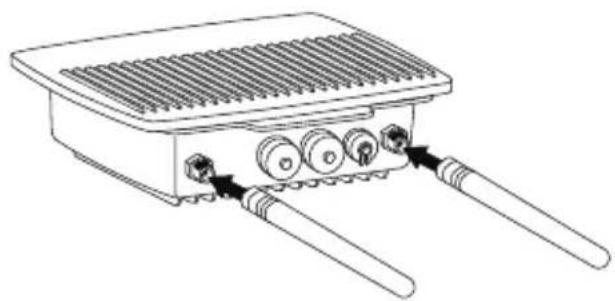
natural_image
Line drawing of a portable electronic device with three ports and two leads (no text or symbols)2
natural_image
Pure mechanical diagram showing a piston-cylinder assembly with arrows indicating direction (no text or symbols)3

natural_image
Technical line drawing of a mechanical or electrical component with no visible text or symbols4
Завершено

natural_image
Technical line drawing of a transformer with cooling fins and mounting brackets (no text or symbols)2

3

natural_image
Technical line drawing of an electric motor or transformer with cooling fins and a shaft (no text or symbols)4
Завершено

natural_image
Technical line drawing of a transformer with cooling fins and a side arm (no text or symbols)natural_image
Line drawing of a laptop connected to an electronic device (no text or symbols present)natural_image
Line drawing of a portable electronic device with two connectors and ventilation grilles (no text or symbols)
natural_image
Line drawing of a portable electronic device with three ports and connectors (no text or symbols)2

natural_image
Pure mechanical diagram showing a cylindrical component with mounting holes and directional arrows, no text or symbols present.3

natural_image
Technical line drawing of a mechanical or electrical component with no visible text or symbols4 Completo
natural_image
Technical line drawing of a transformer with cooling fins and mounting holes (no text or symbols)2

3

natural_image
Technical line drawing of an electric motor or generator unit with cooling fins and a shaft (no text or symbols)4
Completo

natural_image
Technical line drawing of a transformer with cooling fins and a side arm (no text or symbols)natural_image
Line drawing of a portable electronic device connected to a laptop via cable (no text or symbols)natural_image
Line drawing of a portable electronic device with two connectors and ventilation grilles (no text or symbols)
natural_image
Line drawing of a portable electronic device with three ports and two leads (no text or symbols)Instalar os kits de montagem na parede Etapa 3 (A):
1

2

natural_image
Pure mechanical diagram showing a piston-cylinder assembly with arrows indicating direction (no text or symbols)3

natural_image
Technical line drawing of a mechanical or electrical component with no visible text or symbols4
Concluído
natural_image
Technical line drawing of a transformer with cooling fins and mounting holes (no text or symbols)2

3

natural_image
Technical line drawing of an electric motor or generator unit with cooling fins and a shaft (no text or symbols)4
Concluido
natural_image
Technical line drawing of a transformer with cooling fins and a side arm (no text or symbols)Etapa 2: Conecte o cabo do console (lado do RS232) no Laptop ou PC. Caso o cabo do console fornecido for curto demais, favor estendê-lo utilizando o Cabo Ethernet Cat.5e² e o Acoplador Modular Inline RJ45 Cat.5e².

natural_image
Line drawing of a laptop connected to an electronic device (no text or symbols present)Conexão do DAP-3690
natural_image
Line drawing of a portable electronic device with two connectors and ventilation grilles (no text or symbols)
natural_image
Line drawing of a portable electronic device with three ports and two leads (no text or symbols)第3步 (A):安装壁掛套件
1

2
natural_image
Pure mechanical diagram showing a piston-cranked cylinder with directional arrows, no text or symbols present3

natural_image
Technical line drawing of an electric motor or transformer with cooling fins and a housing (no text or symbols)④ 完成
natural_image
Technical line drawing of a transformer with cooling fins and mounting holes (no text or symbols)實體安裝 (續)
第3步 (B): 安装立杆安装套件
1

2

3
natural_image
Technical line drawing of an electric motor or transformer with cooling fins and a shaft (no text or symbols)4
完成

natural_image
Technical line drawing of a transformer with cooling fins and a side arm (no text or symbols)natural_image
Line drawing of a laptop connected to an electronic device (no text or symbols present)natural_image
Line drawing of a portable electronic device with two connectors and ventilation grilles (no text or symbols)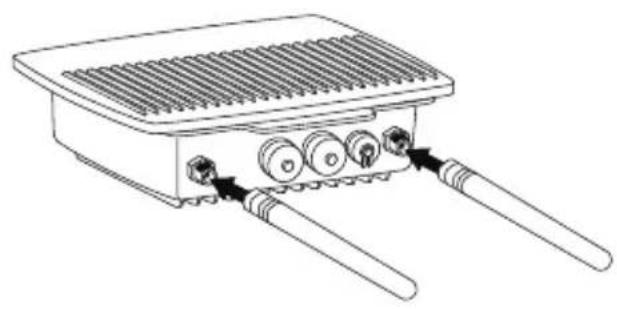
natural_image
Line drawing of a heat exchanger or cooling unit with three cooling fans and two leads (no text or symbols)2

natural_image
Pure mechanical diagram showing a piston-cranked cylinder connected to a vertical axis, with no text or symbols present.3

natural_image
Technical line drawing of a mechanical or electrical component with no visible text or symbols4 Selesai
natural_image
Technical line drawing of a transformer with cooling fins and mounting brackets (no text or symbols)2
3

natural_image
Technical line drawing of an electric motor or generator unit with cooling fins and a shaft (no text or symbols)4
Selesai

natural_image
Technical line drawing of a transformer with cooling fins and a side arm (no text or symbols)Instalasi Fisik: Kabel Konsol ^1
Menghubungkan DAP-3690
- Uji status link antara PC dan DAP-3690. Buka command prompt dan jalankan perintah ping terus menerus "ping 192.168.0.50-t". Jika ping ke jaringan nirkabel berhasil (seperti ditunjukkan di bawah), buka browser internet dan masukkan alamat IP di kolom alamat dan tekan Enter.
![Microsoft Windows XP [版本 5.1.2600] (C) Copyright 1985-2001 Microsoft Corp. C:\Documents and Settings\07490>ping 192.168.0.50 -t Pinging 192.168.0.50 with 32 bytes of data: Request timed out. Request timed out. Request timed out. Reply from 192.168.0.50: bytes=32 time=1ms TTL=64 Reply from 192.168.0.50: bytes=32 time=8ms TTL=64 Reply from 192.168.0.50: bytes=32 time=9ms TTL=64 Reply from 192.168.0.50: bytes=32 time=6ms TTL=64 Reply from 192.168.0.50: bytes=32 time=6ms TTL=64 Reply from 192.168.0.50: bytes=32 time=7ms TTL=64 Reply from 192.168.0.50: bytes=32 time=6ms TTL=64 Reply from 192.168.0.50: bytes=32 time=5ms TTL=64 DAP-3690 is still initializing DAP-3690 is ready](/content/2026/06/1236904/images/abdafc634ab158f76b37e144b9255b27fc9f3bba3eb738c3fa6006dc6684aa25.jpg)


- Quick Installation Guide
- AirPremie® N
- Concurrent Dual Band Outdoor PoE Access Point
- DAP-3690 Quick Install Guide
- System Requirements
- Package Contents
- Before You Begin
- Professional Installation Required
- Safety Precautions
- Physical Installation
- Physical Installation (continued)
- Physical Installation: Console Cable 1
- Connecting the DAP-3690
- Outdoor PoE Access Point to Your Network
- Your Setup is Complete!
- Configuration
- Connect the DAP-3690 to a Local Computer
- Technical Support
- Tech Support for customers in
- Australia:
- India:
- Singapore, Thailand, Indonesia, Malaysia, Philippines, Vietnam:
- Korea:
- South Africa and Sub Sahara Region:
- Saudi Arabia (KSA):
- D-Link Middle East - Dubai, U.A.E.
- Egypt
- Kingdom of Saudi Arabia
- Pakistan
- Iran
- Morocco
- ISRAEL
- Conexão do DAP-3690
- 實體安裝 (續)
- 第3步 (B): 安装立杆安装套件
- Instalasi Fisik: Kabel Konsol 1
- Menghubungkan DAP-3690
Brand : D-LINK
Model : DAP-3690
Category : Access Point