
KH 6779 - DVD player SILVERCREST - Free user manual and instructions
Find the device manual for free KH 6779 SILVERCREST in PDF.



| Product type | DVD Player |
| Brand | SILVERCREST |
| Model | KH 6779 |
| Dimensions (W x D x H) | 430 x 250 x 45 mm |
| Weight | 1.5 kg |
| Power supply | 220-240 V ~ 50 Hz |
| Power consumption | 15 W (standby < 1 W) |
| Compatible disc formats | DVD, DVD±R/RW, CD, CD-R/RW, MP3, JPEG |
| Video outputs | HDMI, Composite (CVBS), Component (YUV) |
| Audio outputs | HDMI, stereo RCA, coaxial digital |
| Video features | Upscaling up to 1080p, zoom, multi-speed search |
| Audio features | Dolby Digital, DTS, MP3 playback with ID3 display |
| Box contents | DVD player, remote control, AV cable (RCA), user manual |
| Care and cleaning | Clean with a soft, dry cloth. Do not use solvents. |
| Safety | Do not expose to moisture, do not open the device, unplug before cleaning |
| Spare parts and repairability | Contact SILVERCREST customer service. Repairability index: 5.8/10 |
| Operating temperature | 5°C to 35°C |
| Operating humidity | 20% to 80% RH |
| Menu languages | French, English, German, Spanish, Italian |
| Optional accessories | HDMI cable not included |
Frequently Asked Questions - KH 6779 SILVERCREST
User questions about KH 6779 SILVERCREST
0 question about this device. Answer the ones you know or ask your own.
Ask a new question about this device
Download the instructions for your DVD player in PDF format for free! Find your manual KH 6779 - SILVERCREST and take your electronic device back in hand. On this page are published all the documents necessary for the use of your device. KH 6779 by SILVERCREST.
USER MANUAL KH 6779 SILVERCREST
Wipe down transition,
Wipe up transition,
Center in transition,
Center out transition,
Blind down transition,
Blind up transition,
Random transition,
No Transition.
- Technical Data 50
- Applications and functions 50
- Package contents 50
- Operating elements 50
A.DVD player front panel .50
B.DVD player rear panel .50
C. Remote control 51
- Setting up of the DVD player 51
-
Safety instructions 51
-
Remote control 52
7.1 Inserting the batteries 52
7.2. Using the remote control 52
7.3. Replacing the batteries 52
- Connecting the DVD Player to a television 52
8.1 Connecting to a television via ScartCable/RGB 53
8.2 Connecting to a television via S-Video 53
8.3 Connection to a television via video input (Composite Video) 53
8.4 Connection via component signal (YPbPr/progressive scan and YUV) 53
- Connecting audio components to the DVD player 54
9.1 Requirements for the connection of a HiFi system 54
9.2 Connecting digital audio components via digital cables 54
9.3 Connecting audio components via an analogue cable 55
10.OSD menu settings 56
10.1.Using the OSD Menu 56
10.2 Language Settings 56
10.3 Video settings 57
10.4 Audio settings 57
10.5 Age release settings 58
10.6 Diverse settings 58
- Initial operation of the DVD player 58
11.1 Inserting the DVD 58 - Playing back DVDs, VCDs or S-VCDs 59
12.1 Features during playback of a DVD, VCD or S-VCD 59 - Playback of JPEG-Photo CD/WMA/ MP3/MPEG4 65
- Cleaning of the DVD player 66
- Disposal 66
- Troubleshooting 66
- Glossary / Key Word Index 67
- Warranty & Service 69
19.Importer 69
1. Technical Data
This device has been tested and approved in accordance with the basic requirements and other relevant regulations of the EMC guidelines 2004/108/EC as well as the guidelines for low voltage appliances 2006/95/EC.
Power supply: AC 220 V - 240 V ~50 Hz
Power consumption : 15 Watt
Power consumption:
Standby: 0,7 W
Protection class: II /
TV standard: PAL/NTSC
Operating temperature: +5 +35^ C
Humidity: 5 90% (no condensation)
Measurements
(L× W× H) 208× 430× 46mm
Weight: 1,8 kg approx.
Video Output
Output level: 1 + 0.2 / - 0.2Vp - p (75Ω)
Horizontal resolution: > = 500 Lines
Signal-to-noise ratio: >60 dB
Audio Output
Impedance: 10 kΩ
Output level: 1.8 + 0.2 / - 0.8 Vrms (1kHz,0dB)
Harmonic distortion: < 0.01 % (JIS-A 1kHz, typical)
Dynamic range: >80 dB (JIS-A 1 kHz, typical)
Signal-to-noise ratio: >95 dB (JIS-A 1 kHz, typical)
Digital audio output
Coaxial output and optical output
2. Applications and functions
The SilverCrest KH 6779 DVD player is intended exclusively for stationary use in enclosed spaces. The device is intended exclusively for private, non-commercial use.
This device is intended for use as an electronic entertainment device for the playback ...
...of DVD videos in 12 cm and 8 cm (diameter) formats with Country/ Regional code 2 or ALL, designated by the Logo DVD
...of video formats MPEG4/MPEG4 ASP and AVI.
of video-CDs (VCDs) and Super video-CDs (S-VCDs) in 12 cm and 8 cm (diameter) formats, designated by the Logo
... of audio-CDs in 12 cm and 8 cm (diameter) formats, designated by the Logo
... generally the data format CD audio (.cda), MP3 (.mp3), Windows Media Audio (.wma), Audio Video Interleave (.avi), MPEG-4 (.mp4) and JPEG (.jpg) on the storage mediums CD-R and CD-RW.
For image output with the playback of DVDs, VCDs, S-VCDs, Audio CDs and the data format MP3, Windows Media Audio and JPEG you can connect to the SilverCrest KH 6779 DVD player ...
- Stereo and Mono televisions with the formats PAL or NTSC and the picture formats 4:3/16:9.
- LCD/Plasma picture screens or video-projectors, if for this the corresponding connection potential is available and the connection of a DVD player is provided for/allowed by the manufacturer of the playback device
For the output of sound and/or music you can use and/or connect to the Silvercrest KH 6779 DVD-Player ...
- from the speaker of a television connected to the DVD player
- from external audio components such as a HiFi system, receiver or surround sound system (analogue/digital)
Attention!
No liability/warranty will be assumed for damage resulting from improper use of the device!
3. Package contents
DVD-Player
Infrared remote control
- 2 Batteries for remote control, type AAA/ (Micro cells)
RGBScart cable
- Operating manual
4. Operating elements
A. DVD player front panel
① POWER button
② Display
③ OPEN/CLOSE button
④ Disc tray
⑤ Standby light (green)
⑥ IR Sensor for the remote control
⑦ STOP■BUTTON
⑧ PLAY > BUTTON
⑨ PAUSE/STEP II BUTTON
10 SKIP BACK (-)/NEXT (+) BUTTON
B. DVD player rear panel
11 CENTER: Output for front and centre audio channels
⑫ SL/SR: Output for rear, left and right audio channels
⑬ FL/FR: Output for front, left and right audio channels
Y, PB/CB, PR/CR: Component video outputs
15 COAXIAL: Coaxial audio output
16 Power cable
17 EURO SCART:Scart/RGB output
18 OPTICAL: optical digital audio output
19 S-VIDEO: S-Video output
20VIDEO:Composite video output
21 SUBWOOFER: Output for bass audio channel
C. Remote control
1 STANDBY : Switch the device to standby mode
DIMMER: Adjust the display brightness
OPEN/CLOSE: Open/Close the disc tray
SLOW+:/: Slow motion forward/backward
5 VOLUME + / - Volume increase/decrease
6 MUTE : Switch the sound on/off
SKIPNEXT (+)
SKIP BACK(-)/
STOP:Stopplayback
10 PLAY :Starting playback
1 RETURN:Back to main menu with VCDs/S-VCDs
OK: Confirm input
Control buttons
14VIDEO OUT: Set the video output
SEARCH:Select time position
16 ANGLE : Change the camera perspective
17 CLR: Clear the entry
18 PRG: Access the programme function
19 REPEAT: Repeat function
MARK: Access the bookmark function
21 A-B: Repeat sequence
MODE: Set the playback mode
3 TITLE: Access the title menu
24 MENU: Access disc menu
SUBTITLE: Set the subtitle
26 AUDIO: Set the audio language/channel
DISPLAY: Superimpose disc information
78 SETUP: Access the OSD menu
29 PAUSE/STEP II: Stop playback/Frame by frame playback
F.FWD: Fast search forward
F.RWD: Fast search backwards
ZOOM: Set the image enlargement
Number buttons 0 to 9
5. Setting up of the DVD player
- Carefully remove the DVD player and the supplied accessories from the packing.
- Remove the protective foil from the display.
- Place the DVD player on a flat, even and firm base.
Attention!
Do not plug the DVD player into an electrical outlet at this time. Wait until you have connected the DVD player to a television set.
In the event that you wish to change the type of video or audio connection you must first pull the power plug from the power socket! Otherwise the DVD player and possibly equipment connected to it could become irreparably damaged through voltage peak strikes!
6. Safety instructions
- This device is not intended for use by individuals (including children) with restricted physical, physiological or intellectual abilities or deficiencies in experience and/or knowledge unless they are supervised by a person responsible for their safety or receive from this person instruction on how the device is to be used.
Children should be supervised to ensure that they do not play with the device. - To avoid unintentionally switching on the device pull the power cord from the mains supply after use and before cleaning.
- Check the device and all parts for visible damage. The safety concept can work only if the device is in a faultless condition.
- The power plug must always be easily accessible, so that the device can be quickly separated from the mains in the event of an emergency.
Risk of electrical shocks.
- Connect the device only to correctly installed and earthed mains sockets. Ensure that the rating of the local power supply tallies completely with the details given on the rating plate of the device.
- Arrange for defective power plugs and/or cables to be replaced at once by qualified technicians or our Customer Service Department.
- Arrange for customer service to repair or replace connecting cables and/or devices that are not functioning properly or have been damaged.
- NEVER submerge the device in water. Wipe it only with a slightly damp cloth.
- Do not expose the device to rain and never use it in a humid or wet environment.
- Ensure that the power cable never becomes wet during operation.
- You must not open the housing or repair the device yourself. Should you do so, device safety can no longer be assured and the warranty will become void.
- Protect the device against drip and spray water. Do not place any water-filled vessels (e.g. flower vases) on the device.
Risk of fire!
- Do not use the device in the vicinity of hot surfaces.
- Do not locate the device in places exposed to direct sunlight, If you do, it may overheat and become irreparably damaged.
- Do not leave the device unattended when in use.
- Never cover the ventilation slots of the device while it is being used.
- Do not place any open sources of fire, like candles, on the device.
Injury hazard
- Keep children away from the connecting cable and the device. Children frequently underestimate the dangers of electrical devices.
- Ensure that the device stands with a safe and secure positioning.
- Do not operate the device if it has sustained a fall or is damaged. Arrange for the device to be checked and/or repaired by qualified technicians.
- Keep batteries away from children. Children can put batteries into their mouths and swallow them.
Danger! Laser radiation!
This device is fitted with a „Class 1 Laser".
- Never open the device.
- Never attempt to repair the device.
- There is invisible laser radiation inside the device.
Do not expose yourself to the laser beam.
① Note:
Some aggressive furniture finishes can have a destructive influence on the device's rubber feet. If necessary, place the device on a nonslip pad.
Thunderstorms!
Equipment connected to a power supply can be damaged during a thunderstorm. You should therefore always pull the power plug from the power socket when there is a storm.
Notice regarding electrical power surges (EFT / electrical fast transient) and electrostatic discharges:
In a case of malfunction due to an electrical fast transient (power surge) and/or electrostatic discharge, the device must be returned to default settings in order to re-establish normal operation. Possibly the power supply must be separated and then reconnected. The batteries (if present) must be removed and then reinserted.
Notice regarding separation from mains-power
The POWER switch does not completely disconnect the device from the power network. Additionally, the device consumes power when in standby-mode. To completely separate the device from mains-power, the power plug MUST be removed from the wall socket.
Information regarding the handling of batteries
The remote control is operated by batteries.
For the handling of batteries please observe the following:
Risk of explosion!
Do not throw batteries into a fire. Do not recharge the batteries.
- Never open batteries, never solder or weld batteries.
The risk of explosions and injuries exists! - Regularly check the condition of the batteries. Leaking batteries can cause damage to the device.
If you do not intend to use the device for an extended period, remove the batteries.
In the event of the batteries leaking acids, wear protective gloves. - Clean the battery compartment and the battery contacts with a dry cloth.
Attention!
No liability/warranty will be considered for damage to the DVD player caused by the effects of moisture, water penetration or overheating!
7. Remote control
7.1 Inserting the batteries
- Open the battery compartment on the rear of the remote control.
- Place the two supplied batteries type AAA (micro cells) into the battery compartment. Make sure that the batteries are inserted in accordance with the correct polarity.
- Replace the battery compartment cover.
7.2. Using the remote control
In order to guarantee faultless operation when using the remote control...
Always point the remote control, during use, directly at the DVD player
- Make sure that there are no obstructions between the remote control and the DVD player that will hinder reception.
- When using the remote control place yourself not more than 5 metres from the DVD player
otherwise interferences can occur during operation of the DVD player functions with the remote control.
7.3. Replacing the batteries
If the operation of the DVD player via the remote control does not function properly or does not function at all the batteries must be replaced
- Always renew all batteries in order to return the remote control to its full performance ability.
8. Connecting the DVD Player to a television
After setting up the DVD player, you can now connect it to a television. The DVD player can be connected to televisions which operate with the PAL and NTSC standards.
If you want to use the DVD player on a television with the NTSC standard you must change the video setting in the DVD players "OSD menu". There PAL is set as the television standard at the factory.
On this topic see also chapter 10.3. "Video settings: Setting the TV standard".
Depending on the televisions equipment there are different methods of connecting the DVD player to it, these are explained as follows.
8.1 Connecting to a television via ScartCable/RGB
① Note:
Connecting the DVD player to a television with a Scart cable via the RGB input offers a high quality connection. Select this connection variation in the case of televisions equipped with an RGB input. If you are not sure if the television is equipped with an RGB input then you can check this by consulting the television's instruction manual.
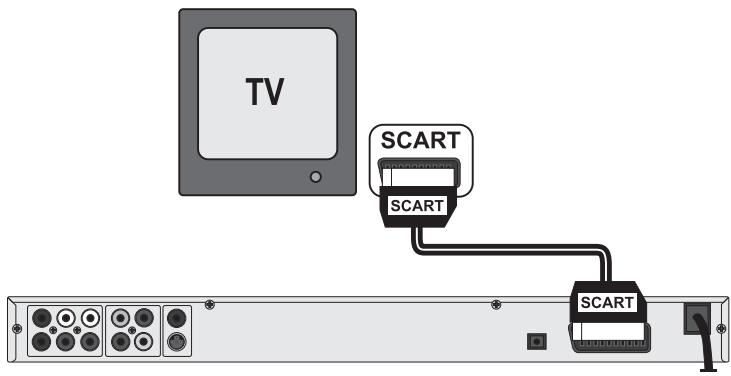
- Connect the jack inscribed with EURO SCART to a television Scart socket by using the supplied Scart cable.
- For playback select the matching channel on your television Check with the television's instruction manual on how you can set the AV channel.
- In the OSD menu select the item menu item Video/Video-Ausgang/RGB.
On this topic see also chapter 10.3 "Video settings: Video output.
8.2 Connecting to a television via S-Video
Note:
For this type of connection the television must have available an S-Video input and two audio "IN" cinch sockets. If you are not sure if the television is equipped with S-Video and/or cinch sockets you can check this by consulting the television's instruction manual.
For this connection variant you will need:
an audio cinch cable (not supplied)
- an S-video cable (not supplied) These can be obtained from your dealer.
To connect the DVD player to a television via S-video:
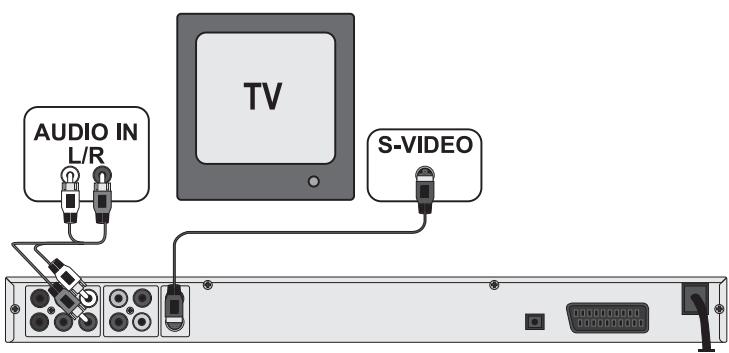
- Connect the jack inscribed with S-VIDEO to a television S-Video socket using an S-Video cable.
- Connect the audio output sockets FL/RL on the rear panel of the DVD player to the corresponding audio inputs on the television with an audio cinch cable.
Make sure that the red and white colour markings correspond.
- For playback select the matching channel on your television Check with the television's instruction manual on how you can set the AV channel.
- In the OSD menu select the menu item Video/VideoAusgang/RGB
On this topic see also chapter 10.3 "Video settings: Video output.
8.3 Connection to a television via video input (Composite Video)
For this connection variant the television must be equipped with Audio/Video cinch sockets (Composite Video).
In order to connect the DVD player to a television via Composite Video you will need
- an Audio/Video RCA cinch cable (not supplied)
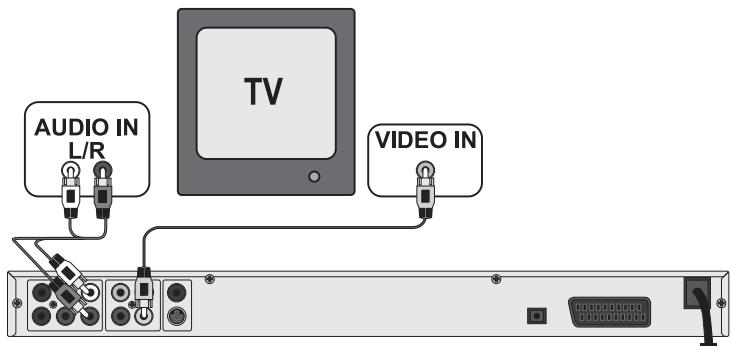
- Connect the yellow marked video socket with the yellow VIDEO socket on the television.
- Connect the audio output sockets FL/RL on the rear panel of the DVD player to the corresponding audio inputs on the television.
Make sure that the colour markings yellow, red and white correspond.
- For playback select the matching channel on your television Check with the television's instruction manual on how you can set the AV channel.
- In the OSD menu select the menu item Video/Video-Ausgang/RGB.
On this topic see also chapter 10.3 "Video settings: Video output.
8.4 Connection via component signal (YPbPr/progressive scan and YUV)
This connection variant is only possible with very high grade televisions, LCD/Plasma screens or Video projectors
Check with the instruction manual of the corresponding playback device to see if this connection variant is available. It is possible that additional playback device settings may have to be implemented.
The so called "Component signal" is put out via the YPbPr socket of the DVD player. Component signals are available in the form of the so called "YUV" signal (Half image) as well as in the form of the so called "YPbPr" signal (Full image/Progressive scan).
On this topic, please refer to Section 17. "Glossary / KeyWord Index".
① Note:
For both variants the television, to which you want to connect the DVD player, must be equipped with two audio "IN" cinch sockets.
The cable connections are the same in both cases; YPbPr-signal for Progressive Scan however can only be used if the television (or Video projector), to which you want to connect the DVD player, is capable of Progressive Scan.
If you are not sure whether the television (or Video projector), to which you want to connect the DVD player is capable of Progressive Scan and has cinch sockets available then you can check this by consulting the television's (or Video projectors's) instruction manual.
For both variations - "YPbPr" and "YUV" - you will need
- an audio cinch cable (not supplied)
- an YUV cable (not supplied) These can be obtained from your dealer.
On the rear panel of the DVD player you will find the three so called "Component Colour Out" sockets Y, Pb/Cb and Pr / Cr
Connecting the DVD player via component signal:
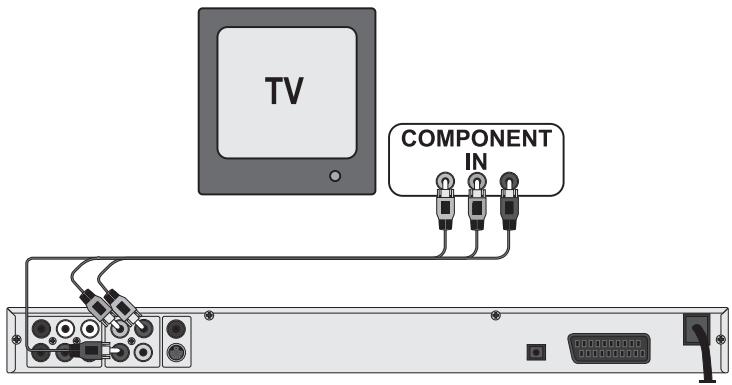
- Connect the sockets Y (green), PB/CB (blue), and PR/CR (red) with the corresponding sockets on the television.
- Connect the audio output sockets FL/RL on the rear panel of the DVD player to the corresponding audio inputs on the television with an audio cinch cable.
Make sure that the red and white colour markings correspond.
- For playback select the matching channel on your television Check with the television's instruction manual on how you can set the AV channel.
- In the OSD menu select the menu item Video/Video-Ausgang/Component and/or P-Scan.
On this topic see also chapter 10.3 "Video settings: Video output.
9. Connecting audio components to the DVD player
Besides sound playback of DVDs, VCDs/S-VCDs and audio and MP3-CDs via the speaker of the television, to which the DVD player is connected, sound can also be played back via external audio components such as a HiFi system, Dolby digital/DTS receiver or a surround sound system.
9.1 Requirements for the connection of a HiFi system
In order to enjoy a full sound experience when playing DVDs with the DVD player you can connect a HiFi system to the player. Before connecting check with the HiFi system's instruction manual to verify...
- if the HiFi system is suitable for connection to a DVD player.
- if the HiFi system is equipped with cinch sockets; if yes, you can connect the HiFi system to the DVD player via cinch cables.
Connecting a HiFi system:
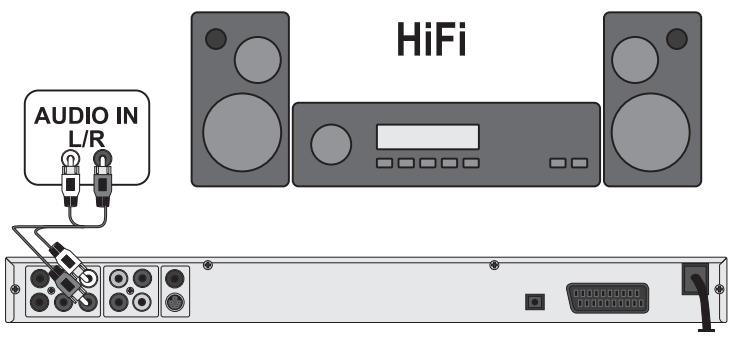
- Connect the audio output sockets FL/RL on the rear panel of the DVD player to the corresponding audio inputs on the HiFi system with an audio cinch cable.
Make sure that the red and white colour markings correspond.
- Check with the instruction manual which settings on the HiFi system may be necessary in order to reproduce sound via the HiFi system during the playback of a DVD, VCD/S-VCD, Audio or MP3-CD from the DVD player.

Note:
For an optimal sound experience place your HiFi system's loud speakers to the left and to the right of the television, on which you connected the DVD player.
If you connected the DVD player to the television via a Scart cable the Audio signal will be transmitted via the cinch cable to your HiFi system as well as via the Scart cable to the television. In this case, set the volume of the television to the lowest value.
9.2 Connecting digital audio components via digital cables
In order to enjoy sound playback throughout the room from correspondingly equipped DVDs (recognizable by the Dolby Digital or DTS logos), you can connect the DVD player to a digital audio component, for example, a Dolby Digital or DTS receiver or a suitable surround sound system.
you can purchase the necessary cables for the hereafter described connection variants from your dealer.
Firstly check with the digital components instruction manual to see if it allows for connection to the DVD player...
- via a coaxial cable
or via an optical cable.
Connection via coaxial cable
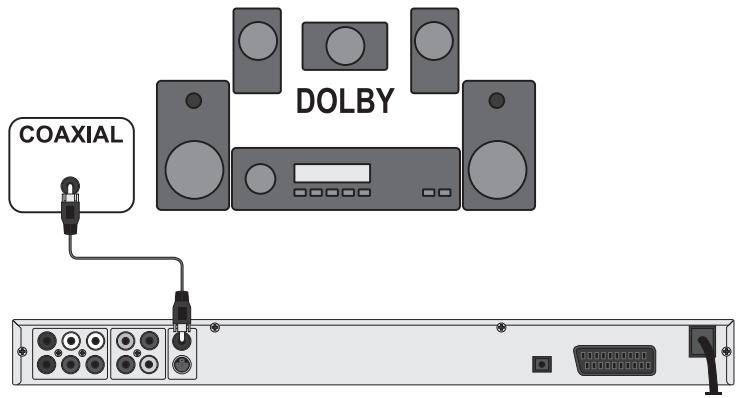
To connect the DVD player to a digital audio component with a digital coaxial cable:
- Connect the COAXIAL inscribed plug to the corresponding socket on the digital audio component.
Connecting via optical cable
To connect the DVD player to a digital audio component with an optical cable:
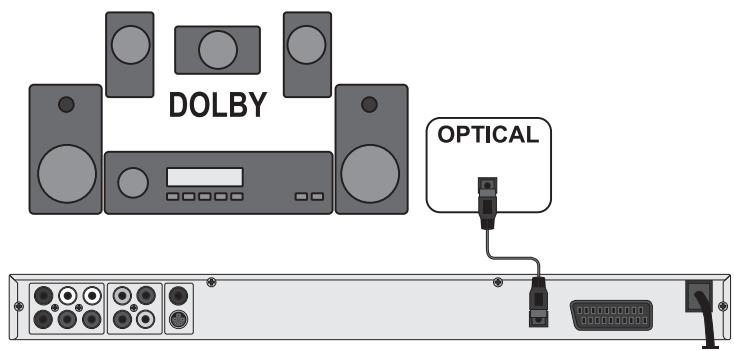
- Remove the protective plug from the OPTICAL inscribed socket on the rear panel of the DVD player and insert the optical cable plug.
- Insert the plug at the other end of the optical cable in the corresponding socket of the digital audio component.
Note:
The optical cable is a glass fibre cable and must not be bent during installation. Otherwise the glass fibre contained in the cable could break and the cable would become unusable.
① Note:
Make sure that no dirt can enter into the optical cable socket. This could cause signal interference. Always insert the protective plug into the socket if no optical cable is connected.
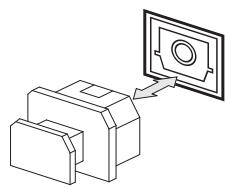
9.3 Connecting audio components via an analogue cable
If a digital input is not available on the audio component you can connect the DVD player to it via conventional analogue cinch cables.
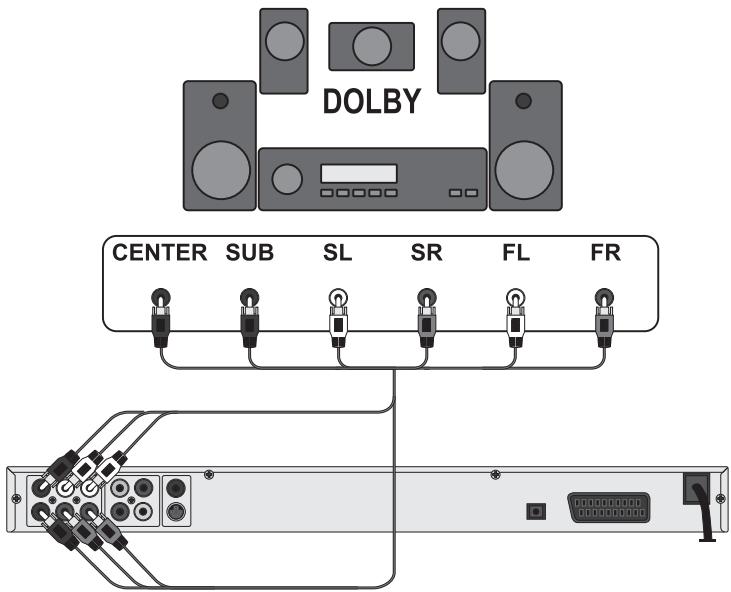
To connect the DVD player with analogue cables:
Plug a cinch cable into each of the sockets FL (front left channel), FR (front right channel), SL (rear left channel), SR (rear right channel), CENTER (front centre channel) and SUBWOOFER (Bass) on the rear panel of the DVD player.
- Insert the cinch cables into the corresponding analogue inputs of the audio component.
All possible settings on the DVD player can be administered with the remote control via the so called OnScreen Display menu (in short "OSD Menu"). The OSD Menu will be superimposed on the television screen.
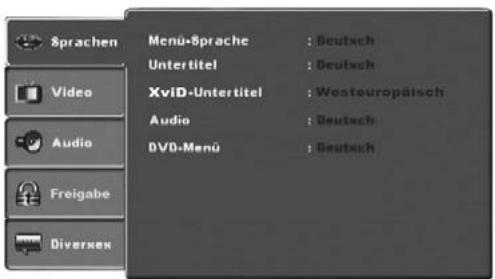
Before you use the DVD player for the first time for playback of DVDs, VCDs/S-VCDs or Audio/MP3-CDs you must implement a few settings via the OSD Menu. These settings are dependent amongst others on...
- the language, in which you want the OSD Menu to be displayed
- which TV standard corresponds to the television, to which you want to connect the DVD player
- Which image format your television can display
Administering settings via the OSD menu
- First insert the connector plug of the DVD player's power cord into a power socket.
- To switch on the DVD player press the POWER button on the front panel of the DVD player. If the DVD player is already switched on but is in standby mode, press the button ① STANDBY on the remote control to switch the DVD player on. Standby mode is indicated by the green LED on the front panel of the device.
The device will check to see if a disc is inserted. The SilverCrest logo appears on the television screen:
If there is no disc inserted the notice No disc appears on the television screen and NO DISC is shown in the display.
- Firstly please familiarize yourself with the OSD Menu's operation by means of the following brief introduction.
10.1. Using the OSD Menu
- To access the DVD players OSD menu press the SETUP button on the remote control.
The OSD Menu with its menu options will appear on the television screen:
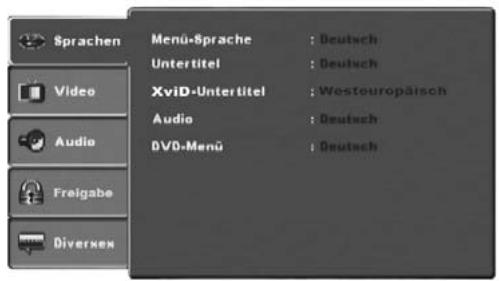
The following menu options can be set:
Sprachen, Video, Audio, Freigabe and Diverses.
- The control buttons will move you through the OSD Menu. To confirm a selection or input press the OK button.
- To exit the selected OSD Menu option press the control button , until the left Menu tab (Sprachen, Video etc.) is active. Select another Menu tab with the control buttons and activate the OSD Menu option with the control button .
- To exit the OSD menu press the SETUP button again.
10.2 Language Settings
You can preset the languages for the Menu-sprache, Untertitel, XviD Untertitel, Audio and DVD-menü functions. These settings are valid for every DVD if the selected language is present on the DVD.
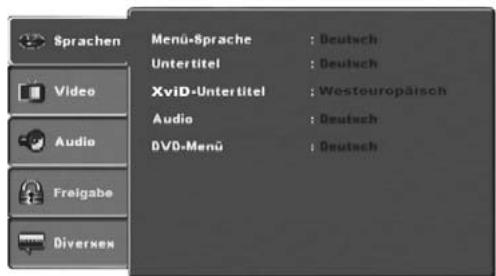
Menu-Sprache: Here you set the language, in which the OSD Menu will be displayed on the television screen.
Untertitel: Here you set the language of the subtitle when the playback of a DVD is displayed on the television screen (only if the language is present on the DVD).
XviD-Untertitel: Here you set the character encoding for the XviD subtitle. The standard setting is Westeuropeisch.
Audio: Here you set the language, in which the DVD should be started. Films can then only be played back in the language that you selected if this language is available on the DVD. If the selected language is not available the DVD will start with another language.
DVD Menu: Here you set the language, in which the DVD Menu will be displayed on the television screen. Not all films contain a menu on the DVD. If a menu is available then it can only be shown in the language that you set if this language is available on the DVD. If the selected language is not available then the DVD Menu will be displayed in another language.
10.3 Video settings
In this OSD menu you can implement the settings for Bildformat, Bildschirm-Modus, TV-Norm, Video-ausgang and Smart-Picture.
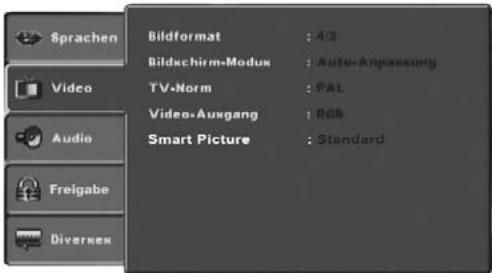
Bildformat: Here you set the Image format, in which the film should be displayed on the television screen (4:3 or 16:9). The correct setting depends on the television to which you would like to connect the DVD player.
Bildschirm- Modus: Here you can match the vertical and horizontal image display to the playback device in use. The following can be set: Strecken, Original, Auto-Anpassung and Pan Scan (Adapting the image width format to the 4:3 presenta tation).
TV-Norm: Here you set the TV standard (NTSC/PAL/Multi) of your playback device. Only set Multi if you have connected the DVD player to a multi-standard television.
Video-Ausgang: Here you set the Video output, through which the DVD player is connected to the playback device.
S-Video Output in the S-Video format via the S-Video output.
Component Output in YUV format via the component outlets
RGB Output in RGB format via the SCART outlet, the S-Video outlet and the Composite video outlet
P-Scan: Output in Progressive scan format via the component outlets
- After selecting P-Scan press the OK button to confirm. An enquiry window appears.
- Select the input J to carry out changes to the video output.
After the video output is changed another inquiry window appears.
- Select the input Ja when the image is correctly depicted. The video output is now changed.
- Select the input Nein if the image is not correctly depicted or wait 15 seconds to return to the previous video output setting.
Attention!
In the event that you set P-Scan and your television is not progressive scan capable the screen could suddenly become black.
This is not a defect of the television or the DVD player!
In this case press the STOP button on the front panel of the DVD player or on the remote control.
Then press the VIDEO OUT button on the remote control continuously until an image appears again on the television screen.
Smart Picture:
Here you set the image quality to Standard, Hell, Weich or Dynamik.
10.4 Audio settings
In this OSD menu you can administer the settings for Bass Management, the Boxengröbe of individual loud speakers, Testsignal, Verzögerungen, digita- le Audioausgänge, Nach-Modus and ProLogic.
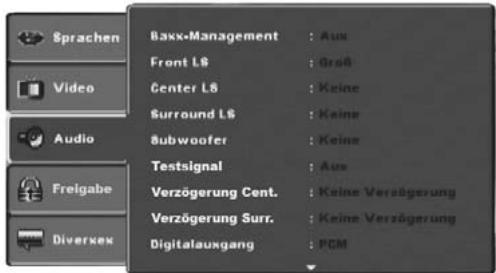
Bass
Management: Here you can Activate/Deactivate the Bass-Management. Activation (An) is necessary if you are not using a 5.1 amplifier with its own speaker management but rather want the sound output transmitted via a particular amplifier. In this case the DVD player must be informed which kind of speaker (Klein/Groβ) is to be run from the respective sound output. In this way the sound and the separation of Highs, Middles and Basses can be optimally conformed.
Front LS,
Center LS,
Surround LS: Here you can Activate/Deactivate the particular speaker type and set the size.
GroB: Activate sound output for large speakers.
Klein: Activate sound output for small speakers. (only with the activation of Bass-Management)
Keine: Deactivate sound output for these types of speakers
① Note:
The input Front LS can not be deactivated since sound output for the front speakers is always switched on.
Subwoofer: Set this entry to Vorhanden when a subwoofer is connected and is to be activated.
In order to deactivate this sound output set the entry to Keine.
Testsignal: Here you can switch on a test sound for each particular audio output in order to check your 5.1 Surround settings.
Verzogerung
Center,
Surround: Here you set the delay for the centre and rear surround loud-speakers. Each increase of the distance setting corresponds to a delay of one millisecond. With optimal settings the sound reaches your ears simultaneously from all directions.
Center: no delay, 0.3, 0.6, 1, 1.4, 1.7 m
Digitalausgang: here you set the DVD players digital output signal.
Aus: no digital audio component connected
PCM: two channel digital audio component connected via coaxial cable or optical cable.
RAW: multi channel digital audio component, i.e. DTS receiver, connected via coaxial cable or optical cable.
Nachtmodus: Here you activate/deactivate the night mode. This setting facilitates an optimal sound playback with reduced volume. The loud passages are suppressed and the quieter passages are played back a little louder. This function is only possible when using a digital audio component.
ProLogic: Here you set the Dolby ProLogic compatibility.
AUS: No Dolby Prologic compatible audio component is connected to the analogue stereo output (L / R)
AN: A Dolby Prologic compatible audio component is connected to the analogue stereo output (L/R) of the DVD player.
10.5 Age release settings
In this menu you can administer the settings for child security and change the password.
① Note:
Only a few DVDs have a technical age restriction available. If there is no technical age restriction on the DVD your DVD players child lock feature can not be activated. The child lock can only function if it is activated on the DVD player and a corresponding code is available on the inserted DVD.
When you insert a DVD which, according to the child lock, may not be played a window appears on the screen, in which you must enter your password and confirm with OK.
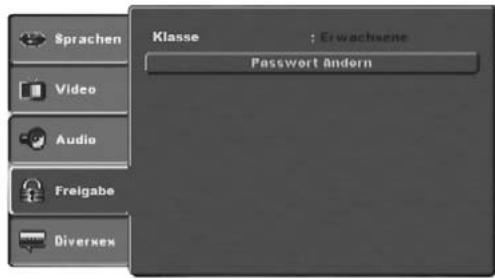
Klasse: Here you set the age release class in three levels.
G: Only DVDs without age restrictions can be played back.
PG-13: No DVDs with an age release from 13 years can be played back.
Erwachsene: All DVDs, including those with age restrictions over 18 can be played.
In order to activate the age release class you must select from the OSD menu Freigabe the item Klasse and enter the password (8888). Confirm your entry by pressing the OK button. Select the item Klasse again and now set the desired child lock level. Confirm your entry by pressing the OK button.
Password
Öndern: Here you can change the preset password (8888) and enter your own password. Only the numbers 0-9 can be used.
- To change the password select from the OSD menu the item Password (&)ern. Enter the valid password. Confirm your entry by pressing the OK button.
- Select the item Password Ändern again and enter the new password. Confirm your entry by pressing the OK button.
① Note:
In the event that you forget your new password you can use the factory preset password (8888).
10.6 Diverse settings
In this menu you can reset the DVD player to the factory default settings and set the playback priority of DVDs.
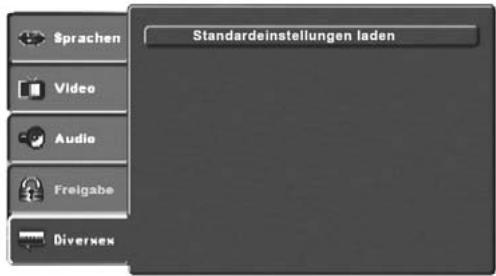
Standard-einstellungen
Here you reset the DVD player's factory default settings.
11. Initial operation of the DVD player
After you have ...
- placed the DVD player in a suitable location
- connected the DVD player to a television by one of the designated connection options
- connected the DVD player, if desired, to a HiFi or Surround system (analogue/digital) for example a Dolby Digital or DTS receiver
made the remote control ready for operation by inserting the batteries - and know how to activate and operate the OSD menu with the remote control
... the DVD player is ready for operation.
11.1 Inserting the DVD
To play a disc with the DVD player:
- Switch on your television.
Make sure that the DVD player is ready for operation.
If the television, the DVD player and possibly other connected devices (i.e. an audio component) are ready for operation and are switched on and the DVD player is connected correctly to the television you will now see the Silvercrest logo on the TV screen
If no disc is inserted into the DVD player's disc tray:
keine Disc is displayed on the television screen.
- Open the disc tray by pressing the button OPEN/CLOSE on the remote control or on the front panel of the DVD player. Öffnen is displayed on the television screen.
- Insert the disc in the disc tray with the inscribed/labled side up. For twin-sided discs: The side you would like to play must face down.
After you have inserted the disc press the button OPEN/CLOSE on the remote control or on the front panel of the DVD player again to close the disc tray. - The contents of the disc will now be loaded; this may take a few seconds. In the meantime Loading... is displayed on the television screen.
12. Playing back DVDs, VCDs or S-VCDs
To play back a DVD/VCD/S-VCD with the DVD player...
- Switch on your television.
Make sure that the DVD player is ready for operation.
If the television, the DVD player and possibly other connected devices (i.e. an audio component) are ready for operation and are switched on and the DVD player is connected correctly to the television you will now see the "Silvercrest" logo on the TV screen
-
Open the disc tray on the front panel of the DVD player by pressing the OPEN/CLOSE button.
-
OPEN will show in the display on the front panel of the DVD player and
-
Open will be displayed on the television screen.
-
Insert a DVD/VCD/S-VCD disc in the disc tray with the inscribed/labled side up.
- Press the OPEN/CLOSE button again to close the disc tray.
CLOSE will show in the display on the front panel of the DVD player and Close will be displayed on the television screen.
- The contents of the inserted DVD/VCD/S-VCD will now be loaded; this may take a few seconds. In the meantime LOADING flashes in the display on the front panel of the DVD player and Lesen... is displayed on the television screen.
- Playback of the inserted DVD/VCD/S-VCD starts automatically.
① Note:
DVDs, VCDs and S-VCDs, that you want to playback with the DVD player possibly have a country code, which is printed on the DVD cover.
The DVD player can only playback DVDs/VCDs/S-VCDs with the country code 2.
If no country code is printed on the cover of a DVD/VCD/S-VCD...
- but instead the symbol ALL, then the DVD/VCD/S-VCD can be played back with the DVD player
- then the DVD/VCD/S-VCD can possibly not be played back with the DVD player. You can check this by attempting to play back the DVD.
Depending on the inserted DVD/VCD/S-VCD it is possible that the contents of the DVD/VCD/S-VCD will not playback immediately, rather first a selection menu appears on the television screen.
In this event select the menu option which will start the playback of the film with the control buttons on the remote control.
To start playback of the film press the OK button on the remote control or press the PLAY button.
Play will be superimposed briefly on the television screen.
In the display on the front panel of the DVD player, the following notices appear:
Bei DVDs:
"DVD"
the number of the currently playing title and chapter
- the played back so far time of the currently playing DVD in hours, minutes and seconds
Bei VCDs/S-VCDs:
"VCD" or "S-VCD"
the number of the currently playing title
- the played back so far time of the currently playing VCD/S-VCD in hours, minutes and seconds
12.1Features during playback of a DVD, VCD or S-VCD
During the playback of a DVD/VCD/S-VCD you can use the following DVD player features...
Pause playback
To pause the playback of the inserted DVD/VCD/S-VCD...
During playback press the PAUSE/STEP II button.
II will appear in the display on the front panel of the DVD player and Pause will be displayed on the television screen.
On the television screen you will see a freeze frame of the scene that has just been halted.
- To continue with the playback of the film press the PLAY button.
Frame by frame playback (Step)
To show playback frame by frame...
During playback press repeatedly the PAUSE/STEP II button.
II will appear in the display on the front panel of the DVD player and Step will be displayed on the television screen.
With each press of the button you will see on the television screen an individual image of the scene that has just been halted.
- To continue with the playback of the film press the PLAY button.
Stop playback
To stop playback of the film on the inserted DVD/VCD/S-VCD press the STOP button.
With Resume-Function
If you have cancelled playback of the inserted DVD/VCD/S-VCD by pressing the STOP button once the DVD player automatically saves the position where playback was interrupted. This function is called the "resume function". STOP will be displayed on the television screen. As soon as you press the PLAY button again, playback will continue from the saved position.
Without Resume-Function
If you have cancelled playback of the inserted DVD/VCD/S-VCD by pressing the STOP button once and you press the STOP button a second time the saved position, at which you interrupted the playback, will be cleared. As soon as you press the PLAY button again playback of the inserted DVD/VCD/S-VCD will start at the beginning.
Accessing the DVD menu (Menu)
Note:
This function may not be available on all DVDs! If you attempt to execute a function that is not available, the symbol is displayed on the television screen.
With many films on DVDs there is a main menu on the disc which, apart from the option of playing back the main film, allows you to select from the following contents:
the subtitle and film dialogue languages
direct chapter selection
to playback the films bonus material (Background information, "Making of" etc.)
If such a menu is present on the DVD inserted in the DVD player you can access it during playback by pressing the MENU button on the remote control.
You can select particular menu items by pressing the control buttons
V on the remote control.
To confirm the selected menu item press the PLAY button or the OK button on the remote control.
To return to playback press the MENU button on the remote control again.
① Note:
If you cancel playback by pressing the STOP button twice (Playback stop without resume function) access to the disc's main menu is no longer possible.
Playback Control (PBC) with VCDs/S-VCDs
Many VCDs/S-VCDs have Playback Control (in short "PBC"). Playback Control indicates a main menu that allows operation of several functions of the VCD/ S-VCD.
If PCB is available on a VCD/S-VCD inserted in the DVD player you must first activate it in order to be able to superimpose the menu.
- To do this press the MODE button on the remote control during playback or when playback has been stopped. The Wiedergabe-Modus menu will be superimposed on the television screen.
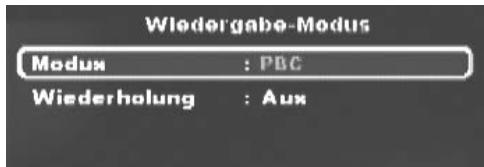
- The Modus menu item is automatically selected first.
By pressing the OK button on the remote control you can select between the options Normal, Zufall and PBC. Set to PBC and press the MODE button again.
The Wiedergabe-Modus menu fades out and PBC is now switched on.
① Note:
If you switch on PBC during playback it is possible that playback will be cancelled and starts again from the beginning.
- To superimpose the PBC main menu press the button MENU on the remote control during playback.
Skip to start of chapter (SKIP)
Note:
This function may not be available on all DVDs! If you attempt to execute a function that is not available, the symbol is displayed on the television screen.
With the SKIP NEXT (+) and SKIP BACK (-) buttons, within the film on the inserted DVD/VCD/S-VCD you can, during playback...
- skip forward to the beginning of the next chapter or
- skip backward to the preceding chapter
The respectively selected chapter will playback immediately without the necessity of pressing the PLAY button. The number of the respectively selected chapter will be displayed on the front panel of the DVD player to the left of the played back so far time.
Title number input via the number buttons
Note:
This function may not be available on all DVDs! If you attempt to execute a function that is not available, the symbol is displayed on the television screen.
Instead of using the Skip function you can also access a title from within the film of an inserted DVD/VCD/S-VCD directly by entering the title number via the number buttons 0 to 9 on the remote control.
- To do this, during playback or when playback is cancelled, press the number buttons on the remote control that correspond to the title number that you want i.e. press the 3 button for the third title or the buttons 1 followed by 0 for the tenth title. The entered numbers will be briefly superimposed on the television screen.
- Then press the OK button on the remote control. Playback of the entered number title will now start automatically.
Search function (Search)
To select a title or chapter from the inserted DVD/VCD/S-VCD direct you can also use the search function:
Direct chapter or time selection using the search function (Search)
Note:
This function may not be available on all DVDs! If you attempt to execute a function that is not available, the symbol is displayed on the television screen.
Entry of the time position via the search function
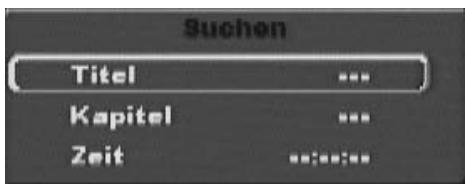
- To select a chapter by the input of a time position, during playback press the SEARCH button on the remote control. The Suchen Menu will be superimposed on the television screen.
-
The -- - marked entry field Titel is automatically the first selection. Enter the desired title with the number buttons 0 to 9. On DVDs title 01 is most often the main film.
-
Press the control button to select the -- marked input field Kapital. Enter the desired chapter with the number buttons 0 to 9.
- Press the control button to select the --: --: -- marked input field Zeit (With S-VCDs: Disk-Zeit). With the number buttons 0 to 9 enter the time position in hours, minutes and seconds.
Example:
To begin playback 1 hour, 5 minutes and 30 seconds from the start of a film press successively the number buttons ...
- 0,1 for 1 hour;
- 0, 5 for 5 minutes;
3, 0 for 30 seconds
Subsequently press the OK button to start playback at the selected position.
If you want to remove a position from the entry field select the position to be removed with the control buttons and press the CLR button on the remote control.
The display now skips back to "--".
To fade out the Suchen menu press the button SEARCH again on the remote control.
Fast scan forward/backward
With fast scan you can select designated passages from the inserted DVD/VCD/S-VCD during playback.
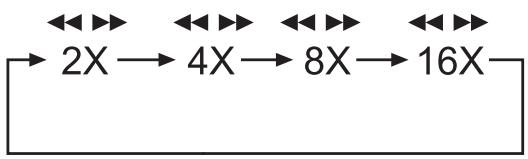
- For fast scan forwards/backwards press the F.FWD and/or F.RWD button repeatedly to set the following fast scan speeds:
① Note:
During fast scan no sound will be played back.
- To continue playback of the film from the selected position in normal speed, during fast scan press the PLAY button. Wiedergabe will appear on the television screen.
Slow playback forward (Slow motion)
To playback the contents of the inserted DVD/VCD/S-VCD in slow motion ...
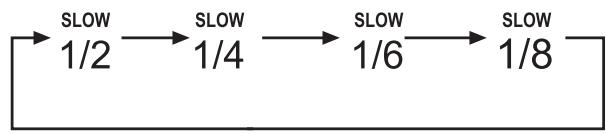
- For slow motion playback forwards/backwards press repeatedly the buttons SLOWF/SLOWR to set the following playback speeds:
Note:
During slow motion playback no sound will be played.
- To continue playback from a selected position in normal speed, during slow motion playback press the PLAY button. Wiedergabe will appear on the television screen.
Image enlargement (Zoom)
① Note:
This function may not be available on all DVDs! If you attempt to execute a function that is not available, the symbol is displayed on the television screen.
During the playback of an inserted DVD/VCD/S-VCD you can enlarge the image on the television screen in three levels. For this press the ZOOM button on the remote control to set the following enlargement levels:

With the control buttons sections of the enlargement can be switched. To switch off the zoom function and return to the normal image size press the ZOOM button once more; Aus will be displayed on the television screen.
Change camera aspect (Angle)
① Note:
This function may not be available on all DVDs! If you attempt to execute a function that is not available, the symbol is displayed on the television screen.
Many films on DVD/VCD/S-VCD contain chapters which were recorded simultaneously from various camera perspectives. With films that have such chapters available you can view the same chapter from different perspectives. For this press the ANGLE button on the remote control during playback of an inserted DVD/VCD/S-VCD. Each press of the ANGLE button will switch to one of the available camera perspectives.
Superimpose/fade out subtitles
① Note:
This function may not be available on all DVDs! If you attempt to carry out a function that is not available the symbol will be displayed on the television screen.
If the film on the inserted DVD/VCD/S-VCD has subtitles available you can superimpose these on the television screen during playback by pressing the SUBTITLE button on the remote control.
With the first press of the SUBTITLE button the subtitle of the first available language will be superimposed on the television screen. With each further press of the SUBTITLE button the subtitles of other available languages will be superimposed successively on the television screen.
The number of the currently superimposed subtitle language will be superimposed on the television screen ( i.e. 1/10 for the first of ten available subtitle languages).
When the last of the available subtitle languages is superimposed (i.e. 10/10 for the tenth of ten available subtitle languages) you can switch off the subtitle function by pressing the SUBTITLE button again. Aus will be superimposed on the television screen.
Change playback language
① Note:
This function may not be available on all DVDs/VCDs/S-VCDs! If you attempt to execute a function that is not available, the symbol is displayed on the television screen.
With many films on DVD/VCD/S-VCD you can, during playback, select another playback language by pressing the AUDIO button on the remote control. The first press of the AUDIO button switches to the first available playback language. Each additional press of the AUDIO button switches to the next available playback language.
The currently switched on playback language will be superimposed on the television screen.
Programmed playback (PRG)
i
Note:
This function may not be available on all DVDs/VCDs/S-VCDs! If you attempt to execute a function that is not available, the symbol is displayed on the television screen.
With the Programme function you can put together your own film programme in so far as you can select only certain chapters of an inserted DVD/VCD/ S-VCD for playback. In this way you can determine yourself the sequence, in which the chapters are played back. You can compile a maximum of 16 chapters of a film for programmed play.
- Press the PRG button on the remote control during playback or when playback is cancelled.
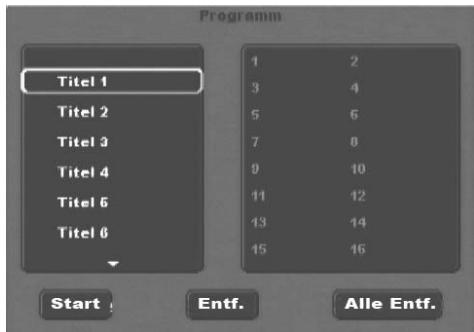
The Programme menu will be displayed on the television screen.
- Use the control buttons on the remote control to select the desired title.
- Confirm your selection by pressing the OK button. The chapter pertaining to the title appears.
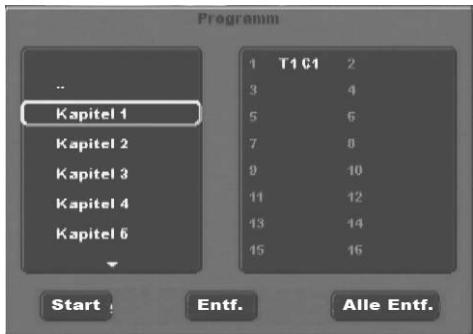
Use the control buttons on the remote control to select the desired chapter.
- Confirm your selection by pressing the OK button. The chapter will be filed on the first memory position.
- Select with the control buttons further chapters and confirm your selection by pressing the OK button. The chapters will, in turn, be filed in the memory positions 1-16.
- To programme chapters of other titles select the entry .. with the control buttons and confirm your selection by pressing the OK button.
- To delete the last corresponding entry select with the control buttons the entry field Entf. or press the CLR button once. By pressing the CLR button repeatedly always the last corresponding chapter input is deleted.
- To delete all inputs select, with the control buttons , the entry field Alle Entf. and confirm your selection by pressing the OK button. All chapter entries will be deleted.
What are Title and Chapter? On this topic, please refer to Section 17. "Glossary / KeyWord Index".
- When you have programmed the desired chapter, select with the control buttons the option Start underneath the input fields. Press the OK button. The programmed playback now starts with the chapter entered in the programme memory position 1.
- Within the programmed chapter you can skip to the start of the next and/or previous chapter by pressing the SKIP NEXT (+) and SKIP BACK (-) buttons on the front panel of the DVD player or on the remote control.
- To cancel the programmed playback press the STOP button on the front panel of the DVD player or on the remote control twice during playback.
Note:
If you are not sure what the title and/or chapter number is that you want to programme, during playback select the corresponding title/chapter of the film with the SKIP NEXT (+) and SKIP BACK (-) buttons and then press the DISPLAY button on the remote control to superimpose all the information from the inserted DVD/VCD/S-VCD onto the television screen. Here you will find, amongst others, the current title and chapter numbers.
On this topic see also the section "Superimpose disc information".
Programme example
You want to enter the chapters with the numbers 03 and 10 of a film on a DVD/VCD/S-VCD for programmed playback; in this example the main film has the title number 01:
- The first title is automatically highlighted in the programme menu. Confirm your selection by pressing the OK button.
- The chapter of the first title now appears. With the control buttons select the third chapter and confirm the selection by pressing the OK button. The chapter will be filed on the first programme position.
- With the control buttons select the tenth chapter and confirm the selection by pressing the OK button. The chapter will be filed on the second programme position.
- Select, with the control buttons , the option Start underneath the entry fields. Press the OK button. The programmed playback now starts with chapter 3.
Superimpose disc information
① Note:
This function may not be available on all DVDs/VCDs/S-VCDs! If you attempt to execute a function that is not available, the symbol is displayed on the television screen.
With this function you can superimpose all the available information from a DVD/VCD/S-VCD inserted into the DVD player onto the television screen during playback.
- For this, during playback, press the DISPLAY button on the remote control. On the television screen will be superimposed:
Bei DVDs:
- the already played back time of the currently playing DVD in hours, minutes and seconds
the time to the end of the film in hours, seconds and minutes
the type of inserted disc (DVD)
the current title number/the total number of titles
the current chapter number/the total number of chapters
the current playback language setting
the current selected subtitle setting - the current selected perspective/the number of currently available perspectives
Bei VCDs/S-VCDs:
- the already played back time of the currently playing VCD/SVCD in hours, minutes and seconds
- the time to the end of the currently playing film in hours, seconds and minutes
the type of inserted disc (VCD/S-VCD) - the current title number/the total number of titles
- the current playback language setting
- To fade out the disc information press the DISPLAY button again.
To switch on miscellaneous playback modes
① Note:
This function may not be available on all DVDs/VCDs/S-VCDs! If you attempt to execute a function that is not available, the symbol is displayed on the television screen. The following descriptions relate to the programming possibility that can be made during the playback of a DVD/VCD/S-VCD. During stopped playback there can be, in addition to random playback and the repeat function, a supplementary programmed playback inserted (see also "Programmed Playback (PRG)".
During playback of a DVD/VCD/S-VCD you can switch on the following playback modes:
Random playback
When you switch on the random playback the chapters on the inserted DVD/VCD/S-VCD will be played back in random order.
To switch on the random playback ...
- During playback press the MODE button on the remote control. The Wiedergabe-Modus menu will be superimposed on the television screen.
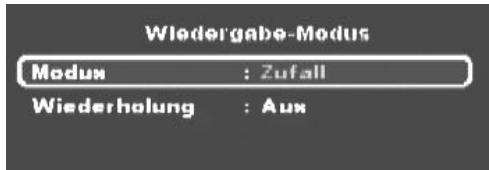
- The Modus menu item is automatically selected first.
- By pressing the OK button on the remote control you can select between the options Normal and Zufall (on VCDs/S-VCDs the option PBC is added). Set to Zufall and press the MODE button again. The Wiedergabe-Modus menu fades out and the random function is now switched on.
- To switch off the random function press the MODE button during playback and select from the Wiedergabe-Modus menu under the menu item Modus, by pressing the OK button, the option Normal.
When you press the MODE button again the random function is switched off.
Repeat function
With the repeat function on DVDs you can selectively repeat a title or chapter from the inserted DVD and with VCDs/S-VCDs repeat playback individual titles and/or the entireVCD/S-VCD.
- To switch on repeat playback, during playback press the MODE button on the remote control. The Wiedergabe-Modus menu will be superimposed on the television screen.
- Press the control button to select the menu item Wiederholung.
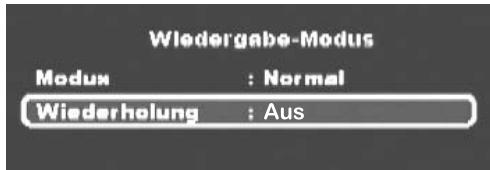
Bei DVDs:
By pressing the OK button you select between the options Single, All and Off.
- Select Single to continuously repeat the currently playing back chapter until repeat playback is switched off or playback is cancelled by pressing the STOP button twice.
- Select All to continuously repeat all the chapters one after the other, thus the entire film, until repeat playback is switched off or playback is cancelled by pressing the STOP button twice.
Bei VCDs/S-VCDs:
By pressing the OK button you select between the options Single, All and Off.
- Select Single to continuously repeat the currently playing back title of the VCD/S-VCD until repeat playback is switched off or playback is cancelled by pressing the STOP button twice.
- Select All to continuously repeat the entire VCD/S-VCD until repeat playback is switched off or playback is cancelled by pressing the STOP button twice.
- To switch off repeat playback press the MODE button during playback. Select from the Wiedergabe-Modus menu under the menu item Wiederholung the option Off. When you press the MODE button again, repeat playback is switched off.
Repeat sequence (A-B)
With this function you can repeatedly playback a favourite sequence inside a chapter of the currently playing DVD/VCD/S-VCD.
During playback press the A-B button on the remote control as soon as the desired sequence starts to playback. Rep A - will be displayed on the television screen.
- Press the A-B button again as soon as the end of the desired sequence is played back. Pay careful attention to the fact that the start and finish of the sequence must be located within a chapter. Rep A-B will be displayed on the television screen.
Repeat playback of the selected sequence starts immediately, you do not need to press the PLAY button. The sequence will continuously repeat until you press the A-B button again in order to switch off the function. Then Rep AB Aus will be briefly displayed on the television screen.
Bookmark function
During playback of a DVD/VCD/S-VCD you can place so called "Bookmarks" in order to view again later selected passages from a film. You can set up to three bookmarks.
During playback of a film press the MARK button on the remote control. On the television screen will be superimposed:
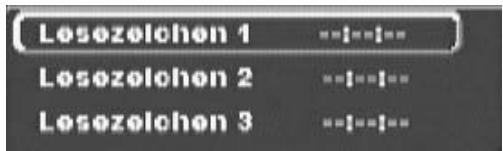
-
As soon as the passage is reached, on which you want to place a bookmark, press the OK button on the remote control. The exact time position of this passage within the film is now displayed in hours, minutes and seconds under Lesezeichen 1.
-
If you want to place another bookmark then press the control button to select Lesezeichen 2 in the superimposed field on the television screen. Press the OK button again as soon as the passage is reached, on which you want to place the second bookmark.
- Proceed in the same manner to place a third bookmark. Once you have placed all the desired bookmarks press the MARK button to fade out the bookmark menu from the screen.
- Later if you want to skip to the passages, on which you have placed bookmarks press the MARK button again.
- Select the desired bookmark with the control buttons
- Confirm the selection by pressing the OK button on the remote control. Playback of the selected chapter now begins automatically from the position, at which you placed the selected bookmark.
- To delete placed bookmarks press the MARK button on the remote control to access the bookmark menu. Select a bookmark and press the CLR button on the remote control.
Setting playback volume
Press the VOL + button on the remote control during playback to increase playback volume or the VOL - button to reduce playback volume.
The changing of the volume between the values 0 (Sound off) and 16
(Maximum volume) will be superimposed on the television screen.
Dimmer
Press the DIMMER button on the remote control to reduce or increase the display brightness of the DVD player. In the display appears HIGH (bright), NOR (normal), LOW (dark) or the display switches itself off.
Mute playback sound (Mute)
To switch the playback sound to mute press the × MUTE button on the remote control during playback of DVDs, VCDs/S-VCDs, Audio CDs and CD-Rs/ CD-RWs with MP3 or WMA data. The symbol × will be displayed on the television screen. When you want to switch the playback sound back on press the × MUTE button again or the VOL + and VOL - buttons.
Switching off the DVD player
To switch off the DVD player:
- In the event that a disc inserted into the DVD player is playing back, first cancel playback by pressing the STOP button on the front panel of the DVD player or on the remote control twice.
- Open the disc tray to remove a currently inserted disc from the DVD player by pressing the OPEN/CLOSE button on the front panel of the DVD player or on the remote control. Subsequently close the disc tray by pressing the OPEN/CLOSE button again.
- Press the STANDBY button on the remote control. The DVD player now switches to the STANDBY mode. To switch the DVD player back on press the STANDBY button again.
- To completely switch off the DVD player press the POWER button on the front panel of the DVD player.
13. Playback of JPEG-Photo CD/WMA/ MP3/MPEG4
Place a disc with WMA, MP3 or MPEG4 data into the DVD player. The contents of the disc will be shown on the television:
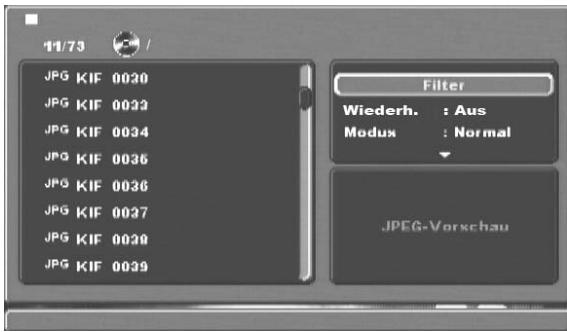
The data is listed on the left (Data window).
- In the upper right you can administer several settings: Filter, Wiederholen, Modus, Bearbeitungsmodus, Programmansicht and Zu Programm hinzufugen.
- In the lower right is the preview window, in which the JPEG image as well as its size is displayed.
- Select a file with the help of the control buttons . Confirm your selection by pressing the OK button. The file is implemented, i.e. the JPEG-Photo is displayed.
Filter function
You can filter out specific data types in the display.
- Switch to the settings window with the help of the control buttons.
- Select Filter and confirm your selection with the OK button. By pressing the OK button you can now select which data type you want to filter out: Audio, Foto or Video.
- Press the control button to exit the Filter settings window.
Repeat function
- Select from the settings window the setting Wiederholen. By pressing the OK button you can select between Single, All and Off:
- with the Single setting the current file is repeated until another setting is implemented.
- with the All setting, all files in the current folder are played back.
- the setting Off ends the repeat function.
Mode
- Select the Modus setting in the settings window. By pressing the OK button you can select between Normal, Shuffle and Intro:
- with the Shuffle setting the files will playback in random order.
- with the Intro setting 10 seconds of the MP3 files will be played back each time.
If you want to deactivate the change mode select the setting Normal.
Editing mode
In the change mode you can put together your own programme.
- Highlight the Bearbeitungsmodus setting by pressing the OK button.
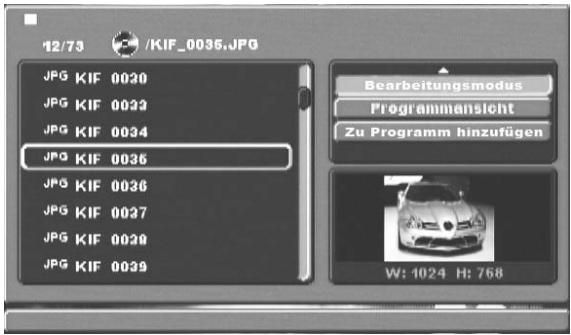
- You shift in the file window by pressing the control button. Select the file that you want to include in your programme by pressing the OK button. A tick appears in front of the selected file.
- When you have highlighted all the desired files select from the settings window Zu Programm hinzufugen. The selected files will be listed separately.
- Select Programmsicht in the settings window to display only the selected files.
- To delete individual files from the programme list, tag the file with the OK button. The file will be marked with a tick.
- Then select Programm Löschen. The tagged files will be deleted from the programme list.
- Select the settings window Browseransicht to display the complete file list again.
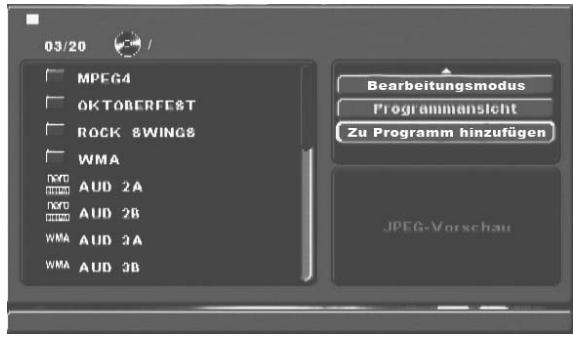
Rotation (JPEG images only)
By pressing the control buttons you can rotate JPEG images in increments of 90^ .
Enlargement (Zoom) (JPEG images only)
Press the ZOOM button on the remote control ...
once for the first enlargement level; 1 is displayed on the television screen
- twice for the second enlargement level; 2 is displayed on the television screen
- three times for the third enlargement level; 3 is displayed on the television screen
With the control buttons sections of the enlargement can be switched. To switch off the zoom function and return to the normal image size press the ZOOM button once more; Aus will be displayed on the television screen.
View (JPEG images only)
- During the JPEG playback press the TITLE button. Up to 9 images in small format will be displayed on the television screen.
- With the help of the control buttons you can select an image. By pressing the OK button the selected image will be displayed in large format.
To turn to the next page press the SKIP NEXT (+) and/or SKIP BACK(-) buttons.
Effects (JPEG images only)
With the Effect function you can cross blend JPEG images with different effects.
- Press the Angle button during playback. The type of cross blending will be displayed on the television screen:
Wipe down transition,
Wipe up transition,
Center in transition,
Center out transition,
Blind down transition,
Blind up transition,
Random transition,
No Transition.
14. Cleaning of the DVD player
Clean the housing of the DVD player with a slightly damp cloth and a mild cleanser only. When cleaning, make sure that no moisture gets into the DVD player!
Clean the inside of the disc tray, if necessary, exclusively with a clean dry brush (i.e. a lens brush obtainable from a photographic dealer). Never clean the inside of the disc tray with anything moist!

Warning!
Moisture penetrating into the DVD player creates the risk of an electric shock! The DVD player may also be irreparably damaged!
15. Disposal
Disposing of the device
Do not, under any circumstances, discard the device in the household refuse.
This device is subject to the European Guidelines 2002/96/EC.
Dispose of the device through an approved disposal centre or at your community waste facility.
Observe the currently applicable regulations. In case of doubt, please contact your waste disposal centre.
Disposing of batteries!
Do not dispose of the batteries with household waste. Every consumer is legally obliged to dispose of batteries at a collection site of his community/city district or at a retail store.
This obligation is intended to ensure that batteries are disposed of in an environmentally friendly manner.
Only dispose of batteries when they are fully discharged.
Disposal of packaging

Dispose of the packaging materials in an environmentally responsible manner.
16. Troubleshooting
Display is blank/DVD player shows no functions even though it is switched on
A Check to see that the power cord is properly plugged into the power socket.
B Check to make sure that there is power at the power socket, in which you have plugged the DVD players power cord, by connecting another device to the socket. If necessary plug the DVD players power cord into another power socket.
C Check to make sure that the display is not switched off by the Dimmer function. To do this press the DIMMER button on the remote control.
D Switch off the DVD player by pressing the POWER button and wait ten seconds. Then switch the DVD player back on by pressing the POWER button.
The display shows "No Disc" even though there is a disc inserted
A The disc is dirty, scratched or damaged. Clean the disc or insert another disc.
B The Country/Region code on the inserted DVD/VCD/S-VCD does not correspond to the Country/Region code of the DVD player. In this case the DVD/VCD/S-VCD cannot be played with the DVD player.
Inserted disc will not playback
It is possible that a layer of condensation has built up on the DVD players laser scan lens. This can be the case especially if the DVD player has been subjected to strong temperature fluctuations.
If this is the case place the DVD player in a dry environment at normal room temperature. First remove the currently inserted disc from the disc tray. Then leave the DVD player switched off for at least one hour without using until the condensation film has evaporated.
No image or Black/White image only
A Check to make sure that all connection cables between the DVD player and the television (or Video projector) are firmly inserted into the corresponding sockets
B Check to make sure that the settings in the OSD menu match the connections variant, with which you have connected the DVD player to the television (or Video projector).
For this see chapter 8. "Connecting the DVD player to a television".
C Check by means of the televisions (or Video projectors) operating instructions to see if settings to the television (or Video projector) may be necessary in order to use the DVD player with the television.
No sound
A Check to see if the television and/or the DVD player has been switched to mute.
B Check to see that all connecting cables between the DVD player and potentially connected audio components are firmly plugged into the corresponding sockets
C Check to make sure that the settings in the OSD menu match the connections variant, with which you have connected the audio component to the DVD player.
For this see chapter 9. "Connecting an audio component to the DVD player".
D Check by means of the televisions operating instructions to see if settings to the television may be necessary in order to use the DVD player with the television.
Check by means of the operating instructions for a potential connected audio component if settings to it are necessary in order to use it with the DVD player.
F If you ...
have connected the DVD player to a stereo television and have not connected an audio component to the DVD player or
have connected a Dolby Prologic compatible audio component via the analogue stereo outlet (via cinch cables to the cinch sockets L and R) of the DVD player:
Check to see if you have selected the option "Large" in the OSD menu under sub menu item Front LS.
No 4:3 or 16:9 image
A Check by means of the televisions operating instructions, which image formats the television has available.
B Check to see if the settings in the OSD menu match the available image format of the television.
Remote control not functioning
A Check to make sure that the remote control batteries have been inserted into the battery compartment with the correct polarity.
B Check to see if the remote control batteries are exhausted and, if necessary, change both batteries.
C Make sure that there are no obstacles located between the remote control and the DVD player.
D Be situated no more than five meters from the DVD player when using the remote control.
Playback language/ Subtitle language do not correspond to the settings in the OSD menu
The playback language/Subtitle language setting in the OSD menu is not available on the inserted disc.
One or several functions can not be switched on
The selected function may not be available on all DVDs/VCDs/S-VCDs! If you attempt to execute a function that is not available, the symbol is displayed on the television screen.
None of the buttons on the device or on the remote control are functioning/other malfunctions
A Switch off the DVD player by pressing the POWER button. Wait ten seconds, then press the "Power" button again once to switch the DVD player back on.
B If the malfunction is still present: Reset the DVD player to its default settings.
For this see chapter 10.6. "Diverse settings".
Contact one of our service partners in your area if ...
the stated function defect can not be resolved as described or
other functional defects arise.
For this see chapter 18. "Warranty and service".
17. Glossary / Key Word Index
What are DVDs, VCDs and S-VCDs?
DVDs
DVD is the short form for "Digital Versatile Disc". DVDs are a storage medium for audio and video data; they are available in 8 cm and 12 cm (Diameter) formats. Because of the much higher storage capacity as compared to CD-Rs/ CD-RWs DVDs can provide a playback duration of up to eight hours for the audio and video data stored on them.
VCDs/S-VCDs
"Video CD" (VCD) and "Super Video CD" (S-VCD) are designations for two processes of compressed storage, thus space saving, of films on CDs. VCDs and S-VCDs are available in 8 cm and 12 cm (Diameter) formats. Their storage capacity is a great deal lower than that of DVDs. For this reason they only offer a playback duration, for the saved audio and video data on them, of 20 minutes (8 cm format) and/or 74 minutes (12 cm format).
VCDs are available in two versions:
- Only audio and video data can be played back on version 1.1 VCDs/S-VCDs.
- PBC (Playback control) functions are available on version 2.0 VCDs/ S-VCDs. In addition still images can be played back in a higher resolution.
Playback Control (PBC)
Version 2.0 VCDs/S-VCDs have Playback Control (in short "PBC") at their disposal. Then on the VCD/S-VCD a main menu is available, by which various functions of the VCD/S-VCD are allowed to be operated.
What are Title and Chapter?
Title is the name given to the largest units of image and sound units on DVDs; on many DVDs the (Main) film has the title number 01. For bonus material (i.e. Film trailer, background information etc.), that is available on many DVDs, other possible title numbers can be used.
Chapter is the name given to the next smaller image and sound units beneath title. If the title or titles on a DVD/VCD/S-VCD are subdivided into chapters, they are assigned numbers that can be entered to select the chapters directly.
Bear in mind that not on all DVDs ...
are the DVD or the title divided into (numbered) chapters
- Chapters are also designated as "Scenes" (i.e. in the main menu of DVDs)
What are SCart, S-Video, Composite video Progressive scan and YUV?
Scart
Scart denotes a 21 pole standardized plug connection, via which the RGB signal, video signal and S-Video signal as well as a number of control and auxiliary signals are transmitted.
S-video
When the DVD player is connected to a television via S-Video the brightness and colour signals are transmitted separately; in this way a greater image sharpness and a reduced so called "Colour noise" is achieved.
Colour noise refers to the overlaying of the colours, mostly heavily saturated parts of a video image, through an irregular, restive breakdown structure.
Composite video
Video signal or FBAS signal; thereby it involves an image signal, in which colour and brightness information are included at the same time.
Progressive scan
In the normal way TV devices and Video projectors are controlled with so called "Half images". Thereby clearly visible line structures develop. Contrary to this, Progressive Scan denotes the output of full images (with this DVD player, at the output YPbPr) Progressive Scan signals can only be processed by playback devices equipped for this purpose (in particular large screen televisions and projectors). The image quality as opposed to traditional image signals is considerably higher.
YUV (component video out)
YUV indicates the component signal, which with this device is available at the output YPbPr in the form of so called "Half images"; as a rule this is the best signal for the control of large screen televisions and projectors, which can not process Progressive Scan signals. As with the RGB image transmission, YUV is comprised of three separated image signals:
the brightness signal "Y" and
the two colour difference signals "Pb/Cb" and "Pr/Cr"
Half images (Interlace)/Full images (Progressive Scan)
A standard television image is comprised of 576 visible lines; at first all odd and then all even image lines are displayed alternatively, thus each displays a half image. Thereby only 25 full images (50 Half images) can be displayed per second. This technique is designated as "Interlace" format.
Contrary to this with the so called progressive or "Progressive Scan" format all image lines are displayed every time, that is to say 60 full images per second are displayed. Thereby increasing the total quality of the images, still images and text for example appear sharper.
Decoder
The sound on DVDs with home theatre sound is saved on the DVD in encrypted (encrypted) form. Different encryption formats exist for several purposes, for example AC-3 for the playback of Dolby Digital Surround Sound.
In order to playback encrypted sound, the playback device (i.e. the DVD player) and/or the audio component connected to it (for example Surround system) must be equipped with a so called decoder, which converts the encrypted signal back into music and/or sound.
The Silvercrest KH 6779 DVD-Player is equipped with an AC-3 Decoder (for Dolby Digital 5.1 Surround sound signal).
Dolby Surround
Dolby Surround is an analogue sound format, by which the two channels of a stereo sound signal are used in order to accommodate room sound information for further channels. Dolby Surround decoders convert the signals back into sound or music and send the audio to two additional speakers that are situated behind the listener.
Dolby Prologic
In comparison to Dolby Surround sound format, with Dolby Prologic an additional channel in the stereo signal is used; this is the so called "Centre" channel. The corresponding centre loudspeaker is to be situated in the middle between the stereo loudspeakers. The deepest sounds are fed to a bass loudspeaker, the so called "Subwoofer". The subwoofer can be placed in any desired location in the room; the logic for this is that the bass sounds that the subwoofer puts out can scarcely be localized exactly by the human ear
Dolby Digital (5.1)
Dolby Digital, also designated as AC3, is a digital sound format, by which up to six separate audio channels can be transported. With most of the current DVDs, the sound is stored in the so called "Dolby Digital 5.1" format; the "5" in the name "5.1" stands for the three front and two rear surround sound channels, the "1" stands for the subwoofer channel.
DTS
DTS is the abbreviation for "Digital Theatre System" and denotes one of the most common surround sound formats for DVDs. As with Dolby Digital 5.1, DTS uses three front and two rear surround sound channels as well as a bass sound channel.
What are PAL, NTSC and SECAM?
PAL
PAL is the abbreviation for "Phase Alternation Line". PAL is the mid and west Europe (Exception: France, see the heading "SECAM") customary and most wide spread colour television standard.
NTSC
NTSC is the abbreviation for "National Television System Committee". NTSC is a colour television standard that is primarily used in the USA and Japan.
SECAM
SECAM is the abbreviation for the french "système en couleur avec mémoire".
SECAM is the customary colour television norm in France and many east European countries and at present still the most widely spread system in those countries.
Audio CDs
Audio CDs contain exclusively audio data; they are also available in 8 cm and 12 cm (Diameter) formats. The playback duration for the audio data stored on them amounts to 20 minutes (8 cm format) and/or 74 minutes (12 cm format). Audio data is stored on audio CDs in CDA format.
MP3
MP3 denotes a process and/or format developed by the Fraunhofer Institute for the compression of audio data. In the MP3 format compressed music pieces are only a fraction of their original size, which, for example, on CD-Rs/CD-RWs allows for storage of a considerably greater volume of music than on commercially available audio CDs, on which audio data is stored in the CDA format.
WMA
WMA ("Windows® Media Audio") is a data format developed by Microsoft® for audio data.
JPEG
JPEG ("Joint Photographics Expert Group") denotes a wide spread graphic format, developed by the organization with the same name, with which image data of the colour and grey scales are compressed.
MPEG
MPEG ("Moving Picture Experts Group") refers to a video compression format.
What are files?
As opposed to audio CDs the title on a CD-R/CD-RW with MP3, WMA or JPEG files can be stored in folders, for example, in order to file titles from different genres.
The structure of an MP3-CD can, for example, appear as follows, if the MP3 files are stored in folders:
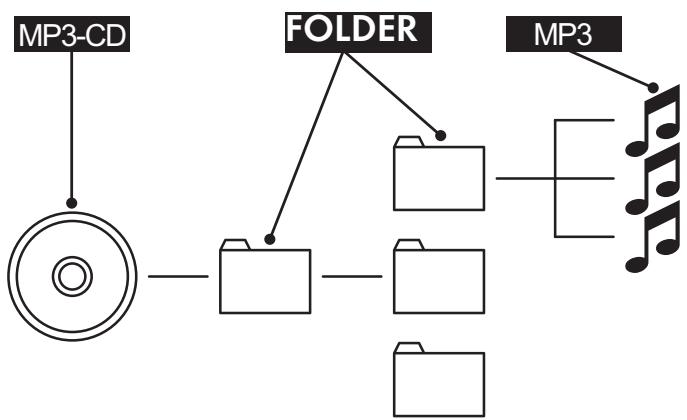
18. Warranty & Service
The warranty for this device is for 3 years from the date of purchase. Should you have grounds for complaint, despite our high quality standards, please contact our Service Hotline.
In the event that your complaint cannot be resolved over the telephone, you will receive from them
- a processing number (RMA number) as well as
- an address, to which you can send your product for warranty processing.
In the case of a mail-in shipment please enclose a copy of the purchase receipt (sales slip). The device must be securely packed and the RMA number clearly visible. Shipments without an RMA number can not be processed.

Note:
The warranty provisions cover only material or factory defects. The warranty provisions do not cover
- worn out parts
- damage to breakable parts like switches or rechargeable batteries.
This product is for private use only and is not intended for commercial use. The warranty is void in the case of abusive and improper handling, use of force and internal tampering not carried out by our authorized service branch. Your statutory warranty claims are not restricted by this warranty.
19. Importer
KOMPERNASS GMBH
BURGSTRASSE 21
D-44867 BOCHUM
www.kompernass.com
SilverCrest
Warranty
DVD Player KH6779
In order to guarantee a cost free repair procedure please get in touch with the service hotline. Make sure you have your sales slip handy.
Sender, please write clearly:
Last name
First name
Street
City/Town
Country
Telephone
Date/Signature
GB DES Ltd
Units 14-15
Bilston Industrial Estate
Oxford Street
Bilston
WV147EG
Tel.: 0870/787-6177
Fax: 0870/787-6168
e-mail: support.uk@kompernass.com

Kompernass Service Ireland
Tel: 1850 930 412 (0,082 EUR/Min.)
Standard call rates apply. Mobile operators may vary.
e-mail: support.ie@kompernass.com
www.mysilvercrest.de
Description of fault: