DarkCrystal 110 - Video Capture Card AVERMEDIA - Free user manual and instructions
Find the device manual for free DarkCrystal 110 AVERMEDIA in PDF.


User questions about DarkCrystal 110 AVERMEDIA
0 question about this device. Answer the ones you know or ask your own.
Ask a new question about this device
Download the instructions for your Video Capture Card in PDF format for free! Find your manual DarkCrystal 110 - AVERMEDIA and take your electronic device back in hand. On this page are published all the documents necessary for the use of your device. DarkCrystal 110 by AVERMEDIA.
USER MANUAL DarkCrystal 110 AVERMEDIA
Disclaimer & Copyright
©2014 by AVerMedia Technologies, Inc. All rights reserved.
No part of this document may be reproduced, transmitted, transcribed, stored in a retrieval system, or transmitted in any form, or translated into any language by any means (Electronic, mechanical, photocopy, recording, or otherwise) without the prior written permission of AVerMedia.
Information in this document is subject to change without notice. The information contained herein, is to be considered for informational purposes only and shall not be considered legally binding. "AVerMedia®" is a trademark and logo of AVerMedia Technologies, Inc. Other trademarks used herein for description purpose only belong to each of their companies.
Taiwan Headquarter Office
Address 7F., No. 137, Jian 1st Rd., Zhonghe Dist., New Taipei City 23585, Taiwan (R.O.C.)
Website www.avermedia.com
Tel +886-2-2226-3630
Table of Contents
- Adobe Premiere Pro CS6 Plug-in for AVerMedia Devices .... 3
- Sony Vegas Pro Plug-in for AVerMedia Devices....6
- ImageJ Plug-in for AVerMedia Devices 8
*All the screenshots in this documentation are only example images. The images may vary depending on the product and software version.
目录
- Please go to AVerMedia website to download the Adobe Premiere Pro Plug-in
- Follow the instruction to install the plug-in
- Open Adobe Premiere Pro CS6
4. Select New Project
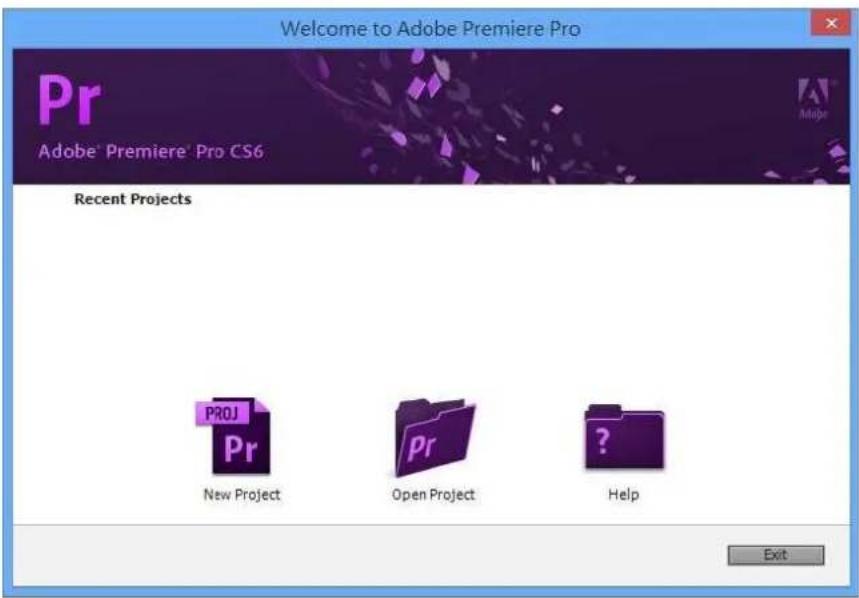
text_image
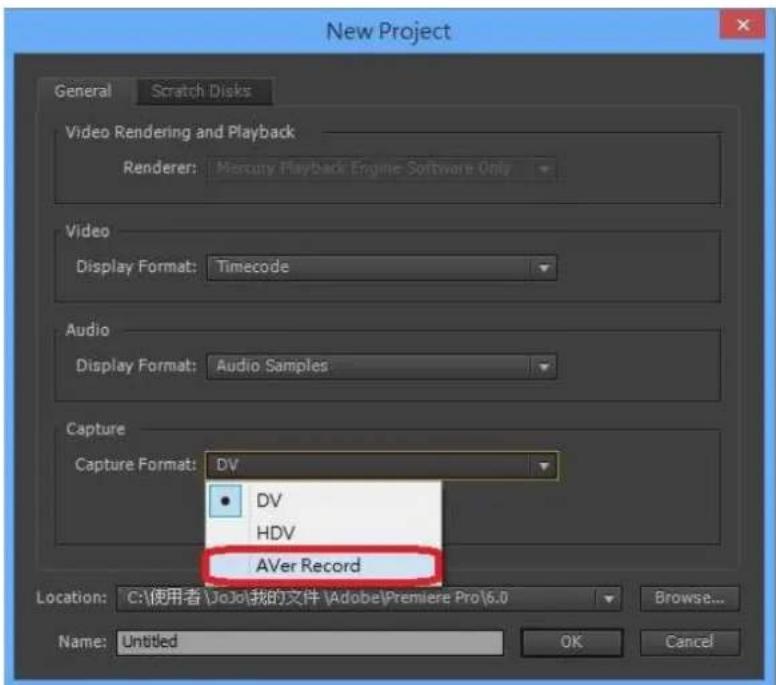
Welcome to Adobe Premiere Pro Pr Adobe® Premiere® Pro CS6 Recent Projects PROJ Pr New Project Open Project Help Exit5. General → Capture Format → AVer Record
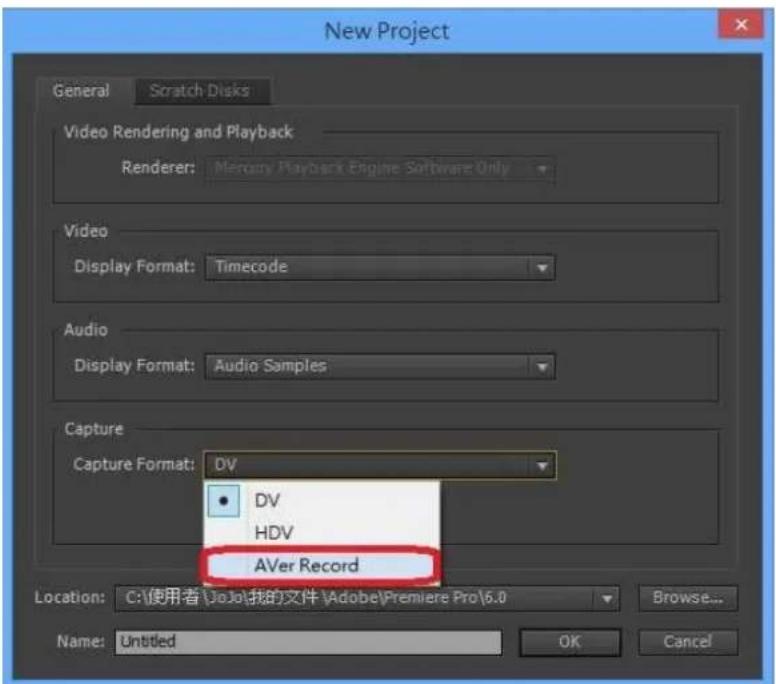
text_image
New Project General Scratch Disks Video Rendering and Playback Renderer: Mercury Playback Engine Software Only Video Display Format: Timecode Audio Display Format: Audio Samples Capture Capture Format: DV • DV HDV AVer Record Location: C:\使用者\JoJo\我的文件\Adobe\Premiere Pro\6.0 Browse... Name: Untitled OK Cancel- Click Settings, then choose your AVerMedia device, Video Source, Resolution and Record Format accordingly. Click OK to confirm.
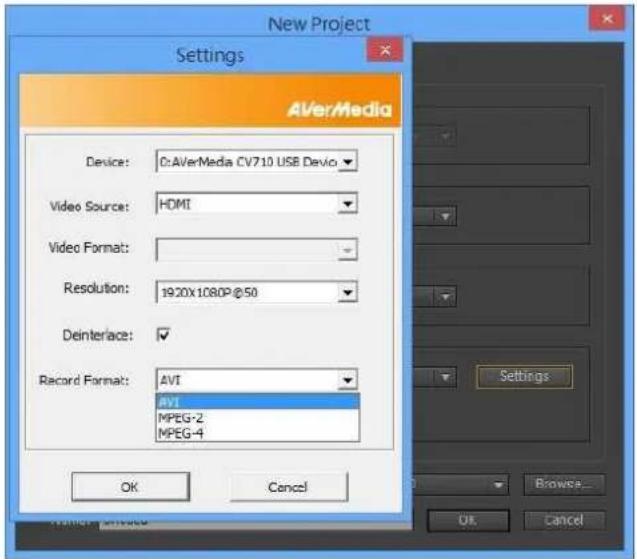
text_image
New Project Settings AVerMedia Device: 0:AVerMedia CV710 USB Devio Video Source: HDMI Video Format: Resolution: 1920x1080P@50 Deinterface: ✓ Record Format: AVI AVI MPEG-2 MPEG-4 OK Cancel Settings... Browse... Ok Cancel- Select your preferred Location, Project Name and Sequence Name. Click OK to confirm.
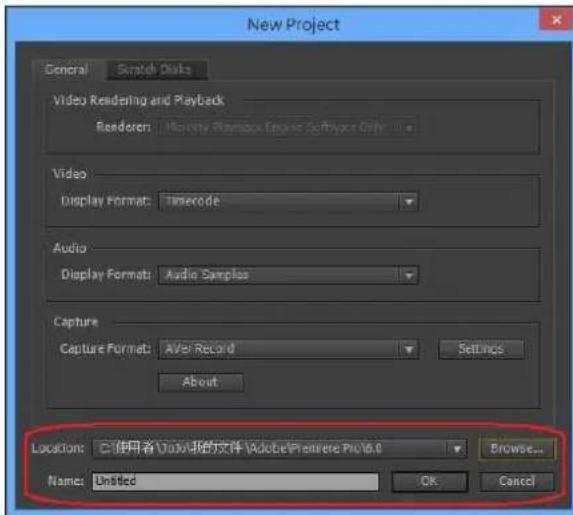
text_image
New Project General Scratch Disks Video Rendering and Playback Renderer: New Playbox Engine Software Only... Video Display Format: Timecode Audio Display Format: Audio Samples Capture Capture Format: After Record Settings About Location: 已使用者Adobe报的文件 Adobe Premiere Pro 10.0 Browse... Name: Untitled OK Cancel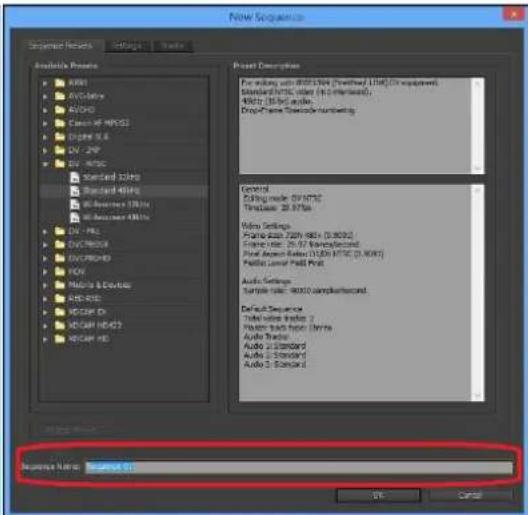
text_image
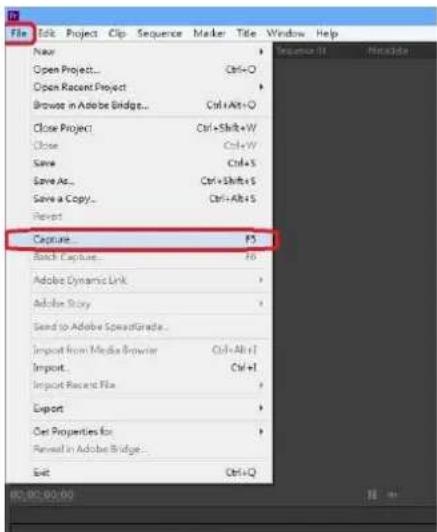
New Sequence Sequence Notes Settings Details Available Presets AVR1 AVR2 AVR3 Avon: AVR3 Cave: AVR3 Dram: AVR3 DV: 2VP DV: 4VPC Standard 100Hz Standard 400Hz Diam: Standard 100Hz Diam: Standard 400Hz DV: 1Hz DV: 2MHz DV: 5MHz DV: 10MHz DV: 15MHz DV: 20MHz DV: 25MHz DV: 30MHz DV: 35MHz DV: 40MHz DV: 45MHz DV: 50MHz DV: 55MHz DV: 60MHz DV: 65MHz DV: 70MHz DV: 75MHz DV: 80MHz DV: 85MHz DV: 90MHz DV: 95MHz DV: 100MHz DV: 105MHz DV: 110MHz DV: 115MHz DV: 120MHz DV: 125MHz DV: 130MHz DV: 135MHz DV: 140MHz DV: 145MHz DV: 150MHz DV: 155MHz DV: 160MHz DV: 165MHz DV: 170MHz DV: 175MHz DV: 180MHz DV: 185MHz DV: 190MHz DV: 195MHz DV: 200MHz DV: 205MHz DV: 210MHz DV: 215MHz DV: 220MHz DV: 225MHz DV: 230MHz DV: 235MHz DV: 240MHz DV: 245MHz DV: 250MHz DV: 255MHz DV: 260MHz DV: 265MHz DV: 270MHz DV: 275MHz DV: 280MHz DV: 285MHz DV: 290MHz DV: 295MHz DV: 300MHz DV: 305MHz DV: 310MHz DV: 315MHz DV: 320MHz DV: 325MHz DV: 330MHz DV: 335MHz DV: 340MHz DV: 345MHz DV: 350MHz DV: 355MHz DV: 360MHz DV: 365MHz DV: 370MHz DV: 375MHz DV: 380MHz DV: 385MHz DV: 390MHz DV: 395MHz DV: 400MHz DV: 405MHz DV: 410MHz DV: 415MHz DV: 420MHz DV: 425MHz DV: 430MHz DV: 435MHz DV: 440MHz DV: 445MHz DV: 450MHz DV: 455MHz DV: 460MHz DV: 465MHz DV: 470MHz DV: 475MHz DV: 480MHz DV: 485MHz DV: 490MHz DV: 495MHz DV: 500MHz DV: 505MHz DV: 510MHz DV: 515MHz DV: 520MHz DV: 525MHz DV: 530MHz DV: 535MHz DV: 540MHz DV: 545MHz DV: 550MHz DV: 555MHz DV: 560MHz DV: 565MHz DV: 570MHz DV: 575MHz DV: 580MHz DV: 585MHz DV: 590MHz DV: 595MHz DV: 600MHz DV: 605MHz DV: 610MHz DV: 615MHz DV: 620MHz DV: 625MHz DV: 630MHz DV: 635MHz DV: 640MHz DV: 645MHz DV: 650MHz DV: 655MHz DV: 660MHz DV: 665MHz DV: 670MHz DV: 675MHz DV: 680MHz DV: 685MHz DV: 690MHz DV: 695MHz DV: 700MHz DV: 705MHz DV: 710MHz DV: 715MHz DV: 720MHz DV: 725MHz DV: 730MHz DV: 735MHz DV: 740MHz DV: 745MHz DV: 750MHz DV: 755MHz DV: 760MHz DV: 765MHz DV: 770MHz DV: 775MHz DV: 780MHz DV: 785MHz DV: 790MHz DV: 795MHz DV: 800MHz- File → Capture...
text_image
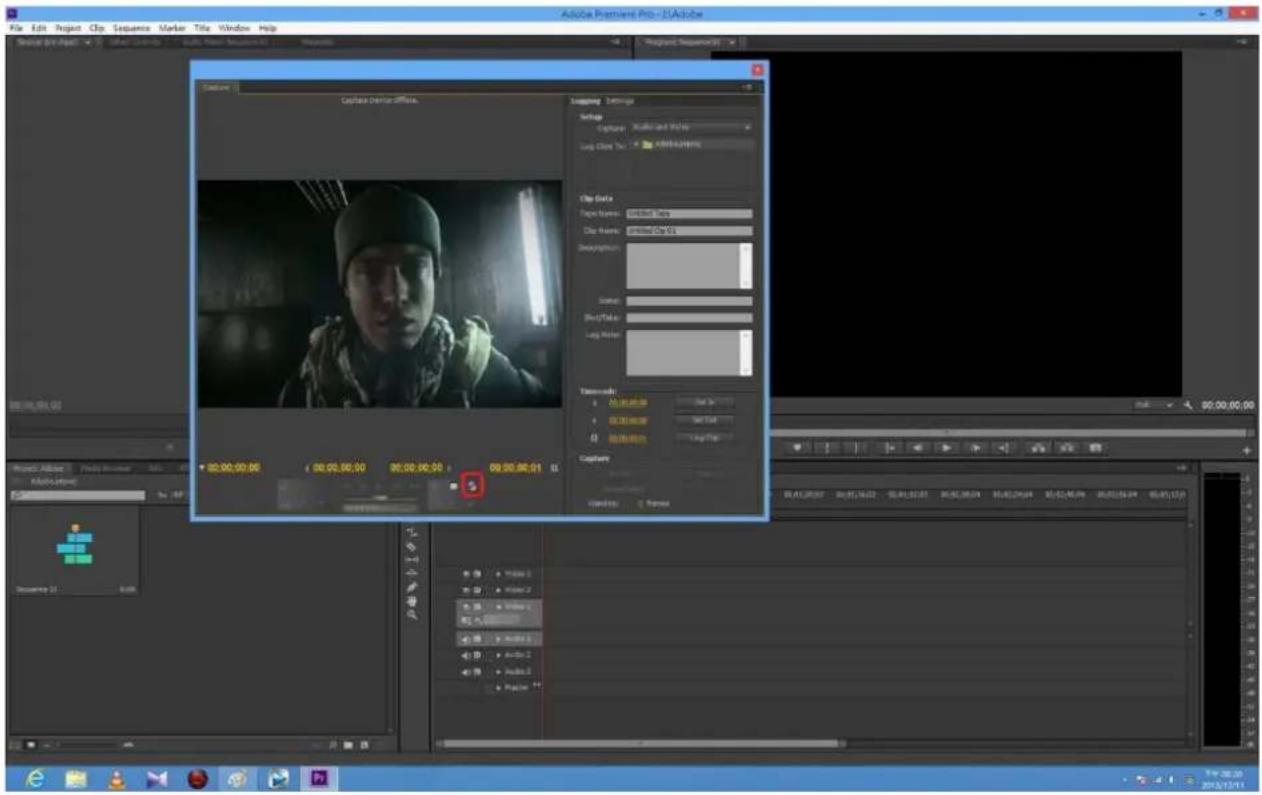
File Edit Project Clip Sequence Marker Title Window Help Close Project Ctrl+Shift+W Close Ctrl+W Save Ctrl+S Save As Ctrl+Shift+S Save a Copy Ctrl+Alt+S Revert Capture... PS Batch Capture... F6 Adobe Dynamic Link Adobe Story Send to Adobe SpeedGrade... Import from Media Browser Ctrl+Alt+I Import... Ctrl+I Import Recent File Export Get Properties for Renewal in Adobe Bridge... Exit Ctrl+Q9. Preview window is ready for capturing. Setup is complete.
text_image
Adobe Premiere Pro - [1]Adobe File Edit Project Clip Sequence Marker Tile Window Help Project00Project00 Capture Driver effects. Caption Settings Setup Capture: Multi- and Multi- Loop Close To: Add library Clip Data Copy frames: Untitled Time Clip frames: Untitled Clip 61 Desorption Scene: DropTake: Loop Note: Timeline 切换速度: 50% 返回时间: 50% 返回时间: 50% Capture 切换时间: 50% Timeline 切换时间: 50% Timeline 切换时间: 50% Timeline 切换时间: 50% Timeline 切换时间: 50% Timeline 切换时间: 50% Timeline 切换时间: 50% Timeline 切换时间: 50% Timeline 切换时间: 50% Timeline 切换时间: 50% Timeline 切换时间: 50% Timeline 切换时间: 50% TimelineSony Vegas Pro Plug-in for AVerMedia Devices
- Please go to AVerMedia website to download the Sony Vegas Plug-in
- Follow the instruction to install the plug-in
- Open Sony Vegas

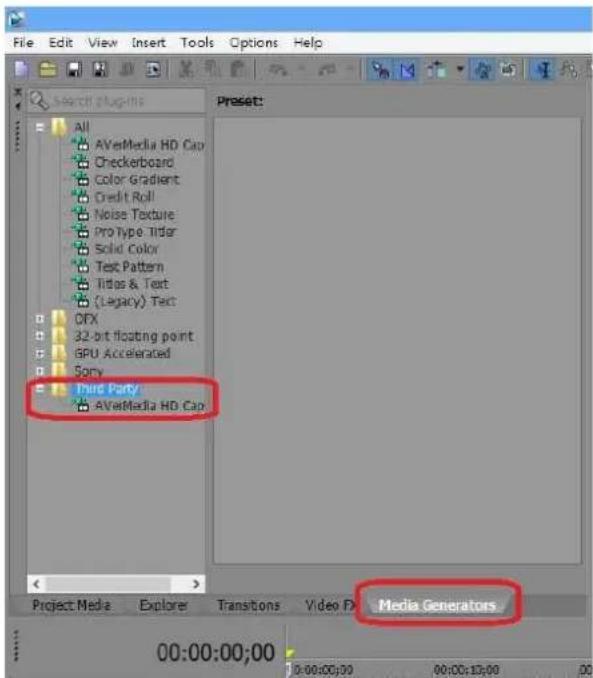
4. Media Generators → Third Party → AVerMedia HD Capture
text_image
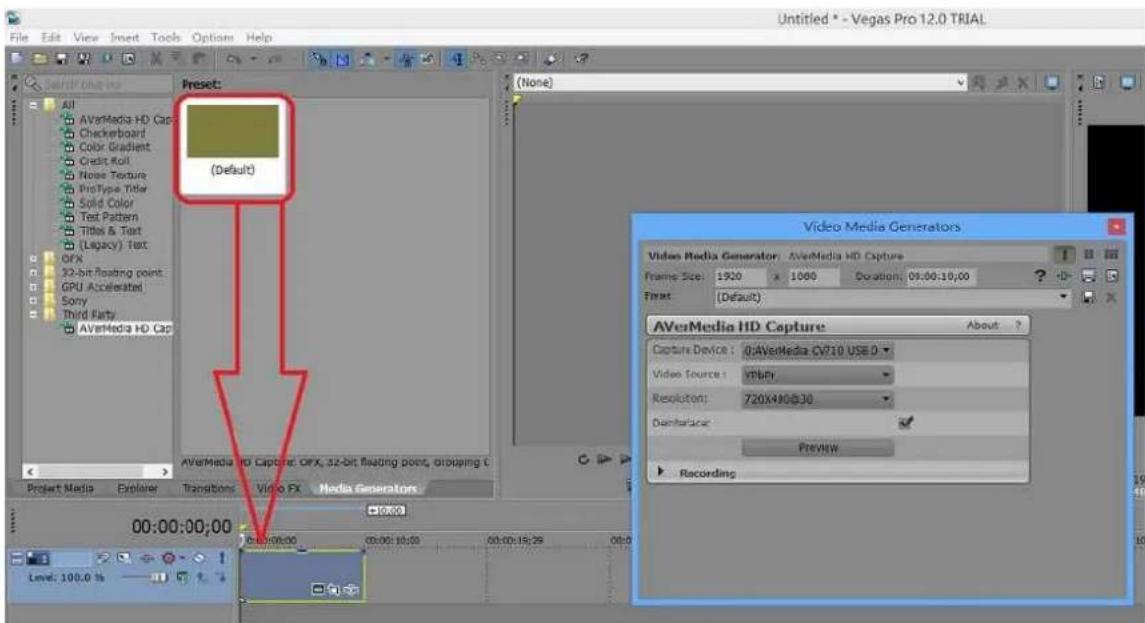
File Edit View Insert Tools Options Help Search plugins All AVetMedia HD Cap Checkerboard Color Gradient Credit Roll Noise Texture Pro Type Tidar Solid Color Text Pattern Titles & Text (Legacy) Text OFX 32-bit floating point GPU Accelerated Sony Murd Party AVetMedia HD Cap Project Media Explorer Transitions Video FX Media Generators 00:00:00:00 00:00:00:00 00:00:10:00 005. Drag (Default) Preset to the arrow-pointed area.
text_image
File Edit View Insert Tools Options Help Untitled * - Vegas Pro 12.0 TRIAL Search results All AVverMedia HD Cap: Checkerboard Color Gradient Credit Roll Noise Texture ProType Ticker Solid Color Text Pattern Titles & Text (Legacy) Text OFX 32-bit floating point: GPU Accelerated Sony Third Party AVverMedia HD Cap: (Default) Project Media Explorer Transitions Video FX Media Generators 00:00:00:00 Level: 100.0 % Video Media Generators Video Media Generator: AVverMedia HD Capture Frame Size: 1920 x 1080 Duration: 06:00:10:00 First (Default) AVverMedia HD Capture About ? Capture Device: 0:\AVverMedia\CV710\USE.0 Video Source: VPbit Resolution: 720x480@30 Damferase: Preview Recording6. Set up AVerMedia HD Capture
text_image
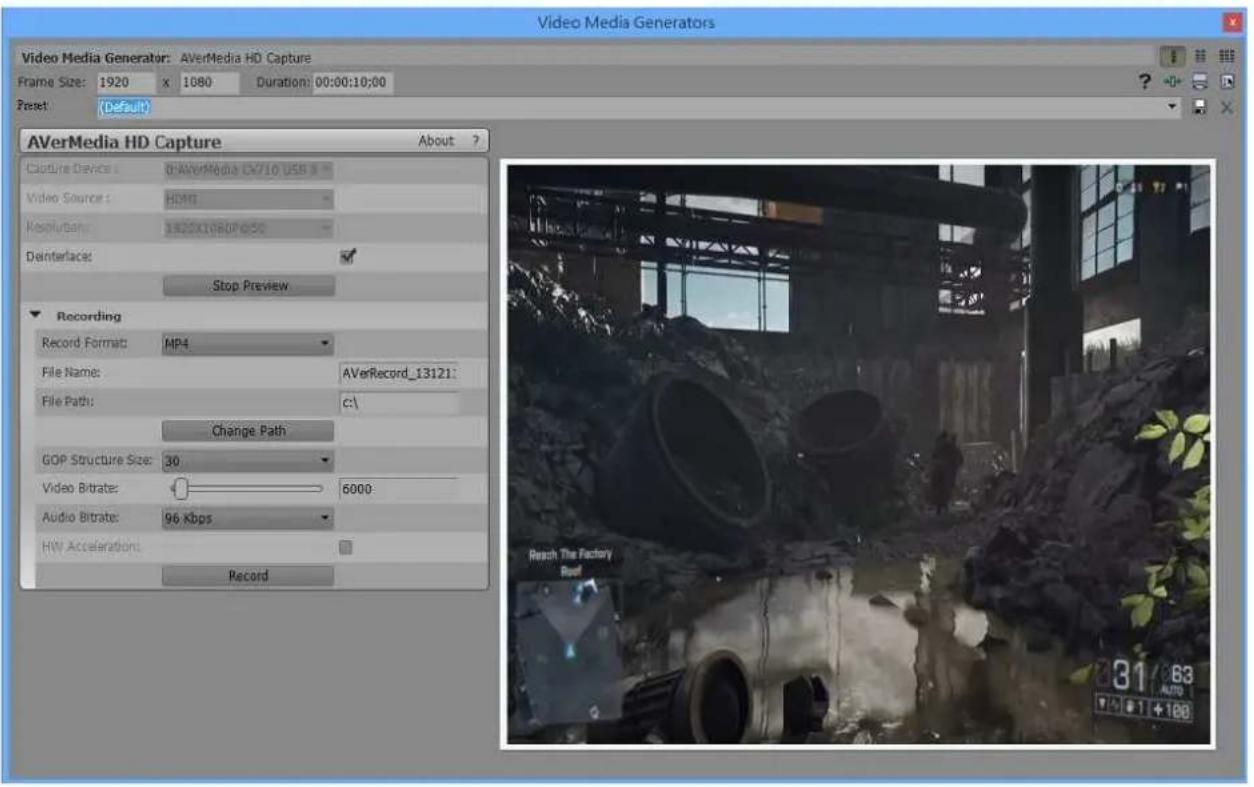
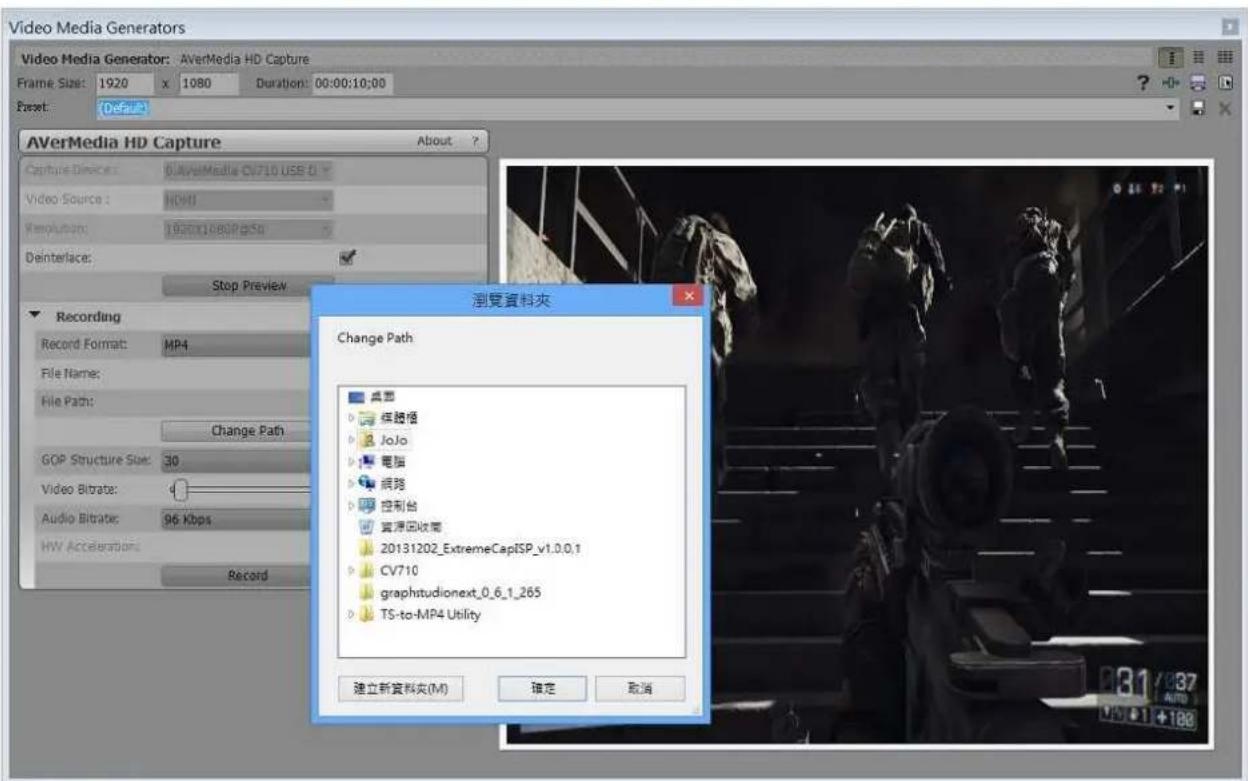
Video Media Generators Video Media Generator: AVerMedia HD Capture Frame Size: 1920 x 1080 Duration: 00:00:10:00 Reset: (Default) AVerMedia HD Capture About ? Capture Device: D:\WorkMedia OV710 USB Video Source: HDMI Resplufen: 3825X1080Pc50 Deinterlace: Stop Preview Recording Record Format: MP4 File Name: AVerRecord_13121: File Path: c:\ Change Path GOP Structure Size: 30 Video Bitrate: 6000 Audio Bitrate: 96 Kbps HW Accelerations: Record Reach The Factory Rout 81 63 AUTO 7 8 1 +1007. Change Path (note: we recommend NOT to set path directly under C:\)
text_image
Video Media Generators Video Media Generator: AVerMedia HD Capture Frame Size: 1920 x 1080 Duration: 00:00:10:00 Reset: Default AVerMedia HD Capture About ? Capture Devices: BuvayMedia CV710 USB 0 Video Source: HDMI Resolution: 62001080P254 Deinterface: Stop Preview Recording Record Format: MP4 File Name: File Path: Change Path GOP Structure Size: 30 Video Bitrate: Audio Bitrate: 96 Kbps MW Acceleration: Record 瀏覽資料夾 Change Path 桌面 保険信 JoJo 電腦 網路 控制台 資源回收商 20131202_ExtremeCapISP_v1.0.0.1 CV710 graphstudionext_0_6_1_265 TS-to-MP4 Utility 建立新資料夾(M) 確定 取消ImageJ Plug-in for AVerMedia Devices
- Go to AVerMedia website to download the ImageJ plug-in
- Follow the instruction to install the plug-in
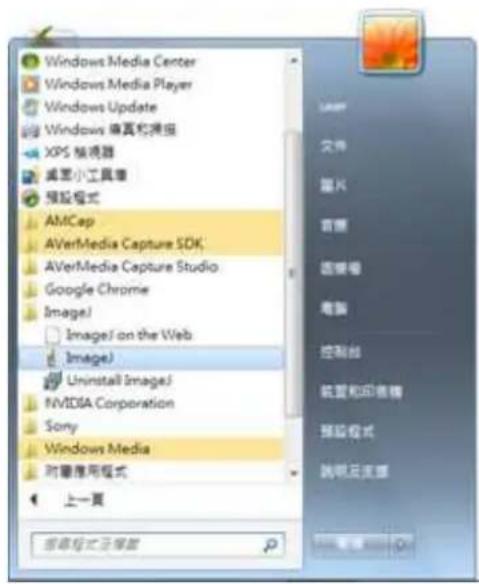
- Open ImageJ
text_image
Windows Media Center Windows Media Player Windows Update Windows 做真和捕捉 XPS 精視器 桌面小工具庫 預設格式 AMCap AVerMedia Capture SDK AVerMedia Capture Studio Google Chrome Image/ Image/ on the Web Image) Uninstall Image/ NVIDIA Corporation Sony Windows Media 附屬應用模式 上一頁 按章格式示例版4. Select Plugins → AVerMedia → HD Capture
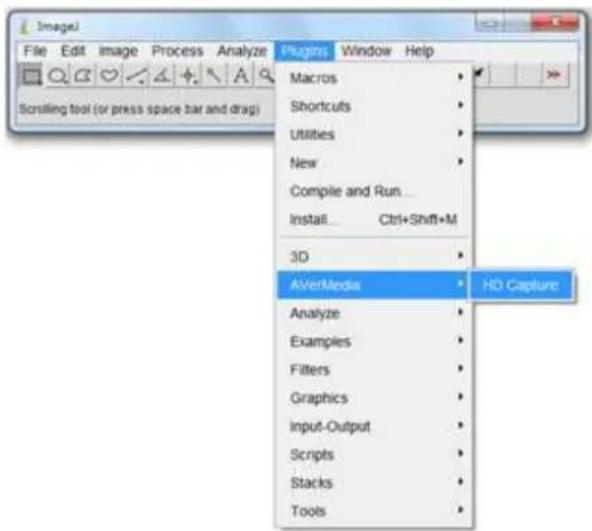
text_image
File Edit Image Process Analyze Scrificing tool (or press space bar and drag) Plugins Window Help Macros Shortcuts Utilities New Compile and Run... Install Ctrl+Shift+M 3D AVerMedia HD Capture Analyze Examples Filters Graphics Input-Output Scripts Stacks Tools- Select your AVerMedia device, Video Source, Resolution, Video Format and Options accordingly. Click Start Streaming to confirm.
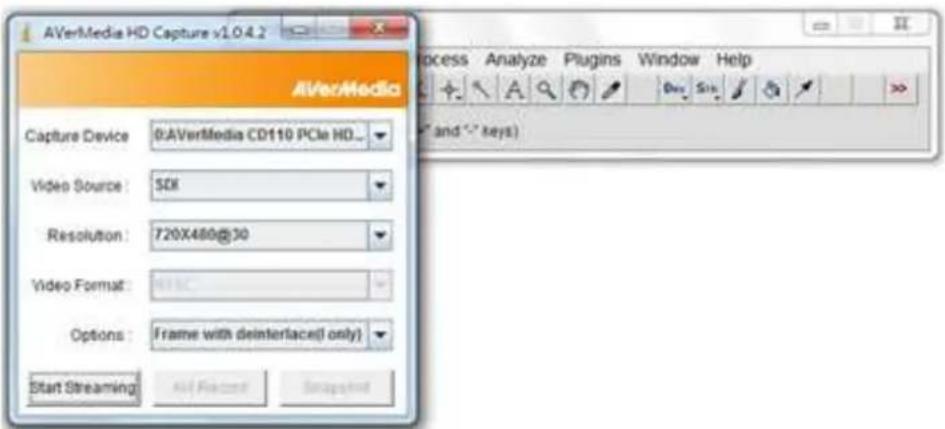
text_image
AVerMedia HD Capture v1.0.4.2 Capture Device: 0:\AVerMedia CD110 PCIe HD_ Video Source: SDK Resolution: 720X480@30 Video Format: HTML Options: Frame with deinterface( only ) Start Streaming All Features Snapshot Process Analyze Plugins Window Help and keys)- Streaming images appear, now you can select Snapshot, AVI Record or Stop Streaming.
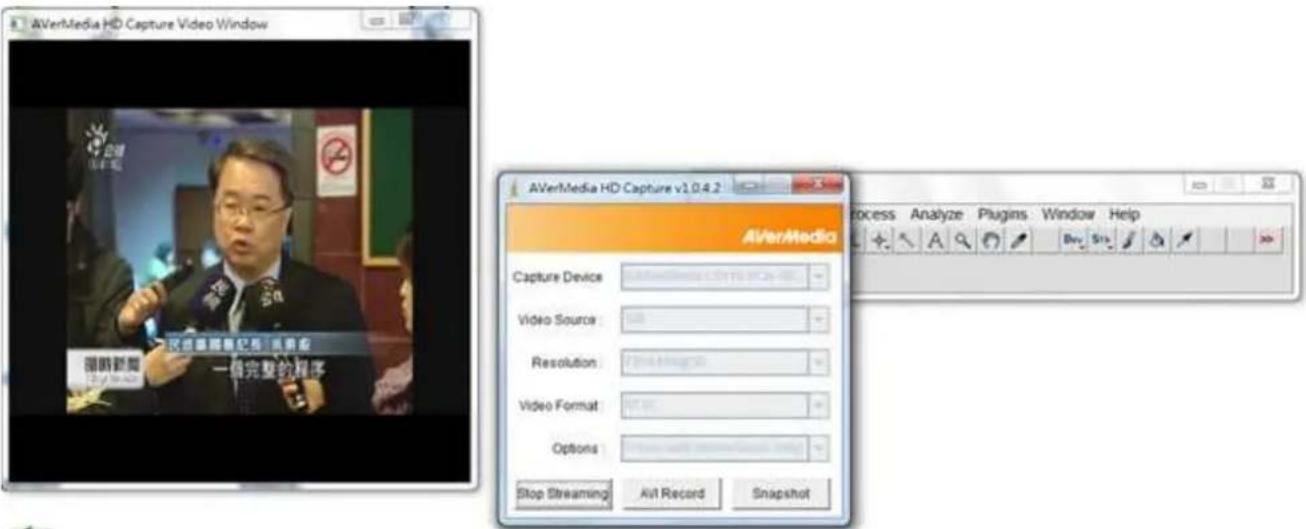
text_image
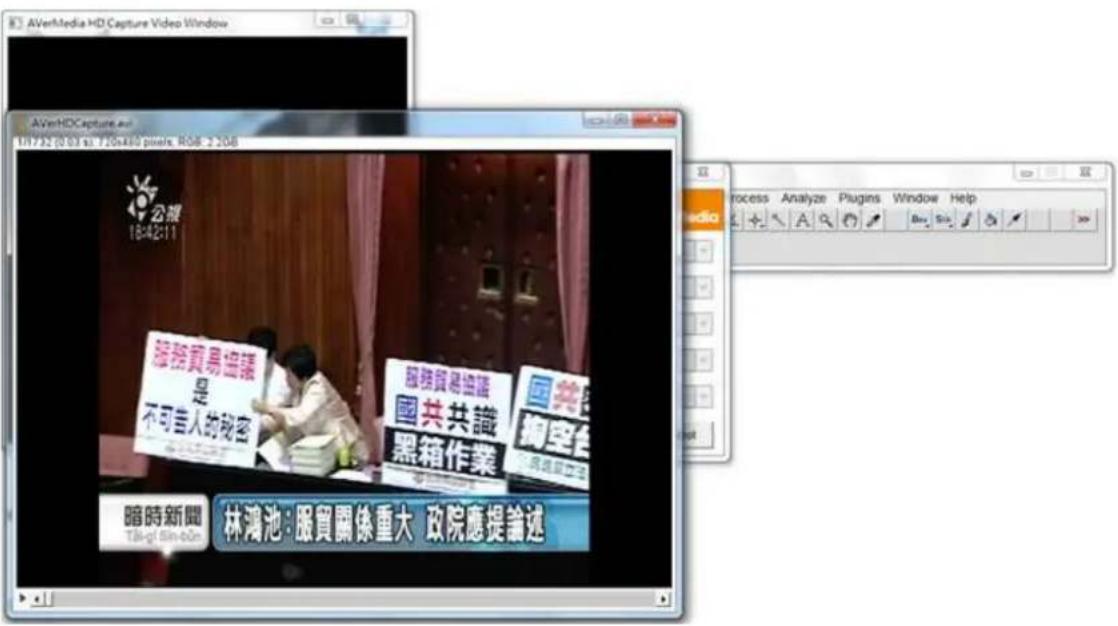
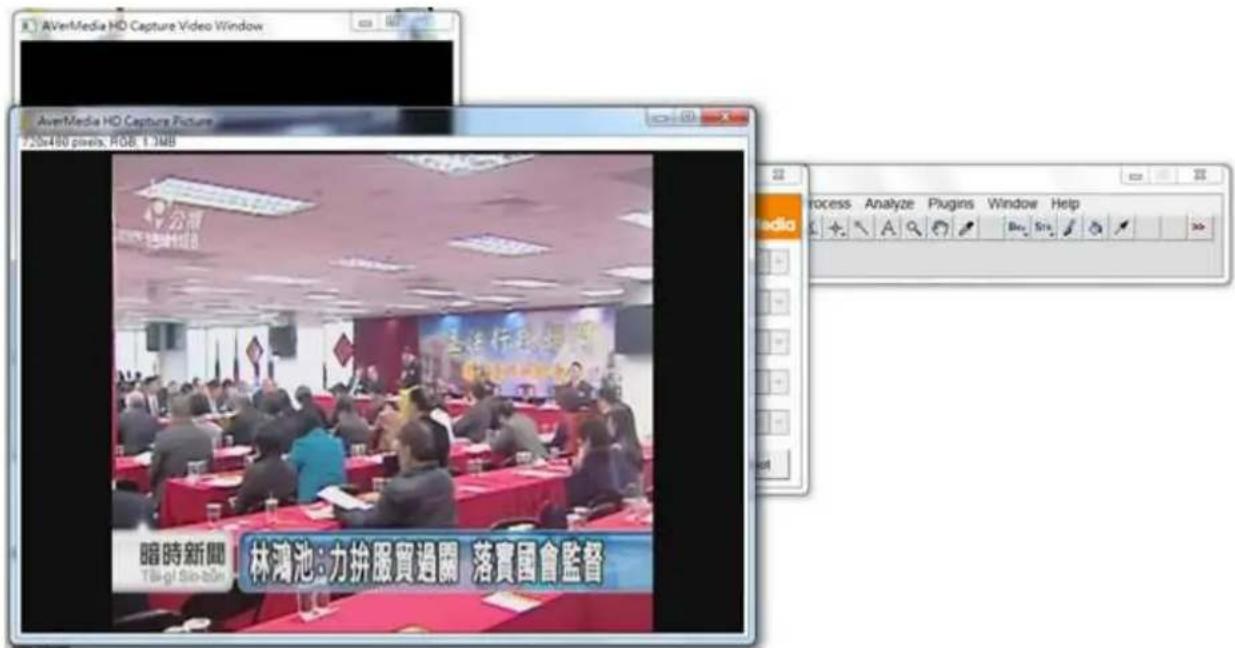
AVerMedia HD Capture Video Window AVerMedia HD Capture v1.0.4.2 Capture Device Video Source: Resolution: Video Format: Options: Stop Streaming AVI Record Snapshot Process Analyze Plugins Window Help- Click Snapshot and view pictures instantly.
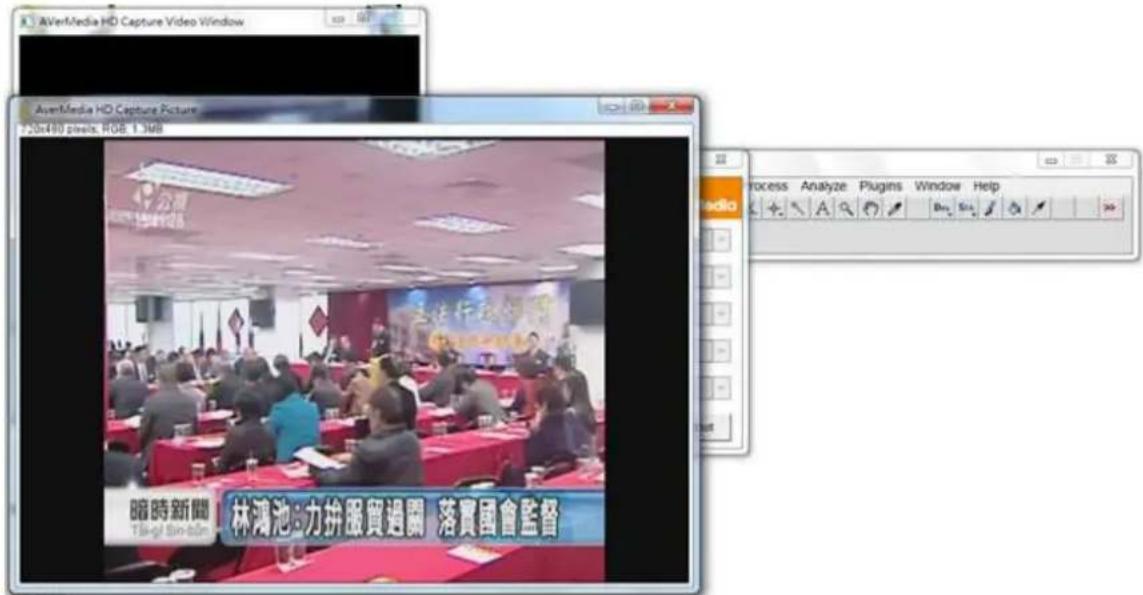
- Before using AVI Recorder to capture images, setting up save path is required. Click Save to confirm.
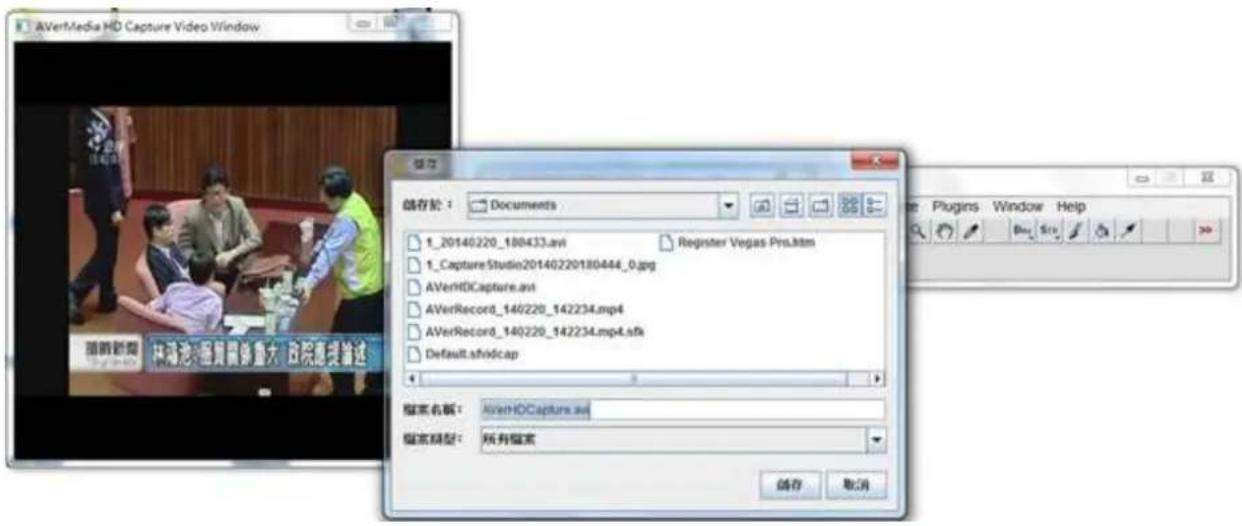
text_image
AVerMedia HD Capture Video Window 保存 储存於: Documents 1_20140220_180433.avi Register Vegas Pro.htm 1_CaptureStudio20140220180444_0.jpg AVerHDCapture.avi AVerRecord_140220_142234.mp4 AVerRecord_140220_142234.mp4.sfk Default.sfvidc.ap 搜索名称: AVerHDCapture.avi 搜索类型: 所有搜索 储存 取消- Start the capturing.
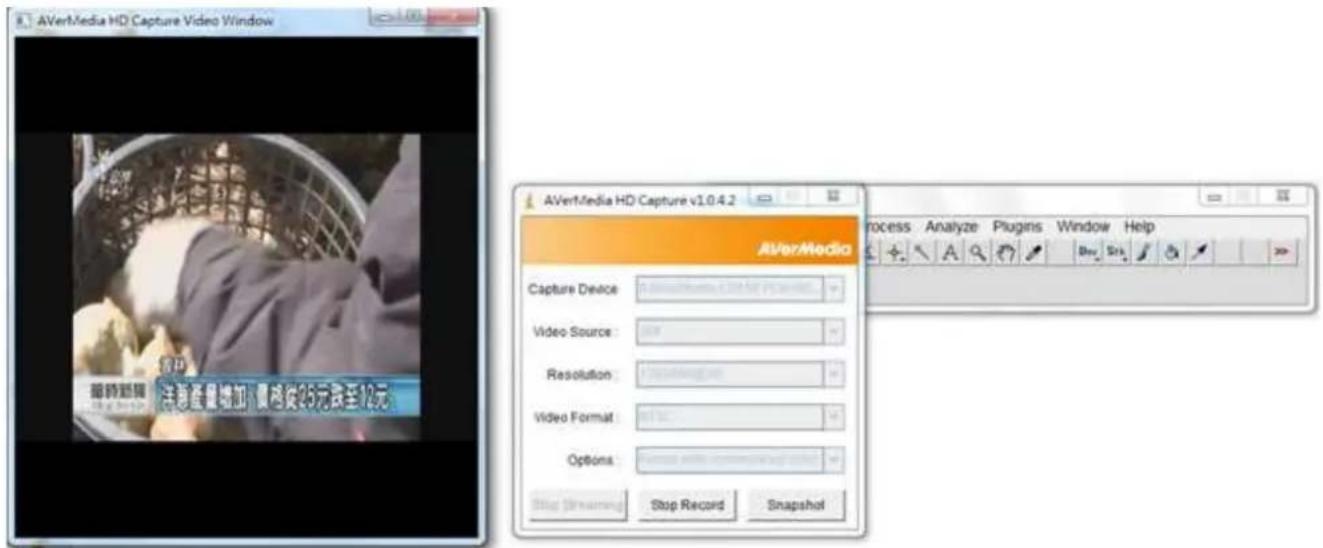
text_image
AVerMedia HD Capture Video Window AVerMedia HD Capture v1.0.4.2 Capture Device Video Source: Resolution: Video Format: Options: Stop Streaming Stop Record Snapshot Process Analyze Plugins Window Help- Click Stop Record. Select First Frame, Last Frame, and check Use Virtual Stack, Convert to Grayscale or Flip Vertical accordingly. Click OK.
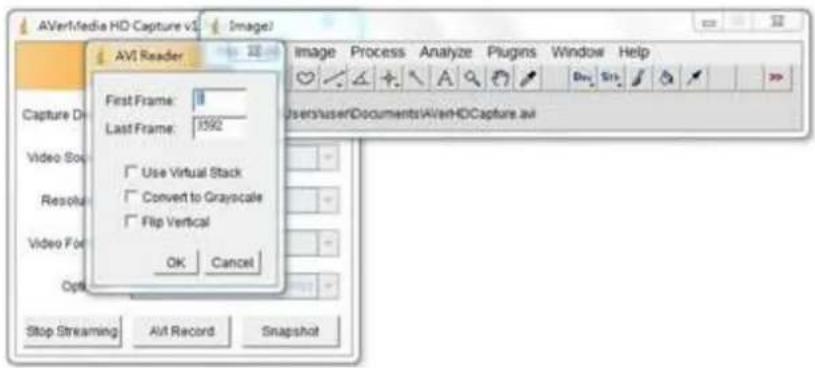
text_image
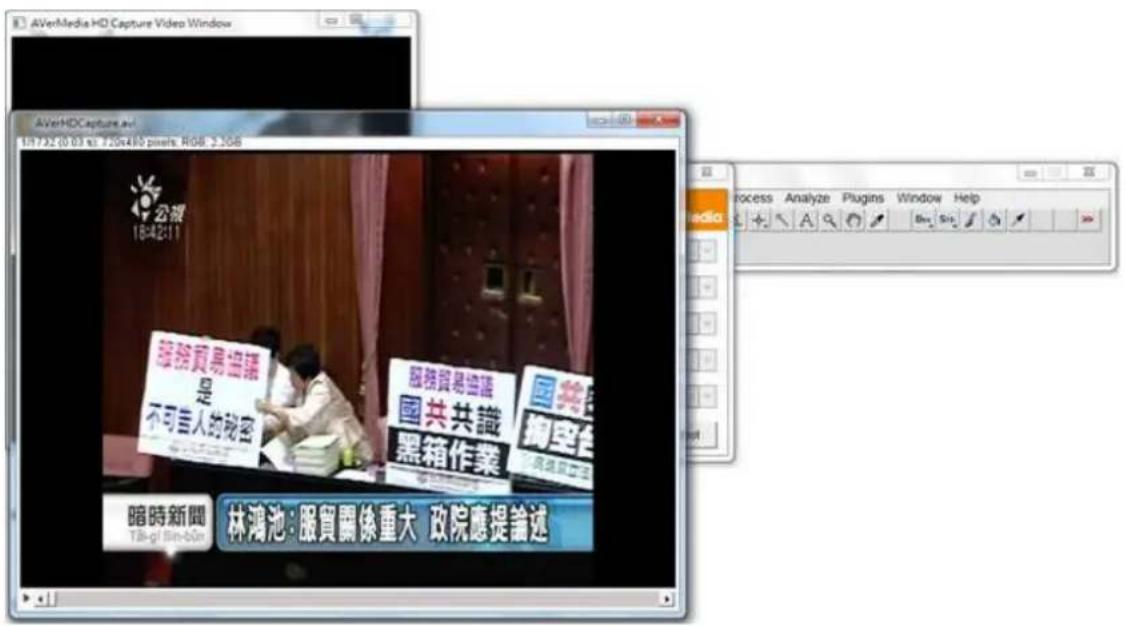
AVI Media HD Capture v3 (Image) AVI Reader First Frame: 1 Last Frame: 1592 Use Virtual Stack Convert to Grayscale Flip Vertical OK Cancel Stop Streaming AVI Record Snapshot11. Preview captured images.
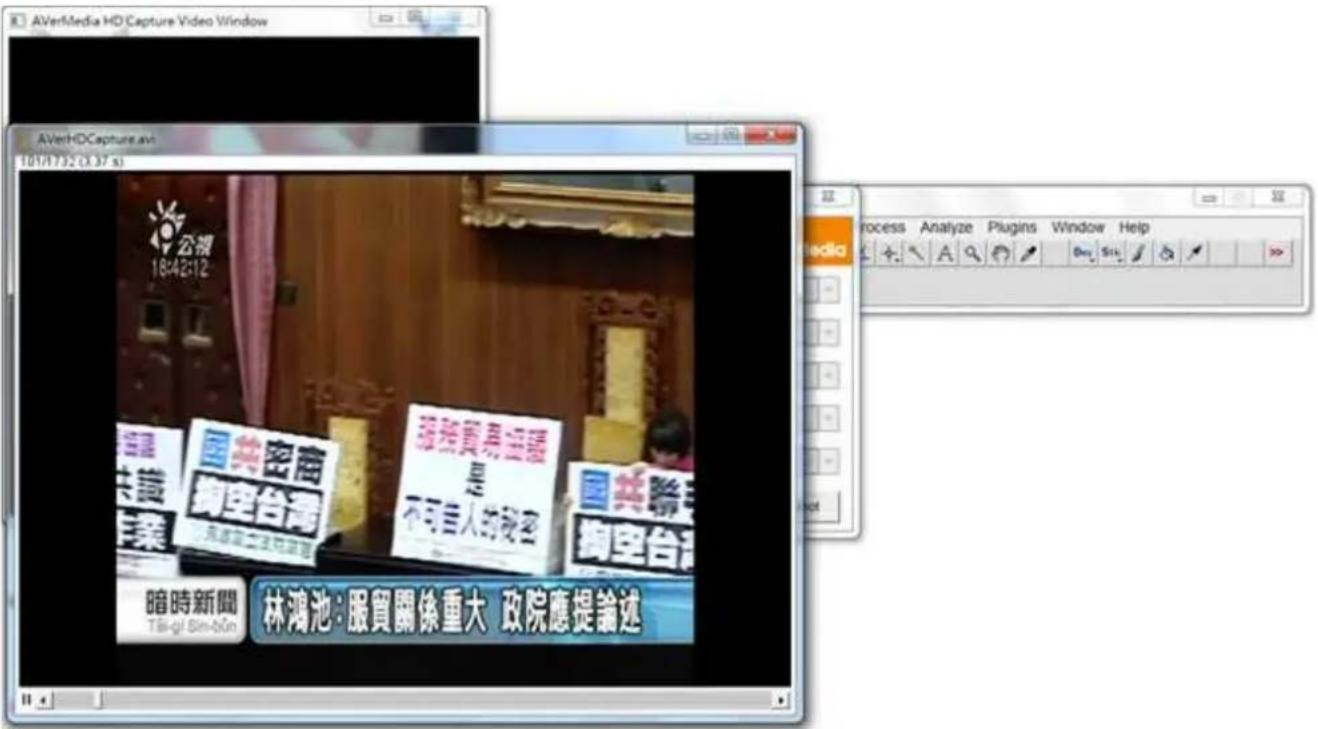
- General → Capture Format → AVer Record
text_image
New Project General Scratch Disks Video Rendering and Playback Renderer: Mercury Playback Engine Software Only Video Display Format: Timecode Audio Display Format: Audio Samples Capture Capture Format: DV • DV HDV AVer Record Location: C:\使用者\JoJo\我的文件\Adobe\Premiere Pro\6.0 Browse... Name: Untitled OK Canceltext_image
File Edit Project Clip Sequence Marker Title Window Help New Open Project... Ctrl+O Open Recent Project Browse in Adobe Bridge... Ctrl+Alt+O Close Project Ctrl+Shift+W Close Ctrl+W Save Ctrl+S Save As... Ctrl+Shift+S Save a Copy... Ctrl+Alt+S Rewert Capture... F5 Batch Capture... F6 Adobe Dynamic Link Adobe Story Send to Adobe SpeedGrade... Import from Media Browser Ctrl+Alt+I Import... Ctrl+I Import Recent File Export Out Properties for Reveal in Adobe Bridge... Exit Ctrl+Qtext_image
AVI/Video HD Capture v1 Image1 AVI Reader First Frame: 0 Last Frame: 1592 Use Virtual Stack Convert to Grayscale Flip Vertical OK Cancel Stop Streaming All Record Snapshot11. 预览采集的图像
text_image
File Edit Project Clip Sequence Marker Title Window Help New Open Project Ctrl+O Open Recent Project Browse in Adobe Bridge Ctrl+Alt+O Close Project Ctrl+Shift+W Close Ctrl+W Save Ctrl+S Save As Ctrl+Shift+S Save a Copy Ctrl+Alt+S Paste Capture... F5 Batch Capture... F6 Adobe Dynamic Link Adobe Story Send to Adobe Speed/Grade... Import from Media Browser Ctrl+Alt+L Import... Ctrl+L Import Recent File Export Out Properties for Reveal in Adobe Bridge... Exit Ctrl+Qtext_image
AVerMedia HD Capture v1.0.4.2 AVerMedia Capture Device Video Source Resolution: Video Format: Options: Stop Streaming Ail Record Snapshot Process Analyze Plugins Window Help A B C D E F G H I J K L M N O P Q R S T U V W X Y Z A B C D E F G H I J K L M N O P Q R S T U V W X Y Z- 點選 Snapshot,立即檢視圖片
text_image
AVerMedia HD Capture Video Window AverMedia HD Capture Picture 250x480 pixels, RGB, 1.3MB 暗時新聞 林鴻池:力拼服買過關 落實國會監督text_image
AVI Media HD Capture v5 (Image) AVI Reader First Frame: 11 Last Frame: 1592 Use Virtual Stack Convert to Grayscale Flip Vertical OK Cancel Stop Streaming AvI Record Snapshot11. 預覽擷取的圖像