
DJM-900SRT - Mixer PIONEER - Free user manual and instructions
Find the device manual for free DJM-900SRT PIONEER in PDF.



| Product type | 4-channel DJ mixer |
| Brand | Pioneer |
| Model | DJM-900SRT |
| Dimensions (W × H × D) | 331 mm × 107.9 mm × 404 mm |
| Weight | 7.1 kg |
| Power supply | AC 110 V to 240 V, 50 Hz/60 Hz |
| Power consumption (standby) | 0.4 W |
| Sampling frequency | 96 kHz |
| D/A converter (MASTER) | 32-bit |
| Other A/D and D/A converters | 24-bit |
| Frequency response (CD/LINE) | 20 Hz to 20 kHz |
| S/N ratio (PHONO) | 88 dB |
| S/N ratio (CD/LINE) | 105 dB |
| Total harmonic distortion | 0.005% (CD/LINE → MASTER1) |
| Inputs | 4 × PHONO (RCA), 4 × CD/LINE (RCA), 4 × DIGITAL (coaxial RCA), 1 × MIC1 (XLR/TRS), 1 × MIC2 (TRS), 1 × RETURN (TS phone jack), 1 × USB (type B), 1 × LINK (LAN) |
| Outputs | 1 × MASTER1 (XLR), 1 × MASTER2 (RCA), 1 × BOOTH (TRS phone jack), 1 × REC OUT (RCA), 1 × SEND (TS phone jack), 1 × DIGITAL MASTER OUT (coaxial RCA), 1 × PHONES (stereo phone jack), 1 × MIDI OUT (5-pin DIN) |
| Built-in effects | SOUND COLOR FX (6 types), BEAT FX (including Delay, Echo, Flanger, Phaser, Reverb, Roll, etc.) |
| Fader | Magnetic crossfader (10 million operations), robust channel faders |
| Compatible software | Serato DJ, rekordbox (via PRO DJ LINK) |
| Operating temperature | +5°C to +35°C |
| Operating humidity | 5% to 85% (non-condensing) |
| Included accessories | Installation CD-ROM, USB cable, power cord, instruction manual, 2 × Serato DJ CONTROL CD, 2 × Serato DJ CONTROL VINYL |
| Maintenance and cleaning | Disconnect the unit before cleaning; use a dry cloth; do not use solvents |
| Safety | Do not expose to water or flames; do not block ventilation openings; disconnect if not used for an extended period |
| Spare parts and repairability | Contact Pioneer after-sales service or an authorized dealer; short-circuit plugs are provided |
Frequently Asked Questions - DJM-900SRT PIONEER
User questions about DJM-900SRT PIONEER
0 question about this device. Answer the ones you know or ask your own.
Ask a new question about this device
Download the instructions for your Mixer in PDF format for free! Find your manual DJM-900SRT - PIONEER and take your electronic device back in hand. On this page are published all the documents necessary for the use of your device. DJM-900SRT by PIONEER.
USER MANUAL DJM-900SRT PIONEER
The Pioneer DJ support site shown above offers FAQs, information on software and various other types of information and services to allow you to use your product in greater comfort.
For various types of information and services regarding rekordbox ^™ , see the Pioneer website above.
For the latest version of the Serato DJ software, access Serato.com and download the software from there.
Operating Instructions
Mode d'emploi
Bedienungsanleitung
Thank you for buying this Pioneer product. Please read through these operating instructions so you will know how to operate your model properly. After you have finished reading the instructions, put them away in a safe place for future reference.
In some countries or regions, the shape of the power plug and power outlet may sometimes differ from that shown in the explanatory drawings. However the method of connecting and operating the unit is the same.

If you want to dispose this product, do not mix it with general household waste. There is a separate collection system for used electronic products in accordance with legislation that requires proper treatment, recovery and recycling.
Private households in the member states of the EU, in Switzerland and Norway may return their used electronic products free of charge to designated collection facilities or to a retailer (if you purchase a similar new one).
For countries not mentioned above, please contact your local authorities for the correct method of disposal.
By doing so you will ensure that your disposed product undergoes the necessary treatment, recovery and recycling and thus prevent potential negative effects on the environment and human health.
K058b_A1_En
NOTE:
This equipment has been tested and found to comply with the limits for a Class B digital device, pursuant to Part 15 of the FCC Rules. These limits are designed to provide reasonable protection against harmful interference in a residential installation. This equipment generates, uses, and can radiate radio frequency energy and, if not installed and used in accordance with the instructions, may cause harmful interference to radio communications. However, there is no guarantee that interference will not occur in a particular installation. If this equipment does cause harmful interference to radio or television reception, which can be determined by turning the equipment off and on, the user is encouraged to try to correct the interference by one or more of the following measures:
— Reorient or relocate the receiving antenna.
— Increase the separation between the equipment and receiver.
— Connect the equipment into an outlet on a circuit different from that to which the receiver is connected.
— Consult the dealer or an experienced radio/TV technician for help.
D8-10-1-2_A1_En
FEDERAL COMMUNICATIONS COMMISSION DECLARATION OF CONFORMITY
This device complies with part 15 of the FCC Rules. Operation is subject to the following two conditions: (1) This device may not cause harmful interference, and (2) this device must accept any interference received, including interference that may cause undesired operation.
Product Name: DJ MIXER
Model Number: DJM-900SRT
Responsible Party Name: PIONEER ELECTRONICS (USA) INC.
SERVICE SUPPORT DIVISION
Address: 1925 E. DOMINGUEZ ST. LONG BEACH, CA 90810-1003, U.S.A.
Phone: 1-800-421-1404
URL: http://www.pioneerelectronics.com
D8-10-4*_C1_En
CAUTION
TO PREVENT THE RISK OF ELECTRIC SHOCK, DO NOT REMOVE COVER (OR BACK). NO USER-SERVICEABLE PARTS INSIDE. REFER SERVICING TO QUALIFIED SERVICE PERSONNEL.
D3-4-2-1-1_B1_En
WARNING
This equipment is not waterproof. To prevent a fire or shock hazard, do not place any container filled with liquid near this equipment (such as a vase or flower pot) or expose it to dripping, splashing, rain or moisture.
D3-4-2-1-3_A1_En
VENTILATION CAUTION
When installing this unit, make sure to leave space around the unit for ventilation to improve heat radiation (at least 5 cm at rear, and 3 cm at each side).
WARNING
Slots and openings in the cabinet are provided for ventilation to ensure reliable operation of the product, and to protect it from overheating. To prevent fire hazard, the openings should never be blocked or covered with items (such as newspapers, table-cloths, curtains) or by operating the equipment on thick carpet or a bed.
D3-4-2-1-7b*_A1_En
WARNING
To prevent a fire hazard, do not place any naked flame sources (such as a lighted candle) on the equipment.
D3-4-2-1-7a_A1_En
Operating Environment
Operating environment temperature and humidity: +5 °C to +35 °C (+41 °F to +95 °F); less than 85 %RH (cooling vents not blocked)
Do not install this unit in a poorly ventilated area, or in locations exposed to high humidity or direct sunlight (or strong artificial light).
D3-4-2-1-7c*_A2_En
CAUTION
The POWER switch on this unit will not completely shut off all power from the AC outlet. Since the power cord serves as the main disconnect device for the unit, you will need to unplug it from the AC outlet to shut down all power. Therefore, make sure the unit has been installed so that the power cord can be easily unplugged from the AC outlet in case of an accident. To avoid fire hazard, the power cord should also be unplugged from the AC outlet when left unused for a long period of time (for example, when on vacation).
D3-4-2-2-2a*_A1_En
Information to User
Alterations or modifications carried out without appropriate authorization may invalidate the user's right to operate the equipment.
D8-10-2_A1_En
CAUTION
This product satisfies FCC regulations when shielded cables and connectors are used to connect the unit to other equipment. To prevent electromagnetic interference with electric appliances such as radios and televisions, use shielded cables and connectors for connections.
D8-10-3a_A1_En
POWER-CORD CAUTION
Handle the power cord by the plug. Do not pull out the plug by tugging the cord and never touch the power cord when your hands are wet as this could cause a short circuit or electric shock. Do not place the unit, a piece of furniture, etc., on the power cord, or pinch the cord. Never make a knot in the cord or tie it with other cords. The power cords should be routed such that they are not likely to be stepped on. A damaged power cord can cause a fire or give you an electrical shock. Check the power cord once in a while. When you find it damaged, ask your nearest PIONEER authorized service center or your dealer for a replacement.
S002*_A1_En
WARNING
Store small parts out of the reach of children and infants. If accidentally swallowed, contact a doctor immediately.
D41-6-4_A1_En
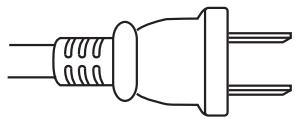
For Taiwan exclusively
Taiwanese two pin flat-bladed plug
K056_A1_En
Contents
For those operating Serato DJ for the first time using this unit and its accessories
See the “Quick Start Guide - Serato DJ Edition” for the procedure for making the initial settings required to use the CONTROL CD or CONTROL VINYL included with this unit in order to operate Serato DJ. The “Quick Start Guide - Serato DJ Edition” can be downloaded from the Pioneer DJ support site (http://pioneerdj.com/support/). For downloading instructions, see Downloading the latest versions of the operating instructions and the Quick Start Guide - Serato DJ Edition in this manual (p.28).
How to read this manual
Be sure to read both this manual and the "Quick Start Guide – Serato DJ Edition". Both contain important information that you should understand before using this product.
For instructions on obtaining the Serato DJ software's manual, see Acquiring the manual (p.28).
This manual consists mainly of descriptions of the functions of this unit as hardware. For details about operating the Serato DJ software, see the Serato DJ software's manual and the "Quick Start Guide – Serato DJ Edition".
- The Serato DJ software manual can be downloaded from "Serato.com". For details, see Downloading the Serato DJ software manual (p. 28).
-
The latest version of the operating instructions (this manual) and the "Quick Start Guide – Serato DJ Edition" can be downloaded from the Pioneer support site. For details, see Downloading the latest versions of the operating instructions and the Quick Start Guide - Serato DJ Edition (p.28).
-
In this manual, names of channels and buttons indicated on the product, names of menus in the software, etc., are indicated within square brackets ([]). (e.g. [MASTER] channel, [ON/OFF], [File] menu)
- Please note that the screens and specifications of the software described in this manual as well as the external appearance and specifications of the hardware are currently under development and may differ from the final specifications.
- Please note that depending on the operating system version, web browser settings, etc., operation may differ from the procedures described in this manual.
01 Before start
Features....5
What's in the box....5
02 Installing the software
Installing the driver software ....6
Installing the Serato DJ software....7
03 Connections
Rear panel 10
Connecting input terminals....11
Connecting output terminals ....11
Connecting to the control panel....12
Connecting this unit and computer....12
04 Operation
Control Panel 13
Basic Operation....14
Advanced Operations....15
05 Types of effects
Types of SOUND COLOR FX effects....19
Types of BEAT EFFECT....19
06 MIDI assignment map
MIDI assignment map....22
07 Changing the settings
About the auto standby function....24
About the talk over function....24
Setting preferences....24
About the setting utility software 24
Checking the latest information on the driver software....25
08 Additional information
Troubleshooting....26
Block Diagram....27
Acquiring the manual 28
About trademarks and registered trademarks ....28
Specifications....29
Before start
Features
This unit is a 4-channel mixer optimally designed for DJ performances using the "Serato DJ" DJ software by Serato. It is equipped with an internal sound card that is compatible with Serato DJ, so performances using Serato DJ can be held immediately after connecting this unit with a computer using a USB cable, with no need to make any troublesome settings.
Furthermore, Serato DJ's scratch function can be controlled using the included CONTROL VINYL (record) or CONTROL CD.
In addition, this unit carries over the main functions, quality and performance of the Pioneer DJM-900nexus, a standard model in clubs throughout the world, offering powerful support for performances by all professional DJs active in the club scene.
PLUG AND PLAY
This unit is equipped with a built-in USB sound card for connecting a computer. A computer can be connected simply using a single USB cable; there is no need to procure a separate sound card in addition to this unit.
Also, when Serato DJ is launched, this unit is automatically selected as the sound device, so DJ performances using Serato DJ can be held immediately, with no need to make any troublesome settings.
Furthermore, Serato DJ's scratch function can be controlled using the included CONTROL VINYL (record) or CONTROL CD.
HIGH SOUND QUALITY
This unit uses a 32-bit D/A converter and other parts that are equivalent to those of high grade audio equipment, greatly improving the sound quality of not only the master output but also the headphones and booth output. The use of a 32-bit digital signal processor suppresses digital noise. Furthermore, for the analog circuitry as well, a high sound quality balanced hybrid operational amplifier and a fully balanced output circuitry are used to reduce noise.
SOUND COLOR FX&BEAT FX
This unit is equipped with the SOUND COLOR FX and BEAT FX functions that have been well received on the DJM series. With SOUND COLOR FX, the effects you are aiming to create can be applied simply by turning the knob, letting you make original arrangements of tracks and enabling a wide variety of remixing possibilities. Also, the BPM and beat position information of the track currently playing with Serato DJ can be obtained via USB, so BEAT EFFECT can be applied on beat thanks to the highly precise BPM information. Also, by using the quantize mode, the effect timing is automatically corrected even if the BEAT EFFECT operation is performed off timing, so effects can be applied in beat.
DURABLE FADER
The crossfader and channel faders use a sliding structure in which the fader knobs are supported by two metal shafts. This provides both smooth operation with no wobbling and high durability. It also keeps any adverse effects from liquids or dust getting into the faders to a minimum. For scratch play compatibility, the crossfader uses a uniquely developed magnetic system that provides a high durability of over 10 million operations with subtle operability. The channel faders provide approximately three times greater operation durability as compared to a previous Pioneer model (DJM-800).
STANDARD LAYOUT
This unit carries over the control panel layout of the Pioneer DJM series, the world standard in DJ mixers.
The simple, straightforward control panel layout not only facilitates DJ performances but lets even DJs using this unit for the first time to operate it without hesitation, so it can be used without worry as a mixer that is permanently installed in the club.
What's in the box
• CD-ROM (Installation Disc)
- USB cable
- Power cord
- Operating instructions (this document)
• Serato DJ CONTROL CD × 2
• Serato DJ CONTROL VINYL × 2
Installing the software
Installing the driver software
This driver software is a proprietary program for inputting and outputting audio signals from the computer. To use this unit connected to a computer on which a Windows or Mac OS is installed, install the driver software on the computer beforehand.
Software end user license agreement
This Software End User License Agreement ("Agreement") is between you (both the individual installing the Program and any single legal entity for which the individual is acting) ("You" or "Your") and PIONEER CORPORATION ("Pioneer"). TAKING ANY STEP TO SET UP OR INSTALL THE PROGRAM MEANS THAT YOU ACCEPT ALL OF THE TERMS OF THIS LICENSE AGREEMENT. PERMISSION TO DOWNLOAD AND/OR USE THE PROGRAM IS EXPRESSLY CONDITIONED ON YOUR FOLLOWING THESE TERMS. WRITTEN OR ELECTRONIC APPROVAL IS NOT REQUIRED TO MAKE THIS AGREEMENT VALID AND ENFORCEABLE. IF YOU DO NOT AGREE TO ALL OF THE TERMS OF THIS AGREEMENT, YOU ARE NOT AUTHORIZED TO USE THE PROGRAM AND MUST STOP INSTALLING IT OR UNINSTALL IT, AS APPLICABLE.
1 DEFINITIONS
1 "Documentation" means written documentation, specifications and help content made generally available by Pioneer to aid in installing and using the Program.
2 "Program" means all or any part of Pioneer's software licensed to You by Pioneer under this Agreement.
2 PROGRAM LICENSE
1 Limited License. Subject to this Agreement's restrictions, Pioneer grants to You a limited, non-exclusive, non-transferable, license (without the right to sublicense):
a To install a single copy of the Program in Your computer or mobile device, to use the Program only for Your personal purpose complying with this Agreement and the Documentation ("Authorized Use");
b To use the Documentation in support of Your Authorized Use; and
c To make one copy of the Program solely for backup purposes, provided that all titles and trademark, copyright and restricted rights notices are reproduced on the copy.
2 Restrictions. You will not copy or use the Program or Documentation except as expressly permitted by this Agreement. You will not transfer, sublicense, rent, lease or lend the Program, or use it for third-party training, commercial time-sharing or service bureau use. You will not Yourself or through any third party modify, reverse engineer, disassemble or decompile the Program, except to the extent expressly permitted by applicable law, and then only after You have notified Pioneer in writing of Your intended activities.
3 Ownership. Pioneer or its licensor retains all right, title and interest in and to all patent, copyright, trademark, trade secret and other intellectual property rights in the Program and Documentation, and any derivative works thereof. You do not acquire any other rights, express or implied, beyond the limited license set forth in this Agreement.
4 No Support. Pioneer has no obligation to provide support, maintenance, upgrades, modifications or new releases for the Program or Documentation under this Agreement.
3 WARRANTY DISCLAIMER
THE PROGRAM AND DOCUMENTATION ARE PROVIDED "AS IS" WITHOUT ANY REPRESENTATIONS OR WARRANTIES, AND YOU AGREE TO USE THEM AT YOUR SOLE RISK. TO THE FULLEST EXTENT PERMISSIBLE BY LAW, PIONEER EXPRESSLY DISCLAIMS ALL WARRANTIES OF ANY KIND WITH RESPECT TO THE PROGRAM AND DOCUMENTATION, WHETHER EXPRESS, IMPLIED, STATUTORY, OR ARISING OUT OF COURSE OF PERFORMANCE, COURSE OF DEALING OR USAGE OF TRADE, INCLUDING ANY WARRANTIES OF MERCHANTABILITY, FITNESS FOR A PARTICULAR PURPOSE, SATISFACTORY QUALITY, ACCURACY, TITLE OR NON-INFRINGEMENT.
4 EXPORT CONTROL AND COMPLIANCE WITH LAWS AND REGULATIONS
You may not use or otherwise export or re-export the Program except as authorized by United States law and the laws of the jurisdiction in which the Program was obtained. In particular, but without limitation, the Program may not be exported or re-exported (a) into any U.S.-embargoed countries or (b) to anyone on the U.S. Treasury Department's Specially Designated Nationals List or the U.S. Department of Commerce Denied Persons List or Entity List. By using the Program, you represent and warrant that you are not located in any such country or on any such list. You also agree that you will not use the Program for any purposes prohibited by United States law, including, without limitation, the development, design, manufacture, or production of nuclear, missile, or chemical or biological weapons.
5 U.S. GOVERNMENT RESTRICTED RIGHTS
The Program and Documentations are “commercial computer software” and “commercial computer software documentation” as those terms are defined in 48 C.F.R. §252.227-7014 (a) (1) (2007) and 252.227-7014 (a) (5) (2007). The U.S. Government’s rights with respect to the Program and Documentations are limited by this license pursuant to 48 C.F.R. § 12.212 (Computer software) (1995) and 48 C.F.R. §12.211 (Technical data) (1995) and/or 48 C.F.R. §227.7202-3, as applicable. As such, the Program and Documentations are being licensed to the U.S. Government end users: (a) only as “commercial items” as that term is defined in 48 C.F.R. §2.101 generally and as incorporated in DFAR 212.102; and (b) with only those limited rights as are granted to the public pursuant to this license. Under no circumstance will the U.S. Government or its end users be granted any greater rights than we grant to other users, as provided for in this license. Manufacturer is Pioneer Corporation, 1-1 Shin-Ogura, Saiwai-ku, Kawasaki-shi, Kanagawa-Ken, 212-0031 Japan
6 DAMAGES AND REMEDIES FOR BREACH
You agree that any breach of this Agreement's restrictions would cause Pioneer irreparable harm for which money damages alone would be inadequate. In addition to damages and any other remedies to which Pioneer may be entitled, You agree that Pioneer may seek injunctive relief to prevent the actual, threatened or continued breach of this Agreement.
7 TERMINATION
Pioneer may terminate this Agreement at any time upon Your breach of any provision. If this Agreement is terminated, You will stop using the Program, permanently delete it from your computer or mobile device where it resides, and destroy all copies of the Program and Documentation in Your possession, confirming to Pioneer in writing that You have done so. Sections 2.2, 2.3, 2.4, 3, 4, 5, 6, 7 and 8 will continue in effect after this Agreement's termination.
8 GENERAL TERMS
1 Limitation of Liability. In no event will Pioneer or its subsidiaries be liable in connection with this Agreement or its subject matter, under any theory of liability, for any indirect, incidental, special, consequential or punitive damages, or damages for lost profits, revenue, business, savings, data, use, or cost of substitute procurement, even if advised of the possibility of such damages or if such damages are foreseeable. In no event will Pioneer's liability for all damages exceed the amounts actually paid by You to Pioneer or its subsidiaries for the Program. The parties acknowledge that the liability limits and risk allocation in this Agreement are reflected in the Program price and are essential elements of the bargain between the parties, without which Pioneer would not have provided the Program or entered into this Agreement.
2 The limitations or exclusions of warranties and liability contained in this Agreement do not affect or prejudice Your statutory rights as consumer and shall apply to You only to the extent such limitations or exclusions are permitted under the laws of the jurisdiction where You are located.
3 Severability and Waiver. If any provision of this Agreement is held to be illegal, invalid or otherwise unenforceable, that provision will be enforced to the extent possible or, if incapable of enforcement, deemed to be severed and deleted from this Agreement, and the remainder will continue in full force and effect. The waiver by either party of any default or breach of this Agreement will not waive any other or subsequent default or breach.
4 No Assignment. You may not assign, sell, transfer, delegate or otherwise dispose of this Agreement or any rights or obligations under it, whether voluntarily or involuntarily, by operation of law or otherwise, without Pioneer's prior written consent. Any purported assignment, transfer or delegation by You will be null and void. Subject to the foregoing, this Agreement will be binding upon and will inure to the benefit of the parties and their respective successors and assigns.
5 Entire Agreement. This Agreement constitutes the entire agreement between the parties and supersedes all prior or contemporaneous agreements or representations, whether written or oral, concerning its subject matter. This Agreement may not be modified or amended without Pioneer's prior and express written consent, and no other act, document, usage or custom will be deemed to amend or modify this Agreement.
6 You agree that this Agreement shall be governed and construed by and under the laws of Japan.
Cautions on Installation
- Before installing the driver software, be sure to turn off the power of this unit and disconnect the USB cable from both this unit and your computer.
- If you connect this unit to your computer without installing the driver software first, an error may occur on your computer depending on the system environment.
-
If you have discontinued the installation process in progress, step through the installation process again from the beginning according to the following procedure.
-
Read Software end user license agreement carefully before installing this unit's proprietary driver software.
- Before installing the driver software, terminate all other programs running on your computer.
• The driver software is compatible with the following OSs.
Supported operating systems
| Mac OS X 10.6 / 10.7 / 10.8 | √ | |
| Windows® 8/Windows® 8 Pro | 32-bit version | √ |
| 64-bit version | √ | |
| Windows® 7 Home Premium/Professional/Ultimate | 32-bit version | √ |
| 64-bit version | √ | |
| Windows Vista® Home Basic/Home Premium/Business/Ultimate | 32-bit version | √ |
| 64-bit version | √ | |
| Windows® XP Home Edition/Professional (SP3 or later) | 32-bit version | √ |
Windows ^® XP Professional x64 Edition is not supported.
- The included CD-ROM includes installation programs in the following 12 languages.
English, French, German, Italian, Dutch, Spanish, Portuguese, Russian, Simplified Chinese, Traditional Chinese, Korean, and Japanese
When using operating systems in other languages, follow the instructions on the screen to select [English (English)].
Installation Procedure (Windows)
Read Cautions on Installation carefully before installing the driver software.
- To install or uninstall the driver software, you need to be authorized by the administrator of your computer. Log on as the administrator of your computer before proceeding with the installation.
1 Insert the included CD-ROM into the computer's CD drive.
The CD-ROM menu is displayed.
- If the CD-ROM menu does not appear when the CD-ROM is inserted, double-click the CD drive from the [Start] menu – [Computer] (or [My Computer]).
2 From the menu that appears, select [Install Driver Software], then click [Start].
3 "Download the latest version? An internet environment is required to access the site." is displayed. Click [Yes].
The web browser is launched and the Pioneer DJ support site is displayed.
4 Click [Software Download] under [DJM-900SRT] on the Pioneer DJ support site.
5 Click [Driver Software].
6 From the download page, download the driver software for Windows (DJM-900SRT\_X.XXX.exe).
7 Double-click the downloaded file.
The driver installation screen appears.
8 Carefully read the Software end user license agreement and if you consent to the provisions, put a check mark in [I agree.] and click [OK].
If you do not consent to the provisions of the Software end user license agreement, click [Cancel] and stop installation.
9 Proceed with installation according to the instructions on the screen.
If [Windows Security] appears on the screen while the installation is in progress, click [Install this driver software anyway] and continue with the installation.
- When installing on Windows XP
If [Hardware Installation] appears on the screen while the installation is in progress, click [Continue Anyway] and continue with the installation. - When the installation program is completed, a completion message appears.
Installation procedure (Mac OS X)
Read Cautions on Installation carefully before installing the driver software.
- To install or uninstall the driver software, you need to be authorized by the administrator of your computer. Have the name and password of the administrator of your computer ready in advance.
1 Insert the included CD-ROM into the computer's CD drive.
The CD-ROM folder appears.
- Double-click the CD icon on the desktop when folders are not displayed after a CD-ROM has been loaded.
2 Double-click [CD\_menu.app].
3 From the menu that appears, select [Install Driver Software], then click [Start].
4 "Download the latest version? An internet environment is required to access the site." is displayed. Click [Yes].
The web browser is launched and the Pioneer DJ support site is displayed.
5 Click [Software Download] under [DJM-900SRT] on the Pioneer DJ support site.
6 Click [Driver Software].
7 From the download page, download the driver software for Mac OS (DJM-900SRT\_M\_X.X.X.dmg).
8 Double-click the downloaded file.
The [DJM-900SRT_AudioDriver] menu screen appears.
9 Double-click [DJM-900SRT\_AudioDriver.pkg].
The driver installation screen appears.
10 Check the details on the screen and click [Continue Anyway].
11 When the end user license agreement appears, read Software end user license agreement carefully, then click [Continue Anyway].
12 If you consent to the provisions of the Software end user license agreement, click [Agree].
If you do not consent to the provisions of the Software end user license agreement, click [I disagree] and stop installation.
13 Proceed with installation according to the instructions on the screen.
- Click [Cancel] to cancel installation after it has started.
Installing the Serato DJ software
Serato DJ is a DJ software application by Serato. DJ performances are possible by connecting the computer on which this software is installed to this unit.
See the "Quick Start Guide - Serato DJ Edition" for the procedure for making the initial settings required to use the CONTROL CD or CONTROL VINYL included with this unit in order to operate Serato DJ. The "Quick Start Guide - Serato DJ Edition" can be downloaded from the Pioneer DJ support site (http://pioneerdj.com/support/). For downloading instructions, see Downloading the latest versions of the operating instructions and the Quick Start Guide - Serato DJ Edition in this manual (p.28).
For the latest version of the Serato DJ software, access Serato.com and download the software from there. A software download link is also provided on the included CD-ROM.
Please note that the software screens and specifications used for explanations in this manual are under development and may differ from the final specifications. For instructions on operating the Serato DJ software, see the Serato DJ software's manual.
- The Serato DJ software's manual can be downloaded from "Serato.com". For details, see Downloading the Serato DJ software manual (p.28).
Minimum operating environment
| Supported operating systems | CPU and required memory | |
| Mac OS X: 10.6.8, 10.7.4 and 10.8 | 32-bit version | Intel®processor, CoreTM 2 Duo 2.0 GHz or better |
| 1 GB or more of RAM | ||
| 64-bit version | Intel®processor, CoreTM 2 Duo 2.4 GHz or better | |
| 4 GB or more of RAM | ||
| Windows: Windows 7 | 32-bit version | Intel®processor, CoreTM 2 Duo 2.0 GHz or better |
| 2 GB or more of RAM | ||
| 64-bit version | Intel®processor, CoreTM 2 Duo 2.4 GHz or better | |
| 4 GB or more of RAM | ||
Others
| USB port | A USB 2.0 port is required to connect the computer with this unit. |
| Display resolution | Resolution of 1 280 x 720 or greater |
| Internet connection | An Internet connection is required for registering the “Serato.com” user account and downloading the software. |
- For the latest information on the required operating environment and compatibility as well as to acquire the latest operating system, refer to "Software Info" under "DJM-900SRT" on the Pioneer DJ support site below. http://pioneerdj.com/support/
- Operation is not guaranteed on all computers, even if all the required operating environment conditions indicated here are fulfilled.
- Depending on the computer's power-saving settings, etc., the CPU and hard disk may not provide sufficient processing capabilities. For notebook computers in particular, make sure the computer is in the proper conditions to provide constant high performance (for example by keeping the AC power connected) when using Serato DJ.
- Use of the Internet requires a separate contract with a provider offering Internet services and payment of provider fees.
Installation Procedure (Windows)
Do not connect this unit and the computer until installation is completed.
- Log on as the user which was set as the computer's administrator before installing.
• If any other programs are running on the computer, quit them.
1 Insert the CD-ROM into the computer's CD drive.
The CD-ROM menu is displayed.
- If the CD-ROM menu does not appear when the CD-ROM is inserted, open the CD drive from [Computer (or My Computer)] in the [Start] menu, then double-click the [CD_menu.exe] icon.
2 When the CD-ROM's menu appears, select [Download Serato DJ Software.], then click [Start].
To close the CD-ROM menu, click [Exit].
3 "An internet environment is required to access the site. Connected to the internet?" is displayed. Click [Yes].
The web browser is launched and the Pioneer DJ support site is displayed.
4 Click [Software Info] under [DJM-900SRT] on the Pioneer DJ support site.
[Serato DJ Support Information] is displayed.
5 Click the link to the Serato DJ download page.
The Serato DJ download page is displayed.
6 Log in to your "Serato.com" user account.
- If you have already registered a user account on "Serato.com", proceed to step 8.
- If you have not completed registering your user account, do so following the procedure below.
Following the instructions on the screen, input your e-mail address and the password you want to set, then select the region in which you live.
— If you check [E-mail me Serato newsletters], newsletters providing the latest information on Serato products will be sent from Serato.
— Once user account registration is completed, you will receive an e-mail at the e-mail address you have input. Check the contents of the e-mail sent from "Serato.com". - Be careful not to forget the e-mail address and password specified when you performed user registration. They will be required for updating the software.
- The personal information input when registering a new user account may be collected, processed and used based on the privacy policy on the Serato website.
7 Click the link in the e-mail message sent from "Serato.com". This takes you to the Serato DJ download page. Proceed to step 9.
8 Log in.
Input the e-mail address and password you have registered to log in to "Serato.com".
9 Download the Serato DJ software from the download page.
Unzip the downloaded file, then double-click the unzipped file to launch the installer.
10 Read the terms of the license agreement carefully, and if you agree, select [I agree to the license terms and conditions], then click [Install].
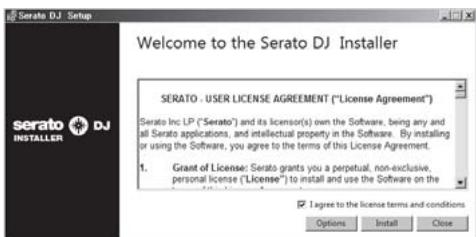
- If you do not agree to the contents of the usage agreement, click [Close] to cancel installation.
Installation begins.
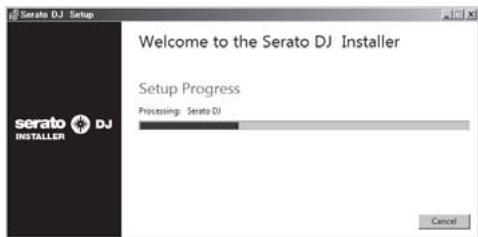
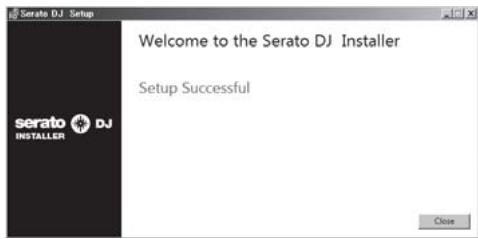
The message of successful installation appears once installation is completed.
11 Click [Close] to quit the Serato DJ installer.
Installation procedure (Mac OS X)
Do not connect this unit and the computer until installation is completed.
• If any other programs are running on the computer, quit them.
1 Insert the CD-ROM into the computer's CD drive.
The CD-ROM menu is displayed.
- Double-click the CD icon on the desktop when folders are not displayed after a CD-ROM has been loaded.
2 Double-click [CD\_menu.app].
3 Select [Download Serato DJ Software.] from the CD-ROM's menu, then click [Start].
4 "An internet environment is required to access the site. Connected to the internet?" is displayed. Click [Yes].
The web browser is launched and the Pioneer DJ support site is displayed.
5 Click [Software Info] under [DJM-900SRT] on the Pioneer DJ support site.
[Serato DJ Support Information] is displayed.
6 Click the link to the Serato DJ download page.
The Serato DJ download page is displayed.
7 Log in to your "Serato.com" user account.
- If you have already registered a user account on "Serato.com", proceed to step 8.
- If you have not completed registering your user account, do so following the procedure below.
— Following the instructions on the screen, input your e-mail address and the password you want to set, then select the region in which you live.
— If you check [E-mail me Serato newsletters], newsletters providing the latest information on Serato products will be sent from Serato.
— Once user account registration is completed, you will receive an e-mail at the e-mail address you have input. Check the contents of the e-mail sent from "Serato.com". - Be careful not to forget the e-mail address and password specified when you performed user registration. They will be required for updating the software.
- The personal information input when registering a new user account may be collected, processed and used based on the privacy policy on the Serato website.
8 Click the link in the e-mail message sent from "Serato.com".
This takes you to the Serato DJ download page. Proceed to step 9.
9 Log in.
Input the e-mail address and password you have registered to log in to "Serato.com".
10 Download the Serato DJ software from the download page.
Unzip the downloaded file, then double-click the unzipped file to launch the installer.
11 Read the terms of the license agreement carefully, and if you agree, click [Agree].
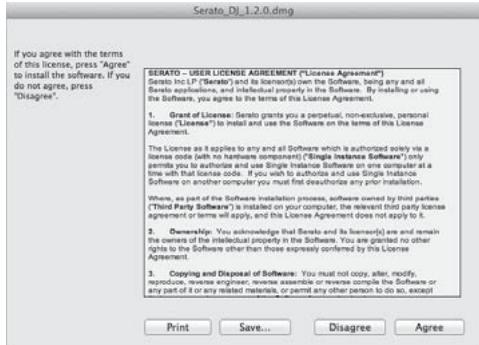
- If you do not agree to the contents of the usage agreement, click [Disagree] to cancel installation.
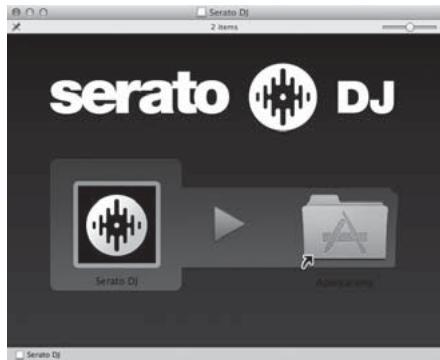
12 If the following screen appears, drag and drop the [Serato DJ] icon on the [Applications] folder icon.
Connections
Be sure to turn off the power and unplug the power cord from the power outlet whenever making or changing connections.
Connect the power cord after all the connections between devices have been completed.
Be sure to use the included power cord.
Refer to the operating instructions for the component to be connected.
- When creating a DVS (Digital Vinyl System) combining a computer, audio interface, etc., be careful in connecting the audio interface to this unit's input terminals and in the settings of the input selector switches.
Also refer to the operating instructions of the DJ software and audio interface.
Rear panel
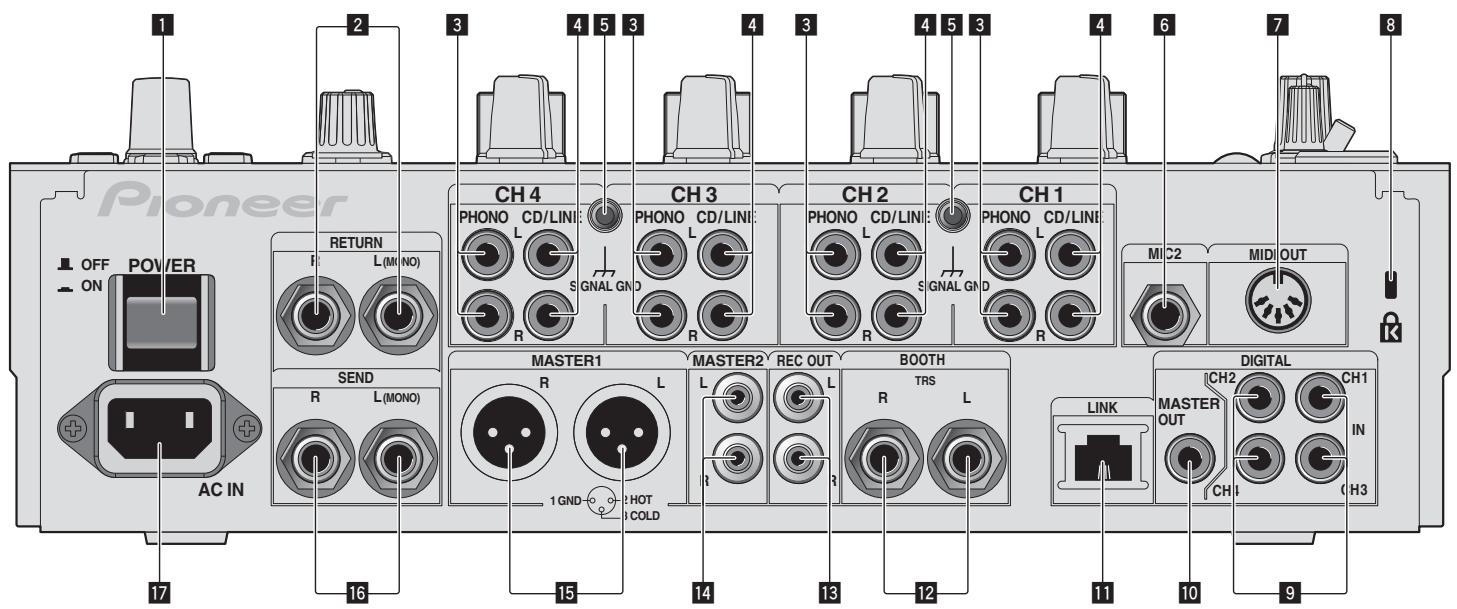
1 POWER button (page 14)
Turns this unit's power on and off.
2 RETURN terminals (page 11)
Connect to the output terminal of an external effector. When the [L (MONO)] channel only is connected, the [L (MONO)] channel input is simultaneously input to the [R] channel.
3 PHONO terminals (page 11)
Connect to a phono level (MM cartridge) output device. Do not input line level signals.
To connect a device to the [PHONO] terminals, remove the short-circuit pin plug inserted in the terminals.
Insert this short-circuit pin plug into the [PHONO] terminals when nothing is connected to them to cut external noise.
4 CD/LINE terminals (page 11)
Connect to a DJ player or a line level output component.
5 SIGNAL GND terminal (page 11)
Connects an analog player's ground wire here. This helps reduce noise when the analog player is connected.
6 MIC2 terminal (page 11)
Connects a microphone here.
7 MIDI OUT terminal (page 11)
Connects this to the MIDI IN terminal on an external MIDI sequencer.
8 Kensington security slot
9 DIGITAL IN terminal (page 11)
Connect these to the digital coaxial output terminals on DJ players, etc. The sound may be momentarily interrupted when the output signal sampling frequency is switched.
10 DIGITAL MASTER OUT terminal (page 11)
Outputs the master channel audio signals.
11 LINK terminal (page 11)
Connect these to the LINK terminals on Pioneer DJ players or the LAN ports of computers on which rekordbox is installed (PRO DJ LINK).
To connect multiple devices, use a switching hub (commercially available).
Use a 100Base-TX-compatible switching hub. Some switching hubs may not operate properly.
12 BOOTH terminals (page 11)
These are output terminals for a booth monitor.
13 REC OUT terminals (page 11)
These are output terminals for recording.
14 MASTER2 terminals (page 11)
Connect to a power amplifier, etc.
15 MASTER1 terminals (page 11)
Connect to a power amplifier, etc.
Be sure to use these as balanced outputs. Be careful not to accidentally insert the power cord of another unit.
16 SEND terminals (page 11)
Connect to the input terminal of an external effector. When the [L (MONO)] channel only is connected, a monaural audio signal is output.
17 AC IN
Connects to a power outlet using the included power cord. Wait until all connections between the equipment are completed before connecting the power cord. Be sure to use the included power cord.
WARNING
The short-circuit pin plugs out of the reach of children and infants. If accidentally swallowed, contact a doctor immediately.
Connecting input terminals
- When creating a DVS (Digital Vinyl System) combining a computer, audio interface, etc., be careful in connecting the audio interface to this unit's input terminals and in the settings of the input selector switches.
Also refer to the operating instructions of the DJ software and audio interface.
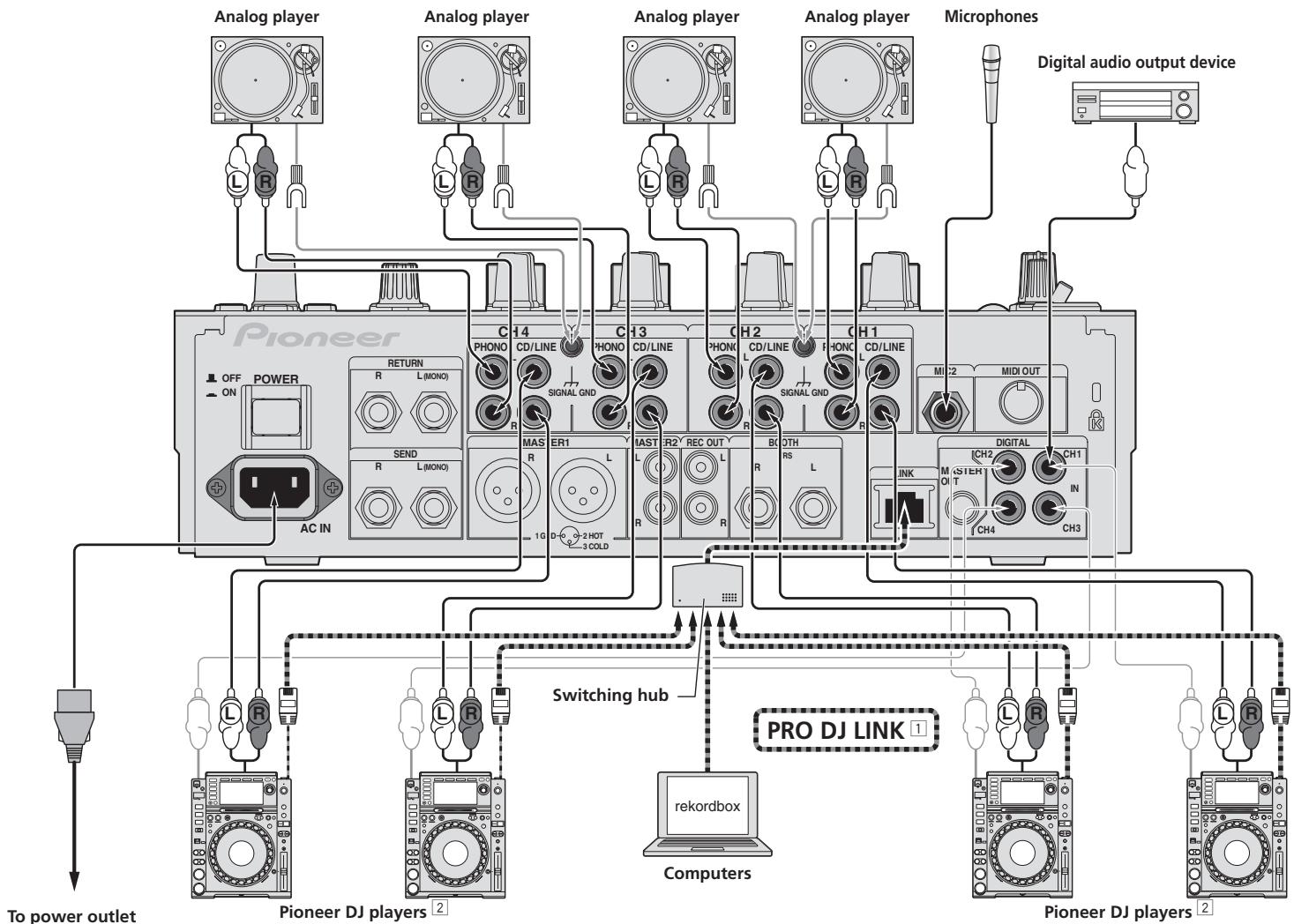
flowchart
graph TD
    A["To power outlet"] --> B["Pioneer DJ players 2"]
    A --> C["Pioneer DJ players 2"]
    D["Analog player"] --> E["AC IN"]
    F["Analog player"] --> G["R"]
    H["Analog player"] --> I["L (MONO)"]
    J["Analog player"] --> K["R"]
    L["Analog player"] --> M["L (MONO)"]
    N["Analog player"] --> O["R"]
    P["Analog player"] --> Q["L (MONO)"]
    R["Analog player"] --> S["R"]
    T["Analog player"] --> U["L (MONO)"]
    V["Analog player"] --> W["R"]
    X["Analog player"] --> Y["L (MONO)"]
    Z["Analog player"] --> AA["R"]
    AB["Analog player"] --> AC["L (MONO)"]
    AD["Analog player"] --> AE["R"]
    AF["Analog player"] --> AG["L (MONO)"]
    AH["Analog player"] --> AI["R"]
    AJ["Analog player"] --> AK["L (MONO)"]
    AL["Analog player"] --> AM["R"]
    AN["Analog player"] --> AO["L (MONO)"]
    AP["Analog player"] --> AQ["R"]
    AR["Analog player"] --> AS["L (MONO)"]
    AT["Analog player"] --> AU["R"]
    AV["Analog player"] --> AW["L (MONO)"]
    AX["Analog player"] --> AY["R"]
    AZ["Analog player"] --> BA["L (MONO)"]
    BB["Analog player"] --> BC["R"]
    BD["Analog player"] --> BE["L (MONO)"]
    BF["Analog player"] --> BG["R"]
    BH["Analog player"] --> BI["L (MONO)"]
    BJ["Analog player"] --> BK["R"]
    BL["Analog player"] --> BM["L (MONO)"]
    BN["Analog player"] --> BO["R"]
    BP["Analog player"] --> BQ["L (MONO)"]
    BR["Analog player"] --> BS["R"]
    BT["Analog player"] --> BU["L (MONO)"]
    BV["Analog player"] --> BW["R"]
    BX["Analog player"] --> BY["L (MONO)"]
    BZ["Analog player"] --> CA["R"]
    CB["Analog player"] --> CC["L (MONO)"]
    DD["Analog player"] --> DE["R"]
    DF["Analog player"] --> DG["L (MONO)"]
    DH["Analog player"] --> DI["R"]
    DJ["Analog player"] --> DK["L (MONO)"]
    DL["Analog player"] --> DM["R"]
    DN["Analog player"] --> DE
    DO["Analog player"] --> DA["L (MONO)"]
    DB["Analog player"] --> DC["R"]
    DDY["Analog player"] --> DDY["L (MONO)"]
    DY["Analog player"] --> DYR["R"]
    DYX["Analog player"] --> DYX["L (MONO)"]
    DYX --> DYX1["R"]
    DYX1 --> DYX2["L (MONO)"]
    DYX2 --> DYX3["R"]
    DYX3 --> DYX4["L (MONO)"]
    DYX4 --> DYX5["R"]
    DYX5 --> DYX6["L (MONO)"]
    DYX6 --> DYX7["R"]
    DYX7 --> DYX8["L (MONO)"]
    DYX8 --> DYX9["R"]
    DYX9 --> DYX10["L (MONO)"]
    DYX10 --> DYX11["R"]
    DYX11 --> DYX12["L (MONO)"]
    DYX12 --> DYX13["R"]
    DYX13 --> DYX14["L (MONO)"]
    DYX14 --> DYX15["R"]
    DYX15 --> DYX16["L (MONO)"]
    DYX16 --> DYX17["R"]
    DYX17 --> DYX18["L (MONO)"]
    DYX18 --> DYX19["R"]
    DYX19 --> DYX20["L (MONO)"]
    DYX20 --> DYX21["R"]
    DYX21 --> DYX22["L (MONO)"]
    DYX22 --> DYX23["R"]
    DYX23 --> DYX24["L (MONO)"]
    DYX24 --> DYX25["R"]
    DYX25 --> DYX26["L (MONO)"]
    DYX26 --> DYX27["R"]
    DYX27 --> DYX28["L (MONO)"]
    DYX28 --> DYX29["R"]
    DYX29 --> DYX30["L (MONO)"]
    DYX30 --> DYX31["R"]
    DYX31 --> DYX32["L (MONO)"]
    DYX32 --> DYX33["R"]
    DYX33 --> DYX34["L (MONO)"]
    DYX34 --> DYX35["R"]
    DYX35 --> DYX36["L (MONO)"]
    DYX36 --> DYX37["R"]
    DYX37 --> DYX38["L (MONO)"]
    DYX38 --> DYX39["R"]
    DYX39 --> DYX40["L (MONO)"]
    DYX40 --> DYX41["R"]
    DYX41 --> DYX42["L (MONO)"]
    DYX42 --> DYX43["R"]
    DYX43 --> DYX44["L (MONO)"]
    DYX44 --> DYX45["R"]
    DYX45 --> DYX46["L (MONO)"]
    DYX46 --> DYX47["R"]
    DYX47 --> DYX48["L (MONO)"]
    DYX48 --> DYX49["R"]
    DYX49 --> DYX50["L (MONO)"]
    DYX50 --> DYX51["R"]
    DYX51 --> DYX52["L (MONO)"]
    DYX52 --> DYX53["R"]
    DYX53 --> DYX54["L (MONO)"]
    DYX54 --> DYX55["R"]
    DYX55 --> DYX56["L (MONO)"]
    DYX56 --> DYX57["R"]
    DYX57 --> DYX58["L (MONO)"]
    DYX58 --> DYX59["R"]
    DYX59 --> DYX60["L (MONO)"]
    DYX60 --> DYX61["R"]
    DYX61 --> DYX62["L (MONO)"]
    DYX62 --> DYX63["R"]
    DYX63 --> DYX64["L (MONO)"]
    DYX64 --> DYX65["R"]
    DYX65 --> DYX66["L (MONO)"]
    DYX66 --> DYX67["R"]
    DYX67 --> DYX68["L (MONO)"]
    DYX68 --> DYX69["R"]
    DYX69 --> DYX70["L (MONO)"]
    DYX70 --> DYX71["R"]
    DYX71 --> DYX72["L (MONO)"]
    DYX72 --> DYX73["R"]
    DYX73 --> DYX74["L (MONO)"]
    DYX74 --> DYX75["R"]
    DYX75 --> DYX76["L (MONO)"]
    DYX76 --> DYX77["R"]
    DYX77 --> DYx78["L (MONO)"]
    DYx78 --> LYNDL
    LYNDL1 <--> LR
    LYNDL2 <--> LR
    LYNDL3 <--> LR
    LYNDL4 <--> LR
    LYNDL5 <--> LR
    LYNDL6 <--> LR
    LYNDL7 <--> LR
    LYNDL8 <--> LR
    LYNDL9 <--> LR
    LYNDL10 <--> LR
    LYNDL11 <--> LR
    LYNDL12 <--> LR
    LYNDL13 <--> LR
    LYNDL14 <--> LR
    LYNDL15 <--> LR
    LYNDL16 <--> LR
    LYNDL17 <--> LR
    LYNDL18 <--> LR
    LYNDL19 <--> LR
    LYNDL20 <--> LR
    LYNDL21 <--> LR
    LYNDL22 <--> LR
    LYNDL23 <--> LR
    LYNDL24 <--> LR
    LYNDL25 <--> LR
    LYNDL26 <--> LR
    LYNDL27 <--> LR
    LYNDL28 <--> LR
    LYNDL29 <--> LR
    LYNDL30 <--> LR
    LYNDL31 <--> LR
    LYNDL32 <--> LR
    LYNDL33 <--> LR
    LYNDL34 <--> LR
    LYNDL35 <--> LR
    LYNDL36 <--> LR
    LYNDL37 <--> LR
    LYNDL38 <--> LR
    LYNDL39 <--> LR
    LYNDL40 <--> LR

    subgraph Pro DJ LINK 1
        direction TB
        direction TB
        direction TB
        direction TB
        direction TB
        direction TB
        direction TB
        direction TB
        direction TB
        direction TB
        direction TB
        direction TB
        direction TB
        direction TB
        direction TB
        direction TB
        direction TB
        direction TB
        direction TB
        direction TB
        direction TB
        direction TB
        direction TB
        direction TB
        direction TB
        direction TD
        direction TB
        direction TB
        direction TB
        direction TB
        direction TB
        direction TB
        direction TB
        direction TB
        direction TB
        direction TB
        direction TB
        direction TB
        direction TB
        direction TB
        direction TB
        direction TB
        direction TB
        direction TB
        direction TB
        direction TB
        direction TB
        direction TB
        direction TB
        direction TB
        direction TC
        direction TC
        direction TC
        direction TC
        direction TC
        direction TC
        direction TC
        direction TC
        direction TC
        direction TC
        direction TC
        direction TC
        direction TC
        direction TC
        direction TC
        direction TC
        direction TC
        direction TC
        direction TC
        direction TC
        direction TC
        direction TC
        direction TC
        direction TC
        direction TC
        direction SC
        direction SC
        direction SC
        direction SC
        direction SC
        direction SC
        direction SC
        direction SC
        direction SC
        direction SC
        direction SC
        direction SC
        direction SC
        direction SC
        direction SC
        direction SC
① For details on PRO DJ LINK, see About PRO DJ LINK on page 15.
2 To use the fader start function with PRO DJ LINK, connect a LAN cable (page 16).
Connecting output terminals
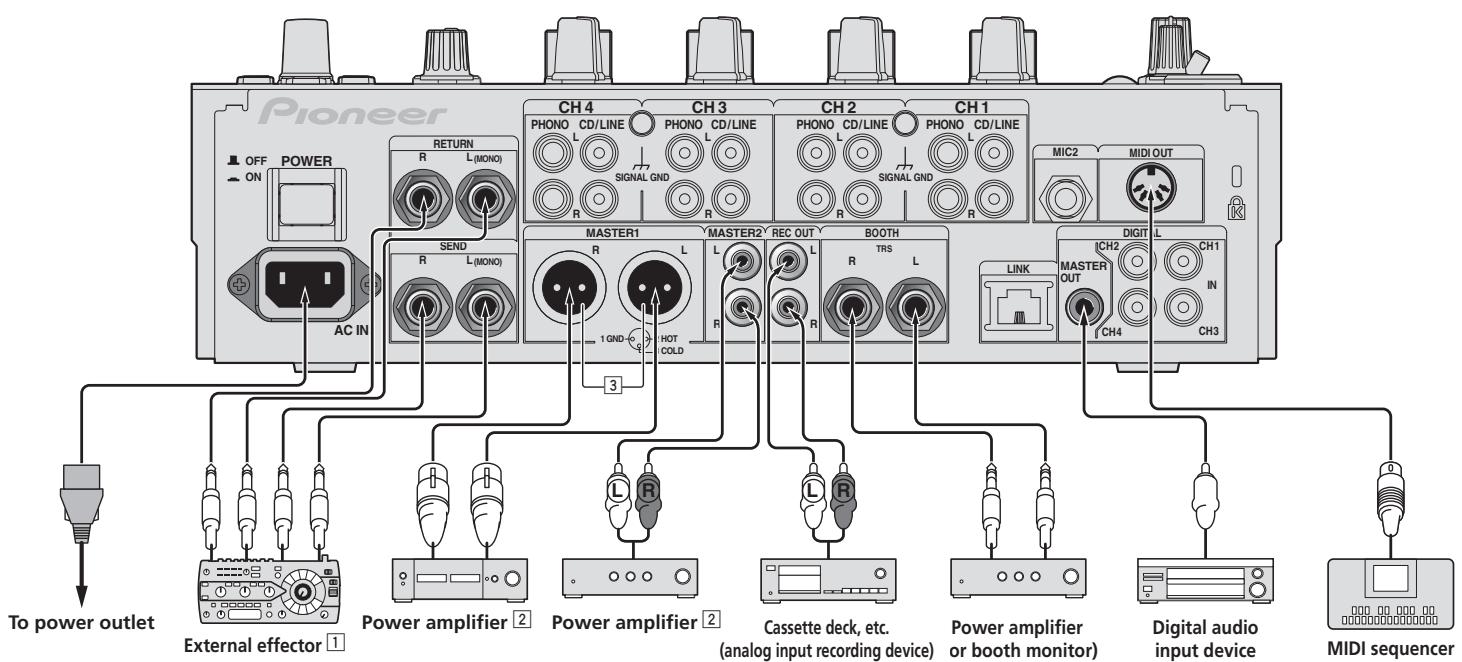
flowchart
graph TD
    A["Pioneer"] --> B["CH 4"]
    A --> C["CH 3"]
    A --> D["CH 2"]
    A --> E["CH 1"]
    B --> F["RETURN"]
    B --> G["SEND"]
    B --> H["AC IN"]
    C --> I["PHONO CD/LINE"]
    C --> J["PHONO CD/LINE"]
    C --> K["SIGNAL GND"]
    D --> L["PHONO CD/LINE"]
    D --> M["PHONO CD/LINE"]
    D --> N["SIGNAL GND"]
    E --> O["MIC2"]
    E --> P["MIDI OUT"]
    F --> Q["MASTER1"]
    F --> R["MASTER2"]
    F --> S["REC OUT"]
    F --> T["BOOTH"]
    G --> U["R"]
    G --> V["L"]
    G --> W["HOT COLD"]
    H --> X["R"]
    H --> Y["L"]
    H --> Z["R"]
    I --> AA["LINK"]
    I --> AB["DIGIT L"]
    I --> AC["CH2"]
    I --> AD["CH1"]
    I --> AE["CH4"]
    J --> AF["POWER amplifier 2"]
    K --> AG["POWER amplifier 2"]
    L --> AH["Cassette deck, etc. (analog input recording device)"]
    M --> AI["Power amplifier or booth monitor"]
    N --> AJ["Digital audio input device"]
    O --> AK["MIDI sequencer"]
1 Also connect the external effector to the [RETURN] terminal (input terminal).
② Be sure to use the [MASTER1] terminals only for a balanced output. Connection with an unbalanced input (such as RCA) using an XLR to RCA converter cable (or converter adapter), etc., may lower the sound quality and/or result in noise.
For connection with an unbalanced input (such as RCA), use the [MASTER2] terminals.
3 Be careful not to accidentally insert the power cord of another unit to [MASTER1] terminal.
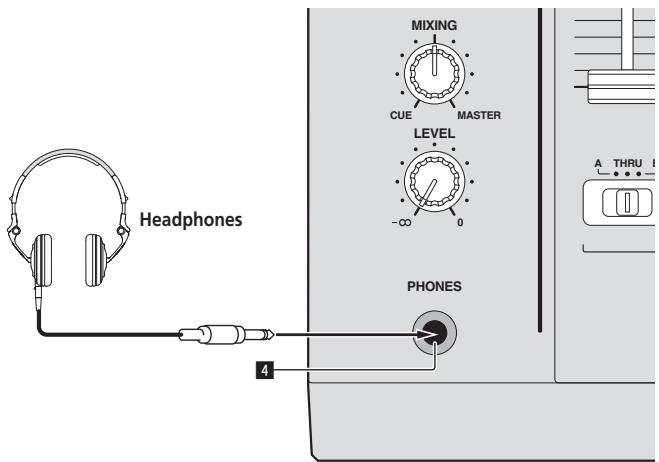
Connecting to the control panel
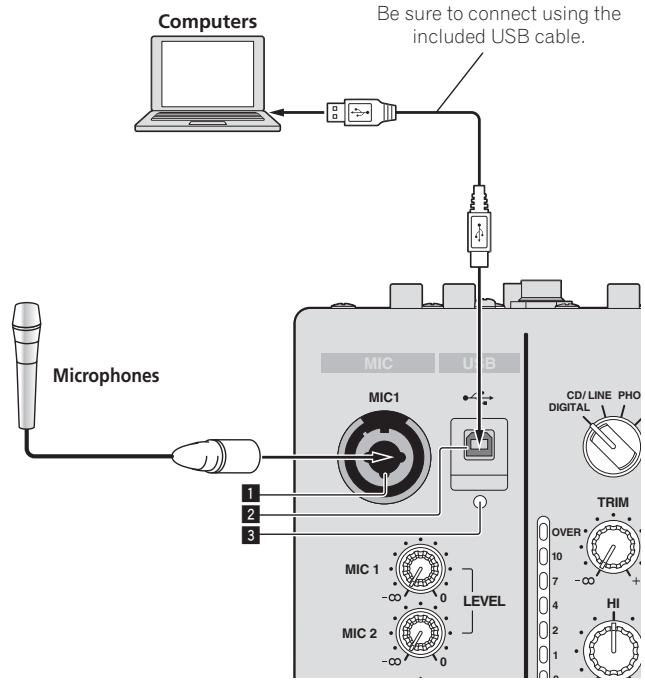
1 MIC1 terminal (page 15)
Connects a microphone here.
2 USB terminal (page 12)
Connect the computer.
3 USB connection indicator
Lights when signals are being exchanged with the computer.
4 PHONES terminal (page 14)
Connect headphones here.
Connecting this unit and computer
For instructions on operating in combination with Serato DJ, see the “Quick Start Guide – Serato DJ Edition”. For details, see Downloading the latest versions of the operating instructions and the Quick Start Guide - Serato DJ Edition (p.28).
1 Connect this unit to your computer via a USB cable.
This unit functions as an audio device conforming to the ASIO standards.
• This operation does not work with computers that do not support USB 2.0.
- When using ASIO-compatible applications, [USB DECK 3], [USB DECK 1], [USB DECK 2] and [USB DECK 4] can be used as inputs.
- When using DirectX-compatible applications, only [USB DECK 3] can be used as the input.
- The computer's recommended operating environment depends on the DJ application. Be sure to check the recommended operating environment for the DJ application you are using.
- When another USB audio device is connected to the computer at the same time, it may not operate or be recognized normally.
We recommend only connecting the computer and this unit.
- When connecting the computer and this unit, we recommend connecting directly to this unit's USB port.
2 Press [POWER] button.
Turn on the power of this unit.
- For Windows
— The message [Installing device driver software] may appear when this unit is first connected to the computer or when it is connected to a different USB port on the computer. Wait a while until the message [Your devices are ready for use] appears.
- When installing on Windows XP
— [Can Windows connect to Windows Update to search for software?] may appear while the installation is in progress. Select [No, not this time], then click [Next] to continue installation.
— [What do you want the wizard to do?] may appear while the installation is in progress. Select [Install the software automatically (Recommended)], then click [Next] to continue installation.
— If [Windows Security] appears on the screen while the installation is in progress, click [Install this driver software anyway] and continue with the installation.
Control Panel
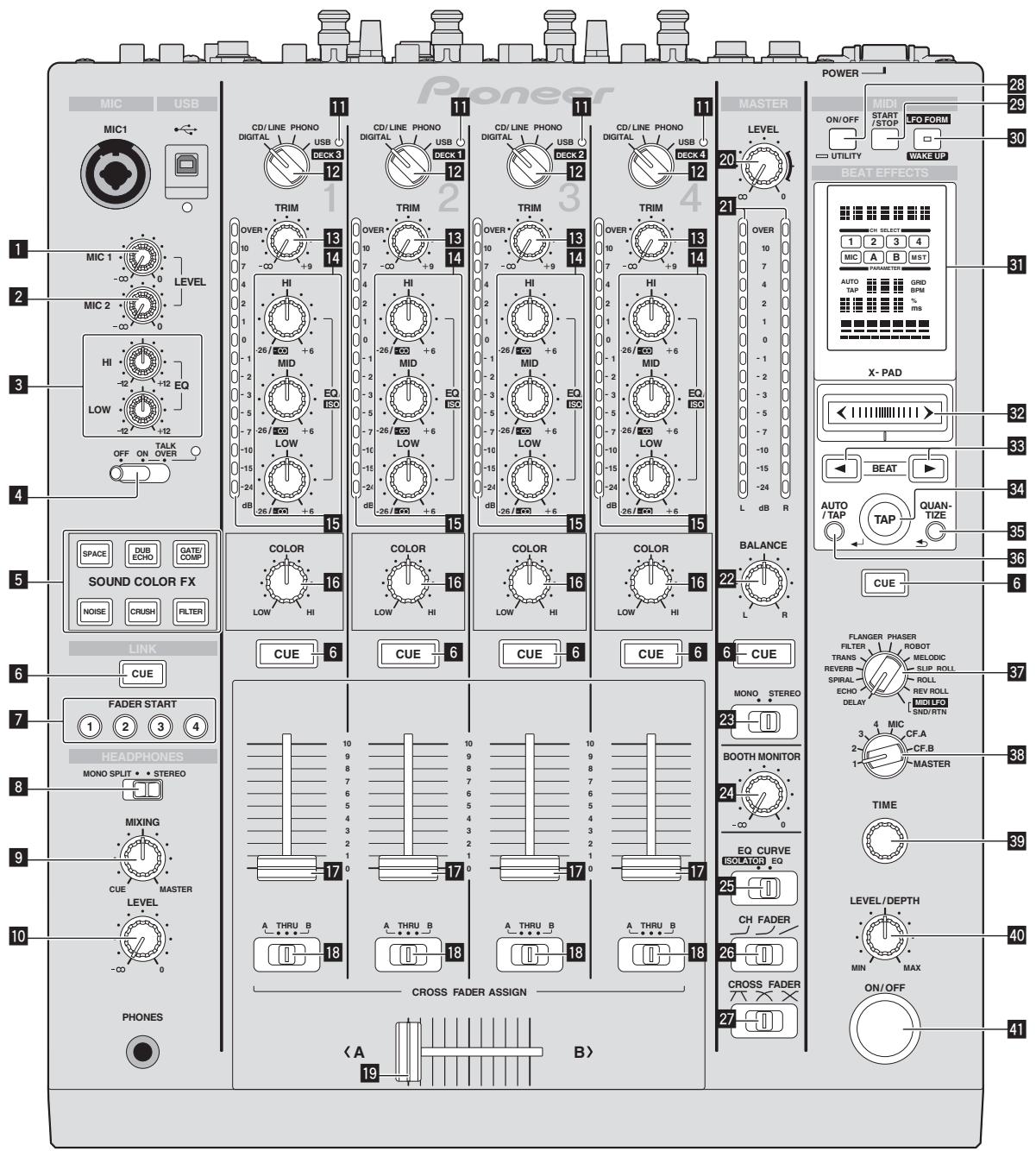
1 MIC1 LEVEL control (page 15)
Adjusts the sound level output from the [MIC1] channel.
2 MIC2 LEVEL control (page 15)
Adjusts the sound level output from the [MIC2] channel.
3 EQ (HI, LOW) controls (page 15)
These adjust the tone quality of the [MIC1] and [MIC2] channels.
4 OFF, ON, TALK OVER selector switch (page 15)
Turns the microphone on/off.
5 SOUND COLOR FX buttons (page 16)
These turn the SOUND COLOR FX effects on/off.
6 CUE button (page 14)
Presses the [CUE] button(s) for the channel(s) you want to monitor.
7 FADER START (1, 2, 3, 4) buttons (page 16)
These turn the fader start function on/off.
8 MONO SPLIT, STEREO selector switch (page 14)
Switches how the monitor sound output from the headphones is distributed.
9 MIXING control (page 14)
This adjusts the monitor volume balance of the sound of channels for which the [CUE] button is pressed and the sound of the [MASTER] channel.
10 LEVEL control (page 14)
Adjusts the sound level output from the headphones.
11 USB audio input indicator
Lights when sound is being input from the computer to the various channels.
12 Input selector switches (page 14)
Selects the input source of each channel from the components connected to this unit.
13 TRIM control (page 14)
Adjusts the level of audio signals input in each channel.
14 EQ/ISO (HI, MID, LOW) controls (page 14)
These adjust the sound quality of the respective channels.
15 Channel Level Indicator (page 14)
Displays the sound level of the respective channels before passing through the channel faders.
16 COLOR control (page 16)
This changes the parameters of the SOUND COLOR FX of the different channels.
17 Channel Fader (page 14)
Adjusts the level of audio signals output in each channel.
18 CROSS FADER ASSIGN (A, THRU, B) selector switch (page 14)
Sets the output destination of each channel to [A] or [B].
19 Crossfader (page 14)
Outputs audio signals assigned by the crossfader assign switch corresponding to the curve characteristics selected by [CROSS FADER] (Crossfader Curve Selector Switch).
20 MASTER LEVEL control (page 14)
Adjusts the audio level output from the [MASTER1] and [MASTER2] terminals.
21 Master Level Indicator (page 14)
Displays the audio level output from the [MASTER1] and [MASTER2] terminals.
22 BALANCE control (page 15)
Adjusts the left/right balance of the sound output from the [MASTER1] terminals, etc.
23 MONO, STEREO selector switch (page 15)
Switches the sound output from the [MASTER1] terminals, etc., between monaural and stereo.
24 BOOTH MONITOR control (page 15)
Adjusts the level of audio signals output from the [BOOTH] terminal.
25 EQ CURVE (ISOLATOR, EQ) selector switch (page 14)
Switches the function of the [EQ/ISO (HI, MID, LOW)] controls.
26 CH FADER (∼, ∼, ∼) selector switch (page 15)
Switches the channel fader's curve characteristics.
27 CROSS FADER ( , × , × ) selector switch (page 15)
This switches the crossfader curve characteristics.
28 ON/OFF (UTILITY) button
— ON/OFF: Turns the MIDI function on/off (page 17).
— UTILITY: Displays the [USER SETUP] or [CLUB SETUP] screen (page 24).
29 START/STOP button (page 18)
Sends the MIDI start/MIDI stop signals.
30 LFO FORM (WAKE UP) button
— LFO FORM: When [MIDI LFO] is selected at BEAT EFFECT, the MIDI signal's waveform switches each time the button is pressed (page 20).
— WAKE UP: Cancels the auto standby mode.
31 Main unit display
32 X-PAD (page 17)
Adjusts the quantitative parameter of the BEAT EFFECT function.
33 BEAT ◀, ▶ buttons (page 16)
Set the beat fraction for synchronizing the effect sound.
34 TAP (ENTER) button
— TAP: When the BPM measurement mode is set to [TAP], the BPM is input manually by tapping the button with a finger (page 16).
— ENTER: Used to change this unit's settings (page 24).
35 QUANTIZE button
When the QUANTIZE function is turned on for BEAT EFFECT, the effect is applied to the sound without going off tempo when the currently playing track. (page 15).
36 AUTO/TAP button (page 16)
Switches the BPM measurement mode.
37 Beat effect selector switch (page 16)
Switches the BEAT EFFECT effect type.
38 Effect channel selector switch (page 16)
Switches the channel to which the BEAT EFFECT is to be applied.
39 TIME control (page 16)
Adjusts the BEAT EFFECT's time parameter.
40 LEVEL/DEPTH control (page 16)
Adjusts the BEAT EFFECT's quantitative parameter.
41 ON/OFF button (page 16)
Turns the BEAT EFFECT function on/off.
Do not pull on the channel fader and crossfader knobs with excessive force. The knobs have a structure by which they cannot be pulled off easily. Pulling the knobs strongly may result in damaging the unit.
Basic Operation
Outputting sound
1 Press [POWER] button.
Turn on the power of this unit.
2 Switch the input selector switches.
Selects the input sources for the different channels from among the devices connected to this unit.
— [DIGITAL]: Selects the DJ player connected to the [DIGITAL] terminals.
— [PHONO]: Selects the analog player connected to the [PHONO] terminals.
— [CD/LINE]: Selects the cassette deck or CD player connected to the [CD/LINE] terminals.
— [USB]: Selects the sound of the computer connected to the [USB] port.
3 Turn the [TRIM] control.
Adjusts the level of audio signals input in each channel.
The corresponding channel level indicator lights when audio signals are being properly input to that channel.
4 Move the channel fader away from you.
Adjusts the level of audio signals output in each channel.
5 Switch the [CROSS FADER ASSIGN (A, THRU, B)] selector switch.
Switches the output destination of each channel.
[A]: Assigns to [A] (left) of the crossfader.
— [B]: Assigns to [B] (right) of the crossfader.
— [THRU]: Selects this when you do not want to use the crossfader. (The signals do not pass through the crossfader.)
6 Set the crossfader.
This operation is not necessary when the [CROSS FADER ASSIGN (A, THRU, B)] selector switch is set to [THRU].
7 Turn the [MASTER LEVEL] control.
Audio signals are output from the [MASTER1] and [MASTER2] terminals.
The master level indicator lights.
Adjusting the sound quality
1 Switch the [EQ CURVE (ISOLATOR, EQ)] selector switch.
— [ISOLATOR]: Functions as an isolator.
— [EQ]: The equalizer function is set.
2 Turn the [EQ/ISO (HI, MID, LOW)] controls for the respective channels.
The adjustable ranges for the respective controls are as shown below.
— HI: -26 dB to +6 dB (13 kHz)
— MID: -26 dB to +6 dB (1 kHz)
— LOW: -26 dB to +6 dB (70 Hz)
Monitoring sound with headphones
1 Connect headphones to the [PHONES] terminal.
2 Press the [CUE] button(s) for the channel(s) you want to monitor.
3 Switch the [MONO SPLIT, STEREO] selector switch.
— [MONO SPLIT]: The sound of the channels for which the [CUE] button is pressed is output from the headphones output's left channel, the [MASTER] channel sound is output from the right channel.
— [STEREO]: The sound of the channels for which the [CUE] button is pressed is output from the headphones in stereo.
4 Turn the [MIXING] control.
This adjusts the monitor volume balance of the sound of channels for which the [CUE] button is pressed and the sound of the [MASTER] channel.
5 Turn the [LEVEL] control for [HEADPHONES].
The sound of the channels for which the [CUE] button is pressed is output from the headphones.
- When the [CUE] button is pressed again, monitoring is canceled.
Switching the fader curve
Select the channel fader curve characteristics
Switch the [CH FADER (∼, ∼, √)] selector switch.
— [√]: The curve rises suddenly at the back side.
— [√]: A curve between the ones above and below is set.
— [√]: The curve rises gradually (the sound gradually increases as the channel fader is moved away from the front side).
❖ Select the crossfader curve characteristics
Switch the [CROSS FADER ( , × , × )] selector switch.
— [✗]: Makes a sharply increasing curve (if the crossfader is moved away from the [A] side, audio signals are immediately output from the [B] side).
— [✗]: Makes a curve shaped between the two curves above and below.
— [X]: Makes a gradually increasing curve (if the crossfader is moved away from the [A] side, the sound on the [B] side gradually increases, while the sound on the [A] gradually decreases).
Using a microphone
1 Connect a microphone to the [MIC1] or [MIC2] terminal.
2 Set the [OFF, ON, TALK OVER] selector switch to [ON] or [TALK OVER].
— [ON]: The indicator lights.
— [TALK OVER]: The indicator flashes.
- When set to [TALK OVER], the sound of channels other than the [MIC] channel is attenuated by 18 dB (default) when a sound of -10 dB or greater is input to the microphone.
- The [TALK OVER] sound attenuation level can be changed at [USER SETUP]. For instructions on changing this, see Changing the settings on page 24.
- The talk over mode can be switched to the normal mode or the advanced mode. For instructions on changing it, see Changing the settings on page 24.
3 Turn the [MIC1 LEVEL] or [MIC2 LEVEL] control.
Adjust the level of the sound output from the [MIC] channel.
- Pay attention that rotating to the extreme right position outputs a very loud sound.
4 Input audio signals to the microphone.
❖ Adjusting the sound quality
Turn the [MIC] channels' [EQ (HI, LOW)] controls.
The adjustable ranges for the respective controls are as shown below.
— HI: -12 dB to +12 dB (10 kHz)
— LOW: -12 dB to +12 dB (100 Hz)
Switching between monaural and stereo audio
This switches the sound output from the [MASTER1], [MASTER2], [BOOTH], [REC OUT], [PHONES], [DIGITAL MASTER OUT] and [USB] terminals between monaural and stereo.
- To adjust the sound output from the [USB] terminals, select [MIX (REC OUT)] at [Mixer Audio Output] in the setting utility.
Switch the [MONO, STEREO] selector switch.
— [MONO]: Outputs monaural audio.
— [STEREO]: Outputs stereo audio.
◆ Adjusting the L/R balance of audio
The left/right balance of the sound output from the [MASTER1], [MASTER2], [BOOTH], [REC OUT], [PHONES], [DIGITAL MASTER OUT] and [USB] terminals can be adjusted.
- To adjust the sound output from the [USB] terminals, select [MIX (REC OUT)] at [Mixer Audio Output] in the setting utility.
1 Set the [MONO, STEREO] selector switch to [STEREO].
2 Turn the [BALANCE] control.
The sound's left/right balance changes according to the direction in which the [BALANCE] control is turned and its position.
- Rotating to the rightmost position outputs only the right sound of stereo audio. Rotating to the leftmost position outputs only the left sound of stereo audio.
Audio is output from the [BOOTH] terminal
Turn the [BOOTH MONITOR] control.
Adjusts the level of audio signals output from the [BOOTH] terminal.
Advanced Operations
Using Serato DJ-supported functions
When this unit and a computer on which Serato DJ is running are connected by USB cable, the functions below can be used.
QUANTIZE
When tracks that have been analyzed with Serato DJ are used, tracks are put on beat even if the [BEAT EFFECTS] [ON/OFF] button is pressed or the [X-PAD] is touched roughly.
FADER START
Playback of tracks in Serato DJ can be started by operating this unit's fader (Fader Start Play).
About PRO DJ LINK
When a Pioneer DJ player supporting PRO DJ LINK (e.g. CDJ-2000nexus, CDJ-2000, CDJ-900), a computer on which rekordbox is installed and this unit are connected by LAN cable, the PRO DJ LINK functions below can be used.
For more details on the PRO DJ LINK function, also refer to the DJ player's handling instructions and rekordbox's operating instructions.
For instructions on connections, see Connecting input terminals on page 11.
- When connected using a switching hub, up to 4 DJ players and 2 computers can be connected.
- Use a 100Base-TX-compatible switching hub. Some switching hubs may not operate properly.
- Set the DJ player's player number to the same number as the channel to which the audio cable is connected.
QUANTIZE
When tracks analyzed with rekordbox are used, the track is put on beat even when the [ON/OFF] button of [BEAT EFFECTS] is pressed or the [X-PAD] is touched roughly.
FADER START
Playback on the DJ player can be started by operating this unit's fader (Fader Start Play).
LINK MONITOR
With this function, rekordbox music files stored on the computer can be quickly monitored over the headphones.
STATUS INFORMATION
This function informs the DJ players of the connected channel status (on-air status, channel number, etc.).
Using the QUANTIZE function
Effects can be applied to the sound in tempo with the currently playing track based on the GRID information of tracks that have been analyzed with Serato DJ or rekordbox.
To use the QUANTIZE function with PRO DJ LINK, connect this unit and a PRO DJ LINK-compatible Pioneer DJ player beforehand. For instructions on connecting, see Connecting input terminals on page 11.
In addition, music files must have been analyzed with rekordbox beforehand in order to use the QUANTIZE function. For instructions on analyzing music files with rekordbox, also see rekordbox's operating instructions.
- When using in combination with the CDJ-2000nexus, first update the firmware to version 1.02 or later.
- To use in combination with the CDJ-2000 or CDJ-900, first update the firmware to version 4.0 or later.
1 Press the [QUANTIZE] button.
The QUANTIZE function turns on.
[GRID] lights on this unit's main unit display when the GRID information has been properly received from Serato DJ or the DJ player and the QUANTIZE function can be used. [GRID] flashes if the GRID information has not been properly received.
- Depending on the playing status of Serato DJ or the DJ player (off air, scratching, playing in reverse, etc.), it may not be possible to receive the GRID information.
2 Press the [ON/OFF] button of [BEAT EFFECTS] or touch the [X-PAD].
The effect is added to the sound in tempo with the track being played.
- When the [QUANTIZE] button is pressed again, the QUANTIZE function turns off.
Using the FADER START function
When this unit and a computer on which Serato DJ is running are connected by USB cable, such operations as starting playback of tracks in Serato DJ can be controlled using this unit's fader.
Connect this unit and a computer on which Serato DJ is running beforehand. In the same way, when this unit and a Pioneer DJ player are connected by LAN cable, such operations as starting playback of the DJ player can be controlled using this unit's fader.
Connect the Pioneer DJ player and this unit beforehand. For instructions on connecting, see Connecting input terminals on page 11.
For instructions on setting the player numbers of Pioneer DJ players, see About PRO DJ LINK on page 15.
The fader start function can be switched on and off for all DJ players all at once. For the switching procedure, see Changing the settings on page 24.
- The FADER START function cannot be used when attempting to perform DVS control while Serato DJ is set to the Absolute mode. When one of the [FADER START (1, 2, 3, 4)] buttons is pressed while the Absolute mode is set, that button flashes then turns off.
◆ Start playback using the channel fader
1 Set the [CROSS FADER ASSIGN (A, THRU, B)] selector switch to [THRU].
2 Press one of the [FADER START (1, 2, 3, 4)] buttons.
Select the channel to be started with the fader start function.
- For Serato DJ
— [Fader Start 1] button: Selects [DECK 3].
— [Fader Start 2] button: Selects [DECK 1].
— [Fader Start 3] button: Selects [DECK 2].
— [Fader Start 4] button: Selects [DECK 4].
3 Set the channel fader to the nearest position towards you.
4 Set a cue in Serato DJ or on the DJ player.
The track cues to the cue point and the pause mode is set.
5 Move the channel fader away from you.
Playback of the track in Serato DJ or the DJ player starts.
- If you set the channel fader back to the original position, the player instantaneously returns to the cue point already set and pauses playback (back cue).
◆ Start playback using the crossfader
1 Set the [CROSS FADER ASSIGN (A, THRU, B)] selector switch to [A] or [B].
2 Press one of the [FADER START (1, 2, 3, 4)] buttons.
Select the channel to be started with the fader start function.
- For Serato DJ
— [Fader Start 1] button: Selects [DECK 3].
— [Fader Start 2] button: Selects [DECK 1].
— [Fader Start 3] button: Selects [DECK 2].
— [Fader Start 4] button: Selects [DECK 4].
3 Set the crossfader.
Set to the edge opposite the side on which the channel you want to use with the fader start function is set.
4 Set a cue in Serato DJ or on the DJ player.
The track cues to the cue point and the pause mode is set.
5 Set the crossfader.
Playback of the track in Serato DJ or the DJ player starts.
- If you set the crossfader back to the original position, the player instantaneously returns to the cue point already set and pauses playback (back cue).
Using the LINK MONITOR function
- Check [Use "LINK MONITOR" of Pioneer DJ Mixers.] at [File] > [Preferences] > [Audio] in rekordbox beforehand. Also refer to the rekordbox operating instructions.
1 Connect headphones to the [PHONES] terminal.
2 Connect a computer on which rekordbox is installed.
For instructions on connections, see Connecting input terminals on page 11.
3 Selecting the track to be monitored with rekordbox.
4 Press the [CUE] button for [LINK].
The track selected with rekordbox is output from the headphones.
- When the [CUE] button is pressed again, monitoring is canceled.
- The same operation as at Monitoring sound with headphones (steps 3 to 5) can be performed.
Using the SOUND COLOR FX function
These are effects that change in association with the [COLOR] control.
1 Press one of the [SOUND COLOR FX] selection buttons.
This selects the type of effect.
The button that was pressed flashes.
- Even if one of the [SOUND COLOR FX] selection buttons is already selected, when a different button is selected and pressed, that button is selected.
- For the types of effects, see Types of SOUND COLOR FX effects on page 19.
• The same effect is set for [CH1] to [CH4].
2 Turn the [COLOR] control.
The effect is applied to the channel(s) for which the control(s) was (were) pressed.
◆ Canceling the SOUND COLOR FX effect
Press the [SOUND COLOR FX] selection button that is flashing.
The effect is canceled.
Using the BEAT EFFECT function
This function lets you instantaneously set various effects according to the tempo (BPM = Beats Per Minute) of the currently playing track.
Main unit display
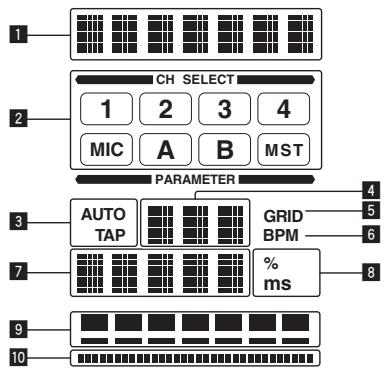
flowchart
graph TD
    A["1"] --> B["CH SELECT"]
    C["2"] --> B
    B --> D["1"]
    B --> E["2"]
    B --> F["3"]
    B --> G["4"]
    B --> H["MIC"]
    B --> I["A"]
    B --> J["B"]
    B --> K["MST"]
    L["3"] --> M["AUTO TAP"]
    M --> N["GRID"]
    M --> O["BPM"]
    P["7"] --> Q["% ms"]
    Q --> R["8"]
    S["9"] --> T
    U["10"] --> V
    W["4"] --> X
    Y["5"] --> X
    Z["6"] --> X
    AA["8"] --> AB
| 1 | Effect display section | The name of the selected effect is displayed. |
| 2 | Channel select display section | The name of the channel to which the effect is applied is displayed. |
| 3 | AUTO (TAP) | [AUTO] lights when the BPM measurement mode is set to the auto mode.[TAP] lights when in the manual input mode. |
| 4 | BPM value display (3 digits) | When in the auto mode, this displays the automatically detected BPM value.When the BPM cannot be detected, the previously detected BPM value is displayed and flashes.When in the manual input mode, this displays the BPM value that was input manually. |
| 5 | GRID | This lights when Serato DJ is running and the QUANTIZE function can be used. It also lights when playing a track that has been analyzed with rekordbox and the QUANTIZE function can be used in combination with the DJ player. It flashes or is off when the QUANTIZE function cannot be used. |
| 6 | BPM | This is always lit. |
| 7 | Parameter display section | This displays the parameters specified for the individual effects.When the [BEAT ◀, ►] button is pressed, the corresponding beat fraction is displayed for 1 second.When a value outside the parameter range is specified with the [BEAT ◀, ►] button, the value does not change and the display flashes. |
| 8 | % (ms) | These light according to the units for the different effects. |
| 9 | Beat display section | This lights according to the selected beat number position. |
| 10 | Touch display section | This lights when the [X-PAD] is touched. |
1 Press [AUTO/TAP] button.
Select the BPM measurement mode.
— [AUTO]: The BPM is measured automatically from the audio signal that is being input. The [AUTO] mode is set when this unit's power is turned on.
— [TAP]: The BPM is input manually by tapping the [TAP] button with a finger.
- The [AUTO] BPM measurement range is BPM = 70 to 180. With some tracks it may not be possible to measure the BPM correctly. If the BPM cannot be measured, the BPM value on the display flashes. In such cases, use the [TAP] button to input the BPM manually.
2 Turn the beat effect selector switch.
This selects the type of effect.
• For the types of effects, see Types of BEAT EFFECT on page 19.
• To use [SND/RTN], see Using the external effector below.
• To use [MIDI LFO], see Using the MIDI LFO on page 17.
3 Turn the effect channel selector switch.
This selects the channel to which the effect is applied.
— [1] – [4]: The effect is applied to the sound of the respective channel.
— [MIC]: The effect is applied to the sound of [MIC] channel.
— [CF.A], [CF.B]: The effect is applied to the sound of the crossfader's [A] (left) or [B] (right) side.
— [MASTER]: The effect is applied to the sound of the [MASTER] channel.
• This operation is not necessary when [MIDI LFO] is selected.
4 Press the [BEAT ◀, ▶] button.
Set the beat fraction for synchronizing the effect sound.
The effect time corresponding to the beat fraction is set automatically.
5 Press the [ON/OFF] button for [BEAT EFFECTS].
The effect is applied to the sound.
The effect's time parameter can be adjusted by turning the [TIME] control.
The effect's quantitative parameter can be adjusted by turning the [LEVEL/DEPTH] control.
The [ON/OFF] button flashes when the effect is on.
- When the [ON/OFF] button is pressed again, the effect turns off.
◆ Inputting the BPM manually
Tap the [TAP] button at least 2 times in rhythm with the beat (in quarter notes) of the sound being played.
The average value of the interval at which the [TAP] button was tapped by finger is set as the BPM.
- When the BPM is set using the [TAP] button, the beat fraction is set to [1/1] and the time of one beat (quarter note) is set as the effect time.
- The BPM can be set manually by turning the [TIME] control while pressing the [TAP] button.
- The BPM can be set in units of 0.1 by pressing the [AUTO/TAP] button while pressing the [TAP] button and turning the [TIME] control while pressing the two buttons.
◆ Using the external effector
1 Connect this unit and external effector.
For instructions on connections, see Connecting output terminals on page 11.
2 Turn the beat effect selector switch.
Select [SND/RTN (MIDI LFO)].
3 Turn the effect channel selector switch.
This selects the channel to which the effect is applied.
4 Press the [ON/OFF] button for [BEAT EFFECTS].
The sound that has passed through the external effector is output from the [MASTER] channel.
- When the [ON/OFF] button is pressed again, the effect turns off.
Operating the [X-PAD]
| Operating procedure | [ON/OFF] button status of [BEAT EFFECTS] | X-PAD | Effect |
| 1 | Off (lit) | Release ↔ Touch | Off ↔ On |
| 2 | On (flashing) | Release ↔ Touch | On ↔ On |
Operating procedure ①
1 Perform steps 1 to 4 of the Using the BEAT EFFECT function procedure.
2 Touch the [X-PAD].
The [X-PAD] turns the effect on and off and changes the quantitative parameter.
- When you release your finger from the [X-PAD], the effect turns off.
- To keep the effect on when you release your finger from the [X-PAD], while touching the [X-PAD] press the [ON/OFF] button of [BEAT EFFECTS], then release your finger from the [X-PAD].
Operating procedure ②
1 Perform steps 1 to 5 of the Using the BEAT EFFECT function procedure.
2 Touch the [X-PAD].
The [X-PAD] changes the effect's quantitative parameter.
Operating DJ software using the MIDI function
This unit outputs the operation information of buttons and controls in universal MIDI format.
When connected by USB cable to a computer on which a MIDI-compatible DJ software program is installed, the DJ software can be operated from this unit.
Install the DJ software on your computer in advance. Also, adjust the audio and MIDI settings for the DJ software.
- For MIDI channel setting instructions, see Changing the settings on page 24.
- For the messages output by this unit, see MIDI assignment map on page 22.
1 Connect this unit's [USB] terminal to the computer.
For details about connections, see Connecting to the control panel on page 12.
2 Launch the DJ software.
3 Press the [ON/OFF (UTILITY)] button.
Turn the MIDI function on.
Transmission of the MIDI messages begin.
- When a fader or control is moved, a message corresponding to the position is sent.
- When the [START/STOP] button is pressed and held in for more than 2 seconds, a set of MIDI messages corresponding to the button, fader or control positions is sent (Snapshot).
- When the [ON/OFF (UTILITY)] button is pressed again, sending of the MIDI messages is stopped.
- The MIDI timing clock (BPM information) is sent regardless of the status of the [ON/OFF (UTILITY)] button.
◆ Making the preparations to use the MIDI LFO function
The MIDI-compatible software, devices, etc. (referred to as the "MIDI signal reception side" below) must be prepared ("learned") before using the MIDI LFO function. Perform the learning operations on the MIDI signal reception side.
- For the messages output by this unit, see MIDI assignment map on page 22.
1 Press the [ON/OFF (UTILITY)] button.
Turn the MIDI function on.
2 Turn the beat effect selector switch.
Select [SND/RTN (MIDI LFO)].
[S/R⇌LFO] flashes on the effect display section, then [SND/RTN] is displayed.
3 Press the [ON/OFF] button for [BEAT EFFECTS].
Learn the [ON/OFF] button's MIDI message of the [BEAT EFFECTS] in the MIDI signal reception side.
- The MIDI message sent from the [ON/OFF] button of the [BEAT EFFECTS] differs when [SND/RTN (MIDI LFO)] is selected and when anything other than [SND/RTN (MIDI LFO)] is selected.
The [ON/OFF] button's MIDI message of [BEAT EFFECTS] when [SND/RTN (MIDI LFO)] is selected is only sent when the operation is performed following this procedure.
4 Press the [LFO FORM (WAKE UP)] button.
Learn the [LFO FORM (WAKE UP)] button's MIDI message in the MIDI signal reception side.
[1/7 ▲] and [1/7 LFO] are displayed alternately on the effect display section.
- If necessary, set the MIDI mapping for other buttons and controls. Because the [LFO FORM (WAKE UP)] button's MIDI message is sent sequentially, depending on the MIDI signal reception side's settings, it may not be possible to learn the MIDI message.
To set the MIDI mapping for other buttons and controls, press the
[LFO FORM(WAKE UP)] button to switch to [SND/RTN].
◆ Using the MIDI LFO
Make the preparations following the procedure at Making the preparations to use the MIDI LFO function beforehand.
1 Turn the beat effect selector switch.
Select [SND/RTN (MIDI LFO)]
[S/R⇌LFO] flashes on the effect display section, then [SND/RTN] is displayed.
2 Press the [LFO FORM (WAKE UP)] button.
Transmission of the MIDI signals begins.
The MIDI signal waveform pattern switches each time the [LFO FORM (WAKE UP)] button is pressed.
![PIONEER DJM-900SRT - Press the [LFO FORM (WAKE UP)] button. - 1](/content/2024/12/119086/images/0bc16bde75bb1cf8834ac5ddb10751fd5b51468e8117fb3edd0c70af9a6256e4.jpg)
3 Press the [BEAT ◀, ▶] button.
Set the MIDI signal's waveform output time.
4 Press the [ON/OFF] button of [BEAT EFFECTS] or touch the [X-PAD].
The MIDI message for turning the effect on is sent.
- When the [LFO FORM (WAKE UP)] button is pressed and a setting from [1/7] – [7/7] is selected, the MIDI message for the buttons and controls below can be sent even when the MIDI mode is turned off.
[X-PAD] (Touch ↔ Release)
— [CUE] button of [BEAT EFFECTS]
— Effect channel selector switch
— [LEVEL/DEPTH] control
[ON/OFF] button of [BEAT EFFECTS]
- When the [LFO FORM (WAKE UP)] button is pressed to switch between [SND/RTN] and [MIDI LFO], BEAT EFFECT automatically turns off.
- It is not possible to switch between [SND/RTN] and [MIDI LFO] while touching the [X-PAD].
- Sending the MIDI start and MIDI stop messages
Press the [START/STOP] button for [MIDI].
- The MIDI start and MIDI stop messages are sent alternatively each time the [START/STOP] button is pressed, regardless of whether the MIDI function is on or off.
Operating an external MIDI sequencer
This unit outputs the operation information of buttons and controls in universal MIDI format.
This unit sends the tempo of the currently playing source (BPM information) as the MIDI timing clock. This can be used to synchronize an external MIDI sequencer with the tempo of the source.
• For the messages output by this unit, see MIDI assignment map on page 22.
- External MIDI sequencers not supporting MIDI timing clocks cannot be synchronized.
- External MIDI sequencers cannot be synchronized for sources for which the BPM cannot be measured stably.
- The MIDI timing clock is output even with BPM values input manually by tapping the [TAP] button with a finger. The MIDI timing clock output range is 40 BPM to 250 BPM.
1 Connect the [MIDI OUT] terminal to the external MIDI sequencer's MIDI IN terminal using a commercially available MIDI cable.
2 Set the external MIDI sequencer's sync mode to Slave.
3 Press the [START/STOP] button for [MIDI].
The MIDI start message is sent.
4 Press [ON/OFF] in the [MIDI] section.
Transmission of the MIDI messages begin.
Types of effects
Types of SOUND COLOR FX effects
| Effect Name | Descriptions | [COLOR] control |
| SPACE | Applies a reverberation effect to the original sound. | Turn counterclockwise: Applies the reverberation effect to the mid- and low ranges.Turn clockwise: Applies the reverberation effect to the mid- and high ranges. |
| DUB ECHO | Applies an echo effect, with the sound delayed slightly after the original sound output several times and gradually attenuated. | Turn counterclockwise: Applies the echo effect to the mid-range only.Turn clockwise: Applies the echo effect to the high range only. |
| GATE/COMP | Changes the texture of the overall sound. | Turn counterclockwise: A gate effect makes the sound tighter, with a reduced sense of volume.Turn clockwise: A compressor effect makes the sound fatter, with an increased sense of volume. |
| NOISE | White noise generated inside this unit is mixed in to the sound of the channel via the filter and output.The volume can be adjusted by turning the [TRIM] controls for the respective channels. The sound quality can be adjusted by turning the [EQ/ISO (HI, MID, LOW)] controls. | Turn counterclockwise: The cut-off frequency of the filter through which the white noise passes gradually decreases.Turn clockwise: The cut-off frequency of the filter through which the white noise passes gradually increases. |
| CRUSH | Changes the original sound to a crushed-like sound for output. | Turn counterclockwise: Increases the sound's distortion.Turn clockwise: The sound is crushed before passing through the high pass filter. |
| FILTER | Outputs sound that has passed through a filter. | Turn counterclockwise: Gradually decreases the low-pass filter's cutoff frequency.Turn clockwise: Gradually increases the high-pass filter's cutoff frequency. |
Types of BEAT EFFECT
DELAY ^1
A delay sound is output once according to the beat fraction set with the [BEAT ◀,
▶] buttons.
When 1/2 beat delay sound is added, 4 beats become 8 beats.
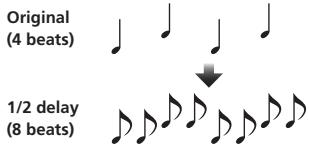
| BEAT ◀,▶ buttons (parameter 1) | Use these to set a time delay of 1/8 - 16/1 with respect to the time of one beat of the BPM. |
| TIME control (parameter 2) | Use this to set the delay time. 1 to 4000 (ms) |
| LEVEL/DEPTH control (parameter 3) | Use this to set the balance between the original sound and the delay sound. |
| X-PAD (parameter 4) | Use this to set the delay time. |
ECHO ^1 2
A delay sound is output several times and gradually attenuated according to the beat fraction set with the [BEAT ◀, ▶] buttons.
With 1/1 beat echoes, the delay sounds are faded out according to the track's tempo even after the input sound has been cut.
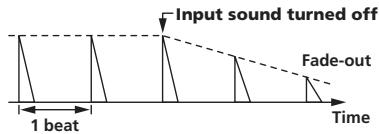
| BEAT ◀, ► buttons (parameter 1) | Use these to set a time delay of 1/8 - 16/1 with respect to the time of one beat of the BPM. |
| TIME control (parameter 2) | Use this to set the delay time. 1 to 4000 (ms) |
| LEVEL/DEPTH control (parameter 3) | Use this to set the balance between the original sound and the echo sound. |
| X-PAD (parameter 4) | Use this to set the delay time. |
SPIRAL ^1 ^2
This function adds a reverberation effect to the input sound.
When the delay time is changed, the pitch changes simultaneously.
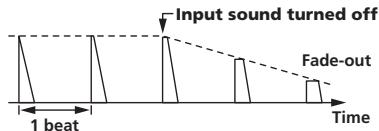
| BEAT ◀, ► buttons (parameter 1) | Use these to set a time delay of 1/8 - 16/1 with respect to the time of one beat of the BPM. |
| TIME control (parameter 2) | Use this to set the delay time. 10 to 4000 (ms) |
| LEVEL/DEPTH control (parameter 3) | Use this to set the balance between the original sound and the effect sound and to set the quantitative parameter. |
| X-PAD (parameter 4) | Use this to set the delay time. |
REVERB ^1 2
This function adds a reverberation effect to the input sound.
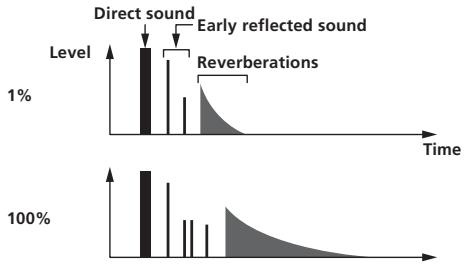
bar
| Time Period | Level Label | |-------------|-------------| | Direct sound | 1% | | Early reflected sound | 1% | | Reverberations | 1% || BEAT ◀, ▶ buttons (parameter 1) | Use these to set the extent of the reverberation effect, from 1 – 100 %. |
| TIME control (parameter 2) | Use this to set the degree of the reverb effect. 1 – 100 (%) |
| LEVEL/DEPTH control (parameter 3) | Sets the balance between the original sound and the effect sound. |
| X-PAD (parameter 4) | Sets the filter's cut-off frequency. |
TRANS ^1
The sound is cut according to the beat fraction set with the [BEAT ◀, ▶] buttons.
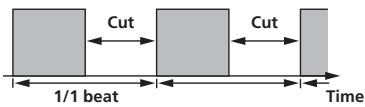
| BEAT ◀, ► buttons (parameter 1) | Use these to set a cut time of 1/16 - 16/1 with respect to the time of one beat of the BPM. |
| TIME control (parameter 2) | Use this to set the effect time. 10 to 16000 (ms) |
| LEVEL/DEPTH control (parameter 3) | Sets the balance between the original sound and the effect sound. |
| X-PAD (parameter 4) | This sets the cut time. |
FILTER ^1
The filter's cutoff frequency changes according to the beat fraction set with the [BEAT ◀, ▶] buttons.
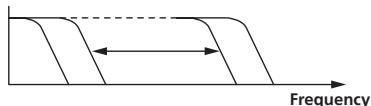
| BEAT ◀, ► buttons (parameter 1) | Use these to set the cycle for moving the cut-off frequency as a time of 1/4 - 64/1 with respect to the time of one beat of the BPM. |
| TIME control (parameter 2) | Use this to set the cycle at which the cut-off frequency is moved.10 to 32000 (ms) |
| LEVEL/DEPTH control (parameter 3) | The further the control is turned clockwise, the more the effect is stressed. |
| X-PAD (parameter 4) | The cycle at which the cut-off frequency is moved fluctuates finely. |
FLANGER ^1
A 1-cycle flanger effect is produced according to the beat fraction set with the [BEAT ◀, ▶] buttons.
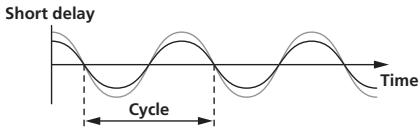
| BEAT ◀,▶ buttons (parameter 1) | Use these to set the 1/4 - 64/1 effect time with respect to the time of one beat of the BPM. |
| TIME control (parameter 2) | Use this to set the cycle by which the flanger effect moves.10 to 32000 (ms) |
| LEVEL/DEPTH control (parameter 3) | The further the control is turned clockwise, the more the effect is stressed.When turned all the way counterclockwise, only the original sound is output. |
| X-PAD (parameter 4) | The cycle at which the flanger effect is moved fluctuates finely. |
PHASER ^1
The phaser effect changes according to the beat fraction set with the [BEAT ◀, ▶] buttons.
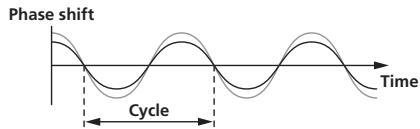
| BEAT ◀, ► buttons (parameter 1) | Use these to set the cycle for moving the phaser effect as of time of 1/4 - 64/1 with respect to the time of one beat of the BPM. |
| TIME control (parameter 2) | This sets the cycle by which the phaser effect is moved.10 to 32000 (ms) |
| LEVEL/DEPTH control (parameter 3) | The further the control is turned clockwise, the more the effect is stressed.When turned all the way counterclockwise, only the original sound is output. |
| X-PAD (parameter 4) | The cycle at which the phaser effect is moved fluctuates finely. |
ROBOT ^1
The original sound is changed to a sound like one produced by a robot.
| BEAT ◀, ► buttons (parameter 1) | Use this to set the degree of the effect sound. -100-100 (%) |
| TIME control (parameter 2) | Use this to set the degree of the effect sound. -100-100 (%) |
| LEVEL/DEPTH control (parameter 3) | Sets the balance between the original sound and the effect sound. |
| X-PAD (parameter 4) | This changes the degree of the effect sound. |
MELODIC ^1 2
The mid-range of the sound being input at the point when the [ON/OFF] button is pressed is recorded, and the recorded sound is output according to the level of the sound being input.
| BEAT ◀,▶ buttons (parameter 1) | This sets the way in which the recorded sound is played. |
| TIME control (parameter 2) | This sets the way in which the recorded sound is played. |
| LEVEL/DEPTH control (parameter 3) | This sets the balance between the original sound and the recorded sound. |
| X-PAD (parameter 4) | This sets the way in which the recorded sound is played. |
SLIP ROLL ^1 2
The sound being input at the point when the [ON/OFF] is pressed is recorded, and the recorded sound is output repeatedly according to the beat fraction set with the [BEAT ◀, ▶] buttons.
When the effect time changes, the input sound is recorded again.
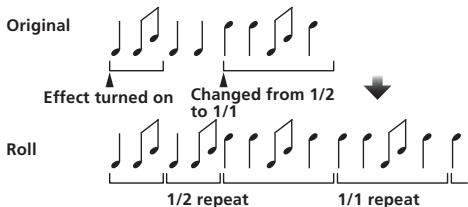
| BEAT ◀,▶ buttons (parameter 1) | Use these to set an effect time of 1/16 - 16/1 with respect to the time of one beat of the BPM. |
| TIME control (parameter 2) | Use this to set the effect time. 10 to 4000 (ms) |
| LEVEL/DEPTH control (parameter 3) | Use this to set the balance between the original sound and ROLL. |
| X-PAD (parameter 4) | Use this to set the effect time. |
ROLL ^1 ^2
The sound being input at the point when the [ON/OFF] is pressed is recorded, and the recorded sound is output repeatedly according to the beat fraction set with the [BEAT ◀, ▶] buttons.
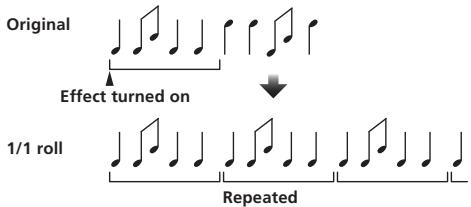
| BEAT ◀, ► buttons (parameter 1) | Use these to set an effect time of 1/16 – 16/1 with respect to the time of one beat of the BPM. |
| TIME control (parameter 2) | Use this to set the effect time.10 to 4000 (ms) |
| LEVEL/DEPTH control (parameter 3) | Use this to set the balance between the original sound and ROLL. |
| X-PAD (parameter 4) | Use this to set the effect time. |
REV ROLL ^1 ^2
The sound being input at the point when the [ON/OFF] button is pressed is recorded, and the recorded sound is reversed then output repeatedly according to the beat fraction set with the [BEAT ◀, ▶] buttons.
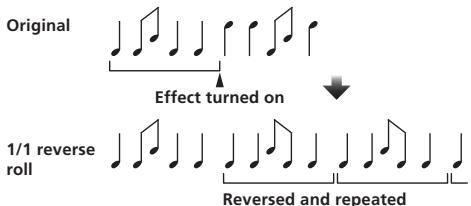
| BEAT ◀, ► buttons (parameter 1) | Use these to set an effect time of 1/16 - 16/1 with respect to the time of one beat of the BPM. |
| TIME control (parameter 2) | Use this to set the effect time. 10 to 4000 (ms) |
| LEVEL/DEPTH control (parameter 3) | Use this to set the balance between the original sound and ROLL. |
| X-PAD (parameter 4) | Use this to set the effect time. |
SND/RTN (MIDI LFO)
Connect an external effector, etc., here.
By pressing the [LFO FORM (WAKE UP)] button, MIDI-compatible software and devices can be controlled using MIDI signals.
SND/RTN ^1
Connect an external effector, etc., here.
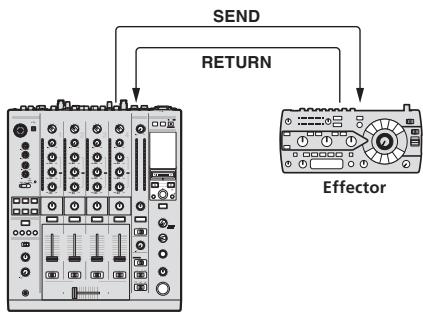
flowchart
graph TD
    A["Send"] --> B["Effector"]
    C["RETURN"] --> B
DJM-900SRT Serato DJ Edition
| BEAT ◀.▶ buttons (parameter 1) — | |
| TIME control (parameter 2) — | |
| LEVEL/DEPTH control (parameter 3) | This adjusts the sound level input to the [RETURN] terminal. |
| X-PAD (parameter 4) — | |
MIDI LFO
The MIDI signal (0 - 127) waveform is changed according to the track's tempo.
The MIDI signal waveform pattern switches each time the [LFO FORM (WAKE UP)] button is pressed.
| BEAT ◀, ► buttons (parameter 1) | Use these to set a waveform output time of 1/4 - 64/1 with respect to one beat of the BPM. |
| TIME control (parameter 2) | Use this to set the waveform output time. |
| LEVEL/DEPTH control (parameter 3) | — |
| X-PAD (parameter 4) | This changes the MIDI signal’s waveform pattern. |
- When [MIDI LFO] is selected, the sound of the external effector connected to the [RETURN] terminal is not input.
When [CF.A], [CF.B] or [MASTER] is selected with the effect channel selector switch, if the sound of the channel you want to monitor is not being output to the [MASTER] channel, the effect sound cannot be monitored even if the [CUE] button for [BEAT EFFECTS] is pressed.
2 If the effect is off, the effect sound cannot be monitored even by pressing the [CUE] button for [BEAT EFFECTS].
MIDI assignment map
MIDI assignment map
- "CC" is the abbreviation of "control change". A control change is a type of MIDI signal used to transmit various types of control information, such as timbre, volume, etc. On this unit, values from 0 to 127 are output as CC mainly when controls and faders are operated. CC are also output when certain buttons are operated.
- “Note” is a MIDI term used when pressing or releasing notes on a piano or other keyboard.
When turning one button on switches another button from on to off, MIDI on and off messages are sent from the two buttons. When there is no button that switches off, only the MIDI on message is sent from the button that was pressed.
② When switched from one position to another position, the MIDI ON and OFF signals are sent respectively from both positions.
— When the [START/STOP] button is pressed for over 1 second, MIDI messages corresponding to the positions of the buttons, faders and controls are sent in a bundle (Snapshot). The MIDI Snapshot sends all MIDI messages other than MIDI start and MIDI stop.
| Category | Button/Control/Switch | MIDI assignment | Trigger/Toggle | Transmitted data | ||
| Name | Type | |||||
| CH1 | Input Selector Switch | DIGITAL | Switch | Note 050 | 2 | OFF=0, ON=127 |
| CD/LINE | Switch | Note 051 | 2 | OFF=0, ON=127 | ||
| PHONO | Switch | Note 052 | 2 | OFF=0, ON=127 | ||
| USB DECK 3 | Switch | Note 053 | 2 | OFF=0, ON=127 | ||
| TRIM | Control | CC 001 | — | 0-127 | ||
| HI | Control | CC 002 | — | 0-127 | ||
| MID | Control | CC 003 | — | 0-127 | ||
| LOW | Control | CC 004 | — | 0-127 | ||
| COLOR | Control | CC 005 | — | 0-127 | ||
| CUE | Button | CC 070 | Trigger/Toggle | OFF=0, ON=127 | ||
| Channel fader | Control | CC 017 | — | 0-127 | ||
| CROSS FADER ASSIGN | Switch | CC 065 | — | 0, 64, 127 | ||
| CH2 | Input Selector Switch | DIGITAL | Switch | Note 054 | 2 | OFF=0, ON=127 |
| CD/LINE | Switch | Note 055 | 2 | OFF=0, ON=127 | ||
| PHONO | Switch | Note 056 | 2 | OFF=0, ON=127 | ||
| USB DECK 1 | Switch | Note 057 | 2 | OFF=0, ON=127 | ||
| TRIM | Control | CC 006 | — | 0-127 | ||
| HI | Control | CC 007 | — | 0-127 | ||
| MID | Control | CC 008 | — | 0-127 | ||
| LOW | Control | CC 009 | — | 0-127 | ||
| COLOR | Control | CC 010 | — | 0-127 | ||
| CUE | Button | CC 071 | Trigger/Toggle | OFF=0, ON=127 | ||
| Channel fader | Control | CC 018 | — | 0-127 | ||
| CROSS FADER ASSIGN | Switch | CC 066 | — | 0, 64, 127 | ||
| CH3 | Input Selector Switch | DIGITAL | Switch | Note 058 | 2 | OFF=0, ON=127 |
| CD/LINE | Switch | Note 059 | 2 | OFF=0, ON=127 | ||
| PHONO | Switch | Note 060 | 2 | OFF=0, ON=127 | ||
| USB DECK 2 | Switch | Note 061 | 2 | OFF=0, ON=127 | ||
| TRIM | Control | CC 012 | — | 0-127 | ||
| HI | Control | CC 014 | — | 0-127 | ||
| MID | Control | CC 015 | — | 0-127 | ||
| LOW | Control | CC 021 | — | 0-127 | ||
| COLOR | Control | CC 022 | — | 0-127 | ||
| CUE | Button | CC 072 | Trigger/Toggle | OFF=0, ON=127 | ||
| Channel fader | Control | CC 019 | — | 0-127 | ||
| CROSS FADER ASSIGN | Switch | CC 067 | — | 0, 64, 127 | ||
| CH4 | Input Selector Switch | DIGITAL | Switch | Note 062 | 2 | OFF=0, ON=127 |
| CD/LINE | Switch | Note 063 | 2 | OFF=0, ON=127 | ||
| PHONO | Switch | Note 064 | 2 | OFF=0, ON=127 | ||
| USB DECK 4 | Switch | Note 065 | 2 | OFF=0, ON=127 | ||
| TRIM | Control | CC 080 | — | 0-127 | ||
| HI | Control | CC 081 | — | 0-127 | ||
| MID | Control | CC 092 | — | 0-127 | ||
| LOW | Control | CC 082 | — | 0-127 | ||
| COLOR | Control | CC 083 | — | 0-127 | ||
| CUE | Button | CC 073 | Trigger/Toggle | OFF=0, ON=127 | ||
| Channel fader | Control | CC 020 | — | 0-127 | ||
| CROSS FADER ASSIGN | Switch | CC 068 | — | 0, 64, 127 | ||
| Crossfader | Crossfader | Control | CC 011 | — | 0-127 | |
| Fader curve | CH FADER (J) | Switch | CC 094 | — | 0, 64, 127 | |
| CROSS FADER (A) | Switch | CC 095 | — | 0, 64, 127 | ||
| Master | MASTER LEVEL | Control | CC 024 | — | 0-127 | |
| BALANCE | Control | CC 023 | — | 0-127 | ||
| CUE | Button | CC 074 | Trigger/Toggle | OFF=0, ON=127 | ||
| EQ CURVE (ISOLATOR, EQ) | Switch | CC 033 | — | 0, 127 | ||
| BOOTH MONITOR | BOOTH MONITOR | Control | CC 025 | — | 0-127 | |
| LINK | CUE | Button | CC 115 | Trigger/Toggle | OFF=0, ON=127 | |
| BEAT EFFECTS | ◀ | Button | CC 076 | Trigger/Toggle | OFF=0, ON=127 | |
| ▶ | Button | CC 077 | Trigger/Toggle | OFF=0, ON=127 | ||
| AUTO/TAP | Button | CC 069 | Trigger/Toggle | OFF=0, ON=127 | ||
| TAP | Button | CC 078 | Trigger only | OFF=0, ON=127 | ||
| CUE | Button | CC 075 | Trigger/Toggle | OFF=0, ON=127 | ||
| EFFECT SELECT | DELAY | Switch | CC 042 | 2 | OFF=0, ON=127 | |
| ECHO | Switch | CC 055 | 2 | OFF=0, ON=127 | ||
| SPIRAL | Switch | CC 043 | 2 | OFF=0, ON=127 | ||
| REVERB | Switch | CC 054 | 2 | OFF=0, ON=127 | ||
| TRANS | Switch | CC 053 | 2 | OFF=0, ON=127 | ||
| FILTER | Switch | CC 059 | 2 | OFF=0, ON=127 | ||
| FLANGER | Switch | CC 050 | 2 | OFF=0, ON=127 | ||
| PHASER | Switch | CC 057 | 2 | OFF=0, ON=127 | ||
| ROBOT | Switch | CC 051 | 2 | OFF=0, ON=127 | ||
| MELODIC | Switch | CC 061 | 2 | OFF=0, ON=127 | ||
| SLIP ROLL | Switch | CC 058 | 2 | OFF=0, ON=127 | ||
| ROLL | Switch | CC 046 | 2 | OFF=0, ON=127 | ||
| REV ROLL | Switch | CC 047 | 2 | OFF=0, ON=127 | ||
| SND/RTN (MIDI LFO) | Switch | CC 062 | 2 | OFF=0, ON=127 | ||
| BEAT EFFECTS | CH SELECT | CH1 | Switch | CC 034 | 2 | OFF=0, ON=127 |
| CH2 | Switch | CC 035 | 2 | OFF=0, ON=127 | ||
| CH3 | Switch | CC 036 | 2 | OFF=0, ON=127 | ||
| CH4 | Switch | CC 037 | 2 | OFF=0, ON=127 | ||
| MIC | Switch | CC 038 | 2 | OFF=0, ON=127 | ||
| CF.A | Switch | CC 039 | 2 | OFF=0, ON=127 | ||
| CF.B | Switch | CC 040 | 2 | OFF=0, ON=127 | ||
| MASTER | Switch | CC 041 | 2 | OFF=0, ON=127 | ||
| MIDI LFO | Control | CC 118 | — | 0-127 | ||
| QUANTIZE | Button | Note 118 | Trigger/Toggle | — | ||
| TIME | Switch | CC 013 | — | — | ||
| Switch | CC 045 | — | TIME value (When FLANGER, PHASER or FILTER is selected, the value is halved. When a negative value is selected, it is set to a positive value.) | |||
| LEVEL/DEPTH | Control | CC 091 | — | 0-127 | ||
| X-PAD | Control | CC 116 | — | Sends the [X-PAD] position information. | ||
| ON/OFF X-PAD (touch) · When an effect other than [SND/RTN (MIDI LFO)] is selected at BEAT EFFECT | Button | CC 114 | 2 | OFF=0, ON=127 | ||
| ON/OFF X-PAD (touch) · When [SND/RTN (MIDI LFO)] is selected at BEAT EFFECT | Button | CC 064 | 2 | OFF=0, ON=127 | ||
| MIC | HI | Control | CC 030 | — | 0-127 | |
| LOW | Control | CC 031 | — | 0-127 | ||
| SOUND COLOR FX | NOISE | Button | CC 085 | Trigger/Toggle ^1 | OFF=0, ON=127 | |
| SPACE | Button | CC 105 | Trigger/Toggle ^1 | OFF=0, ON=127 | ||
| GATE/COMP | Button | CC 106 | Trigger/Toggle ^1 | OFF=0, ON=127 | ||
| DUB ECHO | Button | CC 107 | Trigger/Toggle ^1 | OFF=0, ON=127 | ||
| CRUSH | Button | CC 086 | Trigger/Toggle ^1 | OFF=0, ON=127 | ||
| FILTER | Button | CC 087 | Trigger/Toggle ^1 | OFF=0, ON=127 | ||
| Fader Start | Fader Start 1 | Button | CC 088 | Trigger/Toggle | OFF=0, ON=127 | |
| Fader Start 2 | Button | CC 089 | Trigger/Toggle | OFF=0, ON=127 | ||
| Fader Start 3 | Button | CC 090 | Trigger/Toggle | OFF=0, ON=127 | ||
| Fader Start 4 | Button | CC 093 | Trigger/Toggle | OFF=0, ON=127 | ||
| HEADPHONES | MIXING | Control | CC 027 | — | 0-127 | |
| LEVEL | Control | CC 026 | — | 0-127 | ||
| Timing Clock | — | Timing Clock | — | — | ||
| Fader Start operation ^3 | Channel fader 1 or crossfader | Note 102 | — | BACK CUE = 0, PLAY = 127 | ||
| Channel fader 2 or crossfader | Note 103 | — | BACK CUE = 0, PLAY = 127 | |||
| Channel fader 3 or crossfader | Note 104 | — | BACK CUE = 0, PLAY = 127 | |||
| Channel fader 4 or crossfader | Note 105 | — | BACK CUE = 0, PLAY = 127 | |||
| MIDI | START | Button | START | — | — | |
| STOP | Button | STOP | — | — | ||
3 Operation differs depending on the setting of the [CROSS FADER ASSIGN (A, THRU, B)] selector switch.
— When the [CROSS FADER ASSIGN (A, THRU, B)] selector switch is set to [THRU]: MIDI messages are sent when the [FADER START] button is set to [ON] and the channel fader is moved away from you from the nearest position towards you and when it is moved back to the nearest position towards you.
— When the [CROSS FADER ASSIGN (A, THRU, B)] selector switch is set to [A]: MIDI messages are sent when the [FADER START] button is set to [ON] and the crossfader is moved from the far edge of the [B] side and when it is moved back to the far edge of the [B] side.
— When the [CROSS FADER ASSIGN (A, THRU, B)] selector switch is set to [B]: MIDI messages are sent when the [FADER START] button is set to [ON] and the crossfader is moved from the far edge of the [A] side and when it is moved back to the far edge of the [A] side.
Changing the settings
1 Press the [ON/OFF (UTILITY)] button for over 1 second.
The [USER SETUP] mode setting screen is displayed.
- To display the [CLUB SETUP] mode setting screen, first turn this unit's power off, then press the [POWER] button while pressing the [ON/OFF (UTILITY)] button.
2 Press the [BEAT ◀, ▶] button.
Select the setting item.
3 Press the [TAP] button.
The screen switches to the setting item's setting value change screen.
4 Press the [BEAT ◀, ▶] button.
Change the setting value.
5 Press the [TAP] button.
Enter the setting value.
The previous screen reappears.
- To return to the previous screen without changing the settings, press the [QUANTIZE] button.
6 Press the [ON/OFF (UTILITY)] button.
Close the [USER SETUP] mode setting screen.
- To close the [CLUB SETUP] mode setting screen, press the [POWER] button to turn this unit's power off.
About the auto standby function
When [Auto Standby] is set to [ON], the standby mode is set automatically if 4 hours pass with all of the conditions shown below met.
— That none of this unit's buttons or controls are operated.
— That no audio signals of -10 dB or greater are input to this unit's input terminals.
— That no PRO DJ LINK connections are made.
- When the [LFO FORM (WAKE UP)] button is pressed, the standby mode is canceled.
- This unit is shipped with the auto standby function turned on. If you do not want to use the auto standby function, set [Auto Standby] to [OFF].
About the talk over function
The talk over function has the two modes described below.
— [ADV] (advanced talk over): The mid-range only of the sound of channels other than the [MIC] channel is attenuated according to the [Talk Over LEVEL] setting value and output.
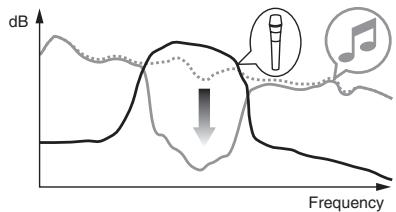
— [NOR] (normal talk over): The sound of channels other than the [MIC] channel is attenuated according to the [Talk Over LEVEL] setting value and output.
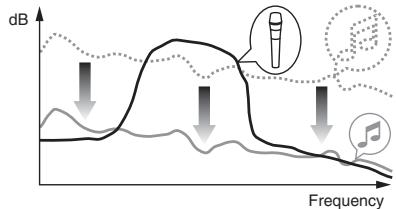
Setting preferences
*: Setting upon purchase
| Mode | Options settings | Screen display | Setting value | Descriptions |
| USER SETUP | Fader Start | F.S. | ON, OFF* | Turns the Fader Start function on and off all at once. |
| MIDI CH | MIDI CH | 1* to 16 | Sets the MIDI channel. | |
| MIDI Button Type | MIDI BT | TGL*, TRG | Selects the MIDI signal transmission mode, [TGL (TOGGLE)] or [TRG (TRIGGER)]. | |
| Talk Over Mode | TLK MOD | ADV*, NOR | Selects the talk over function's mode, [ADV(ADVANCED)] or [NOR(NORMAL)]. | |
| Talk Over LEVEL | TLK LVL | -6 dB, -12 dB,-18 dB*, -24 dB | Sets the talk over function's sound attenuation level. | |
| CLUB SETUP | Digital Master Out Level | DOUT LV | -19 dB*, -15 dB,-10 dB, -5 dB | Sets the maximum level of the sound output from the [DIGITAL MASTER OUT] terminals.1 |
| Digital Master Out Sampling Rate | DOUT FS | 48 kHz, 96 kHz* | Sets the digital signal's sampling rate. | |
| MASTER ATT. | MST ATT | -6 dB, -3 dB, 0 dB* | Sets the attenuation level of the sound output from the [MASTER1] and [MASTER2] terminals. | |
| Auto Standby | AUTOSTB | ON*, OFF | Turns the auto standby function on and off. | |
| Mic Output To Booth Monitor | MIC BTH | ON*, OFF | Sets whether or not to output the microphone's audio signals from [BOOTH] terminals. | |
| PC UTILITY | PC UTLY | ON, OFF* | Sets whether or not to launch the computer's setting utility software automatically when a USB cable is connected. | |
| Peak Limiter | PKLIMIT | ON*, OFF | Lessens sudden, unpleasant digital clipping of the master output. | |
| Factory Reset | INITIAL | YES, NO* | Restores all the settings to their factory defaults. |
1 Note that the output sound may be distorted even if the master level indicator does not light up to the very top.
About the setting utility software
The setting utility can be used to make the checks and settings described below.
— Checking the status of this unit's input selector switches
— Setting the audio data output from this unit to the computer
— Adjusting the buffer size (when using Windows ASIO)
— Checking the version of the driver software
Displaying the setting utility
For Windows
Click [Start] menu > [All Programs] > [Pioneer] > [DJM-900SRT] > [DJM-900SRT
Settings Utility].
For Mac OS X
Click [Macintosh HD] icon > [Application] > [Pioneer] > [DJM-900SRT] > [DJM-900SRT Settings Utility].
Checking the status of this unit's input selector switches
Display the setting utility before starting.
Click the [MIXER INPUT] tab.
![PIONEER DJM-900SRT - Click the [MIXER INPUT] tab. - 1](/content/2024/12/119086/images/4f871c887d591a6054121f2d37c3211849dec531b7f754b1780d91173ead72f9.jpg)
flowchart
graph LR
    A["DJ/Production Software Audio Output"] --> B["Connected"]
    B --> C["Mixer Audio Input"]
    D["Mixer INPUT"] --> E["DJ/Production Software Audio Output"]
    E --> F["Diode 3: USB1/2: CH1: USB"]
    E --> G["Diode 1: USB3/4: CH2: USB"]
    E --> H["Diode 2: USB5/6: CH3: USB"]
    E --> I["Diode 4: USB7/8: CH4: USB"]
    J["To input a USB audio signal to the mixer, select "USB" for the desired channel input selector switch(es) on the mixer."] --> K["Output"]
Setting the audio data output from this unit to the computer
When Serato DJ is running and using this unit as the default audio device, set the audio data output in Serato DJ.
Display the setting utility before starting.
1 Click the [MIXER OUTPUT] tab.
![PIONEER DJM-900SRT - Click the [MIXER OUTPUT] tab. - 1](/content/2024/12/119086/images/2adaa29aac62e368de5641bf66419a646b9cd0b3edcc1d281acf9b521ec04c1d.jpg)
flowchart
graph TD
    A["MIXER INPUT"] --> B["DJ/Production Software Audio Input"]
    C["MIXER OUTPUT"] --> B
    D["ASIO"] --> B
    E["About"] --> B
    B --> F["Connected"]
    F --> G["Mixer Audio Output"]
    G --> H["USB1/2: Post CH1 Fader"]
    G --> I["USB3/4: Post CH2 Fader"]
    G --> J["USB5/6: Post CH3 Fader"]
    G --> K["USB7/8: Post CH4 Fader"]
    G --> L["USB Output Level -19 dB"]
2 Click the [Mixer Audio Output] pull-down menu.
Select and set the audio data to be output to the computer from the flow of audio signals inside this unit.
| CH1 | CH2 | CH3 | CH4 |
| CH1 Control Tone PHONO^1 | CH2 Control Tone PHONO^1 | CH3 Control Tone PHONO^1 | CH4 Control Tone PHONO^1 |
| CH1 Control Tone CD/LINE^1 | CH2 Control Tone CD/LINE^1 | CH3 Control Tone CD/LINE^1 | CH4 Control Tone CD/LINE^1 |
| CH1 Control Tone DIGITAL^1 | CH2 Control Tone DIGITAL^1 | CH3 Control Tone DIGITAL^1 | CH4 Control Tone DIGITAL^1 |
| Post CH1 Fader ^2 | Post CH2 Fader ^2 | Post CH3 Fader ^2 | Post CH4 Fader ^2 |
| Cross Fader A^2 | Cross Fader A^2 | Cross Fader A^2 | Cross Fader A^2 |
| Cross Fader B^2 | Cross Fader B^2 | Cross Fader B^2 | Cross Fader B^2 |
| MIC | MIC | MIC | MIC |
| MIX (REC OUT) ^2 | MIX (REC OUT) ^2 | MIX (REC OUT) ^2 | MIX (REC OUT) ^2 |
The audio data is output with the same volume at which it is input to this unit, regardless of the [USB Output Level] setting.
When using for applications other than recording, pay attention to the DJ application's settings so that no audio loops are generated. If audio loops are generated, sound may be input or output at unintended volumes.
3 Click the [USB Output Level] pull-down menu.
Adjust the volume of the audio data output from this unit.
- The [USB Output Level] setting is applied equally to all audio data. However, when 1 on the table at step 2 is selected, the audio data is output with the same volume at which it is input to this unit.
- If not enough volume can be achieved with the DJ software's volume adjustment alone, change the [USB Output Level] setting to adjust the volume of the audio data output from this unit. Note that the sound will be distorted if the volume is raised too high.
Adjusting the buffer size (when using Windows ASIO)
If an application using this unit as the default audio device (DJ software, etc.) is running, quit that application before adjusting the buffer size.
Display the setting utility before starting.
Click the [ASIO] tab.
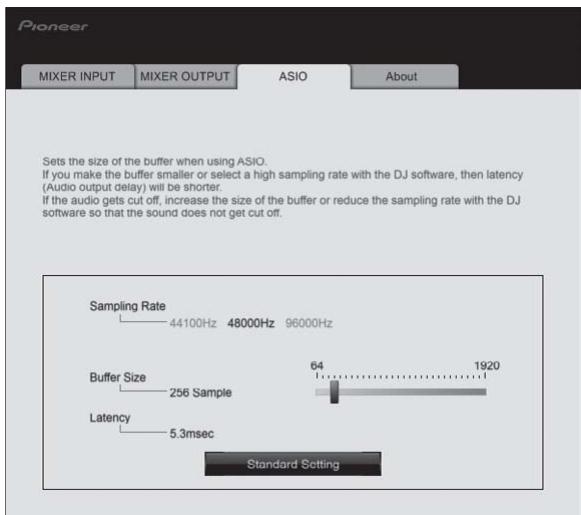
- If the buffer size is made large, drops in audio data (breaks in the sound) occur less easily, but the time lag due to the delay in the transfer of the audio data (latency) increases.
Checking the version of the driver software
Display the setting utility before starting.
Click the [About] tab.
Checking the latest information on the driver software
For the latest information on the driver software for exclusive use with this unit, visit our website shown below.
- Operation cannot be guaranteed when multiple units of this mixer are connected to a single computer.
Additional information
Troubleshooting
- Incorrect operation is often mistaken for trouble or malfunction. If you think that there is something wrong with this component, check the points below. Sometimes the trouble may lie in another component. Inspect the other components and electrical appliances being used. If the trouble cannot be rectified after checking the items below, ask your nearest Pioneer authorized service center or your dealer to carry out repair work.
- The player may not operate properly due to static electricity or other external influences. In such cases, normal operation may be restored by unplugging the power cord then plugging it back in.
| Problem | Check | Remedy |
| The power is not turned on. | Is the power cord properly connected? | Plug in the power cord to an AC outlet. |
| No sound or small sound. | Is the input selector switch set to the proper position? | Switch the input selector switch to switch the channel's input source. (page 14) |
| Are the connection cables properly connected? | Connect the connection cables properly. (page 11) | |
| Are the terminals and plugs dirty? | Clean the terminals and plugs before making connections. | |
| Is [MASTER ATT.] set to [-6 dB], etc.? | At the [USER SETUP] screen, switch [MASTER ATT.]. (page 24) | |
| Digital sound cannot be output. | Is the digital audio output's sampling frequency (fs) suited for the specifications of the connected device? | On the [CLUB SETUP] screen, set [Digital Master Out Sampling Rate] according to the specifications of the connected equipment. (page 24) |
| Distorted sound. | Is the sound level output from the [MASTER] channel appropriately set? | Adjust the [MASTER LEVEL] control so that the master channel level indicator lights at around [0 dB] at the peak level. (Page 14) |
| Set [MASTER ATT.] to [-3 dB] or [-6 dB]. (page 24) | ||
| Is the level of audio input to each channel properly set? | Adjust the [TRIM] control so that the channel level indicator lights at about [0 dB] at the peak level. (Page 14) | |
| Can't crossfade. | Are the [CROSS FADER ASSIGN (A, THRU, B)] selector switches properly set? | Set the [CROSS FADER ASSIGN (A, THRU, B)] selector switches for the different channels properly. (Page 14) |
| Can't fader start a DJ player. | Is [FADER START] set to [OFF]? | At the [USER SETUP] screen, set [FADER START] to [ON]. (page 24) |
| Is the DJ player properly connected to the [LINK] terminal? | Connect the DJ player to the [LINK] terminal properly using a LAN cable. (page 11) | |
| Are the audio cables properly connected? | Connect this unit's audio input terminals and the DJ player's audio output terminals by audio cable. (page 11) | |
| Is the DJ player's player number properly set? | Set the DJ player's player number to the same number as the channel to which the audio cable is connected. | |
| [BEAT EFFECTS] does not work. | Is the effect channel selector switch set to the proper position? | Turn the effect channel selector switch to select the channel to which you want to apply the effect. |
| [SOUND COLOR FX] does not work. | Is the [COLOR] control set to an appropriate position? | Turn the [COLOR] control clockwise or counterclockwise. (page 16) |
| Can't use an external effector. | Is the [ON/OFF] button for [BEAT EFFECTS] set to [ON]? | Press the [ON/OFF] button for [BEAT EFFECTS] to set [SND/RTN] to [ON]. (page 16) |
| Is the external effector properly connected to the [SEND] or [RETURN] terminal? | Connect the external effector to the [SEND] and [RETURN] terminals. (page 11) | |
| Distorted sound from an external effector. | Is the external effector's audio output level set to an appropriate level? | Adjust the external effector's audio output level. |
| Tempo (BPM) cannot be measured or measurement value of tempo (BPM) is implausible. | Is the audio input level too high or too low? | Adjust the [TRIM] control so that the channel level indicator lights at about [0 dB] at the peak level. (Page 14) |
| For some tracks, it may not be possible to measure the tempo (BPM). Use the [TAP] button to input the tempo manually. (page 16) | ||
| Measured tempo (BPM) differs from tempo indicated on CD. | — | The values may differ slightly due to the different ways in which the BPM is measured. |
| MIDI sequencer does not synchronize. | Is the MIDI sequencer's sync mode set to Slave? | Set the MIDI sequencer's sync mode to Slave. |
| Does the MIDI sequencer you are using support MIDI timing clocks? | MIDI sequencers not supporting MIDI timing clocks cannot be synchronized. | |
| MIDI control does not work. | Is the MIDI channel turned on? | Press the [ON/OFF] button for [MIDI]. (page 17) |
| Are the MIDI settings properly set? | To operate DJ software with this unit, this unit's MIDI messages must be assigned to the DJ software you are using. For instructions on assigning messages, see your DJ software's operating instructions. | |
| This unit is not recognized after it has been connected to a computer. USB indicator is off or flashing. | Is the driver software properly installed on your computer? | Install the driver software. If it is already installed, reinstall it. (page 6) |
| Sound of a computer cannot be output from this unit. | Are this unit and computer properly connected? | Connect this unit and the computer directly using the included USB cable. (page 12) |
| Are the audio output device settings properly set? | Select this unit with the audio output device settings. For instructions on making settings for your application, see your application's operating instructions. | |
| Is the input selector switch set to the proper position? | Set the input selector switch to the [USB] position. (Page 14) | |
| Effect sound cannot be monitored even when the [CUE] button for [BEAT EFFECTS] is pressed. | — | The circuit that generates the echo for the [ECHO], [REVERB], [ROLL], [SLIP ROLL] and [REV ROLL] effect sounds is positioned after the effect circuit, so the effect sound cannot be monitored. This is not a malfunction. |
| Sound is distorted when an analog player is connected to this unit's [PHONO] terminals. Or, lighting of the channel level indicator does not change even when the [TRIM] control is turned. | Have you connected an analog player with a built-in phono equalizer? | Connect the analog player with built-in phono equalizer to the [CD/LINE] terminals. (page 11) |
| If the analog player with built-in phono equalizer has a PHONO/LINE selector switch, switch it to PHONO. | ||
| Is an audio interface for computers connected between the analog player and this unit? | If the output of the audio interface for computers is line level, connect it to the [CD/LINE] terminals. (page 11) | |
| If the analog player has a PHONO/LINE selector switch, switch it to PHONO. |
Block Diagram

flowchart
graph TD
    subgraph_Channel_1["CH1"]
        A1["MIC1"] --> B1["TRIM"]
        A2["MIC2"] --> B2["TRIM"]
        A3["CD/LINE"] --> B3["Control Tone"]
        A4["PHONO"] --> B4["Control Tone"]
        A5["DIGITAL"] --> B5["Control Tone"]
        A6["DIR"] --> B6["Control Tone"]
        B7["TRIM"] --> B8["Control Tone"]
        B9["PHONO"] --> B10["Control Tone"]
        B11["DIGITAL"] --> B12["Control Tone"]
        B13["DIR"] --> B14["Control Tone"]
        B15["TRIM"] --> B16["Control Tone"]
        B17["PHONO"] --> B18["Control Tone"]
        B19["DIGITAL"] --> B20["Control Tone"]
        B21["TRIM"] --> B22["Control Tone"]
        B23["PHONO"] --> B24["Control Tone"]
        B25["DIGITAL"] --> B26["Control Tone"]
        B27["TRIM"] --> B28["Control Tone"]
        B29["PHONO"] --> B30["Control Tone"]
        B31["DIGITAL"] --> B32["Control Tone"]
        B33["TRIM"] --> B34["Control Tone"]
        B35["PHONO"] --> B36["Control Tone"]
        B37["DIGITAL"] --> B38["Control Tone"]
        B39["TRIM"] --> B40["Control Tone"]
        B41["PHONO"] --> B42["Control Tone"]
        B43["DIGITAL"] --> B44["Control Tone"]
        B45["TRIM"] --> B46["Control Tone"]
        B47["PHONO"] --> B48["Control Tone"]
        B49["DIGITAL"] --> B50["Control Tone"]
        B51["TRIM"] --> B52["Control Tone"]
        B53["PHONO"] --> B54["Control Tone"]
        B55["DIGITAL"] --> B56["Control Tone"]
        B57["TRIM"] --> B58["Control Tone"]
        B59["PHONO"] --> B60["Control Tone"]
        B61["DIGITAL"] --> B62["Control Tone"]
        B63["TRIM"] --> B64["Control Tone"]
        B65["PHONO"] --> B66["Control Tone"]
        B67["DIGITAL"] --> B68["Control Tone"]
        B69["TRIM"] --> B70["Control Tone"]
        B71["PHONO"] --> B72["Control Tone"]
        B73["DIGITAL"] --> B74["Control Tone"]
        B75["TRIM"] --> B76["Control Tone"]
        B77["PHONO"] --> B78["Control Tone"]
        B78[DR/TRADIC/ANAL/ANAL/ANAL/ANAL/ANAL/ANAL/ANAL/ANAL/ANAL/ANAL/ANAL/ANAL/ANAL/ANAL/ANAL/ANAL/ANAL/ANAL/ANAL/ANAL/ANAL/ANAL/ANAL/ANAL/ANAL/ANAL/ANAL/ANAL/ANAL/ANAL/ANAL/ANAL/ANAL/ANAL 0.0.0.0.0.0.0.0.0.0.0.0.0.0.0.0.0.0.0.0.0.0.0.0.0.0.0.0.0.0.0.0.0.0.0.0.0.0.0.0.0.0.0.0.0.0.0.0.0.0.0 0.0.0.0.0.0.0.0.0.0.0.0.0.0.0.0.0.0.0.0.0 1 1 1 1 1 1 1 1 1 1 1 1 1 1 1 1 1 1 1 1 1 1 1 1 1 1 1 1 1 1 1 1 1 1 1 1 1 1 1 1 1 1 1 1 1 1 1 1 1 1 2 2 2 2 2 2 2 2 2 2 2 2 2 2 2 2 2 2 2 2 2 2 2 2 2 2 2 2 2 2 2 2 2 2 2 2 2 2 2 2 2 2 2 2 2 2 2 2 2 2 3 3 3 3 3 3 3 3 3 3 3 3 3 3 3 3 3 3 3 3 3 3 3 3 3 3 3 3 3 3 3 3 3 3 3 3 3 3 3 3 3 3 3 3 3 3 3 3,3,3,3,3,3,3,3,3,3,3,3,3,3,3,3,3,3,3,3,3,3,3,3,3,3,3,3,3,3,3,3,3,3,3,3,3,3,3,3,3,3,3,3,3,3,3,3,3,3,3 &
    end

    subgraph DSP
    direction TB
    A1 -->|LAN| DSP
    A2 -->|MIC| DSP
    A3 -->|CH1_Analog| DSP
    A4 -->|CH2_Analog| DSP
    A5 -->|CH3_Analog| DSP
    A6 -->|CH4_Analog| DSP
    A7 -->|RETURN| DSP
    A8 -->|CH_1_Digital/USB1/2| DSP
    A9 -->|CH_2_Digital/USB3/4| DSP
    A10 -->|CH_3_Digital/USB5/6| DSP
    A11 -->|CH_4_Digital/USB7/8| DSP
    DSP -->|PROCES PHONES MASTER MUTE MUTE REC SEND USB1/2 USB5/6 USB7/8| DSP
    DSP -->|SRC DAC DAC DAC DAC DAC DAC DAC DAC DAC DAC DAC DAC DAC DAC DAC DAC DAC DAC DAC DAC DAC DAC DAC DAC DAC DAC DAC DAC DAC DAC DAC DAC DAC DAC DAC DAC DAC DAC DAC DAC DAC DAC DAC DAC DAC DAC DAC DAC DAC DAC DAC DAC DAC DAC DAC DAC DAC DAC DAC DAC DAC DAC DAC DAC DAC DAC DAC DAC DAC DAC DAC DAC DAC DAC DAC DAC DAC DAC DAC DAC DAC DAC DAC DAC DAC DAC DAC DAC DAC DAC DAC DAC DAC DAC DAC DAC DAC DAC DAC DAC |
    end

    USBTypeBUSB
    USBTypeBUSB
    CH1 Digital IN CH2 Digital IN CH3 Digital IN CH4 Digital IN CH1 USB1/2 IN CH2 USB3/4 IN CH3 USB5/6 IN CH4 USB7/8 IN CH1 USB1/2 OUT CH2 USB3/4 OUT CH3 USB5/6 OUT CH4 USB7/8 OUT CH1 USB1/2 OUT CH2 USB3/4 OUT CH3 USB5/6 OUT CH4 USB7/8 OUT CH1 USB1/2 OUT CH2 USB3/4 OUT CH3 USB5/6 OUT CH4 USB7/8 OUT CH1 USB1/2 OUT CH2 USB3/4 OUT CH3 USB5/6 OUT CH4 USB7/8 OUT CH1 USB1/2 OUT CH2 USB3/4 OUT CH4 USB7/8 OUT CH1 USB1/2 OUT CH2 USB3/4 OUT CH4 USB7/8 OUT CH1 USB1/2 OUT CH2 USB3/4 OUT CH4 USB7/8 OUT CH1 USB1/2 OUT CH2 USB3/4 OUT CH4 USB7/8 OUT CH1 USB1/2 OUT CH2 USB3/4 OUT CH4 USB7/8 OUT CH1 USB1/2 OUT
    USBTypeBUSB
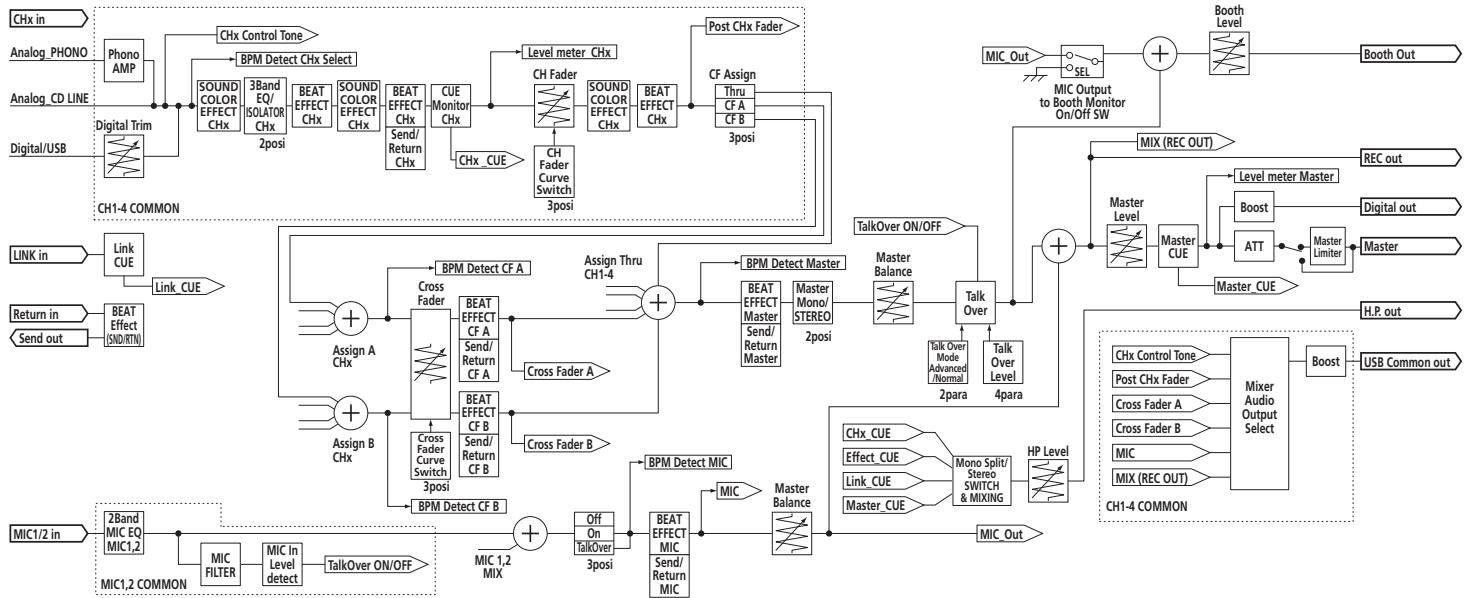
flowchart
graph TD
    A["Analog_PHONO"] --> B["Phono AMP"]
    C["Analog_CD_LINE"] --> D["Digital Trim"]
    E["Digital/USB"] --> F["CH1-4 COMMON"]
    G["LINK_in"] --> H["Link CUE"]
    I["Return_in"] --> J["BEAT Effect (SND/RTN)"]
    K["MIC1/2 in"] --> L["2Band MIC EQ MIC1,2"]
    M["MIC1,2 COMMON"] --> N["MIC FILTER"]
    N --> O["MIC In Level detect"]
    O --> P["TalkOver ON/OFF"]
    Q["Assign A CHx"] --> R["BPM Detect CF A"]
    Q --> S["BPM Detect CF B"]
    T["Assign B CHx"] --> U["BPM Detect CF B"]
    V["Cross Fader"] --> W["BPM Detect CF A"]
    V --> X["BPM Detect CF B"]
    Y["Cross Fader A"] --> Z["BPM Detect CF A"]
    Y --> AA["BPM Detect CF B"]
    AB["Cross Fader B"] --> AC["BPM Detect CF B"]
    AD["Cross Fader A"] --> AE["BPM Detect CF A"]
    AF["Cross Fader B"] --> AG["BPM Detect CF B"]
    AH["Assign Thru CH1-4"] --> AI["BPM Detect Master"]
    AJ["Master Balance"] --> AK["BPM Detect Master"]
    AL["Talk Over"] --> AM["BPM Detect Master"]
    AN["Talk Over ON/OFF"] --> AO["BPM Detect Master"]
    AP["Master Limiter"] --> AQ["BPM Detect Master"]
    AR["Master CUE"] --> AS["BPM Detect Master"]
    AT["Master Output to Booth Monitor On/Off SW"] --> AU["MIC Out"]
    AV["Booth Level"] --> AW["Booth"]
    AX["Rec Out"] --> AY["MIX (REC OUT)"]
    AZ["Digital out"] --> BA["Level meter Master"]
    BB["Master"] --> BC["Master Level"]
    BD["H.P. out"] --> BE["HLP"]
    BF["USB Common out"] --> BG["Mixer Audio Output Select"]
    BH["Chx Control Tone"] --> BI["Mixer Audio Output Select"]
    BJ["Post CHx Fader"] --> BK["Mixer Audio Output Select"]
    BL["Cross Fader A"] --> BM["Mixer Audio Output Select"]
    BN["Cross Fader B"] --> BO["Mixer Audio Output Select"]
    BP["MIC"] --> BQ["Mixer Audio Output Select"]
    BR["MIX (REC OUT)"] --> BS["Mixer Audio Output Select"]
    BT["HP Level"] --> BU["HP Level"]
    BV["CHx CUE"] --> BW["Effect_CUE"]
    BX["Link_CUE"] --> BY["Link Split/Stereo SWITCH & MIXING"]
    BZ["Master_CUE"] --> CA["Master_CUE"]
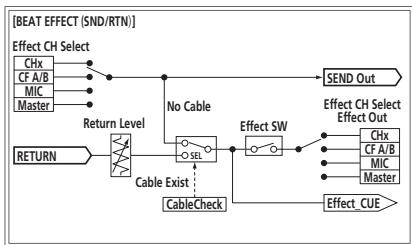
flowchart
graph TD
    A["Effect CH Select"] --> B["CHx"]
    A --> C["CF A/B"]
    A --> D["MIC"]
    A --> E["Master"]
    B --> F["No Cable"]
    C --> F
    D --> F
    E --> F
    F --> G["SEND Out"]
    H["RETURN"] --> I["Cable Exist :"]
    I --> J["CableCheck"]
    J --> K["Effect SW"]
    K --> L["Effect CH Select Effect Out"]
    L --> M["CHx"]
    L --> N["CF A/B"]
    L --> O["MIC"]
    L --> P["Master"]
    K --> Q["Effect_CUE"]
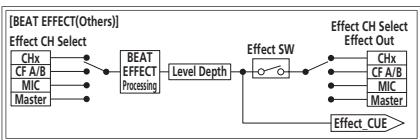
flowchart
graph LR
    A["BEAT EFFECT(Others)"] --> B["Effect CH Select"]
    B --> C["BEAT EFFECT Processing"]
    C --> D["Level Depth"]
    D --> E["Effect SW"]
    E --> F["Effect CUE"]
    F --> G["Effect CH Select Effect Out"]
    style A fill:#f9f,stroke:#333
    style B fill:#ccf,stroke:#333
    style C fill:#cfc,stroke:#333
    style D fill:#fcc,stroke:#333
    style E fill:#cff,stroke:#333
    style F fill:#ffc,stroke:#333
    style G fill:#fcc,stroke:#333
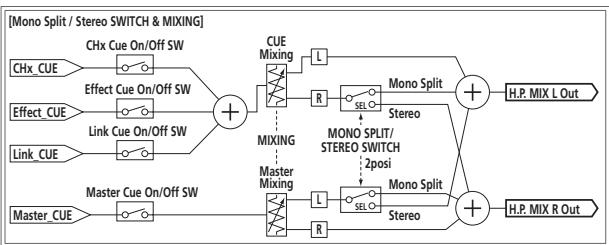
flowchart
graph LR
    A["Chx_CUE"] --> B["Effect Cue On/Off SW"]
    C["Effect_CUE"] --> D["Link Cue On/Off SW"]
    E["Link_CUE"] --> F["Master Cue On/Off SW"]
    G["Master_CUE"] --> H["MIXING"]
    I["CUE Mixing"] --> J["R"]
    K["Master Mixing"] --> L["L"]
    M["Cue Mixing"] --> N["L"]
    O["Mono Split"] --> P["Stereo"]
    Q["Mono Split/Stereo SWITCH 2posi"] --> R["SERO"]
    S["Mono Split"] --> T["Stereo"]
    U["H.P. MIX L Out"] --> V["+"]
    W["H.P. MIX R Out"] --> X["+"]
    Y["H.P. MIX L Out"] --> Z["+"]
Acquiring the manual
The operating instructions may be in a file in PDF format. Adobe ^® Reader ^® must be installed to read files in PDF format. If you do not have Adobe Reader, please install it from the download link on the CD-ROM's menu screen.
Downloading the latest versions of the operating instructions and the Quick Start Guide - Serato DJ Edition
1 Insert the CD-ROM into the computer's CD drive.
The CD-ROM menu is displayed.
If the CD-ROM's menu does not appear when the CD-ROM is inserted, perform the operations below.
- For Windows
From the [Start] menu – [Computer] (or [My Computer]), open the CD drive and double-click the [CD_menu.exe] icon. - For Mac OS X
In Finder, double-click the [CD_menu.app] icon directly.
2 When the CD-ROM's menu is displayed, select [DJM-900SRT: Download the Operating Instructions (PDF file)], then click [Start].
3 "An internet environment is required to access the site. Connected to the internet?" is displayed. Click [Yes].
The web browser is launched and the Pioneer DJ support site is displayed. http://pioneerdj.com/support/
4 On the Pioneer DJ support site, click "Manuals" under "DJM-900SRT".
5 From the download page, click the language for the documents you require.
Downloading of the operating instructions/Quick Start Guide - Serato DJ Edition starts.
Downloading the Serato DJ software manual
1 Insert the CD-ROM into the computer's CD drive.
The CD-ROM menu is displayed.
If the CD-ROM's menu does not appear when the CD-ROM is inserted, perform the operations below.
- For Windows
From the [Start] menu – [Computer] (or [My Computer]), open the CD drive and double-click the [CD_menu.exe] icon. - For Mac OS X
In Finder, double-click the [CD_menu.app] icon directly.
2 When the CD-ROM's menu is displayed, select [Serato DJ: Download the Software Manual (PDF file)], then click [Start].
3 "An internet environment is required to access the site. Connected to the internet?" is displayed. Click [Yes].
The web browser is launched and the Pioneer DJ support site is displayed.
4 Click [Software Info] under [DJM-900SRT] on the Pioneer DJ support site.
[Serato DJ Support Information] is displayed.
5 Click the link to the Serato DJ download page.
The Serato DJ download page is displayed.
http://serato.com/
6 Log in to your "Serato.com" user account.
Input the e-mail address and password you have registered to log in to "Serato.com".
7 From "More Downloads" on the right side of the download page, click "Serato DJ x.x User Manual".
Downloading of the Serato DJ software manual starts.
About trademarks and registered trademarks
- Pioneer and rekordbox are trademarks or registered trademarks of the PIONEER CORPORATION.
- Microsoft, Windows and Windows Vista are either registered trademarks or trademarks of Microsoft Corporation in the United States and/or other countries.
- Apple, Macintosh and Mac OS are trademarks of Apple Inc., registered in the U.S. and other countries.
• ASIO is a trademark of Steinberg Media Technologies GmbH. - Serato DJ, Scratch Live, ITCH and Serato DJ Intro are registered trademarks of Serato.
The names of companies and products mentioned herein are the trademarks of their respective owners.
Specifications
General
Power requirements ...... AC 110 V to 240 V, 50 Hz/60 Hz
Power consumption....41 W
Power consumption (standby) 0.4 W
Main unit weight 7.1 kg
Max. external dimensions .....331 mm (width) x 107.9 mm (height) x 404 mm (depth)
Tolerable operating temperature ....+5 °C to +35 °C
Tolerable operating humidity ....5 % to 85 % (no condensation)
Audio Section
Sampling rate 96 kHz
MASTER D/A converter 32 bits
Other A/D and D/A converters.... 24 bits
Frequency characteristic
CD/LINE 20 Hz to 20 kHz
S/N ratio (rated output)
PHONO....88 dB
CD/LINE....105 dB
MIC1, MIC2....84 dB
Total harmonic distortion (CD/LINE — MASTER1) 0.005 %
Standard input level / Input impedance
PHONO....-52 dBu/47 kΩ
CD/LINE....-12 dBu/47 kΩ
MIC1, MIC2....-52 dBu/8 kΩ
RETURN....-12 dBu/47 kΩ
Standard output level / Load impedance / Output impedance
MASTER1....+8 dBu/10 kΩ/5 Ω or lower
MASTER2....+2 dBu/10 kΩ/22 Ω or lower
REC OUT ....-8 dBu/10 kΩ/22 Ω or lower
BOOTH....+8 dBu/10 kΩ/1 kΩ or lower
SEND -12 dBu/10 kΩ/1 kΩ or lower
PHONES ....+8.5 dBu/32 Ω/1 Ω or lower
Rated output level / Load impedance
MASTER1....+26 dBu/10 kΩ
MASTER2....+22 dBu/10 kΩ
Crosstalk (LINE) 82 dB
Channel equalizer characteristic
HI -26 dB to +6 dB (13 kHz)
MID....-26 dB to +6 dB (1 kHz)
LOW -26 dB to +6 dB (70 Hz)
Microphone equalizer characteristic
HI -12 dB to +12 dB (10 kHz)
LOW -12 dB to +12 dB (100 Hz)
Input / Output terminals
PHONO input terminal
RCA pin jacks....4 sets
CD/LINE input terminal
RCA pin jacks....4 sets
MIC1 input terminal (XLR/TRS)
XLR connector/phone jack (∅ 6.3 mm) ...... 1 set
MIC2 input terminal (TRS)
Phone jack (∅ 6.3 mm)....1 set
RETURN Input terminals (TS)
Phone jack (∅ 6.3 mm)....1 set
DIGITAL IN coaxial input terminal
RCA pin jacks....4 sets
MASTER output terminal
XLR connector.... 1 set
RCA pin jacks....1 set
BOOTH output terminal (TRS)
Phone jack (∅ 6.3 mm)....1 set
REC OUT output terminal
RCA pin jacks....1 set
SEND output terminal (TS)
Phone jack (∅ 6.3 mm)....1 set
DIGITAL MASTER OUT coaxial output terminal
RCA pin jacks....1 set
MIDI OUT terminal
5P DIN 1 set
PHONES output terminal
Stereo phone jack (∅ 6.3 mm) .... 1 set
USB terminal
B type....1 set
LINK terminal
LAN terminal (100Base-TX) 1 set
- The specifications and design of this product are subject to change without notice.
- If you should require a new CONTROL CD or CONTROL VINYL due to wear, breakage, etc., see below.
Note that these parts are expendables and not covered by the warranty, even within the warranty period.
— CONTROL CD
See the information on the Pioneer DJ support site (http://pioneerdj.com/support/).
— CONTROL VINYL
Use a shop that handles Serato DJ products or an online shop such as that
of Serato (http://serato.com/).
• © 2013 PIONEER CORPORATION. All rights reserved.
Raccordements
13 Prises REC OUT (page 10)
3 Commandes EQ (HI, LOW) (page 14)
40 Commande LEVEL/DEPTH (page 15)
[LFO FORM (WAKE UP)].
line
| Fréquence | dB | | --------- | ------ | | Low | Low | | Medium | Peak | | High | Decreasing from peak to baseline |flowchart
graph LR
    A["DJ/Production Software Audio Output"] -->|Connected| B["Mixer Audio Input"]
    C["DI/PRODUCTION SOFTWARE OUTPUT"] --> D["DI/PRODUCTION SOFTWARE AUDIO OUTPUT"]
    E["DI/PRODUCTION SOFTWARE AUDIO OUTPUT"] --> F["DI/PRODUCTION SOFTWARE AUDIO OUTPUT"]
    G["DI/PRODUCTION SOFTWARE AUDIO OUTPUT"] --> H["DI/PRODUCTION SOFTWARE AUDIO OUTPUT"]
    I["DI/PRODUCTION SOFTWARE AUDIO OUTPUT"] --> J["DI/PRODUCTION SOFTWARE AUDIO OUTPUT"]
    K["DI/PRODUCTION SOFTWARE AUDIO OUTPUT"] --> L["DI/PRODUCTION SOFTWARE AUDIO OUTPUT"]
    M["DI/PRODUCTION SOFTWARE AUDIO OUTPUT"] --> N["DI/PRODUCTION SOFTWARE AUDIO OUTPUT"]
    O["DI/PRODUCTION SOFTWARE AUDIO OUTPUT"] --> P["DI/PRODUCTION SOFTWARE AUDIO OUTPUT"]
    Q["DI/PRODUCTION SOFTWARE AUDIO OUTPUT"] --> R["DI/PRODUCTION SOFTWARE AUDIO OUTPUT"]
    S["DI/PRODUCTION SOFTWARE AUDIO OUTPUT"] --> T["DI/PRODUCTION SOFTWARE AUDIO OUTPUT"]
    U["DI/PRODUCTION SOFTWARE AUDIO OUTPUT"] --> V["DI/PRODUCTION SOFTWARE AUDIO OUTPUT"]
    W["DI/PRODUCTION SOFTWARE AUDIO OUTPUT"] --> X["DI/PRODUCTION SOFTWARE AUDIO OUTPUT"]
    Y["DI/PRODUCTION SOFTWARE AUDIO OUTPUT"] --> Z["DI/PRODUCTION SOFTWARE AUDIO OUTPUT"]
    AA["DI/PRODUCTION SOFTWARE AUDIO OUTPUT"] --> AB["DI/PRODUCTION SOFTWARE AUDIO OUTPUT"]
    AC["DI/PRODUCTION SOFTWARE AUDIO OUTPUT"] --> AD["DI/PRODUCTION SOFTWARE AUDIO OUTPUT"]
    AE["DI/PRODUCTION SOFTWARE AUDIO OUTPUT"] --> AF["DI/PRODUCTION SOFTWARE AUDIO OUTPUT"]
    AG["DI/PRODUCTION SOFTWARE AUDIO OUTPUT"] --> AH["DI/PRODUCTION SOFTWARE AUDIO OUTPUT"]
    AI["DI/PRODUCTION SOFTWARE AUDIO OUTPUT"] --> AJ["DI/PRODUCTION SOFTWARE AUDIO OUTPUT"]
    AK["DI/PRODUCTION SOFTWARE AUDIO OUTPUT"] --> AL["DI/PRODUCTION SOFTWARE AUDIO OUTPUT"]
    AM["DI/PRODUCTION SOFTWARE AUDIO OUTPUT"] --> AN["DI/PRODUCTION SOFTWARE AUDIO OUTPUT"]
    AO["DI/PRODUCTION SOFTWARE AUDIO OUTPUT"] --> AP["DI/PRODUCTION SOFTWARE AUDIO OUTPUT"]
    AQ["DI/PRODUCTION SOFTWARE AUDIO OUTPUT"] --> AR["DI/PRODUCTION SOFTWARE AUDIO OUTPUT"]
    AS["DI/PRODUCTION SOFTWARE AUDIO OUTPUT"] --> AT["DI/PRODUCTION SOFTWARE AUDIO OUTPUT"]
    AU["DI/PRODUCTION SOFTWARE AUDIO OUTPUT"] --> AV["DI/PRODUCTION SOFTWARE AUDIO OUTPUT"]
    AW["DI/PRODUCTION SOFTWARE AUDIO OUTPUT"] --> AX["DI/PRODUCTION SOFTWARE AUDIO OUTPUT"]
    AY["DI/PRODUCTION SOFTWARE AUDIO OUTPUT"] --> AZ["DI/PRODUCTION SOFTWARE AUDIO OUTPUT"]
    BA["DI/PRODUCTION SOFTWARE AUDIO OUTPUT"] --> BB["DI/PRODUCTION SOFTWARE AUDIO OUTPUT"]
    BC["DI/PRODUCTION SOFTWARE AUDIO OUTPUT"] --> BD["DI/PRODUCTION SOFTWARE AUDIO OUTPUT"]
    BE["DI/PRODUCTION SOFTWARE AUDIO OUTPUT"] --> BF["DI/PRODUCTION SOFTWARE AUDIO OUTPUT"]
    BG["DI/PRODUCTION SOFTWARE AUDIO OUTPUT"] --> BH["DI/PRODUCTION SOFTWARE AUDIO OUTPUT"]
    BI["DI/PRODUCTION SOFTWARE AUDIO OUTPUT"] --> BJ["DI/PRODUCTION SOFTWARE AUDIO OUTPUT"]
    BK["DI/PRODUCTION SOFTWARE AUDIO OUTPUT"] --> BL["DI/PRODUCTION SOFTWARE AUDIO OUTPUT"]
    BM["DI/PRODUCTION SOFTWARE AUDIO OUTPUT"] --> BN["DI/PRODUCTION SOFTWARE AUDIO OUTPUT"]
    BO["DI/PRODUCTION SOFTWARE AUDIO OUTPUT"] --> BP["DI/PRODUCTION SOFTWARE AUDIO OUTPUT"]
    BQ["DI/PRODUCTION SOFTWARE AUDIO OUTPUT"] --> BR["DI/PRODUCTION SOFTWARE AUDIO OUTPUT"]
    BS["DI/PRODUCTION SOFTWARE AUDIO OUTPUT"] --> BT["DI/PRODUCTION SOFTWARE AUDIO OUTPUT"]
    BU["DI/PRODUCTION SOFTWARE AUDIO OUTPUT"] --> BV["DI/PRODUCTION SOFTWARE AUDIO OUTPUT"]
    BW["DI/PRODUCTION SOFTWARE AUDIO OUTPUT"] --> BX["DI/PRODUCTION SOFTWARE AUDIO OUTPUT"]
    BY["DI/PRODUCTION SOFTWARE AUDIO OUTPUT"] --> BZ["DI/PRODUCTION SOFTWARE AUDIO OUTPUT"]
    CA["DI/PRODUCTION SOFTWARE AUDIO OUTPUT"] --> CB["DI/PRODUCTION SOFTWARE AUDIO OUTPUT"]
    CC["DI/PRODUCTION SOFTWARE AUDIO OUTPUT"] --> CD["DI/PRODUCTION SOFTWARE AUDIO OUTPUT"]
    CE["DI/PRODUCTION SOFTWARE AUDIO OUTPUT"] --> CF["DI/PRODUCTION SOFTWARE AUDIO OUTPUT"]
    CG["DI/PRODUCTION SOFTWARE AUDIO OUTPUT"] --> CH["DI/PRODUCTION SOFTWARE AUDIO OUTPUT"]
    CI["DI/PRODUCTION SOFTWARE AUDIO OUTPUT"] --> CJ["DI/PRODUCTION SOFTWARE AUDIO OUTPUT"]
    CK["DI/PRODUCTION SOFTWARE AUDIO OUTPUT"] --> CKB["DI/PRODUCTION SOFTWARE AUDIO OUTPUT"]
    CY["DI/PRODUCTION SOFTWARE AUDIO OUTPUT"] --> CYB["DI/PRODUCTION SOFTWARE AUDIO OUTPUT"]
    CZ["DI/PRODUCTION SOFTWARE AUDIO OUTPUT"] --> CZB["DI/PRODUCTION SOFTWARE AUDIO OUTPUT"]
    DA["DI/PRODUCTION SOFTWARE AUDIO OUTPUT"] --> DB["DI/PRODUCTION SOFTWARE AUDIO OUTPUT"]
    DC["DI/PRODUCTION SOFTWARE AUDIO OUTPUT"] --> DCB["DI/PRODUCTION SOFTWARE AUDIO OUTPUT"]
    DD["DI/PRODUCTION SOFTWARE AUDIO OUTPUT"] --> DDY["DI/PRODUCTION SOFTWARE AUDIO OUTPUT"]
    DBX[XI/SOLED ENGLISH INFORMATION WITH CANAL DIASING INFORMATION INFORMATION INFORMATION INFORMATION INFORMATION INFORMATION INFORMATION INFORMATION INFORMATION INFORMATION INFORMATION INFORMATION INFORMATION INFORMATION INFORMATION INFORMATION INFORMATION INFORMATION INFORMATION INFORMATION INFORMATION INFORMATION INFORMATION INFORMATION INFORMATION INFORMATION INFORMATION INFORMATION INFORMATION INFORMATION INFORMATION INFORMATION INFORMATION INFORMATION INFORMATION INFORMATION INFORMATION INFORMATION INFORMATION INFORMATION INFORMATION INFORMATION INFORMATION INFORMATION INFORMATION INFORMATION INFORMATION INFORMATION INFORMATION INFORMATION INFORMANCE INFORMATION INFORMATION INFORMATION INFORMATION INFORMATION INFORMATION INFORMATION INFORMATION INFORMATION INFORMATION INFORMATION INFORMATION INFORMATION INFORMATION INFORMATION INFORMATION INFORMATION INFORMATION INFORMATION INFORMATION INFORMATION INFORMATION INFORMATION INFORMATION INFORMATION INFORMATION INFORMATION INFORMATION INFORMATION INFORMATION INFORMATION INFORMATION INFORMATION INFORMATION INFORMATION INFORMATION INFORMATION INFORMATION INFORMATION INFORMATION INFORMATION INFORMATION INFORMATION INFORMATION INFORMATION INFORMATION INFORMATION INFORMATION INFORMATION INFormation OF CANAL DIASING. INVOLATION: Channel 1, Channel 2, Channel 3, Channel 4, Channel 5, Channel 6, Channel 7, Channel 8, Channel 9, Channel 10, Channel 11, Channel 12, Channel 13, Channel 14, Channel 15, Channel 16, Channel 17, Channel 18, Channel 19, Channel 20, Channel 21, Channel 22, Channel 23, Channel 24, Channel 25, Channel 26, Channel 27, Channel 28, Channel 29, Channel 30, Channel 31, Channel 32, Channel 33, Channel 34, Channel 35, Channel 36, Channel 37, Channel 38, Channel 39, Channel 40, Channel 41, Channel 42, Channel 43, Channel 44, Channel 45, Channel 46, Channel 47, Channel 48, Channel 49, Channel 50, Channel 51, Channel 52, Channel 53, Channel 54, Channel 55, Channel 56, Channel 57, Channel 58, Channel 59, Channel 60, Channel 61, Channel 62, Channel 63, Channel 64, Channel 65, Channel 66, Channel 67, Channel 68, Channel 69, Channel 70, Channel 71, Channel 72, Channel 73, Channel 74, Channel 75, Channel 76, Channel 77, Channel 78, Channel 79, Channel 80, Channel 81, Channel 82, Channel 83, Channel 84, Channel 85, Channel 86, Channel 87, Channel 88, Channel 89, Channel 90, Channel 91, Channel 92, Channel 93, Channel 94, Channel 95, Channel 96, Channel 97, Channel 98, Channel 99, Channel 100. INVOLATION: Channel 1. INVOLATION: Channel 2. INVOLATION: Channel 3. INVOLATION: Channel 4. INVOLATION: Channel 5. INVOLATION: Channel 6. INVOLATION: Channel 7. INVOLATION: Channel 8. INVOLATION: Channel 9. INVOLATION: Channel 10. INVOLATION: Channel 11. INVOLATION: Channel 12. INVOLATION: Channel 13. INVOLATION: Channel 14. INVOLATION: Channel 15. INVOLATION: Channel 16. INVOLATION: Channel 17. INVOLATION: Channel 18. INVOLATION: Channel 19. INVOLATION: Channel 20. INVOLATION: Channel 21. INVOLATION: Channel 22. INVOLATION: Channel 23. INVOLATION: Channel 24. INVOLATION: Channel 25. INVOLATION: Channel 26. INVOLATION: Channel 27. INVOLATION: Channel 28. INVOLATION: Channel 29. INVOLATION: Channel 30. INVOLATION: Channel 31. INVOLATION: Channel 32. INVOLATION: Channel 33. INVOLATION: Channel 34. INVOLATION: Channel 35. INVOLATION: Channel 36. INVOLATION: Channel 37. INVOLATION: Channel 38. INVOLATION: Channel 39. INVOLATION: Channel 40. INVOLATION: Channel 41. INVOLATION: Channel 42. INVOLATION: Channel 43. INVOLATION: Channel 44. INVOLATION: Channel 45. INVOLATION: Channel 46. INVOLATION: Channel 47. INVOLATION: Channel 48. INVOLATION: Channel 49. INVOLATION: Channel 50. INVOLATION: Channel 51. INVOLATION: Channel 52. INVOLATION: Channel 53. INVOLATION: Channel 54. INVOLATION: Channel 55. INVOLATION: Channel 56. INVOLATION: Channel 57. INVOLATION: Channel 58. INVOLATION: Channel 59. INVOLATION: Channel 60. INVOLATION: Channel 61. INVOLATION: Channel 62. INVOLATION: Channel 63. INVOLATION: Channel 64. INVOLATION: Channel 65. INVOLATION: Channel 66. INVOLATION: Channel 67. INVOLATION: Channel 68. INVOLATION: Channel 69. INVOLATION: Channel 70. INVOLATION: Channel 71. INVOLATION: Channel 72. INVOLATION: Channel 73. INVOLATION: Channel 74. INVOLATION: Channel 75. INVOLATION: Channel 76. INVOLATION: Channel 77. INVOLATION: Channel 78. INVOLATION: Channel 79. INVOLATION: Channel 80. INVOLATION: Channel 81. INVOLATION: Channel 82. INVOLATION: Channel 83. INVOLATION: Channel 84. INVOLATION: Channel 85. INVOLATION: Channel 86. INVOLATION: Channel 87. INVOLATION: Channel 88. INVOLATION: Channel 89. INVOLATION: Channel 90. INVOLATION: Channel 91. INVOLATION: Channel 92. INVOLATION: Channel 93. INVOLATION: Channel 94. INVOLATION: Channel 95. INVOLATION: Channel 96. INVOLATION: Channel 97. INVOLATION: Channel 98. INVOLATION: Channel 99. INVOLATION: CHI/SOLED ENGLISH INFORMATION WITH CANAL DIASING OUT THE MIXER INPUT.
Consommation....41 W
Anschlüsse
Collegamenti
[LFO FORM (WAKE UP)].

3 Premere il pulsante [BEAT ◀, ►].
[LFO FORM (WAKE UP)].
line
| Frequency | dB | | --------- | ------ | | Low | Low | | Peak | High | | High | Low |MID......Da-26 dB a +6 dB (1 kHz)
LOW ....Da -26 dB a +6 dB (70 Hz)
HI ....Da -12 dB a +12 dB (10 kHz)
LOW ....Da -12 dB a +12 dB (100 Hz)
WAARSCHUWING NETSNOER
3 BEPERKING GARANTIE
HET PROGRAMMA EN DE DOCUMENTATIE WORDEN GELEVERD IN HUN HUIDIGE STAAT ("AS IS") ZONDER ENIGE AANSPRAAK OF GARANTIE, EN U GAAT ERMEE AKKOORD DEZE GEHEEL OP EIGEN RISICO TE GEBRUIKEN. VOORZOVER WETTELIJK TOEGESTAAN WIJST PIONEER ELKE GARANTIE AANGAANDE HET PROGRAMMA EN DE DOCUMENTATIE IN WELKE VORM DAN OOK AF, EXPLICIET OF IMPLICIET, STATUTAIR, OF TEN GEVOLGE VAN DE PRESTATIES, TEN GEVOLGE VAN DE DISTRIBUTIE OF VERHANDELING ERVAN, MET INBEGRIP VAN ENIGE GARANTIE VAN VERHANDELBAARHEID, GESCHIKTHEID VOOR EEN BEPAALD DOEL, VOLDOENDE KWALITEIT, ACCURATESSE, TITEL OF NIET MAKEN VAN INBREUK.
4 EXPORTBEPERKINGEN EN NALEVING VAN WETTEN EN REGELGEVING
Installatieprocedure (Mac OS X)
Aansluitingen
2 Stel de [OFF, ON, TALK OVER] keuzeschakelaar in op [ON] of [TALK OVER].
1 Stel [MONO, STEREO] keuzeschakelaar in op [STEREO].
— [Fader Start 1]-toets: Selecteert [DECK 3].
— [Fader Start 2]-toets: Selecteert [DECK 1].
— [Fader Start 3]-toets: Selecteert [DECK 2].
— [Fader Start 4]-toets: Selecteert [DECK 4].
[Fader Start 1]-toets: Selecteert [DECK 3].
— [Fader Start 2]-toets: Selecteert [DECK 1].
— [Fader Start 3]-toets: Selecteert [DECK 2].
— [Fader Start 4]-toets: Selecteert [DECK 4].
3 Stel de crossfader in.
line
| Freqentie | Value (dB) | | --------- | ---------- | | Peak | 0 | | Low | 0 | | Peak | 100 | | High | 0 |flowchart
USB signal processing flowchart showing I/Fμ com USB conversion to DSP via digital master and channel stages with control tone and output signals.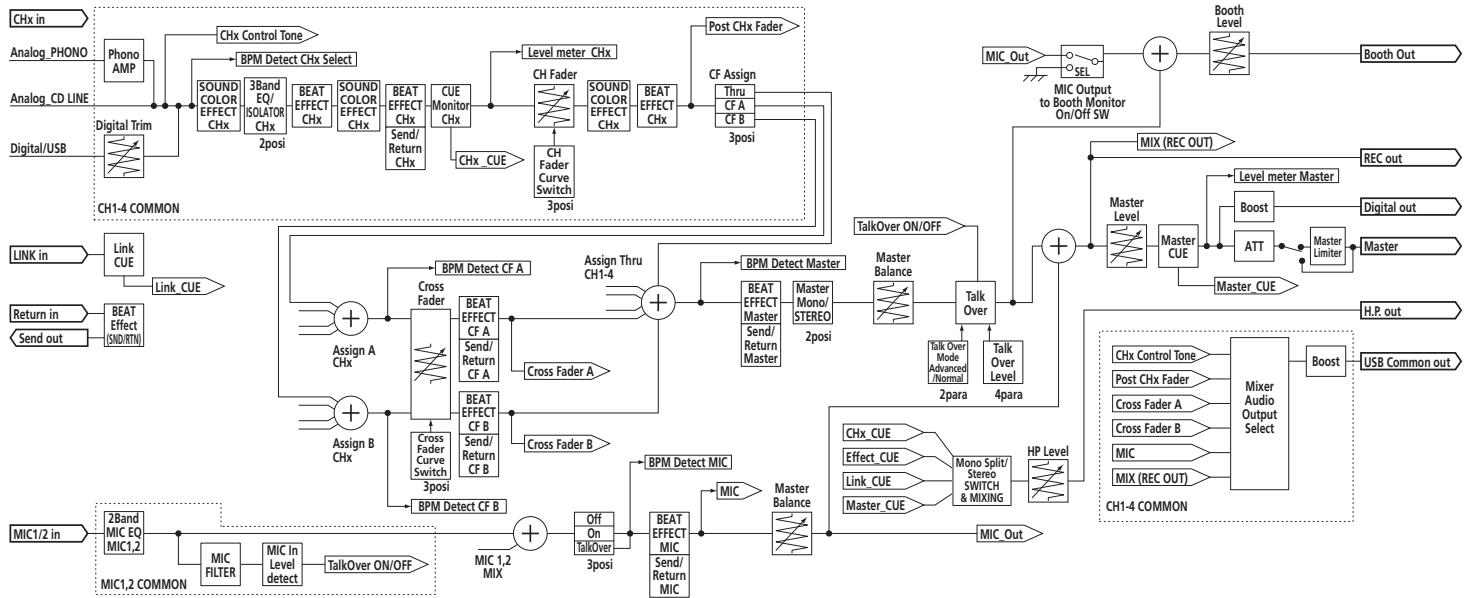
flowchart
Audio signal processing flowchart for CH1-4 COMMON, showing signal paths from analog channels through CHx control, Fader, mixer, and output to microphones.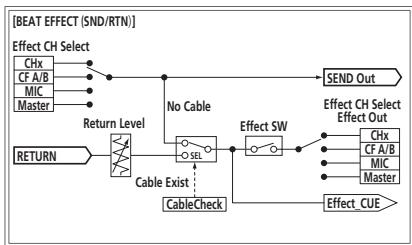
flowchart
graph TD
    A["Effect CH Select"] --> B["CHx"]
    A --> C["CF A/B"]
    A --> D["MIC"]
    A --> E["Master"]
    B --> F["No Cable"]
    C --> F
    D --> F
    E --> F
    F --> G["SEND Out"]
    H["RETURN"] --> I["Cable Exist :"]
    I --> J["CableCheck"]
    J --> K["Effect SW"]
    K --> L["Effect CH Select Effect Out"]
    L --> M["CHx"]
    L --> N["CF A/B"]
    L --> O["MIC"]
    L --> P["Master"]
    K --> Q["Effect_CUE"]
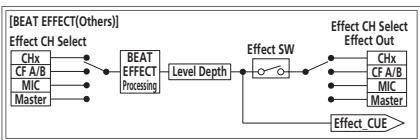
flowchart
graph LR
    A["Effect CH Select"] --> B["BEAT EFFECT Processing"]
    B --> C["Level Depth"]
    C --> D["Effect SW"]
    D --> E["Effect CUE"]
    E --> F["Effect CH Select Effect Out"]
    subgraph Effect_CUE
        G["CHx"] --> H["CF A/B"]
        I["MIC"] --> J["Master"]
    end

flowchart
graph LR
    A["Chx_CUE"] --> B["Effect Cue On/Off SW"]
    C["Effect_CUE"] --> D["Link Cue On/Off SW"]
    E["Link_CUE"] --> F["Master Cue On/Off SW"]
    G["Master_CUE"] --> H["MIXING"]
    I["CUE Mixing"] --> J["R"]
    K["Master Mixing"] --> L["L"]
    M["Cue Mixing"] --> N["L"]
    O["Mono Split"] --> P["Stereo"]
    Q["Mono Split/Stereo SWITCH 2posi"] --> R["SERO"]
    S["Mono Split"] --> T["Stereo"]
    U["H.P. MIX L Out"] --> V["+"]
    W["H.P. MIX R Out"] --> X["+"]
    Y["H.P. MIX L Out"] --> Z["+"]
CONECTAR Y REPRODUCIR
Conexiones
— HI: -12 dB a + 12 dB (10 kHz)
— LOW: -12 dB a +12 dB (100 Hz)
[LFO FORM (WAKE UP)].
line
| Frecuencia | dB | | ---------- | ------ | | Low | Low | | Medium | Peak | | High | Decreasing from Peak (labeled with arrow) |MID....-26 dB a +6 dB (1 kHz)
LOW -26 dB a +6 dB (70 Hz)
Подключения
© 2013 PIONEER CORPORATION.
All rights reserved.
© 2013 PIONEER CORPORATION.
PIONEER ELECTRONICS AUSTRALIA PTY. LTD.
5 Arco Lane, Heatherton, Victoria, 3202, Australia, TEL: (03) 9586-6300
PIONEER ELECTRONICS (THAILAND) CO., LTD.
17th Fl., KPN Tower, 719 Rama 9 Road, Bangkapi, Huaykwang, Bangkok 10310 TEL: 66-2-717-0777
PIONEER TECHNOLOGY (MALAYSIA) SDN. BHD
16th Floor, Menara Uni. Asia 1008 Jalan Sultan Ismail 50250 Kuala Lumpur TEL: 60-3-2697-2920
先鋒股份有限公司


- NOTE:
- FEDERAL COMMUNICATIONS COMMISSION DECLARATION OF CONFORMITY
- CAUTION
- WARNING
- VENTILATION CAUTION
- Operating Environment
- Information to User
- POWER-CORD CAUTION
- For Taiwan exclusively
- Contents
- For those operating Serato DJ for the first time using this unit and its accessories
- How to read this manual
- Before start
- Installing the software
- Connections
- Operation
- Types of effects
- MIDI assignment map
- Changing the settings
- Additional information
- Before start
- Features
- PLUG AND PLAY
- HIGH SOUND QUALITY
- SOUND COLOR FX&BEAT FX
- DURABLE FADER
- STANDARD LAYOUT
- What's in the box
- Installing the software
- Installing the driver software
- Software end user license agreement
- DEFINITIONS
- PROGRAM LICENSE
- WARRANTY DISCLAIMER
- EXPORT CONTROL AND COMPLIANCE WITH LAWS AND REGULATIONS
- U.S. GOVERNMENT RESTRICTED RIGHTS
- DAMAGES AND REMEDIES FOR BREACH
- TERMINATION
- GENERAL TERMS
- Cautions on Installation
- Installation Procedure (Windows)
- Insert the included CD-ROM into the computer's CD drive.
- From the menu that appears, select [Install Driver Software], then click [Start].
- "Download the latest version? An internet environment is required to access the site." is displayed. Click [Yes].
- Click [Software Download] under [DJM-900SRT] on the Pioneer DJ support site.
- Click [Driver Software].
- From the download page, download the driver software for Windows (DJM-900SRT\_X.XXX.exe).
- Double-click the downloaded file.
- Carefully read the Software end user license agreement and if you consent to the provisions, put a check mark in [I agree.] and click [OK].
- Proceed with installation according to the instructions on the screen.
- Installation procedure (Mac OS X)
- Double-click [CD\_menu.app].
- From the menu that appears, select [Install Driver Software], then click [Start].
- "Download the latest version? An internet environment is required to access the site." is displayed. Click [Yes].
- Click [Software Download] under [DJM-900SRT] on the Pioneer DJ support site.
- Click [Driver Software].
- From the download page, download the driver software for Mac OS (DJM-900SRT\_M\_X.X.X.dmg).
- Double-click the downloaded file.
- Double-click [DJM-900SRT\_AudioDriver.pkg].
- Check the details on the screen and click [Continue Anyway].
- When the end user license agreement appears, read Software end user license agreement carefully, then click [Continue Anyway].
- If you consent to the provisions of the Software end user license agreement, click [Agree].
- Proceed with installation according to the instructions on the screen.
- Installing the Serato DJ software
- Insert the CD-ROM into the computer's CD drive.
- When the CD-ROM's menu appears, select [Download Serato DJ Software.], then click [Start].
- "An internet environment is required to access the site. Connected to the internet?" is displayed. Click [Yes].
- Click [Software Info] under [DJM-900SRT] on the Pioneer DJ support site.
- Click the link to the Serato DJ download page.
- Log in to your "Serato.com" user account.
- Log in.
- Download the Serato DJ software from the download page.
- Read the terms of the license agreement carefully, and if you agree, select [I agree to the license terms and conditions], then click [Install].
- Click [Close] to quit the Serato DJ installer.
- Select [Download Serato DJ Software.] from the CD-ROM's menu, then click [Start].
- "An internet environment is required to access the site. Connected to the internet?" is displayed. Click [Yes].
- Click [Software Info] under [DJM-900SRT] on the Pioneer DJ support site.
- Click the link to the Serato DJ download page.
- Log in to your "Serato.com" user account.
- Click the link in the e-mail message sent from "Serato.com".
- Log in.
- Download the Serato DJ software from the download page.
- Connections
- Connecting input terminals
- Connecting to the control panel
- Connecting this unit and computer
- Connect this unit to your computer via a USB cable.
- Press [POWER] button.
- Basic Operation
- Outputting sound
- Adjusting the sound quality
- Monitoring sound with headphones
- Switching the fader curve
- Select the channel fader curve characteristics
- Switch the [CH FADER (∼, ∼, √)] selector switch.
- ❖ Select the crossfader curve characteristics
- Switch the [CROSS FADER ( , × , × )] selector switch.
- Using a microphone
- Connect a microphone to the [MIC1] or [MIC2] terminal.
- Set the [OFF, ON, TALK OVER] selector switch to [ON] or [TALK OVER].
- Turn the [MIC1 LEVEL] or [MIC2 LEVEL] control.
- Input audio signals to the microphone.
- ❖ Adjusting the sound quality
- Turn the [MIC] channels' [EQ (HI, LOW)] controls.
- Switching between monaural and stereo audio
- Switch the [MONO, STEREO] selector switch.
- ◆ Adjusting the L/R balance of audio
- Set the [MONO, STEREO] selector switch to [STEREO].
- Turn the [BALANCE] control.
- Audio is output from the [BOOTH] terminal
- Turn the [BOOTH MONITOR] control.
- Advanced Operations
- Using Serato DJ-supported functions
- QUANTIZE
- FADER START
- About PRO DJ LINK
- LINK MONITOR
- STATUS INFORMATION
- Using the QUANTIZE function
- Press the [QUANTIZE] button.
- Press the [ON/OFF] button of [BEAT EFFECTS] or touch the [X-PAD].
- Using the FADER START function
- ◆ Start playback using the channel fader
- Set the [CROSS FADER ASSIGN (A, THRU, B)] selector switch to [THRU].
- Press one of the [FADER START (1, 2, 3, 4)] buttons.
- Set the channel fader to the nearest position towards you.
- Set a cue in Serato DJ or on the DJ player.
- Move the channel fader away from you.
- ◆ Start playback using the crossfader
- Set the [CROSS FADER ASSIGN (A, THRU, B)] selector switch to [A] or [B].
- Set the crossfader.
- Set the crossfader.
- Using the LINK MONITOR function
- Connect headphones to the [PHONES] terminal.
- Connect a computer on which rekordbox is installed.
- Selecting the track to be monitored with rekordbox.
- Press the [CUE] button for [LINK].
- Using the SOUND COLOR FX function
- Press one of the [SOUND COLOR FX] selection buttons.
- Turn the [COLOR] control.
- ◆ Canceling the SOUND COLOR FX effect
- Press the [SOUND COLOR FX] selection button that is flashing.
- Using the BEAT EFFECT function
- Press [AUTO/TAP] button.
- Turn the beat effect selector switch.
- Turn the effect channel selector switch.
- Press the [BEAT ◀, ▶] button.
- Press the [ON/OFF] button for [BEAT EFFECTS].
- ◆ Inputting the BPM manually
- Tap the [TAP] button at least 2 times in rhythm with the beat (in quarter notes) of the sound being played.
- ◆ Using the external effector
- Connect this unit and external effector.
- Press the [ON/OFF] button for [BEAT EFFECTS].
- Operating procedure ①
- Perform steps 1 to 4 of the Using the BEAT EFFECT function procedure.
- Touch the [X-PAD].
- Operating procedure ②
- Perform steps 1 to 5 of the Using the BEAT EFFECT function procedure.
- Operating DJ software using the MIDI function
- Connect this unit's [USB] terminal to the computer.
- Launch the DJ software.
- Press the [ON/OFF (UTILITY)] button.
- ◆ Making the preparations to use the MIDI LFO function
- Press the [ON/OFF (UTILITY)] button.
- Press the [ON/OFF] button for [BEAT EFFECTS].
- Press the [LFO FORM (WAKE UP)] button.
- ◆ Using the MIDI LFO
- Turn the beat effect selector switch.
- Press the [LFO FORM (WAKE UP)] button.
- Press the [BEAT ◀, ▶] button.
- Press the [ON/OFF] button of [BEAT EFFECTS] or touch the [X-PAD].
- - Sending the MIDI start and MIDI stop messages
- Press the [START/STOP] button for [MIDI].
- Operating an external MIDI sequencer
- Connect the [MIDI OUT] terminal to the external MIDI sequencer's MIDI IN terminal using a commercially available MIDI cable.
- Set the external MIDI sequencer's sync mode to Slave.
- Press the [START/STOP] button for [MIDI].
- Press [ON/OFF] in the [MIDI] section.
- Types of effects
- Types of BEAT EFFECT
- DELAY 1
- ECHO 1 2
- SPIRAL 1 2
- REVERB 1 2
- TRANS 1
- FILTER 1
- FLANGER 1
- PHASER 1
- ROBOT 1
- MELODIC 1 2
- SLIP ROLL 1 2
- ROLL 1 2
- REV ROLL 1 2
- SND/RTN (MIDI LFO)
- SND/RTN 1
- MIDI LFO
- MIDI assignment map
- Changing the settings
- Press the [ON/OFF (UTILITY)] button for over 1 second.
- Press the [BEAT ◀, ▶] button.
- Press the [TAP] button.
- Press the [TAP] button.
- Press the [ON/OFF (UTILITY)] button.
- About the auto standby function
- About the talk over function
- Setting preferences
- About the setting utility software
- Displaying the setting utility
- Checking the status of this unit's input selector switches
- Click the [MIXER INPUT] tab.
- Setting the audio data output from this unit to the computer
- Click the [MIXER OUTPUT] tab.
- Click the [Mixer Audio Output] pull-down menu.
- Click the [USB Output Level] pull-down menu.
- Adjusting the buffer size (when using Windows ASIO)
- Click the [ASIO] tab.
- Checking the version of the driver software
- Click the [About] tab.
- Checking the latest information on the driver software
- Additional information
- Troubleshooting
- Acquiring the manual
- Downloading the latest versions of the operating instructions and the Quick Start Guide - Serato DJ Edition
- When the CD-ROM's menu is displayed, select [DJM-900SRT: Download the Operating Instructions (PDF file)], then click [Start].
- On the Pioneer DJ support site, click "Manuals" under "DJM-900SRT".
- From the download page, click the language for the documents you require.
- Downloading the Serato DJ software manual
- When the CD-ROM's menu is displayed, select [Serato DJ: Download the Software Manual (PDF file)], then click [Start].
- From "More Downloads" on the right side of the download page, click "Serato DJ x.x User Manual".
- About trademarks and registered trademarks
- Specifications
- General
- Audio Section
- Input / Output terminals
- Raccordements
- Anschlüsse
- Collegamenti
- Premere il pulsante [BEAT ◀, ►].
- WAARSCHUWING NETSNOER
- BEPERKING GARANTIE
- EXPORTBEPERKINGEN EN NALEVING VAN WETTEN EN REGELGEVING
- Installatieprocedure (Mac OS X)
- Aansluitingen
- Stel de [OFF, ON, TALK OVER] keuzeschakelaar in op [ON] of [TALK OVER].
- Stel [MONO, STEREO] keuzeschakelaar in op [STEREO].
- Stel de crossfader in.
- CONECTAR Y REPRODUCIR
- Conexiones
- Подключения
- PIONEER ELECTRONICS AUSTRALIA PTY. LTD.
- PIONEER ELECTRONICS (THAILAND) CO., LTD.
- PIONEER TECHNOLOGY (MALAYSIA) SDN. BHD
- 先鋒股份有限公司
Brand : PIONEER
Model : DJM-900SRT
Category : Mixer