MiTab Pop - Tablet Wolder - Free user manual and instructions
Find the device manual for free MiTab Pop Wolder in PDF.


| Product Type | Tablet |
| Brand | Wolder |
| Model | MiTab Pop |
| Display Size | 7 inches |
| Display Resolution | 1024 x 600 pixels |
| Processor | Quad-core 1.3 GHz |
| RAM | 1 GB |
| Internal Storage | 8 GB |
| Expandable Storage | microSD up to 32 GB |
| Operating System | Android 4.4 KitKat |
| Battery Capacity | 3000 mAh |
| Charging | 5V/2A via micro USB |
| Wi-Fi | 802.11 b/g/n |
| Bluetooth | 4.0 |
| Rear Camera | 2 MP |
| Front Camera | 0.3 MP |
| Dimensions | 190 x 115 x 10 mm |
| Weight | 320 g |
| Care Instructions | Wipe with a soft, dry cloth. Avoid liquids. |
| Safety Warnings | Do not expose to water or extreme temperatures. |
| Spare Parts Availability | Contact Wolder support for replacement parts. |
| Repairability | Battery and display replaceable by professional. |
Frequently Asked Questions - MiTab Pop Wolder
User questions about MiTab Pop Wolder
0 question about this device. Answer the ones you know or ask your own.
Ask a new question about this device
Download the instructions for your Tablet in PDF format for free! Find your manual MiTab Pop - Wolder and take your electronic device back in hand. On this page are published all the documents necessary for the use of your device. MiTab Pop by Wolder.
USER MANUAL MiTab Pop Wolder
Important Safety Precautions....2
Basic Introduction....5
Quick Start 5
Battery management and charging....5
Buttons and Ports....6
Boot and Shutdown....7
Connect with PC....7
Interface Introduction....8
Bottom bar of the Interface....7
The HOME Screen menu ....8
Desktop....8
Basic Operation....8
Date and time settings:....8
Display settings....8
Wireless Connection 9
Applications install and uninstall 9
Browser....9
Video player....9
Music player....9
Photo Browser....10
Camera 10
Sound Recorder....10
Frequently Asked Questions....11
System: Android4.1
Processor: Rock chip
Important Safety Precautions
☐ Do not subject the device to severe impact or drop it from heights.
☐ Do not use the device in extreme hot or cold, dusty or damp conditions. Do not expose it to direct sunlight.
☐ Avoid using the device near strong magnetic fields.
Keep the device away from water and other liquids. In the event that water or other liquids enter the device, power off the product immediately and clean the device.
☐ Do not use chemicals to clean the device in order to avoid corrosion. Clean it with a dry cloth.
☐ We are not responsible for damaged or lost data caused by malfunction, misuse, and modification of the device or battery replacement.
☐ Do not attempt to disassemble, repair or modify the product. This will invalidate the warranty.
If the device will not be used for an extended period of time, please charge the battery at least once per month to maintain battery life.
☐ Charge the battery if:
a) the battery level icon displays (battery empty);
b) the device powers off automatically when restarted;
c) there is no response when pressing/tapping on keys/buttons with keys/buttons unlocked and battery fully charged.
☐ Do not interrupt the connection when the device is being formatted or files are transferred. Otherwise, data may be corrupted or lost.
☐ If the device is used as a portable HD player, please use only per the instructions. Otherwise, permanent data loss could occur.
Please use and install data using the attachments/accessories provided and only according to the manufacturer's instruction.
☐ Please refer to the information on the bottom of the device for electrical and safety information before installing data or operating the device.
To reduce the risk of fire and electric shock, do not expose this device to rain or moisture. The device should not be exposed to dripping or splashing water. Never place objects filled with liquids, such as vases, on the device.
There is danger of explosion if the battery is replaced incorrectly. Replace only with the same or equivalent type.
☐ The battery (or batteries or battery pack) should not be exposed to excessive heat such as sunlight, fire or the like.
☐ Please follow responsible procedures for battery disposal
☐ If the power adaptor is disconnected from the device, the device will remain operable as long as the battery has sufficient charge.
☐ Do not install this equipment in a confined space such as a bookcase or similar unit. The ventilation should not be impeded by covering the ventilation openings with items such as newspapers, tablecloths, curtains etc.
☐ No naked flame sources, such as lighted candles, should be placed on the apparatus.
- Use the apparatus in moderate climates.
- Do not disconnect the USB cable between device and PC during data transmission or formatting. Only remove it safely from the operating system. Otherwise, data may be corrupted or lost and malfunctions may occur.
Disposal
Do not dispose of a defective device (built-in rechargeable battery) with the household waste. To dispose of your used device, please use the return and collection systems available in your area or contact the retailer where the product was purchased. They can take this product for safe environmental recycling.
Do not replace the rechargeable battery yourself. Please contact our customer service.
Listening Cautions Hearing Safety
Listen at a moderate volume: Using headphones at a high volume can impair your hearing. This product can produce sounds in decibel ranges that may cause hearing loss for a normal person, even for exposure less than a minute. The higher decibel ranges are offered for those that may have already experienced some hearing loss. Sound can be deceiving. over time your hearing ‘comfort level’ adapts to higher volumes of sound. So after prolonged listening, what sounds ‘normal’ can actually be loud and harmful to your hearing. To guard against this, set your volume to a safe level before your hearing adapts and leave it there. To establish a safe volume level: Set your volume control at a low setting. Slowly increase the sound until you can hear it comfortably and clearly, without distortion. Listen for reasonable periods of time: prolonged exposure to sound, even at normally ‘safe’ levels, can also cause hearing loss. Be sure to use your equipment reasonably and take appropriate breaks. Be sure to observe the following guidelines when using your headphones. Listen at reasonable volumes for reasonable periods of time. Be careful not to adjust the volume as your hearing adapts. Do not turn up the
volume so high that you can't hear what's around you. You should use caution or temporarily discontinue use in potentially hazardous situations. Do not use headphones while operating a motorized vehicle, cycling, skateboarding, etc.; it may create a traffic hazard and is illegal in many areas.
Intended Use
This device is intended to playback music and videos in popular formats, display of photos and Internet access with the integrated Wi-Fi function. This is the only intended use of the device.
Please observe all information in this user manual, in particular the safety precautions. Any other use will be seen as unintended use and can cause damage and personal injury. Furthermore, your warranty will be void. The manufacturer accepts no responsibility for damages due to unintended use.
This manual may not reflect your actual device's operation. All information is subject to change without prior notice. Please follow your actual device's operational procedures.
• CPU: Rockchip 2926 Cortex A9 1Ghz
• LCD Screen: 7 " 800x480 TFT LCD
- Camera: Front 0 .3M
- Operating System: Android 4.1
• Network Connection: Built-in 802.11b/g/n wireless
• Audio format: MP3,WMA,OGG,AAC,M4A ,FLAC,APE, WAV
- Video format: max 1080p full HD video (AVI,3GP, MP4, MPG, RM, RMVB, MOV,FLV, WMV,MKV)
- Touch Panel: Capacitive Multi-touch
• Language: support multiple language
- Ports: mini USB*1(OTG), Earphone * 1, TF card slot * 1, MIC*1
- Buttons: Power /Volume +/ Volume - /Reset
Quick Start
Battery management and charging
Before using this device, please charge it fully. Put the charger adapter into the DC jack,
the device will start to charge.
【TIPS】:
- This device adopts built-in polymer battery. Only the specified charger should be used. when it is charging, the icon of battery will be rolling. when the charging finish, the battery icon will turn green and stop rolling.
- If you do not use this device for a long time, please charge/release it once per month to avoid deep discharge.
- When it is power off because of low battery, connect to the charger, the device will indicate “low power” or “charging”, please wait for a second until the machine can turn to the main interface once the power is
enough.
- The built-in polymer battery should be charged regularly. The damage caused by battery over-consuming is not included in the warranty.
Buttons and Ports
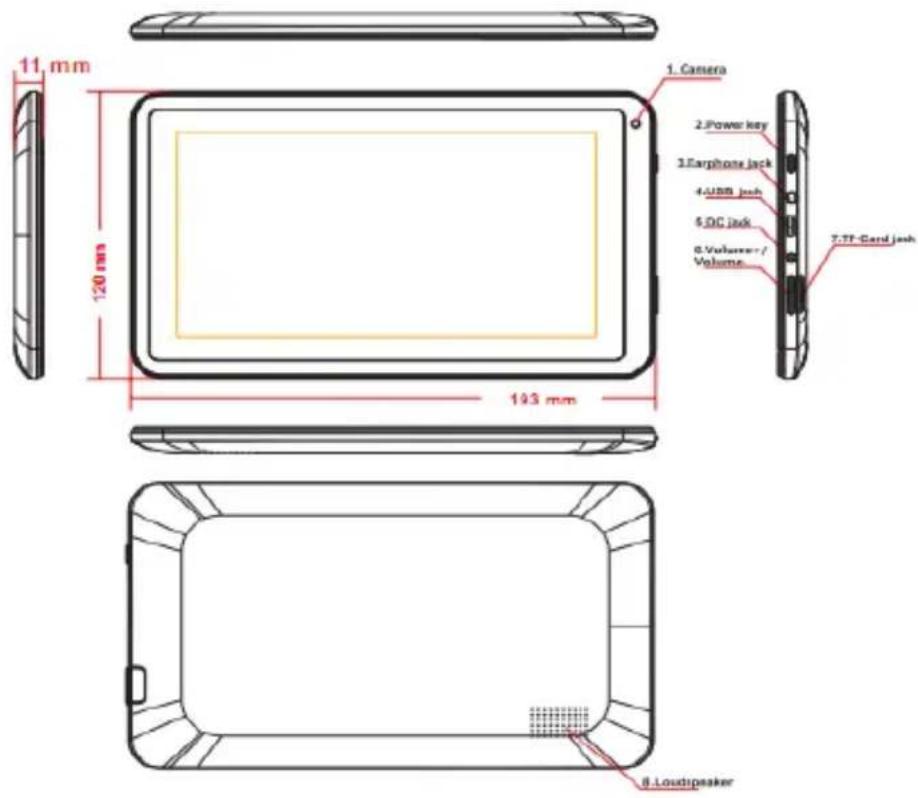
- Front Camera
- Power On/Off button
Press and hold to turn the unit on or off; briefly press to lock or unlock the screen..
- Headphone jack
Connect stereo earphones here.
- USB 2.0 high speed port /USB host/ DC-IN port
Connection for data transmission from/to PC (e.g. music, photos, videos) or connection of USB storage media and USB devices such as mouse or keyboard.
- DC jack: to connect with 2.5mm DC-5V/2A charger
Connect power adaptor for charging the built-in rechargeable battery here
- V+: Press to increase Volume
V- : Press to decrease Volume.
-
TF card
-
Speaker
Boot and Shutdown
Boot: Press and hold the power button, the system will enter the boot process, System has been started, entering the Android system.
Shutdown: Press the power button, pop-up device options, select
Power off, Click OK, you can safely shut down.
Connect with PC
By Micro USB (OTG) interface of the device, you can connect with PC by Mirco USB crable attached with the device. USB Data transferring is available.
You can operate the files through the PC.
When your device is connected successfully, to pull up the notification area of
the status bar, can see the following icon

Then click to enter the next
Click , Then the device can transmission data with PC.
Note: The device also supports the FAT32 format for external devices, for
example U disk, Micro SD card to Transfer data.
Interface Introduction
Bottom bar of the Interface

A: Back B: Home C: Menu D: Screenshot capture
E: Volume- F: Volume +
G: OTG connect icon: If the device connected to the PC, will show the OTG connected icon.
H: Time display: Display the time of the current system, which has been set.
I: WIFI signal status icon: If connected to the WIFI wireless network, the icon will be displayed
J: Battery status icon: Displays the current battery level and the charging status.
The HOME Screen menu
Press the menu icon on the device, it will display a home screen.
Wallpaper: Users can replace the wallpaper with your wishes.
Manage apps: It can quickly open a list of all applications.
System Settings: Fast access to system settings, user can choose "Wireless & etworks", "Display", "Date & time" etc, for personalized settings.
Desktop
When sliding around with your finger to switch the main screen, the desktop fixed on the main screen, will not move. User could drag the application icon placed on the desktop area in the main screen.
Basic Operation
Click the "Settings" icon the system

in the main applications area, you can open
Select the appropriate operation of the relevant items, such as: wireless and network, Display, date and time settings, about Device, etc.
Date and time settings:
Click "Date & time" to enter the Date and time settings interface:
Select to set the date, select the time zone, set the time, time format, date format and other information.
Display settings
In the settings interface choose "Display" to enter the display settings interface,
select "Brightness", Pull the progress bar to adjust the brightness, click Sleep, adjust the inactivity time of the device. You can press power key to activate the device.
Wireless Connection
Click the main menu "Settings" icon, go to "Settings" screen, click on "Wireless and networks" into the "Wireless and networks settings" interface. Turn on Wi-Fi switch, the Wi-Fi module built-in the device will search AP lists automatic, click the searched AP can be used, will pop up settings dialog, please follow the prompts to complete the WIFI network links. Some encrypted network, need to enter a valid key.
Applications install and uninstall
Install applications
- First you should select the Unknown sources which allow installation of non-Market apps.
- Copy the APK installer software to Micro SD or NAND FLASH.
- Click Apk Installer to find the app directory, then Select applications to install. Users can download via the computer, or online through the machine built-in browser to download and install.
Uninstall applications
Click on the item "Settings – Apps – Downloaded," select the appropriate application has been installed, click the applications which you need to uninstall
Browser
When the network connected, open the Web browser enter the URL, you can quickly Browse the Web or through the main desktop search bar enter the URL,.open the web page
Video player
Online video: The product supports HTML5 online video playback.
Local video: Click the Video Icon. The Player can loading new albums and photos automatically which stored in local disk or micro SD card, then select the videos to playback
Music player

Click the music icon
you can enter the music player interface.
Click the music files you will enter the player to play music
Click “”: Play the previous music, long press to fast reverse.
Click “” : Click it to suspend, the icon turn to “ ” click and return to the normal playing again.
Click “▶”: To play the next song, long press to do function.
Click “____”: To display the present playing list.
Click “____”: To select the random playing mode.
Click “ ↗ ”: To select the repeat playing mode.
Photo Browser
Click "Gallery" to get into Photo Browser directly, there will list all the picture files and video files.
Select a picture file and enter the picture playback interface, Can select "Zoom", "narrow" "set" and "delete" etc operation.
Camera
Sound Recorder
Click the recorder icon

plications menu
Note: Select "Record"
button to record when it is completed, select
"Stop"button At this point you can find the recordings folder in the file browser, which saved the recordings.
Frequently Asked Questions
Android
Q: What Android OS version is on my Device?
A: 4.1
APK
Q: What is APK?
A: APK is Android Package acronym that Android installation package.
Q: How to obtain the APK?
A: You can download via PC-side installation.
Q: Can I use any of my personal email addresses to send/receive email?
A: The device supports POP3 and SMTP accounts. Some free email accounts are not supported on mobile devices. Check with your email provider to see if you account is supported.
Q: Which media cards are compatible with my Device?
A: micro SD cards or TF cards.
Music
Q: What type of music files can I play on my device?
A: MP3, WMA, OGG, AAC, M4A, FLAC, APE, WA Photos
Q: What type of photo files can I view on my device?
A: JPG, JPEG, BMP, JPG and PNG. Video
Q: What type of video files can I play on my device?
A:AVI, 3GP, MP4, MPG, RM, RMVB, MOV, FLV, WMV,MKV(max 1080p full HD video)
Q: Can I play YouTube videos on my device?
A: Yes, you can. Tap the YouTube application icon to quick access videos.
Wi-Fi
Q: Do I need a Wi-Fi adapter to connect to the Internet?
R: No. The Wi-Fi adapter is built-in to the device.
DECLARATION OF CONFORMITY
GLOBAL WOLDER GROUP S.L, Polígono Industrial de Barros n°29, 39408 Barros, Cantabria. España, certifies that this product, referenced as miTab POP, complies with the provisions of the Directive 99/05/CE about Radio Equipment and Telecommunications Terminal (R&TTE), and the Directive 2004/108/CEE of Electromagnetic Compatibility standards in accordance to harmonized standards.
CE
Índice
E: Volume - F: Volume +
www.wolderelectronics.com
