miTab Chicago - Tablet Wolder - Free user manual and instructions
Find the device manual for free miTab Chicago Wolder in PDF.


User questions about miTab Chicago Wolder
0 question about this device. Answer the ones you know or ask your own.
Ask a new question about this device
Download the instructions for your Tablet in PDF format for free! Find your manual miTab Chicago - Wolder and take your electronic device back in hand. On this page are published all the documents necessary for the use of your device. miTab Chicago by Wolder.
USER MANUAL miTab Chicago Wolder
Te presentamos a miTab CHICAGO
Discover you new Wolder device. Welcome to our family :)
Thank you for choosing us. To turn on your tablet and start enjoying an intuitive and enriching experience hold and press for a few seconds the power button. To turn it off hold and press the same button until the device options appear on the screen.
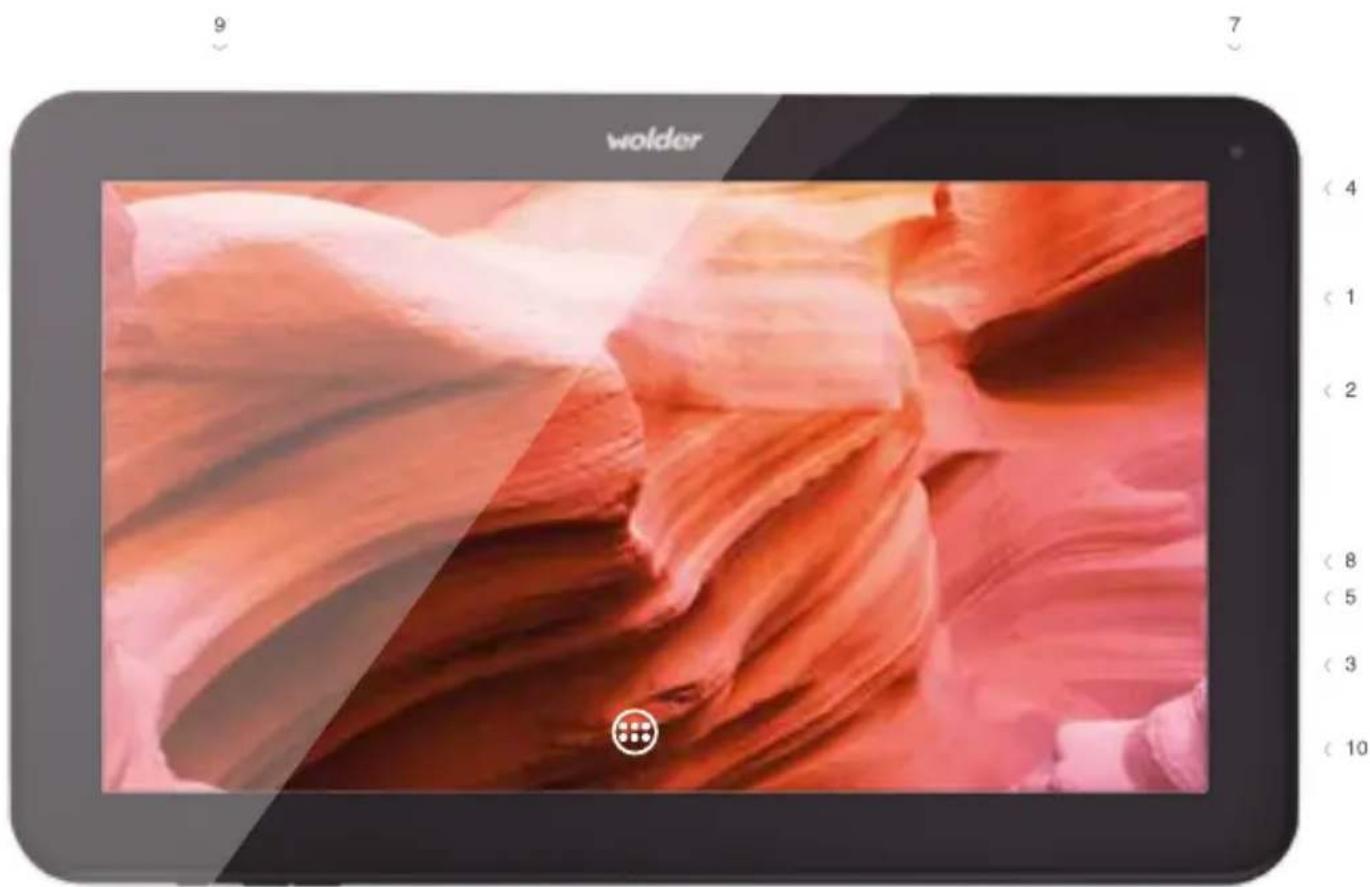
Introducing miTab CHICAGO
- Earphone hole
- USB/charger
- Reset button
- Power button (hold and press to switch on or off or airplane mode/press for sleep mode)
- Volume keys
- Screen
- Camera
- Micro SD
- Speaker
- Microphone
How is miTab CHICAGO? Technical features

·9"TN G+P
· 800×480 px
· Multitouch
·197×101mm

- Do not expose your miTab to high temperatures, humidity or dust. Keep it away from direct sunlight.
- Do not drop the tablet. Any hit on the device may cause damage or malfunction.
- Use miTab at an appropriate volume to never use the headphones at high volume.
- As long as your tablet is in file transfer mode, do not disconnect the unit suddenly. You can cause system errors.
- Do not disassemble the tablet for yourself. This device must be manipulated by qualified personnel.
- Do not use alcohol, thinner or benzene to clean miTab.
- Do not use the tablet in place in which the use of electronic devices is restricted.
- Do not use miTab while driving or walk down the street.
Charge and use of the battery
Remember that it is recommended to fully charge the battery of your tablet before first use. To do this, simply plug the adapter or the USB cable to your tablet and plug it into the wall outlet. For the first two loads, you will need at least 6 hours. Then, with just 4 hours will be enough.
【NOTE】: During charging, the battery icon appears on the screen moving. When the battery is fully charged, the icon will remain static.
【NOTE】: To ensure a longer life to your battery, it is advisable to consume it completely before recharging. What's more, in the event that you will not use the tablet for a long period of time, charge and use the tablet once a month. This way you will avoid damage to the battery. 2. When the battery is fully consumed, connect the adapter and wait a few moments before it has enough charge to access the main menu. 3. While charging the battery, the unit goes into standby mode until it has sufficient charge. The screen consumes a considerable amount of energy, so the charging time will be greater if it stays on during charging. When the tablet is on, you can turn off to save battery. Just press the power button once to turn off the screen. Press again the power button to turn on the screen.
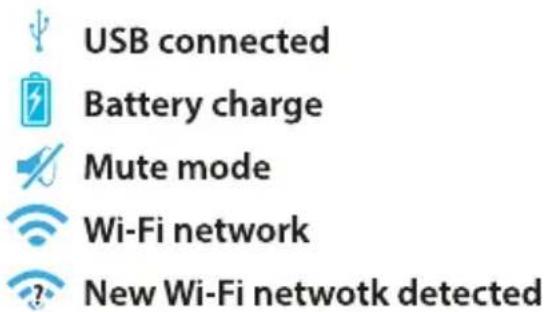
Status and notification icons
Your tablet will tell you what's going on by showing you simple icons. Here's what they mean:
Setting up miTab CHICAGO for the first time
- Unlock your screen
The screen of your tablet Wolder will lock every time the screen is suspended. To unlock just drag the closed padlock icon.
- Modify Settings
Pressing Menu Key, you will have access to all applications installed on your tablet. Among them you can find the button from which you can configure the main settings of your device: keyboard, language, sound, brightness and contrast of the screen, data usage, Internet, storage options, rotating screen (to make your screen rotate according to the position of your tablet-vertically or horizontally), etc.
Connecting miTab to a PC
miTab Wolder offers multiple connectivity options. Through the mini USB plug you can connect your tablet to a computer (for battery charging or to use it as a storage unit). USB connection notification will be automatically displayed on the screen of your device.
In order to use your tablet as an external disk select the Enable USB storage option you'll find at the bottom of your screen. This way you can share files between the PC and the tablet.
Getting connected to the Internet
Another one of the connectivity options that miTab Wolder gives you is the ability to connect to the Internet via Wi-Fi. To do so, you just have to go to the 🎨 button and slide the tab to the right to enable connection through Wi-Fi. When wireless connection is on, the tablet will look for and display a list of available wireless networks.
Choose which one you want to connect to. If the network is open, the tablet will display a message to confirm if you want to connect to that network. Click "Connect" to confirm.
Once the connection to the wireless network has been established, and icon of wireless network signal will be displayed in the notification bar.
NOTE: If the access point has security settings, you will need to provide a password.
Surf on the Internet
Once you have connected to the Internet, you can use the browser 📄, to surf on the websites you want to.
Install Apps
Your tablet has a number of preloaded apps to improve your user experience. But you can download all you want and need. You will have to use the marketplace you'll find on your device or download them directly from the Internet, on the official website of each App.
To manage the applications you have installed (in case, for instance, that you want to delete) you have to go to the button ⚙️, select the Apps option and, once there, the app you want to manage.
More info and support
For more information about our products, practical advices, frequent questions, users manuals, updates, etc. visit http://www.wolderelectronics.com.
To contact our technical support visit:
http://www.wolderelectronics.com/soporte/servicio-tecnico
Declaration of conformity
GLOBAL WOLDER GROUP S.L, Polígono Industrial de Barros n°29, 39408 Barros, Cantabria. España, certifies that this product, referenced as miTab CHICAGO, complies with the provisions of the Directive 99/05/CE about Radio Equipment and Telecommunications Terminal (R&TTE), the Directive 2006/95/CEE about Low Voltage and the Directive 2011/65/EU about Restriction of the Use of Certain Hazardous Substances in Electrical and Electronic Equipment.
CE
See you :)
Bem - vindo