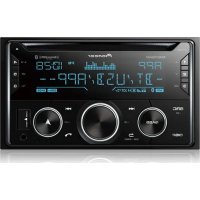
PDR-F10 - CD Recorder PIONEER - Free user manual and instructions
Find the device manual for free PDR-F10 PIONEER in PDF.


| Product Type | CD Recorder |
| Brand and Model | Pioneer PDR-F10 |
| Dimensions (W x H x D) | 205.5 x 268 x 68 mm (without supports, closed tray) |
| Weight | 2.0 kg (without packaging) |
| Power Supply | DC (Direct Current) |
| Frequency Response | 2 Hz to 20 kHz |
| Signal-to-Noise Ratio (Playback) | 110 dB (EIAJ) |
| Dynamic Range (Playback) | 98 dB (EIAJ) |
| Total Harmonic Distortion (Playback) | 0.002% (EIAJ) |
| Signal-to-Noise Ratio (Analog Recording) | 92 dB (EIAJ) |
| Dynamic Range (Analog Recording) | 92 dB |
| Total Harmonic Distortion (Analog Recording) | 0.005% |
| Output Voltage | 1.8 V |
| Number of Channels | 2 (Stereo) |
| Optical Digital Output | -15 to -21 dBm (wavelength: 660 nm) |
| Compatible Disc Types | CD, CD-R, CD-RW (for consumer use) |
| Playback Functions | Programming, Repeat (track/disc), Random, Track skip with SKIP codes |
| Recording Functions | Synchronized recording (CD, cassette), digital/analog, digital level adjustment, automatic/manual track numbering, CD Text, finalization |
| Maintenance | Clean with a soft, dry cloth; avoid solvents |
| Safety | Class 1 laser; do not open; refer servicing to qualified personnel |
Frequently Asked Questions - PDR-F10 PIONEER
User questions about PDR-F10 PIONEER
0 question about this device. Answer the ones you know or ask your own.
Ask a new question about this device
Download the instructions for your CD Recorder in PDF format for free! Find your manual PDR-F10 - PIONEER and take your electronic device back in hand. On this page are published all the documents necessary for the use of your device. PDR-F10 by PIONEER.
USER MANUAL PDR-F10 PIONEER
The lightning flash with arrowhead symbol, within an equilateral triangle, is intended to alert the user to the presence of uninsulated "dangerous voltage" within the product's enclosure that may be of sufficient magnitude to constitute a risk of electric shock to persons.
CAUTION
RISK OF ELECTRIC SHOCK DO NOT OPEN
CAUTION:
TO PREVENT THE RISK OF ELECTRIC SHOCK,DO NOT REMOVE COVER (OR BACK).NO USER-SERVICEABLE PARTS INSIDE. REFER SERVICING TO QUALIFIED SERVICE PERSONNEL.

The exclamation point within an equilateral triangle is intended to alert the user to the presence of important operating and maintenance (servicing) instructions in the literature accompanying the appliance.
WARNING: TO PREVENT FIRE OR SHOCK HAZARD, DO NOT EXPOSE THIS APPLIANCE TO RAIN OR MOISTURE.
Please read through these operating instructions so you will know how to operate your model properly. After you have finished reading the instructions, put them away in a safe place for future reference.
- This player is not suitable for commercial use.
Thank you for buying this PIONEER product. Please read through these operating instructions so you will know how to operate your model properly. After you have finished reading the instructions, put them away in a safe place for future reference. In some countries or regions, the shape of the power plug and power outlet may sometimes differ from that shown in the explanatory drawings. However, the method of connecting and operating the unit is the same.
- Do not remove the black plate from the disc compartment doors, or the doors themselves. Escaping laser light can be very dangerous.
- If the plate or compartment doors become detached, please contact your nearest Pioneer Service Center.
This product complies with the Low Voltage Directive (73/23/ EEC, amended by 93/68/EEC), EMC Directives (89/336/EEC, amended by 92/31/EEC and 93/68/EEC). H015AEn
CAUTION
This product contains a laser diode of higher class than 1. To ensure continued safety, do not remove any covers or attempt to gain access to the inside of the product.
Refer all servicing to qualified personnel.
The following caution label appears on the unit.
Location: Back of the unit.
CLASS 1 LASER PRODUCT
Content
1 Before You Start
Checking what's in the box 4
Using this manual 4
Using the remote control 4
Hints on installation 4
Avoiding condensation problems. 5
Maintaining your CD recorder 5
Moving the unit 5
CD lens cleaner 5
Storing optical cable 5
About CD, CD-R and CD-RW Discs..... 6
Playback-only CDs 6
CD-Recordable discs 6
CD-Rewritable discs 6
Consumer-use discs 6
Recording copyright material 6
Recording and finalizing discs 7
Handling discs 8
Storing discs 8
Discs to avoid 8
2 Connecting Up
Connecting to the rest of the system .... 9
3 Controls & Displays
Front Panel 11
Display 12
4 Getting Started
Using menus 13
Playing a CD 13
About the automatic door
open sensor 15
Changing the display 15
When a disc is stopped 15
When a track is selected 16
When a disc is playing 16
When recording 16
Recording CDs 17
Digital and analog recording 17
Digital recording restrictions 17
Power interruptions 17
Miscellaneous information 18
Automatically recording from a CD .... 18
Automatically recording from a tape .... 19
Recording from another source 20
Finalizing a Disc. 21
5 More Play Features
Programming the track order 22
Checking the playlist order 23
Deleting the playlist 23
Using repeat play 23
Using random play 24
6 More Recording Features
Setting the digital recording level 25
Numbering tracks 26
Starting tracks in time increments 27
Skipping unwanted tracks 28
Turning skip play on/off 28
Setting skip IDs 29
Clearing skip IDs 29
Using CD text 30
Inserting and deleting characters 31
Erasing CD-RW discs 31
Reinitializing a CD-RW disc 32
Erasing tracks from a non-finalized
CD-RW 32
Un-finalizing' a CD-RW disc 33
Erasing all tracks from a finalized
CD-RW disc 33
7 Additional Information
Switching the door open sensor on/off ... 34
Switching the open/close
beep on/off 34
Setting the display brightness 35
Display Messages 36
General messages 37
Messages relating to playback 37
Messages relating to recording 38
Troubleshooting 39
Specifications 40
Demo mode 162
Checking what's in the box
Thank you for buying this Pioneer product.
Before starting to set up your new CD recorder, please check that you have received the following supplied accessories:
- Stand A (mounting bracket)
- Stand B (table-top stand)
Optical cord
Warranty card
These operating instructions
Using this manual
This manual is for the PDR-F10 CD Recorder. It is split into two sections; the first covers setting up, and the second, using the recorder. Set up, which starts here, shows you how to install and connect up the recorder to the rest of your system.
In the second section of the manual, starting on page 11, you'll learn how to use every feature of the recorder, from basic playback to finalizing a recordable CD. The final part of the manual provides a list of display messages, a troubleshooting page, and technical specifications.
Using the remote control
The PDR-F10 is designed for use with the XC-F10 CD tuner, and can be controlled directly using the remote control supplied with the main unit. Since there is no sensor on the recorder, the remote must be used within the operating range of the remote sensor on the XC-F10. See Using the remote control in the main operating instructions for more on this.
Hints on installation
We want you to enjoy using this unit for years to come, so please bear in mind the following points when choosing a suitable location for it:
Do...
Use in a well-ventilated room.
Place on a solid, flat, level surface, such as a table, shelf or stereo rack.
Don't...
× Use in a place exposed to high temperatures or humidity, including near radiators and other heat-generating appliances.
× Place on a window sill or other place where the player will be exposed to direct sunlight.
× Use in an excessively dusty or damp environment.
× Place directly on top of an amplifier, or other component in your stereo system that becomes hot in use.
X Use near a television or monitor as you may experience interference—especially if the television uses an indoor antenna.
× Use in a kitchen or other room where the player may be exposed to smoke or steam.
X Use on a thick rug or carpet, or cover with cloth—this may prevent proper cooling of the unit.
× Place on an unstable surface, or one that is not large enough to support all four of the unit's feet.
Avoiding condensation problems
Condensation may form inside the player if it is brought into a warm room from outside, or if the temperature of the room rises quickly. Although the condensation won't damage the player, it may temporarily impair its performance. For this reason you should leave it to adjust to the warmer temperature for about an hour before switching on and using.
Maintaining your CD recorder
To clean your CD recorder, wipe with a soft, dry cloth. For stubborn dirt, wet a soft cloth with a mild detergent solution made by diluting 1 part detergent to 5 or 6 parts water, wring well, then wipe off the dirt. Use a dry cloth to wipe the surface dry. Do not use volatile liquids such as benzene and thinner which may damage the surfaces.
Moving the unit
If you need to move the unit, first switch it off and unplug from the wall outlet. Never lift or move the unit during playback or recording—the disc rotates at a high speed and may be damaged.
CD lens cleaner
The CD recorder's pickup lens should not become dirty in normal use, but if for some reason it should malfunction due to dirt or dust, consult your nearest Pioneer authorized service center. Although lens cleaners for CD recorders are commercially available, we do not recommend using them since some may damage the lens.
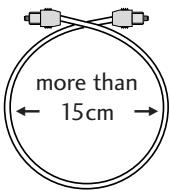
Storing optical cable
When storing optical cable, coil loosely as shown at right. The cable may be damaged if bent sharply around corners.
About CD, CD-R and CD-RW Discs
This unit is compatible with three different types of compact disc:
Playback-only CDs
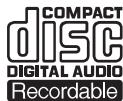
This unit will playback any ordinary audio CDs carrying the Compact Disc Digital Audio mark shown right.

CD-Recordable discs
Recordable CDs, or CD-R, carry the mark shown right, and are 'write once'. This means that once something is recorded on the disc it is p can't be re-recorded or erase
CD-Rewritable discs
Rewritable CDs, or CD-RW, carry the mark shown right. As the name indicates, you can erase and re-record material on these discs so th used over and over again.

Consumer-use discs
This recorder is only compatible with special consumer-use CD-R and CD-RW discs. These are clearly marked For Music Use Only, For Consumer, or For Consumer Use. Other types of CD-R or CD-RW discs, such as those available for computer-based CD recorders, will not work with this recorder.
Pioneer has checked the following branded discs for compatibility with this recorder (as of May 2000):
Eastman Kodak Company
- Fuji Photo Film Co., Ltd.
- Hitachi Maxell, Ltd.
Mitsui Chemicals, Inc.
- Sony Corporation
Ritek Corporation
Taiyo Yuden Co., Ltd.
TDK Corporation
Verbatim Corporation
Pioneer Corporation
Sample discs from the following makers have also been checked for compatibility (as of May 2000):
Mitsubishi Chemical Corporation
Ricoh Company, Ltd.
- At the time of writing, discs branded under these names are not available.
Note: Discs from all of the above makers may also be sold under different brand names.
Recording copyright material
The price of a consumer-use disc includes a copyright fee that has been paid to the copyright owner (in countries where the copyright fee collection system has been established based on their respective copyright laws). This means that you can use these discs to record music and other material for your personal use. If you want to use a disc for anything other than personal use, you must get permission from the copyright owner (note that copyright laws vary from country to country; check the copyright-related laws in your particular country for more information).
Broadcast programs, CDs, other recorded media (cassettes, vinyl records, etc.) and musical performances are all protected by copyright laws. You must get permission from the copyright owner if you sell, transfer, distribute or lease a disc recorded from the above mentioned sources, or if you use it as part of a business (such as for background music in a store).
Recording and finalizing discs
Unlike other recording media, recordable CDs have a number of distinct states, and what you can do with a disc depends on the current state of the disc. The figure below shows the three states—blank, partially recorded, and finalized—and what's possible (●) in each.
| CD-R | CD-RW | ||
| Blank disc | Record | ● | ● |
| Erase | ● | ||
| Set/clear skip IDs | |||
| Play in regular CD player | |||
| Partially recorded | Record | ● | ● |
| Erase | ● | ||
| Set/clear skip IDs | ● | ● | |
| Play in regular CD player | |||
| Finalized | Record | see 1 | |
| Erase | ● | ||
| Set/clear skip IDs | |||
| Play in regular CD player | ● | see 2 |
1 Once the CD-RW has been erased, it becomes recordable again.
2 In general, current CD players cannot play CD-RW discs. However, this situation may change.
The process of finalization fixes the contents of a CD-R in place for good by creating a Table of Contents (TOC, for short) at the beginning of the disc. This tells a CD player exactly what's on the disc and where to find it. Once a CD-R is finalized, further recording and other changes become impossible. The CD recorder and other CD players treat a finalized disc as an ordinary playback-only CD. (See page 21 for more information on finalizing CD-Rs.)
CD-rewritable discs can be finalized in the same way as CD-R discs, but even after finalization, the disc can still be erased and used over again. Remember that CD-RW discs can only be played on players that are specifically designed to play CD-RW discs: most home CD players will not play these discs, even after the disc has been finalized. (See page 21 for more information on finalizing CD-RWs.)
Handling discs
When holding CDs of any type, take care not to leave fingerprints, dirt or scratches on the disc surface. Hold the disc by its edge or by the center hole and edge. Damaged or dirty discs can affect playback and/or recording performance. Take care also not to scratch the label side of the disc. Although not as fragile as the recording side, scratches can still result in a disc becoming unusable.
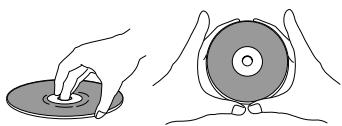
Should a disc become marked with fingerprints, dust, etc., clean using a soft, dry cloth, wiping the disc lightly from the center to the outside edge as shown in the diagram below. If necessary, use a cloth soaked in alcohol, or a commercially available CD cleaning kit to clean a disc more thoroughly. Never use benzine, thinner or other cleaning agents, including products designed for cleaning vinyl records.
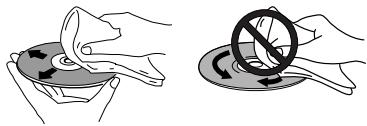
Wipe gently from the center of the disc to the outside edge using straight strokes. Don't wipe in a circular motion.
Storing discs
Although CD, CD-R and CD-RW discs are more durable than vinyl records, you should still take care to handle and store discs correctly. When you're not using a disc, return it to its case and store upright. Avoid leaving discs in excessively cold, humid, or hot environments (including under direct sunlight).
When labeling discs, use a felt-tip pen sold for marking CDs. Don't glue paper or put stickers onto the disc, or use a pencil, ball-point pen or other sharp-tipped writing instrument. These could all damage the disc.
For more detailed care information see the instructions that come with discs.
Discs to avoid
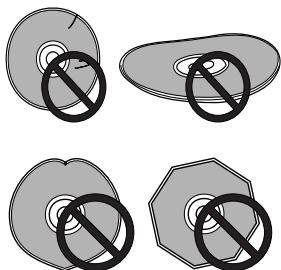
CDs spin at high speed inside the recorder during playback and recording. If you can see that a disc is cracked, chipped, warped, or otherwise damaged, don't risk using it in your CD recorder--you could end up damaging the unit.
This recorder is designed for use with conventional, fully circular CDs only. Use of shaped CDs is not recommended for this product. Pioneer disclaims all liability arising in connection with the use of shaped CDs.
Connecting to the rest of the system
The PDR-F10 connects directly to the XC-F10 CD tuner. If you're setting the whole system up for the first time, be sure to also refer to chapter 2 of the XC-F10 manual for full installation and connection details.
Important: Before making or changing any connections, make sure that all the components are switched off and unplugged from the power supply.
There are two connections to make: a ribbon cable and an optical cable for digital audio.
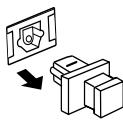
1 Pull out the protective tabs from the optical jacks of the CD tuner and CD recorder.
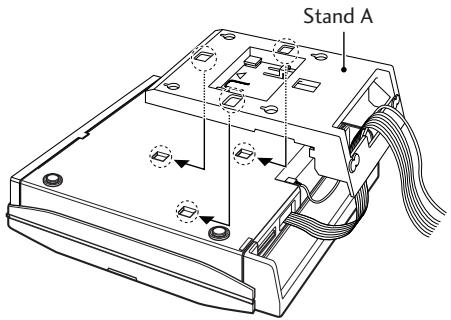
2 Thread the cables through Stand A, then connect the optical cable from the CD tuner to the CD recorder.
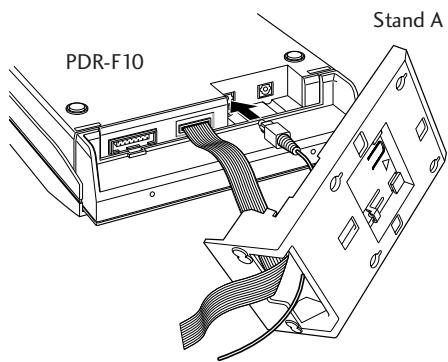
3 Slot Stand A on to the rear side of the unit.
Line up the three tabs on the stand with the holes on the back of the unit, then slot it into place.
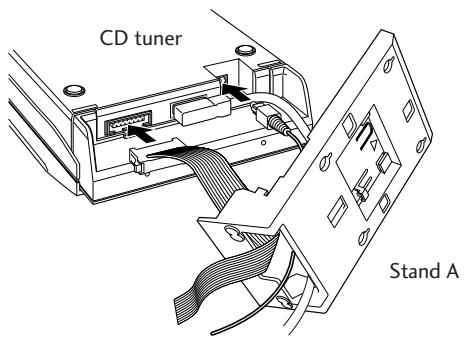
4 Connect the other end of the ribbon cable to the CD tuner unit. It's much easier to connect the ribbon cable if Stand A is not attached. However, remember that the cables must be threaded through the stand for it to be attached. (The ribbon cable can pass under the Stand A to keep it tidy.)
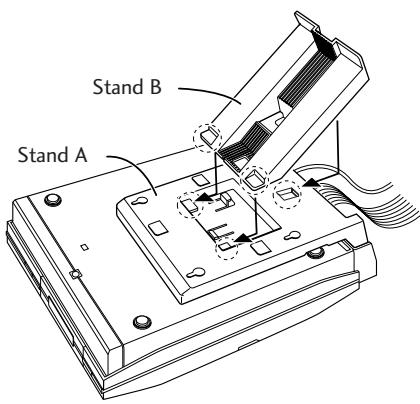
5 If you plan to use the system on a table-top or shelf, attach Stand B.
If you are going to wall-mount the unit, refer to Wall-mounting your system in the main operating instructions.
Note
If you also have the optional CT-F10 tape deck, connect its system cable to this unit, then connect this unit to the CD tuner as described here.
For more information on connecting and using the CT-F10 tape deck, see the accompanying operating instructions.
- To remove Stand B, push the center tab, as indicated, and slide off.
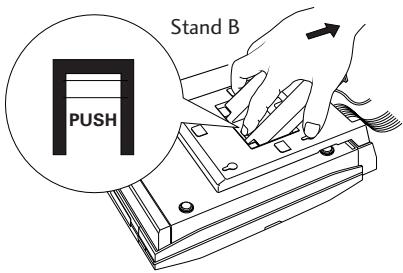
- To remove Stand A, pull the tab, as indicated, and slide off.
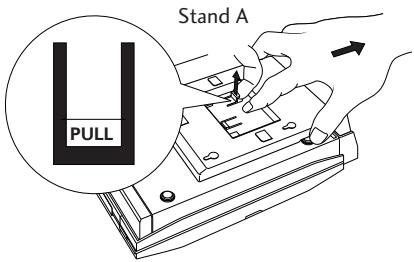
Important
Pioneer bears no responsibility for accidents resulting from faulty assembly or installation, insufficient mounting strength of walls or other building fixtures, misuse, or natural disasters.
Front Panel
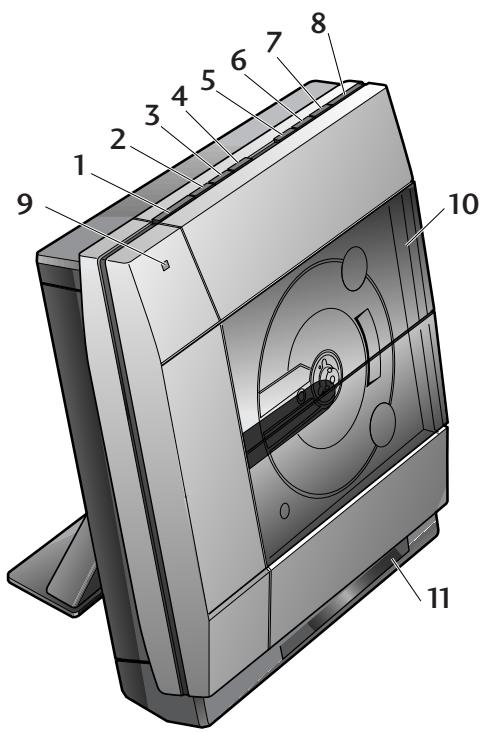
1 REC - Press to put recorder into recordpause (pages 18, 19, 20).
2 LEVEL - Use to lower the digital recording level (page 25).
3 LEVEL ^+ - Use to raise the digital recording level (page 25).
4 INPUT SEL. - Press to switch between analog and digital input for recording (page 20).
5 SKIP ID - Use to insert or clear skip IDs (pages 28, 29).
6 - Press to stop playback or recording.
7 / - Press to play a disc, or pause a disc that's already playing (press again to restart playback).
8 OPEN/CLOSE - Press to open/close the disc compartment.
9 REC indicator - Lights during recording.
10 Disc compartment
11 Fluorescent display - See page 12.
Display
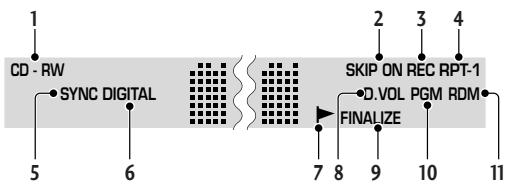
1 CD / CD-R / CD-RW - Indicates the type of disc currently loaded.
2 SKIP ON - Lights to indicate that a disc contains skip IDs. Blinks when setting or clearing skip IDs.
3 REC-Lights to indicate recording or record-pause mode. Blinking display indicates record muting.
4 RPT/RPT-1-Lights when disc repeat/track repeat mode is on.
5 SYNC - Lights when the recorder is in automatic synchro recording mode.
6 DIGITAL - Lights when the optical digital input is selected.
7 - Auto track indicator (lights when automatic track numbering is on)
8 D.VOL - Lights when the digital volume is set to something other than 0dB.
9 FINALIZE -Lights if the CD-RW currently loaded has been finalized.
10 PGM - Lights in program-play mode.
11 RDM-Lights in random-play mode.
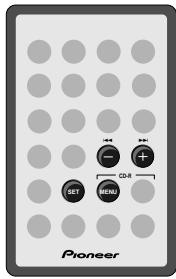
Using menus
Many of the features of this system are accessed from menus displayed in the CD recorder's fluorescent display. The advantage of this is that you can use many of the features using just four buttons: CD-R MENU to display the first menu option; I and to change the displayed option; and SET to select it.
Playing a CD
Here, we'll run through the basics you need to play and record CDs. Other features are covered in chapter 5.
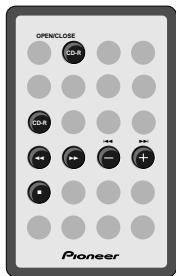
1 Load a CD.
The disc compartment opens automatically if you're holding a disc in front of the unit (unless a disc is playing). Alternatively, you can press OPEN/CLOSE CD-R on the remote or OPEN/CLOSE on the top panel.
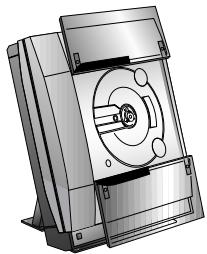
OPEN
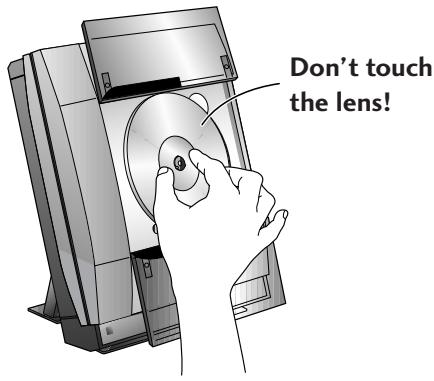
Push a CD, with the label face outward, on to the disc spindle, as shown below. You can load regular 12cm discs, or 8cm CD singles.
2 On the remote, press the CD-R button.
- Do not remove the black plate from the disc compartment doors, or the doors themselves. Escaping laser light can be very dangerous.
- If the plate or compartment doors become detached, please contact your nearest Pioneer Service Center.
After the disc compartment closes, the recorder first determines the kind of disc loaded. Next, it reads the TOC, then starts playing the disc.
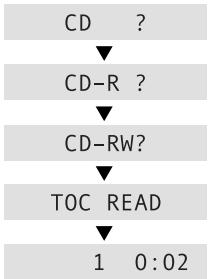
You can also use the top panel controls:
/ closes the disc compartment and starts the disc playing.
OPEN/CLOSE closes the disc compartment without starting playback (the disc compartment closes automatically after 60 seconds).
3 To pause playback, press the CD-R button.
To resume playback, press again.
You can also use the top panel controls:
Press /I once to pause playback; press again to resume.
4 To fast-reverse or fast-forward, press and hold or .
Release the button to resume normal playback.
5 To skip back or forward to another track, press (but don't hold) or .
Pressing once skips to the start of the next track on the disc. Further presses take you to subsequent tracks.
Pressing 1 once takes you to the beginning of the current track. Further presses skip to the start of previous tracks.
You can use the track skip buttons while the disc is paused, too. The track number changes while the disc remains paused.
6 To stop playback, press ■.
If the disc was paused, then pause is canceled. The display shows the number of tracks on the disc and the total playing time when the disc is stopped.
16 69:02
Tip
In step 2 above, pressing the CD-R button closed the disc compartment and set the disc playing. In fact, pressing this button is always the quickest way to play a disc. If there's already a disc in the player, then pressing the
CD-R button—even when the system is in standby mode—will switch the system on and start the disc playing.
Caution!
Be careful not to trap your fingers in the disc compartment as it closes automatically.
About the automatic door open sensor
The automatic opening of the disc compartment works using an infrared sensor. It may not work reliably if:
- the sensor is exposed to direct sunlight
- the room is lit using fluorescent lights
the unit is on a dark-colored surface
the unit is placed adjacent to a wall or other surface
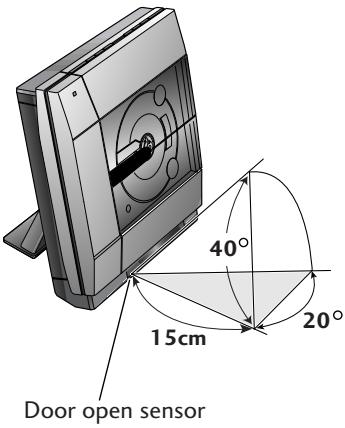
On its default setting, the door open sensor may open the disc compartment even if a CD is playing. You can change this so that it will only work if the CD recorder is stopped, or you can switch it off altogether (see page 34).
Changing the display
You can choose to display various kinds of information during playback and stop modes. Switch between them by pressing the CD-R DISP button.
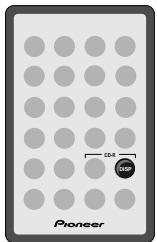
When a disc is stopped
Disc name - displays the disc's name (if there is one). Name starts scrolling after 3 seconds if it's more than 12 characters.
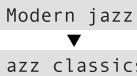
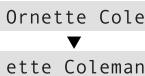
Artist name - displays the disc's name (if there is one). Name starts scrolling after 3 seconds if it's more than 12 characters.
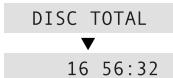
Disc total - displays the number of tracks and the total playing time of the disc.
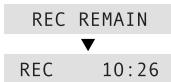
Rec remain - displays the recording time left on a recordable CD.
When a track is selected
There are two displays when a track is selected but the recorder is stopped:
Track name - displays the track's name (if there is one). Name starts scrolling after 3 seconds if it's more than 12 characters.
Caravan Lowd
avan Lowdown
Track time - displays the track number and its length.
6 3:30
When a disc is playing
These displays are available when a track is playing, or the recorder is paused during playback:
Track name - displays the track's name (if there is one). Name starts scrolling after 3 seconds if it's more than 12 characters.
Caravan Lowd
avan Lowdown
Elapsed track time - displays the track number and the time elapsed.
1 0:06
Track remain - displays the track number and track time still remaining
TRK REMAIN
7 4:12
All remain - displays the disc time still remaining (not available during random play).
ALL REMAIN
AL 41:22
Recording level - displays a recording level meter and the elapsed time.
= = = = = - 0:06
Note: During playback, the recorder automatically switches to the elapsed track time display for three seconds when a new track starts.
When recording
There are four displays available when recording, or when the recorder is paused during recording.
Recording level - displays a recording level meter and the elapsed time.
= = = = = - 3:30
Rec remain - displays the recording time left on a recordable CD.
REC REMAIN
REC 10:26
Elapsed recording time - displays the track number and the time elapsed.
6 3:30
Note: When the level meter is displayed, the recorder automatically switches to the elapsed recording time display for three seconds after a new track is started.
Recording CDs
This recorder is designed to let you make extremely high quality digital recordings onto recordable compact discs. For flexibility, you can use either rewritable discs (CD-RW) or write-once discs (CD-R). For more information on the discs you can and can't use with this recorder, see About CD, CD-R and CD-RW discs on page 6.
Digital and analog recording
Usually, you can make direct digital recordings from CDs. However, for copy-protected discs, you can switch to analog input recording. When recording from the radio or any other component connected to the CD tuner, the recording is via the analog inputs.
When making digital copies of CDs, track numbers are copied automatically along with the audio. With analog input recording, the auto track number feature numbers tracks automatically according to spaces in the source. You can also choose to number tracks manually during recording.
Another difference between analog and digital input recording is recording levels. When recording analog sources, the recording level is set automatically. When recording CDs digitally, you can adjust the digital recording level.
Digital recording restrictions
This unit has been designed exclusively for recording and playback of audio discs—you can't record other CD formats, such as computer CD-ROMs or Dolby Digital (AC-3), though you can record DTS encoded audio CDs and HDCD format CDs.
Almost all commercial digital source material is protected by copyright laws. For this reason, this recorder uses special consumer-use blank CD-R and CD-RW discs on which a copyright fee has already been paid. A further restriction is SCMS (Serial Copy Management System). This generally allows just one generation of digital recording. In other words, you can make a digital recording from an original source (such as a commercial CD), but you can't then make further digital recordings from that copy. You can still copy via the analog inputs, though.
Power interruptions
Never switch off this recorder while it's recording, or while the display shows PMA REC (Program Memory Area Recording). If there's a power failure, or you accidentally disconnect the power from the wall outlet while recording is in process, the recording will be lost.
After recording, always remove the disc from the recorder before switching the power off. Failure to do this could result in you losing some of the recorded material on the disc.
Miscellaneous information
- The minimum recordable time is four seconds. Even if you try and record something shorter than this, the track that the recorder creates will be four seconds.
Usually, track numbers are recorded onto the disc automatically when recording. If you decide to switch off this feature (for example, when you're recording from a satellite broadcast), be sure to input track markers as recording is taking place— you can't add them after recording is complete. See pages 26-27 for more on manual and automatic track numbering.
The maximum number of tracks on a disc is 99.
Automatically recording from a CD
This feature makes recording a CD as simple as possible by automatically starting and stopping the CD player and recorder together. You can record either individual tracks from a CD, or the whole disc.
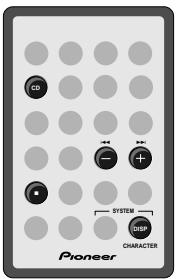
1 Load a CD-R or CD-RW disc.
If it's a blank disc, the display indicates this.
NEW DISC
If the disc isn't blank, use the DISP button to check that there's enough space on it for what you want to record.
2 Press CD to switch to the CD player.
3 Load the CD you want to record. Press to make sure that the disc is stopped
4 If you want to record just one CD track, select it using the | and buttons.
5 Press REC (top panel only).
The CD recorder goes into record-pause, waiting for you to start the CD player, and the SYNC indicator lights.
6 Press CD to start the CD playing. Recording starts automatically with the CD.
Once the track/disc has finished playing, the CD recorder goes back into record-pause.
- If you want to stop recording before the end of the disc/track, press.
7 If you're done, press ■.
To record further tracks, simply repeat steps 3, 4 and 6.
After pressing , the recorder writes the track information to the disc.
Take out the discs before switching the system off.
Tip
If you want to record a copy-protected CD, you can switch select analog recording over the default digital. Between steps 3 and 4 above, select the analog input:
- Press INPUT SEL. (top panel only) to set the input.
Pressing INPUT SEL. repeatedly switches the active input:
DIGITAL
ANALOG
Automatically recording from a tape
This feature, like automatically recording from a CD, will start and stop the tape player and the CD recorder together.
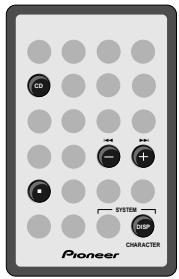
1 Load a CD-R or CD-RW disc.
If it's a blank disc, the display indicates this.
NEW DISC
If the disc isn't blank, use the DISP button to check that there's enough space on it for what you want to record.
2 Press TAPE to switch to the tape player.
3 Load the tape you want to record. Select the appropriate tape player options (auto reverse, Dolby B NR). See the operating instructions included with the tape player for more on this.
Press to make sure that the tape is stopped.
4 Press REC (top panel only).
The CD recorder goes into record-pause, waiting for you to start the tape player, and the SYNC indicator lights.
5 Press TAPE to start the tape playing.
Recording starts automatically with the tape. Once the tape has finished playing, the CD recorder goes back into record-pause.
- If you want to stop recording before the end of the tape, press.
- If you run out of space on the CD before the tape is finished, the CD recorder goes back into record-pause.
6 If you're done, press ■.
After pressing , the recorder writes the track information to the disc.
Take out the disc before switching the recorder off.
Manufactured under license from Dolby Laboratories.
- "Dolby" and the double-D symbol are trademarks of Dolby Laboratories.
G001En
Recording from another source
Use this recording method when recording from the tuner, optional MD or tape deck, or from a component connected to the auxiliary inputs.
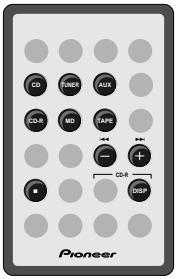
1 Load a CD-R or CD-RW disc.
If it's a blank disc, the display indicates this.
NEW DISC
If the disc isn't blank, use the DISP button to check that there's enough space on it for what you want to record.
2 Switch to the source that you're going to record.
For example, to record from the auxiliary inputs, press AUX.
3 Prepare the source for recording.
Switch on the source component, load the source material, tune to the station, etc.
4 Press REC (top panel only).
The CD-recorder goes into record-pause.
5 Press CD-R to start recording.
Alternatively, press on the top panel.
6 Start playing the source (if necessary).
7 During recording:
- Press CD-R (remote) or / III (top panel) to pause recording. Press again to restart.
- If auto track numbering is off, press REC to start a new track (see page 26 for more on track numbering).
8 When you're done, press to stop recording.
After pressing , the recorder writes the track information to the disc.
Take out the disc before switching the player off.
Finalizing a Disc
Before you can play a CD-R on an ordinary CD player, the disc must be finalized. Once finalized, a CD-R disc is no longer recordable, nor will you be able to set or clear skip IDs (see pages 28-29 for more on these).
Finalization is not reversible for CD-Rs so be absolutely sure that everything on the disc is the way you want it before you start.
CD-RW discs can also be finalized, although you can still erase the disc afterward and reuse it, so it's not anything like as final as it is with a CD-R disc. Not all CD players can play CD-RW discs even after finalization.
Caution!
Finalization takes a few minutes. During this time never switch off the power to the unit—the disc may become unusable as a result.
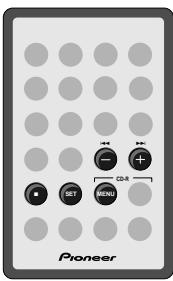
1 Load the CD-R or CD-RW you want to finalize.
- Check that the disc is free from dust, dirt and scratches—if necessary, clean the disc, following the guidelines on page 8.
2 Press CD-R MENU.
3 Use | or to select FINALIZE, then press SET.
FINALIZE
4 Press SET to start finalization.
Finalization takes about four minutes; you'll see how long there is still to go in the display.
TOC 1:58
After finalization is complete:
- If a CD-R is loaded, the CD-R indicator changes to CD.
- If a CD-RW is loaded, the FINALIZE indicator lights in the display.
- None of the controls on the player or the remote have any effect during finalization. If, however, the recorder hasn't managed to finalize the disc within 10 minutes, you can abort the operation by pressing. If you do this, the disc won't be playable on an ordinary CD player.
Programming the track order
This mode lets you program a sequence (a playlist) of up to 24 tracks to play. The order can be anything you choose. Tracks can appear more than once in the playlist, or can be left out entirely. The playlist applies only to the disc in the recorder at the time. Once you take the disc out (or switch the power into standby), the playlist is lost.
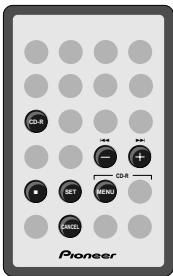
1 If the system isn't already in CD-R mode, press CD-R then stop playback.
2 With the disc stopped, press CD-R MENU.
3 Use or to select PROGRAM, then press SET.
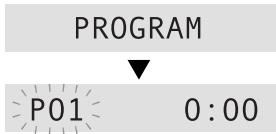
4 Select a track to add to the playlist using the and buttons.
For example, to add track 3, press three times. Or, to add the track before last, press twice.
The currently selected track blinks.

5 Press SET to add the track to the playlist.
The display briefly shows the playlist step number and the track.

6 Repeat steps 4 and 5 to continue adding tracks to the playlist.
- If you make a mistake, press CANCEL to delete the last (most recent) track programmed. (Delete multiple tracks by pressing CANCEL repeatedly.)
P12 CLEAR
- When no more tracks can be added the display shows PGM FULL.
PGM FULL
7 When you've completed the playlist, press CD-R MENU.
The playlist can be up to 24 tracks long.
8 Press CD-R to start playback.
Checking the playlist order
You can only check the playlist order when the disc is stopped. Once stopped, you can step through the playlist using the 1一 1 and buttons. Each track number in the playlist is displayed.
If you then press , the total playing time of the playlist is displayed.
Deleting the playlist
If you want to delete the playlist without removing the disc, press twice when the disc is stopped.
Using repeat play
You can set the CD recorder to repeat either a single track over and over, or the whole disc.
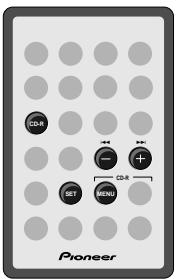
1 If the system isn't already in CD-R mode, press CD-R then stop playback.
2 Press CD-R MENU.
3 Use | or to select REPEAT MODE, then press SET.
REPEAT MODE
4 Use or to choose a repeat mode, then press SET.
Three options are available:
- REPEAT TRK? - repeat one track
- REPEAT ALL? - repeat all tracks on the disc
- REPEAT OFF? - turn repeat off
5 Start playback.
In one track repeat mode, any track you choose will repeat. If you jump to another track (using track skip or manual search), then the new track will start repeating.
In all track repeat mode, whenever the end of the disc is reached, the player will jump back to the first track and continue playback.
You're still free to skip tracks and use manual search.
The repeat mode you set stays active until you:
- select another repeat mode, or switch repeat mode off using the menu.
open the disc compartment door. - switch to standby mode.
Tip
You can use either of the repeat modes together with the program play mode.
Setting the repeat mode to REPEAT ALL plays the tracks in the playlist over and over. In REPEAT TRK mode, just the current track in the playlist repeats.
Using random play
To have the CD recorder play the tracks on a disc in a different order each time you play the disc, use the random play function. Each track will play just once, but the order will be random. When all tracks have been played, the disc stops.
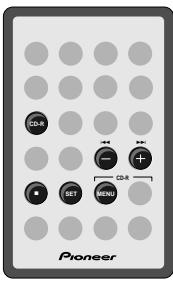
1 If the system isn't already in CD-R mode, press CD-R then stop playback.
2 Press CD-R MENU.
3 Use or to select RANDOM PLAY, then press SET.
RANDOM PLAY
4Playback begins automatically.
Pressing during random play stops playback, and random play mode is cancelled.
Tip
You can use either of the repeat modes together with the random play mode.
Setting the repeat mode to REPEAT ALL endlessly plays all the tracks on the disc at random. In REPEAT TRK mode, just the current randomly selected track repeats.
Setting the digital recording level
Usually when recording a CD you don't have to set recording levels. If you're recording a commercially produced CD, the digital level has already been optimized and you don't need to change it. If you're making a digital copy of a CD that was not commercially produced and that was consistently under-recorded, you can boost the overall level by up to +20dB . Remember though, that any peaks in the original recording run the risk of distorting the copy.
It's also possible to reduce the digital recording volume so that you end up with a recording that is quieter than the original. In most cases, this is not desirable since the recording quality will suffer very slightly. However, if you're putting together a mix CD (various tracks compiled from different sources), and there is a track which stands out as generally louder than the others (peak volumes are usually similar, but the average level of some recordings might be higher than others so they sound louder), then you might want to reduce the level of that track.
Note that this feature will not get rid of distortion on the source material.
You can adjust the digital recording volume while the recorder is in record-pause mode or while it's actually recording. Once changed, the new digital recording level remains until you change it again, or reset it.
1 Make sure the source is set to CD. Press CD on the remote to switch to CD, then stop playback.
2 Make sure that the digital input is selected.
Pressing INPUT SEL. (top panel only) repeatedly switches the active input:
ANALOG

DIGITAL
3 If the recorder is not already in a record mode, press REC (top panel only).
4 Use the LEVEL + and - buttons (top panel only) to adjust the recording level up or down.
= = = = - 0.0
- The maximum adjustment possible is between MIN and +20dB.
- The level meter is made up of seven segments; if the last segment in either channel lights, the level is overloading the recorder. Reduce the recording level if this happens.
- If you set the level at anything other than 0 dB, the D.VOL indicator in the display lights.
Note: When recording HDCD or DTS CDs, make sure that the digital volume is set to 0.0dB.
Numbering tracks
By default, the recorder automatically numbers tracks during recording. When you record a CD digitally, the track numbers are copied together with the audio. For other sources, the recorder starts a new track when it detects more than two seconds of silence between sounds. However, when you select the tuner as your recording source, automatic track numbering will switch off and you will have to start new tracks manually, or in time increments (see page 27). You can switch between auto and manual track numbering either before starting to record, or during recording itself.
Remember: it is not possible to edit track numbers after recording.
If you're recording digitally from CD you can usually let the recorder number the tracks automatically as they change on the source material. When recording analog sources, the recorder will start a new track if it detects more than 2 seconds of silence. However if you're recording a noisy vinyl record or a classical recording with long quiet sections, the recorder may not always recognize the gap between tracks. In this case, we recommend using manual track numbering.
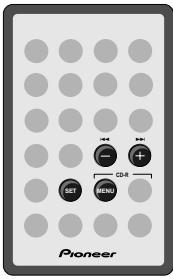
1 Press CD-R MENU.
2 Use or to select AUTO TRACK, then press SET.
AUTO TRACK
3 Use | or to select auto or manual, then press SET.
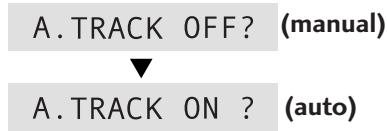
The auto track indicator (▶) lights in the display when A. TRACK ON is selected.
- During recording, start a new track by pressing REC (top panel only). You can do this when track numbering is set to manual (The auto track indicator does not show in the display).
- CD tracks must be at least four seconds long—the recorder won't let you start a new track less than four seconds into the current track.
Starting tracks in time increments
If you aren't able to set track numbers automatically during recording (a radio program with interviews, for example), you might want to have the recorder start tracks after every three minutes or so. This will make it easier to listen back to sections of the recording at a later date. You can set the time to one, three, or five minutes.
Note: The time increment will default to OFF when: recording is stopped; auto track numbering is turned off; power is turned off.
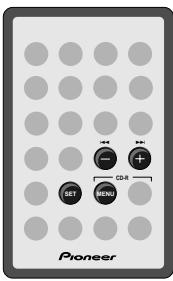
1 Press CD-R MENU.
2 Use and to select TIME INC. then press SET.
The display shows the current time increment: one, three, five minutes, or OFF. The default is OFF.
3 Use and to change the time increment.
4 Press SET to confirm.
The auto track indicator () starts to blink.
Skipping unwanted tracks
After recording a CD-R disc, you may decide that you don't want one or more tracks. This may be due to a simple mistake or because a track didn't record successfully. Although you can't erase those tracks, you can set what are called skip IDs. These tell a CD player (though not all recognize skip IDs) not to play a particular track, but to skip to the next one on the disc.
You can also set skip IDs on CD-RWs, although it's probably a less useful feature since you can always erase the last track.
Once a skip ID is set, you can clear it, but be careful: you can set up to 21 skip IDs per disc, but repeatedly setting and clearing skip IDs in different recording sessions will reduce this number.
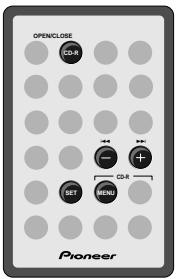
Turning skip play on/off
When skip play is on, the recorder won't play tracks that are marked with skip IDs. When skip play is off, the recorder will play all tracks.
The skip indicator lights if there are any skip IDs already set.
1 Press CD-R MENU.
2 Use or to select SKIP PLAY, then press SET.
SKIP PLAY
3 Use or to select SKIP ON or SKIP OFF, then press SET.
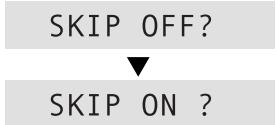
The SKIP ON indicator lights in the display.
Setting skip IDs
1 Press SKIP ID (top panel only) during playback (or play-pause) of the track you want to skip.
11SKIPSET
The SKIP indicator lights and the display shows the track number and SKIP SET.
- If there's no room left on the disc to record another skip ID, the display will show the message SKIP FULL.
2 Press SKIP ID again to confirm.
3 Set further skip IDs by repeating steps 2 and 3.
4 When you're finished, stop the disc and press OPEN/CLOSE (CD-R OPEN/CLOSE on the remote).
Until you eject the disc, the recorder stores the skip ID information in its memory. On pressing OPEN/CLOSE, the recorder writes the skip ID information onto the disc.
Clearing skip IDs
1 Make sure that skip play is off.
See above for how to do this.
- If the SKIP ON indicator did not light when you loaded the disc then there are no skip IDs present on that disc.
2 Start playing the track you want to clear the skip ID for.
3 Press SKIP ID.
The skip indicator blinks and the display shows the track number (blinking) and SKIP CLR.
11SKIPCLR
- If this track doesn't have a skip ID, the player jumps to the next track that does and starts playback of that track.
- Use the and buttons to move between tracks that have skip IDs set.
4 Press SKIP ID again to confirm.
5 Clear further skip IDs by repeating steps 2-4.
6 When you're finished, stop the disc and press OPEN/CLOSE (CD-R OPEN/CLOSE on the remote). Until you eject the disc, the recorder stores the changes in skip ID information in its memory. On pressing OPEN/CLOSE, the recorder writes the new skip ID information onto the disc.
Using CD text
You can name a CD-R or CD-RW so that when you load the disc into the player, the disc name, track name, or artist name appears in the display. Each name can be up to 120 characters long, including spaces. You can store all the text (up to 2000 characters) for up to three non-finalized discs in the recorder at one time. This is useful when you want to edit the text during another recording session with the same disc.
Be careful: When you set text for a fourth disc, the oldest text information (for the first disc) is deleted from memory.
Once you finalize a CD-R, the text information cannot be changed. Text with CD-RW discs is deleted when you erase the corresponding track.
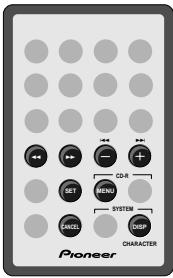
1 Load the disc you want to enter text for.
If you want to enter a disc name or artist name, the disc must be stopped with the total number of tracks and playing time displayed (press to make sure).
If you want to enter a track name, the track has to be playing, paused, or selected (from stop, use the and buttons to select a track).
2 Press CD-R MENU.
3 Use or to select DISC NAME or TRACK NAME.
If you want to enter an artist's name, choose DISC NAME.
4 Press SET.
If you want to enter an artist's name, press SET again.
The display shows a blinking cursor at the first character position.
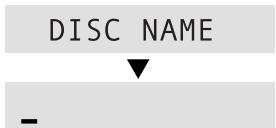
- If a disc/artist/track name has already been entered, the display shows the existing name.
5 Select/change the character at the current cursor position.
Use I and to change the character. Press SYSTEM DISP to switch between character sets:
- Upper case:
$$ \begin{array}{l} \text {A B C D E F G H I J K L M N O P Q R S T U V W X Y Z} \ \text {< s p a c e >} \end{array} $$
Lower case:
$$ \begin{array}{l} \text {a b c d e f g h i j k l m n o p q r s t u v w x y z} \ \text {< s p a c e >} \end{array} $$
- Numbers and symbols:
$$ \begin{array}{l} 1234567890! \text{"}# \ < = > ? @ [ ] ^ {_} ^ {\prime} {\mid } < \text {space}> \end{array} $$

6 Press to move the cursor to the next character position.
C
- Move the cursor backwards or forwards along the display using and .
7 Repeat steps 4 and 5 to input up to 120 characters.
8 When you're done, press CD-R MENU to enter the text.
Caravan.
- To exit without making any changes, press instead.
Inserting and deleting characters
- To delete the character at the current cursor position, press CANCEL.
Piano solos
Piano solos
- To insert a character (rather than overwriting what was there), press SET instead of after selecting the character.
Moden jazz c
Moder jazz c
Modern jazz
Erasing CD-RW discs
Although more expensive than CD-R discs, the great advantage of CD-RW is that the discs can be erased and reused. Various erase options are available depending on whether the disc has been finalized.
A third, special option, erases (re-initializes) the whole disc. This process takes quite a long time to complete and should be used for recovering damaged discs, not for erasing tracks from a healthy disc.
Caution!
Never switch off the power during CD-RW erasing—your disc may become unusable.
If the message CHECK DISC appears any time during any erase process, hit eject, take out the disc, clean it, then try the erase command again.
Be sure to remove the disc from the recorder before switching off the power, otherwise the erase operation will not be completed.
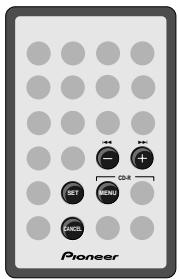
Reinitializing a CD-RW disc
Use this to completely wipe all the information from a CD-RW disc. You can do this with a finalized or non-finalized disc.
1 Press CD-R MENU.
2 Use | | < or | > | to select INITIALIZIZE then press SET.
INITIALIZE
INITIALIZE?
3 Press SET again to start erasing.
Disc erase takes half the length of the disc.
- Press CANCEL to cancel instead of erasing.
Note: Once the erase operation has started, you can abort by holding down the button for 10 seconds. Make sure though that you erase the disc properly before using the disc again.
Erasing tracks from a nonfinalized CD-RW
Use this to erase one or more tracks from a CD-RW disc.
1 Press CD-R MENU.
2 Use or to select ERASE MODE then press SET.
ERASE MODE
3 Use or to select the tracks that you want to erase.
The display shows which tracks are to be erased.
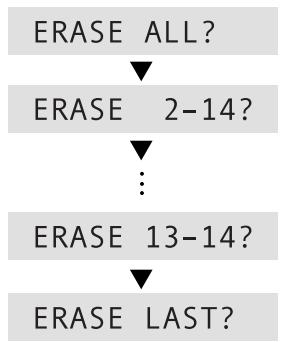
You can erase all tracks, just the last track, or from any track number to the end of the disc. For example, on a six track disc, you could erase tracks 4, 5 and 6, but not just tracks 4 and 5.
4 Press SET again to start erasing.
Multi erase takes just a few seconds.
- Press CANCEL to cancel instead of erasing.
5 When erasing is complete, press OPEN/CLOSE.
This completes the operation and makes the disc ready for recording.
'Un-finalizing' a CD-RW disc
Use this option to return a finalized CD-RW disc to a non-finalized state, without erasing any tracks.
1 Press CD-R MENU.
2 Use or to select ERASE MODE then press SET.
ERASE MODE
3 Use or to select ERASE TOC? then press SET.
ERASE TOC?
4 Press SET again to start erasing. Disc erase takes a few minutes to complete.
- Press CANCEL to cancel instead of erasing.
5 When erasing is complete, press OPEN/CLOSE.
This completes the operation and makes the disc ready for recording.
Erasing all tracks from a finalized CD-RW disc
Use this option to erase all tracks from a finalized disc. In fact, only the TOC (table of contents) is erased, so this is much faster than the disc erase option on page 32.
1 Press CD-R MENU.
2 Use or to select ERASE MODE then press SET.
ERASE MODE
3 Use | | | | or to select ERASE ALL then press SET.
ERASE ALL?
4 Press SET again to start erasing. Erasing takes a few minutes to complete.
- Press CANCEL to cancel instead of erasing.
5 When erasing is complete, press OPEN/CLOSE.
This completes the operation and makes the disc ready for recording.
Switching the door open sensor on/off
The door open sensor on the front of the CD recorder has three operating modes, as well as an off setting.
1 Switch the unit into standby.
2 Press SYSTEM MENU and select SENSOR MODE.
SENSOR MODE
Remember: switch between menu options using and ; select the option by pressing SET.
3 Use or to select MODE 1, MODE 2 or OFF as required.
- SNSR MODE 1 - (default) the door will open automatically, even if a disc is currently playing.
- SNSR MODE 2 - the door will only open automatically if no disc is playing.
- SNSR OFF - switches off the automatic door feature.
4 Press SET.
The system goes back into standby.
Note: The disc compartment options also affect the settings of the main unit. They cannot be set independently.
Switching the open/ close beep on/off
By default, when you press OPEN/CLOSE to open or close the disc compartment, you'll hear a beep. If you would prefer not to, here's how to switch it off:
1 Switch the unit into standby.
2 Press SYSTEM MENU and select BEEP MODE.
BEEP MODE
Remember: switch between menu options using and ; select the option by pressing SET.
3 Use or to select BEEP ON or BEEP OFF as required.
4 Press SET.
The system goes back into standby.
Note: The disc compartment options also affect the settings of the main unit. They cannot be set independently.
Setting the display brightness
You can adjust the brightness of the display to suit the lighting conditions of the room. For example, in a brightly lit room you'd probably want the display brighter than in a room with low lighting.
1 Press SYSTEM MENU and select DIMMER SEL.
DIMMER SEL
Remember: switch between menu options using and ; select the option by pressing SET.
2 Adjust the brightness using the and buttons.
There are five levels of brightness (the default is 5).
3 Press SET.
The system goes back into standby.
- When switched on, the blue light on the disc compartment door changes (3 levels) with the display brightness.
Note: The display brightness options also affect the settings of the main unit. They cannot be set independently.
Display Messages
Below is a list of messages you'll see during normal operation with a brief explanation of what they mean. If you need more information, turn to the page indicated.
| Message | Description | Reference |
| TOC READ | The recorder is reading the disc's TOC (Table of Contents). Wait for the message to disappear. | p.14 |
| PMA REC | The recorder is writing TOC data to the disc's PMA (Program Memory Area). Never turn off the power while this display is showing. | |
| ** SKIP SET | Confirm that you want to set a skip ID by pressing SET. | p.28 |
| ** SKIP CLR | Confirm that you want to clear a skip ID by pressing SET. | p.29 |
| ERASE LAST ? | Confirm that you want to erase the last track of a CD-RW disc by pressing SET. | p.32 |
| ERASE ALL ? | Confirm that you want to erase all tracks on a CD-RW disc by pressing SET. | p.33 |
| ERASE TOC ? | Confirm that you want to erase the TOC of a finalized CD-RW disc to return it to a non-finalized state. After doing this, you can record more material on the disc. | p.33 |
| ERASE ** - ** ? | Confirm that you want to erase tracks recorded on a CD-RW disc. | p.32 |
| INITIALIZE? | Confirm that you want to re-initialize the CD-RW disc by pressing SET. | p.32 |
General messages
Below is a list of error messages you may see during playback or recording, with possible causes and remedies. If you need more information, turn to the page indicated.
| Display | Cause | Remedy |
| CHECK DISC | The disc is damaged or dirty. | Take out the disc and check for dust, dirt, scratches, etc. Clean as necessary. |
| The disc is loaded upside down. | Take out the disc and reload it label-side up. If the same message is displayed again after the disc is reloaded, unplug the power cord and plug it in again. If the same message is still displayed, please contact a Pioneer authorized service center. | |
| CHECK (blinking display) | A system error occurred, perhaps due to noise or static electricity. | Unplug the power cord and plug it in again. If the same message is displayed again, please contact a Pioneer authorized service center. |
Messages relating to playback
| Display | Cause | Remedy | Reference |
| NEW DISC | A blank disc is loaded. | Only recording is possible on blank CD-R or CD-RW discs. Playback is not possible. | p.21,22,23 |
| NO DISC | An attempt is made to start playback without loading a disc. | Open the tray and check that a disc is loaded. |
Messages relating to recording
| Display | Cause | Remedy | Reference |
| Can't COPY | The input signal is digital-copy protected with SCMS. | Record the source through the analog inputs. | p.17,20 |
| DIN UNLOCK | The digital source was interrupted. | Check that the digital input cable is connected properly and that the power of the source player is on. | p.17 |
| The source is not audio, or is an incompatible format (e.g. a CD-ROM). | Check that the source is a regular music source. | ||
| Can't SYNC | The digital source is not recognized as CD, MD, DVD, DAT, or DCC. | Try using the manual digital recording mode. or record the source through the analog inputs. | p.17,20 |
| CHECK INPUT? | The source player was already playing when the REC button was pressed. | Stop the source player. After a short time, the SYNC indicator lights, and the recorder goes into synchro-record-pause mode. | p.18 |
| ** SET UP | The unit is preparing to record. | Wait until the message disappears. | |
| REPAIR | The recorder was switched off/unplugged after recording without ejecting the disc. The recorder could not write essential recording information onto the disc. | While REPAIR is displayed, the recorder automatically examines the recorded area of the disc and updates the track numbers and recording time data. This process takes about 40 minutes for a fully recorded disc. Finalization or further recording is possible once the REPAIR message disappears. | |
| REC FULL | No more recording is possible because the available recording time of the disc has been used up, or 99 tracks have already been recorded on the disc. | Use another disc, or erase the CD-RW disc. | |
| pro DISC | The loaded disc is a CD-R or CD-RW disc for professional use without the CONSUMER USE designation. | Load a CD-R or CD-RW disc that is designated as being for consumer use. |
Troubleshooting
| Symptom | Cause | Remedy |
| Power cannot be turned on. | The power cord is unplugged from the wall outlet. The power was turned off from the component (stereo amplifier, audio timer, etc.) to which it is connected. | Plug the power cord into a power outlet. Turn on the component supplying the power to the recorder. |
| No sound is heard during playback. | The recorder is not connected up properly. | Check all connections, especially to the amplifier (p. 9–10). |
| Cannot record. | The recorder is not connected up properly. The CD-R or CD-RW disc in use has already been finalized. The input selection is incorrect. The digital recording level is set too low. | Check all connections (p.9–10). Use a non-finalized disc or erase the CD-RW disc (p.31–33). Select the input connected to the source component you're recording from. Increase the recording level (p. 25). |
| Recorded sound is distorted. | The digital recording level is set too high. Signal connections are incorrect. There is interference from a TV set. The disc is damaged or warped. The disc is extremely dirty. | Reduce the recording level (p.25). Check all connections (p.9–10). Turn the TV power off or install this unit further away from the TV. Use another disc. Clean the disc. |
| Remote control operation is impossible. | The remote control batteries are exhausted. There is an obstacle between the remote control unit and main unit. The remote control unit is being operated outside the remote controllable range. | Replace both of the remote control batteries with new ones. Remove the obstacle. Operate in the remote controllable range (see main manual for this). |
| Some tracks are skipped without being played. | The SKIP PLAY option is set to on | Set the SKIP PLAY option to off (p.29). |
| Skip playback does not occur. | The SKIP PLAY option is set to off. | Set the SKIP PLAY option to on (p.29). |
| The recorder does not recognize the end of tracks during sync recording. | The level that the recorder regards as 'silence' is set either too low, or too high. | Set the silence threshold to a suitable level for automatically numbering tracks (p.26). |
| A recorded CD-R disc cannot be played on other CD players. | The disc has not been finalized after recording. When such a disc is loaded, the CD-R indicator lights up. The pickup lens of the other CD player is dirty, impairing its ability to play CD-R discs. | Finalize the disc (p.21). Try the disc on a different CD player. If it plays OK then get the pickup lens on the original player cleaned. |
Specifications
Compact Disc Recorder PDR-F10
Model Compact disc audio system
Applicable discs. CDs, CD-Rs and CD-RWs
Power supply. DC
Frequency characteristics 2 Hz to 20 kHz
Playback S/N 110 dB (EIAJ)
Playback dynamic range. 98 dB (EIAJ)
Playback total harmonic distortion 0.002% (EIAJ)
Recording S/N (ANALOG) 92 dB (EIAJ)
Recording dynamic range (ANALOG) 92 dB
Recording total harmonic distortion (ANALOG) 0.005%
Output voltage 1.8V
Wow-flutter ....... Less than measurement limit
(± 0.001% W.PEAK) (EIAJ))
Number of channels 2 channels (stereo)
Digital optical output.. -15 to -21 dBm (wavelength: 660 nm)
Frequency deflection: Level 2 (standard mode)
Weight (without package) 2.0 kg
Dimensions. 205.5 (W) x 268 (H) x 68 (D) mm
(without stands and with disc compartment closed)
Accessories
Optical cord 1
Stand A (mounting bracket) 1
Stand B (table-top stand) 1
Operating instructions 1
Warranty card 1
NOTE:
The specifications and design of this product are subject to change without notice, due to improvements.
AVERTISSEMENT: POUR PREVENIR TOUT RISQUE D'INCENDIE OU DE CHOC ELECTRIQUE, NE PAS EXPOSER CET APPAREIL A LA PLUIE OU A L'HUMIDITE.
CLASS 1 LASER PRODUCT
Support A (support de montage) 1
Support B (support de table) 1
Mode d'emploi 1
Carte de garantie 1
REMARQUE:
Publication de Pioneer Corporation.
© 2000 Pioneer Corporation.
Caravan Lowd avan Lowdown
CLASS 1 LASER PRODUCT
Copyright © 2000 Pioneer Corporation.
If the recorder is idle for about 5 minutes, the display shows 'Pioneer CD REORDER'. Press any button to revert normal operation.
To switch the demo mode off completely:
1 Switch the unit into standby.
2 Press SYSTEM MENU.
3 Use and to select DEMO MODE, then press SET.
4 Use and to select DEMO ON or DEMO OFF as required.
5 Press SET.
Note: The demo mode options also affect the settings of the main unit. They cannot be set independently.
Demo-Betriebsart
France: tapez 36 15 PIONEER
Published by Pioneer Corporation. Copyright © 2000 Pioneer Corporation. All rights reserved.
PIONEER CORPORATION 4-1, Meguro 1-Chome, Meguro-ku, Tokyo 153-8654, Japan
PIONEER ELECTRONICS [USA] INC. P.O. BOX 1540, Long Beach, California 90801-1540, U.S.A.
PIONEER ELECTRONICS OF CANADA, INC. 300 Allstate Parkway, Markham, Ontario L3R OP2, Canada
PIONEER EUROPE NV Haven 1087, Keetberglaan 1, B-9120 Melsele, Belgium TEL: 03/570.05.11
PIONEER ELECTRONICS AUSTRALIA PTY. LTD. 178-184 Boundary Road, Braeside, Victoria 3195, Australia, TEL: [03] 9586-6300
PIONEER ELECTRONICS DE MEXICO S.A. DE C.V. San Lorenzo 1009 3er Piso Desp. 302 Col. Del Valle Mexico D.F. C.P. 03100 TEL: 5-688-52-90