
NIKE + IPOD - Mp3 player APPLE - Free user manual and instructions
Find the device manual for free NIKE + IPOD APPLE in PDF.

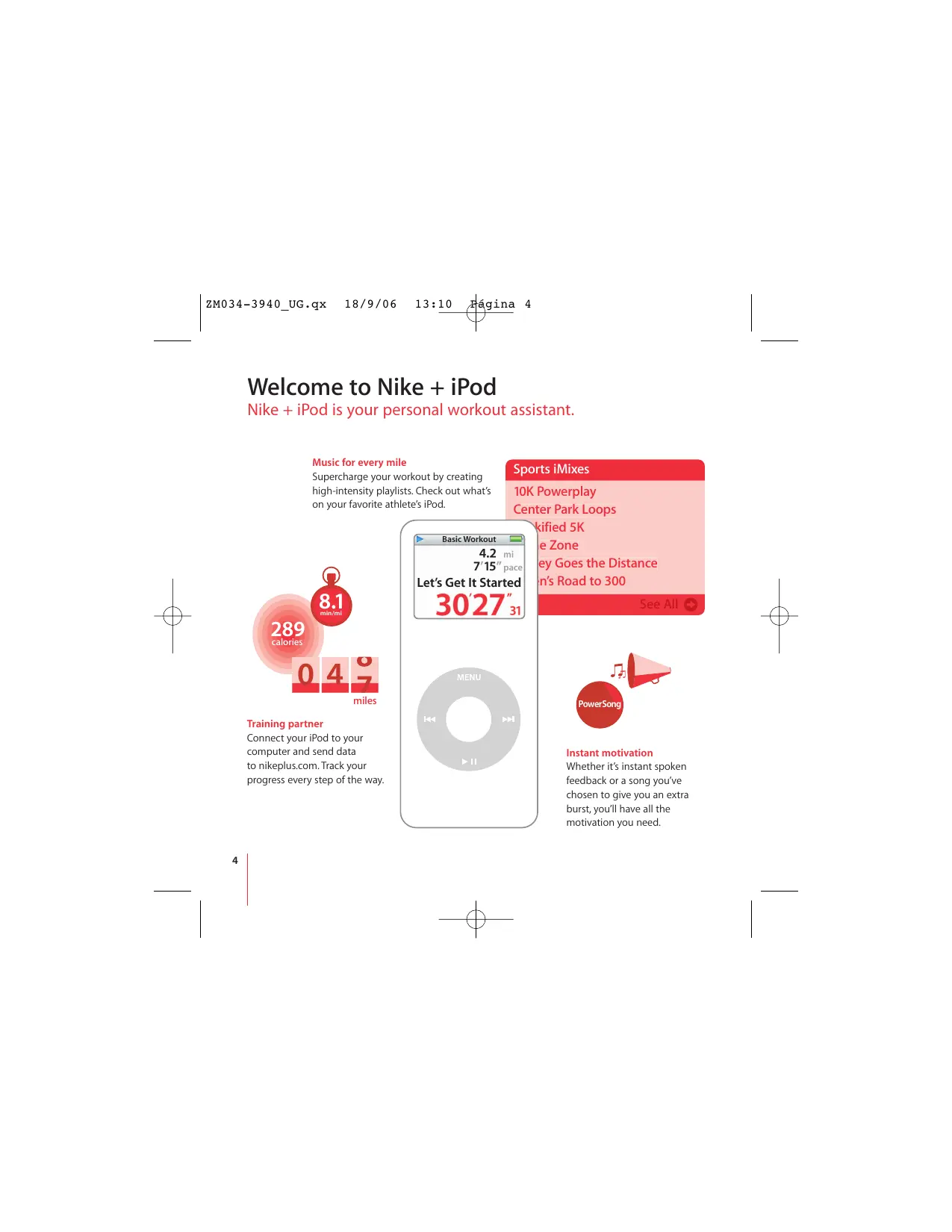


| Product Type | Nike+ Training Tracking System (receiver and sensor) |
| Brand | Apple |
| Model | Nike + iPod |
| Category | MP3 player (iPod with Nike+ accessory) |
| Receiver dimensions | Approximately 4 x 2 x 1 cm |
| Sensor dimensions | Approximately 3 x 2 x 0.5 cm |
| Receiver weight | Approximately 10 g |
| Sensor weight | Approximately 8 g |
| Sensor power | Built-in button cell battery (not user-replaceable) |
| Receiver power | Powered by iPod via dock connector |
| Main functions | Distance, time, and calorie tracking; voice feedback; calibration; PowerSong; remote control; pairing; data transmission to nikeplus.com |
| iPod compatibility | iPod nano 1st generation (software 1.3 or later) and 2nd generation (software 1.1 or later) |
| Required software | iTunes 7 or later |
| Care and cleaning | Clean with a dry, lint-free cloth. Avoid contact with water. |
| Safety | Consult a physician before starting any exercise program. Keep out of reach of children under 3 years of age. Use headphones at a moderate volume to prevent hearing damage. |
| Spare parts and repairability | The sensor contains no user-serviceable parts. The battery is not replaceable. The receiver is not disassemblable. |
| General information | The sensor fits into a compatible Nike+ shoe. The receiver connects to the iPod. Training data can be synced with nikeplus.com. |
Frequently Asked Questions - NIKE + IPOD APPLE
User questions about NIKE + IPOD APPLE
0 question about this device. Answer the ones you know or ask your own.
Ask a new question about this device
Download the instructions for your Mp3 player in PDF format for free! Find your manual NIKE + IPOD - APPLE and take your electronic device back in hand. On this page are published all the documents necessary for the use of your device. NIKE + IPOD by APPLE.
USER MANUAL NIKE + IPOD APPLE
© 2006 Apple Computer, Inc. All rights reserved.
Apple, the Apple logo, iPod, and iTunes are trademarks of Apple Computer, Inc. registered in the U.S. and other countries. NIKE and the Swoosh Design are trademarks of NIKE, Inc. and its affiliates, and are used under license. The Nike + iPod Sport Kit is covered by one or more of U.S. patent numbers 6,018,705, 6,052,654, 6,493,652, 6,298,314, 6,611,789, 6,876,947, and 6,882,955, either alone or when used in combination with a Nike + iPod enabled iPod media player.
Mention of third-party products is for informational purposes only and constitutes neither an endorsement nor a recommendation. Apple assumes no responsibility with regard to the performance or use of these products. All understandings, agreements, or warranties, if any, take place directly between the vendors and the prospective users. Every effort has been made to ensure that the information in this manual is accurate. Apple is not responsible for printing or clerical errors.

www.nikeplus.com/support
English, François, Espanol, Portugues, Italiano, Deutsch, Nederlands, Eληνικα, Dansk, Svenska, Suomi, Pyccknä, Čestina, Polska, Magyar, Hrvatski, Slovenský, Slovenski, Lietuviu, Eesti, Latviesu, Türkiye, 日本語, πάντε
Contents
4 Welcome to Nike + iPod
6 Quick Start
11 Using Nike + iPod
11 Calibrating Nike + iPod
11 Setting the Units of Distance
12 Entering Your Weight
12 Getting Spoken Feedback
13 Using a PowerSong
13 Pausing a Workout
14 Reviewing Recent Workouts on Your iPod
14 Purchasing and Downloading Nike+ Workouts
15 Using a Nike ^+ iPod Remote
15 Linking the Receiver to Another Sensor
16 Putting the Nike + iPod Sensor to Sleep
17 Important Safety Information
18 Learning More, Service, and Support
Welcome to Nike + iPod
Nike + iPod is your personal workout assistant.
Music for every mile
Supercharge your workout by creating high-intensity playlists. Check out what's on your favorite athlete's iPod.
Sports iMixes
10K Powerplay
Center Park Loops
kified 5K
e Zone
ey Goes the Distance
n's Road to 300
See All

289
calories


miles
Training partner
Connect your iPod to your computer and send data to nikeplus.com. Track your progress every step of the way.
Instant motivation
Whether it's instant spoken feedback or a song you've chosen to give you an extra burst, you'll have all the motivation you need.
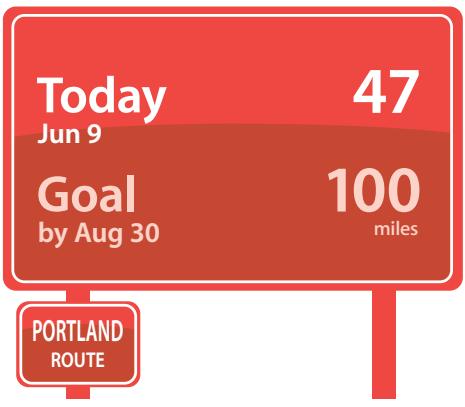
Hit your goal
Push yourself by setting distance, time, or calorie burning goals, and then find out how close you are to meeting them.
SPEED
8.1
MPH
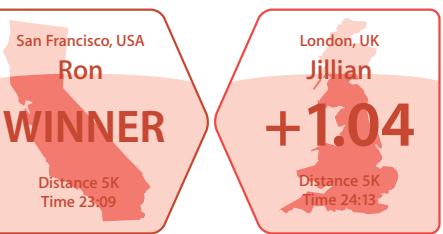
Ready, set, compete
Challenge friends to a 5K, even if they're halfway around the world. See how your times compare against other runners.
Quick Start
Follow these instructions to get started using Nike + iPod right away.
Step 1: Install the latest iPod and iTunes software.
1 Download and install the latest iTunes software from www.apple.com/ iTunes. You need iTunes 7.0 or later.
2 Connect iPod to your computer, select iPod in the Source pane, and click Summary.
3 If iTunes says your iPod needs an update, click Update and follow the onscreen instructions.
You need first generation iPod nano software version 1.3 or later, or second generation iPod nano (aluminum) software version 1.1 or later.
Step 2: Insert the Nike + iPod Sensor in your Nike+ ready shoe.
- Lift the insole of the left shoe, remove the foam insert from the pocket underneath, and replace it with the sensor.
Lift the insole and place the sensor in the pocket, flat side up.
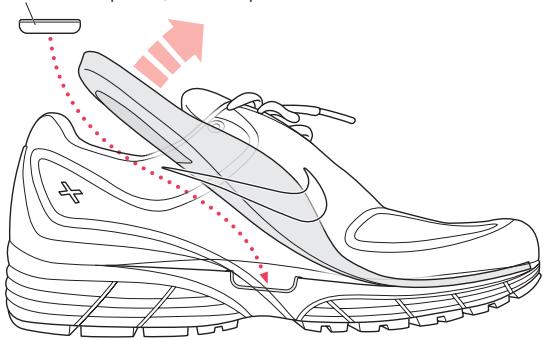
You can leave the sensor in your shoe when you aren't working out, but if you plan to wear your shoes for a long time without working out, we recommend replacing the sensor with the foam insert to save battery life.
Step 3: Attach the Nike + iPod Receiver to your iPod.
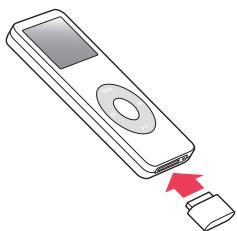
Step 4: Choose a type of workout.
| To choose | Do this |
| An open-ended workout | Choose Nike+ipod > Basic workouts. |
| A workout with a timed goal | Choose Nike+ipod > Time and choose how long you want to work out. |
| A workout with a distance goal | Choose Nike+ipod > Distance and choose how far you want to go. |
| A workout with a calorie burning goal | Choose Nike+ipod > Settings > Weight and enter your weight. Then click the Menu button, choose Calories, and choose the number of calories you want to burn. Note: You only need to enter your weight the first time you start a calorie burning workout. |
Step 5: Choose music to accompany your workout.
| To play | Do this |
| A Nike+ Workout mix (see page 14) | Choose the mix. |
| The currently playing song (if one is playing) | Choose Now Playing. |
| Songs from a playlist | Choose Playlists and choose a playlist. |
| Songs in random order | Choose Shuffle Songs. |
| No music | Choose None. |
Step 6: Start your workout.
Press the Center button and begin walking or running.
Step 7: Monitor your progress.
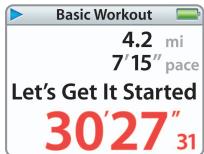
Nike + iPod automatically displays your workout status on the iPod screen.
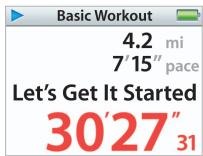
This status screen indicates Nike ^+ iPod is working.
Periodically, Nike + iPod also gives you spoken feedback on your progress (see "Getting Spoken Feedback" on page 12).
To get spoken feedback manually:
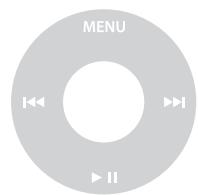
Press the Center button at any time during your workout.
Step 8: End your workout.
You can end your workout at any time. If you continue working out after you reach your time, distance, or calorie goal, iPod continues to monitor your progress.
To end your workout:
- When you finish your walk or run, press the Menu button and choose End Workout. iPod stores your most recent workout data for future reference.
Step 9: Track your progress at nikeplus.com.
You can set iTunes to send your workout data to nikeplus.com, where you can track your progress over time, view a record of all your sessions, set and monitor goals, and compare your results with others. You can even compete with other online Nike + iPod users in workout challenges.
To set iTunes to send your workout data to nikeplus.com:
1 After a workout, remove the receiver and connect your iPod to your computer.
2 Open iTunes and select iPod in the Source pane.
3 Click Nike + iPod and select the checkbox next to "Automatically send workout data to nikeplus.com."
4 Enter your existing nike.com account Login ID and password. Or, if you don't have a nike.com account, click Create Nike Account and follow the onscreen instructions. Once you've set iTunes to send your workout data to nikeplus.com, iTunes sends the latest data automatically whenever you connect iPod to your computer.
To use nikeplus.com:
- In iTunes, select iPod in the Source pane and click Nike + iPod. Then click "VisitNikeplus.com." Or go to www.nikeplus.com and enter your Login ID and password. See theNikeplus.com website for Nike's privacy policy and terms and conditions.
Using Nike + iPod
Follow these instructions to get the most out of Nike + iPod.
Calibrating Nike + iPod
Nike + iPod is quite accurate for most users. You can improve the accuracy by calibrating Nike + iPod to your natural running and walking styles.
To calibrate Nike + iPod for running and walking:
1 Choose Nike+iPod > Settings > Sensor > Calibrate and press the Center button.
2 Choose Run and choose a distance.
3 Press the Center button and run the set distance at a steady, natural pace.
4 Press the Menu button and choose Done Calibrating. A message tells you if the calibration was successful.
5 Repeat steps 1-4, choosing Walk in step 2 and walking at a steady, natural pace in step 3.
Note: Even after calibrating, the accuracy of the distance measurements may vary depending on gait, running surface, incline, or temperature.
Setting the Units of Distance
You can set Nike + iPod to measure your workouts in either miles or kilometers.
To set the units of distance:
- Choose Nike+Pod > Settings and set Distances to Miles or Kilometers.
Entering Your Weight
To enter your weight:
- Choose Nike+iPod > Settings > Weight and enter your weight.
For greatest accuracy in calculating calories burned, update your weight as your fitness level improves.
Getting Spoken Feedback
As you work out, Nike + iPod periodically gives spoken feedback on your status.
To get spoken feedback manually:
Press the Center button at any time during your workout.
To set the voice type or turn spoken feedback off:
- Choose Nike+iPod > Settings and set Spoken Feedback to Male, Female, or Off. If spoken feedback is turned off, you can still get spoken feedback manually.
Note: Spoken feedback is available in some languages other than English. If you set your iPod to a language in which spoken feedback is available and connect it to your computer, iTunes prompts you to download a version in the other language. If you set your iPod back to English, you can still hear spoken feedback in English. You can have only one non-English version of spoken feedback on your iPod at a time.
Using a PowerSong
You can choose a motivational song as your PowerSong. At any time during your workout, you can jump to the song.
To choose a PowerSong:
- Choose Nike+iPod > Settings > PowerSong, and choose any song.
To play your PowerSong:
- At any time during a workout, press and hold the Center button. After a short pause, the song plays.
Pausing a Workout
You can pause your workout at any time, pausing music and data collection, and resume it later without losing your workout data.
To pause or resume a workout:
Press the Play/Pause (▶II) button.
To pause to change the song or use other iPod features:
1 Press the Menu button and choose Pause Workout or Change Music.
2 When you're ready to resume, choose Nike+iPod > Resume Workflow > Resume Workflow.
Reviewing Recent Workouts on Your iPod
Your iPod saves the date, time, duration, distance, pace, and calories burned for up to your last thousand workouts, until iTunes sends your workout data to Nikeplus.com.
After the data is sent, iPod keeps information from the last several workouts.
To review recent workouts on your iPod:
Choose Nike+iPod > History.
To erase a single workout session:
1 Choose Nike+iPod > History and choose a workout session.
2 Click the Center button and choose Delete.
Purchasing and Downloading Nike+ Workouts
You can purchase and download Nike+ Workouts featuring continuous music mixed with professional coaching. Choose mixes for your level and style of workout.
To purchase a Nike+ Workout:
1 Open iTunes and click iTunes Store in the Source pane.
2 Click Sports Music and click Buy next to the Nike+ Workout of your choice.
3 Connect iPod to your computer and load the workout onto iPod.
When you purchase a Nike+ Workout, you get a single workout track with music and voiceover, and you also get all the individual songs in the mix.
Note: The iTunes Store is available only to persons age 13 or older in the U.S. and many other countries; for a list of countries, see www.apple.com/ iTunes/download.
Terms apply. You must have Internet access (fees may apply) to use the iTunes Store.
Using a Nike + iPod Remote
You can use a Nike+ compatible remote (sold separately) to control Nike + iPod wirelessly while you work out. Before using a remote, you have to link the receiver to it.
To link to a remote:
1 Connect the receiver to an iPod.
2 Choose Nike+iPod > Settings > Remote > Link and follow the onscreen instructions.
To turn remote functionality on or off:
- Choose Nike+ipod > Settings > Remote and set Remote Commands to On or Off.
To unlink a remote:
- Choose Nike+iPod > Settings > Remote > Unlink and follow the onscreen instructions.
Linking the Receiver to Another Sensor
You can use your iPod and Nike + iPod Receiver with more than one Nike + iPod Sensor. You may want to do this, for example, if there's more than one person in your family with a sensor and Nike+ ready shoes. Each time you use a receiver with a different sensor, you must link the receiver to that sensor.
If you connect the receiver to a different iPod and use it with the same sensor, the receiver remembers your settings. You don't need to relink or recalibrate.
To link a receiver to another sensor:
1 Connect the receiver to an iPod.
2 Put on the shoes with the new sensor, and make sure there is no other Nike + iPod Sensor nearby.
You may have to walk around to activate the sensor so your receiver can detect it.
3 On iPod, choose Nike+Pod > Settings > Sensor > Link and follow the onscreen instructions. A message says iPod is now linked to the new sensor.
Note: If you link the receiver to a previously linked sensor, Nike + iPod remembers your calibration settings. You don't need to recalibrate.
Putting the Nike + iPod Sensor to Sleep
The sensor is awake and on by default. If you want to store the sensor for a long period of time or make it stop transmitting, you can put it to sleep.
To put the sensor to sleep:
Use a pen or a paper clip to press and hold the Sleep/Wake button for three seconds.
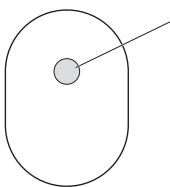
Sleep/Wake button
Press and hold for three seconds to put to sleep.
Press to wake.
Important: Put the sensor to sleep before taking it on an aircraft, to comply with applicable government regulations.
To wake the sensor:
Use a pen or a paper clip to press the Sleep/Wake button.
Important Safety Information
WARNING: Failure to follow these safety instructions could result in injury or damage.
Exercising Before starting any exercise program, you should have a complete physical examination by your physician. Do a warmup or stretching exercise before beginning any workout. Be careful and attentive while exercising. Slow down, if necessary, before adjusting your iPod while running. Stop exercising immediately if you feel pain, or feel faint, dizzy, exhausted, or short of breath. By exercising, you assume the risks inherent in physical exercise, including any injury that may result from such activity.
Choking hazard The receiver and sensor are potential choking hazards. Keep them away from children under three years of age.
Avoid hearing damage Permanent hearing loss may occur if earbuds or headphones are used at high volume. Set the volume to a safe level. You can adapt over time to a higher volume of sound that may sound normal but can be damaging to your hearing. If you experience ringing in your ears or muffled speech, stop listening and have your hearing checked. The louder the volume, the less time is required before your hearing could be affected. Hearing experts suggest that to protect your hearing:
- Limit the amount of time you use earbuds or headphones at high volume.
- Avoid turning up the volume to block out noisy surroundings.
- Turn the volume down if you can't hear people speaking near you.
Disassembling the sensor Do not attempt to open the sensor, disassemble it, or remove the battery. No user-serviceable parts are inside. Do not use the receiver or iPod in or near water or wet locations.
Learning More, Service, and Support
| For | Do this |
| Answers to frequently asked questions about Nike + iPod | Go to www.apple.com/ipod/nike/faq.html. |
| Service and support for the Nike + iPod Sensor and Receiver | Go to www.apple.com/support/nikeplus. |
| Service and support for Nike+ ready shoes or theNikeplus.com website | Go to www.nikeplus.com. |
| Information about using iTunes | Open iTunes and choose Help > iTunes Help. |
| Information about using iPod | Go to www.apple.com/support/ipod. |
Table des matières
Une motivation immediate
10K Powerplay Center Park Loops
kified 5K
e Zone
ey Goes the Distance
n's Road to 300
See All

289 Kalorien
8,1 Min/km

Kilometer
Let's Get It Started
30'27" 31
Regulatory Compliance Information
FCC Compliance Statement
This device complies with part 15 of the FCC rules. Operation is subject to the following two conditions: (1) This device may not cause harmful interference, and (2) this device must accept any interference received, including interference that may cause undesired operation. See instructions if interference to radio or television reception is suspected.
Radio and Television Interference
This computer equipment generates, uses, and can radiate radio-frequency energy. If it is not installed and used properly—that is, in strict accordance with Apple's instructions—it may cause interference with radio and television reception.
This equipment has been tested and found to comply with the limits for a Class B digital device in accordance with the specifications in Part 15 of FCC rules. These specifications are designed to provide reasonable protection against such interference in a residential installation. However, there is no guarantee that interference will not occur in a particular installation.
You can determine whether your computer system is causing interference by turning it off. If the interference stops, it was probably caused by the computer or one of the peripheral devices.
If your computer system does cause interference to radio or television reception, try to correct the interference by using one or more of the following measures:
-
Turn the television or radio antenna until the interference stops.
-
Move the computer to one side or the other of the television or radio.
- Move the computer farther away from the television or radio.
- Plug the computer into an outlet that is on a different circuit from the television or radio. (That is, make certain the computer and the television or radio are on circuits controlled by different circuit breakers or fuses.)
If necessary, consult an Apple-authorized service provider or Apple. See the service and support information that came with your Apple product. Or, consult an experienced radio/television technician for additional suggestions.
Changes or modifications to this product not authorized by Apple Computer, Inc., could void the EMC compliance and negate your authority to operate the product.
This product was tested for EMC compliance under conditions that included the use of Apple peripheral devices and Apple shielded cables and connectors between system components. It is important that you use Apple peripheral devices and shielded cables and connectors between system components to reduce the possibility of causing interference to radios, television sets, and other electronic devices. You can obtain Apple peripheral devices and the proper shielded cables and connectors through an Apple-authorized dealer. For nonApple peripheral devices, contact the manufacturer or dealer for assistance.
Responsible party (contact for FCC matters only): Apple Computer, Inc. Product Compliance, 1 Infinite Loop M/S 26-A, Cupertino, CA 95014-2084
Wireless Information
FCC Wireless Compliance for the Nike + iPod Sensor. The antenna used with this transmitter must not be colocated or operated in conjunction with any other antenna or transmitter subject to the conditions of the FCC Grant.
Industry Canada Statement
This Class B device meets all requirements of the Canadian interference-causing equipment regulations.
European Wireless EU Declaration of Conformity
This wireless device complies with the specifications EN 300 328, EN 301-489, EN 50371, and EN 60950 following the provisions of the R&TTE Directive.
Industry Canada Statement
Complies with European Directives 72/23/EEC, 89/336/EEC, and 99/5/EEC.

Exposure to Radio Frequency Energy
The radiated output power of the included devices is far below the FCC radio frequency exposure limits.
Disposal and Recycling Information
The Nike + iPod Sensor contains a battery. Dispose of your Nike + iPod Sensor according to local environmental laws and guidelines. When discarding shoes, remove the Nike + iPod Sensor and dispose of it properly.
For information about Apple's recycling program, go to www.apple.com/environment.
California: The coin cell battery in your sensor contains perchlorates. Special handling and disposal may apply. Refer to www.dts.ca.gov/hazardouswaste/perchlorate.
European Union—Disposal Information:
The symbol above means that according to local laws and regulations your product should be disposed of separately from household waste. When this product reaches its end of life, take it to a collection point designated by local authorities. Some collection points accept products for free. The separate collection and recycling of your product at the time of disposal will help conserve natural resources and ensure that it is recycled in a manner that protects human health and the environment.
Apple and the Environment
At Apple, we recognize our responsibility to minimize the environmental impacts of our operations and products.
For more information, go to
www.apple.com/environment.
www.apple.com/ipod/nike
www.apple.com/support/nikeplus
ZM034-3940-A
Printed in XXXX
- Contents
- Welcome to Nike + iPod
- Music for every mile
- Sports iMixes
- 10K Powerplay
- Center Park Loops
- Training partner
- Instant motivation
- Hit your goal
- Ready, set, compete
- Quick Start
- Step 1: Install the latest iPod and iTunes software.
- Step 2: Insert the Nike + iPod Sensor in your Nike+ ready shoe.
- Step 4: Choose a type of workout.
- Step 5: Choose music to accompany your workout.
- Step 6: Start your workout.
- Step 7: Monitor your progress.
- To get spoken feedback manually:
- Step 8: End your workout.
- To end your workout:
- Step 9: Track your progress at nikeplus.com.
- To set iTunes to send your workout data to nikeplus.com:
- To use nikeplus.com:
- Using Nike + iPod
- Calibrating Nike + iPod
- To calibrate Nike + iPod for running and walking:
- Setting the Units of Distance
- To set the units of distance:
- Entering Your Weight
- Getting Spoken Feedback
- Using a PowerSong
- To choose a PowerSong:
- To play your PowerSong:
- Pausing a Workout
- To pause or resume a workout:
- To pause to change the song or use other iPod features:
- Reviewing Recent Workouts on Your iPod
- Purchasing and Downloading Nike+ Workouts
- Using a Nike + iPod Remote
- To link to a remote:
- To turn remote functionality on or off:
- To unlink a remote:
- Linking the Receiver to Another Sensor
- To link a receiver to another sensor:
- Putting the Nike + iPod Sensor to Sleep
- To put the sensor to sleep:
- To wake the sensor:
- Important Safety Information
- Table des matières
- Une motivation immediate
- Regulatory Compliance Information
- FCC Compliance Statement
- Radio and Television Interference
- Wireless Information
- Industry Canada Statement
- European Wireless EU Declaration of Conformity
- Exposure to Radio Frequency Energy
- Disposal and Recycling Information
- European Union—Disposal Information:
- Apple and the Environment
Brand : APPLE
Model : NIKE + IPOD
Category : Mp3 player