
P-TOUCH QL-650TD - Label printer BROTHER - Free user manual and instructions
Find the device manual for free P-TOUCH QL-650TD BROTHER in PDF.



| Product Type | Direct Thermal Label Printer |
| Brand and Model | Brother P-Touch QL-650TD |
| Dimensions (W × D × H) | 146 × 196 × 152 mm |
| Weight | 1.3 kg (without DK roll) |
| Power Supply | 220-240 V AC, 50/60 Hz, 0.9 A |
| Print Method | Direct Thermal |
| Print Resolution | 300 dpi / 720 dots |
| Maximum Print Speed | 90 mm/s (up to 56 labels/min for address labels) |
| Maximum Print Width | 59 mm |
| Minimum Print Length | 25.4 mm |
| Display | LCD 16 characters × 2 lines |
| Interface | USB (Ver.1.1 or 2.0), Serial (RS-232C) |
| Cutter | Built-in automatic cutter (replaceable) |
| Compatible DK Rolls | Pre-cut labels and continuous tape (paper or film) up to 62 mm |
| Operating Environment | Temperature: 10-35 °C, Humidity: 20-80% (non-condensing) |
| Compatible Operating Systems | Windows 98 SE/Me/2000/XP, Mac OS X 10.1 to 10.4.1 |
| Included Software | P-touch Editor (Windows 4.2, Mac 3.2), Printer Driver, PDF Manual |
| Clock Battery | Lithium CR2032 (replaceable, recommended every 2 years) |
| Available Spare Parts | Replacement cutter (DK-BU99), Cleaning sheets (DK-CL99) |
| Main Functions | Printing without PC with 8 preset templates (date, time, text, numbering), download templates from PC, auto cutter, print preview |
| Maintenance | Clean drum with cleaning sheet, clean label exit with isopropyl alcohol |
Frequently Asked Questions - P-TOUCH QL-650TD BROTHER
User questions about P-TOUCH QL-650TD BROTHER
0 question about this device. Answer the ones you know or ask your own.
Ask a new question about this device
Download the instructions for your Label printer in PDF format for free! Find your manual P-TOUCH QL-650TD - BROTHER and take your electronic device back in hand. On this page are published all the documents necessary for the use of your device. P-TOUCH QL-650TD by BROTHER.
USER MANUAL P-TOUCH QL-650TD BROTHER
You must set up the hardware and install the driver before you can use the printer. Please read this manual before you use the printer. Keep the CD-ROM in a convenient place so you can use it quickly if you need to.
Congratulations on purchasing the QL-650TD.
Your new QL-650TD is a label printer that connects to your personal computer, enabling you to quickly and easily print professional custom labels that you have created on your personal computer using the label editing software provided.
We strongly recommend that you read this manual carefully before using your QL-650TD, and then keep it nearby for future reference.
We provide service & support for users who register their products on our website. We recommend that you take this opportunity to register with us by visiting us at:
Online User Registration http://register.eu.brother.com/
Online Support Page http://solutions.brother.com/
NOTE: It is also possible to access the above sites from the online user registration window of the CD-ROM installer disk which is included with the printer. We look forward to your registration.
| Declaration of Conformity | |
| We | Brother Industries Ltd.15-1, Naeshiro, Mizuho-ku,Nagoya 487-8561, Japandeclare that this product conforms with the following normative documents: |
| Safety: | EN 60950:2000 |
| EMC: | EN 55022:1998 / A1:2000 / A2:2003 Class BEN 55024:1998 / A1:2001EN 61000-3-2:2000EN 61000-3-3:1995 / A1:2001 following the provisions of the Low Voltage Directive 73/23/EEC (as amended by 93/68/EEC) and Electromagnetic Compatibility Directive 89/336/EEC (as amended by 92/31/EEC and 93/68/EEC).Issued by:Brother Industries Ltd.Personal & Home CompanyDevelopment & Production Dept.The enclosed interface cable should be used in order to ensure compliance with the limits for EMC. |
- No part of this manual may be reproduced in any form, including photocopying or reprinting, without prior consent.
- The rights and copyrights of bundled software (including but not limited to the program, images, clip art, templates and text incorporated into the software) and attached manuals and other documents, and any copies of the software, are owned by Brother Industries, Ltd. and its suppliers.
Table of Contents
Introduction 1
Manuals 2
Symbols Used in this Manual 2
Safety Precautions 3
General Precautions 6
STEP1 Before using the printer 9
Parts Checklist 10
Parts Description 11
Main Printing Unit 11
Connecting the power supply 12
LCD 13
Manual operation button 15
Installing the DK Roll 16
Applicable DK Rolls 16
Installing the DK Roll 16
Attaching the paper guide 17
Setting clock/language/units 18
Procedure for creating a label 20
STEP2 Creating and printing a label without using your computer 一 · 一 2 1
Creating a label 22
- Selecting a template 22
2.Printing a label 23
Other convenient functions 24
Editing a template: Menu 1/12 24
Changing the date used for templates: Menu 2/12 25
Preview the label content before printing: Menu 3/12 26
Specifying the number of copies: Menu 4/12 27
Printing labels with label numbers: Menu 5/12 27
Printing a list of templates: Menu 6/12 28
Setting the clock: Menu 7/12 28
Setting Daylight Saving Time: Menu 8/12 29
Cut the roll automatically when printing: Menu 9/12 29
Setting the language: Menu 10/12 30
Set the unit of measure (inch or mm): Menu 11/12 30
Adjusting the contrast of LCD: Menu 12/12 31
Locking the Menu button 31
Uploading templates / messages from your computer 31
Concerning the download of message 31
STEP3 Connecting the printer to your PC 33
For Windows 34
- Software description 34
- Notes on installation 35
3.Installing the software 35
For Mac 39
- Software description 39
- Notes on installation 39
- Software installation 40
STEP4
Maintenance and Troubleshooting 45
Maintenance 46
Print head maintenance 46
Roller maintenance 46
Label outlet maintenance 47
Replacing the cutter unit 48
Replacing the lithium clock battery 49
Troubleshooting 51
Potential types of problems 51
Error messages (what they mean) 52
Reset the Printer 53
Main specifications 54
Consumables list 55
Introduction
■Compilation and Publication Notice
Under the supervision of Brother Industries Ltd., this manual has been compiled and published, covering the latest product's descriptions and specifications.
The contents of this manual and the specifications of this product are subject to change without notice.
Brother reserves the right to make changes without notice in the specifications and materials contained herein and shall not be responsible for any damages (including consequential) caused by reliance on the materials presented, including but not limited to typographical and other errors relating to the publication.
© 2005 Brother Industries Ltd.
Trademarks
The Brother® logo is a registered trademark of Brother Industries, Ltd.
Microsoft®, MS-DOS®, Windows® and Windows NT® are registered trademarks of Microsoft Corporation in the U.S. and other countries.
Apple®, the Apple® Logo, Mac® and TrueType® are registered trademarks of Apple Computer, Inc in the United States and other countries.
The printer includes the software module "USBPRINT.SYS" and "USBMON.DLL" in which Microsoft Corporation wholly retains its rights and interests.
Adobe®, Adobe® logo, Acrobat® and Adobe® Reader® are registered trademarks of Adobe Systems Incorporated.
QR code is a registered trademark of DENSO WAVE INCORPORATED.
All other terms and brand and product names mentioned in this User's Guide are registered trademarks of their respective companies.
■Shipment of the Printer
If for any reason you must ship your printer, carefully package the printer to avoid any damage during transit.
We recommend that you save and use the original packaging. The printer should also be adequately insured with the carrier.
Manuals
The following manuals are provided to help you use the printer correctly and to utilize its features. Be sure to read this manual before using the printer.
■ Setup & Operation Guide (This manual)
Read this manual first.
It gives information which should be read before using the printer, such as cautions, installation and setup, and the procedures for printing labels without using your computer.
It describes the installation of the bundled software to be used on a personal computer.
It also explains how to clean the printer, and how to perform some troubleshooting.
Software User's Guide (PDF Manual)
It explains how to create labels using the software supplied with the printer, by installing it on a computer before connecting the printer to the computer.

To browse the Software User's Guide (PDF Manual), you need to install Adobe®
Reader® or Adobe® Acrobat® Reader®.
(For Mac®, the standard "Preview" program bundled with the OS can also be used.)
- When using Windows®, this manual can be viewed from the P-touch Setup application when it is run from the CD-ROM.
Additionally, this manual may be viewed from the Start menu if it is installed on the computer.
- When using Mac, refer to the PDF files in the [Manuals] folder on the CD-ROM supplied with the printer.
Symbols Used in this Manual
The symbols used throughout this guide are as follows:

This symbol indicates information or directions that should be followed. If ignored, the result may be injury, damage, or failed operations.

This symbol indicates information or directions that can help you better understand and use the printer more efficiently.
Safety Precautions
To prevent injury and damage, important notes are explained using various symbols.
The symbols and their meanings are as follows:
| Warning | Tells you what to do to avoid the risk of injury. |
| Caution | Tells you about procedures you must follow to prevent damage to the printer. |
The symbols used in this manual are as follows:
| The incorrect setup icon alerts you to devices and operations that are not compatible with the printer. (e.g. the figure on the left indicates a warning against disassembly). | |
| The special instructions icon indicates operations to be carried out. (e.g. the figure on the left shows removal of the power plug from the power outlet). |
| ▲Warning | |
| ■The Printer Follow these guidelines to avoid fire, electric shock, or other damage. | |
| Do not disassemble the printer. For inspection, adjustment and repair of the printer contact the retail outlet where the printer was purchased or your local authorized service center. Do not drop, hit or otherwise bang the printer. Do not hold and lift the printer by the DK Roll cover. The cover could come off and the printer could fall and become damaged. Do not touch any metal parts near the print head. The print head becomes very hot during use and remains very hot immediately after use. Do not touch it directly with your hands. | Do not allow the printer to get wet in any way. Do not use the printer with foreign objects in it. If water or any foreign objects should enter the printer, unplug the power cord from the electric outlet and remove the foreign object. If necessary, contact the retail outlet where the printer was purchased or your local authorized service center. Disposition of plastic bags correctly and keep away from babies and children. Do not wear or play with plastic bags. Unplug the power cord immediately and stop using the printer if you notice any abnormal odor, heat, discoloration, deformation or anything unusual whilst the printer is in use or storage. |
| Warning | |
| Follow these guidelines to avoid fire, electric shock, or other damage. ■Power Cord | |
| ○Use only the authorized power source (220 - 240 V AC) for the printer. | ○Do not use the power cord if it is damaged. |
| ○Use only the power cord included with the printer. | ○Do not handle the power cord or plug if your hands are wet. |
| ○Do not overload the power outlet socket with too many appliances or insert the power cord into a damaged outlet socket. | ○Ensure the power plug is correctly inserted into the power outlet. |
| ○Do not cut, damage, alter or place heavy objects on the power cord. | ○If the printer will not be used for an extended period, remove the power supply cord from the electrical outlet. |
| ■Battery | |
| ○Only use the correct type of battery for the printer. | ○Use of incorrect batteries for this printer may cause leakage or explosion, which could result in fire, injury or damage to the surroundings of the machine. |
| ○Do not attempt to disassemble, alter, apply heat or expose to a direct flame, direct sunlight or extremely high temperatures and humidity. | ○Dispose of used batteries according to the instructions. |
| ○Immediately flush with water any area of the body that comes into contact with the inner contents of the battery. Seek medical assistance should the contents come into contact with the eyes or mouth. | ○Do not short-circuit the battery terminals with metallic objects. |
| ○Insert the battery ensuring the correct polarity is observed. | ○The supplied battery is not rechargeable. Do not attempt to recharge it. |
| ○Do not allow the battery to get wet. | ○Keep the battery away from children. |
| ○Remove the battery from the printer immediately at the end of its life. | ○Seek medical assistance immediately if the battery is swallowed. |
| ○Do not solder the battery directly. | ○Avoid dropping or subjecting the battery to severe impacts that can damage it. |
| ○Avoid subjecting the battery to ultrasound vibration. This could cause an internal short-circuit to occur. | |
| Caution | |
| Follow these guidelines to avoid fire, electric shock, or other damage. ■The Printer | |
| ●The standard electrical outlet should be close to the printer and be easily accessible. | |
| ■Power Cord ●Always hold the power plug when removing the power cord from or inserting it into the outlet. Pulling on the power cord cable could cause problems with the power cord. | |
| Caution | |
| Follow these guidelines to avoid fire, electric shock, or other damage. ■Cutter | |
| Do not touch the blade of the cutter unit. Do not apply excessive pressure to the cutter unit. | |
| ■Installation/Storage | |
| Place the printer on a flat, stable surface such as a desk. | Do not place any heavy objects on top of the printer. |
| ■DK Roll (DK Label, DK Tape) | |
| ① Be careful not to drop the DK Roll. ② DK Rolls use thermal paper and thermal film. Both the label and print will fade with sunlight and heat. Do not use DK Rolls for outdoor use that requires durability. | Depending on the location, material, and environmental conditions, the label may unpeel or become irremovable, the colour of the label may change or be transferred to other objects. Before applying the label, check the environmental condition and the material. Test the label by affixing a small piece of it to an inconspicuous area of the intended surface. |
General Precautions
The Printer
- The printer is a precision machine. Do not drop, hit or otherwise bang the printer.
- Do not lift the printer by the DK Roll compartment cover. The cover could come off and the printer could fall and become damaged.
- The printer may malfunction if left near a television, radio, etc. Do not use the printer near any machine that can cause electromagnetic interference.
- Do not expose the printer to direct sunlight or near heaters or other hot appliances, in any location exposed to extremely high or low temperatures, high humidity or dusty locations. Doing so could cause the machine to malfunction.
- Do not use paint thinner, benzene, alcohol or any other organic solvents to clean the printer. Doing so may cause damage to the surface finish. Use a soft, dry cloth to clean the printer.
- Do not place any heavy objects or objects containing water on top of the printer. If water or any foreign object enters the printer, contact the retail outlet where the printer was purchased or your local authorized service center. If you continue to use the printer with water or a foreign object in the printer, the printer may be damaged or personal injury could result.
- Do not touch the cutter. Personal injury could result. Take special care when changing the cutter unit.
- Do not insert any objects into or block the label output slot, USB port, or serial port.
- Do not place any metal parts near the print head. The print head becomes very hot during use and remains very hot immediately after use. Do not touch it directly with your hands.
- Use only the interface cable (USB cable) included with the printer.
- When not in use for an extended period, remove the DK Roll from the printer.
- Do not attempt to print labels while the DK Roll cover is open.
- Never disassemble the printer or allow it to get wet to avoid possible fire or electrical shock. Do not remove the power cord from or insert it into the electrical outlet with wet hands. Doing so could cause an electrical shock or fire.
- If a paper jam should occur due to a build up of adhesive on the paper guide surface, unplug the power cord from the electrical outlet and wipe away the adhesive buildup on the paper guide surface with a cloth dipped in ethanol or isopropyl (rubbing) alcohol. It is recommended that you clean the paper guide when replacing the cutter unit.
■Power Cord
- Use only the AC power cord included with the printer.
- If the printer will not be used for an extended period, remove the power supply cord from the electrical outlet.
- Always hold the plug when removing the power cord from or inserting it into the outlet. Do not pull on the cord. The wire in the cord may become damaged.
- You should position the printer near an easily accessible, standard electrical socket.
DK Roll (DK Label and DK Tape)
- Use only genuine Brother accessories and supplies (with DZ, DZ marks). Do not use any unauthorized accessories or supplies.
- If the label is attached to a wet, dirty, or oily surface, it may peel off easily. Before applying the label, clean the surface to which the label will be applied.
- DK Roll uses thermal paper and thermal film so that ultraviolet rays, wind, and rain may cause the colour of the label to fade and the ends of the label to peel off.
-
Do not expose the DK Rolls to direct sunlight, high temperatures, high humidity, or dust. Store in a cool, dark place. Use the DK Rolls soon after opening the package.
-
Scratching the printed surface of the label with your finger nails or metal objects, or touching the printed surface with hands dampened by water, sweat, or medicated cream, etc., can cause the colour to change or fade.
- Do not apply labels to any persons, animals, or plants.
- As the end of the DK Roll is designed to not adhere to the label spool, the last label may not be cut properly. If this happens, remove the remaining labels, insert a new DK Roll, and reprint the last label.
Note: To account for this, the number of DK Labels included on each DK Roll may be more than indicated on the package.
- When peeling a DK Label, some portion of the label may remain. Remove the remaining portion before attaching a new label.
- Some DK Rolls use permanent adhesive for their labels. These labels cannot be easily peeled off once attached.
- Prior to using CD/DVD labels, be sure to follow the instructions in your CD/DVD player's instruction manual regarding applying CD/DVD labels.
- Do not use CD/DVD labels in a slot loading CD/DVD player, for example a CD player in a car where the CD is slid into a slot in the CD player.
- Do not peel off the CD/DVD label once it is applied to the CD/DVD, a thin surface layer may come off, resulting in damage to the disk.
- Do not apply CD/DVD labels to CD/DVD disks designed for use with ink jet printers. Labels peel off these disks easily and using disks with peeled labels can result in loss or damage of data.
- When applying CD/DVD labels, use the applicator included with the CD/DVD label rolls. Failure to do so could cause damage to the CD/DVD player.
- User's shall take full responsibility for applying CD/DVD labels. Brother accepts no responsibility for any loss or damage of data caused by the inappropriate use of CD/DVD labels.
■CD-ROM and Software
- Do not scratch or subject the CD-ROM to high or low temperatures.
- Do not put heavy objects on the CD-ROM or apply force to the CD-ROM.
- The software contained on the CD-ROM is meant for use with the printer only. See License on CD for further details. This software may be installed on multiple personal computers for use in an office, etc.
■Battery
- Do not use the battery in any other products.
- Dispose of a used battery in accordance with all applicable federal, state, and local regulations.
- When storing or discarding the battery, wrap it with adhesive cellophane tape or similar material. to prevent short circuit of the battery.
- It is recommended to replace the battery every two years.
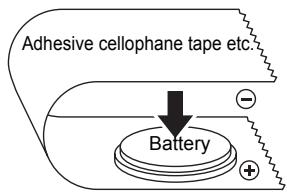
Example of grounding of battery
Cutter unit
-
The cutter unit contains a very sharp blade. To prevent injury from a broken cutter blade:
-
Make sure the top cover is closed when using the cutter unit.
- Don't apply too much pressure when fitting or removing the cutter unit.
- When the cutter unit becomes blunt you should replace it with a new one.
-
If you break the cutter unit, unplug your printer from the power and remove the cutter unit carefully with a pair of tweezers.
-
If the machine jams due to a build up of adhesive, you should clean the surface of the paper guide. Unplug the printer from the power and wipe away the adhesive build up from the surface of the paper guide using a cloth or tissue dipped in isopropyl alcohol. We
recommend that you clean the paper guide when replacing the cutter unit.
- The cutter unit should give you an average number of 5000 cuts or more, depending on how you use the machine. If your printer does not cut the labels properly or starts to jam often, the cutter might have reached the end of its life; you should replace the cutter.
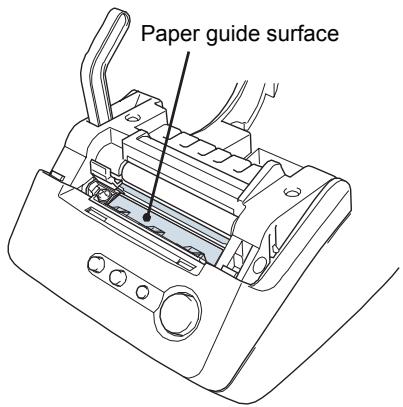
Paper guide surface
STEP1
Before using the printer
1 Parts Checklist
2 Parts Description
3] Connecting the power supply
4 | Installing the DK Roll
5 | Attaching the paper guide
6 Setting clock/language/units
7 Procedure for creating a label
1 | Parts Checklist
When you unpack the printer, check to see that you have all of the following parts. If any of the parts are missing or faulty, contact the dealer or brother authorised service representative where you purchased the printer from.
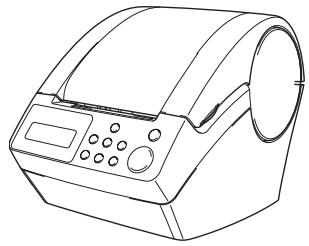
Brother QL-650TD
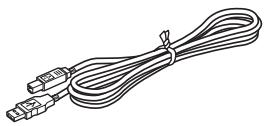
USB cable
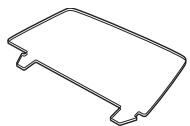
Paper guide
Setup & Operation Guide
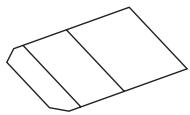
Cleaning sheet
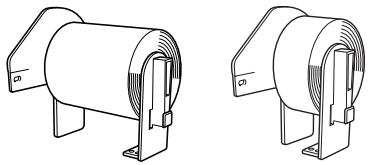
DK Roll (Starter roll)
- Continuous Length Paper Tape, 62mm (8 meters)
- Round Paper Labels, 24mm (250 labels)
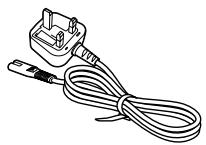
Power cord

CD-ROM
DK Label & Tape Guide
2 Parts Description
Main Printing Unit
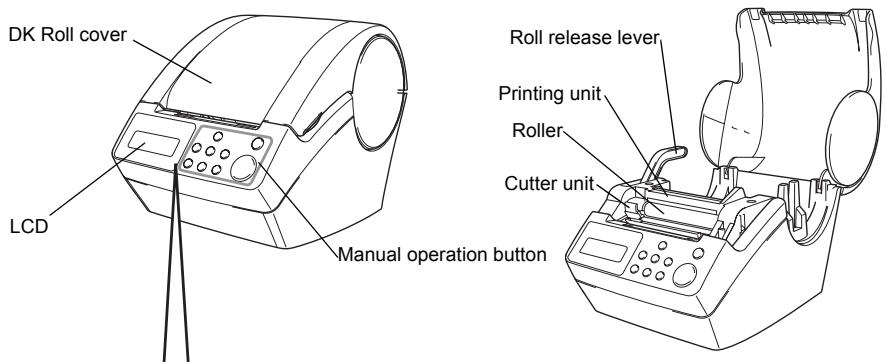
■Front View
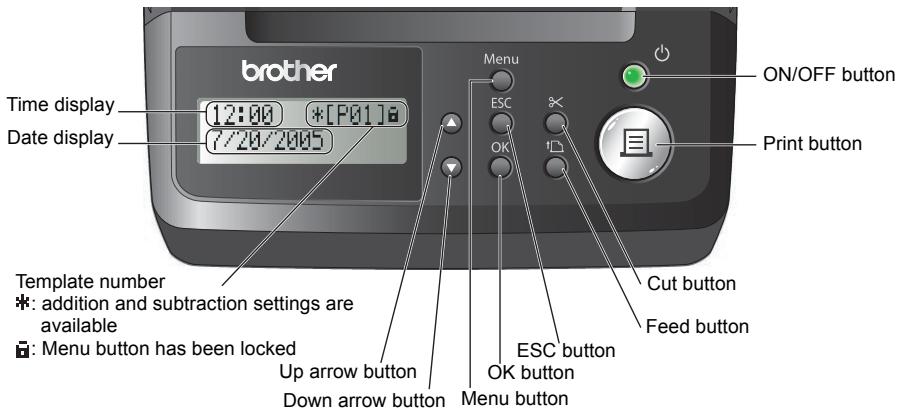
LCD and manual operation button
(For details, see Next page.)
When not in use, close the DK Roll cover to prevent dust and debris from accumulating inside the printer.
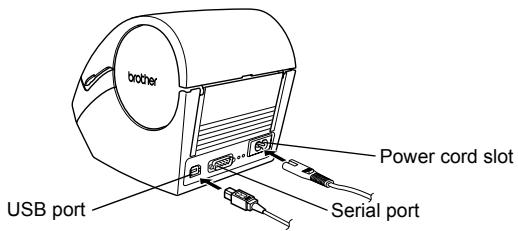
Back View
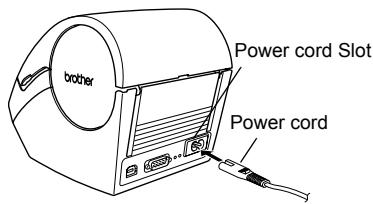
3 Connecting the power supply
1 Connect the AC power cord into the printer.
2
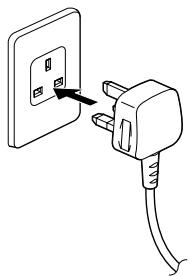
Insert the power plug into the AC outlet.
Before inserting the plug, check the outlet is 220 - 240 V AC.
- Locate the printer near the outlet so that the power plug can be pulled out easily if required.
- When inserting or pulling out the power cord, be sure to hold the power plug and not the cable.

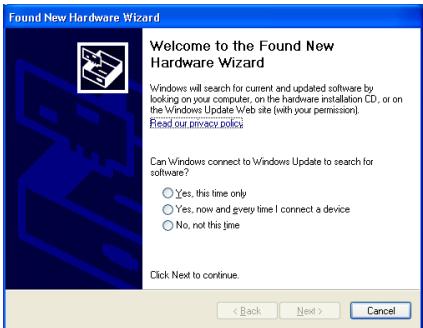
When using the printer on Windows®, do not connect the printer to the PC before installing the software on the PC.
Do not connect the printer to the PC until the you see the message that prompts for the connection when installing the printer driver.
If you connect the printer to the PC before installing the printer driver, the dialog box shown right is displayed. At that time, click [Cancel] and disconnect the USB cable.
Then, install the printer driver. For details, see "3. Installing the software" on page 35.
LCD
The LCD display is used for both Time Display mode and Menu Selection mode operations.
Time Display mode
The LCD will display the date and time when the machine is switched on and not in use.
12:34 [P01]
20/07/2005
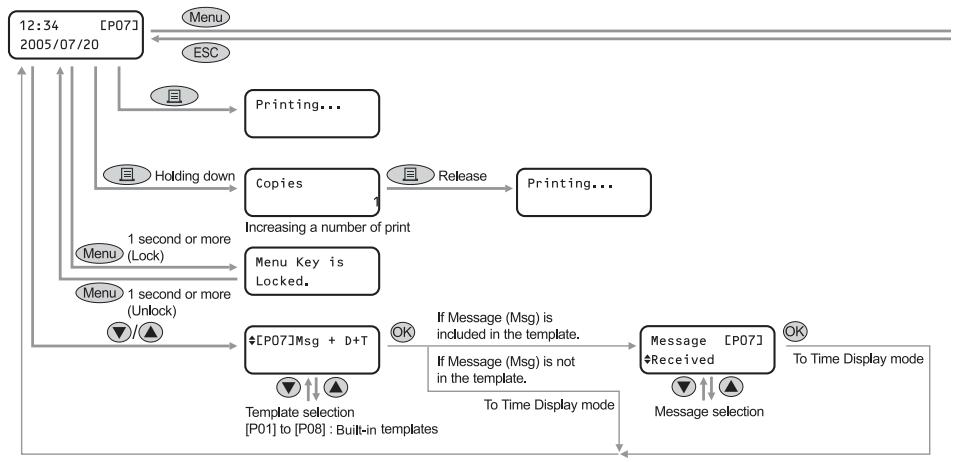
Manual operation menu table
Each button is indicated by the following marks.
| Menu | Menu button |
| ESC | ESC button |
| 且 | Print button |
| OK | OK button |
| ▲ | Up arrow button |
| ▼ | Down arrow button |

You can easily create labels that show the date, time and a message without using a computer.
Select the template

Received 20/07/2005
For details, see "Creating a label" on page 22.
■Menu Selection mode
The LCD will display the menu title when editing the templates or when changing settings.
Menu 1/12 Edit Template
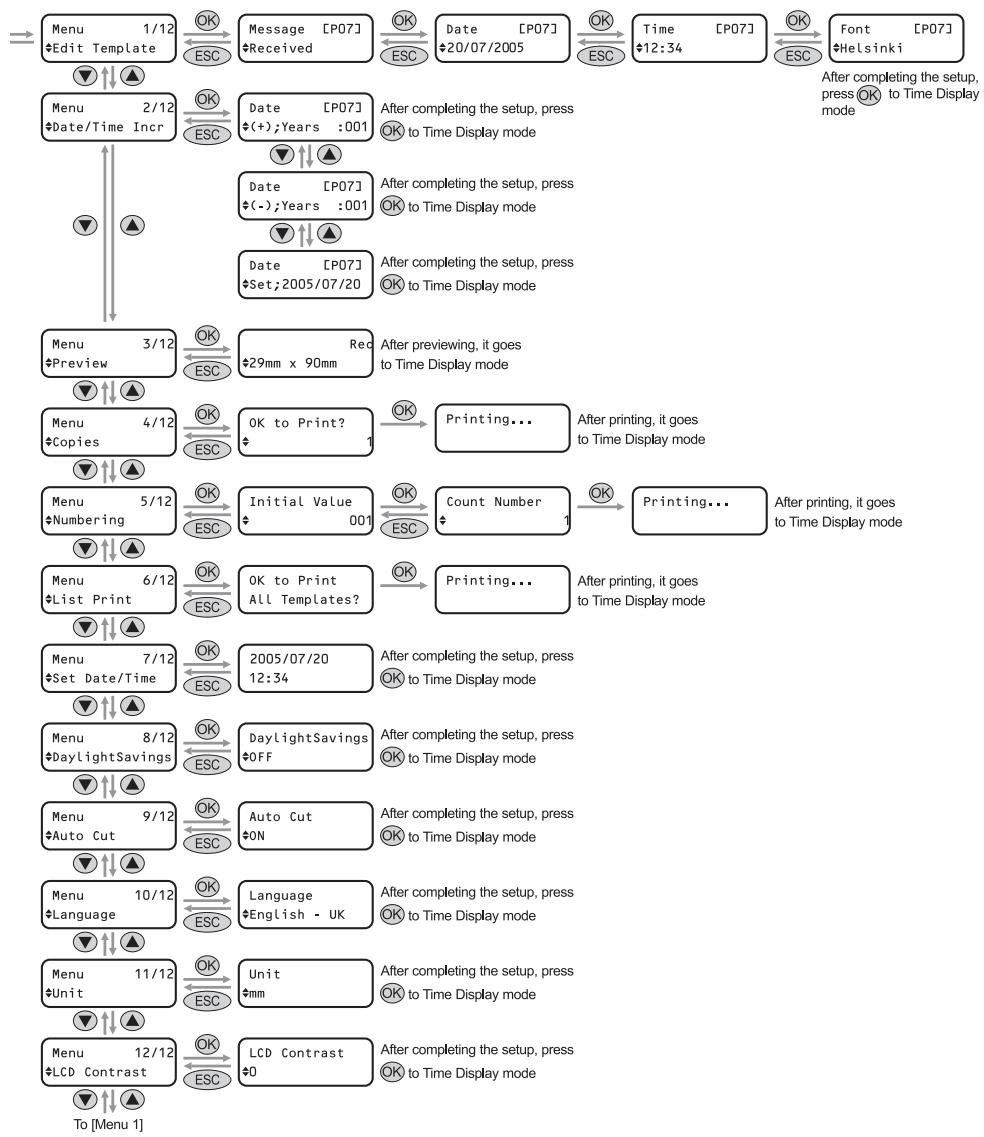
Manual operation button
The function of each button is shown below:
| Name | Function | |
| ON/OFF button (◇) | Turns the printer ON or OFF. The button also lights up or blinks depending on the printer status. | |
| LED lamp | Status | |
| OFF ○ | The power is turned OFF. | |
| ON ◇ | The power is turned ON. | |
| Blinks rapidly ○○○○○ | An error has occurred. For details on troubleshooting, see "Troubleshooting" on page 51. | |
| Blinks slowly ○-○○-○ | The printer is processing data. | |
| Turns OFF after blinking 10 times ○×10 | A system error has occurred. Turn the printer OFF, wait 30 seconds and then turn it ON again. If this does not clear the error you should contact your dealer or a Brother authorised service centre. | |
| Print button(田) | Starts printing. | |
| Cut button(8×) | Cuts the printed label. This button is used when "Auto Cut" is set to "OFF". For details, see "Cut the roll automatically when printing: Menu 9/12" on page 29. | |
| Feed button(↑□) | ·When using DK Die-cut Labels: feeds the DK Label Roll to the beginning of the first label. If this button is held for more than one second, the DK Label Roll is fed to the beginning of the next label. ·When using DK Continuous Tapes: feeds 25.4 mm of the DK Label Roll. ·If there is no DK Label Roll installed, the mode changes to a cleaning mode and the roller rotates for 8 mm. If this button is held for more than one second, the roller rotates for 100 mm. | |
| Menu button | Switch between the Time Display mode (normal mode) and Menu Selection mode (when making settings). In order to avoid changing the template setting, the Menu button can be locked. For details, see "Locking the Menu button" on page 31. | |
| ESC button | The setting is canceled and the screen returns to the previous mode or screen. | |
| OK button | Accepts the selected mode or setting value. | |
| Up/down arrow button (▲▼) | Changes the menu or setting value. | |
4 | Installing the DK Roll
Applicable DK Rolls
The usable types of DK Roll for the printer are shown below.
| DK Roll General name for DK Label and DK Tape. | DK Label | This is a pre-cut label roll. Thermal recording paper and thermal recording film are available. |
| DK Tape | This is a freely cuttable full-page adhesive tape. Thermal recording paper and thermal recording film are available. |

- For the full list of available DK Rolls, see "List of consumable items" shown at the back of this User Guide.
- Be sure to use only genuine DK Rolls in the printer.
Installing the DK Roll
1
Press the ON/OFF button to turn the printer OFF.
Hold the DK Roll compartment cover at the sides near the front of the printer and lift firmly upwards to open the cover.
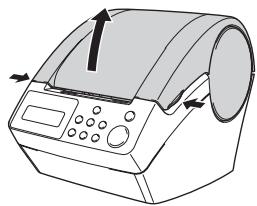
2
Pull up the roll release lever and remove the protection sheet from the printing unit.
Remove the battery protection sheet.
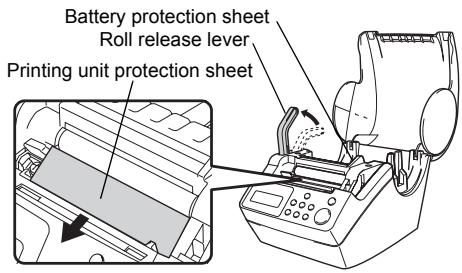
3
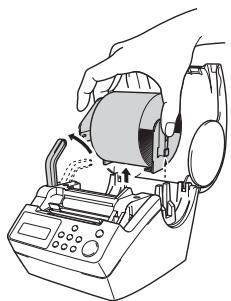
Place the spool into the spool guides in the DK Roll compartment.

- Make sure that the spool arms are inserted firmly in the spool guides on both sides.
- Insert the spool with the DK Roll locator into the guide on the right hand side of the printer.
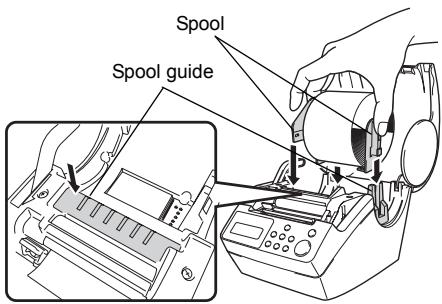
4 Check that the roll release lever is in the up position.
Thread the end of the DK Roll into the slot immediately in front of the cutter.

When unable to thread the end of DK Roll fully into the slot, thread it as as possible. Lower the roll release
lever and close the cover, then press the Feed button (↑) to set the roll.
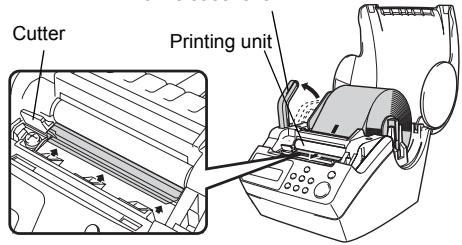
Roll release lever
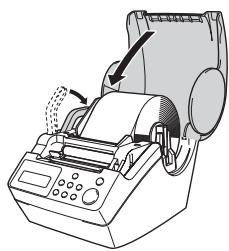
5 Push down the roll release lever and close the DK Roll cover.
5 | Attaching the paper guide
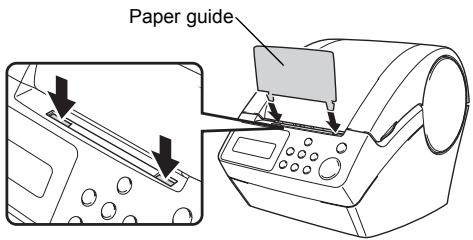
The printer contains a paper guide which can hold up to 10 individual label sheets.
1 Attach the paper guide to the front of the printer as shown on the right.
You will need to remove the paper guide if you wish to print and cut more than 10 labels at a time.
6 Setting clock/language/units
Before using the printer you will need to setup the date and time, the language and the unit of measurement your printer will use.

- If you disconnect your machine from the power and remove the battery any settings you have changed will be reset. See "Setting the clock: Menu 7/12" on page 28.
- For replacing the battery, see "Replacing the lithium clock battery" on page 49.
1
Press the ON/OFF button (O) to turn the printer on.
The time setting screen is displayed on the LCD, and then the year "05" and "YY" are alternately displayed.
2005/01/01
00:00
2
Select the year by pressing the up or down arrow button ( /) and then press the OK button.
The year is set and then the month "01" and "MM" are alternately displayed.
20YY/01/01
00:00
3
Select the month by pressing the up or down arrow button ( /) and then press the OK button.
The month is set and then the date "01" and "DD" are alternately displayed.
2005/MM/01
00:00
4
Select the date by pressing the up or down arrow button ( /) and then press the OK button.
The date is set and then the hour "00" and "hh" are alternately displayed.
2005/07/DD
00:00
5
Select the hour by pressing the up or down arrow button ( /) and then press the OK button.
The hour is set and then the minute "00" and "mm" are alternately displayed.
2005/07/20
hh:00
6 Select the minute by pressing the up or down arrow button ( /) and then press the OK button. The minute is set and the language setting screen is displayed.
2005/07/20
12:mm
7 Select the language by pressing the up or down arrow button ( /) and then press the OK button. The language is set and the units setting screen is displayed.
Language English - UK
8 Select the units by pressing the up or down arrow button ( /) and then press the OK button. The units are set and the Time Display mode is displayed.
Unit mm
9 Your machine will now display the date and time when switched on and not in use.
12:34 [P01] 20/07/2005
Every process such as creating or printing a label and making settings in each function is done in this mode.
For details, see "STEP 2 Creating and printing a label without using your computer" on page 21.

The clock, language or unit setting can be changed later. See Sections:
"Setting the clock: Menu 7/12" on page 28
"Setting Daylight Saving Time: Menu 8/12" on page 29
"Setting the language: Menu 10/12" on page 30
- "Set the unit of measure (inch or mm): Menu 11/12" on page 30
7 Procedure for creating a label
The general procedure for creating a label with the printer is shown below.
1
Decide on the type of label you want to create.
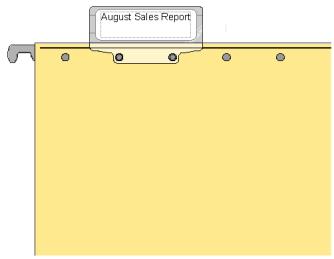
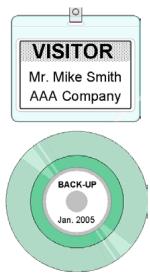
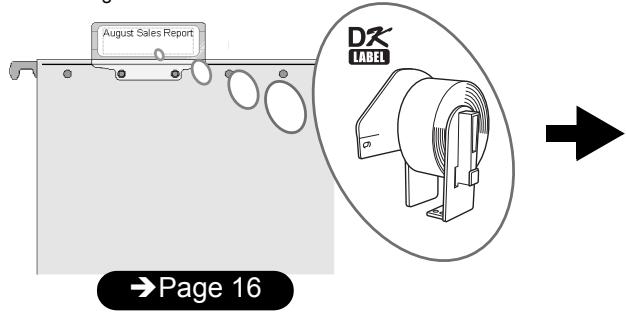
2
Prepare the appropriate DK Roll.
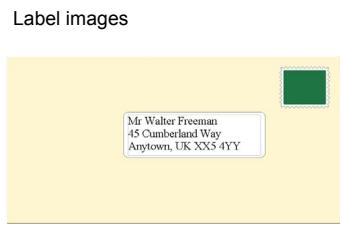
Prepare the appropriate DK Roll to the label image
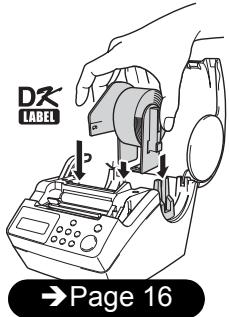
Set the DK Roll
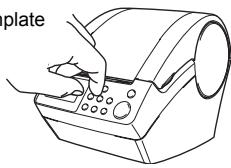
3
Create a label and print it.
By installing the included software, it is possible to design and print labels on your PC, or to download the designed label to the printer to print it. For how to install the software, see "STEP3 Connecting the printer to your PC" on page 33, for using the software, see "Software User's Guide (PDF Manual)". You can also change the content and printing format.
Select the template
Page 22

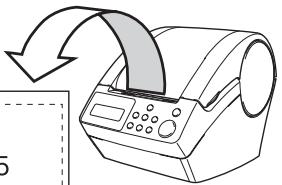
Print
Received 20/07/2005

Page 23
STEP2
Creating and printing a label without using your computer
This printer has eight built-in templates for your convenience, you may select the template you want from these templates by scrolling up or down ( / ) and then press the Print button. You may also download additional templates created in P-touch Editor 4.2. This is for PC only and not available for Mac.
1| Creating a label
- Selecting a template
Page 22
2.Printing a label
Page 23
2 Other convenient functions
Editing a template: Menu 1/12
Page 24
Changing the date used for templates: Menu 2/12
Page 25
Preview the label content before printing: Menu 3/12
Page 26
Specifying the number of copies: Menu 4/12
Page 27
Printing labels with label numbers: Menu 5/12
Page 27
Printing a list of templates: Menu 6/12
Page 28
Setting the clock: Menu 7/12
Page 28
Setting Daylight Saving Time: Menu 8/12
Page 29
Cut the roll automatically when printing: Menu 9/12
Page 29
Setting the language: Menu 10/12
Page 30
Set the unit of measure (inch or mm): Menu 11/12
Page 30
Adjusting the contrast of LCD: Menu 12/12
Page 31
Locking the Menu button
Page 31
Uploading templates / messages from your computer
Page 31
1 |Creating a label
After deciding the type of label you want to create you need to choose a suitable DK Roll (See "Installing the DK Roll" on page 19.)
1. Selecting a template
Select the template for the label you want to create, from one of the eight built-in templates.

It is also possible to create templates with your own PC. For details, see the "Software User's Guide (PDF Manual)".
1
Press the ON/OFF button ( ) to turn on the power.
The Time Display mode is displayed.
12:34 [P01]
20/07/2005
2
Select a template by scrolling up or down with the arrow button ( /) and then press the OK button.
When selecting a template which includes a
particular message (Msg), select the message and then press the OK button.
The selected template is chosen, and the screen returns to the Time Display mode.
For details on available templates, see "Types of templates" below.
[P07]Msg+D+T
Types of templates
| Name of template | Content | Sample of print outs |
| [P01]Date | Date | 20/07/2005 |
| [P02]Time | Time | 12:34 |
| [P03]Message | Message | Received |
| [P04]Date+Time | Date + time | 20/07/2005 12:34 |
| [P05]Msg+Date | Message + date | Received 20/07/2005 |
| [P06]Msg+Time | Message + time | Received 12:34 |
| [P07]Msg+D+T | Message + date + time | Received 20/07/2005 12:34 |
| [P08]Msg+Num | Message + numbering | Received 001 |

When a template is downloaded from a PC, the screen is displayed as shown below.
[D01] Sample1
[D02] Sample2

2.Printing a label
■ Printing only one label
1
Press the Print button (且) while in Time Display mode.
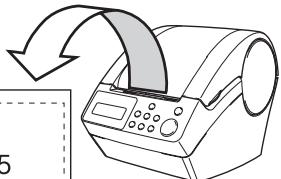
The contents of the template are printed.
For a preset template, the content of the label is automatically adjusted for the size of the DK Roll.
The machine will display an error if the content does not fit into the print area even when the font size is at minimum.
12:34
[P07]
20/07/2005

Printing...
■Specifying the number of copies to be printed
1
Press and hold down the Print button (且).
The screen shown on the right is displayed. The number of copies will increase for as long as the print button is pressed.
Copies
1

2
When the number of copies (1 to 999) that you want to print is displayed, release the Print button (回) immediately.
The number of copies displayed when releasing the Print button (且) will be printed.
Copies
3

It is also possible to select the number of copies to be printed from the menu. See "Specifying the number of copies: Menu 4/12" on page 27.
2 Other convenient functions
You can easily customize many functions of your machine, for example you can edit the contents of the built in templates.
Editing a template: Menu 1/12
By editing a selected template, it is possible to change the label to your own format. The editable content varies depending on the selected template.
The following explains an example when selecting template "[P07]Msg+D+T".
1 Press the up or down arrow button (▲/▼) until [P07] is shown on the display, then press the OK button twice.
Press the Menu button in the Time
Display mode.
Menu Selection mode is displayed.
12:34 [P07]
20/07/2005
2 Select "Menu 1/12" by pressing the up or down arrow button ( /) and then press the OK button.
Message selection mode is displayed.
Menu 1/12
Edit Template
3 Select the message by pressing the up or down arrow button ( /) and then press the OK button.
The message is selected, and then the date format selection mode is displayed.
Message [P07]
Received
Type of message
- Received - Inspected - Approved
Delivered By Service Before Best Before - Expires - Date Installed - Next Test
Completed None

You can also upload new messages from your computer.

"None" can be selected only when using the template [P08].
4 Select the date format by pressing the up or down arrow button ( /) and then press the OK button.
The date format is selected, and then the time format selection mode is displayed.
Date [P07]
20/07/2005
5 Select the time format by pressing the up or down arrow button ( /) and then press the OK button.
Time [P07]
12:34 (24)
The time format is selected, and then the font selection mode is displayed.
6 Select the font by pressing the up or down arrow button ( /) and then press the OK button.
Font [P07]
L.Gothic Bold
The setting is saved and the screen returns to the Time Display mode.
Type of font
Helsinki
Brussels
San Diego
L.Gothic Bold
Brougham
Changing the date used for templates: Menu 2/12
For the date printed on your template you can add or subtract from the current date, or you can fix it to a specific date. This can be useful if you need to print best before labels for food, for example.

- Your machine will still display the current date when in Time Display mode.
- The values you can change may vary depending on the template content.
The following explains an example when selecting the template "[P01]Date".
1 Press the up or down arrow button (▲/▼) until [P01] is shown on the display, then press the OK button.
Press the Menu button in the Time Display mode.
Menu Selection mode is displayed.
2 Select "Menu 2/12" by pressing the up or down arrow button ( /) and then press the OK button.
Menu 2/12
Date/Time Incr
The Date addition selection mode is displayed.
3 Select (+)/(-)/ set by pressing the up or down arrow button ( /) and then press the OK button.
(+) :Addition (adds the specified value to the current date.)
- (-) : Subtraction (reduces the specified value from the current date.)
- Set : Fix (specifies the arbitrary date.)


When (+)/(-) has been selected press the up or down arrow button (/) to choose either Years, Months, Weeks, Days, Hours or Minutes and then press the OK button.
Date [P01] (+);Months :000

Select a value between 000 and 999 by pressing the up or down arrow button ( / ) and then press the OK button.
Date [P01] (+) ;Months:003
- The setting is saved and the screen returns to the Time Display mode.
- If you set an addition or subtraction to the current date, or if you fix the date, a "*" will be displayed when in the Time Display mode.
12:34 *[P01] 20/07/2005
■When selecting a fixed date:

Set the year, month and day by pressing the up or down arrow button (/) and then press the OK button.
Date [P01] Set:2006/01/20
- The setting is saved and the screen returns to the Time Display mode.
- If you set an addition (+) or subtraction (-) to the current date, or if you fix the date, a "*" will be displayed when in the Time Display mode.
12:34 *[P01] 20/07/2005

When you want to use the current time for printing, select addition (+) or subtraction (-) and reset all the values back to "000".
Preview the label content before printing: Menu 3/12
You can check your label content before printing by using the preview function.

Press the Menu button in the Time Display mode.
Menu Selection mode is displayed.

Select "Menu 3/12" by pressing the up or down arrow button ( /) and then press the OK button.
- The label content will scroll from right to left on the first line of the display.
- The second line will show the size of DK Roll installed
- When the display is completed, the screen returns to the Time Display mode.
Menu 3/12 Preview
17mm X 87mm
Specifying the number of copies: Menu 4/12
Press the Menu button in the Time Display mode.
Menu Selection mode is displayed.
2 Select "Menu 4/12" by pressing the up or
down arrow button ( /) and then press the OK button.
Menu 4/12
Copies
3 Select the number of copies to print
between 1 and 999 by pressing the up or
down arrow button ( /) and then press
the OK button.
The specified number of copies are printed, and the screen returns to the Time
Display mode.
OK to Print?
3
Printing labels with label numbers: Menu 5/12
When you choose a template that includes numbering you need to enter the starting number and how much you want that number to increase each time you print the label.

For details on downloaded templates, see the "Software User's Guide (PDF Manual)".
1 Press the up or down arrow button ( /) until [P08] is shown on the display, then press the OK button twice. Press the Menu button
in the Time Display mode.
Menu Selection mode is displayed.

2 Select "Menu 5/12" by pressing the up or
down arrow button ( /) and then press
the OK button.
Menu 5/12
Numbering

3 Select the first label number (000 to 999)
by pressing the up or down arrow button
( /) and then press the OK button.
If you hold down or the value increases
or decreases in units of 10.
Initial Value
010

4 Select the number of labels to print (1 to
999) by pressing the up or down arrow
button ( /) and then press the OK
button.
The label is printed for the specified number of times, and the screen returns to the
Time Display mode.
Count Number
5
Printing a list of templates: Menu 6/12
It is possible to print a sample of every template (including downloaded templates) for reference.

For details on downloaded templates, see "Software User's Guide (PDF Manual)".

Choose a DK tape that print labels up to 62mm in width. If the DK label is too narrow the machine will indicate an error. See the back of this User Guide for DK tapes.
1 Press the Menu button in the Time Display mode.
Menu Selection mode is displayed.
2 Select "Menu 6/12" by pressing the up or down arrow button (+ / -) and then press
down arrow button ( / ) and then press the OK button.
Menu 6/12
List Print
3 Press the OK button or the Print button (回).
The list of templates is printed and the screen returns to the Time Display mode.
OK to Print
All Templates?
Setting the clock: Menu 7/12
Press the Menu button in the Time Display mode.
Menu Selection mode is displayed.
2 Select "Menu 7/12" by pressing the up or
down arrow button ( /) and then press
the OK button.
Menu 7/12
Set Date/Time
3 Set the clock by pressing the up or down
arrow button ( /) and press the OK
button.
2005/01/01
00:00
Adjust the Year(YY), Month(MM), Day/DD)
Hours(hh) and Minute(mm) by pressing the up or down arrow button (▲/
) and then press the OK button.
When you have set the clock the screen will return to the Time Display mode.

If the time and date has not been kept after the power cord has been removed, replace the battery. As the battery is no longer holding a charge and the clock will need to be reset upon installation of a new battery.
Setting Daylight Saving Time: Menu 8/12
Adjust the internal clock by one hour by turning Daylight Savings Time ON.
1 Press the Menu button in the Time Display mode.
Menu Selection mode is displayed.
2 Select "Menu 8/12" by pressing the up or down arrow button ( /) and then press the OK button.
3 Select "ON" by pressing the up or down arrow button ( /) and then press the OK button.
The setting is saved and the screen returns to the Time Display mode.
Menu 8/12 Daylight Savings
Daylight Savings
Cut the roll automatically when printing: Menu 9/12
If you turn on the auto cut function your printer will automatically cut each label after it prints them.
Press the Menu button in the Time Display mode.
Menu Selection mode is displayed.

2 Select "Menu 9/12" by pressing the up or down arrow button ( /) and then press the OK button.
Menu 9/12
Auto Cut
3 Select "ON" by pressing the up or down arrow button ( /) and then press the OK button.
The setting is saved and the screen returns to the Time Display mode.
Auto Cut ON
Setting the language: Menu 10/12
1 Press the Menu button in the Time Display mode.
Menu Selection mode is displayed.
2 Select "Menu 10/12" by pressing the up or down arrow button ( /) and then press the OK button.
3 Select the language by pressing the up or down arrow button ( /) and then press the OK button. The setting is saved and the screen returns to the Time Display mode.
Menu 10/12
Language
Set the unit of measure (inch or mm): Menu 11/12

The default unit setting for English-US is "inch". For all other Languages the default setting is "mm".
1 Press the Menu button in the Time Display mode. Menu Selection mode is displayed.

Select "Menu 11/12" by pressing the up or down arrow button ( /) and then press the OK button.
Menu 11/12 Unit

Select the unit by pressing the up or down arrow button ( /) and then press the OK button. The setting is saved and the screen returns to the Time Display mode.
Unit mm
Adjusting the contrast of LCD: Menu 12/12
1 Press the Menu button in the Time Display mode.
Menu Selection mode is displayed.
2 Select "Menu 12/12" by pressing the up or down arrow button ( /) and then press the OK button.
Menu 12/12 LCD Contrast
3 Select the contrast by pressing the up or down arrow button ( /) and then press the OK button.
The setting is saved and the screen returns to the Time Display mode.
LCD Contrast +1
Locking the Menu button
You can prevent accidental changes to templates by locking the menu button.
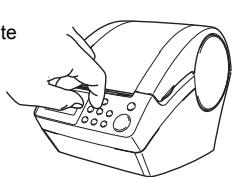
Press the Menu button for more than one second in Time Display mode.
- When the Menu button is locked, "n" is displayed in the Time Display mode as shown on the right.
- When pressing the Menu button for more than one second again, the Menu button is unlocked.
12:34 [P07] 20/07/2005
Uploading templates / messages from your computer
You can upload templates or message content you create in P-touch editor 4.2 to your printer by using the P-touch Transfer Manager.
brother
http://www.brother.com
This is for PC only. Not available for Mac.
FAX MACHINE
2007/2005
OVERSEAS SALES &MARKETING SECT.
AT07765427003
Concerning the download of message
It is possible to add the item selected for Message to the main unit using P-touch Transfer Manager.
It will be convenient to set the name or company name.
For details, refer to "Software User's Guide (PDF Manual)".
Amy McCarthy
20/07/2005
STEP-3
Connecting the printer to your PC
By using the software included with this printer, you can create a variety of labels quickly and easily using your personal computer.
For details on the software included with this printer and additional hardware/ software requirements you may need, see the back of this User Guide and the "Software User's Guide (PDF Manual)".
1|ForWindows
- Software description Page 34
- Notes on installation Page 35
- Installing the software Page 35
2 For Mac
- Software description Page 39
- Notes on installation Page 39
- Software installation Page 40
1 |For Windows
The software included with your printer is compatible with the following operating systems. Microsoft® Windows® 98 SE/Me/2000 Professional/XP

For details on software, See the "Software User's Guide (PDF Manual)".
1. Software description
The CD-ROM included with this printer contains the following software and printer driver.
P-touch Editor 4.2
You can create various types of labels such as address labels and CD/DVD labels. It is also possible to link previously created databases (database function) and to manage information such as names and addresses (label list function).
The following tools will also be installed.
P-touch Transfer Manager 1.2
The template data and image data created by exporting the label created by P-touch Editor can be transferred to the printer. The data transferred to the printer can be printed by the printer only as a downloaded template. The text which will be used as the Message of the preset template can be transferred as well.
P-touch Library 1.0
Labels created by P-touch Editor can be printed again quickly and easily.
P-touch 4.2 Add-In Utility
By using the Add-In icon set for Microsoft® Word 97/2000/2002/2003, Microsoft® Outlook® 2000/2002/2003, Microsoft® Excel 97/2000/2002/2003, it is possible to create a label using data from these applications.
- P-touch Backup Manager 1.2
Data can be freely moved between this printer and a PC. Data can be safely stored (backed-up) as an added safety measure.
P-touch Address Book 1.0
Lets you easily manage your addresses for printing address_labels.
You can import contact information from Microsoft® Outlook®.
■Printer Driver
Lets you print from your PC.
Software User's Guide (PDF Manual)
Gives you instructions for using the software included with your machine. It can be referenced by using Adobe Acrobat Reader or Adobe Reader.
It is also possible to reference it directly from the CD-ROM.
2. Notes on installation
- Do not connect this printer to a PC until you are prompted to do so. If this printer is already connected to a PC prior to the software installation, remove the USB plug from the PC and wait for the software prompt.
- When installing on Windows 2000/XP, make sure you are logged in with administrator rights.
- Make sure that you close all applications before installing the software, so that the Add-Ins included with the software can be installed.
3. Installing the software
This section explains how to install P-touch Editor 4.2, P-touch Address Book 1.0, Printer Driver, and the Software User's Guide.
The procedure for installing them varies depending on the OS of your PC.
The installation example given is for Windows XP.
1 Start up the PC and put the CD-ROM into the CD-ROM drive.
QL-series Installer starts up and the P-touch Setup screen is displayed.
It may take a short time to display the screen.
- If it does not start up automatically, double click the "Setup.exe" icon on the CD-ROM.
2 Click "Standard Installation".
The preparation for installing the software starts and the License Agreement screen is displayed.
Each button selects the following operations.
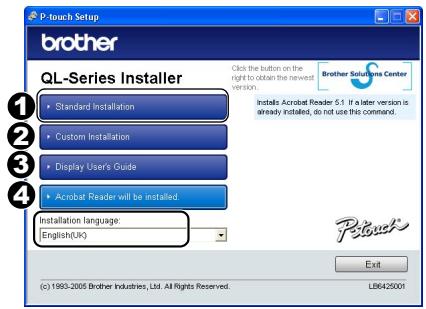
Standard Installation
P-touch Editor 4.2,
P-touch Address Book 1.0,
Printer Driver, and User's Guide are all installed.
Custom Installation
P-touch Editor 4.2, P-touch Address Book 1.0, Printer Driver, and User's Guide can be installed individually.
Show User's Guide
Software User's Guide (PDF Manual) can be viewed without actually installing it.
4Install Acrobat Reader
"Adobe Acrobat Reader" can be installed so that you can view the Software User's Guide (PDF Manual).
Adobe Acrobat Reader 5.1 will be installed. If you have a later version already installed you do not have to install it.

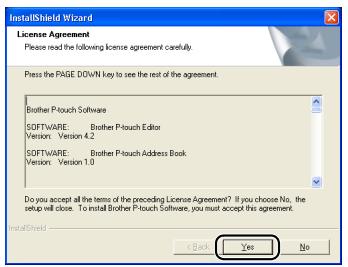
Read the license agreement carefully. If you agree with the terms and conditions of the license agreement, click [Yes] to continue the installation.
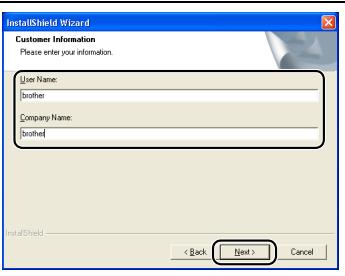
The Customer Information screen is displayed.

Input "UserID" and "Company Name", and click [Next].
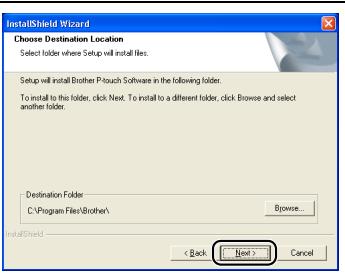
Choose the Destination Location screen is displayed.

Click [Next].
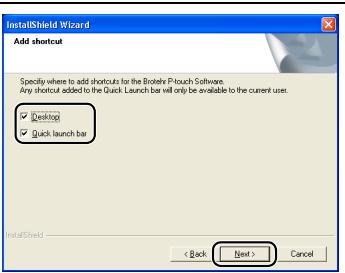
Add shortcut screen is displayed.

To install to a different folder click [Browse] and select another folder.

Check the locations where you want the installer to add the program shortcuts and click [Next].
The Start Copying Files screen is displayed.
7 Check the settings, and if they are set correctly, click [Next].
![BROTHER P-TOUCH QL-650TD - Check the settings, and if they are set correctly, click [Next]. - 1](/content/2024/12/117967/images/ad83ca1e5420a5272b85409d515a7c789433d056eb636e8d9f6281e1c160cb46.jpg)
- It may take some time to display this screen.
- If it is not set correctly, click [Back] and set it again.
The Add-In settings screen is displayed.
![BROTHER P-TOUCH QL-650TD - Check the settings, and if they are set correctly, click [Next]. - 2](/content/2024/12/117967/images/480e80f6f7f58a0ae4e89ff4a346167225e8b7a60158e95586f4afa28b726e44.jpg)
8
Check the Microsoft® Office® application that want to the Add-In to work with, and click [Next].
![BROTHER P-TOUCH QL-650TD - Check the Microsoft® Office® application that want to the Add-In to work with, and click [Next]. - 1](/content/2024/12/117967/images/8e51fe1824e326b27eb07e823fc40c9469a09593b4512b9c1f58f5db3a1b875c.jpg)
Make sure that you have closed all Microsoft Office® applications.
![BROTHER P-TOUCH QL-650TD - Check the Microsoft® Office® application that want to the Add-In to work with, and click [Next]. - 2](/content/2024/12/117967/images/72de52ebf0f96db1682416eafabae439f0ece1aceb561b02653c54b8dc80eb75.jpg)
For details on Add-In setting, See the "Software User's Guide (PDF Manual)".
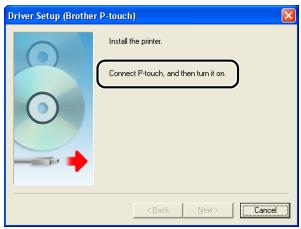
The Driver Setup (Brother P-touch) screen is displayed.
![BROTHER P-TOUCH QL-650TD - Check the Microsoft® Office® application that want to the Add-In to work with, and click [Next]. - 3](/content/2024/12/117967/images/27b95dd76ea234b2ca5242bbba163bdaff6622316da2ddeb97ea56e9db319b5f.jpg)
9
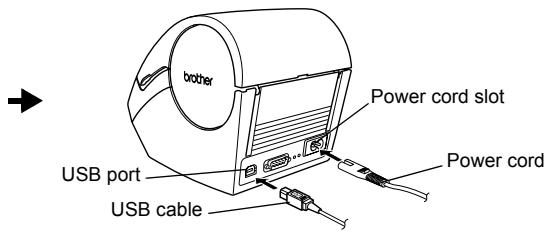
When the message "Connect P-touch, and then turn it on" is displayed in the set-up screen, connect the USB cable and power cord to the printer.

Remove the caution label from over the USB port of the printer, and then connect the USB cable.
10
Connect the USB cable to the USB port of the PC.
Press the ON/OFF button (山) of the printer to turn the power on.
When the PC recognizes the printer and the installation of the driver is completed, the User Registration screen is displayed.
If you are using a USB hub and your PC has problems recognizing the printer, try connecting the printer directly to your PC.
11 Select if you want to register your printer and then [Next].
- If you select "Yes, display the page", you will be directed to the online user registration page. After user registration, continue with the installation (registration is recommended).
- When selecting "No, do not display the page", the installation will continue.
![BROTHER P-TOUCH QL-650TD - Select if you want to register your printer and then [Next]. - 1](/content/2024/12/117967/images/2692141740f7d31ab3a7595bb4dc46b884b19778cc4e6b3c1241bef3017135a0.jpg)
12 Click [Finish].
The installation of the software is now completed. When the installation is completed, the message which prompts you to reboot the PC may be displayed. In this case, select "Restart" and click [Finish].
![BROTHER P-TOUCH QL-650TD - Click [Finish]. - 1](/content/2024/12/117967/images/d65e4623470727e7b7a3f29595df97eb428eda5afe83bace4308d8cf95f25df6.jpg)
13 Starting up the installed software.
- When starting P-touch Editor, click [Start]-[All Programs (Programs)]-[Brother P-touch]-[P-touch Editor 4.2].
- When starting P-touch Address Book, click [Start] - [All Programs (Programs)] - [Brother P-touch] - [P-touch Address Book 1.0].

For details on software, See the "Software User's Guide (PDF Manual)". The Software User's Guide (PDF Manual) can be displayed by clicking [Start]-[ALL Programs (Programs)]-[Brother P-Touch]-[Manuals]-[QL-Series User's Guide (English)].
2 For Mac
You will need to install the software from the included CD-ROM to use the printer with your Mac®.
The software is available for the following OS's.
Mac OS® X 10.1 ~ 10.4.1

For details on software, See the "Software User's Guide (PDF Manual)".
1. Software description
The CD-ROM included with the printer contains the following software and printer driver.
P-touch Editor 3.2
You can create various labels such as address labels and CD/DVD labels.
■Fonts
A selection of English fonts.
Auto Format Templates
A selection of label template layouts for use with P-touch Editor 3.2.
■Clip Art
A selection of illustrations for use with P-touch Editor 3.2.
■Printer Driver
Lets you print from your Mac®.
2. Notes on installation
- Until the installation of the printer driver is completed, do not connect the printer to the Mac®. If it has been connected to the Mac®, pull out the USB cable from the Mac®.
- When installing, log in as the administrator.
3. Software installation
This section explains how to install the P-touch Editor 3.2, Fonts, Auto Format Templates, and Clip Art as a whole, and to install the printer driver and set it for the printer.
The procedure for installing this varies depending on the OS version of your Mac®.
This is an example of Mac OS® X 10.3.9.
1 Start up your Mac®, and put the CD-ROM into the CD-ROM drive. The QL-Series screen is displayed.
If it does not start up automatically, double click the QL-Series (CD-ROM) icon.

2 Click [Mac OS X] folder.

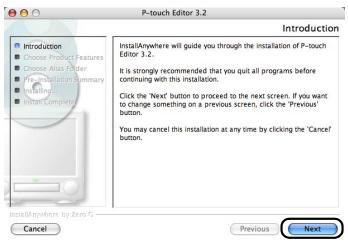
3 Double click [P-touch Editor 3.2 Installer]. P-touch Editor 3.2 Installer starts up and the Introduction screen is displayed.
4 Check the content and click [Next]. The Important Information screen is displayed.
5 Check the content and click [Next].
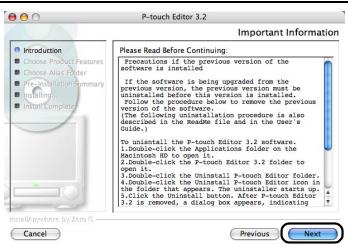

Click [Next].
![BROTHER P-TOUCH QL-650TD - Click [Next]. - 1](/content/2024/12/117967/images/06eee9694f5316f8faf2ec021cdafe14bb3ab34602640ca8a044a19155746f19.jpg)
You can choose which programs are installed. Uncheck any programs that you do not want to install.
Choose Alias Folder screen is displayed.
![BROTHER P-TOUCH QL-650TD - Click [Next]. - 2](/content/2024/12/117967/images/4f10c6a0d131a25f331120046fa70cc82e0e56c7f997482cf61a920d303930a5.jpg)
![BROTHER P-TOUCH QL-650TD - Click [Next]. - 3](/content/2024/12/117967/images/3281f83a56590a6b2fa978eed2f6c11c8bed681db74a3328d5ef56db5b5f5fe3.jpg)
Select the location where you want to create the alias, and click [Next].
For other than Mac OS® X 10.1, do not select "In the Dock". The alias is not created in the doc, and the icon of doc may be changed back to the default.
Pre-Installation Summary screen is displayed.
![BROTHER P-TOUCH QL-650TD - Select the location where you want to create the alias, and click [Next]. - 1](/content/2024/12/117967/images/475dd3b9bfb4d2f47d864ea6cb3a4b45d4d476b1664ebcb55114286b266c3431.jpg)
![BROTHER P-TOUCH QL-650TD - Select the location where you want to create the alias, and click [Next]. - 2](/content/2024/12/117967/images/96a0ad62a3e4d2b481b78813a0ae05e595cefe43e8037a067654e827ad5cb522.jpg)
Click [Install].
The installation starts.
![BROTHER P-TOUCH QL-650TD - Click [Install]. - 1](/content/2024/12/117967/images/67c8a4162f58dbb1ea63a671d6829bb00f7438c5a6dae3b07022f6410fd73511.jpg)
![BROTHER P-TOUCH QL-650TD - Click [Install]. - 2](/content/2024/12/117967/images/ac98f5ec358c9eb4264cb31b1b3a9ed35f2eff38bb696ddf33f965e5da120df9.jpg)
After the installation is completed and the screen shown on the right is displayed, click [Done].
The software installation is now complete. Next, install the printer driver.
![BROTHER P-TOUCH QL-650TD - After the installation is completed and the screen shown on the right is displayed, click [Done]. - 1](/content/2024/12/117967/images/d990c72b302390f6ae077cd6a2a5708888f2d85d4089ecf428897623772b3872.jpg)
![BROTHER P-TOUCH QL-650TD - After the installation is completed and the screen shown on the right is displayed, click [Done]. - 2](/content/2024/12/117967/images/06771751ec0d03ebf2489b40cb08593b8a7ecec6077adbfce05e52df8986e201.jpg)
Double click [QL-500 550 650TD Driver pkg] in [Mac OS X] folder.
The Driver Installer starts up and the Driver Setup screen is displayed.
QL-500 S50 650DT Driver.pkg
11 Click [Continue]. The Important Information screen is displayed.
![BROTHER P-TOUCH QL-650TD - Double click [QL-500 550 650TD Driver pkg] in [Mac OS X] folder. - 1](/content/2024/12/117967/images/639535dc0c5eafdf513200b4b6b536a1fb080a0fff655c456418746f5b4a7bf1.jpg)
12 Click [Continue]. The Software License Agreement screen is displayed.
![BROTHER P-TOUCH QL-650TD - Double click [QL-500 550 650TD Driver pkg] in [Mac OS X] folder. - 2](/content/2024/12/117967/images/bfcaaa01b632426c4fccd168bb3499bfcac31e2091cab7bdbb41b9a25f414210.jpg)
13 Check the content and select "English", then click [Continue].
The License agreement screen is displayed.
![BROTHER P-TOUCH QL-650TD - Double click [QL-500 550 650TD Driver pkg] in [Mac OS X] folder. - 3](/content/2024/12/117967/images/9a47ed35cfb384d793b658c207df10c68b2e350a51f08d5773aacddc564f6c0c.jpg)
14 When continuing the installation, click [Agree].
The Select a Destination screen is displayed.
![BROTHER P-TOUCH QL-650TD - Double click [QL-500 550 650TD Driver pkg] in [Mac OS X] folder. - 4](/content/2024/12/117967/images/cba9df2df43bac803c086d9b9d5e239777fdf2070bfd4291cb2eb5b0ce812bb0.jpg)
15 Select the destination you want to install, and click [Continue].
The Easy Install screen is displayed.
![BROTHER P-TOUCH QL-650TD - Double click [QL-500 550 650TD Driver pkg] in [Mac OS X] folder. - 5](/content/2024/12/117967/images/1ade51ff820d9f8d0129d6f4779d57bd1d2dd95fb17eb36128a0a7ae7dd9a54d.jpg)
Select the drive where the Mac OS® X is installed.
![BROTHER P-TOUCH QL-650TD - Double click [QL-500 550 650TD Driver pkg] in [Mac OS X] folder. - 6](/content/2024/12/117967/images/cffd60fab28b3cece5c95291bffa0a0ac86c09de37f007909781376b81508208.jpg)
16 Select the drive where you want to install the driver, and click [Install].
The screen in which the name and password of the administrator is now displayed.
![BROTHER P-TOUCH QL-650TD - Select the drive where you want to install the driver, and click [Install]. - 1](/content/2024/12/117967/images/c133baa8e5fc3789083162a8485b5a2e285c6b5c9d1d2d68adf58be0d8b42e5e.jpg)
17 Input the "Name" and the "Password" of the administrator and click [OK].
The screen to check the installation is displayed.
![BROTHER P-TOUCH QL-650TD - Input the "Name" and the "Password" of the administrator and click [OK]. - 1](/content/2024/12/117967/images/c59e87d0a4a4bcf904ceea62692f8a3801f2ecbc549732506677d708442afd0a.jpg)
18 When continuing the installation, click [Continue Installation].
The installation starts.
![BROTHER P-TOUCH QL-650TD - When continuing the installation, click [Continue Installation]. - 1](/content/2024/12/117967/images/975a2ce526f25ed728d21235ec206f5a2cce2d23422fb097f999fbd30136dcad.jpg)
19 When the installation is completed and the message "The software was successfully installed" is displayed, click [Restart].
Your Mac® will restart.
The installation of the printer driver is now complete.
![BROTHER P-TOUCH QL-650TD - When the installation is completed and the message "The software was successfully installed" is displayed, click [Restart]. - 1](/content/2024/12/117967/images/03b7249f77fd5a156f5dd22196f54e90913f04971702e7c398c987c36d78ef78.jpg)
20 After rebooting, connect the USB cable and power cord to the printer.

Remove the caution label before connecting the USB cable.
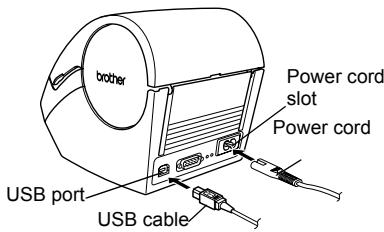
21 Connect the USB cable to the USB port of the Mac.
Press the ON/OFF button (O) of the printer to turn on the power.

If you are using a USB hub and your Mac® has problems recognizing the printer, try connecting the printer directly to your Mac®.
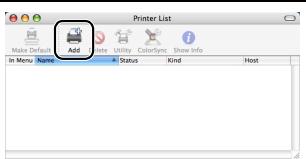
22 Double click the drive where Mac OS® X is installed, and click in order [Applications]-[Utility]-[Printer Setup Utility (Print Center)]. The Printer List screen is displayed.
![BROTHER P-TOUCH QL-650TD - Double click the drive where Mac OS® X is installed, and click in order [Applications]-[Utility]-[Printer Setup Utility (Print Center)]. The Printer List screen is displayed. - 1](/content/2024/12/117967/images/5ded365cfdf899bb3c3751de9de63f4b8d4084593c7b0dfcf62f3f7e55ae2fa6.jpg)
When the screen shown on the right is displayed, click [Add].
![BROTHER P-TOUCH QL-650TD - Double click the drive where Mac OS® X is installed, and click in order [Applications]-[Utility]-[Printer Setup Utility (Print Center)]. The Printer List screen is displayed. - 2](/content/2024/12/117967/images/2d0bd334e0b14e5685eff3ed69114b7670bb8ffebdb76d1cbfafc3f296be339c.jpg)
23
Click [Add] (Add Printer).
24
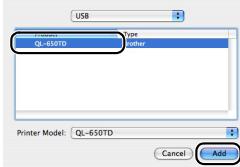
Click [USB].
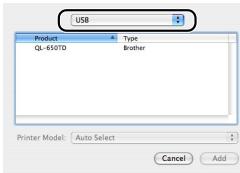
25
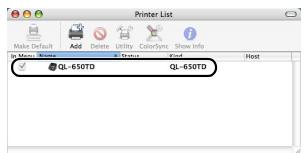
Click "QL-650TD" and then click [Add]. The screen returns to Printer List screen.
26
Check the "QL-650TD" is added, and close the Printer List screen. Now you can use the printer.
27
Double click

from the [Applications] folder - [P-touch
P-touch Editor 3.2
Editor 3.2] folder and the P-touch Editor will start.

For details on software, See the "Software User's Guide (PDF Manual)". For Software User's Guide (PDF Manual), refer to the PDF file stored in "Manuals" folder of included CD-ROM.
STEP4
Maintenance and Troubleshooting
This section of the guide explains how to properly maintain this printer so as to ensure many years of reliable service.
This section also covers how to troubleshoot potential problems and how to read and understand error messages.
1 Maintenance
Print head maintenance Page 46
Roller maintenance Page 46
Label outlet maintenance Page 47
Replacing the cutter unit
Replacing the lithium clock battery
2| Troubleshooting
Potential types of problems
Error messages (what they mean) Page 52
Reset the Printer Page 53
Main specifications Page 54
1 | Maintenance
Maintenance of the printer needs only to be done when required. However, some environments will require that maintenance should be done more frequently (e.g. in dusty conditions).
Print head maintenance
The DK Roll (thermal recording paper type) used with the printer is designed to clean the print head automatically. When the DK Roll passes the print head during printing and label feeding, the print head is cleaned.
Roller maintenance
Clean the roller using the cleaning sheet (available separately). The printer contains only one cleaning sheet.

When doing maintenance on the roller, be sure to use the cleaning sheet supplied exclusively for this printer.
If using other cleaning sheets, the surface of the roller may be damaged and may cause a malfunction.
1 | Turn OFF the power to the printer.
2 Hold the DK Roll compartment cover at the sides near the front of the printer and firmly lift up to open the cover.
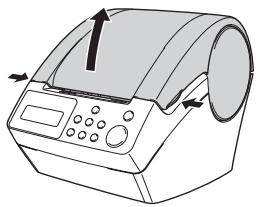
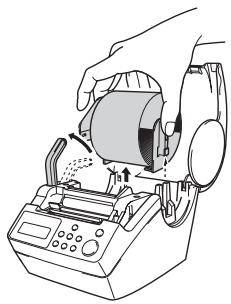
3 Pull up the roll release lever and remove the DK Roll.

Be sure to remove the DK Roll before cleaning the roller. The roller cleaning function will not operate correctly if the DK Roll is not removed.

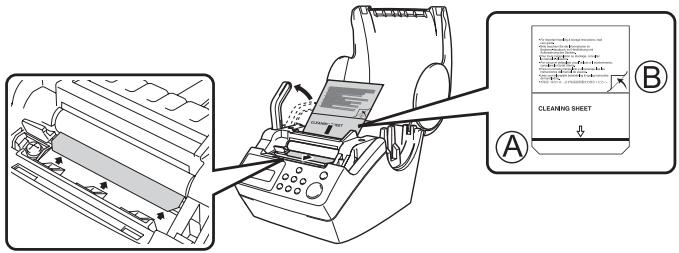
Insert edge (A) of the cleaning sheet into the printing unit and guide it out to just in front of the cutter.

- Do not remove part (A) of the cleaning sheet.
- The printed side of the cleaning sheet should be facing upwards.

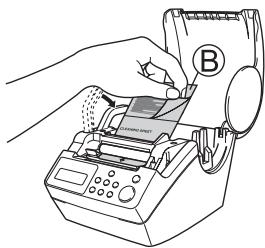
After inserting the cleaning sheet into the printing unit, push down the roll release lever and remove the part B of the cleaning sheet.

Close the DK Roll cover and turn ON the power to the printer.

Press the Feed button (↑□) for more than one second.
The roller rotates for 100mm
The adhesive face of the cleaning sheet removes any stains or dust on the roller.

- If you do not press the Feed button for more than one second, the roller rotates for only 8 mm.
- Dispose of the cleaning sheet after use.
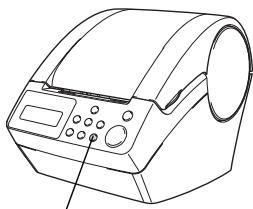
Feed button
Label outlet maintenance
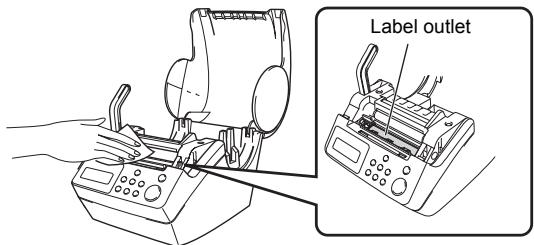
When glue is attached to the label outlet (metallic plate part and resin guide part) and the printer damages the label, pull out the power plug from the outlet and clean the label outlet with a cloth dipped into ethanol or isopropyl alcohol.
It is recommended to clean the label outlet when replacing the cutter unit.
Replacing the cutter unit
Eventually the cutting blade on the cutter unit will become dull (blunt) and need to be replaced. At the appropriate time, purchase a new replacement cutter unit and install it according to the following procedure. For purchasing a replacement cutter unit, See the back of this User Guide.
1 Check that the cutter unit is located at the home position.
2 Turn OFF the power to the printer and pull out the power cord from the wall outlet.
3 Open the DK Roll cover and pull the roll release lever to the up position. Remove the DK Roll.
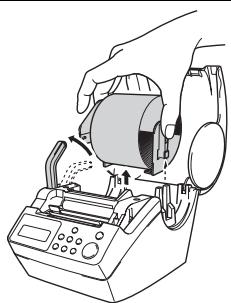
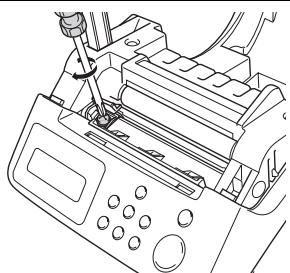
4 Using a cross-head screwdriver, loosen the screw which holds the cutter blade unit in-place.

The screw securing the cutter unit should not be completely removed. Simply loosen it to remove the cutter unit from the printer.

5 Grip the tab and lift out the cutter unit.

Take care not to touch the blade of the cutter.
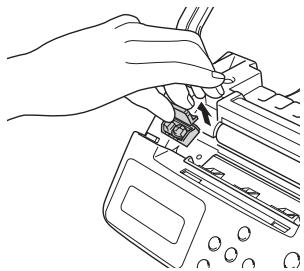
6 Set the new cutter unit in the correct position.
Once set in the correct position, tighten the screw which holds the cutting blade unit in place.
8 Set the DK Roll and close the DK Roll cover. For details, See "Installing the DK Roll" on page 16.
Replacing the lithium clock battery
A lithium battery is supplied in order to maintain the settings for the internal clock when the printer unit is not plugged in to a normal power supply. If the clock settings need to be reset every time the printer unit is unplugged from its normal power source, then the battery must be replaced.
For the replacement lithium battery, purchase CR2032 (recommended manufacturer: Hitachi Maxell, Ltd., FDK Corporation, Matsushita Electric Industrial Co., Ltd., Sony Corporation, Toshiba Corporation and VARTA Microbattery Inc.).

- Use only the authorized battery for the printer.
- Dispose of the used battery in accordance with all applicable federal, state and local regulations.
- When storing or discarding the battery, wrap it with adhesive cellophane tape or similar material. to prevent it from short-circuiting.
- It is recommended to replace the battery every two years.
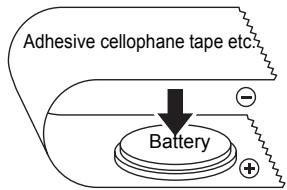
Example of grounding of battery
1 Turn OFF the power to the printer and pull the power cord out of the outlet.
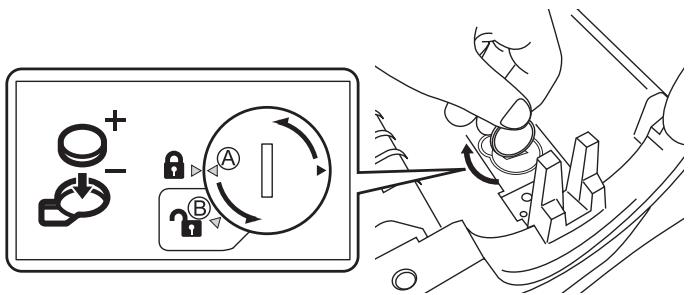
2 Open the DK Roll cover and pull up the roll release lever to the up position and remove the DK Roll.

Turn the mark (A) on cover to mark (B) on the printer using a coin and remove the battery cover.
When turning the battery cover, do not rotate it past the position of mark (B) on the printer, as this may cause a malfunction.

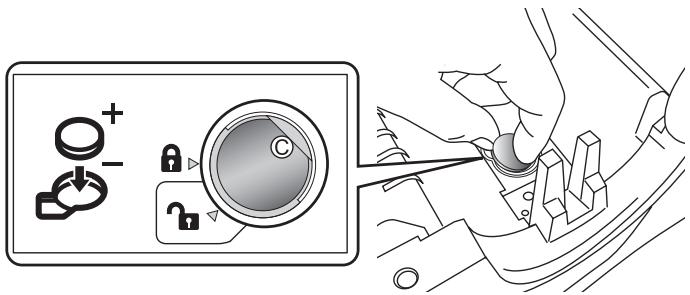
As shown below, press C part of battery and remove the battery.

By pressing C part of battery, the battery lifts up, so it can be removed easily.

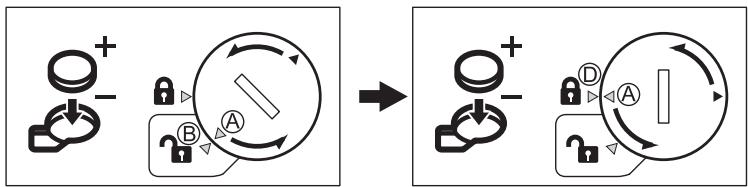
Install the new battery, taking care to ensure the correct polarity of the battery.

Refit the battery cover matching mark (A) on the cover and
mark (B) on the printer. Turn the mark (A) on the cover to
mark (D) on the printer using a coin to lock the cover.
When turning the battery cover, do not rotate it past the position of mark (D) on the printer, it may cause a malfunction.


Set the DK Roll and close the DK Roll cover.
For details, See "Installing the DK Roll" on page 16.
2 | Troubleshooting
If problems occur while using this printer, the following may help you to solve the problems:
Potential types of problems
| Problem | Solution |
| • Cannot print • Printing error is displayed | • Is the USB cable disconnected? Check the USB cable is connected properly. • Is the DK Roll properly set? If it is not set properly, remove the DK Roll and set it again. • Is the DK Roll used up? • Is the DK Roll cover open? Check the roll cover is closed properly. • Are both the USB cable and RS-232C cables connected to the printer at the same time? Connect only one cable which is used to communicate with the printer. |
| • LED lamp does not light up | • Is the power cord connected properly? Check the power cord is connected properly. If it is connected properly, try to connect it to another outlet. * If the problem is not resolved after trying these solutions, contact your local distributor or Brother Call Center. |
| • LED lamp is blinking | • For details, See "Manual operation button" on page 15. • Does a system error (the LED turns off after blinking 10 times) occur? Turn OFF the power to the printer wait 30 seconds and then turn it ON again. If the problem is not resolved after trying this solution, contact your local distributor or Brother Call Center. |
| • The print quality is poor | • Is the print head or roller damaged or stained? The print head is cleaned when using the DK Roll (thermal recording paper), however, dust or stains from the roller may collect on the print head. In this case, clean the roller. For details, See "Roller maintenance" on page 46. |
| • Data transmission error is displayed on PC | • Is the correct port selected? Check that the correct port is selected from [print to the port below] in printer property dialog box. |
| • The clock stops when unplugging the power cord | • Is the battery protection sheet removed? Remove the battery protection sheet. • Is the battery installed? Put a new battery in the machine. • The battery has run out of power. Replace it with a new battery. |
| ·The label gets jammed around the cutter unit ·The label is not ejected properly after printing | ·Is the cutter blade getting dull (blunt)? Does the cutter error occur frequently? Replace the cutter unit. For details, See "Replacing the cutter unit" on page 48. ·Have foreign objects or dust got onto the roller? Clean the roller using the cleaning sheet. For details, See "Roller maintenance" on page 46. ·Is the label outlet stained? Remove stains from the label outlet. For details, See "Label outlet maintenance" on page 47. |
| ·The icon of P-touch Add-In is not displayed on Microsoft® Word | ·Is Microsoft® Outlook® running? Have you selected Microsoft® Word as your email editor? Due to limitations of the program, the Add-In of Microsoft® Word® is unable to be used with above settings. Quit Microsoft® Outlook®, and restart Microsoft® Word. |
Error messages (what they mean)
| Error message | Cause | Solution |
| System Error No.*! | A system error has occurred. | Contact your service representative. |
| Please Close Cover! | The DK Roll cover is open. | Close the DK Roll cover and repeat the operation. |
| Cutter Error! | The cutter is not located at the home position. | Turn off the printer, wait 30 seconds and then turn the printer on again. If the problem cannot be corrected, contact your service representative. |
| Paper Cannot be Fed! | The DK Roll is misfeeding or has run out. | Set the DK Roll properly again. If the DK Tape has run out, fit a new roll. |
| Roll End! | The DK roll has run out. | Set a new DK Label Roll. |
| Please Insert Label Roll! | Printing or cutting is operated without setting DK Roll. | Set the DK Roll. |
| Please Insert ****! | The printing is being operated without setting DK Roll or without setting the DK Roll of the correct size. | Make sure you have set the correct size DK Roll for the template or label layout you are trying to print. |
| Please Insert 62mm! | List Print is applicable for 62 mm continuous length roll. | Set 62 mm DK Tape. |
| No Setting Applicable Data! | When selecting the template which does not include the date and time settings, it is not possible to set addition or subtraction of date and time. | Select the template which includes date and time object and then set it. |
| No Numbering Applicable Data! | When selecting the template which does not include the numbering object, the numbering printing cannot be operated. | Select the template which includes the numbering object. |
| Transmission Error! | An error has occurred when receiving data from your computer. | Check that the cable is properly connected and ensure the power is turned on. Then repeat the operation. |
| No Editing Applicable Data! | The selected template does not include items for which it is possible to change the settings. | Unable to change the settings. |
| Length Limit! | The data which is about to print does not fit the label size. | Select bigger label size or modify its contents and settings. |
Reset the Printer
| Problem | Solution |
| ·I would like to clear the printer settings and the data transferred from the PC | Turn the printer OFF by pressing the ON/OFF button. Hold the Up arrow button (▲) and the Feed button (↑□) while pressing the ON/OFF button. Release all the buttons when the display shows “OK to initialize?” then press the OK button. All downloaded data and setting transferred from the PC are cleared. The printer is reset. The clock and date settings are not cleared with this action. |
Main specifications
Product specifications
| Item | Specifications | |
| Display | LED lamp (green), LCD (16 digits × 2 lines) | |
| Printing method | Thermal recording type | |
| Speed of printing | Max. 90 mm/second, 56 labels/minute (address label) | |
| Print head | 300 dpi/720 dots | |
| Max. printing width | 59 mm | |
| Min. printing length | 25.4 mm | |
| Buttons | 9 Buttons: ON/OFF button (▲), Feed button (▲), Cut button (▲)Print button (■), Menu button, ESC button, OK button, Up arrow button (▲), Down arrow button(▼) | |
| Interface | USB, serial (RS-232C) | |
| Power supply | 220 - 240 VAC 50/60 Hz (0.9 A) | |
| Size | 146 (W) × 196 (D) × 152 (H) mm | |
| Weight | 1.3 kg (excluding DK Roll) | |
| Cutter | Auto cutter | |
Operating environment
| Item | Specifications | |
| OS | Windows® | Windows® 98 SE/Me/2000 Professional/XP*1 |
| Mac® | Mac OS® X 10.1 ~ 10.4.1 | |
| Interface | Windows® | Compliant with USB Ver.1.1 or 2.0, serial (RS-232C)*2 |
| Mac® | Compliant with USB Ver.1.1 or 2.0 | |
| Hard Disk | Windows® | Disk space more than 70 MB*3 |
| Mac® | Disk space more than 100 MB*3 | |
| Memory | Windows® | Windows® 98 SE/Me: 64 MB or more Windows® 2000 Professional/XP: 128 MB or more |
| Mac® | 32 MB or more | |
| Monitor | Windows® | Graphics card SVGA, High colour or greater |
| Mac® | 256 colors or more | |
| Others | CD-ROM drive | |
| Operating temperature | 10°C to 35°C | |
| Operating humidity | 20% to 80% (no condensation) | |
1 It is necessary to install the OS into the PCs which are recommended by Microsoft®.
2 RS-232C interface is required only when using ESC/P command.
*3 Required available space when installing the software with all of the options.
Consumables list
Below is a complete listing of the consumables for the QL-650TD
| DK-11201 | Standard Address Labels |
| DK-11208 | Large Address Labels |
| DK-11209 | Small Address Labels |
| DK-11202 | Shipping Labels |
| DK-11203 | File Folder Labels |
| DK-11204 | Multi Purpose Labels |
| DK-11207 | CD/DVD Labels |
| DK-11219 | Round Paper Labels 12mm |
| DK-11218 | Round Paper Labels 24mm |
| DK-11214 | White Continuous Length Paper Tape 12mm |
| DK-22210 | White Continuous Length Paper Tape 29mm |
| DK-22205 | White Continuous Length Paper Tape 62mm |
| DK-22211 | White Continuous Length Film Tape 29mm |
| DK-22212 | White Continuous Length Film Tape 62mm |
| DK-22606 | Yellow Continuous Length Film Tape 62mm |
| DK-22113 | Clear Continuous Length Film Tape 62mm |
| DK-44205 | White Continuous Length Removable Paper Tape 62mm |
| DK-44605 | Yellow Continuous Length Removable Paper Tape 62mm |
| DK-BU99 | QL Cutter Unit (2x Piece) |
| DK-CL99 | QL Cleaning Sheets (10x Sheets) |
brother
p touch
QL-650TD
© 2005 Brother Industries Ltd.
■Marchi commerciali
P-touch Transfer Manager.
brother
http://www.brother.com

P-touch Transfer Manager.
P-touch Transfer Manager 1.2
- P-touch Backup Manager 1.2
P-touch Address Book (Rubrica) 1.0
P-touch Address Book (Rubrica) 1.0,
A Anything to do.
A thing to do.
A thing to do.
A thing to do.

A Anything to do.
A thing to do.
A thing to do.
A thing to do.
A Anything's done.
A question's done.
A question's done.
A question's done.
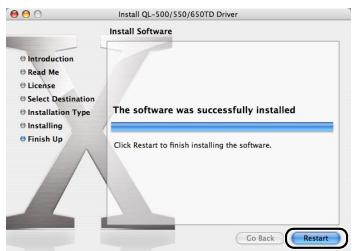
20
A Anything's possible to use.
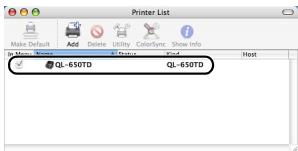
15-1, Naeshiro, Mizuho-ku,
Nagoya 487-8561, Japon
Personal & Home Company
Development & Production Dept.
© 2005 Brother Industries Ltd.
■Marques de commerce
Rouleaux DK applicables
Heure [P07] 12:34 (24)
Date [P01] Déf;2006/01/20
12:34 *[P01] 20/07/2005

http://www.brother.com
TELECOPIEUR
07/20/2005
- P-touch Transfer Manager 1.2
- P-touch Backup Manager 1.2
P-touch Address Book 1.0
Installation standard
P-touch Editor 4.2,
P-touch Address Book 1.0,
Online-Support http://solutions.brother.com/
Symbole in thisem Handbuch 2
© 2005 Brother Industries Ltd.
■Warenzeichen
Symbole in thisem Handbuch
http://www.brother.com
FAX MACHINE
20/07/2005
OVERSEAS SALES &MARKETING SECT
AT07765427003
P-touch Transfer Manager 1.2
P-touch 4.2 Add-In Utility
- P-touch Backup Manager 1.2
P-touch Address Book 1.0
- Online User Registration http://register.eu.brother.com/
- Online Support Page http://solutions.brother.com/
- Table of Contents
- STEP1 Before using the printer 9
- STEP2 Creating and printing a label without using your computer 一 · 一 2 1
- STEP3 Connecting the printer to your PC 33
- STEP4
- Maintenance and Troubleshooting 45
- Maintenance 46
- Troubleshooting 51
- Introduction
- ■Compilation and Publication Notice
- Trademarks
- ■Shipment of the Printer
- Manuals
- ■ Setup & Operation Guide (This manual)
- Software User's Guide (PDF Manual)
- Symbols Used in this Manual
- Safety Precautions
- General Precautions
- The Printer
- ■Power Cord
- DK Roll (DK Label and DK Tape)
- ■CD-ROM and Software
- ■Battery
- Cutter unit
- STEP1
- Before using the printer
- | Parts Checklist
- Parts Description
- Main Printing Unit
- Connecting the power supply
- 2
- LCD
- Time Display mode
- ■Menu Selection mode
- Manual operation button
- | Installing the DK Roll
- Applicable DK Rolls
- Installing the DK Roll
- 1
- 3
- Check that the roll release lever is in the up position.
- Push down the roll release lever and close the DK Roll cover.
- | Attaching the paper guide
- Attach the paper guide to the front of the printer as shown on the right.
- Setting clock/language/units
- 4
- 5
- Procedure for creating a label
- STEP2
- Creating and printing a label without using your computer
- 1| Creating a label
- Other convenient functions
- |Creating a label
- Selecting a template
- Types of templates
- 2.Printing a label
- ■ Printing only one label
- ■Specifying the number of copies to be printed
- Editing a template: Menu 1/12
- Type of message
- Type of font
- Changing the date used for templates: Menu 2/12
- Preview the label content before printing: Menu 3/12
- Specifying the number of copies: Menu 4/12
- Printing labels with label numbers: Menu 5/12
- Printing a list of templates: Menu 6/12
- Setting the clock: Menu 7/12
- Setting Daylight Saving Time: Menu 8/12
- Cut the roll automatically when printing: Menu 9/12
- Setting the language: Menu 10/12
- Set the unit of measure (inch or mm): Menu 11/12
- Adjusting the contrast of LCD: Menu 12/12
- Locking the Menu button
- Uploading templates / messages from your computer
- Concerning the download of message
- STEP-3
- Connecting the printer to your PC
- 1|ForWindows
- For Mac
- |For Windows
- Software description
- P-touch Editor 4.2
- P-touch Transfer Manager 1.2
- P-touch Library 1.0
- P-touch 4.2 Add-In Utility
- - P-touch Backup Manager 1.2
- P-touch Address Book 1.0
- ■Printer Driver
- Notes on installation
- Installing the software
- Start up the PC and put the CD-ROM into the CD-ROM drive.
- Click "Standard Installation".
- Standard Installation
- Custom Installation
- Show User's Guide
- 4Install Acrobat Reader
- Check the settings, and if they are set correctly, click [Next].
- 8
- Check the Microsoft® Office® application that want to the Add-In to work with, and click [Next].
- 9
- When the message "Connect P-touch, and then turn it on" is displayed in the set-up screen, connect the USB cable and power cord to the printer.
- 10
- Connect the USB cable to the USB port of the PC.
- Select if you want to register your printer and then [Next].
- Click [Finish].
- Starting up the installed software.
- Software installation
- Click [Next].
- Select the location where you want to create the alias, and click [Next].
- Click [Install].
- After the installation is completed and the screen shown on the right is displayed, click [Done].
- Double click [QL-500 550 650TD Driver pkg] in [Mac OS X] folder.
- Select the drive where you want to install the driver, and click [Install].
- Input the "Name" and the "Password" of the administrator and click [OK].
- When continuing the installation, click [Continue Installation].
- When the installation is completed and the message "The software was successfully installed" is displayed, click [Restart].
- After rebooting, connect the USB cable and power cord to the printer.
- Connect the USB cable to the USB port of the Mac.
- Double click the drive where Mac OS® X is installed, and click in order [Applications]-[Utility]-[Printer Setup Utility (Print Center)]. The Printer List screen is displayed.
- 23
- 24
- 25
- 26
- 27
- Maintenance and Troubleshooting
- Maintenance
- 2| Troubleshooting
- | Maintenance
- Print head maintenance
- Roller maintenance
- Label outlet maintenance
- Replacing the cutter unit
- Replacing the lithium clock battery
- | Troubleshooting
- Main specifications
- Product specifications
- Operating environment
- Consumables list
- brother
- p touch
- ■Marchi commerciali
- P-touch Address Book (Rubrica) 1.0
- 20
- ■Marques de commerce
- Rouleaux DK applicables
- - P-touch Transfer Manager 1.2
- ■Warenzeichen
- Symbole in thisem Handbuch
Brand : BROTHER
Model : P-TOUCH QL-650TD
Category : Label printer