
LE32F6000T - TV HAIER - Free user manual and instructions
Find the device manual for free LE32F6000T HAIER in PDF.



| Product Type | 32-inch LED TV |
| Screen Size | 32 inches (81 cm) |
| Resolution | 1366 x 768 pixels (HD ready) |
| Display Technology | LED backlight |
| Power Consumption | 45 W (standby < 0.5 W) |
| Power Supply | AC 100-240 V, 50/60 Hz |
| Dimensions (with stand) | 731.87 x 477.17 x 207.15 mm |
| Weight (with stand) | 5.8 kg |
| Wall Mount (VESA) | 100 x 100 mm |
| Audio Output | 10 W + 10 W |
| Tuners | DVB-T/T2/C (digital) and analog |
| Video Inputs | 3 x HDMI, 1 x SCART, 1 x PC (VGA) |
| Audio Inputs | 1 x PC audio (mini-jack) |
| USB Ports | 1 x USB 2.0 (media playback and recording) |
| Other Connections | Headphone output, coaxial digital audio output, CI slot |
| Main Functions | USB media player (photo, music, video), USB recording, teletext, subtitles, timer, parental control |
| Maintenance and Cleaning | Unplug the TV and clean with a soft dry cloth. Do not use chemical products. |
| Safety | Child lock, parental password, auto shutdown |
| Spare Parts and Repairability | Parts not accessible to user. Contact an authorized after-sales service. |
| General Information | User manual available in multiple languages. Technical support available. |
Frequently Asked Questions - LE32F6000T HAIER
User questions about LE32F6000T HAIER
0 question about this device. Answer the ones you know or ask your own.
Ask a new question about this device
Download the instructions for your TV in PDF format for free! Find your manual LE32F6000T - HAIER and take your electronic device back in hand. On this page are published all the documents necessary for the use of your device. LE32F6000T by HAIER.
USER MANUAL LE32F6000T HAIER
Please read this manual carefully before operating the TV, and keep it for future reference.
Contents
SafetyWarnings 2
Welcome 2
Important Information 2
About Your LED LCD TV . . . . . . . . . . . . . . . . . . . . . . . . . . . . . . . . . . . . . . . . . .
Installing the Stand 5
Installing a Wall-Mount Bracket. 5
Side Control 5
Rear Terminals 6
Making Connections 7
Connecting to Antenna/Cable. 7
Connecting an External A/V Device . . . . . 7
Connecting a PC 7
Connecting Headphones. 7
Connecting a Digital Audio System . . . . 7
Using Your Remote Control 8
Getting Started 9
Preparing Your Remote Control 9
Installing the Batteries 9
Remote Control and Battery Cautions... 9
Initial Setup. 9
Understanding the Basics 11
Turning the TV On or Off 11
Selecting the Input Source 11
Selecting a Channel 11
Using Favourite List 11
Adjusting the Volume 11
Displaying Channel Information 11
Navigating the On-Screen Menu. 11
Using Your TV 12
Adjusting the Video Settings 12
Adjusting the Audio Settings. 13
Adjusting the Channel Settings. 14
Adjusting the TV Settings 15
Adjusting Lock Settings 17
Other Features 18
USB Media Player 18
Thumbnail/List Mode 18
Photo Mode 19
Music Mode 19
Video Mode 19
Button Function 20
USB Media Supported File Format..... 21
Common Interface. 22
Teletext 22
Using USB Device for Recording. 23
Timeshift (DTV only) 23
Recording (DTV only) 23
Reference Section 24
Troubleshooting. 24
Specification 25
Appendix. 26
SafetyWarnings
Welcome
Thank you for choosing this 32'' LED Backlit Flat TV. This manual will help you to set up and begin using your TV. Firstly, check the package contents before installing your new TV.
- 32" LED Backlit Flat TV
Remote control - AAA battery x 2
- Instruction manual
- Quick start guide
Warranty card - TV stand and screws
- AC power cord (LE32F600C only)

When you open the box of LE32A650CF, take out the TV stand first to prevent it from falling off the top cushion while unpacking the components.
Important Information
Read the following safety instructions before operating your TV. Keep these instructions for future reference.

WARNING
RISK OF ELECTRIC SHOCK DO NOT OPEN

WARNING
TO REDUCE THE RISK OF ELECTRIC SHOCK, DO NOT REMOVE COVER (OR BACK). NO USER SERVICEABLE PARTS INSIDE. REFER TO QUALIFIED SERVICE PERSONNEL.
- To avoid electric hazards, it is strongly suggested that the back cover not be opened, as there is no any accessory inside the casing.
- If necessary, please contact authorized after-sales services.
- The lightning flash with arrowhead symbol within an equilateral triangle is intended to alert the user to the presence of uninsulated DANGEROUS VOLTAGE within the product's enclosure that may be of sufficient magnitude to constitute a risk of electrical shock to persons.
- The exclamation point within an equilateral triangle is intended to alert the user to the presence of important operating and maintenance (servicing) instructions in the literature accompanying the appliance.
WARNING: To avoid fires and electrical hazards, never place your television receiver in a humid area. Take care to avoid accidental scratches or impacts on the screen.
Do not cover the ventilation openings with items such as newspaper, table cloth, curtains, and etc.
CAUTION: The main plug is used as a disconnection device and must remain readily accessible.
- Please read this manual carefully before using your television, and keep this manual to hand for future reference.
- To achieve the best performance from your television, read this manual carefully and keep to hand for future reference.
- Information in the Instruction Manual regarding screen displays and figures may vary due to technical innovations.
- Unauthorised disassembly of this product is prohibited.

WARNING: To prevent the spread of fire, keep candles or other open flames away from this product at all times.
The product should be tightly secured to table/wall in accordance with the installation instructions to prevent injury or damage caused by dropping.
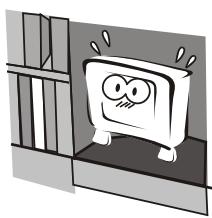
Do not position the product close to water or oil (e.g. cooking oil or lubricating oil), as this may cause a fire hazard.
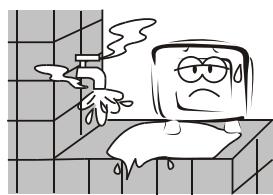
Do not use damaged or worn electrical plugs and keep cables away from heat sources to avoid electric shocks and fire hazards.
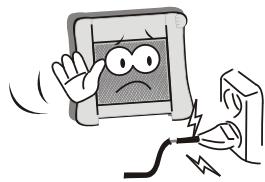
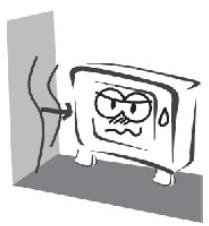
To avoid collapsing, the product must be placed on a solid and stable surface.
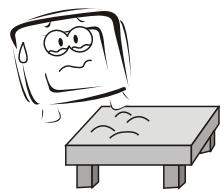
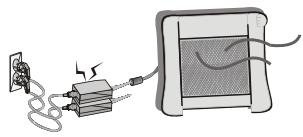
To avoid fire hazards, keep the product away from transformers or heat sources.
To avoid fire hazards, do not use this product in direct sunlight or close to heat sources.

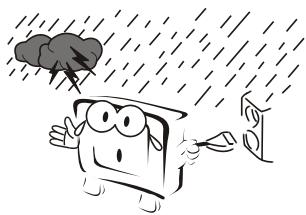
Unplug the power supply and antenna of the product during a rainstorm and particularly during a thunderstorm.
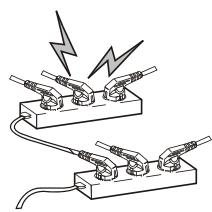
To avoid fire hazards, do not connect multiple sockets in parallel and do not connect multiple plugs to the same socket.
To avoid electric shocks or fire hazards, unauthorised disassembly of the television is prohibited. Contact an authorised after-sales service provider if technical servicing i
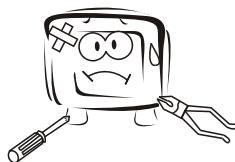
Disconnect the product from the power supply and contact an authorised after-sales service provider if the product starts to make abnormal sounds.
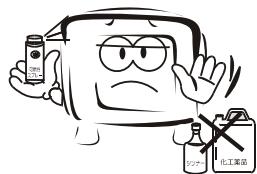
To avoid explosions and fire hazards, don't use or store inflammable materials near the product.
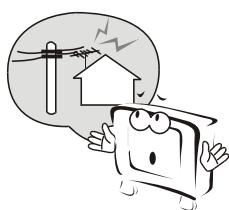
To avoid electric shocks, the antenna of the product should be away from electrical cables.
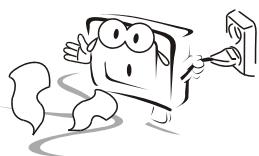
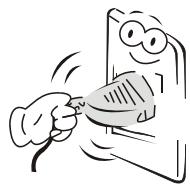
Always make sure that the television is firmly plugged in, as a poor electrical connection might cause a fire.
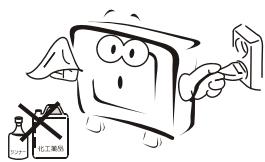
Before cleaning the product, unplug the television, and use soft fabric, not chemicals. Make sure that no water comes into contact with the product.
To avoid electric shocks or fire hazards, disconnect the television from the power supply and the antenna during a rainstorm or thunderstorm.

When an antenna is used, measures should be taken to prevent water from flowing down through the cable and into the television.

To reduce the risk of fire or electric shock, do not place the product in a humid area or expose it to rain or moisture.
The plug and electric cable must be kept clean to avoid electric shocks or fire hazards.

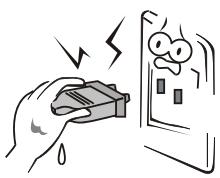
Never touch the plug with wet hands, as this might cause electric shocks.
To avoid electric shocks or fire hazards, if you are not using the television for long periods of time, disconnect it from the power supply.
About Your LED LCD TV
Installing the Stand
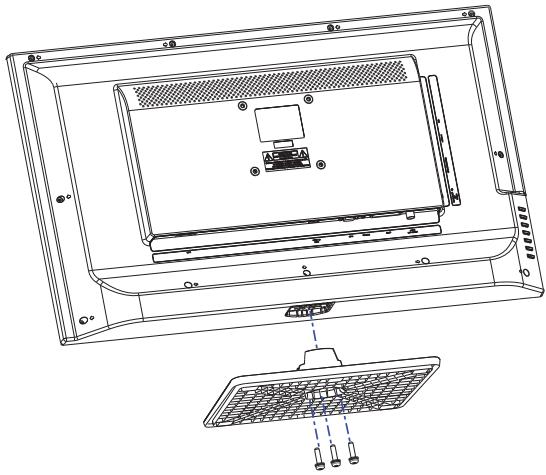
- Carefully place your TV screen face-down on a cushioned, clean surface to protect the screen from damages and scratches.
- Carefully align the stand to the bottom of the TV.
- Secure the stand to the TV with the provided screws. (3 screws for LE32F600C, 4 screws for LE32A650CF)
Installing a Wall-Mount Bracket
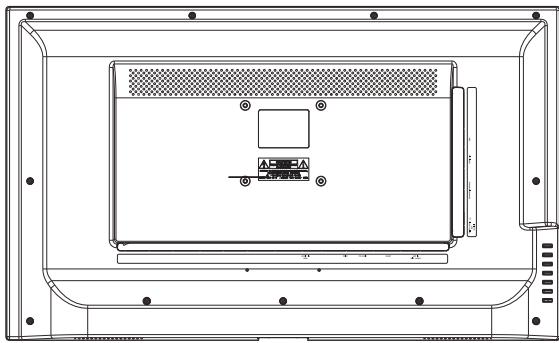
- Carefully place your TV screen face-down on a cushioned, clean surface to protect the screen from damages and scratches.
- If the stand is attached, remove the screws that secure the stand to the TV screen, then remove the stand.
- Attach the wall-mount bracket (sold separately) to the mounting holes on the back of your TV using the screws supplied with the bracket. See the instructions that came with the wall-mount bracket for information about how to correctly hang your TV.
Note
- Contact technical assistance when installing the wall mount bracket. Haier Electronics is not responsible for any damage to the product or injury to yourself or others if you install the TV on your own.
Side Control
Note
- For LE32A650CF, the side control panel is on the right side of the TV.
Rear Terminals
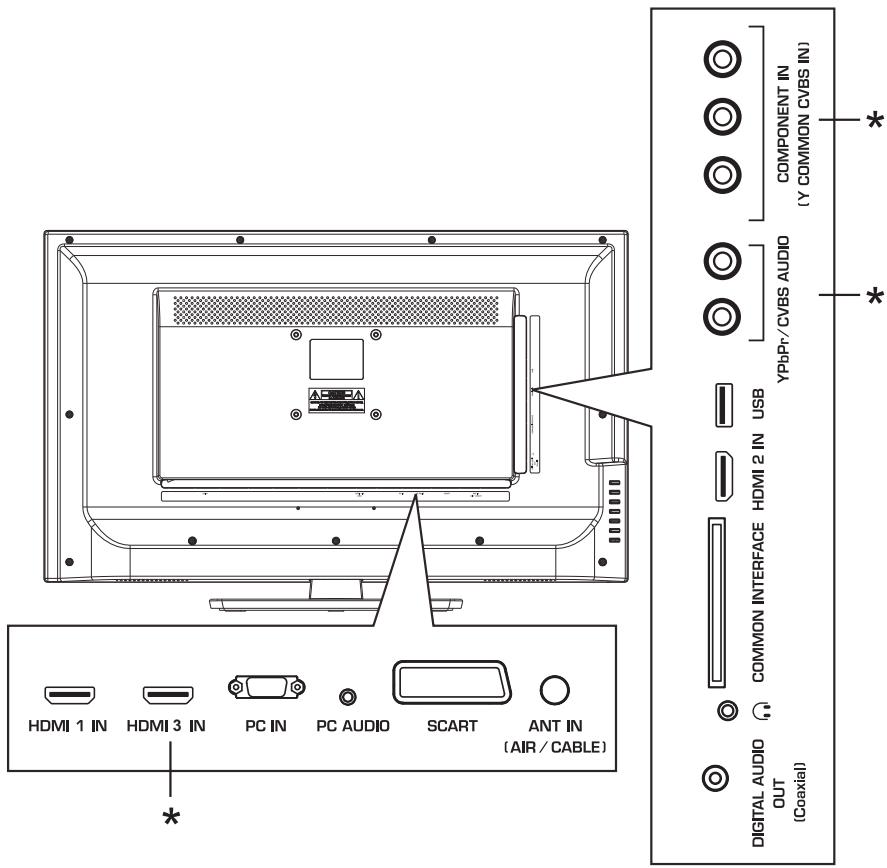
- These terminals are available for LE32A650CF only.
| Connector | Descriptions |
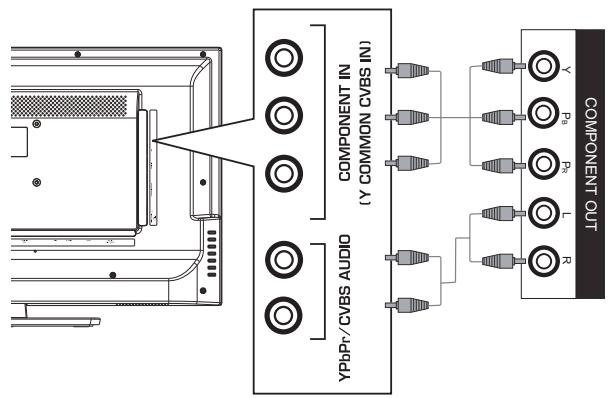
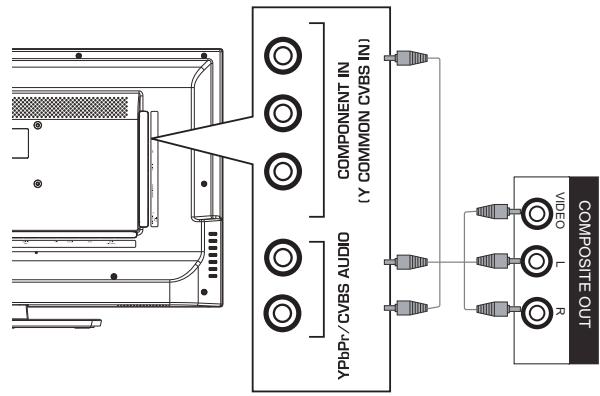
| COMPONENT IN (Y COMMON CVBS IN) | Connect the video cables for a component or composite device. When connecting a composite video source, connect the yellow video wire to the Y (green) jack. |
| YPbPr/CVBS AUDIO | Connect the audio cables for a component or composite device. |
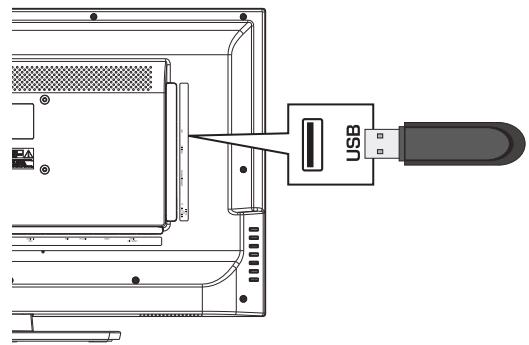
| USB | Insert a USB storage device to the USB port to view photos, listen to music or watch videos. (See “USB Media Player” on page 18 for more information.) |
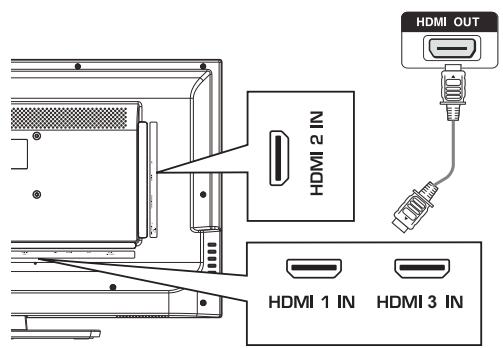
| HDMI 2 IN | Connect HDMI device to this jack. |
| COMMON INTERFACE | If you subscribe to a pay per view service, insert the Cl module to this slot. |
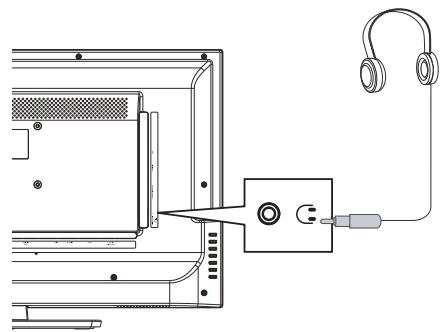
| Headphone Output | Connect headphones to this jack. When headphones are inserted, the TV speakers will be muted. |
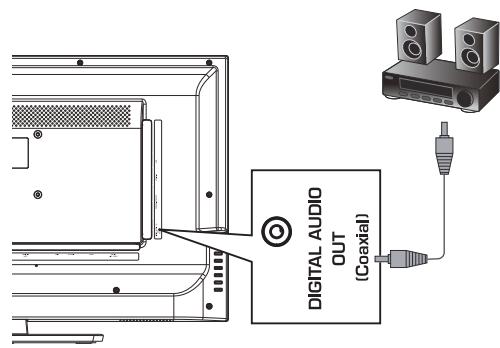
| DIGITAL AUDIO OUT (Coaxial) | Connect a coaxial digital audio system to this jack. |
| ANT IN (AIR/CABLE) | Connect an antenna or cable TV to this jack. |
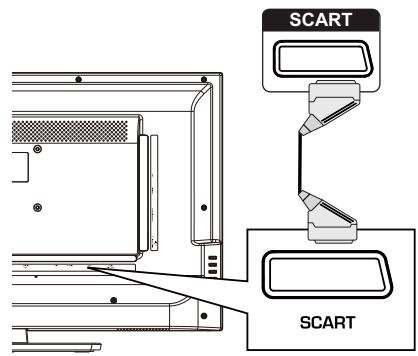
| SCART | Connect a device using SCART cable to this jack. |
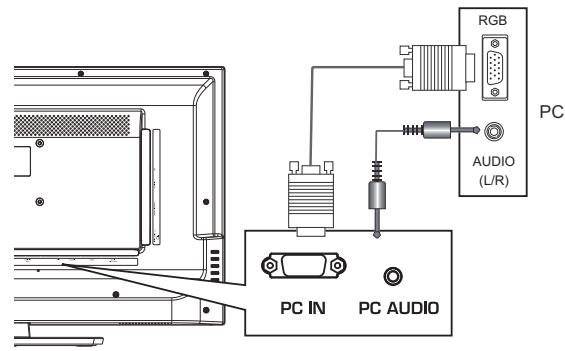
| PC AUDIO IN | Connect the audio cable from a computer. |
| PC IN | Connect the video cable from a computer. |
| HDMI 3 IN | Connect HDMI device to this jack. |
| HDMI 1 IN |
Making Connections
Connecting to Antenna/Cable
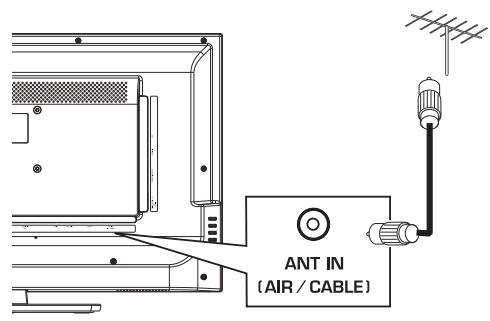
Connecting an External A/V Device
Using HDMI cable

Note
- HDMI 3 IN is available for LE32A650CF only.
Using SCART cable
Using Component cable (LE32A650CF only)
Using Composite cable (LE32A650CF only)
Connecting a PC
Connecting Headphones
Connecting a Digital Audio System

Note
- Turn off the TV and the device before making connections.
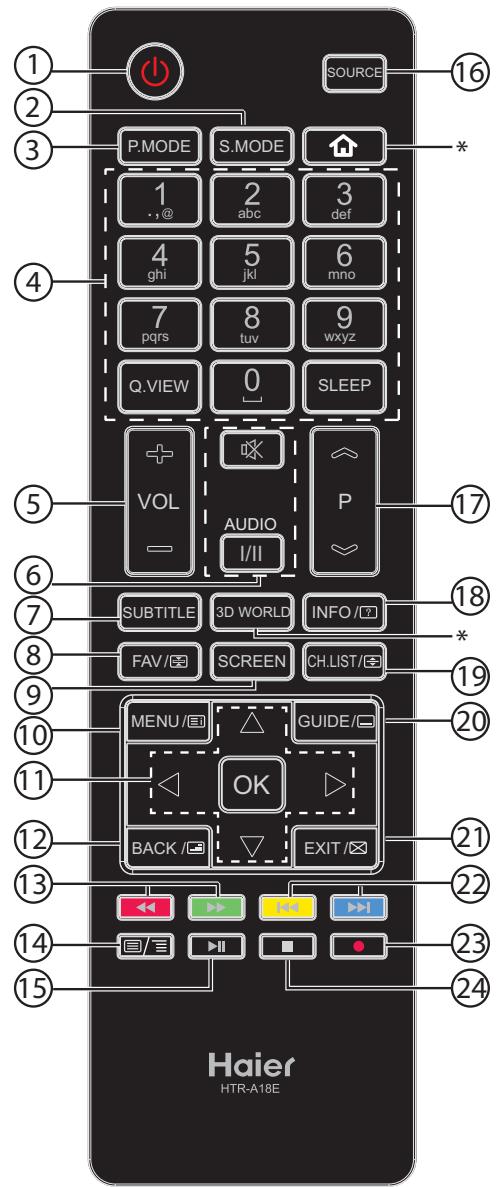
Using Your Remote Control
| # | Button | Descriptions |
| 1 | (Power) | Press to turn the TV on or off. |
| 2 | S.MODE | Press to select the sound mode. |
| 3 | P.MODE | Press to select the picture mode. |
| 4 | 0-9 | Press to enter a channel number or password. |
| Q.VIEW | Press to switch to the last viewed channel. | |
| SLEEP | Press to set the sleep timer. | |
| 5 | VOL+/- | Press to adjust the volume level. |
| 6 | ( Mute ) | Press to turn the sound on or off. |
| I/II AUDIO | Press to select the DTV audio/NICAM (depending on broadcast signal). | |
| 7 | SUBTITLE | Press to display the subtitle. |
| 8 | FAV/☑ | Press to add a favourite channel. In teletext mode, press to hold a page. |
| 9 | SCREEN | Press to change the screen display mode. |
| 10 | MENU/☑ | Press to open or close the on-screen menu. |
| 11 | ▲▼▲ | Press to navigate the on-screen menu. |
| OK | Press to confirm a selection. | |
| 12 | BACK/☑ | Press to return to the previous menu. In teletext mode, press to enter mix mode. |
| 13 | ←(reverse)→(forward) | Press to fast forward or reverse playback in multimedia mode. |
| 14 | ☐/☐(TEXT) | Press to open the teletext. |
| 15 | II (play/pause) | Press to play/pause in multimedia and timeshift mode. |
| 16 | SOURCE | Press to open the input source list. |
| 17 | P∽/∽ | Press to change the channel. |
| 18 | INFO/☐ | Press to display the channel information. In teletext mode, press to reveal the hidden information. |
| 19 | CH.LIST/☑ | Press to open the channel list. In teletext mode, press to switch the image to top, bottom or full. |
| 20 | GUIDE/☐ | Press to open the programme guide (DTV only). In teletext mode, press to enter a secondary page. |
| 21 | EXIT/☑ | Press to close the on-screen menu. In teletext mode, press to hide the text. |
| 22 | I< prev) > I(next) | Press to skip to next or previous file in multimedia mode. |
| 23 | ● (REC) | Press to start/pause recording. |
| 24 | ■ (stop) | Press to stop multimedia playback, timeshifting or recording. |
- This button does not work in these models.
Getting Started
Preparing Your Remote Control
Installing the Batteries
- Open the battery cover.
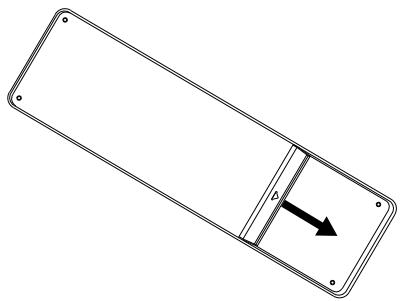
- Install two AAA batteries. Make sure that you match the + and - symbols on the batteries with the + and - symbols in the battery compartment.
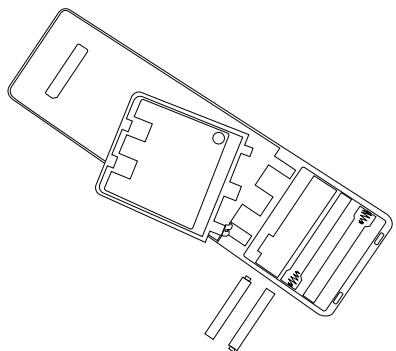
- Replace the battery cover.
Remote Control and Battery Cautions
- Ensure that there is nothing between the remote control and the remote sensor of the TV set.
- Use the remote control carefully. Do not drop the remote control on the floor.
- Sunlight, or other strong light, will interfere with the signal from the remote control. Avoid using near fluorescent lights or neon signs.
- Do not place the remote control in direct heat or in a damp place as you may damage the remote.
- Danger of explosion if battery is incorrectly replaced. Replace only with the same or equivalent type. The batteries (battery pack or batteries installed) shall not be exposed to excessive heat such as sunshine, fire or the like.
- If your TV is not to be used for a long period of time, remove the batteries from the remote control.
- Do not dispose of the batteries with standard household waste. Do not throw them in a fire. Dispose of the battery according to local regulations.
Initial Setup
The first time you turn on your TV, the setup wizard guides you through setting up basic settings including the menu language, country, password, signal type and channel scan.
-
Make sure that you have:
-
Installed the remote control batteries. (See page 9 for details)
- Connected an antenna or cable TV. (See page 7 for details)
-
Connected the power cord to the AC IN jack on the back of the TV and to a working power outlet. For LE32A650CF, just connect the attached power cord to a working power outlet.
-
Press to turn on the TV. The setup wizard screen opens. Press OK to start the wizard.
- Press / to highlight your language, then press to continue.
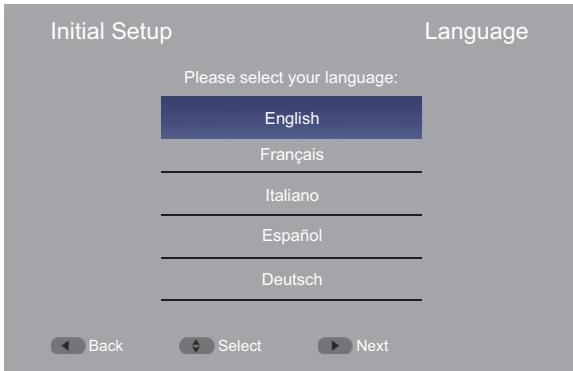
- Press / to highlight your country, then press to continue.
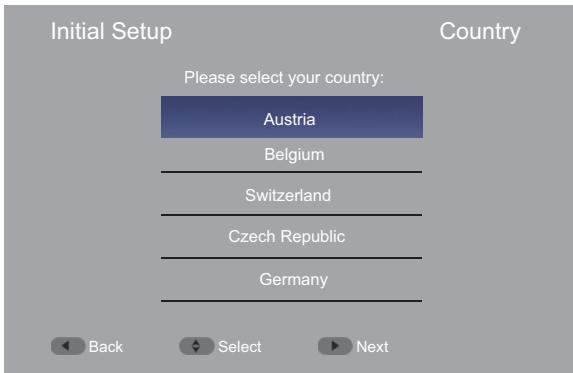
- Enter your new 4-digit password twice, then press OK to continue.
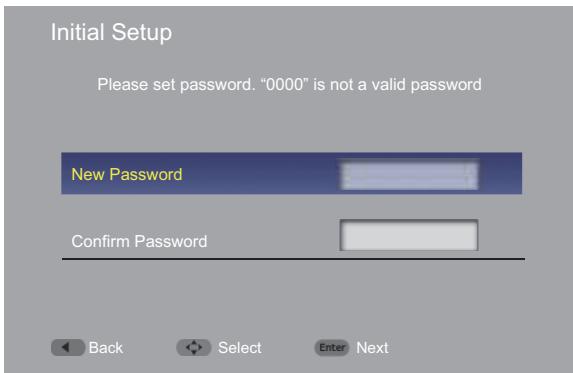
Note
-
During the initial setup, if the TV is powered off before a password is set, a new password must be set from the Lock menu. Enter the default password-1234 to access the Lock menu, then change the password. See "Change Password" on page 17 for more information.
-
Press / to highlight your tuner mode, then press to continue.
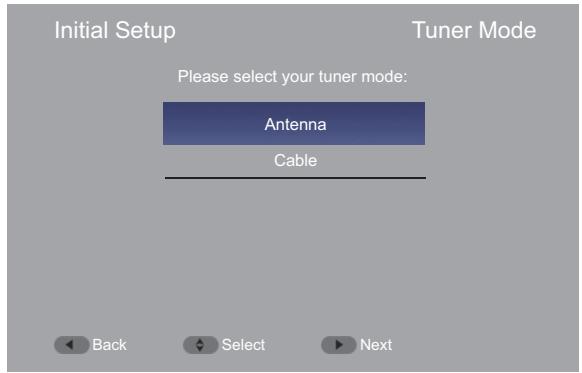
- Press / to highlight Scan, then press to start the channel scan.
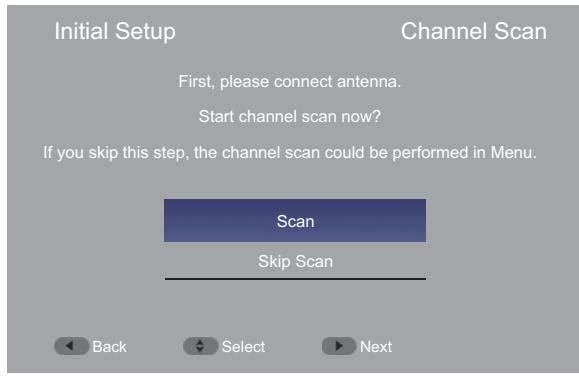
If the tuner mode is Cable, press / / and number buttons to configure the cable information, then press OK to start the channel scan.
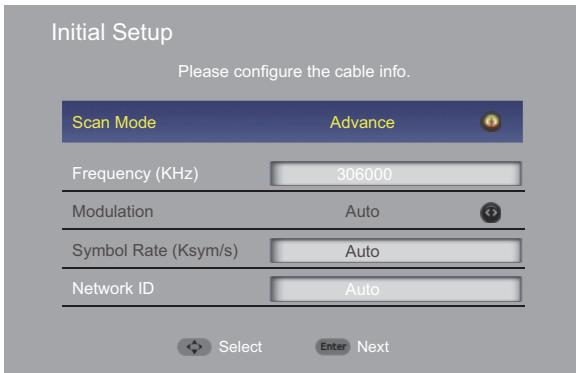
- Wait a while for the channel scan to complete.
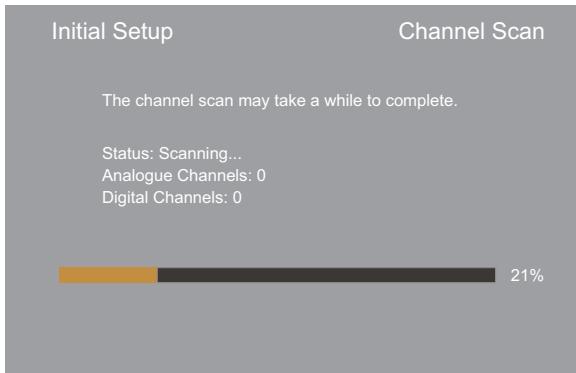
- When the channel scan is completed, press OK to exit the wizard.
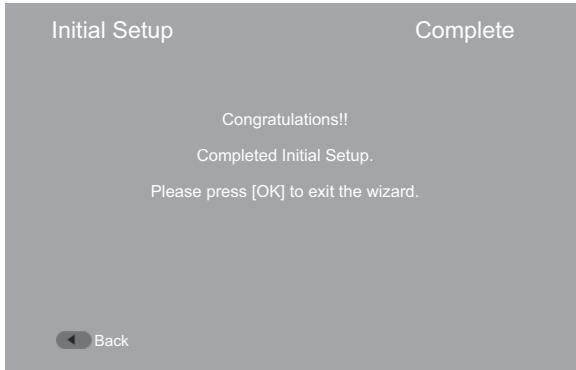
Note
- The initial setup process may vary depending on the country you select. Follow the on-screen instructions to complete the setup.
Understanding the Basics
Turning the TV On or Off
- Press to turn on the TV. It may take a few seconds for an image to appear on the screen.
- Press to turn off the TV. The TV enters standby mode.
Note
- When the TV is off, power still flows into it. To disconnect power, unplug the power cord.
Selecting the Input Source
- Press SOURCE. The input source list opens.
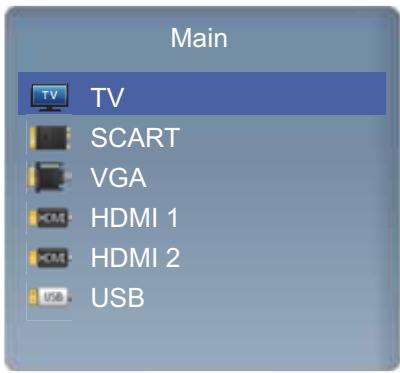
- Press / to highlight the input source, then press OK.
Selecting a Channel
- Press P ≈ / P ≈ to go to the next or previous channel in the channel list.
- Press the number buttons to directly select a channel.
-
Press CH.LIST/ to open the channel list, then press / and OK to select a channel. To use the coloured buttons:
-
Page up - Press red button to highlight the first channel on the current page, then press red button repeatedly to highlight the first channel on the previous pages.
- Page down - Press green button to highlight the last channel on the current page, then press green button repeatedly to highlight the last channel on the next pages.
- Select List - Press yellow button then / to select the channel type that you want to display on the list (All/Digital/Radio/Analogue).
- Exit - Press blue button to close the channel list.
- Press Q.VIEW to go to the last viewed channel.
Using Favourite List
To add a favourite channel:
- Tune to the channel that you want to add to the favourite list.
- Press FAV/ to open the favourite list.
- Press / to highlight a desired position, then press OK to add current channel to the favourite list. is displayed on the information banner.
To watch a favourite channel:
- Press FAV/ to open the favourite list.
- Press / to highlight a favourite channel, then press OK to tune to the channel.
To remove a favourite channel:
- Press FAV/ to open the favourite list.
- Press / to highlight the favourite channel that you want to remove, then press OK to tune to the channel.
- Press OK again to remove the channel from the favourite list. will disappear from the information banner.
Adjusting the Volume
- Press VOL+/VOL- to increase or decrease the volume.
- Press to turn off the sound. Press again or press VOL+ to restore the sound.
Displaying Channel Information
- Press INFO/ once to display basic channel information such as channel number, channel name, tuner mode, etc.
- Press INFO/ twice to display further information such as programme title, resolution, audio information, etc.
- Press INFO/? three times to display the programme descriptions.
- Press INFO/ one more time to close the information banner.
Navigating the On-Screen Menu
- Press MENU/。The on-screen menu opens.
- Press / to highlight a main menu (Video/Audio/TV/Setup/Lock), then press OK to access the sub-menu.
- Press / to highlight a sub-menu item, then press OK to access the menu, or press / to adjust the setting or select a setting option.
- Press BACK/ to return to the previous menu, or press EXIT/ to close the on-screen menu.
Using Your TV
Adjusting the Video Settings
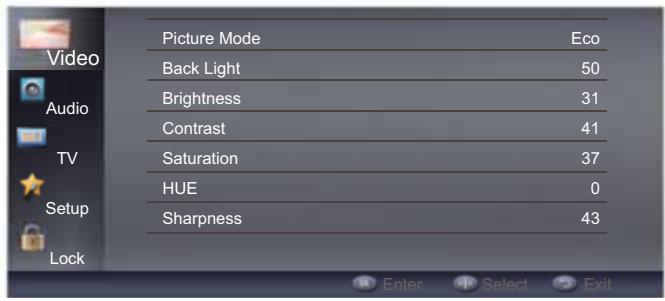
Picture Mode
To select the picture mode. You can select User/ Vivid/Eco/Standard/Mild according to the programme.
Note
- You can also press P.MODE button to select the picture mode.
- Manually adjusting picture settings will automatically change the Picture Mode to User.
Back Light
To adjust the backlight brightness to affect the overall brilliance of the picture.
Brightness
To brighten or darken the picture.
Contrast
To adjust the intensity of the white level of the picture.
Saturation
To adjust the colour saturation of the picture.
HUE
To adjust the colour hue of the picture.
Sharpness
To sharpen or soften the picture.
Gamma
To select the gamma type.
Colour Temperature
To select the colour temperature. You can select:
- Cool - Give the white colour a bluish tint.
- Standard - Give the white colour a neutral tint.
- Warm - Give the white colour a reddish tint.
Advanced Video
To adjust advanced video settings.
DNR (Digital Noise Reduction)
To reduce noise on screen and produce a clearer video image.
MPEG NR
To reduce picture noise in MPEG-compressed videos.
Adaptive Luma Control
To adjust the average brightness of the picture to compensate for large areas of brightness.
Flesh Tone
To adjust skin colour based on skin tone preference.
DI Film Mode
To optimise the picture settings for watching films.
Blue Stretch
To increase the blue component of white and near white pixels without affecting flesh tone colour.
Game Mode
To optimise the picture settings for playing games.
Adaptive Back Light
To dynamically change the backlight of the screen according to the amount of light and dark in the signal.
VGA Mode (VGA source only)
To select the VGA mode.
- Video – In this mode, images look smoother and text appears clearer.
- Graphic – In this mode, images look sharper. Select this mode for watching videos from a computer.
■ HDMI Mode (HDMI progressive timing only) To select the HDMI mode.
- Auto - Choose Video/Graphic automatically.
- Graphic – In this mode, images look smoother and text appears clear. Select this mode when connecting a computer.
- Video – In this mode, images look sharper. Select this mode when watching videos from a computer or from video players, such as a DVD player, Blu-ray player, etc.
■ Overscan (HDMI source only)
To extend part of the display past the visible area of the screen. The resulting picture will "zoom in" on the image centre.
Note
- When Overscan is set to Off, Screen Mode cannot be selected.
VGA
To adjust the computer image in VGA source. You can adjust:
- Auto Adjust - Automatically adjust the image settings.
- H. Position - Adjust picture's horizontal position.
- V. Position - Adjust picture's vertical position.
- Phase - Adjust the focus of stable images.
- Clock - Adjust the sample frequency.
Audio Only
To turn off TV picture and listen to programme audio only.
Note
- To exit audio only mode, press any button.
Reset
To reset the video settings to the factory defaults.
Adjusting the Audio Settings
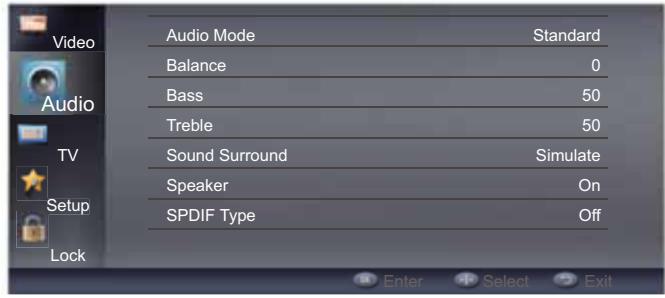
Audio Mode
To select the audio mode. You can select User/ Standard/Music/Theatre to suit your personal preference.
Note
- You can also press S.MODE button to select the audio mode.
- Manually adjusting audio settings will automatically change the Audio Mode to User.
Balance
To adjust the balance between the left and right speakers.
Bass
To adjust the low frequency sound.
Treble
To adjust the high frequency sound.
Sound Surround
To simulate surround sound.
Speaker
To turn TV built-in speakers on or off. You can select:
- Off - To turn TV built-in speakers off.
- On – To turn TV built-in speakers on.
- Auto (CEC) - To output audio from the connected CEC device.
Note
- Auto (CEC) option will be disabled if CEC Function in the CEC menu is set to Off.
SPDIF Type
To select the SPDIF digital audio output type.
SPDIF Delay
To adjust the SPDIF delay time to synchronise the sound with the picture (0~250).
Auto Volume Control
Turn this setting on to keep the volume level consistent when switching channels or when switching from a TV show to a commercial.
Type
To select audio type.
Normal - Provide normal audio.
- Hearing Impaired – Provide visual descriptions of the scenes for hearing impaired viewers.
- Visually Impaired – Provide audio narration of the scenes for visually impaired people.
Visually Impaired (DTV only)
To adjust the audio settings for visually impaired people.
Speaker
To turn speakers on or off.
■ Headphone
To turn headphones on or off.
Volume
To adjust the volume level of the audio narration.
Pan and Fade
To turn the pan and fade control on or off.
Visually Impaired Audio
To select the language of the audio for visually impaired people. (Options depend on broadcast audio content)
Note
- Visually Impaired setting is only available when Type is set to Visually Impaired.
Downmix Mode
To select audio downmix mode.
Reset
To reset audio settings to the factory defaults.
Adjusting the Channel Settings
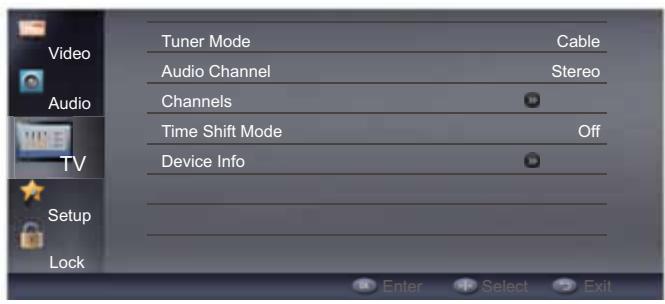
Tuner Mode
To select the tuner mode: Antenna/Aerial or Cable.
Audio Channel (ATV only)
To select the audio mode for a multiple audio or stereo broadcast programme.
Audio Language (DTV only)
To select audio language for programmes that have multiple language tracks.
Audio Language 2nd (DTV only)
To select second preferred audio language for programmes that have multiple language tracks.
Channels
To perform channel scan and edit channel list.
■ Channel Scan
To perform channel scan after selecting your country and configuring your cable information (cable mode).
Update Scan
To perform channel scan update to add channels to the existing channel list.
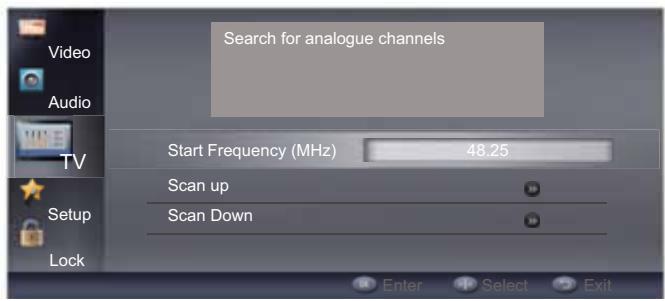
Analogue Manual Scan
To perform analogue manual scan up or down from the specified start frequency.
-
Press / to highlight Start Frequency (MHz), then use the number buttons on the remote control to enter the start frequency.
-
Press / to highlight Scan up or Scan Down, then press OK to scan for higher or lower frequency channels from the start frequency.
Single RF Scan (Digital channel only)
To perform single RF scan and check the signal strength and quality.
Antenna Mode
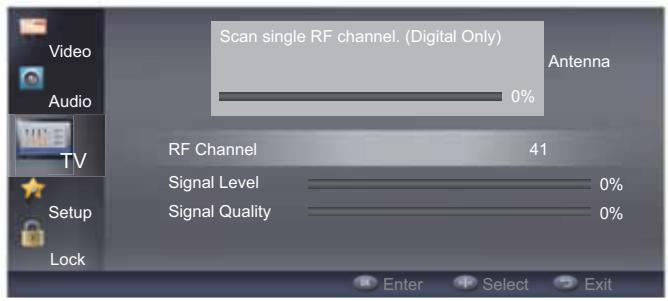
- Use the number buttons on the remote control to enter the RF channel.
- Press OK to start scanning.
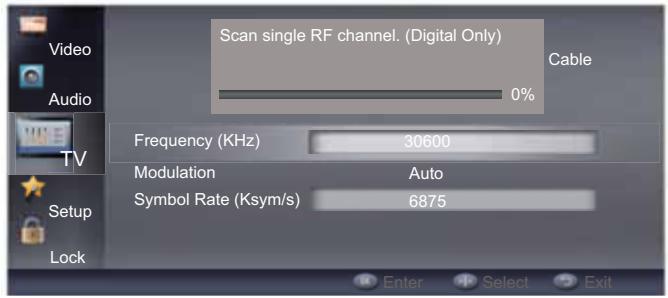
Cable Mode
- Press / to highlight Frequency (KHz), then use the number buttons on the remote control to enter the frequency.
- Press / to highlight Modulation, then press / to select the modulation type.
- Press / to highlight Symbol Rate (Ksym/s), then use the number buttons on the remote control to enter the symbol rate.
- Press OK to start scanning.
Favorite Network Select
To select the network you prefer if there are more than two networks detected after running the channel scan.
Channel Skip
To select the channels that will be skipped when using the P ≈ / P buttons. You can still tune to the skipped channels using the number buttons on the remote control.
- Press / to highlight the channel that you want to skip, then press OK. will be displayed.
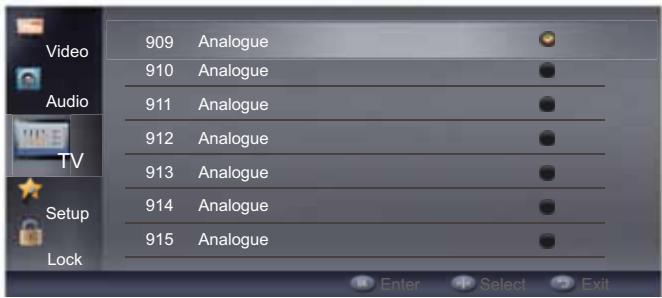
- Repeat above step until all the skipped channels are set.
■ Channel Sort
To change the order of the channel list.
- Press / to highlight the channel that you want to change position, then press OK. will be displayed.
- Press / to highlight the desired channel position, then press OK to swap the position of the two channels.
- Repeat step 1 and 2 until all desired channels are sorted.
■ Channel Edit
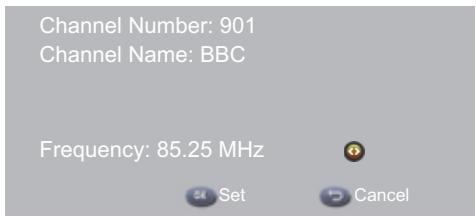
To edit the channel number and channel name.
- Press / to highlight the channel that you want to edit, then press OK.
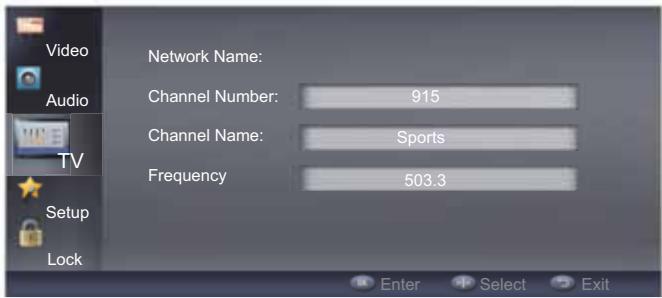
- Press / to highlight Channel Number, then press the number buttons on the remote control to enter preferred channel number.
- Press / to highlight Channel Name, then enter each character of the new name by pressing the number buttons repeatedly to select a character.
Note
- To delete a character, press button.
Analogue Channel Fine Tune
To fine tune the analogue channel if the reception is poor.
-
Press / to highlight the analogue channel that you want to fine tune.
-
Press / to adjust the frequency while checking the background image, then press OK to set.
Clear Channel List
To clear all the channels that are stored in the channel list.
Time Shift Mode
To turn time shift mode on or off. See "Time Shifting" on page 23 for more information.
Device Info
To check the information of the device that is connected to the USB jack on the back of the TV.
Adjusting the TV Settings
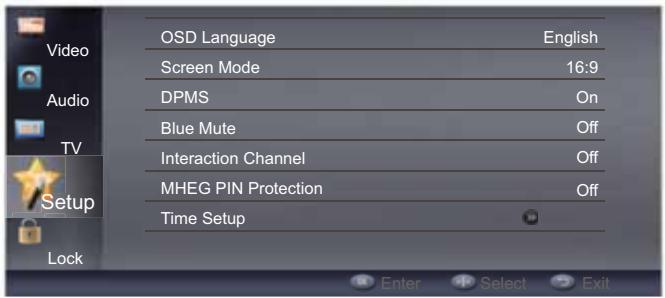
OSD Language
To select on-screen menu language.
Screen Mode
To select screen display mode.
Note
- You can also press the SCREEN button to select screen mode.
DPMS (Display Power Management Signals)
Turn this setting on to set the TV to automatically enter standby mode if no PC input signal is detected after 40 seconds in VGA mode.
Blue Mute
Turn this setting on to display a blue screen when there is no input signal or when playing audio programmes.
Interaction Channel
Turn this setting on to enable interaction channel function.
MHEG PIN Protection
Turn this setting on to enable MHEG PIN Protection function.
Time Setup
To adjust time and timer settings.
Time Zone
To select your time zone.
Time
Auto Synchronization
Select On to automatically synchronise date and time with a digital signal (if available). Select Off to manually adjust the date and time.
Date
Press and number buttons to set the date.
Time
Press and number buttons to set the time.
Timer Power On
To automatically turn the TV on at a preset time.
Timer
When the power on timer is turned on, press
and number buttons to set the power on time.
Power On Channel
When the power on timer is turned on, select the power on channel from the channel list.
Timer Power Off
To automatically turn the TV off at a preset time.
Timer
When the power off timer is turned on, press and number buttons to set the power off time.
Sleep Timer
To automatically turn the TV off after a set amount of time.
Auto Sleep
To automatically turn the TV off if there is not any operation after a set amount of time.
Subtitle
To adjust the subtitle settings.
Analogue Subtitle
To turn analogue subtitle on or off. Select Mute to turn analogue subtitle on when the TV is muted.
Digital Subtitle Language
To select digital subtitle language.
Digital Subtitle 2nd Language
To select second digital subtitle language.
Subtitle Type
To select digital subtitle type.
Teletext
To adjust teletext settings.
Digital Teletext Language
To select digital teletext language
Decoding Page Language
To select teletext decoding page language.
Common Interface
To check the information of the CAM inserted to the COMMON INTERFACE slot on the back of the TV.
OAD (Over Air Download)
To update TV software by air.
Manual OAD Download
To manually update TV software by air. Follow the on-screen instructions to complete the software update.
Auto Download
Select Yes to enable your TV to download new software by air automatically
Auto Install
Select Yes to enable your TV to install new software by air automatically
Version Info
To check software version information.
System Information
To check system information.
Reset Default
To reset picture, audio, channel and user settings to the factory defaults.
CEC Menu
To adjust CEC settings.
CEC function
To turn CEC function on or off.
Auto turn off
When this option is set to On, the CEC device will automatically power off when the TV is turned off.
Device Discovery
Check if your device is connected and supports CEC.
Standby (When CEC device is connected)
To turn the selected CEC device off.
Power On (When CEC device is connected)
To turn selected CEC device on.
■ Disable/Enable Sys. Aud. Ctrl. (When CEC device is connected)
Toggle this setting to enable or disable audio output from the connected CEC audio device and its volume adjustment using the TV's remote control.

Note
- Not all HDMI devices support CEC. See your device's user manual for details.
- HDMI cables must be used to connect HDMI CEC-compatible devices to your TV.
- The connected device's HDMI CEC feature must be turned on.
- If you connect an HDMI device that is not HDMI CEC-compatible, the CEC control option does not work.
Depending on the connected HDMI device, the CEC HDMI control option may not work.
Shop Mode
To turn shop mode on or off.
- On – Settings are designed for maximum impact in retail shop display and product information banner will show on the screen.
- Off - Settings are optimised for normal home viewing and energy efficiency.
Adjusting Lock Settings
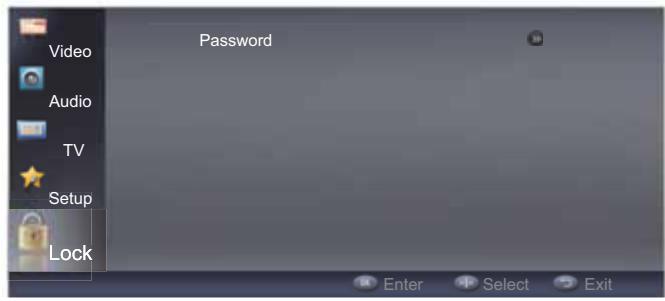
Enter the password that was set during the initial setup to access the Lock menu.

Note
- If a password is not set during the initial setup, enter 1234 to access the Lock menu.
- If your password is lost, enter the universal password 9443 to access the Lock menu, then set a new password.
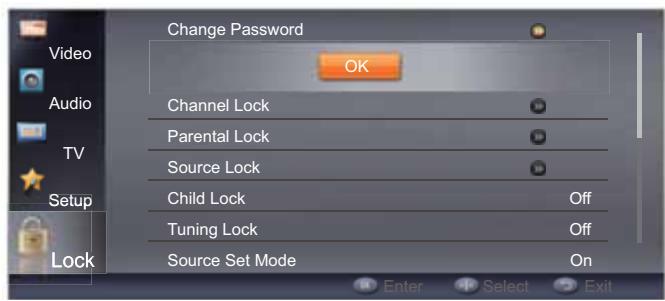
Change Password
To change the password.
Channel Lock
To lock channels that you want to prevent others from watching.
- Press / to highlight the channel that you want to lock, then press OK. will be displayed.
- Repeat above step until all the locked channels are set.
Note
- To tune to a locked channel, you must enter the 4-digit password.
Time Interval Lock (Norway only)
To set the time interval during which the TV channels will be locked. Password must be entered to unlock and watch the channels.
Parental Lock
To prevent children from watching certain TV programmes, according to the rating limit set.
Note
- This function only works for the programmes with Age Rating information.
Source Lock
To lock input source.
- Press / to highlight the input source that you want to lock, then press OK. will be displayed.
- Repeat above step until all the locked sources are set.
Note
- To switch to a locked source, you must enter the 4-digit password.
Child Lock
To lock the control buttons on the side of the TV.
Tuning Lock
To disable TV tuning function. When this option is set to On, the TV main menu will not be available.
Source Set Mode
To set the TV to turn on with a default input source.
Source Set
To select the default input source, if Source Set Mode is set to On.
Channel No.
To select the default channel, if Source Set is set to TV.
Max Volume
To set the maximum volume limit.
Initial Volume Mode
To set the TV to turn on with a default volume level.
Initial Volume
To select the default volume level, if Initial Volume Mode is set to On.
Clear Lock
To reset the lock settings to the factory defaults.
Initial Setup
To reset picture, audio, channel, user and lock settings to the factory defaults. The Initial Setup screen will open.
Other Features
USB Media Player
The USB Media Player allows you to connect a USB thumb drive to your TV and play photos, music or videos.
Note
- The USB thumb drive must be formatted as FAT32.
- Files on the USB thumb drive must end in a supported file extension (.mp3, .jpg, .mp4, etc).
- Files that are not supported will not be displayed.
- Some files may be unreadable due to individual file setting.
- The player is not designed to play media from external hard drives or mp3 players.
Operation using USB hubs is not guaranteed. - Due to the limited distance of USB signal transmission, it is recommended not to use a USB patch cord.
- Use high-speed USB equipment that conforms to the USB 2.0 full speed interface Standard. If the USB equipment does not conform to USB full speed interface standard, playback may be unsmooth.
Caution
- Do not disconnect the USB thumb drive from the TV before exiting USB media player.
Formatting the USB thumb drive:
You can format your USB thumb drive using the on-screen menu.
- Switch to TV source.
- Press MENU/。The on-screen menu opens.
- Press / to highlight TV, then press OK.
- Press / to highlight Device Info, then press OK.
- Highlight your USB thumb drive, then press OK.
- Press / to highlight Format, then press OK.
- When the confirmation screen opens, highlight YES, then press OK.
- When the formatting is completed, press EXIT.
Using USB media player:
- Connect your USB thumb drive to the USB port on the back of the TV.
- Press SOURCE, then / to highlight USB and press OK to switch to USB mode.
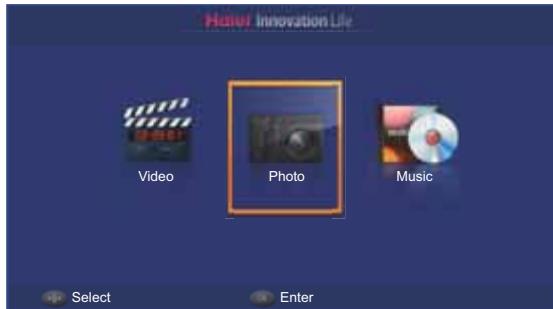
- Press / to highlight the media type: Video, Photo or Music, then press OK.
- Press / / to highlight the file that you want to play, then press OK.
- To adjust the settings, press MENU/ to open the on-screen menu.
- Press / to highlight an item, then press OK to execute or to display setting options, then press / to highlight desired option and press OK.
- Press BACK/ to return to the previous menu or close the menu.
Thamburger/List Mode
When viewing contents of the USB thumb drive, press FAV/ to toggle thumbnail/list mode.
Press MENU/ to open the on-screen menu.
Sort
To select the algorithm for sorting files.
Media Type
To select the media type.
Note
- When browsing contents of the USB thumb drive, to return to the upper directory,
In thumbnail mode, press BACK/
In list mode, press / to highlight the icon on top of the list, then press OK.
Photo Mode
Press MENU/ to open the on-screen menu.
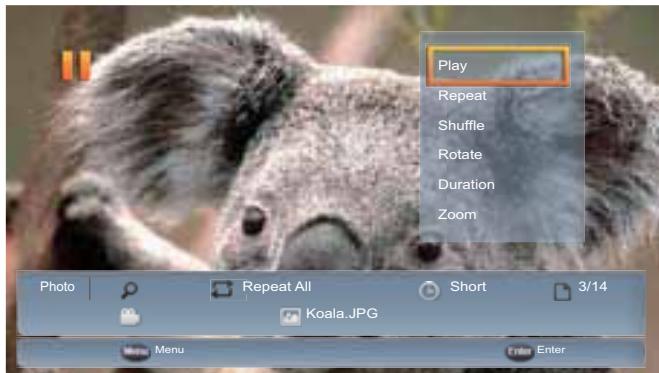
Play/Pause
To play or pause the slide show.
Repeat
To select the repeat mode of playing the files in the same folder.
Shuffle
To turn shuffle mode on or off. Turn shuffle mode on to play the files in a random sequence.
Rotate
To rotate the photo 90^ clockwise at a time.
Duration
To select the photo display time duration.
Zoom
To zoom in the photo.
Effect
To select the photo display transition effect.
Show Info
To show the information of the displayed photo.
Music Mode
Press MENU/ to open the on-screen menu.

Play/Pause
To play or pause the music.
Repeat
To select the repeat mode of playing the files in the same folder.
Shuffle
To turn shuffle mode on or off. Turn shuffle mode on to play the files in a random sequence.
Show Info
To show the information of the played music.
Hide/Show Spectrum
To hide or show the spectrum.
Audio Only
To turn off screen display and listen to audio only.
Note
- To exit audio only mode, press any button.
Video Mode
Press MENU/ to open the on-screen menu.
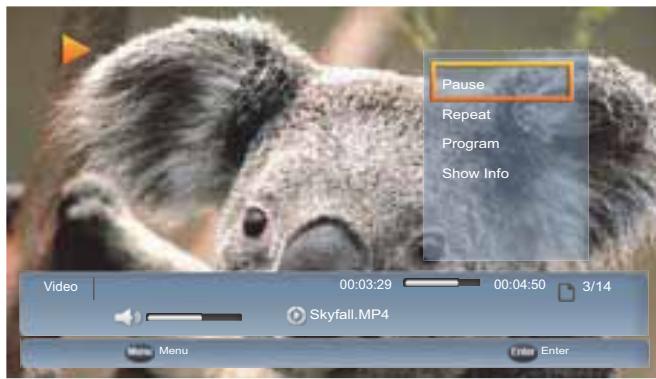
Play/Pause
To play or pause the video.
Repeat
To select the repeat mode of playing the files in the same folder.
Program
To select the programmes of a *.ts file.
Show Info
To show the information of the played video.
Button Function
| Button | Function | Photo | Music | Video |
| ►I | Play/Pause | ✓ | ✓ | ✓ |
| ►I | Play next file | ✓ | ✓ | ✓ |
| ↔ | Play previous file | ✓ | ✓ | ✓ |
| ► | Fast forward | ✓* | ✓ | ✓ |
| ↔ | Fast reverse | ✓ | ✓ | |
| ■ | Stop | ✓ | ✓** |
- In photo mode, press▶ to select photo display duration.
** During video playback, pressing will suspend playback at stop point with blue screen and "Stop-Resume" message displayed. You can do either of the following to continue: - Press OK or to resume playback at stop point.
- Press again to stop playback, then press OK or II to start playback from the beginning of the video.
USB Media Supported File Format
| Video file format | |||
| File extension | Container | Video Codec | Audio Codec |
| *.avi | AVI | XviD | MP3(MPEG1 Layer3) |
| MPEG1 | MPEG1 Layer1/2 | ||
| MPEG2 MP@HL | MPEG2: AAC/AAC-LC | ||
| H.264 BP LV 4.0 | MPEG4: AAC-LC/HE-AAC | ||
| H.264 MP LV 4.0 | WAV: PCM/ADPCM | ||
| H.264 HP LV 4.0 | AC3 | ||
| MPEG-4 SP@HL 3.0 | |||
| MPEG-4 ASP@HL 4.0 | |||
| Motion JPEG | |||
| *.mp4 | MP4 | H.264 BP LV 4.0 | MP3(MPEG1 Layer3) |
| H.264 MP LV 4.0 | MPEG1 Layer1/2 | ||
| H.264 HP LV 4.0 | MPEG2: AAC | ||
| MPEG-4 SP@HL 3.0 | MPEG4: HE-AAC | ||
| MPEG-4 ASP@HL 4.0 | |||
| *.mov | MP4 | H.264 BP LV 4.0 | MPEG2: AAC/AAC-LC |
| H.264 MP LV 4.0 | MPEG4: AAC-LC/HE-AAC | ||
| H.264 HP LV 4.0 | |||
| MPEG-4 SP@HL 3.0 | |||
| MPEG-4 ASP@HL 4.0 | |||
| Motion JPEG | |||
| *.mkv | MKV | H.264 BP LV 4.0 | MP3(MPEG1 Layer3) |
| H.264 MP LV 4.0 | MPEG1 Layer1/2 | ||
| H.264 HP LV 4.0 | MPEG2: AAC/AAC-LC | ||
| MPEG-4 SP@HL 3.0 | MPEG4: AAC-LC/HE-AAC | ||
| MPEG-4 ASP@HL 4.0 | AC3 | ||
| *.vob | MPEG PS | MPEG-2 MP@HL | MPEG1 Layer1/2 |
| AC3 | |||
| *.mpg | MPEG PS | MPEG-1 | MP3(MPEG1 Layer3) |
| *.mpeg | MPEG-2 MP@HL | MPEG1 Layer1/2 | |
| AC3 | |||
| *.ts | MPEG TS | MPEG-2 MP@HL | MP3(MPEG1 Layer3) |
| H.264 BP LV 4.0 | MPEG1 Layer1/2 | ||
| H.264 MP LV 4.0 | MPEG2: AAC | ||
| H.264 HP LV 4.0 | MPEG4: HE-AAC | ||
| Audio file format | ||
| File extension | Container | Audio Codec |
| *.mp3 | MP3 | MP3 (MPEG1 Layer3) |
| Photo file format | ||
| File extension | Container | Codec |
| *.jpg | JPEG | Baseline/Progressive |
| *.jpeg | ||
Common Interface
The common interface (CI) slot is designed to hold the conditional access module (CAM) and smart card in order to access pay-per-view TV programmes and additional services. Contact your common interface service provider to get more information about modules and subscription. Please note that CAMs and smart cards are neither supplied by nor optional accessories from us.
- Insert the smart card into the CAM, then insert the CAM to the COMMON INTERFACE slot on the back of the TV.
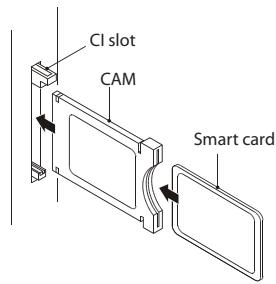
- The TV will display a message indicating that the CAM has been detected. Wait for a few minutes until the card is activated.
- Press MENU/ to open the on-screen menu.
- Press / to highlight Setup, then press OK.
- Press / to highlight Common Interface, then press OK.
- Press / to highlight the option you need, then press OK.
- Detailed information about the CAM is displayed. Refer to the instruction manual of the CAM for setting information.
Teletext
Teletext is an information system broadcast by certain channels, offering a range of text-based information, typically including national, international and sporting news, weather and TV schedules. It also provides subtitles for people with hearing difficulties or those who are unfamiliar with the language in which a particular programme is being broadcast.
Teletext
To turn on teletext, press button. To switch off teletext, press button again.

Page up/down
To display next or previous teletext page, press the P ≈ / P ≈ buttons.
Page number entering
To select a teletext page, enter the page number using the number buttons on the remote control.
Mix mode
To view the TV picture in teletext mode, press the button. This will superimpose the teletext data on top of the TV picture. Press button again to return to full text.

Hold
To stop updating teletext page automatically, press the button. This feature is very useful when there are several teletext pages or lots of data on the same page number.
Size
To switch the teletext image to Top, Bottom or Full, press the + button. This feature is very useful as it magnifies the image and makes the characters easier to read.

Reveal
To reveal hidden information such as an answer to a quiz, press the ? button.
Subcode
To enter a secondary page, press button and enter the 4-digit number.

Hide
To hide the text, press the button.

EXIT/
Fast text coloured buttons
Fast text automatically displays the four most commonly used pages that the broadcaster thinks that you may want to choose next. Press the same coloured button on the remote control as the coloured link at the bottom of the teletext page to go directly to that page.


Using USB Device for Recording
Note
It is recommended that the minimum device size used for recording is 1 GB.
- IMPORTANT: The USB device should be formatted as FAT32 by your PC before being inserted into the USB jack.
Timeshift (DTV only)
- Make sure Time Shift Mode in TV menu is set to On.
- Insert the FAT32 format USB device into the USB jack on the back of the TV.
- Press the button to start timeshifting.
Note
-
If the USB device is inserted for timeshifting for the first time, Disk Setup screen will open. Follow the on-screen instructions to automatically or manually set up the USB device.
-
Press to pause the programme. If you press again, the timeshift programme will play.
- Press to stop timeshifting.
Recording (DTV only)
- Insert the FAT32 format USB device into the USB jack on the back of the TV.
- Press button to start recording the current programme.
- Press button to stop programme recording.
- To play the recorded programme, switch to USB source.
- Press / to highlight Video, then press OK.
- Press / to highlight pvr folder, then press OK.
- Select the programme file that you want to play, then press OK to start playing.
Reference Section
Troubleshooting
| Symptoms | Items to Check and Actions to Follow |
| No power | ·Check if the TV's AC power cord is plugged into a working power outlet. ·Unplug the TV, and wait 60 seconds. Then reinsert plug into the working power outlet and turn on the TV again. |
| No picture | ·Make sure correct input source is selected. ·Check antenna connection on the back of the TV to see if it is properly connected. ·Possible broadcast station trouble. Try another channel. ·Adjust the picture contrast and brightness settings. |
| Good picture but no sound | ·Increase the volume level by pressing VOL+ button on the remote control or on TV side control panel. ·Press× button on the remote control to ensure mute is off. |
| Good sound but poor colour | ·Adjust the contrast, colour and brightness settings. |
| Poor picture | ·Poor picture quality may occur when an activated S-VHS camera or camcorder is connected to your TV and the other peripheral at the same time. Switch off one of the peripherals. |
| Snowy picture and noise | ·Check the antenna connection. |
| TV not responding to remote control | ·Check whether the batteries are working. Replace if necessary. ·Make sure the remote control batteries are installed correctly. ·Clean the remote control sensor lens on the TV. ·You can still use the control buttons on the side of your TV. |
| TV not working | ·Disconnect the TV from the power supply for 10 seconds, then reconnect the TV. If the problem persists, contact authorised service personnel for technical assistance. |
| No file displayed in USB mode | ·Make sure you select correct media type. ·Make sure the stored files are in supported format. |
Note
- If the problem is not solved by following these troubleshooting instructions, consult your local authorised service centre.
- The TV set must only be repaired by qualified, registered service personnel. Never attempt to remove the back cover, as the TV set contains dangerous voltage that may cause injury or fire.
Specification
Specifications are subject to change without notice.
| Model | LE32A650CF | LE32F600C |
| Picture/sound system | PAL/SECAM-B/G, I, D/K, L | |
| Power consumption | 60W | 45W |
| Audio output | 10W + 10W | 10W + 10W |
| Rear connectors | Component In Composite In (Share Y input)YPbPr/CVBS Audio InUSBHDMI 1/HDMI 2/HDMI 3 InCommon InterfaceHeadphone OutDigital Audio Out (Coaxial)Antenna InSCARTPC InPC Audio In | USBHDMI 1/HDMI 2 InCommon InterfaceHeadphone OutDigital Audio Out (Coaxial)Antenna InSCARTPC InPC Audio In |
| Temperature | Working: +5°C ~ +35°CStorage: -15°C ~ +45°C | |
| Humidity | Working: 20% ~ 80%Storage: ≤80% | |
| Accessories | Remote control/AAA battery x 2/Instruction manual/Quick start guide/Warranty card/TV stand with screws/Power cord (LE32F600C only) | |
| Dimensions (with stand)(W x H x D) | 728.26 x 467.86 x 180.31 mm | 731.87 x 477.17 x 207.15 mm |
| Dimensions (w/o stand)(W x H x D) | 728.26 x 434.26 x 77.07 mm | 731.87 x 440.96 x 75.00 mm |
| Weight (with stand) | 7.53 kg | 5.8 kg |
| Weight (w/o stand) | 7.13 kg | 5.4 kg |
| Wall mounting (H x V) | 100 x 100 mm | 100 x 100 mm |
HDMI
HIGH-DEFINITION MULTIMEDIA INTERFACE
HDMI, the HDMI logo, and High-Definition Multimedia Interface are trademarks or registered trademarks of HDMI Licensing LLC in the United States and other countries.

DOLBY.
DIGITAL PLUS
PULSE
Manufactured under license from Dolby Laboratories. Dolby and the double-D symbol are trademarks of Dolby Laboratories.
Appendix
VGA Input Supported Timing
LE32A650CF
| VGA | |
| Resolution | Refresh Rate (Hz) |
| 720 x 400 | 70 |
| 640 x 480 | 60/70/72 |
| 800 x 600 | 56/60/70/72 |
| 1024 x 768 | 60/70/75 |
| 1280 x 720 | 60 |
| 1280 x 960 | |
| 1360 x 768 | |
| 1920 x 1080 | |
LE32F600C
| VGA | |
| Resolution | Refresh Rate (Hz) |
| 720 x 400 | 70 |
| 640 x 480 | 60/70/72 |
| 800 x 600 | 56/60/70/72 |
| 1024 x 768 | 60/70/75 |
| 1280 x 720 | 60 |
| 1280 x 960 | |
| 1360 x 768 | |
Component Input Supported Timing
(LE32A650CF only)
| Component | |
| Resolution | Refresh Rate (Hz) |
| 480i | 60 |
| 480p | |
| 576i | 50 |
| 576p | |
| 720p | 50 |
| 60 | |
| 1080i | 50 |
| 60 | |
| 1080p | 50 |
| 60 | |
HDMI Input Supported Timing
| HDMI | |
| Resolution | Refresh Rate (Hz) |
| 480i | 60 |
| 480p | |
| 576i | 50 |
| 576p | |
| 720p | 50 |
| 60 | |
| 1080i | 50 |
| 60 | |
| 1080p | 50 |
| 60 | |
Haier
INSTRUKCJA OBSŁUGI
LE32A650CF
LE32F600C
USB Media Player. 18
Canal audio (TV analogue quinquement)
Masquer/Afficher spectre
Nur Tonsignal
Sehbehindert (nur DTV)
Audiokanal (nur ATV)
OAD (Over Air Download)
Nur Tonsignal
| CLONE | ||
| Back | << | |
| Write | <[ | On ]> |
| Read | <[ | Off ]> |
Adjusting Lock Settings
Thumbnail/List Mode 18
Photo Mode 19
Music Mode 19
Video Mode 19
Toetsfuncties 20
Taal v. decodeerpagina
OAD (Over Air Download)
Handmatig OAD downloads
Thamburger/List Mode
OAD (Over Air Download)
Page number entering
Uso del television 12
Canal de audio (solo ATV)
- Contents
- SafetyWarnings 2
- About Your LED LCD TV . . . . . . . . . . . . . . . . . . . . . . . . . . . . . . . . . . . . . . . . . .
- Getting Started 9
- Using Your TV 12
- Other Features 18
- Reference Section 24
- SafetyWarnings
- Welcome
- Important Information
- WARNING
- RISK OF ELECTRIC SHOCK DO NOT OPEN
- About Your LED LCD TV
- Installing the Stand
- Installing a Wall-Mount Bracket
- Note
- Side Control
- Making Connections
- Connecting to Antenna/Cable
- Connecting an External A/V Device
- Connecting a PC
- Connecting Headphones
- Connecting a Digital Audio System
- Getting Started
- Preparing Your Remote Control
- Installing the Batteries
- Remote Control and Battery Cautions
- Initial Setup
- Understanding the Basics
- Turning the TV On or Off
- Selecting the Input Source
- Selecting a Channel
- Using Favourite List
- Adjusting the Volume
- Displaying Channel Information
- Navigating the On-Screen Menu
- Using Your TV
- Adjusting the Video Settings
- Picture Mode
- Back Light
- Brightness
- Contrast
- Saturation
- HUE
- Sharpness
- Gamma
- Colour Temperature
- Advanced Video
- DNR (Digital Noise Reduction)
- MPEG NR
- Adaptive Luma Control
- Flesh Tone
- DI Film Mode
- Blue Stretch
- Game Mode
- Adaptive Back Light
- VGA Mode (VGA source only)
- ■ HDMI Mode (HDMI progressive timing only) To select the HDMI mode.
- ■ Overscan (HDMI source only)
- VGA
- Audio Only
- Reset
- Adjusting the Audio Settings
- Audio Mode
- Balance
- Bass
- Treble
- Sound Surround
- Speaker
- SPDIF Type
- SPDIF Delay
- Auto Volume Control
- Type
- Visually Impaired (DTV only)
- ■ Headphone
- Volume
- Pan and Fade
- Visually Impaired Audio
- Downmix Mode
- Adjusting the Channel Settings
- Tuner Mode
- Audio Channel (ATV only)
- Audio Language (DTV only)
- Audio Language 2nd (DTV only)
- Channels
- ■ Channel Scan
- Update Scan
- Analogue Manual Scan
- Single RF Scan (Digital channel only)
- Favorite Network Select
- Channel Skip
- ■ Channel Sort
- ■ Channel Edit
- Analogue Channel Fine Tune
- Clear Channel List
- Time Shift Mode
- Device Info
- Adjusting the TV Settings
- OSD Language
- Screen Mode
- DPMS (Display Power Management Signals)
- Blue Mute
- Interaction Channel
- MHEG PIN Protection
- Time Setup
- Time Zone
- Time
- Auto Synchronization
- Date
- Timer Power On
- Timer
- Power On Channel
- Timer Power Off
- Sleep Timer
- Auto Sleep
- Subtitle
- Analogue Subtitle
- Digital Subtitle Language
- Digital Subtitle 2nd Language
- Subtitle Type
- Teletext
- Digital Teletext Language
- Decoding Page Language
- Common Interface
- OAD (Over Air Download)
- Manual OAD Download
- Auto Download
- Auto Install
- Version Info
- System Information
- Reset Default
- CEC Menu
- CEC function
- Auto turn off
- Device Discovery
- Standby (When CEC device is connected)
- Shop Mode
- Adjusting Lock Settings
- Change Password
- Channel Lock
- Time Interval Lock (Norway only)
- Parental Lock
- Source Lock
- Child Lock
- Tuning Lock
- Source Set Mode
- Source Set
- Channel No.
- Max Volume
- Initial Volume Mode
- Initial Volume
- Clear Lock
- Other Features
- USB Media Player
- Caution
- Formatting the USB thumb drive:
- Using USB media player:
- Thamburger/List Mode
- Sort
- Media Type
- Photo Mode
- Play/Pause
- Repeat
- Shuffle
- Rotate
- Duration
- Zoom
- Effect
- Show Info
- Music Mode
- Hide/Show Spectrum
- Video Mode
- Program
- Page up/down
- Page number entering
- Mix mode
- Hold
- Size
- Reveal
- Subcode
- Hide
- Fast text coloured buttons
- Using USB Device for Recording
- Timeshift (DTV only)
- Recording (DTV only)
- Reference Section
- Specification
- HDMI
- Appendix
- VGA Input Supported Timing
- Component Input Supported Timing
- Haier
- Masquer/Afficher spectre
- Nur Tonsignal
- Sehbehindert (nur DTV)
- Taal v. decodeerpagina
- Handmatig OAD downloads
- Uso del television 12
- Canal de audio (solo ATV)
Brand : HAIER
Model : LE32F6000T
Category : TV