
TRAKLA43738 - Keyboard Tracer - Free user manual and instructions
Find the device manual for free TRAKLA43738 Tracer in PDF.


| Product Type | Keyboard |
| Brand | Tracer |
| Model | TRAKLA43738 |
| Connectivity | Wired USB |
| Key Switch Type | Membrane |
| Number of Keys | 104 (Full-size layout) |
| Multimedia Keys | Yes (6 dedicated keys) |
| LED Indicators | Caps Lock, Num Lock, Scroll Lock |
| Dimensions (W x D x H) | 440 mm x 140 mm x 30 mm |
| Weight | 800 g |
| Cable Length | 1.5 m |
| Power Source | USB bus-powered |
| Compatible Operating Systems | Windows, macOS, Linux |
| Cleaning and Maintenance | Unplug before cleaning; use a soft, damp cloth; avoid liquids entering the keyboard |
| Safety Precautions | Do not expose to water or excessive heat; keep away from strong magnets |
| Spare Parts | Not available separately; contact support for replacements |
| Warranty | 1 year limited warranty |
Frequently Asked Questions - TRAKLA43738 Tracer
User questions about TRAKLA43738 Tracer
0 question about this device. Answer the ones you know or ask your own.
Ask a new question about this device
Download the instructions for your Keyboard in PDF format for free! Find your manual TRAKLA43738 - Tracer and take your electronic device back in hand. On this page are published all the documents necessary for the use of your device. TRAKLA43738 by Tracer.
USER MANUAL TRAKLA43738 Tracer
Skróty klawiszowe
PL
Klawiatura Bluetooth
Smart Mini
Instrukcja obsługi

Pozostałe Czynności
Instructions for use
Installing the Batteries
This keyboard use two AAA wireless bluetooth alkaline batteries.
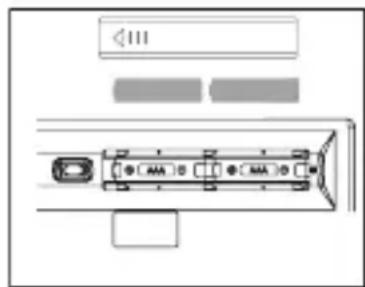
step1. Remove the battery compartment cover on the bottom of the keyboard by squeezing the cover in from the tab to release it.
step2. Insert the batteries as shown inside the battery compartment.
step3. Replace the cover.
Hotkeys on the keyboard
| System | |||
| Keys | (IOS) FN + F2 (Android) FN + F3 (Windows) | ||
| ESC ESC ESC ESC | |||
| F1 Ejest Ejest F1 | |||
| F2 Search Search F2 | |||
| F3 Screen Save Screen Save F3 | |||
| F4 | Black Screen | Black Screen | F4 |
| F5 | Screen Lock | - | F5 |
| F6 | - | F6 | |
| F7 | Previous Track | Previous Track | F7 |
| F8 | Play/Pause | Play/Pause | F8 |
| F9 | Next Track | Next Track | F9 |
| F10 | Volume Down | Volume Down | F10 |
| F11 | Mute Mute | F11 | |
| F12 | Volume Up | Volume Up | F12 |
| PrtScn | PrtScn | PrtScn | PrtScn |
| SysRq | SysRq | SysRq | SysRq |
| Insert | Main Page | - | Insert |
Languages switch way
- For Ipad/Iphone, press Windows+Space.
- For samsung Android, press Shift+Space.
- For Windows, press Shift+Ctrl.
Touch panel function
-
Default is numeric keypad function.
Moving by finger from middle dot to right, to enter into mouse function mode;
Moving by finger from middle dot to left, to enter into numeric keypad mode. -
The mouse mode function list:
Single finger move: the mouse cursor sliding action;
Single-finger click: left button of mouse;
Double-finger click: middle button of mouse;
Three-finger click: right button of mouse;
Double-finger leftward: Page-up;
Double-finger rightward: Page-down;
Double-finger up & down: Scroll up & scroll down.
EN
Bluetooth keyboard
Smart Mini
Instructions for use
Installing the Bluetooth Wireless Keyboard
Installing the Bluetooth Wireless Keyboard into Your Computer
Step 1. Before using the Bluetooth
keyboard with your computer, you

need to check whether your computer is equipped with Bluetooth receiver. If not, you'll need to purchase an additional Bluetooth receiver and install it correctly onto your computer. Once your computer is Bluetooth-enabled, the setup applet's icon will appear in the windows taskbar as shown below.
Step 2. Right-click on the Bluetooth icon in the windows taskbar, and select "Add a Bluetooth Device".

Step 3. Tick the checkbox "My device is setup and ready to be found", then click "Next".

Step 4. Your computer will now scan for Bluetooth devices in your area and display found devices. Meanwhile press "ESC" + ,
K" About 5 secs then search the device.
Step 5. Select the keyboard from the list of found devices and click "Next" to continue.

Step 6. We recommend our customers to select "no password" in the below window, then click "Next" to continue.

Step 7. The system will automatically finish the installation after clicking „Finish” in below window.

EN
Bluetooth keyboard
Smart Mini
Instructions for use
Installing the Bluetooth Wireless Keyboard into Your iPhone/iPad
You will need to manually sync your iPhone/ iPad with the Bluetooth keyboard before use. No further sync is needed if the first sync runs successfully. Please follow the instructions detailed below to complete the sync procedure.
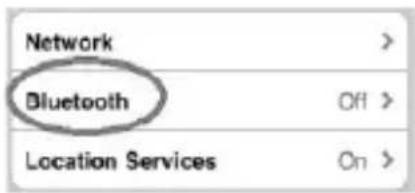
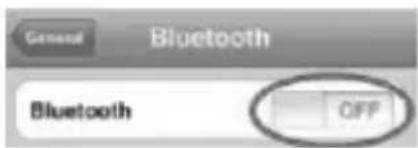
Follow the path Settings General Bluetooth on your iPhone/ iPad to enable the Bluetooth function on your iPhone/ iPad.


When Bluetooth is turned on, your iPhone/iPad will start searching for Bluetooth devices automatically. Switch on the Bluetooth keyboard by pressing the connect button underneath the keyboard. Your keyboard will be found by your iPhone /iPad automatically. When the keyboard is found, press the “Bluetooth Keyboard” appearing on the iPhone/ iPad screen, a window will pop up with a syncing passkey.
Type in the passkey shown given by the iPhone/ iPad on the keyboard and then press the "enter" key. Now the Bluetooth keyboard should be connected to your iPhone/ iPad as shown in below picture.

Other Considerations
- power-saving design: When the keyboard does not take any action about 2 seconds into hibernation, press any KEY or touch screen wake.
- When you press the FN + F11, the keypad keys do not output the value of users to leave after the others in order to prevent false triggering.
- 2 AAA dry batteries: the whole boost to 3.0 ~V . The whole system is 3.0 ~V system.
CZ
Klávesové zkratky
CZ


Ostatní postup
Hotkeys on the keyboard


Ostatné činnosti
Сокращения клавиш
RU

Другие действия
Gyorsbillentyük
HU
Bluetooth billentyüzet
Smart Mini
Használati útmutató


További műveletek
DEKLARACJA ZGODNOŚCI WE
Megabajt Sp. z o.o., Rydygiera 8, 01-793 Warszawa


- PL
- Pozostałe Czynności
- Installing the Batteries
- Languages switch way
- Touch panel function
- EN
- Installing the Bluetooth Wireless Keyboard
- Installing the Bluetooth Wireless Keyboard into Your Computer
- Step 1. Before using the Bluetooth
- Step 2. Right-click on the Bluetooth icon in the windows taskbar, and select "Add a Bluetooth Device".
- Step 3. Tick the checkbox "My device is setup and ready to be found", then click "Next".
- Step 4. Your computer will now scan for Bluetooth devices in your area and display found devices. Meanwhile press "ESC" + ,
- Installing the Bluetooth Wireless Keyboard into Your iPhone/iPad
- Other Considerations
- CZ
- Ostatní postup
- Ostatné činnosti
- RU
- Другие действия
- HU
- További műveletek
- DEKLARACJA ZGODNOŚCI WE
Brand : Tracer
Model : TRAKLA43738
Category : Keyboard