
FR996-00S - Audio Amplifier PHILIPS - Free user manual and instructions
Find the device manual for free FR996-00S PHILIPS in PDF.

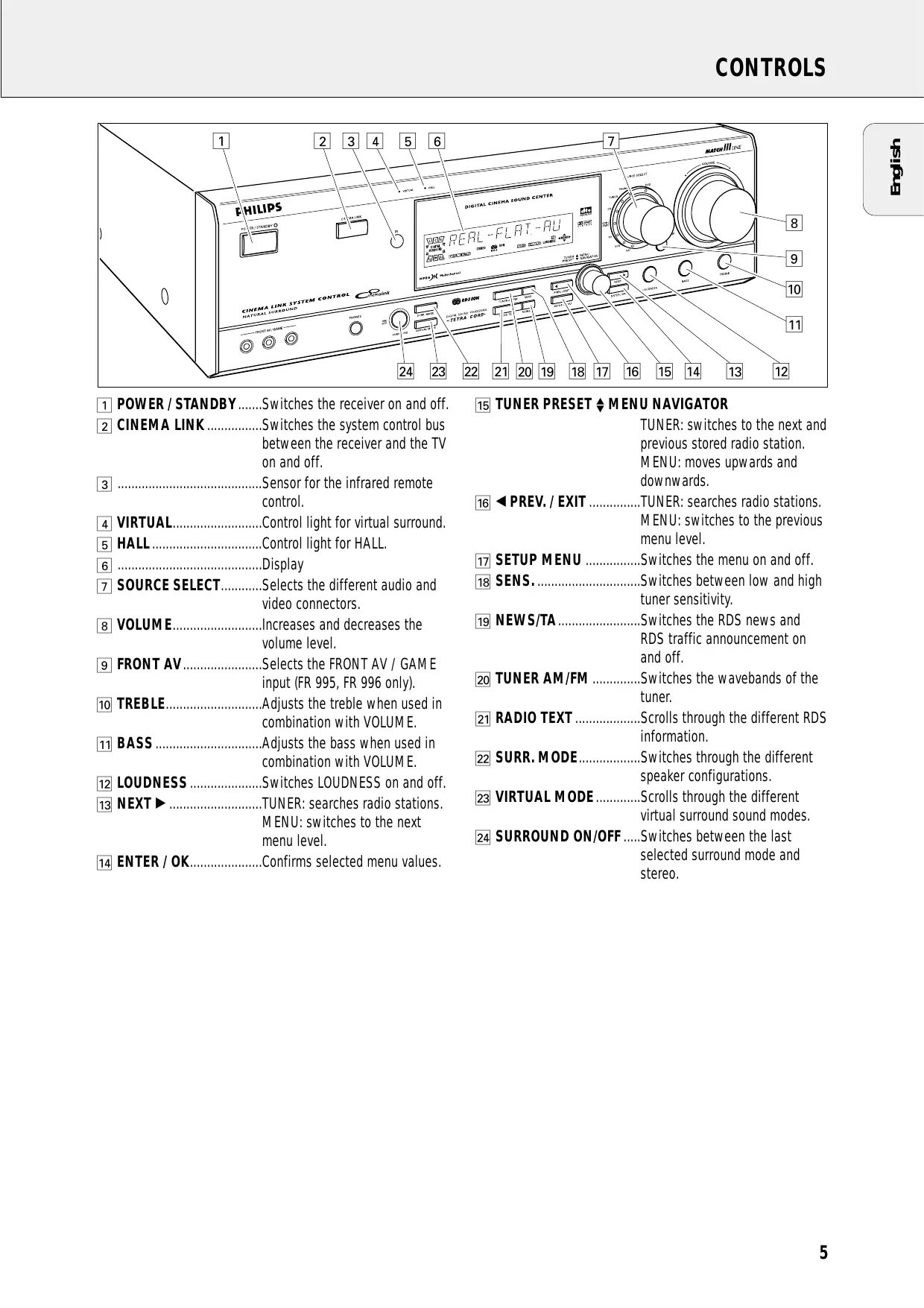


| Product type | Home Cinema audio amplifier |
| Brand | PHILIPS |
| Model | FR996-00S |
| Dimensions (W × H × D) | 435 × 135 × 350 mm |
| Weight | 9.4 kg |
| Power consumption | 255 W (standby < 2 W) |
| Output power (stereo) | 2 × 100 W (DIN) |
| Output power (surround) | Front: 2 × 100 W, Center: 100 W, Surround: 2 × 100 W |
| Supported audio formats | Dolby Digital, DTS, MPEG Multichannel, Dolby Pro Logic, Virtual Surround |
| Tuner | FM, MW, LW with RDS |
| Audio inputs | Analog (CD, TV, SAT, VCR, CDR/TAPE, Phono), digital (coaxial ×2, optical ×2), 6-channel, Front AV |
| Outputs | Speakers (front, center, surround), subwoofer pre-out, center pre-out, headphone, digital coaxial |
| Special features | CINEMA LINK, universal remote, station presets, night mode, bass/treble adjustment |
| Maintenance and cleaning | Soft lint-free cloth slightly damp; do not use abrasive products |
| Safety | Automatic shutdown in case of overheating; do not open the device (risk of electric shock) |
| Spare parts and repairability | Contact Philips after-sales service for spare parts |
| General information | ENERGY STAR® compliant; supplied with remote control, batteries, cables, antennas and manual |
Frequently Asked Questions - FR996-00S PHILIPS
User questions about FR996-00S PHILIPS
0 question about this device. Answer the ones you know or ask your own.
Ask a new question about this device
Download the instructions for your Audio Amplifier in PDF format for free! Find your manual FR996-00S - PHILIPS and take your electronic device back in hand. On this page are published all the documents necessary for the use of your device. FR996-00S by PHILIPS.
USER MANUAL FR996-00S PHILIPS
Digital Surround Sound Receiver
FR-985
FR-995
FR-986
FR-996

Important notes for users in the U.K.
Mains plug
This apparatus is fitted with an approved 13 Amp plug. To change a fuse in this type of plug proceed as follows:
1 Remove fuse cover and fuse.
2 Fix new fuse which should be a BS1362 5 Amp, A.S.T.A. or BSI approved type.
3 Refit the fuse cover.
If the fitted plug is not suitable for your socket outlets, it should be cut off and an appropriate plug fitted in its place. If the mains plug contains a fuse, this should have a value of 5 Amp. If a plug without a fuse is used, the fuse at the distribution board should not be greater than 5 Amp.
Note: The severed plug must be disposed of to avoid a possible shock hazard should it be inserted into a 13 Amp socket elsewhere.
How to connect a plug
The wires in the mains lead are coloured with the following code: blue = neutral (N), brown = live (L).
As these colours may not correspond with the colour markings identifying the terminals in your plug, proceed as follows:
- Connect the blue wire to the terminal marked N or coloured black.
- Connect the brown wire to the terminal marked L or coloured red.
- Do not connect either wire to the earth terminal in the plug, marked E (or 12 ) or coloured green (or green and yellow).
Before replacing the plug cover, make certain that the cord grip is clamped over the sheath of the lead - not simply over the two wires.
Copyright in the U.K.
Recording and playback of material may require consent. See Copyright Act 1956 and The Performer's Protection Acts 1958 to 1972.
Italia
Philips Consumer Electronics
Philips, Glaslaan 2
5616 JB Eindhoven, The Netherlands
Norge
Scope of supply. 4
Setup 4
Environmental information. 4
Trademark acknowledgment 4
Controls 5
Remote control
Remote control usage 6
Remote control buttons 7
Programming the universal remote control 8
Connectors 9
Connections
Analogue audio connections 10
Digital audio connections 10
System control bus, CINEMA LINK 11
Video connections 11
Mains 12
Speaker connections. 12
TV as the center speaker 12
Antenna connections 12
System setup
Positioning of the speakers 13
Speaker setup and testing. 13
Power handling 13
Headphones 13
Maintenance 13
Display 14
Menu
Receiver menu 15-16
TV menu 16
Source selection
SOURCE SELECT 17
6 CHANNEL / DVD INPUT selection. 17
Reassigning a source selection 17
Using one source selection for two or more appliances 17
About 6 CHANNEL / DVD INPUT 17
Playback, recording
Playing a source 18
Adjusting the sound 18
Recording from a source 18
Recording from the digital output 18
Surround sound
About surround sound. 19
Switching surround sound 19
Surround sound settings 20
Tuner
Tuning to radio stations 21
Switching FM sensitivity 21
Storing radio stations 21
Tuning to stored radio stations 22
Resorting stored radio stations 22
Naming radio stations 22
Clearing station names 22
RDS 23
RDS News and Traffic Announcement 23
Technical data
Receiver 24
Troubleshooting
Warning 25
Troubleshooting 25
This set complies with the radio interference requirements of the European Community.
Scope of supply
This receiver is supplied including:
- an universal remote control
- 2 batteries for the remote control, size AA
- a coaxial cable for audio connection with a DVD player
- a system bus cable for the CINEMA LINK connection
- a loop antenna
- a wire antenna
- this instruction booklet
Setup
If you have stacked the components of your system, the receiver must be on top. Place the receiver on a flat, hard, stabile surface. Do not cover any vents and leave 50 cm above and 10 cm left and right of the receiver free for ventilation.
For good reception the loop antenna should not be placed on top of or beneath VCRs, CD recorders, DVD players, TVs and other radiation sources.
Environmental information
All redundant packing material has been omitted. We have done our utmost to make the packaging easily separable into three mono materials: cardboard (box), polystyrene foam (buffer) and polyethylene (bags, protective foam sheet).
Your set consists of materials which can be recycled if disassembled by a specialized company. Please observe the local regulations regarding the disposal of packing materials, exhausted batteries and old equipment.
As an ENERGY STAR® partner, Philips has determined that
this product meets the ENERGY STAR®
guidelines for energy efficiency.

Trademark acknowledgment
Manufactured under license from Dolby Laboratories.
"DOLBY", "DOLBY DIGITAL", "PRO LOGIC" and the double-D symbol are trademarks of Dolby Laboratories. Confidential unpublished works. © 1992-1997 Dolby Laboratories. All rights reserved.
"DTS" and "DTS Digital Surround" are trademarks of Digital Theater Systems, Inc. Copyright 1996 Theater Systems, Inc. All Rights Reserved.
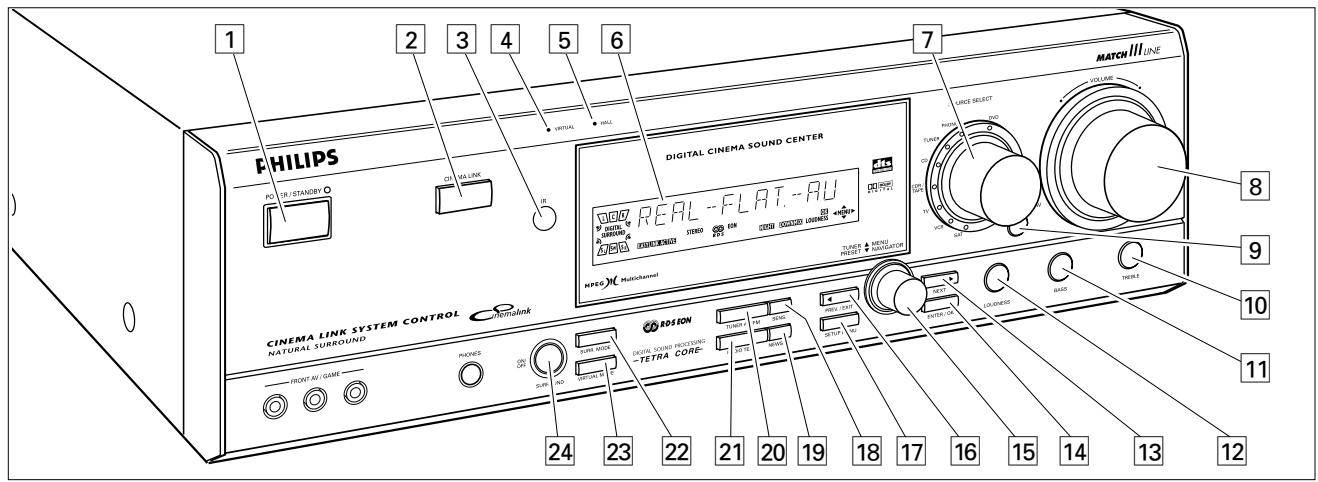
1 POWER / STANDBY.....Switches the receiver on and off.
CINEMA LINK Switches the system control bus between the receiver and the TV on and off.
Sensor for the infrared remote control.
4 VIRTUAL.......Control light for virtual surround.
5 HALL.......Control light for HALL.
6 Display
7 SOURCE SELECT......Selects the different audio and video connectors.
8 VOLUME.Increases and decreases the volume level.
9 FRONT AV......Selects the FRONT AV / GAME input (FR 995, FR 996 only).
10 TREBLE.... Adjusts the treble when used in combination with VOLUME.
11 BASS.... Adjusts the bass when used in combination with VOLUME.
12 LOUDNESS. Switches LOUDNESS on and off.
13 NEXT TUNER: searches radio stations.
MENU: switches to the next
menu level.
14 ENTER/OK.. Confirms selected menu values.
TUNER PRESET MENU NAVIGATOR
TUNER: switches to the next and previous stored radio station.
MENU: moves upwards and downwards.
16 PREV. / EXIT TUNER: searches radio stations. MENU: switches to the previous menu level.
17 SETUP MENU .........Switches the menu on and off.
18 SENS. Switches between low and high tuning sensitivity.
19 NEWS/TA. Switches the RDS news and RDS traffic announcement on and off.
20 TUNER AM/FM .........Switches the wavebands of the.
tuner.
21 RADIO TEXT .................... .. ....... .. ......... .. ......... .. ......... .. ......... .. ......... .. ......... .. ......... .. ......... .. ......... .. ......... .. ......... .. ......... .. ......... .. ......... .. ......... .. ......... .. ......... .. ......... .. ......... .. .......... .. ......... .. ......... .. ......... .. ......... .. ......... .. ......... .. .......... .. .......... .. .......... .. .......... .. .......... .. .......... .. .......... .. .......... .. .......... .. .......... .. .......... .. .......... .. .......... ... .......... .. .......... .. .......... .. .......... .. .......... .. .......... .. .......... .. .......... .. .......... .. .......... .. .......... .. .......... .. .......... .. .......... .. .......... .. .......... .. .......... ... .....
22 SURR. MODE.... Switches through the different speaker configurations.
23 VIRTUAL MODE.............. ..virtual surround sound modes.
24 SURROUND ON/OFF ....Switches between the last selected surround mode and stereo.
Remote control usage
Open the battery compartment of the remote control and insert 2 alkaline batteries, type AA (R06, UM-3).
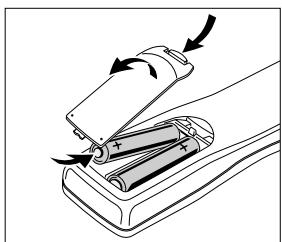
Remove batteries if they are flat or the remote control is not going to be used for a long time.
Batteries contain chemical substances, so they should be disposed of properly.
The buttons on the remote control work the same way as the corresponding ones on the receiver.
Important!
You have to press a source button for longer than 1 second to switch the sound source on the receiver. Pressing a source button for less than 1 second will only switch the remote control to use the commands for the selected product.
The remote control remains tuned to the selected source until another source button on the remote control is pressed. This enables you to operate additional sources (i.e. winding a tape) without changing the source on the receiver.
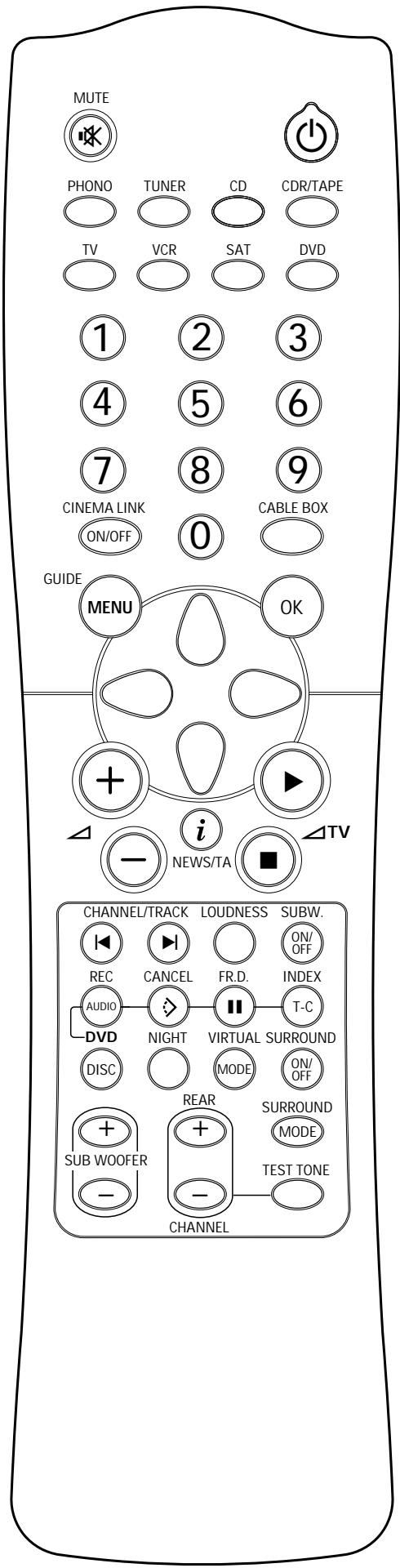
Remote control buttons
MUTE Mutes the sound of the receiver.
Switches the receiver to standby.
PHONO, TUNER, CD
CDR/TAPE, TV
VCR, SAT, DVD......Switches the remote control to the commands of the different products. Selects the sources if pressed longer than 1 second. SAT only works with digital satellite receivers.
1-0....Keys in numbers for tracks, stations or frequencies. Numbers consisting of two figures must be keyed in within 2 seconds.
CINEMA LINK ON/OFF...Switches the system connection between the receiver and the TV on and off.
CABLE BOX...... Without function.
TUNER: Switches the receiver menu on and off.
DVD, TV: Switches the DVD/TV menu on and off.
OK..........Confirms menu options.
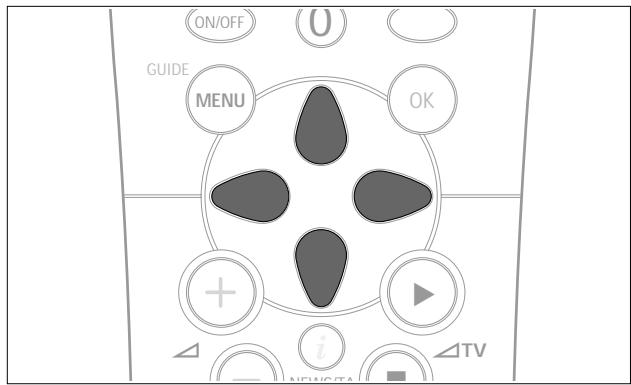
Arrow buttons TUNER:Moves in the menus. Right/left arrows are tuning up/down. CD, CDR: Left/right arrows are searching backwards/forwards, up/down arrows are selecting the next/previous track.
+.. Increases the receiver volume.
Decreases the receiver volume.
1 NEWS/TA....Switches the functions NEWS and TRAFFIC ANNOUNCEMENT on and off. TV: Switches teletext on and off. SAT: Switches the information text on and off.
TV Increases the TV volume. CD, CDR, VCR, DVD: Starts playback. TV Decreases the TV volume. CD, CDR, VCR, DVD: Stops playback.
CHANNEL/TRACK...Selects the previous preset tuning station. VCR:Rewinds the tape. CD,CDR,DVD:Selects the previous track. TV:Selects the previous channel.
CHANNEL/TRACK...Selects the next preset tuner station. VCR:Fast forwards the tape. CD,CDR,DVD:Selects the next track. TV:Selects the next channel.
LOUDNESS .........Switches LOUDNESS on and off. SUBW.ON/OFF .........Switches the subwoofer on and off.
REC, DVD AUDIO............CDR, VCR: Starts recording. DVD: Switches audio tracks.
CANCEL, DVD CD, CDR, SAT, VCR: Clears a program, cancels selections. DVD: Switches the view angle.
FR.D., DVD TUNER: Switches to FREQUENCY DIRECT. CD, CDR, VCR, DVD: Pauses playback.
INDEX, DVD T-C.......VCR: Switches the index search on and off. SAT: Switches the themes on and off. DVD: Switches between title and chapter.
DISC... CD-, CDR-, DVD-Changers: Switches to the next disc.
NIGHT.........Switches NIGHT MODE on and off.
VIRTUAL MODE.......... ..Scrolls through the different virtual surround sound modes.
SURROUND ON/OFF ....Switches SURROUND SOUND on and off.
+/- SUBWOOFER...Increases/decreases the subwoofer volume.
+/- REAR Increases/decreases the volume of the rear speakers. While test tone is on, the volume of the speakers you are hearing can be increased/decreased with these buttons.
SURROUND MODE......Scrolls through the different surround modes.
TEST TONE....Switches the test tone on and off. While test tone is on, the volume of the speakers you are hearing can be increased/decreased with +/− REAR.
Programming the universal remote control
You can identify the universal remote control by the inscription Multibrand/Universal.
The universal remote control must be programmed to use the codes for your appliances of different brands. This is done by keying in a 4-digit code or by scanning the codes until the correct one is found. We recommend to using the 4-digit code. This method is faster and more reliable. The code scanning method should only be used if you cannot find the code for one of your appliances. The code table can be found at the end of the booklet.
Important!
The buttons of the remote control must be used for programming, not the buttons of the receiver or other appliances.
Programming with the 4-digit code
1 Keep the source button for the appliance which should be controlled and pressed for 3 seconds.
2 Key in the 4-digit code for the appliance (codetable at the end of the booklet).
Notes: - If more than 4 digits are entered, the remote control will recognize only the ones keyed in first.
- If you do not key in a code within 30 seconds the remote control will switch off the programming function without changing the code.
- To program a new appliance, simply overwrite the old code by entering a new one.
Scanning the codetable
1 Switch on the appliance which should be controlled.
2 Keep the source button for the appliance which should be controlled and pressed for 3 seconds.
3 Press and release 已 again.
The remote control sends the codes for channel up or standby (depending on the selected source) for one brand after the other.
4 As soon as the appliance reacts – switches to the next channel or to standby – press Ⓞ to confirm the code.
The identified code will be used.
- If the set does not react within 2 minutes, the code for this appliance is not stored in the remote control. The code of the remote control will remain unchanged.
Note: When taking out the batteries of the remote control for more than 1 minute the codes must be reprogrammed.
Once you have found and tested the codes for your various appliances, you may want to write them down here.
PHONO
TUNER
CD
CDR/TAPE
TV.
VCR
SAT
DVD
Resetting the remote control
1 Keep one of the source buttons and pressed for 3 seconds.
2 Key in the 3-digit code 981.
The remote control is now reset to all its original Philips codes.
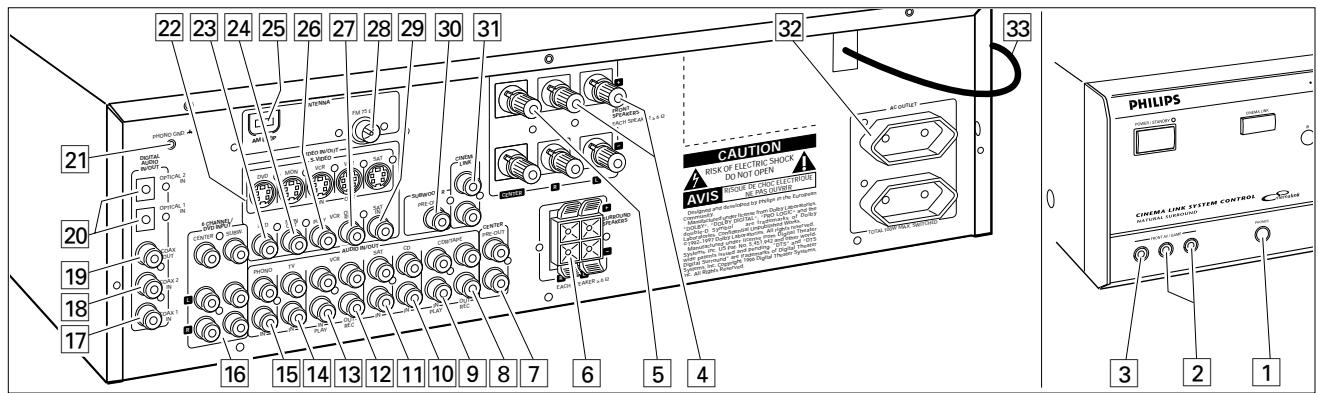
| Connectors | Connectors name | Connect to: |
| 6.3 mm headphone socket at the front | 1 PHONES | A headphone with a 6.3 mm plug. |
| Audio and video inputs at the front (FR 995, FR 996 only) | 2 FRONT AV / GAME | Left and right audio out sockets of appliances such as video cameras and game consoles. |
| 3 FRONT AV / GAME | Video out sockets of appliances such as video cameras and game consoles. | |
| FRONT SPEAKERS | 4 R, L | Right and left front speaker. |
| 5 CENTER | Center speaker. | |
| SURROUND SPEAKERS | 6 R, L | Right and left surround speaker. |
| AUDIO IN/OUT | 8 CDR/TAPE OUT | Input of a CD recorder or a tape deck. |
| 9 CDR/TAPE IN | Output of a CD recorder or a tape deck. | |
| 10 CD IN | Output of a CD player. | |
| 11 SAT IN | Output of a satellite system. | |
| 12 VCR OUT | Input of a video recorder. | |
| 13 VCR IN | Output of a video recorder. | |
| 14 TV IN | Output of a TV. | |
| 15 PHONO IN | Output of a turntable with MM coil. | |
| 21 PHONO GND | Ground cable of a turntable. | |
| 6 CHANNEL / DVD INPUT | 16 6 CHANNEL / DVD INPUT6 channel output of appliances such as DVD or laserdisc players. | |
| DIGITAL AUDIO IN/OUT | 17 COAX 1 IN | Coaxial output of digital appliances (default input for source DVD). |
| 18 COAX 2 IN | Coaxial output of digital appliances. | |
| 19 COAX OUT | Coaxial input of digital appliances such as CD recorders or MD recorders. | |
| 20 OPTICAL IN | Optical output of digital appliances such as DVD players, CD players, CD recorders or MD players (FR 985, FR 986 only). | |
| 20 OPTICAL 1 (2) IN | Optical output of digital appliances such as DVD players, CD players, CD recorders or MD players (FR 995, FR 996 only). | |
| VIDEO IN/OUT | 22 S-VIDEO | S-Video inputs/outputs of video appliances for better video quality (FR 995, FR 996 only). |
| 23 DVD IN | Output of a DVD player. | |
| 24 MON OUT | Input of a monitor (e. g. the TV). | |
| 26 VCR IN | Output of a video recorder. | |
| 27 VCR OUT | Input of a video recorder (for recording). | |
| 29 SAT IN | Output of a satellite system. | |
| Antenna connectors | 25 AM LOOP | Frame antenna supplied. |
| 28 FM 75 Ω | Wire antenna supplied or exterior antenna. | |
| Preamplified outputs | 7 CENTER PRE-OUT | Input of a TV when it is used as the centre speaker (only possible when the CINEMA LINK system bus is connected). |
| 30 SUBWOOFER PRE-OUT | Input of a powered subwoofer. | |
| System control bus | 31 CINEMA LINK | System control bus sockets of a Philips TV with CINEMA LINK. |
| Mains outlets (not on all versions) | 32 AC OUTLET | Supplies same voltage as mains. Up to 100 W total permitted load. |
| Mains lead | 33 | After all other connections have been made, connect the mains lead to the wall socket. |
Analogue audio connections
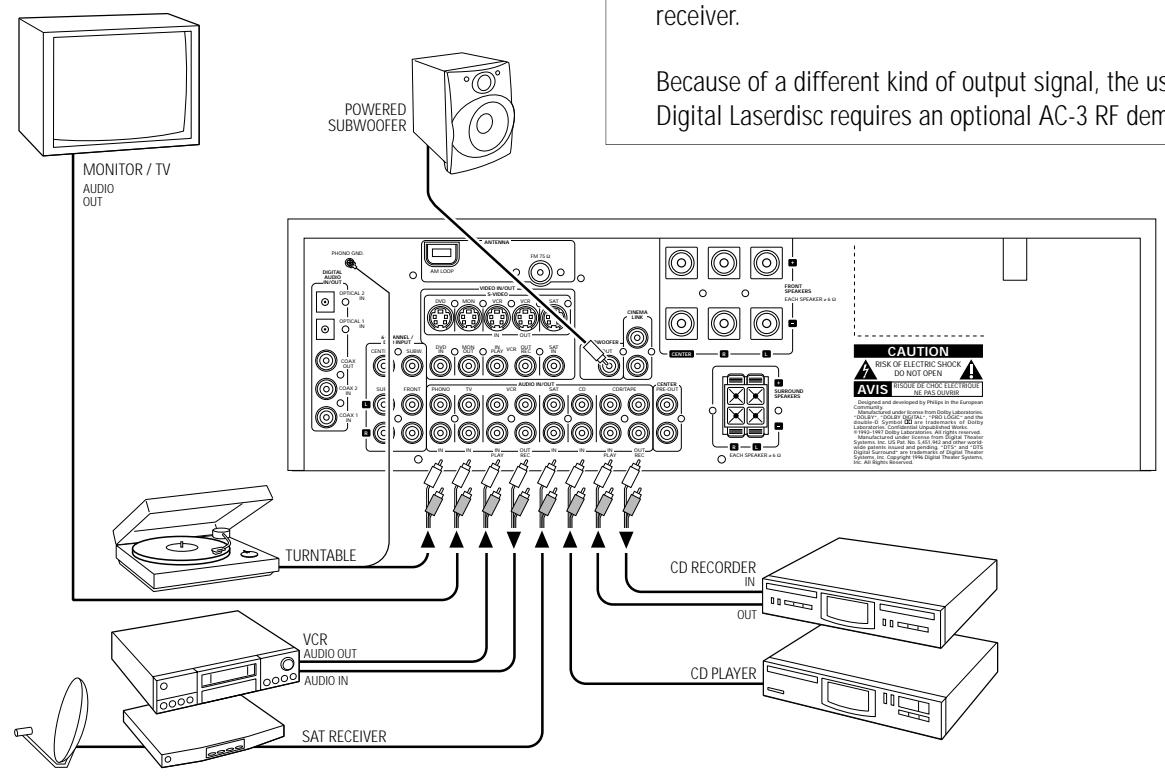
There are analogue and digital connectors available on some appliances. If possible use the digital connection; usually this will result in better sound quality. See "Reassigning a source selection" on how to use the digital connectors of the receiver.
Because of a different kind of output signal, the use of Dolby Digital Laserdisc requires an optional AC-3 RF demodulator.
Digital audio connections
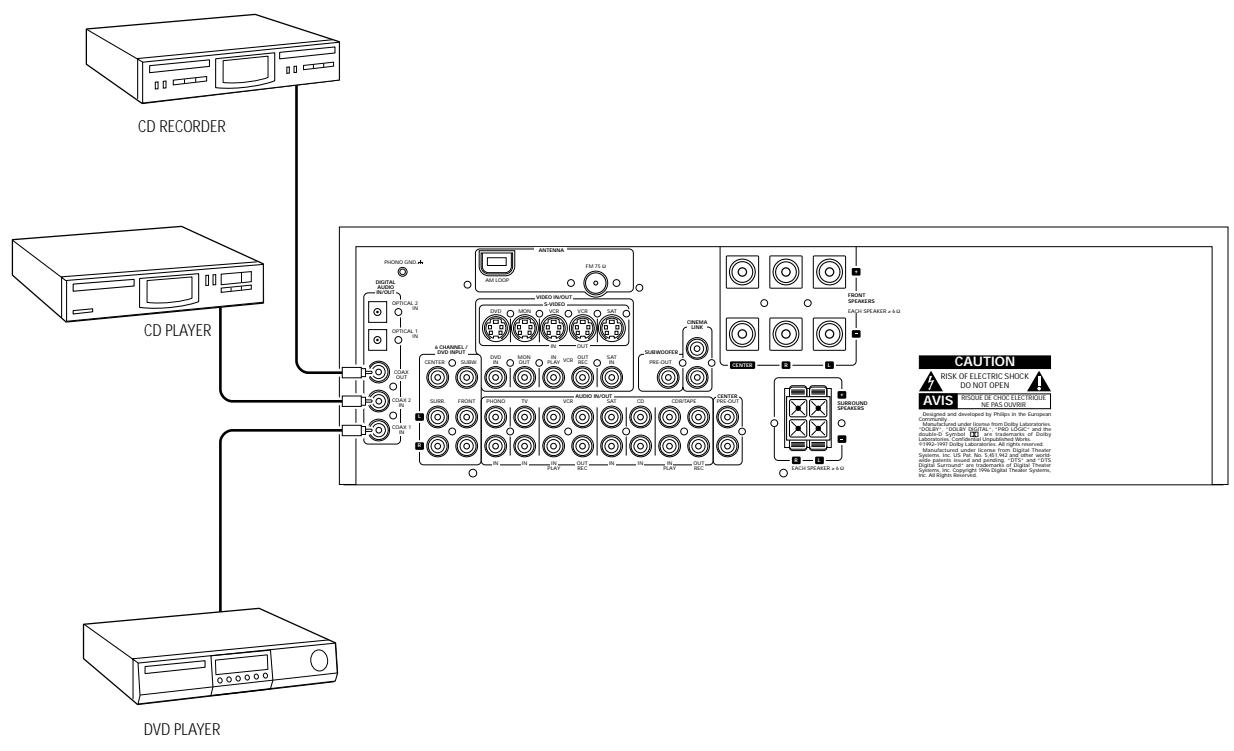
System control bus, CINEMA LINK
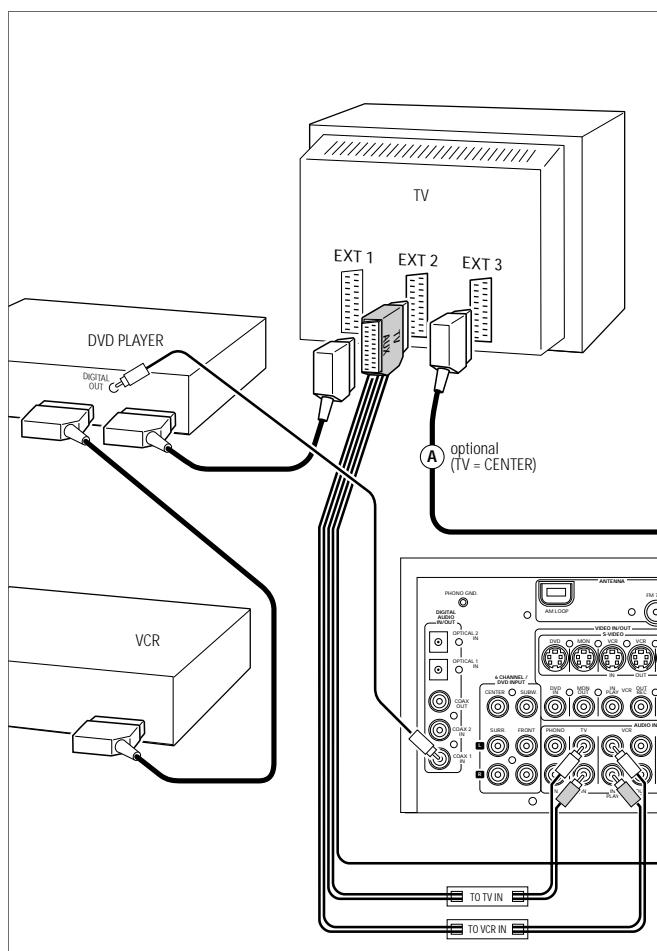
If the receiver and your Philips TV (or even better in addition a Philips VCR or DVD player) with Cinemalink are connected with the CINEMA LINK system bus control, some extra system benefits are offered:
- Upon starting a source, the system will automatically switch to that input.
- You may control the system via the TV screen. Depending on the language of the TV, this can be done in your preferred language.
- The TV can function as the center speaker of your system, making a separate center speaker unnecessary. (The cable (A) has to be purchased separately.)
- By pressing the standby button on the remote control, you can switch the complete system to standby.
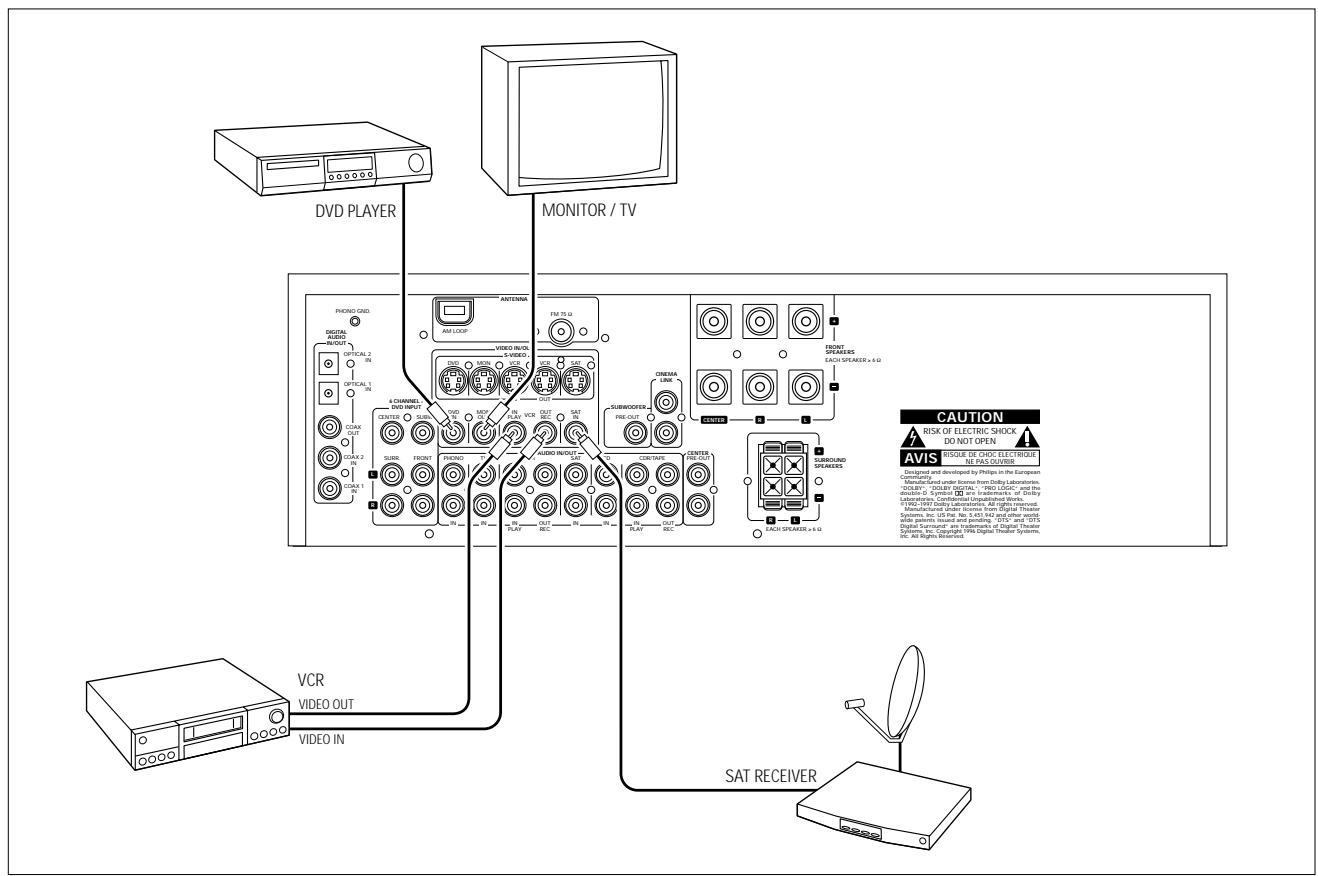
Video connections
Mains
The type plate is located on the rear of the receiver.
1 Check whether the mains voltage as shown on the type plate corresponds to your local mains voltage. If it does not, consult your dealer or service organization.
2 Connect the mains cable to the wall socket.
To disconnect the set from the mains completely, remove the mains plug from the wall socket.
For users in the U. K.: please follow the instructions on page 2.
Speaker connections
Some of the speaker connections on the receiver are screw connectors and some are click-fit connectors. Use them as shown below.
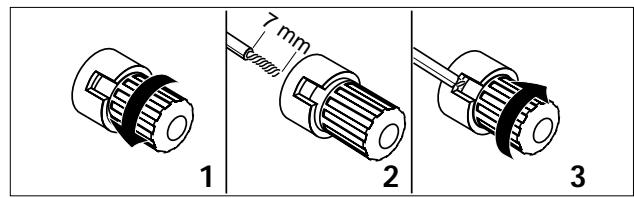
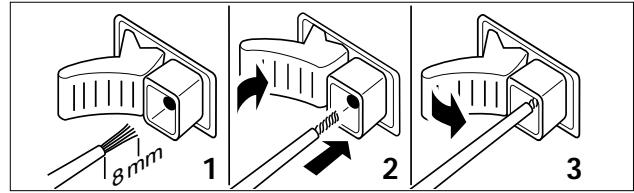
1 Always connect the coloured (or marked) wire to the coloured terminal and the black (or unmarked) wire to the black terminal.
2 Connect:
- Left front speaker to L (red and black)
- Right front speaker to R (red and black)
- Center speaker to CENTER (blue and black)
- Left surround speaker to SURROUND L (grey and black)
- Right surround speaker to SURROUND R (grey and black)
TV as the center speaker
You may use your Philips TV with CINEMA LINK as the center speaker. For TVs with a scart connector an additional audio cinch-to-scart cable is needed. For TVs with cinch connectors additional cinch cables are needed. These cables must be connected to the blue CENTER PRE-OUT connector on the back. Look into the instruction manual of your TV on how to use it as the center speaker.
Antenna connections
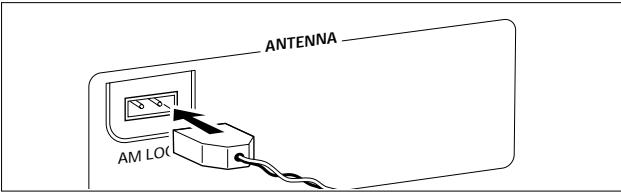
AM (MW) antenna
The loop antenna supplied is for indoor use only. Position the antenna as far away as possible from the receiver, the TV, the cables, a DVD player, a VCR and other radiation sources.
1 Fit the plug of the frame antenna to AM LOOP as shown below.
2 Turn the antenna for optimum reception.
FM antenna
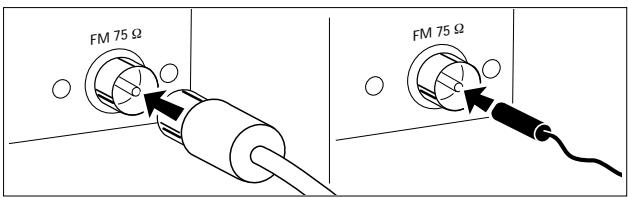
The wire antenna supplied can only be used to receive nearby stations. For better reception we recommend using a cable antenna system or an outdoor antenna.
1 Fit the supplied wire antenna to FM 75 Ω as shown below.
2 Move the antenna in different positions for optimum reception.
- If you are using a cable antenna system or an outdoor antenna, fit the antenna plug to FM 75 instead of the wire antenna.
Positioning of the speakers
General hints for positioning
Avoid positioning the speakers in a corner or on the floor as this will boost the bass tones too much. Placing the speakers behind curtains, furniture, etc. will reduce the treble response. The listener should always be able to "see" the speakers.
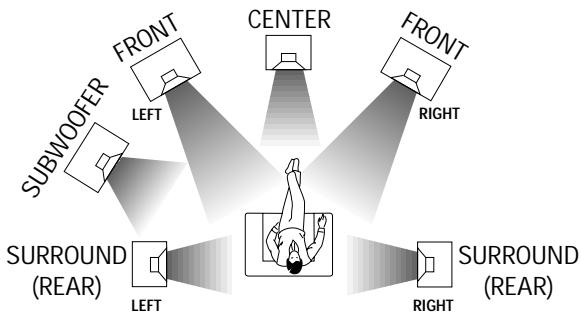
Each room has different acoustic characteristics and the positioning possibilities are often limited. You can find the best position for your speakers by referring to the picture above.
As a minimum we recommend 5 speakers (2 front, a center, 2 surround) for good surround sound. It is possible to reproduce some kind of surround sound with fewer speakers. This is done by redirecting the signals which are foreseen for the missing speakers to the existing ones. See "Menu" on how to set up the receiver correctly for the number and size of the speakers used.
Positioning the front speakers
The front speakers should be placed right and left in front of the listening position like usual stereo speakers.
Positioning the center speaker
The center speaker should be placed in the center between the two front speakers, e. g. underneath or on top of the TV. The best height for the center speaker is the height of the listener's ears (while seated).
Positioning the surround speakers
The surround speakers should face each other and be in line with, or slightly behind the listener.
Positioning the subwoofer
A subwoofer can be used to enhance the bass performance of your system dramatically. The subwoofer can be positioned anywhere in the room, because it is not possible to locate the source of deep tones. Nevertheless, you should not place the subwoofer in the middle of a room, since the bass could be severely weakened. Do not place any object on the subwoofer.
Speaker setup and testing
The relative volume of the speakers must be adjusted for optimal surround sound. You should be at your usual listening position when adjusting the speaker volume. See "Receiver menus" on how to set up the receiver for the used speakers. Ideally, the volume in the listening position should be the same from all speakers.
1 Press POWER / STANDBY to switch on the receiver.
2 Press TEST TONE on the remote control.
→ A test tone coming from the different speakers, except the subwoofer, is heard.
3 Press + / - REAR on the remote control to increase/decrease the volume of the actual speaker. The best result is achieved when all speakers have equal volume in the listening position.
4 Press TEST TONE on the remote control.
The test tone stops.
Note: If you are not completely satisfied with the volume settings, we recommend making minor adjustments to them during surround sound playback.
Power handling
If the receiver is used at very high power it can produce distortions which may seriously damage your speakers. If distortions occur, reduce the volume and the tone controls to a level where the sound is acceptable again.
To avoid overheating of the set a safety circuit has been built in. Therefore your set may disconnect under extreme conditions. If this happens, switch the set off and let it cool down before reusing it.
Headphones
Connecting headphones to PHONES will switch off the speakers. The receiver switches to STEREO and surround sound will be reduced to a stereo signal which is reproducible by standard headphones.
Disconnecting the headphones switches on the speakers again. If you wish to enjoy surround sound again, switch the receiver back to surround sound.
Maintenance
Clean the receiver with a soft, slightly dampened, lint-free cloth. Do not use any cleaning agents as they may have a corrosive effect.
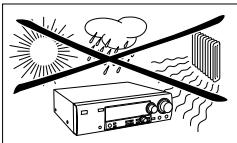
Do not expose the receiver to humidity, rain, sand or excessive heat (caused by heating equipment or direct sunlight).
Display
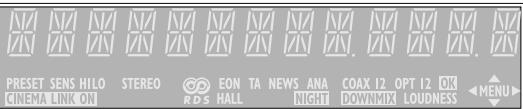
The display of the receiver is divided into 4 sections, which are to be used for the following:
Speaker diagram
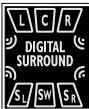
A rectangle with a letter in it shows that a speaker has been selected in the setup menu. However, the subwoofer indicator will only light when a subwoofer signal is available. If only a letter is shown, this speaker is not used and its sound is reproduced by the other speakers.
......virtual surround sound
SURROUND............surround sound is reproduced DIGITAL SURROUND ....digital surround sound is reproduced
L, R.........front left and right speaker
c.......center speaker
SL, SR............surround speakers
sw.........subwoofer
Menu indication

These signs show you if the menu is on or off and indicate in which direction you may move.
MENU.......menu is on
You may move backwards to the previous menu topic using PREV. / EXIT ("left" key on the remote control).
You may move up in an option list using MENU NAVIGATOR ("up" key on the remote control).
You may move down in an option list using MENU NAVIGATOR ("down" key on the remote control).
You may move forward to the next menu topic using NEXT "right" key on the remote control).
OK.You may confirm the displayed value.
Status lights

Signs showing you various settings and information about the status of the receiver.
PRESET.Tuner is tuned to a preset radio station.
SENS HI.Tuner is switched to high sensitivity.
SENS LO.Tuner is switched to low sensitivity.
CINEMA LINK ON.....CINEMA LINK is active
STEREO............An FM station is being received in stereo.
An RDS station is being received.
EON............An RDS station with EON is being received.
HALL.HALL effect is on.
TA.RDS traffic announcement is on
NEWS.RDS news announcement is on
ANA. Analogue input is being used for the playing source.
NIGHT. NIGHT MODE is on.
COAX 1. Coaxial digital input COAX 1 is being used for the playing source.
COAX 2............Coaxial digital input COAX 2 is being used for the playing source.
DOWNMIX. Incoming multi channel signals are being reduced to fewer output signals (depending on the number of speakers).
Optical digital input OPTICAL IN is being used for the playing source (FR 985, FR 986 only).
Opt 1 Optical digital input OPTICAL 1 IN is being used for the playing source (FR 995, FR 996 only).
OPT 2 Optical digital input OPTICAL 2 IN is being used for the playing source (FR 995, FR 996 only).
LOUDNESS LOUDNESS is switched on.
Information area

This area is used for feedback of the receiver, tuner frequencies, menu options, values and scrolling text messages.
Receiver menu
The receiver is equipped with a menu system. The menu is used for the setup of the receiver. The different menu options are related to each other in a logical way. Let's assume you have no center speaker connected, and therefore switched CENTER SPEAKER to NO. If you try to use VOL CENTER, a message will be scrolled that this is not possible (INSTALL CENTER SPEAKER).
The menu always works the same way. Arrows in the display show you the possible moving directions.
1 Press SETUP MENU.
→-MENU,and *EFFECTSisdisplayed.
- You can exit the menu at any time by pressing SETUP MENU.
2 Turn MENU NAVIGATOR until the desired option (or a value) is displayed.
3 Press NEXT to choose the displayed option (or ENTER / OK to confirm a value).
- You can leave any option (values remain unchanged) by pressing PREV. / EXIT.
Menu structure
- EFFECTS
Switches sound effects.
VIRT SUR
virtual surround: 0...100%
VOL BALANCE
Adjusts the relative volume balance between the connected speakers.
TEST TONE
Test tone: on/off
VOL FRONT-L
Volume front left speaker: -50...+50
VOL FRONT-R
Volume front right speaker: -50...+50
VOL CENTER
Volume center speaker: -50...+50
VOL REAR-L
Volume rear left speaker: -50...+50
VOL REAR-R
Volume rear right speaker: -50...+50
VOL SUBWOOFER
Volume subwoofer: -50...+50
Note: When using the 6 CHANNEL / DVD INPUT the values below cannot be changed.
SPERKRSETUP
Selects the used speakers.
SUBW PRESENT
Subwoofer present: yes/no
CENTER SPEAKR
Center speaker present: yes/no
—REAR SPEAKER
Rear speakers present: yes/no
- SPEAKR SIZES
Chooses the speaker sizes of the used speakers, for optimal sound reproduction. LARGE indicates a speaker which can reproduce frequencies lower than 50Hz . If SUBW PRESENT is set to NO, FRONT SIZE can only be set to LARGE. If FRONT SIZE is set to SMALL, CENTER SIZE can only be set to SMALL and consequently a subwoofer must be connected.
—FRONT SIZE
Left and right front speakers: small/large
CENTER SIZE
Center speaker: small/large
一REAR SIZE
Rear speakers: small/large
SPK DISTANCE
| Distance between the usual listening position and the
speakers. This defines the delay time for the surround sound.
DISTANCE L/R
Distance to front speakers: 1...10 m
DISTANCE CNTR
Distance to center speaker: 1...10 m
DISTANCE REAR
Distance to rear speakers: 1...10 m
*SELECT INPUT
Assigns the audio input connectors to the different source selections chosen with SOURCE SELECT (see “SOURCE SELECTION” for details).
C09X1
Digital coaxial input 1, COAX 1 IN
C08x2
Digital coaxial input 2, COAX 2 IN
P^T (FR 985, FR 986 only)
Digital optical input, OPTICAL IN
PT (FR 995, FR 996 only)
Digital optical input, OPTICAL 1 IN
PT 2 (FR 995, FR 996 only)
Digital optical input, OPTICAL 2 IN
SRT IN
Analogue audio input SAT IN
VCR IN
Analogue audio input VCR IN
TIVIN
Analogue audio input TV IN
IN
Analogue audio input CDR IN
[]IN
Analogue audio input CD IN
GCHIN
Analogue audio input 6 CHANNEL / DVD INPUT
TUNER
Setup for preset radio stations (see "TUNER" for details).
AUTO INSTALL
Stores radio stations automatically
MAN INSTALL
Stores radio stations manually
GIVE NAME
Allows to assign names to stored radio stations
RESHUFFLE
Resorts stored radio stations
TV menu
If the receiver is connected to a Philips CINEMA LINK TV via the CINEMA LINK system control bus sockets (see "CONNECTIONS"), you may use the TV to set up the system. An option called RECEIVER will be added to the TV menu.
If CINEMA LINK is on, adjustments on the receiver will be shown on the TV screen for a few seconds. Consult the instruction booklet of your TV on how to use the TV menu. The options offered may vary by TV model.
Switching the connection
- Press CINEMA LINK to switch the connection between the receiver and the TV either on or off.
If the connection is switched on, CINEMA LINK ON is displayed.
Note: We recommend switching CINEMA LINK off during recording. This avoids unwanted interruptions due to switching TV functions.
If CINEMA LINK is switched on and the TV menu is active, TV MENU is displayed and the menu and sound functions on the receiver are locked.
SOURCE SELECT
When selecting a source by turning SOURCE SELECT, the audio and video inputs with the corresponding name are activated. The incoming signal is reproduced by all audio and – if the source includes a video signal – video outputs of the receiver. It is possible to reassign a source selection to other than these standard inputs.
Source selected.....Connectors used
DVD COAX 1 digital audio input and DVD IN video input
PHONO.........PHONO IN audio input
TUNER The tuner part of the receiver is used, all inputs are switched off.
CD CD IN audio input
CDR/TAPE............CDR/TAPE IN audio input
TV. TV IN audio input and no video input
VCR VCR IN audio input and VCR IN video input
SAT SAT IN audio input and SAT IN video input
6 CHANNEL / DVD INPUT selection
The 6 CHANNEL / DVD INPUT connectors can be assigned to any of the available sources (excluding TUNER and PHONO). The assignment can be done via the SELECT INPUT option in the menu. See below for more details.
Reassigning a source selection
If a source is selected with SOURCE SELECT the standard audio input is used. To change this, the source selection must be reassigned to another audio input.
Example: Reassigning [ ] from the analogue CD IN audio input to the digital COAX 2 IN audio input.
1 Choose SELECT INPUT from the menu and press NEXT
2 Turn SOURCE SELECT to select the source which should be reassigned (e.g. ).
The name of the source is displayed and the light of the source flashes.
3 Turn MENU NAVIGATOR to select the input connectors which should be used (e.g. [B] -- [C0Rx2]).
4 Press ENTER / OK to confirm your selection.
→STORER is displayed briefly.
5 This source selection is now using the chosen audio input (e.g. uses the COAX 2 IN input connectors, COAX 2 lights when switching to CD).
Using one source selection for two or more appliances
You may assign more than one source to a source selection. This can be useful when products are connected one after the other in a chain.
Example: A VCR is connected to the TV but only the TV is connected to the receiver. Both SOURCE SELECT settings, TV as well as VCR, have to use the TV input connectors.
1 Choose SELECT INPUT from the menu and press NEXT
2 Turn SOURCE SELECT to select the source which should be reassigned (e.g. ^ ).
The name of the source is displayed and the light of the source flashes.
3 Turn MENU NAVIGATOR to select the input connectors which should be used (e.g. L^^ -- TIN).
4 Press ENTER / OK to confirm your selection.
→STORE is displayed briefly.
5 This source selection is now using the chosen audio input (e.g. VCR uses the TV IN input connectors, VCR (TV IN) is displayed briefly when switching to VCR).
About 6 CHANNEL / DVD INPUT
The 6 CHANNEL / DVD INPUT can be used to connect a device with a built-in multichannel decoder (e.g. Dolby Digital, DTS, etc.) and 6-channel output connector, i.e. a high end DVD player.
When using the 6 CHANNEL / DVD INPUT audio input, the receiver works as a multichannel amplifier. The source reproduces surround sound and sends it to the receiver divided into the necessary channels. Therefore the SURROUND ON/OFF, HALL and SURR. MODE button have no effect since the provided signal is already multichannel.
From a source which is connected to the 6 CHANNEL / DVD INPUT audio input cannot be recorded.
Playing a source
1 Press POWER / STANDBY to switch on the receiver.
2 Turn SOURCE SELECT to select a source. The name of the source is displayed.
- You can select the FRONT AV / GAME input by pressing FRONT AV (FR 995, FR 996 only).
3 Start playback of the source as usual.
Adjusting the sound
- Turn VOLUME to adjust the volume.
VOLUme and the volume level between and 50 is displayed.
1 Press BASS or TREBLE.
→BASS or TREBLE and the actual value are displayed briefly. Then TURN VOLUME KNOB TO CHANGE is scrolled.
2 Turn VOLUME to adjust the bass or treble.
→BASS or TRE BLE and the actual value are displayed.
Note: If VOLUME is not turned within 5 seconds or if any other control is used, the bass or treble adjustment is switched off.
- If a subwoofer is connected, press SUBW. ON/OFF to increase the bass performance.
Note: In case of digital surround sound, a subwoofer signal will only be available when supported by the source material. - Press LOUDNESS to switch loudness either on or off.
LOUDNESS is displayed if loudness is on.
Recording from a source
If you wish to record from a source you must select it with SOURCE SELECT. The incoming signal is reproduced by all audio and – if the source includes a video signal – video outputs of the receiver. The sound settings do not affect the recording.
1 Turn SOURCE SELECT (or press FRONT AV - FR 995, FR 996 only) to select the source you want to record from.
The name of the source is displayed.
2 Prepare the desired recording appliance. It must be connected to one of the outputs of the receiver.
3 Start recording on the recording appliance.
4 Start the playback of the source as usual.
Notes: – The audio and video signal of VCR IN is not reproduced by VCR OUT. The same applies to the audio signal of CDR/TAPE IN to CDR/TAPE OUT.
- We recommend not to use the digital output COAX OUT of the receiver to record from an analogue source. Use the analogue output CDR/TAPE instead.
- From a source which is connected to the 6 CHANNEL / DVD INPUT audio input cannot be recorded.
Recording from the digital output
It is possible to connect a digital recorder to the digital output of the receiver. In this way, all signals coming from the digital inputs can be recorded directly on the connected audio recorder. The receiver will also convert all signals coming from the analogue inputs to the digital output.
The receiver can be used to record digitally a multichannel surround sound audio signal (Dolby Digital, DTS or MPEG) from, for example, DVD to CD-R. The receiver will convert the digital multichannel signal into a stereo signal without loss of relevant sound information.
Notes: - When recording a Dolby Digital, DTS or MPEG signal, each track must be recorded individually.
- Digital recording is not possible when the digital source material is copy-protected.
About surround sound
Surround sound gives you a complete new listening sensation. You will have the feeling of being in the middle of the action, because sound is coming from everywhere around you. Look out for TV broadcasts, audio and video tapes and discs with the DOLSY SURROUND, DIGITAL, or MPEG Multichannel marks which are encoded for multichannel surround sound. You should prefer Dolby Digital, DTS or MPEG Multichannel to get the best out of your receiver.
The FR 985, FR 986, FR 995 and FR 996 are able to reproduce DTS surround sound. DTS is a premium multichannel surround sound system available on DVD discs, laserdiscs and audio discs. Consult your software dealer on the availability of DTS software in your region.
Notice that DVD discs do not always carry full multichannel surround. To be sure that a disc is multichannel encoded consult your dealer.
Most ordinary stereo tapes and discs can be replayed using surround sound settings with good results. If the reproduction is distorted in surround mode, switch to normal stereo mode.
The availability of the various surround sound modes described depends on the number of speakers used and the incoming sound information.
Switching surround sound
With surround sound on, you can switch through the different surround modes. Note that the possibilities are related to speaker setup defined in the receivers menu.
If a digital surround signal is detected, the receiver will scroll either DOL BY DIGITAL, BTS or MPEG.
1 Press SURROUND ON/OFF to switch on the surround sound.
The surround mode in use is scrolled.
2 Press SURR. MODE repeatedly to listen to the different surround modes (if available).
The chosen mode and the speakers used are displayed. If the incoming multichannel signals are reduced to fewer output signals, DOWNMIX is displayed.
3 Press VIRTUAL MODE as often as necessary to switch through the virtual surround sound modes:
1xtoactivate30SURRUXO
2x to activate MULTI FRONT
3x to activate MULTI REAR
4× to activate NATURAL SURROUND
→A light indicates if a virtual surround sound mode is on.
- signs indicate which virtual surround sound mode is active.
4 Press SURROUND ON/OFF to switch off the surround sound.
SURROUND OFF is scrolled.
Surround sound settings
HALL
The sound reproduction is enhanced and a slight echo is added. This gives the impression of being in a large room. Can only be used in stereo mode.
SURROUND
The surround mode enables normal surround sound reproduction with 4 or 5 speakers. Depending on the source material, Dolby Surround Pro Logic, Dolby Digital, DTS or MPEG is reproduced.
PRO LOGIC, DOLBY DIGITAL, BTS, MPEG In addition to SURROUND, the surround mode used - depending on the source material - will be displayed. In case of digital surround, the sound format AC-3 (for Dolby Digital), DTS or MPEG (for MPEG 2 Multichannel) will be displayed, followed by the sound channels, available on the source (e.g. DVD).
Example: RC--3 3/2.1 Dolby Digital, 3 front channels, 2 surround channels and a subwoofer channel.
MPEG 2/0.0 MPEG Multichannel, stereo sound only.
RC--3 3/10 Dolby Digital, 3 front channels, 1 (mono) surround channel without subwoofer signal.
DTS 3/2.1 DTS, 3 front channels, 2 surround channels and a subwoofer channel.
FRONT-3 STEREO
The surround sound is muted. 3 Stereo lets you listen to surround sound without using the surround speakers.
STEREO
All sound is reproduced and played through the front left and right speakers. This enables standard stereo reproduction.
Virtual Surround
Your receiver is able to reproduce one or more forms of virtual surround sound. Virtual surround gives a more real life sound impression by creating phantom speakers in addition to or instead of real speakers. The position of the listener influences the surround effect. The area where the effect is best is shown in grey.
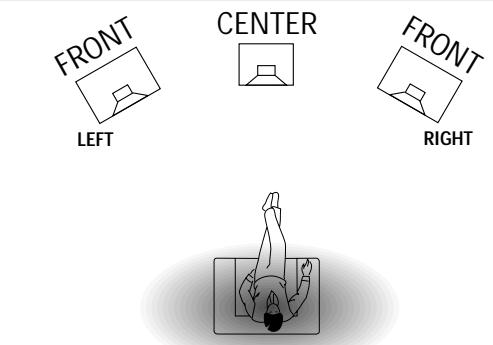
The level of virtual surround sound effect can be adjusted in the setup menu. The following surround sound modes are available:
3 SURROUND
No rear speakers are needed. The sound of the rear channel is simulated by the front speakers. Surround sound is simulated through the front left, right and center speakers.
MULTI FRONT
Phantom speakers are created next to the left and right front speaker.
MULTI REAR
Phantom speakers are created next to the left and right rear speaker.
NATURAL SURROUND
Phantom speakers are created next to the left and right front and rear speakers.
Note: The availability of MULTI FRONT and MULTI RERR depends on the sound channels on the source material.
NIGHT MODE (only on the remote control)
The loud parts of the sound are lowered and the soft passages are raised. You can enjoy surround sound without disturbing sleeping children or neighbours. Night mode only works with Dolby Digital and MPEG, and only if supported by the source material.
Tuning to radio stations
You can search for radio stations by scanning the frequency band. You can also key in the frequency of a known radio station. If an FM station is being broadcast and received in stereo, STEREO is shown.
Searching for radio stations
1 Turn SOURCE SELECT to select the tuner.
TUNER is displayed.
2 Select a waveband by pressing TUNER AM/FM repeatedly.
The selected waveband is displayed.
3 Keep or pressed for approximately 1 second.
→SEARCH is displayed and the tuner tunes to a station with sufficient strength.
4 Repeat this procedure until you find the desired station.
- To fine tune to a weak transmitter, briefly press or as often as necessary for optimum reception.
Tuning to a radio station by frequency (with the remote control only)
1 Press TUNER.
TUNER is displayed.
2 Press FR. D..
- is displayed.
3 Use 1-0 to key in the frequency of a radio station.
Note: Only valid numbers within the frequency range of the tuner can be keyed in.
Switching FM sensitivity
You can switch the tuner to a lower search sensitivity, to search only for stations with a strong signal (FM only).
1 Turn SOURCE SELECT to select the tuner.
TUNER is displayed.
2 Press SENS. on the receiver.
Either SENS HI or SENS LO is displayed for 5 seconds.
Note: While searching for radio stations, the actual sensitivity is displayed. In this case, SENS LO means the tuner is only looking for radio stations with a strong signal.
Storing radio stations
You may store up to 30 radio stations in the memory. The receiver can select and program radio stations by itself or you can choose them yourself.
Automatic programming
1 Choose TUNER from the menu and press NEXT.
2 Choose AUTO INSTALL and press NEXT
The preset number where programming will start, the waveband and RUTO are displayed.
3 Turn TUNER PRESET to change the preset number where programming should start.
4 Use TUNER AM/FM to switch to the desired waveband.
5 Press ENTER / OK to start programming.
→RTO INSTALL flashes and all available radio stations are programmed, this may take a few minutes. Programming is done when RTO INSTALL stops flashing.
Manual programming
1 Choose TUNER from the menu and press NEXT.
2 Choose MAN INSTALL and press NEXT
A preset number, the waveband and the frequency are displayed.
3 Turn TUNER PRESET to change to the preset number where the radio station should be stored.
4 Tune to the desired radio station (see "Searching for radio stations").
5 Press ENTER / OK to confirm your selection.
→STORE is displayed briefly. The radio station is programmed at the chosen preset number.
6 Select and store all desired radio stations this way.
Tuning to stored radio stations
1 Turn SOURCE SELECT to TUNER to select the tuner. TUNER is displayed.
2 Turn TUNER PRESET to select a preset radio station. PRESET, the preset number and station are displayed.
Resorting stored radio stations
After programming radio stations, you might want to change their sequence. RESHUFFLE allows you to exchange the positions of presets.
1 Choose TUNER from the menu and press NEXT.
2 Choose RESHUFFLE and press NEXT PRESET, a preset number and station are displayed.
3 Turn TUNER PRESET to select a preset station.
4 Press ENTER / OK to confirm the selection.
→The selected preset number SWRP (--) and a second preset number are displayed.
5 Turn TUNER PRESET to select the other preset station.
6 Press ENTER / OK to confirm the exchange.
→RESHUFFLE is displayed briefly and these two preset numbers are swapped.
Naming radio stations
It is possible to assign a name to any of the preset radio stations. RDS station names also can be overwritten.
1 Choose TUNER from the menu and press NEXT.
2 Choose GIVE NAME and press NEXT A preset radio station is displayed.
3 Turn TUNER PRESET to select the preset to be renamed.
4 Press ENTER / OK to confirm your selection.
→The existing name or _____ is displayed.
5 Turn TUNER PRESET to select a letter and NEXT or PREV. to move to the next or previous position.
6 After you have entered the entire name, press ENTER / OK to confirm.
→STORE is displayed and the name is stored.
Note: If you want to use the transmitted RDS station name again, simply clear the given name.
Clearing station names
1 Use the menu option * TUNER, choose GIVE NAME. →A preset radio station is displayed.
2 Turn MENU NAVIGATOR to select the name to be cleared.
3 Press ENTER / OK to confirm your selection.
4 Press PREV. while the first letter is flashing. CL is flashing to the left of the station name.
5 Press ENTER / OK to clear the station name. Or, if you have changed your mind, press PREV. to leave the station name as it is.
RDS
Radio Data System is a service that allows FM stations to send additional information. If you are receiving an RDS station, and the station name are displayed.
Switching through different RDS information
- Press RADIO TEXT on the receiver repeatedly to switch through the following information (if available):
Radio text messages
RDS clock
Frequency
- Station name
Note: The time signal broadcasted from certain RDS stations may not always be accurate.
RDS News and Traffic Announcement
It is possible to set up the tuner in such a way that any playback is interrupted by news or traffic information of a chosen RDS station. Announcement functions only work if the necessary RDS signals are being broadcast.
If RDS stations are also carrying an EON signal (Enhanced Other Networks), EON is displayed. This signal enables the tuner to search not only the chosen RDS station, but the whole EON station network for news and traffic information.
1 Tune to the desired RDS station.
2 Press NEWS/TA:
Once to display NEWS, this switches on the news announcement function.
Twice to display TA, this switches on the traffic announcement function.
Three times to display TA and NEWS, this switches on both announcement functions.
3 Select and play any other source as usual.
→ While news or traffic information is being broadcast the receiver will switch to tuner and NEWS or TA will flash.
4 Press NEWS/TA until the display indication disappears to switch off the function(s).
or
Press NEWS/TA during an announcement to switch off the function(s).
Note: Be sure to switch the news and traffic announcement off during recording, otherwise these announcements also will be recorded.
Receiver
Subject to modification without notice.
General
Power consumption (FR 985, FR 986) 210 W
Power consumption (FR 995, FR 996) 255 W
Standby power consumption. < 2W
Dimensions, w × h × d 435 × 135 × 350 mm
Weight (FR 985, FR 986) .8.6 kg
Weight (FR 995, FR 996) 9.4 kg
Amplifier part (0.7% THD, 6 Ω, 1 kHz)
Output power, stereo mode (FR 985, FR 986) (DIN)...2 × 60 W
Output power, surround mode (FR 985, FR 986)
Front 2x60W
Center 60 W
Surround. 2× 60W
Output power, stereo mode (FR 995, FR 996) (DIN)....2 × 100 W
Output power, surround mode (FR 995, FR 996)
Front 2x100W
Center 100 W
Surround. 2× 100W
Bass. ± 9 dB at 100Hz
Treble. ± 9 dB at 10kHz
Loudness....+6 dB at 100 Hz (-30 dB); +3 dB at 10 kHz (-30 dB)
Total harmonic distortion. 0.05% at 1 kHz, 5 W
Frequency response 20-20,000 Hz, ±1 dB
S/N ratio. 82 dB
Stereo separation (1 kHz) 245 dB
Crosstalk (1 kHz) -65 dB
Inputs
Linear inputs. 250 mV/47 kΩ
6 CH 250 mV/40 kΩ
Front AV (FR 995, FR 996 only) .250 mV/22 kΩ
Phono .5 mV/47 kΩ
Digital coaxial 75Ω acc.IEC 958
Digital optical . Toslink
Digital sampling frequency
(FR 985, FR 986 only) .32 kHz, 44.1 kHz, 48 kHz
Digital sampling frequency
(FR 995, FR 996 only)………32 kHz, 44.1 kHz, 48 kHz, 96 kHz
Outputs
Power supply AC outlets (switched) .......totally max. 100 W
Linear outputs. 250 mV/1 kΩ
Digital coaxial 75Ω acc.IEC 958
Digital output sampling frequencies
Analogue in .out 48 kHz
Digital in 32 kHz . .out 32 kHz
Digital in 44.1 kHz .out 44.1 kHz
Digital in 48 kHz . .out 48 kHz
Digital in 96 kHz (FR 995, FR 996 only)……out 48 kHz
Subwoofer pre-out. 0.8 V/1 kΩ
Center pre-out. 0.8 V/1 kΩ
Headphones. 8-600 Ω (3 V e.m.f., 60 Ω)
Speakers. 6
Tuner part
Wave range FM. .87.5-108.0 MHz
MW. 531-1,602 kHz
LW. 153-279 kHz
Sensitivity Stereo FM .41 dBf
Mono FM. 15 dBf
Total harmonic distortion Stereo FM .0.3%
Mono FM. 0.85%
Frequency response .63-12,500 Hz ± 1 dB
S/N ratio Stereo FM. 55 dB
Mono FM. 60 dB
Channel separation 35 dB at 1 kHz
WARNING
Under no circumstances should you try to repair the set yourself as this will invalidate the guarantee. Do not open the set as there is a risk of electric shock.
If a fault occurs, first check the points listed, before taking the set for repair.
If you are unable to solve a problem by following these hints, consult your dealer or service centre.
| PROBLEM | POSSIBLE CAUSE | SOLUTION |
| No sound | VOLUME is not correctly adjusted. | Adjust the VOLUME. |
| Headphones are connected. | Disconnect headphones. | |
| The wrong source is selected. | Turn SOURCE SELECT to select the correct source. | |
| No sound on the left or right side | One speaker is wrongly connected. | Connect the speaker properly. |
| A speaker cable is damaged. | Replace the cable. | |
| Volume balance in the receiver menu is wrongly adjusted. | Adjust VOL FRONT-L and VOL FRONT-R in the receiver menu. | |
| Poor sound or no sound at the center or surround speakers | SURROUND mode is not switched on. | Press SURROUND ON/OFF to switch on the surround sound. |
| Surround and/or center speakers are not (properly) connected. | Connect the speakers properly. | |
| Surround and/or center speakers are switched off in the SPEAKR SETUP menu. | Set speaker present to YES. | |
| A speaker cable is damaged. | Replace the cable. | |
| Poor bass sound | Speakers are not in phase. | Connect the coloured (or marked) wires to the coloured terminals and the black (or unmarked) wires to the black terminals. |
| Bad sound | Badly matching setting for the given type of music or sound. | Correct the sound settings on the receiver. |
| Surround sound level is too low or too high | The level of the surround sound is not properly adjusted. | Adjust the level of the surround sound on the receiver. |
| Center sound level is too low or too high | The sound level of the center channel is not properly adjusted. | Adjust the level of the center channel on the receiver. |
| Only center speaker is heard in Dolby Surround Pro Logic | A mono signal is reproduced. | Choose a different sound source or switch off surround sound. |
| Bad radio reception, automatic programming does not work properly | Receiver or antenna is positioned near a radiation source such as a TV, CD player, CD recorder, DVD player, etc. | Change the position of the interfering unit or try to switch it off. |
| No digital recording possible via digital output | The sampling frequency is not accepted by the digital recorder. | Make sure the digital recorder can handle sampling frequencies between 32 kHz and 48 kHz or make the recording via analogue output. |
| Whole recording appears as one track when recording from DVD disc | The DVD player does not provide track information. | Record each track individually or use the "manual track increment" feature on the recorder. |
Généralités
PHONO, TUNER, CD, CDR/TAPE, TV,
SUBW. ON/OFF Active/désactive le subwoofer.
sw.........subwoofer
Indication de menu

- VOL BALANCE (volume balance)
PHONO............Entree audio PHONO IN
Coaxial digital. 75 Ω conf. IEC 958
Optico-digital . Toslink
(FR 985, FR 986) .32 kHz, 44.1 kHz, 48 kHz
(FR 995, FR 996) 32 kHz, 44,1 kHz, 48 kHz, 96 kHz
Salidas
Coaxial digital. 75 Ω conf. IEC 958
(FR 985, FR 986) 32 kHz, 44.1 kHz, 48 kHz
Digitale Sampling-Rate
(FR 995, FR 996) 32 kHz, 44,1 kHz, 48 kHz, 96 kHz
Ausgange
Stromanschlüsse (geschaltet) ..... total max. 100 W
Receiver-menu 103-104
TV-menu 104
Bronkeuze
SOURCE SELECT 105
Over surround sound 107
Digital Theater Systems, Inc. Copyright 1996 Theater
sw.........subwoofer
Menu-indications

MENU .het menu is geopend
CINEMA LINK ON.....CINEMA LINK is ingeschakeld
(FR 985, FR 986) .32 kHz, 44.1 kHz, 48 kHz
Digitale bemonsteringsfrequentie
(FR 995, FR 996) 32 kHz, 44,1 kHz, 48 kHz, 96 kHz
Uitgangen
SL, SR ...altoparlanti surround
sw......il subwoofer
Distorsione armonica totale. 0,05% a 1 kHz, 5 W
(FR 995, FR 996) 32 kHz, 44,1 kHz, 48 kHz, 96 kHz
Uscite
Prese di alimentazione AC (collegato) . . . . . . . . . . . . . . . . . . . . . . . . . . . . . . . . . . . . . . . . . . . . . . . . . . . . . . . . . . . . . . . . . . . . . . . . . . . . . . . .
Uscite lineari. 250 mV/1 kΩ
Digitale coassiale 75 Ω conf. IEC 958
Digitale in 32 kHz .out 32 kHz
Digitale in 44,1 kHz...out 44,1 kHz
Digitale in 48 kHz... .out 48 kHz
Digitale in 96 kHz (solo per FR 995, FR 996) ....out 48 kHz
Subwoofer pre-out. 0,8 V/1 kΩ
Centro pre-out. 0,8 V/1 kΩ
Cuffie 8-600 (3 V f.m.e., 60 )
Altoparlanti. 6
Sintonizzatore
United Artists. .0034
Universal. 0234, 0049, 0083, 0218, 0180
Viewstar .0285, 0054, 0090
Westminster. 0132
Zenith. 0027, 0552, 0081, 0035, 0042, 0234
Zentek. .0427
CD
ADC. .0045
Adcom. .0261,0182
Aiwa .0151,0039,0184
Akai. .0183
Anthem. 0924
Audio Alchemy. 0221
Audio-Technica.0197
BSR. .0272,0221
Burmester .0447
California Audio Lab....0056
Carrera. 0221
Carver .0184,0206,0464
Craig. .0642
Crown .0149
Curtis Mathes. 0056
DAK. 0272
DBX. 0281
DKK. .0027
Denon .0030,0061,0900
Emerson. 0182, 0191, 0332, 0496
Fisher .0115, 0206, 0201, 0369
GE .0036
Garrard. 0307, 0272, 0420, 0447, 0452
Genexxa. .0059, 0191, 0332
GoldStar. 0444
Harman/Kardon.0200,0184,0453
Hitachi .0059, 0182
JVC. 0099, 0682, 0685
Kenwood. .0055, 0217, 0708, 0853, 0064
Kodak. 0314
Krell .0184
Kyocera. 0045
LXI. .0332
Linn. .0184
Luxman .0120
MCS. .0056, 0070
MGA .0110
MTC. 0447
Magnavox. 0184, 0553, 0332
Marantz. 0184, 0056, 0207, 0462
McIntosh. 0314
Mission. .0184
Mitsubishi.0110
NAD. 0046
NEC. 0261, 0070
NSM .0184
Nakamichi. 0174
Nikko. .0197, 0191, 0201
Onkyo. 0128, 0895
Optimus .0447,0495,0059,0453,0206,0223
0464, 0202, 0332, 0064, 0114, 0172,
0221, 0307, 0369, 0027
Panasonic .0056, 0394, 0330, 0779
Parasound. .0447, 0221
Philips. .0184, 0314
Pioneer. 0059, 0495, 0271, 0332
Proscan. .0080
Proton .0184
QED. .0184
Quasar .0056
RCA. 0080, 0332, 0036, 0182, 0206, 0791
Realistic. 0182, 0202, 0191, 0206, 0207, 0447
Rotel .0184,0447,0924
SAE. .0184
STS. .0045
Sansui. 0229, 0184, 0332
Sanyo. .0114, 0206
Scott .0191,0182,0332
Sears. 0332
Sharp .0064, 0207, 0888
Sherwood .0141, 0207, 0223, 0453
Shure .0070
Sony. 0027, 0212, 0631, 0517, 0632
Soundesign. .0172, 0452
Sylvania. 0184
Tascam. .0447
Teac .0420,0447,0201,0207
Technics. 0056, 0330, 0234
Toshiba .0046
Vector Research .0221, 0444
Victor .0099
Wards. 0080, 0184
Yamaha. 0214, 0063, 0197
Yorx. .0488
Zenith. .0642
TAPE
Aiwa .0224,0227,0056
Akai. 0310
Carver .0056
Denon .0103
Fisher. .0101
Garrard. .0335, 0466
Harman/Kardon. 0209, 0056
JVC.0271,0300
Kenwood. .0098, 0097, 0260
Magnavox. .0056
Marantz .0056,0036
Mitsubishi. 0310
NAD. 0171
Onkyo. 0162, 0163, 0309
Optimus .0247, 0054, 0364, 0466
Panasonic .0256
Philips. .0056
Pioneer. .0054,0247,0126
Proscan .0053
RCA. .0053
Revox. 0217
Sansui. 0036, 0056
Sharp .0258
Sherwood .0364
Sony. .0270, 0197, 0318
Teac .0335, 0316
Technics. .0256
Victor .0300
Wards .0054
Yamaha. .0121, 0124
DVD
Harman/Kardon.0609
JVC.0585
Kenwood. .0561
Magnavox. .0530
Mitsubishi. 0548
Onkyo. .0530
Optimus .0552
Panasonic .0517
Philips. .0566, 0530
Pioneer. 0552, 0598
Proscan .0549
RCA. .0549
Samsung. .0600
Sony. .0560
Technics. .0517
Thomson .0578
Toshiba .0530
Yamaha. .0572, 0517
Zenith. .0618, 0530
TV
A-Mark. 0030
AOC. 0079, 0030, 0212, 0046, 0057
Abex. 0059
Admiral .0120
Adventura .0073
Aiko. .0119
Akai. .0057
Alaron. .0206
Allegro. .0747,0801
Ambassador. 0204
Ampro. .0778
Anam .0207
Anam National .0082
Archer .0030
Audiovox. 0119, 0030, 0207, 0478, 0650
Aumark .0087
Baysonic .0207
Belcor. 0046
Bell & Howell .0043, 0181
Bradford. .0207
Brockwood. 0046
Broksonic .0030,0263,0490
CCE .0064, 0244
CXC .0207
Candle. 0213, 0073, 0057, 0083
Capehart .0079
Carnivale. .0057
Carver .0081
Celebrity .0027
Cineral .0478,0119
Citizen. 0213,0073,0083,0057,0066,0087 0119,0307
Clairtone. .0212
Concerto .0083
Contec. 0184, 0207, 0212
Craig .0207
Crosley. .0081
Crown .0066, 0207
Curtis Mathes. 0087, 0057, 0181, 0043, 0066, 0074, 0078
0081, 0083, 0120, 0172, 0193, 0478, 0493
Daewoo .0119,0650,0046,0651,0478,0066
Daytron. 0046, 0066
Denon .0172
Dumont. .0044, 0046
Dwin .0747,0801
Dynatech. .0244
Electroband. .0027, 0212
Electrohome. 0408
Emerson. 0263, 0207, 0205, 0206, 0490, 0204
0309, 0307, 0651, 0066, 0212, 0650,
0046,0065,0181
Envision .0057
Fisher. 0181, 0186
Fujitsu .0206
Funai. 0207, 0198, 0206
Futuretech. 0207
GE .0048,0054,0074,0082,0078,0205
0162, 0309, 0478, 0120
Gibraltar. 0044, 0046, 0057
Go Video 0087
GoldStar. 0028, 0205, 0057, 0046, 0059, 0066, 0083
Harley Davidson. .0206
Harman/Kardon. .0081
Harvard .0207
Hitachi .0172,0178,0065,0083,0059
Infinity. 0081
Inteq. 0044
JBL. 0081
JCB .0027
JVC. 0080
Janeil .0073
KEC .0207
KTV .0307,0207,0212,0244,0066,0057
Kaypani. 0079
Kenwood. .0057, 0046
Kloss. 0073, 0051
LG. .0083
LXI. 0181, 0205, 0074, 0044, 0081, 0183
Loewe. .0539
Logik .0043
Luxman .0083
MEI .0212
MGA .0177,0046,0057,0205
MTC. 0087, 0046, 0057, 0212, 0083
Magnavox. 0081, 0214, 0051, 0123, 0047, 0213
0057,0413,0206
Majestic. 0043
Marantz .0081,0064,0057
Matsushita .0078, 0277
Megatron. 0030, 0172, 0205
Memorex .0205,0043,0083,0087,0177,0181,0277
Midland .0044, 0059, 0066, 0074, 0078, 0162
Minutz. .0048
Mitsubishi. 0177, 0046, 0205, 0120
Motorola. .0082, 0120
Multitech. 0244, 0207
NAD. 0183, 0193, 0205
NEC. 0057, 0046, 0083, 0524
NTC. 0119
Nikko. .0205,0044,0074,0057,0119,0181,0183
Noshi .0045
Onwa .0207
Optimus .0277, 0193, 0181
Optonica .0120, 0192
Orion. 0263, 0206, 0490
Panasonic 0078, 0277, 0082, 0028, 0074, 0080
0081, 0087, 0120, 0172, 0177, 0181
0183, 0192, 0205
Penney. 0074, 0057, 0087, 0048, 0054, 0162
0045, 0205, 0078, 0066, 0046, 0030,
0059,0083,0183
Philco .0047,0046,0057,0081,0123,0172
0490,0051,0213,0214
Philips. 0081, 0044, 0047, 0066, 0064, 0027
0045, 0046, 0048, 0051, 0054, 0079
Pilot. 0046, 0057, 0066
Pioneer. .0193, 0065
Portland .0119, 0046, 0066
Prism. 0078
Proscan. .0074, 0057
Proton 0493, 0205, 0030, 0079
Pulsar. 0044, 0046
Quasar 0078,0082,0277,0192
RCA. 0074, 0045, 0162, 0046, 0065, 0078, 0117, 0120
Radio Shack. 0192, 0207, 0205, 0057, 0066, 0046
0181, 0059, 0074, 0083
Realistic. 0192, 0207, 0181, 0057, 0066, 0205
0046,0059,0083
Rhapsody .0212
Runco. 0044, 0524, 0057
SSS. .0046, 0207
Sampo. 0057, 0059, 0066, 0079
Samsung. 0087, 0059, 0205, 0046, 0057, 0066, 0083, 0064
Samsux. .0066
Sansei. .0478
Sansui. .0490
Sanyo. 0181, 0186, 0173
Scimitsu. 0046
Scotch. 0205
Scott .0263,0205,0206,0207,0046
Sears. 0186, 0181, 0173, 0183, 0081, 0083, 0198, 0205, 0074, 0206
Semivox. 0207
Semp. 0183
Sharp. 0192, 0120, 0413, 0066, 0184
Shogun. .0046
Signature .0043
Simpson. 0213, 0214
Sony. 0027, 0138, 0107
Soundesign. 0205, 0207, 0206, 0213
Spectricon. 0030
Squareview.0198
Starlite. 0207
Supre-Macy. .0073
Supreme .0027
Sylvania. 0081, 0047, 0123, 0057, 0408, 0051, 0213, 0214
Symphonic. 0198
TMK. 0083, 0204, 0205
Tandy .0120
Tatung. .0030, 0082
Technics. 0078, 0277, 0044, 0074
Technol Ace. 0206
Techwood .0030, 0078, 0083
Teknika. 0213, 0043, 0206, 0046, 0066, 0081, 0207, 0083, 0119, 0177, 0087
Telefunken 0083
Toshiba .0183,0087,0181
Tosonic. .0212
Totevision .0066
Trical .0184
Universal. .0054, 0048
Vector Research .0057
Victor .0080
Vidikron. .0081
Vidtech. 0046, 0205
Viking. .0073
Wards. 0081, 0192, 0205, 0183, 0043, 0047, 0048, 0123, 0138, 0214, 0054, 0107, 0206, 0046, 0057, 0083, 0162
White Westinghouse ...0651, 0650
Yamaha. 0046, 0057
Zenith. 0044, 0043, 0119, 0173
Zonda. 0030
VCR
Admiral .0075
Adventura 0027
Aiko. 0305
Aiwa .0334, 0027, 0064
Akai. 0133, 0080, 0088, 0068
American High. 0062
Asha. 0267
Audiovox. .0064
Beaumark.0267
Bell & Howell. .0131
Blaupunkt. 0033
Broksonic .0211, 0148, 0388, 0029, 0236, 0238, 0322, 0506
CCE .0099, 0305
Calix. .0064
Canon. .0062
Capehart .0047
Carver .0108
Cineral .0305
Citizen. 0305, 0064
Colt .0099
Craig 0064,0074,0099,0267,0298
Curtis Mathes. 0062, 0068, 0087, 0189
Cybernex. 0078, 0267
Daewoo 0305,0588,0047,0072
Daytron. 0047
Denon .0069
Dynatech. .0027
Electrohome.0064
Electrophonic. .0064
Emerex. .0059
Emerson. 0211, 0029, 0148, 0236, 0063, 0238, 0305 0321, 0115, 0235, 0506, 0088, 0239, 0588 0095, 0322, 0388, 0027, 0064, 0070
Fisher .0074,0131,0081,0093
Fuji. 0060, 0062
Funai .0027
GE. 0062, 0087, 0229, 0075, 0267
Garrard. 0027
Go Video 0459,0553
GoldStar. 0064, 0065
Gradiente. 0035
HI-Q. 0074
Harley Davidson. .0027
Harman/Kardon.0108,0065
Harwood .0095, 0099
Headquarter.0073
Hitachi .0069, 0132, 0027, 0068
JVC .0094,0035,0068
Jensen. 0068
KEC .0064,0305
KLH .0099
Kenwood. 0068, 0094, 0065, 0073
Kodak. 0062, 0064
LXI. .0064
Lloyd's. 0027, 0235
Logik .0099
MEI .0062
MGA .0070,0088,0267
MGN Technology.0267
MTC. 0027, 0267
Magnasonic. 0305
Magnavox. 0062, 0108, 0027, 0066, 0176
Magnin .0267
Marantz .0108,0065,0062
Marta. 0064
Matsushita .0062,0481,0189
Memorex .0131, 0074, 0027, 0064, 0062, 0075
0267, 0334, 0073, 0066
Metz. 0033, 0064, 0189, 0323
Minolta. 0132, 0069
Mitsubishi. 0070, 0088, 0094, 0075
Motorola. 0062, 0075
Multitech. .0027, 0099
NAD. 0085
NAP. 0060, 0061, 0062, 0064, 0066, 0069, 0093, 0132
NEC. 0065, 0067, 0068, 0094, 0131
Nikko. .0064
Nikon .0061,0280
Noblex .0267
Olympus. 0062
Optimus .0085,0075,0064,0459,0131,0189,0481
Optonica .0089
Orion .0506,0322,0029,0211
Panasonic .0062, 0104, 0189, 0252, 0481
Penney. 0062, 0267, 0064, 0065, 0069, 0067, 0081
Pentax. .0069, 0132
Philco .0062,0506,0236
Philips. .0108, 0062, 0089
Pilot. 0064
Pioneer. .0085, 0094
Portland .0047
Profitronic. 0267
Proscan .0087,0229
Protec. 0099
Pulsar. 0066, 0078
Quarter. .0073
Quartz .0073
Quasar 0062,0189,0104,0481
RCA. 0087, 0176, 0229, 0069, 0132, 0104, 0133, 0062, 0075, 0267
Radio Shack. .0027
Radix. .0064
Randex. 0064
Realistic. 0074, 0027, 0131, 0075, 0064, 0062, 0089, 0073, 0093
Ricoh. .0061, 0280
Runco. 0066
STS .0069
Samsung. 0267, 0072, 0080, 0078
Sanky. .0066, 0075
Sansui. 0506, 0068, 0298, 0027, 0094
Sanyo. 0073, 0074, 0131, 0267
Scott .0211,0148,0238,0072,0237,0239,0070
Sears. 0069, 0132, 0081, 0073, 0064, 0074, 0131, 0027, 0062, 0093
Semp. .0072
Sharp .0075, 0089
Shintom .0099
Shoqun. .0078, 0267
Signature .0062
Singer .0099
Sony. 0060, 0061, 0059, 0280, 0062, 0027
Sunpak. 0280
Sylvania. 0062, 0108, 0027, 0070
Symphonic .0027
TMK. 0063, 0235, 0267
Tatung. 0068
Teac .0027, 0068
Technics. 0062, 0189, 0066, 0087, 0229
Teknika. .0027, 0062, 0064
Thomas. .0027
Toshiba .0072,0239,0237,0093,0070
Totevision .0064, 0267
Unitech .0267
Vector .0072
Vector Research .0065, 0067
Video Concepts. 0067, 0088, 0072
Videosonic .0267
Wards. 0062, 0075, 0089, 0027, 0087, 0074, 0072, 0267, 0239, 0069, 0099, 0176, 0108
White Westinghouse ...0305
XR-1000. 0099, 0027, 0062
Yamaha. .0065, 0068
Zenith. 0066, 0060, 0061, 0027, 0506
SAT
AlphaStar. 0799
Astro Industries.0122
BSR. .0122
Capetronic .0122
Channel Master.0045,0239
Chaparral .0080,0236,0243
DX Antenna .0068
Drake .0091,0272,0045
Echostar. 0307, 0802, 0175, 0186, 0296
Expressvu. .0802
General Instrument .0388, 0896, 0654
Grundig. 0200
HTS .0802
Hitachi .0846
Homecable.0265
Hughes Network Syst...0776
Hytek. 0122
IQ .0237
IQ Prism .0237
JVC .0802
Janeil .0179
Jerrold .0388, 0654
Legend 0296
Macom. .0045
Magnavox. .0749, 0751
Memorex .0296, 0751
Next Level .0896
Panasonic .0179, 0728
Philips. 0227, 0126, 0749, 0751
President. 0101
Primestar .0654,0388
Proscan .0593
RCA. .0593, 0170, 0882
Radio Shack. .0593
Realistic. 0079
STS .0237, 0068
Sony. 0666
Star Choice. 0896
Star Trak .0207
Toshiba .0109,0817
Uniden .0265,0397,0079,0101,0751,0103,0749
Zenith. .0091, 0883, 0272
Meet Philips at the Internet http://www.philips.com


- Digital Surround Sound Receiver
- Important notes for users in the U.K.
- Mains plug
- How to connect a plug
- Copyright in the U.K.
- Italia
- Norge
- Remote control
- Connections
- System setup
- Menu
- Source selection
- Playback, recording
- Surround sound
- Tuner
- Technical data
- Troubleshooting
- Scope of supply
- Setup
- Environmental information
- Trademark acknowledgment
- TUNER PRESET MENU NAVIGATOR
- Remote control usage
- Batteries contain chemical substances, so they should be disposed of properly.
- Important!
- Remote control buttons
- Programming the universal remote control
- Programming with the 4-digit code
- Scanning the codetable
- Resetting the remote control
- Analogue audio connections
- Digital audio connections
- System control bus, CINEMA LINK
- Video connections
- Mains
- The type plate is located on the rear of the receiver.
- Speaker connections
- TV as the center speaker
- Antenna connections
- AM (MW) antenna
- FM antenna
- Positioning of the speakers
- General hints for positioning
- Positioning the front speakers
- Positioning the center speaker
- Positioning the surround speakers
- Positioning the subwoofer
- Speaker setup and testing
- Power handling
- Headphones
- Maintenance
- Display
- Speaker diagram
- Menu indication
- Status lights
- Information area
- Receiver menu
- Menu structure
- TV menu
- Switching the connection
- SOURCE SELECT
- Source selected.....Connectors used
- CHANNEL / DVD INPUT selection
- Reassigning a source selection
- Using one source selection for two or more appliances
- About 6 CHANNEL / DVD INPUT
- Playing a source
- Adjusting the sound
- Recording from a source
- Recording from the digital output
- About surround sound
- Switching surround sound
- Surround sound settings
- Virtual Surround
- Tuning to radio stations
- Searching for radio stations
- Tuning to a radio station by frequency (with the remote control only)
- Switching FM sensitivity
- Storing radio stations
- Automatic programming
- Manual programming
- Tuning to stored radio stations
- Resorting stored radio stations
- Naming radio stations
- Clearing station names
- RDS
- Switching through different RDS information
- RDS News and Traffic Announcement
- or
- Receiver
- General
- Amplifier part (0.7% THD, 6 Ω, 1 kHz)
- Inputs
- Outputs
- Tuner part
- WARNING
- Généralités
- Indication de menu
- Salidas
- Ausgange
- Bronkeuze
- Menu-indications
- Uitgangen
- Uscite
- Sintonizzatore
- CD
- TAPE
- DVD
- TV
- VCR
- SAT
- Meet Philips at the Internet http://www.philips.com
Brand : PHILIPS
Model : FR996-00S
Category : Audio Amplifier