TA 11500 QUAD - Tablet GoGen - Free user manual and instructions
Find the device manual for free TA 11500 QUAD GoGen in PDF.


| Product Type | Tablet |
| Brand | GoGen |
| Model | TA 11500 QUAD |
| Operating System | Android 4.4 |
| Processor | Rockchip 3126 Quad-Core |
| RAM | DDR3 1 GB |
| Internal Storage | 8 GB flash memory |
| Expandable Storage | MicroSD card up to 32 GB |
| Display | 10.1" TFT LCD, 1024 x 600 pixels, capacitive multi-touch (5 points) |
| Cameras | Front: 0.3 MP, Rear: 2 MP |
| Wi-Fi | 802.11 b/g/n |
| Ports | 3.5 mm audio jack, micro USB (OTG), charging port (5V 2A), MicroSD slot |
| Sensors | G-sensor |
| Buttons | Power, Volume +/-, Reset (pinhole) |
| Speaker | Built-in, 1.5 W |
| Microphone | Built-in |
| Battery | 3.7 V Li-Polymer, charging time approx. 3-4 hours |
| Dimensions | 206.1 x 149.5 x 9.5 mm |
| Power Adapter | 5V 2A (USB Type A) |
| Supported Video Formats | AVI, RM, RMVB, FLV, MPG4, MPEG 2, etc. |
| Supported Audio Formats | MP3, WMA, OGG, WAV, etc. |
| Supported Image Formats | JPEG, BMP, GIF, PNG, TIFF |
Frequently Asked Questions - TA 11500 QUAD GoGen
User questions about TA 11500 QUAD GoGen
0 question about this device. Answer the ones you know or ask your own.
Ask a new question about this device
Download the instructions for your Tablet in PDF format for free! Find your manual TA 11500 QUAD - GoGen and take your electronic device back in hand. On this page are published all the documents necessary for the use of your device. TA 11500 QUAD by GoGen.
USER MANUAL TA 11500 QUAD GoGen
natural_image
Abstract logo design with white stylized 'S' inside a circle on black background (no text or symbols)TA 11500 QUAD
GoGEN
BEZPEČNOSTNÍ UPOZORNĚNÍ
natural_image
Diagram showing a device with a cable inserted into the left side of its side, alongside its front view and a separate blank screen (no text or symbols present)4. NASTAVENÍ SYSTÉMU
NASTAVENÍ SYSTÉMU
1. BEZDRÁTOVÉ PŘIPOJENÍ A SÍTĚ
2. ZVUK
Staženo
11. DATUM A ČAS
Zástupci
natural_image
Diagram showing a device with a cable inserted into the left side of its side, and its back view with a red arrow pointing to it (no text or symbols present)4. NASTAVENIE SYSTÉMU
NASTAVENIE SYSTÉMU
1. BEZDRÔTOVÉ PRIPOJENIE A SIETE
2. ZVUK
Stiahnuté
11. DÁTUM A ČAS
Zástupcovia
Miniaplikácie
natural_image
Diagram showing a device with a cable inserted into the left side and its right side, alongside its blank screen (no text or symbols)4. USTAWIENIA SYSTEMOWE
DOKONYWANIE USTAWIEN SYSTEMOWYCH
2. DźWIĘK
10. JEZYK I WPROWADZANIE
11. DATA I GODZINA
Skróty
This manual includes important information on safety precautions and corrects usage of this product. To prevent any accident, please make sure that you have read this manual carefully before you use this product.
- Do not keep this product in a place with a high temperature, humidity or too much dust. Especially that does not place this product in a car with all windows closed in summer, and keep out of direct sunlight.
- Avoid dropping or shocking this product heavily and avoid shaking the display violently, otherwise, the display may be damaged or cannot play correctly.
- Please choose a suitable volume. Avoid excessively high volume when using a headset. If you feel any ear noise, please decrease the volume or stop using.
- Do not break the connection suddenly when this player is conducting formatting, uploading or downloading operations, otherwise there may be program errors.
- This company will not undertake any responsibility for any memory loss due to product damage, repairing or other reasons.
- Do not disassemble this product by yourself and do not clean the surface of this product with alcohol, thinner or benzene.
- Do not use this product in a place where the using of electronic device is prohibited, such as on a plane.
- Do not use this product while driving a car or walking on a street, otherwise traffic accident may occur.
- This company reserves the right to make any improvement on this product. No further notice will be provided on any variation on the specification and design of this product!
• This product has no water-proof function. - Be sure to charge the product when the following situations take place,
- The battery icon shows lower or empty.
– System automatically shut down and it turns off soon after restart.
– Operation keys do not respond properly.
- The device shows on the top right corner
SPECIFICATION
Hardware
- 10,1" High Definition TN LCD Touch Screen (1024 x 600 pixel)
- Capacitive multi-touch (5 touch) point function
• CPU: Rockchip 3126 Quad-Core
- RAM: DDR3 1GB
• Wi-Fi (IEEE802.11 b/g/n) for internet connection
• USB host for OTG function
- G-sensor
- Micro SD card slot recognizing up to 32 GB
• Built-in speaker & Built-in MIC
- 5V power adapter
- Compatible with keyboard, mouse
• Dimension: 260,1 x 149,5 x 9,5 mm
Software
- Android 4.4
- Google browser
- Wi-Fi connection
- e-Book function (an e-book formats supported by application) I080p HD file playback
• VoIP phone function with Wi-Fi connection
• Possible to view / edit MS office files by application
• Video: AVI, RMI RMVS, FLV, MPG4 1, MPEG 2 etc.
• Audio: MP3, WMA. MC, WAV etc.
• Photo: JPEG, BMP, GIF, PNG, TIFF
BUTTONS
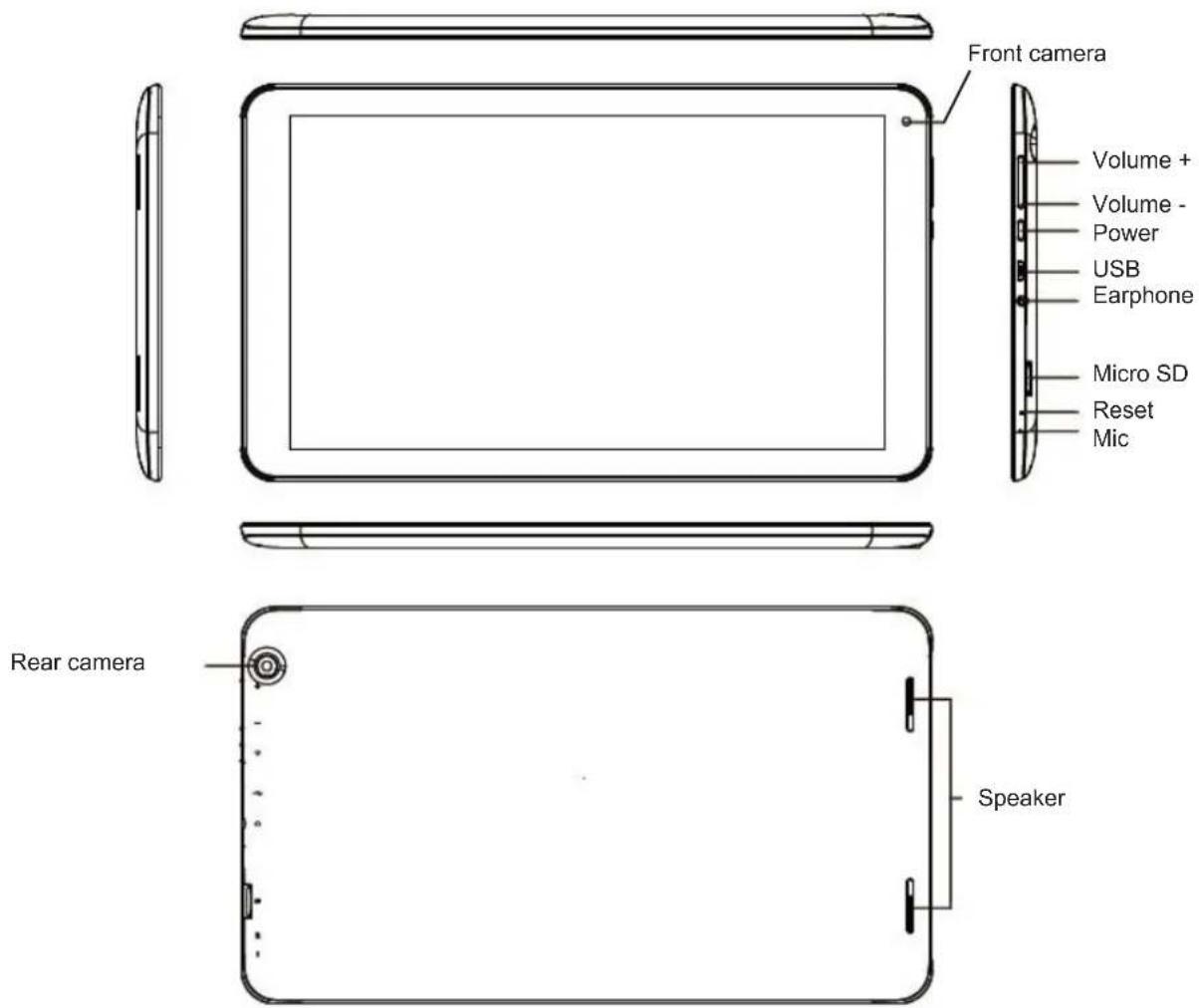
Important notice
- If the device is freezing or stuck, press the reset button (a small hole) located at left side of micro SD card slot Another way to turn off the device by force is to hold pressing power button for more than 0 seconds.
- When the performance is slow after using some applications, It Is recommended to close running application in setting menu.
- Use "File Manager" at main menu to search.
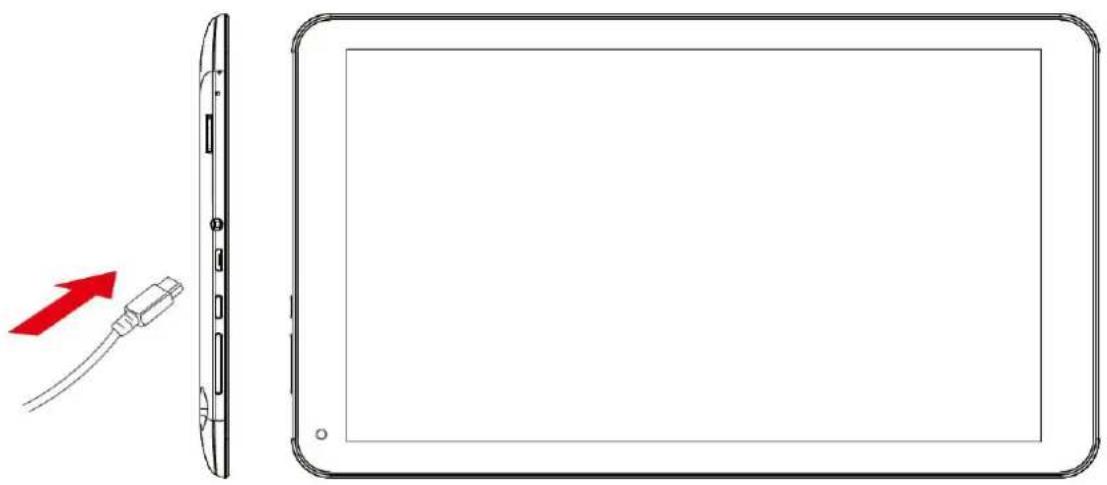
CHARGING
- Be sure to use the power adapter (5 V) that is provided in the package, otherwise, the device may be damaged and does not work.
- See the battery icon on the status bar to check charging.
- It takes approx. 5 - 6 hours to be fully charged from empty battery. Do not charge more than 10 hours to protect the device.
natural_image
Diagram showing a device with a cable inserted into the left side and its right side, alongside its blank screen (no text or symbols)Note: The device is equipped with high performance processor. It may be warm in case of using long or while charging, but not the problem.
1. POWER ON / OFF
Long press power button to tum on / off the device. It may take a minute to boot the device. Short press power button to tum on/off the screen.
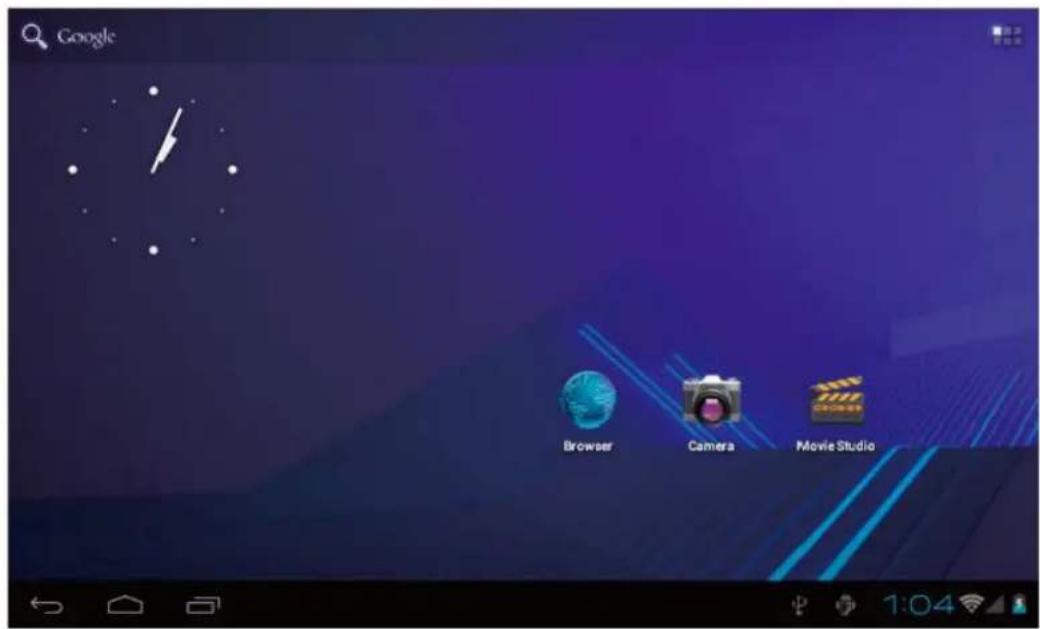
2. DESKTOP
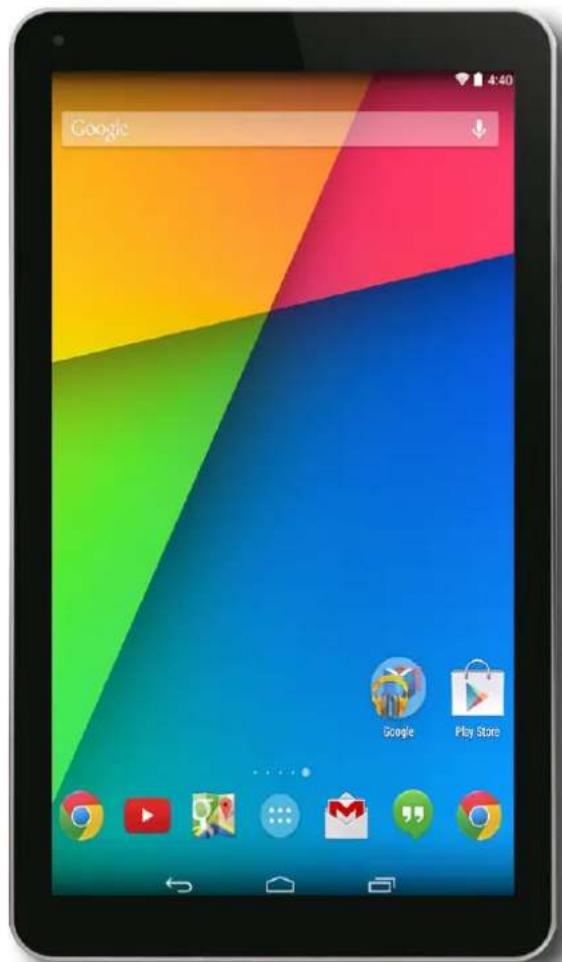
After turning on the device, desktop displays with shortcut Icons and arrow panel at the right side.
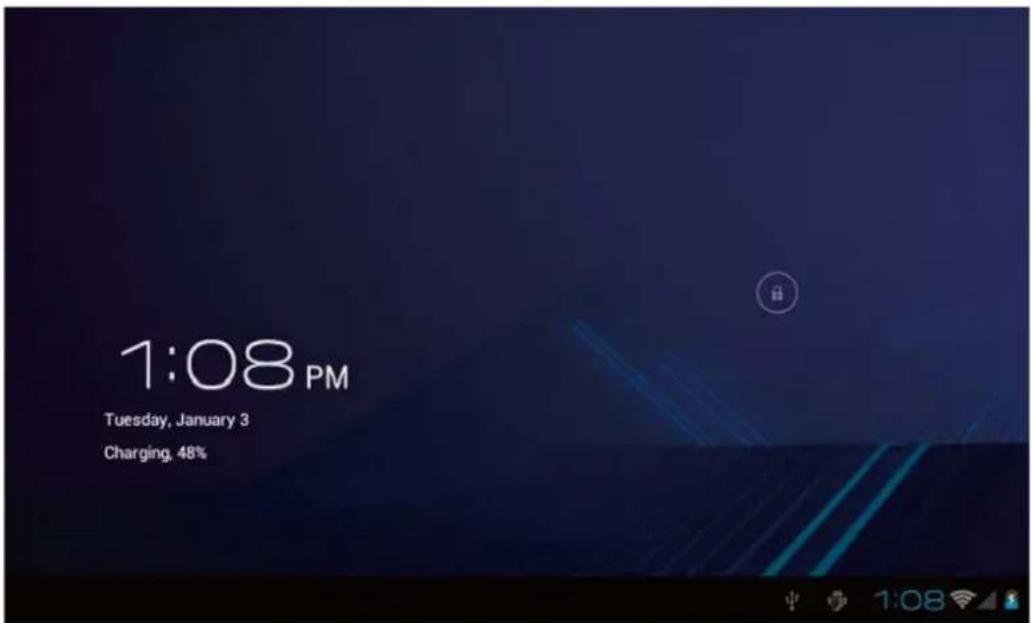
3. STANDBY MODE (SCREEN OFF MODE) / UNLOCK THE SCREEN
Short press the power button to turn on/off the screen (standby mode on / off). After standby mode off, slide the lock icon in order to unlock the screen.
4. SYSTEM SETTINGS
On the desktop, press menu button and select system settings.
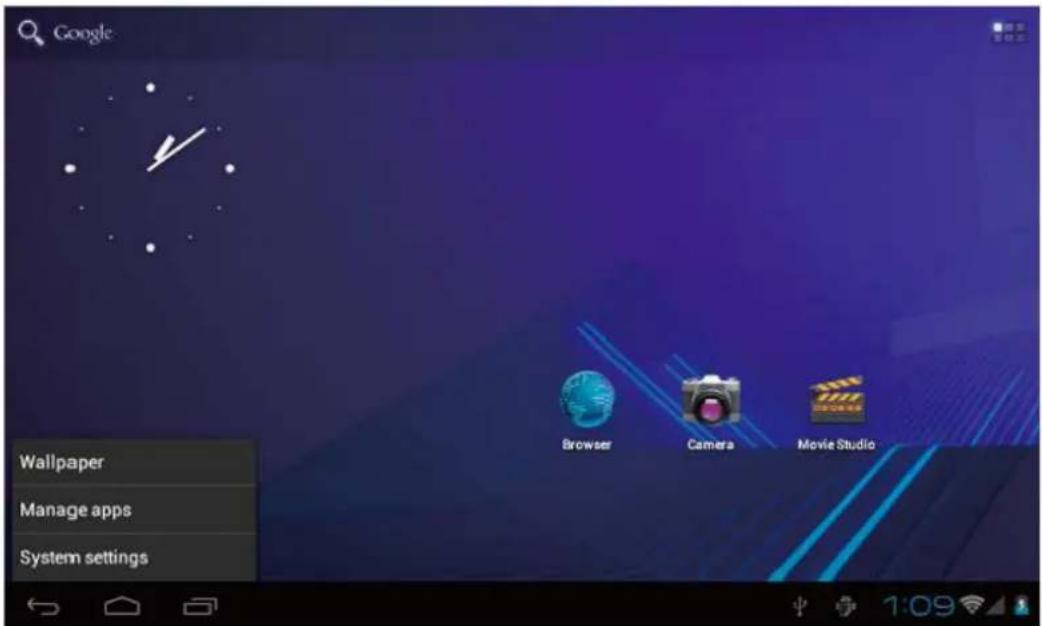
PRESS SYSTEM SETTINGS
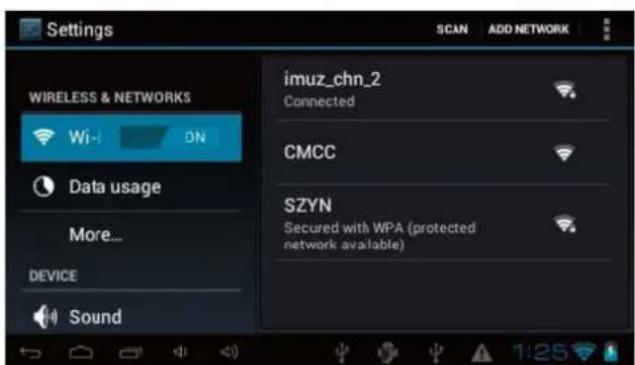
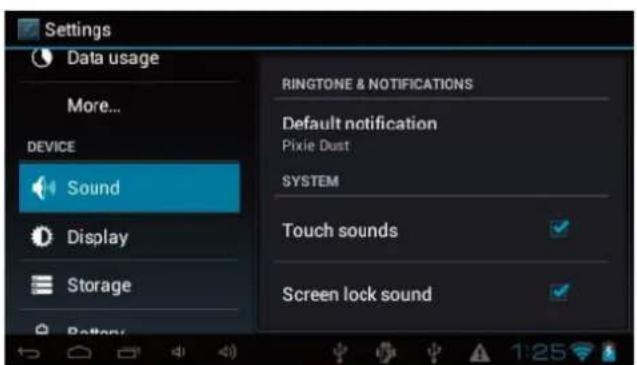
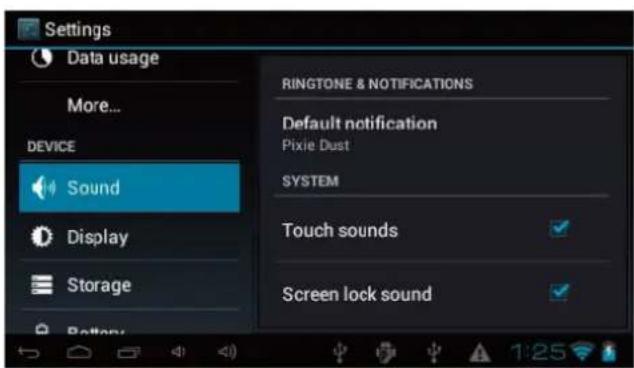
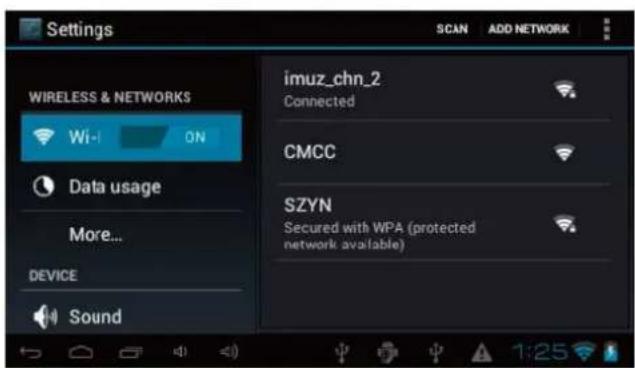
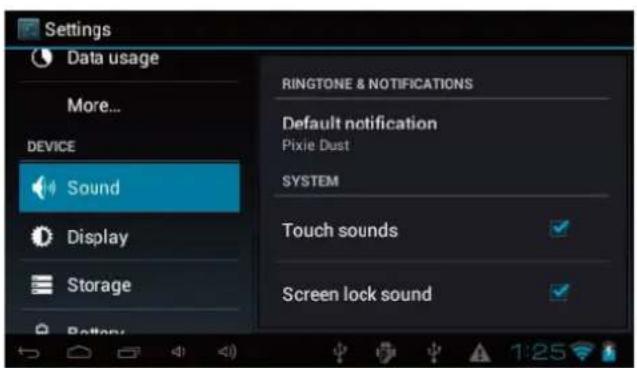
1. WIRELESS & NETWORKS 2. SOUND
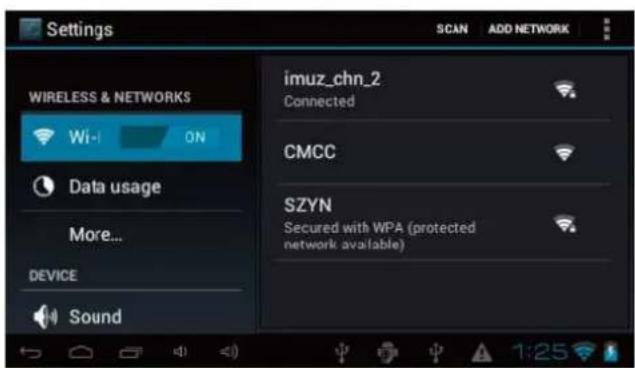
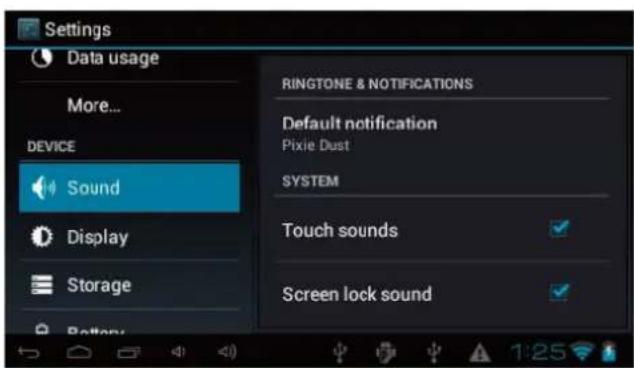
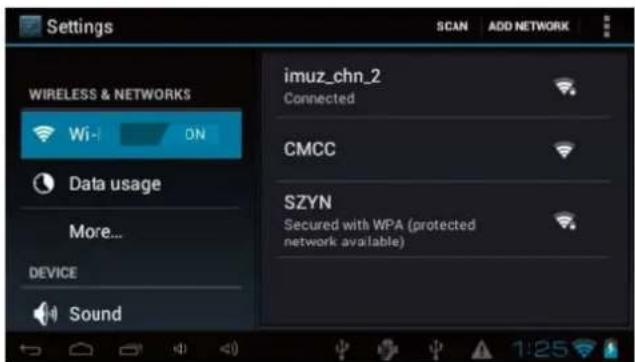
Wi-Fi - Press Wi-Fi to turn on / off.
Wi-Fi settings - Press Wi-Fi settings, then the device will automatically search the available Wi-Fi signals.
Select the network you want to connect with.
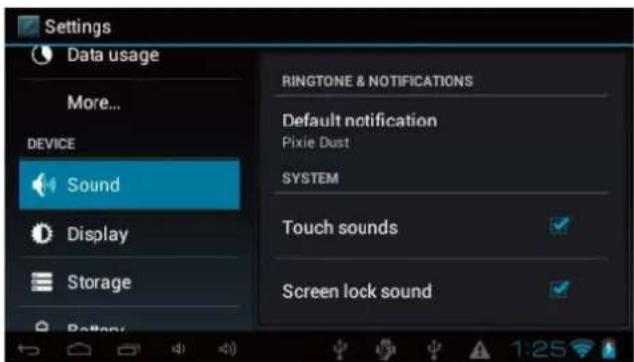
Set up each setting as you like.
- DISPLAY
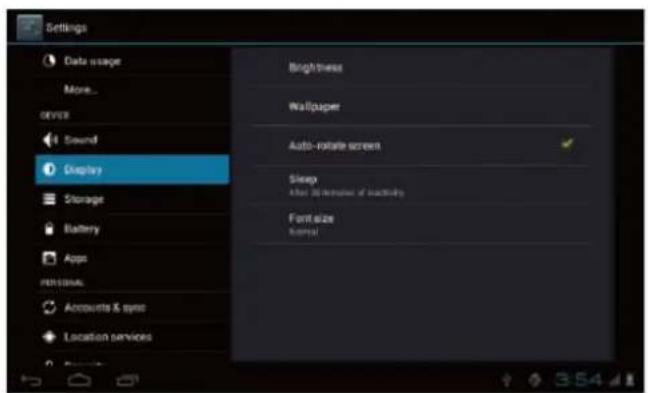
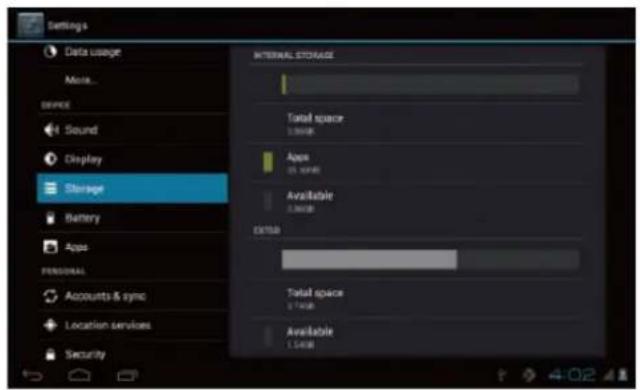
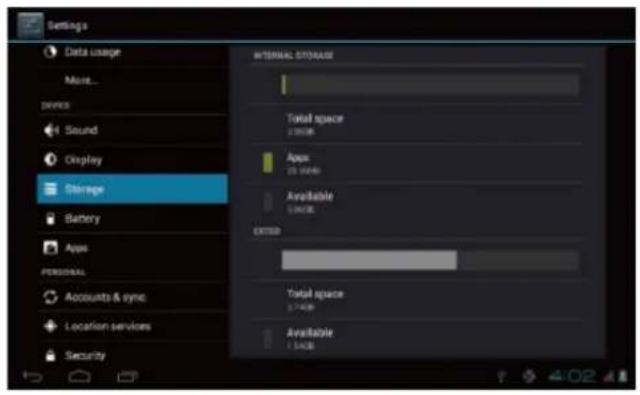
- STORAGE
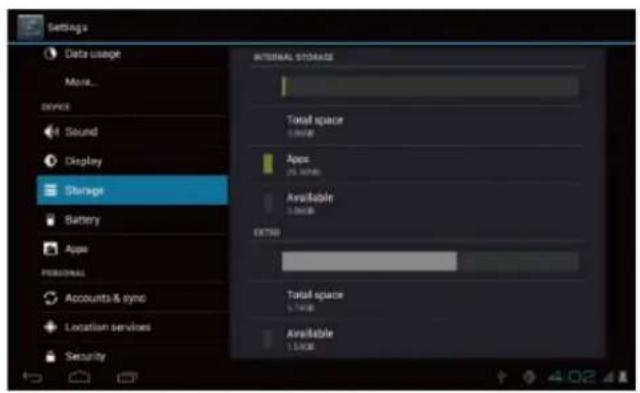
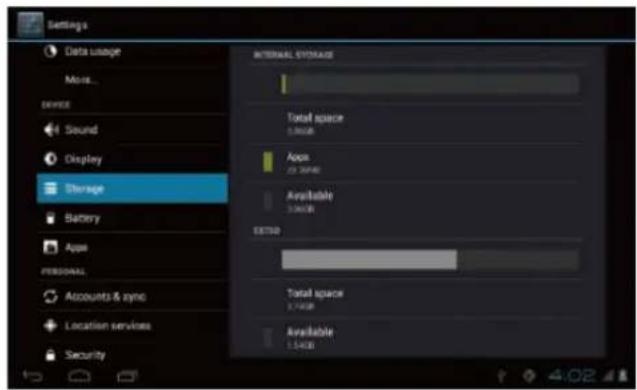
Set up each setting as you like. Check device memory and micro SD card
status.
Unmount SD card - Unmount the SD card for safe removal.
-
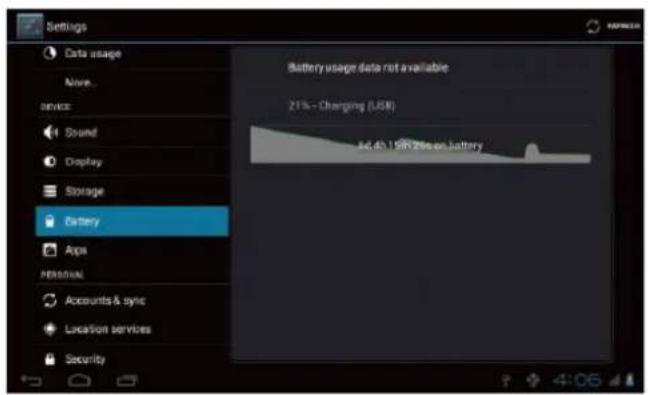
BATTERY
-
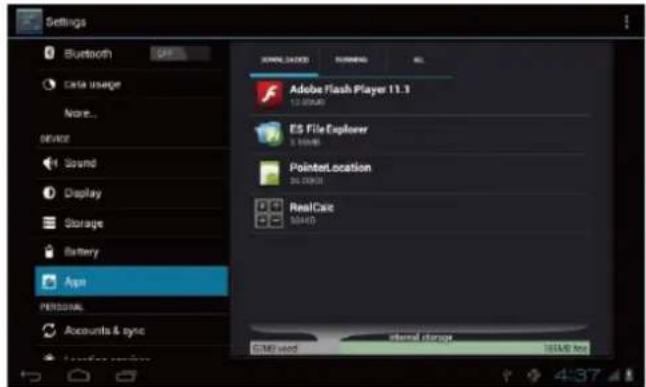
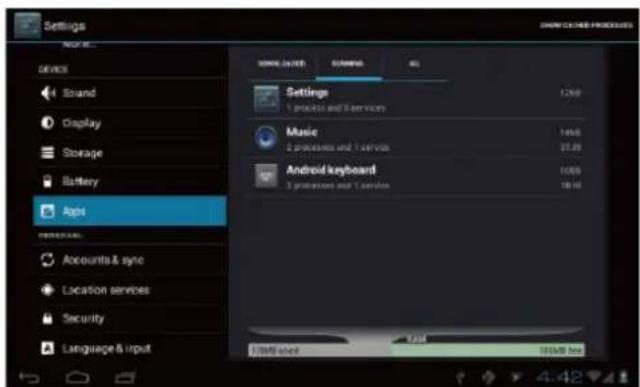
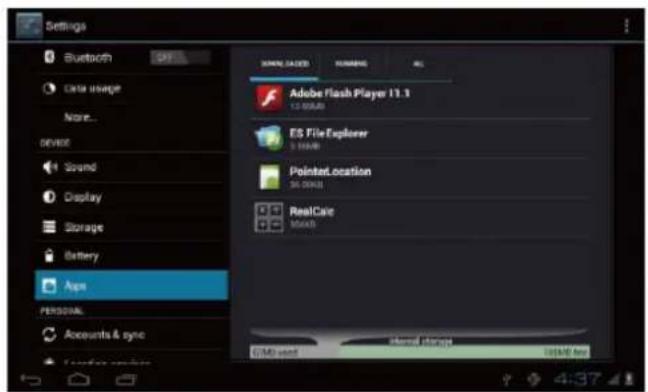
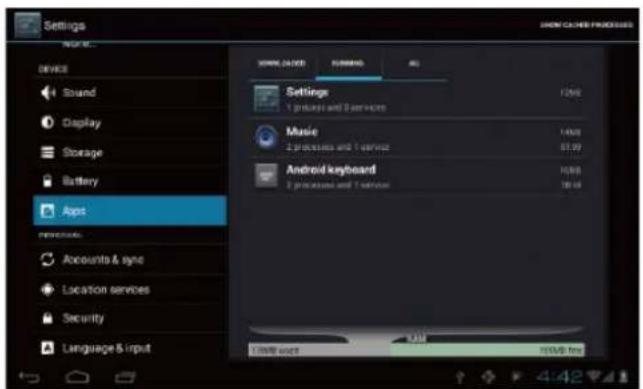
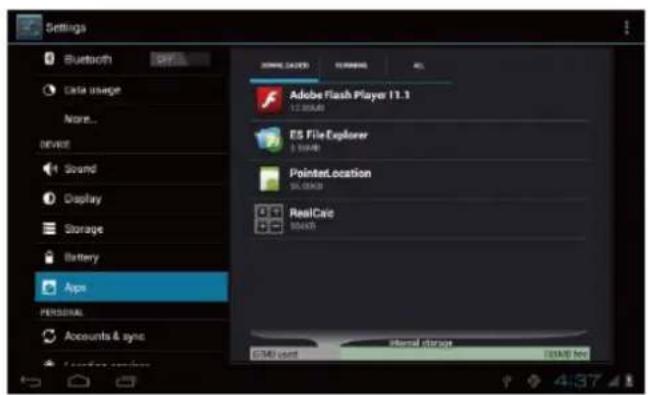
APPS
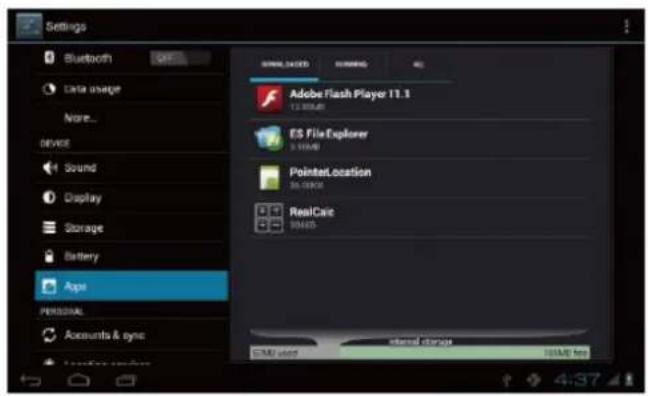
Check battery usage status. Manage downloaded or running applications.
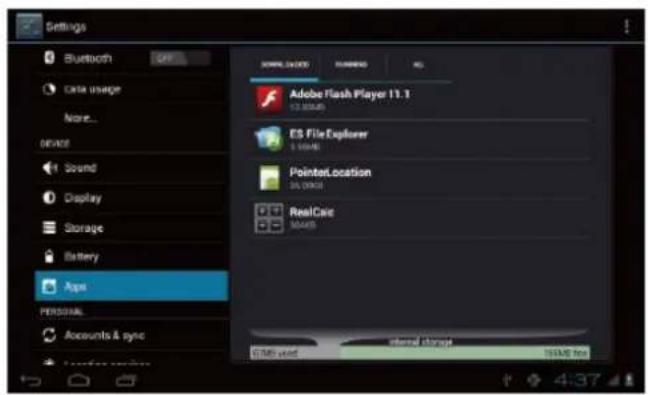
Downloaded
All installed application are listing.
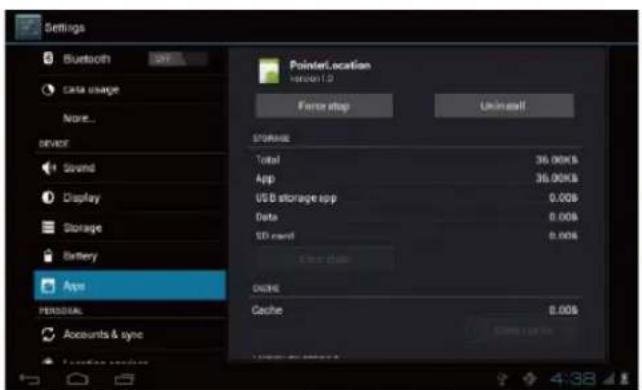
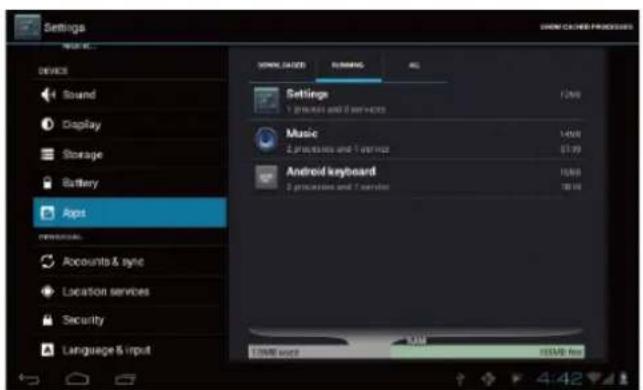
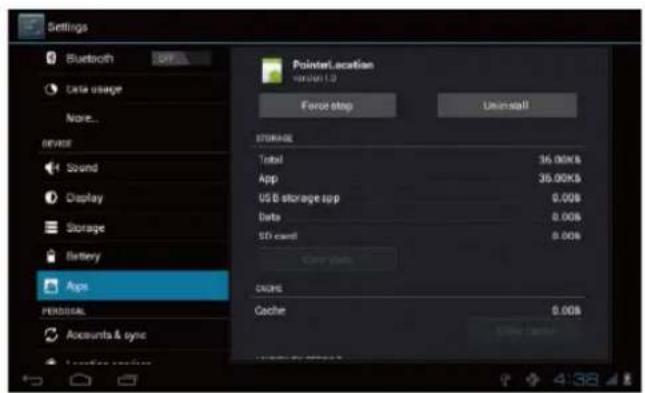
Keep pressing an application to manage. Press Uninstall to uninstall the selected application.
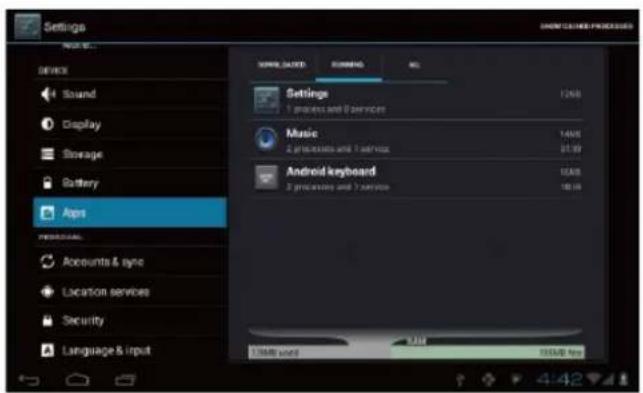
Running services. View and control currently running services.
7. ACCOUNT & SYNC
Create your account. After connecting Wi-Fi network the e-mailing system synchronizes your account with the device. Emails are automatically downloaded into the device.
8. LOCATION SERVICES
Google's location service - Let apps use data from sources such as WiFi and mobile networks to determine your approximate location
9. SECURITY
Screen lock – Protect your device from unauthorized use by creating a personal screen unlock pattern.
Make passwords visible – Show password as you type.
Unknown sources – If you want to allow installation of non-Market Applications, press Unknown sources and presses OK.
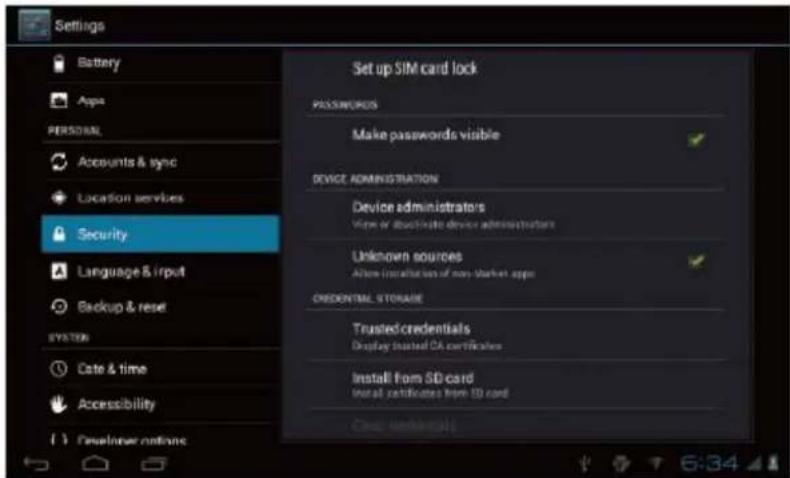
Install from SD card -Install encrypted certificates from SD card.
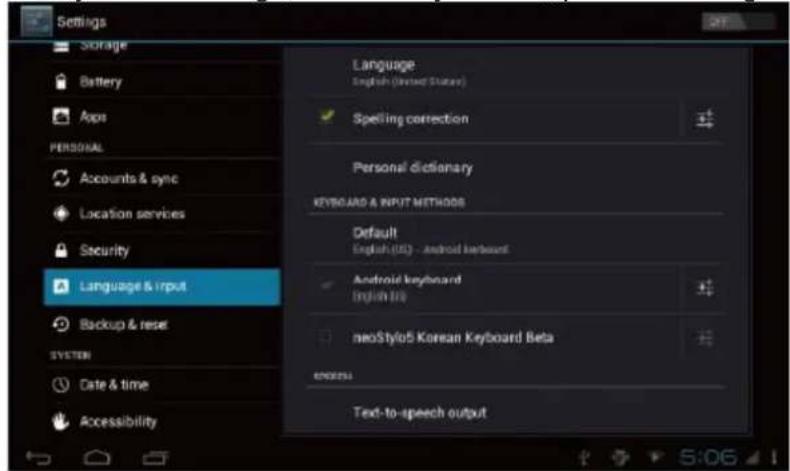
10. LANGUAGE & INPUT
Language - Choose your preferable language.
Keyboard & input method - Change keyboard & keyboard settings. On Language & input settings, if you need other languages besides English on keyboard, press the relevant keyboard and enter the chosen Keyboard settings, select Keyboards, press the language you need.
11. DATE & TIME
Set date & time and format
12. DEVELOPER OPTIONS
Set options for application development
13. ABOUT TABLET
See status, legal Information, ETC
HOW TO CONNECT / DISCONNECT THE DEVICE WITH/FROM THE COMPUTER
On main desktop, connect the device with the PC, touch right side of the status bar on the bottom of desktop.
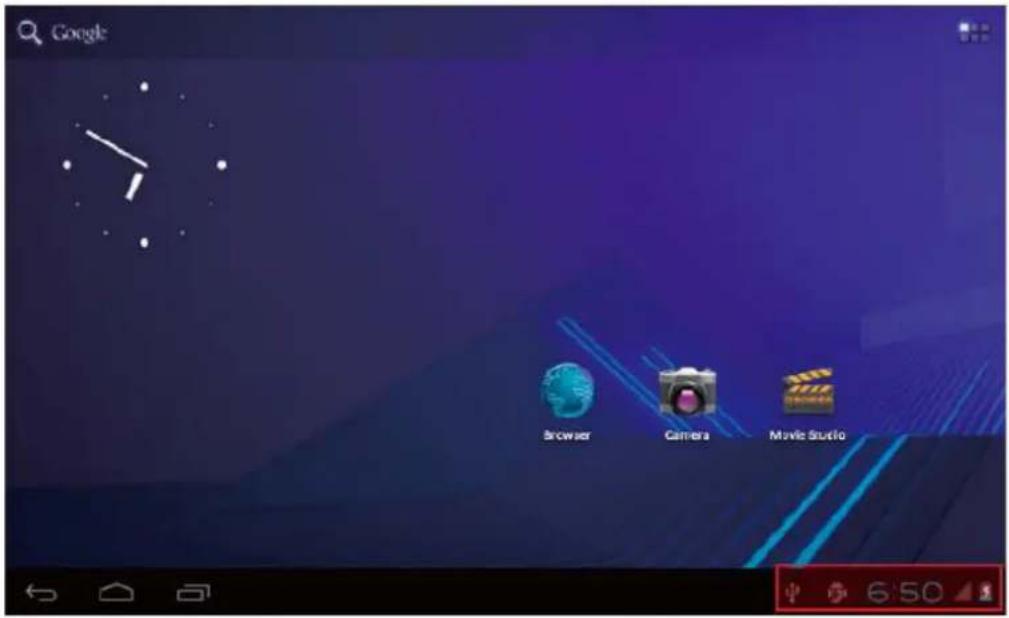
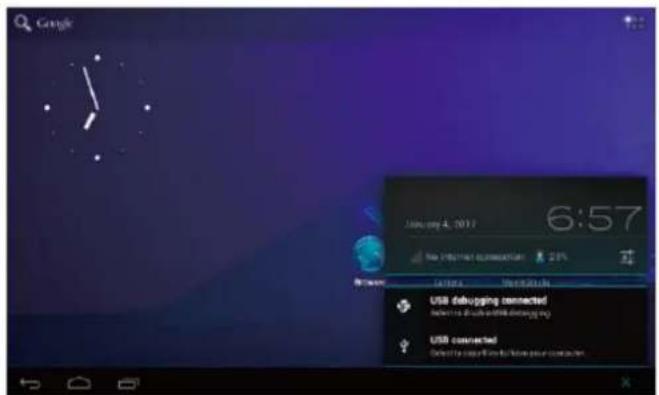
Press „USB connected“, select „Turn on USB storage“, the device is recognized at Explorer of the computer, now you can use it as an external storage.
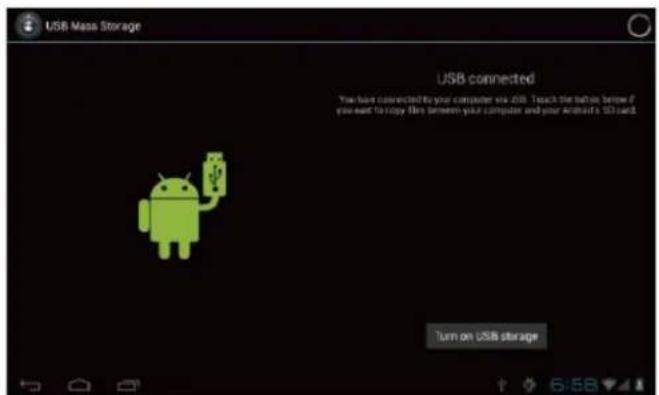
After finishing your work, Press „Turn off USB storage“ to unmount it.
HOW TO INSTALL APPLICATIONS (.APK FILE) INTO THE DEVICE
Method 1.
Connect the device with internet. See above [1.Wireless & networks] in order to connect internet. Run „Play store“ and search the applications you want to install. Follow the instruction on the screen for installation.
Method 2.
With your computer, search application file (.apk) that you want to install into the device. Download the file (.apk) into your computer. Connect the device with your computer. See above [How to connect / disconnect the device with/from the computer.] Copy and paste .apk file into the device and disconnect it from your computer. Run „File manager“ and find .apk file that was copied into the device. Press the file to install and follow the instruction on the screen.
Note:
You may only download adult applications if you are at least 18 years of age, or at least the age of majority in the jurisdiction where you reside or from which you download adult applications. If you do not meet these requirements, then you do not have permission to download adult applications. In case of any problems including legal Issues from the breach by end-user's own decision, the manufacturer shall not be responsible.
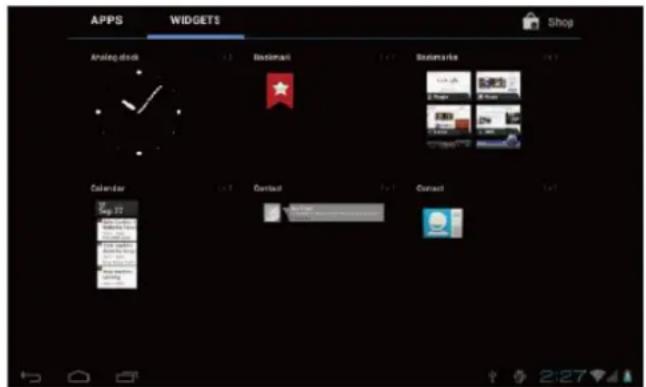
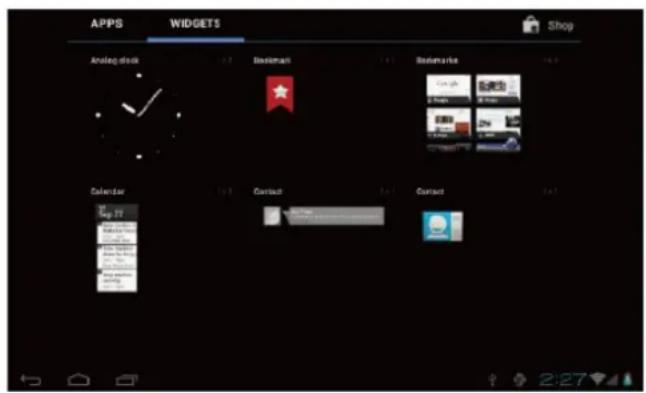
HOW TO MAKE DESKTOP ICONS
Press the upper right side Icon of desktop, the pop-up displays.
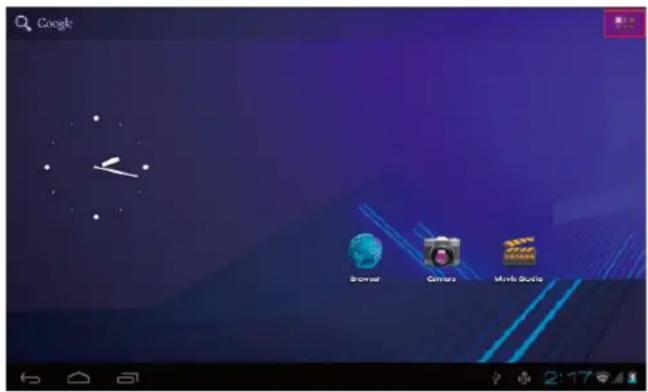
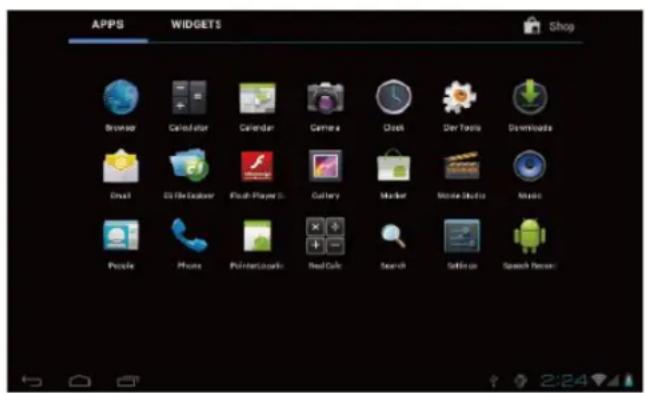
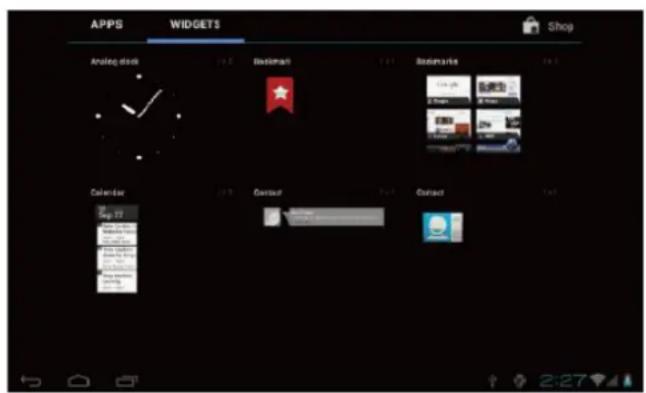
Shortcuts
Long press your desired APK Icon and put it on the desktop.
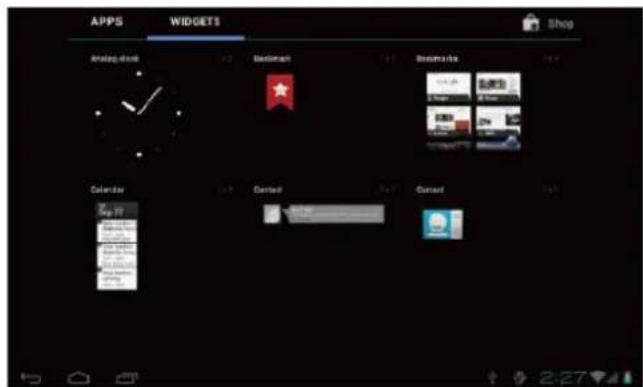
Widgets
Long press your desired widget icon and put it on the desktop.
Wallpaper
Long press the desktop, press Wallpapers and select one of categories of wallpaper. Select one you desire and press Set wallpaper.
CHANGE INPUT METHOD
If your device was installed with other more input method, long press setting icon of keyboard, and the pop-up displays.
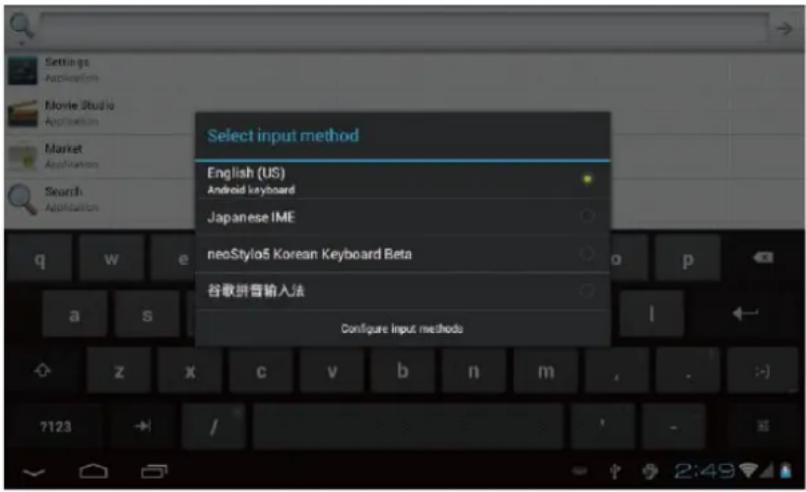
Select the installed keyboard, then the keyboard will appear with your desired language you installed.
SPECIFICATION
| OS Android 4.4 | ||
| CPU Rockchip 3126 Quad-Core processor | ||
| SDRAM DDR3 1 GB | ||
| Display 10,1" TFT 1024 x 600 pxl Capacitive touch panel | ||
| Multi-touch screen Yes: 5 point multi-touch | ||
| Built-in flash memory 8 GB | ||
| PORTS Audio port 3,5 mm earphones | ||
| USB port 1 x Spin micro USB port, (2.0 high speed) | ||
| Charging port 5V, 2A | ||
| MicroSD Micro SD card | ||
| OTG port Same as USB port | ||
| Button Power, VOI-, VOI+, Reset | ||
| Speaker | 1,5 W, Frequency response: 20 Hz - 20k Hz, N / S : >90% | |
| G-sensor | Yes | |
| Camera | 0.3 M pixel (front), 2 M pixel (rear) | |
| Wi-Fi | 802.11 b / g / n | |
| Power | Adaptor 5V - 2A (USB Type A) | |
| Battery | 3.7 V Li-Polymer | |
| Dimension | 206,1 x 149,5 x 9,5 mm | |
| Charging time by charger | approx 3-4hours | |
SPECIFICATIONS ARE SUBJECT TO CHANGE WITHOUT NOTICE.

WARNING: Do not use this product near water, in wet areas to avoid fire or injury of electric current. Always turn off the product when you don't use it or before a revision. There aren't any parts in this appliance which are reparable by consumer. Always appeal to a qualified authorized service. The product is under a dangerous tention.
Old electrical appliances, used batteries and accumulators disposal
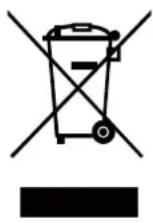
This symbol appearing on the product, on the product accessories or on the product packing means that the product must not be disposed as household waste. When the product/ battery durability is over, please, deliver the product or battery (if it is enclosed) to the respective collection point, where the electrical appliances or batteries will be recycled. The places, where the used electrical appliances are collected, exist in the European Union and in other European countries as well. By proper disposal of the product you can prevent possible
negative impact on environment and human health, which might otherwise occur as a consequence of improper manipulation with the product or battery/ accumulator. Recycling of materials contributes to protection of natural resources. Therefore, please, do not throw the old electrical appliances and batteries/ accumulators in the household waste. Information, where it is possible to leave the old electrical appliances for free, is provided at your local authority, at the store where you have bought the product. Information, where you can leave the batteries and accumulators for free, is provided to you at the store, at your local authority.
ETA Inc. hereby declares that the product TA11500QUAD is in compliance with requirements and other relevant provisions of the R&TTE directive 1999/5/EC. The complete Declaration of Conformity can be found at http://www.gogen.cz/declaration_of_conformity
ÓVINTÉZKEDÉSEK
natural_image
Diagram showing a device with a cable inserted into the left side and its right-side view, no text or symbols present.RENDSZER BEÁLLÍTÁS
1. VEZETÉK NÉLKÜLI & HÁLÓZATOK
2. HANG
11. DÁTUM & IDŐ
Parancsikonok
natural_image
Abstract black and white logo with a stylized white 'S' inside a circle (no text or symbols)GoGEN
- GoGEN
- BEZPEČNOSTNÍ UPOZORNĚNÍ
- NASTAVENÍ SYSTÉMU
- NASTAVENÍ SYSTÉMU
- BEZDRÁTOVÉ PŘIPOJENÍ A SÍTĚ
- ZVUK
- DATUM A ČAS
- Zástupci
- NASTAVENIE SYSTÉMU
- NASTAVENIE SYSTÉMU
- BEZDRÔTOVÉ PRIPOJENIE A SIETE
- Stiahnuté
- DÁTUM A ČAS
- Zástupcovia
- Miniaplikácie
- USTAWIENIA SYSTEMOWE
- DOKONYWANIE USTAWIEN SYSTEMOWYCH
- DźWIĘK
- JEZYK I WPROWADZANIE
- DATA I GODZINA
- Skróty
- SPECIFICATION
- Hardware
- Software
- BUTTONS
- Important notice
- CHARGING
- POWER ON / OFF
- DESKTOP
- STANDBY MODE (SCREEN OFF MODE) / UNLOCK THE SCREEN
- SYSTEM SETTINGS
- PRESS SYSTEM SETTINGS
- WIRELESS & NETWORKS 2. SOUND
- ACCOUNT & SYNC
- LOCATION SERVICES
- SECURITY
- LANGUAGE & INPUT
- DATE & TIME
- DEVELOPER OPTIONS
- ABOUT TABLET
- HOW TO CONNECT / DISCONNECT THE DEVICE WITH/FROM THE COMPUTER
- HOW TO INSTALL APPLICATIONS (.APK FILE) INTO THE DEVICE
- Method 1.
- Method 2.
- Note:
- HOW TO MAKE DESKTOP ICONS
- Shortcuts
- Widgets
- Wallpaper
- CHANGE INPUT METHOD
- Old electrical appliances, used batteries and accumulators disposal
- ÓVINTÉZKEDÉSEK
- RENDSZER BEÁLLÍTÁS
- VEZETÉK NÉLKÜLI & HÁLÓZATOK
- HANG
- DÁTUM & IDŐ
- Parancsikonok
Brand : GoGen
Model : TA 11500 QUAD
Category : Tablet