TA 8600 QUAD - Tablet GoGen - Free user manual and instructions
Find the device manual for free TA 8600 QUAD GoGen in PDF.


| Product Type | Touch Tablet |
| Brand | GoGen |
| Model | TA 8600 QUAD |
| Screen Size | 8 inches |
| Resolution | 1280 x 800 pixels |
| Operating System | Android 4.4 (KitKat) |
| Processor | Allwinner A33 Quad Core ARM Cortex-A7 @ 1.5GHz |
| Graphics | Mali 400 MP2 |
| RAM | 1 GB |
| Internal Storage | 8 GB |
| Expandable Storage | Micro-SD card supported |
| Front Camera | 0.3 megapixel |
| Connectivity | WiFi 802.11 b/g/n, USB 2.0, 3G dongle support |
| Dimensions | 207 x 121 x 9.7 mm |
| Weight | 324 g |
| Battery | Rechargeable lithium-ion (built-in) |
| Power Supply | DC 5V via USB charger |
| Waterproof | No |
| Main Functions | Wireless network, G-Sensor, apps, audio/video playback, e-book, camera, voice recorder, multiple languages |
| Safety Precautions | Do not use near water; avoid high temperature/humidity; do not disassemble |
| Included Accessories | USB cable, charger (implied) |
Frequently Asked Questions - TA 8600 QUAD GoGen
User questions about TA 8600 QUAD GoGen
0 question about this device. Answer the ones you know or ask your own.
Ask a new question about this device
Download the instructions for your Tablet in PDF format for free! Find your manual TA 8600 QUAD - GoGen and take your electronic device back in hand. On this page are published all the documents necessary for the use of your device. TA 8600 QUAD by GoGen.
USER MANUAL TA 8600 QUAD GoGen
natural_image
Abstract logo design with a stylized white 'S' inside a circle on black background (no text or symbols)TA 8600 QUAD
GoGEN
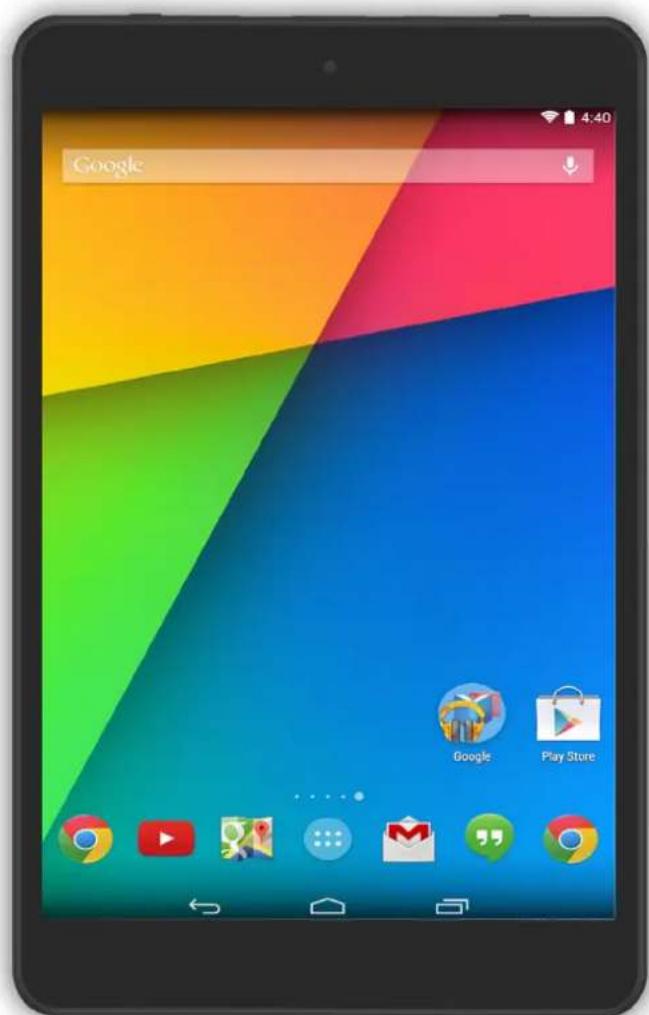

NÁVOD K POUŽITÍ
NÁVOD NA POUŽITIE
INSTRUKCJA OBSŁUGI
USER MANUAL
HASZNÁLATI ÚTMUTATÓ
DOTYKOVÝ TABLET
DOTYKOVÝ TABLET
TABLET DOTYKOWY
TOUCH TABLET
TÁBLAGÉP
BEZPEČNOSTNÍ UPOZORNĚNÍ
natural_image
Beach scene with multiple people jumping over rocky cliffs under a clear blue sky (no text or symbols visible)natural_image
Symbol of a trash bin crossed with a diagonal line and a horizontal bar below (no text or labels)natural_image
Beach scene with people jumping over rocky cliffs under a clear blue sky (no text or symbols visible)natural_image
Symbol of a trash bin with crossed lines and a blank rectangular base (no text or labels)natural_image
Beach scene with people jumping over rocky cliffs under a clear blue sky (no text or symbols visible)natural_image
Symbol of a trash bin with crossed lines and a blank rectangular base (no text or labels)This manual includes important information on safety precautions and corrects usage of this product. To prevent any accident, please make sure that you have read this manual carefully before you use this product.
- Do not keep this product in a place with a high temperature, humidity or too much dust. Especially that does not place this product in a car with all windows closed in summer, and keep out of direct sunlight.
- Avoid dropping or shocking this product heavily and avoid shaking the display violently, otherwise, the display may be damaged or cannot play correctly.
- Please choose a suitable volume. Avoid excessively high volume when using a headset. If you feel any ear noise, please decrease the volume or stop using.
- Do not break the connection suddenly when this player is conducting formatting, uploading or downloading operations, otherwise there may be program errors.
- This company will not undertake any responsibility for any memory loss due to product damage, repairing or other reasons.
- Do not disassemble this product by yourself and do not clean the surface of this product with alcohol, thinner or benzene.
- Do not use this product in a place where the using of electronic device is prohibited, such as on a plane.
- Do not use this product while driving a car or walking on a street, otherwise traffic accident may occur.
- This company reserves the right to make any improvement on this product. No further notice will be provided on any variation on the specification and design of this product!
• This product has no water-proof function
1. MAIN FUNCTIONS OVERVIEW
- Wireless network exploring via WIFI, etc.
• Google KitKat Android OS. - All-directional G-Sensor games supported.
- Different applications (.apk) supported.
- Various of audios supported.
• 1080p videos supported. - Pictures browsing with zooming and slide-show.
• E-book reading with bookmark function.
• Photographing and Video recording
• Built-in voice recorder.
• Built-in multiple languages.
• High-speed USB connection with PC.
• External Micro-SD card supported.
2. BASIC OPERATION
2.1 Power On
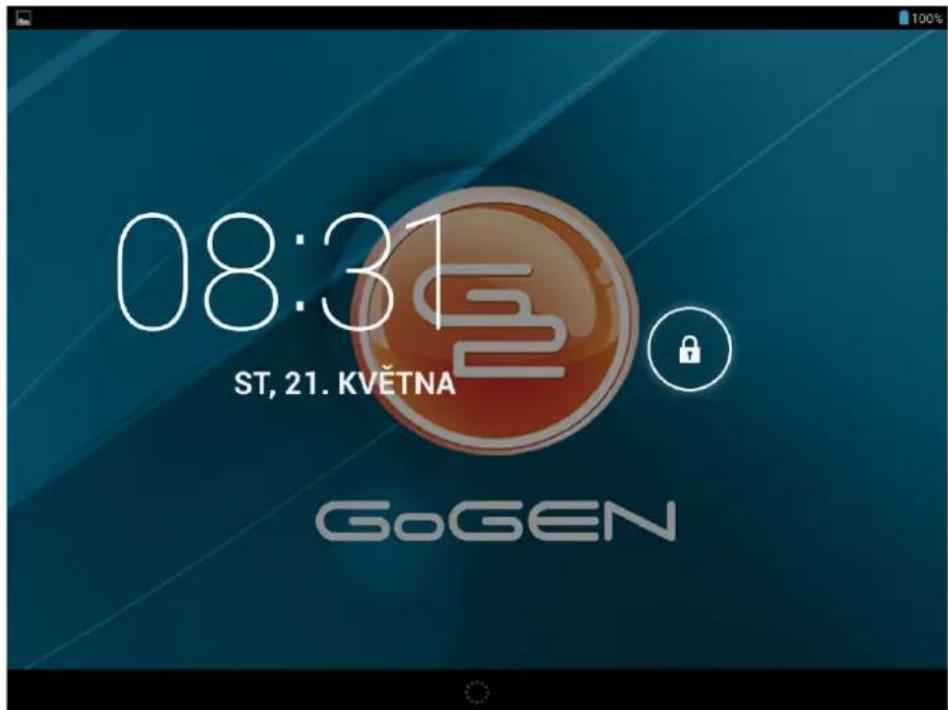
Press POWER button for around 2 seconds and the device will start up and display the lock screen. Slide the lock to unlock Home Screen.
2.2 Standby
When the device is working, press POWER button shortly to shut the display and it goes into standby mode. Press POWER button again to awake the device, and slide the lock to continue.
2.3 Power Off
Press POWER button for around 2 second and choose OK in the popup.
2.4 Reset
If the device is halted or crashed, and can not be turned off by POWER button, users can use RESET function.
2.5 Recharging
When the device can not be turned on normally or shut down automatically, it may need to be recharged. Please use the correct charger as the manufacturer guides.
2.6 Home Screen
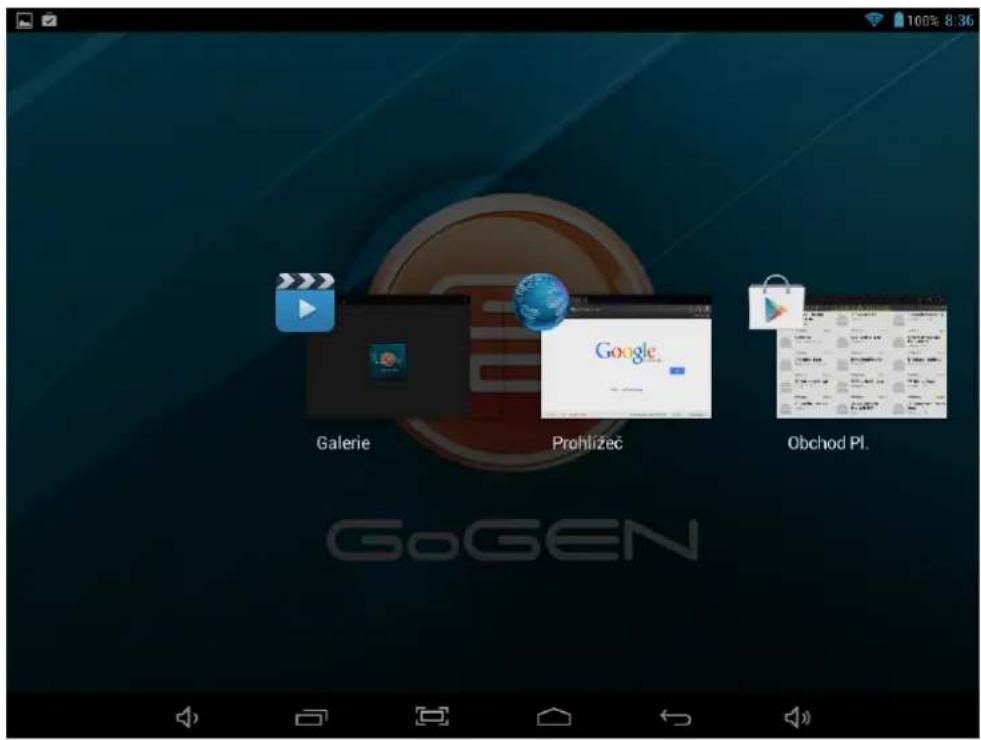
Tab to go to Home Screen.
2.7 Back Button
Tab ← to go to the previous page.
2.8 Recent Task
Tab to view recent tasks. Tap the task frame to open it, or long press it to remove from list.
2.9 Menu
Tab to view options.
2.10 Screen Capture
Tab ☐ to capture screenshot.
2.11 Applications
Tab ☐ to launch apps list. Slide to view all applications and widgets.
3. HOME SCREEN
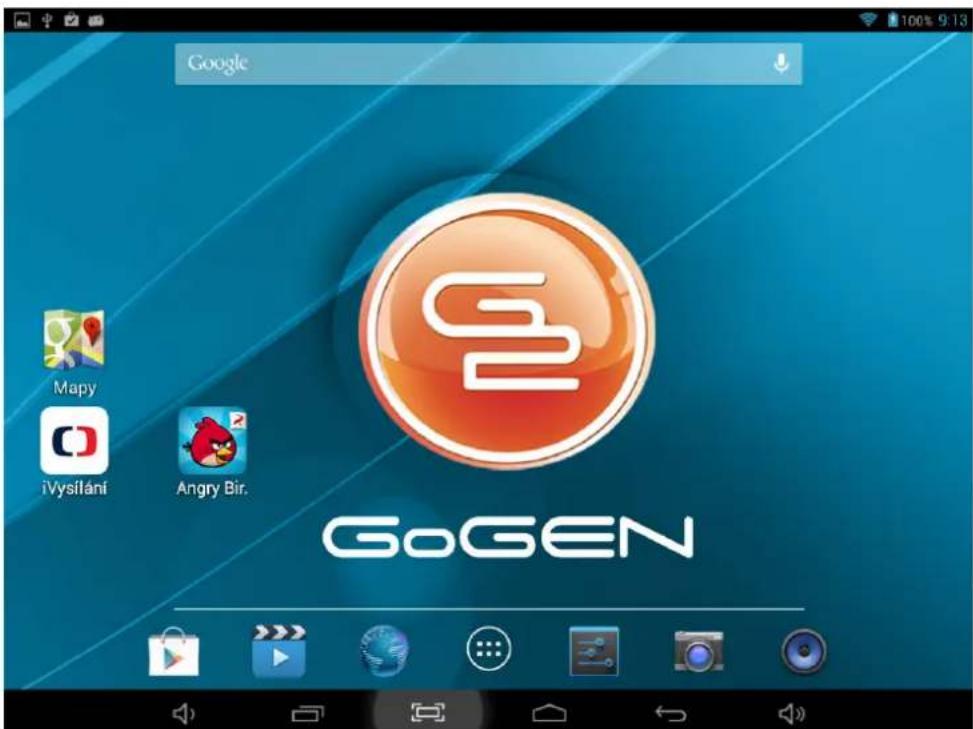
There are several pages, slide to view more.
3.1 Add apps & widgets to Home Screen
Launch apps list, press icons and drag them to Home Screen. At Home Screen, press an icon to drag leftward or rightward to move it to other pages. Drag upwards to remove it from Home Screen.
3.2 Wallpaper
Long press blank of Home Screen, choose different wallpapers in the popup.
3.3 Notification Bar
Slide downwards of the top left corner of your screen to view notification bar, informing you active information. Slide downwards the top right corner of the screen to view status of brightness, setting, Wi-Fi, battery, airplane mode, etc.
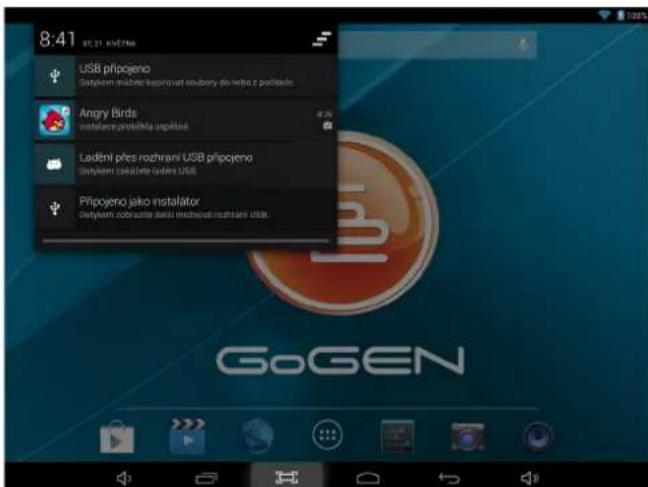
Tab to search information at local or internet. Voice Search is supported.
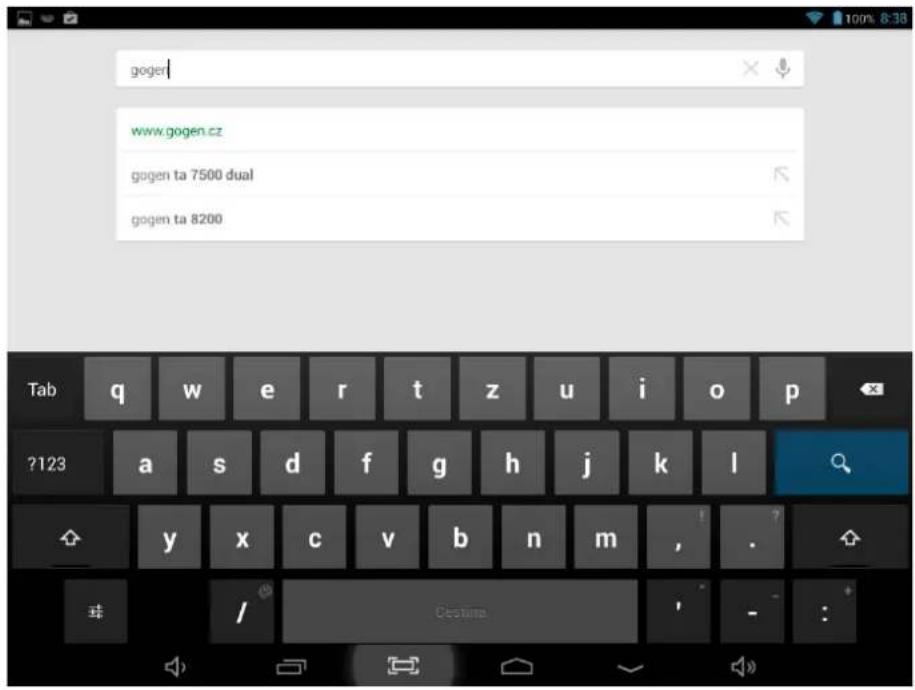
4. CONNECTING TO NETWORKS
4.1 Connecting to Wi-Fi
- Tab the Settings Icon

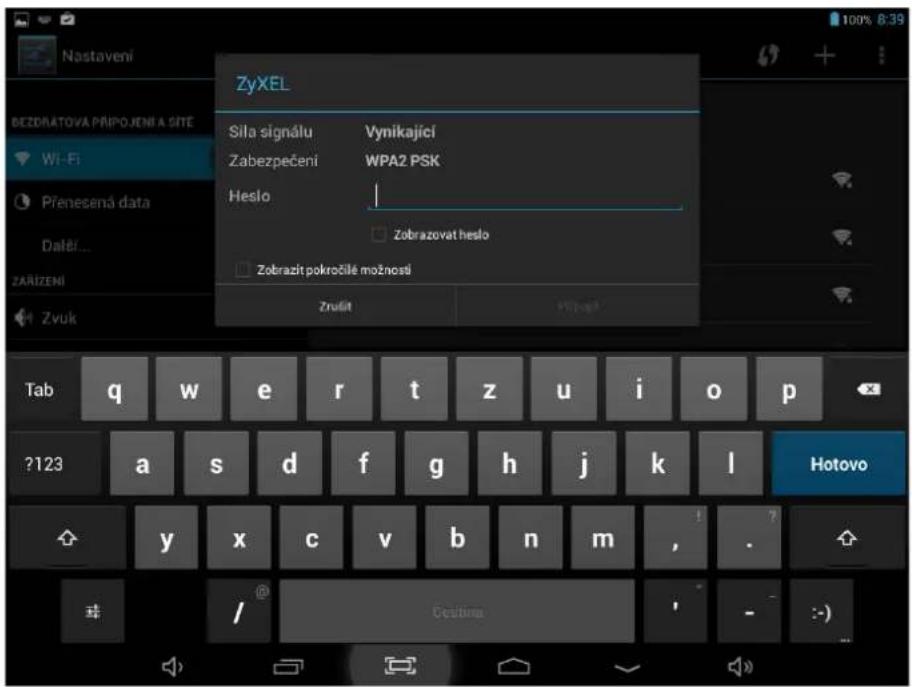
- Slide Wi-Fi icon 📄 to the right (ON) to turn on Wi-Fi, the tablet will scan and offer a list of available Wi-Fi net-works. Tab the name of Wi-Fi to connect to it.
- If the Wi-Fi network doesn't have a password, the tablet will connect to it automatically. If the Wi-Fi network has a password, input it and tap connect.
- Turn off WIFI, and access More –Mobile networks.
• Make sure Data enabled is ON. - Connect 3G Dongle.
- Tab Network operators, and search networks.
- You can select mobile networks automatically.
5. USB CONNECTION
The tablet can be connected to Window computers via a USB cable, and then you can transfer music, videos, pictures and other file in both directions. Operations are as follows"
- Use a USB cable to connect the tablet with PC.
- Tab Turn on USB storage to read storage of the tablet from PC. Now you can copy files back and forth.
- Tab Turn off USB storage to disconnect from PC, and remove the USB cable.
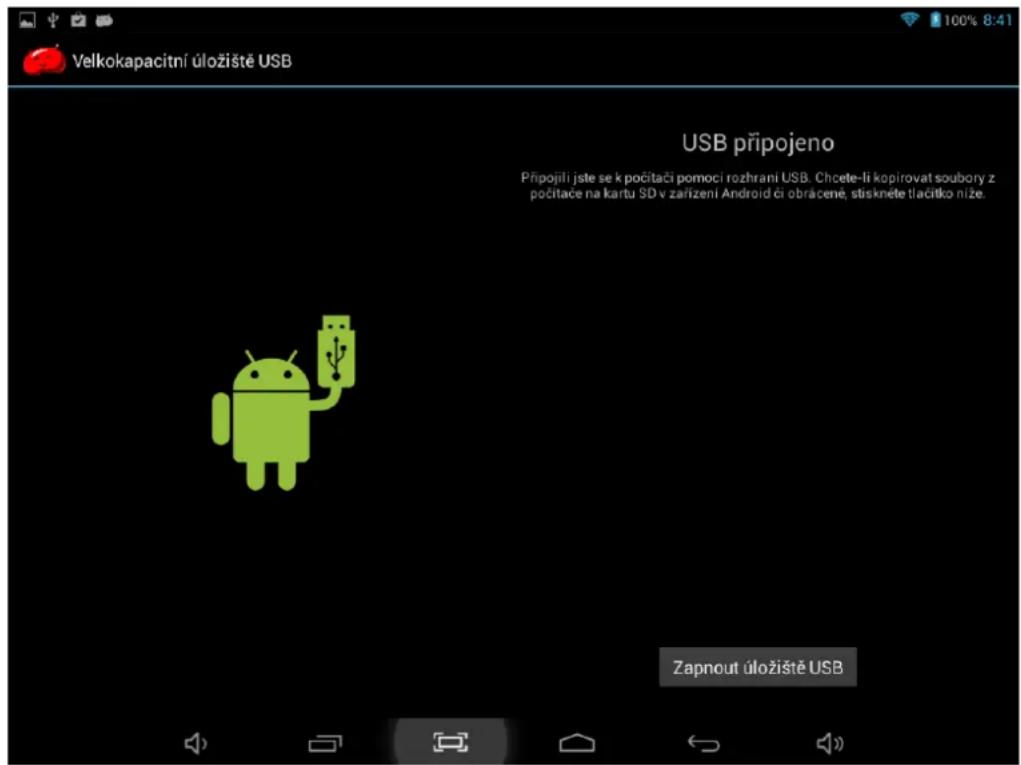
If above interface does not pop up, tab the icon 📄 top left of screen and choose USB connected in the popup.
6. APPLICATIONS
6.1 Install New Apps
6.1.1 To download & install apps from Google Play, just follow the instructions by system.
6.1.2 To install apps by APK files in tablet's storage.
Run File Manager, just find the location of apps' packages, and tab its name to install.
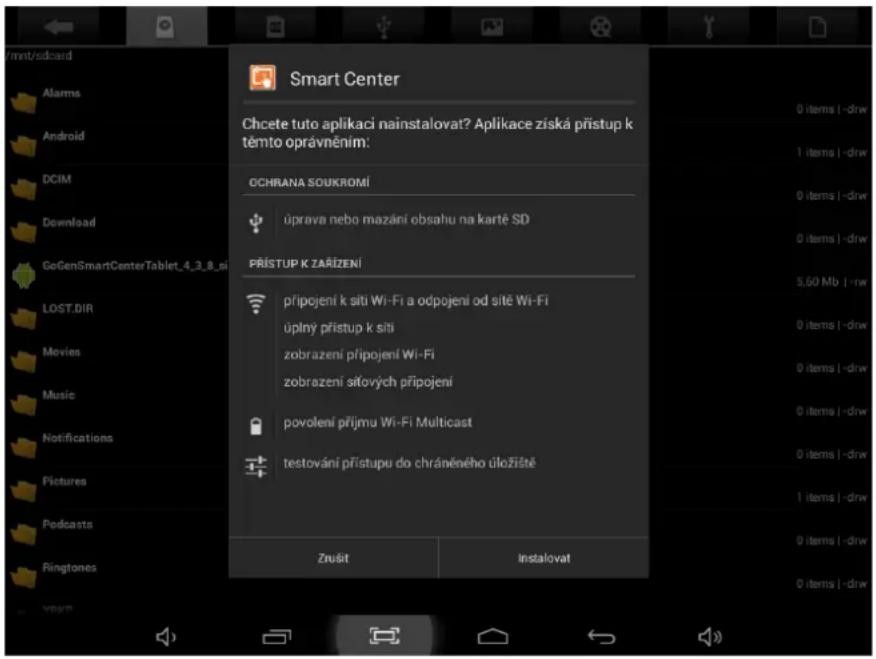
- To install applications which are not from Google Play, make sure Unknown source is ON. (Setting – Security – DEVICE ADMINISTRATION)
- If the application already exists in the tablet, system will inquire if you want to update previous version. Select Install to continue if you want.
6.2 Applications uninstall
6.2.1 Tab Setting – Apps – All.
6.2.2 Tab the application you want to remove.
6.2.3 Tab Uninstall.
6.3 Applications management.
6.2.1 Tab Setting – Apps – All.
6.3.2 Tab application and choose Force stop, Uninstall, Clear data or Move to SD.
7. VIDEO PLAY
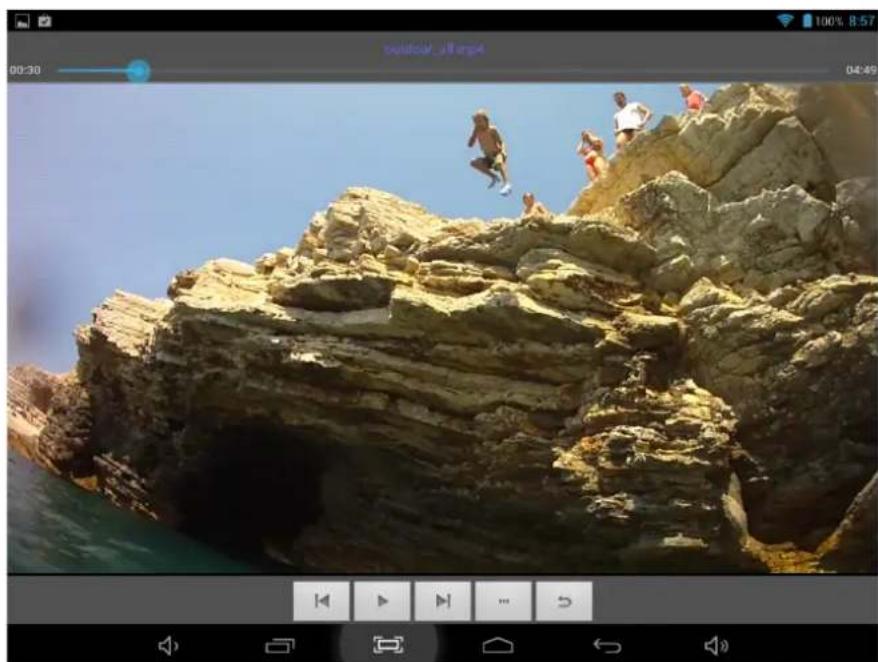
You can use the tablet's pre-installed VideoPlayer to enjoy movies & videos, or install other video apps to enrich your video play.
natural_image
Beach scene with people jumping over rocky cliffs under clear sky (no text or symbols visible)7.1 Tab Video Player to enter the video player interface, or open the video files from File Manager directly.
7.2 The tablet supports many formats of video files.
7.3 Tab progress bar to go fast-forward or fast-rewind.
7.4 Tab to access video player settings.
8. MUSIC PLAY
You can use the tablet's pre-installed Music Player to enjoy music, or install other audio apps.
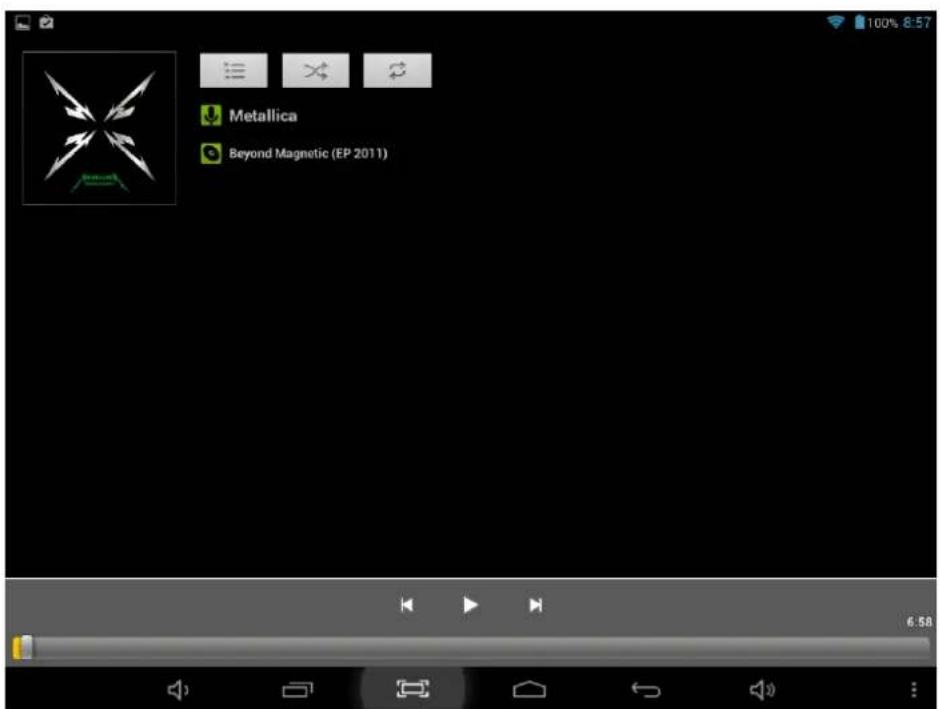
8.1 Tab the Music player icon ⚙, to enter the music player interface, or open from File Manager directly.
8.2 The tablet supports many formats of audio files.
8.3 Tab the progress bar to go fast-forward, fast-rewind.
8.4 If there is no audio in the play list, system will automatically load the audio files from the storage of tablet.
9. CAMERA
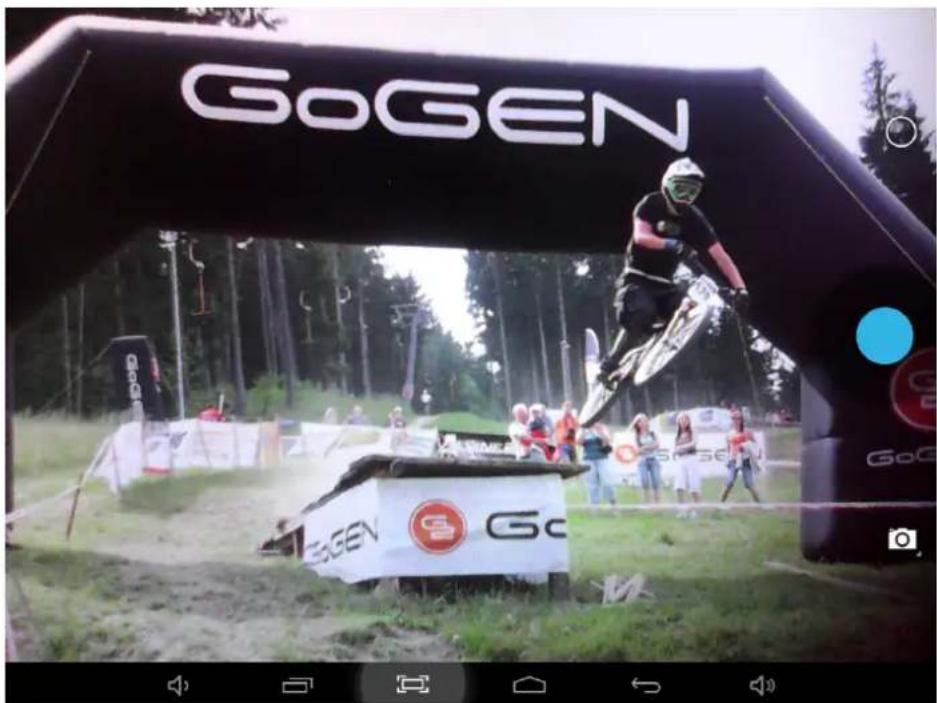
Tab the icon to access camera function.
9.1 Photos Mode
9.1.1 Click Blue Circle to take pictures.
9.1.2 Click to access photographing options.
9.1.3 Click to switch to video recording mode.
9.2 Video Recording Mode

9.2.1 Click Red Circle to start video recording, click it again to stop and save the video.
9.2.2 Click to access photographing options.
9.2.3 Click to switch to photos mode.
10. SYSTEM SETTINGS
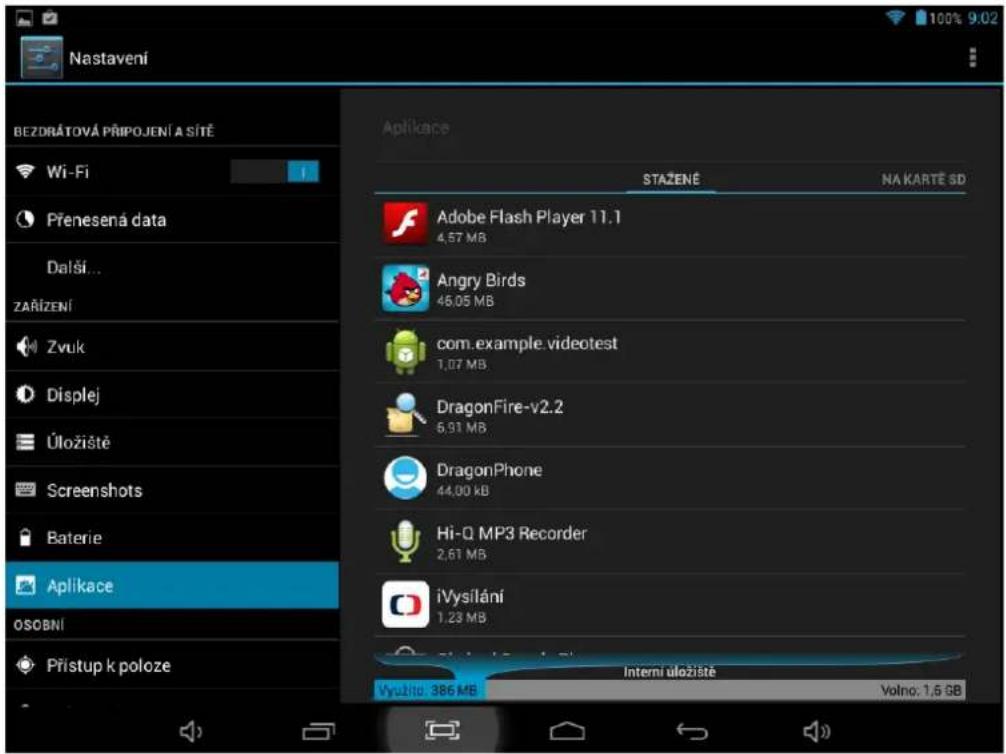
Tab Setting icon enter system settings, including Wireless & networks, Sound, Display, Storage, Battery, Apps, Location, Security, Language/input, Backup/reset, Accounts, Date/time, Accessibility, Developer options and About tablet.
11. FAQ
Q: I don't read a foreign language, how can I change it back to English?
• Find setting icon and access Settings.
- Choose icon enter language&input setting, the first option is language setting.
Q: How can I change input?
- Access Setting – Language&input, and set default input.
Q: Why do some applications disappear from the tablet?
Some applications may be installed in external Micro-SD card, if you fetch out your Micro-SD card from the tablet, you will not see these apps.
Q: There are many popups of system error, what can I do?
- Restart the tablet by POWER button, or by RESET.
- If you have restarted the tablet and there are still error popups, you can check active applications to see if there is any unknown application, remove it if any.
- There may be virus in the device, please install security apps and protect your tablet.
- Contact with the supplier for further help.
12. ABOUT FIRMWARE
Firmware contained in the tablets provides the control program for the device, and it is offered by the original manufacturer. Flashing firmware (refer to rebuilding firmware into the device) is the final solution to serious system problems. For common breakdown you can just restart the device, or run factory reset. If system crashes appear continuously even you have run factory reset, you can flash firmware under professional guidance. The firmware preloaded in the device is a stable version for the tablet, please do not flash it with other versions of firmware unless absolute necessity. We DO NOT suggest any private firmware flashing without guidance of the original manufacturer, who is not responsible for any possible breakdown of the tablet caused by user's private firmware flashing.
SPECIFICATIONS
| Screen Size / Resolution | ution 8 inch / 1280 x | 800 pxl |
| OS Android 4.4 | ||
| Chipset Allwinner A3 | 3,Quad Core | |
| CPU ARM Cortex-A7 | @ 1,5GHz | |
| GPU Mali 400 MP2 | ||
| RAM 1 GB | ||
| Memory Storage 8 GB | ||
| Internet Connection | WiFi 802.11 b/g/n | |
| Camera Camera | 0.3 Mega P | xel (front) |
| Dimensions | Size | 207 x 121 x 9,7 mm |
| Net weight | 324 g | |
SPECIFICATIONS ARE SUBJECT TO CHANGE WITHOUT NOTICE.
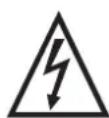
WARNING: Do not use this product near water, in wet areas to avoid fire or injury of electric current. Always turn off the product when you don't use it or before a revision. There aren't any parts in this appliance which are reparable by consumer. Always appeal to a qualified authorized service. The product is under a dangerous tention.
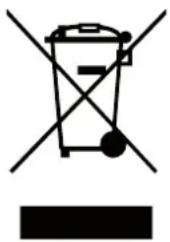
Old electrical appliances, used batteries and accumulators disposal
natural_image
Symbol of a trash bin with crossed lines and a blank rectangular base (no text or labels)This symbol appearing on the product, on the product accessories or on the product packing means that the product must not be disposed as household waste. When the product/ battery durability is over, please, deliver the product or battery (if it is enclosed) to the respective collection point, where the electrical appliances or batteries will be recycled. The places, where the used electrical appliances are collected, exist in the European Union and in other European countries as well. By proper disposal of the product you can prevent possible
negative impact on environment and human health, which might otherwise occur as a consequence of improper manipulation with the product or battery/ accumulator. Recycling of materials contributes to protection of natural resources. Therefore, please, do not throw the old electrical appliances and batteries/ accumulators in the household waste. Information, where it is possible to leave the old electrical appliances for free, is provided at your local authority, at the store where you have bought the product. Information, where you can leave the batteries and accumulators for free, is provided to you at the store, at your local authority.
ETA Inc. hereby declares that the product TA8600QUAD is in compliance with requirements and other relevant provisions of the R&TTE directive 1999/5/EC. The complete Declaration of Conformity can be found at http://www.gogen.cz/declaration_of_conformity
ÓVINTÉZKEDÉSEK
natural_image
Beach scene with multiple people jumping over rocky cliffs under a clear blue sky (no text or symbols visible)natural_image
Symbol of a trash bin crossed with two crossed lines and a solid rectangle below (no text or labels)natural_image
Abstract black and white geometric logo with stylized 'S' shape inside a circle (no text or symbols)GoGEN
- GoGEN
- BEZPEČNOSTNÍ UPOZORNĚNÍ
- MAIN FUNCTIONS OVERVIEW
- BASIC OPERATION
- Power On
- Standby
- Power Off
- Reset
- Recharging
- Home Screen
- Back Button
- Recent Task
- Menu
- Screen Capture
- Applications
- HOME SCREEN
- Add apps & widgets to Home Screen
- Wallpaper
- Notification Bar
- CONNECTING TO NETWORKS
- Connecting to Wi-Fi
- USB CONNECTION
- APPLICATIONS
- Install New Apps
- Applications uninstall
- Applications management.
- VIDEO PLAY
- MUSIC PLAY
- CAMERA
- Photos Mode
- Video Recording Mode
- SYSTEM SETTINGS
- FAQ
- ABOUT FIRMWARE
- Old electrical appliances, used batteries and accumulators disposal
- ÓVINTÉZKEDÉSEK
Brand : GoGen
Model : TA 8600 QUAD
Category : Tablet