
KXFP181E - Télécopieur PANASONIC - Notice d'utilisation et mode d'emploi gratuit
Retrouvez gratuitement la notice de l'appareil KXFP181E PANASONIC au format PDF.


| Type de produit | Télécopieur compact sur papier ordinaire |
| Marque | Panasonic |
| Modèle | KX-FP181E |
| Dimensions (H x L x P) | 185 x 345 x 276 mm |
| Poids | Environ 3,75 kg |
| Alimentation | 220–240 V CA, 50 Hz |
| Consommation électrique | Veille ~5 W, transmission ~20 W, réception ~40 W, copie ~40 W, maximum ~120 W |
| Fonctions principales | Télécopie, téléphone, copieur |
| Vitesse de transmission | Environ 12 s/page (mode original, modem 9600 bps) |
| Résolution | Standard, Fin, Super Fin, Demi-teinte (64 niveaux) |
| Capacité du chargeur de documents | Jusqu'à 10 pages |
| Capacité papier d'enregistrement | Jusqu'à 50 feuilles (60–75 g/m²) ou 30 feuilles (90 g/m²), format A4 |
| Mémoire de télécopie | Réception environ 28 pages, transmission environ 25 pages |
| Film encreur | Modèle KX-FA55X (2 rouleaux, 216 mm x 50 m, environ 140 pages par rouleau) |
| Entretien et nettoyage | Nettoyer la tête thermique avec un chiffon imbibé d'alcool isopropylique |
| Sécurité | Prise avec mise à la terre, ne pas exposer à l'eau ou à l'humidité |
| Garantie | 12 mois à compter de la date d'achat (sous conditions) |
| Accessoires inclus | Cordon d'alimentation, cordon téléphonique, combiné, cordon du combiné, film encreur test, guide de démarrage rapide |
| Réparabilité | Pièces détachées disponibles (film encreur, etc.) ; réparation par centre agréé |
FOIRE AUX QUESTIONS - KXFP181E PANASONIC
Questions des utilisateurs sur KXFP181E PANASONIC
0 question sur cet appareil. Repondez a celles que vous connaissez ou posez la votre.
Poser une nouvelle question sur cet appareil
Téléchargez la notice de votre Télécopieur au format PDF gratuitement ! Retrouvez votre notice KXFP181E - PANASONIC et reprennez votre appareil électronique en main. Sur cette page sont publiés tous les documents nécessaires à l'utilisation de votre appareil KXFP181E de la marque PANASONIC.
MODE D'EMPLOI KXFP181E PANASONIC
Instructions d'utilisation
Télécopieur compact pour papier ordinaire
Modèle n° KX-FP181E
Télécopieur compact pour papier ordinaire avec
répondeur téléphonique
Modèle n° KX-FP185E
Télécopieur multifonction pour papier ordinaire
Modèle n° KX-FM189E
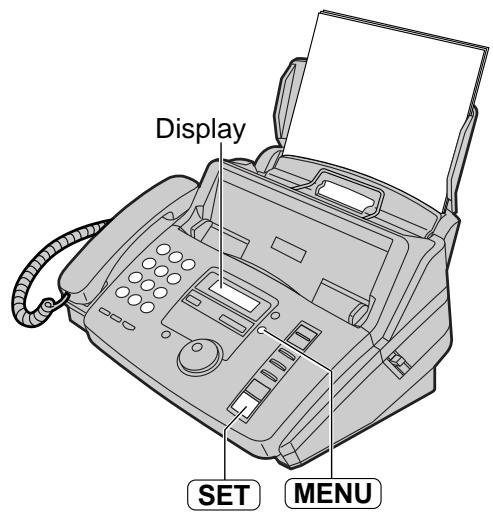
Le modèle illustré est le KX-FP181.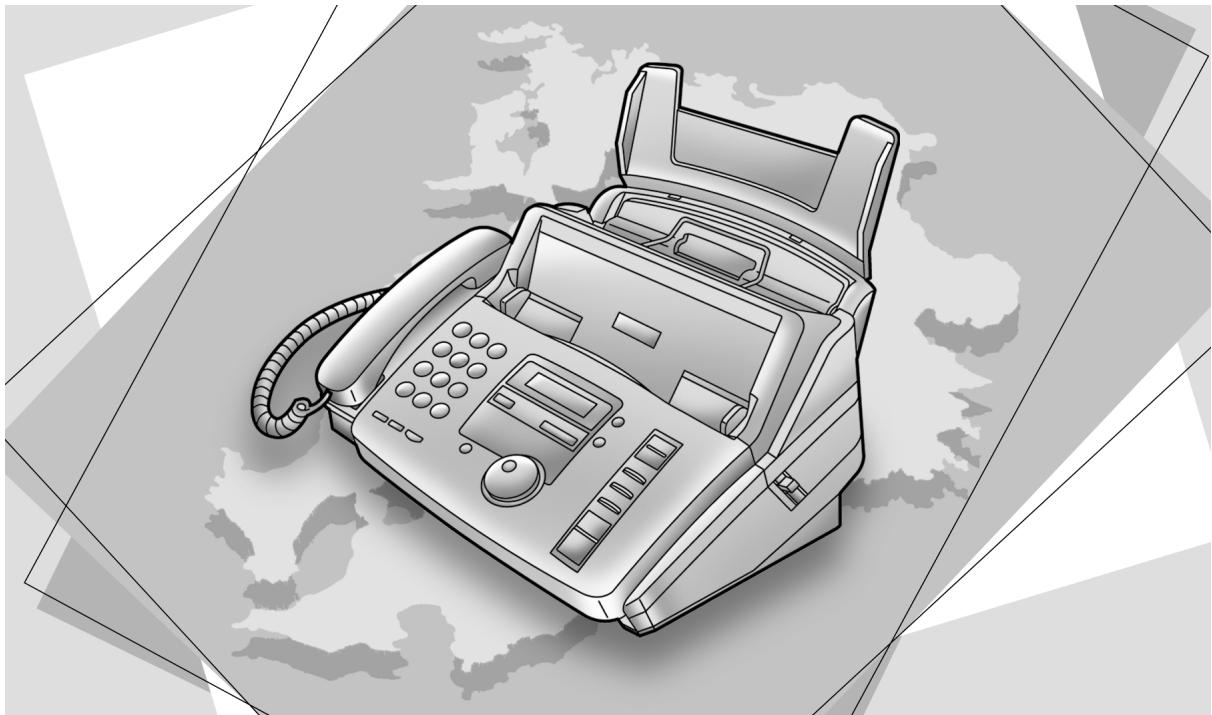
IMPORTANT
Panasonic
ENREGISTREMENT DE LA GARANTIE
VEUILLEZ RENVOYER PAR TÉLÉCOPIEUR POUR ENREGISTRER VOTRE
GARANTIE DE 12 MOIS
Merci d'avoir acheté votre télécopieur Panasonic. En remplissant la section ci-dessous, vous assurerez ce qui suit :
- Nous enregistrerons votre appareil dans notre base de données de garantie. Si vous avez besoin d'une intervention sous garantie, votre appel sera traité rapidement et efficacement.
- Nous vous enverrons un fax de confirmation pour valider votre enregistrement et le bon fonctionnement de votre appareil.
- Si vous rencontrez un problème, veuillez appeler notre assistance clientèle au 08701 580250 pour le Royaume-Uni.
Pour la République d'Irlande, veuillez vous référer au lieu d'achat.
Suivez simplement ces instructions :
- Veuillez remplir la section ci-dessous en lettres majuscules et à l'encre.
Votre nom
Nom de l'entreprise (si applicable)
Votre adresse
Votre code postal
Téléphone n° Fax n°
N° de modèle
N° de série
- Envoyez ce formulaire par fax au 08701 583250 et nous vous renverrons un fax pour confirmer la réception de vos informations. Veuillez prévoir 14 jours ouvrés pour cela. De plus, nous vous enverrons également des informations sur nos contrats de maintenance.
CONDITIONS GÉNÉRALES
- Cette garantie s'ajoute aux droits légaux ou autres des consommateurs et ne les affecte en aucune manière. Cette garantie ne concerne que l'utilisation du produit en Grande-Bretagne continentale ; pour toute utilisation ailleurs au Royaume-Uni, veuillez consulter votre revendeur pour obtenir des informations sur la garantie.
- Ce produit est conçu pour être utilisé uniquement sur le réseau téléphonique public commuté du Royaume-Uni et d'Irlande, et ne doit être utilisé qu'à des fins normales et conformément aux instructions d'utilisation standard.
- Vous devez remplir le formulaire d'enregistrement au verso et nous le renvoyer par fax dans les 7 jours suivant l'achat ; à défaut, cela peut entraîner des retards dans la fourniture du service de garantie.
- Cette garantie couvre les pannes dues à des défauts de conception ou de fabrication ; elle ne s'applique pas aux dommages, quelle qu'en soit la cause, à l'usure, à la négligence, à un réglage ou une réparation incorrects, ni aux articles dont la durée de vie naturelle est limitée.
- Cette garantie ne couvre pas les consommables, c'est-à-dire les films d'encre, les recharges de film, les cartouches d'encre, le papier et les charges de papier, ni les accessoires en option qui peuvent avoir été achetés en même temps que l'unité principale, ou après. Ces accessoires doivent être retournés au point de vente s'ils s'avèrent défectueux.
- En cas de panne, veuillez procéder comme suit :
a. Consultez la section « Aide » de votre manuel d'instructions pour identifier et éventuellement corriger le problème ; b. Si la panne ne peut pas être résolue et que vous avez besoin d'un opérateur qualifié, veuillez contacter notre ligne d'assistance clientèle au 08701 580560 pour le Royaume-Uni.
Pour la République d'Irlande, veuillez vous référer au lieu d'achat.
- Si la ligne d'assistance ne peut pas résoudre le problème, un fax d'échange à l'identique sera expédié du jour au lendemain (si l'appel est reçu avant 16h) ou, selon un arrangement mutuellement convenable. L'opérateur de la ligne d'assistance vous donnera des instructions spécifiques sur la manière dont l'échange sera effectué. Le non-respect de ces instructions peut entraîner des retards et des frais à votre charge.
- Le fax d'échange sera livré dans un boîtier personnalisé par coursier. Il incombe au client de retirer rapidement le fax d'échange et d'insérer le fax défectueux dans le boîtier fourni pour la collecte, afin de permettre au coursier de le retourner à Panasonic.
- Le fax d'échange est considéré comme un échange à l'identique sous garantie, et le solde de la période de garantie sera transféré à l'unité d'échange. La responsabilité de Panasonic au titre de cette garantie se limite à l'échange du fax, ou à la réparation et au retour du fax d'origine (sous réserve de frais supplémentaires, voir la condition 4).
- Si le fax d'origine s'avère défectueux en raison de réparations ou de modifications non autorisées, ou de dommages causés par accident, mauvaise utilisation ou installation incorrecte, Panasonic se réserve le droit de facturer au client la somme de 50,00 £ plus TVA, à titre de contribution aux frais de réparation.
- Cette garantie ne s'applique qu'à l'acheteur d'origine et n'est pas transférable. 12. La période de garantie applicable à ce produit est de 12 mois à compter de la date d'achat.
Merci d'avoir acheté un télécopieur Panasonic.
Bienvenue dans le monde des télécopieurs Panasonic.
Ce produit combine diverses fonctions de télécopie et de téléphone pour vous offrir une utilisation plus efficace au bureau ou à la maison. En utilisant ces fonctions pratiques, vous pouvez maximiser l'efficacité de cet appareil.
Pour référence future
Date d'achat
Numéro de série
Nom et adresse du revendeur
(situé à l'arrière de l'appareil)
Numéro de téléphone du revendeur
Différence de modèle
| Features Model | Facsimile, Telephone and Copier | Answering Device | Scanner, PC-Fax and Printer |
| KX-FP181 | Available | Not available | Not available |
| KX-FP185 | Available | Available | Not available |
| KX-FM189 | Available | Available | Available |
Attention :
- Notez que les images des documents copiés ou reçus resteront sur le film d'encre usagé. Faites preuve de discernement lors de l'élimination du film d'encre usagé.
- Ne frottez pas et n'utilisez pas de gomme sur le côté imprimé du papier d'enregistrement, car l'impression pourrait baver.
- En cas de problème, vous devez contacter votre fournisseur d'équipement en premier lieu.
- Cet équipement est conçu pour être utilisé sur le réseau téléphonique analogique du Royaume-Uni et de la République d'Irlande.
Remarque :
- Un suffixe « E » dans le numéro de modèle est omis dans ces instructions.
- La plupart des figures présentées dans ces instructions d'utilisation sont basées sur un KX-FP181.
Droits d'auteur :
Ce manuel est protégé par les droits d'auteur de Kyushu Matsushita Electric Co., Ltd. (KME) et de ses concédants de licence. En vertu des lois sur les droits d'auteur, ce manuel ne peut être reproduit sous aucune forme, en tout ou en partie, sans le consentement écrit préalable de KME et de ses concédants de licence.
Consignes de sécurité importantes
Lors de l'utilisation de cet appareil, des précautions de sécurité de base doivent toujours être suivies pour réduire les risques d'incendie, de choc électrique ou de blessure.
- Lisez et comprenez toutes les instructions.
- Suivez tous les avertissements et instructions marqués sur cet appareil.
- Débranchez cet appareil des prises de courant avant de le nettoyer. N'utilisez pas de nettoyants liquides ou en aérosol. Utilisez un chiffon humide pour le nettoyage.
- N'utilisez pas cet appareil près de l'eau, par exemple près d'une baignoire, d'un lavabo, d'un évier de cuisine ou similaire.
- Placez l'appareil solidement sur une surface stable. Des dommages graves et/ou des blessures peuvent résulter de la chute de l'appareil.
- Ne couvrez pas les fentes et ouvertures de l'appareil. Elles sont prévues pour la ventilation et la protection contre la surchauffe. Ne placez jamais l'appareil près de radiateurs ou dans un endroit où une ventilation adéquate n'est pas assurée.
- Utilisez uniquement la source d'alimentation indiquée sur l'appareil. Si vous n'êtes pas sûr du type d'alimentation fourni à votre domicile, consultez votre revendeur ou votre compagnie d'électricité locale.
- Pour des raisons de sécurité, cet appareil est équipé d'une fiche mise à la terre. Si vous ne disposez pas de ce type de prise, faites-en installer une. N'utilisez pas d'adaptateur pour contourner cette fonction de sécurité.
- Ne placez pas d'objets sur le cordon d'alimentation. Installez l'appareil de manière à ce que personne ne puisse marcher ou trébucher sur le cordon.
- Ne surchargez pas les prises murales et les rallonges. Cela peut entraîner un risque d'incendie ou de choc électrique.
- N'introduisez jamais d'objets à travers les fentes de cet appareil. Cela peut entraîner un risque d'incendie ou de choc électrique. Ne renversez jamais de liquide sur l'appareil.
- Pour réduire le risque de choc électrique, ne démontez pas cet appareil. Confiez l'appareil à un centre de service agréé lorsque des réparations sont nécessaires. L'ouverture ou le retrait des capots peut vous exposer à des tensions dangereuses ou à d'autres risques. Un remontage incorrect peut provoquer un choc électrique lors d'une utilisation ultérieure.
- Débranchez cet appareil de la prise murale et confiez les réparations à un centre de service agréé lorsque les conditions suivantes se produisent : A. Lorsque le cordon d'alimentation ou la fiche est endommagé ou effiloché.
B. Si du liquide a été renversé dans l'appareil. C. Si l'appareil a été exposé à la pluie ou à l'eau. D. Si l'appareil ne fonctionne pas normalement en suivant les instructions d'utilisation. Ne réglez que les commandes couvertes par les instructions d'utilisation. Un réglage incorrect peut nécessiter un travail important de la part d'un centre de service agréé. E. Si l'appareil est tombé ou a été physiquement endommagé. F. Si l'appareil présente un changement net de performances.
- Pendant les orages, évitez d'utiliser les téléphones, sauf les modèles sans fil. Il peut y avoir un risque éloigné de choc électrique dû à la foudre.
- N'utilisez pas cet appareil pour signaler une fuite de gaz lorsque vous êtes à proximité de la fuite.
CONSERVEZ CES INSTRUCTIONS
INSTALLATION
- N'installez jamais de câblage téléphonique pendant un orage.
- N'installez jamais de prises téléphoniques dans des endroits humides, sauf si la prise est spécialement conçue pour les endroits humides.
- Ne touchez jamais les fils ou bornes téléphoniques non isolés, sauf si la ligne téléphonique a été déconnectée à l'interface réseau.
- Soyez prudent lors de l'installation ou de la modification des lignes téléphoniques.
AVERTISSEMENT
- Pour éviter tout risque d'incendie ou de choc électrique, n'exposez pas ce produit à la pluie ou à tout type d'humidité.
AUTRES INFORMATIONS
- Gardez l'appareil à l'écart des dispositifs générant du bruit électrique, tels que les lampes fluorescentes et les moteurs.
- L'appareil doit être tenu à l'abri de la poussière, des températures élevées et des vibrations.
- L'appareil ne doit pas être exposé à la lumière directe du soleil.
- Ne placez pas d'objets lourds sur cet appareil.
- Ne touchez pas la prise avec des mains mouillées.
Table des matières
| Initial Preparation | ||
| Accessories | Included accessories | 6 |
| Accessory information | 6 | |
| Help Button | Help function | 7 |
| Finding the Controls | Location | 8 |
| Overview | 10 | |
| Setup | Removing the information leaflet | 10 |
| Recording paper load | 10 | |
| Recording paper | 11 | |
| Connections | 12 | |
| Date and time, your logo and facsimile telephone number | 13 | |
| Volumes | Adjusting volumes | 17 |
| Telephone | ||
| Making and Answering Calls | Voice calls - making | 18 |
| Voice calls - answering | 18 | |
| RECALL and PAUSE buttons | 19 | |
| EASY DIAL | Storing names and telephone numbers in the EASY DIAL directory. | 20 |
| Making a voice call using the EASY DIAL directory | 23 | |
| Caller ID (KX-FP185 KX-FM189 only) | Caller ID service from your phone company | 24 |
| Calling back using caller information | 26 | |
| Storing caller information in the EASY DIAL directory | 27 | |
| Erasing caller information | 28 | |
| Voice Contact | Talking to the other party after fax transmission or reception | 29 |
| Fax | ||
| Sending Faxes | Sending a fax manually/using the EASY DIAL directory | 30 |
| Sending a fax with the voice guide (KX-FP185/KX-FM189 only) | 33 | |
| Sending from memory | 33 | |
| One time broadcast transmission | 34 | |
| Broadcast transmission to pre-programmed parties | 35 | |
| Receiving Faxes | Setting the unit to receive faxes | 38 |
| TEL mode (answering all calls manually) | 40 | |
| FAX ONLY mode (all calls are received as faxes) | 41 | |
| Using the unit with an answering machine (KX-FP181 only) | 42 | |
| To use with a computer | 43 | |
| TEL/FAX mode (receiving voice calls with rings and fax calls without rings when you are near the unit) | 44 | |
| Turning the AUTO ANSWER mode on remotely | 46 | |
| Extension telephone | 47 | |
| Receive polling (retrieving a fax placed on another fax machine) | 48 | |
| Pager call | 49 | |
Copie
Copie Faire une copie 50
Répondeur (KX-FP185/KX-FM189 uniquement)
Configuration Mode TAD/FAX (utilisation du répondeur intégré et réception automatique des appels vocaux et des télécopies) 52
Message d'accueil Messages d'accueil préenregistrés 53
Enregistrement de vos messages d'accueil 54
Effacement de vos messages d'accueil enregistrés 55
Réception Écoute des messages enregistrés 56
Messages Effacement des messages enregistrés 57
Enregistrement d'un message mémorandum (laisser un message pour d'autres ou pour vous-même) 58
Conversation téléphonique 58
Télécommande Fonctionnement à distance 59
Opération 60
Option Transfert des messages enregistrés vers un autre téléphone 62
Fonctions programmables
Fonctions Programmation 64
Résumé Fonctions de base 65
Fonctions avancées 67
Aide
Messages d'erreur Rapports 72
Display 73
Operations When a function does not work, check here before requesting help 75
If a power failure occurs 79
Jams Recording paper jam. 80
Sending document jams 81
Sending document does not feed, or multi-feeds. 81
Cleaning Document feeder 82
Thermal head 82
Ink Film Replacing the ink film 83
General Information
Print Reports Reference lists and reports 85
Specifications Technical data about this product 86
Important Important Information 87
Information Fitting a plug to the mains lead 88
Condition of guarantee. 89
Accessoires inclus
| Mains lead....................1 Order No. PQJA10039Z | Telephone line cord....................1 Order No. PQJA87S | Handset....................1 Order No. PFJXE0905Z (For KX-FP181/ KX-FM189) PFJXE0901Z (For KX-FP185) | Handset cord....1 Order No. PFJA1029Z (For KX-FP181/ KX-FM189) PFJA1029Y (For KX-FP185) | Recording paper load..1 Order No. PFKS1043Z1 (For KX-FP181/ KX-FM189) PFKS1043Z2 (For KX-FP185) |
| Ink film....................1 (complimentary test ink film) -The ink film is pre-installed. | Operating Instructions....................1 Order No. PFQX1520Z | Quick Start Sheet....1 | For KX-FM189 only | |
| Panasonic PC Software for KX-FM189....................1 (CD-ROM) | PANA LINK Software Guide...1 | |||
| Order No. PFQW1495Z | Order No. PFJKFM189E | Order No. PFQX1525Z | ||
- Si des articles manquent ou sont endommagés, vérifiez auprès du point de vente.
- Les numéros de pièces indiqués ci-dessus sont sujets à modification sans préavis.
- Conservez le carton d'origine et les matériaux d'emballage pour le transport futur de l'appareil.
Informations sur les accessoires
Panasonic Accessoires et Consommables DIRECT
- Commandez les accessoires et consommables pour tous les produits de télécopie avec facilité et confiance, soit en ligne via notre application de commande d'accessoires sur Internet à www.panasonic.co.uk, soit par téléphone auprès de notre centre de service clientèle au 08701 580560, du lundi au vendredi de 9h00 à 17h30.
- La plupart des cartes de crédit et de débit sont acceptées.
- Toutes les demandes, transactions et installations de distribution sont fournies directement par Panasonic UK Ltd. C'est aussi simple que cela !
- KX-FP181 uniquement
Lors de l'utilisation de l'appareil avec un répondeur externe (p. 42), veuillez acheter un adaptateur téléphonique supplémentaire en contactant l'un des numéros ci-dessus ou un revendeur agréé Panasonic local.
- Le film d'encre d'essai gratuit mesure 10 mètres de long et permet d'imprimer environ 28 pages au format A4.
Nous vous recommandons d'acheter une pellicule de remplacement de taille standard - 50 mètres pour une utilisation continue de votre appareil. Pour de meilleurs résultats, utilisez la pellicule de remplacement Panasonic d'origine, numéro de modèle KX-FA55X.
| Model No. | Item | Specifications |
| KX-FA55X | Replacement film | 2 rolls – 216 mm x 50 m |
Remarque :
- La pellicule d'encre n'est pas réutilisable. Ne la rembobinez pas et ne la réutilisez pas.
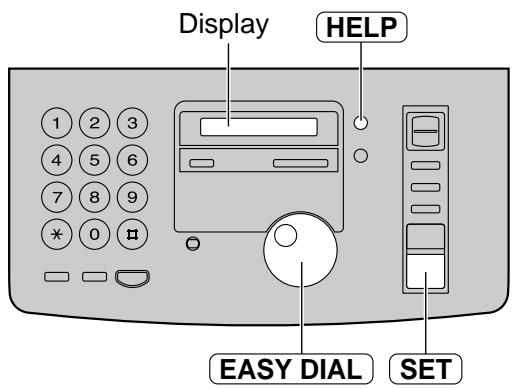
Fonction d'aide
Vous pouvez imprimer une référence rapide pour vous aider comme suit.
1 Appuyez sur HELP
Affichage : ROTATE & SET
2 Tournez EASYDIAL jusqu'à ce que l'élément souhaité soit affiché.
Pour KX-FP181
- Comment régler la date, l'heure, votre logo et votre numéro de fax
- Comment programmer les fonctions
- LISTE DES FONCTIONS
- Comment stocker des noms dans le répertoire EASY DIAL et comment les composer
3. EASY DIAL
- Aide en cas de problèmes de réception de télécopies
4. RÉCEPTION DE TÉLÉCOPIES
- Comment utiliser la fonction copieur
5. COPIER
- Liste des rapports disponibles
- RAPPORTS
3 Appuyez sur SET
Pour KX-FP185/KX-FM189
- Comment envoyer des télécopies avec le guide vocal 1. GUIDE D'ENVOI
- Comment régler la date, l'heure, votre logo et votre numéro de fax
- INSTALLATION RAPIDE
- Comment programmer les fonctions
- LISTE DES FONCTIONS
- Comment mémoriser des noms dans le répertoire EASY DIAL et comment les composer
4. EASY DIAL
- Aide pour résoudre les problèmes de fonctionnement du répondeur
5. FONCTIONNEMENT DU RÉPONDEUR
- Aide pour résoudre les problèmes de réception de télécopies
6. RÉCEPTION DE TÉLÉCOPIES
- Comment utiliser la fonction copieur
7. COPIER
- Liste des rapports disponibles
- RAPPORTS
- Comment utiliser le service d'identification de l'appelant
9. IDENTIFICATION DE L'APPELANT
3 Appuyez sur SET
IMPRESSION
Emplacement
Pour KX-FP181
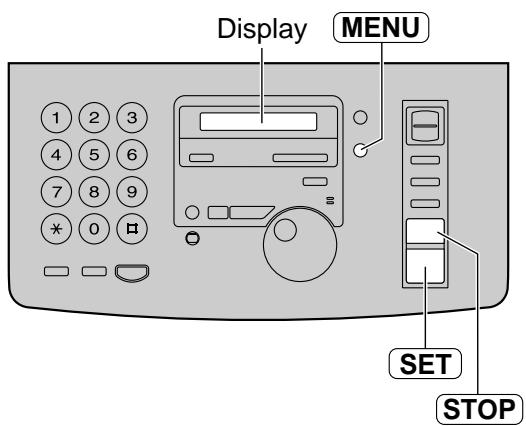
Pour sélectionner une résolution (p. 30).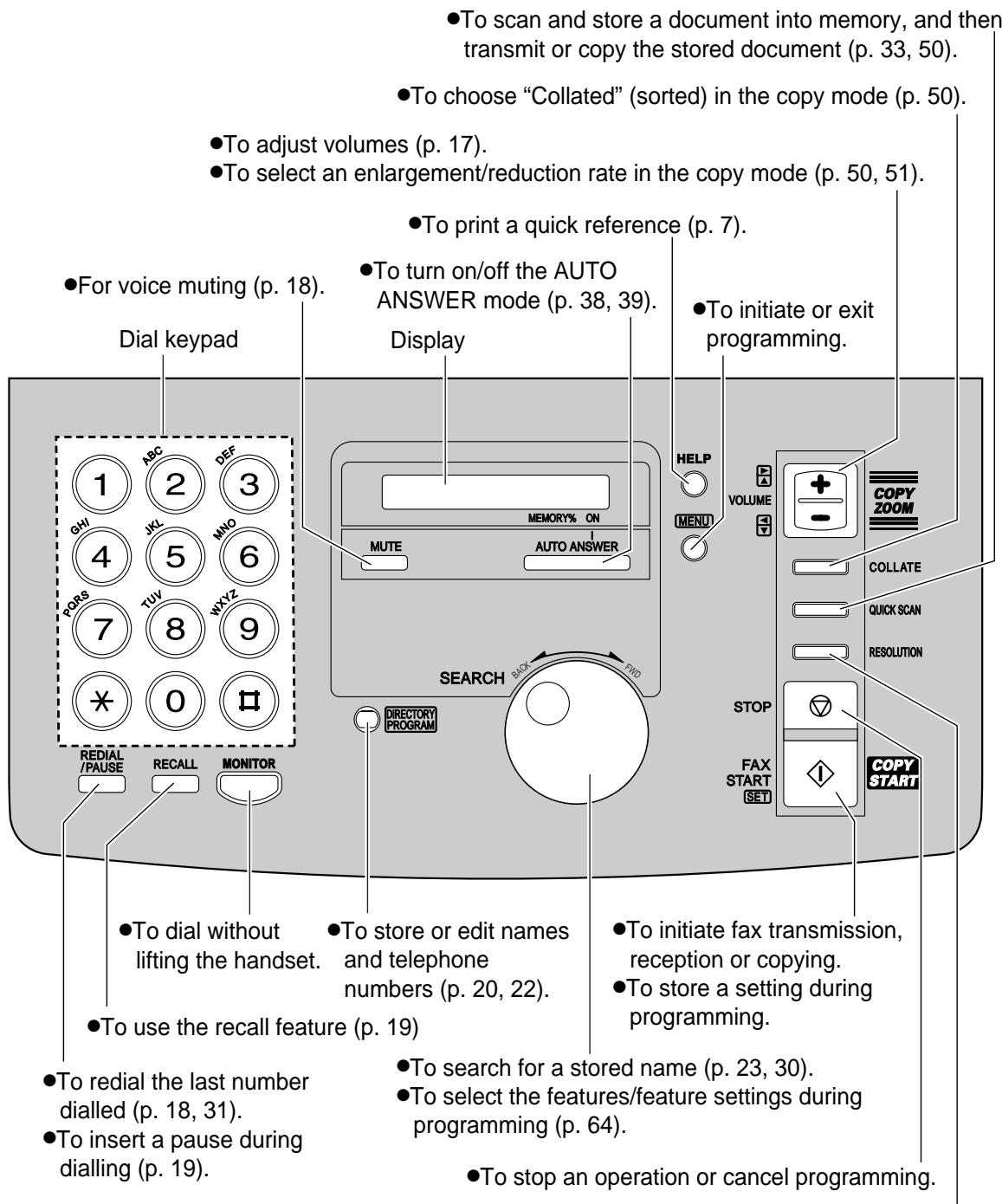
Pour KX-FP185/KX-FM189
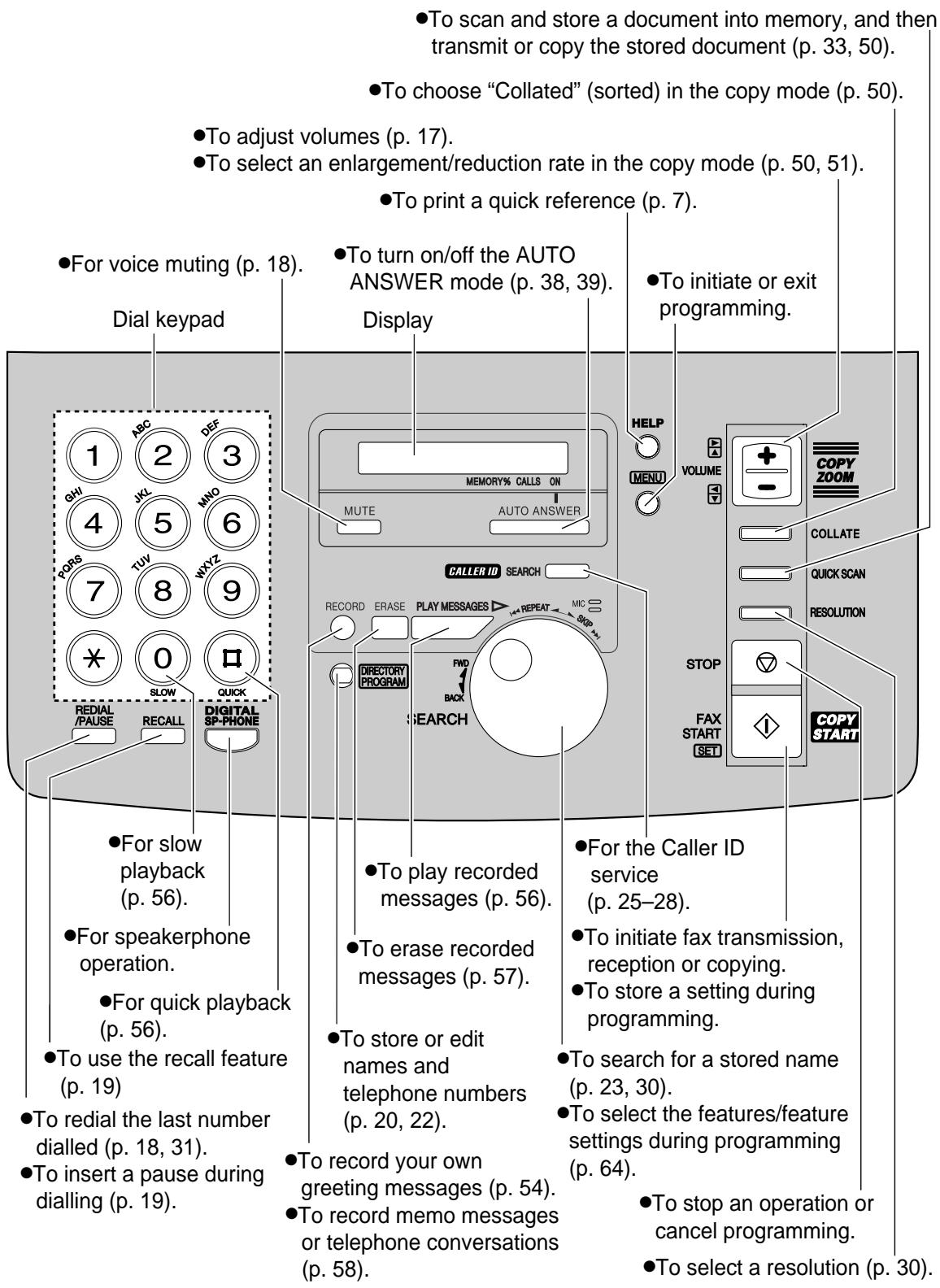
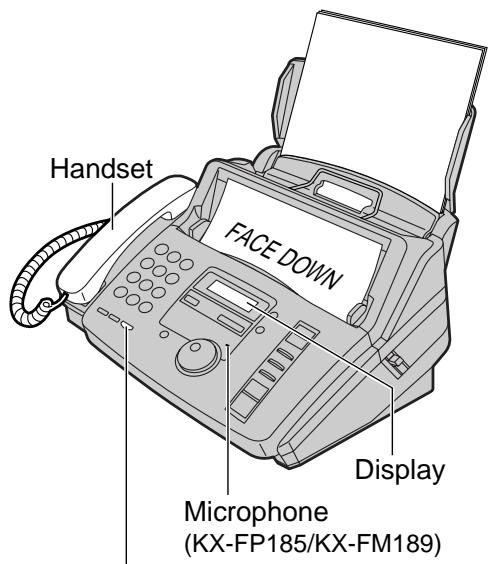
Vue d'ensemble
* Le modèle illustré est le KX-FM189.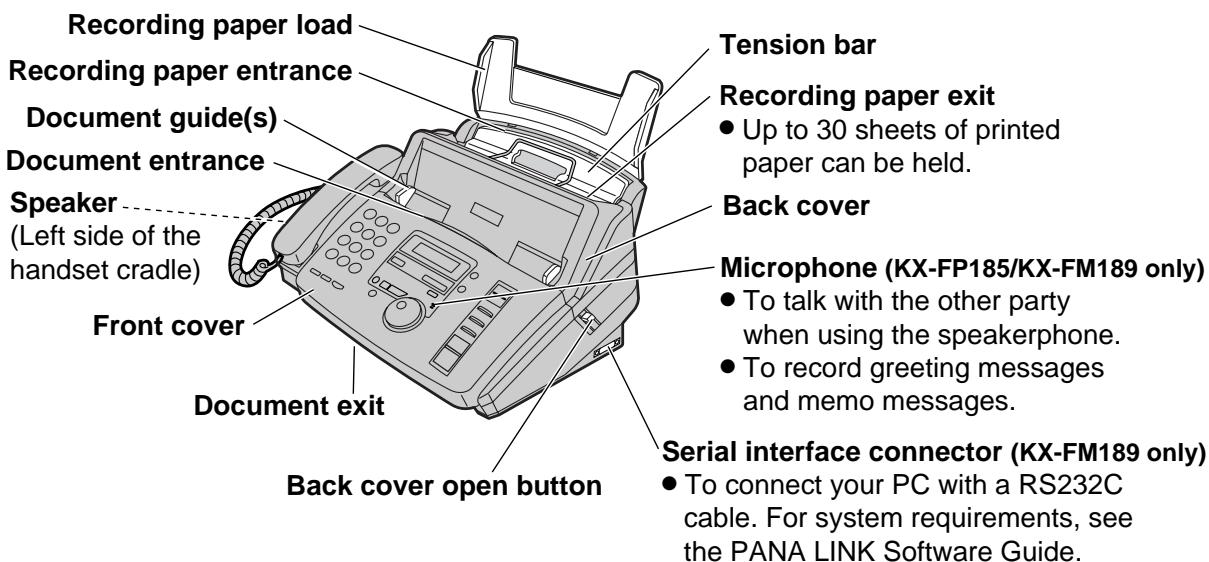
Remarque :
- Le document sera éjecté par l'avant de l'appareil. Installez l'appareil sur une surface plane (bureau ou sol) et ne placez rien devant l'appareil.
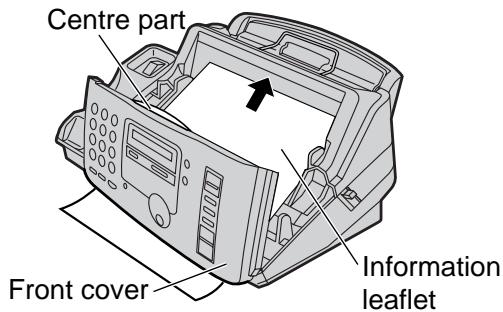
Retrait du feuillet d'informations
1 Ouvrez le capot avant en tirant vers le haut sur la partie centrale. 2 Retirez et lisez le feuillet d'informations. 3 Refermez soigneusement le capot avant.
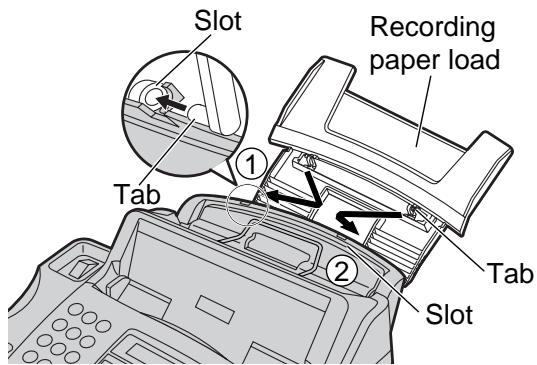
Chargement du papier d'enregistrement
Insérez une patte du chargeur de papier dans une fente à l'arrière de l'appareil (①), puis insérez l'autre patte dans l'autre fente (②).
Remarque :
- Ne placez pas l'appareil dans des endroits où le chargeur de papier pourrait être bloqué par un mur, etc.
Papier d'enregistrement
Du papier au format A4 (210 mm x 297 mm) peut être chargé. L'appareil peut contenir jusqu'à 50 feuilles de papier de 60 g/m² à 75 g/m², ou 30 feuilles de papier de 90 g/m².
Éventez la pile de papier pour éviter les bourrages papier.
2 Tirez la barre de tension vers l'avant et maintenez-la ouverte tout en insérant le papier.
Le papier ne doit pas dépasser la patte. - Si le papier n'est pas inséré correctement, réajustez-le, sinon le papier pourrait se coincer.
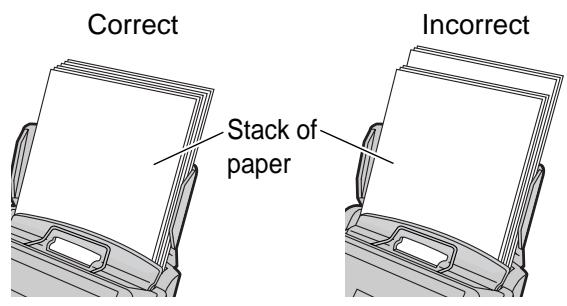
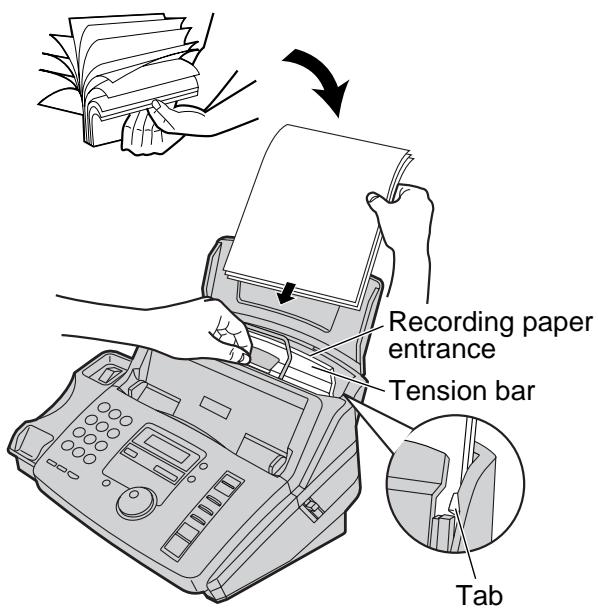
Remarque concernant le papier d'enregistrement :
- Évitez le papier contenant plus de 20 % de coton et/ou de fibres, comme le papier à en-tête ou le papier utilisé pour les CV.
- N'utilisez pas simultanément différents types ou épaisseurs de papier. Cela pourrait provoquer un bourrage papier.
- Évitez le papier extrêmement lisse ou brillant et très texturé.
- Évitez le papier couché, endommagé ou froissé.
Remarque :
- Évitez l'impression recto verso.
- N'utilisez pas de papier imprimé depuis cet appareil pour une impression recto verso avec d'autres copieurs ou imprimantes, sinon le papier pourrait se coincer.
- Certains papiers n'acceptent l'impression que sur une seule face. Si la qualité d'impression ne vous satisfait pas, essayez d'utiliser l'autre face du papier.
Ajout de papier
- Tirez la barre de tension vers l'avant et maintenez-la ouverte tout en retirant tout le papier installé.
- Ajoutez du papier au papier retiré et égalisez la pile.
- Éventez la pile de papier.
- Tirez la barre de tension vers l'avant et maintenez-la ouverte tout en insérant le papier.
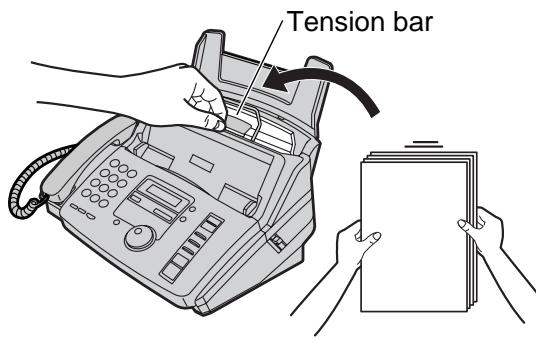
Connexions
1 Connectez le cordon du combiné. 2 Connectez le cordon de la ligne téléphonique. Connectez le cordon d'alimentation.
- Lors de la première mise sous tension, l'appareil imprimera quelques informations de base.
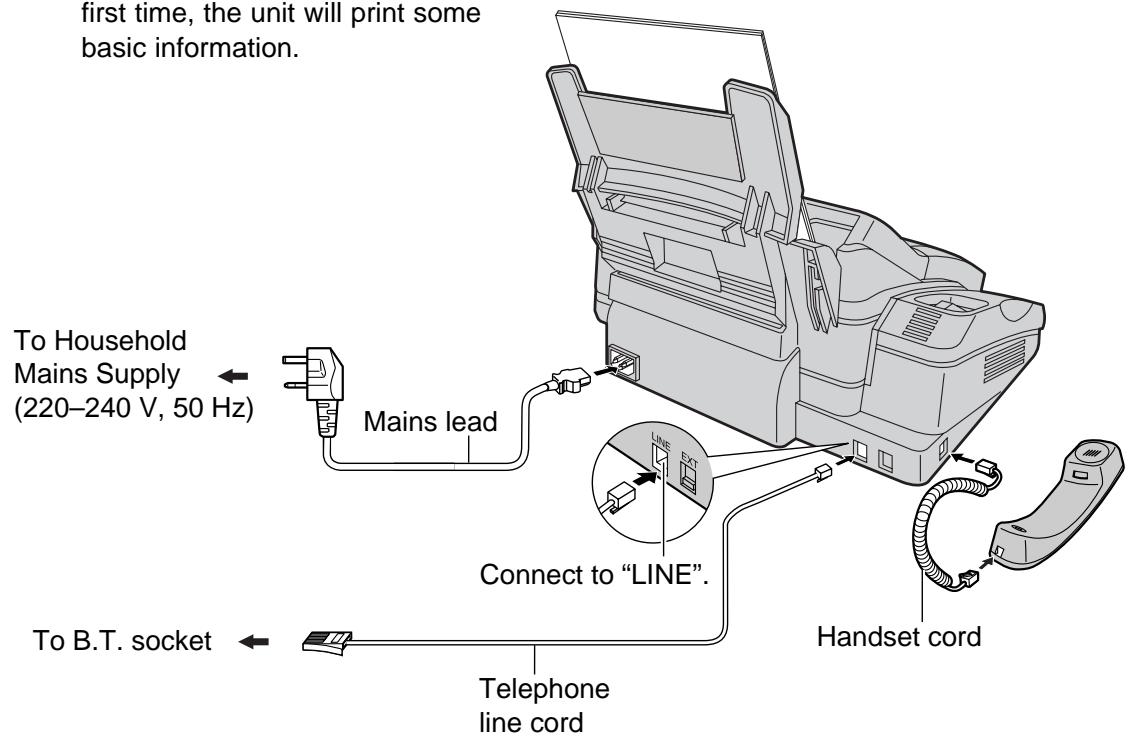
Remarque :
- Lorsque vous utilisez ce produit, la prise de courant doit être à proximité du produit et facilement accessible.
- Si vous souhaitez connecter un répondeur à l'appareil, voir page 42 (KX-FP181 uniquement).
- La connexion de la ligne téléphonique est de type TNV (tension de réseau de télécommunication).
● KX-FP181 uniquement
Vous pouvez connecter un téléphone supplémentaire ou un répondeur à la prise téléphonique externe (EXT) de cet appareil (p. 42, 47). Une chute de tension de 1,15 V à 40 mA sera introduite entre la prise EXT et la prise B.T. Si vous avez des difficultés à passer un appel ou rencontrez des problèmes pendant une conversation téléphonique, consultez votre revendeur ou notre personnel de service.
Date et heure, votre logo et numéro de télécopie
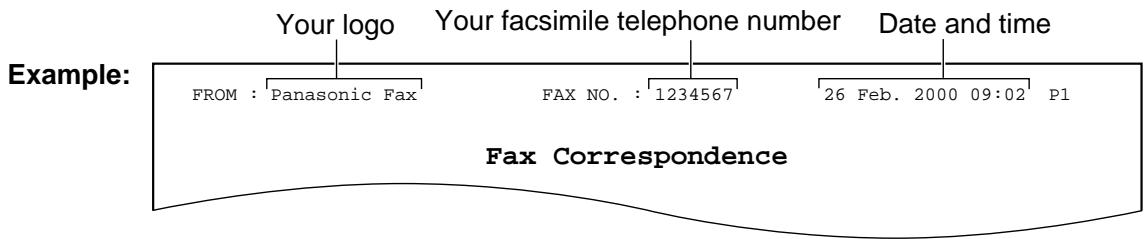
Vous devez programmer la date et l'heure, votre logo et votre numéro de télécopie. Ces informations seront imprimées sur chaque page transmise par votre appareil.
Réglage de la date et de l'heure
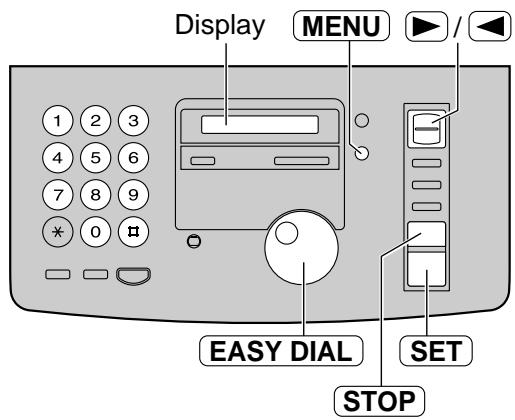
1 Appuyez sur MENU
Affichage : 1.SYSTEM SET UP
Appuyez sur 0, puis sur 1.
SET DATE & TIME
3 Appuyez sur SET
Appuyez sur SET
J:01/M:01/A:00
Curseur
4 Saisissez le jour, le mois et l'année corrects en sélectionnant 2 chiffres pour chacun, à l'aide du clavier à cadran.
Exemple : 10 août 2000
Composez 100800.
J:10/M:08/A:00
5 Appuyez sur SET
HEURE : 00:00
6 Saisissez l'heure et les minutes correctes en sélectionnant 2 chiffres pour chacun, à l'aide du clavier à cadran.
Exemple : 15:15
Composez 15 15
HEURE : 15:15
7 Appuyez sur SET
ÉLÉMENT DE CONFIGURATION [ ]
8 Appuyez sur MENU
Remarque :
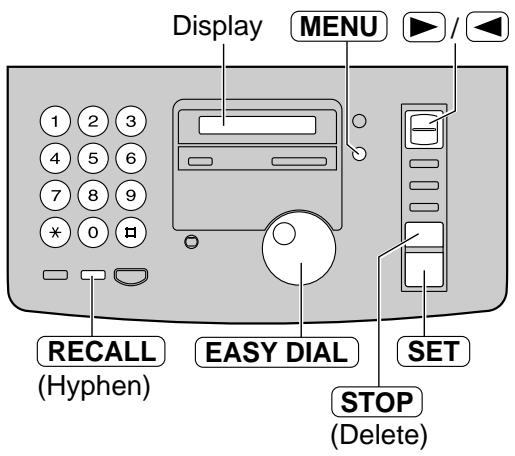
- Vous pouvez saisir votre numéro en tournant EASY DIAL aux étapes 4 et 6. Dans ce cas, appuyez pour déplacer le curseur. La précision de l'horloge est d'environ ± 60 secondes par mois.
Pour corriger une erreur
- Appuyez sur ou pour déplacer le curseur sur le numéro incorrect, puis effectuez la correction.
- Si vous appuyez sur STOP pendant la programmation, l'écran revient à l'affichage précédent.
Réglage de votre logo
Le logo peut être celui de votre entreprise, de votre division ou votre nom.
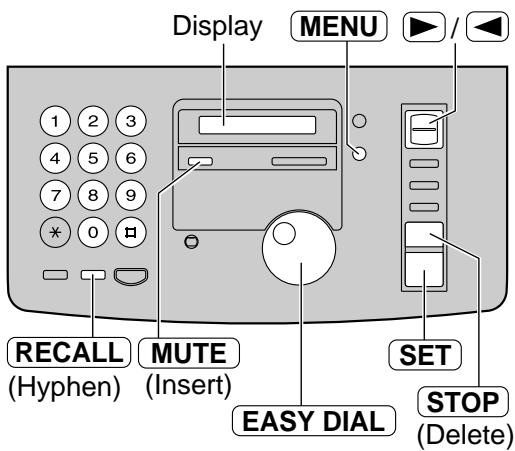
1 Appuyez sur MENU.
Affichage : 1.SYSTEM SET UP
Appuyez sur 1 , puis sur 02
Appuyez sur 1 , puis sur 0 .
VOTRE LOGO
3 Appuyez sur SET
Appuyez sur SET
LOGO=
4 Saisissez votre logo, jusqu'à 30 caractères, à l'aide du clavier. Voir page suivante pour plus de détails. Exemple : Bill
- Appuyez deux fois sur 2.
LOGO=B
Curseur
- Appuyez six fois sur 4.
LOGO=Bi
- Appuyez six fois sur 5.
LOGO=Bi
- Appuyez pour déplacer le curseur à l'espace suivant et appuyez six fois sur 5.
LOGO=Bil
5 Appuyez sur SET
Appuyez sur SET
ÉLÉMENT DE CONFIGURATION[ ]
6 Appuyez sur MENU.
Remarque :
- Vous pouvez saisir votre logo en tournant la MOLETTE EASY DIAL (voir page suivante).
Pour corriger une erreur
- Appuyez sur ou pour déplacer le curseur sur le caractère incorrect, puis effectuez la correction.
Pour supprimer un caractère
- Déplacez le curseur sur le caractère à supprimer et appuyez sur STOP.
Pour insérer un caractère
- Appuyez sur ou pour déplacer le curseur à la position à droite de l'endroit où vous voulez insérer le caractère.
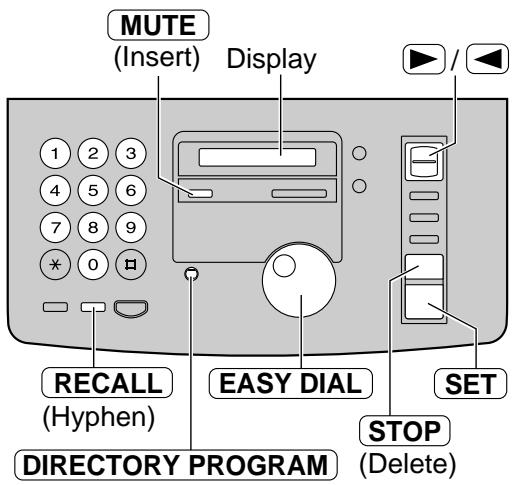
- Appuyez sur MUTE (Insertion) pour insérer un espace et saisir le caractère.
Pour sélectionner des caractères avec le clavier numérique
Appuyer sur les touches numériques sélectionnera un caractère comme indiqué ci-dessous.
| Keys | Characters |
| 1 | 1 [ ] { } + - / = , . _ ` ; ? | |
| 2 | A B C a b c 2 |
| 3 | D E F d e f 3 |
| 4 | G H I g h i 4 |
| 5 | J K L j k l 5 |
| 6 | M N O m n o 6 |
| 7 | P Q R S p q r s 7 |
| 8 | T U V t u v 8 |
| 9 | W X Y Z w x y z 9 |
| 0 | 0 () < > ! " # $ % & ¥ * @ ^ ' → |
| RECALL | Hyphen button (To insert a hyphen.) |
| MUTE | Insert button (To insert one character or one space.) |
| STOP | Delete button (To delete a character.) |
| + | ▶ key (To move the cursor to the right.)To enter another character using the same number key, move the cursor to the next space. |
| - | < key (To move the cursor to the left.) |
Pour sélectionner des caractères à l'aide de la MOLETTE EASY DIAL
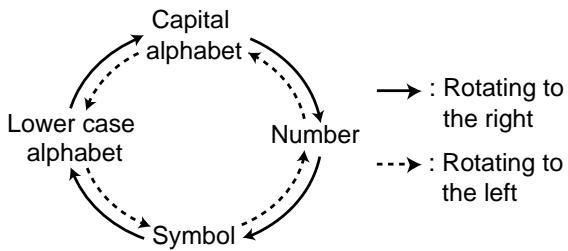
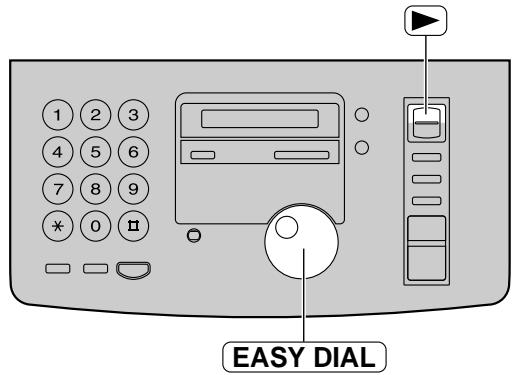
Au lieu d'appuyer sur les touches du clavier, vous pouvez sélectionner des caractères à l'aide de la molette EASY DIAL.
- Tournez EASYDIAL jusqu'à ce que le caractère souhaité soit affiché.
- Appuyez pour déplacer le curseur à l'espace suivant. Le caractère affiché à l'étape 1 est inséré.
- Revenez à l'étape 1 pour saisir le caractère suivant.
Ordre d'affichage des caractères
Réglage de votre numéro de télécopie
1 Appuyez sur MENU. Affichage : 1.SYSTEM SET UP. Appuyez sur 1, puis sur 03 YOUR FAX NO. Appuyez sur SET. NO. = 4 Saisissez votre numéro de télécopie, jusqu'à 20 chiffres, à l'aide du clavier numérique. Exemple : NO. = 1234567 5 Appuyez sur SET. SETUP ITEM [] 6 Appuyez sur MENU.
Remarque :
- Vous pouvez saisir votre numéro de télécopie en tournant EASY DIAL. Si vous utilisez EASY DIAL, appuyez pour déplacer le curseur.
- La touche * remplace le chiffre par un "+" et la touche # le remplace par un espace.
Exemple (avec le clavier numérique) : +234 5678
Appuyez sur *234#5678 Pour insérer un trait d'union dans un numéro de téléphone, appuyez sur RECALL (trait d'union).
Pour corriger une erreur
- Appuyez sur ou pour déplacer le curseur sur le numéro incorrect, puis effectuez la correction.
Pour supprimer un numéro
- Déplacez le curseur sur le numéro à supprimer et appuyez sur STOP.
Réglage des volumes
Volume de la sonnerie
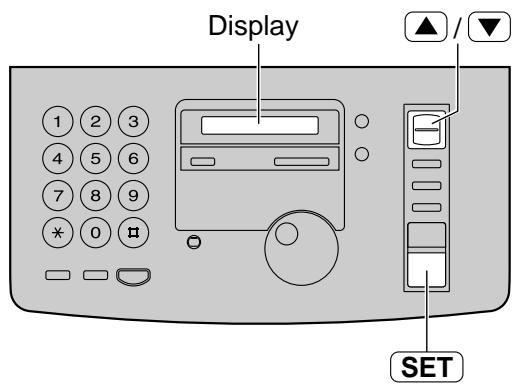
4 niveaux (élevé/moyen/faible/arrêt) sont disponibles.
Lorsque l'appareil est en veille, appuyez sur Δ ou .
Pour couper la sonnerie :
- Appuyez à plusieurs reprises jusqu'à ce que le message suivant s'affiche.
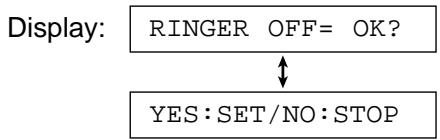
- Appuyez sur SET
- Pour réactiver la sonnerie, appuyez sur .
■ Lorsque le volume de la sonnerie est réglé sur arrêt :
L'écran affichera le message suivant.
SONNERIE COUPÉE
Lorsqu'un appel est reçu, l'appareil ne sonnera pas et affichera ce qui suit.
Appel entrant
Volume du moniteur/haut-parleur
8 niveaux (élevé à faible) sont disponibles.
Pendant l'utilisation du moniteur/haut-parleur, appuyez sur ou .
Volume des instructions vocales du fax (KX-FP185/KX-FM189 uniquement)
9 niveaux (élevé à désactivé) sont disponibles.
Pendant l'écoute des instructions vocales du fax,
appuyez sur Δ ou .
Volume du répondeur (KX-FP185/KX-FM189 uniquement)
9 niveaux (élevé à désactivé) sont disponibles.
Pendant l'écoute des messages enregistrés, appuyez sur ou .
Appels vocaux - émission
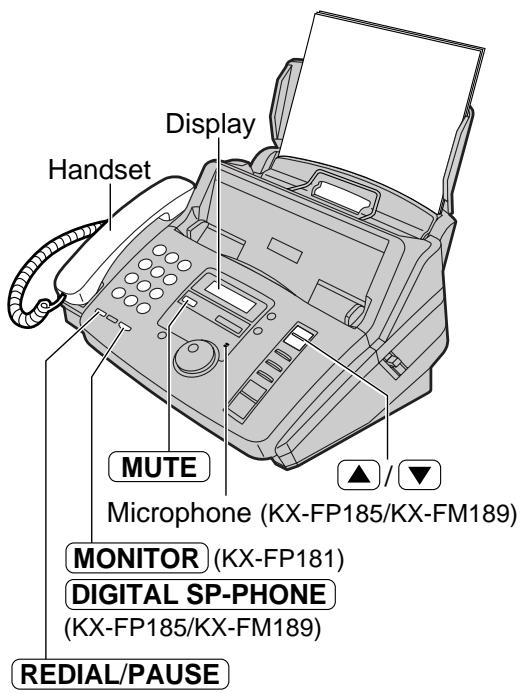
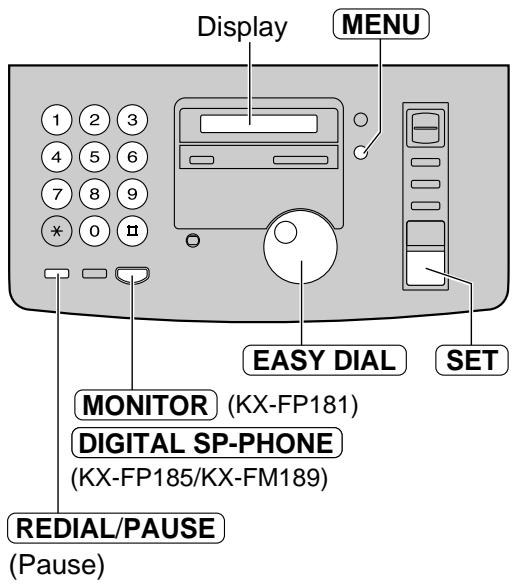
1 Appuyez sur MONITOR / DIGITAL SP-PHONE ou décrochez le combiné. Composez le numéro de téléphone.
Exemple : TEL=2345678
- Si vous faites une erreur de numérotation, raccrochez et recomposez.
3. Lorsque votre correspondant répond, parlez dans le microphone (KX-FP185/KX-FM189) ou dans le combiné. 4. Lorsque vous avez terminé la conversation, appuyez sur DIGITAL SP-PHONE (KX-FP185/KX-FM189) ou raccrochez le combiné.
Appels vocaux - répondre
Lorsque l'appareil sonne, appuyez sur DIGITAL SP-PHONE (KX-FP185/KX-FM189) ou décrochez le combiné. 2. Lorsque vous avez terminé la conversation, appuyez sur DIGITAL SP-PHONE ou raccrochez le combiné.
Pour recomposer le dernier numéro
- Décrochez le combiné.
- Appuyez sur REDIAL/PAUSE
- Lorsque votre correspondant répond, parlez dans le combiné.
- Si la ligne est occupée lors de l'utilisation du bouton MONITOR / DIGITAL SP-PHONE, l'appareil recomposera automatiquement le numéro jusqu'à 5 fois.
- Pendant la recomposition, l'affichage suivant apparaîtra. Affichage : WAITING REDIA
Pour couper votre voix pour votre correspondant
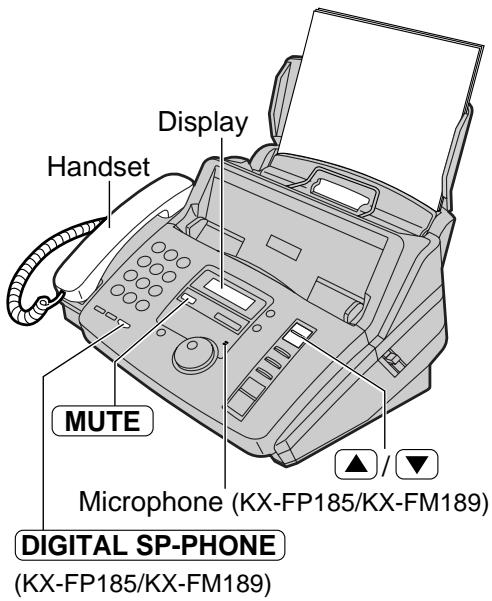
- Appuyez sur MUTE pendant une conversation téléphonique en utilisant DIGITAL SP-PHONE ou le combiné.
Affichage :
Votre correspondant ne peut pas vous entendre, mais vous pouvez l'entendre.
- Pour reprendre la conversation, appuyez à nouveau sur MUTE.
Fonctionnement du haut-parleur (KX-FP185/KX-FM189 uniquement)
- Utilisez le haut-parleur dans une pièce calme.
- Réglez le volume du haut-parleur à l'aide de Δ ou .
- Pour passer au combiné, soulevez le combiné. Pour revenir au haut-parleur, appuyez sur DIGITAL SP-PHONE.
Touches RAPPEL et PAUSE
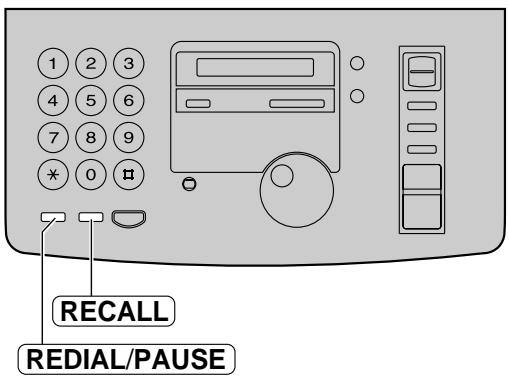
Touche RAPPEL (pour utiliser la fonction de rappel)
RAPPEL est utilisé pour accéder à des services téléphoniques spéciaux (optionnels) tels que l'appel en attente. Contactez le bureau commercial de votre compagnie de téléphone pour plus de détails.
Exemple : appel en attente de British Telecom
- Si la tonalité d'appel en attente est entendue pendant une conversation, appuyez sur RAPPEL.
- Lorsque la tonalité est entendue, composez le ②.
Le premier appel est mis en attente et vous pouvez parler avec le second interlocuteur.
- ■ Pour conserver l'appel en cours et revenir au premier appel :
Appuyez sur RAPPEL, puis composez le 2.
Pour raccrocher le premier appel :
Appuyez sur RAPPEL, puis composez le 0.
Pour raccrocher l'appel en cours et revenir au premier appel :
Appuyez sur RECALL, puis composez le 1.
Remarque :
- PAUSE peut être mémorisé dans un numéro de téléphone du répertoire EASY DIAL.
Si votre appareil est connecté à un PBX, appuyer sur RECALL permet d'accéder à certaines fonctions de votre PBX hôte, comme le transfert d'un appel interne.
Touche PAUSE (pour utilisateurs de PBX)
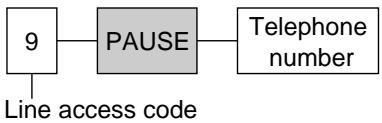
Si votre appareil est connecté à un PBX, vous devez composer un numéro d'accès (généralement 9) pour obtenir une ligne extérieure. Dans ce cas, il est nécessaire d'insérer une pause entre le numéro d'accès et le numéro de téléphone, surtout lors de la recomposition ou de la mémorisation du numéro. Appuyer sur REDIAL/PAUSE crée un délai de numérotation dans la séquence.
Exemple 1 :
Si votre appareil est connecté à un standard, insérez une pause pour obtenir une ligne extérieure.
Exemple 2 :
Si une erreur de transmission se produit lors d'une transmission à l'étranger, ajoutez deux pauses à la fin du numéro de téléphone.

Mémorisation des noms et numéros de téléphone dans le répertoire EASY DIAL
Pour un accès rapide aux numéros fréquemment composés, l'appareil dispose d'un répertoire EASY DIAL (100 stations).
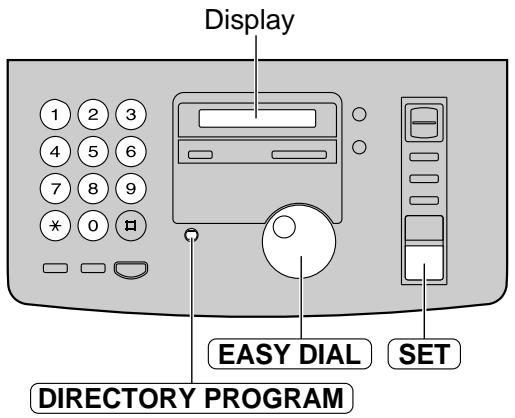
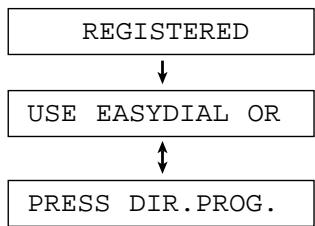
Appuyez sur DIRECTIONALPROGRAM
Affichage : UTILISEZ EASYDIAL OU
APPUYEZ SUR DIR.PROG.
Faites pivoter EASYDIAL jusqu'à ce que le message suivant soit
affiché.
NOM=
3 Saisissez le nom, jusqu'à 10 caractères, en suivant les instructions de la page suivante.
Exemple : NOM Alice
4 Appuyez sur SET
N° =
5 Saisissez le numéro de téléphone, jusqu'à 30 chiffres, à l'aide du clavier.
Exemple : N° = 5552233
- Si vous souhaitez saisir un trait d'union, appuyez sur RECALL.
6 Appuyez sur SET
ENREGISTRÉ
NOM=
- Pour programmer d'autres éléments, répétez les étapes 3 à 6.
7 Appuyez sur PROGRAM du répertoire pour quitter le programme.
Conseil utile :
- Vous pouvez confirmer les éléments mémorisés sur l'écran (p. 23) ou sur la liste des numéros de téléphone (p. 85).
Remarque :
- Lorsque le message suivant s'affiche à l'étape 6, vous ne pouvez mémoriser que 5 éléments supplémentaires.
Affichage : ESPACE = 5 RÉP.
- S'il n'y a plus de place pour mémoriser de nouvelles stations, le message suivant s'affiche à l'étape 1.
NUMÉRO ABRÉGÉ SATURÉ
Effacez les stations inutiles (p. 22).
- Un trait d'union ou un espace saisi dans un numéro de téléphone compte pour deux chiffres.
Pour corriger une erreur
- Appuyez sur ▸ ou ◂ pour déplacer le curseur sur le caractère/chiffre incorrect, puis effectuez la correction.
Pour supprimer un caractère/chiffre
- Déplacez le curseur sur le caractère/chiffre à supprimer et appuyez sur STOP.
Pour sélectionner des caractères avec le clavier numérique
Appuyer sur les touches numériques sélectionne un caractère comme indiqué ci-dessous.
| Keys | Characters |
| 1 | 1 [ ] { } + - / = , . _ ` ; ? | |
| 2 | A B C a b c 2 |
| 3 | D E F d e f 3 |
| 4 | G H I g h i 4 |
| 5 | J K L j k l 5 |
| 6 | M N O m n o 6 |
| 7 | P Q R S p q r s 7 |
| 8 | T U V t u v 8 |
| 9 | W X Y Z W x y z 9 |
| 0 | 0 () < > ! " # $ % & ¥ * @ ^ ' → |
| RECALL | Hyphen button (To insert a hyphen.) |
| MUTE | Insert button (To insert one character or one space.) |
| STOP | Delete button (To delete a character.) |
| + | ▶ key (To move the cursor to the right.)To enter another character using the same number key, move the cursor to the next space. |
| - | < key (To move the cursor to the left.) |
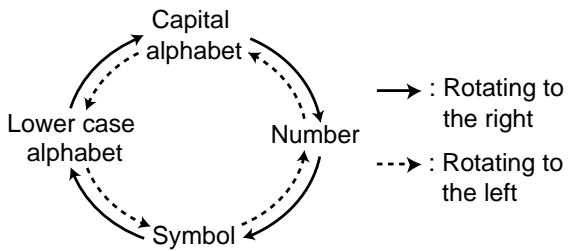
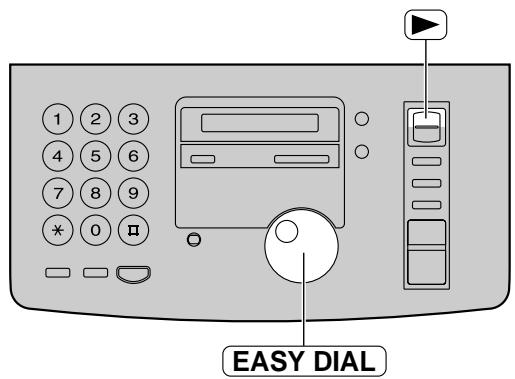
Pour sélectionner des caractères à l'aide de la molette EASY DIAL
Au lieu d'appuyer sur les touches de numérotation, vous pouvez sélectionner des caractères à l'aide de la molette EASY DIAL.
- Tournez la molette EASYDIAL jusqu'à ce que le caractère souhaité soit affiché.
- Appuyez pour déplacer le curseur à l'espace suivant. Le caractère affiché à l'étape 1 est inséré.
- Revenez à l'étape 1 pour saisir le caractère suivant.
Ordre d'affichage des caractères
Modification d'un nom et d'un numéro enregistrés
1 Tournez la molette EASYDIAL jusqu'à ce que le nom souhaité soit affiché.
Exemple : Mary
6 Modifiez le numéro de téléphone. Pour plus de détails, voir page 20.
7 Appuyez sur SET
Appuyez sur DIRECTIONALPROGRAM
EDIT *DELETE = #
Appuyez sur ※ pour sélectionner "EDIT".
NAME=Mary
- Si vous n'avez pas besoin de modifier le nom, passez à l'étape 5.
4 Modifiez le nom en suivant les instructions de la page 21.
5 Appuyez sur SET
- Si vous n'avez pas besoin de modifier le numéro de téléphone, passez à l'étape 7.
Effacement d'un nom et d'un numéro mémorisés
1 Tournez EASYDIAL jusqu'à ce que le nom souhaité soit affiché.
Exemple : Smith
Appuyez sur Directory PROGRAM
EDIT *DELETE = #
Appuyez pour sélectionner "DELETE".
DELETE OK?
YES:SET/NO:STOP
- Pour annuler l'effacement, appuyez sur STOP.
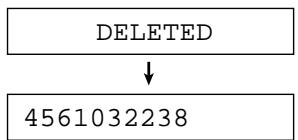
4 Appuyez sur SET
DELETED
- Le nom et le numéro mémorisés sont supprimés.
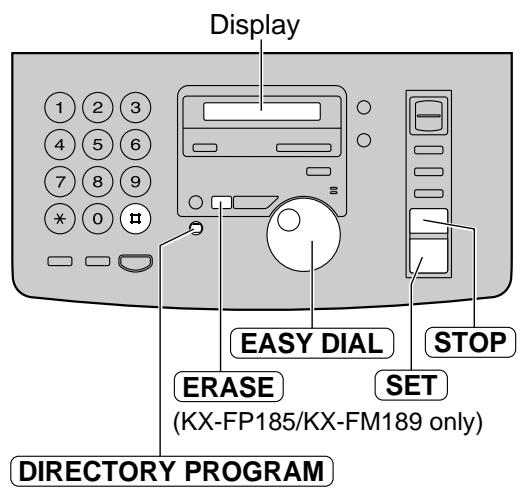
Remarque :
- Vous pouvez utiliser la méthode suivante pour effacer (KX-FP185/KX-FM189 uniquement).
- Tournez EASYDIAL jusqu'à ce que le nom souhaité s'affiche.
- Appuyez sur ERASE.
- Appuyez sur SET.
Effectuer un appel vocal à l'aide du répertoire EASY DIAL
Avant d'utiliser cette fonction, programmez les noms et numéros de téléphone souhaités dans le répertoire (p. 20).
1 Tournez EASYDIAL jusqu'à ce que le nom souhaité s'affiche.
Exemple : Lisa
Appuyez sur MONITOR / DIGITAL SP-PHONE ou décrochez le combiné.
- L'appareil commence à composer automatiquement.
COMPOSITION
3 Lorsque l'autre partie répond, parlez dans le microphone (KX-FP185/KX-FM189) ou parlez avec le combiné.
TEL =
4 Lorsque vous avez terminé la conversation, appuyez sur DIGITAL SP-PHONE ou raccrochez le combiné.
Conseil utile :
- Vous pouvez confirmer les éléments mémorisés sur l'afficheur (voir ci-dessous) ou sur la liste des numéros de téléphone (p. 85).
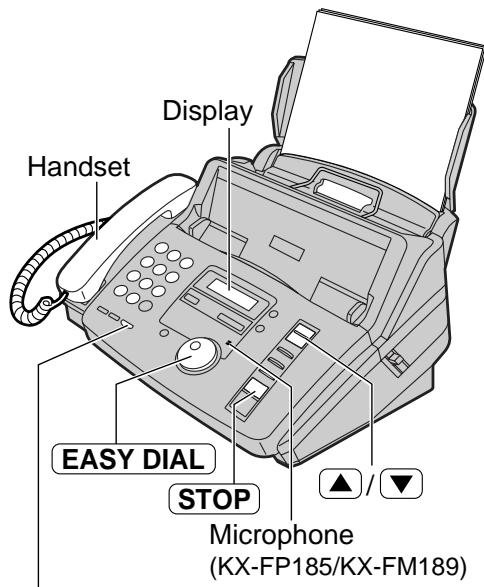
MONITOR (KX-FP181)
DIGITAL SP-PHONE
(KX-FP185/KX-FM189)
Remarque :
- Si le nom souhaité n'a pas été mémorisé, appuyez sur STOP et composez le numéro manuellement.
Pour confirmer les éléments mémorisés sur l'afficheur
- Tournez EASY DIAL jusqu'à ce que le nom souhaité soit affiché.
Exemple : Kim
- Appuyez sur Δ ou .
4567890
- Pour arrêter l'opération, appuyez sur STOP.
- Décrochez le combiné.
L'appareil composera automatiquement le numéro.
Pour rechercher un nom par initiale
Exemple : si vous voulez rechercher le nom "Lisa"
- Tournez EASY DIAL jusqu'à ce qu'un nom s'affiche.
Exemple : Alan
- Appuyez sur 5 à plusieurs reprises jusqu'à ce qu'un nom avec l'initiale "L" s'affiche (voir le tableau des caractères à la page 21).
Larry
- Tournez EASY DIAL vers la droite jusqu'à ce que "Lisa" s'affiche.
Lisa
- Pour arrêter l'opération, appuyez sur STOP.
- Décrochez le combiné.
L'appareil composera automatiquement le numéro.
Remarque :
- Lorsque vous souhaitez rechercher des symboles (et non des lettres ou des chiffres), appuyez sur * à l'étape 2.
Service d'identification de l'appelant de votre compagnie téléphonique
Cet appareil est compatible avec le service d'identification de l'appelant offert par votre compagnie téléphonique locale. Pour utiliser cette fonction, vous devez souscrire à un service d'identification de l'appelant.
Important :
- Cet appareil est conçu conformément au « protocole de ligne d'abonné basé sur FSK » selon la norme ETS (norme de télécommunication européenne) et ne prend en charge que les fonctions de base de la présentation du numéro de l'appelant (CLIP).
- Cet appareil affichera uniquement le numéro de téléphone et le nom de l'appelant.
- Cet appareil ne prendra pas en charge les futurs services téléphoniques supplémentaires.
- Cet appareil ne peut pas prendre en charge les services basés sur le « protocole de ligne d'abonné basé sur DTMF ».
- Selon le service de la compagnie téléphonique locale, la date/heure de l'appel ou le nom de l'appelant peuvent ne pas être affichés.
Réglez à l'avance les paramètres de nombre de sonneries suivants sur 2 sonneries ou plus.
— Nombre de sonneries FAX et nombre de sonneries TAD (fonction n° 06, page 65) — Nombre de sonneries TEL/FAX (fonction n° 78, page 71)
Affichage de l'identification de l'appelant
Le numéro de téléphone ou le nom de l'appelant s'affichera après la première sonnerie.
Vous avez ensuite la possibilité de répondre ou non à l'appel selon l'appelant.
Exemple :
1234567890
L'appareil mémorise automatiquement les informations de l'appelant (numéro de téléphone, nom et heure de l'appel). Vous pouvez consulter les informations de l'appelant (voir page suivante) et imprimer la liste des appelants (p. 26).
Remarque :
- Si l'appareil est connecté à un système PBX (autocommutateur privé), il se peut que vous ne receviez pas les informations de l'appelant. Consultez votre fournisseur PBX.
- Si l'appareil ne peut pas recevoir les informations de l'appelant, il affichera ce qui suit.
Affichage :
HORS ZONE
L'appelant a composé depuis une zone qui ne fournit pas le service d'identification de l'appelant.
APPELANT PRIVÉ
L'appelant a demandé à ne pas envoyer ses informations.
APPEL LONGUE DISTANCE
L'appelant a effectué un appel longue distance.
Consultation des informations de l'appelant sur l'écran
Lorsqu'un appel est reçu, les informations de l'appelant sont enregistrées dans l'appareil comme nouvel appel. Après consultation, elles sont enregistrées comme ancien appel.
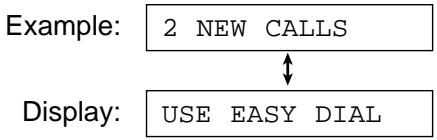
1 Appuyez sur RECHERCHE ID APPELANT. Exemple (2 nouveaux appels reçus) :
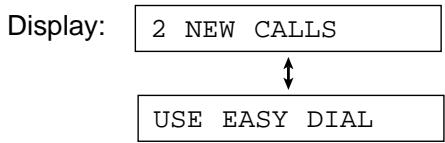
Tournez EASYDIAL vers la droite (dans le sens des aiguilles d'une montre).
- L'écran affiche le numéro de l'appelant le plus récent.
3 Appuyez sur STOP pour arrêter la consultation.
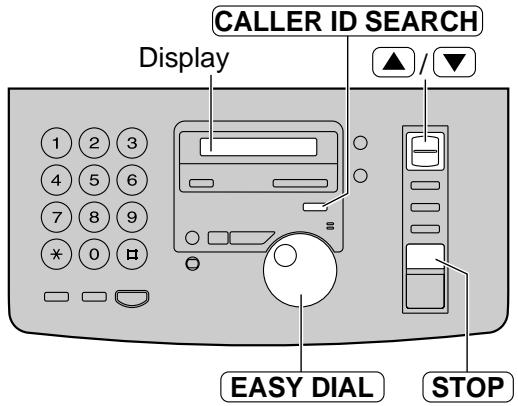
Remarque :
- Si vous souhaitez connaître la date/l'heure de l'appel et le nom de l'appelant, appuyez à plusieurs reprises sur Δ ou pendant que l'écran affiche le numéro.
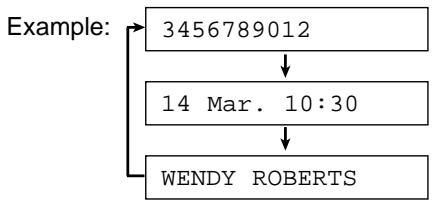
Pour rechercher des informations sur l'appelant
- Si vous tournez EASY DIAL vers la gauche, l'écran affiche les appels déjà consultés.
- Si l'appareil n'a pas pu recevoir le nom, il affiche :
NOM NON REÇU
- Après l'affichage du dernier nouvel appel, l'appareil affiche :
FIN DES NOUVEAUX APPELS
- Après l'affichage de tous les appels, l'appareil affiche :
FIN
- Si aucun appel n'a été reçu, l'appareil affichera :
AUCUNE DONNÉE D'APPELANT
Confirmation des informations de l'appelant à l'aide de la liste d'identification de l'appelant
L'appareil stockera les informations de l'appelant pour jusqu'à 30 appels (liste d'identification de l'appelant).
Pour imprimer manuellement la liste d'identification de l'appelant, voir page 85. — Cette liste sera imprimée automatiquement après chaque 30 nouveaux appels.
Cette fonction est réglée sur "ON" par défaut avec la fonction #26 (p. 67). Si vous sélectionnez "OFF", l'appareil n'imprimera pas la liste automatiquement mais stockera les enregistrements des appels reçus.
Exemple de liste d'identification de l'appelant
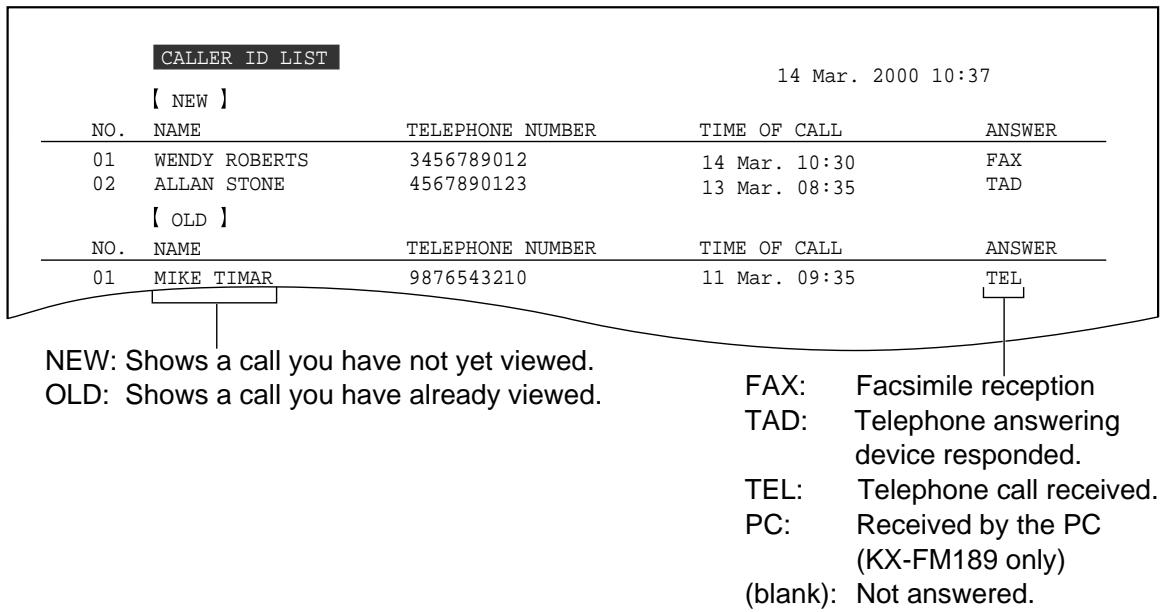
Remarque :
- Lorsque le nombre total d'appels atteint 30 et qu'un nouvel appel est reçu, les données les plus anciennes seront automatiquement effacées.
Rappeler en utilisant les informations de l'appelant
Vous pouvez facilement rappeler un appelant en utilisant les informations stockées de l'appelant.
Important :
- Cette fonction n'est pas disponible dans les cas suivants.
Le numéro de téléphone comprend des données autres que des chiffres (c'est-à-dire ou #). Les informations de l'appelant ne comprennent pas de numéro de téléphone.
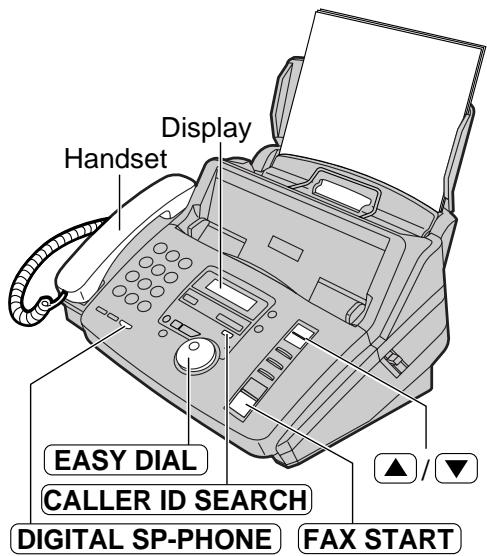
1 Appuyez sur CALLER ID SEARCH
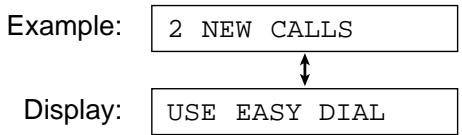
2 Tournez EASY DIAL jusqu'à ce que le numéro de téléphone (ou le nom) souhaité soit affiché.
Exemple : 4561032238
Pour confirmer le nom, appuyez plusieurs fois sur Δ ou .
Appuyez sur DIGITAL SP-PHONE ou décrochez le combiné.
- L'appareil commencera à composer automatiquement.
- Pour envoyer un fax - insérez le document FACE VERS LE BAS et appuyez sur FAX START.
Voir pages 30 et 31 pour plus de détails.
Mémorisation des informations de l'appelant dans le répertoire EASY DIAL
Vous pouvez mémoriser les informations de l'appelant (numéro de téléphone et nom) dans le répertoire EASY DIAL.
Important :
- Cette fonction n'est pas disponible dans les cas suivants.
Le numéro de téléphone comprend des données autres que des chiffres (c'est-à-dire ou #). Les informations de l'appelant ne comprennent pas de numéro de téléphone.
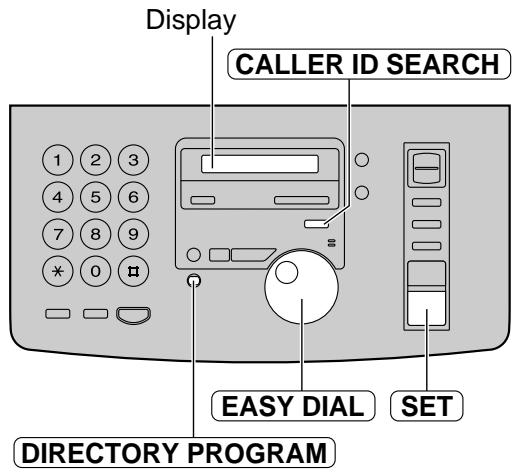
Appuyez sur CALLER ID SEARCH
Exemple : 2 NOUVEAUX APPELS
Affichage : UTILISER EASY DIAL
2 Tournez EASYDIAL jusqu'à ce que le numéro que vous souhaitez mémoriser s'affiche.
Exemple : 3453809
Appuyez sur Répertoire PROGRAM
NOM=
- Modifiez le nom en suivant les instructions de la page 21.
- Si le répertoire est plein, un numéro et un nom ne peuvent pas être mémorisés. Effacez les postes inutiles dans le répertoire EASY DIAL (p. 22).
4 Appuyez sur SET
Exemple : N° = 3453809
5 Appuyez sur SET
ENREGISTRÉ
Remarque :
- Vous pouvez confirmer les éléments mémorisés sur l'écran (p. 23) ou sur la liste des numéros de téléphone (p. 85).
- Vous ne pouvez mémoriser qu'un nom d'une longueur maximale de 10 caractères.
- Pour modifier les éléments mémorisés dans le répertoire EASY DIAL, voir la page 22.
Effacement des informations sur l'appelant
Effacement d'informations spécifiques sur l'appelant
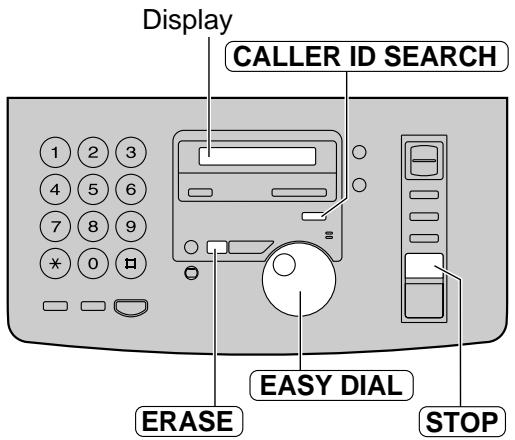
1 Appuyez sur RECHERCHE IDENTIFICATION DE L'APPELANT
2 Tournez EASYDIAL jusqu'à ce que le numéro souhaité soit affiché.

Appuyez sur EFFACER.
- Les informations sur l'appelant seront effacées.
- Pour effacer d'autres éléments, répétez les étapes 2 et 3.
4 Appuyez sur STOP pour quitter le programme.
Effacement de toutes les informations enregistrées sur les appelants
1 Appuyez trois fois sur MENU.
Affichage : 3. RÉGLAGE APPELANT
Appuyez sur RÉGLER
EFFACER LISTE APPELS
3 Appuyez sur RÉGLER
TOUT EFFACER OK ?
- Pour annuler l'effacement, appuyez sur STOP, puis sur MENU.
Appuyez sur SET
EFFACEMENT TERMINÉ
5 Appuyez sur STOP pour quitter le programme.
Parler à l'autre partie après l'envoi ou la réception d'un fax
Vous pouvez parler à l'autre partie après la fin d'un fax. Cela vous évitera les frais et le temps supplémentaires d'un autre appel.
Cette fonction ne fonctionne que si le télécopieur de l'autre partie est équipé d'une fonction de contact vocal.
Initier un contact vocal
1 Appuyez sur MONITOR / DIGITAL SP-PHONE pendant l'envoi ou la réception de documents.
Affichage : ATTENTE VOCALE
- Votre appareil appellera l'autre partie avec une sonnerie distinctive.
- Lorsque l'autre partie répond, votre appareil émettra une sonnerie distinctive.
Appuyez sur DIGITAL SP-PHONE (KX-FP185/KX-FM189) ou décrochez le combiné pour commencer à parler.
Remarque :
- Si vous initiez un contact vocal pendant la transmission, l'appareil vous appellera avec une sonnerie distinctive après que tous les documents auront été transmis.
- Si vous initiez un contact vocal pendant la réception, l'appareil vous appellera avec une sonnerie distinctive après la réception de la page en cours du document.
MONITOR (KX-FP181)
NUMÉRIQUE SP-PHONE
(KX-FP185/KX-FM189)
Réception d'une demande de contact vocal
Si l'autre partie initie un contact vocal, votre appareil émettra une sonnerie distinctive et l'affichage suivant apparaîtra.
Affichage : VeuillezDécrocher
Appuyez sur NUMÉRIQUE SP-PHONE (KX-FP185/KX-FM189) ou décrochez le combiné dans les 10 secondes suivant la sonnerie distinctive pour commencer à parler.
Remarque :
- Si vous ne répondez pas dans les 10 secondes suivant la sonnerie distinctive ;
- Si vous êtes en mode FAX UNIQUEMENT, TEL ou TEL/FAX, la ligne sera déconnectée. — Si vous êtes en mode TAD/FAX, votre appareil jouera un message d'accueil et enregistrera un message vocal entrant (KX-FP185/KX-FM189 uniquement).
Envoi d'un fax manuellement/utilisation du répertoire EASY DIAL
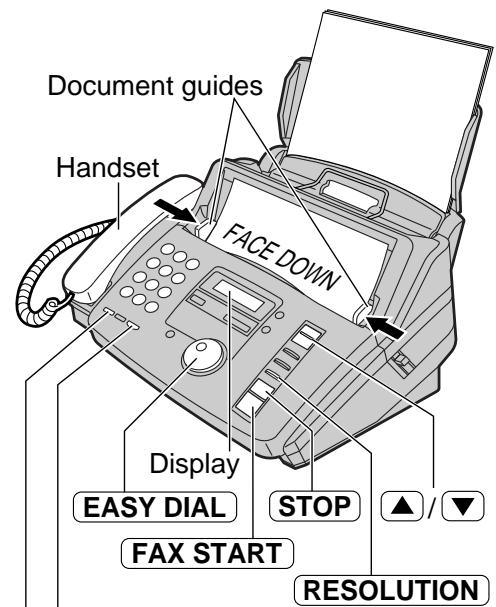
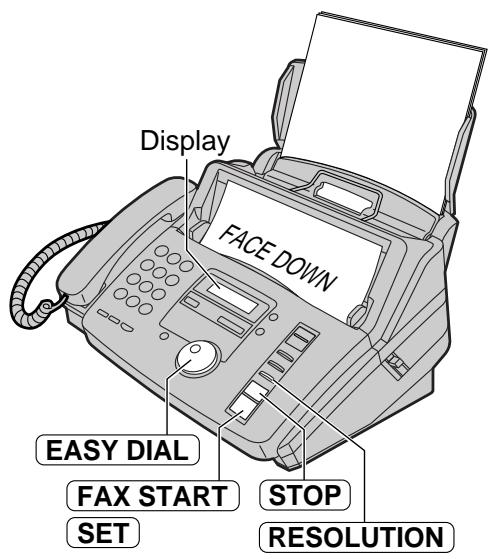
1 Ajustez la largeur des guides de document à la taille du document. 2 Insérez le document (jusqu'à 10 pages) FACE VERS LE BAS jusqu'à ce qu'un bip soit émis et que l'appareil saisisse le document.
Affichage :
STANDARD
3 Si nécessaire, appuyez plusieurs fois sur RÉSOLUTION pour sélectionner le réglage souhaité (voir ci-dessous).
Manuel
4 Soulevez le combiné ou appuyez sur MONITOR DIGITAL SP-PHONE
TEL=
Composez le numéro de fax.
Exemple : TEL=5678901
Lorsqu'une tonalité de fax est entendue :
Appuyez sur FAX START, et raccrochez le combiné si vous l'utilisez.
OU
Lorsque l'autre partie répond à votre appel :
Soulevez le combiné si vous utilisez le moniteur et demandez-lui d'appuyer sur son bouton de démarrage. Lorsqu'une tonalité de fax est entendue, appuyez sur FAX START et raccrochez le combiné.
CONNEXION EN COURS....
Utilisation du répertoire EASY DIAL
4 Tournez EASYDIAL jusqu'à ce que le nom souhaité soit affiché.
Pour confirmer le numéro, appuyez sur Δ ou . - Pour plus de détails sur l'utilisation du EASY DIAL, voir page 23.
Appuyez sur FAX START
MONITOR (KX-FP181)
DIGITAL SP-PHONE
(KX-FP185/KX-FM189)
REDIAL/PAUSE
Pour sélectionner la résolution
Sélectionnez la résolution souhaitée selon le type de document.
STANDARD : Pour les originaux imprimés ou dactylographiés avec des caractères de taille normale.
FINE : Pour les originaux avec une petite impression.
SUPER FINE : Pour les originaux avec une impression minuscule.
HALF TONE : Pour les originaux contenant des photographies, des dessins ombrés, etc.
- L'utilisation du réglage "FINE", "SUPER FINE" ou "HALF TONE" augmentera le temps de transmission.
- Si le réglage de résolution est modifié pendant l'alimentation, il sera effectif à partir de la feuille suivante.
- La résolution "SUPER FINE" ne fonctionne qu'avec d'autres télécopieurs compatibles.
Pour transmettre plus de 10 pages à la fois
Insérez les 10 premières pages du document. Ajoutez les pages supplémentaires (jusqu'à 10) avant que la dernière page ne soit introduite dans l'appareil.
Pour arrêter la transmission
Appuyez sur STOP
Pour recomposer le dernier numéro
Appuyez sur REDIAL/PAUSE
- Si la ligne est occupée, l'appareil recomposera automatiquement le numéro jusqu'à 5 fois.
- Pendant la recomposition, le message suivant s'affiche.
Affichage :
ATTENTE DE RECOMPOSITION
- Pour annuler la recomposition, appuyez sur STOP.
Recomposition automatique pour le répertoire EASY DIAL
Si la ligne est occupée ou s'il n'y a pas de réponse lors de l'utilisation du répertoire EASY DIAL, l'appareil recomposera automatiquement le numéro jusqu'à 5 fois.
Cette fonction est également disponible pour la transmission différée (fonction #25 à la page 67). - Pendant la recomposition, le message suivant s'affiche.
Affichage :
ATTENTE DE NUMÉROTATION
- Pour annuler la numérotation, appuyez sur STOP.
Moyen pratique d'envoyer un fax
Vous pouvez composer le numéro de fax avant d'insérer le document. C'est pratique si le numéro de l'autre partie est indiqué sur le document.
- Composez le numéro de fax.
- Le combiné doit être sur le socle.
- Insérez le document.
- Appuyez sur FAX START
Si votre appareil n'envoie pas de fax en utilisant le répertoire EASY DIAL
- Vérifiez les éléments mémorisés sur l'écran (p. 23) ou sur la liste des numéros de téléphone (p. 85).
- Vérifiez que le numéro composé est répondu par la machine de l'autre partie.
- Tournez EASY DIAL jusqu'à ce que le nom souhaité soit affiché.
- Décrochez le combiné.
- La tonalité de connexion sera entendue pendant la numérotation pour vous indiquer l'état de l'appareil de l'autre partie (fonction #76 à la page 71).
Documents que vous pouvez envoyer
Taille minimale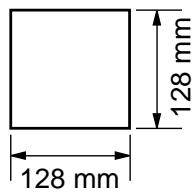
Taille maximale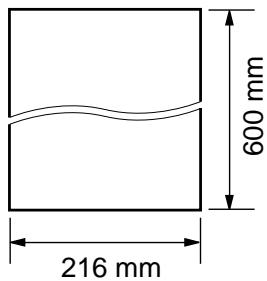
Zone de numérisation effective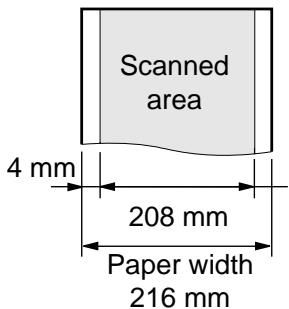
Poids du document
Feuille simple :
45 g/m² à 90 g/m²
Feuilles multiples :
60 g/m² à 80 g/m²
Remarque :
- Retirez les trombones, agrafes ou autres objets de fixation similaires.
- Vérifiez que l'encre, la pâte ou le fluide de correction a séché.
- N'envoyez pas les types de documents suivants. Utilisez des copies pour la transmission par télécopie.
Papier traité chimiquement tel que le papier carbone ou le papier autocopiant sans carbone — Papier chargé d'électricité statique — Papier fortement froissé, plié ou déchiré
Papier avec une surface couchée — Papier avec une image faible — Papier avec une impression au verso visible au recto (par exemple, un journal)
Rapports de confirmation
Pour confirmer les résultats de communication, les rapports suivants sont disponibles.
Rapport d'envoi
Ce rapport vous fournit un enregistrement imprimé des résultats de transmission. Pour modifier le réglage, voir la fonction n° 04 à la page 65.
Exemple de rapport d'envoi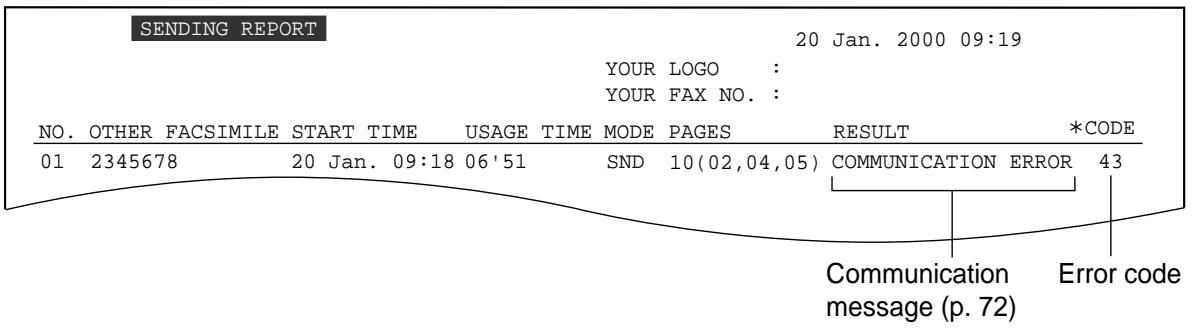
Rapport journal
L'appareil stocke les 30 résultats de communication de télécopie les plus récents. Lorsqu'une nouvelle communication a lieu, le résultat le plus ancien est effacé.
- Pour imprimer manuellement, voir page 85.
- Pour imprimer automatiquement après chaque série de 30 nouvelles communications de télécopie, activez la fonction n° 22 (p. 67).
Exemple de rapport journal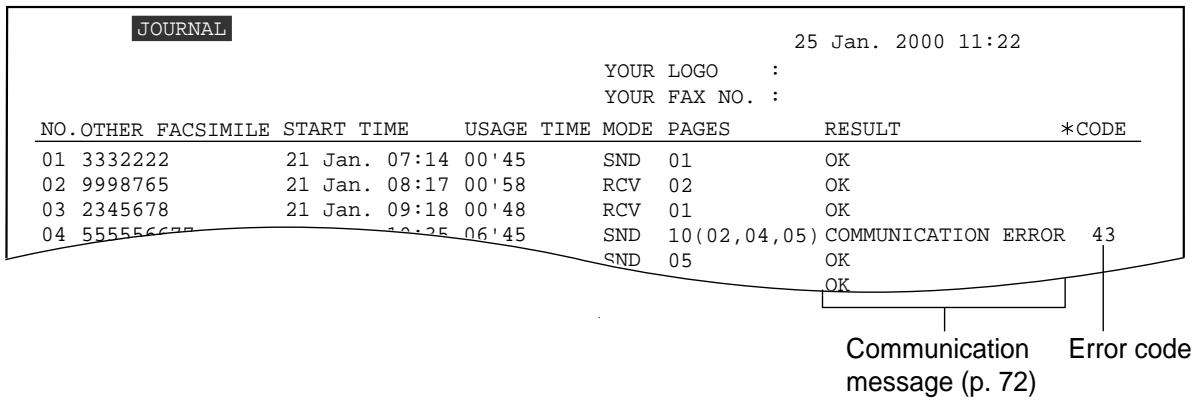
Envoi d'une télécopie avec le guide vocal
(KX-FP185/KX-FM189 uniquement)
1 Appuyez deux fois sur HELP.
Affichage : 1. GUIDE D'ENVOI
2. Appuyez sur SET. 3. Insérez le document FACE VERS LE BAS jusqu'à ce qu'un bip sonore se fasse entendre et que l'appareil saisisse le document. 4. Appuyez sur NUMÉRIQUE SP-PHONE et composez le numéro de fax.
- Vous pouvez également utiliser le combiné.
5. Lorsqu'une tonalité de fax est entendue, appuyez sur FAX START.
Guide vocal :
Pour transmettre, insérez le document face vers le bas jusqu'à ce que vous entendiez le bip.
Appuyez sur le bouton du haut-parleur, puis composez le numéro de téléphone. Lorsque la tonalité de fax est entendue, appuyez sur le bouton de démarrage.
Démarrez la transmission.
Envoi depuis la mémoire
L'appareil peut numériser des documents, les stocker en mémoire, puis les transmettre depuis la mémoire. La capacité mémoire est d'environ 25 pages basée sur la mire d'essai n° 1 de l'UIT-T en résolution standard (p. 86).
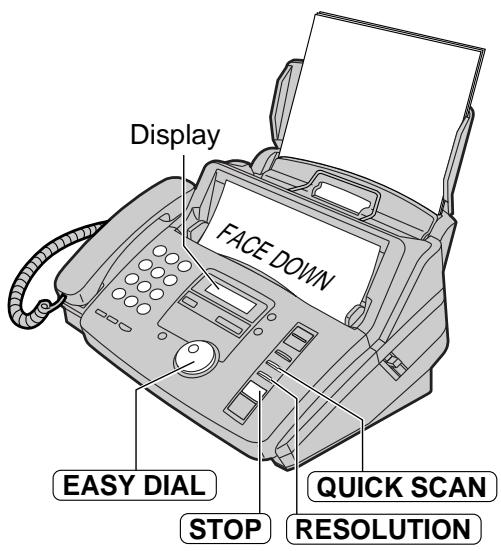
Insérez le document FACE VERS LE BAS.
- Si nécessaire, appuyez plusieurs fois sur RÉSOLUTION pour sélectionner le réglage souhaité (p. 30).
2. Composez le numéro de fax à l'aide du clavier de numérotation ou de la NUMÉROTATION RAPIDE.
Appuyez sur NUMÉRISATION RAPIDE.
- Le document sera introduit dans l'appareil et numérisé en mémoire. Après avoir stocké toutes les pages, l'appareil transmettra le document.
- La quantité de mémoire utilisée sera affichée en pourcentage sur l'écran.
Affichage : PAGES=01 05
Quantité de mémoire utilisée (%)
- Le document stocké sera automatiquement effacé après la transmission.
Remarque :
- Si vous sélectionnez la résolution "FINE", "SUPER FINE" ou "HALFTONE", le nombre de pages que l'appareil peut transmettre diminuera.
- Si les pages stockées dépassent la capacité de la mémoire, la transmission sera annulée.
Pour annuler la transmission en mémoire
Appuyez sur STOP pendant ou après la numérisation du document.
Transmission de diffusion unique
Cette fonction est utile pour envoyer le même document à des destinataires sélectionnés dont les numéros de fax sont enregistrés dans le répertoire EASY DIAL. Si vous souhaitez envoyer un document une seule fois, sélectionnez les destinataires pour chaque transmission.
Avant la programmation, assurez-vous que les stations souhaitées ont été enregistrées dans le répertoire EASY DIAL (p. 20).
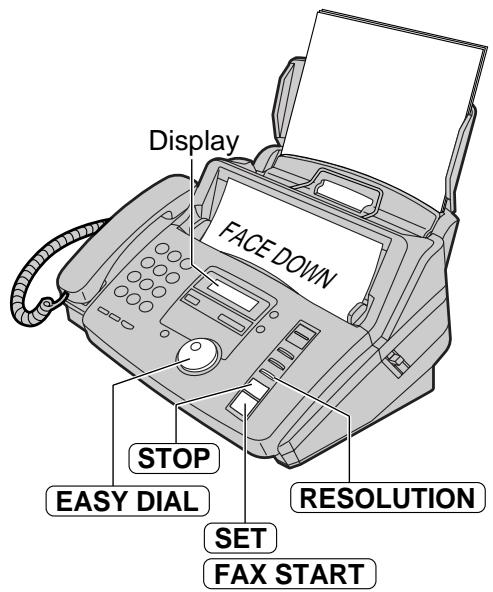
Insérez le document FACE VERS LE BAS.
- Si nécessaire, appuyez plusieurs fois sur RESOLUTION pour sélectionner le réglage souhaité (p. 30).
2 Tournez EASYDIAL jusqu'à ce que l'écran affiche ce qui suit.
Affichage :
Appuyez sur SET
DIR= [000]
4 Tournez EASYDIAL jusqu'à ce que le nom souhaité soit affiché.
Exemple : Bill [000]
5 Appuyez sur SET
DIR=Bill [001]
- Pour programmer d'autres postes, répétez les étapes 4 et 5 (jusqu'à 20 postes).
6 Appuyez sur FAX START après avoir programmé tous les postes souhaités.
- Le document sera introduit dans l'appareil et numérisé en mémoire. L'appareil transmettra ensuite les données à chaque poste, en appelant chaque numéro séquentiellement.
- Après la transmission, le document stocké sera effacé automatiquement, et l'appareil imprimera automatiquement un rapport d'envoi groupé (p. 37).
Remarque :
- Si vous sélectionnez la résolution "FINE", "SUPER FINE" ou "HALF TONE", le nombre de pages que l'appareil peut transmettre diminuera.
- Si l'une des stations est occupée ou ne répond pas, la station sera ignorée. Toutes les stations ignorées seront recomposées jusqu'à 5 fois après que toutes les autres stations aient été appelées.
Pour annuler le réglage de diffusion
- Appuyez sur STOP pendant que l'appareil affiche le message suivant.
Affichage : DIFFUSION
L'affichage montrera ce qui suit.
ENVOI ANNULÉ ?
OUI : SET / NON : STOP
- Appuyez sur SET
Transmission en diffusion à des destinataires préprogrammés
Cette fonction est utile pour envoyer souvent le même document à des destinataires sélectionnés dont les numéros de fax sont stockés dans le répertoire EASY DIAL. Programmez d'abord les destinataires (voir ci-dessous), puis consultez la page 37 pour la transmission.
Avant la programmation, assurez-vous que les stations souhaitées ont été stockées dans le répertoire EASY DIAL (p. 20).
Programmation des stations dans la mémoire de diffusion
1
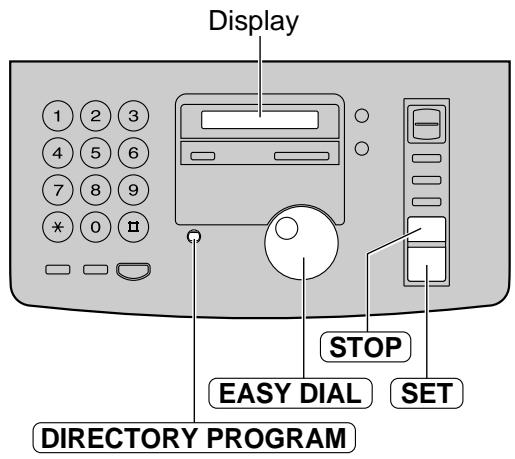
Appuyez deux fois sur PROGRAM du répertoire.
Affichage :
DIFFUSION
RÉGLAGE DE LA PRESSION
2
Appuyez sur SET
RÉP= [000]
3
Tournez la molette EASY DIAL jusqu'à ce que le nom souhaité soit affiché.
Exemple : John [000]
4
Appuyez sur SET
RÉP=John [001]
- Pour programmer d'autres stations, répétez les étapes 3 et 4 (jusqu'à 20 stations).
5
Appuyez sur SET après avoir programmé toutes les stations souhaitées.
6
Appuyez sur STOP pour quitter le programme.
Remarque :
- Si vous entrez une mauvaise station, appuyez sur STOP après l'étape 4 pour effacer la station.
- Confirmez les numéros mémorisés en imprimant une liste de programmation de diffusion (p. 85).
Ajout d'une nouvelle station dans la mémoire de diffusion
1 Tournez EASY DIAL jusqu'à ce que l'affichage suivant apparaisse.
Affichage :
Appuyez sur DIRECTIONALPROGRAM
ADD = * DELETE = #
Appuyez sur * pour sélectionner "ADD".
4 Tournez EASY DIAL jusqu'à ce que le nom souhaité soit affiché.
Exemple : Mike
Appuyez sur SET
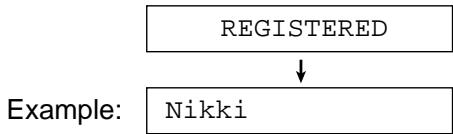
- Pour ajouter d'autres stations, répétez les étapes 4 et 5 (jusqu'à 20 stations).
6 Appuyez sur Directory Program pour quitter le programme.
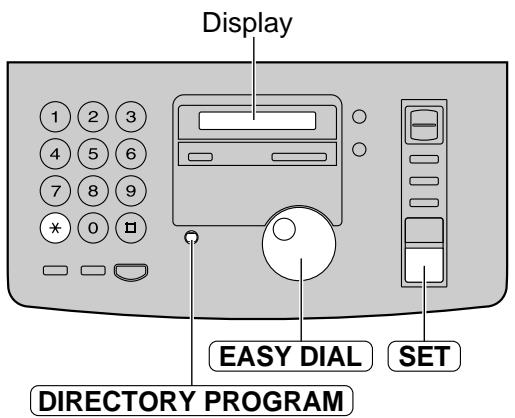
Effacement d'une station mémorisée dans la mémoire de diffusion
1 Tournez EASYDIAL jusqu'à ce que l'affichage suivant apparaisse.
Affichage :
Appuyez sur DIRECTIONALPROGRAM
ADD = * DELETE = #
Appuyez pour sélectionner "DELETE".
4 Tournez EASYDIAL jusqu'à ce que le nom souhaité soit affiché.
Exemple : Dick
- Pour annuler l'effacement, appuyez sur STOP.
5 Appuyez sur SET
DELETE OK?
OUI:SET/NON:STOP
6 Appuyez sur SET
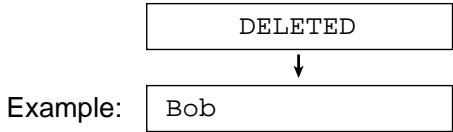
- Pour supprimer d'autres stations, répétez les étapes 4 à 6.
7 Appuyez sur Directory PROGRAM pour quitter le programme.
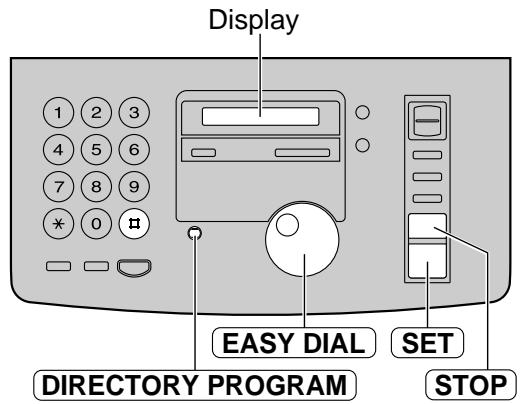
Envoi à des correspondants préprogrammés dans la mémoire de diffusion
Le même document sera envoyé aux correspondants dont les numéros sont stockés dans la mémoire de diffusion.
La capacité mémoire de transmission est d'environ 25 pages, basée sur la mire d'essai n° 1 de l'UIT-T en résolution standard (p. 86).
Insérez le document FACE VERS LE BAS.
- Si nécessaire, appuyez plusieurs fois sur RÉSOLUTION pour sélectionner le réglage souhaité (p. 30).
2 Tournez EASYDIAL jusqu'à ce que l'écran affiche ce qui suit.
Affichage :
Appuyez sur DÉPART FAX
- Le document sera introduit dans l'appareil et numérisé en mémoire. L'appareil transmettra ensuite les données à chaque poste, en composant chaque numéro séquentiellement.
- Après la transmission, le document stocké sera effacé automatiquement, et l'appareil imprimera automatiquement un rapport d'envoi en diffusion (voir ci-dessous).
Remarque :
- Si vous sélectionnez la résolution "FINE", "SUPER FINE" ou "HALF TONE", le nombre de pages que l'appareil peut transmettre diminuera.
- Si l'un des postes est occupé ou ne répond pas, le poste sera ignoré. Tous les postes ignorés seront recomposés jusqu'à 5 fois après que tous les autres postes auront été appelés.
Pour annuler le réglage de diffusion
- Appuyez sur STOP pendant que l'appareil affiche le message suivant.
Affichage :
DIFFUSION
L'écran affichera ce qui suit.
ENVOI ANNULÉ ?
OUI:SET/NON:STOP
- Appuyez sur SET
Exemple de rapport d'envoi en diffusion
RAPPORT DE DIFFUSION
| NO. | OTHER | FACSIMILE | START TIME | YOUR LOGO : | ||
| YOUR FAX NO. : | ||||||
| USAGE TIME | PAGES | RESULT | ||||
| 01 | Mike | 10 Jan. 09:31 | 01'10 | 02 | OK | |
| 02 | Peter | 10 Jan. 09:33 | 01'08 | 02 | OK | |
| 03 | Sam | 10 Jan. 09:34 | 01'09 | 02 | OK | |
| 04 | Kim | 10 Jan. 09:35 | 01'10 | 02 | OK | |
| TOTAL | 004'37 | 008 | ||||
Réglage de l'appareil pour recevoir des télécopies
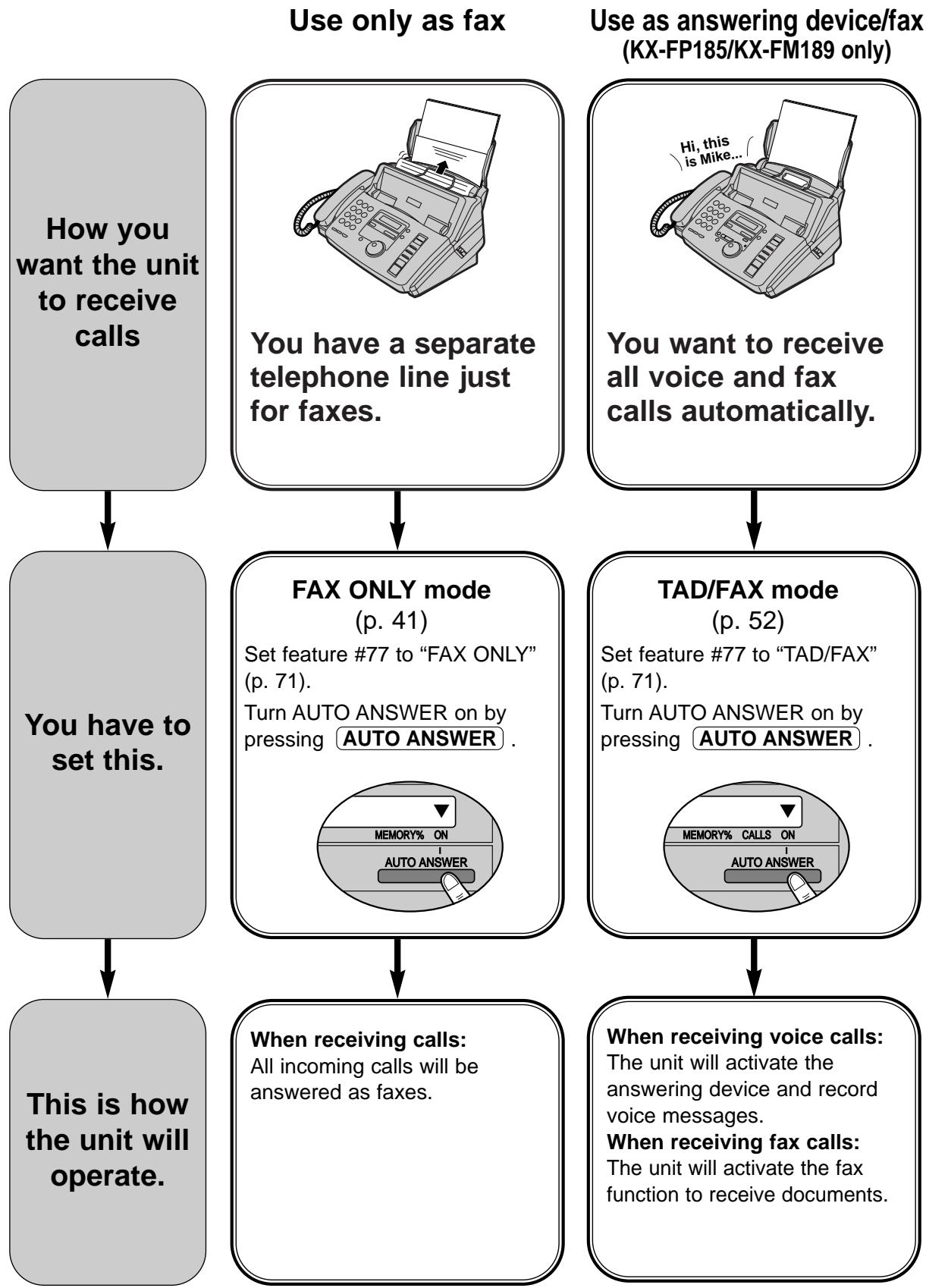
Utilisation comme téléphone / télécopieur automatique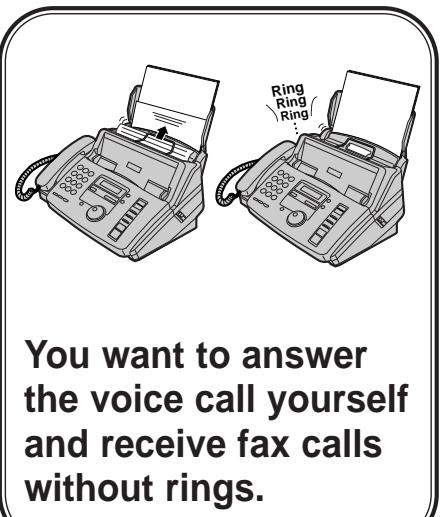
Appels vocaux principalement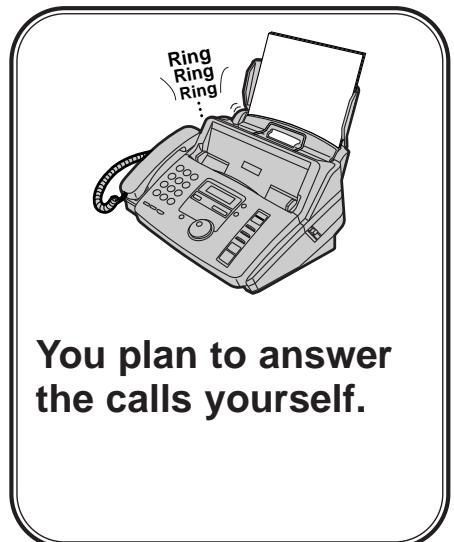
Autres options
Avec répondeur (KX-FP181 uniquement)
Vous pouvez utiliser le télécopieur avec un répondeur, voir pages 42 et 43.
Avec PC
Si vous avez un ordinateur branché sur la même ligne téléphonique, voir page 43.
Mode TEL/FAX
(p. 44)
Réglez la fonction #77 sur "TEL/FAX" (p. 71).
Activez la réponse automatique en appuyant sur AUTO ANSWER.
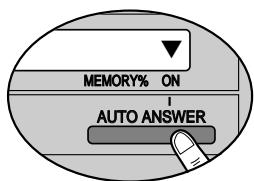
Pour les appels vocaux : l'appareil sonnera.
Pour les appels fax : l'appareil recevra les documents fax sans sonner.
Mode TEL
(p. 40)
Désactivez la réponse automatique en appuyant sur AUTO ANSWER.
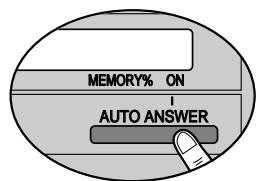
Pour les appels entrants :
Vous devez répondre manuellement à tous les appels.
Pour recevoir un fax, appuyez sur FAX START pour chaque appel fax.
Activation
à distance du fax
Vous pouvez également recevoir un fax à l'aide d'un téléphone supplémentaire. Tout en entendant la tonalité d'appel de fax sur le téléphone supplémentaire, appuyez sur *9 (code d'activation de fax présélectionné) pour recevoir un fax (p. 47).
Mode TEL (réponse manuelle à tous les appels)
Activation du mode TEL
Si la flèche () est affichée à droite de l'écran, éteignez-la en appuyant sur RÉP. AUTO
Affichage :
MODE TEL
ACTIVÉ
Réception manuelle d'un fax
Lorsque l'appareil sonne, appuyez sur TÉL. MAIN (KX-FP185/KX-FM189) ou décrochez le combiné pour répondre à l'appel. Lorsque : - une réception de document est nécessaire, - une tonalité d'appel de fax (bip lent) est entendue, ou aucun son n'est entendu, appuyez sur DÉBUT FAX.
CONNEXION....
Replacez le combiné. - L'appareil commencera la réception du fax.
(KX-FP185/KX-FM189)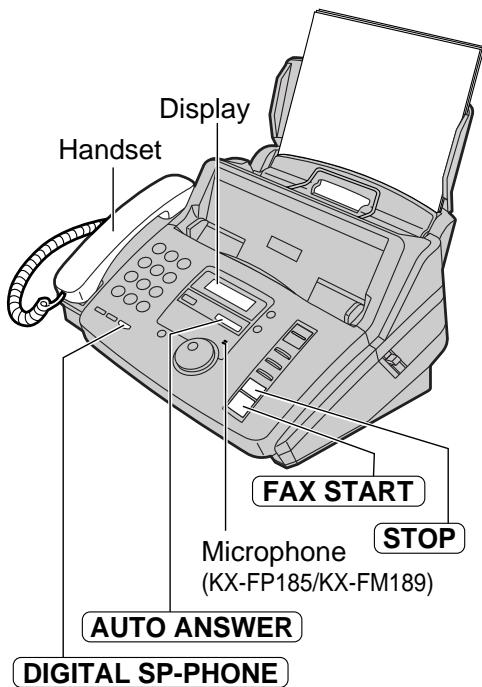
Remarque :
- Jusqu'à 30 feuilles de papier imprimé peuvent être conservées. Retirez le papier imprimé avant qu'il ne dépasse 30 feuilles.
Pour arrêter la réception
Appuyez sur STOP
Fonction de réception conviviale
Lorsque vous répondez à un appel et que vous entendez une tonalité d'appel de télécopie (bip lent), l'appareil démarre automatiquement la réception de télécopie.
- Si cette fonction n'est pas requise, réglez la fonction #46 sur "OFF" (p. 69).
Réception de télécopie en mémoire
Lorsqu'un problème d'impression est détecté, l'appareil stocke temporairement le document reçu en mémoire.
Pendant que le document est en mémoire ;
l'afficheur affiche un message d'erreur et le message suivant en alternance.
Affichage :
FAX EN MÉMOIRE
— des bips lents retentissent (alerte de réception en mémoire). Voir la fonction #44 à la page 69.
- Suivez les instructions des pages 73 et 74 pour résoudre le problème. Pour la capacité de mémoire, voir page 86.
Mode FAX UNIQUEMENT (tous les appels sont reçus comme des télécopies)
Activation du mode FAX UNIQUEMENT
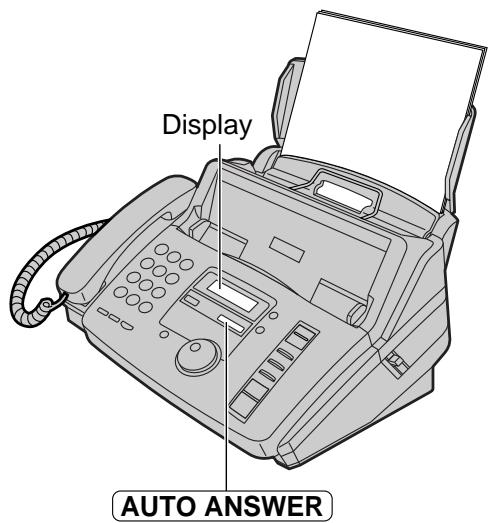
1 Réglez la fonction #77 sur "FAX UNIQUEMENT" (p. 71). 2 Si la flèche () n'est pas affichée à droite de l'écran, activez-la en appuyant sur RÉP. AUTO
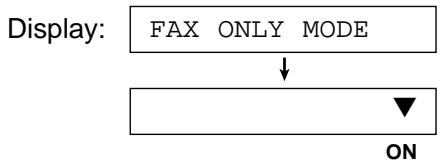
- L'appareil répondra automatiquement à tous les appels et ne recevra que des documents de télécopie.
Remarque :
- Le nombre de sonneries avant qu'un appel ne soit répondu en mode FAX UNIQUEMENT peut être modifié (fonction n° 06 à la page 65).
- Ce mode ne doit pas être utilisé avec une ligne téléphonique utilisée à la fois pour la voix et la télécopie. La communication par télécopie sera tentée même si quelqu'un essaie de vous appeler.
Si vous disposez d'une ligne téléphonique réservée aux télécopies, nous vous recommandons la configuration suivante.
Exemple : Une ligne téléphonique est utilisée pour les appels vocaux et une ligne séparée pour les télécopies.
Seul un télécopieur est connecté.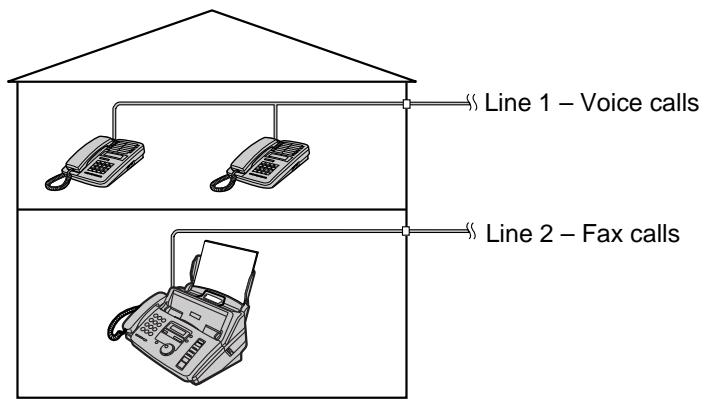
Utilisation de l'appareil avec un répondeur
(KX-FP181 uniquement)
Configuration du télécopieur et d'un répondeur
1 Connectez le répondeur.
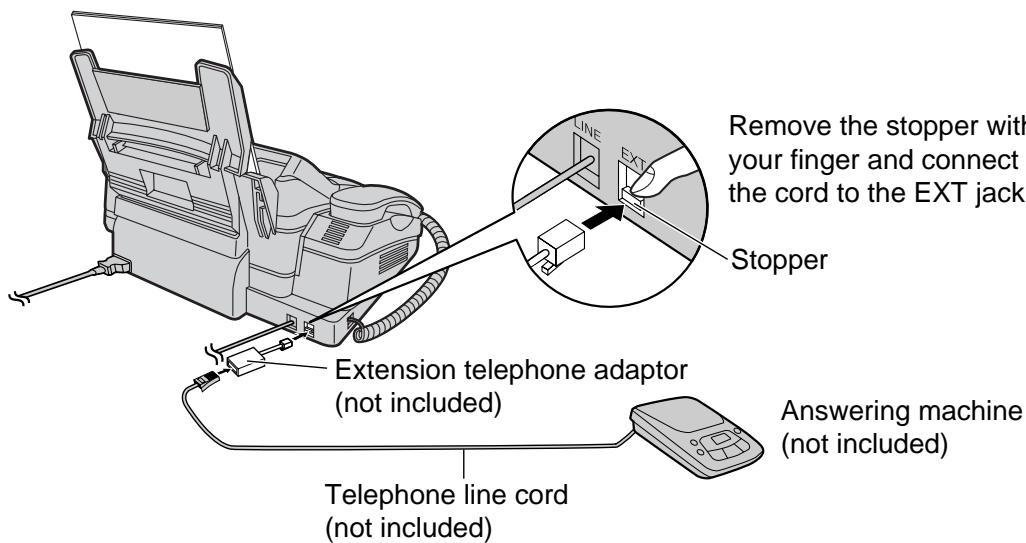
Réglez le nombre de sonneries du répondeur sur moins de 4. - Cela permettra au répondeur de répondre en premier. Enregistrez un message d'accueil sur le répondeur.
Exemple : « Ici (votre nom, entreprise et/ou numéro de téléphone). Nous ne pouvons pas répondre au téléphone pour le moment. Pour envoyer une télécopie, lancez la transmission. Pour laisser un message, veuillez parler après le signal sonore. Merci. »
4 Activez le répondeur. 5 Réglez le mode de réception du télécopieur sur le mode TEL (p. 40) ou sur le mode FAX UNIQUEMENT (p. 41).
- Si vous réglez sur le mode FAX UNIQUEMENT, réglez le nombre de sonneries en mode FAX UNIQUEMENT sur plus de 5 (fonction n° 06 à la page 65). L'utilisation du mode FAX UNIQUEMENT vous permettra de recevoir des télécopies si le répondeur est plein.
6. Vérifiez le code d'accès à distance du répondeur et programmez le même code dans l'ID de fonctionnement à distance du télécopieur. Voir la fonction n° 12 à la page 66.
Remarque :
- Nous vous recommandons de garder le message d'accueil à environ 10 secondes. Si le message d'accueil est trop long, certains appels de fax entrants peuvent ne pas être pris par le télécopieur.
- Chaque fois que le télécopieur reçoit un document, une pause silencieuse ou une tonalité de fax peut être enregistrée sur le répondeur.
Comment fonctionnent le télécopieur et le répondeur
Réception des appels vocaux
Le répondeur enregistre automatiquement les messages vocaux.
Réception des appels fax
Le télécopieur reçoit automatiquement les documents lorsqu'il détecte une tonalité d'appel.
Réception d'un message vocal et d'un document fax dans un même appel
Le répondeur enregistre d'abord le message vocal. Le télécopieur est ensuite activé par la demande de l'appelant et reçoit le document.
Réception d'un message vocal et d'un document fax dans un même appel
L'appelant peut laisser un message vocal et envoyer un document fax au cours du même appel. Informez l'appelant de la procédure suivante au préalable.
- L'appelant appelle votre télécopieur.
- Le répondeur répond à l'appel.
- L'appelant peut laisser un message après le message d'accueil.
- L'appelant appuie sur 9 (code d'activation de télécopie présélectionné).
- Le télécopieur activera la fonction de télécopie.
- L'appelant appuie sur le bouton de démarrage pour envoyer un document.
Remarque :
- Le code d'activation de télécopie peut être modifié dans la fonction #41 (p. 68).
- Si un mauvais code d'activation de télécopie est saisi, l'appelant doit attendre au moins 5 secondes avant de saisir le code correct.
Pour utiliser avec un ordinateur
Nous vous recommandons de toujours connecter le télécopieur directement à la prise murale.
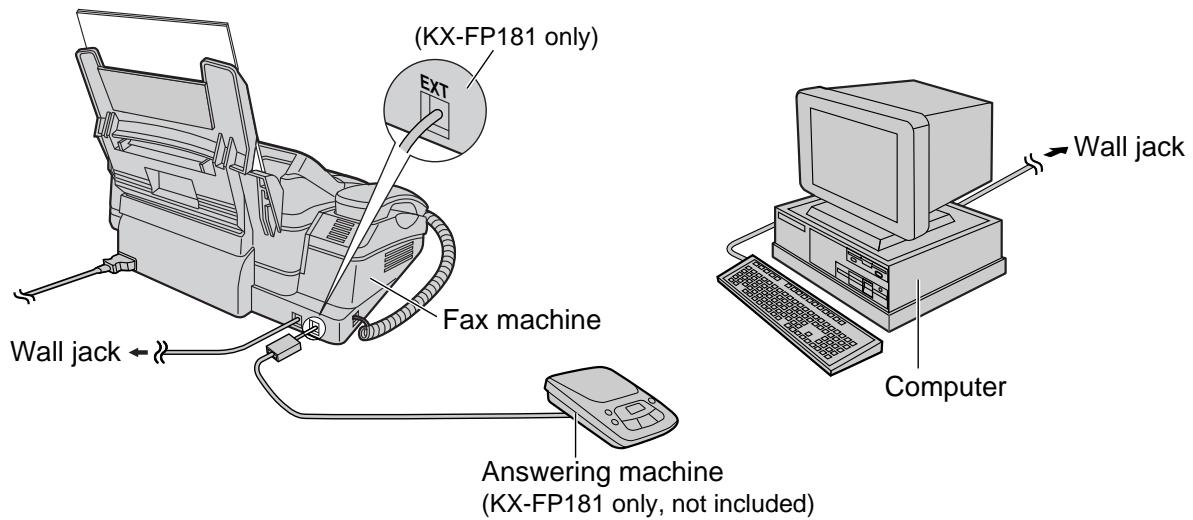
Remarque :
- Réglez le télécopieur sur le mode TEL. Le périphérique ayant le nombre de sonneries le plus court répondra en premier.
- Si vous utilisez votre ordinateur comme répondeur, connectez le cordon de ligne téléphonique de la prise EXT à l'ordinateur (KX-FP181 uniquement).
Mode TEL/FAX
(réception d'appels vocaux avec sonnerie et d'appels de télécopie sans sonnerie lorsque vous êtes près de l'appareil)
Utilisez ce mode lorsque vous êtes toujours près du télécopieur et que vous souhaitez recevoir des télécopies sans sonnerie. Lorsqu'un appel est reçu, le télécopieur fonctionne comme suit. Pour régler le mode TEL/FAX, voir ci-dessous.
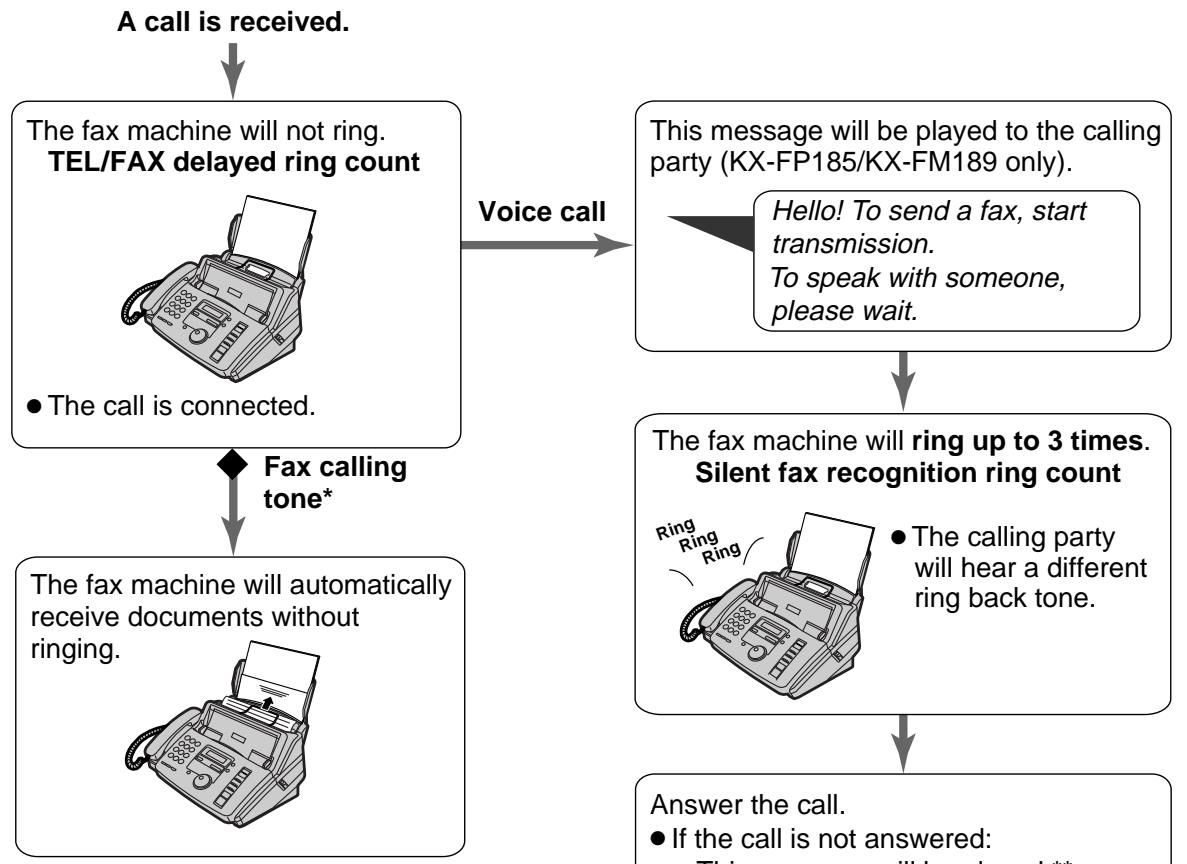
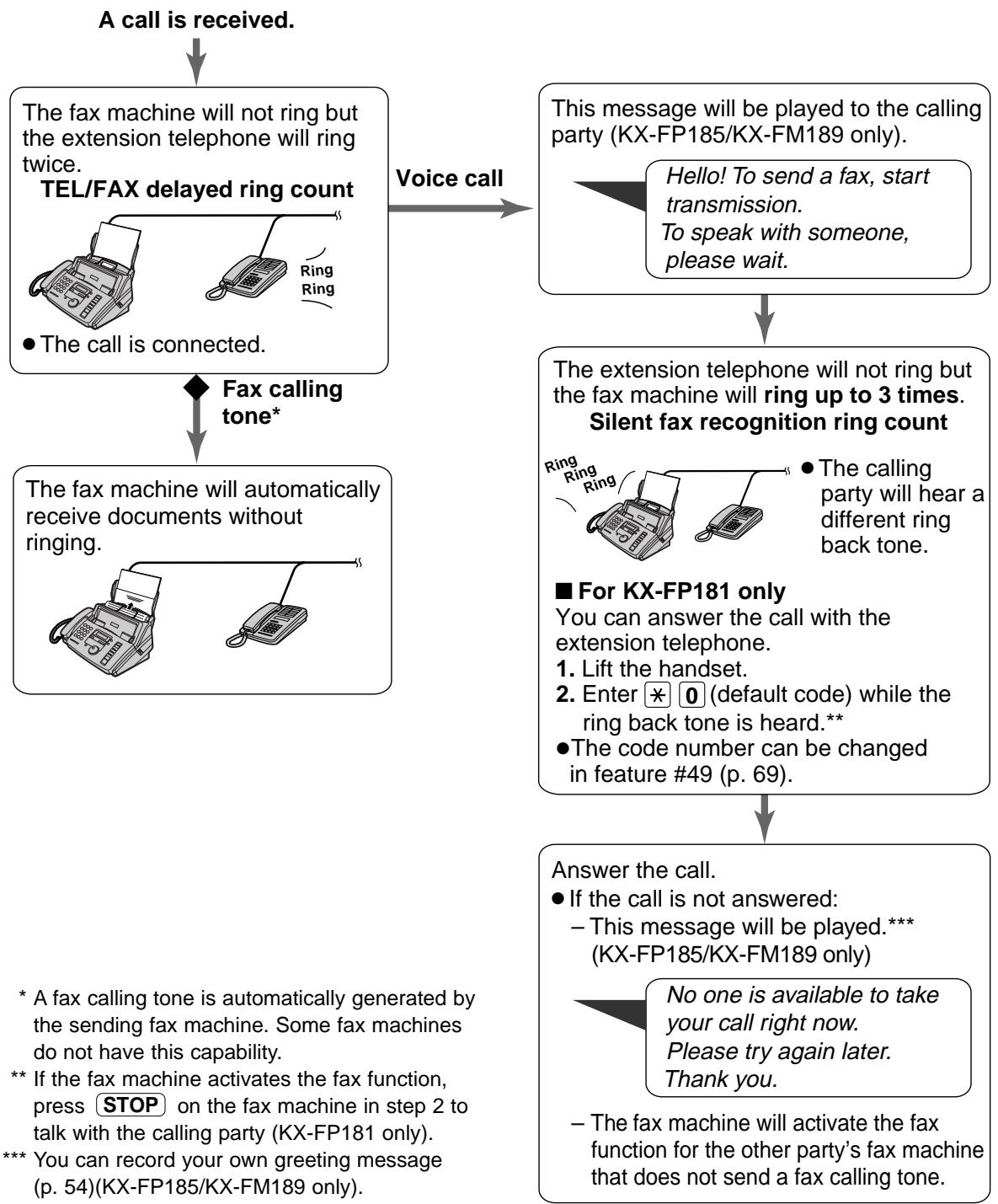
- Une tonalité d'appel de fax est automatiquement générée par le télécopieur émetteur. Certains télécopieurs n'ont pas cette capacité. ** Vous pouvez enregistrer votre propre message d'accueil (p. 54) (KX-FP185/KX-FM189 uniquement).

- Le télécopieur activera la fonction fax pour le télécopieur de l'autre partie qui n'envoie pas de tonalité d'appel de fax.
Remarque :
Le télécopieur affichera ce qui suit lorsqu'un appel est reçu.
Affichage :
APPEL ENTRANT
La sonnerie doit être activée (p. 17).
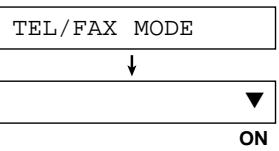
Pour régler le mode TEL/FAX
- Réglez la fonction #77 sur "TEL/FAX" (p. 71).
- Si la flèche () n'est pas affichée à droite de l'écran, activez-la en appuyant sur RÉP. AUTO
Affichage :
Lorsqu'un téléphone supplémentaire est connecté
Nombre de sonneries différées en mode TEL/FAX
Le nombre de sonneries avant que le télécopieur ne réponde dépend du réglage de la fonction #78 à la page 71. Le télécopieur ne générera pas de sonnerie audible pendant ce temps.
Nombre de sonneries de reconnaissance de fax silencieux
Le télécopieur émet des sonneries audibles pour indiquer qu'il reçoit un appel vocal. Le nombre de sonneries dépend du réglage de la fonction n° 30 à la page 67. Ce signal ne fera pas sonner un poste téléphonique supplémentaire.
Activation à distance du mode RÉP. AUTO
Lorsque vous êtes absent et que le mode RÉP. AUTO de votre appareil est désactivé (mode TEL), vous pouvez activer le mode RÉP. AUTO à distance à l'aide d'un téléphone à tonalité.
Mode RÉP. AUTO :
— Mode FAX ONLY — Mode TEL/FAX Mode TAD/FAX (KX-FP185/KX-FM189 uniquement)
Pour KX-FP181
- Appelez votre appareil et attendez 10 sonneries.
- Vous entendrez un signal sonore.
- — Pour passer en mode FAX ONLY :
Appuyez sur * dans les 8 secondes.
Pour passer en mode TEL/FAX :
Appuyez sur # dans les 8 secondes.
- Raccrochez le combiné.
Remarque :
- Appuyez sur * ou # dans les 8 secondes après avoir entendu le signal sonore, sinon l'appel sera interrompu et l'appareil restera en mode TEL.
Pour KX-FP185/KX-FM189
- Appelez votre appareil et attendez 10 sonneries.
- Vous entendrez un signal sonore.
- Composez l'identifiant de télécommande (fonction #11 à la page 66) dans les 8 secondes.
- Vous entendrez un signal sonore.
- — Pour passer en mode FAX UNIQUEMENT :
Appuyez sur dans les 3 secondes.
Pour passer en mode TEL/FAX :
Appuyez dans les 3 secondes.
Pour passer en mode TAD/FAX :
Attendez 3 secondes, puis le message d'accueil sera diffusé.
- Raccrochez le combiné.
Remarque :
- Saisissez l'identifiant de l'opération à distance dans les 8 secondes suivant le signal sonore, sinon l'appel sera interrompu et l'appareil restera en mode TEL.
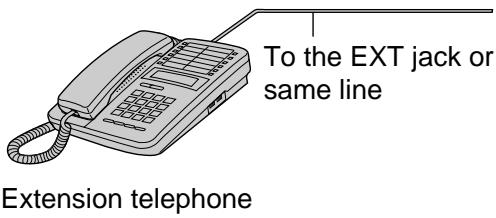
Téléphone supplémentaire
Si vous utilisez le télécopieur avec un téléphone supplémentaire, vous pouvez recevoir des documents par télécopie en utilisant le téléphone supplémentaire.
Vous n'avez pas besoin d'appuyer sur DÉPART FAX sur le télécopieur.
Important :
- Utilisez un téléphone à tonalité comme téléphone supplémentaire et saisissez fermement le code d'activation de télécopie.
Lorsque le téléphone supplémentaire sonne, décrochez le combiné du téléphone supplémentaire. Lorsque la réception de documents est requise,
-- une tonalité de télécopie (bip lent) se fait entendre, ou
— aucun son ne se fait entendre,
appuyez fermement sur *9 (code d'activation de télécopie présélectionné).
Raccrochez le combiné. - Le télécopieur commencera la réception.
Remarque :
- Vous pouvez modifier le code d'activation de télécopie dans la fonction #41 (p. 68).
Interrogation de réception
(récupération d'une télécopie placée sur un autre télécopieur)
Cette fonction vous permet de récupérer un document depuis un autre télécopieur compatible. Vous payez donc l'appel.
Assurez-vous qu'aucun document n'est chargé dans votre appareil et que le télécopieur de l'autre partie est prêt à recevoir votre appel.
Pour KX-FP181
Appuyez trois fois sur MENU.
Affichage :
3.POLLING
Pour KX-FP185/KX-FM189
Appuyez quatre fois sur MENU.
4.POLLING
2 Appuyez sur SET
3 Composez le numéro de fax.
Exemple :
FAX=3331111
4 Appuyez sur SET
- L'appareil commencera la réception.
Appel de pager
Cette fonction permet à votre appareil d'appeler votre pager lorsque celui-ci reçoit un message vocal entrant (KX-FP185/KX-FM189 uniquement) ou un document fax.
1 Appuyez sur MENU.
Affichage : 1.SYSTEM SET UP
Appuyez sur 串 , puis sur 70.
Pour KX-FP181 : FAX PAGER CALL
Pour KX-FP185/
KX-FM189 : PAGER CALL
Appuyez sur SET
MODE=OFF
Tournez EASY DIAL pour sélectionner "ON".
MODE=ON
- Si cette fonction n'est pas requise, sélectionnez "OFF".
Appuyez sur SET
NO. =
Saisissez votre numéro de téléavertisseur.
- Vous pouvez saisir un total de 46 chiffres et/ou pauses.
Exemple :
1 202 555 1234PP12345678PP5555#
Votre numéro de téléavertisseur
numéro
Pauses
Votre code d'accès au téléavertisseur, si nécessaire.
Code d'accès, si nécessaire.
Message que vous souhaitez afficher sur votre téléavertisseur.
7 Appuyez sur SET
- L'appareil composera le numéro mémorisé.
TEST DE TÉLÉAVERTISSEUR
8 Vérifiez que votre téléavertisseur reçoit un appel de test. Appuyez sur MONITOR / DIGITAL SP-PHONE.
Lorsque votre téléavertisseur reçoit un appel de téléavertisseur
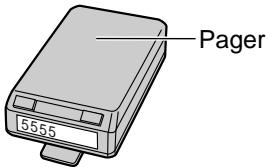
Votre récepteur affichera le message que vous avez saisi à l'étape 6 ci-dessus.
(Par exemple : 5555)
Faire une copie
L'appareil peut effectuer des copies simples ou multiples (jusqu'à 50). Tout document transmissible (p. 31) peut être copié.
1 Ajustez les guides de document à la taille du document. 2 Insérez le document (jusqu'à 10 pages) FACE VERS LE BAS jusqu'à ce qu'un bip se fasse entendre et que l'appareil saisisse le document.
Affichage : STANDARD
- Assurez-vous que le combiné est sur son socle.
- Si nécessaire, appuyez plusieurs fois sur RÉSOLUTION pour sélectionner le réglage souhaité (p. 30).
3 Appuyez sur DÉPART COPIE
- Si nécessaire, saisissez le nombre de copies (jusqu'à 50).
- Si nécessaire, choisissez un taux d'agrandissement/réduction en appuyant sur ZOOM COPIE. Voir page suivante.
- Si vous souhaitez imprimer des copies assemblées (triées), appuyez sur TRIER jusqu'à ce que ce qui suit soit affiché.
TRI=ON
Appuyez sur DÉPART COPIE
- L'appareil commencera à imprimer.
- Si vous souhaitez retirer le document copié pour d'autres usages, appuyez sur QUICK SCAN au lieu de COPY START.
L'appareil alimentera le document et le numérisera en mémoire, puis commencera l'impression.
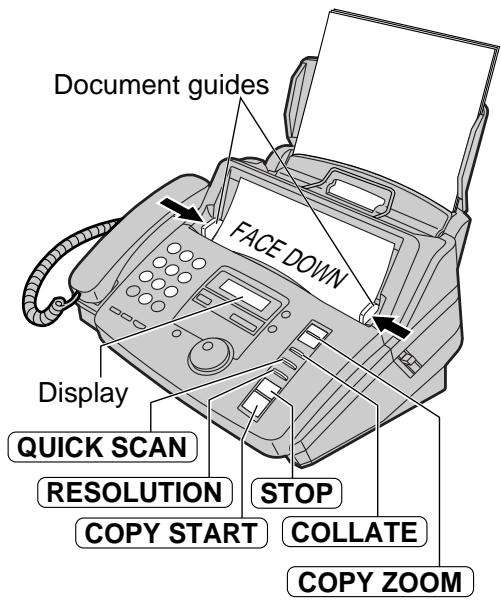
Remarque :
- Si aucune résolution n'est sélectionnée, la résolution "FINE" sera automatiquement sélectionnée.
- Vous pouvez passer ou recevoir un appel vocal tout en effectuant des copies.
- Après la copie, le taux d'agrandissement/réduction reviendra à "100%".
Pour arrêter la copie
Appuyez sur STOP
Impression de copies assemblées (triées)
Exemple : réalisation de deux copies d'un document original de 4 pages
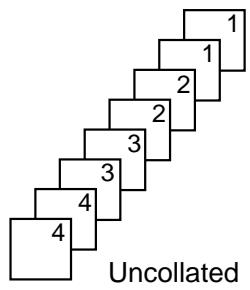
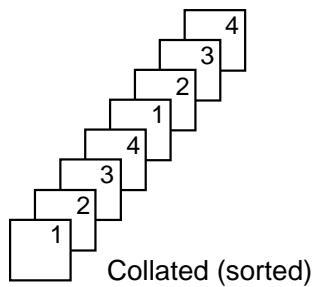
Remarque :
- Si vous activez la fonction d'assemblage, l'appareil stockera les documents en mémoire. Si la mémoire est pleine pendant le stockage, l'appareil n'imprimera que les pages stockées.
- Après la copie, la fonction d'assemblage se désactivera automatiquement.
Pour agrandir un document
Sélectionnez "200%" ou "150%" en appuyant sur COPY ZOOM (+). L'appareil n'agrandira que la partie centrale du document et l'imprimera sur deux pages.
Exemple d'une copie agrandie à 200 %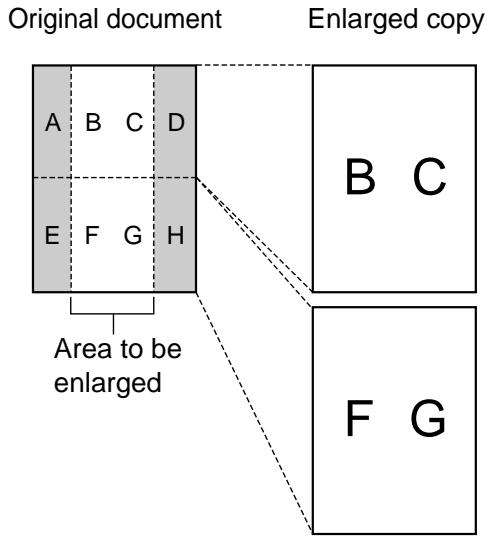
Exemple d'une copie agrandie à 150 %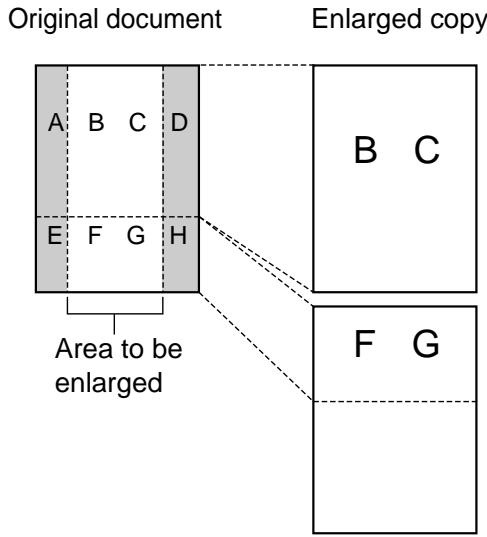
Pour réduire un document
L'appareil peut réduire le document original.
Sélectionnez le réglage souhaité en appuyant sur COPY ZOOM (-).
Taux de réduction recommandés :
| Setting | Size of recording paper | Size of original document |
| 100% (default) | A4 | A4, Letter |
| 92% | A4 | A4 |
| 86% | A4 | A4 |
| 72% | A4 | Legal |
A4 = 210 mm × 297 mm
Letter = 216 mm × 279 mm
Legal = 216 mm × 356 mm
Remarque :
- Si le taux de réduction approprié n'est pas programmé, le document peut être divisé et le haut de la deuxième feuille sera supprimé.
- Si l'image en bas du document n'est pas copiée lorsque vous copiez un document aussi long que le papier d'enregistrement, essayez 92 % ou 86 %.
Mode TAD/FAX
(utilisant le répondeur intégré et recevant automatiquement les appels vocaux et les télécopies)
Lorsque le mode TAD/FAX est réglé, l'appareil fonctionne comme un télécopieur et/ou un répondeur. Si un appel de télécopie est détecté, l'appareil reçoit automatiquement la télécopie. Si un appel vocal est détecté, le répondeur joue un message d'accueil et l'appelant peut laisser un message vocal.
- Vous pouvez utiliser soit les messages d'accueil préenregistrés (voir page suivante), soit votre propre message d'accueil (p. 54).
Configuration de la réception des messages vocaux et des télécopies
1 Réglez la fonction #77 sur "TAD/FAX" (p. 71). 2 Si la flèche () n'est pas affichée à droite de l'écran, activez-la en appuyant sur AUTO ANSWER
Affichage : MODE TAD/FAX
- L'appareil diffusera le message d'accueil.
- Le temps restant pour l'enregistrement des messages entrants sera affiché.
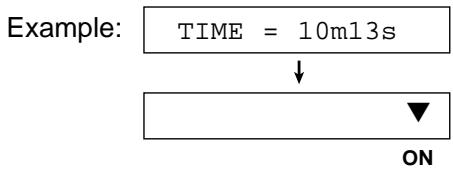
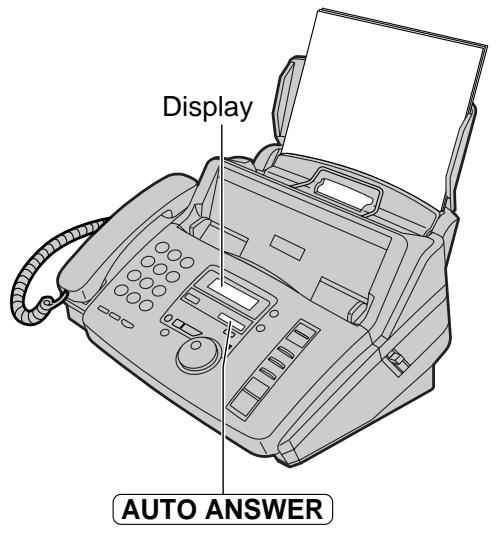
Remarque :
- La durée d'enregistrement des messages entrants peut être modifiée (fonction #10, page 65).
- Pour la capacité de mémoire vocale des messages entrants, voir page 86.
- Lorsque le temps restant est faible, effacez les messages inutiles (p. 57).
- Pendant l'enregistrement d'un appel entrant, vous pouvez l'écouter via le haut-parleur. Si cette fonction n'est pas requise, réglez-la sur "OFF" (fonction #67, page 70).
Nombre de sonneries en mode TAD/FAX
Le nombre de sonneries avant qu'un appel ne soit répondu peut être modifié avec la fonction #06 (p. 65).
Vous pouvez choisir parmi 1, 2, 3, 4, TOLL Saver et RINGER OFF.
TOLL Saver : Lorsque vous appelez l'appareil à distance, le nombre de sonneries vous indique s'il y a de nouveaux messages vocaux. Si l'appareil répond à la deuxième sonnerie, il y a au moins un nouveau message enregistré. Si l'appareil répond à la quatrième sonnerie, il n'y a pas de nouveaux messages enregistrés. Pour économiser les frais d'appel, raccrochez immédiatement lorsque vous entendez la troisième sonnerie. La troisième sonnerie indique qu'il n'y a pas de nouveaux messages enregistrés.
SONNERIE DÉSACTIVÉE : l'appareil répondra sans sonner.
- Si vous êtes abonné à un service d'identification de l'appelant, réglez sur 2 sonneries ou plus.
Messages d'accueil préenregistrés
L'appareil dispose de messages d'accueil préenregistrés. Selon la situation, l'un des messages suivants sera diffusé à l'appelant. Pour votre propre message d'accueil, voir page 54. Lorsque l'appareil est prêt à recevoir des appels vocaux et des télécopies :

Bonjour ! Nous ne pouvons pas répondre pour le moment. Pour envoyer une télécopie, veuillez lancer la transmission. Pour laisser un message vocal, veuillez parler après le signal sonore. Merci.
Lorsque la mémoire vocale ou de télécopie est pleine :
Affichage :
MÉMOIRE PLEINE
Bonjour ! Nous ne pouvons pas répondre pour le moment. Pour envoyer une télécopie, veuillez lancer la transmission. Pour laisser un message vocal, veuillez réessayer plus tard. Merci.
MÉMOIRE DE TÉLÉCOPIE PLEINE
Bonjour ! Nous ne pouvons pas répondre pour le moment. Pour envoyer une télécopie, veuillez réessayer plus tard. Pour laisser un message vocal, veuillez parler après le signal sonore. Merci.
MÉMOIRE PLEINE
et
MÉMOIRE DE TÉLÉCOPIE PLEINE
Bonjour ! Nous ne pouvons pas répondre pour le moment. Veuillez réessayer plus tard. Merci.
Remarque :
- Pour résoudre le problème, reportez-vous aux pages 73 et 74.
Enregistrement de vos messages d'accueil personnalisés
Vous pouvez enregistrer vos propres messages d'accueil pour les modes TAD/FAX et TEL/FAX. Lors de la réception d'un appel, votre message d'accueil personnalisé sera diffusé à la place du message préenregistré. La durée d'enregistrement est limitée à 16 secondes. Nous vous recommandons d'enregistrer votre message en moins de 12 secondes pour faciliter la réception des télécopies.
Messages suggérés
| TAD/FAX greeting message | "This is (your name, business and/or telephone number). We are unable to answer right now. To send a fax, start transmission. To leave a message, speak after the beep. Thank you." |
| TEL/FAX greeting message | "This is (your name, business and/or telephone number). We are unable to answer right now. Please try again later. Thank you." |
1 Sélectionnez le mode souhaité (TAD/FAX ou TEL/FAX) dans lequel vous souhaitez enregistrer un message d'accueil (fonction #77, page 71). Appuyez deux fois sur RECORD.
- L'écran affichera ce qui suit selon votre sélection à l'étape 1.
Mode TAD/FAX :
2.ACCUEIL TAD
Mode TEL/FAX :
2.ACCUEIL T/F
APPUYEZ SUR START
Appuyez sur START
Un long bip retentira.
4 Parlez clairement à environ 20 cm du microphone.
- L'écran affichera le temps d'enregistrement restant.
Mode TAD/FAX :
ENR. TAD 15 s
Mode TEL/FAX :
ENR. T/F 15 s
Lorsque l'enregistrement est terminé, appuyez sur STOP.
- L'appareil répétera votre message. Réglez le volume à l'aide de ou .
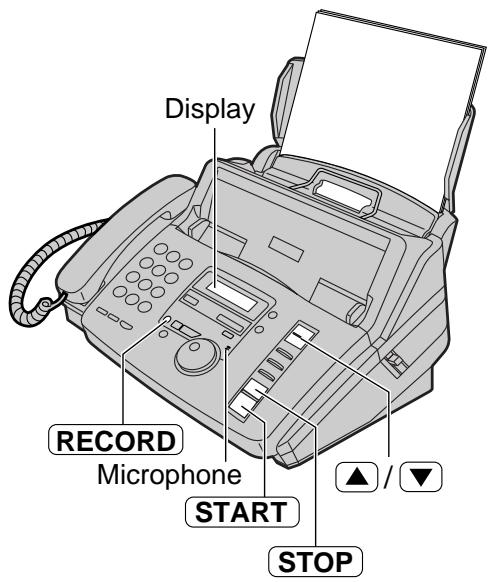
Remarque :
- Si vous faites une erreur pendant l'enregistrement, recommencez à partir de l'étape 2.
- Vous pouvez choisir 60 secondes pour votre propre message d'accueil TAD/FAX (fonction n° 54, page 69).
- Si vous passez à 60 secondes, nous vous recommandons d'indiquer à l'appelant dans votre message d'accueil TAD/FAX d'appuyer sur *9 avant de lancer la transmission de télécopie.
- Si vous passez de 60 secondes à 16 secondes, votre message d'accueil TAD/FAX enregistré sera supprimé et le message pré-enregistré sera diffusé.
Vérification des messages d'accueil
1 Sélectionnez le mode souhaité (TAD/FAX ou TEL/FAX) dans lequel vous souhaitez écouter un message d'accueil (fonction n° 77, page 71). 2 Si la flèche (∇) n'est pas affichée à droite de l'écran, activez-la en appuyant sur AUTO ANSWER. Si la flèche (∇) est affichée à droite de l'écran, désactivez-la puis réactivez-la.
Mode TAD/FAX :
MODE TAD/FAX
Mode TEL/FAX :
MODE TEL/FAX
- L'appareil lira le message d'accueil.
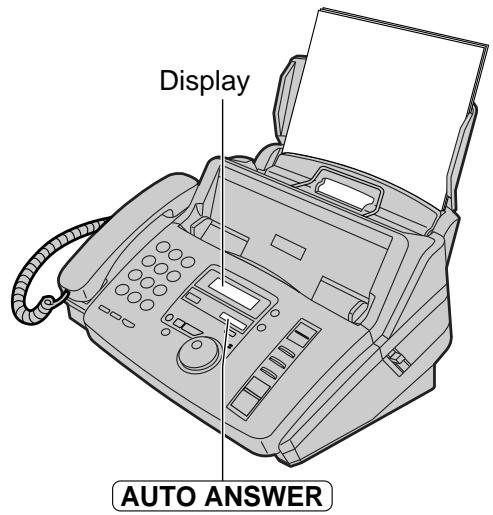
Effacement de vos propres messages d'accueil enregistrés
1 Sélectionnez le mode souhaité (TAD/FAX ou TEL/FAX) dans lequel vous souhaitez effacer le message d'accueil (fonction n° 77, page 71). Appuyez deux fois sur ERASE.
- L'écran affichera ce qui suit selon votre sélection à l'étape 1.
Mode TAD/FAX :
2.ACCUEIL TAD
Mode TEL/FAX :
2.ACCUEIL T/F
APPUYEZ SUR START
3 Appuyez sur START
EFFACER LE MESSAGE D'ACCUEIL ?
OUI : SET / NON : STOP
- Pour annuler l'effacement, appuyez sur STOP.
4 Appuyez sur SET
MESSAGE D'ACCUEIL EFFACÉ
- Lors de la réception d'un appel, le message d'accueil préenregistré sera diffusé.
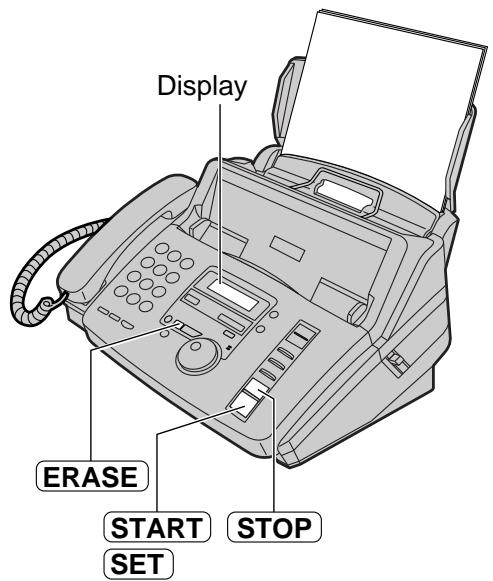
Écoute des messages enregistrés
Lorsque l'appareil a enregistré de nouveaux messages vocaux :
l'indicateur PLAY MESSAGES clignote, le compteur d'appels affiche le nombre total de messages enregistrés, et des bips lents retentissent si la fonction d'alerte de message est activée (fonction n° 42, page 68).
Appuyez sur PLAY MESSAGES
- Seuls les nouveaux messages enregistrés seront diffusés.
- Réglez le volume du haut-parleur à l'aide de Δ ou .
- Après la lecture de tous les nouveaux messages, l'indicateur PLAY MESSAGES cesse de clignoter et reste allumé.
Si vous appuyez sur PLAY MESSAGES à ce moment-là, tous les messages enregistrés seront diffusés.
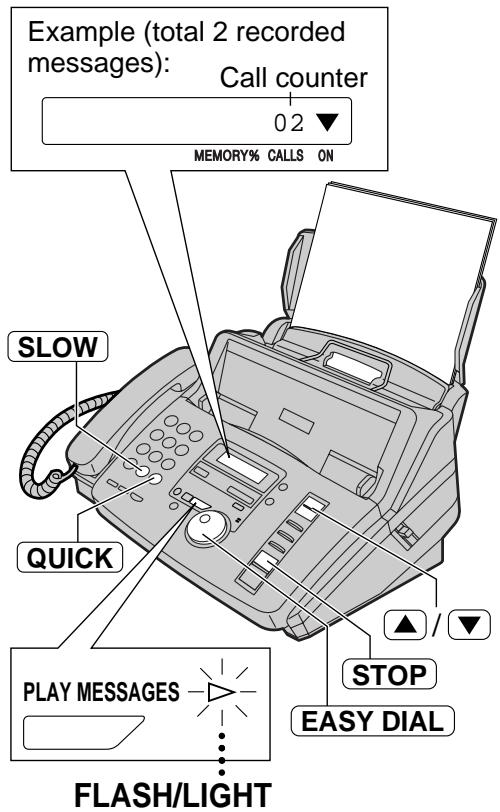
Répéter un message
Tournez EASYDIAL d'un clic vers la gauche tout en écoutant le message.
- Si vous tournez EASY DIAL vers la gauche dans les 5 secondes suivant le début du message, le message précédent sera lu.
- Pour lire un message spécifique, tournez EASY DIAL vers la gauche ou la droite et recherchez le message que vous souhaitez écouter.
Passer un message
Tournez EASYDIAL d'un clic vers la droite pour lire le message suivant.
Arrêt de la lecture
Appuyez sur STOP
- Si vous appuyez sur (LECTURE DES MESSAGES) dans la minute qui suit, l'appareil reprendra la lecture du reste des messages.
Changement de la vitesse de lecture
Appuyez sur QUICK pour lire les messages à une fois et demie la vitesse originale.
Appuyez sur SLOW pour lire les messages à la moitié de la vitesse originale.
Pour revenir à la vitesse originale, appuyez à nouveau sur QUICK ou SLOW pendant la lecture rapide ou lente.
Horodatage vocal jour/heure
Pendant la lecture, une voix synthétisée annoncera l'heure et le jour de la semaine où chaque message a été enregistré.
Effacement des messages enregistrés
Effacez les messages inutiles pour éviter que la mémoire ne soit pleine.
Effacement d'un message spécifique
1 Appuyez sur ERASE pendant l'écoute du message à effacer.
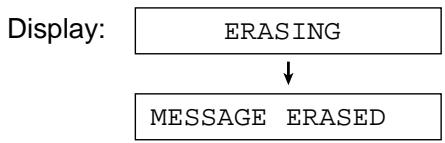
Effacement de tous les messages
Vérifiez que vous avez écouté tous les messages enregistrés.
1 Appuyez sur ERASE.
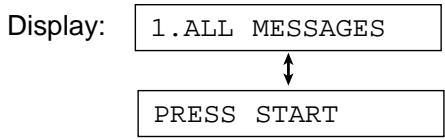
2 Appuyez sur START
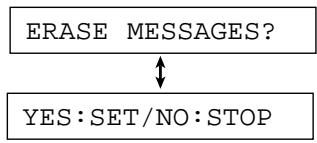
- Pour annuler l'effacement, appuyez sur STOP.
3 Appuyez sur SET
Remarque :
Les messages d'accueil ne peuvent pas être effacés de cette manière.
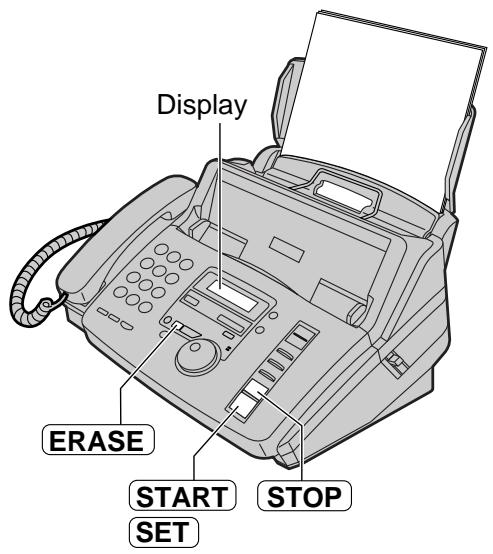
Message mémo (laisser un message pour les autres ou pour soi-même)
Pour laisser un message privé pour vous-même ou pour quelqu'un d'autre, vous pouvez enregistrer un mémo vocal. Ce mémo peut être écouté plus tard, directement ou à distance.
1 Appuyez sur RECORD
Appuyez sur START.
Un long bip retentira.
ENREGISTREMENT DE MÉMO
3 Parlez clairement à environ 20 cm du microphone.
4 Lorsque vous avez terminé l'enregistrement, appuyez sur STOP.
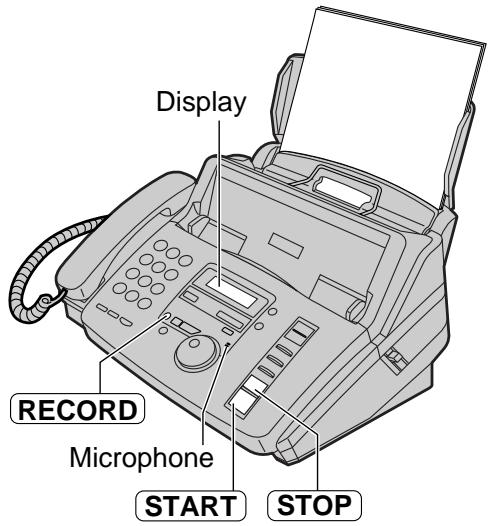
Conversation téléphonique
Vous pouvez enregistrer une conversation téléphonique. Cette conversation peut être écoutée plus tard, directement ou à distance.
1 Pendant une conversation téléphonique, appuyez sur RECORD.
Affichage : ENREGISTREMENT 2 VOIES
2 Pour arrêter l'enregistrement, appuyez sur STOP ou raccrochez le combiné.
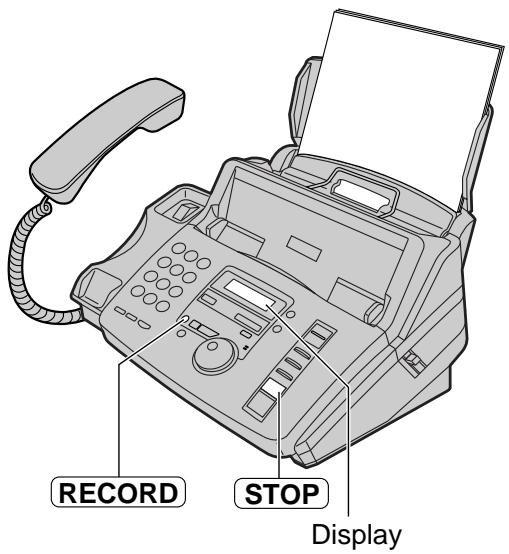
Remarque :
- Il peut y avoir des restrictions légales concernant l'enregistrement de conversations téléphoniques bidirectionnelles. Informez l'autre partie que la conversation est enregistrée.
Fonctionnement à distance
Les opérations suivantes peuvent être effectuées à distance à l'aide d'un téléphone à tonalité. Programmez l'identifiant de fonctionnement à distance (fonction #11 à la page 66) et réglez l'appareil sur le mode TAD/FAX avant de sortir (p. 52).
| Dial key | Remote command | Page |
| 0 | Skips the greeting message | 61 |
| 1 | Repeats a message | 60 |
| 2 | Skips a message | 60 |
| 4 | New message playback | 60 |
| 5 | All message playback | 60 |
| 7 | Re-records a greeting message | 61 |
| 8 | Continues operation | See note |
| Dial key | Remote command | Page |
| 9 | Stops re-recording of a greeting message | 61 |
| *4 | Erases a specific message | 61 |
| *5 | Erases all messages | 61 |
| 80 | Changes to the TEL mode | 61 |
| 81 | Turns ON message transfer | 61 |
| 82 | Turns OFF message transfer | 61 |
| 83 | Turns ON pager call | 61 |
| 84 | Turns OFF pager call | 61 |
Remarque :
- En fonctionnement à distance, l'appareil s'arrête et deux bips sont émis dans les conditions suivantes :
— 2 minutes 40 secondes après que votre appareil a répondu.
— Toutes les 2 minutes 40 secondes après avoir appuyé sur une touche de commande.
Pour écouter d'autres messages, appuyez sur 8 dans les 10 secondes qui suivent les deux bips.
Carte de télécommande
Veuillez découper et porter cette carte pour vous aider lors de l'utilisation de la télécommande.
Télécommande du répondeur
- Appelez votre appareil.
- Saisissez l'identifiant de télécommande pendant le message d'accueil.
Les nouveaux messages seront lus automatiquement. S'il n'y a pas de nouveaux messages, attendez 4 secondes. Tous les messages seront lus.
- Appuyez sur la ou les touches de commande à distance dans les 10 secondes (voir au verso).
Avis de télécommande
- La télécommande n'est disponible qu'à partir d'un téléphone à tonalité lorsque l'appareil est en mode TAD/FAX.
- Lorsque l'appareil est en mode TEL, appelez votre appareil et attendez 10 sonneries. Saisissez l'identifiant de télécommande dans les 8 secondes et attendez 3 secondes. L'appareil passera en mode TAD/FAX.
- Lorsque vous appuyez sur une touche, appuyez fermement. Pour envoyer un document, appuyez sur * 9. Lorsque vous entendez une tonalité de fax, commencez la transmission.
Opération à partir d'un téléphone à tonalité distant = Écoute des messages enregistrés
1 Appelez votre appareil.
2 Saisissez l'identifiant de télécommande pendant la lecture du message d'accueil TAD/FAX.
Lorsqu'il y a de nouveaux messages enregistrés
Le guide vocal vous indiquera le nombre de nouveaux messages enregistrés et ils seront lus automatiquement.
Exemple de guide vocal :
3 nouveaux messages.
Pour répéter uniquement les nouveaux messages : appuyez sur 4. Pour répéter le message en cours : appuyez sur 1. Si vous appuyez sur 1 dans les 5 secondes suivant le début d'un message, le message précédent sera lu. - Pour écouter tous les messages : appuyez sur 5. Pour passer un message : appuyez sur 2.
Lorsqu'il n'y a pas de nouveaux messages enregistrés

Aucun nouveau message.
Appuyez sur 5 ou attendez 4 secondes pour écouter tous les messages.
Lorsque la mémoire vocale est pleine

Désolé, plus de mémoire. Veuillez effacer les messages inutiles.
Effacez certains ou tous les messages (voir page suivante).
| Key | Remote command |
| 0 | Skips the greeting message |
| 1 | Repeats a message |
| 2 | Skips a message |
| 4 | New message playback |
| 5 | All message playback |
| 7 | Re-records a greeting message |
| 8 | Continues operation |
| 9 | Stops re-recording of a greeting message |
| Key | Remote command |
| *4 | Erases a specific message |
| *5 | Erases all messages |
| 80 | Changes to the TEL mode |
| 81 | Turns ON message transfer |
| 82 | Turns OFF message transfer |
| 83 | Turns ON pager call |
| 84 | Turns OFF pager call |
Autres opérations à distance
Effacement d'un message spécifique
Appuyez sur *4 pendant l'écoute du message à effacer.
Exemple de guide vocal :
Le message a été effacé.
- Un long bip retentira également. L'appareil lira ensuite le message suivant.
Effacement de tous les messages
Appuyez sur *5 pour effacer tous les messages.
Tous les messages ont été effacés.
- Un long bip retentira également.
Enregistrement d'un message d'annonce
Vous pouvez laisser un message supplémentaire.
- Attendez le guide vocal.
Tous les messages ont été lus.
- Attendez environ 10 secondes.
Veuillez laisser votre nom et votre message après le bip sonore.
- Laissez un message après le bip sonore.
Réenregistrement d'un message d'accueil
Vous pouvez modifier le contenu du message d'accueil du répondeur/télécopieur.
- Appuyez sur 7 pour commencer l'enregistrement.
- Un long bip sonore retentira.
- Parlez clairement jusqu'à 16 secondes.
- Si vous faites une pause de plus de 2 secondes, 6 bips sonores retentiront et l'enregistrement s'arrêtera.
Répétez à partir de l'étape 1 dans les 10 secondes.
- Lorsque vous avez terminé l'enregistrement, appuyez sur 9
- Le nouveau message d'accueil sera diffusé.
■ Passer le message d'accueil
Appuyez sur 0 pendant la diffusion du message d'accueil.
- L'appareil passera le reste du message d'accueil.
- Activer ou désactiver le transfert de messages
Vous devez préprogrammer un numéro de téléphone de transfert au préalable (fonction #60, page 70).
Appuyez sur 81 pour activer le transfert de messages.

Le transfert de messages est activé.
Le numéro de téléphone de transfert est le 123456789.
Appuyez sur 8 pour désactiver le transfert de messages.

Le transfert de messages est désactivé.
- Si un numéro de téléphone de transfert n'est pas programmé, vous ne pouvez pas activer cette fonction.

Le numéro de téléphone de transfert n'est pas défini.
Activation ou désactivation de l'appel de téléavertisseur
Vous devez programmer un numéro de téléavertisseur au préalable (fonction #70, page 49).
Appuyez sur 8 pour activer l'appel de téléavertisseur.

L'appel de téléavertisseur est activé. Le numéro de téléavertisseur est le 098765432.
Appuyez sur 8 pour désactiver l'appel de téléavertisseur.

L'appel de téléavertisseur est désactivé.
- Si un numéro de téléavertisseur n'est pas programmé, vous ne pouvez pas activer cette fonction.

Le numéro de téléavertisseur n'est pas défini.
Changement du mode de réception
Appuyez sur 8 pour passer du mode TAD/FAX au mode TEL.
- Vous ne pouvez pas revenir au mode TAD/FAX au cours du même appel. Pour revenir au mode TAD/FAX, voir page 46.
Transfert des messages enregistrés vers un autre téléphone
Cette fonction permet à votre appareil d'appeler un numéro de téléphone désigné chaque fois qu'un message vocal entrant est enregistré. Vous pouvez récupérer le message transféré au cours du même appel en utilisant la télécommande.
Programmez d'abord le numéro de téléphone de transfert (fonction #60, page 70) et réglez le mode TAD/FAX.
* Ce message peut être modifié (voir page suivante).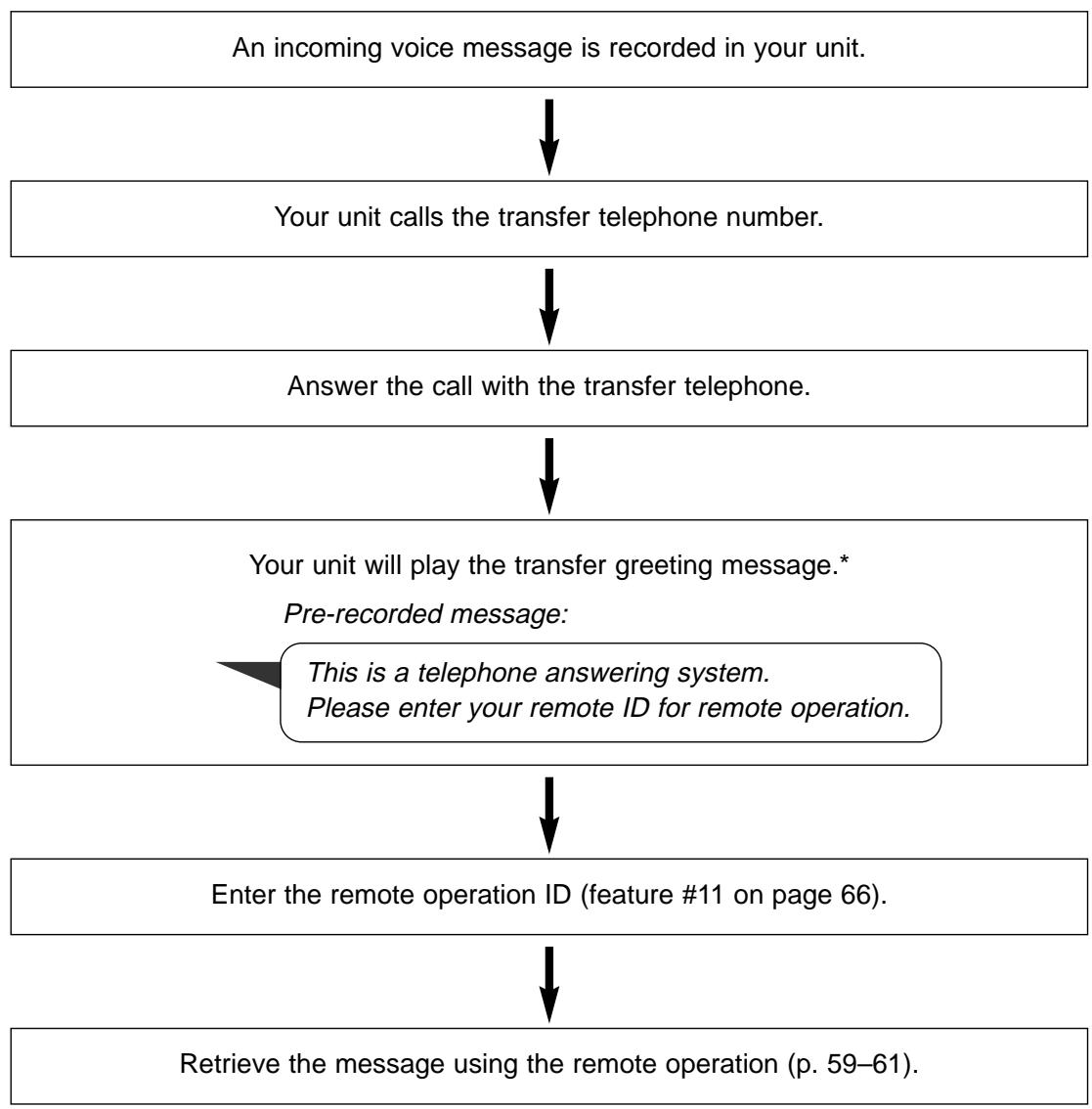
Enregistrement de votre message d'accueil de transfert
La durée d'enregistrement est limitée à 16 secondes.
Message suggéré
"Ceci est un message transféré de (votre nom, entreprise et/ou numéro de téléphone). Veuillez saisir votre identifiant à distance pour l'opération à distance."
1 Appuyez sur MENU.
Affichage :
1.SYSTEM SET UP
Appuyez sur , puis 61.
TRNS-GREETING
Appuyez sur SET
CHECK
C2
Tournez EASYDIAL pour sélectionner "RECORD".
RECORD
C2
5 Press SET
TRNS
REC.
16s
6 Speak clearly about 20 cm away from the microphone.
- The display will show the remaining recording time.
Example:
TRNS
REC.
15s
7 When finished recording, press STOP
- The unit will repeat your message. Adjust the volume using or .
8 Press MENU.
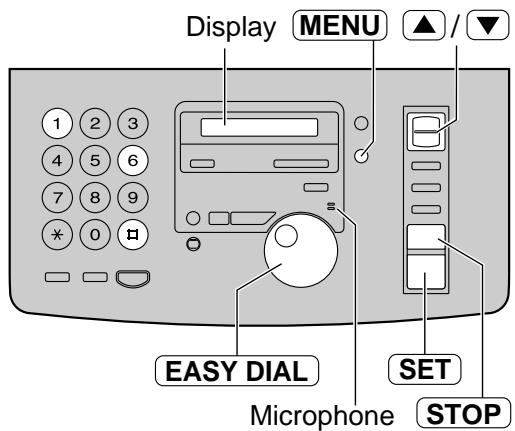
To check your transfer greeting message
- Press MENU, 61 then SET
- Tournez EASYDIAL pour sélectionner "CHECK".
- Appuyez sur SET. L'appareil lira votre message.
- Appuyez sur MENU.
Pour effacer votre message d'accueil de transfert
- Appuyez sur MENU, 61, puis SET.
- Tournez EASYDIAL pour sélectionner "ERASE".
- Appuyez sur SET.
- Votre message personnel sera effacé.
- Appuyez sur MENU.
- Le message d'accueil pré-enregistré sera joué lors du transfert d'un appel.
Programmation
L'appareil offre diverses fonctions de programmation. Programmez le réglage souhaité en vous référant aux tableaux de programmation (p. 65-71).
Méthode de programmation générale
1 Appuyez sur MENU
Affichage : 1. RÉGLAGE DU SYSTÈME
Sélectionnez la fonction que vous souhaitez programmer.
■ Pour les fonctions de base (p. 65, 66) Tournez EASYDIAL jusqu'à ce que la fonction souhaitée soit affichée. ■ Pour les fonctions avancées (p. 67-71) Tournez EASYDIAL jusqu'à ce que ce qui suit soit affiché.
MODE AVANCÉ
Appuyez sur SET et tournez EASYDIAL jusqu'à ce que la fonction souhaitée soit affichée.
Appuyez sur SET - Le réglage actuel de la fonction sera affiché. 4 Tournez EASYDIAL jusqu'à ce que le réglage souhaité soit affiché. - Cette étape peut être légèrement différente selon la fonction. Appuyez sur SET - Le réglage que vous avez sélectionné est défini, et la fonction suivante sera affichée. 6 Pour quitter la programmation, appuyez sur MENU
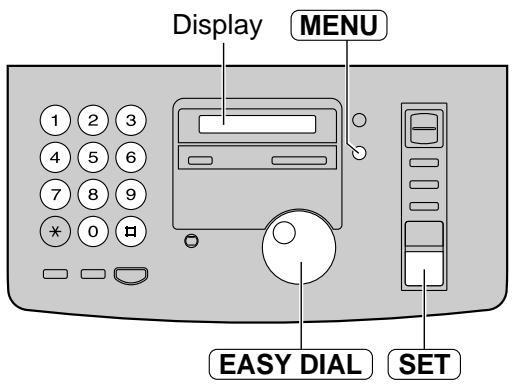
Programmation en entrant directement le numéro de code du programme
Vous pouvez sélectionner une fonction en entrant directement le code du programme (# et un nombre à 2 chiffres) au lieu d'utiliser EASYDIAL.
- Appuyez sur MENU
- Appuyez sur 1 et le numéro de code à 2 chiffres.
- Suivez les étapes 3 à 6 ci-dessus. Voir les tableaux de programmation (p. 65-71) pour les codes.
Pour annuler la programmation
Appuyez sur MENU pour quitter le programme.
Fonctions de base
Tableau de programmation
| Code | Display & Feature | Settings | How the unit operates |
| #01 | SET DATE & TIME To set the date and time | dd/mm/yy hh:mm (2 digits for each entry) | See page 13 for details. |
| #02 | YOUR LOGO To set your logo | (Up to 30 characters) | See pages 14 and 15 for details. |
| #03 | YOUR FAX NO. To set your facsimile telephone number | (Up to 20 digits) | See page 16 for details. |
| #04 | SENDING REPORT To print and check the sending report for fax transmission results (p. 32) | ERROR | “ERROR”: The sending report will be printed only when fax transmission fails. “ON”: The sending report will be printed after every transmission. |
| ON | |||
| OFF | |||
| #06 | ■ For KX-FP181 only FAX RING COUNT To change the number of rings before the unit answers a call in the FAX ONLY mode | 1, 2, 3, 4, 5, 6, 7, 8, 9 | If you are using the unit with an answering machine, set the ring count to more than 5. |
| #06 | ■ For KX-FP185/KX-FM189 only FAX RING COUNT To change the number of rings before the unit answers a call in the FAX ONLY mode | 1, 2, 3, 4, 5, 6, 7, 8, 9 | This setting can be changed when the unit is in FAX ONLY mode. |
| ■ For KX-FP185/KX-FM189 only TAD RING COUNT To change the number of rings before the unit answers a call in the TAD/FAX mode | 1, 2, 3, 4 | This setting can be changed when the unit is in TAD/FAX mode. • See page 52 for details. | |
| TOLL Saver | |||
| RINGER OFF | |||
| #10 | ■ For KX-FP185/KX-FM189 only RECORDING TIME To change the recording time for an incoming message | VOX | “VOX”: Unlimited “1-9”: 1 minute to 9 minutes |
| 1, 2, 3, 4, 5, 6, 7, 8, 9 |
(Le réglage par défaut est en gras.) (suite)
Fonctions de base (suite)
Comment régler les options du menu
- Appuyez sur MENU
- Tournez EASYDIAL jusqu'à ce que la fonction souhaitée soit affichée.
- Appuyez sur SET
- Tournez EASYDIAL jusqu'à ce que le réglage souhaité soit affiché.
- Appuyez sur SET
- Appuyez sur MENU
Remarque :
- L'étape 4 peut varier légèrement selon la fonction. Voir page 64 pour plus de détails.
Tableau de programmation (suite)
| Code | Display & Feature | Settings | How the unit operates |
| #11 | ■ For KX-FP185/KX-FM189 only REMOTE TAD ID To operate the answering device from a remote location | ON / ID=111 | To select “ON” and enter ID: 1. Press MENU. 2. Rotate EASY DIAL and select this feature. 3. Press SET. 4. Rotate EASY DIAL to select “ON”. 5. Press SET. 6. Enter any 3-digit number except a number using 0 or 7. 7. Press SET. 8. Press MENU. |
| OFF | |||
| #12 | ■ For KX-FP181 only REMOTE TAM ACT. If you use the unit with an answering machine, activate this feature and set the remote activation ID to secure the remote operation for the answering machine. | ON / ID=11 | To select “ON” and enter ID: 1. Press MENU. 2. Rotate EASY DIAL and select this feature. 3. Press SET. 4. Rotate EASY DIAL to select “ON”. 5. Press SET. 6. Enter your ID from 1 to 5 digits, using 0-9, * and #. 7. Press SET. 8. Press MENU. |
| OFF | |||
| #14 | ■ For KX-FM189 only PC LINK To set the PC link | ON | See PANA LINK Software Guide for details. |
| OFF |
(Le réglage par défaut est en gras.)
Fonctions avancées
Comment régler les options du menu
- Appuyez sur MENU
- Tournez EASY DIAL jusqu'à ce que "MODE AVANCÉ" s'affiche.
Appuyez sur SET et tournez EASY DIAL jusqu'à ce que la fonction souhaitée s'affiche.
- Appuyez sur SET
- Tournez EASY DIAL jusqu'à ce que le réglage souhaité s'affiche.
- Appuyez sur SET
- Appuyez sur MENU
Remarque :
- L'étape 4 peut être légèrement différente selon la fonction. Voir page 64 pour plus de détails.
Tableau de programmation
| Code | Display & Feature | Settings | How the unit operates |
| #22 | AUTO JOURNAL | ON | “ON”: The unit will print the journal report automatically after every 30 new fax communications (p. 32). |
| To print the journal report automatically for fax communications | OFF | ||
| #23 | OVERSEAS MODE | ON | After transmission, the unit will turn off automatically. ·This feature is not available for broadcast transmission. ·The calling charge may be higher. |
| If you have difficulty sending an overseas fax, activate this feature before starting transmission. This feature makes sending documents easier as the transmission speed is slowed down. | OFF | ||
| #25 | DELAYED SEND | ON / fax no. / hh:mm | To send a document: 1. Insert the document. 2. Follow steps 1–3 above. 3. Rotate EASY DIAL to select “ON”. 4. Press SET. 5. Enter the fax number. 6. Press SET. 7. Enter the transmission start time. 8. Press SET. 9. Press MENU. ·To cancel after programming, press STOP then SET. |
| To send a fax automatically at a specified time. This allows you to take advantage of low-cost calling hours offered by your telephone company. ·The setting can be reserved to take place up to 24 hours in advance. | OFF | ||
| #26 | ■ For KX-FP185/KX-FM189 only | ON | “ON”: The unit will print the Caller ID list automatically after every 30 new calls (p. 26). |
| AUTO CALL. LIST | OFF | ||
| To print Caller ID list automatically | |||
| #30 | SILENT FAX RING | 3, 4, 5, 6, 7, 8, 9 | See pages 44 and 45 for details. |
| To change the number of rings when the unit detects a voice call in the TEL/FAX mode |
Fonctions avancées (suite)
Comment régler les options du menu
- Appuyez sur MENU.
- Tournez la MOLETTE EASY jusqu'à ce que "MODE AVANCÉ" s'affiche.
Appuyez sur SET et tournez la MOLETTE EASY jusqu'à ce que la fonction souhaitée s'affiche.
- Appuyez sur SET.
- Tournez la MOLETTE EASY jusqu'à ce que le réglage souhaité s'affiche.
- Appuyez sur SET.
- Appuyez sur MENU.
Remarque :
- L'étape 4 peut varier légèrement selon la fonction. Voir page 64 pour plus de détails.
Tableau de programmation (suite)
| Code | Display & Feature | Settings | How the unit operates | ||
| #36 | RCV REDUCTION If the size of the document sent by the other party is as large as, or larger than the recording paper, the unit can reduce and print the document. Select the desired reduction rate. | 100% | Setting | Recording paper | Original document |
| 100% | A4 | Letter | |||
| 92% | 92% | A4 | A4 | ||
| 86% | A4 | A4 | |||
| 72% | A4 | Legal | |||
| 86% | ● If most of document sent from the other party are as long as your recording paper and they have a long heading using a few lines, we recommend selecting 86%. | ||||
| 72% | |||||
| #39 | LCD CONTRAST To adjust the display contrast | NORMAL | “NORMAL”: For normal contrast “DARKER”: Used when the display contrast is too light. | ||
| DARKER | |||||
| #41 | FAX ACTIVATION If you use an extension telephone and wish to use it to receive a fax, activate this feature, and enter the code (p. 47). ● This code is also used to receive a voice message and a fax in the same call (p. 43)(KX-FP181 only). | ON / CODE=* 9 | 1. Follow steps 1–3 above. 2. Rotate EASY DIAL to select “ON”. 3. Press SET. 4. Enter your code from 2 to 4 digits, using 0–9 and *. 5. Press SET. 6. Press MENU. ● Do not enter “0000”. | ||
| OFF | |||||
| #42 | ■ For KX-FP185/KX-FM189 only MESSAGE ALERT To alert you with beeps when a new voice message is recorded | ON | If you hear slow beeps, press PLAY MESSAGES and listen to recorded messages (p. 56). The beeps will stop. | ||
| OFF | |||||
| Code | Display & Feature | Settings | How the unit operates |
| #43 | ■ For KX-FP185/KX-FM189 onlyREC. TIME ALERTTo alert you with beeps when there is less than 60 seconds of remaining recording time | ON | If you hear slow beeps, erase the recorded messages (p. 57). The beeps will stop. |
| OFF | |||
| #44 | RECEIVE ALERTTo alert you with beeps when a received document is stored into memory due to a problem. | ON | If you hear slow beeps, clear the printing problem or supply paper to print the stored document. The beeps will stop. |
| OFF | |||
| #46 | FRIENDLY RCVTo receive a fax automatically when you answer a call and hear a fax calling tone (slow beep). | ON | "ON": You do not have to press FAX START for fax reception. |
| OFF | |||
| #47 | ■ For KX-FP185/KX-FM189 onlyFAX GUIDANCEIf you wish to hear the voice guidance (see right) at each fax transmission/reception, set this feature to "ON".· To hear the voice guidance only when fax transmission/reception fails, select "ERROR". | ON | Voice guidance examples:"Start transmission"."Transmission is complete"."Transmission has failed." "Transmission has been interrupted." "Start reception." "Reception is complete." "Reception has failed." "Reception has been interrupted." "Please hang up the handset for reception." "Start reception." |
| OFF | |||
| ERROR | |||
| #49 | ■ For KX-FP181 onlyAUTO DISCONNECTTo answer a call with an extension telephone in the TEL/FAX mode (p. 45) | ON / CODE= * 0 | 1. Follow steps 1-3 on page 68.2. Rotate EASY DIAL to select "ON".3. Press SET .4. Enter your code from 2 to 4 digits, using 0-9 and * .5. Press SET .6. Press MENU . |
| OFF | |||
| #54 | ■ For KX-FP185/KX-FM189 onlyGREETING TIMETo change the recording time for your own TAD/FAX greeting message (p. 54) | 16s | "16s": Up to 16 seconds "60s": Up to 60 seconds |
| 60s |
(Le réglage par défaut est en gras.) (suite)
Fonctions avancées (suite)
Comment définir les options du menu
- Appuyez sur MENU.
- Tournez la MOLETTE EASY jusqu'à ce que "MODE AVANCÉ" s'affiche. Appuyez sur SET et tournez la MOLETTE EASY jusqu'à ce que la fonction souhaitée s'affiche.
- Appuyez sur SET
- Tournez la molette EASY DIAL jusqu'à ce que le réglage souhaité s'affiche.
- Appuyez sur SET
- Appuyez sur MENU
Remarque :
- L'étape 4 peut varier légèrement selon la fonction. Voir page 64 pour plus de détails.
Tableau de programmation (suite)
| Code | Display & Feature | Settings | How the unit operates |
| #60 | ■ For KX-FP185/KX-FM189 onlyMESSAGE TRANSM.To transfer a recorded incoming message to another telephone (p. 62) | ON | 1. Follow steps 1–3 above.2. Rotate EASY DIAL to select “ON”.3. Press SET .4. Enter the transfer telephone number.5. Press SET .6. Press MENU .This feature can be turned on/off from a remote location (p. 61). |
| OFF | |||
| #61 | ■ For KX-FP185/KX-FM189 onlyTRNS-GREETINGTo check, record or erase a transfer greeting message | CHECK | See page 63 for details. |
| RECORD | |||
| ERASE | |||
| #67 | ■ For KX-FP185/KX-FM189 onlyICM MONITORTo hear an incoming message (ICM) from the speaker while the answering device is recording the message | ON | If you select “OFF”, you cannot monitor the incoming message. |
| OFF | |||
| #68 | ECM SELECTIONECM stands for Error Correction Mode. To send a fax even if there is static interference on the telephone line | ON | This feature is available when the transmitting/receiving station are ECM compatible.● If the documents are in memory, clear them before the setting (p. 40). |
| OFF |
(Le réglage par défaut est en gras.)
| Code | Display & Feature | Settings | How the unit operates |
| #70 | FAX PAGER CALL (KX-FP181) | ON | See page 49 for details. |
| PAGER CALL (KX-FP185/KX-FM189) | |||
| If you have a pager and wish to know when your unit receives an incoming message (KX-FP185/KX-FM189 only) or a fax, activate this feature. | OFF | ||
| #71 | MELODY RINGER | A | |
| To set the ring melody | B | ||
| C | |||
| #76 | CONNECTING TONE | ON | You can confirm the status of the other party's machine. · If the ring back tone continues, the other party's machine may not be a facsimile or may have run out of paper. Check with the other party. · The connecting tone volume cannot be adjusted. |
| If you often have trouble when sending a fax, this feature allows you to hear connecting tones; fax tone, ring back tone and busy tone. | |||
| OFF | |||
| #77 | ■ For KX-FP181 only | FAX ONLY | “FAX ONLY”: Facsimile only mode (p. 41) |
| AUTO ANSWER | “TEL/FAX”: Telephone/Facsimile mode (p. 44, 45) | ||
| To change the receive mode in the AUTO ANSWER setting | TEL/FAX | ||
| #77 | ■ For KX-FP185/KX-FM189 only | TAD/FAX | “TAD/FAX”: Telephone Answering Device/Facsimile mode (p. 52) |
| AUTO ANSWER | “FAX ONLY”: Facsimile only mode (p. 41) | ||
| To change the receive mode in the AUTO ANSWER setting | FAX ONLY | “TEL/FAX”: Telephone/Facsimile mode (p. 44, 45) | |
| TEL/FAX | |||
| #78 | TEL/FAX RING | 1, 2, 3, 4, 5, 6, 7, 8, 9 | See pages 44 and 45 for details. |
| If you use an extension telephone in the TEL/FAX mode, select the desired number of rings of the extension telephone. | |||
| #80 | SET DEFAULT | YES | 1. Follow steps 1–3 on page 70. 2. Rotate EASY DIAL to select “YES”. 3. Press SET. 4. Press SET again. 5. Press MENU. |
| To reset the advanced features, except ECM selection (feature #68 on page 70) to their default settings | NO |
(Le réglage par défaut est en gras.)
Rapports
Si votre appareil ne peut pas envoyer un fax, vérifiez les points suivants.
- Le numéro composé est correct.
- L'appareil de l'autre partie est un télécopieur.
Si le problème persiste, corrigez-le en suivant le message de communication imprimé sur les rapports d'envoi et de journal (p. 32).
| Communication message | Error code | Cause & Remedy |
| COMMUNICATION ERROR | 40-4246-5258, 6568, 72FF | • A transmission or reception error occurred. Try again or check with the other party. |
| 4344 | • An overseas transmission error occurred. Try using the overseas mode (feature #23 on page 67). | |
| DOCUMENT JAMMED | — | • The document is jammed. Remove the jammed document (p. 81). |
| ERROR-NOT YOUR UNIT | 545970 | • A transmission or reception error occurred because of a problem with the other party's fax machine. Check with the other party. |
| MEMORY FULL | — | • The document was not received due to memory being full. |
| NO DOCUMENT | — | • The document was not fed into the unit properly. Reinsert the document and try again. |
| OTHER FAX NOT RESPOND | — | • The other party's fax machine is busy or has run out of recording paper. Try again. • The document was not fed properly. Reinsert the document and try again. • The other party's fax machine rings too many times. Send a fax manually – dial the number, confirm the fax tone, and press FAX START. • The other party's machine is not a facsimile. Check with the other party. • The number you dialled is not in service. |
| PC FAIL OR BUSY (KX-FM189 only) | — | • The PC cannot control the fax functions. The printer cable is not connected correctly, or the software is not running on the PC. |
| PRESSED THE STOP KEY | — | • STOPwas pressed and fax communication was cancelled. |
| THE COVER WAS OPENED | — | • The covers were opened. Close them and try again. |
| OK | — | • Fax communication was successful. |
Affichage
Si l'appareil détecte un problème, un ou plusieurs des messages suivants apparaîtront sur l'écran.
| Display message | Cause & Remedy |
| CALL SERVICE | ·There is something wrong with the unit. Contact our service personnel. |
| CALL SERVICE2 | |
| COVER OPEN | ·The covers are open. Close them. |
| CHECK FILM | ·The ink film is empty. Replace the ink film with a new one (p. 83, 84). ·The ink film is not installed. Install it (p. 83, 84). ·The ink film is slack. Tighten it (see step 6 on page 84). |
| CHECK DOCUMENT | ·The document is not fed into the unit properly. Reinsert the document. If misfeeding occurs frequently, clean the document feeder rollers (p. 82) and try again. If the problem remains, adjust the feeder pressure (p. 81). |
| CHECK MEMORY | ·Memory (telephone numbers, parameters, etc.) has been erased. Re-program. |
| CHECK PAPER | ·The recording paper is not installed or the unit has run out of paper. Install paper and press SET to clear the message. ·The recording paper is not fed into the unit properly. Reinstall paper (p. 11) and press SET to clear the message. ·The recording paper has jammed near the recording paper entrance. Clear the jammed paper (p. 80) and press SET to clear the message. Do not install folded or heavily curled paper. |
| EASY DIAL FULL | ·There is no space to store new stations in the EASY DIAL directory. Erase unnecessary stations (p. 22). |
| FAX IN MEMORY | ·The unit has a document in memory. See the other displayed message instructions to print out the document. |
| FAX MEMORY FULL | ·Memory is full of received documents due to a lack of recording paper or a recording paper jam etc. Install paper or clear the jammed paper. ·When performing memory transmission, the document being stored exceeds the memory capacity of the unit. Transmit the entire document manually. |
| MEMORY FULL | ·When making a copy, the document being stored exceeds the memory capacity of the unit. Press STOP to clear the message. Divide the document and try again. |
| MESSAGE FULL | ·There is no memory left to record a voice message. Erase unnecessary messages (p. 57) (KX-FP185/KX-FM189 only). |
| MODEM ERROR | ·There is something wrong with the modem circuit. Contact our service personnel. |
| NO FAX REPLY | ·The other party's fax machine is busy or has run out of recording paper. Try again. |
| PAPER JAMMED | ·A recording paper jam occurred. Clear the jammed paper (p. 80). |
| PC FAIL OR BUSY | ·The fax function cannot be operated by the PC. The RS232C cable is not connected correctly, or the software is not running on the PC (KX-FM189 only). |
| PLEASE WAIT | ·The unit is checking that there is no slack on the ink film. Wait for a while. |
| POLLING ERROR | ·The other party's fax machine does not provide the polling function. Check with the other party. |
| REDIAL TIME OUT | ·The other party's fax machine is busy or has run out of recording paper. Try again. |
| REMOVE DOCUMENT | ·The document is jammed. Remove the jammed document (p. 81). ·Attempted to transmit a document longer than 600 mm. Press STOP to remove the document. Divide the document into two or more sheets and try again. |
| TRANSMIT ERROR | ·A transmission error occurred. Try again. |
| UNIT OVERHEATED | ·The unit is too hot. Let the unit cool down. |
Lorsqu'une fonction ne fonctionne pas, vérifiez ici avant de demander de l'aide.
Généralités
| Problem | Cause & Remedy |
| I cannot make and receive calls. | ·The mains lead or telephone line cord is not connected. Check the connections (p. 12). ·If you used a splitter to connect the unit, remove the splitter and connect the unit to the wall jack directly. If the unit operates properly, check the splitter. |
| The unit does not work. | ·Disconnect the unit from the telephone line and connect the line to a known working telephone. If the working telephone operates properly, contact our service personnel to have the unit repaired. If the working telephone does not operate properly, contact your telephone company. |
| The unit does not ring. | ·The ringer volume is set to off. Adjust it (p. 17). ·The TAD ring count of feature #06 is set to “RINGER OFF”. Change to another ring count (p. 65)(KX-FP185/KX-FM189 only). |
| The unit displays the following message though the paper is inserted. CHECK PAPER | ·The paper is inserted halfway. Insert it correctly (p. 11) and press SET to clear the message. |
| The other party complains they only hear a fax tone and cannot talk. | ·The FAX ONLY mode is set. Tell them the number is only used for faxes or change to TEL, TEL/FAX or TAD/FAX (KX-FP185/KX-FM189 only) mode (p. 38, 39). |
| The speakerphone is not working. (KX-FP185/KX-FM189 only) | ·Use the speakerphone in a quiet room. ·If you have difficulty hearing the other party, adjust the volume using ▲ or ▼. ·If you and the other party speak at the same time, parts of your conversation will be cut off. Speak alternately. |
| The REDIAL/PAUSE button does not function properly. | ·If this button is pressed during dialling, a pause will be inserted. If pressed immediately after a dial tone is obtained, the last number dialled will be redialled. |
| During programming, I cannot enter the code or ID number. | ·All or part of the numbers are the same. Change the code or ID number of features #11 (p. 66), #12 (p. 66), #41 (p. 68) and #49 (p.69). |
| The ink film runs out quickly. | ·The HELP printing function, copy function, and reports also use ink film. |
| The unit beeps. | ·Recording paper or ink film has run out. Press STOP to stop the beeps and install paper/ink film. |
Télécopie - envoi
| Problem | Cause & Remedy |
| I cannot send documents. | ● The telephone line cord is connected to the EXT jack on the unit. Connect to the LINE jack (p. 12) (KX-FP181 only). ● The other party's fax machine is busy or has run out of recording paper. Try again. ● The other party's machine is not a facsimile. Check with the other party. ● The other party's fax machine rings too many times. Send a fax manually – dial the number, confirm the fax tone, then press FAX START. |
| The other party complains that letters on their received document are distorted or not clear. | ● If your line has special telephone services such as call waiting, the service may have been activated during fax transmission. Connect the unit to a line that does not have these services. ● The extension telephone on the same line is off the hook. Hang up the extension telephone and try again. ● Try copying the document. If the copied image is clear, there may be something wrong with the other party's machine. |
| The other party complains that dirty patterns or black lines appear on their received document. | ● The glass or rollers are dirty. Clean them (p. 82). |
| I cannot make an international fax call. | ● Use the overseas transmission mode of feature #23 (p. 67). ● Add two pauses at the end of the telephone number (p. 19) or dial manually. |
Télécopie - réception
| Problem | Cause & Remedy |
| I cannot receive documents. (KX-FP181 only) | ·The telephone line cord is connected to the EXT jack on the unit. Connect to the LINE jack (p. 12). |
| I cannot receive documents automatically. | ·The receive mode is set to the TEL mode. Set to the FAX ONLY, TEL/FAX or TAD/FAX (KX-FP185/KX-FM189 only) mode (p. 38, 39). ·The time taken to answer the call is too long. Decrease the number of rings of features #06 (p. 65), #30 (p. 67) and #78 (p. 71). ·The greeting message is too long. Shorten the message (p. 54)(KX-FP185/KX-FM189 only). |
| The display shows the following message but faxes are not received. CONNECTING...... | ·The incoming call is not a fax. Change the receive mode to the TEL or TAD/FAX (KX-FP185/KX-FM189 only) mode (p. 38, 39). |
(suite)
Télécopie - réception (suite)
| Problem | Cause & Remedy |
| The recording image is faint. | ·The other party sent a faint document. Ask them to send a clearer copy of the document. ·The thermal head is dirty. Clean it (p. 82). |
| The printing quality is poor. | ·Some paper has instructions recommending which side to print on. Try turning the paper over. ·Check the document of the other party. |
| A blank sheet is ejected. | ·If a blank sheet is ejected after the received document is printed out, the receiving reduction rate is not programmed correctly. Program the proper rate in feature #36 (p. 68). ·The other party placed the document in their fax machine the wrong way. Check with the other party. |
Mode de réception
| Problem | Cause & Remedy |
| I cannot select the desired receive mode. | If you want to set the FAX ONLY, TEL/FAX or TAD/FAX (KX-FP185/KX-FM189 only) mode: — Select the desired mode using feature #77 (p. 71), and — Press AUTO ANSWER to turn on the arrow (▼) on the right of the display. Display: ON ● If you want to set the TEL mode: — Press AUTO ANSWER to turn off the arrow (▼) on the right of the display. ON |
| The other party complains that they cannot send a document. | The unit is not in AUTO ANSWER mode. Press AUTO ANSWER to turn on the arrow (▼) on the right of the display. ON |
Copie
| Problem | Cause & Remedy |
| The unit does not make a copy. | ● You cannot make a copy during programming. Make the copy after programming or stop the programming. |
| A dirty pattern or a black line appears on the copied document. | ● The glass or rollers are dirty. Clean them (p. 82). |
| The copied image is distorted. | ● The thermal head is dirty. Clean it (p. 82). |
(suite)
Copie (suite)
| Problem | Cause & Remedy |
| The printing quality is poor. | ● Some paper has instructions recommending which side to print on. Try turning the paper over. |
| The printing is faint. Original ABC Copy | ● You may have used paper with a cotton and/or fiber content that is over 20%, such as letterhead or resume paper. |
Utilisation d'un répondeur (KX-FP181 uniquement)
| Problem | Cause & Remedy |
| I cannot receive documents automatically. | ●Your greeting message on the answering machine is too long. Shorten the message (up to 10 seconds).●The answering machine rings too many times. Set to 1 or 2 rings. |
| I cannot receive voice messages. | ●Check if the answering machine is turned on and connected to the fax machine properly (p. 42).●Set the number of rings on the answering machine to 1 or 2. |
| I cannot retrieve recorded voice messages on the answering machine from a remote location. | ●The remote access code on your answering machine is the same as your fax activation code. Set a different number for features #12 (p. 66) and #41 (p. 68).●You did not program your remote access code in your fax machine correctly. Program the same code that is programmed on the answering machine to the fax machine with feature #12 (p. 66). |
| I pressed the remote access code to access the answering machine remotely, but the line was disconnected. | ●The code may include "#” which is used for certain features provided by telephone companies. Change the code on the answering machine to another number which does not include "#". Also change the code of the fax machine with feature #12 (p. 66). |
| Callers complain that they cannot send a document. | ●Your answering machine has run out of recording tape. Rewind the tape to record messages.●You set the answering machine to only give a greeting message. |
Répondeur (KX-FP185/KX-FM189 uniquement)
| Problem | Cause & Remedy |
| New voice messages cannot be recorded in the TAD/FAX mode. | ● The memory is full. Erase unnecessary messages (p. 57). |
| I cannot retrieve recorded messages from a remote location. | ● Press the remote operation ID (feature #11 on page 66) correctly and firmly. |
En cas de panne de courant
- L'appareil ne fonctionnera pas.
- L'appareil n'est pas conçu pour passer des appels d'urgence en cas de panne de courant. Des dispositions alternatives doivent être prises pour accéder aux services d'urgence. La transmission et la réception de télécopies seront interrompues.
- Si la transmission différée de la fonction n° 25 (p. 67) est programmée et que l'heure de début est passée pendant une panne de courant, la transmission sera tentée peu après le rétablissement du courant.
- Si un téléphone supplémentaire/répondeur est connecté à la prise EXT du télécopieur, vous pourrez peut-être l'utiliser pendant une panne de courant (uniquement pour le KX-FP181).
- Si des documents de télécopie sont stockés en mémoire, ils seront perdus. Lorsque le courant est rétabli, un rapport de coupure de courant sera imprimé indiquant quels contenus en mémoire ont été effacés.
Exemple de rapport de coupure de courant
RAPPORT DE COUPURE DE COURANT
COUPURE DE COURANT À : 05 janv. 2000 04:30
REDÉMARRAGE À : 05 janv. 2000 04:31
VOTRE LOGO
VOTRE N° DE FAX :
< >
LE CONTENU A ÉTÉ EFFACÉ EN RAISON DE LA COUPURE DE COURANT.
POUR PLUS D'INFORMATIONS, VEUILLEZ CONSULTER LE RAPPORT JOURNAL.
AUCUN AUTRE FACSIMILÉ
MODE
PAGES
FONCTION
01
01
RÉCEPTION EN MÉMOIRE
Bourrage papier
Si l'appareil n'éjecte pas de papier pendant la réception de télécopies ou la copie, le papier est coincé et l'écran affiche le message suivant.
Affichage :
PAPIER COINCÉ
Retirez le papier coincé comme suit.
1 Ouvrez le capot avant en tirant vers le haut sur la partie centrale. Poussez le bouton d'ouverture du capot arrière (①) et ouvrez le capot arrière (②). 3 Retirez le papier coincé. 4 Si le film d'encre est détendu, tendez-le en tournant l'engrenage.
Incorrect

Correct

Tight
5 Fermez soigneusement le capot arrière en appuyant sur la zone en pointillés aux deux extrémités (①). Fermez soigneusement le capot avant (②).
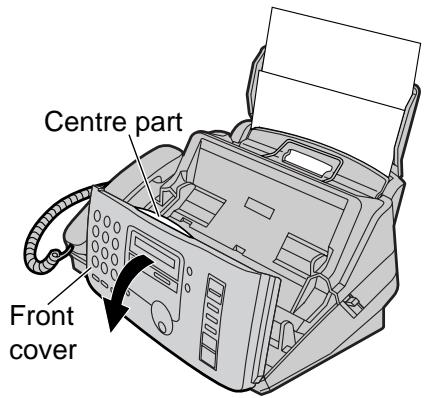
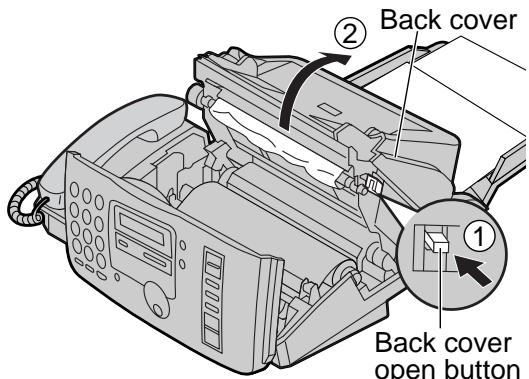
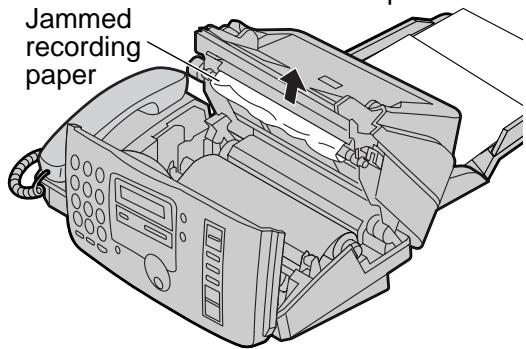
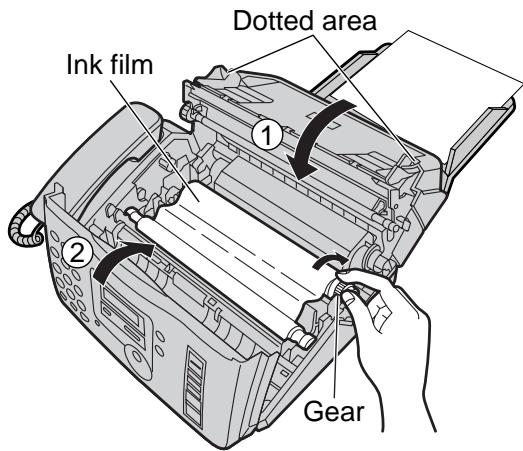
Bourrages lors de l'envoi de documents
Si l'appareil ne libère pas le document pendant l'alimentation, retirez le document coincé comme suit.
1 Ouvrez le capot avant en tirant vers le haut sur la partie centrale. 2 Retirez délicatement le document coincé. 3 Fermez soigneusement le capot avant.
Remarque :
- Ne retirez pas de force le papier coincé avant d'ouvrir le capot avant.
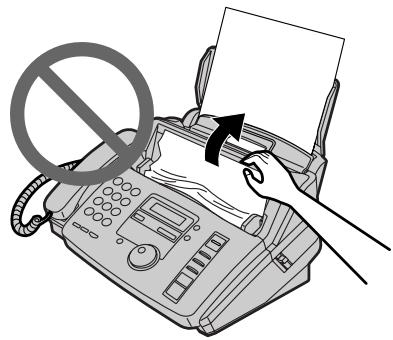
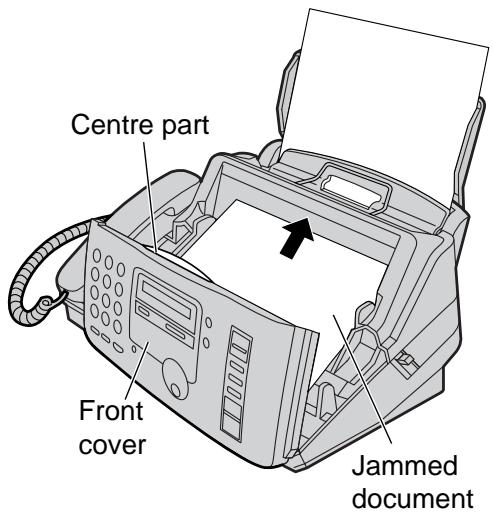
Le document ne s'alimente pas ou alimentation multiple
Si aucune alimentation ou une alimentation multiple se produit fréquemment, ajustez la pression du chargeur.
1 Ouvrez le capot avant en tirant vers le haut sur la partie centrale. 2 Déplacez la position du levier vert à l'aide d'un instrument à extrémité pointue, comme un trombone.
Gauche : lorsque les documents sont alimentés en multiple.
Centre : position standard (pré-sélectionnée)
Droite : lorsque les documents ne s'alimentent pas.
3 Fermez soigneusement le capot avant.
Remarque :
- Lors du déplacement du levier vert, ne touchez pas le volet en caoutchouc.
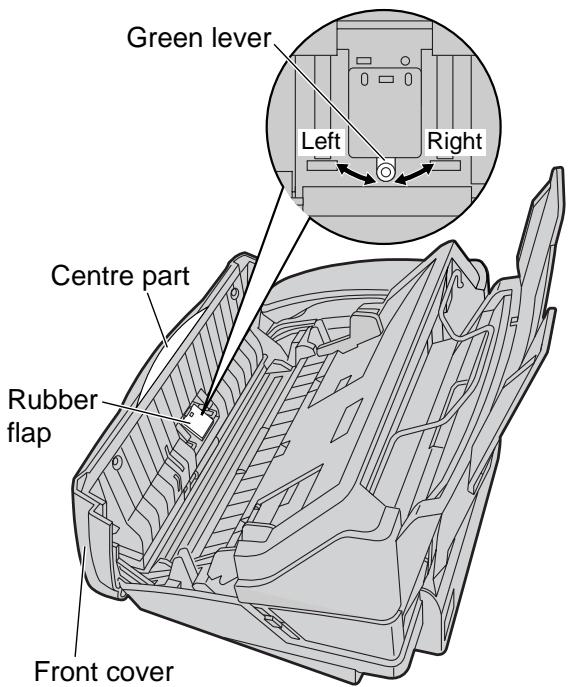
Chargeur de documents
Si des bourrages papier se produisent fréquemment ou si des traces sales ou des bandes noires apparaissent sur un document transmis ou sur l'original d'un document copié, nettoyez le chargeur de documents.
1 Débranchez le cordon d'alimentation et le cordon téléphonique. 2 Ouvrez le capot avant en tirant vers le haut sur la partie centrale. 3 Nettoyez les rouleaux du chargeur de documents et le volet en caoutchouc avec un chiffon imbibé d'alcool isopropylique, puis laissez sécher toutes les pièces complètement. 4 Nettoyez la vitre avec un chiffon doux et sec. 5 Refermez soigneusement le capot avant. 6 Rebranchez le cordon d'alimentation et le cordon téléphonique.
Attention :
- N'utilisez pas de produits en papier, tels que des essuie-tout ou des mouchoirs, pour nettoyer l'intérieur de l'appareil.
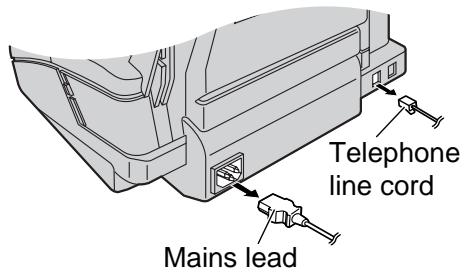
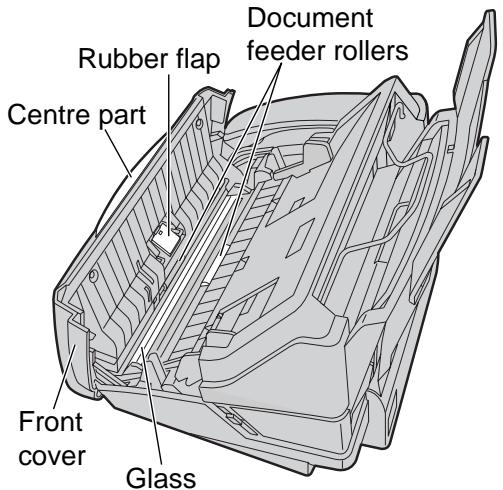
Tête thermique
Si des traces sales ou des bandes noires ou blanches apparaissent sur un document copié ou reçu, nettoyez la tête thermique.
1 Débranchez le cordon d'alimentation et le cordon téléphonique. 2 Ouvrez le capot avant en tirant vers le haut sur la partie centrale. 3 Ouvrez le capot arrière en appuyant sur le bouton d'ouverture du capot arrière. 4 Nettoyez la tête thermique avec un chiffon imbibé d'alcool isopropylique, puis laissez-la sécher complètement. 5 Refermez soigneusement le capot arrière en appuyant sur la zone en pointillés aux deux extrémités. Refermez soigneusement le capot avant. 6 Rebranchez le cordon d'alimentation et le cordon téléphonique.
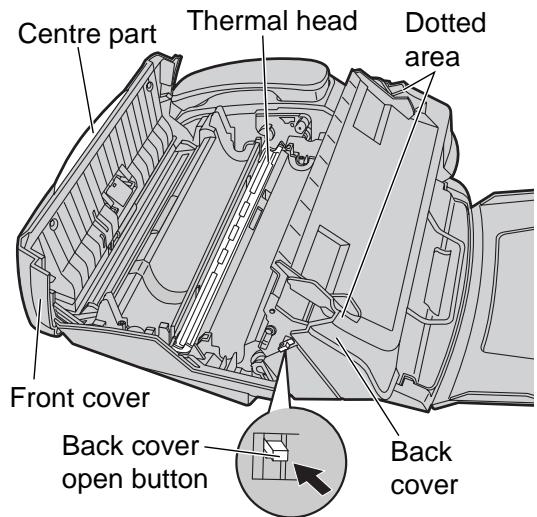
Attention :
- Pour éviter tout dysfonctionnement dû à l'électricité statique, n'utilisez pas de chiffon sec et ne touchez pas directement la tête thermique.
Remplacement du film d'encre
Lorsque l'appareil est à court de film d'encre, le message suivant s'affiche.
Affichage :
VÉRIFIER LE FILM
Installez un nouveau film d'encre. Le film d'encre suivant est disponible pour le remplacement. Chaque rouleau imprime environ 140 pages au format A4. Voir page 6 pour les informations sur les accessoires.
N° de modèle KX-FA55X : Film de remplacement (2 rouleaux)
1 Ouvrez le capot avant en tirant vers le haut sur la partie centrale.
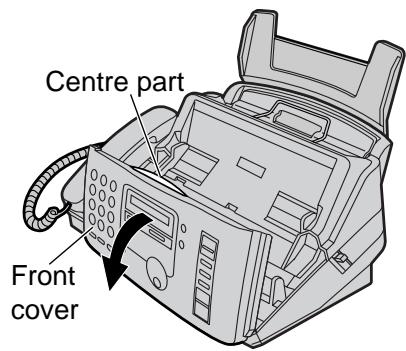
Appuyez sur le bouton d'ouverture du capot arrière (①) et ouvrez le capot arrière (②).
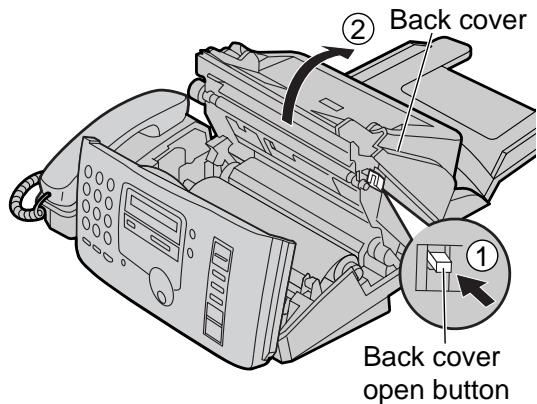
3 Tirez vers le haut sur le côté de l'engrenage bleu et retirez le film d'encre usagé. Retirez le noyau usagé.
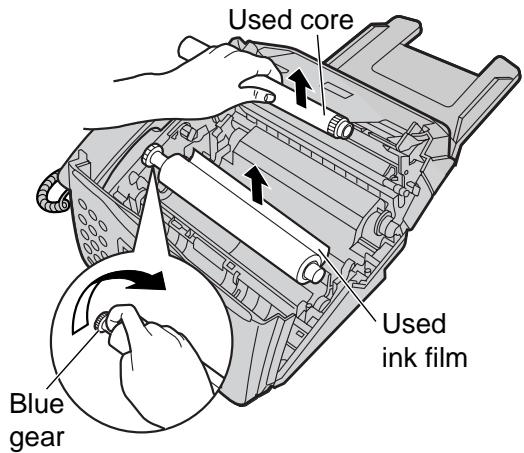
4 Retirez les butées et les étiquettes du nouveau film d'encre. Repérez l'engrenage en forme de « T » (bleu).
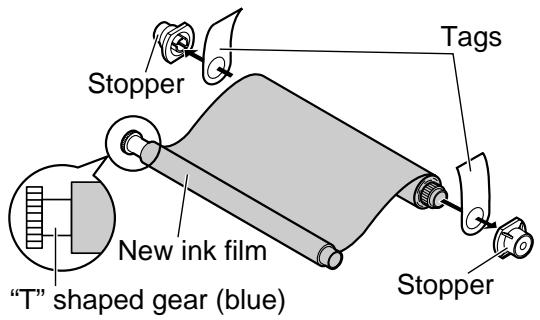
5 Insérez le noyau bleu du rouleau de film avant dans la fente droite de l'appareil (①). Insérez l'engrenage en forme de « T » (bleu) dans la fente gauche de l'appareil (②). Insérez le rouleau de film arrière (③).
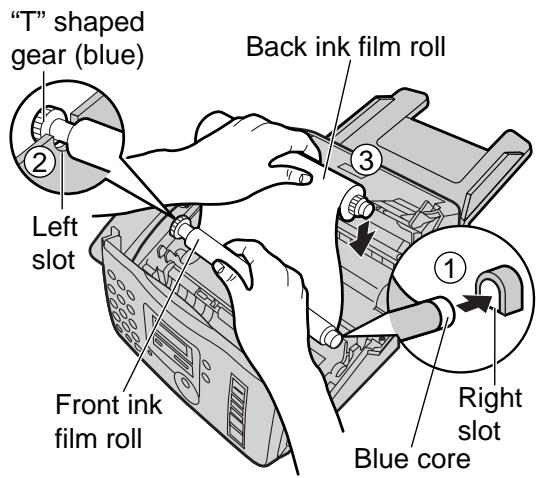
Si le film d'encre est détendu, tendez-le en tournant l'engrenage.
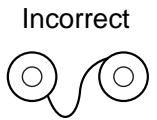
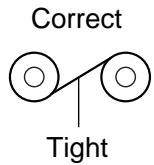
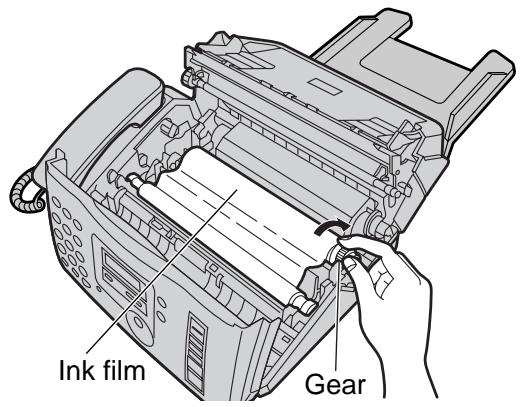
7 Fermez le capot arrière fermement en appuyant sur la zone en pointillés aux deux extrémités (①). Fermez le capot avant fermement (②).
- Le message suivant s'affiche pendant que l'appareil vérifie qu'il n'y a pas de mou dans le film d'encre.
Affichage :
VEUILLEZ ATTENDRE
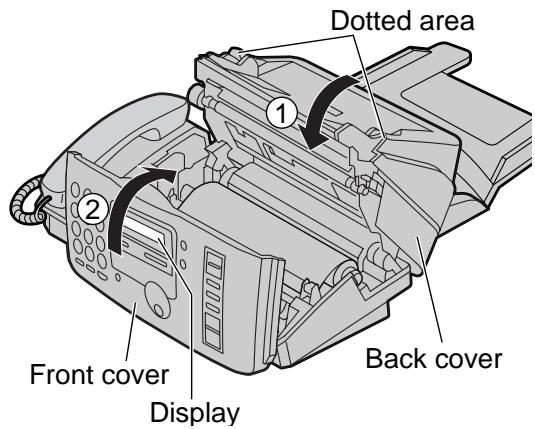
Remarque :
- Le film d'encre est totalement sûr au toucher et ne déteint pas sur les mains comme le papier carbone.
Listes de référence et rapports
Vous pouvez imprimer les listes et rapports suivants pour votre référence.
Liste de configuration : fournit les réglages actuels des fonctions de programmation de base et avancées (p. 65-71).
Liste des numéros de téléphone : fournit les noms et numéros de téléphone stockés dans le répertoire EASY DIAL. Les codes des numéros de téléphone sont indiqués ci-dessous.
P : une pause a été saisie. F : un rappel a été saisi.
Rapport journal : conserve les enregistrements des transmissions et réceptions de télécopies. Ce rapport sera imprimé automatiquement après chaque 30 communications par télécopie (p. 32).
Liste de test d'impression : permet de vérifier la qualité d'impression de votre appareil. Si le test d'impression présente un motif sale, ou des points ou lignes flous, nettoyez la tête thermique (p. 82).
Liste de programmation de diffusion : fournit les noms et numéros de téléphone stockés dans la fonction de diffusion (p. 35).
Liste d'identification de l'appelant (KX-FP185/KX-FM189 uniquement) : conserve les enregistrements des 30 derniers appelants après avoir souscrit à un service d'identification de l'appelant. Ce rapport sera imprimé automatiquement après chaque 30 appelants (p. 26).
1 Appuyez deux fois sur MENU.
Affichage : 2.PRINT REPORT
2 Tournez EASY DIAL jusqu'à ce que l'élément souhaité soit affiché.
LISTE DE CONFIGURATION
LISTE DES NUMÉROS DE TÉLÉPHONE
RAPPORT JOURNAL
TEST D'IMPRESSION
LISTE DE DIFFUSION
LISTE D'IDENTIFICATION DE L'APPELANT
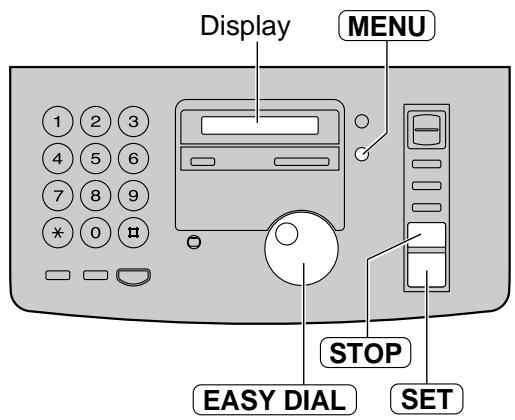
Appuyez sur SET pour lancer l'impression.
IMPRESSION
- Pour arrêter l'impression, appuyez sur STOP. Une fois l'impression terminée, l'élément imprimé s'affichera.
4 Appuyez sur MENU
Données techniques concernant ce produit
| Applicable Lines: | Public Switched Telephone Network |
| Document Size: | Max. 216 mm in width / Max. 600 mm in length |
| Effective Scanning Width: | 208 mm |
| Recording Paper Size: | A4: 210 mm x 297 mm |
| Effective Printing Width: | 202 mm |
| Transmission Time*: | ■ KX-FP181: Approx. 12 s/page (Original mode)**■ KX-FP185/KX-FM189: Approx. 8 s/page (Original mode)** |
| Scanning Density: | Horizontal: 8 pels/mmVertical: 3.85 lines/mm –“STANDARD” mode7.7 lines/mm –“FINE”/“HALF TONE” mode15.4 lines/mm –“SUPER FINE” mode |
| Halftone Level: | 64-level |
| Scanner Type: | Contact Image Sensor (CIS) |
| Printer Type: | Thermal Transfer on plain paper |
| Data Compression System: | Modified Huffman (MH), Modified READ (MR), Modified ModifiedREAD (MMR) |
| Modem Speed: | ■ KX-FP181: 9,600 / 7,200 / 4,800 / 2,400 bps; Automatic Fallback■ KX-FP185/KX-FM189: 14,400 / 12,000 / 9,600 / 7,200 / 4,800 /2,400 bps; Automatic Fallback |
| Operating Environment: | 5 °C – 35 °C, 20 % – 80 % RH (Relative Humidity) |
| Dimensions (H x W x D): | 185 mm x 345 mm x 276 mm |
| Mass (Weight): | Approx. 3.75 kg |
| Power Consumption: | Standby: ■ KX-FP181: Approx. 5 W■ KX-FP185/KX-FM189: Approx. 6 W |
| Transmission: Approx. 20 W | |
| Reception: Approx. 40 W (When receiving a 20% black document) | |
| Copy: Approx. 40 W (When copying a 20% black document) | |
| Maximum: Approx. 120 W (When copying a 100% black document) | |
| Power Supply: | 220–240 V AC, 50 Hz |
| Memory Capacity: | Voice memory (KX-FP185/KX-FM189 only):Approx. 18 minutes of recording time including greetingmessage***Fax memory: Approx. 28 pages of memory receptionApprox. 25 pages of memory transmission(Based on the ITU-T No. 1 Test Chart in standard resolution, without using the Error Correction Mode.) |
- La vitesse de transmission dépend du contenu des pages, de la résolution, des conditions de la ligne téléphonique et des capacités de l'appareil du correspondant. La vitesse de transmission mentionnée ici est basée sur la mire ITU-T n° 1 et le mode original. Si les capacités de l'appareil du correspondant sont inférieures à celles de votre appareil, le temps de transmission peut être plus long. * Le temps d'enregistrement peut être réduit par le bruit de fond de l'appelant.
Remarque :
- Tout détail fourni dans ces instructions est sujet à modification sans préavis.
- Les images et illustrations de ces instructions peuvent varier légèrement par rapport au produit réel.
Mire ITU-T n° 1
| Our Ref. 350/360/360 | 18th January, 1971 |
Informations importantes
La connexion aux systèmes de télécommunication ne doit pas être câblée en dur et doit être débranchée avant que la terre ne soit déconnectée.
Méthode de connexion
Cet appareil est connecté à la ligne d'échange ou au poste PABX/PMBX via la nouvelle prise et le nouveau connecteur standard de British Telecom. Les modalités de fourniture de ce type de terminaison peuvent être réglées auprès du bureau de vente British Telecom le plus proche.
Cet appareil peut être connecté aux types d'installations suivants.
a) Pour la connexion au réseau téléphonique public commuté (RTPC) et aux autocommutateurs privés compatibles (PBX), qui utilisent la signalisation DTMF. (Veuillez consulter votre fournisseur pour une liste à jour des PBX compatibles.) b) L'appareil peut être utilisé sur des prises supplémentaires connectées à une ligne directe (D.E.L.). c) Cet appareil est adapté à la connexion au système de télécommunication directement ou via un autocommutateur privé compatible en tant que poste supplémentaire. Le fournisseur de l'appareil doit être consulté pour une liste à jour des PBX avec lesquels l'appareil est compatible.
Il ne peut être garanti que l'appareil fonctionnera dans toutes les conditions possibles de connexion à des PBX compatibles.
- Cet appareil est adapté à la connexion à un PBX avec ou sans indication de procédure initiale.
- Cet appareil est adapté à la connexion à un PBX avec ou sans indication de procédure secondaire.
En cas de difficulté, adressez-vous en premier lieu au fournisseur de l'appareil.
d) L'appareil ne doit pas être connecté de la manière suivante : - En tant que poste supplémentaire à un téléphone public - En tant que ligne partagée avec un service commun
REMARQUES :
- Si vous rencontrez des problèmes lors de l'utilisation normale de votre appareil, débranchez-le de la prise téléphonique et connectez un téléphone connu en bon état de fonctionnement à sa place. Si le téléphone de remplacement présente toujours des problèmes, contactez le service client de votre opérateur RTPC (par exemple BT, etc.). S'il fonctionne correctement, les problèmes sont probablement dus à un défaut de votre appareil. Dans ce cas, consultez votre fournisseur pour obtenir des conseils.
- Votre opérateur RTPC peut vous facturer une intervention si elle n'est pas due à un appareil qu'il a fourni.
Branchement d'une fiche sur le cordon d'alimentation
Cet appareil est fourni avec une fiche moulée à trois broches pour votre sécurité et votre commodité.
Un fusible de 5 ampères est installé dans cette fiche.
Si le fusible doit être remplacé, assurez-vous que le fusible de remplacement a une puissance nominale de 5 ampères et qu'il est approuvé par ASTA ou BSI selon la norme BS1362.
Vérifiez la présence de la marque ASTA ou BSI
sur le corps du fusible.
Si la fiche comporte un couvercle de fusible amovible, assurez-vous de le remettre en place lors du remplacement du fusible.
Si vous perdez le couvercle du fusible, la fiche ne doit pas être utilisée tant qu'un couvercle de remplacement n'a pas été obtenu.
Un couvercle de fusible de remplacement peut être acheté auprès de votre revendeur Panasonic local.
SI LA FICHE MOULÉE FOURNIE NE CONVIENT PAS À LA PRISE DE COURANT DE VOTRE DOMICILE, LE FUSIBLE DOIT ÊTRE RETIRÉ ET LA FICHE COUPÉE ET ÉLIMINÉE EN TOUTE SÉCURITÉ. IL Y A UN DANGER DE CHOC ÉLECTRIQUE GRAVE SI LA FICHE COUPÉE EST INSÉRÉE DANS UNE PRISE 13 AMPÈRES.
Si une nouvelle fiche doit être installée, veuillez respecter le code de câblage indiqué ci-dessous.
En cas de doute, veuillez consulter un électricien qualifié.
AVERTISSEMENT : CET APPAREIL DOIT ÊTRE RELIÉ À LA TERRE.
IMPORTANT :
Les fils de ce cordon d'alimentation sont colorés conformément au code suivant :
Vert et jaune : Terre
Bleu : Neutre
Brun : Phase
Comme les couleurs des fils du cordon d'alimentation de cet appareil peuvent ne pas correspondre aux marques colorées identifiant les bornes de votre fiche, procédez comme suit.
Le fil de couleur VERT-ET-JAUNE doit être connecté à la borne de la prise marquée de la lettre E ou du symbole de terre, ou de couleur VERT ou VERT-ET-JAUNE.
Le fil de couleur BLEU doit être connecté à la borne de la prise marquée de la lettre N ou de couleur NOIR.
Le fil de couleur MARRON doit être connecté à la borne de la prise marquée de la lettre L ou de couleur ROUGE.
Comment remplacer le fusible : Ouvrez le compartiment du fusible avec un tournevis et remplacez le fusible (et le couvercle du fusible).
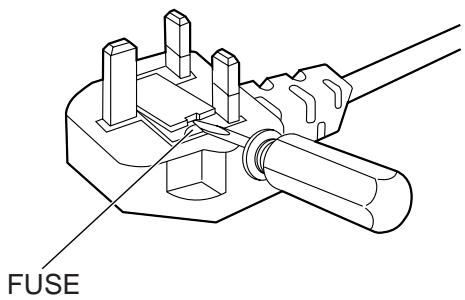
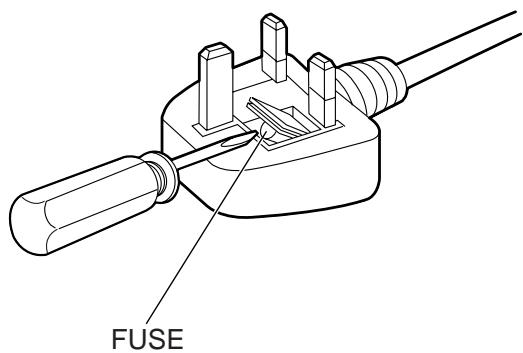
Conditions de garantie
Cette garantie s'ajoute aux droits statutaires ou autres des consommateurs et ne les affecte en aucune manière. Si, pendant la période de garantie applicable, l'appareil s'avère défectueux en raison d'un défaut de conception, de fabrication ou de matériaux, nous nous engageons, sous réserve des conditions suivantes, à faire réparer ou remplacer gratuitement l'appareil défectueux (ou toute pièce de celui-ci).
- L'appareil doit avoir été acheté et utilisé uniquement au Royaume-Uni, conformément aux instructions d'utilisation standard et aux normes techniques et/ou de sécurité requises au Royaume-Uni.
- L'acheteur devra, dans les 7 jours suivant l'achat, remplir le formulaire d'enregistrement de garantie inclus (replié à l'intérieur de la première de couverture) et nous le faxer pour enregistrement. Le non-retour de ce formulaire pourrait entraîner un retard dans la fourniture du service de garantie.
- L'appareil doit être retourné, accompagné de cette garantie et d'une preuve de la date d'achat, dès qu'il s'avère défectueux, aux risques et frais de l'acheteur, au revendeur agréé auprès duquel l'appareil a été acheté ou au revendeur agréé le plus proche. Toutes les demandes doivent passer par ces revendeurs.
- Cette garantie ne s'applique pas aux dommages causés par un incendie, un accident, la foudre, une mauvaise utilisation, l'usure normale, la négligence, un réglage ou une réparation incorrects, aux dommages causés par une installation, une adaptation, une modification ou une utilisation d'une manière inappropriée ou incompatible avec les normes techniques et/ou de sécurité requises dans le pays où cet appareil est utilisé, ni aux dommages survenus pendant le transport vers ou depuis l'acheteur.
- Si, à tout moment pendant la période de garantie, une ou plusieurs pièces de l'appareil sont remplacées par des pièces non fournies ou non approuvées par nous, ou d'une qualité objective sûre et adaptée à l'appareil, ou si l'appareil a été démonté ou réparé par une personne non autorisée par nous, nous aurons le droit de mettre fin à cette garantie en totalité ou en partie immédiatement, sans préavis.
- Le recours exclusif de l'acheteur au titre de cette garantie contre nous est la réparation ou le remplacement de l'appareil ou de toute pièce défectueuse, et aucun autre recours, y compris, mais sans s'y limiter, les dommages indirects ou consécutifs ou toute perte de quelque nature que ce soit, ne sera disponible pour l'acheteur.
- Cette garantie ne s'applique pas aux cassettes, aux piles et à tout autre article à durée de vie limitée.
- Notre décision sur toutes les questions relatives aux réclamations sera définitive. Tout appareil ou pièce défectueuse qui a été remplacé deviendra notre propriété.
- La période de garantie applicable à ce produit sera de 12 mois à compter de la date d'achat.
Veuillez conserver ces instructions d'utilisation avec votre reçu.
Panasonic Business Systems U.K.
| Receipt No. | Date of Purchase |
| Model No. KX-FP181E, KX-FP185E, KX-FM189E | Serial No. |
Index
A Accessoires 6
Fonctions avancées 67-71
Alerte
(Réception en mémoire)(Fonction #44) .40, 69 (Message)(Fonction #42) .68 (Temps d'enregistrement)(Fonction #43) . .69
Mode RÉP. AUTO 38, 39
Réglage RÉP. AUTO (Fonction #77) ..71
Déconnexion automatique (Fonction #49) . .69
B Fonctions de base 65, 66
Liste de programmation de diffusion .85
Rapport d'envoi de diffusion 37
Diffusion (transmission) 34-37
C Compteur d'appels 56
Liste d'identification de l'appelant (fonction n° 26) . . . 26, 67, 85
Temps d'enregistrement de l'appelant (fonction n° 10) . 65
Table des caractères 15, 21
Nettoyage 82
Copie en assemblage 50
Messages de communication 72
Tonalité de connexion (fonction n° 76) ..... 71
Connexions 12
Copie . 50, 51
D Date et heure (fonction n° 01) 13, 65
Transmission différée (fonction n° 25) . . 67
Touche DIGITAL SP-PHONE . . . . . . 18, 29
Fonction répertoire 20
Affichage
(Contraste) (Fonction n° 39) 68
(Messages d'erreur) 73, 74
Chargeur de documents 82
Bourrage papier .81
Format des documents 31, 86
E EASYDIAL
(Passer un appel vocal) 23
(Sélection de caractères) 21
(Envoi de télécopies) 30
(Mémorisation) 20-22
Sélection ECM (Fonction n° 68) . . . . . . . . . . . . . . . . . . . . . . . . . . . . . . . . . . . . . . . . . . . . . . . . . . . . . .
Agrandissement .50, 51
Messages d'erreur .72-74
Téléphone supplémentaire 45, 47
F Facsimile telephone number
(Feature #03) 16, 65
Fax activation code (Feature #41) . .68
Fax auto redial 31
FAX ONLY mode 38,41
FAX ONLY ring count (Feature #06) .65
Fax pager (Feature #70) 71
Fax voice guidance (Feature #47) . .69
Fax voice guide 33
Feature programming 64-71
Feeder pressure 81
Film .6,83,84
Friendly reception (Feature #46) ..40, 69
G Greeting message
(Message transfer) (Feature #61) .63
(TAD/FAX) 53-55
(TEL/FAX) 44, 45, 54
H Touche HELP .7
Touche Hyphen .20, 21
I Moniteur de message entrant
(Fonction n° 67) 70
Film d'encre .6,83,84
Touche Insert 14, 15
J Bourrages 80, 81
Rapport journal (Fonction n° 22) .32, 67, 85
L Liste / Rapport
(Programmation de diffusion) 85
(Envoi de diffusion) 37
(Identification de l'appelant) 26, 67, 85
(Journal) 32,67,85
(Mise hors tension) 79
(Test imprimante) 85
(Envoi) 32, 65
(Configuration) 85
(Numéro de téléphone) 85
Logo (Fonction n° 02) 14, 65
M Sonnerie mélodique (Fonction n° 71) 71
Alerte de réception en mémoire (Fonction n° 44) 40, 69
Transmission en mémoire 33
Alerte de message (Fonction n° 42) 68
Transfert de message (Fonction n° 60) 70
Bouton MONITOR 18
Mute 18
Mode de transmission outre-mer (Fonction n° 23) 67
P Appel de pager (Fonction n° 70) 71
Bourrage papier .80
Bouton PAUSE 19
Rapport d'arrêt 79
Panne de courant 79
Alimentation électrique 12,86
Liste de test imprimante .85
Format de papier d'impression 86
Impression de rapports .85
Résolution de problèmes 75-79
Fonctions programmables .64-71
Q Bouton QUICK SCAN 33,50
R Bouton RECALL 19
Réception (Fax) 40 (Réglage) .38, 39
Alerte de réception (Fonction #44) 69
Réduction à la réception (Fonction #36) . .68
Enregistrement (message d'accueil) .54 (message mémo) .58 (conversation téléphonique) .58
Papier d'enregistrement 11,86
Bourrage papier d'enregistrement .80
Alerte de temps d'enregistrement (Fonction n° 43) ..69
Temps d'enregistrement pour message d'accueil TAD/FAX (Fonction n° 54) . . . . . . .69
Recomposition 18,31
Réduction de copie .50, 51
ID d'activation à distance (Fonction n° 12) .66
Carte de fonctionnement à distance .59, 60
ID de fonctionnement à distance (Fonction n° 11) .66
Film de remplacement .6, 83, 84
Réinitialisation (Fonction n° 80) 71
Résolution 30
Nombre de sonneries (FAX UNIQUEMENT) (Fonction n° 06) . . . . . .65
(Reconnaissance de fax silencieux) (Fonction n° 30) .45, 67
(TAD/FAX) (Fonction #06) 52, 65
(TEL/FAX) (Fonction #78) 45, 71
Volume de la sonnerie 17
Rapport d'envoi (Fonction #04) . . .32, 65
Réglage par défaut (Fonction #80) 71
Liste de configuration .85
Sonnerie spéciale pour fax silencieux (Fonction #30) 45, 67
Spécifications .86
Mémorisation (Diffusion) .35, 36 (Informations appelant) .27 (EASY DIAL) .20-22
T Mode TAD/FAX 38,52
Nombre de sonneries TAD/FAX (Fonction #06) ..52, 65
Mode TEL 39,40
Nombre de sonneries différées TEL/FAX (Fonction #78) 71
Mode TEL/FAX 39,44,45
Liste des numéros de téléphone .85
Nettoyage de la tête thermique .82
Économiseur d'appel 52,65
Transmission (diffusion) .34-37
(EASYDIAL) 30
(Depuis la mémoire) 33
(Manuellement) 30
Document transmissible 31
V Appel vocal (réponse) 18
(EASYDIAL) 23
(Émission) 18
Contact vocal 29
Volume 17
National Panasonic
Kyushu Matsushita Electric Co., Ltd.
1-62, 4-chome, Minshoma, Hatake-ku, Fukuoka 812 Japon Téléphone Fukuoka (062) 431-2111 Télex : 72375 TJKFUEKJ. Adresse télégraphique : KEMFEFLUKOKAFFLUKOKA
Déclaration de conformité
Nous, Kyushu Matsushita. Electronic Co., Ltd. Telecom Division
Minoshima, Fukuyaka, Japon
déclarons sous notre seule responsabilité que le produit
Télécopieur
Numéro de modèle : KX-ERB85
Nom commercial : Panasonic
auquel se rapporte cette déclaration est conforme aux normes ou autres documents normatifs suivants :
CTR21, CTR37, CTR38, EN55022 (1998), EN55024 (1998)
EN61990-3-2 (1995) / A7 (1998) / A2 (1998), EN61000-3-3 (1995), et
EN60952 (1993) / A1 (1993) / A2 (1993) / A3 (1993) / A4 (1997) / A11 (1997)
EN 60952 (1993) / A1 (1993) / A2 (1993) / A3 (1993) / A4 (1997) / A*1 (1997)
conformément aux dispositions de la directive du Conseil européen (a)
1999/5/CE
Émis le
8 mai 2009
Signé par le fabricant :

{Signature}

(Titre)

Signé par le représentant autorisé dans l'UE/EEE ;
18 mars 2008
(Date)
(signature)
Mitsuru Ishii
(Nom imprimé)
Panasenio. Centre d'essais (Europe) GmbH
(Nom de la société)
22525 Hamburg, R.F.A. Allemagne
National Panasonic
Kyushu Matsushita Electric Co., Ltd.
1-62, 4-chome, Minoshima, Hakata-ku, Fukuoka 812, Japon. Tél. : Fukuoka (092) 431-2111
T723579KMEFUKJ Câble AdnacXUEFUKLOKAFUKUOKA
DOC-KM7-C02:--02
003927
Déclaration de conformité
Nous, Kyushu Matsushita Electric Co., Ltd., division Télécommunications
de Matsushita Electric Industrial Co., Ltd.
Minoshima, Fukuoka, Japon
déclarons sous notre seule responsabilité que le produit
Télécopieur
Modèle n° KX-PEBASE.
Nom commercial : Panasonic
à laquelle se rapporte la présente déclaration est conforme à la ou aux
norme(s) ou autre(s) document(s) normatif(s) suivant(s)
CTR21, IGTR37, CTB38, EN55022 (1998), EN55024 (1998),
EN6100-3-3 (1995)/A1 (1998)/A2 (1998), EN61000-3-3 (1995), et
EN60950 (1998)/A1 (1993)/A2 (1993)/A3 (1995)/A4 (1997)/A (1997)
conformément aux dispositions de la ou des directives du Conseil CE
1999/5/CE
Délivré le 12 juin 2000
Signé par le fabricant ;

(Signature) : Signature (Nom imprimé) : Katsheba, Sawara. (Titre) : Directeur
Signé par le représentant autorisé dans l'UE/EEE ;
20 juin 2000
(Date)

(signature)
Mitsuru Ismi
(Nom imprimé)
PanasonicTestingCentre(Europoe)GmbH
Nom de la société
22525 Hambourg..R.F. Allemagne
(Adresse)
000-KM7-DC1-1-6
004357
National Panasonic
Kyushu Matsushita Electric Co., Ltd. 1-52, 4-chome, Meosima, Hakata-ku, Fukuoka 812 Japon Téléphone : Fukuoka (092) 431-2111 Télex : 23579 "KMEFUK" Câble : "KMEFUKUOKA" FUKUOKA
Nous, Kyushu Matsushita Electric Co. Ltd. Division Télécommunications
de Matsushita Electronic Industrial Co., Ltd.
Minoshime, Fukuoka, Japon
déclarons sous notre seule responsabilité que le produit
Machine à facettes
Modèle n° : K6-EM29E
Nom commercial : Panasonic 1
auquel se rapporte la présente déclaration est conforme à la ou aux
norme(s) ou autre(s) document(s) normatif(s) suivant(s)
CTR2:..CT837.CTR38.ENS5922L9931.SN55024(993)
EN61092-3-2(1995)/A(1998)/A219991...EN6109C-3-3(1995)...et
2
conformément aux dispositions de la ou des directives du Conseil CE
1999/5/5
1
Émis le 30958202g
Signé par le fabricant

(Signature) (Nom en caractères d'imprimerie) [Titre] Directeur
Signé par le représentant autorisé dans l'UE/EEE ;
(图2-1)
06.Okt.2008
{signature}
(Nom imprimé)
Panasonics Testing Centre (Europe), GmbH
(Adresse)
22523 Hambourg, S. R., Allemagne
C€ 0682


- INSTRUCTIONS D'UTILISATION
- IMPORTANT
- PANASONIC
- ENREGISTREMENT DE LA GARANTIE
- VEUILLEZ RENVOYER PAR TÉLÉCOPIEUR POUR ENREGISTRER VOTRE
- GARANTIE DE 12 MOIS
- SUIVEZ SIMPLEMENT CES INSTRUCTIONS
- CONDITIONS GÉNÉRALES
- BIENVENUE DANS LE MONDE DES TÉLÉCOPIEURS PANASONIC
- POUR RÉFÉRENCE FUTURE
- ATTENTION
- REMARQUE
- DROITS D'AUTEUR
- CONSIGNES DE SÉCURITÉ IMPORTANTES
- CONSERVEZ CES INSTRUCTIONS
- INSTALLATION
- AVERTISSEMENT
- AUTRES INFORMATIONS
- TABLE DES MATIÈRES
- COPIE
- RÉPONDEUR (KX-FP185/KX-FM189 UNIQUEMENT)
- FONCTIONS PROGRAMMABLES
- AIDE
- GENERAL INFORMATION
- ACCESSOIRES INCLUS
- INFORMATIONS SUR LES ACCESSOIRES
- PANASONIC ACCESSOIRES ET CONSOMMABLES DIRECT
- FONCTION D'AIDE
- POUR KX-FP185/KX-FM
- EMPLACEMENT
- POUR KX-FP
- VUE D'ENSEMBLE
- RETRAIT DU FEUILLET D'INFORMATIONS
- CHARGEMENT DU PAPIER D'ENREGISTREMENT
- PAPIER D'ENREGISTREMENT
- REMARQUE CONCERNANT LE PAPIER D'ENREGISTREMENT
- AJOUT DE PAPIER
- CONNEXIONS
- ● KX-FP181 UNIQUEMENT
- DATE ET HEURE, VOTRE LOGO ET NUMÉRO DE TÉLÉCOPIE
- RÉGLAGE DE LA DATE ET DE L'HEURE
- POUR CORRIGER UNE ERREUR
- RÉGLAGE DE VOTRE LOGO
- POUR SUPPRIMER UN CARACTÈRE
- POUR INSÉRER UN CARACTÈRE
- POUR SÉLECTIONNER DES CARACTÈRES AVEC LE CLAVIER NUMÉRIQUE
- POUR SÉLECTIONNER DES CARACTÈRES À L'AIDE DE LA MOLETTE EASY DIAL
- ORDRE D'AFFICHAGE DES CARACTÈRES
- RÉGLAGE DE VOTRE NUMÉRO DE TÉLÉCOPIE
- POUR SUPPRIMER UN NUMÉRO
- RÉGLAGE DES VOLUMES
- VOLUME DE LA SONNERIE
- VOLUME DU MONITEUR/HAUT-PARLEUR
- VOLUME DES INSTRUCTIONS VOCALES DU FAX (KX-FP185/KX-FM189 UNIQUEMENT)
- VOLUME DU RÉPONDEUR (KX-FP185/KX-FM189 UNIQUEMENT)
- APPELS VOCAUX - ÉMISSION
- APPELS VOCAUX - RÉPONDRE
- POUR RECOMPOSER LE DERNIER NUMÉRO
- POUR COUPER VOTRE VOIX POUR VOTRE CORRESPONDANT
- FONCTIONNEMENT DU HAUT-PARLEUR (KX-FP185/KX-FM189 UNIQUEMENT)
- TOUCHES RAPPEL ET PAUSE
- TOUCHE RAPPEL (POUR UTILISER LA FONCTION DE RAPPEL)
- EXEMPLE : APPEL EN ATTENTE DE BRITISH TELECOM
- TOUCHE PAUSE (POUR UTILISATEURS DE PBX)
- EXEMPLE
- MÉMORISATION DES NOMS ET NUMÉROS DE TÉLÉPHONE DANS LE RÉPERTOIRE EASY DIAL
- APPUYEZ SUR DIRECTIONALPROGRAM
- FAITES PIVOTER EASYDIAL JUSQU'À CE QUE LE MESSAGE SUIVANT SOIT
- SAISISSEZ LE NOM, JUSQU'À 10 CARACTÈRES, EN SUIVANT LES INSTRUCTIONS DE LA PAGE SUIVANTE
- APPUYEZ SUR SET
- SAISISSEZ LE NUMÉRO DE TÉLÉPHONE, JUSQU'À 30 CHIFFRES, À L'AIDE DU CLAVIER
- APPUYEZ SUR PROGRAM DU RÉPERTOIRE POUR QUITTER LE PROGRAMME
- CONSEIL UTILE
- POUR SUPPRIMER UN CARACTÈRE/CHIFFRE
- MODIFICATION D'UN NOM ET D'UN NUMÉRO ENREGISTRÉS
- EFFACEMENT D'UN NOM ET D'UN NUMÉRO MÉMORISÉS
- EFFECTUER UN APPEL VOCAL À L'AIDE DU RÉPERTOIRE EASY DIAL
- POUR CONFIRMER LES ÉLÉMENTS MÉMORISÉS SUR L'AFFICHEUR
- POUR RECHERCHER UN NOM PAR INITIALE
- SERVICE D'IDENTIFICATION DE L'APPELANT DE VOTRE COMPAGNIE TÉLÉPHONIQUE
- AFFICHAGE DE L'IDENTIFICATION DE L'APPELANT
- CONSULTATION DES INFORMATIONS DE L'APPELANT SUR L'ÉCRAN
- POUR RECHERCHER DES INFORMATIONS SUR L'APPELANT
- CONFIRMATION DES INFORMATIONS DE L'APPELANT À L'AIDE DE LA LISTE D'IDENTIFICATION DE L'APPELANT
- EXEMPLE DE LISTE D'IDENTIFICATION DE L'APPELANT
- RAPPELER EN UTILISANT LES INFORMATIONS DE L'APPELANT
- MÉMORISATION DES INFORMATIONS DE L'APPELANT DANS LE RÉPERTOIRE EASY DIAL
- EFFACEMENT DES INFORMATIONS SUR L'APPELANT
- EFFACEMENT D'INFORMATIONS SPÉCIFIQUES SUR L'APPELANT
- APPUYEZ SUR RECHERCHE IDENTIFICATION DE L'APPELANT
- TOURNEZ EASYDIAL JUSQU'À CE QUE LE NUMÉRO SOUHAITÉ SOIT AFFICHÉ
- APPUYEZ SUR EFFACER
- APPUYEZ SUR STOP POUR QUITTER LE PROGRAMME
- EFFACEMENT DE TOUTES LES INFORMATIONS ENREGISTRÉES SUR LES APPELANTS
- APPUYEZ TROIS FOIS SUR MENU
- APPUYEZ SUR RÉGLER
- PARLER À L'AUTRE PARTIE APRÈS L'ENVOI OU LA RÉCEPTION D'UN FAX
- INITIER UN CONTACT VOCAL
- APPUYEZ SUR MONITOR / DIGITAL SP-PHONE PENDANT L'ENVOI OU LA RÉCEPTION DE DOCUMENTS
- APPUYEZ SUR DIGITAL SP-PHONE (KX-FP185/KX-FM189) OU DÉCROCHEZ LE COMBINÉ POUR COMMENCER À PARLER
- RÉCEPTION D'UNE DEMANDE DE CONTACT VOCAL
- ENVOI D'UN FAX MANUELLEMENT/UTILISATION DU RÉPERTOIRE EASY DIAL
- MANUEL
- UTILISATION DU RÉPERTOIRE EASY DIAL
- POUR SÉLECTIONNER LA RÉSOLUTION
- POUR TRANSMETTRE PLUS DE 10 PAGES À LA FOIS
- POUR ARRÊTER LA TRANSMISSION
- RECOMPOSITION AUTOMATIQUE POUR LE RÉPERTOIRE EASY DIAL
- MOYEN PRATIQUE D'ENVOYER UN FAX
- SI VOTRE APPAREIL N'ENVOIE PAS DE FAX EN UTILISANT LE RÉPERTOIRE EASY DIAL
- DOCUMENTS QUE VOUS POUVEZ ENVOYER
- POIDS DU DOCUMENT
- RAPPORTS DE CONFIRMATION
- RAPPORT D'ENVOI
- RAPPORT JOURNAL
- ENVOI D'UNE TÉLÉCOPIE AVEC LE GUIDE VOCAL
- (KX-FP185/KX-FM189 UNIQUEMENT)
- ENVOI DEPUIS LA MÉMOIRE
- TRANSMISSION DE DIFFUSION UNIQUE
- POUR ANNULER LE RÉGLAGE DE DIFFUSION
- TRANSMISSION EN DIFFUSION À DES DESTINATAIRES PRÉPROGRAMMÉS
- PROGRAMMATION DES STATIONS DANS LA MÉMOIRE DE DIFFUSION
- AJOUT D'UNE NOUVELLE STATION DANS LA MÉMOIRE DE DIFFUSION
- EFFACEMENT D'UNE STATION MÉMORISÉE DANS LA MÉMOIRE DE DIFFUSION
- ENVOI À DES CORRESPONDANTS PRÉPROGRAMMÉS DANS LA MÉMOIRE DE DIFFUSION
- EXEMPLE DE RAPPORT D'ENVOI EN DIFFUSION
- RÉGLAGE DE L'APPAREIL POUR RECEVOIR DES TÉLÉCOPIES
- AUTRES OPTIONS
- AVEC RÉPONDEUR (KX-FP181 UNIQUEMENT)
- AVEC PC
- MODE TEL/FAX
- MODE TEL
- ACTIVATION
- À DISTANCE DU FAX
- MODE TEL (RÉPONSE MANUELLE À TOUS LES APPELS)
- ACTIVATION DU MODE TEL
- RÉCEPTION MANUELLE D'UN FAX
- POUR ARRÊTER LA RÉCEPTION
- FONCTION DE RÉCEPTION CONVIVIALE
- RÉCEPTION DE TÉLÉCOPIE EN MÉMOIRE
- MODE FAX UNIQUEMENT (TOUS LES APPELS SONT REÇUS COMME DES TÉLÉCOPIES)
- ACTIVATION DU MODE FAX UNIQUEMENT
- UTILISATION DE L'APPAREIL AVEC UN RÉPONDEUR
- (KX-FP181 UNIQUEMENT)
- CONFIGURATION DU TÉLÉCOPIEUR ET D'UN RÉPONDEUR
- CONNECTEZ LE RÉPONDEUR
- COMMENT FONCTIONNENT LE TÉLÉCOPIEUR ET LE RÉPONDEUR
- RÉCEPTION DES APPELS VOCAUX
- RÉCEPTION DES APPELS FAX
- RÉCEPTION D'UN MESSAGE VOCAL ET D'UN DOCUMENT FAX DANS UN MÊME APPEL
- POUR UTILISER AVEC UN ORDINATEUR
- (RÉCEPTION D'APPELS VOCAUX AVEC SONNERIE ET D'APPELS DE TÉLÉCOPIE SANS SONNERIE LORSQUE VOUS ÊTES PRÈS DE L'APPAREIL)
- POUR RÉGLER LE MODE TEL/FAX
- LORSQU'UN TÉLÉPHONE SUPPLÉMENTAIRE EST CONNECTÉ
- NOMBRE DE SONNERIES DIFFÉRÉES EN MODE TEL/FAX
- NOMBRE DE SONNERIES DE RECONNAISSANCE DE FAX SILENCIEUX
- ACTIVATION À DISTANCE DU MODE RÉP. AUTO
- MODE RÉP. AUTO
- TÉLÉPHONE SUPPLÉMENTAIRE
- INTERROGATION DE RÉCEPTION
- (RÉCUPÉRATION D'UNE TÉLÉCOPIE PLACÉE SUR UN AUTRE TÉLÉCOPIEUR)
- COMPOSEZ LE NUMÉRO DE FAX
- APPEL DE PAGER
- LORSQUE VOTRE TÉLÉAVERTISSEUR REÇOIT UN APPEL DE TÉLÉAVERTISSEUR
- FAIRE UNE COPIE
- POUR ARRÊTER LA COPIE
- IMPRESSION DE COPIES ASSEMBLÉES (TRIÉES)
- POUR AGRANDIR UN DOCUMENT
- POUR RÉDUIRE UN DOCUMENT
- MODE TAD/FAX
- (UTILISANT LE RÉPONDEUR INTÉGRÉ ET RECEVANT AUTOMATIQUEMENT LES APPELS VOCAUX ET LES TÉLÉCOPIES)
- CONFIGURATION DE LA RÉCEPTION DES MESSAGES VOCAUX ET DES TÉLÉCOPIES
- NOMBRE DE SONNERIES EN MODE TAD/FAX
- MESSAGES D'ACCUEIL PRÉENREGISTRÉS
- ENREGISTREMENT DE VOS MESSAGES D'ACCUEIL PERSONNALISÉS
- VÉRIFICATION DES MESSAGES D'ACCUEIL
- EFFACEMENT DE VOS PROPRES MESSAGES D'ACCUEIL ENREGISTRÉS
- ÉCOUTE DES MESSAGES ENREGISTRÉS
- RÉPÉTER UN MESSAGE
- PASSER UN MESSAGE
- ARRÊT DE LA LECTURE
- CHANGEMENT DE LA VITESSE DE LECTURE
- HORODATAGE VOCAL JOUR/HEURE
- EFFACEMENT DES MESSAGES ENREGISTRÉS
- EFFACEMENT D'UN MESSAGE SPÉCIFIQUE
- EFFACEMENT DE TOUS LES MESSAGES
- MESSAGE MÉMO (LAISSER UN MESSAGE POUR LES AUTRES OU POUR SOI-MÊME)
- APPUYEZ SUR RECORD
- APPUYEZ SUR START
- PARLEZ CLAIREMENT À ENVIRON 20 CM DU MICROPHONE
- LORSQUE VOUS AVEZ TERMINÉ L'ENREGISTREMENT, APPUYEZ SUR STOP
- CONVERSATION TÉLÉPHONIQUE
- PENDANT UNE CONVERSATION TÉLÉPHONIQUE, APPUYEZ SUR RECORD
- POUR ARRÊTER L'ENREGISTREMENT, APPUYEZ SUR STOP OU RACCROCHEZ LE COMBINÉ
- FONCTIONNEMENT À DISTANCE
- CARTE DE TÉLÉCOMMANDE
- TÉLÉCOMMANDE DU RÉPONDEUR
- AVIS DE TÉLÉCOMMANDE
- OPÉRATION À PARTIR D'UN TÉLÉPHONE À TONALITÉ DISTANT = ÉCOUTE DES MESSAGES ENREGISTRÉS
- APPELEZ VOTRE APPAREIL
- SAISISSEZ L'IDENTIFIANT DE TÉLÉCOMMANDE PENDANT LA LECTURE DU MESSAGE D'ACCUEIL TAD/FAX
- LORSQU'IL Y A DE NOUVEAUX MESSAGES ENREGISTRÉS
- LORSQU'IL N'Y A PAS DE NOUVEAUX MESSAGES ENREGISTRÉS
- LORSQUE LA MÉMOIRE VOCALE EST PLEINE
- AUTRES OPÉRATIONS À DISTANCE
- ENREGISTREMENT D'UN MESSAGE D'ANNONCE
- RÉENREGISTREMENT D'UN MESSAGE D'ACCUEIL
- PASSER LE MESSAGE D'ACCUEIL
- ACTIVER OU DÉSACTIVER LE TRANSFERT DE MESSAGES
- ACTIVATION OU DÉSACTIVATION DE L'APPEL DE TÉLÉAVERTISSEUR
- CHANGEMENT DU MODE DE RÉCEPTION
- TRANSFERT DES MESSAGES ENREGISTRÉS VERS UN AUTRE TÉLÉPHONE
- ENREGISTREMENT DE VOTRE MESSAGE D'ACCUEIL DE TRANSFERT
- MESSAGE SUGGÉRÉ
- TO CHECK YOUR TRANSFER GREETING MESSAGE
- POUR EFFACER VOTRE MESSAGE D'ACCUEIL DE TRANSFERT
- PROGRAMMATION
- MÉTHODE DE PROGRAMMATION GÉNÉRALE
- PROGRAMMATION EN ENTRANT DIRECTEMENT LE NUMÉRO DE CODE DU PROGRAMME
- POUR ANNULER LA PROGRAMMATION
- FONCTIONS DE BASE
- FONCTIONS DE BASE (SUITE)
- COMMENT RÉGLER LES OPTIONS DU MENU
- TABLEAU DE PROGRAMMATION (SUITE)
- FONCTIONS AVANCÉES
- FONCTIONS AVANCÉES (SUITE)
- COMMENT DÉFINIR LES OPTIONS DU MENU
- RAPPORTS
- AFFICHAGE
- LORSQU'UNE FONCTION NE FONCTIONNE PAS, VÉRIFIEZ ICI AVANT DE DEMANDER DE L'AIDE
- EN CAS DE PANNE DE COURANT
- EXEMPLE DE RAPPORT DE COUPURE DE COURANT
- RAPPORT DE COUPURE DE COURANT
- BOURRAGE PAPIER
- BOURRAGES LORS DE L'ENVOI DE DOCUMENTS
- LE DOCUMENT NE S'ALIMENTE PAS OU ALIMENTATION MULTIPLE
- CHARGEUR DE DOCUMENTS
- TÊTE THERMIQUE
- REMPLACEMENT DU FILM D'ENCRE
- LISTES DE RÉFÉRENCE ET RAPPORTS
- DONNÉES TECHNIQUES CONCERNANT CE PRODUIT
- INFORMATIONS IMPORTANTES
- MÉTHODE DE CONNEXION
- REMARQUES
- BRANCHEMENT D'UNE FICHE SUR LE CORDON D'ALIMENTATION
- CONDITIONS DE GARANTIE
- PANASONIC BUSINESS SYSTEMS U.K
- INDEX
- NATIONAL PANASONIC
- DÉCLARATION DE CONFORMITÉ
- MARS
- JUIN
- OKT
Marque : PANASONIC
Modèle : KXFP181E
Catégorie : Télécopieur