
DMRES45V - Enregistreur DVD PANASONIC - Notice d'utilisation et mode d'emploi gratuit
Retrouvez gratuitement la notice de l'appareil DMRES45V PANASONIC au format PDF.
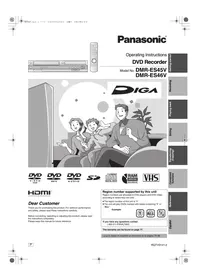


| Marque | Panasonic |
| Modèle | DMRES45V |
| Type de produit | Enregistreur DVD avec magnétoscope VHS intégré |
| Numéro de région DVD | 1 |
| Formats disques enregistrables | DVD-RAM, DVD-R, DVD-R DL, DVD-RW (mode VR et Vidéo), +R, +R DL, +RW |
| Formats disques lecture seule | DVD-Vidéo, DVD-Audio (2 canaux), CD audio, Video CD, CD-R/RW (MP3, JPEG, TIFF) |
| Formats VHS | VHS, S-VHS (lecture uniquement) |
| Fonctions principales | Enregistrement et lecture DVD/VHS, copie VHS↔DVD, enregistrement programmé, enregistrement flexible, lecture accélérée (Quick View), Time Slip, entrée DV, sorties composante et S-Vidéo |
| Entrées | Antenne RF (75 Ω), IN1 (composite), IN2 (S-Vidéo + composite), DV (i.LINK) |
| Sorties vidéo | Composite (RCA), S-Vidéo, Composante Y/Pb/Pr |
| Sorties audio | Audio analogique stéréo (RCA), optique numérique (PCM/Bitstream) |
| Alimentation | 120 V CA, 60 Hz |
| Consommation en veille | Environ 3 W (Quick Start désactivé) / 8 W (Quick Start activé) |
| Accessoires fournis | Télécommande (EUR7659Y70), câble audio/vidéo, câble coaxial 75 Ω, piles R6, DVD-RAM vierge, câble HDMI (uniquement DMR-ES46V) |
| Guide d'utilisation | Notice d'utilisation incluse (88 pages) en français, anglais, espagnol |
| Entretien | Nettoyer avec un chiffon sec; utiliser un nettoyeur de lentille DVD (RP-CL720PP) une fois par an; nettoyer les têtes vidéo avec une cassette de nettoyage (NV-TCL30PT) si nécessaire |
| Sécurité | Ne pas exposer à l'humidité; ne pas obstruer les fentes de ventilation; ne pas ouvrir le boîtier (laser classe 3B) |
| Garantie | 1 an (voir page 77 de la notice) |
| Pièces détachées | Télécommande, cordon d'alimentation (VFA0461), câble coaxial (K2KZ2BA00001), câble HDMI (K1HA19DA0002), etc. |
| Réparabilité | Référence à un service qualifié; aucune pièce réparable par l'utilisateur |
| Technologies audio | Dolby Digital, DTS 2.0+ Digital Out |
FOIRE AUX QUESTIONS - DMRES45V PANASONIC
Questions des utilisateurs sur DMRES45V PANASONIC
0 question sur cet appareil. Repondez a celles que vous connaissez ou posez la votre.
Poser une nouvelle question sur cet appareil
Téléchargez la notice de votre Enregistreur DVD au format PDF gratuitement ! Retrouvez votre notice DMRES45V - PANASONIC et reprennez votre appareil électronique en main. Sur cette page sont publiés tous les documents nécessaires à l'utilisation de votre appareil DMRES45V de la marque PANASONIC.
MODE D'EMPLOI DMRES45V PANASONIC
Panasonic®
Mode d'emploi
Enregistreur DVD
N° de modèle DMR-ES45V
DMR-ES46V
VIDEO RAM
RW/R
AUDIO

VIDÉO NUMÉRIQUE


HDMI TM
INTERFACE MULTIMÉDIA HAUTE DÉFINITION
Cher client
Merci d'avoir acheté ce produit. Pour des performances et une sécurité optimales, veuillez lire attentivement ces instructions.
Avant de connecter, d'utiliser ou de régler ce produit, veuillez lire entièrement les instructions.
Veuillez conserver ce manuel pour référence future.
Numéro de région pris en charge par cet appareil
Les numéros de région sont attribués aux lecteurs DVD et aux DVD-Vidéo en fonction de leur lieu de vente.
- Le numéro de région de cet appareil est « 1 ».
- L'appareil lira les DVD portant des étiquettes contenant « 1 » ou « ALL ».
Exemple :


Si vous avez des questions, contactez
1-800-211-PANA(7262)
La garantie se trouve à la page 77.
La guía rápida en español se encuentra en la página 79–86.
ATTENTION !
CE PRODUIT UTILISE UN LASER. L'UTILISATION DE COMMANDES, DE RÉGLAGES OU L'EXÉCUTION DE PROCÉDURES AUTRES QUE CELLES SPÉCIFIÉES ICI PEUT ENTRAÎNER UNE EXPOSITION DANGEREUSE AUX RADIATIONS. N'OUVREZ PAS LES COUVERCLES ET NE RÉPAREZ PAS VOUS-MÊME. CONFIEZ TOUTE RÉPARATION À UN PERSONNEL QUALIFIÉ.
AVERTISSEMENT :
POUR RÉDUIRE LE RISQUE D'INCENDIE, DE CHOC ÉLECTRIQUE OU DE DOMMAGE AU PRODUIT, N'EXPOSEZ PAS CET APPAREIL À LA PLUIE, À L'HUMIDITÉ, AUX GOUTTES OU AUX ÉCLABOUSSURES ET NE PLACEZ AUCUN OBJET REMPLI DE LIQUIDE, COMME DES VASES, SUR L'APPAREIL.
ATTENTION !
N'INSTALLEZ PAS CET APPAREIL DANS UNE BIBLIOTHÈQUE, UNE ARMOIRE ENCASTRÉE OU UN AUTRE ESPACE CONFINÉ. ASSUREZ-VOUS QUE L'APPAREIL EST BIEN VENTILÉ. POUR PRÉVENIR TOUT RISQUE DE CHOC ÉLECTRIQUE OU D'INCENDIE DÛ À UNE SURCHAUFFE, ASSUREZ-VOUS QUE LES RIDEAUX ET TOUT AUTRE MATÉRIAU N'OBSTRUENT PAS LES OUVERTURES DE VENTILATION.
ATTENTION :
ATTENTION
RISQUE DE CHOC ÉLECTRIQUE NE PAS OUVRIR

POUR RÉDUIRE LE RISQUE DE CHOC ÉLECTRIQUE, NE PAS RETIRER LES VIS. AUCUNE PIÈCE RÉPARABLE PAR L'UTILISATEUR À L'INTÉRIEUR. CONFIEZ TOUTE RÉPARATION À UN PERSONNEL QUALIFIÉ.

Le symbole de l'éclair avec une flèche à l'intérieur d'un triangle équilatéral est destiné à alerter l'utilisateur de la présence d'une « tension dangereuse » non isolée à l'intérieur du boîtier du produit, qui peut être d'une amplitude suffisante pour constituer un risque de choc électrique pour les personnes.

Le point d'exclamation à l'intérieur d'un triangle équilatéral est destiné à alerter l'utilisateur de la présence d'instructions importantes d'utilisation et de maintenance (réparation) dans la documentation accompagnant l'appareil.
-Si vous voyez ce symbole-
Informations sur l'élimination dans les pays hors Union européenne

Ce symbole n'est valable que dans l'Union européenne. Si vous souhaitez vous débarrasser de ce produit, veuillez contacter vos autorités locales ou votre revendeur et demander la méthode d'élimination correcte.
Note à l'installateur du système de télédistribution (CATV) :
Ce rappel est fourni pour attirer l'attention de l'installateur du système CATV sur l'article 820-40 du NEC qui fournit des directives pour une mise à la terre correcte et, en particulier, spécifie que la terre du câble doit être connectée au système de mise à la terre du bâtiment, aussi près que possible du point d'entrée du câble.
La prise de courant doit être installée à proximité de l'équipement et être facilement accessible. La fiche du cordon d'alimentation doit rester facilement utilisable. Pour déconnecter complètement cet appareil du secteur, débranchez la fiche du cordon d'alimentation de la prise secteur.
Note FCC :
Cet équipement a été testé et déclaré conforme aux limites d'un appareil numérique de classe B, conformément à la partie 15 des règles de la FCC. Ces limites sont conçues pour fournir une protection raisonnable contre les interférences nuisibles dans une installation résidentielle. Cet équipement génère, utilise et peut émettre de l'énergie radiofréquence et, s'il n'est pas installé et utilisé conformément aux instructions, peut causer des interférences nuisibles aux communications radio. Cependant, il n'y a aucune garantie que des interférences ne se produiront pas dans une installation particulière. Si cet équipement cause des interférences nuisibles à la réception radio ou télévision, ce qui peut être déterminé en éteignant et en allumant l'équipement, l'utilisateur est encouragé à essayer de corriger les interférences par une ou plusieurs des mesures suivantes :
- Réorienter ou déplacer l'antenne de réception.
- Augmentez la distance entre l'équipement et le récepteur.
- Branchez l'équipement sur une prise située sur un circuit différent de celui auquel le récepteur est connecté.
- Consultez le revendeur ou un technicien radio/TV expérimenté pour obtenir de l'aide.
Avertissement FCC : Pour assurer le maintien de la conformité, suivez les instructions d'installation ci-jointes et utilisez uniquement des câbles d'interface blindés lors de la connexion à des périphériques.
Tout changement ou modification non expressément approuvé par la partie responsable de la conformité pourrait annuler le droit de l'utilisateur à utiliser cet équipement.
Cet appareil est conforme à la partie 15 des règles de la FCC. Son fonctionnement est soumis aux deux conditions suivantes : (1) cet appareil ne doit pas causer d'interférences nuisibles, et (2) cet appareil doit accepter toute interférence reçue, y compris les interférences susceptibles de provoquer un fonctionnement indésirable.
Partie responsable :
Panasonic Corporation of North America
One Panasonic Way
Secaucus, NJ, 07094
Numéro de téléphone : 1-800-211-7262
| DANGER -VISIBLE AND INVISIBLE LASER RADIATION WHEN OPEN. AVOID DIRECT EXPOSURE TO BEAM.FDA 21 CFR/Class IIIb | |
| 注意 | -打开时有可见及不可见激光辐射。避免光束照射。 |
| 注意 | -ここを開くと可視及び不可視レーザ光が出ます。ピームを見たり、触れたりしないください。 |
| CAUTION- | -CLASS 3B VISIBLE AND INVISIBLE LASER RADIATION WHEN OPEN, AVOID EXPOSURE TO THE BEAM.IEC60825-1 +A2/Class 3B |
| ATTENTION- | -RAYONNEMENT LASER VISIBLE ET INVISIBLE, CLASSE 3B, EN CAS D'OUVERTURE, EVITER UNE EXPOSITION AU FAISCEAU. |
| FORSIGTIG | -SYNLIG OU USYNLIG LASERSTRALING KLASSE 3B, NAR LÄGET ER ÄBENT, UNDGA AT BLIVE UDSAT FOR STRÄLEN. |
| VARO | -AVATTAISSA OLET ALTIINA LUKAN 3B NÄKÝVÄ JA NÄKÝMATÖNTÄ LASERSATELYLA, VARIO ALTISTUMISTA SÄTEELLE. |
| VARNING- | -KLASS 3B SYNLIG OCH OSYNLIG LASERSTRALING NÄR DENNA DEL AR ÖPPNAD, UNDIVK EXPOLENERING FOR STRÄLEN. |
| VORSICHT | -SICHTBARE UND UNSICHTBARE LASERSTRALUNG KLASSE 3B, WENN ABDECKUNG GEÖFFNET, NICHT DEM STRAHL AUSETZEN. |
| CAUTION- | -VISIBLE AND INVISIBLE LASER RADIATION WHEN OPEN, AVOID EXPOSURE TO THE BEAM.IEC60825-1) |
| ATTENTION- | -RAYONNEMENT LASER VISIBLE ET INVISIBLE EN CAS D'OUVERTURE, EXPOSITION DANGEREUSE AU FAISCEAU. |
| ADVARSEL- | -SYNLIG OU USYNLIG LASERSTRALING VED ÅBNING, UNDGA UDS/ETTELSE FOR STRÄLEN. |
| VARO! | -AVATTAISSA OLET ALTIINA NÄKÝVÄ JA NÄKÝMATÖN LASERSATELYLLE, ALA KATSÓ SÄTEESEN. |
| VARNING- | -SYNLIG OCH OSYNLIG LASERSTRALING NÄR DENNA DEL AR ÖPPNAD, BETRAKTA EJ STRÄLEN. |
| VORSICHT | -SICHTBARE UND UNSICHTBARE LASERSTRALHUNG, WENN ABDECKUNG GEÖFFNET, NICHT DEM STRAHL AUSETZEN. |
| ADVARSEL- | -SYNLIG OU USYNLIG LASERSTRALING NÄR DEKSEL APNES, UNNGA EKSPONERING FOR STRÄLEN.RQLV50009 |
(À l'intérieur du produit)
Lisez attentivement ces instructions d'utilisation avant d'utiliser l'appareil. Suivez les consignes de sécurité sur l'appareil et les consignes de sécurité applicables énumérées ci-dessous. Conservez ces instructions d'utilisation à portée de main pour référence future.
(1) Lisez ces instructions. (2) Conservez ces instructions. (3) Tenez compte de tous les avertissements. (4) Suivez toutes les instructions. (5) N'utilisez pas cet appareil près de l'eau. (6) Nettoyez uniquement avec un chiffon sec. (7) Ne bloquez aucune ouverture de ventilation. Installez conformément aux instructions du fabricant. (8) N'installez pas près de sources de chaleur telles que radiateurs, bouches de chaleur, poêles ou autres appareils (y compris les amplificateurs) qui produisent de la chaleur. (9) Ne neutralisez pas la fonction de sécurité de la fiche polarisée ou de mise à la terre. Une fiche polarisée a deux lames, l'une plus large que l'autre. Une fiche de mise à la terre a deux lames et une troisième broche de mise à la terre. La lame large ou la troisième broche sont fournies pour votre sécurité. Si la fiche fournie ne s'adapte pas à votre prise, consultez un électricien pour remplacer la prise obsolète.
(10) Protégez le cordon d'alimentation afin qu'il ne soit pas piétiné ou pincé, en particulier au niveau des fiches, des prises de courant et de l'endroit où il sort de l'appareil.
(11) Utilisez uniquement les accessoires spécifiés par le fabricant.
(12) Utilisez uniquement avec le chariot, le support, le trépied, la fixation ou la table spécifiés par le fabricant, ou vendus avec l'appareil. Lorsqu'un chariot est utilisé, soyez prudent lors du déplacement de l'ensemble chariot/appareil pour éviter les blessures dues au basculement.
(13) Débranchez cet appareil pendant les orages ou lorsqu'il reste inutilisé pendant de longues périodes.
(14) Confiez toute réparation à un personnel qualifié. Une réparation est nécessaire lorsque l'appareil a été endommagé de quelque manière que ce soit, par exemple si le cordon d'alimentation ou la prise est endommagé, si du liquide a été renversé ou si des objets sont tombés dans l'appareil, si l'appareil a été exposé à la pluie ou à l'humidité, s'il ne fonctionne pas normalement ou s'il est tombé.

Entretien de l'appareil
Les pièces de précision de l'appareil sont facilement affectées par l'environnement, en particulier la température, l'humidité et la poussière. La fumée de cigarette peut également provoquer un dysfonctionnement ou une panne.
Pour nettoyer l'appareil, essuyez-le avec un chiffon doux et sec.
- N'utilisez jamais d'alcool, de diluant ou de benzine pour nettoyer l'appareil.
- Avant d'utiliser un chiffon traité chimiquement, lisez attentivement les instructions fournies avec le chiffon.
Respectez les points suivants pour garantir un plaisir d'écoute et de visionnement continu.
La poussière et la saleté peuvent s'accumuler sur la lentille de l'appareil avec le temps, ce qui peut rendre impossible l'enregistrement ou la lecture des disques.
Utilisez le nettoyant pour lentille DVD environ une fois par an, selon la fréquence d'utilisation et l'environnement de fonctionnement.
Lisez attentivement les instructions du nettoyant pour lentille avant utilisation.
Nettoyant pour lentille : RP-CL720PP
Ne placez pas l'appareil sur des amplificateurs ou des équipements susceptibles de chauffer.
La chaleur peut endommager l'appareil.
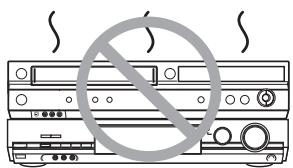
Avant de déplacer l'appareil, assurez-vous que le plateau du disque est vide. Sinon, vous risquez d'endommager gravement le disque et l'appareil.
■ Précautions concernant la condensation
La condensation peut provoquer une lecture peu fiable des enregistrements VHS. De la condensation peut se former dans les cas suivants :
- L'appareil est transporté d'un environnement froid vers une pièce bien chauffée.
- L'appareil est soudainement transporté d'un environnement frais, comme une pièce climatisée ou une voiture, vers un endroit chaud et humide.
- Pendant la saison des pluies. Dans l'une des conditions ci-dessus, n'utilisez pas l'appareil pendant au moins 2 heures. L'appareil n'est pas équipé d'un capteur de rosée.
■ Autres précautions d'installation
- L'appareil ne doit pas être installé ou utilisé à proximité de gros aimants ou de dispositifs électromagnétiques. Ces dispositifs peuvent endommager les enregistrements VHS préenregistrés.
- Ne placez pas d'objets lourds sur l'appareil et ne l'installez pas dans un espace confiné. Prévoyez une circulation d'air adéquate.
- L'appareil ne doit pas être monté en position verticale. Il est conçu pour fonctionner en position horizontale.
■ Lorsque l'appareil n'est pas utilisé pendant une longue période
Pour économiser l'énergie, débranchez-le de la prise secteur. L'appareil consomme une petite quantité d'énergie même lorsqu'il est éteint.
Consommation en veille
| FL Display (→ 65) | |||
| Automatic | Bright | ||
| Quick Start (→ 63) | On | Approx. 7 W | Approx. 8 W |
| Off | Approx. 3 W | Approx. 3.2 W | |
■ Démarrage rapide (→ 63)
1 Sec. Démarrage rapide pour l'enregistrement sur DVD-RAM*
* À partir de l'état hors tension, l'enregistrement sur DVD-RAM démarre environ 1 seconde après avoir appuyé d'abord sur [☐, DVD/VHS POWER] puis successivement sur [●, REC] (Mode Démarrage rapide).
Pour commencer
CONSIGNES DE SÉCURITÉ IMPORTANTES ....3
Entretien de l'appareil ....3
Accessoires 5
Informations sur les disques et les cartes....6
Disques utilisables pour l'enregistrement et la lecture 6
Disques en lecture seule 7
Disques non lisibles 7
Concernant les logos 7
Cartes utilisables sur cet appareil 8
- Cartes mémoire SD appropriées .... 8
Utilisation de DVD-R, DVD-R DL, DVD-RW, +R, +R DL et +RW sur cet appareil 9
La télécommande ....10
Manipulation des disques et des cartes 10
Informations sur les cassettes vidéo 11
Insertion/Retrait de la carte SD....11
Fonctions utiles 11
Guide de référence des commandes 12
Télécommande 12
Unité principale 13
Affichage de l'unité 13
ÉTAPE 1 Connexion ....14
Connexion avec un téléviseur 14
Connexion avec un téléviseur et un décodeur câble ou satellite 15
Si le connecteur d'antenne ne correspond pas 15
Sortie DVD et sortie DVD/VHS 15
Pour profiter d'une meilleure qualité d'image 16
- Connexion à la borne S VIDEO IN du téléviseur 16
- Connexion aux bornes COMPONENT VIDEO IN du téléviseur ... 16
Connexion d'un amplificateur ou d'un composant système ..... 16
Connexion avec une borne HDMI (High Definition Multimedia Interface) ..... 17
- Connexion à un téléviseur 17
- Connexion à un amplificateur .... 17
Contrôle avec HDMI (HDAVI Control) 17
ÉTAPE 2 Syntonisation automatique Plug-in .....18
- Redémarrer la syntonisation automatique Plug-in (après un déménagement, par exemple) 19
- Redémarrer le réglage automatique des chaînes .... 19
- Ajout et suppression de chaînes .... 19
- Réglage manuel de l'horloge 19
Autres réglages 20
Légendes des chaînes 20
- Préréglage des légendes des chaînes 20
- Légendes manuelles des chaînes .... 20
Sélection du type de téléviseur 20
Fonctionnement du téléviseur 21
Lorsque d'autres produits Panasonic répondent à cette télécommande 21
Réglages de l'horloge 22
- Réglage automatique de l'horloge .... 22
- Réglage du fuseau horaire 22
Suppression des interférences 23
Enregistrement
Enregistrement des programmes télévisés 24
Insertion des disques 24
Insertion d'une cassette vidéo 24
Procédures d'enregistrement 25
- Modes d'enregistrement et durées approximatives (DVD) 26
- Modes d'enregistrement (VHS) 26
- Minuterie d'arrêt 27
- Lorsque l'écran de confirmation du format est affiché ..... 27
- Lors de la suppression d'un disque enregistré 27
Pour spécifier une heure d'arrêt de l'enregistrement – Enregistrement en une touche .... 27
Sélection de l'audio à enregistrer 27
Fonction de sélection automatique bilingue 27
Lecture d'un DVD pendant l'enregistrement VHS 28
Lecture d'une VHS pendant l'enregistrement DVD 28
Regarder la télévision pendant l'enregistrement 28
Lecture pendant l'enregistrement 28
- Lecture depuis le début du titre en cours d'enregistrement – Lecture en poursuite ....28
- Lecture d'un titre précédemment enregistré pendant l'enregistrement - Lecture et enregistrement simultanés ....28
Enregistrement flexible (Enregistrement qui s'adapte à l'espace disque restant) .....29
Enregistrement programmé 30
Précautions pour l'utilisation de l'enregistrement programmé sur DVD et VHS 30
Programmation des enregistrements programmés ....30
- Annuler un enregistrement programmé déjà commencé .....31
- Libérer un programme de la mise en attente d'enregistrement ....31
- Mode SP/EP automatique ....31
- Vérifier, modifier ou supprimer des programmes ....31
Lecture
Lecture de disques 32
Lecture de disques 32
- Lorsqu'un menu s'affiche à l'écran du téléviseur ....32
Sélection de titres enregistrés à lire 32
Visionnement rapide (Lecture ×1.3) 32
Avance et retour rapides - RECHERCHE ....32
Saut 33
Lecture au ralenti 33
Visualisation image par image ....33
Lecture directe 33
CM Skip 33
Créer des chapitres ....33
Sauter la durée spécifiée — Time Slip ....33
Changer l'audio pendant la lecture 33
Utiliser les menus pour lire des MP3 et
des images fixes (JPEG/TIFF) 34
Lire des disques contenant à la fois des MP3 et des images fixes 34
Lire des MP3 34
- Utiliser l'écran d'arborescence pour trouver un groupe .....34
Afficher le menu Images ....35
Lire des images fixes (JPEG/TIFF) .....35
Fonctions utiles pendant la lecture d'images fixes .....35
- Sélectionner les images fixes d'un autre dossier....35
- Démarrer le diaporama/Paramètres du diaporama ....36
- Faire pivoter une image fixe....36
- Zoom avant/arrière....36
- Supprimer une image fixe ....36
- Afficher les propriétés de l'image ....36
Lecture d'une cassette vidéo ....37
Avance rapide / Retour arrière ....37
Recherche par repère / Revue ....37
Recherche rapide ....37
Ralenti ....37
Retour rapide ....37
Lecture quasi S-VHS (SQPB) ....37
Lecture répétée ....37
Réglage de l'image en lecture ....38
- Réglage manuel de la piste ....38
- Réglage de la synchronisation verticale ....38
Système de recherche par index VHS (VISS) ....38
Diverses indications à l'écran .....38
Utilisation des menus à l'écran / fenêtre FONCTIONS et
Messages d'état ....39
Utilisation des menus à l'écran ....39
- Procédures communes ....39
- Menu Disque – Réglage du contenu du disque .....39
- Menu Lecture – Modification de la séquence de lecture .....39
- Menu Vidéo – Modification de la qualité d'image .....40
- Menu Audio – Modification de l'effet sonore .....40
- Autre menu – Modification de la position d'affichage .....40
Fenêtre FONCTIONS 40
Messages d'état ....40
Montage
Montage de titres/chapitres ....41
Montage de titres/chapitres et lecture de chapitres ..... 41
Opérations sur les titres 41
- Supprimer un titre 41
- Propriétés 41
- Vue Album 41
- Modifier un titre 42
- Nom du titre 42
- Définir la protection / Annuler la protection 42
- Raccourcir un titre.... 42
- Changer la vignette.... 42
- Diviser un titre 43
Opérations sur les chapitres 43
- Voir les chapitres.... 43
- Supprimer un chapitre.... 43
- Créer un chapitre.... 43
- Combiner des chapitres 43
- Voir les titres 43
Créer, éditer et lire des listes de lecture....44
Créer des listes de lecture 44 Lire des listes de lecture 44 Éditer des listes de lecture/chapitres 45 Opérations sur les listes de lecture 45 - Supprimer une liste de lecture 45 - Propriétés 45 - Éditer 45
- Créer 45
- Copier 45
- Nom de la liste de lecture 45
- Changer la vignette.... 46
Opérations sur les chapitres 46
- Voir les chapitres.... 46
- Ajouter un chapitre 46
- Déplacer un chapitre.... 46
- Créer un chapitre.... 46
- Combiner des chapitres 46
- Supprimer le chapitre.... 46
- Afficher les listes de lecture.... 46
Édition d'images fixes....47
Édition d'images fixes 47 Opérations sur l'album et les images 47 - Ajouter une image/Créer un album.... 47 - Supprimer une image 47 - Protéger/Annuler la protection 47 - Ordre d'impression (DPOF) 48 - Affichage de l'album 48 - Modifier l'album.... 48
- Nom de l'album 48
- Supprimer l'album 48
- Configuration de la protection/Annulation de la protection 48
Transfert (copie)
Transfert (copie) .....49
Avant le transfert (copie) 49
Transfert (copie) depuis un VHS 50
- Transfert en une touche (copie) (VHS → DVD) .... 50
- Transfert (copie) via l'interface graphique (GUI) ..... 51 Transfert (copie) depuis un DVD 52
- Transfert en une touche (copie) (DVD → VHS) ..... 52 ●Transfert (copie) via l'interface graphique (GUI) ..... 53
- Transfert (copie) d'un DVD-Video, DVD-R finalisé, DVD-R DL, DVD-RW (format DVD-Video), +R ou +R DL . . . 54 Transfert (copie) d'images fixes 55
- Copie de toutes les images fixes d'une carte
- Copier toutes les images ....55
- Transfert (copie) via l'interface graphique (GUI) ..... 55 Enregistrement à partir d'un périphérique externe 57 Enregistrement depuis un caméscope DV 57
Fonctions pratiques
Saisie de texte 58
Saisie de texte 58
Suppression de titres ou d'images 59
Sélection de titres ou d'images enregistrés à supprimer - Navigateur de suppression .... 59 Suppression d'un titre ou d'une image pendant la lecture 59
Gestion des DVD et des cartes 60
Nommer un disque 60 Réglage de la protection 60 Suppression de tous les titres et listes de lecture – Supprimer tous les titres 60 Suppression de tout le contenu d'un disque ou d'une carte – Format ..... 61 Choix de l'affichage du menu principal en premier - La lecture commencera par : 61 Activation de la lecture sur d'autres appareils – Finaliser . . . 61 Activation de la deuxième couche sur les disques DL (double couche sur une seule face) pour l'enregistrement – Fermer la première couche . . . 62 Création du menu principal – Créer un menu principal DVD 62
Modification des réglages de l'appareil 63
Procédures courantes 63 Saisie d'un mot de passe (classement) 63 Résumé des réglages 63 Modification du réglage des enceintes pour les adapter à vos enceintes . . . . . . . . 66
Référence
Messages 67
Questions fréquemment posées 68
Service produit 74, Spécifications 75, Glossaire 76, Garantie limitée.... 77
Référence rapide en espagnol....79
(Référence rapide en espagnol)
Index....87
■ À propos des descriptions dans ce mode d'emploi
- Les pages à consulter sont indiquées comme suit : (→ ).
Accessoires

Veuillez vérifier et identifier les accessoires fournis. Utilisez les numéros entre parenthèses lorsque vous demandez des pièces de rechange.
(Les numéros de produit sont à jour en janvier 2006. Ils peuvent être sujets à modification.)
Pour commander des accessoires, reportez-vous à « Achat d'accessoires » à la page 77.
☐ 1 cordon d'alimentation secteur ● À utiliser uniquement avec l'appareil. (VFA0461) Ne l'utilisez pas avec d'autres
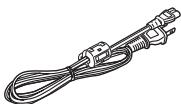
Ne l'utilisez pas avec d'autres équipements. De même, n'utilisez pas les cordons d'autres équipements avec l'appareil.
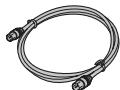
□ 1 câble coaxial de 75 Ω (K2KZ2BA00001)
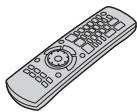
□ 1 télécommande (EUR7659Y70)
☐ 2 piles pour la télécommande, taille R6

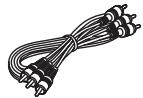
☐ 1 câble audio/vidéo ☐ 1 DVD-RAM (K2KA6BA00003)

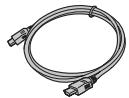
☐ 1 câble HDMI (DMR-ES46V uniquement) (K1HA19DA0002)
Carte d'enregistrement du produit
Veuillez remplir et renvoyer la carte d'enregistrement du produit incluse, ou vous enregistrer via Internet à l'adresse : http://www.prodreg.com/panasonic/
Disques que vous pouvez utiliser pour l'enregistrement et la lecture
| Disc type | DVD-RAM●4.7 GB/9.4 GB, 12 cm (5")●2.8 GB, 8 cm (3") | DVD-R●4.7 GB, 12 cm (5")●1.4 GB, 8 cm (3") | DVD-R DL*1(dual layer on single side)●8.5 GB, 12 cm (5") | DVD-RW●4.7 GB, 12 cm (5")●1.4 GB, 8 cm (3") | +R*2●4.7 GB, 12 cm (5") | +R DL*1(double layer on single side)●8.5 GB, 12 cm (5") | +RW●4.7 GB, 12 cm (5") |
| Logo |  |  |  HDL HDL |  | - | - | - |
| Indicated in these instructions with | RAM | -R before finalization | -R DL before finalization | -RW(V) before finalization | +R before finalization | +R DL before finalization | +RW |
| DVD-V after finalization | DVD-V after finalization | DVD-V after finalization | DVD-V after finalization | DVD-V after finalization | |||
| Recording format (→ below) | VR | DVD-Video | DVD-Video | DVD-Video | +VR | +VR | +VR |
| Main use *3 | Re-writable discs | One time recording discs (recordable until the disc is full) | One time recording discs (recordable until the disc is full) | Re-writable discs | One time recording discs (recordable until the disc is full) | One time recording discs (recordable until the disc is full) | Re-writable discs |
| Compatibility | |||||||
| Usable high speed recording disc *4 | Up to 5x | Up to 16x | Up to 4x | Up to 6x | Up to 16x | Up to 2.4x | Up to 4x *5 |
| Play on other player | Only on DVD-RAM compatible players. It is not necessary to finalize the disc. (→ 76) | Only after finalizing the disc. (→ 61, 76) | Only after finalizing the disc*6. (→ 61, 76) | Only after finalizing the disc. (→ 61, 76) | Only after finalizing the disc. (→ 61, 76) | Only after finalizing the disc. (→ 61, 76) | Yes. It is not necessary to finalize the disc. (→ 76) |
| What you can do on this unit (√: Possible, ×: Impossible) | |||||||
| Chasing playback | √ | × | × | × | × | × | × |
| Recording broadcasts that allow one copy | √ *7 | × | × | × | × | × | × |
| Recording both Main and SAP of MTS broadcast | √ | × (Only one is recorded. → 64, Multi-channel TV sound (MTS)) | × (Only one is recorded. → 64, Multi-channel TV sound (MTS)) | × (Only one is recorded. → 64, Multi-channel TV sound (MTS)) | × (Only one is recorded. → 64, Multi-channel TV sound (MTS)) | × (Only one is recorded. → 64, Multi-channel TV sound (MTS)) | × (Only one is recorded. → 64, Multi-channelTV sound (MTS)) |
| Recording 16:9 aspect picture | √ | × (The picture is recorded in 4:3 aspect.) | × (The picture is recorded in 4:3 aspect.) | × (The picture is recorded in 4:3 aspect.) | × (The picture is recorded in 4:3 aspect.) | × (The picture is recorded in 4:3 aspect.) | × (The picture is recorded in 4:3 aspect.) |
| Entering text | √ | √ | √ | √ | √ | √ | √ |
| Erasing titles | √ | √ (Available space does not increase after deleting.) | √ (Available space does not increase after deleting.) | √ (Available disc space increases when the last recorded title is deleted.) *8 | √ (Available space does not increase after deleting.) | √ (Available space does not increase after deleting.) | √ (Available disc space increases when the last recorded title is deleted.) *8 |
| Creating playlists | √ | × | × | × | × | × | × |
*1 Vous pouvez enregistrer sur la deuxième couche des disques double couche après avoir finalisé la première couche (→ 62). Vous ne pourrez plus enregistrer sur la première couche après cela (→ 9). Lors de la lecture d'un titre enregistré sur les deux couches, la vidéo et l'audio peuvent être momentanément interrompus lors du changement de couche. *2 Il se peut que vous ne puissiez pas utiliser un disque +R enregistré sur cet appareil dans un autre enregistreur DVD Panasonic, et vice versa. Une fois le disque finalisé, il peut toutefois être lu sur l'autre appareil. *3 La quantité d'espace enregistrable n'augmente pas même si le programme est supprimé lorsque vous utilisez un disque à enregistrement unique. *4 Cet appareil peut utiliser les disques à enregistrement haute vitesse indiqués dans le tableau, mais leur utilisation ne réduira pas le temps d'enregistrement. *5 Vous pouvez lire les disques à vitesse d'enregistrement 8x enregistrés sur un autre équipement. *6 Lecture sur un équipement compatible DVD-R DL. *7 Uniquement les disques compatibles CPRM (→ 76). *8 L'espace d'enregistrement peut augmenter légèrement lorsque d'autres titres sont supprimés. - Les explications concernant les disques sont indiquées par DVD, et celles concernant la vidéo par VHS. - Nous recommandons d'utiliser des disques Panasonic. Nous recommandons d'utiliser des disques DVD-RAM avec cartouches pour les protéger des rayures et de la saleté. - Il se peut que vous ne puissiez pas enregistrer selon l'état des disques et que vous ne puissiez pas lire selon l'état de l'enregistrement. - Vous ne pouvez pas enregistrer les programmes qui autorisent « enregistrement unique » sur des DVD-R, DVD-R DL et DVD-RW compatibles CPRM sur cet appareil. Vous pouvez enregistrer d'autres programmes au format DVD-Vidéo. - Pour la durée d'enregistrement, reportez-vous à « Modes d'enregistrement et durées d'enregistrement approximatives (DVD) » à la page 26.
Format d'enregistrement vidéo DVD
Il s'agit d'une méthode d'enregistrement qui vous permet d'enregistrer et de modifier des émissions de télévision, etc.
- Les émissions numériques qui autorisent « l'enregistrement unique » peuvent être enregistrées sur un disque compatible CPRM. Vous pouvez enregistrer sur un DVD-RAM compatible CPRM sur cet appareil.
- La lecture n'est possible que sur un lecteur DVD compatible. Utilisez un DVD-RAM pour enregistrer au format d'enregistrement vidéo DVD.
■ Format DVD-Vidéo
Cette méthode d'enregistrement est identique à celle des DVD-Vidéo disponibles dans le commerce.
- Les émissions numériques qui autorisent « l'enregistrement unique » ne peuvent pas être enregistrées.
- Ces disques peuvent être lus sur un lecteur DVD. Cependant, les programmes enregistrés sur cet appareil doivent être finalisés pour être lus sur d'autres lecteurs DVD.
Utilisez un DVD-R, un DVD-R DL ou un DVD-RW pour enregistrer au format DVD-Vidéo.
Disques en lecture seule
| Disc type | DVD-Video | DVD-Audio | DVD-RW(DVD Video Recording format) | Audio CD | Video CD | |
| Logo |  |  |  |  | - |  |
| Indicated in these instructions with | DVD-V | DVD-A | -RW(VR) | CD | VCD | |
| Instructions | High quality movie and music discs | High fidelity music discs●Played on this unit in 2 channels | DVD-RW* recorded on another DVD recorder●You can play programs that allow “One time only recording” if they have been recorded to a CPRM compatible disc.●By formatting (→ 61) the disc, you can record to it in DVD-Video format.●It may be necessary to finalize the disc on the equipment used for recording. | Recorded audio and music (including CD-R/RW*) | CD-R* and CD-RW* with music recorded in MP3 (→ 34) Still pictures (JPEG and TIFF) recorded on CD-R/RW* | Recorded music and video (including CD-R/RW*) |
* La lecture peut être impossible sur certains DVD-RW (format DVD Video Recording), CD-R ou CD-RW en raison de l'état de l'enregistrement. - Vous pouvez lire des images fixes (JPEG/TIFF), des CD-DA, des Video CD et des données au format MP3 enregistrées sur CD-R/RW. Fermez la session ou finalisez le disque après l'enregistrement. - Le producteur du disque peut contrôler la lecture des disques. Il se peut donc que vous ne puissiez pas toujours contrôler la lecture comme décrit dans ce mode d'emploi. Lisez attentivement les instructions du disque.
Remarque concernant l'utilisation d'un DualDisc
La face audio numérique d'un DualDisc ne répond pas aux spécifications techniques du format Compact Disc Digital Audio (CD-DA), la lecture peut donc être impossible.
Concernant le DVD-Audio
Certains DVD-Audio multicanaux empêchent le down-mixing (→ 76) de tout ou partie de leur contenu si telle est l'intention du fabricant. Les pistes dont le down-mixing est empêché ne seront pas lues correctement sur cet appareil (par exemple, l'audio n'est lu que sur les deux canaux avant). Reportez-vous à la pochette du disque pour plus d'informations.
Disques non lisibles
● DVD-RAM 2,6/5,2 Go, 12 cm (5") ● DVD-R 3,95/4,7 Go pour authoring ● DVD-R enregistré au format DVD Video Recording - DVD-R (format DVD-Vidéo), DVD-R DL, DVD-RW (format DVD-Vidéo), +R, +R DL enregistrés sur un autre appareil et non finalisés (→ 61, « Pour permettre la lecture des disques sur d'autres appareils – Finalisation ») - Disques PAL (vous pouvez toujours lire l'audio sur DVD-Audio) - DVD-Vidéo avec un numéro de région autre que « 1 » ou « ALL » - Blu-ray - DVD-ROM, +R 8 cm (3"), CD-ROM, CDV, CD-G, Photo CD, CVD, SVCD, SACD, MV-Disc, PD, DivX Video Disc, etc.
Concernant les logos
 | Dolby Digital (→ 64)This is a method of coding digital signals developed by Dolby Laboratories. Not only stereo (2 channel) audio, these signals can also be multi-channel audio. A large amount of audio information can be recorded on one disc by this method. |
 | DTS Digital Surround (→ 64)This surround system is used in many movie theaters around the world. The separation between channels is good and the compression ratio is low, so realistic sound effects are possible. |
Le fabricant décline toute responsabilité et n'offre aucune compensation pour la perte de matériel enregistré ou édité due à un problème avec l'appareil ou les supports enregistrables, et décline toute responsabilité et n'offre aucune compensation pour tout dommage ultérieur causé par une telle perte. Des exemples de causes de telles pertes sont
● Un disque enregistré et édité avec cet appareil est lu dans un graveur DVD ou un lecteur de disque d'ordinateur fabriqué par une autre société. ● Un disque utilisé comme décrit ci-dessus puis relu dans cet appareil. ● Un disque enregistré et édité avec un graveur DVD ou un lecteur de disque d'ordinateur fabriqué par une autre société est lu dans cet appareil.
Cartes utilisables sur cet appareil
| Type | SD Memory Card, miniSDTM Card*, MultiMediaCard |
| Indicated in these instructions by | SD |
| Data that can be recorded and played | Still pictures |
| Instructions | You can insert directly into the SD card slot.*A miniSDTM card adaptor included with the miniSDTM card is necessary.You can play and copy still pictures taken on a digital camera, etc. (→35, 55)You can set the DPOF (Digital Print Order Format) for automatic printing on your home printer or at a photo developing store. (→48, 76) |
Structure des dossiers affichés par cet appareil
Les éléments suivants peuvent être affichés sur cet appareil.
![graph TD A["DVD-RAM"] --> B["JPEG"] A --> C["XXXX****.JPG*"] A --> D["XXXX****.TIF*"] A --> E["XXXX****.JPG"] A --> F["DCIM*** (Higher folder)"] A --> G["******XXXXX (Picture folder)"] A --> H["XXXX****.JPG"] A --> I["XXXX****.TIF"] J["Card"] --> K["DCIM (Higher folder)"] K --> L["******XXXXX (Pictu…](/content/2019/10/56204/images/ba7b65f679f670746b047867be6da71ff8aaffb1335f06562269de15f593972e.jpg)
* Ceci peut également être affiché ** Des dossiers peuvent être créés sur d'autres équipements. Cependant, ces dossiers ne peuvent pas être sélectionnés comme destination de copie. - Le dossier ne peut pas être affiché si les numéros sont tous "0" (par exemple, DCIM000, etc.).
- Si un nom de dossier ou de fichier a été saisi sur un autre équipement, le nom peut ne pas s'afficher correctement ou vous ne pourrez peut-être pas lire ou modifier les données.
■ Cartes mémoire SD compatibles
- Vous pouvez utiliser des cartes mémoire SD avec les capacités suivantes (de 8 Mo à 2 Go).
| 8 MB, | 16 MB, | 32 MB, | 64 MB, | 128 MB, |
| 256 MB, | 512 MB, | 1 GB, | 2 GB (Maximum) | |
- La mémoire utilisable est légèrement inférieure à la capacité de la carte.
- Veuillez confirmer les dernières informations sur le site Web suivant. http://panasonic.co.jp/pavc/global/cs (Ce site est en anglais uniquement.)
- Si la carte mémoire SD est formatée sur un autre équipement, le temps d'enregistrement peut être plus long. De plus, si la carte mémoire SD est formatée sur un PC, vous ne pourrez peut-être pas l'utiliser sur cet appareil.
Dans ces cas, formatez la carte sur cet appareil. (→ 61, 76)
- Cet appareil prend en charge les cartes mémoire SD formatées en système FAT 12 et système FAT 16 conformément aux spécifications des cartes mémoire SD.
Utilisation de DVD-R, DVD-R DL, DVD-RW, +R, +R DL et +RW sur cet appareil
Restrictions avec DVD-R, etc.*
● Les programmes au format 16:9 sont enregistrés au format 4:3. - Seul le son principal ou le son secondaire peut être enregistré pour les émissions MTS. - La lecture du disque sur d'autres lecteurs DVD n'est pas possible avant la finalisation. * DVD-R, DVD-R DL, DVD-RW, +R, +R DL et +RW sont collectivement appelés "DVD-R, etc." sur cette page.
![graph TD A["Main\nHello\nSAP\nHola"] --> B["Record to DVD-R, etc."] C["16:9 aspect program with Main and SAP"] --> B D["4:3 aspect"] --> E["The selected audio only is recorded.\ne.g., Main only\nHello"]](/content/2019/10/56204/images/869bcf98c0a293a481efb404e8993e9c25ec4baf9e799ac71e00597d6a4d9594.jpg)
Par conséquent, suivez les étapes ci-dessous lorsque vous utilisez des DVD-R, etc.
■ Lors de l'enregistrement d'un programme SAP sur un DVD-R, etc.
Sélectionnez l'audio à enregistrer avant l'enregistrement ou le transfert (copie).
Certaines émissions de télévision sont diffusées en SAP (Secondary Audio Program). Vous devez sélectionner le type d'enregistrement audio avant d'enregistrer ou de transférer (copier) sur DVD-R, etc.
![graph TD A["Select "Main" or "SAP" in "Select MTS" in the Setup menu (→ 64)."] --> B["Record to DVD-R, etc."] B --> C["The selected audio only is recorded."]](/content/2019/10/56204/images/ffb52c0f7bd2ea22a957895e453124211ebb96aad912dea5de86456dab2ff919.jpg)
■ Lecture du disque sur d'autres lecteurs DVD
Le disque doit être finalisé après l'enregistrement ou le transfert (copie) (→ 61).
Il est nécessaire de finaliser les DVD-R, etc. sur cet appareil après avoir enregistré ou transféré (copié) des titres dessus. Vous pourrez ensuite les lire comme un DVD-Vidéo vendu dans le commerce. Cependant, les disques deviennent en lecture seule et vous ne pourrez plus enregistrer ou transférer (copier).*
* Vous pouvez enregistrer et transférer (copier) à nouveau si vous formatez le DVD-RW.
![graph LR A["Record to DVD-R, etc."] -->|Finalize| B["Play on other DVD equipment"]](/content/2019/10/56204/images/c699c0f81b23ada1a4dc04e9a377dd4a84872db101b6d0ecfc8b156d24c21911.jpg)
■ Enregistrement sur DVD-R DL et +R DL
Les disques DVD-R DL et +R DL ont deux couches de surface d'enregistrement sur un seul côté.
Il n'est pas possible d'enregistrer en continu de la première couche à la deuxième. L'enregistrement s'arrête lorsque l'espace sur la première couche est plein.
Vous devez fermer la première couche pour commencer l'enregistrement sur la deuxième couche. La fermeture rend la première couche indisponible pour l'enregistrement (l'édition reste possible). Vous ne pouvez pas annuler la fermeture. Assurez-vous avant de continuer.
![graph TD A["CD/DVD"] --> B["The first layer"] B --> C["Title 1"] B --> D["Title 2"] C --> E["Recording/Playback direction"] D --> F["Crossing from Title 2"] style A fill:#f9f,stroke:#333 style B fill:#ccf,stroke:#333 style C fill:#cfc,stroke:#333 style D fill:#fcc,stroke:#333 note right of B: "It is…](/content/2019/10/56204/images/9b8e81c8c4d39f19f893f40eddf73085e1ba1e24bfa4e92733e6b5837bf8f5c4.jpg)
■ À propos des piles
- Insérez-les en respectant les polarités (+ et -) comme indiqué dans la télécommande.
- N'utilisez pas de piles rechargeables.
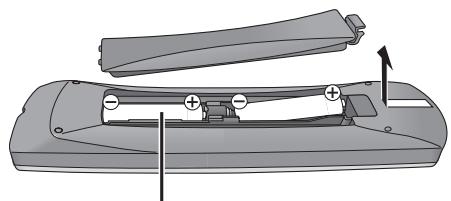
R6/LR6, AA
Ne pas :
- mélanger des piles neuves et usagées.
- utiliser différents types en même temps.
- chauffer ou exposer à la flamme. ●démonter ou court-circuiter.
- tenter de recharger des piles alcalines ou au manganèse.
- utiliser des piles si le revêtement a été retiré.
Une mauvaise manipulation des piles peut provoquer une fuite d'électrolyte qui peut endommager les objets en contact avec le liquide et provoquer un incendie.
Retirez les piles si la télécommande ne doit pas être utilisée pendant une longue période. Rangez-la dans un endroit frais et sombre.
Remarque
- Si vous ne pouvez pas utiliser l'appareil ou le téléviseur avec la télécommande après avoir changé les piles, veuillez saisir à nouveau les codes (→ 21).
■ Utilisation de la télécommande
Visez le capteur, en évitant les obstacles, à une distance maximale de 7 m (23 pieds) directement devant l'appareil.
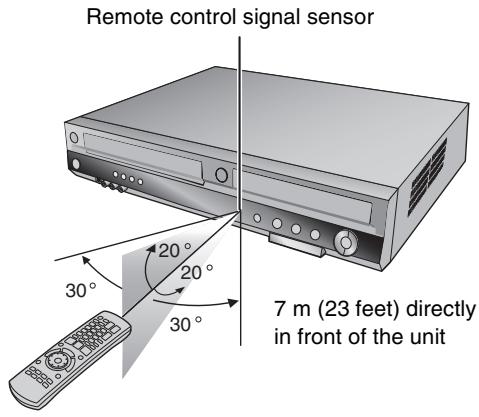
Remarques
- Gardez la fenêtre de transmission et le capteur de l'appareil exempts de poussière.
- Le fonctionnement peut être affecté par des sources de lumière intense, telles que la lumière directe du soleil, les lampes fluorescentes à onduleur et les portes en verre des armoires.
Manipulation des disques et des cartes
■ Comment tenir un disque ou une carte
Ne touchez pas la surface enregistrée ni la surface des bornes.
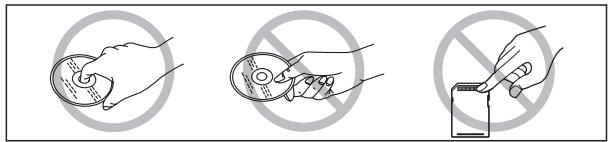
■ Concernant les disques sans cartouche
Faites attention aux rayures et à la saleté.
■ Si le disque est sale ou présente de la condensation
Essuyez avec un chiffon humide, puis séchez.
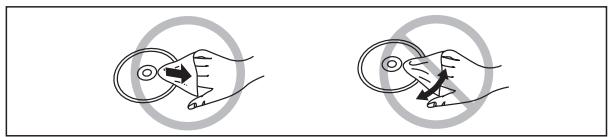
■ Précautions de manipulation
- N'apposez pas d'étiquettes ou d'autocollants sur les disques. (Cela peut provoquer une déformation du disque et un déséquilibre de rotation, le rendant inutilisable.)
- Écrivez sur le côté étiquette du disque uniquement avec un feutre doux à base d'huile. N'utilisez pas de stylos à bille ou d'autres instruments d'écriture durs.
- N'utilisez pas de sprays de nettoyage pour disques, de benzine, de diluant, de liquides antistatiques ou tout autre solvant.
- N'utilisez pas de protecteurs ou de housses anti-rayures.
- N'exposez pas les bornes de la carte à l'eau, aux déchets ou à d'autres corps étrangers.
- Ne laissez pas tomber, n'empilez pas et ne heurtez pas les disques. Ne posez pas d'objets dessus.
- N'utilisez pas les disques suivants :
- Disques avec de l'adhésif exposé provenant d'autocollants ou d'étiquettes retirés (disques de location, etc.).
- Disques fortement déformés ou fissurés.
- Disques de forme irrégulière, comme les formes de cœur.
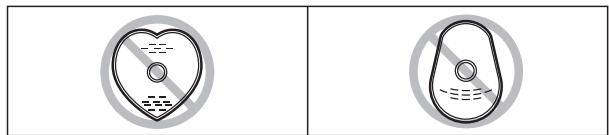
- Ne pas placer dans les zones suivantes :
- En plein soleil.
- Dans des zones très poussiéreuses ou humides.
- Près d'un radiateur.
- Emplacements susceptibles de subir des variations de température importantes (de la condensation peut se produire).
- Là où se produisent de l'électricité statique ou des ondes électromagnétiques.
- Pour protéger les disques des rayures et de la saleté, remettez-les dans leurs boîtiers ou cartouches lorsque vous ne les utilisez pas.
■ Cassettes vidéo
- Cassez la languette de la cassette vidéo pour empêcher tout effacement accidentel. Couvrez le trou avec une double couche de ruban adhésif lorsque vous voulez réutiliser la cassette vidéo pour un enregistrement.
- Vous pouvez utiliser des cassettes vidéo portant les marques VHS et S-VHS, mais l'appareil ne peut pas exploiter pleinement les caractéristiques des cassettes vidéo S-VHS.
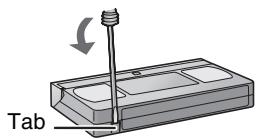
■ Entretien des cassettes vidéo
- Des cassettes vidéo de mauvaise qualité ou endommagées peuvent salir les têtes et provoquer un dysfonctionnement. Rangez soigneusement vos cassettes vidéo et jetez-les lorsqu'elles sont sales ou endommagées.
- N'utilisez jamais de cassettes vidéo sur lesquelles du jus a été renversé ou qui sont extrêmement endommagées, car cela non seulement salirait les têtes, mais provoquerait également un dysfonctionnement de l'appareil.
■ Entretien
Nettoyage des têtes vidéo
La saleté sur les têtes vidéo peut entraîner un enregistrement et une lecture de mauvaise qualité.
Si l'image ne s'améliore pas, utilisez une cassette de nettoyage des têtes en option (référence NV-TCL30PT). Si le problème persiste, demandez conseil à un technicien qualifié.
Insertion/retrait de la carte SD
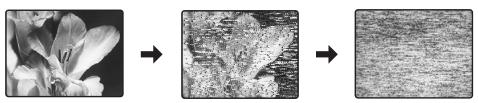
Lorsque l'indicateur de carte ("SD") sur l'écran de l'appareil clignote, la carte est en cours de lecture ou d'écriture. Ne mettez pas l'appareil hors tension et ne retirez pas la carte. Une telle action peut entraîner un dysfonctionnement ou une perte du contenu de la carte.
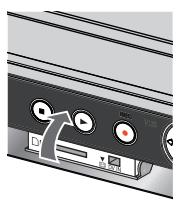
Ouverture du couvercle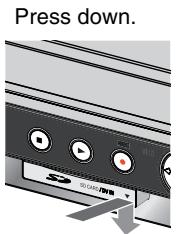
Insertion de la carte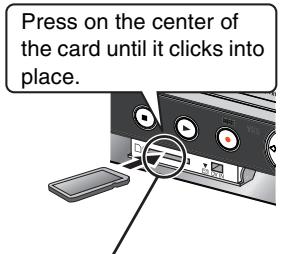
Si vous utilisez une carte miniSD TM, insérez-la dans l'adaptateur pour carte miniSD TM fourni avec la carte. Insérez et retirez cet adaptateur de l'appareil.
Insérez la carte avec l'étiquette vers le haut et le coin coupé sur la droite. (N'oubliez pas de fermer le couvercle. → à droite)
Retrait de la carte
① Appuyez sur le centre de la carte. ② Tirez-la tout droit.
Fermeture du couvercle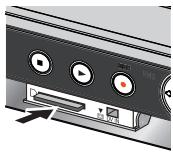
Poussez vers le haut.
Fonction de sélection automatique du lecteur
Si vous insérez une carte SD alors que l'appareil est arrêté, l'écran "Opérations sur carte SD" s'affiche. Sélectionnez un élément et appuyez sur [ENTER] pour passer au lecteur SD ( → 35, 55). Si vous retirez une carte SD, le lecteur DVD est sélectionné automatiquement.
Gardez les petites cartes mémoire telles que les cartes SD hors de portée des enfants. En cas d'ingestion, consultez immédiatement un médecin.
Fonctions utiles
Vous pouvez profiter du DVD, de la VHS et de la carte SD avec cet appareil.
Cet enregistreur DVD peut enregistrer des images et des sons en haute qualité sur des supports DVD à accès aléatoire rapide. Cela a permis de nombreuses nouvelles fonctions qui surpassent les anciens formats à bande. Les informations suivantes résument quelques-unes de ces fonctions.
DVD
Sortie progressive (→ 16, 20)
Si vous connectez l'appareil à un téléviseur compatible avec la sortie progressive, vous pouvez profiter d'images de meilleure qualité et avec moins de scintillement que celles présentées par les téléviseurs conventionnels (de type entrelacé).
Finalisation (→ 61)
Cette fonction vous permet de lire des DVD-R, DVD-R DL, DVD-RW (format DVD-Vidéo), +R et +R DL enregistrés sur d'autres lecteurs.
Lecture instantanée (→ 32)
Cette fonction permet de trouver et de lire rapidement un programme vidéo que vous souhaitez regarder. Le navigateur direct vous guide immédiatement vers le début d'une vidéo précédemment enregistrée.
Visionnage rapide (→ 32)
Cette fonction vous permet de regarder des actualités, des informations et d'autres programmes en peu de temps.
Lecture en poursuite (→ 28)
Il n'est pas nécessaire d'attendre la fin de l'enregistrement. Sans arrêter l'enregistrement, vous pouvez lire la vidéo en cours d'enregistrement depuis son début.
Enregistrement instantané (→ 25)
Vous n'avez plus besoin de chercher de l'espace disque vide. En appuyant sur le bouton d'enregistrement, l'appareil trouve l'espace d'enregistrement disponible et commence l'enregistrement immédiatement.
Enregistrement et lecture simultanés (→ 28)
Avec cette fonction, vous pouvez lire un programme vidéo déjà enregistré tout en enregistrant un autre programme.
Time Slip (→ 33)
Cette fonction vous permet de sauter à la scène que vous spécifiez pendant la lecture.
Transfert en une touche (copie) (→ 50, 52)
Cette fonction permet de copier une vidéo du VHS vers le DVD et vice versa.
Prise d'entrée DV (→ 57)
La fonction d'enregistrement de caméscope DV de cet appareil vous permet de copier facilement une vidéo sur le DVD en connectant un seul câble DV.
VHS
Enregistrement long (→ 26)
Avec cette fonction, vous pouvez enregistrer environ 10 heures de vidéo sur une cassette T-120, par exemple.
■ Carte SD
Emplacement pour carte SD (→ ci-dessus)
La fente pour carte SD de cet appareil vous permet de lire des photos prises avec un appareil photo numérique et de les copier d'une carte sur un DVD-RAM pour un stockage facile, sans utiliser d'ordinateur.
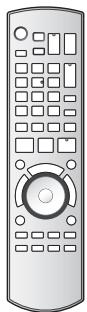
Télécommande
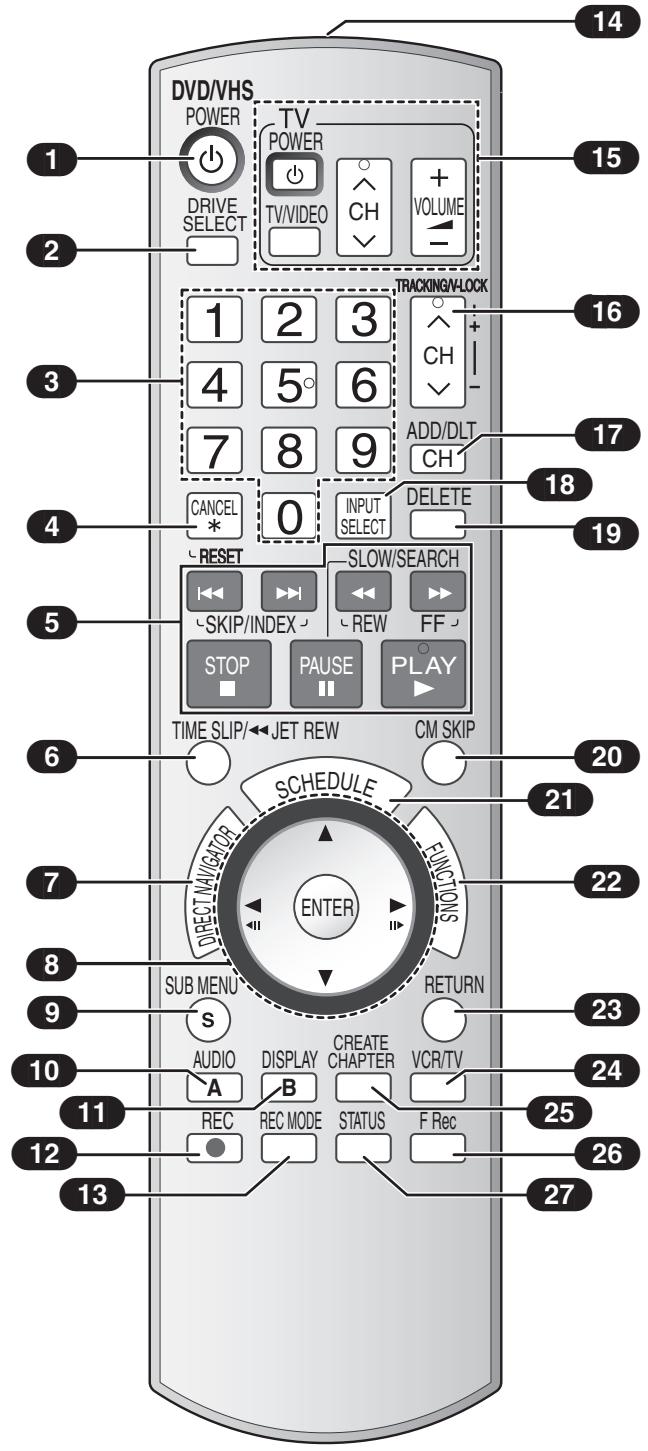
■ Bouton [DRIVE SELECT]
- Avant d'effectuer des opérations DVD, assurez-vous d'appuyer sur le bouton [DRIVE SELECT] pour sélectionner le côté DVD. Assurez-vous également que le témoin DVD s'allume sur l'appareil.
- Avant d'effectuer des opérations VHS, assurez-vous d'appuyer sur le bouton [DRIVE SELECT] pour sélectionner le côté VHS. Assurez-vous également que le témoin VHS s'allume sur l'appareil.
- Avant d'effectuer des opérations avec une carte SD, assurez-vous d'appuyer sur le bouton [DRIVE SELECT] pour sélectionner le côté SD. Assurez-vous également que le témoin de carte SD s'allume sur l'appareil.
![PANASONIC DMRES45V - ■ Bouton [DRIVE SELECT] - 1](/content/2019/10/56204/images/7ceab20c8f4c0e79902f9a0c979b53d256243295a61162d7a2b454e3a4d4b341.jpg)
![PANASONIC DMRES45V - ■ Bouton [DRIVE SELECT] - 2](/content/2019/10/56204/images/d1188410547aa6da4cfd93a6f9350e16170b2e8fbd8ba22e2d641e638583e6d8.jpg)
![PANASONIC DMRES45V - ■ Bouton [DRIVE SELECT] - 3](/content/2019/10/56204/images/c181d2bec628c2dd458414bb4ea91c53230e1206c59d066b70909834ffc94b73.jpg)
1 Mettez l'appareil sous tension. → 18
2 Sélectionnez le lecteur (DVD, VHS ou SD)....→ ci-dessus
3 Sélectionnez les chaînes et les numéros de titre, etc./Entrez les numéros
4 Annulez/Remettez à zéro le compteur de bande
5 Opérations de base pour l'enregistrement et la lecture
6 Ignorer le temps spécifié/....→ 33 Bouton de rembobinage rapide (JET REW)....→ 37
7 Direct Navigator → 32, 34
8 Sélection/Entrée, Image par image. → 18, 33
9 Afficher le sous-menu. → 36, 41, 45
10 Sélection audio....→27,33 Sélection vue (A)....→53
11 Affichage du menu à l'écran ....→ 39 Sélection vue (B)....→ 53
12 Débuter l'enregistrement → 25
13 Changer le mode d'enregistrement. → 25, 30
14 Fenêtre de transmission
15 Opérations TV → 21, 28
16 Sélection de chaîne/ PISTE/VERROU V. → 38
17 Ajouter/supprimer une chaîne. → 19
18 Sélection d'entrée (IN1, IN2, DV). → 57
19 Supprimer des éléments. → 59
20 Avancer d'une minute. → 33
21 Afficher la liste des enregistrements programmés ....→ 30
22 Afficher la fenêtre FONCTIONS → 40
23 Retour à l'écran précédent
24 Sélectionner MAGNÉTOSCOPE/TV → 23
25 Créer des chapitres. → 33
26 Démarrer l'enregistrement flexible....→ 29
27 Afficher les messages d'état → 38, 40
Remarques
- Les boutons tels que [●, REC] ne dépassent pas autant que les autres boutons pour éviter qu'ils ne soient pressés accidentellement.
- Le mot « bouton » n'est pas utilisé dans ces instructions d'utilisation, donc « Appuyez sur le bouton [ENTER] » est affiché comme « Appuyez sur [ENTER] ».
- Vous pouvez utiliser cette télécommande pour faire fonctionner votre téléviseur si vous réglez le code du fabricant du téléviseur (→ 21).
Unité principale
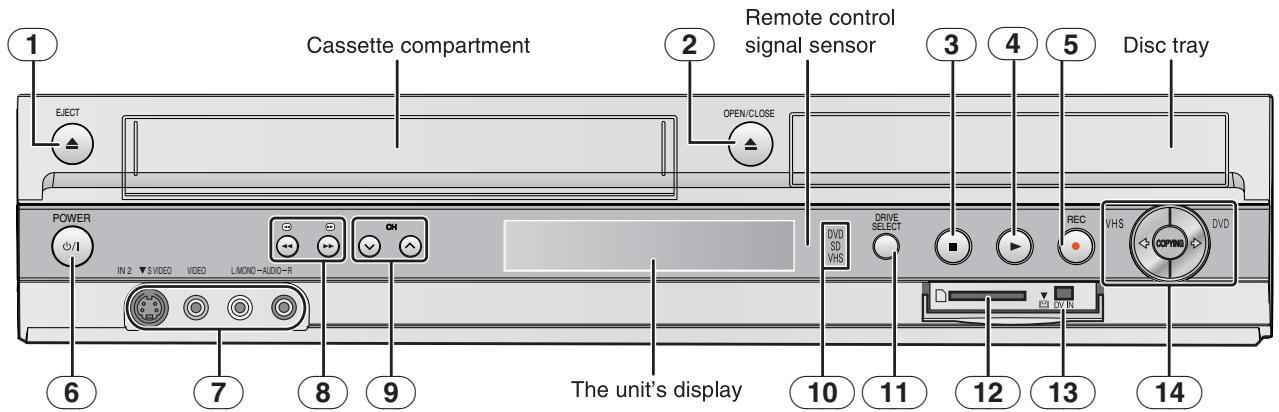
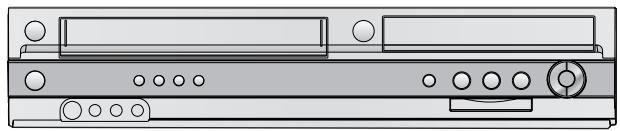
① Bouton d'éjection de cassette (▲, EJECT) ....→ 24 ② Bouton d'ouverture/fermeture du plateau à disque (▲, OPEN/CLOSE)....→24 ③ Bouton d'arrêt (■) → 32, 37 ④ Bouton de lecture/×1.3 (▶)....→ 32, 37 ⑤ Bouton d'enregistrement (●, REC) …… → 25, 57 ⑥ Bouton marche/arrêt DVD/VHS POWER (⏻/I, POWER)....→ 18 - Pour passer l'unité du mode marche au mode veille ou vice versa. En mode veille, l'unité consomme toujours une petite quantité d'énergie. ⑦ Bornes d'entrée IN2 (IN2)....→ 57 ⑧ Boutons DVD-SEARCH, VHS-REW/FF (◀◀/◀◀, ▶▶/▶▶) ⑨ Boutons de changement de chaîne (CH, v, ∧) → 38
10 Voyant de sélection DVD/VHS/SD ●S'allume lorsque le lecteur DVD, VHS ou SD est sélectionné. 11 Bouton DRIVE SELECT - Le lecteur change à chaque pression sur [DRIVE SELECT]. 12 Emplacement pour carte SD → 11 13 Connecteur pour caméscope numérique (DV)....→ 57 14 Bouton d'opération de transfert en une touche (copie) - De VHS à DVD ....→ 50 - De DVD à VHS ....→ 52
L'affichage de l'unité
![graph TD A["1"] --> B["VHS"] B --> C["REC"] C --> D["PLAY"] D --> E["2"] D --> F["3"] G["A"] --> H["XP SP"] H --> I["LP"] I --> J["EP"] J --> K["VP"] L["B"] --> M["TV"] M --> N["REC"] N --> O["PLAY"] O --> P["2"] O --> Q["3"] R["1"] --> S["SD"] S --> T["1"]](/content/2019/10/56204/images/09c0f2d650f66d729544c43547d623dbe6831872751e13e7ae0c797e4a39bd0c.jpg)
Commun à DVD/VHS/SD
A Indicateur de mode d'enregistrement
DVD :
XP, SP, LP, EP : (→ 26)
XP, SP, LP, EP (tous activés) : mode FR (→ 29)
VHS :
SP, LP*, EP, VP : (→ 26)
* Lecture uniquement
B Indicateur TV
- L'indicateur s'allume en mode TV et s'éteint en mode VCR. Vous pouvez changer de mode en utilisant [VCR/TV]. (→ 23)
C Affichage principal
- Heure actuelle
● Compteur d'enregistrement et de lecture du disque
● Compteur d'enregistrement et de lecture VHS
- Messages de transfert (copie)
- Messages divers, etc.
- Heure actuelle - Compteur d'enregistrement et de lecture du disque - Compteur d'enregistrement et de lecture VHS - Messages de transfert (copie) - Messages divers, etc.
VHS
① Indicateur d'enregistrement programmé (💡) (→ 30)
On:
Lorsqu'un programme d'enregistrement programmé est enregistré et qu'une cassette enregistrable est insérée.
Clignote :
L'indicateur d'enregistrement programmé clignote lorsque l'appareil ne peut pas passer en veille d'enregistrement programmé (par exemple, s'il n'y a pas de cassette, etc.).
② Indicateur de cassette
③ État de fonctionnement de la cassette
DVD
1 Indicateur d'enregistrement programmé (💡) (→ 30)
On :
Lorsqu'un programme d'enregistrement programmé est enregistré et qu'un disque enregistrable est inséré.
Clignote :
L'indicateur d'enregistrement programmé clignote lorsque l'appareil ne peut pas passer en veille d'enregistrement programmé (par exemple, s'il n'y a pas de disque, etc.).
2 État de fonctionnement du disque
3 Indicateur de disque
SD
1 Indicateur de carte SD
Cette section comprend des schémas de deux méthodes de connexion courantes (A-B, pages 14 à 15). Veuillez vous connecter en utilisant celle qui vous convient le mieux.
- Visitez la page d'accueil de Panasonic pour plus d'informations sur les méthodes de connexion. (Ceci est en anglais uniquement.)
http://www.panasonic.com/consumer_electronics/dvd_recorder/dvd_connection.asp
- Avant toute connexion, éteignez tous les appareils et lisez les instructions d'utilisation appropriées. ● Les périphériques et les câbles en option sont vendus séparément, sauf indication contraire.
- Vous devez vous abonner à un service de télévision par câble pour profiter de leurs programmes.
- Consultez votre fournisseur de services concernant le décodeur approprié.
■ La borne RF OUT de l'appareil
Le signal image et son de cet appareil passe par la borne RF OUT vers le téléviseur.
Reportez-vous à la page 15 si le connecteur d'antenne ne correspond pas.
■ Lorsque l'appareil n'est pas utilisé pendant une longue période
Pour économiser l'énergie, débranchez-le de la prise secteur. Cet appareil consomme une petite quantité d'énergie, même lorsqu'il est éteint (environ 8 W).
■ Ne connectez pas l'appareil via un magnétoscope
Les signaux vidéo transmis via les magnétoscopes seront affectés par les systèmes de protection des droits d'auteur et l'image ne s'affichera pas correctement sur le téléviseur.
![graph TD A["○"] --> B["TV"] B --> C["The unit"] C --> D["VCR"] E["○"] --> F["TV"] F --> G["VCR"] G --> H["The unit"]](/content/2019/10/56204/images/4b6ce18eadb0d2850d86ac98e619b9e2b978bbf22625480453ea566875917df5.jpg)
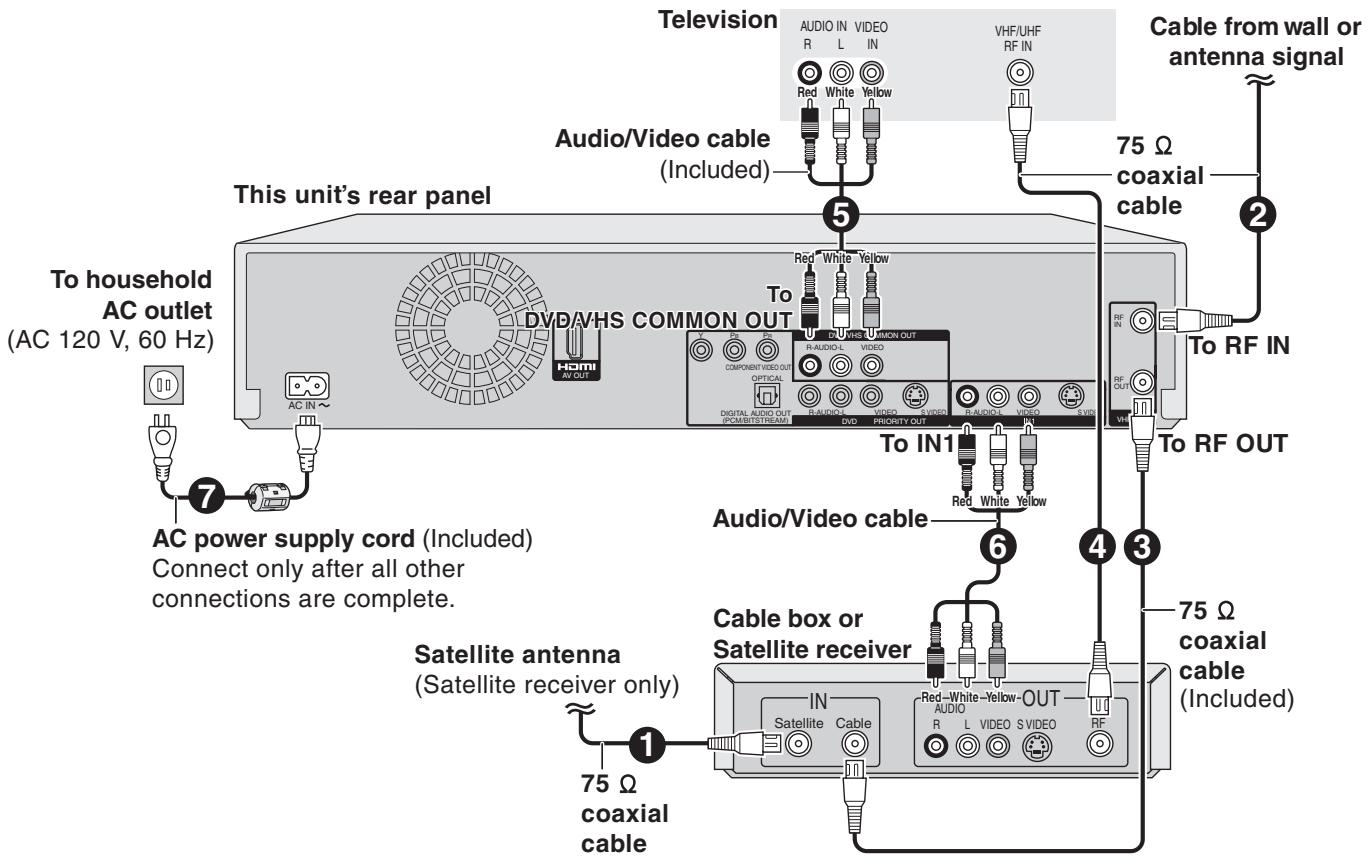
A Connexion avec un téléviseur
■ Connexion (avec câble audio/vidéo)
Connectez dans l'ordre numérique ① à ④.
- Après cette connexion, réglez le canal de sortie RF sur "OFF" (→ 18), puis appuyez sur la touche TV/VIDEO de la télécommande du téléviseur pour sélectionner le mode d'entrée AV correspondant à la borne TV connectée. Vous pouvez regarder une vidéo de cet appareil sur votre téléviseur.
■ Connexion (sans câble audio/vidéo)
Vous n'avez pas besoin de connecter "③".
L'appareil envoie un signal au téléviseur via le câble coaxial 75 Ω sur le canal 3 ou 4. Il est possible de visualiser l'image vidéo sur votre téléviseur de la même manière que vous regardez les émissions de télévision.
- Après cette connexion, réglez le canal de sortie RF sur "CH3" ou "CH4" (→ 18).
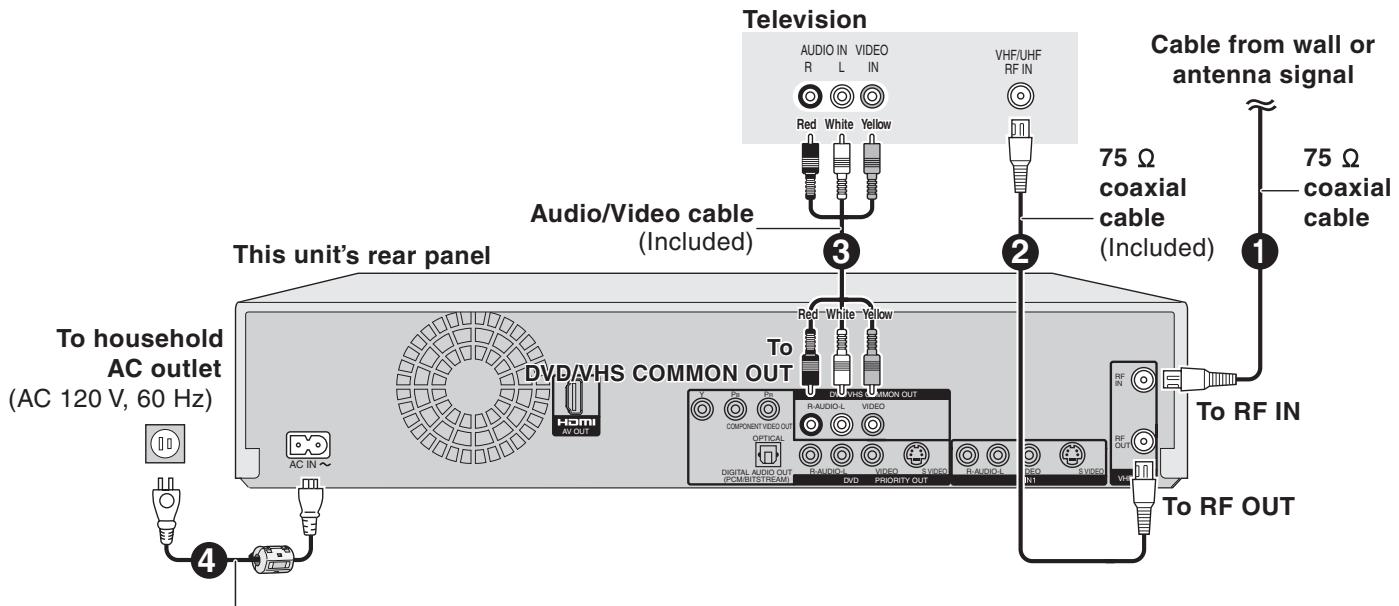
Cordon d'alimentation secteur (fourni) Ne connectez qu'après avoir terminé toutes les autres connexions.
B Connexion avec un téléviseur et un décodeur câble ou un récepteur satellite
Si le connecteur d'antenne ne correspond pas
Utilisez l'une des connexions suivantes pour adapter le câble d'antenne à la borne RF IN de l'appareil, et le câble coaxial 75 Ω aux bornes d'antenne de l'équipement (téléviseur, etc.). Reportez-vous aux instructions d'utilisation de l'autre équipement.
| Other antenna connections to the unit | Other antenna connections to the television | |
■A single twin leadfrom the antennae(Flat) Twin lea300 Ω cable 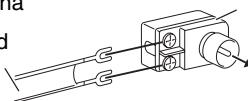 | 300–75 Ω transformerTo this unit's RF IN terminal | ■A twin lead terminal75–300 Ω tra75 Ω coaxial cable 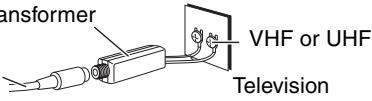 |
■A twin lead and a coaxial cablefrom the antenna(Flat) Twin lead 30 (Round)75 Ω coaxial 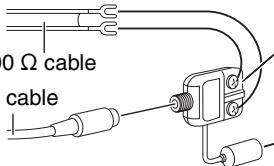 | YHF/UHF band mixerTo this unit's RF IN terminal | ■A twin lead and coaxial plug terminalVHF/UHF b75 Ω coaxial cable 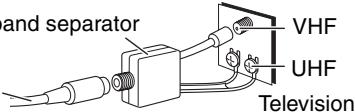 |
■Two twin leadsfrom the antenna(Flat) Twi300 Ω cal 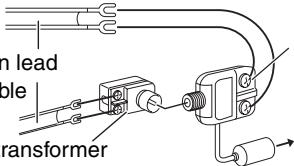 300–75 Ω t 300–75 Ω t | VHF/UHF band mixerTo this unit's RF IN terminal | ■Two twin lead terminalsVHF/UHF ba75 Ω coaxial cable 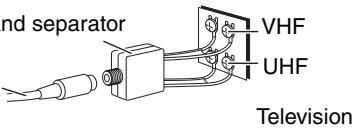 |
Sortie DVD et sortie DVD/VHS
L'appareil dispose de bornes de sortie DVD/VHS COMMUNES et de bornes de sortie DVD PRIORITAIRES.
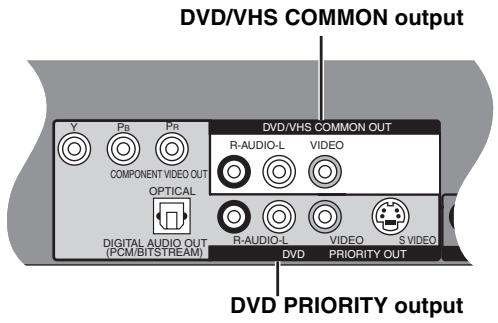
SORTIE COMMUNE DVD/VHS
- Pour les bornes de sortie communes DVD/VHS, les signaux DVD et VHS peuvent être émis.
- Vous pouvez également lire une cassette avec la borne de sortie PRIORITÉ DVD, sauf pendant l'enregistrement ou l'enregistrement programmé sur le DVD.
SORTIE PRIORITÉ DVD
Pour profiter d'une meilleure qualité d'image
■ Raccordement à la borne d'entrée S VIDEO du téléviseur
Borne de sortie S VIDEO
La borne de sortie S VIDEO produit une image plus nette que la borne de sortie VIDEO. (Les résultats réels dépendent du téléviseur.) Après avoir effectué le « Raccordement à un téléviseur » (→ 14) ou le « Raccordement à un téléviseur et à un câblosélecteur ou récepteur satellite » (→ 15), connectez le câble S VIDEO comme illustré ci-dessous. Normalement, vous pouvez regarder une image provenant de la borne d'entrée INPUT2. Lorsque vous souhaitez lire une cassette VHS tout en enregistrant sur le DVD, passez à la borne d'entrée INPUT1.
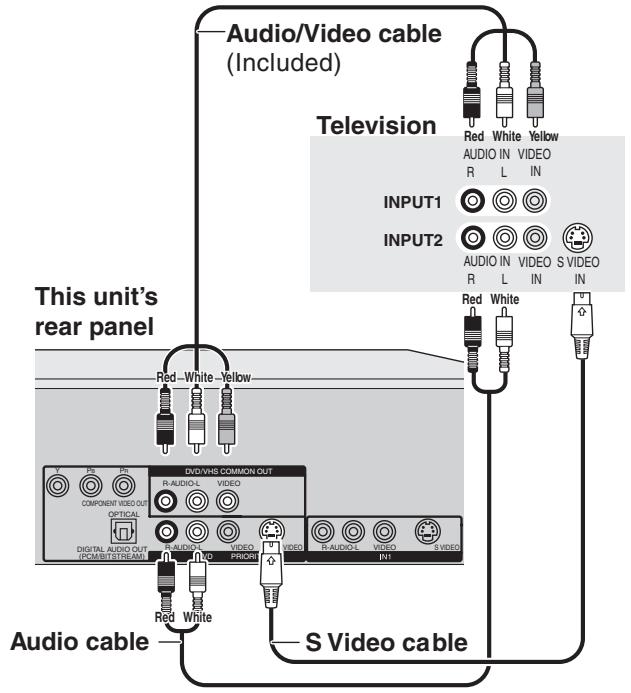
■ Raccordement aux bornes d'entrée COMPONENT VIDEO du téléviseur
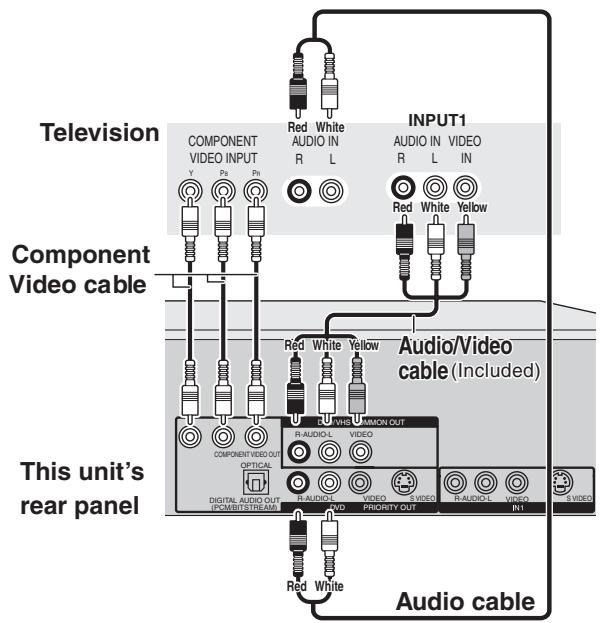
Borne de sortie COMPONENT VIDEO
Ces bornes peuvent être utilisées pour la sortie entrelacée ou progressive (→ 76) et offrent une image plus pure que la borne de sortie S VIDEO.
Après avoir effectué le « Raccordement à un téléviseur » (→ 14) ou le « Raccordement à un téléviseur et à un câblosélecteur ou récepteur satellite » (→ 15), connectez le câble COMPONENT VIDEO comme illustré ci-dessous. Normalement, vous pouvez regarder une image provenant de la borne d'entrée COMPONENT VIDEO. Lorsque vous souhaitez lire une cassette VHS tout en enregistrant sur le DVD, passez à la borne d'entrée INPUT1.
- Connectez aux bornes de la même couleur.
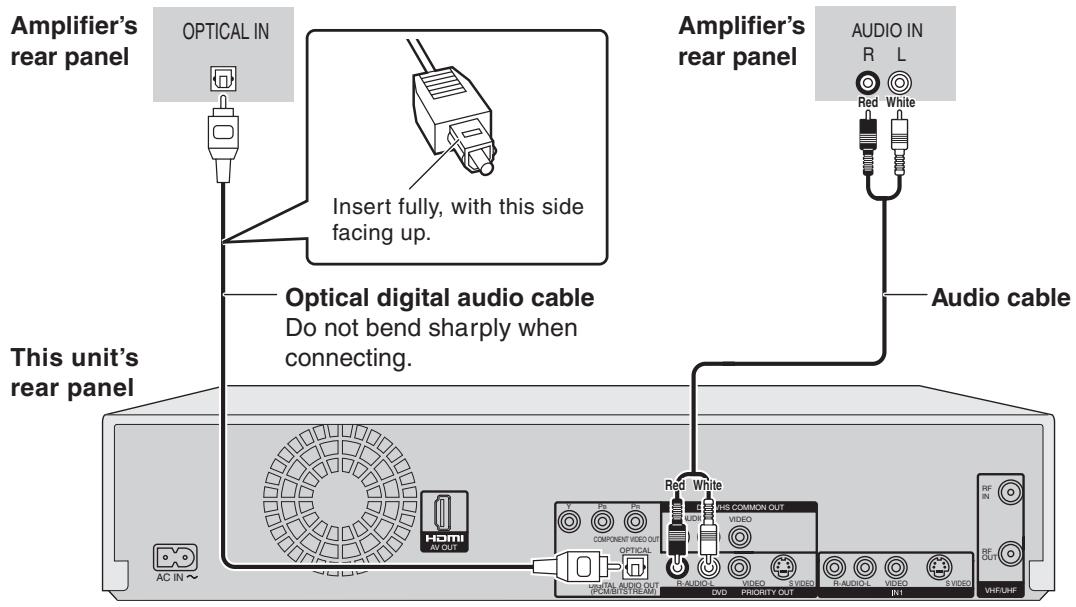
Raccordement d'un amplificateur ou d'un composant système
■ Raccordement d'un amplificateur avec une borne d'entrée numérique
- Pour profiter du son multicanal sur les DVD-Vidéo, connectez un amplificateur avec décodeur intégré affichant ces logos à l'aide d'un câble audio numérique optique et modifiez les réglages dans « Sortie audio numérique » (→ 64).
- Avant d'acheter un câble audio numérique optique (non fourni), vérifiez la forme de la borne de l'équipement connecté.
- Vous ne pouvez pas utiliser de décodeurs DTS Digital Surround non adaptés au DVD.
- Même en utilisant cette connexion, la sortie ne sera que de 2 canaux lors de la lecture de DVD-Audio.


Connexion avec un terminal HDMI (High Definition Multimedia Interface)
HDMI est l'interface de nouvelle génération pour les appareils numériques. Lorsqu'il est connecté à un appareil compatible HDMI, un signal audio et vidéo numérique non compressé est transmis. Vous pouvez profiter d'une vidéo et d'un audio numériques de haute qualité avec un seul câble. Lors de la connexion à un téléviseur HD (High Definition Television) compatible HDMI, la sortie peut être commutée en vidéo HD 1080i ou 720p.
Réglez les éléments suivants :
Dans le menu de configuration ( → 65), réglez « HDMI Video Output » et « HDMI Audio Output » sur « On ».
- Veuillez utiliser des câbles HDMI portant le logo HDMI (comme indiqué sur la couverture).
■ Connexion à un téléviseur
Téléviseur Cet appareil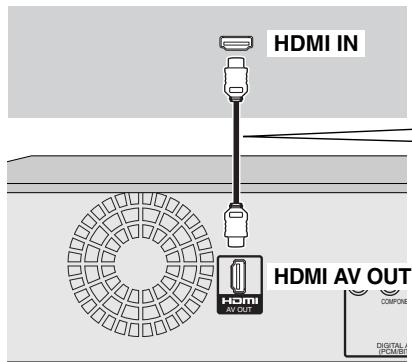
- Si vous connectez un équipement incompatible avec CPPM (Content Protection for Prerecorded Media, → 76), les DVD-Audio protégés contre la copie ne peuvent pas être émis via le terminal HDMI. Connectez les câbles audio (rouge, blanc) aux bornes d'entrée audio correspondantes.
- Si vous connectez un équipement compatible uniquement avec une sortie 2 canaux, l'audio avec 3 canaux ou plus sera réduit ( → 76) et émis en 2 canaux. (Certains disques ne peuvent pas être réduits.)
- Pour les appareils compatibles avec la protection des droits d'auteur HDCP (High-Bandwidth Digital Content Protection) équipés d'une borne d'entrée DVI numérique (moniteurs PC, etc.) :
Selon l'appareil, les images peuvent ne pas s'afficher correctement ou pas du tout lors de la connexion avec un câble de commutation DVI/HDMI. (L'audio ne peut pas être émis.)
■ Connexion à un amplificateur
Téléviseur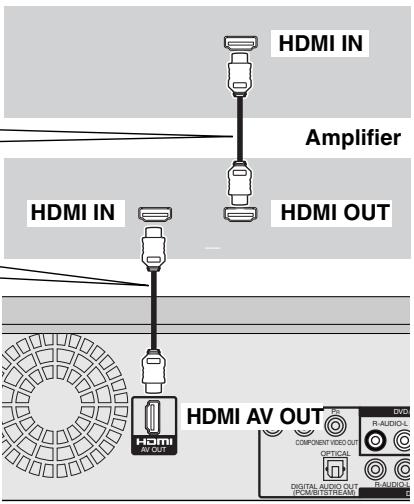
- Si la configuration des enceintes ne peut pas être effectuée sur l'amplificateur, utilisez alors le réglage « Réglage des enceintes pour connexion HDMI » (→ 65).
- Si vous connectez un équipement incompatible avec CPPM (protection du contenu pour supports préenregistrés, → 76), l'audio DVD-Audio protégé par copie ne peut pas être émis via la borne HDMI. Connectez l'amplificateur avec un câble optique numérique ou des câbles audio (rouge et blanc).
Commande via HDMI (Commande HDAVI)
Si vous connectez un téléviseur Panasonic doté de la fonction Commande HDAVI, vous pouvez utiliser cette fonction pratique pour commander à la fois l'enregistreur et le téléviseur.
Après avoir connecté l'appareil à un téléviseur à l'aide d'un câble HDMI, réglez « Commande via HDMI » sur « Activée ». (→ 65)
- Il est recommandé d'utiliser un câble HDMI Panasonic.
Numéro de pièce recommandé : RP-CDHG15 (1,5 m), RP-CDHG30 (3,0 m), RP-CDHG50 (5,0 m), etc.
- Selon le câble utilisé, cette fonction peut ne pas être disponible.
Pour que la connexion soit établie et activée correctement, allumez tous les équipements compatibles Commande HDAVI et sélectionnez le canal d'entrée de cet appareil sur le téléviseur connecté. De plus, lorsque la connexion ou les réglages sont modifiés, répétez cette procédure.
Commutation automatique des entrées
Lorsque les opérations suivantes sont effectuées, le téléviseur commute automatiquement le canal d'entrée et affiche l'action correspondante.
- Lorsque la lecture démarre sur l'appareil
- Lorsqu'une action utilisant l'écran d'affichage est effectuée (par exemple, l'écran Direct Navigator, l'écran de programmation d'enregistrement)
Remarque
- Lorsque l'appareil enregistre sur le lecteur DVD, la sortie ne commute pas automatiquement même si vous utilisez le VHS.
Liaison mise sous tension
Le téléviseur s'allume automatiquement et l'affichage correspondant apparaît lorsque les opérations suivantes sont effectuées alors que le téléviseur est en mode veille.
- Lorsque la lecture démarre sur l'appareil
- Lorsqu'une action utilisant l'écran d'affichage est effectuée (par exemple, l'écran Direct Navigator, l'écran d'enregistrement programmé)
Remarque
- Lorsque l'appareil enregistre sur le lecteur DVD, le téléviseur ne s'allume pas automatiquement même si vous utilisez le magnétoscope.
Liaison mise hors tension
Lorsque le téléviseur est éteint, cet appareil s'éteint également automatiquement. L'appareil s'éteint automatiquement même si l'écran FUNCTIONS, le message d'état ou le menu à l'écran est affiché, pendant la lecture ou lorsque l'appareil est uniquement en enregistrement programmé.
Remarque
- Même si le téléviseur est éteint, l'appareil ne s'éteindra pas en même temps dans les conditions suivantes :
- Lorsque vous avez appuyé sur [●, REC] et que l'appareil enregistre
- Lors de la copie
- Lors de la finalisation
Pour référence
- Lorsque [▶, PLAY] est enfoncé sur cet appareil pour la « commutation automatique d'entrée » ou la « liaison mise sous tension », la lecture n'est pas immédiatement affichée à l'écran et il peut être impossible de regarder le contenu à partir du début de la lecture. Dans ce cas, appuyez sur [◀◀, SKIP] ou [◀◀, SLOW/SEARCH] pour revenir au début de la lecture.
- Lorsque la borne SORTIE AUDIO NUMÉRIQUE (Optique) est utilisée pour la sortie audio et que l'appareil est connecté au téléviseur avec un câble HDMI, réglez « Sortie audio HDMI » sur « Désactivé » dans le menu de configuration. (→ 65)
Équipements compatibles et équipements prévus pour être compatibles avec HDAVI Control (en janvier 2006).
Téléviseurs plasma : TH-42/50/58PX600, TH-37/42/50PX60, TH-58PX60, TH-42PD60, TH-42/50PX6
Téléviseurs LCD : TC-26/32LX600, TC-23/26/32LX60, TC-26/32LE60
Téléviseurs à projection LCD :
PT-52/56/61LCX66
Amplificateur : SA-XR57P
* La fonction HDAVI Control ne fonctionnera que si vous pouvez connecter cet appareil à un équipement Panasonic doté de la fonction HDAVI Control.
Avant d'acheter l'équipement, confirmez qu'il dispose de la fonction HDAVI Control.
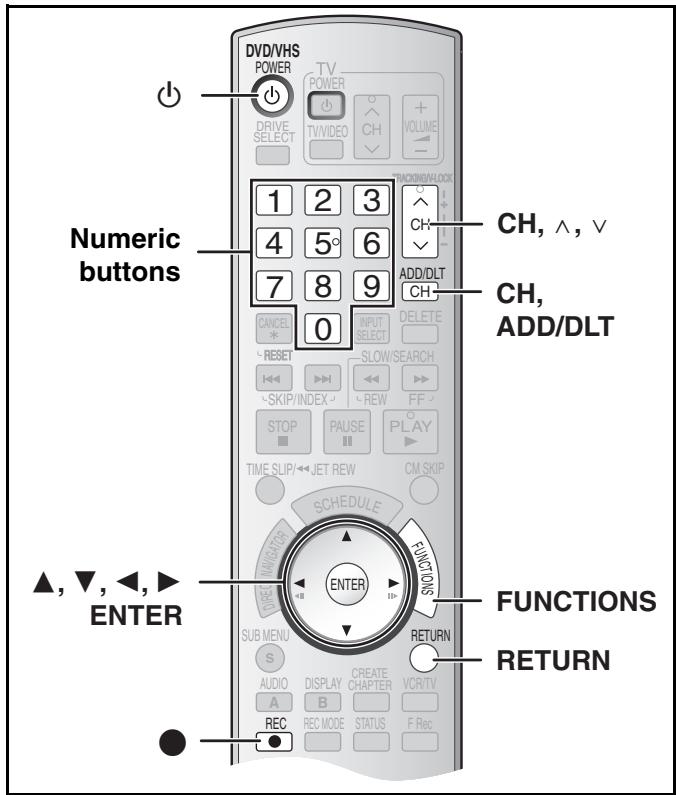
Après avoir branché l'appareil sur une prise secteur et appuyé sur [⏻, DVD/VHS POWER] pour allumer l'appareil pour la première fois, l'appareil vous aide à régler la langue à l'écran, syntonise automatiquement toutes les chaînes qu'il peut recevoir et règle l'horloge.
L'appareil détermine automatiquement le type de transmission (ondes ou câble) et les classe dans les chaînes comme suit.
| Band | Channel | |
| Antenna Mode (Airwaves) | VHF | 2 to 13 |
| UHF | 14 to 69 | |
| CableTV Mode (Cable) | VHF | 2 to 13 |
| CATV LOW BAND | 95 to 99 | |
| CATV MID/SUPER BAND | 14 to 36 | |
| CATV HYPER BAND | 37 to 65 | |
| ULTRA BAND | 66 to 94100 to 125 | |
| SPECIAL CATV CHANNEL | 1 |
Concernant l'heure d'été (DST) (→ 19)
Une révision légale devrait modifier la période de l'heure d'été en 2007. Si vous utilisez l'appareil avec l'heure d'été activée, ce changement peut faire retarder l'horloge de l'appareil par rapport à l'heure réelle. Vérifiez le réglage de l'heure d'été dans le menu de configuration, réglez l'heure d'été sur désactivé et réinitialisez l'horloge avec précision si vous utilisez cette fonction.
Préparation
- Allumez le téléviseur et sélectionnez l'entrée vidéo appropriée correspondant aux connexions de l'appareil. (Exemple : entrée AV, CH3 ou CH4)
- Si vous connectez l'appareil via un décodeur câble ou un récepteur satellite (→ 15), réglez sur votre chaîne PBS locale pour que le réglage automatique de l'horloge fonctionne. S'il n'y a pas de PBS local, réglez l'horloge manuellement (→ 19, « Réglage manuel de l'horloge »).
1 Appuyez sur [⏻, DVD/VHS POWER].
2 Appuyez sur [CH, ∧, ∨] pour sélectionner un numéro de canal de sortie RF.
Connexion (sans câble audio/vidéo) :
Sélectionnez « CH3 » ou « CH4 » qui affiche l'écran à droite. Connexion (avec câble audio/vidéo) :
Sélectionnez « OFF ».
L'affichage de l'appareil
L'affichage de l'appareil
Chaque fois que vous appuyez sur le bouton :
CH 3 (réglage par défaut) ↔ CH4 ↔ OFF
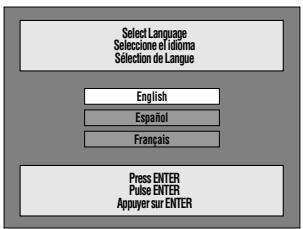
3 Utilisez [▲, ▼] pour sélectionner la langue et appuyez sur [ENTER].
4 Appuyez sur [▲, ▼] pour sélectionner « TV 4:3 » ou « TV 16:9 » et appuyez sur [ENTER].
5 Appuyez sur [▲, ▼] pour sélectionner « On » ou « Off » et appuyez sur [ENTER].
Si vous activez la fonction « Quick Start », sélectionnez « On ».
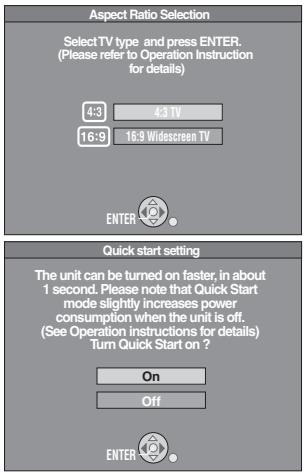
À propos de la fonction « Quick Start »
Si vous réglez Démarrage rapide sur Activé, vous pouvez commencer l'enregistrement sur DVD-RAM environ 1 seconde après avoir appuyé sur [☐, ALIMENTATION DVD/VHS] pour allumer l'appareil, puis appuyé successivement sur [●, ENR]. Voici ce qui se passe lorsque vous avez sélectionné « Activé ».
- La consommation d'énergie en mode veille augmente car l'alimentation est fournie à l'appareil.
6 Appuyez sur [▲, ▼] pour sélectionner « Tuner TV interne » ou « Entrée » et appuyez sur [ENTRÉE].
Si vous ne réglez pas les chaînes sur cet appareil, sélectionnez « Entrée ». L'appareil affiche alors l'écran « Régler l'horloge manuellement ».
Réglez l'horloge manuellement. ( → 19)
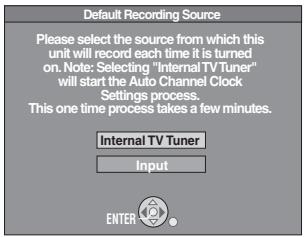
7 Appuyez sur [ENTRÉE] pour démarrer le réglage automatique Plug-in.
- L'appareil procède ensuite au réglage automatique de l'horloge. L'heure s'affiche lorsque le réglage automatique de l'horloge est terminé.
![graph LR A["Set Channels Automatically"] --> B["Ch. 1"] B --> C["Set Channels Automatically Proceeding . . ."] C --> D["→"] D --> E["Set Clock Automatically"] E --> F["Auto Clock Setting is complete."] F --> G["4/4/2007 12:15 AM\nDST---- On\nTime Zone---- CST"]](/content/2019/10/56204/images/7a5e7928d28a0e02120639086291a556b4f50909a7b9c6ae510c210203a3b73a.jpg)
- DST, heure d'été, affiche le réglage de l'heure d'été.
- Fuseau horaire affiche le décalage horaire par rapport à l'heure moyenne de Greenwich (GMT).
EST (heure normale de l'Est) = GMT -5
CST (heure normale du Centre) = GMT -6
MST (heure normale des Rocheuses) = GMT -7
PST (heure normale du Pacifique) = GMT -8
AST (heure normale de l'Alaska) = GMT -9
HST (heure normale d'Hawaï) = GMT -10
Pour les autres zones : xx h
■ Lorsque l'un des écrans suivants apparaît
"Aucune chaîne n'a été trouvée."
Après avoir éteint l'appareil, vérifiez les points suivants et effectuez à nouveau la configuration.
- Vérifiez que le câble d'antenne est fermement connecté à la borne RF IN.
- Si vous ne réglez pas les chaînes sur cet appareil, sélectionnez "Entrée" à l'étape 6.
"Le réglage automatique de l'horloge est incomplet."
Appuyez sur [ENTER] et réglez l'horloge manuellement. ( → 19)
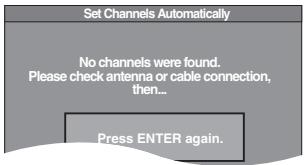
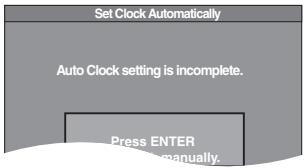
8 Appuyez sur [ENTER].
■ Si l'horloge est en avance ou en retard d'une heure par rapport à l'heure réelle
Sélectionnez "-1" ou "+1" dans "Ajuster le fuseau horaire" dans le menu de configuration ( → 63).
■ Redémarrer l'accord automatique Plug-in (après un déménagement, par exemple)
La source du signal, le canal de sortie RF et la légende du canal reviennent aux valeurs par défaut lorsque vous effectuez la procédure ci-dessous.
Les réglages d'enregistrement programmé sont également effacés.
Lorsque l'appareil est allumé et en arrêt
1 Maintenez enfoncés [CH, ∧] et [CH, ∨] sur l'unité principale pendant environ 5 secondes.
L'unité s'éteint.
2 Appuyez sur [⏻, DVD/VHS POWER] pour allumer l'unité.
La recherche automatique des chaînes démarre.
■ Redémarrer le réglage automatique des chaînes
1 À l'arrêt, appuyez sur [FUNCTIONS].
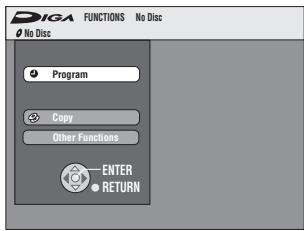
2 Sélectionnez « Autres fonctions » avec [▲, ▼] et appuyez sur [ENTER].
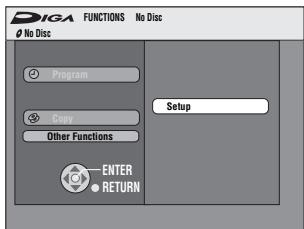
3 Sélectionnez « Configuration » avec [▲, ▼] et appuyez sur [ENTER].
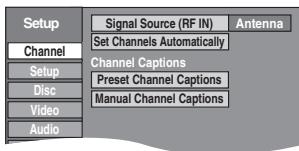
4 Sélectionnez « Chaîne » avec [▲, ▼] et appuyez sur [◀, ▶].
5 Sélectionnez « Source du signal (RF IN) » avec [▲, ▼] et appuyez sur [ENTER].
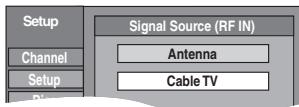
6 Sélectionnez « Antenne » ou « Câble » avec [▲, ▼] et appuyez sur [ENTER].
7 Sélectionnez « Régler les chaînes automatiquement » avec [▲, ▼] et appuyez sur [ENTER].
8 Appuyez sur [ENTER].
● Le réglage automatique des chaînes démarre. Cela prend quelques minutes.
9 Appuyez sur [ENTRÉE].
■ Pour annuler en cours de route
Appuyez sur [RETOUR].
■ Pour quitter l'écran
Appuyez sur [RETOUR].
■ Ajout et suppression de chaînes
Ajoutez ou supprimez des chaînes si des chaînes nécessaires ne sont pas réglées ou si des chaînes inutiles sont réglées.
1 Appuyez sur les touches numériques pour sélectionner une chaîne.
Mode Antenne (ondes hertziennes)
par ex., « 5 » : [0]→[5]
« 15 » : [1]→[5]
Mode Câble (télévision par câble)
par ex., « 5 » : [0]→[0]→[5] « 15 » : [0]→[1]→[5] « 115 » : [1]→[1]→[5]
L'afficheur de l'appareil

- Vous pouvez également utiliser [CH, , ] pour sélectionner un canal.
2 Appuyez sur [CH, ADD/DLT].
Par exemple, le canal est supprimé.
Canal 15 supprimé
■ Régler l'horloge manuellement
Les « Réglages de l'horloge » effectués ici s'appliquent également au magnétoscope.
1 À l'arrêt, appuyez sur [FUNCTIONS].
2 Sélectionnez « Autres fonctions » avec [▲, ▼] et appuyez sur [ENTER].
3 Sélectionnez « Configuration » avec [▲, ▼] et appuyez sur [ENTER].
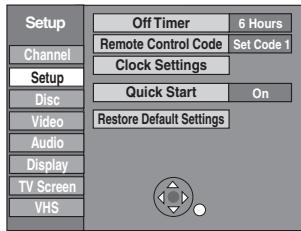
4 Sélectionnez « Configuration » avec [▲, ▼] et appuyez sur [◀, ▶]. 5 Sélectionnez « Réglages de l'horloge » avec [▲, ▼] et appuyez sur [ENTER].
6 Sélectionnez « Régler l'horloge manuellement » avec [▲, ▼] et appuyez sur [ENTER].
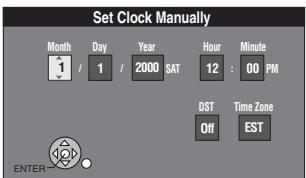
7 Utilisez [◀, ▶] pour sélectionner l'élément à modifier, et [▲, ▼] pour changer le réglage.
- DST (heure d'été) : Activé ou Désactivé Si vous sélectionnez « Activé », l'horloge avance d'une heure à partir de 2 h du matin le premier dimanche d'avril et se termine à 2 h du matin le dernier dimanche d'octobre.
- Fuseau horaire (→ 22)
8 Appuyez sur [ENTER].
- L'horloge démarre. - Lorsque vous changez de fuseau horaire, les heures d'enregistrement des titres enregistrés avant le changement de fuseau horaire sont également modifiées pour correspondre au nouveau fuseau horaire.
■ Pour revenir à l'écran précédent
Appuyez sur [RETURN].
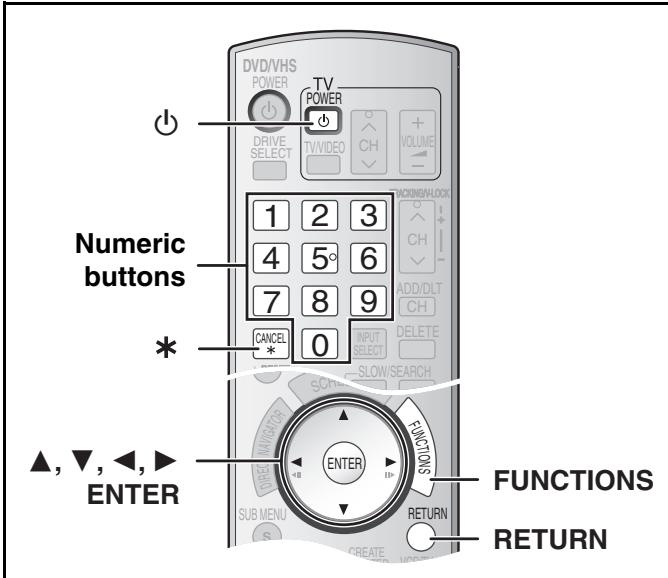
Légendes des chaînes
Vous pouvez utiliser les légendes prédéfinies ou en saisir manuellement de nouvelles.
Les légendes que vous saisissez sont utilisées comme noms de chaînes et affichées sur l'écran Direct Navigator.
1 À l'arrêt, appuyez sur [FUNCTIONS]. 2 Sélectionnez "Autres fonctions" avec [▲, ▼] et appuyez sur [ENTER]. 3 Sélectionnez "Configuration" avec [▲, ▼] et appuyez sur [ENTER]. 4 Sélectionnez "Chaîne" avec [▲, ▼] et appuyez sur [◀, ▶].
- Passez à l'élément suivant à régler.
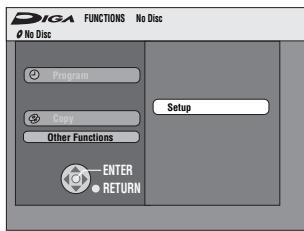
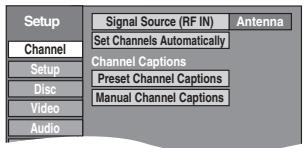
■ Légendes de chaînes prédéfinies
- Suivez les étapes 1 à 4 de "Légendes des chaînes". 5 Sélectionnez "Légendes de chaînes prédéfinies" avec [▲, ▼] et appuyez sur [ENTER]. 6 Utilisez [▲, ▼] pour sélectionner la légende et appuyez sur [▶].
Vous pouvez choisir parmi les légendes suivantes.
ABC, PBS, CBS, CNN, FOX,
ESPN, NBC, HBO, A&E, AMC, FAM, MAX, MTV, SHOW, TBS, USA, TNT, CBC, UPN, CTV, WB, TSN, DSC, GLOB
- Lors de la sélection de la légende, maintenez enfoncés [▲, ▼] pour faire défiler rapidement l'écran vers le haut ou le bas.
7 Utilisez [▲, ▼] pour sélectionner la chaîne correspondant à la légende et appuyez sur [◀].
- Les chaînes ne sont affichées que si elles contiennent une station et si des sous-titres n'ont pas été ajoutés manuellement.
- Pour supprimer le numéro de chaîne, appuyez sur [*, CANCEL].
- Répétez les étapes 6 et 7 si nécessaire.
8 Appuyez sur [ENTER].
■ Pour revenir à l'écran précédent, appuyez sur [RETURN]. ■ Pour quitter l'écran, appuyez sur [RETURN].
■ Sous-titres de chaîne manuels
- Suivez les étapes 1 à 4 de « Sous-titres de chaîne ».
5 Sélectionnez « Sous-titres de chaîne manuels » avec [▲, ▼] et appuyez sur [ENTER]. 6 Utilisez [▲, ▼] pour sélectionner la chaîne et appuyez sur [▶].
- Les chaînes ne sont affichées que si elles contiennent une station et si des sous-titres prédéfinis n'ont pas été ajoutés.
7 Utilisez [▲, ▼] pour sélectionner le premier caractère et appuyez sur [▶].
- Vous pouvez choisir parmi les caractères suivants : A à Z, 0 à 9, -, &, !, /, (espace)
- Pour supprimer le sous-titre, appuyez sur [*, CANCEL].
- Répétez cette étape pour saisir les autres caractères.
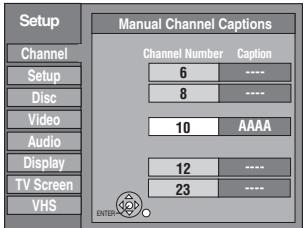
8 Utilisez [◀, ▶] pour revenir à la colonne « Numéro de chaîne ».
- Répétez les étapes 6 à 8 pour saisir d'autres chaînes.
9 Appuyez sur [ENTER].
■ Pour revenir à l'écran précédent
Appuyez sur [RETURN].
■ Pour quitter l'écran
Appuyez sur [RETURN].
Sélection du type de téléviseur
Vous n'avez pas besoin de modifier le réglage lorsque vous êtes connecté à un téléviseur standard 4:3 qui n'est pas compatible avec la sortie progressive. (→ 76)
1 À l'arrêt, appuyez sur [FUNCTIONS]. 2 Sélectionnez « Autres fonctions » avec [▲, ▼] et appuyez sur [ENTER]. 3 Sélectionnez « Configuration » avec [▲, ▼] et appuyez sur [ENTER]. 4 Sélectionnez « Écran TV » avec [▲, ▼] et appuyez sur [◀, ▶]. 5 Sélectionnez « Type de TV » avec [▲, ▼] et appuyez sur [ENTER].
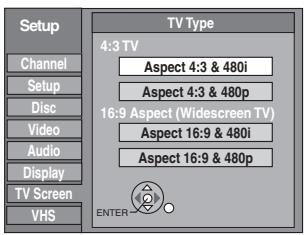
- Format 4:3 / Format 16:9 :
Téléviseur standard 4:3
Téléviseur grand écran 16:9
- 480p/480i :
Sélectionnez « 480p » si le téléviseur est compatible avec la sortie progressive.
6 Utilisez [▲, ▼] pour sélectionner l'élément et appuyez sur [ENTER].
■ Pour revenir à l'écran précédent
Appuyez sur [RETURN].
■ Pour quitter l'écran
Appuyez sur [RETURN].
Fonctionnement du téléviseur
Pour allumer/éteindre le téléviseur, changer le mode d'entrée TV, sélectionner la chaîne TV et régler le volume TV à l'aide de cette télécommande, réglez la télécommande comme suit.
Pointez la télécommande vers le téléviseur.
Tout en appuyant sur [☐, POWER TV], saisissez le code à l'aide des touches numériques.
Ex. : 0250 : appuyez sur [0] → [2] → [5] → [0].
Fabricant et numéro de code
| Panasonic National QUASAR | 0051, 0250 | PHILIPS (RC-5) | 0054 |
| RCA | 0047 | ||
| SAMSUNG | 0060, 0587, 0702 | ||
| FISHER | 0154 | SANYO | 0154 |
| GE | 0047 | SHARP | 0093, 0165 |
| GOLDSTAR | 0178, 0317, 0457 | SONY | 0000 |
| HITACHI | 0145 | SYLVANIA | 0054 |
| JVC | 0053 | THOMSON | 0047 |
| LG | 0178, 0317, 0457 | TOSHIBA | 0156 |
| MAGNAVOX | 0054 | ZENITH | 0017 |
| MITSUBISHI | 0150 |
- Testez en allumant le téléviseur et en changeant de chaîne. Répétez la procédure jusqu'à ce que vous trouviez le code qui permet un fonctionnement correct.
- Si votre marque de téléviseur n'est pas répertoriée ou si le code indiqué pour votre téléviseur ne permet pas de le contrôler, cette télécommande n'est pas compatible avec votre téléviseur.
Lorsque d'autres produits Panasonic répondent à cette télécommande
Changez le code de la télécommande sur l'unité principale et sur la télécommande (les deux doivent correspondre) si vous placez d'autres produits Panasonic à proximité. Lors du changement du code de la télécommande, assurez-vous que les deux codes sont identiques.
Utilisez « 1 », le code réglé en usine, dans des conditions normales.
1 À l'arrêt, appuyez sur [FUNCTIONS]. 2 Sélectionnez « Autres fonctions » avec [▲, ▼] et appuyez sur [ENTER]. 3 Sélectionnez « Configuration » avec [▲, ▼] et appuyez sur [ENTER]. 4 Sélectionnez « Configuration » avec [▲, ▼] et appuyez sur [◀, ▶]. 5 Sélectionnez « Code de télécommande » avec [▲, ▼] et appuyez sur [ENTER]. 6 Utilisez [▲, ▼] pour sélectionner le code (1, 2 ou 3) et appuyez sur [ENTER].
● Le code sur l'appareil a été défini.
7 Tout en appuyant sur [ENTER], maintenez enfoncée pendant environ 2 secondes la touche numérique ([1], [2] ou [3]) correspondant au code sélectionné à l'étape 6.
● Le code sur la télécommande a été défini.
8 Appuyez sur [ENTER].
■ Lorsque l'indicateur suivant apparaît sur l'écran de l'appareil

Le code de télécommande de l'appareil
Modifiez le code sur la télécommande pour qu'il corresponde au code de l'unité principale (→ étape 7).
■ Pour revenir à l'écran précédent
Appuyez sur [RETURN].
■ Pour quitter l'écran
Appuyez sur [RETURN].
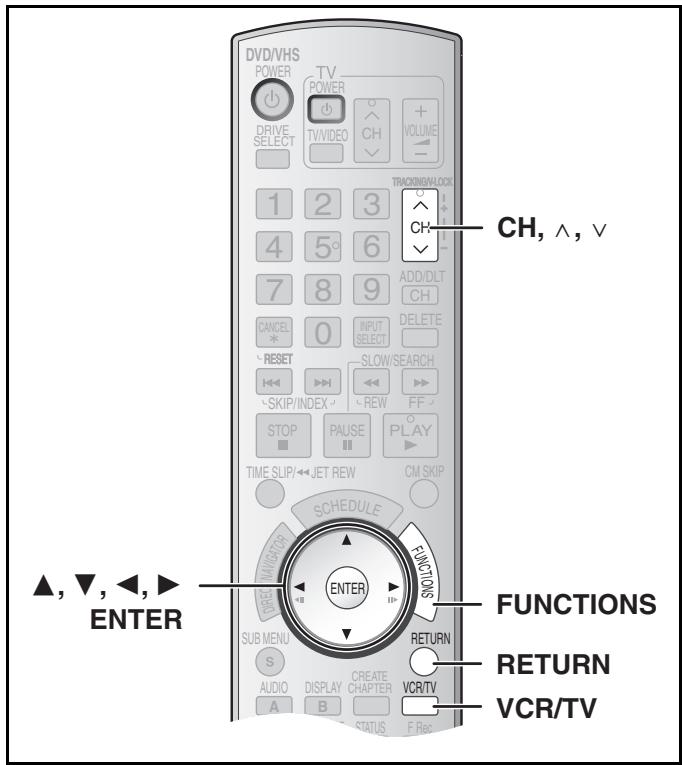
Réglages de l'horloge
Les « Réglages de l'horloge » effectués ici s'appliquent également au VHS.
1 À l'arrêt, appuyez sur [FUNCTIONS].
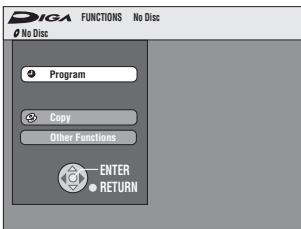
2 Sélectionnez « Autres fonctions » avec [▲, ▼] et appuyez sur [ENTER].
3 Sélectionnez « Setup » avec [▲, ▼] et appuyez sur [ENTER].
4 Sélectionnez « Setup » avec [▲, ▼] et appuyez sur [◀, ▶].
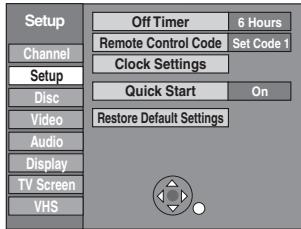
5 Sélectionnez « Clock Settings » avec [▲, ▼] et appuyez sur [ENTER].
■ Réglage automatique de l'horloge
6 Sélectionnez « Set Clock Automatically » avec [▲, ▼] et appuyez sur [ENTER].
7 Appuyez sur [ENTER].
- Le réglage automatique démarre. Cela peut prendre un certain temps, jusqu'à quelques heures dans certains cas. L'écran suivant apparaît lorsque le réglage est terminé.
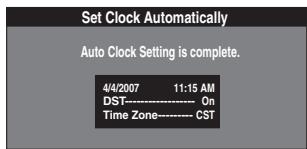
- Si l'heure n'a pas été réglée correctement, utilisez le réglage manuel de l'horloge ou le réglage du fuseau horaire.
- DST (heure d'été) affiche le réglage de l'heure d'été.
- Fuseau horaire affiche la différence de temps par rapport à l'heure moyenne de Greenwich (GMT).
EST (heure normale de l'Est) = GMT -5
CST (heure normale du Centre) = GMT -6
MST (heure normale des Rocheuses) = GMT -7
PST (heure normale du Pacifique) = GMT -8
AST (heure normale de l'Alaska) = GMT -9
HST (Hawaii Standard Time) = GMT -10
Pour les autres zones : xx h
8 Appuyez sur [ENTRÉE].
■ Pour annuler en cours de saisie
Appuyez sur [RETOUR].
■ Réglage du fuseau horaire
- Suivez les étapes 1 à 5 de « Réglage de l'horloge ».
Réglez le fuseau horaire (-1 ou +1) s'il n'a pas été défini correctement avec le réglage automatique de l'horloge.
Vous ne pouvez régler ce menu qu'après avoir terminé « Régler l'horloge automatiquement ».
6 Sélectionnez « Régler le fuseau horaire » avec [▲, ▼] et appuyez sur [ENTRÉE].
7 Sélectionnez « -1 » ou « +1 » avec [▲, ▼] et appuyez sur [ENTRÉE].
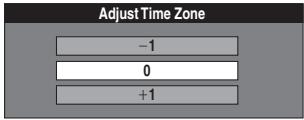
■ Pour revenir à l'écran précédent
Appuyez sur [RETOUR].
Suppression des interférences
Connexion (sans câble audio/vidéo) uniquement
Écran TV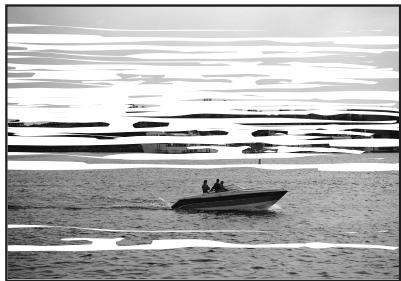
Image avec interférences
Dans certains cas, des interférences (lignes ou motifs) ou une image de très mauvaise qualité peuvent apparaître sur le téléviseur lorsque l'enregistreur DVD est connecté. Si cela se produit, suivez les étapes ci-dessous pour modifier le canal de sortie vidéo (canal de sortie RF) afin d'éliminer les interférences.
1 Appuyez sur [FONCTIONS] pendant plus de 5 secondes.
Le numéro du canal de sortie RF s'affiche sur l'écran de l'appareil.
2 Appuyez sur [CH, ∧, ∨] pour sélectionner un numéro de canal (CH3 ou CH4).
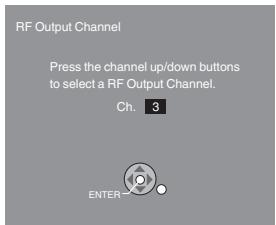
L'écran de l'appareil
L'écran de l'appareil
Chaque pression sur le bouton :
CH 3 (réglage par défaut) ↔ CH4 ↔ OFF

- Réglez le canal de sortie RF de l'enregistreur DVD sur "OFF" (RF OFF) lorsque l'enregistreur DVD est connecté au téléviseur via le câble audio/vidéo.
3 Appuyez sur [ENTRÉE] pour terminer ce réglage.
L'image claire
■ Lorsque vous réglez le canal de sortie RF sur "CH3" ou "CH4"
Une image est émise sur CH3 ou CH4 à partir de la sortie RF.
Appuyez sur [VCR/TV] pour passer du mode TV au mode VCR, et vice versa.
- Lorsque le mode TV est sélectionné, le témoin « TV » s'allume sur l'afficheur de l'appareil et vous pouvez regarder la télévision.
- Lorsque le témoin « TV » n'est pas allumé, le mode VCR est sélectionné et vous pouvez regarder les images provenant de l'appareil.
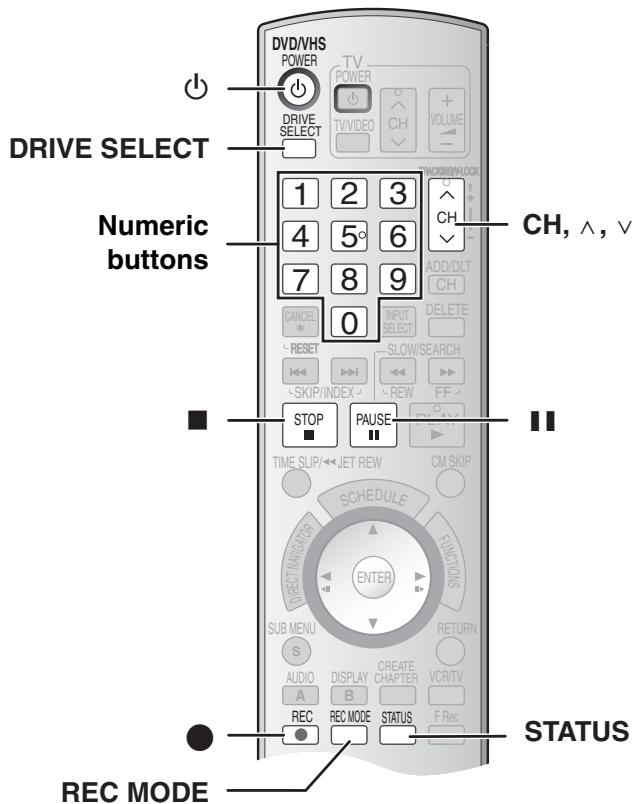
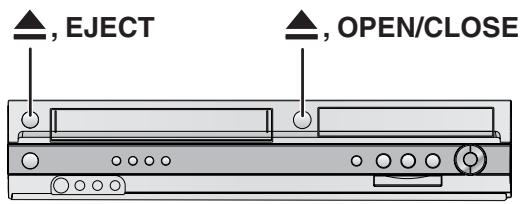
Insertion des disques
1 Appuyez sur [▲, OPEN/CLOSE] sur l'appareil principal pour ouvrir le plateau.
- Vous pouvez insérer un disque avec ou sans cartouche. 2 Appuyez sur [▲, OPEN/CLOSE] sur l'appareil principal pour fermer le plateau.
- Si vous insérez un DVD-RAM avec la languette de protection en écriture réglée sur « PROTECT » (→ 60), la lecture démarre automatiquement.
Remarques
- Un disque double face doit être chargé avec la face que vous souhaitez enregistrer/lire orientée vers le bas.
- Il n'est pas possible d'enregistrer en continu d'un côté d'un disque double face à l'autre. Vous devrez éjecter le disque et le retourner.
- Lorsque vous utilisez un DVD-RAM de 8 cm (3") ou un DVD-R de 8 cm (3"), retirez le disque de la cartouche.
Disque sans cartouche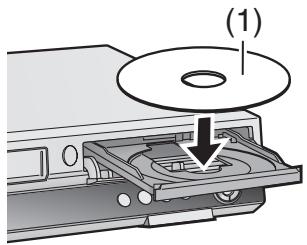
Disque avec cartouche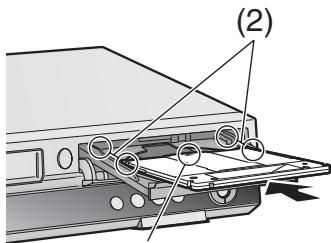
(3)
(1) Insérez l'étiquette vers le haut. (2) Insérez complètement jusqu'à ce qu'il s'enclenche. (3) Insérez l'étiquette vers le haut avec la flèche orientée vers l'intérieur.
Insertion d'une cassette vidéo
La surface sur laquelle vous pouvez voir la bande doit être orientée vers le haut. Insérez une cassette vidéo.
● L'appareil s'allume automatiquement.
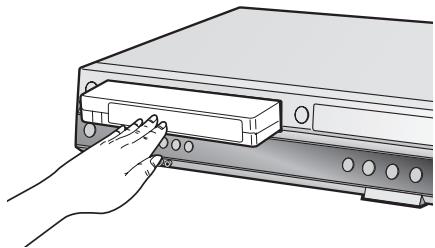
■ Pour éjecter une cassette vidéo
- Vous pouvez éjecter une cassette vidéo même lorsque l'appareil est en mode veille. Il revient en mode veille après avoir éjecté la cassette.
Pour l'unité principale
- Appuyez sur [▲, EJECT] sur l'unité principale. Pour la télécommande
- Appuyez sur [DRIVE SELECT] pour sélectionner le côté VHS, puis maintenez enfoncé [■, STOP] pendant environ 3 secondes ou plus.
Avant l'enregistrement
+RW
- Le menu de titres créé est supprimé lors de l'enregistrement sur le disque. Créez à nouveau le menu de titres en utilisant "Créer un menu DVD" dans la gestion DVD. (→ 62)
Le son principal ou SAP uniquement peut être enregistré pour les émissions MTS, lors de l'enregistrement sur DVD-R, DVD-R DL, DVD-RW (format DVD-Vidéo), +R, +R DL, +RW.
Si vous ne connectez pas de décodeur
- Sélectionnez "Principal" ou "SAP" dans "Son TV multicanal (MTS)" dans le menu de configuration. (→ 64) Si vous connectez un décodeur
- Sélectionnez "Principal" ou "SAP" sur le décodeur.
Procédures d'enregistrement
RAM -R -R DL -RW(V) +R +R DL +RW VHS
RAM -R -R DL -RW(V)
- Vous pouvez enregistrer jusqu'à 99 titres sur un disque.
+R +R DL +RW
- Vous pouvez enregistrer jusqu'à 49 titres sur un disque.
- Il n'est pas possible d'enregistrer des diffusions numériques qui autorisent « enregistrement unique » sur des disques DVD-R, DVD-R DL, DVD-RW, +R, +R DL, +RW ou DVD-RAM de 8 cm (3"). Utilisez un DVD-RAM compatible CPRM.
- L'enregistrement se fera sur l'espace libre du disque. Les données ne seront pas écrasées.
- S'il n'y a plus d'espace sur le disque d'enregistrement, vous devrez effacer les titres indésirables (→ 41, 59) ou utiliser un nouveau disque.
Lors de l'enregistrement sur DVD-R, DVD-R DL, DVD-RW (format DVD-Vidéo), +R, +R DL ou +RW
- Lors de l'enregistrement de diffusions MTS
- Si vous ne connectez pas de décodeur Sélectionnez « Main » ou « SAP » dans « Son TV multicanal (MTS) » dans le menu de configuration (→ 64).
- Si vous connectez un décodeur Sélectionnez « Main » ou « SAP » sur le décodeur. ● Le format d'image de l'enregistrement sera 4:3.
- Pour lire un DVD-R, DVD-R DL, DVD-RW (format DVD-Vidéo), +R ou +R DL enregistré avec cet appareil sur un autre lecteur, le disque doit d'abord être finalisé (→ 61).
- +RW Pour permettre la lecture sur d'autres équipements DVD, veuillez utiliser « Créer un menu DVD » dans le menu de gestion DVD (→ 62).
Préparation
- Retirez la protection contre l'effacement (disque → 60, cassette → 60). RAM
- Sélectionnez la chaîne de visualisation de l'unité (par exemple, entrée AV) sur le téléviseur.
- Sélectionnez le type audio que vous souhaitez enregistrer. (→ 27)
1 Appuyez sur [⏻, DVD/VHS POWER] pour allumer l'unité. 2 Appuyez sur [DRIVE SELECT] pour sélectionner le lecteur sur lequel vous souhaitez enregistrer (DVD ou VHS). 3 Insérez un disque. (→ 24)
- Lors de la première utilisation d'un DVD-RAM avec l'unité, formatez-le pour garantir un enregistrement précis (→ 61, « Suppression de tout le contenu d'un disque ou d'une carte – Format »).
ou
Insérez une cassette vidéo avec la languette de protection contre l'effacement intacte. (→ 24)
4 Appuyez sur [CH, ∧, ∨] pour sélectionner la chaîne.
- Pour sélectionner avec les touches numériques :

Mode antenne (ondes hertziennes)
par exemple, « 5 » : [0]→[5] « 15 » : [1]→[5]
Mode câble (télévision par câble)
par exemple, « 5 » : [0]→[0]→[5] « 15 » : [0]→[1]→[5] « 115 » : [1]→[1]→[5]
5 Appuyez sur [REC MODE] pour sélectionner le mode d'enregistrement.
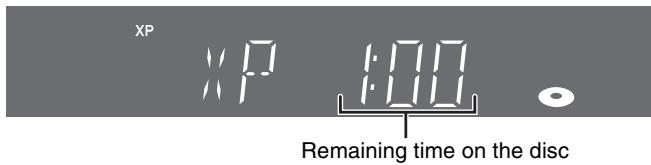
DVD
XP, SP, LP ou EP
VHS
SP, EP ou VP
6 Appuyez sur [●, REC] pour démarrer l'enregistrement.
XP

- Vous ne pouvez pas changer de chaîne ou de mode d'enregistrement pendant l'enregistrement. Vous pouvez les changer pendant que l'enregistrement est en pause, mais le matériel est enregistré comme un titre séparé.
■ Pour mettre l'enregistrement en pause
Appuyez sur [■, PAUSE]. (Appuyez à nouveau pour reprendre l'enregistrement.)
- Le titre n'est pas divisé en titres séparés. DVD
- Vous pouvez également appuyer sur [●, REC] pour reprendre l'enregistrement.
■ Pour arrêter l'enregistrement
Appuyez sur [■, STOP]. - Enregistré comme 1 titre jusqu'à la position où vous vous êtes arrêté. DVD - -R -R DL -RW(V) +R +R DL +RW
Il faut environ 30 secondes pour que l'appareil termine la gestion des informations d'enregistrement après la fin de l'enregistrement.
■ Pour afficher le temps restant
DVD
Appuyez plusieurs fois sur [STATUS]. (→ 40)
VHS
1 Sélectionnez « Sélectionner la durée de la cassette » dans le menu de configuration et choisissez la durée correspondante. (→ 65)
2 Appuyez plusieurs fois sur [STATUS].
Le temps de bande restant peut ne pas être affiché correctement selon la cassette utilisée.
Remarques
- Même si la cassette vidéo que vous utilisez est étiquetée « S-VHS », il n'est pas possible d'enregistrer en système S-VHS avec cet appareil. Il enregistre en système VHS normal. VHS
- Lorsque l'enregistrement est en pause pendant 5 minutes ou plus, l'appareil revient en mode arrêt. VHS
- Le temps de bande restant n'est affiché que pendant la lecture ou l'enregistrement. VHS
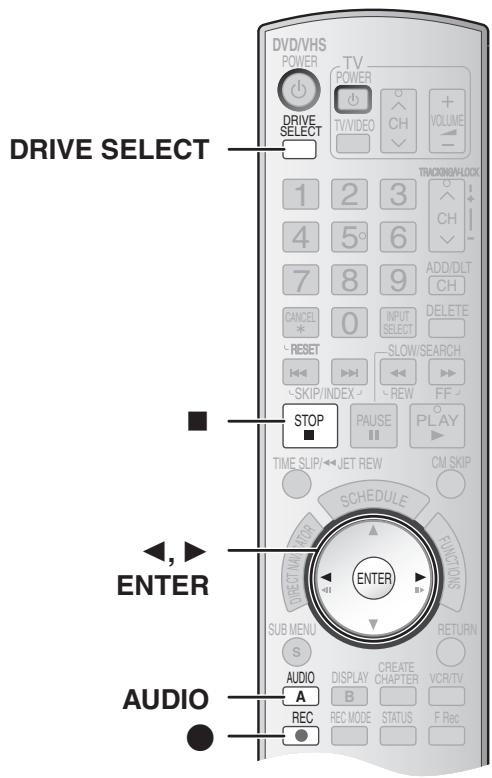
■ Modes d'enregistrement et durées d'enregistrement approximatives (DVD)
Selon le contenu enregistré, les durées d'enregistrement peuvent être plus courtes que celles indiquées.
| DVD-RAM | DVD-R DVD-RW +R, +RW (4.7 GB) | ||
| Single-sided (4.7 GB) | Double-sided*1 (9.4 GB) | ||
| XP (High quality) | 1 hour | 2 hours | 1 hour |
| SP (Normal) | 2 hours | 4 hours | 2 hours |
| LP (Long recording) | 4 hours | 8 hours | 4 hours |
| EP (Extra long recording) | 8 hours (6 hours*2) | 16 hours (12 hours*2) | 8 hours (6 hours*2) |
| FR (Flexible Recording) | 8 hours maximum | 8 hours maximum for one side | 8 hours maximum |
| DVD-R DL, +R DL*3(8.5 GB) | ||
| First layer | Second layer | |
| XP (High quality) | 55 minutes | 50 minutes |
| SP (Normal) | 1 hour 50 minutes | 1 hour 40 minutes |
| LP(Long recording) | 3 hours 40 minutes | 3 hours 20 minutes |
| EP (Extra long recording) | 7 hours 25 minutes(5 hours 30 minutes*2) | 6 hours 50 minutes(5 hours 15 minutes*2) |
| FR (Flexible Recording) | 7 hours 25 minutes maximum | 6 hours 50 minutes maximum |
Cet appareil utilise l'enregistrement à débit binaire variable (VBR) qui varie la quantité de données enregistrées en fonction des images, de sorte que les durées d'enregistrement réelles et les durées restantes affichées par l'appareil seront différentes. (La différence sera particulièrement notable avec les DVD-R DL et +R DL.)
Utilisez un disque avec beaucoup de temps restant pour être sûr.
*1 Il n'est pas possible d'enregistrer ou de lire en continu d'un côté à l'autre d'un disque double face. *2 Lorsque « Durée d'enregistrement en mode EP » a été réglé sur « EP (6H) » dans le menu de configuration. (→ 64) La qualité sonore est meilleure avec « EP (6H) » qu'avec « EP (8H) ». *3 Il n'est pas possible d'enregistrer en continu de la première couche à la deuxième couche.
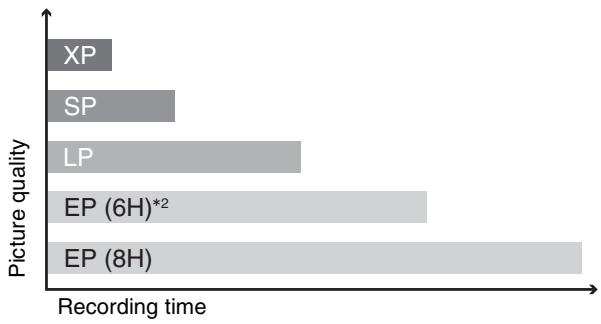
Note
Lors de l'enregistrement sur DVD-RAM en mode EP (8H), la lecture peut ne pas être possible sur les lecteurs DVD compatibles avec le DVD-RAM. Dans ce cas, utilisez le mode EP (6H).
FR (mode d'enregistrement flexible → 29) :
- Vous pouvez régler le mode FR lors du transfert (copie) ou de la programmation d'enregistrements programmés.
■ Modes d'enregistrement (VHS)
Mode d'enregistrement
SP : Vous pouvez enregistrer la durée indiquée sur la cassette.
EP : 3 fois la durée du mode SP.
VP : 5 fois la durée du mode SP.
- Pour avoir une capacité d'enregistrement plus longue, sélectionnez "EP" ou "VP".
- Si la qualité d'image est importante pour vous ou si vous souhaitez conserver la cassette pendant une longue période, sélectionnez "SP".
- L'appareil peut lire des cassettes enregistrées en mode LP sur d'autres équipements (le témoin "LP" s'allume sur l'écran de l'appareil).
Mode VP :
- Une cassette enregistrée en mode VP par l'appareil ne peut pas être lue par d'autres magnétoscopes. Il est recommandé de la distinguer des autres cassettes en écrivant "VP" sur l'étiquette de la cassette, etc.
- Le suivi automatique prend plus de temps pour fonctionner lors de la lecture de cassettes enregistrées en mode VP, et il peut ne pas fonctionner du tout avec certaines cassettes. Effectuez le suivi manuellement si c'est le cas (→ 38).
Note
Vous ne pouvez pas lire l'enregistrement VP sur un autre équipement.
■ Minuterie d'arrêt
L'appareil passe automatiquement en mode veille lorsqu'il n'a pas été utilisé pendant environ 6 heures.
Vous pouvez désactiver cette fonction ou modifier la durée pour la régler sur 2 heures.
(→ 63, "Minuterie d'arrêt")
■ Lorsque l'écran de confirmation du format est affiché
RAM -RW(V) +R +R DL +RW
Lorsque vous insérez un nouveau disque ou un disque enregistré sur un ordinateur ou un autre équipement, un écran de confirmation du format peut s'afficher. Formatez le disque pour l'utiliser. Cependant, tout le contenu enregistré est supprimé.
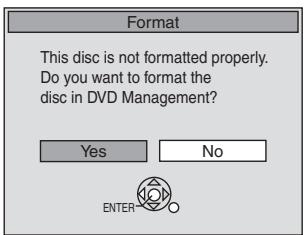
Appuyez sur [◀, ▶] pour sélectionner "Oui", puis sur [ENTER].
- Plusieurs étapes sont nécessaires pour formater un disque. Reportez-vous à "Suppression de tout le contenu d'un disque ou d'une carte – Format". (→ 61)
■ Lors du retrait d'un disque enregistré
-R -R DL -RW(V) +R +R DL
Lorsque vous appuyez sur [▲, OPEN/CLOSE] sur l'appareil principal à l'arrêt : L'écran suivant apparaît si vous n'avez pas finalisé le disque pour une lecture sur un autre équipement.
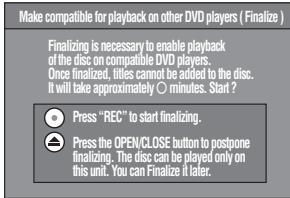
Lors de la finalisation du disque
Appuyez sur [●, REC].
- Vous ne pouvez pas interrompre ce processus une fois qu'il a commencé.
- Si vous souhaitez donner un nom au disque ou sélectionner le menu de lecture, sélectionnez « Nom du disque » (→ 60) ou « La lecture commencera par » (→ 61) dans « Gestion DVD » avant de finaliser.
Lors de l'ouverture du plateau sans finalisation du disque
Appuyez sur [▲, OPEN/CLOSE] sur l'appareil principal.
Pour spécifier une heure d'arrêt de l'enregistrement - Enregistrement en une touche
Pendant l'enregistrement
1 Appuyez sur [DRIVE SELECT] pour sélectionner le lecteur pour lequel vous souhaitez spécifier l'heure d'arrêt de l'enregistrement (DVD ou VHS).
2 Appuyez sur [●, REC] pour sélectionner la durée d'enregistrement.
- Sur l'appareil principal, appuyez sur [●, REC].
L'affichage de l'appareil
Chaque fois que vous appuyez sur le bouton :
Compteur (Annuler) → OFF 0:30 → OFF 1:00 → OFF 1:30
OFF 4:00 ← OFF 3:00 ← OFF 2:00 ←
Pour votre référence
- Cette fonction ne fonctionne pas pendant l'enregistrement programmé ou l'enregistrement flexible.
- L'enregistrement s'arrête et l'heure programmée est effacée si vous appuyez sur [■, STOP].
- L'heure programmée est effacée si vous changez le mode d'enregistrement ou la chaîne pendant que l'enregistrement est en pause. DVD
Sélection de l'audio à enregistrer
RAM
Appuyez sur [AUDIO].
Stéréo → Audio SAP → Mono
| Stereo: | Main audio (stereo). If the broadcast is “Mono+SAP”, audio will be monaural even if you select Stereo mode. |
| SAP Audio: | Secondary audio program (SAP). If recorded in SAP, main audio is also recorded. |
| Mono: | Main audio (monaural). Select “Mono” if reception is poor during a stereo broadcast. |
Par exemple, « Stéréo » est sélectionné. « ( » apparaît lorsque l'appareil reçoit le type d'audio que vous avez sélectionné.
![PANASONIC DMRES45V - Appuyez sur [AUDIO]. - 1](/content/2019/10/56204/images/908df87c5b1f3cde36b3627caa36ce5f53aa183128312a0a3f9f5bf12f88c711.jpg)
- Si vous modifiez le réglage du son pendant l'enregistrement, le son enregistré changera également.
-R -R DL -RW(V) +R +R DL +RW
Sélectionnez l'audio (principal ou SAP) dans « Son TV multicanal (MTS) » dans le menu de configuration. (→ 64)
Fonction de sélection automatique bilingue
VHS
Lorsqu'une émission stéréo ou une émission SAP est enregistrée et lue sur l'appareil, le son stéréo est automatiquement sélectionné dans le cas d'une émission stéréo, et le son SAP est automatiquement sélectionné dans le cas d'une émission à double son (Mono et SAP ou Stéréo et SAP).
- Cette fonction peut ne pas fonctionner correctement si le programme est lu à partir d'un point intermédiaire. Dans ce cas, appuyez sur [AUDIO] et sélectionnez le bon son.
- La fonction ne fonctionnera pas avec une cassette enregistrée à l'aide d'un équipement externe.
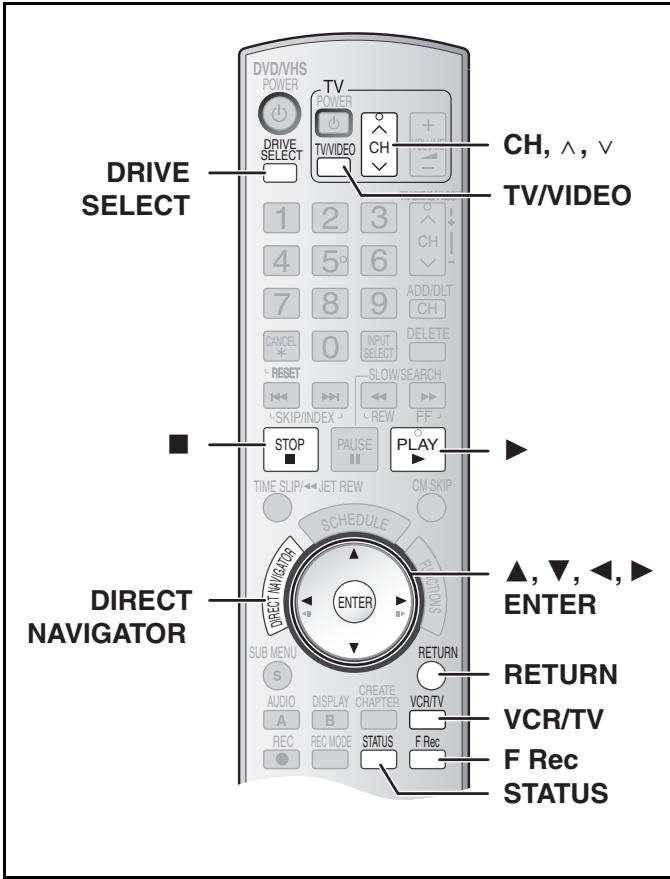
Lecture de DVD pendant l'enregistrement VHS
Vous pouvez lire des disques pendant l'enregistrement VHS. L'enregistrement n'en sera pas affecté.
- Lecture DVD (→ 32)
Pour votre référence
- Vous ne pouvez pas enregistrer sur des disques pendant l'enregistrement VHS.
Lecture VHS pendant l'enregistrement DVD
Vous pouvez lire des cassettes pendant l'enregistrement DVD. L'enregistrement n'en sera pas affecté.
• Lecture VHS (→ 37)
Pour votre référence
- Vous ne pouvez pas enregistrer sur des cassettes pendant l'enregistrement DVD.
Regarder la télévision pendant l'enregistrement
Préparation
- Connexion (sans câble audio/vidéo)
- Assurez-vous que l'indicateur TV est allumé sur l'écran de l'appareil. S'il n'est pas allumé, appuyez sur [VCR/TV] pour l'allumer.
- Connexion (avec câble audio/vidéo)
- Appuyez sur [TV/VIDEO] pour changer le mode d'entrée sur "TV".
Appuyez sur [CH, ∧, ∨] du téléviseur pour sélectionner la chaîne souhaitée.
Pour votre référence
- Vous pouvez également faire cela si l'appareil effectue un enregistrement programmé. ● L'enregistrement n'est pas affecté.
Lecture pendant l'enregistrement
RAM
Préparation
- Sélectionnez le côté DVD en appuyant sur [DRIVE SELECT].
Astuce
● Le son n'est pas émis pendant l'avance rapide.
■ Lecture depuis le début du titre en cours d'enregistrement – Lecture en poursuite
Vous pouvez démarrer la lecture depuis le début du titre tout en continuant à l'enregistrer.
Pendant l'enregistrement ou l'enregistrement programmé, appuyez sur [▶, PLAY].
- La lecture démarre pendant que l'enregistrement se poursuit.
Pour votre référence
- La lecture ne peut pas démarrer avant au moins 2 secondes après le début de l'enregistrement.
■ Lecture d'un titre enregistré précédemment pendant l'enregistrement – Enregistrement et lecture simultanés
Vous pouvez lire un titre enregistré précédemment pendant que vous enregistrez un autre titre.
1 Pendant l'enregistrement ou l'enregistrement programmé, appuyez sur [DIRECT NAVIGATOR]. (→ 32)
● : Enregistrement en cours
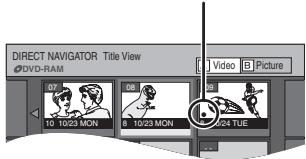
2 Utilisez [▲, ▼, ◀, ▶] pour sélectionner un titre, puis appuyez sur [ENTER].
- La lecture démarre pendant que l'enregistrement se poursuit.
■ Pour quitter l'écran du Direct Navigator
Appuyez sur [DIRECT NAVIGATOR].
Pour votre référence
- Pendant l'enregistrement et la lecture simultanés, vous ne pouvez pas modifier ou effacer des titres avec le Direct Navigator ou les listes de lecture.
- Même si vous démarrez la lecture pendant que l'appareil est en veille pour un enregistrement programmé, l'enregistrement démarre lorsque l'heure définie est atteinte.
Enregistrement flexible
(Enregistrement qui s'adapte à l'espace disque restant)
RAM -R -R DL -RW(V) +R +R DL +RW
L'appareil calcule un débit d'enregistrement qui permet à l'enregistrement de tenir dans le temps que vous avez défini (dans le temps restant sur le disque) avec la meilleure qualité d'image.
L'utilisation de l'« ENREGISTREMENT FLEXIBLE » est pratique dans ce genre de situations.
- Lorsque la quantité d'espace libre sur le disque rend difficile le choix d'un mode d'enregistrement approprié.
- Lorsque vous souhaitez enregistrer un long programme avec la meilleure qualité d'image possible, par exemple, enregistrer un programme de 90 minutes sur un disque. Si vous sélectionnez le mode XP, le programme ne tiendra pas sur un seul disque.
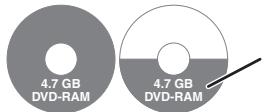
Un deuxième disque est nécessaire pour 30 minutes du programme.
Si vous sélectionnez le mode SP, le programme tiendra sur un seul disque.
Cependant, il restera 30 minutes d'espace libre sur le disque.

Si vous sélectionnez « ENREGISTREMENT FLEXIBLE », le programme tiendra parfaitement sur un seul disque.
Préparation
- Sélectionnez le côté DVD en appuyant sur [DRIVE SELECT].
- Sélectionnez la chaîne à enregistrer.
1 À l'arrêt, appuyez sur [F Rec].
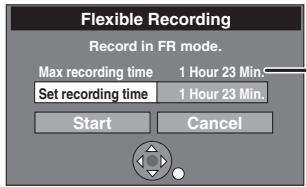
Durée d'enregistrement maximale
Il s'agit de la durée d'enregistrement maximale en mode FR.
2 Appuyez sur [◀, ▶] pour sélectionner « Heure » et « Minute », puis sur [▲, ▼] pour régler l'heure d'enregistrement.
- Vous pouvez également régler l'heure d'enregistrement à l'aide des touches numériques.
- Vous ne pouvez pas enregistrer plus de 8 heures.
3 Pour démarrer l'enregistrement
Appuyez sur [▲, ▼, ◀, ▶] pour sélectionner « Démarrer », puis sur [ENTER].
- L'enregistrement démarre.
Pour quitter l'écran sans enregistrer
Appuyez sur [RETURN].
Pour arrêter l'enregistrement en cours
Appuyez sur [■, STOP].
Pour afficher le temps restant
Appuyez plusieurs fois sur [STATUS]. (→ 40)
Pour votre information
- Pendant un enregistrement flexible, tous les témoins de mode d'enregistrement s'allument sur l'afficheur de l'appareil.
- Il n'est pas possible de changer de chaîne ou de mode d'enregistrement pendant une pause de l'enregistrement flexible.
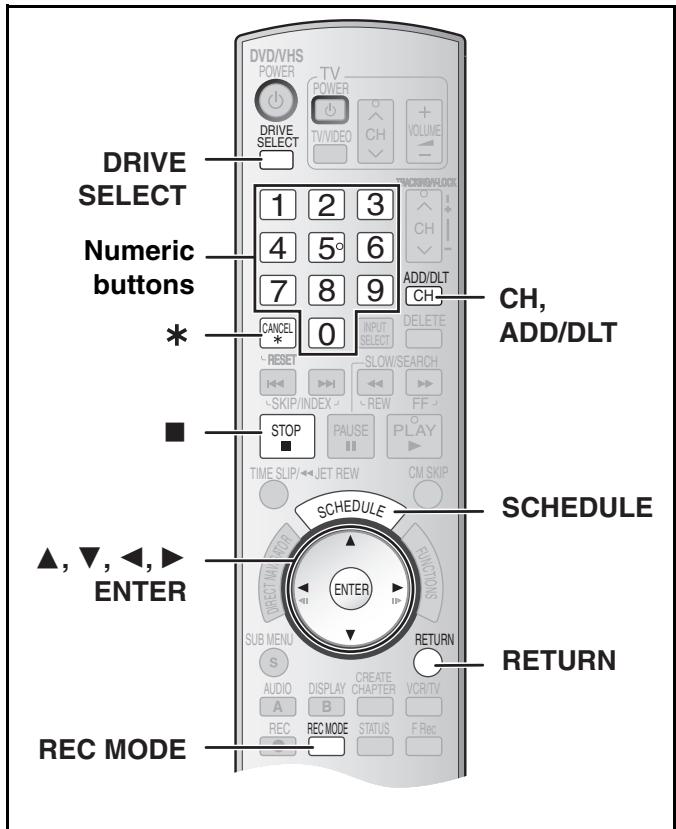
Précautions d'utilisation de l'enregistrement programmé sur DVD et VHS
■ L'enregistrement programmé démarre automatiquement à l'heure définie. - L'enregistrement programmé peut démarrer que l'appareil soit allumé ou éteint. Lorsque l'appareil est éteint, le son et l'image ne peuvent pas être transmis au téléviseur. ■ L'enregistrement programmé d'émissions de télévision ne peut pas être exécuté simultanément sur DVD et VHS.
Assurez-vous que les heures de début des enregistrements programmés ne se chevauchent pas sur les écrans de liste d'enregistrement programmé DVD et VHS.
Lorsque les réglages d'enregistrement programmé se chevauchent :
- Lorsque l'heure de début des deux enregistrements programmés est identique, le programme enregistré en dernier a priorité.
- Si un enregistrement programmé VHS chevauche un enregistrement programmé DVD en cours, il peut être impossible d'utiliser le VHS pendant le chevauchement.
Programmation des enregistrements programmés
RAM -R -R DL -RW(V) +R +R DL +RW VHS
Vous pouvez saisir jusqu'à 16 programmes un mois à l'avance.
Préparation
- Retirez la protection (disque → 60, cartouche → 60) RAM.
- Insérez un disque (→ 24) et vérifiez qu'il y a suffisamment d'espace libre pour l'enregistrement (→ 40).
- Vérifiez que l'horloge est réglée à l'heure correcte.
- Lors de la connexion d'un câblosélecteur ou d'un récepteur satellite, sélectionnez la chaîne sur le câblosélecteur ou le récepteur satellite avant le début de l'enregistrement programmé.
1 Appuyez sur [SCHEDULE].
- Assurez-vous que "Nouvel enregistrement programmé" est sélectionné.
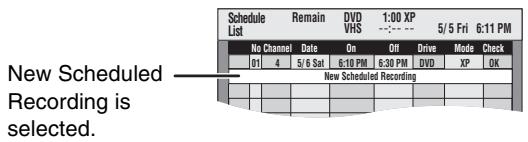
2 Appuyez sur [ENTER], pour vous déplacer et modifier les éléments à l'aide de [▲, ▼, ◀, ►].
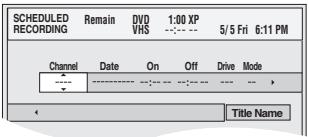
- Vous pouvez utiliser les touches numériques pour saisir "Chaîne", "Date", "Début" et "Fin".
- Chaîne (position de programme / nom de la station TV)
- Date
Vous pouvez également créer un programme quotidien ou hebdomadaire. Chaque programme quotidien ou hebdomadaire compte comme un programme.
- Début (heure de début) / Fin (heure de fin) L'heure augmente ou diminue par intervalles de 30 minutes si vous maintenez la touche enfoncée.
- Lecteur
Vous pouvez sélectionner le lecteur DVD ou VHS.
Vous pouvez également appuyer sur [DRIVE SELECT] pour sélectionner le lecteur. DVD↔VHS
- Mode (mode d'enregistrement)
Vous pouvez également appuyer sur [REC MODE] pour changer le mode d'enregistrement.
DVD XP↔SP↔LP↔EP↔FR↔XP... (→ 26)
VHS SP↔EP↔VP↔AUTO*↔SP... (→ 26)
*Mode SP/EP automatique (→ 31)
- Nom du titre
Appuyez sur [◀, ▶] pour sélectionner "Nom du titre" puis appuyez sur [ENTER] (→ 58).
3 Appuyez sur [ENTER] lorsque vous avez terminé de faire les modifications.
- « ☐ » s'allume sur l'écran de l'appareil. (→ 13)
- « Entrée invalide » s'affiche lorsque vous entrez un élément incorrect. Saisissez à nouveau l'élément.
- Assurez-vous que l'enregistrement programmé a été correctement programmé sur l'écran LISTE DES PROGRAMMES ( → 31).
- Pour continuer la programmation :
Sélectionnez "Nouvel enregistrement programmé" et répétez les étapes 2 à 3.
4 Appuyez sur [RETURN].
Remarques
- Lorsque l'appareil effectue un enregistrement programmé, vous pouvez utiliser la lecture.
- Lorsque le disque ou la cassette vidéo est retiré, la mise en veille de l'enregistrement programmé est annulée (l'indicateur « 💡 » s'éteint). Vous pouvez remettre l'appareil en veille en insérant un disque ou une cassette vidéo enregistrable (l'indicateur « 💡 » se rallume).
- Lorsqu'une cassette vidéo n'est pas insérée ou qu'une cassette vidéo sans languette anti-effacement est insérée, le message d'avertissement apparaît avant le début de l'enregistrement car l'enregistrement programmé ne peut pas être exécuté.
- Lors de l'enregistrement de plusieurs programmes à la suite, pour DVD-RAM les premières secondes, et pour DVD-R, DVD-R DL, DVD-RW, +R, +R DL ou +RW environ les 30 premières secondes de tous les programmes à partir du deuxième ne seront pas enregistrées.
- Même si vous définissez le nom du titre sur l'écran d'enregistrement programmé, il n'est pas enregistré sur la cassette vidéo.
- Si vous réglez « DST » (heure d'été) sur « ON » lors du réglage manuel de l'horloge (→ 19), l'enregistrement programmé peut ne pas fonctionner lors du passage de l'été à l'hiver et vice versa.
■ Annuler un enregistrement programmé déjà commencé
Préparation
- Sélectionnez le lecteur contenant l'enregistrement programmé à annuler en appuyant sur [DRIVE SELECT].
1 Lorsque l'appareil est sous tension
Appuyez sur [■, STOP].
- L'écran de confirmation apparaît.
2 Appuyez sur [◀, ▶] pour sélectionner « Arrêter l'enregistrement » puis sur [ENTER].
- L'enregistrement s'arrête et l'enregistrement programmé est supprimé. (Les programmes quotidiens et hebdomadaires restent et l'enregistrement programmé démarrera comme prévu.)
■ Libérer un programme de l'attente d'enregistrement
1 Appuyez sur [SCHEDULE].
2 Appuyez sur [▲, ▼] pour sélectionner le programme puis sur [SUB MENU].
3 Appuyez sur [▲, ▼] pour sélectionner « Programme désactivé » puis sur [ENTER].
- L'icône annulée s'affiche dans la colonne de gauche.
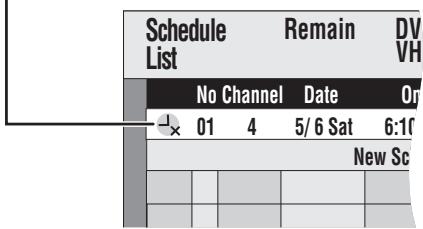
- Assurez-vous de sélectionner « Programme activé » à l'étape 3 avant l'heure programmée pour mettre le programme en attente d'enregistrement.
Note
- Lorsqu'un programme d'enregistrement programmé ne peut pas démarrer (pas de cassette, etc.), « Programmation activée » est annulé une minute avant l'heure de début. (Si un enregistrement programmé quotidien ou hebdomadaire ne peut pas démarrer, l'enregistrement programmé quotidien ou hebdomadaire suivant n'est pas affecté.)
VHS
■ Mode SP/EP automatique
VHS
Si, au début d'un enregistrement programmé, il ne reste pas assez de bande pour terminer l'enregistrement, la fonction SP/EP fera automatiquement défiler la bande en mode EP pour l'enregistrement. Cela garantit que la totalité du programme sera enregistrée. Si le mode EP ne suffit pas pour étirer la bande restante afin de couvrir tout le programme, vous ne pourrez pas enregistrer la totalité du programme TV.
Enregistrement programmé
| 1st program(30 min) | 2nd program (60 min) | |
| 30 min at SP | 15 minat SP | 45 minat EP |
Cassette vidéo (par exemple : cassette de 60 minutes)
- Il n'est pas possible d'activer automatiquement le mode VP. ●La longueur de la bande doit être réglée correctement. (→ 65)
- Certaines cassettes peuvent ne pas fonctionner correctement.
- Si le mode d'enregistrement passe de SP à EP pendant un enregistrement programmé, une certaine distorsion de l'image se produit à ce moment-là.
■ Vérifier, modifier ou supprimer des programmes
Même lorsque l'appareil est éteint, vous pouvez afficher la liste des enregistrements programmés en appuyant sur [SCHEDULE].
1 Appuyez sur [SCHEDULE].
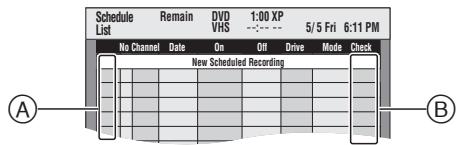
Explication des icônes (Ⓐ)
● : Enregistrement en cours
W : Les programmes se chevauchent. L'enregistrement du programme dont l'heure de début est plus tardive commence lorsque le programme précédent se termine. - : L'attente d'enregistrement programmé est annulée. L'enregistrement ne démarrera pas à l'heure prévue. - : Vous avez arrêté un enregistrement programmé hebdomadaire ou quotidien. L'icône disparaît lorsque l'enregistrement programmé suivant commence. F : Le disque était plein (espace insuffisant). ☐ : Le programme TV peut ne pas être enregistré en raison de la protection contre la copie (disque). ✗ : Enregistrement arrêté (disque sale ou bande, etc.)
Vérification (®)
OK : Enregistrable (disque)
→ (Date) : Le dernier jour de l'enregistrement quotidien ou hebdomadaire (disque).
! : Il peut être impossible d'enregistrer car :
● le disque est protégé en écriture. ● il n'y a plus d'espace disponible (disque). ● le nombre maximal de titres possibles est atteint. ● la languette de la cassette est cassée. ● il n'y a pas de cassette / la cassette est pleine. ● le temps de bande restant n'est pas calculé.
Chevauchement : Lorsque la date et l'heure chevauchent un autre enregistrement programmé, seule une partie du programme peut être enregistrée. -- : Tous les autres cas (bande)
2 Appuyez sur [▲, ▼] pour sélectionner le programme.
- Vous pouvez également sélectionner un programme en saisissant un nombre à deux chiffres à l'aide des touches numériques.
Ex. : « 5 » : [0]→[5]
« 15 » : [1]→[5]
- Appuyez sur [◀, ▶] pour passer à la page précédente ou suivante.
3 Appuyez sur [*, CANCEL] ou [CH, ADD/DLT] pour supprimer,
- Vous ne pouvez pas supprimer les programmes en cours d'enregistrement. ou appuyez sur [ENTER] pour modifier. ● L'écran de réglage de l'enregistrement programmé apparaît.
4 Si vous avez appuyé sur [ENTER] à l'étape 3,
Utilisez [▲, ▼, ◀, ▶] pour modifier et appuyez sur [ENTER].
5 Appuyez sur [RETURN].
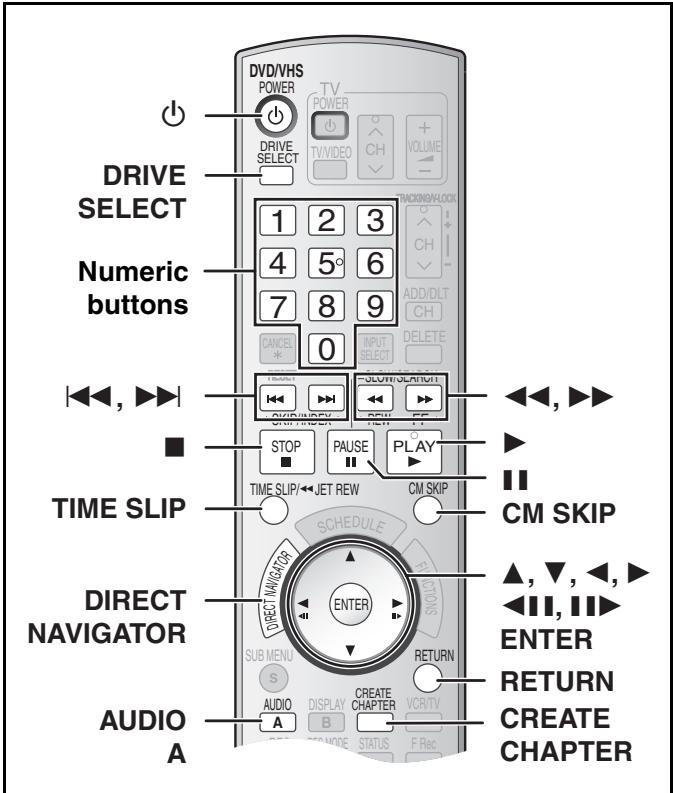
Préparation - Allumez le téléviseur et sélectionnez l'entrée vidéo appropriée correspondant aux connexions à l'appareil.
Lecture des disques
RAM -R -R DL -RW(V) +R +R DL +RW DVD-A DVD-V
-RW(VR) VCD CD
1 Appuyez sur [Lecture, DVD/VHS POWER] pour allumer l'appareil. 2 Insérez un disque. (→ 24) 3 Appuyez sur [DRIVE SELECT] pour sélectionner le lecteur DVD. 4 Appuyez sur [▶, LECTURE].
● Le plateau du disque se ferme et la lecture commence.
(L'appareil met un certain temps à lire le disque avant que la lecture ne commence.)
- La lecture commence à partir du titre le plus récemment enregistré.
RAM -R -R DL -RW(V) +R +R DL +RW -RW(VR)
- La lecture commence à partir du début du disque.
DVD-A DVD-V VCD CD
■ Pour arrêter la lecture
Appuyez sur [■, STOP].
La position d'arrêt est mémorisée.
Fonction de reprise de lecture
Appuyez sur [▶, PLAY] pour reprendre à partir de cette position.
- Selon le disque, la fonction de reprise de lecture peut ne pas être effective. VCD ● La position d'arrêt est effacée lorsque :
- Vous appuyez plusieurs fois sur [■, STOP].
- Vous ouvrez le plateau.
- Vous éteignez l'appareil. DVD-A VCD CD
- L'économiseur d'écran à droite peut apparaître lorsque vous arrêtez la lecture. Appuyez à nouveau sur [■, STOP] et vous pouvez utiliser le tuner de l'appareil pour regarder la télévision.
DVD-A DVD-V VCD CD
Économiseur d'écran

■ Pour mettre en pause
Appuyez sur [11, PAUSE]. (Appuyez à nouveau pour reprendre la lecture.)
Notes
- L'appareil arrête la lecture d'un disque lorsque l'enregistrement programmé commence. RAM -R -R DL -RW(V) +R +R DL +RW
- Appuyez sur [▶, PLAY] lorsque vous souhaitez commencer la lecture du disque pendant l'enregistrement (→ 28, « Lecture depuis le début du titre en cours d'enregistrement – Lecture en poursuite »). RAM
■ Lorsqu'un écran de menu apparaît sur le téléviseur
VCD
Appuyez sur les touches numériques pour sélectionner un élément.
Ex. : « 5 » : [0]→[5] « 15 » : [1]→[5]
DVD-A DVD-V
Appuyez sur [▲, ▼, ◀, ▶] pour sélectionner un élément, puis sur [ENTER].
- Vous pouvez parfois utiliser les touches numériques pour sélectionner un élément.
Autres touches utilisées pour utiliser les menus
Lisez les instructions du disque pour plus de détails sur le fonctionnement.
Remarque
- Si « » apparaît sur le téléviseur, l'opération est interdite par l'appareil ou le disque.
Sélection de titres enregistrés à lire
RAM -R -R DL -RW(V) +R +R DL +RW -RW(VR)
1 Appuyez sur [DIRECT NAVIGATOR]. 2 Utilisez [▲, ▼, ◀, ▶] pour sélectionner le titre que vous souhaitez regarder, puis appuyez sur [ENTER].
- La lecture démarre.
- Vous pouvez également sélectionner des titres en saisissant un nombre à 2 chiffres avec les touches numériques.
Ex. : « 5 » : [0]→[5] « 15 » : [1]→[5]
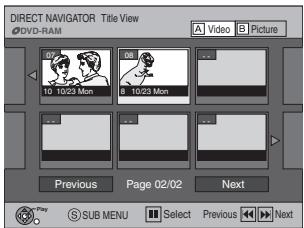
- RAM Appuyez sur [A] pour passer à l'écran de vue des titres lorsque l'écran de vue des albums est affiché.
- Si vous saisissez un nombre supérieur au nombre total de titres, le dernier titre est sélectionné.
- « Pour afficher d'autres pages » (→ 41)
■ Pour quitter l'écran de vue des titres
Appuyez sur [RETURN].
Pour votre référence
- Icônes de l'écran Direct Navigator
: Titre protégé
☐ : Protégé contre la copie, donc non enregistré × : Lecture impossible ● : En cours d'enregistrement ☑ : Titre avec restriction « enregistrement unique » (→ 76, CPRM)
Quick View (Lecture ×1.3)
RAM
La vitesse de lecture peut être augmentée sans déformer l'audio.
Pendant la lecture
Maintenez enfoncé [▶, PLAY].
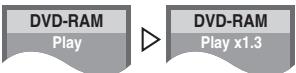
■ Pour revenir à la vitesse normale
Appuyez sur [▶, PLAY].
Avance rapide et retour rapide - RECHERCHE
RAM -R -R DL -RW(V) +R +R DL +RW DVD-A DVD-V
-RW(VR) VCD CD
Pendant la lecture
Appuyez sur [◀◀, SLOW/SEARCH] ou
[▶▶, SLOW/SEARCH].
- Il y a 5 vitesses de recherche. Chaque pression augmente la vitesse de recherche. (+R +RW Jusqu'à 3 vitesses)
- Appuyez sur [▶, PLAY] pour reprendre la lecture.
par exemple ; RAM
- Le son n'est émis qu'au premier niveau d'avance rapide. Dans le cas des DVD-Audio (sauf parties vidéo), CD et MP3, il est émis à tous les niveaux.
- Selon le disque, la recherche peut ne pas être possible.
Saut
RAM -R -R DL -RW(V) +R +R DL +RW DVD-A DVD-V
-RW(VR) VCD CD
Pendant la lecture ou en pause
Appuyez sur [◀◀, SKIP] ou [▶▶, SKIP].
● Chaque pression augmente le nombre de sauts.
Lecture au ralenti
RAM -R -R DL -RW(V) +R +R DL +RW
DVD-A (parties vidéo uniquement) DVD-V -RW(VR) VCD
En pause
Appuyez sur [◀◀, SLOW/SEARCH] ou
[▶▶, SLOW/SEARCH].
- Lorsque la lecture au ralenti est poursuivie pendant environ 5 minutes, elle se met en pause automatiquement (à l'exclusion de DVD-A, DVD-V, VCD).
- Il y a 5 vitesses de lecture. Chaque pression augmente la vitesse de lecture.
- Appuyez sur [▶, PLAY] pour reprendre la lecture.
- VCD : direction avant ([▶▶, SLOW/SEARCH]) uniquement.
Visualisation image par image
RAM -R -R DL -RW(V) +R +R DL +RW
DVD-A (parties animées uniquement) DVD-V -RW(VR) VCD
En pause
Appuyez sur [◀▶] ([◀]) ou [▶▶] ([▶]).
● Chaque pression affiche l'image suivante ou précédente. - Maintenez enfoncé pour changer en continu vers l'avant ou l'arrière. - Appuyez sur [▶, PLAY] pour reprendre la lecture. • VCD : direction avant ([▶], [▶]) uniquement.
Lecture directe
RAM -R -R DL -RW(V) +R +R DL +RW DVD-A DVD-V
-RW(VR) VCD CD
Vous pouvez lire à partir du titre, du chapitre ou de la piste que vous sélectionnez.
Pendant la lecture
Appuyez sur les touches numériques pour sélectionner un élément.
CD (disque MP3, JPEG et TIFF uniquement)
ex. : « 5 » : [0]→[5] « 5 » : [0]→[0]→[5]
« 15 » : [1]→[5] « 15 » : [0]→[1]→[5]
DVD-A
Un numéro de groupe peut être spécifié pendant que l'économiseur d'écran ( → 32) est affiché.
ex. : « 5 » : [5]
- Cela ne fonctionne que lorsque la lecture est arrêtée (économiseur d'écran affiché) avec certains disques.
- Lecture de groupes bonus Certains disques contiennent des groupes bonus. Si un écran de mot de passe apparaît après la sélection d'un groupe, saisissez le mot de passe avec les touches numériques et appuyez sur [ENTER]. Pour le mot de passe, reportez-vous à la jaquette du disque, etc.
Saut de publicité
RAM -R -R DL -RW(V) +R +R DL +RW -RW(VR)
Vous pouvez sauter environ 1 minute en une seule pression.
Pendant la lecture
Appuyez sur [SAUT DE PUBLICITÉ].
Créer des chapitres
RAM
Pendant la lecture
Appuyez sur [CRÉER CHAPITRE].
- Appuyez sur [◀◀, SKIP] ou [▶▶, SKIP] pour passer au début d'un chapitre.
- Vous ne pouvez pas activer cette fonction lorsque vous effectuez un transfert (copie).
Sauter à un moment précis — Time Slip
RAM -R -R DL -RW(V) +R +R DL +RW -RW(VR)
1 Pendant la lecture, appuyez sur [TIME SLIP].
2 Appuyez sur [▲, ▼] pour sélectionner l'heure et appuyez sur [ENTER].
La lecture saute à l'heure spécifiée.
- Chaque pression sur [▲, ▼] augmente [▲] ou diminue [▼] le temps par intervalles de 1 minute. (Maintenez enfoncé pour des intervalles de 10 minutes.)
Changer l'audio pendant la lecture
Appuyez sur [AUDIO] pour sélectionner le type d'audio.
- Vous pouvez sélectionner les types d'audio selon le support d'enregistrement.
RAM -RW(VR) VCD
Stéréo → Mono L → Mono R
ex. : RAM
« Stéréo » est
sélectionné.
RAM -RW(VR) [Lors de la lecture d'une émission SAP enregistrée sur DVD-RAM, DVD-RW (format DVD Video Recording)]
Audio principal ↔ Audio SAP
DVD-A DVD-V
Cela vous permet de modifier des éléments comme le numéro de canal audio et la langue de la piste sonore. (→ 39)
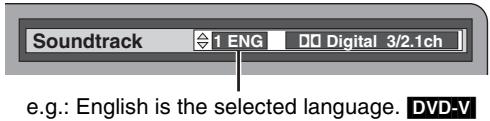
VHS
Stéréo → Mono L → Mono R → Aucun affichage (piste audio normale)
Remarque
- Si vous ne pouvez pas changer le type audio lorsque vous avez utilisé uniquement un câble optique numérique pour la connexion, réglez « Dolby Digital » sur « PCM » (→ 64). Vous pouvez également connecter un amplificateur avec un câble audio/vidéo et changer l'entrée de l'amplificateur en fonction de la connexion.
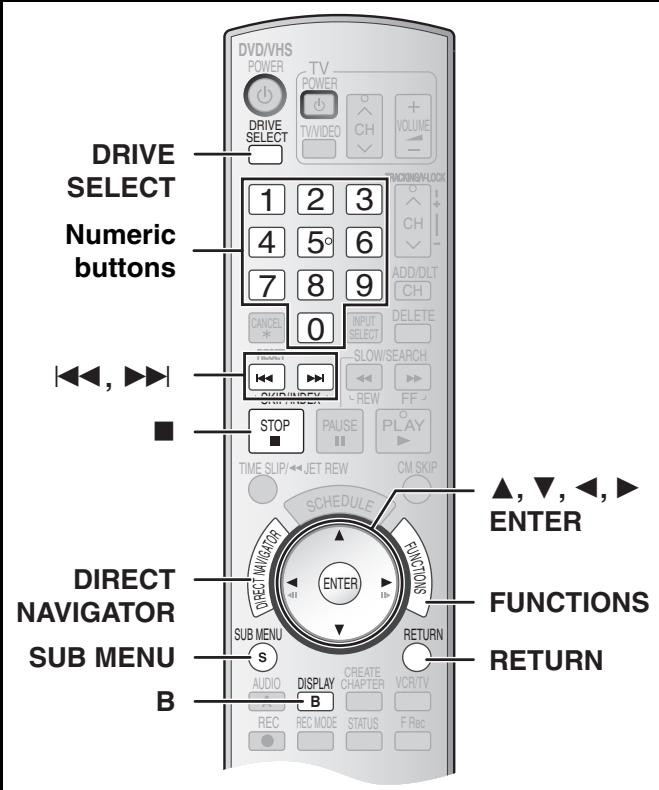
Préparation
- Allumez le téléviseur et sélectionnez l'entrée vidéo appropriée en fonction des connexions à l'appareil.
- Sélectionnez le côté DVD en appuyant sur [DRIVE SELECT].
Lecture de disques contenant à la fois des fichiers MP3 et des images fixes
CD
L'écran ci-dessous s'affiche lorsque vous insérez un disque contenant des fichiers MP3 et des images fixes (JPEG/TIFF).
Appuyez sur [ENTER].
■ Pour lire des MP3
Reportez-vous à la section « Lecture de MP3 ». (→ ci-dessous)
■ Pour lire des images fixes
Reportez-vous à la section « Affichage du menu Images ». (→ 35)
![PANASONIC DMRES45V - Appuyez sur [ENTER]. - 1](/content/2019/10/56204/images/0fcfe3def683a6670fa0e2dc4a97f69efd0b08342c2533b3cc8e98b447c8e148.jpg)
Lecture de MP3
CD
L'appareil lit les fichiers MP3 enregistrés sur des CD-R/RW conçus pour l'enregistrement audio et finalisés (→ 76) sur un ordinateur. Les fichiers sont traités comme des plages et les dossiers comme des groupes.
1 Pendant l'arrêt ou la lecture
Appuyez sur [DIRECT NAVIGATOR].
- La liste des fichiers apparaît.
Numéro et nom du groupe sélectionné
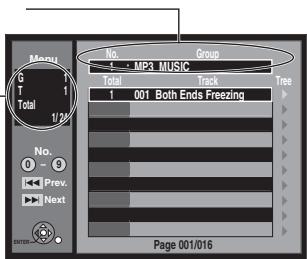
G :
Le numéro de groupe
T :
Numéro de piste dans le groupe
Total :
Numéro de piste sélectionné /
Nombre total de pistes
2 Appuyez sur [▲, ▼] pour sélectionner la piste, puis sur [ENTER].
- La lecture démarre sur la piste sélectionnée.
- « ☐ » indique la piste en cours de lecture.
- Vous pouvez également sélectionner directement la piste avec les touches numériques. Ex. :
« 6 » : [0] → [0] → [6]
« 10 » : [0] → [1] → [0]
■ Utilisation de l'écran arborescent pour trouver un groupe (→ à droite)
■ Pour afficher d'autres groupes
Appuyez sur [◀◀] (Précédent) ou [▶▶] (Suivant) pour afficher d'autres pages.
- Après avoir listé toutes les pistes d'un groupe, la liste du groupe suivant apparaît.
■ Pour quitter la liste des fichiers
Appuyez sur [DIRECT NAVIGATOR] ou [RETURN].
À propos du MP3
- Formats compatibles : ISO9660 niveau 1 ou 2 (sauf les formats étendus) et Joliet
- Nombre maximal de fichiers (pistes) et de dossiers (groupes) reconnaissables : 999 fichiers* (pistes) et 99 (y compris le dossier racine) dossiers (groupes) * Nombre total pour tous les fichiers MP3, JPEG et autres types
- Cet appareil est compatible avec les sessions multiples, mais la lecture ou la lecture du disque peut prendre du temps s'il y a beaucoup de sessions.
- L'opération peut prendre du temps à se terminer lorsqu'il y a beaucoup de fichiers (pistes) et/ou de dossiers (groupes) et certains fichiers (pistes) peuvent ne pas s'afficher ou être lisibles.
- L'ordre d'affichage sur cet appareil peut différer de celui affiché sur un ordinateur.
- Selon la façon dont vous créez le disque (logiciel de gravure), les fichiers (pistes) et dossiers (groupes) peuvent ne pas être lus dans l'ordre que vous avez numéroté.
● Cet appareil n'est pas compatible avec le format packet-write.
- Selon l'enregistrement, certains éléments peuvent ne pas être lisibles.
- Format de fichier : MP3
Les fichiers doivent avoir l'extension « .mp3 » ou « .MP3 ».
● Débits binaires : 32 kbps à 320 kbps
- Fréquence d'échantillonnage : 16 kHz/22,05 kHz/24 kHz/32 kHz/44,1 kHz/48 kHz
- Cet appareil n'est pas compatible avec les tags ID3.
- Si un fichier MP3 contient une grande quantité de données d'images fixes, etc., la lecture peut être impossible.
- Vous pouvez lire des MP3 sur cet appareil en créant des dossiers comme indiqué ci-dessous. Cependant, selon la façon dont vous créez le disque (logiciel de gravure), la lecture peut ne pas se faire dans l'ordre que vous avez numéroté pour les dossiers.
- Les caractères alphabétiques anglais et les chiffres arabes sont affichés correctement. D'autres caractères peuvent ne pas être affichés correctement.
- Lorsque les dossiers de niveau le plus élevé sont des dossiers « DCIM », ils sont affichés en premier dans l'arborescence.
Structure des dossiers MP3
Préfixez avec des numéros à 3 chiffres dans l'ordre de lecture souhaité.
Ordre de lecture
![graph TD A["Tree"] --> B["001 Group"] A --> C["002 Group"] A --> D["003 Group"] B --> E["001track.mp3"] B --> F["002track.mp3"] B --> G["003track.mp3"] C --> H["001track.mp3"] C --> I["002track.mp3"] C --> J["003track.mp3"] C --> K["004track.mp3"]](/content/2019/10/56204/images/e2509a84fb086d61748872ade2feae66c3fa3e8493d59c641236918c220407aa.jpg)
■ Utilisation de l'écran d'arborescence pour trouver un groupe
1 Pendant que la liste des fichiers est affichée (→ à gauche)
Appuyez sur [▶] pendant qu'une piste est surlignée pour afficher l'écran d'arborescence.
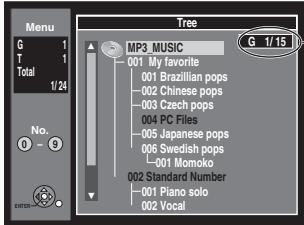
Numéro de groupe sélectionné / Nombre total de groupes
- Si le groupe ne contient aucune piste, « — » est affiché comme numéro de groupe.
- Un dossier sans fichier MP3 est indiqué en noir. Vous ne pouvez pas sélectionner de groupes sans fichiers MP3.
- Appuyez sur [◀, ▶] pour changer de niveau dans l'écran de l'arborescence.
2 Appuyez sur [▲, ▼] pour sélectionner un groupe, puis appuyez sur [ENTER].
Appuyez sur [▲, ▼] pour sélectionner un groupe, puis appuyez sur [ENTER].
- La liste des fichiers du groupe sélectionné s'affiche.
■ Pour revenir à la liste des fichiers
Appuyez sur [RETURN].
Pour afficher le menu Images
CD [avec fichiers MP3 et images fixes (JPEG/TIFF)]
1 Appuyez sur [FUNCTIONS]. 2 Sélectionnez "Menu" avec [▼] et appuyez sur [ENTER].
3 Sélectionnez "Images" avec [▲, ▼] et appuyez sur [ENTER].
CD [avec images fixes (JPEG/TIFF) uniquement]
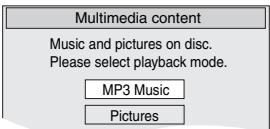
Appuyez sur [DIRECT NAVIGATOR].
■ Pour afficher d'autres pages
Appuyez sur [◀◀] (Précédent) ou [▶▶] (Suivant) pour afficher d'autres pages.
- Vous pouvez également appuyer sur [▲, ▼, ◀, ▶] pour sélectionner « Précédent » ou « Suivant », puis appuyer sur [ENTER] pour afficher d'autres pages.
■ Pour quitter le menu Images Appuyez sur [DIRECT NAVIGATOR] ou [RETURN].
Écran du menu Images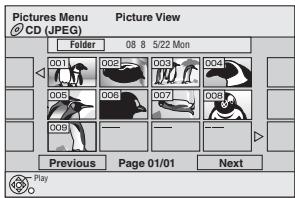
Lecture de photos fixes (JPEG/TIFF)
RAM SD CD
- Vous pouvez utiliser des cartes mémoire SD d'une capacité de 8 Mo à 2 Go (→ 8).
- CD Les photos fixes (JPEG/TIFF) enregistrées sur un CD-R/RW peuvent être lues sur cet appareil.
- Les photos fixes ne peuvent pas être lues pendant l'enregistrement ou la copie.
- Insertion et retrait de la carte SD. (→ 11)
1 Appuyez sur [DRIVE SELECT] pour sélectionner le lecteur (DVD ou SD).
● Le témoin s'allume sur l'appareil. - SD Lorsque l'appareil est arrêté et qu'une carte SD est insérée, l'écran « Opérations sur carte SD » (→ ci-dessous) s'affiche automatiquement. Appuyez sur [▲, ▼] pour sélectionner « Aller à la vue Album » et appuyez sur [ENTER]. Vous pouvez alors continuer à partir de l'étape 2.
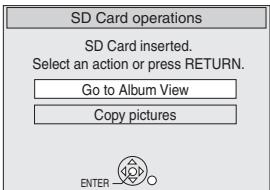
- CD Assurez-vous que l'écran du menu Images apparaît en suivant les étapes « Pour afficher le menu Images ».
2 Appuyez sur [DIRECT NAVIGATOR].
- RAM SD L'écran de la vue Album s'affiche (→ passez à l'étape 3).
par exemple, SD
Date de prise de vue de la première photo de l'album / nombre de photos / nom de l'album*
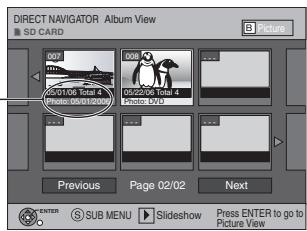
* Selon l'appareil photo numérique, le logiciel de retouche sur PC, etc., les informations sur la date de prise de vue peuvent ne pas être affichées. Dans ce cas, la date apparaîtra comme [--/--/--].
- L'écran CD Picture View s'affiche (→ passez à l'étape 4).
- Les vignettes des fichiers JPEG volumineux et des images avec des ratios autres que 4:3 peuvent ne pas s'afficher.
- « Pour afficher d'autres pages » → ci-dessous
- « Pour sélectionner les photos fixes dans un autre dossier » → à droite
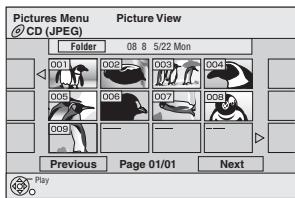
■ Lorsque l'écran Title View est affiché RAM
Appuyez sur [B] pour passer à l'écran Album View.
3 Appuyez sur [▲, ▼, ◀, ▶] pour sélectionner l'album, puis appuyez sur [ENTER].
● L'écran Picture View de l'album sélectionné s'affiche. - Vous pouvez également sélectionner un album en saisissant un numéro à 3 chiffres avec les touches numériques.
ex. : « 5 » : [0]→[0]→[5] « 15 » : [0]→[1]→[5]
- Vous pouvez regarder l'album dans l'ordre en appuyant sur [◀] (précédent) ou [▶] (suivant).
- « Pour afficher d'autres pages » → ci-dessous
- « Fonctions utiles pendant la lecture de photos fixes » → ci-dessous
4 Appuyez sur [▲, ▼, ◀, ▶] pour sélectionner la photo fixe, puis appuyez sur [ENTER].
● L'image fixe sélectionnée s'affiche à l'écran. - RAM SD Vous pouvez également sélectionner des images fixes en saisissant un numéro à 4 chiffres avec les touches numériques.
ex. : « 5 » : [0]→[0]→[0]→[5] « 15 » : [0]→[0]→[1]→[5]
- CD Vous pouvez également sélectionner des images fixes en saisissant un numéro à 3 chiffres avec les touches numériques.
ex. : « 5 » : [0]→[0]→[5] « 15 » : [0]→[1]→[5]
- Vous pouvez regarder les images fixes dans l'ordre en appuyant sur [◀] (précédent) ou [▶] (suivant).
- « Pour afficher d'autres pages » → ci-dessous
- « Fonctions utiles pendant la lecture d'images fixes » → ci-dessous
■ Pour afficher d'autres pages
Appuyez sur [◀◀] (Précédent) ou [▶▶] (Suivant) pour afficher d'autres pages.
- Vous pouvez également appuyer sur [▲, ▼, ◀, ▶] pour sélectionner « Précédent » ou « Suivant », puis appuyer sur [ENTER] pour afficher d'autres pages.
■ Pour arrêter la lecture
Appuyez sur [■, STOP].
■ Pour revenir à l'écran Album View RAM SD
Lorsque l'écran Picture View est affiché, appuyez sur [RETURN].
■ Pour quitter l'écran du menu
Appuyez sur [DIRECT NAVIGATOR].
Pour votre référence
- Icônes de l'écran Direct Navigator
: Photo protégée.
D : Photo pour laquelle le nombre de tirages est défini (DPOF) (→ 48).
Fonctions utiles pendant la lecture de photos fixes
■ Pour sélectionner les photos fixes d'un autre dossier
RAM SD
(Uniquement s'il existe plusieurs dossiers de niveau supérieur reconnaissables)
1 Pendant que l'affichage Album View est affiché, appuyez sur [SUB MENU].
2 Appuyez sur [▲, ▼] pour sélectionner "Sélectionner le dossier racine" et appuyez sur [ENTER].
3 Appuyez sur [◀, ▶] pour sélectionner le dossier de niveau supérieur et appuyez sur [ENTER].
CD
1 Pendant que l'écran Picture View est affiché
Appuyez sur [▲, ▼, ◀, ►] pour sélectionner "Dossier" et appuyez sur [ENTER].
A Numéro de dossier sélectionné / Nombre total de dossiers
B Vous ne pouvez pas sélectionner des dossiers qui ne contiennent aucun fichier compatible.
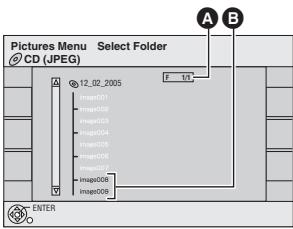
2 Appuyez sur [▲, ▼] pour sélectionner le dossier, puis sur [ENTER].
■ Démarrer le diaporama / Paramètres du diaporama
Vous pouvez afficher les images fixes une par une à intervalle constant.
RAM SD
1 Lorsque l'écran Album View est affiché, appuyez sur [▲, ▼, ◀, ▶] pour sélectionner l'album, puis sur [SUB MENU].
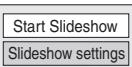
- Vous pouvez démarrer rapidement le diaporama en appuyant sur [▶, PLAY].
2 Appuyez sur [▲, ▼] pour sélectionner « Démarrer le diaporama », puis sur [ENTER].
CD
1 Lorsque l'écran Picture View est affiché, appuyez sur [▲, ▼, ◀, ▶] pour sélectionner « Dossier », puis sur [SUB MENU].
2 Appuyez sur [▲, ▼] pour sélectionner « Démarrer le diaporama », puis sur [ENTER].
■ Pour modifier la durée d'affichage
1 Sélectionnez « Paramètres du diaporama » avec [▲, ▼] à l'étape 2 ci-dessus, puis appuyez sur [ENTER].
2 Appuyez sur [◀, ▶] pour sélectionner la durée souhaitée (0 à 30 secondes), puis sur [ENTER].
■ Pour répéter la lecture
1 Sélectionnez « Paramètres du diaporama » avec [▲, ▼] à l'étape 2 de « Démarrer le diaporama / Paramètres du diaporama » et appuyez sur [ENTER].
2 Appuyez sur [▲, ▼] pour sélectionner « Lecture répétée ».
3 Appuyez sur [◀, ▶] pour sélectionner « On » ou « Off » et appuyez sur [ENTER].
■ Pour faire pivoter une image fixe
RAM SD CD
1 Pendant la lecture
Appuyez sur [SUB MENU].
2 Sélectionnez « Rotation droite » ou « Rotation gauche » avec [▲, ▼] et appuyez sur [ENTER].
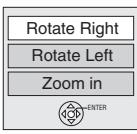
■ Pour revenir à la position d'origine de l'image pivotée
Appuyez sur [▲, ▼] pour sélectionner la rotation opposée à l'étape 2 et appuyez sur [ENTER].
Pour votre référence
- Les informations de rotation ne seront pas stockées ;
- CD Lorsque des images fixes
- Lorsque le disque est protégé
- Lors de la lecture sur d'autres équipements
- Lors de la copie d'images
■ Pour zoomer/dézoomer
RAM SD CD
1 Pendant la lecture
Appuyez sur [SOUS-MENU].
2 Sélectionnez "Zoom avant" avec [▲, ▼] et appuyez sur [ENTRÉE].
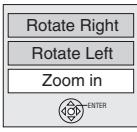
■ Pour ramener l'image à sa taille d'origine
Appuyez sur [▲, ▼] pour sélectionner "Zoom arrière" à l'étape 2 et appuyez sur [ENTRÉE].
Pour votre référence
- Lors d'un zoom avant, l'image fixe peut être coupée.
● Les informations de zoom ne seront pas enregistrées.
- La fonction "Zoom avant/Zoom arrière" n'est disponible que pour les images fixes de moins de 640×480 pixels.
■ Pour supprimer une image fixe
RAM SD
- Une fois effacées, les données enregistrées sont perdues et ne peuvent pas être restaurées. Assurez-vous avant de continuer.
1 Pendant la lecture
Appuyez sur [DELETE].
2 Appuyez sur [◀, ▶] pour sélectionner « Supprimer » puis appuyez sur [ENTER].
■ Pour afficher les propriétés de l'image
Pendant la lecture
Appuyez sur [STATUS]
deux fois.
- Appuyez à nouveau sur [STATUS] pour faire disparaître les propriétés.
Date de prise de vue

Concernant les images fixes (JPEG/TIFF)
RAM SD
- Formats compatibles : conforme DCF* (contenu enregistré sur un appareil photo numérique, etc.) * Design rule for Camera File system : norme unifiée établie par la Japan Electronics and Information Technology Industries Association (JEITA).
- Format de fichier : JPEG, TIFF (format RVB non compressé) ● Nombre de pixels : 34 × 34 à 6144 × 4096 (sous-échantillonnage 4:2:2 ou 4:2:0)
- Cet appareil peut gérer un maximum de 3000 fichiers et 300 dossiers (dossiers supérieurs inclus).
- L'opération peut prendre du temps lors de la lecture d'images fixes au format TIFF, ou lorsqu'il y a de nombreux fichiers et/ou dossiers ; certains fichiers peuvent ne pas s'afficher ou être lisibles. ● MOTION JPEG n'est pas pris en charge.
CD
- Formats compatibles : ISO9660 niveau 1 ou 2 (sauf formats étendus) et Joliet ● Nombre maximal de fichiers et de dossiers reconnaissables : 999 fichiers et 99 dossiers
- Cet appareil est compatible avec les sessions multiples, mais la lecture ou la lecture du disque peut prendre du temps s'il y a beaucoup de sessions.
- L'opération peut prendre du temps lorsqu'il y a de nombreux fichiers et/ou dossiers, et certains fichiers peuvent ne pas s'afficher ou être lisibles.
- L'ordre d'affichage sur cet appareil peut différer de celui affiché sur un ordinateur.
- Selon la façon dont vous créez le disque (logiciel de gravure), les fichiers et dossiers peuvent ne pas être lus dans l'ordre que vous avez numéroté. ● Cet appareil n'est pas compatible avec le format packet-write.
- Selon l'enregistrement, certains éléments peuvent ne pas être lisibles.
- Format de fichier : JPEG, TIFF (format RGB non compressé) Les fichiers doivent avoir l'extension ".jpg", ".JPG", ".tif" et ".TIF". ● Nombre de pixels : 34 × 34 à 6144 × 4096 (sous-échantillonnage 4:2:2 ou 4:2:0)
- Cet appareil ne peut pas lire les images dont la résolution dépasse la plage indiquée.
- L'opération peut prendre du temps lors de la lecture d'images fixes au format TIFF.
- MOTION JPEG n'est pas pris en charge.
- Vous pouvez lire des images fixes (JPEG/TIFF) sur cet appareil en créant des dossiers comme indiqué ci-dessous. Cependant, selon la façon dont vous créez le disque (logiciel de gravure), la lecture peut ne pas se faire dans l'ordre où vous avez numéroté les dossiers.
- Les caractères alphabétiques anglais et les chiffres arabes s'affichent correctement. D'autres caractères peuvent ne pas s'afficher correctement.
- Lorsque les dossiers de niveau le plus élevé sont des dossiers "DCIM", ils sont affichés en premier dans l'arborescence.
Structure des images fixes (JPEG/TIFF)
Les fichiers d'un dossier sont affichés dans l'ordre de leur mise à jour ou de leur prise.
Ordre de lecture
![graph TD A["Tree"] --> B["P0000001.jpg"] A --> C["P0000002.jpg"] A --> D["002 Folder"] D --> E["P0000003.jpg"] D --> F["P0000004.jpg"] D --> G["P0000005.jpg"] A --> H["003 Folder"] H --> I["P0000006.jpg"] H --> J["P0000007.jpg"] H --> K["P0000008.jpg"] H --> L["P0000009.jpg"] A --> M["004 Folder"] M…](/content/2019/10/56204/images/ea5da7511d5dbdcd7a417ab38ee84939156d3f4fcc694742ef0d8c27c1fb50cd.jpg)
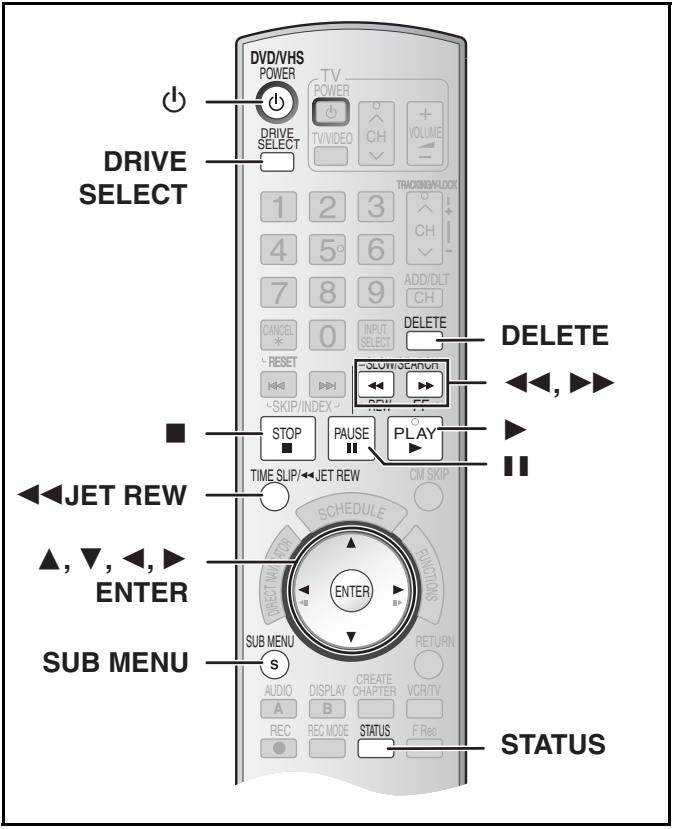
Avance rapide / Retour rapide
En mode arrêt
Appuyez sur [◀◀] (retour) / [▶▶] (avance).
Recherche par index / Revue
Pendant la lecture
Appuyez brièvement ou maintenez enfoncé [◀◀] (retour) / [▶▶] (avance).
- Si vous maintenez ces boutons enfoncés, la lecture normale reprend lorsque vous les relâchez.
- Appuyez sur [▶, PLAY] pour reprendre la lecture normale.
Recherche par saut
Pendant la lecture
Appuyez deux fois sur [◀◀] (retour) / [▶▶] (avance). Vous pouvez augmenter la vitesse de recherche par index.
- Appuyez sur [▶, PLAY] pour reprendre la lecture normale.
- Vous pouvez sélectionner la vitesse de recherche pour visualiser l'image enregistrée. (→ 65)
- L'image enregistrée en mode EP ou VP peut être déformée si elle est lue à environ 35 fois la vitesse normale. Un défilement vertical peut se produire. Ce n'est pas un dysfonctionnement, mais si cela se produit, passez à environ 27 fois la vitesse.
- L'image peut ne pas être en couleur ou peut être déformée selon le téléviseur.
Ralenti
Pendant la lecture
Maintenez enfoncée la touche [11, PAUSE] pendant environ 2 secondes ou plus.
- Appuyez sur [▶, LECTURE] pour reprendre la lecture normale.
1 Appuyez sur [⏻, ALIMENTATION DVD/VHS] pour allumer l'appareil.
2 Sélectionnez le côté VHS en appuyant sur [SÉLECTION DE SOURCE].
3 Sélectionnez la chaîne de visualisation de l'appareil (par exemple, l'entrée AV) sur le téléviseur.
4 Insérez une cassette vidéo enregistrée. (→ 24)
5 Appuyez sur [▶, LECTURE].
- La lecture démarre automatiquement si vous insérez une cassette vidéo avec l'onglet retiré.
■ Pour mettre en pause la lecture
Appuyez sur [■, PAUSE]. (Appuyez à nouveau pour reprendre la lecture.)
■ Pour arrêter la lecture
Appuyez sur [■, STOP].
Remarques
- Lorsque l'appareil est en veille, une cassette vidéo insérée peut être lue en appuyant sur [▶, PLAY].
- Lorsque la bande atteint sa fin, l'appareil la rembobine automatiquement au début. Cette fonction ne fonctionne pas pendant l'enregistrement programmé, l'avance rapide et l'enregistrement avec arrêt spécifié.
- La recherche Jet Search, la recherche avant/arrière ou la lecture au ralenti sont automatiquement annulées après 10 minutes, et la pause après 5 minutes.
- Lors de la visualisation d'une image fixe ou pendant la lecture au ralenti, l'image qui apparaît en mode VP peut être déformée.
- Lors de la lecture d'une bande enregistrée sur un autre magnétoscope, il peut être nécessaire de régler la piste (→ 38). Dans certains cas, la qualité de l'image peut rester inférieure. Cela est dû aux contraintes du format.
Rembobinage rapide
Pour effectuer un rembobinage à vitesse plus élevée
Appuyez sur [◀◀JET REW].
- Selon la bande ou les conditions de fonctionnement, la vitesse de rembobinage peut varier quelque peu.
- Le compteur de bande est remis à "0:00.00" lorsque la bande est rembobinée au début.
- Selon la bande, cette fonction peut ne pas fonctionner.
Lecture quasi S-VHS (SQPB)
Il est également possible de lire des cassettes enregistrées au format S-VHS.
- Un certain bruit d'image peut apparaître selon le type de cassette utilisé.
- Il n'est pas possible d'obtenir entièrement la haute résolution dont le S-VHS est capable.
- Il n'est pas possible d'enregistrer au format S-VHS avec cet appareil.
Lecture répétée
Pendant la lecture ou à l'arrêt
Maintenez enfoncée la touche [▶, PLAY] pendant environ 5 secondes ou plus.
- À la fin du programme, la cassette se rembobine au début du programme et le repasse (cela ne fonctionne que s'il y a au moins 5 secondes de blanc à la fin du programme). Cette opération se répète jusqu'à ce que vous l'annuliez.
■ Pour reprendre la lecture normale
Appuyez sur [▶, PLAY].
■ Pour arrêter la lecture
Appuyez sur [■, STOP].
Réglage de l'image de lecture
■ Poursuite manuelle
L'appareil effectue normalement les réglages de poursuite, mais vous devrez peut-être le faire manuellement si du bruit apparaît sur une cassette enregistrée sur un autre équipement.
Pendant la lecture
Appuyez sur [TRACKING/V-LOCK, +] ou [TRACKING/V-LOCK, -].
Répétez jusqu'à ce que le bruit disparaisse.
■ Réglage du verrouillage vertical
Réglez la synchronisation verticale pour arrêter le tremblement de l'image en pause.
Pendant la pause
Appuyez sur [TRACKING/V-LOCK, +] ou [TRACKING/V-LOCK, -].
Répétez jusqu'à ce que le tremblement cesse.
■ Pour revenir au tracking automatique
Appuyez simultanément sur [TRACKING/V-LOCK, +] et [TRACKING/V-LOCK, -].
■ Pour supprimer le bruit d'une image en pause
Démarrez la lecture lente, puis réglez le tracking.
Remarques
- Cette fonction peut ne pas fonctionner avec certains modèles de téléviseurs et certaines cassettes.
- Vous pouvez également régler le tracking et la synchronisation verticale avec [CH, ∧, ∨] sur l'appareil principal.
Système de recherche d'index VHS (VISS)
L'appareil enregistre automatiquement des signaux d'index spéciaux sur la bande à chaque début d'enregistrement. La fonction de recherche d'index utilise ces signaux pour vous permettre de trouver rapidement et facilement le début d'un programme souhaité.
■ Les signaux d'index sont enregistrés dans les cas suivants.
- Lorsqu'un enregistrement est démarré en appuyant sur [●, REC].
- Lorsqu'un enregistrement programmé est démarré.
Préparation
- Sélectionnez la chaîne de visualisation de l'appareil sur le téléviseur.
- Sélectionnez le côté VHS en appuyant sur [DRIVE SELECT].
- Insérez une cassette vidéo enregistrée.
En mode arrêt ou pendant la lecture normale
Appuyez sur [◀◀] ou [▶▶].
● Chaque pression augmente le nombre de sauts.

■ Pour annuler la recherche d'index
Appuyez sur [■, STOP].
Remarques
- Vous pouvez rechercher jusqu'à 20 signaux d'index dans les deux directions.
- Si vous appuyez trop longtemps sur l'un des boutons, vous pouvez contrôler le nombre de sauts en appuyant sur le bouton opposé.
- Le chiffre affiché à l'écran diminue de 1 à chaque fois qu'un signal d'index est localisé.
- Cette fonction peut ne pas fonctionner correctement si les signaux d'index sont trop rapprochés. Effectuez des enregistrements d'au moins 5 minutes.
Diverses indications à l'écran
L'affichage à l'écran ci-dessous apparaît pendant la lecture VHS. Pour voir ces affichages, réglez l'élément « Status Messages » dans « Setup » sur « Automatic ». (→ 65)
Appuyez sur [STATUS].
L'heure et les détails de l'opération apparaissent à l'écran.
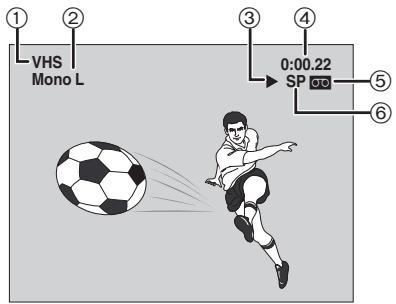
| 1 | Current drive |
| 2 | Audio indicatorsThe Left (Mono L) and Right (Mono R) indicators show which sound mode is selected as follows:Stereo: Stereo indicator appears.Mono L: The Mono L indicator appears.Mono R: The Mono R indicator appears.Normal: Neither the L nor R indicator appears. |
| 3 | Operation status display |
| 4 | Shows the tape counter and remaining tape timePressing [STATUS] once makes the on-screen display appear. After that, press the button repeatedly to change the display as follows:No display → Tape counter → Remaining tape time↑●Press [*, CANCEL] to reset the tape counter (elapsed time) to “0:00.00”. The tape counter is automatically reset to “0:00.00” when inserting a video cassette.The remaining time is approximate. It will be incorrect if you set the wrong tape time in “Select Tape Length” in the “Setup” and if the tape is of poor quality. (→ 65) |
| 5 | Cassette-in indicatorShows whether you have inserted a video cassette. |
| 6 | Recording mode indicator (→ 26) |
Remarque
- L'affichage à l'écran peut être déformé selon la cassette de lecture ou le signal d'entrée.
Utilisation des menus à l'écran
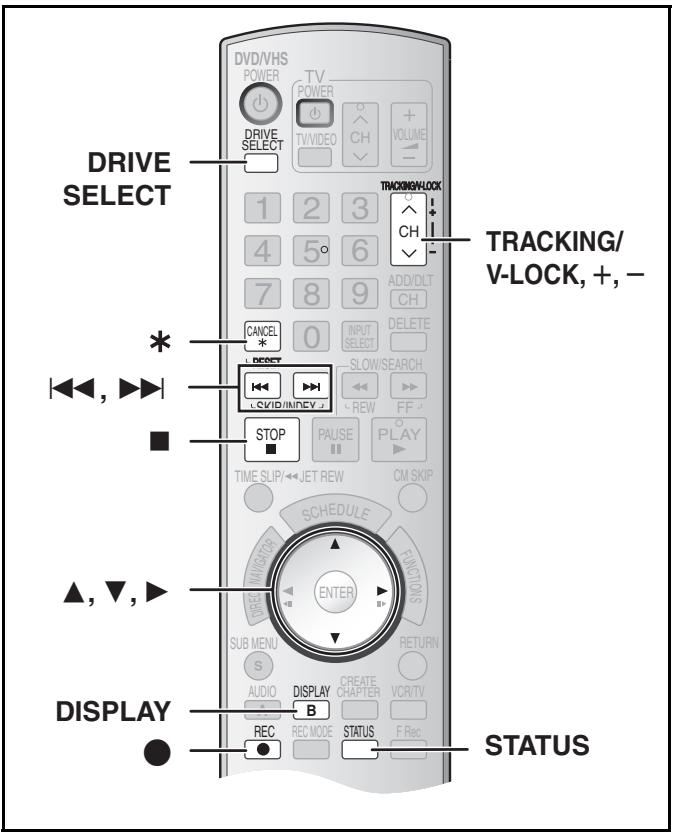
■ Procédures courantes

Préparation
- Sélectionnez le côté DVD en appuyant sur [DRIVE SELECT].
1 Appuyez sur [DISPLAY].
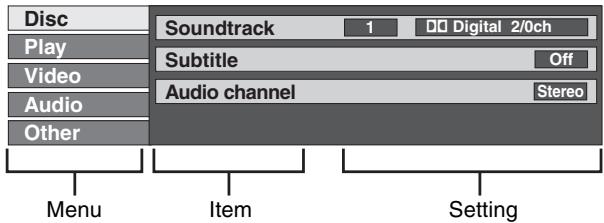
2 Sélectionnez un menu avec [▲, ▼] et appuyez sur [▶]. 3 Sélectionnez un élément avec [▲, ▼] et appuyez sur [▶]. 4 Sélectionnez un réglage avec [▲, ▼].
- Des opérations différentes sont requises selon les réglages. Suivez les instructions à l'écran.
■ Pour quitter l'écran
Appuyez sur [DISPLAY].
Pour votre référence
● Les écrans dépendent du contenu du disque. - Selon l'état de l'appareil (lecture, arrêt, etc.) et le type de logiciel que vous lisez, certains éléments ne peuvent pas être sélectionnés ou modifiés.
▶ Menu du disque - Réglage du contenu du disque
RAM -R -R DL -RW(V) +R +R DL +RW DVD-A DVD-V -RW(VR) VCD
Bande sonore
RAM -R -R DL -RW(V) +R +R DL +RW -RW(VR)
Les attributs audio du disque apparaissent.
DVD-A DVD-V
Sélectionnez l'audio et la langue. (Voir [B] Attributs audio)
Sous-titres
DVD-A DVD-V
Activez/désactivez les sous-titres et sélectionnez la langue (voir [A] Piste audio/Langue des sous-titres).
RAM -R -R DL -RW(V) +R +R DL +RW -RW(VR)
(Uniquement pour les disques contenant des informations d'activation/désactivation des sous-titres)
Activez ou désactivez les sous-titres.
- Les informations d'activation/désactivation des sous-titres ne peuvent pas être enregistrées avec cet appareil.
- Si les sous-titres chevauchent les sous-titres codés enregistrés sur les disques, désactivez les sous-titres.
Canal audio RAM -RW(VR) VCD
"Changement de l'audio pendant la lecture" (→ 33)
Angle DVD-A DVD-V
Changez le numéro pour sélectionner un angle.
Image fixe (Still-P) DVD-A
Sélectionne la méthode de lecture des images fixes.
Diaporama : Lecture selon l'ordre par défaut du disque.
Page : Sélectionnez le numéro de l'image fixe et lisez.
ALÉATOIRE : Lecture dans un ordre aléatoire.
Retour : revient à l'image fixe par défaut du disque.
PBC (contrôle de lecture) VCD (→ 76)
Indique si la lecture par menu (contrôle de lecture) est activée ou désactivée.
[A] Piste sonore / langue des sous-titres
| ENG: EnglishFRA: FrenchDEU: GermanITA: ItalianESP: SpanishNLD: DutchSVE: SwedishNOR: Norwegian | DAN: DanishPOR: PortugueseRUS: RussianJPN: JapaneseCHI: ChineseKOR: KoreanMAL: MalayVIE: Vietnamese | THA: ThaiPOL: PolishCES: CzechSLK: SlovakHUN: HungarianFIN: Finnish*: Others |
[B] Attributs audio
LPCM/PPCM/☐ Digital/DTS/MPEG : type de signal
k (kHz) : fréquence d'échantillonnage
b (bit) : nombre de bits
ch (canal) : nombre de canaux
Pour votre référence
- L'affichage change selon le contenu du disque. Vous ne pouvez pas effectuer de modification s'il n'y a pas d'enregistrement.
- Certains disques permettent de modifier les pistes sonores, les sous-titres et les angles uniquement à l'aide des menus de configuration du disque.
▶ Menu de lecture - Modifier la séquence de lecture
RAM -R -R DL -RW(V) +R +R DL +RW DVD-A DVD-V -RW(VR) VCD CD
Lecture répétée
Cette fonction ne fonctionne que lorsque le temps de lecture écoulé est affiché.
Sélectionnez l'élément pour la lecture répétée. Selon le disque, les éléments pouvant être sélectionnés diffèrent.
● Tout VCD CD (à l'exclusion des disques MP3) - Chapitre RAM -R -R DL -RW(V) +R +R DL +RW DVD-V -RW(VR) - Groupe DVD-A CD (disques MP3 uniquement) - Listes de lecture RAM -RW(VR) - Titre RAM -R -R DL -RW(V) +R +R DL +RW DVD-V -RW(VR) - Piste DVD-A VCD CD
Sélectionnez "Arrêt" pour annuler.
▶ Menu vidéo - Modifier la qualité d'image
RAM -R -R DL -RW(V) +R +R DL +RW DVD-A DVD-V -RW(VR)
VCD
Image
Pour sélectionner le mode d'image pendant la lecture
Normal : réglage par défaut
Doux : image douce avec moins d'artefacts vidéo
Fin : les détails sont plus nets
Cinéma : adoucit les films, améliore les détails dans les scènes sombres.
DNR
Réduit le bruit et la détérioration de l'image.
On ↔ Off
*Progressive (→ 76)
Select "On" to enable progressive output.
- Select "Off" if the picture is stretched horizontally.
- When progressive output is on, closed captions cannot be displayed.
On ↔ Off
* Transfer (When “Progressive” is set to “On”)
Select the method of conversion for progressive output to suit the type of material being played (→ 76, “Film and Video”).
Auto1 (normal):
Detects 24 frame-per-second film content and appropriately converts it.
Auto2: Compatible with 30 frame-per-second film content in addition to 24 frame-per-second film content.
Video: Select when the video content is distorted by using Auto1 and Auto2.
Line-in NR (Only when IN1, IN2 or DV is selected)
Reduces video tape noise during transfer (copy).
Depending on the software, jittering may occur.
Automatique :
La réduction de bruit ne fonctionne que sur les images provenant d'une cassette vidéo.
Activée : La réduction de bruit fonctionne pour toute entrée vidéo.
Désactivée : La réduction de bruit est désactivée. Sélectionnez cette option lorsque vous souhaitez enregistrer l'entrée telle quelle.
* Uniquement lorsque vous avez sélectionné "480p" dans "Type de téléviseur" (→ 20).
▶ Menu Audio - Modifier l'effet sonore
RAM -R -R DL -RW(V) +R +R DL +RW DVD-A DVD-V -RW(VR)
V. Surround Sound
RAM -R -R DL -RW(V) +R +R DL +RW DVD-A DVD-V -RW(VR)
(Uniquement pour Dolby Digital avec 2.0 canaux ou plus)
Profitez d'un effet sonore surround si vous utilisez uniquement 2 enceintes avant (G/D).

Remarques
- Désactivez V. Surround Sound s'il provoque une distorsion.
●V. Surround Sound ne fonctionne pas pour les enregistrements SAP.
Améliorateur de dialogue
RAM -R -R DL -RW(V) +R +R DL +RW DVD-A DVD-V -RW(VR)
(Dolby Digital, 3 canaux ou plus uniquement, y compris un canal central)
Le volume du canal central est augmenté pour rendre les dialogues plus faciles à entendre.
On ↔ Off
▶ Autre menu - Changer la position d'affichage
Position
Pour changer la position d'affichage
1 (Standard) - 5 :
Plus le réglage est élevé, plus l'écran descend.
Fenêtre FONCTIONS
En utilisant la fenêtre FONCTIONS, vous pouvez accéder aux fonctions principales rapidement et facilement.
1 En mode arrêt
Appuyez sur [FONCTIONS].
● Les fonctions affichées dépendent du type de disque.
2 Sélectionnez un élément avec [▲, ▼] et appuyez sur [ENTER].
- Si vous sélectionnez "Autre
Fonctions", appuyez sur [▲, ▼] pour sélectionner un élément, puis sur [ENTER].
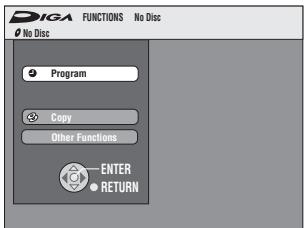
■ Pour quitter la fenêtre FONCTIONS
Appuyez sur [FUNCTIONS].
Messages d'état
Des messages d'état apparaissent sur le téléviseur lors de l'utilisation de l'appareil, pour indiquer l'opération effectuée et l'état de l'appareil.
Appuyez sur [STATUS] pour modifier les informations affichées.
L'affichage change à chaque pression sur le bouton.
Par exemple,
![graph TD A["DVD-RAM"] --> B["Rec."] A --> C["Play"] A --> D["Stereo"] A --> E["VHS Rec."] B --> F["5/22 10:15 PM T1 00:05.14 XP"] C --> G["Remain 1:34 SP T2 00:00.10 SP"] D --> H["No display"] E --> I["No display"] F --> J["(7)"] G --> K["(8)"] H --> L["(5)"] I --> M["(6)"] J --> N["VHD-RAM"] K -->…](/content/2019/10/56204/images/9f069e3d156012392fd48f6d3adb9371721b7faafedf8813879d4079c4ebe048.jpg)
■ Exemples d'affichage
(1) Support actuel
(2) État actuel d'enregistrement ou de lecture, canal d'entrée
●Affiche l'état actuel de l'appareil et le canal d'entrée.
(3) Type audio ( → 27, 33)
(4) Autre mode de conduite
(5) Date et heure actuelles
(6) Temps d'enregistrement disponible et mode d'enregistrement
(par exemple : "1:34 SP" indique 1 heure et 34 minutes en mode SP)
- Le temps restant sur le disque peut légèrement varier selon les modèles.
(7) Temps de lecture écoulé
(8) Temps d'enregistrement
- Affiche le temps d'enregistrement, le mode d'enregistrement et une indication approximative de l'espace utilisé pour l'enregistrement sur le disque.
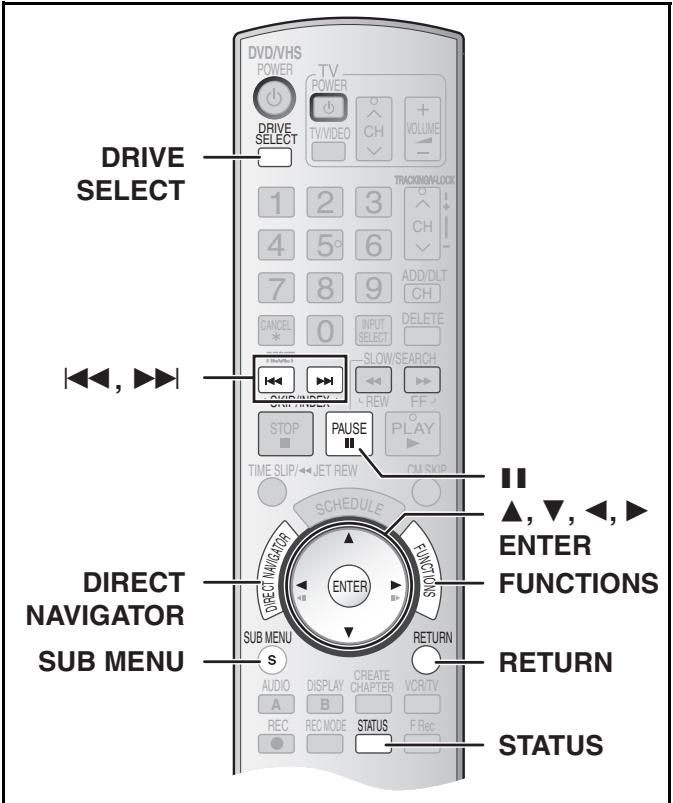
RAM -R -R DL -RW(V) +R +R DL +RW -RW(VR) Appuyez sur [DIRECT NAVIGATOR] et la liste des titres enregistrés (vue Titre) s'affiche. Vous pouvez lire et modifier un titre souhaité.
Pour votre référence
- Vous ne pouvez pas modifier pendant l'enregistrement ou le transfert (copie), etc.
- Vous pouvez créer un menu principal à l'aide de "Créer un menu principal DVD" (→ 62). L'enregistrement ou la modification sur le disque peut supprimer le menu. Dans ce cas, créez à nouveau le menu. +RW
- Les informations de gestion sont enregistrées dans les sections inutilisées lorsque vous modifiez des disques. L'espace disponible de ces disques diminue à chaque modification de leur contenu. +R +R DL
●Le nombre maximal d'éléments sur un disque :
- Titre : 99 (+R +R DL +RW 49 titres)
- Chapitre : environ 1000 (+R +R DL +RW environ 254) (selon l'état de l'enregistrement).
Titre/Chapitre : Les programmes sont enregistrés comme un seul titre composé d'un chapitre.![graph TD A["Start"] --> B["Chapter"] B --> C{You can divide a title into multiple chapters. RAM (→ 33, "Create chapters", → 43 "Create Chapter")] C --> D["Chapter"] D --> E["Chapter"] E --> F["Chapter"] F --> G["Chapter"]](/content/2019/10/56204/images/3e274f248e9db18bfe3d8aa7ea59d87e1e33d55ab0aa40a186365cf8c9b2d76c.jpg)
- Vous pouvez modifier l'ordre des chapitres et créer une liste de lecture (→ 44). RAM
- Les titres sont divisés en chapitres environ 5 minutes après la finalisation
(→ 61). -R -R DL -RW(V) (8 minutes +R +R DL)
Diverses opérations
■ Pour afficher d'autres pages
Appuyez sur [▲, ▼, ◀, ▶] pour sélectionner "Précédent" ou "Suivant" puis sur [ENTER].
- Vous pouvez également appuyer sur [◀◀, SKIP] ou [▶▶, SKIP] pour afficher d'autres pages.
■ Édition multiple
Sélectionnez avec [▲, ▼, ◀, ▶] et appuyez sur [■■, PAUSE]. (Répétez)
Une coche apparaît. Appuyez à nouveau sur [Ⅱ, PAUSE] pour annuler.
Édition des titres/chapitres et lecture des chapitres
Remarque
- Une fois supprimé, divisé ou raccourci, le titre ne peut pas être restauré dans son état d'origine. Assurez-vous avant de continuer.
Préparation
- Protection de lecture (disque → 60, cartouche → 60). RAM
- Appuyez sur [DRIVE SELECT] pour sélectionner le lecteur DVD.
1 Appuyez sur [DIRECT NAVIGATOR].
par exemple ; RAM
2 Utilisez [▲, ▼, ◀, ▶] pour sélectionner le titre souhaité.
- « Pour afficher d'autres pages » (→ ci-dessous)
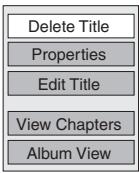
3 Appuyez sur [SUB MENU].
4 Utilisez [▲, ▼] pour sélectionner l'élément souhaité et appuyez sur [ENTER].
● Après cette opération, suivez l'opération souhaitée.
■ Pour arrêter en cours de route
Appuyez sur [RETURN].
Pour votre référence
- Lorsque le titre est protégé (→ 42), certains éléments ne sont pas accessibles. Désactivez la protection pour accéder aux éléments inaccessibles. RAM
Opérations sur les titres
Supprimer un titre
RAM -R -R DL -RW(V) +R +R DL +RW
(Multiple editing is possible. → below)
- Suivez les étapes 1 à 3 de « Modification des titres/chapitres et lecture des chapitres ». Ex. : RAM
Une fois le titre supprimé à l'aide de cette procédure, il ne peut plus être récupéré. Vérifiez soigneusement le titre avant de l'effacer pour vous assurer que ce n'est pas celui que vous souhaitez conserver.
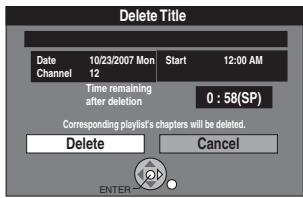
4 Sélectionnez « Supprimer le titre » avec [▲, ▼] et appuyez sur [ENTER].
5 Sélectionnez « Supprimer » avec [◀] et appuyez sur [ENTER].
Pour votre référence
- Le temps d'enregistrement disponible du disque peut ne pas augmenter après l'effacement de titres courts.
- L'espace d'enregistrement disponible sur DVD-R, DVD-R DL, +R ou +R DL n'augmente pas lorsque vous supprimez des titres.
- L'espace d'enregistrement disponible sur un DVD-RW (format DVD-Vidéo) ou +RW augmente lorsque le dernier titre enregistré est supprimé. (L'espace d'enregistrement peut augmenter légèrement lorsque d'autres titres sont supprimés.)
■ Propriétés
RAM -R -R DL -RW(V) +R +R DL +RW -RW(VR)
- Suivez les étapes 1 à 3 de « Modification des titres/chapitres et lecture des chapitres ».
Les informations sur le titre (par exemple, la date et l'heure) sont affichées.
4 Sélectionnez « Propriétés » avec [▲, ▼] et appuyez sur [ENTER].
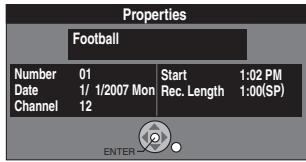
■ Album View
RAM
- Suivez les étapes 1 à 3 de « Modification des titres/chapitres et lecture des chapitres ».
4 Sélectionnez « Album View » avec [▲, ▼] et appuyez sur [ENTER].
- L'écran Album View s'affiche. [« Lecture d'images fixes (JPEG/TIFF) » → 35]
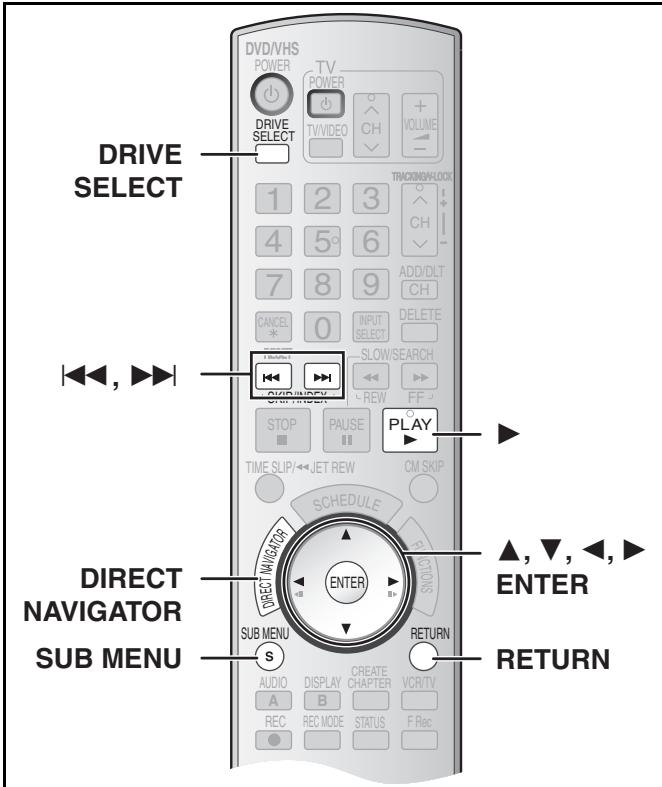
Modifier le titre
Vous pouvez effectuer divers types de modification de titre.
Préparation
- Désactivez la protection (disque → 60, cartouche → 60). RAM
- Sélectionnez le côté DVD en appuyant sur [DRIVE SELECT].
1 Appuyez sur [DIRECT NAVIGATOR] et utilisez [▲, ▼, ◀, ▶] pour sélectionner le titre souhaité.
- « Pour afficher d'autres pages » → 41
- « Modification multiple » → 41
2 Appuyez sur [SUB MENU]. 3 Sélectionnez « Edit Title » avec [▲, ▼] et appuyez sur [ENTER]. 4 Utilisez [▲, ▼] pour sélectionner l'élément souhaité et appuyez sur [ENTER].
- L'écran de modification de l'élément sélectionné apparaît.
| Title Name |
| Set Protection |
| Cancel Protection |
| Shorten Title |
| Change Thumbnail |
| Divide Title |
■ Pour revenir à l'écran précédent
Appuyez sur [RETURN].
■ Pour quitter l'écran
Appuyez sur [RETURN].
▶ Nom du titre
RAM -R -R DL -RW(V) +R +R DL +RW
- Suivez les étapes 1 à 3 de « Modifier le titre ».
4 Sélectionnez « Nom du titre » avec [▲, ▼] et appuyez sur [ENTER].
- Reportez-vous à « Saisie de texte ». (→ 58)
▶ Protéger / Annuler la protection
RAM +R +R DL +RW (« Édition multiple » → 41)
- Suivez les étapes 1 à 3 de « Modifier le titre ». Vous pouvez empêcher l'effacement accidentel de titres en définissant et en annulant la protection en écriture. 4 Sélectionnez « Protéger » ou « Annuler la protection » avec [▲, ▼] et appuyez sur [ENTER].
5 Sélectionnez « Oui » avec [◀] et appuyez sur [ENTER].
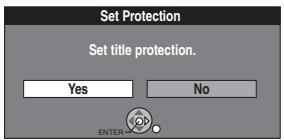
![PANASONIC DMRES45V - Sélectionnez « Oui » avec [◀] et appuyez sur [ENTER]. - 2](/content/2019/10/56204/images/d3069d383bef1b62cad221097316b2d8cfad4cd371a2904649550fcbdf99c376.jpg)
Réglage de la protection : le symbole du cadenas apparaît.
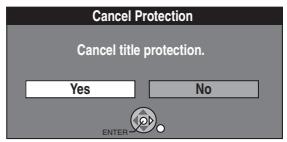
▶
![PANASONIC DMRES45V - Sélectionnez « Oui » avec [◀] et appuyez sur [ENTER]. - 4](/content/2019/10/56204/images/90ff54fa109b8abe3841fcb32b97d84b13a422093326d0e6b09dfb55fd4a244e.jpg)
Annulation de la protection : le symbole du cadenas disparaît.
Pour votre référence
Les titres seront effacés même s'ils sont protégés si vous formatez le disque avec la gestion DVD (→ 60).
▶ Raccourcir un titre
RAM
- Suivez les étapes 1 à 3 de « Modifier un titre ».
Vous pouvez supprimer les parties inutiles du titre, comme les publicités.
4 Sélectionnez « Raccourcir un titre » avec [▲, ▼] et appuyez sur [ENTER]. 5 Appuyez sur [ENTER] au point de début et au point de fin de la section à effacer.
(→ 43, « Pour une édition plus rapide »)
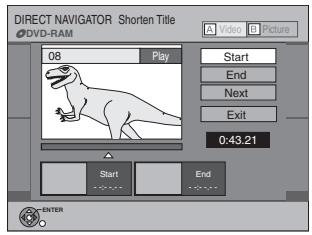
6 Sélectionnez « Quitter » avec [▲, ▼] et appuyez sur [ENTER]. 7 Sélectionnez « Supprimer » avec [◀] et appuyez sur [ENTER].
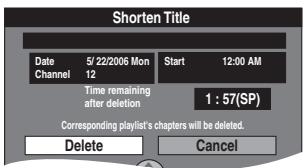
■ Pour effacer une autre partie du même titre
Après avoir défini le point dans « Début » et « Fin », sélectionnez « Suivant » à l'étape 5 et effectuez l'étape 7, puis répétez les étapes 5 à 7.
Pour votre référence
- Vous ne pourrez peut-être pas spécifier des points de début et de fin à moins de 3 secondes l'un de l'autre.
- Le temps d'enregistrement disponible sur le disque peut ne pas augmenter après l'effacement de courtes parties de titres.
▶ Changer la vignette
RAM -R -R DL -RW(V) +R +R DL +RW
- Suivez les étapes 1 à 3 de "Modifier le titre".
Vous pouvez changer l'image affichée comme vignette dans la vue des titres.
4 Sélectionnez "Changer la vignette" avec [▲, ▼] et appuyez sur [ENTER]. 5 Appuyez sur [▶, PLAY] pour lire. 6 Appuyez sur [ENTER] au point que vous souhaitez afficher.
(→ 43, "Pour une édition plus rapide")
- Pour changer à un autre point dans le même titre :
- Sélectionnez "Changer" avec [▲, ▼] et appuyez sur [▶, PLAY] puis répétez l'étape 6.
7 Sélectionnez "Quitter" avec [▲, ▼] et appuyez sur [ENTER].
- La vignette sera changée à ce point.
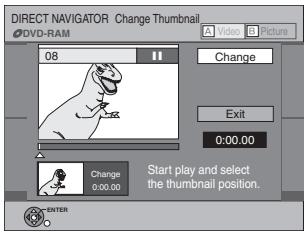
▶ Diviser le titre
RAM
- Suivez les étapes 1 à 3 de "Modifier le titre".
Vous pouvez diviser un titre sélectionné en deux. Vous devez être prudent lors de la division d'un titre car il ne peut pas être récupéré après la procédure.
4 Sélectionnez « Diviser le titre » avec [▲, ▼] et appuyez sur [ENTER]. 5 Appuyez sur [ENTER] au point où vous souhaitez diviser le titre.
(→ en bas à droite, « Pour une édition plus rapide »)
- Pour changer le point de division :
- Sélectionnez « Diviser » avec [▲, ▼] et appuyez sur [▶, PLAY], puis répétez les étapes 5 à 7.
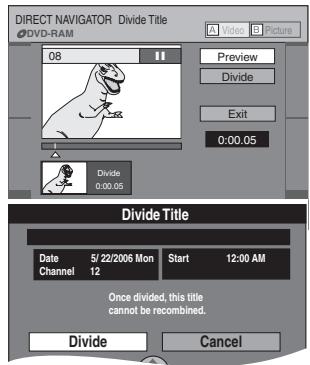
6 Sélectionnez « Quitter » avec [▲, ▼] et appuyez sur [ENTER]. 7 Sélectionnez « Diviser » avec [◀] et appuyez sur [ENTER].
● Le titre est divisé à ce point.
■ Pour vérifier le point de division
En sélectionnant « Aperçu » à l'étape 5 et en appuyant sur [ENTER], la lecture commencera 10 secondes avant le point de division et se poursuivra 10 secondes après.
Pour votre référence
- Les titres divisés conservent le nom du titre d'origine. Ils conservent également la propriété CPRM (→ 76) de l'original.
- La vidéo et l'audio juste avant et après le point de division seront momentanément coupés.
- Il n'est pas possible d'effectuer « Diviser » dans les cas suivants :
- Lorsque la ou les parties résultantes sont extrêmement courtes.
- Lorsque le nombre total de titres est supérieur à 99.
Opérations sur les chapitres
■ Afficher les chapitres
1 Appuyez sur [DIRECT NAVIGATOR] et utilisez [▲, ▼, ◀, ▶] pour sélectionner le titre souhaité. - « Pour afficher d'autres pages » → 41 2 Appuyez sur [SUB MENU]. 3 Sélectionnez « Afficher les chapitres » avec [▲, ▼] et appuyez sur [ENTER]. 4 Sélectionnez le chapitre souhaité avec [▲, ▼, ◀, ▶]. Ex. : RAM
- Pour démarrer la lecture → Appuyez sur [ENTER].
- Pour modifier → Suivez les étapes ci-dessous.
5 Appuyez sur [SUB MENU].
6 Sélectionnez l'élément souhaité avec [▲, ▼] et appuyez sur [ENTER].
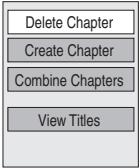
▶ Supprimer un chapitre
RAM (« Modification multiple » → 41)
- Suivez les étapes 1 à 5 de « Afficher les chapitres ».
Une fois supprimé, le contenu enregistré est perdu et ne peut pas être restauré. Assurez-vous avant de continuer.
6 Sélectionnez « Supprimer un chapitre » avec [▲, ▼] et appuyez sur [ENTER]. 7 Sélectionnez « Supprimer » avec [◀] et appuyez sur [ENTER].
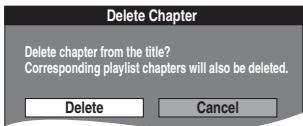
▶ Créer un chapitre
RAM
- Suivez les étapes 1 à 5 de « Afficher les chapitres ».
6 Sélectionnez "Créer un chapitre" avec [▲, ▼] et appuyez sur [ENTRÉE]. 7 Appuyez sur [ENTRÉE] à l'endroit où vous souhaitez diviser.
(→ ci-dessous, "Pour une édition plus rapide")
- Répétez cette étape pour diviser à d'autres endroits.
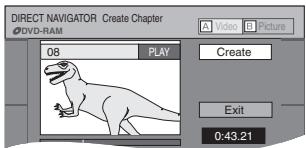
8 Sélectionnez "Quitter" avec [▼] et appuyez sur [ENTRÉE].
Remarque
- Une courte partie de l'enregistrement juste après le point de création peut être perdue.
Pour votre référence
- Les titres divisés conservent le nom du titre d'origine. Ils conservent également la propriété CPRM (→ 76) de l'original.
- Il n'est pas possible d'effectuer "Créer" lorsque la ou les parties résultantes sont extrêmement courtes.
▶ Combiner des chapitres
RAM
- Suivez les étapes 1 à 5 de "Afficher les chapitres". 6 Sélectionnez "Combiner des chapitres" avec [▲, ▼] et appuyez sur [ENTRÉE]. 7 Sélectionnez "Combiner" avec [◀] et appuyez sur [ENTRÉE].
● Le chapitre sélectionné et le chapitre suivant sont combinés.
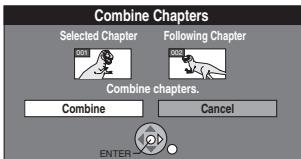
▶ Afficher les titres
RAM
- Suivez les étapes 1 à 5 de "Afficher les chapitres".
6 Sélectionnez "Afficher les titres" avec [▲, ▼] et appuyez sur [ENTER].
Vous revenez à l'affichage des titres.
Pour une édition plus rapide
- Utilisez la recherche (→ 32), le Time Slip (→ 33) ou le ralenti (→ 33) pour trouver le point souhaité.
- Appuyez sur [◀◀, SKIP] ou [▶▶, SKIP] pour passer à la fin d'un titre.
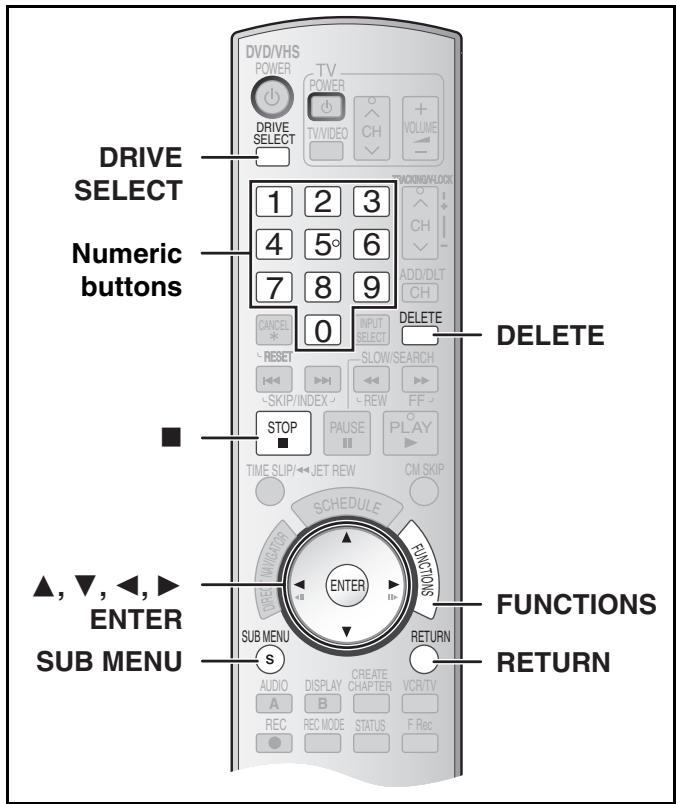
RAM
Vous pouvez créer une liste de lecture en rassemblant vos chapitres préférés (→ 41) à partir de vos enregistrements. Vous pouvez également lire et éditer la liste de lecture créée.
Liste de lecture
| Title | Title | |||
| Chapter | Chapter | Chapter | Chapter | Chapter |
| Playlist | Chapter | Chapter | ||
- L'édition des listes de lecture ne modifie pas les titres.
- Les listes de lecture ne sont pas enregistrées séparément, donc cela n'utilise pas beaucoup de capacité.
● Le nombre maximal d'éléments sur un disque :
- Listes de lecture : 99
- Chapitres dans les listes de lecture :
Environ 1000 (selon l'état de l'enregistrement).
- Si vous dépassez le nombre maximal d'éléments pour un disque, tous les éléments saisis ne seront pas enregistrés.
- Vous ne pouvez pas créer ou modifier une liste de lecture pendant l'enregistrement.
Création de listes de lecture
RAM
Préparation
- Protection contre la libération. (disque → 60, cartouche → 60)
- Appuyez sur [DRIVE SELECT] pour sélectionner le lecteur DVD.
1 En mode arrêt, appuyez sur [FUNCTIONS]. 2 Sélectionnez « Autres fonctions » avec [▲, ▼] et appuyez sur [ENTER].
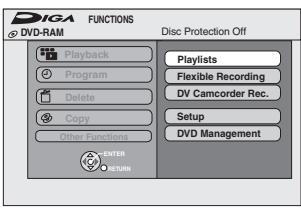
3 Sélectionnez « Listes de lecture » avec [▲, ▼] et appuyez sur [ENTER].
● L'écran de liste de lecture apparaît.
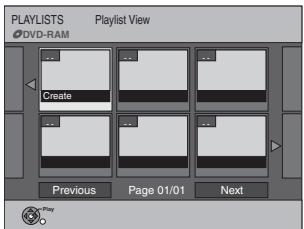
4 Sélectionnez « Créer » avec [▲, ▼, ◀, ▶] et appuyez sur [ENTER]. 5 Utilisez [◀, ▶] pour sélectionner le titre source et appuyez sur [▼].
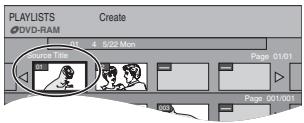
- Lorsque vous souhaitez sélectionner tous les chapitres du titre, utilisez [◀, ▶] pour sélectionner le titre source et appuyez sur [ENTER], puis passez à l'étape 7.
- Répétez les étapes 5 à 7 pour ajouter d'autres titres ou chapitres.
6 Utilisez [◀, ▶] pour sélectionner le chapitre que vous souhaitez ajouter à une liste de lecture et appuyez sur [ENTER].
- Appuyez sur [▲] pour annuler.
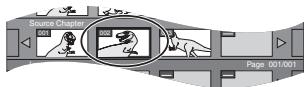
- Vous pouvez également créer un nouveau chapitre dans le titre source. Appuyez sur [SUB MENU] pour sélectionner "Créer un chapitre" puis appuyez sur [ENTER] (→ 43, "Créer un chapitre").
7 Utilisez [◀, ▶] pour sélectionner la position d'insertion du chapitre et appuyez sur [ENTER].
![graph LR A["Chapters in Press"] --> B["Chapters in Press"] B --> C["SUB MENU Press RETURN to exit"] style A fill:#f9f,stroke:#333 style B fill:#ccf,stroke:#333 style C fill:#cfc,stroke:#333](/content/2019/10/56204/images/68f1e005290b8ef8d0c211a5d73f79d04759bd6cb40cae7ad21b6b61972a74f8.jpg)
●Le chapitre est enregistré dans la liste de lecture. - Répétez les étapes 6 à 7 pour ajouter d'autres chapitres. - Pour sélectionner d'autres titres source, appuyez plusieurs fois sur [▲] pour revenir à l'étape 5.
8 Appuyez sur [RETURN].
■ Pour revenir à l'écran précédent
Appuyez sur [RETURN].
■ Pour quitter l'écran
Appuyez sur [RETURN].
Lecture des listes de lecture
RAM -RW(VR) (Lecture seule)
Préparation
- Créez des listes de lecture.
- Sélectionnez le côté DVD en appuyant sur [DRIVE SELECT].
1 En mode arrêt
Appuyez sur [FUNCTIONS].
2 Sélectionnez « Autres fonctions » avec [▲, ▼] et appuyez sur [ENTRÉE]. 3 Sélectionnez « Listes de lecture » avec [▲, ▼] et appuyez sur [ENTRÉE].
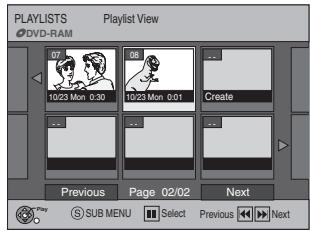
4 Utilisez [▲, ▼, ◀, ▶] pour sélectionner une liste de lecture et appuyez sur [ENTRÉE].
- Les chapitres ne sont pas affichés si vous n'avez pas encore créé de liste de lecture avec le disque.
- Vous pouvez également sélectionner une liste de lecture dans la vue Liste de lecture en saisissant un nombre à 2 chiffres avec les touches numériques.
Ex. : « 5 » : [0]→[5] « 15 » : [1]→[5]
- Si vous saisissez un nombre supérieur au nombre total de listes de lecture, « Créer » est sélectionné.
- « Pour afficher d'autres pages » → 41
■ Pour arrêter la lecture de la liste de lecture
Appuyez sur [■, ARRÊT]. (L'écran de la vue Liste de lecture apparaît.)
■ Pour revenir à l'écran précédent
Appuyez sur [RETOUR].
■ Pour quitter l'écran
Appuyez sur [RETOUR].
■ Pour supprimer une liste de lecture pendant la lecture
1 Appuyez sur [SUPPR].
● Un message de confirmation s'affiche.
2 Utilisez [◀] pour sélectionner "Supprimer" puis appuyez sur [ENTER].
Pour votre référence
- Vous pouvez utiliser l'avance rapide, le retour rapide, la pause et le ralenti pendant la lecture des chapitres, comme en lecture normale.
Modification des listes de lecture/chapitres
RAM -RW(VR) (Propriétés uniquement)
Préparation
- Créez des listes de lecture. (→ 44)
- Retirez la protection (disque → 60, cartouche → 60). RAM
- Sélectionnez le côté DVD en appuyant sur [DRIVE SELECT].
1 À l'arrêt, appuyez sur [FUNCTIONS].
2 Sélectionnez "Autres fonctions" avec [▲, ▼] puis appuyez sur [ENTER].
3 Sélectionnez "Listes de lecture" avec [▲, ▼] puis appuyez sur [ENTER].
- Les chapitres ne sont pas affichés si vous n'avez pas encore créé de liste de lecture sur le disque.
4 Utilisez [▲, ▼, ◀, ▶] pour sélectionner une liste de lecture.
- “Pour afficher d’autres pages” → 41
5 Appuyez sur [SUB MENU].
6 Utilisez [▲, ▼] pour sélectionner un élément souhaité et appuyez sur [ENTER].
ex. : RAM
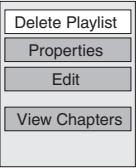
■ Pour revenir à l’écran précédent
Appuyez sur [RETURN].
■ Pour quitter l’écran
Appuyez sur [RETURN].
Opérations sur les listes de lecture
Supprimer une liste de lecture
RAM (« Édition multiple » → 41)
- Suivez les étapes 1 à 5 de « Édition de listes de lecture/chapitres ».
6 Sélectionnez « Supprimer une liste de lecture » avec [▲, ▼] et appuyez sur [ENTER].
7 Sélectionnez « Supprimer » avec [◀] et appuyez sur [ENTER].
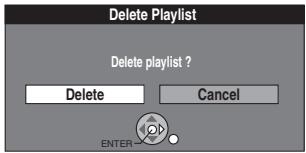
● La liste de lecture est supprimée.
- Une fois qu'une liste de lecture a été supprimée, elle ne peut pas être restaurée. Vérifiez soigneusement avant de continuer.
- Même si vous supprimez la liste de lecture, le titre original n'est pas supprimé.
■ Propriétés
RAM -RW(VR)
- Suivez les étapes 1 à 5 de « Modification des listes de lecture/chapitres ».
6 Sélectionnez « Propriétés » avec [▲, ▼] et appuyez sur [ENTER].
Les informations de la liste de lecture (par exemple, date et durée) sont affichées.
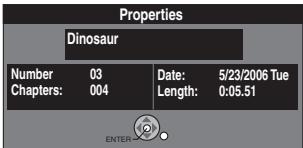
Modifier
RAM
Vous pouvez effectuer divers types de modification de liste de lecture.
1 En mode arrêt, appuyez sur [FUNCTIONS].
2 Sélectionnez « Autres fonctions » avec [▲, ▼] et appuyez sur [ENTER].
3 Sélectionnez « Listes de lecture » avec [▲, ▼] et appuyez sur [ENTER].
4 Utilisez [▲, ▼, ◀, ►] pour sélectionner une liste de lecture. ● « Pour afficher d'autres pages » → 41
5 Appuyez sur [SUB MENU], puis sélectionnez « Modifier » avec [▲, ▼] et appuyez sur [ENTER].
6 Utilisez [▲, ▼] pour sélectionner l'élément souhaité, puis appuyez sur [ENTRÉE].
![graph TD A["Delete Playlist"] --> B["Create"] C["Properties"] --> B D["Edit"] --> B E["View Chapters"] --> B F["Create"] --> G["Copy"] H["Playlist Name"] --> I["Change Thumbnail"]](/content/2019/10/56204/images/82c49d9a49ab14775e1df461bbaf6288cc50b9660fb76efdc3762c9e48bcfb8c.jpg)
■ Pour revenir à l'écran précédent
Appuyez sur [RETOUR].
■ Pour quitter l'écran
Appuyez sur [RETOUR].
▶ Créer
- Suivez les étapes 1 à 5 de « Modifier ».
6 Sélectionnez « Créer » avec [▲, ▼] et appuyez sur [ENTRÉE].
Reportez-vous à « Création de listes de lecture », étapes 5 à 8. (→ 44)
▶ Copier
(« Édition multiple » → 41)
- Suivez les étapes 1 à 5 de « Modifier ».
6 Sélectionnez « Copier » avec [▲, ▼] et appuyez sur [ENTRÉE].
7 Sélectionnez « Copier » avec [◀] et appuyez sur [ENTRÉE].
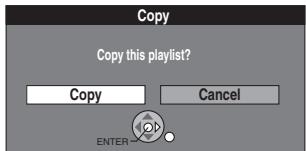
▶ Nom de la liste de lecture
- Suivez les étapes 1 à 5 de « Modifier ».
6 Sélectionnez « Nom de la liste de lecture » avec [▲, ▼] et appuyez sur [ENTRÉE].
Reportez-vous à « Saisie de texte ». (→ 58)
▶ Changer la vignette
- Suivez les étapes 1 à 5 de « Modifier ».
Vous pouvez changer l'image affichée comme vignette dans la vue de la liste de lecture.
6 Sélectionnez « Changer la vignette » avec [▲, ▼] et appuyez sur [ENTRÉE].
7 Appuyez sur [▶, LECTURE] pour lire.
8 Appuyez sur [ENTRÉE] au point que vous souhaitez afficher.
(→ 43, « Pour une édition plus rapide »)
- Pour changer à un autre point dans le même titre :
- Sélectionnez « Changer » avec [▲, ▼] et appuyez sur [▶, LECTURE], puis répétez l'étape 8.
9 Sélectionnez « Quitter » avec [▲, ▼] et appuyez sur [ENTRÉE].
● La scène affichée est changée à ce point.
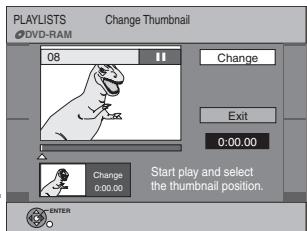
Opérations sur les chapitres
■ Afficher les chapitres
RAM -RW(VR) (lecture uniquement)
Vous pouvez lire/modifier les chapitres d'une liste de lecture.
1 À l'arrêt
Appuyez sur [FUNCTIONS].
2 Sélectionnez « Autres fonctions » avec [▲, ▼] et appuyez sur [ENTER].
3 Sélectionnez « Listes de lecture » avec [▲, ▼] et appuyez sur [ENTER].
4 Utilisez [▲, ▼, ◀, ►] pour sélectionner une liste de lecture.
- « Pour afficher d'autres pages » → 41
5 Appuyez sur [SUB MENU], puis sélectionnez « Afficher les chapitres » avec [▲, ▼] et appuyez sur [ENTER].
6 Utilisez [▲, ▼, ◀, ▶] pour sélectionner le chapitre souhaité.
- Vous pouvez également sélectionner un chapitre dans la vue des chapitres en saisissant un nombre à 3 chiffres avec les touches numériques.
Ex. : « 5 » : [0]→[0]→[5]
« 15 » : [0]→[1]→[5]
- Si vous saisissez un nombre supérieur au nombre total de chapitres, le dernier chapitre est sélectionné.
La modification des chapitres dans une liste de lecture ne modifie pas les titres sources ni les chapitres sources.
« Pour afficher d'autres pages » → 41
7 Appuyez sur [SUB MENU].
8 Utilisez [▲, ▼] pour sélectionner l'élément souhaité, puis appuyez sur [ENTER].
par exemple : RAM
Ajouter un chapitre
Déplacer un chapitre
Créer un chapitre
Combiner des chapitres
Supprimer un chapitre
Afficher les listes de lecture
■ Pour lire un chapitre
Appuyez sur [ENTER] après l'étape 6.
■ Pour arrêter la lecture d'un chapitre
Appuyez sur [■, STOP]. (L'écran d'affichage des chapitres apparaît.)
▶ Ajouter un chapitre
RAM
- Suivez les étapes 1 à 7 de « Afficher les chapitres ».
8 Sélectionnez « Ajouter un chapitre » avec [▲, ▼] et appuyez sur [ENTRÉE].
- Reportez-vous à « Créer des listes de lecture », étapes 5 à 8. (→ 44)
▶ Déplacer un chapitre
RAM
- Suivez les étapes 1 à 7 de « Afficher les chapitres ».
8 Sélectionnez « Déplacer un chapitre » avec [▲, ▼] et appuyez sur [ENTRÉE].
9 Utilisez [▲, ▼, ◀, ▶] pour sélectionner la position d'insertion du chapitre et appuyez sur [ENTRÉE].
● Le chapitre est déplacé et inséré avant le chapitre en surbrillance.
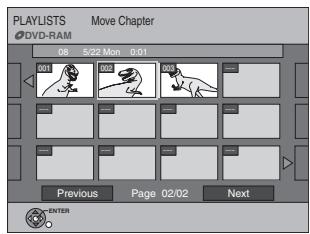
▶ Créer un chapitre
RAM
- Suivez les étapes 1 à 7 de « Afficher les chapitres ».
8 Sélectionnez « Créer un chapitre » avec [▲, ▼] et appuyez sur [ENTRÉE].
9 Appuyez sur [ENTER] au point où vous souhaitez diviser. (→ 43, « Pour une édition plus rapide »)
- Répétez cette étape pour diviser à d'autres points.
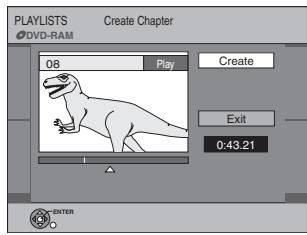
10 Sélectionnez « Quitter » avec [▼] et appuyez sur [ENTER].
Remarque
- Une courte partie de l'enregistrement juste après le point de création peut être perdue.
Pour référence
- Les titres divisés conservent le nom du titre d'origine. Ils conservent également la propriété CPRM (→ 76) de l'original.
- Il n'est pas possible d'effectuer « Créer » lorsque les parties résultantes sont extrêmement courtes.
▶ Combiner des chapitres
RAM
- Suivez les étapes 1 à 7 de « Afficher les chapitres ».
8 Sélectionnez « Combiner des chapitres » avec [▲, ▼] et appuyez sur [ENTER].
9 Sélectionnez « Combiner » avec [◀] et appuyez sur [ENTER].
● Le chapitre sélectionné et le chapitre suivant sont combinés.
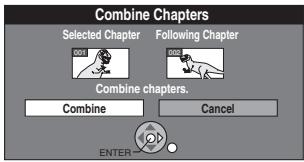
▶ Supprimer un chapitre
RAM ("Multiple editing" → 41)
- Suivez les étapes 1 à 7 de "Visualisation des chapitres".
Une fois supprimé, le contenu enregistré est perdu et ne peut pas être restauré. Assurez-vous avant de continuer.
8 Sélectionnez "Supprimer le chapitre" avec [▲, ▼] et appuyez sur [ENTER].
9 Sélectionnez "Supprimer" avec [◀] et appuyez sur [ENTER].
- Même si vous supprimez le chapitre, le titre original n'est pas supprimé.
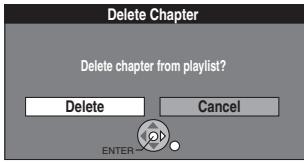
▶ Visualisation des listes de lecture
RAM -RW(VR)
- Suivez les étapes 1 à 7 de "Visualisation des chapitres".
8 Sélectionnez "Visualisation des listes de lecture" avec [▲, ▼] et appuyez sur [ENTER].
Vous revenez à la vue Liste de lecture.
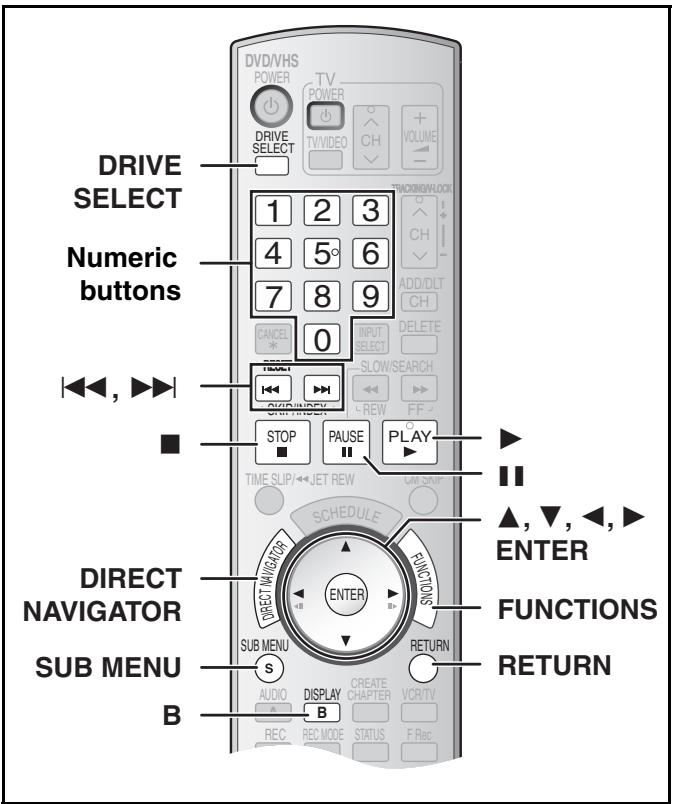
RAM SD
- Vous pouvez modifier des images ou des albums.
- Vous pouvez utiliser des cartes mémoire SD d'une capacité de 8 Mo à 2 Go (→ 8). ● Les images fixes enregistrées sur CD-R ou CD-RW ne peuvent pas être modifiées.
Préparation
- Appuyez sur [DRIVE SELECT] pour sélectionner le lecteur (DVD ou SD).
- Désactivez la protection (disque → 60, cartouche → 60, carte → 60).
Retouche d'images fixes
1 Appuyez sur [DIRECT NAVIGATOR]. 2 RAM
Appuyez sur la touche [B] pour sélectionner "Image".
3 Appuyez sur [▲, ▼, ◀, ▶] pour sélectionner l'album ou l'image fixe.
- Pour retoucher une image fixe :
- Appuyez sur [▲, ▼, ◀, ▶] pour sélectionner l'album contenant l'image à retoucher, puis appuyez sur [ENTER].
- "Pour afficher d'autres pages" → à droite
- "Pour sélectionner les images fixes dans un autre dossier" → 35
4 Appuyez sur [SUB MENU].
- Pour modifier l'album
ex. : SD
- "Démarrer le diaporama / Paramètres du diaporama" → 36
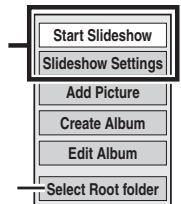
- Ceci n'est affiché que s'il existe d'autres dossiers de niveau supérieur consultables. (Pour sélectionner les images fixes dans un autre dossier → 35)
- Pour modifier une image fixe
par exemple, SD
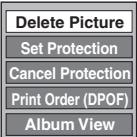
5 Utilisez [▲, ▼] pour sélectionner l'élément souhaité, puis appuyez sur [ENTER].
● Après cette opération, suivez l'opération souhaitée.
■ Pour revenir à l'écran précédent
Appuyez sur [RETURN].
■ Pour quitter l'écran
Appuyez sur [DIRECT NAVIGATOR].
Diverses opérations
■ Pour afficher d'autres pages
Appuyez sur [▲, ▼, ◀, ▶] pour sélectionner « Précédent » ou « Suivant », puis appuyez sur [ENTER].
- Vous pouvez également appuyer sur [◀◀, SKIP] ou [▶▶, SKIP] pour afficher d'autres pages.
■ Édition multiple
Sélectionnez avec [▲, ▼, ◀, ▶] et appuyez sur [■■, PAUSE]. (Répétez)
Une coche apparaît. Appuyez à nouveau sur [■, PAUSE] pour annuler.
Opérations sur les albums et les images
■ Ajouter une image / Créer un album
- Suivez les étapes 1 à 4 de « Modification d'images fixes ».
5 Sélectionnez « Ajouter une image » ou « Créer un album » avec [▲, ▼] et appuyez sur [ENTRÉE]. 6 Appuyez sur [◀] pour sélectionner « Démarrer » ou « Oui » et appuyez sur [ENTRÉE]. 7 Appuyez sur [▲, ▼, ◀, ▶] pour sélectionner l'album qui contient l'image que vous souhaitez ajouter, puis appuyez sur [ENTRÉE].
- « Pour sélectionner les images fixes dans un autre dossier » → 35
8 Appuyez sur [▲, ▼] pour sélectionner l'élément et appuyez sur [ENTRÉE].
- Si « Sélectionner les images à copier » est sélectionné :
- Sélectionnez l'image fixe que vous souhaitez ajouter et appuyez sur [ENTRÉE].
- Si « Copier toutes les images » est sélectionné :
- Toutes les images fixes de l'album seront copiées.
9 Appuyez sur [◀] pour sélectionner « Non » et appuyez sur [ENTRÉE].
- Si vous souhaitez continuer la copie, sélectionnez « Oui » et passez à l'étape 7.
10 Uniquement pour « Créer un album »
Appuyez sur [◀, ▶] pour sélectionner « Non » et appuyez sur [ENTRÉE]. - Lorsque vous sélectionnez « Oui », reportez-vous à « Saisie de texte ». (→ 58)
Supprimer une image
RAM SD (Multiple editing is possible. →above)
- Suivez les étapes 1 à 4 de « Modification de photos fixes ».
Une fois supprimées, les données enregistrées sont perdues et ne peuvent pas être restaurées. Assurez-vous avant de continuer.
5 Sélectionnez « Supprimer l'image » avec [▲, ▼] et appuyez sur [ENTER]. 6 Appuyez sur [◀, ▶] pour sélectionner « Supprimer » et appuyez sur [ENTER].
■ Définir/Annuler la protection
RAM SD (Multiple editing is possible. →above)
- Suivez les étapes 1 à 4 de « Modification de photos fixes ».
Si elle est définie, cette fonction protège la photo fixe contre une suppression accidentelle.
5 Sélectionnez « Définir la protection » ou « Annuler la protection » avec [▲, ▼] et appuyez sur [ENTER]. 6 Appuyez sur [◀] pour sélectionner « Oui » et appuyez sur [ENTER].
- Le symbole de verrouillage apparaît lorsque la photo fixe est protégée.
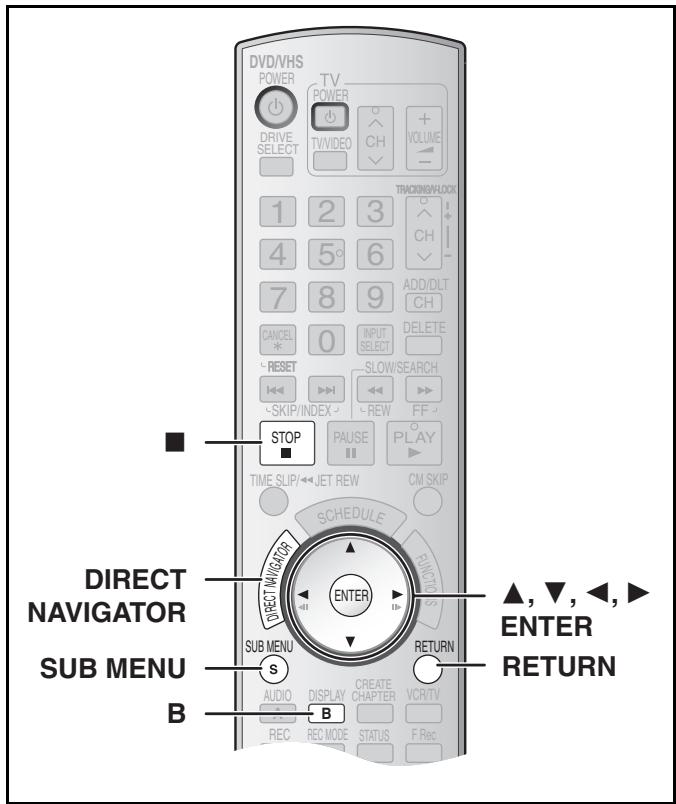
■ Ordre d'impression (DPOF)
SD (Multiple editing is possible. → 47)
- Suivez les étapes 1 à 4 de « Modification de photos fixes ».
Vous pouvez sélectionner un dossier entier ou des photos individuelles pour l'impression et spécifier le nombre de copies à imprimer.
5 Sélectionnez « Ordre d'impression (DPOF) » avec [▲, ▼] et appuyez sur [ENTER].
6 Appuyez sur [◀, ▶] pour sélectionner le nombre de tirages (0 à 9) puis appuyez sur [ENTER].
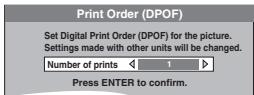
● Le repère DPOF apparaît.
(Ce repère apparaît sur les photos fixes à l'intérieur d'un dossier lorsque vous effectuez le réglage DPOF pour le dossier.)

■ Pour annuler le réglage d'impression
Réglez le nombre de tirages sur « 0 ».
Pour votre référence
- Les réglages d'impression (DPOF) effectués avec cet appareil peuvent ne pas être visibles sur d'autres équipements.
- Lorsque ce réglage est effectué avec cet appareil, tous les réglages établis avec d'autres appareils seront annulés.
- Les réglages ne peuvent pas être effectués pour les dossiers et fichiers qui ne sont pas conformes aux normes DCF ou s'il n'y a plus d'espace libre sur la carte.
■ Affichage de l'album
RAM SD
- Suivez les étapes 1 à 4 de « Modification des photos fixes ».
5 Sélectionnez « Affichage de l'album » avec [▲, ▼] puis appuyez sur [ENTER].
- Vous revenez à l'affichage de l'album.
Modifier l'album
Vous pouvez effectuer divers types de montage d'album.
1 Appuyez sur [DIRECT NAVIGATOR].
2 RAM Appuyez sur le bouton [B] pour sélectionner "Image".
3 Appuyez sur [▲, ▼, ◀, ▶] pour sélectionner l'album.
- "Pour afficher d'autres pages" → 47
4 Appuyez sur [SUB MENU].
5 Sélectionnez "Modifier l'album" avec [▲, ▼] et appuyez sur [ENTER].
6 Utilisez [▲, ▼] pour sélectionner un élément souhaité et appuyez sur [ENTER].
- L'écran de modification de l'élément sélectionné apparaît.
par exemple, SD
Nom de l'album
Supprimer l'album
Configuration de la protection
Annuler la protection
■ Pour revenir à l'écran précédent
Appuyez sur [RETURN].
■ Pour quitter l'écran
Appuyez sur [DIRECT NAVIGATOR].
▶ Nom de l'album
RAM SD
Vous pouvez donner des noms aux albums.
- Suivez les étapes 1 à 5 de « Modifier l'album ».
6 Sélectionnez « Nom de l'album » avec [▲, ▼] et appuyez sur [ENTER].
- Reportez-vous à « Saisie de texte ». (→ 58)
Pour référence
- Les noms d'album saisis avec cet appareil peuvent ne pas être affichés sur d'autres équipements.
▶ Supprimer un album
RAM SD (Édition multiple possible. → 47)
- Suivez les étapes 1 à 5 de « Modifier l'album ».
Une fois supprimé, le contenu enregistré est perdu et ne peut pas être restauré. Assurez-vous avant de continuer.
6 Sélectionnez "Supprimer l'album" avec [▲, ▼] et appuyez sur [ENTER].
7 Appuyez sur [◀] pour sélectionner "Supprimer" et appuyez sur [ENTER].
Pour votre référence
- Lors de la suppression d'un album, les fichiers ne contenant pas d'images fixes seront également supprimés s'ils se trouvent dans l'album. (Cela ne s'applique pas aux dossiers situés sous l'album concerné.)
▶ Configuration/Annulation de la protection
RAM SD (Édition multiple possible. → 47)
- Suivez les étapes 1 à 5 de "Modifier l'album".
Si elle est définie, cette option protège l'album contre une suppression accidentelle.
6 Sélectionnez "Configurer la protection" ou "Annuler la protection" avec [▲, ▼] et appuyez sur [ENTER].
7 Appuyez sur [◀] pour sélectionner "Oui" et appuyez sur [ENTER].
●Le symbole de verrouillage apparaît lorsque l'album est protégé.
Pour votre référence
- Même si la protection est définie sur cet appareil pour protéger l'album, l'album peut être supprimé par un autre appareil.
Avant le transfert (copie)
Vous pouvez choisir parmi une variété de méthodes pour transférer (copier) sur l'appareil.
Vous ne pouvez pas transférer (copier) des titres qui ont été traités pour empêcher la copie.
| Direction | Type of transfer (copying) you want | Suitable methods | |
| From | To | ||
| VHS | DVD-RAM, DVD-R, DVD-R DL, DVD-RW(DVD-Video format), +R, +R DL or +RW | Easy transferring (copying) with one button●When you want to transfer (copy) from the selected start point to the end of the tape | One Touch Transfer (→ 50) |
| Transferring (copying) with detailed settings●When you want to transfer (copy) from the selected start point to the end of the tape●When you want to transfer (copy) for the limited amount of time●When you want to transfer (copy) to fit in the remaining capacity of the disc | GUI Transfer (→ 51) | ||
| DVD-RAM, +RW or DVD-RW (DVD Video Recording format) | VHS | Easy transferring (copying) with one button●When you want to transfer (copy) a whole disc●When you want to transfer (copy) from the beginning of the selected title and playlist to the end of the disc* | One Touch Transfer (→ 52) |
| Transferring (copying) with detailed settings●When you want to transfer (copy) multiple titles or playlists in combination* | GUI Transfer (→ 53) | ||
| DVD-R, DVD-R DL, DVD-RW (DVD-Video format), +R or +R DL | VHS | Easy transferring (copying) with one button●When you want to transfer (copy) a whole disc●When you want to transfer (copy) from the beginning of the selected title to the end of the disc | One Touch Transfer (→ 52) |
| Transferring (copying) with detailed settings | Cannot transfer | ||
| Finalized DVD-R, DVD-R DL, DVD-RW (DVD-Video format), +R, +R DL or DVD-Video on sale that are not copy-protected, etc. | VHS | Easy transferring (copying) with one button | Cannot transfer |
| Transferring (copying) with detailed settings●When you want to transfer (copy) whole of a disc●When you want to transfer only for the specified time | DVD-Video Transfer (→ 54) | ||
* Comme vous ne pouvez pas créer de listes de lecture sur +RW, vous ne pouvez pas les copier. +RW
■ Précautions pour le transfert (copie) de VHS vers DVD
- Les cassettes vidéo protégées contre la copie ne peuvent pas être copiées. La plupart des cassettes vidéo sont protégées contre la copie pour empêcher toute copie illégale, elles ne peuvent donc pas être copiées.
- Lorsqu'une cassette protégée contre la copie est insérée, un message apparaît à l'écran et l'enregistrement s'arrête immédiatement.
- Si une partie d'une cassette enregistrée en mode VP est copiée sur un disque, du bruit peut apparaître au début de la partie copiée.
Seules les opérations suivantes sont autorisées pendant le transfert (copie) :
- Arrêt du transfert (transfert One Touch ou GUI) en appuyant sur [RETURN] et en le maintenant enfoncé pendant environ 3 secondes ou plus.
- Arrêt du transfert (transfert One Touch) en appuyant sur [■, STOP].
Lorsque le transfert (copie) est démarré, les opérations suivantes démarrent également automatiquement
- « Messages d'état » sur l'affichage → « Désactivé » ( → 65) (transfert One Touch ou GUI)
■ Précautions pour le transfert (copie) de DVD vers VHS
- Les disques protégés contre la copie ne peuvent pas être copiés. La plupart des disques sont protégés contre la copie pour empêcher toute copie illégale, ils ne peuvent donc pas être copiés.
- Arrêt du transfert (transfert One Touch ou GUI) en appuyant sur [RETURN] et en le maintenant enfoncé pendant environ 3 secondes ou plus.
- Arrêt du transfert (transfert One Touch) en appuyant sur [■, STOP].
Seules les opérations suivantes sont autorisées pendant le transfert (copie) :
Lorsque le transfert (copie) est démarré, les opérations suivantes démarrent également automatiquement
- « Messages d'état » sur l'écran → « Arrêt » (→ 65) (transfert One Touch ou GUI)
- Sortie audio lors de la lecture d'un DVD → Stéréo (L R) RAM (transfert One Touch ou GUI)
Lorsque la position de lecture du disque est enregistrée par la fonction de reprise (→ 32) et que vous démarrez le transfert (copie), le transfert (copie) est exécuté depuis le début du titre contenant la position de départ de la lecture jusqu'à la fin du disque.
■ Copie d'images fixes RAM SD
- Lorsque vous souhaitez copier toutes les images fixes d'une carte SD. (→ 55)
- Lorsque vous souhaitez copier plusieurs images fixes en combinaison. (→ 55)
Transfert (copie) depuis un magnétoscope VHS
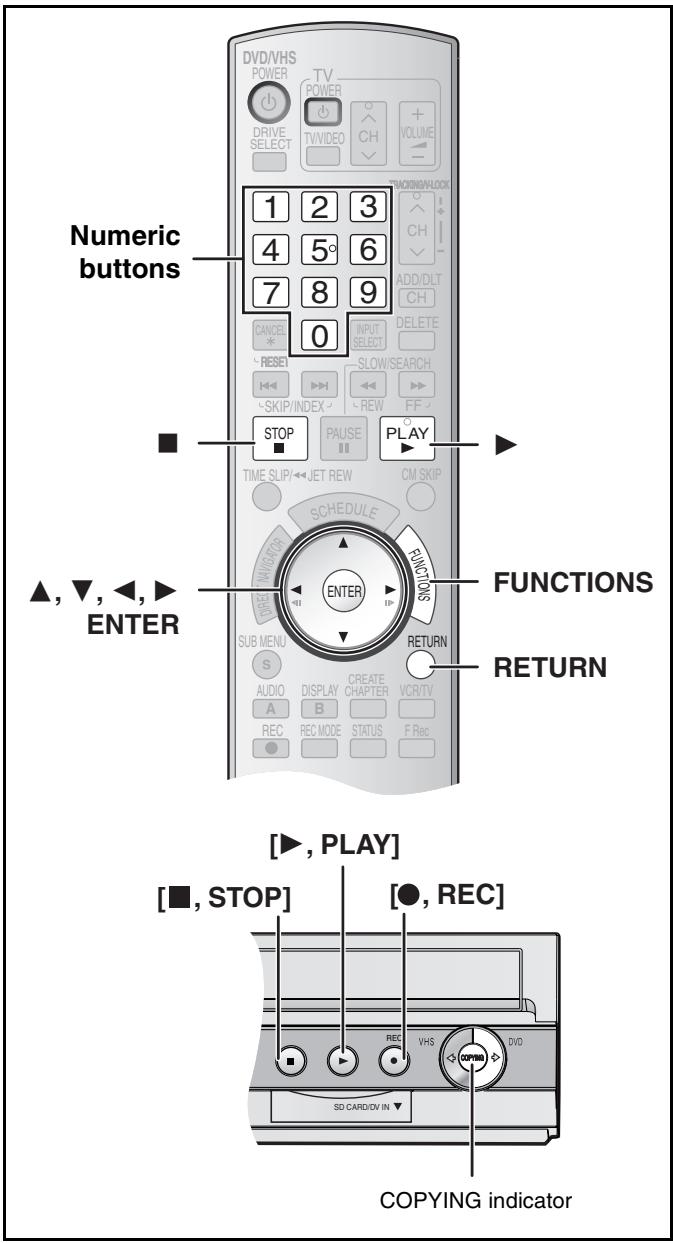
■ Transfert One Touch (copie) (VHS → DVD)
RAM -R -R DL -RW(V) +R +R DL +RW
Vous pouvez transférer (copier) les programmes enregistrés sur une cassette vers un disque* en appuyant simplement sur un bouton.
Lors d'un transfert One Touch (copie), les programmes sont automatiquement transférés (copiés) sur le disque à partir de la position de lecture au moment où le transfert (copie) de la cassette démarre.
* Les disques disponibles pour le transfert (copie) depuis une cassette sont les DVD-RAM, DVD-R non finalisés, DVD-R DL, DVD-RW (format DVD-Vidéo), +R, +R DL et +RW.
Préparation
- Sélectionnez le canal de visualisation de l'unité (par exemple, entrée AV) sur le téléviseur.
DVD
- Retirer la protection (disque → 60, cassette → 60). RAM
- Insérez un disque et vérifiez qu'il y a suffisamment d'espace libre pour l'enregistrement (→ 24, 40).
- Sélectionnez le mode d'enregistrement. (→ 26)
- Lors de la lecture d'un programme SAP sur VHS, sélectionnez l'audio à enregistrer sur le disque dans "Système audio multivoies (MTS)" du menu "Configuration". (→ 64) -R -R DL -RW(V) +R +R DL +RW
VHS
- Insérez la cassette vidéo contenant le programme à copier (→ 11, 24).

Pendant que le DVD et le VHS sont arrêtés
Maintenez enfoncée la touche [▶ DVD] de l'unité principale pendant environ 3 secondes ou plus (jusqu'à ce que "START" sur l'afficheur de l'unité cesse de clignoter).
par exemple : RAM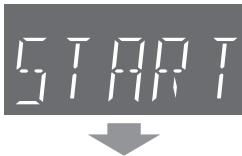

-R -R DL -RW(V) +R +R DL
Appuyez ensuite sur [●, REC] ou [▶, PLAY] de l'unité principale pour copier le disque avec ou sans finalisation.
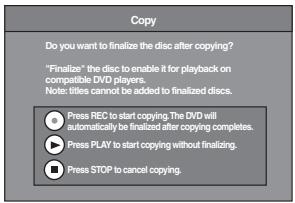
- Si vous appuyez sur [●, REC] sur l'unité principale, le disque sera automatiquement finalisé après la copie.
- Si vous appuyez sur [▶, PLAY] sur l'unité principale, vous pouvez démarrer la copie sans finalisation.
- Si vous appuyez sur [■, STOP] sur l'appareil principal, vous pouvez annuler la copie.
- Vérifiez si le transfert (la copie) démarre correctement.
- La copie se termine automatiquement lorsque la bande arrive à sa fin ou que le disque est plein.
- Si vous appuyez sur [●, REC] sur l'appareil principal pour finaliser ; après finalisation, les disques deviennent en lecture seule et vous pouvez également les lire sur d'autres appareils DVD. Cependant, vous ne pouvez plus enregistrer ni éditer.
- Si la copie ne se termine pas en raison d'un manque de temps restant sur le disque ou autre, la finalisation ne démarre pas.
■ Pour arrêter le transfert (la copie) en cours
Appuyez sur [■, STOP] ou maintenez enfoncé [RETURN] pendant environ 3 secondes ou plus. ●Cependant, vous ne pouvez pas arrêter la finalisation une fois qu'elle a commencé.
Remarques
- Pendant que la copie en un seul geste (transfert) est activée, un enregistrement programmé ne peut pas démarrer.
- Lorsque le transfert (la copie) ne démarre pas ou n'est pas exécuté, l'indicateur "COPYING" clignote pendant environ 7 secondes. Vérifiez que l'appareil est correctement préparé.
■ Division d'un titre à copier
Lors de la copie en un seul geste (transfert) de VHS vers DVD, le titre est divisé par le signal d'index détecté puis enregistré. Vous pouvez rechercher les titres souhaités avec la vue des titres du Direct Navigator (→ 41) après le transfert (la copie) sur DVD.
- Les titres enregistrés à moins de 15 minutes (25 minutes en mode VP) les uns des autres peuvent ne pas être divisés correctement.
- La durée d'enregistrement peut devenir plus longue que celle du titre d'origine selon le nombre de signaux d'index.
Si vous souhaitez transférer (copier) sans diviser le contenu en titres, suivez les méthodes ci-dessous.
- Réglez "Limite de temps" sur "On" lors du transfert via l'interface graphique (→ 51).
■ Transfert (copie) via l'interface graphique (GUI)
RAM -R -R DL -RW(V) +R +R DL +RW
Vous pouvez transférer (copier) des programmes enregistrés sur une cassette vers un disque** à partir de l'emplacement* de lecture au moment du début du transfert (copie) de la cassette.
* Lorsque vous réglez le mode d'enregistrement sur "FR" et "Limite de temps" sur "Off", vous pouvez transférer (copier) toute la cassette du début à la fin. (→ ci-dessous) ** Les disques disponibles pour le transfert (copie) depuis une cassette sont DVD-RAM, DVD-R non finalisé, DVD-R DL, DVD-RW (format DVD-Vidéo), +R, +R DL et +RW.
Préparation
- Sélectionnez la chaîne de visualisation de l'unité (par exemple, entrée AV) sur le téléviseur.
DVD
- Retirez la protection (disque → 60, cartouche → 60). RAM
- Insérez un disque et confirmez qu'il y a suffisamment d'espace libre pour l'enregistrement (→ 24, 40).
- Lorsque le programme diffusé en SAP est lu sur VHS, sélectionnez l'audio à enregistrer sur les disques dans "Système audio multivoies (MTS)" du menu "Configuration". (→ 64) -R -R DL -RW(V) +R +R DL +RW
VHS
- Insérez la cassette vidéo contenant le programme à copier (→ 11, 24).
1 Tant que le DVD et le VHS sont arrêtés, appuyez sur [FUNCTIONS].
2 Sélectionnez "Copie" avec [▲, ▼] et appuyez sur [ENTER].
3 Réglez le sens de transfert (copie).
- Réglez "Source" sur "VHS".
- Si vous ne changez pas le sens de copie, appuyez sur [▼], puis passez à l'étape 4.
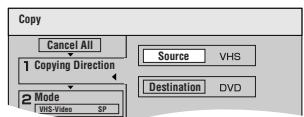
■ Pour modifier le réglage
(1) Assurez-vous que "Sens de copie" est sélectionné et appuyez sur [▶]. (2) Assurez-vous que "Source" est sélectionné et appuyez sur [ENTER]. (3) Appuyez sur [▲, ▼] pour sélectionner "VHS" et appuyez sur [ENTER].
- Lorsque vous réglez "Source" sur "VHS", "DVD" est automatiquement sélectionné sur "Destination".
(4) Appuyez sur [◀]. (5) Appuyez sur [▼].
4 Réglez le mode d'enregistrement.
- Si vous ne changez pas le mode d'enregistrement, appuyez sur [▼], puis passez à l'étape 5.
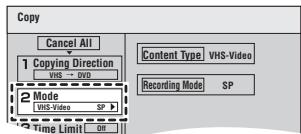
■ Pour modifier le réglage
(1) Assurez-vous que "Mode" est sélectionné et appuyez sur [▶]. (2) Assurez-vous que "Mode d'enregistrement" est sélectionné et appuyez sur [ENTER]. (3) Sélectionnez le mode d'enregistrement (XP, SP, LP, EP ou FR) avec [▲, ▼] et appuyez sur [ENTER]. - "À propos du mode FR" (→ à droite) (4) Appuyez sur [◀]. (5) Appuyez sur [▼].
5 Réglez la limite de temps.
- Si vous ne changez pas la durée d'enregistrement, appuyez sur [▼], puis passez à l'étape 6.
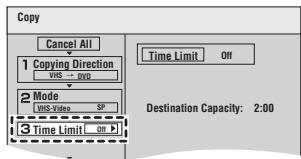
■ Pour modifier le réglage
(1) Vérifiez que « Time Limit » est sélectionné, puis appuyez sur [▶].
(2) Vérifiez que « Time Limit » est sélectionné, puis appuyez sur [ENTER]. (3) Sélectionnez la limite de temps (« On » ou « Off ») avec [▲, ▼] et appuyez sur [ENTER].
- Si vous sélectionnez « Off », passez à l'étape (6) ci-dessous.
(4) Appuyez sur [▲, ▼] pour sélectionner « Set time » et appuyez sur [ENTER]. (5) Appuyez sur [◀, ▶] pour sélectionner « Heure » et « Min. », puis sur [▲, ▼] pour régler l'heure d'enregistrement, puis appuyez sur [ENTER].
- Vous pouvez également régler l'heure à l'aide des touches numériques.
● La durée d'enregistrement maximale est de 8 heures.
(6) Appuyez sur [◀]. (7) Appuyez sur [▼].
6 Vérifiez que « Start Copying » est sélectionné et appuyez sur [ENTER].
● L'écran de confirmation apparaît.
7 Sélectionnez « Yes » avec [◀] et appuyez sur [ENTER].
-R -R DL -RW(V) +R +R DL Ensuite, appuyez sur [◀, ▶] pour sélectionner « Copy and finalize » ou « Copy only » et appuyez sur [ENTER].
- Le transfert (copie) démarre.
- Le transfert (copie) s'arrête automatiquement lorsque la bande atteint la fin ou que la capacité restante du disque est pleine. (Un message apparaît à l'écran du téléviseur puis disparaît quelques secondes plus tard.)
- Si « Copy and finalize » est sélectionné : après finalisation, les disques deviennent en lecture seule et vous pouvez également les lire sur d'autres lecteurs DVD. Cependant, vous ne pouvez plus enregistrer ni éditer.
- Si la copie ne se termine pas en raison d'un manque de temps restant sur le disque ou autre, la finalisation ne démarre pas.
■ Pour arrêter le transfert (la copie) en cours
Maintenez enfoncée la touche [RETURN] pendant environ 3 secondes ou plus. ● Cependant, vous ne pouvez pas arrêter la finalisation une fois qu'elle a commencé.
■ À propos du mode FR
Lorsque « Limite de temps » est réglé sur « Désactivé » à l'étape 5 ci-dessus :
- Le mode d'enregistrement est sélectionné automatiquement en estimant la capacité restante du disque pour le transfert (la copie) des seules parties enregistrées de la cassette vidéo (les parties non enregistrées ne seront pas enregistrées).
- Lorsque vous appuyez sur [ENTER] pour démarrer le transfert (la copie), la bande est automatiquement avancée rapidement jusqu'à la fin, puis rembobinée rapidement jusqu'au début avant que le transfert (la copie) ne commence réellement. Le démarrage du transfert (de la copie) peut prendre du temps. Si la capacité restante du disque est insuffisante, le transfert (la copie) s'arrêtera en cours de route.
- L'enregistrement est divisé en titres à chaque fois que les signaux d'index de la bande sont détectés.
Lorsque « Limite de temps » est réglé sur « Activé » à l'étape 5 ci-dessus :
- Le mode d'enregistrement est déterminé automatiquement en estimant la capacité restante du disque pour le transfert (la copie) du contenu équivalent au temps d'enregistrement défini à partir du point de départ du transfert (de la copie) sur la cassette vidéo (les parties non enregistrées seront également enregistrées). ● L'enregistrement n'est pas divisé en titres.
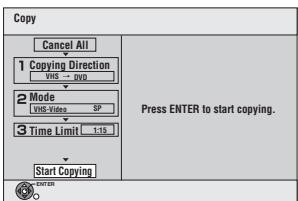
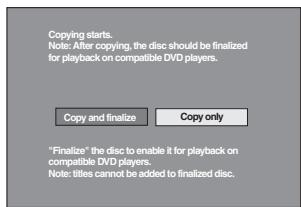
Transfert (Copie) depuis un DVD
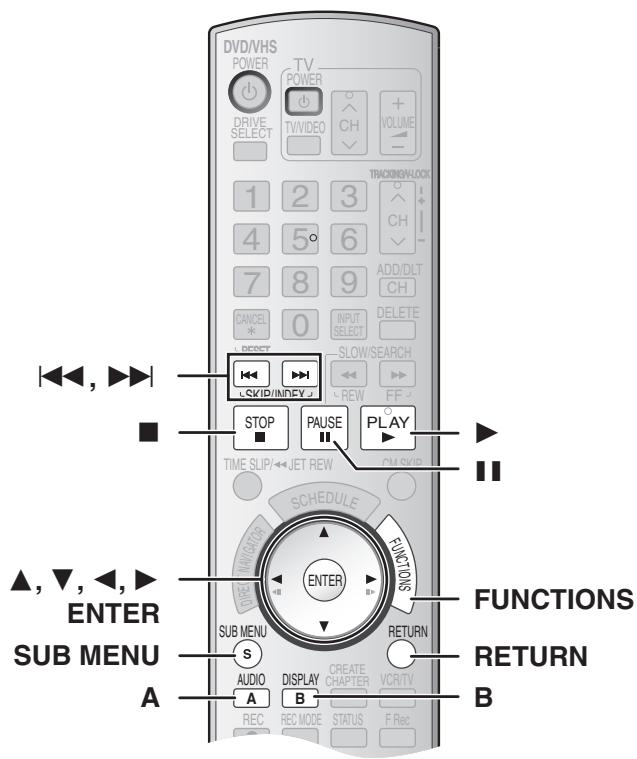
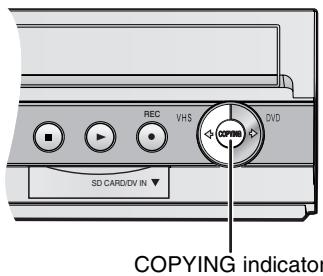
■ Transfert (Copie) en une touche (DVD → VHS)
Vous pouvez transférer (copier) des titres enregistrés sur un disque* sur une cassette en une seule pression sur le bouton.
Lors du transfert (de la copie) en une touche, tout le contenu du disque est automatiquement copié sur la cassette.
* Les disques disponibles pour le transfert (la copie) sur cassette sont
RAM -R -R DL -RW(V) +R +R DL +RW -RW(VR)
Préparation
- Sélectionnez le canal de visualisation de l'unité (par exemple, entrée AV) sur le téléviseur.
DVD
- Insérez le disque contenant le programme à copier (→ 24).
VHS
- Insérez une cassette vidéo avec la languette anti-effacement. (→ 11, 24)
- Confirmez que le temps de bande restant est suffisant pour l'enregistrement. (→ 40)
- Sélectionnez le mode d'enregistrement. (→ 26)
■ Lorsque vous transférez (copiez) un disque entier, assurez-vous que le DVD est arrêté.
- Si la fonction de reprise est activée, appuyez sur [■, STOP] pour la désactiver. (→ 32)
■ Lorsque vous transférez (copiez) un titre du début du titre sélectionné à la fin du disque
■ Lorsque vous transférez (copiez) une liste de lecture du début de la liste sélectionnée à la dernière liste de lecture
Appuyez sur [▶, PLAY] pour lire le titre ou la liste de lecture souhaité(e) (→ 44).
- Vous pouvez transférer (copier) (un titre ou une liste de lecture) pendant la lecture en pause en appuyant sur [■■, PAUSE].
- Vous ne pouvez pas transférer (copier) une liste de lecture de plus de 8 heures. (Lorsque vous transférez (copiez) plusieurs listes de lecture, la liste de lecture de plus de 8 heures est omise.)
1 Appuyez sur [VHS ◆] sur l'unité principale pendant environ 3 secondes ou plus (jusqu'à ce que « START » sur l'afficheur de l'unité cesse de clignoter).
- Vérifiez que le transfert (la copie) démarre correctement.
- La copie se termine automatiquement lorsque la lecture du disque est terminée ou que la bande atteint sa fin.
(Temps restant) ex. : RAM![PANASONIC DMRES45V - Appuyez sur [VHS ◆] sur l'unité principale pendant environ 3 secondes ou plus (jusqu'à ce que « START » sur l'afficheur de l'unité cesse de clignoter). - 1](/content/2019/10/56204/images/bcea2ec45083b930012b002ba11a3965a4064b3610d66b49ccc64112ebd34a30.jpg)
![PANASONIC DMRES45V - Appuyez sur [VHS ◆] sur l'unité principale pendant environ 3 secondes ou plus (jusqu'à ce que « START » sur l'afficheur de l'unité cesse de clignoter). - 2](/content/2019/10/56204/images/b251a2ff38abc69c8e46262398f06d059e29384773a96fb386477c1d39b13f02.jpg)

■ Pour arrêter le transfert (la copie) en cours
Appuyez sur [■, STOP] ou maintenez [RETURN] enfoncé pendant environ 3 secondes ou plus.
Remarques
- Pendant que le transfert (la copie) en une touche est activé, un enregistrement programmé ne peut pas démarrer.
- Lorsque le transfert (la copie) ne démarre pas ou n'est pas exécuté, l'indicateur « COPYING » clignote pendant environ 7 secondes. Vérifiez que l'unité est correctement préparée.
- Si vous démarrez le transfert (la copie) alors que la fonction de reprise est activée, le DVD est copié depuis le début du titre où vous vous êtes arrêté.
■ À propos de l'enregistrement VISS (→ 38)
Lors de la copie en une touche de DVD vers VHS, le signal d'index est automatiquement enregistré pour chaque titre. Vous pouvez rechercher les titres souhaités avec [◀◀] ou [▶▶].
■ Transfert (copie) via l'interface graphique (GUI)
RAM +RW -RW(VR)
Vous pouvez transférer (copier) plusieurs titres ou listes de lecture enregistrés sur un disque vers une cassette, en combinaison.
● Les disques disponibles pour le transfert (copie) sur cassette sont les RAM -RW(VR). - Comme vous ne pouvez pas créer de listes de lecture sur +RW, vous ne pouvez pas les copier.
+RW
Préparation
- Sélectionnez la chaîne de visualisation de l'unité (par exemple, entrée AV) sur le téléviseur.
DVD
- Insérez le disque contenant le programme à copier (→ 24).
VHS
- Insérez une cassette vidéo avec la languette de protection contre l'effacement accidentel. (→ 11,24)
- Confirmez que le temps de bande restant est suffisant pour l'enregistrement. (→ 40)
1 Pendant que le DVD et le VHS sont arrêtés, appuyez sur [FUNCTIONS].
2 Sélectionnez "Copie" avec [▲, ▼] et appuyez sur [ENTER]. 3 Réglez "Direction de copie".
- Réglez "Source" sur "DVD".
- Si vous ne modifiez pas la direction de copie, appuyez sur [▼], puis passez à l'étape 4.
■ Pour modifier le réglage
(1) Assurez-vous que "Sens de copie" est sélectionné, puis appuyez sur [▶]. (2) Assurez-vous que "Source" est sélectionné, puis appuyez sur [ENTER].
(3) Appuyez sur [▲, ▼] pour sélectionner "DVD", puis appuyez sur [ENTER].
- Lorsque vous réglez "Source" sur "DVD", "VHS" est automatiquement sélectionné sur "Destination".
(4) Appuyez sur [◀]. (5) Appuyez sur [▼].
4 Réglez le mode d'enregistrement.
- Si vous ne souhaitez pas modifier le mode d'enregistrement, appuyez sur [▼], puis passez à l'étape 5.
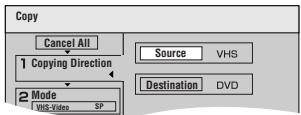
■ Pour modifier le réglage
(1) Assurez-vous que "Mode" est sélectionné, puis appuyez sur [▶]. (2) Assurez-vous que "Mode d'enregistrement" est sélectionné, puis appuyez sur [ENTER]. (3) Sélectionnez le mode d'enregistrement (SP, EP ou VP) avec [▲, ▼], puis appuyez sur [ENTER]. (4) Appuyez sur [◀]. (5) Appuyez sur [▼].
5 Enregistrez les titres et les listes de lecture pour le transfert (copie).
- Si vous souhaitez transférer une liste enregistrée sans y apporter de modifications, appuyez sur [▼], puis passez à l'étape 6.
■ Pour définir l'enregistrement
(1) Assurez-vous que "Créer une liste" est sélectionné, puis appuyez sur [▶]. (2) Assurez-vous que "Nouvelle entrée (Total = 0)" est sélectionné, puis appuyez sur [ENTER]. (3) Appuyez sur [A] pour sélectionner "Vidéo" ou sur [B] pour sélectionner "Listes de lecture".
- Vous pouvez également sélectionner la vue en choisissant "Autre vue" dans le MENU SUB.
①Appuyez sur [SUB MENU]. ②Assurez-vous que "Autre vue" est sélectionné, puis appuyez deux fois sur [ENTER].
(4) Appuyez sur [▲, ▼, ◀, ▶] pour sélectionner le titre ou la liste de lecture, puis appuyez sur [ENTER].
- Vous pouvez enregistrer plusieurs titres ou listes de lecture dans la liste de copie en répétant les étapes 2 à 4 ci-dessus. ("Pour modifier la liste de transfert (copie)" → 54)
- « Pour afficher d'autres pages » (→ ci-dessous)
- « Modification multiple » (→ ci-dessous)
(5) Appuyez sur [◀].
- Avant d'appuyer sur [◀], assurez-vous que la valeur de « Liste de copie » est inférieure à celle de « Restant actuel ».
(6) Appuyez sur [▼].
6 Lorsque vous avez terminé de créer la liste de copie, assurez-vous de sélectionner « Démarrer la copie » et appuyez sur [ENTRÉE].
● L'écran de confirmation apparaît. 7 Sélectionnez « Oui » avec [◀] et appuyez sur [ENTRÉE]. - Le transfert (la copie) démarre.
■ Pour arrêter le transfert (la copie) en cours
Maintenez enfoncé [RETOUR] pendant environ 3 secondes ou plus.
| Copy | ||||
| Cancel All | Current Remaining: 6:00Total list size: 0:00 ( 0%) | |||
| 1 Copying DirectionDVD → VINS | No. Size Title NameNew Entry (Total = 0) | |||
| 2 ModeVideo SP | ||||
| 3 Create List 0 ▶ | ||||
| Copy | |||
| Cancel All | Current Remaining: 6:00Total list size: 0:00 ( 0%) | ||
| 1 Copying DirectionDVD → VHS | No. Size Title Name | ||
| New Entry (Total = 0) | |||
| 2 ModeVideo SP | |||
![PANASONIC DMRES45V - Lorsque vous avez terminé de créer la liste de copie, assurez-vous de sélectionner « Démarrer la copie » et appuyez sur [ENTRÉE]. - 1](/content/2019/10/56204/images/616bd01e8533b5bf07ca39f8f9f61b74d32d5a18ec611900c072cee53d9e65d3.jpg)
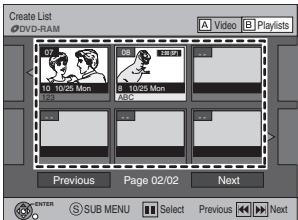
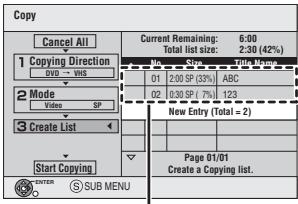
Titres enregistrés
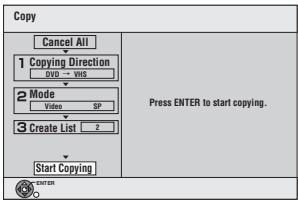
Diverses opérations
■ Pour afficher d'autres pages
Appuyez sur [◀◀, SKIP] ou [▶▶, SKIP].
- Appuyez sur [▲, ▼, ◀, ▶] pour sélectionner « Précédent » ou « Suivant » et appuyez sur [ENTRÉE] pour afficher d'autres pages.
■ Modification multiple
Sélectionnez avec [▲, ▼, ◀, ▶] et appuyez sur [■■, PAUSE]. (Répétez) Appuyez sur [ENTER] pour enregistrer dans la liste.
- Une coche apparaît. Appuyez à nouveau sur [■, PAUSE] pour annuler.
- Lorsque vous basculez entre les onglets « Vidéo » et « Listes de lecture », la coche est annulée.
- Les titres ou les listes de lecture sont enregistrés dans la liste de copie dans l'ordre croissant des numéros de titre.
Pour modifier la liste de transfert (copie)
Sélectionnez l'élément à l'étape 5 (4). (→ 53)
1 Sélectionnez un élément souhaité avec [▲, ▼] et appuyez sur [SUB MENU].
2 Appuyez sur [▲, ▼] pour sélectionner l'opération et appuyez sur [ENTER].
| Clear All |
| Add |
| Remove |
| Move |
Tout effacer :
Efface tous les éléments enregistrés dans la liste de transfert (copie).
- Appuyez sur [◀, ▶] pour sélectionner « Oui » et appuyez sur [ENTER].
Ajouter :
Ajoute de nouveaux éléments à la liste de transfert (copie).
- Appuyez sur [▲, ▼, ◀, ▶] pour sélectionner les titres et les listes de lecture à ajouter, puis appuyez sur [ENTER].
Supprimer :
Supprimer l'élément sélectionné.
- Appuyez sur [◀, ▶] pour sélectionner "Oui", puis sur [ENTRÉE].
● Un montage multiple est possible. (→ 53)
Déplacer :
Déplacer les éléments sélectionnés ou modifier l'ordre des éléments sur la liste de transfert (copie).
- Appuyez sur [▲, ▼] pour sélectionner la destination, puis sur [ENTRÉE].
Pour annuler tous les réglages et listes de transfert (copie) enregistrés Après avoir effectué les étapes 1 à 4 (→ 53)
1 Appuyez sur [▲, ▼] pour sélectionner "Tout annuler", puis sur [ENTRÉE].
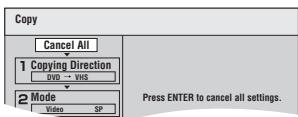
2 Appuyez sur [◀, ▶] pour sélectionner "Oui", puis sur [ENTRÉE].
- Les réglages et listes peuvent être annulés dans les situations suivantes.
- Lorsqu'un titre ou une liste de lecture a été enregistré ou effacé à la source de transfert (copie).
- Lorsque des mesures ont été prises, par exemple, pour éteindre l'appareil ou ouvrir le plateau.
■ Transfert (copie) d'un DVD-Vidéo, DVD-R finalisé, DVD-R DL, DVD-RW (format DVD-Vidéo), +R ou +R DL
Vous pouvez transférer (copier) le contenu d'un disque en cours de lecture sur une cassette pendant la durée définie tout en lisant le disque.
- Les opérations et les affichages à l'écran pendant le transfert (copie) sont également enregistrés.
- Presque tous les DVD-Vidéo du commerce ont été traités pour empêcher la copie illégale et ne peuvent pas être transférés (copiés).
- Les éléments suivants ne peuvent pas être transférés (copiés) : DVD-Audio, Video CD, CD Audio, etc.
Après avoir effectué les étapes 1 à 4 de "Transfert (copie) via l'interface graphique (GUI)" (→ 53),
5 Réglez la "Limite de temps".
- Si vous ne souhaitez pas modifier le réglage, appuyez sur [▼], puis passez à l'étape 6.
■ Réglage de l'appareil pour transférer (copier) selon le temps défini
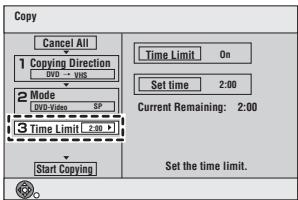
(1) Assurez-vous que "Limite de temps" est sélectionné et appuyez sur [▶]. (2) Assurez-vous que "Limite de temps" est sélectionné et appuyez sur [ENTER]. - Réglage de l'appareil pour transférer (copier) tout le contenu du disque (3) Appuyez sur [▲, ▼] pour sélectionner "Arrêt" et appuyez sur [ENTER]. (4) Appuyez sur [◀].
- Réglage du temps de transfert (copie)
(3) Appuyez sur [▲, ▼] pour sélectionner "Marche" et appuyez sur [ENTER]. (4) Appuyez sur [▲, ▼] pour sélectionner "Régler l'heure" et appuyez sur [ENTER]. (5) Appuyez sur [◀, ▶] pour sélectionner "Heure" et "Min." et appuyez sur [▲, ▼] pour régler le temps d'enregistrement, puis appuyez sur [ENTER].
- Vous pouvez également régler l'heure avec les touches numériques.
● La durée d'enregistrement maximale est de 8 heures.
(6) Appuyez sur [◀]. (7) Appuyez sur [▼].
6 Assurez-vous que "Démarrer la copie" est sélectionné et appuyez sur [ENTER].
Appuyez sur [◀] pour sélectionner "Oui" et appuyez sur [ENTER] pour démarrer le transfert (copie).
Le menu supérieur du disque est affiché.
- La lecture du disque commence automatiquement à partir du titre 1 lorsque « Premier titre » est défini sur « menu » à la finalisation.
![graph TD A["1 Copying Direction\nDVD → VNS"] --> B["2 Mode\nDVD-Video SP"] B --> C["3 Time Limit 2:00"] C --> D["Start Copying"] D --> E["ENTER"]](/content/2019/10/56204/images/f0fa5937a1b67e6695846a26a56cadbcbcceb57ed30123f4bc830a76f04250d5.jpg)
7 Lorsque le menu supérieur est affiché
Appuyez sur [▲, ▼, ◀, ▶] pour sélectionner le titre à partir duquel vous souhaitez commencer le transfert (copie), puis appuyez sur [ENTER].
- Pendant la lecture en continu, tous les titres après le titre sélectionné sont enregistrés jusqu'à l'heure définie.
- Après la lecture du dernier titre du disque, le menu supérieur est enregistré jusqu'à ce que l'heure définie soit atteinte.
■ Pour arrêter le transfert (copie) en cours
Appuyez sur [■, STOP] ou maintenez [RETURN] enfoncé pendant environ 3 secondes ou plus.
Remarques
- L'écran de droite (économiseur d'écran) est enregistré au début.
- Il est enregistré comme un seul titre du début à la fin du transfert (copie) (même s'il y a plusieurs programmes).
- Si la lecture ne commence pas automatiquement ou si le menu supérieur ne s'affiche pas automatiquement, appuyez sur [▶, PLAY] pour démarrer.
- REC n'apparaît sur l'écran de l'appareil que lors du transfert depuis un DVD-Vidéo.
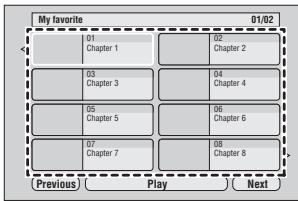

Transfert (copie) d'images fixes
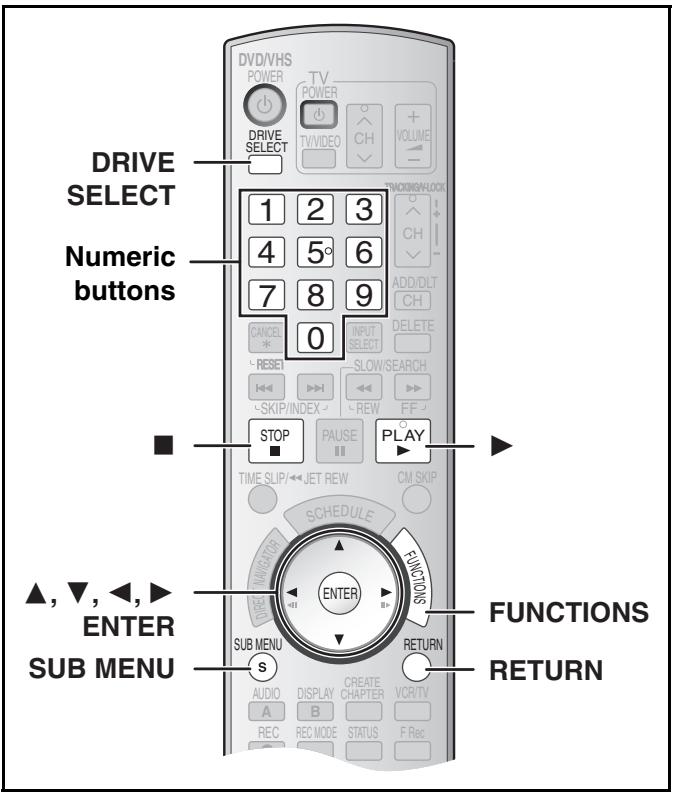
RAM SD
- Vous pouvez utiliser des cartes mémoire SD d'une capacité de 8 Mo à 2 Go (→ 8).
- Les photos fixes enregistrées sur CD-R ou CD-RW ne peuvent pas être copiées.
SD
Insérez la carte dans le logement, et le menu (→ ci-dessous) s'affiche automatiquement. Appuyez sur [▲, ▼] pour sélectionner « Copier les photos » et appuyez sur [ENTER]. Vous pouvez ensuite continuer à partir de l'étape 4.
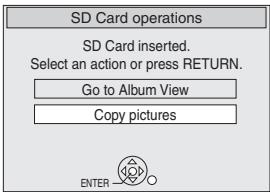
Remarques
- Lors de la copie des photos fixes par album ou par dossier (→ 56, Pour enregistrer dossier par dossier) ou par carte (→ à droite, Copier toutes les photos), les fichiers autres que les fichiers de photos fixes dans le dossier seront également copiés. (Cela ne s'applique pas aux sous-dossiers contenus dans les dossiers.)
- Si des photos fixes sont déjà contenues dans le dossier de destination, les nouvelles photos fixes sont enregistrées à la suite des photos fixes existantes.
- Si l'espace sur le lecteur de destination est insuffisant ou si le nombre de fichiers/dossiers à copier dépasse le maximum, la copie s'arrêtera en cours de route.
- Si un nom n'a pas été saisi pour le dossier source, il est possible que le nom de ce dossier ne soit pas le même sur la destination. Il est recommandé de saisir un nom de dossier avant la copie (→ 48).
- Le réglage du nombre d'impressions (DPOF) n'est pas copié.
- L'ordre dans lequel les photos fixes sont enregistrées sur la liste de copie peut ne pas être le même à la destination.
■ Copie de toutes les photos fixes d'une carte — Copier toutes les photos
SD → RAM
Préparation
- Sélectionnez le canal de visualisation de l'unité (par exemple, entrée AV) sur le téléviseur.
- Protection de sortie (disque → 60, cartouche → 60). RAM
- Insérez un disque et vérifiez qu'il y a suffisamment d'espace libre pour enregistrer dessus (→ 24, 40).
- Insertion et retrait de la carte SD. (→ 11)
- Appuyez sur [DRIVE SELECT] pour sélectionner le lecteur SD.
1 En mode arrêt
Appuyez sur [FUNCTIONS].
2 Appuyez sur [▲, ▼] pour sélectionner « Autres fonctions » puis appuyez sur [ENTER].
3 Appuyez sur [▲, ▼] pour sélectionner « Copier toutes les images » puis appuyez sur [ENTER].
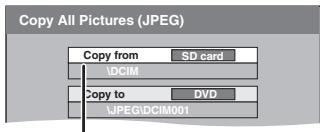
- S'il existe plusieurs dossiers de niveau supérieur reconnaissables, vous pouvez les parcourir à l'aide de [◀, ▶].
4 Appuyez sur [▲, ▼, ◀, ▶] pour sélectionner « Copier » puis appuyez sur [ENTER].
■ Pour interrompre le transfert (la copie) en cours
Maintenez [RETURN] enfoncé pendant environ 3 secondes ou plus.
■ Pour revenir à l'écran précédent
Appuyez sur [RETURN].
■ Transfert (copie) via l'interface graphique (GUI)
1 Arrêté, appuyez sur [FONCTIONS].
2 Appuyez sur [▲, ▼] pour sélectionner « Copie » et appuyez sur [ENTRÉE].
3 Réglez « Sens de copie ».
- Si vous ne changez pas le sens de copie, appuyez sur [▼], puis passez à l'étape 4.
■ Pour modifier le réglage
(1) Assurez-vous que « Sens de copie » est sélectionné et appuyez sur [▶]. (2) Assurez-vous que « Source » est sélectionné et appuyez sur [ENTRÉE].
(3) Appuyez sur [▲, ▼] pour sélectionner le lecteur et appuyez sur [ENTRÉE]. (4) Appuyez sur [▲, ▼] pour sélectionner « Destination » et appuyez sur [ENTRÉE]. (5) Appuyez sur [▲, ▼] pour sélectionner le lecteur et appuyez sur [ENTRÉE]. • Le même lecteur que la source de copie peut être sélectionné. (6) Appuyez sur [◀]. (7) Appuyez sur [▼].
4 Appuyez sur [▼] pour sélectionner « Créer une liste ».
- « Mode » n'a pas besoin d'être réglé car « Type de contenu » et « Mode d'enregistrement » sont réglés automatiquement.
![PANASONIC DMRES45V - Appuyez sur [▼] pour sélectionner « Créer une liste ». - 1](/content/2019/10/56204/images/75a6c6c916e239955bab0ffb9945baee7d91ea09d2578d74517222d9fa64602a.jpg)
5 Enregistrez les images fixes à transférer (copier).
- Si vous transférez une liste enregistrée sans la modifier, appuyez sur [▼], puis passez à l'étape 6.
- Vous pouvez enregistrer des images fixes ou des dossiers d'images fixes.
- Les images fixes et les dossiers ne peuvent pas être enregistrés sur la même liste.
■ Pour enregistrer des images fixes individuelles
(1) Assurez-vous que "Créer une liste" est sélectionné et appuyez sur [▶]. (2) Assurez-vous que "Nouvelle entrée (Total = 0)" est sélectionné et appuyez sur [ENTRÉE]. (3) Appuyez sur [▲, ▼, ◀, ▶] pour sélectionner une image fixe et appuyez sur [ENTRÉE].
- Vous pouvez enregistrer plusieurs images fixes dans la liste de copie en répétant les étapes 2 à 3 ci-dessus.
(Affichage de la liste de copie et fonctions pratiques : → à droite)
- « Pour afficher d'autres pages » → ci-dessous
- « Édition multiple » → ci-dessous
(4) Appuyez sur [◀]. (5) Appuyez sur [▼].
■ Pour enregistrer dossier par dossier
(1) Assurez-vous que "Créer une liste" est sélectionné et appuyez sur [▶]. (2) Appuyez sur [▲, ▼] pour sélectionner "Image/Dossier" et appuyez sur [ENTRÉE]. (3) Appuyez sur [▲, ▼] pour sélectionner "Dossier" et appuyez sur [ENTRÉE]. (4) Appuyez sur [▲, ▼] pour sélectionner "Nouvelle entrée (Total = 0)" et appuyez sur [ENTRÉE]. (5) Appuyez sur [▲, ▼] pour sélectionner le dossier et appuyez sur [ENTRÉE].
- Vous pouvez enregistrer plusieurs dossiers d'images dans la liste de copie en répétant les étapes 4 à 5 ci-dessus.
(Affichage de la liste de copie et fonctions pratiques : → à droite)
- « Pour afficher d'autres pages » → ci-dessous
- « Édition multiple » → ci-dessous
(6) Appuyez sur [◀]. (7) Appuyez sur [▼].
6 Lorsque vous avez fini de créer la liste de copie, assurez-vous de sélectionner "Démarrer la copie" et appuyez sur [ENTRÉE].
- Pour les images fixes individuelles uniquement Lors de la spécification d'un autre dossier comme destination de copie, sélectionnez "Dossier".
![graph LR A["Folder"] --> B["New folder"] C["001 100_DVD"] --> D["002 101_DVD"] E["003 102_DVD"] --> F["- New folder"]](/content/2019/10/56204/images/d5d819505b674f6100c523e86563da5775df7b36fd5fc4b690d21ca0a8d1790a.jpg)
7 Sélectionnez « Oui » avec [◀] et appuyez sur [ENTER].
- Le transfert (la copie) démarre.
■ Pour arrêter le transfert (la copie) en cours
Maintenez [RETURN] enfoncé pendant environ 3 secondes ou plus.
■ Pour revenir à l'écran précédent
Appuyez sur [RETURN].
Diverses opérations
■ Pour afficher d'autres pages
Appuyez sur [◀◀, SKIP] ou [▶▶, SKIP].
- Appuyez sur [▲, ▼, ◀, ▶] pour sélectionner « Précédent » ou « Suivant », puis appuyez sur [ENTER] pour afficher d'autres pages.
■ Édition multiple
Sélectionnez avec [▲, ▼, ◀, ▶] et appuyez sur [■■, PAUSE]. (Répétez) Appuyez sur [ENTER] pour enregistrer dans la liste.
- Une coche apparaît. Appuyez à nouveau sur [III, PAUSE] pour annuler.
- Les images fixes ou les dossiers sont enregistrés dans la liste de copie dans l'ordre croissant des numéros.
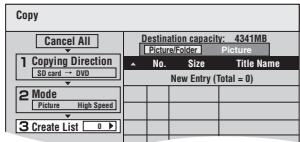
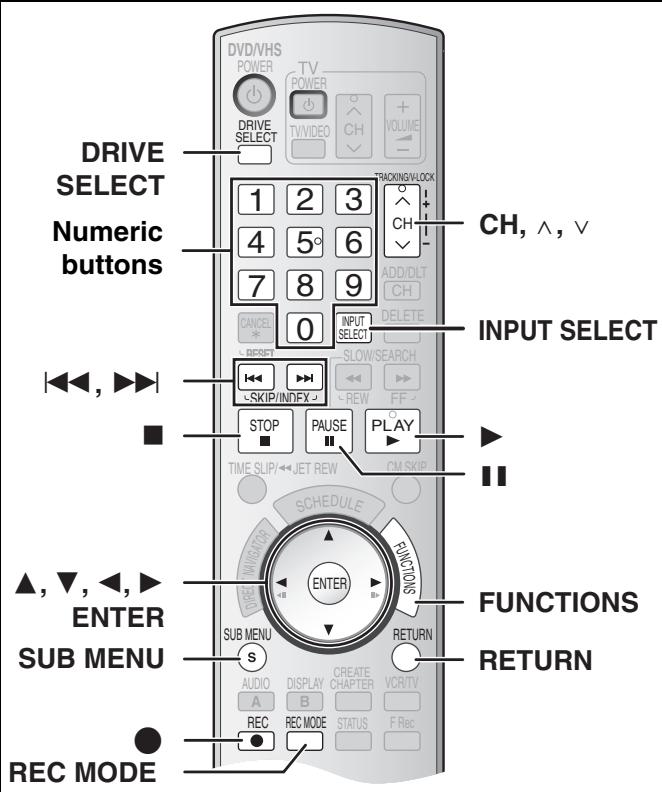
Pour modifier la liste de transfert (copie)
Sélectionnez l'élément à l'étape 5-(3) (pour une image fixe) ou 5-(5) (pour un dossier) (→ à gauche)
1 Sélectionnez l'élément souhaité avec [▲, ▼] et appuyez sur [SUB MENU]. 2 Appuyez sur [▲, ▼] pour sélectionner l'opération et appuyez sur [ENTER].
Tout effacer :
Efface tous les éléments enregistrés sur la liste de transfert (copie). - Appuyez sur [◀] pour sélectionner "Oui" et appuyez sur [ENTER].
Ajouter :
Ajoute de nouveaux éléments à la liste de transfert (copie). - Appuyez sur [▲, ▼, ◀, ▶] pour sélectionner l'image fixe ou le dossier à ajouter et appuyez sur [ENTER].
Supprimer :
Supprime l'élément sélectionné. - Appuyez sur [◀] pour sélectionner "Oui" et appuyez sur [ENTER]. ● L'édition multiple est possible. (→ à gauche)
Pour annuler tous les réglages et listes de transfert (copie) enregistrés
Après avoir effectué les étapes 1 à 2 (→ 55)
1 Appuyez sur [▲, ▼] pour sélectionner "Tout annuler" et appuyez sur [ENTER]. 2 Appuyez sur [◀] pour sélectionner "Oui" et appuyez sur [ENTER].
● Les réglages et listes peuvent être annulés dans les situations suivantes.
- Lorsqu'un titre ou une image fixe a été enregistré ou effacé à la source de transfert (copie).
- Lorsque des mesures ont été prises, par exemple, pour éteindre l'appareil, retirer la carte, ouvrir le plateau, changer le sens de copie, etc.
Pour sélectionner un autre dossier
1 Appuyez sur [▲, ▼, ◀, ▶] pour sélectionner "Dossier" puis appuyez sur [ENTRÉE]. - Si vous souhaitez passer à un autre dossier de niveau supérieur (→ ci-dessous) 2 Appuyez sur [▲, ▼] pour sélectionner le dossier puis appuyez sur [ENTRÉE].

- Vous pouvez également sélectionner des dossiers en saisissant un numéro à 3 chiffres avec les touches numériques.
ex. : "5" : [0]→[0]→[5] "15" : [0]→[1]→[5]
- Les images fixes de différents dossiers ne peuvent pas être enregistrées sur la même liste.
Pour passer à un autre dossier de niveau supérieur
- Uniquement lors de la sélection du dossier source S'il existe plusieurs dossiers de niveau supérieur reconnaissables,
Pendant que l'écran de droite apparaît
1 Appuyez sur [SOUS-MENU].
2 Appuyez sur [▲, ▼] pour sélectionner "Sélectionner le dossier racine" puis appuyez sur [ENTRÉE]. 3 Appuyez sur [◀, ▶] pour sélectionner le dossier de niveau supérieur puis appuyez sur [ENTRÉE]. 4 Appuyez sur [▲, ▼] pour sélectionner le dossier souhaité puis appuyez sur [ENTRÉE].
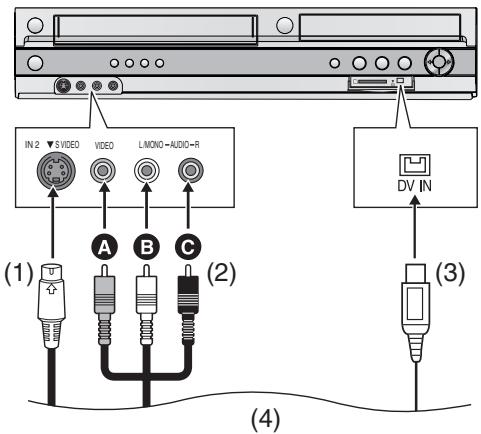
(1) Câble S-Vidéo (non fourni) (2) Câble audio/vidéo (non fourni)
A Jaune (VIDÉO) B Blanc (L) © Rouge (R)
(3) Câble DV (IEEE 1394 4 broches, non fourni)
(4) Périphérique externe (équipement de lecture)
Avant de connecter des câbles, assurez-vous d'abord que l'alimentation de l'appareil et du périphérique externe est coupée. Ensuite, après avoir connecté les câbles, allumez les deux.
Enregistrement à partir d'un périphérique externe
Lors de la connexion des bornes d'entrée IN2 à l'avant de l'appareil
- Vous pouvez également vous connecter aux bornes d'entrée IN1 à l'arrière de l'appareil.
Remarques
- Lors de l'enregistrement à l'aide des bornes d'entrée de l'appareil, seul le son reçu au moment de l'enregistrement sera enregistré. Tant que l'audio secondaire enregistré sur le support du périphérique externe n'est pas diffusé vers l'appareil en lecture, il n'est pas enregistré.
- Si la sortie audio de l'autre équipement est monophonique, connectez-vous à L/MONO. (Les canaux gauche et droit sont enregistrés lorsqu'ils sont connectés via L/MONO.)
- La borne S-VIDEO produit une image plus nette que la borne VIDEO.
Préparation
DVD RAM -R -R DL -RW(V) +R +R DL +RW
- Retirez la protection (disque → 60, cartouche → 60). RAM
- Sélectionnez le côté DVD en appuyant sur [DRIVE SELECT].
VHS
- Insérez une cassette vidéo avec l'onglet de protection contre l'effacement accidentel. (→ 24)
- Sélectionnez le côté VHS en appuyant sur [DRIVE SELECT].
1 Appuyez sur [REC MODE] pour sélectionner le mode d'enregistrement.
mode. (DVD → 26, VHS → 26) ● DVD RAM -R -R DL -RW(V) +R +R DL +RW - Il est également possible d'effectuer un enregistrement flexible (FR). (→ 29)
2 En mode arrêt
Appuyez sur [CH, v, ∧] ou [INPUT SELECT] pour sélectionner le canal d'entrée correspondant à l'équipement connecté.
- Sélectionnez IN1 ou IN2.
DVD
Suivez les étapes 1 à 2 ci-dessus.
3 Lancez la lecture sur le périphérique externe. 4 Appuyez sur [●, REC] au point où vous souhaitez commencer l'enregistrement.
VHS
Suivez les étapes 1 à 2 ci-dessus.
3 Appuyez sur [▶, PLAY].
- Commencez la lecture de la cassette vidéo et trouvez le point de départ de l'enregistrement.
4 Appuyez sur [11, PAUSE], puis sur [●, REC]. - Mettez l'appareil en mode veille d'enregistrement. 5 Lancez la lecture sur le périphérique externe. 6 Appuyez sur [11, PAUSE] au point où vous souhaitez commencer l'enregistrement.
■ Pour sauter les passages indésirables
Appuyez sur [11, PAUSE] pour mettre l'enregistrement en pause. (Appuyez à nouveau pour reprendre l'enregistrement.)
■ Pour arrêter l'enregistrement
Appuyez sur [■, STOP].
Pour référence
- La plupart des vidéos et logiciels DVD vendus ont été traités pour empêcher la copie illégale. Ces logiciels ne peuvent pas être enregistrés.
Enregistrement depuis un caméscope DV
RAM -R -RW(V) +R +RW
Les programmes sont enregistrés en tant que titre, tandis que des chapitres sont créés à chaque coupure d'image et la liste de lecture est créée automatiquement. RAM
Préparation
- Allumez l'unité principale et l'équipement DV.
- Sélectionnez le type d'enregistrement audio dans "Sélectionner le canal audio pour l'entrée DV" dans le menu Audio. (→ 64) Lors de l'enregistrement à partir d'un équipement DV (par exemple, un caméscope numérique), vous ne pouvez enregistrer que les enregistrements audio/vidéo provenant d'une cassette DV.
- Mettez en pause la lecture sur l'équipement DV au point où vous souhaitez commencer l'enregistrement.
- Appuyez sur [REC MODE] pour sélectionner le mode d'enregistrement.
1 En mode arrêt
Appuyez sur [FUNCTIONS].
2 Appuyez sur [▲, ▼] pour sélectionner "Autres fonctions" puis appuyez sur [ENTER]. 3 Appuyez sur [▲, ▼] pour sélectionner "Enregistrement caméscope DV" puis appuyez sur [ENTER]. 4 Appuyez sur [◀, ▶] pour sélectionner "Enregistrer" puis appuyez sur [ENTER].
Lorsque l'enregistrement est terminé
L'écran de confirmation apparaît. Appuyez sur [ENTER] pour terminer l'enregistrement automatique DV.
Pour arrêter l'enregistrement
Appuyez sur [■, STOP]. L'écran de confirmation apparaît. Appuyez sur [ENTER].
Remarques
- Un seul équipement DV (par exemple, un caméscope numérique) peut être connecté à l'appareil via la borne DV IN.
- Si vous utilisez des caméscopes d'autres fabricants, leur fonctionnement n'est pas garanti.
- Si l'équipement DV est en mode de fonctionnement de la carte SD, il n'est pas possible d'enregistrer avec "DV Camcorder Rec.".
- Il n'est pas possible de commander l'appareil à partir de l'équipement DV connecté.
- La borne DV IN de cet appareil est réservée à l'équipement DV uniquement. (Elle ne peut pas être connectée à un ordinateur, etc.)
- Le nom de l'équipement DV peut ne pas s'afficher correctement.
- Selon l'équipement DV, les images ou le son peuvent ne pas être saisis correctement.
- Les informations de date et d'heure sur la bande de l'équipement DV ne seront pas enregistrées.
- Vous ne pouvez pas enregistrer et lire simultanément.
Si la fonction d'enregistrement automatique DV ne fonctionne pas correctement, vérifiez les connexions et les réglages de l'équipement DV, puis éteignez et rallumez l'appareil.
Si cela ne fonctionne pas, suivez les instructions pour l'enregistrement à partir d'un périphérique externe ( → à gauche).
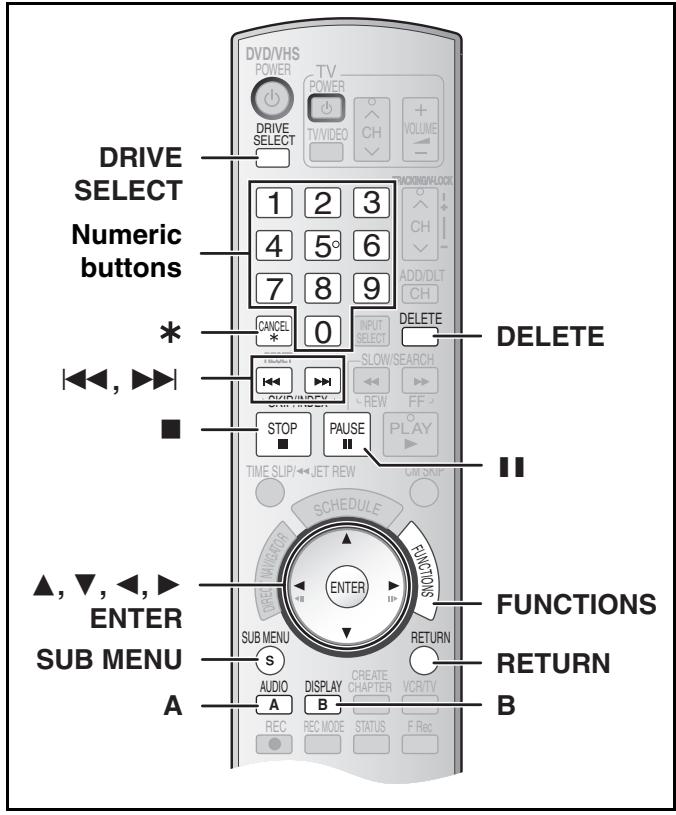
Saisie de texte
RAM -R -R DL -RW(V) +R +R DL +RW SD
Vous pouvez donner des noms aux titres enregistrés, etc.
Le nombre maximal de caractères :
| RAM | Characters | ||||||
| ●Title | 64 | ||||||
| ●Title (scheduled recording) | 44 | ||||||
| ●Playlist | 64 | ||||||
| ●Album | 36 | ||||||
| ●Disc | 64 | ||||||
| -R | -R | DL | -RW(V) | +R | +R | DL | +RW |
| ●Title | 44 | ||||||
| ●Disc | 40 | ||||||
| SD | Characters | ||||||
| ●Album | 36 | ||||||
Remarque
- Si un nom est long, certaines parties peuvent ne pas être affichées sur certains écrans.
Préparation
- Insérez un disque ou une carte.
- Désactivez la protection (disque → 60, titre → 42, album → 48, cartouche → 60, carte → 60). RAM SD
- Appuyez sur [DRIVE SELECT] pour sélectionner le lecteur (DVD ou SD).
1 Affichez l'écran Saisie du nom.
Reportez-vous aux pages suivantes concernant l'affichage de l'écran Saisie du nom.
- Titre (→ 42)
- Titre (enregistrement programmé) (→ 30)
- Disque (→ 60)
- Liste de lecture (→ 45)
- Album (→ 48)
Champ Nom : affiche le texte que vous avez saisi.![Nom du titre. Ligne 1 : 1 2 3 4 5 6 7 8 9 0. Ligne 2 : A B C a b c + - *. Ligne 3 : D E F d e f / = %. Ligne 4 : G H I g h i # $ &. Ligne 5 : J K L j k l < > @. Ligne 6 : M N O m n o [ ] _. Ligne 7 : P Q R S p q r s ( ). Ligne 8 : T U V t u v { } *. Ligne 9 : W X Y Z w x y z \ /. Ligne 10 : . , ? !…](/content/2019/10/56204/images/e0dec1c44894a6637dfa60c3331666ad6d729e2fd2750fc97f844b66a6517078.jpg)
2 Utilisez [▲, ▼, ◀, ▶] pour sélectionner le caractère à saisir, puis appuyez sur [ENTRÉE].
Répétez cette étape pour saisir d'autres caractères.
- Pour effacer un caractère
Appuyez sur [▲, ▼, ◀, ▶] pour sélectionner le caractère dans le champ Nom, puis appuyez sur [■■, PAUSE].
- Utilisation des touches numériques pour saisir des caractères
Exemple : saisie de la lettre « R ».
(1) Appuyez sur ⑦ pour passer à la 7e ligne.
(2) Appuyez deux fois sur ⑦ pour mettre « R » en surbrillance.
(3) Appuyez sur [ENTRÉE].
- Pour saisir une espace
Appuyez sur [*, ANNULER] puis sur [ENTRÉE].
- Sauvegarde/rappel de phrases (→ ci-dessous)
3 Après avoir terminé la saisie du nom, appuyez sur [■, STOP].
Le titre est saisi et l'écran disparaît.
![PANASONIC DMRES45V - Après avoir terminé la saisie du nom, appuyez sur [■, STOP]. - 1](/content/2019/10/56204/images/eb9c9f5091ab5648c01c5bb0c30f0ce4dee0b27d0abd1da6a1a3f1ffa5865f4c.jpg)
■ Pour annuler en cours de saisie
Appuyez sur [RETURN].
- Les caractères ne seront pas enregistrés.
■ Pour enregistrer des phrases
Vous pouvez enregistrer des phrases fréquemment utilisées et les rappeler ultérieurement.
Nombre maximal de phrases enregistrées : 20
Nombre maximal de caractères par phrase : 20
- Après avoir saisi la phrase (étapes 1 à 2, "Saisie de texte")
1 Appuyez sur [▲, ▼, ◀, ▶] pour sélectionner "Enregistrer phrase" puis appuyez sur [ENTER].
- Vous pouvez également appuyer sur [▶▶I, SKIP] pour sélectionner "Enregistrer phrase".
2 Appuyez sur [◀, ▶] pour sélectionner "Enregistrer" puis appuyez sur [ENTER].
- Appuyez sur [RETURN] pour annuler.
■ Pour rappeler une phrase enregistrée
1 Appuyez sur [▲, ▼, ◀, ▶] pour sélectionner "Liste des phrases" puis appuyez sur [ENTER].
- Vous pouvez également appuyer sur [◀◀, SKIP] pour sélectionner "Liste des phrases".
2 Appuyez sur [▲, ▼, ◀, ▶] pour sélectionner la phrase à rappeler, puis appuyez sur [ENTER].
■ Pour effacer des phrases enregistrées
1 Appuyez sur [▲, ▼, ◀, ▶] pour sélectionner "Liste des phrases" et appuyez sur [ENTER]. - Vous pouvez également appuyer sur [◀◀, SKIP] pour sélectionner "Liste des phrases". 2 Appuyez sur [▲, ▼, ◀, ▶] pour sélectionner la phrase à effacer. 3 Appuyez sur [SUB MENU] pour afficher "Effacer la phrase" et appuyez sur [ENTER]. 4 Appuyez sur [◀, ▶] pour sélectionner "Effacer" et appuyez sur [ENTER]. 5 Appuyez sur [RETURN].
Pour votre référence
Si vous saisissez un nom long, seule une partie de celui-ci est affichée dans le MENU PRINCIPAL après la finalisation (→ 61). Lors de la saisie d'un nom de titre, le nom qui apparaîtra dans le MENU PRINCIPAL peut être visualisé dans la fenêtre "Aperçu du menu principal (disque finalisé)".
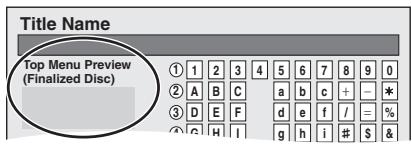
Préparation
- Retirez la protection (disque → 60, cartouche → 60, carte → 60). RAM SD
- Insérez un disque ou une carte.
- Appuyez sur [DRIVE SELECT] pour sélectionner le lecteur (DVD ou SD).
Sélection des titres ou images enregistrés à supprimer – Navigateur de suppression
RAM -R -R DL -RW(V) +R +R DL +RW SD
- Un titre ne peut pas être restauré une fois supprimé. Assurez-vous avant de continuer.
- Vous ne pouvez pas supprimer pendant l'enregistrement.
- RAM SD Lorsqu'un titre enregistré (ou une image fixe) est supprimé, l'espace disponible sur le disque ou la carte augmente de la quantité supprimée.
- -R -R DL +R +R DL : l'espace disponible n'augmente pas après la suppression.
- -RW(V) +RW : l'espace d'enregistrement disponible augmente lorsque le dernier titre enregistré est supprimé. (L'espace d'enregistrement peut augmenter légèrement lors de la suppression d'autres titres.)
1 Arrêt
Appuyez sur [FONCTIONS].
2 Appuyez sur [▲, ▼] pour sélectionner "Supprimer" puis sur [ENTRÉE].
■ Pour passer à l'autre vue RAM
Appuyez sur [B] pour sélectionner la vue Image.
Appuyez sur [A] pour sélectionner la vue Titre.
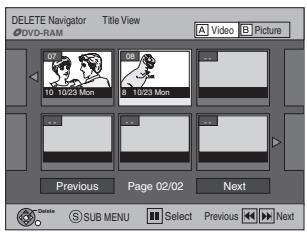
3 Appuyez sur [▲, ▼, ◀, ▶] pour sélectionner le titre puis sur [ENTRÉE].
■ Pour afficher d'autres pages
Appuyez sur [▲, ▼, ◀, ▶] pour sélectionner "Précédent" ou "Suivant" puis sur [ENTRÉE].
- Vous pouvez également appuyer sur [◀◀, SKIP] ou [▶▶, SKIP] pour afficher d'autres pages.
■ Édition multiple
Sélectionnez avec [▲, ▼, ◀, ▶] et appuyez sur [■■, PAUSE]. (Répétez)
Une coche apparaît. Appuyez à nouveau sur [■, PAUSE] pour annuler.
4 Appuyez sur [◀, ▶] pour sélectionner « Supprimer » puis appuyez sur [ENTER].
■ Pour revenir à l'écran précédent
Appuyez sur [RETURN].
■ Pour quitter l'écran
Appuyez plusieurs fois sur [RETURN].
Suppression d'un titre ou d'une image pendant la lecture
RAM -R -R DL -RW(V) +R +R DL +RW SD
Une fois le titre supprimé, il ne peut pas être restauré. Assurez-vous avant de continuer.
1 Pendant la lecture, appuyez sur [DELETE]. 2 Appuyez sur [◀] pour sélectionner « Supprimer » puis appuyez sur [ENTER].
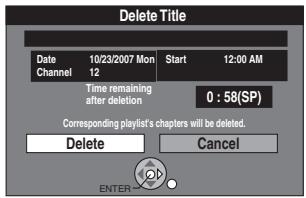
Pour votre référence
- Vous ne pouvez pas supprimer pendant l'enregistrement ou le transfert (copie).
- RAM SD Lorsqu'un titre enregistré (ou une image fixe) est supprimé, l'espace disponible sur le disque ou la carte augmente de la quantité supprimée.
- -R -R DL +R +R DL L'espace disponible n'augmente pas après l'effacement.
- -RW(V) +RW L'espace d'enregistrement disponible augmente lorsque le dernier titre enregistré est supprimé. (L'espace d'enregistrement peut augmenter légèrement lorsque d'autres titres sont supprimés.)
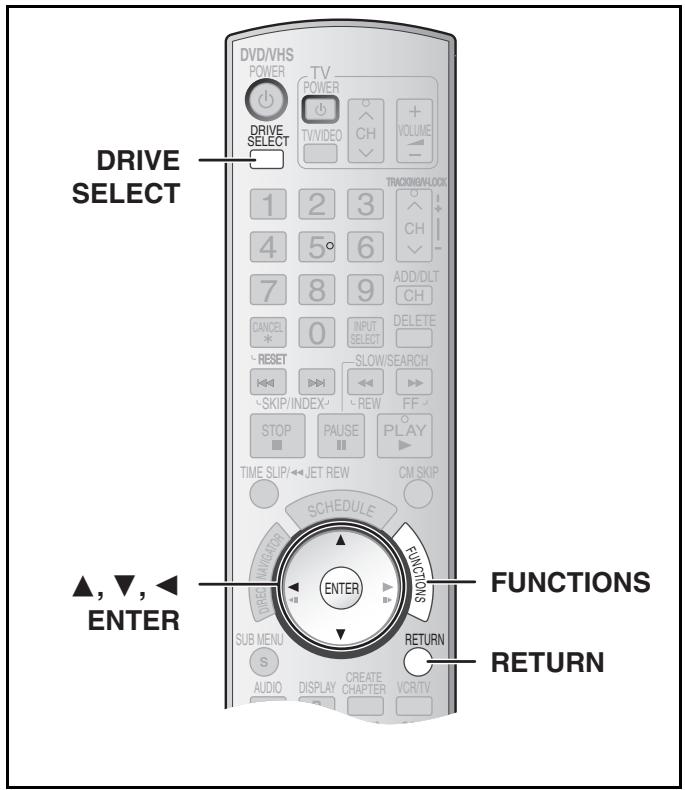
RAM -R -R DL -RW(V) +R +R DL +RW SD
Préparation
- Retirez la protection (disque → droite, cartouche → droite, carte → droite). RAM SD
- Insérez un disque ou une carte.
- Appuyez sur [DRIVE SELECT] pour sélectionner le lecteur (DVD ou SD).
1 À l'arrêt, appuyez sur [FUNCTIONS].
2 Sélectionnez "Autres fonctions" avec [▲, ▼] et appuyez sur [ENTER].
ex. : RAM
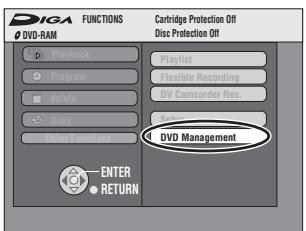
3 Sélectionnez "Gestion DVD" ou "Gestion carte" avec [▲, ▼] et appuyez sur [ENTER].
ex. : RAM
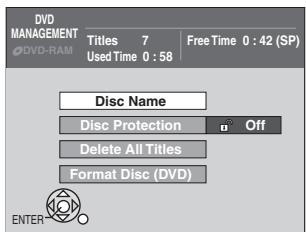
- Lorsque SD est sélectionné, seul "Formater la carte mémoire" est affiché.
4 Utilisez [▲, ▼] pour sélectionner l'élément souhaité et appuyez sur [ENTER].
Vous pouvez modifier divers réglages.
● Après cette opération, suivez l'opération souhaitée.
■ Pour revenir à l'écran précédent
Appuyez sur [RETURN].
Fournir un nom au disque
RAM -R -R DL -RW(V) +R +R DL +RW
- Suivez les étapes 1 à 3 de « Gestion des DVD et des cartes ».
4 Sélectionnez « Nom du disque » avec [▲, ▼] et appuyez sur [ENTER].
Reportez-vous à « Saisie de texte » (→ 58).
● Le nom du disque s'affiche dans la fenêtre de gestion des DVD. - Avec les disques finalisés et les +RW, le nom s'affiche dans le menu supérieur.
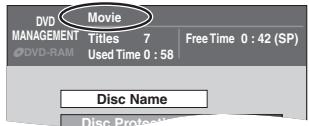
Réglage de la protection
RAM
- Suivez les étapes 1 à 3 de « Gestion des DVD et des cartes ».
Cela vous permet de protéger tout le disque contre un effacement accidentel et de libérer la protection du disque.
4 Sélectionnez « Protection du disque » avec [▲, ▼] et appuyez sur [ENTER]. 5 Sélectionnez « Oui » avec [◀] et appuyez sur [ENTER].
- Pour protéger
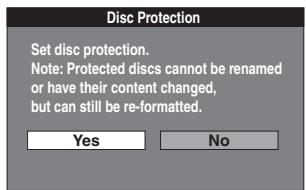
▶
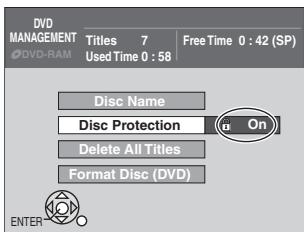
- Pour libérer la protection
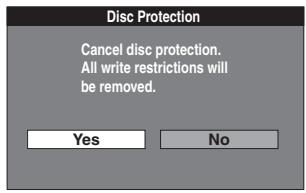
▶
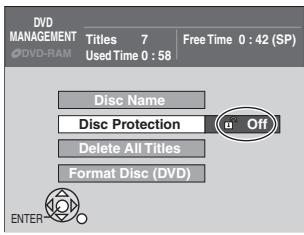
■ Protection de la cartouche, du disque ou de la carte RAM (avec une cartouche)
- Lorsque la languette de protection en écriture est en position de protection, vous ne pouvez pas enregistrer, modifier ou effacer le contenu du disque.
SD
- Mettez l'interrupteur de protection en écriture sur la position « Lock ».
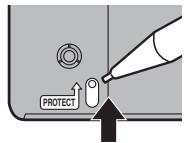

Suppression de tous les titres et listes de lecture – Supprimer tous les titres
RAM
- Suivez les étapes 1 à 3 de « Gestion du DVD et de la carte ».
Une fois supprimés, les contenus enregistrés sont perdus et ne peuvent pas être restaurés. Assurez-vous avant de continuer.
4 Sélectionnez « Supprimer tous les titres » avec [▲, ▼] et appuyez sur [ENTER]. 5 Sélectionnez « Oui » avec [◀] et appuyez sur [ENTER]. 6 Sélectionnez « Démarrer » avec [◀] et appuyez sur [ENTER].
●Un message apparaît lorsque l'opération est terminée.
7 Appuyez sur [ENTER].
Remarques
- La suppression de tous les titres vidéo entraîne également la suppression de toutes les listes de lecture.
- La suppression ne fonctionne pas si un ou plusieurs titres sont protégés.
Suppression de tout le contenu d'un disque ou d'une carte – Format
RAM -RW(V) +RW -RW(VR) SD
+R +R DL (New disc only)
- Suivez les étapes 1 à 3 de « Gestion du DVD et de la carte ».
Le formatage supprime tout le contenu (y compris les données informatiques), et il ne peut pas être restauré. Vérifiez soigneusement avant de continuer.
Le contenu est supprimé lorsque vous formatez un disque même si vous avez défini une protection.
4 Sélectionnez « Formater le disque (DVD) » ou « Formater la carte mémoire » avec [▲, ▼] et appuyez sur [ENTER].
5 Sélectionnez « Oui » avec [◀] et appuyez sur [ENTER].
ex. : RAM
Formater le disque (DVD)
Le formatage du disque effacera tout le contenu. Cela prendra environ 1 minute. Voulez-vous continuer ?


6 Sélectionnez « Démarrer » avec [◀] et appuyez sur [ENTER].
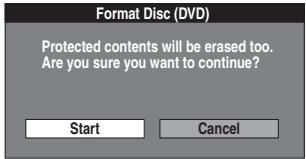
- Le formatage commence.
- Un message apparaît lorsque le formatage est terminé.
Remarques
- Le formatage prend normalement quelques minutes ; cependant, il peut prendre jusqu'à un maximum de 70 minutes pour une RAM.
- Ne débranchez pas le cordon d'alimentation secteur pendant le formatage. Cela pourrait rendre le disque inutilisable.
7 Appuyez sur [ENTER].
■ Pour arrêter le formatage d'un disque RAM
Appuyez sur [RETURN].
- Vous pouvez annuler le formatage s'il prend plus de 2 minutes. Le disque devra être reformaté si vous faites cela.
Remarques
- Lorsqu'un disque ou une carte a été formaté avec cet appareil, il peut ne pas être possible de l'utiliser sur un autre équipement.
- Les DVD-R, DVD-R DL et CD-R/RW ne peuvent pas être formatés.
- Vous ne pouvez formater les DVD-RW qu'au format DVD-Vidéo sur cet appareil.
- Le disque ne peut pas être formaté si l'onglet de protection en écriture (→ 60) est réglé sur « PROTECT ». Libérez la protection pour continuer.
- Le message « Impossible de formater » apparaît lorsque vous essayez de formater des disques que l'appareil ne peut pas utiliser.
Sélection de l'affichage du menu principal en premier
- La lecture commencera par :
-R -R DL -RW(V) +R +R DL +RW
- Suivez les étapes 1 à 3 de « Gestion des DVD et des cartes ».
Sélectionnez si vous souhaitez afficher le menu principal après la finalisation du disque. Faites ceci avant de finaliser le disque.
4 Sélectionnez "La lecture commencera par :" avec [▲, ▼] et appuyez sur [ENTER]. 5 Utilisez [▲, ▼] pour sélectionner l'élément souhaité et appuyez sur [ENTER].
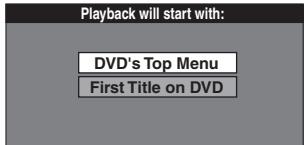
- Menu principal du DVD : Le menu principal apparaît en premier.
- Premier titre du DVD : Le contenu du disque est lu sans afficher le menu principal.
Permettre la lecture des disques sur d'autres équipements - Finalisation
-R -R DL -RW(V) +R +R DL
- Suivez les étapes 1 à 3 de "Gestion des DVD et des cartes".
- Effectuez la sélection dans "Sélection de l'affichage du menu principal en premier – La lecture commencera par :" avant de finaliser le disque. (→ en bas à gauche) Vous pouvez lire les DVD-R, DVD-R DL, DVD-RW (format DVD-Vidéo), +R ou +R DL sur des lecteurs DVD compatibles en les finalisant sur cet appareil, ce qui les convertit en DVD-Vidéo conformes aux normes DVD-Vidéo.
Le menu que vous créez avec l'appareil peut également être utilisé sur les lecteurs DVD.
4 Sélectionnez "Finaliser" avec [▲, ▼] et appuyez sur [ENTER]. 5 Sélectionnez "Oui" avec [◀] et appuyez sur [ENTER].
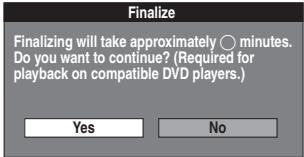
6 Sélectionnez "Démarrer" avec [◀] et appuyez sur [ENTER].
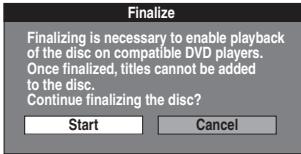
- La finalisation démarre.
- Vous ne pouvez pas annuler la finalisation.
- Un message apparaît lorsque la finalisation est terminée.
Remarques
- La finalisation peut prendre quelques minutes, jusqu'à un maximum de 15 minutes, selon l'espace restant sur le disque. (-R DL +R DL jusqu'à 60 minutes)
- Ne débranchez pas le cordon d'alimentation secteur pendant la finalisation. Cela pourrait rendre le disque inutilisable.
7 Appuyez sur [ENTER].
Remarques
- Lors de la finalisation d'un disque compatible avec l'enregistrement à haute vitesse, cela peut prendre plus de temps que ce qui est affiché sur l'écran de confirmation (environ 4 fois plus).
- Après la finalisation
- Le disque devient en lecture seule et vous ne pouvez plus enregistrer ou éditer. -R -R DL +R +R DL
- Vous pouvez enregistrer et éditer le disque après formatage (voir à gauche) bien qu'il devienne en lecture seule après la finalisation. -RW(V)
- Les DVD-R, DVD-R DL, DVD-RW (format DVD-Vidéo), +R ou +R DL finalisés sur cet appareil peuvent ne pas être lisibles sur d'autres lecteurs selon les conditions d'enregistrement.
- Il y a une pause de plusieurs secondes entre les titres et les chapitres pendant la lecture.
- Les titres sont divisés en chapitres d'environ 5 minutes* (-R DL +R DL 8 minutes)
* Cette durée varie considérablement selon les conditions et le mode d'enregistrement.
- Visitez le site Web de Panasonic pour plus d'informations sur les DVD. http://www.panasonic.com/playDVD-R
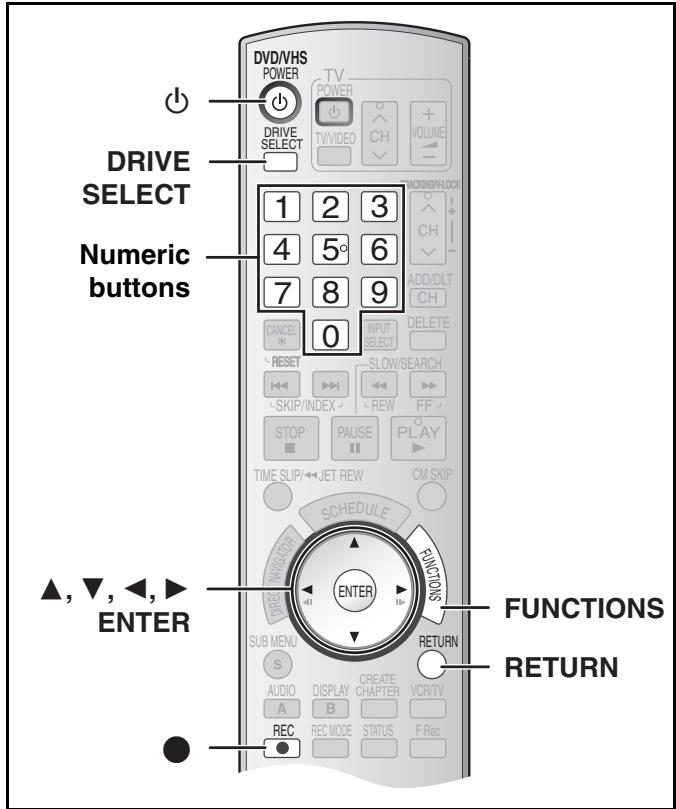
Activation de la deuxième couche sur les disques DL (double couche sur une seule face) pour permettre l'enregistrement — Fermeture de la première couche
-R DL +R DL
- Suivez les étapes 1 à 3 de « Gestion des DVD et des cartes ».
Les disques DVD-R DL et +R DL ont deux couches d'enregistrement sur une seule face. Cet appareil ne permet pas l'enregistrement continu sur les deux couches. L'enregistrement s'arrête lorsque l'espace de la première couche est plein. Vous devez fermer la première couche pour commencer l'enregistrement sur la deuxième couche.
La fermeture rend la première couche indisponible pour l'enregistrement (l'édition reste possible. Vous ne pouvez pas annuler la fermeture. Assurez-vous avant de continuer.
4 Appuyez sur [▲, ▼] pour sélectionner « Close First Layer » (Fermer la première couche) et appuyez sur [ENTER]. 5 Appuyez sur [◀, ▶] pour sélectionner « Yes » (Oui) et appuyez sur [ENTER]. 6 Appuyez sur [◀, ▶] pour sélectionner « Start » (Démarrer) et appuyez sur [ENTER].
La fermeture de la couche commence. Vous ne pouvez pas annuler la fermeture.
La fermeture de la couche peut prendre plusieurs minutes, jusqu'à un maximum de 30 minutes, selon l'espace restant sur la première couche.
Remarque
- Ne débranchez pas le cordon d'alimentation secteur pendant la fermeture de la couche. Cela rendrait le disque inutilisable.
7 Appuyez sur [ENTER].
■ Pour confirmer la couche sur laquelle vous pouvez enregistrer
Vous pouvez confirmer le temps d'enregistrement restant sur la couche sur laquelle vous pouvez enregistrer.
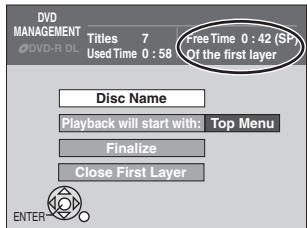
Remarques
- Vous ne pouvez pas fermer la première couche si elle ne contient aucun enregistrement.
- En fermant la couche, vous pouvez enregistrer ou éditer des disques qui ont été enregistrés sur la deuxième couche par un autre équipement.
Création du menu principal – Créer le menu principal du DVD
+RW
- Suivez les étapes 1 à 3 de « Gestion des DVD et des cartes ». Les disques +RW ne contiennent pas de données de menu principal. Le menu principal est une fonction pratique. Nous vous recommandons de créer le menu avant de lire un disque +RW sur un autre équipement.
4 Appuyez sur [▲, ▼] pour sélectionner « Créer le menu principal du DVD » puis sur [ENTER]. 5 Appuyez sur [◀, ▶] pour sélectionner « Oui » puis sur [ENTER]. 6 Appuyez sur [◀, ▶] pour sélectionner « Démarrer » puis sur [ENTER].
La création du menu principal démarre. Vous ne pouvez pas annuler la création. La création du menu principal peut prendre quelques minutes.
7 Appuyez sur [ENTER].
Remarques
- L'enregistrement ou l'édition sur le disque peut supprimer le menu. Dans ce cas, créez à nouveau le menu.
- Vous ne pouvez pas utiliser le menu des titres pour la lecture sur cet appareil.
Procédures courantes
Utilisez la procédure suivante pour modifier les réglages si nécessaire.
1 En mode arrêt, appuyez sur [FUNCTIONS]. 2 Sélectionnez « Autres fonctions » avec [▲, ▼] puis appuyez sur [ENTER]. 3 Sélectionnez « Configuration » avec [▲, ▼] puis appuyez sur [ENTER].
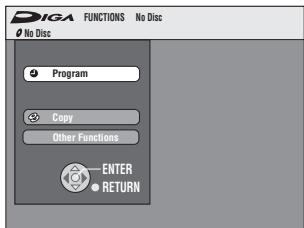
(1) Menus (2) Éléments (3) Options
![graph TD A["Setup"] --> B["Channel"] B --> C["Setup"] C --> D["Disc"] D --> E["Video"] E --> F["Audio"] F --> G["Display"] G --> H["TV Screen"] H --> I["VHS"] J["Off Timer"] --> K["Remote Control Code"] K --> L["Clock Settings"] L --> M["Quick Start"] M --> N["Restore Default Settings"] O["6 Hours S…](/content/2019/10/56204/images/9ced17acbd20049e11498f53afcda5deace336f2043accad4b6068c1c60ecfaf.jpg)
4 Sélectionnez un menu avec [▲, ▼] puis appuyez sur [◀, ▶]. 5 Sélectionnez l'élément à modifier avec [▲, ▼] puis appuyez sur [ENTER]. 6 Sélectionnez une option avec [▲, ▼] puis appuyez sur [ENTER].
- Certaines options nécessitent des opérations différentes. Suivez les instructions affichées.
■ Pour revenir à l'écran précédent
Appuyez sur [RETURN]. Même si vous avez modifié une option, le changement n'est activé qu'après avoir appuyé sur [ENTER].
■ Pour quitter l'écran
Appuyez plusieurs fois sur [RETURN].
Pour votre référence
- Les réglages restent intacts même si vous mettez l'appareil en veille.
Saisie d'un mot de passe (contrôle parental)
Vous pouvez limiter la lecture de DVD inadaptés à certains publics (par exemple, les enfants). La lecture et les modifications des réglages ne sont pas possibles sans saisir un mot de passe.
Préparation
- Sélectionnez le côté DVD en appuyant sur [DRIVE SELECT].
Lors du réglage du contrôle parental
L'écran de mot de passe s'affiche lorsque vous sélectionnez les niveaux 0 à 7. 1 Saisissez un mot de passe à 4 chiffres avec les touches numériques.
- Si vous saisissez un mauvais chiffre, appuyez sur [◀] pour l'effacer avant d'appuyer sur [ENTER].
- N'oubliez pas votre mot de passe.
2 Appuyez sur [ENTER].
3 Appuyez sur [ENTER].
Le mot de passe est saisi et l'appareil est verrouillé.
Désormais, lorsque vous insérez un DVD-Vidéo qui dépasse la limite de classification que vous avez définie, un message s'affiche à l'écran du téléviseur.
Suivez les instructions à l'écran.
Pour modifier les classifications
L'écran de saisie du mot de passe s'affiche lorsque vous sélectionnez « Classifications » ( → 64)
1 Saisissez un mot de passe à 4 chiffres avec les touches numériques et appuyez sur [ENTER].
Déverrouiller l'enregistreur : Pour déverrouiller l'appareil et rétablir la classification à 8
Changer le mot de passe : Pour modifier votre mot de passe
Changer le niveau : Pour modifier le niveau de classification
Déverrouillage temporaire : Pour déverrouiller temporairement l'appareil (l'appareil se verrouille à nouveau si vous le mettez en veille ou si vous ouvrez le plateau du disque)
2 Sélectionnez l'élément souhaité avec [▲, ▼] et appuyez sur [ENTER].
Les écrans réels dépendent de l'opération. Suivez les instructions à l'écran.
Résumé des réglages
Cette description montre les réglages initiaux de l'appareil. Pour plus de détails sur le fonctionnement des menus, voir à gauche.
- Les éléments soulignés sont les réglages d'usine par défaut.
- DVD/VHS indique que les réglages sont effectifs pour le DVD et le VHS. • DVD indique que les réglages sont effectifs pour le DVD uniquement. • VHS indique que les réglages sont effectifs pour le VHS uniquement.
■ Chaîne DVD/VHS
Source du signal (entrée RF) (voir page 19)
Sélectionnez en fonction du type d'antenne que vous utilisez.
[Antenne] [Câble]
Réglage automatique des chaînes (voir page 19)
Préréglage des noms de chaînes (voir page 20)
Réglage manuel des noms de chaînes (voir page 20)
■ Configuration DVD/VHS
Minuterie d'arrêt
Sélectionnez la durée pendant laquelle l'appareil reste allumé lorsqu'il n'est pas utilisé. [2 heures] [6 heures] [Arrêt]
Code de télécommande (voir page 21)
[Code 1] [Code 2] [Code 3]
Réglages de l'horloge
Appuyez sur [ENTER] pour afficher les réglages suivants.
Régler l'horloge automatiquement (→ 22)
Régler l'horloge manuellement (→ 19)
Régler le fuseau horaire (→ 22)
Ceci corrige l'heure réglée dans le réglage automatique de l'horloge.
Le statut n'est pas affiché dans le menu de configuration lorsque le réglage automatique de l'horloge n'est pas activé.
[-1] [0] [+1]
Démarrage rapide
1 seconde. Démarrage rapide pour l'enregistrement sur DVD-RAM*
* À partir de l'état hors tension, l'enregistrement sur DVD-RAM démarre environ 1 seconde après avoir appuyé d'abord sur [☐, DVD/VHS POWER] puis successivement sur [●, REC] (mode démarrage rapide).
La consommation d'énergie est également plus élevée lorsque l'appareil est éteint si ce réglage est sur "On".
La consommation électrique est également plus élevée lorsque l'appareil est éteint si cette option est réglée sur "On".
Restaurer les paramètres par défaut
Restaurer les paramètres par défaut
Cela rétablit les menus de configuration aux réglages par défaut, à l'exception de l'horloge, des réglages des chaînes, du niveau de contrôle parental et de la langue à l'écran.
[Oui] [Non]
- Les éléments soulignés sont les réglages par défaut d'usine.
Disque DVD
Réglages pour la lecture
Appuyez sur [ENTRÉE] pour afficher les réglages suivants.
Contrôle parental ("Saisie d'un mot de passe (Contrôle parental)" → 63)
Définissez un niveau de contrôle parental pour limiter la lecture des DVD-Vidéo.
Réglage du contrôle parental (lorsque le niveau 8 est sélectionné)
[8 Aucune limite] : Tous les DVD-Vidéo peuvent être lus.
[1] à [7] : Interdit la lecture des DVD-Vidéo avec les niveaux de contrôle correspondants enregistrés sur ceux-ci.
[0 Tout verrouiller] : Interdit la lecture de tous les DVD-Vidéo.
Modification du contrôle parental (lorsque le niveau 0 à 7 est sélectionné)
[Déverrouiller l'enregistreur] [Changer le mot de passe]
[Changer le niveau] [Déverrouillage temporaire]
Lecture de DVD-Audio en mode vidéo
Sélectionnez « Mode vidéo (Video On) » pour lire le contenu DVD-Vidéo sur certains DVD-Audio.
[Mode vidéo (Video On)] [Mode audio (Video Off)]
| Video Mode (Video ON) | The setting returns to “Audio Mode (Video Off)” when you change the disc or turn the unit off. |
Langue audio
[Anglais] [Français] [Espagnol] [Original] [Autre *****]
Langue des sous-titres
[Automatique] [Anglais] [Français] [Espagnol] [Autre *****]
Langue des menus
[Anglais] [Français] [Espagnol] [Autre *****]
Choisissez la langue pour l'audio, les sous-titres et les menus du disque. DVD-V
- Si une langue non enregistrée est sélectionnée, ou si les langues sont déjà fixées sur le disque, la langue définie par défaut sur le disque sera lue à la place.
Original
La langue originale de chaque disque sera sélectionnée.
Autre ****
Ceci est le réglage du code de langue.
Saisissez un numéro de code à l'aide des touches numériques.
(→ 66, "Liste des codes de langue")
Automatique
Si la langue sélectionnée pour « Langue audio » n'est pas disponible, les sous-titres dans cette langue apparaîtront automatiquement s'ils sont disponibles sur le disque.
Réglages pour l'enregistrement
Appuyez sur [ENTER] pour afficher les réglages suivants.
Durée d'enregistrement en mode EP
Sélectionnez le nombre maximal d'heures pour l'enregistrement en mode EP
[→ 26, "Modes d'enregistrement et durées approximatives d'enregistrement (DVD)".]
[EP - Lecture étendue (6H)] [EP - Lecture étendue (8H)]
| EP-Extended Play (6H) | You can record for 6 hours on an unused 4.7 GB disc. |
| EP-Extended Play (8H) | You can record for 8 hours on an unused 4.7 GB disc. |
■ DVD vidéo
Mode image fixe (vidéo en pause)
Sélectionnez le type d'image affichée lorsque vous mettez la lecture en pause.
(→ 76, "Trame et champ")
[Automatique] [Champ] [Trame]
| Field | Select if jittering occurs when “Automatic” is selected. |
| Frame | Select if you cannot see small text or fine patterns clearly when “Automatic” is selected. |
Contrôle du niveau de noir
Sélectionnez « Normal », « Plus clair » ou « Plus foncé » pour régler le contrôle du niveau de noir au réglage souhaité pour l'amélioration de l'image.
Appuyez sur [ENTRÉE] pour afficher les réglages suivants.
Niveau d'entrée
Règle le niveau de noir du signal d'entrée.
[Plus clair] [Plus foncé]
Niveau de sortie (Composite/S-Vidéo)
Règle le niveau de noir du signal de sortie des bornes VIDEO OUT et S VIDEO OUT.
[Plus clair] [Plus foncé]
Niveau de sortie (Composant)
Règle le niveau de noir du signal de sortie des bornes COMPONENT VIDEO OUT (Y/PB/PR).
[Plus clair] [Normal] [Plus foncé]
■ Audio DVD
Compression de la plage dynamique
DVD-V (Dolby Digital uniquement)
Modifiez la plage dynamique (→ 76) pour une écoute plus facile à faible volume.
[Activé] [Désactivé]
Son TV multicanal (MTS)
-R -R DL -RW(V) +R +R DL +RW
Sélectionnez s'il faut enregistrer le type audio principal ou secondaire (SAP) lors de l'enregistrement ou du transfert (copie) sur DVD-R, DVD-RW (format DVD-Vidéo) ou +R. (Vous ne pouvez pas sélectionner le type audio sur l'appareil lors de l'enregistrement audio sur DVD-R, DVD-RW (format DVD-Vidéo) ou +R à partir d'un périphérique externe. Sélectionnez-le sur le périphérique externe.)
[Principal] [Programme audio secondaire (SAP)]
Sortie audio numérique
Modifiez les réglages lorsque vous avez connecté un équipement via la borne SORTIE AUDIO NUMÉRIQUE de l'appareil (→ 16).
Appuyez sur [ENTRÉE] pour afficher le menu.
Conversion descendante PCM
Sélectionnez comment sortir l'audio avec une fréquence d'échantillonnage de 96 kHz ou 88,2 kHz.
- Les signaux sont convertis à 48 kHz ou 44,1 kHz malgré les réglages ci-dessus si les signaux ont une fréquence d'échantillonnage supérieure à 96 kHz ou 88,2 kHz, ou si le disque est protégé contre la copie.
[Activé] [Désactivé]
| On | Signals are converted to 48 kHz or 44.1 kHz. (Choose when the connected equipment cannot process signals with sampling frequency of 96 kHz or 88.2 kHz.) |
| Off | Signals are output as 96 kHz or 88.2 kHz. (Choose when the connected equipment can process signals with sampling frequency of 96 kHz or 88.2 kHz.) |
Dolby Digital
Choisissez de sortir en "Bitstream" qui traite les signaux Dolby Digital sur d'autres équipements connectés ou de convertir les signaux en "PCM (2 canaux)" sur l'appareil avant la sortie.
[Bitstream] [PCM]
| Bitstream | When you have connected the unit to a piece of equipment having Dolby Digital logo. |
| PCM | When you have connected the unit to a piece of equipment that doesn’t have Dolby Digital logo*. |
DTS
Choisissez de sortir en « Bitstream », qui traite les signaux DTS sur un autre équipement connecté, ou de convertir les signaux en « PCM (2 canaux) » sur l'appareil avant la sortie.
[Bitstream] [PCM]

| Bitstream | When you have connected the unit to a piece of equipment having DTS logo. |
| PCM | When you have connected the unit to a piece of equipment that doesn’t have DTS logo*. |
* Des réglages incorrects peuvent provoquer des bruits susceptibles d'endommager vos oreilles et vos enceintes, et l'audio ne sera pas enregistré correctement sur des supports tels que les mini-disques.
Sélection du canal audio pour l'entrée DV
Vous pouvez sélectionner le type d'audio lors de l'enregistrement à partir de la borne DV de l'appareil. (→ 57)
[Stéréo 1] [Stéréo 2] [Mix]
| Stereo 1 | Records audio (L1, R1) |
| Stereo 2 | Records added audio such as narration (L2, R2) subsequent to original recording. |
| Mix | Records both Stereo 1 and Stereo 2. |
- Les éléments soulignés sont les réglages d'usine par défaut.
■ Affichage DVD/VHS
Messages d'état
Choisissez d'afficher ou non les messages d'état automatiquement.
[Automatique] [Désactivé]
Langue à l'écran
Choisissez la langue pour ces menus et les messages à l'écran.
Fond bleu
Sélectionnez l'affichage du fond bleu, normalement affiché lorsque la réception TV est mauvaise.
[Activé] [Désactivé]
Afficheur FL
Modifie la luminosité de l'afficheur de l'appareil.
[Clair] [Tamisé] [Automatique]
| Automatic | The display turns dark during play, and reappears momentarily if a button is pressed. When the unit is turned off, the unit's display disappears. While using this mode the standby power consumption can be reduced. |
Écran TV
Type de TV (→ 20) DVD/VHS
Choisissez le réglage adapté à votre téléviseur et à vos préférences.
[Format 4:3 et 480i] [Format 4:3 et 480p]
[Format 16:9 et 480i] [Format 16:9 et 480p]
Fonctions HDMI DVD/VHS
Appuyez sur [ENTRÉE] pour afficher les réglages suivants.
Sortie vidéo HDMI
[Activé] [Désactivé]
| Off | Video is output from COMPONENT VIDEO OUT terminal. |
Résolution HDMI
Vous ne pouvez sélectionner que des éléments compatibles avec l'équipement connecté. Ce réglage ne nécessite normalement pas de modification. Cependant, si vous êtes préoccupé par la qualité de l'image de sortie, elle peut être améliorée en modifiant ce réglage.
[Auto] [480p] [720p] [1080i]
| Auto | Automatically selects the output resolution best suited to the connected television (1080i, 720p or 480p). |
Format d'affichage de sortie HDMI
Réglages utilisés lorsque la vidéo au format 4:3 est affichée sur le téléviseur au format 16:9.
(Efficace uniquement lorsque 720p ou 1080i est sélectionné comme résolution de sortie)
[Plein] [Normal]
| Full | Video output is enlarged to match the screen size. |
| Normal | Video is output as 4:3 aspect. Side panels (black bars on the left and right) will appear on the screen. |
Plage de sortie RVB HDMI
Efficace lorsqu'il est connecté à un appareil qui ne prend en charge que la sortie RVB.
[Standard] [Amélioré]
| Enhanced | When the black and white images are not distinct. |
Sortie audio HDMI
[Activé] [Désactivé]
| Off | Audio is output from an amplifier when using the DIGITAL AUDIO OUTPUT terminal. |
Réglage des enceintes pour connexion HDMI
Vous pouvez configurer l'appareil pour qu'il produise le meilleur son possible pour vos enceintes.
[Auto] [Multi Channel] [2 Channel]
| Auto | When using the speaker settings of the connected equipment |
| Multi Channel | When using three or more speakers with equipment that cannot set the speaker settings |
| 2 Channel | When using two speakers |
Réglage du canal multiple
Affiché lorsque « Multi Channel » est sélectionné dans « Réglage des haut-parleurs pour la connexion HDMI »
Vous pouvez régler la taille des haut-parleurs, la présence et le délai audio. (→ 66)
Commande HDMI
[Activé] [Désactivé]
| On | When “On” is selected, you can operate other “Ctrl with HDMI” compatible devices using the “Ctrl with HDMI”. |
Réglages TV 4:3 pour DVD-Vidéo
Vous pouvez sélectionner la manière d'afficher l'image sur le téléviseur lorsque vous regardez des images 16:9 (DVD-Vidéo) sur un téléviseur standard 4:3. (→ 76)
[Pan and Scan (Étirer pour adapter)] [Letterbox (Réduire pour adapter)]
Pan and Scan (Stretch to fit)  | Video recorded for a widescreen is played with the sides cut off if Pan & Scan was specified. If 16:9 software prohibits Pan & Scan, the image will appear in the letterbox style (with black bands above and below the picture) despite the setting here. |
| Letterbox (Shrink to fit) | Video recorded for a widescreen is played in the letterbox style. |
Réglages TV 4:3 pour DVD-RAM
Vous pouvez sélectionner la manière d'afficher l'image sur le téléviseur lorsque vous regardez des images 16:9 (DVD-RAM) sur un téléviseur standard 4:3. (→ 76)
[Format 4:3] [Pan and Scan (Étirer pour adapter)]
[Letterbox (Réduire pour adapter)]
| 4:3 Aspect | Titles are played as recorded. |
| Pan and Scan (Stretch to fit) | Video recorded for a widescreen is played with the sides cut off. |
| Letterbox (Shrink to fit) | Video recorded for a widescreen is played in the letterbox style. |
VHS
Sélectionner la durée de la cassette
Réglez la longueur de la cassette que vous utilisez afin que l'appareil puisse afficher le temps restant correct.
[T120] [T160] [T180]
| T120 | T30, T60, T90 and T120 tapes |
| T160 | T140 and T160 tapes |
| T180 | T180 tapes |
Recherche rapide ( → 37)
Réglez la vitesse de la recherche rapide lors de la lecture de cassettes EP et VP.
- Il est possible de visualiser l'image enregistrée en mode EP ou VP à environ 27 ou 35 fois la vitesse normale.
[×27] [×35]
- Sélectionnez [× 27] si l'image est de mauvaise qualité à [× 35] .
Modification du réglage des enceintes pour les adapter à vos enceintes
Modifiez le réglage des enceintes pour les adapter à vos enceintes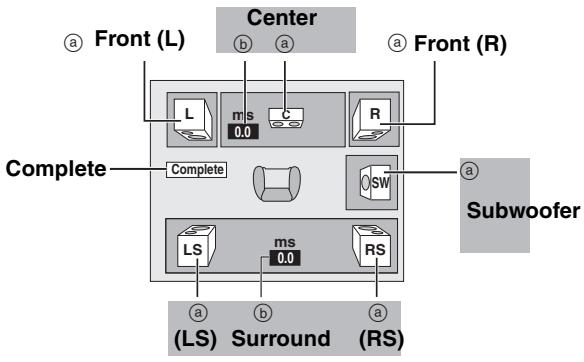
Pour régler la présence et la taille des enceintes (a)
1 Appuyez sur [▲, ▼, ◀, ▶] pour sélectionner l'icône d'enceinte (ⓐ) puis sur [ENTER]. 2 Appuyez sur [▲, ▼] pour sélectionner le réglage puis sur [ENTER].
Exemples d'icônes :
Enceinte surround (LS)
●Grande : Sélectionnez cette option si l'enceinte prend en charge les basses fréquences (ur
Grande
Petit
Non
- Petit : sélectionnez cette option lorsque l'enceinte ne prend pas en charge la reproduction des basses fréquences.
Si le caisson de graves est réglé sur « Non », les enceintes avant seront automatiquement réglées sur « Grand ». (Dans ce cas, nous recommandons de connecter une enceinte capable de reproduire les basses en dessous de 100 Hz.)
Pour régler le temps de retard (b)
(Efficace uniquement lors de la lecture de l'audio multicanal)
Si la distance Ⓐ ou ⓔ est inférieure à ⓓ, trouvez la différence dans le tableau correspondant et modifiez le réglage recommandé.
1 Appuyez sur [▲, ▼, ◀, ▶] pour sélectionner un élément (⑥) et appuyez sur [ENTER]. 2 Appuyez sur [▲, ▼] pour modifier le contenu et appuyez sur [ENTER].
☐ : Emplacement recommandé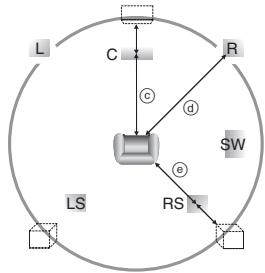
(d) Enceinte centrale
| Difference | Setting |
| Approx. 34 cm ( 11/10 feet) | 1.0 ms |
| Approx. 68 cm ( 21/5 feet) | 2.0 ms |
| Approx. 102 cm ( 33/10 feet) | 3.0 ms |
| Approx. 136 cm ( 42/5 feet) | 4.0 ms |
| Approx. 170 cm ( 51/2 feet) | 5.0 ms |
f Enceintes surround
| Difference | Setting |
| Approx. 170 cm ( 51/2 feet) | 5.0 ms |
| Approx. 340 cm (11 feet) | 10.0 ms |
| Approx. 510 cm ( 161/2 feet) | 15.0 ms |
Liste des codes de langue
| Abkhazian: | 6566 | Chinese: | 9072 | Hausa: | 7265 | Lithuanian: | 7684 | Romanian: | 8279 | Telugu: | 8469 |
| Afar: | 6565 | Corsican: | 6779 | Hebrew: | 7387 | Macedonian: | 7775 | Russian: | 8285 | Thai: | 8472 |
| Afrikaans: | 6570 | Croatian: | 7282 | Hindi: | 7273 | Malagasy: | 7771 | Samoan: | 8377 | Tibetan: | 6679 |
| Albanian: | 8381 | Czech: | 6783 | Hungarian: | 7285 | Malay: | 7783 | Sanskrit: | 8365 | Tigrinya: | 8473 |
| Ameharic: | 6577 | Danish: | 6865 | Icelandic: | 7383 | Malayalam: | 7776 | Scots Gaelic: | 7168 | Tonga: | 8479 |
| Arabic: | 6582 | Dutch: | 7876 | Indonesian: | 7378 | Maltese: | 7784 | Serbian: | 8382 | Turkish: | 8482 |
| Armenian: | 7289 | English: | 6978 | Interlingua: | 7365 | Maori: | 7773 | Serbo-Croatian: | 8372 | Turkmen: | 8475 |
| Assamese: | 6583 | Esperanto: | 6979 | Irish: | 7165 | Marathi: | 7782 | Shona: | 8378 | Twi: | 8487 |
| Aymara: | 6589 | Estonian: | 6984 | Italian: | 7384 | Moldavian: | 7779 | Sindhi: | 8368 | Ukrainian: | 8575 |
| Azerbaijani: | 6590 | Faroese: | 7079 | Japanese: | 7465 | Mongolian: | 7778 | Singhalese: | 8373 | Urdu: | 8582 |
| Bashkir: | 6665 | Fiji: | 7074 | Javanese: | 7487 | Nauru: | 7865 | Slovak: | 8375 | Uzbek: | 8590 |
| Basque: | 6985 | Finnish: | 7073 | Kannada: | 7578 | Nepali: | 7869 | Slovenian: | 8376 | Vietnamese: | 8673 |
| Bengali, Bangla: | 6678 | French: | 7082 | Kashmiri: | 7583 | Norwegian: | 7879 | Somali: | 8379 | Volapük: | 8679 |
| Bhutani: | 6890 | Frisian: | 7089 | Kazakh: | 7575 | Oriya: | 7982 | Spanish: | 6983 | Welsh: | 6789 |
| Bihari: | 6672 | Galician: | 7176 | Kirghiz: | 7589 | Pashto, Pushto: | 8083 | Sundanese: | 8385 | Wolof: | 8779 |
| Breton: | 6682 | Georgian: | 7565 | Korean: | 7579 | Persian: | 7065 | Swahili: | 8387 | Xhosa: | 8872 |
| Bulgarian: | 6671 | German: | 6869 | Kurdish: | 7585 | Polish: | 8076 | Swedish: | 8386 | Yiddish: | 7473 |
| Burmese: | 7789 | Greek: | 6976 | Laotian: | 7679 | Portuguese: | 8084 | Tagalog: | 8476 | Yoruba: | 8979 |
| Byelorussian: | 6669 | Greenlandic: | 7576 | Latin: | 7665 | Punjabi: | 8065 | Tajik: | 8471 | Zulu: | 9085 |
| Cambodian: | 7577 | Guarani: | 7178 | Latvian, Lettish: | 7686 | Quechua: | 8185 | Tamil: | 8465 | ||
| Catalan: | 6765 | Gujarati: | 7185 | Lingala: | 7678 | Rhaeto-Romance: | 8277 | Tatar: | 8484 |
Sur l'afficheur de l'appareil Page
| H☐☐, F☐☐(“☐☐” stands for a number.) | ●An error has occurred. The number following “H” or “F” depends on the status of the unit. Check the items in the “Error messages” section and the “Troubleshooting guide”. If the service number still does not disappear after the check, follow the Reset procedure described below.Reset procedure: (“The unit is on but cannot be operated.” → 69)●If the service numbers fail to clear, note the service numbers and contact a qualified service person. | - |
| - | ||
| SET ☐ (“☐” stands for a number.) | ●The remote control and main unit are using different codes. Change the code on the remote control. | 21 |
| HARD ERR | ●If there is no change after turning the unit on and off, consult the dealer where the unit was purchased. | - |
| NoREAD | ●The disc is dirty or badly scratched. The unit cannot record, play, or edit.●You have used a lens cleaner and it has finished. Press [▲, OPEN/CLOSE] to eject the disc. | 6, 1024 |
| PLEASE WAIT(“PLEASE” and “WAIT” are alternately displayed.) | ●Displayed when the unit is started. This is not a malfunction.●The unit is carrying out its recovery process. You cannot operate the unit while “PLEASE WAIT” is displayed. | - |
| PROG FULL(“PROG” and “FULL” are alternately displayed.) | ●There are already 16 scheduled recording programs. Delete unnecessary scheduled recording programs. | 31 |
| UNSUPPORT(“UNSUP” and “PORT” are alternately displayed.) | ●You have inserted a disc the unit cannot play or record on. | 7 |
| UNFORMAT(“UNFOR” and “MAT” are alternately displayed.) | ●You have inserted a new DVD-RW/+R/+R DL/+RW or a DVD-RAM/DVD-RW (DVD-Video format) recorded on other equipment. | 61 |
| F74 | ●The HDMI connection could not be authenticated due to a transfer malfunction. | - |
| F75 | ●The HDMI connection could not be authenticated due to a internal data malfunction. | - |
| U59 | ●The unit is very warm.The unit switches to standby for safety reasons. Wait for about 30 minutes until the message disappears.Select a position with good ventilation when installing the unit. Do not block the cooling fan on the rear of the unit. | - |
| U61 | ●There was a power failure or the AC plug was disconnected while the unit was on. The unit is carrying out its recovery process. This process restores the unit to normal operation. The unit is not broken. Wait until the message disappears. | - |
| U71 | ●The connected equipment is not HDMI compatible. | - |
| U72U73 | ●The HDMI connection acts unusually.- The connected equipment is not HDMI compatible.- The HDMI cable is too long.- The HDMI cable is damaged. | - |
| U88 | ●There was something unusual detected with the disc while recording, playing or transferring (copying), there was a power failure or the AC plug was disconnected while the unit was on. The unit is carrying out its recovery process. This process restores the unit to normal operation. The unit is not broken. Wait until the message disappears. | 69 |
| U99 | ●The unit fails to operate properly. Press [∅/I, POWER] on the main unit to switch the unit to standby.Now press [∅/I, POWER] on the main unit again to turn the unit on. | - |
Sur le téléviseur Page
| Cannot finish recording completely. | ●The program was copy-protected.●The disc may be full.●There are already 99 recorded titles (+R +R DL +RW 49 recorded titles). | - - - |
| Cannot play. | ●You inserted an incompatible disc (Discs recorded in PAL video, etc.). | - |
| Cannot record on the disc. | ●The disc may be dirty or scratched. | 10 |
| Unable to format. | ||
| Please check the disc. | ||
| Cannot record. Disc is full. | ●Create space by erasing any unwanted titles. RAM -RW(V) +RW[Even if you erase recorded content from the DVD-R or +R, there is no increase in disc space. Available recording space on a DVD-RW (DVD-Video format) or +RW increases when the last recorded title is deleted. (The recording space may increase slightly when other titles are deleted.)]●Use a new disc. | 41, 59, 60 - |
| Cannot record. The number of titles has exceeded the maximum limit. | ||
| Error has occurred. Please press ENTER. | ●Press [ENTER] to start recovery process. You cannot operate the unit while it is recovering ("SELF CHECK" appears on the unit's display). | - |
| No disc | ●You haven't inserted a disc. Correctly insert a disc that the unit can play.●The disc is upside down. If it is a single-sided disc, insert it so the label is facing up. | 6, 10, 24 24 |
| No folders. | ●There is no compatible folder in this unit. | 8 |
| No SD Card No valid SD card. | ●The card is not inserted. If this message is displayed with a compatible card already inserted, turn off the unit, remove and then re-insert the card.●The card inserted is not compatible or the card format does not match. | 11 8 |
| No VHS cassette | ●A video cassette is not inserted when recording programs. Insert a video cassette with an accidental erasure prevention tab. | 11, 24 |
| Now recording on DVD. To watch the VHS playback, connect a TV to DVD/VHS COMMON OUT terminal at the back of the unit, and select the appropriate input on the TV. | ●The VHS plays back while recording on DVD. You can watch the VHS playback by connect to the DVD/VHS COMMON terminals. | 15 |
| Please change the disc. | ●There may be a problem with the disc. Press [▲, OPEN/CLOSE] on the main unit to remove it and check it for scratches or dirt. (The unit turns off automatically after you open the tray.) | 10 |
| Please set the clock. | ●The clock is not set when recording programs or setting the scheduled recording. Set the clock. | 19, 22 |
| The VHS cassette is protected. | ●A video cassette without the accidental erasure prevention tab is inserted when recording programs. Use a video cassette with an accidental erasure prevention tab. | 11 |
| This is a non-recordable disc. | ●The unit cannot record on the disc you inserted. Insert a DVD-RAM or unfinalized DVD-R, DVD-R DL, DVD-RW (DVD-Video format), +R, +R DL or +RW.●You inserted an unformatted DVD-RAM, DVD-RW, +R, +R DL or +RW. Format the disc with the unit. | - 61 |
| This disc is not formatted properly. | ||
| ∅ | ●The operation is prohibited by the unit, disc or cassette. | 32 |
Configuration Page
| What equipment is necessary to play multi channel surround sound? | ●You cannot playback multi-channel sound on this unit without other equipment. You must connect this unit with a HDMI cable or an optical digital cable to an amplifier with a built-in (Dolby Digital or DTS) decoder.●An amplifier supporting CPPM and the HDMI standard version 1.1 must be connected to this unit to play multi-channel audio on a DVD-Audio. | 16- |
| Can the headphones and speakers be directly connected to the unit? | ●You cannot directly connect to the unit. Connect through the amplifier etc. | 16 |
| The television has S VIDEO IN terminal, COMPONENT VIDEO IN terminals and HDMI IN terminal. Which should I connect with? | ●The output picture quality increases in the following order.- VIDEO IN terminal, S VIDEO IN terminal, COMPONENT VIDEO IN terminals and HDMI IN terminal. However the unit will take longer to startup when this it is connected with the HDMI IN terminal. | - |
| Is my TV progressive output compatible? | ●All Panasonic TVs that have 480p input terminals are compatible. Consult the manufacturer if you have another brand of TV. | - |
Page Disque
| Can I play DVD-Video, DVD-Audio and Video CDs bought in another country? | ●You can play them if the video standard is NTSC.●However, you cannot play DVD-Video if its region number does not include “1” or “ALL”. | –Cover |
| Can a DVD-Video that does not have a region number be played? | ●The DVD-Video region number indicates the disc conforms to a standard. You cannot play discs that do not have a region number. | – |
| Please tell me about DVD-R, DVD-R DL, DVD-RW, +R, +R DL and +RW compatibility with the unit. | ●The unit records and plays DVD-R, DVD-R DL, DVD-RW (DVD-Video format), +R, +R DL and +RW, and plays DVD-RW (DVD Video Recording format).●The unit also records and plays high speed recording compatible discs.●After recording but before finalizing +R, +R DL discs- You may not be able to play and record discs on this unit after recording them on other Panasonic products or other manufacturer’s equipment.- You may not be able to play and record discs on other equipment after recording them on this unit. After finalizing the disc, however, you will be able to play it on any DVD-Video compatible player. | 6, 76– |
| Please tell me about CD-R and CD-RW compatibility with the unit. | ●This unit plays CD-R/CD-RW discs which have been recorded in one of the following standards: CD-DA, Video CD, MP3 and still pictures (JPEG/TIFF). Close the session or finalize the disc after recording. This unit can recognize up to 99 folders (groups) and 999 files (tracks) on a disc with MP3 or still pictures (JPEG/TIFF).●You cannot write to a CD-R or CD-RW with the unit. | 7, 34, 357 |
Page Enregistrement
| Can I record from a commercially purchased video cassette or DVD? | ●Most commercially sold video cassettes and DVD are copy protected; therefore, recording is usually not possible. | - |
| Can DVD-R, DVD-R DL, DVD-RW (DVD-Video format), +R, +R DL and +RW recorded on the unit be played on other equipment? | ●You can play on compatible equipment such as DVD players after finalizing the disc on this unit. It is not necessary to finalize +RW. However, depending on the condition of the recording, the quality of the disc and capabilities of the DVD player, play may not be possible. To enable play on other DVD players, please use “Create DVD Top Menu” in the DVD management menu. | 61 |
| Can I record digital audio signals using the unit? | ●You cannot record digital signals. The digital audio terminals on the unit are for output only. (The audio recorded from a digital video camcorder using the DV automatic recording function, for example, is recorded digitally.) | - |
| Can a digital audio signal from the unit be recorded to other equipment? | ●You can record if using the PCM signal. When recording DVD, change the “Digital Audio Output” settings to the following from the Setup menu.- PCM Down Conversion “On”- Dolby Digital “PCM”- DTS “PCM”However, only- As long as digital recording from the disc is permitted.- As long as the recording equipment is compatible with 48 kHz of sampling frequency.●You cannot record MP3 signals. | 64 |
| Can I switch to SAP during recording? | ●With DVD-RAM, you can, and the audio recorded also changes. Just press [AUDIO].●With DVD-R, DVD-R DL, DVD-RW (DVD-Video format), +R, +R DL, +RW you cannot. Change before recording with “Multi-channel TV sound (MTS)” in the Setup menu. | 2764 |
Avant de demander une intervention, effectuez les vérifications suivantes. Si vous avez un doute sur certains points de contrôle, ou si les remèdes indiqués dans le tableau ne résolvent pas le problème, reportez-vous au « Répertoire des services clients » à la page 77 si vous résidez aux États-Unis. Dans les autres régions, consultez votre revendeur.
Les éléments suivants n'indiquent pas un problème de l'appareil :
- Bruit régulier de rotation du disque. ● Mauvaise réception due aux conditions atmosphériques.
- Perturbation de l'image pendant la recherche.
- Interruptions périodiques de la réception dues aux coupures de diffusion par satellite.
- Les opérations ne fonctionnent pas à cause d'un disque de mauvaise qualité. (Essayez à nouveau avec un disque Panasonic.)
- L'appareil se fige en raison de l'activation d'un de ses dispositifs de sécurité. (Maintenez enfoncé [⏻/I, POWER] sur l'appareil principal pendant 10 secondes.)
Page Alimentation
| No power | ●Insert the AC power supply cord securely into a known active AC outlet. | 14 |
| The unit switches to the standby mode. | ●This is a power saving feature. Change “Off Timer” in the “Setup” menu, if you would prefer. ●One of the unit’s safety devices is activated. Press [⏻/l, POWER] on the main unit to turn the unit on. | 63- |
Page Affichage
| The display is dim. | ● Change “FL Display” in the Setup menu. | 65 |
| “12:00A” is flashing on the unit’s display. | ● Set the clock. | 19, 22 |
| The recording time display, the transfer (copying) process display and the displayed recording time of MP3 are different from the actual time. | ● Times shown may disagree with actual times.● In DVD-R, DVD-R DL, +R or +R DL the remaining capacity does not increase even if titles are deleted.● Available recording space on a DVD-RW (DVD-Video format) or +RW increases when the last recorded title is deleted. (The recording space may increase slightly when other titles are deleted.)● If you repeat recording or editing about 200 times or more, the remaining capacity of the DVD-R, DVD-R DL, +R or +R DL is reduced and then recording or editing may be disabled. (For the second layer on DVD-R DL and +R DL, this happens after about 60 times.)● The time during fast forward and rewind, or the process during transfer (copy) may not be displayed accurately. | ——— |
| Compared to the actual recorded time, the elapsed time displayed is less. | ● The displayed recording/play time is converted from the number of frames at 29.97 frames (equal to 0.999 seconds) to one second. There will be a slight difference between the time displayed and the actual elapsed time (e.g.,actual one-hour elapsed time may display as approximately 59 minutes 56 seconds). This does not affect the recording. | — |
| “U88” is displayed and the disc cannot be ejected. | ● The unit is carrying out the recovery process. Do the following to eject the disc.(1) Press [⏻/I, POWER] on the main unit to switch to standby.If the unit doesn’t switch to standby, press and hold [⏻/I, POWER] on the main unit for about 10 seconds. The unit is forcibly switched to standby.(2) While the unit is off, press and hold [■] and [CH, ∧] on the main unit at the same time for about 5 seconds. Remove the disc. | — |
Page Fonctionnement
| Cannot operate the TV. | ●Change manufacturer code. Some TVs cannot be operated even if you change the code.●Press [TV/VIDEO] to change the input mode to “TV”. | 2128 |
| Cannot operate the DVD. | ●Press [DRIVE SELECT] to select DVD drive when operating DVD. | 12 |
| Cannot operate the VHS. | ●Press [DRIVE SELECT] to select VHS drive when operating VHS. | 12 |
| The remote control doesn’t work. | ●The remote control code is wrong. Change to the correct code.●The batteries are depleted. Replace them with new ones.●Point the remote control at the remote control sensor on the main unit.●Remove obstacles between the remote control and main unit.●Colored glass may abstract the signal reception/transmission.●Don’t place the signal sensor in direct sunlight or in areas that may be subject to sunlight exposure.●It may be necessary to set the code on the remote control again after changing the batteries.●It may be necessary to set the manufacturer code again after changing the batteries. | 211010———1010 |
| The unit is on but cannot be operated. | ●Some operations are prohibited by the disc.●The unit is warm (“U59” appears on the unit’s display). Wait until “U59” disappears.●One of the unit’s safety devices may have been activated. Reset the unit as follows:(1) Press [⏻/I, POWER] on the main unit to switch to standby.If the unit doesn’t switch to standby, press and hold [⏻/I, POWER] on the main unit for about 10 seconds. The unit is forcibly switched to standby.Alternatively, disconnect the AC power supply cord, wait for about 1 minute, then reconnect it.(2) Press [⏻/I, POWER] on the main unit to turn the unit on. | ——— |
| Cannot eject a disc. | ●The unit is recording●The unit may have a problem. While the unit is off, hold down [■] and [CH, ∧] on the main unit simultaneously for about 5 seconds. Remove the disc and consult the dealer. | —— |
| Startup is slow | ●Startup takes time in the following situations.- A disc other than a DVD-RAM is inserted.- The clock is not set.- Immediately after a power failure or the AC power supply cord is connected.- When the unit is connected with an HDMI cable. | — |
| Takes time to read DVD-RAM | ●It may take time to read a disc if it is being used for the first time in this unit or it has not been used for a long time. | — |
Page Image
| TV reception worsens after connecting the unit. | ●This can occur because the signals are being divided between the unit and other equipment. It can be solved by using a signal booster, available from audio-visual suppliers. | - |
| The images from the unit do not appear on the TV.Picture is distorted. | ●Make sure that the TV is connected to the VIDEO OUT terminal, S VIDEO OUT terminal, COMPONENT VIDEO OUT terminals or HDMI AV OUT terminal on the unit.●Make sure that the TV's input setting (e.g., VIDEO 1) is correct.●The TV isn't compatible with progressive signals. Press and hold [■] and [▶ DVD] on the main unit at the same time for about 5 seconds. The setting will change to interlace.●When connecting with a component video cable to a television that is incompatible with progressive video, check if there is also an HDMI cable connected to an amplifier, etc. If so, turn the power off to the device connected with an HDMI cable, and set the “HDMI Video Output” to “Off” in the Setup menu.●To output video from a device connected with an HDMI cable, set “HDMI Video Output” to “On” in the Setup menu.●Picture may not be seen when more than 4 devices are connected with HDMI cables.Reduce the number of connected devices. | 14–17---- |
| Status messages do not appear. | ●Select “Automatic” in “Status Messages” in the Setup menu. | 65 |
| The blue background does not appear. | ●Select “On” in “Blue Background” in the Setup menu. | 65 |
| The 4:3 aspect ratio picture expands left and right.Screen size is wrong. | ●Use the TV to change the aspect. If your TV does not have that function, set “Progressive” in the Video menu to “Off”.●If you connect an HDMI cable, set “HDMI Output Display Aspect” in the Setup menu to “Normal”.●Check the settings for “TV Type”, “4:3 TV Settings for DVD-Video”, or “4:3 TV Settings for DVD-RAM” in the Setup menu. | 406565 |
| There is a lot of after-image when playing video. | ●Set “DNR” in the Video menu to “Off”. | 40 |
| When playing DVD-Video using progressive output, one part of the picture momentarily appears to be doubled up. | ●Set “Progressive” in the Video menu to “Off”. This problem is caused by the editing method or material used on DVD-Video, but should be corrected if you use interlace output.●When you use the HDMI AV OUT terminal for video output, follow the steps below for setting.(1) Connect this unit to the TV with any cable except the HDMI cable(2) Set “HDMI Video Output” in the Setup menu to “Off” | 40----65 |
| There is no apparent change in picture quality when adjusted with the Video menu in the on-screen menus. | ●The effect cannot be seen with certain types of video. | - |
Page Son
| No sound.Low volume.Distorted sound.Cannot hear the desiredaudio type. | Check the connections and “Digital Audio Output” settings. Check the input mode on the amplifier if you have connected one.Press [AUDIO] to select the audio.Set “V. Surround Sound” in the Audio menu to “Off” in the following cases.- When using discs that do not have surround sound effects such as Karaoke discs.- When playing MTS broadcast titles.This unit cannot playback multi-channel discs that prevent down-mixing unless the unit is connected with a HDMI cable to an amplifier supporting CPPM and the HDMI standard version 1.1. Refer to the disc jacket for more information.DVD-AThe sound effects will not work when the bitstream signal is output from the HDMI AV OUT terminal or the OPTICAL DIGITAL AUDIO OUT terminal.Audio may not be heard when more than 4 devices are connected with HDMI cables.Reduce the number of connected devices.When the DIGITAL AUDIO OUT (Optical) terminal is used for audio output and the unit is connected to the television with a HDMI cable, set "HDMI Audio Output" to “Off” in the setup menu.If the sound is distorted when the unit is connected to an amplifier with the HDMI cable, adjust the settings in “HDMI Connection Speakers Setting” in the Setup menu to match the connection.Depending on the connected equipment, the sound may be distorted if this unit is connected with a HDMI cable. | 16, 6427, 3340--6565-- |
| Cannot switch audio. | You cannot change the audio type when a DVD-R, a DVD-R DL, a DVD-RW (DVD-Video format), a +R, a +R DL or a +RW is in the disc tray.You cannot change the audio type when playing a DVD-R, a DVD-R DL, a DVD-RW (DVD-Video format), a +R, a +R DL or a +RW. (You can select “Main” or “Secondary Audio Program (SAP)” in “Multi-channel TV sound (MTS)” in the Setup menu before recording.)You have used a digital connection. Set “Dolby Digital” to “PCM” or connect using audio cables (analog connection).There are discs whose audio cannot be changed because of how the disc was created. | --6416, 64-- |
Page Enregistrement, Enregistrement programmé, Transfert (Copie), Entrée externe
| Cannot record. | You haven't inserted a disc or the disc you inserted cannot be recorded on. Insert a disc the unit can record onto.The disc is unformatted. Format the disc.RAM-RW(V)+R+R DL+RWThe write-protect tab on the cartridge is set to "PROTECT" or the disc is protected with "DVD Management".Some programs have limitations on the number of times they can be recorded (CPRM).The disc is full or nearly full. Delete unneeded titles or use another disc.You cannot record on finalized DVD-R, DVD-R DL, DVD-RW (DVD-Video format), +R, +R DL or DVD-RW (DVD Video Recording format) discs.If you repeatedly insert discs or turn the unit on and off about 50 times or more, the recording or editing of DVD-R, DVD-R DL, DVD-RW (DVD-Video format), +R, +R DL, +RW may be disabled.A DVD-R, DVD-R DL, DVD-RW (DVD-Video format), +R, +R DL, +RW recorded on the unit may not be recordable on other Panasonic DVD recorders.The material you are trying to record is copy-protected.Scheduled recording will not be activated when in editing or transfer (copy). Scheduled recording will begin after the editing/transfer (copy) is finished. | 661606, 7641, 5961-- |
| Scheduled recording does not work properly. | The scheduled recording program is incorrect or different scheduled recording times overlap.Correct the program.The clock is not correct. Set the clock.Scheduled recording will not be activated during formatting, transfer (copying) and other such operations which should not be interrupted when they are being carried out. | 3119, 22- |
| Scheduled recording does not stop even when [■, STOP] is pressed. | If you start recording immediately after turning on the unit while "Quick Start" is set to "On", you cannot then stop recording for a few seconds. | 63 |
| The scheduled recording program remains even after recording finishes. | The scheduled recording program remains if set to daily or weekly. | 31 |
| A part or whole of a recorded title has been lost. | If the power shuts down or the plug is disconnected from the household AC outlet while recording or editing, the program may be lost or the disc may become unusable. We cannot offer any guarantee regarding lost titles or discs. You will have to format the disc(RAM-RW(V)+RW)or use a new disc. | - |
| Cannot transfer (copy) VHS to DVD. | The write-protect tab on the cartridge is set to "PROTECT" or the disc is protected with "DVD Management".Some video tapes on the market (including rental videos) are copy-protected to prevent illegal reproductions. Copy-protected video tapes cannot be properly recorded.You cannot use the transfer (copying) function when the FUNCTIONS window, the Scheduled Recording List screen, etc. are displayed. | 60-- |
| Cannot transfer (copy) DVD to VHS. | A video cassette without the accidental erasure prevention tab is inserted. Use a video cassette with an accidental erasure prevention tab.Some DVDs on the market (including rental DVD) are copy-protected to prevent illegal reproductions. Copy-protected DVDs cannot be properly recorded.You cannot use the transfer (copying) function when the FUNCTIONS window, the Scheduled Recording List screen, etc. are displayed. | 11-- |
| The sound level after editing is not equal on DVD and on VHS. | The sound level on DVD and VHS may not match depending on the disc. When the sound level in a particular part of the sound source is soft or loud, the sound may be recorded loudly or softly on a video tape. | - |
| Stripe-shaped black noise is recorded. | The device in playback is interfering with the TV because the device is too close to the TV. Move the device away from the TV. | - |
| Cannot record video or sound from the external device. | The external device is not correctly connected.The proper external input channel (IN1, IN2 or DV) is not selected. | 5757 |
| The DV automatic recording function does not work. | If images cannot be recorded or if the recording is aborted, check the connections and DV equipment settings.You cannot start recording until the images from the DV equipment appear on the television.Recording may not be performed as desired if the time codes on the tape in the DV equipment are not successive.Depending on the equipment, the DV automatic recording may not operate properly.You can only record audio/video images on a DV tape. | 57-- |
Lecture Page
| Play fails to start even when [▶, PLAY] is pressed.Play starts but then stops immediately. | ●Insert the disc correctly with the label facing up.●The disc is dirty.●You tried to play a blank disc or a disc that is unplayable on the unit.●You tried to play a +RW that needs to be finalized on the equipment used for recording.●When recording to DVD-RAM using EP (8H) mode, play may not be possible on DVD players that are compatible with DVD-RAM. In this case use EP (6H) mode.●You cannot play discs during DV automatic recording. | 24107-64- |
| Audio and video momentarily pause. | ●This occurs between playlist chapters.●This occurs as scenes change during Quick View. | -32 |
| DVD-Video is not played. | ●Some DVD-Video cannot be played when you change the ratings level. | 63 |
| Alternative sound track and subtitles cannot be selected. | ●Multiple languages are not recorded on the disc.●You may have to use the disc's own menus to select languages. | -32 |
| No subtitles. | ●When progressive output is on, closed captions cannot be displayed.●Subtitles are not recorded on the disc.●Set “Subtitle” in the Disc menu to “On”. | --39 |
| Angle cannot be changed. | ●This function depends on software availability. Angles can only be changed during scenes where different angles are recorded. | - |
| You have forgotten your ratings password. | ●With the tray open, keep pressing [●, REC] and [▶] on the main unit simultaneously for about 5 or more seconds. | - |
| Quick View does not work. | ●This does not work when audio is other than Dolby Digital.●This does not work when recording is in XP or FR mode. | -- |
| The resume play function does not work. | ●Memorized positions are canceled when the unit is turned off or when the tray is opened. The memorized position on the playlist is also canceled when the playlist and title are edited. | - |
Édition Page
| Cannot format. | ●The disc is dirty. Wipe with a damp cloth and then wipe dry.●You tried formatting a disc that is not compatible with the unit. | 107 |
| Cannot create chapters.Cannot mark the start point or the end point during “Shorten Title” operation. | ●The unit writes the chapter division information to the disc when you turn it off or remove the disc. The information is not written if there is an interruption in the power before this.●These operations are not possible with still pictures.●You cannot set points if they are too close to each other. You cannot set an end point before a start point. | —— |
| Cannot delete chapters. | ●When the chapter is too short to delete, use “Combine Chapters” to make the chapter longer. | 43 |
| The available recording time doesn’t increase even after deleting recordings on the disc. | ●Available recording space on the DVD-R, the DVD-R DL, the +R or the +R DL does not increase even after deleting previously recorded titles.●Available recording space on a DVD-RW (DVD-Video format) or +RW increases when the last recorded title is deleted. (The recording space may increase slightly when other titles are deleted.) | —— |
| Cannot create a playlist. | ●You cannot select all the chapters in a title at once as the source of playlist edition if the title also includes still pictures. Select them individually. | — |
Images fixes Page
| Cannot display Direct Navigator screen. | ●This screen cannot be displayed during recording or copy. | - |
| Cannot edit or format a card. | ●Release the card's protection setting. (With some cards, the “Write Protection Off” message sometimes appears on the screen even when protection has been set.) | 60 |
| The contents of the card cannot be read. | ●The card format is not compatible with the unit. (The contents on the card may be damaged.) Format using FAT 12 or FAT 16 with other equipment or format the card with this unit. ●The card contains a folder structure and/or file extensions that are not compatible with this unit. ●Turn off and then turn on the unit again. ●SD memory cards from 8 MB to 2 GB can be used with this unit. | 8, 36, 60 8 - - |
| Copying, deleting and setting protection takes a long time. | ●When there are a lot of folders and files, it may sometimes take a few hours. ●When repeating copying or deleting, it may sometimes take a long time. Format the disc or card. | - 60 |
| Scheduled recording began in the middle of editing a still picture. | ●If it comes to the time scheduled for recording, the recording may start even though you are editing. | - |
Image VHS Page
| OSD messages do not appear. | ●Go to Setup and select “Automatic” in “Status Messages”.Press [STATUS] to show the on-screen messages constantly. | 38, 65 |
| The blue back appears during play. | ●You are playing a blank or poor quality part of the tape.●You can damage the unit if you play dirty or damaged tapes and this can cause the blue back to appear. Consult your dealer. | - - |
Son VHS Page
| Cannot hear the desired audio type. | ●Press [AUDIO] to select the audio. | 33 |
| There is noise when playing a video tape. | ●Adjust the tracking.●The tape is old or damaged. | 38- |
Lecture VHS Page
| Cannot play. | ●Tapes recorded under a TV system other than NTSC (PAL, SECAM, etc.) cannot be played. | - |
| The playback screen flickers. | ●The video head is dirty.●The tape is too old or damaged. | -- |
Enregistrement VHS, enregistrement programmé Page
| “☐” flashes when I try to start recording.Cannot record.Cannot record TV program. | ●A video cassette is not inserted. Insert a video cassette with an accidental erasure prevention tab.●The erasure prevention tab has been removed. Cover the hole with adhesive tape.●The desired channel is not selected. Select the desired TV program. | 2411— |
- Dommages nécessitant une réparation — L'appareil doit être réparé par un personnel qualifié si :
(a) Le cordon d'alimentation secteur ou l'adaptateur secteur est endommagé ; ou (b) Des objets ou des liquides ont pénétré dans l'appareil ; ou (c) L'appareil a été exposé à la pluie ; ou (d) L'appareil ne fonctionne pas normalement ou présente un changement notable de performance ; ou (e) L'appareil est tombé ou le boîtier est endommagé.
- Réparation — Ne tentez pas de réparer l'appareil au-delà de ce qui est décrit dans ce mode d'emploi. Confiez toute autre réparation à un personnel de service agréé.
- Pièces de rechange — Lorsque des pièces doivent être remplacées, assurez-vous que le technicien utilise des pièces spécifiées par le fabricant ou des pièces ayant les mêmes caractéristiques que les pièces d'origine. Des substituts non autorisés peuvent entraîner un incendie, une décharge électrique ou d'autres dangers.
- Vérification de sécurité — Après toute réparation ou entretien, demandez au technicien d'effectuer des vérifications de sécurité pour confirmer que l'appareil est en bon état de fonctionnement.
Informations sur le produit
Pour des informations sur le produit ou une assistance concernant son fonctionnement :
Reportez-vous au « Répertoire du service clientèle » à la page (→ 77).
Le numéro de modèle et le numéro de série de ce produit se trouvent à l'arrière ou en dessous de l'appareil.
Veuillez les noter dans l'espace prévu ci-dessous et les conserver pour référence future.
NUMÉRO DE MODÈLE
NUMÉRO DE SÉRIE
Mémo utilisateur :
DATE D'ACHAT
NOM DU REVENDEUR
ADRESSE DU REVENDEUR
NUMÉRO DE TÉLÉPHONE
Alimentation : CA 120 V, 60 Hz
Consommation électrique : environ 29 W
Mode veille : (affichage activé) environ 3,2 W
(affichage désactivé) environ 3,0 W
Disques enregistrables :
| DVD-RAM: | Ver. 2.0 |
| Ver. 2.1/3X-SPEED DVD-RAM Revision 1.0 | |
| Ver. 2.2/5X-SPEED DVD-RAM Revision 2.0 | |
| DVD-R: | for General Ver. 2.0 |
| for General Ver. 2.0/4X-SPEED DVD-R Revision 1.0 | |
| for General Ver. 2.x/8X-SPEED DVD-R Revision 3.0 | |
| for General Ver. 2.x/16X-SPEED DVD-R Revision 6.0 | |
| for DL Ver. 3.0 | |
| for DL Ver. 3.x/4X-SPEED DVD-R for DL Revision 1.0 | |
| DVD-RW: | Ver. 1.1 |
| Ver. 1.1/2X-SPEED DVD-RW Revision 1.0 | |
| Ver. 1.2/4X-SPEED DVD-RW Revision 2.0 | |
| +R: | Ver. 1.0 |
| Ver. 1.1 | |
| Ver. 1.2 | |
| for DL Ver. 1.0 | |
| +RW: | Ver. 1.1 |
| Ver. 1.2/4X-SPEED |
Système d'enregistrement :
| DVD-RAM: | DVD Video Recording format |
| DVD-R: | DVD-Video format |
| DVD-R DL (Dual Layer): | |
| DVD-Video format | |
| DVD-RW: | DVD-Video format |
| +R | |
| +R DL (Double Layer) | |
| +RW | |
Durée d'enregistrement :
| Max. 8 hours (using 4.7 GB disc) | |
| XP: Approx. 1 hour | SP: Approx. 2 hours |
| LP: Approx. 4 hours | EP: Approx. 6 hours or 8 hours |
disques enregistrables :
| DVD-RAM: DVD Video Recording format |
| DVD-R: DVD-Video format |
| DVD-R DL (Dual Layer): |
| DVD-Video format |
| DVD-RW: DVD-Video format, DVD Video Recording format |
| +R |
| +R DL (Double Layer) |
| +RW |
| DVD-Video, DVD-Audio, CD-Audio (CD-DA), Video CD |
| CD-R/CD-RW (CD-DA, Video CD, MP3, JPEG) |
Pick-up optique :
| System with 1 lens, 2 integration units(662 nm wavelength for DVDs, 780 nm wavelength for CDs) |
Spécification LASER :
| Class 1 LASER Product | |
| Wave Length: | 780 nm (CDs) |
| 662 nm (DVDs) | |
| Laser Power: | No hazardous radiation is emitted with the safety protection |
Système de télévision :
| TV system: | NTSC system, 525 lines, 60 fields |
| Antenna reception input: | |
| TV Channel: | VHF: 2 ch to 13 dUHF: 14 ch to 69 |
| CATV Channel: | 5A & A-5 ch to EI |
Démarrage rapide pour l'enregistrement (Démarrage rapide : ON)
| 1 Sec. Quick Start for Recording on DVD-RAM* |
| * From the power off state, recording on DVD-RAM starts about 1 second after first pressing the Power button and then sequentially pressing the REC button (Quick Start Mode). |
Système vidéo :
| Recording system: (for DVD) | |||
| MPEG2 (Hybrid VBR) | |||
| Input: | LINE (pin jack)×2 | 1.0 Vp-p; 75 Ω | |
| S connector×2 | Y: | 1.0 Vp-p; 75 Ω | |
| C: | 0.286 Vp-p; 75 Ω | ||
| Output: (for DVD PRIORITY) | |||
| LINE (pin jack)×2 | 1.0 Vp-p; 75 Ω | ||
| S connector×2 | Y: | 1.0 Vp-p; 75 Ω | |
| C: | 0.286 Vp-p; 75 Ω | ||
| Component video output: (for DVD PRIORITY) | |||
| Y, PB, PR×1 | Y: | 1.0 Vp-p; 75 Ω | |
| (480i/480p) | PB: | 0.7 Vp-p; 75 Ω | |
| PR: | 0.7 Vp-p; 75 Ω | ||
Système audio :
| Recording system: (for DVD) | |
| Dolby Digital (2 ch) | |
| Linear PCM (XP mode 2 ch) | |
| Analog Input: | LINE (pin jack)×2 |
| Reference input: 309 mVrms | |
| FS: 2 Vrms (1 kHz, 0 dB) | |
| Input impedance: 22 kΩ | |
| Analog Output: (for DVD PRIORITY) | |
| LINE (pin jack)×2 | |
| Reference output: 309 mVrms | |
| FS: 2 Vrms (1 kHz, 0 dB) | |
| Output impedance: 1 kΩ | |
| (Load impedance: 10 kΩ) | |
| Number of channels: (for DVD) | |
| Recording: 2 channels | |
| Playback: 2 channels | |
| Number of track: (for VHS) | |
| HiFi: 2 track | |
| Normal: 1 track | |
| Digital Output: (for DVD PRIORITY) | |
| Digital audio optical output cc | |
| (PCM, Dolby Digital, DTS) | |
VHS :
| Recording format: | VHS Video Cassette System Standard with FM audio |
| Heads: | 4 Helical Scan Heads for Video2 Helical Scan Heads for FM audio1 Fixed Head for Normal audio |
| Tape speed/Recording time: | |
| SP: 33.35 mm/s, 120 min (with T-120 cassette)EP: 11.12 mm/s, 360 min (with T-120 cassette) | |
| FF/REW time: | FF/REW: Approx. 60 s (with T-120 cassette)Jet REW: Approx. 43 s (with T-120 cassette) |
| HDMI Output: | 19 pin typeA×1HDMI Ver. 1.2a (EDID Ver. 1.3) |
| IV Input: | IEEE 1394 Standard, 4 Pin×1 |
Emplacement pour carte SD :
| Still picture (JPEG, TIFF): | |
| SD Memory Card Slot 1 pc | |
| Compatible media: | SD Memory Card*, MultiMediaCard* includes miniSDTM Cards (A miniSDTM adaptor needs to be inserted) |
| Format: | FAT12, FAT16 |
| Image File Format: | JPEG conforming DCF (Design rule for Camera File system), TIFF (Uncompressed RGB chunky), DPOF CompatibleSub sampling 4:2:2 or 4:2:0 |
| Number of pixels: | Between 34×34 pixels and 6144×4096 pixels |
| Thawing time: | Approx. 3 sec (6M pixels, JPEG) |
| Regional Code: | # 1 |
| Clock unit: | Quartz-controlled 12-hour digital display |
Plage de température de fonctionnement :
| 5 °C to 40 °C (41 °F to 104 °F) |
Plage d'humidité de fonctionnement :
| 10% to 80% RH (no condensation) |
| Dimensions: | Approx. 430 mm (W)×84 mm (H)×343 mm (D)[Approx. 1615/16'' (W)× 35/16'' (H)× 137/8'' (D)] |
| Mass: | Approx. 5.4 kg (Approx. 11.9 lbs) |
Remarque
Les spécifications sont sujettes à modification sans préavis.
Le poids et les dimensions indiqués sont approximatifs.
La capacité utilisable sera moindre (carte mémoire SD).
Flux binaire
Il s'agit d'un signal compressé et converti en format numérique. Il est reconverti en un signal audio multicanal, par exemple 5.1 canaux, par un décodeur.
CPPM (protection du contenu pour les supports préenregistrés)
Un système de protection contre la copie utilisé pour les fichiers DVD-Audio. Cet appareil prend en charge CPPM.
CPRM (protection du contenu pour les supports enregistrables)
CPRM est une technologie utilisée pour protéger les émissions qui ne peuvent être enregistrées qu'une seule fois. Ces émissions ne peuvent être enregistrées qu'avec des enregistreurs et des disques compatibles CPRM.
Décodeur
Un décodeur restaure les signaux audio codés sur les DVD en signaux normaux. C'est ce qu'on appelle le décodage.
Réduction de canaux (down-mixing)
Il s'agit du processus de remixage de l'audio multicanal présent sur certains disques en deux canaux. Il est utile lorsque vous souhaitez écouter l'audio 5.1 canaux enregistré sur les DVD via les haut-parleurs de votre téléviseur. Certains disques interdisent la réduction de canaux. Dans ce cas, cet appareil ne peut émettre que les deux canaux avant.
Les pistes qui n'autorisent pas la réduction de canaux ne seront pas lues correctement sur cet appareil, sauf si vous le connectez avec un câble HDMI à un amplificateur compatible HDMI version 1.1 et CPPM.
DPOF (format d'ordre d'impression numérique)
DPOF est le format d'impression standard pour les données d'images fixes prises par un appareil photo numérique, etc. Il est utilisé pour l'impression automatique dans un magasin de développement photo ou sur votre imprimante domestique.
Plage dynamique
La plage dynamique est la différence entre le niveau sonore le plus faible pouvant être entendu au-dessus du bruit de l'équipement et le niveau sonore le plus élevé avant l'apparition de distorsion. La compression de la plage dynamique consiste à réduire l'écart entre les sons les plus forts et les plus faibles. Cela permet d'entendre clairement les dialogues à faible volume.
Film et vidéo
Les DVD-Vidéo sont enregistrés soit en film, soit en vidéo. L'appareil peut déterminer le type utilisé, puis utilise la méthode de sortie progressive la plus adaptée.
- Le film est de 24 ou 30 images par seconde, le film cinématographique étant généralement de 24 images par seconde.
- La vidéo est de 60 trames par seconde (2 trames constituant 1 image).
Finalisation
Processus permettant la lecture d'un CD-R, CD-RW, DVD-R, etc. enregistré sur un équipement capable de lire ces supports. Vous pouvez finaliser des DVD-R, DVD-R DL, DVD-RW (format DVD-Vidéo), +R et +R DL sur l'appareil. Après finalisation, le disque devient en lecture seule et vous ne pouvez plus enregistrer ni éditer. Cependant, un DVD-RW finalisé peut être formaté pour redevenir enregistrable.
Dossier
C'est un emplacement sur la carte mémoire où des groupes de données sont stockés ensemble. Dans le cas de cet appareil, il s'agit de l'emplacement où sont stockées les images fixes (JPEG, TIFF).
Formatage
Le formatage est le processus qui rend les supports tels que les DVD-RAM enregistrables sur un équipement d'enregistrement.
Vous pouvez formater des DVD-RAM et des DVD-RW (uniquement au format DVD-Vidéo), ou des +RW et des cartes mémoire SD sur cet appareil.
Le formatage efface irrévocablement tout le contenu.
Image et trame
Une image fait référence aux images individuelles qui constituent la vidéo que vous voyez sur votre téléviseur. Chaque image est composée de 2 trames.
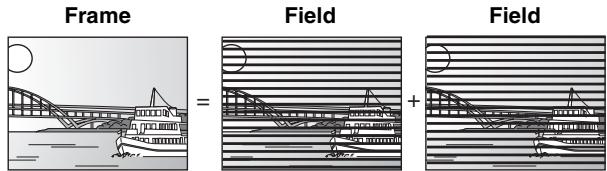
- Une image fixe contient toujours 2 trames, il peut donc y avoir un certain flou entre elles, mais la qualité d'image est généralement meilleure.
- Une trame contient toujours moins d'informations d'image, elle peut donc être plus grossière, mais il n'y a pas de flou.
HDMI (Interface multimédia haute définition)
HDMI est une interface numérique de nouvelle génération pour les produits électroniques grand public. Contrairement aux connexions conventionnelles, il transmet des signaux vidéo et audio numériques non compressés sur un seul câble. Cet appareil prend en charge la sortie vidéo haute définition (720p, 1080i) depuis les bornes de sortie HDMI AV OUT. Pour profiter de la vidéo haute définition, un téléviseur compatible haute définition est requis.
JPEG (Groupe conjoint d'experts en photographie)
Il s'agit d'un système utilisé pour compresser/décoder des images fixes en couleur. Si vous sélectionnez JPEG comme système de stockage sur les appareils photo numériques, etc., les données seront compressées à 1/10–1/100 de leur taille d'origine. L'avantage du JPEG est une moindre détérioration de la qualité d'image compte tenu du degré de compression.
MP3 (MPEG Audio Layer 3)
Une méthode de compression audio qui compresse l'audio à environ un dixième de sa taille sans perte considérable de qualité audio. Vous pouvez lire des MP3 que vous avez enregistrés sur des CD-R et CD-RW.
Pan & Scan / Letterbox
En général, les DVD-Vidéo sont produits avec l'intention d'être visionnés sur un téléviseur grand écran (format 16:9), donc les images ne correspondent souvent pas aux téléviseurs classiques (format 4:3). Deux styles d'image,
"Pan & Scan" et "Letterbox", traitent ce problème.
Pan & Scan : Les côtés sont coupés pour que l'image remplisse l'écran.
Letterbox : Des bandes noires apparaissent en haut et en bas de l'image, de sorte que l'image elle-même apparaît dans un format 16:9.
Contrôle de lecture (PBC)
Si un CD Vidéo a un contrôle de lecture, vous pouvez sélectionner des scènes et des informations avec des menus affichés à l'écran.
L'appareil est compatible avec les versions 2.0 et 1.1.
Progressif/Entrelacé
NTSC, la norme de signal vidéo, comporte 480 lignes de balayage entrelacé (i), alors que le balayage progressif utilise deux fois plus de lignes. C'est ce qu'on appelle le 480p.
En utilisant la sortie progressive, vous pouvez profiter de la vidéo haute résolution enregistrée sur des supports tels que le DVD-Vidéo.
Votre téléviseur doit être compatible pour profiter de la vidéo progressive.
Protection
Vous pouvez empêcher l'effacement accidentel en réglant la protection en écriture ou la protection contre l'effacement.
Fréquence d'échantillonnage
L'échantillonnage est le processus qui consiste à convertir les hauteurs d'ondes sonores (signal analogique) prélevées à intervalles réguliers en chiffres (codage numérique). La fréquence d'échantillonnage est le nombre d'échantillons prélevés par seconde, donc des nombres plus grands signifient une reproduction plus fidèle du son d'origine.
Vignette
Il s'agit d'une représentation miniature d'une image utilisée pour afficher plusieurs images sous forme de liste.
TIFF (Tag Image File Format)
Il s'agit d'un système utilisé pour compresser/décoder des images fixes en couleur, un format courant pour stocker des images de haute qualité sur les appareils photo numériques et autres dispositifs.
Panasonic Consumer Electronics Company, Division de Panasonic Corporation of North America
One Panasonic Way Secaucus, New Jersey 07094
Panasonic Puerto Rico, Inc.
Ave. 65 de Infantería, Km. 9.5
San Gabriel Industrial Park, Carolina, Puerto Rico 00985
Garantie limitée du graveur DVD Panasonic
Couverture de la garantie limitée
Si votre produit ne fonctionne pas correctement en raison d'un défaut de matériaux ou de fabrication, Panasonic Consumer Electronics Company ou Panasonic Puerto Rico, Inc. (collectivement désignés comme « le garant ») réparera, pendant la durée indiquée dans le tableau ci-dessous, qui commence à la date d'achat initial (« période de garantie »), à sa discrétion, soit (a) réparera votre produit avec des pièces neuves ou remises à neuf, soit (b) le remplacera par un produit neuf ou remis à neuf. La décision de réparer ou de remplacer sera prise par le garant.
| Product or Part Name | Parts | Labor |
| DVD Recorder | One (1) Year | One (1) Year |
| Rechargeable Batteries, DVD-RAM Disc (in exchange for defective item) | Ten (10) Days | Not Applicable |
Pendant la période de garantie « Main-d'œuvre », aucun frais de main-d'œuvre ne sera facturé. Pendant la période de garantie « Pièces », aucun frais de pièces ne sera facturé. Vous devez apporter ou envoyer votre produit pendant la période de garantie. Si des piles non rechargeables sont incluses, elles ne sont pas couvertes. Cette garantie s'applique uniquement aux produits achetés et entretenus aux États-Unis ou à Porto Rico. Cette garantie est étendue uniquement à l'acheteur initial d'un produit neuf qui n'a pas été vendu « en l'état ». Un reçu d'achat ou une autre preuve de la date d'achat initiale est requis pour le service de garantie.
Service de dépôt ou d'envoi par courrier
Pour le service de dépôt ou d'envoi par courrier aux États-Unis, appelez le 1-800-211-PANA (7262) ou visitez le site Web de Panasonic : http://www.panasonic.com Pour obtenir de l'aide à Porto Rico, appelez Panasonic Puerto Rico, Inc. au (787)-750-4300 ou envoyez un fax au (787)-768-2910.
Limites et exclusions de la garantie limitée
Cette garantie COUVRE UNIQUEMENT les défaillances dues à des défauts de matériaux ou de fabrication, et NE COUVRE PAS l'usure normale ou les dommages esthétiques. La garantie NE COUVRE PAS NON PLUS les dommages survenus pendant le transport, ou les défaillances causées par des produits non fournis par le garant, ou les défaillances résultant d'accidents, d'une mauvaise utilisation, d'un abus, d'une négligence, d'une mauvaise manipulation, d'une application incorrecte, d'une altération, d'une installation défectueuse, de réglages d'installation, d'un mauvais réglage des commandes du consommateur, d'un entretien inapproprié, d'une surtension de ligne électrique, de dommages causés par la foudre, d'une modification, ou d'une utilisation commerciale (comme dans un hôtel, un bureau, un restaurant ou autre entreprise), d'une location du produit, d'une réparation par une personne autre qu'un centre de service d'usine ou un autre réparateur agréé, ou de dommages attribuables à des cas de force majeure.
IL N'EXISTE AUCUNE GARANTIE EXPRESSE SAUF CELLES ÉNUMÉRÉES SOUS « COUVERTURE DE LA GARANTIE LIMITÉE ». LE GARANT N'EST PAS RESPONSABLE DES DOMMAGES ACCESSOIRES OU INDIRECTS RÉSULTANT DE L'UTILISATION DE CE PRODUIT, OU DÉCOULANT DE TOUTE VIOLATION DE CETTE GARANTIE. (À titre d'exemples, cela exclut les dommages pour temps perdu, déplacements vers et depuis le réparateur, perte de supports ou d'images, de données ou d'autres contenus enregistrés. Les éléments énumérés ne sont pas exclusifs, mais sont donnés à titre d'illustration uniquement.) TOUTES LES GARANTIES EXPRESSES ET IMPLICITES, Y COMPRIS LA GARANTIE DE QUALITÉ MARCHANDE, SONT LIMITÉES À LA PÉRIODE DE LA GARANTIE LIMITÉE.
Certains États n'autorisent pas l'exclusion ou la limitation des dommages indirects ou consécutifs, ni les limitations sur la durée d'une garantie implicite. Par conséquent, ces exclusions peuvent ne pas s'appliquer à vous.
Cette garantie vous confère des droits légaux spécifiques, et vous pouvez également bénéficier d'autres droits qui varient d'un État à l'autre. Si un problème survient avec ce produit pendant ou après la période de garantie, vous pouvez contacter votre revendeur ou le centre de service. Si le problème n'est pas résolu à votre satisfaction, écrivez au service des relations avec la clientèle du garant aux adresses indiquées pour le garant.
LES PIÈCES ET LES SERVICES NON COUVERTS PAR CETTE GARANTIE LIMITÉE SONT À VOTRE CHARGE.
Annuaire des services à la clientèle
Obtenez des informations sur les produits et de l'assistance pour leur utilisation ; trouvez le revendeur ou le centre de service le plus proche ; achetez des pièces et des accessoires ; ou adressez des demandes de service à la clientèle et de documentation en visitant notre site Web à l'adresse : http://www.panasonic.com/consumersupport
ou contactez-nous via le Web à l'adresse :
http://www.panasonic.com/contactinfo
Vous pouvez également nous contacter directement au :
1-800-211-PANA (7262),
du lundi au vendredi de 9 h à 21 h ; le samedi et le dimanche de 10 h à 19 h (heure de l'Est).
Pour les utilisateurs malentendants ou ayant des troubles de la parole, TTY : 1-877-833-8855
Achat d'accessoires
Achetez des pièces, des accessoires et des manuels en ligne pour tous les produits Panasonic en visitant notre site Web à l'adresse : http://www.pasc.panasonic.com
ou envoyez votre demande par courriel à :
npcparts@us.panasonic.com
Vous pouvez également nous contacter directement à :
1-800-332-5368 (téléphone) 1-800-237-9080 (fax uniquement) (du lundi au vendredi de 9 h à 20 h, heure de l'Est).
Panasonic Services Company
20421 84th Avenue South, Kent, WA 98032
(Nous acceptons Visa, MasterCard, Discover Card, American Express et les chèques personnels)
Pour les utilisateurs sourds ou malentendants, TTY : 1-866-605-1277
Service à Porto Rico
Panasonic Puerto Rico, Inc.
Ave. 65 de Infantería, Km. 9.5, San Gabriel Industrial Park, Carolina, Porto Rico 00985
Téléphone (787) 750-4300, Fax (787) 768-2910
- Avant de procéder à la connexion, éteignez tous les équipements et lisez les manuels d'instructions appropriés.
- L'équipement périphérique et les câbles en option sont vendus séparément, sauf indication contraire.
Pour votre référence
- Les connexions de l'équipement décrites sont des exemples.
- El equipo periférico y los cables opcionales se venden por separado a menos que se indique lo contrario.
■ Cuando la unidad no vaya a utilizarse durante mucho tiempo
Para ahorrar energía, desenchufe la unidad de la toma de CA. Esta unidad consume una pequeña cantidad de energía aunque se encuentre apagada (8 W aproximadamente).
■ No conecte la unidad mediante una videograbadora
Los sistemas de protección de los derechos de autor afectarán las señales de video enviadas mediante una videograbadora y la imagen no se mostrará bien en el televisor.
![graph TD A["○"] --> B["Television"] B --> C["La unidad"] C --> D["Videograbadora"] E["○"] --> F["Television"] F --> G["Videograbadora"] G --> H["La unidad"]](/content/2019/10/56204/images/2a1b767555ae7963158709d0158fcd9cacdd64d22ce86a475e5e7f5fdab77347.jpg)
Conexión con un televisor
■ Conexión (con cable de audio/vídeo)
Conecte por orden numérico de ① a ④.
- Después de esta conexión, ajuste el canal de salida RF “OFF” (→ 80), y luego pulse el botón TV/VIDEO del mando a distancia del televisor para seleccionar el modo de entrada AV al terminal del televisor conectado. Puede mirar un vídeo desde esta unidad en su televisor.
■ Conexión (sin cable de audio/vídeo)
No necesita conectar “③”.
La unidad envía una señal al televisor a través de un cable coaxial de 75 Ω en el canal 3 o 4. Es posible ver una imagen de vídeo en su televisor de la misma manera que la que ve en las emisiones televisivas.
- Después de esta conexión, ajuste el canal de salida RF "CH3" o "CH4" (→ 80).
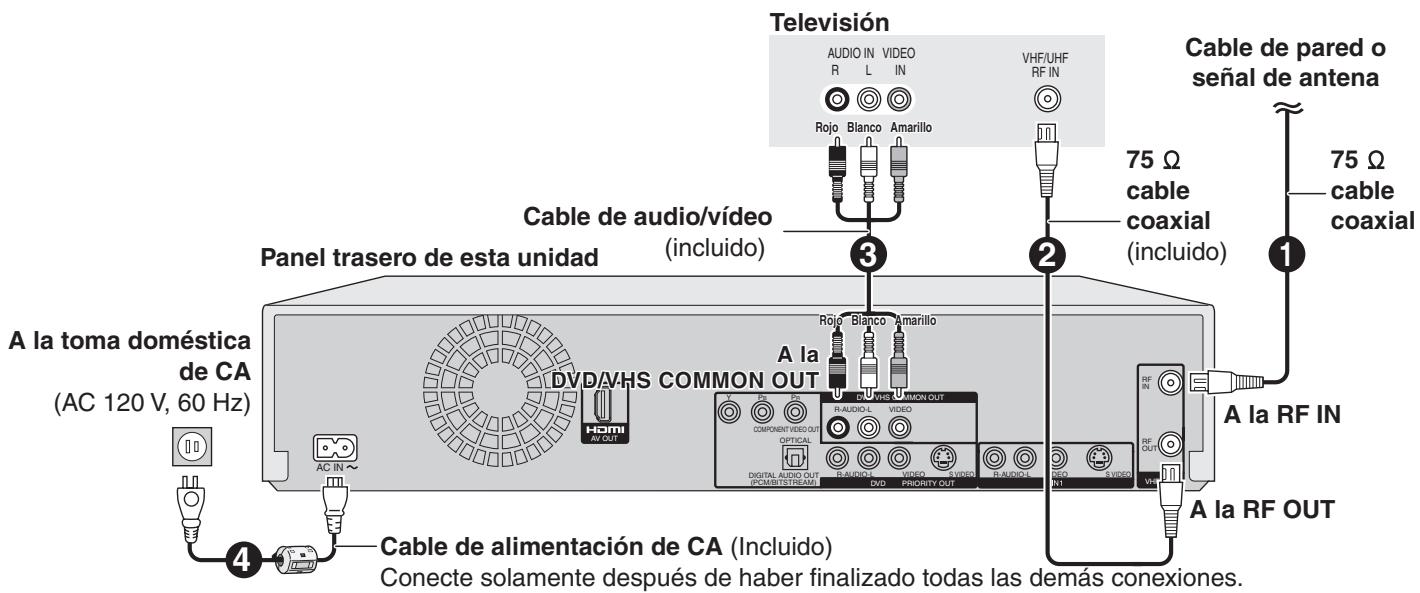
Salida DVD y salida DVD/VHS
La unidad tiene terminales de salida DVD/VHS COMMON y los de salida DVD PRIORITY.
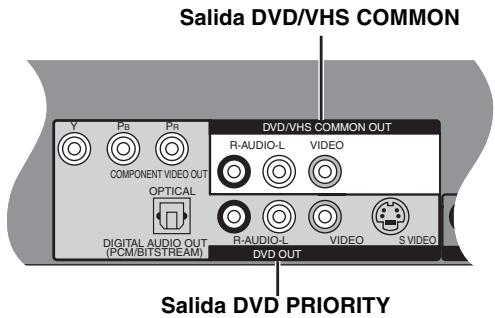
SORTIE COMMUNE DVD/VHS
- Pour les bornes de sortie DVD/VHS COMMON, on peut obtenir soit les signaux DVD, soit les signaux VHS.
SORTIE PRIORITAIRE DVD
- Sauf pendant l'enregistrement ou une programmation d'enregistrement, la borne de sortie DVD PRIORITY permet également de lire une cassette sur le DVD.
Pour profiter d'une meilleure qualité d'image
■ Connexion à la borne S VIDEO IN
Borne S VIDEO OUT
Les bornes S VIDEO OUT produisent une image plus nette que celle de la borne VIDEO OUT. (Le résultat réel dépend du téléviseur.)
Après avoir terminé « Connexion à un téléviseur », connectez le câble S VIDEO. En général, vous pouvez voir une image depuis la borne INPUT2.
Lorsque vous souhaitez lire une cassette VHS pendant l'enregistrement sur DVD, passez à la borne INPUT1.
■ Connexion aux bornes COMPONENT VIDEO IN
Borne COMPONENT VIDEO OUT
Ces bornes peuvent être utilisées pour la sortie entrelacée ou progressive et fournissent une image plus nette que celle de la borne S VIDEO OUT.
Après avoir terminé « Connexion à un téléviseur », connectez le câble COMPONENT VIDEO.
En général, vous pouvez voir une image depuis la borne COMPONENT VIDEO INPUT. Lorsque vous souhaitez lire une cassette VHS pendant l'enregistrement sur DVD, passez à la borne INPUT1.
- Connectez les bornes de même couleur.
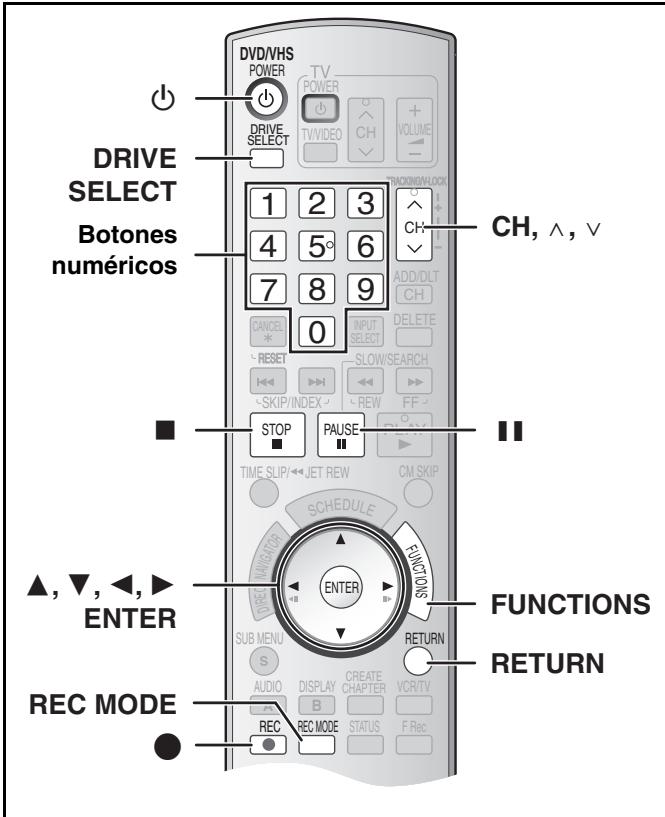
Syntonisation automatique par Plug-in
Préparation
- Allumez le téléviseur et sélectionnez l'entrée vidéo appropriée aux connexions de l'appareil (par exemple : entrée AV, CH3 ou CH4).
- Si vous connectez l'appareil via un décodeur câble ou un récepteur satellite, syntonisez votre PBS local pour que le réglage automatique de l'horloge fonctionne. S'il n'y a pas de PBS local, réglez l'horloge manuellement.
1 Appuyez sur [⏻, DVD/VHS POWER]. 2 Appuyez sur [CH, ∧, ∨] pour sélectionner un numéro de canal de sortie RF.
Connexion
(sans câble audio/vidéo) :
Sélectionnez « CH3 » ou « CH4 » qui affiche l'écran à droite.
Connexion
(avec câble audio/vidéo) : Sélectionnez « OFF »
![graph TD A["Select Language\nSelección el idioma\nSélection de langue"] --> B["English"] A --> C["Espaníol"] A --> D["Français"] A --> E["Press ENTER\nPulse ENTER\nAppuyer sur ENTER"]](/content/2019/10/56204/images/4b074e599e70265cee9d0a2929dacaec47d9889aaaeb57ef469b837bc3e58279.jpg)
L'afficheur de l'appareil
L'afficheur de l'appareil
Chaque fois que vous appuyez sur le bouton :
CH 3 (réglages par défaut) ↔ CH4 ↔ OFF
3 Utilice [▲, ▼] para seleccionar el idioma y pulse [ENTER]. 4 Pulse [▲, ▼] para seleccionar “TV de 4:3” o “TV ancho de 16:9” y pulse [ENTER]. 5 Pulse [▲, ▼] para seleccionar “Encendido” o “Apagado” y pulse [ENTER].
Si activa la función “Accionamiento rápido”, seleccione “Encendido”.
Acerca de la función “Accionamiento rápido”
Si ajusta Accionamiento rápido en activado, puede iniciar a grabar al DVD-RAM alrededor de 1 segundo después de que haya pulsado [⏻, DVD/VHS POWER] para encender la unidad.
Cuando haya seleccionado "Encendido", tiene lugar lo siguiente.
- El consumo de energía en espera aumenta por el hecho de que se suministra energía a los mandos de la unidad.
6 Pulse [▲, ▼] para seleccionar “Sintonizador” o “Entrada” y pulse [ENTER].
Cuando no ajusta los canales en esta unidad, seleccione "Entrada". La unidad entonces muestra la pantalla "Ajuste manual del reloj". Ajuste manualmente el reloj.
7 Pulse [ENTER] para iniciar la sintonización automática por Plug-in.
- La unidad procede con el ajuste automático del reloj. La hora aparece cuando esté terminado dicho ajuste. - Cuando aparece la pantalla “No se ha encontrado ningún canal” o la de “Ajus. automát. del reloj no acabado”
Después de apagar la unidad, confirme lo siguiente y vuelva a configurar.
- Compruebe si el cable de antena está firmemente conectado al terminal RF IN.
- Si no ajusta los canales en esta unidad, seleccione “Entrada” en el paso 6.
Pantalla “Ajus. automát. del reloj no acabado.”
Pulse [ENTER] y ajuste manualmente el reloj.
8 Appuyez sur [ENTER].
■ Si l'horloge a une heure d'avance ou de retard par rapport à l'heure réelle
Sélectionnez « −1 » ou « +1 » dans « Réglage du fuseau horaire » dans le menu CONFIGURATION.
Sélection du type de téléviseur
Vous n'avez pas besoin de modifier le réglage lorsque vous êtes connecté à un téléviseur standard 4:3 qui n'est pas compatible avec la sortie progressive.
1 Pendant l'arrêt Appuyez sur [FUNCTIONS]. 2 Sélectionnez « Autres fonctions » avec [▲, ▼] et appuyez sur [ENTER]. 3 Sélectionnez « CONFIGURATION » avec [▲, ▼] et appuyez sur [ENTER]. 4 Sélectionnez « Affichage TV » avec [▲, ▼] et appuyez sur [◀, ▶]. 5 Sélectionnez « Type TV » avec [▲, ▼] et appuyez sur [ENTER].
- Format 4:3 / Format 16:9 :
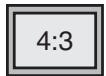
Format standard 4:3
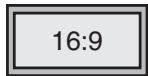
Téléviseur panoramique 16:9
- 480p/480i : Sélectionnez « 480p » si le téléviseur est compatible avec la sortie progressive.
6 Utilisez [▲, ▼] pour sélectionner l'élément et appuyez sur [ENTER].
■ Pour revenir à l'écran précédent
Appuyez sur [RETURN].
■ Pour quitter l'écran
Appuyez sur [RETURN].
Insertion des disques
1 Appuyez sur [▲, OPEN/CLOSE] sur l'unité principale pour ouvrir le plateau.
- Vous pouvez insérer un disque avec ou sans cartouche.
2 Appuyez sur [▲, OPEN/CLOSE] sur l'unité principale pour fermer le plateau.
- Si vous insérez un DVD-RAM avec la languette de protection en écriture réglée sur « PROTECT », la lecture démarre automatiquement.
Remarque
- Un disque double face doit être placé avec la face que vous souhaitez enregistrer/lire orientée vers le bas.
- Il n'est pas possible d'enregistrer en continu d'une face à l'autre sur un disque double face. Vous devrez éjecter le disque et le retourner.
- Lorsque vous utilisez un DVD-RAM de 8 cm (3") ou un DVD-R de 8 cm (3"), retirez le disque de la cartouche.
Disque sans cartouche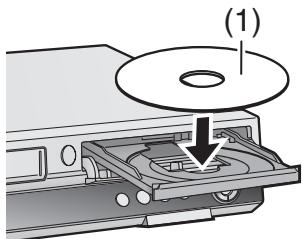
Disque en cartouche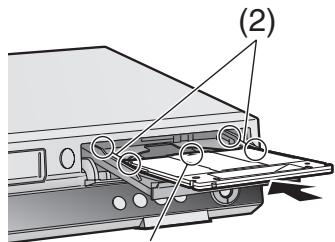
(3)
(1) Insérez-le avec la face imprimée vers le haut. (2) Insérez-le complètement jusqu'à ce qu'il s'enclenche. (3) Insérez-le avec l'étiquette vers le haut et la flèche vers l'intérieur.
Insertion d'une cassette vidéo
La surface à travers laquelle vous pouvez voir la bobine de la bande doit être orientée vers le haut. Insérez une cassette vidéo.
- L'unité s'allume automatiquement.
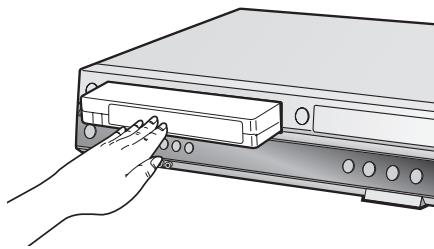
■ Pour éjecter une cassette vidéo
- Vous pouvez éjecter la cassette vidéo même lorsque l'unité est en mode veille. Elle revient en veille une fois la cassette éjectée.
Pour l'unité principale
- Appuyez sur [▲, EJECT] sur l'unité principale.
Pour la télécommande
Appuyez sur [DRIVE SELECT] pour sélectionner le côté VHS, puis maintenez enfoncé [■, STOP] pendant 3 secondes ou plus.
Avant l'enregistrement
- +RW Le menu de titre créé est effacé lorsque vous enregistrez sur le disque. Recréez le menu de titre en utilisant "Créer un menu supérieur DVD" dans Gestion du DVD.
Seul le son principal ou SAP peut être enregistré pour les émissions MTS, lors de l'enregistrement sur DVD-R, DVD-R DL, DVD-RW, +R, +R DL, +RW.
Si vous ne connectez pas de décodeur câble
Sélectionnez "Main" ou "SAP" dans "Sélectionner MTS" du menu CONFIGURATION.
Si vous connectez un décodeur câble
Sélectionnez "Main" ou "SAP" sur le décodeur câble.
Procédures d'enregistrement
RAM -R -R DL -RW(V) +R +R DL +RW VHS
RAM -R -R DL -RW(V)
- Puede grabar hasta 99 títulos en un disco.
+R +R DL +RW
- Puede grabar hasta 49 títulos en un disco.
- No es posible grabar emisiones digitales que permiten “Grabación sólo una vez” en el DVD-R, DVD-R DL, DVD-RW, +R, +R DL, +RW o discos DVD-RAM de 8 cm (3"). Utilice un CPRM compatible DVD-RAM
- La grabación se hará en el espacio vacío del disco. Los datos no se escribirán encima de otros.
- Si ya no queda espacio en el disco de grabación, será menester borrar los títulos innecesarios o utilizar un nuevo disco.
Cuando graba en un DVD-R, DVD-R DL, DVD-RW (Formato DVD-Vídeo), +R, +R DL o +RW
- Cuando graba emisiones MTS
- Si no conecta una caja para televisor de cable Seleccione “Main” o “SAP” en “Seleccionar MTS” en el menú CONFIGURACIÓN. - Si conecta una caja para televisor de cable Seleccione “Main” o “SAP” en el TV box de cable.
- La relación de aspecto de la imagen grabada será 4:3.
- A fin de reproducir DVD-R, DVD-R DL, DVD-RW (Formato Vídeo DVD) +R, +R DL grabado usando esta unidad en otra fuente de reproducción, antes tiene que finalizar el disco.
Preparación
- Cancele la protección. RAM
- Sélectionnez la source que voit le canal (par exemple l'entrée AV) sur le téléviseur.
- Sélectionnez le type d'audio que vous souhaitez enregistrer. (→ 82)
1 Appuyez sur [⏻, DVD/VHS POWER] pour allumer l'appareil. 2 Appuyez sur [DRIVE SELECT] pour sélectionner l'unité sur laquelle vous souhaitez enregistrer (DVD ou VHS).
3 Insérez un disque.
- Lorsque vous utilisez un DVD-RAM pour la première fois avec cet appareil, formatez-le pour garantir un enregistrement soigné.
0
Insérez une cassette vidéo dont la languette de protection contre l'effacement accidentel est intacte.
4 Appuyez sur [CH, ∧, ∨] pour sélectionner le canal.
- Pour sélectionner avec les boutons numériques :
| Modo de antenna (Ondas hertzianas) | Modo televisor de cable (Cable) | ||||
| Ej., | “5”: | [0]→[5] | Ej., | “5”: | [0]→[0]→[5] |
| “15”: | [1]→[5] | “15”: | [0]→[1]→[5] | ||
| “115”: | [1]→[1]→[5] | ||||
5 Appuyez sur [REC MODE] pour sélectionner le mode d'enregistrement.
DVD : XP, SP, LP ou EP
VHS : SP, EP ou VP
6 Appuyez sur [●, REC] pour commencer l'enregistrement.
- Pendant l'enregistrement, vous ne pouvez pas changer le canal ni le mode d'enregistrement. Vous pouvez les changer pendant que l'enregistrement est en pause, mais le contenu sera enregistré comme un titre distinct.
■ Pour faire une pause dans l'enregistrement
Appuyez sur [III, PAUSE]. (Appuyez de nouveau pour reprendre l'enregistrement.)
- Le titre n'est pas divisé en titres distincts. DVD
- Vous pouvez également appuyer sur [●, REC] pour reprendre l'enregistrement.
■ Pour arrêter l'enregistrement
Appuyez sur [■, STOP].
- Enregistré comme 1 titre jusqu'au point où il se termine. DVD
- -R -R DL -RW(V) +R +R DL +RW
L'appareil met environ 30 secondes pour finaliser les informations de gestion de l'enregistrement après la fin de celui-ci.
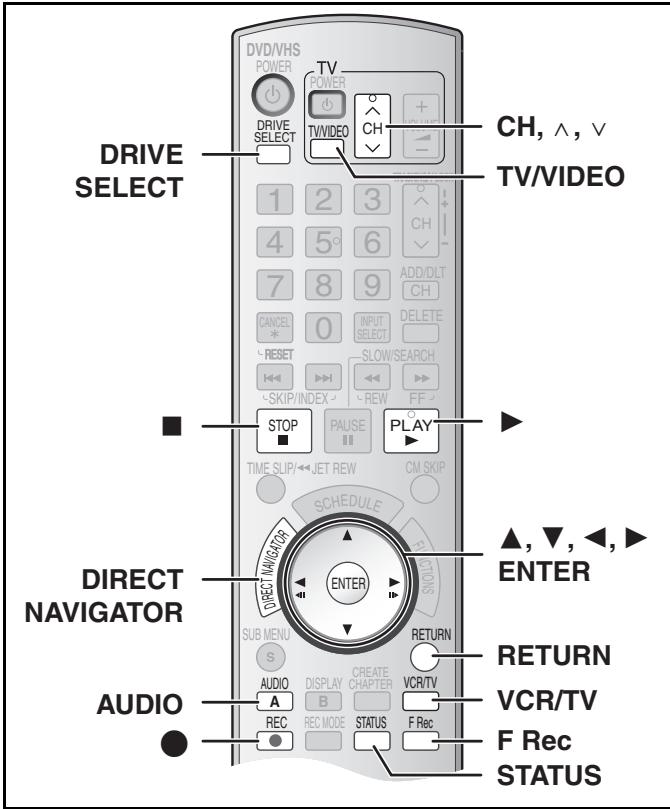
■ Modes d'enregistrement et durées d'enregistrement approximatives (DVD)
Selon le contenu en cours d'enregistrement, les durées d'enregistrement peuvent être inférieures à celles indiquées.
| DVD-RAM | DVD-R DVD-RW +R, +RW (4,7 GB) | ||
| Un solo lado (4,7 GB) | Dos lados*1 (9,4 GB) | ||
| XP (Alta calidad) | 1 hora | 2 horas | 1 hora |
| SP (Normal) | 2 horas | 4 horas | 2 horas |
| LP (Larga duración) | 4 horas | 8 horas | 4 horas |
| EP (Duración extralarga) | 8 horas (6 horas*2) | 16 horas (12 horas*2) | 8 horas (6 horas*2) |
| FR (Grabación flexible) | 8 horas máximo | 8 horas máximo para una cara | 8 horas máximo |
| DVD-R DL, +R DL*3 (8,5 GB) | ||
| Primera capa (L0) | Segunda capa (L1) | |
| XP (Alta calidad) | 55 minutos | 50 minutos |
| SP (Normal) | 1 hora 50 minutos | 1 hora 40 minutos |
| LP (Larga duración) | 3 horas 40 minutos | 3 horas 20 minutos |
| EP(Duración extralarga) | 7 horas 25 minutos(5 horas 30 minutos*2) | 6 horas 50 minutos(5 horas 15 minutos*2) |
| FR(Grabación flexible) | 7 horas 25 minutosmáximo | 6 horas 50 minutosmáximo |
Cet appareil utilise un enregistrement à débit binaire variable (VBR) qui fait varier la quantité de données enregistrées pour s'adapter aux images, de sorte que les durées d'enregistrement réelles affichées par l'appareil seront différentes (la différence sera surtout évidente avec les DVD-R DL et +R DL). Pour être sûr, utilisez un disque sur lequel il reste suffisamment de temps.
*1 Il n'est pas possible d'enregistrer ou de lire en continu d'une face à l'autre sur un disque double face. *2 Lorsque « Durée d'enreg. en mode EP » a été réglé sur « EP - Lecture étendue (6H) » dans le menu CONFIGURATION. La qualité du son est meilleure avec « EP - Lecture étendue (6H) » qu'avec « EP - Lecture étendue (8H) ». *3 Il n'est pas possible d'enregistrer en continu de la première couche à la seconde.
Remarque
Lorsque vous enregistrez sur un DVD-RAM en mode EP (8H), il se peut que ce disque ne puisse pas être lu sur des lecteurs DVD compatibles DVD-RAM. Dans ce cas, utilisez le mode EP (6H).
FR (mode d'enregistrement flexible) :
Vous pouvez régler le mode FR lors du transfert (copie) ou de la programmation d'enregistrements programmés.
■ Modes d'enregistrement (VHS)
Mode d'enregistrement
SP : permet d'enregistrer la durée indiquée sur la cassette.
EP : 3 fois la durée du mode SP.
VP : 5 fois la durée du mode SP.
- Pour obtenir une capacité d'enregistrement plus longue, sélectionnez « EP » ou « VP ».
- Si la qualité de l'image est importante pour vous ou si vous souhaitez conserver la cassette pendant une longue période, sélectionnez « SP ».
- L'appareil peut lire des cassettes enregistrées en mode LP sur un autre équipement (« LP » s'allume sur l'afficheur de l'appareil).
Mode VP :
- Une cassette enregistrée par l'appareil en mode VP ne peut pas être lue par d'autres magnétoscopes. Il est recommandé de la distinguer des autres cassettes en écrivant « VP » sur son étiquette, etc.
Lors de la lecture de cassettes enregistrées en mode VP, l'alignement automatique prend plus de temps et, avec certaines cassettes, il peut ne pas fonctionner du tout. Effectuez l'alignement manuellement si c'est le cas.
Remarque
Vous ne pouvez pas lire un enregistrement VP sur un autre appareil.
■ Affichage de l'écran de confirmation du format
RAM -RW(V) +R +R DL +RW
Lorsque vous insérez un disque neuf et un disque enregistré sur un ordinateur ou un autre appareil, un écran de confirmation du format peut apparaître. Formatez le disque pour l'utiliser. Cependant, tout le contenu enregistré sera effacé.
Appuyez sur [◀, ▶] pour sélectionner « Oui », puis appuyez sur [ENTER].
■ Pour formater un disque
De nombreuses étapes sont nécessaires pour formater un disque.
■ Lorsque vous retirez un disque enregistré
-R -R DL -RW(V) +R +R DL
Lorsque vous appuyez sur [▲, OPEN/CLOSE] sur l'unité principale alors que la lecture est en pause :
L'écran suivant apparaît lorsque le disque n'a pas été finalisé pour être lu sur un autre appareil.
Lorsque le disque est finalisé
Appuyez sur [●, REC].
Vous ne pouvez pas arrêter ce processus une fois qu'il a commencé.
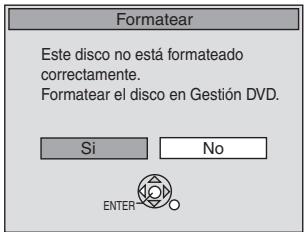
Pour lire sur d'autres lecteurs DVD (Finalisation)
La finalisation est nécessaire pour permettre la lecture du disque sur d'autres lecteurs DVD compatibles. Une fois finalisés, les titres ne peuvent plus être ajoutés au disque. Cela durera environ ○ minutes. Voulez-vous commencer ?
Appuyez sur « REC » pour démarrer la finalisation. Appuyez sur OPEN/CLOSE pour différer la finalisation. Le disque ne pourra être lu que sur cet appareil. Vous pourrez le finaliser plus tard.
Pour spécifier une durée d'arrêt de l'enregistrement — Enregistrement à une touche
Pendant l'enregistrement
Appuyez sur [●, REC] pour sélectionner la durée d'enregistrement.
- Sur l'unité principale, appuyez sur [●, REC].
L'afficheur de l'unité
Chaque fois que vous appuyez sur le bouton :
Compteur (annuler) → OFF 0:30 → OFF 1:00 → OFF 1:30 ↑—OFF 4:00 ← OFF 3:00 ← OFF 2:00 ←
Sélectionner l'audio à enregistrer
RAM
Appuyez sur [AUDIO].
Stéréo → SAP → Mono
Lire un DVD pendant l'enregistrement VHS
Vous pouvez lire des disques pendant l'enregistrement VHS. L'enregistrement n'en sera pas affecté.
● Lecture DVD (→ 84)
Pour votre référence
- Impossible d'enregistrer sur des disques pendant l'enregistrement VHS.
Lecture VHS pendant l'enregistrement DVD
Vous pouvez lire des cassettes pendant l'enregistrement DVD. L'enregistrement n'en sera pas affecté.
● Lecture VHS (→ 86)
Pour référence
- Impossible d'enregistrer sur des cassettes pendant l'enregistrement DVD.
Regarder la télévision pendant l'enregistrement
Préparation
- Connexion (sans câble audio/vidéo)
- Assurez-vous que l'indicateur TV est allumé sur l'afficheur de l'appareil. S'il n'est pas allumé, appuyez sur [VCR/TV] pour l'allumer.
- Connexion (avec câble audio/vidéo)
- Appuyez sur [TV/VIDEO] pour changer le mode d'entrée sur "TV".
Appuyez sur [CH, ∧, ∨] du téléviseur pour sélectionner le canal TV souhaité.
Pour référence
- Vous pouvez également le faire si l'appareil est en train d'effectuer un enregistrement programmé.
- L'enregistrement n'est pas affecté.
Lecture pendant l'enregistrement
RAM
Préparation
- Sélectionnez le côté DVD en appuyant sur [DRIVE SELECT].
Conseil
- Le son n'est pas produit pendant l'avance rapide.
■ Lecture depuis le début du titre pendant l'enregistrement—Lecture en poursuite
Vous pouvez démarrer la lecture depuis le début du titre tout en continuant à l'enregistrer.
Pendant un enregistrement normal ou programmé, appuyez sur [▶, PLAY].
- La lecture démarre pendant que l'enregistrement se poursuit.
Pour référence
- La lecture ne peut pas démarrer avant qu'au moins 2 secondes ne se soient écoulées depuis le début de l'enregistrement.
■ Lecture d'un titre précédemment enregistré pendant l'enregistrement—Enregistrement et lecture simultanés
Vous pouvez lire un titre enregistré précédemment tout en enregistrant un autre titre.
1 Pendant une lecture normale ou programmée, appuyez sur [DIRECT NAVIGATOR]. 2 Appuyez sur [▲, ▼, ◀, ►] pour sélectionner un titre, puis sur [ENTER].
- La lecture démarre pendant que l'enregistrement est en cours.
■ Pour quitter l'écran DIRECT NAVIGATOR
Appuyez sur [DIRECT NAVIGATOR].
Pour votre référence
- Pendant l'enregistrement et la lecture simultanés, vous ne pouvez pas modifier ni supprimer de titres avec le Direct Navigator ni les listes de lecture.
- Même si vous démarrez la lecture pendant que l'appareil est en attente d'un enregistrement programmé, l'enregistrement démarre à l'heure définie.
Enregistrement flexible
(Enregistrement qui tient dans l'espace restant du disque)
RAM -R -R DL -RW(V) +R +R DL +RW
L'appareil calcule un débit d'enregistrement qui permet de l'adapter à la durée définie (dans le temps restant sur le disque) avec la meilleure qualité d'image.
L'utilisation de « ENREG. FLEX. » est pratique dans ce type de situations.
- Lorsque l'espace libre sur le disque rend la sélection du mode d'enregistrement approprié plus difficile
- Lorsque vous souhaitez enregistrer un programme long avec la meilleure qualité d'image possible
Ex. : enregistrement d'un programme de 90 minutes sur un disque. Si vous sélectionnez le mode XP, le programme ne tiendra pas sur un disque.
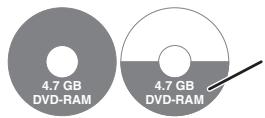
Un second disque est nécessaire pour 30 minutes de programme.
Si vous sélectionnez le mode SP, le programme ne tiendra pas sur un disque.
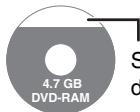
Cependant, il restera environ 30 minutes d'espace libre sur le disque.
Si vous sélectionnez "ENREGISTREMENT FLEXIBLE", le programme tiendra parfaitement sur un disque.
Préparation
- Sélectionnez le côté DVD en appuyant sur [DRIVE SELECT].
- Sélectionnez la chaîne à enregistrer.
1 Pendant l'arrêt, appuyez sur [F Rec]. 2 Appuyez sur [◀, ▶] pour sélectionner "Heure" et "Min." et sur [▲, ▼] pour régler la durée d'enregistrement.
- Vous pouvez également définir la durée d'enregistrement à l'aide des touches numériques.
- Vous ne pouvez pas enregistrer plus de 8 heures.
3 Pour démarrer l'enregistrement
Appuyez sur [▲, ▼, ◀, ▶] pour sélectionner "Démarrer" puis sur [ENTER].
- L'enregistrement démarre.
Pour quitter l'écran sans enregistrer
Appuyez sur [RETURN].
Pour arrêter l'enregistrement peu après le début
Appuyez sur [■, STOP].
Pour afficher le temps restant
Appuyez sur [STATUS].
Pour référence
- Pendant un enregistrement flexible, tous les indicateurs du mode d'enregistrement s'allument sur l'afficheur de l'appareil.
- Il n'est pas possible de changer de chaîne ou de mode d'enregistrement pendant que l'enregistrement flexible est en pause.
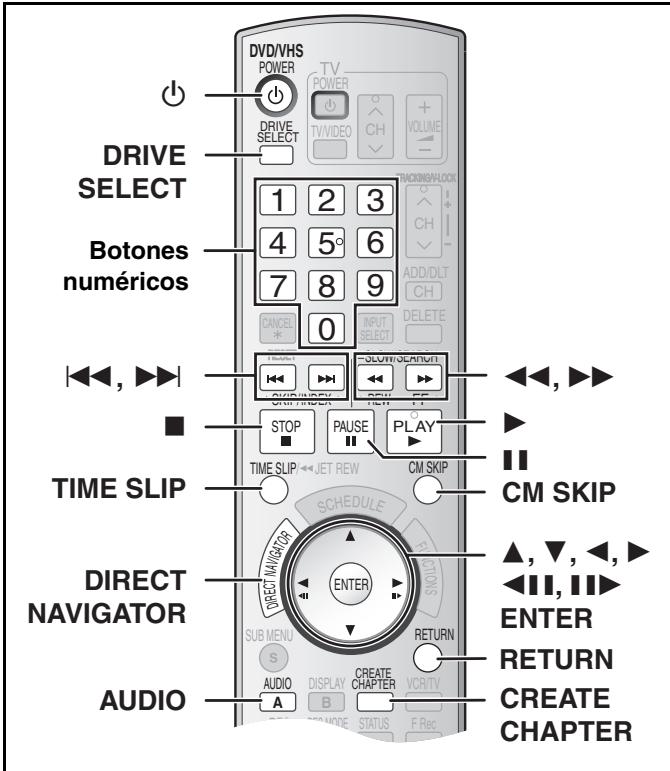
Préparation
- Allumez le téléviseur et sélectionnez l'entrée vidéo appropriée en fonction des connexions à l'appareil.
- Sélectionnez le côté DVD en appuyant sur [DRIVE SELECT].
Lecture de disques
RAM -R -R DL -RW(V) +R +R DL +RW DVD-A DVD-V
-RW(VR) VCD CD
1 Appuyez sur [💡, DVD/VHS POWER] pour allumer l'appareil. 2 Insérez un disque. (→ 81) 3 Appuyez sur [▶, PLAY].
- Le plateau du disque se ferme et la lecture démarre (l'appareil a besoin d'un certain temps pour lire le disque avant de démarrer la lecture).
- La lecture commence à partir du titre enregistré le plus récemment.
RAM -R -R DL -RW(V) +R +R DL +RW -RW(VR)
- La lecture commence à partir du début du disque.
DVD-A DVD-V VCD CD
■ Pour arrêter la lecture
Appuyez sur [■, STOP].
La position d'arrêt est mémorisée.
Fonction de reprise de la lecture
Appuyez sur [▶, PLAY] pour reprendre la lecture à partir de cette position.
- VCD Selon le disque, la fonction de reprise de la lecture peut ne pas être efficace.
- Le point d'arrêt est supprimé lorsque :
- Vous appuyez plusieurs fois sur [■, STOP].
- Vous ouvrez le plateau.
- DVD-A VCD CD Vous éteignez l'appareil.
- L'écran de veille peut apparaître à droite lorsque vous arrêtez la lecture. Appuyez à nouveau
[■, STOP] et vous pouvez utiliser le syntoniseur de l'appareil pour regarder la télévision.
DVD-A DVD-V VCD CD
Écran de veille

■ Pour mettre la lecture en pause
Appuyez sur [III, PAUSE]. (Appuyez de nouveau pour reprendre la lecture.)
■ Lorsqu'un écran de menu apparaît sur le téléviseur
VCD
Appuyez sur les touches numériques pour sélectionner un élément.
Ex. : « 5 » : [0]→[5]
« 15 » : [1]→[5]
DVD-A DVD-V
Appuyez sur [▲, ▼, ◀, ▶] pour sélectionner un élément, puis sur [ENTER].
- Parfois, vous pouvez utiliser les touches numériques pour sélectionner un élément.
Autres touches utilisées pour naviguer dans les menus
Consultez les instructions du disque pour plus de détails sur le fonctionnement.
Nota
- Si aparece “☒” en el televisor, la unidad o el disco prohíben la operación.
Seleccionar títulos grabados para reproducir
RAM -R -R DL -RW(V) +R +R DL +RW -RW(VR)
1 Pulse [DIRECT NAVIGATOR]. 2 Utilice [▲, ▼, ◀, ▶] para seleccionar el título que quiere ver y pulse [ENTER].
- Inicia la reproducción.
- Puede también seleccionar títulos insertando un número de 2 cifras usando los botones numéricos.
Ej.: “5”: [0]→[5]
“15”: [1]→[5]
- Si inserta un número más grande que el número total de títulos, se selecciona el último título.
■ Para eliminar la lista de títulos
Pulse [RETURN].
Para su referencia
- Iconos de la pantalla Direct Navigator
: Título protegido
☐ : Protégé contre la copie, donc il n'a pas pu être enregistré. x : Ne peut pas être lu ● : En enregistrement : Titre avec restriction « enregistrement unique »
Quick View (Lecture ×1,3)
RAM
La vitesse de lecture peut être augmentée sans distorsion de l'audio.
Pendant la lecture
Maintenez enfoncé [▶, PLAY].

■ Pour revenir à la lecture normale
Appuyez sur [▶, PLAY].
Avance rapide et retour rapide — RECHERCHE
RAM -R -R DL -RW(V) +R +R DL +RW DVD-A DVD-V
-RW(VR) VCD CD
Pendant la lecture
Appuyez sur [◀◀, SLOW/SEARCH] ou [▶▶, SLOW/SEARCH].
Ex. : RAM
- Il y a 5 vitesses de recherche. La vitesse augmente à chaque pression. (+R +RW jusqu'à 3 vitesses)
- Appuyez sur [▶, PLAY] pour reprendre la lecture.
Pour votre référence
- Le son n'est produit qu'au premier niveau d'avance rapide. Dans le cas des DVD Audio (sauf les portions d'images animées), des CD et des MP3, il est produit à tous les niveaux.
- Selon le disque, la recherche peut être impossible.
Saut
RAM -R -R DL -RW(V) +R +R DL +RW DVD-A DVD-V
-RW(VR) VCD CD
Pendant la lecture ou en pause
Appuyez sur [◀◀, SKIP] ou [▶▶, SKIP].
- Chaque pression augmente le nombre de sauts.
Lecture au ralenti
RAM -R -R DL -RW(V) +R +R DL +RW
DVD-A (uniquement les parties d'images animées) DVD-V -RW(VR) VCD
Pendant la pause
Appuyez sur [◀◀, SLOW/SEARCH] ou [▶▶, SLOW/SEARCH].
- Lorsque la lecture au ralenti se poursuit pendant 5 minutes, elle s'arrête automatiquement (à l'exception des DVD-A, DVD-V, VCD).
- Il y a 5 vitesses de lecture. La vitesse augmente à chaque pression.
- Appuyez sur [▶, PLAY] pour reprendre la lecture.
- VCD : uniquement en sens avant ([▶▶, SLOW/SEARCH]).
Visionnage image par image
RAM -R -R DL -RW(V) +R +R DL +RW
DVD-A (uniquement les parties d'images animées) DVD-V -RW(VR) VCD
Pendant la pause
Appuyez sur [◀◀] ([◀]) ou [▶▶] ([▶]).
- À chaque pression, l'image suivante ou précédente s'affiche.
- Maintenez enfoncé pour changer dans l'ordre avant ou arrière.
- Appuyez sur [▶, PLAY] pour reprendre la lecture. • VCD : uniquement en sens avant ([▶], [▶]).
Lecture directe
RAM -R -R DL -RW(V) +R +R DL +RW DVD-A DVD-V
-RW(VR) VCD CD
Vous pouvez lire à partir du titre, du chapitre ou de la piste que vous sélectionnez.
Pendant la lecture
Appuyez sur les touches numériques pour sélectionner un élément.
CD (disque MP3, JPEG et TIFF uniquement)
Ex. : « 5 » : [0]→[5]
« 15 » : [1]→[5]
« 5 » : [0]→[0]→[5]
« 15 » : [0]→[1]→[5]
DVD-A
Vous pouvez spécifier un numéro de groupe pendant que l'économiseur d'écran est affiché (→ 84).
Ex. : « 5 » : [5]
- Cela ne fonctionne qu'à l'arrêt avec certains disques (l'économiseur d'écran s'affiche).
- Lecture de groupes supplémentaires : certains disques contiennent des groupes supplémentaires. Si, après avoir sélectionné un groupe, un écran de mot de passe apparaît, saisissez le mot de passe à l'aide des touches numériques et appuyez sur [ENTER]. Pour le mot de passe, reportez-vous à la pochette du disque, etc.
Saut CM
RAM -R -R DL -RW(V) +R +R DL +RW -RW(VR)
Peut sauter environ 1 minute avec une pression.
Pendant la lecture
Appuyez sur [CM SKIP].
Créer des chapitres
RAM
Pendant la lecture
Appuyez sur [CREATE CHAPTER].
- Appuyez sur [◄◄◄, SKIP] ou [►►◄, SKIP] pour sauter au début d'un chapitre.
- Vous ne pouvez pas activer cette fonction pendant le transfert (copie).
Saut du temps spécifié — Time Slip
RAM -R -R DL -RW(V) +R +R DL +RW -RW(VR)
1 Appuyez sur [TIME SLIP].
2 Appuyez sur [▲, ▼] pour sélectionner le temps et appuyez sur [ENTER].
La lecture saute au temps spécifié.
- Chaque fois que vous appuyez sur [▲, ▼], le temps augmente [▲] ou diminue [▼] par intervalles de 1 minute. (Maintenez enfoncé pour changer par intervalles de 10 minutes.)
Changement de l'audio pendant la lecture
Appuyez sur [AUDIO] pour sélectionner le type d'audio.
- Selon le support d'enregistrement, vous pouvez sélectionner le type d'audio.
RAM -RW(VR) VCD
Stéréo → Mono L → Mono R
↑
RAM -RW(VR) [Lors de la lecture d'une émission SAP enregistrée sur un DVD-RAM, DVD-RW (format d'enregistrement vidéo DVD)] Principal ↔ SAP
DVD-A DVD-V
Cela vous permet de changer des éléments tels que le numéro du canal audio et la langue de la piste sonore.
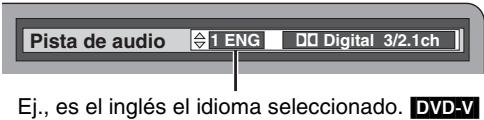
VHS
Stéréo → Mono L → Mono R → Aucun affichage (piste audio normale)
Remarque
- Si vous ne pouvez pas changer le type d'audio lorsque vous n'avez utilisé qu'un câble optique numérique pour la connexion, réglez "Dolby Digital" sur "PCM". Vous pouvez également connecter un amplificateur avec un câble Audio/Vidéo et changer l'entrée de l'amplificateur pour adapter la connexion.
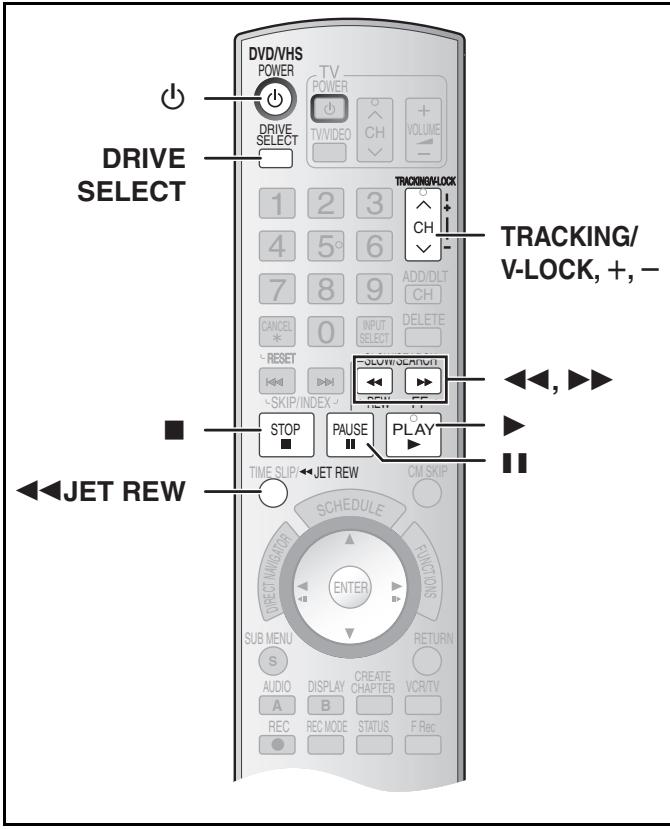
Avance rapide / Retour rapide
Pendant l'arrêt
Appuyez sur [◀◀] (retour)/[▶▶] (avance rapide).
Recherche avant/arrière
Pendant la lecture
Appuyez sur [◀◀] (retour)/[▶▶] (avance rapide) ou maintenez-les enfoncés.
- Si vous maintenez ces boutons enfoncés, la lecture normale reprend dès que vous les relâchez.
- Appuyez sur [▶, PLAY] pour reprendre la lecture normale.
Recherche rapide
Pendant la lecture
Appuyez deux fois sur [◀◀] (retour)/[▶▶] (avance rapide). Vous pouvez augmenter la vitesse de recherche avant/arrière.
- Appuyez sur [▶, PLAY] pour reprendre la lecture normale.
- Vous pouvez sélectionner la vitesse de recherche pour visualiser l'image enregistrée.
- L'image enregistrée en mode EP ou VP peut être déformée si elle est lue à une vitesse de 35 fois. Un décalage vertical peut se produire. Ce n'est pas un dysfonctionnement, mais si cela se produit, passez à une vitesse de 27 fois.
- L'image peut ne pas être en couleur ou être déformée selon le téléviseur.
Ralenti
Pendant la lecture
Appuyez sur [II, PAUSE] et maintenez la pression pendant 2 secondes ou plus.
- Appuyez sur [▶, PLAY] pour reprendre la lecture normale.
Rebobinage rapide
Pour rebobiner à une vitesse plus élevée
Appuyez sur [JET REW◀◀].
L'indication "J. REW" s'affiche à l'écran du téléviseur (sauf lorsque le temps restant sur la cassette est affiché).
- Selon la cassette ou les conditions de fonctionnement, la vitesse de rebobinage peut varier légèrement.
- Lorsque la cassette est rebobinée jusqu'au début, le compteur de bande se remet à "0:00.00".
- Selon la cassette, cette fonction peut ne pas fonctionner.
1 Appuyez sur [⏻, DVD/VHS POWER] pour allumer l'appareil. 2 Sélectionnez le côté VHS en appuyant sur [DRIVE SELECT]. 3 Sélectionnez la source qui reçoit le canal (par exemple l'entrée AV) sur le téléviseur. 4 Insérez une cassette vidéo. (→ 81) 5 Appuyez sur [▶, PLAY].
- La lecture démarre automatiquement lors de l'insertion d'une cassette vidéo dont la languette a été retirée.
■ Pour faire une pause dans la lecture
Appuyez sur [III, PAUSE]. (Appuyez à nouveau pour reprendre la lecture.)
■ Pour arrêter la lecture
Appuyez sur [■, STOP].
Nota
- Lorsque l'appareil est en veille, la cassette vidéo insérée peut être lue en appuyant sur [▶, PLAY].
- Lorsque la bande atteint la fin, l'appareil la rembobine automatiquement jusqu'au début. Cette fonction ne fonctionne pas pendant l'enregistrement programmé, l'avance rapide et l'enregistrement avec arrêt spécifié.
- La recherche Jet, la localisation progressive, la révision ou la lecture lente seront automatiquement annulées après 10 minutes, et mises en pause après 5 minutes.
- Lorsque vous regardez une image fixe ou pendant la lecture lente, l'image qui apparaît en mode VP peut être déformée.
- Lorsque vous lisez une cassette enregistrée avec un autre magnétoscope, il peut être nécessaire d'ajuster l'alignement (→ ci-dessous). Dans certains cas, la qualité de l'image pourrait être encore inférieure. Cela est dû aux restrictions du format.
Lecture quasi S-VHS (SQPB)
Il est également possible de lire des cassettes enregistrées au format S-VHS.
- Selon le type de cassette utilisée, un bruit d'image peut apparaître.
- Il n'est pas possible d'obtenir entièrement la haute résolution dont le S-VHS est capable.
- Il n'est pas possible d'enregistrer au format S-VHS avec cet appareil.
Lecture répétée
Pendant la lecture ou l'arrêt
Maintenez enfoncé [▶, PLAY] pendant 5 secondes ou plus.
- À la fin du programme, la bande est rembobinée à son début et le lit à nouveau (cela ne fonctionne que s'il y a au moins 5 secondes d'espace vide à la fin du programme). Il se répète jusqu'à ce que vous l'annuliez.
■ Pour reprendre la lecture normale
Appuyez sur [▶, PLAY].
■ Pour arrêter la lecture
Appuyez sur [■, STOP].
Réglage de l'image de lecture
En temps normal, l'appareil effectue les réglages d'alignement, mais il peut être nécessaire de le faire manuellement si du bruit apparaît sur une bande enregistrée avec un autre équipement.
Pendant la lecture
Appuyez sur [TRACKING/V-LOCK, +] ou [TRACKING/V-LOCK, -].
Répétez jusqu'à ce que le bruit disparaisse.
■ Pour revenir à l'alignement automatique
Appuyez simultanément sur [TRACKING/V-LOCK, +] et [TRACKING/V-LOCK, -].
■ Pour éliminer le bruit d'une image en pause
Démarrez la lecture lente, puis réglez l'alignement.
Remarque
- Cette fonction ne fonctionne pas avec certains modèles de téléviseurs et de cassettes.
- Vous pouvez également régler l'alignement avec [CH, ∧, ∨] sur l'unité principale.
Angle 39
Système d'antenne.... 19
Audio
attributs 39
canal 39
langue 64
lecture 33
réception, enregistrement.... 27
Choix automatique bilingue.... 27
Mode SP/EP automatique.... 31
Changer la vignette.... 42, 46
Canal
ajout, suppression.... 19
audio 39
captions....20
Set Channel Automatically.... 19
Chasing playback 28
Cleaning
disc....10
lens 3
main unit 3
video heads....11
Clock Settings.... 22
CM Skip.... 33
Connection
amplifier, system component 16
antenna 15
antenna, television.... 14
cable box, satellite receiver.... 15
Borne d'entrée DV 57
appareil externe....57
Copie (liste de lecture) 45
Système CPRM....6,76
Créer des chapitres.... 33, 46
Créer des listes de lecture 44
Supprimer
album 48
tous les titres....60
chapitre 43
chapitre dans la liste de lecture 46
liste de lecture 45
titre 41
Améliorateur de dialogue.... 40
Navigateur direct 32
Diviser un titre .... 43
DNR 40
DPOF 48, 76
Enregistrement automatique DV 57
DVD-RAM, DVD-R, DVD-R DL,
DVD-RW, +R, +R DL, +RW....6
Saisir le nom
album 48
disque....60
opération 58
liste de lecture 45
titre 30, 42
Finaliser....61, 76
Enregistrement flexible.... 29
Formater le disque 61
FR (Flexible Recording Mode) 26
FUNCTIONS window.... 40
GUI Transfer (Copying) 51, 53, 55
HDMI.... 17, 65, 76
HDAVI....17
Intact erasure prevention tab.... 11
Jet Rewind 37
JPEG 35, 36, 76
Langue
audio 64
liste des codes.... 66
à l'écran 65
bande sonore 39
sous-titres.... 39, 64
Menu
Picture.... 35
MP3.... 34
on-screen 39
Setup....63
Mode
recording....26
Still Mode 64
MP3 34
Noise reduction (NR)
DNR 40
Line-in NR....40
One Touch Transfer (Copying)....50, 52
On-screen display....38
PCM Down Conversion 64
Picture....40
Playlist 44
Progressive 16, 20, 40, 76
Properties
playlist....45
title 41
Protection
album 48
card....60
cartridge....60
disc 60
still picture....47
title 42
Quick Start....3, 63
Quick View....32
Ratings......64
Modes d'enregistrement ......26
Temps de bande restant....38
Lecture répétée....37, 39
Rétablir les paramètres par défaut....63
Fonction de reprise de lecture 32
Enregistrement programmé....30
Carte SD 8,11
Menu de configuration 63
Raccourcir les titres....42
Enregistrement et lecture simultanés 28
Bande sonore....39
SQPB....37
Messages d'état ....40
Images fixes
copie 55
édition 47
lecture 35
Sous-titre....39, 64
Vignette....42
TIFF 36,76
Time Slip....33
Piste....38
Transfert 40
Transfert (copie)......49
Type de TV....20
Réglages VHS....65
VISS....38
Mode VP 26
Son surround V. 40
Fabriqué sous licence de Dolby Laboratories. « Dolby » et le symbole double-D sont des marques de Dolby Laboratories.
« DTS » et « DTS 2.0+ Digital Out » sont des marques commerciales de Digital Theater Systems, Inc.
Revendications d'appareil des brevets américains n° 4 631 603, 4 577 216 et 4 819 098, concédés sous licence pour des utilisations de visualisation limitées uniquement.
HDMI, le logo HDMI et High-Definition Multimedia Interface sont des marques commerciales ou des marques déposées de HDMI Licensing LLC.
Ce produit intègre une technologie de protection des droits d'auteur protégée par des revendications de procédé de certains brevets américains et d'autres droits de propriété intellectuelle détenus par Macrovision Corporation et d'autres titulaires de droits. L'utilisation de cette technologie de protection des droits d'auteur doit être autorisée par Macrovision Corporation, et est destinée à un usage domestique et à d'autres utilisations de visualisation limitées, sauf autorisation contraire de Macrovision Corporation. Le reverse engineering ou le désassemblage est interdit.
- Le logo SD est une marque commerciale.
- Des parties de ce produit sont protégées par le droit d'auteur et sont fournies sous licence par ARIS/SOLANA/4C.
Panasonic Consumer Electronics
Company, Division of Panasonic
Corporation of North America
One Panasonic Way Secaucus,
New Jersey 07094
http://www.panasonic.com
Panasonic Puerto Rico, Inc.
Ave. 65 de Infantería, Km. 9.5
San Gabriel Industrial Park, Carolina,
Puerto Rico 00985
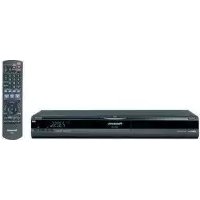
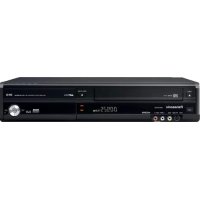
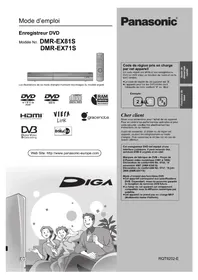
- PANASONIC®
- MODE D'EMPLOI
- ENREGISTREUR DVD
- N° DE MODÈLE DMR-ES45V
- DMR-ES46V
- HDMI TM
- CHER CLIENT
- NUMÉRO DE RÉGION PRIS EN CHARGE PAR CET APPAREIL
- ATTENTION
- AVERTISSEMENT
- SI VOUS VOYEZ CE SYMBOLE
- INFORMATIONS SUR L'ÉLIMINATION DANS LES PAYS HORS UNION EUROPÉENNE
- NOTE À L'INSTALLATEUR DU SYSTÈME DE TÉLÉDISTRIBUTION (CATV)
- NOTE FCC
- ENTRETIEN DE L'APPAREIL
- PRÉCAUTIONS CONCERNANT LA CONDENSATION
- AUTRES PRÉCAUTIONS D'INSTALLATION
- LORSQUE L'APPAREIL N'EST PAS UTILISÉ PENDANT UNE LONGUE PÉRIODE
- DÉMARRAGE RAPIDE (→ 63)
- POUR COMMENCER
- CONSIGNES DE SÉCURITÉ IMPORTANTES
- ACCESSOIRES
- INFORMATIONS SUR LES DISQUES ET LES CARTES
- LA TÉLÉCOMMANDE
- MANIPULATION DES DISQUES ET DES CARTES
- INFORMATIONS SUR LES CASSETTES VIDÉO
- INSERTION/RETRAIT DE LA CARTE SD
- FONCTIONS UTILES
- GUIDE DE RÉFÉRENCE DES COMMANDES
- ÉTAPE 1 CONNEXION
- ÉTAPE 2 SYNTONISATION AUTOMATIQUE PLUG-IN
- AUTRES RÉGLAGES
- ENREGISTREMENT
- ENREGISTREMENT DES PROGRAMMES TÉLÉVISÉS
- ENREGISTREMENT PROGRAMMÉ
- LECTURE
- LECTURE DE DISQUES
- UTILISER LES MENUS POUR LIRE DES MP3 ET
- DES IMAGES FIXES (JPEG/TIFF)
- LECTURE D'UNE CASSETTE VIDÉO
- UTILISATION DES MENUS À L'ÉCRAN / FENÊTRE FONCTIONS ET
- MESSAGES D'ÉTAT
- MONTAGE
- MONTAGE DE TITRES/CHAPITRES
- CRÉER, ÉDITER ET LIRE DES LISTES DE LECTURE
- ÉDITION D'IMAGES FIXES
- TRANSFERT (COPIE)
- FONCTIONS PRATIQUES
- SAISIE DE TEXTE
- SUPPRESSION DE TITRES OU D'IMAGES
- GESTION DES DVD ET DES CARTES
- MODIFICATION DES RÉGLAGES DE L'APPAREIL
- RÉFÉRENCE
- MESSAGES
- QUESTIONS FRÉQUEMMENT POSÉES
- RÉFÉRENCE RAPIDE EN ESPAGNOL
- (RÉFÉRENCE RAPIDE EN ESPAGNOL)
- INDEX
- À PROPOS DES DESCRIPTIONS DANS CE MODE D'EMPLOI
- FORMAT D'ENREGISTREMENT VIDÉO DVD
- FORMAT DVD-VIDÉO
- REMARQUE CONCERNANT L'UTILISATION D'UN DUALDISC
- CONCERNANT LE DVD-AUDIO
- DISQUES NON LISIBLES
- STRUCTURE DES DOSSIERS AFFICHÉS PAR CET APPAREIL
- CARTES MÉMOIRE SD COMPATIBLES
- UTILISATION DE DVD-R, DVD-R DL, DVD-RW, +R, +R DL ET +RW SUR CET APPAREIL
- RESTRICTIONS AVEC DVD-R, ETC
- LORS DE L'ENREGISTREMENT D'UN PROGRAMME SAP SUR UN DVD-R, ETC
- LECTURE DU DISQUE SUR D'AUTRES LECTEURS DVD
- ENREGISTREMENT SUR DVD-R DL ET +R DL
- À PROPOS DES PILES
- NE PAS
- REMARQUE
- UTILISATION DE LA TÉLÉCOMMANDE
- REMARQUES
- COMMENT TENIR UN DISQUE OU UNE CARTE
- CONCERNANT LES DISQUES SANS CARTOUCHE
- SI LE DISQUE EST SALE OU PRÉSENTE DE LA CONDENSATION
- PRÉCAUTIONS DE MANIPULATION
- CASSETTES VIDÉO
- ENTRETIEN DES CASSETTES VIDÉO
- ENTRETIEN
- NETTOYAGE DES TÊTES VIDÉO
- FONCTION DE SÉLECTION AUTOMATIQUE DU LECTEUR
- DVD
- SORTIE PROGRESSIVE (→ 16, 20)
- FINALISATION (→ 61)
- LECTURE INSTANTANÉE (→ 32)
- VISIONNAGE RAPIDE (→ 32)
- LECTURE EN POURSUITE (→ 28)
- ENREGISTREMENT INSTANTANÉ (→ 25)
- ENREGISTREMENT ET LECTURE SIMULTANÉS (→ 28)
- TIME SLIP (→ 33)
- TRANSFERT EN UNE TOUCHE (COPIE) (→ 50, 52)
- PRISE D'ENTRÉE DV (→ 57)
- VHS
- ENREGISTREMENT LONG (→ 26)
- CARTE SD
- EMPLACEMENT POUR CARTE SD (→ CI-DESSUS)
- TÉLÉCOMMANDE
- BOUTON [DRIVE SELECT]
- UNITÉ PRINCIPALE
- L'AFFICHAGE DE L'UNITÉ
- COMMUN À DVD/VHS/SD
- SD
- LA BORNE RF OUT DE L'APPAREIL
- NE CONNECTEZ PAS L'APPAREIL VIA UN MAGNÉTOSCOPE
- A CONNEXION AVEC UN TÉLÉVISEUR
- CONNEXION (AVEC CÂBLE AUDIO/VIDÉO)
- CONNECTEZ DANS L'ORDRE NUMÉRIQUE ① À ④
- CONNEXION (SANS CÂBLE AUDIO/VIDÉO)
- VOUS N'AVEZ PAS BESOIN DE CONNECTER "③
- B CONNEXION AVEC UN TÉLÉVISEUR ET UN DÉCODEUR CÂBLE OU UN RÉCEPTEUR SATELLITE
- SI LE CONNECTEUR D'ANTENNE NE CORRESPOND PAS
- SORTIE DVD ET SORTIE DVD/VHS
- SORTIE COMMUNE DVD/VHS
- SORTIE PRIORITÉ DVD
- POUR PROFITER D'UNE MEILLEURE QUALITÉ D'IMAGE
- RACCORDEMENT À LA BORNE D'ENTRÉE S VIDEO DU TÉLÉVISEUR
- BORNE DE SORTIE S VIDEO
- RACCORDEMENT AUX BORNES D'ENTRÉE COMPONENT VIDEO DU TÉLÉVISEUR
- BORNE DE SORTIE COMPONENT VIDEO
- RACCORDEMENT D'UN AMPLIFICATEUR OU D'UN COMPOSANT SYSTÈME
- RACCORDEMENT D'UN AMPLIFICATEUR AVEC UNE BORNE D'ENTRÉE NUMÉRIQUE
- CONNEXION AVEC UN TERMINAL HDMI (HIGH DEFINITION MULTIMEDIA INTERFACE)
- RÉGLEZ LES ÉLÉMENTS SUIVANTS
- CONNEXION À UN TÉLÉVISEUR
- CONNEXION À UN AMPLIFICATEUR
- COMMANDE VIA HDMI (COMMANDE HDAVI)
- COMMUTATION AUTOMATIQUE DES ENTRÉES
- LIAISON MISE SOUS TENSION
- LIAISON MISE HORS TENSION
- POUR RÉFÉRENCE
- CONCERNANT L'HEURE D'ÉTÉ (DST) (→ 19)
- PRÉPARATION
- À PROPOS DE LA FONCTION « QUICK START
- LORSQUE L'UN DES ÉCRANS SUIVANTS APPARAÎT
- REDÉMARRER L'ACCORD AUTOMATIQUE PLUG-IN (APRÈS UN DÉMÉNAGEMENT, PAR EXEMPLE)
- REDÉMARRER LE RÉGLAGE AUTOMATIQUE DES CHAÎNES
- AJOUT ET SUPPRESSION DE CHAÎNES
- RÉGLER L'HORLOGE MANUELLEMENT
- LÉGENDES DES CHAÎNES
- LÉGENDES DE CHAÎNES PRÉDÉFINIES
- SOUS-TITRES DE CHAÎNE MANUELS
- SÉLECTION DU TYPE DE TÉLÉVISEUR
- FONCTIONNEMENT DU TÉLÉVISEUR
- LORSQUE D'AUTRES PRODUITS PANASONIC RÉPONDENT À CETTE TÉLÉCOMMANDE
- RÉGLAGES DE L'HORLOGE
- RÉGLAGE AUTOMATIQUE DE L'HORLOGE
- APPUYEZ SUR [ENTRÉE]
- POUR ANNULER EN COURS DE SAISIE
- RÉGLAGE DU FUSEAU HORAIRE
- SUPPRESSION DES INTERFÉRENCES
- INSERTION DES DISQUES
- INSERTION D'UNE CASSETTE VIDÉO
- AVANT L'ENREGISTREMENT
- RW
- PROCÉDURES D'ENREGISTREMENT
- MODES D'ENREGISTREMENT ET DURÉES D'ENREGISTREMENT APPROXIMATIVES (DVD)
- NOTE
- FR (MODE D'ENREGISTREMENT FLEXIBLE → 29)
- MODES D'ENREGISTREMENT (VHS)
- MODE D'ENREGISTREMENT
- MODE VP
- MINUTERIE D'ARRÊT
- LORSQUE L'ÉCRAN DE CONFIRMATION DU FORMAT EST AFFICHÉ
- RAM -RW(V) +R +R DL +RW
- APPUYEZ SUR [◀, ▶] POUR SÉLECTIONNER "OUI", PUIS SUR [ENTER]
- LORS DU RETRAIT D'UN DISQUE ENREGISTRÉ
- R -R DL -RW(V) +R +R DL
- LORS DE LA FINALISATION DU DISQUE
- APPUYEZ SUR [●, REC]
- LORS DE L'OUVERTURE DU PLATEAU SANS FINALISATION DU DISQUE
- POUR SPÉCIFIER UNE HEURE D'ARRÊT DE L'ENREGISTREMENT - ENREGISTREMENT EN UNE TOUCHE
- PENDANT L'ENREGISTREMENT
- L'AFFICHAGE DE L'APPAREIL
- POUR VOTRE RÉFÉRENCE
- SÉLECTION DE L'AUDIO À ENREGISTRER
- RAM
- APPUYEZ SUR [AUDIO]
- R -R DL -RW(V) +R +R DL +RW
- SÉLECTIONNEZ L'AUDIO (PRINCIPAL OU SAP) DANS « SON TV MULTICANAL (MTS) » DANS LE MENU DE CONFIGURATION. (→ 64)
- FONCTION DE SÉLECTION AUTOMATIQUE BILINGUE
- LECTURE DE DVD PENDANT L'ENREGISTREMENT VHS
- LECTURE VHS PENDANT L'ENREGISTREMENT DVD
- REGARDER LA TÉLÉVISION PENDANT L'ENREGISTREMENT
- APPUYEZ SUR [CH, ∧, ∨] DU TÉLÉVISEUR POUR SÉLECTIONNER LA CHAÎNE SOUHAITÉE
- LECTURE PENDANT L'ENREGISTREMENT
- ASTUCE
- LECTURE DEPUIS LE DÉBUT DU TITRE EN COURS D'ENREGISTREMENT – LECTURE EN POURSUITE
- PENDANT L'ENREGISTREMENT OU L'ENREGISTREMENT PROGRAMMÉ, APPUYEZ SUR [▶, PLAY]
- LECTURE D'UN TITRE ENREGISTRÉ PRÉCÉDEMMENT PENDANT L'ENREGISTREMENT – ENREGISTREMENT ET LECTURE SIMULTANÉS
- PENDANT L'ENREGISTREMENT OU L'ENREGISTREMENT PROGRAMMÉ, APPUYEZ SUR [DIRECT NAVIGATOR]. (→ 32)
- UTILISEZ [▲, ▼, ◀, ▶] POUR SÉLECTIONNER UN TITRE, PUIS APPUYEZ SUR [ENTER]
- POUR QUITTER L'ÉCRAN DU DIRECT NAVIGATOR
- ENREGISTREMENT FLEXIBLE
- (ENREGISTREMENT QUI S'ADAPTE À L'ESPACE DISQUE RESTANT)
- RAM -R -R DL -RW(V) +R +R DL +RW
- L'UTILISATION DE L'« ENREGISTREMENT FLEXIBLE » EST PRATIQUE DANS CE GENRE DE SITUATIONS
- À L'ARRÊT, APPUYEZ SUR [F REC]
- APPUYEZ SUR [◀, ▶] POUR SÉLECTIONNER « HEURE » ET « MINUTE », PUIS SUR [▲, ▼] POUR RÉGLER L'HEURE D'ENREGISTREMENT
- POUR DÉMARRER L'ENREGISTREMENT
- POUR VOTRE INFORMATION
- PRÉCAUTIONS D'UTILISATION DE L'ENREGISTREMENT PROGRAMMÉ SUR DVD ET VHS
- PROGRAMMATION DES ENREGISTREMENTS PROGRAMMÉS
- RAM -R -R DL -RW(V) +R +R DL +RW VHS
- ANNULER UN ENREGISTREMENT PROGRAMMÉ DÉJÀ COMMENCÉ
- LORSQUE L'APPAREIL EST SOUS TENSION
- APPUYEZ SUR [■, STOP]
- APPUYEZ SUR [◀, ▶] POUR SÉLECTIONNER « ARRÊTER L'ENREGISTREMENT » PUIS SUR [ENTER]
- LIBÉRER UN PROGRAMME DE L'ATTENTE D'ENREGISTREMENT
- APPUYEZ SUR [SCHEDULE]
- APPUYEZ SUR [▲, ▼] POUR SÉLECTIONNER LE PROGRAMME PUIS SUR [SUB MENU]
- APPUYEZ SUR [▲, ▼] POUR SÉLECTIONNER « PROGRAMME DÉSACTIVÉ » PUIS SUR [ENTER]
- MODE SP/EP AUTOMATIQUE
- VÉRIFIER, MODIFIER OU SUPPRIMER DES PROGRAMMES
- EXPLICATION DES ICÔNES (Ⓐ)
- ● : ENREGISTREMENT EN COURS
- VÉRIFICATION (®)
- APPUYEZ SUR [▲, ▼] POUR SÉLECTIONNER LE PROGRAMME
- APPUYEZ SUR [*, CANCEL] OU [CH, ADD/DLT] POUR SUPPRIMER
- LECTURE DES DISQUES
- NOTES
- LORSQU'UN ÉCRAN DE MENU APPARAÎT SUR LE TÉLÉVISEUR
- SÉLECTION DE TITRES ENREGISTRÉS À LIRE
- TITRE PROTÉGÉ
- QUICK VIEW (LECTURE ×1.3)
- AVANCE RAPIDE ET RETOUR RAPIDE - RECHERCHE
- SAUT
- LECTURE AU RALENTI
- VISUALISATION IMAGE PAR IMAGE
- LECTURE DIRECTE
- SAUT DE PUBLICITÉ
- CRÉER DES CHAPITRES
- SAUTER À UN MOMENT PRÉCIS — TIME SLIP
- CHANGER L'AUDIO PENDANT LA LECTURE
- LECTURE DE DISQUES CONTENANT À LA FOIS DES FICHIERS MP3 ET DES IMAGES FIXES
- APPUYEZ SUR [ENTER]
- LECTURE DE MP
- PENDANT L'ARRÊT OU LA LECTURE
- APPUYEZ SUR [▲, ▼] POUR SÉLECTIONNER LA PISTE, PUIS SUR [ENTER]
- POUR AFFICHER D'AUTRES GROUPES
- POUR QUITTER LA LISTE DES FICHIERS
- À PROPOS DU MP
- STRUCTURE DES DOSSIERS MP
- UTILISATION DE L'ÉCRAN D'ARBORESCENCE POUR TROUVER UN GROUPE
- PENDANT QUE LA LISTE DES FICHIERS EST AFFICHÉE (→ À GAUCHE)
- APPUYEZ SUR [▲, ▼] POUR SÉLECTIONNER UN GROUPE, PUIS APPUYEZ SUR [ENTER]
- POUR REVENIR À LA LISTE DES FICHIERS
- POUR AFFICHER LE MENU IMAGES
- APPUYEZ SUR [DIRECT NAVIGATOR]
- LECTURE DE PHOTOS FIXES (JPEG/TIFF)
- FONCTIONS UTILES PENDANT LA LECTURE DE PHOTOS FIXES
- DÉMARRER LE DIAPORAMA / PARAMÈTRES DU DIAPORAMA
- POUR FAIRE PIVOTER UNE IMAGE FIXE
- POUR ZOOMER/DÉZOOMER
- POUR SUPPRIMER UNE IMAGE FIXE
- POUR AFFICHER LES PROPRIÉTÉS DE L'IMAGE
- CONCERNANT LES IMAGES FIXES (JPEG/TIFF)
- AVANCE RAPIDE / RETOUR RAPIDE
- RECHERCHE PAR INDEX / REVUE
- RECHERCHE PAR SAUT
- RALENTI
- REMBOBINAGE RAPIDE
- LECTURE QUASI S-VHS (SQPB)
- LECTURE RÉPÉTÉE
- RÉGLAGE DE L'IMAGE DE LECTURE
- POURSUITE MANUELLE
- PENDANT LA LECTURE
- RÉGLAGE DU VERROUILLAGE VERTICAL
- PENDANT LA PAUSE
- POUR REVENIR AU TRACKING AUTOMATIQUE
- POUR SUPPRIMER LE BRUIT D'UNE IMAGE EN PAUSE
- SYSTÈME DE RECHERCHE D'INDEX VHS (VISS)
- LES SIGNAUX D'INDEX SONT ENREGISTRÉS DANS LES CAS SUIVANTS
- EN MODE ARRÊT OU PENDANT LA LECTURE NORMALE
- POUR ANNULER LA RECHERCHE D'INDEX
- DIVERSES INDICATIONS À L'ÉCRAN
- APPUYEZ SUR [STATUS]
- UTILISATION DES MENUS À L'ÉCRAN
- PROCÉDURES COURANTES
- APPUYEZ SUR [DISPLAY]
- POUR QUITTER L'ÉCRAN
- MENU DU DISQUE - RÉGLAGE DU CONTENU DU DISQUE
- BANDE SONORE
- SOUS-TITRES
- CANAL AUDIO RAM -RW(VR) VCD
- ANGLE DVD-A DVD-V
- IMAGE FIXE (STILL-P) DVD-A
- PBC (CONTRÔLE DE LECTURE) VCD (→ 76)
- [A] PISTE SONORE / LANGUE DES SOUS-TITRES
- [B] ATTRIBUTS AUDIO
- MENU DE LECTURE - MODIFIER LA SÉQUENCE DE LECTURE
- MENU VIDÉO - MODIFIER LA QUALITÉ D'IMAGE
- RAM -R -R DL -RW(V) +R +R DL +RW DVD-A DVD-V -RW(VR)
- VCD
- IMAGE
- DNR
- PROGRESSIVE (→ 76)
- TRANSFER (WHEN “PROGRESSIVE” IS SET TO “ON”)
- AUTO1 (NORMAL)
- LINE-IN NR (ONLY WHEN IN1, IN2 OR DV IS SELECTED)
- AUTOMATIQUE
- MENU AUDIO - MODIFIER L'EFFET SONORE
- SURROUND SOUND
- AMÉLIORATEUR DE DIALOGUE
- AUTRE MENU - CHANGER LA POSITION D'AFFICHAGE
- POSITION
- FENÊTRE FONCTIONS
- EN MODE ARRÊT
- APPUYEZ SUR [FONCTIONS]
- SÉLECTIONNEZ UN ÉLÉMENT AVEC [▲, ▼] ET APPUYEZ SUR [ENTER]
- POUR QUITTER LA FENÊTRE FONCTIONS
- APPUYEZ SUR [STATUS] POUR MODIFIER LES INFORMATIONS AFFICHÉES
- EXEMPLES D'AFFICHAGE
- DIVERSES OPÉRATIONS
- POUR AFFICHER D'AUTRES PAGES
- ÉDITION MULTIPLE
- ÉDITION DES TITRES/CHAPITRES ET LECTURE DES CHAPITRES
- POUR ARRÊTER EN COURS DE ROUTE
- OPÉRATIONS SUR LES TITRES
- SUPPRIMER UN TITRE
- PROPRIÉTÉS
- RAM -R -R DL -RW(V) +R +R DL +RW -RW(VR)
- ALBUM VIEW
- MODIFIER LE TITRE
- NOM DU TITRE
- PROTÉGER / ANNULER LA PROTECTION
- SÉLECTIONNEZ « OUI » AVEC [◀] ET APPUYEZ SUR [ENTER]
- RACCOURCIR UN TITRE
- POUR EFFACER UNE AUTRE PARTIE DU MÊME TITRE
- CHANGER LA VIGNETTE
- DIVISER LE TITRE
- POUR VÉRIFIER LE POINT DE DIVISION
- OPÉRATIONS SUR LES CHAPITRES
- AFFICHER LES CHAPITRES
- SUPPRIMER UN CHAPITRE
- CRÉER UN CHAPITRE
- SÉLECTIONNEZ "QUITTER" AVEC [▼] ET APPUYEZ SUR [ENTRÉE]
- COMBINER DES CHAPITRES
- AFFICHER LES TITRES
- POUR UNE ÉDITION PLUS RAPIDE
- CRÉATION DE LISTES DE LECTURE
- LECTURE DES LISTES DE LECTURE
- MODIFICATION DES LISTES DE LECTURE/CHAPITRES
- OPÉRATIONS SUR LES LISTES DE LECTURE
- SUPPRIMER UNE LISTE DE LECTURE
- MODIFIER
- CRÉER
- COPIER
- NOM DE LA LISTE DE LECTURE
- AJOUTER UN CHAPITRE
- DÉPLACER UN CHAPITRE
- VISUALISATION DES LISTES DE LECTURE
- RAM -RW(VR)
- RAM SD
- RETOUCHE D'IMAGES FIXES
- OPÉRATIONS SUR LES ALBUMS ET LES IMAGES
- AJOUTER UNE IMAGE / CRÉER UN ALBUM
- SUPPRIMER UNE IMAGE
- DÉFINIR/ANNULER LA PROTECTION
- ORDRE D'IMPRESSION (DPOF)
- AFFICHAGE DE L'ALBUM
- MODIFIER L'ALBUM
- NOM DE L'ALBUM
- SUPPRIMER UN ALBUM
- CONFIGURATION/ANNULATION DE LA PROTECTION
- AVANT LE TRANSFERT (COPIE)
- PRÉCAUTIONS POUR LE TRANSFERT (COPIE) DE VHS VERS DVD
- SEULES LES OPÉRATIONS SUIVANTES SONT AUTORISÉES PENDANT LE TRANSFERT (COPIE)
- LORSQUE LE TRANSFERT (COPIE) EST DÉMARRÉ, LES OPÉRATIONS SUIVANTES DÉMARRENT ÉGALEMENT AUTOMATIQUEMENT
- PRÉCAUTIONS POUR LE TRANSFERT (COPIE) DE DVD VERS VHS
- COPIE D'IMAGES FIXES RAM SD
- TRANSFERT (COPIE) DEPUIS UN MAGNÉTOSCOPE VHS
- TRANSFERT ONE TOUCH (COPIE) (VHS → DVD)
- POUR ARRÊTER LE TRANSFERT (LA COPIE) EN COURS
- DIVISION D'UN TITRE À COPIER
- SI VOUS SOUHAITEZ TRANSFÉRER (COPIER) SANS DIVISER LE CONTENU EN TITRES, SUIVEZ LES MÉTHODES CI-DESSOUS
- TRANSFERT (COPIE) VIA L'INTERFACE GRAPHIQUE (GUI)
- TANT QUE LE DVD ET LE VHS SONT ARRÊTÉS, APPUYEZ SUR [FUNCTIONS]
- SÉLECTIONNEZ "COPIE" AVEC [▲, ▼] ET APPUYEZ SUR [ENTER]
- RÉGLEZ LE SENS DE TRANSFERT (COPIE)
- POUR MODIFIER LE RÉGLAGE
- RÉGLEZ LE MODE D'ENREGISTREMENT
- RÉGLEZ LA LIMITE DE TEMPS
- VÉRIFIEZ QUE « START COPYING » EST SÉLECTIONNÉ ET APPUYEZ SUR [ENTER]
- SÉLECTIONNEZ « YES » AVEC [◀] ET APPUYEZ SUR [ENTER]
- R -R DL -RW(V) +R +R DL ENSUITE, APPUYEZ SUR [◀, ▶] POUR SÉLECTIONNER « COPY AND FINALIZE » OU « COPY ONLY » ET APPUYEZ SUR [ENTER]
- À PROPOS DU MODE FR
- LORSQUE « LIMITE DE TEMPS » EST RÉGLÉ SUR « DÉSACTIVÉ » À L'ÉTAPE 5 CI-DESSUS
- LORSQUE « LIMITE DE TEMPS » EST RÉGLÉ SUR « ACTIVÉ » À L'ÉTAPE 5 CI-DESSUS
- TRANSFERT (COPIE) DEPUIS UN DVD
- TRANSFERT (COPIE) EN UNE TOUCHE (DVD → VHS)
- LORSQUE VOUS TRANSFÉREZ (COPIEZ) UN DISQUE ENTIER, ASSUREZ-VOUS QUE LE DVD EST ARRÊTÉ
- LORSQUE VOUS TRANSFÉREZ (COPIEZ) UN TITRE DU DÉBUT DU TITRE SÉLECTIONNÉ À LA FIN DU DISQUE
- LORSQUE VOUS TRANSFÉREZ (COPIEZ) UNE LISTE DE LECTURE DU DÉBUT DE LA LISTE SÉLECTIONNÉE À LA DERNIÈRE LISTE DE LECTURE
- APPUYEZ SUR [VHS ◆] SUR L'UNITÉ PRINCIPALE PENDANT ENVIRON 3 SECONDES OU PLUS (JUSQU'À CE QUE « START » SUR L'AFFICHEUR DE L'UNITÉ CESSE DE CLIGNOTER)
- À PROPOS DE L'ENREGISTREMENT VISS (→ 38)
- RAM +RW -RW(VR)
- POUR DÉFINIR L'ENREGISTREMENT
- LORSQUE VOUS AVEZ TERMINÉ DE CRÉER LA LISTE DE COPIE, ASSUREZ-VOUS DE SÉLECTIONNER « DÉMARRER LA COPIE » ET APPUYEZ SUR [ENTRÉE]
- MODIFICATION MULTIPLE
- POUR MODIFIER LA LISTE DE TRANSFERT (COPIE)
- TOUT EFFACER
- AJOUTER
- SUPPRIMER
- DÉPLACER
- POUR ANNULER TOUS LES RÉGLAGES ET LISTES DE TRANSFERT (COPIE) ENREGISTRÉS APRÈS AVOIR EFFECTUÉ LES ÉTAPES 1 À 4 (→ 53)
- TRANSFERT (COPIE) D'UN DVD-VIDÉO, DVD-R FINALISÉ, DVD-R DL, DVD-RW (FORMAT DVD-VIDÉO), +R OU +R DL
- LES OPÉRATIONS ET LES AFFICHAGES À L'ÉCRAN PENDANT LE TRANSFERT (COPIE) SONT ÉGALEMENT ENREGISTRÉS
- RÉGLEZ LA "LIMITE DE TEMPS
- RÉGLAGE DE L'APPAREIL POUR TRANSFÉRER (COPIER) SELON LE TEMPS DÉFINI
- ASSUREZ-VOUS QUE "DÉMARRER LA COPIE" EST SÉLECTIONNÉ ET APPUYEZ SUR [ENTER]
- LORSQUE LE MENU SUPÉRIEUR EST AFFICHÉ
- APPUYEZ SUR [▲, ▼, ◀, ▶] POUR SÉLECTIONNER LE TITRE À PARTIR DUQUEL VOUS SOUHAITEZ COMMENCER LE TRANSFERT (COPIE), PUIS APPUYEZ SUR [ENTER]
- POUR ARRÊTER LE TRANSFERT (COPIE) EN COURS
- TRANSFERT (COPIE) D'IMAGES FIXES
- COPIE DE TOUTES LES PHOTOS FIXES D'UNE CARTE — COPIER TOUTES LES PHOTOS
- SD → RAM
- APPUYEZ SUR [▲, ▼] POUR SÉLECTIONNER « AUTRES FONCTIONS » PUIS APPUYEZ SUR [ENTER]
- APPUYEZ SUR [▲, ▼] POUR SÉLECTIONNER « COPIER TOUTES LES IMAGES » PUIS APPUYEZ SUR [ENTER]
- APPUYEZ SUR [▲, ▼, ◀, ▶] POUR SÉLECTIONNER « COPIER » PUIS APPUYEZ SUR [ENTER]
- POUR INTERROMPRE LE TRANSFERT (LA COPIE) EN COURS
- POUR REVENIR À L'ÉCRAN PRÉCÉDENT
- ARRÊTÉ, APPUYEZ SUR [FONCTIONS]
- APPUYEZ SUR [▲, ▼] POUR SÉLECTIONNER « COPIE » ET APPUYEZ SUR [ENTRÉE]
- RÉGLEZ « SENS DE COPIE
- APPUYEZ SUR [▼] POUR SÉLECTIONNER « CRÉER UNE LISTE
- ENREGISTREZ LES IMAGES FIXES À TRANSFÉRER (COPIER)
- POUR ENREGISTRER DES IMAGES FIXES INDIVIDUELLES
- POUR ENREGISTRER DOSSIER PAR DOSSIER
- LORSQUE VOUS AVEZ FINI DE CRÉER LA LISTE DE COPIE, ASSUREZ-VOUS DE SÉLECTIONNER "DÉMARRER LA COPIE" ET APPUYEZ SUR [ENTRÉE]
- POUR ANNULER TOUS LES RÉGLAGES ET LISTES DE TRANSFERT (COPIE) ENREGISTRÉS
- POUR SÉLECTIONNER UN AUTRE DOSSIER
- POUR PASSER À UN AUTRE DOSSIER DE NIVEAU SUPÉRIEUR
- ENREGISTREMENT À PARTIR D'UN PÉRIPHÉRIQUE EXTERNE
- ENREGISTREMENT DEPUIS UN CAMÉSCOPE DV
- LORSQUE L'ENREGISTREMENT EST TERMINÉ
- POUR ARRÊTER L'ENREGISTREMENT
- RAM -R -R DL -RW(V) +R +R DL +RW SD
- AFFICHEZ L'ÉCRAN SAISIE DU NOM
- UTILISEZ [▲, ▼, ◀, ▶] POUR SÉLECTIONNER LE CARACTÈRE À SAISIR, PUIS APPUYEZ SUR [ENTRÉE]
- POUR EFFACER UN CARACTÈRE
- UTILISATION DES TOUCHES NUMÉRIQUES POUR SAISIR DES CARACTÈRES
- POUR SAISIR UNE ESPACE
- APRÈS AVOIR TERMINÉ LA SAISIE DU NOM, APPUYEZ SUR [■, STOP]
- POUR ENREGISTRER DES PHRASES
- POUR RAPPELER UNE PHRASE ENREGISTRÉE
- POUR EFFACER DES PHRASES ENREGISTRÉES
- SÉLECTION DES TITRES OU IMAGES ENREGISTRÉS À SUPPRIMER – NAVIGATEUR DE SUPPRESSION
- SUPPRESSION D'UN TITRE OU D'UNE IMAGE PENDANT LA LECTURE
- FOURNIR UN NOM AU DISQUE
- RÉGLAGE DE LA PROTECTION
- SUPPRESSION DE TOUS LES TITRES ET LISTES DE LECTURE – SUPPRIMER TOUS LES TITRES
- SUPPRESSION DE TOUT LE CONTENU D'UN DISQUE OU D'UNE CARTE – FORMAT
- POUR ARRÊTER LE FORMATAGE D'UN DISQUE RAM
- SÉLECTION DE L'AFFICHAGE DU MENU PRINCIPAL EN PREMIER
- LA LECTURE COMMENCERA PAR
- PERMETTRE LA LECTURE DES DISQUES SUR D'AUTRES ÉQUIPEMENTS - FINALISATION
- ACTIVATION DE LA DEUXIÈME COUCHE SUR LES DISQUES DL (DOUBLE COUCHE SUR UNE SEULE FACE) POUR PERMETTRE L'ENREGISTREMENT — FERMETURE DE LA PREMIÈRE COUCHE
- R DL +R DL
- POUR CONFIRMER LA COUCHE SUR LAQUELLE VOUS POUVEZ ENREGISTRER
- CRÉATION DU MENU PRINCIPAL – CRÉER LE MENU PRINCIPAL DU DVD
- SAISIE D'UN MOT DE PASSE (CONTRÔLE PARENTAL)
- LORS DU RÉGLAGE DU CONTRÔLE PARENTAL
- POUR MODIFIER LES CLASSIFICATIONS
- RÉSUMÉ DES RÉGLAGES
- CHAÎNE DVD/VHS
- SOURCE DU SIGNAL (ENTRÉE RF) (VOIR PAGE 19)
- RÉGLAGE AUTOMATIQUE DES CHAÎNES (VOIR PAGE 19)
- PRÉRÉGLAGE DES NOMS DE CHAÎNES (VOIR PAGE 20)
- RÉGLAGE MANUEL DES NOMS DE CHAÎNES (VOIR PAGE 20)
- CONFIGURATION DVD/VHS
- CODE DE TÉLÉCOMMANDE (VOIR PAGE 21)
- RÉGLER L'HORLOGE AUTOMATIQUEMENT (→ 22)
- RÉGLER L'HORLOGE MANUELLEMENT (→ 19)
- RÉGLER LE FUSEAU HORAIRE (→ 22)
- SECONDE. DÉMARRAGE RAPIDE POUR L'ENREGISTREMENT SUR DVD-RAM
- RESTAURER LES PARAMÈTRES PAR DÉFAUT
- DISQUE DVD
- RÉGLAGES POUR LA LECTURE
- RÉGLAGE DU CONTRÔLE PARENTAL (LORSQUE LE NIVEAU 8 EST SÉLECTIONNÉ)
- MODIFICATION DU CONTRÔLE PARENTAL (LORSQUE LE NIVEAU 0 À 7 EST SÉLECTIONNÉ)
- LECTURE DE DVD-AUDIO EN MODE VIDÉO
- LANGUE AUDIO
- LANGUE DES SOUS-TITRES
- LANGUE DES MENUS
- ORIGINAL
- RÉGLAGES POUR L'ENREGISTREMENT
- DURÉE D'ENREGISTREMENT EN MODE EP
- DVD VIDÉO
- MODE IMAGE FIXE (VIDÉO EN PAUSE)
- CONTRÔLE DU NIVEAU DE NOIR
- NIVEAU D'ENTRÉE
- NIVEAU DE SORTIE (COMPOSITE/S-VIDÉO)
- NIVEAU DE SORTIE (COMPOSANT)
- AUDIO DVD
- COMPRESSION DE LA PLAGE DYNAMIQUE
- SON TV MULTICANAL (MTS)
- SORTIE AUDIO NUMÉRIQUE
- CONVERSION DESCENDANTE PCM
- DOLBY DIGITAL
- DTS
- SÉLECTION DU CANAL AUDIO POUR L'ENTRÉE DV
- AFFICHAGE DVD/VHS
- LANGUE À L'ÉCRAN
- FOND BLEU
- AFFICHEUR FL
- ÉCRAN TV
- TYPE DE TV (→ 20) DVD/VHS
- FONCTIONS HDMI DVD/VHS
- SORTIE VIDÉO HDMI
- RÉSOLUTION HDMI
- FORMAT D'AFFICHAGE DE SORTIE HDMI
- PLAGE DE SORTIE RVB HDMI
- SORTIE AUDIO HDMI
- RÉGLAGE DES ENCEINTES POUR CONNEXION HDMI
- RÉGLAGE DU CANAL MULTIPLE
- COMMANDE HDMI
- RÉGLAGES TV 4:3 POUR DVD-VIDÉO
- RÉGLAGES TV 4:3 POUR DVD-RAM
- SÉLECTIONNER LA DURÉE DE LA CASSETTE
- RECHERCHE RAPIDE ( → 37)
- MODIFICATION DU RÉGLAGE DES ENCEINTES POUR LES ADAPTER À VOS ENCEINTES
- POUR RÉGLER LA PRÉSENCE ET LA TAILLE DES ENCEINTES (A)
- EXEMPLES D'ICÔNES
- POUR RÉGLER LE TEMPS DE RETARD (B)
- LES ÉLÉMENTS SUIVANTS N'INDIQUENT PAS UN PROBLÈME DE L'APPAREIL
- INFORMATIONS SUR LE PRODUIT
- MÉMO UTILISATEUR
- FLUX BINAIRE
- CPPM (PROTECTION DU CONTENU POUR LES SUPPORTS PRÉENREGISTRÉS)
- CPRM (PROTECTION DU CONTENU POUR LES SUPPORTS ENREGISTRABLES)
- DÉCODEUR
- RÉDUCTION DE CANAUX (DOWN-MIXING)
- DPOF (FORMAT D'ORDRE D'IMPRESSION NUMÉRIQUE)
- PLAGE DYNAMIQUE
- FILM ET VIDÉO
- FINALISATION
- DOSSIER
- FORMATAGE
- IMAGE ET TRAME
- HDMI (INTERFACE MULTIMÉDIA HAUTE DÉFINITION)
- JPEG (GROUPE CONJOINT D'EXPERTS EN PHOTOGRAPHIE)
- MP3 (MPEG AUDIO LAYER 3)
- PAN & SCAN / LETTERBOX
- CONTRÔLE DE LECTURE (PBC)
- PROGRESSIF/ENTRELACÉ
- PROTECTION
- FRÉQUENCE D'ÉCHANTILLONNAGE
- VIGNETTE
- TIFF (TAG IMAGE FILE FORMAT)
- PANASONIC CONSUMER ELECTRONICS COMPANY, DIVISION DE PANASONIC CORPORATION OF NORTH AMERICA
- PANASONIC PUERTO RICO, INC
- GARANTIE LIMITÉE DU GRAVEUR DVD PANASONIC
- COUVERTURE DE LA GARANTIE LIMITÉE
- SERVICE DE DÉPÔT OU D'ENVOI PAR COURRIER
- LIMITES ET EXCLUSIONS DE LA GARANTIE LIMITÉE
- ANNUAIRE DES SERVICES À LA CLIENTÈLE
- ACHAT D'ACCESSOIRES
- SERVICE À PORTO RICO
- NO CONECTE LA UNIDAD MEDIANTE UNA VIDEOGRABADORA
- CONEXIÓN CON UN TELEVISOR
- CONEXIÓN (CON CABLE DE AUDIO/VÍDEO)
- CONECTE POR ORDEN NUMÉRICO DE ① A ④
- CONEXIÓN (SIN CABLE DE AUDIO/VÍDEO)
- NO NECESITA CONECTAR “③
- SALIDA DVD Y SALIDA DVD/VHS
- SORTIE PRIORITAIRE DVD
- CONNEXION À LA BORNE S VIDEO IN
- BORNE S VIDEO OUT
- CONNEXION AUX BORNES COMPONENT VIDEO IN
- BORNE COMPONENT VIDEO OUT
- SYNTONISATION AUTOMATIQUE PAR PLUG-IN
- CONNEXION
- L'AFFICHEUR DE L'APPAREIL
- ACERCA DE LA FUNCIÓN “ACCIONAMIENTO RÁPIDO
- FR (MODE D'ENREGISTREMENT FLEXIBLE)
- AFFICHAGE DE L'ÉCRAN DE CONFIRMATION DU FORMAT
- APPUYEZ SUR [◀, ▶] POUR SÉLECTIONNER « OUI », PUIS APPUYEZ SUR [ENTER]
- POUR FORMATER UN DISQUE
- LORSQUE VOUS RETIREZ UN DISQUE ENREGISTRÉ
- LORSQUE LE DISQUE EST FINALISÉ
- POUR LIRE SUR D'AUTRES LECTEURS DVD (FINALISATION)
- POUR SPÉCIFIER UNE DURÉE D'ARRÊT DE L'ENREGISTREMENT — ENREGISTREMENT À UNE TOUCHE
- L'AFFICHEUR DE L'UNITÉ
- SÉLECTIONNER L'AUDIO À ENREGISTRER
- LIRE UN DVD PENDANT L'ENREGISTREMENT VHS
- APPUYEZ SUR [CH, ∧, ∨] DU TÉLÉVISEUR POUR SÉLECTIONNER LE CANAL TV SOUHAITÉ
- CONSEIL
- PENDANT UN ENREGISTREMENT NORMAL OU PROGRAMMÉ, APPUYEZ SUR [▶, PLAY]
- (ENREGISTREMENT QUI TIENT DANS L'ESPACE RESTANT DU DISQUE)
- POUR ARRÊTER LA LECTURE
- FONCTION DE REPRISE DE LA LECTURE
- POUR METTRE LA LECTURE EN PAUSE
- DVD-A DVD-V
- AUTRES TOUCHES UTILISÉES POUR NAVIGUER DANS LES MENUS
- NOTA
- SELECCIONAR TÍTULOS GRABADOS PARA REPRODUCIR
- PARA ELIMINAR LA LISTA DE TÍTULOS
- PARA SU REFERENCIA
- TÍTULO PROTEGIDO
- QUICK VIEW (LECTURE ×1,3)
- POUR REVENIR À LA LECTURE NORMALE
- AVANCE RAPIDE ET RETOUR RAPIDE — RECHERCHE
- VISIONNAGE IMAGE PAR IMAGE
- SAUT CM
- SAUT DU TEMPS SPÉCIFIÉ — TIME SLIP
- CHANGEMENT DE L'AUDIO PENDANT LA LECTURE
- RECHERCHE AVANT/ARRIÈRE
- RECHERCHE RAPIDE
- REBOBINAGE RAPIDE
- AUDIO
- CANAL
- CLEANING
- CONNECTION
- SAISIR LE NOM
- LANGUE
- MENU
- MODE
- NOISE REDUCTION (NR)
- PROPERTIES
- IMAGES FIXES
Marque : PANASONIC
Modèle : DMRES45V
Catégorie : Enregistreur DVD