
MINI GD55 - Téléphone mobile PANASONIC - Notice d'utilisation et mode d'emploi gratuit
Retrouvez gratuitement la notice de l'appareil MINI GD55 PANASONIC au format PDF.


| Type de produit | Téléphone mobile GSM |
| Marque | Panasonic |
| Modèle | MINI GD55 |
| Technologie réseau | GSM 900/1800/1900 |
| Dimensions | 77 x 43 x 16,9 mm (hors antenne) |
| Poids | Max 65 g (avec batterie) |
| Type de batterie | Li-ion 720 mAh |
| Autonomie en veille | 78,3 à 230 heures |
| Autonomie en communication | 1,6 à 7,9 heures |
| Temps de charge | Moins de 120 minutes (chargeur de voyage) |
| Écran | Monochrome |
| Fonctions principales | SMS, WAP 1.2.1, répertoire, jeux, alarme, calculatrice, convertisseur de devises, profils, verrouillage clavier, renvoi d'appels, restriction d'appels |
| Valeur DAS | 0,753 W/kg (à l'oreille) |
| Plage de température de charge | +5°C à +35°C |
| Plage de température de stockage | -20°C à +60°C |
| Type de carte SIM | 3V uniquement |
| Antenne | Externe (stub) |
| Entretien et nettoyage | Éviter contact avec liquides, températures extrêmes, chocs. Nettoyer avec un chiffon doux et sec. |
| Sécurité | Éteindre en avion, ne pas utiliser à proximité de dispositifs médicaux, respecter les consignes de sécurité routière. |
| Pièces détachées et réparabilité | Aucune pièce réparable par l'utilisateur. Contacter le service après-vente. |
| Informations générales | Conforme à la directive européenne R&TTE. Fabriqué par Matsushita. |
FOIRE AUX QUESTIONS - MINI GD55 PANASONIC
Questions des utilisateurs sur MINI GD55 PANASONIC
0 question sur cet appareil. Repondez a celles que vous connaissez ou posez la votre.
Poser une nouvelle question sur cet appareil
Téléchargez la notice de votre Téléphone mobile au format PDF gratuitement ! Retrouvez votre notice MINI GD55 - PANASONIC et reprennez votre appareil électronique en main. Sur cette page sont publiés tous les documents nécessaires à l'utilisation de votre appareil MINI GD55 de la marque PANASONIC.
MODE D'EMPLOI MINI GD55 PANASONIC
Panasonic
Notice d'utilisation Téléphone cellulaire numérique
EB-GD55
GD55
GSM
Avant d'utiliser cet appareil, veuillez lire intégralement ces instructions.
Déclaration SAR
Union européenne - RTTE
CE TÉLÉPHONE PANASONIC (MODÈLE EB-GD55) RÉPOND AUX EXIGENCES DE L'UE CONCERNANT L'EXPOSITION AUX ONDES RADIO.
Votre téléphone mobile est un émetteur-récepteur radio. Il est conçu et fabriqué pour ne pas dépasser les limites d'exposition à l'énergie radiofréquence (RF) recommandées par le Conseil de l'Union européenne. Ces limites font partie de directives complètes et établissent des niveaux d'énergie RF autorisés pour la population générale. Les directives ont été élaborées par des organisations scientifiques indépendantes grâce à une évaluation périodique et approfondie des études scientifiques. Les limites incluent une marge de sécurité substantielle conçue pour assurer la sécurité de toutes les personnes, quel que soit leur âge ou leur état de santé.
La norme d'exposition pour les téléphones mobiles utilise une unité de mesure appelée débit d'absorption spécifique (DAS). La limite DAS recommandée par le Conseil de l'Union européenne est de 2,0 W/kg*. Les tests DAS ont été effectués dans des positions d'utilisation standard, le téléphone émettant à son niveau de puissance certifié le plus élevé dans toutes les bandes de fréquences testées. Bien que le DAS soit déterminé au niveau de puissance certifié le plus élevé, le niveau DAS réel du téléphone en fonctionnement peut être bien inférieur à la valeur maximale. Cela est dû au fait que le téléphone est conçu pour fonctionner à plusieurs niveaux de puissance afin de n'utiliser que la puissance nécessaire pour atteindre le réseau. En général, plus vous êtes proche d'une antenne de station de base, plus la puissance de sortie est faible.
Avant qu'un modèle de téléphone ne soit disponible à la vente au public, la conformité à la directive européenne R&TTE doit être démontrée. Cette directive inclut comme exigence essentielle la protection de la santé et de la sécurité de l'utilisateur et de toute autre personne. La valeur DAS de ce modèle de téléphone, lorsqu'il est testé pour une utilisation à l'oreille, pour la conformité à la norme, était de 0,753 W/kg. Bien qu'il puisse y avoir des différences entre les niveaux DAS de différents téléphones et à différentes positions, ils répondent tous aux exigences de l'UE concernant l'exposition aux RF.
* La limite DAS pour les téléphones mobiles utilisés par le public est de 2,0 watts/kilogramme (W/kg) en moyenne sur dix grammes de tissu. La limite intègre une marge de sécurité substantielle pour offrir une protection supplémentaire au public et pour tenir compte des variations de mesure. Les valeurs DAS peuvent varier en fonction des exigences nationales de déclaration et de la bande de réseau.
Pour des informations sur le DAS dans d'autres régions, veuillez consulter les informations produit sur http://www.panasonicmobile.com/health.html
Sommaire
Déclaration SAR 2
Informations importantes 5
Entretien et maintenance 7
Référence rapide 8
Emplacement des commandes 8
Icônes d'affichage 9
Pour commencer 10
Fonctionnement de base 11
Allumer/éteindre le téléphone 11
Passer un appel 11
Numérotation internationale 11
Répondre à un appel 11
Terminer un appel 11
Appels d'urgence 11
Réglage initial de l'heure/date 11
Accès au répertoire pour composer le numéro 12
Réglage du volume de l'écouteur 12
Verrouillage SIM 12
Utilisation du code PIN 12
Réglage du type d'alerte 13
Verrouillage des touches 13
Répertoire 13
Parcourir le répertoire 13
Créer un numéro 13
Regrouper les entrées du répertoire 14
Consulter le répertoire 15
Numéros de numérotation rapide 15
Mes numéros 15
Personnaliser votre téléphone 15
Langue 15
Changer les sonneries 16
Réglage de l'affichage 17
Mode profil 17
Messages utilisateur 17
Valeurs par défaut 17
Menu personnel 17
Mon répertoire 17
Jeu (STK) 18
Messages texte 18
Configuration du téléphone pour les messages texte courts 18
Configuration du numéro du centre de messages 18
Création d'un message texte 18
Saisie de texte T9 19
Autres modes de texte 19
Édition de texte 20
Réception de messages texte 20
Messages utilisateur 20
Révision 20
Paramètres 20
Diffusion 21
Verrouillage des touches 21
Navigateur 22
Paramètres du navigateur 22
Menu du navigateur 22
Menu du téléphone 23
Service d'appel 23
Renvoi d'appels 24
Restriction d'appels 24
Réseau 24
Application 25
Jeu 25
(STK) 25
Programme 25
Horloge 25
Calculatrice 26
Devise 26
Enregistrements 27
Derniers numéros composés et bis 27
Effacer les enregistrements 27
Menu en cours d'appel 27
Mise en attente des appels 27
Appel en attente 27
Mains libres 28
Accepter/refuser un deuxième appel 28
Conférence 28
Transfert d'appel 28
Structure du menu 29
Dépannage 30
Paramètres WAP 32
Spécifications 32
Informations importantes
Consignes de sécurité
Les informations suivantes doivent être lues et comprises car elles fournissent des détails qui vous permettront d'utiliser votre téléphone d'une manière qui soit à la fois sûre pour vous et votre environnement, et conforme aux exigences légales concernant l'utilisation des téléphones cellulaires.

Cet équipement ne doit être chargé qu'avec un adaptateur secteur approuvé (EB-CAD55xx*). Toute autre utilisation invalidera toute approbation donnée à cet appareil et peut être dangereuse. Lors de vos déplacements à l'étranger, assurez-vous que la tension nominale du chargeur rapide de voyage est compatible avec la zone d'utilisation. Remarque : xx identifie la région du chargeur, par exemple CN, UE, HK, UK.

L'utilisation d'une batterie autre que celle recommandée par le fabricant peut présenter un risque pour la sécurité.

Éteignez votre téléphone cellulaire lorsque vous êtes dans un avion. L'utilisation de téléphones cellulaires dans un avion peut être dangereuse pour le fonctionnement de l'avion, perturber le réseau cellulaire et peut être illégale. Le non-respect de cette instruction peut entraîner la suspension ou le refus des services de téléphonie cellulaire au contrevenant, ou des poursuites judiciaires, ou les deux.

Ne brûlez pas et ne jetez pas la batterie avec les ordures ménagères. La batterie doit être éliminée conformément à la législation locale et peut être recyclée.

Il est conseillé de ne pas utiliser l'équipement dans un point de ravitaillement. Les utilisateurs sont invités à respecter les restrictions concernant l'utilisation des équipements radio dans les dépôts de carburant, les usines chimiques ou lors d'opérations de dynamitage. N'exposez jamais la batterie à des températures extrêmes (supérieures à 60°C) et ne chargez pas la batterie beaucoup plus longtemps que recommandé.

Des précautions doivent être prises lors de l'utilisation du téléphone à proximité de dispositifs médicaux personnels, tels que les stimulateurs cardiaques et les aides auditives.

Il est impératif que le conducteur garde le contrôle du véhicule à tout moment. Ne tenez pas le téléphone en conduisant ; arrêtez-vous dans un endroit sûr d'abord. Ne parlez pas dans un microphone mains libres si cela détourne votre attention de la route. Familiarisez-vous toujours en profondeur avec les restrictions concernant l'utilisation des téléphones cellulaires dans la zone où vous conduisez et respectez-les en tout temps.

Pour une utilisation optimale, tenez le téléphone comme vous le feriez pour un téléphone normal. Pour éviter toute détérioration de la qualité du signal ou des performances de l'antenne, ne couvrez pas et ne touchez pas l'antenne lorsque le téléphone est allumé. (Voir la déclaration SAR. Les modifications ou accessoires non autorisés peuvent endommager le téléphone et enfreindre les réglementations en vigueur, et annuler votre garantie - cela n'affecte pas vos droits légaux.)
Ce téléphone mobile Panasonic est conçu, fabriqué et testé pour se conformer aux spécifications relatives aux directives d'exposition aux radiofréquences applicables au moment de sa fabrication, conformément à l'UE ou comme indiqué spécifiquement dans toute notice séparée jointe à ce produit.
Veuillez consulter notre site Web pour les dernières informations/conformité aux normes dans votre pays/région d'utilisation.
http://www.panasonicmobile.com
Entretien et maintenance
Nous, Matsushita Mobile Communications Development of Europe, Ltd., déclarons que le GD55 est conforme aux exigences essentielles et autres pertinentes de la directive 1999/5/CE. Une déclaration de conformité à cet effet peut être trouvée sur http://www.panasonicmobile.com/support

Appuyer sur certaines touches peut produire un son fort. Évitez de tenir le téléphone près de l'oreille lorsque vous appuyez sur les touches.

Des températures extrêmes peuvent avoir un effet temporaire sur le fonctionnement de votre téléphone. C'est normal et n'indique pas un défaut.

Ne modifiez pas et ne démontez pas l'équipement. Il n'y a pas de pièces réparables par l'utilisateur.

Ne soumettez pas l'équipement à des vibrations ou des chocs excessifs.

Évitez tout contact avec des liquides. Si l'équipement devient humide, retirez immédiatement l'alimentation et contactez votre revendeur.

Ne laissez pas l'équipement en plein soleil ou dans un endroit humide, poussiéreux ou chaud.

Gardez les objets métalliques susceptibles de toucher accidentellement les bornes éloignés de l'équipement.

Chargez toujours la batterie dans un endroit bien ventilé, à l'abri du soleil direct, entre +5 °C et +35 °C. Il n'est pas possible de recharger la batterie en dehors de cette plage de température.

Lors de l'élimination des matériaux d'emballage ou des anciens équipements, renseignez-vous auprès des autorités locales pour des informations sur le recyclage.
Référence rapide
Emplacement des commandes
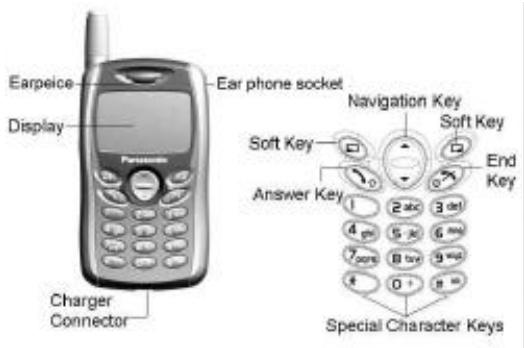

Touche de navigation : permet de se déplacer vers le haut et vers le bas dans les options de la zone d'affichage. En mode veille, appuyez pour accéder au menu personnel. Le menu personnel est un raccourci pour accéder à vos menus favoris. Vous pouvez le configurer dans le menu Personnaliser.

Exécute les fonctions indiquées par le texte affiché à l'écran LCD. En mode veille, appuyez longuement sur la touche programmable droite pour accéder aux messages, et sur la touche programmable gauche pour accéder à la liste des profils.

Touches numériques. Appuyez longuement sur la touche 0 pour saisir un « + » ou un « P ».

Permet d'émettre ou de répondre à un appel. En mode veille, affiche la liste des derniers numéros composés.

Pour terminer un appel, revenir en mode veille, revenir à la page précédente ou rejeter un appel entrant. Appuyez longuement pour allumer ou éteindre le téléphone.

En mode veille, appuyez longuement pour activer le navigateur.

En mode veille, appuyez longuement pour activer ou désactiver le mode silencieux.
Icônes d'affichage
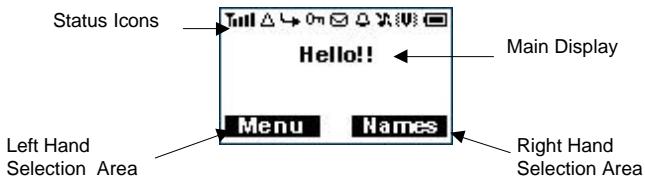
Icônes d'état
Les icônes d'état sont affichées ou animées en fonction des fonctions actuellement activées. Les icônes d'antenne, de signal et de batterie sont affichées lorsque le téléphone est allumé et connecté à un réseau.
S'affiche lorsque vous êtes enregistré sur un réseau non domestique – itinérance. S'affiche lorsque le renvoi d'appel est activé. S'affiche lorsque l'alerte vibrante est activée. S'affiche lorsque tous les sonneries ou le volume de la sonnerie sont désactivés. Clignote lorsqu'un message non lu est stocké ou s'allume lorsque la zone de messages est pleine. S'affiche lorsque le verrouillage du clavier est activé. T indique qu'il est possible de passer des appels d'urgence. T indique la puissance du signal reçu. Indique le niveau de la batterie : [...] - batterie faible. Indique que l'alarme est activée.
Pour commencer
Retrait de la batterie
Retirez la batterie en déplaçant le loquet de déverrouillage vers le haut et en éloignant la batterie.
Remarque : avant de retirer la batterie, éteignez complètement le téléphone.
Installation de la carte SIM
La carte SIM s'insère à l'arrière du téléphone, sous la batterie. Tenez le téléphone en position horizontale, l'antenne sur le côté droit, et faites glisser la carte SIM dans la fente, avec les contacts métalliques
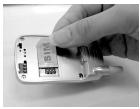
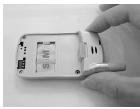
orientés vers le bas. Assurez-vous que le coin biseauté est positionné en haut à gauche. Veuillez consulter les images ci-dessus.
Installation de la batterie
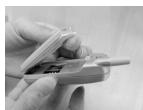
Placez les deux ergots situés en bas de la batterie dans l'arrière du téléphone. Poussez légèrement la batterie et enclenchez-la en place. Veuillez consulter l'image de gauche.
Indicateur de niveau de batterie
| While charging | Charging complete | |
| Phone on |  | |
| Phone off | [WWKB] | LCD BatteryIndicator Off |
Lorsque la charge est terminée, débranchez le chargeur du téléphone.
Remarque : il est recommandé de charger pendant 4 heures avant la première utilisation. Ne forcez pas le connecteur du chargeur, cela pourrait endommager le chargeur et le téléphone.
Avertissement de batterie faible
Lorsque la batterie est faible, une tonalité d'avertissement retentit et un message BATTERIE FAIBLE (☐) s'affiche. Si cela se produit pendant une conversation, terminez immédiatement votre appel. L'alimentation s'éteindra automatiquement après la tonalité d'avertissement. Rechargez complètement la batterie. (Des appels peuvent être passés et reçus pendant la charge du téléphone).
Fonctionnement de base
Merci d'avoir acheté ce téléphone cellulaire numérique Panasonic. Ce téléphone est conçu pour fonctionner sur le système mondial de communications mobiles (GSM).
Avant d'utiliser ce téléphone, veuillez lire la section « Informations importantes » - voir page i.
Allumer/éteindre le téléphone
Assurez-vous d'avoir inséré la carte SIM et la batterie au préalable. Appuyez longuement sur Ⓞ pour allumer ou éteindre le téléphone.
Passer un appel
Vérifiez que l'indicateur de niveau de signal montre que la couverture réseau est disponible dans la zone actuelle.
Composez l'indicatif régional > numéro de téléphone >
Appels internationaux
En veille, maintenez enfoncée la touche Ⓞ jusqu'à ce que « + » s'affiche > saisissez l'indicatif du pays > l'indicatif régional > le numéro de téléphone
Remarque : De nombreux pays/régions incluent un « 0 » initial dans l'indicatif régional. Dans la plupart des cas, ce « 0 » doit être omis lors de la composition d'un numéro international.
Répondre à un appel
pour répondre à un appel ou pour rejeter l'appel.
Si un appel n'est pas répondu, le nombre d'appels manqués sera affiché.
Terminer un appel
Appuyez sur

Appels d'urgence
Pour passer un appel d'urgence, le symbole d'antenne doit être présent
Saisissez le 112 📋 ou, si aucune carte SIM n'est insérée dans le téléphone, appuyez sur SOS pour passer un appel d'urgence.
Réglage initial de l'heure/date
Vous pouvez régler l'heure et la date affichées sur l'écran de veille.
Veille > Menu > Applications > Horloge > Réglage horloge > Heure et date > Régler pour définir l'heure et la date. Voici une explication étape par étape pour votre référence. Toutes les instructions de ce menu seront présentées par le symbole >.
Depuis le mode veille, appuyez sur ☐ Menu et utilisez ☑ pour naviguer jusqu'à Applications, appuyez sur ☐ Sélectionner et utilisez ☐ à nouveau pour mettre en surbrillance Horloge. Appuyez sur ☐ Sélectionner et utilisez le curseur pour mettre en surbrillance Réglage horloge, appuyez sur ☐ Sélectionner et utilisez ☐ pour sélectionner Heure et date. Appuyez sur ☐ et
Régler pour accéder à l'écran de modification et utilisez 🔒 pour déplacer le curseur afin de modifier. Vous pouvez choisir le format de date et d'heure. Saisissez les chiffres pour la date et l'heure dans
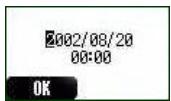
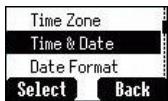
le format de votre choix. Saisissez les chiffres pour l'heure en utilisant le format 24 heures. Appuyez sur OK pour revenir au menu précédent.
Accès au répertoire pour appeler
Vous pouvez accéder au répertoire pour parcourir ou composer des numéros.
Veille > Répertoire > ⏻ (recherche d'un nom) >
Contrôle du volume de l'écouteur
Pendant un appel, utilisez ⏻ pour diminuer ou augmenter le volume.
Verrouillage SIM
Une fois que vous avez activé cette fonction avec votre carte SIM insérée, ce téléphone ne peut reconnaître que votre SIM. Lorsqu'une autre carte SIM est insérée, le code PIN du téléphone doit être saisi.
Une fois cette fonction activée avec votre carte SIM insérée, ce téléphone ne reconnaîtra que votre carte SIM. Si une autre carte SIM est insérée, le code PIN du téléphone devra être saisi.
Idle > Menu > Phone Menu > Security > SIM Lock > Enter 4 – 8 digit phone code > OK > Set (select On or OFF) > OK.
Pour configurer le verrouillage SIM, définissez le "Code téléphone" dans le menu Verrouillage du téléphone.
Utilisation du PIN (4 à 8 chiffres)
Le PIN (Numéro d'Identification Personnel) protège votre carte SIM contre toute utilisation non autorisée. Si vous activez le PIN, à chaque mise sous tension du téléphone, vous serez invité à saisir le PIN.
Le PIN2 contrôle la sécurité pour la numérotation fixe et la facturation des appels. Si le PIN ou le PIN2 est saisi incorrectement 3 fois, le téléphone sera verrouillé et vous devrez alors saisir le code PUK/PUK2. Contactez votre fournisseur de services pour obtenir le code PUK/PUK2.
Remarque : Si le code PUK/PUK2 est saisi incorrectement 10 fois, la carte SIM cessera de fonctionner définitivement. Toutes les informations de la carte SIM seront perdues et la carte SIM devra être remplacée. Contactez votre fournisseur de services pour plus de détails.
Activation/Désactivation du PIN
Une fois le PIN activé, vous devez le saisir à chaque mise sous tension du téléphone.
Idle > Menu > Phone Menu > Security > Codes > PIN Control > Enter PIN (entre 4 et 8 chiffres) > OK > Set (sélectionnez On ou Off) > OK
Réglage du type d'alerte
Si nécessaire, le téléphone peut être configuré pour vibrer ou sonner lors de la réception d'un appel. Idle > Menu > Personalise > Alert Type Choisissez un type parmi Aucun, Sonnerie et vibration, Vibration seule ou Sonnerie seule.
Verrouillage des touches
Cette fonction vous évite d'appuyer accidentellement sur le clavier, par exemple lorsque le téléphone est dans votre poche ou votre sac.
Idle > Menu > Key Guard > Oui
Après cela, un 0 s'affichera sur l'écran de veille.
Désactiver la protection des touches : Veille > Menu > OK
Répertoire
Il est possible de stocker des numéros de téléphone à deux endroits :
L'un est dans le répertoire SIM. L'autre est dans le répertoire du téléphone, ce qui signifie que si vous changez de carte SIM, les numéros du téléphone ne seront pas perdus.
Le répertoire du téléphone a l'avantage de permettre de regrouper les entrées du répertoire. Pour plus de détails, voir "Créer un numéro" ci-dessous.
Parcourir le répertoire
Vous pouvez parcourir le répertoire SIM et le répertoire du téléphone.
1 Veille > Menu > Répertoire > Parcourir > Répertoire SIM ou Répertoire du téléphone 2 Recherchez le nom que vous souhaitez parcourir. Si vous parcourez le répertoire SIM, appuyez sur Menu, puis Modifier, Supprimer, Copier vers le téléphone, Tout copier vers le téléphone, Rechercher s'affichent. De même, si vous parcourez le répertoire du téléphone, Copier vers SIM, Rechercher s'affichent.
Créer un numéro
1 En veille, saisissez les numéros que vous souhaitez enregistrer et appuyez sur Enregistrer
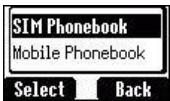
2 Il existe une autre opération pour créer un numéro. Appuyez sur Veille > Menu > Répertoire > Créer > Répertoire SIM ou Répertoire du téléphone
Choix du répertoire SIM
1 Saisissez le nom --- voir "Saisie de texte" à la page 16. Appuyez sur la touche bas pour passer à l'écran suivant. 2 Saisissez les numéros de téléphone avec les touches numériques. Puis appuyez sur la touche bas pour passer à l'écran suivant.
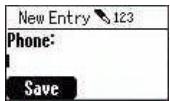
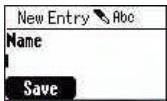
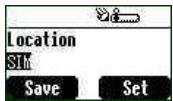
3 Sélectionnez Emplacement. Vous pouvez choisir un emplacement de stockage dans la SIM ou FDN en appuyant sur Définir. Appuyez sur la touche flèche bas ⏻ pour passer à l'écran suivant. 4 Sélectionnez N° d'enregistrement. Vous pouvez choisir un numéro d'enregistrement d'emplacement en appuyant sur Définir.
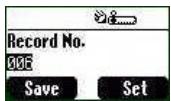
Appuyez sur Enregistrer.
Choix du répertoire téléphonique
1 Saisissez le nom --- voir "Saisie de texte" à la page 16. Appuyez sur la touche fléchée vers le bas pour passer à l'écran suivant. 2 Saisissez le numéro de téléphone à l'aide des touches numériques. Appuyez sur la touche fléchée vers le bas pour passer à l'écran suivant. 3 Sélectionnez un groupe. Vous pouvez classer les membres du répertoire dans différents groupes, tels que Amis, Famille, etc., en appuyant sur OK.
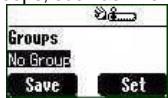
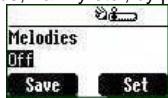
4 Sélectionnez les sonneries. Vous pouvez définir une sonnerie spécifique pour chaque personne. 5 Appuyez sur Enregistrer.
Regroupement des entrées du répertoire
La possibilité de regrouper les entrées du répertoire, par exemple : Amis, Collègues, Famille, Autres, VIP ou Aucun groupe, etc. Vous pouvez définir une sonnerie spécifique pour chaque groupe. Ainsi, lorsqu'un membre appelle, vous pouvez savoir de quel groupe provient l'appel.
Consultation des numéros par groupe
Vous ne pouvez consulter et supprimer les membres du groupe que dans ce sous-menu. Les membres ne peuvent pas être regroupés ici.
1 Veille > Menu > Répertoire > Paramètres de groupe
2 Utilisez la touche fléchée pour sélectionner un groupe 3 Consultez les membres du groupe ou supprimez les membres du groupe.
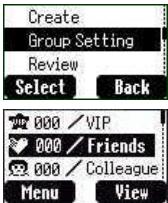
Si vous n'avez pas regroupé votre répertoire, vous verrez "Liste vide".
Consultation du répertoire
La fonction Consultation du menu Répertoire indique le nombre d'emplacements disponibles dans le répertoire.
Depuis Veille > Menu > Répertoire > Consultation, un résumé du répertoire s'affiche.
Numéros de numérotation rapide
C'est un accès rapide pour composer des numéros depuis le répertoire SIM. Appuyez longuement sur une touche numérique de 1 à 9 pour rappeler les 9 premiers numéros stockés dans l'emplacement SIM correspondant. Pour activer la numérotation rapide, vous devez activer cette fonction.
Veille > Menu > Répertoire > Touche d'accès rapide > Activé/Désactivé
Mes numéros
Mes numéros est une section pratique du répertoire où les numéros de téléphone, de fax et de données peuvent être stockés et consultés. Cette fonction dépend de la carte SIM.
Ajout de numéros
Veille > Menu > Répertoire > Mes numéros > Menu > Modifier > saisir le numéro de téléphone > Enregistrer
Personnalisation de votre téléphone
Langue
Il est possible de changer la langue utilisée par le téléphone pour les messages affichés et la saisie de texte.
Veille > Menu > Personnaliser > Langue > ⏻ (sélectionner une langue préférée)
Changer les sonneries
Les sonneries et les volumes du téléphone peuvent être modifiés parmi de nombreux sons prédéfinis. Vous pouvez également utiliser le compositeur de mélodies pour générer une sonnerie personnalisée.
Veille > Menu > Personnaliser > Sons > Type de sonnerie > ⏻ (sélectionner une catégorie préférée) > ⏻ (sélectionner un son préféré)
Composer une mélodie
Veille > Menu > Personnaliser > Sons > Compositeur de mélodies > ⏻ (sélectionner Ma musique) > Édition de mélodie > ⏻ (sélectionner un morceau)
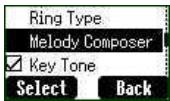
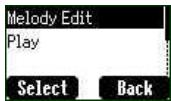
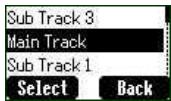
En utilisant le tableau suivant comme référence, saisissez les notes (parmi le choix grave, médium et aigu), les silences et la durée de chacun, pour générer votre composition.
| Key | 1 | 2 abc | 3 def | 4 ghi | 5 jkl | 6 mng | 7 pqrs | 8 tuy | 9 wug | 0 + | * | # ss |
| Func. | C | D | E | F | G | A | B | Rep. | Rest | Duration | Low, Middle, High |
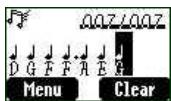
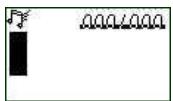
Si vous souhaitez joindre des sous-pistes, n'oubliez pas de sauvegarder d'abord votre piste principale, puis appuyez sur retour pour revenir au menu précédent, puis appuyez pour sélectionner Sous-piste et commencez une autre édition. Lorsque vous avez terminé l'édition des sous-pistes, appuyez sur Menu et Enregistrer. Appuyez deux fois pour revenir aux menus précédents, puis sélectionnez Lecture pour écouter votre mélodie.
Après avoir composé la mélodie, appuyez sur Menu et vous pouvez choisir un tempo et des instruments.
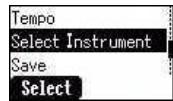
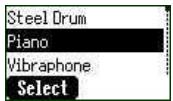
Lorsque la composition est terminée

pour l'enregistrer
Réglage de l'affichage
Vous pouvez régler l'écran de veille, le message d'accueil, l'animation, le contraste et le rétroéclairage.
Message d'accueil
Un message d'accueil personnalisé peut être programmé pour l'allumage du téléphone.
Veille > Menu > Personnaliser > Réglage de l'affichage > Message d'accueil > Modifier
Utilisez la saisie de texte pour ajouter un message d'accueil - voir "Saisie de texte" page 16.
Mode Profil
Dans le mode Profil, vous pouvez choisir et personnaliser un mode approprié parmi Casque, Normal, Réunion, Bruyant
Veille > Menu > Personnaliser > Mode Profil > Ⓞ (sélectionnez un mode) > Activer > OK
Messages utilisateur
Il y a 10 messages prédéfinis couramment utilisés parmi lesquels choisir et 5 entrées vides à modifier. Appuyez sur Sélectionner et tous ces messages peuvent être modifiés.
Idle > Menu > Personnaliser > Messages utilisateur > sélectionnez une entrée préférée
Valeurs par défaut
Tous les réglages personnels peuvent être restaurés à leurs valeurs d'usine par défaut.
Idle > Menu > Personnaliser > Valeurs par défaut > Sélectionner > Oui
Menu personnel
Un accès rapide qui vous permet de cocher/décocher les options suivantes : Navigateur, Jeu, Répertoire, Langue, Type d'alerte, Sonneries, Écran de veille, Mode de profil, Alarme, Calculatrice, Agenda, Liste reçue, Envoyer message, Réglage de l'horloge et Devise. Une fois ces options sélectionnées, vous pouvez accéder au Menu
personnel depuis l'écran de veille en appuyant sur ⏻.
Mon répertoire
Grâce à cette option, vous pouvez parcourir la liste des noms du répertoire.
Idle > Menu > Personnaliser > Mon répertoire > SIM/ Mobile
Cependant, vous pouvez choisir le répertoire du téléphone ou le répertoire SIM dans ce menu. Depuis l'écran de veille, appuyez sur Noms et vous pouvez parcourir le répertoire sélectionné.
Jeu (STK)
Si votre carte SIM fournit des services SIM Tool Kit, ce menu deviendra la passerelle STK. Vous pouvez toujours accéder aux jeux depuis Application.
Idle > Menu > Jeu ou Idle > Menu > Application > Jeu
Lorsque vous voyez la souris, appuyez sur une touche numérique de 1 à 9 pour frapper la souris avec la plus grande vitesse. Gardez à l'esprit que le chat n'est pas votre cible. Exemple : si vous appuyez sur 5, vous frapperez la chose cachée dans le trou numéro 5. Ce jeu se terminera automatiquement dans un délai limité. Après la fin, vous obtiendrez un score. Ce score pourrait être le plus élevé du record. Bonne chance !
Messages texte
Il est possible de recevoir, d'afficher, de modifier et/ou d'envoyer des messages texte jusqu'à 760 caractères (selon les caractères ou symboles).
Configuration du téléphone pour les messages texte courts
Avant d'envoyer un texte, il est nécessaire de saisir le numéro du centre de messages dans les Paramètres (le fournisseur de services fournira le numéro du centre de messages).
Le numéro du centre de messages peut avoir été préprogrammé sur la carte SIM.
Réglage du numéro du centre de messages
Veille > Menu > Messages > Paramètres > Centre de messages Saisissez le numéro du centre de messages au format international – voir "Numérotation internationale" page 5.
Création d'un message texte
Veille > Menu > Messages > Créer Appuyez sur la touche numérique ① - ② + à plusieurs reprises (si nécessaire) pour saisir et sélectionner des caractères, des chiffres ou des symboles spéciaux. ③ pour changer de "Mode de saisie". Appuyez sur # × × pour activer/désactiver le T9.
EMS (Service de messages amélioré)
Pendant la modification du message, appuyez sur Menu > Image et son pour insérer/ajouter des images ou du son dans le message. Cependant, ce service ne fonctionne que si le
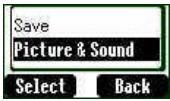
téléphone mobile du destinataire prend en charge cette fonction.
Utilisez 🔒 pour choisir les images que vous souhaitez envoyer et appuyez sur 📄. Ou appuyez sur 🔒 pour sélectionner de la musique. Veuillez noter qu'un seul message ne peut transmettre que 10 sons.
Lorsque le message est modifié, appuyez sur Menu pour Envoyer, Enregistrer ou Enregistrer et envoyer.
Après avoir sélectionné Envoyer, saisissez le numéro de téléphone du destinataire ou appuyez sur Noms pour naviguer. Puis appuyez sur OK pour envoyer.
Mode texte (abc, ABC et numérique) 1 / ( ) < = > % ~ & 2 abc a b c 2 ä à ç ou A B C 2 Ä 3 def d e f 3 é è ou D E F 3 É 4 ghi g h i 4 î ou G H I 4 5 jkl j k l 5 ou J K L 5 6 m n o 6 ö ñ ò ou M N O 6 Ö Ñ 7 p q r s 7 β ou P Q R S 7 8 t u v 8 ü ù ou T U V 8 Ü 9 w x y z 9 æ Ø å ou W X Y Z 9 Æ Ø Å 10 + Espace 0 . , ? ! + - : ¿ i ” ; _ * Γ Δ Θ Λ Ξ Π Σ Φ Ψ Ω
✉ Appui long : espace # £ $ ¥ ☀ @ \ § Appui court pour activer ou désactiver le mode T9.
Changer de mode de saisie
Saisie de texte T9 ®
Ce mode de saisie réduit considérablement le nombre de pressions de touches nécessaires :
Appuyez une fois sur une touche pour chaque lettre souhaitée sur cette touche. La lettre désirée peut ne pas s'afficher. Continuez à appuyer sur les autres touches jusqu'à la fin du mot ; vérifiez ensuite que le mot a été correctement saisi avant de passer au mot suivant.
Si la combinaison de lettres saisies a produit un mot qui n'est pas celui
que vous souhaitez, appuyez à plusieurs reprises jusqu'à ce que le mot correct s'affiche. Passez au mot suivant. Si le mot souhaité ne figure pas dans le dictionnaire interne (par exemple, un nom propre ou un mot rare), il doit être saisi en mode Normal (ABC).
Autres modes de saisie
Pour accéder aux autres modes de saisie, utilisez 📋 pour parcourir les modes jusqu'à celui souhaité.
En mode Majuscules (ABC), mode numérique (123), etc., chaque pression rapide sur une touche affiche le caractère suivant disponible sur cette touche. Relâcher la touche ou appuyer sur une autre touche valide le caractère affiché et le curseur passe à la position suivante.
Modification du texte
Un appui long sur ⏻ déplace le curseur d'une ligne de texte vers le haut ou le bas (ou d'un champ dans le répertoire). Appuyer sur ⏻ déplace le curseur d'un caractère vers la gauche ou la droite. Lorsque le curseur est placé sur un caractère et qu'une autre touche est pressée, le nouveau caractère est inséré immédiatement avant le caractère sélectionné.
Appuyer sur Effacer supprime le caractère à gauche du curseur.
Réception de messages texte
Lorsqu'un message texte court est reçu, l'icône de message 📧 clignote à l'écran, accompagnée d'un signal sonore.
Veille > Menu > Messages > Liste des reçus > Lire pour lire le message.
Utilisez ⏻ pour naviguer dans les messages et identifier l'expéditeur ainsi que l'heure d'envoi du message.
Remarque : Si l'indicateur de message est affiché, cela signifie que la zone de messages est pleine et que vous devez supprimer d'anciens messages pour pouvoir en recevoir de nouveaux.
Répondre, transférer, modifier et supprimer un message
Lorsqu'un message est reçu, suivez les invites pour créer une réponse, modifier un nouveau message, le transférer ou le supprimer.
Messages utilisateur
Vous pouvez choisir des messages par défaut. Pour créer ou modifier, voir "Message utilisateur" à la page 10 de Personnalisation. Utilisez 🔊 pour sélectionner.
Veille > Menu > Messages > Messages utilisateur > sélectionnez une entrée préférée.
Examen
L'examen vous permet de vérifier l'utilisation de la zone de messages.
Veille > Menu > Messages > Examen
Paramètres
Veille > Menu > Messages > Paramètres
Les paramètres suivants peuvent être définis :
Centre de messages
Saisir ou modifier le numéro du centre de messages. Normalement, ce numéro peut être stocké sur la carte SIM par votre opérateur.
Protocole
Le centre de messages peut convertir le message au format spécifié par le protocole sélectionné.
Durée de vie
Il s'agit de la durée pendant laquelle votre message est stocké au centre de messages. Les tentatives de livraison seront répétées jusqu'à ce que le message soit livré ou que la durée de vie soit expirée.
Accusé de réception
Lorsque votre message a été livré, une confirmation sera reçue.
Diffusion
Vous devez spécifier le ou les « thèmes » d'informations et la langue que vous souhaitez recevoir en diffusion, et cocher « Diffusion » avant de pouvoir les recevoir.
Veille > Menu > Messages > Diffusion > Liste des thèmes > Actuel ⏻ pour parcourir les thèmes disponibles. Pour ajouter de nouveaux thèmes, sélectionnez et choisissez un thème préféré, ou sélectionnez « Défini par l'utilisateur » pour créer un nouveau thème.
Remarque : Cette fonction dépend du réseau.
Verrouillage des touches
La fonction de verrouillage des touches est utilisée pour empêcher toute pression accidentelle sur les touches, par exemple lorsque le téléphone est transporté.
Veille > Menu > Verrouillage des touches > Sélectionner > Oui pour activer le « Verrouillage des touches ». Les appels d'urgence peuvent toujours être effectués - voir « Appels d'urgence » page 6. Appuyez sur 112 et
Remarque : lors d'appels d'urgence avec la "Touche de verrouillage" activée, aucune indication visuelle ne s'affiche pour montrer que le numéro est composé.
Désactivation de la touche de verrouillage
Lorsque "Libre" s'affiche, appuyez sur Libre > OK.
Navigateur
Le navigateur WAP (protocole d'application sans fil) du téléphone vous permet d'accéder aux services Internet pris en charge par le réseau, tels que les actualités, les bulletins météorologiques, les sports, etc.
Paramètres du navigateur
Avant de pouvoir accéder aux services Internet, vous devez vous abonner auprès de votre opérateur réseau ou fournisseur d'accès Internet (FAI) pour obtenir les informations de configuration nécessaires. Veuillez contacter votre fournisseur de services réseau pour confirmer vos paramètres réseau.
Remarque : la modification des paramètres précédemment saisis peut entraîner une panne du navigateur.
Veille > Menu > Navigateur > Paramètres du serveur
Deux serveurs sont préconfigurés dans le téléphone ; utilisez ⏻ pour sélectionner un paramètre. Sinon, vous devez saisir manuellement les données essentielles pour configurer votre navigateur (nom du serveur, numéro d'appel, type d'appel, nom d'utilisateur, mot de passe, adresse IP, port IP, page d'accueil et durée de connexion) lors de la première utilisation.
Remarque : contactez votre fournisseur de services réseau pour obtenir ces paramètres de configuration.
Une fois la saisie terminée, utilisez ⏻ pour choisir l'un des paramètres, puis activez-le.
Lors de la première activation du navigateur, aucun contenu n'étant stocké, le contenu de l'URL d'accueil s'affiche (tel que défini par l'opérateur réseau). L'URL d'accueil sera rappelée depuis le cache à chaque activation du navigateur. (Le cache est la mémoire du téléphone qui stocke le contenu téléchargé précédemment).
Menu du navigateur
Démarrage du navigateur
Accueil > Menu > Navigateur > Démarrer le navigateur
Une fois que vous avez configuré et activé le paramètre du navigateur, vous pouvez commencer à naviguer sur la page d'accueil de l'opérateur réseau.
Le navigateur contient également son propre menu, applicable lorsque du contenu est affiché (en ligne ou hors ligne). Pour accéder au menu du navigateur, sélectionnez l'icône du navigateur en haut à gauche de l'écran. Ce menu propose les options suivantes : Retour, Accueil, Aller à l'URL, Marquer le site, Favoris, Boîte de réception, Actualiser, Paramètres, À propos.
Favoris
Accueil > Menu > Navigateur > Favoris
Dans ce menu, vous disposez de 10 emplacements vides pour saisir les URL de vos sites Web préférés. Vous pouvez également modifier, effacer ou lancer le site Web.
Menu du téléphone
Service d'appel
Temps / Coûts
Accueil > Menu > Menu du téléphone > Service d'appel > Temps/Coûts. Utilisez ⏻ pour sélectionner l'une des fonctions : Dernier appel, Tous les appels vocaux, Coût restant.
La fonction Dernier appel affiche la durée et le coût de l'appel, si disponible, du dernier appel. Les durées sont indiquées en minutes (0-59) et secondes (0-59).
La fonction Tous les appels vocaux affiche la durée et le coût cumulés, y compris les appels entrants et sortants.
La fonction Coût restant affiche les unités restantes que vous avez définies au préalable. (Veuillez vous référer à la section Réglage du coût maximal ci-dessous.)
Appel en attente
Une fois cette fonction activée, vous pouvez recevoir un deuxième appel pendant une conversation.
Menu > Téléphone > Service d'appel > Appel en attente
Identification de l'appelant
Dans le menu Service d'appel, les fonctions Identification de l'appelant et Masquer mon numéro vous permettent de voir si l'identification de l'appelant est visible.
Menu > Téléphone > Service d'appel > Masquer mon numéro ou Identification de l'appelant
Remarque : lors de la vérification du statut, le téléphone doit être enregistré sur un réseau.
Paramètres de facturation
Tout d'abord, un prix par unité doit être saisi. Il s'agit du coût que le fournisseur de services facture pour une unité de temps d'appel.
Accueil > Menu > Menu Téléphone > Service d'appel > Paramètres de facturation
Modifiez les valeurs. À ce stade, il vous sera demandé de saisir votre code PIN2. Saisissez une unité monétaire.
Définition du coût maximal
Cette fonction vous permet de prédéfinir le coût maximal des appels effectués. Accueil > Menu > Menu Téléphone > Service d'appel > Paramètres de facturation > Coût maximal. Saisissez l'unité maximale que vous souhaitez définir. À ce stade, il vous sera demandé de saisir votre code PIN2.
Saisissez une valeur (nombre d'unités) qui doit être le maximum autorisé, et le coût correspondant sera affiché.
Remarque : La durée d'une unité peut varier au cours de la journée, en fonction des heures pleines et creuses. Par conséquent, le coût de l'appel peut être calculé en conséquence. Cependant, les informations sur le coût de l'appel peuvent ne pas refléter avec précision les tarifs facturés par votre fournisseur de services.
Renvoi d'appels
Les appels vocaux peuvent être renvoyés dans différentes circonstances et vers différents numéros. Par exemple, vous pouvez souhaiter que les appels vocaux soient renvoyés vers la boîte vocale si le téléphone est éteint.
Menu > Téléphone > Renvoi d'appel
Utilisez ⏻ pour sélectionner les circonstances pour lesquelles vous souhaitez activer le renvoi d'appel. Saisissez ensuite le numéro vers lequel renvoyer les appels.
Lorsqu'une situation de renvoi est activée, l'icône de renvoi ( ) s'affiche. Lors de la mise à jour ou de la vérification de l'état du renvoi d'appel, le téléphone doit être enregistré sur un réseau.
Restriction d'appels
Interdiction d'appel
La fonction « Interdiction d'appel » permet de restreindre certains appels sortants et/ou entrants. Elle est contrôlée par un mot de passe de sécurité fourni par le fournisseur de services. Lors de la mise à jour ou de la vérification de l'état de l'interdiction d'appel, le téléphone doit être enregistré sur un réseau. Différentes restrictions d'appel peuvent être utilisées pour les appels vocaux. Toute combinaison de restrictions peut être définie.
Menu > Téléphone > Sécurité > Interdiction d'appel
Utilisez ⏻ pour sélectionner les circonstances souhaitées, puis saisissez le mot de passe d'interdiction d'appel.
Réseau
Le paramètre Réseau vous permet de modifier les paramètres réseau.
Réseau automatique
Vous pouvez activer ou désactiver le « Réseau automatique ».
Nouveau réseau
Si le « Réseau automatique » est activé, le téléphone recherche automatiquement un réseau disponible. S'il est désactivé, vous pouvez sélectionner un réseau manuellement.
Liste des réseaux
Vous pouvez créer et modifier une liste de réseaux selon vos préférences.
Sélection de bande
Vous pouvez choisir une bande de fréquences : 900/1800, 900/1900, 900, 1800, 1900 MHz.
Application
Jeu
Veille > Menu > Application > Jeu
Veuillez vous référer à la page 14.
Agenda
L'agenda peut être utilisé pour enregistrer des rappels pour des événements personnels ainsi que pour planifier des périodes de vacances.
Veille > Menu > Application > Agenda. L'agenda peut être présenté au format hebdomadaire ou mensuel. Utilisez les touches numériques 2, 4, 6, 8 pour sélectionner un jour.
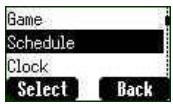
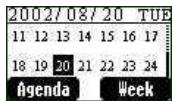
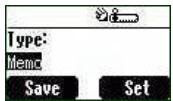
Pour une première saisie, mettez en surbrillance la date et appuyez sur Agenda > Sélectionner > Nouvelle entrée. Choisissez un type parmi Mémo, Réunion
Appuyez ensuite sur ⏻ vers le bas pour ajouter une description.
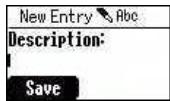
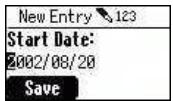
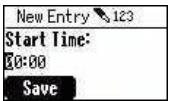
Saisissez la date et l'heure de début/fin, puis appuyez sur Enregistrer.
Horloge
Ce téléphone intègre une horloge avec date/heure, une alarme et une fonction de mise hors tension.
Réglage de l'horloge
Veille > Menu > Applications > Horloge > Réglage de l'horloge > Heure et date
Appuyez sur Sélectionner pour régler l'heure et la date. Dans le menu "Réglage de l'horloge", vous pouvez choisir d'afficher l'heure en mode veille.
Veille > Menu > Applications > Horloge > Réglage de l'horloge > Afficher l'heure > Activé/Désactivé
Réglage de l'alarme
Veille > Menu > Applications > Horloge > Alarme
Appuyez sur Régler pour définir l'heure et choisir un format de répétition. Saisissez les chiffres avec une horloge de 24 heures. Appuyez sur 📋 pour quitter. Lorsque l'heure définie est atteinte, l'alarme sonne. Si l'alarme se déclenche pendant un appel, le téléphone vibre et un indicateur 'alarme' s'affiche.
Attention : assurez-vous que le réglage de l'alarme ne contrevient pas aux réglementations qui pourraient l'activer automatiquement dans un avion ou un établissement médical, etc. - voir "Informations importantes" page i.
Réglage de l'heure de mise hors tension
Le téléphone peut être réglé pour s'éteindre automatiquement à une heure spécifique à l'aide de la fonction Mise hors tension. La procédure pour régler/ajuster la mise hors tension automatique est similaire au réglage de l'alarme.
Calculatrice
Il existe quatre fonctions arithmétiques qui vous permettent d'effectuer des calculs simples (addition/soustraction/multiplication et division).
Veille > Menu > Applications > Calculatrice. Saisissez un nombre (7 chiffres maximum) et il s'affichera en haut à droite de l'écran. Si un point décimal est nécessaire, appuyez sur # ; si un signe moins est nécessaire, appuyez sur *
Utilisez ⏻ pour sélectionner l'opération arithmétique souhaitée.
Saisissez un nombre (7 chiffres maximum) et appuyez sur ☐ (=) puis le résultat s'affichera.
Si est utilisé pour sélectionner une autre opération arithmétique, un calcul intermédiaire sera effectué et le résultat affiché.
Devise
Le convertisseur de devises vous permet de convertir depuis/vers une devise de référence en utilisant un taux de conversion que vous saisissez.
Veille > Menu > Applications > Devise
Réglage du taux
Saisissez un taux de change dans l'espace où se trouve le crayon. Appuyez sur OK et Enregistrer. Si un point décimal est nécessaire, appuyez sur ###.
Calcul du taux
Une fois le taux de change enregistré, saisissez les nombres à convertir et appuyez sur Convertir.
Enregistrements
Derniers numéros composés et rappel
Les numéros de téléphone récemment composés seront stockés dans Derniers composés.
Si l'identification de l'appelant est connue, le numéro de téléphone de l'appelant, pour un appel reçu, sera stocké dans le menu Répondus et un appel sans réponse sera stocké dans le menu Non répondus.
Lorsque la mémoire est pleine, le numéro suivant remplacera le plus ancien.
Veille > Menu > Enregistrements pour afficher Derniers composés, Non répondus, Répondus.
Utilisez 🔒 pour cibler le numéro de téléphone (ou le nom) que vous souhaitez rappeler et appuyez sur 🔒. Ou en veille, appuyez sur 🔒 pour afficher directement les derniers numéros composés. Vous pouvez modifier, enregistrer ou supprimer le numéro avant de composer.
Effacer les enregistrements
Veille > Menu > Enregistrements > Effacer les enregistrements. Vous pouvez tout effacer, effacer le dernier numéro composé, effacer les appels répondus, effacer les appels non répondus.
Menu en cours d'appel
Pendant un appel, il existe plusieurs fonctions avancées ; cependant, certaines options en cours d'appel sont fournies par le fournisseur de services réseau.
Mise en attente des appels
Mettre un appel en attente
Pendant un appel, l'écran affiche Menu et Attente.
1 Appuyez sur Attente. 2 "Appel en attente" s'affiche. 3 Appuyez pour reprendre l'appel.
Appel en attente
Pendant un appel, si un deuxième appel arrive, l'écran affiche Rejeter et Basculer.
1 Appuyez sur Basculer. Mettez le premier appel en attente. Parlez à la deuxième personne. 2 "Appel en attente" s'affiche. 3 Appuyez pour sélectionner Basculer afin de reprendre l'appel.
Mains libres
Pendant un appel, appuyez sur ☐ Menu > Mains libres. Ensuite, le mode mains libres sera activé. Dans ce cas, vous pouvez parler au téléphone sans le tenir.
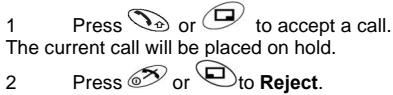
Accepter/Rejeter un deuxième appel
Un deuxième appel peut être reçu si "Appel en attente" est activé. Cette fonction est activée à partir de Veille > Menu > Menu téléphone > Service d'appel > Appel en attente.
Pendant un appel :
Conférence
Une conférence téléphonique permet de mettre jusqu'à quatre appels en conversation en même temps. Pendant un appel, appuyez sur Menu > Conférence.
Transfert d'appel
Lorsque deux appels sont en cours :
Pendant les appels, appuyez sur Menu et utilisez ⏻ pour sélectionner Transfert d'appel. Les deux appels seront connectés l'un à l'autre et votre appel sera terminé.
Remarque : Le transfert d'appel ne peut pas être utilisé en mode Conférence.
Structure du menu
1 Personnaliser
Langue
Sonneries
Volume de la sonnerie
Type de sonnerie
Compositeur de mélodie
Touche de tonalité
Tonalité d'avertissement
Réglage de l'affichage
Écran de veille
Message d'accueil
Animation
Contraste
Rétroéclairage
Type d'alerte
Sonnerie uniquement
Aucun
Sonnerie et vibration
Vibration uniquement
Mode profil
Messages utilisateur
Réponse automatique
Toute touche pour répondre
Valeurs par défaut
Menu personnel
Mon répertoire
Saisie T9
2 Jeu (STK)
3 Répertoire
Parcourir
Créer
Paramètres de groupe
Réviser
Mes numéros
Composition par touche de raccourci
Mon répertoire
4 Navigateur
Démarrer le navigateur
Signets
Paramètres du serveur
5 Protection par clé
6 Messages
Liste de réception
Liste d'envoi
Créer
Messages utilisateur
Révision
Paramètres
Diffusion
7 Menu téléphone
Service d'appel
Temps/Coûts
Appel en attente
Masquer mon numéro
Présentation du numéro
Paramètres de facturation
Renvoi d'appel
Tous les appels vocaux
Non joignable
Sans réponse
Occupé
Vérification du statut
Tout annuler
Sécurité
Interdiction d'appel
Codes
Numéros fixes
Verrouillage SIM
Réseau
Réseau automatique
Nouveau réseau
Liste des réseaux
Sélection de bande
8 Applications
Jeu
(STK)
Agenda
Horloge
Réglage de l'horloge
Alarme
Heure de mise hors tension
Calculatrice
Devise
9 enregistrements
Dernier appel composé
Répondu
Non répondu
Effacer les enregistrements
Dépannage
| Problem | Cause | Remedy |
| Phone will not switch on | Check that the battery is fully charged and correctly connected to the phone | |
| Extremely short battery life for a new battery | The network you are using and the condition of the battery can affect battery life | |
| Short battery life for an old battery | The battery has worn out | Replace with a new fully charged battery |
| The charging indicator does not light, the battery level indicator does not appear and the phone cannot be switched on when charging | The battery is not attached to the phone or when the battery has been deeply discharged the phone will take a short time until the indicator lights | Leave the phone charging the battery for a few minutes before the indicator is lit and attempting to switch it on |
| Battery fails to charge | The battery is not attached to the phone | Ensure the battery is fitted to the phone prior to commencing charging. Ensure the battery is fitted to the phone prior to commencing charging. |
| Battery has been connected to the phone after AC adapter has been switch on | ||
| Calls cannot be made | The phone is locked | Unlock the phone |
| Outgoing calls are barred | Disable the outgoing call barring, or barred dial | |
| The phone is not registered to a network | Move to a coverage area and operate your phone after it has registered with a network. | |
| Calls cannot be made from Fixed dial Store | Check your SIM supports Fixed DialCheck if the Fixed Dial is switched onCheck the phone number is stored in the Fixed DialSwitch the phone on | |
| Calls cannot be received | The phone is not switched on | Switch the phone on. |
| Incoming calls are barred | Disable the incoming call barring. | |
| The phone is not registered to a network | Move to a coverage area and operate your phone after it has registered with a network. | |
| Emergency calls cannot be made | You are not in a GSM coverage area | Check that the antenna symbol is display- move to a coverage area and operate your phone when antenna symbol is displayed |
| Phone numbers cannot be recalled from phonebook | The phone is locked | Unlock the phone |
| Phone number has been restricted | Switch off restriction |
Paramètres WAP
Utilisez le tableau ci-dessous pour noter vos paramètres WAP.
| Item | Current Setting |
| Server Name | |
| Dial Number | |
| Call Type | |
| Login Name | |
| Password | |
| IP Address | |
| IP Port | |
| Homepage URL | |
| Linger Time |
Spécifications
Téléphone (batterie incluse)*
| Type | GSM 900 Class 4GSM1800 Class 1GSM1900 Class 1 |
| Temperature Range | +5°C - +35°C |
| Charging | -20°C - +60°C |
| Storage | |
| WAP | WAP 1.2.1 |
| Weight | Max 65 g |
| Dimensions | |
| Height x Width x Depth | 77 x 43 x 16.9mm (excluding antenna) |
| Supply Voltage | 720 mAh Li-ion |
| Standby Time | 78.3 Hrs ~ 230 Hrs |
| Talk Time | 1.6 Hrs ~ 7.9 Hrs |
| Charging Time (Phone off) | Less than 120 mins (Travel Charger) |
| Antenna | External Stub Antenna |
| SIM Type | 3V Plug-in only SIM |
Remarque : Le temps de charge sera plus long lorsque le téléphone est allumé. La durée de vie de la batterie est affectée par le réseau utilisé, l'utilisation de la carte SIM et l'état de la batterie.
Remarques
C€0682
© Matsushita Mobile Communications Co., Ltd. 2003
Les informations contenues dans ce document sont sujettes à modification sans préavis. Aucune partie de ces instructions ne peut être reproduite ou transmise sous quelque forme ou par quelque moyen que ce soit sans avoir obtenu l'autorisation expresse de Matsushita Mobile Communications Co., Ltd.
Imprimé en République tchèque www.panasonicmobile.co.uk
Matsushita Communication Industrial Czech s.r.o. Pardubice, République tchèque

- PANASONIC
- NOTICE D'UTILISATION TÉLÉPHONE CELLULAIRE NUMÉRIQUE
- DÉCLARATION SAR
- UNION EUROPÉENNE - RTTE
- SOMMAIRE
- INFORMATIONS IMPORTANTES
- CONSIGNES DE SÉCURITÉ
- ENTRETIEN ET MAINTENANCE
- RÉFÉRENCE RAPIDE
- EMPLACEMENT DES COMMANDES
- ICÔNES D'AFFICHAGE
- ICÔNES D'ÉTAT
- POUR COMMENCER
- RETRAIT DE LA BATTERIE
- INSTALLATION DE LA CARTE SIM
- INSTALLATION DE LA BATTERIE
- AVERTISSEMENT DE BATTERIE FAIBLE
- FONCTIONNEMENT DE BASE
- ALLUMER/ÉTEINDRE LE TÉLÉPHONE
- PASSER UN APPEL
- APPELS INTERNATIONAUX
- RÉPONDRE À UN APPEL
- TERMINER UN APPEL
- APPELS D'URGENCE
- RÉGLAGE INITIAL DE L'HEURE/DATE
- VOUS POUVEZ ACCÉDER AU RÉPERTOIRE POUR PARCOURIR OU COMPOSER DES NUMÉROS
- PENDANT UN APPEL, UTILISEZ ⏻ POUR DIMINUER OU AUGMENTER LE VOLUME
- UNE FOIS QUE VOUS AVEZ ACTIVÉ CETTE FONCTION AVEC VOTRE CARTE SIM INSÉRÉE, CE TÉLÉPHONE NE PEUT RECONNAÎTRE QUE VOTRE SIM. LORSQU'UNE AUTRE CARTE SIM EST INSÉRÉE, LE CODE PIN DU TÉLÉPHONE DOIT ÊTRE SAISI
- UTILISATION DU PIN (4 À 8 CHIFFRES)
- ACTIVATION/DÉSACTIVATION DU PIN
- RÉGLAGE DU TYPE D'ALERTE
- VERROUILLAGE DES TOUCHES
- RÉPERTOIRE
- PARCOURIR LE RÉPERTOIRE
- CRÉER UN NUMÉRO
- CHOIX DU RÉPERTOIRE SIM
- CHOIX DU RÉPERTOIRE TÉLÉPHONIQUE
- REGROUPEMENT DES ENTRÉES DU RÉPERTOIRE
- CONSULTATION DES NUMÉROS PAR GROUPE
- CONSULTATION DU RÉPERTOIRE
- NUMÉROS DE NUMÉROTATION RAPIDE
- MES NUMÉROS
- AJOUT DE NUMÉROS
- PERSONNALISATION DE VOTRE TÉLÉPHONE
- LANGUE
- CHANGER LES SONNERIES
- COMPOSER UNE MÉLODIE
- RÉGLAGE DE L'AFFICHAGE
- MESSAGE D'ACCUEIL
- MODE PROFIL
- MESSAGES UTILISATEUR
- VALEURS PAR DÉFAUT
- MENU PERSONNEL
- MON RÉPERTOIRE
- JEU (STK)
- MESSAGES TEXTE
- CONFIGURATION DU TÉLÉPHONE POUR LES MESSAGES TEXTE COURTS
- RÉGLAGE DU NUMÉRO DU CENTRE DE MESSAGES
- CRÉATION D'UN MESSAGE TEXTE
- EMS (SERVICE DE MESSAGES AMÉLIORÉ)
- ✉ APPUI LONG : ESPACE # £ $ ¥ ☀ @ \ § APPUI COURT POUR ACTIVER OU DÉSACTIVER LE MODE T
- SAISIE DE TEXTE T9 ®
- AUTRES MODES DE SAISIE
- MODIFICATION DU TEXTE
- RÉCEPTION DE MESSAGES TEXTE
- RÉPONDRE, TRANSFÉRER, MODIFIER ET SUPPRIMER UN MESSAGE
- EXAMEN
- PARAMÈTRES
- CENTRE DE MESSAGES
- PROTOCOLE
- DURÉE DE VIE
- ACCUSÉ DE RÉCEPTION
- DIFFUSION
- DÉSACTIVATION DE LA TOUCHE DE VERROUILLAGE
- NAVIGATEUR
- PARAMÈTRES DU NAVIGATEUR
- VEILLE > MENU > NAVIGATEUR > PARAMÈTRES DU SERVEUR
- MENU DU NAVIGATEUR
- DÉMARRAGE DU NAVIGATEUR
- FAVORIS
- MENU DU TÉLÉPHONE
- SERVICE D'APPEL
- TEMPS / COÛTS
- APPEL EN ATTENTE
- IDENTIFICATION DE L'APPELANT
- PARAMÈTRES DE FACTURATION
- DÉFINITION DU COÛT MAXIMAL
- RENVOI D'APPELS
- RESTRICTION D'APPELS
- INTERDICTION D'APPEL
- RÉSEAU
- RÉSEAU AUTOMATIQUE
- NOUVEAU RÉSEAU
- LISTE DES RÉSEAUX
- SÉLECTION DE BANDE
- APPLICATION
- JEU
- AGENDA
- HORLOGE
- RÉGLAGE DE L'HORLOGE
- RÉGLAGE DE L'ALARME
- RÉGLAGE DE L'HEURE DE MISE HORS TENSION
- CALCULATRICE
- DEVISE
- RÉGLAGE DU TAUX
- CALCUL DU TAUX
- ENREGISTREMENTS
- DERNIERS NUMÉROS COMPOSÉS ET RAPPEL
- EFFACER LES ENREGISTREMENTS
- MENU EN COURS D'APPEL
- MISE EN ATTENTE DES APPELS
- METTRE UN APPEL EN ATTENTE
- MAINS LIBRES
- ACCEPTER/REJETER UN DEUXIÈME APPEL
- CONFÉRENCE
- TRANSFERT D'APPEL
- STRUCTURE DU MENU
- PERSONNALISER
- PARAMÈTRES WAP
- SPÉCIFICATIONS
- REMARQUES
- C€
Marque : PANASONIC
Modèle : MINI GD55
Catégorie : Téléphone mobile