
MINI GD55 - Mobile Phone PANASONIC - Free user manual and instructions
Find the device manual for free MINI GD55 PANASONIC in PDF.


| Product Type | GSM Mobile Phone |
| Brand | Panasonic |
| Model | MINI GD55 |
| Network Technology | GSM 900/1800/1900 |
| Dimensions | 77 x 43 x 16.9 mm (without antenna) |
| Weight | Max 65 g (with battery) |
| Battery Type | Li-ion 720 mAh |
| Standby Time | 78.3 to 230 hours |
| Talk Time | 1.6 to 7.9 hours |
| Charging Time | Less than 120 minutes (travel charger) |
| Display | Monochrome |
| Main Functions | SMS, WAP 1.2.1, phonebook, games, alarm, calculator, currency converter, profiles, key lock, call forwarding, call barring |
| SAR Value | 0.753 W/kg (at ear) |
| Charging Temperature Range | +5°C to +35°C |
| Storage Temperature Range | -20°C to +60°C |
| SIM Card Type | 3V only |
| Antenna | External (stub) |
| Care and Cleaning | Avoid contact with liquids, extreme temperatures, shocks. Clean with a soft, dry cloth. |
| Safety | Turn off on airplanes, do not use near medical devices, follow road safety instructions. |
| Spare Parts and Repairability | No user-serviceable parts. Contact after-sales service. |
| General Information | Compliant with European R&TTE directive. Manufactured by Matsushita. |
Frequently Asked Questions - MINI GD55 PANASONIC
User questions about MINI GD55 PANASONIC
0 question about this device. Answer the ones you know or ask your own.
Ask a new question about this device
Download the instructions for your Mobile Phone in PDF format for free! Find your manual MINI GD55 - PANASONIC and take your electronic device back in hand. On this page are published all the documents necessary for the use of your device. MINI GD55 by PANASONIC.
USER MANUAL MINI GD55 PANASONIC
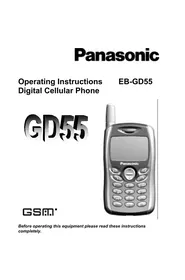
Operating Instructions Digital Cellular Phone
EB-GD55
GD55
GSM
Before operating this equipment, please read these instructions completely.
SAR Statement
European Union - RTTE
THIS PANASONIC PHONE (MODEL EB-GD55) MEETS THE EU REQUIREMENTS FOR EXPOSURE TO RADIO WAVES.
Your mobile phone is a radio transmitter and receiver. It is designed and manufactured not to exceed the limits for exposure to radio frequency (RF) energy recommended by The Council of the European Union. These limits are part of comprehensive guidelines and establish permitted levels of RF energy for the general population. The guidelines were developed by independent scientific organisations through periodic and thorough evaluation of scientific studies. The limits include a substantial safety margin designed to assure the safety of all persons, regardless of age and health.
The exposure standard for mobile phones employs a unit of measurement known as the Specific Absorption Rate, or SAR. The SAR limit recommended by The Council of the European Union is 2.0 W/kg* Tests for SAR have been conducted using standard operating positions with the phone transmitting at its highest certified power level in all tested frequency bands. Although the SAR is determined at the highest certified power level, the actual SAR level of the phone while operating can be well below the maximum value. This is because the phone is designed to operate at multiple power levels so as to use only the power required to reach the network. In general, the closer you are to a base station antenna, the lower the power output.
Before a phone model is available for sale to the public, compliance with the European R&TTE directive must be shown. This directive includes as one essential requirement the protection of the health and the safety for the user and any other person. The SAR value for this model phone, when tested for use at the ear, for compliance against the Standard was 0.753 W/kg. While there may be differences between the SAR levels of various phones and at various positions, they all meet the EU requirements for RF exposure.
* The SAR limit for mobile phones used by the public is 2.0 watts/kilogram (W/kg) averaged over ten grams of tissue. The limit incorporates a substantial margin of safety to give additional protection for the public and to account for any variations in measurements. SAR values may vary depending on national reporting requirements and the network band.
For SAR information in other regions, please look under product information at http://www.panasonicmobile.com/health.html
Contents
SAR Statement 2
Important Information 5
Care and Maintenance 7
Quick Reference 8
Location Of Controls 8
Display Icons 9
Getting Started 10
Basic Operation 11
Switching the Phone On/Off 11
Making a Call 11
International Dialling 11
Answering a Call 11
Ending a Call 11
Emergency Calls 11
Initially Setting the Time/Date 11
Accessing the Phonebook to Dial 12
Earpiece Volume Control 12
SIMLock 12
Using the PIN 12
Setting Alert Type 13
Key Guard 13
Phonebook 13
Browsing Phonebook 13
Creating a Number 13
Grouping Phonebook Entries 14
Reviewing the Phonebook 15
Hot Key Dial Numbers 15
My Numbers 15
Personalising Your Phone 15
Language 15
Changing the Ring Tones 16
Display Setting 17
Profile Mode 17
User Messages 17
Defaults 17
Own Menu 17
My Phonebook 17
Game (STK) 18
Text Messages 18
Setting the Phone for Short Text Messages 18
Setting the Message Centre Number 18
Creating a Text Message 18
T9 Text Input 19
Other Text Modes 19
Editing Text 20
Receiving Text Messages 20
User Messages 20
Review 20
Parameters 20
Broadcast 21
Key Guard 21
Browser 22
Browser Setting 22
Browser Menu 22
Phone Menu 23
Call Service 23
Diverting Calls 24
Restricting Calls 24
Network 24
Application 25
Game 25
(STK) 25
Schedule 25
Clock 25
Calculator 26
Currency 26
Records 27
Last Dialled Numbers and Redial 27
Erase Records 27
In Call Menu 27
Holding Calls 27
Call Waiting 27
Hands Free 28
Accepting/Rejecting a Second Call 28
Conference 28
Call Transfer 28
Menu Structure 29
Troubleshooting 30
WAP Settings 32
Specifications 32
Important Information
Safety Considerations
The following information should be read and understood as it provides details which will enable you to operate your phone in a manner which is both safe to you and your environment, and conforms to any legal requirements regarding the use of cellular phones.

This equipment should only be charged with an approved AC-adaptor (EB-CAD55xx*). Other usage will invalidate any approval given to this apparatus and may be dangerous. Ensure the voltage rating of the Fast Travel Charger is compatible with the area of use when travelling abroad. Note: xx identifies charger region e.g. CN, EU, HK, UK.

Use of a battery pack other than that recommended by the manufacturer may result in a safety hazard.

Switch off your cellular phone when in an aircraft. The use of cellular phones in an aircraft may be dangerous to the operation of the aircraft, disrupt the cellular network and may be illegal. Failure to observe this instruction may lead to the suspension or denial of cellular phone services to the offender, or legal action or both.

Do not incinerate or dispose of the battery as ordinary rubbish. The battery must be disposed of in accordance with local legislation and may be recycled.

It is advised not to use the equipment at a refuelling point. Users are reminded to observe restrictions on the use of radio equipment in fuel depots, chemical plants or where blasting operations are in progress. Never expose the battery to extreme temperatures (in excess of 60° C) or charge the battery for much longer than recommended.

Care must be taken when using the phone in close proximity to personal medical devices, such as pacemakers and hearing aids.

It is imperative that the driver exercises proper control of the vehicle at all times. Do not hold the phone while driving; find a safe place to stop first. Do not speak into a Handsfree microphone if it will take your mind off the road. Always acquaint yourself thoroughly with restrictions concerning the use of cellular phones within the area you are driving and observe them at all times.

For most efficient use hold the phone as you would a normal phone. To avoid deterioration of signal quality or antenna performance, do not 'cup' or touch the antenna while the phone is switched on. (See SAR statement.) Unauthorised modifications or attachments may damage the phone and violate applicable regulations and invalidate your guarantee - this does not affect your statutory rights.
This Panasonic mobile phone is designed, manufactured and tested to ensure it complies with specifications covering RF exposure guidelines applicable at the time of manufacture, in accordance with EU, or as specifically stated in any separate declaration leaflet enclosed with this product.
Please refer to our website for latest information/standards compliance in your country/ region of use
http://www.panasonicmobile.com
Care and Maintenance
We, Matsushita Mobile Communications Development of Europe, Ltd. declare, that the GD55 conforms with the essential and other relevant requirements of the directive 1999/5/EC. A declaration of conformity to this effect can be found at http://www.panasonicmobile.com/support

Pressing any of the keys may produce a loud tone. Avoid holding the phone close to the ear while pressing the keys.

Extreme temperatures may have a temporary effect on the operation of your phone. This is normal and does not indicate a fault.

Do not modify or disassemble the equipment. There are no user serviceable parts.

Do not subject the equipment to excessive vibration or shock.

Avoid contact with liquids. If the equipment becomes wet immediately remove the power and contact your dealer.

Do not leave the equipment in direct sunlight or a humid, dusty or hot area.

Keep metallic items that may accidentally touch the terminals away from the equipment.

Always charge the battery in a well ventilated area, not in direct sunlight, between +5°C and +35°C. It is not possible to recharge the battery if it is outside this temperature range.

When disposing of any packing materials or old equipment check with your local authorities for information on recycling.
Quick Reference
Location of Controls
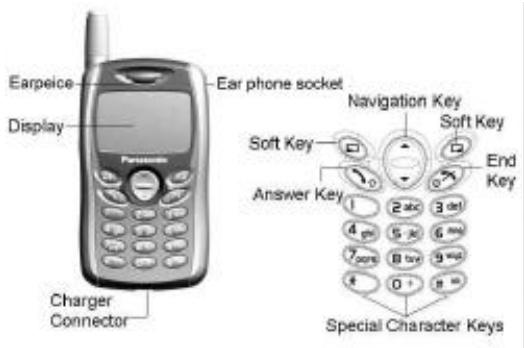

Navigation Key: moving up and down through the options in the display area. In idle mode, pressing to enter Own Menu. Own Menu is a shortcut to access your favourite menus. You can set it in the Personalise.

Perform the functions indicated by text shown on the LCD screen. In idle, long press right soft key to enter Messages, long press left soft key to enter Profile Mode List.

Numeric key pads. Long Press + to enter a “+” or “P”.

Make a call or answer a call. In idle mode, check the last dialled list.

To end a call, return to idle. Mode, return to previous page or reject an incoming call. Long press it to switch the phone on/off

In idle, long press to activate Browser.

In idle, long press to switch the Mute Mode on and off.
Display Icons
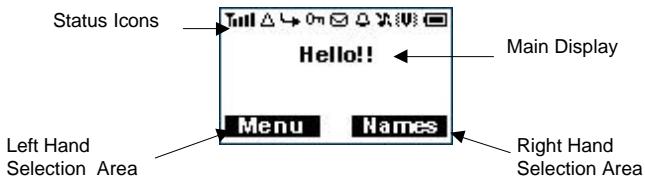
Status Icons
The status icons are displayed or animated according to the currently activated functions. The Antenna, Signal and Battery icons are displayed when the handset is switched on and connected to a network.
is displayed when you are registered to a non-home network – roaming. is displayed when call divert is enabled. is displayed when vibration alert is enabled. is displayed when all tones or ring volume is off. flashes when an unread message is stored or lights when message area is full. is displayed when Key Guard is enabled. T indicates that it is possible to make emergency calls. T. indicates the received signal strength. indicates the battery level: [...] - low battery. Indicates the alarm is set.
Getting Started
Removing the Battery
Remove the battery by moving the release-latch upward and remove the battery away.
Note: Before removing the battery, turn the phone off completely.
Fitting the SIM
The SIM is inserted into the back of the phone underneath the battery. Hold the phone in a horizontal position where the antenna is on your right hand side and slide the SIM into the slot, with the metal
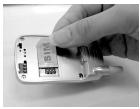
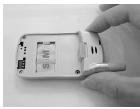
connectors facing down. Ensure that the bevelled corner is positioned in the top left corner. Please see pictures above.
Fitting the Battery
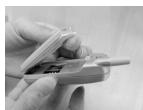
Locate the two lugs at the bottom of the battery into the back of the phone. Slightly push the battery and click into place. Please see the left picture.
Battery Level Indicator
| While charging | Charging complete | |
| Phone on |  | |
| Phone off | [WWKB] | LCD BatteryIndicator Off |
When charging is completed, disconnect the charger from the phone.
Note: It is recommended to charge for 4 hours before first use. Do not force the charger connector, to do so it may damage the charger and phone.
Low Battery Warning
When the battery power is low a warning tone will sound and a LOW BATTERY (☐) message will be displayed. If this occurs during conversation, finish your call immediately. The power will automatically shut off after the warning tone. Fully recharge the battery. (Calls can be made and received while the phone is charging).
Basic Operation
Thank you for purchasing this Panasonic digital cellular phone. This phone is designed to operate on the Global System for Mobile Communications (GSM).
Before operating this phone please read the "Important Information" section - see page i.
Switching the Phone On/Off
Be sure to insert the SIM card and battery beforehand. Long press Ⓞ to switch the phone on or off.
Making a Call
Ensure that the signal strength meter shows network coverage is available in the current area.
Enter the area code > phone number >
International Dialling
Idle + Hold Ⓞ+ until “+” is displayed > Enter a country code > area code > phone number
Note: Many countries / regions include an initial "0" in the area code. This should, in most cases, be omitted when dialling international numbers.
Answering a Call
to answer a call or to reject the call.
If a call is not answered, the number of incoming calls missed will be displayed.
Ending a Call
Press

Emergency Calls
To make an emergency call the antenna symbol must be present
Enter 112 📋 or if no SIM is fitted to the phone, press SOS to make an emergency call.
Initially Setting the Time/Date
You can set the time and date displayed on the idle screen.
Idle > Menu > Application > Clock > Clock Setting > Time &
From Idle mode, press ☐ Menu and use ☑ to navigate to Application, press ☐ Select and use ☐ again to highlight Clock. Press ☐ Select and use cursor to highlight Clock Setting, press ☐ Select and use ☐ to select Time & Date. Press ☐ and Set to the editing screen and use 🔒 to move cursor to modify. You can choose the date and time format. Enter the digits for the date and time in the format you like. Enter the digits for the time using 24-hour clock. Press OK to return to the previous menu.
From Idle mode, press Menu and use the navigation keys to go to Applications, press Select, then use the navigation keys again to highlight Clock. Press Select, use the cursor to highlight Clock Setting, press Select, and then use the navigation keys to select Time & Date. Press Select and
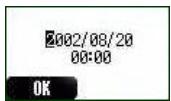
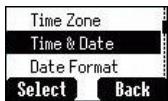
Set to the editing screen and use 🔒 to move the cursor to modify. You can choose the date and time format. Enter the digits for the date and time in
the format you like. Enter the digits for the time using a 24-hour clock. Press OK to return to the previous menu.
Earpiece Volume Control
You can access the phonebook to browse or dial numbers.
SIM Lock
Once you set this function with your SIM card in it, this phone can only recognise your SIM. When another SIM card is inserted, the phone's PIN needs to be entered.
During a call, use ⏻ to decrease or increase the volume.
SIM Lock
Once you set this function with your SIM card in it, this phone can only recognize your SIM. When another SIM card is inserted, the phone's PIN needs to be entered.
Idle > Menu > Phone Menu > Security > SIM Lock > Enter 4–8 digit phone code > OK > Set (select On or Off) > OK.
To set SIM Lock, set "Phone Code" in the Phone Lock menu.
Using the PIN (4 to 8 digits)
The PIN (Personal Identification Number) protects your SIM against unauthorized use. If you enable the PIN, every time the phone is turned on you will be prompted to enter the PIN.
The PIN2 controls security for the Fixed Dial and Call Charge metering. If either PIN/PIN2 is entered incorrectly 3 times the phone will be locked and then you will need to enter the PUK/PUK2 code. Contact your service provider for the PUK/PUK2 code.
Note: If the PUK/PUK2 code is entered incorrectly 10 times, the SIM will cease to operate permanently. All information in the SIM will be lost and the SIM will need to be replaced. Contact your service provider for more details.
Enabling/Disabling the PIN
Once you enable the PIN, you have to enter the PIN whenever you switch the phone on.
Idle > Menu > Phone Menu > Security > Codes > PIN Control > Enter PIN (Between 4 and 8 digits) > OK > Set (Select On or Off) > OK
Setting Alert Type
When required, the phone can be set up to vibrate or ring when a call is received. Idle > Menu > Personalise > Alert Type Choose one type from None, Ring & Vibration, Vibration only or Ring only.
Key Guard
This function will prevent you from pressing the keypad accidentally, such as in your pocket or purse.
Idle > Menu > Key Guard > Yes
After that, there will be a 0 shown on the idle display.
Disable the Key Guard: Idle > Free > OK
Phonebook
It is possible to store phone numbers in two locations:
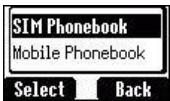
One is in the SIM Phonebook. The other one is in the Mobile Phonebook, which means that if you change the SIM, the numbers in the phone will not be lost.
The Mobile Phonebook has the advantage that you can group your phonebook entries. For details please see Creating a Number below.
Browsing Phonebook
You can browse SIM Phonebook and Mobile Phonebook.
1 Idle > Menu > Phonebook > Browse > SIM Phonebook or Mobile Phonebook 2 Search the name you wish to browse. If you browse SIM Phonebook, press Menu, then Edit, Delete, Copy to Mobile, Copy All to Mobile, Search will be shown. Also if you browse Mobile Phonebook, Copy to SIM, Search will be displayed.
Creating a Number
1 In Idle enter the numbers you would like to save and press Save
2 There is another operation to create a number. Press Idle > Menu > Phonebook > Create > SIM Phonebook or Mobile Phonebook
Choosing SIM Phonebook
1 Enter the Name --- see "Text Input" on page 16. Press downward to the next screen. 2 Enter Phone numbers with numerical keys. Then press downward to the next screen.
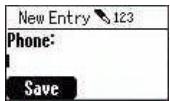
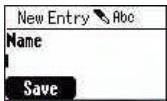
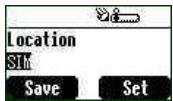
3 Select Location. You can choose a storing location in SIM or FDN by pressing Set. Press down arrow key ⏻ to the next screen. 4 Select Record No. You can choose a location record number by pressing Set.
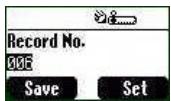
Press Save.
Choosing Mobile Phonebook
1 Enter the Name --- see "Text Input" on page 16. Press the down arrow key to go to the next screen. 2 Enter the Phone number using the numerical keys. Press the down arrow key to go to the next screen. 3 Select a Group. You can locate phonebook members in different groups, such as Friends, Family, etc., by pressing Set.
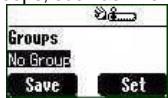
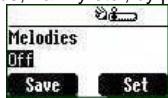
4 Select Melodies. You can define a specific melody for each person. 5 Press Save.
Grouping Phonebook Entries
The ability to group phonebook entries together such as: Friends, Colleagues, Family, Others, VIP or No Group, etc. You can define a specific melody for each group. In this case, when a member calls, you can tell which group the call is coming from.
Reviewing the Numbers from Groups
You can only review and delete group members in this submenu. Members cannot be grouped here.
1 Idle > Menu > Phonebook > Group Setting
2 Use the down arrow key to select a group. 3 View the group's members or delete the group members.
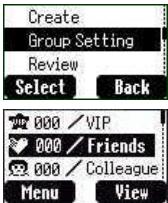
If you haven't grouped your phonebook, you will see List Empty.
Reviewing the Phonebook
The Review function in the phonebook menu shows how many locations are available in the Phonebook.
From Idle > Menu > Phonebook > Review, a summary of the Phonebook will be displayed.
Hot Key Dial Numbers
It is a quick access to dial phone numbers from the SIM Phonebook. Long press any digit key from 1 to 9 to recall the first 9 numbers stored in the corresponding SIM location. To activate the Hot Key Dial, you need to switch on this function.
Idle > Menu > Phonebook > Hot Key Dial > On/Off
My Numbers
My Numbers is a convenient part of Phonebook where voice, fax, and data phone numbers can be stored and viewed. This feature is SIM dependent.
Adding Numbers
Idle > Menu > Phonebook > My Numbers > Menu > Edit > enter Phone Number > Save
Personalising Your Phone
Language
It is possible to change the language that the phone uses for both display messages and text entry.
Idle > Menu > Personalise > Language > ⏻ (select a preferred language)
Changing the Ring Tones
The ring tones and volumes of the phone can be changed to one of many pre-defined sounds. Alternatively, you can use the Melody Composer to generate a custom ring tone.
Idle > Menu > Personalise > Tones > Ring Type > ⏻ (select a preferred category) > ⏻ (select a preferred sound)
Composing a Melody
Idle > Menu > Personalise > Tones > Melody Composer > ⏻ (select My Music) > Melody Edit > ⏻ (select track)
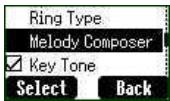
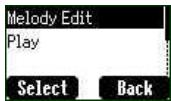
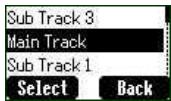
Using the following table as a reference, enter the notes (from the choice of low, middle, and high), rests, and the duration of each, to generate your composition.
| Key | 1 | 2 abc | 3 def | 4 ghi | 5 jkl | 6 mng | 7 pqrs | 8 tuy | 9 wug | 0 + | * | # ss |
| Func. | C | D | E | F | G | A | B | Rep. | Rest | Duration | Low, Middle, High |
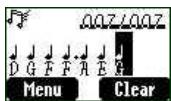
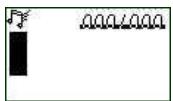
If you want to attach the sub tracks, remember to save your earlier main track first and then press return to the previous menu, then press to select Sub Track and start another edit. When you finish the sub tracks edit, press Menu and Save. Press twice to return to previous menus, and select Play to listen to your melody.
After composing the melody, press Menu and you can choose a Tempo and instruments.
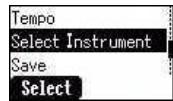
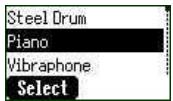
When the composition is complete

to save it
Display Setting
You can set Idle Screen, Greeting, Animation, Contrast and Back Light.
Greeting
A personalised greeting can be programmed for when the phone is switching on.
Idle > Menu > Personalise > Display Setting > Greeting > Edit
Use the text entry to add a greeting- see "Text Input" page 16.
Profile Mode
In the Profile Mode, you can choose and customise an appropriate mode from Headset, Normal, Meeting, Noisy
Idle > Menu > Personalise > Profile Mode > Ⓞ (select a mode) > Activate > OK
User Messages
There are 10 pre-set common used messages for you to choose and there are 5 empty entries for you to edit. Press Select and all these messages can be edited.
Idle > Menu > Personalise > User Messages > select a preferred entry
Defaults
Any personal settings can be returned to their factory default settings.
Idle > Menu > Personalise > Defaults > Select > Yes
Own Menu
A shortcut access that allows you to tick on/off the following options: Browser, Game, Phonebook, Language, Alert Type, Tones, Idle Screen, Profile Mode, Alarm, Calculator, Schedule, Received List, Send Message, Clock Setting and Currency. Once these options are selected, you can enter to the Own Menu selection from Idle by pressing ⏻.
Menu selection from Idle by pressing ⏻.
My Phonebook
Through this option, you can browse the phonebook name list.
Idle > Menu > Personalise > My Phonebook > SIM/ Mobile
However, you can choose Mobile Phonebook or SIM Phonebook in this menu. From Idle, press Names and you can browse the selected phonebook.
Game (STK)
If your SIM card provides SIM Tool Kit services, this menu will become the STK gateway. You can still access games from Application.
Idle > Menu > Game or Idle > Menu > Application > Game
When you see the mouse, press Numerical key from 1 to 9 to hit the mouse with the highest speed. Keep in mind that the Cat is not your target. Example: if you press 5, you will hit the thing hidden in the 5th hole. This game will end automatically within a limited period of time. After ending, you will get a score. This score might be the highest one in the record. Good luck!
Text Messages
It is possible to receive, display, edit and/or send text messages up to 760 characters (depending on characters or symbols).
Setting the Phone for Short Text Messages
Before a text can be sent, it is necessary to enter the Message centre number into Parameters (the Service Provider will supply the Message Centre number).
The Message Centre number may have been pre-programmed on the SIM.
Setting the Message Centre Number
Idle > Menu > Messages > Parameters > Message Centre Enter message centre number in international dial form – see "International Dialling" page 5.
Creating a Text Message
Idle > Menu > Messages > Create. Press numeric key ① - ② + repeatedly (if required) to enter and select characters, numbers or special symbols. ③ to switch "Input Mode". Press # × × to turn T9 on/off.
EMS (Enhanced Message Service)
While editing the message, press Menu > Picture & Sound can insert/add pictures or sound into the message. However, this service works only if the
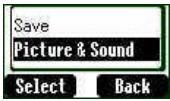
receiver's mobile phone supports this function.
Use 🔒 to choose the pictures you want to send and press 📄. Or press 🔒 to select music. Please note that one message can only transmit 10 sounds.
When the message is edited, press Menu to Send, Save or Save and Send.
After selecting Send, enter the destination phone number or press Names to navigate. Then press OK to send.
Text Mode (abc, ABC and Numeric) 1 / ( ) < = > % ~ & 2 abc a b c 2 ä à ç or A B C 2 Ä 3 def d e f 3 é è or D E F 3 É 4 ghi g h i 4 i or G H I 4 5 jkl j k l 5 or J K L 5 6 m n o 6 ö ñ ò or M N O 6 Ö Ñ 7 p q r s 7 β or P Q R S 7 8 tu v 8 ü ù or T U V 8 Ü 9 w u z w x y z 9 æ Ø å or W X Y Z 9 Æ Ø Å 10 + Space 0 . , ? ! + - : ¿ i ” ; _ * Γ Δ Θ Λ Ξ Π Σ Φ Ψ Ω
Long press: space # £ $ ¥ ☀ @ \ § Short press to turn T9 on or off.
Switch Input Modes
T9® Text Input
Using this mode of text entry dramatically reduces the number of key presses required:
Press a key once for any letter you require on that key. The desired letter may not be displayed. Continue pressing other keys until the end of a word is reached; then check that the word has been typed correctly before continuing on to the next word.
If the combination of letters typed has produced a word, which is not the one
you require, press repeatedly until the correct word is displayed. Continue to the next word. If the word you require is not in the internal dictionary (i.e. It is a proper noun or a rarely used word) then it should be entered using the Normal (ABC) mode.
Other Text Modes
To access any of the other text entry modes use 📋 to switch through until the desired mode.
When using Capital letter mode (ABC), number mode (123), etc., each time a key is pressed in quick succession it will display the next character available on that key. Releasing the key, or pressing another key will enter the currently displayed character and the cursor will move to the next position.
Editing Text
Long press ⏻ will move cursor up or down one text line (or field in Phonebook). Pressing ⏻ will move left or right one character. When the cursor is moved over a character and another key pressed this will insert the new character immediately before the selected character.
Pressing Clear will delete the character to the left of the cursor.
Receiving Text Messages
When a Short Text Message is received, the message icon 📧 will flash on the display, with an audible tone.
Idle > Menu > Messages > Received List > Read to read the message.
Use ⏻ to navigate through the messages and to identify the sender and the time the message was sent.
Note: If the message indicator is displayed, this means that the message area is full and you need to delete old messages in order to receive new messages.
Reply, Forward, Edit and Delete a Message
When a message is received, follow the prompts to create a reply and edit new message or forward, delete the message.
User Messages
Default messages can be chosen by you. To create or edit, please see "User Message" on Personalise page 10. Use 🔊 to select.
Idle > Menu > Messages > User Messages > select a preferred entry.
Review
Review allows you to check usage of the message area.
Idle > Menu > Messages > Review
Parameters
Idle > Menu > Messages > Parameters
The following parameters can be set:
Message Centre
Enter or change the Message Centre's number. Normally the number may be stored on the SIM by your service provider.
Protocol
The Message Centre may be able to convert the message to the format specified by the selected protocol.
Lifetime
This is the duration that your message is stored at the Message Centre. Delivery attempts will be repeated until the message has been delivered or lifetime setting is expired.
Report
When your message has been delivered, a confirmation will be received.
Broadcast
You need to specify the ‘topic(s)’ of information and the language that you wish to receive as broadcasts and tick the “Broadcast” on before you can receive them.
Idle > Menu > Messages > Broadcast > Topic List > Current ⏻ to cycle through the available topics. To add new topics, select and select a preferred topic, or select User Defined to create a new topic.
Note: This function is Network dependent.
Key Guard
The Key Guard function is used to prevent any keys from being accidentally pressed e.g. when the phone is being carried.
Idle > Menu > Key Guard > Select > Yes to enable “Key Guard” Emergency calls can still be made - see “Emergency Calls” page 6. Press 112 and
Note: When making emergency calls with the “Key Guard” enabled, there will be no visual indication that the number is being dialled
Disabling Key Guard
When Free is displayed, press Free > OK.
Browser
The phone's WAP (Wireless Application Protocol) Browser enables you to access Internet services supported by the network, such as news, weather reports, sports, etc.
Browser Setting
Before Internet services can be accessed, you need to subscribe to your network operator or Internet Service Provider (ISP) to enable the relevant configuration information. Please contact your network service provider to confirm your network settings.
Note: Modifying previously entered settings can cause failure of the Browser.
Idle > Menu > Browser > Server Setting
There are two servers pre-set in the phone; use ⏻ to select one setting. Otherwise, you have to enter the essential data to set your browser (server name, dial number, call type, login name, password, IP address, IP port, homepage, and linger time) manually at the first time.
Note: Contact your network service provider for these configuration parameters.
When completing the entry, use ⏻ to choose one of the settings then Activate.
The first time that the browser is activated there will be no content stored so the Home URL content will be displayed (as defined by the network operator). The Home URL will be recalled from the cache, each time the browser is activated. (Cache is the phone's memory that stores content downloaded in the past).
Browser Menu
Starting Browser
Once you have set and activated the browser setting, you can start browsing the Home page of network operator.
The Browser also contains its own menu which is applicable when content is currently being displayed (either on-line or off line). To access the Browser Menu, select the browser icon in the top left of the screen. This menu has following options: Back, Home, Go to URL, Mark Site, Book Marks, Inbox, Reload, Settings, About.
Bookmarks
Idle > Menu > Browser > Bookmarks
In this menu, there are 10 empty places for you to enter your favourite website URL's. You can also Edit, Erase, Launch the website.
Phone Menu
Call Service
Time/ Charges
Idle > Menu > Phone Menu > Call Service > Time/Charges Use ⏻ to select one of the functions: Last Call, All Voice Calls, Cost Left
Last Call function will display the duration and call charge, if available, of the last call. Times are indicated as: minutes (0-59) and seconds (0-59).
All Voice Calls function displays the accumulated duration and call charge, including incoming and outgoing calls.
Cost Left function will show the remaining units that you have set beforehand. (Please refer to Setting the Max Cost below)
Call Waiting
Once you activate this function, you can receive a second call while talking.
Idle > Menu > Phone Menu > Call Service > Call Waiting
Call Identification
In the Call Service menu, the Caller's ID and Withhold ID functions allow you to see the status of whether a Caller's Identification is seen.
Idle > Menu > Phone Menu > Call Service > Withhold ID or Caller's ID
Note: When checking the status, the phone must be registered with a network.
Charge Settings
Firstly, a price per unit must be entered. This is the cost that the Service Provider charges for one unit of call time.
Idle > Menu > Phone Menu > Call Service > Charge Settings
Edit the values. At this point you will be asked to enter your PIN2. Enter a currency unit.
Setting the Maximum Cost
This function allows you to pre-determine the maximum cost of calls made. Idle > Menu > Phone Menu > Call Service > Charge Settings > Max Cost. Enter the maximum unit you want to set. At this point you will be asked to enter your PIN2.
Enter a value (number of units) which is to be the maximum permitted, and the corresponding cost will be displayed.
Note: The duration of one unit may vary during the day, peak and off-peak times. Therefore, the call charge can be calculated accordingly. However, call charge information may not give an accurate reflection of the tariffs charged by your Service Provider.
Diverting Calls
Voice calls can be diverted in different circumstances and to different numbers. For example, you may wish voice calls to be diverted to voicemail box in the event that the phone is switched off.
Idle > Menu > Phone Menu > Call Divert
Use ⏻ to select the circumstances that you wish to activate call diverts. Then enter phone number to divert to.
When a divert situation is enabled the divert icon ( ) is displayed. When updating or checking the status of Call Divert the phone must be registered with a network.
Restricting Calls
Call Barring
The “Call Bar” function is used to restrict certain outgoing and/or incoming calls. “Call Bar” is controlled by a security password that is supplied by the Service Provider. When updating or checking the status of Call Bar the phone must be registered with a network. Different Call Bar restrictions can be used for voice call. Any combination of call restrictions can be set.
Idle > Menu > Phone Menu > Security > Call Bar
Use ⏻ to select the circumstances you need, then enter call bar password
Network
Network setting enables you to change the network parameters.
Auto Network
You can set "Auto Network" On or Off.
New Network
Once you set the “Auto Network” On: the phone will automatically search for an available network. If you set it Off, you can select a network manually.
Network List
You can create and edit a network list according to your preferences.
Band Select
You can choose a network band: 900/1800, 900/1900, 900, 1800, 1900MHz.
Application
Game
Idle > Menu > Application > Game
Please refer to Page 14.
Schedule
The Schedule can be used to register reminders for personal events as well as planning holiday periods.
Idle > Menu > Application > Schedule. The Schedule can be presented as a weekly or monthly format. Use numerical keys 2, 4, 6, 8 to select a day.
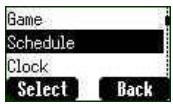
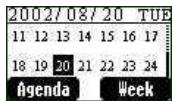
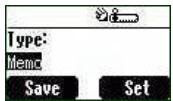
For the first time entry, highlight the date and press Agenda > Select > New entry. Choose a Type from Memo, Meeting.
Then press ⏻ downward to add a Description.
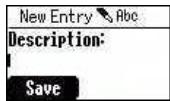
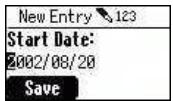
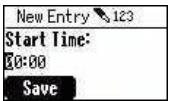
Enter Start/End Date and Time then press Save.
Clock
This phone incorporates a clock with date/time, an alarm and a power off feature.
Clock Setting
Idle > Menu > Application > Clock > Clock Setting > Time & Date
Press Select to set time and date. In the "Clock Setting" menu, you can choose to display the time in the idle mode.
Idle > Menu > Application > Clock > Clock Setting > Display Time > On/Off
Setting the Alarm
Idle > Menu > Application > Clock > Alarm
Press Set to set Time and choose a repeat format. Enter the digits with 24 hour clock. Press 📋 to exit. When the set time is reached, the alarm will sound. If the alarm is due during a call, the phone will vibrate and an 'alarm' indicator will display.
Caution: Ensure that the setting of the Alarm will not contravene any regulations whereby it may automatically power on when in an aircraft or medical facility etc. - see “Important Information” page i.
Setting a Power Off Time
The phone can be set to turn itself off automatically at a specified time using the Power Off feature. The procedure for setting/adjusting the Power Off automatically is similar to setting the Alarm.
Calculator
There are four arithmetic functions enabling you to perform simple calculations (addition/subtraction/multiplication and division).
Idle > Menu > Application > Calculator. Enter a number (maximum 7 digits) and it will be displayed on the upper right of the display. If a decimal point is required press # , if a minus sign is needed press *
Use ⏻ to select the arithmetic operation you need.
Enter a number (maximum 7 digits) and press ☐ (=) then the result will be displayed.
If is used to select another arithmetical operation, an intermediate calculation will be performed and the result displayed.
Currency
The currency convertor enables you to convert from/to a home currency using a conversion rate that you enter.
Idle > Menu > Application > Currency
Rate Setting
Enter an exchange rate in the space where the pencil is. Press OK and Save. If a decimal point is required press ###.
Rate Computing
Since you have saved the exchange rate, enter the numbers you want to convert and press Convert.
Records
Last Dialled Numbers and Redial
Recently dialled phone numbers will be stored in Last Dialled.
If Caller Identification is known, caller's phone number, for an answered call will be stored in the Answered menu and an unanswered call will be stored in the Unanswered menu.
When the store is full the next phone number will overwrite the oldest.
Idle > Menu > Records to view the Last Dialled, Unanswered, Answered.
Use 🔒 to target the phone number (or name) you wish to redial and press 🔒. Or in idle, press 🔒 to view the last dialled numbers directly. You can modify, save or delete the phone number before dialling.
Erase Records
Idle > Menu > Records > Erase Records You can Erase All, Erase Last Dialled, Erase Answered, Erase Unanswered.
In Call Menu
During a call, there are several advanced functions; however, some of the in-call options are provided by the network service provider.
Holding Calls
Holding a Call
During a call, the display will show Menu and Hold.
1 Press Hold. 2 "Call Held" displayed. 3 Press to return the call.
Call Waiting
During a call, if a second call is incoming, the display will show Reject and Swap.
1 Press Swap. Hold the first call. Talk to the second person. 2 "Call Held" displayed. 3 Press to select Swap to retrieve the call.
Hands Free
During a call, press ☐ Menu > Hands Free. Then Hands Free will be activated. In this case, you can speak to the phone without holding it.
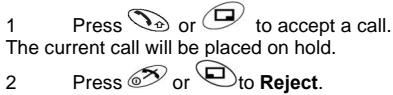
Accepting/Rejecting a Second Call
A second call can be received if "Call Waiting" is switched on. This is enabled from Idle > Menu > Phone Menu > Call Service > Call Waiting.
During a call:
Conference
A conference call enables four calls to be in conversation at the same time. During a call, press Menu > Conference
Call Transfer
When two calls are in use:
During calls, press Menu and use ⏻ to select Call Transfer. The two calls will be connected to each other and your call will be ended.
Note: Call-transfer cannot be used while in Conference mode.
Menu Structure
1 Personalise
Language
Tones
Ring Volume
Ring Type
Melody Composer
Key Tone
Warning Tone
Display Setting
Idle Screen
Greeting
Animation
Contrast
Backlight
Alert Type
Ring Only
None
Ring & Vibration
Vibration Only
Profile Mode
User Messages
Auto Answer
Any Key Answer
Defaults
Own Menu
My Phonebook
T9 Input
2 Game (STK)
3 Phonebook
Browse
Create
Group Setting
Review
My Numbers
Hot Key Dial
My Phonebook
4 Browser
Start Browser
Bookmarks
Server Setting
5 Key Guard
6 Messages
Received List
Send List
Create
User Messages
Review
Parameters
Broadcast
7 Phone Menu
Call Service
Time/Charges
Call Waiting
Withhold ID
Caller's ID
Charge Settings
Call Divert
All Voice Calls
Not Reachable
No Reply
Busy
Status Check
Cancel All
Security
Call Bar
Codes
Fixed Dial
SIM Lock
Network
Auto Network
New Network
Network List
Band Select
8 Application
Game
(STK)
Schedule
Clock
Clock Setting
Alarm
Power Off Time
Calculator
Currency
9 Records
Last Dialled
Answered
Unanswered
Erase Records
Trouble Shooting
| Problem | Cause | Remedy |
| Phone will not switch on | Check that the battery is fully charged and correctly connected to the phone | |
| Extremely short battery life for a new battery | The network you are using and the condition of the battery can affect battery life | |
| Short battery life for an old battery | The battery has worn out | Replace with a new fully charged battery |
| The charging indicator does not light, the battery level indicator does not appear and the phone cannot be switched on when charging | The battery is not attached to the phone or when the battery has been deeply discharged the phone will take a short time until the indicator lights | Leave the phone charging the battery for a few minutes before the indicator is lit and attempting to switch it on |
| Battery fails to charge | The battery is not attached to the phone | Ensure the battery is fitted to the phone prior to commencing charging. Ensure the battery is fitted to the phone prior to commencing charging. |
| Battery has been connected to the phone after AC adapter has been switch on | ||
| Calls cannot be made | The phone is locked | Unlock the phone |
| Outgoing calls are barred | Disable the outgoing call barring, or barred dial | |
| The phone is not registered to a network | Move to a coverage area and operate your phone after it has registered with a network. | |
| Calls cannot be made from Fixed dial Store | Check your SIM supports Fixed DialCheck if the Fixed Dial is switched onCheck the phone number is stored in the Fixed DialSwitch the phone on | |
| Calls cannot be received | The phone is not switched on | Switch the phone on. |
| Incoming calls are barred | Disable the incoming call barring. | |
| The phone is not registered to a network | Move to a coverage area and operate your phone after it has registered with a network. | |
| Emergency calls cannot be made | You are not in a GSM coverage area | Check that the antenna symbol is display- move to a coverage area and operate your phone when antenna symbol is displayed |
| Phone numbers cannot be recalled from phonebook | The phone is locked | Unlock the phone |
| Phone number has been restricted | Switch off restriction |
WAP Settings
Use the table below to record your WAP settings.
| Item | Current Setting |
| Server Name | |
| Dial Number | |
| Call Type | |
| Login Name | |
| Password | |
| IP Address | |
| IP Port | |
| Homepage URL | |
| Linger Time |
Specifications
Phone (Including Battery)*
| Type | GSM 900 Class 4GSM1800 Class 1GSM1900 Class 1 |
| Temperature Range | +5°C - +35°C |
| Charging | -20°C - +60°C |
| Storage | |
| WAP | WAP 1.2.1 |
| Weight | Max 65 g |
| Dimensions | |
| Height x Width x Depth | 77 x 43 x 16.9mm (excluding antenna) |
| Supply Voltage | 720 mAh Li-ion |
| Standby Time | 78.3 Hrs ~ 230 Hrs |
| Talk Time | 1.6 Hrs ~ 7.9 Hrs |
| Charging Time (Phone off) | Less than 120 mins (Travel Charger) |
| Antenna | External Stub Antenna |
| SIM Type | 3V Plug-in only SIM |
Note: Charge time will be longer when the phone is turned on. Battery life is affected by the network being used, SIM card usage, and the condition of the battery.
Notes
C€0682
© Matsushita Mobile Communications Co., Ltd. 2003
Information in this document is subject to change without notice. No part of these instructions may be reproduced or transmitted in any form or by any means without obtaining express permission from Matsushita Mobile Communications Co., Ltd.
Printed in Czech Republic www.panasonicmobile.co.uk
Matsushita Communication Industrial Czech s.r.o. Pardubice, Czech Republic





- OPERATING INSTRUCTIONS DIGITAL CELLULAR PHONE
- SAR STATEMENT
- EUROPEAN UNION - RTTE
- CONTENTS
- IMPORTANT INFORMATION
- SAFETY CONSIDERATIONS
- CARE AND MAINTENANCE
- QUICK REFERENCE
- LOCATION OF CONTROLS
- DISPLAY ICONS
- STATUS ICONS
- GETTING STARTED
- REMOVING THE BATTERY
- FITTING THE SIM
- FITTING THE BATTERY
- LOW BATTERY WARNING
- BASIC OPERATION
- SWITCHING THE PHONE ON/OFF
- MAKING A CALL
- INTERNATIONAL DIALLING
- ANSWERING A CALL
- ENDING A CALL
- EMERGENCY CALLS
- INITIALLY SETTING THE TIME/DATE
- EARPIECE VOLUME CONTROL
- ONCE YOU SET THIS FUNCTION WITH YOUR SIM CARD IN IT, THIS PHONE CAN ONLY RECOGNISE YOUR SIM. WHEN ANOTHER SIM CARD IS INSERTED, THE PHONE'S PIN NEEDS TO BE ENTERED
- SIM LOCK
- USING THE PIN (4 TO 8 DIGITS)
- ENABLING/DISABLING THE PIN
- SETTING ALERT TYPE
- KEY GUARD
- PHONEBOOK
- BROWSING PHONEBOOK
- CREATING A NUMBER
- CHOOSING SIM PHONEBOOK
- CHOOSING MOBILE PHONEBOOK
- GROUPING PHONEBOOK ENTRIES
- REVIEWING THE NUMBERS FROM GROUPS
- REVIEWING THE PHONEBOOK
- HOT KEY DIAL NUMBERS
- MY NUMBERS
- ADDING NUMBERS
- PERSONALISING YOUR PHONE
- LANGUAGE
- CHANGING THE RING TONES
- COMPOSING A MELODY
- DISPLAY SETTING
- GREETING
- PROFILE MODE
- USER MESSAGES
- DEFAULTS
- OWN MENU
- MY PHONEBOOK
- GAME (STK)
- TEXT MESSAGES
- SETTING THE PHONE FOR SHORT TEXT MESSAGES
- SETTING THE MESSAGE CENTRE NUMBER
- CREATING A TEXT MESSAGE
- EMS (ENHANCED MESSAGE SERVICE)
- LONG PRESS: SPACE # £ $ ¥ ☀ @ \ § SHORT PRESS TO TURN T9 ON OR OFF
- T9® TEXT INPUT
- OTHER TEXT MODES
- EDITING TEXT
- RECEIVING TEXT MESSAGES
- REPLY, FORWARD, EDIT AND DELETE A MESSAGE
- REVIEW
- PARAMETERS
- MESSAGE CENTRE
- PROTOCOL
- LIFETIME
- REPORT
- BROADCAST
- DISABLING KEY GUARD
- BROWSER
- BROWSER SETTING
- IDLE > MENU > BROWSER > SERVER SETTING
- BROWSER MENU
- STARTING BROWSER
- BOOKMARKS
- PHONE MENU
- CALL SERVICE
- TIME/ CHARGES
- CALL WAITING
- CALL IDENTIFICATION
- CHARGE SETTINGS
- SETTING THE MAXIMUM COST
- DIVERTING CALLS
- RESTRICTING CALLS
- CALL BARRING
- NETWORK
- AUTO NETWORK
- NEW NETWORK
- NETWORK LIST
- BAND SELECT
- APPLICATION
- GAME
- SCHEDULE
- CLOCK
- CLOCK SETTING
- SETTING THE ALARM
- SETTING A POWER OFF TIME
- CALCULATOR
- CURRENCY
- RATE SETTING
- RATE COMPUTING
- RECORDS
- LAST DIALLED NUMBERS AND REDIAL
- ERASE RECORDS
- IN CALL MENU
- HOLDING CALLS
- HOLDING A CALL
- HANDS FREE
- ACCEPTING/REJECTING A SECOND CALL
- CONFERENCE
- CALL TRANSFER
- MENU STRUCTURE
- PERSONALISE
- WAP SETTINGS
- SPECIFICATIONS
- NOTES
- C€
Brand : PANASONIC
Model : MINI GD55
Category : Mobile Phone