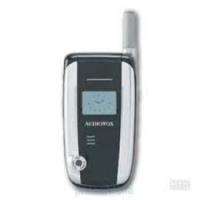
CDM-8900 - Téléphone mobile AUDIOVOX - Notice d'utilisation et mode d'emploi gratuit
Retrouvez gratuitement la notice de l'appareil CDM-8900 AUDIOVOX au format PDF.


| Type de produit | Téléphone mobile |
| Marque | AUDIOVOX |
| Modèle | CDM-8900 |
| Dimensions (L x l x h) | 90,4 x 46,2 x 23,4 mm |
| Poids | 110,3 g |
| Technologie réseau | CDMA2000 1X (tri-mode : CDMA PCS, CDMA Cellular, AMPS) |
| Écran principal | 65 000 couleurs TFT |
| Appareil photo | VGA (640x480 pixels), 33 images/s |
| Batterie standard | Lithium-ion 1000 mAh |
| Autonomie en communication (standard) | Jusqu'à 200 min (PCS), 190 min (DCS), 80 min (AMPS) |
| Autonomie en veille (standard) | Jusqu'à 140 h (CDMA), 20 h (AMPS) |
| Fonctions principales | Répertoire 300 contacts, messagerie SMS/MMS, navigation Web, reconnaissance vocale, haut-parleur, appareil photo, agenda, calculatrice, chronomètre |
| Entretien et nettoyage | Utiliser un chiffon doux et sec ; éviter l'humidité et les températures extrêmes |
| Sécurité | Conforme aux normes FCC ; DAS maximal de 1,6 W/kg |
| Pièces détachées et réparabilité | Batterie et chargeur remplaçables ; réparations par centre agréé Audiovox |
| Informations générales | Garantie limitée de 12 mois ; assistance téléphonique : 800-229-1235 (États-Unis) |
FOIRE AUX QUESTIONS - CDM-8900 AUDIOVOX
Questions des utilisateurs sur CDM-8900 AUDIOVOX
0 question sur cet appareil. Repondez a celles que vous connaissez ou posez la votre.
Poser une nouvelle question sur cet appareil
Téléchargez la notice de votre Téléphone mobile au format PDF gratuitement ! Retrouvez votre notice CDM-8900 - AUDIOVOX et reprennez votre appareil électronique en main. Sur cette page sont publiés tous les documents nécessaires à l'utilisation de votre appareil CDM-8900 de la marque AUDIOVOX.
MODE D'EMPLOI CDM-8900 AUDIOVOX
WELCOME
Thank you for choosing the up-to-date CDM-8900, our new model, developed by top researchers to support the CDMA2000 1X system through Qualcomm-manufactured MSM6050 chips and CDMA technologies. This product allows for high speed communication services, such as web browsing, data & fax services, and a GUI animation menu. Among its many advanced features, the T9 input mode makes it much easier to enter letters. In addition, the VR (Voice Recognition) makes it more user friendly, with proven technologies including:
Full graphic display of 9 text input line and 1 icon line with variable font size.
Easy to dial through the VR feature.
Easy to enter letters through the T9 text input mode.
■ Enhanced for web browsing & data services (i.e.; wireless internet access, wireless fax send/receive, Openwave, UP browser)
GUI & Animation display compliant with CDMA2000 1X.
Full graphic main display - 65K color TFT.
Mobile Camera.(VGA 33Frames)
Navigation key and 25 keys aligned for more convenience.
Sophisticated features of speaker phone, and voice recognition.
Additional services of text messaging and Web browsing on top of authentication, call forwarding, call transfer, call waiting.
IMPORTANT INFORMATION
This CDM-8900 user guide contains very important information about how to handle and use the product. So please read this manual thoroughly, pay attention to the warranty on the back page and be alert to the exclusions and limitations of your warranty, which are related with the unauthorized use of components.
TABLE OF CONTENTS
| CHAPTER 1. BEFORE USING YOUR PHONE | 5 |
| INSIDE THE PACKAGE | 6 |
| HANDSET DESCRIPTION | 7 |
| THE FUNCTION KEYS | 8 |
| DISPLAY INDICATORS | 9 |
| BATTERY USAGE | 10 |
| BATTERY INSTALLATION | 10 |
| BATTERY REMOVAL | 10 |
| BATTERY CHARGING | 11 |
| POWER CONNECTION | 11 |
| BATTERY TALK TIMES | 11 |
| BATTERY STANDBY TIMES | 11 |
| BATTERY HANDLING INFORMATION | 12 |
| DOs. | 12 |
| DON'Ts. | 12 |
| CHAPTER 2. BASIC OPERATION | 13 |
| TURNING THE PHONE ON / OFF | 14 |
| TURNING THE PHONE ON | 14 |
| TURNING THE PHONE OFF | 14 |
| ACCESSING THE MENU | 15 |
| MENU SUMMARY | 16 |
| BASIC FUNCTIONS | 19 |
| MAKING A CALL | 19 |
| SPEAKER PHONE | 20 |
| PAUSE FEATURE | 20 |
| ANSWERING A CALL | 21 |
| CALLER ID FUNCTION | 21 |
| CALL WAITING FUNCTION | 21 |
| ADJUSTING VOLUME | 22 |
| ETIQUETTE | 22 |
| LOCK | 22 |
| DURING A CALL | 23 |
| MESSAGE | 23 |
| MUTE (UNMUTE) | 23 |
| SCRATCHPAD | 23 |
| SEND MY PHONE # | 23 |
| MY PHONE NUMBER | 24 |
| VOICE PRIVACY | 24 |
| LOCATION | 24 |
| PHONE INFO | 24 |
| MAKING AN EMERGENCY CALL | 25 |
| 911 IN LOCK MODE | 25 |
| 911 USING ANY AVAILABLE SYSTEM | 25 |
| CHAPTER 3. MEMORY FUNCTION | 27 |
| STORING A PHONE NUMBER | 28 |
| ENTERING LETTERS, NUMBERS & SYMBOLS | 29 |
| STANDARD INPUT MODE | 30 |
| T9 INPUT MODE | 31 |
| NUMERIC MODE | 32 |
| SYMBOL MODE | 32 |
| MAKING A CALL THROUGH THE PHONE BOOK | 33 |
| SPEED DIALING | 33 |
| CHAPTER 4. MENU FUNCTION | 35 |
| PHONE BOOK | 36 |
| FIND | 36 |
| BY NAME | 36 |
| BY NUMBER | 37 |
| ADD NEW | 38 |
| GROUP | 38 |
| ADD NEW GROUP | 38 |
| CHANGE GROUP NAME | 39 |
| ERASE GROUP | 39 |
| SPEED DIAL | 40 |
TABLE OF CONTENTS
MSG.GROUP 40
ADD NEW MSG. GROUP
CHANGE MSG. GROUP NAME
SEND MSG. GROUP
ERASE GROUP
MYPHONE#
RECENT CALLS 43
ALL CALLS.
MISSED CALLS 44
RECEIVED CALLS 45
DIALED CALLS 46
CALL TIMES 47
LASTCALL 47
ALL CALLS. 47
HOME CALLS 47
ROAM CALLS 48
CUMULATIVE CALLS 48
@ METRO 49
START@METRO 49
DOWNSLOADING APPLICATIONS 49
DOWNSLOADING MELODIES/WALLPAPERS 50
APPLYING MELODIES/WALLPAPERS 50
CHECKING DATA FOLDER MEMORY 50
ERASING AN APPLICATION 51
MOBILE WEB 51
CONNECTWEB 51
MEDIA GALLERY 52
IMAGES 52
GRAPHICS 52
ANIMATIONS 52
PHOTOS 53
TONES 53
LETTING 54
SOUNDS 54
RINGER TYPE 54
VOLUME 55
ALERT 56
ROAM RINGER. 57
TONE LENGTH 57
ETIQUETTE 57
DISPLAY 58
MENUSTYLE 58
GRAPHICS 58
SUB SCREEN 59
GREETINGMESSAGE 59
CONTRAST 60
BACKLIGHT 60
DATA SVC. 61
CONNECTION 61
SECURITY 62
PHONE LOCK 62
RESTRICT 62
CHANGE CODE 65
SPECIAL #'S 65
ERASE ALL 66
RESETPHONE 66
OTHERS 67
ANSWER OPTIONS 67
AUTO RETRY 68
LANGUAGE 69
VOICE PRIVACY 69
TTY MODE 70
LOCATION 70
SYSTEMS 71
SET MODE 71
NAM SETTING 71
PRL ID. 72
TABLE OF CONTENTS
PHONE INFO. 73
S/W VERSION 73
HW VERSION 73
@ METRO VERSION 73
MY METRO 74
MONTHLY BILL 74
METROCONNECT 74
METROPCS CARD. 75
76
EVENT 76
ADD PLAN 76
VIEW EVENT LIST. 76
ALARM. 77
MEMO PAD. 78
ADD MEMO 78
VIEW MEMO 78
78
CALCULATOR 79
WORLD CLOCK 79
STOPWATCH 80
CAMERA 81
TAKE A PHOTO 81
TO TAKE A PICTURE FROM THE MENU 81
TO TAKE A PICTURE IN IDLE MODE 81
CAMERA MODE OPTIONS 82
PHOTO GALLERY 83
PHOTOMESSAGE 83
84
FLASH (SOLD SEPARATELY) 85
CHAPTER 5. VOICE SERVICE 87
VOICE RECOGNITION MODE 88
NAME 88
OICE SERVICE MENU 89
VOICE MEMO 89
VOICE DIAL. 90
TRAIN WORDS 91
YES 91
NO. 91
WAKE-UP 92
UNDO TRAIN ALL. 92
VOICE SETTING 93
SET ACTIVE 93
HFK MODE 93
CHAPTER 6. VOICE MAIL AND TEXTMESSAGE .97
WHEN A NEWMESSAGE ARRIVES 98
OICE MAIL 98
EW TEXT MSG 99
EW PHOTO MSG. 100
INBOX 101
REPLY 101
REPLY TO COPY 101
FORWARD 102
SAVE TO SAVED 102
SAVE TO QUICK TEXT 102
SAVE TO CONTACT 102
LOCK & UNLOCK 102
OUTBOX 103
CHECKING SENT TEXT MESSAGES 103
RESEND. 103
EDITMESSAGE 103
TABLE OF CONTENT
SAVE TO CONTACTS 104
SAVE TO SAVED. 104
LOCK & UNLOCK 104
STATE 104
WEB ALERTS 105
SAVED 106
QUICK TEXT 107
ERASE ALL 108
ERASE MESSAGES 108
SETTINGSS 109
AUTO SAVE 109
SAVE SENT MSG 109
PHOTO RECEIVE 109
AUTO ERASE 109
AUTO ERASE INBOX 109
AUTO ERASE OUTBOX 110
DEFAULTCALLBACK 110
ALERT 110
EDIT SIGNATURE 111
DIRECT VIEW 111
ENTRY MODE 111
BLOCK OR UNBLOCK 112
CHAPTER 7. WEB BROWSING 113
START INTERNET BROWSER 114
ACCESS THE INTERNET 114
BROWSER MENU. 114
BACK. 114
HOME 114
EXIT 114
MARK SITE 115
BOOKMARKS 115
INBOX 115
RELOAD 115
SETTINGSS 116
HOMEPAGE 116
PROXY 116
CIRCUIT LINGER 116
SCROLL MODE 116
SCROLL SPEED 116
KEY PRESS TIMEOUT 116
SECURITY 116
ADVANCED 117
CHAPTER 8. SAFETY AND WARRANTY 119
SAFETY INFORMATION FOR WIRELESS HANDHELD PHONES 120
DRIVING SAFETY 121
ELECTRONIC DEVICES 122
OTHER SAFETY GUIDELINES 123
PRECAUTIONS 124
SAFETY INFORMATION FOR FCC RF EXPOSURE 125
CAUTIONS 125
SAR INFORMATION 126
FDA CONSUMER UPDATE 128
PROTECT YOUR WARRANTY 132
12 MONTH LIMITED WARRANTY. 133
"Licensed by QUALCOMM Incorporated under one or more of the following Patents : U.S.Patent No.
4,901,307 U.S.Patent No. 5,056,109 U.S.Patent No. 5,099,204 U.S. Patent No. 5,101,501 U.S. Patent No.
5,103,459 U.S. Patent No. 5,107,225 U.S.Patent No. 5,109,390."
Chapter 1
BEFORE USING
YOUR PHONE
This chapter provides important information about using the CDM-8900 including:
INSIDE THE PACKAGE
HANDSET DESCRIPTION
BATTERY USAGE
BATTERY HANDLING INFORMATION
INSIDE THE PACKAGE
CH
This package should include all items pictured below. If any are missing or different, immediately contact the retailer where you purchased the phone.
HANDSET DESCRIPTION
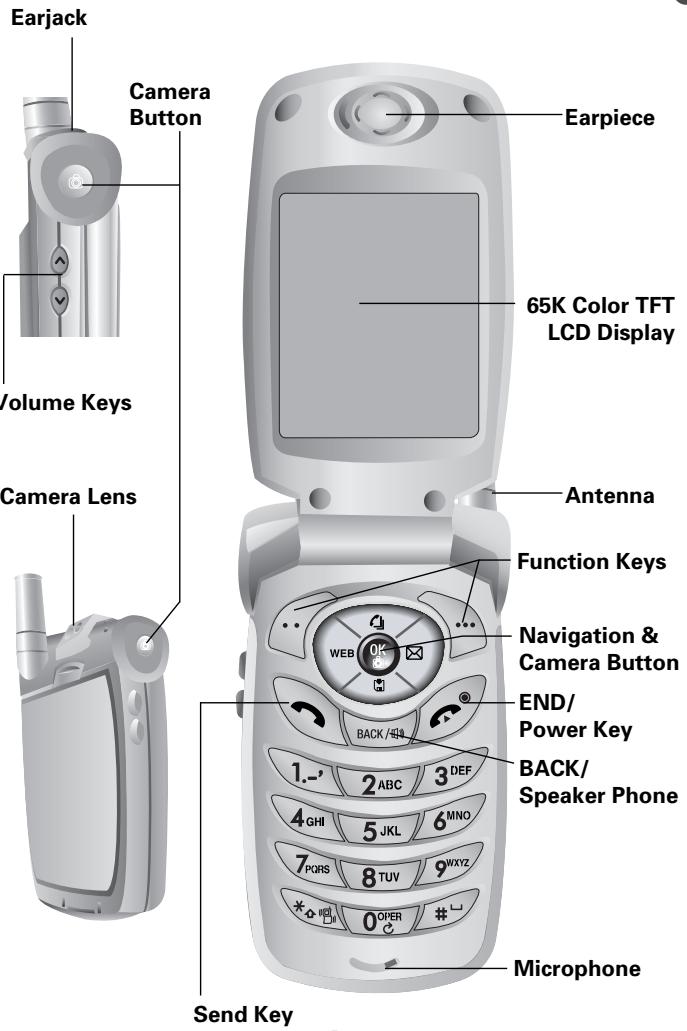
This phone is a tri mode CDMA2000 1X digital phone with Camera and @ Metro capabilities. The CDM8900 weighs 3.89 oz. and the dimensions are 1.82'' × 3.56'' × 0.92'' .
CH
1

Handset

AC Charger
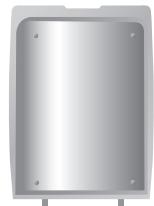
Standard Battery

User Manual

Handstrap
6
7
HANDSET DESCRIPTION
THE FUNCTION KEYS

Press to make or receive a call. Press and hold to turn on VR mode.

Press to turn the phone on, to terminate a call or to return to the initial page. Press and hold to turn the phone off.

(Soft 1) Press to access the menu or function displayed on bottom line.

(Soft 2) Press to access your phone book.

Press to access internet service.

Press to clear a digit from the display, to return to the previous page, or to enable speakerphone mode.

Press and hold to enter etiquette mode.

Press and hold to enter lock mode.

HANDSET DESCRIPTION
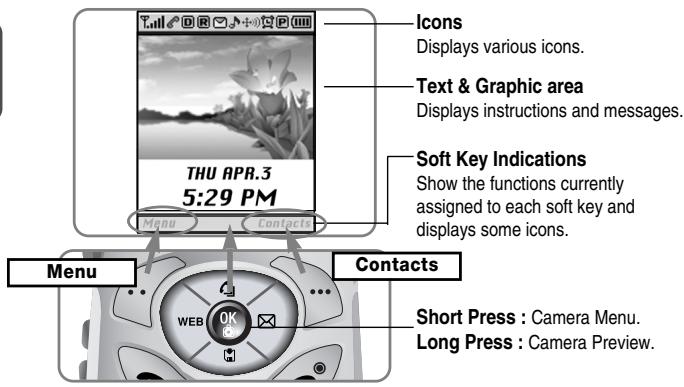
DISPLAY INDICATORS

Signal Strength - Current signal strength - the more lines, the stronger the signal.

Roaming
Phone is out of home area.

Service Indicator
Indicates call is in progress, indicates the phone cannot receive a signal from the system.

Message
New text or voice message.

Digital mode
Phone is operating in digital mode.

Battery - Battery charging level - the more blocks, the stronger the charge.

Mute
Phone is mute during a call.

Silent
Appears when Silent is selected as the ring mode.

Emergency Call
Blinks when an emergency call is in progress.

Voice Memo
New voice memo has been made.

Answering machine
Phone is in answering machine mode.

Etiquette
Phone will vibrate when call is received.

Schedule
Appears when either an event or an alarm is set.

Ring Mode
Appears when a ringer is set as a ringer mode.

Dormant
Indicates the phone is in disconnection condition while on "Server Connection".

Fax Only
Receives a fax call as a voice call.

Data Only
Receives an async. call as a voice call.

GPS Icon
Indicates the Location Service of your phone is disabled/enabled.



BATTERY USAGE
C H
1

1X
Phone is in the 1x service area.

Analog Mode
Phone is operating in analog mode.
BATTERY INSTALLATION

1 Place the battery on the back of the handset and slide into place. 2 Push the battery down until it locks into place.
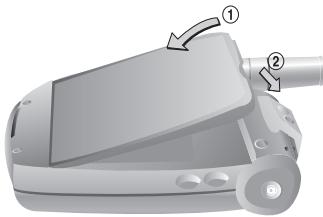

Make sure the battery is securely placed to avoid slipping off during a call.
BATTERY REMOVAL

1 Pull down the release latch, lift up the battery and 2 remove the battery from the handset.
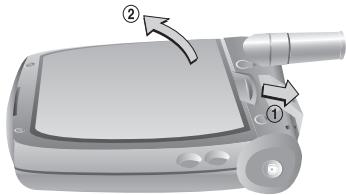

If the battery is not correctly placed in the compartment, the handset will not turn on and/or the battery may detach during use.
BATTERY USAGE
BATTERY CHARGING
POWER CONNECTION

Plug the AC charger into a standard outlet.
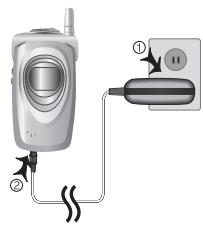

- These times are for a new battery. Talking and Standby times may decrease over time.
- Fully charge the battery before using - it is not charged when purchased.
- It is more efficient to charge the battery with the phone turned off.
BATTERY TALK TIMES
The operating time is subject to your handset usage and configuration.
| Battery | DCS | PCS | AMPS |
| STD 1000 mAh | 190m | 200m | 80m |
| EXT 1700 mAh | 310m | 350m | 130m |
BATTERY STANDBY TIMES
The operating time is subject to your handset usage and configuration.
| Battery | AMPS | CDMA |
| STD 1000 mAh | 20hour | 140hour |
| EXT 1700 mAh | 35hour | 240hour |

These times are for a new battery. Talking and Standby times may decrease over time.
CH 1
BATTERY HANDLING INFORMATION
D0s
- Only use the battery and charger approved by the manufacturer.
- Only use the battery for its original purpose.
- Try to keep batteries in a temperature between 41^ (5^) and 95^ (35^) .
- If the battery is stored in temperatures above or below the recommended range, give it time to warm up or cool down before using.
- Completely drain the battery before recharging. It may take one to four days to completely drain.
- Store the discharged battery in a cool, dark, and dry place.
Purchase a new battery when its operating time gradually decreases after fully charging. - Properly dispose of the battery according to local laws.
DON'Ts
- Don't attempt to disassemble the battery - it is a sealed unit with no serviceable parts.
- Don't accidentally short circuit the battery by carrying it in your pocket or purse with other metallic objects such as coins, clips and pens. This may critically damage the battery.
- Don't leave the battery in hot or cold temps. Otherwise, it could significantly reduce the capacity and lifetime of the battery.
- Don't dispose of the battery into a fire.
Chapter 2
BASIC OPERATION
This chapter addresses and explains the basic features of your phone including
TURING THE PHONE ON / OFF
■ ACCESSING THE MENU
■ MENU SUMMARY
BASIC FUNCTIONS
DURING A CALL
MAKING AN EMERGENCY CALL
TURNING THE PHONE ON / OFF
TURNING THE PHONE ON

Press , until your "Power On" logo appears and the tone sounds.

- If "Password" appears on the display enter your 4-digit password to unlock your phone.
- The default password is the last 4 digits of your phone number.
TURNING THE PHONE OFF

Press and hold

- Immediately change or recharge the battery when "Low Battery Warning Power Off" appears on the display. Memory may possibly be damaged if the phone turns off due to the battery completely draining.
- Turn the phone off before removing or replacing the battery. If the phone is on, unsaved data may be lost.
ACCESSING THE MENU
Your phone can be customized via the menu. Each function can be accessed by scrolling with the Navigation Key or by pressing the number that corresponds with the menu item.
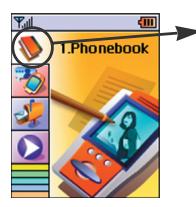

Phone Book

Recent Calls

Messaging

@Metro
Mobile Web

Media Gallery

Settings

My Metro

Tools

Utilities

Camera

To access the menu in idle mode, press [MENU].

Press the Navigation Key up and down to scroll through the menu.

To return to the previous page, press BACK [BACK]. To exit the current menu and return to the idle mode, press

Press [OK] to enter a function when its main page is displayed.

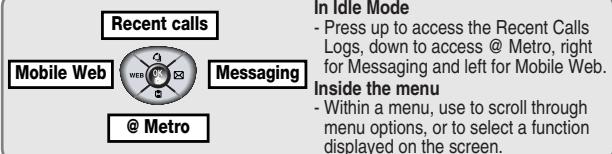
Hotkey
In idle mode, move the Navigation Key as follows to access these functions:
- Upward movement - Recent Call Logs
- Downward movement - @ Metro
Rightward movement - Messaging - Leftward movement - Mobile Web
MENU SUMMARY
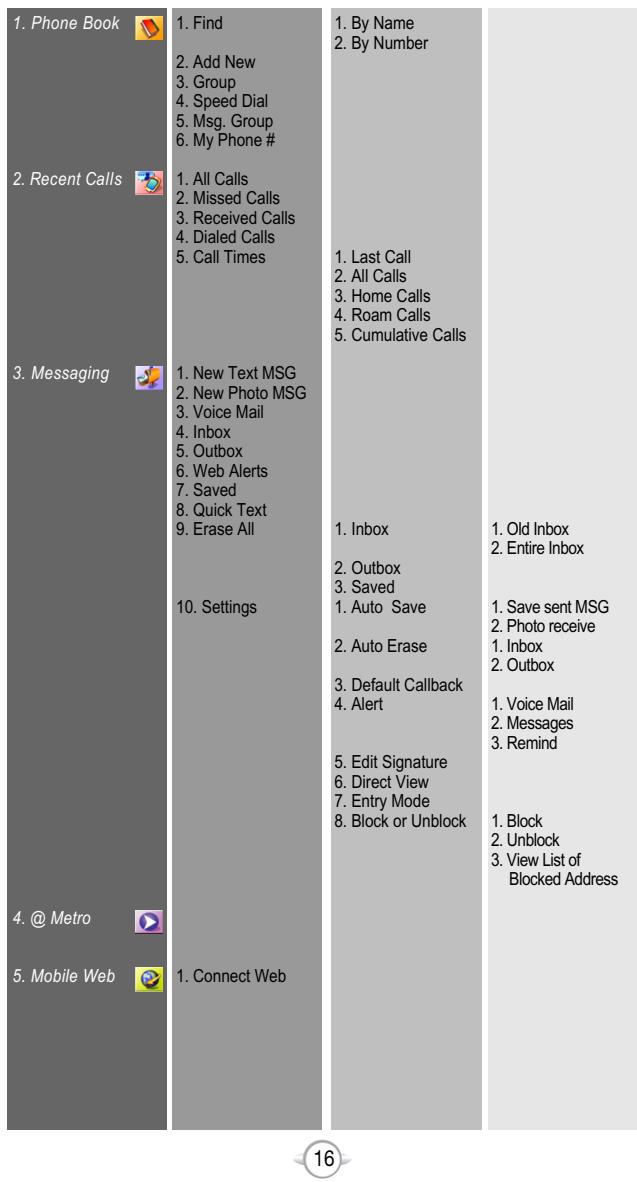
MENU SUMMARY
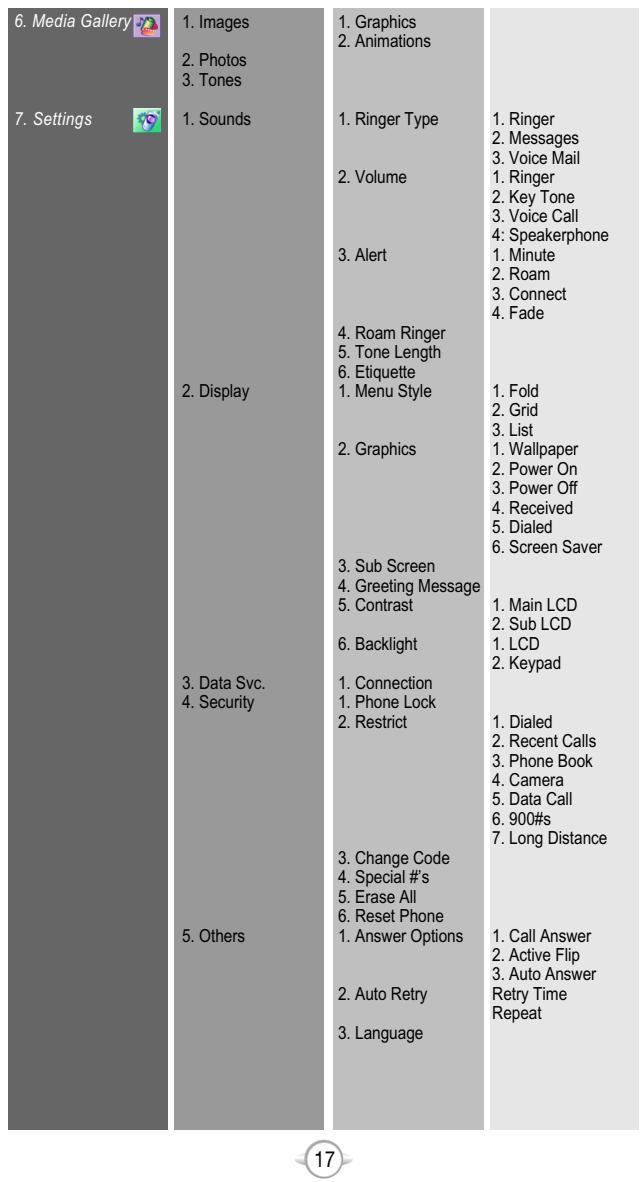
MENU SUMMARY

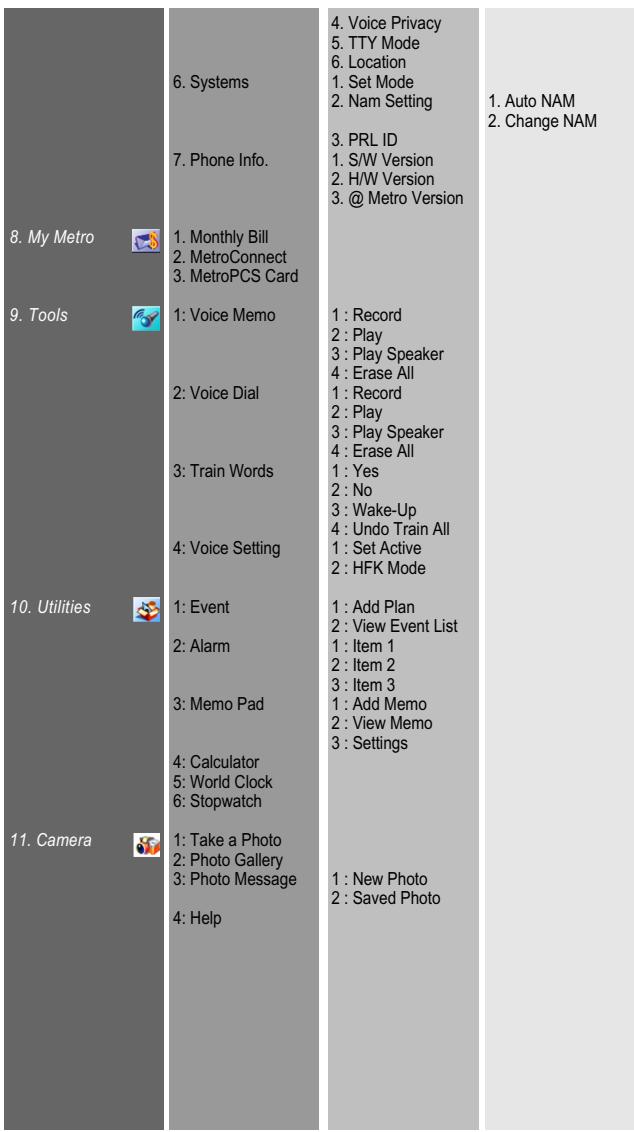
BASIC FUNCTIONS
MAKING A CALL

Enter a phone number.

To modify the phone number you have entered :
To erase one digit at a time press
To erase the entire number, press and hold


Press
The indicator, , appears on the display.

-
If "CALL Failed" appears on the display or the line is busy, press or
-
If you activate the "AUTO RETRY" function, the phone will automatically retry for the number of times you have selected. (refer to page 68).
- If the number you're calling is stored in the phone book, the name and number will appear when the call is placed.
There is another way to make a call through the VR mode, which is called "VAD (Voice Activated Dialing)". Please refer to page 90 (Voice Service) for details on making calls using VAD.

To end a call, press e
Please refer to page 28 for more details about storing a phone number.
BASIC FUNCTIONS
SPEAKERPHONE

To activate the speaker phone when the phone is in idle mode, answering mode, and calling mode press and hold (RACID).

The phone returns to normal (Speaker phone off) after ending or call or when the phone is turned off and back on.
PAUSE FEATURE
You can dial or save a phone number with pauses for use in the automated systems where you need to enter a credit card number, a social security number, and so on. This feature will be convenient when you are linked to ARS (Advanced Record System)

To insert a pause, enter a phone number then press [MENU]. Select either a Hard Pause ("P" appears) or a Timed Pause ("T" appears).

Press to dial or [STO] to store.
Please refer to page 28 for more details about storing a phone number.
BASIC FUNCTIONS
ANSWERING A CALL

To answer a call, press any key except or .
See page 67 for more information on setting Any Key Answer or Send Key Answer.

To end the call, press

In Auto Answer Mode, a call is automatically answered after a preset number of ring tones. See page 68 for more details.
CALLER ID FUNCTION
Identifies caller by displaying their phone number. If the caller's name and number are already stored in your phone book, they both will appear. This feature is system dependent. Please contact your service provider for details.

The caller ID is stored in the call history.
CALL WAITING FUNCTION
Notifies you of an incoming call when you are on the phone by sounding a beep and displaying the caller's phone number on the screen.

To answer another call while on the phone, press. This places the first call on hold. To switch back to the first caller, press again.

Call Waiting is a system dependent feature. Please contact your service provider for details.
BASIC FUNCTIONS
ADJUSTING VOLUME
Adjusts the volume of the ringer, key beep and speaker.

Press [MENU] and select one of the following.
Ringer - Controls the ringer volume.
Key Tone - Controls the keypad tone.
Voice Call - Controls the Speaker & Earpiece volume.
Speaker Phone - Controls the speaker phone volume.

Adjusts volume and press [OK] to save it.

Press the volume keys on the side of the phone to adjust volume of microphone during a call.
ETIQUEtte
Mutes key tones and activates the vibration mode to alert you of an incoming call or message.

To turn etiquette mode on/off, press and hold
LOCK
Locks your phone and prevents unauthorized use. Phone can only be used after inputting the password.

To lock the phone, press and hold

To unlock the phone, press then input the password.
Lock feature will deactivate when the phone is powered off. Upon next powered up, you will need to press = to lock phone again.

The default password is the last 4 digits of your phone number.
22
DURING A CALL
To display menu options during a call, press .
MESSAGE
Enables you to send a message (SMS) during a call.

Press

1.
MUTE (UNMUTE)
Mutes any sounds from your side of the call.

Press

2ABC

To deactivate, press [M] The phone will automatically Call or Callback mode.
SCRATCHPAD
Allows you to enter a phone number during a call so it can be dialed later. The other party cannot hear the key presses.

Press

3DEF.

Pre
? [MENU]
to deactivate it.
SEND MY PHONE #
Automatically transmits your phone number to a pager during a call without manually entering the number.

To transmit your phone number during a call, press [MENU]
23

DURING A CALL
MY PHONE NUMBER
Enables you to see your phone number while on a call. Please see page 42 for more details.

Press

ENU
5.
VOICE PRIVACY
Enhances voice privacy during a call.

Press

ENL
LOCATION
Enables the network to locate your current location through Global Positioning System (GPS). (Refer to page 70 for more details.)

Press

ENU
PHONE INFO.
Enables you to view handset information while on a call. Please see page 73 for more details.

Press

ENU
MAKING AN EMERGENCY CALL
This 911 feature puts your phone in the Emergency Call Mode when you dial the preprogrammed emergency number, 911. It also operates in the lock mode and out of the service area.
911 IN LOCK MODE
The 911 call service is available even in the lock mode.

Enter "911" and press


The call connects.

The phone exits the Lock Mode for 5 minutes.

When the call ends, the phone returns to the Lock Mode.
911 USING ANY AVAILABLE SYSTEM

Enter "911" and press


The call connects.

The phone maintains the Emergency Mode for 5 minutes.

When the call ends, the phone returns to the Lock Mode. The phone continuously attempts to receive service from any available system. However, it can't make a call.
MEMO
Chapter 3
MEMORY FUNCTION
This chapter addresses memory functions including:
STORING A PHONE NUMBER
ENTERING LETTERS, NUMBERS & SYMBOLS
MAKING A CALL THROUGH THE PHONE BOOK
STORING A PHONE NUMBER
The phone book stores up to 300 entries.

Enter phone # and press [SAVE].

Choose "New Contact" or "Existing Contact". Press OK] to select.

The Phone # will appear above a list of icons. The name of the icon is displayed below the list. Use the Navigation key to choose the type of # you're adding, as indicated by the icon. Press OK] to select.

Enter a name and press OK]. Follow instructions for entering text on page 29. To change the input mode, press [MODE].

Group - Personal, Business, Etc.
Set Secret - Lock, Unlock.

Use the Navigation key to scroll through more options for the entry (group, other numbers, ringer).

The other fields are set to Numeric mode as a default.

To store the entry, press [SAVE]. "New contact added!" or "Contact edited!" will be displayed.
ENTERING LETTERS, NUMBERS & SYMBOLS
The input mode will be automatically activated when necessary to enter letters and numbers. As shown below, there are 4 available modes; Standard input mode (abc), T9 input mode (T9Word), Numeric mode (123), and Symbol mode(symbols).
The input mode indicator appears on the lower right of the display when letters and numbers are entered. To select the desired input mode among the 4 modes below, press [MODE], then enter letters and numbers.
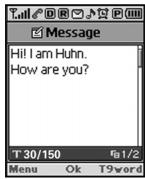
Input mode indicator
Abc:Abc mode
NUM:Number mode
T9Word:T9 mode
Symbol:Symbol mode
The following illustrates the function assigned to each key in the input mode.
| KEY | FUNCTION |
| Case | Press to change mode. [T9Word][Abc][123][Symbol mode]. |
| Next | Press to view the next matching word if the highlighted word is not the word you intended. |
| Space | Press to accept a word and add a space. |
| Shift | Press to select a letter case of the standard text input or T9 text input mode. [Abc], [ABC], and [abc] indicate the standard text input. [T9word], [T9Word], and [T9WORD] indicate the predictive text input. |
| Clear | Press to delete a character to the left of the cursor. |
| Save | Store the letters and numbers you enter. |

ENTERING LETTERS, NUMBERS & SYMBOLS
STANDARD INPUT MODE
Use the digit keys to enter letters, numbers and characters.

Enter letters using the keypad as follows:
| Keypad | 1 Time | Repetitions 2 times | Repetitions 3 times | Repetitions 4 times | Repetitions 5 times |
| 1 | 1 | . | @ | - | ’ |
| 2ABC | A | B | C | 2 | A |
| 3DEF | D | E | F | 3 | D |
| 4GHI | G | H | I | 4 | G |
| : | : | : | : | : | : |
| 9WXYZ | W | X | Y | Z | 9 |
To change the input mode, press [MODE].

To enter a space, press # . After two seconds, the cursor will automatically move to the next column.

Repeat until letters are entered. There is a 16-letter limit.

To delete one digit, press BACK. To delete the entire entry, press and hold BACK.

To change from lowercase to uppercase, press

Select Abc mode, by pressin
g [MODE].
When you select this mode, the Abc icon appears as a visual confirmation.
- Find the key that corresponds to the letter you want to enter.
- Press it as many times as needed for the letter to appear on the screen.
- To enter the name "John":
Press [5]
Press [6 6]
Press [Aout] h
Press [6°/6°] n
ENTERING LETTERS, NUMBERS & SYMBOLS
T9 INPUT MODE
The T9 input mode incorporates a built-in-dictionary to determine a word based on the entered characters. A word can be entered more quickly by pressing a key once per character.

Select the T9Word mode with [MODE].

Press a digit key once to enter the character you want and enter all the characters to input the word you want.

To view the next matching word, press 0_2^* .

To accept matching word and enter a space, press #

To enter a compound word.
- Enter the first part of the word and press [←] to accept it.
- Enter the last part of the word and press [ ] to enter the word.

To enter "phone book" in the T9 input mode.
- Press [ ][MODE] to select the T9 input mode and [ ] to choose the small letter case (T9Word).
- Press [7+1] 40/60/60/30] and you will see "phone" highlighted. Press [0.5] to see the next matching word and [u*] to select it.
- Press [2m] and you will see "book" highlighted. Press [0m] to move to the next matching word and [#] to select the compound word and enter a space.
ENTERING LETTERS, NUMBERS & SYMBOLS
NUMERIC MODE
Allows you to enter numbers.

Press [MODE] until the current input mode changes to the "Numeric mode".

To enter a number, press a digit key.
SYMBOL MODE
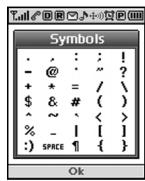
Allows you to enter symbols.

Press [MODE] until the "Symbol mode" appears.

Select symbol you want to enter with the Navigation key.
Use the Navigation key to view a different line of symbols.
MAKING A CALL THROUGH THE PHONE BOOK
SPEED DIALING
Dials a number simply by pressing and holding its Speed Dial location number. For a 2-digit location number, press the first number then press and hold the second number. To store a number in Speed Dial:

Press [MENU]

To assign a phone number to a location, select the location and press OK.

If a phone number is already assigned to the location, press [Erase] and the navigation key to delete.

The phone book list will be displayed alphabetically. Select a name and press OK

"Speed dial # X edited" will be displayed.

- "Unassigned" appears if the location pressed is available.
- A phone number that is set as secret will not be displayed.
- A call can be made by pressing its entry number and
MEMO
Chapter 4
MENUFUNCTION

This chapter addresses accessing the menu and using its functions and features to customize your phone.
PHONE BOOK
RECENT CALLS
@ METRO
MOBILE WEB
■ MEDIA GALLERY
- SETTINGS
MY METRO
■ UTILITIES
CAMERA
PHONE BOOK
Stores up to 300 entries, each of which can be assigned to a group.
Entries can be retrieved by name, phone number or group.
FIND
Retrieves an entry by name or number, and calls the number by simply pressing .
BY NAME

Press
ENU]
1.
1.

The list of names in your phone book is displayed alphabetically.
Use the Navigation key to select the name.

Enter a name or its character string or scroll through the list with the Navigation Key. Please refer to page 29 for instructions on entering letters, numbers and symbols.
If there is no match, "Cannot Find Name" will appear.

All matching entries will be displayed. Highlight an entry. Press OK] to edit the entry. Press [MENU] to 1. delete the entry or 2. add a prefix.
If the entry is set to secret, you will be asked for your password.

To call the selected number, press
PHONE BOOK
BY NUMBER
1 Press

ENU] 1.2

The list of phone numbers saved in your phone book will be displayed in numeric order.

Enter a part of the phone number or scroll through the list with the Navigation Key. The name associated with that number will be displayed at the bottom of the screen.

If there is no match, "Cannot Find Name" will appear.

All matching entries will be displayed. Highlight an entry and press OK] to edit the entry. Press [MENU] to 1. delete the entry or 2.add a prefix.

If the entry is set to secret, you will be asked for your password.

To call the selected number, press

PHONE BOOK
ADD NEW
Adds a new entry to the phone book. Please refer to page 28 for alternate way to add an entry to the phone book.

To add a new entry to the phone book, press [MENU] 2.

The first field highlighted is Name. Enter the name for the entry, then press OK.

Press the Navigation Key down to enter all the other information (group, phone number, etc.).
PHONE BOOK FIELD :
Name/Group/Mobile/Home/Office/Pager/Fax/E-mail/Wireless Addr./Ringer/Msg.Ringer/Graphic/Memo/Set Secret.

When all information for the entry is entered, press OK] to save the entry.
GROUP
Allows you to classify phone entries into groups. Existing groups include Personal, Business, Etc. and All.
ADD NEW GROUP

To add a new group, press [MENU] 3. A maximum of seven groups is allowed.

Press [MENU] then select "Add Group".

Input a new group name.

Press [OK] to save it.
PHONE BOOK
CHANGE GROUP NAME

Press [MENU]
Select an existing group name.

Press [MENU] then select "Rename".

Input a new group name.

Press [OK] to save it.

The default group names (All, Personal, Business, Etc.) cannot be changed.
ERASE GROUP

Press [MENU]
Select an existing group name.

Press [ERASE] to delete it.
"Erase this group?" will be displayed.

Press [OK] again to confirm it.

The default group names (All, Personal, Business, Etc.) cannot be erased.

PHONE BOOK
SPEEDD DIAL
Calls can be placed to numbers stored in speed dial by pressing its location number on the keypad.

Press

[MENU]


To assign a phone number to a location, select the location and press OK.
If a phone number is already assigned to the location, press [Erase] and the Navigation Key to delete.

The phone book list will be displayed alphabetically. Select a name and press OK

"Speed dial # X edited" will be displayed.
MSG. GROUP
MSG Group allows saved Messages. to be sent to people who are included in the MSG Group.
ADD NEW MSG. GROUP
To add a new group, press [MENU] A maximum of seven groups is allowed.
Press [MENU] to add a group.
3 Input a new group name.
Press [OK] to save it.
PHONE BOOK
CHANGE MSG. GROUP NAME

Press [MENU]5.
Highlight an existing group name.

Press [MENU] to rename the group.

Input a new group name.

Press OK] to save it.
SEND MSG. GROUP

Press [MENU] 5m.
Highlight an existing group name.

Press [MENU] to send a message.

Input a message and phone number.

Press [OK] to send it.
ERASE GROUP

Press [MENU] 5m.
Highlight the group name to be deleted.

Press [ERASE] to del
"Erase this message group?" will be displayed.

Press [OK]. "This message group erased" will be displayed.
PHONE BOOK
MYPHONE#
To display your phone number and service provider:

Press


To re
return to the previous page, press
[OK].
RECENT CALLS
Access the recent call logs by pressing [MENU]
ALL CALLS
Displays information about the 20 most recent numbers dialed, missed and received. Places a call to a selected number by simply pressing

To see a list of the 20 most recent numbers, press [MENU] If the number is already stored in your phone book, only the name appears. If the number is not stored, only the phone number appears.

To view call details, press OK.

Call details include date, time, and phone number.

Press [MENU] [SAVE] to save the number or press [ERASE] to delete it.

After 20 incoming, outgoing or missed calls, the oldest call will automatically be erased from the history.
C H 4
RECENT CALLS
MISSED CALLS
Displays information of the 20 most recently missed calls. Place a call to a missed call number by simply pressing

To see a list of the 20 most recently missed calls, press [MENU] 2dec 2dec. If the number is already stored in your phone book, only the name appears. If the number is not stored, only the phone number appears.

To view missed call details, press OK.

Call details include date, time and phone number.

Press [MENU] [SAVE] to save the number or press [ERASE] to delete it.

After the 20th missed call, the oldest call will automatically be erased from the history.
RECENT CALLS
RECEIVED CALLS
Displays information of the 20 most recently answered calls. Place a call to a received number by simply pressing

To see a list of the 20 most recently answered calls, press [MENU] 3. If the number is already stored in your phone book, only the name appears. If the number is not stored, only the phone number appears.

To view incoming call details, press OK.

Call details include date, time and phone number.

Press [MENU] [SAVE] to save the number or press [ERASE] to delete it.

After the 20th received call, the oldest call will automatically be erased from the history.
CH 4
RECENT CALLS
DIALED CALLS
Displays information of the 20 most recently dialed calls. Place a call to a received number by simply pressing

To see a list of the 20 most recently answered calls, press [MENU] 4. If the number is already stored in your phone book, only the name appears. If the number is not stored, only the phone number appears.

To view outgoing call details, press OK.

Call details include type of call, date, time and phone number.

Press [MENU] [SAVE] to save the number or press [ERASE] to delete it.

After the 20th dialed call, the oldest call will automatically be erased from the history.
RECENT CALLS
CALL TIMES
Checks the talk time and manages your calls within the limit you set. The five timers include:
LASTCALL
Displays talk time of last call.

Press

ENU] 5.

To return to the previous page, press OK.
ALL CALLS
Displays talk time of all incoming and outgoing calls, excluding web access calls.

Press

ENU] 5.5.2

The time of the following items is displayed:

ice Call
Fax Call

To return to the previous page, press OK.
HOME CALLS
Displays talk time of all calls made within Home area.

Press

ENU] 5m 3

The time of the following items is displayed:

ice Call
Fax Call

To reset the timer, press [RESET]. To return to the previous page, press OK.

RECENT CALLS
ROAM CALLS
Displays talk time of roaming calls.






@ METRO
DOWNLOADING MEODIES/WALLPAPERS
Before downloading melody ringers and wallpapers, you need to download the dedicated downloader.
Please contact your service provider for details.
APPLYING MELODIES/WALLPAPERS
Downloaded melody ringers apply to several functions including the incoming call alert, new text message alert, alarm clock and scheduler alarm.
See Ringer Type on page 54.
Downloaded wallpapers apply to the standby mode.
See Wallpaper on page 58.
CHECKING DATA FOLDER MEMORY
Downloaded melody ringers, wallpapers and applications are saved to the data folder in your phone.
1 Press
M
ENU]
401 O
press

2 Sel
Select Settings then press OK.
3 Sel
Select Manage Apps then press . The memory status will be displayed.
4 To
exit, press 己 ^ 已
@ METRO
ERASING AN APPLICATION

Press
[MENU

r press


Select Settings then press


Select Manage Apps then press The memory status will be displayed.

Select the application to be erased then press

Select "Remove" then press
C H 4
MOBILE WEB

CONNECT WEB
You can use your phone to browse the Internet if you have obtained Internet service from your service provider and if over-the air Internet access is available in your area.

Press

ENU]


Follow the procedures in "Chapter 7 WEB BROWSING" on page 113.
50
51
MEDIA GALLERY
IMAGES
GRAPHICS

Press

6^


[MENU] to select 1.Erase, 2.Erase All, 3.Change Title.

Scroll through the captured pictures to display the picture you want to send and press [SEND].

3.1 To send text message, press

3.2 To save text message, press [MENU] then select "Save to Outbox" and press OK.
ANIMATIONS

Press


^圆 [MENU] to select 1.Erase, 2.Erase All, 3.Change Title.

Scroll through the captured pictures to display the picture you want to send and press [SEND].

3.1 To send text message, press [SEND].
3.2 To save text message, press [MENU] then select "Save to Outbox" and press OK.
MEDIA GALLERY
PHOTOS

Press

[ENU]

Press [MENU] to select 1.Erase, 2.Erase All, 3.Change Title.

Scroll through the captured pictures to display the picture you want to send and press [SEND].

3.1 To send text message, press [SEND].
3.2 To save text message, press [MENU] then select "Save to Outbox" and press [OK].
TONES

Press

[ENU] 63

[ MENU] to select 1.Erase, 2.Erase All, 3.Change Title.

Scroll to the saved voice memo you want to send then press [SEND].

3.1 To send text message, press [SEND].
3.2 To save text message, press [MENU] then select the "Save to Outbox" and press OK.
CH 4
SETTINGS
Customizes your phone and optimizes performance through a variety of settings.
SOUNDS
Sets Ringer Type, Volume, Alert, Roam Ringer, Tone Length and Etiquette Mode.
RINGER TYPE
To select a ringer type for incoming calls:
RINGER

Press
M
ENU]
7
1.
1.

Select
from
one of
of the
10 p

To coi
nfirm,
press
OK
[OK].
MESSAGE

Press
M
ENU]
7
- 1

Select
a to
one (1-5).

To co
nfirm,
press
OK
VOICE MAIL

Press
M
ENU]
7
1.

Select a tone (1-5).

To co
nfirm,
press
OK
[OK].
54
SETTINGS
VOLUME
Controls the Ringer, Key and Voice Call volume and alerts you to incoming calls in a variety of modes.
RINGER
Controls the Ringer volume and alerts you to incoming calls in the following modes.

Press
[MEN]
U]
Tnss

Sales
t on
e of th
the f
else
wing option

Ri
Ringer Off
Vibrate On
Ringer Mode - Volume Levels 1-5.
High & Vibrate - The ringer sounds after vibration,
press (Max).
Silent - Mute the ringer, press (Min).

To co
nfirm
m, pre
SS (
OK
OK].
KEY TONE
To adjust keypad tone:

Press
[MEN]
U
PIERS
L
2A
2ABC

Adjus
st the
e keypad tone.

Off/Level
11-5
Min
.
M
(-)

To sa
ve,
press
OK
[OK]
].
VOICE CALL
To adjust earpiece volume:

Press
[MEN
U]
7
1.
2ABC
3DEF

Adjus
t the
eearpiece volume.

Level1-5
5 (Min-)
Max
.
)
To save,
press
OK
[OK]
C H 4
To save,
press
OK
[OK]
].
55
。
SETTINGS
SPEAKERPHONE
To adjust speaker volume:

Press [MENU]

Adjust the speaker phone volume using the Navigation Key.
Level1-5 (Min-, Max-)

To save, press OK.
ALERT
Allows you to set an alert that sounds when the following handset changes occur.
MINUTE
Sounds an alert every minute of a phone call.

Press [MENU]

Select "Off" or "On" and press OK] to save it.
ROAM
Sounds an alert when leaving a service area and entering a roaming service area.

Press [MENU] 1300.

Select "Off" or "On" and press OK to save it.
CONNECT
Notifies you that a call has been successfully placed.

Press [MENU] 1/3/3

Select "Off" or "On" and press OK] to save it.
56
SETTINGS
FADE
Sounds an alert when you are entering an area where calls cannot be made due to weak signal strength. The alert sounds in standby mode.

Press [MENU]

Select "Off" or "On" and press OK to save it.
ROAM RINGER
Sounds a different ringer when you are in a roaming service area.

Press [MENU]

Select "Distinctive" or "Normal" and press OK] to save it.
- Normal - Sounds the same ringer type as used in Home area.
- Distinctive - Sounds a different ringer type.
TONE LENGTH
To adjust tone length:

Press [MENU] 5

Select "Normal" or "Long" and press OK to save it.
ETIQUEtte
To place the phone in Etiquette Mode so all phone sounds are muted:

Press [MENU]

Select "On" or "Off" and press OK to save it.
- Shortcut - Press and hold to activate/deactivate this feature.
57
CH 4
SETTINGS
DISPLAY
Allows you to customize the display.
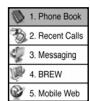
MENUSTYLE
To select an display menu style:

Press

ENU]


Select "Fold", "Grid" or "List" and press OK
to save it.
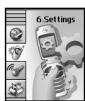
Fold

Grid
GRAPHICS
To select an LCD display:
WALLPAPER

Press



Select "Flower", "Digital Clock1", "Digital Clock 2", "Analog Clock 1", or "Analog Clock 2".

Pre

[OK] to save it.
SCREENSAVER

Press


Select "Time Setting" to set the amount of time the screenshot is displayed (Off, 5 sec, 10 sec, 20 sec, 30 sec).

Select a screenshot from the list.
Press [OK] to save it.
SETTINGS
SUB SCREEN
1 Press

MEI

7.3 2

Select "Digital" or "Analog".

Press

OK] to sa

GREETINGMESSAGE
To input a personal greeting:

Press

MENU] 2024

Select "MSG", "Font Color", "Bg" or "Entry Message" to personalize your greeting. Press OK.
SG - On/Off.
Font Color - White, Blue, Dark Blue, Magenta, Gray, Black.
Bg - Transparent, White, Blue, Yellow, Gray, Black.
Entry Message - Enter message (Default-AUDIOVOX).

Ta
o save, press [OK].


SETTINGS
CONTRAST
To adjust the display contrast:
MAIN LCD/SUB LCD

Press

ENU]

5

Select "Main LCD" or "Sub LCD".

Main LCD - Level 1~5.
Sub LCD - Level 1~5.

To save, press

[OK].
BACKLIGHT
Backlights the display and keypad for easy viewing in dark places.
LCD/KEYPAD

Press

ENU]

6Wm.

Select "LCD" or "Keypad".

LCD - 5s/15s/30s/60s/Always On.
Keypad - 5s/15s/30s/60s/Always On/Always Off.

To save, press

[OK].
SETTINGS
DATA SVC.
Allows you to transfer data when your phone is connected to a PC.
CONNECTION
Select a connection mode based on the handset usage.

Press

ENU

3

Select one of the following connection modes:

Voice Call : To receive a voice call.
Data Only: To receive data when connected to PC.
Fax Only : To function as a fax when connected to PC.

Press [OK] to save.

This function is available only when the phone is connected to data cable.

SETTINGS
SECURITY
Prevents others from using the phone without permission and allows access to security features only after inputting a password.
PHONE LOCK
Prevents others from using your phone without permission. When locked, calls cannot be made and the menu cannot be accessed without a password.

Press

ENU]

40H

enter "Password".

The default password is the last 4 digits of your phone number.

Press 12

select "Unlock", "Lock Now" on the power Up".

Lock Now - Lock the phone now.
Lock On Power Up -
Lock the phone whenever it is turned on.
Unlock - Do not lock the phone.

save, press

[OK].
RESTRICT
When you attempt to make a restricted call, "This phone is restricted" appears on the screen.
DIALED
Blocks all dialed calls – except emergency calls – but allows incoming calls to be answered.

Press


and enter "Password".

Press


select "Allow" or "Restrict".

Allow: Allows dialed calls.
Restrict: Restrictions dialed calls.

save, press

[OK].

SETTINGS
RECENT CALLS
Blocks access to Recent Call List.

Press

[MENU]

4

nter "Password".

Press

2AHC

I sell

"Allow" or "Restrict".

- Allow: Allows access to the recent calls menu.
Restrict: Restrictions access to the recent calls menu.

T

save, press OK].
PHONE BOOK
Blocks access to, and protects data in your phone book.

Press

[MENU]

4GH1

nter "Password".

Pre

3

sele

Allow" or "Restrict".

Allow: Allows access to the phone book.
Restrict: Restrictions access to the phone book.

T

save, press [OK].
CAMERA
Restricts access to camera mode.

Press

[MENU]

A


ater "Password".

Pre


4

I sell

"Allow" or "Restrict".

Allow: Allows access to the camera.

Restrict: Restrictions access to the camera.

T

save, press

].


SETTINGS
DATA CALL
Restricts data calls from being placed.

Press
[MENI]
J]
and e
enter "Pa
"password".

Press
2ABC
- and
I select
"AlIc
Allow: Allows data calls. Restrict:Restricts data calls.

To save, press

[OK].
900 #'S
Restricts calling 900 dial service numbers.

Press
[ME]
NU]
an
d enter "Password".

Press
2nH C
6
and sel
ect "A
llow" or "Restrict".

Allow: Allows calls to 900-dial services. Restrict: Restrictions calls to 900-dial serv

To save, press

[OK].
LONG DISTANCE
Restricts calling long distance numbers - the phone is limited to calling numbers within the area.

Press
[ME]
NU] 7
4
and enter "Password".

Press
2nC
7
a
and select "Allow" or "Restrict".

Allow: Allows a long distance call. Restrict: Restricts a long distance call.

To save, press

[OK].
64
SETTINGS
CHANGE CODE
Changes your 4-digit password

Press

[MENU]

and enter "Password".

The default password is the last 4 digits of your phone number.

Press 3

Enter a new password and press OK].

Enter the new password again and press OK].
SPECIAL #'S
Stores 3 phone numbers that can be called even in the lock mode.

Press

[MENU]

and enter "Password".

The default password is the last 4 digits of your phone number.

Press
and select a location.

Pre
ss
[OK] a
and
input
a phone number,

You can delete a special number by selecting it, pressing [Erase], then OK.
65
CH 4
SETTINGS
ERASE ALL
Clears all phone book, downloads, and photo gallery entries.

(


The default password is the last 4 digits of your phone number.

Press 5.

Select "Phone Book", "Downloads" or "Photo Gallery" and press OK to erase all the items in those categories.
RESETPHONE
Resetshophoneotodefault settings.


The default password is the last 4 digits of your phone number.

Press

Select "Yes" or "No", then press OK.
When you select "yes" you will see "Phone will restore default settings and power cycle" appear on the display. Press to begin Reset process.
SETTINGS
OTHERS
ANSWER OPTIONS
CALL ANSWER
To select an answer mode:

1 Press

[MENU]

5.1


2 Select

My Key"


end Key".


Key - Press any key to answer an incoming call except OK, , and . d Key - Press only to answer a call.

3 To save

press OK

[K].
ACTIVEFLIP
Selects an Active Flip Answer mode as follows.

1 Press

[MENU]


2ABC

2 Select

n" or "Off".

3 To save

press

[OK].

When Active Flip On is selected, an incoming phone call can be answered simply by opening the phone.

When Active Flip Off is selected, you will need to open the phone and follow the Answer mode you have selected.

SETTINGS
AUTO ANSWER
Automatically answers a call after a preset number of rings. An ideal setting for the hands-free car kit. Auto Answer only works when the phone is open.

Press
M
ENU]
7
5
3^# 16^

Select one of the following:
Off / 5 / 10 / 18seconds.

This function will not be active when you select Vibrate, Silent, Etiquette or Ringer after Vib as a ringer mode.

To save,
press
[OK].
AUTO RETRY
Automatically redial a call up to 5 times after a set time interval.

Press
M
ENU]
7 2sec.

Under Retry Time, select a time interval option (Off, 3, 5, 7, 10 seconds). The Repeat Category will appear when a time frame is chosen.

Under Repeat, select a time interval option (1 time, 3 times, 5 times).

To save, press
[OK].
SETTINGS
LANGUAGE
Selects the language in which letters are displayed on screen.

Press
M
ENU
J 7m 5m 3m

Select either "English" or "Spanish".

To save, press OK.
VOICE PRIVACY
Enhances voice privacy and avoids tapping during a call.

Press
M
ENUJ 354

Select "Standard" or "Enhanced".

To save, press OK.
"Enhanced" - Makes it more difficult to wire tap.
C H 4
SETTINGS
TTY MODE
Your phone is able to operate with a TTY (Teletypewriter) device in both analog and digital modes. This feature is system dependent and may not be available in all areas.

Press

ENU]


Select one of the following options then press OK.
TTY Full
TTY+TALK
TTY+HEAR
TTY Off
LOCATION
To determine whether or not the network system can detect your position:

Press

ENU]


Select "Location On" or "911 Only".
911 Only - Your location will be hidden from network & application except 911.
Location On - Your location is now available to the network.

To save, press

SETTINGS
SYSTEMS
SET MODE
Selects the Preferred System.

Press

[MEN

6


Select one of the following options: Automatic B, Automatic A, Home only. Press [OK].

Automatic B : Scan the radio channels based on the Automatic B setting.
Automatic A: Scan the radio channels based on the Automatic A setting.
Home only: Only within your home area or home affiliated area.

NAM SETTING
Enables Auto NAM (Number Assignment Modules) or manually selects a NAM.
AUTO NAM
Automatically switches phone to proper NAM when you have multiple NAM registrations.

Press

[MENU]

6NHN


Select "Yes" or "No", then press OK to save it.
SETTINGS
CHANGE NAM
Changes the NAM used by the phone when you have multiple registrations.

Press


Select "NAM1-Audiovox" or "NAM2-Audiovox", then press [OK] to save it.
PRLID
Displays the phone's PRL (Preferred Roaming List).

Press


To ret
urn to

previous

age, press [OK].
SETTINGS
PHONE INFO.
To display the version of your phone:
S/W VERSION

Press

[MENU]

7.1

The s

are version appears.

Press

[OK].
H/W VERSION

Press

[MEN

z

The h

ware version appears

Press

[OK].
@ METRO VERSION

Press

[MEN]

= ( x1,y1) , = ( x2,y2)

The @

Metro software version appears.

Press

[OK].

MY METRO
My Metro shows users their balance, account information, and payment options.
MONTHLY BILL
This is where the Billing Message is saved and shows the user the balance, due date and account information.

Press [MENU], to enter the My Metro options. Then press for "Monthly Bill".

When pressing [PAY], the screen which shows an option of Credit Card, MetroPCS Card, and Other Options shows up.

After choosing an option from Credit Card, MetroPCS, or Other Options, a call will be made to make the payment.
METROCONNECT

Press [MENU] to enter the My Metro options. Then press for "MetroConnect".

When MetroConnect is selected, a message saying "Call now to request balance or add money?" will show up. If the user presses OK, the call will be made.
MY METRO
METROPCS CARD

Press [MENU] 8^10 , to enter the My Metro options. Then press 3^4 for “MetroPCS Card”.

When the MetroPCS Card has been selected, the option of Request Balance and Pay Monthly Bill will show up.

If the user selects Request Balance, a message saying "Call now to request your MetroPCS Card balance?" will show up. If the user presses OK, the call will be made.

If the user selects Pay Monthly Bill, the user can choose from an option of Credit Card, MetroPCS, and other options. The payment will be made accordingly to the option selected.

UTILITIES
EVENT
Sets an event and reminds you of that event.
ADD PLAN

Pres:

MENU


Move the Navigation key to choose a date in the calendar and press OK.
Date, Time and Plan fields are displayed. The date you chose from the calendar is automatically inputted into the Date field. Input the correct time for the event. Under Plan, enter the message for the event. Press the Navigation Key down to display Setting and Ringer fields. Under Setting, select when you want to be alerted of the event. Under Ringer, choose the ringer for the event. To change the default ringer, press [MENU] "Change". When all fields are completed, press [SAVE].

Pres

[SAV]
[E] to save it or
[BACK] [BACK] to
return to the calendar.

The date of the event will be marked on your calendar.
VIEW EVENT LIST

Press


UTILITIES
ALARM
You can set up to 3 alarms.
1 To display alarm entries, press [MENU] 025 2m.
2 Select one of the entries. To set a new alarm, choose item 1, 2 or 3. To edit an existing alarm, select that alarm. Press [OK].
To delete the existing one, press D.
3 Date, Time and Setting fields are displayed. Enter the date using the keypad. Press OK] Under Time, enter the time for the alarm, then press [OK].Under Setting, choose Daily, Weekly, Monthly, Off or Once. Press the Navigation Key down for more fields. Under Snooze Setting, choose from Off, 1 time after 5 min, 1 time after 10 min, 3 time by 5 min. Under Ringer, choose the ringer for the alarm. Under Plan, enter the message for the alarm. Press OK] to save.
CH 4
UTILITIES
MEMO PAD
Your phone includes an internal memo pad that can be used to compose and store reminders and notes.
ADD MEMO
To compose a memo (there is an 80-letter limit):

Press


Input a new text memo and press OK. (Please refer to page 29 for more details on entering letters, numbers and symbols.)
VIEW MEMO
To view a saved memo:

Press [MENU] 3. To erase all memos, press [MENU] "Erase All". To add a new memo, press [MENU] "Add New".

The list of all memos, in saved order, is displayed. Select a memo and press OK].

The selected memo will appear. To edit it, press [MENU], select "Edit" and input a new text memo.
SETTINGS
To select memo pad background image:

Press [MENU] 0_c^2 / 3^m / 3^m

Select "Paper", "Pattern", "Sea", "Sky", or "Flower", then press OK.
UTILITIES
CALCULATOR
To access the calculator:

Press

MENU] 4m.

Follow the instructions below to calculate (8^*6) / 4 - 2.5
Input 8.
Move the Navigation key to the right.
Input 6 and press the Navigation key to the left.
Input 4 and press the Navigation key down.
Input 2 and press the to input (.) Press 5,

To reset,

ess [RESET].

ORLD CLOCK
To display the time and date in pre-programmed cities:

Press

[MENU] 5.

Select a

The world map appears with the city, its date and time.
Use the Navigation key to select another city.

UTILITIES
STOPWATCH
Simultaneously times up to six different events. To operate the stopwatch:

Press

[MENU]

2 To measure a time period.
- To start the stopwatch, press
- To pause it, press
- To resume it or [RESET] to return to the previous page, press [EXIT].
3 To time up to six events at once:
- To start, press .
- To stop a time period and continue measuring another one, press [CONT].
- To stop the second and continue measuring a third one, press [CONT].
- To measure up to six time periods, repeat the above steps.
- To stop, press . To review the results, press [VIEW].
- To return to the stopwatch, press OK
- To reset it, press [RESET].
CAMERA
TAKE A PHOTO
Taking pictures with your phone's built-in camera is as simple as choosing a subject, pointing the lens, and pressing a button. You can activate the Camera Mode and take pictures when the phone is open.
TO TAKE A PICTURE FROM THE MENU


Press [MENU] then scroll down 11 items to Camera. Then press
- Point the camera lens at your subject.
- You can check the picture framing through the main display screen.
Press OK] or the Side Camera button to take the picture.
To save the picture, press [SAVE]. To go back to idle mode without saving the picture, press . To send the picture to someone, press [SEND].
You cannot place or receive calls while in Camera Mode. All incoming voice calls will be forwarded to voicemail.
TO TAKE A PICTURE IN IDLE MODE


Press the Side Camera button to activate Camera Mode.
- Point the camera lens at your subject.
- You can check the picture framing through the main display screen.
Press the Side Camera button to take the picture.
To save the picture, press [SAVE]. To go back to idle mode without saving the picture, press . To send the picture to someone, press [SEND].
C H 4
CAMERA
CAMERA MODE OPTIONS
When the phone is open and in Camera Mode, several user options are available.
GALLERY
Press [GALLERY] to enter Review Mode. From there you can view the captured pictures, view a running count of stored pictures and more.
RESOLUTION
Press the navigation key up or down to adjust the picture size from High (640x480 pixels) to Med (320x240 pixels) to Low (160x120 pixels). The current picture size appears at the bottom of the display screen.
BRIGHTNESS
Press the navigation key right (increase) or left (decrease) for the brightness level.
UNDER [MENU]
SUB LCD
The sub LCD will show a representation of the picture to be taken. Use the sub LCD to help frame yourself for a self portrait. You can also use the round mirror next to the camera lens for self portraits.
FLASH/FLASH OFF
Select Flash to turn the camera's flash on or off. This is for use with the CKP8900 optional flash kit.
Do not use the flash close to eyes as it may cause visual impairment.
CONTRAST
Select "High", "Normal", "Low".
QUALITY
Select High, Normal, Low picture quality, then fewer pictures can be stored when using the High setting, which requires more memory. (Default setting is Normal.)
SHUTTER SOUND
Select Shutter 1, Shutter 2, or Shutter 3. If your phone's ringer is set to Silence, no shutter sound will be heard.
After taking a picture, all options except Shutter Sound return to their default settings.
CAMERA
PHOTO GALLERY

Press [MENU] and scroll down to option 11. Camera, then press 2wc.
In Review Mode you can view all the pictures you have taken, store selected images in your phone, send pictures to the Pictures Web site, delete images and access additional picture options.
Press [MENU] to display the following options:
- Edit Title : Edit the picture's title.
- Send Photo : Upload the current picture to the send message.
- Assign Picture : To assign the selected picture to display for specific tasks (Wallpaper/Screen Saver/Picture Caller ID/Incoming Call).
- Erase : Erase the current picture from your phone.
- Erase All : Erase all captured pictures from your phone.
- View Lists : Display pictures title name.
- Photo Info : Display information on the selected picture, such as title, date/time, size, etc.
AIO
PHOTOMESSAGE
Once you've taken a picture, you can use the messaging capabilities of your phone to instantly share it with family and friends. To send a picture to a recipient's email address or to their wireless phone:

Press [MENU] and scroll down to option 11. Camera, then press 3^空 .

Press for new photo and 200 for a saved photo. If you are looking for a saved photo, scroll through the captured pictures to display the picture you want to send.

Highlight the picture and press OK.

Under Send To, enter the email address or mobile phone number and press OK.
CAMERA
5 Under Message, press . The picture will come up with the flashing cursor underneath. Enter the message and press OK].
Under Subject, enter a subject line for the message. Press OK].
If you want to send the picture to any additional recipients, enter their information under CC: or BCC:.
HELP
1
Pre
ss
[MENU] and scroll down to option 11. then press
The following will be displayed:
You can take a picture using the digital camera. When you are taking a picture, control resolution using up/down key and the brightness using the left/right key. You can check your photo in the photo gallery.
- Sub LCD : On taking a picture with sub LCD mode.
- Flash: On/Off setting.
- Contrast : Control of Photo's Contrast.
- Quality : Control of Photo's Quality.
5.Shutter Sound : Select a shutter sound. - LED: Controls LED indicator.
CAMERA
FLASH (SOLD SEPARATELY)
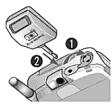
TO USE THE FLASH KIT
- Remove the protective cap.
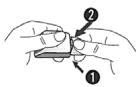
- Hold the flash unit securely between thumb and pointer finger. With other hand, place thumb over plastic protective cap and press downward. (similar to if you were breaking in half, see figure 1).
- Open the earphone microphone terminal cap to expose the port.
- Insert the flash into the earphone microphone port. The front of the flash should be facing the object of photography.
- Set up the flash on the camera menu. (See page 82. When in camera mode, press [MENU], then flash.)
- Press camera button. The flash will light when the picture is taken.
Install the protective cap. The protective cap has securing feet on either side. Place (1) securing foot in one end of groove then press other foot (2) upwards into groove.

CH
4

You should be at least 2 feet (about 60cm ) away from object of photography to ensure proper lighting. If you are too close the picture will come out white.
CAMERA

To prevent and protect the user, others and their property, carefully read the following hints for safely using the flash.
HINTS FOR USING FLASH
- Use the flash at room temperature. It may not light or charge in temperatures under 5^ or above 35^ .
- Do not use in a damp area.
- Use in a high or low temperature area may cause the flash life to shorten or extend the charging time.
- Clean the plug with a cotton stick. Dust in the plug may cause irregular charging.
- If the flash repeats to radiate, the intensity of the radiation will shorten and the images will become darker. If the intensity of radiation decreases, buy another flash.
- Remove the terminal of the flash from the ear phone jack during a call. It may cause some noise while using phone.
- Do not use while driving a car. It may cause a car accident.
- Do not flash near your eyes.
- Do not leave out in the reach of children. They may receive an electric shock by putting it in their mouths.
- If internal parts are exposed, do not touch the exposed parts. You may receive an electric shock.
- If it generates heat, smells bad, or is damaged, remove it from the phone immediately. There is a risk of fire or explosion.
- Do not disassemble, reconstruct or repair. The flash contains a high voltage circuit inside. Visit a nearby service center for repair.
- Do not use or put the flash near fire, open flame or high temperature area. There is a risk of fire or explosion.
- Do not wet it by sweat, water or salt water. If the substrate gets wet, it may cause the heat, explosion or firing. When it wets, turn off the power and visit near service center.
- Do not allow any liquids to spill on the flash or expose it to rain, water or moisture. Do not place it in the damp area like bathroom.
- Do not heat or dry it with drier if it gets wet.
- Do not place a cup or vase near it. Spilling liquid on it may cause the heat, explosion or firing.
- Do not drop or shock it.
- Do not allow any metal objects to touch the flash's plug (metal part). There is a risk of fire or explosion.
- Use only with the CDM8900 phone.
Chapter 5
VOICE SERVICE
This chapter addresses Voice Service, an advanced feature that allows you to place calls using your voice. With Voice Memo (VM) you can record voice messages and set the Answering Machine. Topics include:
VOICE RECOGNITION MODE
VOICE SERVICE MENU
CH 5
VOICE RECOGNITION MODE
Voice Recognition (VR) enables you to place calls using your voice and to record voice memos.

Press and hold until your phone turns to Voice Recognition mode.

"Please say the name after the prompt tone" will be displayed and you will hear "Name please".
NAME

Press and hold until your phone turns to Voice Recognition mode.

Say a name or tag that is already in the phone book. The number and name will appear on the display and you will hear "Calling (name)".
VOICE SERVICE MENU
VOICE MEMO
Voice Memo allows you to record a reminder message that can be up to 60 seconds. To record a memo:

Press [MENU] to start Tools menu.

To enter a voice memo, press

1.1.To record a voice memo, press Instructions will be displayed and you will hear "Please record at the tone."
1.2.To stop recording a memo, press [STOP] or [PAUSE].
1.3. Press [MENU] after recording a voice memo to "Review" or "Re-record."
1.4. Press [SAVE] to input a "Voice Memo" title, then press . (Please refer to page 29 for more details on entering letters, numbers and symbols.)
2.To play voice memos, press. Highlight the message you want to play then press [PLAY] or press [ERASE].
3.To play voice memos in speaker mode, press 3. Highlight the message you want to play then press [PLAY] or press [ERASE].
4.To erase all voice memos, press A_m "Erase all voice memos" will be displayed. Press to erase all voice memos.
CH
5
VOICE SERVICE MENU
4 To stop recording a memo, press
NOTA
To pause or resume, press
To stop, press

5 After recording a voice memo you can "Review" or "Re-record".
VOICE DIAL

Press [MENU] to start Tools menu.

To enter Voice Dial, press 2noc.

- To record a voice dial tag, press Instructions will be displayed and you will hear "Name please".
2.To view and play voice tags, press 2ac.
3.To play voice tags in speaker mode,press 3
4.To erase all voice tags, press
VOICE SERVICE MENU
TRAIN WORDS
Train allows you to use Control words to make a call without using the keypad.
YES
Use to train or untrain the Voice Recognition with the control words, "Yes".
1 Press

ENU

3

Press [MENU]

"Please listen closely to hear instructions." will be displayed and you will hear "Now training control words. Please say the word yes".

Say "Yes". You will hear "Again". Say "Yes" again. You will hear "Training word successful".
NO
Use to train or untrain the Voice Recognition with the control words, "No".

Press [MENU] 9 3 2

"Please listen closely to hear instructions." will be displayed and you will hear "Now training control words. Please say the word no".

Say "No". You will hear "Again". Say "No" again. You will hear "Training word successful".
CH
5
VOICE SERVICE MENU
WAKE-UP
Use to train or untrain the Voice Recognition with the control words, "Wake-up".

Press
M
ENU]
9
DEF 3DEF

"Please listen closely to hear instructions." will be displayed and you will hear "Now training control words. Please say the word wake-up".

Say "Wake-up". You will hear "Again". Say "Wake-up" again. You will hear "Training word successful".
UNDO TRAIN ALL
Undo Train All erases all "trained" words.

Press
M
ENU]
9

Select "Yes" or "No" and press

VOICE SERVICE MENU
VOICE SETTING
SET ACTIVE
Allows the user to activate or deactivate voice dial service.

Press

ENU]


Select "Active Flip" or "Send Key" by pressing the Navigation Key left or right.

To save, press OK.
HFK MODE
While using the Hands Free Kit, activates or deactivates the voice recognition function.

Press

ENU]


Scroll to HFK Mode. Select "On" or "Off" by pressing the Navigation Key left or right.

To save, press OK.
CH5
MEMO
MEMO

94
95
Chapter 6
VOICE MAIL AND TEXTMESSAGE
This chapter addresses Voice Mail and Text Messaging functions including:
WHEN A NEWMESSAGE ARRIVES
VOICE MAIL
NEW TEXT MSG
NEW PHOTO MSG
INBOX
OUTBOX
WEB ALERTS
SAVED
■ QUICK TEXT
ERASE ALL
■ SETTINGS
CH 6
WHEN A NEWMESSAGE ARRIVES

The following display appears when a new message arrives.


To display the message, press [READ].
: Inbox photo read normal
Outbox photo
: Inbox photo unread normal
: Sent photo
: Inbox read normal
Outbox read
: Inbox unread normal
:Outbox sent
:Outbox failed
Outbox not sent
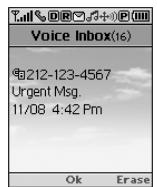
VOICE MAIL


To access your voice mail, press [MENU] 3W W or press W
NEW TEXT MSG
To send a new message:

Press

or press

Under Send To, input the phone number and press OK.
You can look it up from the phone book by pressing [MENU].

Under Message, input a new text message and press OK. (Please refer to page 29 for more details on entering letters, numbers and symbols.)

The default call back number is automatically inputted into the Default CB# field. You can scroll to the number and edit it or simply press [OK].

Press the Navigation Key down for more fields. Under Priority, select Normal or Urgent.

Under Insert Signature, select On or Off.

To send the text message, press [SEND].

To save the text message, press [MENU] and select the "Save to Outbox" then press OK.
NEW PHOTO MSG
To send a new picture message:



Phone goes into camera mode automatically.
Take a picture and press [SEND].
(Pleases refer to page 81 for more details on taking a photo.)

Under Send To, input the phone number and press OK.
You can look it up from the phone book by pressing [MENU].

- Under Message, input a new text message and press OK.
(Pleases refer to page 29 for more details on entering letters, numbers and symbols.)

Under Subject, input a message subject and press [OK].
(Pleases refer to page 29 for more details on entering letters, numbers and symbols.)

To send a message to another person, select the "CC" or "BCC" and input the phone numbers, then press OK.

To send the text message, press [SEND].

To save the text message, press [MENU] and select "Save to Outbox" then press OK.
INBOX
The Inbox manages received text messages. To access:

Press

[MENU]

or pres

401

:Urgent New Msg (not read)
: Urgent Re
: New Msg (not read)
: OldMsg(already read)
: Lock (already read and locked)

2 Select a message and press OK. The message is displayed.

3 Press

ENU].
1. REPLY

1 To reply to the text message, press

2 Type your reply and press OK. (Please refer to page 29 for more details on entering numbers and symbols.)
2. REPLY TO COPY

To reply to a received message and include the received message into the message, press 2sec.

2 The default call back number is automatically inputted into the Default CB# field. You can scroll to the number and edit it or simply press [OK].

Press the Navigation Key down for more fields. Under Priority, select Normal or Urgent.

4 Under Insert Signature, select On or Off.

5 To send the text message, press [SEND].

To save the text message, press [MENU] and select the "Save to Outbox" then press OK.
INBOX
3. FORWARD
1 To forward the text message, press "Forward".
Input the phone number of the person you are sending the message, then press OK.
3 Input any text message to go along with the forwarded message, then press [OK].
4. SAVE TO SAVED
To save the text message in your phone, press Save to Saved.
Press
5. SAVE TO QUICK TEXT
1 To save received text msg to "Quick text", press Save to Quick Text".
6. SAVE TO CONTACT
1 To save number to contact, press "Save to Contact".
7. LOCK & UNLOCK
1 To lock or unlock the text message, press "Lock/Unlock".
2 Select "Lock" to lock the message or "Unlock" to unlock the message, then press.
OUTBOX
Manages sent text messages or messages waiting to be sent.
CHECKING SENT TEXT MESSAGES
press [MENU] or press 5. Select a message, then press [OK].
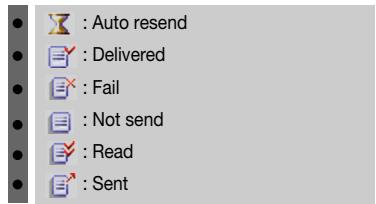
The text message is displayed.
3 To Erase Message, press [ERASE].
4 Press [MENU].
1. RESEND
1 To resend a text message, press
2.EDITMESSAGE
1 To send a message to another person, press 2.
2 Input the phone number and press
3 Input a text message and press
CH 6
OUTBOX
3. SAVE TO CONTACTS
1 To save number to contact, press "Save to Contacts".
4. SAVE TO SAVED
1 To save the text message in your phone, press "Save to Saved".
Press
5. LOCK & UNLOCK
1 To lock or unlock the text message, press "Lock/Unlock".
2 Select "Lock" to lock the message or "Unlock" to unlock the message, then press.
6. STATE
1 To display the status of an outbox message, press 6 .
WEB ALERTS
WEB ALERTS
Press [MENU] or press
2 To select GoTo, press . To select Erase Message, press
3 The text message will be displayed.
- [√v]: Read Message.
- [▶]: Unread Message.
- [ ] : Displays remaining text.
- GoTo: Connecting Selected Site.
- Erase : Erase Selected Message.
CH 6
SAVED
SAVED
Manages saved messages from the Inbox/Outbox.

Press [MENU] or press OK. Select a text message then press OK.

The text message is displayed. Press [MEN].

If the text message is saved from the "Inbox" menu, this screen will be displayed.
If the text message is saved from the "Outbox" menu, this screen will be displayed.
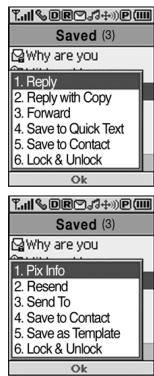
4 To Erase Message, press [ERASE].
5 Select one by pressing
QUICK TEXT
QUICK TEXT
To view/edit the quick text messages:
1 Press
[MENU] 8or or press 8on.

Select a message from the list. Press OK].

To edit the quick text message you selected press [MENU] [EDIT]. To add a new quick text press [MENU] [ADD NEW].
ERASE ALL
ERASE MESSAGES

Press


- To erase all the inbox messages, press

Erases entire inbox or old inbox.
- To erase all the outbox messages, press 2

Erases entire outbox or old outbox.
- To erase the saved messages, press 3


t“OK




Old: Deletes read Message(s).

Entire: Deletes all the message(s) in the Inbox (However, the locked Message(s) will not be deleted).


TO EF
Automatically erases inbox/outbox messages when new messages arrive.
AUTO ERASE INBOX


SETTINGS
AUTO ERASE OUTBOX
Press [MENU] or press 0. Then press for "Auto Erase".
Press. Select "Disable" or "Enable".
3 Press OK [OK].
DEFAULTCALLBACK
Edits a default call back number so that the recipient can call back or reply.
Press [MENU] or press 0^出 . Then press for "Default Callback".
2 Input a call back number, then press [OK].
3 Press [FIND] to find a number from the phone book.
ALERT
Enables phone to alert you of an incoming message.
Press [MENU] or press 0. Then press for "Alert".
2 Select Voice Mail, Messages or Remind. For Voice Mail and Messages, select tone 1-5. For Remind, select "On" or "Off".
3 Press [OK].
SETTINGS
EDIT SIGNATURE
Create a signature that can be automatically inserted at the end of a message.
Press [MENU] or press 0. Then press for "Edit Signature".
2 Select "Edit Signature" or "Insert Signature".
- EDIT SIGNATURE: Edit user's signature.
- INSERT SIGNATURE: Select whether the signature will be included into sending message.
3 Press [OK].
DIRECT VIEW
If the Direct View is set to on, the user will be able to view the message by pressing the read key. If the Direct View is set to off, the user can view the message by entering SMS Menu-> Inbox.
Press [MENU] or press 0. Then press for "Direct View".
2 Select "On" or "Off".
ON: Set to read msg without entering inbox in SMS menu. OFF: Set to read msg after entering inbox in SMS menu.
3 Press [OK].
ENTRY MODE
Sets an Entry Mode as a default. The T9 mode indicator will appear whenever the input mode is activated if the T9 mode is the default.
Press [MENU] or press 0. Then press for “Entry Mode”.
2 Select "T9 Mode" or "Alpha Mode".
3 Press OK].
SETTINGS
BLOCK OR UNBLOCK

Press
[MENU]
or press 03
Then press 8^ for "Block or Unblock".

Select "Block", "Unblock", or "View List" of Blocked Addresses.

Press [OK].
Chapter 7
WEB BROWSING
This chapter addresses Internet services and web browsing. For more detailed information contact your service provider.
START INTERNET BROWSER
BROWSER MENU
CH7
112
113
START INTERNET BROWSER
ACCESS THE INTERNET

To start your Internet browser and access websites through your wireless handset press


ess
BROWSER MENU
MARK SITE

To add the current page to your bookmark list, press Aot
- "No bookmark service site" is displayed when the Internet site cannot support the bookmark service.
BROWSER MENU
The browser menu lists the actions necessary to operate the browser. Press or press to access the browser menu.
BACK

To return previous page, press
BOOKMARKS

To view your bookmark list, press 5 × 1 . This provides easy website access without entering its URL.
INBOX
Displays inbox list.

To select Inbox, press 6
HOME

To display the homepage, press 2.
RELOAD
Reloada current page.

To select Reload, press
EXIT

To exit browser, press 3
BROWSER MENU
SETTINGS
Displays Browser Menu Settings.

To select Settings, press 8^new .
HOMEPAGE
Enables you to change the homepage.
1 To select "Homepage", press
PROXY
Enables you to select another WAP PROXY.
1 To select "Set UP.Link", press 2aoc.
CIRCUIT LINGER
1 To select "Circuit Linger" timer, press 3.
SCROLL MODE
1 To select "Scroll Mode", press A.
SCROLL SPEED
1 To select "Scroll Speed", press 5.
KEY PRESS TIMEOUT
1 To select "Key Press Timeout", press 6
SECURITY
Displays Security Menu Options.
1 To select "Security", press 7.
116
BROWSER MENU
ADVANCED
Displays Advanced Menu options.

To select "Set UP.Link", press OK.
- SHOW URL Displays the URL (Uniform Resource Locator) of the current page. 1. To select Show URL, press 12 .
- RESTART BROWSER Causes the deck history and deck cache to be cleared and starts a new session with the UP.Link. 1. To select Restart Browser, press 20 .
CH 7
MEMO
Chapter 8
SAFETY AND WARRANTY
This chapter addresses the safety guidelines and precautions to follow when operating your phone. Before operating your phone, please be aware of all the safety details.
This chapter contains the terms and conditions of services and the warranty for your phone. Please review them thoroughly.
■ SAFETY INFORMATION FOR WIRELESS HANDHELD PHONES
SAFETY INFORMATION FOR FCC RF EXPOSURE
SAR INFORMATION
FDA CONSUMER UPDATE
PROTECT YOUR WARRANTY
12 MONTH LIMITED WARRANTY
SAFETY INFORMATION FOR WIRELESS HANDHELD PHONES
Read This Information Before Using Your Handheld Portable Cellular Telephone
EXPOSURE TO RADIO FREQUENCY SIGNALS
Your wireless handheld portable telephone is a low power radio transmitter and receiver. When it is ON, it receives and also sends out radio frequency (RF) signals.
In August 1996, the Federal Communications Commissions (FCC) adopted RF exposure guidelines with safety levels for handheld wireless phones. Those guidelines are consistent with the safety standards previously set by both U.S. and international standards bodies:
ANSIC95.1 (1992)
NCRP Report 86 (1986) *
ICNIRP (1996)
Those standards were based on comprehensive and periodic evaluations of the relevant scientific literature. For example, over 120 scientists, engineers, and physicians from universities, government health agencies, and industry reviewed the available body of research to develop the ANSI Standard (C951).
The design of your phone complies with the FCC guidelines (and those standards).
ANTENNA CARE
Use only the supplied or an approved replacement antenna. Unauthorized antennas, modifications, or attachments could damage the phone and may violate FCC regulations.
SAFETY INFORMATION FOR WIRELESS HANDHELD PHONES
DRIVING SAFETY
Talking on the phone while driving is extremely dangerous and is illegal in some states. Remember, safety comes first. Check the laws and regulations on the use of phones in the areas where you drive. Always obey them.
Also, if using your phone while driving, please:
- Give full attention to driving. Driving safely is your first responsibility.
Use hands-free operation, if available.
Pull off the road and park before making or answering a call, if driving conditions so require.
If you must use the phone while driving, please use one-touch, speed dialing, and auto answer modes.
An airbag inflates with great force. DO NOT place objects, including both installed or portable wireless equipment, in the area over the airbag or in the air bag deployment area. If in-vehicle wireless equipment is improperly installed and the air bag inflates, serious injury could result.

WARNING: Failure to follow these instructions may lead to serious personal injury and possible property damage.
SAFETY INFORMATION FOR WIRELESS HANDHELD PHONES
ELECTRONIC DEVICES
Most modern electronic equipment is shielded from RF energy. However, certain electronic equipment may not be shielded against the RF signals from your wireless phone.
PACEMAKERS
The Health Industry Manufacturers Association recommends that a minimum separation of six (6") inches be maintained between a handheld wireless phone and a pacemaker to avoid potential interference with the pacemaker. These recommendations are consistent with the independent research by and recommendations of Wireless Technology Research.
Persons with pacemakers :
- ALWAYS keep the phone more than six inches from your pacemaker when the phone is turned on.
- Do not carry the phone in a breast pocket.
Use the ear opposite the pacemaker to minimize the potential for interference. - If you have any reason to suspect that interference is taking place, turn your phone OFF immediately.
OTHER MEDICAL DEVICES
If you use any other personal medical device, consult the manufacturer of your device to determine if they are adequately shielded from external RF energy. Your physician may be able to assist you in obtaining this information.
Turn your phone OFF in healthcare facilities when any regulations posted in these areas instruct you to do so. Hospitals or healthcare facilities may be using equipment that could be sensitive to external RF energy.
POSTED FACILITIES
Turn your phone OFF where posted notices so require.
SAFETY INFORMATION FOR WIRELESS HANDHELD PHONES
OTHER SAFETY GUIDELINES
AIRCRAFT
FCC and Transport Canada Regulations prohibit using your phone while in the air. Turn your phone OFF before boarding an aircraft.
BLASTING AREAS
To avoid interfering with blasting operations, turn your phone OFF when in a "blasting area" or in areas posted: "Turn off two-way radio." Obey all signs and instructions.
POTENTIALLY EXPLOSIVE ATMOSPHERES
Turn your phone OFF when in any area with a potentially explosive atmosphere and obey all signs and instructions. Sparks in such areas could cause an explosion or fire resulting in bodily injury or even death.
Areas with a potentially explosive atmosphere are often, but not always, clearly marked. They include fueling areas such as gas stations; below deck on boats; fuel or chemical transfer or storage facilities; vehicles using liquefied petroleum gas (such as propane or butane); areas where the air contains chemicals or articles, such as grain, dust, or metal powders; and any other area where you would normally be advised to turn off your vehicle's engine.
SAFETY INFORMATION FOR WIRELESS HANDHELD PHONES
PRECAUTIONS
Your Handheld Portable Telephone is a high quality piece of equipment. Before operating, read all instructions and cautionary markings on (1) AC Adaptor (2) Battery and (3) Product Using Battery.

DO NOT use this equipment in an extreme environment where high temperature or high humidity exists.

DO NOT abuse the equipment. Avoid striking, shaking or shocking. When not using, lay down the unit to avoid possible damage due to instability.

DO NOT expose this equipment to rain or spilled beverages.

DO NOT use unauthorized accessories.

DO NOT disassemble the phone or its accessories. If service or repair is required, return unit to an authorized Audiovox cellular service center. If unit is disassembled, the risk of electric shock or fire may result.

DO NOT short-circuit the battery terminals with metal items etc.
SAFETY INFORMATION FOR FCC RF EXPOSURE

WARNING! Read this Information before using
CAUTIONS
In August 1996 the Federal Communications Commission (FCC) of the United States with its action in Report and Order FCC 96-326 adopted an updated safety standard for human exposure to radio frequency electromagnetic energy emitted by FCC regulated transmitters. Those guidelines are consistent with the safety standard previously set by both U.S. and international standards bodies. The design of this phone complies with the FCC guidelines and these international standards.
Use only the supplied or an approved antenna. Unauthorized antennas, modifications, or attachments could impair call quality, damage the phone, or result in violation of FCC regulations.
Do not use the phone with a demaged antenna. If a demaged antenna comes into contact with the skin, a minor burn may result. Please contact your local dealer for replacement antenna.
BODY-WORN OPERATION
This device was tested for typical body-worn operations with the back of the phone kept 2.0cm from the body. To maintain compliance with FCC RF exposure requirements, use only belt-clips, holsters or similar accessories that maintain a 2.0cm separation distance between the user's body and the back of the phone, including the antenna. The use of belt-clips, holsters and similar accessories should not contain metallic components in its assembly. The use of accessories that do not satisfy these requirements may not comply with FCC RF exposure requirements, and should be avoided.
VEHICLE MOUNTED EXTERNAL ANTENNA (OPTIONAL, IF AVAILABLE)
A minimum separation distance of 7.9 inches (20cm) must be maintained between the user/bystander and the vehicle mounted external antenna to satisfy FCC RF exposure requirements.

For more information about RF exposure, please visit the FCC website at www.fcc.gov
SAR INFORMATION
THIS MODEL PHONE MEETS THE GOVERNMENT'S REQUIREMENTS FOR EXPOSURE TO RADIO WAVES.
Your wireless phone is a radio transmitter and receiver. It is designed and manufactured not to exceed the emission limits for exposure to radiofrequency (RF) energy set by the Federal Communications Commission of the U.S. Government. These limits are part of comprehensive guidelines and establish permitted levels of RF energy for the general population. The guidelines are based on standards that were developed by independent scientific organizations through periodic and thorough evaluation of scientific studies. The standards include a substantial safety margin designed to assure the safety of all persons, regardless of age and health.
The exposure standard for wireless mobile phones employs a unit of measurement known as the Specific Absorption Rate, or SAR. The SAR limit set by the FCC is 1.6W / kg . * Tests for SAR are conducted with the phone transmitting at its highest certified power level in all tested frequency bands. Although the SAR is determined at the highest certified power level, the actual SAR level of the phone while operating can be well below the maximum value. This is because the phone is designed to operate at multiple power levels so as to use only the power required to reach the network. In general, the closer you are to a wireless base station antenna, the lower the power output.
Before a phone model is available for sale to the public, it must be tested and certified to the FCC that it does not exceed the limit established by the government adopted requirement for safe exposure. The tests are performed in positions and locations (e.g., at the ear and worn on the body) as required by the FCC for each model. The highest SAR value for this model phone when tested for use at the ear is 1.15W / Kg and when worn on the body, as described in this user guide, is 0.393W / Kg . (Body-worn measurements differ among phone models, depending upon available accessories and FCC requirements). While there may be differences between the SAR levels of various phones and at various positions, they all meet the government requirement for safe exposure.
The FCC has granted an Equipment Authorization for this model phone with all reported SAR levels evaluated as in compliance with the FCC RF exposure guidelines. SAR information on this model phone is on file with the FCC and can be found under the Display Grant section of http://www.fcc.gov/ oet/fccid after searching on PP4TX-95C.
SAR INFORMATION
Additional information on Specific Absorption Rates (SAR) can be found on the Cellular Telecommunications Industry Asso-ciation (CTIA) web-site at http://www.wow-com.com.
- In the United States and Canada, the SAR limit for mobile phones used by the public is 1.6 watts/kg (W/kg) averaged over one gram of tissue. The standard incorporates a sub-stantial margin of safety to give additional protection for the public and to account for any variations in measurements.
FDA CONSUMER UPDATE

U.S. Food and Drug Administration -Center for Devices and Radiological Health Consumer Update on Wireless Phones
1. Do wireless phones pose a health hazard?
The available scientific evidence does not show that any health problems are associated with using wireless phones. There is no proof, however, that wireless phones are absolutely safe. Wireless phones emit low levels of radiofrequency energy (RF) in the microwave range while being used. They also emit very low levels of RF when in the stand-by mode. Whereas high levels of RF can produce health effects (by heating tissue), exposure to low level RF that does not produce heating effects causes no known adverse health effects. Many studies of low level RF exposures have not found any biological effects. Some studies have suggested that some biological effects may occur, but such findings have not been confirmed by additional research. In some cases, other researchers have had difficulty in reproducing those studies, or in determining the reasons for inconsistent results.
2. What is FDA's role concerning the safety of wireless phones?
Under the law, FDA does not review the safety of radiation-emitting consumer products such as wireless phones before they can be sold, as it does with new drugs or medical devices. However, the agency has authority to take action if wireless phones are shown to emit radiofrequency energy (RF) at a level that is hazardous to the user. In such a case, FDA could require the manufacturers of wireless phones to notify users of the health hazard and to repair, replace or recall the phones so that the hazard no longer exists. Although the existing scientific data do not justify FDA regulatory actions, FDA has urged the wireless phone industry to take a number of steps, including the following:
- Support needed research into possible biological effects of RF of the type emitted by wireless phones;
- Design wireless phones in a way that minimizes any RF exposure to the user that is not necessary for device function;
and
- Cooperate in providing users of wireless phones with the best possible information on possible effects of wireless phone use on human health.
FDA belongs to an interagency working group of the federal agencies that have responsibility for different aspects of RF safety to ensure coordinated efforts at the federal level. The following agencies belong to this working group:
National Institute for Occupational Safety and Health
Environmental Protection Agency
Federal Communications Commission
Occupational Safety and Health Administration
National Telecommunications and Information Administration
The National Institutes of Health participates in some inter-agency working group activities, as well. FDA shares regulatory responsibilities for wireless phones with the Federal Communications Commission (FCC). All phones that are sold in the United States must comply with FCC safety guidelines that limit RF exposure. FCC relies on FDA and other health agencies for safety questions about wireless phones. FCC also regulates the base stations that the wireless phone networks rely upon. While these base stations operate at higher power than do the wireless phones themselves, the RF exposures that people get from these base stations are typically thousands of times lower than those they can get from wireless phones. Base stations are thus not the subject of the safety questions discussed in this document.
3. What kinds of phones are the subject of this update?
The term "wireless phone" refers here to handheld wireless phones with built-in antennas, often called "cell," "mobile," or "PCS" phones.
FDA CONSUMER UPDATE
These types of wireless phones can expose the user to measurable radiofrequency energy (RF) because of the short distance between the phone and the user's head. These RF exposures are limited by Federal Communications Commission safety guidelines that were developed with the advice of FDA and other federal health and safety agencies. When the phone is located at greater distances from the user, the exposure to RF is drastically lower because a person's RF exposure decreases rapidly with increasing distance from the source. The so-called "cordless phones," which have a base unit connected to the telephone wiring in a house, typically operate at far lower power levels, and thus produce RF exposures far below the FCC safety limits.
4. What are the results of the research done already?
The research done thus far has produced conflicting results, and many studies have suffered from flaws in their research methods. Animal experiments investigating the effects of radiofrequency energy (RF) exposures characteristic of wireless phones have yielded conflicting results that often cannot be repeated in other laboratories. A few animal studies, however, have suggested that low levels of RF could accelerate the development of cancer in laboratory animals. However, many of the studies that showed increased tumor development used animals that had been genetically engineered or treated with cancer-causing chemicals so as to be predisposed to develop cancer in the absence of RF exposure. Other studies exposed the animals to RF for up to 22 hours per day. These conditions are not similar to the conditions under which people use wireless phones, so we don't know with certainty what the results of such studies mean for human health. Three large epidemiology studies have been published since December 2000. Between them, the studies investigated any possible association between the use of wireless phones and primary brain cancer, glioma, meningioma, or acoustic neuroma, tumors of the brain or salivary gland, leukemia, or other cancers. None of the studies demonstrated the existence of any harmful health effects from wireless phone RF exposures. However, none of the studies can answer questions about long-term exposures, since the average period of phone use in these studies was around three years.
5. What research is needed to decide whether RF exposure from wireless phones poses a health risk?
A combination of laboratory studies and epidemiological studies of people actually using wireless phones would provide some of the data that are needed. Lifetime animal exposure studies could be completed in a few years. However, very large numbers of animals would be needed to provide reliable proof of a cancer promoting effect if one exists. Epidemiological stud-ies can provide data that is directly applicable to human populations, but 10 or more years' follow-up may be needed to provide answers about some health effects, such as cancer. This is because the interval between the time of exposure to a cancer- causing agent and the time tumors develop - if they do -may be many, many years. The interpretation of epidemiological studies is hampered by difficulties in measuring actual RF exposure during day-to-day use of wireless phones. Many factors affect this measurement, such as the angle at which the phone is held, or which model of phone is used.
6. What is FDA doing to find out more about the possible health effects of wireless phone RF?
FDA is working with the U.S. National Toxicology Program and with groups of investigators around the world to ensure that high priority animal studies are conducted to address important questions about the effects of exposure to radiofrequency energy (RF). FDA has been a leading participant in the World Health Organization International Electromagnetic Fields (EMF) Project since its inception in 1996. An influential result of this work has been the development of a detailed agenda of research needs that has driven the establishment of new research programs around the world.
FDA CONSUMER UPDATE
The Project has also helped develop a series of public information documents on EMF issues. FDA and the Cellular Telecommunications & Internet Association (CTIA) have a formal Cooperative Research and Development Agreement (CRADA) to do research on wireless phone safety. FDA provides the scientific oversight, obtaining input from experts in government, industry, and academic organizations. CTIA-funded research is conducted through contracts to independent investigators. The initial research will include both laboratory studies and studies of wireless phone users. The CRADA will also include a broad assessment of additional research needs in the context of the latest research developments around the world.
7. How can I find out how much radiofrequency energy exposure I can get by using my wireless phone?
All phones sold in the United States must comply with Federal Communications Commission (FCC) guidelines that limit radiofrequency energy (RF) exposures. FCC established these guidelines in consultation with FDA and the other federal health and safety agencies. The FCC limit for RF exposure from wireless telephones is set at a Specific Absorption Rate (SAR) of 1.6 watts per kilogram (1.6 W/kg). The FCC limit is consistent with the safety standards developed by the Institute of Electrical and Electronic Engineering (IEEE) and the National Council on Radiation Protection and Measurement. The exposure limit takes into consideration the body's ability to remove heat from the tissues that absorb energy from the wireless phone and is set well below levels known to have effects. Manufacturers of wireless phones must report the RF exposure level for each model of phone to the FCC. The FCC website (http://www.fcc.gov/oe/trfsafety) gives directions for locating the FCC identification number on your phone so you can find your phone's RF exposure level in the online listing.
8. What has FDA done to measure the radiofrequency energy coming from wireless phones?
The Institute of Electrical and Electronic Engineers (IEEE) is developing a technical standard for measuring the radiofrequency energy (RF) exposure from wireless phones and other wireless handsets with the participation and leader-ship of FDA scientists and engineers. The standard, "Recommended Practice for Determining the Spatial-Peak Specific Absorption Rate (SAR) in the Human Body Due to Wireless Communications Devices: Experimental Techniques," sets forth the first consistent test methodology for measuring the rate at which RF is deposited in the heads of wireless phone users. The test method uses a tissue-simulating model of the human head. Standardized SAR test methodology is expected to greatly improve the consistency of measurements made at different laboratories on the same phone. SAR is the mea-surement of the amount of energy absorbed in tissue, either by the whole body or a small part of the body. It is measured in watts/kg (or milliwatts/g) of matter. This measurement is used to determine whether a wireless phone complies with safety guidelines.
9. What steps can I take to reduce my exposure to radiofrequency energy from my wireless phone?
If there is a risk from these products—and at this point we do not know that there is—it is probably very small. But if you are concerned about avoiding even potential risks, you can take a few simple steps to minimize your exposure to radiofrequency energy (RF). Since time is a key factor in how much exposure a person receives, reducing the amount of time spent using a wireless phone will reduce RF exposure.
- If you must conduct extended conversations by wireless phone every day, you could place more distance between your body and the source of the RF, since the exposure level drops off dramatically with distance. For example, you could use a headset and carry the wireless phone away from your body or use a wireless phone connected to a remote antenna.
FDA CONSUMER UPDATE
Again, the scientific data do not demonstrate that wireless phones are harmful. But if you are concerned about the RF exposure from these products, you can use measures like those described above to reduce your RF exposure from wireless phone use.
10.What about children using wireless phones?
The scientific evidence does not show a danger to users of wireless phones, including children and teenagers. If you want to take steps to lower exposure to radiofrequency energy (RF), the measures described above would apply to children and teenagers using wireless phones. Reducing the time of wireless phone use and increasing the distance between the user and the RF source will reduce RF exposure. Some groups sponsored by other national governments have advised that children be discouraged from using wireless phones at all. For example, the government in the United King-dom distributed leaflets containing such a recommendation in December 2000. They noted that no evidence exists that using a wireless phone causes brain tumors or other ill effects. Their recommendation to limit wireless phone use by children was strictly precautionary; it was not based on scientific evidence that any health hazard exists.
11.What about wireless phone interference with medical equipment?
Radiofrequency energy (RF) from wireless phones can interact with some electronic devices. For this reason, FDA helped develop a detailed test method to measure electromagnetic interference (EMI) of implanted cardiac pacemakers and defibrillators from wireless telephones. This test method is now part of a standard sponsored by the Association for the Advancement of Medical instrumentation (AAMI). The final draft, a joint effort by FDA, medical device manufacturers, and many other groups, was completed in late 2000. This standard will allow manufacturers to ensure that cardiac pacemakers and defibrillators are safe from wireless phone EMI. FDA has tested hearing aids for interference from handheld wireless phones and helped develop a voluntary standard sponsored by the Institute of Electrical and Electronic Engineers (IEEE). This standard specifies test methods and performance requirements for hearing aids and wireless phones so that no interference occurs when a person uses a "compatible" phone and a "compatible" hearing aid at the same time. This standard was approved by the IEEE in 2000. FDA continues to monitor the use of wireless phones for possible interactions with other medical devices. Should harmful interference be found to occur, FDA will conduct testing to assess the interference and work to resolve the problem.
12.Where can I find additional information?
For additional information, please refer to the following re-sources:
- FDA web page on wireless phones (http://www.fda.gov/cdrh/ phones/index.html)
Federal Communications Commission (FCC) RF Safety Program (http://www.fcc.gov/oet/rfsafety)
International Commission on Non-Ionizing Radiation Protection (http://www.icnirp.de)
World Health Organization (WHO) International EMF Project (http://www.who.int/emf)
National Radiological Protection Board (UK) (http://www.nrpb.org.uk/
PROTECT YOUR WARRANTY
Read your Warranty carefully, with the special consideration to paragraph seven of the Limited Warranty for your unit.
"Warranty does not apply to... or to any product or part thereof which has suffered through alteration... mishandling misuse, neglect or accident".
Many companies are making look alike accessories and in some cases, promoting that their product is equal to or better than the Audiovox product. Be careful. Some of these products may not be compatible to use with your Audiovox product and may damage the unit or cause it to malfunction. If service is required on your unit and it is determined that a non-Audiovox accessory has created the problem with your unit, the Warranty will not apply. In addition, if the unit has already suffered irreversible damage by reason of a non-compatible accessory, the Warranty will be voided. To protect your Warranty, use only compatible accessories which cannot damage or interfere with the functioning of your Audiovox product.

AUDIOVOX
COMMUNICATIONS CORP.
AUDIOVOX COMMUNICATIONS CORP.
555 Wireless Blvd., Hauppauge, New York 11788, 800-229-1235
16808 Marquardt Avenue, Cerritos, California 90703, 562-802-5100
Audiovox Communications Canada Co.
5155 Spectrum Way, Unit #5, Mississauga, Ontario
Canada L4W 5A1,800-465-9672
12 MONTH LIMITED WARRANTY
Audiovox Communications Corp. (the Company) warrants to the original retail purchaser of this Audiovox handheld portable cellular telephone, that should this product or any part thereof during normal consumer usage and conditions, be proven defective in material or workmanship that results in product failure within the first twelve (12) month period from the date of purchase, such defect(s) will be repaired or replaced (with new or rebuilt parts) at the Company's option, without charge for parts or labor directly related to the defect(s).
The antenna, keypad, display, rechargeable battery and battery charger, if included, are similarly warranted for twelve (12) months from date of purchase.
This Warranty extends only to consumers who purchase the product in the United States or Canada and it is not transferable or assignable.
This Warranty does not apply to:
(a) Product subjected to abnormal use or conditions, accident, mishandling, neglect, unauthorized alteration, misuse, improper installation or repair or improper storage;
(b) Product whose mechanical serial number or electronic serial number has been removed, altered or defaced.
(c) Damage from exposure to moisture, humidity, excessive temperatures or extreme environmental conditions;
(d) Damage resulting from connection to, or use of any accessory or other product not approved or authorized by the Company;
(e) Defects in appearance, cosmetic, decorative or structural items such as framing and non-operative parts;
(f) Product damaged from external causes such as fire, flooding, dirt, sand, weather conditions, battery leakage, blown fuse, theft or improper usage of any electrical source.
The Company disclaims liability for removal or reinstatement of the product, for geographic coverage, for inadequate signal reception by the antenna or for communications range or operation of the cellular system as a whole.
To obtain repairs or replacement within the terms of this Warranty, the product should be delivered with proof of Warranty coverage (e.g. dated bill of sale), the consumer's return address, daytime phone number and/or fax number and complete description of the problem, transportation prepaid, to the Company at the address shown below or to the place of purchase for repair or replacement processing.
12 MONTH LIMITED WARRANTY
MEMO
In addition, for reference to an authorized Warranty station in your area, you may telephone in the United States (800) 229-1235, and in Canada (800) 465-9672 (in Ontario call 905-712-9299).
THE EXTENT OF THE COMPANY'S LIABILITY UNDER THIS WARRANTY IS LIMITED TO THE REPAIR OR REPLACEMENT PROVIDED ABOVE AND, IN NO EVENT, SHALL THE COMPANY'S LAIBILITIES EXCEED THE PURCHASE PRICE PAID BY PURCHASER FOR THE PRODUCT.
ANY IMPLIED WARRANTY, INCLUDING ANY IMPLIED WARRANTY OF MERCHANTABILITY OR FITNESS FOR A PARTICULAR PURPOSE, SHALL BE LIMITED TO THE DURATION OF THIS WRITTEN WARRANTY. ANY ACTION FOR BREACH OF ANY WARRANTY MUST BE BROUGHT WITHIN A PERIOD OF 18 MONTHS FROM DATE OF ORIGINAL PURCHASE. IN NO CASE SHALL THE COMPANY BE LIABLE FOR AN SPECIAL CONSEQUENTIAL OR INCIDENTAL DAMAGES FOR BREACH OF THIS OR ANY OTHER WARRANTY, EXPRESS OR IMPLIED, WHATSOEVER. THE COMPANY SHALL NOT BE LIABLE FOR THE DELAY IN RENDERING SERVICE UNDER THIS WARRANTY OR LOSS OF USE DURING THE TIME THE PRODUCT IS BEING REPAIRED OR REPLACED.
No person or representative is authorized to assume for the Company any liability other than expressed herein in connection with the sale of this product.
Some states or provinces do not allow limitations on how long an implied warranty lasts or the exclusion or limitation of incidental or consequential damage so the above limitation or exclusions may not apply to you. This Warranty gives you specific legal rights, and you may also have other rights which vary from state to state or province to province.
IN USA: AUDIOVOX COMMUNICATIONS CORP.
555 Wireless Blvd.
Hauppauge, NY 11788
(800) 229-1235
IN CANADA: AUDIOVOX COMMUNICATIONS CANADA CO.
5155 Spectrum Way, Unit #5
Mississauga, Ontario L4W 5A1
(800) 465-9672