SWEEX ST031V2 - Disque dur externe

ST031V2 - Disque dur externe SWEEX - Notice d'utilisation et mode d'emploi gratuit

Retrouvez gratuitement la notice de l'appareil ST031V2 SWEEX au format PDF.

📄 4 pages Français FR Télécharger 💬 Question IA 10 questions ⚙️ Specs
Notice SWEEX ST031V2 - page 1
Voir la notice : Français FR English EN
Choisissez votre langue et indiquez votre email : nous vous enverrons une version traduite specifiquement.
Marque SWEEX
Modèle ST031V2
Catégorie Disque dur externe
Interface interne SATA
Connectivité USB 2.0
Facteur de forme 3,5 pouces
Alimentation Adaptateur secteur externe fourni
Systèmes d'exploitation compatibles Windows 2000, Windows XP, Windows Vista
Fonction de sauvegarde Logiciel PCCLoneEX inclus
Installation du disque dur Nécessite ouverture du boîtier (tabs latéraux)
Formatage requis Oui pour disque neuf (via Gestion des disques)
Bouton de sauvegarde Présent sur le boîtier
Garantie 3 ans (hors logiciel et batterie)
Entretien et nettoyage Nettoyer avec un chiffon doux et sec. Éviter solvants.
Précautions d'usage Éviter chocs, températures extrêmes, humidité, poussière
Contenu de la boîte Disque dur externe, adaptateur secteur, câble USB, CD-ROM logiciel

FOIRE AUX QUESTIONS - ST031V2 SWEEX

Comment installer un disque dur dans le boîtier SWEEX ST031V2 ?
Appuyez sur les ergots latéraux pour retirer le capot, vissez le disque, branchez le câble IDE et l'alimentation, puis refermez le boîtier en enclenchant les ergots.
Comment connecter le disque dur externe à l'ordinateur ?
Allumez l'ordinateur, branchez le câble USB sur le disque et sur un port USB libre, puis connectez l'adaptateur secteur. Windows détecte et installe automatiquement le disque.
Pourquoi mon nouveau disque dur n'apparaît-il pas dans Poste de travail ?
Un nouveau disque doit être initialisé et formaté. Allez dans Panneau de configuration > Outils d'administration > Gestion de l'ordinateur > Gestion des disques. Initialisez le disque puis formatez-le.
Comment utiliser le logiciel de sauvegarde fourni ?
Insérez le CD-ROM, installez le logiciel PCCloneEx. Lancez-le via Démarrer > Programmes > PCCloneEx. Sélectionnez les dossiers à sauvegarder et la lettre du disque SWEEX comme destination, puis cliquez sur Backup.
Comment restaurer des fichiers à partir d'une sauvegarde ?
Dans PCCloneEx, la fenêtre de droite affiche les sauvegardes précédentes. Sélectionnez les fichiers ou dossiers à restaurer et cliquez sur Restore. Les fichiers reviennent à leur emplacement d'origine.
Où trouver les fichiers sauvegardés sur le disque ?
Les fichiers sont stockés dans une structure de dossiers identique à l'originale, mais masqués. Pour les voir, activez l'affichage des fichiers cachés dans Windows : Outils > Options des dossiers > Affichage > Afficher les fichiers et dossiers cachés.
Quelle est la procédure de garantie pour ce disque dur ?
La garantie Sweex est de 3 ans. Elle s'effectue exclusivement via le revendeur. Les logiciels et batteries ne sont pas couverts.
Comment entretenir et nettoyer le disque dur externe ?
Utilisez un chiffon doux et sec pour nettoyer le boîtier. Évitez les solvants, l'eau et l'humidité excessive.
Quelles sont les précautions d'usage à respecter ?
Ne pas exposer l'appareil à des températures extrêmes, à la lumière directe du soleil, à la poussière ou à l'humidité. Évitez les chocs violents qui pourraient endommager l'électronique interne.
Le disque dur est-il compatible avec Mac ou Linux ?
La notice mentionne uniquement Windows 2000, XP et Vista. Une compatibilité avec d'autres systèmes n'est pas garantie.

Questions des utilisateurs sur ST031V2 SWEEX

1 question sur cet appareil. Repondez a celles que vous connaissez ou posez la votre.

Poser une nouvelle question sur cet appareil

L'email reste privé : il sert seulement à vous prévenir si quelqu'un répond à votre question.

moet een nieuwe netsnoer hebben résolu
B berend - 9 j - 1 réponse communauté

netsnoer eigenschappen?

Signaler cette question
N Notice-Facile - 8 j

Le SWEEX ST031V2 est équipé d'un adaptateur secteur externe pour son alimentation. Cependant, les informations disponibles ne précisent pas tous les détails techniques du câble (tension, ampérage, type de connecteur, longueur exacte).

Si vous avez besoin de remplacer le câble d'alimentation, il est important de vérifier:

  • La tension requise (généralement indiquée sur l'adaptateur original ou dans la notice complète)
  • L'ampérage (en Ampères)
  • Le type de connecteur utilisé par le boîtier
  • La compatibilité avec votre adaptateur secteur existant

Je vous recommande de consulter la notice complète du ST031V2 qui devrait indiquer les spécifications précises de l'alimentation. Si vous n'avez plus accès à la notice papier, vous pouvez également contacter le service client SWEEX ou votre revendeur en lui indiquant votre numéro de modèle (ST031V2) pour obtenir les caractéristiques exactes et les références compatibles.

Signaler cette réponse
Ajouter une réponse

Téléchargez la notice de votre Disque dur externe au format PDF gratuitement ! Retrouvez votre notice ST031V2 - SWEEX et reprennez votre appareil électronique en main. Sur cette page sont publiés tous les documents nécessaires à l'utilisation de votre appareil ST031V2 de la marque SWEEX.

MODE D'EMPLOI ST031V2 SWEEX

SWEEX ST031V2 - 1

ST031 SweeX External 3.5" SATA Storage Solution USB 2.0

Introduction

In order to fully enjoy the Sweex External 3.5" Storage Solution, it is important to observe a number of things:

  • Do not expose the Sweex External 3.5" Storage Solution to extreme temperatures. Do not place the device in direct sunlight or in the direct vicinity of heating elements.
  • Do not use the Sweex External 3.5" Storage Solution in extremely dusty or moist surroundings.
  • Protect the device against powerful shocks or jolts - they may damage the internal electronics.

Hardware installation of the hard disk
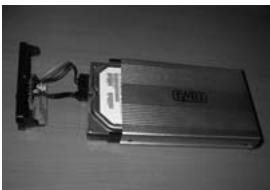
SWEEX ST031V2 - Hardware installation of the hard disk - 1

  1. Push the tabs on the side of the casing inwards in order to remove the top.
  2. Tighten to secure the hard disk.
  3. Connect the IDE cable and power supply plug to the hard disk.
  4. Close the casing by clicking the tabs back into place. The hard disk has now been built in.

Connecting the Sweex External 3.5'' Storage Solution SATA USB 2.0

  1. Start up the computer and wait until Windows has started up fully.
  2. Connect the USB cable to the Sweex External 3.5" Storage Solution and to a free USB port on the computer.
  3. Connect the external power adaptor and plug it into the mains socket. Windows will detect and install the hard disk automatically.
  4. Click on "My Computer" (My Computer) to access the new hard disk.

Activating a hard disk by initiating and formatting under Windows 2000, Windows XP, Windows Vista

If a new hard disk does not show up under "My Computer" (My Computer), it has probably not been formatted yet. This is often the case with new hard disks.

  1. Go to the "Control Panel" (Control Panel) and then go to "Administrative Tools" (Administrative Tools).
  2. Go to "Computer management" (Computer management) and "Disk Management" (Disk management).
  3. A window to start up the procedure to format the disk will automatically appear. If it does not, right-click the new disk in the window. Please be aware that your new disk may have a number that is different from the one in the picture.


SWEEX ST031V2 - Activating a hard disk by initiating and formatting under Windows 2000, Windows XP, Windows Vista - 1

SWEEX ST031V2 - Activating a hard disk by initiating and formatting under Windows 2000, Windows XP, Windows Vista - 2

  1. Right-click in the grey area on the left to initialise the disk. If this is not required, you can start formatting the disk by right-clicking in the white area. After this procedure, the disk is ready for use.

Backup software

If you wish to use the backup function, put the Sweex CD-ROM in the CD-ROM player and click the button to install "Backup Software".

SWEEX ST031V2 - Backup software - 1

Backup Software

You can start the software via "Start -> Programmes -> PCCLoneEx -> PCCLoneEx" (Start -> Programmes -> PCCLoneEx -> PCCLoneEx).

SWEEX ST031V2 - Backup Software - 1

PCCloneEX

Alternatively, click the icon on your desktop.
SWEEX ST031V2 - PCCloneEX - 1

SWEEX ST031V2 - PCCloneEX - 2

Starting a backup

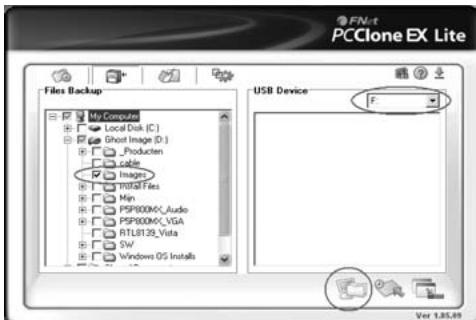
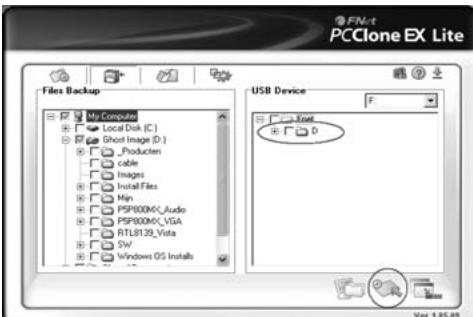
  1. Under "Files Backup", select the folders or files you wish to add to the backup procedure.
  2. Under "USB Device", select the location where the files will be stored. Select the drive letter of the Sweex External 3.5" Storage Solution.
  3. Click on "Backup" to start the process.
SWEEX ST031V2 - Starting a backup - 1

Files Backup

The files will be saved on the "USB Device" using the same folder structure.

Note! The folders and files on the "USB device" are hidden.

In Windows Explorer, via "Tools Folder Options View" (Tools Folder Options View), you can select "Show hidden files and folders" (Show hidden files and folders).

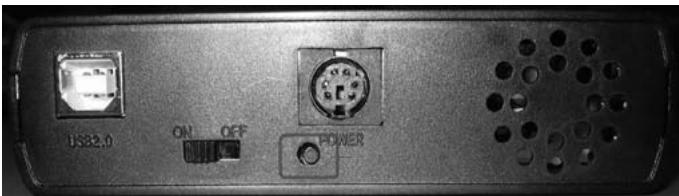
You can also use the backup button on the Sweex External 3.5^ Storage Solution in order to start the backup.
SWEEX ST031V2 - Files Backup - 1

Restore

  1. The window on the right shows any previous backups made. Here you can select the required folders or files in order to restore.
SWEEX ST031V2 - Restore - 1

  1. Click on "Restore" to restore the files from the backup location to the original location on the computer.
SWEEX ST031V2 - Restore - 2

Warranty

All products under the Sweex brand are warranted for a period of three years. We do not grant support or warranties for any software and/or (rechargeable) batteries included. Settlement of guarantee only takes place via the dealer where you have purchased the product in question.

The rightful owner has and retains title to all brand names and related rights mentioned in this manual.

Assistant notice
Powered by Anthropic
En attente de votre message
Informations produit

Marque : SWEEX

Modèle : ST031V2

Catégorie : Disque dur externe