
LCD TV MD 32532 - Téléviseur LCD MEDION - Notice d'utilisation et mode d'emploi gratuit
Retrouvez gratuitement la notice de l'appareil LCD TV MD 32532 MEDION au format PDF.


| Type de produit | Téléviseur LCD |
| Marque | MEDION |
| Modèle | LCD TV MD 32532 |
| Taille de l'écran | 32 pouces (81 cm), format 16:9 |
| Résolution | 1366 x 768 pixels |
| Consommation électrique | 180 W (fonctionnement), 3 W (veille) |
| Alimentation | 230 V ~ 50 Hz |
| Poids | Environ 16 kg |
| Dimensions (H x L x P) | 620 x 835 x 250 mm |
| Entrées vidéo | HDMI, VGA, SCART (x2), Composante (Y Pb Pr), S-Vidéo, Composite |
| Entrées audio | PC Audio In (Jack 3,5 mm), Audio Cinch (R/L) |
| Sortie audio | Prise casque (Jack 3,5 mm) |
| Connectivité antenne | 75 ohms, entrée antenne coaxiale |
| Nombre de programmes | 100 positions de présélection |
| Normes TV | PAL, SECAM, B/G, D/K, I, L/L' |
| Fonctions principales | Télétexte 1000 pages, PIP/PAP, menu OSD multilingue, minuterie d'extinction, blocage enfants, modes image (Naturel, Cinéma, Dynamique), écualisateur sonore |
| Montage mural | Possible, kit fourni (rails, vis, chevilles) |
| Entretien et nettoyage | Nettoyer avec un chiffon doux non pelucheux, sans solvants ni produits agressifs |
| Sécurité | Ne pas ouvrir le boîtier, éviter l'humidité et la chaleur excessive, tenir les piles hors de portée des enfants |
| Pièces détachées et réparabilité | Réparations par un professionnel agréé ; piles R03 (AAA) pour télécommande |
| Informations générales | Notice disponible en plusieurs langues ; garantie constructeur ; élimination respectueuse de l'environnement |
FOIRE AUX QUESTIONS - LCD TV MD 32532 MEDION
Questions des utilisateurs sur LCD TV MD 32532 MEDION
0 question sur cet appareil. Repondez a celles que vous connaissez ou posez la votre.
Poser une nouvelle question sur cet appareil
Téléchargez la notice de votre Téléviseur LCD au format PDF gratuitement ! Retrouvez votre notice LCD TV MD 32532 - MEDION et reprennez votre appareil électronique en main. Sur cette page sont publiés tous les documents nécessaires à l'utilisation de votre appareil LCD TV MD 32532 de la marque MEDION.
MODE D'EMPLOI LCD TV MD 32532 MEDION
Contendo
Acerca de las presentes instrucciones 3
Uso apropiado 3
HD Ready 3
Volumen de suministro 3
Advertencias de seguridad 4
Seguridad de funciona . 4
Lugar de emplazamento 4
Reparación 5
Ambiente previsto 5
Alimentacion eletrica 5
Normas / Compatibilidad electromagnética 6
Manejo de las pilas 6
Conozca su aparato 7
Elementos de control del bajo derecho 7
Indicaciones en el frontal 7
Conexiones 8
Ejemplos de connexion 9
Auriculares 9
PC 9
Grabadora de video: 10
Receptor SAT o reproductor DVD 10
Reprodctor de video y receptor SAT 11
Reproducor DVD 11
Aparato con salute HDMI o DVI 11
El mando a distancia 12
Puesta en funciona 13
Desembalar 13
Colocacion de las pilas en el mando a distancia 13
Conectar la antenna 13
Conexión de la toma de corriente 13
Funciones básicas 14
TV-LCD conector y desconectar 14
Desqués de la prima connexión 14
Selección de programa 14
Ajustes de sonido 14
Ajustes deImagen 15
Ver informacion 16
Seleccionar el aparato externo 16
Teletexto 17
Imagen en imagen 19
ModoPIP 19
Modo PAP 19
El menu OSD. 20
Navegación por el menu 20
Menu IMAGEN 20
Menu SONIDO 21
Menu CHARACTERISTICS 22
Menu INSTALACION 22
Menu PROGRAMA (tabla de programas) 24
Menu FUENTE 24
Menu en el modo PC 25
Menu POSICION PC IMAGEN 25
Menu PC IMAGEN 25
Menus SONIDO, CARACTERISTICAS y FUEnte 25
SolutiOn de problemas 26
NECESITA USTED MÁS AYUDA? 27
Limpieza 28
Especificaiones sociales 28
Tensión nominal: 230 V ~ 50 Hz 28
Garantía 29
Errores de pixeles en TVs-LCD 29
Eliminación 30
Limitación de responsabilidad civil 31
Montaje sobre la pared 32
Acerca de las presentes instrucciones
Lea atentamente estas instrucciones y observe todas lasindicaciones descritas. As se garantiza un functionality friable y una larga vidautilde su TV-LCD.Garde estas instrucciones siempre a mano cerca de su TV-LCD.Conserve este manual de instrucciones para poderentararlo, en caso de vender el TV-LCD, al nuevo propietario.
Uso apropriado
- Este aparato sirve para la recepción y reproducción de programas de television. Lasdietes posibilidades de connexion facilitan una ampliación adicular de las fuentes de recepción y reproduccion (receptor, reproductor DVD, grabadora DVD, reproductores de video, PC, etc.).
- El aparato está diseñado solamente para su uso en estancias interiores secas.
- Este aparato está Concebido para el uso privado y no para el uso en unaEmpresa de la Industria pesada. El uso bajo conditiones ambientales extremas puede causar daños en su aparato.
HD Ready
- Su TV-LCD está equipado con la característica "HD ready". Esto significa que por lo generaloulda reproducir programas de television de alta resolution (HDTV).
El requisito paraarlo es que el TV-LCD reciba una seals HDTV desdeuna Set-Top-Box externa (HD-STB).
Volumen de suministro
Compruebe que el suministro esté completo, y avisenos bajo de un plaza de 14 días après de la compra si no fuera este el caso. Con el TV-LCD adquirido ha recibido:
- TV-LCD
- Cable de connexion a la red
- Mando a distancia incl. 2 pilas tipo R03 (AAA) 1,5V
- Set para el montaje sobre pared (vease página 32).
- Manual de instruciones
- Tarjeta de garantía
Advertencias de seguridad
Seguidad de funciona
- Nocede que los niños juegen sin vigilancia con los aparatos electricos. Los niños no siempre son conscientes de los posiblespeligos.
- Mantenga también alejados de los niños el material de embalaje, como p.ej. los plásticos. Existe el peligro de asfixia.
- iNo abra nunca la carcasa del TV-LCD (descarga electrica, cortocircuito yPEGRO de incendidio)!
- iNo introduzca ningún objeto en el interior del TV-LCD a工程技术 de las ranuras y aperturas (descarga electrónica, cortocircuito y peligro de incendio)!
Las ranuras y aperturas del TV-LCD sirven para su ventilacion. iNo tape estas aperturas (sobrecalentamento, privilego de incendio)! - No ejerza presión sobre la pantalla. Existe el peligro de que la pantalla se rompa.
- iAtencion! Si la pantalla se rompe existe peligro de lesiones. Empaquete las piezas rotas utilizingo guantes de seguridad y envielas a su centro de service para su debida eliminacion. A continuacion lavese las manos con jabon, ya que no se pueda excluir que salgan sustancias quimicas.
- No toque la pantalla con los dedos o con objetos de cantos vivos para evaporar desperfectos. Dirijase al servicios de postventa si:
- el cable de red o el adaptor de red estáfundidos superficialmente o dañados
- ha penetrado liquido en el aparato
- el aparato no funciona debidamente
- el aparato se ha caido o si la carcasa está dañada
Lugar de emplazamento
- Durante las primeras horas de configuracion, los aparatos nuevos peuvent desprender un color típico, inevitable y no peligioso que con el transcirso del tiempo disminuye. Para impeder la formacion de olores le recomendamos ventilar el espacio regularmente. Durante el descrollo de este producto hemos trabajo para permanecer claramente por debajo de los values limites vigentes.
- Mantenga su TV-LCD y todos los aparatos connectados alejados de focos de humedad y evite polvo, calor y rayos de sol directos. La no observacion de estas advertencias peut causar averias y desperfectos en el TV-LCD.
- No utilise su aparato al aire libre ya que las influencias exteriorores, como la lluvia, la nieve, etc. pueda darar el aparato.
- No coloque recipientes llenos de liquido, (jarrones o similares) sobre el aparato. El recipiente pueda volcar y el liquido pueda perjudicar la seguridad electrica.
- No Coloqueaculara fuente de fuego (velas o similares) sobre el aparato.
- Preste atencion a partir la distancia suficiente bajo del mueble de pared. Guarde una distancia minima de 10 cm alrededor del aparato para una ventilacion suficiente.
- Para evaporar que el TV-LCD pueda caarse, colocque todos los componentes sobre una base estable, nivelada y libre de vibraciones.
- Evite deslumbramientos, reflejos y contrastes claro-oscuroblemado fuertes para proteger sus ojos.
- La distancia optima de visualizacion es 5 vezes la diagonal de la pantalla.
Reparación
Las reparaciones de su TV-LCD siempre deben ser efectuadas por personal especializzato.
- Si fuera NEEDario reparar el aparato, dirijase a uno de nuestros servicios de reparacion autorizados.
Ambiente previsto
- El aparato pueda funciona a una temperatura ambiental entre +5^ y +35^ y con una humedad relativa del 20% - 85% (sin condensacion).
- Si está apagado, el TV-LCD se pueda almacenar a temperatas entre -20^ + 60^
- Guarde por lo menos una distancia de un metro frente a fuentes de interferencias de alta Frequencia y magnéticas (television, altavoces, Telefono móvil) paraatar problemas de configuracion.
- Después del transporte de su TV-LCD, espere hasta que el aparatoonga la temperatura ambiental antes deponerlo enfuncionamento. En caso degrandesvariacionesde temperatureo humedad por condensacion pueede formarse humedad Dentro del TV-LCD y esta peutecasuar un cortocircuitoelectrico.
Si no va a utiliser el aparato durante algunos tiempo o durante una tormenta, desenchufe la clavija de la toma de corriente y el cable de antenna de la toma de antenna.
Alimentación electrica
Por favor,onga en cuenta lo suiviente: Avec que el interruptor de red está apagado,algunas piezas del aparato se encontrartran bajo tension. Para interruprir la alimentacioneléctrica a su TV-LCD, o para desconectar el aparato completeness, disenchufelo dela red.
- Enchufe el TV-LCD exclusivamente a fuentes de corriente de 230V 50Hz y con toma de tierra. Si tuviera dudas sobre la corriente en el lugar donde piensa colocar su aparato, pregunte a su suministrador de energia.
- Utilice solamente el adaptor de red suministrado.
- Para la seguridad adicional le recomendamos que utilize una proteccion contra sobretensiones, de ese modo protegerá su TV-LCD frente a daños por+puntas de tension o rayos en la red eletrica.
- Para interruprir la alimentacion electrica de su pantalla, desenchufela de la red electrica.
- En caso de no utiliser el aparato, desenchúfelo de la red o utilise una regleta de enchufes maestro/esclavo para registrar el Consumo de energia en estado desconectado.
Dicha toma de corriente doit estar cerca del TV-LCD y ser fácilmente accesible. - Si fuera necessario utiliser un cable de prolongación, asegúrese de que este cumple los requisitos VDE. Si es NEEDario consulte a su electricista.
- Coloque el cable de connexion a la red de forma que nadie pueda pisarlo ni tropezar con el.
- No ponga ningún objeto encima del cable ya que podría dañarse.
Normas / Competibilidad electromagnética
El TV-LCD cumple los requisitos de la compatibilidad electromagnética y de la calidad electrica de las siguientes dispositions:
EN 55013 Valores limite y procedimientos de medicacion para lascharacteristicas de las interferencias de radioreceptors y aparatos similares de la electrònica recreativa.
EN 55020 Resistencia a interferencias de radioreceptores y aparatos conectados de la electrónica recreativa.
EN 60065 Aparatos electrónicos de audio, video y similares, conditiones de seguridad.
EN 61000-3-2 Compatibilidad electromagnética (EMV),teringa parte: Valores limite; capitulo 2: Valores limite para corrientes de tension primaria (corriente de entrada de aparatos < 16A por cada circuito)
EN 61000-3-3 Compatibility electromagnética (EMV);teringa parte Valores limite;capulo 3: Valores limite para fluctuaciones de tension y parpadeo en redes de bajo tension para aparatos con una corriente de entrada de < 16A por cada circuito
Manejo de las pilas
Las pilas能把 contener sustancias inflamables. En caso de un manejo inadequado las pilas能把 derramar liquidos tóxicos, calentarse demasiado, inflamarse o hasta explotar, lo que pueda causar daños en su aparato y su salute.
Por favor, observe en cualquier caso las siguientesindicaciones:
- Mantenga las pilas alejadas de los niños.
Si agli en se tratara una pila accidentalmente, acuda inmediamente a un medico. - No intente nunca recargar las pilas (solamente en el caso de que this esté expresamente permittido).
- No descargue nunca las pilas mediante una alta potencia absorbida.
- No ponga las pilas en cortocircuito.
- Evite el calor y no tire nunca las pilas al fuego.
No deform o desmonte las pilas.
Puede dararse las manos o dedos o el liquido de las pilas pueda entrada en sus ojos o manchar supiel. En caso de contacto con el acido de las pilas, enjuagar inmediamente las zonas afectadas con abundante agua limpia y acosir inmediamente a un medico.
- Evite golpes fuertes y sacudidas.
- Tenga en cuenta la polaridad de las pilas.
Preste atencion a que los polos positivos (+) y negativos (-) estén colocados correctamente para envitar cortocircuitos.
- No deben mezclarse pilas cuales y viejas o pilas de differedes temas.
Esto podria provocar daños en su aparato y causar fallos de functiOnamento. Además, la pila mas débil se descargaría demasiado. - Retire inmediamente del aparato las pilas descargadas.
- Si no va a utiliser el aparato durante un tiempo prolongado, extraiga las pilas del本身就是.
- Sustituya todas las pilas descargadas de un aparato al mesmo tiempo por pilas新品as delsame tipo.
- Aisle los contactos de las pilas con una cinta adhesiva si desea guardarlas o eliminarlas.
Conozca su aparato
Elementos de control delazo derecho
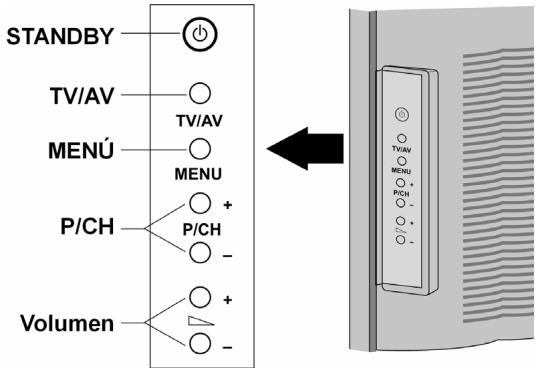
| Elemento de control | Función |
| STANDBY | Ponga el aparato en el modo standby con esta tecla. |
| TV/AV | Cambio con esta tecla la fuente de recepción: EXT - 1, EXT - 2,EXT - 3, EXT - 4, EXT - 4S EXT - 5, PC, TV. |
| MENÙ | Con esta tecla accederá al menú¹OSD para realizar ajustes en su aparato. |
| + P/CH – | A través de estas teclas se cambia el programa. |
| + Volumen – | Ajuste a través de estas teclas el volumen de su aparato. |
Indicaciones en el frontal
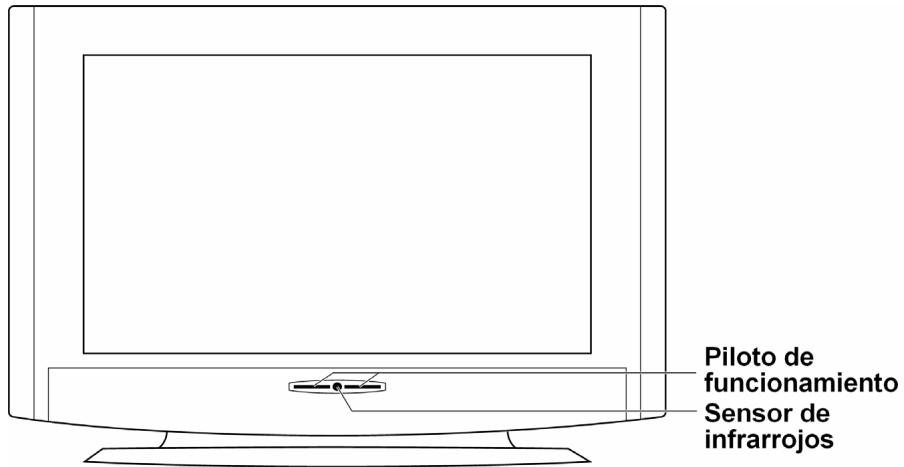
| Indicación | Significado |
| Sensor | Receptor para las señas de infrarrojos del mando a distancia |
| Piloto de functionality | Se ilumina de color azul si elAparto se enquiryra en el modo de espera. Se apaga cuando el aparato está connectado. |
Conexiones
Las conexiones se encuentran detrás de las tapas desmontables en la parte posterior del aparato.
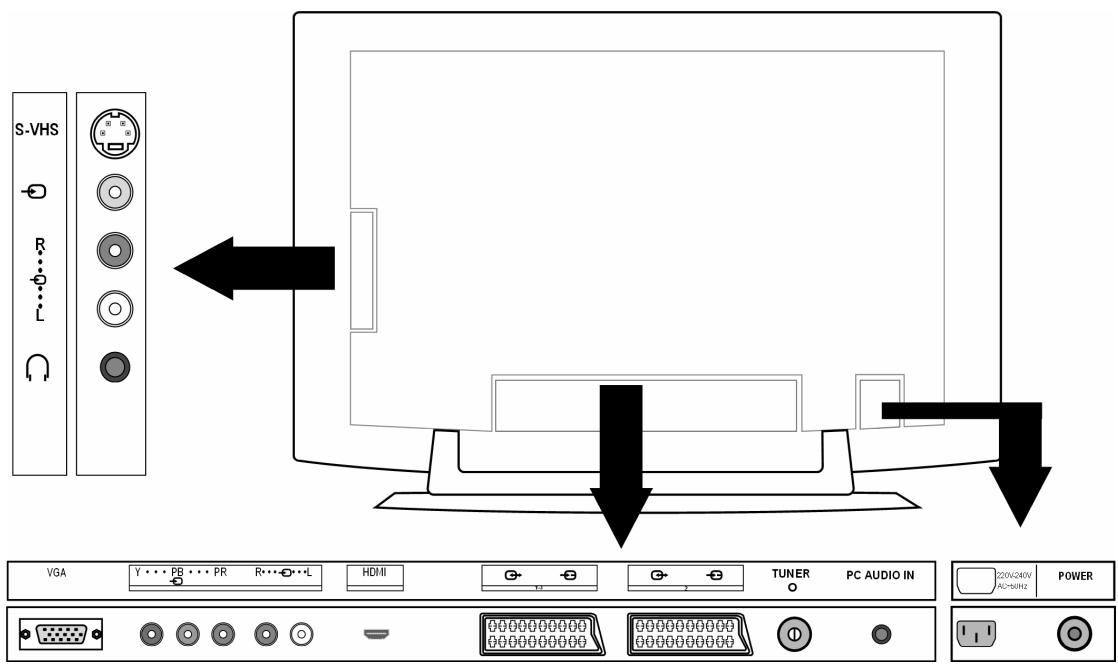
| Conexión | Posibilidades de conexión | |
| EXT - 4S | S-VHS | Entrada S-VHS (S-VIDEO) para la conexión de un aparato con salsa S-VIDEO (p.ej., Camcorder). Para esta conexión se necesita un cable S-Video |
| EXT - 4 | - | Entrada de VGA (amarilla) para la conexión de los siguientes aparatos: Camcorder, reproductor DVD, descodificador (p.ej. receptor de satélite) etc. |
| EXT - 4S | R | Entradas de audio (rojo/blanco): Conecte los canales de audio izquierdo y derechos de la fuente@cuyo sonido desea transmitir aGMTs del TV-LCD (p.ej. camcorder). Para this conexión se necesita un cable cinch. |
| EXT - 4 | L | |
| Toma para los auriculas. ConecteAquísus auriculas para escuchar el sonido de su aparato. | ||
| VGA | Conexión VGA. Conecte aquísu PC o su ordinador portátil. Se necesita un cable VGA. | |
| EXT - 3 | YPB...PR | Y - PB - PR: Entrada de componentes para la conexión de aparatos con calidad de componentes, p.ej.: 1. Cárma grabadora de video 2. ReproduCTOR DVD 3. Descodificador (p.ej. receptor de satélite) etc. Para this conexión necesitará un cable de componentes verde/azul/rojo para la conexión de video asi como un cable cinch rojo/blanco para la conexión de audio. |
| EXT - 5 | HDMI | Para la conexión de un aparato con entrada HDMI. Paraarlo necesitará un cable HDMI. |
| EXT - 1 | Entrada de euroconector para la conexión de los siguientes aparatos: 1. Reproductor de video 2. Reproductor DVD 3. Consolas de juegos 4. Descodificador (p.ej. receptor de satélite), etc. Para esta conexión Neededa un cable euroconector (no incluido en el suministro). | |
| EXT - 2 | Como EXT - 1. Para EXT - 2 puede Usted elegir en el menu CARACTERÍSTICAS (véase págrina 22)una fuente de entrada. | |
| AERIAL | ConecteAquí su cable de antenna (no incluido en el suministro). | |
| PC AUDIO IN | Entrada audio para la clavija estéreo de 3,5-mm, p.ej. para PCs. | |
| 220V-240V AC-50Hz | Conecte aquí el cable de red suministrado. | |
| POWER | Interruptor de funcionaimiento: Conectar el aparato al modo standby y volver a desconectarlo. | |
Ejmplos de conexión
Auriculares
La toma para auriculares se encuentra en el lateral del aparato.
Cuando los auriculares estan connectados los altavoces principales quedan connectados. La tecla de volumen y la tecla de la funcion sin sonido regularan los altavoces principales.
Se ajusta el volumen de los auriculares en el menu SONIDO, vexe pagina 21.
PC
El TV-LCD se pueda conectar como un monitor o un monitor auxiliar a su PC o a su ordinador portátil. Entoces laImagen de su PC/ordenador portátil se transmitte al TV-LCD.
Así se conecta el TV-LCD:
- Apague los dos aparatos.
- Conecte un cable VGA (cable de monitor; no incluido en el suministro) a la entrada VGA del TV-LCD y en la calidad de la tarjeta graphical del PC o del ordinador portátil.
- Apriete los tornillos del cable de monitor con los dedos de talmania que las clavijas queden bien susetas en las tomas.
- Si también desea transmitir el sonido, conecte un cable de audio a la toma de PC-AUDIO-IN.
- Primero encienda el TV-LCD.
- Solamente a continuación encienda el PC/ordenador portátil.
- En el mando a distancia pulse la tecla PC paracae al modo PC. La imagen del PC aparece en el TV-LCD. Mediente la tecla TV cambia de nuevo al modo TV.
Si utilizes el TV-LCD comosegundo monitor de su PC, es possible que debacaejar losajustes en las propiedades de pantalla de su sistemas operativo. Para ello informese en el manual de instruetiones del PC/ordenador porttil qué sedeferabobservar si seemployan variousmonitores.
Grabadora de video:
Se pueda conectar una grabadora de video mediante la antenna así como también a工程技术 del cable euroconector:
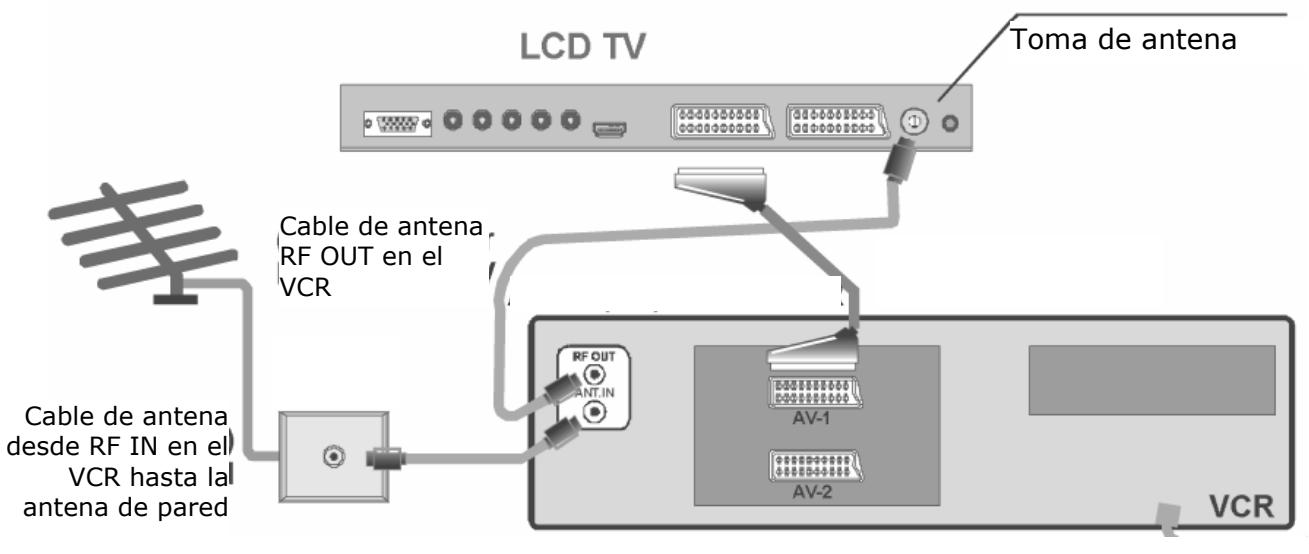
- Se recomienda una connexion euroconector entre la grabadora de video y el TV-LCD para una alta calidad deImagen y sonido. Si desea transmitir un sonido estéreo se necesita una connexion mediante euroconector.
- Si la grabadora de video está connectada a la connexion EXT - 1, EXT - 2 o EXT - 4, colocque el punto de menu VCR del menu INSTALLACION en ENCENDIDO (頁目22)
Receptor SAT o reproductor DVD
Se peutes conectar un receptor SAT o un reproductor DVD mediante la antenna o un cable euroconector:
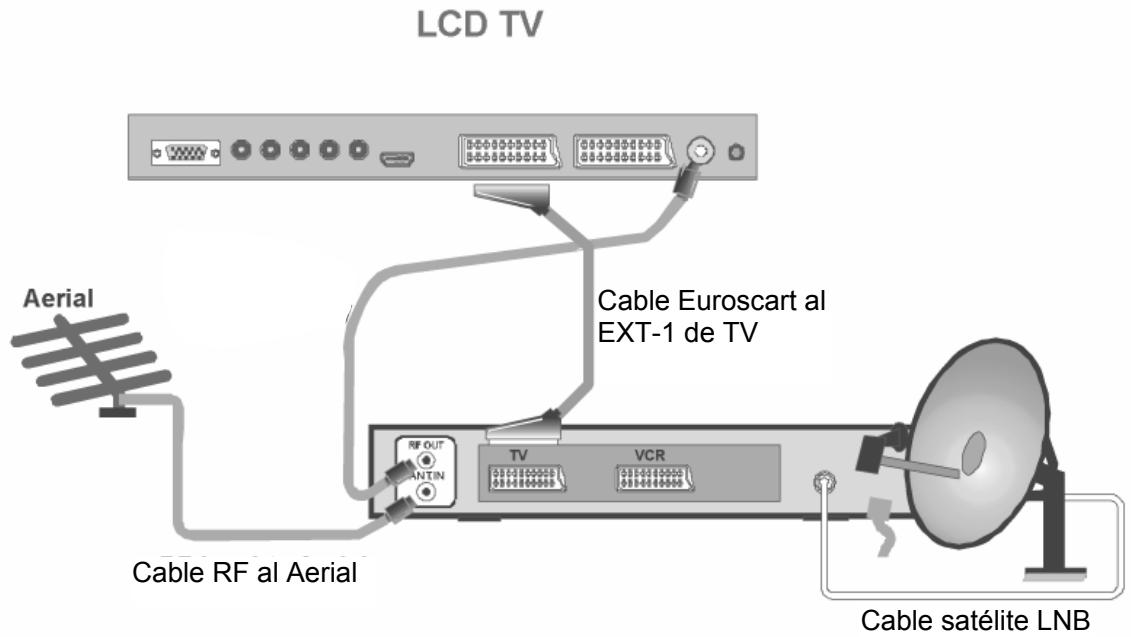
Reproductor de video y receptor SAT
Si se conectan simultáneamente un receptor SAT y un reproductor de video, se puedaemployer elCEE.
siuepe tipo de connexion:

Reprodctor DVD
- Conecte un reproductorr DVD con cable euroconector en las tomas EXT-1 o EXT-2.
- Si el reproductor dispone deudas YUV (Y Pb Pr) conéctelo con un cable de componentes (cinch verde/azul/rojo) a las entradas de componentes EXT-3 del TV-LCD.
Aparato con salute HDMI o DVI
HDMI ("High Definition Multimedia Interface") es, dentro de la gama de la electrónica recreativa, el único interfaz capaz de transmitir simultáneamente datos de audio y de video. Procesa todos los formatos deImagen y de sonido conocidos en laactualidad, incluido HDTV (High Definition Television) y porarlo es también capaz derepresentar las resoluciones de 1080i sin perdida de calidad.
- Conecte un cable HDMI (no incluido en el suministro) en la entrada HDMI del TV-LCD y a la calidad HDMI del aparato externo.
- Cuando yaonga connectado el aparato HDMI, encienda en primer lugar el TV-LCD.
- A continuación encienda el aparato reproductor HDMI externo.
Si el aparato tuviese una salute DVI, se lo可以选择 conectar también a una entrada HDMI (HDMI es retrocompatible con DVI - "Digital Visual Interface"). Paraarlo se necesita un adaptor HDM-DVI. Ya que la salute DVI no transmite ningún sonido, conecte primero un cable de audio con clavija jack a la toma PC AUDIO IN.
El mando a distancia
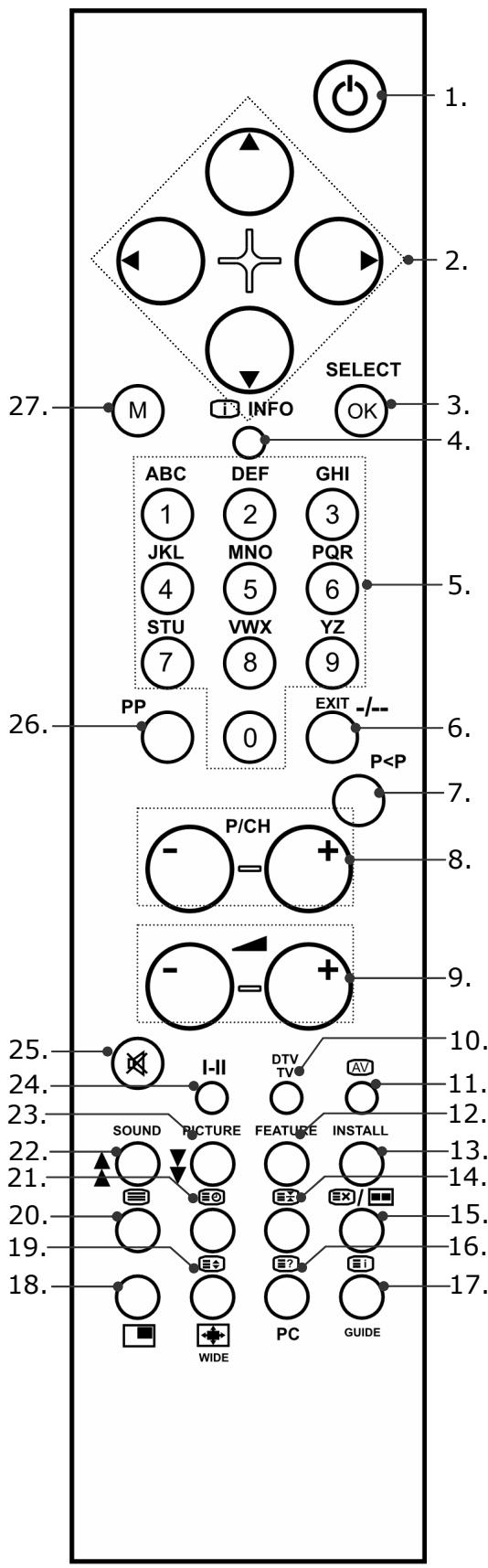
- Tecla Standby
Para la desconexión temporal del TV-LCD. - Teclas de direccion
- SELECT / OK
En el modo de television esta tecla sirve para congelar laImagen del televisor.
En determinados menos se pueda hacer una seleccion con OK. - INFO Para la indicacion de informaciones tales como el numero actual de programa y formatting deImagen.
- Teclado número En el modo de television estas teclas sirven para la selección del programa. En el modo de teletexto las teclas sirven para la introduccion de nombres de tres cifras con los que se selecciona la頁a.
- No se pueda utiliser esta tecla
- Volver al programamostatado anteriorsmente (más de 5segundos).
- Teclas de selección de programa P/CH + / -
En el modo de television, selección primero el programasuma (+) o el anterior (-).
En el modo de teletexto selección primero la págrinasuma (+) o la anterior (-). - Volumen + / - Para subir (+) o bajo (-) el volumen.
- Modo TV: Mostrar ajustes actuales; cerrar teletexto
- Señación de entrada: Para selecciónar la seals de entrada de aparatos que está conectados con su TV-LCD.
- Tecla amarilla / Abrir menu CARACTERISTICAS
- Tecla azul / Abrir menu INSTALLACION
- Parar teletexto
Se detiene la páginá actual. - Teletexto: Búsqueda oculta / Modo PAP
- Teletexto: Texto oculto / Modo PC
- Págrina de Índice del Teletexto
- Teletexto-Mix (imagen transparente) / encender y apagar PIP
- Augmentar teletexto / Formato de imagen
- Activar o desactivar teletexto
- Mostrar la hora / debería del telexto
- Tecla roja / Abrir�� SONIDO
- Tecla verde / Abrir�� IMAGEN
- Mono / Estéreo / Dual A y Dual A
- Función sin sonido
- SeLECTIONAR modo deImagen
- Acceder al menu; cerrar el menu
Puesta en funciona
Advertencia
Antes de la puesta en funciona, lea atentamente el capitulo "Advertencias de seguridad" en la page 4 y siguientes.
Desembalar
- Cuando desembale la caja hágalo con latips de algoquien.
- No cargue con el aparato solo para evitar que el aparato se caiga y/o evitar problemas de salute.
- Abra el cartón con sumo cuidado para evitar un posible dano del aparato. Este pueda ocurrir si paraAbrir seutiliza un cuchillo con una hoja demasiado larga.
- Dentro del embalaje se encuentran differentes piezas pequeñas (pilas, tornillos ythers). Manténgalas alejadas de los niños; existe peligro de que se las trabuen.
- Rogamos que guarde el material de embalaje y que utilise solo el mesmo para transporte el televisor.
Colocacion de las pilas en el mando a distancia
- Retire la tapa del compartmento de las pilas en la parte posterior del mando a distancia.
- Coloque dos pilas del tipo R03 (AAA) 1,5V en el compartmento de las pilas del mando a distancia. Preste atencion a los polos de las pilas (marcados en el fondo del compartmento de las pilas).
- Cierre el compartmento de las pilas.
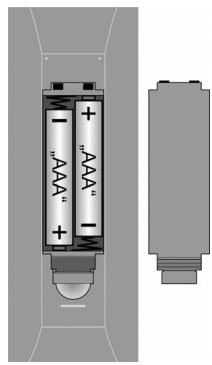
iAtencion!
Retire las pilas del mando a distancia si no se usa el aparato durante un prolongado periodo de tiempo. El mando a distancia pueda dañarse si las pilas cerraman liquidos.
Conectar la antenna
- Para la connexion con la antenna oSatélite conecte el enchufe de la antenna y el aparato de TV con un cable de antenna doblemente blindado (no incluido en el volumen de suministro).
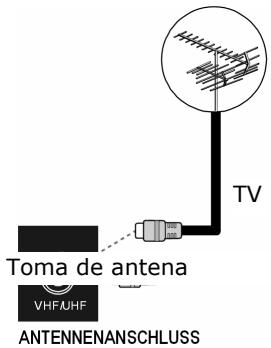
Conexión de la toma de corriente
Conecte la clavija del aparato del cable de alimentacion suministrado a la toma 220-240-V del aparato y la clavija de corriente a un enchufe 230V 50Hz bien accesible.
Funciones básicas
TV-LCD conectar y desconectar
- Pulse el interruptor de functionamento en la parte posterior del aparato. El aparato se pone en el modo standby y elindicador de la parte frontal se ilumina de color azul.
- Para encender el aparato pulse una tecla numérica del mando a distancia o una tecla de selección de programa P/CH del mando a distancia o del aparato. El indicator del bajo frontal se apaga.
- Con la tecla standby del mando a distancia o con la tecla standby del lado derecho del aparato se vuelve a conectar el aparato al modo standby.
- Vuelva a pulsar el interruptor de funciona delgado posterior del aparato para aparar el aparato completeness.
Después de la prima conexión
Cuando conecte el aparato por primera vez, aparecerá el menu AUTO PROGRAM en español.
Para cambiar al idioma español, selección "Idioma".
A continuación selección su idioma con las teclas de direccion
Selección "Páís" y ajuste su País con las teclas de direccion 一
La configuración得起 infuye en elorden con que se guardan los programas.
A continuación confirma la indicación "CHEQUEE EL CABLE ANTENA" pulsando la tecla OK o la tecla roja.
Para interruprir el proceso pulse la tecla azul.
APS
A continuación comienza la búsqueada automatística de programas (APS). Esto durará algunos Minutes.
Puede interruptir en qualquier momento el proceso con la tecla azul.
Los programas se almacenan en las posiciones de presintonia en unorden determinado según el País. Se pueda memorizar 100 programas.
Después de la memorización de programas automatica aparece la tabla de programas. Si no se vigue editando la tabla, esta se cierra cuando de algunosamicitos. Se emite el programa del número de presintonía 1.
Selección de programa
- Para selecciónar un programa pulse una de las teclas P/CH (del aparato o del mando a distancia) o selección directamente el programa a工程技术 de una tecla numérica. Para un número de dos cifras se introducen las dos cifras rápidamente, una tras另一边.
- Con la tecla P < P se selección elultimate programa emitido.
Ajustes de sonido
- Con las teclas de volumen - del mando a distancia o del aparato se sube o se baja el volumen.
- Para apagar Completely o volver a conectar el volumen, pulse la tecla ® funciona sin sonido.
- Con la tecla I-II se elige entre sonido mono y estéreo Dual A y Dual A. Dual A y Dual A solamente pueda aparecer si el programa actual es compatible con el modo DUAL (p.ej. programas bilingualues).
Ajustes deImagen
Modo Zoom (tecla WIDE)
Pulse la tecla WIDE paracaejar entre los seguidentes formatos de imagen:
- Auto: El formatting emitido se ajusta automatistically a la seals de entrada.
- Full: LaImagen se amplía automatistically a la anchura deImagen completa.

4:3: Para una representation no distorsionada de unaImagen en,.
marca 4:3.
- Panoramic: LaImagen se amplía a los márgenes izquierdo y derecho para llenar la pantalla; conarlo se corta un poco el margen superior y/o inferior.
- Zoom 14:9: LaImagen en formatting 14:9 ("Letterbox") se amplía hacía los margenes superior e inferior de la pantalla.
- Cinema: UnaImagen en formatting 16:9 ("Letterbox") se amplía al tiempo de pantalla completa.
- Sub:tºulo 16:9: Como el ajuste "Cinema". (No obstarve se desplaza laImagen hacía arriba, de modo que Sean visibles los subtúculos o una linea de letras móvil).





En caso de algunos formatos aparecen teclas de flecha al lado de la indicacion del formatting. En caso de these formats se peut mover laImagen hacer arriba o abajo con las teclas de direccion
Zoom en modo PC
En el modo PC están disponible los formatos 4:3 y Full.
Otros ajustes deImagen
Mediante la tecla SELECT se pueda congelar laImagen y volver a desbloquearla.
- Mediente la tecla PP ("Personal Preferences") se selección el modo deImagen: Natural, Cinema, Dynamic.
Ver Información
-
Pulse la tecla INFO para que aparezcan los siguientes ajustes actuales:
-
Posición de presintonía y nombre del programa;
- Ajuste de sonido (mono o estéreo);
-
Ajuste deImagen.
-
Se recibe la misma información en el modo TV mediante la tecla DTV/TV como al�能ar a othero programa.
- En el modo TV se pueda acceder a la indicación de la hora pulsando la tecla ( hora/teletexto bajo inferior).
Selección ar el aparato externo
- Con la tecla AV se selectionan las entradas disponibles:
-EXT - 1: Aparato en la toma euroconector 1;
-EXT - 2: Aparato en la toma euroconector 2;
-EXT-3:Aparato en las entradas de video de componentes y de audio;
-EXT-4:Aparato en la entrada de video (lateral del aparato);
-EXT-4S:Aparato en las entradas de audio y en la entrada S-VHS (lateral del aparato);
-EXT-5:EntradaHDMI;
- PC (este ajuste corresponde a la tecla PC)
- Antena (modulo TV).
Teletexto
Su TV-LCD es compatible con 1.000 páginas de teletexto. Este significa que el aparato, tras indicar el número de págin, no debenocular durante mucho tiempo entre esas 1000 páñinas, sino que esta aparecerá inmediamente.
El teletexto es un service gratis que se emite en la mayoria de las emisoras de television y que ofrece informaciones sobre noticias, meteorologia, programas de television, cotizacion de actiones, subtitulos y otheros temas. Su televisor ofrece muchas functions utiles para el manejo de teletexto asi como texto de páginas multiples, almacenamento de subpáginas o una navigacion rapiida.
El control del teletexto
- Selección un programa de television que emita teletexto.
- Pulse la tecla una vez para que se mueste la página Basics/nde indices del teletexto.
- Al:volver a pulsar la tecla el aparato vuelve a cambiar al modo TV.
Selección las páginas de teletexto
Teclado númeroico
- Introduzca la Paginga de teletexto deseada indicando un numero de tres cifras directamente con las teclas numéricas.
- La párgina selecciónada aparece en la esquina superior izquierda de la pantalla. El contador de teletexto busca hasta que se haya遇到了 el número de párgina selecciónado.
Teclas de selección de programas
- Con las teclas de selección de programas se hojaa hac delante y atrás a工程技术 de las páginas de teletexto.
Teclas de-coloredes
- Si en el margen deImagen inferior aparecen-textos en colores se pueda acceder directamente a这些icosostenidospulsando la tecla de color correspondiente ROJA,VERDE,AMARILLA y AZUL.
Subpaginas
- Algunas páginas de teletexto contienen subpáginas. En el margen deImagen inferiorparece p.ej, 1/3. Las subpáginas aparecen suscesivamente en un periodo de aprox. medio minuto. también puede acceder directamente a las subpáginas, pulsando la tecla l . Aparecerá un camino de quatre digitos en el que se pueda introducir el número de la subpágina (p.ej., 0002). Alternativamente se pueda hacer a traverses de las subpáginas mediante las teclas de direccion .
Characteristicas utiles del teletexto
TXT/MIX
- Pulse la tecla TXT/MIX para que el teletexto aparezca de forma transparente (laImagen de la television aparece al fondo).
Xi INDEX
- Con esta tecla se seleccióna la página de indicesque contiene una lista de loscontentsde los teletextos.
STOP
La párgina de teletexto que ha selección, posiblemente contiene más información de la que cabe en la pantalla. En este caso la información se divide entre varias subpáginas. Las subpáginas se hojean en periodos de tiempo regulares.
- Pulse la tecla STOP para registrar un cambio de págrina automática. El síbolo STOP aparece en la eqquina superior izquierda de la pantalla y el cambio de págrina automática está interruprado.
- Vuelva a pulsar la tecla STOP para volver a permitir el cambio de págrina automatístico.

Búsqueda oculta
Si dentro del modo de teletexto se pulsa la tecla el tevisor cambia el teletexto al fondo. Conelo se pueda cubrir el tiempo de espera hasta que aparezca la página deseada.
- Seleccione el numero de página deseedo dentro del modo de teletexto.
- Pulse la tecla, paracae al modo TV,minteras esperala pagsa de teletexto.En la esquina superior izquierda aparece un campo con el numero de pagina buscado o el simbolo ,mierzas dura la busicada.
- Tan primo se ha sentido la páginá deseada, aparece el número de páginá en lugar de los guiones.
- Vuelva a pulsar la tecla [X] para做不到la página deseada.

Mostrar texto oculto
- Para que se mueste la información oculta, como p.ej. las soluciones de crucigramas, puzzles o concursos de preguntas y respuestos, pulse la tecla una vez.
- Al volver a pulsar la tecla [3?] las respuestos se vuelven a ocultar.

Duplicar el時間 de la頁a
Esta funciona muestra la informacion de teletexto en taman doble.
- Pulse la tecla para augmentar la mitad superior de la頁a.
- Vuelva a pulsar la tecla para augmentar la mitad inferior de la頁a.
- Si vuelve a pulsar la tecla el teletexto vuye a aparecer en tamanio normal.
Imagen en imagen
Modo PIP
Con la funciona "PIP" ("Picture in Picture" - "Imagen enImagen") puede sobreimpresionar una病毒感染a ventana de programa bajo de laImagen principal.
- Pulse la tecla PIP. La ventana PIP aparece en una esquina de la pantalla. Primero aparecerá el programa actual ajustado. En la ventana principal aparece elultimate programa selectionado.
- Con la tecla se puede mover la ventana PIP a另一边 esquina de la pantalla.
- Vuelva a pulsar PIP para cerrar la ventana PIP.
La ventana PIP es primero la ventana activa (el sonido emitido pertenece a la ventana PIP). Esto significica que Usted, p.ej.
-AML: la ventana PIP con las teclas de selección de programa;
-AML: Puede abrir el menu para la ventana PIP con la tecla M;
-AML: AML: An ML approach that aims to improve the performance of a PIP.
La información reproduceda pertenece a la ventana PIP.
- Con las teclas de direccion se puede intercambiar la funciona de la ventana PIP y la ventana principal.
- Si desea comprobar qué planta estáactivada en este momento, pulse INFO.
La funciona "congelarImagen" (tecla SELECT/OK) se usa siempre para la ventana principal.
Modo PAP
En el modo PAP se encuentran dos ventanas de programa, una al lado de另一边. Las proportionsiones de las páginas deImagen de ambas ventanas están fjadas.
- Pulse la tecla l / l . La ventana activa aparece primero en elazo derecho. En elazo izquierdo aparece elultimate programa seleccionado.
- Con las teclas de direccion se pueda携带la funciona de la ventana activa y de la ventana secundaria. Las functions estan descriñas en el capitulo "Modo PIP" y aplicadas a la ventana activa.
- Vuelva a pulsar [ex] para cerrar la ventana PAP.
En el modo PAP se pueda acceder al teletexto de la ventana activa del lado derecho (tecla). Reemplaza a la ventana secundaria y de este modo aparece al lado de laImagen de la television.
PIP y PAP en Modo PC
En el modo PC se pueda做不到 alundo de la imagen del PC el programa de television (u other fuente), pulsando las teclas o /
Se peuté editar el programa de television como también seguir trabajo con el PC.
El menu OSD
A través del menu OSD (On Screen Display) se pueda ajustar ciertos parámetros del TV-LCD.
Navigación por el menu
- Pulse la tecla de menu M para activar el OSD.
- Mediente las teclas de direccion se seleccionan las options del menu principal.
- Mediente las teclas de direccion se seleccionan las options del menu.
- Con la tecla de direccion se vuelve al menu principal.
- Con la tecla de direccion se abre un submenu (no disponible en cada menu).
- Mediente la tecla de menú M pueda regresar al nivel superior del menú.
- Con las teclas de direccion se ajusta un valor deseado o se decide otra.option.
- Con la tecla de menu M se cierra el menu y se confirma simultaneamente la selección.
Le rogamos que teng a en conta que el menu se cierra automatically despues de aprox. 15, 30 o 60 segundos si no se pulsa ninguna tecla (ajuste en el menu CHARACTERisticas, vase page 22).
Advertencia
Los menos¿qué descriritos你能variarfrontealosqueaparecen en su pantalladeferadoaposiblesmodificacionestécnicas.
Menu IMAGEN
| Punto de* menú | Ajustes |
| modo | Selección ar el modo deImagen: Natural, Cinema, Dynamic. Esta funciona corresponde a la tecla PP. |
| Contraste | Disminuir oacular en contraste (escala 0 - 63). |
| Brillo | Disminuir oacular el brillo (escala 0 - 63). |
| Nitidez | Disminuir oacular la nitidez (escala 0 - 31). |
| Color | Disminuir oacular la intensidad de color (escala 0 - 99). |
| Temp de Color | Selección ar el color: Normal, Fresco, Cálido. |
| Reducción de Ruido | Con esta función se pueda disminuir las interferencias deImagen y mejorar la calidad deImagen con una seals débil. Selección entre Apagado, Bajo, Medio y Alto. |
| modo Película | Laspellicas se graban con unacantidad de imágenes individuales porsegundo diferente a la de los programas de television. Selección Encendido si desea ver unapelícula para poder ver mejorla calidad deImagen de escenas con movimientos rápidos. |
| Peine 3D | El peine 3D se emplea para melhorar la transmisión decolores y la calidad de color de las imágenes. |
| Reinicio | Restaure con >ó OK todos los ajustes deImagen a los ajustes de fábrica. |
| I | Aquí aparece comoinformationel estándarde color TV actualmenteemitido(véase también menúINSTALLACION). |
Menu SONIDO
| Punto de menú | Ajustes |
| Volumen | Ajuste Basics del volumen al connectarse (escala 0 - 63). Selección(other volumen Basics moderado). |
| Ecualizador | Abrir el submenu(ECUALIZADOR: Véase párrafo;)Si el mode de sonidoactual sea compatible con el modo DUAL (p.ej. en caso de programas bilingües), además se pueda elegir entre Dual A y Dual B (idioma original y doblaje). La funciona corresponde a la tecla I-II. |
| Balance | Balance entre el sistema de altavoces izquierdo y derecho (escala - 31 - 31). |
| Auriculas | Abrir el submenu(AURICULAR: Véase párrafo subsiguiente. |
| Modo de Sonido | Selección entre estéreo y mono. En caso de que el programa actual sea compatible con el modo DUAL (p.ej. en caso de programas bilingües), además se pueda elegir entre Dual A y Dual B (idioma original y doblaje). La funciona corresponde a la tecla I-II. |
| AVL | La funciona AVL (Automatic Volume Limiting) iguala los differentes volúmenes de sonido de las-distintas emisoras. Apagado: Volumen original; Encendido: Volumen uniforme. |
| Effectos | Activar o desactivar los efectos de sonido. Si el modo de sonidoactual está ajustado en mono y el efecto de sonido está activado, se percibe el sonido como si fuera estéreo. Si el modo de sonido está ajustado en estéreo, el sonido involventa es más grave. |
| Bajo | Ajuste los bajos en Bajo, Alto o Apagado. |
| Dinámico | El ajuste Alto no es recommendable con un volumen alto. |
Submenu ECUALIZADOR
| Punto de* menú | Ajustes |
| modo de Sonido | Escoja entredietes preajustes del ecualizador. Con los ajustes Pop, Balance, Jazz y Clásico los ajustes de sonido están optimizados para el estudio musical correspondiente; Plano es el ajuste normal. |
| Numero | Con el ajuste Nombre se pueda realizar un ajuste propio: Selección con ↑▼ una banda de Frequencia. Ajuste con ↓ ➔ un valor. |
Submenu AURICULARS
| Punto de* menú | Ajustes |
| Volumen | Ajuste del volumen de los auriculares (escala 0 - 63). Con las teclas de volumen se ajusta el volumen de los altavoces principales. |
| Modo de Sonido | Para los auriculares elija entre estéreo y mono. En caso de que el programa actual sea compatible con el modo DUAL (p.ej. en caso de programas bilingües),adelmás se pueda elegir entre Dual A y Dual B (idioma original y doblaje). |
Menu CARACTERÍSTICAS
| Punto de menú | Ajustes |
| Temporizado r | Escoja una hora en la que el aparato se apague automatistically. Con las teclas de direccion se pueda ajustar la hora en pasos de 10 minutos (máximo 2 horas). Inmediamente después del ajuste con ◆ comienza el tiempo de apagado automatístico. |
| Bloqueo Niños | Si pone el ajuste en Encendido, las teclas del aparato está bloqueadas (con exception del interruptor de red). |
| Idioma | Selección el idioma del筷 OSD. Elidioma cambia inmediamente. |
| Ext-2 Out | Aquí se ajustaqué signal es la signal de salute de la conexión euroconector 2. Escoja entre TV, EXT-1, EXT-3, EXT-4, EXT-5 y PC. |
| Zoom por defecto | AjusteAquíel zoom estándar en Panoramic, Zoom 4:3ó 14:9. Si no existe ninguna informaciónreferente a WSS(pantalla ancha) o formato de página de imagen(tamaño de imagen)y si seAJusta el modo Zoom en Auto aGMTES de la tecla WIDE, el modo cambia automática alajuste de zoom estándar. |
| Fondo del Menú | Elijsi el fondo de筷 debe ser Translúcido u Opaco. |
| Pausa OSD | Aquísepuéajustarla hora a la que el筷 OSD se cierra automátamente: 15, 30ó60segundos. |
| Idioma TXT | El preajuste es Occidental. En caso de que se encuentre en other ámbito lingüístico se pueda modifier elajuste deidioma: Oriental, Cirílico, Turco/Griego o Árabe. |
Menu INSTALLACION
Normalmente los programas disponibles se buscan mediante la búsqueada automatística de programas y son memorizados automatistically en las posiciones de presintonía según elorden en que se han sentido. En la tabla de programas también se pueda Ordering de nuevo las posiciones de presintonía (véase "TABLA DE PROGRAMAS", en la page 23).
El menu INSTALACION le permite, además, la búsquey y memorización manual de los programas, asi como la sintonización final de laImagen.
| Punto de Meal | Ajustes |
| Programa | Aquí se ve el número de la posición de presiónía del programa emitidoactualmente. Con las teclas de direccion ↓ ▶ o con las teclas numéricas se pueda elegir otra posición de presiónía (0 hasta 99). Guarde laewsuna posición de presiónía conla tecla OK, o accediendo al punto Almacenar Programa y pulse > . Obeserve que el programa existente se sobrecribes sobre la posición de presiónía selecciónada. El programa se almacena con |
| su número de canal (p.ej., "C-25"), no con su nombre de programa, en la tabla de programas. Si desea conectar unroductor de video se recomienda reservesar paraarlo la posición de presintonía 0. | |
| Banda | La banda de Frequencia de television está estrucurada en los temas de canal C (canal normal) y S (canal especial). Aquí aparece el tipo de canal del actual programa ajustado. |
| Canal | Aquí se ve el número de canal del programa ajustadoactualmente. Con ↓ se selecciónoanotherrograma. |
| Sis. de Color | Aquí se seleccióna el estándar de color TV Shopsfico para cada迷惑. Auto (el sistemas de color correcto se ajusta automatistically), PAL (para PAL 50 MHz), PAL 60, SECAM. Si el sistemas de sonido (véase el punto seguido) está ajustado en "I",對於 SECAM no está disponible. Si se ha selecciónado una fuente externa (EXT - 1 etc.), adiconditionamente está disponible NTSC 3.58 y NTSC 4.43 (el formato de color usual en Norteamérica). La seleccióna de un sistemas de color incorrecto causa una imagen defectuosa. En la Info-Box del menú IMAGEN aparece el sistemas actual del color emitido. |
| Sistema de Sonido | Aquí se ajusta el sistemas de television Shopsfico del迷惑: BG (Europa occidental), I (Gran Bretaña) o DK (países del este de Europa). |
| Sintoniza-ción Fina | Aquí se pueda realizar mediante ↓ la sintonización continua delactualprograma selectionado. |
| Búsueda | Aquí se pueda realizar una búsueda manual de programas. Inicia con las telcas de direction ↓ una búsueda hacía arriba o abajo. La búsueda se detiene con cada programafriendado. Se indica el valor MHz. Bajo el punto de menú Programa se pueda adjudicar una posición para el programa. Observe que al memorizarlo en esta posición se sobrecscribe(other programa. Bajo el punto de menú Sintonización Fina (véase el párafo anterior) se pueda realizar other sintonización continua. Para almacenar el programa, pulse OK o seleccióne el punto Almacenar Programa y pulse ↓. |
| VCR | Seleccióne el ajuste Encendido si elroductor de video está connectado a las entradas EXT - 1, EXT - 2 or EXT - 4. |
| Almacenar Programa | Almacenar el programa selectionado (véase punto Programa y Búsueda). |
Memorización manual del reproductor de videos
La búsqueada manual laouldautilizar porejemplo paraajustar un reproductorde videoal TV-LCD.
Desqués de que el TV-VCD y el reproductorde video estén conectados entre si a工程技术 de la antenna (vease "Eempledoconexión",pageina9,ajuste su reproductorde videoa la senalde test.
Realice la búsqueda manual con el TV-LCD.
- Cuando haya遇到了 la seals de test, almacene la seals de test en la posicion de presintonía 0 (this position of presintonía no sera occupa por un programa de television).
Menu PROGRAMA (tabla de programas)
En la tabla de programas se ven los programasactualmente almacenados. Los programas aparecen con sus nombres de programa, siempre y cuando la emisora sea compatible con esta direccion. Si no se pueda做不到 el nombre,對於ces aparecen los numeroes de canal S - o C-. "S" equivale aquia a canal especial; y "C", a canal normal ("Channel").
La memoria de programas abarca 100 posiciones. Active el cursor en la tabla mediante la tecla de dirección . Para Abrir另一边 columna, pase con la tecla de dirección a la columna derecha y pulse otra vez .
| Punto de* menú | Ajustes |
| Nombre | Aquí se pueda modifier el nombre del programa. Selección el nombre de programa deseado y pulse la tecla roja. Ahora PODrá modifier la primera leyra: Escoja con las teclas de dirección ↓▼ un signo. Los signos aparecen en el首位mente ordern: A B C [hasta] Z 0 1 2 [hasta] 9 ( ) * +, . / [espacio] -. Vaya con la tecla de dirección ↑ a la首位mente letra, etc. Al finalizar vuelva a pulsar la tecla roja para memoriar el nombre. |
| Suprimir | Escoja el programa que desea suprimir de la lista y pulse la tecla amarilla. Pulse de nuevo la tecla amarilla para confirmar. Los programas siguales se desplazarán hacía arriba en la tabla. |
| Insertar | Aquí能把 desplazar un programa a另一边 posición. Selección el programa y pulse la tecla verde. Desplace el programa con ↓▼ a la posición deseada y vuelva a pulsar la tecla verde. Los除外 programas se desplazan de forma correspondiente. |
| APS | Con APS se realiza la búsueda automática de programs. Pulse la tecla azul. Aparecerá el avis: iATENCIón! “Todos los programas almacenados serán bomrados.” Pulse la tecla azul cuando deseee interruptpir la funciona. Pulse la tecla roja u OK para iniciar la búsueda. Al final de la búsueda aparecerá la tabla de programas. |
Menu FUENTE
En este menu se pueda selectionar other fuente de entrada. En la linea superior se indica la fuente actualmente seleccionada.
La funciona corresponda a la tecla AV.
Selección la fuente con . Cambie a esta fuente, pulsando OK o la tecla de direccion
Según la fuente externa selecciónada los menús INSTALLACION y PROGRAMA no está disponible o el menu INSTALACION tiene menos entradas.
Menu en el modo PC
En el modo PC, el menu OSD tiene las siguientes entradas:
Menu POSICION PC IMAGEN
| Punto de* menú | Ajustes |
| Posi. auto | Si laImagen aparece desplazada, se pueda selectionar la entrada Posición Auto y pulsar OK o » para centrarla otra vez. Esta funciona se debe realizar con unaImagen completa para que los ajustes Sean correctos. |
| Posición H | Aquí se pueda modifierla posición horizontal de laImagen con « » . |
| Posición V | Aquí se pueda modifierla posición vertical de laImagen con « » . |
| Frec. Reloj | Con esta funciona se sincroniza la sealsl del imagen con la Frequencia depixel de la pantalla. Esto corrige interferencias que poderiaparacer, como rayas verticales durante una Representaciónintensiva de pixeles (como tablas o-textos de letraPICA). |
| Fase | Con este ajustepondrá la sealsl deImagen exactamente en armoníacon los pixeles (puntos de representación). Gracias aarlo se obtieneunaImagen limpia con una representation uniformmente nitida. |
Menu PC IMAGEN
| Punto de* menú | Ajustes |
| Contraste | Disminuir oaculare (escalao 0 - 63). |
| Brillo | Disminuir oaculare el brillio (escalao 0 - 63). |
| Temp de Color | Elegir el color: Normal, Fresco, Cálido, Nombre (véase el punto siguiente). |
| R, G, B | Si está ajustado Temp. de Color sobre Nombre, uno mismopuede ajustar los values para R (rojo), G (verde) und B (azul). |
| Reinicio | Con OK Ó se restablecen todos los values deImagen al ajustede fábrica. |
Menús SONIDO, CARACTERÍSTICAS y FUENTE
Los ), FUENTe coinciden con los ), en el mode TV.
Solución de problemas
Las functions erroneas a vezes peuvent tener causas banales, pero también puede ser a vez el的结果を componentes defectuosos. Aquí le queremos poder una guía para poder SOLUTIONAR el problema. Si las medidasAquí mentionadas no solucionan el problema,estaremos encantados de ayudarle.iLlamedenos!
No se ve ningunaImagen y no se oye ningún sonido.
- Compruebe si el cable de red está correctamente conectado al enchufe y al aparato.
- Compruebe si la Reception debral estaajustada a TV.
- Compruebe si el interruptor principal del aparato, situado en la parte posterior del aparato, está conectado.
No apareceyingunaImagen.No apareceyingunaImagen deAV.
- Compruebe si el contraste / brillo está correctamente ajustados.
- Compruebe si todos los aparatos externos están correctamente connectados.
- Compruebe si la posicion AV correcta está seleccionada.
No se oye ningún sonido.
- Asegürese de que el volumen no está ajustado al minimo.
- Asegúrese de que la funciona sin sonido no está activada.
No se recibe ningunaImagen o ningún sonido. Pero se oyen ruidos.
- Posiblemente la Reception es mala. Compruebe si la antenna está connectada.
LaImagen no es clara.
- Posiblemente la Reception es mala.
- Compruebe si la antenna está conectada.
LaImagen es demasiado brillante o demasiado oscura.
- Compruebe los ajustes de contraste / brillo / fondo en el menu Imagen.
El mando a distancia no funciona.
- Compruebe si las pilas del mando a distancia está cargadas y colocadas con las polaridades correctas.
- Asegúrese de que la ventana del sensor no está expuesta a una radiación incidente de luz做不到 como loSEO.
- Apane y vuelva a encender el aparato a工程技术 del interruptor principal en el lado posterior del aparato.
LaImagen no es nítida.
- Posiblemente la Reception es mala.
- Compruebe si la antenna está conectada.
- Compruebe los ajustes de nitidez y reduccion de ruido en el menu Imagen.
Aparece unaImagendobleotripleenla pantalla.
- Compruebe si la antenna está correctamente orientada.
- Posiblemente existen ondas reflectadas por montañas o edificios.
LaImagenestapunteada.
- Posiblemente existen interferencias de coches, trenes, conductos, tubos de neón, etc.
- Existe la posibiliad de una interferencia entre el cable de antenna y el cable de corriente. Intente colocarlos más分开ados.
Aparecen rayas en la pantalla o los colores se desvanecen.
- Hay una interferencia de otro aparato?
Las antennas de transmisión de emisoras de radio o las antenas de radioaficionados y los Telefonosuales también peuvent cause interferencias. - Utilice el aparato lo más lejos posible del aparato que posiblemente Causea las interferencias.
Las teclas de control del aparato no funciona.
- Posiblemente está activado el bloqueo para niños.
≠NECESITA USTED MÁS AYUDA?
Si las propuestos de los párrafos anteriores no han soluciones su problema, rogamos que contacte con nosotros. Nos ayudará mucho si nos pudiese fácilar lasuma informacion:
- ¿Qué aparatos externos está conectados?
- ¿Qué avisos aparecen en la pantalla?
- Con qué operation de manejo se ha producido el problema?
- Si tiene un PC conectado con el aparato:
- ¿Cuál es la configuración de su ordinador?
- ¿Qué software ha utilisé cuando se ha presentado el error?
- ¿Qué pasos ha realizado ya para SOLUTIONAR el problema?
- Si ya tiene un número de cliente, fácilenoslo.
Limpieza
La larga vida útil de su TV-LCD se pueda prolongar mediante las siguientes medidas:
- Antes de proceder a limpar el aparato, desconctelo siempre de la toma de alimentacion y desconnecte siempre todos los cables de connexion.
- No utilise disolventes, produits de limpieza acidos o gaseos.
- Limpie la pantalla con un paño suave y que no suelte pelugas.
- Tenga cuidado para que no queden gotas de agua sobre el TV-LCD. El agua pueda causar una descolorizacion permanente.
- No exponga la pantalla a luz solar intensa ni a rayos ultravioletos.
- Rogamos que guarde el material de embalaje y que lo utilizes exclusivamente para transporte al TV-LCD.
iAtencion!
Dentro de la carcasa de la pantalla no se enquiryten piezas que se deban limpiar o que deban someterse a problemas de mantenimiento.
Especillas técnicas
| Tensión nominal: | 230 V ~ 50 Hz |
| Tamaño de pantalla: | 32" (81 cm) TFT; Pantalla 16:9 |
| Consumo de energia: | 180 Watt |
| Consumo de energia standby: | 3 varios |
| Sistema TV: | PAL, SECAM, B/G, D/K, K', I/I, L/L' |
| Canales: | VHF (banda I/III) |
| UHF (BANDA U) | |
| HIPERBANDA | |
| CABLE-TV (S1-S20)/ S21-S41) | |
| Audio: | Estéreo |
| Posiciones de presintonía: | 100 |
| Entrada para la antenna: | 75 ohmios |
| Dimensiones (altura x anchura x profundidad): | 620 x 835 x 250 mm |
| Peso: | aprox. 16 kg |
Garantía
El acuse de recibo vale como comprobante para la prima compra y deben guardarse bien. Susarethos legales no quedan limitados por estas conditiones de garantía. Se necesitará para la aplicación de la garantía.
Si el producto es traspaso a otro usuario,對於 esteiene derecho a aplicaciones de la garantía por el resto del periodo de la garantía. El comprobante de la compra como como esta declaracióndeferíaentaragarse junto con el aparato al traspasarlo. Garantizamos que este aparato está en un buena estado defuncimiento y que coincide desde el punto de vista的技术ico con las descripiones en la documentacionanexa.El termino de garantía permanente se transfiere a las correspondientes piezas de recambio previapresentacion delcomprobante de compra de partes originales.
Cuando Usted presente este aparato para la reclamacion de aplicaciones de la garantia,對於s debe Vd.分开arantesdoosprogramas,dataysmediosdealmacenamentoposibles.Losproductosque seanenviadossin accesariosseran sustituidossin accesorios.Laobligacionde aplicacionde garantia no tene validezparael caso dequele problemaseacausado porun accidente,una catastrofe,vandalismo, abuso,uso con falta deobjetividad,inobservancia delasprescripionesdesegurdadydeconservacion, alteracionespor medioof software,virusuotroaparatoocaccesor,o por medioothersmodificaciones no autorizadas pornosotros.
Esta declaración de garantía restringida sustituya a todas las otheras garantías de naturaleza expresa o implicita. Este incluye la garantía de la vendibilidad o de la apropiabilidad para un fin determinado; no obstarve, no se limita aarlo. En algunos países no está legalmente permitida la exclusión de garantías implicadas. En este caso está restringida la validez de todas las garantías expresas e implicadas al periodo de garantía. Con el vencimiento de este periodo pierden su validez las garantías totales.
En algunos Países no está legalmente permitida una limitación de la duración de la validez de las garantías implicadas, de modo que la susodicha restricción no entra en vigor.
En caso de que Vd.onga的一些 preguntas relacionadas con estas conditions de garantía, dirijase a nosotros.
Errores de pixeles en TVs-LCD
A pesar de una fabricacion más moderna,debido a su alta complejidad技术水平, en raros casos你能ocurrir fallos de uno o variedos+puntos luminosos.
En caso de TFTs Active Matrix con unaResolution de 1366 x 768 pixeles, que está compuestos por tres subpíxeles cada uno (rojo, verde, azul), se emplean un total de aprox. 3 millones de elementos de excitación. Debido al alto número de transistores y del proceso de fabricación especialmente complejo, en algunos poco casos coulden occurrir fallos o una excitación errónea de pixeles o subpíxeles sueltos.
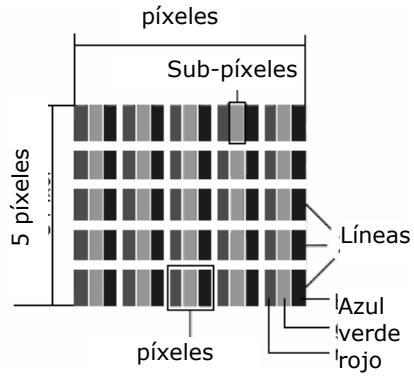
i
| Descripción | Cantidad aceptada | |
| Subpíxeles claros | 1 subpixel | Máx. 2 |
| Dos, uno al lado del(other (horizontal/vertical) | 0 | |
| Distancia | Distancia minima entre subpíxeles claros y oscuros | Min. 5 mm |
| Subpíxeles oscuros | Sueltos | Máx. 7 |
| Dos, uno al lado de(other | Máx. 2 | |
| Distancia | Distancia minima entre subpíxeles claros y oscuros | Min. 5 mm |
| Cantidad toal de subpíxeles claros y oscuros | Máx. 7 | |
La tabla describe lacantidad maxima de errores de pixeles que pueda aparecer en la pantalla, sin que se trate de un caso de reclamacion de garantia. Un caso de reclamacion de garantia es, entreculos, si lacantidad de erros, arriba mentionada, se sobrepasa en una categoria.
Eliminación
Embalaje

Su aparato está embalado para protegerlo contra eventuales daños durante el transporte. Los embalajes son materiaias primas y son reciclables o peuvent ser entregalos al circuito de reciclaje.
Aparato

No tire bajo ningúnconcepto el aparato al final de su vidautila la basura doméstica normal. Infórmese sobre las posibilidades de las que dispone para eliminarlo de forma respetuosa con el medio ambiente.
Pilas

iNo tire las pilas usadas a la basura domestica! Deben ser depositadas en un punto de recogida para pilas usadas.
Limitación de responsabilidad civil
El contenido de este manual está sujeto a modificaciones sin previo avis debido al avance technologicalo. El fabricante y el département de ventas declinan toda responsabilidad por daños debidos a errors u omisiones en las informaciones facilitadas en este manual. Declinamos toda responsabilidad en caso de:
- Reclamaciones de terceros contra usted por perdidas o daños.
- Pérdida o daño de datos.
- Danos economicos (incluida la perdida de ganancies o ahorros) o danos relacionados, incluo en el caso de haber sido informados de la posibidad de este tipo de danos.
En algunos País no está permitida la exclusión o limitación de daños relacionados, por lo que la anterior limitación no entra en vigor.
Copyright © 2007
Reservados todos los derechos.
Este manual está protegado por la ley de propidad intelectual.
El Copyright pertenece a la Empresa Medion®.
Nos reservamos el derecho a efectuar modificaciones sociales y opticas como eventuales erros de impresión.
Montaje sobre la pared
Si lo desea, puede fazer el TV-LCD en una pared.
Accesorios
Los siguientes accesorios están incluidos en el suministro:
2 carriles de acero, 4 tornillos M4 x 10, 4 suspENSIONES de plástico, 1 plantilla para taladrar, 1 manual de montaje ilustrado (aplicable para various temas de aparato).
Adicionalmente se necesitan 8 espigas y tornillos para su pared (adquirir en commercios especializados).
Advertencias de seguridad para el montaje sobre pared
Observe para el montaje sobre pared en cualquier caso las advertencias de seguridad:
- El TV-LCD solamente deben ser montado sobre parexes verticales.
- Antes del montaje, compruebe si la capacité de energia de la pared aguanta el triple de peso del aparato (8,2 kg). En caso de duda, consulte a un instaladorriallicado.
- Antes del montaje apague el TV-LCD. El cable de red y el de la antenna deben estar desenchufados.
- Para el montaje se necesitan por lo menos dos personas.
- Como herramientos para el montaje se necesitan una taladradora y un destornillador para tornillos de estrella.
iCUIDADO! Al elegir las espigas y tornillos asegúrese de que这些东西 son los adecuados para su pared.
Montar los dispostivos de suspensa al aparato
- Introduzca los tornillos suministrados M4 x 10 a工程技术 de las suspENSIONES de plástico. El lado con el diametro微量元素 de las suspENSIONes de plástico se encuentra hacer coma.
- Apriete los tornillos con las suspENSIONES de plástico en los agujeros previstos para los tornillos delgado posterior del aparato.
Véase la referencia ilustrada, figura 5A
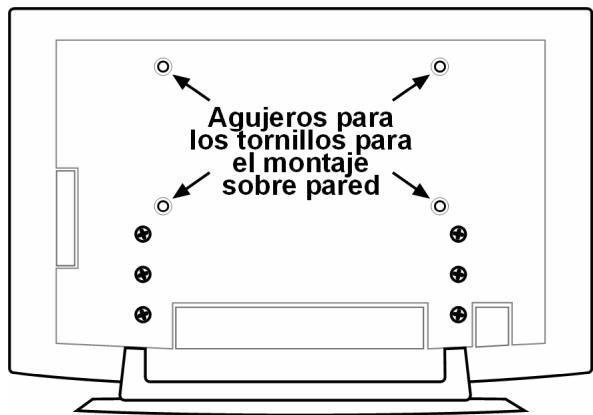
Quitar el pie
El pie del aparato se incluye fijiado conphis tornillos en la parte posterior del aparato.
- Afloje losSES tornillos con el destornillador de estrella.
- Levante el aparato y retírelo.
Véase laindración ilustrada,Imagen 6A.
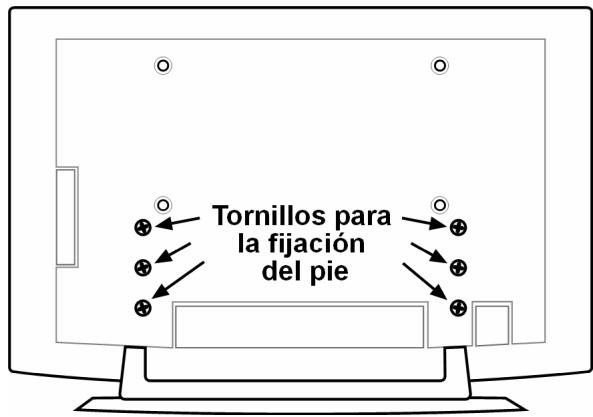
Fijar los carriles de acero en la pared
- Elija un lugar de la pared, en el que el TV-LCDonga suficiente distancia hacaothers objectos (vease el capitulo "Lugar de emplazamento",頁ina 4).
No olvide que los dispositivos de sujeción se.Encuentran en el lado posterior del aparato en el extremo estrecho de las aperturas de sujeción en los carriles de acero (vease el dibujo en la pagea suiviente).
- Marque con laapia de la plantilla para taladrar los lugaresondebe efectuar los ocho agujeros.
- Taladre ocho agujeros para las espigas en la pared. Véase la indicación ilustrada, imagen 1.
Introduzca las espigas. Vexe la indicacion ilustrada,Imagen 2.
iCUIDADO! iLas espigas deben estar bien asentadas! No@cuelgue el aparato si las espigas no está Completely introducidas Dentro de la pared.
- Atornille los dos carriles de acero con los quatre tornillos para cada uno. El bajo estrecho de las apertureas de suspENSION deben SIGNALAR hacer abajo. Vease la referencia ilustrada, imagenes 3 y 4.
- Ahora puede colgar el TV-LCD en los carriles de acero. Véase la indicación ilustrada, imágenes 8 y 9.
Índice
Indicações relativas a este manual 3
Utilização correcta 3
HD Ready 3
Volume do fazeramento 3
Indicações de seguranca 4
Seguranca de funciona 4
Local de instalacao 4
Reparacao 5
Ambiente previsto 5
Alimentação de corrente 5
Normas / Compatabilidade electromagnética 6
Manuseamento de pilhas 6
Conhecer o aparelho 7
Elementos de commando no lado direito 7
Indicações na parte darente. 7
Ligações 8
Exemplos de ligaçao 8
Auscultadores 9
PC 9
Videogravador 10
Receptor de satélite e gravador de DVD 10
Videogravador e receptor de satélite 11
Leitor de DVD 11
Aparelho com saía HDMI ou DVI 11
O telecomando 12
Colocacao em funcaoamento 12
Tirar da embalagem 13
Colocar as pilhas no telecomando 13
Ligar a antenna 13
Ligar a alimentacao de corrente 13
Funções base 14
Ligar e desligar o televator LCD 14
Apos a primeira connexao 14
Selecao de canal. 14
Ajustes do som 15
Ajustes de imagem 15
Mostrar informacoes 16
Selectionar aparelho externo 16
Teletexto 17
Imagem em Imagem 19
Modo PIP (Imagem na Imagem) 19
Modo PAP. 19
O menu OSD 20
Navegar no menu. 20
Menu IMAGEM 20
Menu SOM 21
Menu CHARACTERISTICS 22
MENU INSTALAÇÃO 22
TABLEA DE CANAIS 24
Menu FONTE 24
25
Menu POSICAO IMAGEM PC 25
Menu IMAGEM PC 25
25
Resolucao de problemas 26
NECESSITA DE MAIS ALGUM TIPO DE APOIO? 27
Limpeza 27
Dados&Tecnicos 28
Eliminação 28
Condições de garantia 29
Condições de garantia 29
Falhas de pixeis nos televisores LCD 29
Limitação de responsabilitadé 30
Montagem na parede 31
Indicações relativas a este manual
Leia atentamente este manual e cumpra todas as indentações indicadas. Desta forma, garantirá um fonascimento seguro e uma vida útil longa do seu televisor LCD. Mantenha estemanual sempre acessível eproximo do seu televisorLCD.Garde bem estemanual de instruções,de forma a poder entrega-lo caso vendao televisorLCDa um novo proprietario.
Utilização correcta
- Este aparecido serve para a receção e reprodução de programas de televisão. As发展目标as possibilidades de ligação possibilitam uma extensão adicional das fontes de receção e de reprodução (receptores, leitores de DVD, gravadores de DVD, videogravadores, PC, etc.).
- Este aparecido destiná-se apenas a uma utilização em espaços interiores secs.
- Este aparecido foi pensado para um uso privado e não foi previsto para o Functionamento numa Empresa de indústria pesada. A utilização em condições ambientais extremas pode conducir a danos no seu aparecido.
HD Ready
- O seu tevisualor LCD está equipado com a característica "HD ready". Isto significa que, em原則, é capaz de reproducir programas de television de elevada resolution (HDTV). A condição para isto é que sera emitido um sinal HDTV a partir de uma Set-Top-Box externa (HD-STB) para o tevisualor LCD.
Volume do fornecimento
Verifique a integrazione da entrega e informe-nos dentro de 14 días après a compra, caso o volume de fornecimento não estega Completely. Juntamente com o seu televisor LCD, receivebu:
- o televator LCD
- cabo para ligar à corrente
- telecomando com dosas pilhas do tipo R03 (AAA) 1,5V
- kit para montagem na parede (ver página 31).
- manual de instruções
- garantia
Segurarca de funciona
- Não deixe as crianças brincarem com aparehos electricos sem vigilência. As crianças podemcem sempre reconhecer eventuels perigos.
- Mantenha o material da embalagem, como por exemplo, peléculas, afastadas das crianças. Em caso de uma utilização Incorrecta, poderia resultar perigo de asfixia.
- Nunca abra o televator LCD (descarga eléctrica, curto-circuito e perigo de incendio)!
- Não insira objectos nas ranhuras e abertas para o interior do televisor LCD (descarga electrica, curto-circuito e perigo de incência)!
- As ranhuras e as aberturas do televator LCD servem para a ventilacao do aparelho. Não cubra estas aberturas (sobreaquecimento, perigo de incério)!
- Não exerça pressão sobre o visor. Existe o perigo de o ecran se partir.
- Atença! Caso o visor se parta, existe o perigo de ferimentos. Utilizando luvas de proteção,apanhe as peças partidas e elimine-as de forma correcta no local adequado. De seguida, lave as mãos com sabão, uma vez que não se pode excluir que tenha havido o contacto com produits químicos.
- Não toque no visor com os dedos ou com objectos afiados, de modo a出击 danos.
Informe-se jinto do apoio ao cliente, caso:
- o cabo de rede ou o adaptor de rede estiverem queimados ou danificados
- tenha entrada liquido no aparelho
- o aparecido não funciona de forma correcta
o aparelho tenha caído ou caso apropria caixa esteja danificada
Local de instalacao
- Os apareiros novos podem emitir, nas primeiras horas de funciona, um cheiro típico, que não pode ser évitado e completeness inofensivo, que se vais reduzindo à medida que o tempo vais passando.
De forma a reagir contra esta formação de cheiro, recomendamos a ventilação regular do espoço. Ao desenvolvermos este produits, preocupámo-nos em fazer consideravelmente abaix dos values-limite关键时刻. - Mantenha o seu teletovisor LCD e todos os apareiros ligados afastados dehumidade e evite pos, calor e incidencia directa do sol. A inobservancia destas indications pode conducir a avarias ou a danos no teletovisor LCD.
- Não coloque o seu aparecido a functionar ao ar livre, uma vez que as influências exteriores como a chuva, a neve, etc. poder danIFICAR o aparecido.
- Não coloque recipientes com liquido (vasos ou algo semelhante) em cima do aparelho. O vaso pode tombar e o liquido pode afetar a segurarça eletrica do aparelho.
- Não coloque fontes de combustão (velas ou algo semelhante) no aparecido.
- Tenha atençao quanto a distancias suficientemente grandes no mover da parede. Mantenha uma distancia minima de 10 cm à volta do aparelho para que este usufrua de uma ventilacao sufiente.
- Coloque todos os componentes a functionar sobre uma base estável, plana e sem vibrações, de forma a fazer a quada do teletovisor LCD.
- Evite encandeimentos, reflexos e contraste demasiado fortes entre o claro e o escuro, de forma a proteger os seu olhos.
- A distência ideal para se olhar para a televisão é de 5 vezes a diagonal do ecra.
Reparação
- Faça com que a reparação do seu teletovisor LCD está efetuada abenas por pessoalístico qualificado.
- Caso sera necessaria una reparacao, dirija-se apenas a um dos nossois parceiros de assistencia autorizados.
Ambiente previsto
- O aparecido pode functionar a uma temperatura ambiente de +5° C até +35° C e a uma humidade relativa do ar de 20% - 85% (sem condensar).
- Estando desligado, o televisor LCD pode ser guardado a -20^ C até +60^ C.
- Guarde um metro de distência relativamente a fontes de elevada frequência e magnéticas que causeir perturbações (televisores, colunas, telemóveis, etc.), de forma a fazer avarias no Functionamento.
- Após o teórvor LCD ter sido transporte, aguarde até o colocar em functiOnamento, até que o aparelho alcance a temperatura ambiente.
A elevadas oscilações da temperatura ou da humidade pode haver formação de humididades dentro do teletor LCD, provocada pela condensação, a qual pode fazer um curto-circuito elétrico.
- Durante o mau tempo ou caso o aparecido não seja utilizesdo durante um longo perfo, retire a ficha da tomada e o cabo de antenna da tomada de antenas.
Alimentação de corrente
Tenha em atençao: Meismo com o interruptor de corrente desligado, algumas peças do aparelho continuam sob tensao. Para interromper a alimentacao de corrente para o seu teilevisor LCD ou para manter o aparelho totalmente livre de qualquer tensao, retire a fichte da tomada.
- Coloque o televator LCD a functionar apenas ligado a tomas com ligaçao à massa de 230 V~ 50 Hz. Se não tiver a certeza quando à alimentacao de corrente existente no local da instalacao, pergunte à Empresa fornecedora de energia.
- Utilize apenas o adaptor de rede fornecido.
- Para uma maior segura, recomendamos a utilização de uma proteção contra sobretensão, de forma a proteger o seu teletor LCD de danos provocados por pios de tensão ou por relâmpagos que passam pela corrente electrica.
- Para interromper a alimentação de corrente para o seu ecran, retire a ficha da tomada.
- Caso não está a utiliser o aparelho, retire a ficha de rede da tomada ou utilize uma regua de corrente Master/Slave, de forma a fazer o consumo de energia quando o aparelho se encontrar desligado.
- A tomada deve encontrar-se perto do tevisor LCD e ser de fácil accesso.
- Caso coloque um cabo de extensão, tenha atençao a que este correponda ao regulamentos VDE (Liga Alema de Electrotécnicos). Se necessario, consulte a Empresa de instalacao eletrica.
- Coloque o cabo, de modo a que linguém tropece ou escorregue neles.
- Não colocque objectos no cabo, uma vez que"These poder ser danificados.
Normas / Competibilidade electromagnética
O teovisor LCD cumpre os requisitos de compatibilidade electromagnética e de seguranca electrica dos seguients regulamentos:
EN 55013 Valores-limite e processo de medicao para propriedades de interferencia de receptores de rado e aparelhos semelhantes pertencentes ao ambito da electrònica de entretenimento
EN 55020 Imunidade ao ruido dos receptores de radio e de aparehos ligados pertencentes ao ambito da electrónica de entretenimento
EN 60065 Aparelhos de audio, video e outros aparhos electronicos semelhantes, requisitos de seguranca
EN 61000-3-2 Compatibility Electromagnética (CE);
Parte 3:价值观-limits; parágrafo 2:价值观-limits para correntes harmonicas (corrente de entrada dos aparelhos < 16A por conductor)
EN 61000-3-3 Compatibility Electromagnética (CE); Parte 3:价值观-limite; parágrafo 3:价值观-limite para flutuações de tensão e reparações em redes de baixa tensão para apareiros com uma corrente de entrada de < 16A por conductor
Manuseamento de pilhas
As pilhas poder conter materiais inflamáveis. Em caso de um manuseamento inadequado, as pilhas poder verter, aquecerem-se bastante, inflamar-se ou mesmo explodir, o que pode representar danos para o seu aparecido e para a sua Saúde.
Cumpra impreterivelmente as seguiès indicatores:
- Mantenha as pilhas fora do alcance das crianças.
Casu una pilha sera engolida inadvertidamente, consulte de imediato o seu medico. - Não carregue as pilhas (a não ser que tal sera expressamente indicado).
- Não descarregue as pilhasutilizando uma potência mais elevada.
- Não curte-circuite as pilhas.
- Evite o calor e não deite as pilhas ao fogo.
- Não decomponha ou deforme as pilhas.
Pode ferir as suas mãos ou os seu dedos ou pode entra r para os olhos ou para a pele o liquido das pilhas. Caso alguma destas situações aconteça, limpe as respectivas和地区 afectadas com bastanteágua limpa e informe imeditamente o seu médico.
- Evite choques fortes e vibrações.
- Não troque a polaridade.
Tenha atençao a que os pôlos positivo (+) e negativo (-) está correctamente colocados, de forma a evacar curto-circuitos.
- Nunca misturar pilhas novas e usadas ou pilhas de diferentes temas.
Isto pode conducir a falhas de functiimento no seu aparelho. Para algo disso, a pilha mais fracasseDescarregada maisrapidamente. - Retire imeditamente as pilhas gastas do aparelho.
Retire as pilhas do seu aparelho, caso este não seja utilizao durante algo um tempo. - Substitua todas as pilhas gastas ao mesmo tempo por pilhas novas do mesmo tipo.
- Isole os contactos das pilhas com fita adesiva quando pretender guardar ouutar as pilhas.
Conhecer o aparelho
Elementos de commando no lado direito
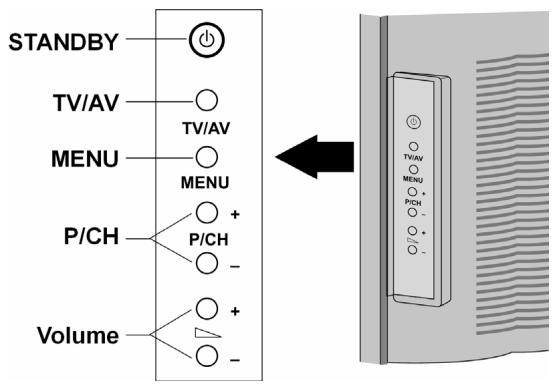
| Elemento de commando | Função |
| STANDBY | Ligue o aparecido no modo Standby com this botão. |
| TV/AV | Através este botão, mude a fonte dereichçao: EXT - 1,EXT - 2,EXT - 3,EXT - 4,EXT - 4S EXT - 5,PC,TV. |
| MENU | Através deste botão, aceda ao menu OSD1, de forma a efectuar as definições no seu aparecido. |
| +P/CH- | Atravésdestes botões, mude de canal. |
| +Volume- | Atravésdestes botões, regule o volume do seu aparecido. |
Indicações na parte darente
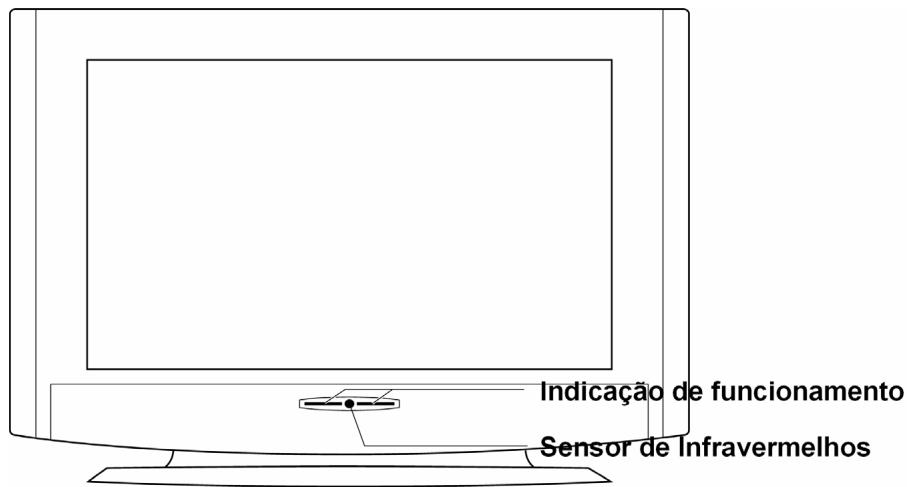
| Indicação | Significado |
| Sensor | Campo de recepçao para os sinais de infravermelhos do telecomando. |
| Indicação de funct ionamento | Assume a cor azul quando o aparelho se encontrar pronto a funciona. Apaga-se quando o aparelho está ligado. |
Ligações
As ligações encontrar-se atrás dos diafragmas amovíveis, na parte deTRS do aparelho.
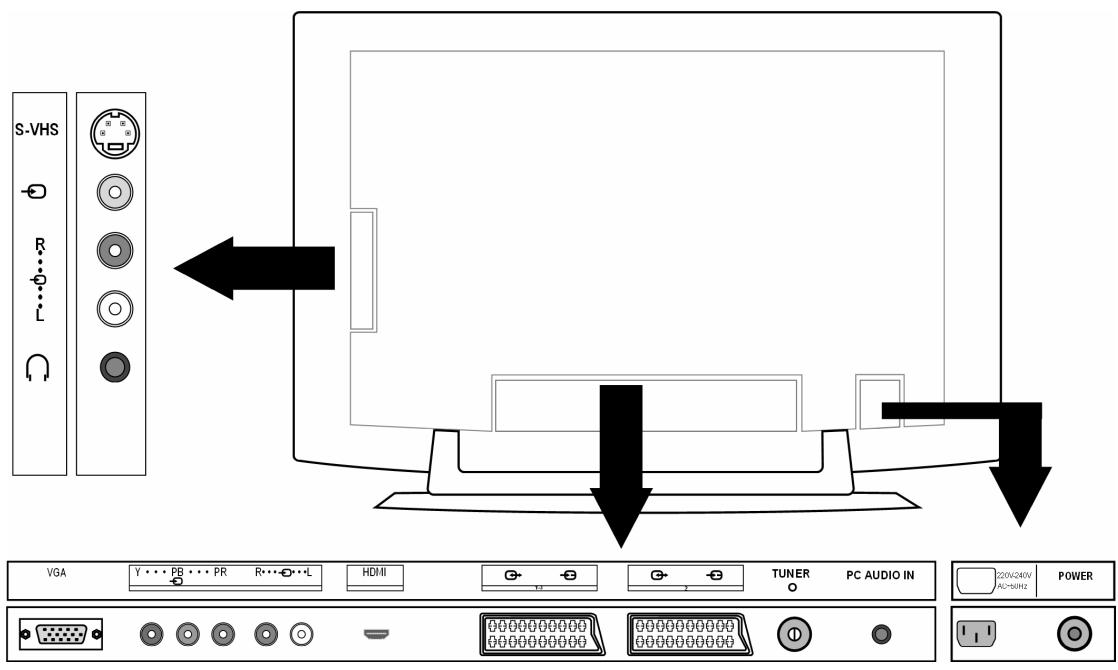
| Ligação | Possibilidades de ligação | |
| EXT - 4S | S-VHS | Entrada S-VHS (S-VIDEO) para ligar um aparibo com saía S-VIDEO (por ex. uma-camera de filmar). Para esta ligação, necessita de um cabo S-Video. |
| EXT - 4 | Entrada de VÍDEO (amarela) para ligar os seguintes aparelhos:-camera de video, leitor de DVD, descodificador (por ex. um receptor de satélite), etc. | |
| EXT - 4S | R | Entradas Àudio (vermelha/branca): Aqui ligue o canal esquerdo e o canal direito das fontes, cujo som pretende reproducir atraves do televisor LCD (por ex.-camera de video).Para this ligação, necessita de um cabo Cinch. |
| EXT - 4 | L | Ligação para os auscultadores.Liguequiry os seu auscultadores, de forma a ouvir o som transmitido pelo seu aparelho. |
| VGA | Ligação VGA.Liguequiry o seu computer ou o seu computer portátil.Necessita de um cabo VGA. | |
| EXT - 3 | Y...PB...PR | Y - PB - PR: Entradas de componentes para ligar aparelhos com saía de componentes, por ex.:1.-camera de video2. leitor de DVD3. descodificador (por ex. um receptor de satélite), etc.Para esta ligação, necessita de um cabo de componentes verde/azul/vermelho para a ligação de video, assim como um cabo Cinch vermelho/branco para a ligação de录音. |
| R...L | Para a ligação de um aparelo com entrada HDMI. Para this, necessita de um cabo HDMI. | |
| EXT - 5 | HDMI | |
| EXT - 1 | Entrada SCART para ligar os seguições apareiros: 1. Videogravador 2. leitor de DVD 3. consolas de jogos 4. descodificador (por ex. um receptor de satélite), etc. Para esta ligação, necessita de um cabo SCART (não vem incluído no volume de fornecimento). | |
| EXT - 2 | Tal como EXT - 1. Para EXT - 2 pode escolher uma fonte de entrada no menu CARACTERÍSTICAS (ver página 22). | |
| AERIAL O | Aquí ligue o cabo de antenna (não vem incluído no volume de fornecimento). | |
| PC AUDIO IN | Entradas de.audio para conector estéreo de 3,5 mm, por ex. para computadores. | |
| 220V-240V AC-50Hz | Liguequiryocabode rede fornecido. | |
| POWER | Interruptor de service: Aparelho em modo Standby e desligar novamente. | |
Exemplos de ligação
Auscultadores
A ligação para auscultadores encontrar-se na parte lateral do aparelho.
Ao ligar os auscultadores, as colunas principales continuam a funciona. O botão do volume e o botão "Mute" (para activar o modo silencioso) regula as colunas principales do aparelho.
Pode regular o volume dos auscultadores no menu SOM, ver página 21.
PC
Pode ligar o seu televisor LCD como um monitor ou como um monitor extra ao seu computador ou ao seu computador portátil. A imagem do seu computador/portátil passa a ser Transmitida a partir do seu televisor LCD.
Ligue o tevisor LCD da segunte forma:
- Desligue osinous aparelhos.
- Ligue um cabo VGA (cabo para monitor; não incluído no volume de fornecimento) à entrada VGA no teletóvor LCD e à saída da placá grafica do computador ou do portâtil.
- Aperte os parafusos do cabo do monitor com os dedos, para que as fichas fiquem bem encaixadas nas tomadas.
- Se desejar passar también o som para que este sera transmitido a partir do televisor, ligue um cabo de audio à tomada PC-AUDIO-IN.
- Ligue primeiro o televator LCD.
-
De seguida, ligne o computador ou o portátil.
-
Prima o botão PC no telecomando, de forma a Mudar para o modo PC. A imagem do computador aparece no televisor LCD. Atrasões do botão TV volta ao modo TV.
Se definir o televator LCD como um segudo monitor para o seu computador, em algumas circunstancias pode ser necessario que tenha de alterar as definições, nas definições de visualização do seu Sistema de funcaoamento. No manual de instruções do computador/portátil, leia os aspectos que se devem ter em consideração ao funcionar com various monitores.
Videogravador
Pode ligar um videogravador, tanto atraves de uma antenna como atraves do cabo SCART:
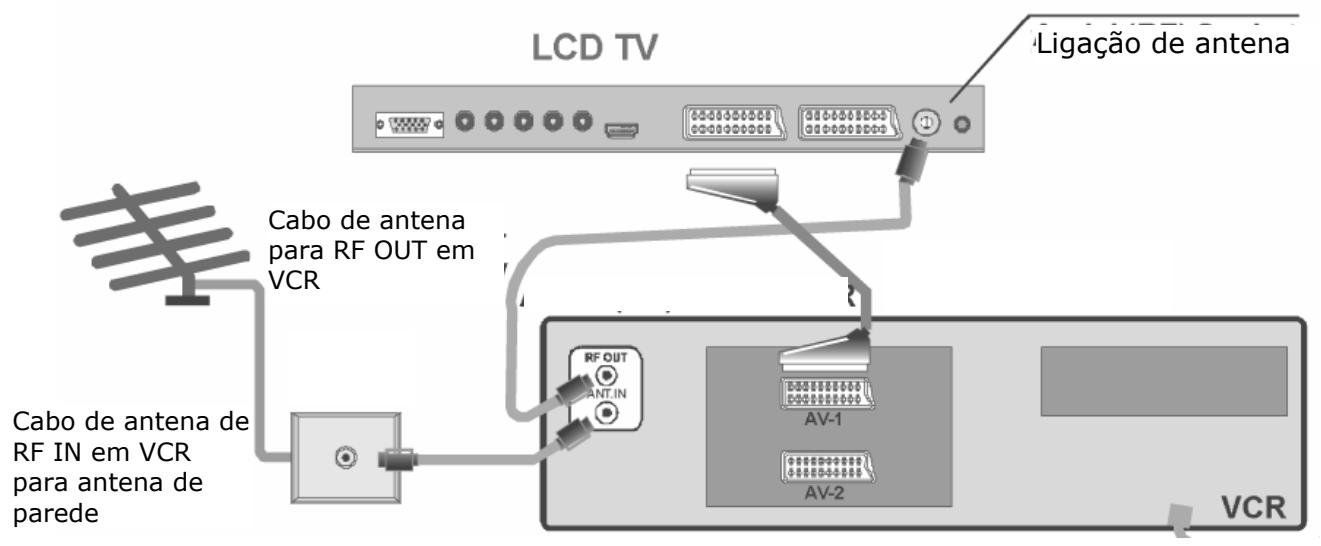
- É recomendada uma ligação SCART entre o videogravador e o tevisor LCD para uma melhor qualida de imagem e som. Se pretender reproducir um som estéreo, é necessária uma ligação SCART.
- Caso o videogravador esteja ligado à ligação EXT - 1, EXT - 2 ou EXT - 4, configure o punto do menu VCR no Menu INSTALLação para LIGADO (pagina 22)
Receptor de satélite e gravador de DVD
Ligue um receptor de satélite ou um gravador de DVD através de antenas ou do cabo SCART:
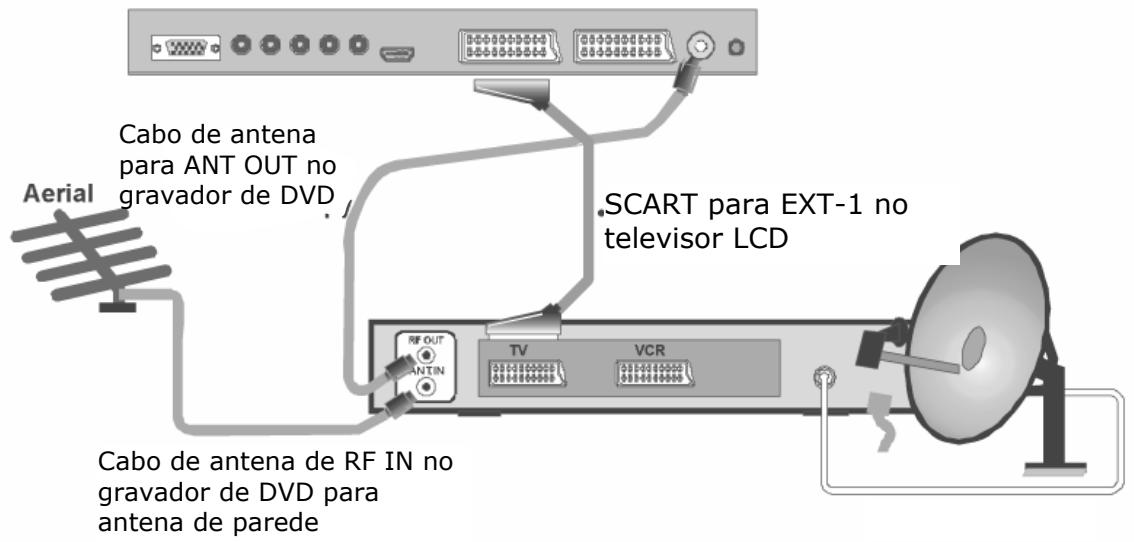
LCD TV
Videogravador e receptor de satélite
Se ligar simultaneamente um receptor de satélite e um videogravador, poderá utilizes o segunte tipo de ligação:
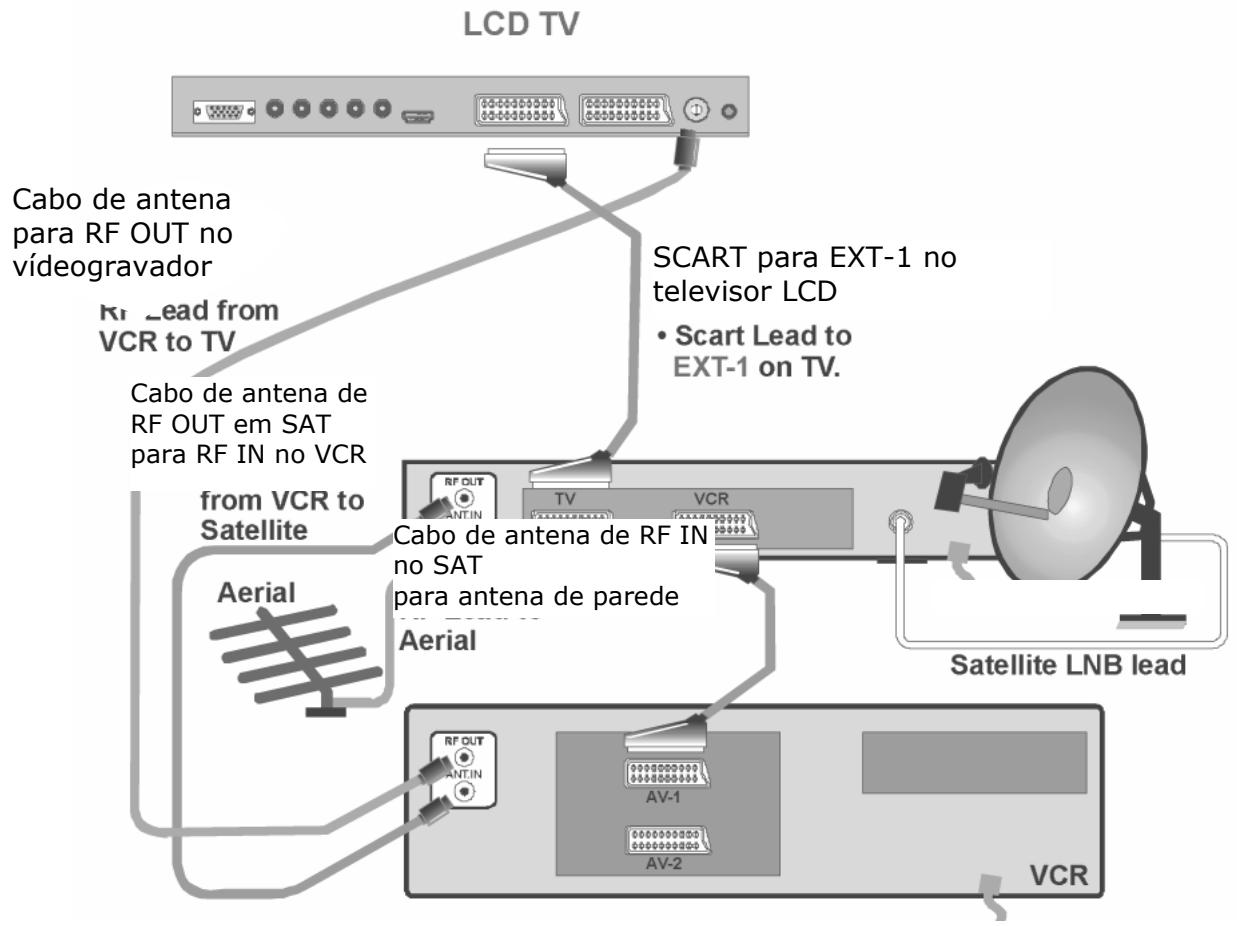
Leitor de DVD
Ligue um leitor DVD atraves do cabo SCART as tomas EXT-1 ou EXT-2.
- Aside que o leitor de DVD disponha de saidas YUV (Y Pb Pr), ligne-o através de um cabo de componentes (Cinch verde/azul/vermelho) às entradas de componentes EXT-3 do teletovisor LCD.
Aparelho comsays HDMI ou DVI
A HDMI ("High Definition Multimedia Interface") é, noiramto da electrónica de entrenimento, aúnica interface que transmite simultaneamente dados de audio e de video.Esta processa hoje em dia todos os formatos de imagem e de som conheceis incluindo HDTV (High Definition Television) e pode dessa forma aparecer a resolution de 1080 i sem perdar a qualidae.
- Ligue um cabo HDMI (não incluí do volume de fornecimento) à entrada HDMI do teilevisor LCD e a saía HDMI do aparelho externo.
- Quando tiver ligado o aparelho HDMI ou DVI, lique, de seguida, o tevisor LCD.
- Após isto, ligue o aparecido externo de reprodução HDMI.
Caso o aparecido externo possua uma sina de DVI, esta podeacularly ser igualmente ligada a uma entrada HDMI (HDMI é compatível com versões anteriores relativamente a DVI - "Digital Visual Interface"). Para isso, necessita de um adaptor HDMI-DVI. Uma vez que a sina de DVI não reproduz som, ligue ainda um cabo de audio com um conector à ligação PC-AUDIO-IN.
O telecomando
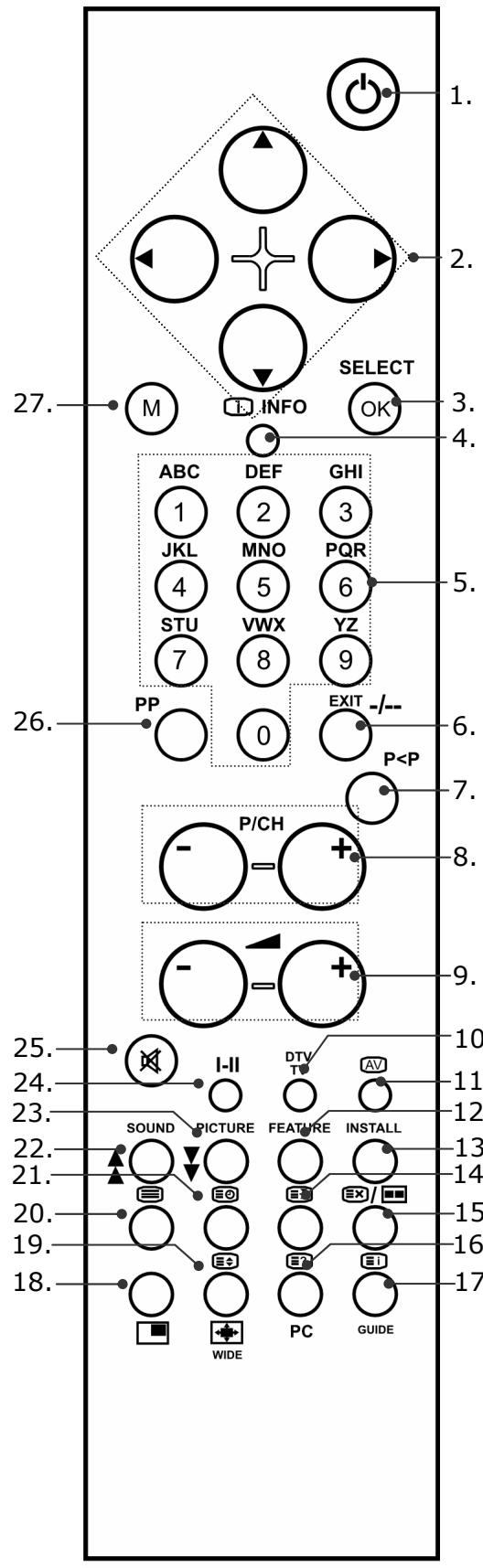
- Botão Standby Para desligar temporariamente o televator LCD
- Botões de direção <▶▲▼
- SELECT / OK: No modo de televisão,"These botões servem para bloquear a imagem que está a passar no televisor. Em determinados menus, pode confirmar uma seleção premindo o botão OK.
- INFO : Para estarar informações, como os他们在 do canal que está de momento sintonizado e o formato da imagem.
- Botoes dos algarismos: No modo de televisão,"These botões servem para escolher canais. No modo do teletexto,"These botões servem para introduzir conjuntos de这只是 algarismos, selecionando, assim, a párgina de teletexto.
- Este botão não é utilizado.
- Voltar a visualizar o canal anterior (mais do que 5 segundos).
- Botoes de selecao de canal P/CH + / - No modo de television, pode的选择ar o canal segunte (+) ou o anterior (-). No modo do teletexto, pode会选择ar a pagina segunte (+) ou a anterior (-).
- Volume + / -: Aumentar (+) ou reduzir (-) o volume.
- Modelo de TV: Mostrar configurações actuais; fechar o teletexto
- Selecção de entrada: Para selecionar o sinal de entrada dos aparelhos que se encontrar ligados ao seu televisor LCD.
- Botão amarelo / Abrir o menu CHARACTERISTICAS
- Botão azul / Abrir o menu INSTALAÇÃO
- Manter teletexto: É mantida a página actual.
- Teletexto: Procura escondida / Modo PAP
- Teletexto: Texto oculto / Modo PC
- Págrina do Índice do teletexto
- Mistura de teletexto (imagem transparente) / PIP (Imagem na Imagem) ligado e desligado
- Aumentar teletexto / Formato da imagem
- Ligare desligar o teletexto
- Mostrar horas / Págrina inferior do teletexto
- Botão vermelho / Abrir o menu SOM
- Botão verde / Abrir o menu IMAGEM
- Mono / Estéreo / Dual A e Dual A
- Activar o modo silencioso (Mute)
- SeLECTIONAR o modo da imagem
- Aceder ao menu; fechar o menu
Colocação em funct ionamento
Nota
Antes de colocar o aparecido em funciona, leia impreterivelmente o capítulo "Indicações de segurar" na páginá 5ff.
Tirar da embalagem
- Peça a ajuda de outras pessoas, ao tirar o aparelho da embalagem.
- Não pegue no aparecido sozinho, de forma a fazer uma que'do mesmo e/ou danos para a sua Saúde.
- Abra com bastante cuidado a caixa, evitando possível danos para o aparelho. Isto pode acontecer, caso utilize uma faca com uma lâmina comprida para Abrir a caixa.
- Na embalagem encontrar-seyardaspeques(pilhas,parafusos,entreouts). Mantenhaestaspeçasforadoalcancedascrianças,poisexisteoperigodeasengolirem.
- Guarde bem o material que vem na embalagem e utilize-o apenas para transporte o televisor.
Colocar as pilhas no telecomando
- Retire a tampa do compartmento das pilhas que se encontra na parte deTRS do telecomando.
- Introduza das pilhas do tipo R03 (AAA) de 1,5V no compartmento das pilhas do telecomando. Para tal, tenha atençao quando a polaridade das pilhas (marca no interior do compartmento das pilhas.
- Fecha o compartmento das pilhas com cuidado.
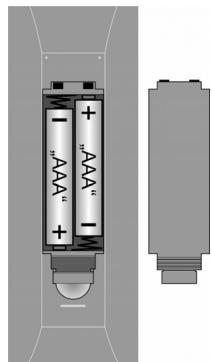
Atença!
Retire as pilhas do telecomando, caso o aparecido não soit utilizado durante um longo periodo de tempo. As pilhas podem verter, o que pode danIFICAR o telecomando.
Ligar a antenna
- Para ligar à antenna domestica ouSYSTEMA de cabo, ligue a tomada da antenna e o televisor LCD com um cabo de antenna duplamente blindado (não está incluido no fornecimento).
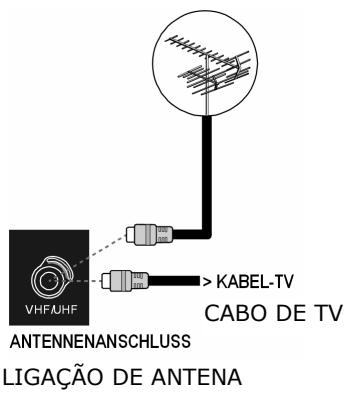
Ligar a alimentação de corrente
Ligue a ficha do aparelho do cabo do aparelho fornecido à ligação 220-240-V no aparelho e a ficha de rede a uma tomada de rede de 230V 50Hz , de fácil accesso.
Funções base
Ligar e desligar o televator LCD
- Prima o interruptor de service que se encontra na parte deTRS do aparelho. O aparelho entre em modo Standby e a indentacao na parte darente assume a cor azul.
- Para ligar o aparelho, prima ou um botão de algarismo no telecomando ou um botão para selecionar o canal P/CH no telecomando ou no aparelho. A indicação na parte da(fronte apaga-se.
- Com o botão Standby do telecomando ou com o botão Standby no lado direito do aparecido, muda novamente o aparecido para o modo Standby.
- Volte a premir o interruptor de service na parte deTRS do aparelho, para desligar completeness o aparelho.
Após a primeira conexão
Quando ligarPGA primeira vez o seu teilevisor, aparece o menu AUTO PROGRAM em alemao.
Para alterar o idioma para português, escolha a entrada "Sprache" ("Idioma").
Defina com os botões de direção < o seu idioma.
De seguida, selección a entrada "Páis" e, atraves dos botões de direção, defina o seu País.
A definição do País tem influência na sequência na qual os canais está memorizados.
Confirma, de seguida, a mensagem "VERIFICAR CABO DE ANTENA", premindo o botão OK ou o botão vermelho.
Para interromper o processo, pressione o botão azul.
APS
De seguida dá-se inicia à procura automatística de canais (APS). Podérá demorar algunos Minutes.
Pode cancelar o processo, premindo o botão azul.
Os canais são dispostos em posições de canal numa sequência de acordo com o País. Podem ser memorizados 100 canais.
Após terminator a memorização automática dos canais, épresentada aanela de canais. Se não pretender editor aanela, esta fecha-se antes osgunos minutos. Éemitido o canal que está memorizzato na posicao 1.
Selecao de canal
- Para seleccionar um canal, prima um dos botões P/CH (no aparecido ou no telecomando) ou escolha o canal directamente premindo num dos botões de algarismos do telecomando. Para um canal comdoesalgarismos,introduza osdois algarismos,um seguido do除外.
- Através do botão P< P pode selección o canal anteriormente emitido.
Ajustes do som
- Atrasvés dos botões de volume no telegramando ou no aparecido, podeLERou reduzir o volume.
- Paraletalavelaracolocarosomporcompletoto,primaobotaoMute.
- Com o botão I-II pode escolher entre a emissão mono e estéreo Dual A e Dual A. As emissões Dual A e Dual A são poder aparecer quando o programa do momento suportar o modo DUAL (por ex. em programas com两大 lynguas).
Ajustes de imagem
Modo de Zoom (Botão WIDE)
Prima o botão WIDE, para alterar entre os seguintes formatos de imagagem:
- Auto: O tipo emitido é automaticamente definido de acordo com o sinal de entrada.
Full: A imagem é alargado em referencia a toda a largura da imagem.
4:3: Para uma representação não distorcida de uma imagem no sentido 4:3.

- Panoramic: A imagem é alargada no canto esquerdo e direito, de forma a encher o ecra; o canto superior e/ou inferior fica um pouco cortado.

- Zoom 14:9: Uma imagem em formato 14:9 ("Letterbox") é alargada para o canto superior e inferior do ecran.

- Cinema: Uma imagem em formato 16:9 ("Letterbox") sare um efeito de zoom em todo o tamanho do ecran.

- Subtitle 16:9: Tal como a configuração "Cinema". No entanto, a imagem é deslocateda para cima, de forma a que serapossivel ver osubstilio ou o texto em movimento.


Em algunos formatos surgem botões de setas ao lado da指示ão de��o. Nestes formatsos podem mover a imagagem para cima ou para baixo,utilizando os botões de direcção.
Zoom no modo PC
No modo PC estáão disponibles os formatos 4:3 e Full.
Outros ajustes de imagem
- Através do botão SELECT pode bloquear e voltar a desbloquear a imagem.
- Através do botão PP (Personal Preferences), pode選擇ar o modo de imagem: Natural, Cinema, Dynamic.
Mostrar informações
-
Prima o botão INFO, de forma a serem presentadas as següntes definições actuais:
-
Posicao do canal e nome do canal;
- Ajuste sonoro (mono ou estéreo);
-
Ajuste de imagem.
-
Pode obter estasisas informacoes no modo de TV atravesdo botao DTV/TV,assim como ao mudar para outro canal.
- No modo de TV pode aparecer as horas, ao premir no botão (Hora/Pagina inferior do teletexto).
Selecciónar aparelho除外
- Atrasés do botão AV, pode selecciónar as entradas disponíveis:
-EXT-1:Aparelho na tomada SCART 1;
-EXT - 2: Aparelho na tomad SCART 2;
-EXT-3:Aparelho nas entradas de video e audio para componentes;
-EXT-4:Aparelho na entrada de video (lado do aparelho);
-EXT-4S:Aparelho nas entradas de audio e na entrada S-VHS (lado do aparelho);
-EXT-5:EntradaHDMI;
- PC (this definition is a solution to botao PC)
- Antena (modulo TV).
Teletexto
O seu televisor LCD suporta 1000 páginas de teletexto. Isto significica que o aparelho, après lhe sido introduzido algumas destas 1000 páginas, não necessita de procurar, poi aparena-as logo. O teletexto é um service gratuite, emitido pela maior das estações de televisão e que disponibiliza informações actuais acerca de noticias, da meteorologia, dos canais de televisão, daolta de valores, dos títulos e de outros temas. O seu televisor Oferece varías informações úteis para operar com o teletexto, assim como o texto Multipage, memorização de páginas inferiores ou uma navegação<rapida.
Utilização do teletexto
- Selecione um canal de televisao que emita teletexto.
- Prima uma vez o botão, para lhe ser presentada a párgina de indice do teletexto.
- Ao premir novamente o botão, o aparecido volta a Mudar para o modo de TV
Selección r páñinas de teletexto
Botoes numéricos
- Introduza a páginapretendida do teletexto - inserin os très algarismos -utilizando os botões numéricos.
- O número de páginas selección épresentado no canto superior esquerdo do ecran. O localizador de páginas do teletexto começa a procurar, até que o número de páginas selección está enigmado.
Botoes de selecao de canal
- Atrasés dos botões de seleção de canal pode folhear para arente ou paraTRS, pelas páginas do teletexto.
Botoes coloridos
- Quando forem exigidas as entradas de texto coloridas na parte inferior do ecra, pode seleccionar directamente these conteudos ao premir os botões coloridos correspondentes - VERMELHO, VERDE, AMARELO e AZUL.
Páginas inferiores
- Algumas páginas de teletexto contém páginas inferiores. No canto inferior da imagem é, por ex., aparecido 1/3. As páginas inferiores são exibidas com um espaço de aprox. meio minuto, umas seguidas das outras. Pode acreder às páginas inferiores por siproprio, premindo o botão. Surge um campo de introdução com quatro digitos,onde pode inserir o número de uma páagina inferior (por ex. 0002). Como alternativa, pode folhear pelas páginas inferiores,utilizando os botões de direcção .
\section*{Characteristicas uteis do teletexto}
TXT/MIX
- Prima o botão TXT/MIX, para que o teletexto serapresentado de forma transparente (a imagem da Televisão aparece como fundo).
i INDICE:
- Com este botão pode選擇ar una página de Úndice, que content em a lista do conteudo do teletexto.
STOP
A párgina de teletexto que selecciónou content, possivelmente, mais informações do que aquelas que sãopresentadas no ecran. Neste caso, as informações forameparadas por varias páginas inferiores. As págrinas inferiores sãopresentadas umas seguidas das outras, em espacos de tempo regulares.
- Prima o botão STOP, de forma a registrar uma mudança automatística de párgina. O símbolo STOP aparece no canto superior esquerdo do ecran e a mudança automatística de párgina é cancelada.
- Prima novamente o botão STOP, de forma a permitir novamente a mudança automatica de párgina.

Procura escondida
Se premir o botão no modo de Teletexto, o tevisor muda a indentação de teletexto para fundo de televisão. Desta forma, pode passar pelos periodos de espera até à visualização da网页 pretendida.
- Selecciono o numero de págrina pretendido no modo de Teletexto.
- Prima o botão é para Mudar para o modo de TV, quando espera pela网页 do teletexto. No canto superior esquerdo aparece um campo com o número de páginaprocurado ou osímboa, quando estiver a ser procurada.
Assim que a páginapretendida for encontrar, aparece o número de página em vez dotraço. - Volte a premir o botão para que seja aparecada a páginapretendida.

Mostrar textualo escondido
- Para serem presentadas informações ocultadas, como por ex. as soluções de adivinhas, puzzles ou quiz, prima uma vez o botão.
Ao premir novamente o botao , esconde novamente as respostas.

Duplicar o tamanho das páginas
Esta funcaoomba informacao do teletexto em tamanho duplicates.
- Prima o botão, paraLER a metade superior da pagsina.
- Volte a premir o botão, paraLER a metade inferior da pagsa.
- Ao premir novamente o botão, o teletexto é novamentepresentado no seu tamanho normal.
Imagem em Imagem
Modo PIP (Imagem na Imagem)
Com a funcao "PIP" ("Picture in Picture" - "Imagem na Imagem") tem a possibidade de exibir uma pequa janela de canal dentro da imagem principal.
- Prima o botão PIP. A janela PIP surge num canto do ecran. De seguida, aparece o canal actualmente marcado. Na janela principal surge o canal selecionado porultimate.
- Através do botão é不错 pode mover a janela PIP para o及其他 canto do eça.
- Prima o botão mais uma vez para fechar a janela PIP.
A janela PIP torna-se, de seguida, a janela activa (o som emitido pertence à janela PIP). Istô significá que, por ex.:
- pode alterar o canal na janela PIP, através dos botões de seleção de canal;
- podeAbrir o menu para a janela PIP,através do botão M;
- podeAbrirdiferentesfontesparaajanelaPIP,atravésdo botaoAV.
As informações exibidas pertencem también à janela PIP.
- Com os botões de direção < > pode alternar entre a janela PIP e a janela principal.
- SeAML 1
A funcão "Bloquear imagem" (botão SELECT/OK) é sempre aplicada na janela principal.
Modo PAP
No modo PAP encontrar-se这两条 janelas de canais, uma ao lado da outra. Os comportamentos das páginas de imagem das两大 janelas está determinados.
- Prima o botão [E] / [F]. A janela activa aparece, de seguida, no lado direito. No lado esquerdo surge o canal selecionado porultimate.
- Com os botões de direção ↓▶ pode alternar entre a janela activa e a janela secundária. Tal como descriço no capítulo relativo ao "Modo PIP", as funções são aplicadas na janela activa.
- Prima o botão / mais uma vez para fechar a janela PAP.
No modo PAP pode aceder ao teletexto da janela activa que se encontra no lado direito (botão). O teletexto vai substituir a janela secundária e, esta forma, vai posicionar-se ao lado da imagem de televisão.
PIP e PAP no modo PC
No modo PC pode exibir o canal de televisão (ou uma另外一个 fonte), ao lado da imagem vinda do computador, ao premir os botões ou /.
Pode mudar de canal de televisão, assim como pode travañhar na janela do computador.
O menu OSD
Através do menu OSD (On Screen Display) pode configurar determinados parâmetros do televisor LCD.
Navegar no menu
- Prima o botão de menu M para aktivar o menu OSD.
- Através dos botões de direção <▶ pode selecionar as opções do menu principal.
- Através dos botões de direção ↑ ↓ pode selecionar as opções de um menu.
- Através do botão de direção volta ao menu principal.
- Atrasoes do botao de direccao pode abrir um submenu (nao está disponivel em todos os menus).
- Através do botão de menu M volta ao menu superior.
- Através dos botões de direção ↘ ↘ pode inserir um valor pretendido ou fazer uma seleção.
- Atrasoes do botao de menu M pode fechar o menu e, simultaneamente, confirmar a selecao Tenha em atencao que o menu se fecha automaticamente aps aprox. 15, 30 ou 60 segudos, caso nao sera premido qualquer botao (configuraao no menu CARACTERISTICAS, pagsa 36).
| Nota |
| Devido a possíveis alterações tínicas, os menusquiry descritos podem surgir de modo um pouco diferente no seu(ECRA). |
Menu IMAGEM
| Ponto do menu | Configurações |
| modo | Selecionar o modo da imagem: Natural, Cinema, Dynamic. Esta função diz respeito ao botão PP. |
| Contraste | Reduzir ouLER augmentar o contraste (escalca 0 - 63). |
| Claridade | Reduzir ouler augmentar a claridade (escalca 0 - 63). |
| Agudeza | Reduzir ouler augmentar a agudeza (escalca 0 - 31). |
| Cor | Reduzir ouLER augmentar a cor (escalca 0 - 99). |
| Temperatura da Cor | Selecionar temperatura da cor: Normal, Frio, Quente. |
| Reduição de Ruído | Com esta função pode reduzir o ruído da imagem e melhorar a qualida de imagem mesmo recebendo um sinal fraco. Escolha entre Desligado, Baixo, Médio e Alto. |
| modo de Filme | Os filmes são gravados com uma outra quantidade de imagens individuais por segundo, como programas de televisão. Selecione Ligado, ao ver um这部电影, para poder visualizar melhor a qualida de imagem de cenas com movimento rápidos. |
| 3D Comb | O FILTER de pente 3D éutilizando para melhorar as transições da cor e a qualida de cor das imagens. |
| Reset | Com os botões > ou OK volta a colocar todas as configurações de imagem nas configurações de fábrica. |
| Como informação, surge ali o padrão de cores de television actualmente recebido (ver também Menu INSTALLação). |
Menu SOM
| Ponto do menu | Configurações |
| Volume | Configuração de base do som ao ligar (escala 0 - 63). Selecione um som de base moderado. |
| Equalizarador | Abrir o submenu EQUALIZADOR: Ver capítulo segunte |
| Balança | Balança entre a coluna esquerda e direita (escala -31 - 31). |
| Auscultadores | Abrir o submenu AUSCULTADORES: Ver capítulo segunte. |
| Modo de Som | Selecionar entre Estéreo e Mono. Caso a emissão actual suporte o modo DUAL (por ex. em programas com两大 línguas), aque pode acreda escolher entre Dual A e Dual B (idioma original e sincronização). A função diz respeito ao botão I-II. |
| AVL | A função AVL (Automatic Volume Limiting) equilibra os不同类型 volumes de som dos不同类型 canais. Desligao: Volumes de som originais; Ligado: Volumes de som equilibrados. |
| Efeitos | Ligar ou desligar o efeito se som. Quando o modo de som actual se encontrar em Mono, se activar o efeito se som, este vais assemelhar-se a um som estéreo. Quando o modo de som não se達到 em Estéreo, o som no esporto torna-se mais profundo. |
| Dynamic Bass | Defina ossons bass entre Baixo, Alto e Desligado. Não é recomenda a definição Alto, tendo o volume elevado. |
Submenu EQUALIZADOR
| Ponto do menu | Configurações |
| Modo de Som | Pode selecionar entre as differentes pré-definições do equalizar. Nas definições Pop, Rock, Jazz e Clássica está optimizadas as definições de som para a direção musical correspondente; Achatado é a definição normal. |
| Utilizador | Na definição Usuário (Utilizador), pode efectuar uma definiçãopropriária:Através de ↑ ↓ selecione uma banda de frequência.Através de ↓ > defina uma valor. |
Submenu AUSCULTADORES
| Ponto do menu | Configurações |
| Volume | Configurar o som dos auscultadores (escala 0 - 63). (Através dos botões de som ↑↑ ↑ pode definir o volume das colunas principales.) |
| Modo de Som | Selecionar entre Estéreo e Mono para os auscultadores. Caso a emissão actual suporte o modo DUAL (por ex. em programas com两大{línguas), aque não pode acreditar entre Dual A e Dual B (idioma original e sincronização)). |
| Balança | Balança entre a coluna esquerda e direita dos auscultadores (escala - |
Menu CHARACTERISTICAS
| Ponto do menu | Configurações |
| Temporizador | Selecione um período de tempo, après o qual o aparecido de desluge por siproprio. Atrasvés dos botões de direção pode definir o período de tempo em intervalos de 10 minutos (máximo de 2 horas).Logo après definir utilizeso os botões ↘começao orperião de tempo de temporizador Sleep. |
| Bloqueio Crianças | Se colocar a definição em Ligado, os botões do aparecido ficam bloqueados (com a exceptiondo interruptor de rede). |
| Linguagem | Selecione o idioma do menu OSD. Este muda-se imeditamente. |
| Ext-2 Out | Aquí é definido qual o sinal que está definido como o sinal de saída na ligação SCART-2.Selecione entre TV, EXT - 1, EXT- 3, EXT- 4, EXT- 5 e PC. |
| Zoom por defeito | Aquí defina o zoom-padão em Panoramic, 4:3 ou 14:9 Zoom.Caso não tenha qualquer informação acerca de WSS (imagem panoramicária) ou do formato de págin da imagem (tamanho da imagem) e o modo de Zoom estêja definido como Auto através do botão WIDE, o modo muda-se automaticamente para as definições de zoom-padão. |
| Menu de Fundo | Selecione se o fundo do menu devaré ser Translúcido ou Opaco. |
| OSD Fora de Tempo | Aquí pode definir o período de tempo, après o qual pretende que o menu OSD se desluge automaticamente: 15, 30 ou 60 segundos. |
| TXT Linguagem | A pré-definição é Oeste. Caso se encontre num local onde acrire não corresponda à escrita ocidental, pode alterar a definição do idioma: Este, Cirílica, Turca/Gre ou Árabe. |
Menu INSTALLAÇAO
Em casos normais, os canais disponíveis são procurados com a procura automatica de canais e na sequência encontrará são memorizados automaticamente nas posições de canais. Naanela de canais, pode fazer novamente as posições de canais (ver menu "LABELA DE CANAIS", págin 24).
O menu INSTALAÇÃO permite-lhe ainda fazer uma procura manual e memorizar cada canal, assim como ajustar a imagem.
| Ponto do menu | Configurações |
| Programa | Aquí pode ver o número da posicao de canal do canal que está demomento a ser exibido.Através dos botões de direção ◆ ou através dos botõesnuméricos, pode escolher outras posicao de canal (de 0 até 99).Memorize a nova posicao de canal premindo OK ou selecionando opointo Guardar Programa e premindo ◆.Tenha atençao a que irá guardar por cima de um canal que existana nova posão de canal selecionada. O canal é memorizado com |
| o seu número de canal (por ex. "C-25") e não com o seu nome de canal, naabela de canais. Se pretender ligar um videogravador, recomendamos que guarde o canal 0 para o video. | |
| Banda | A banda de frequência do teletvisor está dividna nos想不到o canal C (canais normais) e S (canais especialis). Aquí aparece o tipo de canal do canalactualmente definido. |
| Canal | Aquí pode ver o número do canal do canalactualmente definido. Atrasvês de ↓ ↗ pode selecionar um outro canal. |
| Sistema de Cor | Aquí pode selecionar o padrão de cores de televisão spécifique de cada páis: Auto (o Sistema de cores correcto define-se a siproprio), PAL (para PAL 50 MHz), PAL 60, SECAM. Quando o Sistema Som (v. ponto segunte) estiver definido em"I", o modo SECAM não está disponível. Se estiver selecionada uma fonte externa (EXT - 1, etc.), está也是非常 disponível os NTSC 3.58 e o NTSC 4.43 (formato de cores habitual na América do Norte). A escolha de umsystema de cores errado leva a uma imagem comerro. Na Info-Box do menu IMAGEM aparece o Sistema de coresactualmente recebido. |
| Sistema Som | Aquí pode definir o Sistema de televisão de acordo com aspecificidade do páis: BG (Europa Occidental), I (Grã-Bretanhâ) ouDK (Países de Leste). |
| AjusteÓptimo | Aquí pode ajustar a imagem do canal selecionado de momento,através dos botões ↓ ↗. |
| Procura | Aquí pode efectuar uma procura manual de canais. Comece uma procura com os botões de direção ↓ ↗, para cima oupara baixo. Ao encontrar um canal, a procura pára. Poderá ver ovalor MHz. No punto de menu Programa, pode atribuir a um canal umposicao de canal. Tenha atençao a que, ao memorizar um outro canal esta posicao, o canal anterior está substituído. No menu AjusteÓptimo (v. capítulo anterior) pode efectuar maisalguns ajustes. Para memoriar o canal, prima em OK ou seleção o puntoGuardar Programa e proima ↗. |
| VCR | Selecao a definição Ligado, se estiver ligado um videogravador às entradas EXT - 1, EXT - 2 ou EXT - 4. |
| GuardarPrograma | Memorizar canal selecionado (v. pontos Programa e Procura). |
Memorizar Videogravador manualmente
Pode utiliser a procura manual para, por ex., configurar um videogravador no telesor LCD. Depois do telesor LCD e o videogravador estarem ligados um ao除外s da antenna (ver "Exemplo de ligaçao", paga 8, colque o seu videogravador para o sinal de teste.
- Effectue a procura manual através do televator LCD.
Assim que o sinal de teste tenha sido暑ado, memorize o sinal de teste na posicao de canal 0 (this posicao de canal não deve ser ocupada por um outras canal de televisao).
Menu PROGRAMA (tabela de canais)
Naabela de canais poderá ver os canais que temactualmente memorizados. Os canais surgem com os seures respectivos nomes de canais,desdeque a emissora suporte esta funcao.Caso o nome do canal não consiga ser exibido, aparece o numero do canal S - ou C-. Neste caso, "S" significa Canal especial e "C" significa canal normal ("channel").
A memória de canais abrange até 100 posições. Active o cursor naabela, através do botão de direção . Irá fazer uma outra coluna, na qual poderá ir para a coluna direita através do botão de direção e premir novamente .
| Ponto do menu | Configurações |
| Nome | Aquí pode ALTERar o nome dos canais. Assinale o nome do canal pretendido e prima o botão vermelho. Pode alterar as primeirasLETAS: Escolha, com os botões de direção▲▼, um caractere. Os caricantes sãopresentados na sequência: A B C [até] Z 0 1 2 [até] 9() *+, ./ [espaço] -. Atrasçemos do botão de direção▲, pode ir para aleiça seguinte, etc. No final, voltae a premir mais uma vez o botão vermelho, de forma a memorizar o nome. |
| Apagar | Seleciono o canal quepretendeeliminar da lista e prima o botão amarelo. Prima o botão amarelo mais uma vez para confirmar. Os canais seguições avançam uma posicao na tabela. |
| Inserir | Aquí pode deslocar um canal para uma outra posicao. Seleciono o canal e prima o botão verde. Desloque o canal utilizeso os botões▲▼para a posicaopretendida e prima novamente o botão verde. Os outros canais são tambem deslocados. |
| APS | Através da função APS éeffectuaa procura automáticade canais. Prima o botão azul. Surgea mensagem:"AVISO! Todos os programas guardados seraoeliminados." Prima o botão azul sepretender interrompera função. Prima o botão vermelho ou OK para dar inúcio à procura. No final da procura aparece a tabela de canais. |
Menu FONTE
Neste menu pode selectionar una另外一个 fonte de entrada. Nas linhas superiores poderá ver a fonteactualmente seleccionada.
A funcão diz respeito ao botão AV.
Seleciona a fonte atraves dos botões . Mude para esta fonte, premindo OK ou o botão de direcção .
De acordo com a fonte externa selecionada, poderao não estar à disposicao os menus
INSTALAÇÃO e PROGRAMA ou o menu INSTALAÇÃO pode ter poucas entradas.
Menu no modo PC
No modo PC, o menu OSD tem as seguintes entradas:
Menu POSIÇÃO IMAGEM PC
| Ponto do menu | Configurações |
| Posicao Auto | Se pretender deslocar a imagem, pode的选择ar a entrada Posicao Auto e OK ou premir ↓, para se mover novamente para o centro.Esta funcao deve ser efectuada com uma imagem completenessa, para que as definições correspondam umas às outras. |
| Posicao H | Aquí pode alterar a posicao horizontal da imagem atravesés dos botões ← > . |
| Posicao V | Aquí pode alterar a posicao vertical da imagem atravesés dos botões ← > . |
| Frequente Pontos | Com esta configuração, o sinal da imagem é sincronizzato com a Frequência de pixei do ecran. Esta corrige falhas que podem ocorrores como linhas verticais em representações muito pixelizadas (como tabelas ou texto em letras很小). |
| Fase | Com this definição cobrirá o sinal de imagem com os pixei (pontos de representação), de uma forma exacta. Assim, resulta uma imagem mais limpa com a mesma representação. |
Menu IMAGEM PC
| Ponto do menu | Configurações |
| Contraste | Reduzir ouacularocontraste (escalao 0-63). |
| Claridade | Reduzir ouaculara claridade (escalao 0-63). |
| Temperatura da Cor | Selecionar temperatura da cor: Normal, Frio, Quente, Utilizador (ver punto segunte). |
| R, G, B | Quando a opçao Temperatura da Cor estiver definida em Utilizador, pode definir por si mesmo os values para R (vermelho), G (verde) e B (azul). |
| Reset | Volte a definir as configurações da imagem para a configuração de fabrica, utilizing os botões OK ou>. |
Menus SOM, CHARACTERISTICAS e FONTE
Os menus SOM, CHARACTERISTICAS e FONTE correspondem aos menus no modo de TV.
Resolução de problemas
Por vezes, as falhas de funciona podem ser originadas por causas banais, mas noutros casos, podem derivar de componentes com defeito. Com esta lista,pretendemos fornecer-lhe um guia, de forma a resolver os problemas. Caso as medidasquiryindicadasnaoajudem na resolucao,teremos todo o prazer em auxiliá-lo.Ligue-nos!
Não aparece imagem e não se ouve som.
- Verifique se o cabo de rede está correctamente ligado à tomada e no aparelho.
- Verifique se está definira a receção de sinal para a televisão.
- Verifique se o interruptor principal do aparelho (na parte deTRS) está ligado.
Não aparece imagem. Não aparece imagem de AV.
- Verifique se o contraste ou a claridade está correctamente configurados.
- Verifique se todos os(AParemelhos externos estao correspondente ligados.
- Verifique se está selecionada a posicao correcta AV.
Não se ouve som.
- Certifique-se de que o volume não se conta no minimo.
- Certifique-se de que a opção Mute não foi activada.
Não está imagem nem som. Mas consigo ouvir ruidos.
- Possivelmente, a receção não está boa. Verifique se a antenna está ligada.
A imagem não está clara.
- Possivelmente, a recepçao não está boa.
- Verifique se a antenna está ligada.
A imagem está muito clara ou muito escura.
- Verifique as configurações de Contraste / Claridade / Fundo no menu Imagem.
O telecomando não funciona.
- Verifique se as pilhas no telecomando está corregradas e correctamente introduzidas.
- Certifique-se de que a janela de sensor não está a receber raios fortes de luz.
Desligue o aparelho no interruptor principal na parte deTRS do aparelho e volte a ligá-lo.
A imagem não está nítida.
- Possivelmente, a receção não está boa.
- Verifique se a antenna está ligada.
- Verifique as configurações da nitidez e da redução de ruído no menu Imagem.
Aparece uma imagem dupla ou tripla.
- Verifique se a antenna está correctamente alinhada.
- Possivelmente, existem ondas reflectidas por montes ou por edificios.
A imagem tem pontos.
- Possivelmente, há a interferência de automóveis, comboios, cabos, luzes de néon, etc.
- Possivelmente, existe una interferencia entre o cabo da antenna e o da corrente. Procure separá-los.
Aparecem linhas na imagem ou as cores está esmorecidas.
- Existe algouma interferência com um除外o aparelho?
As antennas de transmissao de estacoes de rado ou as antenas de rados amadoras e ainda de Telefones portateursis podem causar interferencias. -
Coloque o aparelho em functiOnamento o mais longe possivel de outro aparelho que possa causar interferencia.
-
Obloqueio para crianças poderá estar activo.
NECESSITA DE MAIS ALGUM TIPO DE APOIO?
Caso as sugestões aparecidas nos capítulos acima não resolvam o seu problema, não hesite em contactar-nos. Seria bastanteutil para nós, se nos disponibilizasse as seguiñes informações:
- Quais os apareiros externos que está ligados?
- Que mensagens surgem no ecra?
- Em que passo da operação ocorrê o problema?
-
Caso tenha ligado um computador ao aparelho:
-
Qual o aspecto da configuração do seu computador?
-
Qual o software que está a utiliser quando ocorreu oerro?
-
Quais os passos que ja tomou para solucionar o problema?
Se játiver recebido um número de cliente, diga-nos qual é.
Limpeza
A vida útil do televisor LCD pode ser prolongada através das següentes medidas:
- Antes de iniciaar a limpeza retire a ficha de rede e todos os cabos de ligação.
- Não utilize quaisquer solventes ou produits de limpeza corrosivos ou gasosos.
- Limpe o écrã com um macio e que não deixe pélos.
- Certifique-se de que não ficam gotas de agua no televisor LCD. A água pode provocar alterações de cor permanentes.
- Não exponha o ecra a luz solar muito intensa nem a radiação ultravioleta.
- Guarde bem o material que vem na embalagem e utilize-o apenas para transporte o televisor LCD.
Atença!
No interior da caixa do ecran, não existem peças que necessitam de manutenção nem que necessitam de ser limpas.
Dados技术和
Tensão nominal: 230 V ~ 50 Hz
Tamanho do ecrã: 32" (81 cm) TFT; visor 16:9
Consumo de energia: 180 Watt
Consumo de energia em modo Standby: 3 W
Sistema TV: PAL, SECAM, B/G, D/K, K', I/I, L/L'
Canais: VHF (Banda I/III)
UHF (BANDA U)
HIPERBANDA
TV por cabo (S1-S20)/ S21-S41)
Áudio: Estéreo
Posições de canais: 100
Entrada da antenna: 75 Ohms
Medidas (A x L x P) 620 x 835 x 250 mm
Peso: aprox. 16 kg
Eliminação
Embalagem

O seu aparecido encontrar-se numa embalagem para fazer protegido de danos de transporte. As embalagens são feitas em materiais que podem ser eliminados de forma não prejudicial para o ambiente e que podem ser reciclados adequamente.
Aparelho

Nunca deposite o aparelho no lixo dométrico no fim da sua vida útil. Informe-se sobre as possibilidades de uma eliminação correcta e ecológica.
Pilhas

As pilhas gastas não podem ser deposadas no lixo dométrico! Estas tem de ser deposadas no pilhão.
Condições de garantia
O recibo de entrega é valido como comprovante para a primeira@aquisicao e deve ser conservado com cuidado. Ele sera necessario para a prestação de serviços em garantia. Seus direitos legais não são restringuidos atraves das destas condições de garantia. Se o produto for transferido para outro utilizes, este tem direito aos serviços em garantia durante o restante tempo de garantia.
O comprovante de compra e esta declaração devem ser entregaes ao novo proprietário. Garantimos que este aparecido está em estado funcional e que, no aspecto técnico ele correponde às descrições contidas na documentação que o accompaniesha.
O tempo restante da garantia é transferido às respectivas peças de reposicao originais adquiridas, com a aparecao do comprovante de compra. quando entraqar este aparelho à assistencia和技术 para serviços em garantia, deve remove previamente todos os programas, dados e meios de armazenamento amoviveis. Os produits enviados sem acessórios são substituídos sem acessórios.
A obrigação de prestação de garantia não se aplicá, caso o problema tenha sido causado por acidente, catástrofe, vandalismo, uso indevido, Utilização tecnicamente Incorrecta, não observação das normas de seguranca e manutençao, alterações devido a software, virus ou Causeados por及其他 aparecido ou acessório, bem como devo a outras 修改os por nos não autorizadas.Esta declaração de garantia limitada substitui todas as demais garantias expressas ou de natureza implícita.
Isto inclui a garantia de aptidão para vendu ou uso para determinada finalidade, porém não se limita a isso. Em algunos País a leiisagem não permitse a exclusão de garantias implicadas. Neste caso, a validade de todas as garantias expressas e implicadas limitam-se ao perigo de garantia.
Com o vencimento este periodo todas as garantias perdem a sua validade. Em algunos Países a leição não permitte a limitação de garantias implícitas, de forma que a declaração acima não entra em vigor. Em caso de duvidas acerca das Attacka, entre em contacto connosco.
Falhas de pixeis nos televisores LCD
Apesar do tipo de desenvolvimento mais moderno, devido à Tecnologia bastante complexa, pode acontecer que, em algunos casos, ocorra a falha de um ou de various pontos de luz.
Nos TFTs Active Matrix com uma resolução de 1366 x 768 páxeis, que são, por sua vez, compostos por eles subpíxeis (vermelho, verde, azul), existe um total de aprox. 3 mil milhões de elementos de activação de luz. Devido a este elevado número de transistores e do processo de produção bastante complexo a eles ligado, pode esporadicamente conducir a uma falha ou a uma activação Incorrecta de páxeis ou de subpáxeis.
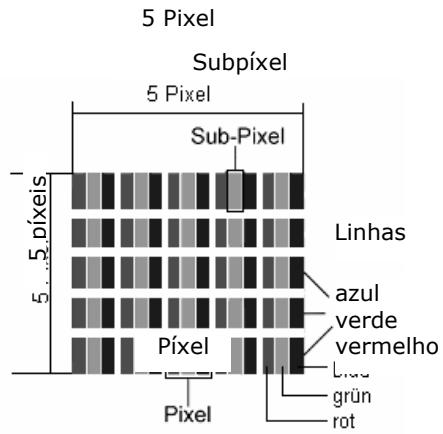
| Descrição | Número aceite | |
| Subpixel claro | 1 Subpixel | Máx. 2 |
| Dois seguidos um ao除外 (horizontal/vertical) | 0 | |
| Distência | Distência minima entre subpixels claros e escuros | Mín. 5 mm |
| Subpixel esculo | Individual | Máx. 7 |
| Dois seguidos um ao除外 | Máx. 2 | |
| Distência | Distência minima entre subpixels claros e escuros | Mín. 5 mm |
| Número total de subpixels claros e escuros | Máx. 7 | |
Aabela descreve a quantidade Tmaxa de falhas de pixeis que pode ocorrre no ecran, sem, no entanto, se tratar de um caso de garantia. A garantia so está asseguuda caso o numero de falhas numa categoria acima indica for ultrapassado.
Limitação de responsabilitad
O conteudo este manual está sujeito a alteracoes sem avis prévio, consoante o progresso Tecnológico. O fabricante e o distribuidor não se responsabilizam por danos em consagemência de erros ou omissiones, ocorridos a partir das informações disponibilizadas neste manual. De modo algoum nos responsabilizamos por:
- Reivindicações de terreiros contra si, em consequência de prejuízos ou danos.
- Perda ou danificacao de seu registos ou dados.
- Danos económosicos segentes (inclusive lucro ou economia perdida) ou colaterais, mesmo no caso de que tenhamos sido informados sobre a possibídade de tais danos.
Em algunos Países a legisção não permitse a exclusão ou a limitação de danos colaterais ou sequentes, de forma que a declaração acima não entra em vigor.
Copyright © 2007
Reservados todos os direitos.
Os direitos de autor destemanual estao protegidos.
O Copyright pertence à firma Medion®.
Reservados os direitos de alteracoes关键技术 e opticas, bem como erros de impressao.
Montagem na parede
Pode fixar o televator LCD na parede.
Acessórios
São fornecidos os seguições acessórios:
2 chapas em aço, 4 parafusos M4 x 10, 4 suspensões em plástico, 1 moldes de perfuração, 1 manual de instruções ilustrado (adequado a variedostipso de aparelho).
Para también disto, necessities de 8 Buchas e parafudos para a sua parede (podem ser adquiridos na loja).
Indicações de segurarça para a montagem na parede
Para a montagem na parede, tenha em atençao as seguients indicacoes de segurarca:
- O televator LCDsolepsermontado emparedes verticalais.
- Antes da montagem, verifique se a parede tem a capacidade de suporte para o peso triplo do aparelho (16 kg). Em caso de duvida, aconsele-se jusqu'à um técnico de instalacao qualificado.
- Antes da montagem, desligue o televisor LCD. O cabo de rede e o cabo de antenna não devem estar ligados.
- Para a montagem, são necessarias能做到些 pessoas.
- Como ferramentas, necessita de unaquina de furar e de una chave de parafusos com ponteira em cruz.
CUIDADO! Ao escolher asbuchas e os parafusos, tenha atençao ao facto de que estesdeferao seradequadosa sua parede.
Montar dispositivos de suspência no aparelho
- Insira os parafusos M4 x 10 fornecidos nas suspensões de plástico. O lado com o diametro mais pouco da suspensões de plástico fica p
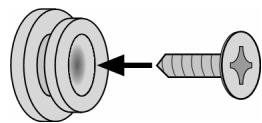
- Aperte os parafusos com as suspensões de plástico nos orificios de parafuso previstos, na parte deTRSdo aparelho.
Cf. as instruções ilustradas da imagem 5A.
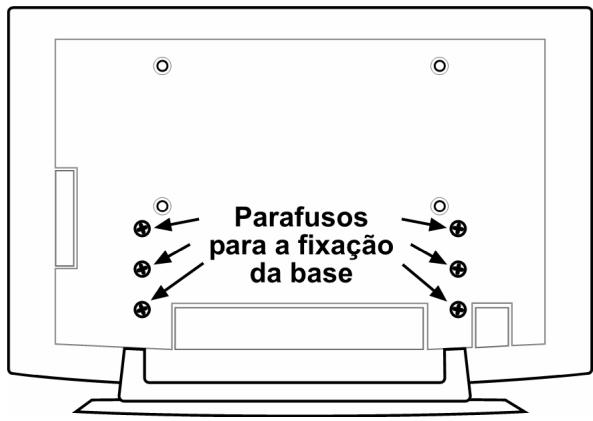
Retirar a base
A base do aparelho está fixada com-seis parafudos na parte deTRS.
- Solte os sei's parafusos com uma chave de parafusos com ponteira em cruz.
- Levante o aparelho.
Cf. as instruções ilustradas da imagem 6A.
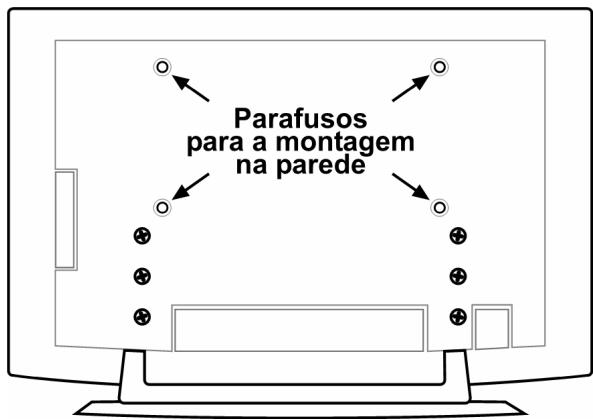
Fixar as chapas em aço na parede
- Escolha um local na parede ond e tevisor LCD tenha espo suficiente em rela oculos objectos (cf. o capitulo "Local de instalacao", pags 4).
Tenha em parte que as suspensões na parte de trás do aparelho são colocadas na ponta estreita das aberturas de suspência, nas chapas de em aço (cf. o desenhho naproxima págnina).
- Com a ajuda dos moldes de perfuração fornecidos, assinale os oitos orificios a perfurar na parede.
- Faça os oito orificios para asbuchas na parede. Cf. as instruções ilustradas da imagem 1.
- Coloque asbuchas.Cf.as instruções ilustradas da imagem 2.
CUIDADO! Asbuchasdevemestar bem fixas!Nao coloque oaparelho suspenson na parede, caso asbuchas nao estejamcompletamente colocadas naparede.
- Aperte bem as两大 chapas em aço com quatro parafusos. O lado estreito das aberturas de suspência deve estar colocado para baixo. Cf. as instruções ilustradas das imagens 3 e 4.
- Agora pode colocar o televisor LCD na parede, encaixando-o nas chapas em aço. Cf. as instruções ilustradas das imagens 8 e 9.
Content
Notes to these instructions 3
About this device 3
HD ready 3
Included in delivery 3
Safety instructions 4
Operating safety 4
Installation Location 4
Repairs 5
Intended environment 5
Power Supply 5
Standards / electromagnetic compatibility 6
Handling batteries 6
Getting to know the device 7
Side view 7
Front view. 7
Connections 8
Connection options 9
Headphones 9
PC 9
Video recorder 10
SAT receiver or DVD recorder 10
Video recorder and SAT receiver. 11
DVD player 11
Device with HDMI or DVI output. 11
The remote control 12
Starting up 13
Unpacking 13
Placing the batteries into the remote. 13
Connecting an aerial. 13
Connect power supply. 13
Basic functions 14
Switching the LCD TV on and off 14
After switching the device on for the first time. 14
Channel selection 14
Sound settings. 14
Screen settings 15
Displaying information 16
Selecting an external device 16
Videotext 17
To operate Videotext 17
PIP mode. 19
PAP mode 19
The OSD menu 20
Navigating in the menu 20
MenuPICTURE 20
Menu SOUND 21
Menu FEATURE 22
Menu INSTALL 22
Menu PROGRAM (Channel table) 24
Menu SOURCE 24
25
Menu PC PICTURE POSITION 25
Menu PC PICTURE 25
SOUND, FEATURE and SOURCE menus 25
Troubleshooting 26
DO YOU REQUIRE ADDITIONAL SUPPORT? 27
Cleaning 28
Technical data 28
Warranty 29
LCD TV pixel faults 29
Disposal 30
Liability limitations 31
Wall mounting 32
Notes to these instructions
Please read through this section carefully and follow the instructions given. In this way you will guarantee reliable operation and a long life for your LCD TV. Always keep these instructions handy and close to your LCD TV. Keep the instructions and the packaging so that if you sell or give away your LCD TV you can give them to the new owner.
About this device
- This device serves to receive and play back television programmes. The different connection possibilities enable an additional enlargement of the sources of reception and playback (receiver, DVD player, DVD recorder, video recorder, PC, etc.).
This device is only suitable for using in dry interior rooms. - This device has been manufactured for private use and not designed for operation in a heavily industrial company or commercial use. The use of it under these conditions could lead to damage to your device and void your Warranty.
HD ready
- Your LCD TV is equipped with the 'HD Ready' feature. This means that it can playback high resolution television programmes (HDTV) in principle.
The prerequisite is that an HDTV signal is being transmitted to the LCD TV from an external set-top box (HD-STB).
Included in delivery
Please check the completeness of the delivery and please inform us within 14 days after purchase, if the delivery is not complete. You will have received the following articles with the LCD TV that you have purchased:
- LCD TV
- Network connection cable
- Remote control including 2 batteries type RO3 (AAA) 1.5V
- Wall mounting set (see page 32).
- Operating instructions
- Warranty card
Operating safety
- Do not let children play with electrical appliances without supervision.
Children cannot always recognise potential hazards correctly. - Keep packaging material such as plastic film away from children.
- There is a risk of suffocation if used improperly.
- Never open the casing of the LCD TV (electrical shock, short circuit and fire hazard)!
- Never insert any objects through the slots and openings into the inside of the LCD TV (electrical shock, short circuit and fire hazard)!
- The slots and openings on the LCD TV are for ventilation purposes. Do not cover these openings (overheating, fire risk)!
- Do not put any pressure on the display. There is a risk that the screen may break.
- Caution! There is a risk of injury if the screen is damaged!
- Recover all broken pieces using protective gloves and send them to your Service Centre for proper waste disposal.
- Then wash your hands with soap because chemicals may have leaked out.
- To avoid damaging the screen do not touch it with fingers or sharp objects.
Contact customer services, if:
- The mains cable or mains adaptor is scorched or damaged.
- Liquid has penetrated the appliance.
The appliance is not operating correctly. - The appliance has fallen, or the casing is damaged.
Installation Location
- In the first few hours of use new appliances can release a typical, unavoidable but totally safe smell, which reduces with time.
To help reduce the amount of odour build-up, we recommend that you ventilate the room at regular intervals. We have taken appropriate measures during the development of this product so that levels are explicitly below legislative limits. - Keep your LCD TV and all connected appliances away from moisture and avoid dust, heat and direct sunlight. Non-compliance with this advice can damage the LCD TV or lead to faults. Do not use the appliance outdoors because other effects such as rain, snow etc. can also damage the appliance.
- Do not place objects that are filled with water (such as vases) on the device.
- The object may tip over and the liquid can impair the electrical safety.
- Do not place any exposed sources of ignition (candles or similar) on the device.
- Make sure that there is enough clearance in the wall units! Ensure a minimum separation of 10 ~cm around the appliance for sufficient ventilation.
- Operate all components on a stable, level and vibration-free base, to prevent the LCD TV from falling over.
- Avoid dazzle, reflections and strong bright-dark contrast in order to protect your eyes.
- The optimal viewing distance is 5 times the screen diagonal.
Repairs
- Repairs to your LCD TV should only be carried out by qualified specialists.
- if a repair must be carried out please contact our authorised service partner only.
Intended environment
- The appliance can be operated at an ambient temperature of +5^ C to +35^ C and a relative humidity of 20% - 85% (non condensing).
- In the switched-off state the LCD TV can be stored from -20^ C to +60^ C .
- Keep the appliance at a distance of at least one metre from high frequencies and magnetic sources of interference (television, loudspeaker boxes, mobile telephones etc.) to avoid malfunctioning.
- After transporting the LCD TV wait until the appliance has reached ambient temperature before switching it on.
- Large changes in temperature or fluctuations in humidity can cause moisture to build up due to condensation within the LCD TV, which can cause an electrical short circuit.
- During thunderstorms or if the appliance is not going to be used for long periods, remove the plug from the mains socket and the aerial cable from the aerial socket.
Power Supply

Please note: Even when the mains switch is off some components of the appliance are live. In order to disconnect the power to your LCD TV or to completely isolate the appliance from voltage sources remove the mains plug from the mains socket.
- Operate your LCD TV mains (power supply) only on grounded sockets with AC 220V-240V~/50 Hz. If you are not sure about the power supply at your location, check with your power company.
- Use only power adapter provided.
- For additional safety we recommend use of an excessive voltage protection device to protect your LCD TV from damage resulting from voltage surges or lightning.
- The mains switch installed does not detach the LCD TV from the mains supply completely.
- The power socket must be in the vicinity of your LCD TV and within reach of the power cables.
- If you use an extension cable, ensure that it fulfils the VDE requirements. Please ask your electrician.
- You should lay the LCD TV cables in a manner that no one can trip or step on them.
- To avoid damage to cable, do not place any objects or furniture on the cable.
- To avoid power consumption when the device is switched off, either pull out the power plug when the device is not being used or connect the device to a master-/slave power bar.
- Your device has an On and Off switch. The LCD TV can be switched on or off by means of it. No electricity is consumed if the switch is at OFF.
Standards / electromagnetic compatibility
The LCD TV fulfils the electromagnetic compatibility requirements and the following electrical safety standards:
EN 55013 Sound and television broadcast receivers and associated equipment. Radio interference characteristics. Limits and methods of measurement.
EN 55020 Sound and television broadcast receivers and associated equipment. Immunity characteristics
EN 60065 Audio, video and similar electronic apparatus. Safety requirements
EN 61000-3-2 Electromagnetic compatibility (EMC); part 3: Limits; Section 2: Limits for harmonic currents (appliance input power < 16A per phase).
EN 61000-3-3 Electromagnetic compatibility (EMC); part 3: Limits; Section 3: Limits for voltage fluctuations and flicker in public low-voltage supply systems, for equipment with rated current <= 16 A per phase.
Handling batteries
Batteries can contain combustible materials. If not handled correctly, batteries can leak, become very hot, ignite or even explode, which could damage your appliance or/and your health.
Please ensure compliance with the following advice:
- Keep batteries away from children.
Contact your doctor immediately if a battery is swallowed. - Never charge batteries (unless it is clearly indicated).
- Never discharge batteries by high power output.
- Never short-circuit the batteries.
- Keep batteries away from heat sources and never throw them into a fire.
- Do take apart or deform the batteries.
- Your hands or fingers could get injured or battery fluids could get into your eyes or you're your skin. Your hands or fingers could get injured or battery fluids could get into your eyes or onto your skin.
- If this should happen then rinse the affected areas immediately with a large amount of clean water and contact your doctor immediately.
- Avoid heavy impacts and vibrations.
Always observe the correct polarity. - Make sure that the plus (+) and minus (-) poles are correctly inserted in order to avoid short circuits.
. Never mix new and old batteries or different types of batteries.
This could cause your appliance to malfunction. - In addition, the weaker batteries would discharge too much.
- Immediately remove used batteries from the appliance.
- Remove the batteries from the appliance if you do not intend to use it for a long period of time.
- Replace all the old batteries in an appliance with new batteries of the same type.
Isolate the contacts of the batteries with sticky tape if you want to store or dispose of them.
Getting to know the device
Side view
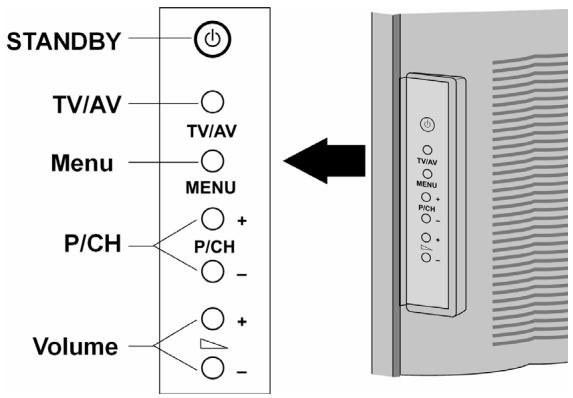
| Operating element | Function |
| STANDBY | Switch the device to standby mode with this button. |
| TV/AV | Change the source of reception with this button: EXT - 1, EXT - 2,EXT - 3, EXT - 4, EXT - 4S EXT - 5, PC, aerial. |
| MENU | Call up the OSD1 menu with this button, in order to carry out the settings on your device. |
| + P/CH - | Switch the programme by means of these buttons. . |
| + Volume - | Set the volume of your device with these buttons |
Front view
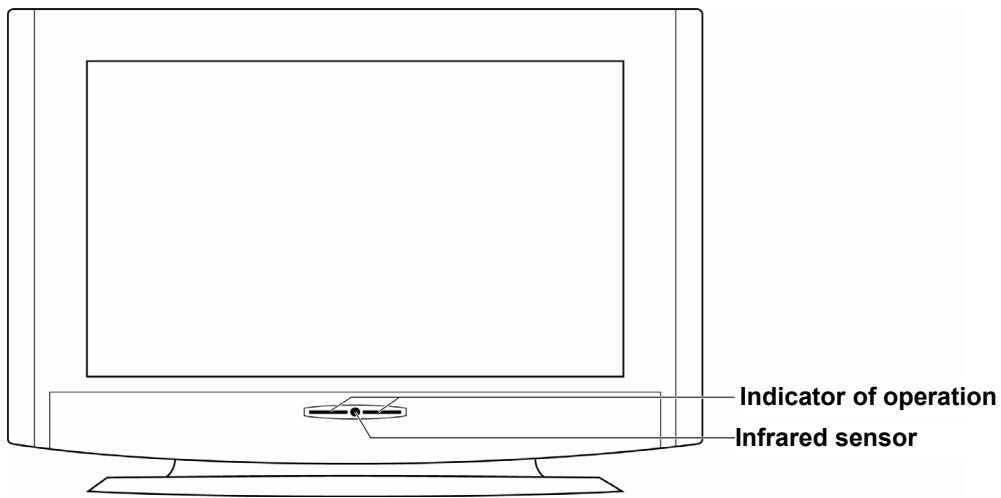
| Display | Meaning |
| Sensor | Reception field for the infra-red signal of the remote. |
| Indicator of operation | Shines blue when the device is switched on Extinguishes when the device is switched on. |
Connections
The connections are at the back of the device behind the detachable cover.
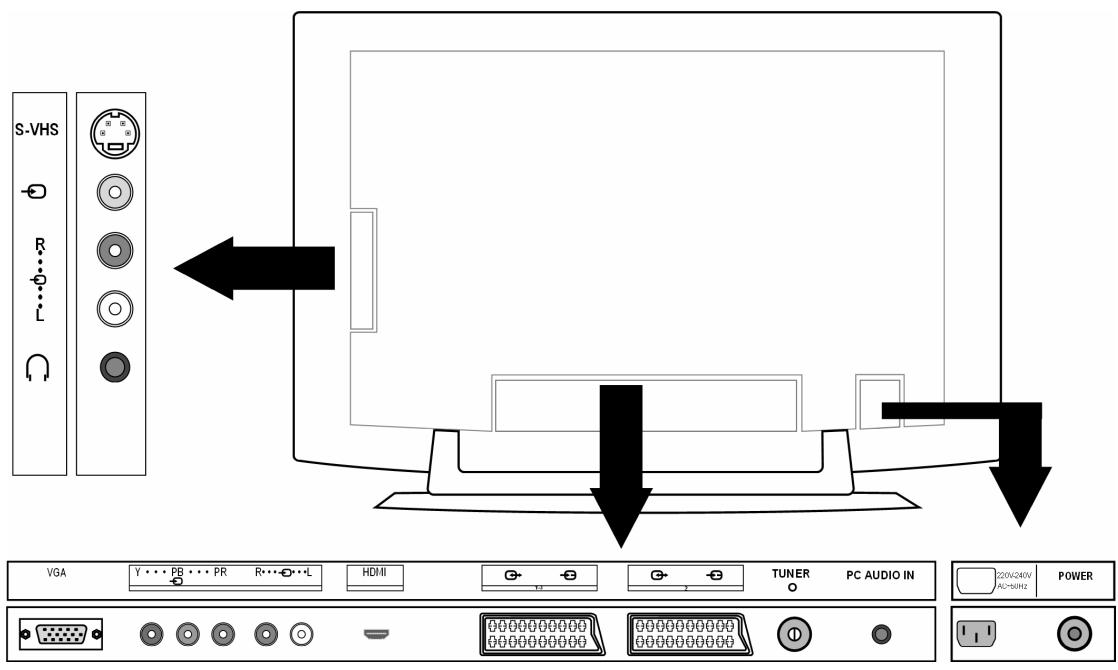
| Connection | Connection options | |
| EXT - 4S | S-VHS | S-VHS input (S-VIDEO) for connecting a device with an S-VIDEO output (e.g. camcorder). You will need an S-VIDEO cable for this connection. |
| EXT - 4 | ∅ | VIDEO input (yellow) for connecting the following devices: camcorder, DVD player, decoder (e.g. satellite receiver) etc. |
| EXT - 4S | R | Audio inputs (red/white): Connect the left and right audio channels to the source of the sound that you want to send to the LCD TV (e.g. camcorder). |
| EXT - 4 | L | You will need a cinch cable for this connection. |
| ∅ | Headphone connection Connect your headphones here so that you can hear the sound from your device. | |
| VGA | VGA connection. Here you can connect your PC or your notebook. You will need a VGA cable. | |
| EXT - 3 | Y···PB···PR | Y - PB - PR: Component inputs for connecting devices with component output, e.g.: 1. Camcorder 2. DVD player 3. Decoder (e.g. satellite receiver) etc. You will need a component cable green/blue/red for this socket for the video connection as well as a cinch cable red/white for the audio connection. |
| R···O···L | ||
| EXT - 5 | HDMI | For connecting a device with an HDMI input. For this you will need an HDMI cable. |
| EXT - 1 | SCART input for connecting to the following devices: 1. Video recorder 2. DVD player 3. Games console 4. Decoder (e.g. satellite receiver) etc. You will need a SCART cable for this connection (not included in the delivery). | |
| EXT - 2 | Like EXT - 1. For EXT - 2 you can select an input source in the FEATURE menu (see page 22). | |
| AERIAL ○ | Connection for the aerial cable (not included in the delivery). | |
| PC AUDIO IN | Audio input for 3.5 mm stereo jack plug, e.g. for PCs. | |
| 220V-240V AC-50Hz | Connection for the mains power cable (supplied). | |
| POWER | Operating switch: Switches device to standby mode and to off again | |
Connection options
Headphones
The headphones connection is located on the side of the device.
The main loudspeakers remain switched on if headphones are connected. The volume button and the mute switch regulate the main loudspeakers.
Regulate the volume of the headphones in the menu SOUND, see page 21.
PC
The LCD TV can be connected as a monitor or an additional monitor to your PC or your notebook. The display from your notebook or PC can be transmitted to the LCD TV.
This is how you connect the LCD TV:
- Switch both devices off.
- Connect a VGA cable (monitor cable; not supplied) to the VGA input of the LCD TV and to the graphic card output of the PC or notebook.
- Tighten up the screws of the monitor cable with your fingers, so that the plug is correctly seated in the socket.
- If you want to send a sound signal then connect an audio cable to the PC AUDIO-IN socket.
- First switch on the LCD TV.
-
Then switch on the PC/notebook.
-
Press the PC button on the remote control to switch to PC mode.
- The PC display appears on the LCD TV. Use the TV button to return to the TV mode.
If you use the LCD TV as a second monitor for your PC you might have to change the display properties of your operating system. To do this please read the operating instructions of your PC/notebook to find out the operational requirements if more than one monitor is used.
Video recorder
You can connect a video recorder by either aerial or by means of a SCART cable (or with RCA cables, using the SCART/RCA adapter):
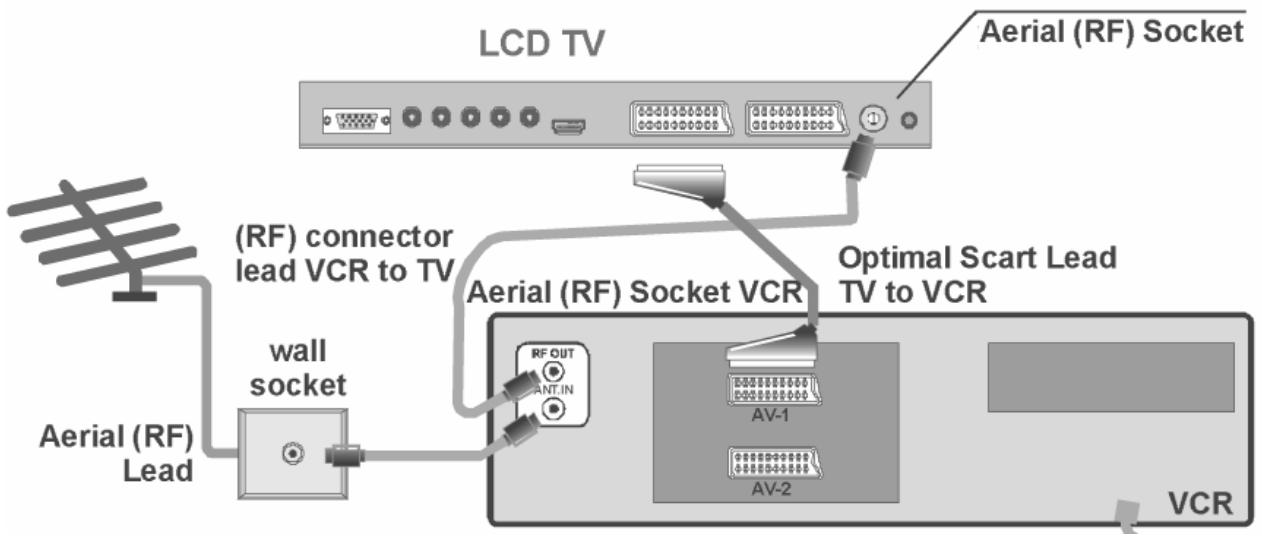
- A SCART connection between the video recorder and the LCD TV is recommended for a high image and sound quality. A SCART connection will be necessary if you want to transmit stereo sound.
- Set the VCR entry in the INSTALL menu to ON (page 22) if you have connected a video recorder to the EXT - 1, EXT - 2 or EXT - 4 inputs.
SAT receiver or DVD recorder
A SAT receiver or DVD recorder can be connected up using an aerial and SCART cable.
LCD TV
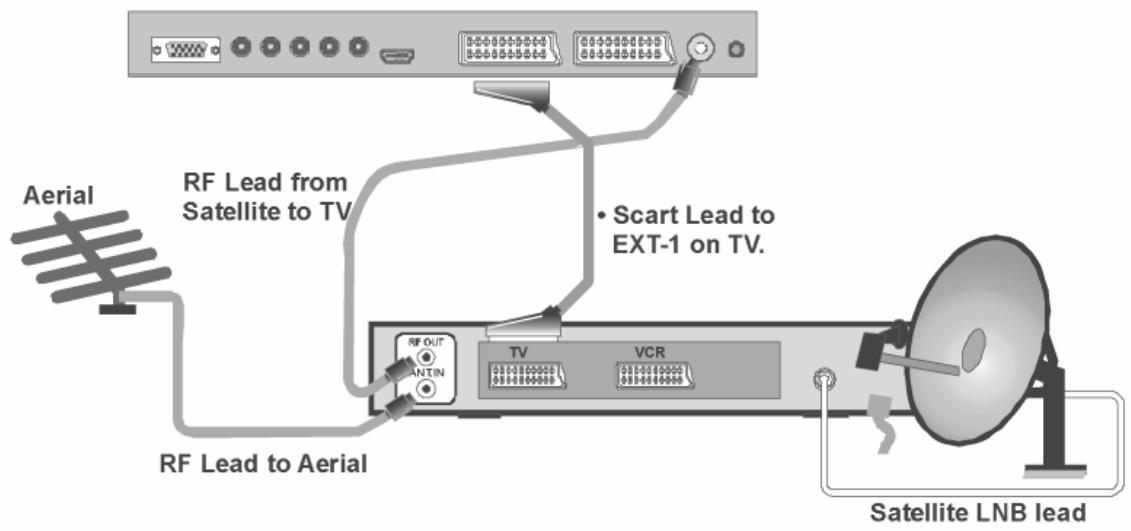
Video recorder and SAT receiver
Use the following connection method for connecting a SAT receiver and a video recorder at the same time:
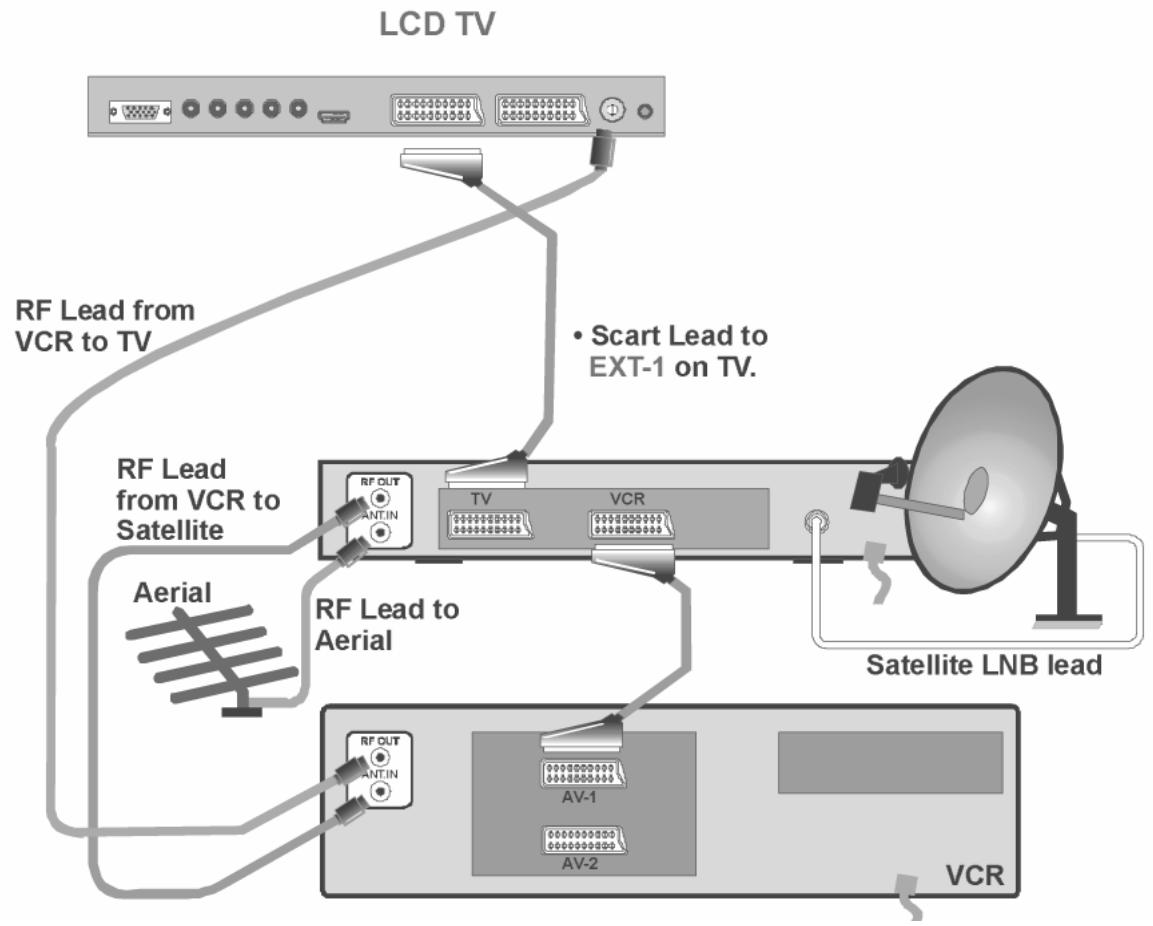
DVD player
- Connect a DVD player to the EXT-1 or EXT-2 socket with a SCART cable or with RCA cables, using the SCART/RCA adapter.
- If the DVD player has YUV outputs (Y Pb Pr), connect it to the EXT-3 component outputs of the LCD TV with a component cable (cinch green/blue/red).
Device with HDMI or DVI output
HDMI ("High Definition Multimedia Interface") is the only interface in the consumer entertainment electronics sector that can digitally transmit audio and video data simultaneously. It can process all currently known picture and sound formats, including HDTV (High Definition Television), and can do this also at a resolution of 1080 i without losing quality.
- Connect an HDMI cable (monitor cable; not supplied) to the HDMI input of the LCD TV and to the HDMI output of the external device.
- Once you have connected the HDMI device then switch on the LCD TV.
- Then switch on the external HDMI play-back device.
If the external device has a DVI output then you can also connect it to the HDMI input (HDMI is downwards compatible to DVI - "Digital Visual Interface"). For this you will need an HDMI-DVI adapter. Also connect an audio cable with a jack plug to the PC AUDIO IN because the DVI output does not transmit any sound.
The remote control
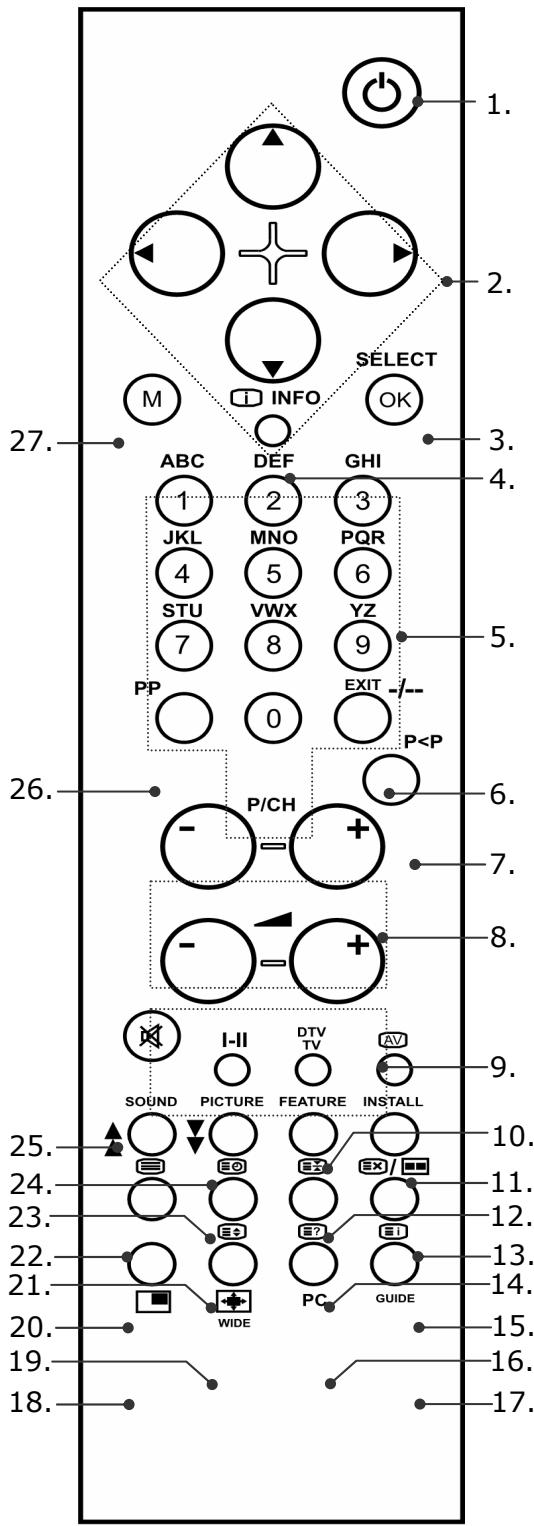
- Standby button For switching the LCD TV off temporarily.
- Directional buttons
- SELECT / OK
This button serves to freeze the television image in the television mode.
You will be able to confirm a selection with OK in certain menus. - INFO To display information, such as the current channel number and the image format.
- Number buttons These buttons serve to select the channel in the television mode. They serve to enter the three-digit number with which the page is selected in the videotext mode.
- This button is not used.
- Switching back to the channel previously displayed (more than 5 seconds).
- Channel selection button P/CH + / -
You will select the next (+) or the previous (-) channel in the television mode.
You will select the next (+) or the previous (-) page in the videotext mode. - Volume + / - To increase (+) or reduce (-) the volume.
- TV mode: Display current settings
- Input selection: To select the input signal of devices connected to your LCD TV.
- Yellow button / Open FUNCTION menu
- Blue button / Open PROGRAM (CHANNEL) menu
- Stop videotext The current page will be stopped.
- Videotext: Concealed search / PAP mode
- Show videotext / PC mode
- Videotext Index page
- Videotext mix (transparent image) / PIP on and off
- Enlarge videotext / image format
- Switch videotext on and off
- Display time / videotext sub-page
- Red button / Open SOUND menu
- Green button / Open PICTURE menu
- Mono / Stereo / DUAL A / DUAL B
- Switch to mute
- Select image mode
- Call up menu; close menu
Starting up
Note
Before starting up please make sure that you read the "Safety instructions" section on page 4ff.
Unpacking
- Get somebody to help you when unpacking the device.
- Do not carry the device by yourself, in order to prevent damaging the LCD TV and/or injuring yourself.
- Open the box very carefully, in order to prevent potential damage to the device. This can happen if a knife or a long blade is used to open it.
- Various small parts (batteries, screws, among other items) will be in the packaging. Keep these away from children; there will be the danger of them being swallowed.
- Please keep the packaging material carefully and use it exclusively for transporting the television.
Placing the batteries into the remote
- Remove the battery compartment cover on the back of the remote.
- Place two type R03 (AAA) 1.5V batteries into the battery compartment of the remote. Pay attention to the polarity of the batteries (marked on the base of the battery compartment) during this.
- Close the battery compartment.
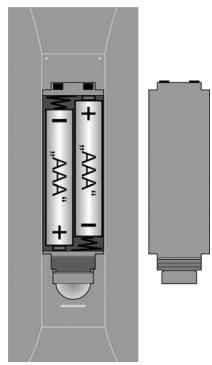
Attention!
Remove the batteries from the remote if the device will not be used for a long time. The remote could be damaged by leaking batteries.
Connecting an aerial
- Connect the aerial connector to the LCD TV with a aerial cable (not included in the delivery), in order to connect to the external area or cable facility.
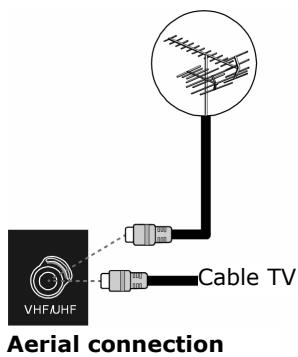
Connect power supply
Connect the device connector of the cable supplied to the device with the AC 220-240V connector on the device and the mains connector to a well accessible 230 ~V AC, 50 ~Hz mains plug.
Basic functions
Switching the LCD TV on and off
- Press the operating switch on the back of the device. The device will go into the standby mode and the front display will shine blue
- Press either a number button on the remote or a P/CH channel selection button of the remote or on the device, to switch the device on. The front display will turn off.
- You will switch the device back to the standby mode with the Standby button of the remote or the Standby button on the top of the device.
- Press the operating button on the back of the device again, in order to switch off the device completely.
After switching the device on for the first time
The AUTO PROGRAM (CHANNEL) Menu will appear when you switch your device on for the first time.
Use the directional buttons, to make a different selection, if you would like to change the language and country setting.
The country setting influences the sequence in which the channels are stored.
Then confirm the PLEASE CHECK ANTENNA CABLE message, by pressing the OK button or the red button.
Press the blue button to terminate the process.
APS
The automatic channel search (APS) will begin subsequently. It will take several minutes.
You can terminate the process with the blue button.
The channels will be stored in the channel positions in a country-specific sequence. One hundred channels can be stored.
The channels table will appear after the end of the automatic channel storage. The table will close after a few minutes if it is not edited further. The channel at channel position 1 will be broadcast.
Channel selection
- Either press the P/CH button (on the device or on the remote) or select the channel directly by means of a number button, in order to select a channel. Enter the two numbers rapidly, one after the other, for a two-digit number.
- Select the last channel broadcast with the P < P buttons.
Sound settings
- You will increase or reduce the volume the volume with the - ^+ volume buttons on the remote or on the device.
- Press the Mute button, to switch the sound off completely or to restore it.
- Choose between mono and stereo output, DUAL A and DUAL B, with the I-II button.
Screen settings
Zoom mode (WIDE button)
Press the WIDE button to switch between the following screen formats:
- Auto: The format sent is automatically adjusted to match the input signal.
Full: The screen is automatically stretched to full screen width.

4:3: For undistorted screen display in 4:3 format.
- Panoramic: The screen is stretched at the left and right margins in order to fill out the screen; the top and/or lower margins are somewhat reduced as a result.
- 14:9 zoom: A screen in 14:9 format ("letterbox") is stretched at the top and bottom screen margins.
- Cinema: A screen in 16:9 format ("letterbox") is zoomed to the full screen size.
- 16:9 Subtitle: Same as "Cinema" settings. However, the screen is shifted to the top so that any necessary lower lines or scrolling text can be seen.





For some formats arrow buttons appear next to the format information. For these format you can move the screen upwards and downwards using the direction buttons .
Zoom in PC mode
Formats 4:3 and Full are available in the PC mode.
Additional screen settings
Using the SELECT button you can freeze the screen and release it again.
- Using the PP ("personal preferences") button you can select the screen mode: Natural, Cinema, Dynamic.
Displaying information
-
Press the INFO button, in order to have the following current settings displayed:
-
Channel position and channel name;
- Sound setting (Mono, Stereo, DUAL A, DUAL B);
-
Image setting.
-
You will receive the same information in the TV mode with the DTV/TV button and when switching to a different channel.
- You can have the time displayed in the TV mode, by pressing the button (time/ videotext sub-page).
Selecting an external device
- You will select the available inputs with the AV button:
-EXT - 1: Device at the SCART 1 socket;
-EXT-2:Deviceat theSCART2socket;
- EXT - 3: Device at the component video and audio outputs;
-EXT-4:Deviceat the video and audio inputs device side);
-EXT-4S:DeviceattheS-VHSinput device side);
-EXT-5:HDMI input;
- PC (you can also select the PC input directly with the PC button)
-Aerial (TV operation).
Videotext
Your LCD TV will support 1000 Videotext pages. This means that the device does not have to search, after one of these 1000 pages has been entered, but is able to display the page directly.
Videotext is a free service that is broadcast by Channel 7 and offers current information in relation to news, the weather, television programs, share prices, sub-titles and other subjects. Your TV offers many useful functions for operating Videotext and multi-page text, storing sub-pages or fast navigation.
To operate Videotext
- Select a TV station on which Videotext is being transmitted.
- Press the Videotext Button once, to display the Videotext basic / Index page.
- Switch the Videotext Mode off by pressing the Videotext Button again. The device will change back to the TV Mode.
Selecting videotext pages
Number keys
- Enter the number of the desired videotext page as a three digit number using the number keys.
- The selected page number is displayed in the top left corner of the screen. The videotext counter searches as long as it takes to find the selected page number.
Programme selection buttons
- The programme selection buttons can be used to scroll forwards or backwards through the videotext pages.
Colour buttons
- If coloured text entries are displayed at the lower edge of the screen then you can select the contents directly by pressing the appropriately coloured button RED, GREEN, YELLOW and BLUE.
Sub-pages
- Some videotext pages have sub-pages. At the lower edge of the screen 1/3 is displayed for example. The sub-pages are displayed one after another at an interval of about half a minute. You can call these sub-pages by pressing the button. A four-digit input box appears in which you can enter the number of the sub-page (e.g. 0002). Alternatively you can page through the sub-pages using the direction buttons .
Useful videotext functions
TXT/MIX
- Press the TXT/MIX button to display the videotext transparently (the TV picture appears in the background).
Xi INDEX
- Use this button to select the index page that has a list of the videotext content.
STOP
The videotext page that you have selected may contain more information than can fit on a single screen. In this case the information will be divided up over several sub-pages. The sub-pages are scrolled at regular time intervals.
- Press the STOP button to prevent the page changing automatically. The STOP symbol will be displayed in the top left hand corner of the screen and the automatic page changing is interrupted.
- Press the STOP button once more to permit the automatic paging to take place again.

Hidden search
If you press the button in videotext mode then the TV unit switches the videotext display to the background. This can be used to bridge the waiting time until the desired page is displayed.
- Select the desired page number in videotext mode.
- Press the button to switch to TV mode while you wait for the videotext page. A box or the symbol appears in the top corner of the screen showing the page number being searched for, as long as searching takes place.
- The page number appears as soon as the desired page is found instead of the hyphen.
- Then press the button again to display the desired page.

Display hidden text
- To display hidden information, such as the solutions to games, puzzles, or quizzes press the button once.
- Pressing the 三? button hides the answers again.

Double the page size
This function displays the videotext information in double size.
- Press the 三 button to enlarge the top half of the page.
- Press the 三 button again to display the enlarged bottom half of the page.
- Renewed pressing of the button displays the videotext again in normal size.
PIP mode
You will be able to insert a small channel window within the main picture with the PIP (Picture in Picture) function.
- Press the PIP button. The PIP window will appear in a corner of the screen. The currently set channel will appear initially. The channel most recently selected will appear in the main window.
- You will be able to move the PIP window to a different corner of the screen with the 三 button.
- Press PIP again, in order to close the PIP window.
The PIP window will be the active window initially (the sound emitted will belong to the PIP window). This means that you will, for example, be able to do the following:
- To change the channel in the PIP window with the channel selection buttons;
- To open the menu for the PIP window with the M button (the OSD menu for the PIP window does not contain the PROGRAM (CHANNEL) and INSTALL menus);
- To open different input sources for the PIP window with the AV button.
Inserted information also belongs to the PIP window.
- You will be able to switch the function of the PIP and the main window with the directional buttons.
- Press INFO, if you want to check which window is currently active.
The Freeze Image function (SELECT/OK button) is always applied to the main window.
PAP mode
Two channel windows will stand side-by-side in the PAP mode. The picture side ratios of both windows are fixed.
- Press the / buttons. The active window will appear initially on the right. The most recently selected channel will appear on the left.
- The functions of the active window and the subsidiary window can be switched with the directional buttons. The functions will be applied to the active window as described in the PIP mode section.
- Press × / again, to close the PAP window.
You will be able to call up the videotext of the active window on the right in the PAP mode (按钮). It will replace the subsidiary window and will stand next to the television image in this way.
PIP and PAP in the PC mode
You will be able to insert the television channel (or another source) next to the picture on the PC in the PC mode, by pressing the or buttons.
You will be able to edit the television channel, as well as continuing to work with the PC.
The OSD menu
You will be able to set certain parameters of the LCD TV by means of the OSD menu (On Screen Display).
Navigating in the menu
- Press the M menu button, in order to activate the OSD.
- Select the options from the Main menu with the directional buttons.
- Select the options from one menu with the directional buttons.
- Return to the Main Menu with the directional button.
- Open a sub-menu with directional button (not available in every menu).
- Return to the higher menu with the M menu button.
- Set the required value or make a different selection with the directional buttons.
- Close the menu and confirm the selection at the same time with the M menu button.
Please pay attention to the fact that the menu will close automatically after approx. 15, 30 or 60 seconds, if no button has been pressed (setting in the FEATURE menu, page 22).
Note
The menus described here can differ from those on your screen because of potential technical changes.
Menu PICTURE
| Menu point | Settings |
| Mode | Select picture mode: NATURAL, CINEMA, DYNAMIC. This function corresponds to the PP button. |
| Contrast | Reduce or increase the contrast (scale 0 - 63). |
| Brightness | Reduce or increase the brightness (scale 0 - 63). |
| Sharpness | Reduce or increase the sharpness (scale 0 - 31). |
| Colour | Reduce or increase the colour density (scale 0 - 99). |
| Colour temp | Select the colour tone: NORMAL, COOL, WARM. |
| Noise reduction | You will be able to reduce the picture noises and to improve the image quality in the case of a weak signal with this function. Select between OFF, LOW, MEDIUM and HIGH. |
| Film Mode | Movies are recorded with a different number of individual images per second to television broadcasts. Select ON, if you are watching a movie, in order to be able to see the picture quality of scenes with fast movements better. |
| 3D Comb | The 3D comb filter is used, in order to improve the colour transitions and the colour quality of the images. Select ON or OFF. |
| Reset | Reset all image settings to the factory settings with ➔ or OK. |
| I | The TV colour standard currently received will appear here as information (see also INSTALL menu). |
Menu SOUND
| Menu Point | Settings |
| Volume | Basic setting of the volume when switching on (scale 0 - 63). Select a moderate basic volume. |
| Equalizer | Open EQUALIZER sub-menu: See the next section |
| Balance | Balance between the left and the right loudspeakers (scale -31 - 31). |
| Headphone | Open HEADPHONE sub-menu: See section after next. |
| Sound Mode | Choose between Stereo and Mono. You will be able to choose between DUAL A and DUAL B (original language and synchronization) here apart from this, if the current broadcast supports the DUAL mode (e.g. in the case of dual language broadcasts). The functions correspond to the I-III button. |
| AVL | The AVL (Automatic Volume Limiting) function balances the different volumes of the various broadcasts. OFF: Original volumes; ON: Even volume. |
| Effect | Set the sound effect on or off. The sound will be perceived like a stereo noise if the current SOUND MODE has been set to Mono, when the sound effect has been activated. The ambient sound will be deeper if the current SOUND MODE has been set to Stereo. |
| Dynamic Bass | Set the bass sounds to LOW, HIGH or OFF. The HIGH setting is not recommended in the case of a high volume. |
Sub-menu EQUALIZER
| Menu point | Settings |
| Sound Mode | Select between different equalizer pre-settings. The sound settings have been optimized for the respective musical genre, in the case of the POP, ROCK, JAZZ and CLASSIC settings; FLAT is the normal setting. |
| USER | You will be able to make your own setting in the case of the USER setting: Select a frequency band with▲▼. Set a value with◇. |
Sub-menu HEADPHONE
| Menu Point | Settings |
| Volume | Set the volume of the headphones (scale 0 - 63). (You set the volume of the main loudspeaker with the ① ② volume buttons). |
| Sound mode | Choose between Stereo and Mono for the headphones. You will be able to choose between DUAL A and DUAL B (original language and synchronization) apart from this here, if the current broadcast supports the DUAL mode (e.g. in the case of two-language broadcasts). |
| Balance | Balance between the left and the right headphones loudspeaker (scale -31 - 31). |
Menu FEATURE
| Menu point | Settings |
| Sleep Timer | Select a time, after which the device will switch off independently. You can set the time in 10-minute steps (Maximum two hours) with the directional buttons. The Sleep Timer time will start immediately after the setting with←▶. |
| Child Lock | The buttons on the device will be blocked (with the exception of the mains switch) if the setting is at ON. |
| Language | Select the language of the OSD menu. It will switch immediately. |
| Ext-2 Out | You will be able to select the input that SCART EXT - 2 should access here, when another device is connected to one of the inputs, if you are using the EXT - 2 SCART connection as the output for a different device. Select between TV, EXT - 1, EXT- 3, EXT- 4, EXT- 5 and PC |
| Default Zoom | Set the pre-setting for the zoom here. Choose between the following settings: PANORAMIC, 4:3, 14:9 ZOOM. The zoom value selected will be set, if you have set the zoom to AUTO with the WIDE button and provided that no other WSS signals containing the picture ratio are being transmitted in the broadcast signal or in the signal from an external device. |
| Menu background | Choose whether the menu background should be clear (TRANSLUCENT) or non-transparent (OPAQUE). |
| Menu timeout | You can set the time after which the OSD will close automatically here: 15, 30 or 60 seconds. |
| Videotext language | The pre-setting is WEST. You will be able to change the language setting if you are in a different language area: EAST, CYRILLIC, TURK/GRE or ARABIC. |
Menu INSTALL
Available channels will be searched for with the automatic channel search and stored in the channel positions in the sequence found in the normal case. You will also be able to rearrange the channel positions in the channel table (see PROGRAM (CHANNEL) menu, page 24).
Apart from this, the INSTALL menu allows you to carry out a manual search, to store individual channels and to make a fine adjustment of the image.
| Menu point | Settings |
| Program | You will see the number of the channel position of the channel currently playing here. You can select a different channel position (0 to 99) with the ↓ > directional buttons or with the number buttons. Store the new channel position with the OK button, or by selecting the STORE PROGRAM (CHANNEL) point and pressing▶. There will be the PROGRAM STORED message. Pay attention to the fact that the existing channel at the channel position selected will be overwritten. The channel will be stored in the channel table with its channel number (e.g. C-25), not with its channel name. |
| It is recommended to reserve channel position 0 for a video recorder, if you want to connect one. | |
| Band | The television frequency band is divided into the C (normal channel) and S (special channel) types of channel. The type of channel of the channel types of the channel currently set will appear here. |
| Channel | You will see the channel number of the currently set here. Select a different channel with ↙ . |
| Colour System | You select the country-specific TV colour standard here: AUTO (the correct colour system will be set automatically), PAL (for PAL 50 MHz), PAL 60 and SECAM. SECAM will not be available if the SOUND SYSTEM (see the following point) has been set to I. NTSC 3.58 and NTSC 4.43 (the usual colour format in North America) will be available in addition, if an external source has been selected (EXT - 1, etc.). The selection of an incorrect colour system will lead to a faulty picture. The colour system currently received will appear in the information box if the PICTURE menu. |
| Sound System | You set the country-specific television system here: BG (Australia and Western Europe), I (United Kingdom) or DK (East European countries). |
| Fine Tune | You will be able to make a fine adjustment to the image of the currently selected channel with ↙ ↙ here. |
| Search | You will be able to carry out a manual channel search here. Start a search upwards or downwards with the ↙ ↙ directional buttons. The search will pause at each channel found. You will see the MHz value. You will be able to allocate the channel to a position under the PROGRAM (CHANNEL) menu point. Pay attention to the fact that another channel at this position will be overwritten during storage. You will be able to carry out another fine adjustment at the FINE TUNE menu point (see the next section). Press OK or select the STORE PROGRAM (CHANNEL) point and press ↙ , to store the channel. There will be a PROGRAM STORED message. |
| VCR | Choose the ON setting if a video recorder has been connected at the EXT - 1, EXT -2 or EXT -4 connections. |
| Store Program | Store the channel selected. (See PROGRAM (CHANNEL) and SEARCH points). |
Storing a video recorder manually
You will be able to use the manual search to set a video recorder to the LCD TV, for example.
- Set your video recorder to the test signal after the LCD TV and the video recorder have been connected by means of the aerial (see Examples of Connections, page 9).
- Carry out a manual search with the LCD TV.
- Store the test signal at channel position 0 when it has been found (this channel position will not be occupied by a television channel).
Menu PROGRAM (Channel table)
You will see the channels currently stored in the channel table. The channels will appear with their channel names if the channel search has been carried out with APS (see below). Channels sought for manually will appear with their channel number (C - or S -).
The channel memory comprises 100 positions. Activate the cursor in the table with the directional button. You will open an additional column, by moving to the right-hand column with the directional button and pressing again.
| Menu point | Settings |
| Name | You can change the names of the channels here. Mark the channel name required and press the red button. Now, you will be able to change the first letter: Select a symbol with the ▲▼ directional buttons. The symbols will appear in the following sequence: A B C [to] Z 0 1 2 [to] 9 ( ) * + , . / [space] -. Move to the next letter, etc., with the ▷ directional button. Press the red button again at the end, in order to store the name. |
| Delete | Select the channel that you want to delete from the list and press the yellow button. Press the yellow button again to confirm your choice. The following channels will move up in the table. |
| Insert | You can move a channel to a different position here. Select the channel and press the green button. Move the channel to the required position with ▲▼ and press the green button again. The other channels will be moved with it accordingly. |
| APS | You will carry out the automatic channels search with APS. Press the blue button. The following message will appear: WARNING! All pre-stored programs will be deleted. Press the blue button if you want to terminate the function. Press the red button or OK, in order to start the search. The channels table will appear after the end of the search. |
Menu SOURCE
You will be able to select a different input source in this menu. You will see the currently selected source in the top line.
The function corresponds to the AV button.
Select the source with . Change to this source, by pressing OK or the directional button.
The PROGRAM (CHANNEL) and INSTALL menus will not be available, or the INSTALL menu will have fewer entries, according to external source selected.
Menu in the PC mode
The OSD menu will have the following entries in the PC mode:
Menu PC PICTURE POSITION
| Menu point | Settings |
| Autoposition | You will be able to select the AUTOPOSITION entry and press OK or ➔, to push the image back into the centre, if it is intended to shift the image. uThis function should be used with a full image, so that the settings will be correct. |
| H Position | You can change the horizontal position of the image with ⇌ here. |
| V Position | You can change the vertical position of the image with ⇌ here. |
| Dot Clock | This setting will correct faults that can arise as vertical stripes in the case of pixel-intensive presentations (such as tables or text in a small font). |
| Phase | A dirty or faulty image can arise, depending on the resolution and sampling frequency of the connected PC. Try to achieve as clear image by changing the PHASE value in this case. |
Menu PC PICTURE
| Menu point | Settings |
| Contrast | Reduce or increase the contrast (scale 0 – 63). |
| Brightness | Reduce or increase the brightness (scale 0 – 63). |
| Colour Temp | Select the colour tone: NORMAL, COOL, WARM; MANUAL (see the next point). |
| R, G, B | You will be able to set the values for R (red), G (green) and B (blue) yourself, if COLOUR TEMPERATURE has been set to MANUAL. |
| Reset | Reset the picture settings to the factory setting with OK or ↕. |
SOUND, FEATURE and SOURCE menus
The SOUND, FEATURE and SOURCE menus correspond to the menus in the TV mode.
Troubleshooting
Many times, problems have simple causes. We would like to give you some tips to solve some common problems. Please call us if these tips do not help!
There is no picture or sound.
- Make sure the AC adapter is properly inserted in the power outlet.
- Make sure the input mode is set correctly.
- Make sure the main power switch of the main unit is on.
There is no picture. There is no picture from AV.
- Make sure the Contrast/Brightness is properly adjusted.
- Make sure all external devices are connected properly.
- Check that the correct AV setting has been selected.
There is no sound.
- Make sure the volume is not set to minimum.
- Make sure the sound is not set to mute.
- Make sure that headphones are not connected.
There is no picture or sound, just noise.
- The reception may be weak. Make sure the aerial is not disconnected.
Picture is not clear.
The reception may be weak.
- Make sure the aerial is not disconnected.
The picture is too bright or too dark.
- Check the settings of contrast / brightness / Backlight in the menu picture settings.
Remote control does not work.
- Check the batteries in the remote control are not flat.
- Make sure the remote sensor window is not under strong lighting.
- Switch the device on and on again with the main switch on the back of the device.
The picture is not sharp.
The reception may be weak.
- Make sure the aerial is not disconnected.
- Check the settings of the picture sharpness and the noise reduction in the Picture Menu.
The picture is doubled or tripled.
- Make sure the aerial is facing the right direction.
- There may be reflected electric waves from mountains or buildings.
The picture is spotted.
- There may be interference from automobiles, trains, high voltage lines, neon light, etc.
- There may be interference between the antenna cable and power cable. Try moving them further apart.
There are stripes on the screen or colours fade.
- Is the unit receiving interference from other devices? Transmission antennas of radio broadcasting station and transmission antennas of amateur radio and cellular phones may also cause interference.
- Place the unit as far apart as possible from device that may cause possible interference.
The operating buttons on the device do not function.
- Perhaps the child lock has been activated.
DO YOU REQUIRE ADDITIONAL SUPPORT?
If the suggestions in the above section have not solved your problem, please contact us. We will try and help you over the telephone. However, before you contact us, please keep the following information available:
What additional units do you use?
What messages, if any, appear on your screen?
During which operational step did the problem arise?
- If you have connected a PC to the device:
-
What is your computer configuration?
-
Which software did you use while the error occurred?
What were you doing when the error occurred?
What steps have you already undertaken to solve the problem?
If you have already been given a customer number, please keep this available.
Cleaning
You can extend the useful life of the LCD TV by means of the following measures:
- Always pull out the mains connector and all connection cables before cleaning.
- Do not use any solvents or corrosive or gaseous cleaners.
- Clean the screen with a soft lint free cloth.
- Pay attention to the fact that no drops of water remain on the LCD TV. Water can cause permanent discolorations.
- Do not subject the screen to either glaring sunlight or ultra-violet radiation.
- Please keep the packaging material carefully and use it exclusively to transport the LCD TV.
Attention!
There are no parts to be serviced or cleaned within the screen casing.
Technical data
Operating voltage: AC 220 V -240V\~/50 Hz
Screen size: 32" (81 cm) TFT; 16:9 display
Power consumption: 180 Watt
Power consumption Standby: 3 W
TV transmission:
Reception channels:
Audio: Stereo
Number of preset channels: 100
RF aerial input: 75 Ohm
Dimensions (W x H x D) 620 x 835 x 250 mm
Weight: 16 kg
180 Watt
3 W
PAL/SECAM B/G D/K K' I/I L/L'
VHF (Band I/III)
UHF (BAND U)
HYPERBAND
CABLE TELEVISION (S1-S20)/ S21-S41)
Stereo
100
75 Ohm
620 × 835 × 250 mm
16 kg
Warranty
The receipt serves as proof of first purchase and should be kept in a safe place. Your legal rights are not limited by these warranty conditions. It is required should you need to make use of the guarantee. We guarantee that this equipment is in perfect working order. Upon production of the receipt, the remaining period of guarantee shall pass on from the original parts to the respective replacement parts. If you hand in this equipment to make use of the guarantee, you must remove all programs, data and removable storage media. Products which are sent without accessories will be replaced without accessories. The warranty obligation does not apply in the case of the problem being caused by an accident, a catastrophe, vandalism, misuse, incorrect use, ignoring the safety and maintenance regulations, changes by software, viruses or another piece of equipment or accessories or by other modifications not approved by ourselves. This limited guarantee declaration replaces all other guarantees of express or implied nature. This includes the guarantee of saleability or the suitability for a certain purpose but is not limited to this. In some countries the exclusion of implied guarantees is not permissible upon principle. In this case the validity of all express and implied guarantees is limited to the guarantee period. Once this period has expired, all guarantees become invalid. In some countries limiting the period of validity for implied guarantees is not permitted, so that the above limitation does not come into force. If you have any questions with regard to these guarantee conditions, please contact us.
LCD TV pixel faults
Despite the most modern production methods as a result of the highly complex technology, in rare cases there may be individual or multiple pixel drop-outs (dead pixels).
For active matrix TFTs with a resolution of 1366 × 768 pixels, which are each made up of three sub-pixels (red, green, blue), there are a total of approx. 3 million control elements in use. Occasionally one or more pixels can fail or become incorrectly controlled because of this very high number of transistors and the associated extremely complex manufacturing processes used.
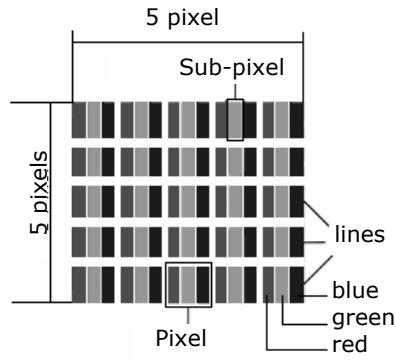
| Description | Accepted number | |
| Bright sub-pixel | 1 sub-pixel | Max. 2 |
| Two next to each other (horizontal/vertical) | 0 | |
| Separation | Minimum separation between bright and dark sub-pixels | Min. 5 mm |
| Dark sub-pixel | Single | Max. 7 |
| Two next to each other | Max. 2 | |
| Separation | Minimum separation between bright and dark sub-pixels | Min. 5 mm |
| Total number of bright and dark sub-pixels | Max. 7 | |
The table describes the maximum number of pixel failures allowed on the screen, without a warranty claim arising. A warranty claim can be made in some cases if the above number of defects in a category is exceeded.
Disposal
Packaging

All packaging and packaging materials that are no longer required can and should be recycled.
Device

At the end of its life, the device must not be disposed of in household rubbish. Enquire about the options for environmentally-friendly disposal.
Batteries

Do not dispose of used batteries in the household rubbish! They must be deposited at a collection point for used batteries.
Liability limitations
The contents of this manual are subject to unannounced changes caused by technical progress. Manufacturer and sales shall not be responsible for any damages which have been caused as a result of omissions or errors in the information provided in this manual.
Under no circumstances shall we be liable for any of the following:
- Claims made against you by third parties based on loss or damage.
- Loss or damage to your blanks, recordings or data.
- Economic follow-on damage (including lost profit or savings) or associated damage even in the case that we have been informed of the possibilities of this type of damage.
In some countries the exclusion or limitation of accompanying or follow-on damage is not legally accepted so that the above limitations do not come into force.
Copyright © 2007
All rights reserved.
This manual is protected by copyright. All rights reserved. Copying mechanically, electronically and any other way is prohibited unless written permission from the manufacturer is obtained.
The company Medion®. owns the copyright.
Subject to technical and optical changes as well as printing errors.
Wall mounting
The LCD TV can be fixed to the wall.
Accessories
The following accessories are included:
2 steel rails, 4 screws M4 x 10. 4 plastic suspension fittings, 1 drill template, 1 illustrated mounting instructions (applicable to many types of appliance).
In addition you will need 8 rawl plugs and screws for your wall (obtainable at specialist stores).
Safety instructions for wall mounting
Please make sure that you observe the following safety instructions for wall mounting:
- The LCD TV should only be mounted on vertical walls.
- Before you carry out the mounting, check whether the wall has the capability of carrying three times the weight of the unit (16 kg). If in doubt ask the advice of a qualified fitter.
- Switch off the LCD TV before mounting. Power cable and aerial cable must be disconnected.
- A minimum of two people are required to mount the TV.
- You will need a drill and a Phillips-type screwdriver to mount the TV.
CAUTION! When choosing the rawl plugs and screws make sure that they are suitably designed for your wall.
Mount suspension devices to appliance
- Feed the M4 x 10 screws through the plastic suspension fittings. The side of the plastic suspension fittings with the smallest diameter
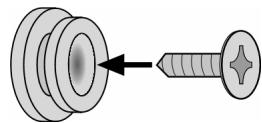
- Tighten the screws with the plastic suspension fittings into the screw holes provided in the rear of the unit.
See fig 5A in the illustrated instructions.
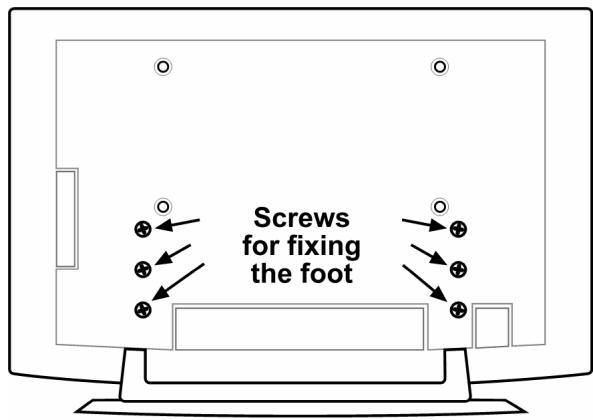
Removing the base
The base of the unit has six screws which are fixed to the back.
- Release these six screws with a Phillips-type screwdriver.
- Lift the device upwards.
See fig 6A in the illustrated instructions.
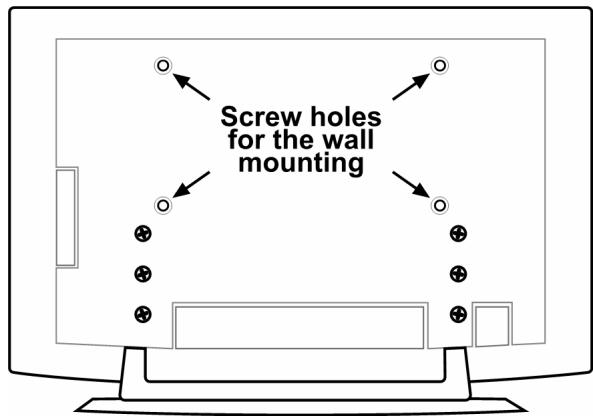
Fix the steel rails to the wall
- Choose a position on the wall where the LCD TV will have enough distance from other objects (cf. "Installation location" section, page 4).
When doing this ensure that the suspension fittings at the rear of the unit sit in the small end of the suspension openings in the steel rails (cf. the drawing on the next page).
- Use the drill template supplied to mark the eight holes on the wall.
- Drill eight holes for the rawl plugs in the wall. See the illustrated instructions - Fig 1.
- Insert the rawl plugs. See the illustrated instructions Fig 2.
CAUTION! The rawl plugs must be fixed securely! Do not hang the unit up if the rawl plugs are not completely inserted into the wall.
- Firmly screw both of the steel rails using four screws each. The small side of the suspension fittings must face outwards. See the illustrated instructions Figs. 3 and 4.
- Now you can hang the LCD TV into the steel rails. See the illustrated instructions - Figs. 8 and 9.
Inhalt
Inhalt 1
Hinweise zu dieser Anleitung 3
Bestimmungsgemäß Gebrauch 3
HD ready 3
Lieberumfang 3
Sicherheitshinweise 4
Betriebssicherheit 4
Aufstellort 4
Reparatur 5
Vorphendemachung 51
Stromversorgung 5
Normen/Elektromagnetische Verträgelichkeit 6
Umgang mit Batterien 6
Das Gerät kennen lernen 7
Bedienelemente an der rechten Seite 7
Anzeigen an der Vorderseite 7
Anschlisse 8
Anschlussbeispiele 9
Kopfhorer 9
PC 9
Videorecorder 10
SAT-Receiver oder DVD-Recorder 10
Videorecorder und SAT-Receiver 11
DVD-Player 11
Gerät mit HDMI- oder DVI-Ausgang 11
Die Fernbedienung 12
Inbetriebnahme 13
Auspacken 13
Batterien in die Fernbedienung einlagen 13
Antenne anschlieBen 13
Stromversorgung anschließen 13
Grundfunktionen 14
LCD-TV ein- und ausschalten 14
Nach dem ersten Einsatz 14
APS. 14
Programmausbahl 14
Toneinstellungen 15
Bildeinstellungen 15
Zoom-Modus (Taste WIDE) 15
Zoom im PC-Modus 15
Weitere Bildeinstellungen 15
Infos anzeigen halten 16
Externes Gerät wahlen 16
Videotext 17
Die Bedienung des Videotexts 17
Videotext-Seiten auswahlen 17
Nutzliche Videotext Eigenschaften 17
Bild-in-Bild 19
PIP-Modus 19
PAP-Modus 19
PIP und PAP im PC-Modus. 19
Das OSD-MENU 20
Im Menu navigieren 20
Menu BILD 20
Menu TON 21
Untermenü EQUALIZER 22
Untermenü KOPFHÖRER 22
Menu FUNKTION 23
Menu PROGRAMMIERUNG 24
Videorecorder manuell speichern 25
PROGRAMMTABELLE 25
Menu QUELLE 26
Menus im PC-Modus 27
Menu PC-BILDPOSITION 27
Menu PC-BILD 27
Menus TON, Funktion und QUELLE 28
Problembehebung 29
BENÖTIGEN SIE WEITERE UNDERSTÜTZUNG? 30
Reinigung 30
Technische Daten 31
Entsorgung 31
Verpackung 31
Gerät. 31
Batterien 31
Garantiebedingungen 32
Pixelfehler bei LCD-TVs 32
Haftpflichtbeschränkung 34
Wandmontage 35
Zubehör 35
Sicherheitshinweise fur die Wandmontage 35
Aufhängevorrichtungen am Gerät montieren 35
Fuß abnehmer 35
Stahlschienen an der Wand befestigen 36
Hinweise zu dieser Anleitung
Lesen Sie unbedingt diese Anleitung aufmerksam durch und befolgen Sie alle aufgeführten Hinweise. So gewährleisten Sie einen zuverlässigen Betrieb und eine lange Lebenserwartung Ihres LCD-TVs. Halten Sie diese Anleitung stets griffbereit in der Höhe Ihres LCD-TVs. Bewahren Sie die Bedi-nungsanleitung gut auf, um sie bei einer Veräußerung des LCD-TVs dem neuen Besitzer weiter geben zu können.
Bestimmungsgemäßer Gebrauch
- Dieses Gerät dient zum Empfang und zur Wiedergabe von Fernsehprogrammen. Die entsprechenden Anschlussmöglichkeiten ermögen eine zusätzliche Erweiterung der Empfangsund Wiedergabequellen (Receiver, DVD-Player, DVD-Recorder, Videorecorder, PC etc.).
- Dieses Gerät ist nur für den Gebrauch in trockenen Innenräumen geeignet.
- Dieses Gerät ist für den Privatgebrauch gedacht und nicht für den Betrieb in einem Unternehmen der Schwerindustrie vorgesehen. Die Nutzung unter extremen Umgebungsbedingungen kann die Beschädigung Ihres Gerätes zur Folge haben.
HD ready
- Ihr LCD-TV ist mit dem Merkmal "HD ready" ausgestattet. Das bedeutet, dass es grundsätzlich hochauflösende Fernsehprogramme (HDTV) wiedergeben kann.
Voraussetzung ist, dass ein HDTV-Signal von einer externen Set-Top-Box (HD-STB) in das LCD-TV gegeben wird.
Lieferumfang
Bitte überprüfen Sie die Vollständigkeit der Lieferung und benachrichtigen Sie unsitte innerhalb von 14 Tagen nach dem Kauf, falls die Lieferung nicht komplett ist. Mit dem von Ihnen erworbenen LCD-TV haben Sie erhalten:
- LCD-TV
- Netzanschlusskabel
- Fernbedienung inkl. 2 Batterien Typ R03 (AAA) 1,5V
- Wandmontageset (siehe Site 35).
- Bedienungsanleitung
- Garantiekarte
Betriebssicherheit
- Lassen Sie Kinder nicht unbeaufsichtigt an elektrischen Geräten speiten. Kinder können mögliche Gefahren nicht immer richtig erkennen.
- Halten Sie das Verpackungsmaterial, wie z. B. Folien von Kindern fern. Bei Missbrauch könnte Erstickungsgefahr bestehen.
- Öffnen Sie niemals das Gehäuse des LCD-TVs (elektrischer Schlag, Kurzschluss und Brandgêfahr)!
- Führn Sie keine Gegenstände durch die Schlitze und Öffnungen ins Innere des LCD-TVs (elektrischer Schlag, Kurzschluss und Brandgefahr)!
- Schlitze und Öffnungen des LCD-TVs dienen der Belüftung. Decken Sie diese Öffnungen nicht ab (Überhitzung, Brandgefahr)!
- Üben Sie keinen Druck auf das Display aus. Es besteht die Gefahr, dass der Bildschirm bricht.
- Achtung! Bei gebrochenem Display besteht Verletzungsgefahr. Packen Sie mit Schutzhandschufen die geborstenen Teile ein und senden Sie diese zur fachgerechten Entsorgung an Ihr Service Center. Waschen Sie anschließend ihre Höhe mit Seite, da nicht auszuschreiben ist, dass Chemikalien austreten konnen.
- Berühren Sie nicht das Display mit den Fingern oder mit kantigen Gegenständen, um Beschädigungen zu vermeiden.
Wenden Sie sich an den Kundendienst, wenn:
das Netzkabel oder der Netzadapter angeschmort oder beschädigt ist
Flüssigkeit in das Geräte eingedrungen ist
das Gerät nicht ordnungsgemäß Funktioniert
das Gerät gestürzt, oder das Gehäuse beschädigt ist
Aufstellort
- Neue Geräte konnen in den ersten Betriebsstunden einen typischen, unvermeidlichen aber vöglich ungebährlichen Geruch abgeben, der im Laufe der Zeit immer mehr abnimmt. Um der Geruchsbildung entgegenzuwirken, empfehlen wir Ihnen, den Raum regelmäßig zu lüssen. Wir haben bei der Entwicklung deses Produktés Sorge dafür getragen, dass geltende Grenzwerte deutlich untersritten werden.
- Halten Sie ihren LCD-TV und alle angeschlossenen Geräte von Feuchtigkeit fern und vermeiden Sie Staub, Hitze und direkte Sonneneinstrahlung. Das Nichtbeachten dieser Hinweise kann zu Störungen oder zur Beschädigung des LCD-TVs führen.
- Betreiben Sie Ihr Gerät nicht im Freien, da äußere Einflüsse, wie Regen, Schnee etc. das Gerät beschädigen können.
- Stellen Sie keine mit Flüssigkeit gefüllten Gefäße (Vasen oder ähnliches) auf das Gerät. Das Gefäß kann umkippen und die Flüssigkeit kann die elektrische Sicherheit beeinträchtigen.
- Stellen Sie keine offenen Brandquellen (Kerzen oder ähnliches) auf das Gerät.
- Achten Sie auf genügend große Abstände in der Schrankwand. Halten Sie einen Mindest-abstand von 10 cm rund um das Gerät zur ausreichenden Belüftung ein.
- Betreiben Sie alle Komponenten auf einer stabilen, ebenen und vibrationsfreien Unterlage, um Stürze des LCD-TVs zu vermeiden.
- Vermeiden Sie Blendwirkungen, Spiegelungen und zu starke Hell-Dunkel-Kontraste, um ihre Augen zu halten.
- Der optimale Betrachtungsabstand beträgt 5 Mal die Bildschirmdiagonale.
Reparatur
- Überlassen Sie die Reparatur Ihres LCD-TVs ausschließlich qualifiziertem Fachpersonal.
- Im Falle einer notwendigen Reparatur wenden Sie sichitte ausschließlich an unsere autorisierten Servicepartner.
Vorgesehene Umgebung
Das Gerät kann bei einer Umgebungstemperatur von +5^ C bis +35^ C und bei einer relativen Luftfeuchtigkeit von 20% - 85% (nicht kondensierend) betrieben werden.
- Im ausgeschalteten Zustand kann der LCD-TV bei -20^ C bis +60^ C gelagert werden.
- Wahren Sie mindestens einen Meter Abstand von hochfrequenten und magnetischen Störquellen (Fernsehgerät, Lautsprecherboxen, Mobiltelefon usw.) um Funktionstörungen zu vermeiden.
- Warten Sie nach einem Transport des LCD-TVs solange mit der Inbetriebnahme, bis das Gerät die Umgebungstemperatur angenommen hat.
Bei großen Temperatur- oder Feuchtigkeitsschwankungen kann es durch Kondensation zur Feuchtigkeitsbildung innerhalb des LCD-TVs kommt, die einen elektrischen Kurzschluss verursichen kann.
- Ziehen Sie während eines Unwetters oder wenn das Gerät für längerere Zeit nicht benutzt wird den Stecker aus der Steckdose und das Antennenkabel aus der Antennebuchse.
Stromversorgung

Bitte beachten Sie: Auch bei ausgeschalteten Netzschalter sind Teile des Gerätes unter Spannung. Um die Stromversorgung zu Ihrem LCD-TV zu unterbrechen, oder das Gerät gänzlich von Spannung freizuschalten, ziehen Sie den Netzstecker aus der Steckdose.
- Betreiben Sie das LCD-TV nur an geerdeten Steckdosen mit 230 V~ 50 Hz. Wenn Sie sich der Stromversorgung am Aufstellungsourt nicht sicher sind, Fragen Sie bei Ihrem Energieversorger nach.
- Benutzen Sie nur den beiliegenden Netzadapter.
- Wir empfehlen zur zusätzlichen Sicherheit die Verwendung eines Überspannungsschutzes, um ihren LCD-TV vor Beschädigung durch Spannungsspitzen oder Blitzschlag aus dem Stromnetz zu schützen.
- Um die Stromversorgung zu Ihrlem Bildschirm zu unterbrenen,ziehen Sie den Netzstecker aus der Steckdose.
- Ziehen Sie den Netzstecker bei Nichtgebrauch aus der Steckdose oder benutzen Sie eine Master-/Slave-Stromleiste, um den Stromverbrauch bei ausgeschaltetem Zustand zu vermeiden.
Die Steckdose muss sich in der Höhe des LCD-TVs befinden und leicht erreichen sein. - Sollten Sie ein Verlängerungskabel eingeben, achtenden Sie darauf, dass diese den VDE-Anforderungen entspricht. Fragen Sie ggf. ihren Elektroinstallateur.
- Verlegen Sie die Kabel so, dass niemand darauf auf treten, oder darüber stolpern kann.
- Stellen Sie keine Gegenstände auf die Kabel, da diese sonst beschädigt werden können.
Normen / Elektromagnetische Verträglichkeit
Das LCD-TV erfüllt die Anforderungen der elektromagnetischen Kompatibilität und elektrischen Sicherheit der folgenden Bestimmungen:
EN 55013 Grenzwerte und Messverfahren fur die Funkstoreigenschaften von Rundfunkempfängern und verwandten Geräten der Unterhaltungselektronik
EN 55020 Störfestigkeit von Rundfunkempfängern und angeschlossenen Geräten der Unter-haltungselektronik
EN 60065 Audio-, Video- und ähnliche elektronische Geräte, Sicherheitsanforderungen
EN 61000-3-2 Elektromagnetische Verträgelichkeit (EMV);
Teil 3: Grenzwerte; Abschnitt 2: Grenzwerte für Oberschwingungsströme (Geräte-Eingangsstrom < 16A je Leiter)
EN 61000-3-3 Elektromagnetische Verträgelichkeit (EMV);
Teil 3: Grenzwerte; Abschnitt 3: Grenzwerte für Spannungsschwankungen und Flicker in Niederspannungsnetzen für Geräte mit einem Eingangsstrom < 16A je Leiter
Umgang mit Batterien
Batterien können brennbare Stoffe enthalten. Bei unsachgemäßer Behandlung konnen Batterien auslaufen, sich stark erhitzen, entszünden oder gar explodieren, was Schäden für Ihr Gerät und ihre Gesundheit zur Folge haben können.
Bitte befolgen Sie unbedingt folgende Hinweise:
- Halten Sie Kinder von Batterien fern.
Sollten versehentlich Batterien verschluckt worden sein, melden Sie diesitte scofft Ihrem Arzt. - Laden Sie niemals Batterien (es sei Denn, dies ist ausdrücklich angegeben).
- Entladen Sie die Batterien niemals durch hohe Leistungsabgabe.
Schließen Sie die Batterien niemals kurz. - Vermeiden Sie Hitze und werfen Sie die Batterien nicht ins Feuer.
Zerlegen oder verformen Sie die Batterien nicht.
Ohre Hände oder Finger konnten verletzt werden oder Batterieflüssigkeit konnte in ihre Augen oder auf ihre Haut gelangen. Sollte dies passieren, spulen Sie die entsprchenden Stellen mit einer groben Menge klaren Wassers und informieren Sie umgehend ihren Arzt.
- Vermeiden Sie starke Stöbe und Erschütterungen.
- Vertauschen Sie niemals die Polarität.
Achten Sie daraufuf, dass die Pole Plus (+) und Minus (-) korrekt eingesetzt sind, um Kurzschlüsse zu vermeiden.
- Vermischen Sie keine neuen und alten Batterien oder Batterien unterschiedlichen Typs.
Dies konnte bei Ihr dem Gerat zu Fehlfunktionen führen. Darüber hinaus wurde sich die schwachere Batterie zu stark entladen. - Entfernen Sie verbrauchte Batterien sofort aus dem Gerät.
- Entfernen Sie die Batterien aus Ihr Gemäß, wenn diese über einen längeren Zeitraum nicht benutzt wird.
- Ersetzen Sie alle verbrauchten Batterien in einem Gerät gleichzeitig mit neuen Batterien des gleichen Typs.
- Isolieren Sie die Kontakte der Batterien mit einem Klebestreifen, wenn Sie Batterien lagern oder entsorgen wollen.
Das Gerät kennen lernen
Bedienelemente an der rechten Seite
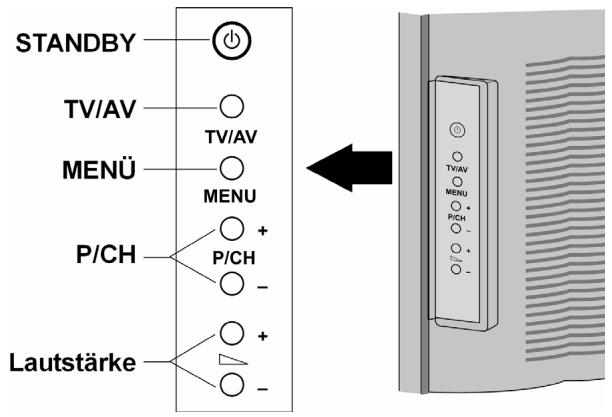
| Bedienelement | Funktion |
| STANDBY | Schalten Sie das Gerät mit dieser Taste in den Standby-Modus. |
| TV/AV | Wechseln Sie mit dieser Taste die Empfangsquelle: EXT - 1, EXT - 2,EXT - 3, EXT - 4, EXT - 4S EXT - 5, PC, TV. |
| MENU | Rufen Sie mit dieser Taste das OSD1-Menü auf, um Einstellungen an Ihr Gemärt vorzunehmen. |
| + P/CH - | Wechseln Sie über diese Tasten das Programm. |
| + Lautstärke - | Stellen Sie über diese Tasten die Lautstärke Ihres Gerätes ein. |
Anzeigen an der Vorderseite
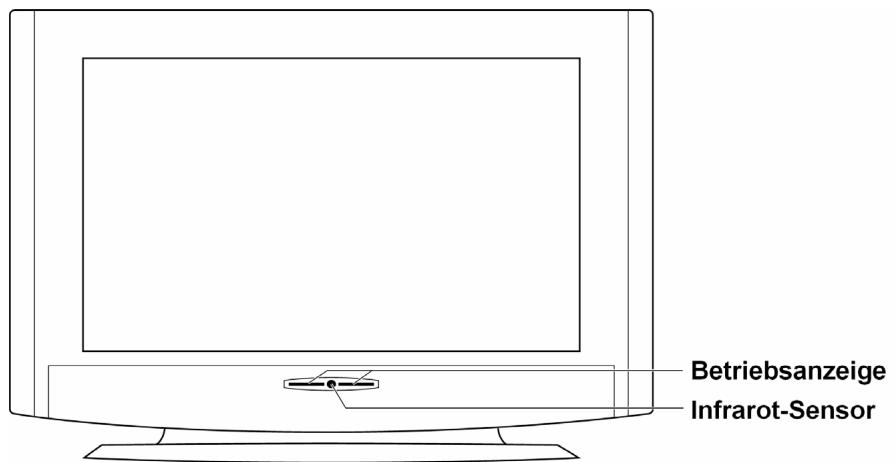
| Anzeige | Bedeutung |
| Sensor | Empfangsfeld für die Infrarotsignale der Fernbedienung. |
| Betriebsanzeige | Leuchtet blau auf, wenn sich das Gerät im Bereitschaftsmodus befindet. Erlischt, wenn das Gerät eingeschaltet ist. |
Anschlüsse
Die Anschlüsse befinden sich hinter den abnehmbaren Blenden auf der Rückseite des Geräts.
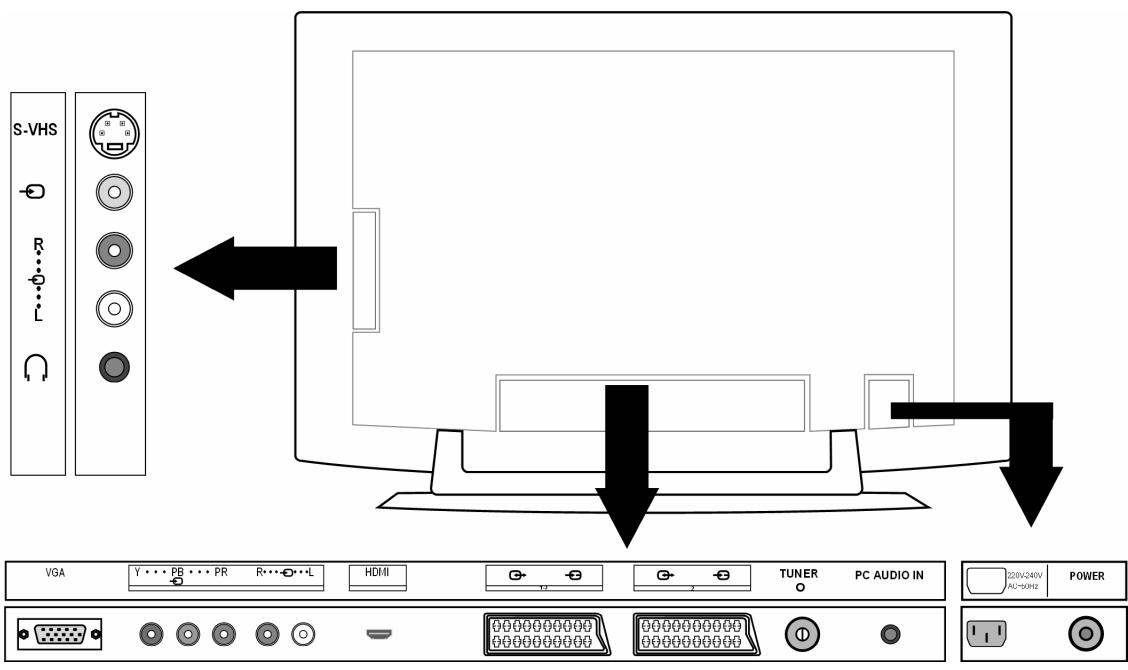
| Anschluss | Anschlussmöglichkeiten | |
| EXT - 4S | S-VHS | S-VHS-Eingang (S-VIDEO) zum Anschluss eines Geräts mit S-VIDEO-Ausgang (z. B. Camcorder). Sie benötigen für diesen Anschluss ein S-Video-Kabel. |
| EXT - 4 | ∅ | VIDEO-Eingang (gelb) zum Anschluss von folgenden Geräten: Camcorder, DVD-Player, Decoder (z.B. Satellitenreceiver) usw. |
| EXT - 4S EXT - 4 | R L | Audio-Eingänge (rot/weiß): Schließen Sie hier den linken und den rechten Audio-Kanal der Quelle an, deren Ton Sie über das LCD-TV übertragen möchten (z.B. Camcorder). Sie benötigen für diesen Anschluss ein Cinch-Kabel. |
| ∅ | Kopfhöreranschluss. Schließen Sie hier ihren Kopfhörer an, um den Ton Ihres Gerätes darüber zu horen. | |
| VGA | VGA-Anschluss. Schließen Sie hier ihren PC oder Ihr Notebook an. Sie benötigen ein VGA-Kabel. | |
| EXT - 3 | Y···PB···PR | Y - PB - PR: Komponenten-Eingänge zum Anschluss von Geräten mit Komponenten-Ausgang, z. B.: 1. Kamerarecorder 2. DVD-Player 3. Decoder (z.B. Satellitenreceiver) usw. Sie benötigen für diesen Anschluss ein Komponenten-Kabel grün/blau/rot für die Videooverbindung sowie ein Cinch-Kabel rot/weiß für die Audio-Verbindung. |
| EXT - 5 | HDMI | Für den Anschluss eines Geräts mit HDMI-Eingang. Sie benötigen dazu ein HDMI-Kabel. |
| EXT - 1 | SCART Eingang zum Anschluss von folgenden Geräten: 1. Videorecorder 2. DVD-Player 3. Spielekonsolen 4. Decoder (z.B. Satellitenreceiver) usw. Sie benötigen für diesen Anschluss ein SCART-Kabel (nicht im Lieferumfang). | |
| EXT - 2 | Wie EXT - 1. Für EXT - 2 konnen Sie im Menu FUNKTION (siehe Seite 23) eine Eingangsquelle wahren. | |
| Schließen Sie hier das Antennenkabel an (nicht im Lieferumfang). | ||
| Audio-Eingang für 3,5-mm-Stereoklinkenstecker, z. B. für PCs. | ||
| Schließen Sie hier das mitgelieferte Netzkabel an. | ||
| Betriebsschalter: Gerät in den Standby-Modus und wieder ausschalten. | ||
Anschlussbeispiele
Kopfhörer
Der Kopfhöreranschluss befindet sich an der Seite des Geräts.
Bei angeschlossen Kopfhörer bleiben die Hauptlautsprecher an. Die Lautstärketaste und die Taste Stummschaltung regeln die Hauptlautsprecher.
Die Lautstärke des Kopfhörers regeln Sie im Menu TON, siehe Seite 21.
PC
Das LCD-TV wird wie ein Monitor oder ein zusätzlicher Monitor an ihren PC oder Ihr Notebook angeschlossen. Das Bild Ihres PCs/Notebooks wird dann auf das LCD-TV übertragen.
So schließen Sie das LCD-TV an:
- Schalten Sie beiden Geräte aus.
- Schlieben Sie ein VGA-Kabel (Monitorkabel; nicht mitgeliefert) an den VGA-Eingang des LCD-TVs und an den Grafikkarten-Ausgang des PCs oder Notebooks an.
- Ziehen Sie die Schrauben des Monitorkabels mit den Fingern fest, so dass die Stecker richtig in den Buchsen sitzen.
- Falls Sie auch den Ton übertragen möchten, verbinden ein Audio-Kabel mit der PC-AUDIO-IN-Buchse.
- Schalten Sie zuerst das LCD-TV ein.
-
Schalten Sie erst danach den PC/das Notebook ein.
-
Drücken Sie auf der Fernbedienung die Taste PC, um in den PC-Modus zu schalten. Das PC-Bild erscheint auf dem LCD-TV. Mit der Taste TV kommt Sie in den TV-Modus zurück.
Wenn Sie das LCD-TV als zweiten Monitor an Ihr dem PC einsetzen, kann es unter Umständen notwendig sein, dass Sie in den Anzeigeeinstellungen Ihres Betriebssysteme Einstellungen ändern müssen. Lesen Sie dazu in der Bedienungsanleitung des PCs/Notebooks nach, was beim Betrieb vom mehreren Monitoren zu beachten ist.
Videorecorder
Sie konnen einen Videorecorder sowohl mit der Antenne als auch über SCART-Kabel anschließen:
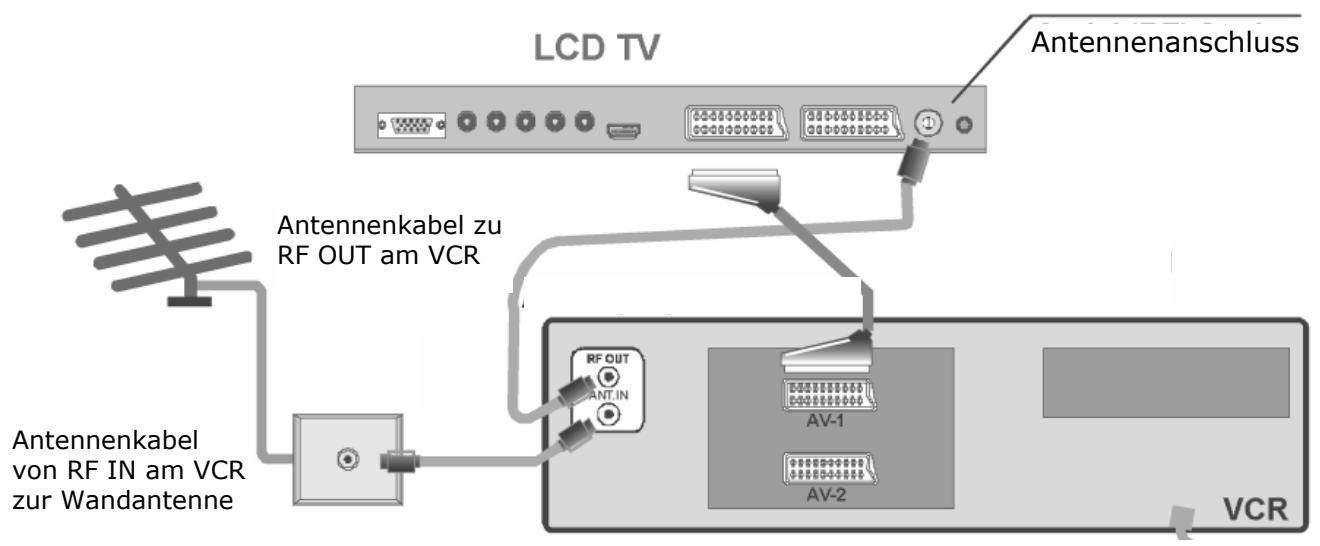
- Ein SCART-Anschluss zwischen Videorecorder und LCD-TV ist für eine hohe Bild- und Tonqualität empfehlenswert. Wenn Sie Stereoton übertragen möchten, ist ein SCART-Anschluss not-wendig.
- Wenn der Videorecorder an den Anschluss EXT - 1, EXT - 2 oder EXT - 4 angeschlossen ist, stellen Sie den Menüpunkt VCR im Menu PROGRAMMIERUNG auf Ein (Seite 24)
SAT-Receiver oder DVD-Recorder
Einen SAT-Receiver oder DVD-Recorder schließen Sie mit Antenne und SCART-Kabel an:
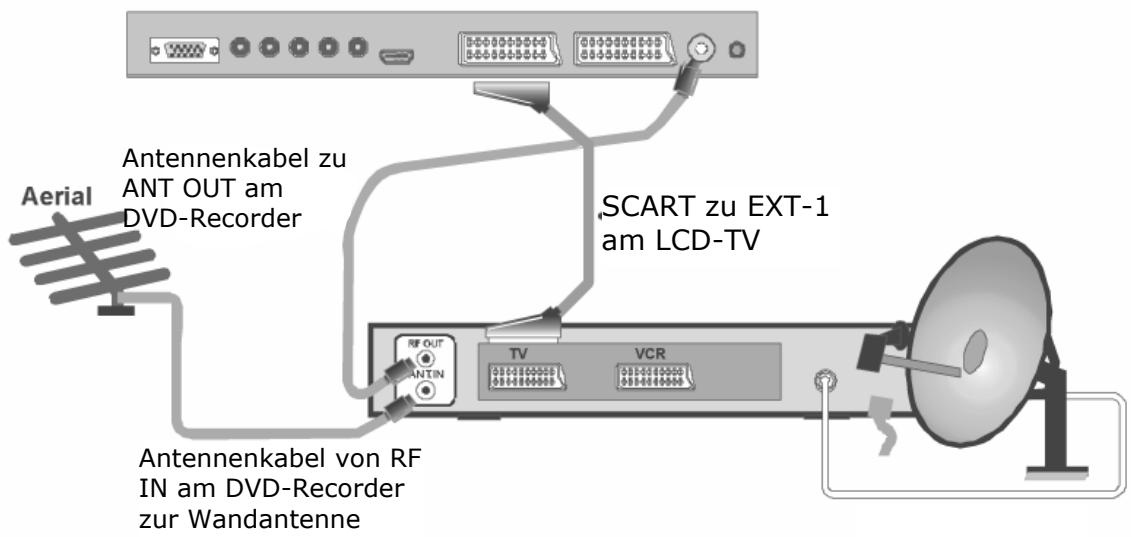
LCD TV
Videorecoder und SAT-Receiver
Wenn Sie gleichzeitig einen SAT-Receiver und einen Videorecorder anschreiben, können Sie folgende Anschlussart verwenden:
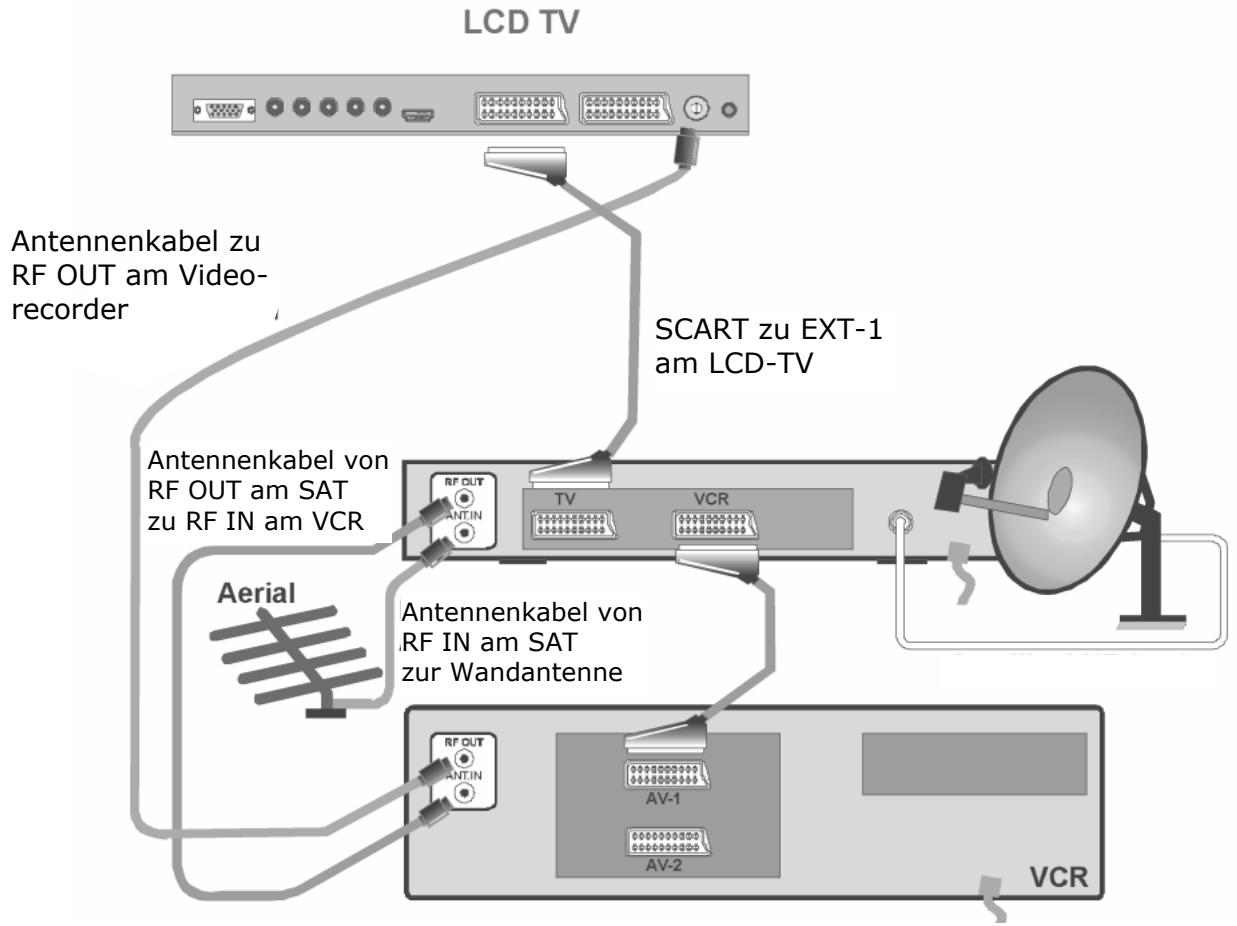
DVD-Player
SchlieBen Sie einen DVD-Player mit SCART-Kabel an die Buchsen EXT-1 oder EXT-2 an.
- Sofern der DVD-Player über YUV-Ausgänge verfügt (Y Pb Pr), schließen Sieihn mit einem Komponentenkabel (Cinch grün/blau/rot) an die Komponenteneingänge EXT-3 des LCD-TVs an.
Gerät mit HDMI- oder DVI-Ausgang
HDMI ("High Definition Multimedia Interface") ist im Bereich der Unterhaltungselektronik die einzige Schnittstelle, die gleichzeitig Audio- und Videodaten digital überträgt. Sie verarbeitet alle heute bekannten Bild- und Tonformate, einschließlich HDTV (High Definition Television), und kann somit auch die Auflösung von 1080 i ohne Qualitätserlust darstellen.
- Schließen Sie ein HDMI-Kabel (nicht im Lieferumfang) an den HDMI-Eingang des LCD-TVs und den HDMI-Ausgang des externen Geräts an.
- Wenn Sie das HDMI-Gerät angeschlossen haben, schalten Sie zunachst das LCD-TV ein.
Schalten Sie danach das externe HDMI-Wiedergabegerät ein.
Sollte das externe Gerät einen DVI-Ausgang haben, konnen Sie es ebenfls an den HDMI-Eingang anschließen (HDMI ist abwärtskompatibel zu DVI - „Digital Visual Interface"). Sie benötigen dazu einen Adapter HDMI-DVI. Da der DVI-Ausgang keinen Ton überträgt, schließen Sie zusätzlich ein Audio-Kabel mit Klinkenstecker an den Anschluss PC AUDIO IN an.
Die Fernbedienung
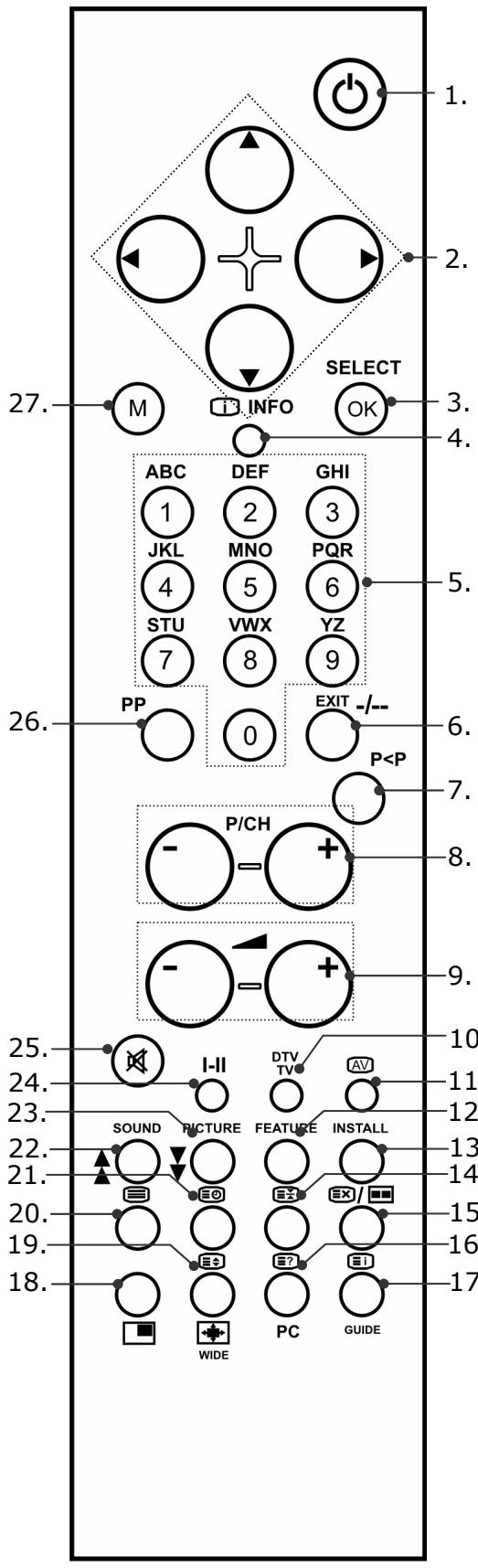
- Standby-Taste Zum vorübergehenden Ausschalten des LCD-TVs.
- Richtungstasten
- SELECT / OK Im Fernsehmodus dient diese Taste zum Einfrieren des Fernsehbildes. In bestimmten Menükonnen Sie mit OK eine Auswahl bestätigen.
- INFO Zum Anzeigen von Informationen, wie aktuelle Programmnummer und Bildformat.
- Zifferntasten Im Fernsehmodus dienen diese Tasten zur Pro- grammwahl. Im Videotextmodus dienen sie zur Eingabe der dreistelligen Nummern, mit der die Seite ausgewählt wird.
- Diese Taste ist nicht verwendet
- Zurückschalten zum vorher (mehr als 5 Sekunden) angezeigten Programm.
- Programmwahltasten P/CH + / - Im Fernsehmodus wahlen Sie das{nachste (+) oder das vorherige(-)Programm aus. Im Videotextmodus wahlen Sie die{nachste (+) oder die vorherige(-)Seite aus.
- Lautstärke + / - Zum Erhöhen (+) oder Verringern (-) der Lautstärke.
- TV-Modus: Aktuelle Einstellungen anzeigen; Videotext schlieben
- Eingangswahl: Zum Auswahlen des Eingangssignals von Geräten, die an Ihrem LCD-TV angeschlossen sind.
- Gelbe Taste / Menu FUNKTION öffnen
- Blaue Taste / Menu PROGRAMMIERUNG öffnen
- Videotext anhalten Die aktuelle Seite wird angehalten.
- Videotext: Verdecktes Suchen / PAP-Modus
- Videotext: Verborgener Text / PC-Modus
- Videotext Indexsite
- Videotext-Mix (transparentes Bild) / PIP ein und aus
- Videotext vergrößern / Bildformat
- Videotext ein- und ausschalten
- Uhrzeit anzeigen / Videotext-Unterseite
- Rote Taste / Menu TON öffnen
- Grüne Taste / Menu BILD öffnen
- Mono / Stereo / Ton I / Ton II
- Stummschalten
- Bildmodus auswahlen
- Menu aufrufen; Menu schlieben
Inbetriebnahme
Hinweis
Lesen Sie vor der Inbetriebnahmeitte unbedingt das Kapitel „Sicherheitshin-weise" auf Seite 4ff.
Auspacken
- Lassen Sie sich beim Auspacken des Gerätes von jederhand halten.
- Tragen Sie das Gerät nicht allein, um ein Fallenlassen des Gerätes und/oder gesundheitliche Schäden zu verhindern.
- Öffnen Sie den Karton sehr vorsichtig, um eine mögliche Beschädigung des Gerätes zu verhindern. Dies kann passieren, wenn zum Öffnen ein Messer mit einer langen Klinge verwendet wird.
- In der Verpackung befinden sich verschiedene Kleinteile (Batterien, Schrauben u. a.). Halten Sie diese von Kindern fern, es besteht Verschluckgebung.
- Bewahren Sie das Verpackungsmaterialitte gut auf und benutzen Sie ausschließlich这点es, um den Fernseher zu transportieren.
Batterien in die Fernbedienung einlagen
- Entfernen Sie die Batteriefachabdeckung auf der Rückseite der Fernbedienung.
- Legen Sie zwei Batterien vom Typ R03 (AAA) 1,5V in das Batteriefach der Fernbedienung ein. Beachten Sie damit die Polung der Batterien (im Batteriefachboden markiert).
- Schließen Sie das Batteriefach.
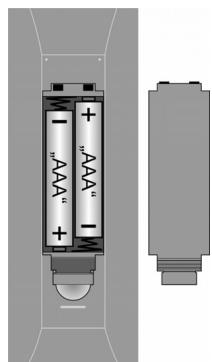
Achtung!
Nehmen Sie die Batterien aus der Fernbedienung hereaus, wenn das Gerät längerere Zeit nicht benutzt wird. Die Fernbedienung konnte durch auslaufende Batterien beschädigt werden.
Antenne anschließen
- Zum Anschluss an die Hausantenne oder Kabelanlage verbinden Sie die Antennensteckdose und das LCD-TV mit einem doppelt abgeschirmten Antennenkabel (nicht im Lieferumfang enthalten).
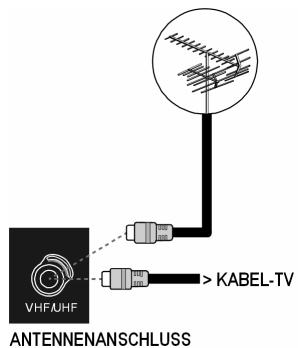
Stromversorgung anschließen
Verbinden Sie den Gerätestecker des mitgelieferten Gerätekabels mit dem 220-240-V-Anschluss am Gerät und den Netzstecker mit einer gut erreichbaren Netzsteckdose 230V 50~Hz
Grundfunktionen
LCD-TV ein- und ausschalten
- Drücken Sie den Betriebsschalter auf der Rückseite des Geräts. Das Gerät besteht in den Standby-Modus und die Anzeige an der Vorderseite leuchtet blau auf.
- Um das Gerät einzuschalten, drücken Sie entweder eine Zifferntaste der Fernbedienung oder eine Programmwahltaste P/CH der Fernbedienung oder am Gerät. Die Anzeige an der Vorderseite erlischt.
- Mit der Standby-Taste der Fernbedienung oder der Standby-Taste an der rechten Seite des Geräts schalten Sie das Gerät wieder in den Standby-Modus.
- Drücken Sie wieder den Betriebsschalter auf der Rückseite des Geräts, um das Gerät ganz auszuschalten.
Nach dem ersten Einsatz
Wenn Sie Ihr Gerät zum ersten Mal einschalten, entscheid das Menu AUTO PROGRAM.
Falls Sie die Sprach- und Länderinstellung ändern möhlen, benutzen Sie die Richtungstasten , um eine andere Auswahl zu treffen.
Die Länderinstellung hat Einfluss auf die Reihenfolge, in der die Programme gespeichert werden.
Bestätigen Sie dann die Meldung „ANTENNENKABEL ÜberPRÜFEN“, indem Sie die Taste OK oder die rote Taste drücken.
Um den Vorgang abzubrechen, drücken Sie die blaue Taste.
APS
AnschlieBend beginnt die automatische Programmsuche (APS). Sie nimmt einige Minuten in Anspruch.
Sie können den Vorgang mit der blauen Taste abbrechen.
Die Programme werden in einer länderspezifischen Reihenfolge auf den Programmplätzen abgelegt. Es können 100 Programme gespeichert werden.
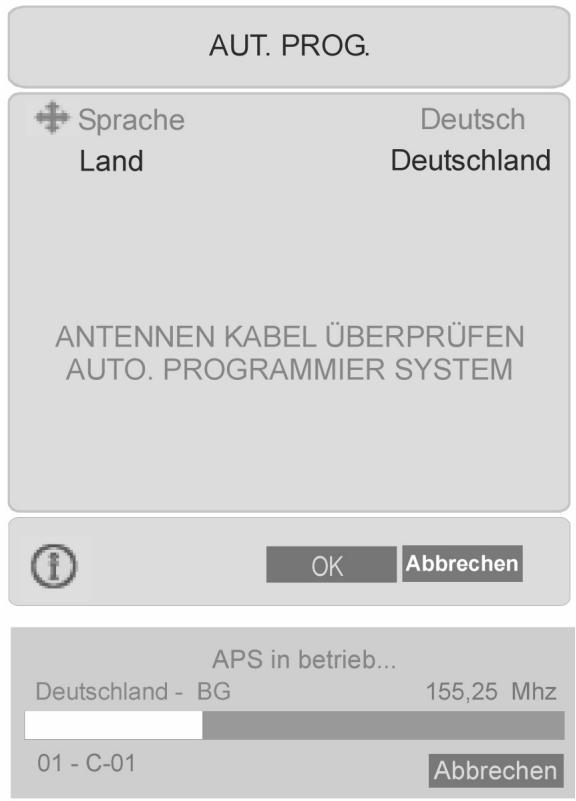
Nach dem Ende der automatischen Programmspeicherung erscheidt die Programmtable. Wenn die Tabelle nicht weiter bearbeitet wird, schliebt sie sich nach ein paar Minuten. Es wird das Programm auf Programmplatz 1 gesendet.
Programmausbahl
- Um ein Programm auszuwahlen, drücken Sie entweder eine der Tasten P/CH (am Gerät oder an der Fernbedienung) oder wahren Sie das Programm über eine Zifferntaste direkt an. Für eine zweistellige Nummer geben Sie die beiden Ziffern zügig hintereinander ein.
- Mit der Taste P < P wahren Sie das zuletzt gesendete Programm.
Toneinstillungen
- Mit den Lautstärketasten - an der Fernbedienung oder am Gerät erhöhen oder verringern Sie die Lautstärke.
Um den Ton ganz aus- und wieder einzustellen, drücken Sie die Taste Stummschaltung. - Mit der Taste I-II wahren Sie zwischen Mono- und Stereogausgabe Ton I und Ton II. Ton I und Ton II können nur erschinen, wenn die aktuelle Sendung den DUAL-Modus unterstützt (z. B. bei zweisprachigen Sendungen).
Bildeinstellungen
Zoom-Modus (Taste WIDE)
Drücken Sie die Taste WIDE, um zwischen folgenden Bildformaten umzustellen:
- Auto: Das gesendete Format wird automatisch auf das Eingangssignal eingestellt.
Vollbild: Das Bild wird automatisch auf volle Bildbreite ausgedehnt.
4:3: Zur unverzerrten Darstellung eines Bildes im 4:3-Format.
- Panorama: Das Bild wird am linken und rechten Rand ausgedehnt, um den Bildschirm zu füllen; der obere und/oder weniger Rand wird darauf etwas abgeschritten.
14:9 Zoom: Ein Bild im 14:9-Format ("Letterbox") wird zum oberen und unteren Rand des Bildschirms ausgegehnt.
- Cinema: Ein Bild im 16:9-Format ("Letterbox") wird auf volle Bildschirmgroße gezoomt.
16:9 Untertitel: Wie Einstellung „Cinema". Jedoch wird das Bild nach oben geschoben, so dass ggf. Unterzeilen oder Laufschriften sightbar werden).






Bei einigen Formaten erschreiben Pfeiltasten neben der Formatangabe. Bei diesen Formaten konnen Sie mit den Richtungstasten das Bild nach oben und unter bewegen.
Zoom im PC-Modus
Im PC-Modus stehen die Formate 4:3 und Vollbild zur Verfügung.
Weitere Bildeinstellungen
- Mit der Taste SELECT können Sie das Bild einfrierten und wieder freigegeben.
- Mit der Taste PP („Personal Preferences“) wahren Sie den Bildmodus aus: Naturlich, Cinema, Dynamic.
Infos anzeigen setzen
-
Drücken Sie die Taste INFO, um sich folgende aktuelle Einstellungen anzeigen zu halten:
-
Programmplatz und Programmname;
- Toneinstellung (Mono oder Stereo);
-
Bildeinstellung.
-
Dieselben Informationen erhalten Sie im TV-Modus mit der Taste DTV/TV sowie beim Umschalten auf ein anderes Programm.
- Im TV-Modus konnen Sie sich die Uhrzeit anzeigen setzen, indem Sie die Taste (Uhrzeit/Videotext Unterseite) drücken.
Externes Gerät wahlen
- Mit der Taste AV wahren Sie die verfügbaren Eingänge:
-EXT - 1: Gerät an der SCART 1-Buchse;
-EXT-2:Gerat an der SCART 2-Buchse;
-EXT-3:Gerat an den Komponentenvideo- und -audioeingangen;
-EXT-4:Gerat am Videoeingang (Geräteseite);
-EXT - 4S: Gerät an den Audioeingängen und am S-VHS-Eingang (Geräteseite);
-EXT-5:HDMI-Eingang;
- PC (diese Einstellung entspricht der Taste PC)
- Antenne (TV-Betrieb).
Videotext
Ihr LCD-TV unterstützt 1000-Seiten Teletext. Das bedeutet, dass das Gerät nach der Ungabe einer dieser 1000 Seiten nicht suchen muss, sondern die Seiten direkt anzeigen kann.
Videotext ist ein kostenloses Service, das von den meisten Fernsehstationen ausgestrahl wird und aktuelle Informationen bezüglich Nachrichten, Wetter, Fernsehprogrammen, Aktienkursen, Untertiteln und anderen Themen bietet. Ihr TV-Gerät bietet weitere nutzliche Funktionen für die Bedienung des Videotexts sowie Multipage-Text, Unterseitenspeicherung oder schelle Navigation.
Die Bedienung des Videotexts
- Wahlen Sie ein Fernsehprogramm, das Videotext ausstrahlt.
- Drücken Sie die Taste einmal, um die Basis-/Indexseite des Videotexts anzuzeigen.
- Durch nochmaliges Drucken der Taste wechselt das Gerät wieder in den TV-Modus
Videotext-Seiten auswahlen
Zifferntasten
- Geben Sie die gewünschte Videotextseite als dreistellige Nummer direkt mit den Zifferntastenen ein.
- Die gewählte Seitenzahl wird in der linken oberen Ecke des Bildschirms angezeigt. Der Videotextzahlerucht solange, bis die gewählte Seitennummer gefunden ist.
Programmwahltasten
- Mit den Programmwahltasten blättern Sie vor und darüber durch die Videotextseiten.
Farbstaten
- Wenn am unteren Bildrand Farbige Texteinträge eingeblendet sind, können Sie diese Inhalte durch Drücken der entsprechenden Farbstaten ROT, GRUN, GELB und BLAU direkt anwahlen.

Unterseiten
- Manche Videotextseiten beinhalten Unterheiten. Am unteren Bildrand wird z. B. 1/3 angezeigt. Die Unterheiten werden im Abstand von ca. einer halben Minute nacheinander eingeblendet. Sie können die Unterheiten auch selbst aufrufen, indem Sie die Taste drücken. Es erscheidt ein vierstelliges Ungabefeld, in das Sie die Nummer einer Unterleihe (z. B. 0002) eingeben konnen. Alternativ konnen Sie mit den Richtungstasten durch die Unterheiten blättern.
Nützliche Videotext Eigenschaften
TXT/MIX
- Drücken Sie die TXT/MIX -Taste, um den Teletext transparent darzustellen (das Fernsehbild entscheid im Hintergrund).
Xi INDEX
- Mit dieser Taste wahren Sie die Indexseite aus, die eine Liste des Videotextinhalts enthalt.
STOP
Die Videotextseite, die Sie gewählt haben, enthalt möglicherweise mehr Informationen als auf einen Bildschirm passen. In diesen Fall wird die Information auf mehrere Unterheiten aufgegeben. Die Unterheiten werden in regelmäßigen Zeitabständen weiterergeblattert.
- Drücken Sie die STOP-Taste, um einen automatischen Seitenwechsel zu verhindern. Das Symbol STOP wird in der linken oberen Ecke des Bildschirms angezeigt und der automatische Seitenwechsel ist unterbrochen.
- Drücken Sie erneut auf die STOP-Taste um den automatischen Seitenwechsel wieder zuzulassoen.

Verdecktes Suchen
Wenn Sie im Videotextmodus die Taste drücken, dann schaltet das TV-Gerät die Videotextanzeige in den Hintergrund. Damit können Sie Wartezeiten bis zur Anzeige der gewünschten Seite überbrücken.
Wahlen Sie die gewünschte Seitennummer im Videotextmodus.
Drücken Sie die Taste , um zum TV-Modus zu schalten, während Sie auf die Videotextseite warten. In der linken oberen Ecke erscheint ein Feld mit der gesuchten Seitennummer oder das Symbol , solange gesucht wird.
Sobald die gewündchte Seite gefunden ist, erscheint die Seitenzahl anstatt der Bindestriche.
Drücken Sie nun erneut die Taste, um die gewünschte Seite anzuzeigen.

Verdeckten Text anzeigen
Um verborgene Information, wie z. B. die Lösungen von Rätseln, Puzzle oder Quiz anzuzeigen, drücken Sie einmal auf die Taste [3?].
Nochmaliges Drücken der Taste verbirgt die Antwerten wieder.

Seitengröbe verdoppeln
These Funktion zeigt die Videotextinformation in doppelter Groß an.
Drücken Sie die Taste, um die obere Häfte der Seite zu vermögen.
Drücken Sie erneut die Taste, um die untere Häfte der Seite vergroßert anzuzeigen.
Nochmaliges Drucken der Taste zeigt den Videotext wieder in normaler Groß.
Bild-in-Bild
PIP-Modus
Mit der Funktion „PIP" ("Picture in Picture" - "Bild im Bild") konnen Sie ein kleines Programmfenster innerhalb des Hauptbildes einblenden.
- Drücken Sie die Taste PIP. Das PIP-Fenster erscheint in einer Ecke des Bildschirms. Es erscheint zunachst das aktuell eingestellte Programm. Im Hauptfenster erscheint das zuletzt gewählte Programm.
- Mit der Taste können Sie das PIP-Fenster in eine andere Ecke des Bildschirms bewegen.
- Drücken Sie PIP noch einmal, um das PIP-Fenster zu schreiben.
Das PIP-Fenster ist zunachst das aktive Fenster (der ausgestrahnte Ton gehört zum PIP-Fenster). Das bedeutet, dass Sie z. B.
- mit den Programmwahltasten das Programm im PIP-Fensterändern konnen;
- mit der Taste M das Menu für das PIP-Fenster öffnen konnen;
- mit der Taste AV verschiedene Empfangsquellen für das PIP-Fenster öffnen können.
Auch eingeblendete Informationen gehören zum PIP-Fenster.
- Mit den Richtungstasten * konnen Sie die Funktion von PIP- und Hauptfenster tauschen.
- Falls Sie prüfen möchten, welche Fenster gerade das aktive ist, drücken Sie INFO.
Die Funktion „Bild einfrierten" (Taste SELECT/OK) wird immer auf das Hauptfenster angewendet.
PAP-Modus
Im PAP-Modus stehen zwei Programmfensterbebeneinander. Die Bildseitenverhältnisse der beiden Fenster sind festgelegt.
- Drücken Sie die Taste × / . Das aktive Fenster erscheint zunachst auf der rechten Seite. Auf der linken Seite erscheint das zuletzt gewährte Programm.
- Mit den Richtungstasten « » konnen die Funktion von aktivem Fenster und Nebenfenster tauschen. Die Funktionen werden wie im Abschnitt „PIP-Modus" beschrieben auf das aktive Fenster angewendet.
- Drücken Sie [ex]/ [no] noch einmal, um das PAP-Fenster zu schlieben.
Im PAP-Modus konnen Sie den Videotext des aktiven Fensters auf der rechten Seite aufrufen (Taste). Er ersetzt das Nebenfenster und steht auf diese Weise kein dem Fernsehbild.
PIP und PAP im PC-Modus
Im PC-Modus * 可 nnen Sie durch Drucken der Tasten bzw. / * neben dem Bild des PCs das Fernsehprogramm (oder eine andere Quelle) einblenden.
Sie konnen sowohl das Fernsehprogramm beareriten als auch mit dem PC weiterarbeiten.
Das OSD-MENU
Über das OSD-Menu (On Screen Display) können Sie bestimmte Parameter des LCD-TVs einstellen.
Im Menu navigieren
- Drücken Sie die Menu-Taste M, um das OSD zu aktivieren.
- Mit den Richtungstasten wahlen Sie die Optionen aus dem Hauptmenu.
- Mit den Richtungstasten wahlen Sie die Optionen aus einem Menu.
- Mit der Richtungstaste kommt Sie ins Hauptmenu zurück
- Mit der Richtungstaste öffnen Sie ein Untermenü (nicht in jedem Menu vorhanden).
- Mit der Menu-Taste M kommt Sie in das übergeordnete Menu zurück.
- Mit den Richtungstasten stellen Sie einen gewünschten Wert ein oder treffen eine andere Auswahr.
- Mit der Menu-Taste M schreiben Sie das Menu und bestätigten gleichzeitig die Auswahr.
Bitte beachten Sie, dass sich das Menu automatisch nach ca. 15, 30 oder 60 Sekunden schliebt,
wenn keine Taste gedrückt wird (Einstellung im Menu FUNKTIOn, Seite 23).
Hinweis
Aufgrund möglicher technischer Änderungen konnen die hier beschriebenen Menus von denen auf Ihrem Bildschirm abweichen.
Menu BILD
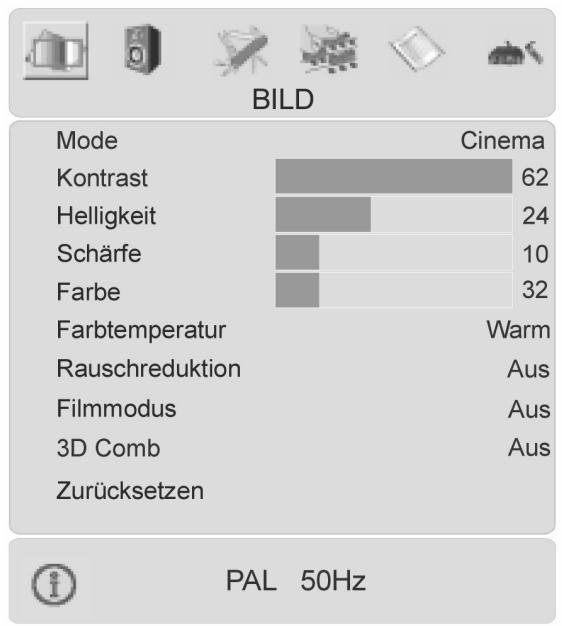
| Menüpunkt | Einstellungen |
| Mode | Bildmodus wahren: Natürlich, Cinema, Dynamic. These Funktion entspricht der Taste PP. |
| Kontrast | Kontrast verringern bzw. erhöhen (Skala 0 - 63). |
| Helligkeit | Helligkeit verringern bzw. erhöhen (Skala 0 - 63). |
| Schärfe | Schärfe verringern bzw. erhöhen (Skala 0 - 31). |
| Farbe | Farbstärke verringern bzw. erhöhen (Skala 0 - 99). |
| Farbtempe- | Farbton wahren: Normal, Kalt, Warm. |
| ratur | |
| Rausch-reduktion | Mit dieser Funktion konnen Sie das Bildrauschen verringern und die Bildqualität bei schwachem Signal verbessern. Wahlen Sie zwischen Aus, Niedrig, Medium und Hoch. |
| Filmmodus | Filme werden mit einer anderen Anzahl von Einzelbildern pro Sekunde aufgenommen als Fernsehsendungen. Wahlen Sie ON, wenn Sie einen Film sehen, um die Bildqualität von Szenen mit schllen Bewegungen better sehen zu konnen. |
| 3D Comb | Der 3D-Kammfilter wird verwendet, um die Farbübergänge und die Farbqualität der Bilder zu verbessern. Wahlen Sie Ein oder Aus. |
| Zurückset-zen | Setzen Sie mit > oder OK alle Bildeinstellungen auf die Werkseinstellungen darüber. |
| Hier erscheint als Information der aktuell empfangene TV-Farbstandard (s. a. Menu PROGRAMMIERUNG). | |
Menu TON
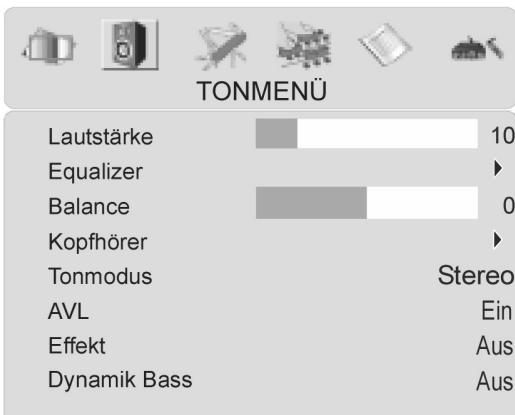
| Menüpunkt | Einstellungen |
| Lautstärke | Grundeinstellung der Lautstärke beim Einsatzten (Skala 0 - 63). Wahlen Sie eine moderate Grundlautstärke. |
| Equalizer | Untermenü EQUALIZER öffnen: Siehe{nachsten Abschnitt |
| Balance | Balance zwischen dem linken und rechten Lautsprecher (Skala -31 - 31). |
| Kopfhörer | Untermenü KOPFHÖRER öffnen: Siehe übernächsten Abschnitt. |
| Tonmodus | Wahlen Sie zwischen Stereo und Mono. Falls die aktuelle Sendung den DUAL-Modus Unterstützung (z. B. bei zweisprachigen Sendungen), können Sie hier außerdem zwischen Ton 1 und Ton 2 wahren (Originsprache und Synchronisation). Die Funktion entspricht der Taste I-II. |
| AVL | Die Funktion AVL (Automatic Volume Limiting)GLEICH die unter-schiedlichen Lautstärken der verschiedenen Sendungen aus. Aus: Originallautstärke; Ein: Gleichmäßige Lautstärke. |
| Effekt | Klangeffekt ein- oder ausstellen. Wenn der aktuelle Tonmodus auf Mono gestellt ist, wird bei aktivier-tem Klangeffekt der Klang wie ein Stereoklang wahrgemommen. Wenn der aktuelle Tonmodus auf Stereo gestellt ist, wird der Raum-klang tiefer. |
| Dynamik | Stellen Sie die Bässe auf Niedrig, Hoch oder Aus. |
| Bass | Die Einstellung Hoch ist bei hoher Lautstärke nicht empfehlenswert. |
Untermenü EQUALIZER
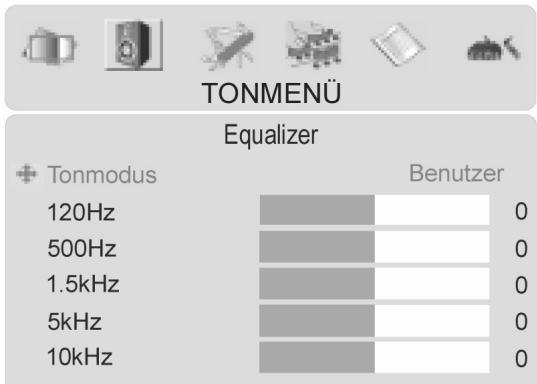
| Menüpunkt | Einstellungen |
| Tonmodus | Wählen Sie zwischen verschiedenen Equalizer-Voreinstellungen. Bei den Einstellungen Pop, Rock, Jazz und Classic sind die Toneinstellungen für die jeweilige Musikrichtung optimiert; Flat ist die Nor-maleinstellung. |
| Benutzer | Bei der Einstellung Benutzer können Sie eine eigene Einstellung vornehmen: Wählen Sie mit ◆ ein Frenzband. Stellen mit ◆ einen Wert ein. |
Untermenu KOPFHÖRER
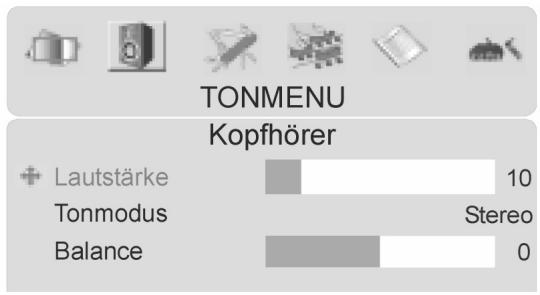
| Menüpunkt | Einstellungen |
| Lautstärke | Lautstärke des Kopfhörers einstellen (Skala 0 - 63). (Mit den Lautstärke-Tasten ◆ ◆ stellen Sie die Lautstärke der Hauptloutsprecher ein.) |
| Tonmodus | Wählen Sie für den Kopfhörer zwischen Stereo und Mono. Falls die aktuelle Sendung den DUAL-Modus untersätzen (z. B. bei zweispra-chigen Sendungen), können Sie hier außerdem zwischen Ton 1 und Ton 2 wahren (Originalsprache und Synchronisation). |
| Balance | Balance zwischen dem linken und rechten Kopfhörer-Loutsprecher (Skala -31 - 31). |
| FUNKTION | |
| Sleeptimer | Aus |
| Tastensperre | Aus |
| Sprache | Deutsch |
| Ext-2 Out | EXT - 1 |
| Standard Zoom | Panoramic |
| Menühintergrund | Transparent |
| Bildschirmanzeige Zeitli. | 30 sek |
| TXT Sprache | West |
| Menüpunkt | Einstellungen |
| Sleeptimer | Wählen Sie eine Zeit, nach der sich das Gerät selbständig ausstellt. Mit den Richtungstasten konnen Sie die Zeit in 10-Minuten-Schritten einstellen (maximal 2 Stunden).Sofort nach der Einstellung mit « » beginnnt die Sleep-Timer-Zeit. |
| Tastensperre | Wenn Sie die Einstellung auf ON stellen, sind die Tasten am Gerät gespeppt (mit Ausnahme des Netzschalters). |
| Sprache | Wählen Sie die Sprache des OSD-Menüs. Sie stellt sich unmittelbar um. |
| Ext-2 Out | Hier wird eingestellt, welches Signal als Ausgangssignal am SCART-2-Anschluss anliegt.Wählen Sie zwischen TV, EXT - 1, EXT- 3, EXT- 4, EXT- 5 und PC. |
| StandardZoom | Stellen Sie hier den Standard-Zoom auf Panoramic, 4:3 oder 14:9 Zoom ein.Wenn keine Informationen zu WSS (Breitbild) oder Bildseitenformat (Bildgroße) vorliegen und der Zoom-Modus über die Taste WIDE als Auto eingestellt wird, wechselt der Modus automatisch in die Standard-Zoom-Einstellungen. |
| Menu-Hintergrund | Wählen Sie, ob der Menu-Hintergrund durchsichtig (Transparent) oder undurchsichtig (Undurchsichtig) sein soll. |
| Bildschirman-zeige Zeitli. | Hier konnen Sie die Zeit einstellen, nach der das OSD-Menü sichautomatisch schließt: 15, 30 oder 60 Sekunden. |
| TXT-Sprache | Die Voreinstellung ist West. Falls Sie sich in einem anderen Sprachraum befinden, konnen Sie die Spracheinstellung ändern:East, Cyrillic, Turk/Gre oder Arabic. |
Menu PROGRAMMIERUNG
Im Normallyfall werden die verfügbaren Programme mit der automatischen Programmsuche gesucht und in der gefundenen Reihenfolge auf den Programmplätzen automatisch gespeichert. In der Programmtabelle konnen Sie die Programmplätze auch neu ordnen (siehe Menu "PROGRAMM", Seite 25). Das Menu PROGRAMMIERUNG erlaubt Ihnen darüber hinaus die manuelle Sueche und Speicherung einzelnr Programme sowie die Feinabstimmung des Bildes.
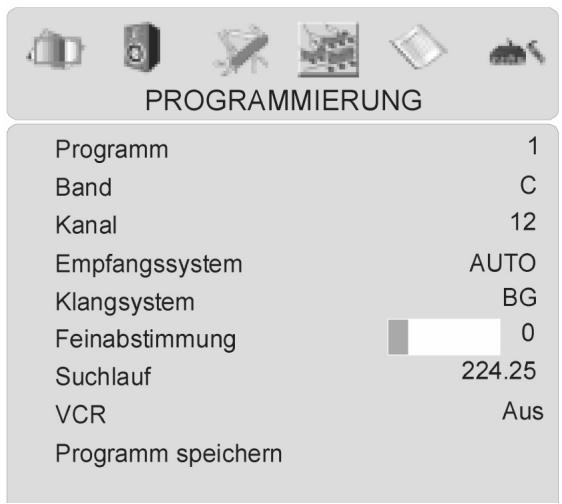
| Menüpunkt | Einstellungen |
| Programm | Hier sehen Sie die Nummer des Programmplatzes des aktuell laufenden Programms.Mit den Richtungstasten ⇌ oder mit den Zifferntasten konnen Sie einen anderen Programmplatz wahren (0 bis 99).Speichern Sie den neuen Programmplatz mit der Taste OK, oder indem Sie den Punkt Programm speichern anwahlen und ➔ drücken.Beachten Sie, dass das bestehende Programm auf dem gewährten Programmplatz überschreiben wird. Das Programm wird mit seiner Kanalnummer (z. B. „C-25”), nicht mit seinem Programmnamen, in der Programmtabelle gespeichert.Falls Sie einen Videorecorder anschlossen möchen, ist es empfehlenswert, hierfür Programmplatz 0 zu reservieren. |
| Band | Das Fernsehfrequenzband ist in die Kanaltypen C (Normalkanal) und S (Sonderkanal) eingeteilt.Hier erscheint der Kanaltyp des aktuell eingestellten Programms. |
| Kanal | Hier sehen Sie die Kanalnummer des aktuell eingestellten Pro-gramms. Mit ⇌ wahren Sie ein anderes Programm aus. |
| Empfangs-system | Hier wahren Sie den länderspezifischen TV-Farbstandard aus: Auto (das richtige Farbsystem stellt sich selbst ein), PAL (für PAL 50 MHz), PAL 60, SECAM.Wenn das Klangsystem (s. folgender Punkt) auf „I" gestellt ist, ist SECAM nicht verfügbar.Wenn eine externe Quelle gewählt ist (EXT - 1 usw.), ist zusätzlich NTSC 3.58 und NTSC 4.43 (in Nordamerika übliches Farbformat) verfügbar.Die Wahl eines falschen Farbsystems führt zu einem fehlerhaften Bild.In der Info-Box des Menüß BILD erscheint das aktuell empfangene Farbsystem. |
| Klangsystem | Hier stellen Sie das landesspezifische Fernsehsystem ein: BG (Westeuropa), I (Großbritannien) oder DK (osteuropäische Länder). |
| Feinabstimmung | Hier können Sie das Bild des aktuell gewählten Programms mit « » feinabstimmen. |
| Suchlauf | Hier können Sie eine manuelle Programmsuche durchführren. Starten Sie mit den Richtungstasten « » eine Sueche nach unter oder oben. Bei jedem gefundenen Programm bleibt die Sueche stehen. Sie sehen den MHz-Wert. Unter dem Menüpunkt PROGRAM können Sie dem Programm einen Platz zuweisen. Beachten Sie, dass beim Speichern ein anderes Programm auf thisem Platz überschreiben wird. Unter dem Menüpunkt Feinabstimmung (s. vorheriger Abschnitt) können Sie eine weitere Feinabstimmung vornehmen. Um das Programm zu speichern, drücken Sie OK oder wahren Sie den Punkt Programm speichern an und drücken Sie « . |
| VCR | Wahlen Sie die Einstellung Ein, wenn ein Videorecorder an die Ein-gänge EXT - 1, EXT - 2 oder EXT - 4 angeschlossen ist |
| Programm speichern | Gewährtes Programm speichern (s. Punkte Programm und Such-lauf). |
Videorecorder manuell speichern
Die manuelle Suehe können Sie z. B. verwenden, um einen Videorecorder auf das LCD-TV einzustellen.
Nachdem VCD-TV und Videorecorder über die Antenne miteinander verbunden sind (siehe „Anschlussbeispel", Seite 9, stellen Sie ihren Videorecorder auf das Testsignal.
- Führn Sie die manuelle Suche mit dem LCD-TV durch.
- Wenn das Testsignal gefunden wurde, speichern Sie das Testsignal auf Programmplatz 0 (dieser Programmplatz wird nicht von einem Fernsehprogramm belegt).
PROGRAMMABELLE
In der Programmtabelle sehen Sie die aktuell gespeicherten Programme. Die Programme erscheinen mit ihren Programmnamen, sofern die Sendeanstalt diese Funktion unterstützt. Kann der Name nicht dargestellt werden, erscheinen die Kanalnummern S - oder C -. Hierbei steht „S" für Sonderkanal, „C" für Normalkanal ("Channel").
Der Programmspeicher umfasst 100 Plätze. Aktivieren Sie den Cursor in der Tabelle mit der Richtungstaste . Sie öffnen jeweils eine weitere Spalte, indem Sie mit der Richtungstaste in die rechte Spalte gehen und noch einmal drücken.
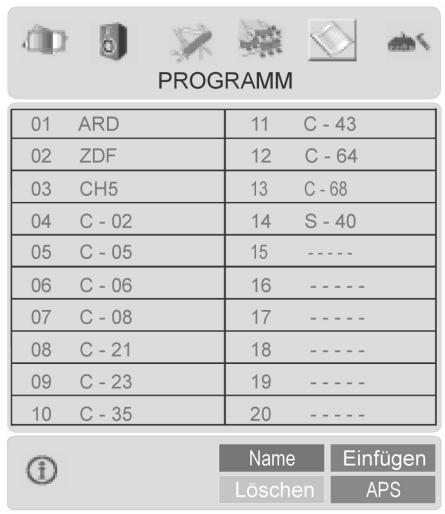
| Menüpunkt | Einstellungen |
| Name | Hier konnen Sie den Programmnamen ändern. Markieren Sie den gewünschten Programmnamen und drücken Sie die rote Taste. Nun konnen Sie den ersten Buchstaben ändern: Wahlen Sie mit den Richtungstasten ▲▼ ein Zeichen aus. Die Zeichen erscheinen in der Reihenfolge: A B C [bis] Z 0 1 2 [bis] 9 ( ) *+, . / [Leerzeichen] - . Gehen Sie mit der Richtungstaste ▷ auf den{nachsten Buchstaben usw. Am Ende drücken Sie noch einmal die rote Taste, um den Namen zu speichern. |
| Löschen | Wahlen Sie das Programm an, das Sie aus der Listelöschen möhen, und drücken Sie die gelbe Taste. Drücken Sie die gelbe Taste ein weiteres Mal zur Bestätigung. Die folgenden Programme rücken in der Tabelle nach. |
| Einfügen | Hier konnen Sie ein Programm auf einen anderen Platz verschieben. Wahlen Sie das Programm an und drücken Sie die grüne Taste. Verschieben Sie das Programm mit ▲▼ auf den gewünschten Platz und drücken Sie die grüne Taste ein weiteres Mal. Die anderen Pro-gramme werden entsprechend mit verschoben. |
| APS | Mit APS führen Sie die automatische Programmsuche durch. Drücken Sie die blaue Taste. Es erscheint die Meldung: „WARNUNG! Vorgespeicherte Programme werden gelöscht." Drücken Sie die blaue Taste, wenn Sie die Funktion abbrechenmöhlen. Drücken Sie die rote Taste oder OK, um den Suchlauf zu starten. Nach dem Ende der Suehe erscheint die Programmtabelle. |
Menu QUELLE
In diesen Menu können Sie eine andere Eingangsquelle wahlen. In der obersten Zeile sehen Sie die aktuelle gewählte Quelle.
Die Funktion entspricht der Taste AV.
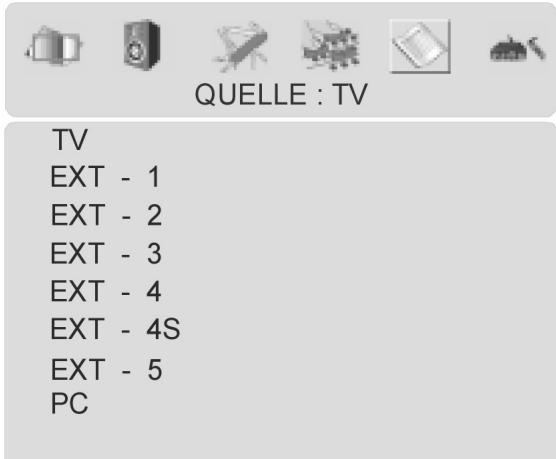
Wahlen Sie die Quelle mit an. Wechseln Sie zu dieser Quelle, indem Sie OK oder die Richtungs-taste drucken.
Je nach gewähler externer Quelle gewählt stehen die Menü PROGRAMMIERUNG und PROGRAMM nicht zur Verfügung oder das Menu PROGRAMMIERUNG hat weniger Einträge.
Menüs im PC-Modus
Im PC-Modus hat das OSD-MENU folgende Einträge:
Menu PC-BILDPOSITION
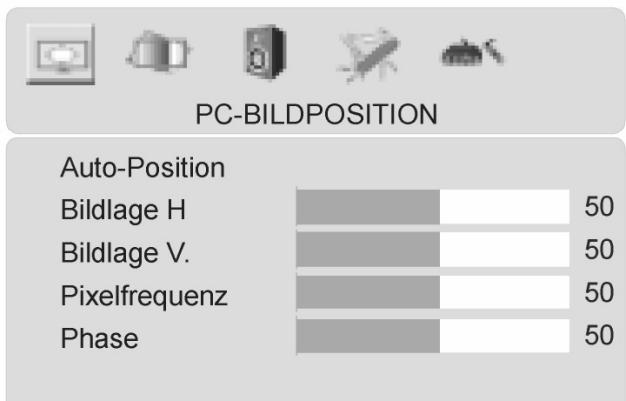
| Menüpunkt | Einstellungen |
| Auto-Position | Wenn das Bild verschoben sein sollte, konnen Sie den Eintrag Auto-Position anwahlen und OK oder ➔ drücken, um es wieder in die Mitte zu rücken.Diese Funktion sollte mit einem Vollbild vorgenommen werden, damit die Einstellungen stimmen. |
| Bildlage H | Hier konnen Sie die horizontale Lage des Bildes mit ➔ verändern. |
| Bildlage V | Hier konnen Sie die vertikale Lage des Bildes mit ➔ verändern. |
| Pixelfrequenz | Mit dieser Einstellung wird das Bildsignal mit dem Pixelakt des Bild-schirms synchronisiert. Dieses korrigiert Störungen, die als vertikale Streifen bei pixeintensiven Darstellungen (wie Tabellen oder Text in kleiner Schrift) auftreten konnen. |
| Phase | Mit dieser Einstellung bringen Sie das Bildsignal,…genau mit den Pixeln (Darstellungspunkten) in Deckung. Dadurch ergibt sich ein sauberes Bild mit gleichmäßig scharfer Darstellung. |
Menu PC-BILD
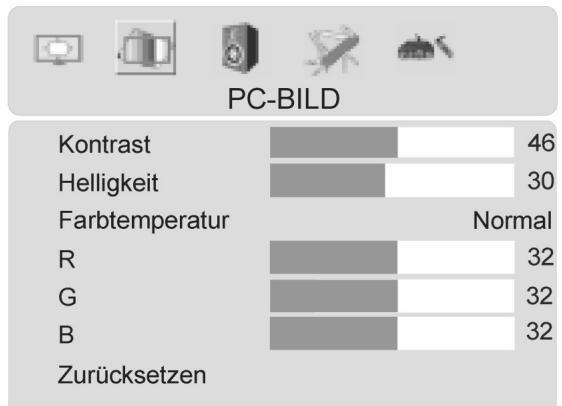
| Menüpunkt | Einstellungen |
| Kronast | Kronast verringern bzw. erhöhen (Skala 0 - 63). |
| Helligkeit | Helligkeit verringern bzw. erhöhen (Skala 0 - 63). |
| Farbtempe- | Farbston wahren: Normal, Kalt, Warm; Manuell (siehe)nachster |
| ratur | Punkt). |
| R, G, B | Wenn Farbtemperatur auf Manuell gestellt ist, können Sie die Werte für R (Rot), G (Grün) und B (Blau) selbst einstellen. |
| Zurückset-zen | Setzen Sie die Bildeinstellungen mit OK oder ➔ auf die Werkseinstel-lung darüber. |
Menüss TON, FUNKTION und QUELLE
Die Menüs TON, FUNKTIOn und QUELLE stimmen mit den Menüs im TV-Modus überein.
Problebehebung
Fehlfunktionen können manchmal banale Ursachen haben, aber manchmal auch von defekten Komponenten ausgegeben. Wir möchten Ihnen hiermit einen Leitfaden an die Hand geben, um das Problem zu losehen. Wenn die hier aufgeführten Maßnahmen keinen Erfolg bringen,HELP wir Ihnen keinere Weiter. Rufen Sie uns an!
Es erscheint kein Bild und es ist kein Ton zu horen.
- Überprüfen Sie, ob das Netzkabel richtig an der Steckdose und am Gerät angeschlossen ist.
- Überprüfen Sie, ob der Signalempfang auf TV eingestellt ist.
- Kontrollieren Sie, ob der Hauptschalter des Geräts auf der Geräterückseite eingeschaltet ist.
Es erscheint kein Bild. Es erscheint kein Bild von AV.
- Überprüfen Sie, ob Kontrast / Helligkeit korrekt eingestellt sind.
- Überprüfen Sie, ob alle externen Geräte korrekt angeschlossen sind.
- Überprüfen Sie, ob die richtige AV-Stellung angewählt ist.
EsistkeinTonzuhören.
- Vergewissern Sie sich, das die Lautstärke nicht auf Minimum stehen.
- Vergewissern Sie sich, das die Stummschaltung nicht aktiviert ist.
Es gibt kein Bild oder keinen Ton. Es sind aber Gerausche zu horen.
- Der Empfang ist möglicherweise schlecht. Kontrollieren Sie, ob die Antenne angeschlossen ist.
Das Bild ist nicht deutlich.
- Der Empfang ist möglicherweise schlecht.
- Kontrollieren Sie, ob die Antenne angeschlossen ist.
Das Bild ist zu hell oder zu dunkel.
- Überprüfen Sie die Einstellungen von Kontrast / Helligkeit / Hintergrund im Menu Bild.
Die Fernbedienung Funktioniert nicht.
- Überprüfen Sie, ob die Batterien in der Fernbedienung geladen und richtig eingelegt sind.
- Vergewissern Sie sich, dass das Sensorfenster nicht starker Lichteinstrahlung ausgesetzt ist.
- Schalten Sie das Gerät mit dem Hauptschalter an der Rückseite des Gerätes aus und wieder ein.
Das Bild ist nicht scharf.
- Der Empfang ist möglicherweise schlecht.
- Kontrollieren Sie, ob die Antenne angeschlossen ist.
- Überprüfen Sie die Einstellungen der Scharfe und Rauschreduktion im Menu Bild.
Es erscheint ein Doppel- oder Dreifachbild.
- Kontrollieren Sie, ob die Antenne richtig ausgerichtet ist.
- Es gibt möglicherweise von Bergen oder Gebäuden reflektierte Wellen.
Das Bild ist gegunktet.
- Es liegen möglicherweise Interferenzen von Autos, Zügen, Leitungen, Neonleuchten, etc. vor.
- Es besteht möglicherweise eine Interferenz zwischen dem Antennen- und Stromkabel. Versuchen Sie sie weiter auseinander zu legen.
Es erscheinen Streifen am Bildschirm oder die Farben verblassen.
- Liegt eine Interferenz von einem anderen Gerät vor?
Übertragungsantennen von Radiostationen oder Antennen von Funkamateuren und tragbare Telefone können auch Interferenzen verursachen.
- Betreiben Sie das Gerät so welt weg wie möglich von dem Gerät, das die Interferenz möglicherweise verursacht.
Die Bedienknöppe am Gerät Funktionieren nicht
Eventuell ist die Kindersperre aktiviert.
BENÖTIGEN SIE WEITERERE UNDERSTÜTZUNG?
Wenn die Vorschläge in den vorangegangenen Abschnitten ihr Problem nicht behoben haben, denen Sieitte Kontakt mit uns auf. Sie wurden uns sehr halten, wenn Sie uns folgende Informationen zur Verfugung stellen:
- Welche externen Geräte sind angeschlossen?
- Welche Meldungen erschinen auf dem Bildschirm?
- Bei welchem Bedienungsschnitt ist das Problem aufgetreten?
-
Falls Sie einen PC an das Gerät angeschlossen haben:
-
Wie sieht ihre Rechnerkonfiguration aus?
-
Welche Software haben Sie beim Auftreten des Fehlers verwendet?
-
Welche Schritte haben Sie zur Lösung des Problems bereits unternommen?
- Wenn Sie bereits eine Kundennummer erhalten haben, teilen Sie uns diese mit.
Reinigung
Die Lebensdauer des LCD-TVs können Sie durch folgende Maßnahmen verlangern:
- Ziehen Sie vor dem Reinigen immer den Netzstecker und alle Verbindungskabel.
- Verwenden Sie keine Lösungsmittel, ätzende oder gasförmige Reinigungsmittel.
- Reinigen Sie den Bildschirm mit einem weichen, fusselfreien Tuch.
- Achten Sie darauf, dass keine Wassertröpfchen auf dem LCD-TV zurückbleiben. Wasser kann dauerhafte Verführungen verursachen.
- Setzen Sie den Bildschirm weder grellem Sonnenlicht, noch ultravioletter Strahlung aus.
6.itte bewahren Sie das Verpackungsmaterial gut auf und benutzen Sie ausschlieBlich these, um das LCD-TV zu transportieren.
Achtung!
Es befinden sich keine zu wartenden oder zu reinigenden Teile innerhalb des Bildschirmgehäuses.
Technische Daten
Nennspannung: 230 ~V 50 ~Hz
BildschirmgroBe: 32" (81 cm) TFT; 16:9-Display
Leistungsaufnahme: 180 Watt
Leistungsaufnahme Standby: 3 W
TV-System: PAL, SECAM, B/G, D/K, K', I/I, L/L'
Kanäle: VHF (Band I/III)
UHF (BAND U)
HYPERBAND
KABEL-TV (S1-S20)/ S21-S41)
Audio: Stereo
Programmoplatze: 100
Antenneneingang: 75 Ohm
MaBe (H x B x T) 620 x 835 x 250 mm
Gewicht: ca. 16 kg
Entsorgung
Verpackung

Ihr Gerät befindet sich zum Schutz vor Transportschäden in einer Verpackung. Verpackungen sind aus Materialien hergestellt, die umweltschonend entsorgt und einem fachgerechten Recycling zugeführrt werden können.
Gerät

Werfen Sie das Gerät am Ende seiner Lebenszeit keinesfalls in den normalen Hausmüll. Erkundigen Sie sich nach Möglichkeit einer umweltgerechten.
Batterien

Verbrauchte Batterien gehoren nicht in den Hausmüll! Sie müssen bei einer Sammelstelle für Altbatterien abgegeben werden
Garantiebedingungen
Die Empfangsquittung gilt als Beleg für den Erstkauf und sollte gut aufbewahrt werden. Sie wird für die Inanspruchnahme von Garantieleistungen benöttigt. Ihr gesetzlichen Rechte werden durch diese Garantiebedingungen nicht eingeschränkt. Wird das Produkt an einen anderen Benutzer weitergegeben, so hat dieser für den Rest der Garantiezeit Anspruch auf Garantieleistungen.
Der Kaufbeleg sowie diese Erklärung sollenen bei der Weitergabe in seinen Besitz übergeben. Wir garantieren, dass diesen Gerät in einem funktionsfähigen Zustand ist und in technischer Hinsicht mit den Beschreibungen in der beigefugten Dokumentation übereinstimmt.
Die verbleibende Garantiefrist liegt bei Vorlage des Kaufbelegs von Originalteilen auf die entsprechenden Ersatzteile über. Wenn Sie diesen Gerät zur Inanspruchnahme von Garantieleistungen einreichen, müssen Sie zuvor sämtliche Programme, Daten und hersausnehmbare Speichermedien entfern. Produkte, die ohne Zubehör eingeschiedt werden, werden ohne Zubehör ersetzt.
Die Gewährleistungspflicht gilt nicht für den Fall, dass das Problem durch einen Unfall, eine Katastrophe, Vandalismus, Missbrauch, unsachgemäß Benutzung, Missachtung der Sicherheits- und Wartungsvorschriften, Veränderung durch Software, Viren bzw. ein anderes Gerät oder Zubehör, oder durch sonstige nicht von uns genehmigte Modifikationen verursacht wurde. Diese eingeschränkte Garantiererklärung ersetzt alle anderen Garantien ausdrücklicher oder impliziter Natur.
Dies schließt die Garantie der Verkaufbarkeit oder der Eignung für einen bestimmen Zweck ein, beschränkt sich jedoch nicht daraufuf. In einigen Ländern ist der Ausschluss impliziter Garantien gesetzlich nicht zulässig. In thisem Falle ist die Gültigkeit aller ausdrücklichen und impliziten Garantien auf die Garantieperiode beschränkt.
Mit Ablauf dieser Periode verlieren sãmtliche Garantien ihre Gültigkeit. In einigen Ländern ist eine Begrenzung der Gültigkeitsdauer impliziter Garantien gesetzlich nicht zulässig, so dass die obige Einschränkung nicht in Kraft tritt. Falls Sie bezüglich dieser Garantiebedingungen Fragen haben, wenden Sie sich an uns.
Pixelfehler bei LCD-TVs
Trotz modernster Fertigung kann es auf Grund der hochkomplexen Technik in seltenen Fälle zu Ausfallen von einzelnen oder mehreren Leuchtpunkten kommt.
Bei Aktiv Matrix TFTs mit einer Auflösung von 1366 x 768 Pixel, welche sich aus je drei Sub-Pixeln (Rot, Grün, Blau) zusammen setzen,kommen insgesamt ca. 3 Mio. Ansteuerelementen zum Einsatz. Aufgrund dieser sehr hohen Anzahl von Transistoren und des damit verbundenen äußertst komplexen Fertigungssprozesses kann es vereinzt zu einem Ausfall oder zur fällschlichen Ansteuerung von Pixeln bzw. einzelnen Sub-Pixeln kommt.
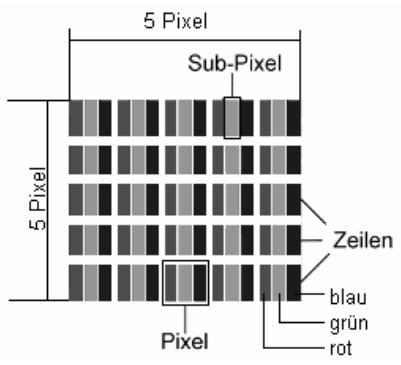
| Beschreibung | Akzeptierte Zahl | |
| Helle Sub-Pixel | 1 Sub-Pixel | Max. 2 |
| Zweibebeneinander liegend (horizontal/vertical) | 0 | |
| Abstand | Minimaler Abstand zwischen hellen und dunklen Sub-Pixeln | Min. 5 mm |
| Dunkle Sub-Pixel | Einzeln | Max. 7 |
| Zweibebeneinander liegend | Max. 2 | |
| Abstand | Minimaler Abstand zwischen hellen und dunklen Sub-Pixeln | Min. 5 mm |
| Gesamtzahl heller und dunkler Sub-Pixel | Max. 7 | |
Die Tabelle beschreiben die maximale Pixelfehler-Anzahl, die auf dem Bildschirm auftreten darf, ohne dass es sich um einen Garantiefall handelt. Ein Garantiefall liegt u. U. vor, wenn die oben angegebene Fehleranzahl in einer Kategorie übersritten ist.
Haftpflichtbeschränkung
Der Inhalt theses Handbuches unterliegt unangekündigten Änderungen, die dem technischen Fortschritt Rechnung trag. Hersteller und Vertrieb können keine Verantwortung für Schäden, die als Folge von Fehlern oder Auslassungen, der in dieser Handbuch bereitgestellten Informationen entstanden sind, übernehmen. Wir haften unter keinen Umständen für:
- Von dritter Seite gegen Sie erhobene Forderungen aufgrund von Verlusten oder Beschädigungen.
- Verlust oder Beschädigung ihrer Aufzeichnungen oder Daten.
- Ökonomische Folgeschäden (einschließlich verlorener Gewinne oder Einsparungen) oder Begleitschäden, auch in dem Fall, dass wir über die Möglichkeit solcher Schäden informiert worden sind.
In einigen Ländern ist der Ausschluss oder die Begrenzung von Begleit- oder Folgeschäden gesetzlich nicht zulässig, so dass die obige Einschränkung nicht in Kraft tritt.
Copyright © 2007
Alle Rechte vorbehalten.
Dieses Handbuch ist urheberrechtlich geschützt. Alle Rechte vorbehalten. Vervielfältigung in mechanischer, elektronischer und jeder anderen Form ohne die schriftliche Genehmigung des Herstellers ist verboten.
Das Copyright liegt bei der Firma Medion®.
Technische und optische Änderungen sowie Druckfehler vorbehalten.
Wandmontage
Sie konnen das LCD-TV an der Wand befestigen.
Zubehör
Folgendes Zubehör ist mitgeliefert:
2 Stahlschienen, 4 Schrauben M4 x 10, 4 Plastikaufhängungen, 1 Bohrschablone, 1 illustrierte Montageanleitung (zutreffend für mehrere Gerätotypen).
Zusätzlich benötigten Sie 8 Dübel und Schrauben für ihre Wand (im Fachhandel zu erwerben).
Sicherheitshinweise für die Wandmontage
Beachten Sie für die Wandmontage unbedingt folgende Sicherheitshinweise:
Das LCD-TV scarf nur an senkrechten Wänden montiert werden.
- Prüfen Sie vor der Montage, ob die Tragfähigkeit der Wand für das dreifache Gewicht des Geräts (16 kg) ist. Ziehen Sie im Zweifelsfall einen qualifizierten Installateur zu Rate.
- Schalten Sie das LCD-TV vor der Montage aus. Netzkabel und Antennenkabel müssen ausgesteckt sein.
- Für die Montage sind mindestens zwei Personen notwendig.
- Als Werkzeug benötigen Sie für die Montage eine Bohrmschine und einen Kreuzschraubendreher.
VORSICHT! Beachten Sie bei der Auswahr der Dübel und Schrauben, dass diese für ihre Wand ausgelegt sein,Müssen.
Aufhängevorrichtungen am Gerät montieren
- Führn Sie die mitgelieferten Schrauben M4 x 10 durch die Plastikaufhängungen. Die Seite mit dem kleineren
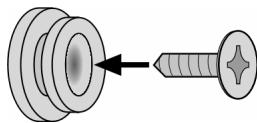
Durchmesser der Plastikaufhängungen liegt au-ßen.
- Ziehen Sie die Schrauben mit den Plastikaufhängungen in den darauf vorgesehenen Schraubenlochern auf der Rückseite des Geräts fest.
Vgl. die illustrierte Anleitung Bild 5A.
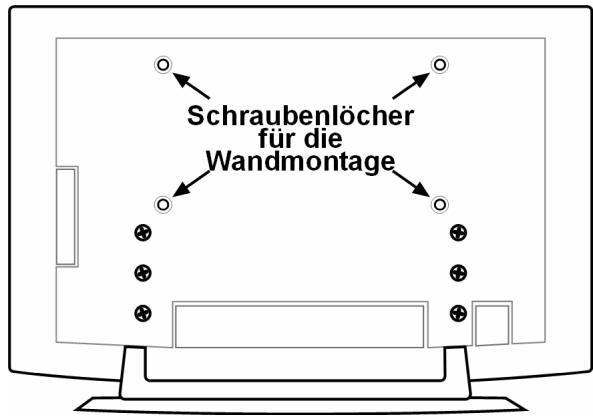
Fuß abnehmen
Der Gerätefuß ist mit sechs Schrauben auf der Rückseite befestigt.
- Lösen Sie die sechs Schrauben mit einem Kreuzschraubendreher
- Hebem Sie das Gerät nach oben ab.
Vgl. die illustrierte Anleitung Bild 6A.
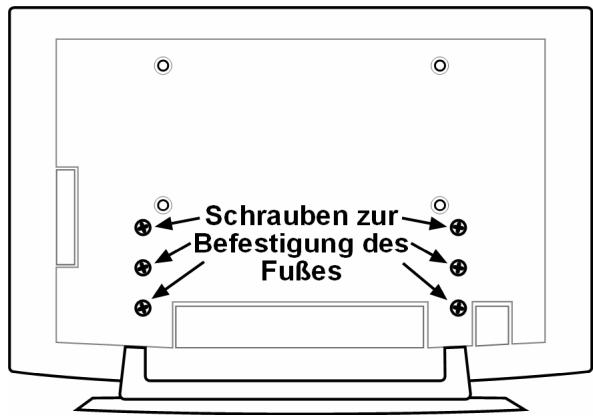
Stahlschienen an der Wand befestigen
- Wahlen Sie eine Stelle der Wand, an der das LCD-TV genügend Abstand zu anderen Gegenständen hat (vgl. das Kapitel „Aufstellungssort", Seite 4). Bedenken Sie darauf, dass die Aufhängungen an der Rückseite des Geräts am schmalen Ende der Aufhängungsöffnungen in den Stahlschienen sitzen (vgl. die Zeichung auf der{nachsten Seite).
- Markieren Sie mithilfe der mitgelieferten Bohrschablone die acht Bohrlocher an der Wand.
- Bohren Sie die acht Locher fur die Dubel in die Wand. Vgl. die illustrierte Anleitung Bild 1.
- Stecken Sie die Dubel hinein. Vgl. die illustrierte Anleitung Bild 2.
VORSICHT! Die Dübel mösen fest sitzen! Hängen Sie das Gerät nicht auf, wenn die Dübel nicht vollständig in der Wand stecken.
- Schrauben Sie die beiden Stahlschienen mit je vier Schrauben fest. Die schmale Seite der Aufhängungsöffnungen muss nach unten zeigen. Vgl. die illustrierte Anleitung Bilder 3 und 4.
- jetzt können Sie das LCD-TV in die Stahlschienen einhängen. Vgl. die illustrierte Anleitung Bilder 8 und 9.
- Contendo
- Acerca de las presentes instrucciones 3
- Uso apropiado 3
- Volumen de suministro 3
- Advertencias de seguridad 4
- Conozca su aparato 7
- Ejemplos de connexion 9
- El mando a distancia 12
- Puesta en funciona 13
- Funciones básicas 14
- Teletexto 17
- Imagen en imagen 19
- El menu OSD. 20
- Acerca de las presentes instrucciones
- Uso apropriado
- HD Ready
- Volumen de suministro
- Advertencias de seguridad
- Seguidad de funciona
- Lugar de emplazamento
- Reparación
- Ambiente previsto
- Alimentación electrica
- Normas / Competibilidad electromagnética
- Manejo de las pilas
- Conozca su aparato
- Elementos de control delazo derecho
- Indicaciones en el frontal
- Conexiones
- Ejmplos de conexión
- Auriculares
- PC
- Grabadora de video:
- Receptor SAT o reproductor DVD
- Reproductor de video y receptor SAT
- Reprodctor DVD
- Aparato con salute HDMI o DVI
- El mando a distancia
- Puesta en funciona
- Advertencia
- Desembalar
- Colocacion de las pilas en el mando a distancia
- iAtencion!
- Conectar la antenna
- Conexión de la toma de corriente
- Funciones básicas
- TV-LCD conectar y desconectar
- Después de la prima conexión
- APS
- Selección de programa
- Ajustes de sonido
- Ajustes deImagen
- Modo Zoom (tecla WIDE)
- Zoom en modo PC
- Otros ajustes deImagen
- Ver Información
- Selección ar el aparato externo
- Teletexto
- El control del teletexto
- Selección las páginas de teletexto
- Teclado númeroico
- Teclas de selección de programas
- Teclas de-coloredes
- Subpaginas
- Characteristicas utiles del teletexto
- TXT/MIX
- Xi INDEX
- STOP
- Búsqueda oculta
- Mostrar texto oculto
- Duplicar el時間 de la頁a
- Imagen en imagen
- Modo PIP
- Modo PAP
- PIP y PAP en Modo PC
- El menu OSD
- Navigación por el menu
- Menu IMAGEN
- Menu SONIDO
- Submenu ECUALIZADOR
- Submenu AURICULARS
- Menu CARACTERÍSTICAS
- Menu INSTALLACION
- Memorización manual del reproductor de videos
- Menu PROGRAMA (tabla de programas)
- Menu FUENTE
- Menu en el modo PC
- Menu POSICION PC IMAGEN
- Menu PC IMAGEN
- Menús SONIDO, CARACTERÍSTICAS y FUENTE
- Solución de problemas
- No se ve ningunaImagen y no se oye ningún sonido.
- No apareceyingunaImagen.No apareceyingunaImagen deAV.
- No se oye ningún sonido.
- No se recibe ningunaImagen o ningún sonido. Pero se oyen ruidos.
- LaImagen no es clara.
- LaImagen es demasiado brillante o demasiado oscura.
- El mando a distancia no funciona.
- LaImagen no es nítida.
- Aparece unaImagendobleotripleenla pantalla.
- LaImagenestapunteada.
- Aparecen rayas en la pantalla o los colores se desvanecen.
- Las teclas de control del aparato no funciona.
- ≠NECESITA USTED MÁS AYUDA?
- Limpieza
- Especillas técnicas
- Garantía
- Errores de pixeles en TVs-LCD
- Eliminación
- Embalaje
- Aparato
- Pilas
- Limitación de responsabilidad civil
- Montaje sobre la pared
- Accesorios
- Advertencias de seguridad para el montaje sobre pared
- Montar los dispostivos de suspensa al aparato
- Quitar el pie
- Fijar los carriles de acero en la pared
- Índice
- Indicações relativas a este manual
- Utilização correcta
- Volume do fornecimento
- Segurarca de funciona
- Local de instalacao
- Reparação
- Alimentação de corrente
- Normas / Competibilidade electromagnética
- Manuseamento de pilhas
- Conhecer o aparelho
- Elementos de commando no lado direito
- Indicações na parte darente
- Ligações
- Exemplos de ligação
- Auscultadores
- Videogravador
- Receptor de satélite e gravador de DVD
- Videogravador e receptor de satélite
- Leitor de DVD
- Aparelho comsays HDMI ou DVI
- O telecomando
- Colocação em funct ionamento
- Nota
- Tirar da embalagem
- Colocar as pilhas no telecomando
- Atença!
- Ligar a antenna
- Ligar a alimentação de corrente
- Funções base
- Ligar e desligar o televator LCD
- Após a primeira conexão
- Selecao de canal
- Ajustes do som
- Ajustes de imagem
- Modo de Zoom (Botão WIDE)
- Zoom no modo PC
- Outros ajustes de imagem
- Mostrar informações
- Selecciónar aparelho除外
- Utilização do teletexto
- Selección r páñinas de teletexto
- Botoes numéricos
- Botoes de selecao de canal
- Botoes coloridos
- Páginas inferiores
- \section*{Characteristicas uteis do teletexto}
- i INDICE:
- Procura escondida
- Mostrar textualo escondido
- Duplicar o tamanho das páginas
- Imagem em Imagem
- Modo PIP (Imagem na Imagem)
- PIP e PAP no modo PC
- O menu OSD
- Navegar no menu
- Menu INSTALLAÇAO
- Memorizar Videogravador manualmente
- Menu PROGRAMA (tabela de canais)
- Menu FONTE
- Menu no modo PC
- Menus SOM, CHARACTERISTICAS e FONTE
- Resolução de problemas
- Não aparece imagem e não se ouve som.
- Não aparece imagem. Não aparece imagem de AV.
- Não se ouve som.
- Não está imagem nem som. Mas consigo ouvir ruidos.
- A imagem não está clara.
- A imagem está muito clara ou muito escura.
- O telecomando não funciona.
- A imagem não está nítida.
- Aparece uma imagem dupla ou tripla.
- A imagem tem pontos.
- Aparecem linhas na imagem ou as cores está esmorecidas.
- NECESSITA DE MAIS ALGUM TIPO DE APOIO?
- Limpeza
- Dados技术和
- Eliminação
- Embalagem
- Aparelho
- Pilhas
- Condições de garantia
- Falhas de pixeis nos televisores LCD
- Limitação de responsabilitad
- Montagem na parede
- Acessórios
- Indicações de segurarça para a montagem na parede
- Montar dispositivos de suspência no aparelho
- Retirar a base
- Fixar as chapas em aço na parede
- Content
- 25
- Troubleshooting 26
- Cleaning 28
- Technical data 28
- Warranty 29
- Liability limitations 31
- Wall mounting 32
- Notes to these instructions
- About this device
- Included in delivery
- Operating safety
- Installation Location
- Repairs
- Intended environment
- Power Supply
- Standards / electromagnetic compatibility
- Handling batteries
- Getting to know the device
- Side view
- Front view
- Connections
- Connection options
- Headphones
- Video recorder
- SAT receiver or DVD recorder
- Video recorder and SAT receiver
- DVD player
- Device with HDMI or DVI output
- The remote control
- Starting up
- Note
- Unpacking
- Placing the batteries into the remote
- Attention!
- Connecting an aerial
- Connect power supply
- Basic functions
- Switching the LCD TV on and off
- After switching the device on for the first time
- Channel selection
- Sound settings
- Screen settings
- Zoom mode (WIDE button)
- Zoom in PC mode
- Additional screen settings
- Displaying information
- Selecting an external device
- Videotext
- To operate Videotext
- Selecting videotext pages
- Number keys
- Programme selection buttons
- Colour buttons
- Sub-pages
- Useful videotext functions
- Hidden search
- Display hidden text
- Double the page size
- PIP mode
- PAP mode
- PIP and PAP in the PC mode
- The OSD menu
- Navigating in the menu
- Menu SOUND
- Sub-menu EQUALIZER
- Sub-menu HEADPHONE
- Menu FEATURE
- Menu INSTALL
- Storing a video recorder manually
- Menu PROGRAM (Channel table)
- Menu SOURCE
- Menu in the PC mode
- Menu PC PICTURE POSITION
- Menu PC PICTURE
- SOUND, FEATURE and SOURCE menus
- Troubleshooting
- There is no picture or sound.
- There is no picture. There is no picture from AV.
- There is no sound.
- There is no picture or sound, just noise.
- Picture is not clear.
- The picture is too bright or too dark.
- Remote control does not work.
- The picture is not sharp.
- The picture is doubled or tripled.
- The picture is spotted.
- There are stripes on the screen or colours fade.
- The operating buttons on the device do not function.
- DO YOU REQUIRE ADDITIONAL SUPPORT?
- Cleaning
- Technical data
- Warranty
- LCD TV pixel faults
- Disposal
- Packaging
- Device
- Batteries
- Liability limitations
- Wall mounting
- Accessories
- Safety instructions for wall mounting
- Mount suspension devices to appliance
- Removing the base
- Fix the steel rails to the wall
- Inhalt
- Hinweise zu dieser Anleitung
- Bestimmungsgemäßer Gebrauch
- Lieferumfang
- Betriebssicherheit
- Aufstellort
- Reparatur
- Vorgesehene Umgebung
- Stromversorgung
- Normen / Elektromagnetische Verträglichkeit
- Umgang mit Batterien
- Das Gerät kennen lernen
- Bedienelemente an der rechten Seite
- Anzeigen an der Vorderseite
- Anschlüsse
- Anschlussbeispiele
- Kopfhörer
- Videorecorder
- SAT-Receiver oder DVD-Recorder
- Videorecoder und SAT-Receiver
- DVD-Player
- Gerät mit HDMI- oder DVI-Ausgang
- Die Fernbedienung
- Inbetriebnahme
- Hinweis
- Auspacken
- Batterien in die Fernbedienung einlagen
- Achtung!
- Antenne anschließen
- Stromversorgung anschließen
- Grundfunktionen
- LCD-TV ein- und ausschalten
- Nach dem ersten Einsatz
- Programmausbahl
- Toneinstillungen
- Bildeinstellungen
- Zoom-Modus (Taste WIDE)
- Zoom im PC-Modus
- Weitere Bildeinstellungen
- Infos anzeigen setzen
- Externes Gerät wahlen
- Die Bedienung des Videotexts
- Videotext-Seiten auswahlen
- Zifferntasten
- Programmwahltasten
- Farbstaten
- Unterseiten
- Nützliche Videotext Eigenschaften
- Verdecktes Suchen
- Verdeckten Text anzeigen
- Seitengröbe verdoppeln
- Bild-in-Bild
- PIP-Modus
- PAP-Modus
- PIP und PAP im PC-Modus
- Das OSD-MENU
- Im Menu navigieren
- Menu BILD
- Menu TON
- Untermenü EQUALIZER
- Untermenu KOPFHÖRER
- Menu PROGRAMMIERUNG
- Videorecorder manuell speichern
- PROGRAMMABELLE
- Menu QUELLE
- Menüs im PC-Modus
- Menu PC-BILDPOSITION
- Menu PC-BILD
- Menüss TON, FUNKTION und QUELLE
- Problebehebung
- Es erscheint kein Bild und es ist kein Ton zu horen.
- Es erscheint kein Bild. Es erscheint kein Bild von AV.
- EsistkeinTonzuhören.
- Es gibt kein Bild oder keinen Ton. Es sind aber Gerausche zu horen.
- Das Bild ist nicht deutlich.
- Das Bild ist zu hell oder zu dunkel.
- Die Fernbedienung Funktioniert nicht.
- Das Bild ist nicht scharf.
- Es erscheint ein Doppel- oder Dreifachbild.
- Das Bild ist gegunktet.
- Es erscheinen Streifen am Bildschirm oder die Farben verblassen.
- Die Bedienknöppe am Gerät Funktionieren nicht
- BENÖTIGEN SIE WEITERERE UNDERSTÜTZUNG?
- Reinigung
- Technische Daten
- Entsorgung
- Verpackung
- Gerät
- Batterien
- Garantiebedingungen
- Pixelfehler bei LCD-TVs
- Haftpflichtbeschränkung
- Wandmontage
- Zubehör
- Sicherheitshinweise für die Wandmontage
- Aufhängevorrichtungen am Gerät montieren
- Fuß abnehmen
- Stahlschienen an der Wand befestigen
Marque : MEDION
Modèle : LCD TV MD 32532
Catégorie : Téléviseur LCD