
IC 203 - Imprimante multifonction KONICA MINOLTA - Notice d'utilisation et mode d'emploi gratuit
Retrouvez gratuitement la notice de l'appareil IC 203 KONICA MINOLTA au format PDF.


| Type de produit | Contrôleur d'impression intégré pour copieur KONICA MINOLTA |
| Marque | KONICA MINOLTA |
| Modèle | IC 203 |
| Résolution d'impression | 600 x 600 dpi |
| Vitesse d'impression | Jusqu'à 92 ppm (A4, 600 x 600 dpi) |
| Mémoire standard | 256 Mo SDRAM |
| Mémoire maximale | 512 Mo (avec option EM-701) |
| Langages d'impression | PCL5e/6, PostScript 3 (optionnel) |
| Polices intégrées | 88 polices Agfa Microtype (PCL), 136 polices Adobe PostScript (optionnel) |
| Interfaces | Parallèle IEEE 1284, Ethernet 100Base-TX/10Base-T |
| Systèmes d'exploitation compatibles | Windows 98/Me/NT4.0/2000/XP/Server 2003, Mac OS 9.x/X (avec option PostScript) |
| Formats de papier maximum | 314 x 460 mm |
| Connectivité réseau | TCP/IP, IPX/SPX, EtherTalk |
| Options disponibles | Kit PostScript PS-503, mémoire EM-701, finisseur, perforatrice, plieuse, massicot |
| Alimentation | Depuis l'imprimante principale |
| Sécurité | Conforme FCC Classe B, ICES-003 |
| Entretien et nettoyage | Se référer au manuel de l'imprimante principale |
| Pièces détachées et réparabilité | Mémoire et kit PostScript remplaçables par un technicien agréé |
| Informations générales | Contrôleur d'impression pour copieur bizhub PRO 920, notice de 432 pages disponible en téléchargement |
FOIRE AUX QUESTIONS - IC 203 KONICA MINOLTA
Questions des utilisateurs sur IC 203 KONICA MINOLTA
0 question sur cet appareil. Repondez a celles que vous connaissez ou posez la votre.
Poser une nouvelle question sur cet appareil
Téléchargez la notice de votre Imprimante multifonction au format PDF gratuitement ! Retrouvez votre notice IC 203 - KONICA MINOLTA et reprennez votre appareil électronique en main. Sur cette page sont publiés tous les documents nécessaires à l'utilisation de votre appareil IC 203 de la marque KONICA MINOLTA.
MODE D'EMPLOI IC 203 KONICA MINOLTA
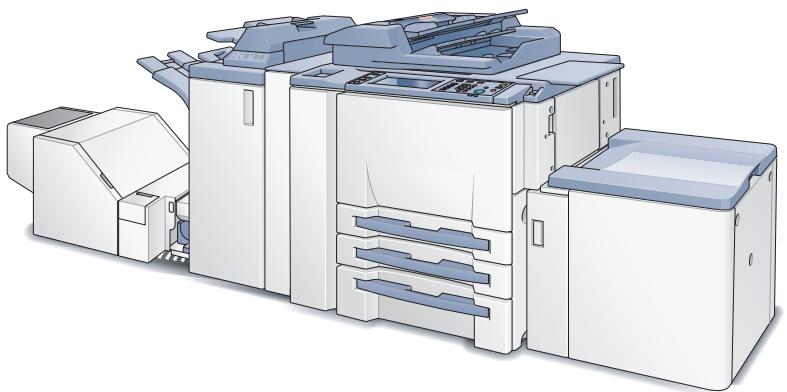
IC-203
User's Guide
Chapter 1 : Introduction
Chapter 2 : Overview
Chapter 3 : Installation (Installer)
Chapter 4 : Installation (Local printing)
Chapter 5 : Installation (Network printing)
Chapter 6 : Uninstallation of the printer driver
Chapter 7 : Basic Printing and Various Function
Chapter 8 : PCL Printer Driver Setting (Windows)
Chapter 9 : PostScript PPD Printer Driver setting (Windows)
Chapter 10 : KONICA MINOLTA PS Printer Driver Setting (Windows)
Chapter 11 : PostScript PPD Printer Driver setting (Mac OS 9)
Chapter 12 : PostScript PPD Printer Driver setting (Mac OS X)
Chapter 13 : Troubleshooting
Chapter 14 : Font
Chapter 15 : Utility Tool
Chapter 16 : Appendix
Table of contents
1 Introduction
1.1 About this Product 1-4
1.2 Folder structure on the CD-ROM (IC-203 CD-ROM) 1-5
1.3 Folder structure on the CD-ROM (PS-503 CD-ROM) (Option) .... 1-6
1.4 About this Manual 1-7
1.5 Notation of each product 1-9
1.6 How to read this Manual 1-10
1.7 SOFTWARE LICENSE AGREEMENT 1-11
2 Overview
2.1 Printer Driver 2-2
2.2 Composition of a product 2-3
2.2.1 Optional memory 2-3
2.2.2 PostScript3 option 2-3
2.2.3 Other options 2-4
2.3 Connections of the Print Controller 2-5
2.3.1 Parallel Connection 2-5
2.3.2 Ethernet Connection 2-5
2.4 Product Specifications 2-6
2.4.1 Restrictive Conditions 2-8
3 Installation (Installer)
4 Installation (Local printing)
4.1 Printer Drivers 4-2
4.1.1 Compliant OS 4-2
4.2 Test Page Print 4-26
5 Installation (Network printing)
5.1 Printer Drivers 5-2
5.1.1 Compliant OS 5-2
5.2 Test Page Print 5-30
6 Uninstallation of the printer driver
6.1 Deletion of printer driver with installer (PCL) 6-1
6.2 Deletion of printer driver by Manual operation 6-3
7 Basic Printing and Various Function
7.1 Basic Printing Method 7-1
7.2 Various Function 7-5
7.2.1 To set the paper-related items 7-5
7.2.2 To set the paper tray 7-9
7.2.3 To print multiple copies 7-12
7.2.4 To print multiple pages 7-16
7.2.5 To set the Front/Back cover, insertion sheet and cover sheet .. 7-21
7.2.6 To set for finishing 7-24
7.2.7 To set a Watermark 7-28
7.2.8 To set an image and shade 7-31
7.2.9 To set font-related items 7-34
7.2.10 Checking the Printer Driver Setting 7-35
7.2.11 How to store the job and reprint 7-36
8 PCL Printer Driver Setting (Windows)
8.1 About Properties window 8-1
8.1.1 Properties window 8-2
8.2 About button 8-3
8.3 Combination of the function 8-4
8.4 General tab 8-5
8.5 Sharing tab 8-6
8.6 Ports tab 8-7
8.7 Advanced tab 8-8
8.8 Color Management tab 8-10
8.9 Option tab 8-11
8.10 Setup tab 8-13
8.11 Per Page Setting tab 8-33
8.12 Special Functions tab 8-40
8.13 Overlay tab 8-45
8.14 Watermark tab 8-48
8.15 Quality tab 8-52
8.16 Font tab 8-54
8.17 Version tab 8-56
8.18 Save/Restore Setting 8-57
8.19 About View Area 8-60
9 PostScript PPD Printer Driver setting (Windows)
9.1 About Properties window 9-1
9.1.1 Properties window 9-2
9.2 About button 9-3
9.3 Combination of the function 9-4
9.4 General tab 9-5
9.5 Sharing tag 9-7
9.6 Ports tab 9-8
9.7 Advanced tab 9-10
9.8 Security tab 9-12
9.9 Device Settings tab 9-13
9.10 Layout tab 9-17
9.11 Paper/Quality tab 9-19
9.12 Advanced Options windows 9-21
10 KONICA MINOLTA PS Printer Driver setting (Windows)
10.1 About Properties window 10-1
10.1.1 Properties window 10-2
10.2 About button 10-3
10.3 Combination of the function 10-4
10.4 General tab 10-5
10.5 Sharing tag 10-6
10.6 Ports tab 10-7
10.7 Advanced tab 10-8
10.8 Color Management tab 10-10
10.9 Font tab 10-11
10.10 Option tab 10-13
10.11 Setup tab 10-15
10.12 Per Page Setting 10-36
10.13 Special Functions 10-43
10.14 PostScript tab 10-48
10.15 Overlay tab 10-52
10.16 Quality tab 10-55
10.17 Watermarks tab 10-57
10.18 Save/Restore Setting 10-59
10.19 About View Area 10-60
11 PostScript PPD Printer Driver setting (Mac OS 9)
11.1 Dialog boxes used for configuring this printing system 11-3
11.1.1 Three dialog boxes 11-3
11.2 About descriptions in this chapter 11-9
11.3 Page Attributes dialog box 11-10
11.4 Watermark dialog box 11-13
11.5 Custom Page Default dialog box 11-15
11.6 General dialog box 11-17
11.7 Background Printing dialog box 11-19
11.8 Cover Page dialog box 11-20
11.9 Layout dialog box 11-21
11.10 Printer Specific Options dialog box (1) 11-23
11.11 Printer Specific Options dialog box (2) 11-25
11.12 Configure dialog box 11-37
12 PostScript PPD Printer Driver setting (Mac OS X)
12.1 About Mac OS X window 12-1
12.2 Page Attributes (Page Setup window) 12-3
12.3 Custom Paper Size (Page Setup window) 12-5
12.4 Copies & Pages (Print window) 12-6
12.5 Layout (Print window) 12-7
12.6 Paper Feed (Print window) 12-8
12.7 Finishing (Print window) 12-9
12.8 Security (Print window) 12-15
12.9 Setup (Print window) 12-21
12.10 Image/Layout (Print window) 12-25
12.11 Printer Info 12-28
13 Troubleshooting
13.1 Basic Troubleshooting 13-1
13.2 General Problems of Printing 13-2
13.3 General Problems of PostScript 13-4
13.4 Checking on Incomplete Jobs 13-6
14 Font
14.1 Font List (PCL) 14-1
14.2 Font List(PostScript) 14-4
14.3 Screen Fonts 14-8
14.4 PostScript Downloading New Fonts 14-15
15 Utility Tool
15.1 PageScope Web Connection 15-1
15.1.1 Outline of the PageScope Web Connection 15-2
15.1.2 Start the PageScope Web Connection 15-3
15.1.3 Print the Report 15-20
15.2 Using KONICA MINOLTA Peer to Peer Printing Tool 15-21
15.3 Internet Printing 15-25
15.4 NetWare 15-29
15.5 UNIX Printing through TCP/IP 15-33
16 Appendix
16.1 Glossary 16-1
16.2 Index 16-8
1 Introduction
Thank you very much for purchasing the bizhub PRO 920.
This User's Guide describes the operating procedures and safety precautions of the bizhub PRO 920 so that you can handle it safely and make the
best of its capabilities. Usually keep this User's Guide close at hand for the convenience of reference later.

Detail
If IC-203 is not installed, you cannot set [bizhub PRO 920 Enhance Security Mode] to ON.
FCC Regulation
Warning:
This equipment has been tested and found to comply with limits for a Class B digital device, pursuant to part 15 of FCC rules. These limits are designed to provide reasonable protection against harmful interference in a residential area.
This equipment generates, uses and can radiate radio frequency energy and, if not installed and used in accordance with the instructions, may cause harmful interference to radio communications. However, there is no guarantee that interference will not occur in a particular installation. If this equip-
ment does cause harmful interference to radio or television reception, which can be determined by turning the equipment off and on, the user is encouraged to try to correct the interference by one or more of the following measures:
Reorient or relocate the receiving antenna.
- Increase the distance between the equipment and the receiver.
- Connect the equipment to an outlet on a circuit other than the circuit to which the receiver is connected.
- Consult your dealer or an experienced radio/TV technician for help.
Canadian Department of Communications Regulations
This Class B digital apparatus complies with Canadian ICES-003.
Patent Notice
The product includes an implementation of LZW licensed under U.S.Patent 4,558,302.
Built-in Fonts
The print controller includes support for PCL5e/6 Language (HP PCL clone) and includes the 88 built-in Agfa Microtype fonts. For a complete list, refer to "Font" on Page 14-1.
When equipping PostScript kit option, the print controller also includes support for Adobe PostScript 3 (PS3) and includes the 136 built-in Adobe fonts. For a complete list, refer to "Font" on Page 14-1.
ACKNOWLEDGEMENT:
KONICA MINOLTA, KONICA MINOLTA logo, and the essentials of imaging are registered trademarks of KONICA MINOLTA HOLDINGS, INC..
bizhub, bizhub PRO and PageScope are trademarks of KONICA MINOLTA BUSINESS TECHNOLOGIES, INC..
Microsoft, MS and MS-DOS are registered trademarks of Microsoft Corporation in the United States.
IBM is a registered trademarks of the IBM Corporation.
Windows™ is a trademark of Microsoft Corporation.
HP and PCL are registered trademarks of Hewlett-Packard Company.
Agfa Microtype font is a registered trademark of Agfa Corporation.
PEERLESS is a registered trademark of PEERLESS SYSTEMS CORPORATION.
Apple, Macintosh and Mac are registered trademarks or trademarks of Apple Computer. Inc.
Adobe, Adobe Logo, Acrobat, Acrobat Logo, PostScript and PostScript Logo are registered trademarks or trademarks of Adobe Systems, Inc.
Other company names and product names used in this User's Guide are the registered trademarks or trademarks of their respective companies.
RC4^® is a registered trademark or trademark of RSA Security Inc. in the United States and/or other countries.
Note
- A part or all of this User's Guide may not be used or copied without permission.
- KONICA MINOLTA BUSINESS TECHNOLOGIES, INC. will have no liability for any influences caused by using the printing system and this User's Guide.
- Information written in this User's Guide is subject to change without notice.
- KONICA MINOLTA BUSINESS TECHNOLOGIES, INC. maintains the copyright of this printer driver.
1.1 About this Product
Package Contents
The following items are supplied with the Print Controller:
- Notice Sheet
IC-203 CD-ROM
(Windows)
- Printer Driver
- Scanner Driver(compatible with TWAIN)
Network Connection Utilities BOOTP
Peer to Peer Printing Tool
IPX-P2P
NW Setup
UNIX Utilities
- User's Guide (this manual)
- Release Note
(describes the latest information as well as limits of the system and the user software.)
- Screenfonts
(Macintosh) - User's Guide (this manual)
The following items are supplied with the PostScript3 Option (optional):
- PS-503 CD-ROM
(Windows)
- Printer driver / PPD file
- Screen Fonts
- User's Guide (this manual)
- Release Note
(describes the latest information as well as limits of the system and the users software.)
(Macintosh)
- Printer driver / PPD file
- Screen Fonts
- User's Guide (this manual)
- Release Note
(describes the latest information as well as limits of the system and the users software.)
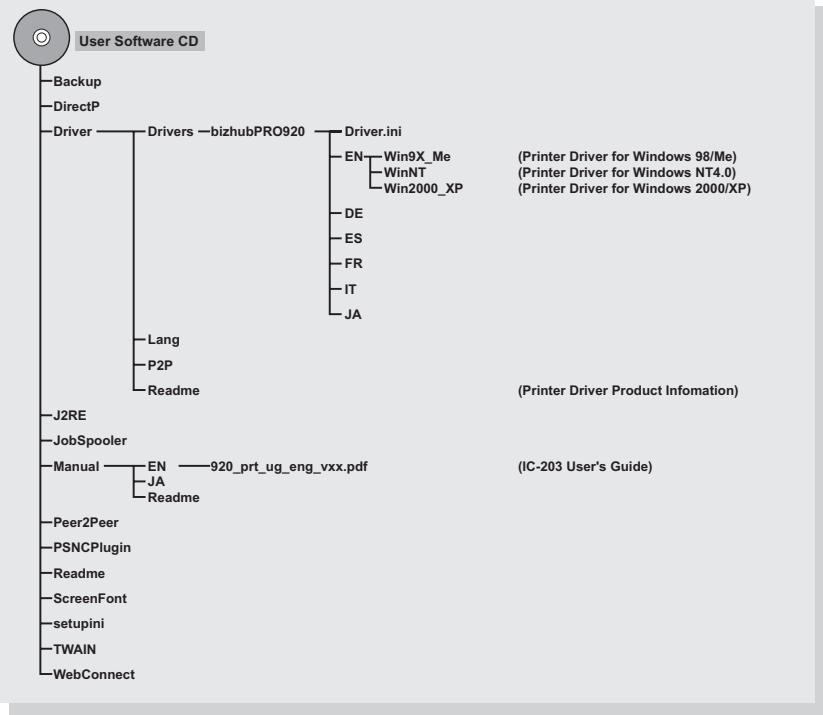
1.2 Folder structure on the CD-ROM (IC-203 CD-ROM)
The folders included on the accompanying CD-ROM for print controller are structured as shown below.
This illustration will be helpful for locating specific folders or files.
- In this manual, folder names and file names are not necessarily preceded by the root directory.
1.3 Folder structure on the CD-ROM (PS-503 CD-ROM) (Option)
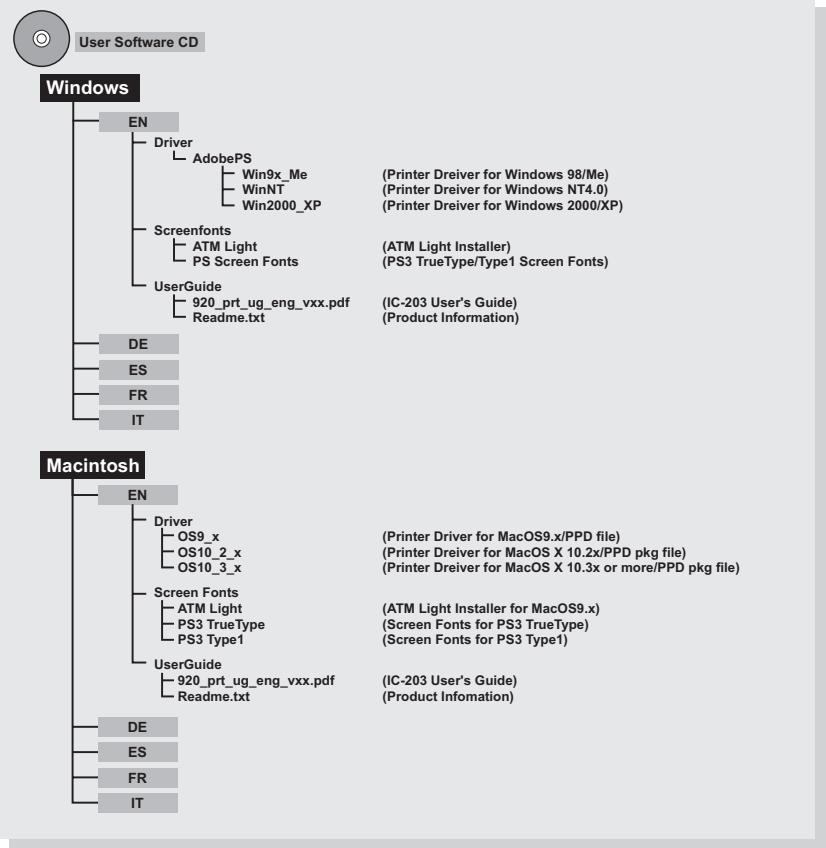
The folders included on the accompanying CD-ROM for PostScript 3 option are structured as shown below.
This illustration will be helpful for locating specific folders or files.
- In this manual, folder names and file names are not necessarily preceded by the root directory.
- You may use the files in the EN folder.
1.4 About this Manual
This document describes how to operate bizhub PRO 920 as a printer from various computers and networks.
This manual assumes you are familiar with the basic operation of your operating system and the KONICA MINOLTA copier.
The KONICA MINOLTA copier comes is with User's Guide. Refer to these manuals as needed.
For detailed operations of Windows 98/Me, Windows NT4.0/2000/XP/Server 2003 and Mac OS, refer to the operating manuals for each operating system. For application operations, refer to the operating manuals provided with each application.
This manual is composed of the following chapters and appendices:
| Chapter 1 Introduction | This chapter describes how to see the notation method in this manual. |
| Chapter 2 Overview | This chapter describes overview of the print controller and product specifications for the print controller. |
| Chapter 3 Installation (Installer) | This chapter describes how to install the printer driver using the installer. |
| Chapter 4 Installation (Local printing) | This chapter describes how to install the printer driver for local printing to Windows-compliant computers. |
| Chapter 5 Installation (Network printing) | This chapter describes how to install the printer driver for network printing to Windows-compliant computers and Macintosh. |
| Chapter 6 Uninstallation of the printer driver | This chapter describes how to update the printer driver. |
| Chapter 7 Basic Printing and Various Function | This chapter describes various functions of the print controller. |
| Chapter 8 PCL Printer Driver Setting (Windows) | This chapter describes PCL6 printer driver settings for Windows-compliant computers. |
| Chapter 9 PostScript PPD Printer Driver setting (Windows) | This chapter describes optional PostScript PPD printer driver settings for Windows-compliant computers. |
| Chapter 10 KONICA MINOLTA PS Printer Driver setting (Windows) | This chapter describes optional KONICA MINOLTA PS printer driver settings for Windows-compliant computers. |
| Chapter 11 PostScript PPD Printer Driver setting (Mac OS 9) | This chapter describes optional PostScript PPD printer driver settings for Macintosh (Mac OS 9.x). |
| Chapter 12 PostScript PPD Printer Driver setting (Mac OS X) | This chapter describes optional PostScript PPD printer driver settings for Macintosh (Mac OS X). |
| Chapter 13 Troubleshooting | This chapter describes how to solve the problem on using the printer driver. |
| Chapter 14 Font | This chapter lists the built-in printer fonts included with the print controller. |
| Chapter 15 Utility Tool | This chapter describes how to use the utility tool included on the user software CD. |
| Chapter 16 Appendix | This chapter lists and describes technical terms to read this manual. |
1.5 Notation of each product
The following abbreviations are used in this manual:
- IC-203 Print Controller Print Controller
- PS-503 PostScript3 option PS3 option
- bizhub PRO 920 Printer/Copier: copier (or main body printer)
- A printing system that combines the above (1), (2), (3) and (4) products:
- Microsoft Windows 98: Windows 98
- Microsoft Windows Me: Windows Me
- Microsoft Windows NT4.0: Windows NT4.0 or Windows NT
- Microsoft Windows 2000: Windows 2000
- Microsoft Windows XP: Windows XP
- Microsoft Windows Server 2003: Server 2003
- Mac OS 9.x Mac OS 9
- Mac OS X v10.2x - v10.4x Mac OS X
- Above OSs: Windows 98/Me
Windows NT4.0/2000/XP
Windows NT/2000/XP/Server 2003
Windows 98/Me/NT/2000/
XP/Server 2003
Mac OS 9/X
1.6 How to read this Manual
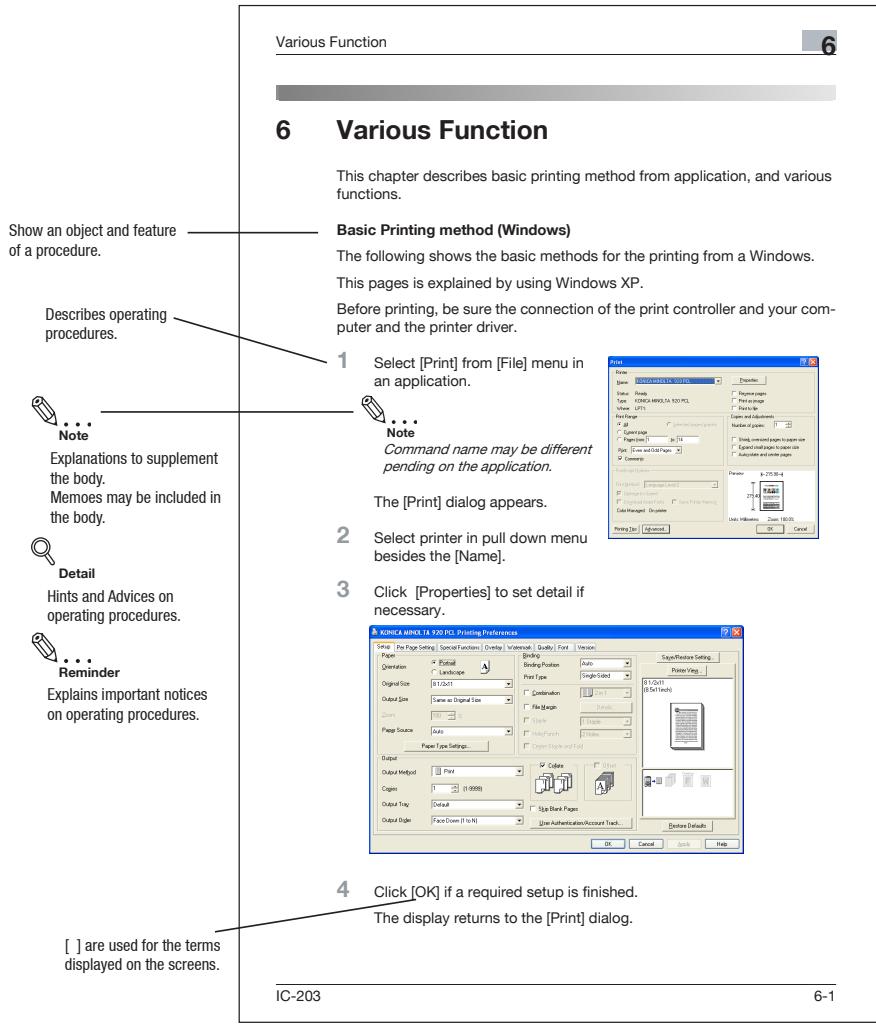
This page does not exist in the document.
1.7 SOFTWARE LICENSE AGREEMENT
SOFTWARE LICENSE AGREEMENT
This package contains the following materials provided by Konica Minolta Business Technologies, Inc. (KMBT): software included as part of the printing system, the digitally-encoded machine-readable outline data encoded in the special format and in the encrypted form ("Font Programs"), other software which runs on a computer system for use in conjunction with the Printing Software ("Host Software"), and related explanatory written materials ("Documentation"). The term "Software" shall be used to describe Printing Software, Font Programs and/or Host Software and also include any upgrades, modified versions, additions, and copies of the Software.
The Software is being licensed to you under the terms of this Agreement.
KMBT grants to you a non-exclusive sublicense to use the Software and Documentation, provided that you agree to the following:
- You may use the Printing Software and accompanying Font Programs for imaging to the licensed output device(s), solely for your own internal business purposes.
- In addition to the license for Font Programs set forth in Section 1 ("Printing Software") above, you may use Roman Font Programs to reproduce weights, styles, and versions of letters, numerals, characters and symbols ("Typefaces") on the display or monitor for your own internal business purposes.
- You may make one backup copy of the Host Software, provided your backup copy is not installed or used on any computer. Notwithstanding the above restrictions, you may install the Host Software on any number of computers solely for use with one or more printing systems running the Printing Software.
- You may assign its rights under this Agreement to an assignee of all of Licensee's right and interest to such Software and Documentation ("Assignee") provided you transfer to Assignee all copies of such Software and Documentation Assignee agrees to be bound by all of the terms and conditions of this Agreement.
- You agree not to modify, adapt or translate the Software and Documentation.
- You agree that you will not attempt to alter, disassemble, decrypt, reverse engineer or decompile the Software.
- Title to and ownership of the Software and Documentation and any reproductions thereof shall remain with KMBT and its licensor.
-
Trademarks shall be used in accordance with accepted trademark practice, including identification of the trademark owner's name. Trademarks can only be used to identify printed output produced by the Software. Such use of any trademark does not give you any rights of ownership in that trademark.
-
You may not rent, lease, sublicense, lend or transfer versions or copies of the Software that Licensee does not use, or Software contained on any unused media, except as part of the permanent transfer of all Software and Documentation as described above.
-
IN NO EVENT WILL KMBT OR ITS LICENSOR BE LIABLE TO YOU FOR ANY CONSEQUENTIAL, INCIDENTAL INDIRECT, PUNITIVE OR SPECIAL DAMAGES, INCLUDING ANY LOST PROFITS OR LOST SAVING, EVEN IF KMBT HAS BEEN ADVISED OF THE POSSIBILITY OF SUCH DAMAGES, OR FOR ANY CLAIM BY ANY THIRD PARTY. KMBT OR ITS LICENSOR DISCLAIMS ALL WARRANTYES WITH REGARD TO THE SOFTWARE, EXPRESS OR IMPLIED, INCLUDING, WITHOUT LIMITATION IMPLIED WARRANTYES OF MERCHANTABILITY, FITNESS FOR A PARTICULAR PURPOSE, TITLE AND NON-INFRINGEMENT OF THIRD PARTY RIGHTS. SOME STATES OR JURISDICTIONS DO NOT ALLOW THE EXCLUSION OR LIMITATION OF INCIDENTIAL, CONSEQUENTIAL OR SPECIAL DAMAGES, SO THE ABOVE LIMITATIONS MAY NOT APPLY TO YOU.
-
Notice to Government End Users: The Software is a "commercial item," as that term is defined at 48 C.F.R.2.101, consisting of "commercial computer software" and "commercial computer software documentation," as such terms are used in 48 C.F.R. 12.212. Consistent with 48 C.F.R. 12.212 and 48 C.F.R. 227.7202-1 through 227.7202-4, all U.S. Government End Users acquire the Software with only those rights set forth herein.
-
You agree that you will not export the Software in any form in violation of any applicable laws and regulations regarding export control of any countries.
NON-EXCLUSIVE LICENSE AGREEMENT (For USA) (Exclusive for PostScript3 Option)
READ THE TERMS AND CONDITIONS OF THIS License Agreement CAREFULLY
BY USING THE PRODUCTS DESCRIBED IN THIS USER MANUAL, BY OPENING A SHRINK-WRAP PACKAGE CONTAINING SOFTWARE OR DOWNLOADING SOFTWARE OR PRINTER DRIVERS TO YOUR COMPUTER YOU AGREE TO BE BOUND BY THE TERMS OF THIS LICENSE.
The computer programs embedded in the equipment and User Documentation are licensed (not sold) to You by Konica Minolta Business Technologies, Inc. ("KMBT or LICENSOR"). The term "Software" shall be used to describe accompanying Printer Drivers, software included as part of the printing system including PostScript software and other Adobe software ("Printing Software"), digitally-encoded machine-readable outline data encoded in the special format and in the encrypted form ("Font Programs"), and/or other software which runs on a computer system for use in conjunction with the Printing Software ("Host Software"), and related explanatory written materials ("Documentation"), Upgrades, Modified Versions, Additions, and Copies of the Software (the "Software"). This license agreement represents the entire agreement concerning the Software between You and KMBT and it supersedes any prior proposal, representation, or understanding between the parties. KMBT reserves any rights not expressly granted to You. This package may contain third-party software provided by Adobe Systems Incorporated ("Adobe") or other suppliers in which case KMBT grants to you a non-exclusive sublicense to use the Software and Documentation, provided that you agree to the following:
- LICENSE GRANT. You do not receive title to the Software or User Documentation. Licensee grants to You, and You accept, a nonexclusive license to use the Software embedded in the Equipment in machine-readable, object code form only (referred to as the "Computer Program"), the accompanying User Documentation, and Printer Drivers furnished to You, (collectively the "Licensed Articles") only as authorized in this License Agreement. The Computer Program may be used only on the Equipment in which it is embedded and may not be shared with or transferred to any other equipment or product. The Printer Drivers shall be used only with printer products designed to work with the equipment containing the embedded Computer Program. You may make a single archive copy of the Printer Drivers for back-up purposes, provided that it includes all copyright notices, markings and proprietary legends on the original, including the markings of any other company contained therein. This archive copy may not be in use at any time, may only be used for back-up purposes and must remain in Your possession and control. You may not copy the drivers to a bulletin board or similar system.
a) You may use the Printing Software and accompanying Font Programs for imaging to the licensed output device(s), solely for your own internal business purposes.
b) In addition to the license for Font Programs set forth in (a), you may use Roman Font Programs to reproduce weights, styles, and versions of letters, numerals, characters and symbols ("Typefaces") on the display or monitor for your own internal business purposes.
c) Notwithstanding the restrictions in 1 above, you may install the Adobe Driver and/or other third-party's Driver Software on any number of computers solely for use with one or more printing systems running the Printing Software.
d) You agree not to modify, adapt or translate the Software and Documentation.
e) You agree that you will not attempt to alter, disassemble, decrypt, reverse engineer or decompile the Software or use any other method to discover the printer driver's or Software's source code.
f) You may not rent, lease, sublicense, modify, adapt, pledge, lend, share or transfer versions or copies of the Software You do not use, or Software contained on any unused media, or any of Your rights under this Agreement except as part of the permanent transfer of all Software and Documentation as described in (g) below or to the extent expressly permitted by the laws of the country in which you use the Software and Licensed Articles, You may not create derivative works based upon the Software or any part thereof. You may not copy the Licensed Articles except as specifically provided in this License Agreement.
g) You may assign your rights under this Agreement to an assignee of all of Your rights and interest to such Software and Documentation ("Assignee") provided you transfer to Your Assignee all copies of such Software and Documentation and the Assignee agrees to be bound by all of the terms and conditions of this Agreement.
2. TITLE: Title to and ownership of the Software and Documentation and any reproductions thereof shall remain with the owner of the third-party software and KMBT.
3. TRADEMARKS: Trademarks shall be used in accordance with accepted trademark practice, including identification of the trademark owner's name. Trademarks can only be used to identify printed output produced by the Software. Such use of any trademark does not give you any rights of ownership to that trademark.
4. LICENSOR'S RIGHTS. You acknowledge and agree that the Licensed Articles, including but not limited to the Software and the Documentation, are owned by Licensor and its suppliers, and its structure, organization and code are proprietary and valuable trade secrets of Licensor
or its suppliers. United States Copyright Law and International Treaty Provisions also protect the Licensed Articles and Documentation, including but not limited to the Software and the Documentation. You further acknowledge and agree that all right, title and interest in and to the Licensed Articles, including associated intellectual property rights, are and shall remain, with Licensor or its supplier. Licensor's suppliers may protect their rights in the Licensed Articles in the event of a violation of this License Agreement. This License Agreement does not convey to You an interest in or to the Licensed Articles, but only a limited right of use revocable in accordance with the terms of this License Agreement.
- TERMINATION. This License Agreement is effective upon the purchase and acceptance of the Equipment by You or the downloading of any Software or Printer Driver from KMBT'S Website or other authorized electronic medium and shall continue until terminated. This License Agreement will terminate upon Your sale, transfer or disposal of the Equipment having the Software embedded therein. Licensor may terminate this License Agreement upon the breach by You of any term thereof. Upon such termination by Licensor, You agree to delete the Software and Printer Drivers from the hard drive of the Product, destroy all copies of the Software and Printer Drivers from the hard drive of the Equipment and destroy all copies of the Software and Printer Drivers and User Documentation.
- LICENSE FEES. The license fees of $250.00 (included in the purchase price of the Equipment) paid by You are paid in consideration of the license granted under this License Agreement.
- LIMITED WARRANTY. Licensee warrants, for Your benefit alone, for a period of 90 days from the date of commencement of this License Agreement (referred to as the "Warranty Period"), that the Software and Printer Drivers shall operate substantially in accordance with the functional specifications in the User Documentation. KMBT specifically does not warrant that the Software or Printer Drivers will operate uninterrupted or error-free. If during the Warranty Period, a defect in the Software or Printer Drivers appears, You may contact the Licensee for either a replacement or, if so elected by Licensee, refund of amounts paid by You under this License Agreement. You agree that the foregoing constitutes Your sole and exclusive remedy for breach by Licensee of any warranties made under this Agreement.
EXCEPT FOR THE WARRANTYES SET FORTH ABOVE, THE LICENSED ARTICLES, AND THE SOFTWARE CONTAINED THEREIN, ARE LICENSSED "AS IS," AND, TO THE MAXIMUM EXTENT PERMITTED BY LAW, THE LICENSOR DISCLAIMS AND EXCUSES ANY AND ALL OTHER WARRANTYES, WHETHER EXPRESS OR IMPLIED, INCLUDING, WITHOUT LIMITATION, ANY IMPLIED WARRANTY OF MERCHANTABILITY OR FITNESS FOR A PARTICULAR PURPOSE.
- LIMITATION OF LIABILITY. To the maximum extent permitted by law, and except for claims which result in personal injury or death caused by Licensor's negligence or intentional acts, Licensor's, or any of its affiliates or subsidiaries, cumulative liability to You or any other party for any loss or damages resulting from any claims, demands, or actions arising out of or relating to this License Agreement shall not exceed $250.00. In no event shall Licensor, or Adobe, the owner of other third party software or any of their affiliates or subsidiaries be liable to you or any third party for any indirect, incidental, consequential, special, or exemplary damages or lost profits, even if Licensor has been advised of the possibility of such damages or for any claim by any third party. Some states do not allow the limitation or exclusion of liability for incidental or consequential damages, so the above limitation or exclusion may not apply to You.
- GOVERNING LAW. This License Agreement shall be construed and governed in accordance with the laws of the State of Connecticut, United States of America. Should any court of competent jurisdiction declare any term of this License Agreement void or unenforceable, such declaration shall have no effect on the remaining terms thereof.
- COSTS OF LITIGATION. If any action is brought by either party to this License Agreement against the other party regarding the subject matter thereof, the prevailing party shall be entitled to recover, in addition to any other relief granted, reasonable attorneys' fees and expenses of litigation.
- NO WAIVER. The failure of any party to enforce any rights granted hereunder or to take action against the other party in the event of any breach hereunder shall not be deemed a waiver by that party as to subsequent enforcement of rights or subsequent actions in the event of future breaches.
-
Notice to Government End Users: U.S. GOVERNMENT RESTRICTED RIGHTS: The Licensed Articles are provided with restricted rights. Use, duplication, or disclosure by the government is subject to restrictions set forth in subparagraph (c)(1)(ii) of the Rights in Technical Data and Computer Software clause at DFARS 252.277-7013, and paragraph (c)(1) and (2) of the Commercial Computer Software - Restricted Rights clause at FAR 52.277-19. The Software is a "commercial item," as that term is defined at 48 C.F.R. 2.101, consisting of "commercial computer software" and "commercial computer software documentation," as such terms are used in 48 C.F.R. 12.212. Consistent with 48 C.F.R. 12.212 and C.F.R. 227.7202-1 through 227.7202-4, all U.S. Government End Users acquire the Software with only those rights set forth herein. The manufacturer is: Veronica Minolta Business Solutions U.S.A., Inc., 500 Day Hill Road, Windsor, Connecticut 06095
-
THIRD PARTY BENEFICIARY: You are hereby notified that Adobe Systems Incorporated, a Delaware corporation, located at 345 Park Avenue, San Jose, CA 95110-2704 is a third-party beneficiary to this Agreement to the extent that this Agreement contains provisions which relate to Licensee's use of the Software, Font Programs, Typefaces and the trademarks licensed hereby. Such provisions are made expressly for the benefit of Adobe and are enforceable by Adobe in addition to KMBT.
SOFTWARE LICENSE AGREEMENT (For Others) (Exclusive for PostScript3 Option)
This package contains the following materials provided by Adobe Systems Incorporated ("Adobe") and Konica Minolta Business Technologies, Inc. (KMBT): software included as part of the printing system, including PostScript® software and other Adobe software ("Printing Software"), the digitally-encoded machine-readable outline data encoded in the special format and in the encrypted form ("Font Programs"), other software which runs on a computer system for use in conjunction with the Printing Software ("Host Software"), and related explanatory written materials ("Documentation"). The term "Software" shall be used to describe Printing Software, Font Programs and/or Host Software and also include any upgrades, modified versions, additions, and copies of the Software. The Software is being licensed to you under the terms of this Agreement. KMBT grants to you a non-exclusive sub license to use the Software and Documentation, provided that you agree to the following:
- You may use the Printing Software and accompanying Font Programs for imaging to the licensed output device(s), solely for your own internal business purposes.
- In addition to the license for Font Programs set forth in Section 1 ("Printing Software") above, you may use Roman Font Programs to reproduce weights, styles, and versions of letters, numerals, characters and symbols ("Typefaces") on the display or monitor for your own internal business purposes.
- You may make one backup copy of the Host Software, provided your backup copy is not installed or used on any computer. Notwithstanding the above restrictions, you may install the Adobe Driver Software on any number of computers solely for use with one or more printing systems running the Printing Software.
- You may assign its rights under this Agreement to an assignee of all of Licensee's right and interest to such Software and Documentation ("Assignee") provided you transfers to Assignee all copies of such Software and Documentation Assignee agrees to be bound by all of the terms and conditions of this Agreement.
- You agree not to modify, adapt or translate the Software and Documentation.
- You agree that it will not attempt to alter, disassemble, decrypt, reverse engineer or decompile the Software.
-
Title to and ownership of the Software and Documentation and any reproductions thereof shall remain with Adobe and KMBT.
-
Trademarks shall be used in accordance with accepted trademark practice, including identification of the trademark owner's name. Trademarks can only be used to identify printed output produced by the Software. Such use of any trademark does not give you any rights of ownership in that trademark.
- You may not rent, lease, sublicense, lend or transfer versions or copies of the Software Licensee does not use, or Software contained on any unused media, except as part of the permanent transfer of all Software and Documentation as described above
- In no event will KMBT or Adobe be liable to you for any consequential, incidental or special damages, including any lost profits or lost saving, even if KMBT has been advised of the possibility of such damages, or for any claim by any third party. Some states or jurisdictions do not allow the exclusion or limitation of incidental, consequential or special damages, so the above limitations may not apply to you.
- Notice to Government End User's: The Software is a "commercial item," as that term is defined at 48 C.F.R.2.101, consisting of "commercial computer software" and "commercial computer software documentation," as such terms are used in 48 C.F.R. 12.212. Consistent with 48 C.F.R. 12.212 and 48 C.F.R. 227.7202-1 through 227.7202-4, all U.S. Government End User's acquire the Software with only those rights set forth herein.
- You are hereby notified that Adobe Systems Incorporated, a Delaware corporation located at 345 Park Avenue, San Jose, CA 95110-2704 ("Adobe") is a third-party beneficiary to this Agreement to the extent that this Agreement contains provisions which relate to Licensee's use of the Software, Font Programs, Typefaces and the trademarks licensed hereby. Such provisions are made expressly for the benefit of Adobe and are enforceable by Adobe in addition to KMBT.
2 Overview
The print controller feature enables the copier to connect to computers and networks to use as a printer.
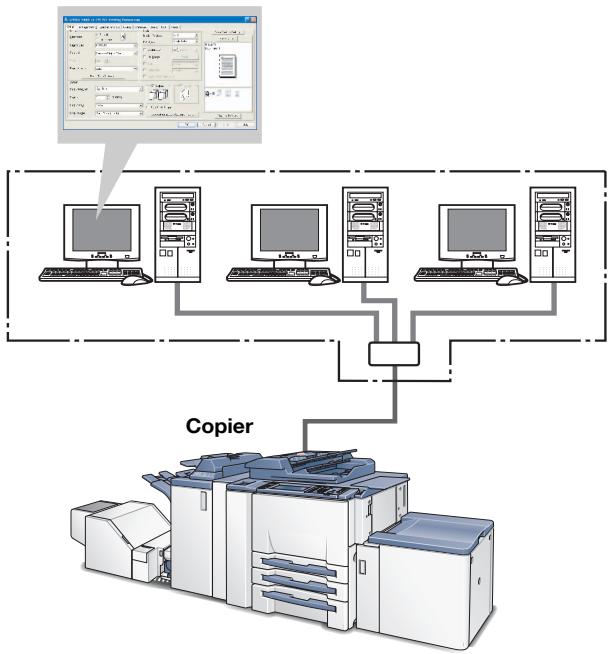
2.1 Printer Driver
This printing system is equipped with the optional PostScript3 printer functions.
In order to use this printing system, it is necessary to install a printer driver in a computer.
| Printer Driver | Compliant OS |
| PCL Printer Driver | Windows 98/Me Windows NT4.0/2000/XP/Server 2003 |
| PostScript PPD Printer Driver (optional PostScript kit required) • About how to receive the optional PostScript PPD driver, contact your service representative. | Windows 98/Me Windows NT4.0/2000/XP/Server 2003 Mac OS 9.x Mac OS X v10.2x - v10.4x |
| KONICA MINOLTA PS Printer Driver (optional PostScript kit required) • About how to receive the optional PS driver for Windows 98/Me, contact your service representative. | Windows 98/Me/NT4.0/2000/XP/Server 2003 Delete |
Delete

Note
Refer to "Installation (Local printing)" on Page 4-1 and "Installation (Network printing)" on Page 5-1 for more information about installation of printer driver.
2.2 Composition of a product
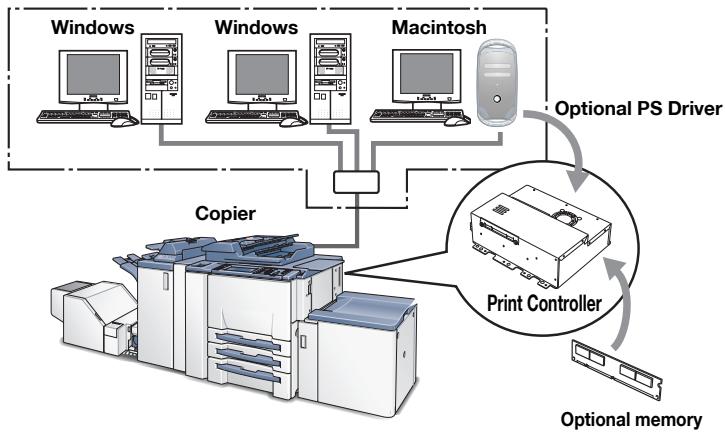
This print controller includes a standard parallel port (IEEE 1284) and two Ethernet-compatible network ports (1 port is for copier HDD and the other port is for connecting to the computer).
2.2.1 Optional memory
The print controller is equipped with 256 MB memory by default.
Memory can be added up to 512 MB.
The optional PostScript kit contains the expanded memory (EM-701 : 256 MB). By increasing the memory, errors of PostScript reduce to ensure smooth printing operation.
For optimum printing performance, expanding the memory capacity is recommended.
2.2.2 PostScript3 option
Installing the PostScript3 option in the print controller, enables you to can print data from the application on Windows98/Me/NT 4.0/2000/XP/Server 2003 or Mac OS 9/X with your copier as the PostScript3 printer. Contact your service representative about optional PS driver.
2.2.3 Other options
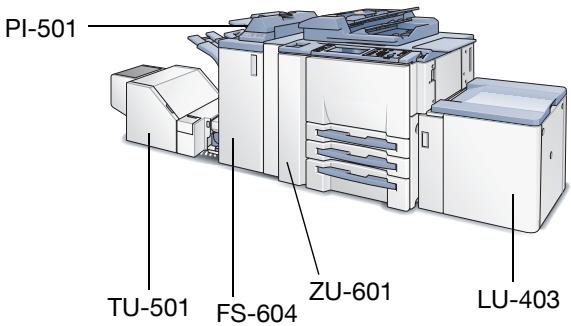
The following options installed on the printer enables variable functions.
- Paper Source option (LU-403 / LU-404) enables to select LCT.
- Installing the Finisher (FS-509/FS-516 / FS-604) enables to use "Staple", "Center Staple and Fold (FS-604 only)" and "Multi-Half Fold/Multi Letter Fold (FS-604 only)" function.
- Installing the Punch kit (PK-503) enables to use the punch functions.
- Installing the Cover Sheet Feeder (PI-501) enables to select "PI Cover Sheet".
- Punch Z-Fold Unit Option (ZU-602 (2 Hole Type)) enables to select "Punch" and "Fold" function.
- Trimmer Unit option (TU-501) enables to select "Center Staple and Fold + Trim" function.

Note
Installing various options built in the copier properly on the printer driver allows you to use a variety of printing functions shared by the copier.
Refer to "Option tab" on Page 8-11 for more information about installation of options.
2.3 Connections of the Print Controller
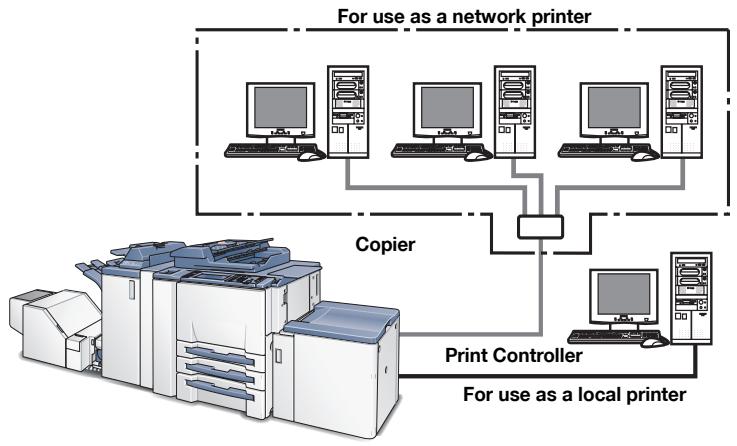
You can use the copier as a printer by connecting print controller to a computer (using with Parallel connection) or a network (using with Ethernet connection).
2.3.1 Parallel Connection
You can connect your Windows computer to the print controller via the parallel port (IEEE 1284).
Once you set up the printer driver in the computer, you can print from it.
You can use the copier as a network printer by executing a print server function or a printer sharing function on the computer that is connected to the copier via parallel port.

Note
Refer to "Installation (Local printing)" on page 4-1 for more information about installation of the printer driver.
2.3.2 Ethernet Connection
You can also connect the copier to computers supporting Ethernet.
Several alternatives can be considered in the Ethernet connection. In any of them, you must set up the printer driver in each computer after configuring the network (such as TCP/IP settings) for the print controller or the computers.
The following print patterns are shown here as examples.
- SMB printing, lpr/lpd printing, Direct printing, Raw (Port9100, Setting can be made for up to 6 ports) printing
- Printing in which AppleTalk from Macintosh is used.
- IPP (Internet Printing Protocol) printing
- Printing in which Novell NetWare is used.

Note
Refer to "Installation (Network printing)" on page 5-1 for more information about installation of the printer driver.
2.4 Product Specifications
Type
Type: Built-in box type for the KONICA MINOLTA Printer/ Copier
Functions
| Resolution: | Printing System: 600 x 600 dpi | |
| Scanning resolution: | 200 dpi / 300 dpi / 400 dpi / 600 dpi | |
| Gradation: | binary | |
| Printable Area: | Standard: | Margine 2.84 mm (left, right, top and bottom without variation) |
| Non-standard paper: | 302.979 x 459.994 mm (The maximum paper size: 314 x 460 mm) | |
| No. of Print: | 1 to 9999 | |
| Continuous print speed: | 92 ppm (A4, 8.5 x 11) / (600 x 600 dpi) Numbers in the case of continuous printing following the storage of all pages in image memory, or numbers in the case of printing the same image on multiple papers. | |
| Page Description Language: | PCL (The Direct Printing of the PDF/TIFF is available. However, an additional application is required.) PostScript 3(TIFF/PDF) (optional PostScript kit required) | |
| Built-in fonts: | Agfa Microtype fonts Adobe PosrScript Font (optional PostScript kit required) | |
| Compliant OS: | Windows 98/Me Windows NT4.0 (NT Service Pack 6a or more) Windows 2000 Windows XP Windows Server 2003 Mac OS 9.x (optional PostScript kit required) Mac OS X v10.2x - v10.4x (optional PostScript kit required) | |
| Printer Driver: | Printer driver for Windows 98/Me/NT 4.0/2000/XP/Server 2003 PS printer driver for Windows (optional PostScript kit required) PS printer driver for Macintosh (optional PostScript kit required) | |
| MetaFrame operating environments: | The operations of this printer driver is checked only in the following environments. | |
| Server OS: | Windows 2000 Advanced server/Windows 2003 Enterprise Server | |
| MetaFrame: | Citrix® MetaFrame XPR Presentation Server, Feature Re-lease 3 Citrix® MetaFrame® Presentation Server 3.0 | |
| Client OS: | Windows 98/Windows Me/ WindowsNT4.0/Windows 2000/Windows XP | |
| ICAClient: | ICA32bit | |
| For operations in the configuration other than the above, contact your service representative. | ||
| Network Functions | ||
| Protocols: | TCP/IP, IPX/SPX, EtherTalk | |
| Compliant OS (NOS): | Novell NetWare (3.x, 4.x-6), Windows 95/98/Me, Windows NT 4.0, Windows 2000, Windows XP/Server 2003, Mac OS 9.x, Mac OS X v10.2x - v10.4x | |
| Multiple Protocols: | Automatic selection | |
| Printing Method: | SMB printing (TCP/IP) / LPD/LPR (TCP/IP) / RAW (Port9100, Setting can be made for up to 6 ports) / Pserver (IPX/SPX) / NPrinter/RPrinter (IPX/SPX) / Ap-pleTalk (EtherTalk) | |
| Dedicated Utilities: | Peer to Peer Printing Tool (for Windows 98/Me) | |
| Compliant Web Browser: | Netscape Navigator, Internet Explorer | |
| Paper Type | ||
| Paper: | A3/A4/A5/A6/B4/B5/B6/11 x 17/8 1/2 x 14/8 1/2 x 11/8 x 13/8 1/2 x 13/8 1/8 x 13/4/5 1/2 x 8 1/2/8K/16K/Japanese Postcard/A4 Tab/8 1/2 x 11 Tab/A3 Wide/A4 Wide/A5 Wide/B4 Wide/B5 Wide/11 x 17 Wide/8 1/2 x 11 Wide/5 1/2 x 8 1/2 Wide/Custom Size Settings | |
| Paper Type: | Same as the copier | |
| Paper Weight: | Same as the copier | |
| Machine Data | ||
| CPU: | Low Voltage Pentium III Tualatin 800 MHz | |
| System Memory: | 256 MB SD-RAM (Standard), Expandable up to 512 MB (Option: EM-701) | |
| Host Interface: | Parallel port Centronics (IEEE 1284 / amphenol 36 pin female connector) | |
| Hard Disk Drive: | EIDE drive 40 GB or more | |
| Option: | PostScript kit (PS-503) memory: (EM-701: 256 MB) | |
| Power: | Obtain from main body printer | |
| Network Interface: | Ethernet (100Base-TX / 10Base-T) | |
| Frame Type: | IEEE 802.2/802.3 / Ethernet II / IEEE802.2SNAP | |
Ethernet Connection: 100Base-TX / 10Base-T
Network Connector: RJ-45
Status Indicators: Green LED 2
Operating Environment
Temperature: Same as the copier
Humidity: Same as the copier
2.4.1 Restrictive Conditions
Although the Weekly Timer function of the main body printer is available in the Printer mode, the power is not turned off until the data output is finished when print data remains in the Image memory.

Note
Specifications are subject to change without notice.
3 Installation (Installer)
This section describes how to install the printer driver automatically into a computer supporting Windows using the installer.

Note
The printer driver which can be installed as described in this section is "KONICA MINOLTA PCL" only.
Refer to "Installation (Local printing)" on Page 4-1 when installing the printer driver with "PostScript PPD", "KONICA MINOLTA PS" or manually, or refer to "Installation (Network printing)" on Page 5-1 when installing the printer driver through the network.
Automatic installation (PCL) with installer
Install the printer driver with the installer. This installer can be used with any Windows OSs supporting it to install the KONICA MINOLTA PCL driver. Follow the procedure below to install the printer driver.
1 Insert the "IC-203CD-ROM" into the CD-ROM tray of the personal computer.
Menu window appears.
2 Click [Printer Install].
The printer driver installer is started and the [License Agreement] window appears.
3 Read through the License Agreement and click [AGREE].
Language for the display can be changed in the pull-down menu on the lower left side of the window.
- Windows XP screens are indicated here for description.
[Select menu to setup] window appears.
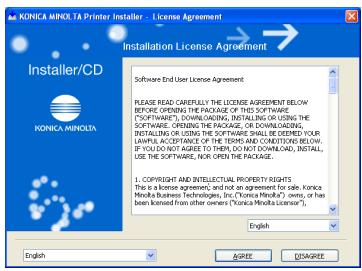
4 Select [Install printers/MFPs] and click [Next].
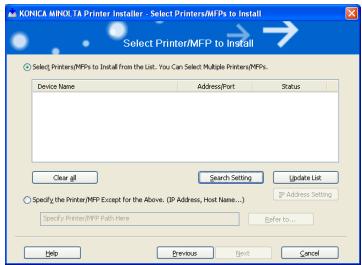
[Select Printer/MFP to install] window appears.
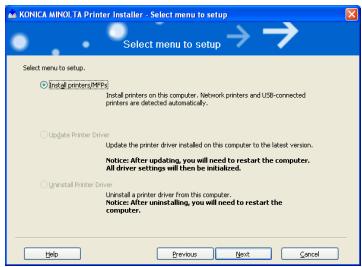
5 Select and install a copier. A copier can be selected by either way of two as shown below.
Selection from list detected When a copier is detected on the TCP/IP network, for instance, the driver name (KONICA MINOLTA 920 PCL) is displayed on the screen as shown below. Then select [Select Printers/MFPs to Install from the List. You can select Multiple Printers/MFPs], turn the check box on the left of the driver name to ON and click [Next].
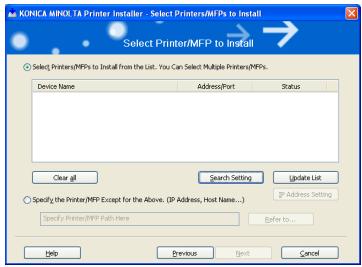
- [Confirm Installation Settings] window is displayed.
If no copier is detected, click the [Search Setting] button, enter the IP address and subnet mask and click the [Search].
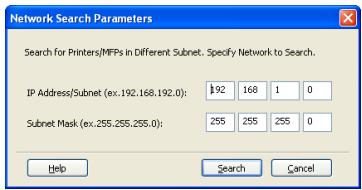
-
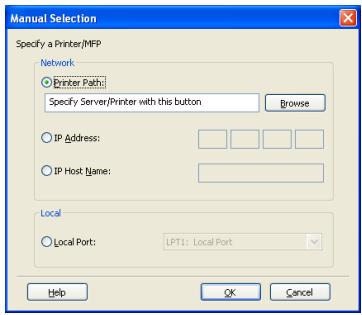
When specifying manually To specify a unit manually, select [Specify the Printer/MFP Except for the Above] and click the [Refer to].
-
[Manual Settings] window appears.
- Select either [Printer Path], [IP Address], [IP Host Name] or [Local Port] and enter information as required. Then click the [OK].
- [Select Printers/MFPs to install] window appears again. Click the [Next].
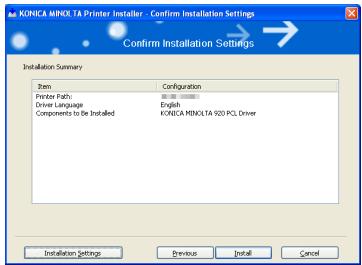
- [Confirm Installation Settings] window is appears.
6 Installation setting condition is displayed. Check the setting and click [Install].
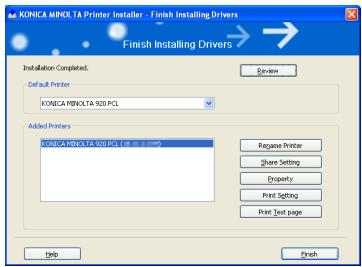
The printer driver is installed and the [Finish Installing Drivers] window appears.
7 Click [Finish]. Installation is completed.

Detail
Click the buttons as follows:
To check the details of the printer driver again: [Review]
To change the printer name: [Rename Printer]
To share the printer: [Share Setting]
To see the property of printer: [Property]
To see the printing setup: [Print Setting]
To see the test page: [Print Test Page]
4 Installation (Local printing)
To use the print controller as a local printer, following preparations are required;
1 Prepare Parallel cable (centronics IEEE 1284), Ethernet cable and connect the print controller and your computer.
2 Prepare User Software CD and Install the printer driver for local printing to your computer.
3 Print the test page.
This chapter describes how to install the printer driver for local printing to Windows-compliant computers and how to print the test page.
Refer to "Installation (Network printing)" on Page 5-1 about network printing.
4.1 Printer Drivers
In order to use this printing system, the printer driver must be installed. The printer driver is a program that controls the processing of data for output. Install the printer driver onto the computer from the provided CD-ROM.
The printer drivers included on the CD and the supported computer operating systems are listed below. Install the required printer driver.
| Page Description Language | Printer Driver | Supported Operating Systems |
| PCL | KONICA MINOLTA PCL Driver | Windows 98, Windows Me, Windows NT 4.0 (SP6a), Windows 2000 Professional, Windows XP Home Edition, Windows XP Pro- fessional, and Windows Server 2003 |
| PostScript 3 (optional) | KONICA MINOLTA PS Driver | Windows 98, Windows Me, Delete Windows NT 4.0 (SP6a), Windows 2000 Professional, Windows XP Home Edition, Windows XP Pro- fessional, and Windows Server 2003 |
| PostScript PPD Driver | Windows 98, Windows Me, Windows NT 4.0 (SP6a), Windows 2000 Professional, Windows XP Home Edition, Windows XP Pro- fessional, and Windows Server 2003 | |
| Mac OS 9.x and Mac OS X v10.2x/v10.3x/ v10.4x |
- The User Software CD-ROM contains the PCL printer driver, and the PostScript Printer Driver CD-ROM contain the PostScript driver.
- About how to receive the optional PS driver for Windows 98/Me, contact -your service representative. Delete
4.1.1 Compliant OS
The printer driver is can be used on the following OS:
| Windows | Printer Driver |
| Windows 98/Me | "Installing to Windows 98/Me (PCL6/PPD)" on Page 4-3 |
| Windows NT4.0 | "Installing to Windows NT4.0 (PCL6/PPD)" on Page 4-7 |
| Windows 2000 | "Installing to Windows 2000 (PCL6/PPD)" on Page 4-12 |
| Windows XP/Server 2003 | "Installing to Windows XP/Server 2003 (PCL6/PPD)" on Page 4-17 |
| Delete | |
| Windows 98/Me/NT4.0/2000/XP | "Installing the KONICA MINOLTA PS Driver" on Page 4-23 |
Installing to Windows 98/Me (PCL6/PPD)
To install the PCL6/PPD printer driver to Windows 98/Me, perform the following steps.
In case you install the PCL driver, you can check the location of the [.inf] file through the IC-203 CD-ROM start-up screen.
1 Turn on the computer and start Windows 98/Me.
- Exit from all active Windows applications, if required.
2 Click [Start] button of the task bar. Then, select [Settings] from the Start menu to click [Printers] from the sub-menu.
The [Printers] window appears.
3 Double-click [Add Printer] icon of the [Printers] window.
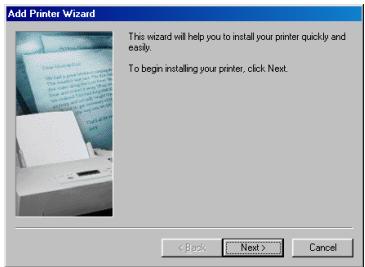
The [Add Printer Wizard] window appears to set the printer.
4 Click [Next].
The [Add Printer Wizard] window appears.
5 Select [Local printer].
- When the printing system is directly connected to a computer in which the printer driver will be installed, select [Local printer].
- When personal computers are connected to a network and you want to print via the network, select [Network
[printer]. In case, refer to "Installing to Windows 98/Me (PCL6/PPD)" on Page 5-3.
6 Click [Next].
The window to select the printer manufacturer and model will appear.
7 Click [Have Disk].
The [Install From Disk] window appears.
![KONICA MINOLTA IC 203 - Click [Have Disk]. - 1](/content/2025/01/139719/images/7446feb5d51182baed01c70d21e457a9b5c2234379a9b763c77d1927f01d6eac.jpg)
8 Click [Browse].
The [Open] window appears.
![KONICA MINOLTA IC 203 - Click [Browse]. - 1](/content/2025/01/139719/images/e3812516df62e99beb852a3a9861791defb4357dca86ad2b7b5df6cb0b452c9a.jpg)
9 Set the "IC-203 CD-ROM or PS-503 CD-ROM" in the CD-ROM drive.
10 Change [Drive] to CD-ROM drive.
11 Select the following file;
- When you install PCL6 driver: [KPIC600.inf] file in the "\Driver\Drivers\bizhub920\EN\Win9X_Me" folder of the "IC-203 CD-ROM"
- When you install PPD driver: [oemsetup.inf] file in the " \EN\Driver\AdobePS\Win9x_Me" folder of the "PS-503 CD-ROM"
12 Click [Open]
The [Install From Disk] window appears again.
13 Click [OK].
The [Add Printer Wizard] window to select the printer manufacturer and model appears.
14 Confirm the followings in the list of [Printers]. When you install PCL6 driver: [KONICA MINOLTA 920 PCL] is highlighted.
- When you install PPD driver: [KONICA MINOLTA 920 PS(P)] is highlighted.
- [KONICA MINOLTA 920 PCL]/[KONICA MINOLTA 920 PS(P)] is the default printer name.
![KONICA MINOLTA IC 203 - Click [OK]. - 1](/content/2025/01/139719/images/616d37b38c33ae8b53a1ea349dc2169ae30367f19d942052704b8c612f4d3614.jpg)
15 Click [Next].
The [Add Printer Wizard] window to assign a port appears.
16 Select the port to which the printing system is connected.
- Select LPT port when the printing system is used as a local printer.
![KONICA MINOLTA IC 203 - Click [OK]. - 2](/content/2025/01/139719/images/e20128c16e048531b3e140dfbebd3e8226d5bb462d7ee3eaad64bf4bf418af62.jpg)
17 Click [Next].
The [Add Printer Wizard] window to specify the printer name appears.
18 In the [Printer name] text box, check the printer name.
- If you want to change the printer name, enter the new printer name in the [Printer name] text box.
![KONICA MINOLTA IC 203 - Click [OK]. - 3](/content/2025/01/139719/images/cf40cc4b450ae7b25f8a4a4e6ef5702779d238ed901e95a5132f1e6150597bab.jpg)
19 Select whether to use this printer as the default printer or not by selecting [Yes] or [No].
- If you are installing the first printer to your computer, the [Default printer] setting will not appear. The first printer installed automatically becomes the default printer.
20 Click [Next].
The [Add Printer Wizard] window to perform the test print appears.
21 Select whether to perform the test print or not by selecting [Yes (recommended)] or [No].
- Printing the test page is also possible after the installation of the printer driver.
![KONICA MINOLTA IC 203 - Select whether to perform the test print or not by selecting [Yes (recommended)] or [No]. - 1](/content/2025/01/139719/images/a833d0889bcf2e18e6e96ac6c9cc29a9e49f420262553cb3c1c0d6cc36ab8b46.jpg)
22 Click [Finish] button.
- Necessary files will be copied from the "IC-203 CD-ROM or PS-503 CD-ROM" to complete the installation.
If you have selected [Yes (recommended)] at step 21, performing of the test print starts.
23 Make sure the test page printed properly.
- If you have selected [No] at step 21, the test page will not be printed.
If the test page is printed properly, click [Yes].
24 The installation is completed.
The printer driver of the printing system becomes available without restarting your computer.

Note
You must delete the current printer driver at first if you want to update/ reinstall the printer driver.
Refer to "Deleting the Printer Driver (Windows 98/Me)" on Page 6-4 for the method of deleting the printer driver.
Installing to Windows NT4.0 (PCL6/PPD)
To install the PCL6/PPD printer driver to Windows NT4.0, perform the following steps. The installation should be performed by a qualified system administrator or printer administrator.
In case you install the PCL driver, you can check the location of the [.inf] file through the IC-203 CD-ROM start-up screen.
1 Turn on the computer and start Windows NT4.0.
2 Log on as an administrator (or a user entitled to install a printer).
- Exit from all active Windows applications, if required.
3 Click [Start] of the task bar. Then, select [Settings] of the Start menu and click [Printers] from the sub-menu.
The [Printers] window appears.
4 Double-click [Add Printer] icon of the [Printers] window.
The [Add Printer Wizard] window will appear to add the printer.
5 Select [My Computer].
- When the printing system is directly connected to a computer in which the printer driver will be installed, select [My computer]. When the printing system is managed by a computer in which the printer driver will be installed, also select [My computer].
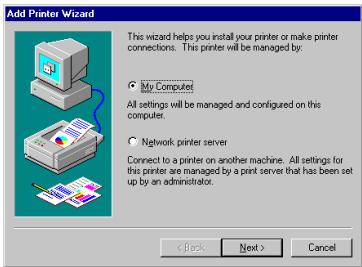
- When personal computers or workstations are connected to the network and you want to print via the network, select [Network printer server]. In case refer to "Installing to Windows NT4.0 (PCL6/PPD)" on Page 5-7.
6 Click [Next].
The window to select the printer port will appear.
7 Select the checkbox of the port connecting the printer.
- Select the port to which the printing system is directly connected.
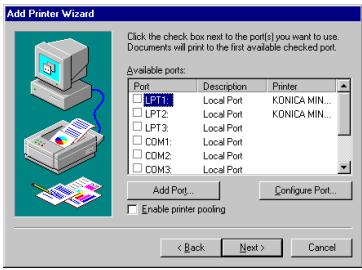
8 Click [Next].
- If you want to print directly to the printing system via the network, select the LPR port. For details, refer to "Installing to Windows NT4.0 (PCL6/PPD)" on Page 5-7.
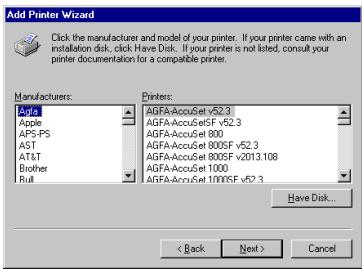
The window to select the printer manufacturer and model appears.
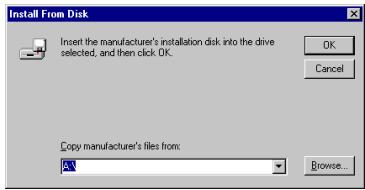
9 Click [Have Disk].
The [Install From Disk] window appears.
10 Click [Browse].
The [Locate File] window appears.
11 Set the "IC-203 CD-ROM or PS-503 CD-ROM" in the CD-ROM drive.
12 Change [Look in] to CD-ROM drive.
13 Select the following file;
-
When you install PCL6 driver: [KPIC601.inf] file in the "\Driver\Drivers\bizhubPRO920\EN\WinNT" folder of the "IC-203 CD-ROM"
-
When you install PPD driver: [Oemsetup.inf] file in the " \EN\Driver\AdobePS\WinNT" folder of the "PS-503 CD-ROM"
14 Click [Open]
The [Install From Disk] window appears again.
15 Click [OK].
The [Add Printer Wizard] window to select the manufacturer and model of the printer appears.
16 Confirm the followings in the list of [Printers]. When you install PCL6 driver: [KONICA MINOLTA 920 PCL] is highlighted.
- When you install PPD driver: [KONICA MINOLTA 920 PS(P)] is highlighted.
- [KONICA MINOLTA 920 PCL]/[KONICA MINOLTA 920 PS(P)] is the default printer name.
![KONICA MINOLTA IC 203 - Confirm the followings in the list of [Printers]. When you install PCL6 driver: [KONICA MINOLTA 920 PCL] is highlighted. - 1](/content/2025/01/139719/images/b523b5ad9c77204a4a26aa5592702fde7a84dd1ed9f27573e50b095570ee9558.jpg)
17 Click [Next].
The [Add Printer Wizard] window appears.
18 In the [Printer name] text box, check the printer name.
- If you want to change the printer name, enter the new printer name in the [Printer name] text box.
![KONICA MINOLTA IC 203 - In the [Printer name] text box, check the printer name. - 1](/content/2025/01/139719/images/4f47ce857437573bb42f5fc31078b857543438491d759d9b98e431d9f6b38953.jpg)
19 Select whether to use this printer as the default printer or not by selecting [Yes] or [No].
- If you install a printer to the computer for the first time, [Default printer] setting will not appear, and the first printer installed will be the default printer.
20 Click [Next].
The [Add Printer Wizard] window to select whether to share the printer appears.
21 Select whether to share the printer or not.
- Select [Shared] or [Not shared] checkbox. You can select the Network Client OS using the shared printer from the list displayed at the lower part of the window.
- When you select [Shared], you can input the shared name in the textbox.
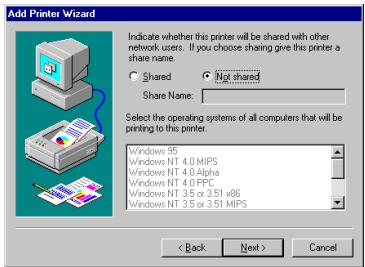
22 Click [Next].
The [Add Printer Wizard] window to perform the test print appears.
23 Select Whether to perform the test print or not by selecting [Yes (recommended)] or [No].
- Printing the test page is also possible after the installation of the printer driver.
![KONICA MINOLTA IC 203 - Select Whether to perform the test print or not by selecting [Yes (recommended)] or [No]. - 1](/content/2025/01/139719/images/1315ed81ee74b43e5b0e96769715bf025ff4e65c1e9ee555533671740b576244.jpg)
24 Click [Finish].
- Necessary files will be copied from the "IC-203 CD-ROM or PS-503 CD-ROM" to complete the installation.
- If you have selected [Yes (recommended)] at step 23, performing of the test print starts.
25 Make sure the test page printed properly.
- If you have selected [No] at step 23, the test page will not be printed.
If the test page is printed properly, click [Yes].
26 The installation is completed.
The printer driver of the printing system becomes available without restarting your computer.

Note
You must delete the current printer driver at first if you want to update/ reinstall the printer driver.
Refer to "Deleting the Printer Driver (Windows NT4.0)" on Page 6-5 for the method of deleting the printer driver.
Installing to Windows 2000 (PCL6/PPD)
To install the PCL6/PPD printer driver to Windows 2000, perform the following steps. The installation should be performed by a qualified system administrator or printer administrator.
In case you install the PCL driver, you can check the location of the [.inf] file through the IC-203 CD-ROM start-up screen.
1 Turn on the computer and start Windows 2000.
2 Log on as an administrator (or a user entitled to install a printer).
- Exit from all active Windows applications, if required.
3 Click [Start] of the task bar. Then, select [Settings] of the Start menu and click [Printers] from the sub-menu.
The [Printers] window appears.
4 Double-click [Add Printer] icon of the [Printers] window.
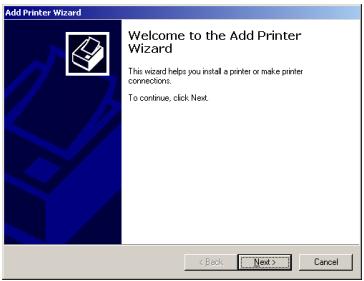
The [Add Printer Wizard] window appears to add the printer.
5 Click [Next].
The [Add Printer Wizard] window appears.
6 Select [Local printer].
- When the printing system is directly connected to a computer in which the printer driver will be installed, select [Local printer]. When the printing system is managed by a computer in which the printer driver will be installed, also select [Local printer].
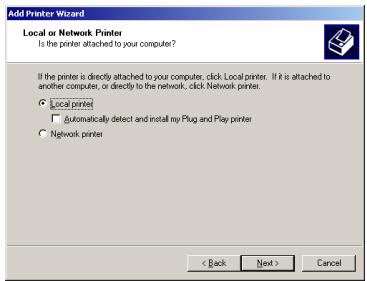
- When selecting the [Local printer], turn "off" [Automatically detect and install my Plug and Play printer] check box setting.
- When personal computers or workstations are connected to the network and you want to print via the network, select [Network
printer]. In case, refer to "Installing to Windows 2000/XP/Server 2003(PCL6/PPD)" on Page 5-13.
7 Click [Next].
The window to select the printer port will appear.
8 Select the port connecting the printer.
- Select the port to which the printing system is directly connected.
- If you want to print directly to the printing system via the network, select the LPR port. For details, refer to "Installing to Windows 2000/XP/Server 2003(PCL6/PPD)" on Page 5-13.
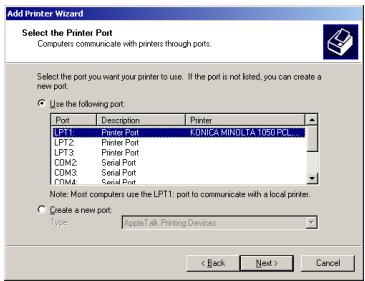
9 Click [Next].
The window to select the printer manufacturer and model appears.
10 Click [Have Disk].
The [Install From Disk] window appears.
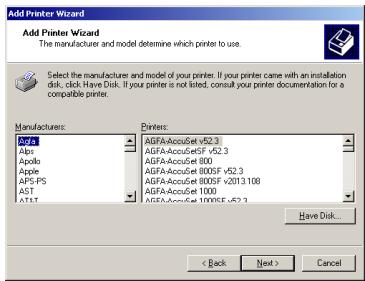
11 Click [Browse].
The [Locate File] window appears.
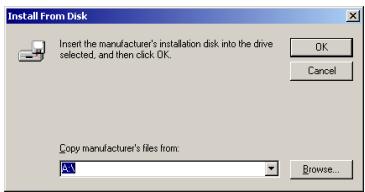
12 Set the "IC-203 CD-ROM or PS-503 CD-ROM" in the CD-ROM drive.
13 Change [Look in] to CD-ROM drive.
14 Select the following file;
- When you install PCL6 driver: [KPIC602.inf] file in the "\Driver\Drivers\bizhubPRO920\EN\Win2000_XP" folder of the "IC-203 CD-ROM"
- When you install PPD driver: [OEMSETUP.INF] file in the " \EN\Driver\AdobePS\Win2000_XP" folder of the "PS-503 CD-ROM"
15 Click [Open]
The [Install From Disk] window appears again.
16 Click [OK].
The [Add Printer Wizard] window to select the manufacturer and model of the printer appears.
17 Confirm the followings in the list of [Printers]. When you install PCL6 driver: [KONICA MINOLTA 920 PCL] is highlighted.
- When you install PPD driver: [KONICA MINOLTA 920 PS(P)] is highlighted.
- [KONICA MINOLTA 920 PCL]/[KONICA MINOLTA 920 PS(P)] is the default printer name.
![KONICA MINOLTA IC 203 - Confirm the followings in the list of [Printers]. When you install PCL6 driver: [KONICA MINOLTA 920 PCL] is highlighted. - 1](/content/2025/01/139719/images/6be3de576a61b9c07288ea4f0fedcebfd9ade5e04be4d28c623aa75023c8294e.jpg)
18 Click [Next].
The [Add Printer Wizard] window to check/change the printer name appears.
19 In the [Printer name] text box, check the printer name.
- If you want to change the printer name, enter the new printer name in the [Printer name] text box.
![KONICA MINOLTA IC 203 - In the [Printer name] text box, check the printer name. - 1](/content/2025/01/139719/images/de9899b1a45a9d4c7f23c0e340f0efd9110f1067a29bd223d0317ebfac4a3eba.jpg)
20 Select whether to use this printer as the default printer or not by selecting [Yes] or [No].
- If you are installing the first printer to your computer, the [Default printer] setting will not appear. The first printer installed automatically becomes the default printer.
21 Click [Next].
- The [Add Printer Wizard] window to select whether to share the printer appears.
22 Select whether to share the printer or not.
- Select [Share as] or [Do not share this printer] checkbox.
- When you select [Share as], you can input the shared name in the textbox.
![KONICA MINOLTA IC 203 - In the [Printer name] text box, check the printer name. - 2](/content/2025/01/139719/images/d7797dd4e9bd150b6abe4762c97e89d0fb6ca197d0f1cfd13c02a1e061eeb881.jpg)
23 Click [Next].
- If you have selected [Do not share this printer] at step 22, the [Add Printer Wizard] window to perform the test print will appear. In this case, go to step 26.
- If you have selected [Share as] at step 22, the [Add Printer Wizard] window to enter location and comment will appear. In this case, go to step 24.
24 If you have selected [Share as] at step 22, enter the location of the shared printer and comment in the [Location] and [Comment] textboxes.
25 Click [Next].
The [Add Printer Wizard] window to perform the test print will appear.
26 Select Whether to perform the test print or not by selecting [Yes] or [No].
- Printing the test page is also possible after the installation of the printer driver.
![KONICA MINOLTA IC 203 - In the [Printer name] text box, check the printer name. - 3](/content/2025/01/139719/images/bac05369e4fb71ec043a2bd2e50d065c210e69f29c206e3b28063238312590b5.jpg)
27 Click [Next].
The [Add Printer Wizard] completion window appears.
28 Click [Finish].
- If you have selected [Yes] at step 26, performing of the test print starts.
![KONICA MINOLTA IC 203 - In the [Printer name] text box, check the printer name. - 4](/content/2025/01/139719/images/a2bea785ded5c69e30ad0ea4f17ba97c31596db8675008944921794f37e1b24e.jpg)
29 Make sure the test page printed properly.
- If you have selected [No] at step 26, the test page will not be printed.
If the test page is printed properly, click [OK].
30 The installation is completed.
- The printer driver of the printing system becomes available without restarting your computer.
![KONICA MINOLTA IC 203 - In the [Printer name] text box, check the printer name. - 5](/content/2025/01/139719/images/018e240cee80ff826691d43362989136db6fb98f6d970e563a42690c3d728640.jpg)
Note
You must delete the current printer driver at first if you want to update/ reinstall the printer driver.
Refer to "Deleting the Printer Driver (Windows 2000/XP/Server 2003)" on Page 6-6 for the method of deleting the printer driver.
Installing to Windows XP/Server 2003 (PCL6/PPD)
To install the PCL6/PPD printer driver to Windows XP/Server 2003, perform the following steps. The installation should be performed by a qualified system administrator or printer administrator.
In case you install the PCL driver, you can check the location of the [.inf] file through the IC-203 CD-ROM start-up screen.
1 Turn on the computer and start Windows XP/Server 2003.
2 Log on as an administrator (or a user entitled to install a printer).
- Exit from all active Windows applications, if required.
3 Click [Start] of the task bar. Then, select [Printers and Faxes] of the Start menu.
The [Printers and Faxes] window appears.
4 Click [Add a printer] icon of the [Printers and Faxes] window.
The [Add Printer Wizard] window will appear to add the printer.
5 Click [Next].
The [Add Printer Wizard] window to select the printer connection appears.
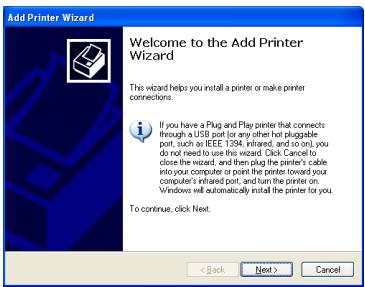
6 Select [Local printer attached to this computer].
- When the printing system is directly connected to a computer in which the printer driver will be installed, select [Local printer attached to this computer]. When the printing system is managed in a computer in which the printer driv
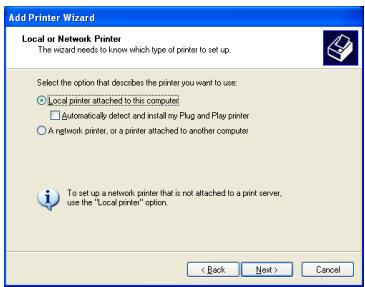
er will be installed, also select [Local printer attached to this computer].
- When selecting the [Local printer attached to this computer], turn "off" [Automatically detect and install my Plug and Play printer] setting "off".
- When personal computers or workstations are connected to the network and you want to print via the network, select [A network printer, or a printer attached to another computer]. In case, refer to "Installing to Windows 2000/XP/Server 2003(PCL6/PPD)" on Page 5-13.
7 Click [Next].
The window to select the printer port appears.
![KONICA MINOLTA IC 203 - Click [Next]. - 1](/content/2025/01/139719/images/0df6d75d11cb312ef6758cc84e5530d820ebbbed186c1e252b873257e58db201.jpg)
8 Select the port connecting the printer from the list displayed by clicking [▼] at the side of the [Use the following port:] box.
- Select the port to which the printing system is directly connected.
- If you want to print directly to the printing system via the network, select the LPR port. For details, refer to "Installing to Windows 2000/XP/Server 2003(PCL6/PPD)" on Page 5-13.
9 Click [Next].
The window to select the printer manufacturer and model appears.
10 Click [Have Disk].
The [Install From Disk] window appears.
![KONICA MINOLTA IC 203 - Click [Have Disk]. - 1](/content/2025/01/139719/images/851dcee061e5c172a65bae9dec7142d05460251162b219ec4352ec89f04cb77d.jpg)
11 Click [Browse].
The [Locate File] window appears.
![KONICA MINOLTA IC 203 - Click [Browse]. - 1](/content/2025/01/139719/images/c9c5909a33934c4226bd284ae8fc8941de0ff7f065c85bd6884549b97c0049ad.jpg)
12 Set the "IC-203 CD-ROM or PS-503 CD-ROM" in the CD-ROM drive.
13 Change [Look in] to CD-ROM drive.
14 Select the following file;
- When you install PCL6 driver: [KPIC602.inf] file in the "\Driver\Drivers\bizhubPRO920\Win2000_XP" folder of the "IC-203 CD-ROM"
- When you install PPD driver: [OEMSETUP.INF] file in the " \EN\Driver\AdobePS\Win2000_XP" folder of the "PS-503 CD-ROM"
15 Click [Open].
The [Install From Disk] window appears.
16 Click [OK].
The [Add Printer Wizard] window to select the manufacturer and model of the printer appears.
17 Confirm the followings in the list of [Printers]. When you install PCL6 driver: [KONICA MINOLTA 920 PCL] is highlighted.
- When you install PPD driver: [KONICA MINOLTA 920 PS(P)] is highlighted.
- [KONICA MINOLTA 920 PCL]/[KONICA MINOLTA 920 PS(P)] is the default printer name.
![KONICA MINOLTA IC 203 - Click [Browse]. - 2](/content/2025/01/139719/images/92e80a36efab270398351aa5576b727194a436072c26601246e2f80cea8d281e.jpg)
18 Click [Next].
The [Add Printer Wizard] window to check/change the printer name appears.
19 In the [Printer name] text box, check the printer name.
- If you want to change the printer name, enter the new printer name in the [Printer name] text box.
![KONICA MINOLTA IC 203 - Click [Browse]. - 3](/content/2025/01/139719/images/a9ebcf172250fbcf499af4d7c600740fe9aa66137dceda27effafe2971d02811.jpg)
20 Select whether to use this printer as the default printer or not by selecting [Yes] or [No].
21 Click [Next].
The window to select whether you share the printer appears.
22 Select whether to share the printer or not.
- Select [Share name:] or [Do not share this printer].
- When you select [Share name:], you can input the shared name in the textbox.
![KONICA MINOLTA IC 203 - Click [Browse]. - 4](/content/2025/01/139719/images/c400dc084e9d1cc0c67d2f13f4fc4908e8dc5e06abe2f25adb4fdf8ac4b63560.jpg)
23 Click [Next].
- If you have selected [Do not share this printer] at step 22, the window to perform the test print will appear. In this case, go to step 26.
- If you have selected [Share name:] at step 22, the window to enter location and comment appears. In this case, go to step 24.
24 If you have selected [Share name:] at step 22, enter the location of the shared printer and comment in the [Location] and [Comment] textboxes.
![KONICA MINOLTA IC 203 - Click [Browse]. - 5](/content/2025/01/139719/images/008b77cbe528f4b992b1d7cb747d765558a5e8358d86dda03d31c70919960eb0.jpg)
25 Click [Next].
The [Add Printer Wizard] window to perform the test print appears.
26 Select Whether to perform the test print or not by selecting [Yes] or [No].
- Printing the test page is also possible after the installation of the printer driver.
![KONICA MINOLTA IC 203 - Select Whether to perform the test print or not by selecting [Yes] or [No]. - 1](/content/2025/01/139719/images/f9371b3f00f49a706852afe905e691235751d1c76f3c7de6ba03c0a574d24cec.jpg)
27 Click [Next].
The [Add Printer Wizard] completion window appears.
28 Click [Finish].
- If you have selected [Yes] at step 26 performing of the test print starts.
![KONICA MINOLTA IC 203 - Click [Finish]. - 1](/content/2025/01/139719/images/59864f55ff8749abb92a4bcf6bf23c25bb46f980cdd7b65f4994ab9f26ecedba.jpg)
29 Make sure the test page printed properly.
- If you have selected [No] at step 26, the test page will not be printed.
- If the test page is printed properly, click [OK].
30 The installation is completed.
The printer driver of the printing system becomes available without restarting your computer.

Note
You must delete the current printer driver at first if you want to update/ reinstall the printer driver.
Refer to "Deleting the Printer Driver (Windows 2000/XP/Server 2003)" on Page 6-6 for the method of deleting the printer driver.
Installing the KONICA MINOLTA PS Driver
KONICA MINOLTA PS Driver is to be installed from [Setup.exe] of the PS-503 CD-ROM.
To install the KONICA MINOLTA PS printer driver to Windows, perform the following steps. In case of Windows NT4.0/2000/XP/Server 2003, the installation should be performed by a qualified system administrator or printer administrator.
Windows XP screens are indicated here for description.
About how to receive the optional PS driver for Windows 98/Me, contact your service representative. Delete
1 Turn on the computer and start Windows.
- In case of Windows NT4.0/2000/XP/Server 2003, log on as an Administrator (or a user entitled to install printer drivers, such as Power User, etc.).
- Exit from all active Windows applications, if running.
2 Place the "User Software CD" in the CD-ROM drive.
3 Open the [My Computer] window and then double-click the CD icon (User Software CD).
4 Double-click [Setup.exe] file in the [KonicaMinoltaPS] - [Setup] folder on the "PS-503 CD-ROM".
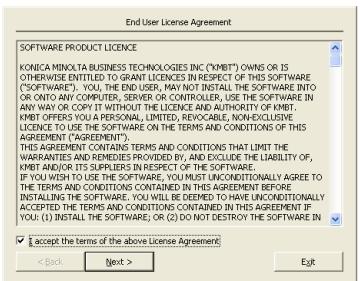
5 Check the [I accept the term of the above License Agreement] and click [Next].
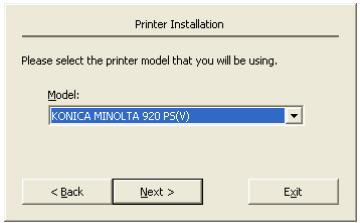
6 Confirm the printer name and click [Next].
7 Select your platform.
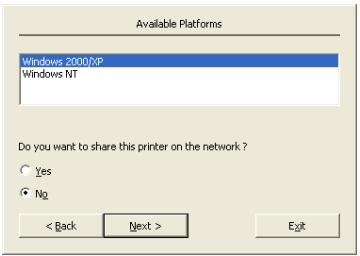
8 Select whether or not you share this printer on the network by selecting [Yes] or [No].
- If you want to share the printer on the network, refer to "Installing the KONICA MINOLTA PS Driver" on Page 5-17.
9 Click [Next].
10 Select the port to which the PS printing system is connected, and click [Next].
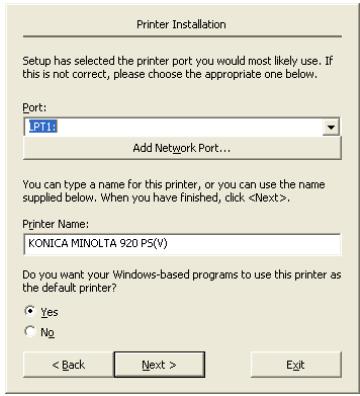
11 Confirm the printer name.
- If you want to change the printer name, enter a new name into the [Printer Name] text box
12 Select whether to use this printer as the default printer or not.
13 Click [Next].
14 Confirm the port and printer name you configured, and click [Finish].
The printer driver will be installed.
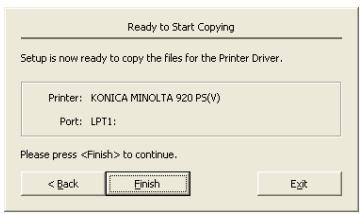
15 If you want to manually configure the printer, click [Document Defaults] or [Printer Properties].
- For more information, refer to "KONICA MINOLTA PS Printer Driver setting (Windows)" on Page 10-1.
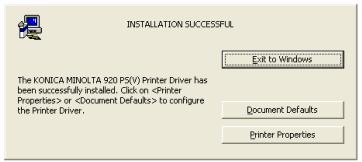
16 Click [Exit to Windows].
The installation session is over and you go back to the desktop. You do not need to restart the computer for the installed printer driver to take effect.

Note
You must delete the current printer driver at first if you want to update/ reinstall the printer driver.
Refer to "Uninstallation of the printer driver" on Page 6-1 for the method of deleting the printer driver.
4.2 Test Page Print
You can make sure whether or not the printer driver is installed properly by printing the test page that comes standard in Windows.
To print the test page:
1 Click [Start] of the task bar. Then, select [Printers and Faxes] of the Start menu.
The [Printers and Faxes] window appears.
2 Right-click the printer icon on the [Printers] window. Then select [Properties].
- The properties window may different depending on your OS.
How to open the [Properties] window is depending on OS.
Refer to "About Properties
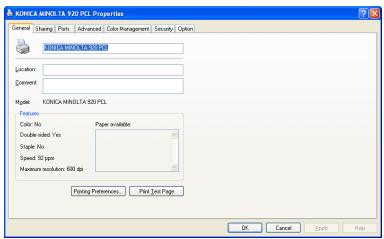
window" for more information about [Properties] window.
[KONICA MINOLTA 920 PCL Properties] dialog box appears.
3 Select [General] tab in the [KONICA MINOLTA 920 PCL Properties] dialog box and click [Print Test Page].
The test page is printed and the confirmation window appears.
4 Verify that it is printed properly. Then, click [Yes].
The test print is completed.

Note
If it is not printed properly, verify the current status of this printing system.
5 Installation (Network printing)
To use the print controller as a local printer, following preparations are required;
1 Configure the network environment.
2 Prepare Ethernet cable and connect the print controller and your computer to your network.
3 Install the printer driver for network printing to your computer.
4 Test print.
This chapter describes how to install the printer driver for network printing to Windows-compliant computers and Macintosh and how to print the test page.
Refer to "Installation (Local printing)" on Page 4-1 about local printing.
This chapter also describes the outline of the network configuration.
Refer to the Copier's manual about the network configuration of the copier.
5.1 Printer Drivers
In order to use this printing system, the printer driver must be installed. The printer driver is a program that controls the processing of data for output. Install the printer driver onto the computer from the provided CD-ROM.
The printer drivers included on the CD and the supported computer operating systems are listed below. Install the required printer driver.
| Page Description Language | Printer Driver | Supported Operating Systems |
| PCL | KONICA MINOLTA | Windows 98, Windows Me, Windows NT 4.0 |
| PCL Driver | (SP6a), Windows 2000 Professional, Windows XP Home Edition, Windows XP Professional, and Windows Server 2003 | |
| PostScript 3 (optional) | KONICA MINOLTA PS Driver | Windows 98, Windows Me, Windows NT 4.0 (SP6a), Windows 2000 Professional, Windows XP Home Edition, Windows XP Professional, and Windows Server 2003 |
| PostScript PPD Driver | Windows 98, Windows Me, Windows NT 4.0 (SP6a), Windows 2000 Professional, Windows XP Home Edition, Windows XP Professional, and Windows Server 2003 | |
| Mac OS 9.x and Mac OS X v10.2x/v10.3x/v10.4x |
- The User Software CD-ROM contains the PCL printer driver, and the PostScript Printer Driver CD-ROM contain the PostScript driver.
- About how to receive the optional PS driver for Windows 98/Me, contact your service representative. - Delete
5.1.1 Compliant OS
The printer driver is can be used on the following OS:
| Windows | Printer Driver |
| Windows 98/Me | "Installing to Windows 98/Me (PCL6/PPD)" on Page 5-3 |
| Windows NT4.0 | "Installing to Windows NT4.0 (PCL6/PPD)" on Page 5-7 |
| Windows 2000/XP/Serv-er 2003 Delete | "Installing to Windows 2000/XP/Server 2003(PCL6/PPD)" on Page 5-13 |
| Windows 98/Me/NT4.0/2000/XP/Server 2003 | "Installing the KONICA MINOLTA PS Driver" on Page 5-17 |
| Macintosh | Printer Driver |
| Mac OS 9.x | • "Installing to Macintosh (Mac OS 9)" on Page 5-21 |
| Mac OS X v10.2x - v10.4x | • "Installing to Macintosh (Mac OS X)" on Page 5-24 |
Installing to Windows 98/Me (PCL6/PPD)
To install the PCL6/PPD printer driver to Windows 98/Me, perform the following steps.
In case you install the PCL driver, you can check the location of the [.inf] file through the IC-203 CD-ROM start-up screen.
1 Turn on the computer and start Windows 98/Me.
- Exit from all active Windows applications, if required.
2 Click [Start] button of the task bar. Then, select [Settings] from the Start menu to click [Printers] from the sub-menu.
The [Printers] window appears.
3 Double-click [Add Printer] icon of the [Printers] window.
The [Add Printer Wizard] window appears to set the printer.
4 Click [Next].
The [Add Printer Wizard] window appears.
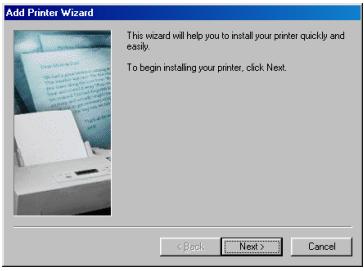
5 Select [Network printer].
- When personal computers are connected to a network and you want to print via the network, select [Network printer].
- When using the network printer, it is necessary to complete the network settings on the network interface
card and on the personal computers. For details, see your network administrator.
6 Click [Next].
The window to set the network path or queue name will appear.
7 Type the [Network path or queue name] text box.
- If you don't know its name, click [Browse] to view available network printers.
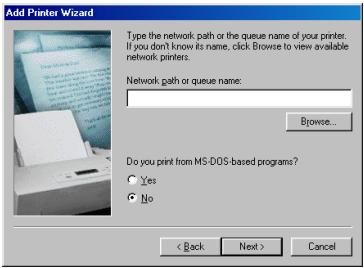
8 Select whether to print from MS-DOS-based program or not by selecting [Yes] or [No].
9 Click [Next].
- If the printer driver for Windows 98/Me is not saved in the server, the window to select the printer manufacturer and model will appear. In this case, go to step 10.
- If the printer driver for Windows 98/Me is saved in the server, the window to check/ change the printer name will a
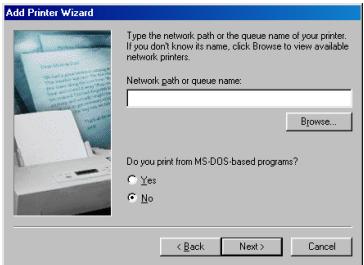
10 Click [Have Disk].
The [Install From Disk] window appears.
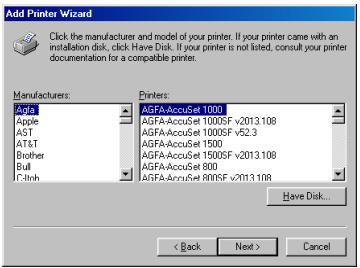
11 Click [Browse].
The [Open] window appears.
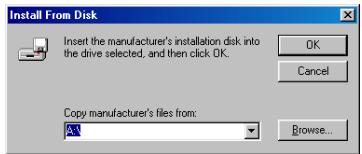
12 Set the "IC-203 CD-ROM or PS-503 CD-ROM" in the CD-ROM drive.
13 Change [Drive] to CD-ROM drive.
14 Select the following file;
- When you install PCL6 driver: [KPIC600.inf] file in the "\Driver\Drivers\bizhubPRO920\EN\Win9X_Me" folder of the "IC-203 CD-ROM"
- When you install PPD driver: [oemsetup.inf] file in the " \EN\Driver\AdobePS\Win9x_Me" folder of the "PS-503 CD-ROM"
15 Click [Open].
The [Install From Disk] window appears again.
16 Click [OK].
The next [Add Printer Wizard] window to select the printer manufacturer and model appears.
17 Confirm the followings in the list of [Printers], When you install PCL6 driver: [KONICA MINOLTA 920 PCL] is highlighted.
- When you install PPD driver: [KONICA MINOLTA 920 PS(P)] is highlighted.
- [KONICA MINOLTA 920 PCL]/[KONICA MINOLTA 920 PS(P)] is the default printer name.
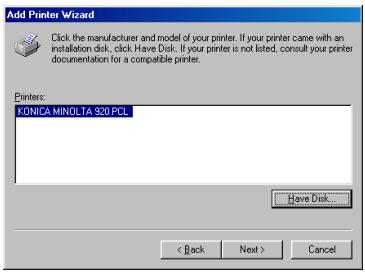
18 Click [Next].
- The [Add Printer Wizard] window to specify the printer name appears.
19 In the [Printer name] textboxes, check the printer name.
- If you want to change the printer name, enter the new printer name in the [Printer name] text box.
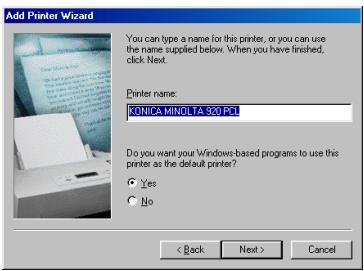
20 Select whether to use this printer as the default printer or not by selecting [Yes] or [No].
- If you are installing the first printer to your computer, the [Default printer] setting will not appear. The first printer installed automatically becomes the default printer.
21 Click [Next].
The next [Add Printer Wizard] window to perform the test print appears.
22 Select Whether to perform the test print or not by selecting [Yes (recommended)] or [No].
- Printing the test page is also possible after the installation of the printer driver.
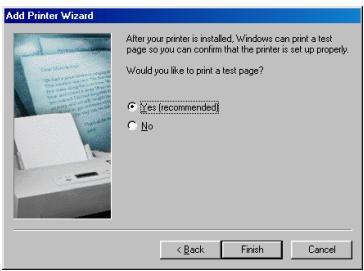
23 Click [Finish] button.
- Necessary files will be copied from the "IC-203 CD-ROM or PS-503 CD-ROM" to complete the installation.
If you have selected [Yes (recommended)] at step 22, performing of the test print starts.
24 Make sure the test page printed properly.
- If you have selected [No] at step 22, the test page will not be printed.
If the test page is printed properly, click [Yes].
25 The installation is completed.
The printer driver of the printing system becomes available without restarting your computer.

Note
You must delete the current printer driver at first if you want to update/ reinstall the printer driver.
Refer to "Deleting the Printer Driver (Windows 98/Me)" on Page 6-4 for the method of deleting the printer driver.
Installing to Windows NT4.0 (PCL6/PPD)
To install the PCL6/PPD printer driver to Windows NT4.0, perform the following steps. The installation should be performed by a qualified system administrator or printer administrator.
In case you install the PCL driver, you can check the location of the [.inf] file through the IC-203 CD-ROM start-up screen.
1 Turn on the computer and start Windows NT4.0.
2 Log on as an administrator (or a user entitled to install a printer).
- Exit from all active Windows applications, if required.
3 Click [Start] of the task bar. Then, select [Settings] of the Start menu and click [Printers] from the sub-menu.
The [Printers] window appears.
4 Double-click [Add Printer] icon of the [Printers] window.
The [Add Printer Wizard] window will appear to add the printer.
5 Select [Network printer server].
- When personal computers or workstations are connected to the network and you want to print via the network, select [Network printer server].
- When using the network printer server, it is necessary to complete the network settings on the network interface
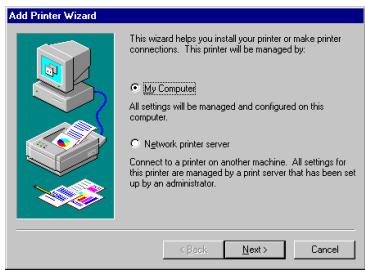
card and on the personal computers. For details, consult your network administrator.
6 Click [Next].
The [Printer Connection] window will appear.
7 Type the network path in the [Printer] textboxes.
- If you don't know the network path, search in the [Shared Printer] list to view and select available network printers.
8 Click [OK].
Depending on your server and the state of your computer, steps differ as follows.
- If the printer driver for Windows NT4.0 is installed in the server and a different printer is installed in the computer: Go to step 9.
- If the printer driver for Windows NT4.0 is installed in the server and the printer will be the first printer installed on the computer: Go to step 11.
- If the printer driver for Windows NT4.0 is not installed in the server and a different printer is installed in the computer:
- A message is displayed. If you click [OK], the window to select the printer manufacturer and model will appear. Follow the same procedure of "If the printer driver for Windows NT4.0 is not installed in the server:" and install the printer driver for Windows NT4.0.
- If the printer driver for Windows NT4.0 is not installed in the server and the printer will be the first printer installed on the computer:
- A message is displayed. If you click [OK], the window to select the printer manufacturer and model will appear. Follow the same procedure of "If the printer driver for Windows NT4.0 is not installed in the server:" and install the printer driver for Windows NT4.0.
9 Select whether to use this printer as the default printer or not by selecting [Yes] or [No].
- If you install a printer to the computer for the first time, [Default printer] setting will not appear, and the first printer installed will be the default printer.
10 Click [Next].
The [Add Printer Wizard] window to perform the test print appears.
11 Select Whether to perform the test print or not by selecting [Yes (recommended)] or [No].
- Printing the test page is also possible after the installation of the printer driver.
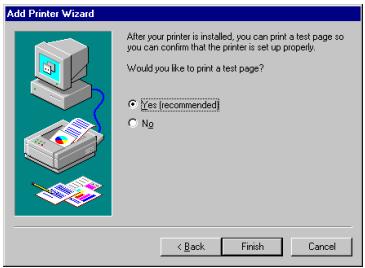
12 Click [Finish].
- Necessary files will be copied from the "IC-203 CD-ROM or PS-503 CD-ROM" to complete the installation.
- If you have selected [Yes (recommended)] at step 11, performing of the test print starts.
13 Make sure the test page printed properly.
- If you have selected [No] at step 11, the test page will not be printed.
- If the test page is printed properly, click [Yes].
14 The installation is completed.
The printer driver of the printing system becomes available without restarting your computer.
If the printer driver for Windows NT4.0 is not installed in the server:
1 Click [Have Disk].
The [Install From Disk] window appears.
![KONICA MINOLTA IC 203 - Click [Have Disk]. - 1](/content/2025/01/139719/images/31465f8ed0a7c3fb5431177a99e2c1e810db00e77ea559e56443eee9cd910247.jpg)
2 Click [Browse].
The [Locate File] window appears.
3 Set the "IC-203 CD-ROM or PS-503 CD-ROM" in the CD-ROM drive.
4 Change [Look in] to CD-ROM drive.
5 Select the following file;
- When you install PCL6 driver:
[KPIC601.inf] file in the "\Driver\Drivers\bizhubPRO920\EN\WinNT" folder of the "IC-203 CD-ROM"
- When you install PPD driver:
[Oemsetup.inf] file in the "\EN\Driver\AdobePS\WinNT" folder of the "PS-503 CD-ROM"
6 Click [Open]
The [Install From Disk] window appears again.
7 Click [OK].
The [Add Printer Wizard] window to select the manufacturer and model of the printer appears.
8 Confirm the followings in the list of [Printers], When you install PCL6 driver: [KONICA MINOLTA 920 PCL] is highlighted.
- When you install PPD driver: [KONICA MINOLTA 920 PS(P)] is highlighted.
![KONICA MINOLTA IC 203 - Confirm the followings in the list of [Printers], When you install PCL6 driver: [KONICA MINOLTA 920 PCL] is highlighted. - 1](/content/2025/01/139719/images/c559a1a8c911429186c900fe6c28b24115bff5bd1ad08f4890d5bef240ca8d2e.jpg)
- [KONICA MINOLTA 920 PCL]/[KONICA MINOLTA 920 PS(P)] is the default printer name.
9 Click [Next].
The [Add Printer Wizard] window appears.
10 In the [Printer name] textboxes, check the printer name.
- If you want to change the printer name, enter the new printer name in the [Printer name] textboxes.
![KONICA MINOLTA IC 203 - In the [Printer name] textboxes, check the printer name. - 1](/content/2025/01/139719/images/46260dfcd0705b5f30de8592e5de4efe0934e55450c4fd6ad4a33ad1cadd19c2.jpg)
11 Select whether to use this printer as the default printer or not by selecting [Yes] or [No].
- If you install a printer to the computer for the first time, [Default printer] setting will not appear, and the first printer installed will be the default printer.
12 Click [Next].
The [Add Printer Wizard] window to perform the test print appears.
13 Select Whether to perform the test print or not by selecting [Yes (recommended)] or [No].
- Printing the test page is also possible after the installation of the printer driver.
![KONICA MINOLTA IC 203 - Click [Next]. - 1](/content/2025/01/139719/images/9888b5a89b983391eae0291e501465af850cbb5b689d558da61c2c48ee16e314.jpg)
14 Click [Finish].
-
Necessary files will be copied from the "IC-203 CD-ROM or PS-503 CD-ROM" to complete the installation.
-
If you have selected [Yes (recommended)] at step 13, performing of the test print starts.
15 Make sure the test page printed properly.
- If you have selected [No] at step 13, the test page will not be printed.
If the test page is printed properly, click [Yes].
16 The installation is completed.
The printer driver of the printing system becomes available without restarting your computer.

Note
You must delete the current printer driver at first if you want to update/ reinstall the printer driver.
Refer to "Deleting the Printer Driver (Windows NT4.0)" on Page 6-5 for the method of deleting the printer driver.
Installing to Windows 2000/XP/Server 2003(PCL6/PPD)
To install the PCL6/PPD printer driver to Windows 2000/XP/Server 2003, perform the following steps. The installation should be performed by a qualified system administrator or printer administrator.
In case you install the PCL driver, you can check the location of the [.inf] file through the IC-203 CD-ROM start-up screen.
Windows XP screens are indicated here for description.
1 Turn on the computer and start Windows 2000/XP/Server 2003.
2 Log on as an administrator (or a user entitled to install a printer). - Exit from all active Windows applications, if required.
3 Click [Start] of the task bar. Then, select [Printers and Faxes] of the Start menu. (or select [Start] - [Settings] - [Printers (and Faxes)]) The [Printers and Faxes] window appears.
4 Click [Add a printer] icon of the [Printers and Faxes] window. The [Add Printer Wizard] window will appear to add the printer.
5 Click [Next].
The [Add Printer Wizard] window to select the printer connection appears.

6 Select [A network printer, or a printer attached to another computer].
- When personal computers or workstations are connected to the network and you want to print via the network, select [A network printer, or a printer attached to another computer].
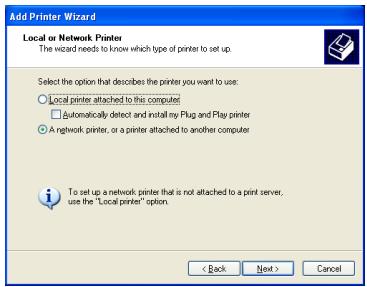
- When using the network printer, it is necessary to complete the network settings on the network interface card and on the personal computers. For details, consult your network administrator.
7 Click [Next].
The window to specify the printer will appear.
8 Type the network printer name in the [Name] textbox or type the URL in the [URL] textbox, and click [Next].
- If the printer driver for Windows 2000/XP/Server 2003 is saved in the server, the window to set the default printer will appear. In this case, go to step 9.
![KONICA MINOLTA IC 203 - Type the network printer name in the [Name] textbox or type the URL in the [URL] textbox, and click [Next]. - 1](/content/2025/01/139719/images/a956940d02e0090436fa828a9b17aac63934fcbc0fa97ed2205adf4fd4ca98ed.jpg)
- If the printer driver for Windows 2000/XP/Server 2003 is not saved in the server, a message is displayed. If you click [OK], the window to select the printer manufacturer and model will appear. Follow the same procedure of "If the printer driver for Windows 2000/XP/Server 2003 is not saved in the server".
- If you don't know the network printer name, click [Next] and search the network printer in the window to browse printer. Select available network printers and click [Next].
9 Select whether to use this printer as the default printer or not by selecting [Yes] or [No].
10 Click [Finish].
The installation is completed.
The printer driver of the printing system becomes available without restarting your computer.
If the printer driver for Windows 2000/XP/Server 2003 is not saved in the server
1 Click [Have Disk].
The [Install From Disk] window appears.
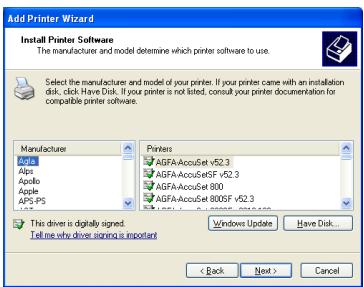
2 Click [Browse].
The [Locate File] window appears.
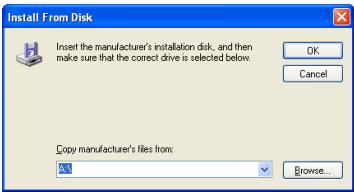
3 Set the "IC-203 CD-ROM or PS-503 CD-ROM" in the CD-ROM drive.
4 Change [Look in] to CD-ROM drive.
5 Select the following file;
- When you install PCL6 driver: [KPIC602.inf] file in the "\Driver\Drivers\bizhubPRO920\EN\Win2000_XP" folder of the "IC-203 CD-ROM"
- When you install PPD driver: [OEMSETUP.INF] file in the " \EN\Driver\AdobePS\Win2000_XP" folder of the "PS-503 CD-ROM"
6 Click [Open].
The [Install From Disk] window appears.
7 Click [OK].
The [Add Printer Wizard] window to select the manufacturer and model of the printer appears.
8 Confirm the followings in the list of [Printers]. When you install PCL6 driver: [KONICA MINOLTA 920 PCL] is highlighted.
- When you install PPD driver: [KONICA MINOLTA 920 PS(P)] is highlighted.
- [KONICA MINOLTA 920 PCL]/[KONICA MINOLTA 920 PS(P)] is the default printer name.
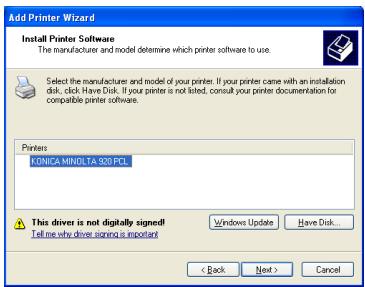
9 Click [Next].
The window to set the default printer will appear.
10 Select whether to use this printer as the default printer or not by selecting [Yes] or [No].
11 Click [Next].
The [Add Printer Wizard] completion window appears.
12 Click [Finish].
The installation is completed.
The printer driver of the printing system becomes available without restarting your computer.


Note
You must delete the current printer driver at first if you want to update/ reinstall the printer driver.
Refer to "Deleting the Printer Driver (Windows 2000/XP/Server 2003)" on Page 6-6 for the method of deleting the printer driver.
Installing the KONICA MINOLTA PS Driver
KONICA MINOLTA PS Driver is to be installed from [Setup.exe] of the PS-503 CD-ROM.
To install the KONICA MINOLTA PS printer driver to Windows, perform the following steps. In case of Windows NT4.0/2000/XP/Server 2003, the installation should be performed by a qualified system administrator or printer administrator.
Windows XP screens are indicated here for description.
^+ About how to receive the optional PS driver for Windows 98/Me, contact your service representative. Delete
1 Turn on the computer and start Windows.
- In case of Windows NT4.0/2000/XP/Server 2003, log on as an Administrator (or a user entitled to install printer drivers, such as Power User, etc.).
- Exit from all active Windows applications, if running.
2 Place the "PS-503 CD-ROM" in the CD-ROM drive.
3 Open [My Computer] window and then double-click the CD icon (PS-503 CD-ROM).
4 Double-click [Setup.exe] file in the [KonicaMinoltaPS] - [Setup] folder on the "User Software CD".
5 Check [I accept the term of the above License Agreement] and click [Next].
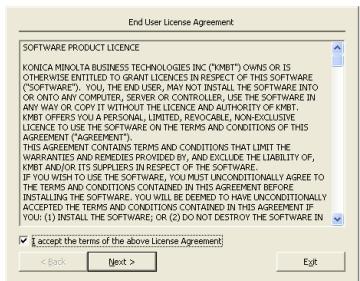
6 Confirm the printer name and click [Next].
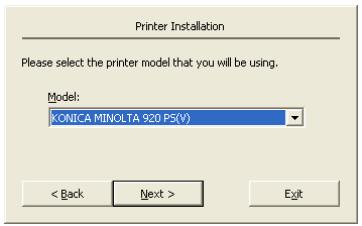
7 Select your platform.
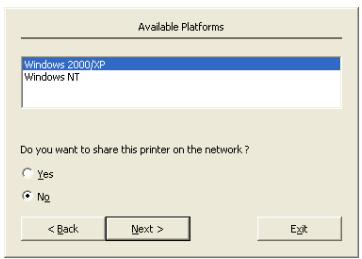
8 Select whether or not you share this printer on the network.
- If you share it, select [Yes].
- If you do not share the printer on the network, refer to "Installing the KONICA MINOLTA PS Driver" on Page 4-23.
9 Click [Next].
10 Click [Add Network Port] to select the network printer you want to add.
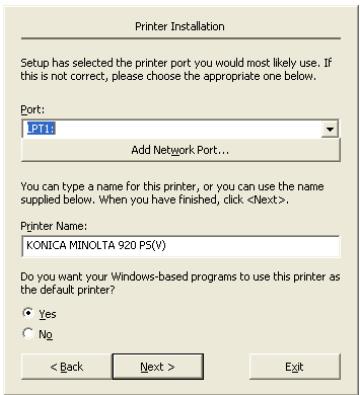
11 Confirm the printer name.
- If you want to change the printer name, enter a new name into the [Printer Name] text box.
12 Select whether to use this printer as the default printer or not.
13 Click [Next].
- Go to the step 14 if you selected [Yes] to share in the step 8 or to step 15 if you selected [No].
14 Enter [Share Name] and enter [Location] and [Comment] if required.
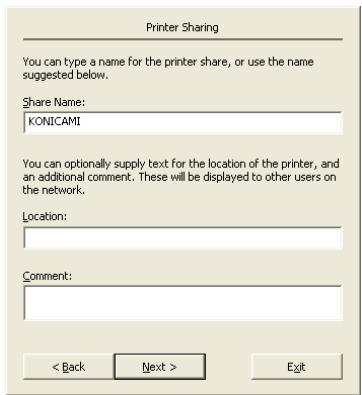
15 Confirm the port and printer name you configured, and click [Finish].
The printer driver will be installed.
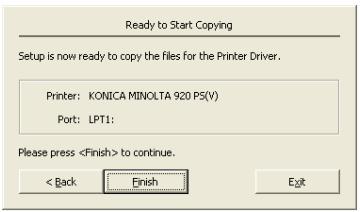
16 If you want to manually configure the printer, click [Document Defaults] or [Printer Properties].
- For more information, refer to "KONICA MINOLTA PS Printer Driver setting (Windows)" on Page 10-1.
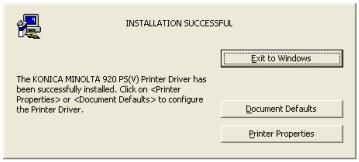
17 Click [Exit to Windows].
The installation session is over and you go back to the desktop. You do not need to restart the computer for the installed printer driver to take effect.

Note
You must delete the current printer driver at first if you want to update/ reinstall the printer driver.
Refer to "Uninstallation of the printer driver" on Page 6-1 for the method of deleting the printer driver.
Installing to Macintosh (Mac OS 9)
To install the PPD printer driver to Mac OS 9, perform the following steps.
1 Turn on the computer and start Macintosh.
- Exit from all active applications, if required.
2 Set the "PS-503 CD-ROM" in the CD-ROM drive.
- The driver and PPD file are different depending on the version of Macintosh.
3 Open the [EN]-[Driver]-[OS9_x] folder in the User Software CD.
- The printer driver is not installable on Mac OS 8.x. or earlier.
4 Copy the PPD file onto the hard disk.
- Select [KONICAMINOLTA920vxxx.ppd] file and copy it into the [HDD] - [System Folder] - [Extensions] - [Printer Descriptions].
5 Execute the installer.
- Select and double-click [AdobePS Installer]. The dialog box appears.
6 Click [Continue...].
The [License] dialog box appears.
7 Click [Accept].
- You must agree to the license to use the printer driver for the PS3 printing system. Click [Accept] and go to the next step.
The [AdobePS Installer] dialog box appears.
8 Click [Install].
The installation starts.
When the installation is completed, the following message appears.
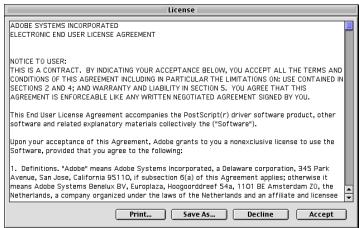
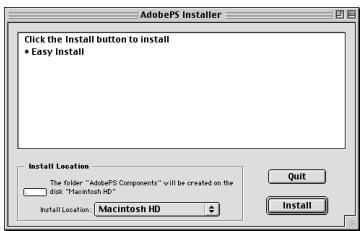
9 Click [Restart].
- Then, go to "Selecting the printer with the Chooser".
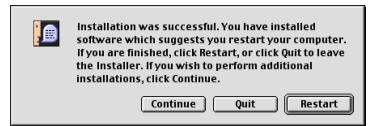
Selecting the printer with the Chooser
1 Select [Chooser] in the [Apple Menu Items].
2 Make sure that [AdobePS] is selected in the [AppleTalk] box.
3 Click [AdobePS] icon.
4 Click the printer name for your printing system from the [Select a PostScript Printer] list.
- If you don't know the printer name, consult your network administrator for more information.
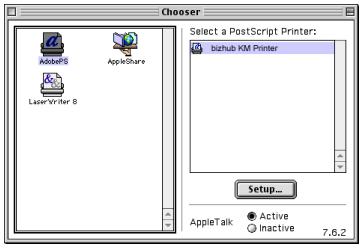
5 Click [Setup...] if you are using the PS3 printing system printer for the first time.
- Select the PPD file that is copied from the CD-ROM.
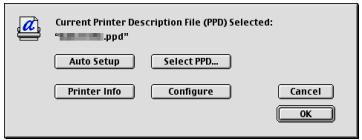
6 Click each items to set the options for the PS3 printing system printer.
7 Click [OK].
The [Chooser] dialog appears.
8 Close [Chooser] dialog.

Note
You must delete the current printer driver at first if you want to update/ reinstall the printer driver.
Refer to "Deleting the Printer Driver (Mac OS 9)(PPD)" on Page 6-8 for the method of deleting the printer driver.
Installing to Macintosh (Mac OS X)
To install the PPD printer driver to Mac OS X, perform the following steps.
The printer driver is not installable on Mac OS v10.0 or v10.1.
1 Turn on the computer and start Macintosh.
- Exit from all active applications, if required.
2 Set the "PS-503 CD-ROM" in the CD-ROM drive.
3 From "User Software CD", double-click [EN]-[Driver]-[OS10_2_x] or [OS10_3_x] folder and copy "KONICAMINOLTA_920_xxx pkg" onto desktop.
- The "pkg" files vary depending on the OS version as shown below.
- KONICAMINOLTA_920_102 pkg......For Mac OS X v10.2x
- KONICAMINOLTA_920_103 pkg......For Mac OS X v10.3x/v10.4x
4 Double-click on "KONICAMINOLTA_920_xxx pkg".
- When using the Mac OS X v10.2x, enter the name and password of the administrator.
5 A message is indicated asking whether or not to execute the installer. Click [Continue].
6 Click [Continue].

KONICAMINOLTA_920_103. pkg

This Installer package needs to run a program to determine if it can be installed. Do you want to continue?
Cancel
Continue
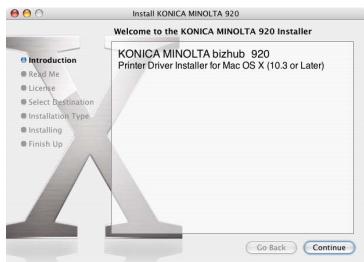
7 Click [Continue].
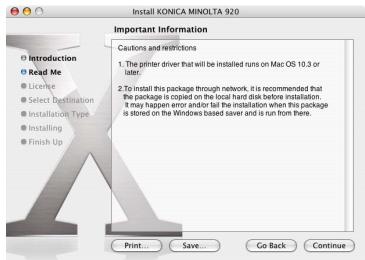
8 Click [Continue].
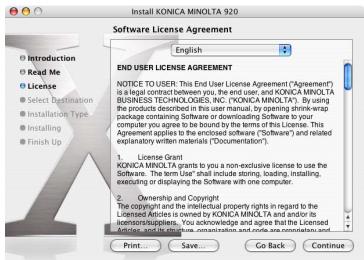
9 Click [Agree].
- You must agree to the license to use the printer driver for the PS3 printing system. Click [Agree] and go to the next step.
To continue installing the software, you must agree to the terms of the software license agreement.
Click Agree to continue or click Disagree to cancel the installation.
Disagree
Agree
"Select a Destination" window appears.
10 Select a disk to be installed and then click [Continue].
"Easy Install" window appears.
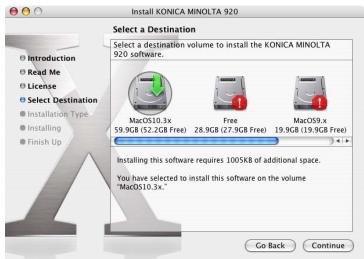
11 Click [Install].
- When using the Mac OS X (v10.3x, v10.4x), enter the name and password of the administrator.
- When reinstallation is carried out, the indication [Install] may be changed to [Upgrade].
Printer driver will be installed on PC.
When the installation completes, a message appears.
![KONICA MINOLTA IC 203 - Click [Install]. - 1](/content/2025/01/139719/images/9e28213b8a469e74b0f8c8476433528b9e4ba182701c83824394e667228b3c22.jpg)
12 Click [Close].
The printer driver is installed now.
![KONICA MINOLTA IC 203 - Click [Close]. - 1](/content/2025/01/139719/images/3b9800bc4ffd85d41c8e97bebba8e5e27171b3698182d47af5a52590945ed09e.jpg)
![KONICA MINOLTA IC 203 - Click [Close]. - 2](/content/2025/01/139719/images/a4ab036f5eebc3f6b0f613447169d0a9986576b3ed29ebcffa420339e7943258.jpg)
Note
You must delete the current printer driver at first if you want to update/ reinstall the printer driver.
Refer to "Deleting the Printer Driver (Mac OS X)(PPD)" on Page 6-9 for the method of deleting the printer driver.
Selecting the Printer (Mac OS X)
On [System Preference], set the printer you want to use.
1 Open [System Preference].
In case of Mac OS X v10.2x, select [Print Center].
![KONICA MINOLTA IC 203 - Open [System Preference]. - 1](/content/2025/01/139719/images/7600fcd3b88276a6495a61800bfdb5fc2205bf6e2853b8dec0bdc3b331ff25cd.jpg)
In case of Mac OS X v10.3x/v10.4x, select [Print & Fax].
![KONICA MINOLTA IC 203 - Open [System Preference]. - 2](/content/2025/01/139719/images/d2f2484461427e5ed5923b56a0da4b535e1e53bd0776d1eac07053222d45a2b5.jpg)
2 Select [Set Up Printers].
![KONICA MINOLTA IC 203 - Select [Set Up Printers]. - 1](/content/2025/01/139719/images/cad2e9f62090b22a074cf338ce1799868093145b3c71521eddaf48a16f1e3d3e.jpg)
3 Click [Add].
- If the applicable printer is set, the illustration of 2 is not displayed.
![KONICA MINOLTA IC 203 - Click [Add]. - 1](/content/2025/01/139719/images/b4a6d9c8096637b1e356a7ff7f49f5a5268a18a5975d53a7235852c1eea22425.jpg)
4 Select the corresponding printer name.
![KONICA MINOLTA IC 203 - Click [Add]. - 2](/content/2025/01/139719/images/6f2905f926207b3f99eed562f4db724840d212d7a1b660d98dadf2869cd367ad.jpg)
5 Click [Printer Model] and select [KONICA MINOLTA].
![KONICA MINOLTA IC 203 - Click [Add]. - 3](/content/2025/01/139719/images/59b18b92bc9fc36766ebc90c4ee785895b1fe42b41ba61b14c7efb6a6a6538f8.jpg)
6 Select the [KONICA MINOLTA 920 PS (P)] and then click [Add].
If you choose [IP Printing] as a connection method of the printer, you need to input the IP address of the printer.
![KONICA MINOLTA IC 203 - Click [Add]. - 4](/content/2025/01/139719/images/74b04f62b7593b8cbd31b12d15522f596c82677a2642abc5ab6b1f3b507e61be.jpg)
7 Click the printer name and from menu - [Printers], select [Show Info].
[Printer Info] window will be displayed.
![KONICA MINOLTA IC 203 - Click [Add]. - 5](/content/2025/01/139719/images/745d6646436bf80cf9a0898ab25429bcf2f62022525ae2cc9c7d772615088ff7.jpg)
8 Select [Installable Options].
9 Setup the options that are equipped to copier.
![KONICA MINOLTA IC 203 - Click [Add]. - 6](/content/2025/01/139719/images/354fb406b4d0a8186e29c80c356b6bc12a8777d6e8409271b49c25991d4f637b.jpg)
10 Click [Apply Changes].
11 Close [Print Info] window.
5.2 Test Page Print
You can make sure whether or not the printer driver is installed properly by printing the test page that comes standard in Windows.
To print the test page:
1 Click [Start] of the task bar. Then, select [Printers and Faxes] of the Start menu.
The [Printers and Faxes] window appears.
2 Right-click the printer icon on the [Printers] window. Then select [Properties].
- The properties window may different depending on your OS.
- How to open the [Properties] window is depending on OS. Refer to "About Properties window" for more information about [Properties] window.
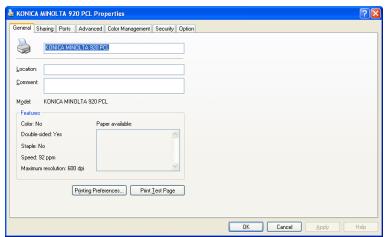
[KONICA MINOLTA 920 PCL Properties] dialog box appears.
3 Select [General] tab in the [KONICA MINOLTA 920 PCL Properties] dialog box and click [Print Test Page].
The test page is printed and the confirmation window appears.
4 Verify that it is printed properly. Then, click [Yes].
The test print is completed.

Note
If it is not printed properly, verify the current status of this printing system.
Macintosh
Macintosh has no standard test print function. Double-click [ReadMe.txt] in the User Software CD. Then, select [Print...] from [File] menu and make sure it is printed properly.
6 Uninstallation of the printer driver
The deleting procedures of the printer driver may be different depending on the type of the driver and the OS running in the computer.
6.1 Deletion of printer driver with installer (PCL)
Delete the printer driver with the installer. The printer driver which can be deleted with the installer is "KONICA MINOLTA PCL" only. Follow the procedure below for deletion.
Windows XP screens are indicated here for description.
1 Insert the "IC-203CD-ROM" into the CD-ROM tray of the personal computer.
Menu window appears.
2 Click [Printer Install].
The printer driver installer is started and the [License Agreement] window appears.
3 Read through the license agreement and click the [AGREE].
- Windows XP screens are indicated here for description.
[Select menu to setup] window appears.
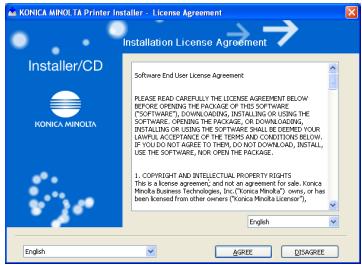
4 Select [Uninstall Printer Driver] and click [Next].
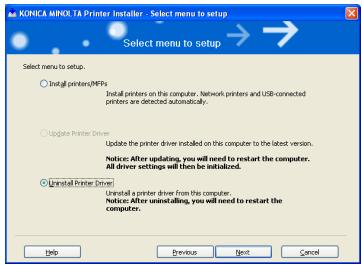
5 Driver name to be deleted (KONICA MINOLTA 920 PCL) is displayed. Turn the check box on the left of the driver name to ON and click [Uninstall].
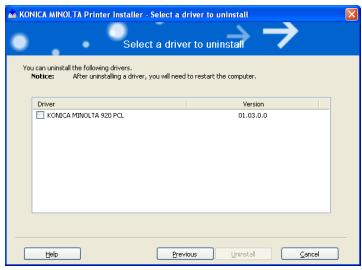
6 Printer driver name is displayed again for confirmation. click [Uninstall].
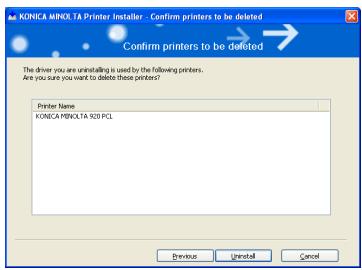
Upon completion of deletion of the printer driver, you are prompted to restart the computer. Click [OK] to start again.
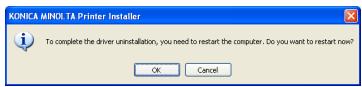
Deletion of the printer driver with the installer is now completed.
6.2 Deletion of printer driver by Manual operation
The deleting procedures of the printer driver by manual operation may be different depending on the type of the driver and the OS running in the computer.
| Windows | Deleting a Printer Driver |
| Windows 98/Me | •"Deleting the Printer Driver (Windows 98/Me)" on Page 6-4 |
| Windows NT4.0 | •"Deleting the Printer Driver (Windows NT4.0)" on Page 6-5 |
| Windows 2000/XP/Serv-er 2003 | •"Deleting the Printer Driver (Windows 2000/XP/Server 2003)" on Page 6-6 |
| Macintosh | Deleting a Printer Driver |
| Mac OS 9.x | • "Deleting the Printer Driver (Mac OS 9)(PPD)" on Page 6-8 |
| Mac OS X v10.2x - v10.4x | • "Deleting the Printer Driver (Mac OS X)(PPD)" on Page 6-9 |
Deleting the Printer Driver (Windows 98/Me)
To delete the Windows 98/Me-compatible printer driver, perform the following steps.
1 Turn on the computer and start Windows 98/Me.
2 Click [Start] of the task bar. Then, select [Settings] from the Start menu to click [Printers] from the sub-menu.
- Exit from all active Windows applications, if required.
The [Printers] window appears.
3 Right-click the icon for the printer you want to delete. Then, select [Delete].
4 Click [Yes].
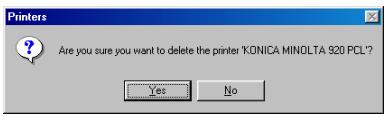
5 Restart the computer.
- If the printer has been set as the default printer, the message saying the default printer is deleted appears after the deletion.
The printer driver is uninstalled.
6 When updating the printer driver, go to "Installing to Windows 98/Me (PCL6/PPD)" on Page 4-3.
Deleting the Printer Driver (Windows NT4.0)
To delete the Windows NT4.0 compatible printer driver, perform the following steps.
1 Turn on the computer and start Windows NT 4.0.
2 Click [Start] of the task bar. Then, select [Settings] from the Start menu to click [Printers] from the sub-menu.
- Exit from all active Windows applications, if required.
The [Printers] window appears.
3 Right-click the icon for the printer you want to delete. Then, select [Delete].
The confirmation message appears.
4 Click [Yes].
The printer driver is uninstalled. After completion of uninstall, close the [Printers] window.
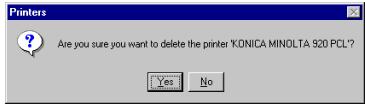
5 Restart the computer.
To avoid the system failure, make sure to restart the computer after deleting the printer driver.
6 When updating the printer driver, go to "Installing to Windows NT4.0 (PCL6/PPD)" on Page 4-7.
Deleting the Printer Driver (Windows 2000/XP/Server 2003)
To delete the Windows 2000/XP/Server 2003-compatible printer driver, perform the following steps.
Windows XP screens are indicated here for description.
1 Turn on the computer and start Windows 2000/XP/Server 2003.
2 Click [Start] of the task bar. Then, select [Printers and Faxes] from the Start menu. (or select [Start] - [Settings] - [Printers (and Faxes).])
- Exit from all active Windows applications, if required.
The [Printers and Faxes] window appears.
3 Select the icon for the printer you want to delete. Then, click [Delete this printer].
The confirmation message will appear.
4 Click [Yes].
- If the printer has been set as the default printer, the message saying the default printer is deleted appears after the deletion.
The printer is uninstalled.
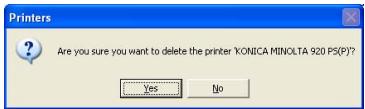
5 Select [Server Properties] from the [File] menu of the [Printers and Faxes] window.
The [Print Server Properties] window appears.
6 Open [Drivers] tab of the [Print Server Properties] window.
7 Select the printer driver you want to delete from the [Installed printer drivers:]. Then click [Remove]. The confirmation message appears.
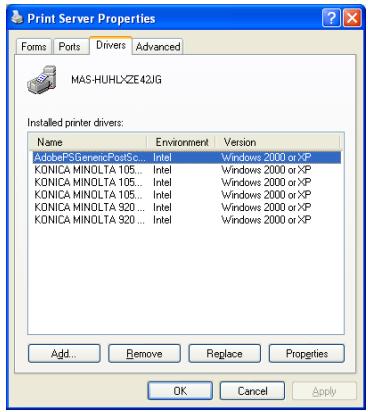
8 Click [Yes].
The printer driver is deleted (uninstalled).
9 Restart the computer.
- To avoid the system failure, make sure to restart the computer after deleting the printer driver.
10 When updating the printer driver, go to "Installing to Windows XP/Server 2003 (PCL6/PPD)" on Page 4-17.
Deleting the Printer Driver (Mac OS 9)(PPD)
To delete the Mac OS 9 compatible printer driver, perform the following steps.
1 Turn on the computer and start Mac OS 9.
2 Select the icon for the printer that you want to delete from the desktop and drag it onto [Trash].
The desktop printer is deleted (uninstalled).
3 Select [KONICAMINOLTA920vxxx.ppd] in [HDD] - [System Folder] - [Extensions] - [Printer Descriptions] and drag it onto [Trash].
- [KONICAMINOLTA920vxxx.ppd] loses its effect on the printer just by removing it from the [Extensions] folder.
- PPD file name varies depending on models of the machine.
The files related to the driver file are deleted.
4 When updating the printer driver, go to "Installing to Macintosh (Mac OS 9)" on Page 5-21.

Note
The files for the old driver may be left if you have problems updating the driver. If such cases, delete them all.
Deleting the Printer Driver (Mac OS X)(PPD)
To delete the Mac OS X-compatible printer driver, perform the following steps.
The printer driver is not installable on Mac OS v10.0 or v10.1
1 Turn on the computer and start Mac OS X.
2 Open [Printer List].
3 Select the name of the printer to be deleted and click [Delete].
The selected printer is deleted.
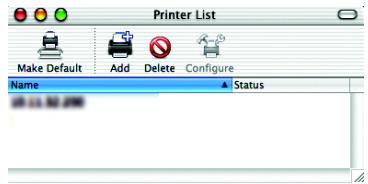
4 Close [Printer List].
5 Delete unnecessary files in the hard disk (HDD) with the printer driver installed.
In case of Mac OS v10.3x / v10.4x
- Drag the following files in the [HDD] - [Library] - [Receipts] to [Trash].
- KONICAMINOLTA_920_103 pkg
- Drag the following files in the [HDD] - [Library] - [Printers] - [PPDs] - [Contents] - [Resources] to [Trash].
- KONICAMINOLTA920.gz
- Drag the following files in the [HDD] - [Library] - [Printers] - [KONICAMINOLTA] - [PDEs] to [Trash].
- KONICA MINOLTA 920 Finishing-plugin
- KONICA MINOLTA 920 ImageLayout.widget
- KONICA MINOLTA 920 Security-plugin
- KONICA MINOLTA 920 SetupPlugin
- Drag the following files in the [HDD] - [Library] - [Printers] - [KONICAMINOLTA] - [Filter] to [Trash].
-pstokm920
In case of Mac OS v10.2x
- Drag the following files in the [HDD] - [Library] - [Printers] - [PPDs] - [Contents] - [Resources] to [Trash].
- KONICAMINOLTA920.gz
- Drag the following files in the [HDD] - [Library] - [Printers] - [PPD Plugs] to [Trash].
- KONICA MINOLTA 920 Finishing-plugin
- KONICA MINOLTA 920 ImageLayout.widget
- KONICA MINOLTA 920 Security-plugin
- KONICA MINOLTA 920 SetupPlugin
6 Restart the computer.
This completes the deletion of the printer driver.
7 When updating the printer driver, go to "Installing to Macintosh (Mac OS X)" on Page 5-24.

Note
Delete the old driver without fail before updating the driver software. If any old driver file is left, some malfunction may occur in updating the driver.
7 Basic Printing and Various Function
This chapter describes basic printing method from application, and various functions.
7.1 Basic Printing Method
Basic Printing method (Windows)
The following shows the basic methods for the printing from a Windows.
This pages is explained by using Windows XP.
1 Select [Print] from [File] menu in an application.
Command name may be different depending on the application.
The [Print] dialog appears.
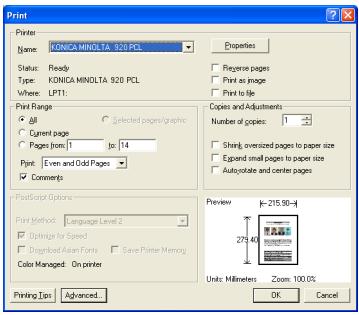
2 Select printer in pull down menu besides the [Name].
3 Click [Properties] to set detail if necessary.
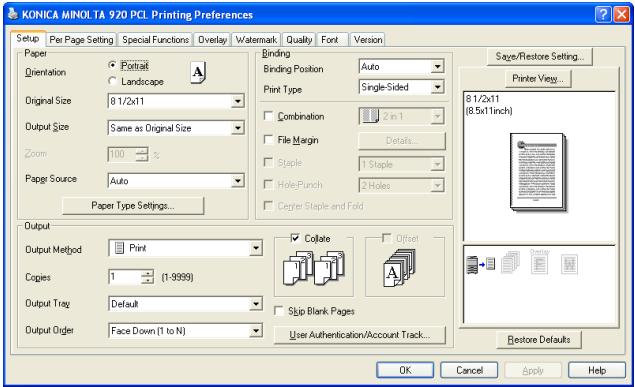
4 Click [OK] if a required setup is finished.
The display returns to the [Print] dialog.
5 Click [OK].
The print controller receives and processes a print job sent from your computer.
![KONICA MINOLTA IC 203 - Click [OK]. - 1](/content/2025/01/139719/images/9597e58ada2667db9f0f7a8750da79a15e029df24e6fcab1f5d5f829e6dac631.jpg)
Note
Refer to "PCL Printer Driver Setting (Windows)" on Page 8-1, "PostScript PPD Printer Driver setting (Windows)" on Page 9-1 for more information about print setup.
Basic Printing method (Mac OS 9)
The following shows the basic methods for the printing from a Mac OS 9.
1 Select [Chooser] in the [Apple Menu Items].
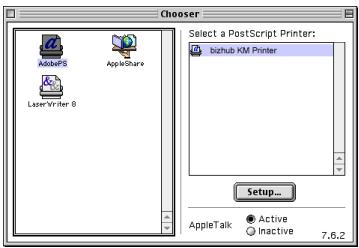
2 Click [Adobe PS] and select the printer, then close [Chooser] dialog.
- Make sure that [Active] is ON in [AppleTalk].
3 Select [File]-[Print] of the application.
Command name may be different depending on the application.
The [Print] dialog appears.
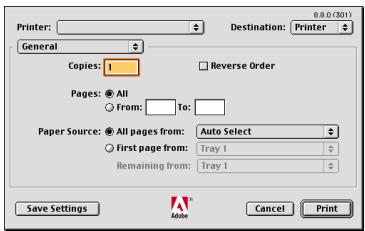
4 Make sure that compliant printer name is selected in the [Printer].
Refer to "PostScript PPD Printer Driver setting (Mac OS 9)" on Page 11-1 for more information about print setup.
5 Click [Print].
The print controller receives and processes a print job sent from your computer.
Basic Printing method (Mac OS X)
The following shows the basic methods for the printing from a Mac OS X.
1 Double click [Print Center] icon.
The [Print Center] is in the [HDD]-[Application]-[Utility] folder.
The [Printer List] window appears.
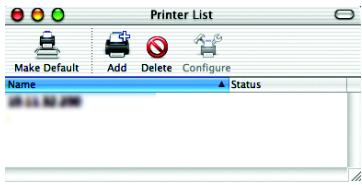
2 Select the printer and close [Printer List] window.
3 Select [File]-[Print] of the application.
Command name may be different depending on the application.
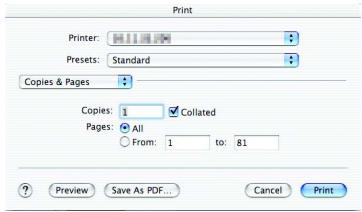
4 Make sure that compliant printer name is selected in the [Printer].
Refer to "PostScript PPD Printer Driver setting (Mac OS X)" on Page 12-1 for more information about print setup.
5 Click [Print].
The print controller receives and processes a print job sent from your computer.
7.2 Various Function
Various functions of the printer is introduced from this page. Refer to the page indicated by [Refer to] for the details of the setting method of each function.
7.2.1 To set the paper-related items
The size of the paper, direction of the paper and other paper-related items can be set as shown below.
To set the orientation:
Set the orientation output paper in "Portrait" or "Landscape".
| Operating System | Printer Driver | Refer to |
| Windows | KONICA MINOLTA PCL | "Setup tab" on Page 8-13 |
| PostScript PPD | "Layout tab" on Page 9-17 | |
| KONICA MINOLTA PS | "Setup tab" on Page 10-15 | |
| Mac OS 9 | PostScript PPD | "Page Attributes dialog box" on Page 11-10 |
| Mac OS X | PostScript PPD | "Page Attributes (Page Setup window)" on Page 12-3 |
Portrait
Landscape
To print in rotation:
You can make a print job rotate.
| Operating System | Printer Driver | Refer to |
| Windows | KONICA MINOLTA PS | "Quality tab" on Page 10-55 |
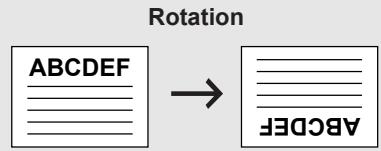
To set the size of output paper:
Sets various sizes for the output paper.
| Operating System | Printer Driver | Refer to |
| Windows | KONICA MINOLTA PCL | "Setup tab" on Page 8-13 |
| PostScript PPD | "Advanced Options windows" on Page 9-21 | |
| KONICA MINOLTA PS | "Setup tab" on Page 10-15 | |
| Mac OS 9 | PostScript PPD | "Page Attributes dialog box" on Page 11-10 |
| Mac OS X | PostScript PPD | "Page Attributes (Page Setup window)" on Page 12-3 |
To set the type of paper:
Sets various types of paper as output paper.
| Operating System | Printer Driver | Refer to |
| Windows | KONICA MINOLTA PCL | "Setup tab" on Page 8-13 |
| PostScript PPD | "Paper/Quality tab" on Page 9-19 | |
| KONICA MINOLTA PS | "Setup tab" on Page 10-15 | |
| Mac OS 9 | PostScript PPD | "Printer Specific Options dialog box (1)" on Page 11-23 |
| Mac OS X | PostScript PPD | "Setup (Print window)" on Page 12-21 |
To set the color of the paper.
You can make a print with a color paper by specifying a desired color paper from the printer driver.
| Operating System | Printer Driver | Refer to |
| Windows | KONICA MINOLTA PCL | "Setup tab" on Page 8-13 |
| PostScript PPD | "Advanced Options windows" on Page 9-21 | |
| KONICA MINOLTA PS | "Setup tab" on Page 10-15 | |
| Mac OS 9 | PostScript PPD | "Printer Specific Options dialog box (2)" on Page 11-25 |
| Mac OS X | PostScript PPD | "Setup (Print window)" on Page 12-21 |
To set the pre-punched paper.
You can make a print with a punched paper by specifying the desired paper from the printer driver.
| Operating System | Printer Driver | Refer to |
| Windows | KONICA MINOLTA PCL | "Setup tab" on Page 8-13 |
| PostScript PPD | "Advanced Options windows" on Page 9-21 | |
| KONICA MINOLTA PS | "Setup tab" on Page 10-15 | |
| Mac OS 9 | PostScript PPD | "Printer Specific Options dialog box (2)" on Page 11-25 |
| Mac OS X | PostScript PPD | "Setup (Print window)" on Page 12-21 |
To enlarge or reduce by a specified ratio:
Prints by specifying a value of enlargement or reduction.
| Operating System | Printer Driver | Refer to |
| Windows | KONICA MINOLTA PCL | "Setup tab" on Page 8-13 |
| PostScript PPD | "Advanced Options windows" on Page 9-21 | |
| KONICA MINOLTA PS | "Setup tab" on Page 10-15 | |
| Mac OS 9 | PostScript PPD | "Page Attributes dialog box" on Page 11-10 |
| Mac OS X | PostScript PPD | "Page Attributes (Page Setup window)" on Page 12-3 |
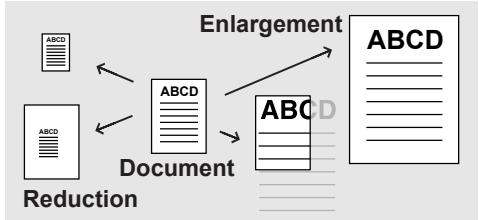
To set the margins:
You can set the margins of output paper.
| Operating System | Printer Driver | Refer to |
| Mac OS 9 | PostScript PPD | "Custom Page Default dialog box" on Page 11-15 |
| Mac OS X | PostScript PPD | "Custom Paper Size (Page Setup window)" on Page 12-5 |
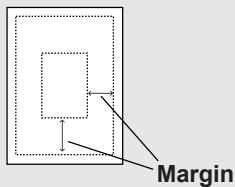
7.2.2 To set the paper tray
For the paper trays such as the feed tray and the output tray, the following settings are available.
To set the Paper Source unit:
You can make the printer driver recognize an optional paper source unit.
| Operating System | Printer Driver | Refer to |
| Windows | KONICA MINOLTA PCL | "Option tab" on Page 8-11 |
| PostScript PPD | "Device Settings tab" on Page 9-13 | |
| KONICA MINOLTA PS | "Option tab" on Page 10-13 | |
| Mac OS 9 | PostScript PPD | "Configure dialog box" on Page 11-37 |
| Mac OS X | PostScript PPD | "Printer Info" on Page 12-28 |
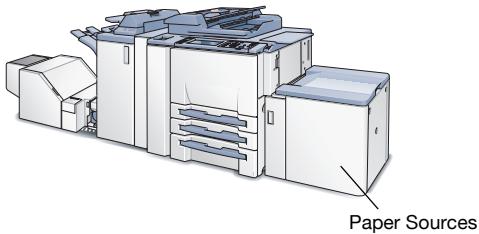
To set the paper feed tray:
You can select and set a paper feed tray to be used from the list.
| Operating System | Printer Driver | Refer to |
| Windows | KONICA MINOLTA PCL | "Setup tab" on Page 8-13 |
| PostScript PPD | "Device Settings tab" on Page 9-13 | |
| KONICA MINOLTA PS | "Setup tab" on Page 10-15 | |
| Mac OS 9 | PostScript PPD | "General dialog box" on Page 11-17 |
| Mac OS X | PostScript PPD | "Paper Feed (Print window)" on Page 12-8 |
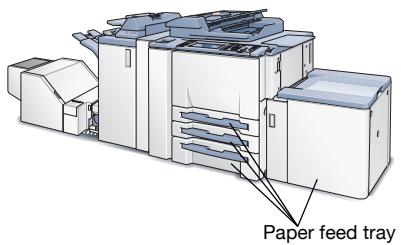
To set the Finisher:
You can make the printer driver recognize an optional Finisher.
| Operating System | Printer Driver | Refer to |
| Windows | KONICA MINOLTA PCL | "Option tab" on Page 8-11 |
| PostScript PPD | "Device Settings tab" on Page 9-13 | |
| KONICA MINOLTA PS | "Option tab" on Page 10-13 | |
| Mac OS 9 | PostScript PPD | "Configure dialog box" on Page 11-37 |
| Mac OS X | PostScript PPD | "Printer Info" on Page 12-28 |
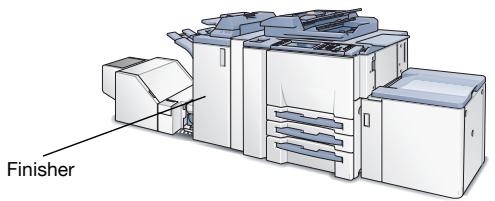
To set the Output tray:
You can select and set an output tray to be used from the list.
| Operating System | Printer Driver | Refer to |
| Windows | KONICA MINOLTA PCL | "Setup tab" on Page 8-13 |
| PostScript PPD | "Advanced Options windows" on Page 9-21 | |
| KONICA MINOLTA PS | "Setup tab" on Page 10-15 | |
| Mac OS 9 | PostScript PPD | "Printer Specific Options dialog box (2)" on Page 11-25 |
| Mac OS X | PostScript PPD | "Finishing (Print window)" on Page 12-9 |
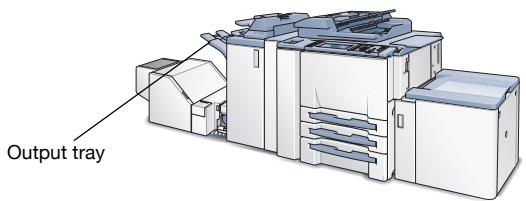

··
Note
The position of the output tray varies depending on the optional unit.
7.2.3 To print multiple copies
To print multiple sets of the same output result pages, you can set as shown below.
To set the number of copies to be printed:
Sets the number of copies to be printed from the [Properties] window.
| Operating System | Printer Driver | Refer to |
| Windows | KONICA MINOLTA PCL | "Setup tab" on Page 8-13 |
| PostScript PPD | "Advanced Options windows" on Page 9-21 | |
| KONICA MINOLTA PS | "Setup tab" on Page 10-15 | |
| Mac OS 9 | PostScript PPD | "General dialog box" on Page 11-17 |
| Mac OS X | PostScript PPD | "Copies & Pages (Print window)" on Page 12-6 |
To print by sets (Collate / Sort):
This printing system enables you to print multiple sets of pages.
Prints the first one set of pages in one lot, and then the second set of pages, the third set of pages, ..., when printing multiple sets of pages.
| Operating System | Printer Driver | Refer to |
| Windows | KONICA MINOLTA PCL | "Setup tab" on Page 8-13 |
| PostScript PPD | "Advanced Options windows" on Page 9-21 | |
| KONICA MINOLTA PS | "Setup tab" on Page 10-15 | |
| Mac OS 9 | PostScript PPD | "Printer Specific Options dialog box (2)" on Page 11-25 |
| Mac OS X | PostScript PPD | "Copies & Pages (Print window)" on Page 12-6 |
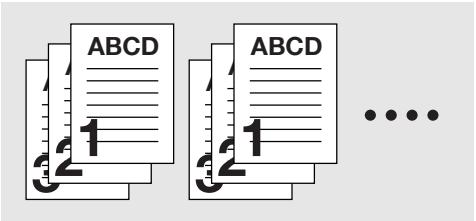
To print page by page collectively:
This printing system enables you to print page by page collectively.
Prints the required number of the first page, and then the required umber of the second pages, the third page.
| Operating System | Printer Driver | Refer to |
| Windows | KONICA MINOLTA PCL | "Setup tab" on Page 8-13 |
| PostScript PPD | "Advanced Options windows" on Page 9-21 | |
| KONICA MINOLTA PS | "Setup tab" on Page 10-15 | |
| Mac OS 9 | PostScript PPD | "Printer Specific Options dialog box (2)" on Page 11-25 |
| Mac OS X | PostScript PPD | "Copies & Pages (Print window)" on Page 12-6 |
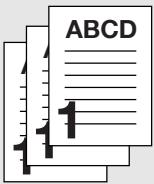
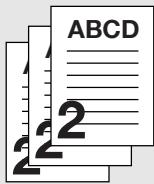

To output offset copies (Offset):
Selects to shift the exit position of each set of printout back and forth when printing multi set of copies.
| Operating System | Printer Driver | Refer to |
| Windows | KONICA MINOLTA PCL | "Setup tab" on Page 8-13 |
| PostScript PPD | "Advanced Options windows" on Page 9-21 | |
| KONICA MINOLTA PS | "Setup tab" on Page 10-15 | |
| Mac OS 9 | PostScript PPD | "Printer Specific Options dialog box (2)" on Page 11-25 |
| Mac OS X | PostScript PPD | "Finishing (Print window)" on Page 12-9 |
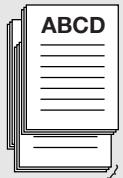
Offset Copies
To print from two sets of copy machines
In this printing system, you can print using two sets of copy machines.
| Operating System | Printer Driver | Refer to |
| Windows | KONICA MINOLTA PCL | "Special Functions tab" on Page 8-40 |
| PostScript PPD | "Advanced Options windows" on Page 9-21 | |
| KONICA MINOLTA PS | "Special Functions" on Page 10-43 | |
| Mac OS 9 | PostScript PPD | "Printer Specific Options dialog box (2)" on Page 11-25 |
| Mac OS X | PostScript PPD | "Finishing (Print window)" on Page 12-9 |
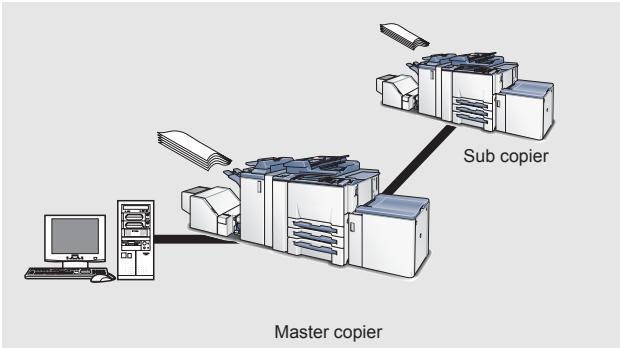
7.2.4 To print multiple pages
You can set as shown below when printing multiple pages document.
To set to print on both sides:
Prints continuous multiple pages on both front and back sides.
| Operating System | Printer Driver | Refer to |
| Windows | KONICA MINOLTA PCL | "Setup tab" on Page 8-13 |
| PostScript PPD | "Advanced Options windows" on Page 9-21 | |
| KONICA MINOLTA PS | "Setup tab" on Page 10-15 | |
| Mac OS 9 | PostScript PPD | "Printer Specific Options dialog box (2)" on Page 11-25 |
| Mac OS X | PostScript PPD | "Finishing (Print window)" on Page 12-9 |
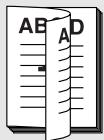
Double Sides / Left Binding
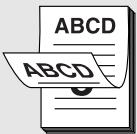
Double Sides / Top Binding
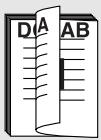
Double Sides / Right Binding
To print the document of multiple pages on a single page:
(Page allocation / Layout):
Allocates the document of 2 pages, 4 pages, 6 pages, 8 pages (KONICA MINOLTA PS only), 9 pages or 16 pages onto a single page for printing.
| Operating System | Printer Driver | Refer to |
| Windows | KONICA MINOLTA PCL | "Setup tab" on Page 8-13 |
| PostScript PPD | "Layout tab" on Page 9-17 | |
| KONICA MINOLTA PS | "Setup tab" on Page 10-15 | |
| Mac OS 9 | PostScript PPD | "Layout dialog box" on Page 11-21 |
| Mac OS X | PostScript PPD | "Layout (Print window)" on Page 12-7 |
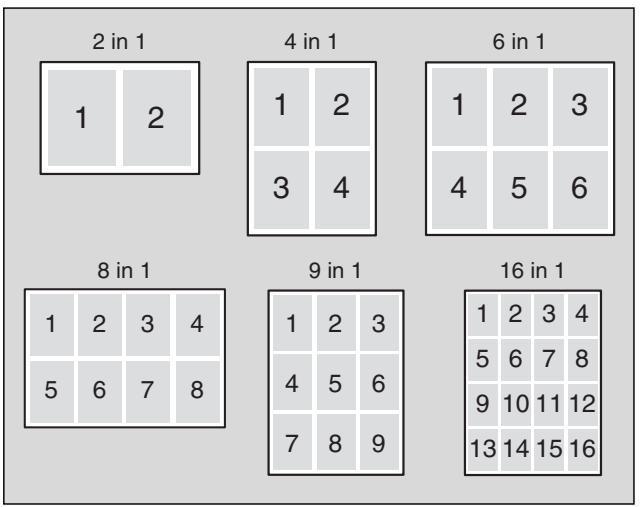
To print 2 pages on a double size single paper:(Combination (No Reduction)):
Prints a document of 2 pages onto a single paper twice as big as a paper selected in the output paper.
| Operating System | Printer Driver | Refer to |
| Windows | KONICA MINOLTA PCL | "Special Functions tab" on Page 8-40 |
| PostScript PPD | "Advanced Options windows" on Page 9-21 | |
| KONICA MINOLTA PS | "Special Functions" on Page 10-43 | |
| Mac OS 9 | PostScript PPD | "Printer Specific Options dialog box (2)" on Page 11-25 |
| Mac OS X | PostScript PPD | "Image/Layout (Print window)" on Page 12-25 |
2-in-1
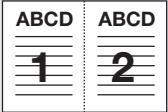
2-in-1 Repeat
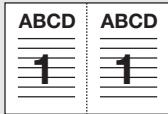
2 Repeat Reversal
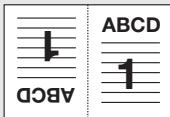
To print a twofold booklet (Booklet):
Prints output paper so that they become a book when they are folded in two.
| Operating System | Printer Driver | Refer to |
| Windows | KONICA MINOLTA PCL | "Setup tab" on Page 8-13 |
| PostScript PPD | "Advanced Options windows" on Page 9-21 | |
| KONICA MINOLTA PS | "Setup tab" on Page 10-15 | |
| Mac OS 9 | PostScript PPD | "Printer Specific Options dialog box (2)" on Page 11-25 |
| Mac OS X | PostScript PPD | "Image/Layout (Print window)" on Page 12-25 |
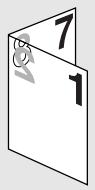

To print a specific page on the front face (Chapter):
Prints a specific page so that it comes on the front, especially when printing on both sides of the paper.
| Operating System | Printer Driver | Refer to |
| Windows | KONICA MINOLTA PCL | "Per Page Setting tab" on Page 8-33 |
| KONICA MINOLTA PS | "Per Page Setting" on Page 10-36 |
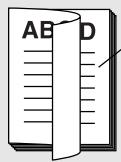
1'st page of a chapter
To print pages in facing up (Face up):
Output paper facing up when printing multiple pages.
| Operating System | Printer Driver | Refer to |
| Windows | KONICA MINOLTA PCL | "Setup tab" on Page 8-13 |
| PostScript PPD | "Advanced Options windows" on Page 9-21 | |
| KONICA MINOLTA PS | "Setup tab" on Page 10-15 | |
| Mac OS 9 | PostScript PPD | "Printer Specific Options dialog box (2)" on Page 11-25 |
| Mac OS X | PostScript PPD | "Finishing (Print window)" on Page 12-9 |
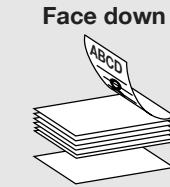
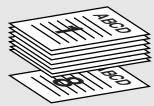
Face up
Not To print blank page:
Selects not to print out blank pages in the document.
| Operating System | Printer Driver | Refer to |
| Windows | KONICA MINOLTA PCL | "Setup tab" on Page 8-13 |
7.2.5 To set the Front / Back cover, insertion sheet and cover sheet
Make settings for a front cover, back cover, insertion sheet and cover sheet in addition to pages to be printed.
To set a Front Cover:
Sets a front cover which uses a different paper from that for the body pages.
| Operating System | Printer Driver | Refer to |
| Windows | KONICA MINOLTA PCL | "Per Page Setting tab" on Page 8-33 |
| PostScript PPD | "Advanced Options windows" on Page 9-21 | |
| KONICA MINOLTA PS | "Per Page Setting" on Page 10-36 | |
| Mac OS 9 | PostScript PPD | "Printer Specific Options dialog box (2)" on Page 11-25 |
| Mac OS X | PostScript PPD | "Setup (Print window)" on Page 12-21 |
Front Cover - Blank
Front Cover - Printed
To set a Back Cover:
Sets a back cover which uses a different paper from that for the body pages.
| Operating System | Printer Driver | Refer to |
| Windows | KONICA MINOLTA PCL | "Per Page Setting tab" on Page 8-33 |
| PostScript PPD | "Advanced Options windows" on Page 9-21 | |
| KONICA MINOLTA PS | "Per Page Setting" on Page 10-36 | |
| Mac OS 9 | PostScript PPD | "Printer Specific Options dialog box (2)" on Page 11-25 |
| Mac OS X | PostScript PPD | "Setup (Print window)" on Page 12-21 |
Back Cover
- Blank
Back Cover
- Printed
To set an Insertion Sheet:
Sets to insert a blank or printer paper which uses a different paper from that for the body pages.
| Operating System | Printer Driver | Refer to |
| Windows | KONICA MINOLTA PCL | "Per Page Setting tab" on Page 8-33 |
| KONICA MINOLTA PS | "Per Page Setting" on Page 10-36 |
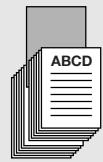
Insertion sheet - Blank
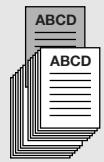
Insertion sheet - Printed
To set a Thick Cover:
Output a thick paper as a cover, which is different from the output papers set.
| Operating System | Printer Driver | Refer to |
| Windows | KONICA MINOLTA PCL | "Per Page Setting tab" on Page 8-33 |
| PostScript PPD | "Advanced Options windows" on Page 9-21 | |
| KONICA MINOLTA PS | "Per Page Setting" on Page 10-36 | |
| Mac OS 9 | PostScript PPD | "Printer Specific Options dialog box (2)" on Page 11-25 |
| Mac OS X | PostScript PPD | "Setup (Print window)" on Page 12-21 |
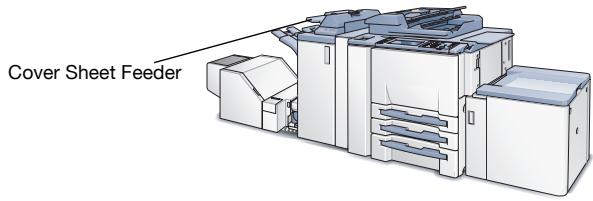
To set a Tab Paper:
Sets to print tab paper. You can set the text, tab position, and number of tabs.
| Operating System | Printer Driver | Refer to |
| Windows | KONICA MINOLTA PCL | "Per Page Setting tab" on Page 8-33 |
| KONICA MINOLTA PS | "Per Page Setting" on Page 10-36 |
7.2.6 To set for finishing
It is possible to use various functions such as stapling, punching, binding and folding for bookbinding and finishing.
To set stapling:
Staple output paper.
| Operating System | Printer Driver | Refer to |
| Windows | KONICA MINOLTA PCL | "Setup tab" on Page 8-139 |
| PostScript PPD | "Advanced Options windows" on Page 9-21 | |
| KONICA MINOLTA PS | "Setup tab" on Page 10-15 | |
| Mac OS 9 | PostScript PPD | "Printer Specific Options dialog box (2)" on Page 11-25 |
| Mac OS X | PostScript PPD | "Finishing (Print window)" on Page 12-9 |
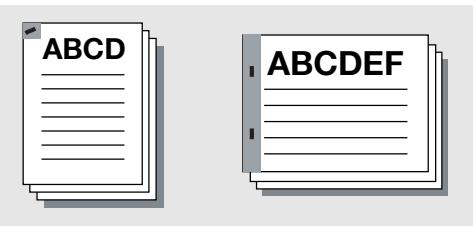
To set the Punch Unit:
Sets to make the printer driver recognize an optional Punch unit.
To use the punch unit, this setting is required to be made in advance.
| Operating System | Printer Driver | Refer to |
| Windows | KONICA MINOLTA PCL | "Option tab" on Page 8-11 |
| PostScript PPD | "Device Settings tab" on Page 9-13 | |
| KONICA MINOLTA PS | "Option tab" on Page 10-13 | |
| Mac OS 9 | PostScript PPD | "Configure dialog box" on Page 11-37 |
| Mac OS X | PostScript PPD | "Printer Info" on Page 12-28 |
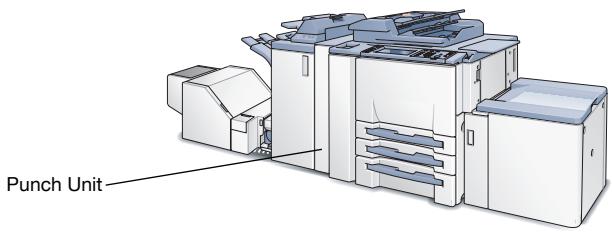
To set punching:
You can select to punch 2 or 3(4) holes in the output paper.
| Operating System | Printer Driver | Refer to |
| Windows | KONICA MINOLTA PCL | "Setup tab" on Page 8-13 |
| PostScript PPD | "Advanced Options windows" on Page 9-21 | |
| KONICA MINOLTA PS | "Setup tab" on Page 10-15 | |
| Mac OS 9 | PostScript PPD | "Printer Specific Options dialog box (2)" on Page 11-25 |
| Mac OS X | PostScript PPD | "Finishing (Print window)" on Page 12-9 |
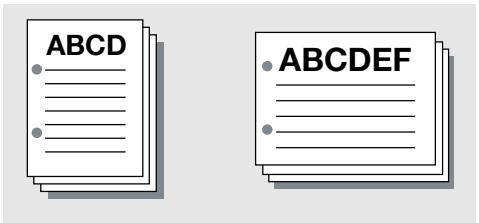
To adjust printing position on the paper (Image Shift):
Adjusts the printing position of documents to the output paper.
| Operating System | Printer Driver | Refer to |
| Windows | KONICA MINOLTA PCL | "Special Functions tab" on Page 8-40 |
| PostScript PPD | "Advanced Options windows" on Page 9-21 | |
| KONICA MINOLTA PS | "Special Functions" on Page 10-43 | |
| Mac OS 9 | PostScript PPD | "Printer Specific Options dialog box (2)" on Page 11-25 |
| Mac OS X | PostScript PPD | "Image/Layout (Print window)" on Page 12-25 |
To set Fold,Stitch and Trim:
Sets to fold an output paper at the center, bind it at the center, fold it in a Z-shape or fold it into three, cut it.
| Operating System | Printer Driver | Refer to |
| Windows | KONICA MINOLTA PCL | "Special Functions tab" on Page 8-40 |
| PostScript PPD | "Advanced Options windows" on Page 9-21 | |
| KONICA MINOLTA PS | "Special Functions" on Page 10-43 | |
| Mac OS 9 | PostScript PPD | "Printer Specific Options dialog box (2)" on Page 11-25 |
| Mac OS X | PostScript PPD | "Finishing (Print window)" on Page 12-9 |
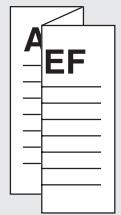
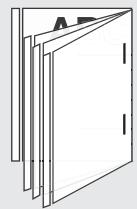
7.2.7 To set a Watermark
A Watermark or an Overlay can be set and printed on the output paper.
To create a Overlay:
Creates a overlay design that is printed on the output paper.
| Operating System | Printer Driver | Refer to |
| Windows | KONICA MINOLTA PCL | "Overlay tab" on Page 8-45 |
| KONICA MINOLTA PS | "Overlay tab" on Page 10-52 |
To print a Overlay:
Sets a overlay and print it on the output paper.
| Operating System | Printer Driver | Refer to |
| Windows | KONICA MINOLTA PCL | "Overlay tab" on Page 8-45 |
| KONICA MINOLTA PS | "Overlay tab" on Page 10-52 |
ABCD

To create a new Watermark:
Creates a new Watermark printed on the output paper.
| Operating System | Printer Driver | Refer to |
| Windows | KONICA MINOLTA PCL | "Watermark tab" on Page 8-48 |
| KONICA MINOLTA PS | "Watermarks tab" on Page 10-57 | |
| Mac OS 9 | PostScript PPD | "Watermark dialog box" on Page 11-13 |
ABCD
-GOPY
To print a Watermark:
Sets a transparent character and print it on the output paper.
| Operating System | Printer Driver | Refer to |
| Windows | KONICA MINOLTA PCL | "Watermark tab" on Page 8-48 |
| KONICA MINOLTA PS | "Watermarks tab" on Page 10-57 | |
| Mac OS 9 | PostScript PPD | "Watermark dialog box" on Page 11-13 |
ABCD
GONFID
ENTIAL
ABCD
To print Date/Time:
Prints the date and time on all pages or 1st page Only.
| Operating System | Printer Driver | Refer to |
| Windows | KONICA MINOLTA PCL | "Watermark tab" on Page 8-48 |
| PostScript PPD | "Advanced Options windows" on Page 9-21 | |
| KONICA MINOLTA PS | "Special Functions" on Page 10-43 | |
| Mac OS 9 | PostScript PPD | "Printer Specific Options dialog box (2)" on Page 11-25 |
| Mac OS X | PostScript PPD | "Image/Layout (Print window)" on Page 12-25 |
To print Page Number:
Prints the page number. You can specify the pages to be printed with page numbers, the first page from which numbers will be printed, the initial page number to be printed.
| Operating System | Printer Driver | Refer to |
| Windows | KONICA MINOLTA PCL | "Watermark tab" on Page 8-48 |
| KONICA MINOLTA PS | "Special Functions" on Page 10-43 |
To set numbering:
Prints the copy number to the printed page.
| Operating System | Printer Driver | Refer to |
| Windows | KONICA MINOLTA PCL | "Watermark tab" on Page 8-48 |
| KONICA MINOLTA PS | "Special Functions" on Page 10-43 |
7.2.8 To set an image and shade
Sets a print density and a method for processing graphic data when outputting an image.
To print with Black:
Prints colored text, lines and figures in black to prevent faint printing.
| Operating System | Printer Driver | Refer to |
| Windows | KONICA MINOLTA PCL | "Quality tab" on Page 8-52 |
To set printing pattern:
Set printing pattern from "fine" or "coarse".
| Operating System | Printer Driver | Refer to |
| Windows | KONICA MINOLTA PCL | "Quality tab" on Page 8-52 |
To set draft print:
Prints lightly which is suitable for draft documents.
| Operating System | Printer Driver | Refer to |
| Windows | KONICA MINOLTA PCL | "Quality tab" on Page 8-52 |
| KONICA MINOLTA PS | "Quality tab" on Page 10-55 |
To set a printing density:
Sets a printing density.
| Operating System | Printer Driver | Refer to |
| Windows | KONICA MINOLTA PCL | "Quality tab" on Page 8-52 |
| KONICA MINOLTA PS | "Quality tab" on Page 10-55 |
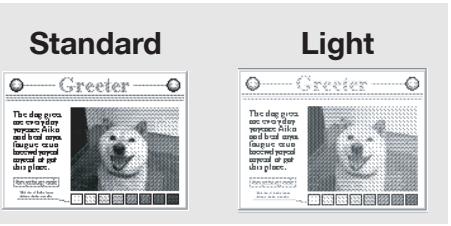
To save toner consumption:
Saves the consumption of toner by controlling print density.
| Operating System | Printer Driver | Refer to |
| Windows | KONICA MINOLTA PCL | "Quality tab" on Page 8-52 |
| PostScript PPD | "Advanced Options windows" on Page 9-21 | |
| KONICA MINOLTA PS | "Quality tab" on Page 10-55 | |
| Mac OS 9 | PostScript PPD | "Printer Specific Options dialog box (2)" on Page 11-25 |
| Mac OS X | PostScript PPD | "Image/Layout (Print window)" on Page 12-25 |
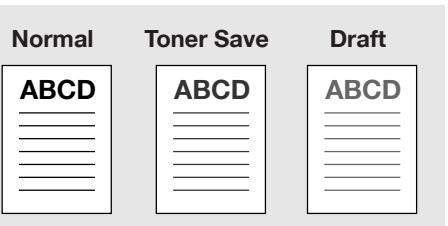
To print a curved section smoothly (Smoothing):
Prints the curved section of characters and images smoothly.
| Operating System | Printer Driver | Refer to |
| Windows | KONICA MINOLTA PCL | "Quality tab" on Page 8-52 |
| PostScript PPD | "Advanced Options windows" on Page 9-21 | |
| KONICA MINOLTA PS | "Quality tab" on Page 10-55 | |
| Mac OS 9 | PostScript PPD | "Printer Specific Options dialog box (2)" on Page 11-25 |
| Mac OS X | PostScript PPD | "Image/Layout (Print window)" on Page 12-25 |
Smoothing
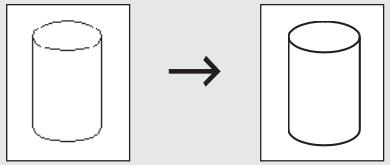
7.2.9 To set font-related items
It is possible to set the printer font-, TrueType font-, and PostScript font-related items.
To print without using printer fonts:
Makes settings so that printing is done without using the printer font.
| Operating System | Printer Driver | Refer to |
| Windows | KONICA MINOLTA PCL | "Font tab" on Page 8-54 |
| KONICA MINOLTA PS | "Font tab" on Page 10-11 |
To set the substitution of the font (Font Substitution Settings):
Selects the printer fonts which substitutes for the highlighted True Type Font.
| Operating System | Printer Driver | Refer to |
| Windows | KONICA MINOLTA PCL | "Font tab" on Page 8-54 |
To set the format of the font that is to be downloaded (Download Font Format):
Selects the font format to be downloaded to the printer (Outline or BMP).
| Operating System | Printer Driver | Refer to |
| Windows | KONICA MINOLTA PCL | "Font tab" on Page 8-54 |
7.2.10 Checking the Printer Driver Setting
You can check the settings before printing and perform test printing to check current setting.
To check the current settings before printing (Wait Mode):
Check the current settings from the control panel before printing.
| Operating System | Printer Driver | Refer to |
| Windows | KONICA MINOLTA PCL | "Setup tab" on Page 8-13 |
| PostScript PPD | "Advanced Options windows" on Page 9-21 | |
| KONICA MINOLTA PS | "Setup tab" on Page 10-15 | |
| Mac OS 9 | PostScript PPD | "Printer Specific Options dialog box (2)" on Page 11-25 |
| Mac OS X | PostScript PPD | "Security (Print window)" on Page 12-15 |
To check the current settings before printing (Proof and Print):
Check outputs the test print and checks the current settings from the control panel.
| Operating System | Printer Driver | Refer to |
| Windows | KONICA MINOLTA PCL | "Setup tab" on Page 8-13 |
| PostScript PPD | "Advanced Options windows" on Page 9-21 | |
| KONICA MINOLTA PS | "Setup tab" on Page 10-15 | |
| Mac OS 9 | PostScript PPD | "Printer Specific Options dialog box (2)" on Page 11-25 |
| Mac OS X | PostScript PPD | "Security (Print window)" on Page 12-15 |
To check the version of the printer driver:
Checks the printer driver version from the [Properties] window, when this printing system is used.
| Operating System | Printer Driver | Refer to |
| Windows | KONICA MINOLTA PCL | "Version tab" on Page 8-56 |
7.2.11 How to store the job and reprint
A print job can be saved onto the hard disk of in this printing system, and it can be printed as needed.
To save and print a print job (Save in User Box / Save in User Box & Print):
A print job can be saved onto the hard disk of in this printing system, and it can be printed as needed.
| Operating System | Printer Driver | Refer to |
| Windows | KONICA MINOLTA PCL | "Setup tab" on Page 8-13 |
| KONICA MINOLTA PS | "Setup tab" on Page 10-15 | |
| Mac OS X | PostScript PPD | "Security (Print window)" on Page 12-15 |
To print with protection by a password (Secure Print):
Protects a print job with a password when printing a confidential document.
| Operating System | Printer Driver | Refer to |
| Windows | KONICA MINOLTA PCL | "Setup tab" on Page 8-13 |
| KONICA MINOLTA PS | "Setup tab" on Page 10-15 | |
| Mac OS X | PostScript PPD | "Security (Print window)" on Page 12-15 |
8 PCL Printer Driver Setting (Windows)
This chapter describes the settings of the PCL printer driver. For settings, use the Properties window.
8.1 About Properties window
This chapter explains the PCL printer driver settings with Properties window of Windows XP.
The method to open the Properties window depends on OS.
| Operating System | Method |
| Windows 98/Me | Select [Start]-[Settings]-[Printers] to open the [Printers] folder, right-click the printer icon and select [Properties]. |
| Windows NT4.0/2000 | Select [Start]-[Settings]-[Printers] to open the [Printers] folder, right-click the printer icon and select [Properties]. |
| Windows XP/Server 2003 | Select [Start]-[Printers and Faxes] to open the [Printers and Faxes] folder, right-click the printer icon and select [Properties]. |
How to open the printing preference window differs depending on the OS in use.
| Operating System | Method |
| Windows 98/Me | Select [Start]-[Settings]-[Printers] to open the [Printers] folder, right-click the printer icon and select [Properties]. |
| Windows NT4.0 | Select [Start]-[Settings]-[Printers] to open the [Printers] folder, right-click the printer icon and select [Document Defaults]. |
| Windows 2000 | Select [Start]-[Settings]-[Printers] to open the [Printers] folder, right-click the printer icon and select [Printing Preference] |
| Windows XP/Server 2003 | Select [Start]-[Printers and Faxes] to open the [Printers and Faxes] folder, right-click the printer icon and select [Printing Preference]. |
8.1.1 Properties window
You have two ways for selecting or changing settings through the printer driver.
How to setup in the Properties window of the Printers and Faxes window
Settings made in the [Properties] of the [Printers and Faxes] folder are applied to print outs from any application.
How to setup with application
Settings can be made in the print dialog indicated by selecting the print command in the application. In this case, the settings are effective only when the application is in use.

Note
This chapter is described by using the printer window of Windows XP. The properties window may differ from the window displayed by the printing command of applications.
8.2 About button
Buttons common to each tab of the [Properties] window are shown below.
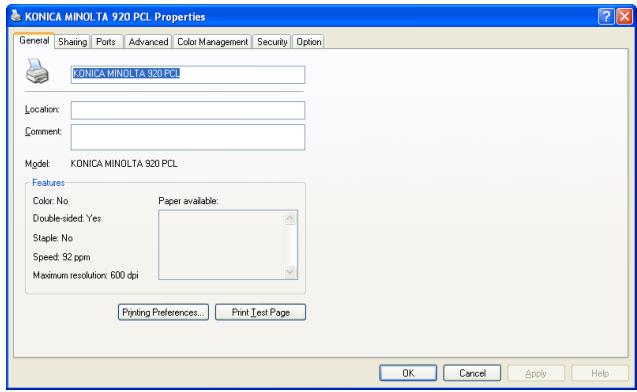
| Button | Function |
| OK | When the [OK] is clicked, all tab settings are saved with the close of the properties window. |
| Cancel | When the [Cancel] is clicked, all tab settings are cancelled with the close of the properties window. |
| Apply | When the [Apply] is clicked, the present tab settings are saved. This button is usefull when you want conduct other settings in other tabs, and the present tab settings are registered before using other tabs. |
| Help | When the [Help] is clicked, Help information appears. As well, when you click [Help] which appears when right-clicking a desired item, pop-up help for the item appears. |
8.3 Combination of the function
When you select a function which causes a conflict with the settings already configured, the message will be displayed
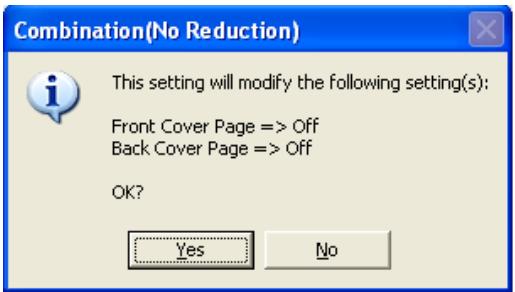
This is a confirmation message to decide which setting will be turned off. When this message is displayed, select [Yes] or [No]. In case of [Yes], the conflict setting will be turned OFF.
8.4 General tab
Enables printing a test page.
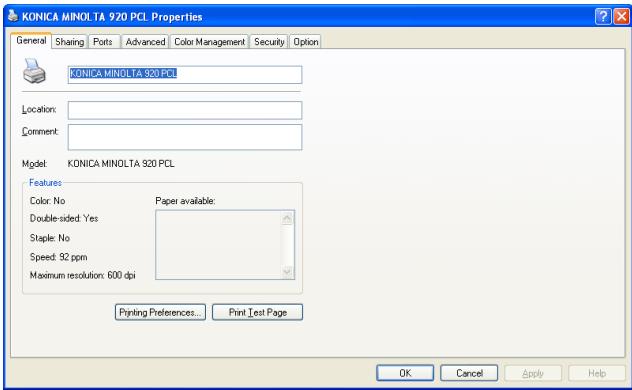

Detail
The method to open the Properties window depends on OS. Refer to "About Properties window" on Page 8-1 about how to open the Property window.
Location
Enters the name of place where the printer is located. For example, "2nd floor", "Room 101", "Domain ABC" and so on.
Comment
Enters information about the printer. For example, "User: documentation team", "Maintenance: 123-456-789", and so on.
Printing Preference
Displays the property window of the selected printer. You can change the setting of the printer driver with the property window.
Print Test Page
Prints a test page of Windows. You can print a test page without using any application.

Note
For more information, refer to the manual of the Windows.
8.5 Sharing tab
Performs share settings of a printer.
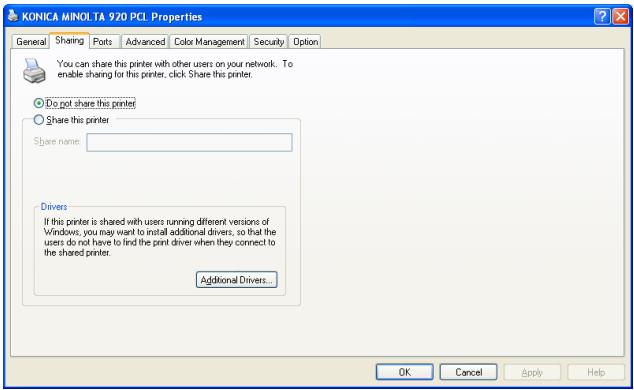

Detail
The method to open the Properties window depends on OS. Refer to "About Properties window" on Page 8-1 about how to open the Property window.
By using this [Sharing] tab, you can make the printer available to network users.

Note
For more information, refer to the manual of the Windows.
8.6 Ports tab
Performs settings related to ports.
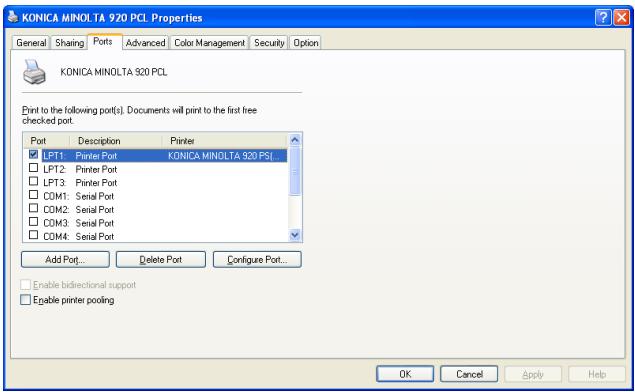

Detail
The method to open the Properties window depends on OS. Refer to "About Properties window" on Page 8-1 about how to open the Property window.
Add Port
Using this button enables you to add a new port for Vendor-specific port monitor, TCP/IP or Unix printers (using the LPR port), and so on.
Delete Port
Deletes the selected port from above list.
Configure Port
Using this button enables you to configure the selected port from above list.
Enable printer pooling
Enables printing to two or more identical print devices by using one logical printer.

Note
For more information, refer to the manual of the Windows.
8.7 Advanced tab
Performs settings regarding drivers, port time out and spoofing.
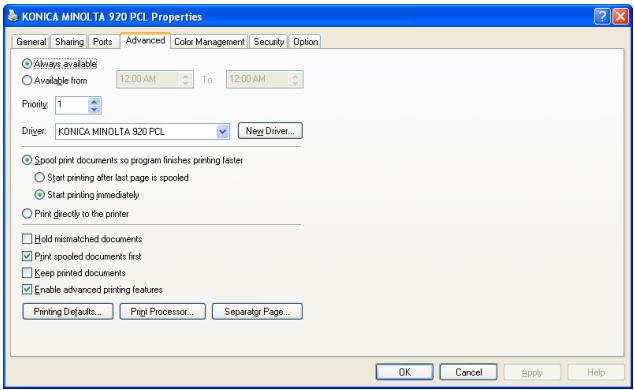

Detail
The method to open the Properties window depends on OS. Refer to "About Properties window" on Page 8-1 about how to open the Property window.
Always available / Available from
Configures how many hours the printer is available. You can choose from 24 hours or specified hours.
Priority
Configures the priority of the current setting.
Driver
Displays the installed printer driver name.
New Driver
Clicks to install a new or updated printer driver.
Spool print documents so program finishes printing faster
Sets to spool the documents before printing.
Print directly to the printer
Sets to print without spooling.
Hold mismatched documents
Sets to hold the document which does not match to the printer setup.
Print spooled documents first
Sets to print the spooled document irrespective of a priority settings.
Keep printed documents
Sets to hold the spooled data of the documents after printing.
Enable advanced printing features
Enables the advanced printing features.

··
Note
For more information, refer to the manual of the Windows.
8.8 Color Management tab
Performs settings related to color management.
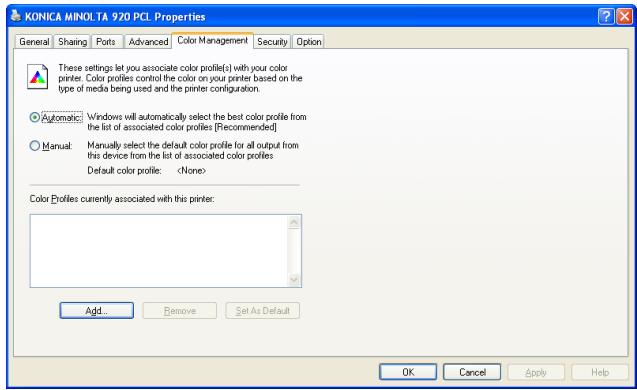

Detail
The method to open the Properties window depends on OS. Refer to "About Properties window" on Page 8-1 about how to open the Property window.
It is not used in this printing system.
8.9 Option tab
Performs settings of the printer options.
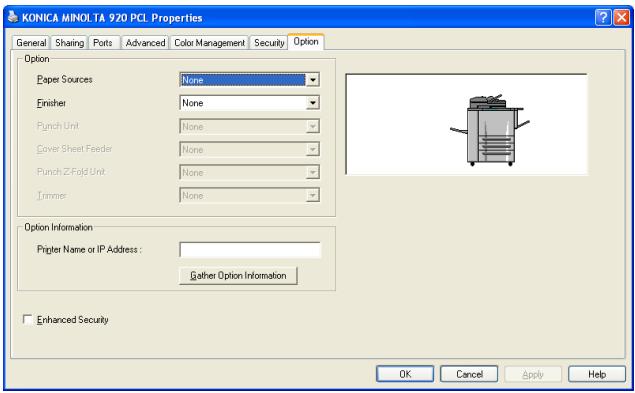

Detail
The method to open the Properties window depends on OS. Refer to "About Properties window" on Page 8-1 about how to open the Property window.
Option - Paper Sources
Selects an installed paper source.
Option - Finisher
Selects an installed Finisher.
Option - Punch Unit
Selects an installed Punch Unit.
Option - Cover Sheet Feeder
Selects an installed Cover Sheet Feeder.
Option - Punch Z-Fold Unit
Selects an installed Punch Z-Fold Unit.
Trimmer
Selects an installed Trimmer Unit.
Option Information
By entering the printer name or IP address, option information can be automatically obtained.
Option Information - Printer Name or IP Address
Inputs the printer name for the printer or IP address.
Option Information - Gather Option Information
Obtains option information for the printer automatically.
Enhanced Security
By turning ON the [Enhanced Security], you can enter nothing anymore to the password input field for the following functions so that the password cannot be transmitted from the printer driver to the printing system through the network:
- Secure Print (page 8-25)
- User Authentication/Account Track (page 8-30)
To print using these functions, you should enter the password on the control panel of the copier after transmitting the print data. Refer to "User's Guide (Security)" for more information.
8.10 Setup tab
Performs basic settings of the printer.
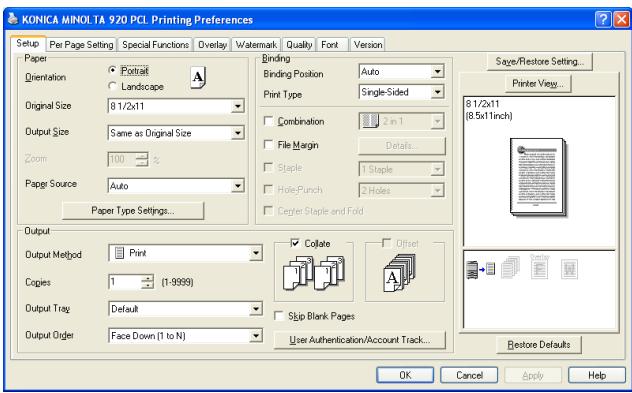

Detail
The method to open the Printing Preference window depends on OS. Refer to "About Properties window" on Page 8-1 about how to open the Printing Preference window.
Paper - Orientation
Sets the orientation to output paper in [Portrait] or [Landscape].
The default is [Portrait].
Paper - Original Size
You can select a original size from the list shown by clicking [▼].
| Document size that can be selected |
| A3 |
| A4 |
| A5 |
| A6 |
| B4 |
| B5 |
| B6 |
| 11 x 17 |
| 8 1/2 x 14 |
| 8 1/2 x 11 |
| 8 x 13 |
| 8 1/2 x 13 |
| 8 1/4 x 13 |
| 8 1/8 x 13 1/4 |
| 5 1/2 x 8 1/2 |
| 8K |
| 16K |
| Japanese Postcard |
| A4 Tab |
| 8 1/2 x 11 Tab |
| A3 Wide |
| A4 Wide |
| A5 Wide |
| B4 Wide |
| B5 Wide |
| 11 x 17 Wide |
| 8 1/2 x 11 Wide |
| 5 1/2 x 8 1/2 Wide |
| Custom Size Settings |
| Print Position Settings |

Note
When [Custom Size Setting] is selected, it is possible to set and register the original size.
Paper - Output Size
You can select a paper size from the list shown by clicking [▼].
| Document size that can be selected |
| Same as Original Size |
| A3 |
| A4 |
| A5 |
| A6 |
| B4 |
| B5 |
| B6 |
| 11 x 17 |
| 8 1/2 x 14 |
| 8 1/2 x 11 |
| 8 x 13 |
| 8 1/2 x 13 |
| 8 1/4 x 13 |
| 8 1/8 x 13 1/4 |
| 5 1/2 x 8 1/2 |
| 8K |
| 16K |
| Japanese Postcard |
| A4 Tab |
| 8 1/2 x 11 Tab |
| A3 Wide |
| A4 Wide |
| A5 Wide |
| B4 Wide |
| B5 Wide |
| 11 x 17 Wide |
| 8 1/2 x 11 Wide |
| 5 1/2 x 8 1/2 Wide |
| Custom Size Settings |
| Print Position Settings |
The default is the Same as original size.
Custom Size Settings
When [Custom Size Settings] is selected from the [Original Size] or the [Output Size], [Custom Size Settings] dialog appears.
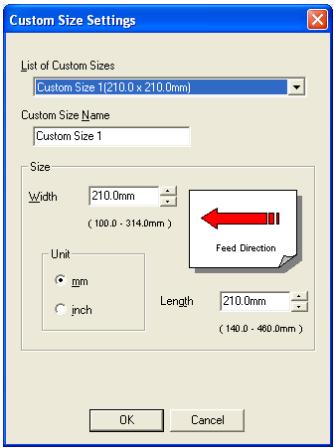
Note
The custom size settings can only be specified from the printer driver setup dialog box, which can be displayed from the Printers window (for Windows XP/Server 2003, Printers and Faxes window).
| List of Custom Size | Select from among 10 custom sizes of the paper. |
| Custom Size Name | Edit the name of the custom size in the list above. |
| Size-Width | Set the width of the selected custom size in the list (100-324 mm). |
| Size-Length | Set the length of the selected custom size in the list for the current tray (140-460 mm). |
| Size-Unit | Select the units for setting [Width] and [Length]. |
Print Position Settings
When [Print Position Settings] is selected from the [Output Size], [Print Position Settings] dialog appears.
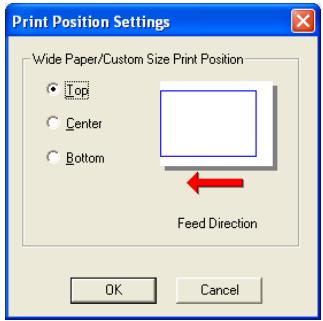
| Top | Print using the top of the paper. |
| Center | Print using the center of the paper. |
| Bottom | Print using the bottom of the paper. |
Paper - Zoom
Print by specifying the enlargement or reduction ratio in the range from 25% to 400% .
[Zoom] cannot be set in the following cases:
- [Same as Original Size] is selected in [Setup]-[Output Size]
- [Combination] is available in [Special Functions] tab
Paper - Paper Sources
Select and set the paper tray to be used from the list. When [Auto] is set, the printer automatically selects and prints from a suitable paper tray.
| Feed Tray | paper size that can be used. |
| Tray 1 to Tray 3 | A3/A4/A5/A6/B4/B5/B6/11 x 17/8 1/2 x 14/8 1/2 x 11/8 x 13/8 1/2 x 13/8 1/4 x 13/8 1/8 x 13/1/4/5 1/2 x 8 1/2/8K/16K/Japanese Postcard/A4 Tab/8 1/2 x 11 Tab/A3 Wide/A4 Wide/A5 Wide/B4 Wide/B5 Wide/11 x 17 Wide/8 1/2 x 11 Wide/5 1/2 x 8 1/2 Wide/Custom Size Settings |
| LCT (LU-403/LU-404),Bypass Tray |
Paper Type Settings
When [Paper Type Settings] is pressed, the [Paper Type Settings] dialog appears.
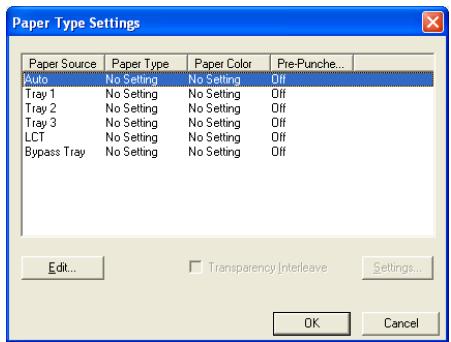
Paper Type Settings - Edit Paper Type
When selecting the paper source from the list and [Edit] is pressed, the [Edit Paper Type] dialog appears.
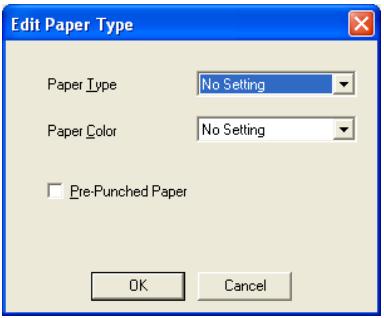
Paper Type Settings - Edit Paper Type - Paper Type
Sets various types of paper sizes as the output paper as shown below.
| Types of paper that can be selected. | |
| No Setting | |
| Plain Paper | |
| Fine | This is set when printing fine paper such as memo paper. |
| Thick 1 | This is set when printing coated paper such as pamphlet. |
| Thick 2 | This is set when printing thick paper such as a post card. |
| Thin | This is set when printing thin paper. |
| Recycled | This is set when printing recycled paper. |
| Label | This is set when printing the paper such as label. |
| Transparency | This is set when printing OHP sheet. |
| Trace | This is set when printing trace paper. |
| User | This is set when printing the user specified paper set on the copier. |
| Blank Insert | This is set when printing blank paper such as cover sheet. |
| Exclusive A - M | This is set when printing the exclusive paper. |
Paper Type Settings - Edit Paper Type - Paper Color
Sets various colors of paper as the output paper as shown below
No Setting
White
Clear
Yellow
- Pink
- Blue
Green
Paper Type Settings - Edit Paper Type - Pre-Punched Paper
Sets whether the paper as the output paper is pre-punched or not.
Paper Type Settings - Transparency Interleave
Check when using Transparency.

Note
You can select when Transparency is set for Bypass Tray.
Transparency Interleave - Settings
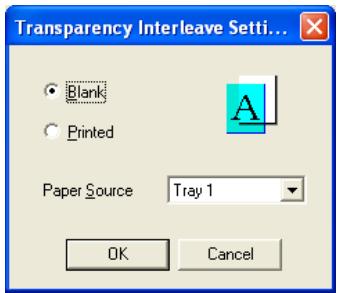
| Blank | This is set when inserting the blank interleaf for the trans-parent sheet. |
| Printed | This is set when inserting the printed interleaf for the transparent sheet. |
| Paper Source | Uses to select the paper tray for Transparency Interleave. |
Binding - Binding Position
Sets the binding position for the document to be printed. The position selected here will be the position of stapling, punching and base position of the image shift.
Binding - Print Type
Selects the print type among Single Side, Double Sides and Booklet.
Single Side prints on one side of the paper.
Double Side prints on both sides of the paper.
Booklet prints on both sides of the paper and fold the paper. Booklet prints in order which every folded page appears in their original order when gathered at the end.
Binding - Combination
Prints multiple pages onto a single sheet of the paper.
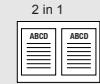
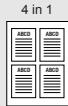
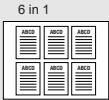
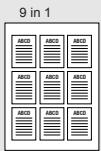
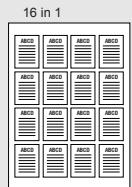
Binding - Combination - Details
When selects the [Details] from the list of the [Combination], [Combination Details] dialog appears.
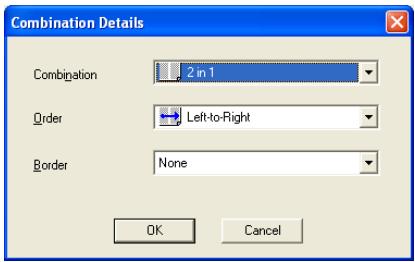
| Combination | Selects the number of pages to be printed onto a single sheet. |
| Order | Selects the printing order of pages. |
| Border | Selects whether draw a frame or line as the border between pages. |
Binding - File Margin
Shifts the printing position according to the margin to be defined on the [File Margin Details] dialog.
Binding - File Margin - Details
When click [Details], [File Margin Details] dialog appears.
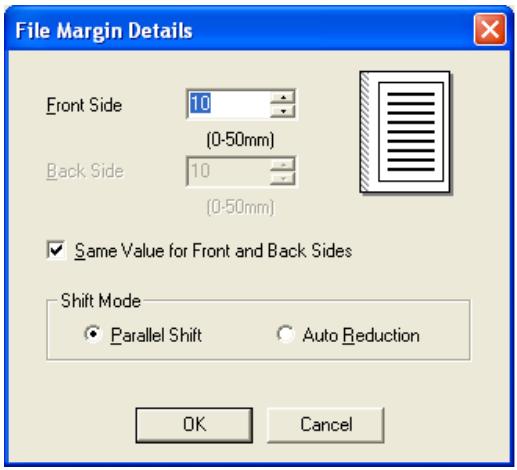
| Front Side | Sets the margin for the front side. |
| Back Side | Sets the margin for the back side. |
| Same value for front and back sides | Selects to use the same margin for the front and back sides. |
| Shift Mode | Selects the shift mode. [Parallel Shift] shifts the image parallel. [Auto Reduction] shifts the image parallel and reduce an image to attain a hole print image printed. |
Binding - Staple
Staple output paper. The number of staplings and their positions can be set. The selectable position will be changed according with the [Binding Position] setting.
1 Staple /Left Binding
(Portrait)
1 Staple /Right Binding
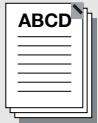
(Portrait)
2 Staples /Left Binding
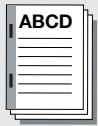
(Portrait)
2 Staples /Right Binding
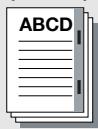
(Portrait)
1 Staple/Top Binding

(Portrait)
2 Staples /Top Binding

(Portrait)
The [Staple] cannot be set in the following cases:
- When [Finisher] is not available in [Options] tab.
- When [Default] is not selected in [Setup] tab - [Output Tray].
- When [Booklet] is selected in [Setup] tab - [Print Type].
Binding - Hole-Punch
The output paper can be set to be punched with 2 holes, 3 holes or 4 holes.
Punch holes which can be specified vary depending on the destinations.
USA: Either 2 or 3 holes can be specified.
- Others: Either 2 or 4 holes can be specified.
The position will be changed according with the [Binding Position] setting.
2 Holes / Left Binding
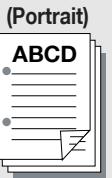
2 Holes / Right Binding
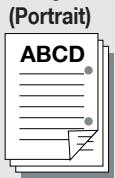
2 Holes / Left Binding (Landscape)

2 Holes / Right Binding (Landscape)
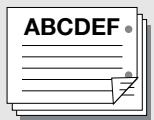
2 Holes / Top Binding
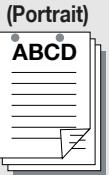
2 Holes / Top Binding
(Landscape)
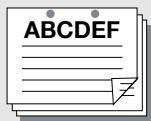
The [Hole-Punch] cannot be set in the following cases:
- When [Punch Unit] or [Punch Z-Fold Unit] is not available in [Options] tab.
- When an item other than [Z-fold] is selected in [Special Function] tab - [Fold].
- When [Booklet] is selected in [Setup] tab - [Print Type].
Binding - Center Staple and Fold
Staples at the center of the output paper and folds it into half.
The [Center Staple and Fold] cannot be set in the following cases:
- When [FS-604] is not available in [Options] tab.
- When an item other than [Multi-Half Fold] is selected in [Special Function] tab - [Fold].
Output - Output Method - Print
Sets the normal printing.
Output - Output Method - Secure Print
If you print with the Secure Print feature, the printing does not start until you input the Secure Print ID and the password on the copier's control panel.
To perform the Secure Print, you need to configure the settings for Confidential output on the copier. For more information on the Confidential output, refer to "User's Guide (Network Scanner)".
The [Secure Print] cannot be set in the following cases:
When [Tandem Mode] is available in [Special Functions] tab.
1 Open the file to be printed and select [File] - [Print] of application.
2 Click [Properties] to open the [Printing Preferences] window.
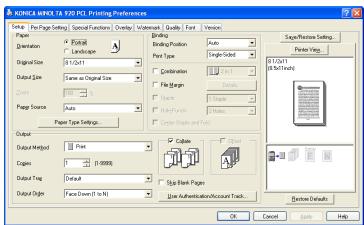
3 Select [Secure Print] in the [Output Method]. [Secure Print Settings] window appears.
4 Enter [Secure Print ID] and [Password].
- Secure Print ID: Enter the confidential box name.
- Password: Enter the password.
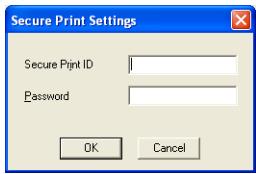
5 Click [OK].
6 Click [OK] to close the [Printing Preferences] window.
7 Click [Print] to perform printing from the application.
8 Press [Box] on the control panel of the copier and select [Recall].
9 Press [Confidential].
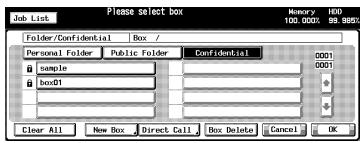
10 Select a box and press [OK]. Password Input screen appears.
11 Enter [Password].
12 Press [OK] to close Password Input screen.
13 Select the file to print and press [ ]
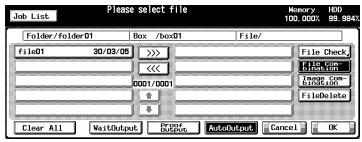
14 Select [AutoOutput] and press the [OK]. Confidential file is printed.

Detail
To confirm the settings for Confidential Output, select [WaitOutput] or [Proof Output], and press OK.
For more information, refer to "User's Guide (Network Scanner)".
Output - Output Method - Save in User Box/Save in User Box and Print
You can store the print job as image data on the copier's internal hard disk to re-output them when necessary. To output, use the PageScope Job Spooler or operate on the control panel.
For more information on PageScope Job Spooler, refer to "PageScope Job Spooler User's Guide".
The [Save in User Box] cannot be set in the following cases:
When [Tandem Mode] is available in [Special Functions] tab.
1 Open the file to be printed and select [File] - [Print] of application.
2 Click [Properties] to open [Printing Preferences] window.
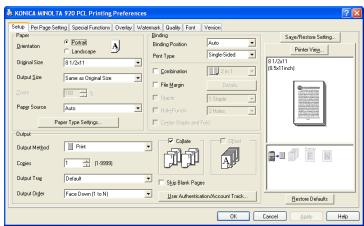
3 Select [Save in User Box] or [Save in User Box and Print] in the [Output Method].
- Selecting [Save in User Box] stores the print job on the internal hard disk.
- Selecting [Save in User Box and Print] stores the print job on the internal hard disk and prints one copy.
4 Enter [File Name] and [User Box Number] and click [OK].
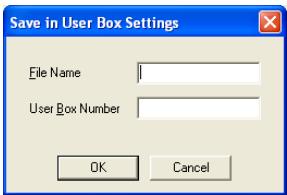
5 Click [OK] to close the [Printing Preferences] window.
6 Click [Print] to perform printing from the application.

Detail
To output, use PageScope Job Spooler or operate on the control panel of copier.
For more information on PageScope Job Spooler, refer to "PageScope Job Spooler User's Guide".
For more information about how to operate on the control panel, refer to "bizhub PRO 920 User's Guide (Network Scanner)".
Output - Output Method - Wait Mode/Proof and Print
Outputs the test print and checks current setting from the control panel of copier. Use this when printing a large volume document, such as multiple sets of pages.
1 Open the file to be printed and select [File] - [Print] of application.
2 Click [Properties] to open the [Printing Preferences] window.
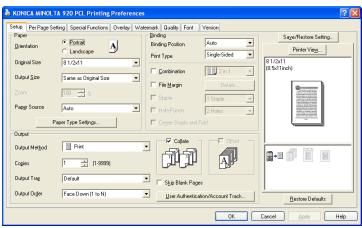
3 Select [Wait Mode] or [Proof and Print] in the [Output Method].
4 Click [OK] to close the [Printing Preferences] window.
5 Click [Print] to perform printing from the application.
- When [Wait Mode] is selected, it stops without being printed.
- When [Proof and Print] is selected, only one set is printed and it stops.
On the copier's control panel, the Mode Check screen appears.
In case of [Proof and Print], [Proof Stop] blinks on the left above the copier touch panel screen. Press [Proof Stop].
Mode Check screen appears on the control panel of copier.
7 Confirm the current settings.
If you do not change any setting, proceed to the step 10.
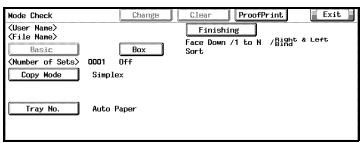
8 If necessary, press the [Change] to change settings.
9 Change the settings and press the [OK].
The Mode Check screen will be restored.
10 Press [START] to resume the rest of the print job.
Output - Copies
Sets the number of copies to be printed.
Output - Output Tray
Sets [Default], [Main Tray] or [Sub Tray] as [Output Tray].
Each of them can/cannot be set in the following cases:
- [Sub Tray] need to be selected a Finisher on the [Option] tab, respectively.
- When [Staple] is available in [Setup] tab, items other than [Default] and [Main Tray] cannot be set.
Output - Output Order
Changes the output order.
[Face Down] outputs paper with the printed side facing down.
[Face Up] outputs paper with the printed side facing up.
"1 to N)" means to output paper starting with the first page.
" (N to 1)" means to output paper starting with the last page.
Output - Collate
Prints the first one set of prints in one lot, and then the second set of prints, the third set of prints, when printing multiple sets of pages.
Output - Offset
Only when the finisher unit has been setup, select to shift the next position of each set of print out back and forth when printing multi set of copies.
Output - Skip Blank Page
Does not print the blank pages.

Reminder
Blank pages might be printed out even if this is set, depending on the data in the document.
The [Skip Blank Page] cannot be set in the following cases:
- [Combination] is available in [Setup] or [Special Functions] tab.
Output - User Authentication/Account Track
Sets the User Authentication mode/Account Track.

Detail
Contact your administrator about User Authentication/Account Track.
When the [User Authentication/Account Track] is clicked, the [User Authentication/Account Track] dialog appears.
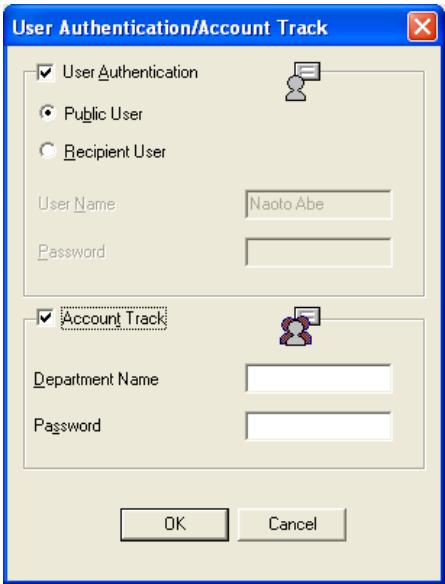
User Authentication
Selects to use the User Authentication mode.
| Public User | Select when you access as Public user to the print control-ler. |
| Recipient User | Select when you access as Recipient user to the print con-roller. |
| User Name | Enter the Recipient User Name when the [Recipient User] is selected. |
| Password | Enter the Recipient Password when the [Recipient User] is selected. |
Account Track
Select to use the Account Track mode.
| Department Name | Enter the Department Name. |
| Password | Enter the password. |

Detail
Refer to the "Copier's User's Guide" for more information about User Authentication and Account Track.
8.11 Per Page Setting tab
You can select several cover settings such as a front and back covers and PI cover sheet. Also, the Chapter setting and Per Page Setting are available.
In the Per Page Setting, you can specify several settings for each page such as one-sided or double-sided, from which tray each paper is fed, how to staple and punch,...etc.
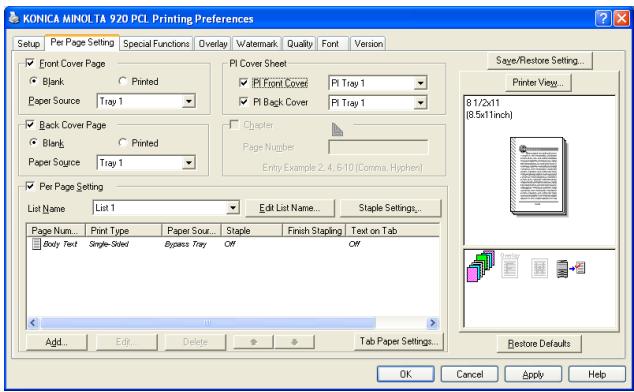

Detail
The method to open the Printing Preference window depends on OS. Refer to "About Properties window" on Page 8-1 about how to open the Printing Preference window.
Front Cover Page
Sets a front cover type.
- When the [Blank] is selected, a blank sheet is inserted before the 1st page.
- When the [Printed] is selected, the 1st page of the document is printed with the specified sheet as the front cover.
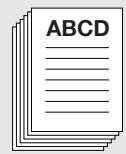
Front Cover - Off
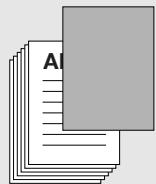
Front Cover - Blank
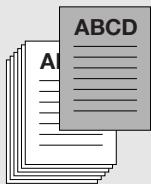
Front Cover - Printed
The [Front Cover Page] cannot be set in the following cases:
- When the [Collate] is not available in the [Setup] tab.
Front Cover Page - Paper Source
Specifies the paper tray for the front cover.
Back Cover Page
Sets a back cover type.
- When the [Blank] is selected, a blank sheet is inserted after the last page.
- When the [Printed] is selected, the last page of the document is printed with the specified sheet as the back cover.
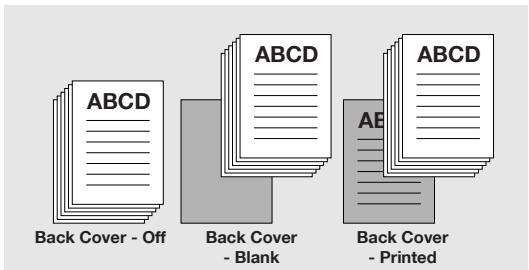
Back Cover Page - Paper Source
Specifies the paper tray for the back cover.
PI Cover Sheet - PI Front Cover
Sets a front cover for which the paper is from the PI Tray 1 or PI Tray 2.
The [PI Cover Sheet] cannot be set in the following cases:
- When the [Cover Sheet Feeder] is not selected in the [Option] tab.
PI Cover Sheet - PI Back Cover
Sets a back cover for which the paper is from the PI Tray 1 or PI Tray 2.
The [PI Cover Sheet] cannot be set in the following cases:
- When the [Cover Sheet Feeder] is not selected in the [Option] tab.
Chapter - Page Number
For the PCL printer driver, print a specific page so that it comes on the front, when printing on [Duplex] or [Booklet].
Multiple page numbers can be entered. When entering multiple page numbers, use commas to separate them as in the following example: [2,4,6]. A range can be specified with a hyphen as in the following example: [6-10].
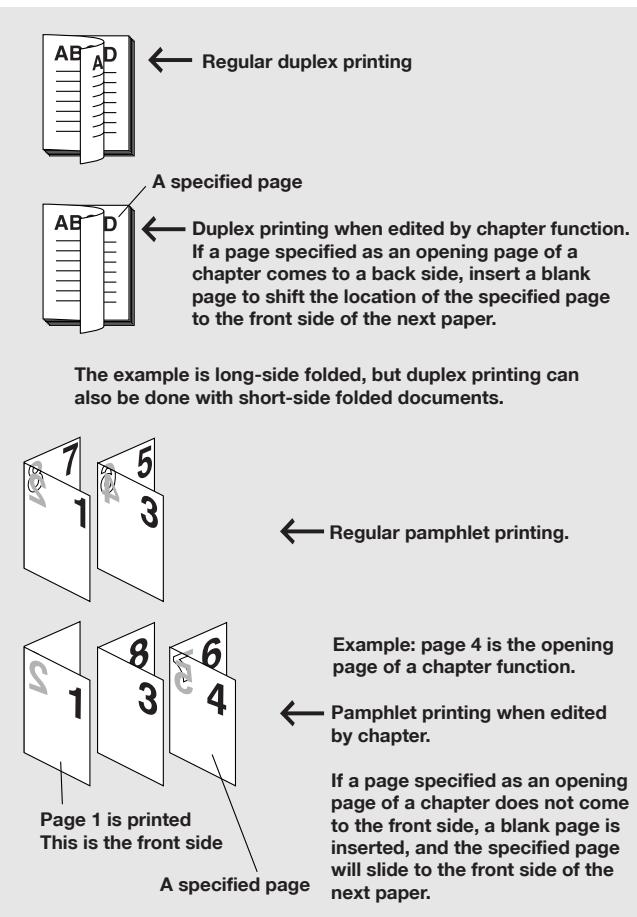
The [Chapter] cannot be set in the following cases:
- The [Single-Sided] is selected in the [Setup] tab - [Print Type].
- When the [Fold] check box is ON in [Special Functions] tab.
Per Page Setting
Sets the specified pages to change [Print Type], [Paper Source], [Staple] and/or [Hole-Punch] settings and to use Tab Paper.
Per Page Setting - List Name
Each Per Page Setting can be saved as a list.
Selects the list name from the list.
Per Page Setting - Edit List Name
Changes the list name.
When click this button, the [Edit List Name] dialog appears.

- List Name: Enter the list name.
Per Page Setting - Staple Settings
Sets to use staple in the Per Page Settings.
When click this button, the [Staple Settings] dialog appears.
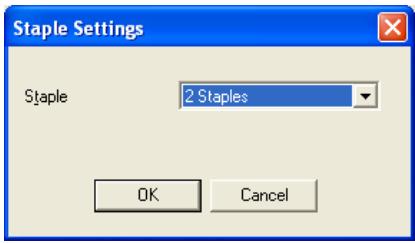
Staple: Sets the number of stapling.
Per Page Setting - Add
Add Per Page Setting.
When click this button, the [Per Page Setting] dialog appears.
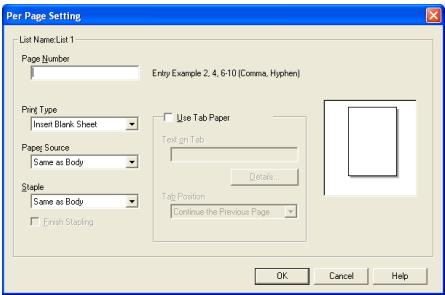
| Page Number | Enters the page number (1 to 9999) which you want to set in the Per Page Settings. Multiple page numbers can be entered. When entering multiple page numbers, use commas to separate them as in this example: [2,4,6]. A range can be specified with a hyphen as in this example: [6-10]. | |
| Print Type: | As a print type of the Per Page Settings, specify either [Insert Blank Sheet], [Print (Single-Sided)] or [Print (Double-Sided)]. | |
| Paper Source: | Specifies the paper feed tray to be used in the Per Page Settings. Selecting [Same as Body] sets the same one as that set in [Paper source] of the [Setup] tab. | |
| Staple: | A setting is made to decide if the Per Page Settings are stapled or not. When [Same as Body] is selected, the setting is the same one as that set in [Staple] of the [Setup] tab. | |
| Finish Stapling | Specifies the last page to be stapled. | |
| Use Tab Paper | Checks this when using the Tab paper. This can not be set when [Same as Body] is selected in the [Paper Source] of the [Per Page Setting] dialog. | |
| Text on Tab | Enters the text to be printed on the Tab paper. | |
| Details | When this button is clicked, the [Tab Text Details] dialog appears. You can configure the orientation, position, font name, font type, and font size. | |
| Tab Text Details | ||
| Tab Text Orientation Position | Normal Center | |
| Font Settings Font Name Arial Style Regular Size 12 | 1/2x11 Tab | |
| Restore Defaults OK Cancel Help | ||
| Tab Text | Set the orientation and position of the tab text. | |
| Font Settings | Set the font, font style and size of the tab text. | |
| Tab position | Selects the tab position. | |

Detail
In [Page Number], up to 26 Page Numbers can be set.
Per Page Setting - Edit
Edits Per Page Setting.
When select the Per Page Setting from the list and click this button, the [Per Page Setting] dialog mentioned above appears.
Per Page Setting - Delete
Deletes Per Page Setting.
When select the Per Page Setting from the list and click this button, the selected setting is deleted.
Per Page Setting - Tab Paper Settings
By clicking the [Tab Paper Settings], the [Tab Paper Settings] window is displayed.
In the [Tab Paper Settings] Window, header characters and other details can be set for the tab sheet.
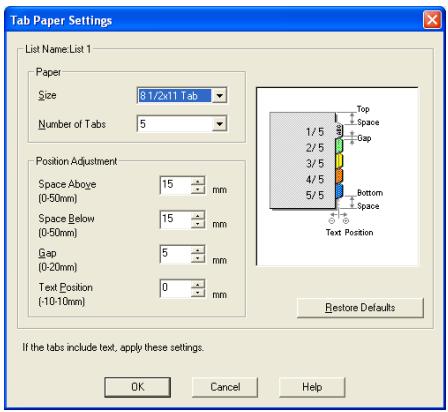
| Paper - Size | Select the tab paper size. |
| Number of Tabs | Select the number of tabs. |
| Position Adjustment - Space Above | Set the top space above the first tab. |
| Position Adjustment - Space Below | Set the top space under the last tab. |
| Position Adjustment - Gap | Set the space between each tab. |
| Position Adjustment - Text Position | Set the text position in each tab. |
8.12 Special Functions tab
Configures the special functions of the print controller.
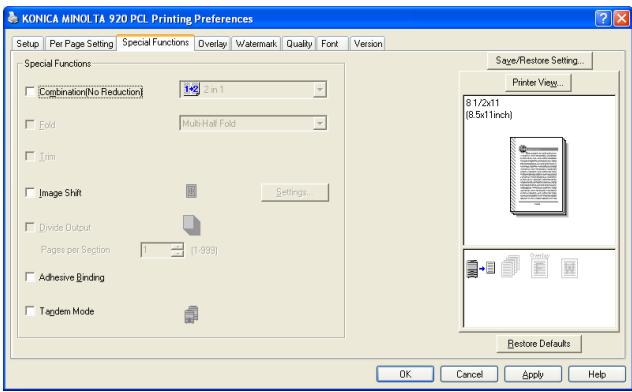

Detail
The method to open the Printing Preference window depends on OS. Refer to "About Properties window" on Page 8-1 about how to open the Printing Preference window.
Special Functions - Combination (No Reduction)
[2 in 1], [2 Repeat] or [2 Repeat Reversal] setting is available which prints out two page data on one sheet of paper. Two page data is printed out on a sheet of paper twice as large as the selected size of paper.
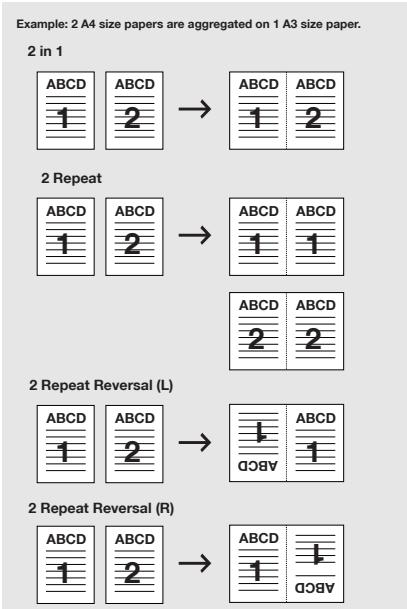
[Combination (No Reduction)] cannot be set in the following cases:
- When the [Chapter] is available in the [Per Page Setting] tab
- When the [Skip Blank Pages] is selected in the [Setup] tab
Special Functions - Fold
Various ways of the folding can be setup.
| Multi-Half Fold | |
| Multi-Letter Fold in | |
| Multi-Letter Fold Out | |
| Z-Fold |
The [Fold] cannot be set in the following cases:
- When the [Chapter] is available in the [Per Page Setting] tab
The setting of [Fold] is available when the following unit is installed.
| Punch Z-Fold Unit | FS-604 | |
| Multi-Half Fold | ○ | |
| Multi-Letter Fold (In/Out) | ○ | |
| Z-Fold | ○ |
Special Functions - Trim
Cuts the edges of the output paper.
The [Trim] cannot be set in the following cases:
- When [Trimmer] is not available in [Options] tab.
Special Functions - Image Shift (Extension)
Adjusts the details of the printing position to the output paper.
Ex.: When the settings are shifted to the right by 100 and down by 300. (Unit: 0.1 mm)
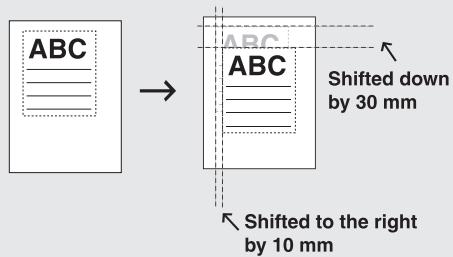
Settings
When click this button, the [Image Shift Settings] dialog appears.
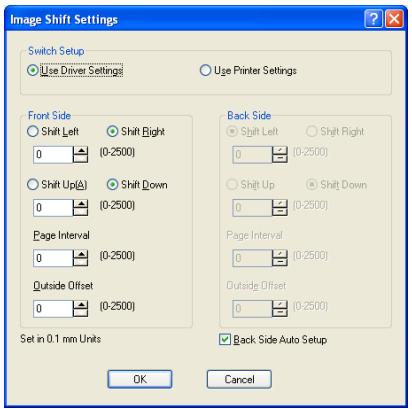
| Switch Setup | It specifies whether the Image Shift sets up by the driver side or the printer side. |
| Front Side | Set the shift amount for the front side. |
| Back Side | Set the shift amount for the back side. |
| Outside Offset | [Outside Offset] is a function to adjust so that the print image is shifted toward the outside as the pages advance, according to the thickness of the folded booklet when the [Booklet] has been set up. |
| Back Side Auto Setup | Set the amount of the back side as that of front side. |
Divide Output
Repeats to staple for every number of pages specified.
The [Divide Output] cannot be set in the following cases:
- When [Staple] is not available in the [Setup] tab.
Page per Section
When the [Divide Output] is selected, you can set the number of pages for repeating the function.
Adhesive Binding
Selects when doing adhesive binding using an adhesive binder.
The [Adhesive Binding] cannot be set in the following cases:
- When an item other than [Double-Sided] is selected in the [Setup] tab - [Print Type].
Tandem Mode
Using two printing systems (master copier and sub copier), prints can be made at the same time under the same printing conditions. When printing a large number of copies, time required to complete the job can be shortened.
When either one of the two copiers is equipped with a print controller, tandem printing can be performed. When both of the copiers are equipped with a print controller, the copier which receives the printing job instruction functions as the master copier and the other one is the sub copier.
For the tandem printing, the two copiers should be connected by either method as follows.
- Connect the two copiers directly with a cross cable. In this case, the network functions cannot be used.
- Connect them with a straight cable via HUB.

Note
Use a cross cable or straight cable higher than the category type 5.
Tandem printing should only be set up by your authorized service representative.
Refer to the "User's Guide (POD Administrator's reference)" for more information about Tandem Mode.
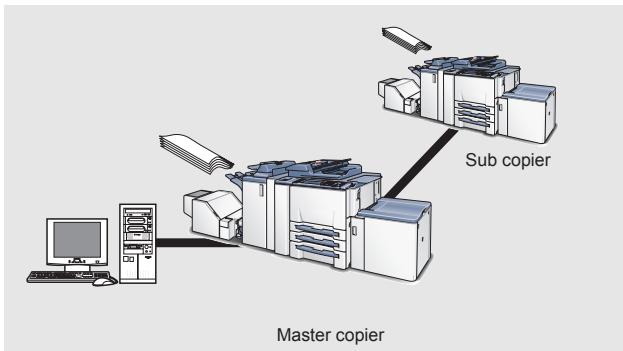
Tandem Mode cannot be set in the following cases:
- When [Transparency Interleave] is selected.
- When [Enhanced Security] is set to ON.
8.13 Overlay tab
Performs settings related to Symbol, Shade, Size, and Position of Form Overlay.
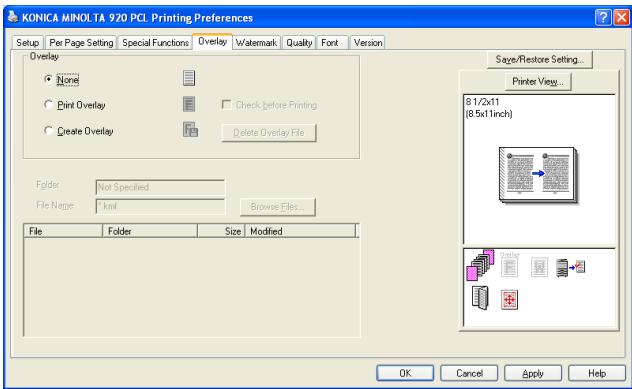

Detail
The method to open the Printing Preference window depends on OS. Refer to "About Properties window" on Page 8-1 about how to open the Printing Preference window.
Overlay - None
Selects to print without Overlay.
Overlay - Print Overlay
Selects to print all pages of the document with specified Overlay.
Check Before Printing
Sets to display a dialog for confirmation before printing with Overlay to be displayed.
Overlay - Create Overlay
To prepare overlay, turn ON the [Create Overlay], click the [Browse Files] and specify where to save the overlay file.
Delete Overlay File
Deletes Overlay previously created.
Folder
Displays the location of the selected Overlay file.
File Name
Displays the file name of the selected Overlay.
Browse File
When you click [Browse File], the [Print Overlay File] dialog box will appear. Select a suitable kmf file for the overlay from your system's directories and click [OK] to load the kmf file.
To create overlay
For creating overlays, perform the following procedure.
1 Create an overlay with the application in use.
2 Select [Print] from the [File] menu. The selected menu may differ depending on the application used.
3 Select [KONICA MINOLTA 920 PCL].
4 Click [Properties].
5 Click [Overlay] tab.
6 Select [Create Overlay] and click [Browse Files].
7 Input the file name in the [File Name]. - Use "kmf" as the extension.
8 Click [Save]. The [Create Overlay] dialog box closes.
9 Click [OK] to create the overlay. The [Properties] dialog box closes.
10 Click [OK] and create the overlay. The overlay data is stored.
Overlay Printing Procedure
When printing overlays, perform the following procedure.
1 Select [Print] from the [File] menu. The selected menu may differ depending on the application used.
2 Select [KONICA MINOLTA 920 PCL].
3 Click [Properties].
4 Click [Overlay] tab.
5 Click [Print Overlay] and select file to be printed from list.
6 Click [OK]. The [Properties] dialog box closes.
7 Click [OK] and print the overlay. Select [Overlay], [None] after printing has been completed. Along with the overlay data the document to be printed is printed on top of the overlay data.
8.14 Watermark tab
Performs settings related to definitions of Watermark.
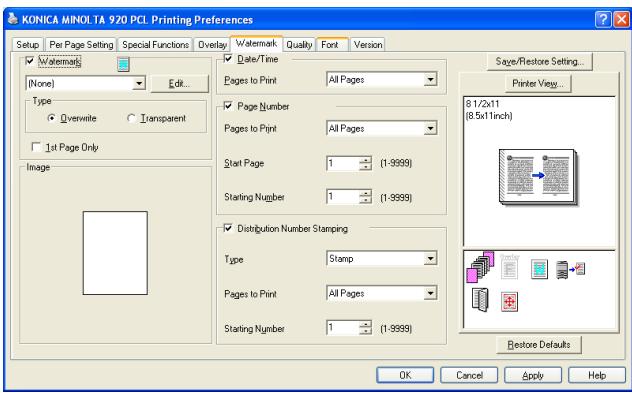

Detail
The method to open the Printing Preference window depends on OS. Refer to "About Properties window" on Page 8-1 about how to open the Printing Preference window.
Watermark
This check box is ON, Watermark function is available.
Watermark - Pull down menu
By clicking the [] , watermark list appears.
Watermark - Edit
By clicking the [Edit], [Edit Watermark] window appears.
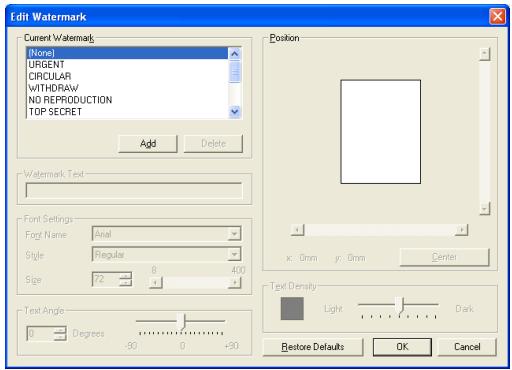
Add
When the [Add] is clicked, blank appears in the [Current Watermark].
Input the new watermark text in the [Watermark Text], new watermark text appears in the [Current Watermark].
Delete
Clicks this to delete the current watermark.
Watermark Text
Selects the text to be printed as a watermark from the list shown by clicking the [▼].
Font Settings - Font Name
You can select only one font per watermark from the list shown by clicking the [] .
Font Settings - Style
You can select style from the list shown by clicking the [] .
- When [Regular] is selected, normal formatting will be applied to your selected watermark text.
- When [Bold] is selected, bold formatting will be applied to your selected watermark text.
- When [Italic] is selected, italic formatting will be applied to your selected watermark text.
- When [Bold Italic] is selected, bold italic formatting will be applied to your selected watermark text.
Font Settings - Size
Selects a point size for the font to be used in your watermark by clicking the [▼] or [▲] or by entering the size from the keyboard directly.
Text Angle - Degrees
Controls the "lean" angle of the watermark by sliding this control bar back and forth or by typing a number in the text value box from -90 degrees to 90 degrees.
Position
Controls the position of the watermark on the page by using the vertical and horizontal slider.
Center
Returns the position of the Current Watermark to the center of the paper.
Text Density
You can control the "density" of the watermark text with this slider. If you slide this to the right, the "density" of the watermark text will be darker. If you slide this to the left, it will be lighter.
Watermark - Type
Overwrite
Prints the Watermark on top of the document text. The printed text under the Watermark will be obscured.
Transparent
Prints the Watermark transparently on the top of the document text.
Watermark - 1st Page Only
Checks to print the Watermark on the first page only.
Date/Time - Page to Print
Specifies the pages to print the date and time.
All pages: Date/Time is printed in the all pages.
Front Cover Only: Date/Time is printed in the front cover only.
Page Number - Pages to Print
Specifies the pages to print the page numbers.
All pages:
Page number is printed in the all pages.
Not Front Cover:
Page number is printed except front cover.
Not Front/Back Cover(s): Page number is printed except front/back cover.
Page Number - Start Page
Specifies the first page to print the page numbers.
Page Number - Starting Number
Specifies the initial page number to print.
Distribution Number Stamping - Type
Specifies the type of the copy number to print.
You can choose either from [Stamp] or [Watermark].
Distribution Number Stamping - Pages to Print
Specifies the pages to print the copy number.
You can choose either from [All Pages] or [1st Page Only].
Distribution Number Stamping - Starting Number
Specifies the initial copy number to print.
Detail
For the display method of the Date/Time and the setting method of the character size, they can be specified on the control panel of the copier.
For details, see "User's Guide (Copier)"
8.15 Quality tab
Performs settings related to Halftones, Brightness and Contrast.
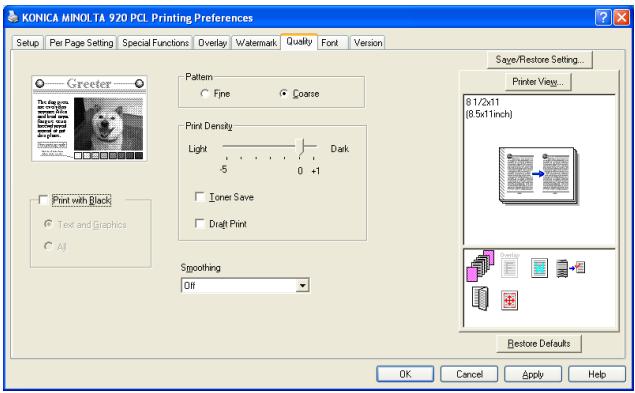

Detail
The method to open the Printing Preference window depends on OS. Refer to "About Properties window" on Page 8-1 about how to open the Printing Preference window.
Pattern - Fine
The [Fine] prints image with finely detailed pattern (error diffusion).
Pattern - Coarse
The [Coarse] prints image with a coarse pattern (dither algorithm).
Print Density
The print density can be adjusted by the sliding the control bar.
Toner Save
Saves the consumption of toner by controlling printing density.
Draft Print
Prints lightly, which is swtable for draft documents.
Smoothing
Prints the curved section of characters and images smoothly, when this printing system is used.
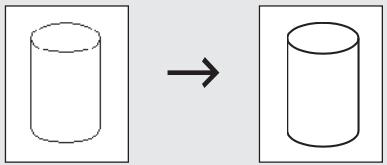
Smoothing
- [Type 1] is suitable for printing the diagonal lines of normal characters and graphics.
- [Type 2] is suitable for printing the curved sections of normal characters.
- [Type 3] is suitable for printing the curved sections of ornamental writings and fine characters.
- When [None] is selected, no smoothing operation is made.
Print with Black - Text and Graphics
Checking on the [Text and Graphics] allows you to print colored characters and lines, and graphics clearly in black.
Print with Black - All
Checking on the [All] allows you to print all objects including image data such as picture image excepting white areas clearly in black.
8.16 Font tab
Performs settings of fonts for printing.
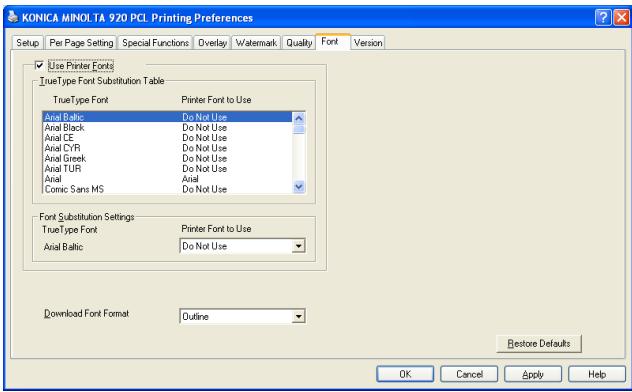

Detail
The method to open the Printing Preference window depends on OS. Refer to "About Properties window" on Page 8-1 about how to open the Printing Preference window.
Use Printer Font
This printing system allows you to replace the TrueType fonts with printer fonts while in printing. It is also possible to transmit detailed information concerning the replacement of fonts.

Reminder
The TrueType fonts used to display the Windows screen are sent directly to the printer for each font data to be handled while in normal printing. Therefore, the same printing results as displayed on the screen can be obtained.
When the printer fonts (those contained in the printer) are used, it is possible to send only character codes to the printer for a high speed printing. On this occasion, printing may not always be made as displayed on the
screen. However, since the quantity of data sent to the printer is smaller, it is possible to make a high speed printing.
Use Printer Font - TrueType Font Substitution Table
Displays the substitution settings of the True Type Font which is substituted with the built-in printer fonts.
Use Printer Font - Font Substitution Settings
Selects the printer fonts which substitutes for the highlighted True Type Font.
Download Font Format
Selects the font format to be downloaded to the printer (Outline or BMP).
8.17 Version tab
Checks the printer driver version from the [Properties] window.

Detail
The method to open the Printing Preference window depends on OS. Refer to "About Properties window" on Page 8-1 about how to open the Printing Preference window.
Displays the version of the current printer driver.
8.18 Save/Restore Setting
Settings with the printer driver can be saved to be restored as required.
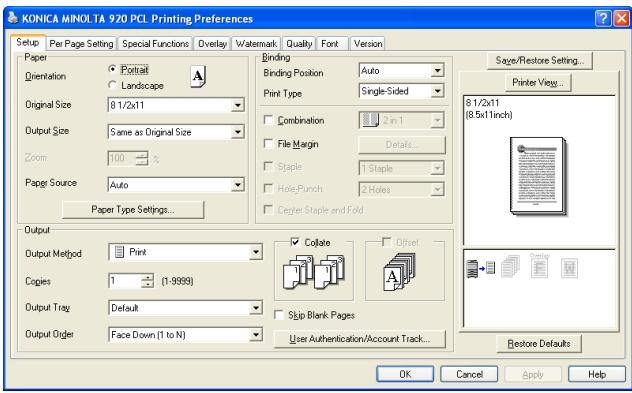
To Save Setting
Current setting can be saved by the following method:
1 Click [Save/Restore Setting] - [Save Current Setting]. [Save Setting] window appears.
2 Input Name and click [OK].
Setting is saved and the name entered is displayed on the [Save/Restore Setting] pull down menu.
To restore the setting in storage:
Setting in storage can be restored when required.
1 Click [Save/Restore Setting] to display menu.
2 Select the setting to be restored from the list on display.
Save Current Setting
When this is selected, the [Save Setting] window appears.

- Name: Enter the file name to save the current printer settings.
- Comment: Enter the information of the current printer settings.
- Browse: Specify the folder where the file will be saved.
Restore Saved Setting
When this is selected, the [Restore Setting] window appears.
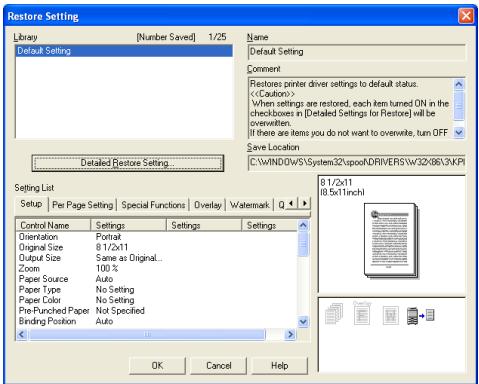
- Library: Select the name of the settings.
- Detailed Restore Settings: When this is clicked, the [Detailed Restore Settings] dialog appears. Select the restore items in the [Detailed Restore Settings] dialog.
Edit Library
When this is selected, the [Edit Library] window appears.
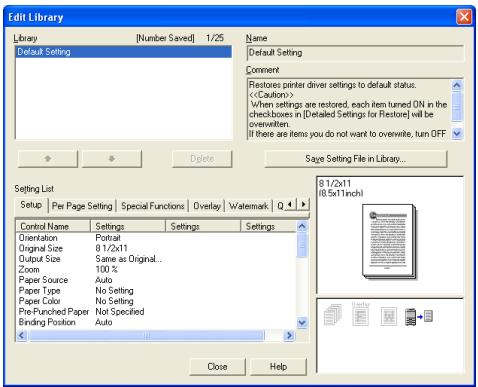
- Library: Select the name of the settings.
- Delete: Delete the selected settings from the list above.
- Save Setting File in Library: Click to save the selected settings from the list.
Detailed Restore Settings
When this is selected, the [Detailed Restore Setting] window appears.
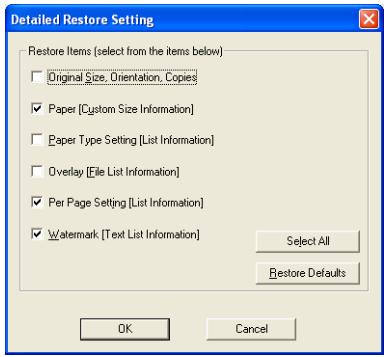
Select the restore items in the [Detailed Restore Settings] dialog.
8.19 About View Area
Setting of the printer driver and status of the optional unit can be checked.
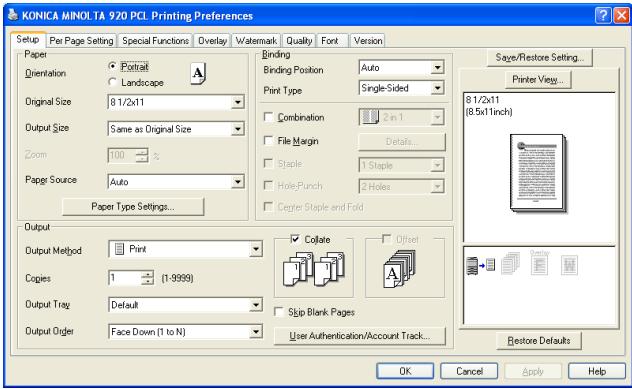
To Check the Status of the Optional Unit
Status of the optional unit can be checked by the image.
1 Click [Printer View].
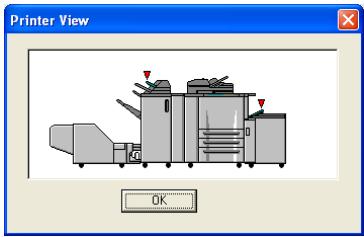
Image View
The function set up is displayed on view area. The sample of images is shown in the following tables.
| Image View | What is set | Image Sample |
| Paper view | ·Zoom ·N-Up ·2in1/Booklet ·Staple/Punch ·Duplex | Printer View...81/2x11(8.5x11inch) |
| OK | ||
| Printer view | ·Copier main body/Option ·Paper Sources ·Output Tray | Printer View |
| Icon view | ·Cover/Front Cover Page/Back Cover Page/Per Page Setting | |
| ·Watermark | ||
| ·Secure Print/Wait Mode | ||
| ·Image Shift |
Detail
Refer to the HELP for more information about Icon view.
9 PostScript PPD Printer Driver setting (Windows)
This chapter describes the settings of the PostScript PPD printer driver. For settings, use the Properties window.
9.1 About Properties window
This chapter explains the setting on the PPD printer driver with Properties window of Windows XP.
The method to open the Properties window depends on OS.
| Operating System | Method |
| Windows 98/Me | Select [Start]-[Settings]-[Printers] to open the [Printers] folder, right-click the printer icon and select [Properties]. |
| Windows NT4.0/2000 | Select [Start]-[Settings]-[Printers] to open the [Printers] folder, right-click the printer icon and select [Properties]. |
| Windows XP/Server 2003 | Select [Start]-[Printers and Faxes] to open the [Printers and Faxes] folder, right-click the printer icon and select [Properties]. |
How to open the printing preference window differs depending on the OS in use.
| Operating System | Method |
| Windows 98/Me | Select [Start]-[Settings]-[Printers] to open the [Printers] folder, right-click the printer icon and select [Properties]. |
| Windows NT4.0 | Select [Start]-[Settings]-[Printers] to open the [Printers] folder, right-click the printer icon and select [Document Defaults]. |
| Windows 2000 | Select [Start]-[Settings]-[Printers] to open the [Printers] folder, right-click the printer icon and select [Printing Preference] |
| Windows XP/Server 2003 | Select [Start]-[Printers and Faxes] to open the [Printers and Faxes] folder, right-click the printer icon and select [Printing Preference]. |
9.1.1 Properties window
You have two ways for selecting or changing settings through the printer driver.
How to setup in the Properties window of the Printers and Faxes window
Settings made in the [Properties] of the [Printers and Faxes] folder are applied to print outs from any application.
How to setup with application
Settings can be made in the print dialog indicated by selecting the print command in the application. In this case, the settings are effective only when the application is in use.

Note
This chapter is described by using the printer window of Windows XP. The properties window may differ from the window displayed by the printing command of applications.
9.2 About button
Buttons common to each tab of the [Properties] window are shown below.
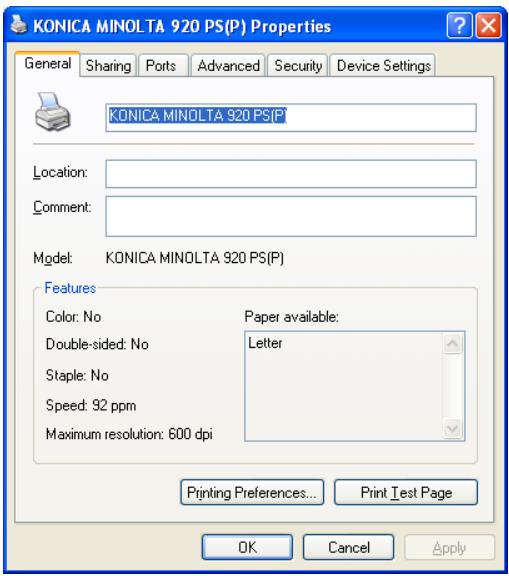
| Button | Function |
| OK | When the [OK] is clicked, all tab settings are saved with the close of the properties window. |
| Cancel | When the [Cancel] is clicked, all tab settings are cancelled with the close of the properties window. |
| Apply | When the [Apply] is clicked, the present tab settings are saved. This button is usefull when you want conduct other settings in other tabs, and the present tab settings are registered before using other tabs. |
9.3 Combination of the function
When you select a function which causes a conflict with the settings already configured, the message will be displayed.
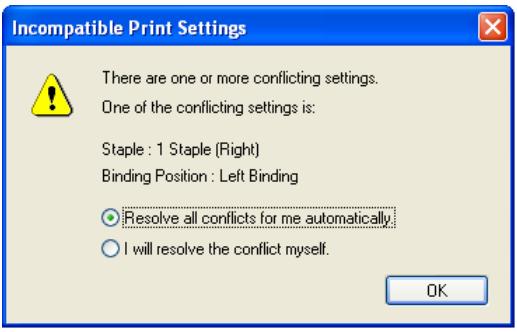
This is a confirmation message to decide whether to restore the previous settings or keep the settings. When this message is displayed, select [Resolve all conflicts for me automatically] or [I will resolve the conflict myself]. When selecting [Resolve all conflicts for me automatically], the previous setting will be turned OFF.
9.4 General tab
Enables to print a test page.
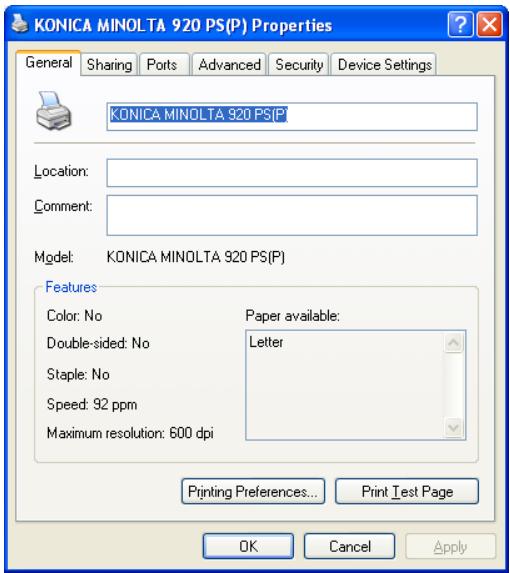

Detail
The method to open the Properties window depends on OS. Refer to "About Properties window" on Page 9-1 about how to open the Property window.
Location
Enters the name of a place where the printer is located. For example, "2nd floor", "Room 101", "Domain ABC" and so on.
Comment
Enters information about the printer. For example, "User: documentation team", "Maintenance: 123-456-789", and so on.
Printing Preference
Displays the property window of the selected printer. You can change the setting of the printer driver with the property window.
Print Test Page
Prints a test page of Windows. You can print a test page without using any application.

Note
For more information, refer to the manual of the Windows.
9.5 Sharing tag
Performs share settings of a printer.
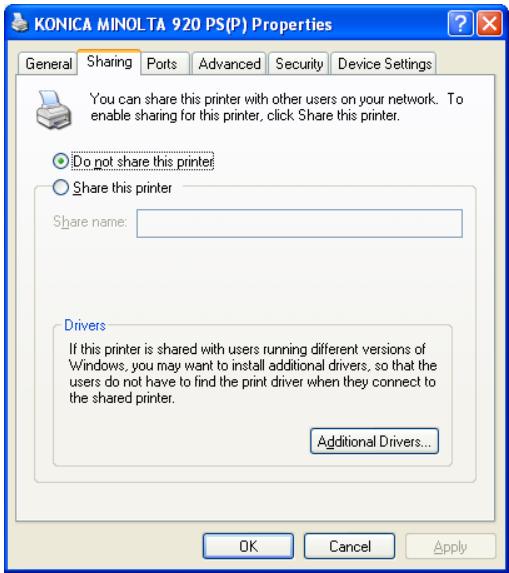

Detail
The method to open the Properties window depends on OS. Refer to "About Properties window" on Page 9-1 about how to open the Property window.
By using this [Sharing] tab, you can make the printer available to network users.

Note
For more information, refer to the manual of the Windows.
9.6 Ports tab
Performs settings related to ports.
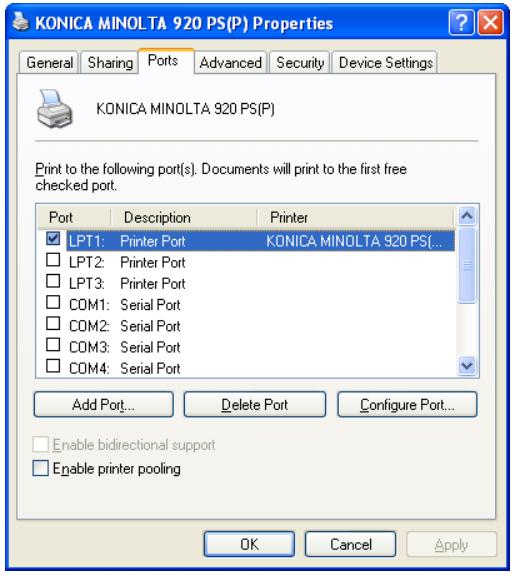

Detail
The method to open the Properties window depends on OS. Refer to "About Properties window" on Page 9-1 about how to open the Property window.
Add Port
Using this button enables you to add a new port for Vendor-specific port monitor, TCP/IP or Unix printers (using the LPR port), and so on.
Delete Port
Deletes the selected port from above list.
Configure Port
Using this button enables you to configure the selected port from above list.
Enable bidirectional support
Gets the status information from the print device.
Enable printer pooling
Enables printing to two or more identical print devices by using one logical printer.

Note
For more information, refer to the manual of the Windows.
9.7 Advanced tab
Performs settings regarding drivers, port time out and spoofing.


Detail
The method to open the Properties window depends on OS. Refer to "About Properties window" on Page 9-1 about how to open the Property window.
Always available / Available from
Configures how many hours the printer is available. You can choose from 24 hours or specified hours.
Priority
Configures the priority of the current setting.
Driver
Displays the installed printer driver name.
New Driver
Clicks to install a new or updated printer driver.
Spool print documents so program finishes printing faster
Sets to spool the documents before printing.
Print directly to the printer
Sets to print without spooling.
Hold mismatched documents
Sets to hold the document which does not match to the printer setup.
Print spooled documents first
Sets to print the spooled document irrespective of a priority settings.
Keep printed documents
Sets to hold the spooled data of the documents after printing.
Enable advanced printing features
Enables the advanced printing features.

Note
For more information, refer to the manual of the Windows.
9.8 Security tab
Perform settings for the security.
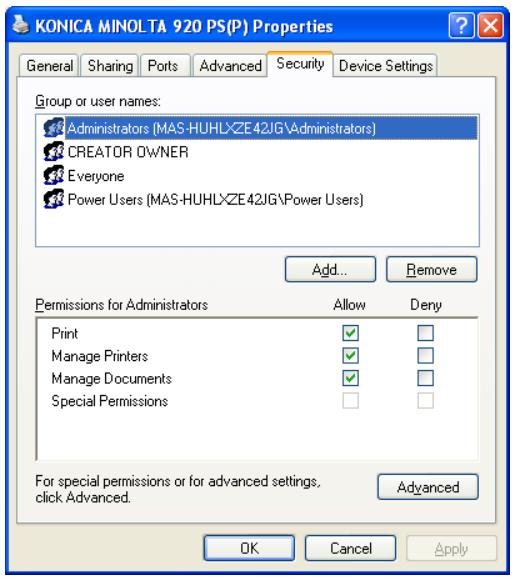

Detail
The method to open the Properties window depends on OS. Refer to "About Properties window" on Page 9-1 about how to open the Property window.

Note
For more information about Security tab, refer to the manual of the Windows.
9.9 Device Settings tab
Performs settings of PostScript and the options of the printer.
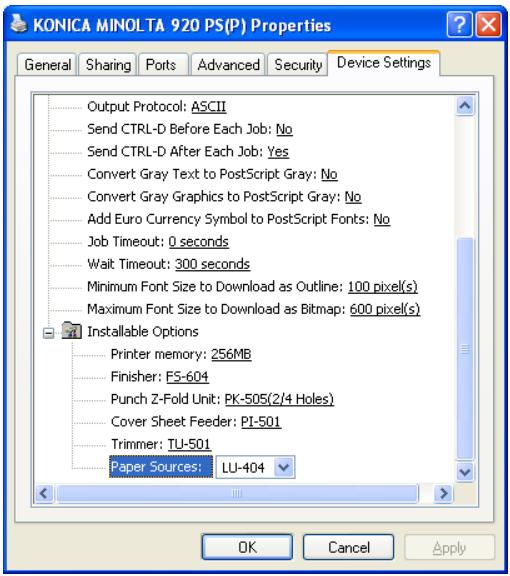

Detail
The method to open the Properties window depends on OS. Refer to "About Properties window" on Page 9-1 about how to open the Property window.
From To Tray Assignment
Selects the paper size to print for every Tray.
| Document size that can be selected |
| 11 x 17 Wide |
| 16K |
| 5 1/2 x 8 1/2 Wide |
| 8 1/2 x 11 Tab |
| 8 1/2 x 11 Wide |
| 8 1/2 x 13 |
| 8 1/4 x 13 |
| 8 1/8 x 13 1/4 |
| 8K |
| 8 x 13 |
| A3 |
| A3 Wide |
| A4 |
| A4 Tab |
| A4 Wide |
| A5 |
| A5 Wide |
| A6 |
| B4 |
| B4 Wide |
| B5 |
| B5 Wide |
| B6 |
| Legal |
| Letter |
| Statement |
| Tabloid |
Font Substitution Table
Selects to substitute with printer fonts for the True Type Font or "Don't Substitute".
Available PostScript Memory
Displays the available PostScript memory. For more information, refer to the Adobe PS User's Guide.
Output Protocol
Selects the output protocol. For more information, refer to the Adobe PS User's Guide.
Send CTRL-D Before Each Job
Selects to send a [Ctrl-D] signal to the printer to notify before the print job or not to send. For more information, refer to the Adobe PS User's Guide.
Send CTRL-D After Each Job
Selects to send a [Ctrl-D] signal to the printer to notify before the print job or not to send. For more information, refer to the Adobe PS User's Guide.
Convert Gray Text to PostScript Gray
Set up whether to convert the gray text in the document to PotScript gray. Refer to the Adobe PS User's Guide.
Convert Gray Graphics to PostScript Gray
Set up whether to convert the gray graphics in the document to PostScript gray. Refer to the Adobe PS User's Guide.
Add Euro Currency Symbol to PostScript Fonts
Set whether to add the Euro currency symbol to the PostScript font. Refer to the Adobe PS User's Guide.
Job Timeout
Specifies a maximum length of time in seconds available for the printer to complete a single print job. For more information, refer to the user's guide of the Adobe PostScript 3.
Wait Timeout
Specifies a maximum length of time in seconds during which the printer waits for print data to be fed in from the computer during the printing process. For more information, refer to the Adobe PS User's Guide.
Minimum Font Size to Download as Outline
Specifies a minimum font size to download as outline. For more information, refer to the Adobe PS User's Guide.
Maximum Font Size to Download as Bitmap
Specifies a maximum font size to download as bitmap. For more information, refer to the Adobe PS User's Guide.
Installable Option
In this printing system, the following options are installable.
| Printer memory | 256 MB/512 MB |
| Finisher | None / FS-509/FS-516 / FS-604 |
| Punch Z-Fold Unit | None/ZU-601(4 Holes)/ZU-602(2 Holes)/ZU-602(2/3 Holes)/ZU-602(2/4 Holes)/PK-503(2 Holes)/PK-504(4 Holes)/PK-505(2/3 Holes)/PK-505(2/4 Holes)/ZU-601+PK-504(4 Holes)/ZU-602+PK-503(2 Holes)/ZU-602+PK-505(2/3 Holes)/ZU-602+PK-505(2/4 Holes) |
| Cover Sheet Feeder | None/PI-501 |
| Trimmer | TU-501 |
| Paper Source | None/LU-403/LU-404 |
9.10 Layout tab
Performs settings of the layout.
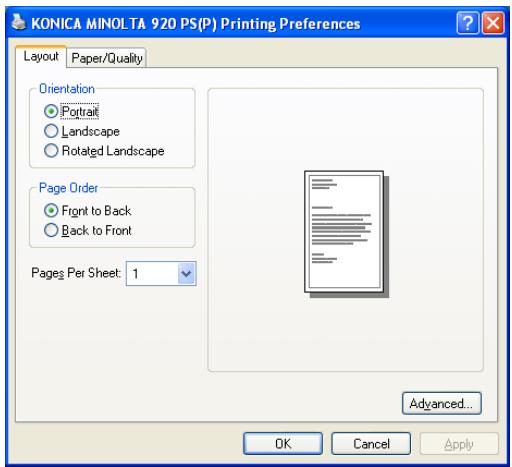

Detail
The method to open the Printing Preference window depends on OS. Refer to "About Properties window" on Page 9-1 about how to open the Printing Preference window.
Orientation
Sets the orientation to output paper in [Portrait], [Landscape] or [Rotated Landscape].
Page Order
Selects the output order.
[Front to Back] outputs paper starting with the first page.
[Back to Front] outputs paper starting with the last page.
Pages Per Sheet
Allocates a document of 1 page, 2 pages, 4 pages, 6 pages, 9 pages or 16 pages onto a single page for printing. The allocated pages are automatically reduced for printing based on the printable area of the output paper.
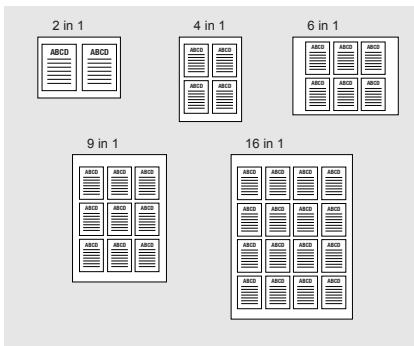
Advanced
Opens the [KONICA MINOLTA 920 PS(P) Advanced Options] window. For more information, refer to "Advanced Options windows" on Page 9-21.
9.11 Paper/Quality tab
Performs settings of the paper and quality.
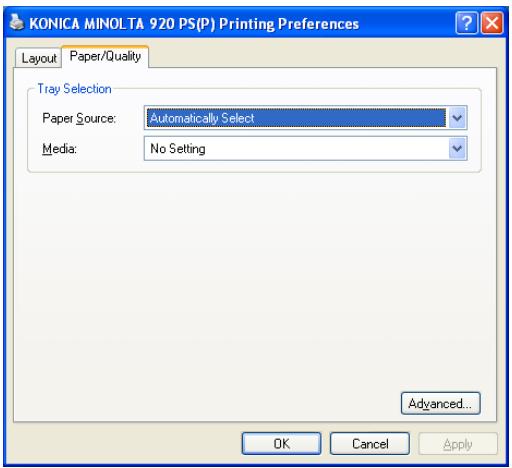

Detail
The method to open the Printing Preference window depends on OS. Refer to "About Properties window" on Page 9-1 about how to open the Printing Preference window.
Paper Source
Selects and set the paper tray to be used from the list. When the [Automatically Select] is set, the printer automatically selects and prints from a suitable paper tray.
| Feed Tray | paper size that can be used. |
| Tray 1 to Tray 3 | 11 x 17 Wide/16K/5 1/2 x 8 1/2Wide/8 1/2 x 11 Tab/8 1/2 x 11 Wide/8 1/2 x 13/8 1/4 x 13/8 1/8 x 13 1/4/8K/8 x 13/A3/A3 Wide/A4/A4 Tab/A4 Wide/A5/A5 Wide/A6/B4/B4 Wide/B5/B5 Wide/B6/Legal/Statement/Tabloid |
| LCT (LU-403/LU-404), Manual Feed |
Media
Selects the type of paper as the output paper as shown below.
| Types of paper that can be selected. | |
| No Setting | |
| Plain Paper | |
| Thick 1 | This is set when printing coated paper such as pamphlet. |
| Thick 2 | This is set when printing thick paper such as a post card. |
| Fine | This is set when printing fine paper such as memo paper. |
| User | This is set when printing the user specified paper set on the copier. |
| Blank Insert | This is set when printing blank paper such as cover sheet. |
| Thin | This is set when printing thin paper. |
| Trace | This is set when printing trace paper. |
| Recycled | This is set when printing recycled paper. |
| Label | This is set when printing the paper such as label. |
| Transparency | This is set when printing OHP sheet. |
| Exclusive A - M | This is set when printing the exclusive paper. |
The [Transparency] cannot be set in the following cases:
- When any item other than [OFF] is selected for the [Advanced Options] - [Duplex], [Fold], [Staple], [Punch], [Combination], [Front Cover Page], [Back Cover Page].
Advanced
Opens the [KONICA MINOLTA 920 PS(P) Advanced Options] window. For more information, refer to "Advanced Options windows" on Page 9-21.
9.12 Advanced Options windows
Performs advanced settings of the printer.
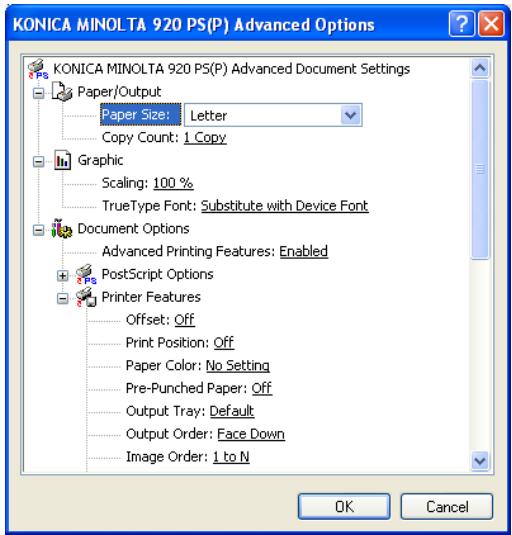

Detail
The method to open the Printing Preference window depends on OS. Refer to "About Properties window" on Page 9-1 about how to open the Printing Preference window.
Paper/Output - Paper Size
You can select a paper size from the list shown by clicking [▼].
| Document size that can be selected |
| 11 x 17 Wide |
| 16K |
| 5 1/2 x 8 1/2 Wide |
| 8 1/2 x 11 Tab |
| 8 1/2 x 11 Wide |
| 8 1/2 x 13 |
| 8 1/4 x 13 |
| 8 1/8 x 13 1/4 |
| 8K |
| 8 x 13 |
| A3 |
| A3 Wide |
| A4 |
| A4 Tab |
| A4 Wide |
| A5 |
| A5 Wide |
| A6 |
| B4 |
| B4 Wide |
| B5 |
| B5 Wide |
| B6 |
| Japanese Postcard |
| Legal |
| Letter |
| Statement |
| Tabloid |

Note
The paper with "Wide" at the end of the document size represents "Wide paper".
Paper/Output - Copy Count
Sets the number of copies to be printed.
Paper/Output - Copy Count - Collate
Prints the first one set of copies in one lot, and then the second set of copies, the third set of copies, ..., when printing multiple sets of pages.
Graphic - Scaling
Prints by specifying the enlargement or reduction ratio in the range from 1% to 1000% .
Graphic - True Type Font
Selects to substitute with printer fonts for the True Type Font or to download as Softfont.
Document Options - Advanced Printing Features
Refer to the Adobe PS User's Guide.
Document Options - PostScript Options
Refer to the Adobe PS User's Guide.
Document Options - Printer Features
Offset
Selects to shift the exit position of each set of print out back and forth when printing multi set of copies.
Offset Copies
Print Position
Selects the print position. [Top] print using the top of the paper. [Center] print using the center of the paper. [Bottom] print using the bottom of the paper.
Paper Color
Selects the colors of the output paper as shown below:
No Setting
White
Clear
Yellow
- Pink
- Blue
Green
Pre-Punched Paper
Selects whether the paper as the output paper is pre-punched or not.
Output Tray
Selects the output tray.
The [Output Tray] cannot be set in the following cases:
- Available option which is not selected in the [Device Settings] tab.
- When [Staple] is available, any item other than [Auto] and [Main Tray] can not be set.
Output Order
Selects the output order.
[Face Down] outputs paper with the printed side facing down.
[Face Up] outputs paper with the printed side facing up.
Image order
Selects the printing order of documents.
[1 to N] outputs the first page.
[N to 1] outputs the last page.
Binding Position
Sets the binding position for the document to be printed. The position selected here will be the position of stapling, punching and base position of the image shift.
Duplex
Prints documents on both front and back sides.
The [Duplex] cannot be set in the following cases:
- When the [Transparency] is selected in the [Paper/Quality] tab - [Media]
Combination
Prints a document of 2 pages onto a single paper twice as big as a paper selected in the output paper.
Example: 2 A4 size papers are aggregated on 1 A3 size paper.
Booklet
2 in 1
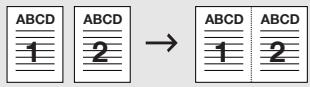
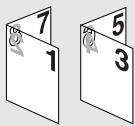
2 Repeat
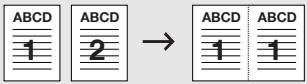
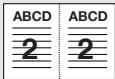
2 Repeat Reversal (L)
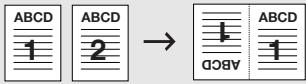
2 Repeat Reversal (R)
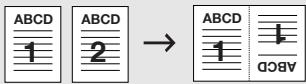
Staple
Staples output paper. The number of staplings and their positions can be set. The selectable position will be changed according with the [Binding] setting.
1 Staple /Left Binding
(Portrait)
1 Staple /Right Binding

(Portrait)
2 Staples /Left Binding
(Portrait)
2 Staples /Right Binding

(Portrait)
1 Staple /Top Binding
(Portrait)
2 Staples /Top Binding
(Portrait)
The [Staple] cannot be set in the following cases:
- When the [Finisher] is not available in the [Device Settings] tab - [Installable Options]
- When the [Transparency] is selected in the [Paper/Quality] tab - [Media]
- When the [Auto] or [Main Tray] is not selected in the [Output Tray].
- When any item other than [Z-fold] is selected in the [Fold].
Punch
The output paper can be set to be punched with 2 holes,3 holes or 4 holes.
Punch holes which can be specified vary depending on the destinations.
USA: Either 2 or 3 holes can be specified.
- Others: Either 2 or 4 holes can be specified.
The position will be changed according with the [Binding Position] setting.
2 Holes / Left Binding
(Portrait)
2 Holes / Left Binding
(Landscape)
2 Holes / Top Binding
(Portrait)
2 Holes / Right Binding
(Portrait)
2 Holes / Right Binding
(Landscape)
2 Holes / Top Binding
(Landscape)
The [Punch] cannot be set in the following cases:
- When the [Punch Z-Fold Unit] is not available in the [Device Settings] tab - [Installable Options]
- When the other than [Z-fold] is selected in the [Fold].
Fold
Various ways of the folding can be setup.
| Z-Fold | |
| Center Staple and Fold | |
| Multi-Letter Fold in | |
| Multi-Letter Fold Out | |
| Multi-Half Fold |
The [Fold] cannot be set in the following cases:
- When the [Transparency] is selected in the [Paper/Quality] tab - [Media]
- When any item other than [Off] is selected for the [Staple], [Punch], only [Z-fold] can be selected.
- When any item other than [Off] is selected for the [Front Cover Page], [Back Cover Page], [PI-Front Cover] and [PI-Back Cover].
The setting of [Fold] is available when the following unit is installed.
| Punch Z-Fold Unit | FS-604 | |
| Z-Fold | ○ | |
| Multi-Letter Fold (In/Out) | ○ | |
| Multi-Half Fold | ○ |
Image Shift
Adjusts the details of the printing position to the output paper.
Ex.: When the settings are shifted to the right by 100 and down by 300. (Unit: 0.1mm )
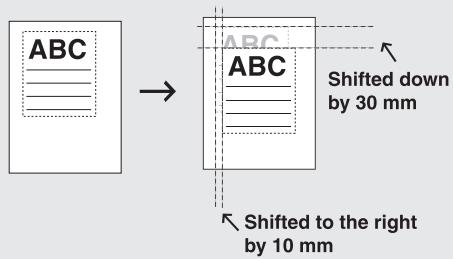
Front Cover Page
Sets a front cover type.
When the [Blank] is selected, a blank sheet is inserted before the 1st page.
When the [Printed] is selected, the 1st page of the document is printed with the specified sheet as the front cover.
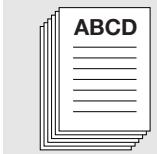
Front Cover - Off

Front Cover - Blank
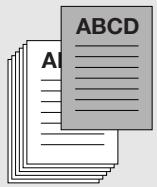
Front Cover -Printed
The [Front Cover Page] cannot be set in the following cases:
- When the [Transparency] is selected in the [Paper/Quality] tab - [Media]
- When any item other than [Off] or [Z-Fold] is selected for the [Fold].
Paper Tray (Front Cover Page)
Specifies the paper tray for the front cover.
Back Cover Page
Sets a back cover type.
When the [Blank] is selected, a blank sheet is inserted after the last page.
When the [Printed] is selected, the last page of the document is printed with the specified sheet as the back cover.
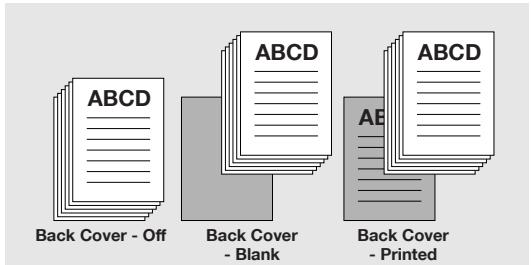
The [Back Cover Page] cannot be set in the following cases:
- When the [Transparency] is selected in the [Paper/Quality] tab - [Media]
- When any item other than [Off] or [Z-Fold] is selected for the [Fold].
Paper Tray (Back Cover Page)
Specifies the paper tray for the back cover.
PI Front Cover
Sets a front cover for which the paper is from the [PI Tray 1] or [PI Tray 2].
The [PI Front Cover] cannot be set in the following cases:
- When the [Cover Sheet Feeder] is not selected in the [Device Settings] tab - [Installable Options]
- When any item other than [Off] is selected for the [Fold].
PI Back Cover
Sets a back cover for which the paper is from the [PI Tray 1] or [PI Tray 2].
The [PI Back Cover] cannot be set in the following cases:
- When the [Cover Sheet Feeder] is not selected in the [Device Settings] tab - [Installable Options]
- When any item other than [Off] is selected for the [Fold Stitch Trim].
Transparency Interleave
Set this item when using the transparency interleave as the paper.
Select either [Printed] or [Blank].
| Printed | This is set when inserting the printed interleaf for the transparent sheet. |
| Blank | This is set when inserting the blank interleaf for the trans-parent sheet. |
Paper Tray (Transparency Interleave)
Uses to select the paper tray for Transparency Interleave.
Paper Tray (Transparency Interleave) cannot be set in the following cases:
- When the [Transparency] is not selected in the [Paper/Quality] tab - [Media]
- When the [Paper Sources] is not selected in the [Device Settings] tab - [Installable Options]
Wait Mode
Outputs the test print and checks the current setting from the control panel of copier. Use this when printing a large volume document, such as multiple sets of pages.
1 Open the file to be printed and select [File] - [Print] of application.
2 Click [Properties] to open the [Printing Preferences] window and then click [Advanced].

3 Click [▼] besides the [Wait Mode] to display the list. Then select [Wait Mode] or [Proof and Print] and click [OK] to close the [Advanced Options] window.
- Select [Wait Mode] to wait before printing the document to check the current setting from the control panel of copier.
- Select [Proof and Print] to print the one copy as a test to check the output and the current setting from the control panel of copier.
4 Click [OK] to close the [Printing Preferences].
5 Click [Print] to perform printing from the application.
- When the [Wait Mode] is selected, it stops without being printed.
- When the [Proof and Print] is selected, only one set is printed and it stops.
On the copier's control panel, the Mode Check screen appears.
In case of [Proof and Print], [Proof Stop] blinks on the left above the copier touch panel screen. Press [Proof Stop].
Mode Check screen appears on the control panel of copier.
7 Confirm the current settings.
If you do not change any setting, proceed to the step 10.
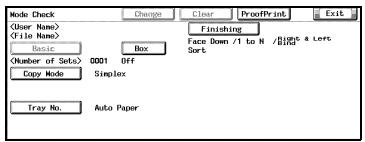
8 If necessary, press the [Change] to change settings.
9 Change the settings and press the [OK].
The Mode Check screen will be restored.
10 Press [START] to resume the rest of the print job.
Smoothing
Prints the curved section of characters and images smoothly, when this printing system is used.
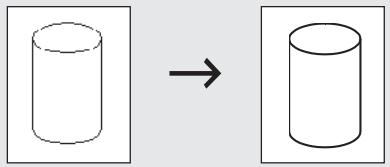
Smoothing
- [Type1] is suitable for printing the diagonal lines of normal characters and graphics.
- [Type2] is suitable for printing the curved sections of normal characters.
- [Type3] is suitable for printing the curved sections of ornamental writings and fine characters.
- When [Off] is selected, no smoothing operation is made.
Print Density
Selects the printing density.
| Item | Print density | Feature |
| Normal | 100% | Print with normal density. |
| Heavy | 102% | You can adjust printing density while maintaining print quality. |
| Light 1 | 98% | |
| Light 2 | 96% | |
| Light 3 | 90% | |
| Light 4 | 80% | |
| Light 5 | 70% | |
| Toner Save | 95% | Reduce toner consumption. |
| Draft Print | 90% | Data other than characters are roughly printed. |
Date/Time
Specify the pages to print the date and time.
All pages: Date/Time is printed in all the pages.
Front Cover Only: Date/Time is printed in the 1st page only.
Detail
For the display method of the Date/Time, it can be specified
on the control panel of the copier.
For details, see "User's Guide (Copier)"
Tandem Mode
Using two printing systems (master copier and sub copier), prints can be made at the same time under the same printing conditions. When printing a large number of copies, time required to complete the job can be shortened.
When either one of the two copiers is equipped with a print controller, tandem printing can be performed. When both of the copiers are equipped with a print controller, the copier which receives the printing job instruction functions as the master copier and the other one is the sub copier.
For the tandem printing, the two copiers should be connected by either method as follows.
- Connect the two copiers directly with a cross cable. In this case, the network functions cannot be used.
- Connect them with a straight cable via HUB.

Note
Use a cross cable or straight cable higher than the category type 5.
Tandem printing should only be set up by your authorized service representative.
Refer to the "User's Guide (POD Administrator's reference)" for more information about Tandem Mode.
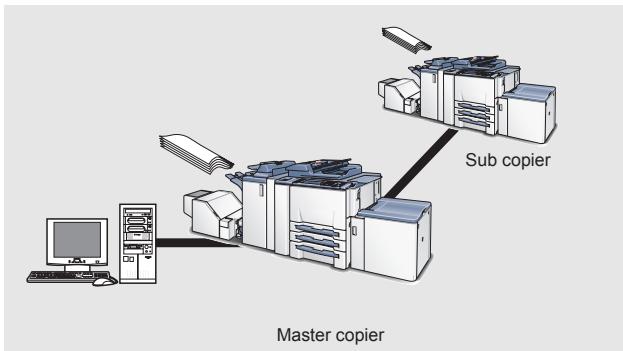
Tandem Mode cannot be set in the following cases:
- When [Transparency Interleave] is selected.
10 KONICA MINOLTA PS Printer Driver setting (Windows)
This chapter describes the settings of the KONICA MINOLTA PS printer driver. For settings, use the Properties window.

Note
About how to get the optional KONICA MINOLTA PS driver, contact your service representative.
10.1 About Properties window
This chapter explains the KONICA MINOLTA PS printer driver settings with Properties window of Windows XP.
The method to open the Properties window depends on OS.
| Operating System | Method |
| Windows 96/Me Delete | Select [Start]-[Settings]-[Printers] to open the [Printers] folder, right-click the printer icon and select [Properties]. |
| Windows NT4.0/2000 | Select [Start]-[Settings]-[Printers] to open the [Printers] folder, right-click the printer icon and select [Properties]. |
| Windows XP/Server 2003 | Select [Start]-[Printers and Faxes] to open the [Printers and Faxes] folder, right-click the printer icon and select [Properties]. |
How to open the printing preference window differs depending on the OS in use.
| Operating System | Method |
| Windows 90/Me-Delete | Select [Start]-[Settings]-[Printers] to open the [Printers] folder, right-click the printer icon and select [Properties]. |
| Windows NT4.0 | Select [Start]-[Settings]-[Printers] to open the [Printers] folder, right-click the printer icon and select [Document Defaults]. |
| Windows 2000 | Select [Start]-[Settings]-[Printers] to open the [Printers] folder, right-click the printer icon and select [Printing Preference]. |
| Windows XP/Server 2003 | Select [Start]-[Printers and Faxes] to open the [Printers and Faxes] folder, right-click the printer icon and select [Printing Preference]. |
10.1.1 Properties window
You have two ways for selecting or changing settings through the printer driver.
How to setup in the Properties window of the Printers and Faxes window
Settings made in the [Properties] of the [Printers and Faxes] folder are applied to print outs from any application.
How to setup with application
Settings can be made in the print dialog indicated by selecting the print command in the application. In this case, the settings are effective only when the application is in use.

Note
This chapter is described by using the printer window of Windows XP. The properties window may differ from the window displayed by the printing command of applications.
10.2 About button
Buttons common to each tab of the [Properties] window are shown below.
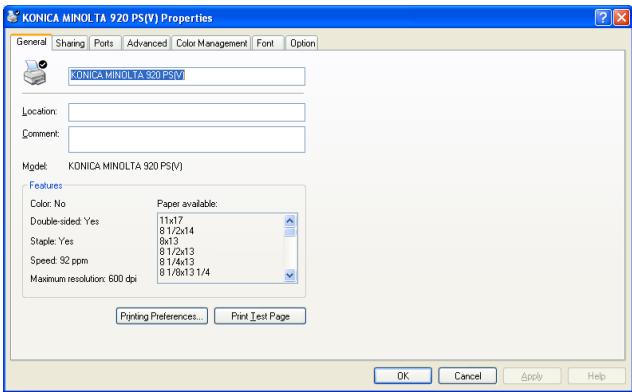
| Button | Function |
| OK | When the [OK] is clicked, all tab settings are saved with the close of the properties window. |
| Cancel | When the [Cancel] is clicked, all tab settings are cancelled with the close of the properties window. |
| Apply | When the [Apply] is clicked, the present tab settings are saved. This button is usefull when you want conduct other settings in other tabs, and the present tab settings are registered before using other tabs. |
10.3 Combination of the function
When you select a function which causes a conflict with the settings already configured, the message will be displayed.
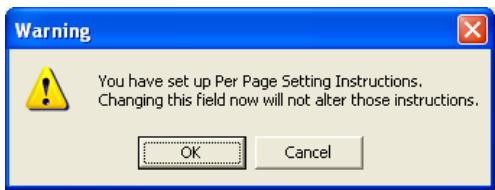
This is a confirmation message to decide which setting will be turned off. When this message is displayed, select [OK] or [Cancel]. In case of [OK], the conflict setting will be turned OFF.
10.4 General tab
Enables printing a test page.
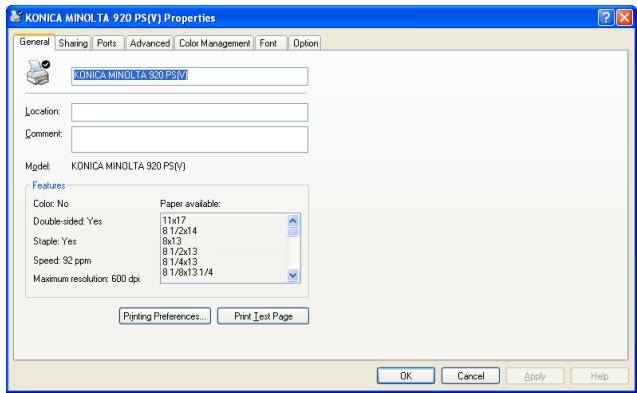

Detail
The method to open the Properties window depends on OS. Refer to "About Properties window" on Page 10-1 about how to open the Property window.
Location
Enters the name of a place where the printer is located. For example, "2nd floor", "Room 101", "Domain ABC" and so on.
Comment
Enters information about the printer. For example, "User: documentation team", "Maintenance: 123-456-789", and so on.
Printing Preference
Displays the property window of the selected printer. You can change the setting of the printer driver with the property window.
Print Test Page
Prints a test page of Windows. You can print a test page without using any application.

Note
For more information, refer to the manual of the Windows.
10.5 Sharing tag
Performs share settings of a printer.
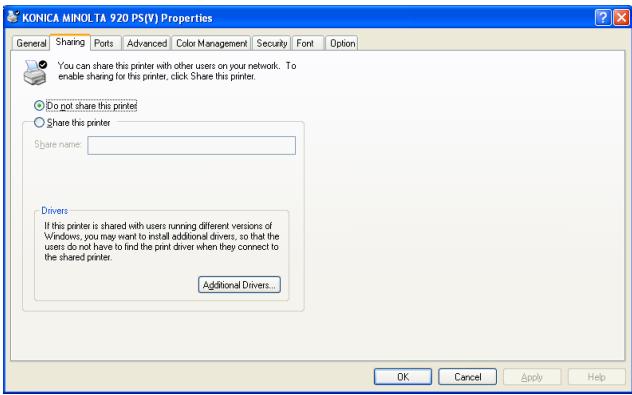

Detail
The method to open the Properties window depends on OS. Refer to "About Properties window" on Page 10-1 about how to open the Property window.
By using this [Sharing] tab, you can make the printer available to network users.

Note
For more information, refer to the manual of the Windows.
10.6 Ports tab
Performs settings related to ports.
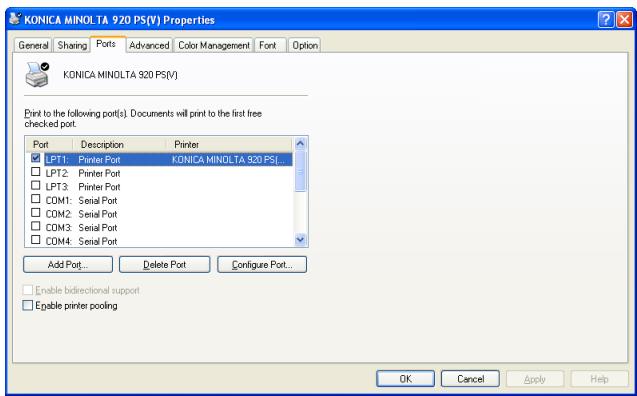

Detail
The method to open the Properties window depends on OS. Refer to "About Properties window" on Page 10-1 about how to open the Property window.
Add Port
Using this button enables you to add a new port for Vendor-specific port monitor, TCP/IP or Unix printers (using the LPR port), and so on.
Delete Port
Deletes the selected port from above list.
Configure Port
Using this button enables you to configure the selected port from above list.
Enable printer pooling
Enables printing to two or more identical print devices by using one logical printer.

Detail
For more information, refer to the manual of the Windows.
10.7 Advanced tab
Performs settings regarding drivers, port time out and spoofing.


Detail
The method to open the Properties window depends on OS. Refer to "About Properties window" on Page 10-1 about how to open the Property window.
Always available / Available from
Configures how many hours the printer is available. You can choose from 24 hours or specified hours.
Priority
Configures the priority of the current setting.
Driver
Displays the installed printer driver name.
New Driver
Clicks to install a new or updated printer driver.
Spool print documents so program finishes printing faster
Sets to spool the documents before printing.
Print directly to the printer
Sets to print without spooling.
Hold mismatched documents
Sets to hold the document which does not match to the printer setup.
Print spooled documents first
Sets to print the spooled document irrespective of a priority settings.
Keep printed documents
Sets to hold the spooled data of the documents after printing.
Enable advanced printing features
Enables the advanced printing features.

Detail
For more information, refer to the manual of the Windows.
10.8 Color Management tab
Performs settings related to color management.
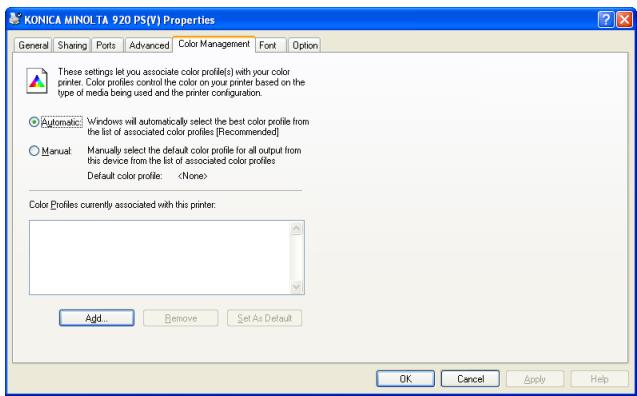

Detail
The method to open the Properties window depends on OS. Refer to "About Properties window" on Page 10-1 about how to open the Property window.
It is not used in this printing system.
10.9 Font tab
The [Font] tab sets the font used.
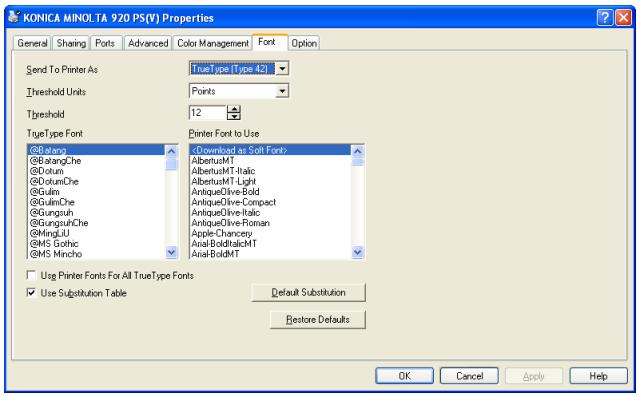

Detail
The method to open the Properties window depends on OS. Refer to "About Properties window" on Page 10-1 about how to open the Property window.
Send To Printer As
Selects [Adobe (Type1)], [Bitmap (Type3)], or [TrueType (Type 42)] as the method of sending TrueType fonts to the printer.
Threshold Units
Selects between [Points], [1/100inch], and [Pixels] as the setting unit for the threshold.
Threshold
Specifies the threshold in the range from 1 to 3000.
TrueType Font
Displays a list of TrueType fonts installed in the system.
Printer Font to Use
Displays a list of printer fonts. The selected TrueType Fonts is substituted with the selected Printer Font. When reselecting the printer font, printer fonts that can be substituted are changed. Click the Default Substitution button to restore the original substitution relationship.
Use Printer Fonts For All True Type Fonts
Checking this item substitutes printer fonts for all TrueType fonts for output.
Use Substitution Table
Checking this item to use the TrueType font and printer font substitution table.
Default Substitution
Clicking the button to restore the TrueType font and printer font substitution relationship.
10.10 Option tab
Performs settings of PostScript and the options of the printer.
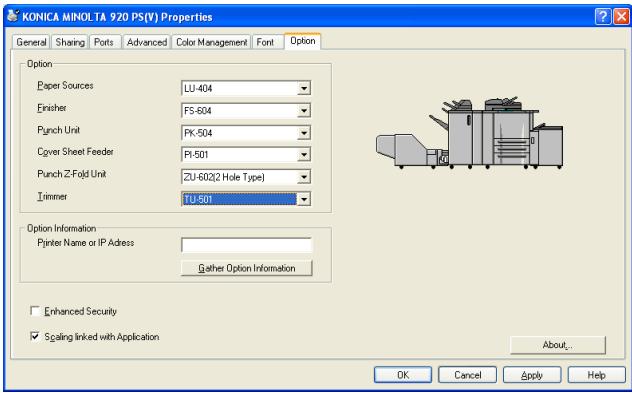

Detail
The method to open the Properties window depends on OS. Refer to "About Properties window" on Page 10-1 about how to open the Property window.
Option
In this printing system, the following options are installable.
| Paper Source | None/ LU-403 / LU-404 |
| Finisher | None / FS-509/FS-516 / FS-604 |
| Punch Unit | None / PK-503 / PK-504 / PK-505(2/3 Hole Type) / PK-505(2/4 Hole Type) |
| Cover Sheet Feeder | None / PI-501 |
| Punch Z-Fold Unit | None / ZU-601/ZU-602(2 Hole Type) / ZU-602(2/3 Hole Type) / ZU-602(2/4 Hole Type) |
| Trimmer | None / TU-501 |
Option Information
By entering the printer name or IP address, option information can be automatically obtained.
Option Information - Printer Name or IP Address
Inputs the printer name or IP Address.
Option Information - Gather Option Information
Obtains information for options of the printer.
Enhanced Security
By turning ON the [Enhanced Security], you can enter nothing anymore to the password input field for the following functions so that the password cannot be transmitted from the printer driver to the printing system through the network:
- Secure Print (page 10-29)
- User Authentication/Account Track (page 10-34)
To print using these functions, you should enter the password on the control panel of the copier after transmitting the print data. Refer to "User's Guide (Security)" for more information.
Scaling linked with Application
If you want to interlock the zoom ratio in the application with the zoom ratio of the printer driver, check this checkbox.
10.11 Setup tab
Performs basic settings of the printer.
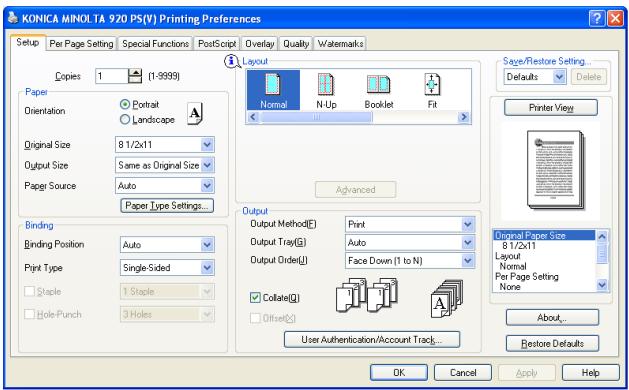

Detail
The method to open the Printing Preference window depends on OS. Refer to "About Properties window" on Page 10-1 about how to open the Printing Preference window.
Copies
Sets the number of copies to be printed.
Paper - Orientation
Sets the orientation to output paper in [Portrait] or [Landscape].
The default is [Portrait].
Paper - Original Size
You can select a original size from the list shown by clicking [▼].
| Original size that can be selected |
| 11 x 17 |
| 8 1/2 x 14 |
| 8 x 13 |
| 8 1/2 x 13 |
| 8 1/4 x 13 |
| 8 1/8 x 13 1/4 |
| 8 1/2 x 11 |
| 5 1/2 x 8 1/2 |
| A3 |
| A4 |
| A5 |
| A6 |
| B4 |
| B5 |
| B6 |
| 8K |
| 16K |
| Japanese Postcard |
| 11 x 17 Wide |
| 8 1/2 x 11 Wide |
| 5 1/2 x 11 Wide |
| 5 1/2 x 8 1/2 Wide |
| A3 Wide |
| A4 Wide |
| A5 Wide |
| B4 Wide |
| B5 Wide |
| 8 1/2 x 11 Tab |
| A4 Tab |
| Custom Size |

Note
The paper with "Wide" at the end of the document size represents "Wide paper".
When [Custom Size] is selected, it is possible to set and register the original size.
Paper - Output Size
You can select a paper size from the list shown by clicking [▼].
| Original size that can be selected |
| Same as Originals Size |
| 11 x 17 |
| 8 1/2 x 14 |
| 8 x 13 |
| 8 1/2 x 13 |
| 8 1/4 x 13 |
| 8 1/8 x 13 1/4 |
| 8 1/2 x 11 |
| 5 1/2 x 8 1/2 |
| A3 |
| A4 |
| A5 |
| A6 |
| B4 |
| B5 |
| B6 |
| 8K |
| 16K |
| Japanese Postcard |
| 11 x 17 Wide |
| 8 1/2 x 11 Wide |
| 5 1/2 x 11 Wide |
| 5 1/2 x 8 1/2 Wide |
| A3 Wide |
| A4 Wide |
| A5 Wide |
| B4 Wide |
| B5 Wide |
| 8 1/2 x 11 Tab |
| A4 Tab |
The default is the Same as Original Size.
Custom Size Settings
When [Custom Size] is selected from the [Original Size], [Custom Size Settings] dialog appears.
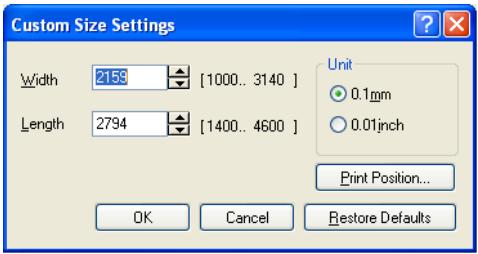
| Width | Set the width of the selected custom size in the list (1000-3140 mm). |
| Length | Set the length of the selected custom size in the list for the current tray (1400-4600 mm). |
| Unit | Select the units for setting [Width] and [Length]. |
Paper - Paper Sources
Selects and set the paper tray to be used from the list. When [Auto] is set, the printer automatically selects and prints from a suitable paper tray.
| Feed Tray | paper size that can be used. |
| Tray 1 to Tray 3 | 11 x 17, 8 1/2 x 14, 8 1/2 x 13, 8 1/4 x 13, 8 1/8 x 13 1/4, 8 1/2 x 11, 5 1/2 x 8 1/2, A3, A4, A5, A6, B4, B5, B6, 8K, 16K, Japanese Postcard, 11 x 17 Wide, 8 1/2 x 11 Wide, 5 1/2 x 8 1/2 Wide, A3 Wide, A4 Wide, A5 Wide, B4 Wide, B5 Wide, 8 1/2 x 11 Tab, A4 Tab, Custom Size |
| LCT (LU-403/LU-404) / Manual Feed |
Paper Type Settings
When the [Paper Type Settings] is pressed, the [Paper Type Settings] dialog appears.
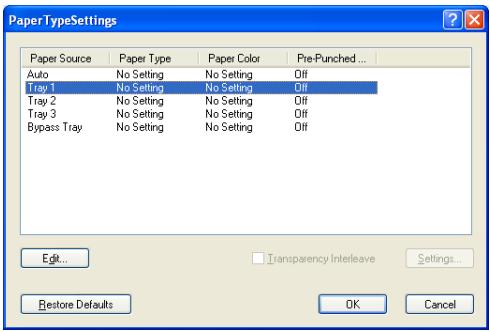
Paper Type Settings - Edit Paper Type
When selecting the paper source from the list and [Edit] is pressed, the [Edit Paper Type] dialog appears.
Paper Type Settings - Edit Paper Type - Paper Type
Sets various types of paper sizes as the output paper as shown below.
| Types of paper that can be selected. | |
| No Setting | |
| Plain Paper | |
| Fine | This is set when printing fine paper such as memo paper. |
| Thick 1 | This is set when printing coated paper such as pamphlet. |
| Thick 2 | This is set when printing thick paper such as a post card. |
| Thin | This is set when printing thin paper. |
| Recycled | This is set when printing recycled paper. |
| Label | This is set when printing the paper such as label. |
| Transparency | This is set when printing OHP sheet. |
| Trace | This is set when printing trace paper. |
| User | This is set when printing the user specified paper set on the copier. |
| Blank Insert | This is set when printing blank paper such as cover sheet. |
| Exclusive A - M | This is set when printing the exclusive paper. |
[Transparency] can be used only when [Bypass Tray] is set ON.
Paper Type Settings - Edit Paper Type - Paper Color
Sets various colors of paper as the output paper as shown below
No Setting
White
Clear
Yellow
- Pink
- Blue
Green
Paper Type Settings - Edit Paper Type - Pre-Punched Paper
Sets whether the paper as the output paper is pre-punched or not.
Transparency Interleave
If you use Transparency Interleave as the Paper type, check this checkbox.
Transparency Interleave - Settings
Set this item when using the transparency interleave as the paper. Select either [Printed] or [Blank].

Note
[Transparency Interleave] can be used only by setting the Paper Source to [Bypass Tray].
| Printed | This is set when inserting the printed interleaf for the transparent sheet. |
| Blank | This is set when inserting the blank interleaf for the trans-parent sheet. |
| Paper Source | Uses to select the paper tray for Transparency Interleave. |
Layout - Normal
Performs the Normal printing without using the Layout function.
Layout - N-up - Combination
Allocates a document of 1 page, 2 pages, 4 pages, 6 pages, 8 pages, 9 pages or 16 pages onto a single page for printing. The allocated pages are automatically reduced for printing based on the printable area of the output paper.
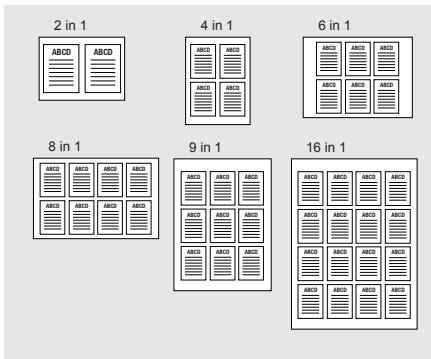
Layout - N-up - Position
Determines a relative print allocating position when a blank space occurs consequent to the laying out of pages.
Layout - N-up - Border
Determines whether a border is printed between laid out pages and, if it is, also, the types of the border is selectable. The default is [None (Full Size)].
Layout - N-up - Advanced
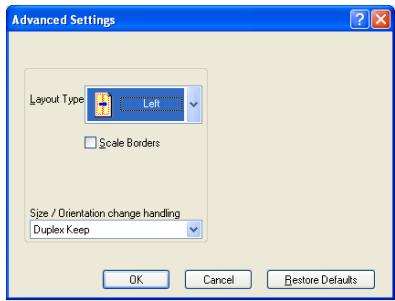
Layout - N-up - Advanced - Layout Type
Decides the allocation order of each page.
Layout - N-up - Advanced - Scale Border
Selecting this marks the borders thinner, and printing area for each page data becomes wider.
Layout - N-up - Advanced - Size Orientation change handling
Determines the output method when a mixture of pages with different paper sizes and printing orientations is used.
Layout - Booklet
Produces printouts that can be folded and bound into a booklet.
It is usually used in the [Defaults] condition.
Layout - Booklet - Gutter
When folding paper as a booklet, between 2 pages, specify in the range of 0 to 150 the margin to be set uniformly in dots.
Layout - Booklet - Creep
When folding paper as a booklet, specify in the range of 0 to 20 the page intervals at the center of paper to be broadened in dots to the inside paper.
Layout - Booklet - Bundle Size
Allows you to specify the number of pages to bind into a booklet. The default [No Limit] allows you to bind all printed sheets into a booklet.
Layout - Booklet - Advanced
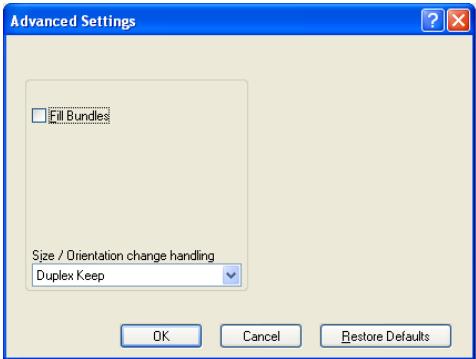
Layout - Booklet - Advanced - Fill Bundles
If [8], [12] or [16] is specified for [Bundle Size] and there are fractional pages, many blank pages may be generated depending on the number of pages to be output. In such a case, by keeping the field [Fill Bundles] OFF, 4, the smallest value, is selected as the [Bundle Size] only for the fractional pages so that waste blank pages are saved.
[When [Bundle Size] is set to 8 and [Fill Bundles] is OFF]
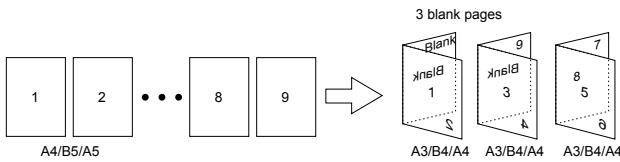
[When [Bundle Size] is set to 8 and [Fill Bundles] is ON]
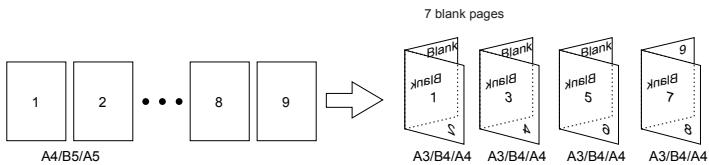
Layout - Booklet - Advanced - Size Orientation change handling
Determines the output method when a mixture of pages with different paper sizes and printing orientations is used.
Layout - Fit
Enlarges or reduces the paper size by the application to adjust it to the actual paper size to be printed.
Layout - Scale - Scale Factor
Sets the scaling rate in the range of 25 to 400% .
Layout - Poster
Selects a method to divide and magnify a page. If you select [Custom], specify the zoom in ratio at the [Scale Factor].
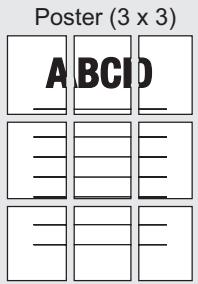
Layout - Poster - Poster Style
Determines how a page is divided for enlargement.
Layout - Poster - Position
This is a fine adjustment to adjust the printing position on the output paper.
Layout - Poster - Scale Factor
When selecting [Poster Style] - [Custom], set the scale factor in the range from 101 to 400% .
Layout - Poster - Advanced
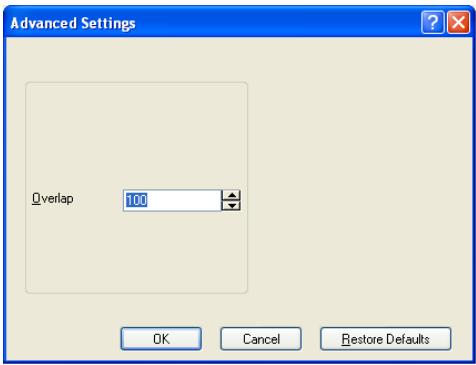
Layout - Poster - Advanced - Overlap
Determines the amount of overlap for the borders of the divided page from 0 to 150.
Layout - Log/Phys
Prints a different paper size without reducing/enlarging the printing size. This enables printing of crop marks and shadows corresponding to the original paper size by using a larger size paper.
Layout - Log/Phys - Border
Determines the usage of crop marks and chooses its size.
Layout - Log/Phys - Position
This is a fine adjustment to adjust the printing position on the output paper.
Binding - Binding Position
Sets the binding position for the document to be printed. The position selected here will be the position of stapling, punching and base position of the image shift.
Binding - Print Type
Selects the print type among Single Sided, Double Sided and Booklet.
Single Side prints on one side of the paper.
Double Side prints on both sides of the paper.
Booklet prints on both sides of the paper and fold them. Booklet prints in order which every folded page appears in their original order when gathered at the end.
When [Booklet] is selected, [Center Staple and Fold] and [Trim] can be set.
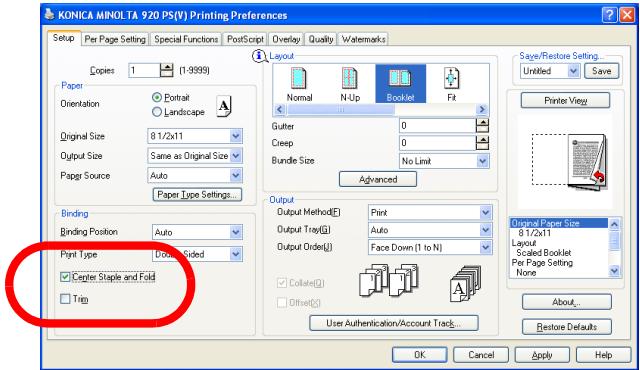
Binding - Staple
Staples output paper. The number of staplings and their positions can be set. The selectable position will be changed according with the [Binding Position] setting.
1 Staple /Left Binding

(Portrait)
1 Staple /Right Binding
(Portrait)
2 Staples /Left Binding
(Portrait)
2 Staples /Right Binding
(Portrait)
1 Staple/Top Binding

(Portrait)
2 Staples /Top Binding

(Portrait)
The [Staple] cannot be set in the following cases:
- When the [Finisher] is not available in the [Option] tab.
Binding - Hole-Punch
The output paper can be set to be punched with 2 holes, 3 holes or 4 holes.
Punch holes which can be specified vary depending on the destinations.
USA: Either 2 or 3 holes can be specified.
- Others: Either 2 or 4 holes can be specified.
The position will be changed according with the [Binding Position] setting.
2 Holes / Left Binding
(Portrait)
2 Holes / Left Binding
(Landscape)
2 Holes / Top Binding
(Portrait)
2 Holes / Right Binding
(Portrait)
2 Holes / Right Binding
(Landscape)
2 Holes / Top Binding
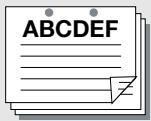
(Landscape)
The [Hole-Punch] cannot be set in the following cases:
- When the [Punch Unit] or [Punch Z-Fold Unit] is not available in the [Option] tab.
Binding - Center Staple and Fold
Folds the paper into half and staple at the center of the output paper on the folded line.
The [Center Staple and Fold] cannot be set in the following cases:
- When the [Booklet] is not available in the [Option] tab - [Print Type].
Binding - Trim
Cuts the edges of the output paper which is center-folded or saddle stitched.
The [Trim] cannot be set in the following cases:
- When the [Booklet] is not available in the [Option] tab - [Print Type].
- When the [Trimmer] is not available in the [Option] tab.
Output - Output Method - Print
Performs the normal printing.
Output - Output Method - Secure Print
If you print with the Secure Print feature, the printing does not start until you input the Secure Print ID and the password on the copier's control panel.
To perform the Secure Print, you need to configure the settings for Confidential output on the copier. For more information on the Confidential output, refer to "User's Guide (Network Scanner)".
The [Secure Print] cannot be set in the following cases:
When [Tandem Mode] is available in [Special Functions] tab.
1 Open the file to be printed and select [File] - [Print] of application.
2 Click [Properties] to open the [Printing Preferences] window.
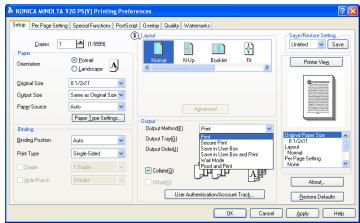
3 Select [Secure Print] in the [Output Method].
4 Enter [Secure Print ID] and [Password].
- Secure Print ID: Enter the confidential box name.
- Password: Enter the password.
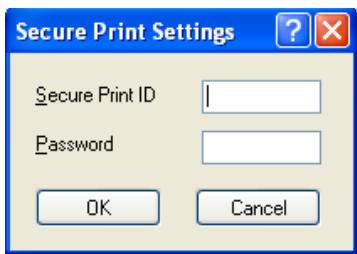
5 Click [OK].
6 Click [OK] to close the [Printing Preferences] window.
7 Click [Print] to perform printing from the application.
8 Press [Box] on the control panel of copier and select [Recall].
9 Press [Confidential].
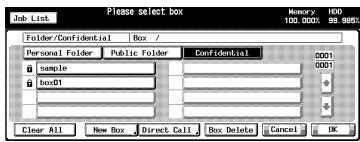
10 Select a box and press [OK]. Password Input screen appears.
11 Enter [Password].
12 Press [OK] to close Password Input screen.
13 Select the file to print and press [ ]
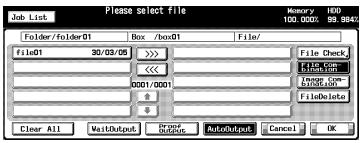
14 Select [AutoOutput] and press [OK]. Confidential file is printed.
Detail
To confirm the settings for Confidential Output, select [WaitOutput] or [Proof Output], and press OK.
For more information, refer to "User's Guide (Network Scanner)".
Output - Output Method - Save in User Box/Save in User Box and Print
You can store the print job as image data on the copier's internal hard disk to re-output them when necessary. To output, use the PageScope Job Spooler or operate on the control panel.
For more information on PageScope Job Spooler, refer to "PageScope Job Spooler User's Guide".
The [Save in User Box] cannot be set in the following cases:
When [Tandem Mode] is available in [Special Functions] tab.
1 Open the file to be printed and select [File] - [Print] of application.
2 Click [Properties] to open [Printing Preferences] window.
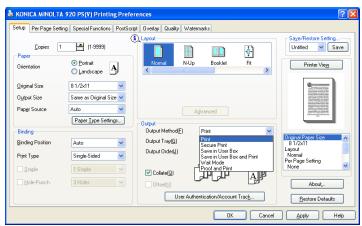
3 Select [Save in User Box] or [Save in User Box and Print] in the [Output Method].
- Selecting [Save in User Box] stores the print job on the internal hard disk.
- Selecting [Save in User Box and Print] stores the print job on the internal hard disk and prints one copy.
4 Enter [File Name] and [User Box Number] and click [OK].
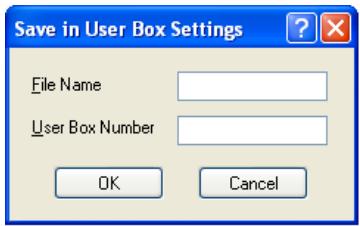
5 Click [OK] to close the [Printing Preferences] window.
6 Click [Print] to perform printing from the application.

Detail
To output, use PageScope Job Spooler or operate on the control panel of copier.
For more information on PageScope Job Spooler, refer to "PageScope Job Spooler User's Guide".
For more information about how to operate on the control panel, refer to "bizhub PRO 920 User's Guide (Network Scanner)".
Output - Output Method - Wait Mode/Proof and Print
Outputs the test printing and checks the current setting from the control panel of copier. Use this when printing a large volume document, such as multiple sets of pages.
1 Open the file to be printed and select [File] - [Print] of application.
2 Click [Properties] to open the [Printing Preferences] window.
3 Select [Wait Mode] or [Proof and Print] in the [Output Method].
4 Click [OK] to close the [Printing Preferences] window.
5 Click [Print] to perform printing from the application.
- When [Wait Mode] is selected, it stops without being printed.
- When [Proof and Print] is selected, only one set is printed and it stops.
On the copier's control panel, the Mode Check screen appears.
In case of [Proof and Print], [Proof Stop] blinks on the left above the copier touch panel screen. Press [Proof Stop].
Mode Check screen appears on the control panel of copier.
7 Confirm the current settings.
If you do not change any setting, proceed to the step 10.
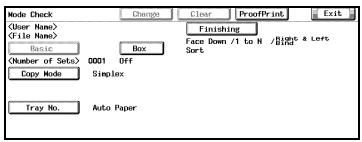
8 If necessary, press [Change] to change settings.
9 Change the settings and press [OK].
The Mode Check screen will be restored.
10 Press [START] to resume the rest of the print job.
Output - Output Tray
Sets [Auto], [Main Tray] or [Sub Tray] as [Output Tray].
Each of them can/cannot be set in the following cases:
- [Sub Tray] need to be selected a Finisher on the [Option] tab, respectively.
- When [Staple] is available in [Setup] tab, items other than [Auto] and [Main Tray] cannot be set.
Output - Output Order
Changes the output order.
[Face Down] outputs paper with the printed side facing down.
[Face Up] outputs paper with the printed side facing up.
"1 to N)" means to output paper starting with the first page.
" (N to 1)" means to output paper starting with the last page.
Output - Collate
Prints the first one set of prints in one lot, and then the second set of prints, the third set of prints, when printing multiple sets of pages.
Output-Offset
Selects to shift the exit position of each set of print out back and forth when printing multi set of copies.
Output - Authentication/Account Track
Sets the Authentication mode/Account Track.

Detail
Contact your administrator about Authentication/Account Track.
When the [Authentication/Account Track] is clicked, the [Authentication/Account Track] dialog appears.
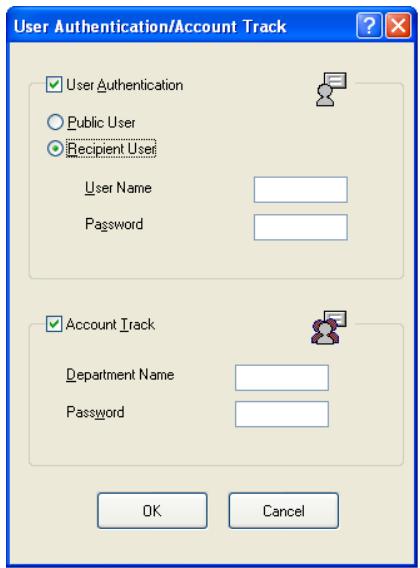
Authentication
Selects to use the Authentication mode.
| Public User | Select when you access as Public user to the print controller. |
| Recipient User | Select when you access as Recipient user to the print controller. |
| User Name | Enter the Recipient User Name when the [Recipient User] is selected. |
| Password | Enter the Recipient Password when the [Recipient User] is selected. |
Account Track
Selects to use the Account Track mode.
| Department Name | Enter the Department Name. |
| Password | Enter the password. |

Detail
Refer to the "Copier's User's Guide" for more information about Authentication and Account Track.
10.12 Per Page Setting
You can select several cover settings such as a front and back covers and PI cover sheet. Also, the Chapter setting and Per Page Setting are available.
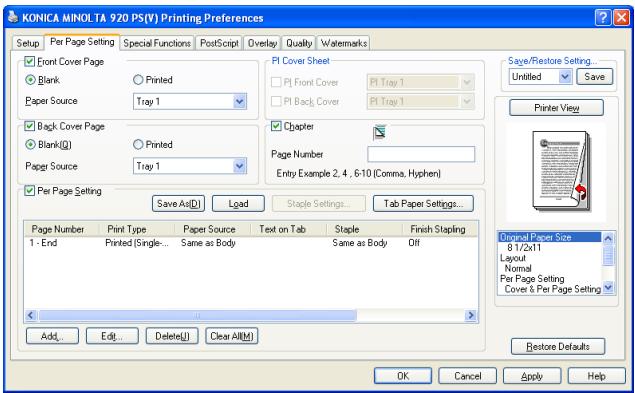

Detail
The method to open the Printing Preference window depends on OS. Refer to "About Properties window" on Page 10-1 about how to open the Printing Preference window.
Front Cover Page
Sets a front cover type.
When the [Blank] is selected, a blank sheet is inserted before the 1st page.
When the [Printed] is selected, the 1st page of the document is printed with the specified sheet as the front cover.
Front Cover - Off

Front Cover - Blank
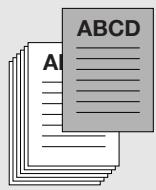
Front Cover - Printed
Front Cover Page - Paper Source
Specifies the paper tray for the front cover.
Back Cover Page
Sets a back cover type.
When the [Blank] is selected, a blank sheet is inserted after the last page.
When the [Printed] is selected, the last page of the document is printed with the specified sheet as the back cover.
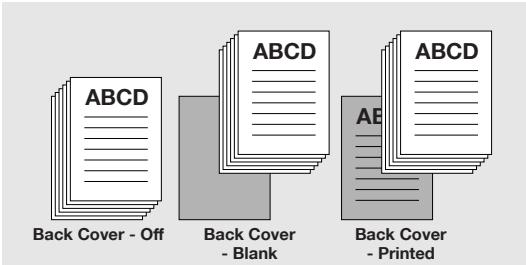
Back Cover Page - Paper Source
Specifies the paper tray for the back cover.
PI Cover Sheet - PI Front Cover
Sets a front cover for which paper is from the PI Tray 1 or PI Tray 2.
The [PI Cover Sheet] cannot be set in the following cases:
- When the [Cover Sheet Feeder] is not selected in the [Option] tab.
PI Cover Sheet - PI Back Cover
Sets a back cover for which paper is from the PI Tray 1 or PI Tray 2.
The [PI Cover Sheet] cannot be set in the following cases:
- When the [Cover Sheet Feeder] is not selected in the [Option] tab.
Chapter - Page Number
For the KONICA MINOLTA PS printer driver, print a specific page so that it comes on the front, when printing on [Duplex] or [Booklet].
Multiple page numbers can be entered. When entering multiple page numbers, use commas to separate them as in the following example: [2,4,6]. A range can be specified with a hyphen as in the following example: [6-10].
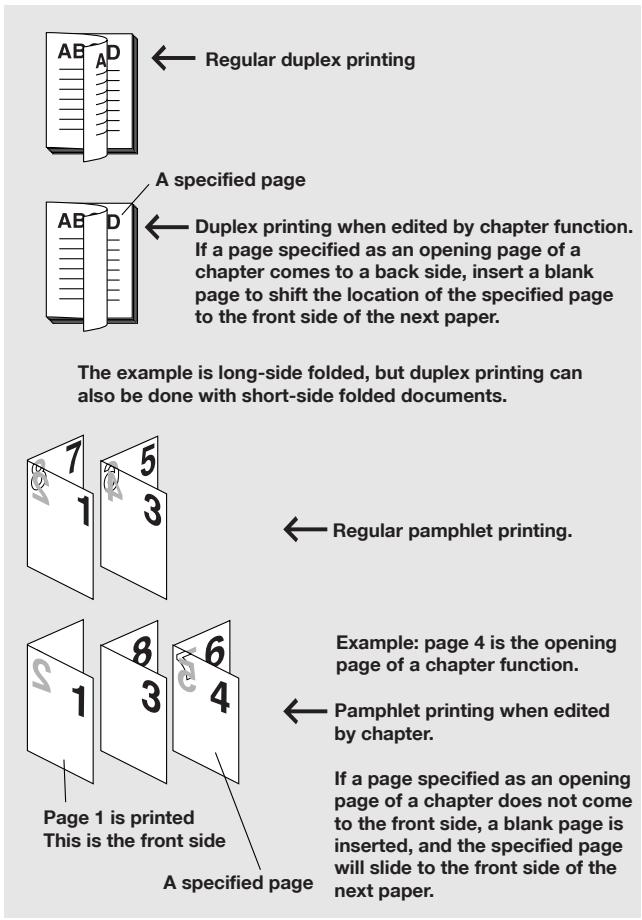
The [Chapter] cannot be set in the following cases:
- The [Single-Sided] is selected in the [Setup] tab - [Print Type].
- When the [Fold] check box is ON in [Special Functions] tab.
Per Page Setting
Sets the specified pages to change [Print Type], [Paper Source], [Staple] and/or [Hole-Punch] settings and to use Tab Paper.
Per Page Setting - Save as
Saves the configuration file for Per Page Setting as a new file.
Per Page Setting - Load
Opens the existing configuration file for Per Page Setting.
Per Page Setting - Staple Settings
Sets to use staple in the Per Page Settings.
When click this button, the [Staple Settings] dialog appears.
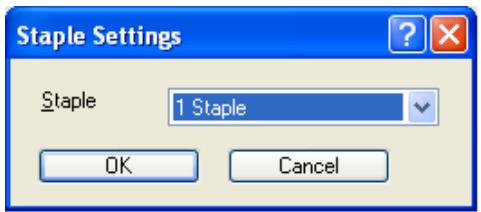
Staple: Set the number of stapling.
Per Page Setting - Tab Paper Settings
By clicking the [Tab Paper Settings], the [Tab Paper Settings] window is displayed.
In the [Tab Paper Settings] Window, header characters and other details can be set for the tab sheet.
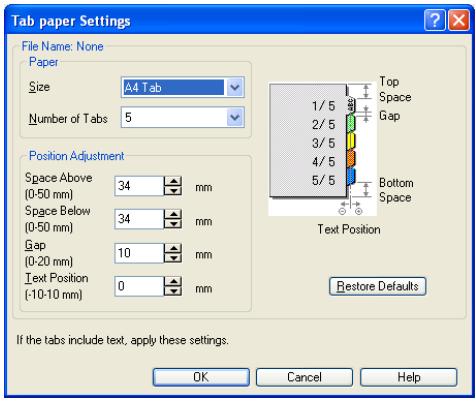
| Paper - Size | Select the tab paper size. |
| Number of Tabs | Select the number of tabs. |
| Position Adjustment - Space Above | Set the top space above the first tab. |
| Position Adjustment - Space Below | Set the top space under the last tab. |
| Position Adjustment - Gap | Set the space between each tab. |
| Position Adjustment - Text Position | Set the text position in each tab. |
Per Page Setting - Add
Adds Per Page Setting.
When click this button, the [Per Page Setting] dialog appears.
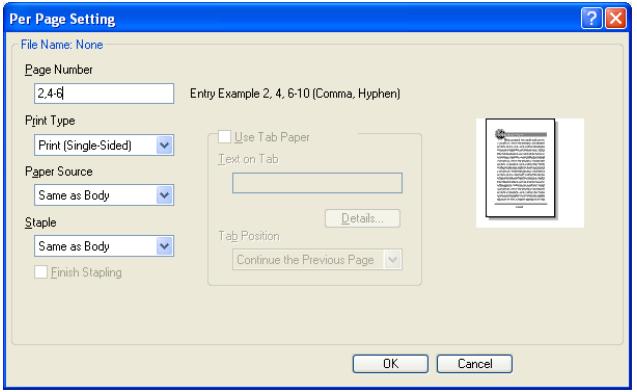
| Page Number | Enters the page number (1 to 9999) which you want to set in the Per Page Settings. Multiple page numbers can be entered. When entering multiple page numbers, use commas to separate them as in this example: [2,4,6]. A range can be specified with a hyphen as in this example: [6-10]. | |
| Print Type: | As a print type of the Per Page Settings, specify either [Insert Blank Sheet], [Print (Single-Sided)] or [Print (Double-Sided)]. | |
| Paper Source: | Specifies the paper feed tray to be used in the Per Page Settings. Selecting [Same as Body] sets the same one as that set in [Paper source] of the [Setup] tab. | |
| Staple: | A setting is made to decide if the Per Page Settings are stapled or not. When [Same as Body] is selected, the setting is the same one as that set in [Staple] of the [Setup] tab. | |
| Finish Stapling | Specifies the last page to be stapled. | |
| Use Tab Paper | Checks this when using the Tab paper. This can not be set when [Same as Body] is selected in the [Paper Source] of the [Per Page Setting] dialog. | |
| Text on Tab | Enters the text to be printed on the Tab paper. | |
| Details | When this button is clicked, the [Tab Text Details] dialog appears. You can configure the orientation, position, font name, font type, and font size. | |
| Tab Text Details | ||
| Tab Text Orientation Normal | ||
| Font Settings | ||
| Font Name Arial | ||
| Style Bold | ||
| Size 12 Change Font Details | ||
| Restore Defaults OK Cancel | ||
| Tab Text | Set the orientation of the tab text. | |
| Font Settings | Set the font, font style and size of the tab text. | |
| Tab position | Selects the tab position. | |

Detail
In [Page Number], up to 26 Page Numbers can be set.
However, when [Staple] is set in [Per Page Setting], 2 pages are taken up by 1 Page Number. So, when [Staple] is set all in [Page Number], the number of the Page Numbers specified is limited only to 13.
Per Page Setting - Edit
Edits Per Page Setting.
When select the Per Page Setting from the list and click this button, the [Per Page Setting] dialog mentioned above appears.
Per Page Setting - Delete
Deletes Per Page Setting.
When select the Per Page Setting from the list and click this button, the selected setting is deleted.
Per Page Setting - Clear All
Deletes All Per Page Settings from the list.
10.13 Special Functions
Configures the special functions of the print controller.
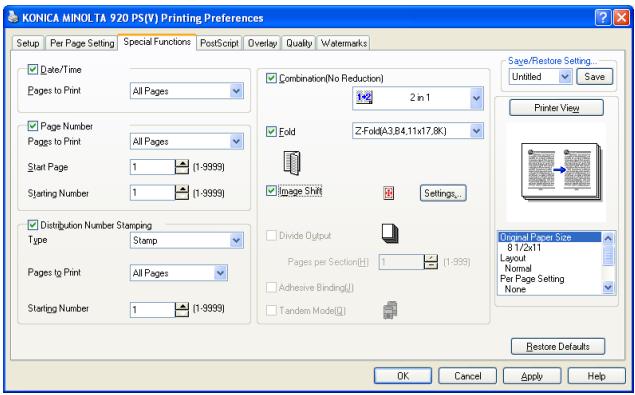

Detail
The method to open the Printing Preference window depends on OS. Refer to "About Properties window" on Page 10-1 about how to open the Printing Preference window.
Date/Time - Page to Print
Specifies the pages to print the date and time.
All pages: Date/Time is printed in the all pages.
Front Cover Only: Date/Time is printed in the front cover only.
Page Number - Pages to Print
Specifies the pages to print the page numbers.
All pages: Page number is printed in the all pages.
Not Front Cover: Page number is printed except front cover.
Not Front-Back Cover: Page number is printed except front/back cover.
Page Number - Start Page
Specifies the first page to print the page numbers.
Page Number - Starting Number
Specifies the initial page number to print.
Distribution Number Stamping - Type
Specifies the type of the copy number to print.
You can choose either from [Stamp] or [Watermark].
Distribution Number Stamping - Pages to Print
Specifies the pages to print the copy number.
You can choose either from [All Pages] or [1st Page Only].
Distribution Number Stamping - Starting Number
Specifies the initial copy number to print.
Combination (No Reduction)
[2 in 1], [2 repeat] or [2 repeat-reversal] setting is available which prints out two page data on one sheet of paper. Two page data is printed out on a sheet of paper twice as large as the selected size of paper.
Detail For the display method of the Date/Time and the setting method of the character size, they can be specified on the control panel of the copier. For details, see "User's Guide (Copier)"
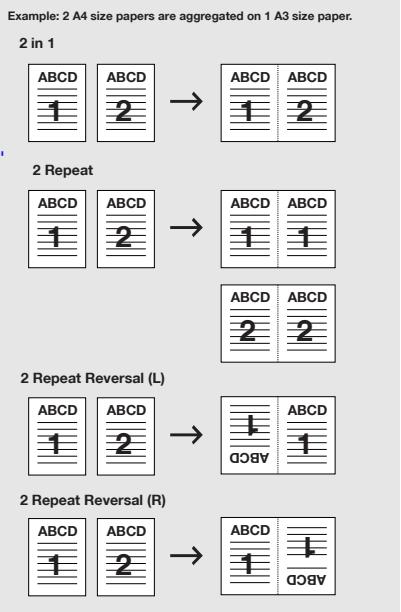
Fold
Various ways of the folding can be setup.
| Z-Fold | |
| Multi-Letter Fold in | |
| Multi-Letter Fold Out | |
| Multi-Half Fold |
The setting of [Fold] is available when the following unit is installed.
| Punch Z-Fold Unit | FS-604 | |
| Z-Fold | ○ | |
| Multi-Letter Fold (In/Out) | ○ | |
| Multi-Half Fold | ○ |
Image Shift
Adjusts the details of the printing position to the output paper.
Ex.: When the settings are shifted to the right by 100 and down by 300. (Unit: 0.1 mm)
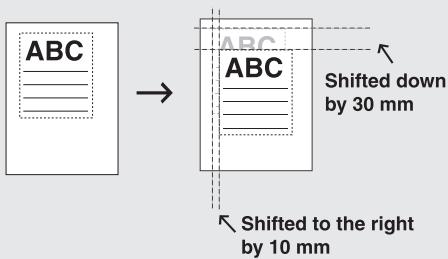
Image Shift - Settings
When click this button, the [Image Shift Settings] dialog appears.
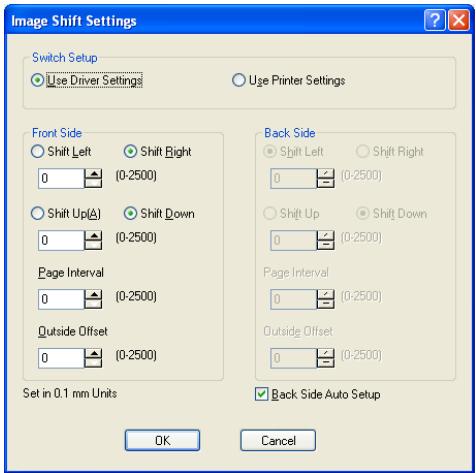
| Switch Setup | It specifies whether the Image Shift sets up by the driver side or the printer side. |
| Front Side | Set the shift amount for the front side. |
| Back Side | Set the shift amount for the back side. |
| Outside Offset | [Outside Offset] is a function to adjust so that the print image is shifted toward the outside as the pages ad-vance, according to the thickness of the folded booklet when the [Booklet] has been set up. |
| Back Side Auto Setup | Set the amount of the back side as that of front side. |
Divide Output
Repeats to staple and/or fold for every number of pages specified.
Page per Section
When the [Divide Output] is selected, you can set the number of pages for repeating the function.
Adhesive Binding
Selects when doing adhesive binding using an adhesive binder.
Tandem Mode
Using two printing systems (master copier and sub copier), prints can be made at the same time under the same printing conditions. When printing a large number of copies, time required to complete the job can be shortened.
When either one of the two copiers is equipped with a print controller, tandem printing can be performed. When both of the copiers are equipped with a print controller, the copier which receives the printing job instruction functions as the master copier and the other one is the sub copier.
For the tandem printing, the two copiers should be connected by either method as follows.
- Connect the two copiers directly with a cross cable. In this case, the network functions cannot be used.
- Connect them with a straight cable via HUB.

Note
Use a cross cable or straight cable higher than the category type 5.
Tandem printing should only be set up by your authorized service representative.
Refer to the "User's Guide (POD Administrator's reference)" for more information about Tandem Mode.
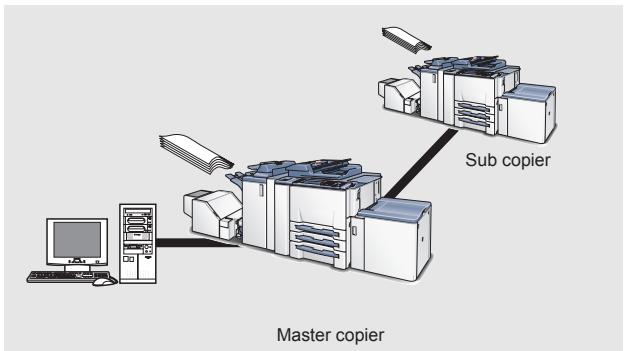
Tandem Mode cannot be set in the following cases:
- When [Transparency Interleave] is selected.
- When [Enhanced Security] is set to ON.
10.14 PostScript tab
The [PostScript] tab performs advanced PostScript settings.
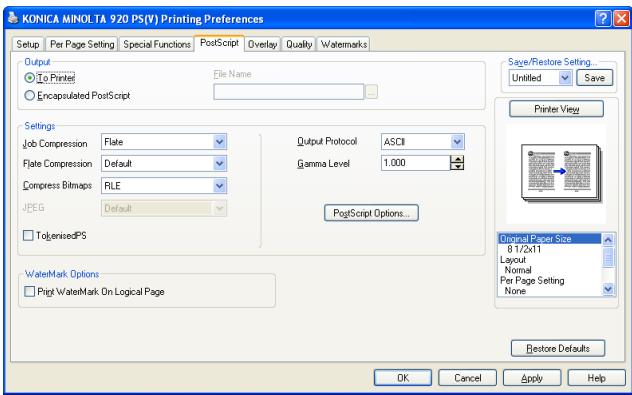

Detail
The method to open the Printing Preference window depends on OS. Refer to "About Properties window" on Page 10-1 about how to open the Printing Preference window.
Output - To Printer
Outputs print data to the printer.
Output - Encapsulated PostScript
Outputs print data as a file in the EPS format.
Output - File Name
Allows you to specify a file name when outputting data as a file in the EPS format.
Settings - Job Compression
Offers a choice of [None], [LZW] or [Flate] as a print job compression method.
Settings - Flate Compression
When [Flate] is selected for the [Job Compression], you can select Flatecompression modes from [Fastest], [Fast], [Default] and [Best Compression].
Settings - Compress Bitmaps
Offers a choice of [None], [RLE], [JPEG] or [LZW] as a bitmap compression method.
Settings - JPEG
When [JPEG] is selected in the [Compress Bitmap], you can select JPEG modes from [High Quality], [Fast], [Default], [Draft] and [Custom].
Settings - Output Protocol (Windows NT4.0/2000/XP/Server 2003 only)
Offers a choice of [Pure Binary] or [ASCII] as an output data format.
Settings - Gamma Level
Specifies the correction of the gamma value of the printer in the range of [0.000] - [2.000].
The default is [1.000].
Settings - Tokenised PS (Windows NT4.0/2000/XP/Server 2003 only)
Checking this box enables Tokenised PS.
Watermark Option - Print Watermark On Logical Page
Checking this box causes a watermark to be printed on every original sheet when [N-Up] or [Booklet] is selected.
Unchecking this box causes a watermark to be printed on every output sheet.

Note
To use the "Same as Original Size" function, you should set up in advance so that the watermark can be used with the "Watermark" tab.(“Watermarks tab” on Page 10-57)
Settings - PostScript Options
Clicking this button displays the [PostScript] dialog box.
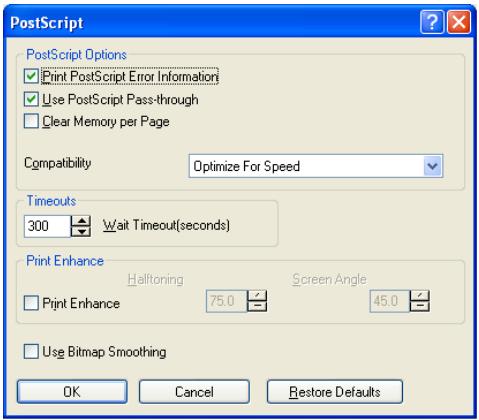
Settings - PostScript Options - Print PostScript Error Information
Checking this box makes the error handler available. When this box is set as checked and an error is encountered during the printing process, an error message is printed out under the action of the error handler.
Settings - PostScript Options - Use PostScript Pass-through
When the check box is turned ON, an application supporting the PostScript (Adobe applications, Quark Xpress, etc.) prepares drawing data so that the original drawing quality can be secured. However, the function to process the image (N-up, Booklet, etc.) cannot be used.
When the check box is turned OFF, drawing data is prepared on the printer driver side. However, when the data is printed with an application supporting the PostScript, the drawing quality may be inferior.
Settings - PostScript Options - Clear Memory per Page
Checking this box clears the printer memory resource before proceeding a printer job on a page-by-page basis.
Settings - PostScript Options - Compatibility
You can select output format of PostScript from among [Optimize For Speed], [Optimize For Portability] and [Adobe DSC Compliance].
Timeouts - Wait Timeout (seconds)
Defines a maximum length of time in seconds during which the printer waits for print data to be fed in from the computer while in the printing process.
Selectable in the range from 0-300 sec.
Print Enhance - Print Enhance
Checking this box makes the adjustment of the halftone frequency and angle enable.
Print Enhance - Halftoning
Sets the halftone frequency in the range from [8.0] to [600.0].
Print Enhance - Screen Angle
Sets the halftone angle of degree in the range from [0.0] to [360.0].
Use Bitmap Smoothing
Checking this item enables smoothing.
10.15 Overlay tab
The [Overlay] tab sets the overlay of the document to be printed.
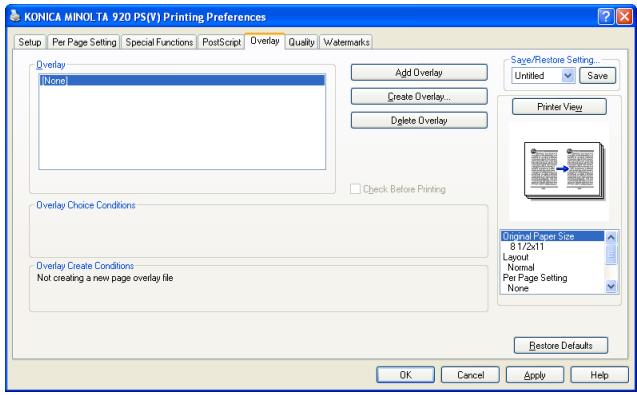

Detail
The method to open the Printing Preference window depends on OS. Refer to "About Properties window" on Page 10-1 about how to open the Printing Preference window.
Overlay
Displays a list of stored overlay files.
When [None] is selected, the overlay function is disabled. For the overlay printing procedure, refer to "Overlay Printing Procedure" on Page 10-54.
Add Overlay
Opens the [Load Page Overlay File] dialog box that is used to select an overlay file.
Create Overlay
Opens the [Create Page Overlay] dialog box that is used to save an overlay file.
Delete Overlay
Deletes the overlay file selected in the [Overlays] list.
Check Before Printing
Sets to display a dialog for confirmation before printing with Overlay to be displayed.
Overlay Choice Condition
Displays information about the selected overlay file.
Overlay Create Condition
Displays the creation status of an overlay file.
To create overlay
For creating overlays, perform the following procedure.
1 Create an overlay with the application in use.
2 Select [Print] from the [File] menu. The selected menu may differ depending on the application used.
3 Select [KONICA MINOLTA 920 PS(V)].
4 Click [Properties].
5 Click [Overlay] tab.
6 Click [Create Overlay]. The [Create Page Overlay] dialog box appears.
7 Input the file name in [File Name]. - Use "esp" as the extension.
8 Click [Save]. The [Create Page Overlay] dialog box closes.
9 Click [OK] to create the overlay. The [Properties] dialog box closes.
10 Click [OK] and create the overlay. The overlay creation confirmation dialog box appears.
11 Click [Yes]. The overlay data is stored.
Overlay Printing Procedure
When printing overlays, perform the following procedure.
1 Select [Print] from the [File] menu. The selected menu may differ depending on the application used.
2 Select [KONICA MINOLTA 920 PS(V)].
3 Click [Properties].
4 Click [Overlay] tab.
5 Select overlay file to be printed.
6 Click [OK]. The [Properties] dialog box closes.
7 Click [OK] and print the overlay. Along with the overlay data the document to be printed is printed on top of the overlay data. Select [Overlay], [None] after printing has been completed.
10.16 Quality tab
The [Quality] tab sets image rotation, reverse image rotation, resolution, etc.
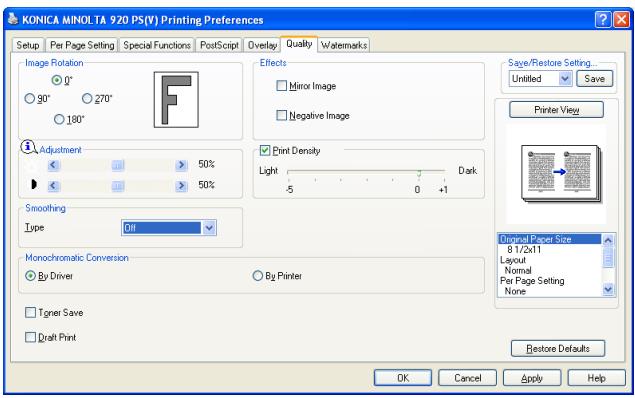

Detail
The method to open the Printing Preference window depends on OS. Refer to "About Properties window" on Page 10-1 about how to open the Printing Preference window.
Image Rotation
Sets the rotation of the printing data to 0^ , 90^ , 180^ or to 270^ (counterclockwise).
Effects - Mirror Image
Prints a mirror image of the printing data.
Effects - Negative Image
Prints a negative image of the printing data.
Adjustment - Slider A

If the graphic appears too bright, slide the brightness slider to the left. If the graphic appears too dark, slide the brightness slider to the right.
Adjustment - Slider B

To decrease contrast, slide the contrast slider to the left.
To increase contrast, slide the contrast slider to the right.
Print Density
Determines the print density of a graphic.
If a graphic appears too dark, move the slider towards [Light]. If the graphic appears too light, move the slider towards [Dark]. The default setting is [0].
Smoothing - Type
Prints the curved section of characters and images smoothly, when this printing system is used.
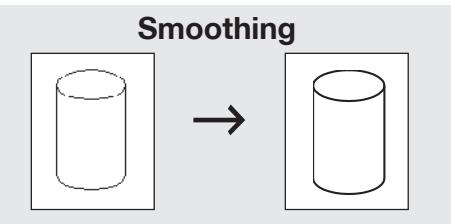
- [Type 1] is suitable for printing the diagonal lines of normal characters and graphics.
- [Type 2] is suitable for printing the curved sections of normal characters.
- [Type 3] is suitable for printing the curved sections of ornamental writings and fine characters.
- When [Off] is selected, no smoothing operation is made.
Monochromatic Convention - By Driver / By Printer
Makes a choice whether you change the graphic mode to monochrome on the printer driver or on the printer.
Toner Save
Saves the consumption of toner by controlling printing density.
Draft Print
Prints lightly which is suitable for draft documents.
10.17 Watermarks tab
Performs settings related to definitions of Watermark.


Detail
The method to open the Printing Preference window depends on OS. Refer to "About Properties window" on Page 10-1 about how to open the Printing Preference window.
Watermark
Selects a watermark that you want to print. You can choose from [None], [CONFIDENTIAL], [COPY], [DRAFT], [FILE COPY], [DO NOT COPY], [FINAL], [PROOF], [TOP SECRET], [URGENT], [CIRCULAR], [WITHDRAW], [NO REPRODUCTION], [INTERNAL USE] and [IMPORTANT]. The default is [None].
Watermark - Add
Adds an edited watermark.
When you input text on [Edit] - [Text], the [Add] becomes active.
Watermark - Update
Updates a watermark while it is being edited.
Watermark - Delete
Deletes the watermark selected in the list.
Edit - Text
The selected watermark is shown in this box for editing. You can also enter new characters.
Edit - Gray Scale
Set the watermark density with the scroll bar.
Edit - Size
Sets the font size for a watermark with the scroll bar.
Edit - Angle
Sets the rotation angle for a watermark with the scroll bar.
Edit - Fonts
Opens the [Font] dialog box that is used to set the font for a watermark.
Position
Specifies the printing position of a watermark by dragging and dropping in the preview or using the scroll bar.
inches/mm: Determines the unit of the coordinates displaying the location.
Position - Center Watermark
Arranges the watermark in the center of the page.
1st Page Only
When this item is checked, a watermark is printed on the first page only.
When not checked, the watermark is printed on all pages.
Transparent Text
When this item is checked, characters are printed with a net pattern background that looks transparent. When not checked, the net pattern background of the characters becomes white and shadow portion is not printed.
As Outline Only
When this item is checked, only the outline of the characters of the watermark is printed. Note that this is enabled if the [Transparent Text] setting is disabled.
10.18 Save/Restore Setting
Settings with the printer driver can be saved to be restored as required.
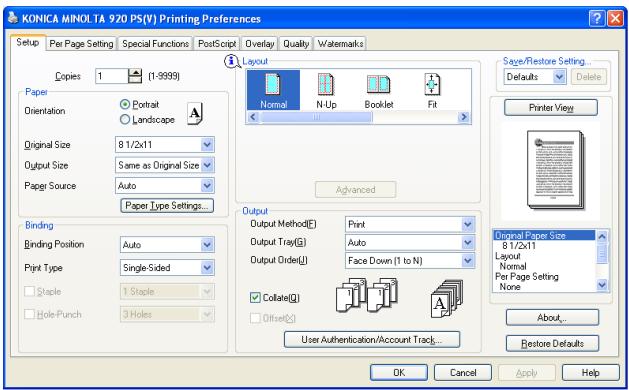

Note
The [Save/Restore Setting] cannot be displayed with the [Watermark] tab.
To Save Setting
Current setting can be saved by the following method:
1 Click [Save/Restore Setting] - [Save]. [Save Setting] window appears.
2 Input Name and click [OK]. Setting is saved and the name entered is displayed on the [Save/Restore Setting] pull down menu.
To restore the setting in storage:
Setting in storage can be restored when required.
1 Click [Save/Restore Setting] to display menu.
2 Select the setting to be restored from the list on display.
10.19 About View Area
Setting of the printer driver and status of the optional unit can be checked.
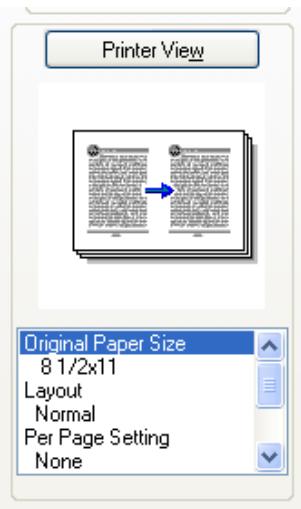

Note
The [Printer View] cannot be displayed with the [Watermark] tab.
To Check the Status of the Optional Unit
Status of the optional unit can be checked by the image.
1 Click [Printer View].
11 PostScript PPD Printer Driver setting (Mac OS 9)
This chapter describes the settings of the PostScript PPD printer driver using Mac OS 9.
Basic printing method
This chapter explains how to use this printing system for printing from a Macintosh.
The following shows the basic methods of use of the printing system from the computer used.
1 Check the printing system to ensure it is turned on. Then turn on the computer.
2 Select [Adobe PS] and select printer name for your printing system from the [Chooser] dialog.
Refer to "Selecting the printer with the Chooser" on Page 5-23 for detailed information on selecting this printing system from the [Chooser] dialog.
3 Open the file to be printed.
4 Select [File] - [Page Setup...] of the application.
- You can configure the functions of this printing system further in the [Page Setup].
- Some functions may not be used depending on the OS you use. The [Page Setup] dialog box will disappear.
5 Select the paper size, click [OK]. The [Page Setup] dialog box will disappear.
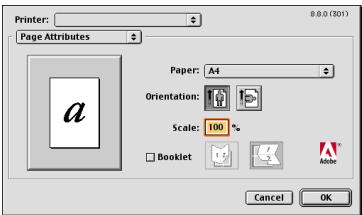
6 Select [File] - [Print...] of the application.
The [Printing] dialog box appears.
7 Make sure that the printer name is the name of this printing system.
- If the printer name is not the name of this printing system, click [▼] at the side of the [Printer] box to select the printing system.
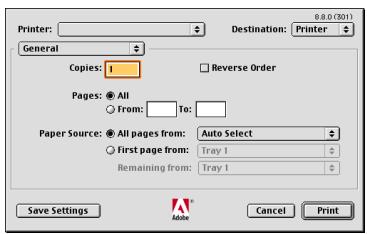
8 Make settings in the [Print] dialog.
- You can set the function of the printing system further by opening the screen from the [Print].
9 Click [Print].
The file is printed.
11.1 Dialog boxes used for configuring this printing system
11.1.1 Three dialog boxes
You can set this printing system to use various functions when you print a file from a Macintosh with this printing system.
[Configure] dialog box
This dialog box is opened from the [Chooser] dialog. You can set the printer driver to recognize optional devices in this printing system.
![KONICA MINOLTA IC 203 - [Configure] dialog box - 1](/content/2025/01/139719/images/6fe5aaf22c938982ff4f84b4e38cfb7661f465985c4904a7de0fcf624126edf0.jpg)
[Page Setup] dialog box
This dialog box is opened from an application. You can set paper size, orientation, scaling, watermarks, visual effect, alternate font, smoothing, and custom page setting.
![KONICA MINOLTA IC 203 - [Page Setup] dialog box - 1](/content/2025/01/139719/images/907eb627ab45ff25517605f6e508129eb824ff9fd10bbc4dc5349ccab8e7f0e7.jpg)
[Print]dialog box
This dialog box is opened from an application. You can set various functions.
![KONICA MINOLTA IC 203 - [Print]dialog box - 1](/content/2025/01/139719/images/94dc9329056ea3d948544114ab00d416374b54e99d089d752561cff16dfdd787.jpg)
Displaying the [Configure] dialog box
1 Select [Choose] from [Apple Menu].
2 Make sure that [Active] is selected in the [AppleTalk] box.
3 Click [AdobePS] icon.
4 Click the printer name for your PS3 printing system from the [Select a PostScript Printer] list.
![KONICA MINOLTA IC 203 - Displaying the [Configure] dialog box - 1](/content/2025/01/139719/images/6a093c2c09de995159cc14ea02d3f57d76afa36148fd204eddaf0c994658520c.jpg)
5 Click [Setup] if you are using the printing system for the first time. A dialog box appears.
6 Click [Configure]. The [Configure] dialog box appears.
![KONICA MINOLTA IC 203 - Displaying the [Configure] dialog box - 2](/content/2025/01/139719/images/e9557bdb3774fe87379bc8d257a87e8e5f0f83b07e1786a07f4e57b0f9a693e2.jpg)
7 Click [OK] to close the [Configure] dialog.
![KONICA MINOLTA IC 203 - Displaying the [Configure] dialog box - 3](/content/2025/01/139719/images/17760ccbb89bb1efd53fefe7b363ba39cb54f0eadae64acf2b34fbb2f9813122.jpg)
Displaying the [Page Setup] dialog box
1 Select [File] - [Page Setup...] of the application.
The [Page Attributes] dialog box in the [Page Setup] dialog box appears.
![KONICA MINOLTA IC 203 - Displaying the [Page Setup] dialog box - 1](/content/2025/01/139719/images/d1342bb33a74022a13f6ba2462b2027a2e9ebd865e11f3da7786eb8a3b63c980.jpg)
2 Click [▼] button upper left corner the dialog box to select each menu as required.
- [Page Setup] - [Watermark] dialog box
![KONICA MINOLTA IC 203 - Displaying the [Page Setup] dialog box - 2](/content/2025/01/139719/images/49544d71efb7a131ece73ce92cf14d8e2a4e9d2b68f5da252a8282709a0f0ef4.jpg)
- [Page Setup] - [PostScript Options] dialog box
![KONICA MINOLTA IC 203 - Displaying the [Page Setup] dialog box - 3](/content/2025/01/139719/images/d468bd444315df03fda90d7135f162633f75e22ab0b3a7834a60dad9803a0db9.jpg)
- [Page Setup] - [Custom Page Default] dialog box
![KONICA MINOLTA IC 203 - Displaying the [Page Setup] dialog box - 4](/content/2025/01/139719/images/47c554ead0562d73d2e0baffac4155ed5bd392757881b478a0f8e2a6cfd2c32a.jpg)
Displaying the [Print] dialog box
1 Select [File] - [Print...] of the application.
- [Print] - [General] dialog box
The [General] dialog box in the [Print] dialog box appears.
![KONICA MINOLTA IC 203 - Displaying the [Print] dialog box - 1](/content/2025/01/139719/images/9d61396ff6cfd836f6c5c9b8aa48f1bfac3de1c697b6e01e19d7708664caf9c9.jpg)
2 Click [▼] button below the [Printer] box to select each menu as required.
- [Print] - [Background Printing] dialog box
![KONICA MINOLTA IC 203 - Displaying the [Print] dialog box - 2](/content/2025/01/139719/images/f34e6efe935de5788908f05111776e30f90336d9736d1828717f9c6584de3592.jpg)
- [Print] - [Cover Page] dialog box
![KONICA MINOLTA IC 203 - Displaying the [Print] dialog box - 3](/content/2025/01/139719/images/fc2153bde900fac5959b2693cf4ab1957062c02dbf015b0b82c0b1acc16ae2e0.jpg)
- [Print] - [Layout] dialog box
![KONICA MINOLTA IC 203 - Displaying the [Print] dialog box - 4](/content/2025/01/139719/images/54c838857d74cfd59c90b6009f7aee7580555fedd387e56424a4c1f1e80c13b5.jpg)
- [Print] - [Error Handling] dialog box
![KONICA MINOLTA IC 203 - Displaying the [Print] dialog box - 5](/content/2025/01/139719/images/147bdc0ce6d61e3c69b99a7f192a670cca70c612e646147359967741b1fcc165.jpg)
- [Print] - [PostScript Setting] dialog box
![KONICA MINOLTA IC 203 - Displaying the [Print] dialog box - 6](/content/2025/01/139719/images/133a212233129342d0e7978eb1f0297b144477a82a59e3e20079a0dad2ae46a3.jpg)
- [Print] - [Printer Specific Options] dialog box (1)
![KONICA MINOLTA IC 203 - Displaying the [Print] dialog box - 7](/content/2025/01/139719/images/fb091cce091aa91f80e14c33bf0ed2028de67a10ac7e864f24d957b98ee3a0bf.jpg)
- [Print] - [Printer Specific Options] dialog box (2)
![KONICA MINOLTA IC 203 - Displaying the [Print] dialog box - 8](/content/2025/01/139719/images/045bf200dfa5a03608624b6261416065070a1c33d54c427817c785ccbd01700c.jpg)
11.2 About descriptions in this chapter
In the descriptions of the settings for each function from the dialog boxes, in the following pages of this chapter, the procedures for opening the dialog boxes is omitted.
Refer to the procedures described earlier as necessary.
For example:
Open [Configure].
- "Displaying the [Configure] dialog box" on Page 11-5
Open [Page Setup] - [Cover Page].
- "Displaying the [Page Setup] dialog box" on Page 11-6
Open [Print] - [Printer Specific Options] dialog box (1)
- "Displaying the [Print] dialog box" on Page 11-7
This chapter mainly describes information on the functions inherent in this printing system. Refer to the manual for the PPD printer driver for detailed information on the functions common to the PPD printer driver.
11.3 Page Attributes dialog box
Performs settings of the page attributes.
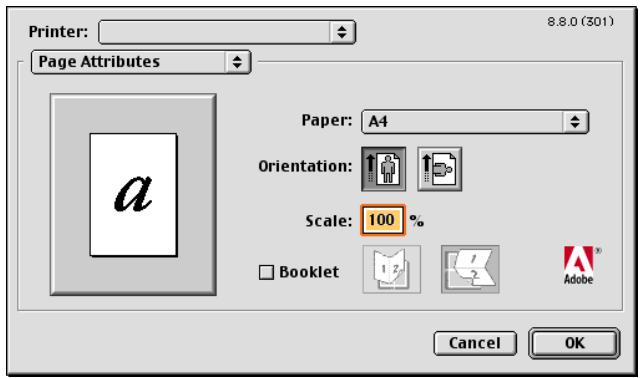

Detail
Refer to the "Displaying the [Page Setup] dialog box" on Page 11-6.
Paper
You can select a paper size from the list shown.
| Paper size that can be selected |
| A3 |
| A4 |
| A5 |
| A6 |
| B4 |
| B5 |
| B6 |
| Tabloid |
| Legal |
| Letter |
| Statement |
| 8” x 13" |
| 8 1/2” x 13" |
| 8 1/4” x 13" |
| 8 1/8” x 13 1/4" |
| 8K |
| 16K |
| Japanese Postcard |
| A3 Wide |
| A4 Wide |
| A5 Wide |
| B4 Wide |
| B5 Wide |
| 11” x 17” Wide |
| 8 1/2” x 11” Wide |
| 5 1/2” x 8 1/2” Wide |
| 8 1/2” x 11” Tab |
| A4 Tab |
| Custom |

Note
The paper with "Wide" at the end of the document size represents "Wide paper".
When selecting [Custom], you can set and register a paper size.
A specific paper size cannot be selected due to other functions set. For details, refer to the explanation of each of the functions.
Orientation
Selects the orientation to output paper in "Portrait" or "Landscape".

Click on the button for "Portrait"(left) of [Orientation].

Click on the button for "Landscape"(right) of [Orientation].
Scale
Prints by specifying the enlargement or reduction ratio in the range from 25% to 400% .
The [Scale] cannot be set in the following cases:
- When the [Print] - [Layout] - [Pages per sheet] is set to any item other than [1].
Booklet
Checks to print on both sides of the paper and fold them. Booklet prints in order which every folded page appears in their original order when gathered at the end.
Select the type of the booklet after checking the [Booklet] check box.
11.4 Watermark dialog box
Sets a transparent character and print it on the output paper.
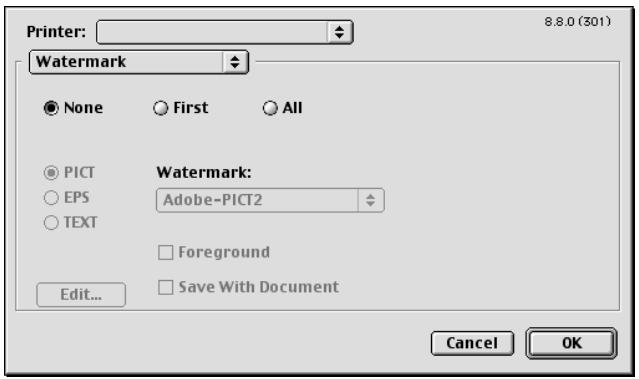

Detail
Refer to the "Displaying the [Page Setup] dialog box" on Page 11-6.
Watermark
Sets watermark as follows.
- If you do not want to watermark any, turn on the [None] radio button.
- If you want to watermark the first page only, turn on the [First] radio button.
- If you want to watermark all pages, turn on the [All] radio button.
Types of Watermark
Sets the type of watermark as follows.
- If you want to use the PICT file for watermark, turn on [PICT] radio button.
- If you want to use the EPS file for watermark, turn on [EPS] radio button.
- If you want to use the TEXT file for watermark, turn on [TEXT] radio button.

Detail
Five types of watermark are stored by default.
Foreground
If you want to print the watermark as a foreground, check the checkbox.
Save With Document
If you want to save the watermark with the document you print, check the [Save With Document] checkbox.
If you check the [Save With Document] checkbox, you can print the watermark with the same settings in the next time you print a document.
Edit
If you selected [TEXT] type, you can edit the text you print as watermark.
If you click [Edit], [Watermark Specification] screen appears.
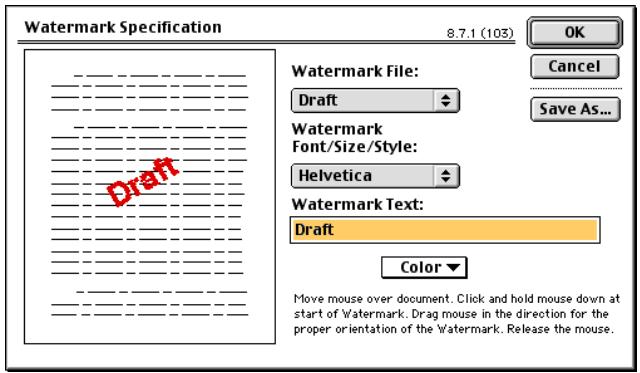
Watermark File
You can specify watermark that is stored by default.
Watermark Font / Size / Style
You can specify a font/size/style of the text you want to print as watermark.
Watermark Text
If you want to print the input text as watermark, input the text.
Color
It is not used in this printing system.
Save As
Presses this button when you save a new watermark file.
11.5 Custom Page Default dialog box
Performs settings of the custom page.
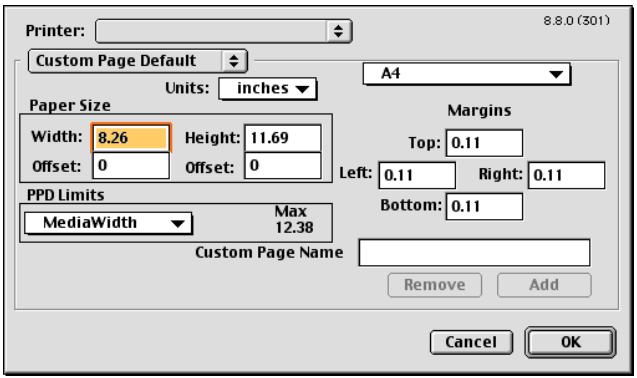

Detail
Refer to the "Displaying the [Page Setup] dialog box" on Page 11-6.
Units
Selects the units for setting [Width], [Height], and so on.
Paper Size
Sets the height, width, horizontal/vertical offset from the paper edge to the printing region of the output paper.
Margins
Sets the margins of the output paper.
PPD Limits
When you select the item form the list, display the device limitation.
Custom Page Name
Enters the custom page name with 31 characters or less.
Remove
You can enter the stored custom page name and unstore it.
Add
Stores the custom page settings with the entered custom page name.
11.6 General dialog box
Performs basic settings of the printer.
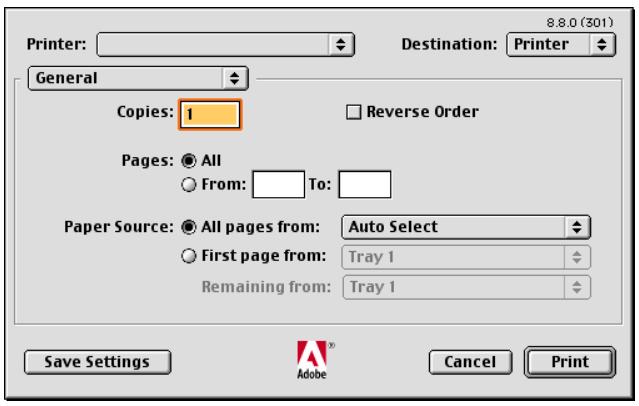

Detail
Refer to the "Displaying the [Print] dialog box" on Page 11-7.
Copies
Sets the number of copies to be printed from the [General] dialog.
Reverse Order
You can reverse the order pages are printed.
Pages
Selects the page to be printed.
- All: Prints all pages of the document.
- From [ ]To [ ]: Enters the initial page number and the ending page number. If you want to print one page, enter the page number to the both boxes.
Paper Source
Selects the paper source.
- All pages from: Prints all pages from the same tray. Select the tray in the right box.
- First page from: Printing the first page from the specified tray in upper box and remaining pages from the specified tray in lower box.
| Feed Tray | paper size that can be used. |
| Tray 1 to Tray 3 | A3 / A4 / A5 / A6 / B4 / B5 / B6 / Tabloid / Legal / Letter / Statement / 8" x 13 / 8 1/2" x 13" / 8 1/4" x 13" / 8 1/8" x 13 1/4" / 8K / 16K / Japanese Postcard / A3 Wide / A4 Wide / A5 Wide / B4 Wide / B5 Wide / 11" x 17" Wide / 8 1/2" x 11" Wide / 5 1/2" x 8 1/2" Wide / 8 1/2" x 11" Tab / A4 Tab / Custom |
| LCT (LU-403/LU-404) / Manual Feed |
11.7 Background Printing dialog box
Performs settings of the background printing.
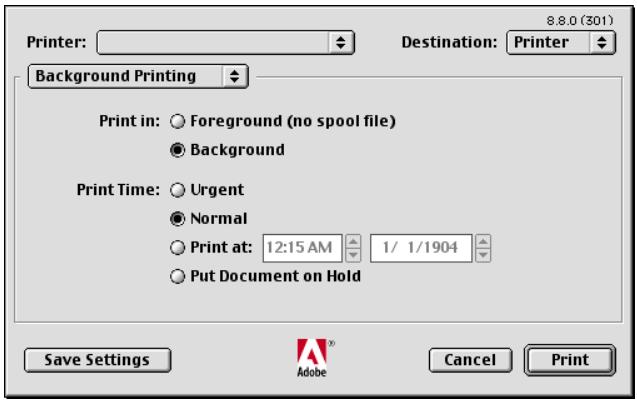

Detail
Refer to the "Displaying the [Print] dialog box" on Page 11-7.
Print in:
Selects foreground printing or background printing.
- Foreground (no spool file): Prints the document immediately, without spooling. In this case, you cannot use the other application during the printing.
- Background: Prints the document after spooling. In this case, you can use the other application during the printing.
Print Time
Selects the time to be printed.
| Urgent | Prints the document by interruption. |
| Normal | Prints the document normally. |
| Print at | Prints at the specified time. |
| Put Document on Hold | Holds the document without printing. |
Detail
For the display method of the Date/Time, it can be specified on the control panel of the copier.
For details, see "User's Guide (Copier)"
11.8 Cover Page dialog box
Performs settings of the cover page.
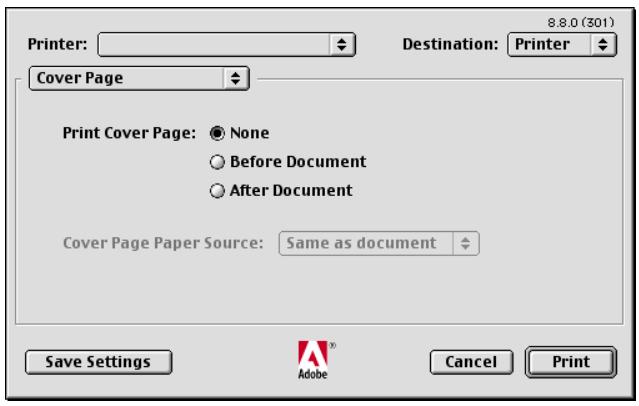

Detail
Refer to the "Displaying the [Print] dialog box" on Page 11-7.
Print Cover Page:
| Selects the method to print a cover page. | |
| None | Prints no cover page. |
| Before Document | Prints a cover page first. |
| After Document | Prints a cover page last. |
Cover Page Paper Source
Selects the paper source to print a cover page.
The [Cover Page Paper Source] cannot be set in the following cases:
- When the [Print Cover Page] is not available in the [Cover Page] dialog.
11.9 Layout dialog box
Performs settings of the page layout.
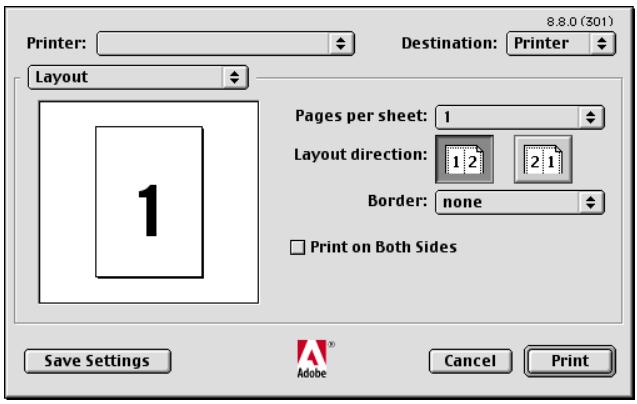

Detail
Refer to the "Displaying the [Print] dialog box" on Page 11-7.
Pages per sheet
You can allocate a document of 2 pages, 4 pages, 6 pages, 9 pages or 16 pages onto a single page for printing. The allocated pages are automatically reduced for printing based on the printable area of the output paper.
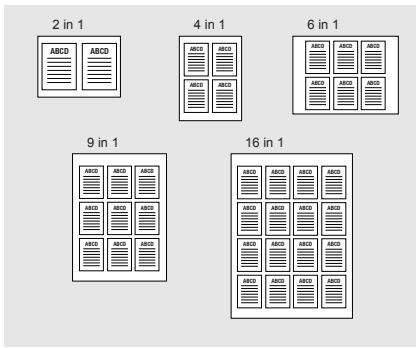
Selecting the 2 × 2 sheet/page - 6 × 6 sheet/page enables to divide the page to be output.
Layout direction
Selects the layout direction the pages allocated onto a single paper.
Border
Selects whether to draw a frame or line as the border between pages.
Print on Both Sides
Checks to print on both sides.
11.10 Printer Specific Options dialog box (1)
Performs settings of the finishing options.
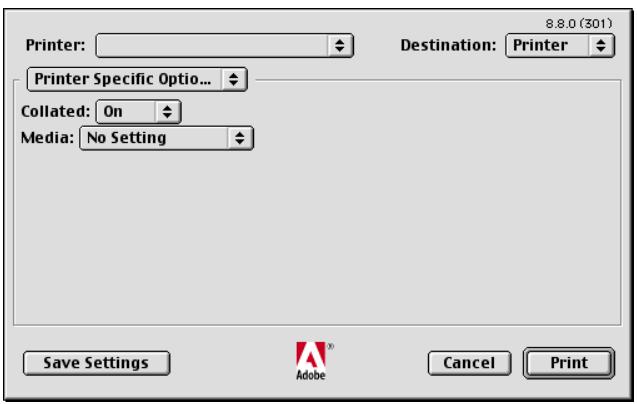

Detail
Refer to the "Displaying the [Print] dialog box" on Page 11-7.
Collate
Sets [ON] to print the required number of the first page, and then the required number of the second pages, the third page, .... collectively when printing multiple sets of pages.
Media
Sets various types of paper sizes as the output paper as shown below.
| Types of paper that can be selected. | |
| No Setting | |
| Plain Paper | |
| Thick 1 | This is set when printing coated paper such as pamphlet. |
| Thick 2 | This is set when printing thick paper such as a post card. |
| Fine | This is set when printing fine paper such as memo paper. |
| User | This is set when printing the user specified paper set on the copier. |
| Blank Insert | This is set when printing blank paper such as cover sheet. |
| Thin | This is set when printing thin paper. |
| Trace | This is set when printing trace paper. |
| Recycled | This is set when printing recycled paper. |
| Label | This is set when printing the paper such as label. |
| Transparency | This is set when printing OHP sheet. |
| Exclusive A - M | This is set when printing the exclusive paper. |
The [Transparency] cannot be set in the following cases:
- When the [Duplex] is set in the [Print] - [Printer Specific Options] dialog box (2).
- When the [Paper Sources] is not available in the [Configure] dialog box.
11.11 Printer Specific Options dialog box (2)
Performs settings of the finishing options.
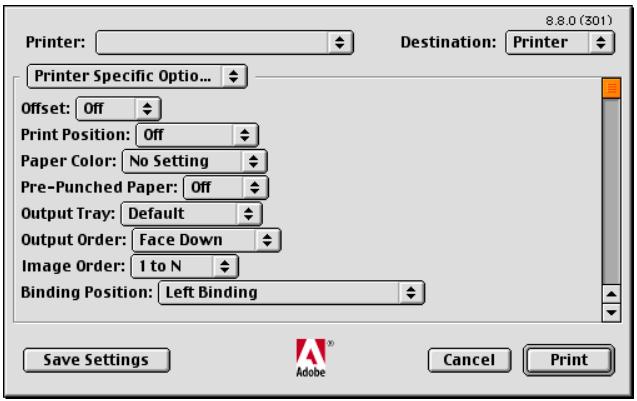

Detail
Refer to the "Displaying the [Print] dialog box" on Page 11-7.
Offset
Selects to shift the exit position of each set of print out back and forth when printing multi set of copies.
Print position
Selects the print position. The [Left] print uses the left side of the paper. The [Center] print uses the center of the paper. The [Right] print uses the right side of the paper.
Paper Color
Selects the colors of paper as the output paper as shown below
No Setting
White
Clear
Yellow
- Pink
- Blue
Green
Pre-Punched Paper
Selects whether the paper as the output paper is pre-punched or not.
Output Tray
Selects the output tray.
Each of them can/cannot be set in the following cases:
- When the [Staple] is available, any item other than [Auto] and [Main Tray] can not be set.

Detail
The optional finisher should be set up in the [Configure] window.
Output Order
Selects the output order.
The [Face Down] outputs paper with the printed side facing down.
The [Face Up] outputs paper with the printed side facing up.
Image order
Select the image order.
The [1 to N] outputs paper starting with the first page.
The [N to 1] outputs paper starting with the last page.
Binding Position
Sets the binding position for the document to be printed. The position selected here will be the position of stapling, punching and base position of the image shift.
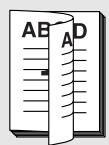
Double Sides / Left Binding
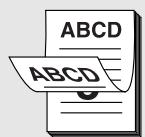
Double Sides / Top Binding
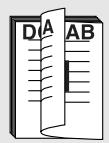
Double Sides / Right Binding
Duplex
Prints continuous multiple pages on both front and back sides.
The [Duplex] cannot be set in the following cases:
- When the [Transparency] is selected in the [Printer Specific Options] dialog (1) - [Media]
Combination
Prints a document of 2 pages onto a single paper twice as big as the original documents.
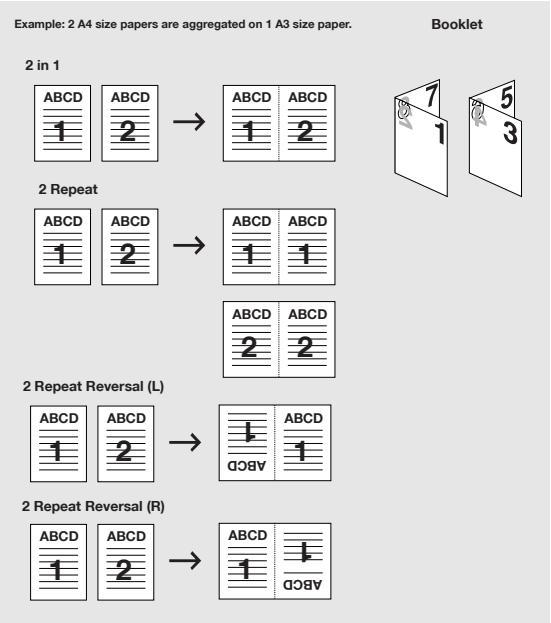
The [2 in 1] and [2 Repeat] cannot be set in the following cases:
- When the [Transparency] is selected for [Media] in the [Print] - [Printer Specific Options] dialog box (1).
- When any item other than [Off] is selected for [Front Cover Page], [Back Cover Page], [Paper Tray (Front Cover Page)] or [Paper Tray (Back Cover Page)].
Staple
Staples output paper. The number of staplings and their positions can be set.
1 Staple/Left Binding
(Portrait)
1 Staple /Right Binding

(Portrait)
2 Staples /Left Binding
(Portrait)
2 Staples /Right Binding
(Portrait)
1 Staple /Top Binding

(Portrait)
2 Staples /Top Binding
(Portrait)
The [Staple] cannot be set in the following cases:
- When the [None] is selected for [Finisher] in the [Installable Options] field of the [Configure].
- When the [Transparency] is selected for [Media] in the [Print] - [Printer Specific Options] dialog box (1).
- When any item other than [Z-fold] is selected for [Fold].

Detail
Refer to "User's Guide (Copy)" for more information about staple and punch.
Punch
The output paper can be set to be punched with 2 holes,3 holes or 4 holes. The position will be changed according with the [Binding Position] setting.
2 Holes / Left Binding
(Portrait)
2 Holes / Left Binding
(Landscape)
2 Holes / Top Binding
(Portrait)
2 Holes / Right Binding
(Portrait)
2 Holes / Right Binding
(Landscape)
2 Holes / Top Binding
(Landscape)
The [Punch] cannot be set in the following cases:
- When the [None] is selected for [Punch Z-Fold Unit] in the [Installable Options] field of the [Configure] dialog.
- When the [Transparency] is selected for [Media] in the [Print] - [Printer Specific Options] dialog box (1).
- When any item other than [Z-fold] is selected for [Fold].

Note
Punch holes which can be specified vary depending on the destinations.
USA : Either 2 or 3 holes can be specified.
Others: Either 2 or 4 holes can be specified.
Fold
Various ways of the folding can be setup.
| Z-Fold | |
| Center Staple and Fold | |
| Multi-Letter Fold in | |
| Multi-Letter Fold Out | |
| Multi-Half Fold |
The [Fold] cannot be set in the following cases:
- When the [Transparency] is selected for [Media] in the [Print] - [Printer Specific Options] dialog box (1).
- When any item other than [Off] is selected for the [Staple], [Punch], only [Z-fold] can be selected.
- When any item other than [Off] is selected for the [Front Cover Page], [Back Cover Page], [Paper Tray (Front Cover Page)] and [Paper Tray (Back Cover Page)].
The setting of [Fold] is available when the following unit is installed.
| Punch Z-Fold Unit | FS-604 | |
| Z-Fold | ○ | |
| Multi-Letter Fold (In/Out) | ○ | |
| Multi-Half Fold | ○ |
Image Shift
Adjusts the details of the printing position to the output paper.
Ex.: When the settings are shifted to the right by 100 and down by 300. (Unit: 0.1mm )
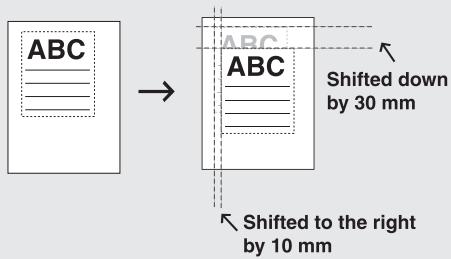
Front Cover Page
Sets a front cover type.
When the [Blank] is selected, a blank sheet is inserted before the 1st page.
When the [Printed] is selected, the 1st page of the document is printed with the specified sheet as the front cover.
Front Cover - Off
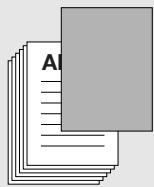
Front Cover - Blank
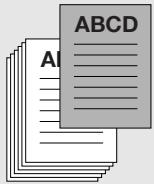
Front Cover - Printed
The [Front Cover Page] cannot be set in the following cases:
- When the [Transparency] is selected for [Media] in the [Print] - [Printer Specific Options] dialog box (1).
- When any item other than [Off] is selected for the [Fold].
Paper Tray (Front Cover Page)
Specifies the paper tray for the front cover.
Back Cover Page
Sets a back cover type.
When the [Blank] is selected, a blank sheet is inserted after the last page.
When the [Printed] is selected, the last page of the document is printed with the specified sheet as the back cover.
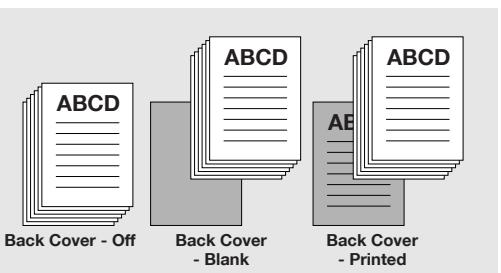
The [Back Cover Page] cannot be set in the following cases:
- When the [Transparency] is selected for [Media] in the [Print] - [Printer Specific Options] dialog box (1).
- When any item other than [Off] is selected for the [Fold].
Paper Tray (Back Cover Page)
Specifies the paper tray for the back cover.
PI Front Cover
Sets a front cover for which paper is from the [PI Tray 1] or [PI Tray 2].
The [PI Front Cover] cannot be set in the following cases:
- When the [None] is selected for [Cover Sheet Feeder] in the [Installable Options] field of the [Configure] dialog.
- When any item other than [Off] is selected for the [Fold].
PI Back Cover
Sets a back cover for which paper is from the PI Tray 1 or PI Tray 2.
The [PI Back Cover] cannot be set in the following cases:
- When the [None] is selected for [Cover Sheet Feeder] in the [Installable Options] field of the [Configure] dialog.
- When any item other than [Off] is selected for the [Fold].
Transparency Interleave
| Printed | This is set when inserting the printed interleaf for the transparent sheet. |
| Blank | This is set when inserting the blank interleaf for the transparent sheet. |
Transparency Interleave cannot be set in the following cases:
- When the [Transparency] is not selected for [Media] in the [Print] - [Printer Specific Options] dialog box (1)
Paper Tray (Transparency Interleave)
Uses to select the paper tray for Transparency Interleave.
The Paper Tray (Transparency Interleave) cannot be set in the following cases:
- When the [Transparency] is not selected for [Media] in the [Print] - [Printer Specific Options] dialog box (1).
- When the [Paper Sources] is not selected in the [Configure] dialog
Wait Mode
Outputs the test print and checks the current setting from the control panel of copier. You can use this when printing a large volume document, such as multiple sets of pages.
1 Open the file to be printed and select [File] - [Print] of application. the [Printing] dialog box will appear.
2 Select [Printer Specific Options (2)] of optional menu.
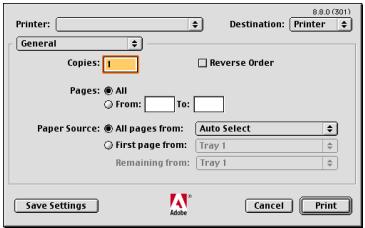
3 Click [Wait Mode] to display the list. Then select [Wait Mode] or [Proof and Print].
- Select [Wait Mode] to wait before printing the document to check the current setting from the control panel of copier.
- Select [Proof and Print] to print the one copy as a test to check the output and the current setting from the control panel of copier.
4 Click [Print].
- When [Wait Mode] is selected, it stops without being printed.
- When [Proof and Print] is selected, only one part is printed and it stops.
On the copier's control panel, the Mode Check screen appears.
In case of [Proof and Print], [Proof Stop] blinks on the left above the copier touch panel screen. Press [Proof Stop].
Mode Check screen appears on the control panel of copier.
6 Confirm the current settings.
If you do not change any setting, proceed to the step 9.
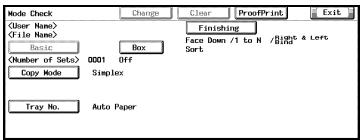
7 If necessary, press the [Change] to change settings.
8 Change the settings and press the [OK].
Mode Check screen will be restored.
9 Press [START] to resume the rest of the print job.
Resolution
Displays the resolution of the printer (600 dpi)
Smoothing
Prints the curved section of characters and images smoothly.
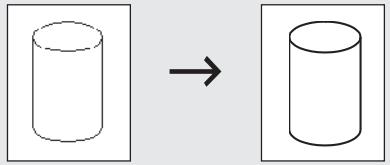
Smoothing
- [Type 1] is suitable for printing the diagonal lines of normal characters and graphics.
- [Type 2] is suitable for printing the curved sections of normal characters.
- [Type 3] is suitable for printing the curved sections of ornamental writings and fine characters.
- When [Off] is selected, no smoothing operation is made.
Print Density
Selects the printing density.
| Item | Print density | Feature |
| Normal | 100% | Print with normal density. |
| Heavy | 102% | You can adjust printing density while main-taining print quality. |
| Light 1 | 98% | |
| Light 2 | 96% | |
| Light 3 | 90% | |
| Light 4 | 80% | |
| Light 5 | 70% | |
| Toner Save | 95% | Reduce toner consumption. |
| Draft Print | 90% | Data other than characters are roughly printed. |
Date/Time
Specifies the pages to print the date and time.
All pages: Date/Time is printed in the all pages.
Front Cover Only: Date/Time is printed in the 1st page only.
Tandem Mode
Using two printing systems (master copier and sub copier), prints can be made at the same time under the same printing conditions. When printing a large number of copies, time required to complete the job can be shortened.
When either one of the two copiers is equipped with a print controller, tandem printing can be performed. When both of the copiers are equipped with a print controller, the copier which receives the printing job instruction functions as the master copier and the other one is the sub copier.
For the tandem printing, the two copiers should be connected by either method as follows.
- Connect the two copiers directly with a cross cable. In this case, the network functions cannot be used.
- Connect them with a straight cable via HUB.

Note
Use a cross cable or straight cable higher than the category type 5.
Tandem printing should only be set up by your authorized service representative.
Refer to the "User's Guide (POD Administrator's reference)" for more information about Tandem Mode.
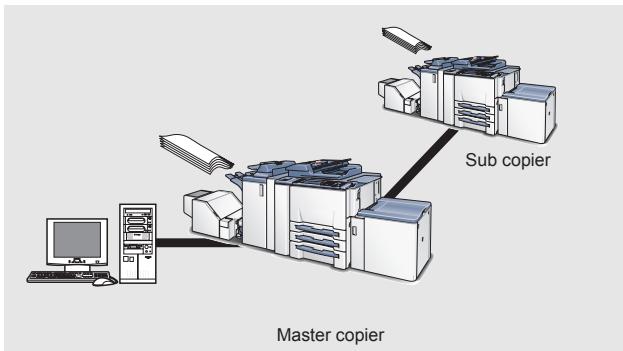
Tandem Mode cannot be set in the following cases:
- When [Transparency Interleave] is selected.
11.12 Configure dialog box
The option to install can be setup on this window.
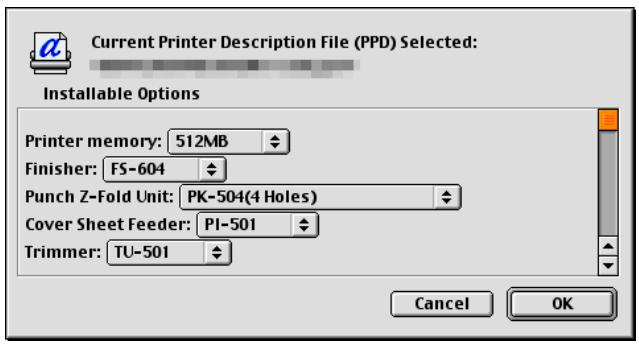

Detail
Refer to the "Displaying the [Configure] dialog box" on Page 11-5.
Printer memory
Sets the printer driver to recognize the printer memory.
Finisher
Selects an installed Finisher.
Punch Z-Fold Unit
Selects an installed Punch Z-Fold Unit.
Cover Sheet Feeder
Selects an installed Cover Sheet Feeder.
Trimmer
Selects an installed Trimmer Unit.
Paper Sources
Selects an installed paper source.
12 PostScript PPD Printer Driver setting (Mac OS X)
This chapter describes the settings of the PostScript PPD printer driver using Mac OS X.
12.1 About Mac OS X window
In Mac OS X, printer driver is set up using the [Printer Info] window, the [Page Setup] window and the [Print] window.
Here, how to open the window of Mac OS X is explained.
The method to open the [Printer Info] window
1 Double-click [Applications] - [Utilities] - [Printer Setup Utility] in a hard disk with system.
The [Printer List] window appears.
2 Select the printer and then select [Show Info] from Printers menu.
- [Printer Info] window appears.
![KONICA MINOLTA IC 203 - The method to open the [Printer Info] window - 1](/content/2025/01/139719/images/6c6783c28b3ba4b1192a96b7035fb4d8933dfd6cd0dcae05af7d8bac26b98a87.jpg)
The method to open the [Page Setup] window
1 Open the file to print.
2 Select [Page Setup] from File menu.
- The [Page Setup] window appears.
![KONICA MINOLTA IC 203 - The method to open the [Page Setup] window - 1](/content/2025/01/139719/images/221c8870adede2084ea02b338f505f442050d2f91854a26d4cf91c8bd8b47034.jpg)
The method to open the [Print] window
1 Open the file to print
2 Select [Print] from File menu.
The [Print] window appears.
![KONICA MINOLTA IC 203 - The method to open the [Print] window - 1](/content/2025/01/139719/images/6c8a61ad9b865b87d8b0d4a32fd0de4e111956a6486f532e2f7406414a452f30.jpg)
![KONICA MINOLTA IC 203 - The method to open the [Print] window - 2](/content/2025/01/139719/images/e9e190f1125d03ac94a6e781268488799f3189ca47b5a100bc1ea10e181ffa46.jpg)
Detail
To perform printing, click [Print].
Clicking [Save As PDF] creates a PDF file. Selecting [Save As] on the [Pre-sets] pop-up menu enables you to save the settings you configured in the [Print] window.
12.2 Page Attributes (Page Setup window)
Selects [Page Attributes] on the [Settings] pop-up menu in the [Page Setup] window.
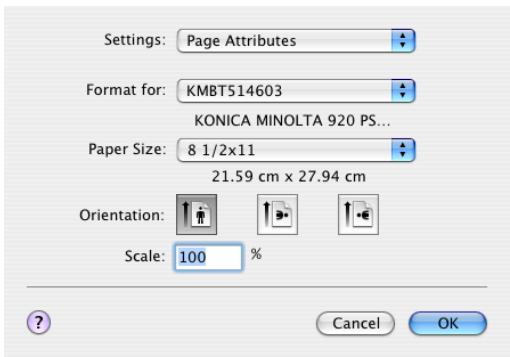

Detail
Refer to the "The method to open the [Page Setup] window" on Page 12-2.
Format for
Selects the printer you want to use.
Paper Size
You can select a paper size from the list shown.
| Paper size that can be selected |
| A3 |
| A4 |
| A5 |
| A6 |
| B4 |
| B5 |
| B6 |
| 11 x 17 |
| 8 1/2 x 14 |
| 8 1/2 x 11 |
| 5 1/2 x 8 1/2 |
| 8 x 13 |
| 8 1/2 x 13 |
| 8 1/4 x 13 |
| 8 1/8 x 13 1/4 |
| 8K |
| 16K |
| Japanese Postcard |
| A3 Wide |
| A4 Wide |
| A5 Wide |
| B4 Wide |
| B5 Wide |
| 11 x 17 Wide |
| 8 1/2 x 11 Wide |
| 5 1/2 x 8 1/2 Wide |
| 8 1/2 x 11 Tab |
| A4 Tab |
| Custom |

Note
When selecting [Custom], you can set and register a paper size.
A specific paper size cannot be selected due to other functions set. For details, refer to the explanation of each of the functions.
Orientation
Sets the orientation to output paper.
Scale
Prints by specifying the enlargement or reduction ratio in the range from 25% to 400% .
The [Scale] cannot be set in the following cases:
- When the [Pages per Sheet] is set to any item other than [1].
12.3 Custom Paper Size (Page Setup window)
Selects [Custom Paper Size] on the [Settings] pop-up menu in the [Page Setup] window.
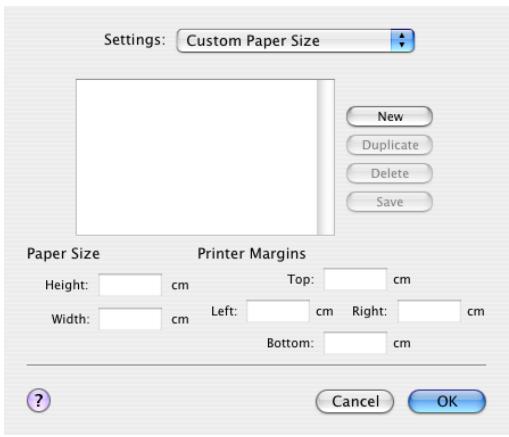

Detail
Refer to the "The method to open the [Page Setup] window" on Page 12-2.
New
You can register a new Custom Paper Size.
Paper Size
Sets the height and width of the output paper.
Printer Margins
Sets the margins of the output paper.
12.4 Copies & Pages (Print window)
Selects [Copies & Pages] on the pop-up menu in the [Print] window.
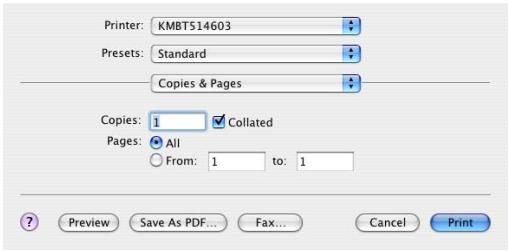

Detail
Refer to the "The method to open the [Print] window" on Page 12-2.
Copies
Sets the number of copies to be printed.
Collated
It is possible to print the required number of the first page, and then the required number of the second pages, the third page, .... when printing multiple sets of pages.
Pages
Selects the page to be printed.
- All: Prints all pages of the document.
- From [ ]To [ ]: Enters the initial page number and the ending page number. If you want to print one page, enter the page number to the both boxes.
12.5 Layout (Print window)
Selects [Layout] on the pop-up menu in the [Print] window.
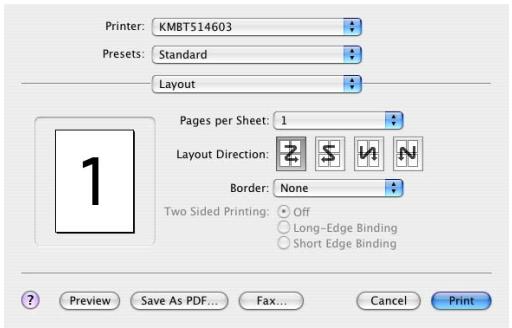

Detail
Refer to the "The method to open the [Print] window" on Page 12-2.
Pages per Sheet
Allocates a document of 2 pages, 4 pages, 6 pages, 9 pages or 16 pages onto a single page for printing. The allocated pages are automatically reduced for printing based on the printable region of the output paper.
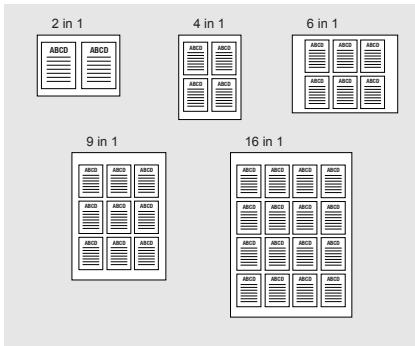
Layout Direction
Selects the layout direction the pages allocated onto a single paper.
Border
Selects whether draw a frame or line as the border between pages.
12.6 Paper Feed (Print window)
Selects [Duplex] on the pop-up menu in the [Print] window.
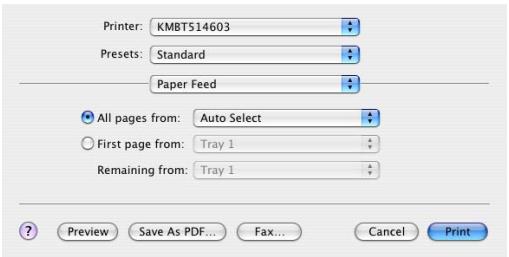

Detail
Refer to the "The method to open the [Print] window" on Page 12-2.
Paper Feed
Selects the paper source.
- All pages from: Prints all pages from the same tray. Select the tray in the right box.
- First page from: Printing the first page from the specified tray in upper box and remaining pages from the specified tray in lower box.

Detail
If you use [Auto Select], a paper feed tray is automatically selected. The paper specified in [Page Attributes] of this printing system is set on the tray.
12.7 Finishing (Print window)
Selects [Finishing] on the pop-up menu in the [Print] window.
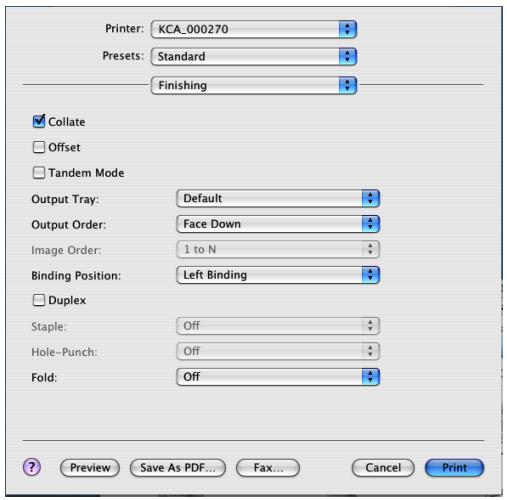

Detail
Refer to the "The method to open the [Print] window" on Page 12-2.
Collate
It is possible to print the required number of the first page, and then the required number of the second pages, the third page, ... collectively when printing multiple sets of pages.
Offset
Selects to shift the exit position of each set of print out back and forth when printing multi set of copies.
The [Offset] cannot be set in the following cases:
- When the [Japanese Post Card], or [Custom] is selected for [Page Setup] - [Paper Size].
Tandem Mode
Using two printing systems (master copier and sub copier), prints can be made at the same time under the same printing conditions. When printing a large number of copies, time required to complete the job can be shortened.
When either one of the two copiers is equipped with a print controller, tandem printing can be performed. When both of the copiers are equipped with a print controller, the copier which receives the printing job instruction functions as the master copier and the other one is the sub copier.
For the tandem printing, the two copiers should be connected by either method as follows.
- Connect the two copiers directly with a cross cable. In this case, the network functions cannot be used.
- Connect them with a straight cable via HUB.

Note
Use a cross cable or straight cable higher than the category type 5.
Tandem printing should only be set up by your authorized service representative.
Refer to the "User's Guide (POD Administrator's reference)" for more information about Tandem Mode.
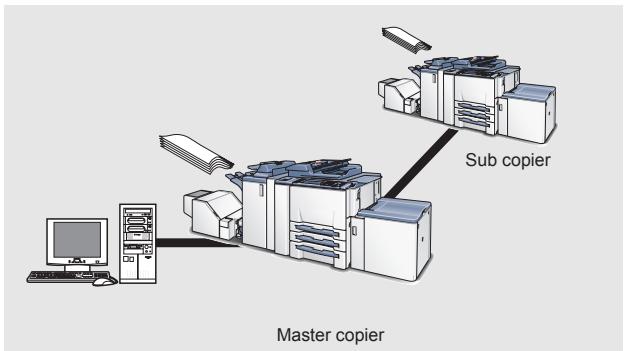
Tandem Mode cannot be set in the following cases:
- When [Transparency Interleave] is selected.
- When [Enhanced Security] is set to ON.
Output Tray
Selects the output tray.
Each of them can/cannot be set in the following cases:
Each options which is not selected on the [Printer Info] window cannot be set.
- When [Staple] is available, any item other than [Auto] and [Main Tray] can not be set.
Output Order
Selects the output order.
- [Face Down] outputs paper with the printed side facing down.
- [Face Up] outputs paper with the printed side facing up.
Image Order
The [1 to N] outputs paper starting with the first page.
The [N to 1] outputs paper starting with the last page.
Binding Position
Sets the binding position for the document to be printed. The position selected here will be the position of stapling, punching and base position of the image shift.
Duplex
Prints continuous multiple pages on both front and back sides.
Staple
Staples output paper. The number of staplings and their positions can be set.
1 Staple/Left Binding
(Portrait)
1 Staple /Right Binding
(Portrait)
2 Staples /Left Binding
(Portrait)
2 Staples /Right Binding
(Portrait)
1 Staple/Top Binding
(Portrait)
2 Staples /Top Binding
(Portrait)
The [Staple] cannot be set in the following cases:
- When the [Finisher] is not available in the [Printer Info] - [Installable Options].
- When the [Transparency] is selected for [Print] - [Setup] - [Paper Type].
- When any item other than [Z-Fold] is selected for [Fold].
Hole-Punch
The output paper can be set to be punched in advance.
2 Holes / Left Binding
(Portrait)
2 Holes / Left Binding
(Landscape)
2 Holes / Top Binding
(Portrait)
2 Holes / Right Binding
(Portrait)
2 Holes / Right Binding
(Landscape)
2 Holes / Top Binding
(Landscape)
The [Hole-Punch] cannot be set in the following cases:
- When the [Punch Z-Fold Unit] is not available in the [Printer Info] - [Installable Options].
- When the [Japanese Post Card], [Wide paper (W)] or [Custom] is selected for [Page Setup] - [Paper Size].
- When the [Transparency] is selected for [Print] - [Setup] - [Paper Type].
- When any item other than [Z-Fold] is selected for [Fold].

Note
Punch holes which can be specified vary depending on the destinations.
USA : Either 2 or 3 holes can be specified.
Others: Either 2 or 4 holes can be specified.
Fold
Various ways of the folding can be setup.
| Z-Fold | |
| Center Staple and Fold | |
| Multi-Letter Fold in | |
| Multi-Letter Fold Out | |
| Multi-Half Fold |
The [Fold] cannot be set in the following cases:
- When the [Transparency] is selected for [Print] - [Setup] - [Paper Type].
- When any item other than [Off] is selected for the [Staple], [Hole-Punch], only [Z-Fold] can be selected.
- When any item other than [Off] is selected for the [Front Cover Page], [Back Cover Page], [Paper Tray (Front Cover Page)] and [Paper Tray (Back Cover Page)].
The setting of [Fold] is available when the following unit is installed.
| Punch Z-Fold Unit | FS-604 | |
| Z-Fold | ○ | |
| Multi-Letter Fold (In/Out) | ○ | |
| Multi-Half Fold | ○ |
12.8 Security (Print window)
Selects [Security] on the pop-up menu in the [Print] window.
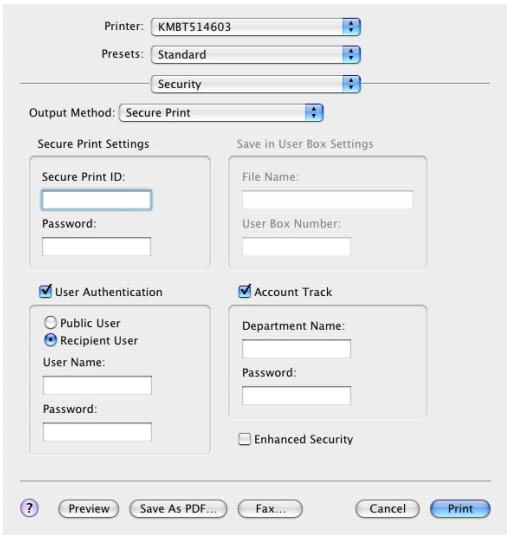

Detail
Refer to the "The method to open the [Print] window" on Page 12-2.
Output Method - Off
Sets the normal printing.
Output Method - Secure Print
If you print with the Secure Print feature, the printing does not start until you input the Secure Print ID and the password on the copier's control panel.
To perform the Secure Print, you need to configure the settings for Confidential output on the copier. For more information on the Confidential output, refer to "User's Guide (Network Scanner)".
The [Secure Print] cannot be set in the following cases:
When [Tandem Mode] is available in [Finishing] window.
1 Open the file to be printed and select [File] - [Print] of application.
2 Select [Security] from pop-up menu.
3 Select [Secure Print] in the [Output Method]. [Secure Print Settings] field becomes active.
4 Enter [Secure Print ID] and [Password].
- Secure Print ID: Enter the confidential box name.
- Password: Enter the password.
5 Click [Print] to perform printing from the application.
6 Press [Box] on the control panel of copier and select [Recall].
7 Press [Confidential].
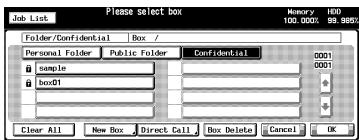
8 Select a box and press the [OK].
The Password Input screen appears.
9 Enter [Password].
10 Press [OK] to close the Password Input screen.
11 Select the file to print and press [ ]
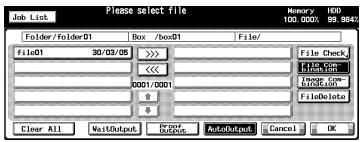
12 Select [AutoOutput] and press the [OK].
The Confidential file is printed.

Detail
To confirm the settings for Confidential Output, select [WaitOutput] or [Proof Output], and press OK.
For more information, refer to "User's Guide (Network Scanner)".
Output - Output Method - Save in User Box/Save in User Box and Print
You can store the print job as image data on the copier's internal hard disk to re-output them when necessary. To output, use the PageScope Job Spooler or operate on the control panel.
For more information on PageScope Job Spooler, refer to "PageScope Job Spooler User's Guide".
The [Save in User Box] cannot be set in the following cases:
When [Tandem Mode] is available in [Finishing] window.
1 Open the file to be printed and select [File] - [Print] of application.
2 Select [Security] from pop-up menu.
3 Select [Save in User Box] or [Save in User Box and Print] in the [Output Method].
- Selecting [Save in User Box] stores the print job in the internal hard disk.
- Selecting [Save in User Box and Print] stores the print job in the internal hard disk and prints one copy.
The [Save in User Box Settings] field becomes active.
4 Enter [File Name] and [User Box Number] and click [Print] to perform printing from the application.

Detail
To output, use PageScope Job Spooler or operate on the control panel of copier.
For more information on PageScope Job Spooler, refer to "PageScope Job Spooler User's Guide".
For more information about how to operate on the control panel, refer to "bizhub PRO 920 User's Guide (Network Scanner)".
Output - Output Method - Wait Mode/Proof and Print
Outputs the test print and checks the current setting from the control panel of copier. Use this when printing a large volume document, such as multiple sets of pages.
1 Open the file to be printed and select [File] - [Print] of application.
2 Select [Security] from pop-up menu.
3 Select [Wait Mode] or [Proof and Print] in the [Output Method].
4 Click [Print] to perform printing from the application.
- When the [Wait Mode] is selected, it stops without being printed.
- When the [Proof and Print] is selected, only one part is printed and it stops.
On the copier's control panel, the Mode Check screen appears.
In case of [Proof and Print], [Proof Stop] blinks on the left above the copier touch panel screen. Press [Proof Stop].
Mode Check screen appears on the control panel of copier.
6 Confirm the current settings.
If you do not change any setting, proceed to the step 9.
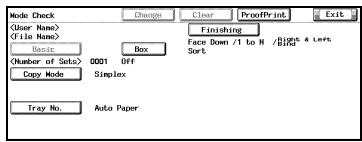
7 If necessary, press [Change] to change settings.
8 Change the settings and press [OK].
The Mode Check screen will be restored.
9 Press [START] to resume the rest of the print job.
User Authentication/Account Track
Sets the User Authentication mode/Account Track mode.

Detail
Contact your administrator about User Authentication/Account Track.
User Authentication
Selects to use the User Authentication mode.
| Public User | Select when you access as Public user to the print control-ler. |
| Recipient User | Select when you access as Registered user to the print controller. |
| User Name | Enter the Registered User Name when the [Recipient User] is selected. |
| Password | Enter the Registered Password when the [Recipient User] is selected. |
Account Track
Selects to use the Account Track mode.
| Department Name | Enter the Department Name. |
| Password | Enter the password. |
Enhanced Security
By turning ON the [Enhanced Security], you can enter nothing anymore to the password input field for the following functions so that the password cannot be transmitted from the printer driver to the printing system through the network:
- Secure Print (page 12-16)
- User Authentication/Account Track (page 12-20)
To print using these functions, you should enter the password on the control panel of the copier after transmitting the print data. Refer to "User's Guide (Security)" for more information.
12.9 Setup (Print window)
Selects [Setup] on the pop-up menu in the [Print] window.
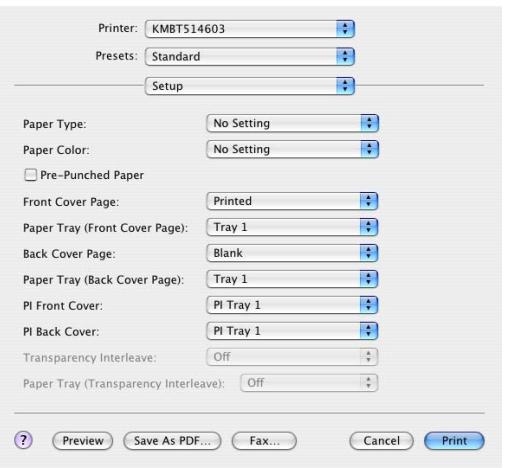

Detail
Refer to the "The method to open the [Print] window" on Page 12-2.
Paper Type
Sets various types of paper sizes as the output paper as shown below.
| Types of paper that can be selected. | |
| No Setting | |
| Plain Paper | |
| Fine | This is set when printing fine paper such as memo paper. |
| Thick 1 | This is set when printing coated paper such as pamphlet. |
| Thick 2 | This is set when printing thick paper such as a post card. |
| Thin | This is set when printing thin paper. |
| Recycled | This is set when printing recycled paper. |
| Label | This is set when printing the paper such as label. |
| Transparency | This is set when printing OHP sheet. |
| Trace | This is set when printing trace paper. |
| User | This is set when printing the user specified paper set on the copier. |
| Blank Insert | This is set when printing blank paper such as cover sheet. |
| Exclusive A - M | This is set when printing the exclusive pa-per. |
The [Transparency] cannot be set in the following cases:
- When the [Paper Sources] is not available in the [Printer Info] window.
Paper Color
Selects the colors of paper as the output paper as shown below.
No Setting
White
Clear
Yellow
Pink
- Blue
Green
Pre-Punched Paper
Selects whether the paper as the output paper is pre-punched or not.
Front Cover Page
Sets a front cover for which paper is different than the text paper.
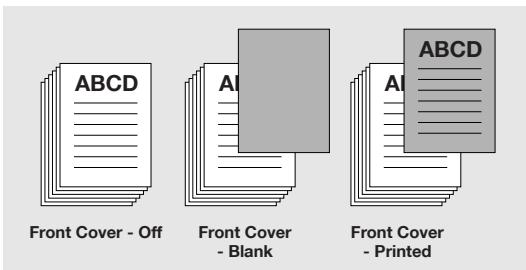
The [Front Cover Page] cannot be set in the following cases:
- When the [Transparency] is selected in the [Print] - [Setup] - [Paper Type]
- When the [Collated] is not available in the [Print] - [Copies & Pages]
- When the [Pages per Sheets] is selected in the [Print] - [Layout]
Paper Tray (Front Cover Page)
Specifies the paper tray for the front cover.
Back Cover Page
Sets a back cover for which paper is different than the text paper.
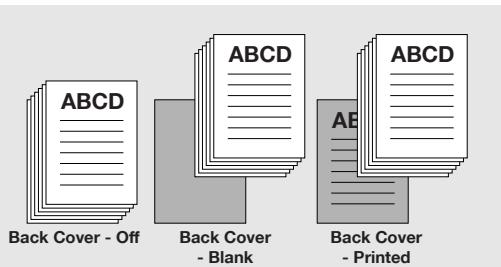
The [Back Cover Page] cannot be set in the following cases:
- When the [Transparency] is selected in the [Print] - [Setup] - [Paper Type]
- When the [Collated] is not available in the [Print] - [Copies & Pages]
- When the [Pages per Sheets] is selected in the [Print] - [Layout]
Paper Tray (Back Cover Page)
Specifies the paper tray for the back cover.
PI Front Cover
Sets a front cover for which paper is from the [PI Tray 1] or [PI Tray 2].
PI Back Cover
Sets a back cover for which paper is from the [PI Tray 1] or [PI Tray 2].
The [PI Front Cover] or [PI Back Cover] cannot be set in the following cases:
- When the [None] is selected for [Cover Sheet Feeder] in the [Printer Info] window.
- When the [Transparency] is not set in [Print] - [Setup] - [Paper Type].
Transparency Interleave
Sets this when you want to use [Transparency Interleave] as paper. Select either [Blank] or [Printed].
The [Transparency Interleave] cannot be set in the following cases:
- When [Transparency] is not set in [Paper Type] of the [Setup] window.
Paper Tray (Transparency Interleave)
Sets this when you want to use the paper feed tray for [Transparency Interleave].
[Paper Tray (Transparency Interleave)] cannot be set in the following cases:
- [Transparency] is not set in [Paper Type] of the [Setup] window.
- [Transparency Interleave] is not set in the [Setup] window.
12.10 Image/Layout (Print window)
Selects [Image/Layout] on the pop-up menu in the [Print] window.
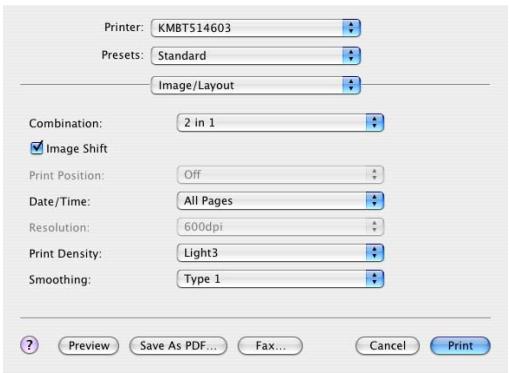

Detail
Refer to the "The method to open the [Print] window" on Page 12-2.
Combination
Prints a document of 2 pages onto a single paper twice as big as the original documents.
Example: 2 A4 size papers are aggregated on 1 A3 size paper.
2 in 1
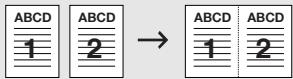
2 Repeat
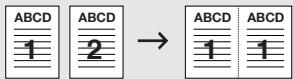
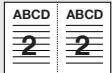
2 Repeat Reversal (L)
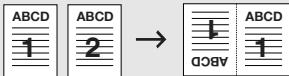
2 Repeat Reversal (R)
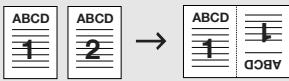
Booklet

The [2in1] and [2 repeat] cannot be set in the following cases:
- When the [Transparency] is selected for [Paper Type] in the [Print] - [Setup].
- When any item other than [Off] is selected for [Front Cover Page], [Back Cover Page], [PI Front Cover] or [PI Back Cover] in the [Print] - [Setup].
Image Shift
Adjusts the details of the printing position to the output paper.
Ex.: When the settings are shifted to the right by 100 and down by 300. (Unit: 0.1mm )
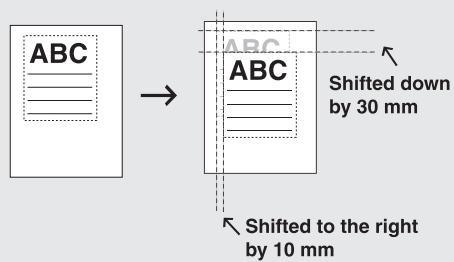
Print Position
Selects the print position. [Top] print using the top of the paper. [Center] print using the center of the paper. [Bottom] print using the bottom of the paper.
Date/Time
Specifies the pages to print the date and time.
All pages: Date/Time is printed in all the pages.
Front Cover Only: Date/Time is printed in the 1st page only.
Resolution
Dlplays the resolution of the printer (600 dpi).
Detail
For the display method of the Date/Time, it can be specified
on the control panel of the copier.
For details, see "User's Guide (Copier)"
Print Density
Selects the printing density.
| Item | Print density | Feature |
| Normal | 100% | Print with normal density. |
| Dark | 102% | You can adjust printing density while main-taining print quality. |
| Light 1 | 98% | |
| Light 2 | 96% | |
| Light 3 | 90% | |
| Light 4 | 80% | |
| Light 5 | 70% | |
| Toner Save | 95% | Reduce toner consumption. |
| Draft Print | 90% | Data other than characters are roughly printed. |
Smoothing
Print the curved section of characters and images smoothly.
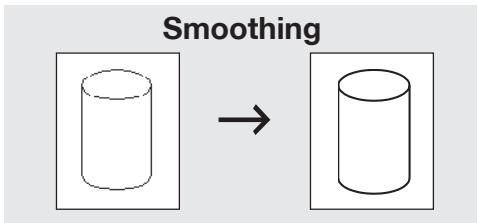
- [Type 1] is suitable for printing the diagonal lines of normal characters and graphics.
- [Type 2] is suitable for printing the curved sections of normal characters.
- [Type 3] is suitable for printing the curved sections of ornamental writings and fine characters.
- When [Off] is selected, no smoothing operation is made.
12.11 Printer Info
You can confirm the printer information on the [Printer List] window.


Detail
Refer to the "The method to open the [Printer Info] window" on Page 12-1.
Printer memory
Sets the printer driver to recognize the printer memory.
Finisher
Selects an installed Finisher.
Punch Z-Fold Unit
Selects an installed Punch Z-Fold Unit.
Cover Sheet Feeder
Selects an installed Cover Sheet Feeder.
Trimmer
Selects an installed Trimmer Unit.
Paper Sources
Selects an installed paper source.
13 Troubleshooting
This chapter describes how to troubleshoot on using the print controller.
13.1 Basic Troubleshooting
This section describes how to troubleshoot. If problems are not resolved by using the following procedure, contact your Konica Minolta service representative.
First check the following ordinary causes of abnormalities:
1 Check the power of the main body printer (copier), computers and cable connections.
2 Check the LCD touch screen of the main body printer to find information concerning the current trouble.
3 Make a print of [Configuration Page Print] from [Report Type] of [Controller] in the Utility Mode of the copier, and check to see if it is set correctly.
Refer to "Test Page Print" on page 4-26 for more information about Test Page.
4 Check the current status of the print controller.
- Check the current status shown on the LCD of the control panel.
- Touch the [Job List] on the touch panel of the copier to check the job status.
When your job is being processed or waiting to be printed:
Windows:
The current status is displayed on the dialog shown by double-clicking [Start] - [Printers and Faxes] - printing system currently used.
Macintosh:
The current status is displayed on the dialog shown by double-clicking the currently-used printer icon on the desktop.
13.2 General Problems of Printing
The Print Controller does not respond to the Print command.
1 Check that the printing system is selected as the current printer.
- The printing system must be selected as the current printer on Windows before printing.
2 Check that the power switch of the copier is turned on.
3 Print the Test Page from Windows/Macintosh.
- When you cannot print a job from an application even though you can print a test print, contact a system administrator or a service representative.
4 If the message "Error" is displayed, check that the control panel is in copy mode, not scanner mode.
Cannot select any media other than [Plain paper] from [Media].
1 For the PCL6 Driver, select [Restore Defaults] from the [Paper] tab or [Cover] tab to restore the default setting.
2 Set [Paper Source] to a setting other than [Auto].
A message requesting a paper size you did not specify is displayed.
1 Cancel the job to change the paper size in the "Page (Paper) Setup" dialog on your application.
2 Touch and select the desired size displayed in the paper sizes area of the control panel, then press [START]. The forced output will start.
You cannot print the test print.
1 Check the LCD of the main body printer control panel.
- When "Ready to copy" is displayed on the LCD, go to Step 3.
- When a diagnostic message or an error message is displayed on the LCD, refer to the operating manual of the main body printer (copier).
- When the LCD is blank, go to Step 2.
2 Press [POWER Saver ON/OFF] on the control panel.
- When the main body printer is used in the Power Save mode, press this switch to show the LCD in the Display mode.
3 Try to make a copy.
- When copying is available, go to Step 4.
4 Turn off the copier and wait for 10 seconds, then restart it. Print the test print again after the print controller is ready.
- Contact your Kona Minolta service representative if you cannot print the test page after performing the above procedures.
The print setting of a job does not correspond to the result of printing.
1 Check that the printer setting was not changed.
Cannot select [Duplex]
1 In the case of the PCL printer driver, click [Restore Defaults] of the [Setup] tab and [Per Page Setting] tab, and return to the state of default.
2 Check that any item other than [Custom Size] or [Japanese Post Card] is selected in [Output Tray]
3 Check that [Paper Type] setting is not [Transparency], [Transparency Interleaving (Blank Sheet)], or [Transparency Interleaving (Printed)].
4 In the case of the PCL printer driver, check that the [Print type] setting is not [Booklet].
Memory Overflow
Depending on the functions selected in the printer driver, occasional memory overflow may occur if the volume of the print job is large. In this case the print job is cancelled.
e.g., Booklet, Fold & Stitch, 2 in 1, etc.
In case of frequent Memory Overflow we recommend that you extend the memory capacity in the main body printer (copier).
- When "Print Controller Memory Overflow" is displayed on the LCD Touch Screen when you are using Duplex printing or another Application function, you may cancel the print job and try to reprint with another function.
13.3 General Problems of PostScript
A PostScript Error message displays.
A search can be made from [http://support.adobe.com/devsup/devsup.nsf/main.html].
PostScript Error messages such as "VMerror" and "limitcheck" display.
The printer (copier) may be short on memory capacity. Consider upgrading the memory.
A PostScript Error message displays when attempting to get a printout from any computers are in use.
There may be loose connections in the printing system. Recheck all of connections.
A PostScript Error message displays when attempting to get a printout from a specific application.
Error conditions may exist in the application. Try to print out a simple test file. If this also does not succeed, reinstall the application in question.
A PostScript Error message displays when attempting to get a printout from a specific file.
It is possible that the print setting for the file is wrong, that graphics contained in the file are damaged, or that bad elements are contained in the file.
Find a print setting that does not cause any PostScript Error message to appear, and try to get a printout. If this fails, save the file as a new file.
A PostScript Error message displays when attempting to get a printout of a specific page.
It is possible that elements or fonts used in the page are damaged, or a larger memory capacity than currently available capacity is needed for the printout.
Try to print with specifying one element or font of the various ones in the page. If this trial causes no problems, consider upgrading the memory.
Fonts cannot be downloaded.
It is possible that [Spool] is set to [On] in Printer Setting Menu on the copier's control panel.
Set [Spool] to [Off], switch off the copier's main power, wait 10 seconds or more, switch it back on, and then try downloading fonts again.
For details on how to download fonts, refer to the User's Guide that comes with the fonts.
Non fixed size paper can not be printed correctly (Macintosh).
The direction in which non fixed size paper is loaded in the copier may be incorrect.
Rotate the paper direction 90 degrees and then try printing after changing the settings of the driver and copier accordingly.
13.4 Checking on Incomplete Jobs
If print jobs are not printed, you can check them on the Non complete Job List screen.
To get the Non complete Job List screen to appear:
1 Press [Job List] on the LCD panel.
2 Press [Incomplete].
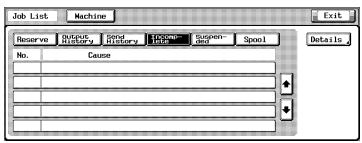
3 Check the Incomplete job.

Detail
For more information about job list, consult your system administrator.
14 Font
This chapter describes the font.
14.1 Font List (PCL)

KONICA MINOLTA
pcl font list
PCL Internal Fonts
| Font | Pitch/Point | Orient | Escape Sequence | Font# | FontID |
| Courier | Scalable | Port | <esc><01x<esc>(a0p10h0a0b4099T | I-0 | |
| CG Times | Scalable | Port | <esc><01x<esc>(a1p12v0a0b4101T | I-1 | |
| CG Times Bold | Scalable | Port | <esc><01x<esc>(a1p12v0a3b4101T | I-2 | |
| CG Times Italic | Scalable | Port | <esc><01x<esc>(a1p12v1a0b4101T | I-3 | |
| CG Times Bold Italic | Scalable | Port | <esc><01x<esc>(a1p12v1a3b4101T | I-4 | |
| CG Omega | Scalable | Port | <esc><01x<esc>(a1p12v0a0b4113T | I-5 | |
| CG Omega Bold | Scalable | Port | <esc><01x<esc>(a1p12v0a3b4113T | I-6 | |
| CG Omega Italic | Scalable | Port | <esc><01x<esc>(a1p12v1a0b4113T | I-7 | |
| CG Omega Bold Italic | Scalable | Port | <esc><01x<esc>(a1p12v1a3b4113T | I-8 | |
| Correspond | Scalable | Port | <esc><01x<esc>(a1p12v1a0b4116T | I-9 | |
| Clarendon Condensed | Scalable | Port | <esc><01x<esc>(a1p12v4a3b4140T | I-10 | |
| Univers Medium | Scalable | Port | <esc><01x<esc>(a1p12v0a0b4148T | I-11 | |
| Univers Bold | Scalable | Port | <esc><01x<esc>(a1p12v0a3b4148T | I-12 | |
| Univers Medium Italic | Scalable | Port | <esc><01x<esc>(a1p12v1a0b4148T | I-13 | |
| Univers Bold Italic | Scalable | Port | <esc><01x<esc>(a1p12v1a3b4148T | I-14 | |
| Univers Med. Condensed | Scalable | Port | <esc><01x<esc>(a1p12v4a0b4148T | I-15 | |
| Univers Bold Condensed | Scalable | Port | <esc><01x<esc>(a1p12v4a3b4148T | I-16 | |
| Univers Med. Cond. It. | Scalable | Port | <esc><01x<esc>(a1p12v5a0b4148T | I-17 | |
| Univers Bold Cond. It. | Scalable | Port | <esc><01x<esc>(a1p12v5a3b4148T | I-18 | |
| Antique Olive | Scalable | Port | <esc><01x<esc>(a1p12v0a0b4168T | I-19 | |
| Antique Olive Bold | Scalable | Port | <esc><01x<esc>(a1p12v0a3b4168T | I-20 | |
| Antique Olive Italic | Scalable | Port | <esc><01x<esc>(a1p12v1a0b4168T | I-21 | |
| Garamond Antiqua | Scalable | Port | <esc><01x<esc>(a1p12v0a0b4197T | I-22 | |
| Garamond Halbfett | Scalable | Port | <esc><01x<esc>(a1p12v0a3b4197T | I-23 | |
| Garamond Kursiv | Scalable | Port | <esc><01x<esc>(a1p12v1a0b4197T | I-24 | |
| Garamond Kursiv Halbfett | Scalable | Port | <esc><01x<esc>(a1p12v1a3b4197T | I-25 | |
| Martigold | Scalable | Port | <esc><01x<esc>(a1p12v0a0b4297T | I-26 | |
| Albertus Medium | Scalable | Port | <esc><01x<esc>(a1p12v0a1b4362T | I-27 | |
| Albertus Extra Bold | Scalable | Port | <esc><01x<esc>(a1p12v0a4b4362T | I-28 | |
| Aerial | Scalable | Port | <esc><01x<esc>(a1p12v0a0b16602T | I-29 | |
| Aerial Bold | Scalable | Port | <esc><01x<esc>(a1p12v0a3b16602T | I-30 | |
| Aerial Italic | Scalable | Port | <esc><01x<esc>(a1p12v1a0b16602T | I-31 |

KONICA MINOLTA
pcl font list
| Ariel Bold Italic | Scalable | Port | <esc> (01X<esc> (slp12v1s3b16602T | I-32 |
| Times New Roman | Scalable | Port | <esc> (01X<esc> (slp12v0s0b16901T | I-33 |
| Times New Roman Bold | Scalable | Port | <esc> (01X<esc> (slp12v0s3b16901T | I-34 |
| Times New Roman Italic | Scalable | Port | <esc> (01X<esc> (slp12v1s0b16901T | I-35 |
| Times New Roman Bold It. | Scalable | Port | <esc> (01X<esc> (slp12v1s3b16901T | I-36 |
| Helvetica | Scalable | Port | <esc> (01X<esc> (slp12v0s0b24580T | I-37 |
| Helvetica Bold | Scalable | Port | <esc> (01X<esc> (slp12v0s3b24580T | I-38 |
| Helvetica Oblique | Scalable | Port | <esc> (01X<esc> (slp12v1s0b24580T | I-39 |
| Helvetica Bold Oblique | Scalable | Port | <esc> (01X<esc> (slp12v1s3b24580T | I-40 |
| Helvetica Narrow | Scalable | Port | <esc> (01X<esc> (slp12v4s0b24580T | I-41 |
| Helvetica Narrow Bold | Scalable | Port | <esc> (01X<esc> (slp12v4s3b24580T | I-42 |
| Helvetica Narrow Oblique | Scalable | Port | <esc> (01X<esc> (slp12v5s0b24580T | I-43 |
| Helvetica Narrow Bold Oblique | Scalable | Port | <esc> (01X<esc> (slp12v5s3b24580T | I-44 |
| Palatino Roman | Scalable | Port | <esc> (01X<esc> (slp12v0s0b24591T | I-45 |
| Palatino Bold | Scalable | Port | <esc> (01X<esc> (slp12v0s3b24591T | I-46 |
| Palatino Italic | Scalable | Port | <esc> (01X<esc> (slp12v1s0b24591T | I-47 |
| Palatino Bold Italic | Scalable | Port | <esc> (01X<esc> (slp12v1s3b24591T | I-48 |
| ITC Avant Garde Gothic Book | Scalable | Port | <esc> (01X<esc> (slp12v0s0b24607T | I-49 |
| ITC Avant Garde Gothic Demi | Scalable | Port | <esc> (01X<esc> (slp12v0s2b24607T | I-50 |
| ITC Avant Garde Gothic Book Oblique | Scalable | Port | <esc> (01X<esc> (slp12v1s0b24607T | I-51 |
| ITC Avant Garde Gothic Demi Oblique | Scalable | Port | <esc> (01X<esc> (slp12v1s2b24607T | I-52 |
| ITC Bookman Light | Scalable | Port | <esc> (01X<esc> (slp12v0s-3b24623T | I-53 |
| ITC Bookman Demi | Scalable | Port | <esc> (01X<esc> (slp12v0s2b24623T | I-54 |
| ITC Bookman Light Italic | Scalable | Port | <esc> (01X<esc> (slp12v1s-3b24623T | I-55 |
| ITC Bookman Demi Italic | Scalable | Port | <esc> (01X<esc> (slp12v1s2b24623T | I-56 |
| New Century Schoolbook Roman | Scalable | Port | <esc> (01X<esc> (slp12v0s0b24703T | I-57 |
| New Century Schoolbook Bold | Scalable | Port | <esc> (01X<esc> (slp12v0s3b24703T | I-58 |
| New Century Schoolbook Italic | Scalable | Port | <esc> (01X<esc> (slp12v1s0b24703T | I-59 |
| New Century Schoolbook Bold Italic | Scalable | Port | <esc> (01X<esc> (slp12v1s3b24703T | I-60 |
| Times Roman | Scalable | Port | <esc> (01X<esc> (slp12v0s0b25093T | I-61 |
| Times Bold | Scalable | Port | <esc> (01X<esc> (slp12v0s3b25093T | I-62 |
| Times Italic | Scalable | Port | <esc> (01X<esc> (slp12v1s0b25093T | I-63 |
| Times Bold Italic | Scalable | Port | <esc> (01X<esc> (slp12v1s3b25093T | I-64 |

KONICA MINOLTA
pcl font list
| ITC Zapf Chancery Medium Italic | Scalable | Port | <esc> (01X<esc> (s1p12v1s0b45099T | I-65 |
| ☆※☆□☆☆☆☆▲ | Scalable | Port | <esc> (14L<esc> (s1p12v0s0b45101T | I-66 |
| ITC Zapf Dingbats | ||||
| ΣψμβολSymbol | Scalable | Port | <esc> (19M<esc> (s1p12v0s0b16686T | I-67 |
| ΣψμβολΠΣSymbolPS | Scalable | Port | <esc> (19M<esc> (s1p12v0s0b45358T | I-68 |
| Φ)■(η,Ω)■(η,ρ)Wingdings | Scalable | Port | <esc> (579L<esc> (s1p12v0s0b6826T | I-69 |
| Courier Bold | Scalable | Port | <esc> (01X<esc> (s0p10h0s3b4099T | I-70 |
| Courier Italic | Scalable | Port | <esc> (01X<esc> (s0p10h1s0b4099T | I-71 |
| Courier Bold Italic | Scalable | Port | <esc> (01X<esc> (s0p10h1s3b4099T | I-72 |
| Letter Gothic2 | Scalable | Port | <esc> (01X<esc> (s0p10h0s0b4102T | I-73 |
| Letter Gothic Bold | Scalable | Port | <esc> (01X<esc> (s0p10h0s3b4102T | I-74 |
| Letter Gothic Italic | Scalable | Port | <esc> (01X<esc> (s0p10h1s0b4102T | I-75 |
| CourierPS | Scalable | Port | <esc> (01X<esc> (s0p10h0s0b24579T | I-76 |
| CourierPS Bold | Scalable | Port | <esc> (01X<esc> (s0p10h0s3b24579T | I-77 |
| CourierPS Oblique | Scalable | Port | <esc> (01X<esc> (s0p10h1s0b24579T | I-78 |
| CourierPS Bold Oblique | Scalable | Port | <esc> (01X<esc> (s0p10h1s3b24579T | I-79 |
| Line Printer ON | 16.67/8.52 | Port | <esc> (00N<esc> (s0p16.67h8.52v0s0b0T | I-80 |
| Line Printer 1U | 16.67/8.52 | Port | <esc> (01U<esc> (s0p16.67h8.52v0s0b0T | I-81 |
| Line Printer 2N | 16.67/8.52 | Port | <esc> (02N<esc> (s0p16.67h8.52v0s0b0T | I-82 |
| Line Printer 5N | 16.67/8.52 | Port | <esc> (05N<esc> (s0p16.67h8.52v0s0b0T | I-83 |
| Line Printer 6N | 16.67/8.52 | Port | <esc> (06N<esc> (s0p16.67h8.52v0s0b0T | I-84 |
| Line Printer 8U | 16.67/8.52 | Port | <esc> (08U<esc> (s0p16.67h8.52v0s0b0T | I-85 |
| Line Printer 9N | 16.67/8.52 | Port | <esc> (09N<esc> (s0p16.67h8.52v0s0b0T | I-86 |
| Line Printer 10U | 16.67/8.52 | Port | <esc> (10U<esc> (s0p16.67h8.52v0s0b0T | I-87 |
| Line Printer 11U | 16.67/8.52 | Port | <esc> (11U<esc> (s0p16.67h8.52v0s0b0T | I-88 |
| Line Printer 12U | 16.67/8.52 | Port | <esc> (12U<esc> (s0p16.67h8.52v0s0b0T | I-89 |
14.2 Font List (PostScript)
PostScript* Fonts
Albertus ‡
Albertus Italic
Albertus Light
AntiqueOlive Bold
AntiqueOlive Compact
AntiqueOlive Italic
AntiqueOlive Roman
Apple Chancery
Ariel ‡
Ariel Bold ‡
Ariel Bold Italic
Ariel Italic
ITC AvantGarde Gothic Book
ITC AvantGarde Gothic Book Oblique
ITC AvantGarde Gothic Demi
ITC AvantGarde Gothic Demi Oblique
Bodoni
Bodoni Bold
Bodoni Bold Italic
Bodoni Italic
Bodoni Poster
Bodoni Poster Compressed
ITC Bookman Demi
ITC Bookman Demi Italic
ITC Bookman Light
ITC Bookman Light Italic
Carta
Chicago
Clarendon †
Clarendon Bold
Clarendon Light†
CooperBlack
CooperBlack Italic
Copperplate Gothic 33BC
Copperplate Gothic 32BC
Coronet
Courier
Courier Bold
Courier Bold Oblique
Courier Oblique
Eurostile
Eurostile Bold
Eurostile Bold Extended Two
ABCDEFGabcdefg0123456789}||!@{$%^&*?<>~"
ABCDEFGabcdefg0123456789||}!@ $%^&^?<->"
ABCDEFGabcdefgo123456789||}!@${%^&*?<>~"
ABCDEFGabcdefg0123456789[0]!@$%^&*?<>~
ABCDEFGabcdefg0123456789[{}]!@#$%^&*?<>~''
ABCDEFGabcdefg0123456789!0!@$%^&*?<>~
ABCDEFGabcdefg0123456789I[]!@#$%^&*?<>~"
ABCDEFGabcdefq0123456789}!@#$%^&*?<>~"
ABCDEFGabcdefq0123456789prod}!@#$%^&*?<~~"
ABCDEFGabcdefg0123456789||!@$\%^&*?<~"
ABCDEFGabcdefg0123456789[]!@#$%^&*?<>~"
ABCDEFGabcdefg0123456789}!}@#$%^&*?<>~"
ABCDEFGabcdefg01234567890{!}@#$%^&*?<>~"
ABCDEFGabcdefg01234567890{!@${%}^&*?<>~"
ABCDEFGabcdefg0123456789(){!@${%^*?<>~"
ABCDEFGabcdefg0123456789()!@{$%^*?<~"
ABCDEFGabcdefg0123456789[}{}!@#$%^&*?<>
ABCDEFGabcdefg0123456789|!@@$%^&*?~"
ABCDEFGabcdefg0123456789[][]!@#$%^&*?<~"
ABCDEFGabcdefg0123456789```}!@{\$%^&*?<>~"
ABCDEFGabcdefg0123456789[{}]!@#$%^&*?<>~"
ABCDEFGabcdefgo123456789D!@#$%^&*?<>~"
ABCDEFGabcdefg0123456789[]{}!@$%^&*?<>~"
ABCDEFGabcdefg0123456789[!]!@$%^&*?<>~"
ABCDEFGabcdefg0123456789[!]!@$%^&*?<>~
ABCDEFGabcdefg0123456789[]{}!@$%^&*?<~~"
ABCDEFGabcdefg0123456789[]{!}@#$%^&*?<>~"
ABCDEFGabcdefg0123456789[]{}!@#$%^&*?<>~"
ABCDEFGabcdefg0123456789[{!}!@#$%^&*?<~"
ABCDEFGabcdefg0123456789[]!@#$%^&*?<~"
ABCDEFGabcdefgo123456789[]!@#$%^&*?<~"
ABCDEFGabcdefg0123456789[!]!@%^G^*?<~^
ABCDEFGABCDEFG0123456789[][]!@#$%^&*?<~
ABCDEFGABCDEFGO123456789[}{}!@${%^&?<->"
ABCDCTGabcddfo123456789}//!@#%^&^?
ABCDEFGabcdefg0123456789[] {}!@ S%^\& *?<~~~
ABCDEFGabcdefg0123456789[] {}!@( \%^{\wedge} &\ast )?<>)
ABCDEFGabcdefg0123456789 [] { }!@#$%^&*?<~~~
ABCDEFGabcdefg0123456789[] { }!@$%^&*?<~~~
ABCDEFGabcdefg0123456789[]{}!@$\%^&*?<~"
ABCDEFGabcdefg0123456789[]!@#$%^&*?<~"
ABCDEFGabcdefg0123456789[!]!@ $%^&?
PostScript* Fonts
Eurostile Extended Two
Geneva
GillSans ‡
GillSans Bold ‡
GillSans Condensed Bold ‡
GillSans Bold Italic
GillSans Condensed ‡
GillSans Extra Bold
GillSans Italic ‡
GillSans Light
GillSans Light Italic
Goudy Oldstyle
Goudy Bold
Goudy Bold Italic
Goudy ExtraBold
Goudy Oldstyle Italic
Helvetica†
Helvetica Bold
Helvetica Bold Oblique †
Helvetica Condensed †
Helvetica Condensed Bold†
Helvetica Condensed Bold Oblique
Helvetica Condensed Oblique
Helvetica Narrow †
Helvetica Narrow Bold †
Helvetica Narrow Bold Oblique
Helvetica Narrow Oblique
Helvetica Oblique †
HoefferText Black
HoeflerText Black Italic
HoeflerText Italic
HoeflerText Ornaments
HoeflerText
Joanna ‡
Joanna Bold ‡
Joanna Bold Italic
Joanna Italic
LetterGothic
LetterGothic Bold
LetterGothic Bold Slanted
LetterGothic Slanted
ITC Lubalin Graph Book
ITC Lubalin Graph Book Oblique
ABCDEFGabcdefg012345678900!@#$%o^&*?<>
ABCDEFGabcdefq0123456789[]{}!@#$%^&*?<>~"
ABCDEFGabcdefg0123456789[]!@#$%^&*?<>~
ABCDEFGabcdefg0123456789{!}@#$%^&*?<>~"
ABCDEFGabcdefg0123456789[{}!@$\%^&*?<>~"
ABCDEFGabcdefg0123456789[!]{!@#%^&?<>~"
ABCDEFGabdefg0123456789[!]{!}@#%^&*?<>~"
ABCDEFGabcdefg0123456789[0!@#$%^&*?<~"
ABCDEFGabcdefg0123456789[]!@#$%^&*?<~"
ABCDEFGabcdefg0123456789[{},{@}#\ %^& *?<>~"
ABCDEFGabcdefg0123456789||!@#$%^&*?<~"
ABCDEFGabcdefg0123456789]}{!@\$\%^&*\?<->~"
ABCDEFGabcdefg0123456789[]!@#$%^&*?<>~"
ABCDEFGabcdefg0123456789[{}]!@${%^&*?<>~''
ABCDEFGabcdefg0123456789[!]!@ %^& *?<>~"
ABCDEFGabcdefg0123456789[]!@#$%^&*?<~~"
ABCDEFGabcdefg0123456789[]!@${%^&*?<>~"
ABCDEFGabcdefg0123456789[{}]!@#$%^&*?<>~"
ABCDEFGabcdefg0123456789[]!@#$%^&*?<>~"
ABCDEFGabcdefg0123456789[{}]!@${%^&*?<>~"
ABCDEFGabdefg0123456789[{}]!@$\%^&^?<>~"
ABCDEFGabcdefg0123456789[{!}@{$%^}^&*?<>~"
ABCDEFGabcdefg0123456789[]!@$\%^&^?<>~"
ABCDEFGabcdefg0123456789[]!@#$%^&*?<>~
ABCDEFGabcdefg0123456789[]!@#$%^&?<~"
ABCDEFGabcdefg0123456789I!}@#$%^&^?<>~"
ABCDEFGabcdefq0123456789||}!@${%^&*?<>~"
ABCDEFGabcdefg0123456789[]!@#$%^&*?<->"
ABCDEFGabcdefgo123456789}!@#$%^&*?<>"
ABCDEFGabcdefgo123456789[]!@ 8%^ ^{\text{空}?\text{<}>}"
ABCDEFGabcdefgo123456789||!@#$%^?<?->"
20000000000000000000
ABCDEFGabcdefgo123456789[0]!@#$%^&*?<>--
ABCDEFGabcdefg0123456789门}!@#$%^&*?<~~"
ABCDEFGabcdefg0123456789[{}@#$%^&*?<~~"
ABCDEFGabcdefg0123456789[}!@#$%^&*?<>~"
ABCDEFGabcdefg0123456789门{!@#$%^&*?<>~"
ABCDEFGabcdefg0123456789[()!@#%^&?<>~"
ABCDEFGabcdefq0123456789[!]!@#/$$%^&*?<>~"
ABCDEFGabcdefg0123456789[!]!@!$%^&?<>~"
ABCDEFGabcdefq0123456789[!]!@!$%^&?<>~"
ABCDEFGabcdefg0123456789[!]!@#$%^&*?<>~"
ABCDEFGabcdefg0123456789[!]!@$%^&*?<>~"
PostScript* Fonts
ITC Lubalin Graph Demi
ITC Lubalin Graph Demi Oblique
Marigold
ITC Mona Lisa Recut
Monaco a
New Century Schoolbook Bold†
New Century Schoolbook Bold Italic
New Century Schoolbook Italic
New Century Schoolbook Roman
NewYork a
Optima†
Optima Bold†
Optima Bold Italic
Optima Italic
Oxford
Palatino Bold
Palatino Bold Italic
Palatino Italic
Palatino Roman †
Stempel Garamond Bold
Stempel Garamond Bold Italic
Stempel Garamond Italic
Stempel Garamond Roman †
ITC Symbol
Tekton
Times Bold
Times Bold Italic
Times Italic
Times Roman †
Times New Roman
Times New Roman Bold ‡
Times New Roman Bold Italic
Times New Roman Italic
Univers †
Univers Bold†
Univers Bold Oblique †
Univers Oblique †
Univers Light
Univers Light Oblique
UniversCondensed †
UniversCondensed Bold
UniversCondensed Bold Oblique
UniversCondensed Oblique
ABCDEFGabcdefg0123456789[!]!!@$%^&^?<>~"
ABCDEFGabcdefg0123456789[!]!@#$%^&*?<>~
ABCDEFGabcdefg0123456789}!}@#$%^&*?< > ~
ABCDEFEGabcdefg0123456789|||@#$^0^g*?~
ABCDEFGabcdefq0123456789[} {!@$\%^{\&}*<~^{"}
ABCDEFGabcdefg0123456789[{!}@#$%^&*?<>~"
ABCDEFGabcdefg0123456789[{!}@#$%^&*?<~"
ABCDEFGabcdefg0123456789[!]!@{$%^&*?<~"
ABCDEFGabcdefg0123456789||}!@#$%^&*?<~"
ABCDEFGabcdefg0123456789[{}{}!@\$\%^&*?<>~"
ABCDEFGabcdefg0123456789[{}]!@#$%^&*?<>~
ABCDEFGabcdefg0123456789[]!@#$%^&*?<->"
ABCDEFGabcdefg0123456789[]!@{$%^&*?<>~''
ABCDEFGabcdefg0123456789[]!@#$%^&*?<>~
ABCDEFGabcdefg0123456789}!{@ $%^&?<>~^
ABCDEFGabcdefg0123456789[!]!@${%^&*?<>~"
ABCDEFGabcdefg0123456789[]!@#$%^&*?<~~~
ABCDEFGabcdefg0123456789[]!@#$%^&*?<>~
ABCDEFGabcdefg0123456789[{!}!@#$%^&*?<>~"
ABCDEFGabcdefg0123456789[!]{!@#$%^&*?<~"
ABCDEFGabcdefg0123456789///!@#$%^&*?<~"
ABCDEFGabcdefg0123456789[][]!@{\%^\&\^?<~"
ABCDEFGabcdefg0123456789[{}]!@$\%^&*?<->"
ABX△EΦΓαβχδεφγ0123456789[}{}!=#3%⊥&&?<~
ABCDEFGabcdefg0123456789||!@#$%^&*?< >~
ABCDEFGabcdefg0123456789[{!}@#$%^&*?<>~"
ABCDEFGabcdefg0123456789[]!@#$%^&*?<>~''
ABCDEFGabcdefg0123456789[]!@{$%^&*?<~}
ABCDEFGabcdefg0123456789||}!@${%^&*?<>~"
ABCDEFGabcdefg0123456789[}!@#$%^&*?~~"
ABCDEFGabcdefg0123456789]{{{}@#$%^&*?<~"
ABCDEFGabcdefg0123456789!!{!@#$%^&*?~~~~''
ABCDEFGabcdefg0123456789JI!@#$%^&*?<~
ABCDEFGabcdefg0123456789[]{}!@$\%^&*?<~"
ABCDEFGabcdefg0123456789[]{}!@{\$\%^\&*?<~''
ABCDEFGabcdefg0123456789[!]{!@#$%^&*?<>~"
ABCDEFGabcdefg0123456789[]}!@{$%^&*?<>~''
ABCDEFGabcdefq0123456789[]!@#$%^&*?<~
ABCDEFGabcdefg0123456789[]!@#$%^&*?<~"
ABCDEFGabcdefg0123456789[]!@{$%^&*?<>~
ABCDEFGabcdefg0123456789[{!}@#$%^&*?<>~"
ABCDEFGabcdefg0123456789[][]!@#$%^&*?<>~
ABCDEFGabcdefg0123456789}!@${%^^*?<>~"
PostScript® Fonts
UniversExtended†
UniversExtended Bold
UniversExtended Bold Oblique
UniversExtended Oblique
Wingdings
ITC ZapfChancery Mediumltalic
ITC ZapDingbats
ABCDEFGabcdefg0123456789[]{}!@$\%^&*?<>~"
ABCDEFGabcdefg0123456789[]!@#$%^&*?<>~
ABCDEFGabcdefg0123456789[]!@#$%^&*?<>~
ABCDEFGabcdefg0123456789[!]{!@#$%^&*?<>~
ABCDEFGabcdefg0123456789[]!@#%^♂?<>~
中
Adobe, PostScript, the Adobe logo and the PostScript logo are trademarks of Adobe.
of Adobe Systems Incorporated which may be registered in certain jurisdictions.
registered trademark of AlphaOmea Taperophy
Trademark of Apple Computer, Inc.
假 registered trademark of Ludlow Type Foundry
- registered trademark of International Typeface Corporation
† trademark of Linotype-Hell AG and/or its subsidiaries
Registered trademark of Marcel Olive
Trademarks of Microsoft Corporation
trademark of The Monotype Corporation.
14.3 Screen Fonts
True type font other than the standard fonts of Windows is contained in the attached CD-ROM as the Screenfont.
Installing the screen font into your system accomplishes the WYSIWYG environment of the printer font and True type font. Resultantly, the printing performance may be also improved.
True type font installation procedure (Windows 98/Me/NT4.0/2000/XP/Server 2003)
1 Click [Start] of task bar.
2 Select [Settings]. (Windows 98/Me/NT4.0/2000 only)
3 Select [Control Panel]. [Control Panel] window appears.
4 Double-click [Fonts] icon.
- If you use Windows XP/Server 2003, click [Appearance and Themes] and then click [Fonts] under [See Also].
[Fonts] window appears.
5 Select [File] menu.
6 Select [Install New Font].
[Add Fonts] dialog appears.
7 Select a font to be added from the [Screenfont] folder of IC-203 CD-ROM or [EN\Screen Fonts\PS Screen Fonts\TrueType (Core OS)] folder of PS-503 CD-ROM.
8 Turn on [Copy fonts to Fonts folder] check box.
9 Click [OK].
PostScript Type 1 fonts are contained in the PS-503 CD-ROM.
The PostScript Type 1 font has the same design as the internal printer font. It is recommended to install this font when desiring to match the monitor display with printed results in the case of printing when using the printer font.
For a list of the types of fonts available, refer to "Font List (PostScript)" on Page 14-4.
For details on the installation of screen fonts, refer to the ReadMe file in the Mac or Windows folder on the "PS-503 CD-ROM."
The "PS-503 CD-ROM" includes two ReadMe files, one in the Mac folder, and the other in the Windows folder. They are distinguished as follows:
ReadmeE.txt in the Windows folder
Readme(E) in the Mac folder
Screenfonts Installation procedure
A.How to install PostScript Type1 fonts under Windows 98/Me/NT 4.0
In order to use PostScript Type 1 fonts in Windows 98/Me/NT 4.0, you must first install Adobe Type Manager (ATM), and then install the fonts through ATM. ATM version 4.0 or higher is required for Windows 98/Me/NT4.0.
If ATM is not installed, you will need to install an ATM compliant to your OS using the "PS-503 CD-ROM."
Refer to "C. How to install ATM" on Page 14-13.
If ATM version is lower than which mentioned above, you must first uninstall the lower ATM, and then install adequate ATM.
To Install Type1 fonts in Windows 98 and NT 4.0 using ATM Light 4.1:
1 Choose [Start] - [Programs] - [Adobe] - [Adobe Type Manager] - [Adobe Type Manager 4.1].
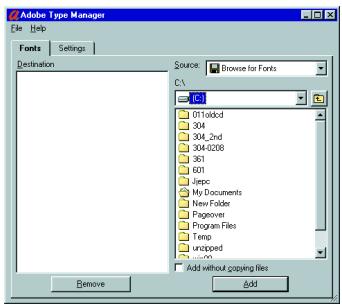
2 In ATM, click [Font] tab.
3 Choose [Browse For Fonts] from the [Source] pop-up menu.
4 Select to "EN\Screen Fonts\PS Screen Fonts\Type 1 Fonts" folder on the "PS-503 CD-ROM".
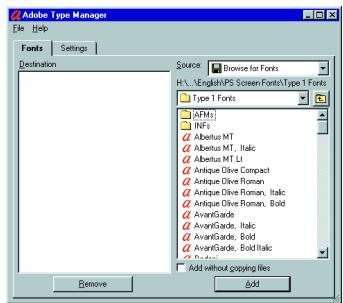
5 Select the fonts you want to install. You can click to select one font, Ctrl-click to select several fonts, or Shift-click to select a contiguous group of fonts.
6 Press [Add] button to install the fonts.
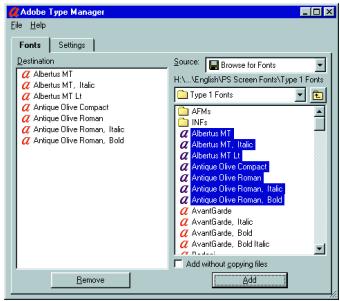
7 Exit ATM.
B.How to install PostScript Type1 in Windows 2000/XP/Server 2003
Windows 2000/XP/Server 2003 supports PostScript Type 1 fonts at the system level just like TrueType fonts. You do not need to install ATM.
1 Choose [Start] - [Setting] - [Control Panel].
2 Double-click on the [Fonts] icon.
3 Go to the [File] menu, select [Install new font].
4 In the [Folders] pane at the lower left, navigate to the location "\EN\Screen Fonts\PS Screen Fonts\Type 1 Fonts" folder on the "PS-503 CD-ROM".
5 Click on [Select all].
6 Click on [OK].
C. How to install ATM
1 Turn on computer and start Windows.
- ATM install program will require restart the computer after installation. Before installation, exit from all active applications, if running.
2 Double-click [atm41eng.exe] file in the “\EN\Screenfonts” folder of the "PS-503 CD-ROM".
The setup program starts running and an installation window appears.
3 Click [Next].
4 Select your country, then click [Next].
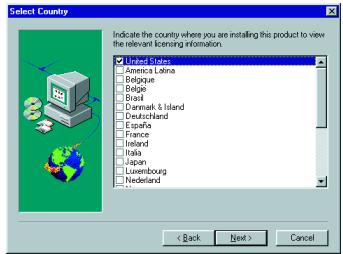
5 Click [Yes].
-
Use of Adobe Type Manager (ATM) is subject to the terms and conditions of the [Software License Agreement]. If you agree by them, click [Yes].
-
The [User Information] window appears.
6 Type in user information (Name, Company), then click [Next]. You are asked to confirm your entry. If it is OK, click [Yes].
The [Select Components] window appears.
7 Click [Next].
![KONICA MINOLTA IC 203 - Click [Next]. - 1](/content/2025/01/139719/images/595d291a76b1998e5a762578b4e708ff8dfab9fc23783ae421a4deb8c12f0ced.jpg)
8 Click [Next].
The [Start Copying Files] window appears.
9 Click [Next].
The file copy process starts. Upon completion of the process, The [Adobe Type Manager] window appears.
10 Click [Finish].
- When the [Display Adobe Type Manager Read Me file.] check box is checked, clicking [Finish] opens the ReadMe file.
- After closing the ReadMe file or unchecking [Display Adobe Type Manager Read Me file.] check box, the [Setup Com
![KONICA MINOLTA IC 203 - Click [Finish]. - 1](/content/2025/01/139719/images/b7d31da20cb00a76c33ac0a8b4522438ee018a872f8622101d68577cfc2d8104.jpg)
plete] window will appear when you click [Finish].
11 Click [Finish] and Windows restarts.
- When Windows is restarted, Adobe Type Manager (ATM) goes into effect.
![KONICA MINOLTA IC 203 - Click [Finish] and Windows restarts. - 1](/content/2025/01/139719/images/2370927daecb7f60e572541d33253b6fbb8186cf3681ed2b4fe2c79d5f6c7c07.jpg)
14.4 PostScript Downloading New Fonts

Reminder
In case of downloading fonts, see your system administrator.
Select [disk0] when downloading fonts onto the hard disk in the Print Controller.
Downloaded to [disk1], the fonts are not available for use.
Downloading fonts to [disk1] might result in the Print Controller not functioning Properly

Note
After having downloaded fonts, turn the copier off, wait 10 seconds at least, then turn it back on. If you don't do so, you cannot use the downloaded fonts Properly.
For details on how to download fonts, refer to the User's Guide that comes with the fonts.
15 Utility Tool
This chapter describes how to use the Utility Tool.
15.1 PageScope Web Connection
PageScope Web Connection can be used through the Browser application.
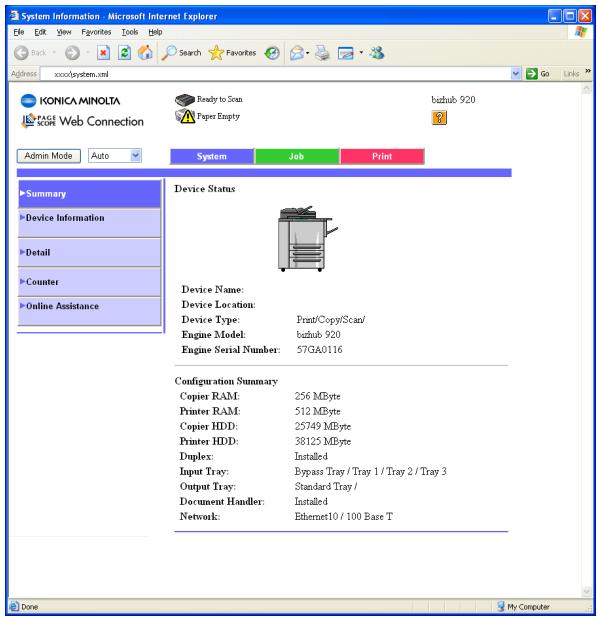

Note
This chapter describes the function which can be used by non-administrator of the print controller. About the functions used by the administrator, refer to the "Copier's User's Guide for POD Administrator" for more information about copier.
When the [Enhanced Security] is ON, the PageScope Web Connection function cannot be used. When the [Enhanced Security] is turned from ON to OFF, the PageScope Web Connection function is kept at [OFF].
To enable the PageScope Web Connection function, contact your administrator.
15.1.1 Outline of the PageScope Web Connection
This section describes the outline of the PageScope Web Connection.
The Administrator of the print controller can change the settings of the print controller with this tool.
The general users can display the status of the print controller but cannot change the settings.
This chapter describes the functions that can be used by the general user.
Status to be shown
You can display the status of the print controller by using PageScope Web Connection.
The status you can display are as follows;
- Summary
Device Information - Detail - Input Tray
- Detail - Output Tray
- Detail - Hard Disk
- Detail - Interface Information
- Detail - Consumables
Counter
Online Assistance
Active Job List - Prin
Active Job List - Scan Send - Done Job List - Print
- Done Job List - Scan Send
- Default Setting - General Setting
- Default Setting - PCL Setting
- Default Setting - PS Setting
- Default Setting - TIFF Setting
Report to be printed
You can print the report as follows;
- Configuration page
- PCL Font List
PCL Demo Page
PostScript Font List
PostScript Font Page
15.1.2 Start the PageScope Web Connection
How to start the PageScope Web Connection
PageScope Web Connection can be used through the Browser application.
1 Start the Browser application.
2 Enter the IP address of the print controller in the [Address] and press the [Enter] / [Return] key.
The top page of the PageScope Web Connection appears.

Detail
Contact your administrator about IP address of the print controller.
Display the variable status
Summary
1 Click [System] from the top navigation. The [System] page appears.
2 Click [Summary] from the left navigation. The [Summary] page appears.
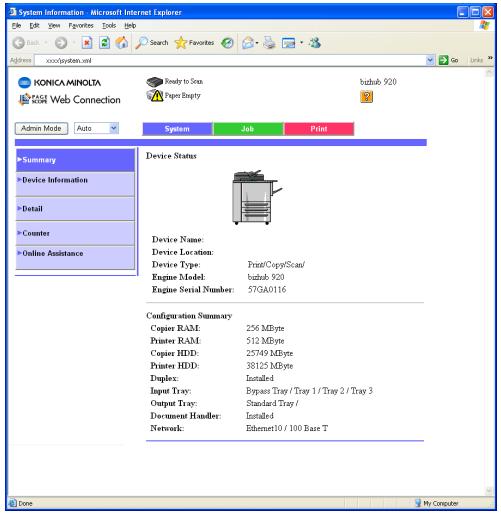
Device Information
1 Click [System] from the top navigation.
The [System] page appears.
2 Click [Device Information] from the left navigation.
The [Device Information] page appears.
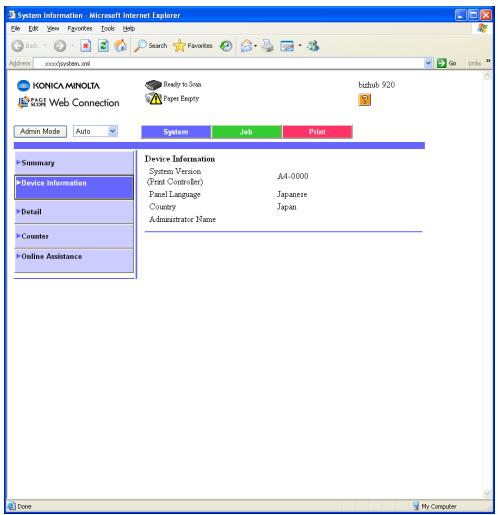
Detail - Input Tray
1 Click [System] from the top navigation. The [System] page appears.
2 Click [Detail] from the left navigation. The Sub navigation of the [Detail] appears.
3 Click [Input Tray] from the sub navigation. The [Input Tray] page appears.
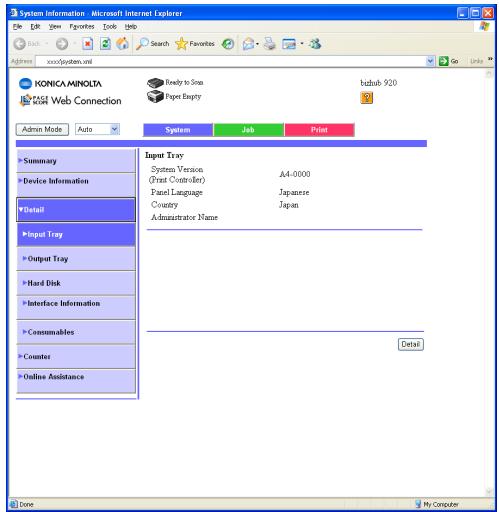
Detail - Output Tray
1 Click [System] from the top navigation. The [System] page appears.
2 Click [Detail] from the left navigation. The Sub navigation of the [Detail] appears.
3 Click [Output Tray] from the sub navigation. The [Output Tray] page appears.
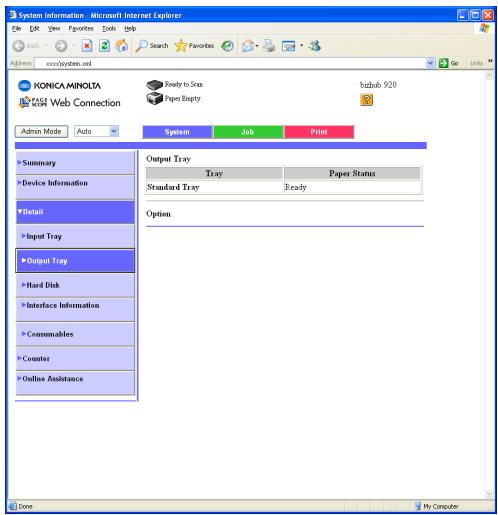
Detail - Hard Disk
1 Click [System] from the top navigation. The [System] page appears.
2 Click [Detail] from the left navigation. The Sub navigation of the [Detail] appears.
3 Click [Hard Disk] from the sub navigation. The [Hard Disk] page appears.
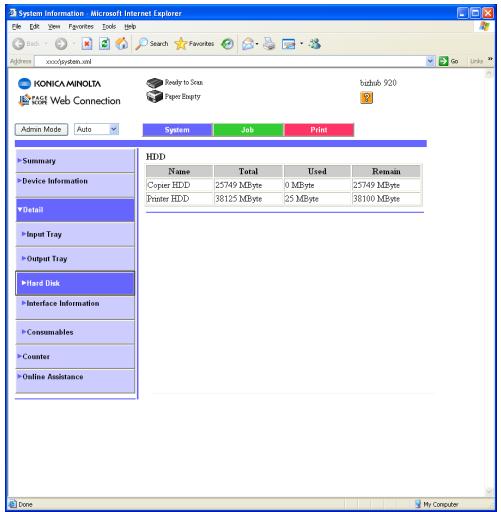
Detail - Interface Information
1 Click [System] from the top navigation. The [System] page appears.
2 Click [Detail] from the left navigation. The Sub navigation of the [Detail] appears.
3 Click [Interface Information] from the sub navigation. The [Interface Information] page appears.

Detail - Consumables
1 Click [System] from the top navigation. The [System] page appears.
2 Click [Detail] from the left navigation. The Sub navigation of the [Detail] appears.
3 Click [Consumables] from the sub navigation. The [Consumables] page appears.
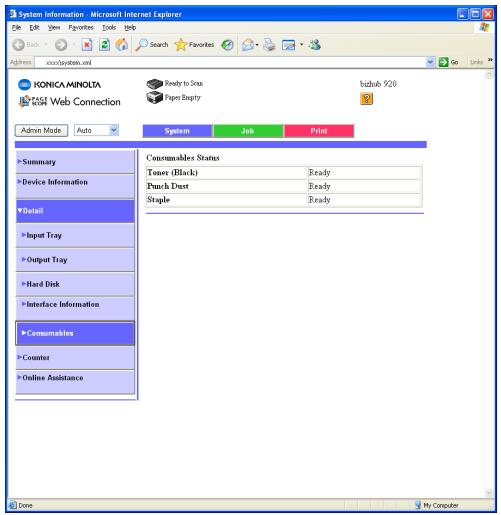
Counter
1 Click [System] from the top navigation. The [System] page appears.
2 Click [Counter] from the left navigation. The [Counter] page appears.
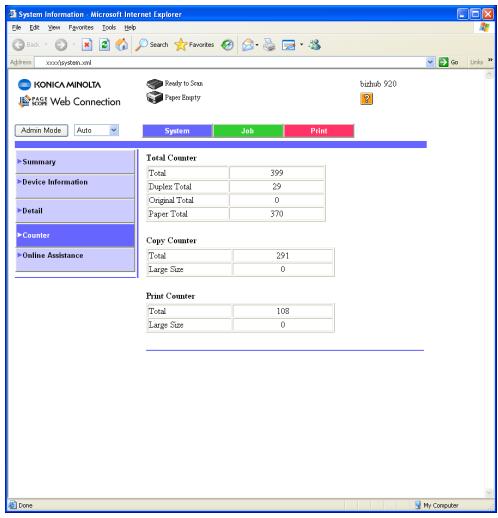
Online Assistance
1 Click [System] from the top navigation.
The [System] page appears.
2 Click [Online Assistance] from the left navigation.
The [Online Assistance] page appears.
Active Job List - Print
1 Click [Job] from the top navigation.
The [Job] page appears.
2 Click [Active Job List] from the left navigation.
The Sub navigation of the [Active Job List] appears.
3 Click [Print] from the sub navigation.
The [Print] page appears.
Active Job List - Scan Transmission
1 Click [Job] from the top navigation.
The [Job] page appears.
2 Click [Active Job List] from the left navigation.
The Sub navigation of the [Active Job List] appears.
3 Click [Scan Transmission] from the sub navigation.
The [Scan Transmission] page appears.
Done Job List - Print
1 Click [Job] from the top navigation.
The [Job] page appears.
2 Click [Done Job List] from the left navigation.
The Sub navigation of the [Done Job List] appears.
3 Click [Print] from the sub navigation.
The [Print] page appears.
4 Select job from the list and click
The [Detail] page appears.
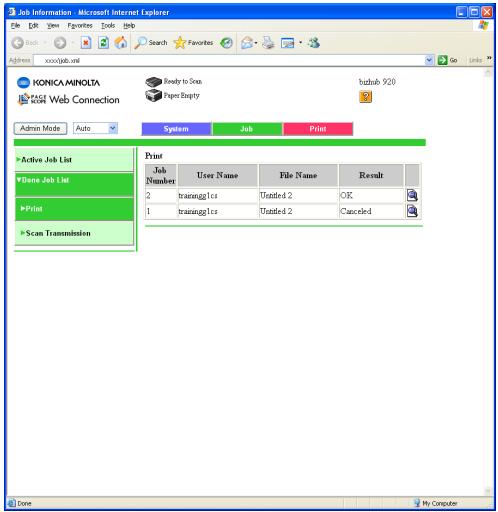
Note)
[Done Job List] is displayed to 100 ([Print] and [Scan transmission]). If it exceeded 100, the jobs are deleted from old history. Please note that "Done Job List" is all deleted when the main body power supply is turned off.
Done Job List - Scan Transmission
1 Click [Job] from the top navigation.
The [Job] page appears.
2 Click [Done Job List] from the left navigation.
The Sub navigation of the [Done Job List] appears.
3 Click [Scan Transmission] from the sub navigation.
The [Scan Transmission] page appears.
4 Select job from the list and click
The [Detail] page appears.

Note)
[Done Job List] is displayed to 100 ([Print] and [Scan transmission]).
If it exceeded 100, the jobs are deleted from old history.
Please note that "Done Job List" is all deleted when
the main body power supply is turned off.
Default Setting - General Setting
1 Click [Print] from the top navigation. The [Print] page appears.
2 Click [Default Setting] from the left navigation. The Sub navigation of the [Default Setting] appears.
3 Click [General Setting] from the sub navigation. The [General Setting] page appears.
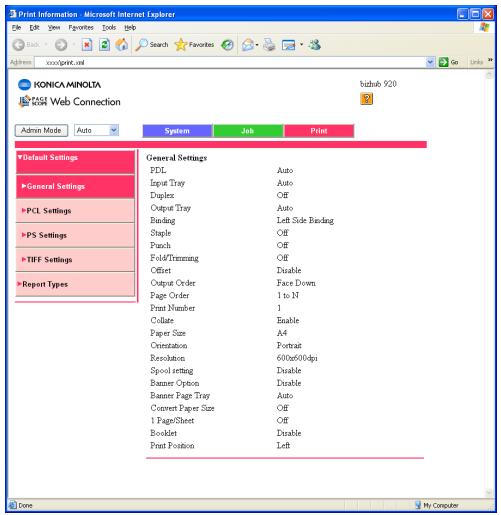
Default Setting - PCL Settings
1 Click [Print] from the top navigation. The [Print] page appears.
2 Click [Default Setting] from the left navigation. The Sub navigation of the [Default Setting] appears.
3 Click [PCL Settings] from the sub navigation. The [PCL Settings] page appears.
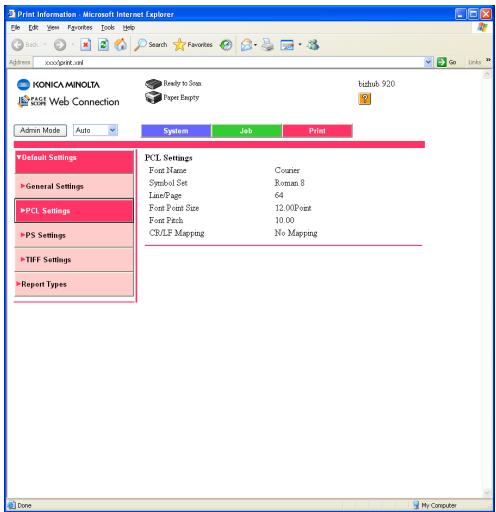
Default Setting - PS Settings
1 Click [Print] from the top navigation. The [Print] page appears.
2 Click [Default Setting] from the left navigation. The Sub navigation of the [Default Setting] appears.
3 Click [PS Settings] from the sub navigation. The [PS Settings] page appears.
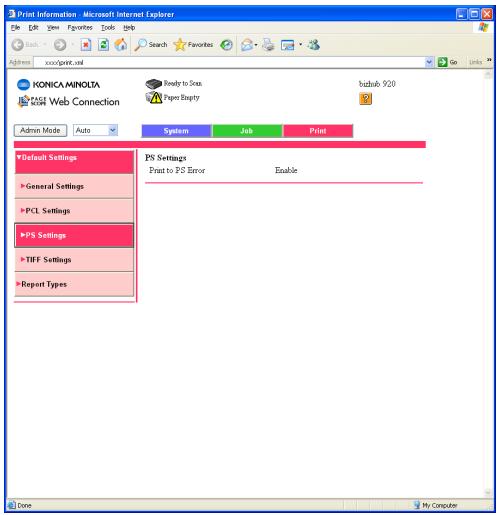
Default Setting - TIFF Settings
1 Click [Print] from the top navigation. The [Print] page appears.
2 Click [Default Setting] from the left navigation. The Sub navigation of the [Default Setting] appears.
3 Click [TIFF Settings] from the sub navigation. The [TIFF Settings] page appears.
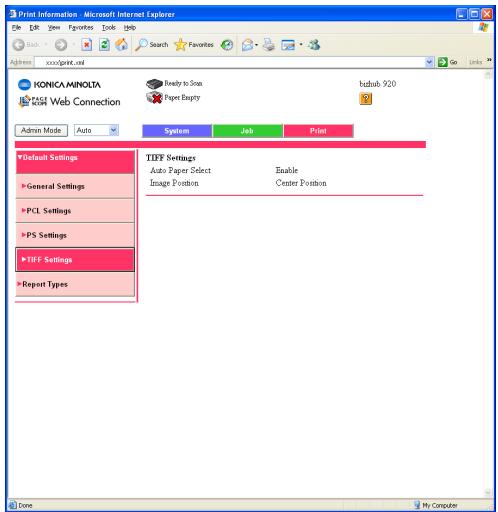
15.1.3 Print the Report
How to print the report
1 Click [Print] from the top navigation. The [Print] page appears.
2 Click [Report Types] from the left navigation. The [Report Types] page appears.
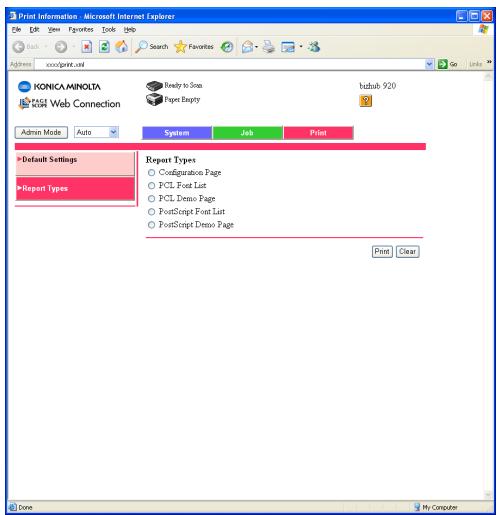
3 Select the report type to be printed.
4 Click [Print]. The report is printed.

Note
About the report type, refer to "Report to be printed" on page 15-2.
15.2 Using KONICA MINOLTA Peer to Peer Printing Tool
This printing system employs a method which sends the print job directly to the print controller from the Windows 98/Me compliant computer, not through the dedicated print server.
This is called peer-to-peer printing.
As KONICA MINOLTA Peer to Peer Printing Tool uses the network protocol TCP/IP, the network interface card must be set up for TCP/IP in advance. For each of the Windows 98/Me computers that perform peer-to-peer printing, it is necessary to set up TCP/IP, install and set up [KONICA MINOLTA Peer to Peer Printing Tool] included in the accompanying CD-ROM, and set up the printer driver.
Installation of IP Peer-to-Peer
To install the KONICA MINOLTA Peer to Peer Printing Tool, double click [Setup.exe] in the [Peer2Peer] folder of the accompanying CD-ROM. The installer will start. Install the program according to the instructions displayed on the screen.
1 Insert the accompanying CD-ROM into the CD-ROM drive, and double-click on [Setup.exe] in the "/Peer2Peer" folder.
2 Click [Next].
The [License Agreement] window will appear.
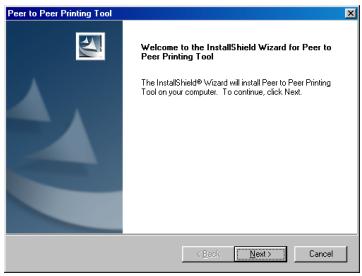
3 Click [Yes].
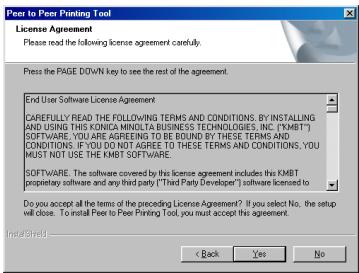
4 Click [Finish].
The [Select Program Folder] window will appear.
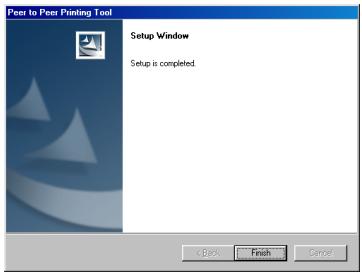
Uninstallation of KONICA MINOLTA Peer to Peer Printing Tool
When uninstalling the KONICA MINOLTA Peer to Peer Printing Tool, perform the following procedure.
1 Change the printer port or delete the printing system using KONICA MINOLTA Peer to Peer Printing Tool from the [Printers] folder.
2 Delete the [KONICA MINOLTA Peer to Peer Printing Tool] by using [Add/Delete Applications] from the [Control Panel].
Perform Peer to Peer Printing
To perform Peer to Peer Printing, add a port on the printer driver by the following steps.
1 Select [Start]-[Settings]-[Printers], and display the [Printers] window.
2 Right-click the printer icon in use and select [Properties].
3 Open the screen where you can add a port, and click [Add Port].
- Screens for [Add Port] differ depending on the printer driver in use.

4 Check [Other] radio button. Select [KONIKA MINOLTA Peer to Peer Port], and click [OK].
[KONIKA MINOLTA Peer to Peer Setup] window appears.
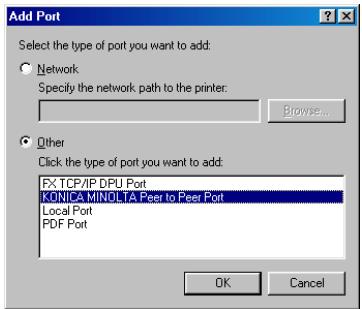
5 Perform the setup.
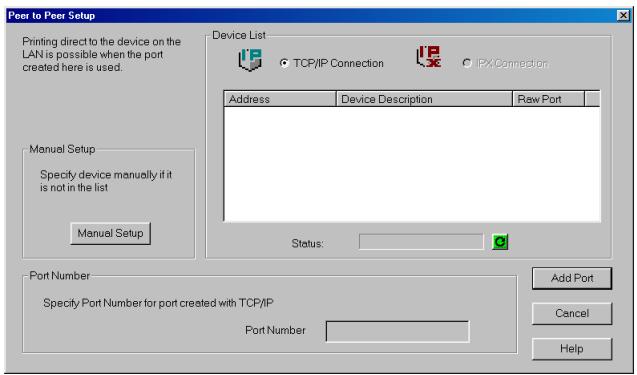
- Manual Setup
Use this button when the device to which you want to create a port is not on the list and it needs to be created manually.
Device List Select either TCP/IP or IPX/SPX as the network on which you have the printer you want to use. If this device is connected to the network, it is automatically searched and displayed on the list. - Status When you click , the printer on the network is searched.
- Add Port When you select the printer on the list and press this button, a port is added.
-
Port Number Input the port you create with TCP/IP.
-
To perform the setup manually, click [Manual setup].
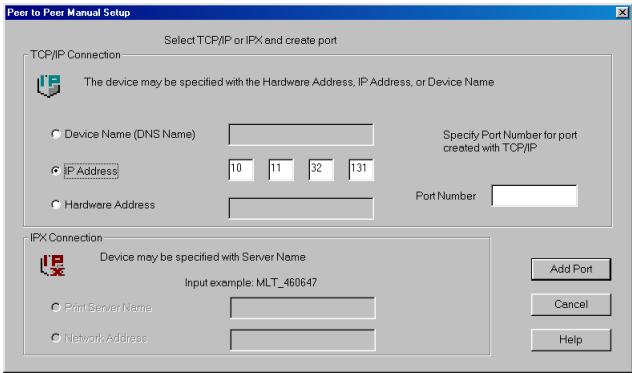
Device Name (DNS Name) Specify a printer name on the network.
IP Address Specify an IP address of the printer.
- Hardware Address
Specify a MAC address of the printer.
- Port Number
Specify a port number of the port you create.
- Print Server Name
- Specify a print server name of the printer on the IPX/SPX network.
Network Address Specify a network address of the printer on the IPX/SPX network.
- Add Port
Create a port with the specified details.
6 Confirm the details of the setup on the setup screen. If it is OK, close the setup screen by clicking the close box on the upper right of the window.
7 Click [OK] to close properties window of printer driver.

Note The bizhub PRO 920 is not corresponding to the IPX/SPX-P2P.
15.3 Internet Printing
This printing system works with IPP (Internet Printing Protocol).
IPP lets you send a print job to a printer connected to the Internet or an intranet. With this protocol, this printing system will produce outputs as requested via Internet or intranet.
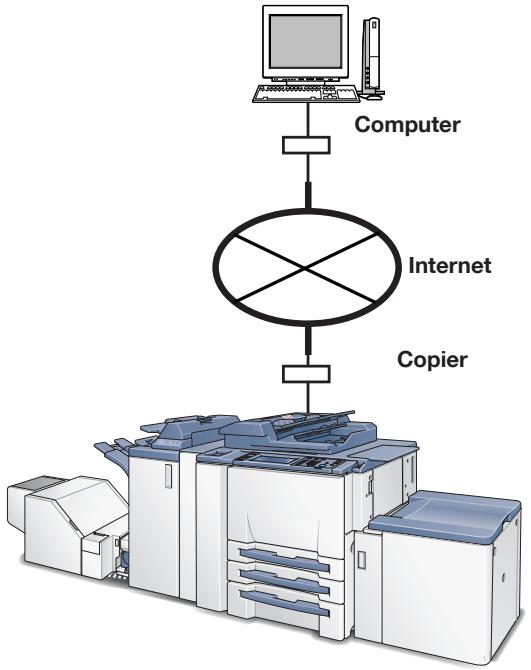
Settings on the Copier
To run a print job over IPP, TCP/IP settings must have been previously established.
You can also set IPP attributes. To do this, contact your network administrator about network setting.
Settings on Windows 2000
Complete the steps shown below to add the printer on your computer running under Windows 2000. TCP/IP settings must have already been set up on your computer. You need the accompanying CD-ROM which includes the printer driver.
1 Click [Start], and select [Printers] from [Settings].
2 Double-click [Add Printer] to run the [Add Printer Wizard].
3 Click [Next].
4 Choose [Network printer] and click [Next].
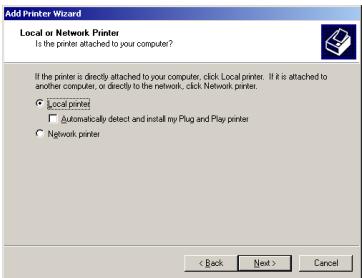
5 Choose [Connect to a printer on the Internet or your intranet].
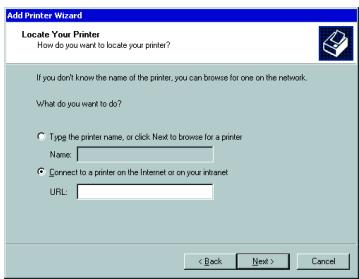
6 Enter the copier's URL in the [URL] field like this:
http:// printer's IP address :631/ipp
- In the "printer's IP address" column, enter the IP address assigned to your Network Interface Card. Alternatively, you can enter the host name of the printer's (NIC's) host name if DNS is set up on your network.
- If you designate the proxy setting in your Internet Explorer, you may access your printer over IPP. For more information contact your network administrator.
7 Click [Next].
The [Add Printer Wizard] will appear.
8 The wizard will take you through the process of installing the printer driver of the [Add Printer Wizard].

Detail
Refer to "Installing to Windows 2000/XP/Server 2003(PCL6/PPD)" on Page 5-13.
Settings on Windows XP
Complete the steps shown below to add the printer on your computer running under Windows XP. TCP/IP settings must have already been set up on your computer. You need the accompanying CD-ROM which includes the printer driver.
1 Click [Start] of the task bar. Then, select [Printers and Faxes] of the Start menu.
2 Double-click [Add a printer] to run the [Add Printer Wizard].
3 Click [Next].
4 Choose [Network printer] and click [Next].
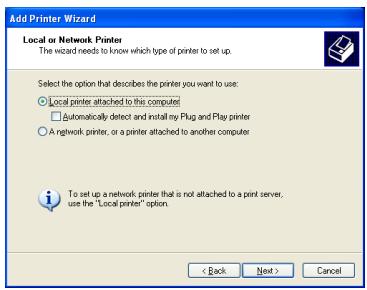
5 Choose [Connect to a printer on the Internet or your intranet].
6 Enter the copier's URL in the [URL] field like this:
http:// printer's IP address :631/ipp
- In the "printer's IP address" column, enter the IP address assigned to your Network Interface Card. Alternatively, you can enter the host name of the printer's (NIC's) host name if DNS is set up on your network.
- If you designate the proxy setting in your Internet Explorer, you may access the your printer over IPP. For more information contact your network administrator.
7 Click [Next].
The [Add Printer Wizard] will appear.
8 The wizard will take you through the process of installing the printer driver of the [Add Printer Wizard].

Detail
Refer to "Installing to Windows 2000/XP/Server 2003(PCL6/PPD)" on Page 5-13.
Setting on Mac OS X v10.3x, v10.4x
If you perform IPP Print on MAC OS X v10.3x/v10.4x, you can set it up when you add a printer to the printer list after installing the printer driver.
For more information on installing the printer driver, refer to "Installing to Macintosh (Mac OS X)" on Page 5-24.
1 Open [System Preference] and select [Print & Fax].
2 Select [Set Up Printers].
3 Select [Add].
4 Select [IP Print] as a connection method for a printer.
5 Select [IPP (Internet Printing Protocol)] and printer's URL.
6 Select [KONICA MINOLTA] from the [Printer Model], and select the corresponding printer.
7 Click [Add].
8 Close [Printer List] window.
15.4 NetWare
This printing system works with IPX/SPX (Internetwork Packet Exchange / Sequenced Packet Exchange).
This section explains how to configure a NetWare File Server, a NetWare Print Server, and a NetWare queue.
The print controller supports the system environment described below.
| NetWare Version | Protocol | Emulation | Service Mode |
| NetWare 3.2 | IPX | Bindery | Pserver/Rprinter |
| NetWare 4.x | IPX | NDS | Pserver/Nprinter |
| NetWare 5.x | IPX | NDS | Pserver |
| NetWare 6 | TCP/IP | NDPS(lpr) |
Setup for NetWare 3.x
Before setting up NetWare, you have to define the print server name, etc., from the Web Utilities.
The setup procedure of NetWare 3.x is as follows. To perform this procedure, you need authorization to perform this procedure.
1 Start up PCONSOLE and select the file server to use.
Refer to the manual of Novell NetWare for setting up with PCON-SOLE.
2 Generate and assign a print queue.
3 Define the network interface card as the print server.
4 Define the notification list/password as necessary.
5 Set up the primary file server as necessary.
On completion of setup, turn off the main power of the print controller and the main body printer and turn it on again.
The main body printer will print out a Status Page indicating the file servers equipped with print server and the queues that the file servers will service.

Note
Define the primary file sever if the network connects to many sites and has more than one file server. PCONSOLE should be used to set up the primary file sever.
Setup for NetWare 4.x-6
Novell NetWare 4.x-6 can operate in two modes, NetWare Directory Service (NDS) and Bindery Emulation Service (Bindery Emulation). Bindery Emulation and NDS will be executed simultaneously. It is also possible to set up the print server so that it operates only in Bindery Emulation mode or in NDS mode.
The print server set up for NDS mode will also service the file server of an old version operating in Bindery mode.
If NDS is not set up properly for the print server and Bindery Service mode is not operating, the print server cannot find the file server and Novell NetWare protocol will be indicated as inactive in the Status Page.
Setup information
NDS
Novell Directory Service (NDS) offers a different, more advanced approach to network management than previous NetWare versions. Generally, it stores and tracks all network objects.
All 4.x-6 servers must have NDS loaded in order to function. In this way, every NetWare 4.x-6 server is a Directory server, because it services named Directory objects such as printing systems, print server and print queues.
With the appropriate privileges, you can create a print server object, which, once configured in its context (or location) on the network, eliminates the setup of print servers on every network server.
NDS provides true enterprise networking based on a shared network database rather than individually defined physical sites. The result is a greatly improved print server setup and management.
Bindery Emulation
NetWare 4.x-6 also provides backward compatibility for 3.x and 4.x-6 print service through Bindery emulation.
The Directory Information Base (DIB) is used to store information about servers and services, users, printing systems, gateways, etc. It is a distributed database, allowing access to data anywhere on the network wherever it is stored.
Pre-4.x-6 NetWare versions provide the same data found in the DIB but the data is stored in the NetWare Bindery. The DIB was designed with more flexible access, more specific security, and, since it is distributed, was designed to be partitioned.
The Directory uses an object-oriented structure, rather than the flat-file structure of the Bindery, and offers network-oriented access, rather than server-oriented access found in the Bindery.
The Directory is backward-compatible with the NetWare Binderry through Binderry Emulation mode. When Binderry emulation is enabled, Directory Services will accept Binderry requests and respond just as if a Binderry existed on the NetWare server being accessed.
Be aware that information obtained from the Bindery query may not be stored in the server since the Directory is a partitioned and distributed database. Even though the NetWare 4.x-6 server is not operating from a Bindery, the applications making Bindery requests will not know the difference.
NDS setup
PageScope Web Connection
See your system administrator about PageScope Web Connection.
Novell NWADMIN
Novell NWADMIN (NetWare Administration) is used to generate a directory tree and print queue objects in the print server, printing system and tree.
The network interface card is provided with a plug-and-play feature to support NetWare administration utility (NWADMIN) that enables the NDS administrator to perform centralized management of print servers.

Detail
Refer to the Novell NetWare manual for details of Setup with NWADMIN.
PCONSOLE
NetWare allows the use of PCONSOLE as an alternative of NWADMIN. PCONSOLE is used to set up static information of print servers regarding which queues to service and to whom information is given in case of trouble.

Detail
Refer to the Novell NetWare manual for details of setup with PCONSOLE of NDS.
Setup for Bindery Emulation
Make sure of the Bindery Context.
Before connecting the print server (network interface card) to the Novell NetWare 4.x-6 server of Bindery mode, make sure that the NetWare server contains the bindery context.
If the bindery context does not exist, the network administrator should modify the AUTOEXEC.NCF file to add an adequate SET command and restart the NetWare server or enter a SET command from the console prompt to make changes.
Note that any command entered following the console prompt is effective immediately but the definition of the autoexec.ncf file becomes effective only after turning off power and on again.
Setup with PCONSOLE in Bindery mode.
If you are sure that the bindery context exists in the file server, you can set up the print server with PCONSOLE.

Detail
Refer to the Novell NetWare manual for details of setup with PCONSOLE.
In Bindery mode, only upper-case letters are valid for the printer server password.
15.5 UNIX Printing through TCP/IP
This section explains how to configure the network interface card and your network for use with TCP/IP communication in various UNIX environments. Independent setup and installation procedures are provided for most popular UNIX systems.
The TCP/IP capability of the network interface card will also operate with lpr spoolers on other systems, and with spooler/supervisor capabilities that communicate raw print jobs to the TCP/IP port of the network interface card. This port number is 10001.

Note
SNMP (Simple Network Management Protocol) is a protocol for network management services. SNMP is supported for Management Information Base (MIB) II over the IP for the network interface card. This support allows you to query MIB II to get system information about the network interface card.
The network interface card can support UNIX TCP/IP printing in two modes:
- Host-based where a supplied line printer daemon is run on one or more workstations and print data is communicated to the network interface card via a TCP/IP port.
- Printer-based lpd where the print controller appears as a host running a line printer daemon.
Many operating systems provide the option of using host-resident printing or printer-resident printing.
In general, printer-based lpd is easier to use on BSD UNIX systems. This requires an entry in the printcap file once the network interface card has its IP information. Some UNIX System V systems have restrictions on support of remote lpd printers, requiring that the host-based lpd approach be used.
Each printing mode has certain advantages over the other mode, as follows:
- The host-resident method can print the username and filename on its banner page; whereas the printer-resident method prints a banner page with the host's name.
- The printer-resident method requires you to configure the print controller and the network interface card only one time, when you install the network interface card; whereas, the host-resident method requires that a printing daemon be installed on every host that you want to be able to print jobs.

Note
The network interface card will also operate with other host-resident print supervisor/spooser programs that present a print image to the print controller over a TCP/IP port.
Printing overview
Considering both the host-based and printer-based TCP/IP printing capabilities, the network interface card works with the following systems:
All UNIX systems that support lpd
- System V Rel. 4 (on 386 platforms)
- DEC ULTRIX RISC Versions 4.3 and 4.4
- DEC OSF/1 Versions 2.0 and 3.0
Solaris:
- Version 1.1.3 (SunOS 4.1.3),
- Version 2.3 (SunOS 5.3),
- Version 2.4, and
- Version 2
HP-UX Series 700 and 800 Version 9.01 and Version 10
- IBM AIX Version 3.2.5 and Version 4.0
- SCO UNIX Version 3.2
AS400

Note
If the systems you are using do not run ipd, refer to "Installing UNIX TCP/IP programs".
The UNIX-TCP/IP Programs on accompanying CD-ROM also include source code so that you can recompose host-based code for configuring on other System V platforms.
Configuring IP address to the network interface card
Regardless of the printing mode selected, the network interface card must be given the IP address and routing parameters. You can configure the IP address for the network interface card in one of the following ways:
- Use DHCP (Dynamic Host Configuration Protocol).
- Use arp and ping capability.
- Use BOOTP (Internet Boot Protocol).
- Use reverse ARP (rarp) capability (Ethernet II frame type only).
- Use arp command, MAP (Management Access Program), or BOOTP Lite for Windows.

Note
You can use the BOOTP, rarp, or arp and ping procedures only when the network interface card is in its default state (when no IP information has been entered).
Depending on the topology, you may need to provide the MAC address of the network interface card. The MAC address is the 12-character code that is printed on the Status Page each time the print controller and the main body printer is turned on.
After the network interface card has an IP address, you must use the MAP utility, or other dedicated utilities (for Windows or Macintosh) to change an IP address, Subnet Mask and Default Gateway.
Ipd UNIX Printing
Ipd is an implementation of the standard UNIX line printer daemon that lets you print across a TCP/IP network without the need to install software on your workstation, with all filtering and banners done by the network interface card.
Remote printing uses the same commands (lpr, lpq, lpc) as local printing.
The process begins when the lpr call finds the printer on a remote system by looking at the remote (rm) entry in the /etc/printcap file for that printer.
lpr handles a print job for a remote printer by opening a connection with the lpd process on the remote system and sending the data file (followed by the control file containing control information for this job) to the remote system.
The printer-based lpd then filters the data and prints the job according to information contained in the control file and its own printcap file.
The network interface card lpd recognizes the format of a certain printer emulation and filters the data, if possible, so it can be printed on the printer you specify.
You can indicate to the network interface card lpd what type of print controller it is attached to by either:
- Accepting the default port setting (PCL, PostScript and other), or
- Changing the listed emulations via a standard IP based Web Browser.
The sections that follow give specific lpd setup instructions for various systems.
Setting Up a BSD Remote Printer to Use Ipd
To set up a remote printer on the host that sends jobs to the network interface card using printer resident lpd, add an entry to the /etc/printcap file on your host for each printer you use. Perform the following procedure:
1 Open the /etc/printcap file.
- Make an entry naming the network interface card as the remote host and PRINT as the remote printer name. A typical printcap entry is as follows:
\ (for example, lpr printer) :lp=:\rm= : (for example, name as entered in /etc/hosts) :rp=PRINT :sd=/usr/spool/lpd/ : (for example, spool directory on system used to spool data and control files)
This entry will send jobs spooled at /usr/spool/lpd/
2 Create the spooling directory. For example, type:
- mkdir /usr/spool/lpd/
3 To print via the spooler, use the lpr command. Type:
-lpr-P
Installation and testing are done. You are now ready to print.
Setting Up an AIX version 2.5 Remote Printer to Use lpd
Use the following procedure to set up a remote printer on the host that sends jobs to the network interface card using the lpd of the network interface card.
1 At the prompt, type:
smit spooler
2 When a window appears, select [Manage Remote Printers].
3 When a menu appears, select [Client Services].
4 Another menu appears, select [Remote Printer Queues].
Another menu appears, select [Add a Remote Queue].
6 When a window appears, change the values shown to configure the network interface card.
- The values displayed are default values. You must replace the short and long form filter values with the values shown in the following table.
7 After you have supplied all values, press Enter.
You can now print.
| Data Requested | Example | Data Description |
| Name of queue to ad | print1 | Name of local printer |
| queue Destination Host | printfast | NIC IP hostname |
| Short Form Filter | /usr/lpd/bsdshort | Required value |
| Long Form Filter | /usr/lpd/bsdlong | Required value |
| Name of remote printer queue | Network interface card | |
| Name of device to add | print1 | Name of local queue |
Setting Up an AIX 4.0 System
Use these procedures to install the network interface card in a AIX 4.0 system:
1 Run SMIT Printer.
2 Select [Print Spooling].
3 Select [Add a Print Queue].
4 Select [Remote].
5 Use [Standard Processing].
6 Assign a queue name.
7 Use the host address of the Network Interface Card for the Remote System.
8 Use [PRINT] for the queue on the remote system.
9 Add a description (optional).
10 Press [Enter] to generate.
-
Installation is complete. Test your printer by executing the following command:
-
lp -d
Setting Up an HP-UX Remote Printer to Use Ipd
Set up a remote printer on the host that sends jobs to the network interface card using the lpd of the network interface card. To do this:
1 At the prompt, type:
sam
2 When a window appears, select [Printer/Plotter Manager].
3 When the menu appears, select [List printer and plotters].
4 When a list appears, select [Actions] in the title bar.
5 From the pull-down menu, select [Add Remote Printer].
6 When a window appears, add values to configure the network interface card.
7 At the bottom of the screen, select [Remote Printer is on BSD system] from the three choices available.
8 Click on the [OK].
9 Ping the unit to test communications. Type:
- ping
10 Ping should confirm your IP address with the message:
-
11 If the connection is confirmed, you can now print.
See example below.
| Data Requested | Example | Description of Input Data |
| Printer Name | myprinter | name to be used in lp com-mand |
| Remote System Name | fastprint | Network Interface Card host-name as in /etc/hosts |
| Remote printer Name | Ipd queue name |
Setting Up an AS/400 System to Use lpd
When working with the output queue description (WORKOUTQD), there are several fields that must be defined for the network interface card to function properly as a remote printer device.
Use the following procedure to define fields for the network interface card to make it function as a remote printer:
1 When prompted for the remote system, type INTNETADR so the AS/400 recognizes the device as an IP device
2 Port must be [PRINT].
3 Connection type must be [IP].
4 Internet address must be the IP address of the network interface card.
5 Destination type must be [OTHER].
6 When prompted for transforming SCS to ASCII, type YES to allow the AS/400 do the character translation.
7 Manufacturer type and model must be the print driver that goes with your print controller.
Setting Up a DEC ULTRIX 4.3 RISC or OSF1 Remote Printer
Use the following procedure to set up a remote printer on the host that sends jobs to the network interface card.
1 At the prompt, type: Iprsetup, then select [add].
2 Enter a name for your printer, then press [Enter].
3 “Do you want more information on specific printer types?” Press Enter. A list of ULTRIX-supported printers is listed.
4 Type: remote, and press [Enter].
5 Enter a printer synonym (alias) and press [Enter].
6 Designate a spooler directory and press [Enter], or accept the default spooler directory displayed and press [Enter].
7 Designate a remote system name and press [Enter].
8 Designate PRINT as the remote system printer name and press [Enter].
9 You are asked to enter the name of a printcap symbol from a displayed list. Type: Q, and press [Enter].
10 Your configuration is displayed.
You are asked whether these values are final. Type: Y or N, and press Enter. An example is shown below.
11 Add comments to the printcap file. For example, you can type:
- Lois' printer down the hall
12 Select exit to save your configuration, then press [Enter].
You are now prepared to print.
| Printer #7 Symbol | Type | Representative Value |
| lp (line printer) | STR | |
| rm (remote host) | STR | Network Interface Card_host |
| rp (remote printer) | STR | |
| sd (spooler directory) | STR | /usr/spool/lpd7 |
Setting Up a SCO UNIX Remote Printer to Use Ipd
Use the following procedure to set up a remote printer on the host that sends jobs to the network interface card using lpd.
1 At the prompt, enter the mkdev rlp command.
- You cannot run mkdev rlp twice. If you have additional printers to be configured, use the rlpconf command.
2 You are now asked a series of questions. Respond as follows (shown in bold type):
- Please enter a printer name: lprprinter1
- Is lpr printer1 a remote printer or a local printer? R
- Enter remote host name: lprprinter
- Confirm the information you entered: Y
- Confirm the preceding connection as your system
- default: Y
- Enter another printer name or quit setup: Q
3 If necessary, stop and restart your remote daemon.
4 Using a line editor of your choice, edit the /etc/printcap file and change the:
rp=entry to PRINT.
Setting Up System V Release 4 and Solaris 2.X to Use lpd
If your system recognizes the LPSYSTEM command, you do not need to install the dedicated utility, Konica Minolta's host-side software. Another option is the admintool if your system supports it.
LPSYSTEM Installation
The following procedure must be executed from the Bourne Shell.
Type: SH then press Enter to enter the Bourne Shell program.
Use the following procedures to install LPSYSTEM:
1 lpsystem -t bsd < Print server host name in /etc/hosts file >
2 Iadmin -p
- Your system may want its IP address instead of the remote host name.
3 Enable
4 Accept
5 Printing on Linux
Printing on Linux
1 Start x terminal.
2 At the command prompt, enter the printtool command. The Red Hat Print System Manager window opens.
3 The Red Hat Print System Manager window opens.
4 Click the Add button. The Add Printer Entry window opens.
5 Choose Remote Unix (Ipd) Queue and click OK.
- The Edit Remote Unix Queue Entry window opens.
- Specify the following:
The printer name - The spooler directory (typically, /usr/spool/lpd/prntr-name)
-
The IP address of the Network Interface Card (in the Remote Host field)
PRINT (in In the Remote Queue field) -
An input filter (optional)
- When you finish, click OK.
6 Restart the daemon by choosing lpd -> Restart lpd in the Print Server Manager.
16 Appendix
16.1 Glossary
| Item | Description |
| 10BASE-T/100BASE-TX/1000BASE-TX | Types of specifications in compliance with the Ether-net standard.Cables made of two stranded copper wire rods are used.Communication speed is 10Mbps with 10Base-T,100Mbps with 100Base-TX, and 1000Mbps with 1000Base-TX. |
| AppleTalk | General term of protocols to perform the network functions developed by Apple. |
| bit | Abbreviation of Binary Digit. Minimum unit of information (volume of data) handled with a computer, printer, etc. Data is denoted by 0 or 1. |
| Bit map font | Font to express the form of a character by a collection of dots.Large size characters have notches. |
| BMP | Abbreviation of Bitmap. One of the file formats to save image data *extension; .bmp).Generally used on Windows. No. of colors from black/white (binary) to full color (16,777,216 colors) image can be designated. Basically the image is saved without being compressed. |
| BOOTP | Abbreviation of BOOT strap Protocol. A protocol for a client machine on the TCP/IP network to automatically read the setting for the network from a server. Currently, however, DHCP which was partially improved on the basis of BOOTP is mainly used. |
| Client | A computer which uses services provided by servers through the network. |
| Contrast | Difference between bright and dark areas of image (difference between light and darkness).Image of a little difference between light and darkness is called “image of low contrast”, and the image of a large difference is called “image of high contrast”. |
| Default | Initial set value.Setting which has been selected in advance when the power button is turned ON.Or, setting which has been selected in advance when some function is turned ON. |
| Density | Quantity to express the depth of image. |
| DHCP | Abbreviation of Dynamic Host Configuration Protocol. A protocol for a client machine on the TCP/IP network to automatically read the setting for the network from a server. Only by controlling the IP addresses for the DHCP clients collectively with the DHCP server, a network can be easily constructed avoiding duplicate addresses. |
| DNS | Abbreviation of Domain Name System. A system to allow to acquire an appropriate IP address from the host name in the network environment. Users can specify the name of the host instead of the IP address which is difficult to memorize and distinguish and access the other personal computer on the network. |
| DPI (dpi) | Abbreviation of Dots Per Inch. Unit of resolution used with printers, scanners, etc. Represents a number of dots in a collection in one inch. As this value increases, more detailed expression is possible. |
| Driver | Software to act intermediately between the computer and peripheral devices. |
| EPS | Abbreviation of Encapsulated PostScript. One of the file formats for illustration (extension; .eps). Data for both low and high resolution is contained. Data for low resolution can be edited on the screen at a high speed. At the time of printing, output of the highest performance of the printer can be obtained with the data for high resolution. |
| Ethernet | Standard for the LAN transmission line. |
| Extension | A string attached to a file name to distinguish the file saving method. Denoted following a period like“.bmp”,“.hog”,etc. |
| Frame type | A type of communication form used in the Netware environment. Communication can be performed only between the same type of frames. |
| FTP | Abbreviation of File Transfer Protocol. A protocol used to transfer files on the TCP/IP network such as Internet, Intranet, etc. |
| Gamma | Value representing relative relation between input signal and actual output. Used for displays, scanners, printers and other color peripheral devices. |
| Gateway | Hardware or software serving as a point connecting networks. Not only connecting, it converts the format, address, protocol, etc. of the data according to the network to be connected. |
| Gradation | Light and shade levels of image. Larger numbers can reproduce changes of density more smoothly. |
| Gray scale | Monochromatic image expression method making use of the gradation information from black to white. |
| GSS-SPNEG/OneSimple/Digest MD5 | Authentication forms used at the log on to an LDAP server. Authentication forms of LDAP servers vary depending on servers to be used and server setup so that the GSS-SPNEG,One, or Direct MD5 authentication forms is appropriately used. |
| Half tone | Method to express the gradation of each part of the image by the size of the black or white point. |
| Hard disk | Mass storage device to save data. The data is maintained even if the power is turned OFF. |
| Host name | Name of a device on the network. |
| HTTP | Abbreviation of HyperText Transfer Protocol. A protocol used to transmit or receive data between a web server and client (web browser, etc.). Files of image, voice, animation, etc. correlated with the document can be exchanged including the expression form and other information. |
| IEEE1284 | Abbreviation of Institute of Electrical and Electronic Engineers 1284. Parallel port standard developed for printers. |
| Install | To incorporate the hardware, OS, application, printer driver, etc. to a computer system. |
| IP address | A code (address) to identify individual network devices on the Internet. Comprises 4 sets of figures of 3 digits at the maximum such as 192.168.1.10. An IP address is allocated to all computers and other devices connected to the Internet. |
| IPP | Abbreviation of Internet Printing Protocol. A protocol to control the transmission and reception of printing data or printing devices through the Internet or other TCP/IP networks. Data can be transmitted to a remote printer through the Internet and printed there. |
| IPX/SPX | Abbreviation of Internetwork Packet eXchange/Se-quenced Packet eXchange. A protocol developed by Novel to be generally used in the NetWare environ-ment. |
| JPEG | Abbreviation of Joint Photographic Experts Group. One of file formats to save image data (extension; .jpg). Compression rate is approximately 1/10 to 1/100. The compression system is remarkably effective to compress photos or other natural images. |
| LAN | Abbreviation of Local Area Network. A network con-necting computers on the same floor, in the same building, in the buildings nearby, etc. |
| Local printer | A printer connected to the parallel/USB port of a computer. |
| LPR/LPD | Abbreviation of Line Printer Request/Line Printer Daemon.A type of printing through a network of the Windows-NT system or UNIX system. Printing data from Windows or UNIX can be transmitted to a printer on a network using TCP/IP. |
| MAC Address | Abbreviation of Media Access Control Address. An ID number peculiar to each Ethernet card based on which data is transmitted or received between cards.Expressed by 48-bit figures; former 24 bits represent a number peculiar to each maker controlled and allocated by IEEE and the latter 24 bits is a number allocated uniformly to the cards by the maker. |
| Margin | Blank on the top, bottom, right or left side of prints. |
| Memory | Unit to save data temporarily.Data in some memory is erased when the power is turned OFF and not erased in others. |
| NDPS | Abbreviation of Novell Distributed Print Services.Provides a high performance print solution in the NDS environment. By using NDPS as a print server, complicated control environment related with the use of the printer such as output from a desired printer, automatic download of a new driver when in- troducing it, etc. can be simplified and automated. In addition, affairs related with the networks and print- ers can be integrally controlled. |
| NetWare | Network OS developed by Novel.Uses NetWare IPX/SPX as the communication proto-tocol. |
| Number of lines | A number of density of dots forming image. |
| OHP/OHT | A transparent sheet for OHP (Overhead Projector). Used for presentation, etc. |
| OS | Abbreviation of Operating System. Basic software to control the computer system. Windows, MacOS, and Unix are examples. |
| Outline font | Font describing characters by straight or curved pro-file lines.Large characters can be indicated on the screen and printed without notches. |
| Parallel interface | Data transfer method to transmit or receive multiple signals at the same time.Indicates IEEE1284 for connecting the printer in many cases. |
| Abbreviation of Portable Document Format. One of electronic documents (extension; .pdf) in the format based on PostScript which can be accessed using Adobe Acrobat Reader, software free of charge. | |
| PDL | Abbreviation of Page Description Language. Lan- guage which can specify the printing image in the unit of page to the printer when printing with a page printer. |
| Peer to peer | A form of network where devices connected can transmit data to each other without using a server for specific use. |
| Pixel | Minimum unit constituting images. |
| Plug and play | A mechanism that, when a peripheral device is con- nected to PC, an appropriate drive is automatically searched and activated. |
| Port number | Number to distinguish each communication port of multiple processes working in the computers on the network. A same port cannot be used for multiple processes. |
| PostScript | Representative page description language generally used for printing requiring specifically high quality, developed by US Adobe. |
| PPD | Abbreviation of PostScript Printer Description. A file describing information peculiar to the model of the PostScript printer such as resolution, usable paper sizes, etc. |
| PPI | Abbreviation of Pixels Per Inch. Unit of resolution of mainly monitors, scanners, etc. Represents the number of pixels per inch. |
| ppm | Abbreviation of Pages Per Minute. Unit to indicate the number of sheets which can be printed in one minute. |
| Preview | A function to display the processed image before printing or scanning. |
| Print queue | Software system to memorize printing job generated in the spooler. |
| Print job | Request for printing transmitted from PC to a print- ing device. |
| Printer buffer | Memory area used temporarily to process data of printing job |
| Printer driver | Software acting as an intermediate between the computer and printer. |
| Profile | A color attribute file. Color input/output devices use the profile to repro- duce colors. A file for specific use in which corrala- tion of input and output of each primary color is contained. |
| Property | Attribute information. When using a printer driver, various functions can be set up from the property. Attribute information of a file can be checked with the property of the file. |
| Protocol | Rules by which a computer communicates with oth- er computer or peripheral device. |
| Queue name | Logical printer name required for LPD/LPR printing. |
| Queue Name | Name given to each device to permit printing in the network printing. |
| Rendezvous | A technique to detect devices supporting Rendez-vous on the IP network mutually. Apple employed it newly from MacOS 10.2. |
| Resolution | Degree how correctly the details of images or prints can be reproduced. |
| RGB | Abbreviation of Red, Green, and Blue. Primary colors used for color expression of monitor, etc. All colors are produced by changing the brightness ratio of the RGB colors. |
| Scan | In the scanner reading operation, image is read by moving the image sensors forming in line. Direction to move the image sensors is called the main scanning direction and the direction in which the image sensors form in line is called the vertical scanning direction. |
| Screen font | Font to indicate characters or symbols on CRT and other monitors. |
| Shared printer | A printer connected to a server on the network and set to allow to be used from multiple computers. |
| Single page TIFF | TIFF file of one page only. |
| SMTP | Abbreviation of Simple Mail Transfer Protocol. A protocol to transmit or transfer the electronic mails. |
| SNMP | Abbreviation of Simple Network Management Protocol. A control protocol using TCP/IP in the network environment. |
| Spool | Abbreviation of Simultaneous Peripheral Operation On-Line. In the printer output, data is not directly transmitted to the printer but deposited temporarily at another place and transmitted collectively later to the printer. |
| Subset mask | Values to divide the TCP/IP network into some small networks (subnets). Used to identify how many high-order bits of an IP address are the network address. |
| TCP/IP | Abbreviation of Transmission Control Protocol/Internet Protocol. Substantially the standard protocol used for the Internet. Uses IP address to identify each network device. |
| TIFF | Abbreviation of Tagged Image File Format. One of the file formats to save image data (extension; .tif). Various types of image information can be saved in one image data with the “tag” representing the data type. |
| Trimming | Cutting off unnecessary portions of the image and change the rectangular or size. |
| TrueType | A type of outline font. Developed by Apple and Microsoft and employed for Macintosh and Windows as the standard outline font. Can be used for both displays and prints. |
| TWAIN | Standard for the interface between the image input devices such a scanner or digital camera and applications such as graphic software. To use devices supporting TWAIN, a TWAIN driver is required. |
| Uninstall | To delete installed software. |
| USB | Abbreviation of Universal Serial Bus. General-use interface standard for connecting a computer and a mouse, printer, etc. |
| Web browser | Software to access web pages. Internet Explorer, Netscape Navigator, etc. are examples. |
16.2 Index
A
Automatic installation 3-1
B
Back Cover Page ....8-34, 9-29, 10-37, 11-32, 12-23
Binding Position 8-19, 12-11
Booklet 10-23, 11-12
C
Center Staple and Fold ....8-24, 10-28
Chapter 8-35, 10-38
Combination 8-20,8-41,9-25,11-27,12-25
Compliant OS 4-2, 5-2
Cover Sheet Feeder 8-11
D
Date/Time 8-50,9-33,10-43
Deletion of printer driver by Manual operation 6-3
Deletion of printer driver with installer (PCL) 6-1
Duplex 9-24,11-26,12-11
F
Finisher 8-11, 11-37
Fold ..8-42, 9-28, 10-45, 11-30, 12-14
Front Cover Page ....8-33, 9-29, 10-36, 11-31, 12-22
H
Hole-Punch 8-23,10-28,12-13
Image Rotation 10-55
Image Shift 10-45, 11-31, 12-26
Installable Option 9-16
Installer 3-1
K
KONICA MINOLTA PS Printer Driver 10-1
L
Local printing 4-1
Log/Phys 10-26
M
Media 11-24
N
Network printing 5-1
N-up 10-22
0
Offset 9-23
Option 10-13
Optional memory 2-3
Original Size 8-13, 10-15
Output Size 8-15, 10-17
Output Tray 11-26, 12-11
Overlay 8-45, 10-52
Overview 2-1
P
Page Number 8-51, 10-43
Pages Per Sheet 9-18
Pages per sheet 11-21
Paper Color ......8-19, 9-23, 10-20, 11-25, 12-22
Paper Feed 12-8
Paper Size 9-21, 12-3
Paper Sources 8-11, 10-18, 11-37
Paper Type 8-18, 10-19, 12-21
Paper Type Settings 8-18, 10-19
PCL 4-2,5-2
Per Page Setting 8-36
PI Cover Sheet 8-34
PI Front Cover 9-30
Poster 10-25
PostScript 4-2,5-2
PostScript3 option 2-3
Pre-Punched Paper 8-19, 9-23
Print Density 9-33, 10-56, 11-35, 12-27
Print position 11-25
Printer View 8-60, 10-60
Proof and Print 8-29, 10-32, 12-19
Properties window 8-2,9-2,10-2
Punch 9-27,11-29
Punch Unit 8-11
Punch Z-Fold Unit 8-11, 11-37
S
Save in User Box 8-27, 12-18
Save/Restore Setting 8-57, 10-59
Secure Print 8-25, 10-29, 12-16
Smoothing
......8-53,9-32,10-56,11-34,12-27
Specifications 2-6
Staple 8-22, 9-26, 10-27, 11-28, 12-12
T
Tab Paper Settings 8-39
Test Page Print 4-26
Transparency Interleave
8-19, 9-30, 10-20, 11-33
Trim 10-29
Trimmer 8-11, 11-37
Troubleshooting 13-1
W
Wait Mode
......8-29, 9-31, 10-32, 11-33, 12-19
Watermark 8-48, 10-57, 11-13
Z

KONICA MINOLTA
www.konicaminolta.com
- IC-203
- User's Guide
- Table of contents
- Introduction
- Overview
- Installation (Installer)
- Installation (Local printing)
- Installation (Network printing)
- Uninstallation of the printer driver
- Basic Printing and Various Function
- PCL Printer Driver Setting (Windows)
- PostScript PPD Printer Driver setting (Windows)
- KONICA MINOLTA PS Printer Driver setting (Windows)
- PostScript PPD Printer Driver setting (Mac OS 9)
- PostScript PPD Printer Driver setting (Mac OS X)
- Troubleshooting
- Font
- Utility Tool
- Appendix
- Detail
- FCC Regulation
- Warning:
- Canadian Department of Communications Regulations
- Patent Notice
- Built-in Fonts
- ACKNOWLEDGEMENT:
- Note
- About this Product
- Package Contents
- Folder structure on the CD-ROM (IC-203 CD-ROM)
- Folder structure on the CD-ROM (PS-503 CD-ROM) (Option)
- About this Manual
- Notation of each product
- How to read this Manual
- SOFTWARE LICENSE AGREEMENT
- SOFTWARE LICENSE AGREEMENT
- NON-EXCLUSIVE LICENSE AGREEMENT (For USA) (Exclusive for PostScript3 Option)
- READ THE TERMS AND CONDITIONS OF THIS License Agreement CAREFULLY
- SOFTWARE LICENSE AGREEMENT (For Others) (Exclusive for PostScript3 Option)
- Printer Driver
- Delete
- Composition of a product
- Optional memory
- PostScript3 option
- Other options
- Connections of the Print Controller
- Parallel Connection
- Ethernet Connection
- Product Specifications
- Type
- Functions
- Operating Environment
- Restrictive Conditions
- Automatic installation (PCL) with installer
- Printer Drivers
- Compliant OS
- Installing to Windows 98/Me (PCL6/PPD)
- Click [Have Disk].
- Click [Browse].
- Click [Open]
- Click [OK].
- Click [Next].
- Select whether to perform the test print or not by selecting [Yes (recommended)] or [No].
- Click [Finish] button.
- Make sure the test page printed properly.
- The installation is completed.
- Installing to Windows NT4.0 (PCL6/PPD)
- Click [Open]
- Click [OK].
- Confirm the followings in the list of [Printers]. When you install PCL6 driver: [KONICA MINOLTA 920 PCL] is highlighted.
- Click [Next].
- In the [Printer name] text box, check the printer name.
- Select whether to use this printer as the default printer or not by selecting [Yes] or [No].
- Select whether to share the printer or not.
- Click [Next].
- Select Whether to perform the test print or not by selecting [Yes (recommended)] or [No].
- Click [Finish].
- Make sure the test page printed properly.
- The installation is completed.
- Installing to Windows 2000 (PCL6/PPD)
- Select the following file;
- Click [Open]
- Click [OK].
- Confirm the followings in the list of [Printers]. When you install PCL6 driver: [KONICA MINOLTA 920 PCL] is highlighted.
- Click [Next].
- In the [Printer name] text box, check the printer name.
- Installing to Windows XP/Server 2003 (PCL6/PPD)
- Click [Next].
- Select the port connecting the printer from the list displayed by clicking [▼] at the side of the [Use the following port:] box.
- Click [Next].
- Click [Have Disk].
- Click [Browse].
- Click [Next].
- Select Whether to perform the test print or not by selecting [Yes] or [No].
- Click [Next].
- Click [Finish].
- Make sure the test page printed properly.
- The installation is completed.
- Installing the KONICA MINOLTA PS Driver
- Test Page Print
- To print the test page:
- Printer Drivers
- Compliant OS
- If the printer driver for Windows NT4.0 is not installed in the server:
- Click [Have Disk].
- Click [Browse].
- Set the "IC-203 CD-ROM or PS-503 CD-ROM" in the CD-ROM drive.
- Change [Look in] to CD-ROM drive.
- Select the following file;
- Click [Open]
- Click [OK].
- Confirm the followings in the list of [Printers], When you install PCL6 driver: [KONICA MINOLTA 920 PCL] is highlighted.
- In the [Printer name] textboxes, check the printer name.
- Click [Next].
- The installation is completed.
- Installing to Windows 2000/XP/Server 2003(PCL6/PPD)
- Type the network printer name in the [Name] textbox or type the URL in the [URL] textbox, and click [Next].
- Select whether to use this printer as the default printer or not by selecting [Yes] or [No].
- Click [Finish].
- If the printer driver for Windows 2000/XP/Server 2003 is not saved in the server
- Installing to Macintosh (Mac OS 9)
- Selecting the printer with the Chooser
- Installing to Macintosh (Mac OS X)
- Click [Install].
- Click [Close].
- Selecting the Printer (Mac OS X)
- Open [System Preference].
- Select [Set Up Printers].
- Click [Add].
- Test Page Print
- Macintosh
- Deletion of printer driver with installer (PCL)
- Deletion of printer driver by Manual operation
- Deleting the Printer Driver (Windows 98/Me)
- Deleting the Printer Driver (Windows NT4.0)
- Deleting the Printer Driver (Windows 2000/XP/Server 2003)
- Deleting the Printer Driver (Mac OS 9)(PPD)
- Deleting the Printer Driver (Mac OS X)(PPD)
- Restart the computer.
- When updating the printer driver, go to "Installing to Macintosh (Mac OS X)" on Page 5-24.
- Basic Printing Method
- Basic Printing method (Windows)
- Click [OK].
- Basic Printing method (Mac OS 9)
- Basic Printing method (Mac OS X)
- Various Function
- To set the paper-related items
- To set the orientation:
- To print in rotation:
- To set the size of output paper:
- To set the type of paper:
- To set the color of the paper.
- To set the pre-punched paper.
- To enlarge or reduce by a specified ratio:
- To set the margins:
- To set the paper tray
- To set the Paper Source unit:
- To set the paper feed tray:
- To set the Finisher:
- To set the Output tray:
- To print multiple copies
- To set the number of copies to be printed:
- To print by sets (Collate / Sort):
- To print page by page collectively:
- To output offset copies (Offset):
- To print from two sets of copy machines
- To print multiple pages
- To set to print on both sides:
- To print the document of multiple pages on a single page:
- (Page allocation / Layout):
- To print 2 pages on a double size single paper:(Combination (No Reduction)):
- To print a twofold booklet (Booklet):
- To print a specific page on the front face (Chapter):
- To print pages in facing up (Face up):
- Not To print blank page:
- To set the Front / Back cover, insertion sheet and cover sheet
- To set a Front Cover:
- To set a Back Cover:
- To set an Insertion Sheet:
- To set a Thick Cover:
- To set a Tab Paper:
- To set for finishing
- To set stapling:
- To set the Punch Unit:
- To set punching:
- To adjust printing position on the paper (Image Shift):
- To set Fold,Stitch and Trim:
- To set a Watermark
- To create a Overlay:
- To print a Overlay:
- To create a new Watermark:
- To print a Watermark:
- To print Date/Time:
- To print Page Number:
- To set numbering:
- To set an image and shade
- To print with Black:
- To set printing pattern:
- To set draft print:
- To set a printing density:
- To save toner consumption:
- To print a curved section smoothly (Smoothing):
- Smoothing
- To set font-related items
- To print without using printer fonts:
- To set the substitution of the font (Font Substitution Settings):
- To set the format of the font that is to be downloaded (Download Font Format):
- Checking the Printer Driver Setting
- To check the current settings before printing (Wait Mode):
- To check the current settings before printing (Proof and Print):
- To check the version of the printer driver:
- How to store the job and reprint
- To save and print a print job (Save in User Box / Save in User Box & Print):
- To print with protection by a password (Secure Print):
- About Properties window
- Properties window
- How to setup in the Properties window of the Printers and Faxes window
- How to setup with application
- About button
- Combination of the function
- General tab
- Location
- Comment
- Printing Preference
- Print Test Page
- Sharing tab
- Ports tab
- Add Port
- Delete Port
- Configure Port
- Enable printer pooling
- Advanced tab
- Always available / Available from
- Priority
- Driver
- New Driver
- Spool print documents so program finishes printing faster
- Print directly to the printer
- Hold mismatched documents
- Print spooled documents first
- Keep printed documents
- Enable advanced printing features
- Color Management tab
- Option tab
- Option - Paper Sources
- Option - Finisher
- Option - Punch Unit
- Option - Cover Sheet Feeder
- Option - Punch Z-Fold Unit
- Trimmer
- Option Information
- Option Information - Printer Name or IP Address
- Option Information - Gather Option Information
- Enhanced Security
- Setup tab
- Paper - Orientation
- Paper - Original Size
- Paper - Output Size
- Custom Size Settings
- Print Position Settings
- Paper - Zoom
- Paper - Paper Sources
- Paper Type Settings
- Paper Type Settings - Edit Paper Type
- Paper Type Settings - Edit Paper Type - Paper Type
- Paper Type Settings - Edit Paper Type - Paper Color
- Paper Type Settings - Edit Paper Type - Pre-Punched Paper
- Paper Type Settings - Transparency Interleave
- Transparency Interleave - Settings
- Binding - Binding Position
- Binding - Print Type
- Binding - Combination
- Binding - Combination - Details
- Binding - File Margin
- Binding - File Margin - Details
- Binding - Staple
- Binding - Hole-Punch
- Binding - Center Staple and Fold
- Output - Output Method - Print
- Output - Output Method - Secure Print
- Output - Output Method - Save in User Box/Save in User Box and Print
- Output - Output Method - Wait Mode/Proof and Print
- Output - Copies
- Output - Output Tray
- Output - Output Order
- Output - Collate
- Output - Offset
- Output - Skip Blank Page
- Reminder
- Output - User Authentication/Account Track
- User Authentication
- Account Track
- Per Page Setting tab
- Front Cover Page
- Front Cover Page - Paper Source
- Back Cover Page
- Back Cover Page - Paper Source
- PI Cover Sheet - PI Front Cover
- PI Cover Sheet - PI Back Cover
- Chapter - Page Number
- Per Page Setting
- Per Page Setting - List Name
- Per Page Setting - Edit List Name
- Per Page Setting - Staple Settings
- Per Page Setting - Add
- Per Page Setting - Edit
- Per Page Setting - Delete
- Per Page Setting - Tab Paper Settings
- Special Functions tab
- Special Functions - Combination (No Reduction)
- Special Functions - Fold
- Special Functions - Trim
- Special Functions - Image Shift (Extension)
- Settings
- Divide Output
- Page per Section
- Adhesive Binding
- Tandem Mode
- Overlay tab
- Overlay - None
- Overlay - Print Overlay
- Check Before Printing
- Overlay - Create Overlay
- Delete Overlay File
- Folder
- File Name
- Browse File
- To create overlay
- Overlay Printing Procedure
- Watermark tab
- Watermark
- Watermark - Pull down menu
- Watermark - Edit
- Add
- Watermark Text
- Font Settings - Font Name
- Font Settings - Style
- Font Settings - Size
- Text Angle - Degrees
- Position
- Center
- Text Density
- Watermark - Type
- Overwrite
- Transparent
- Watermark - 1st Page Only
- Date/Time - Page to Print
- Page Number - Pages to Print
- Page Number - Start Page
- Page Number - Starting Number
- Distribution Number Stamping - Type
- Distribution Number Stamping - Pages to Print
- Distribution Number Stamping - Starting Number
- Quality tab
- Pattern - Fine
- Pattern - Coarse
- Print Density
- Toner Save
- Draft Print
- Print with Black - Text and Graphics
- Print with Black - All
- Font tab
- Use Printer Font
- Use Printer Font - TrueType Font Substitution Table
- Use Printer Font - Font Substitution Settings
- Download Font Format
- Version tab
- Save/Restore Setting
- To Save Setting
- To restore the setting in storage:
- Save Current Setting
- Restore Saved Setting
- Edit Library
- Detailed Restore Settings
- About View Area
- To Check the Status of the Optional Unit
- Image View
- About Properties window
- Properties window
- About button
- Combination of the function
- General tab
- Sharing tag
- Ports tab
- Enable bidirectional support
- Advanced tab
- Security tab
- Device Settings tab
- From To Tray Assignment
- Font Substitution Table
- Available PostScript Memory
- Output Protocol
- Send CTRL-D Before Each Job
- Send CTRL-D After Each Job
- Convert Gray Text to PostScript Gray
- Convert Gray Graphics to PostScript Gray
- Add Euro Currency Symbol to PostScript Fonts
- Job Timeout
- Wait Timeout
- Minimum Font Size to Download as Outline
- Maximum Font Size to Download as Bitmap
- Installable Option
- Layout tab
- Orientation
- Page Order
- Pages Per Sheet
- Advanced
- Paper/Quality tab
- Paper Source
- Media
- Advanced Options windows
- Paper/Output - Paper Size
- Paper/Output - Copy Count
- Paper/Output - Copy Count - Collate
- Graphic - Scaling
- Graphic - True Type Font
- Document Options - Advanced Printing Features
- Document Options - PostScript Options
- Document Options - Printer Features
- Offset
- Print Position
- Paper Color
- Pre-Punched Paper
- Output Tray
- Output Order
- Image order
- Binding Position
- Duplex
- Combination
- Staple
- Punch
- Fold
- Image Shift
- Paper Tray (Front Cover Page)
- Paper Tray (Back Cover Page)
- PI Front Cover
- PI Back Cover
- Transparency Interleave
- Paper Tray (Transparency Interleave)
- Wait Mode
- Date/Time
- About Properties window
- Properties window
- About button
- Combination of the function
- General tab
- Sharing tag
- Ports tab
- Advanced tab
- Color Management tab
- Font tab
- Send To Printer As
- Threshold Units
- Threshold
- TrueType Font
- Printer Font to Use
- Use Printer Fonts For All True Type Fonts
- Use Substitution Table
- Default Substitution
- Option tab
- Option
- Scaling linked with Application
- Setup tab
- Copies
- Layout - Normal
- Layout - N-up - Combination
- Layout - N-up - Position
- Layout - N-up - Border
- Layout - N-up - Advanced
- Layout - N-up - Advanced - Layout Type
- Layout - N-up - Advanced - Scale Border
- Layout - N-up - Advanced - Size Orientation change handling
- Layout - Booklet
- Layout - Booklet - Gutter
- Layout - Booklet - Creep
- Layout - Booklet - Bundle Size
- Layout - Booklet - Advanced
- Layout - Booklet - Advanced - Fill Bundles
- Layout - Booklet - Advanced - Size Orientation change handling
- Layout - Fit
- Layout - Scale - Scale Factor
- Layout - Poster
- Layout - Poster - Poster Style
- Layout - Poster - Position
- Layout - Poster - Scale Factor
- Layout - Poster - Advanced
- Layout - Poster - Advanced - Overlap
- Layout - Log/Phys
- Layout - Log/Phys - Border
- Layout - Log/Phys - Position
- Binding - Trim
- Output-Offset
- Output - Authentication/Account Track
- Authentication
- Per Page Setting
- Per Page Setting - Save as
- Per Page Setting - Load
- Per Page Setting - Clear All
- Special Functions
- Combination (No Reduction)
- Image Shift - Settings
- PostScript tab
- Output - To Printer
- Output - Encapsulated PostScript
- Output - File Name
- Settings - Job Compression
- Settings - Flate Compression
- Settings - Compress Bitmaps
- Settings - JPEG
- Settings - Output Protocol (Windows NT4.0/2000/XP/Server 2003 only)
- Settings - Gamma Level
- Settings - Tokenised PS (Windows NT4.0/2000/XP/Server 2003 only)
- Watermark Option - Print Watermark On Logical Page
- Settings - PostScript Options
- Settings - PostScript Options - Print PostScript Error Information
- Settings - PostScript Options - Use PostScript Pass-through
- Settings - PostScript Options - Clear Memory per Page
- Settings - PostScript Options - Compatibility
- Timeouts - Wait Timeout (seconds)
- Print Enhance - Print Enhance
- Print Enhance - Halftoning
- Print Enhance - Screen Angle
- Use Bitmap Smoothing
- Overlay tab
- Overlay
- Add Overlay
- Create Overlay
- Delete Overlay
- Overlay Choice Condition
- Overlay Create Condition
- Quality tab
- Image Rotation
- Effects - Mirror Image
- Effects - Negative Image
- Adjustment - Slider A
- Adjustment - Slider B
- Smoothing - Type
- Monochromatic Convention - By Driver / By Printer
- Watermarks tab
- Watermark - Add
- Watermark - Update
- Watermark - Delete
- Edit - Text
- Edit - Gray Scale
- Edit - Size
- Edit - Angle
- Edit - Fonts
- Position - Center Watermark
- 1st Page Only
- Transparent Text
- As Outline Only
- Save/Restore Setting
- About View Area
- Basic printing method
- Dialog boxes used for configuring this printing system
- Three dialog boxes
- [Configure] dialog box
- [Page Setup] dialog box
- [Print]dialog box
- Displaying the [Configure] dialog box
- Displaying the [Page Setup] dialog box
- Displaying the [Print] dialog box
- About descriptions in this chapter
- Page Attributes dialog box
- Paper
- Scale
- Booklet
- Watermark dialog box
- Types of Watermark
- Foreground
- Save With Document
- Edit
- Watermark File
- Watermark Font / Size / Style
- Color
- Save As
- Custom Page Default dialog box
- Units
- Paper Size
- Margins
- PPD Limits
- Custom Page Name
- Remove
- General dialog box
- Reverse Order
- Pages
- Background Printing dialog box
- Print in:
- Print Time
- Cover Page dialog box
- Print Cover Page:
- Cover Page Paper Source
- Layout dialog box
- Layout direction
- Border
- Print on Both Sides
- Printer Specific Options dialog box (1)
- Collate
- Printer Specific Options dialog box (2)
- Resolution
- Configure dialog box
- Printer memory
- Finisher
- Punch Z-Fold Unit
- Cover Sheet Feeder
- Paper Sources
- About Mac OS X window
- The method to open the [Printer Info] window
- The method to open the [Page Setup] window
- The method to open the [Print] window
- Page Attributes (Page Setup window)
- Format for
- Custom Paper Size (Page Setup window)
- New
- Printer Margins
- Copies & Pages (Print window)
- Collated
- Layout (Print window)
- Paper Feed (Print window)
- Paper Feed
- Finishing (Print window)
- Hole-Punch
- Security (Print window)
- Output Method - Off
- Output Method - Secure Print
- User Authentication/Account Track
- Setup (Print window)
- Paper Type
- Image/Layout (Print window)
- Printer Info
- Basic Troubleshooting
- First check the following ordinary causes of abnormalities:
- When your job is being processed or waiting to be printed:
- General Problems of Printing
- The Print Controller does not respond to the Print command.
- Cannot select any media other than [Plain paper] from [Media].
- A message requesting a paper size you did not specify is displayed.
- You cannot print the test print.
- The print setting of a job does not correspond to the result of printing.
- Cannot select [Duplex]
- Memory Overflow
- General Problems of PostScript
- A PostScript Error message displays.
- PostScript Error messages such as "VMerror" and "limitcheck" display.
- A PostScript Error message displays when attempting to get a printout from any computers are in use.
- A PostScript Error message displays when attempting to get a printout from a specific application.
- A PostScript Error message displays when attempting to get a printout from a specific file.
- A PostScript Error message displays when attempting to get a printout of a specific page.
- Fonts cannot be downloaded.
- Non fixed size paper can not be printed correctly (Macintosh).
- Checking on Incomplete Jobs
- To get the Non complete Job List screen to appear:
- Font List (PCL)
- KONICA MINOLTA
- pcl font list
- Font List (PostScript)
- PostScript* Fonts
- PostScript® Fonts
- Screen Fonts
- True type font installation procedure (Windows 98/Me/NT4.0/2000/XP/Server 2003)
- Screenfonts Installation procedure
- A.How to install PostScript Type1 fonts under Windows 98/Me/NT 4.0
- To Install Type1 fonts in Windows 98 and NT 4.0 using ATM Light 4.1:
- B.How to install PostScript Type1 in Windows 2000/XP/Server 2003
- How to install ATM
- Click [Next].
- Click [Finish] and Windows restarts.
- PostScript Downloading New Fonts
- PageScope Web Connection
- Outline of the PageScope Web Connection
- Status to be shown
- Report to be printed
- Start the PageScope Web Connection
- How to start the PageScope Web Connection
- Display the variable status
- Summary
- Device Information
- Detail - Input Tray
- Detail - Output Tray
- Detail - Hard Disk
- Detail - Interface Information
- Detail - Consumables
- Counter
- Online Assistance
- Active Job List - Print
- Active Job List - Scan Transmission
- Done Job List - Print
- Note)
- Done Job List - Scan Transmission
- Default Setting - General Setting
- Default Setting - PCL Settings
- Default Setting - PS Settings
- Default Setting - TIFF Settings
- Print the Report
- How to print the report
- Using KONICA MINOLTA Peer to Peer Printing Tool
- Installation of IP Peer-to-Peer
- Uninstallation of KONICA MINOLTA Peer to Peer Printing Tool
- Perform Peer to Peer Printing
- Perform the setup.
- Internet Printing
- Settings on the Copier
- Settings on Windows 2000
- Settings on Windows XP
- Setting on Mac OS X v10.3x, v10.4x
- NetWare
- Setup for NetWare 3.x
- Setup for NetWare 4.x-6
- Setup information
- NDS
- Bindery Emulation
- NDS setup
- PageScope Web Connection
- Novell NWADMIN
- PCONSOLE
- Setup for Bindery Emulation
- Make sure of the Bindery Context.
- Setup with PCONSOLE in Bindery mode.
- UNIX Printing through TCP/IP
- Printing overview
- Configuring IP address to the network interface card
- Ipd UNIX Printing
- Setting Up a BSD Remote Printer to Use Ipd
- Setting Up an AIX version 2.5 Remote Printer to Use lpd
- After you have supplied all values, press Enter.
- Setting Up an AIX 4.0 System
- Setting Up an HP-UX Remote Printer to Use Ipd
- Setting Up an AS/400 System to Use lpd
- Setting Up a DEC ULTRIX 4.3 RISC or OSF1 Remote Printer
- Setting Up a SCO UNIX Remote Printer to Use Ipd
- Setting Up System V Release 4 and Solaris 2.X to Use lpd
- Printing on Linux
- Glossary
- Index
- A
- B
- C
- D
- F
- H
- K
- L
- M
- N
- 0
- P
- S
- T
- W
- Z
Marque : KONICA MINOLTA
Modèle : IC 203
Catégorie : Imprimante multifonction