
CTK-491 - Clavier numérique CASIO - Notice d'utilisation et mode d'emploi gratuit
Retrouvez gratuitement la notice de l'appareil CTK-491 CASIO au format PDF.


| Type de produit | Clavier numérique 61 touches |
| Nombre de touches | 61 touches standard (5 octaves) |
| Sonorités | 100 sonorités |
| Polyphonie | 12 notes maximum (6 pour certaines sonorités) |
| Rythmes | 100 rythmes |
| Tempo | Réglable de 20 à 255 (236 paliers) |
| Banque de chansons | 100 morceaux intégrés |
| Accompagnement automatique | Oui (CASIO CHORD et FINGERED) |
| Transposition | 12 demi-tons (-6 à +5) |
| Accordage | Variable (A4 ≈ 440 Hz ±50 cents) |
| Affichage | LCD graphique |
| MIDI | IN, OUT (réception 5 parties) |
| Prise microphone | Oui (uniquement CTK-491) |
| Prise casque/sortie | Jack stéréo (sortie monaurale) |
| Prise sustain | Jack standard |
| Alimentation | 6 piles AA ou adaptateur secteur AD-5 |
| Autonomie piles | Environ 4 h (alcalines) / 2 h (manganèse) |
| Extinction automatique | Environ 6 minutes (sur piles) |
| Dimensions (L x P x H) | 95,6 x 35,3 x 12,5 cm |
| Poids | Environ 4,0 kg (sans piles) |
| Puissance des haut-parleurs | 2,0 W + 2,0 W |
| Consommation | 7,7 W (9 V CC) |
| Entretien et nettoyage | Chiffon doux légèrement humide (eau neutre) |
| Sécurité | Utiliser uniquement l'adaptateur AD-5 ; ne pas démonter |
| Pièces détachées et réparabilité | Contactez un revendeur agréé ou un centre service CASIO |
| Informations générales | Marque : CASIO, Modèle : CTK-491, Catégorie : Clavier numérique |
FOIRE AUX QUESTIONS - CTK-491 CASIO
Questions des utilisateurs sur CTK-491 CASIO
0 question sur cet appareil. Repondez a celles que vous connaissez ou posez la votre.
Poser une nouvelle question sur cet appareil
Téléchargez la notice de votre Clavier numérique au format PDF gratuitement ! Retrouvez votre notice CTK-491 - CASIO et reprennez votre appareil électronique en main. Sur cette page sont publiés tous les documents nécessaires à l'utilisation de votre appareil CTK-491 de la marque CASIO.
MODE D'EMPLOI CTK-491 CASIO
CTK-48I
CTK-49I
MODE D'EMPLOI
GUIA DEL USUARIO
CASIO
CTK481/491-FR-1
CTK481_FR_couverture1.p65
DIRECTIVES ÉNONCÉES PAR LES RÈGLES DE LA FCC POUR L'UTILISATION DE L'APPAREIL AUX ÉTATS-UNIS (non applicables dans d'autres régions).
AVIS
Cet équipement a été testé et déclaré conforme aux limites d'un appareil numérique de classe B, conformément à la partie 15 des règles de la FCC. Ces limites sont conçues pour fournir une protection raisonnable contre les interférences nuisibles dans une installation résidentielle. Cet équipement génère, utilise et peut émettre de l'énergie radiofréquence et, s'il n'est pas installé et utilisé conformément aux instructions, peut provoquer des interférences nuisibles aux communications radio. Cependant, il n'y a aucune garantie que des interférences ne se produiront pas dans une installation particulière. Si cet équipement provoque des interférences nuisibles à la réception radio ou télévision, ce qui peut être déterminé en éteignant et en allumant l'équipement, l'utilisateur est encouragé à essayer de corriger les interférences par une ou plusieurs des mesures suivantes :
- Réorienter ou déplacer l'antenne de réception.
- Augmenter la distance entre l'équipement et le récepteur.
- Brancher l'équipement sur une prise située sur un circuit différent de celui auquel le récepteur est connecté.
- Consulter le revendeur ou un technicien radio/TV expérimenté pour obtenir de l'aide.
AVERTISSEMENT FCC
Les modifications non expressément approuvées par la partie responsable de la conformité pourraient annuler le droit de l'utilisateur à utiliser l'équipement.
Important !
Veuillez noter les informations importantes suivantes avant d'utiliser ce produit.
- Avant d'utiliser l'adaptateur secteur optionnel AD-5 pour alimenter l'appareil, vérifiez d'abord que l'adaptateur secteur n'est pas endommagé. Vérifiez soigneusement le cordon d'alimentation pour détecter toute cassure, coupure, fil exposé ou autre dommage grave. Ne laissez jamais les enfants utiliser un adaptateur secteur gravement endommagé.
- Ne tentez jamais de recharger des piles.
- N'utilisez pas de piles rechargeables.
- Ne mélangez jamais des piles usagées avec des piles neuves.
- Utilisez les piles recommandées ou des types équivalents.
- Assurez-vous toujours que les pôles positif (+) et négatif (-) sont orientés correctement, comme indiqué près du compartiment à piles.
- Remplacez les piles dès que possible après tout signe de faiblesse.
- Ne court-circuitez pas les bornes des piles.
- Ce produit n'est pas destiné aux enfants de moins de 3 ans.
- Utilisez uniquement l'adaptateur CASIO AD-5.
- L'adaptateur secteur n'est pas un jouet.
- Assurez-vous de débrancher l'adaptateur secteur avant de nettoyer le produit.
CE
CASIO ELECTRONICS CO., LTD.
Unit 6, 1000
North Circular Road
London NW2 7JD, U.K.
Cette marque est valable uniquement dans les pays de l'UE.
Veuillez conserver toutes les informations pour référence future.
Consignes de sécurité
Félicitations pour votre choix de l'instrument de musique électronique CASIO.
- Avant d'utiliser l'instrument, assurez-vous de lire attentivement les instructions contenues dans ce manuel.
- Veuillez conserver toutes les informations pour référence future.
Symboles
Divers symboles sont utilisés dans ce guide de l'utilisateur et sur le produit lui-même pour garantir une utilisation sûre et correcte du produit, et pour prévenir les blessures de l'utilisateur et d'autres personnes ainsi que les dommages matériels. Ces symboles et leurs significations sont présentés ci-dessous.
DANGER
Ce symbole indique des informations qui, si elles sont ignorées ou appliquées incorrectement, créent un danger de mort ou de blessures graves.
AVERTISSEMENT
Cette indication précise les points qui présentent un risque de mort ou de blessure grave si le produit est utilisé de manière incorrecte en ignorant cette indication.
ATTENTION
Cette indication précise les points qui présentent un risque de blessure ainsi que les points pour lesquels il existe une probabilité de dommages matériels uniquement si le produit est utilisé de manière incorrecte en ignorant cette indication.
Exemples de symboles

Ce symbole triangulaire () signifie que l'utilisateur doit être prudent. (L'exemple à gauche indique un avertissement de choc électrique.)

Ce cercle barré () signifie que l'action indiquée ne doit pas être effectuée. Les indications à l'intérieur ou à proximité de ce symbole sont spécifiquement interdites. (L'exemple à gauche indique que le démontage est interdit.)

Le point noir () signifie que l'action indiquée doit être effectuée. Les indications à l'intérieur de ce symbole sont des actions qui sont spécifiquement instruites d'être effectuées. (L'exemple à gauche indique que la fiche d'alimentation doit être débranchée de la prise électrique.)
DANGER
Piles alcalines
Effectuez les étapes suivantes immédiatement si du liquide s'échappant de piles alcalines entre en contact avec vos yeux.
- Ne vous frottez pas les yeux ! Rincez-les avec de l'eau.
- Contactez immédiatement votre médecin.
Laisser du liquide de pile alcaline dans vos yeux peut entraîner une perte de la vue.

AVERTISSEMENT
Fumée, odeur étrange, surchauffe
Continuer à utiliser le produit alors qu'il émet de la fumée, une odeur étrange ou de la chaleur présente un risque d'incendie et de choc électrique. Suivez immédiatement les étapes suivantes.
- Coupez l'alimentation.
- Si vous utilisez l'adaptateur secteur pour l'alimentation, débranchez-le de la prise murale.
- Contactez votre revendeur d'origine ou un centre de service agréé CASIO.
Adaptateur secteur
Une mauvaise utilisation de l'adaptateur secteur présente un risque d'incendie et de choc électrique. Assurez-vous toujours de respecter les précautions suivantes.
- Veillez à n'utiliser que l'adaptateur secteur spécifié pour ce produit.
- Utilisez uniquement une source d'alimentation dont la tension est conforme à la valeur nominale indiquée sur l'adaptateur secteur.
- Ne surchargez pas les prises électriques et les rallonges.


Adaptateur secteur
Une mauvaise utilisation du cordon d'alimentation de l'adaptateur secteur peut l'endommager ou le casser, présentant un risque d'incendie et de choc électrique. Assurez-vous toujours de respecter les précautions suivantes.
- Ne placez jamais d'objets lourds sur le cordon et ne l'exposez pas à la chaleur.
- N'essayez jamais de modifier le cordon ni de le soumettre à des flexions excessives.
- Ne tordez jamais le cordon et ne l'étirez jamais.
- Si le cordon d'alimentation ou la fiche est endommagé, contactez votre revendeur d'origine ou un fournisseur de services agréé CASIO.


Adaptateur secteur
Ne touchez jamais l'adaptateur secteur avec les mains mouillées.
Cela risque de provoquer un choc électrique.


Piles
Une mauvaise utilisation des piles peut provoquer une fuite, endommager les objets à proximité, ou exploser, créant un risque d'incendie et de blessures. Respectez toujours les précautions suivantes.
- Ne démontez jamais les piles et ne les court-circuitez pas.
- N'exposez jamais les piles à la chaleur et ne les jetez pas au feu.
- Ne mélangez jamais des piles usagées avec des piles neuves.
- Ne mélangez jamais des piles de types différents.
- Ne rechargez pas les piles.
- Assurez-vous que les bornes positive (+) et négative (-) des piles sont orientées correctement.
N'incinérez pas le produit.
Ne jetez jamais le produit au feu. Cela pourrait le faire exploser, créant un risque d'incendie et de blessures.

Eau et corps étrangers
L'eau, d'autres liquides ou des corps étrangers (tels que des morceaux de métal) pénétrant dans le produit créent un risque d'incendie et de choc électrique. Prenez immédiatement les mesures suivantes.
- Mettez l'appareil hors tension.
- Si vous utilisez l'adaptateur secteur pour l'alimentation, débranchez-le de la prise murale.
- Contactez votre revendeur d'origine ou un fournisseur de services agréé CASIO.

Démontage et modification
N'essayez jamais de démonter ce produit ou de le modifier de quelque manière que ce soit. Cela crée un risque de choc électrique, de brûlure ou d'autres blessures. Confiez toute inspection interne, tout réglage et toute maintenance à votre revendeur d'origine ou à un fournisseur de services agréé CASIO.

Chute et impact
L'utilisation continue de ce produit après qu'il a été endommagé par une chute ou un impact violent crée un risque d'incendie et de choc électrique. Prenez immédiatement les mesures suivantes.
- Mettez l'appareil hors tension.
- Si vous utilisez l'adaptateur secteur pour l'alimentation, débranchez-le de la prise murale.
- Contactez votre revendeur d'origine ou un fournisseur de services agréé CASIO.

ATTENTION
Adaptateur secteur
Une mauvaise utilisation de l'adaptateur secteur crée un risque d'incendie et de choc électrique. Assurez-vous toujours de respecter les précautions suivantes.
- Ne placez pas le cordon électrique près d'une cuisinière ou d'autres sources de chaleur.
- Ne tirez jamais sur le cordon pour débrancher la fiche de la prise électrique. Saisissez toujours l'adaptateur secteur pour débrancher.

Adaptateur secteur
Une mauvaise utilisation de l'adaptateur secteur présente un risque d'incendie et de choc électrique. Assurez-vous toujours de respecter les précautions suivantes.
- Insérez l'adaptateur secteur dans la prise murale jusqu'au bout.
- Débranchez l'adaptateur secteur de la prise murale pendant les orages ou avant de partir en voyage ou pour une absence prolongée.
- Au moins une fois par an, débranchez l'adaptateur secteur de la prise murale et essuyez toute poussière accumulée autour des broches de la fiche.

Déplacement du produit
Avant de déplacer le produit, débranchez toujours l'adaptateur secteur de la prise murale et déconnectez tous les autres câbles et cordons de connexion. Laisser les cordons connectés présente un risque de dommages aux cordons, d'incendie et de choc électrique.

Nettoyage
Avant de nettoyer le produit, débranchez toujours l'adaptateur secteur de la prise murale en premier. Laisser l'adaptateur secteur branché présente un risque de dommages à l'adaptateur secteur, d'incendie et de choc électrique.

Piles
Une mauvaise utilisation des piles peut provoquer une fuite, entraînant des dommages aux objets à proximité, ou une explosion, créant un risque d'incendie et de blessures. Assurez-vous toujours de respecter les précautions suivantes.
- Utilisez uniquement les piles spécifiées pour ce produit.
- Retirez les piles du produit si vous ne prévoyez pas de l'utiliser pendant une longue période.

Connecteurs
Connectez uniquement les appareils et équipements spécifiés aux connecteurs du produit. La connexion d'un appareil ou équipement non spécifié présente un risque d'incendie et de choc électrique.


Emplacement
Évitez les emplacements suivants pour ce produit. De tels emplacements présentent un risque d'incendie et de choc électrique.
- Les zones soumises à une humidité élevée ou à de grandes quantités de poussière.
- Dans les zones de préparation des aliments ou d'autres zones soumises à des fumées d'huile.
- Près des climatiseurs, sur un tapis chauffant, dans les zones exposées à la lumière directe du soleil, à l'intérieur d'un véhicule garé au soleil, ou dans toute autre zone soumettant le produit à des températures élevées.
Écran d'affichage
- Ne poussez jamais sur le panneau LCD de l'écran et ne le soumettez pas à des chocs violents. Cela pourrait fissurer le verre du panneau LCD, créant un risque de blessure.
- Si le panneau LCD se fissure ou se brise, ne touchez jamais le liquide à l'intérieur du panneau. Le liquide du panneau LCD peut provoquer une irritation cutanée.
- Si du liquide de panneau LCD pénètre dans votre bouche, rincez immédiatement votre bouche avec de l'eau et contactez votre médecin.
- Si du liquide de panneau LCD pénètre dans vos yeux ou entre en contact avec votre peau, rincez à l'eau claire pendant au moins 15 minutes, puis contactez un médecin.
Volume sonore
N'écoutez pas de musique à des volumes très élevés pendant de longues périodes. Une attention particulière est requise lors de l'utilisation d'écouteurs. Des réglages de volume élevés peuvent endommager votre audition.

Objets lourds
Ne placez jamais d'objets lourds sur le produit.
Le fait de procéder ainsi peut rendre le produit lourd en haut, ce qui peut le faire basculer ou faire tomber l'objet, créant un risque de blessure corporelle.


Assemblage correct du support*
Un support mal assemblé peut basculer, faire tomber le produit et créer un risque de blessure corporelle.
Assurez-vous d'assembler correctement le support, en suivant les instructions d'assemblage fournies avec celui-ci. Assurez-vous de monter correctement le produit sur le support.
- Le support est disponible en option.
IMPORTANT !
Lorsque vous utilisez des piles, assurez-vous de les remplacer ou de passer à une autre source d'alimentation dès que vous remarquez l'un des symptômes suivants.
- Voyant d'alimentation faible L'instrument ne s'allume pas
- Affichage qui scintille, est faible ou difficile à lire
- Volume du haut-parleur/casque anormalement bas Distorsion de la sortie audio
- Interruption occasionnelle du son lors de la lecture à volume élevé
- Coupure soudaine de l'alimentation lors de la lecture à volume élevé
- Scintillement ou affaiblissement de l'affichage lors de la lecture à volume élevé
- Sortie sonore continue même après avoir relâché une touche
- Un son totalement différent de celui sélectionné
- Rythme anormal et lecture de la banque de chansons
- Perte de puissance, distorsion du son ou volume faible lors de la lecture depuis un ordinateur ou un périphérique MIDI connecté.
Distorsion de l'entrée microphone - Voyant d'alimentation faible lorsqu'un microphone est utilisé - Coupure de courant soudaine lors de l'utilisation du microphone.
Introduction
Félicitations pour le choix de cet instrument de musique CASIO. Ce clavier vous offre les caractéristiques et fonctions suivantes.
100 sonorités
- Choisissez parmi des sons orchestraux, des sons synthétisés et bien plus encore.
100 rythmes
- 100 rythmes polyvalents contribuent à donner vie à toutes vos performances au clavier.
Accompagnement automatique
- Jouez simplement un accord et les parties de rythme, de basse et d'accords jouent automatiquement.
Banque de chansons de 100 airs
- Une large sélection de favoris, dont « ODE À LA JOIE » et « JINGLE BELLS », est à votre disposition pour votre plaisir d'écoute ou pour jouer en accompagnement. Une opération simple coupe la partie mélodie ou la partie accompagnement de l'air, vous permettant de jouer sur le clavier.
Système d'information musicale
- Un grand écran LCD vous montre graphiquement les doigtés, les touches du clavier à presser et les notes, rendant le jeu au clavier plus informatif et plus agréable que jamais.
Compatibilité MIDI
- La connexion à un autre périphérique MIDI vous permet de faire sonner les notes à la fois sur ce clavier et sur le périphérique connecté en jouant sur ce clavier. Vous pouvez même lire des données MIDI préenregistrées disponibles dans le commerce.
Sommaire
Précautions de sécurité .E-1
Introduction E-6
Sommaire. E-7
Guide général. E-8
Panneau arrière E-9
Utilisation de l'écran .E-10
Banque de morceaux
Référence rapide. E-11
Lecture d'un morceau de la banque de morceaux .E-11
Alimentation. E-13
Utilisation des piles. E-13
Utilisation de l'adaptateur secteur E-14
Extinction automatique. E-14
Réglages. E-14
Connexions. E-15
Téléphones/borne de sortie. E-15
Borne de prise pour pédale de sustain. E-15
Accessoires et options. E-15
Opérations de base. E-16
Jouer du clavier. E-16
Sélection d'un son. E-16
Utilisation de la prise microphone
(CTK-491 uniquement) E-17
Accompagnement automatique .........E-18
Sélection d'un rythme. E-18
Jouer un rythme. E-18
Réglage du tempo. E-19
Utilisation de l'accompagnement automatique. E-19
Utilisation d'un motif de remplissage E-21
Démarrage synchronisé de l'accompagnement
avec la lecture rythmique .E-21
Réglage du volume de l'accompagnement ....E-21
Utilisation de la banque de chansons ....E-22
Lecture d'un morceau de la banque de chansons .E-22
Affichage du mode banque de chansons E-23
Réglage du tempo d'un morceau de la banque de chansons... E-23
Changement du son de la mélodie d'un morceau de la banque de chansons. E-24
Jouer avec un morceau de la banque de chansons.....E-24
Son d'applaudissements E-25
Lecture de tous les morceaux de la banque de chansons en succession. E-25
Utilisation du livre d'accords ....E-26
Recherche d'un accord à l'aide du livre d'accords. E-27
Paramètres du clavier......E-29
Transposition du clavier. E-29
Accord du clavier E-30
MIDI E-31
Qu'est-ce que le MIDI ? E-31
MIDI général E-31
Modification des réglages MIDI. E-32
Dépannage E-34
Spécifications E-36
Entretien de votre clavier .... E-37
Annexe A-1
Liste des sons. A-1
Tableau des notes A-2
Tableau des accords avec doigtés .A-4
Liste des instruments de percussion .A-5
Tableau de mise en œuvre MIDI
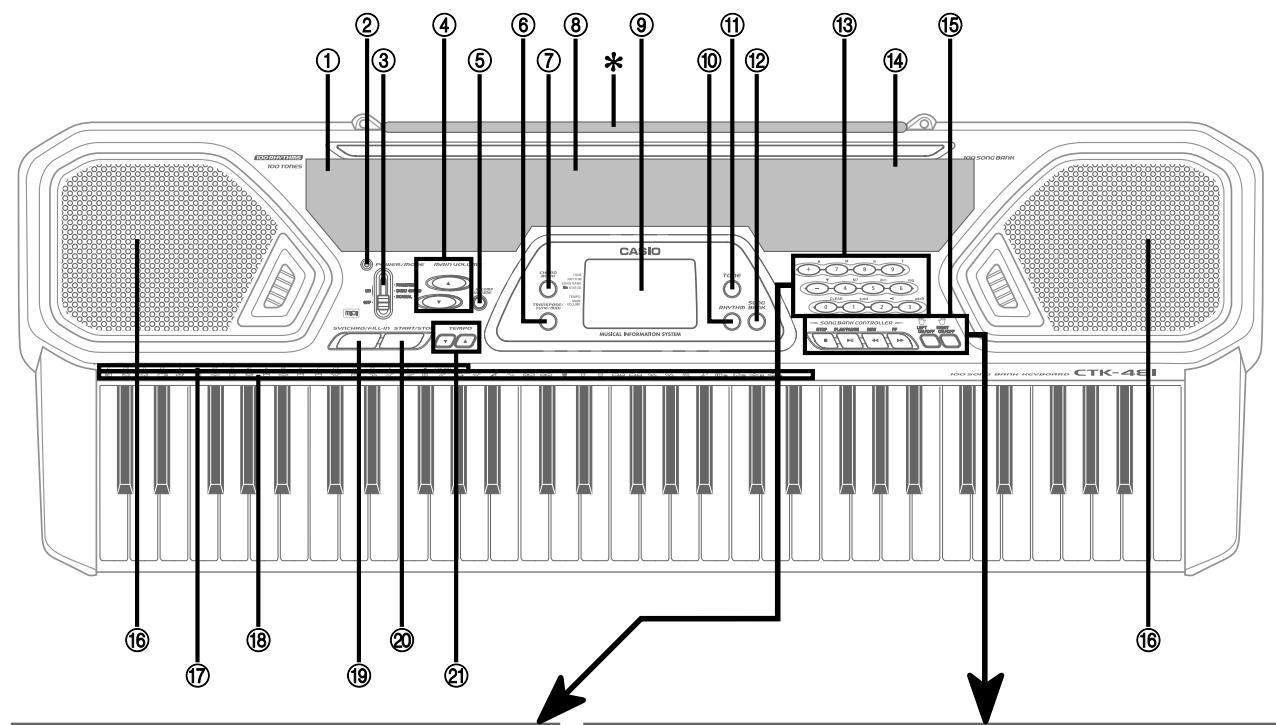
Guide général
- Les noms des touches, boutons et autres éléments sont indiqués en gras dans le texte de ce manuel.
(13)
Boutons [+]/ [-]
- Les valeurs négatives ne peuvent être modifiées qu'en utilisant [+] et [-] pour augmenter ou diminuer la valeur affichée.
![CASIO CTK-491 - Boutons [+]/ [-] - 1](/content/2025/01/129445/images/a04b87eba8255a51dfa14aedadd7007a8ac79cacb7cd58f914a6a3768025e9f8.jpg)
Boutons numériques/
Boutons de spécification d'accords
- Pour saisir des nombres afin de modifier les réglages affichés.
- Pour saisir des données de spécification d'accords lors de l'utilisation du Chord Book.
15 CONTRÔLEUR DE BANQUE DE CHANSONS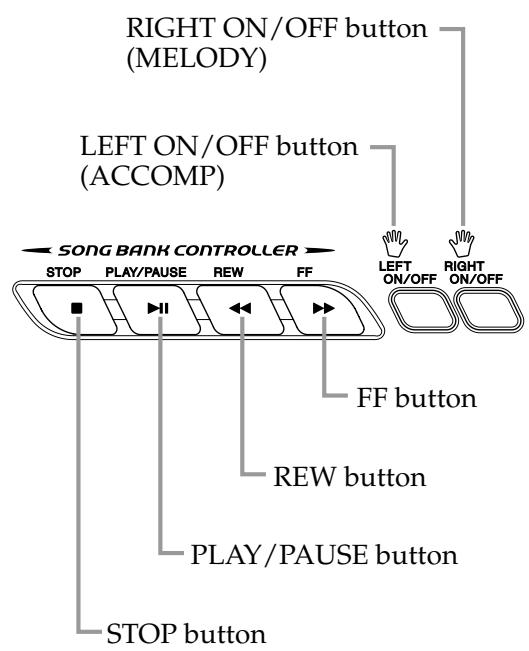
625A-E-010A
E-8
CTK481_E08_17.p65
Page 8


NOTE
- Les illustrations de ce guide de l'utilisateur montrent le CTK-481.
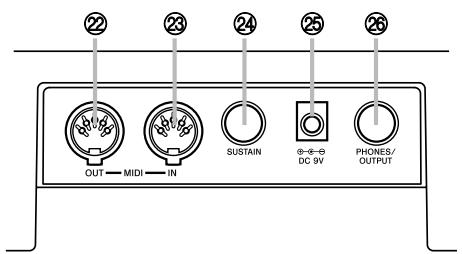
Panneau arrière
- CTK-481
- CTK-491
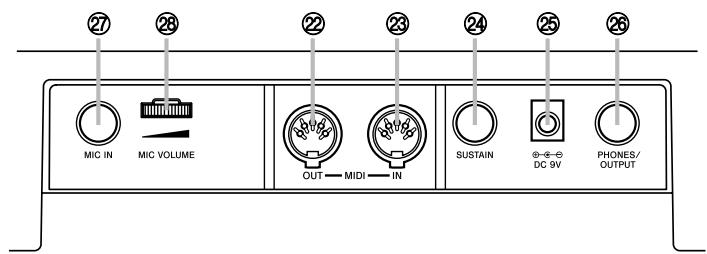
22 Borne MIDI OUT 23 Borne MIDI IN Prise SUSTAIN 25 Prise DC 9V 26 Prise PHONES/OUTPUT
② Prise MIC IN Volume MIC
① Liste des rythmes ② Voyant d'alimentation ③ Interrupteur POWER/MODE (4) Boutons MAIN VOLUME ⑤ Bouton ACCOMP VOLUME ⑥ Bouton TRANSPOSE/TUNE/MIDI ⑦ Bouton CHORD BOOK ⑧ Liste des tonalités ⑨ Affichage 10 Bouton RHYTHM Bouton TONE 12 Bouton SONG BANK 13 Boutons numériques (boutons de spécification d'accords) ⑭ Liste de la banque de chansons 15 CONTRÔLEUR DE BANQUE DE CHANSONS (PLAY/PAUSE, STOP, REW, FF, LEFT ON/OFF, RIGHT ON/OFF) 16 Haut-parleur 17 Nom d'accord 18 Liste des instruments de percussion 19 Bouton SYNCHRO/FILL-IN Bouton START/STOP ② Boutons TEMPO
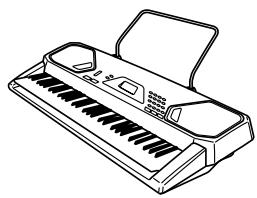
Insérez les deux extrémités du pupitre fourni avec le clavier dans les deux trous sur la surface supérieure.
*Fixation du pupitre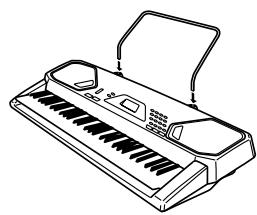
E-9
Utilisation de l'écran
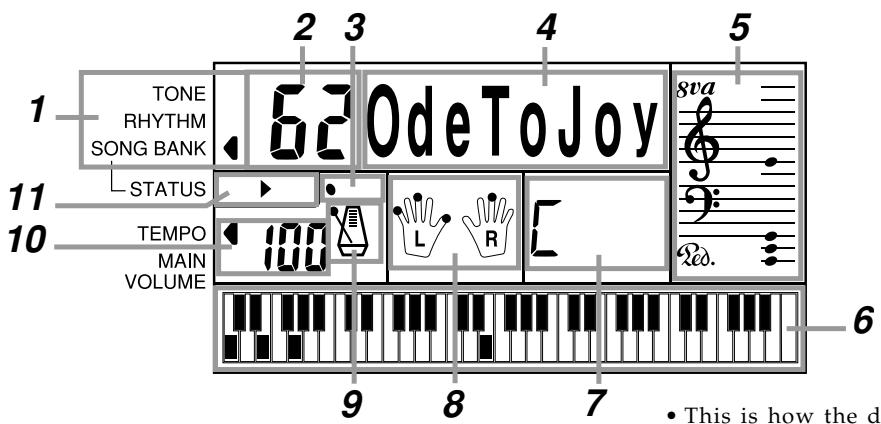
- Voici comment l'écran apparaît lorsque la banque de chansons est utilisée.
1 Un indicateur apparaît à côté du type de réglage que vous effectuez actuellement (TONE, RHYTHM, SONG BANK).
2 Numéro de tonalité, numéro de rythme, numéro de chanson, valeur de réglage du clavier
3 Battements du rythme, de l'accompagnement automatique et des morceaux de la banque de chansons
4 Nom de la tonalité, nom du rythme, nom de la chanson, nom du mode, nom du réglage du clavier
5 Représentation en portée musicale des notes et des accords que vous jouez au clavier. Un indicateur de pédale () apparaît lorsque la pédale du clavier est enfoncée. Un indicateur d'octave (8va) apparaît lorsque vous jouez des notes dans la plage de C à C7 pour indiquer que leur notation réelle est une octave plus haute que celle affichée à l'écran.
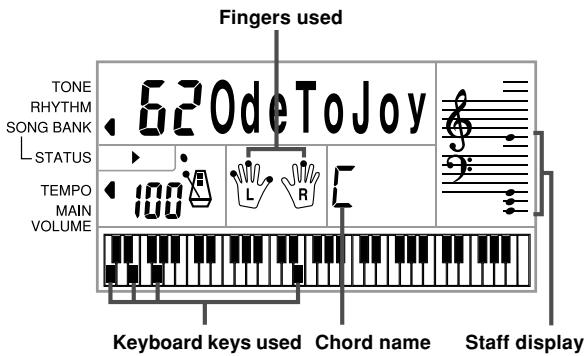
6 Utilise un clavier graphique pour montrer les notes et les accords joués au clavier ou pendant la lecture des morceaux de la banque de chansons
7 Noms des accords de l'accompagnement automatique, de la banque de chansons et du livre d'accords
8 Les points indiquent les doigtés pendant la lecture de la banque de chansons. "L" et "R" indiquent les parties de la main gauche et de la main droite.
9 Tempo du rythme, de l'accompagnement automatique et des morceaux de la banque de chansons
10 Tempo du rythme, de l'accompagnement automatique et des morceaux de la banque de chansons ; réglage du volume
Indicateurs du contrôleur Song Bank
REMARQUE
- Les exemples d'affichage présentés dans ce guide de l'utilisateur sont fournis à titre d'illustration uniquement. Le texte et les valeurs réels affichés peuvent différer des exemples présentés dans ce guide.
E-10
625A-E-012A
Référence rapide de la banque de chansons
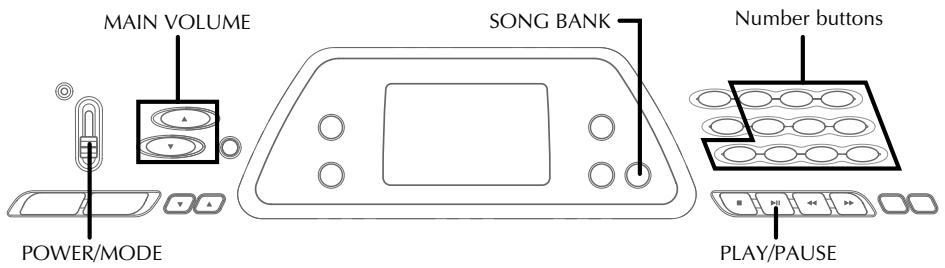
Une sélection de 100 airs de la banque de chansons est intégrée pour votre plaisir d'écoute ou pour jouer avec. Une opération simple permet de couper la partie mélodie ou la partie accompagnement de l'air, vous permettant de jouer sur le clavier. Voir « Utilisation de la banque de chansons » à la page E-22 pour plus de détails sur la lecture avec les airs de la banque de chansons.
Lecture d'un air de la banque de chansons
Pour lire un air de la banque de chansons
- Réglez le commutateur POWER/MODE sur NORMAL.
- Utilisez les boutons MAIN VOLUME pour baisser le volume du clavier à un niveau relativement faible.
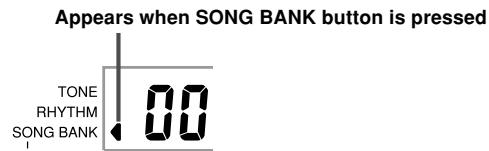
- Appuyez sur le bouton SONG BANK pour entrer dans le mode Banque de chansons.
- Utilisez la liste de la banque de chansons pour trouver l'air que vous voulez lire, puis utilisez les boutons numériques pour saisir le numéro à deux chiffres de l'air.
Exemple : Pour sélectionner « 62 ODE TO JOY », saisissez 6 puis 2.

- Appuyez sur le bouton PLAY/PAUSE pour démarrer la lecture de l'air.
- Le morceau est joué en boucle, il recommence après la fin.
- L'écran affiche les touches du clavier (sur le clavier graphique), les doigtés (avec les indicateurs de doigté), les notes de musique (sur la portée) et les noms d'accords.



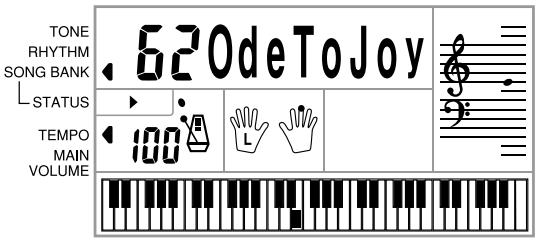
- Appuyez sur le bouton DROITE ON/OFF pour désactiver la partie mélodie de la main droite et essayez de jouer sur le clavier.
- Le clavier graphique et les indicateurs de doigté de l'écran vous montrent les notes de la mélodie à jouer.
- Appuyez à nouveau sur le bouton DROITE ON/OFF pour réactiver la partie mélodie.
- Vous pouvez également activer ou désactiver la partie accompagnement en appuyant sur le bouton GAUCHE ON/OFF.
- Appuyez sur le bouton STOP pour arrêter la lecture du morceau de la banque de chansons.
- Appuyez sur le bouton TONE pour quitter le mode Banque de chansons et revenir à l'écran de sélection des sons et des rythmes.
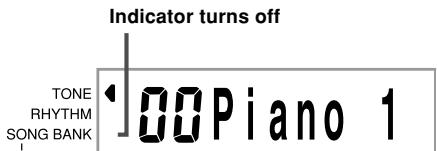
REMARQUE
- Vous pouvez également effectuer les opérations suivantes pendant la lecture d'un morceau de la banque de chansons.
- Pause : appuyez sur la touche LECTURE/PAUSE.
- Avance rapide : appuyez sur la touche FF (avance rapide).
- Retour rapide : appuyez sur la touche REW (retour rapide).
E-12
625A-E-014A
CTK481_E08_17.p65
Page 12
03.10.7, 2:58 PM
Adobe PageMaker 6.5J/PPC
Alimentation
Ce clavier peut être alimenté par le courant d'une prise murale standard (à l'aide de l'adaptateur secteur spécifié) ou par des piles. Assurez-vous toujours d'éteindre le clavier lorsque vous ne l'utilisez pas.
Utilisation des piles
Assurez-vous toujours d'éteindre le clavier avant d'insérer ou de remplacer les piles.
Pour insérer les piles
- Retirez le couvercle du compartiment à piles.
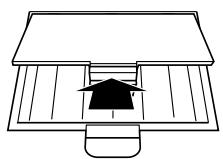
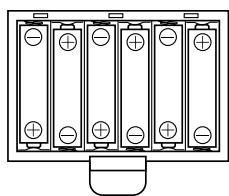
- Insérez 6 piles de taille AA dans le compartiment à piles.
- Assurez-vous que les extrémités positive (+) et négative (-) sont orientées correctement.
- Insérez les languettes du couvercle du compartiment à piles dans les trous prévus à cet effet et fermez le couvercle.
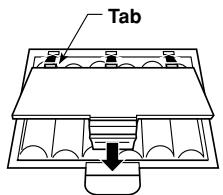
Le clavier peut ne pas fonctionner correctement si vous insérez ou remplacez les piles alors que l'appareil est sous tension. Si cela se produit, éteignez puis rallumez le clavier pour rétablir un fonctionnement normal.
Informations importantes sur les piles
Voici la durée de vie approximative des piles. Piles alcalines : 4 heures*
Piles au manganèse : 2 heures*
- La valeur ci-dessus correspond à la durée de vie standard des piles à température normale, avec le volume du clavier réglé sur moyen. Les températures extrêmes ou un volume très élevé peuvent réduire la durée de vie des piles.
Les symptômes suivants indiquent une faible charge des piles. Remplacez les piles dès que possible si l'un des symptômes suivants se produit.
- Voyant d'alimentation faible
- L'instrument ne s'allume pas
- Affichage qui scintille, est faible ou difficile à lire
- Volume anormalement faible du haut-parleur/casque, distorsion du son en sortie.
- Interruption occasionnelle du son lors de la lecture à volume élevé.
- Coupure soudaine de l'alimentation lors de la lecture à volume élevé.
- Scintillement ou atténuation de l'affichage lors de la lecture à volume élevé.
- Sortie sonore continue même après avoir relâché une touche.
- Une tonalité totalement différente de celle sélectionnée.
- Lecture anormale des motifs rythmiques et du mode Song Bank.
- Perte de puissance, distorsion du son ou volume faible lors de la lecture depuis un ordinateur ou un périphérique MIDI connecté.
Distorsion de l'entrée microphone - Voyant d'alimentation faible lorsqu'un microphone est utilisé - Coupure soudaine de l'alimentation lors de l'utilisation du microphone.

AVERTISSEMENT
Une mauvaise utilisation des piles peut provoquer une fuite, entraînant des dommages aux objets environnants, ou une explosion, créant un risque d'incendie et de blessures. Assurez-vous toujours de respecter les précautions suivantes.
- Ne tentez jamais de démonter les piles ou de les court-circuiter.
- N'exposez jamais les piles à la chaleur et ne les éliminez pas par incinération.
- Ne mélangez jamais des piles usagées avec des piles neuves.
- Ne mélangez jamais des piles de types différents.
- Ne chargez pas les piles.
- Assurez-vous que les extrémités positive (+) et négative (-) des piles sont orientées correctement.

ATTENTION
Une mauvaise utilisation des piles peut provoquer une fuite, entraînant des dommages aux objets à proximité, ou une explosion, créant un risque d'incendie et de blessures. Assurez-vous toujours de respecter les précautions suivantes.
- Utilisez uniquement les piles spécifiées pour ce produit.
- Retirez les piles du produit si vous ne prévoyez pas de l'utiliser pendant une longue période.
E-13
625A-E-015B
CTK481_E08_17.p65
Page 13
03.10.7, 2:58 PM
Adobe PageMaker 6.5J/PPC
Utilisation de l'adaptateur secteur
Assurez-vous d'utiliser uniquement l'adaptateur secteur spécifié pour ce clavier.
Adaptateur secteur spécifié : AD-5
[Panneau arrière]
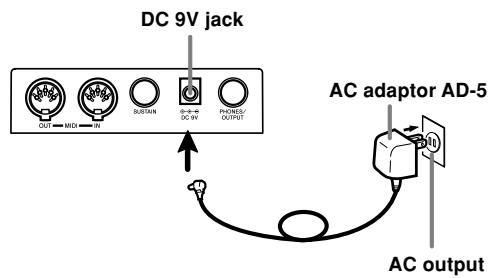
Notez également les avertissements et précautions importants suivants lors de l'utilisation de l'adaptateur secteur.
AVERTISSEMENT
Une mauvaise utilisation de l'adaptateur secteur présente un risque d'incendie et de choc électrique. Assurez-vous toujours de respecter les précautions suivantes.
- Veillez à n'utiliser que l'adaptateur secteur spécifié pour ce produit.
- Utilisez uniquement une source d'alimentation dont la tension est conforme à la valeur nominale indiquée sur l'adaptateur secteur.
- Ne surchargez pas les prises électriques et les rallonges.
- Ne placez jamais d'objets lourds sur le cordon et ne l'exposez pas à la chaleur.
- Ne modifiez jamais le cordon et ne le pliez pas excessivement.
- Ne tordez jamais le cordon et ne l'étirez pas.
- Si le cordon d'alimentation ou la fiche est endommagé, contactez votre revendeur d'origine ou un centre de service agréé CASIO.
- Ne touchez jamais l'adaptateur secteur avec les mains mouillées. Cela présente un risque de choc électrique.
ATTENTION
Une mauvaise utilisation de l'adaptateur secteur présente un risque d'incendie et de choc électrique. Assurez-vous toujours de respecter les précautions suivantes.
- Ne placez pas le cordon d'alimentation près d'une cuisinière ou d'autres sources de chaleur.
- Ne tirez jamais sur le cordon pour débrancher la fiche de la prise électrique. Saisissez toujours l'adaptateur secteur pour débrancher.
- Insérez l'adaptateur secteur dans la prise murale jusqu'au bout.
- Débranchez l'adaptateur secteur de la prise murale pendant les orages ou avant de partir en voyage ou pour une longue absence.
- Au moins une fois par an, débranchez l'adaptateur secteur de la prise murale et essuyez toute poussière accumulée autour des broches de la fiche.
IMPORTANT !
- Assurez-vous que le clavier est éteint avant de brancher ou de débrancher l'adaptateur secteur.
- L'utilisation prolongée de l'adaptateur secteur peut le faire chauffer au toucher. C'est normal et n'indique pas un dysfonctionnement.
Mise hors tension automatique
Lorsque vous utilisez la batterie, le clavier s'éteint automatiquement si vous le laissez allumé sans effectuer aucune opération pendant environ 6 minutes. Dans ce cas, utilisez l'interrupteur POWER/MODE pour le rallumer.
REMARQUE
- La mise hors tension automatique est désactivée (elle ne fonctionne pas) lorsque vous utilisez l'adaptateur secteur pour alimenter le clavier.
Pour désactiver la mise hors tension automatique
Maintenez enfoncé le bouton TONE tout en allumant le clavier pour désactiver la mise hors tension automatique.
REMARQUE
- Lorsque la mise hors tension automatique est désactivée, le clavier ne s'éteint pas automatiquement, quelle que soit la durée pendant laquelle il reste sans aucune opération.
- La fonction d'extinction automatique est activée automatiquement à chaque mise sous tension du clavier.
Paramètres
Tous les paramètres du clavier sont rétablis à leurs valeurs par défaut lorsque le clavier est rallumé après avoir été éteint via l'interrupteur POWER/MODE ou la fonction d'extinction automatique.
Connexions
Prise casque / sortie
Avant de connecter un casque ou un autre équipement externe, assurez-vous de baisser d'abord le volume du clavier et de l'équipement connecté. Vous pourrez ensuite ajuster le volume au niveau souhaité une fois les connexions terminées.
[Panneau arrière]
Connexion d'un casque (Figure 1)
La connexion d'un casque coupe la sortie des haut-parleurs intégrés du clavier, vous permettant ainsi de jouer même tard dans la nuit sans déranger personne.
Équipement audio (Figure 2)
Connectez le clavier à un équipement audio à l'aide d'un câble de connexion disponible dans le commerce, muni d'une fiche standard à une extrémité et de deux fiches RCA à l'autre. Notez que la fiche standard que vous connectez au clavier doit être une fiche stéréo, sinon vous ne pourrez sortir qu'un seul des canaux stéréo. Dans cette configuration, vous réglez normalement le sélecteur d'entrée de l'équipement audio sur la borne (généralement marquée AUX IN ou similaire) où le câble du clavier est connecté. Consultez la documentation fournie avec votre équipement audio pour plus de détails.
Amplificateur d'instrument de musique (Figure 3)
Utilisez un câble de connexion disponible dans le commerce* pour connecter le clavier à un amplificateur d'instrument de musique.
- Assurez-vous d'utiliser un câble de connexion muni d'une fiche standard stéréo à l'extrémité que vous connectez au clavier, et d'un connecteur qui fournit une entrée à deux canaux (gauche et droite) à l'amplificateur auquel vous vous connectez. Un mauvais type de connecteur à l'une ou l'autre extrémité peut entraîner la perte d'un des canaux stéréo.
Lorsqu'il est connecté à un amplificateur d'instrument de musique, réglez le volume du clavier à un niveau relativement bas et effectuez les réglages de volume de sortie à l'aide des commandes de l'amplificateur.
[Exemple de connexion]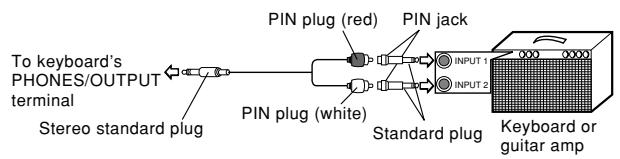
REMARQUE
- Vous pouvez également connecter la borne MIDI du clavier à un ordinateur ou à un séquenceur. Voir « MIDI » à la page F-31 pour plus de détails.
Borne de prise pour pédale de sustain
Vous pouvez connecter une pédale de sustain en option (SP-2, SP-10 ou SP-20) à la borne SUSTAIN pour activer les fonctions décrites ci-dessous.
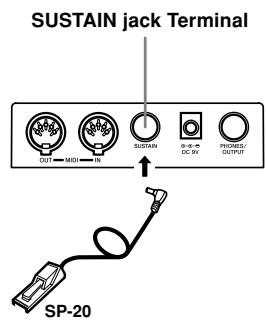
Pédale de sustain
- Avec les sonorités de piano, l'enfoncement de la pédale prolonge les notes, comme la pédale forte d'un piano.
- Avec les sonorités d'orgue, l'enfoncement de la pédale maintient les notes jusqu'à ce que la pédale soit relâchée.
Accessoires et options
Utilisez uniquement les accessoires et options spécifiés pour ce clavier. L'utilisation d'articles non autorisés présente un risque d'incendie, de choc électrique et de blessure.
Opérations de base
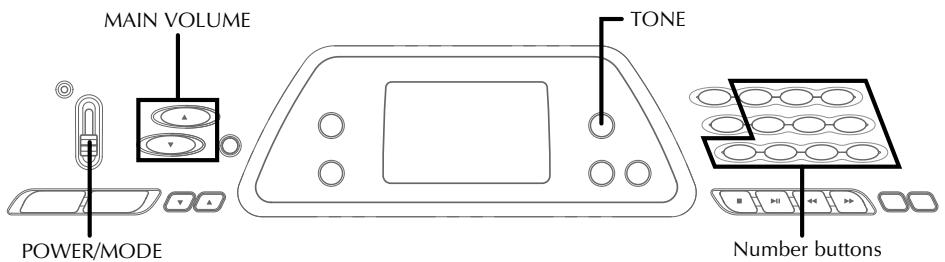
Cette section fournit des informations sur l'exécution des opérations de base du clavier.
Jouer du clavier
Pour jouer du clavier
- Réglez le commutateur POWER/MODE sur NORMAL.
- Utilisez les boutons MAIN VOLUME pour baisser le volume du clavier.
- C'est toujours une bonne idée de régler le volume du clavier à un niveau relativement bas avant de jouer.
- Appuyer sur [] ou [] fait apparaître le réglage de volume actuel à l'écran. Appuyez à nouveau sur [] ou [] pour modifier le réglage.
- Jouez quelque chose sur le clavier.
Sélection d'une tonalité
Ce clavier est équipé de 100 tonalités intégrées. Utilisez la procédure suivante pour sélectionner la tonalité que vous souhaitez utiliser.
Pour sélectionner une tonalité
- Trouvez la tonalité que vous souhaitez utiliser dans la liste des tonalités du clavier et notez son numéro.
- Appuyez sur le bouton TONE.
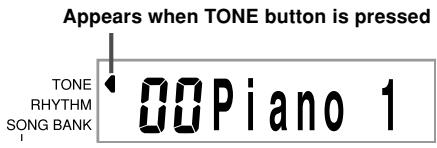
- Utilisez les boutons numériques pour saisir le numéro à deux chiffres de la tonalité que vous souhaitez sélectionner.
Exemple : Pour sélectionner "26 WOOD BASS", saisissez 2 puis 6.

- Désormais, les notes jouées au clavier seront émises avec un son de contrebasse acoustique en bois.
REMARQUE
- Saisissez toujours les deux chiffres du numéro de sonorité, y compris le zéro initial (le cas échéant). Si vous ne saisissez qu'un seul chiffre puis vous arrêtez, l'affichage effacera automatiquement votre saisie après quelques secondes.
- Vous pouvez également incrémenter le numéro de sonorité affiché en appuyant sur [+] et le décrémenter en appuyant sur [-] .
- Les noms des numéros de sonorité 60 à 89 ne sont pas indiqués sur le panneau du clavier. Voir la "Liste des sonorités" (page A-1) pour plus de détails. Les sonorités d'effets sonores telles que 77 VEHICULE rendent le meilleur résultat lorsque vous maintenez une touche du clavier enfoncée.
Sonorités combinées
Voici la description des deux types de sonorités combinées disponibles.
Sonorités superposées (numéros de sonorité : 80 à 89)
Exemple : 80 STR PIANO
Cette sonorité superpose une sonorité de cordes à une sonorité de piano, de sorte que les deux sonnent lorsqu'une touche du clavier est enfoncée.
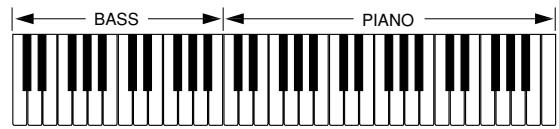
Sonorités divisées (numéros de sonorité : 90 à 96)
Exemple : 90 BASS/PIANO
Cette sonorité divise le clavier de sorte qu'une plage est assignée à une sonorité de basse et une autre plage à une sonorité de piano.
Sons de percussion
Exemple : 99 PERCUSSION
Cette tonalité attribue divers sons de percussion au clavier. Voir la "Liste des instruments de percussion" à la page A-5 pour plus de détails.
Tonalités d'effets sonores
Avec les tonalités d'effets sonores 77 à 79, le type de son produit dépend de l'octave où se trouve la touche que vous appuyez. Lorsque 78 PHONE est sélectionné, les types de sons disponibles sont PUSH TONE 1, PUSH TONE 2, RING 1, RING 2 et BUSY SIGNAL.
Polyphonie
Le terme polyphonie fait référence au nombre maximal de notes que vous pouvez jouer en même temps. Le clavier a une polyphonie de 12 notes, qui inclut les notes que vous jouez ainsi que les rythmes et les motifs d'accompagnement automatique joués par le clavier. Cela signifie que lorsqu'un rythme ou un motif d'accompagnement automatique est joué par le clavier, le nombre de notes (polyphonie) disponible pour le jeu au clavier est réduit. Notez également que certaines tonalités n'offrent qu'une polyphonie de 6 notes.
REMARQUE
- Lorsque le rythme ou l'accompagnement automatique joue, le nombre de sons joués simultanément est réduit.
Échantillonnage numérique
Un certain nombre de tonalités disponibles avec ce clavier ont été enregistrées et traitées à l'aide d'une technique appelée échantillonnage numérique. Pour garantir un niveau élevé de qualité tonale, des échantillons sont prélevés dans les registres grave, médium et aigu, puis combinés pour vous fournir des sons étonnamment proches des originaux. Vous pouvez remarquer de très légères différences de volume ou de qualité sonore pour certaines tonalités lorsque vous les jouez à différentes positions sur le clavier. C'est un résultat inévitable de l'échantillonnage multiple, et ce n'est pas un signe de dysfonctionnement.
Utilisation de la prise microphone (CTK-491 uniquement)
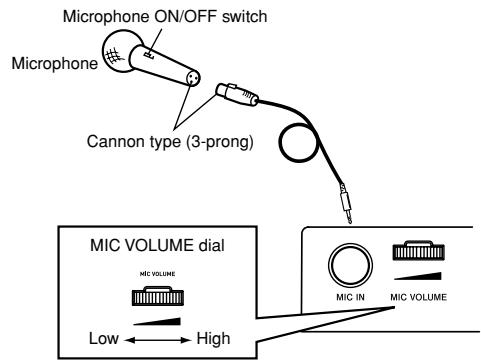
Connecter un microphone disponible dans le commerce à la prise MIC IN permet de chanter en accompagnement des morceaux intégrés du clavier ou de la sortie d'un appareil MIDI. Lors de la connexion d'un microphone, assurez-vous d'abord de régler le volume du micro (MIC VOLUME) à un niveau relativement bas, puis ajustez-le au niveau souhaité après la connexion.
- Lors de la connexion d'un microphone, nous vous recommandons de régler le volume du micro (MIC VOLUME) à un niveau très bas.
- Activez l'interrupteur ON/OFF du microphone.
- Utilisez le volume du microphone (MIC VOLUME) pour régler le niveau du microphone au niveau souhaité.
IMPORTANT !
- Veillez à utiliser l'interrupteur MARCHE/ARRÊT du microphone pour l'éteindre et à le débrancher du clavier lorsque vous ne l'utilisez pas.
Spécifications requises du microphone
- Type de microphone
: blindé métallique
- Microphone et câble
(corps du microphone)
Connecteur
: type Canon (3 broches)
- Connecteur jack du clavier : prise standard (mono)
IMPORTANT !
- La connexion à la borne MIDI d'un périphérique externe peut provoquer des parasites dans le signal du microphone. L'utilisation d'un microphone de type Canon avec un corps blindé métallique aide à prévenir les parasites.
- Veillez à débrancher le microphone du clavier lorsque vous ne l'utilisez pas.
Hurlement (bruit de larsen)
Toute condition suivante peut provoquer un larsen (bruit de retour).
- Couvrir la tête du microphone avec la main.
- Placer le microphone trop près d'un haut-parleur.
Si un larsen se produit, essayez de tenir le microphone plus loin de la tête et éloignez-vous de tout haut-parleur à proximité.
Bruit statique
L'éclairage fluorescent peut provoquer des bruits statiques dans le signal du microphone. Si cela se produit, éloignez-vous de l'éclairage que vous pensez être à l'origine du bruit.
Accompagnement automatique
Ce clavier joue automatiquement les parties de basse et d'accords en fonction des accords que vous jouez. Les parties de basse et d'accords sont jouées avec des sons et des tonalités sélectionnés automatiquement pour correspondre au rythme que vous utilisez. Tout cela signifie que vous obtenez des accompagnements complets et réalistes pour les notes de mélodie que vous jouez avec la main droite, créant ainsi l'ambiance d'un ensemble à une personne.
Sélection d'un rythme
Ce clavier vous propose 100 rythmes passionnants que vous pouvez sélectionner en suivant la procédure ci-dessous.
Pour sélectionner un rythme
- Trouvez le rythme que vous souhaitez utiliser dans la liste des rythmes du clavier et notez son numéro de rythme.
- Appuyez sur le bouton RHYTHM.
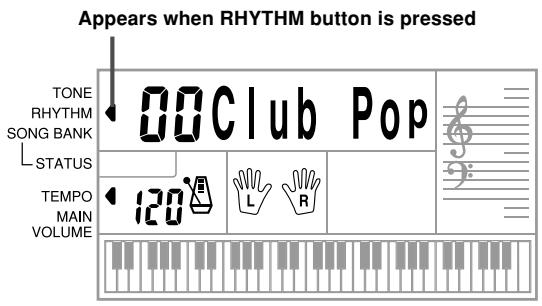
- Utilisez les touches numériques pour saisir le numéro à deux chiffres du rythme que vous souhaitez sélectionner.
Exemple : Pour sélectionner "64 WALTZ", saisissez 6 puis 4.
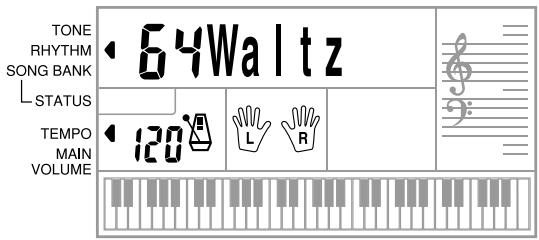
NOTE
- "00 CLUB POP" est le réglage de rythme par défaut lorsque vous allumez le clavier.
- Vous pouvez également incrémenter le numéro de rythme affiché en appuyant sur [+] et le décrémenter en appuyant sur [-].
Lecture d'un rythme
Utilisez la procédure suivante pour démarrer et arrêter la lecture du rythme.
Pour jouer un rythme
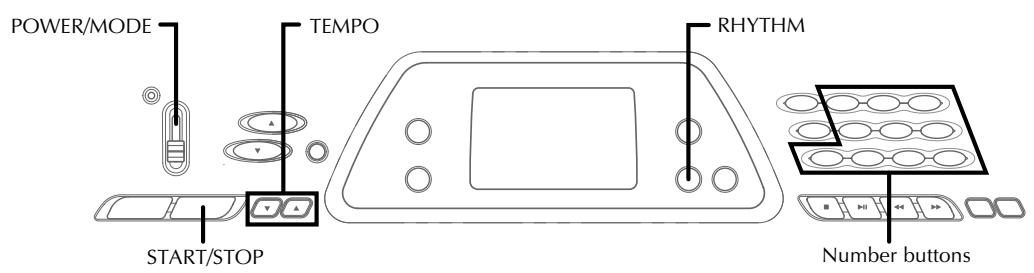
- Réglez le commutateur POWER/MODE sur NORMAL.
- Appuyez sur le bouton START/STOP pour démarrer la lecture du rythme actuellement sélectionné.
- Pour arrêter la lecture du rythme, appuyez à nouveau sur le bouton START/STOP.
NOTE
- Toutes les touches du clavier sont des touches de mélodie lorsque le commutateur POWER/MODE est réglé sur NORMAL.
Réglage du tempo
Vous pouvez régler le tempo de la lecture du rythme dans une plage de 20 à 255 battements par minute. Le réglage du tempo est appliqué à la lecture des accords d'accompagnement automatique et aux opérations de la banque de chansons.
Pour régler le tempo
Utilisez les boutons TEMPO ( / ) pour régler le tempo.
▲ : Augmente la valeur du tempo. ▼ : Diminue la valeur du tempo.
Exemple : Maintenez enfoncé le bouton ▼ jusqu'à ce que la valeur de tempo 110 soit affichée à l'écran.
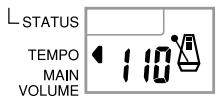
REMARQUE
- Appuyer simultanément sur les deux boutons TEMPO (▲ et ▼) réinitialise le tempo à la valeur par défaut du rythme sélectionné.
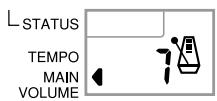
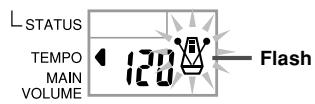
À propos du métronome graphique
Le métronome graphique apparaît à l'écran avec la valeur du tempo et la mesure d'un rythme ou d'un morceau intégré. Le métronome graphique vous aide à rester en mesure lorsque vous jouez avec un rythme ou un morceau intégré.
Valeur du tempo Métronome graphique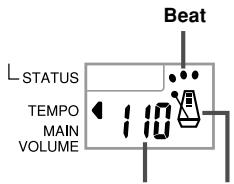
Utilisation de l'accompagnement automatique
La procédure suivante décrit comment utiliser la fonction d'accompagnement automatique du clavier. Avant de commencer, vous devez d'abord sélectionner le rythme que vous souhaitez utiliser et régler le tempo du rythme à la valeur souhaitée.
Pour utiliser l'accompagnement automatique
- Réglez le commutateur POWER/MODE sur CASIO CHORD ou FINGERED.
- Appuyez sur le bouton START/STOP pour lancer la lecture du rythme sélectionné.
- Jouez un accord.
- La procédure exacte à suivre pour jouer un accord dépend de la position actuelle du commutateur POWER/MODE. Reportez-vous aux pages suivantes pour plus de détails sur le jeu d'accords.
CASIO CHORD. Cette page
FINGERED. Page E-20
Doigté de base de l'accord actuel (peut différer de l'accord réellement joué sur le clavier).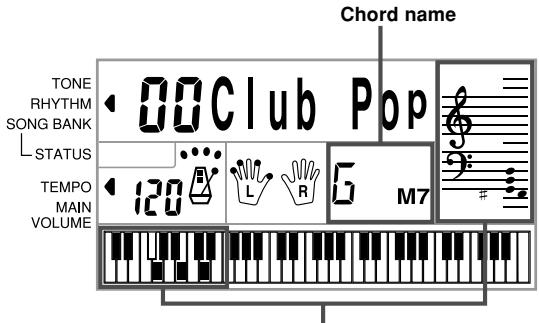
- Pour arrêter la lecture de l'accompagnement automatique, appuyez à nouveau sur le bouton START/STOP.
CASIO CHORD
Cette méthode de jeu d'accords permet à n'importe qui de jouer facilement des accords, sans connaissances musicales préalables ni expérience. Ce qui suit décrit le "clavier d'accompagnement" et le "clavier mélodie" de CASIO CHORD, et explique comment jouer des accords CASIO CHORD.
Clavier d'accompagnement et clavier mélodie CASIO CHORD
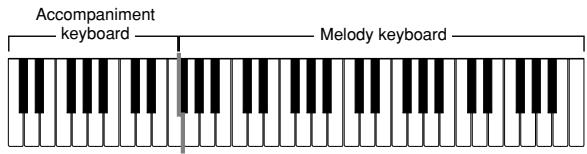
REMARQUE
- Le clavier d'accompagnement ne peut être utilisé que pour jouer des accords.
Aucun son ne sera produit si vous essayez de jouer des notes de mélodie simples sur le clavier d'accompagnement.
Types d'accords
L'accompagnement CASIO CHORD vous permet de jouer quatre types d'accords avec un doigté minimal.
| Chord Types | Example |
| Major chords Major chord names are marked above the keys of the accompa- niment keyboard. Note that the chord produced when you press an accompaniment keyboard does not change octave, regard- less of which key you use to play it. | C Major (C) C major (C) C minor (C) C minor (C) C minor (C) C minor (C) C minor (C) C minor (C) C minor (C) C minor (C) C minor (C) C minor (C) C minor (C) C minor (C) C minor (C) C minor (C) C minor (C) C minor (C) C minor (C) C minor (C) C minor (C) C minor (C) C major (C) C major (C) C major (C) C major (C) C major (C) C major (C) C major (C) C major (C) C major (C) C major (C) C major (C) C major (C) C major (C) C major (C) C major (C) C major (C) C major (C) C major (C) C major (C) C major (C) C minor (C) C minor (C) C minor (C) C minor (C) C minor (C) C minor (C) C minor (C) C minor (C) C minor (C) C minor (C) C minor (C) C minor (C) C minor (C) C minor (C) C minor (C) C minor (C) C minor (C) C minor (C) C major (C) C minor (C) C minor (C) C minor (C) C minor (C) C minor (C) C minor (C) C minor (C) C minor (C) C minor (C) C minor (C) C minor (C) C minor (C) C minor (C) C minor (C) C minor (C) C minor (C) C minor (C) C minor (C) C C C C C C C C C C C C C C C C C C C C C C C C C C C C C C C C C C C C C C C C C C C C C C C C C C C |
■NOTE
- Peu importe que vous appuyiez sur des touches noires ou blanches à droite d'une touche d'accord majeur lorsque vous jouez des accords mineurs et de septième.
FINGERED
FINGERED vous offre un total de 15 types d'accords différents. La description suivante concerne le "clavier d'accompagnement" et le "clavier mélodie" de FINGERED, et vous explique comment jouer un accord de do fondamental en utilisant FINGERED.
Clavier d'accompagnement FINGERED et clavier mélodie
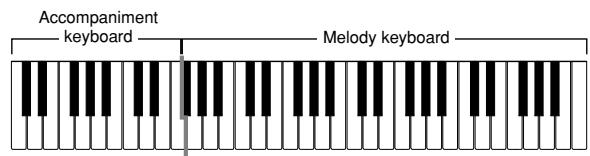
NOTE
- Le clavier d'accompagnement ne peut être utilisé que pour jouer des accords. Aucun son ne sera produit si vous essayez de jouer des notes mélodiques simples sur le clavier d'accompagnement.
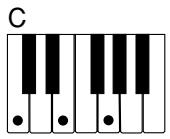
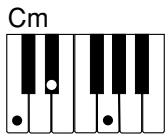
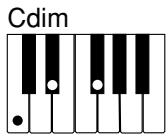
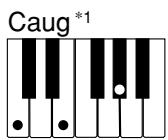
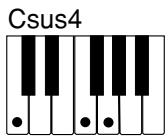
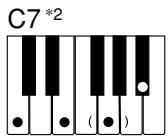
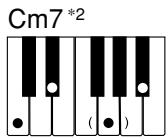
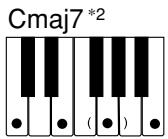
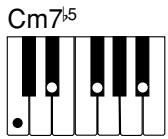
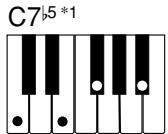
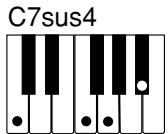
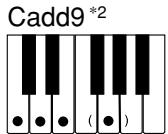
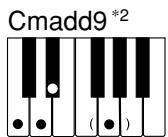
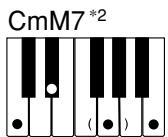
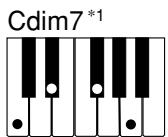
Voir le "Tableau des accords FINGERED" à la page A-4 pour plus de détails sur la façon de jouer des accords avec d'autres fondamentales.
1 : Les inversions ne peuvent pas être utilisées. La note la plus basse est la fondamentale. 2 : Le même accord peut être joué sans appuyer sur la quinte sol.
NOTE
- Sauf pour les accords spécifiés dans la note *1 ci-dessus, les inversions (c'est-à-dire jouer mi-sol-do ou sol-do-mi au lieu de do-mi-sol) produiront les mêmes accords que le doigté standard. Sauf pour l'exception spécifiée dans la note *2 ci-dessus, toutes les touches qui composent un accord doivent être enfoncées. Si vous n'appuyez pas sur une seule touche, l'accord FINGERED souhaité ne sera pas joué.
Utilisation d'un motif de remplissage
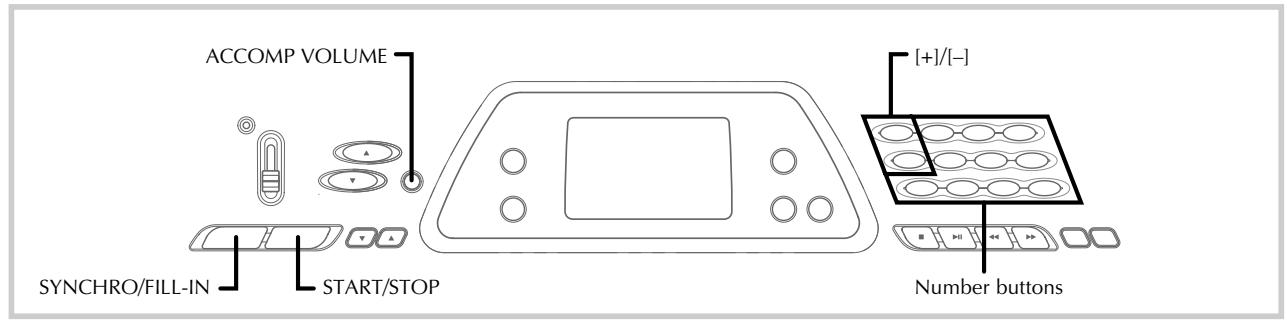
Les motifs de remplissage vous permettent de changer momentanément le motif rythmique pour ajouter des variations intéressantes à vos performances.
La procédure suivante décrit comment utiliser la fonction de remplissage.
Pour insérer un remplissage
- Appuyez sur le bouton START/STOP pour démarrer la lecture du rythme.
- Appuyez sur le bouton SYNCHRO/FILL-IN pour insérer un motif de remplissage pour le rythme que vous utilisez.
Démarrage synchronisé de l'accompagnement avec la lecture du rythme
Vous pouvez configurer le clavier pour démarrer la lecture du rythme en même temps que vous jouez l'accompagnement sur le clavier.
La procédure suivante décrit comment utiliser le démarrage synchronisé. Avant de commencer, vous devez d'abord sélectionner le rythme que vous souhaitez utiliser, régler le tempo et utiliser le commutateur POWER/MODE pour sélectionner la méthode de jeu d'accords que vous souhaitez utiliser (CASIO CHORD, FINGERED).
Pour utiliser le démarrage synchronisé
- Appuyez sur le bouton SYNCHRO/FILL-IN pour mettre le clavier en mode veille de démarrage synchronisé.
- Jouez un accord sur le clavier d'accompagnement et le motif rythmique commence à jouer automatiquement.
REMARQUE
- Si le commutateur POWER/MODE est réglé sur NORMAL, seul le rythme joue (sans accord) lorsque vous jouez sur le clavier d'accompagnement.
- Pour annuler le mode veille de démarrage synchronisé, appuyez à nouveau sur le bouton SYNCHRO/FILL-IN.
Réglage du volume de l'accompagnement
Vous pouvez régler le volume des parties d'accompagnement sur une valeur comprise entre 0 (minimum) et 9.
- Appuyez sur le bouton ACCOMP VOLUME.
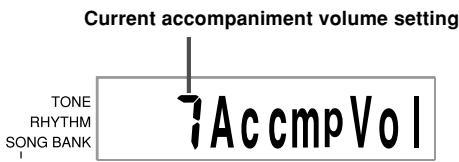
- Utilisez les boutons numériques ou les boutons [+]/[-] pour modifier la valeur du volume actuel.
Exemple : 5
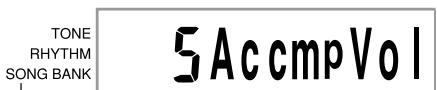
REMARQUE
- La valeur actuelle du volume d'accompagnement qui apparaît à l'étape 1 s'efface automatiquement de l'affichage si vous ne saisissez rien dans les cinq secondes environ.
- Appuyer simultanément sur les boutons [+] et [-] règle automatiquement le volume d'accompagnement sur 7.
Utilisation de la banque de chansons
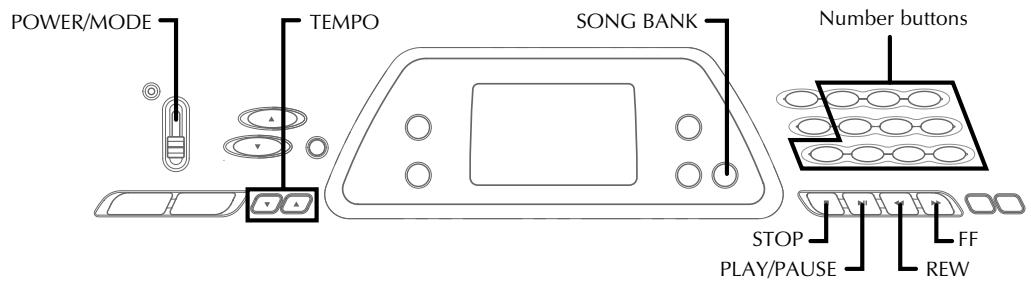
Une sélection de 100 airs de la banque de chansons est intégrée pour votre plaisir d'écoute ou pour jouer en accompagnement. Vous pouvez désactiver la partie de la main gauche ou de la main droite pour vous entraîner avec la partie restante, et l'affichage vous montre même quelles touches presser et quels doigts utiliser.
Lecture d'un air de la banque de chansons
Pour lire un air de la banque de chansons
- Réglez le commutateur POWER/MODE sur NORMAL, FINGERED ou CASIO CHORD.
- Réglez le volume principal et le volume d'accompagnement.
- Appuyez sur le bouton SONG BANK pour entrer dans le mode Banque de chansons.
Apparaît lorsque le bouton SONG BANK est enfoncé
- Utilisez la liste de la banque de chansons pour trouver l'air que vous voulez lire, puis utilisez les boutons numériques pour saisir le numéro à deux chiffres de l'air.
Exemple : Pour sélectionner "49 ALOHA OE", saisissez 4 puis 9.
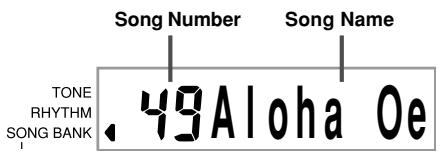
REMARQUE
- "00 A WHOLE NEW WORLD (ALADDIN'S THEORY)" est le réglage initial par défaut de la banque de chansons lorsque vous allumez le clavier.
- Vous pouvez également incrémenter le numéro de morceau affiché en appuyant sur [+] et le décrémenter en appuyant sur [-].
- Avant de passer à l'étape suivante, qui démarre réellement la lecture, vous pouvez régler le tempo (page E-19), sélectionner un son (page E-16) pour la partie mélodie, ou désactiver la partie main gauche ou main droite (page E-24).
- Appuyez sur le bouton LECTURE/PAUSE pour démarrer la lecture du morceau.
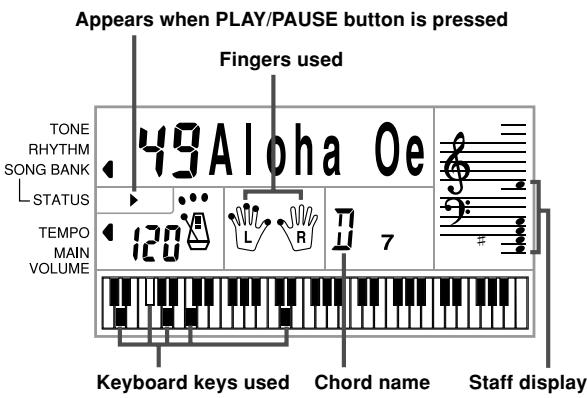
- Appuyez sur le bouton STOP pour arrêter la lecture du morceau de la banque de chansons.
Pour mettre en pause la lecture d'un morceau de la banque de chansons
- Pendant la lecture d'un morceau de la banque de chansons, appuyez sur le bouton LECTURE/PAUSE pour le mettre en pause.

- Pour reprendre la lecture, appuyez à nouveau sur LECTURE/PAUSE.
Pour effectuer un retour rapide pendant la lecture
- Pendant la lecture, maintenez enfoncé le bouton REW.
L'indicateur " " apparaît pendant une opération de retour rapide.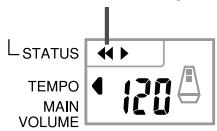
- Des bips sonores retentissent pendant le retour rapide pour vous donner une idée de l'endroit où vous vous trouvez dans le morceau. 1 bip : indique un changement de mesure. 2 bips : indique le début du morceau.
- Pour reprendre la lecture normale, relâchez le bouton REW.
Pour avancer rapidement pendant la lecture
- Pendant la lecture, maintenez enfoncé le bouton FF.
L'indicateur « ▶ » apparaît pendant une opération d'avance rapide.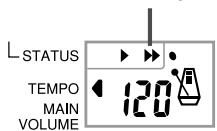
- Des bips sonores retentissent pendant l'avance rapide pour vous donner une idée de votre position dans le morceau.
1 bip : indique un changement de mesure. 3 bips : indique la fin du morceau.
- Pour reprendre la lecture normale, relâchez le bouton FF.
REMARQUE
Chaque fois que vous sélectionnez un nouveau morceau de la banque de chansons, le timbre, le tempo et le rythme programmés pour ce morceau sont automatiquement sélectionnés. Vous pouvez changer le timbre et le tempo d'un morceau pendant la lecture, mais vous ne pouvez pas changer le rythme. - Vous pouvez également ajuster le volume d'accompagnement (page E-21) pour les morceaux 00 à 79.
Affichage du mode Banque de chansons
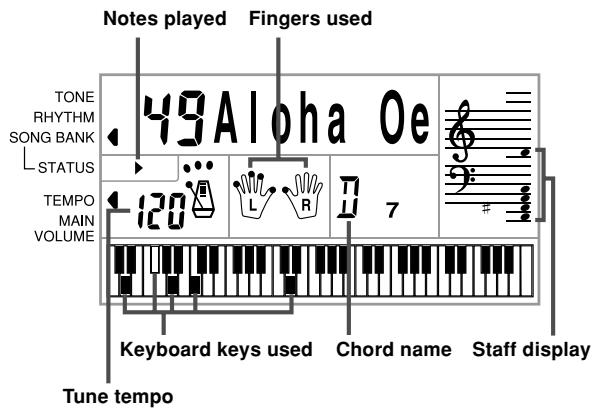
Dans le mode Banque de chansons, l'écran affiche diverses informations sur le morceau en cours de lecture.
[Affichage de lecture]
REMARQUE
- Les noms d'accords ne sont pas affichés pour les morceaux 80 à 99.
Réglage du tempo d'un morceau de la banque de chansons
Pour changer le tempo d'un morceau de la banque de chansons
Le tempo peut être réglé dans une plage de 20 à 255 battements par minute. Le réglage du tempo peut être ajusté pendant que le morceau est arrêté, en lecture ou en pause.
Utilisez les boutons TEMPO [Δ / ] pour ajuster le tempo.
: chaque pression augmente la valeur : chaque pression diminue la valeur
REMARQUE
- Appuyer simultanément sur les boutons TEMPO [] et [] ramène le tempo à la valeur prédéfinie pour le morceau actuellement sélectionné.
- Les morceaux 80 à 99 de la banque de chansons sont arrangés de sorte que leur tempo change en cours de morceau. Si vous utilisez la procédure ci-dessus pour modifier le tempo pendant la lecture de l'un de ces morceaux, le tempo que vous définissez est utilisé pour tout le morceau sans changement en cours de route.
Changement du timbre de la mélodie d'un morceau de la banque de chansons
Vous pouvez sélectionner l'un des 100 timbres du clavier pour jouer la partie mélodie d'un morceau de la banque de chansons. Le réglage du timbre peut être modifié pendant que le morceau est arrêté ou en lecture.
- Pendant la lecture d'un morceau, appuyez sur le bouton TONE.
TONE RHYTHM SONG BANK 2BGut Gtr
- Trouvez le timbre souhaité dans la liste des timbres, puis utilisez les boutons numériques ou les boutons [+] et [-] pour spécifier le numéro du timbre.
Exemple : Pour sélectionner "30 VIOLIN", saisissez 3 puis 0.
TONE 38Violin
NOTE
- Appuyer simultanément sur les boutons [+] et [-] sélectionne "00 PIANO 1".
- Pour les morceaux à deux mains (80 à 99), vous pouvez sélectionner des sonorités pour la partie de main gauche et la partie de main droite.
- Pour rétablir les réglages d'origine d'un morceau de la banque de morceaux, il suffit de le sélectionner à nouveau.
Jouer avec un morceau de la banque de morceaux
Chaque morceau de la banque de morceaux comporte une partie de main gauche (accompagnement) et une partie de main droite (mélodie). Vous pouvez désactiver la partie de main gauche ou la partie de main droite d'un morceau de la banque de morceaux et jouer la partie restante au clavier.
| Tune Numbers | 00 to 79 | 80 to 99 |
| Accompaniment Type | Auto- accompaniment | Piano Solo |
| Left-hand Part | Auto-accompani- ment (percussion, bass, chords) | Left-hand notes |
| Right-hand Part | Melody | Right-hand notes |
Pour jouer avec un morceau de la banque de morceaux
- Effectuez les étapes 1 à 4 de la section "Pour écouter un morceau de la banque de morceaux" à la page E-22 pour sélectionner le morceau avec lequel vous voulez jouer.
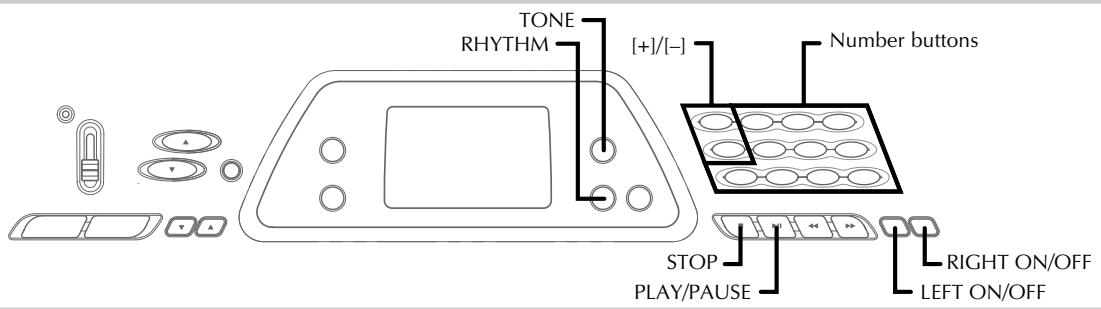
- Appuyez sur le bouton RIGHT ON/OFF ou LEFT ON/OFF pour la partie que vous voulez désactiver.
- Appuyez sur le bouton RIGHT ON/OFF pour désactiver la partie de main droite (mélodie), ou sur le bouton LEFT ON/OFF pour désactiver la partie de main gauche (accompagnement).
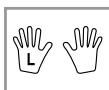
- L'état activé/désactivé de chaque partie est indiqué par les lettres (L et R) qui apparaissent dans les graphiques de mains sur l'écran. Une partie est activée lorsque sa lettre est affichée, et désactivée lorsque sa lettre n'est pas affichée.
- Appuyez sur le bouton PLAY/PAUSE pour lancer la lecture du morceau de la banque de morceaux.
- Seule la partie (mélodie ou accompagnement) activée est jouée, vous pouvez donc jouer l'autre partie au clavier.

- Les touches à presser sont indiquées sur le clavier graphique de l'écran.
- Vous pouvez presser les boutons RIGHT ON/OFF et LEFT ON/OFF pour activer ou désactiver les parties pendant la lecture.
- Pour arrêter la lecture, pressez le bouton STOP.
Morceaux avec accompagnement automatique (numéros de morceaux 00 à 79)
Pendant la lecture de ces morceaux en mode Song Bank, la méthode de spécification des accords pour la main gauche est toujours FINGERED, quel que soit le réglage du commutateur POWER/MODE.
Morceaux à deux mains (numéros de morceaux 80 à 99)
Pendant la lecture de ces morceaux en mode Song Bank, tout le clavier fonctionne comme une mélodie, quel que soit le réglage du commutateur POWER/MODE.
REMARQUE
- Avec les morceaux à deux mains (80 à 99), vous ne pouvez pas désactiver simultanément les parties de la main gauche et de la main droite. La désactivation d'une partie active automatiquement l'autre.
- Le morceau sélectionné de la Song Bank continue de se répéter jusqu'à ce que vous arrêtiez la lecture en pressant le bouton STOP.
- Le réglage du volume de l'accompagnement (page E-21) affecte uniquement les morceaux avec accompagnement automatique (00 à 79).
- Les noms d'accords ne sont pas affichés pendant la lecture des morceaux à deux mains (80 à 99).
- La désactivation des parties de main gauche et de main droite des morceaux d'accompagnement automatique (00 à 79) entraîne la lecture d'un accompagnement obligato.
Son d'applaudissements
Lorsque vous désactivez la partie de main gauche ou de main droite d'un morceau de la banque de morceaux et que vous le lisez, un son d'applaudissements est produit lorsque le morceau atteint la fin.
Pour désactiver le son d'applaudissements
Appuyez simultanément sur le bouton STOP et sur le bouton LEFT ON/OFF ou RIGHT ON/OFF.

- Appuyer de nouveau simultanément sur le bouton STOP et sur le bouton LEFT ON/OFF ou RIGHT ON/OFF réactive le son d'applaudissements.
Lecture de tous les morceaux de la banque de morceaux en succession
- Utilisez le bouton TONE ou RHYTHM pour passer à un mode autre que le mode Banque de morceaux.
- Assurez-vous qu'un point n'est pas affiché sur l'écran à côté de l'indicateur SONG BANK.
L'indicateur s'éteint.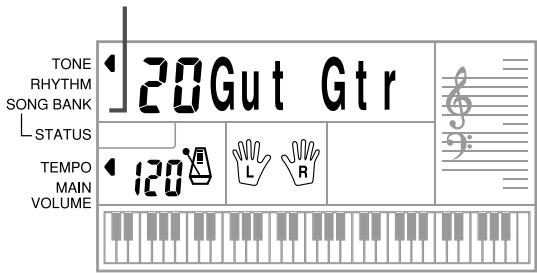
- Appuyez sur le bouton PLAY/PAUSE pour démarrer la lecture des morceaux de la banque de morceaux à partir du morceau 00.
- Pour arrêter la lecture des morceaux de la banque de morceaux, appuyez sur le bouton STOP.
- La mise en pause annule automatiquement la lecture consécutive de tous les morceaux de la banque de morceaux. La reprise de la lecture provoque la lecture répétée du morceau en cours uniquement.
Utilisation du Chord Book
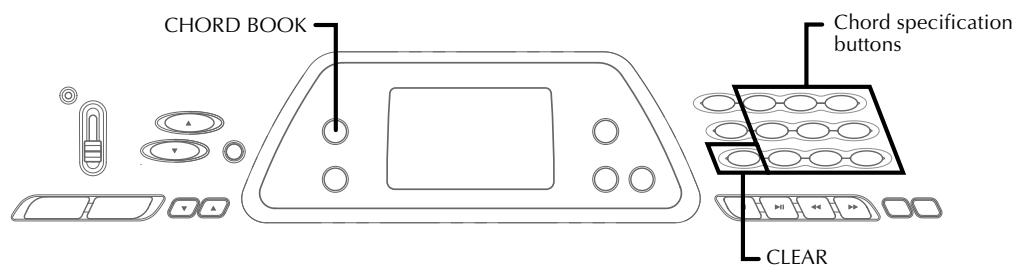
La fonction Chord Book de ce clavier vous permet de rechercher rapidement et facilement des informations sur les accords. Il vous suffit de saisir le nom de l'accord et les touches du clavier à presser, les doigtés à utiliser et les notes qui composent l'accord s'affichent à l'écran avec le nom de l'accord.
Qu'est-ce qu'un accord ?
Un accord est composé d'une note fondamentale sur laquelle sont empilées d'autres notes. Une variété d'accords différents peut être créée en modifiant les notes empilées sur la fondamentale.
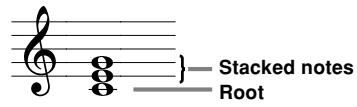
Noms des accords
Les accords sont nommés à l'aide de lettres majuscules de A à G, qui indiquent la note fondamentale de l'accord. Si la note fondamentale est dièse ou bémol, l'accord lui-même est dièse ou bémol. Un nom d'accord peut également être suivi d'un numéro de degré ou d'autres symboles qui indiquent certaines caractéristiques de l'accord.
| C Root | Sharp F# Root | Flat B# Root | Minor Am Root | Sharp Diminished C# root |
| Seventh G7-Degree Root | Major seventh FM7 Root | Degree | Sus fourth Esus4 Root | |
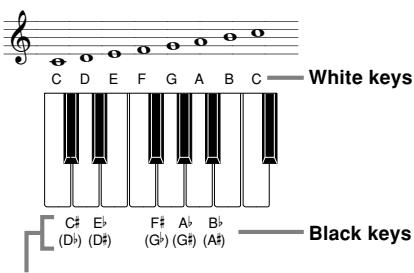
Les dièses et les bémols peuvent être désignés par l'un ou l'autre des noms indiqués ici. Les noms de la rangée supérieure de cette illustration sont utilisés par ce clavier, car ce sont les noms les plus couramment utilisés en notation musicale.
Formes inversées
Il existe plusieurs façons de jouer le même accord. Une forme différente de la forme de base mais qui produit le même accord est appelée "forme inversée".
Tous les accords suivants sont des accords de C.

E-26
625A-E-028A
Recherche d'un accord à l'aide du Chord Book
- Appuyez sur le bouton CHORD BOOK pour entrer dans le mode Chord Book.
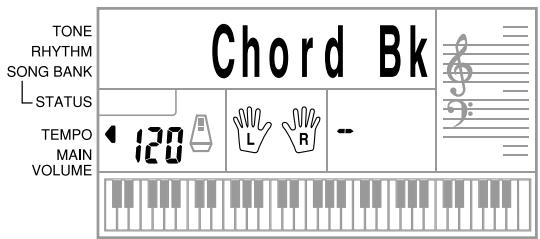
2. Appuyez sur le bouton CLEAR.
- Cette étape est nécessaire pour effacer tout nom d'accord saisi précédemment.
- Si le nom d'accord que vous prévoyez de saisir n'est pas un accord majeur, utilisez les boutons de spécification d'accord pour spécifier le type d'accord.
- Les types d'accord sont indiqués par les petites lettres au-dessus des boutons de spécification d'accord. Les accords non majeurs comprennent les accords mineurs, de septième, suspendus, etc.
- Voir la page E-28 pour plus de détails sur les boutons de spécification d'accord.
- Ignorez l'étape 3 si vous voulez saisir un nom d'accord majeur.
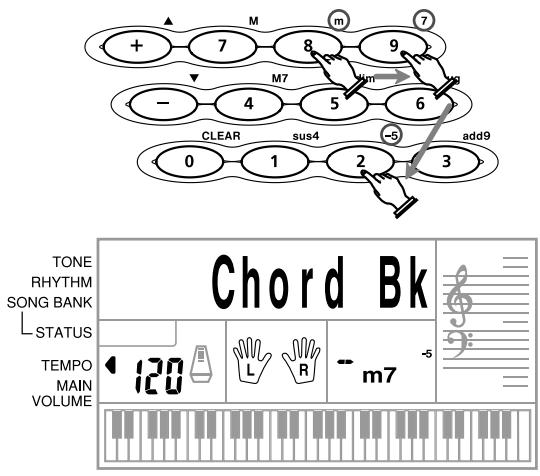
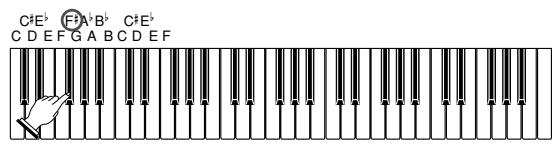
- Appuyez sur la touche du clavier d'accompagnement qui correspond à la note fondamentale de l'accord.
- Un tiret apparaît à la place du nom d'accord si l'accord ne peut pas être reconnu par le clavier.
- Pour spécifier F♯, par exemple, appuyez sur la touche F♯.
- La touche sur laquelle vous appuyez est indiquée sur le clavier graphique et l'accord correspondant retentit.
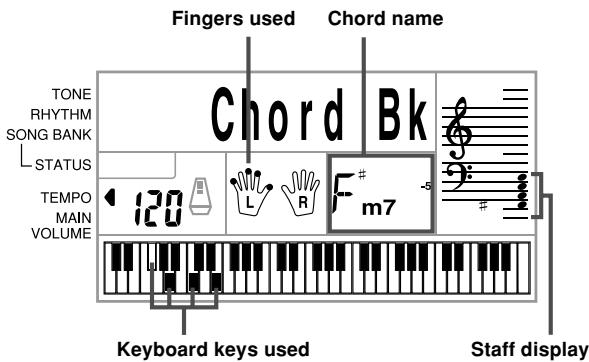
- Vérifiez que le nom d'accord affiché à l'écran est celui que vous voulez. Si ce n'est pas le cas, répétez la procédure à partir de l'étape 2.
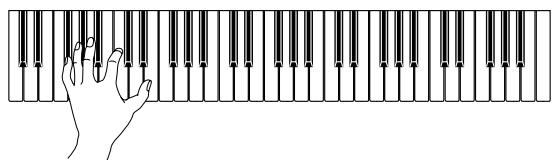
- Si l'accord est correct, vous pouvez voir son doigté sur le clavier graphique. Essayez de jouer l'accord sur le clavier.
REMARQUE
- Le doigté affiché à l'écran est un doigté standard. Vous pouvez également utiliser d'autres doigtés pour correspondre à la taille de vos mains ou pour faciliter l'enchaînement avec les accords voisins.
- Vous pouvez également utiliser les boutons [+] et [-] pour changer le nom d'accord affiché.
- La tonalité utilisée pour sonoriser les accords que vous jouez sur le clavier d'accompagnement en mode Chord Book est la même que celle utilisée par la partie d'accompagnement du rythme sélectionné avant d'entrer dans le mode Chord Book. Selon le rythme sélectionné, certaines notes composant un accord peuvent être omises lorsque vous jouez l'accord sur le clavier d'accompagnement en mode Chord Book. Cela est dû à la fonction de conversion d'accords interne, aux arrangements et aux limitations de polyphonie. Pour cette raison, vous devez toujours jouer les accords indiqués à l'écran sur le clavier mélodique (la plage qui n'a pas de noms d'accords imprimés au-dessus des touches).
Touches de modification du nom d'accord
| Chord Type | Symbol and Name | Reference | Modifier Key |
| major | C (C major) | ||
| minor | Cm (C minor) | ||
| aug | Caug (C augmened) | C+5 | |
| sus 4 | Csus4 (C sustained fourth) | ||
| dim | Cdim (C diminished) | C° | |
| 7th | C7 (C seventh) | ||
| M7 | CM7 (C major seventh) | Cmaj7 CΔ7 | |
| minor 7 | Cm7 (C minor seventh) | ||
| minor M7 | CmM7 (C minor Major seventh) | ||
| minor7-5 | Cm7-5 (C minor seventh flat five) | C° |
| Chord Type | Symbol and Name | Reference | Modifier Key |
| 7sus 4 | C7sus4 (C seventh sus fourth) | ||
| add 9 | Cadd9 (C add ninth) | ||
| m add 9 | Cm add9 (C minor add ninth) | ||
| 7th-5 | C7-5 (C seventh flat five) | C7,5 | |
| dim7 | Cdim7 (C diminished seventh) |
REMARQUE
- Étant donné que les doigtés d'accords affichés à l'écran sont sélectionnés pour permettre le jeu d'accords dans le clavier d'accompagnement, des formes d'accords renversés (page E-26) sont souvent suggérées. Les formes d'accords renversés sont utiles pour apprendre à jouer des variations d'accords qui permettent de passer d'un accord à un autre avec un mouvement minimal de la main. Ces formes sont pratiques lors de l'utilisation de l'accompagnement automatique FINGERED.
- Pendant qu'un nom d'accord est affiché à l'écran, vous pouvez appuyer sur les touches du clavier d'accompagnement pour découvrir les doigtés du même accord avec une basse différente.
- Vous pouvez également parcourir les noms d'accords à l'aide des boutons [+] et [-].
- Les doigtés d'accords affichés à l'écran sont formés en utilisant uniquement les touches de la plage du clavier d'accompagnement (les 18 touches les plus à gauche). Les accords qui ne peuvent pas être formés avec les touches de cette plage ne sont pas affichés.
Réglages du clavier
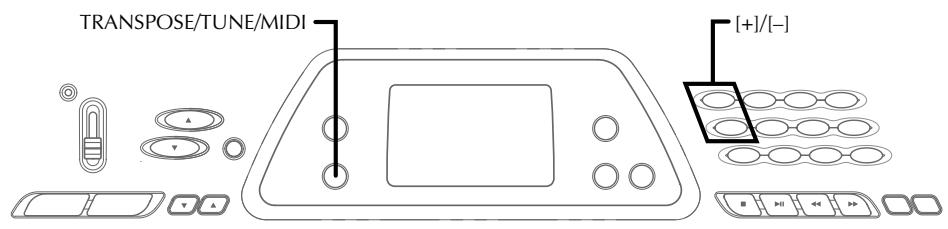
Transposition du clavier
La fonction Transpose vous permet d'élever ou d'abaisser la tonalité globale du clavier par unités de demi-tons. Par exemple, si vous souhaitez jouer un accompagnement pour un chanteur qui chante dans une tonalité différente de celle du clavier, utilisez simplement la fonction Transpose pour changer la tonalité du clavier.
Pour transposer le clavier
- Appuyez sur le bouton TRANSPOSE/TUNE/MIDI jusqu'à ce que l'écran de transposition apparaisse sur l'afficheur.
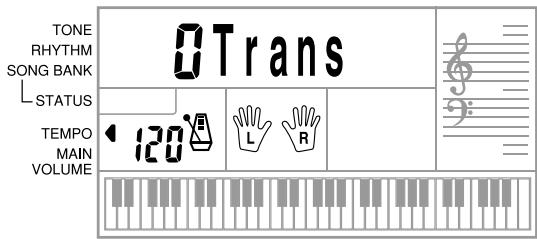
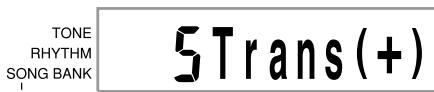
- Utilisez [+] et [-] pour modifier le réglage de transposition du clavier.
Exemple : Pour transposer le clavier de cinq demi-tons vers le haut.


Accorder le clavier
La fonction d'accordage vous permet d'accorder finement le clavier pour correspondre à l'accordage d'un autre instrument de musique.
Pour accorder le clavier
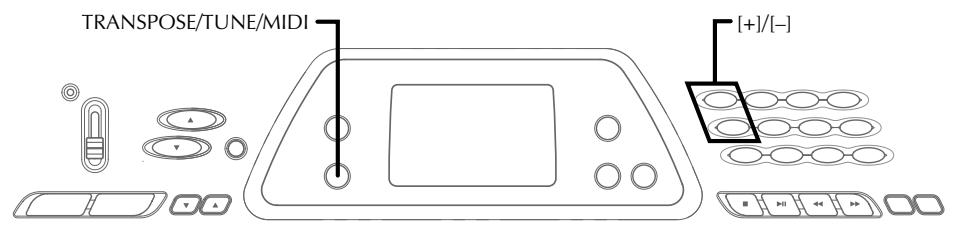
- Appuyez deux fois sur le bouton TRANSPOSE/TUNE/MIDI pour afficher l'écran d'accordage.
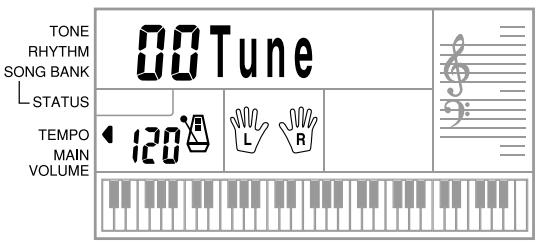
- Utilisez [+] et [-] pour modifier le réglage d'accordage du clavier.
Exemple : Pour abaisser l'accordage de 20.
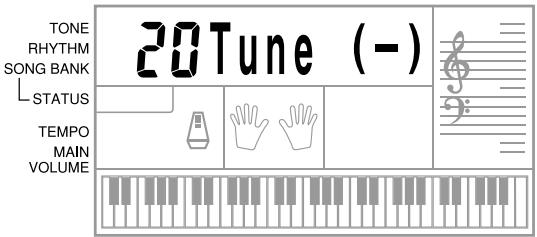
MIDI
Qu'est-ce que le MIDI ?
Les lettres MIDI signifient Musical Instrument Digital Interface, qui est le nom d'une norme mondiale pour les signaux numériques et les connecteurs qui permet d'échanger des données musicales entre des instruments de musique et des ordinateurs (machines) fabriqués par différents fabricants. Les équipements compatibles MIDI peuvent échanger des messages tels que l'enfoncement de touches, le relâchement de touches, les changements de timbre, et d'autres données.
Bien que vous n'ayez pas besoin de connaissances particulières sur le MIDI pour utiliser ce clavier en tant qu'unité autonome, les opérations MIDI nécessitent un peu de connaissances spécialisées. Cette section vous donne un aperçu du MIDI qui vous aidera à démarrer.
Connexions MIDI
Les messages MIDI sont envoyés par la borne MIDI OUT d'une machine vers la borne MIDI IN d'une autre machine via un câble MIDI. Pour envoyer un message de ce clavier à une autre machine, par exemple, vous devez utiliser un câble MIDI pour connecter la borne MIDI OUT de ce clavier à la borne MIDI IN de l'autre machine. Pour renvoyer des messages MIDI vers ce clavier, vous devez utiliser un câble MIDI pour connecter la borne MIDI OUT de l'autre machine à la borne MIDI IN de ce clavier.
Pour utiliser un ordinateur ou un autre périphérique MIDI pour enregistrer et lire les données MIDI produites par ce clavier, vous devez connecter les bornes MIDI IN et MIDI OUT des deux machines afin d'envoyer et de recevoir des données.
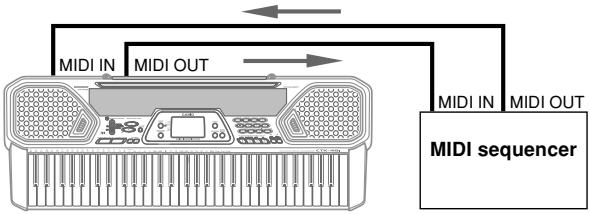
Canaux MIDI
Le MIDI permet d'envoyer les données de plusieurs parties en même temps, chaque partie étant envoyée sur un canal MIDI distinct. Il y a 16 canaux MIDI, numérotés de 1 à 16, et les données de canal MIDI sont toujours incluses lors de l'échange de données (enfoncement de touches, etc.).
La machine émettrice et la machine réceptrice doivent être réglées sur le même canal pour que l'unité réceptrice reçoive et joue correctement les données. Si la machine réceptrice est réglée sur le canal 2, par exemple, elle ne reçoit que les données du canal MIDI 2, et tous les autres canaux sont ignorés.
Avec ce clavier, les messages reçus sur les canaux MIDI 1, 2, 3, 4 et 10 peuvent être utilisés pour la lecture multi-timbres de jusqu'à cinq parties d'instruments différentes. Les réglages de timbre et de volume de ces cinq canaux doivent être contrôlés par des messages envoyés depuis un périphérique externe.
Lors de l'envoi des opérations de ce clavier vers un périphérique externe, le canal 1 doit être sélectionné comme canal d'envoi MIDI.
General MIDI
La norme General MIDI standardise les données MIDI pour tous les types de sources sonores, quel que soit le fabricant. General MIDI spécifie des facteurs tels que la numérotation des sons, les sons de batterie et les canaux MIDI disponibles pour toutes les sources sonores. Cette norme permet à tous les équipements MIDI de reproduire les mêmes nuances lors de la lecture de données General MIDI, quel que soit le fabricant de la source sonore.
Bien que la source sonore de ce clavier ne soit pas compatible General MIDI, vous pouvez toujours connecter le clavier à un ordinateur ou à un autre équipement MIDI pour lire des données General MIDI largement disponibles dans les magasins, sur les réseaux informatiques et à partir d'autres sources.
REMARQUE
- Les données General MIDI composées d'un grand nombre de parties peuvent ne pas être lues correctement sur ce clavier.
- Vous obtiendrez de meilleurs résultats en lisant des données General MIDI comportant peu de parties et composées de données sur les canaux 1, 2, 3, 4 et 10.
Messages
Il existe une grande variété de messages définis dans la norme MIDI, et cette section détaille les messages particuliers qui peuvent être envoyés et reçus par ce clavier.
NOTE ON/OFF
Ce message envoie des données lorsqu'une touche est enfoncée (NOTE ON) ou relâchée (NOTE OFF).
Un message NOTE ON/OFF comprend un numéro de note (pour indiquer la note dont la touche est enfoncée ou relâchée) et une vélocité (pression sur le clavier sous forme de valeur de 1 à 127).
La vélocité de NOTE ON est toujours utilisée pour déterminer le volume relatif de la note. Ce clavier ne reçoit pas les données de vélocité de NOTE OFF.
Chaque fois que vous appuyez sur une touche ou la relâchez sur ce clavier, le message NOTE ON ou NOTE OFF correspondant est envoyé avec une vélocité constante depuis la borne MIDI OUT.
REMARQUE
- La hauteur d'une note dépend du son utilisé, comme indiqué dans le tableau des notes à la page A-2. Chaque fois que ce clavier reçoit un numéro de note en dehors de sa plage pour ce son, le même son dans l'octave disponible la plus proche est substitué.
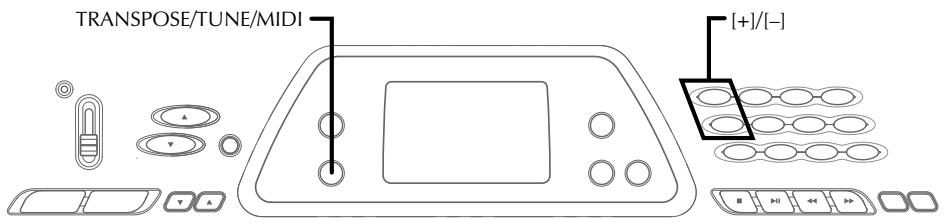
CHANGEMENT DE PROGRAMME
Ceci est le message de sélection de sonorité. PROGRAM CHANGE peut contenir des données de sonorité dans la plage de 0 à 127.
Un message PROGRAM CHANGE (0 à 99) est envoyé via la borne MIDI OUT de ce clavier chaque fois que vous changez manuellement son numéro de sonorité. La réception d'un message PROGRAM CHANGE provenant d'un appareil externe modifie le réglage de sonorité de ce clavier (cette page).
Ce clavier peut envoyer des données de sonorité dans la plage de 00 à 99 et recevoir des données de sonorité dans la plage de 0 à 127.
PITCH BEND
Ce message transporte des informations de pitch bend pour faire glisser la hauteur vers le haut ou vers le bas en douceur pendant le jeu au clavier. Ce clavier n'envoie pas de données de pitch bend, mais il peut en recevoir.
CONTROL CHANGE
Ce message ajoute des effets tels que le vibrato et les changements de volume appliqués pendant le jeu au clavier.
Les données CONTROL CHANGE incluent un numéro de contrôle (pour identifier le type d'effet) et une valeur de contrôle (pour spécifier l'état marche/arrêt et la profondeur de l'effet).
Voici une liste des données pouvant être reçues à l'aide de CONTROL CHANGE.
| Effect | Control Number |
| VOLUME | 7 |
| HOLD1* | 64 |
| MODULATION | 1 |
- L'appui sur la pédale provoque l'envoi de l'effet de sustain (HOLD1) (numéro de contrôle 64).
Modification des réglages MIDI
Ce clavier vous permet de modifier les réglages de deux paramètres MIDI : TONE MAP et KEYBOARD CHANNEL.
Pour modifier les paramètres MIDI
- Appuyez sur le bouton TRANSPOSE/TUNE/MIDI trois ou quatre fois pour sélectionner le paramètre souhaité.
Appuyez sur le bouton TRANSPOSE/TUNE/MIDI trois fois : KEYBOARD CHANNEL
Appuyez quatre fois sur le bouton TRANSPOSE/TUNE/MIDI : TONE MAP
Exemple : Pour sélectionner le paramètre TONE MAP.
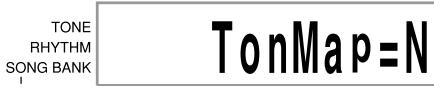
- Utilisez [+] et [-] pour modifier le réglage du paramètre.
Exemple : Pour changer la valeur du paramètre TONE MAP à "G" (GM).
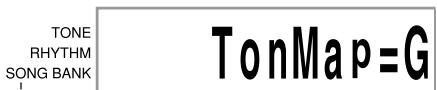
- Si vous dépassez accidentellement le paramètre souhaité, continuez d'appuyer sur le bouton TRANSPOSE/TUNE/MIDI jusqu'à ce que le paramètre souhaité réapparaisse à l'écran.
- Si vous laissez l'écran de sélection des paramètres affiché pendant environ cinq secondes sans rien faire, l'écran de sélection des paramètres est automatiquement effacé.
Paramètres et leurs affichages
CANAL CLAVIER (Canal de base) (Défaut : 01) Ce paramètre spécifie le canal d'envoi des messages MIDI du clavier.

TONE MAP G/N (Défaut : N)
N : Ce réglage spécifie la table de correspondance des sons normale, qui permet de recevoir une valeur de changement de programme comprise entre 0 et 99. Seuls les sons correspondant aux 100 sons intégrés de ce clavier peuvent être joués, et les numéros de sons hors de cette plage sont ignorés.

T onMap=N
G : Ce réglage spécifie la table de correspondance des sons General MIDI, qui permet de recevoir une valeur de changement de programme comprise entre 0 et 127. Chacun des 128 sons General MIDI est automatiquement assigné à l'un des 100 sons intégrés du clavier comme indiqué à la page A-2. Sélectionnez ce réglage lorsque vous souhaitez écouter des données General MIDI provenant d'un ordinateur ou d'un autre équipement externe.

T onMap=G
REMARQUE
- La lecture d'un morceau de la banque de morceaux entraîne le retour de tous les paramètres MIDI à leurs réglages par défaut.
- Les données de la banque de chansons ne peuvent pas être envoyées en tant que données MIDI.
- Les messages MIDI ne peuvent pas être reçus lorsque le clavier est en mode Banque de chansons.
Dépannage
| Problem | Possible Cause | Action | See page |
| No keyboard Sound | 1. Power supply problem. 2. Power is not turned on. 3. Volume setting is too low. 4. The POWER/MODE switch is in the CASIO CHORD or FINGERED position. | 1. Correctly attach the AC adaptor, make sure that batteries poles (+/-) are facing correctly, and check to make sure that batteries are not dead. 2. Set the POWER/MODE switch to the NORMAL position. 3. Use the MAIN VOLUME buttons to increase volume. 4. Normal play is not possible on the accompaniment keyboard while the POWER/MODE switch is set to CASIO CHORD or FINGERED. Change the POWER/MODE switch setting to NORMAL. | Pages E-13, 14 |
| Any of the following symptoms while using battery power. • Dim power indicator • Instrument does not turn on • Display that is flickering, dim, or difficult to read • Abnormally low speaker/headphone volume • Distortion of sound output • Occasional interruption of sound when playing at high volume • Sudden power failure when playing at high volume • Flickering or dimming of the display when playing at high volume • Continued sound output even after you release a key • A tone that is totally different from the one that is selected • Abnormal rhythm pattern and Song Bank play • Loss of power, sound distortion, or low volume when playing from a connected computer or MIDI device | Replace the batteries with a set of new ones or use the AC adaptor. | Pages E-13, 14 | |
| <CTK-491 only> • Distortion of microphone input • Dim power supply indicator when a microphone is used • Sudden power failure when using the microphone | |||
| Auto Accompaniment does not sound. | Auto accompaniment volume is set to 0. | Use the ACCOMP VOLUME button to increase the volume. | Page E-21 |
| The key or tuning does not match when playing along with another instrument. | The tuning or transpose parameter is set to a value other than 0 or 00. | Change the transpose or tuning pa-rameter value to 0 or 00. | Pages E-29, 30 |
| Missing Song Bank tune. | 1. Left-hand or right-hand part is turned off. 2. Accompaniment volume is set to 0. | 1. Check the display to see if the indicator for one of the parts is not displayed. If so, press the part's button (LEFT ON/OFF, RIGHT ON/OFF) to turn it on. 2. Adjust accompaniment volume. | Page E-24 Page E-21 |
| No sound is produced when playing MIDI data from a computer. | MIDI cables are not connected properly. | Connect MIDI cables properly. | Page E-31 |
| The bass notes of General MIDI data being played back by a computer are one octave too low. | TONE MAP is turned “N”. | Change TONE MAP parameter to “G”. | Page E-33 |
| Playing on the keyboard produces an unnatural sound when connected to a computer. | The computer's MIDI THRU function is turned on. | Turn off the MIDI THRU function on the computer or turn off LOCAL CONTROL on the keyboard. | See the documentation that comes with your computer or sequencer. |
| Static noise when a microphone is connected. | 1. Use of a microphone that is a different from the type that is recommended. 2. Use of the microphone in the vicinity of fluorescent lighting. | 1. Use a full metal shielded Cannon type microphone. 2. Move the microphone away from source of the static. | Page E-17 Page E-17 |
| No microphone sound | 1. Microphone volume setting is too low. 2. Microphone on/off switch is set to OFF. | 1. Increase the microphone volume setting. 2. Change the microphone on/off switch setting to ON. | Page E-17 Page E-17 |
Spécifications
| Model: | CTK-481/CTK-491 |
| Keyboard: | 61 standard-size keys, 5 octaves |
| Tones: | 100 |
| Polyphony: | 12 notes maximum (6 for certain tones) |
| Auto Accompaniment | |
| Rhythm Patterns: | 100 |
| Tempo: | Variable (236 steps, ↓ = 20 to 255) |
| Chords: | 2 fingering methods (CASIO CHORD, FINGERED) |
| Rhythm Controller: | START/STOP, SYNCHRO/FILL-IN |
| Accomp Volume: | 0 to 9 (10 steps) |
| Song Bank | |
| Tunes: | 100 |
| Controllers: | PLAY/PAUSE, STOP, REW, FF, LEFT ON/OFF (ACCOMP), RIGHT ON/OFF (MELODY) |
| Display | |
| Name display: | TONE, RHYTHM, SONG BANK name/number, keyboard settings name/value |
| Tempo: | Tempo value, metronome, synchro standby, beat indicator, volume setting |
| Chord: | Chord name, Chord form |
| Fingering: | Fingering indicators, parts |
| Song Bank Status: | PLAY, PAUSE, REW, FF |
| Staff: | 5 octaves with sharp and flat indications, pedal symbol, octave symbol |
| Keyboard: | 5 octaves |
| MIDI: | 5 multi-timbre receive |
| Other Functions | |
| Transpose: | 12 steps (-6 semitones to +5 semitones) |
| Tuning: | Variable (A4 = approximately 440Hz ±50 cents) |
| Volume: | 0 to 9 (10 steps) |
| Terminals | |
| MIDI Terminals: | IN, OUT |
| Sustain Terminal: | Standard jack |
| Phones/Output Terminal: | Stereo standard jack (Output is monaural.) |
| Output Impedance: 78Ω | |
| Output Voltage: 4V (RMS) MAX | |
| Power Supply Terminal: | 9V DC |
| <CTK-491 only> | Standard jack (with microphone volume dial) |
| Microphone In: | Input impedance: 40kΩ |
| Input sensitivity: 10mV | |
| Power Supply: | Dual power supply system |
| Batteries: | 6 AA-size batteries |
| Battery Life: | Approximately 4 hours continuous operation on alkaline batteries |
| Approximately 2 hours continuous operation on manganese batteries | |
| AC Adaptor: | AD-5 |
| Auto Power Off: | Turns power off approximately 6 minutes after last key operation. Enabled under battery power only, can be disabled manually. |
| Speaker Output: | 2.0W + 2.0W |
| Power Consumption: | 9V … 7.7W |
| Dimensions: | 95.6 x 35.3 x 12.5 cm (3711/16x1315/16x415/16inch) |
| Weight: | Approximately 4.0kg (8.8lbs) (without batteries) |


Entretien de votre clavier
Évitez la chaleur, l'humidité ou la lumière directe du soleil.
N'exposez pas excessivement l'instrument à la lumière directe du soleil, ne le placez pas près d'un climatiseur ou dans un endroit extrêmement chaud.
Ne l'utilisez pas près d'un téléviseur ou d'une radio.
Cet instrument peut provoquer des interférences vidéo ou audio avec la réception TV et radio. Si cela se produit, éloignez l'instrument du téléviseur ou de la radio.
N'utilisez pas de laque, du diluant ou des produits chimiques similaires pour le nettoyage.
Nettoyez le clavier avec un chiffon doux imbibé d'une solution faible d'eau et d'un détergent neutre. Trempez le chiffon dans la solution et essorez-le jusqu'à ce qu'il soit presque sec.
Évitez d'utiliser l'appareil dans des zones soumises à des températures extrêmes.
Une chaleur extrême peut rendre les chiffres sur l'écran LCD faibles et difficiles à lire. Cette condition devrait se corriger d'elle-même lorsque le clavier revient à une température normale.
REMARQUE
- Vous pouvez remarquer des lignes dans la finition du boîtier de ce clavier. Ces lignes résultent du processus de moulage utilisé pour façonner le plastique du boîtier. Ce ne sont pas des fissures ou des cassures dans le plastique, et il n'y a pas lieu de s'inquiéter.
Annexe
Liste des sons
Liste des sons
| SYNTH-SOUND | |
| 60 | SYN-LEAD 1 |
| 61 | SYN-LEAD 2 |
| 62 | SYN-LEAD 3 |
| 63 | SYN-CALLIOPE |
| 64 | SYN-PAD 1 |
| 65 | SYN-PAD 2 |
| 66 | SYN-PAD 3 |
| 67 | GLASS HMCA |
| 68 | COUNTRY FARM |
| 69 | SYN-BASS |
| 70 | PEARL DROP |
| 71 | COSMIC SOUND |
| 72 | SOUNDTRACK |
| 73 | SPACE PAD |
| 74 | VOICE BASS |
| 75 | APPLAUSE |
| 76 | SYNTH-SFX |
| 77 | VEHICLE |
| 78 | PHONE |
| 79 | FUNNY |
| LAYER | |
| 80 | STR PIANO |
| 81 | STR E.PIANO |
| 82 | CHOIR E.P |
| 83 | CHOIR ORGAN |
| 84 | STR GUITAR |
| 85 | STR HARP |
| 86 | BRASS STR |
| 87 | VIB PAD |
| 88 | 12 STR GTR |
| 89 | CHOIR STR |


Tableau des notes
Tableau des notes
| (1) | (2) | (3) | (4) |
| 00 | 12 | A | 000 |
| 01 | 12 | A | 001 |
| 02 | 6 | A | 003 |
| 03 | 6 | A | 002 |
| 04 | 12 | A | 004 |
| 05 | 12 | A | 005 |
| 06 | 6 | A | 008 |
| 07 | 6 | A | 009 |
| 08 | 12 | A | 006 |
| 09 | 12 | A | 007 |
| (1) | (2) | (3) | (4) |
| 10 | 12 | A | 016 |
| 11 | 12 | A | 017 |
| 12 | 12 | A | 018 |
| 13 | 6 | A | 015 |
| 14 | 12 | A | 019 |
| 15 | 6 | A | 104 |
| 16 | 12 | A | 020 |
| 17 | 6 | A | 021 |
| 18 | 12 | A | 023 |
| 19 | 12 | A | 022 |
| (1) | (2) | (3) | (4) |
| 20 | 12 | A | 024 |
| 21 | 12 | A | 025 |
| 22 | 12 | A | 026 |
| 23 | 12 | A | 027 |
| 24 | 12 | A | 028 |
| 25 | 12 | A | 029, 030, 031, 084 |
| 26 | 12 | B | 032 |
| 27 | 12 | B | 033, 034, 035 |
| 28 | 12 | B | 036, 037 |
| 29 | 12 | A | 105 |
| (1) | (2) | (3) | (4) |
| 30 | 12 | A | 040, 041 |
| 31 | 12 | B | 042, 043 |
| 32 | 12 | A | 045, 046, 047 |
| 33 | 12 | A | 048, 055 |
| 34 | 12 | A | 049 |
| 35 | 6 | A | 044 |
| 36 | 12 | A | 050 |
| 37 | 6 | A | 051 |
| 38 | 12 | A | 091, 052 |
| 39 | 12 | A | 053 |
| (1) | (2) | (3) | (4) |
| 40 | 12 | A | 056 |
| 41 | 12 | B | 058 |
| 42 | 6 | A | 057 |
| 43 | 12 | B | 060 |
| 44 | 6 | B | 059 |
| 45 | 12 | B | 061 |
| 46 | 6 | B | 069 |
| 47 | 12 | B | 062 |
| 48 | 6 | B | 063, 083 |
| 49 | 6 | B | 070 |
| (1) | (2) | (3) | (4) |
| 50 | 12 | A | 064 |
| 51 | 12 | A | 065 |
| 52 | 12 | A | 066, 067 |
| 53 | 12 | A | 068 |
| 54 | 12 | A | 071 |
| 55 | 12 | C | 072 |
| 56 | 12 | A | 073 |
| 57 | 12 | A | 074, 079 |
| 58 | 12 | A | 075, 076, 077 |
| 59 | 12 | A | 078 |
| (1) | (2) | (3) | (4) |
| 60 | 12 | A | 087 |
| 61 | 6 | A | 081, 086 |
| 62 | 12 | A | 080 |
| 63 | 6 | A | 082 |
| 64 | 6 | A | 089 |
| 65 | 6 | A | 090 |
| 66 | 6 | A | 095 |
| 67 | 6 | A | 092, 093, 098 |
| 68 | 6 | A | 054, 085, 094 |
| 69 | 12 | B | 038 |
| (1) | (2) | (3) | (4) |
| 70 | 6 | A | 096 |
| 71 | 6 | A | 103 |
| 72 | 6 | A | 097 |
| 73 | 6 | A | 101 |
| 74 | 12 | B | 039 |
| 75 | 12 | D | 126, 127 |
| 76 | 6 | A | 102 |
| 77 | 6 | D | 125 |
| 78 | 12 | D | 124 |
| 79 | 6 | D | 123 |
| (1) | (2) | (3) | (4) |
| 80 | 6 | A | 106 |
| 81 | 6 | A | 088, 107 |
| 82 | 6 | A | 108 |
| 83 | 6 | A | 109 |
| 84 | 6 | A | 099, 110 |
| 85 | 6 | A | 111 |
| 86 | 6 | B | 112 |
| 87 | 6 | A | 113 |
| 88 | 6 | A | 114 |
| 89 | 6 | A | 115 |
| (1) | (2) | (3) | (4) |
| 90 | 12 | E | 100, 116 |
| 91 | 6 | E | 117 |
| 92 | 12 | E | 118 |
| 93 | 12 | E | 119 |
| 94 | 12 | E | 120 |
| 95 | 12 | E | 121 |
| 96 | 12 | E | 122 |
| 97 | 12 | A | 010, 011, 014 |
| 98 | 12 | A | 012, 013 |
| 99 | 12 | D |
(1) : Numéro de son (2) : Polyphonie maximale (3) : Type de gamme (4) : Numéro MIDI général correspondant
(1) : Niveau de son (2) : Polyphonie maximale (3) : Type de gamme (4) : Correspond au numéro MIDI général


- Voir l'illustration ci-dessous pour une description des types de gamme (A à E).
- Les numéros MIDI généraux correspondants sont les numéros MIDI généraux en vigueur lorsque le réglage de la carte des sons est sur "G".
- Voir l'illustration ci-dessous pour une description des types de gamme (A à E).
- Les noms MIDI généraux correspondants sont les noms MIDI généraux qui seront en vigueur lorsque le réglage de la carte des sons est sur "G".
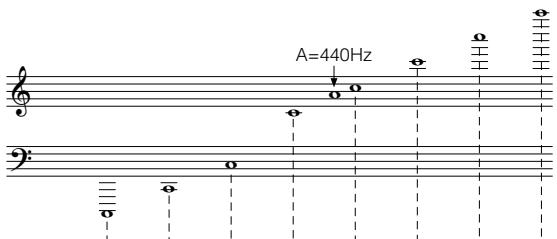
| Range Type Tipo de gama | C-1 | C0 | A0C1 | A1C2 | A2C3 | C4 | C5 | C6 | C7 | C8 | C9 | G9 |
| A (Standard type) (Tipo estándar) | ||||||||||||
| B*1 Low pitch instruments (Instrumentos de alta tonal baja) | ||||||||||||
| C*2 ("55 PICCOLO" only (Solamente ("55 PICCOLO") | ||||||||||||
| D (Sound Effect) (Efecto de sonido) | No scale for tones. Sin escala para los sonidos. | |||||||||||
| E (SPLIT) (División) | Scale changes in accordance with tone. La escala cambia de acuerdo con el sonido. | |||||||||||

......Gamme de jeu du clavier
Gamme de jeu du clavier

......Gamme jouable
(Lors de la réception de données MIDI)
Gamme éjectée (Alkohibata)
(À la réception de données MIDI)

Plage dans laquelle la même note est
jouée dans l'octave la plus proche suite à la transposition et à la réception de données MIDI.
(Lors de la réception de données MIDI)
Gamme dans laquelle la même note est
jouée dans l'octave la plus proche
comme résultat de la transmission
et de l'opération de réception de données MIDI.
(Lors de la réception de données MIDI)
Tableau des accords Fingered
Tableaux des accords Fingered
Ce tableau montre les doigtés de la main gauche (y compris les formes inversées) pour un certain nombre d'accords couramment utilisés. Ces indications de doigté apparaissent également sur l'écran du clavier. Les accords marqués d'un astérisque (*) ne peuvent pas être joués en mode Fingered sur ce clavier.
Ce tableau montre les doigtés (y compris les formes inversées) pour divers accords les plus utilisés. Ces indications de doigté apparaissent également sur l'écran du clavier.
Sur ce clavier, les accords marqués d'un astérisque (*) ne peuvent pas être exécutés en mode de doigté.
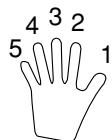
Doigtés de la main gauche : numéros des doigts de la main gauche
| Chord Root Type | M | m | 7 | m7 | dim7 | M7 | m7-5 | dim |
| C | [5,3,1] | [5,3,1] | [5,3,2,1] | [5,3,2,1] | [5,3,2,1] | [5,3,2,1] | [5,3,2,1] | [5,3,2] |
| C# (D#) | [5,3,1] | [5,3,1] | [5,3,2,1] | [5,3,2,1] | [5,3,2,1] | [5,3,2,1] | [5,3,2,1] | [5,3,2] |
| D | [5,3,1] | [5,3,1] | [5,3,2,1] | [5,3,2,1] | [5,3,2,1] | [5,3,2,1] | [5,3,2,1] | [5,3,2] |
| E# (D#) | [5,3,1] | [5,3,1] | [5,3,2,1] | [5,3,2,1] | [5,3,2,1] | [5,3,2,1] | [5,3,2,1] | [5,3,2] |
| E | [5,3,1] | [5,3,1] | [5,3,2,1] | [5,3,2,1] | [5,3,2,1] | [5,3,2,1] | [5,3,2,1] | [5,3,2] |
| F | [5,3,1] | [5,3,1] | [5,3,2,1] | [5,3,2,1] | [5,3,2,1] | [5,3,2,1] | [5,3,2,1] | [5,3,2] |
| F# (G#) | [5,3,1] | [5,3,1] | [5,3,2,1] | [5,3,2,1] | [5,3,2,1] | [5,3,2,1] | [5,3,2,1] | [5,3,2] |
| G | [5,3,1] | [5,3,1] | [5,3,2,1] | [5,3,2,1] | [5,3,2,1] | [5,4,2,1] | [5,3,2,1] | [5,3,2] |
| A# (G#) | [5,3,1] | [5,3,1] | [5,4,2,1] | [5,4,2,1] | [5,3,2,1] | [5,4,2,1] | [5,4,2,1] | [5,3,2] |
| A | [5,3,1] | [5,3,1] | [5,4,2,1] | [5,4,2,1] | * | [5,4,2,1] | [5,4,2,1] | [5,3,2] |
| B# (A#) | [5,3,1] | [5,3,1] | [5,4,2,1] | [5,4,2,1] | * | [5,4,2,1] | [5,4,2,1] | [5,3,2] |
| B | [5,2,1] | [5,2,1] | [5,3,2,1] | [5,3,2,1] | * | [5,3,2,1] | [5,4,2,1] | [5,3,2] |
| Chord Root Type | aug | sus4 | 7 sus4 | m add9 | m M7 | 7-5 | add9 |
| C | [5,3,1] | [5,2,1] | [5,3,2,1] | [4,3,2,1] | [5,3,2,1] | [5,3,2,1] | [4,3,2,1] |
| C# (D b) | [5,3,1] | [5,2,1] | [5,3,2,1] | [4,3,2,1] | [5,3,2,1] | [5,3,2,1] | [4,3,2,1] |
| D | [5,3,1] | [5,2,1] | [5,3,2,1] | [4,3,2,1] | [5,3,2,1] | [5,3,2,1] | [4,3,2,1] |
| Eb (D #) | [5,3,1] | [5,2,1] | [5,3,2,1] | [4,3,2,1] | [5,3,2,1] | [5,3,2,1] | [4,3,2,1] |
| E | [5,3,1] | [5,2,1] | [5,3,2,1] | [4,3,2,1] | [5,3,2,1] | [5,3,2,1] | [4,3,2,1] |
| F | [5,3,1] | [5,2,1] | [5,3,2,1] | [4,3,2,1] | [5,3,2,1] | [5,3,2,1] | [4,3,2,1] |
| F# (Gb) | [5,3,1] | [5,2,1] | [5,3,2,1] | [4,3,2,1] | [5,3,2,1] | [5,3,2,1] | [4,3,2,1] |
| G | [5,3,1] | [5,2,1] | [5,3,2,1] | [4,3,2,1] | [5,4,2,1] | [5,3,2,1] | [4,3,2,1] |
| Ab (G #) | [5,3,1] | [5,2,1] | [5,4,2,1] | [4,3,2,1] | [5,4,2,1] | [5,4,2,1] | [4,3,2,1] |
| A | [5,3,1] | [5,2,1] | [5,4,2,1] | [4,3,2,1] | [5,4,2,1] | [5,4,2,1] | [4,3,2,1] |
| Bb (A #) | * | [5,2,1] | [5,4,2,1] | [4,3,2,1] | [5,4,2,1] | [5,4,2,1] | [4,3,2,1] |
| B | * | [5,2,1] | [5,3,2,1] | [5,3,2,1] | [5,3,2,1] | [4,3,2,1] | [5,3,2,1] |
Liste des instruments de percussion
Lista de instrumentos de percusión
- PERCUSSION (tone 99) assigns 39 percussion sounds to the keyboard as illustrated below. The sound assigned to each key is indicated above the keyboard.
- PERCUSSION (sonido 99) asigna 39 sonidos de percusión al teclado como se ilustra abajo. Los sonidos asignados a cada tecla se indican sobre el teclado.
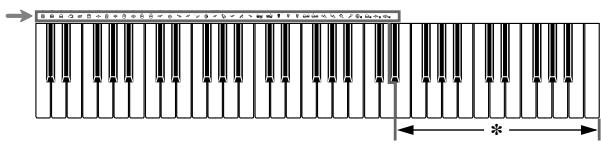
- Aucun son n'est produit lorsque les touches de cette plage sont enfoncées.
- Cuando se presionan las teclas en esta gama no se produce ningún sonido.
| BASS DRUM | OPEN HI-HAT | COWBELL | LOW TIMBALE |
| SIDE STICK | LOW-MID TOM | CRASH CYMBAL 2 | HIGH AGOGO |
| ACOUSTIC SNARE | HIGH-MID TOM | CLAVES | LOW AGOGO |
| HAND CLAP | CRASH CYMBAL 1 | RIDE CYMBAL 2 | CABASA |
| ELECTRIC SNARE | HIGH TOM | HIGH BONGO | MARACAS |
| LOW FLOOR TOM | RIDE CYMBAL 1 | LOW BONGO | VOICE BASS DRUM |
| CLOSED HI-HAT | CHINESE CYMBAL | MUTE HIGH CONGA | VOICE SNARE |
| HIGH FLOOR TOM | RIDE BELL | OPEN HIGH CONGA | VOICE CLOSED HI-HAT |
| PEDAL HI-HAT | TAMBOURINE | LOW CONGA | VOICE OPEN HI-HAT |
| LOW TOM | SPLASH CYMBAL | HIGH TIMBALE |
Modèle CTK-481/CTK-491 Tableau de mise en œuvre MIDI
| Function ... | Transmitted | Recognized | Remarks | |
| Basic Channel | Default Changed | 1 | 1-4, 10 | |
| 1-16 | 1-4, 10 | |||
| Mode | Default Messages Altered | Mode 3 X | Mode 3 X | |
| ********** | ********** | |||
| Note Number: | True voice | 36-96********** | 0-127 36-96 *1 | *1: Depends on tone |
| Velocity | Note ON Note OFF | ○ 9nH v = 75,100 *2 X 9nH v = 0 | ○ 9nH v = 1-127 X 9nH v = 0,8nH v = *3 | *3 = no relation |
| After Touch | Key's Ch's | X X | X X | |
| Pitch Bender | X | O | ||
| Control Change | 1 6,38 7 10 11 64 | X X X X X O | ○ X O X X O | Modulation Data entry Volume Pan Expression Hold1 |
| 100,101 120 121 | X X X X X X | ○ X X X O | RPN LSB, MSB All sound off Reset all controller | |
| Program | ○ 0-99 | ○ 0-127 *4 | ||
| Control Change | 6,38 7 10 11 64 | X X X X X X O | O X O X X X O | Modulation Data entry Volume Pan Expression Hold1 |
| 100,101 120 121 | X X X X X X | X X X X | RPN LSB, MSB All sound off Reset all controller | |
| Program Change: True # | O 0-99 ******* | O 0-127 *4 ********** | ||
| System Exclusive | X | X | ||
| System : Song Pos Common : Song Sel : Tune | X X X X | X X X | ||
| System : Clock Real Time : Commands | X X | X X | ||
| Aux : Local ON/OFF Messages : Active Sense : Reset | X X X X | X X X | ||
| X X X X | X X | |||
| Remarks | *2: V(Velocity)=100 when note on data when the main volume value of this unit is 9 to 2, and V=75 when the main volume value is 1 or 0. *4: Depends on GM tone map setting (page E-32, S-32). | |||
| Mode 1: OMNI ON, POLY Mode 2: OMNI ON, MONO O: Yes Mode 3: OMNI OFF, POLY Mode 4: OMNI OFF, MONO X: No | ||||


Ce symbole de recyclage indique que l'emballage est conforme à la législation sur la protection de l'environnement en Allemagne.
CASIO®
CASIO COMPUTER CO.,LTD.
6-2, Hon-machi 1-chome
Shibuya-ku, Tokyo 151-8543, Japon
F MA0302-B Imprimé en Chine
CTK481/491-ES-1

- CTK-48I
- CTK-49I
- DIRECTIVES ÉNONCÉES PAR LES RÈGLES DE LA FCC POUR L'UTILISATION DE L'APPAREIL AUX ÉTATS-UNIS (NON APPLICABLES DANS D'AUTRES RÉGIONS)
- AVIS
- AVERTISSEMENT FCC
- IMPORTANT
- CONSIGNES DE SÉCURITÉ
- SYMBOLES
- DANGER
- AVERTISSEMENT
- ATTENTION
- EXEMPLES DE SYMBOLES
- PILES ALCALINES
- FUMÉE, ODEUR ÉTRANGE, SURCHAUFFE
- ADAPTATEUR SECTEUR
- PILES
- N'INCINÉREZ PAS LE PRODUIT
- EAU ET CORPS ÉTRANGERS
- DÉMONTAGE ET MODIFICATION
- CHUTE ET IMPACT
- DÉPLACEMENT DU PRODUIT
- NETTOYAGE
- CONNECTEURS
- EMPLACEMENT
- ÉCRAN D'AFFICHAGE
- VOLUME SONORE
- OBJETS LOURDS
- ASSEMBLAGE CORRECT DU SUPPORT
- INTRODUCTION
- SONORITÉS
- RYTHMES
- ACCOMPAGNEMENT AUTOMATIQUE
- BANQUE DE CHANSONS DE 100 AIRS
- SYSTÈME D'INFORMATION MUSICALE
- COMPATIBILITÉ MIDI
- SOMMAIRE
- PRÉCAUTIONS DE SÉCURITÉ .E
- INTRODUCTION E
- SOMMAIRE. E
- GUIDE GÉNÉRAL. E
- BANQUE DE MORCEAUX
- RÉFÉRENCE RAPIDE. E
- ALIMENTATION. E
- CONNEXIONS. E
- OPÉRATIONS DE BASE. E
- ACCOMPAGNEMENT AUTOMATIQUE .........E
- UTILISATION DE LA BANQUE DE CHANSONS ....E
- UTILISATION DU LIVRE D'ACCORDS ....E
- PARAMÈTRES DU CLAVIER......E
- MIDI E
- DÉPANNAGE E
- SPÉCIFICATIONS E
- ENTRETIEN DE VOTRE CLAVIER .... E
- ANNEXE A
- TABLEAU DE MISE EN ŒUVRE MIDI
- GUIDE GÉNÉRAL
- BOUTONS [+]/ [-]
- BOUTONS NUMÉRIQUES
- NOTE
- PANNEAU ARRIÈRE
- UTILISATION DE L'ÉCRAN
- REMARQUE
- RÉFÉRENCE RAPIDE DE LA BANQUE DE CHANSONS
- LECTURE D'UN AIR DE LA BANQUE DE CHANSONS
- POUR LIRE UN AIR DE LA BANQUE DE CHANSONS
- ALIMENTATION
- UTILISATION DES PILES
- POUR INSÉRER LES PILES
- INFORMATIONS IMPORTANTES SUR LES PILES
- UTILISATION DE L'ADAPTATEUR SECTEUR
- MISE HORS TENSION AUTOMATIQUE
- POUR DÉSACTIVER LA MISE HORS TENSION AUTOMATIQUE
- PARAMÈTRES
- CONNEXIONS
- PRISE CASQUE / SORTIE
- CONNEXION D'UN CASQUE (FIGURE 1)
- ÉQUIPEMENT AUDIO (FIGURE 2)
- AMPLIFICATEUR D'INSTRUMENT DE MUSIQUE (FIGURE 3)
- BORNE DE PRISE POUR PÉDALE DE SUSTAIN
- PÉDALE DE SUSTAIN
- ACCESSOIRES ET OPTIONS
- OPÉRATIONS DE BASE
- JOUER DU CLAVIER
- POUR JOUER DU CLAVIER
- SÉLECTION D'UNE TONALITÉ
- POUR SÉLECTIONNER UNE TONALITÉ
- SONORITÉS COMBINÉES
- SONORITÉS SUPERPOSÉES (NUMÉROS DE SONORITÉ : 80 À 89)
- SONORITÉS DIVISÉES (NUMÉROS DE SONORITÉ : 90 À 96)
- SONS DE PERCUSSION
- TONALITÉS D'EFFETS SONORES
- POLYPHONIE
- ÉCHANTILLONNAGE NUMÉRIQUE
- UTILISATION DE LA PRISE MICROPHONE (CTK-491 UNIQUEMENT)
- SPÉCIFICATIONS REQUISES DU MICROPHONE
- HURLEMENT (BRUIT DE LARSEN)
- BRUIT STATIQUE
- SÉLECTION D'UN RYTHME
- POUR SÉLECTIONNER UN RYTHME
- LECTURE D'UN RYTHME
- POUR JOUER UN RYTHME
- RÉGLAGE DU TEMPO
- POUR RÉGLER LE TEMPO
- À PROPOS DU MÉTRONOME GRAPHIQUE
- UTILISATION DE L'ACCOMPAGNEMENT AUTOMATIQUE
- POUR UTILISER L'ACCOMPAGNEMENT AUTOMATIQUE
- CASIO CHORD
- CLAVIER D'ACCOMPAGNEMENT ET CLAVIER MÉLODIE CASIO CHORD
- TYPES D'ACCORDS
- FINGERED
- UTILISATION D'UN MOTIF DE REMPLISSAGE
- POUR INSÉRER UN REMPLISSAGE
- DÉMARRAGE SYNCHRONISÉ DE L'ACCOMPAGNEMENT AVEC LA LECTURE DU RYTHME
- POUR UTILISER LE DÉMARRAGE SYNCHRONISÉ
- RÉGLAGE DU VOLUME DE L'ACCOMPAGNEMENT
- UTILISATION DE LA BANQUE DE CHANSONS
- POUR METTRE EN PAUSE LA LECTURE D'UN MORCEAU DE LA BANQUE DE CHANSONS
- POUR EFFECTUER UN RETOUR RAPIDE PENDANT LA LECTURE
- POUR AVANCER RAPIDEMENT PENDANT LA LECTURE
- AFFICHAGE DU MODE BANQUE DE CHANSONS
- RÉGLAGE DU TEMPO D'UN MORCEAU DE LA BANQUE DE CHANSONS
- POUR CHANGER LE TEMPO D'UN MORCEAU DE LA BANQUE DE CHANSONS
- CHANGEMENT DU TIMBRE DE LA MÉLODIE D'UN MORCEAU DE LA BANQUE DE CHANSONS
- JOUER AVEC UN MORCEAU DE LA BANQUE DE MORCEAUX
- POUR JOUER AVEC UN MORCEAU DE LA BANQUE DE MORCEAUX
- MORCEAUX AVEC ACCOMPAGNEMENT AUTOMATIQUE (NUMÉROS DE MORCEAUX 00 À 79)
- MORCEAUX À DEUX MAINS (NUMÉROS DE MORCEAUX 80 À 99)
- SON D'APPLAUDISSEMENTS
- POUR DÉSACTIVER LE SON D'APPLAUDISSEMENTS
- LECTURE DE TOUS LES MORCEAUX DE LA BANQUE DE MORCEAUX EN SUCCESSION
- UTILISATION DU CHORD BOOK
- QU'EST-CE QU'UN ACCORD
- NOMS DES ACCORDS
- FORMES INVERSÉES
- RECHERCHE D'UN ACCORD À L'AIDE DU CHORD BOOK
- APPUYEZ SUR LE BOUTON CLEAR
- RÉGLAGES DU CLAVIER
- TRANSPOSITION DU CLAVIER
- POUR TRANSPOSER LE CLAVIER
- ACCORDER LE CLAVIER
- POUR ACCORDER LE CLAVIER
- MIDI
- QU'EST-CE QUE LE MIDI
- CONNEXIONS MIDI
- CANAUX MIDI
- GENERAL MIDI
- MESSAGES
- NOTE ON/OFF
- CHANGEMENT DE PROGRAMME
- PITCH BEND
- CONTROL CHANGE
- MODIFICATION DES RÉGLAGES MIDI
- POUR MODIFIER LES PARAMÈTRES MIDI
- PARAMÈTRES ET LEURS AFFICHAGES
- TONE MAP G/N (DÉFAUT : N)
- T ONMAP=N
- T ONMAP=G
- DÉPANNAGE
- SPÉCIFICATIONS
- ENTRETIEN DE VOTRE CLAVIER
- ANNEXE
- LISTE DES SONS
- TABLEAU DES NOTES
- TABLEAU DES ACCORDS FINGERED
- TABLEAUX DES ACCORDS FINGERED
- LISTE DES INSTRUMENTS DE PERCUSSION
- LISTA DE INSTRUMENTOS DE PERCUSIÓN
- CASIO®
Marque : CASIO
Modèle : CTK-491
Catégorie : Clavier numérique