
XE-A20S - Caisse enregistreuse SHARP - Notice d'utilisation et mode d'emploi gratuit
Retrouvez gratuitement la notice de l'appareil XE-A20S SHARP au format PDF.

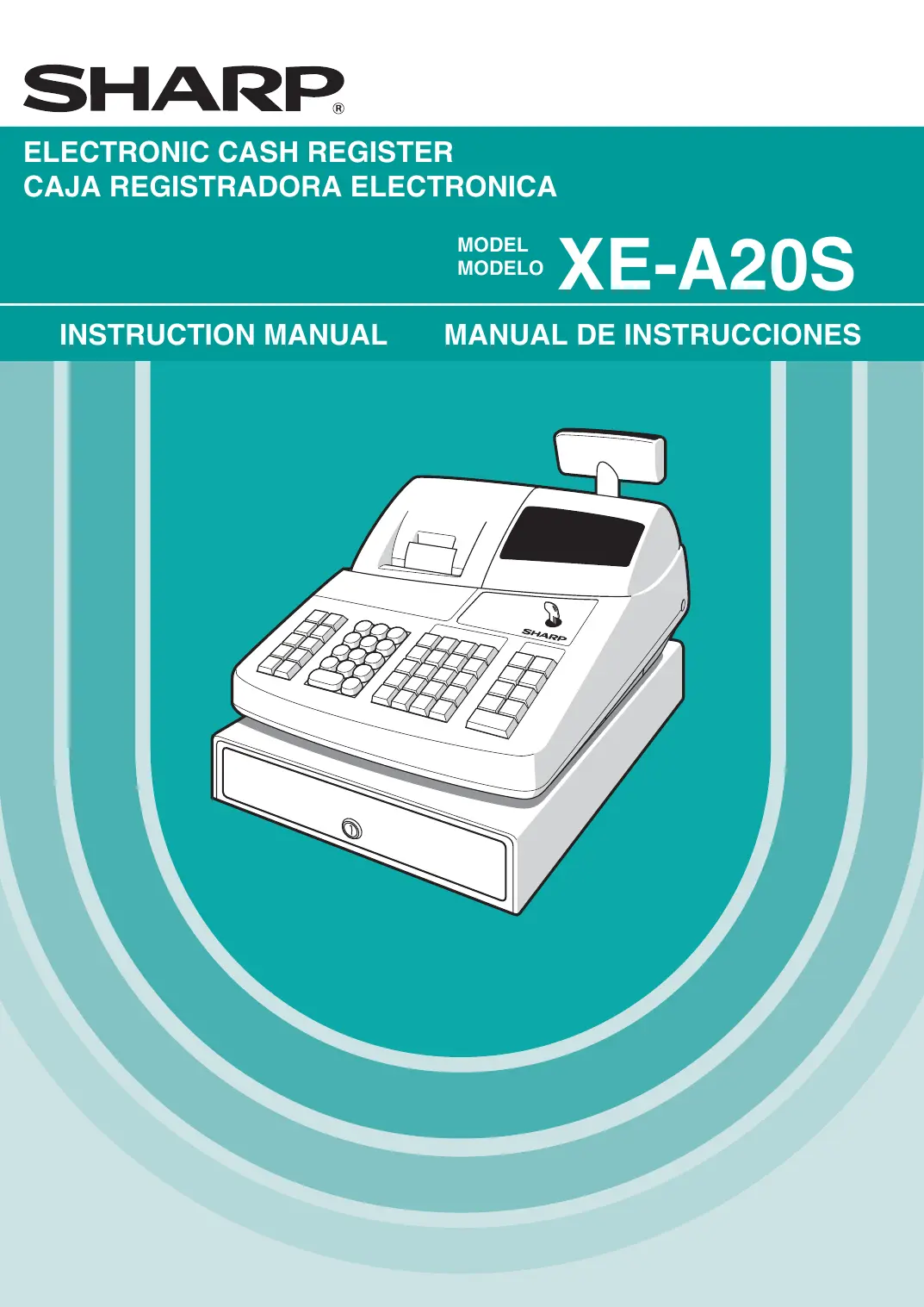


| Marque | SHARP |
| Modèle | XE-A20S |
| Type de produit | Caisse enregistreuse électronique |
| Alimentation | 120 V CA +/- 10 % (prise standard) + 3 piles AA de secours |
| Imprimante | Imprimante thermique monostation, sans ruban ni cartouche |
| Nombre de départements | 99 (32 touches directes, les autres par code) |
| Nombre de PLU/subdépartements | Jusqu'à 1 200 (selon taille mémoire EJ) |
| Calcul de taxe | Automatique (jusqu'à 4 taux), manuel, table de taxe |
| Modes de fonctionnement | OFF, OP X/Z, REG, PGM, VOID, MGR, X1/Z1, X2/Z2 |
| Fonctionnalités principales | Ventes de base, répétition, multiplication, prix au volume, SICS, sous-totaux, finalisation (espèces, chèque, crédit), paiement mixte, remboursement, escompte/prime (montant ou %), conversion de devise, RA/PO, non-add, touches AUTO, modes de correction, rapports X/Z, journal électronique (EJ) |
| Affichage opérateur | Affichage numérique avec symboles (état machine, erreur, batterie, etc.) |
| Affichage client | Affichage escamotable (pop-up), 8 chiffres max |
| Port USB | 1 port USB (câble SHARP fourni) |
| Clés de mode | 2 clés : manager (MA) et opérateur (OP), amovibles uniquement en position REG ou OFF |
| Sécurité | Pare-feu intégré, cutter sur l'imprimante, verrouillage du tiroir, protection mémoire par piles |
| Entretien et nettoyage | Nettoyer avec un chiffon doux et sec ; tête d'impression, capteur et rouleau avec alcool isopropylique |
| Pièces détachées et consommables | Papier thermique (spécifié SHARP), piles AA, rouleau de rechange |
| Réparabilité | Ne pas réparer soi-même ; contacter le service après-vente SHARP au 1-800-BE-SHARP |
| Informations règlementaires | Conforme FCC Classe A (usage commercial) |
| Garantie | 1 an pièces, 90 jours main-d'œuvre (États-Unis) |
FOIRE AUX QUESTIONS - XE-A20S SHARP
Questions des utilisateurs sur XE-A20S SHARP
0 question sur cet appareil. Repondez a celles que vous connaissez ou posez la votre.
Poser une nouvelle question sur cet appareil
Téléchargez la notice de votre Caisse enregistreuse au format PDF gratuitement ! Retrouvez votre notice XE-A20S - SHARP et reprennez votre appareil électronique en main. Sur cette page sont publiés tous les documents nécessaires à l'utilisation de votre appareil XE-A20S de la marque SHARP.
MODE D'EMPLOI XE-A20S SHARP
ELECTRONIC CASH REGISTER
CAJA REGISTRADORA ELECTRONICA
MODEL
MODELO
XE-A20S
INSTRUCTION MANUAL
MANUAL DE INSTRUCCIONES
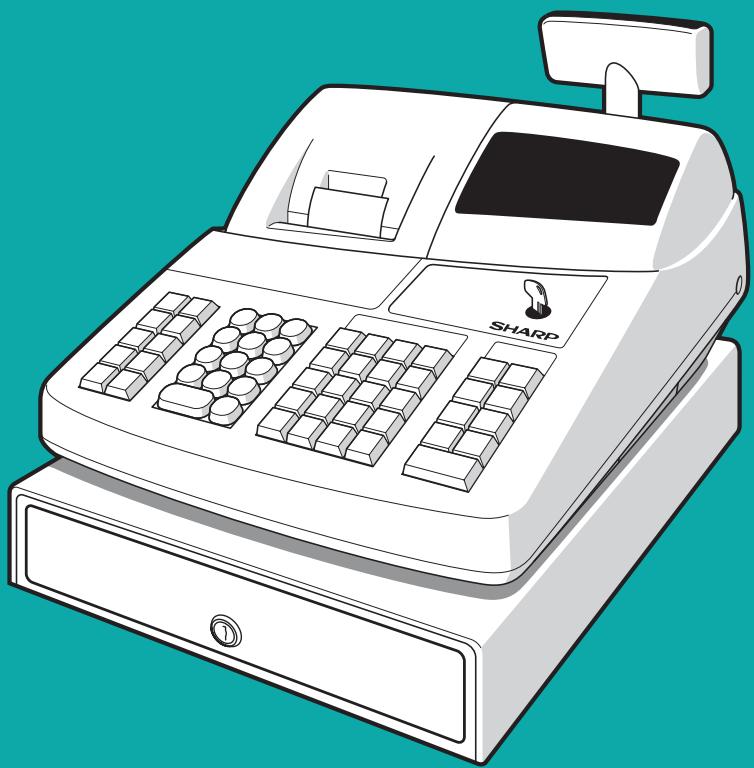
natural_image
Illustration of a modern cash register with a Sharp mode dial and control panel (no text or symbols)WARNING
FCC Regulations state that any unauthorized changes or modifications to this equipment not expressly approved by the manufacturer could void the user's authority to operate this equipment.
Note: This equipment has been tested and found to comply with the limits for a Class A digital device, pursuant to Part 15 of the FCC Rules. These limits are designed to provide reasonable protection against harmful interference when this equipment is operated in a commercial environment.
This equipment generates, uses, and can radiate radio frequency energy and, if not installed and used in accordance with the instruction manual, may cause harmful interference to radio communications. Operation of this equipment in a residential area is likely to cause harmful interference in which case the user will be required to correct the interference at his own expense.
CAUTION
The AC power socket-outlet should be installed near the equipment and should be easily accessible.
FOR YOUR RECORDS
Please record below the model number and serial number for easy reference in case of loss or theft. These numbers are located on the right side of the unit. Space is provided for further pertinent data.
Model Number
Serial Number
Date of Purchase
Place of Purchase
INTRODUCTION
Thank you very much for your purchase of the SHARP Electronic Cash Register, Model XE-A20S.
Please read this manual carefully before operating your machine in order to gain full understanding of functions and features.
Please keep this manual for future reference. It will help you if you encounter any operational problems.
CAUTION!
Never install the batteries into the cash register before initializing it. Before you start operating the cash register, you must first initialize it, then install the batteries. Otherwise, distorted memory contents and malfunction of the cash register will occur. For this procedure, please refer to page 7.
IMPORTANT
- On the printer, a cutter to cut the paper roll is mounted. Always be careful not to cut yourself by the cutter.
• Install your register in a location that is not subject to direct radiation, unusual temperature changes, high humidity or exposed to water sources.
Installation in such locations could cause damage to the cabinet and the electronic components.
- Never operate the register with wet hands.
The water could seep into the interior of the register and cause component failure.
- When cleaning your register, use a dry, soft cloth. Never use solvents, such as benzine and/or thinner.
The use of such chemicals will lead to discoloration or deterioration of the cabinet.
- The register plugs into any standard wall outlet (120V AC ±10%).
Other electrical devices on the same electrical circuit could cause the register to malfunction.
- For protection against data loss, please install three “AA” batteries after initializing the cash register. When handling the batteries, never fail to observe the followings:
Incorrectly using batteries can cause them to burst or leak, possibly damaging the interior of the cash register.
- Be sure that the positive (+) and negative (-) poles of each battery are facing in the proper direction for installation.
- Never mix batteries of different types.
- Never mix old batteries and new ones.
- Never leave dead batteries in the battery compartment.
- Remove the batteries if you do not plan to use the cash register for long periods.
- Should a battery leak, clean out the battery compartment immediately, taking care to avoid letting the battery fluid come into direct contact with your skin.
- For battery disposal, follow the corresponding law in your country.
- If the register malfunctions, call 1-800-BE-SHARP for service - do not try to repair the register yourself.
- For a complete electrical disconnection, disconnect the main plug.
Customer Service Hotline 1-800-BE-SHARP
For Easy Set-up, see "GETTING STARTED" (page 7).
The Spanish version (summary of English version) is after the English version. La versión española (el resumen de la versión inglesa) sigue a la versión inglesa.
CONTENTS
INTRODUCTION....1
IMPORTANT 1
CONTENTS....2
PARTS AND THEIR FUNCTIONS....4
1 External View 4
2 Printer 4
3 Mode Switch and Mode Keys....5
4 Keyboard 5
5 Displays....6
6 Drawer Lock Key 6
GETTING STARTED....7
FOR THE OPERATOR
OVERVIEW OF FLOW OF DAILY SALES ENTRIES 11
BASIC SALES ENTRY 12
1 Basic Sales Entry Example 12
2 Error Warning 13
3 Item Entries 14
Single item entries....14
Repeat entries 15
Multiplication entries....15
Split pricing entries 16
Single item cash sale (SICS) entry 17
4 Displaying Subtotal....17
5 Finalization of Transaction 17
Cash or check tendering....17
Cash or check sale that does not require tender entry 18
Charge (credit) sale....18
Mixed-tender sale 18
6 Tax Calculation....19
Automatic tax....19
Manual tax 19
Tax delete....19
Tax status shift 20
OPTIONAL FEATURES....21
1 Auxiliary Entries....21
Discount and premium entries using the percent key....21
Discount and premium entries using the discount key 21
Refund entries 22
Non-add code number entries and printing 22
2 Auxiliary Payment Treatment 23
Currency conversion....23
Received-on Account and Paid-out Entries....24
No sale (exchange) 24
3 Automatic Sequence Key ( ^AUTO key) Entries....24
CORRECTION 25
1 Correction of the Last Entry (direct void)....25
2 Correction of the Next-to-last or Earlier Entry (indirect void)....25
3 Subtotal Void 26
4 Correction of Incorrect Entries not Handled by the Direct or Indirect Void Function 26
FOR THE MANAGER
PRIOR TO PROGRAMMING ....27
BASIC FUNCTION PROGRAMMING (For Quick Start)....27
1 Date and Time Programming ....27
2 Tax Programming for Automatic Tax Calculation Function 28
Tax programming using a tax rate....28
The tax table (applicable to the add-on tax) 29
Quantity for doughnut tax exempt (for Canadian tax system) 31
AUXILIARY FUNCTION PROGRAMMING ....32
1 Department Programming 32
2 PLU (Price Look-Up) and Subdepartment Programming 33
3 Miscellaneous Key Programming....35
Rate for %1 , %2 and 35
Amount for [⊖]....36
Percent rate limitation for %1 and %2 36
Function parameters for %1 , %2 and 36
Function parameters for CONV 37
Entry digit limit for RA, RCPT/PO and TAX 38
Function parameters for , and /AT/NS (when using as CA key) 38
4 Text programming ....39
ADVANCED PROGRAMMING....44
1 Register Number and Consecutive Number Programming....44
2 Electronic Journal (EJ) Programming....45
3 Various Function Selection Programming 1 ....47
Function selection for miscellaneous keys ....47
Print format....48
Receipt print format 48
Function selection for tax....48
Other programming 49
4 Various Function Selection Programming 2....51
Power save mode....51
Logo message print format....51
Online time out setting....52
Thermal printer density 52
Language selection ....53
Training clerk specification for training mode 53
AUTO key programming....54
5 Reading Stored Program....54
TRAINING MODE ....56
READING (X) AND RESETTING (Z) OF SALES TOTALS ....57
EJ REPORT READING AND RESETTING....60
OVERRIDE ENTRIES 61
CORRECTION AFTER FINALIZING A TRANSACTION (Void mode)....61
OPERATOR MAINTENANCE....62
1 In Case of Power Failure....62
2 In Case of Printer Error 62
3 Cautions in Handling the Printer and Recording Paper....62
4 Replacing the Batteries 63
5 Replacing the Paper Roll....63
6 Removing a Paper Jam....66
7 Cleaning the Printer (Print Head / Sensor / Roller) 66
8 Removing the Drawer....66
9 Opening the Drawer by Hand....66
0 Before calling for service....67
Error code table 67
SPECIFICATIONS ....68
PARTS AND THEIR FUNCTIONS
1 External View
Front view
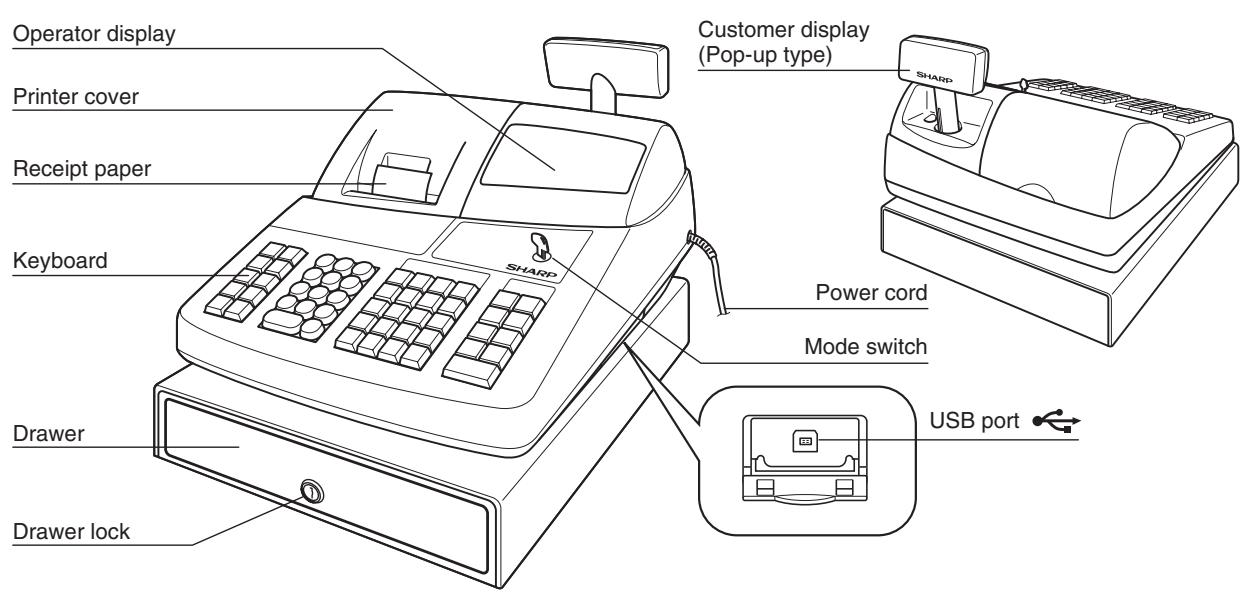

Use only the USB cable (manufactured by SHARP) supplied with the XE-A20S for the connection with a PC. Never use other cables.
2 Printer

natural_image
Illustration of a stack of books with a computer, no text or symbols presentThe printer is one station type thermal printer, therefore it does not require any type of ink ribbon or cartridge.
Lift the rear of the printer cover to remove. To re-install, hook the pawls on the cabinet and close.
Caution: The paper cutter is mounted on the printer cover. Be careful not to cut yourself.
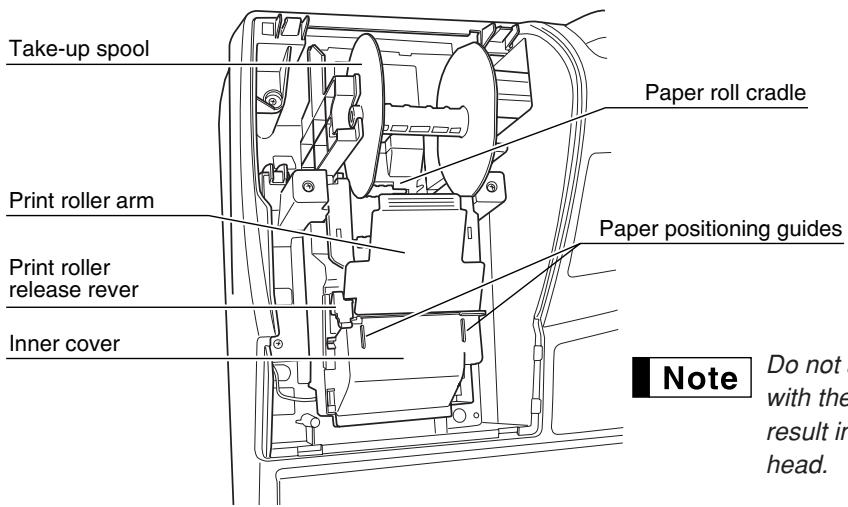
Do not attempt to remove the paper roll with the print roller arm is locked. This may result in damage to the printer and print head.
3 Mode Switch and Mode Keys
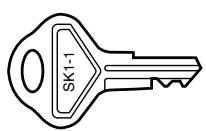
The mode switch can be operated by inserting one of the two supplied mode keys - manager (MA) and operator (OP) keys. These keys can be inserted or removed only in the “REG” or “OFF” position.
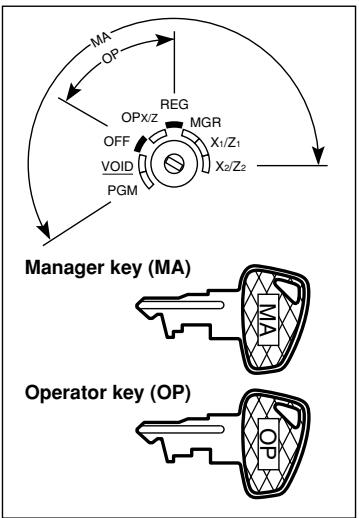
flowchart
graph TD
    A["Manager key (MA)"] --> B["OP"]
    B --> C["OPX/Z"]
    C --> D["MGR"]
    D --> E["X1/Z1"]
    E --> F["X2/Z2"]
    F --> G["OP"]
    G --> H["VOID"]
    H --> I["PGM"]
    I --> J["Reg"]
    J --> K["OP"]
    style A fill:#f9f,stroke:#333
    style B fill:#f9f,stroke:#333
    style C fill:#f9f,stroke:#333
    style D fill:#f9f,stroke:#333
    style E fill:#f9f,stroke:#333
    style F fill:#f9f,stroke:#333
    style G fill:#f9f,stroke:#333
    style H fill:#f9f,stroke:#333
    style I fill:#f9f,stroke:#333
    style J fill:#f9f,stroke:#333
    style K fill:#f9f,stroke:#333
The mode switch has these settings:
OFF: This mode locks all register operations. (AC power turns off.) No change occurs to register data.
OP X/Z: To take individual clerk X or Z reports, and to take flash reports. It can be used to toggle receipt state "ON" and "OFF" by pressing the RCP/TPO key.
REG: For entering sales.
PGM: To program various items.
VOID: Enters into the void mode. This mode allows correction after finalizing a transaction.
MGR: For manager's entries. The manager can use this mode for an override entry.
X1/Z1: To take the X/Z report for various daily totals
X2/Z2: To take the X/Z report for periodic (weekly or monthly) consolidation
4 Keyboard
■ Keyboard layout
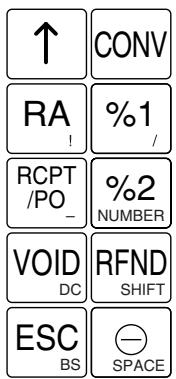
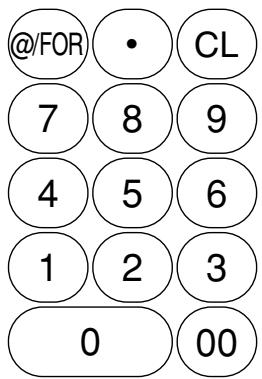
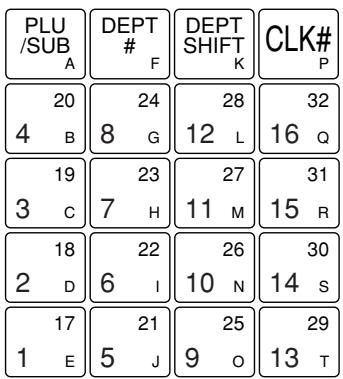
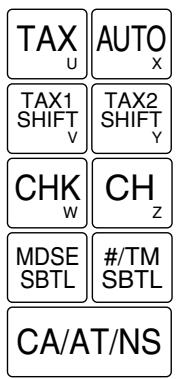
Note
The small characters on the bottom or lower right in each key indicates functions or characters which can be used for character entries for text programming. For details, refer to page 39.
■ Key names
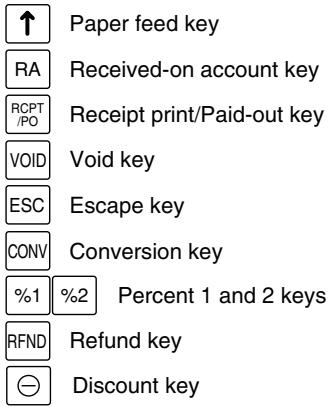
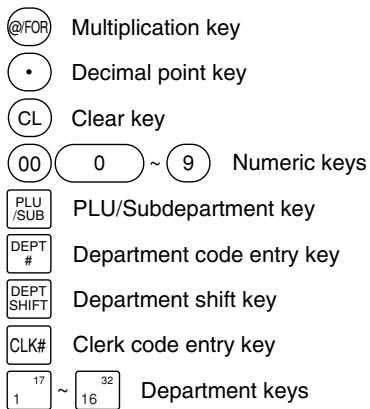
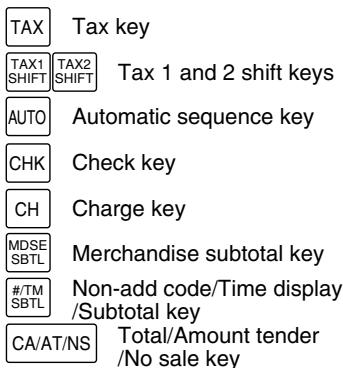
5 Displays
Operator display
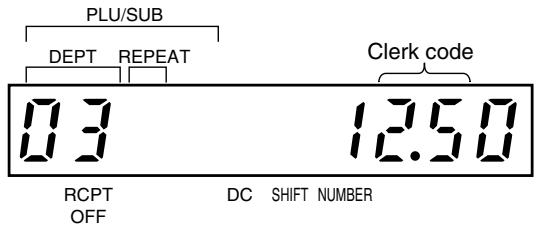
Customer display (Pop-up type)

Amount: Appears in the far-right eight (max.) positions. When the amount is negative, the minus symbol “-” appears before the amount.
Number of repeats for repetitive registrations:
The number of repeats is displayed, starting at “2” and incremental with each repeat. When you have registered ten times, the display will show “0.”(2 → 3 …… 9 → 0 → 1 → 2 …)
Receipt function status:
The indicator “_” appears in the RCPT OFF position when the receipt function is in the OFF status.
Time: Appears in the far-right six positions (hour-minute -“R” or hour-minute -“P”) in the OP X/Z, REG, or MGR mode. “R” is displayed in the morning (AM), and “P” in the afternoon (PM). In the REG or MGR mode, press the #/TM/SBTL key to display the time.
■ Machine state symbols
P : Appears during programming.
E : Appears when an error is detected.
☐ : Appears when the subtotal is displayed or when the amount tendered is smaller than the sales amount.
C : Appears when the CONV key is pressed to calculate a subtotal in foreign currency.
F : Appears when a transaction is finalized by pressing the CA/AT/NS, CHK or CH key.
[ : Appears when the change due amount is displayed.
- : May appear in the far-left three positions at the timing of key entry when the electronic journal (EJ) memory is full. (Depending on programming.)
L : Appears when the voltage of the installed batteries is under the required level. You must replace with new ones within two days. Refer to page 63 for details.
L : Appears when the batteries are not installed, or the installed batteries are dead. You must replace with new ones immediately. Refer to page 63 for details.
• : May appear right below the eighth and ninth places at the timing of finalization of a transaction when the electronic journal (EJ) memory is nearly full.
Also appears right below the tenth place when power save mode is effective.
H : Appears when the print roller arm is not locked.
PPPPPPPP: Appears when the paper is not set or out.
6 Drawer Lock Key
This key locks and unlocks the drawer. To lock it, turn 90 degrees counterclockwise. To unlock it, turn 90 degrees clockwise.


GETTING STARTED
Please follow the procedure shown below. The batteries are not installed and the power is OFF.
1 Installing the cash register
Find a stable surface where the cash register is not subject to water sources or direct sunlight near an AC outlet.
Unpack the cash register and make sure all accessories are included. For details of accessories, please refer to “Specifications” section.
2 Initializing the cash register
In order for your cash register to operate properly, you must initialize it before programming for the first time. Follow this procedure.
- Insert the manager (MA) key into the mode switch and turn it to the REG position.
- Insert the plug into the AC outlet. The buzzer will sound three times. IMPORTANT: This operation must be performed without batteries installed.
- The cash register has now been initialized. The register display will show "0.00" with "L".
Note
If the buzzer does not sound when the plug is inserted, the initialization has not been done successfully. (This will occur when the voltage is still high because you operated the cash register just before starting initialization.) In this case, wait at least one minute after pulling out the plug, and insert the plug again.
3 Installing batteries
Three new “AA” batteries must be installed in the cash register to prevent the data and user-programmed settings from being erased from the memory, when the AC cord is accidentally disconnected or in case of power failure. Once installed, the batteries will last approximately one year before needing replacement. At this time, the “L” symbol will appear on the display to indicate the batteries are low and must be replaced within two days. If the no battery symbol “L” appears, you must install the batteries at once.
Install three new “AA” batteries according to the procedure shown below with the AC cord connected and the mode switch set to the REG position:
-
Push the printer cover forward and detach it.
Be careful with the paper cutter, so as not to cut yourself. -
Open the battery compartment cover next to the paper roll cradle.

natural_image
Technical line drawing of a mechanical assembly with no visible text or symbols- Insert three new "AA" batteries as illustrated at the right.
When the batteries are properly installed “L” on the display will disappear. - Close the battery compartment cover.
Note
Be sure to observe precautions shown on page 1 when handling batteries.

natural_image
Technical line drawing of a mechanical component with no visible text or symbols4
Installing a paper roll
Precaution: The paper cutter is mounted on the printer cover. Take caution when removing and installing the cover.
The register can print receipts or journals. For the printer, you must install the paper roll provided with the register, even when you program the register for not printing receipts or journals.
Install the paper roll according to the procedure shown below with the AC cord connected and the mode switch set to the REG position:
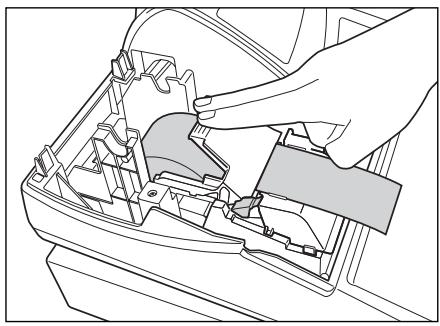
- Lift up the print roller release lever to unlock and open the print roller arm.

- Set a paper roll in the paper roll cradle as illustrated at the right.

- Feed the end of the paper along with the paper positioning guides as illustrated at the right.

- While holding down the paper, slowly close the print roller arm, and push down the arm until you hear a click locking the arm. Make sure securely you push down the center of the wing part of the arm as illustrated at the right. The paper will be fed automatically.
Note
If the print roller arm is not securely locked, printing is not done right. If this problem occurs, open the arm, and close the arm as instructed above.
5. When not using the take-up spool (using as receipt paper):
- Cut off the excess paper using the edge of the inner cover, and replace the printer cover. Press the ↑ key to make sure the paper end comes out of the printer cover and clean paper appears.
Note
If the paper end does not come out, open the printer cover, and pass the paper end between the paper cutter and the paper guide of the printer cover, and replace the cover.
natural_image
Line drawing of a hand installing or adjusting a component inside an electronic device casing (no text or symbols visible)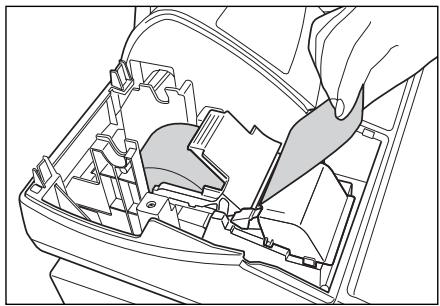
natural_image
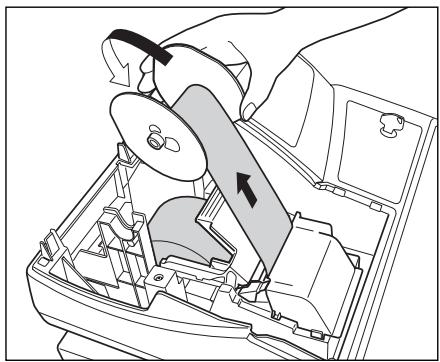
Technical line drawing of a mechanical assembly with no visible text or symbolsWhen using the take-up spool (using as journal paper):
- Insert the end of the paper into the slit in the spool. (Press the ↑ key to feed more paper if required.)
- Wind the paper two or three turns around the spool shaft.
- Set the spool on the bearing, and press the key to take up excess slack in the paper.
- Replace the printer cover.
natural_image
Mechanical assembly diagram showing a gear shift mechanism inside a vehicle (no text or labels)Note
When using a paper roll as journal paper, you must change the printing style. Refer to "Print Format" in "Various Function Selection Programming 1" section (Job code 6) for changing the printing style.
5
Programming date, time and tax
Note
The cash register provides text languages of English, French and Spanish. It is preset to English. If you want to change the language, you must change it before programming. Refer to “Language selection” in “Various Function Selection Programming 2” section for changing the language.
Before you can proceed with registration of sales, you must program:
- date
• time
• tax
Please refer to the BASIC FUNCTION PROGRAMMING section for details (page 27).
6
Programming other necessary items
While the cash register is pre-programmed so it can be used with minimal setup, it does provide you with optional functions. Before you start programming, please read through the sales operations section to understand optional functions. The main optional functions are listed below.
- PLU (price lookup)
- Consecutive number
- Machine number
- Receipt or journal printing selection (factory setting: receipt printing)
- Power save mode (factory setting: goes into power save mode in 30 minutes)
- Electronic journal (EJ) memory size (factory setting: 2000 lines are storable. Up to 3000 lines) The memory for electronic journal is commonly used for PLU. If you change the setting, the maximum number of PLU code will decrease from 1200 to 200.
- Text programming for clerk name, department items, PLU/subdepartment items, logo messages printed on the top or bottom of receipts, function texts and foreign currency symbol
- Split pricing entry This is not factory preset. You must enable this function.
- Foreign currency conversion rate You must set a conversion rate to use [CONV] key.
- Preset unit price for departments and PLUs
- Preset amount for - - Preset rates for %1 %2
You do not have to program these preset prices/amount/rates because you can enter when registration. It might be convenient to preset so you do not have to re-enter every time. - Amount entry digit limit for PO amount, RA amount, Manual tax amount
The factory setting makes the maximum amount you can enter. You can program to limit the amount.
• Key sequence for AUTO key
• Online time out setting
• Specification of clerk to be trained
Department programming:
The cash register is pre-programmed for departments as follows:
Department: Allow open price entry, taxable status- taxable 1 for department 1 to 10, and non taxable for department 11 to 99
When you use department 11 or above, and/or you apply taxable status other than taxable 1 for department 1 to 10, you must change department settings. Please refer to the department programming section for programming details.
7
Starting sales entries
Now you are ready for sales registration.
OVERVIEW OF FLOW OF DAILY SALES ENTRIES
Things to do before you start sales entries:
- Make sure the power cord is securely inserted into the AC outlet.
- Turn the mode switch to OP X/Z position, and check if time is correctly set.
- Replace the drawer, if removed for safety.
- Check if there is enough paper on roll.
- Select receipt ON/OFF function.
- Make any necessary programming for the day in PGM mode.
For details, refer to BASIC SALES ENTRY, page 12. For drawer and paper roll, refer to OPERATOR MAINTENANCE, page 62 and for programming, refer to programming sections.
Things you can do for sales entries:
- Item entries
- Item repeat entries
- Item multiplication entries
- Single item cash sale (SICS), if programmed.
- Split pricing entries, if programmed.
- Displaying subtotals
• Cash/Check/Charge sale - Cash tendering in a foreign currency, if the currency conversion rate is programmed.
- Manual tax entry
- Discount or premium using %1 %2 and - key
- Refund entry
- No sale
- Paid-out entries
• Received on account entries - Printing non-add code number
- Making corrections
- Checking sales report
For details of sales entry method, refer to BASIC SALES ENTRY (page 12) and OPTIONAL FEATURES (page 21). For details of correcting sales entries, refer to CORRECTION (page 25). For details on reading sales information, refer to READING (X) AND RESETTING (Z) OF SALES TOTAL (page 57).
Things to do after you close your store:
- Print sales reports, and clear sales data for the day.
- Print Electronic Journal (EJ) reports, and clear Electronic Journal (EJ) data, if necessary.
- Account money - comparing it with the amount in cash in drawer printed on the general report.
- Remove the drawer for safety.
- Turn the mode switch to OFF position.
For details of reading sales information, refer to READING (X) AND RESETTING (Z) OF SALES TOTAL (page 57) and EJ REPORT READING AND RESETTING (page 60). For details of removing the drawer and maintenance details, refer to OPERATOR MAINTENANCE (page 62).
BASIC SALES ENTRY
1 Basic Sales Entry Example
Listed below is a basic sales entry example when selling department items by cash. For operation details, please refer to each section.
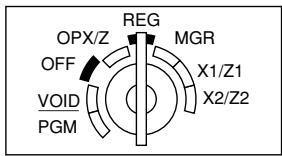
Mode switch setting
- Turn the mode switch to the REG position.
Clerk assignment
- Enter your clerk code. (For example, clerk code is 1. Press the ① and CLK# key in this order.) The clerk code 1 is automatically selected just after initialization of the cash register.
Item entries
- Enter the price for the first department item. (For example, for 15.00, enter ①⑤⑩, and press the appropriate department key.)
For department 17 to department 32, press the DEPTSHIFT key first before pressing the department key. For department 33 and above, enter the department code using numeric keys, and press the DEPT# key, then enter the price and press the DEPT# key again.
- Repeat step 3 for all the department items.
Displaying subtotals
- Press the #/TM/SBTL key to display the amount due.
Finalizing the transaction
- Enter the amount received from the customer. (You can omit this step if the amount tendered is the same as the subtotal.)
- Press the CA/AT/NS key, and the change due is displayed (when the amount received was not entered, the total amount is displayed) and the drawer is opened.
- Tear off the receipt and give it to the customer with his or her change.
- Close the drawer.
Key operation example

other
| Clerk assignment | Item entries | Displaying subtotal | Finalizing the transaction | | ---------------- | ------------ | -------------------- | --------------------------- | | 1 | 1500 | #/TM/SBTL | 5000 | | - | 1 | 15.00 | 40.38 | | - | 17 | 23.00 | 5000 | | - | 18 | - | 9.62 |(In this example, the tax rate is set to 6.25%.)
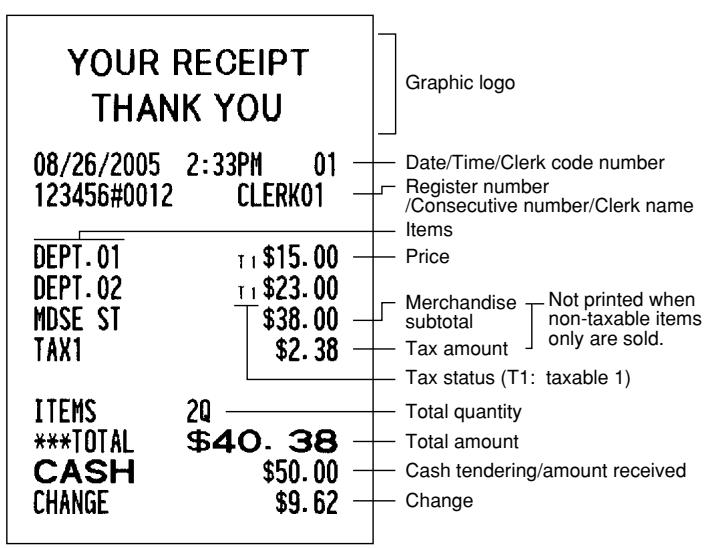
Print
tree
YOUR RECEIPT THANK YOU | Component | Description | | :--- | :--- | | Graphic logo | - | | Date/Time/Clerk code number | - | | Register number /Consecutive number/Clerk name | - | | Items | - | | Price | - | | Merchandise subtotal | Not printed when non-taxable items only are sold. | | Tax amount | - | | Tax status (T1: taxable 1) | - | | Total quantity | - | | Total amount | - | | Cash tendering/amount received | - | | Change | - | | Item | Description | | :--- | Description | | DEPT.01 | T1 $15.00 | | DEPT.02 | T1 $23.00 | | MDSE ST | $38.00 | | TAX1 | $2.38 | | ITEMS | Description | | :--- | Description | | ***TOTAL | $40.38 | | CASH | $50.00 | | CHANGE | $9.62 |Clerk assignment
Prior to any item entries, clerks must enter their clerk codes into the register. However, the code entry may not be necessary when the same clerk handles the next transaction.
■ Sign-on (in REG, MGR, VOID mode)
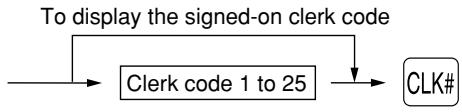
flowchart
graph TD
    A["To display the signed-on clerk code"] --> B["Clerk code 1 to 25"]
    B --> C["CLK#"]
■ Sign-off (in REG, MGR, VOID mode)

Receipt ON/OFF function
When you use the printer to issue receipts, you can disable receipt printing in the REG mode to save paper using the receipt ON/OFF function. To disable receipt printing, press the RCPT/PO key in the OP X/Z position. This key toggles the receipt printing status ON and OFF.
To check the receipt printing status, turn the mode switch to the OP X/Z position or press the CL key in the REG mode. When the function is in the OFF status, the receipt off indicator “_” is illuminated. Your register will print reports regardless of the receipt state, so the paper roll must be installed even when the receipt state is “OFF”.
To issue a receipt when receipt ON/OFF function is set to OFF:
If your customer wants a receipt after you finalized a transaction with the receipt ON/OFF function being OFF status, press the RCPT/PO key. This will produce a receipt. However, if more than 30 items were entered, the receipt will be issued in the format of summary receipt print.
Power Save Mode
The register will enter into power save mode when no entries are performed based on the pre-programmed time limit (by default, 30 minutes).
When your register goes to the power save mode, it will light off all the display except the decimal point at the leftmost position. Your register will return to the normal operation mode when any key is pressed or a mode is changed with the mode key. Please note when your register is recovered by a key entry, its key entry is invalid. After the recovery, start the key entry from the beginning.
2 Error Warning
In the following examples, your register will go into an error state accompanied with a warning beep and the error symbol “ ” on the display. Clear the error state by pressing the CL key and take proper action.
Please refer to the error code table on page 67.
- You enter over a 32-digit number (entry limit overflow): Cancel the entry and re-enter the correct number.
- You make an error in key operation: Clear the error and continue operation.
- You make an entry beyond a programmed amount entry limit: Check to see if the entered amount is correct. If it is correct, it can be rung up in the MGR mode. Contact your manager.
- An including-tax subtotal exceeds eight digits: Delete the subtotal by pressing the CL key and press the CA/AT/NS, CHK or CH key to finalize the transaction.
Error escape function
When you want to quit a transaction due to an error or an unforeseen event, use the error escape function as shown below:
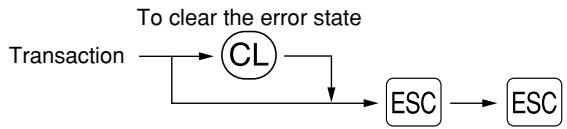
flowchart
graph TD
    A["Transaction"] --> B["CL"]
    B --> C["ESC"]
    C --> D["ESC"]
    B -->|To clear the error state| C
The transaction is voided (treated as a subtotal void) and the receipt is issued by this function. If you have already entered a tendered amount, the operation is finalized as a cash sale.
3 Item Entries
■ Single item entries
Department entries
The cash register provides a maximum of 99 departments for a merchandise classification. Group attributes, such as taxable status, are applied on items when they are entered to the departments.
- When using the department keys (for department 1 to 32)
For department 1 to 16, enter a unit price and press a department key. If you use a programmed unit price, press a department key only.
For department 17 to 32, enter a unit price, press the DEPTSHIFT key and press a department key. If you use a programmed unit price, press the DEPTSHIFT key and press a department key.
When using a programmed unit price

flowchart
graph TD
    A["Unit price *1 (max. 7 digits)"] --> B["Department key"]
    B --> C["*2 DEPTSHIFT"]
    C --> A
*1 Less than the programmed upper limit amounts When zero is entered, only the sales quantity is added.
*2 For the optional departments 17 through 32, press the DEPTSHIFT key.
- When using the department code entry key
Enter a department(dept.) code and press the DEPT# key, then enter a unit price and press the DEPT# key again. If the dept. code is programmed to preset price entry style and a unit price is preset, your cash register will finish its registration operation.
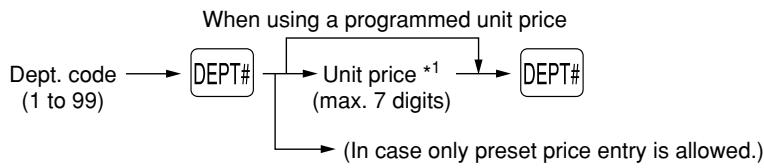
flowchart
graph TD
    A["Dept. code (1 to 99)"] --> B["DEPT#"]
    B --> C["Unit price *1 (max. 7 digits)"]
    C --> D["DEPT#"]
    D --> E["(In case only preset price entry is allowed.)"]
    style B fill:#f9f,stroke:#333
    style D fill:#f9f,stroke:#333
*1 Less than the programmed upper limit amounts
When zero is entered, only the sales quantity is added.
PLU/subdepartment entries
For another merchandise classification, the cash register provides a maximum of 1200 PLUs/subdepartments. PLUs are used to call up preset prices by a code entry. Subdepartments are used to classify merchandise into smaller groups under the departments. Every PLU and subdepartment has a code form 1 to 1200, and should belong to a department to obtain attributes of that department.
The cash register is pre-programmed to PLU mode and zero for unit price. To use PLU entries, their preset unit prices should be previously programmed. (Refer to page 33.)
To use subdepartment entries, change to subdepartment mode for the PLU codes.
- PLU entries
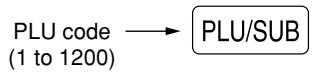
- Subdepartment (open PLU) entries

flowchart
graph LR
    A["PLU code (1 to 1200)"] --> B["PLU/SUB"]
    B --> C["Unit price * (max. 7 digits)"]
    C --> D["PLU/SUB"]
* Less than the programmed upper limit amounts
When zero is entered, only the sales quantity is added.
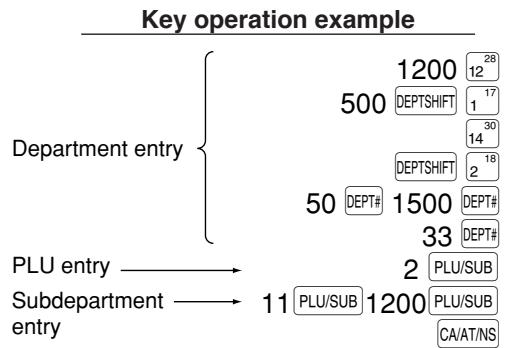
other
Key operation example | Entity | Value | | :--- | :--- | | Department entry | 1200 12 28 | | Department entry | 500 DEPTSHIFT 1 17 | | Department entry | 30 14 | | Department entry | DEPTSHIFT 2 18 | | Department entry | 50 DEPT# 1500 DEPT# | 33 DEPT# | | PLU entry → Subdepartment entry → PLU/SUB 2 PLU/SUB | | Subdepartment entry → PLU/SUB 11 1200 PLU/SUB CA/AT/NS | 11 PLU/SUB 1200 PLU/SUB CA/AT/NS |
other
Print | Category | Price ($) | | :--- | :--- | | DEPT. 12 | 12.00 | | DEPT. 17 | 5.00 | | DEPT. 14 | 8.25 | | DEPT. 18 | 3.25 | | DEPT. 50 | 15.00 | | DEPT. 33 | 2.50 | | PLU0002 | 1.50 | | PLU0011 | 12.00 | | ITEMS | 8Q | | CASH | $59.50 |■ Repeat entries
You can use this function for entering a sale of two or more of the same items. Repeat pressing a department key, DEPT# key or PLU/SUB key as shown on key operation example.
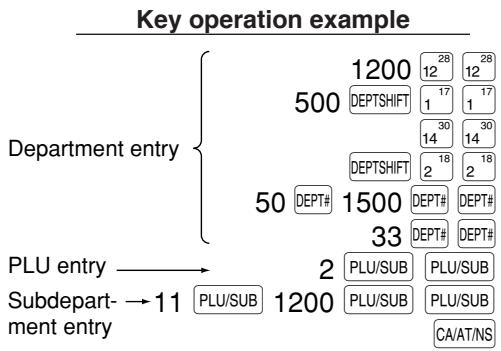
other
Key operation example | Department entry | Subdepartment- entry | PLU/SUB | PLU/SUB | PLU/SUB | PLU/SUB | CA/AT/NS | | :--- | :--- | :--- | :--- | :--- | :--- | :--- | | 1200 | 500 | 17 | 17 | 30 | 14 | 30 | | 128 | 50 | 18 | 2 | 18 | 2 | 18 | | 129 | 50 | 1500 | 33 | 33 | 33 | 33 | | 1200 | 1200 | 17 | 17 | 30 | 14 | 30 | | 128 | 1200 | 17 | 17 | 30 | 14 | 30 | | 129 | 1200 | 17 | 17 | 30 | 14 | 30 | | 1200 | 500 | 17 | 17 | 30 | 14 | 30 | | 128 | 500 | 1500 | 33 | 33 | 33 | 33 | | 129 | 500 | 1500 | 33 | 33 | 33 | 33 | | 1200 | 500 | 1500 | 33 | 33 | 33 | 33 | | 128 | 500 | 1500 | 33 | 33 | 33 | 33 | | 129 | 500 | 1500 | 33 | 33 | 33 | 33 | | 1200 | 500 | 1500 | 33 | 33 | 33 | 36 | PLU/SUB: PLU/SUB PLU/SUB: PLU/SUB PLU/SUB: PLU/SUB CA/AT/NS: (not labeled)
■ Multiplication entries
When you sell a large quantity of items, it is convenient to use the multiplication entry method. Enter quantity using numeric keys and press the Ⓞ/FOR key before starting item entry as shown in the example below.
Note
When programmed to allow fractional quantity entries, you can enter up to four integers and three digit decimal, though the quantity is counted as one for sales reports. To enter a fractional quantity, use the decimal point key between integer and decimal, as ⑦•⑤ for entering 7.5.
Key operation example
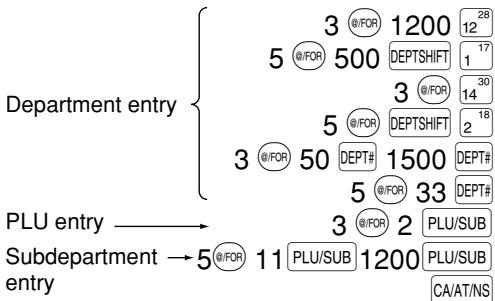
flowchart
graph TD
    A["Department entry"] --> B["3 @/FOR 1200 28"]
    A --> C["5 @/FOR 500 DEPTSHIFT 1 17"]
    A --> D["3 @/FOR 14 30"]
    A --> E["5 @/FOR DEPTSHIFT 2 18"]
    A --> F["3 @/FOR 50 DEPT# 1500 DEPT#"]
    A --> G["5 @/FOR 33 DEPT#"]
    H["PLU entry"] --> I["3 @/FOR 2 PLU/SUB"]
    H --> J["Subdepartment → 5 @/FOR 11 PLU/SUB 1200 PLU/SUB CA/AT/NS"]
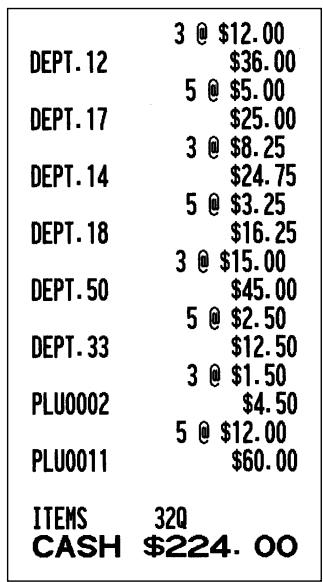
Print
■ Split pricing entries
This function is practical when the customer wants to purchase items normally sold in bulk.
To realize this function, you must change the programmed setting. Refer to “Various Function Selection Programming 1” (job code 70) for programming details.
To make split pricing entries, follow the procedure below:
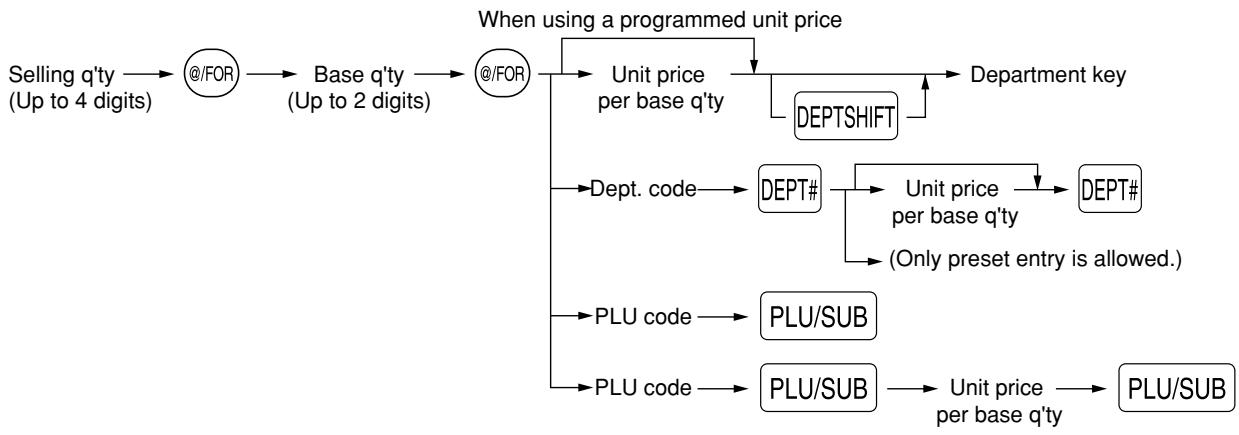
flowchart
graph TD
    A["Selling q'ty (Up to 4 digits)"] --> B["@/FOR"]
    B --> C["Base q'ty (Up to 2 digits)"]
    C --> D["@/FOR"]
    D --> E["When using a programmed unit price"]
    E --> F["Unit price per base q'ty"]
    F --> G["DEPTSHIFT"]
    G --> H["Department key"]
    E --> I["Dept. code"]
    I --> J["DEPT#"]
    J --> K["Unit price per base q'ty (Only preset entry is allowed.)"]
    K --> L["DEPT#"]
    L --> M["PLU/SUB"]
    I --> N["PLU code"]
    N --> O["PLU/SUB"]
    O --> P["Unit price per base q'ty"]
    P --> Q["PLU/SUB"]
Key operation example
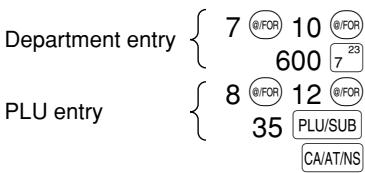
Print
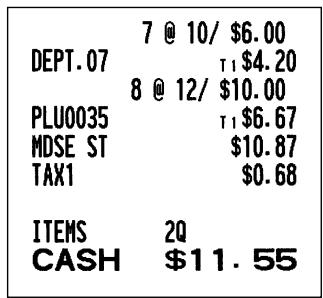
■ Single item cash sale (SICS) entry
- This function is useful when a sale is for only one item and is for cash. This function is applicable only to those departments that have been set for SICS or to their associated PLUs or subdepartments.
- The transaction is complete and the drawer opens as soon as you press the department key, DEPT# key or PLU/SUB key.


Note If an entry to a department or PLU/subdepartment set for SICS follows the ones to departments or PLUs/subdepartments not set for SICS, it does not finalize and results in a normal sale.
4 Displaying Subtotals
The register provides three types of subtotals:
Merchandise subtotal
Press the MDSESBTL key at any point during a transaction. The net sale subtotal - not including tax - will appear in the display.
Taxable subtotal
Taxable 1 subtotal
Press the TAX1SHIFT and #/TM/SBTL keys in this order at any point during a transaction. The sale subtotal of taxable 1 items will appear in the display.
Taxable 2 subtotal
Press the TAX2SHIFT and #/TM/SBTL keys in this order at any point during a transaction. The sale subtotal of taxable 2 items will appear in the display.
Including-tax subtotal (full subtotal)
Press the #/TM/SBTL key at any point during a transaction. The sale subtotal including tax and the symbol “☐” will appear in the display.
5 Finalization of Transaction
■ Cash or check tendering
Press the #/TM/SBTL key to get an including tax subtotal, enter the amount tendered by your customer, then press the CA/AT/NS key if it is a cash tender or press the CHK key if it is a check tender. When the amount tendered is greater than the amount of the sale, your register will show the change due amount and the symbol “☐” will light up. Otherwise the register will show a deficit and the symbol “☐” will light up. You now must make a correct tender entry.
Cash tendering


other
Print | Item | Value | | :--- | :--- | | ITEMS | 3Q | | ***TOTAL | $7.35 | | CASH | $10.00 | | CHANGE | $2.65 |Check tendering
| Key operation example |
| \#/TM/SBTL |
| 1000 CHK |
| ITEMS | 3Q |
| ***TOTAL | 7.35 |
| CHECK | 10.00 |
| CHANGE | $2.65 |
■ Cash or check sale that does not require entry
Enter items and press the CA/AT/NS key if it is a cash sale or press the CHK if it is a check sale. Your register will display the total sale amount.
| Key operation example | |
| 300 622 | |
| 10 PLU/SUB | |
| CA/AT/NS | |
| DEPT.06 | T1 3.00 |
| PLU0010 | T17.15 |
| MDSE ST | 10.15 |
| TAX1 | 0.63 |
| ITEMS | 2Q |
| CASH | 10.78 |
| In the case of check sale | |
| ITEMS | 2Q |
| CHECK | 10.78 |
■ Charge (credit) sale
Enter items and press the charge key (CH).
| Key operation example | |
| 2500 | 6^22 |
| 3250 | 7^23 |
| CH | |
| DEPT. 06 | T1 25.00 |
| DEPT. 07 | T132.50 |
| MDSE ST | 57.50 |
| TAX1 | 3.59 |
| ITEMS | 2Q |
| CHARGE | $61.09 |
■ Mixed-tender sale
You can perform mixed-tendering of check and cash, cash and charge, and check and charge.
Example: Your customer pays \9.50 in cash and \40.00 by charge for an including-tax subtotal of \$49.50.
| Key operation example |
| \(#/TM/SBTL950 CA/AT/NSCH |
| ITEMS | 3Q |
| ***TOTAL | 49.50 |
| CASH | 9.50 |
| CHARGE | $40.00 |
6 Tax Calculation
■ Automatic tax
When the register is programmed with a tax rate (or tax table) and the tax status of an individual department is set for taxable, it computes the automatic tax on any item that is entered directly into the department or indirectly via a related PLU.
Example: Selling five \6.70 items (dept. 1, taxable 1) and one \7.15 item (PLU no. 85, taxable 2) for cash
| Key operation example | |
| 5 @ 6.70 | |
| DEPT. 01 | T133.50 |
| PLU0085 | T2 7.15 |
| MDSE ST | 40.65 |
| TAX1 | 2.09 |
| TAX2 | 0.29 |
| ITEMS | 6Q |
| CASH | $43.03 |
■ Manual tax
The machine allows you to enter tax manually after it finalizes an item entry.
Example: Selling an \$8.00 item (dept. 12) for cash with 50 cents as tax
| Key operation example | |
| 800 122850 TAXCA/AT/NS | DEPT. 12 8.00M-TAX0.50ITEMS 1QCASH $8.50 |
Tax delete
You can delete the automatic tax on the taxable 1 and taxable 2 subtotal of each transaction by pressing the TAX key after the subtotal is displayed.
To delete taxable 1 subtotal, press TAX1SHIFT, #/TM/SBTL to get taxable 1 subtotal, and then press TAX to delete the subtotal.
To delete taxable 2 subtotal, press TAX2SHIFT, #/TM/SBTL to get taxable 2 subtotal, and then press TAX to delete the subtotal.
To delete all taxable (1-4) subtotal, press TAX1SHIFT, TAX2SHIFT, #/TM/SBTL and TAX in this order.
Example: Selling a \7.25 item (dept. 1, taxable 1) and another \5.15 item (dept. 11, taxable 2) for cash and entering the sale as a non-taxable one
| Key operation example | |||
| 725 117 | DEPT.01 | T1 7.25 | |
| 515 1127 | DEPT.11 | T25.15 | |
| TAX1SHIFT #/TM/SBTL | TAX1 ST | 0.00 | |
| TAX | TAX2 ST | 0.00 | |
| TAX2SHIFT #/TM/SBTL | |||
| TAX | ITEMS | 2Q | |
| CA/AT/NS | CASH | $12.40 | |
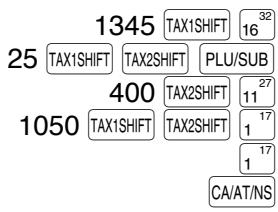
■ Tax status shift
The machine allows you to shift the programmed tax status of each department or the PLU key by pressing the TAX1SHIFT and/or TAX2SHIFT keys before those keys. After each entry is completed, the programmed tax status of each key is resumed.
Example: Selling the following items for cash with their programmed tax status reversed
- One \$13.45 item of dept. 16 (non-taxable) as a taxable 1 item
- One \$7.00 item of PLU no. 25 (non-taxable) as a taxable 1 and 2 item
- One \$4.00 item of dept. 11 (taxable 2) as a non-taxable item
- Two \$10.50 items of dept. 1 (taxable 1) as taxable 2 items
Key operation example
| DEPT. 16 | T_1 13.45 |
| PLU0025 | T_{12}7.00 |
| DEPT. 11 | 4.00 |
| DEPT. 01 | T_{2}10.50 |
| DEPT. 01 | T_2 10.50 |
| MDSE ST | 45.45 |
| TAX1 | 1.28 |
| TAX2 | 1.12 |
| ITEMS | 5Q |
| CASH | $47.85 |
Note
When Canadian tax system is applied:
When using a tax status shift, the entry of a multi-taxable item for PST or GST will be prohibited. Please see below:
In case of; Tax 1: PST, Tax 2: PST, Tax 3: PST, Tax 4: GST
Taxable 1 and 2 item …… prohibited
Taxable 1 and 3 item…… prohibited
Taxable 2 and 3 item …… prohibited
Taxable 1 and 4 item …… allowed
Taxable 2 and 4 item …… allowed
Taxable 3 and 4 item …… allowed
In case of; Tax 1: PST, Tax 2: PST, Tax 3: GST, Tax 4: GST
Taxable 1 and 2 item …… prohibited
Taxable 1 and 3 item …… allowed
Taxable 2 and 3 item …… allowed
Taxable 1 and 4 item …… allowed
Taxable 2 and 4 item …… allowed
Taxable 3 and 4 item …… prohibited
OPTIONAL FEATURES
1 Auxiliary Entries
■ Discount and premium entries using the percent key
The percent key is used to apply a manually entered or preset discount or premium percent rate to individual items or to a merchandise subtotal. In the default setting, you can manually enter a discount percent rate to both individual items and merchandise subtotal. For manual entry of discount or premium percent rate, enter the rate (up to 100.00) with the numeric keys (you need a decimal point when you enter a fractional percent rate), and press a percent key. When using a preset rate (if programmed), just press a percent key.
When entry limit is programmed for a percent key, you can not enter a rate over the limit (error code 34 will occur.)
Percent calculation for the merchandise subtotal
Key operation example
| 4 | @/FOR |
| 140 | 521 |
| 570 | 723 |
| MDSESBTL | |
| 10 | %1 |
| CA/AT/NS | |
| 4 @ 1.40 | |
| DEPT. 05 | TI5.60 |
| DEPT. 07 | TI 5.70 |
| MDSE ST | 11.30 |
| -10% | |
| %1 | -1.13 |
| MDSE ST | 10.17 |
| TAX1 | 0.71 |
| ITEMS | 5Q |
| CASH | $10.88 |
Percent calculation for item entries
Key operation example
| 800 | 22 |
| 7 ⚫ 5 | %1 |
| 15 | PLU/SUB |
| %2 | |
| CA/AT/NS |
(When premium and 15% are programmed for the %2 key)
| DEPT.06 | T1 8.00-7.5% |
| %1 | -0.60 |
| PLU0015 | T15.0015.00% |
| %2 | 0.75 |
| MDSE ST | 13.15 |
| TAX1 | 0.81 |
| ITEMS | 2Q |
| CASH | 13.96 |
■ Discount and premium entries using the discount key
The discount key is used to apply a manually entered or preset discount or premium amount to individual items or to a merchandise subtotal. In the default setting, you can manually enter a discount amount to both individual items and merchandise subtotal. For manual entry of discount or premium amounts, enter the amount with the numeric keys, and press the discount key. When using a preset amount (if programmed), press the discount key.
When entry digit limit is programmed for the discount key, you can not enter an amount over the limit (error code 34 will occur.)
Discount for the merchandise subtotal
Key operation example

Discount for item entries
Key operation example

(When a discount amount of \$0.75 is programmed.)
Print
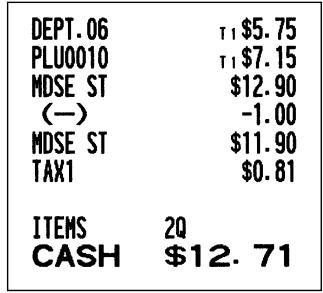
Print

■ Refund entries
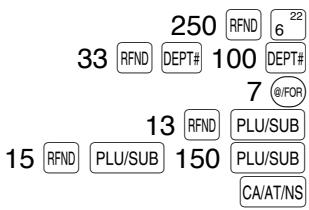
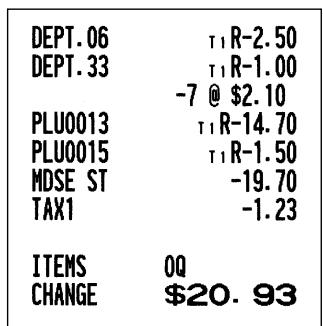
For departments 1 to 16, enter the refund amount and press the RFND key, and then press the corresponding department key and for departments 17 to 32, enter the refund amount and press the RFND key, then press the DEPTSHIFT key and press the corresponding department key (when using the preset price, omit entering the amount). In case of department 33 to 99, enter the department code and press RFND key and the DEPT# key, then enter the refund amount and press the DEPT# key if necessary.
For a refund of a PLU item, enter the PLU code and press the RFND key, then press the PLU/SUB key.
For a refund of a subdepartment item, enter the PLU code and press the RFND key and PLU/SUB key, then enter the refund amount and press the PLU/SUB key.
Key operation example
Print
■ Non-add code number entries and printing
You can enter a non-add code number such as a customer's code number and credit card number, a maximum of 16 digits, at any point during the entry of a sale. The cash register will print it at once.
To enter a non-add code number, enter the number and press the #/TM/SBTL key.
Key operation example
| 1230 | #/TM/SBTL |
| 1500 | 6 ^22 |
| CH |
| #1230 | |
| DEPT. 06 | T1 15.00 |
| MDSE ST | 15.00 |
| TAX1 | 0.94 |
| ITEMS | 1Q |
| CHARGE | 15.94 |
2 Auxiliary Payment Treatment
■ Currency conversion
The register allows payment entries in a foreign currency (only cash payment is available). Pressing the CONV key creates a subtotal in the foreign currency.
When using a programmed currency conversion rate, press the CONV key after item entries, then enter the tendered amount in foreign currency if not exact amount payment, and press the CA/AT/NS key.
When making a manual entry of currency conversion rate, after item entries, enter the conversion rate (0.0000 to 9999.9999; you need a decimal point when you enter fractional conversion rate) and press the CONV key, then enter the tendered amount in foreign currency if not exact amount payment, and press the CA/AT/NS key.
In both cases, the change due will be displayed in domestic currency, and when the amount tendered is short, the deficit is shown in domestic currency.
Note
- Press the CL key after pressing the CONV key to cancel payment in a foreign currency.
- If programmed, a foreign currency symbol is printed when you use a prest rate.
Applying preset conversion rate
Key operation example
| 2300 | 622 | |
| Currencyconversion | 4650 | 723 |
| CONV | ||
| Amounttendered inforeign currency | 10000 | CA/AT/NS |
(When a currency conversion rate of 0.7674 is programmed for the CONV key.)
Applying manual conversion rate
Key operation example
| 2300 | 6 ^22 | |
| 4650 | 7 ^23 | |
| Conversion rate → | 1 ⊙ 275 | CONV |
| 10000 | CA/AT/NS |
| DEPT.06 | T1 23.00 |
| DEPT.07 | T146.50 |
| MDSE ST | 69.50 |
| TAX1 | 4.34 |
| ITEMS | 2Q |
| ***TOTAL | 73.84 |
| CONV 1 | 0.7674 |
| €56.67 | |
| CASH | €100.00 |
| CHANGE | 56.46 |
Foreign currency symbol (Printed if programmed)
| DEPT.06 | T1 23.00 |
| DEPT.07 | T146.50 |
| MDSE ST | 69.50 |
| TAX1 | 4.34 |
| ITEMS | 2Q |
| ***TOTAL | 73.84 |
| CONV 2 | 1.275 |
| 94.15 | |
| CASH | 100.00 |
| CHANGE | 4.58 |
■ Received-on Account and Paid-out Entries
When you receive on account from a customer or when you pay an amount to a vendor, it is a good idea to use the RA key or the RCPT/PO key respectively.
For the received-on-account (RA) entry, enter the amount, and press the RA key.
For the paid-out (PO) entry, enter the amount and press the RCPT/PO key.
Note Cash tendering only available for RA and PO operation.
Key operation example
| 12345 | #/TM/SBTL |
| 4800 | RA |
| #12345 | ||
| ***RA | $48.00 |
■ No sale (exchange)
When you need to open the drawer with no sale, just press the CA/AT/NS key. The drawer will open and printer will print "NO SALE" on the receipt or journal. If you let the machine print a non-add code number before pressing the CA/AT/NS key, a no sale entry is achieved and a non-add code number is printed.
45678
NO SALE
3 Automatic Sequence Key (AUTO key) Entries
You can achieve a programmed transaction simply by pressing the AUTO key.
Key operation example
| AUTO |
$$ (\boxed {\text { AUTO }} = 5 0 0 \boxed {7} ^ {2 3} \boxed {\text { CA / AT / NS }}) $$
| DEPT.07 | 5.00 |
| MDSE ST | 5.00 |
| TAX1 | 0.31 |
| ITEMS | 1Q |
| CASH | 5.31 |
CORRECTION
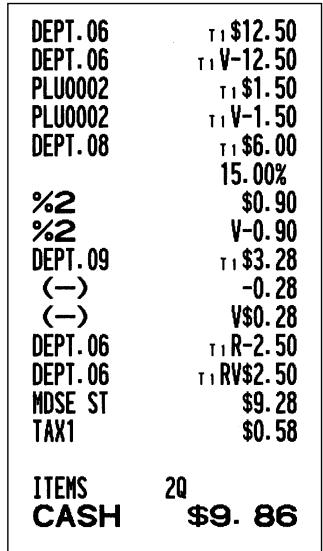
1 Correction of the Last Entry (direct void)
If you make an incorrect entry relating to a department, PLU/subdepartment, percentage ( %1 and %2 ), discount ( ) or refund, you can void this entry by pressing the VOID key immediately after the incorrect entry.
Key operation example

Print
2 Correction of the Next-to-last or Earlier Entry (indirect void)
You can void any incorrect department entry, PLU/subdepartment entry or item refund entry made during a transaction if you find it before finalizing the transaction (e.g. pressing the CA/AT/NS key). This function is applicable to department, PLU/subdepartment and refund entries only.
For the operation, press the key just before you press a department key, # key or /SUB key. For the refund indirect void, press the key after you press the key.
Key operation example
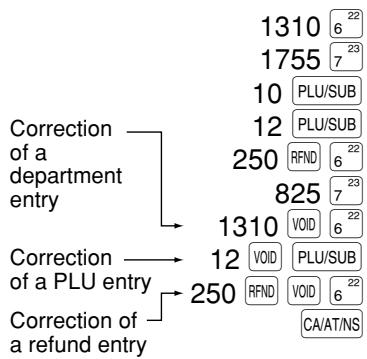
other
| Correction Type | Value | Number | |---|---|---| | Department Entry | 1310 | 6 | | Department Entry | 1755 | 7 | | Department Entry | 10 | PLU/SUB | | Department Entry | 12 | PLU/SUB | | Department Entry | 250 | RFND | | Department Entry | 825 | 7 | | Department Entry | 1310 | 6 | | PLU Entry | 12 | 6 | | PLU Entry | 250 | 6 | | Refund Entry | 250 | CA/AT/NS | Correction of a department entry Correction of a PLU entryPrint
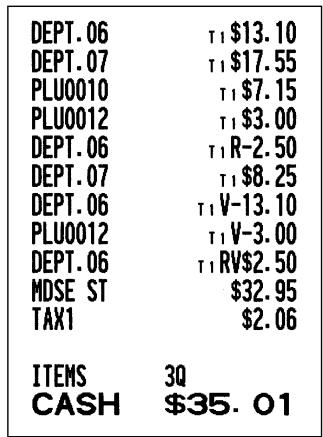
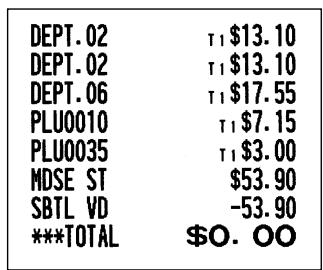
3 Subtotal Void
You can void an entire transaction. Once subtotal void is executed, the transaction is aborted and the register issues a receipt. This function does not work when more than 30 items have been entered.
Key operation example

Print
4 Correction of Incorrect Entries not Handled by the Direct or Indirect Void Function
Any errors found after the entry of a transaction has been completed or during an amount tendered entry cannot be voided. These errors must be corrected by the manager.
The following steps should be taken:
- If you are making the amount tendered entry, finalize the transaction.
- Make correct entries from the beginning.
- Hand the incorrect receipt to your manager for its cancellation.
PRIOR TO PROGRAMMING
Before starting sales entries, you must first program necessary items so that the cash register suits your sales manner. In this manual, there are three sections, BASIC FUNCTION PROGRAMMING where required items must be programmed, AUXILIARY FUNCTION PROGRAMMING where you can program for more convenient use of keys on the keyboard, and ADVANCED FUNCTION PROGRAMMING where various optional programming features are provided. Find the appropriate features for your needs, and make the necessary programming.
Note
You can select the language of text (English, French or Spanish) printed on receipts or journals. For the language selection, please refer to “Language Selection” described later in this section.
■ Procedure for programming
- Check to see whether a paper roll is present in the machine. If there is not enough paper on the roll, replace it with a new one (refer to MAINTENANCE section for the replacement).
- Put the manager key in the mode switch and turn it to the PGM position.
- Program necessary items into the cash register. Every time you program an item, the cash register will print the setting. Please refer to print samples in each section.
- If necessary, issue programming reports for your reference.

Note
- On the procedures and key operation examples shown in the programming details, numbers such as “08262005” indicates the parameter which must be entered using the corresponding numeric keys.
- Asterisks in the tables shown in the programming details indicate default settings.
BASIC FUNCTION PROGRAMMING
(For Quick Start)
1 Date and Time Programming
Date
For setting the date, enter the date in 8 digits using the month-day-year (MM/DD/YYYY) format, then press the #/TM/SBTL key.

flowchart
graph LR
    A["Procedure"] --> B["Date(MM/DD/YYYY)"] --> C["#/TM/SBTL"]
Key operation example
08262005 #/TM/SBTL
(Aug. 26, 2005)
*PGM*
08/26/2005 + Date
Note
You can use the date format of day-month-year (DD/MM/YYYY) or year-month-day (YYYY/MM/DD) format. To change the format, refer to “Various Function Selection Programming 1” section (Job code 61).
Time
For setting the time, enter the time in 4 digits using the 24-hour format. For example, when the time is set to 2:30 AM, enter 230; and when it is set to 2:30 PM, enter 1430.
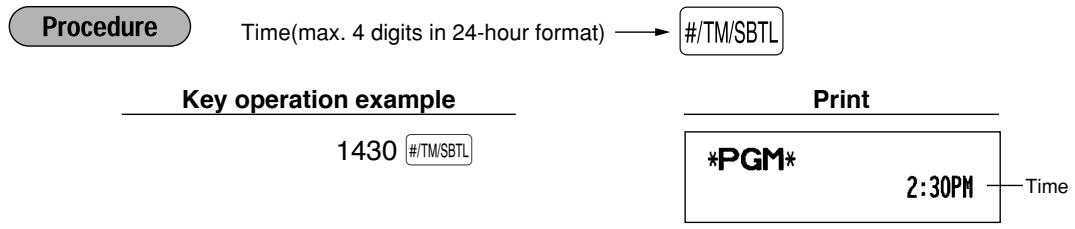
flowchart
graph LR
    A["Procedure"] --> B["Time(max. 4 digits in 24-hour format) → #/TM/SBTL"]
    B --> C["Key operation example"]
    C --> D["1430 #/TM/SBTL"]
    C --> E["Print"]
    E --> F["*PGM* 2:30PM Time"]
Note In the display, current time is displayed in 12-hour format. For AM time, “R” and for PM time “P” will appear in the rightmost position with the current time. If you want to display time in the 24-hour format, refer to “Various Function Selection Programming 1” section (Job code 61).
2 Tax Programming for Automatic Tax Calculation Function
Note The cash register can support US and Canadian tax systems. If you use the Canadian tax system, you must first change the tax system, then program the tax rate or tax table and quantity for doughnut exempt which are described in this section. For changing your cash register's tax system, please refer to "Various Function Selection Programming 1" section (job code 70).
Before you can proceed with registration of sales, you must first program the tax that is levied in accordance with the law of your state. The cash register comes with the ability to program four different tax rates. In most states, you will only need to program Tax 1. However if you live in an area that has a separate local tax (such as a Parish tax) or a hospitality tax, the register can be programmed to calculate these separate taxes.
When you program the tax status for a department, tax will be automatically added to sales of items assigned to the department according to the programmed tax status for the department. You can also enter tax manually.
There are two tax programming methods. The tax rate method uses a straight percentage rate per dollar. The tax table method requires tax break information from your states or local tax offices. Use the method which is acceptable in your state. You can obtain necessary data for tax programming from your local tax office.
■ Tax programming using a tax rate
The percent rate specified here is used for tax calculation on taxable subtotals.
Procedure
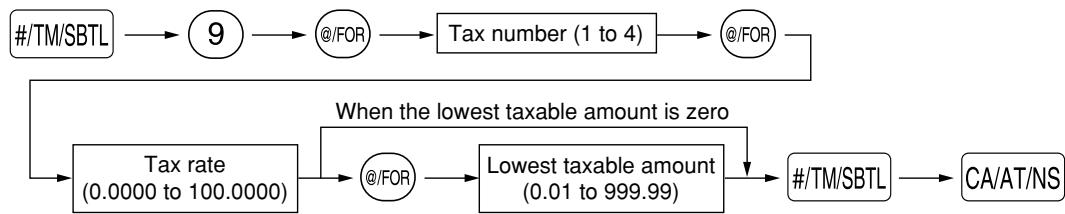
flowchart
graph TD
    A["#/TM/SBTL"] --> B["9"]
    B --> C["@/FOR"]
    C --> D["Tax number (1 to 4)"]
    D --> E["@/FOR"]
    E --> F["Lowest taxable amount (0.01 to 999.99)"]
    F --> G["#/TM/SBTL"]
    G --> H["CA/AT/NS"]
    I["Tax rate (0.0000 to 100.0000)"] --> J["@/FOR"]
    J --> K["When the lowest taxable amount is zero"]
    K --> F
To delete a tax rate, use the following sequence:

flowchart
graph LR
    A["#/TM/SBTL"] --> B["9"]
    B --> C["@/FOR"]
    C --> D["Tax number (1 to 4)"]
    D --> E["@/FOR"]
    E --> F["VOID"]
    F --> G["CA/AT/NS"]
Example: Programming the tax rate 4% as tax rate 2 with tax exempt as 12¢
Key operation example

Print
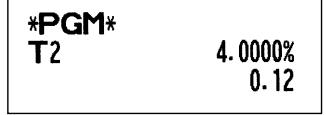
Note
- If you make an incorrect entry before pressing the third @/FOR key in programming a tax rate, cancel it with the CL key.
- You do not need to enter the trailing zeros of the tax rate (after the decimal point), but you do need to enter the decimal for fractions.
- The lowest taxable amount setting is ignored when you select VAT system for Canadian tax.
■ The tax table (applicable to the add-on tax)
If you are in an area that uses a tax table for tax calculation, you can program the cash register accordingly. Tax table programming can be performed for Tax 1 through Tax 4.
Sample tax table
New Jersey tax table: 6%
| Range of sales amount | |||
| Taxes | Minimum breakpoint | Maximum breakpoint | |
| .00 | .01 | to | .10 |
| .01—T | .11—Q | to | .22 |
| .02 | .23 | to | .38 |
| .03 | .39 | to | .56 |
| .04 | .57 | to | .72 |
| .05 | .73 | to | .88 |
| .06 | .89 | to | 1.10 |
| .07 | 1.11—M1 | to | 1.22 |
| .08 | 1.23 | to | 1.38 |
| .09 | 1.39 | to | 1.56 |
| .10 | 1.57 | to | 1.72 |
| .11 | 1.73 | to | 1.88 |
| .12 | 1.89 | to | 2.10 |
| .13 | 2.11—M2 | to | 2.22 |

| A: Difference between the minimum breakpoint and the next one (¢) | |
| -10 (0.11 - 0.01) | B: Non-cyclic |
| 12 (0.23 - 0.11)16 (0.39 - 0.23)18 (0.57 - 0.39)16 (0.73 - 0.57)16 (0.89 - 0.73)22 (1.11 - 0.89) | C: Cyclic-1 |
| 12 (1.23 - 1.11)16 (1.39 - 1.23)18 (1.57 - 1.39)16 (1.73 - 1.57)16 (1.89 - 1.73)22 (2.11 - 1.89) | D: Cyclic-2 |
To program a tax table, first make a table like the one shown above right.
From the tax table, calculate the differences between a minimum break point and the next one (A). Then, from the differences, find irregular cycles (B) and regular cycles (C and D). These cycles will show you the following items necessary to program the tax table:
T: The tax amount collected on the minimum taxable amount (Q)
Q: The minimum taxable amount
M1: The maximum value of the minimum breakpoint on a regular cycle (C)
We call this point "MAX point."
M2: The maximum value of the minimum breakpoint on a regular cycle (D)
We call this point "MAX point."
M: Range of the minimum breakpoint on a regular cycle: difference between Q and M1 or between M1 and M2
Procedure

flowchart
graph TD
    A["#/TM/SBTL"] --> B["8"]
    B --> C["@/FOR"]
    C --> D["One- or two- *1 digit number"]
    D --> E["@/FOR"]
    E --> F["Rate *2 max. six digits (0.0001 - 99.9999%)"]
    F --> G["@/FOR"]
    G --> H["M max. four digits"]
    H --> I["@/FOR"]
    I --> J["CA/AT/NS"]
    J --> K["Repeat until the MAX point is entered."]
    L["T max. three digits"] --> M["@/FOR"]
    M --> N["Q max. five digits"]
    N --> O["@/FOR"]
    O --> P["Minimum breakpoint max. five digits"]
    P --> Q["@/FOR"]
    Q --> R["CA/AT/NS"]
To delete a tax table, use the following sequence:

flowchart
graph LR
    A["#/TM/SBTL"] --> B["8"]
    B --> C["@/FOR"]
    C --> D["One- or two- *1 digit number"]
    D --> E["@/FOR"]
    E --> F["Rate *2 max. six digits (0.0001 - 99.9999%)"]
    F --> G["@/FOR"]
    G --> H["M max. four digits"]
    H --> I["@/FOR"]
    I --> J["#/TM/SBTL"]
\*1 First figure: (1 or 0)
The first figure to be entered depends upon whether the difference between a minimum breakpoint to be entered and the preceding minimum breakpoint is not less than \1.00 or more than 99¢. When the difference is not less than \1.00, enter “1,” and when it is not more than 99¢, enter “0” or nothing.
Second figure: The second figure depends upon whether your tax table is to be programmed as tax table 1, (1 to 4) 2, 3 or 4.
*2 If the rate is fractional (e.g. 4-3/8%), then the fractional portion (3/8) would be converted to its decimal equivalent (i.e. .375) and the resulting rate of 4.375 would be entered. Note that the nominal rate (R) is generally indicated on the tax table.
Note
If you make an incorrect entry before entering the M in programming a tax table, cancel it with the CL key; and if you make an error after entering the M, cancel it with the #/TM/SBTL key. Then program again from the beginning.
- Limitations to the entry of minimum breakpoints
The register can support a tax table consisting of no more than 72 breakpoints. (The maximum number of breakpoints is 36 when the breakpoint difference is \$1.00 or more.) If the number of breakpoints exceeds the register's table capacity, then the manual entry approach should be used.
Example: Programming the sample tax table shown on the previous page as tax table 1

other
Key operation example | Category | Value | | :--- | :--- | | #/TM/SBTL | 8 @/FOR | | Tax rate | 6 @/FOR | | M | 100 @/FOR | | T | 1 @/FOR | | Q | 11 @/FOR | | The first cyclic portion | 23 @/FOR | | M1 (MAX point) | 111 @/FOR | | CA/AT/NS | |
other
Print | Label | Value (%) | |---|---| | *PGM* T1 | 6.0000 | | | / 1.00 | | 1 | 0.11 | | 2 | 0.23 | | 3 | 0.39 | | 4 | 0.57 | | 5 | 0.73 | | 6 | 0.89 | | 7 | 1.11 |Note
You do not need to enter the trailing zeros of the tax rate (after the decimal point) but you do need to enter the decimal point for fractions.
- If the tax is not provided for every cent, modify the tax table by setting the tax for every cent in the following manner.
When setting the tax, consider the minimum breakpoint corresponding to unprovided tax to be the same as the one corresponding to the tax provided on a large amount.
Sample tax table Example 8%
| Tax | Minimum breakpoint |
| .00 | .01 |
| .01 | .11 |
| .02 | .26 |
| .03 | .47 |
| .04 | .68 |
| .06 | .89 |
| .09 | 1.11 |
| .10 | 1.26 |
| .11 | 1.47 |
| .12 | 1.68 |
| .14 | 1.89 |
| .17 | 2.11 |
Modification of the left tax table
| Tax | Minimum breakpoint |
| .00 | .01 |
| .01—T | .11—Q |
| .02 | .26 |
| .03 | .47 |
| .04 | .68 |
| .05 | .89 |
| .06 | .89 |
| .07 | 1.11—M1 |
| .08 | 1.11 |
| .09 | 1.11 |
| .10 | 1.26 |
| .11 | 1.47 |
| .12 | 1.68 |
| .13 | 1.89 |
| .14 | 1.89 |
| .15 | 2.11—M2 |
| .16 | 2.11 |
| .17 | 2.11 |

| Breakpoint difference (φ) | |
| 110 (0.11-0.01) | B: Non-cyclic |
| 15 (0.26-0.11)21 (0.47-0.26)21 (0.68-0.47)21 (0.89-0.68)0 (0.89-0.89)22 (1.11-0.89)0 (1.11-1.11)0 (1.11-1.11) | C: Cyclic-1 |
| 15 (1.26-1.11)21 (1.47-1.26)21 (1.68-1.47)21 (1.89-1.68)0 (1.89-1.89)22 (2.11-1.89)0 (2.11-2.11)0 (2.11-2.11) | D: Cyclic-2 |
From the modified tax table above;
Rate = 8(%), T = \0.01 = 1¢, Q = \0.11 = 11¢, M1 = 1.11, M2 = 2.11, M = 100
■ Quantity for doughnut tax exempt (for Canadian tax system)
This option is available only when the Canadian tax system is selected.
Procedure

flowchart
graph LR
    A["#/TM/SBTL"] --> B["1"]
    B --> C["9"]
    C --> D["@/FOR"]
    D --> E["Q'ty for doughnut tax exempt (max. 2 digits: 1 to 99)"]
    E --> F["#/TM/SBTL"]
    F --> G["CA/AT/NS"]
    H["To program zero"] --> E
Example: To program the quantity "6"
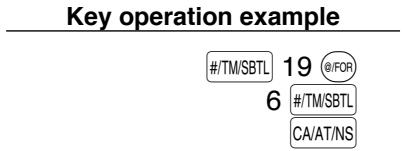
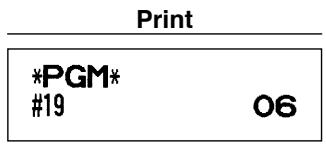
AUXILIARY FUNCTION PROGRAMMING
1 Department Programming
Merchandise can be classified into a maximum of 99 departments. Items sold with use of the department keys can later be printed on a report that shows the quantities sold and sales amounts classified by department. The data is useful for making purchasing decisions and other store operations. Departments can be assigned to articles whose prices were set using PLU/subdepartment function.
When using a department key, you must set the parameters to specify the department status, such as positive or negative department. Prices can be assigned directly to departments for frequently purchased items, which enables you to enter the prices by simply pressing the department keys or dept. code entries.
■ Department status
Procedure

flowchart
graph LR
    A["To set all zeros"] --> B["ABCDEFGH"]
    B --> C["@/FOR"]
    C --> D["* DEPTSHIFT"]
    D --> E["Dept. key"]
    E --> F["CA/AT/NS"]
*To program departments 17 through 32, press the department shift key at this point.

flowchart
graph LR
    A["Dept. code"] --> B["DEPT#"]
    B --> C["ABCDEFGH"]
    C --> D["@/FOR"]
    D --> E["CA/AT/NS"]
    F["To set all zeros"] --> C
To program another department, start from the beginning without pressing the CA/AT/NS key.
| Item: | Selection: | Entry: | |
| A | Tax 4 status | Taxable | 1 |
| Non-taxable* | 0 | ||
| B | Tax 3 status | Taxable | 1 |
| Non-taxable* | 0 | ||
| C | Tax 2 status | Taxable | 1 |
| Non-taxable* | 0 | ||
| D | Tax 1 status | Taxable (*for dept. 1 thru 10) | 1 |
| Non-taxable (*for dept. 11 thru 99) | 0 | ||
| E | SICS / Normal | SICS | 1 |
| Normal* | 0 | ||
| F | Sign | Negative department | 1 |
| Positive department* | 0 | ||
| G | Entry digit limit | 0-7 (default: 7) | |
| H | Type of unit price entry | Open and preset | 3 |
| Preset only | 2 | ||
| Open only* | 1 | ||
| Inhibit department key | 0 | ||
Tax status (taxable 1 through 4 / non-taxable)
- When any entry of a taxable department is made in a transaction, tax is automatically computed according to the associated tax table or rate.
SICS (Single Item Cash Sale)
- If an entry of a department programmed for SICS is made first, the sale will be finalized as a cash sale as soon as the department key is pressed. If the entry is made after entering a department not programmed for SICS, the sale will not be finalized until the CA/AT/NS key is pressed.
Entry digit limit
- Set the number of allowable digits for the maximum entry amount for each department. The limit is effective for operations in the REG mode and can be overridden in the MGR mode.
Example: Programming department 2 as taxable 1, SICS, negative department, entry digit limit - 7 digits, and allowing open & preset entry. (ABCDEFGH: 00011173)
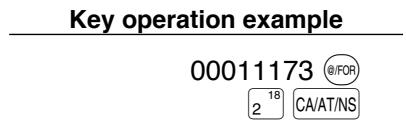
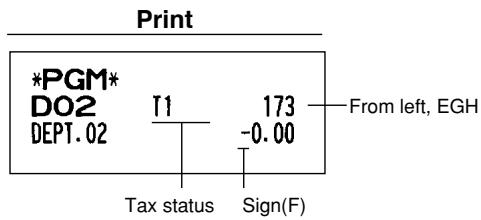
■ Preset unit price

flowchart
graph LR
    A["Procedure"] --> B["Unit price (max. six digits)"]
    B --> C["Dept. key"]
    C --> D["CA/AT/NS"]
    B --> E["To program zero"]
    C --> F["* DEPTSHIFT"]
*To program departments 17 through 32, press the department shift key at this point.

flowchart
graph LR
    A["Dept. code"] --> B["DEPT#"]
    B --> C["Unit price (max. six digits)"]
    C --> D["#/TM/SBTL"]
    D --> E["CA/AT/NS"]
    F["To program zero"] --> C
To program another department, start from the beginning without pressing the CA/AT/NS key.

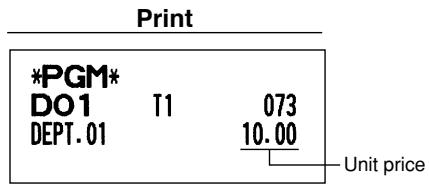
Note Even if a department is not programmed to allow the entry of preset unit prices in functional programming, the department is automatically changed to allow the entry of preset unit prices by this programming entry.
2 PLU (Price Look-Up) and Subdepartment Programming
The PLU function allows speedy key entries whereby a price is automatically called up when a code is entered. The subdepartment is a kind of “open PLU”, which requires you to enter a price after the PLU code is entered. A maximum of 1200 PLU/subdepartment settings are possible. Each one belongs to a department and acquires the department’s parameters (tax status, SICS and sign).
The cash register is preprogrammed so all 1200 codes are assigned as PLUs associated with department 1 and preset unit price “0”.
■ Unit price and associated department assignment
Procedure

flowchart
graph LR
    A["*2PLU code"] --> B["PLU/SUB"]
    B --> C["*3 Unit price (max. six digits)"]
    C --> D["*1 DEPTSHIFT"]
    D --> E["Associated Dept. key"]
    E --> F["CA/AT/NS"]
    C -->|To program zero| D
*1: To assign departments 17 through 32, press the department shift key at this point.
When the associated department is department 33-99:

flowchart
graph LR
    A["*2PLU code"] --> B["PLU/SUB"]
    B --> C["Associated dept. code (1 to 99)"]
    C --> D["DEPT#"]
    D --> E["*3 Unit price (max. six digits)"]
    E --> F["#/TM/SBTL"]
    F --> G["CA/AT/NS"]
    H["To program zero"] --> E
*2: 1 through 1200 (Depending on the EJ memory size setting, up to 200)
*3: For a subdepartment, set the limit amount of unit price entry.
To program the following PLU, start from entering a unit price or an associated department code without pressing the CA/AT/NS key.
To program another PLU, start from the beginning without pressing the CA/AT/NS key.
Key operation example
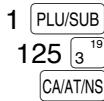

To delete a PLU code, use the following sequence:
Procedure

flowchart
graph TD
    A["PLU code"] --> B["PLU/SUB"]
    B --> C["VOID"]
    C --> D["CA/AT/NS"]
    D --> E["To delete another PLU"]
    E --> F["To delete the following PLU"]
    F --> A
■ PLU/subdepartment selection
Procedure

flowchart
graph TD
    A["*1PLU code"] --> B["PLU/SUB"]
    B --> C["*2A"]
    C --> D["#/TM/SBTL"]
    D --> E["CA/AT/NS"]
    E --> F["To program another PLU"]
    F --> G["To program the following PLU"]
    G --> C
    C --> H["To program "0""]
*1: 1 through 1200 (Depending on the EJ memory size setting, up to 200)
*2: 0 for subdepartment or 1 for PLU (default: 1)
Key operation example
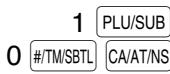
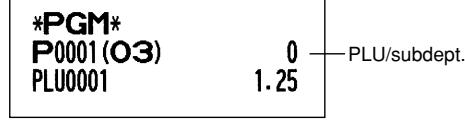
Note
When you program the last PLU code, the programming sequence will be complete with a press of the #/TM/SBTL key.
3 Miscellaneous Key Programming
The cash register provides miscellaneous keys such as %1, %2, ⊙, RFND, RA, RCPT/PO, CONV, TAX, CHK, CH and CA/AT/NS. While the cash register is pre-programmed so you can use these keys, you must set a currency conversion rate to use CONV key. You can also program these keys for more convenient use. Please refer to the data below for programming these keys. Factory setting is indicated with parentheses.

Percent rate (0.00%), tax status (non-taxable), sign (minus), item % and subtotal % entry* (both are allowed), percent rate limitation (100 %)

Amount (0.00), tax status (non-taxable), sign (minus), item ⊖ and subtotal ⊖ entry* (both are allowed), entry digit limit (7 digits)

Not necessary to program
Entry digit limit (9 digits)

Currency conversion rate (0.0000), currency conversion rate entry method - open or preset (both are enabled)

Compulsory entry of amount tender (not compulsory), entry digit limit (8 digits), footer printing (not printed)

Entry digit limit (7 digits)
* Item %/Item ⊖:
Percent/discount calculation is applied to individual department and PLU/subdepartment.
* Subtotal %/Subtotal ⊖: Percent/discount calculation is applied to subtotals.
■ Rate for %1, %2 and CONV
Procedure
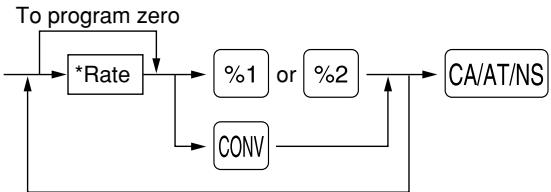
flowchart
graph TD
    A["To program zero"] --> B["*Rate"]
    B --> C["%1 or %2"]
    C --> D["CA/AT/NS"]
    B --> E["CONV"]
    E --> D
To program another rate
*: Rate
0.00 - 100.00 (% rate)
0.0000 — 9999.9999 (Currency conversion rate)
Key operation example
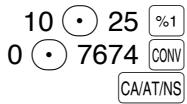
Print
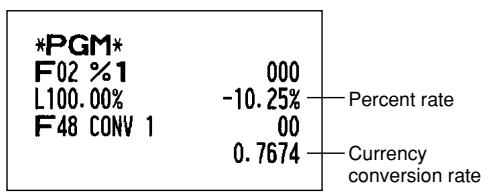
other
| Metric | Value | | :--- | :--- | | *PGM* | | | F02 %1 | 000 | | L100.00% | -10.25% | | F48 CONV 1 | 00 | | | 0.7674 | Percent rate; Currency conversion rateNote
You must use a decimal point when setting fractional rates.
■ Amount for ⊖

flowchart
graph TD
    A["Procedure"] --> B["Discount amount (max. six digits)"]
    B --> C["⊕"]
    C --> D["CA/AT/NS"]
    E["To program zero"] --> B

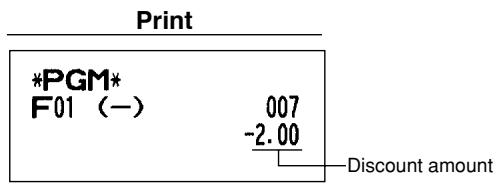
■ Percent rate limitation for %1 and %2
Procedure

flowchart
graph LR
    A["/TM/SBTL"] --> B["2"]
    B --> C["@/FOR"]
    C --> D["Percentage limit (0.00 -100.00%)"]
    D --> E["%1 or %2"]
    E --> F["CA/AT/NS"]
    F --> G["To program for another percent key"]
    G --> D
    style D fill:#f9f,stroke:#333
    style E fill:#ccf,stroke:#333
    style F fill:#cfc,stroke:#333
Note • Percent entries that exceed the upper limit may be overridden in the MGR mode.
• 10.00% can be entered as ① 0 or ① 0 • 0 0. The • key is needed only for fractional entry.

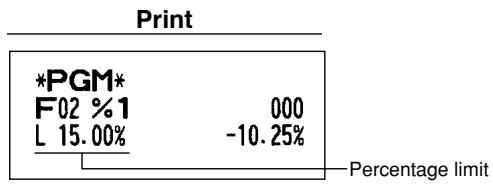
boxplot
Print | Label | Value | Percentage limit | |---|---|---| | *PGM* | | | | F02 %1 | 1 | 000 | | L 15.00% | | -10.25% | Percentage limit■ Function parameters for %1, %2 and ⊖

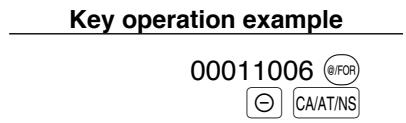
flowchart
graph TD
    A["Procedure"] --> B["*ABCDEFGH"]
    B --> C["@/FOR"]
    C --> D["%1 or %2"]
    D --> E["CA/AT/NS"]
    E --> F["To program for another key"]
    F --> G["To program "0" for all items"]
    G --> B
    F --> H["To program for another key"]
| *: Item: | Selection: | Entry: | |
| A | Tax 4 status | Taxable | 1 |
| Non-taxable* | 0 | ||
| B | Tax 3 status | Taxable | 1 |
| Non-taxable* | 0 | ||
| C | Tax 2 status | Taxable | 1 |
| Non-taxable* | 0 | ||
| D | Tax 1 status | Taxable | 1 |
| Non-taxable* | 0 | ||
| E | +/- sign | + (premium) sign | 0 |
| - (discount) sign* | 1 | ||
| F | Item % / Item ⊖ | Allow* | 0 |
| Disallow | 1 | ||
| G | Subtotal % / Subtotal ⊖ | Allow* | 0 |
| Disallow | 1 | ||
| H | Entry digit limit for discount key | 0-7 (default: 7) | |
When programming for percent keys, always enter 0 for H.
Tax status (taxable 1 through 4 / non-taxable)
- When taxable is selected, tax is applied to the amount obtained after premium or discount calculation.
+/- sign
- Programming of the +/- sign assigns the premium or discount function for each key.
Entry digit limit (For discount key only)
- The entry digit limit is in effect for the REG mode operations but can be overridden in the MGR mode. The entry digit limit is represented by the number of allowable digit for the maximum entry amount for discount key.

■ Function parameters for CONV

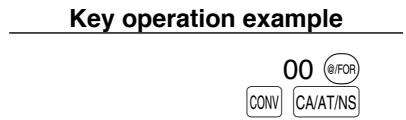
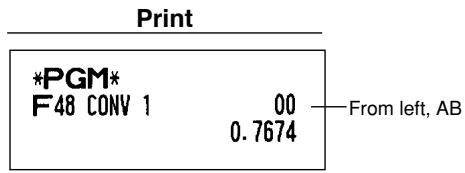
flowchart
graph TD
    A["Procedure"] --> B["*AB"]
    B --> C["@/FOR"]
    C --> D["CONV"]
    D --> E["CA/AT/NS"]
    F["To program "0" for all items"] --> B
| *: Item: | Selection: | Entry: | |
| A | Open rate entry | Allow* | 0 |
| Disallow | 1 | ||
| B | Preset rate entry | Allow* | 0 |
| Disallow | 1 | ||
■ Entry digit limit for RA, RCPT/PO and TAX
Procedure

flowchart
graph LR
    A["Entry digit limit"] --> B["@/FOR"]
    B --> C["RA"]
    C --> D["RCPT/PO"]
    D --> E["TAX"]
    E --> F["CA/AT/NS"]
    style E fill:#f9f,stroke:#333
    note right of E (only for manual entry)
- For RA RCPT/PO, enter 0 to 9 (digits), and for TAX (manual tax), enter 0 to 7 (digits). By default, 9 for RA and RCPT/PO and 7 for TAX are set.
Entry digit limit is in effect for REG mode operation but can be overridden in the MGR mode. The entry digit limit is represented by the number of allowable digits for maximum entry or total amount. When “0” is set, the operation of the corresponding key is prohibited.
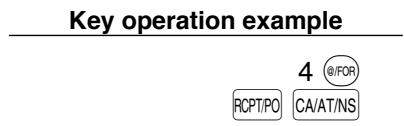
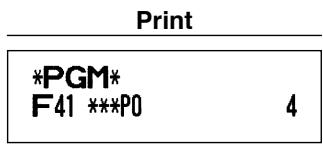
■ Function parameters for CHK, CH and CA/AT/NS (when using as CA key)
Procedure
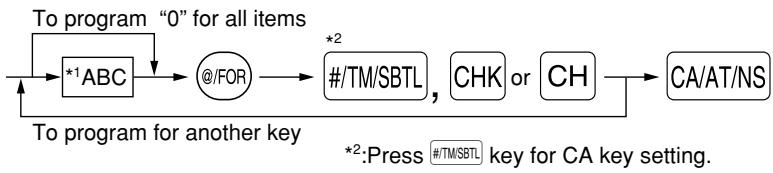
flowchart
graph TD
    A["To program "0" for all items"] --> B["*1 ABC"]
    B --> C["@/FOR"]
    C --> D["#/TM/SBTL, CHK or CH"]
    D --> E["CA/AT/NS"]
    F["To program for another key"] --> G["*2:Press #/TM/SBTL key for CA key setting."]
| *1:Item: | Selection: | Entry: | |
| A | Footer printing | Allow | 1 |
| Disallow* | 0 | ||
| B | Amount tendered entry | Compulsory | 1 |
| Non-compulsory (for the CA or CHK keys)* | 0 | ||
| Inhibit (for the CH key)* | 0 | ||
| C | Entry digit limit | 0-8 (default: 8) | |
Footer printing
- This programming decides whether or not the machine should print a message at the foot of a receipt when a specified media key is used. With regard to programming method of footer logo message, refer to “Logo messages” section on page 43.
Amount tendered entry
- You may select amount tendered, compulsory or optional, for the CA/AT/NS and CHK keys.
- You may select amount tendered, compulsory or inhibited, for the CH key.
Entry digit limit
- For the CH and CHK keys, program upper limit entry amount for the tendered amount. For the CA/AT/NS key, program upper limit entry for total cash amount which can be handled on the register. The entry digit limit is in effect for REG mode operation but can be overridden in the MGR mode. The entry digit limit is represented by the number of allowable digits for the maximum entry or total amount. When “0” is set, the operation of the corresponding key is prohibited.
Key operation example
018

CHK
CA/AT/NS
*PGM*
F45 CHECK
000000000018
ABC (A:0, B:1, C:8)
4 Text Programming
The register allows you to program the text for clerk names, department item names, PLU/subdepartment item names, and so on, if necessary. There are two ways for programming text: using character keys on the keyboard or entering character codes with numeric keys on the keyboard.
Using character keys on the keyboard
You can enter characters according to the small figures printed in the lower right position of the key tops. For the layout, please refer to "Keyboard" section on page 5.
The following are used as control keys for character entry:
Toggles between upper-case and lower-case letters. By default, the upper-case letter is selected.
Once the [SHIFT] key is pressed, you are locked in for entering lower-case letters. “_” lights up at the SHIFT position of the display when lower-case letters entry is selected.
NUMBER Press the NUMBER key to enter numeric characters. For example to enter "1", press the NUMBER and ① key. If you press the ① key without pressing the NUMBER key, the cash register goes to character codes entry mode.
Once the NUMBER key is pressed, you are locked in for entering numeric characters. “_” lights up at the NUMBER position of the display when numeric characters entry is selected.
Toggles between single-size and double-size characters. By default, the single-size character is selected. Once the DC key is pressed, you are locked in for entering double size characters. “_” lights up at the DC position of the display when double-size characters entry is selected.
BS Backs up the cursor, erasing the character to the left.
Example
To program the word “Clerk01” with the letter “C” being double size.
To make the letter "C" double size character
To make character size return to normal size
To toggle the characters to lower-case letters
To enter numbers
DC C
DC
SHIFT
L E R K
NUMBER 0 1
Entering character codes with numeric keys on the keyboard
Numerals, letters and symbols are programmable by entering the character code and the ⑩ key. (If numeric characters entry is selected, that is, “_” lights up at the NUMBER position of the display, press the NUMBER key to release it.) Set the alphanumeric character code table on the next page. By doing this, you can program characters other than those on the key tops.
- Double-size characters can be made by entering the character code 253.
- All three digits of the character code MUST be entered (even if it starts with zero).
Example
To program the word "SHARP" in double-size characters

When you press an appropriate number key (job code number) and press the ⏻ key for text entry just after you start programming with the #/TM/SBTL key, the cash register will be automatically ready for text entry.
Listed below is an overview of what you can program and the allowable number of single sized characters for each text entry.
• Department text 12 characters
- PLU text (item label) 12 characters
• Function text 8 characters
- Logo message 6 lines and 24 characters for each line
- Clerk name 8 characters
• Foreign currency symbol 4 characters
Alphanumeric character code table
| Code | Character | Code | Character | Code | Character | Code | Character | Code | Character |
| 001 | á | 046 | . | 091 | Ä | 136 | → | 193 | ¡ |
| 002 | â | 047 | / | 092 | Ö | 137 | ∽ | 194 | G |
| 003 | ê | 048 | 0 | 093 | Ü | 138 | ∽ | 195 | S |
| 004 | î | 049 | 1 | 094 | ^ | 139 | ◀ | 196 | G |
| 005 | ì | 050 | 2 | 095 | _ | 140 | ▶ | 197 | g |
| 006 | í | 051 | 3 | 096 | ' | 141 | F | 198 | K |
| 007 | ô | 052 | 4 | 097 | a | 142 | T | 199 | k |
| 008 | ó | 053 | 5 | 098 | b | 143 | ↓ | 200 | L |
| 009 | û | 054 | 6 | 099 | c | 144 | ç | 201 | J |
| 010 | ú | 055 | 7 | 100 | d | 145 | ° | 202 | Ž |
| 011 | œ | 056 | 8 | 101 | e | 146 | ¿ | 203 | D |
| 012 | ú | 057 | 9 | 102 | f | 147 | ù | 204 | đ |
| 013 | ú | 058 | : | 103 | g | 148 | à | 205 | Č |
| 014 | ó | 059 | ; | 104 | h | 149 | Æ | 206 | ć |
| 015 | ó | 060 | < | 105 | i | 150 | ø | 207 | € |
| 016 | ʌ | 061 | = | 106 | j | 151 | Å | 208 | P |
| 017 | Ψ | 062 | > | 107 | k | 152 | Ω | 209 | ` |
| 018 | Γ | 063 | ? | 108 | l | 153 | é | 210 | ě |
| 019 | " | 064 | @ | 109 | m | 154 | è | 211 | š |
| 020 | Ω | 065 | A | 110 | n | 155 | Pt | 212 | č |
| 021 | Δ | 066 | B | 111 | o | 156 | i | 213 | ž |
| 022 | θ | 067 | C | 112 | p | 157 | Ñ | 214 | ý |
| 023 | Ξ | 068 | D | 113 | q | 158 | ò | 215 | ù |
| 024 | Π | 069 | E | 114 | r | 159 | £ | 216 | ň |
| 025 | Σ | 070 | F | 115 | s | 160 | ¥ | 217 | ~ |
| 026 | Υ | 071 | G | 116 | t | 161 | 。 | 218 | ` |
| 027 | Φ | 072 | H | 117 | u | 162 | Γ | 219 | ř |
| 028 | Ú | 073 | I | 118 | v | 163 | 」 | 224 | * |
| 029 | Ú | 074 | J | 119 | w | 164 | 、 | 225 | § |
| 030 | Ó | 075 | K | 120 | x | 165 | . | 226 | ∅ |
| 031 | Ó | 076 | L | 121 | y | 177 | Á | 227 | ^ |
| 032 | (space) | 077 | M | 122 | z | 178 | í | 228 | ↑ |
| 033 | ! | 078 | N | 123 | { | 180 | 229 | ] | |
| 034 | " | 079 | O | 124 | l | 181 | 230 | [ | |
| 035 | # | 080 | P | 125 | } | 182 | 231 | " | |
| 036 | 081 | Q | 126 | β | 183 | \overline{e} | 232 | ä | |
| 037 | % | 082 | R | 127 | ¢ | 184 | \overline{I} | 233 | ö |
| 038 | & | 083 | S | 128 | !! | 185 | \overline{i} | 234 | ü |
| 039 | ' | 084 | T | 129 | 1 | 186 | \overline{U} | 235 | æ |
| 040 | ( | 085 | U | 130 | 2 | 187 | \overline{u} | 236 | å |
| 041 | ) | 086 | V | 131 | 3 | 188 | N | 237 | É |
| 042 | * | 087 | W | 132 | 4 | 189 | n | 238 | ñ |
| 043 | + | 088 | X | 133 | 1/2 | 190 | Č | 253 | *(DC) |
| 044 | , | 089 | Y | 134 | F_T$ | 191 | Š | ||
| 045 | - | 090 | Z | 135 | ← | 192 | Ç |
*(DC): Double-size character code
: The shaded character cannot be displayed (displayed as space).
Note
The character “!!” (code 128) cannot be displayed (displayed as “!”).
■ Department text
Procedure

flowchart
graph TD
    A["#/TM/SBTL"] --> B["1"]
    B --> C["•"]
    C --> D["Dept. key"]
    D --> E["Character keys (max.12 digits)"]
    E --> F["#/TM/SBTL"]
    F --> G["CA/AT/NS"]
    G --> H["To program another dept."]
    H --> I["Dept. code (1 to 99)"]
    I --> J["DEPT#"]
    J --> D
    D --> K["* DEPTSHIFT"]
    K --> C
    style D fill:#f9f,stroke:#333
    style E fill:#ccf,stroke:#333
    style F fill:#cfc,stroke:#333
*To program departments 17 through 32, press the department shift key.

(Programming FRUIT for dept.1)
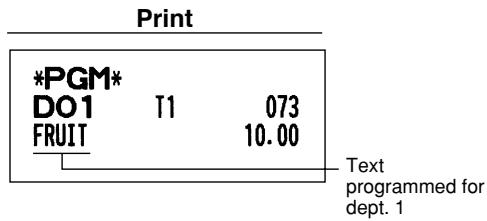
■ PLU text (item label)
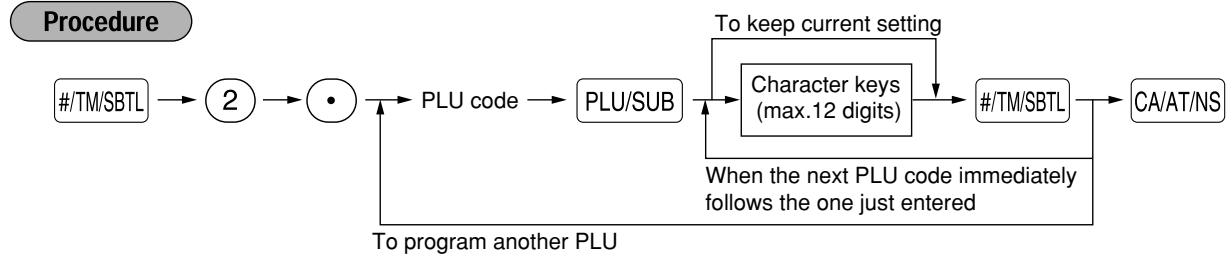
flowchart
graph TD
    A["#/TM/SBTL"] --> B["2"]
    B --> C["•"]
    C --> D["PLU code"]
    D --> E["PLU/SUB"]
    E --> F["Character keys (max.12 digits)"]
    F --> G["#/TM/SBTL"]
    G --> H["CA/AT/NS"]
    H --> I["When the next PLU code immediately follows the one just entered"]
    I --> J["To program another PLU"]
    J --> C
    F --> K["To keep current setting"]
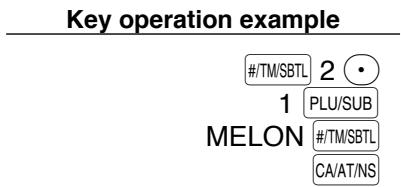
(Programming MELON to PLU1)
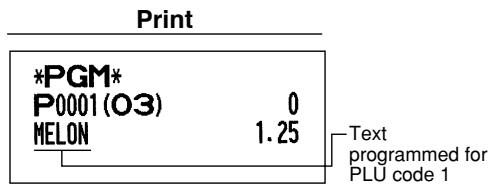
■ Function text

flowchart
graph LR
    A["#/TM/SBTL"] --> B["3"]
    B --> C["•"]
    C --> D["*Function no. (max. 2 digits)"]
    D --> E["@/FOR"]
    E --> F["Character keys (max. 8 digits)"]
    F --> G["#/TM/SBTL"]
    G --> H["CA/AT/NS"]
    H --> I["To program another function text"]
    D --> J["To keep the current setting"]
* Function no.: See “List of function texts” shown on the following page.
(Programming CARD for gross charge)
■ List of function texts
| Function no. | Key or function | Default setting |
| 1 | (−) | |
| 2 | %1 | %1 |
| 3 | %2 | %2 |
| 4 | Net sales total | NET1 |
| 5 | Net taxable 1 subtotal | TAX1 ST |
| 6 | Gross tax 1 total | GRS TAX1 |
| 7 | Tax 1 total of refund entries | RFD TAX1 |
| 8 | Net tax 1 total | TAX1 |
| 9 | Exempt tax 1 | TX1 EXPT |
| 10 | Net taxable 2 subtotal | TAX2 ST |
| 11 | Gross tax 2 total | GRS TAX2 |
| 12 | Tax 2 total of refund entries | RFD TAX2 |
| 13 | Net tax 2 total | TAX2 |
| 14 | Exempt tax 2 | TX2 EXPT |
| 15 | Net taxable 3 subtotal | TAX3 ST |
| 16 | Gross tax 3 total | GRS TAX3 |
| 17 | Tax 3 total of refund entries | RFD TAX3 |
| 18 | Net tax 3 total | TAX3 |
| 19 | Exempt tax 3 | TX3 EXPT |
| 20 | Net taxable 4 subtotal | TAX4 ST |
| 21 | Gross tax 4 total | GRS TAX4 |
| 22 | Tax 4 total of refund entries | RFD TAX4 |
| 23 | Net tax 4 total | TAX4 |
| 24 | Exempt tax 4 | TX4 EXPT |
| 25 | Gross manual tax total | GRS MTAX |
| 26 | Refund manual tax total | RFD MTAX |
| 27 | Net manual tax total | M-TAX |
| * 28 | Exempt total from GST | GST EXPT |
| * 29 | PST total | PST TTL |
| * 30 | GST total | GST TTL |
| 31 | Tax total | TTL TAX |
| 32 | Net | NET |
| 33 | Sales total including tax total | NET2 |
| 34 | Refund | REFUND |
| 35 | Item void | VOID |
| Function no. | Key or function | Default setting |
| 36 | Void mode | VOID |
| 37 | Manager void | MGR VD |
| 38 | Subtotal void | SBTL VD |
| 39 | No sale | NO SALE |
| 40 | RA | **RA |
| 41 | PO | **PO |
| 42 | Customer counter | TRANS CT |
| 43 | Sales total | NET 3 |
| 44 | Cash | CASH |
| 45 | Check | CHECK |
| 46 | Gross charge | CHARGE |
| 47 | Refund charge | CHARGE- |
| 48 | Currency conversion1 (Preset) | CONV 1 |
| 49 | Currency conversion2 (Open) | CONV 2 |
| 50 | Cash in drawer | ***CID |
| 51 | Cash+check in drawer | CA+CH ID |
| 52 | Check change | CHK/CG |
| 53 | Exempt VAT | VAT EXPT |
| 54 | (+)Dept. total | *DEPT TL |
| 55 | (-)Dept. total | DEPT(-) |
| 56 | Subtotal | SUBTOTAL |
| 57 | Merchandise subtotal | MDSE ST |
| 58 | Total | *** TOTAL |
| 59 | Change | CHANGE |
| 60 | Items | ITEMS |
| 61 | Department report title | DEPT |
| 62 | PLU report title | PLU |
| 63 | Transaction report title | TRANS. |
| 64 | Clerk report title | CLERK |
| 65 | Hourly report title | HOURLY |
| 66 | Non add symbol | # |
| 67 | Copy receipt title | COPY |
| 68 | EJ report title | EJ |
| 69 | EJ report end title | EJ END |
Note
- The items marked with “ * ” are for Canada only.
- The function no. 53 “Exempt VAT” is only effective for the Canadian tax system (2 GST, VAT type).
Clerk names

flowchart
graph LR
    A["#/TM/SBTL"] --> B["5"]
    B --> C["•"]
    C --> D["Clerk code (1-25)"]
    D --> E["@/FOR"]
    E --> F["Character keys (max. 8 digits)"]
    F --> G["#/TM/SBTL"]
    G --> H["CA/AT/NS"]
    I["To program another clerk"] --> C
    J["To keep current setting"] --> F
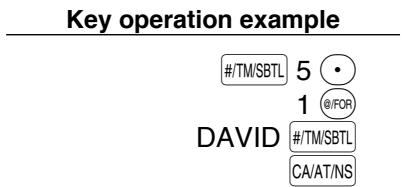
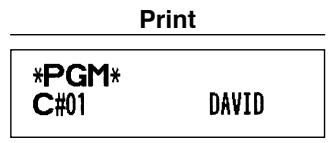
■ Logo messages
The register can print programmed messages on every receipt. On the standard model, the graphic logo is printed on the receipt. If you want to print logo messages, please change the logo message print format. (See page 51 for the programming details.) The options are listed below:

flowchart
graph LR
    A["#/TM/SBTL"] --> B["4"]
    B --> C["•"]
    C --> D["*Line number (1-6)"]
    D --> E["@/FOR"]
    E --> F["Character keys (max. 24 digits)"]
    F --> G["#/TM/SBTL"]
    G --> H["CA/AT/NS"]
    H --> I["To program another line"]
    I --> D
    style D fill:#f9f,stroke:#333
    style F fill:#ccf,stroke:#333
    style G fill:#cfc,stroke:#333
* "Header 3-line message" type: 1 to 3
"Footer 3-line message" type : 4 to 6
"Header 6-line message" type: 1 to 6
"Header 3-line and footer 3-line message" type: 1 to 6 (1 to 3 as header, 4 to 6 as footer)
Logo print format (6 types)

flowchart
graph TD
    A["Graphic logo"] --> B["Text 1st line"]
    A --> C["Text 2nd line"]
    A --> D["Text 3rd line"]
    E["Default setting"] --> F["Header 3-line message"]
    F --> G["Graphic logo"]
    G --> H["Text 1st line"]
    G --> I["Text 2nd line"]
    G --> J["Text 3rd line"]
    F --> K["Footer 3-line message"]
    K --> L["Graphic logo"]
    L --> M["Text 4th line"]
    L --> N["Text 5th line"]
    L --> O["Text 6th line"]
    K --> P["Header 6-line message"]
    P --> Q["Text 1st line"]
    P --> R["Text 2nd line"]
    P --> S["Text 3rd line"]
    P --> T["Text 4th line"]
    P --> U["Text 5th line"]
    P --> V["Text 6th line"]
    P --> W["Header 3-line message and footer 3-line messages"]
To print the logo message “THANK YOU” using double sized characters and centering on the third line.
Key operation example

Print
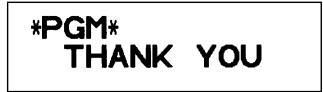
Note
A 6-line logo message is preprogrammed when shipped. Please start entering from the first line when you first program a logo message.
■ Foreign currency symbol
Foreign currency symbol for CONV key is printed with a foreign currency exchange amount.
Procedure

flowchart
graph LR
    A["#/TM/SBTL"] --> B["6"]
    B --> C["•"]
    C --> D["Character keys (max. 4 digits)"]
    D --> E["#/TM/SBTL"]
    E --> F["CA/AT/NS"]
    G["To keep the current setting"] --> D
Key operation example

Print

ADVANCED PROGRAMMING
1 Register Number and Consecutive Number Programming
The register number and consecutive numbers are printed on every receipt or journal.
When your store has two or more registers, it is practical to set separate register numbers for their identification.
The consecutive number is increased by one each time a receipt is issued or when a journal print occurs.
For consecutive number programming, enter a number (max. 4 digits) that is one less than the desired starting number.
Register number
Procedure

flowchart
graph LR
    A["#/TM/SBTL"] --> B["1"]
    B --> C["@/FOR"]
    C --> D["Register number (one to six digits)"]
    D --> E["#/TM/SBTL"]
    E --> F["CA/AT/NS"]
    D --> G["To set the register number 0"]
Key operation example
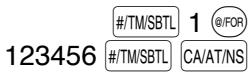
Print

■ Consecutive numbers

flowchart
graph TD
    A["#/TM/SBTL"] --> B["2"]
    B --> C["@/FOR"]
    C --> D["A number (one to four digits) that is one less than the desired starting number"]
    D --> E["#/TM/SBTL"]
    E --> F["CA/AT/NS"]
    G["To begin the count from 0001"] --> D
    H["Key operation example"] --> I["1000"]
    J["Print"] --> K["*PGM* #2 1000 Consecutive number"]
2 Electronic Journal (EJ) Programming
The cash register provides the electronic journal (EJ) function. By default, a maximum of 2000 lines can be stored in memory. If you want to store more journal data, you can expand to a maximum of 3000 lines, although the maximum number of PLUs is decreased to 200 codes because the memory is shared with PLU settings.
You can also program various options for EJ, such as availability of EJ memory nearly full warning, availability of printing EJ data during a transaction, data type to be stored in memory, and printing format.
For reading journal data, refer to “EJ REPORT READING AND RESETTING” (page 60).
■ EJ memory type
Caution When this procedure is executed, EJ data is cleared, and PLU data (programming data and sales data) are reset to the default after all data is cleared even if the same memory type is selected.

flowchart
graph LR
    A["Procedure"] --> B["#/TM/SBTL"]
    B --> C["9"]
    C --> D["0"]
    D --> E["@/FOR"]
    E --> F["*A"]
    F --> G["CA/AT/NS"]
*A: 0 for EJ 2000 lines and PLU 1200 codes (default) 1 for EJ 3000 lines and PLU 200 codes

■ Function parameters for EJ
Procedure

flowchart
graph LR
    A["#/TM/SBTL"] --> B["6"]
    B --> C["8"]
    C --> D["@/FOR"]
    D --> E["*ABCDEFGHIJKLMNOPQRSTUVWXYZH"]
    E --> F["#/TM/SBTL"]
    F --> G["CA/AT/NS"]
    H["To set "00000000""] --> E
*
| Item: | Selection: | Entry: | |
| A | Always enter 0. | (Fixed position) | 0 |
| B | Always enter 0. | (Fixed position) | 0 |
| C | Temporary EJ printing during a transaction | Disallow | 0 |
| Allow* | 1 | ||
| D | EJ printing and clearing EJ data when issuing general Z1 report | No* | 0 |
| Yes | 1 | ||
| E | PGM mode operation records type | Details* | 0 |
| Header information only | 1 | ||
| F | REG/MGR/VOID modes operation records type | Details* | 0 |
| Total | 1 | ||
| G | Compressing printing for EJ data | No (normal size) | 0 |
| Yes (small size)* | 1 | ||
| H | Action when EJ memory area is full | Continue | 0 |
| Warning (near full warning)* | 1 | ||
| Lock (with near full warning) | 2 | ||
On the default setting, an asterisk is marked.
Temporary EJ printing during a transaction
- If selecting “yes”, you can print journal data of a current transaction recorded in EJ memory by pressing the RCPT/PO key during the transaction. To realize this function completely, the cash register is programmed to receipt printing and set Receipt ON/OFF function to OFF.
PGM mode operation records type
- The header information only is printed during the program reading operation.
The header information only is printed for X/Z reports.
(Receipt sample for Header Information only)
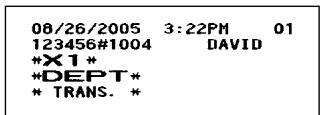
Action when EJ memory area is full
- By default, when the memory for EJ becomes nearly full, the cash register shows decimal points at the 8th and 9th positions of the display (EJ memory nearly full message), and the cash register keeps storing new data while erasing the oldest data. When “0” is selected, the cash register will no longer show EJ memory nearly full message. When “2” is selected, the cash register shows EJ memory nearly full message and when the memory is totally full, the cash register locks the sales/data entry with a display of the memory full message “ E-E ”. You will only be able to issue an EJ report.
Key operation example
| #/TM/SBTL | 68 | @/FOR | |
| 00100002 | #/TM/SBTL | CA/AT/NS | |
| *PGM* | |
| #68 | 00100002 |
3 Various Function Selection Programming 1
The cash register provides various detailed functions listed below.
• Function selection for miscellaneous keys
- Print format
- Receipt print format
• Function selection for tax
- Others
For this programming, job code entry style is applied. You can continue programming until you press the CA/AT/NS key for the programming described in this section. To continue programming, repeat from a job code entry.


flowchart
graph LR
    A["#/TM/SBTL"] --> B["*1 Job code"]
    B --> C["@/FOR"]
    C --> D["*2 ABCDEFGH"]
    D --> E["#/TM/SBTL"]
    E --> F["CA/AT/NS"]
    D -->|To set "00000000"| D
*1 Enter job code using numeric keys specified in each section below.
*2 Data entry details are listed on each table in each section below.
Example: When programming for job code 5 as ABCDEFGH: 00000100.
| Key operation example | ||
| #/TM/SBTL | 5 @/FOR | |
| 00000100 | #/TM/SBTL | CA/AT/NS |
| *PGM*#5 00000100 |
■ Function selection for miscellaneous keys
Job code: 5
| * | Item: | Selection: | Entry: |
| A | PO in REG mode | Allow the PO operation in REG mode* | 0 |
| Disallow it | 1 | ||
| B | RA in REG mode | Allow the RA operation in REG mode* | 0 |
| Disallow it | 1 | ||
| C | Subtotal void in REG mode | Allow the REG mode subtotal void* | 0 |
| Disallow it | 1 | ||
| D | Indirect void in REG mode | Allow the REG mode indirect void* | 0 |
| Disallow it | 1 | ||
| E | Direct void in REG mode | Allow the REG mode direct void* | 0 |
| Disallow it | 1 | ||
| F | Refund key availability | Allow the REG mode refund entry* | 0 |
| Disallow it | 1 | ||
| G | No sale in REG mode | Allow the no sale operation in REG mode* | 0 |
| Disallow it | 1 | ||
| H | Fractional quantity availability | Allow fractional quantity entry | 0 |
| Disallow it* | 1 |
■ Print format
Job code: 6
| * | Item: | Selection: | Entry: |
| A | Printing style | Use the printer for journal printing | 0 |
| Use the printer for receipt printing* | 1 | ||
| B | Receipt print format | Total | 0 |
| Detailed* | 1 | ||
| C | Time print on all receipts/journals | Allow time printing* | 0 |
| Disallow it | 1 | ||
| D | Date print on all receipts/journals | Allow date printing* | 0 |
| Disallow it | 1 | ||
| E | Consecutive no. print on all receipts/journals | Allow consecutive no. printing* | 0 |
| Disallow it | 1 | ||
| F | Always enter 0. | (Fixed position) | 0 |
| G | Zero skip for PLU report | Disallow zero skip | 0 |
| Allow zero skip* | 1 | ||
| H | Zero skip for general, clerk and hourly reports | Disallow zero skip | 0 |
| Allow zero skip* | 1 |
Printing style
- Even when receipt printing is selected, the journal rewind motor will be driven in PGM, OP X/Z, X1/Z1 and X2/Z2 modes so you can wind sales and programming reports.
■ Receipt print format
Job code: 7
| * | Item: | Selection: | Entry: |
| A | Always enter 0. | (Fixed position) | 0 |
| B | Always enter 0. | (Fixed position) | 0 |
| C | Subtotal print with a press of subtotal key | Disallow subtotal printing* | 0 |
| Allow it | 1 | ||
| D | Merchandise print with a press of merchandise subtotal key | Disallow merchandise subtotal printing* | 0 |
| Allow it | 1 | ||
| E | Always enter 0. | (Fixed position) | 0 |
| F | Always enter 0. | (Fixed position) | 0 |
| G | Always enter 0. | (Fixed position) | 0 |
| H | Number of purchases print | Allow printing of number of purchases* | 0 |
| Disallow it | 1 |
■ Function selection for tax
Job code: 15
| * | Item: | Selection: | Entry: |
| A to F | Always enter 0. | (Fixed position) | 0 |
| G | Tax delete in REG mode availability | Allow tax delete in REG mode* | 0 |
| Disallow it | 1 | ||
| H | Manual tax entry in REG mode availability | Allow manual tax entry in REG mode* | 0 |
| Disallow it | 1 |
■ Other programming
Job code: 61
| * | Item: | Selection: | Entry: |
| A | Always enter 0. | (Fixed position) | 0 |
| B | Always enter 0. | (Fixed position) | 0 |
| C | Minus dept. and PLU/subdept. availability | Disallow to program minus dept. and PLU/subdept. | 0 |
| Allow it* | 1 | ||
| D | Fractional treatment | Round off (4 down, 5 up)* | 0 |
| Raising to unit | 1 | ||
| Disregarding fractional treatment | 2 | ||
| E | Use of 00 key | Use 00 key as 00 key* | 0 |
| Use 00 key as 000 key | 1 | ||
| F | Time format | Use 12-hour format* | 0 |
| Use 24-hour format | 1 | ||
| G | Date format | Use month-day-year format* | 0 |
| Use day-month-year format | 1 | ||
| Use year-month-day format | 2 | ||
| H | Position of decimal point (from right) (TAB) | 0 to 3 (default 2) | |
Job code: 62
| * | Item: | Selection: | Entry: |
| A | Always enter 0. | (Fixed position) | 0 |
| B | Error beep activation | By lock error* | 0 |
| By misoperation | 1 | ||
| C | Key touch sound availability | Allow to sound* | 0 |
| Disallow it | 1 | ||
| D | Buffered keyboard | Yes* | 0 |
| No | 1 | ||
| E | Void mode operation availability | Allow void mode operation* | 0 |
| Disallow it | 1 | ||
| F | Void mode entry data print in Z2 reports | Allow printing of void mode entry data in Z2 reports* | 0 |
| Disallow it | 1 | ||
| G | Void mode entry data print in Z1 reports | Allow printing of void mode entry data in Z1 reports* | 0 |
| Disallow it | 1 | ||
| H | Addition of hourly sales total data in void mode | No* | 0 |
| Yes | 1 |
Job code: 66
| * | Item: | Selection: | Entry: |
| A | Printing a receipt after transaction | Total only | 0 |
| Details* | 1 | ||
| B | Amount printing when PLU/subdept. unit price is zero | Disallow printing* | 0 |
| Allow it | 1 | ||
| C | Subtotal printing for conversion of deficit | Allow printing* | 0 |
| Disallow it | 1 | ||
| D | Always enter 0. | (Fixed position) | 0 |
| E | Compression printing on journals in PGM, OP X/Z, X1/Z1 and X2/Z2 modes | Disallow compression printing (normal size) | 0 |
| Allow compression printing (small size)* | 1 | ||
| F | Compression printing on journals in REG, MGR and VOID modes | Disallow compression printing (normal size) | 0 |
| Allow compression printing (small size)* | 1 | ||
| G | Logo message printing on journals | Disallow logo message printing on journals* | 0 |
| Allow logo message printing on journals | 1 | ||
| H | Footer printing | Printing footer on all receipts* | 0 |
| Printing footer with selected function key at the time of finalization | 1 |
Compression printing
- This programming is valid only when journal printing is selected. This does not affect EJ printing. (For EJ programming, please refer to page 46.)
*
| Item: | Selection: | Entry: | |
| A | Split pricing counting | Quantity* | 0 |
| Package | 1 | ||
| B | Multiplication/split pricing entry availability | Allow multiplication entry only* | 0 |
| Allow both of multiplication and split pricing | 1 | ||
| C | Always enter 0. | (Fixed position) | 0 |
| D | Always enter 0. | (Fixed position) | 0 |
| E | Tax printing when GST is VAT | Allow tax printing* | 0 |
| Disallow it | 1 | ||
| F | GST exempt printing on X/Z reports | Allow printing of GST exempt* | 0 |
| Disallow it | 1 | ||
| GH | Tax calculation system | Auto tax* | 00 |
| Canadian tax (tax type number) | 01 through 11 | ||
Tax calculation system
- For US tax system, select "auto-tax".
- For Canadian tax, from the table below, specify a tax system suitable for your province (if necessary contact your local tax office for correct sales tax information) and for your type of retail business. In the cash register, four kinds of tax can be set and each tax is arranged to match GST or PST as follows:
Tax 1: PST Tax 2: PST
Tax 3: PST or GST Tax 4: GST
| Canadian tax type number | Tax 4 method | Tax 3 method | Tax 2 and 1 method | |
| GST | GST | PST | PST | |
| 01 | VAT | VAT | - | Tax on tax |
| 02 | VAT | VAT | - | Tax on base |
| 03 | VAT | - | Tax on tax | Tax on tax |
| 04 | VAT | - | Tax on base | Tax on base |
| 05 | Add on Tax | - | Tax on tax | Tax on Tax |
| 06 | Add on Tax | - | Tax on base | Tax on base |
| 07 | Add on Tax | VAT | - | Tax on tax |
| 08 | Add on Tax | VAT | - | Tax on base |
| 09 | Add on Tax | Add on Tax | - | Tax on tax |
| 10 | Add on Tax | Add on Tax | - | Tax on base |
| 11 | VAT | - | VAT (Tax on base) | Tax on tax |
(The most common type for Canada is type number 06.)
Note
- To program a GST, use Tax 4; and to program two GSTs, use Tax 3 and 4. To program a PST, use Tax 1; to program two PSTs, use Tax 1 and 2; and to program three PSTs, use Tax 1, 2 and 3.
- The entry of a multi-taxable item for PST or GST is prohibited as follows for the Canadian tax system. When programming for departments, avoid programming the prohibited multi-taxable status.
In case of; Tax 1: PST, Tax 2: PST,
Tax 3: PST, Tax 4: GST
Taxable 1 and 2 item …… prohibited
Taxable 1 and 3 item …… prohibited
Taxable 2 and 3 item …… prohibited
Taxable 1 and 4 item …… allowed
Taxable 2 and 4 item …… allowed
Taxable 3 and 4 item …… allowed
In case of; Tax 1: PST, Tax 2: PST,
Tax 3: GST, Tax 4: GST
Taxable 1 and 2 item …… prohibited
Taxable 1 and 3 item …… allowed
Taxable 2 and 3 item …… allowed
Taxable 1 and 4 item …… allowed
Taxable 2 and 4 item …… allowed
Taxable 3 and 4 item …… prohibited
4 Various Function Selection Programming 2
The cash register provides various options so you can use the register to suit your sales needs.
In this section, you can program the following features (parameters within parentheses indicates default setting):
- Power save mode (entering the power save mode in 30 minutes)
- Logo message print format (graphic logo only)
• Thermal printer density (standard density)
• Online time out setting
• Language selection (English) - Training clerk specification (none) - If you specify a clerk code who is trained for use on this cash register, the cash register will go into training mode when the clerk code is registered for sales entries. The sales operations done by the trained clerk does not affect sales total. For details, refer to TRAINING MODE section.
■ Power save mode
Procedure

flowchart
graph LR
    A["#/TM/SBTL"] --> B["1"]
    B --> C["0"]
    C --> D["@/FOR"]
    D --> E["*ABCD"]
    E --> F["#/TM/SBTL"]
    F --> G["CA/AT/NS"]
| * | Item: | Selection: | Entry: |
| A | Entering power save mode when time is displayed | Yes* | 0 |
| No | 1 | ||
| B-D | Time(min.) to entering power save mode since no operation is made | 001-254 or 999(Default 030) |
Note
When 999 is set for B to D, entering into power save mode is inhibited.
Key operation example

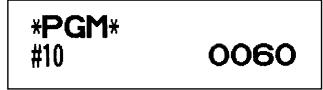
■ Logo message print format
You can select the number of lines for your logo message, and the position to print it on receipt or journal.
Procedure

flowchart
graph LR
    A["#/TM/SBTL"] --> B["1"]
    B --> C["@/FOR"]
    C --> D["*A"]
    D --> E["#/TM/SBTL"]
    E --> F["CA/AT/NS"]
    D -->|To set “0”| D
*A: Logo message type
0: Header 3-line message without graphic logo
1: Graphic logo only (default)
2: Footer 3-line message with graphic logo
3: Header 6-line message
4: Header 3-line message with graphic logo
5: Header 3-line message and footer 3-line message
Key operation example

■ Online time out setting
Procedure

flowchart
graph LR
    A["#/TM/SBTL"] --> B["3"]
    B --> C["5"]
    C --> D["@/FOR"]
    D --> E["Time out (1 to 255 sec.)"]
    E --> F["#/TM/SBTL"]
    F --> G["CA/AT/NS"]
Default: 007
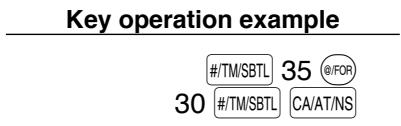
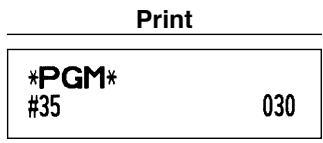
■ Thermal printer density
Procedure

flowchart
graph LR
    A["#/TM/SBTL"] --> B["5"]
    B --> C["0"]
    C --> D["@/FOR"]
    D --> E["*Printer density (00-99)"]
    E --> F["#/TM/SBTL"]
    F --> G["CA/AT/NS"]
    E --> H["To set "0""]
* 50 is the default setting. To make the print darker, set a larger number, and to make the print lighter, set a smaller number.
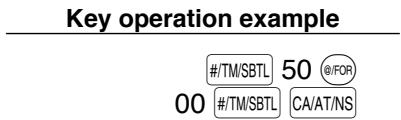
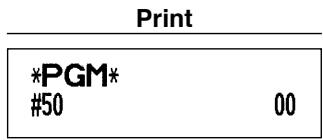
■ Language selection

flowchart
graph LR
    A["#/TM/SBTL"] --> B["8"]
    B --> C["@/FOR"]
    C --> D["*Language (0, 2 or 3)"]
    D --> E["CA/AT/NS"]
    F["To set "0""] --> D
*Language: 0: English 2: French 3: Spanish (default: English)


Caution When you change the language, the texts such as clerk names, logo messages and function texts (refer to page 42), which you programmed, will be reset to the default settings. The language selection must be made before programming clerk names, logo messages and function texts.
■ Training clerk specification for training mode
For the details of clerk training, please refer to "TRAINING MODE" on page 56.
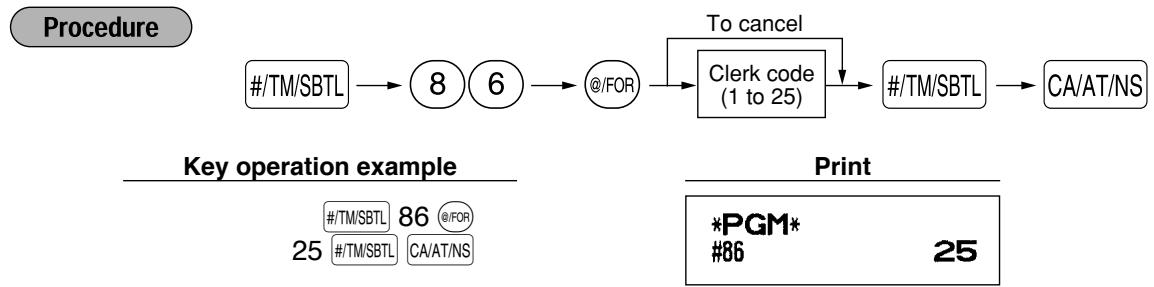
flowchart
graph TD
    A["#/TM/SBTL"] --> B["8"]
    B --> C["6"]
    C --> D["@/FOR"]
    D --> E["Clerk code (1 to 25)"]
    E --> F["#/TM/SBTL"]
    F --> G["CA/AT/NS"]
    H["To cancel"] --> E
    I["Key operation example"] --> J["#/TM/SBTL 86 @/FOR 25"]
    I --> K["#/TM/SBTL CA/AT/NS"]
    L["Print"] --> M["*PGM* 86 25"]
■ AUTO key programming — Automatic sequence key —
If you program frequently performed transactions or report sequences for the AUTO key, you can recall those transactions and/or reports simply by pressing the AUTO key in key operations.
Procedure
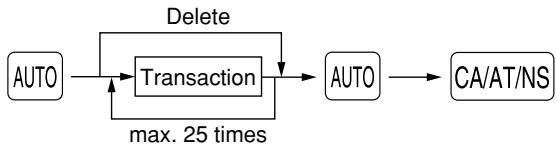
flowchart
graph TD
    A["AUTO"] --> B["Transaction"]
    B --> C["AUTO"]
    C --> D["CA/AT/NS"]
    B -->|Delete| A
    B -->|max. 25 times| B
Programming for ; entering a PLU 2 item (programmed unit price: 1.50) and a dept. 6 item (unit price: 1.00)
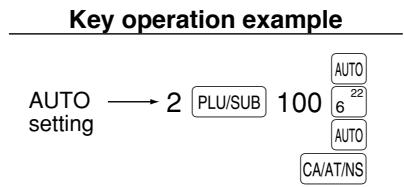
flowchart
graph LR
    A["AUTO setting"] --> B["2 PLU/SUB 100"]
    B --> C["AUTO 6 22"]
    B --> D["AUTO CA/AT/NS"]
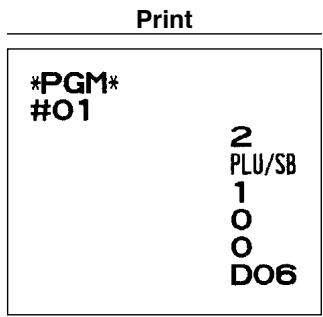
Note
When the AUTO key has been programmed to execute a report job function, the mode switch must be in the appropriate position (OPX/Z for individual clerk reports, X1/Z1 for daily reports or X2/Z2 for weekly or monthly reports).
5 Reading Stored Programs
The machine allows you to read every program stored in the PGM mode.
■ Key sequence for reading stored program
| Report name | Key sequence |
| Programming report 1 | CA/AT/NS |
| Programming report 2 | 2 → CA/AT/NS |
| Auto key programming report | 1 → CA/AT/NS |
| Printer density programming report | 3 → CA/AT/NS |
| PLU programming report | Start PLU code → @FOR → End PLU code → PLU/SUB |
Note
- To stop reading programming report 1 or PLU programming report, turn the mode switch to the MGR position.
- When printing is performed continuously, the printing may be intermitted several seconds. After the intermission, the printing will be restarted.
■ Sample printouts
1 Programming report 1
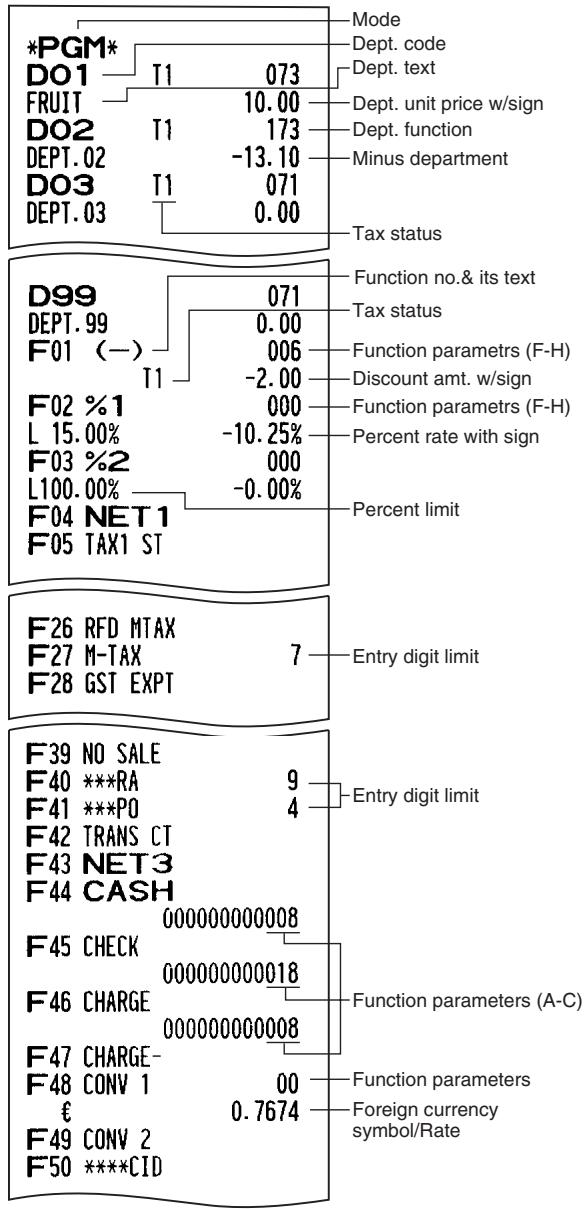

other
| Category | Value | Description | | :--- | :--- | :--- | | F68 EJ | 00000100 | Number of 00000100 | | F69 EJ END | 11000011 | Number of 11000011 | | SHARP PRESENTS THE XE-A2OS SHARP IS THE BEST | 00000000 | Number of 00000000 | | #5 | 3 | Number of 00000100 | | #6 | 3 | Number of 11000011 | | #7 | 3 | Number of 00000000 | | #10 | 3 | Number of 0060 | | #11 | 3 | Number of 3 | | #15 | 3 | Number of 00000000 | | #19 | 3 | Number of 00 | | #35 | 3 | Number of 007 | | #50 | 3 | Number of 99 | | T1 | 6.000% / 1.00 | Number of 6.000% (6.000%) | | T2 | 1 | Number of 1 | | T3 | 2 | Number of 2 | | T4 | 3 | Number of 3 | | C#01 | 4.000% | Number of 4.000% (4.000%) | | C#24 | 4.000% | Number of 4.000% (4.000%) | | C#25 | 4.000% | Number of 4.000% (4.000%) | Legend: - Logo Message - Function selection for miscellaneous keys (A-H) - Print format (A-H) - Receipt print format(A-H) - Power save mode(A-D) - Logo message print format - Function selection for tax (A-H) - Doughnut tax exempt - Online time out - Thermal printer density - Tax table - Tax rate - Min. taxable amount - Clerk code/name2 Programming report 2

3 Auto key programming report
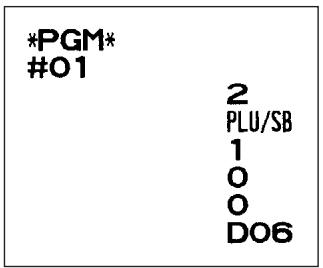
4 Printer density programming report

5 PLU programming report
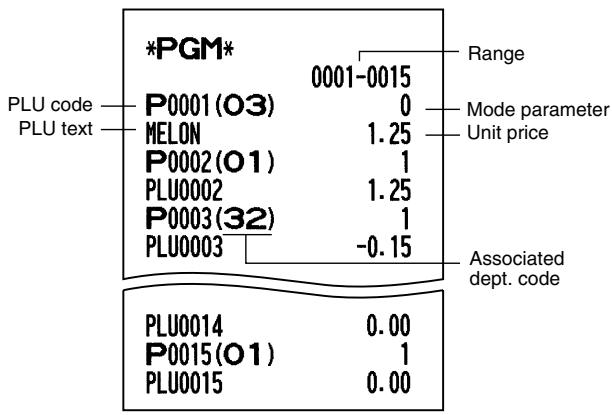
TRAINING MODE
The training mode is used when the operator or the manager practices register operations.
When a clerk in training is selected, the machine automatically enters the training mode. To specify a clerk to be trained, refer to “Training clerk specification for training mode” in “ADVANCED PROGRAMMING” in page 53.
The training operation is valid only in REG, MGR and VOID mode.
The corresponding clerk memory is only updated in the training mode.
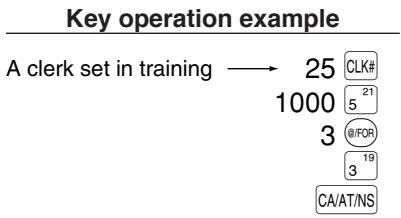
flowchart
graph TD
    A["A clerk set in training"] --> B["25 CLK#"]
    B --> C["1000 5 21"]
    C --> D["3 @/FOR"]
    D --> E["3 19"]
    E --> F["CA/AT/NS"]

READING (X) AND RESETTING (Z) OF SALES TOTALS
- Use the reading function (X) when you need to take a reading of sales information entered since the last reset. You can take this reading any number of times. It does not affect the register's memory.
- Use the resetting function (Z) when you need to clear the register's memory. Resetting prints all sales information and clears the entire memory except for the GT1 through GT3, Training GT, reset count, and consecutive number.
1 Summary of Reading (X) and Resetting (Z) Reports
X1 and Z1 reports: Daily sales reports
X2 and Z2 reports: Periodic (monthly) consolidation reports
When you take a X or Z report, turn the mode switch to the appropriate position referring to the column of “Mode switch position” shown on the table below, and use the following corresponding key sequence.
| Item | Mode switch position | Key operation | ||
| OPX/Z | X1/Z1 | X2/Z2 | ||
| Flash report:(Only display)To clear thedisplay, press theCLkey or turn themode switch toanother position. | X | - | - | Dept. code → DEPT# : Department sales totalFor dept. 1 to 16; Dept. key ( 1^17 to 16^32 )For dept. 17 to 32; DEPTSHIFT → Dept. key ( 1^17 to 16^32 ) |
| @/FORkey: Amount of cash in drawer | ||||
| CA/AT/NSkey: Sales total | ||||
| Full sales report | - | X1, Z1 | X2, Z2 | Reading: CA/AT/NS Resetting: • → CA/AT/NS |
| Individual clerkreport | X, Z | - | - | Reading: CLK# Resetting: • → CLK#(The report of the current clerk) |
| Full clerk report | - | X1, Z1 | - | Reading: CLK# Resetting: • → CLK# |
| PLU sales report | - | X1, Z1 | - | All PLUsReading: → Start PLU code → @/FOR → End PLU code → PLU/SUBResetting: All PLUs→ Start PLU code → @/FOR → End PLU code → PLU/SUB |
| Hourly report | - | X1, Z1 | - | Reading: #/TM/SBTL Resetting: • → #/TM/SBTL |
Note
- When both sales quantities and sales amounts are zero, printing is skipped. If you do not want to skip, change the programming. (Refer to “Print format” of “Various Function Selection Programming 1”.)
- "X" represents read symbol and "Z" represents reset symbol in the reports.
- To stop reading and resetting the PLU sales report, turn the mode switch to the MGR position. The data will not be erased when you reset.
- When printing is performed continuously, the printing may be intermitted several seconds. After the intermission, the printing will be restarted.
2 Daily Sales Totals
■ Full sales report
- Sample report

other
| Category | Value ($) | | :--- | :--- | | *Z1* | | | Z1 0001 | | | GT1 $00000002489.99 | | | GT2 $00000002644.05 | | | GT3 -00000000154.06 | | | TR $00000000076.50 | | | *DEPT* | | | DO1 70Q | | | FRUIT $317.17 | | | DO3 14Q | | | DEPT.03 $221.00 | | | DO5 11Q | | | DEPT.05 $36.20 | | | DEPT.50 $150.00 | | | D99 1Q | | | DEPT.99 $12.50 | | | *DEPT TL 276Q | | | $2273.67 | | | DO2 7Q | | | DEPT.02 $164.00 | | | DEPT (-) 7Q | | | $164.00 | | | *TRANS.* (--) 3Q | | | %1 -3.00 | | | %1 4Q | | | %2 -4.72 | | | %2 1Q | | | NET1 $2431.83 | | | TAX1 ST $1536.20 | | | GRS TAX1 $57.61 | | | RFD TAX1 -1.86 | | | TAX1 $55.75 | | | TX1 EXPT $7.25 | | | TAX2 ST $35.15 | | | GRS TAX2 $1.41 | | | TAX2 $1.41 | |
other
| Category | Item | Value ($) | | :--- | :--- | :--- | | M-TAX | Manual tax total | 1.00 | | ---- | *3 | | | TTL TAX | Tax total | 58.16 | | NET | Net total without tax | 2431.83 | | NET2 | Net total with tax | 2489.99 | | (-) | Item ⊖ counter and total | 4Q -6.50 | | %1 | Item percent 1 counter and total | 6Q -1.80 | | %2 | Item percent 1 counter and total | 5Q $2.62 | | VOID | REG-mode void counter and total | 9Q $48.78 | | SBTL VD | Subtotal void counter and total | 4Q $157.05 | | MGR VD | Manager item void counter and total | 2Q $12.22 | | VOID | Void-mode transaction counter and total | 1Q $12.22 | | REFUND | Refund counter and total | 17Q $73.60 | | ***RA | Received on account counter and total | 1Q $48.00 | | ***PO | Paid out counter and total | 1Q $15.00 | | NO SALE | No-sales counter | 5Q | | TRANS CT | Customer counter | 88Q | | NET3 | Sales total | $2489.99 | | CASH | Cash counter and total | 79Q $2223.59 | | CHECK | Check sales counter and total | 2Q $20.15 | | CHARGE | Charge sales counter and total | 7Q $259.53 | | CHARGE- | Charge refund counter and total | 1Q -10.63 | | CONV 1 | Foreign currency total (preset) | 500.00 | | CONV 2 | Foreign currency total (open) | 200.00 | | ****CID | Cash in drawer | $1719.77 | | CA+CH ID | Cash + check in drawer | $1739.92 | | CHK/CG | Change total for check tendering | $2.65 |*1: When you take X1 report, "X1" is printed.
*2: Printed in the Z1 report only.
*3: When the Canadian tax system is selected, the following is printed here.
| GST EXPT | 292.11 | — Exempt total from GST |
| PST TTL | 26.60 | — PST total |
| GST TTL | $8.86 | — GST total |
Clerk reports
Individual clerk report
- Sample report
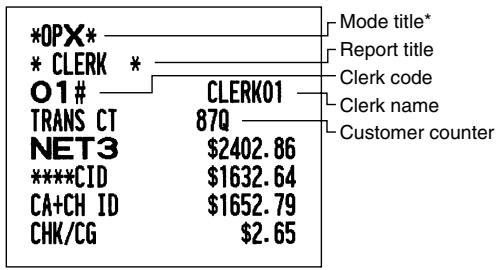
Full clerk report
The printout occurs in the same format as in the sample report of individual clerk, but all clerk's sales data are printed in the order of clerk code number (from #1 to #25).
■ Hourly report
- Sample report

other
| Time | Value | | :--- | :--- | | 10:00AM | 12Q | | 11:00AM | 18Q | | 12:00PM | 25Q | | $116.89 | Sales total | | $183.75 | Sales total | | $199.91 | Sales total | | 5:00PM | 18Q | | 6:00PM | 16Q | | $134.63 | Sales total | | $92.27 | Sales total | * X1 * Mode title* * HOURLY * Report title Customer counter Sales total*: When you take Z1 report, "Z1" is printed.
3 Periodic Consolidation
■ Full sales report
- Sample report
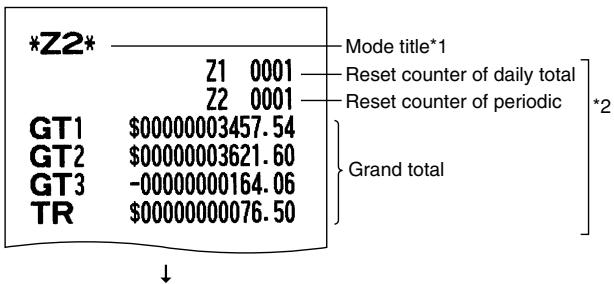
■ PLU sales report
- Sample report
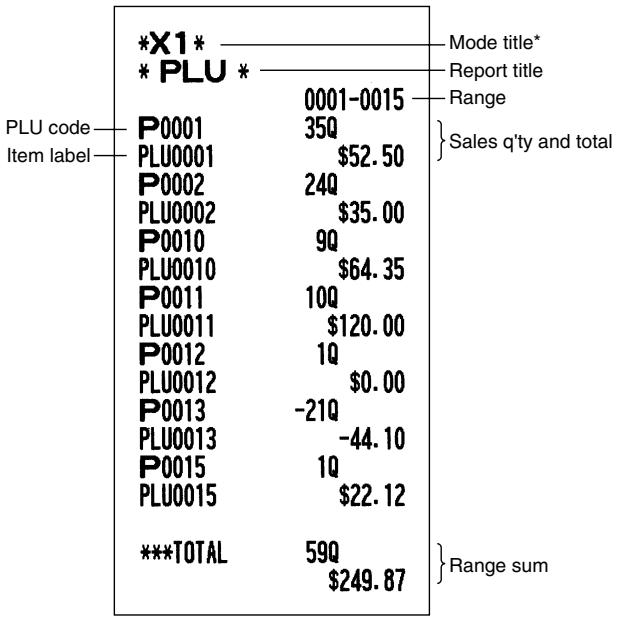
other
| Item | Value | | :--- | :--- | | *X1* | | | *PLU * | 0001-0015 | | P0001 | 35Q | | PLU0001 | $52.50 | | P0002 | 24Q | | PLU0002 | $35.00 | | P0010 | 9Q | | PLU0010 | $64.35 | | P0011 | 10Q | | PLU0011 | $120.00 | | P0012 | 1Q | | PLU0012 | $0.00 | | P0013 | -21Q | | PLU0013 | -44.10 | | P0015 | 1Q | | PLU0015 | $22.12 | | ***TOTAL | 59Q | | | $249.87 | } Range sum Sales q'ty and total*: When you take Z1 report, "Z1" is printed.
The subsequent printouts are the same in format as in the X1/Z1 full sales report.
*1: When you take X2 report, "X2" is printed.
*2: Printed in the Z2 report only
EJ REPORT READING AND RESETTING
The cash register provides an electronic journal (EJ) function. This function is intended to record the journal data in a memory instead of journal paper, and print the data as an EJ report. The register records the journal data in REG, PGM, VOID, X1/Z1 and X2/Z2 modes. By default, a maximum of 2000 lines are stored in the memory, but you can expand it to 3000 lines. For details of EJ programming, please refer to “Electronic Journal Programming” section (page 45).
■ Printing journal data on the way of a transaction
You can print journal data of a current transaction recorded in EJ memory by pressing the RCPT/PO key during the transaction.

This function is valid when the printing style is programmed to receipt, and the receipt ON/OFF function is set to OFF.
- Sample print
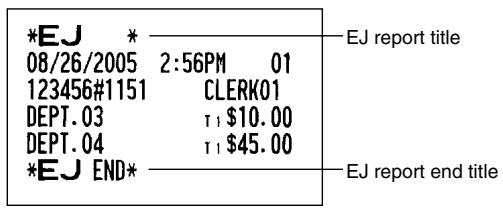
■ Reading and resetting the electronic journal data (Issuing EJ report)
You can read the journal data stored in the EJ memory in the journal format by executing the following procedure in the X1/Z1 or OP X/Z mode.
To read all of the data:

To reset all of the data:

flowchart
graph LR
    A["7"] --> B["00"]
    B --> C["•"]
    C --> D["@/FOR"]
    D --> E["CA/AT/NS"]
To read the last 10 records:

flowchart
graph LR
    A["7"] --> B["1"]
    B --> C["0"]
    C --> D["@/FOR"]
    D --> E["CA/AT/NS"]
Note
- On the EJ memory, a maximum of 2000 (or 3000, if programmed) lines of data can be stored. When executing all data reading, all of the data stored in the EJ memory will be printed. To save paper, compression print is available.
- To stop reading or resetting the data, turn the mode switch to "MGR" position. The data will not be erased when resetting.
-
When printing is performed continuously, the printing may be intermitted several seconds. After the intermission, the printing will be restarted.
-
Sample EJ report
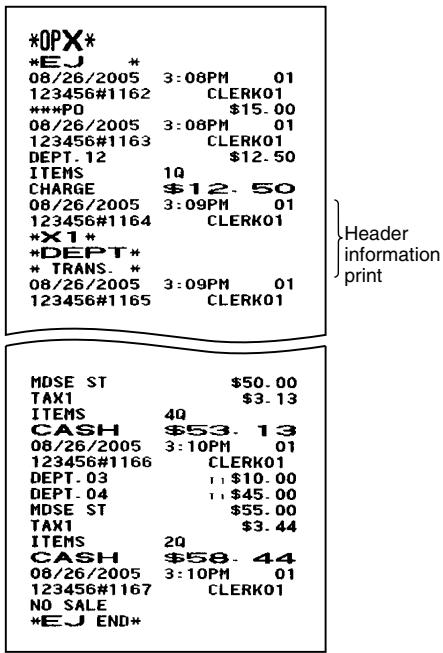
OVERRIDE ENTRIES
Programmed limit for functions (such as for maximum amounts) can be overridden by making an entry in the MGR mode.
Procedure
- Turn the mode switch to the MGR position.
- Make an override entry.

Example
On this example, the register has been programmed not to allow discounts entries over \$1.00.
Key operation example
| REG-mode | 1500 | 3^19 |
| entries | 250 | - ...Error |
Turn the mode switch
to the MGR position.
250 ⊖
Return the mode switch
to the REG position.
CA/AT/NS
| DEPT.03 | T1 15.00 |
| (一) | -2.50 |
| MDSE ST | 12.50 |
| TAX1 | 0.94 |
| ITEMS | 1Q |
| CASH | 13.44 |
CORRECTION AFTER FINALIZING A TRANSACTION (Void mode)
When you need to void incorrect entries that clerks cannot correct (incorrect entries found after finalizing a transaction or cannot be corrected by direct or indirect void), follow this procedure:
- Turn the mode switch to the VOID position using the manager key (MA), to enter into the void mode.
- Repeat the entries that are recorded on an incorrect receipt. (All data for the incorrect receipt are removed from register memory; the voided amounts are added to the void-mode transaction totalizer.)
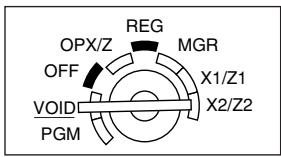
Incorrect receipt
| DEPT. 04 | T1 10.00 |
| DEPT. 03 | T11.50 |
| MDSE ST | 11.50 |
| TAX1 | 0.72 |
| ITEMS | 2Q |
| CASH | $12.22 |

Cancellation receipt
| *VOID* | |
| DEPT.04 | T1 10.00 |
| DEPT.03 | T11.50 |
| MDSE ST | 11.50 |
| TAX1 | 0.72 |
| ITEMS | 2Q |
| CASH | $12.22 |
OPERATOR MAINTENANCE
1 In case of Power Failure
When power is lost, the machine retains its memory contents and all information on sales entries.
- When power failure is encountered in register idle state or during an entry, the machine returns to normal operation after power recovery.
- When power failure is encountered during a printing cycle, the register prints “====” and then carries out the correct printing procedure after power recovery. (See the sample print.)
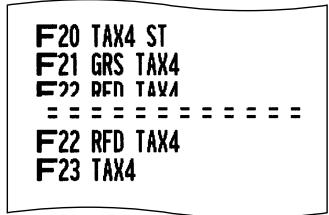
2 In Case of Printer Error
If the printer runs out of paper, the printer will stall, and "PPPPPPPPPP" will appear on the display. Key entries will not be accepted. Refer to section 5 in this chapter, install a new roll, then press the CL key. The printer will print the power failure symbol and resume printing.
If the print roller arm is not locked, the printer stalls, "H" will appear on the extreme left of the display. Key entries will not be accepted. Push down the arm until it is securely locked, then press the CL key. The printer will print the power failure symbol and resume printing.
3 Cautions in Handling the Printer and Recording Paper
■ Cautions in handling the printer
- Avoid dusty and humid environments, direct sunlight and iron powder. (A permanent magnet and electromagnet are used in this machine.)
- Never pull the paper when the print roller arm is locked. First lift up the arm, and then remove the paper.
- Never touch the surface of the print head and print roller.
■ Cautions in handling the recording paper (thermal paper)
- Use only the paper specified by SHARP.
- Do not unpack the thermal paper until you are ready to use it.
- Avoid heat. The paper will color at around 70^ .
- Avoid dusty and humid storage places. Avoid direct sunlight.
- The printed text on the paper can discolor under conditions of high humidity and temperature, exposure to the direct sunlight, contact with glue, thinner or a freshly copied blueprint, and heat caused by friction from scratching or other such means.
- Be very careful when handling the thermal paper. If you want to keep a permanent record, copy the printed text with a photocopier.
4 Replacing the Batteries
This cash register displays a low battery symbol (L) when the batteries are low, and displays a no battery symbol (L) when batteries are extremely low or batteries are not installed.
When the low battery symbol is displayed, replace the batteries with new ones as soon as possible. The existing batteries will be dead in about two days.
When the no battery symbol is displayed, replace the batteries immediately. Otherwise, if the AC power cord is disconnected or a power failure occurs, all the programmed settings will be reset to the default settings and any data stored in memory will be cleared.
Note
Be sure to observe precautions shown on page 1 when handling batteries.
To replace the batteries:
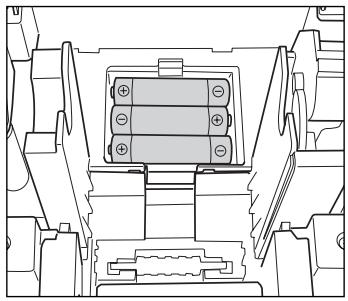
natural_image
Technical line drawing of a mechanical component with no visible text or symbols- Make sure that the cash register is plugged in.
- Turn the mode switch to the REG position.
- Remove the printer cover.
- Open the battery compartment cover next to the paper roll cradle and remove the old batteries.
- Install three new "AA" batteries in the battery compartment. Be sure the positive and negative poles of each battery are facing in the proper direction. When they are installed correctly, the "L" or "L" symbol will disappear.
- Close the battery compartment cover.
- Replace the printer cover.
5 Replacing the Paper Roll
Be sure to use paper rolls specified by SHARP.
The use of any other paper rolls other than those specified could cause paper jamming, resulting in register malfunction.
Paper specification
Paper width: 2.25 ± 0.02 in ( 57.5 ± 0.5 mm)
Max. outside diameter: 3.15 in (80 mm)
Quality: Thermal paper
- Be sure to set the paper roll prior to using your machine, otherwise it may cause a malfunction.
Install the paper roll in the printer. Be careful to set the roll correctly.
(How to set the paper roll)

■ Removing the paper roll
When a red dye appears on the paper roll, it is time to replace it. Replace the paper roll with a new one. If you plan on not using the register for an extended period of time, remove the paper roll, and store it in an appropriate place.
Caution: The paper cutter is mounted on the printer cover. Be careful not to cut yourself.
When not using the take-up spool (using as receipt paper):
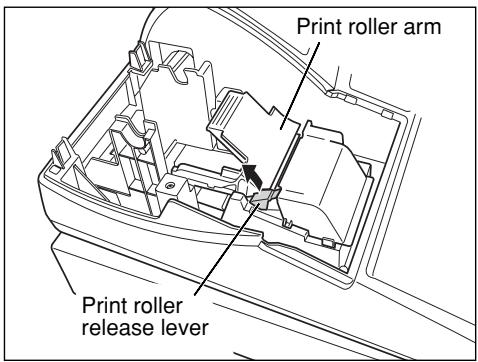
- Remove the printer cover.
- Lift up the print roller release lever to unlock and open the print roller arm.
- Remove the paper roll from the paper roll cradle.
Note
Do not pull the paper through the printer.
When using the take-up spool (using as journal paper):

- Turn the mode switch to a position other than OFF with the power cord connected.
- Remove the printer cover.
- Press the ↑ key to advance the journal paper until its printed part is out of the way.
- Cut the paper and remove the take-up spool.
- Lift up the print roller release lever to unlock and open the print roller arm.
- Remove the paper roll from the paper roll cradle.
Note
Do not pull the paper through the printer.

natural_image
Illustration showing two hands holding a circular object before and after folding, with no text or symbols present.- Remove the outer side of the take-up spool as shown on the left.
- Remove the printed journal roll from the take-up spool.
■ Installing the paper roll
Caution: The paper cutter is mounted on the printer cover. Be careful not to cut yourself.
Installing the receipt paper roll:
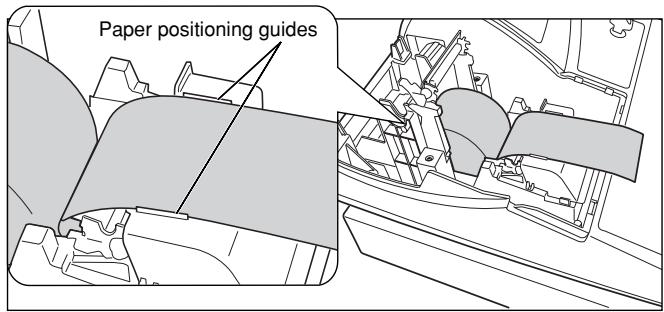
- Turn the mode switch to a position other than OFF with the power cord connected.
- Remove the printer cover.
- Lift up the print roller release lever to unlock and open the print roller arm.
- Set the paper correctly in the paper roll cradle.
- Feed the end of the paper along with the paper positioning guides.

natural_image
Line drawing of a hand inserting a component into an open device (no text or symbols visible)- While holding down the paper, slowly close the print roller arm, and push down the arm until you hear a click locking the arm. Make sure securely you push down the center of the wing part of the arm as illustrated at the left. The paper will be fed automatically.

If the print roller arm is not securely locked, printing is not done right. If this problem occurs, open the arm, and close the arm as instructed above.
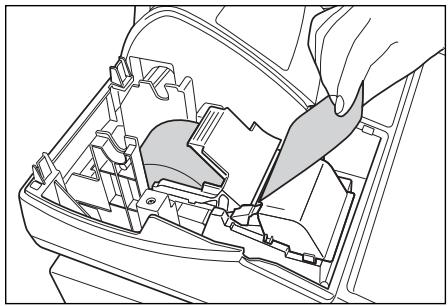
natural_image
Technical line drawing of a mechanical assembly with no visible text or symbols- Cut off the excess paper using the edge of the inner cover, and replace the printer cover. Press the ↑ key to make sure the paper end comes out of the printer cover and clean paper appears.

If the paper end does not come out, open the printer cover, and pass the paper end between the paper cutter and the paper guide of the printer cover, and replace the cover.
Installing the journal paper roll:
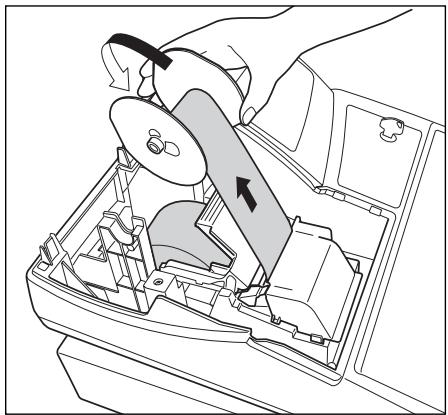
natural_image
Diagram of a car gear shift lever mechanism (no text or labels)- Turn the mode switch to a position other than OFF with the power cord connected.
- Remove the printer cover.
- Lift up the print roller release lever to unlock and open the print roller arm.
- Set the paper correctly in the paper roll cradle.
- Feed the end of the paper along with the paper positioning guides.
- While holding down the paper, slowly close the print roller arm, and push down the arm until you hear a click locking the arm. Make sure securely you push down the center of the wing part of the arm as illustrated at the left. The paper will be fed automatically.
- Insert the end of the paper into the slit in the spool. (Press the ↑ key to feed more paper if required.)
- Wind the paper two or three turns around the spool shaft.
- Set the spool on the bearing, and press the key to take up excess slack in the paper.
- Replace the printer cover.
Note
You can wind the roll paper in OP X/Z, X1/Z1, and X2/Z2 modes even if you programmed so that the printer is used for issuance of receipts. This may be convenient to wind reports. In this case, set the roll paper to the take-up spool.
6 Removing a Paper Jam
Caution: The paper cutter is mounted on the printer cover. Be careful not to cut yourself. Never touch the print head immediately after printing, as the head may still be hot.
- Remove the printer cover.
- Lift up the print roller release lever to unlock the print roller arm, and open the print roller arm.
- Remove the paper jam. Check for and remove any shreds of paper that may remain in the printer.
- Reset the paper roll correctly by following the steps in "Installing the paper roll".
7 Cleaning the Printer (Print Head / Sensor / Roller)
When the printed text is getting dark or faint, paper dust may be stuck to the print head, sensor and/or roller. Clean them as follows:

Caution:
- Never touch the print head with a tool or anything hard as it may damage the head.
-
The paper cutter is mounted on the printer cover. Be careful not to cut yourself.
-
Turn the mode switch to the OFF position.
- Remove the printer cover.
- Lift up the print roller release lever to unlock and open the print roller arm.
- Remove the paper roll referring to the "Removing the paper roll" section.
- Clean the print head with a cotton swab or soft rag moistened with ethyl alcohol or isopropyl alcohol. Clean the roller and the sensor in the same manner.
- Reset the paper roll correctly by following the steps in "Installing the paper roll".
8 Removing the Drawer

The drawer in the register is detachable. After closing your business for the day, remove the drawer. To detach the drawer, pull it forward fully, and remove it by lifting it up. The 5-denomination coin case is detachable.
9 Opening the Drawer by Hand

The drawer automatically opens. However, when a power failure occurs or the machine becomes out of order, slide the lever located on the bottom of the machine in the direction of the arrow. (See the figure at the left.)
The drawer will not open if it is locked with the key.
10
Before Calling for Service
The malfunctions shown in the left-hand column below, labelled “Fault,” do not necessarily indicate functional faults of the machine. It is therefore advisable to refer to “Checking” shown in the right-hand column before calling for service.
| Fault | Checking |
| (1) The display shows symbols that do not make sense. | Has the machine been initialized properly as shown “GETTING STARTED”?(Note that initialization clears all the data and programmed settings stored in memory.) |
| (2) The display won’t be illuminated even when the mode switch is turned to any other position than “OFF”. | Is power supplied to the electrical outlet?Is the power cord plug out or loosely connected to the electrical outlet? |
| (3) The display is illuminated, but the whole machine refuses registrations. | Is a clerk code assigned to the register?Is the mode switch set properly at the “REG” position? |
| (4) No receipt is issued. | Is the paper roll properly installed?Is there a paper jam?Is the receipt function in the “OFF” status?Is the print roller arm securely locked? |
| (5) No journal paper is taken up. | Is the take-up spool installed on the bearing properly?Is there a paper jam?Is the journal printing selected in the printing style programming? (If the receipt printing is selected, the paper is not wound around the take-up spool.) |
| (6) Printing is unusual. | Is the print roller arm securely locked?Is the paper roll properly installed?Are the print head/sensor/roller clean? |
■ Error code table
When the following error codes are displayed, press the Ⓒ key and take a proper action according to the table below.
| Error code | Error status | Action |
| E01 | Registration error | Make a correct key entry. |
| E02 | Misoperation error | Make a correct key entry. |
| E03 | Undefined code is entered. | Enter a correct code |
| E07 | Memory is full (in the AUTO key programming). | Program the AUTO key within 25 steps. |
| E11 | Compulsory depression of the #/TM/SBTL key for direct finalization | Press the #/TM/SBTL key and continue the operation. |
| E12 | Compulsory tendering | Make a tendering operation. |
| E32 | No entry of a clerk code | Make a clerk code entry. |
| E34 | Overflow limitation error | Make a registration within a limit of entry. |
| E35 | The open price entry is inhibited. | Make a preset price entry. |
| E36 | The preset price entry is inhibited. | Make an open price entry. |
| E37 | The direct finalization is inhibited. | Make a tendering operation. |
| E67 | Subtotal void is not allowed. | Finalize the transaction, and correct the wrong entries in the void mode. |
SPECIFICATIONS
| Model: | XE-A20S | |
| Dimensions: | 13.0 (W) x 16.9 (D) x 11.0 (H) in. (330 (W) x 428 (D) x 280 (H) mm) | |
| Weight: | 16.3 lb (7.4 kg) | |
| Power source: | 120V AC ± 10%, 60 Hz | |
| Power consumption: | Stand-by 7.7 WOperating 30 W (max.) | |
| Working temperature: | 32 °F to 104 °F (0 °C to 40 °C) | |
| Electronics: | LSI (CPU) etc. | |
| Display: | ||
| Operator display: | 7-segment display (10 positions) | |
| Customer display: | 7-segment display (7 positions) | |
| Printer: | ||
| Type: | One-station thermal printer | |
| Printing speed: | Approx. 12 lines/second | |
| Printing capacity: | 24 digits each for receipt and journal paper | |
| Other functions: | • Graphic logo printing function• Logo message function• Receipt (ON-OFF) function, compression printing function | |
| Paper roll: | Width: 2.25 ± 0.02 in (57.5 ± 0.5 mm)Max. diam.: 3.15 in (80 mm)Quality: High quality (0.06 to 0.08 mm thickness) | |
| Cash drawer: | 4 slots for bill and 5 for coin denominations | |
| Accessories: | Manager key | 2 |
| Operator key | 2 | |
| Drawer lock key | 2 | |
| Paper roll | 1 | |
| Take-up spool | 1 | |
| USB cable (QCNWG3391RCZZ) *1 | 1 | |
| Customer support tool | 1 disk | |
| Quick Start Guide | 1 copy | |
| Instruction manual | 1 copy | |
Specifications and appearance subject to change without notice for improvement.
*1 Use only the USB cable (manufactured by SHARP) supplied with the XE-A20S for the connection with a PC. In case you need a new USB cable, order the USB cable manufactured by SHARP Co. Ltd. (Part code: QCNWG3391RCZZ) for use with the XE-A20S.
Use these labels with the department keys. Write department names on the labels and attach them to the department keys by first removing the transparent key covers. (Please make a copy of this page.)
Example:
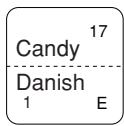
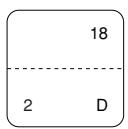
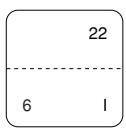





INTRODUCCION
Le agradecemos la adquisición de la caja registradora electrónica SHARP modelo XE-A20S.
Sírvase leer este manual detenidamente antes de hacer funcionar la caja registradora para familiarizarse y comprender por completo sus funciones y características.
Guarde este manual para futura referencia dado que le servirá de ayuda en caso de tener algún problema de funcionamiento con la caja registradora.
¡PRECAUCION!
- No instale nunca las pilas en la caja registradora antes de haberla inicializado. Antes de poner en funcionamiento la caja registradora, ésta deberá ser inicializada, y luego deben instalarse las pilas. De lo contrario, se perturbará el contenido de la memoria y se producirá el mal funcionamiento de la caja registradora. Para ver los procedimientos, consulte la página 4.
- Emplee sólo el cable USB (fabricado por SHARP) suministrado con el XE-A20S para la conexión a un ordenador personal. No emplee nunca otros cables.
IMPORTANTE
- La impresora tiene instalado un cortador para cortar el papel del rollo. Tenga mucho cuidado de no cortarse con el cortador.
- Instale la caja registradora en un lugar en el que no esté expuesta a radiaciones directas, cambios anormales de temperatura, alta humedad o en contacto con agua.
Si la instala en estos lugares, podría originar daños en la caja y en los componentes electrónicos.
- No opere nunca la caja registradora con las manos mojadas.
El agua podría filtrarse al interior de la registradora y causar averías en sus componentes.
- Cuando limpie la caja registradora, utilice un paño suave y seco. No use nunca líquidos volátiles como por ejemplo bencina y/o disolventes.
La utilización de estos productos químicos hará que la caja pierda color o sufra daños.
- La registradora debe enchufarse a cualquier tomacorriente normal de pared (120V CA ±10%).
Otros aparatos eléctricos enchufados en el mismo circuito eléctrico pueden hacer que la registradora funcione mal.
- Para protegerse contra la pérdida de datos, instale tres pilas del tamaño “AA” después de haber inicializado la caja registradora. Cuando manipule las pilas, no se olvide nunca de observar lo siguiente:
Las pilas usadas incorrectamente pueden reventar o provocar pérdidas y dañar posiblemente el interior de la caja registradora.
- Asegúrese de que los polos positivo (+) y negativo (-) de cada pila estén colocados en el sentido correcto para la instalación.
- No mezcle nunca pilas de diferentes tipos.
- No mezcle nunca pilas nuevas y usadas.
- No deje nunca pilas agotadas en el compartimiento de las pilas.
- Saque las pilas, si no piensa usar la caja registradora durante mucho tiempo.
- Si una pila perdiera, limpie inmediatamente el compartimiento de las pilas, teniendo cuidado de que el líquido que sale de la pila no entre en contacto directo con la piel.
- Para deshacerse de las pilas, siga las leyes vigentes en su país.
- Si la caja registradora no funciona como debiera, solicite el servicio llamando al 1-800-BE-SHARP. No intente reparar la caja registradora usted mismo.
- Para desconectar por completo la alimentación eléctrica, desenchufe la clavija del tomacorriente.
Línea directa de asistencia a los clientes 1-800-BE-SHARP
Para realizar la configuración con facilidad, vea el apartado "PARA EMPEZAR" (página 4).
INDICE
INTRODUCCION....1
IMPORTANTE....1
INDICE 2
PARTES Y SUS FUNCIONES....3
PARA EMPEZAR....4
REGISTRO BASICO DE VENTAS 5
1 Ejemplo de registro básico de ventas ....5
2 Aviso de error 6
3 Registros de artículos 6
Registros de un solo artículo....6
Registros repetidos ....7
Registros de multiplicación....7
Registros de precios divididos ....7
Registros de venta en metálico de un solo artículo (SICS) 8
4 Visualización de los subtotales 8
5 Finalización de una transacción....8
6 Cálculo de los impuestos ....9
CARACTERISTICAS OPCIONALES 9
1 Registros auxiliares....9
2 Tratos de pagos auxiliares ....10
3 Registros con tecla de secuencia automática (tecla [AUTO])....11
CORRECCION....11
PROGRAMACION DE LAS FUNCIONES BASICAS (Para el inicio rápido)....12
1 Programación de la fecha y de la hora....12
2 Programación de los impuestos para la función de cálculo automático de los impuestos....12
PROGRAMACION DE FUNCIONES AUXILIARES....14
1 Programación de secciones....14
2 Programación de PLU (codificación de precios) y subsección ....15
3 Programación de teclas misceláneas....16
4 Programación de texto 18
PROGRAMACION AVANZADA....22
1 Programación de número de caja registradora y de números consecutivos .....22
2 Programación del registro diario electrónico (EJ) 22
3 Programación 1 de selección de diversas funciones ....23
4 Programación 2 de selección de diversas funciones ....26
5 Lectura de programas almacenados....28
MODO DE INSTRUCCION 28
LECTURA (X) Y REPOSICION (Z) DE LOS TOTALES DE VENTAS ....29
LECTURA Y REPOSICION DE INFORMES EJ....30
REGISTROS DE ANULACION....31
CORRECCION DESPUES DE FINALIZAR UNA TRANSACCION (Modo de cancelación)....31
MANTENIMIENTO PARA EL OPERADOR....31
1 En caso de corte de la alimentación ....31
2 En el caso de error de impresora....31
3 Precauciones al manejar la impresora....31
4 Reemplazo de las pilas 32
5 Reemplazo del rollo de papel....32
6 Extracción del papel atascado ....33
7 Limpieza de la impresora (cabezal de impresión / sensor / rodillo) ....34
8 Extracción del cajón 34
9 Abertura manual del cajón 34
10 Antes de solicitar el servicio de un técnico....35
PARTES Y SUS FUNCIONES
1 Selector de modo y llaves de modo
El selector de modo funciona insertando una de las dos llaves de modo suministradas: la llave del administrador (MA) y la del operador (OP). Estas llaves pueden insertarse o sacarse sólo cuando el selector esté en la posición “REG” u “OFF”.
El selector de modo tiene estos ajustes:
OFF: Este modo bloquea todas las operaciones de la caja. (La alimentación de CA está desconectada.) No hay cambios en los datos registrados.
OP X/Z: Para sacar informes X o Z de dependiente individual, y para sacar informes rápidos. Puede usarse para alternar el estado "ON" u "OFF" de emisión de recibos pulsando la tecla RCPT/PO.
REG: Para registrar ventas.
PGM: Para programar diversos artículos.
VOID: Para establecer la caja registradora en el modo de cancelación. Este modo permite la corrección después de haber finalizado una transacción.
MGR: Para los registros del administrador. El administrador puede usar este modo para un registro de anulación.
X1/Z1: Para sacar el informe X/Z de varios totales diarios.
X2/Z2: Para sacar el informe X/Z de consolidación periódica (semanal o mensual).
2 Visualizadores
Importe: Aparece en las ocho posiciones (máx.) de la derecha. Cuando el importe es negativo, aparece el signo de menos “-” delante del importe.
Número de repeticiones para registros repetitivos:
Se visualiza el número de repeticiones, empezando por “2” y se incrementa con cada repetición. Cuando haya registrado diez veces, la visualización mostrará “0”. (2 → 3 …… 9 → 0 → 1 → 2 …)
Estado de la función de recibo:
Aparece el indicador “—” en la posición RCPT OFF cuando se pone la función de recibo en el estado OFF.
Hora: Aparece en las seis posiciones de la derecha (hora-minutos-“R” u hora-minutos-“P”) en el modo OP X/Z, REG, o MGR. En los modos REG o MGR, pulse la tecla #/TM/SBTL para visualizar la hora.
■ Símbolos del estado de la máquina
P : Aparece durante la programación.
E : Aparece cuando se detecta un error.
☐ : Aparece cuando se visualiza el subtotal o cuando se entrega un importe menor que el importe de las ventas.
C : Aparece cuando se pulsa la tecla CONV para calcular un subtotal en moneda extranjera.
F : Aparece cuando se finaliza una transacción pulsando la tecla CA/AT/NS, CHK o CH.
L : Aparece cuando se visualiza el importe del cambio.
- : Puede aparecer en las tres posiciones de la izquierda al efectuar una entrada de teclas cuando la memoria del registro diario electrónico (EJ) está llena. (Dependiendo de la programación.)
¿: Aparece cuando la tensión de las pilas instaladas está por debajo del nivel necesario.
L : Aparece cuando las pilas no están instaladas, o cuando las pilas instaladas están gastadas.
- Es posible que aparezca justo debajo de las posiciones octava y novena al realizar la finalización de una transacción cuando la memoria del registro diario electrónico (EJ) está casi llena.
También aparece justo debajo de la décima posición cuando está activada el modo de ahorro de energía.
H : Aparece cuando el brazo del rodillo impresor no está bloqueado.
PPPPPPPPPP : Aparece cuando no está colocado el papel o cuando se ha terminado.
PARA EMPEZAR
Siga el procedimiento mostrado a continuación. Las pilas no están instaladas y la alimentación está desconectada.
1. Inicialice la caja registradora
Para que la caja registradora pueda funcionar correctamente, deberá inicializarla antes de ponerla en funcionamiento por primera vez. Siga el procedimiento siguiente.
- Inserte la llave de administrador (MA) en el selector de modo y gírelo a la posición REG.
- Enchufe la clavija a la toma de corriente de CA. El zumbador sonará tres veces.
IMPORTANTE: Esta operación debe efectuarse antes de haber instalado las pilas. - La caja registradora habrá quedado ahora inicializada.
El visualizador de la caja registradora mostrará "0.00" con "L".
2. Instale las pilas
Las tres pilas nuevas del tamaño “AA” se deben colocar en la caja registradora para evitar que los datos y ajustes de programación se borren de la memoria, cuando se desconecte accidentalmente el cable de alimentación de CA, o en caso de un corte de corriente.
Instale las tres pilas nuevas del tamaño “AA” de acuerdo con el siguiente procedimiento con el cable de CA enchufado y con el selector de modo puesto en la posición REG. Asegúrese de observar las precauciones indicadas en la página 1 sobre la manipulación de las pilas.
- Empuje la cubierta de la impresora hacia delante y sepárela.
Tenga mucho cuidado con el cortador de papel, porque podría cortarse.
-
Abra la cubierta del compartimiento de las pilas que se encuentra al lado del soporte del rollo de papel.
-
Inserte tres pilas nuevas del tamaño "AA".
Cuando las pilas están correctamente instaladas, desaparecerá “L” del visualizador.
- Cierre la cubierta del compartimiento de las pilas.
3. Instale un rollo de papel
- Levante la palanca de liberación del rodillo impresor para desbloquear y abrir el brazo del rodillo impresor.
- Ponga un rollo de papel en el soporte del rollo de papel.
- Haga avanzar el extremo del papel junto con las guías de papel.
- Mientras mantiene retenido el papel, cierre lentamente el brazo del rodillo impresor, y empuje el brazo hacia abajo hasta oír un sonido seco de confirmación. Asegúrese que empuja con seguridad el centro de la parte del ala del brazo. El papel avanzará automáticamente.

Si el brazo del rodillo impresor no está bloqueado correctamente, no se podrá imprimir con éxito. Si ocurre este problema, abra el brazo, y ciérrelo de nuevo como se ha indicado arriba.
5. Cuando no emplee el carrete de toma (empleo como papel de recibos):
- Corte el papel sobrante empleando el borde de la cubierta interior, y vuelva a colocar la cubierta de la impresora. Pulse la tecla ↑ para asegurarse que el papel sale por la cubierta de la impresora y que aparece papel limpio.
Cuando emplee el carrete de toma (empleo como papel de registro diario):
- Inserte el extremo del papel en la ranura del carrete. (Pulse la tecla ↑ para hacer avanzar más el papel si es necesario.)
- Bobine el papel dos o tres vueltas en torno al eje del carrete.
- Coloque el carrete en el rodamiento, y pulse la tecla ↑ para tensar el papel.
- Vuelva a colocar la cubierta de la impresora.
4. Programe la fecha, la hora y los impuestos

La caja registradora le ofrece los idiomas inglés, francés y español para el texto. El idioma preajustado es el inglés. Si desea cambiar el idioma, deberá cambiarlo antes de realizar la programación. Consulte el apartado de “Selección del idioma” de la sección “Programación 2 de selección de diversas funciones” para cambiar el idioma.
Antes de poder seguir con el registro de las ventas, deberá programar:
- la fecha - la hora - los impuestos
Consulte la sección de PROGRAMACIÓN DE LAS FUNCIONES BASICAS para encontrar más detalles (página 12).
5. Programe otros elementos necesarios
Aunque la caja registradora viene ya programada para poderla utilizar con la mínima configuración, la máquina le ofrece las funciones opcionales. Antes de comenzar la programación, lea la sección de operaciones de ventas para entender las funciones opcionales.
REGISTRO BASICO DE VENTAS
1 Ejemplo de registro básico de ventas
A continuación se muestra un ejemplo de registro básico de ventas de artículos de sección en metálico. Para los detalles de la operación, consulte cada sección respectiva.
Ajuste del selector de modo
- Gire el selector de modo a la posición REG.
Asignación de dependientes
- Introduzca su código de dependiente. (Por ejemplo, si el código de dependiente es el 1. Pulse las teclas ① y CLK# en este mismo orden.)
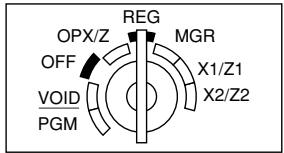
Registros de artículos
- Introduzca el precio para el primer artículo de sección. (Por ejemplo, para 15,00, introduzca ①⑤⑩, y pulse la tecla de la sección correspondiente.)
Para las secciones 17 a la 32, pulse primero la tecla DEPTSHIFT antes de pulsar la tecla de la sección. Para la sección 33 y posteriores, introduzca el código de sección empleando las teclas numéricas, y pulse la tecla DEPT#, y luego introduzca el precio y pulse de nuevo la tecla DEPT#.
- Repita el paso 3 para todos los artículos de sección.
Visualización de subtotales
- Pulse la tecla #/TM/SBTL para visualizar el importe a cobrar.
Finalización de la transacción
- Introduzca el importe recibido del cliente. (Podrá omitir este paso si el importe recibido es el mismo que el subtotal.)
- Pulse la tecla CA/AT/NS y se visualizará la vuelta (cuando no se ha introducido el importe recibido, se visualiza el importe total) y se abrirá el cajón.
- Corte el recibo y déselo al cliente con su vuelta.
- Cierre el cajón.
Ejemplo de operación de teclas
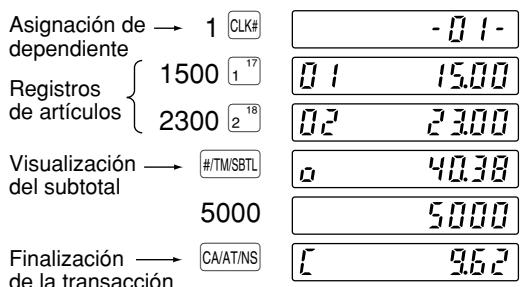
(En este ejemplo, la tasa de impuestos está ajustada a 6,25%.)
Impresión

tree
YOUR RECEIPT THANK YOU | Category | Description | | :--- | :--- | | Membrete gráfico | (Top node) | | Fecha/hora/número de código de dependiente | (Middle node) | | Número de caja registradora/número consecutivo/nombre de dependiente | (Middle node) | | Artículos | (Middle node) | | Precio | (Middle node) | | Subtotal de mercancías | (Middle node) | | Importe de impuestos | (Middle node) | | Estado de impuestos (T1: imponible 1) | (Middle node) | | Cantidad total | (Middle node) | | Importe total | (Middle node) | | Pago en metálico/importe recibido | (Middle node) | | Vuelta | (Middle node) | | Item | Amount ($) | | :--- | :--- | | DEPT.01 | 15.00 | | DEPT.02 | 23.00 | | MDSE ST | 38.00 | | TAX1 | 2.38 | | **TOTAL | 40.38 | | CASH | 50.00 | | CHANGE | 9.62 | | Item | Value | | :--- | :--- | | ITEMS | 2Q | | ***TOTAL | 40.38 | | Payments | 2Q | Membrete gráfico Fecha/hora/número de código de dependiente Número de caja registradora/número consecutivo/nombre de dependiente Artículos Subtotal de mercancías Importe de impuestos Estado de impuestos (Cantidad total) Importe total Pago en metálico/importe recibido VueltaFunción ON/OFF (de emisión/no emisión) de recibos
Cuando emplea la impresora para emitir recibos, podrá inhabilitar la impresión de recibos en el modo REG. Pulse la tecla RCPT/PO en la posición OP X/Z. Esta tecla cambia el estado de impresión de recibos de ON a OFF.
Para emitir un recibo cuando la función de recibo ON/OFF está desactivada (OFF):
Si el cliente quiere el recibo después de haber finalizado la transacción con la función de recibo ON/OFF desactivada (OFF), pulse la tecla RCPT/PO.
Modo de ahorro de energía
La caja registradora se establecerá en el modo de ahorro de energía cuando no se efectúe ningún registro basándose en el límite de tiempo ya programado (ajuste inicial de 30 minutos). Cuando la caja registradora se establezca en el modo de ahorro de energía, se apagará toda la visualización excepto el punto decimal de la posición de la izquierda. La caja registradora volverá al modo de operación normal al pulsar alguna tecla o al cambiar un modo.
2 Aviso de error
En los siguientes ejemplos, la caja registradora se coloca en estado de error haciendo sonar un aviso audible y visualizando el símbolo de error “E” en el visualizador. Anule el estado de error pulsando la tecla CL y tome las medidas oportunas.
Consulte la tabla de códigos de error en la página 35.
- Registra un número de más de 32 dígitos (desborde del límite de registro): Cancele el registro y vuelva a introducir un número correcto.
- Se equivoca en la operación de teclas: Borre el error y continúe la operación.
- Hace un registro más allá del límite de registro de importes programado: Vea si el importe registrado es correcto. Si es correcto, puede introducirse en el modo MGR. Llame al administrador.
- Un subtotal con impuestos incluido excede de ocho dígitos: Borre el subtotal pulsando la tecla CL y pulse la tecla CA/AT/NS, CHK o CH para finalizar la transacción.
Función de escape de error
Cuando desee abandonar una transacción debido a un error o a un imprevisto, emplee la función de escape de error como se muestra a continuación:
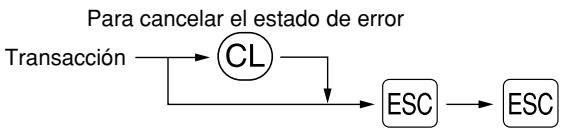
flowchart
graph TD
    A["Transacción"] --> B["CL"]
    B --> C["ESC"]
    C --> D["ESC"]
    style B fill:#f9f,stroke:#333
    note right of B: "Para cancelar el estado de error"
La transacción se cancela (se trata como un subtotal cancelado) y se emite el recibo mediante esta función. Si ya había introducido el importe entregado para el pago, la operación se finaliza como una venta en metálico.
3 Registros de artículos
■ Registros de un solo artículo
Registros de sección
- Cuando se emplean las teclas de sección (para las secciones 1 a 32)
Cuando utilice un precio unitario programado

flowchart
graph LR
    A["Precio unitario *1 (máx. 7 dígitos)"] --> B["TEcla de sección"]
    B --> C["*2 DEPTSHIFT"]
    C --> A
*1 Menos que los importes de límite superior programado
Cuando se introduce cero, sólo se añade la cantidad de ventas.
*2 Para las secciones opcionales 17 a 32, pulse la tecla DEPTSHIFT.
- Cuando se emplea la tecla de registro de código de sección

flowchart
graph TD
    A["Código de sección (1 a 99)"] --> B["DEPT#"]
    B --> C["Precio unitario *1 (máx. 7 dígitos)"]
    C --> D["DEPT#"]
    B --> E["(En caso de que sólo esté permitido el registro de precio preajustado.)"]
    style B fill:#f9f,stroke:#333
    style D fill:#f9f,stroke:#333
*1 Menos que los importes de límite superior programado Cuando se introduce cero, sólo se añade la cantidad de ventas.
Registros de PLU/subsecciones
La caja registradora ya está programada para el modo PLU y cero para el precio unitario. Para emplear entradas de PLU, deberán haberse programado de antemano sus precios unitarios preajustados. (Consulte la página 15.) Para emplear los registros de subsecciones, cambie al modo de subsección para los códigos de PLU.
- Registros de PLU

- Registros de subsección (PLU abierta)

flowchart
graph LR
    A["Código de PLU (1 a 1.200)"] --> B["PLU/SUB"]
    B --> C["Precio unitario* (máx. 7 dígitos)"]
    C --> D["PLU/SUB"]
    D --> E["* Menos que los importes de límite superior programado\nCuando se introduce cero, sólo se añade la cantidad de ventas."]
■ Registros repetidos
Puede utilizar esta función para registrar una venta de dos o más artículos iguales. Repita la pulsación de una tecla de sección, tecla DEPT# o tecla PLU/SUB.
■ Registros de multiplicación
Cuando venda una gran cantidad de artículos, es conveniente emplear el método de registro de multiplicación. Introduzca la cantidad empleando las teclas numéricas y pulse la tecla @/FOR antes de comenzar el registro de artículos.
■ Registros de precios divididos
Esta función es práctica cuando un cliente desea comprar artículos que normalmente se venden en lotes. Para llevar a cabo esta función, deberá cambiar el ajuste programado. Consulte el apartado “Programación 1 de selección de diversas funciones” (código de tarea 70) para ver los detalles de la programación.
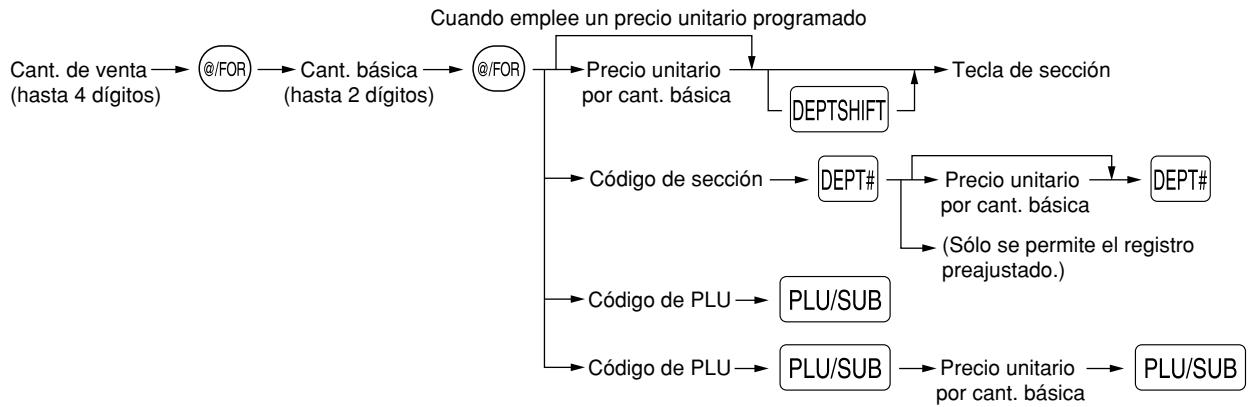
flowchart
graph TD
    A["Cant. de venta (hasta 4 dígitos)"] --> B["@/FOR"]
    B --> C["Cant. básica (hasta 2 dígitos)"]
    C --> D["@/FOR"]
    D --> E["Precio unitario por cant. básica"]
    E --> F["Tecla de sección"]
    D --> G["Código de sección"]
    G --> H["DEPT#"]
    H --> I["Precio unitario por cant. básica (Sólo se permite el registro preajustado.)"]
    I --> J["DEPT#"]
    D --> K["Código de PLU"]
    K --> L["PLU/SUB"]
    D --> M["Código de PLU"]
    M --> N["PLU/SUB"]
    N --> O["Precio unitario por cant. básica"]
    O --> P["PLU/SUB"]
■ Registros de venta en metálico de un solo artículo (SICS)
- Esta función es útil cuando se vende solamente un artículo en metálico. Esta función es aplicable sólo a las secciones que se han ajustado para SICS o a sus PLU o subsecciones asociadas.
- Se completa la transacción y el cajón se abre tan pronto como pulse la tecla de sección, la tecla DEPT# o la tecla PLU/SUB.
4 Visualización de los subtotales
La caja registradora ofrece tres tipos de subtotales:
Subtotal de mercancías
Pulse la tecla MDSESBTL en cualquier momento durante la transacción. Aparecerá el subtotal de venta neto, sin incluir los impuestos, en el visualizador.
Subtotal imponible
Subtotal de imponible 1
Pulse las teclas TAX1SHIFT y #/TM/SBTL en este orden en cualquier momento durante la transacción. Aparecerá el subtotal de venta de los artículos de imponible 1 en el visualizador.
Subtotal de imponible 2
Pulse las teclas TAX2SHIFT y #/TM/SBTL en este orden en cualquier momento durante la transacción. Aparecerá el subtotal de venta de los artículos de imponible 2 en el visualizador.
Subtotal incluyendo los impuestos (subtotal completo)
Pulse la tecla #/TM/SBTL en cualquier momento durante la transacción. Aparecerán el subtotal de venta con los impuestos incluidos y el símbolo “☐” en el visualizador.
5 Finalización de una transacción
- Importe recibido en metálico o cheque
Pulse la tecla #/TM/SBTL para obtener un subtotal con impuestos incluidos, registre el importe entregado por el cliente, y entonces pulse la tecla CA/AT/NS si el importe es en metálico o pulse la tecla CHK si el importe es un cheque. Cuando el importe recibido es mayor que el importe de la venta, la registradora le mostrará el importe del cambio y se encenderá el símbolo “ [ ”. De lo contrario, la registradora mostrará un déficit y se encenderá el símbolo “ □ ”. Ahora deberá hacer el registro correcto del importe recibido.
■ Ventas en metálico o cheque que no necesitan un registro
Registre los artículos y pulse la tecla CA/AT/NS si se trata de una venta en metálico o pulse la tecla CHK si es una venta con cheque. La caja registradora visualizará el importe total de la venta.
■ Venta a cargo en cuenta (crédito)
Registre los artículos y pulse la tecla de cargo (CH).
■ Ventas con importe recibido mixto
Podrá efectuar la mezcla de pagos con cheques y metálico, metálico y a cargo en cuenta, y cheque y a cargo en cuenta.
Por ejemplo: Su cliente paga \9,50 en metálico y \40,00 a cargo a su cuenta para un subtotal de \$49,50 con impuestos incluidos.
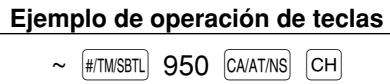
6 Cálculo de los impuestos
■ Impuestos automáticos
Cuando se ha programado una tasa de impuestos (o tabla de impuestos) en la caja registradora y el estado de impuestos para una sección individual está ajustado a imponible, la caja calcula los impuestos automáticos para cualquier artículo que se introduzca directamente en la sección o indirectamente mediante una PLU relacionada.
■ Impuestos manuales
La máquina le permite introducir manualmente los impuestos después de haber terminado el registro de artículos.
Ejemplo: Venta en metálico de un artículo de \$8,00 (sección 12) con 50 centavos como impuestos
Ejemplo de operación de teclas
800 12 ^28 50 TAX CA/AT/NS
■ Borrado de los impuestos
Podrá borrar los impuestos automáticos en el subtotal de imponible 1 y de imponible 2 de cada transacción pulsando la tecla TAX después de haberse visualizado el subtotal.
Para efectuar el borrado del subtotal de imponible 1, pulse TAX1SHIFT, #/TM/SBTL para obtener el subtotal de imponible 1, y entonces pulse TAX para borrar el subtotal.
Para efectuar el borrado del subtotal de imponible 2, pulse TAX2SHIFT, #/TM/SBTL para obtener el subtotal de imponible 2, y entonces pulse TAX para borrar el subtotal.
Para borrar todo el subtotal de imponible (1-4), pulse TAX1SHIFT, TAX2SHIFT, #/TM/SBTL y TAX en este orden.
■ Cambio del estado de impuestos
La máquina le permitirá cambiar el estado de impuestos programado de cada tecla de sección o de PLU pulsando las teclas TAX1SHIFT y/o TAX2SHIFT antes de tales teclas. Después de completar cada registro, el estado de impuestos programado de cada tecla se repondrá al programado.
CARACTERISTICAS OPCIONALES
1 Registros auxiliares
■ Registros de descuento y recargo empleando la tecla de porcentaje
La tecla de porcentaje se emplea para aplicar un porcentaje de descuento o recargo manualmente introducido o preajustado a artículos individuales o a un subtotal de mercancías. Para el registro manual del porcentaje de descuento o de recargo, introduzca el porcentaje (hasta 100,00) con las teclas numéricas (necesitará un punto decimal cuando introduzca una tasa porcentual fraccionaria), y pulse la tecla de porcentaje. Cuando emplee un porcentaje preajustado (si se ha programado), pulse tan sólo una tecla de porcentaje.
Cálculo porcentual para el subtotal de mercancías
Ejemplo de operación de teclas

Cálculo porcentual para registros de artículos
Ejemplo de operación de teclas

■ Registros de descuento y recargo empleando la tecla de descuento
La tecla de descuento se emplea para aplicar un importe de descuento o recargo manualmente introducido o preajustado a artículos individuales o a un subtotal de mercancías. Para el registro manual de los importes de descuento o de recargo, introduzca el importe con las teclas numéricas, y pulse la tecla de descuento. Cuando emplee un importe preajustado (si se ha programado), pulse una tecla de descuento.
Descuento para el subtotal de mercancías
Ejemplo de operación de teclas

Descuento para registros de artículos
Ejemplo de operación de teclas

■ Registros de devolución
Para las secciones 1 a 16, introduzca el importe de devolución y pulse la tecla RFND, y luego pulse la tecla de la sección correspondiente, y para las secciones 17 a 32, introduzca el importe de devolución y pulse la tecla RFND, y luego pulse la tecla DEPTSHIFT y pulse la tecla de la sección correspondiente (cuando emplee el precio preajustado, omita la introducción del importe). En el caso de las secciones 33 a 99, introduzca el código de sección y pulse la tecla RFND y la tecla DEPT#, y luego introduzca el importe de devolución y pulse la tecla DEPT# cuando sea necesario.
Para la devolución de un artículo de PLU, introduzca el código de PLU y pulse la tecla RFND, y luego pulse la tecla PLU/SUB.
Para la devolución de un artículo de subsección, introduzca el código de PLU y pulse la tecla RFND y la tecla PLU/SUB, y luego introduzca el importe de devolución y pulse la tecla PLU/SUB.
■ Registros e impresión de números de código de no suma
Podrá introducir un número de código de no suma, como pueda ser un número de código de cliente o número de tarjeta de crédito, con un máximo de 16 dígitos, en cualquier momento durante el registro de una venta. La caja registradora lo imprimirá.
Para introducir un número de código de no suma, introduzca el número y pulse la tecla #/TM/SBTL.
2 Tratos de pagos auxiliares
■ Conversión de divisas
La caja registradora permite registros de pago con divisas (sólo está disponible el pago en metálico). Pulsando la tecla CONV se crea un subtotal en la divisa en cuestión.
Cuando emplee una tasa de cambio de divisas programada, pulse la tecla CONV después de los registros de los artículos, e introduzca entonces el importe recibido en la divisa si no se trata de un pago con el importe justo, y pulse la tecla CA/AT/NS.
Cuando efectúe un registro manual de la tasa de cambio de divisas, después de los registros de todos los artículos, introduzca la tasa de cambio (0,0000 a 9999,9999; necesitará un punto decimal cuando introduzca una tasa de cambio fraccionaria), y pulse la tecla CONV, y luego introduzca el importe en la divisa en cuestión si no es un pago del importe justo, y pulse la tecla CA/AT/NS.
En ambos casos, la vuelta se visualizará en moneda nacional y, cuando el importe recibido sea insuficiente, el déficit se mostrará en moneda nacional.
Nota
- Pulse la tecla CL después de pulsar la tecla CONV para cancelar el pago en una divisa.
- Si se programa, se imprime un símbolo de moneda extranjera cuando emplea una tasa preajustada.
■ Registros de recibido a cuenta y de pagado
Cuando recibe un pago a cuenta o cuando usted paga a un abastecedor, es aconsejable emplear la tecla RA o la tecla RCPT/PO respectivamente. Los pagos en metálico sólo están disponibles en la operación RA y PO.
Para el registro de recibido a cuenta, introduzca el importe y pulse la tecla RA.
Para el registro de pagado, introduzca el importe y pulse la tecla RCPT/PO.
■ Sin ventas (cambios)
Cuando deba abrir el cajón para algo que no sea una venta, pulse tan sólo la tecla CA/AT/NS. El cajón se abrirá y la registradora imprimirá “NO VENTA” en el registro diario o en el recibo.
3 Registros con tecla de secuencia automática (tecla AUTO)
Puede lograr una transacción programada pulsando simplemente la tecla AUTO.
CORRECCION
1 Corrección del último registro (cancelación directa)
Si hace un registro incorrecto relativo a una sección, PLU/subsección, porcentaje ( %1 y %2 ), descuento ( ) o devolución, puede cancelar este registro pulsando la tecla inmediatamente después del registro incorrecto.
2 Corrección del registro siguiente al último o anterior (cancelación indirecta)
Podrá cancelar cualquier registro de sección incorrecto, registro de PLU/subsección o registro de devolución de artículo hechos durante una transacción, si lo encuentra antes de finalizar la transacción (por ejemplo, pulsando la tecla CA/AT/NS). Esta función es aplicable sólo a los registros de sección, PLU/subsección y de devolución.
Para la operación, pulse la tecla justo antes de pulsar una tecla de sección, la tecla # , o la tecla /SUB .
Para la cancelación indirecta de devolución, pulse la tecla VOID después de haber pulsado la tecla RFND.
3 Cancelación del subtotal
Puede cancelar una transacción completa. Una vez ejecutada la cancelación del subtotal, la transacción se detiene y la registradora emite un recibo. Esta función no funciona cuando se han introducido más de 30 artículos.
Ejemplo de operación de teclas
1310 2 ^18 10 PLU/SUB #/TM/SBTL VOID #/TM/SBTL
Cancelación de subtotal
PROGRAMACION DE LAS FUNCIONES BASICAS (Para el inicio rápido)
Para programar la caja registradora, ponga la llave del administrador en el selector de modo y gírela a la posición PGM.
- Los asteriscos en las tablas mostradas en los detalles de programación indican los ajustes iniciales.
1 Programación de la fecha y de la hora
Fecha
Para ajustar la fecha, introduzca la fecha con 8 dígitos empleando el formato de mes-día-año (MM/DD/AAAA), y pulse entonces la tecla #/TM/SBTL.
Ejemplo de operación de teclas
08262005 #/TM/SBTL
(Agosto 26, 2005)
Hora
Para ajustar la hora, introduzca la hora con 4 dígitos empleando el formato de 24 horas. Por ejemplo, para ajustar la hora a las 2:30 AM, introduzca 230; y para ajustarla a las 2:30 PM, introduzca 1430.
Ejemplo de operación de teclas
1430 #/TM/SBTL
2 Programación de los impuestos para la función de cálculo automático de los impuestos
Antes de poder proceder al registro de ventas, primero deberá programar los impuestos que se cargan de acuerdo con las leyes de su estado. En esta caja registradora pueden programarse cuatro tasas de impuestos distintas. En la mayor parte de estados, sólo será necesario programar los impuestos 1. Sin embargo, si vive en una zona que tiene impuestos locales propios o impuestos de hospitalidad, podrá programar la caja registradora para que calcule estos impuestos por separado.
Cuando programe el estado de impuestos para una sección, los impuestos se añadirán automáticamente a los artículos de venta asignados a la sección de acuerdo con el estado de impuestos programado para la sección. También podrá introducir manualmente los impuestos.
Hay dos métodos para programar los impuestos. El método de la tasa de impuestos emplea una tasa porcentual directa por dólar. El método de tabla de impuestos requiere la información detallada de impuestos para las oficinas de impuestos estatales o locales. Emplee el método que sea aceptable para su estado. Podrá obtener los datos necesarios en la oficina de impuestos local para efectuar la programación de los impuestos.
■ Programación de los impuestos empleando una tasa de impuestos
La tasa porcentual aquí especificada se emplea para calcular los impuestos sobre subtotales imponibles.
Procedimiento

flowchart
graph TD
    A["#/TM/SBTL"] --> B["9"]
    B --> C["@/FOR"]
    C --> D["Número de impuestos (1 a 4)"]
    D --> E["@/FOR"]
    E --> F["Tasa de impuestos (0,0000 a 100,000)"]
    F --> G["@/FOR"]
    G --> H["Importe imponible más bajo (0,01 a 999,99)"]
    H --> I["#/TM/SBTL"]
    I --> J["CA/AT/NS"]
    B --> K["Cuando el importe imponible más bajo es cero"]
Ejemplo: Programación de la tasa de impuestos del 4% como tasa de impuestos 2 con exención de impuestos de 12¢
Ejemplo de operación de teclas

■ Tabla de impuestos (aplicable al impuesto añadido)
Si se encuentra en una localidad que emplea una tabla de impuestos para el cálculo de los impuestos, podrá programar consecuentemente la caja registradora. La programación de la tabla de impuestos puede efectuarse para impuestos 1 a impuestos 4.
Tabla de impuestos de muestra
Tabla de impuestos de New Jersey: 6%
| Margen de importe de venta | |||
| Impuestos | Punto de división mínimo | Punto de división máximo | |
| .00 | .01 | a | .10 |
| .01—T | .11—Q | a | .22 |
| .02 | .23 | a | .38 |
| .03 | .39 | a | .56 |
| .04 | .57 | a | .72 |
| .05 | .73 | a | .88 |
| .06 | .89 | a | 1.10 |
| .07 | 1.11—M1 | a | 1.22 |
| .08 | 1.23 | a | 1.38 |
| .09 | 1.39 | a | 1.56 |
| .10 | 1.57 | a | 1.72 |
| .11 | 1.73 | a | 1.88 |
| .12 | 1.89 | a | 2.10 |
| .13 | 2.11—M2 | a | 2.22 |

| A: Diferencia entre el punto de división mínimo y el siguiente (¢) | |
| –10 (0.11 - 0.01) | B: No cíclico↑↓C: Cíclico 1↑↓D: Cíclico 2↑ |
| 12 (0.23 - 0.11)16 (0.39 - 0.23)18 (0.57 - 0.39)16 (0.73 - 0.57)16 (0.89 - 0.73)22 (1.11 - 0.89) | |
| 12 (1.23 - 1.11)16 (1.39 - 1.23)18 (1.57 - 1.39)16 (1.73 - 1.57)16 (1.89 - 1.73)22 (2.11 - 1.89) |
Para programar una tabla de impuestos, primero haga una tabla como la tabla de la derecha arriba mostrada. Partiendo de la tabla de impuestos, calcule las diferencias entre el punto de división mínimo y el siguiente (A). Luego, partiendo de las diferencias, busque ciclos irregulares (B) y ciclos regulares (C y D). Estos ciclos le mostrarán los elementos necesarios para programar la tabla de impuestos:
T: El importe de impuestos recolectados en el importe imponible mínimo (Q)
Q: El importe imponible mínimo
M1: El valor máximo del punto de división mínimo en un ciclo regular (C)
A esto lo denominamos "punto MAX".
M2: El valor máximo del punto de división mínimo en un ciclo regular (D)
A esto lo denominamos "punto MAX".
M: Margen del punto de división mínimo en un ciclo regular: diferencia entre Q y M1 o entre M1 y M2.
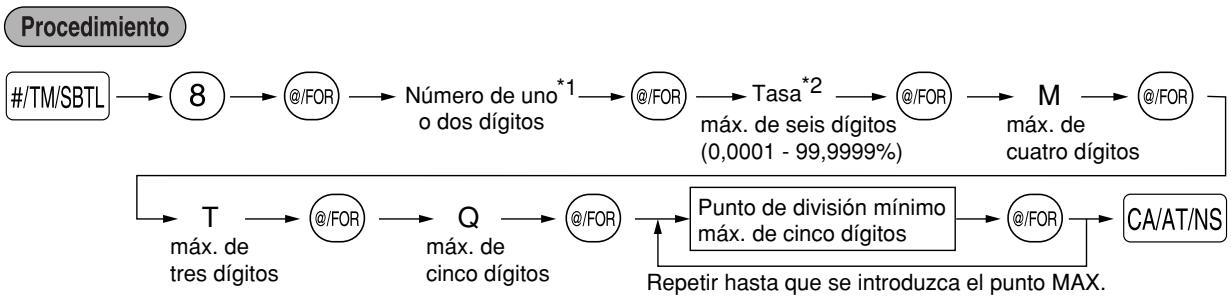
flowchart
graph TD
    A["#/TM/SBTL"] --> B["8"]
    B --> C["@/FOR"]
    C --> D["Número de uno *1 o dos dígitos"]
    D --> E["@/FOR"]
    E --> F["Tasa *2"]
    F --> G["@/FOR"]
    G --> H["M"]
    H --> I["@/FOR"]
    I --> J["CA/AT/NS"]
    J --> K["Punto de división mínimo máx. de cinco dígitos"]
    K --> L["@/FOR"]
    L --> M["Repetir hasta que se introduzca el punto MAX."]
    M --> N["T"]
    N --> O["@/FOR"]
    O --> P["Q"]
    P --> Q["@/FOR"]
    Q --> R["T"]
    R --> S["max. de tres dígitos"]
    S --> T["T"]
    T --> U["@/FOR"]
    U --> V["Q"]
    V --> W["max. de cinco dígitos"]
*1 Primer número: (1 ó 0)
Este primer número que se introduce depende de si la diferencia entre un punto de división mínimo a introducirse y el punto de división mínimo anterior no son de menos de \1,00 ni de más de 99¢. Cuando la diferencia no sea de menos de \1,00, introduzca "1", y cuando no sea de más de 99¢, introduzca "0" o no introduzca nada.
Segundo número: (1 a 4)
El segundo número depende de si su tabla de impuestos debe programarse como tabla de impuestos 1, 2, 3, ó 4.
*2 Si la tasa es fraccionaria (por ejemplo 4-3/8%), la fracción (3/8) se convierte a su equivalente decimal (es decir, 0,375) y se introduce la tasa resultante de 4,375. Tenga presente que la tasa nominal (R) generalmente se indica en la tabla de impuestos.
- Limitaciones para el registro de puntos de división mínimos
La caja registradora puede trabajar con una tabla de impuestos que conste hasta de 72 puntos de división como máximo. (El número máximo de puntos de división es de 36 cuando la diferencia de puntos de división es de \$1,00 o más.) Si el número de puntos de división excede la capacidad de tablas de la caja registradora, deberá emplear entonces el registro manual.
PROGRAMACION DE FUNCIONES AUXILIARES
1 Programación de secciones
La mercancía se puede clasificar en un máximo de 99 secciones.
■ Estado de sección
Procedimiento

flowchart
graph LR
    A["Para ajustar todo ceros"] --> B["ABCDEFGH"]
    B --> C["@/FOR"]
    C --> D["* DEPTSHIFT"]
    D --> E["Tecla de sección"]
    E --> F["CA/AT/NS"]
*Para programar las secciones 17 a 32, pulse la tecla de cambio de sección en este punto.

flowchart
graph LR
    A["Código de sección"] --> B["DEPT#"]
    B --> C["ABCDEFGHIJKLMNOPQRSTUVWXYZ"]
    C --> D["@/FOR"]
    D --> E["CA/AT/NS"]
    F["Para ajustar todo ceros"] --> C
Para programar otra sección, comience desde el principio sin pulsar la tecla CA/AT/NS.
| Elemento: | Selección: | Registro: | |
| A | Estado de impuestos 4 | Imponible | 1 |
| No imponible* | 0 | ||
| B | Estado de impuestos 3 | Imponible | 1 |
| No imponible* | 0 | ||
| C | Estado de impuestos 2 | Imponible | 1 |
| No imponible* | 0 | ||
| D | Estado de impuestos 1 | Imponible (*para las secciones 1 a 10) | 1 |
| No imponible (*para las secciones 11 a 99) | 0 | ||
| E | SICS / Normal | SICS | 1 |
| Normal* | 0 | ||
| F | Signo | Sección negativa | 1 |
| Sección positiva* | 0 | ||
| G | Límite de dígitos de entrada | 0-7 (ajuste inicial: 7) | |
| H | Tipo de registros de precio unitario | Abertura y preajuste | 3 |
| Sólo preajuste | 2 | ||
| Sólo abertura* | 1 | ||
| Tecla de sección invalidada | 0 | ||
Estado de impuestos (imponible 1 a 4 / no imponible)
- Cuando se efectúa un registro de una sección imponible en una transacción, los impuestos se calculan automáticamente de acuerdo con la tabla o tasa de impuestos asociada.
SICS (Venta en metálico de un solo artículo)
- Si se efectúa primero un registro de una sección programada para SICS, la venta se finalizará como venta de pago en metálico así que se pulse la tecla de la sección.
Límite de dígitos de entrada
- El límite es eficaz para operaciones en el modo REG y puede pasarse por alto en el modo MGR.
■ Precio unitario preajustado

flowchart
graph LR
    A["Precio unitario (máx. seis dígitos)"] --> B["Para programar cero"]
    B --> C["* DEPTSHIFT"]
    C --> D["Tecla de sección"]
    D --> E["CA/AT/NS"]
*Para programar las secciones 17 a 32, pulse la tecla de cambio de sección en este punto.

flowchart
graph LR
    A["Código de sección"] --> B["DEPT#"]
    B --> C["Precio unitario (máx. seis dígitos)"]
    C --> D["#/TM/SBTL"]
    D --> E["CA/AT/NS"]
    F["Para programar cero"] --> C
Para programar otra sección, comience desde el principio sin pulsar la tecla CA/AT/NS.
2 Programación de PLU (codificación de precios) y subsección
La función de PLU permite realizar registros rápidos con las teclas en los que el precio se busca automáticamente al introducir un código. La subsección es un tipo de “PLU abierta”, que requiere que usted introduzca un precio detrás del código de PLU. Pueden realizarse un máximo de 1.200 ajustes de PLU/subsección. Cada una pertenece a una sección y adquiere los parámetros de la sección (estado de impuestos, SICS y signo).
La caja registradora ya está programada de modo que los 1.200 códigos están asignados a las PLU asociadas con la sección 1 y precio unitario preajustado “0”.
■ Asignación de precios unitarios y de secciones asociadas

flowchart
graph LR
    A["*2 Código de PLU"] --> B["PLU/SUB"]
    B --> C["Precio unitario*3 (máx. seis dígitos)"]
    C --> D["Para programar cero"]
    C --> E["*1 DEPTSHIFT"]
    E --> F["Tecla de sección asociada"]
    F --> G["CA/AT/NS"]
*1: Para asignar las secciones 17 a 32, pulse la tecla de cambio de sección en este punto.
Cuando la sección asociada es una de las secciones 33 a 99:

flowchart
graph LR
    A["*2 Código de PLU"] --> B["PLU/SUB"]
    B --> C["Código de sección asociada (1 a 99)"]
    C --> D["DEPT#"]
    D --> E["Precio unitario*3 (máx. seis dígitos)"]
    E --> F["#/TM/SBTL"]
    F --> G["CA/AT/NS"]
    H["Para programar cero"] --> E
*2: 1 a 1.200 (Dependiendo del ajuste del tamaño de la memoria EJ, hasta 200)
*3: Para una subsección, ajuste el importe de límite del registro de precio unitario.
Para borrar un código de PLU, emplee la secuencia siguiente:

flowchart
graph TD
    A["Procedimiento"] --> B["Código de PLU"]
    B --> C["PLU/SUB"]
    C --> D["VOID"]
    D --> E["CA/AT/NS"]
    E --> F["Para borrar otra PLU"]
    F --> G["Para borrar la PLU siguiente"]
    G --> B
■ Selección de PLU/subsección
Procedimiento
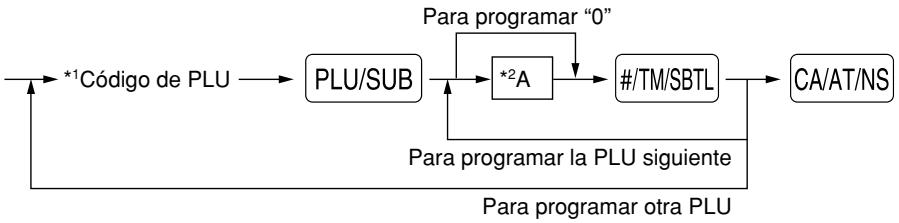
flowchart
graph TD
    A["*1 Código de PLU"] --> B["PLU/SUB"]
    B --> C["*2A"]
    C --> D["#/TM/SBTL"]
    D --> E["CA/AT/NS"]
    E --> F["Para programar la PLU siguiente"]
    F --> G["Para programar otra PLU"]
    G --> A
    C --> H["Para programar “0”"]
*1: 1 a 1.200 (Dependiendo del ajuste del tamaño de la memoria EJ, hasta 200)
*2: 0 para la subsección o 1 para PLU (ajuste inicial: 1)
3 Programación de teclas misceláneas
■ Tasa para %1, %2 y CONV
Procedimiento

flowchart
graph TD
    A["Para programar cero"] --> B["*Tasa"]
    B --> C["%1"]
    B --> D["%2"]
    C --> E["CA/AT/NS"]
    D --> E
    E --> F["CONV"]
    F --> B
Para programar otra tasa
*: Tasa
0,00 - 100,00 (Tasa de porcentaje)
0,0000 - 9999,9999 (Tasa de conversión de divisas)
Deberá emplear un punto decimal para ajustar tasas fraccionarias.
- Importe para ⊖
Procedimiento

flowchart
graph TD
    A["Para programar cero"] --> B["Importe de descuento (máx. seis dígitos)"]
    B --> C["⊖"]
    C --> D["CA/AT/NS"]
■ Límite de tasa porcentual para %1 y %2
Procedimiento

flowchart
graph LR
    A["#/TM/SBTL"] --> B["2"]
    B --> C["9"]
    C --> D["@/FOR"]
    D --> E["Límite de porcentaje (0,00 - 100,00%)"]
    E --> F["%1"]
    E --> G["%2"]
    F --> H["CA/AT/NS"]
    G --> H
    H --> I["Para programar cero"]
    H --> J["Para programar otra tecla de porcentaje"]
Nota
- Los registros porcentuales que exceden al límite superior pueden suprimirse en el modo MGR.
- 10,00% puede registrarse como ① 0 o ① 0 • 0 0. La tecla • es necesaria sólo para los registros fraccionarios.
■ Parámetros de función para %1, %2 y ⊖
Procedimiento
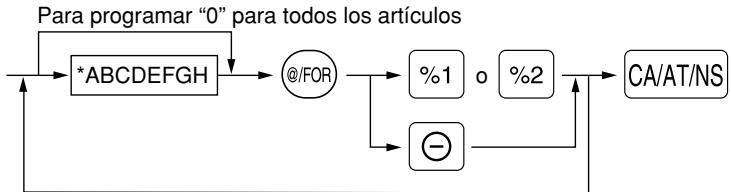
flowchart
graph TD
    A["*ABCDEFGH"] --> B["@/FOR"]
    B --> C["%1"]
    B --> D["●"]
    C --> E["o %2"]
    D --> F["CA/AT/NS"]
    G["Para programar "0" para todos los artículos"] --> A
Para programar otra tecla
| *: Elemento: | Selección: | Registro: | |
| A | Estado de impuestos 4 | Imponible | 1 |
| No imponible* | 0 | ||
| B | Estado de impuestos 3 | Imponible | 1 |
| No imponible* | 0 | ||
| C | Estado de impuestos 2 | Imponible | 1 |
| No imponible* | 0 | ||
| D | Estado de impuestos 1 | Imponible | 1 |
| No imponible* | 0 | ||
| E | Signo +/- | Signo + (recargo) | 0 |
| Signo - (descuento)* | 1 | ||
| F | % de artículo / ⊖ de artículo | Habilitar* | 0 |
| Inhabilitar | 1 | ||
| G | % de subtotal / ⊖ de subtotal | Habilitar* | 0 |
| Inhabilitar | 1 | ||
| H | Límite de dígitos de entrada para la tecla de descuento | 0-7 (ajuste inicial: 7) | |
Cuando se programen las teclas de porcentaje, introduzca siempre 0 para H.
El límite de dígitos de entrada es eficaz para operaciones en el modo REG, pero puede suprimirse en el modo MGR.
■ Parámetros de función para CONV
Procedimiento

flowchart
graph TD
    A["*AB"] --> B["@/FOR"]
    B --> C["CONV"]
    C --> D["CA/AT/NS"]
    E["Para programar "0" para todos los artículos"] --> A
| *: Elemento: | Selección: | Registro: | |
| A | Registro de tasa abierta | Habilitar* | 0 |
| Inhabilitar | 1 | ||
| B | Registro de tasa preajustada | Habilitar* | 0 |
| Inhabilitar | 1 | ||
■ Límite de dígitos de entrada para RA, RCPT/PO y TAX
Procedimiento

flowchart
graph LR
    A["Límite de dígitos de entrada"] --> B["@/FOR"]
    B --> C["RA"]
    C --> D["RCPT/PO"]
    D --> E["TAX"]
    E --> F["CA/AT/NS"]
    style C fill:#f9f,stroke:#333
    style D fill:#ccf,stroke:#333
    style E fill:#cfc,stroke:#333
    note right of C (sólo para entrada manual)
- Para RA RCPT/PO, introduzca 0 a 9 (dígitos), y para TAX (impuestos manuales), introduzca 0 a 7 (dígitos). Como ajuste inicial, se ajustan 9 para RA y RCPT/PO y 7 para TAX.
El límite de dígitos de entrada es de hecho para operaciones en el modo REG, pero puede suprimirse en el modo MGR.
■ Parámetros de función para CHK, CH y CA/AT/NS (cuando se usa como tecla CA)
Procedimiento
Para programar "0" para todos los artículos

flowchart
graph LR
    A["*1 ABC"] --> B["@/FOR"]
    B --> C["#/TM/SBTL, CHK o CH"]
    C --> D["CA/AT/NS"]
    D --> A
Para programar otra tecla
*2: Pulse la tecla #/TM/SBTL para ajustar la tecla CA.
| *1:Elemento: | Selección: | Registro: | |
| A | Impresión de pie del recibo | Habilitar | 1 |
| Inhabilitar* | 0 | ||
| B | Registro de importe recibido | Obligatorio | 1 |
| No obligatorio (para la tecla CA o CHK)* | 0 | ||
| Invalidar (para la tecla CH)* | 0 | ||
| C | Límite de dígitos de entrada | 0-8 | |
Impresión de pie del recibo
- Esta programación decide si la registradora debe imprimir un mensaje en la parte inferior del recibo cuando se usa una de estas teclas de finalización especificada. Con respecto al método de programación del mensaje del membrete del pie de recibo, consulte la sección “Mensajes de membrete” en la página 21.
Límite de dígitos de entrada
- Para las teclas CH y CHK, programe un importe de entrada de límite superior para el importe recibido. Para la tecla CA/AT/NS, programe un importe de entrada de límite superior para el importe total en metálico que puede manipularse en la caja registradora.
4 Programación de texto
La caja registradora le permite programar el texto para los nombres de dependiente, nombres de artículos de sección, nombres de artículos de PLU/subsección, etc., cuando sea necesario. Hay dos formas de programar el texto: empleando las teclas de caracteres del teclado o introduciendo los códigos de los caracteres con las teclas numéricas del teclado.
Empleo de las teclas de caracteres del teclado
Podrá introducir caracteres de acuerdo con los caracteres pequeños que hay en la esquina inferior derecha de las teclas.
Las teclas siguientes se emplean como teclas de control para la entrada de caracteres:
SHIFT Cambia entre letras mayúsculas y minúsculas. El ajuste inicial es el de letras mayúsculas seleccionadas. Una vez se ha pulsado la tecla SHIFT, se fija la entrada para letras minúsculas. “_” se enciende en la posición SHIFT del visualizador cuando se selecciona la entrada de letras minúsculas.
NUMBER Pulse la tecla NUMBER para introducir caracteres numéricos. Por ejemplo para introducir “1”, pulse la tecla NUMBER y la tecla ①. Si pulsa la tecla ① sin pulsar la tecla NUMBER, la caja registradora se establece en el modo de entrada de códigos de caracteres.
Una vez se ha pulsado la tecla NUMBER, se fija la entrada para caracteres numéricos. “_” se enciende en la posición NUMBER del visualizador cuando se selecciona la entrada de caracteres numéricos.
Cambia entre caracteres de tamaño normal y de tamaño doble. En el ajuste inicial se han seleccionado los caracteres de tamaño normal. Una vez se pulsa la tecla DC, se fija la entrada para caracteres de tamaño doble. “_” se enciende en la posición DC del visualizador cuando se selecciona la entrada de caracteres de tamaño doble.
BS Hace retroceder el cursor, borrando el carácter de la izquierda.
Ejemplo
Para programar la palabra “Clerk01” con la letra “C” de tamaño doble.
Para que la letra “C” sea de tamaño doble Para que el tamaño de los caracteres vuelva al normal Para cambiar a letras minúsculas
Para introducir números

Introducción de códigos de caracteres con las teclas numéricas del teclado
Los números, las letras y los símbolos pueden programarse introduciendo el código de carácter y la tecla 00. (Si se selecciona la entrada de caracteres numéricos, es decir, “_” se enciende en la posición NUMBER del visualizador, pulse la tecla NUMBER para que se apague.) Prepare la tabla de códigos de caracteres alfanuméricos de la página siguiente. De este modo, podrá programar caracteres distintos a los que hay en las teclas.
- Pueden obtenerse caracteres de tamaño doble introduciendo el código de caracteres 253.
- DEBEN introducirse los tres dígitos del código del carácter (aunque empiece con cero).
Ejemplo
Para programar la palabra "SHARP" en caracteres de tamaño doble.

Cuando pulsa una tecla del número apropiado (número de código de tarea) y pulsa la tecla ☐ para entrada de texto justo después de haber comenzado la programación con la tecla #/TM/SBTL, la caja registradora quedará automáticamente preparada para la entrada siguiente.
Nota
Para los códigos de los caracteres alfanuméricos, consulte la tabla de la página 40 de la versión inglesa.
■ Texto de sección
Procedimiento

flowchart
graph TD
    A["#/TM/SBTL"] --> B["1"]
    B --> C["•"]
    C --> D["Tecla de sección"]
    D --> E["Teclas de caracteres (máx. 12 dígitos)"]
    E --> F["#/TM/SBTL"]
    F --> G["CA/AT/NS"]
    C --> H["* DEPTSHIFT"]
    H --> D
    D --> I["Código de sección (1 a 99)"]
    I --> J["DEPT#"]
    J --> E
    E --> K["Para mantener el ajuste vigente"]
Para programar otra sección
*Para programar las secciones 17 a 32, pulse la tecla de cambio de sección.
Ejemplo de operación de teclas

(Programación de FRUTA para la sección 1)
■ Texto de PLU (etiqueta de artículo)
Procedimiento

flowchart
graph LR
    A["#/TM/SBTL"] --> B["2"]
    B --> C["•"]
    C --> D["Código de PLU"]
    D --> E["PLU/SUB"]
    E --> F["Teclas de caracteres (máx. 12 dígitos)"]
    F --> G["#/TM/SBTL"]
    G --> H["CA/AT/NS"]
    F --> I["Para mantener el ajuste vigente"]
    I --> F
    F --> J["Cuando el siguiente código de PLU sigue inmediatamente al que se acaba de introducir"]
    J --> C
Para programar otra PLU
■ Texto de función
Procedimiento

flowchart
graph LR
    A["#/TM/SBTL"] --> B["3"]
    B --> C["•"]
    C --> D["*Número de función (máx. 2 dígitos)"]
    D --> E["@/FOR"]
    E --> F["Teclas de caracteres (máx. 8 dígitos)"]
    F --> G["#/TM/SBTL"]
    G --> H["CA/AT/NS"]
    H --> I["Para programar el texto de otra función"]
    I --> C
    D --> J["Para mantener el ajuste vigente"]
* Número de función: Vea la “Lista de textos de función” mostrada a continuación.
■ Lista de textos de función
| Número de función | Tecla o función | Ajuste inicial |
| 1 | ⊖ | (-) |
| 2 | %1 | %1 |
| 3 | %2 | %2 |
| 4 | Total neto de ventas | NETO 1 |
| 5 | Subtotal neto de imponible 1 | TASABLE1 |
| 6 | Total bruto de impuestos 1 | TAX1 GRS |
| 7 | Total de impuestos 1 de registros de devoluciones | TAX1 DEV |
| 8 | Total neto de impuestos 1 | TAX1 |
| 9 | Exención de impuestos 1 | TX1 EXNT |
| 10 | Subtotal neto de imponible 2 | TASABLE2 |
| 11 | Total bruto de impuestos 2 | TAX2 GRS |
| 12 | Total de impuestos 2 de registros de devoluciones | TAX2 DEV |
| 13 | Total neto de impuestos 2 | TAX2 |
| 14 | Exención de impuestos 2 | TX2 EXNT |
| 15 | Subtotal neto de imponible 3 | TASABLE3 |
| 16 | Total bruto de impuestos 3 | TAX3 GRS |
| 17 | Total de impuestos 3 de registros de devoluciones | TAX3 DEV |
| 18 | Total neto de impuestos 3 | TAX3 |
| 19 | Exención de impuestos 3 | TX3 EXNT |
| 20 | Subtotal neto de imponible 4 | TASABLE4 |
| 21 | Total bruto de impuestos 4 | TAX4 GRS |
| 22 | Total de impuestos 4 de registros de devoluciones | TAX4 DEV |
| 23 | Total neto de impuestos 4 | TAX4 |
| 24 | Exención de impuestos 4 | TX4 EXNT |
| 25 | Total bruto de impuestos manuales | MTAX GRS |
| 26 | Total de impuestos manuales de devoluciones | MTAX DEV |
| 27 | Total neto de impuestos manuales | M-TAX |
| * 28 | Total de exención desde GST | GST EXNT |
| * 29 | Total de PST | PST TTL |
| * 30 | Total de GST | GST TTL |
| 31 | Total de impuestos | TTL TAX |
| 32 | Neto | NETO |
| 33 | Total de ventas incluyendo el total de impuestos | NETO 2 |
| 34 | Devoluciones | DEVOLUC. |
| 35 | Cancelación de artículos | ANUL ART |
| Número de función | Tecla o función | Ajuste inicial |
| 36 | Modo de cancelación | ANULA |
| 37 | Cancelación del administrador | ANUL MGR |
| 38 | Cancelación de subtotal | ANUL ST |
| 39 | Sin venta | NO VENTA |
| 40 | Recibido a cuenta | RECI. CTA |
| 41 | Pagos | PAGOS |
| 42 | Contador de clientes | TRANSAC. |
| 43 | Total de ventas | NETO 3 |
| 44 | Metálico | CAJA |
| 45 | Cheque | CHEQUE |
| 46 | Cargo bruto | CREDITO |
| 47 | Cargo de devoluciones | CREDITO- |
| 48 | Conversión de divisas 1 (preajustada) | DIVISA 1 |
| 49 | Conversión de divisas 2 (abierta) | DIVISA 2 |
| 50 | Metálico en el cajón | EFEC. CAJ |
| 51 | Metálico+cheque en el cajón | CACH CAJ |
| 52 | Cambio de cheques | CAMB. CH |
| * 53 | Exento de IVA | IVA EXNT |
| 54 | Total de secciones (+) | *DEPT TL |
| 55 | Total de secciones (-) | DEPT(-) |
| 56 | Subtotal | SUBTOTAL |
| 57 | Subtotal de mercancías | ST MERCA |
| 58 | Total | *** TOTAL |
| 59 | Cambio | CAMBIO |
| 60 | Artículos | ARTICULO |
| 61 | Título de informe de secciones | DEPT |
| 62 | Título de informe de PLU | PLU |
| 63 | Título de informe de transacciones | TRANS. |
| 64 | Título de informe de dependientes | EMPLEADO |
| 65 | Título de informe horario | HORARIO |
| 66 | Símbolo de no adición | # |
| 67 | Título de copia de recibo | COPIA |
| 68 | Título de informe EJ | EJ |
| 69 | Título de fin de informe EJ | FIN EJ |
Los elementos marcados con “ * ” son sólo para Canadá.
■ Nombres de dependiente

flowchart
graph LR
    A["#/TM/SBTL"] --> B["5"]
    B --> C["•"]
    C --> D["Código de dependiente (1-15)"]
    D --> E["@/FOR"]
    E --> F["Teclas de caracteres (máx. 8 dígitos)"]
    F --> G["#/TM/SBTL"]
    G --> H["CA/AT/NS"]
    I["Para programar otro dependiente"] --> C
    J["Para mantener el ajuste vigente"] --> F
■ Mensajes de membrete
La caja registradora puede imprimir mensajes programados en cada recibo. En el modelo estándar, se imprime el membrete gráfico en el recibo. Si desea imprimir mensajes de membrete, cambie el formato de impresión de mensajes de membrete. (Para los detalles de la programación, vea la página 27.) A continuación se enumeran las opciones:

flowchart
graph LR
    A["#/TM/SBTL"] --> B["4"]
    B --> C["•"]
    C --> D["*Número de líneas (1-6)"]
    D --> E["@/FOR"]
    E --> F["Teclas de caracteres (máx. 24 dígitos)"]
    F --> G["#/TM/SBTL"]
    G --> H["CA/AT/NS"]
    I["Para mantener el ajuste vigente"] --> F
    J["Para programar otra línea"] --> C
* Tipo de “Mensaje de 3 líneas de encabezamiento”: 1 a 3
Tipo de “Mensaje de 3 líneas de pie de recibo”: 4 a 6
Tipo de “Mensaje de 6 líneas de encabezamiento”: 1 a 6
Tipo de “Mensaje de 3 líneas de encabezamiento y 3 líneas de pie de recibo”: 1 a 6 (1 a 3 como encabezamiento, 4 a 6 como pie de recibo)
■ Símbolo de divisas
El símbolo de divisas para la tecla CONV se imprime con un importe de cambio de divisas.

flowchart
graph LR
    A["#/TM/SBTL"] --> B["6"]
    B --> C["•"]
    C --> D["Teclas de caracteres (máx. 4 dígitos)"]
    D --> E["#/TM/SBTL"]
    E --> F["CA/AT/NS"]
    G["Para mantener el ajuste vigente"] --> D
PROGRAMACION AVANZADA
1 Programación de número de caja registradora y de números consecutivos
El número de caja registradora y los números consecutivos se imprimen en el recibo o en el registro diario.
■ Número de caja registradora

flowchart
graph LR
    A["#/TM/SBTL"] --> B["1"]
    B --> C["@/FOR"]
    C --> D["Número de caja registradora (de uno a seis dígitos)"]
    D --> E["#/TM/SBTL"]
    E --> F["CA/AT/NS"]
    G["Para ajustar a "0" el número de la caja registradora"] --> D
■ Números consecutivos

flowchart
graph LR
    A["#/TM/SBTL"] --> B["2"]
    B --> C["@/FOR"]
    C --> D["Un número (de uno a cuatro dígitos) que sea inferior en uno al número inicial deseado"]
    D --> E["#/TM/SBTL"]
    E --> F["CA/AT/NS"]
    G["Para empezar a contar desde 0001"] --> D
2 Programación del registro diario electrónico (EJ)
La caja registradora incorpora la función de registro diario electrónico (EJ). En el ajuste inicial, pueden almacenarse un máximo de 2.000 líneas en la memoria. Si desea almacenar más datos de registro diario, podrá ampliarla hasta un máximo de 3.000 líneas.
Para leer los datos del registro diario, consulte el apartado de “LECTURA Y REPOSICION DE INFORMES EJ” (página 30).
■ Tipo de memoria de EJ
Precaución Cuando se ejecuta este procedimiento, los datos de EJ se borran y los datos de PLU (datos de programación y datos de ventas) se reponen a los valores de ajuste inicial después de haber borrado todos los datos aunque se seleccione el mismo tipo de la memoria.

flowchart
graph LR
    A["Procedimiento"] --> B["#/TM/SBTL"]
    B --> C["9"]
    C --> D["@/FOR"]
    D --> E["*A"]
    E --> F["CA/AT/NS"]
*A: 0 para 2.000 líneas de EJ y 1.200 códigos de PLU (ajuste inicial)
1 para 3.000 líneas de EJ y 200 códigos de PLU
■ Parámetros de función para el EJ

flowchart
graph LR
    A["#/TM/SBTL"] --> B["6"]
    B --> C["8"]
    C --> D["@/FOR"]
    D --> E["*ABCDEFGHIJKLMNOPQRSTUVWXYZ""]
    E --> F["#/TM/SBTL"]
    F --> G["CA/AT/NS"]
    H["Para ajustar "00000000""] --> E
| * | Elemento: | Selección: | Registro: |
| A | Introduzca siempre 0. | (Posición fija) | 0 |
| B | Introduzca siempre 0. | (Posición fija) | 0 |
| C | Impresión temporal de EJ durante una transacción | Inhabilitar | 0 |
| Habilitar* | 1 | ||
| D | Impresión de EJ y borrado de datos de EJ cuando se emite el informe Z1 general | No* | 0 |
| Sí | 1 | ||
| E | Tipo de registros de operación en el modo PGM | Detalles* | 0 |
| Sólo información de encabezamiento | 1 | ||
| F | Tipo de registros de operación en el modo REG/MGR/VOID | Detalles* | 0 |
| Total | 1 | ||
| G | Impresión comprimida para datos de EJ | No (tamaño normal) | 0 |
| Sí (tamaño pequeño)* | 1 | ||
| H | Acción cuando el área de memoria de EJ está llena | Continuar | 0 |
| Avisar (aviso de casi llena)* | 1 | ||
| Bloqueo (con aviso de casi llena) | 2 |
En el ajuste inicial, se marca un asterisco.
Impresión temporal de EJ durante una transacción
- Si selecciona “Sí”, podrá imprimir los datos del registro diario de la transacción actual registrada en la memoria de EJ pulsando la tecla RCPTIPO durante la transacción. Para poder realizar esta función por completo, la caja registradora está programada para la impresión del recibo y la función de activación/desactivación (ON/OFF) de recibo está desactivada (OFF).
Tipo de registros de operación en el modo PGM
- Se imprime sólo la información del encabezamiento durante la operación de lectura de datos de programación.
Para informes X/Z, se imprime sólo la información del encabezamiento.
Acción cuando el área de memoria de EJ está llena
- Según el ajuste inicial, cuando la memoria para EJ está casi llena, la caja registradora muestra puntos decimales en las posiciones octava y novena del visualizador (mensaje de memoria EJ casi llena), y la caja registradora sigue almacenando nuevos datos mientras va borrando los más antiguos. Cuando se seleccione “0”, la caja registradora ya no mostrará el mensaje de memoria EJ casi llena. Cuando se seleccione “2”, la caja registradora mostrará el mensaje de memoria EJ casi llena y cuando se llene totalmente la memoria, la caja registradora bloqueará la entrada de ventas/datos con una visualización del mensaje de memoria llena “ E-E ”. Sólo podrá emitir un informe EJ.
3 Programación 1 de selección de diversas funciones
La caja registradora ofrece varias funciones detalladas como las que se mencionan a continuación.
- Selección de función para teclas misceláneas
- Formato de impresión
- Formato de impresión de recibos
- Selección de función para impuestos
- Otras
Para esta programación, se aplica el estilo de entrada de código de tarea. Podrá seguir la programación hasta que pulse la tecla CA/AT/NS para la programación que se describe a continuación. Para seguir la programación, repita desde la entrada de un código de tarea.

flowchart
graph LR
    A["#/TM/SBTL"] --> B["*¹Código de tarea"]
    B --> C["@/FOR"]
    C --> D["*²ABCDEFGHIJKLMNOPQRSTUVWXYZH"]
    D --> E["#/TM/SBTL"]
    E --> F["CA/AT/NS"]
    G["Para ajustar "00000000""] --> D
*1 Introduzca el código de tarea empleando las teclas numéricas especificadas en cada sección de abajo.
*2 Los detalles de la entrada de datos se enumeran en cada tabla de cada sección de abajo.
■ Selección de función para teclas misceláneas
Código de tarea: 5
| * | Elemento: | Selección: | Registro: |
| A | PO en el modo REG | Habilitar la operación PO en el modo REG* | 0 |
| Inhabilitarla | 1 | ||
| B | RA en el modo REG | Habilitar la operación RA en el modo REG* | 0 |
| Inhabilitarla | 1 | ||
| C | Cancelación de subtotal en el modo REG | Habilitar la cancelación de subtotal en el modo REG* | 0 |
| Inhabilitarla | 1 | ||
| D | Cancelación indirecta en el modo REG | Habilitar la cancelación indirecta en el modo REG* | 0 |
| Inhabilitarla | 1 | ||
| E | Cancelación directa en el modo REG | Habilitar la cancelación directa en el modo REG* | 0 |
| Inhabilitarla | 1 | ||
| F | Disponibilidad de la tecla de devoluciones | Habilitar registros de devolución en el modo REG* | 0 |
| Inhabilitarlos | 1 | ||
| G | No venta en el modo REG | Habilitar las operaciones de no venta en el modo REG* | 0 |
| Inhabilitarlas | 1 | ||
| H | Disponibilidad de cantidades fraccionarias | Habilitar el registro de cantidades fraccionarias | 0 |
| Inhabilitarlo* | 1 |
■ Formato de impresión
Código de tarea: 6
| * | Elemento: | Selección: | Registro: |
| A | Estilo de impresión | Empleo de la impresora para impresión del registro diario | 0 |
| Empleo de la impresora para impresión de recibos* | 1 | ||
| B | Formato de impresión de recibos | Total | 0 |
| Detallado* | 1 | ||
| C | Impresión de la hora en todos los recibos/registro diario | Habilitar la impresión de la hora* | 0 |
| Inhabilitarla | 1 | ||
| D | Impresión de la fecha en todos los recibos/registro diario | Habilitar la impresión de la fecha* | 0 |
| Inhabilitarla | 1 | ||
| E | Impresión del N.° consecutivo en todos los recibos/registro diario | Habilitar la impresión del N.° consecutivo* | 0 |
| Inhabilitarla | 1 | ||
| F | Introduzca siempre 0. | (Posición fija) | 0 |
| G | Salto de ceros para informe de PLU | Inhabilitar el salto de ceros | 0 |
| Habilitar el salto de ceros* | 1 | ||
| H | Salto de ceros para informes generales, de dependientes y horarios | Inhabilitar el salto de ceros | 0 |
| Habilitar el salto de ceros* | 1 |
Estilo de impresión
- Incluso cuando se selecciona la impresión de recibos, el motor de rebobinado del registro diario será accionado en los modos PGM, OP X/Z, X1/Z1 y X2/Z2 para poder bobinar los informes de ventas y de programación.
■ Formato de impresión de recibos
Código de tarea: 7
| * | Elemento: | Selección: | Registro: |
| A | Introduzca siempre 0. | (Posición fija) | 0 |
| B | Introduzca siempre 0. | (Posición fija) | 0 |
| C | Impresión de subtotal con una pulsación de la tecla de subtotal | Inhabilitar la impresión de subtotales* | 0 |
| Habilitarla | 1 | ||
| D | Impresión de mercancías con una pulsación de la tecla de subtotal de mercancías | Inhabilitar la impresión de subtotal de mercancías* | 0 |
| Habilitarla | 1 | ||
| E | Introduzca siempre 0. | (Posición fija) | 0 |
| F | Introduzca siempre 0. | (Posición fija) | 0 |
| G | Introduzca siempre 0. | (Posición fija) | 0 |
| H | Impresión del número de compras | Habilitar la impresión del número de compras* | 0 |
| Inhabilitarla | 1 |
■ Selección de función para impuestos
Código de tarea: 15
| * | Elemento: | Selección: | Registro: |
| A a F | Introduzca siempre 0. | (Posición fija) | 0 |
| G | Disponibilidad de borrado de los impuestos en el modo REG | Habilitar el borrado de impuestos en el modo REG* | 0 |
| Inhabilitarlo | 1 | ||
| H | Disponibilidad de entrada de impuestos manuales en el modo REG | Habilitar la entrada de impuestos manuales en el modo REG* | 0 |
| Inhabilitarla | 1 |
■ Otras programaciones
Código de tarea: 61
| * | Elemento: | Selección: | Registro: |
| A | Introduzca siempre 0. | (Posición fija) | 0 |
| B | Introduzca siempre 0. | (Posición fija) | 0 |
| C | Disponibilidad de sección y PLU/subsección negativas | Inhabilitar la programación de sección y PLU/subsección negativas | 0 |
| Habilitarla* | 1 | ||
| D | Trato fraccionario | Redondeo (4 por defecto, 5 por exceso)* | 0 |
| Aumento a la unidad | 1 | ||
| Descartar el trato fraccionario | 2 | ||
| E | Empleo de la tecla 00 | Empleo de la tecla 00 como tecla 00* | 0 |
| Empleo de la tecla 00 como tecla 000 | 1 | ||
| F | Formato de la hora | Empleo del formato de 12 horas* | 0 |
| Empleo del formato de 24 horas | 1 | ||
| G | Formato de la fecha | Empleo del formato de mes-día-año* | 0 |
| Empleo del formato de día-mes-año | 1 | ||
| Empleo del formato de año-mes-día | 2 | ||
| H | Posición del punto decimal (desde la derecha) (TAB) | 0 a 3(ajuste inicial: 2) |
Código de tarea: 62
| * | Elemento: | Selección: | Registro: |
| A | Introduzca siempre 0. | (Posición fija) | 0 |
| B | Activación del pitido de error | Por error de bloqueo* | 0 |
| Por operación incorrecta | 1 | ||
| C | Disponibilidad del sonido de accionamiento de teclas | Habilitar el sonido* | 0 |
| Inhabilitarlo | 1 | ||
| D | Teclado con memoria intermedia | Sí* | 0 |
| No | 1 | ||
| E | Disponibilidad de la operación del modo de cancelación | Habilitar la operación del modo de cancelación* | 0 |
| Inhabilitarla | 1 | ||
| F | Impresión de datos de entradas en el modo de cancelación en los informes Z2 | Habilitar la impresión de datos de entradas en el modo de cancelación en los informes Z2* | 0 |
| Inhabilitarla | 1 | ||
| G | Impresión de datos de entradas en el modo de cancelación en los informes Z1 | Habilitar la impresión de datos de entradas en el modo de cancelación en los informes Z1* | 0 |
| Inhabilitarla | 1 | ||
| H | Adición de datos de total de ventas horario en el modo de cancelación | No* | 0 |
| Sí | 1 |
Código de tarea: 66
| * | Elemento: | Selección: | Registro: |
| A | Impresión de un recibo después de la transacción | Sólo el total | 0 |
| Detalles* | 1 | ||
| B | Impresión del importe cuando el precio unitario de PLU/subsección es cero | Inhabilitar la impresión* | 0 |
| Habilitarla | 1 | ||
| C | Impresión del subtotal para conversión de déficit | Habilitar la impresión* | 0 |
| Inhabilitarla | 1 | ||
| D | Introduzca siempre 0. | (Posición fija) | 0 |
| E | Impresión comprimida en el registro diario en los modos PGM, OP X/Z, X1/Z1 y X2/Z2 | Inhabilitar la impresión comprimida (tamaño normal) | 0 |
| Habilitar la impresión comprimida (tamaño pequeño)* | 1 | ||
| F | Impresión comprimida en el registro diario en los modos REG, MGR y VOID | Inhabilitar la impresión comprimida (tamaño normal) | 0 |
| Habilitar la impresión comprimida (tamaño pequeño)* | 1 | ||
| G | Impresión del mensaje del membrete en el registro diario | Inhabilitar la impresión del mensaje del membrete en el registro diario* | 0 |
| Habilitar la impresión del mensaje del membrete en el registro diario | 1 | ||
| H | Impresión de pie de recibo | Impresión de pie de recibo en todos los recibos* | 0 |
| Impresión de pie de recibo con la tecla de función seleccionada en el momento de la finalización | 1 |
Impresión comprimida
- Esta programación sólo es válida cuando se selecciona la impresión del registro diario. No afecta la impresión de EJ. (Para la programación de EJ, consulte la página 22.)
Código de tarea: 70
| * | Elemento: | Selección: | Registro: |
| A | Cómputo de precios divididos | Cantidad* | 0 |
| Paquete | 1 | ||
| B | Disponibilidad de entrada de precios con multiplicación/división | Habilitar sólo la entrada de multiplicación* | 0 |
| Habilitar la entrada de multiplicación y la de división de precios | 1 | ||
| C | Introduzca siempre 0. | (Posición fija) | 0 |
| D | Introduzca siempre 0. | (Posición fija) | 0 |
| E | Impresión de impuestos cuando GST es IVA | Habilitar la impresión de impuestos* | 0 |
| Inhabilitarla | 1 | ||
| F | Impresión de exención de GST en informes X/Z | Habilitar la impresión de exención de GST* | 0 |
| Inhabilitarla | 1 | ||
| G y H | Sistema de cálculo de impuestos | Impuestos automáticos* | 00 |
| Impuestos canadienses (número del tipo de impuestos) | 01 a 11 |
Sistema de cálculo de impuestos
- Para el sistema de impuestos de EE.UU., seleccione “auto-tax” (impuestos automáticos).
4 Programación 2 de selección de diversas funciones
■ Modo de ahorro de energía
Procedimiento

flowchart
graph LR
    A["#/TM/SBTL"] --> B["1"]
    B --> C["0"]
    C --> D["@/FOR"]
    D --> E["*ABCD"]
    E --> F["#/TM/SBTL"]
    F --> G["CA/AT/NS"]
| * | Elemento: | Selección: | Registro: |
| A | Entrar en el modo de ahorro de energía cuando se visualice la hora | Sí* | 0 |
| No | 1 | ||
| B a D | Tiempo (mín.) para entrar en el modo de ahorro de energía desde que se efectuó la última operación | 001-254 ó 999(Ajuste inicial: 030) |
Nota
Cuando se ajusta 999 para B a D, se inhabilita el establecimiento en el modo de ahorro de energía.
■ Formato de impresión del mensaje del membrete
Podrá seleccionar el número de líneas del mensaje del membrete, y la posición en la que se imprime en el recibo o registro diario.


flowchart
graph LR
    A["#/TM/SBTL"] --> B["1"]
    B --> C["1"]
    C --> D["@/FOR"]
    D --> E["*A"]
    E --> F["#/TM/SBTL"]
    F --> G["CA/AT/NS"]
    H["Para ajustar "0""] --> E
*A: Tipo de mensaje del membrete
0: Mensaje de 3 líneas de encabezamiento sin membrete gráfico
1: Sólo membrete gráfico (ajuste inicial)
2: Mensaje de 3 líneas de pie de recibo con membrete gráfico
3: Mensaje de 6 líneas de encabezamiento
4: Mensaje de 3 líneas de encabezamiento con membrete gráfico
5: Mensaje de 3 líneas de encabezamiento y mensaje de 3 líneas de pie de recibo
■ Ajuste de fin de intervalo en línea

flowchart
graph LR
    A["#/TM/SBTL"] --> B["3"]
    B --> C["5"]
    C --> D["@/FOR"]
    D --> E["Tiempo vencido (1 a 255 seg.)"]
    E --> F["#/TM/SBTL"]
    F --> G["CA/AT/NS"]
Ajuste inicial: 007
■ Densidad de impresora térmica

flowchart
graph LR
    A["/TM/SBTL"] --> B(5)
    B --> C["0"]
    C --> D["@/FOR"]
    D --> E["*Densidad de impresora (00-99)"]
    E --> F["/TM/SBTL"]
    F --> G["CA/AT/NS"]
    H["Para ajustar "0""] --> E
* El ajuste inicial es 50. Para oscurecer la impresión, ajuste un número mayor, y para que sea más clara, ajuste un número menor.
■ Selección del idioma


flowchart
graph LR
    A["#/TM/SBTL"] --> B["8"]
    B --> C["@/FOR"]
    C --> D["*Idioma (0, 2 ó 3)"]
    D --> E["CA/AT/NS"]
    F["Para ajustar "0""] --> D
*Idioma: 0: Inglés 2: Francés 3: Español (ajuste inicial: Inglés)

Cuando cambie el idioma, los textos como los del nombre de dependiente, mensaje de membrete y los textos de funciones, que usted haya programado, se repondrán a los ajustes iniciales. Por lo tanto, antes de programar nombres de dependiente, mensajes de membrete y textos de funciones, se debe hacer la selección del idioma.
■ Especificación de dependientes de instrucción para el modo de instrucción
Para los detalles sobre la instrucción de dependientes, consulte el "MODO DE INSTRUCCION" en la página 28.


flowchart
graph LR
    A["#/TM/SBTL"] --> B["8"]
    B --> C["6"]
    C --> D["@/FOR"]
    D --> E["Código de dependiente (1 a 25)"]
    E --> F["#/TM/SBTL"]
    F --> G["CA/AT/NS"]
    H["Para cancelar"] --> E
■ Programación de la tecla AUTO — Tecla de secuencia automática —
Si se programan transacciones que se realizan con frecuencia o secuencias de informes para la tecla AUTO, puede volver a llamar estas transacciones y/o informes pulsando simplemente la tecla AUTO en las operaciones de teclas.
Procedimiento
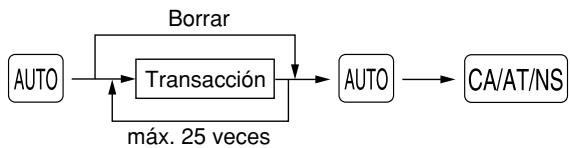
flowchart
graph TD
    A["AUTO"] --> B["Transacción"]
    B --> C["AUTO"]
    C --> D["CA/AT/NS"]
    B -->|Borrar| A
    B -->|máx. 25 veces| B
Programación para AUTO; registro de un artículo de PLU 2 (precio unitario programado: 1,50) y de un artículo de la sección 6 (precio unitario: 1,00)
Ejemplo de operación de teclas

flowchart
graph LR
    A["Ajuste AUTO"] --> B["2 PLU/SUB 100"]
    B --> C["CA/AT/NS"]
    B --> D["6 22"]
    D --> E["AUTO"]
5 Lectura de programas almacenados
La máquina le permitirá leer todos los programas almacenados en el modo PGM.
■ Secuencia de las teclas para la lectura de programas almacenados
| Nombre del informe | Secuencia de teclas |
| Informe de programación 1 | CA/AT/NS |
| Informe de programación 2 | 2 → CA/AT/NS |
| Informe de programación de tecla automática | 1 → CA/AT/NS |
| Informe de programación de densidad de impresora | 3 → CA/AT/NS |
| Informe de programación de PLU | Código inicial de PLU → @/FOR → Código final de PLU → PLU/SUB |
Nota
- Para detener la lectura del informe de programación 1 o del informe de programación de PLU, gire el selector de modo a la posición MGR.
- Cuando se efectúa continuamente la impresión, se interrumpe una vez. Sin embargo, la impresión se reiniciará algunos segundos después.
MODO DE INSTRUCCION
El modo de instrucción se utiliza cuando el operador o el administrador practica las operaciones de la caja registradora.
Cuando se selecciona un dependiente que está en instrucción, la máquina se establece automáticamente en el modo de instrucción. Para especificar un dependiente que deba recibir instrucción, consulte el apartado de
“Especificación de dependientes de instrucción para el modo de instrucción” en “PROGRAMACION AVANZADA” en la página 27.
La operación de instrucción sólo es válida en el modo REG, MGR y VOID.
La memoria del dependiente correspondiente sólo se actualiza en el modo de instrucción.
LECTURA (X) Y REPOSICION (Z) DE LOS TOTALES DE VENTAS
- Utilice la función de lectura (X) cuando necesite leer la información de ventas registrada desde la última reposición. Puede obtener esta lectura todas las veces que quiera dado que no afecta a la memoria de la registradora.
- Utilice la función de reposición (Z) cuando necesite borrar la memoria de la registradora. La reposición imprime toda la información de ventas y borra toda la memoria excepto para GT1 a GT3, GT de modo de instrucción, cuenta de reposición y número consecutivo.
1 Resumen de informes de lectura (X) y reposición (Z)
Informes X1 y Z1: Informes de ventas diarias
Informes X2 y Z2: Informes de consolidación periódica (mensual)
Para hacer un informe X o Z, gire el selector de modo a la posición apropiada consultando la columna de
“Posición del selector de modo” mostrada en la tabla de la página siguiente, y emplee la siguiente secuencia de teclas correspondiente.
| Elemento | Posición del selector de modo | Operación de teclas | ||
| OPX/Z | X1/Z1 | X2/Z2 | ||
| Informe rápido:(Sólo visualización)Para borrar la visualización,pulse la tecla CL ogire el selector de modo a otra posición. | X | - | - | Código de sección → DEPT# : Total de ventas de sección |
Tε  | ||||
| Tε | ||||
| Informe de ventas completo | - | X1, Z1 | X2, Z2 | Lε  |
| Informe de dependiente individual | X, Z | - | - | Lε  (El informe del dependiente actual) (El informe del dependiente actual) |
| Informe de todos los dependientes | - | X1, Z1 | - | Lε  |
| Informe de ventas de PLU | - | X1, Z1 | - | Lε  Reposición: Todas las PLII Reposición: Todas las PLII |
| Informe horario | - | X1, Z1 | - | Lε  |
Nota
- Cuando las cantidades de ventas y los importes de ventas son cero, se pasa por alto la impresión. Si no desea que se pase por alto, cambie la programación. (Consulte el apartado de "Formato de impresión" de la sección "Programación 1 de selección de diversas funciones".)
- "X" representa el símbolo de lectura y "Z" representa el símbolo de reposición en los informes.
- Para dejar de leer y reponer el informe de ventas de PLU, gire el selector de modo a la posición MGR. Los datos no se borrarán al efectuar la reposición.
- Cuando se efectúa continuamente la impresión, se interrumpe una vez. Sin embargo, la impresión se reiniciará algunos segundos después.
LECTURA Y REPOSICION DE INFORMES EJ
La caja registradora está provista de una función de registro diario electrónico (EJ). Esta función sirve para registrar los datos del registro diario en una memoria en lugar de hacerlo en el papel de registro diario, y para imprimir los datos como un informe EJ. La caja registradora registra los datos de registro diario en los modos REG, PGM, VOID, X1/Z1 y X2/Z2. En el ajuste inicial, se pueden almacenar un máximo de 2.000 líneas en la memoria, pero usted podrá ampliarla hasta 3.000 líneas. Para los detalles sobre la programación de EJ, consulte la sección de “Programación del registro diario electrónico” (página 22).
■ Impresión de los datos del registro diario en forma de una transacción
Podrá imprimir los datos del registro diario de una transacción actual registrada en la memoria EJ pulsando la tecla RCPT/PO durante la transacción.
Nota
Esta función es válida cuando se programa el estilo de impresión para recibos, y la función de activación/desactivación (ON/OFF) de recibo se ajusta a OFF (desactivación).
■ Lectura y reposición de los datos del registro diario electrónico (emisión de informe EJ)
Podrá leer los datos del registro diario almacenados en la memoria EJ en el formato del registro diario ejecutando el procedimiento siguiente en el modo X1/Z1 u OP X/Z.
Para leer todos los datos:

Para reponer todos los datos:

flowchart
graph LR
    A["7"] --> B["00"]
    B --> C["•"]
    C --> D["@/FOR"]
    D --> E["CA/AT/NS"]
Para leer los 10 registros últimos:

flowchart
graph LR
    A["7"] --> B["1"]
    B --> C["0"]
    C --> D["@/FOR"]
    D --> E["CA/AT/NS"]
Nota
- Para dejar de leer o reponer los datos, gire el selector de modo a la posición “MGR”. Los datos no se borrarán al efectuar la reposición.
- Cuando se efectúa continuamente la impresión, se interrumpe una vez. Sin embargo, la impresión se reiniciará algunos segundos después.
REGISTROS DE ANULACION
El límite programado para las funciones (tales como importes máximos) puede anularse haciendo un registro de anulación en el modo MGR.
Procedimiento
- Gire el selector de modo a la posición MGR.
- Haga el registro de anulación.
CORRECCION DESPUES DE FINALIZAR UNA TRANSACCION (Modo de cancelación)
Cuando necesite cancelar los registros incorrectos que los dependientes no pueden corregir (registros incorrectos que se encuentran después de finalizar una transacción o que no pueden corregirse mediante cancelación directa o indirecta), siga este procedimiento:
- Gire el selector de modo a la posición VOID empleando la llave del administrador (MA) para establecer la máquina en el modo de cancelación.
- Repita los registros anotados en el recibo incorrecto. (Todos los datos del recibo incorrecto se suprimirán de la memoria de la registradora y los importes cancelados se añadirán al totalizador de transacción del modo de cancelación.)
MANTENIMIENTO PARA EL OPERADOR
1 En caso de corte de la alimentación
Si se corta la alimentación, la registradora retiene el contenido de su memoria y toda la información sobre las entradas de ventas.
- Cuando el corte de la alimentación ocurre en el estado libre de la registradora o cuando está realizando una entrada, la máquina retorna al funcionamiento normal después de recuperarse la alimentación.
- Cuando el corte de la alimentación ocurre durante un ciclo de impresión, la registradora imprime “======” y lleva a cabo después el procedimiento de impresión correcto después de recuperarse la alimentación.
2 En el caso de error de impresora
Si se termina el papel de la impresora, se parará la impresora, y aparecerá “PPPPPPPPPP” en el visualizador. No pueden aceptarse los registros de teclas. Instale el rollo de papel nuevo, y luego pulse la tecla CL.
Si el brazo del rodillo impresor no está bloqueado, se parará la impresora y aparecerá “H” en el extremo izquierdo del visualizador. No pueden aceptarse los registros de teclas. Empuje el brazo hacia abajo hasta que se bloquee con seguridad, y entonces pulse la tecla CL. La impresora imprimirá el símbolo de falla de la alimentación y reanudará la impresión.
3 Precauciones al manejar la impresora
- Evite los lugares polvorientos y húmedos, la luz directa del sol y el polvo metálico. (En esta máquina se emplean un imán permanente y un electroimán.)
- No tire nunca del papel cuando esté bloqueado el brazo del rodillo impresor. Levante primero el brazo, y luego quite el papel.
- No toque nunca la superficie del cabezal de impresión ni el rodillo impresor.
4 Reemplazo de las pilas
Esta caja registradora muestra un símbolo de pilas gastadas ( L ) cuando las pilas están casi gastadas, y visualiza un símbolo de que no hay pilas ( L ) cuando las pilas están demasiado gastadas o cuando no se han instalado las pilas.
Cuando se visualice el símbolo de pilas gastadas, reemplace las pilas por otras nuevas lo antes posible. Las pilas existentes se gastarán por completo en unos dos días.
Cuando se visualice el símbolo de que no hay pilas, reemplace inmediatamente las pilas. De lo contrario, si se desenchufa el cable de alimentación de CA o si ocurre un corte de la corriente, todos los ajustes programados se repondrán a los ajustes de fábrica y se borrarán los datos almacenados en la memoria.
Nota
Asegúrese de observar las precauciones indicadas en la página 1 sobre la manipulación de las pilas.
Para reemplazar las pilas:
- Asegúrese de que la caja registradora está enchufada.
- Gire el selector de modo a la posición REG.
- Extraiga la cubierta de la impresora.
- Abra la cubierta del compartimiento de las pilas que se encuentra al lado del soporte del rollo de papel y extraiga las pilas gastadas.
- Instale tres pilas nuevas del tamaño "AA" en el compartimiento de las pilas. Asegúrese de que las polaridades positiva y negativa de cada pila estén encaradas en la dirección adecuada.
Cuando las pilas estén correctamente instaladas, desaparecerá el símbolo “L” o “L”. - Cierre la cubierta del compartimiento de las pilas.
- Vuelva a colocar la cubierta de la impresora.
5 Reemplazo del rollo de papel
Utilice siempre rollos de papel especificados por SHARP.
Si usa otros rollos de papel que no sean los especificados, pueden originarse atascos de papel y funcionar mal la registradora.
(Forma de colocar el rollo de papel)
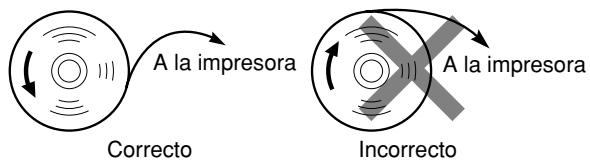
■ Extracción del rollo de papel
Cuando aparezca tinta de color rojo en el rollo de papel, será indicación de que tiene que cambiarlo. Sustituya el rollo de papel por uno nuevo. Si no piensa utilizar la registradora durante mucho tiempo, extraiga el rollo de papel y guárdelo en el lugar apropiado.
Precaución: El cortador de papel está montado en la cubierta. Tenga cuidado de no cortarse.
Cuando no emplee el carrete de toma:
- Extraiga la cubierta de la impresora.
- Levante la palanca de liberación del rodillo impresor para desbloquear y abrir el brazo del rodillo impresor.
- Extraiga el rollo de papel del soporte del rollo de papel.
Nota
No tire del papel por la impresora.
Cuando emplee el carrete de toma:
- Gire el selector de modo a una posición que no sea la posición OFF con el cable de alimentación enchufado.
- Extraiga la cubierta de la impresora.
- Pulse la tecla ↑ para hacer avanzar el papel de registro diario hasta que la parte impresa salga del paso.
- Corte el papel y extraiga el carrete de toma.
- Levante la palanca de liberación del rodillo impresor para desbloquear y abrir el brazo del rodillo impresor.
- Extraiga el rollo de papel del soporte del rollo de papel.
- Extraiga el lado exterior del carrete de toma.
- Extraiga el rollo de registro diario impreso del carrete de toma.
■ Instalación del rollo de papel
Precaución: El cortador de papel está montado en la cubierta de la impresora. Tenga cuidado de no cortarse.
- Gire el selector de modo a una posición que no sea la posición OFF con el cable de alimentación enchufado.
- Extraiga la cubierta de la impresora.
- Levante la palanca de liberación del rodillo impresor para desbloquear y abrir el brazo del rodillo impresor.
- Coloque correctamente el papel en el soporte del rollo de papel.
- Haga avanzar el extremo del papel junto con las guías de papel.
- Mientras mantiene retenido el papel, cierre lentamente el brazo del rodillo impresor, y empuje el brazo hacia abajo hasta oír un sonido seco de confirmación. Asegúrese que empuja con seguridad el centro de la parte del ala del brazo. El papel avanzará automáticamente.
Nota Si el brazo del rodillo impresor no está bloqueado correctamente, no se podrá imprimir con éxito. Si ocurre este problema, abra el brazo, y ciérrelo de nuevo como se ha indicado arriba.
- Cuando no emplee el carrete de toma (empleo como papel de recibos):
- Corte el papel sobrante empleando el borde de la cubierta interior, y vuelva a colocar la cubierta de la impresora. Pulse la tecla ↑ para asegurarse que el papel sale por la cubierta de la impresora y que aparece papel limpio.
Cuando emplee el carrete de toma (empleo como papel de registro diario):
- Inserte el extremo del papel en la ranura del carrete. (Pulse la tecla ↑ para hacer avanzar más el papel si es necesario.)
- Bobine el papel dos o tres vueltas en torno al eje del carrete.
- Coloque el carrete en el rodamiento, y pulse la tecla para tensar el papel.
- Vuelva a colocar la cubierta de la impresora.
Nota Podrá bobinar el papel de rollo en los modos OP X/Z, X1/Z1 y X2/Z2 aunque haya programado para utilizar la impresora para emisión de recibos. Esto puede ser conveniente para bobinar los informes. En este caso, ajuste el papel de rollo en el carrete de toma.
6 Extracción del papel atascado
Precaución: El cortador de papel está montado en la cubierta. Tenga cuidado de no cortarse. No toque nunca el cabezal de impresión inmediatamente después de imprimir, porque éste estará aún caliente.
- Extraiga la cubierta de la impresora.
- Levante la palanca de liberación del rodillo impresor para desbloquear y abrir el brazo del rodillo impresor.
- Extraiga el papel atascado. Compruebe si quedan restos de papel en la impresora y, si los hubiera, quítelos.
- Ponga correctamente el rollo de papel siguiendo los pasos mencionados en "Instalación del rollo de papel".
7 Limpieza de la impresora (cabezal de impresión / sensor / rodillo)
Cuando el texto impreso se oscurece o aparece borroso, el polvo del papel puede pegarse en el cabezal de impresión, el sensor y/o el rodillo. Límpielos de la forma siguiente:
Precaución:
- No toque nunca el cabezal de impresión con una herramienta ni nada que sea duro porque podría estropear el cabezal.
- El cortador de papel está montado en la cubierta de la impresora. Tenga cuidado de no cortarse.
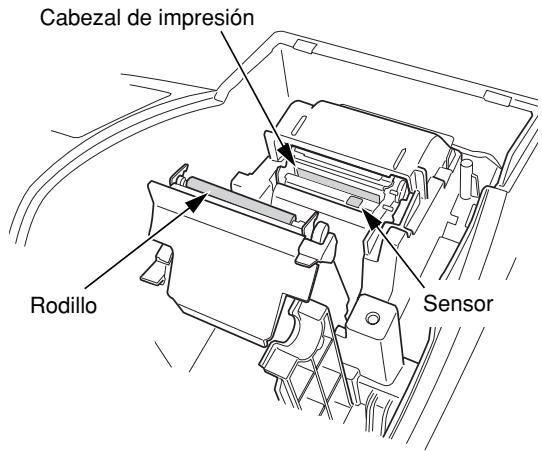
- Gire el selector de modo a la posición OFF.
- Extraiga la cubierta de la impresora.
- Levante la palanca de liberación del rodillo impresor para desbloquear y abrir el brazo del rodillo impresor.
- Extraiga el rollo de papel consultando la sección "Extracción del rollo de papel".
- Limpie el cabezal de impresión con un palillo de algodón o un paño blando humedecido en alcohol etílico o alcohol isopropílico. Limpie el rodillo y el sensor de la misma manera.
- Ponga correctamente el rollo de papel siguiendo los pasos mencionados en "Instalación del rollo de papel".
8 Extracción del cajón
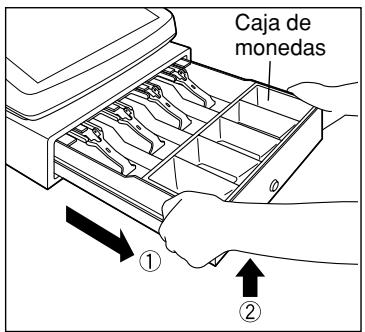
El cajón de la caja registradora es extraíble. Después de terminar la jornada laboral, extraiga el cajón. Para extraer el cajón, tire del mismo completamente hacia delante y extráigalo levantándolo. La caja de monedas de 5 denominaciones también es extraíble.
9 Abertura manual del cajón
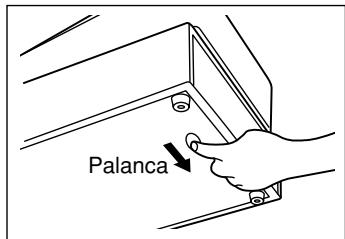
El cajón se abre automáticamente. Sin embargo, cuando haya un fallo o corte de la corriente o la registradora quede fuera de servicio, deslice la palanca situada en la parte inferior de la registradora en la dirección de la flecha. (Vea la figura a la izquierda.)
El cajón no se abrirá, sin embargo, si está cerrado con la llave.
10 Antes de solicitar el servicio de un técnico
Los casos de mal funcionamiento de la columna de la izquierda de la tabla siguiente, indicados bajo el título "Fallo", no son necesariamente averías de la registradora. Se recomienda pues consultar la sección "Comprobación" de la columna de la derecha antes de llamar al servicio técnico.
| Fallo | Comprobación |
| (1) El visualizador muestra los símbolos que no tienen ningún sentido. | ¿Se ha inicializado correctamente la máquina como se muestra en “PARA EMPEZAR”?(Tenga presente que la inicialización borra todos los datos y ajustes programados que están almacenados en la memoria.) |
| (2) El visualizador no se ilumina aunque el selector de modo esté colocado en cualquier otra posición que no sea “OFF”. | ¿Se suministra alimentación en la toma de corriente?¿Está la clavija del cable de alimentación desenchufada o mal conectada a la toma de corriente? |
| (3) El visualizador se ilumina, pero la registradora no responde a los registros. | ¿Está el código del dependiente asignado a la registradora?¿Está el selector de modo bien colocado en la posición “REG”? |
| (4) No se emiten recibos. | ¿Está el rollo de papel bien instalado?¿Hay algún atasco de papel?¿Está la función de recibos en el estado “OFF”?¿Está la palanca de liberación del rodillo impresor bloqueado con seguridad? |
| (5) No sale el papel del registro diario. | ¿Está el carrete de toma bien instalado en el rodamiento?¿Hay algún atasco de papel?¿Se ha seleccionado la impresión del registro diario en la programación del estilo de impresión? (Si se ha seleccionado la impresión de recibos, el papel no se bobinará en torno al carrete de toma.) |
| (6) La impresión no es normal. | ¿Está la palanca de liberación del rodillo impresor bloqueado con seguridad?¿Está el rollo de papel correctamente instalado?¿Están limpios el cabezal de impresión/sensor/rodillo? |
■ Tabla de códigos de error
Cuando se visualicen los siguientes códigos de error, pulse la tecla CL y tome la acción apropiada de acuerdo con la tabla siguiente.
| Código de error | Estado de error | Acción |
| E01 | Error de registro | Haga el registro con las teclas correctas. |
| E02 | Error de operación incorrecta | Haga el registro con las teclas correctas. |
| E03 | Se ha introducido un código no definido. | Introduzca un código correcto. |
| E07 | La memoria está llena (en la programación de la tecla AUTO). | Programe la tecla AUTO con 25 pasos. |
| E11 | Pulsación obligatoria de la tecla#/TM/SBTL para finalización directa | Pulse la tecla#/TM/SBTL y prosiga la operación. |
| E12 | Importe recibido obligatorio | Efectúe una operación de importe recibido. |
| E32 | Falta el registro de un código de dependiente. | Efectúe un registro de código de dependiente. |
| E34 | Error de límite de rebose | Haga el registro dentro del límite de registro. |
| E35 | La entrada de precio abierto está inhibida. | Haga un registro de precio preajustado. |
| E36 | La entrada de precio preajustado está inhibida. | Haga un registro de precio abierto. |
| E37 | La finalización directa está inhibida. | Haga una operación de importe recibido. |
| E67 | No se permite la cancelación del subtotal. | Finalice la transacción y corrija las entradas erróneas en el modo de cancelación. |
Emplee estas etiquetas con las teclas de sección. Escriba los nombres de sección en las etiquetas y adhiéralas a las teclas de sección sacando primero las cubiertas transparentes de las teclas. (Haga una copia de esta página.)
Ejemplo:
| Leche 17 | |
| Pan 1 | E |
| 18 | |
| 2 D |
| 22 |
| 6 1 |
| 26 | |
| 10 N |
| 30 | |
| 14 S |
| 20 | |
| 4 | B |
| 24 | |
| 8 G |
| 28 | |
| 12 | L |
| 32 | |
| 16 Q |
| 17 | |
| 1 | E |
| 21 | |
| 5 J |
| 25 |
| 9 O |
| 29 | |
| 13 T |
| 19 | |
| 3 C |
| 23 | |
| 7 H |
| 27 | |
| 11 M |
| 31 | |
| 15 | R |
LIMITED WARRANTY
SHARP ELECTRONICS CORPORATION warrants to the first consumer purchaser that this Sharp brand product (the "Product"), when shipped in its original container, will be free from defective workmanship and materials and agrees that it will, at its option, either repair the defect or replace the defective Product or part thereof at no charge to the purchaser for parts or labor for the time period(s) set forth below.
This warranty does not apply to any appearance items of the Product nor to the additional excluded item(s) set forth below nor to any product the exterior of which has been damaged or defaced, which has been subjected to misuse, abnormal service or handling or which has been altered or modified in design or construction.
In order to enforce the rights under this limited warranty, the purchaser should follow the steps set forth below and provide proof of purchase to the servicer.
The limited warranty described herein is in addition to whatever implied warranties may be granted to purchasers by law. ALL IMPLIED WARRANTIES INCLUDING THE WARRANTIES OF MERCHANTABILITY AND FITNESS FOR USE ARE LIMITED TO THE PERIOD(S) FROM THE DATE OF PURCHASE SET FORTH BELOW. Some states do not allow limitations on how long an implied warranty lasts, so the above limitation may not apply to you.
Neither the sales personnel of the seller nor any other person is authorized to make any warranties other than those described herein or to extend the duration of any warranties beyond the time period described herein on behalf of Sharp.
The warranties described herein shall be the sole and exclusive warranties granted by Sharp and shall be the sole and exclusive remedy available to the purchaser. Correction of defects, in the manner and for the period of time described herein, shall constitute complete fulfillment of all liabilities and responsibilities of Sharp to the purchaser with respect to the Product and shall constitute full satisfaction of all claims, whether based on contract, negligence, strict liability or otherwise. In no event shall Sharp be liable, or in any way responsible, for any damages or defects in the Product which were caused by repairs or attempted repairs performed by anyone other than an authorized servicer. Nor shall Sharp be liable, or in any way responsible, for any incidental or consequential economic or property damage. Some states do not allow the exclusion or incidental or consequential damages, so the above exclusion may not apply to you.
THE WARRANTY GIVES YOU SPECIFIC LEGAL RIGHTS. YOU MAY ALSO HAVE OTHER RIGHTS WHICH VARY FROM STATE TO STATE.
| Your Product: | XE series Electronic Cash Register |
| Warranty Period of this Product: | One (1) year for parts and ninety (90) days parts and labor from the date of purchase. |
| Additional items excluded from warranty coverage: | Any consumable items such as paper supplied with the Product. |
| Where to obtain service: | At a Sharp Authorized Servicer located in the United States. To find the location of the nearest Sharp Authorized Servicer, call toll free at 1-800-BE-SHARP. |
| What to do to obtain service: | Ship (prepaid) or carry your Product to a Sharp Authorized Servicer. Be sure to have proof of purchase available. If you ship or mail the Product, be sure it is packaged carefully. |
SHARP®
SHARP ELECTRONICS CORPORATION
Sharp Plaza, Mahwah, New Jersey 07430-2135
1-800-BE-SHARP
For additional information and product registration,
please visit www.sharpusa.com
SHARP CORPORATION

- ELECTRONIC CASH REGISTER
- CAJA REGISTRADORA ELECTRONICA
- WARNING
- CAUTION
- FOR YOUR RECORDS
- INTRODUCTION
- CAUTION!
- IMPORTANT
- CONTENTS
- INTRODUCTION....1
- IMPORTANT 1
- CONTENTS....2
- PARTS AND THEIR FUNCTIONS....4
- GETTING STARTED....7
- FOR THE OPERATOR
- OVERVIEW OF FLOW OF DAILY SALES ENTRIES 11
- BASIC SALES ENTRY 12
- OPTIONAL FEATURES....21
- CORRECTION 25
- FOR THE MANAGER
- PRIOR TO PROGRAMMING ....27
- BASIC FUNCTION PROGRAMMING (For Quick Start)....27
- AUXILIARY FUNCTION PROGRAMMING ....32
- ADVANCED PROGRAMMING....44
- TRAINING MODE ....56
- READING (X) AND RESETTING (Z) OF SALES TOTALS ....57
- EJ REPORT READING AND RESETTING....60
- OVERRIDE ENTRIES 61
- CORRECTION AFTER FINALIZING A TRANSACTION (Void mode)....61
- OPERATOR MAINTENANCE....62
- SPECIFICATIONS ....68
- PARTS AND THEIR FUNCTIONS
- External View
- Printer
- Mode Switch and Mode Keys
- Keyboard
- ■ Keyboard layout
- Note
- ■ Key names
- Displays
- Number of repeats for repetitive registrations:
- Receipt function status:
- ■ Machine state symbols
- Drawer Lock Key
- GETTING STARTED
- Installing the cash register
- Initializing the cash register
- Installing batteries
- 4
- Installing a paper roll
- When not using the take-up spool (using as receipt paper):
- When using the take-up spool (using as journal paper):
- 5
- Programming date, time and tax
- 6
- Programming other necessary items
- 7
- Starting sales entries
- OVERVIEW OF FLOW OF DAILY SALES ENTRIES
- Things to do before you start sales entries:
- Things you can do for sales entries:
- Things to do after you close your store:
- BASIC SALES ENTRY
- Basic Sales Entry Example
- Mode switch setting
- Clerk assignment
- Item entries
- Displaying subtotals
- Finalizing the transaction
- Receipt ON/OFF function
- To issue a receipt when receipt ON/OFF function is set to OFF:
- Power Save Mode
- Error Warning
- Error escape function
- Item Entries
- ■ Single item entries
- Department entries
- - When using the department keys (for department 1 to 32)
- - When using the department code entry key
- PLU/subdepartment entries
- - PLU entries
- - Subdepartment (open PLU) entries
- ■ Repeat entries
- ■ Multiplication entries
- ■ Split pricing entries
- ■ Single item cash sale (SICS) entry
- Displaying Subtotals
- Merchandise subtotal
- Taxable subtotal
- Including-tax subtotal (full subtotal)
- Finalization of Transaction
- ■ Cash or check tendering
- ■ Cash or check sale that does not require entry
- ■ Charge (credit) sale
- ■ Mixed-tender sale
- Tax Calculation
- ■ Automatic tax
- ■ Manual tax
- Tax delete
- ■ Tax status shift
- OPTIONAL FEATURES
- Auxiliary Entries
- ■ Discount and premium entries using the percent key
- Percent calculation for the merchandise subtotal
- Percent calculation for item entries
- ■ Discount and premium entries using the discount key
- Discount for the merchandise subtotal
- Discount for item entries
- ■ Refund entries
- ■ Non-add code number entries and printing
- Auxiliary Payment Treatment
- ■ Currency conversion
- Applying preset conversion rate
- Applying manual conversion rate
- ■ Received-on Account and Paid-out Entries
- ■ No sale (exchange)
- 45678
- Automatic Sequence Key (AUTO key) Entries
- CORRECTION
- Correction of the Last Entry (direct void)
- Correction of the Next-to-last or Earlier Entry (indirect void)
- Subtotal Void
- Correction of Incorrect Entries not Handled by the Direct or Indirect Void Function
- PRIOR TO PROGRAMMING
- ■ Procedure for programming
- BASIC FUNCTION PROGRAMMING
- Date and Time Programming
- Date
- Time
- Tax Programming for Automatic Tax Calculation Function
- ■ Tax programming using a tax rate
- Procedure
- ■ The tax table (applicable to the add-on tax)
- Sample tax table
- \*1 First figure: (1 or 0)
- - Limitations to the entry of minimum breakpoints
- ■ Quantity for doughnut tax exempt (for Canadian tax system)
- AUXILIARY FUNCTION PROGRAMMING
- Department Programming
- ■ Department status
- Tax status (taxable 1 through 4 / non-taxable)
- SICS (Single Item Cash Sale)
- Entry digit limit
- ■ Preset unit price
- PLU (Price Look-Up) and Subdepartment Programming
- ■ Unit price and associated department assignment
- Key operation example
- ■ PLU/subdepartment selection
- Miscellaneous Key Programming
- ■ Rate for %1, %2 and CONV
- ■ Amount for ⊖
- ■ Percent rate limitation for %1 and %2
- ■ Function parameters for %1, %2 and ⊖
- +/- sign
- Entry digit limit (For discount key only)
- ■ Function parameters for CONV
- ■ Entry digit limit for RA, RCPT/PO and TAX
- ■ Function parameters for CHK, CH and CA/AT/NS (when using as CA key)
- Footer printing
- Amount tendered entry
- Text Programming
- Using character keys on the keyboard
- Example
- Entering character codes with numeric keys on the keyboard
- ■ Department text
- ■ PLU text (item label)
- ■ Function text
- Clerk names
- ■ Logo messages
- Logo print format (6 types)
- ■ Foreign currency symbol
- ADVANCED PROGRAMMING
- Register Number and Consecutive Number Programming
- Register number
- ■ Consecutive numbers
- Electronic Journal (EJ) Programming
- ■ EJ memory type
- ■ Function parameters for EJ
- Temporary EJ printing during a transaction
- PGM mode operation records type
- Action when EJ memory area is full
- Various Function Selection Programming 1
- ■ Function selection for miscellaneous keys
- ■ Print format
- Printing style
- ■ Receipt print format
- ■ Function selection for tax
- ■ Other programming
- Compression printing
- Tax calculation system
- Various Function Selection Programming 2
- ■ Power save mode
- ■ Logo message print format
- ■ Online time out setting
- ■ Thermal printer density
- ■ Language selection
- ■ Training clerk specification for training mode
- ■ AUTO key programming — Automatic sequence key —
- Reading Stored Programs
- ■ Key sequence for reading stored program
- ■ Sample printouts
- TRAINING MODE
- READING (X) AND RESETTING (Z) OF SALES TOTALS
- Summary of Reading (X) and Resetting (Z) Reports
- Daily Sales Totals
- ■ Full sales report
- Clerk reports
- Individual clerk report
- - Sample report
- Full clerk report
- ■ Hourly report
- Periodic Consolidation
- ■ PLU sales report
- EJ REPORT READING AND RESETTING
- ■ Printing journal data on the way of a transaction
- - Sample print
- ■ Reading and resetting the electronic journal data (Issuing EJ report)
- OVERRIDE ENTRIES
- CORRECTION AFTER FINALIZING A TRANSACTION (Void mode)
- OPERATOR MAINTENANCE
- In case of Power Failure
- In Case of Printer Error
- Cautions in Handling the Printer and Recording Paper
- ■ Cautions in handling the printer
- ■ Cautions in handling the recording paper (thermal paper)
- Replacing the Batteries
- Replacing the Paper Roll
- Paper specification
- ■ Removing the paper roll
- When not using the take-up spool (using as receipt paper):
- ■ Installing the paper roll
- Installing the receipt paper roll:
- Removing a Paper Jam
- Cleaning the Printer (Print Head / Sensor / Roller)
- Caution:
- Removing the Drawer
- Opening the Drawer by Hand
- 10
- Before Calling for Service
- ■ Error code table
- INTRODUCCION
- ¡PRECAUCION!
- IMPORTANTE
- INDICE
- INTRODUCCION....1
- IMPORTANTE....1
- INDICE 2
- PARTES Y SUS FUNCIONES....3
- PARA EMPEZAR....4
- REGISTRO BASICO DE VENTAS 5
- CARACTERISTICAS OPCIONALES 9
- CORRECCION....11
- PROGRAMACION DE LAS FUNCIONES BASICAS (Para el inicio rápido)....12
- PROGRAMACION DE FUNCIONES AUXILIARES....14
- PROGRAMACION AVANZADA....22
- MODO DE INSTRUCCION 28
- LECTURA (X) Y REPOSICION (Z) DE LOS TOTALES DE VENTAS ....29
- LECTURA Y REPOSICION DE INFORMES EJ....30
- REGISTROS DE ANULACION....31
- CORRECCION DESPUES DE FINALIZAR UNA TRANSACCION (Modo de cancelación)....31
- MANTENIMIENTO PARA EL OPERADOR....31
- PARTES Y SUS FUNCIONES
- Selector de modo y llaves de modo
- Visualizadores
- Número de repeticiones para registros repetitivos:
- Estado de la función de recibo:
- ■ Símbolos del estado de la máquina
- PARA EMPEZAR
- Inicialice la caja registradora
- Instale las pilas
- Instale un rollo de papel
- Cuando no emplee el carrete de toma (empleo como papel de recibos):
- Programe la fecha, la hora y los impuestos
- Programe otros elementos necesarios
- REGISTRO BASICO DE VENTAS
- Ejemplo de registro básico de ventas
- Ajuste del selector de modo
- Asignación de dependientes
- Registros de artículos
- Visualización de subtotales
- Finalización de la transacción
- Función ON/OFF (de emisión/no emisión) de recibos
- Para emitir un recibo cuando la función de recibo ON/OFF está desactivada (OFF):
- Modo de ahorro de energía
- Aviso de error
- Función de escape de error
- Registros de artículos
- ■ Registros de un solo artículo
- Registros de sección
- - Cuando se emplea la tecla de registro de código de sección
- Registros de PLU/subsecciones
- - Registros de PLU
- - Registros de subsección (PLU abierta)
- ■ Registros repetidos
- ■ Registros de multiplicación
- ■ Registros de precios divididos
- ■ Registros de venta en metálico de un solo artículo (SICS)
- Visualización de los subtotales
- Subtotal de mercancías
- Subtotal imponible
- Subtotal incluyendo los impuestos (subtotal completo)
- Finalización de una transacción
- - Importe recibido en metálico o cheque
- ■ Ventas en metálico o cheque que no necesitan un registro
- ■ Venta a cargo en cuenta (crédito)
- ■ Ventas con importe recibido mixto
- Cálculo de los impuestos
- ■ Impuestos automáticos
- ■ Impuestos manuales
- ■ Borrado de los impuestos
- ■ Cambio del estado de impuestos
- CARACTERISTICAS OPCIONALES
- Registros auxiliares
- ■ Registros de descuento y recargo empleando la tecla de porcentaje
- Cálculo porcentual para el subtotal de mercancías
- Ejemplo de operación de teclas
- Cálculo porcentual para registros de artículos
- ■ Registros de descuento y recargo empleando la tecla de descuento
- Descuento para el subtotal de mercancías
- Descuento para registros de artículos
- ■ Registros de devolución
- ■ Registros e impresión de números de código de no suma
- Tratos de pagos auxiliares
- ■ Conversión de divisas
- Nota
- ■ Registros de recibido a cuenta y de pagado
- ■ Sin ventas (cambios)
- Registros con tecla de secuencia automática (tecla AUTO)
- CORRECCION
- Corrección del último registro (cancelación directa)
- Corrección del registro siguiente al último o anterior (cancelación indirecta)
- Cancelación del subtotal
- PROGRAMACION DE LAS FUNCIONES BASICAS (Para el inicio rápido)
- Programación de la fecha y de la hora
- Fecha
- Hora
- Programación de los impuestos para la función de cálculo automático de los impuestos
- ■ Programación de los impuestos empleando una tasa de impuestos
- ■ Tabla de impuestos (aplicable al impuesto añadido)
- Tabla de impuestos de muestra
- - Limitaciones para el registro de puntos de división mínimos
- PROGRAMACION DE FUNCIONES AUXILIARES
- Programación de secciones
- ■ Estado de sección
- Estado de impuestos (imponible 1 a 4 / no imponible)
- SICS (Venta en metálico de un solo artículo)
- Límite de dígitos de entrada
- ■ Precio unitario preajustado
- Programación de PLU (codificación de precios) y subsección
- ■ Asignación de precios unitarios y de secciones asociadas
- ■ Selección de PLU/subsección
- Programación de teclas misceláneas
- ■ Tasa para %1, %2 y CONV
- - Importe para ⊖
- ■ Límite de tasa porcentual para %1 y %2
- ■ Parámetros de función para %1, %2 y ⊖
- ■ Parámetros de función para CONV
- ■ Límite de dígitos de entrada para RA, RCPT/PO y TAX
- ■ Parámetros de función para CHK, CH y CA/AT/NS (cuando se usa como tecla CA)
- Procedimiento
- Impresión de pie del recibo
- Programación de texto
- Empleo de las teclas de caracteres del teclado
- Ejemplo
- Introducción de códigos de caracteres con las teclas numéricas del teclado
- ■ Texto de sección
- ■ Texto de PLU (etiqueta de artículo)
- ■ Texto de función
- ■ Lista de textos de función
- ■ Nombres de dependiente
- ■ Mensajes de membrete
- ■ Símbolo de divisas
- PROGRAMACION AVANZADA
- Programación de número de caja registradora y de números consecutivos
- ■ Número de caja registradora
- ■ Números consecutivos
- Programación del registro diario electrónico (EJ)
- ■ Tipo de memoria de EJ
- ■ Parámetros de función para el EJ
- Impresión temporal de EJ durante una transacción
- Tipo de registros de operación en el modo PGM
- Acción cuando el área de memoria de EJ está llena
- Programación 1 de selección de diversas funciones
- ■ Selección de función para teclas misceláneas
- ■ Formato de impresión
- Estilo de impresión
- ■ Formato de impresión de recibos
- ■ Selección de función para impuestos
- ■ Otras programaciones
- Impresión comprimida
- Sistema de cálculo de impuestos
- Programación 2 de selección de diversas funciones
- ■ Modo de ahorro de energía
- ■ Formato de impresión del mensaje del membrete
- ■ Ajuste de fin de intervalo en línea
- ■ Densidad de impresora térmica
- ■ Selección del idioma
- ■ Especificación de dependientes de instrucción para el modo de instrucción
- ■ Programación de la tecla AUTO — Tecla de secuencia automática —
- Lectura de programas almacenados
- ■ Secuencia de las teclas para la lectura de programas almacenados
- MODO DE INSTRUCCION
- LECTURA (X) Y REPOSICION (Z) DE LOS TOTALES DE VENTAS
- Resumen de informes de lectura (X) y reposición (Z)
- LECTURA Y REPOSICION DE INFORMES EJ
- ■ Impresión de los datos del registro diario en forma de una transacción
- ■ Lectura y reposición de los datos del registro diario electrónico (emisión de informe EJ)
- REGISTROS DE ANULACION
- CORRECCION DESPUES DE FINALIZAR UNA TRANSACCION (Modo de cancelación)
- MANTENIMIENTO PARA EL OPERADOR
- En caso de corte de la alimentación
- En el caso de error de impresora
- Precauciones al manejar la impresora
- Reemplazo de las pilas
- Para reemplazar las pilas:
- Reemplazo del rollo de papel
- ■ Extracción del rollo de papel
- Cuando no emplee el carrete de toma:
- Cuando emplee el carrete de toma:
- ■ Instalación del rollo de papel
- Precaución: El cortador de papel está montado en la cubierta de la impresora. Tenga cuidado de no cortarse.
- Extracción del papel atascado
- Precaución: El cortador de papel está montado en la cubierta. Tenga cuidado de no cortarse. No toque nunca el cabezal de impresión inmediatamente después de imprimir, porque éste estará aún caliente.
- Limpieza de la impresora (cabezal de impresión / sensor / rodillo)
- Precaución:
- Extracción del cajón
- Abertura manual del cajón
- Antes de solicitar el servicio de un técnico
- ■ Tabla de códigos de error
- LIMITED WARRANTY
- SHARP®
- SHARP ELECTRONICS CORPORATION
Marque : SHARP
Modèle : XE-A20S
Catégorie : Caisse enregistreuse