
MF 9535/MF 9545 - Imprimante multifonction SAGEM - Notice d'utilisation et mode d'emploi gratuit
Retrouvez gratuitement la notice de l'appareil MF 9535/MF 9545 SAGEM au format PDF.


| Type de produit | Imprimante multifonction (copieur, scanner, imprimante) |
| Marque | SAGEM |
| Modèle | MF 9535 / MF 9545 |
| Technologie d'impression | Laser |
| Résolution de copie | 600 x 600 dpi (scan et sortie) |
| Formats de papier supportés | A3, B4, A4, A5, et formats pouces (11x17, 8,5x14, 8,5x11, etc.) |
| Capacité du chargeur de documents | Jusqu'à 50 feuilles (30 pour B4 ou plus) |
| Vitesse de copie (A4) | MF 9535 : 35 copies/min ; MF 9545 : 45 copies/min |
| Temps de première copie | MF 9535 : env. 5,3 s ; MF 9545 : env. 4,6 s |
| Temps de préchauffage | Environ 80 secondes |
| Copie recto-verso | Automatique (avec module duplex) |
| Fonctions spéciales | Décalage de marge, effacement, copie livre, copie livret, assemblage de travaux, copie multiple (2 en 1, 4 en 1) |
| Écran tactile | Oui, panneau de commande avec écran tactile |
| Alimentation | Alimentation via l'unité principale |
| Dimensions du module scanner | 808 x 619 x 180 mm |
| Poids du module scanner | Environ 19,5 kg |
| Bacs d'alimentation papier | Bac principal + bac bypass (optionnel) |
| Nettoyage | Nettoyer régulièrement la vitre d'exposition et la zone de transport des originaux |
FOIRE AUX QUESTIONS - MF 9535/MF 9545 SAGEM
Questions des utilisateurs sur MF 9535/MF 9545 SAGEM
0 question sur cet appareil. Repondez a celles que vous connaissez ou posez la votre.
Poser une nouvelle question sur cet appareil
Téléchargez la notice de votre Imprimante multifonction au format PDF gratuitement ! Retrouvez votre notice MF 9535/MF 9545 - SAGEM et reprennez votre appareil électronique en main. Sur cette page sont publiés tous les documents nécessaires à l'utilisation de votre appareil MF 9535/MF 9545 de la marque SAGEM.
MODE D'EMPLOI MF 9535/MF 9545 SAGEM
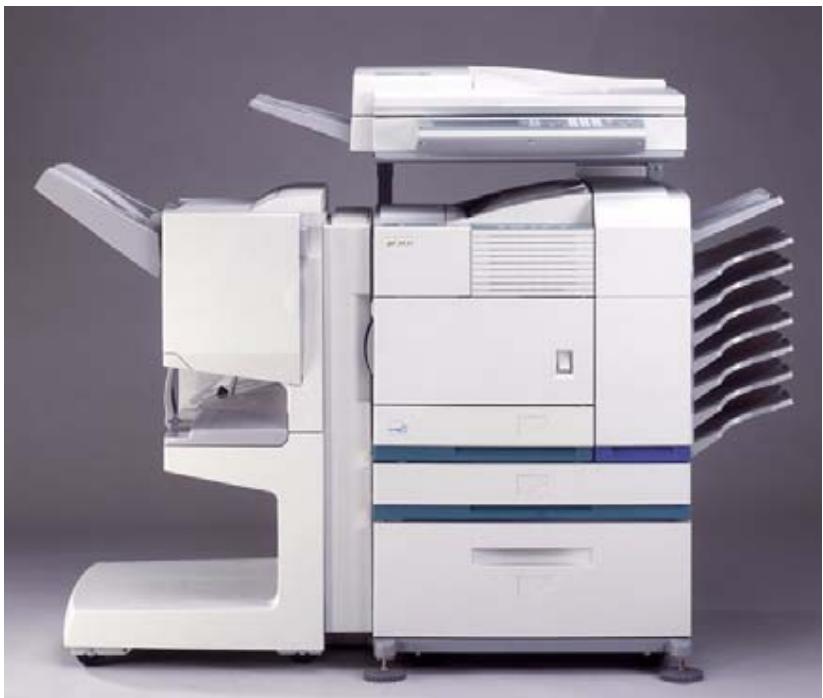
MF9500
natural_image
Exterior view of a modern office computer with open lid and multiple drive bays (no visible text or symbols)Operation Manual for Copier
INTRODUCTION
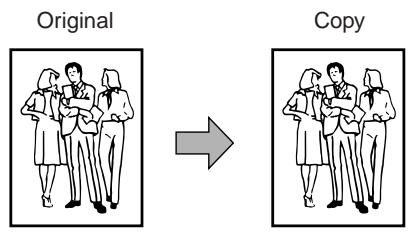
This manual describes only copier features. For operation procedures relating to both the basic printer and copier features, refer to the “Operation manual (for printer operation and general information)”. General information required for loading paper, adding toner, misfeed removal, and operation of peripheral devices are described in that manual.
Separate manuals are provided for the operation of network scanning and facsimile functions. Refer to the “Operation manual (for scanner)” and “Operation manual (for facsimile)” for these descriptions.
NOTE
In this manual, American spellings are used.
Original and paper sizes
This machine allows use of standard sizes in both the inch and AB systems.
The standard sizes available in this machine are shown below.
| Sizes in the inch system |
| 11 x 17 |
| 8-1/2 x 14 |
| 8-1/2 x 13 |
| 8-1/2 x 11 |
| 7-1/4 x 10-1/2 |
| 5-1/2 x 8-1/2 |
| Sizes in the AB system |
| A3 |
| B4 |
| A4 |
| B5 |
| A5 |
CONTENTS
Page
INTRODUCTION.... 1
CONTENTS.... 2
PART NAMES AND FUNCTIONS
(B/W scanner module/DSPF or SPF) 3
● Exterior 3
● Operation Panel 4
● Touch Panel (basic screen of copy mode) 5
AUTOMATIC DOCUMENT FEEDER 6
- Acceptable originals 6
SETTING ORIGINALS 7
NORMAL COPYING 9
● Copying from the automatic document feeder ..... 9
● Automatic two-sided copying from the automatic document feeder .... 11
● Copying from the document glass 12
● Automatic two-sided copying from the document glass ..... 14
EXPOSURE ADJUSTMENTS 15
REDUCTION/ENLARGEMENT/ZOOM 16
● Automatic selection (auto image) 16
● Manual selection 17
SPECIAL PAPERS 18
SPECIAL MODES 19
● Common operation procedure for using the special functions . . 19
● Margin shift 20
● Erase 21
- Dual page copy 22
● Pamphlet copy 23
● Job build 24
● Multi shot 25
JOB PROGRAM MEMORY 26
● Storing a job program 26
● Recalling a job program 27
- Deleting a stored job program 27
INTERRUPTING A PRINT OR COPY RUN 28
MISFEED REMOVAL.... 29
- Misfeed in the scanner module 29
TROUBLESHOOTING.... 30
SPECIFICATIONS 31
● Copier 31
- Scanner module 31
KEY OPERATOR PROGRAMS 32
● Key operator program list 32
● Using the key operator programs 32
- Setting programs.... 33
PART NAMES AND FUNCTIONS (B/W scanner module/DSPF or SPF)
Exterior
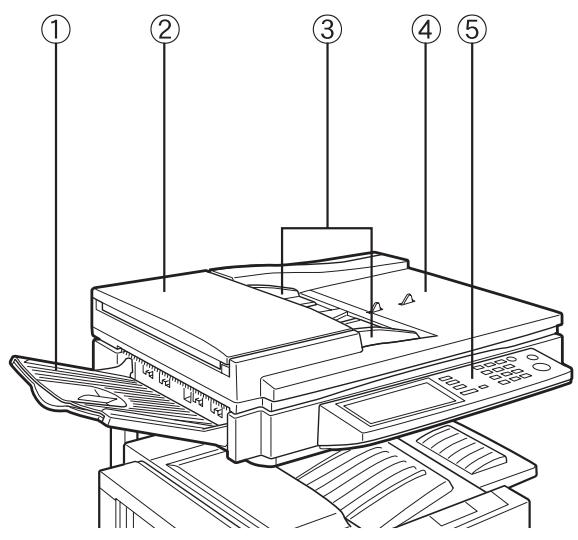
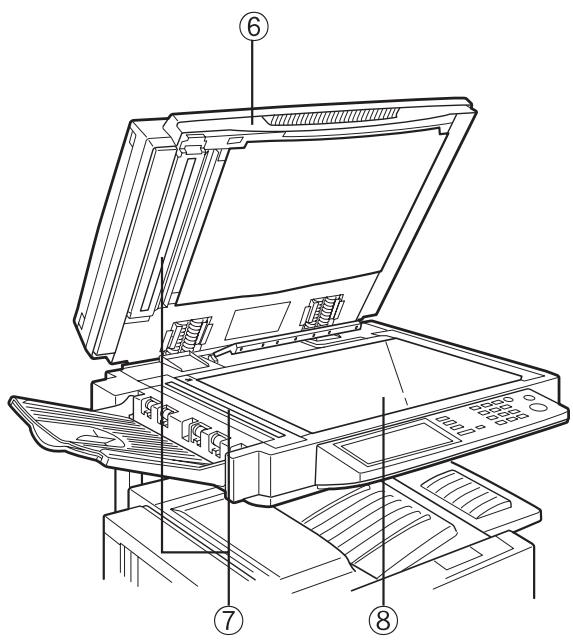
① DSPF or SPF exit area
Scanned originals are deposited here.
② Document feeding area cover (page 29)
Open to remove misfed originals in this area.
③ Original guides (page 7)
Adjust to the size of the originals.
④ Document feeder tray (page 7)
Set the originals here for automatic feeding.
⑤ Operation panel (next page)
Use for operation of copier, network scanner, and facsimile features and for printer configuration operations.
⑥ Document cover
⑦ Document scanning windows (DSPF only)
Sheet type originals are scanned here.
⑧ Document glass
All originals which cannot be copied from the document feeder tray must be copied here.
Operation Panel
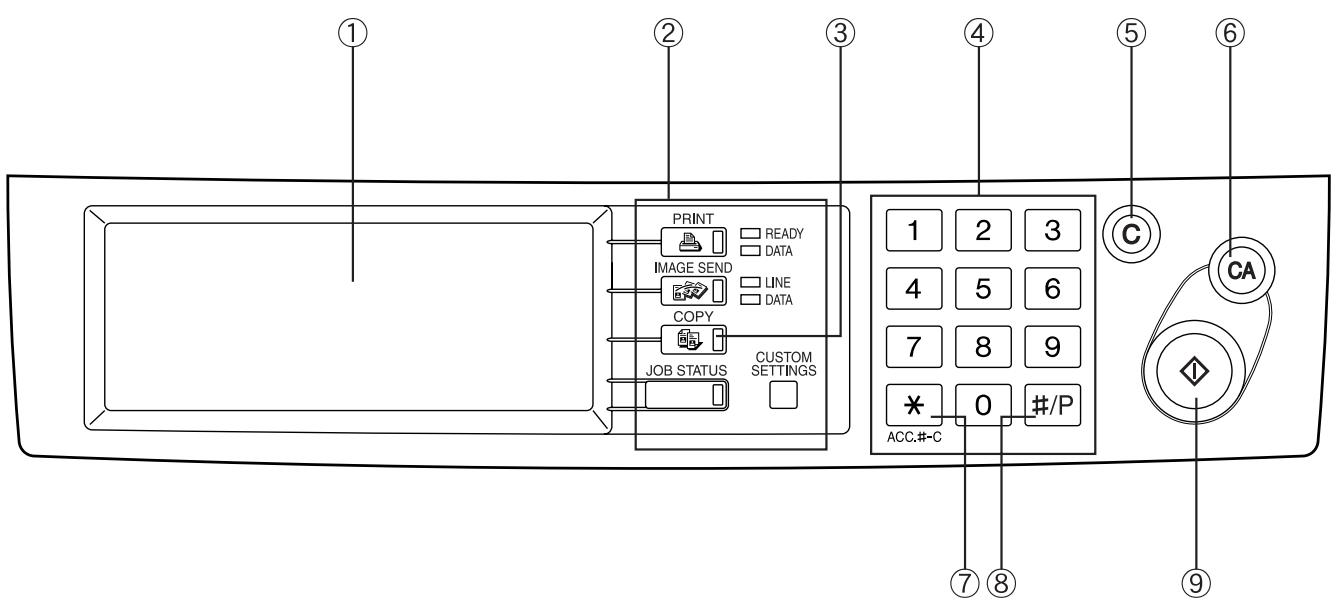
① Touch panel (next page)
The machine status, messages and touch keys are displayed on the panel. When the machine is in the standby state, the display will change if the [PRINT] key, [IMAGE SEND] key or [COPY] key is pressed to show the current status of these modes.
② Mode select keys
Use to select the basic modes of the product.
③ [COPY] key
Press to select the copy mode and display the basic screen of the copy mode. (next page)
Even when the machine is busy in another mode, the basic copy mode screen will appear when the [COPY] key is pressed. If this key is pressed and held while the basic screen of the copy mode is displayed, the total output count will be displayed.
④ Numeric keys
Use to select the number of copies and to make numerical entries for setting operations.
⑤ [C] key (clear key)
Press to clear a copy quantity entry. If this key is pressed while the automatic document feeder is being used, any originals in progress will be automatically output.
⑥ [CA] key (clear all key)
Press to clear all selected settings and return the machine to the initial settings for the currently selected mode. Before starting a copy operation, press the [CA] key first.
⑦ [ACC.#-C] key
If the auditing mode has been set, press this key to close an open account after finishing a copy, facsimile scanning or network scanning job. For setting of the auditing mode, see page 6-7 of the "Operation manual (for printer operation and general information)".
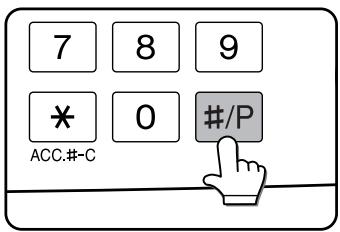
⑧ [#/P] key (page 26)
Press to select the job memory mode.
⑨ [START] key (page 10)
When the indicator is lit, copying, facsimile scanning and network scanning jobs can be started. Press to start copying.
Touch Panel (basic screen of copy mode)
When the copy mode key is pressed, this display screen will appear showing the basic copy mode selections. (For the display screens for other modes, see the respective operation manuals for those modes.)
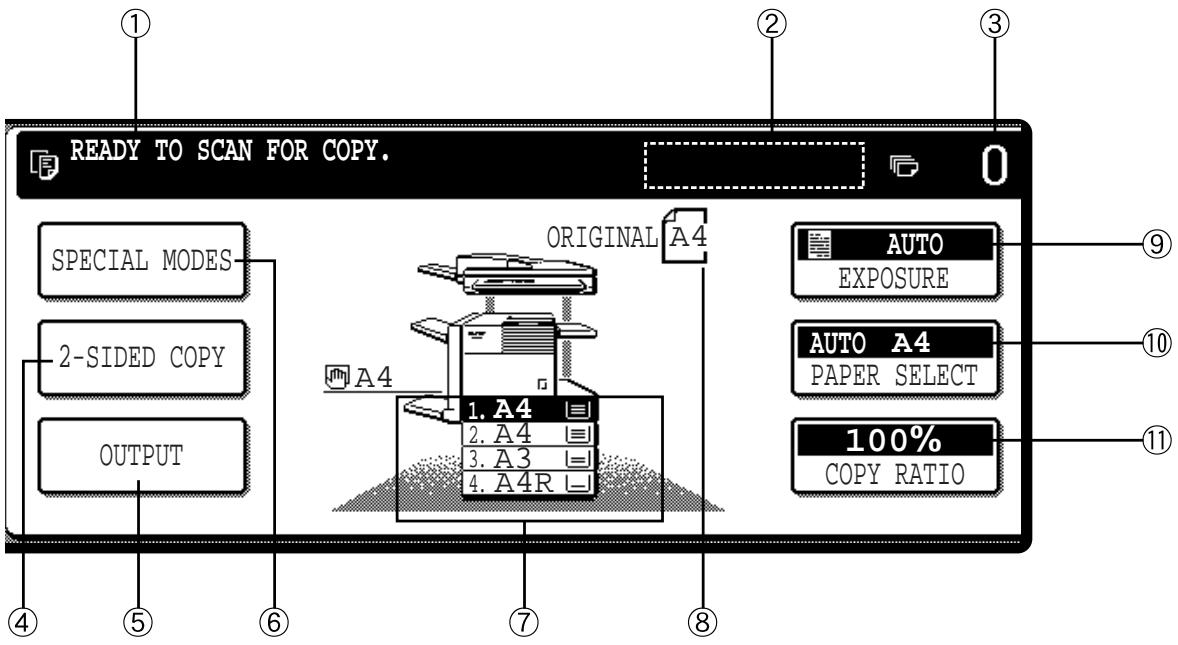
① Message display
Basic status messages are displayed here.
② [INTERRUPT] key display area
When interrupt copy is available, the [INTERRUPT] key will be displayed here. When an interrupt copy job is being run, a [CANCEL] key will be displayed here to be used for canceling the interrupt copy job.
③ Copy quantity display
Displays the selected number of copies before the [START] key is pressed or the number of completed copies after the [START] key is pressed. A single copy can be made when "0" displayed.
④ [2-SIDED COPY] key (page 9)
Touch to display the duplex copy mode setting screen. A highlighted selection on the screen will indicate the currently selected mode. The setting screen can be closed by touching the [OK] key on the setting screen whether or not a selection change was made.
⑤ [OUTPUT] key (page 10)
Touch to display the output mode setting screen. A highlighted selection on the screen will indicate the currently selected mode. The setting screen can be closed by touching the [OK] key on the setting screen whether or not a selection change was made.
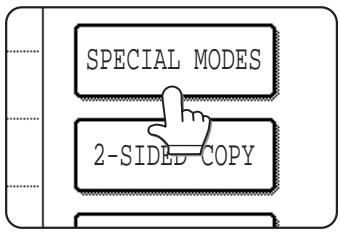
⑥ [SPECIAL MODES] key
Touch to display the special modes selection screen. The functions that can be selected by touching this key are described on page 19.
⑦ Paper size display
The display shows the location of the paper trays, the size of the paper in the trays and the approximate amount of paper loaded in each tray. The approximate amount of paper in a tray is indicated by ≡ .
For changing the paper size in a tray refer to page 1-16 of the “Operation manual (for printer operation and general information)”.
⑧ Original size display
The original paper size will be displayed when originals are placed on the document glass or in the document feeder.
⑨ Exposure display and [EXPOSURE] key (page 15) A touch of the [EXPOSURE] key will open the exposure selection window. A highlighted key on the exposure window indicates which exposure mode (AUTO, TEXT, TEXT/PHOTO or PHOTO) is currently selected. When an exposure mode other than AUTO is selected, an exposure level scale will also appear in the window.
⑩ Paper select display and [PAPER SELECT] key (page 9)
Displays the selected paper size. When the auto paper select mode has been selected, "AUTO" will be displayed.
A touch of the [PAPER SELECT] key will open the paper selection window. When a selection is made, the selection window will close. To close the window without making a selection touch the key again
⑪ Copy ratio display and [COPY RATIO] key (page 17)
Displays the selected copy ratio.
Touch to display the reduction and enlargement copy ratio selection screen.
AUTOMATIC DOCUMENT FEEDER
Originals set in the automatic document feeder will be automatically fed and copied sequentially.
A B/W scanner module/DSPF will simultaneously scan both sides of originals when two-sided to one-sided or two-sided to two-sided copying is being done.
A B/W scanner module/SPF can only scan one side of the original.
Acceptable originals
A stack of up to 50 original sheets (30 original sheets*1 for 8-1/2" x 14" (B4) or larger) of the same size paper can be set in the document feeder tray provided the stack height is within the limit shown below.
A stack of up to 30 mixed size originals can be set if the width of the originals is the same and the stack height is within the limit shown below. In this case, however, stapling and duplex will not function and some special functions may not give the expected result.
*1 For paper heavier than 28 lbs. (105 g/m ^2 ), only a stack of up to 15 sheets can be set. Setting 16 or more sheets may cause incorrect scanning of original and scanned image may become expanded compared with original itself.
■ Size and weight of acceptable originals
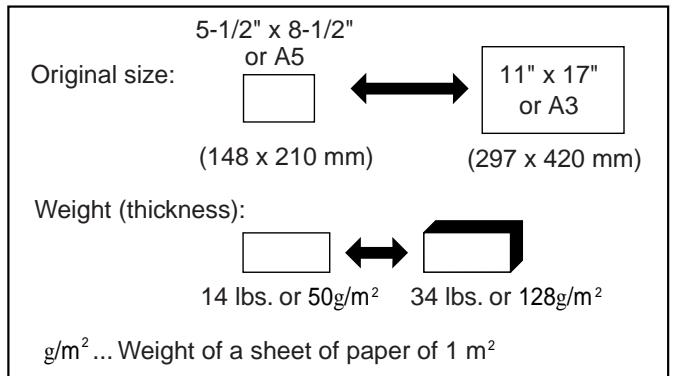
■ Total amount of originals that can be set in the document feeder tray
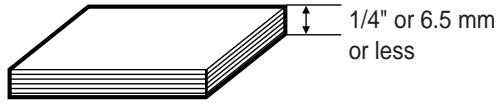
Total aggregate thickness must not exceed 1/4" or 6.5 mm (for 14 to 21 lbs. or 50 to 80 g/m ^2 paper).
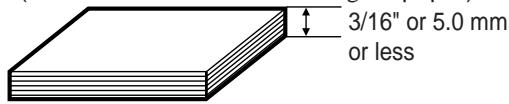
Total aggregate thickness must not exceed 3/16" or 5.0 mm (for 21 to 34 lbs. or 80 to 128 g/m ^2 paper).
Notes on use of the automatic document feeder
- Use originals within the specified size and weight ranges. Use of originals out of the specified range may cause an original misfeed.
● Before loading originals into the document feeder tray, be sure to remove any staples or paper clips. - If originals have damp spots from correction fluid, ink or glue from pasteups, be sure they are dried before they are fed. If not, the interior of the document feeder or the document glass may be soiled.
- To prevent incorrect original size detection, original misfeeds or smudges on copies, use the following as a guide for feeding originals.
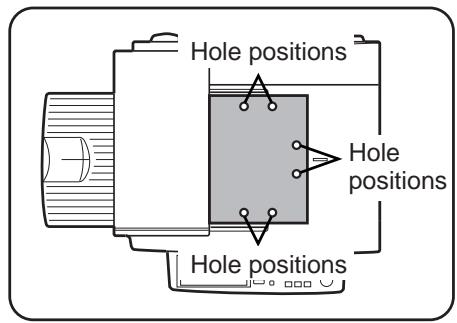
Transparency film, tracing paper, carbon paper, thermal paper or originals printed with thermal transfer ink ribbon should not be fed through the document feeder. Originals to be fed through the feeder should not be damaged, crumpled or folded or have loosely pasted paper on them or cutouts in them. Originals with multiple punched holes other than two-hole or three-hole punched paper may not feed correctly.
- When using originals with two or three holes, place them so that the punched edge is at a position other than the feed slot.
SETTING ORIGINALS
■ When using the automatic document feeder
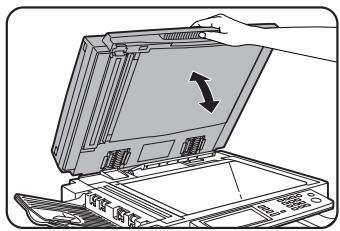
1 Ensure that there is no original on the document glass.
natural_image
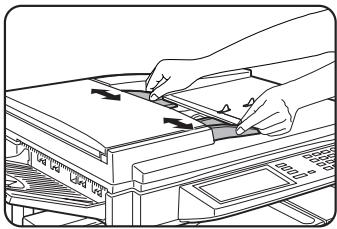
Diagram of a computer monitor with an open screen and cable, showing a hand holding the screen (no text or symbols present)2 Adjust the original guides to the size of the originals.
natural_image
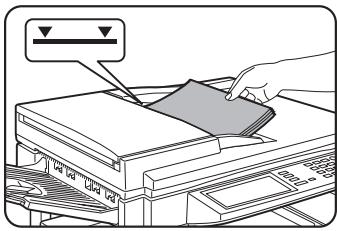
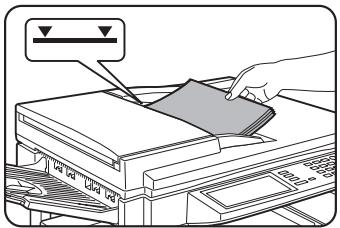
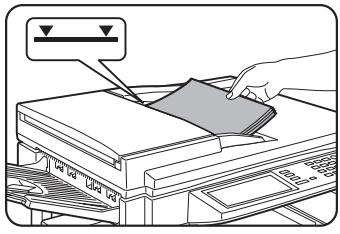
Line drawing of hands operating a printer with arrows indicating motion (no text or symbols)3 Place the originals face down in the document feeder tray.
natural_image
Illustration of a hand inserting a card into a printer (no text or symbols visible)Set the originals all the way into the feed slot. Do not exceed the maximum height line marked on the original guide.
■ When using the document glass
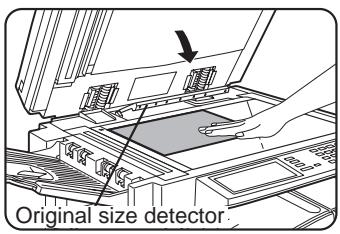
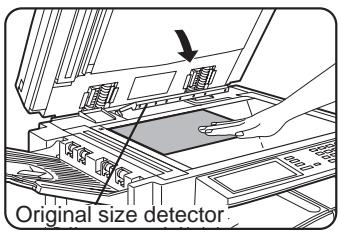
Open the document cover, place an original face down on the document glass, and then gently close the document cover.
NOTE
Do not place any objects under the original size detector, because they may damage it or the original size may not be detected properly.
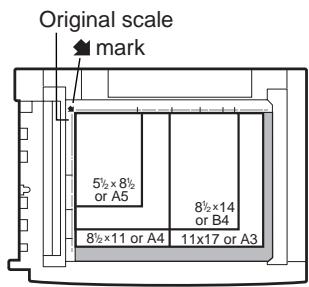
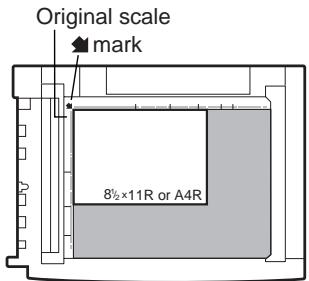
- Set an original by aligning its corner with the tip of the scale (▲) mark at the left rear corner of the glass as shown in the illustrations.
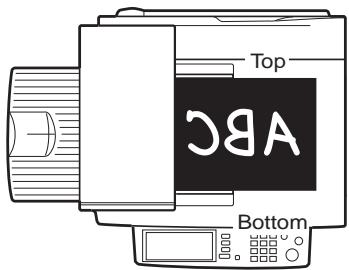
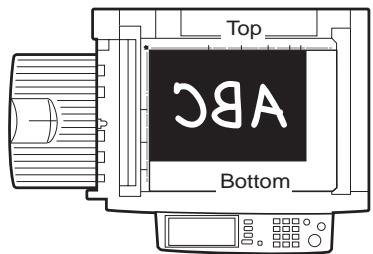
■ Standard original setting orientation
Descriptions of functions that follow in this manual assume that originals are oriented as shown.
Document feeder tray
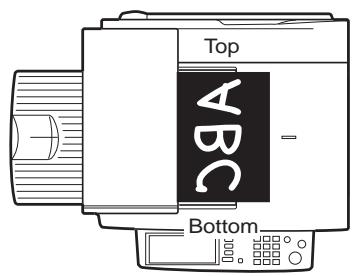
Document glass
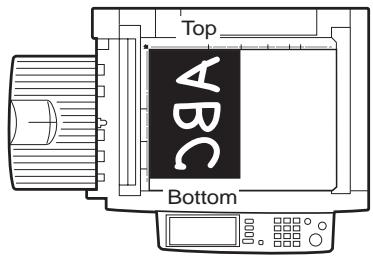
Place originals in the document feeder tray or on the document glass so that the top of the original is positioned to the rear side of the machine. If not, staples will be incorrectly positioned and some special features may not give the expected result.
■ Automatic copy image rotation - rotation copying
If the orientation of the originals and copy paper are different, the original image will be automatically rotated 90° and copied. (When an image is rotated, a message will be displayed.) When enlargement of originals larger than 8-1/2" x 11" or A4 is selected, rotation cannot be done.
[Example]
Orientation of original
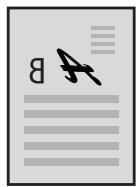
Face down
Orientation of paper
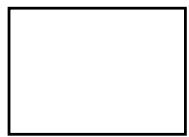

Copy after rotation
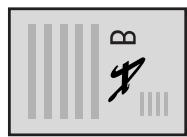
Face down
- This function operates in the auto paper select or auto image mode. (Rotation copying can be disabled with a key operator program. See page 33.)
NORMAL COPYING
This section describes the normal copying procedure.
Copying from the automatic document feeder
■ 1-sided copies of 1-sided originals
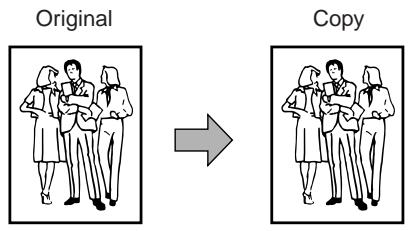
1 Place the originals in the document feeder tray. (page 7)
2 Ensure that the 1-sided to 1-sided copy mode is selected.
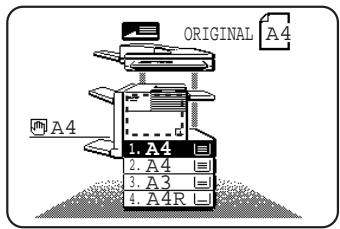
The one-sided to one-sided mode is selected when no icon for a two-sided mode appears in the dashed area on the display. If the 1-sided to 1-sided copy mode is already selected, steps 3 to 5 are not needed.
3 Touch the [2-SIDED COPY] key.
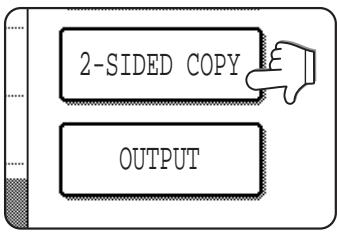
flowchart
graph TD
    A["2-SIDED COPY"] --> B["OUTPUT"]
4 Touch the [1-sided to 1-sided copy] key.
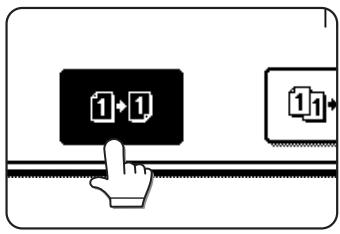
The [1-sided to 1-sided] key will be highlighted.
5 Touch the [OK] key.
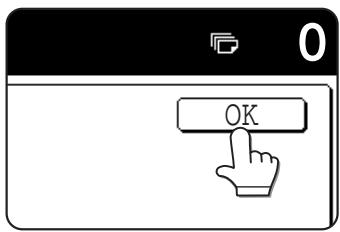
6 Ensure that paper of the same size as the originals is automatically selected. (*Note)
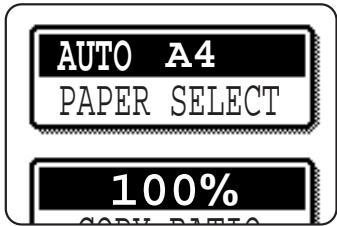
The selected tray will be highlighted or the message "LOAD xxxxxx PAPER." will appear. If the message appears, load paper in a paper tray or the bypass tray with paper of the required size. Even if the message above is displayed, copying can be performed onto the currently selected paper.
(*Note) The following requirements must be satisfied.
- Originals of a standard size (11" x 17", 8-1/2" x 14", 8-1/2" x 11", 8-1/2" x 11"R, 5-1/2" x 8-1/2", A3, B4, A4, A4R or A5) are set and the auto paper select function is enabled.
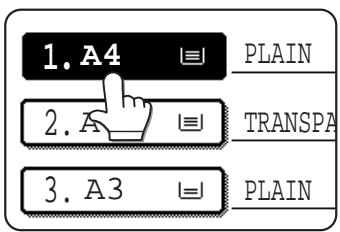
If originals of a size other than the sizes above are to be copied, manually select the desired paper size.
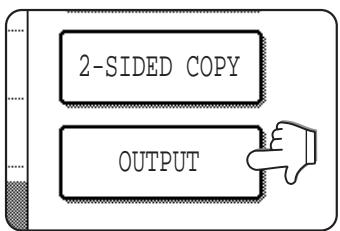
7 Select the desired output mode (see below).
flowchart
graph TD
    A["2-SIDED COPY"] --> B["OUTPUT"]
The sort mode is the default mode. To select the group mode, touch the [OUTPUT] key, then touch the [GROUP] key on the output setting screen, and then touch the [OK] key on the setting screen.
8 Use the numeric keys to set the desired number of copies.
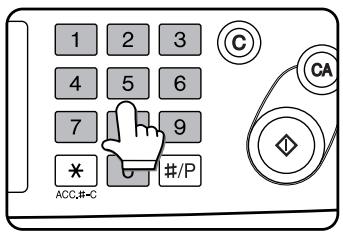
Up to 999 can be set. Use the [C] (clear) key to cancel an entry if a mistake has been made.
9 Press the [START] key.
![SAGEM MF 9535/MF 9545 - Press the [START] key. - 1](/content/2025/01/120019/images/b4efe820e7b0e84ba97ff5477ccb14dfefc83b0e64f4100941ea57ca7a38652d.jpg)
natural_image
Hand cursor clicking a circular button with a diamond symbol (no text or labels)If the [C] key is pressed while originals are being scanned, scanning will stop. If copying had already started, copying and scanning will stop after the original in progress is output to the original exit area. In these cases the copy quantity will be reset to "0". If scanning has been completed but copying is still in progress, copying will continue.
NOTE
The 1-sided to 1-sided copying mode is set as the default in the initial settings. This setting can be changed by a key operator program (initial status setting).
Output modes (sort mode and group mode)
[Example] Five sets of copies from three originals
- Sort copy
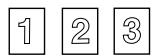
Originals

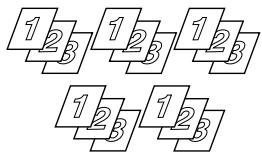
Five sets of copies
● Group copy
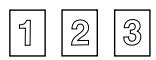
Originals
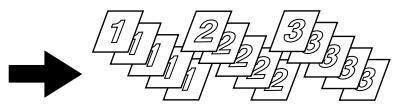
flowchart
graph TD
    A["1"] --> B["2"]
    B --> C["3"]
    C --> D["3"]
    D --> E["3"]
    E --> F["3"]
    F --> G["3"]
    G --> H["3"]
    H --> I["3"]
    I --> J["3"]
    J --> K["3"]
    K --> L["3"]
    L --> M["3"]
    M --> N["3"]
    N --> O["3"]
    O --> P["3"]
    P --> Q["3"]
    Q --> R["3"]
    R --> S["3"]
    S --> T["3"]
    T --> U["3"]
    U --> V["3"]
    V --> W["3"]
    W --> X["3"]
    X --> Y["3"]
    Y --> Z["3"]
Five copies of each original
When originals are placed in the document feeder tray, a sort icon will appear on the touch panel and the sort copy mode will be automatically selected. In this case, copies will be delivered as shown in the upper illustration to the left. For output in the group mode as shown in the lower left illustration, the group mode must be selected on the output setting screen.
Automatic two-sided copying from the automatic document feeder
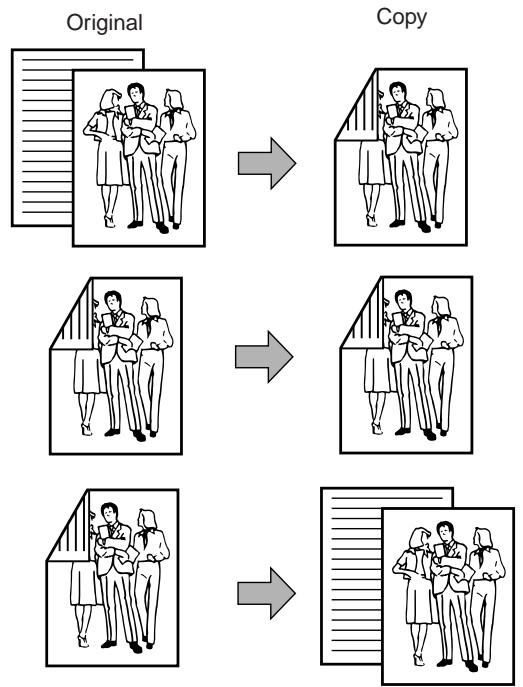
A duplex module must be installed for automatic 1-sided to 2-sided or 2-sided to 2-sided copying. A duplex module is not needed for 2-sided to 1-sided copying.
flowchart
graph LR
    A["Original"] --> B["Copy"]
    B --> C["Group Interaction"]
    C --> D["Final Output"]
1 Place the originals in the document feeder tray. (page 7)
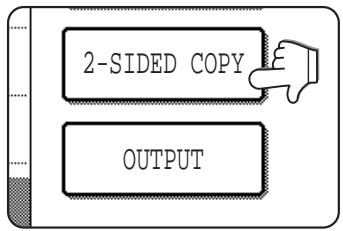
2 Touch the [2-SIDED COPY] key.
flowchart
graph TD
    A["2-SIDED COPY"] --> B["OUTPUT"]
3 Select the desired duplex copy mode.
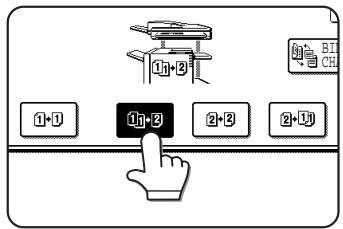
The illustration to the left shows the screen displayed when a duplex module and DSPF are installed.
The image to be copied onto the second side of 2-sided copies can be inverted so that the resultant 2-sided copies are in the correct orientation for binding at the top. For top binding, touch the [BINDING CHANGE] key on the 2-sided copy selection screen.
- Automatic two-sided copying from one-sided originals
-
Automatic two-sided copying from two-sided originals
-
This function can only be used when a B/W scanner module/DSPF (SG-SSM) that supports two-sided scanning is installed.
- Automatic one-sided copying from two-sided originals
- This function can only be used when a B/W scanner module/DSPF (SG-SSM) that supports two-sided scanning is installed. (This function can be used even if a duplex module (SG-DM1) is not installed.)
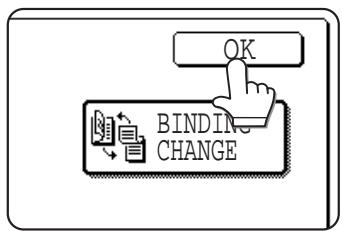
4 Touch the [OK] key.
Follow step 6 on page 9 to step 9 on page 10.
Copying from the document glass
When copying originals which cannot be fed from the automatic document feeder such as thick originals, open the document cover and copy the originals from the document glass
1-sided copies of 1-sided originals
1 Set an original on the document glass. (page 7)
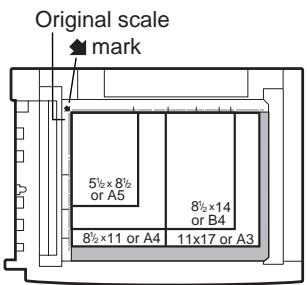
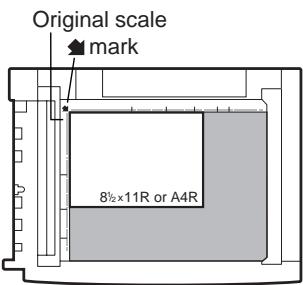
- Set an original by aligning its corner with the tip of the scale (▲) mark at the left rear corner of the glass as shown in the illustrations.
2 Ensure that the 1-sided to 1-sided copy mode is selected.
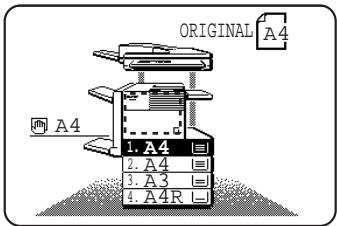
The one-sided to one-sided mode is selected when no icon for a two-sided mode appears in the dashed area on the display. If the 1-sided to 1-sided copy mode is already selected, steps 3 to 5 are not needed.
3 Ensure that paper of the same size as the original is automatically selected. (\*Note)
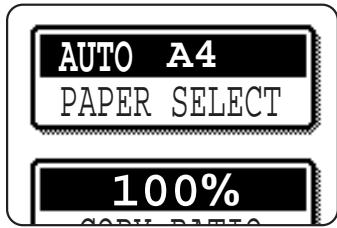
The selected tray will be highlighted or the message "LOAD xxxxxx PAPER." will appear. If the message appears, load paper in a paper tray or the bypass tray with paper of the required size. Even if the message above is displayed, copying can be performed onto the currently selected paper.
(*Note) The following conditions must be satisfied.
- Originals of a standard size (11" x 17", 8-1/2" x 14", 8-1/2" x 11", 8-1/2" x 11"R, 5-1/2" x 8-1/2", A3, B4, A4, A4R or A5) are set and the auto paper select function is enabled.
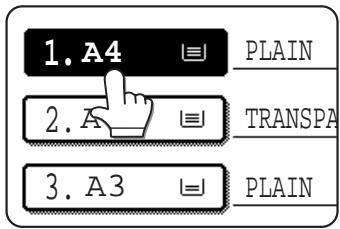
If originals of a size other than the sizes above are to be copied, manually select the desired paper size.
4 Select the desired output mode (see below).
flowchart
graph TD
    A["2-SIDED COPY"] --> B["OUTPUT"]
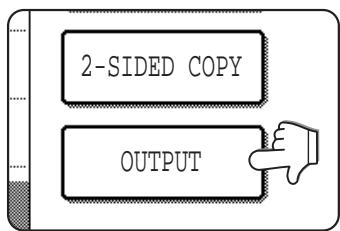
When a document is detected on the document glass, the group mode will be automatically selected. To select sort copy, touch the [OUTPUT] key, then touch the [SORT] key on the displayed screen, and then touch the [OK] key.
NOTE
If you touch the [SORT] or [GROUP] key, its corresponding icon will appear on the touch panel. To change the selection, touch the icon to return the display to the output setting screen.
5 Use the numeric keys to set the desired number of copies.
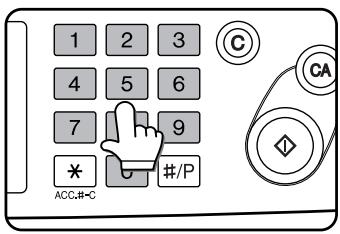
Up to 999 can be set.
Use the [C] (clear) key to cancel an entry if a mistake has been made.
6 Press the [START] key.
![SAGEM MF 9535/MF 9545 - Press the [START] key. - 1](/content/2025/01/120019/images/e2de1185a110154672cb8e3bbe6c3657fbeaf094f3b5bee73662955c861eab25.jpg)
natural_image
Hand cursor clicking a circular button with a diamond symbol (no text or labels)Replace the original with the next original and press the [START] key. Repeat this operation until all originals have been scanned. If sort was selected in step 4, go to the next step.
7 Touch the [READ-END] key.
![PLACE NEXT ORIGINAL. PRESS [START]. WHEN FINISHED, PRESS [READ-END]. READ-END](/content/2025/01/120019/images/628d2f3a982abebfd5cab9f359835c938c89b7f20ddf0ca1a8b12298d2308458.jpg)
Output mode (sort copy and group copy)
[Example] Five sets of copies from three originals
- Sort copy
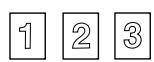
Originals

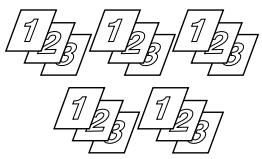
Five sets of copies
- Group copy
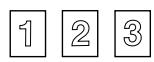
Originals

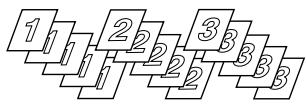
Five copies of each original
When originals are placed in the document feeder tray, a sort icon will appear on the touch panel and the sort copy mode will be automatically selected. In this case, copies will be delivered as shown in the upper illustration to the left. For output in the group mode as shown in the lower left illustration, the group mode must be selected on the output setting screen.
Automatic two-sided copying from the document glass
A duplex module must be installed for automatic 1-sided to 2-sided or 2-sided to 2-sided copying. A duplex module is not needed for 2-sided to 1-sided copying.
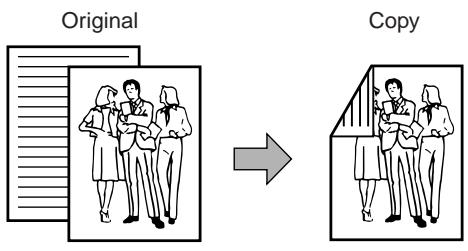
1 Place an original on the document glass. (page 7)
2 Touch the [2-SIDED COPY] key.
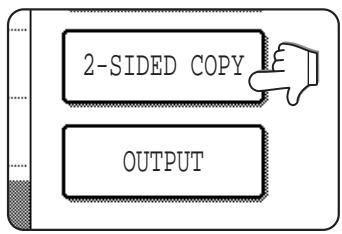
flowchart
graph TD
    A["2-SIDED COPY"] --> B["OUTPUT"]
3 Touch the [1-sided to 2-sided copy] key.
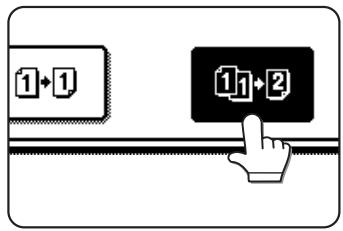
The image to be copied onto the second side of 2-sided copies can be inverted so that the resultant 2-sided copies are in the correct orientation for binding at the top. For top binding, touch the [BINDING CHANGE] key on the 2-sided copy selection screen.
4 Touch the [OK] key.
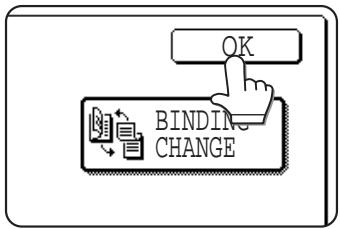
Follow step 3 on page 12 to step 7 on page 13.
EXPOSURE ADJUSTMENTS
Select the exposure mode to be consistent with the type of originals to be copied. The selections are AUTO, TEXT, TEXT/PHOTO and PHOTO.
■ Automatic exposure adjustment
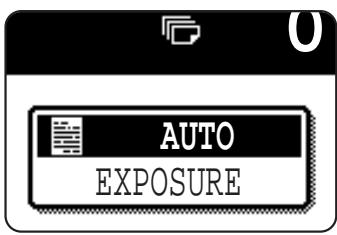
The automatic exposure mode is the default initial setting for this machine. In this mode, the characteristics of an original being copied are “read” by the exposure system, and exposure adjustments are made automatically. To select an exposure mode more suitable for originals to be copied or to adjust the exposure manually, follow the procedure below.
■ Exposure mode selection and manual exposure adjustment
1 Touch the [EXPOSURE] key.

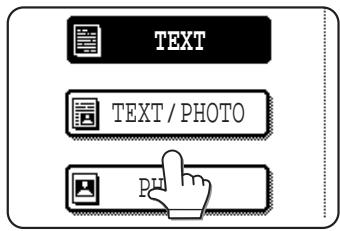
2 Select [TEXT], [TEXT/PHOTO] or [PHOTO] based on the original to be copied.
NOTE
Exposure mode selection
TEXT: This mode is useful for producing dark text copies with minimum background.
TEXT/PHOTO: This provides the best balance for copying an original which contains both text and photos. This mode is also useful for copying printed photographs.
PHOTO: This mode provides the best copies of photographs with fine details.
3 Adjust the exposure level.
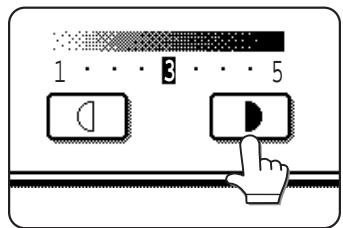
Touch the ▶ key to make darker copies. Touch the ▶ key to make lighter copies.
NOTE
Exposure levels in the text mode
1 to 2: Dark originals such as newspaper
3: Normal density originals
4 to 5: Originals written with pencils or light color characters
After adjusting the exposure, follow any of the copying procedures.
To return to the automatic exposure mode, touch the [EXPOSURE] key and select [AUTO]. The automatic exposure level can be adjusted using a key operator program. (page 33)
REDUCTION/ENLARGEMENT/ZOOM
Reduction and enlargement ratios can be selected either automatically or manually as described in this section.
- Automatic selection will enlarge or reduce images based upon the original size and copy paper size to give the best possible fit of the image to the copy paper.
- Manual selections can be made in the range of 25% to 400%. There are three preset reduction ratios (25%, 64% and 77%) and three preset enlargement ratios (121%, 129% and 400%) available for the inch system. There are four preset reduction ratios (25%, 70%, 81%, 86%) and four preset enlargement ratios (115%, 122%, 141%, 400%) available for the AB system.
Automatic selection (auto image)
The reduction or enlargement ratio will be selected automatically based on the original size and the selected paper size.
1 Place the original in the document feeder tray or on the document glass. (page 7)
The detected original size will be displayed.
Automatic selection can be used only for 11" x 17", 8-1/2" x 14", 8-1/2" x 11", 8-1/2" x 11" R, 5-1/2" x 8-1/2" size originals and copy paper in the inch system and A3, B4, A4, A4R or A5 in the AB system.
2 Touch the [PAPER SELECT] key and then select the desired paper size.
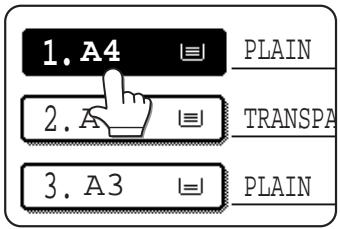
When the desired paper size key is touched, the paper size will be highlighted and the paper size setting window will be closed.
If paper of the desired size is not loaded in any tray, load paper of the required size in a paper tray and enter the paper size.
3 Touch the [AUTO IMAGE] key.
![SAGEM MF 9535/MF 9545 - Touch the [AUTO IMAGE] key. - 1](/content/2025/01/120019/images/ac4473d4035728aff120b8632d6828600ea68ddf72c73c6e904c018e6fbd7967.jpg)
flowchart
graph TD
    A["AUTO IMAGE"] --> B["PAPER SELE"]
    A --> C["COPY RATI"]
The [AUTO IMAGE] key will be highlighted and the best reduction or enlargement ratio for the original size and the selected paper size will be selected and displayed in the copy ratio display.
NOTE
If the message "ROTATE ORIGINAL FROM ☐ TO ☐" is displayed, change the orientation of the original as indicated in the message. When the message above is displayed, copying can be done without changing the orientation, but the image will not fit the paper correctly.
4 Make all other desired settings such as exposure or the number of copies, and press the [START] key.
![SAGEM MF 9535/MF 9545 - Make all other desired settings such as exposure or the number of copies, and press the [START] key. - 1](/content/2025/01/120019/images/10650bb90303ed9a6ed7b1c291f9e6b62eb163725a1b7ee7baa858c58c94ea41.jpg)
natural_image
Hand cursor clicking a circular button with a diamond symbol (no text or labels)When copying from the document glass in the sort mode, touch the [READ-END] key after all originals have been scanned. (step 7 on page 13)
To cancel the auto image mode, touch the [AUTO IMAGE] key again to clear the highlighted display.
Manual selection
1 Place the original in the document feeder tray or on the document glass. (page 7)
NOTE
When the document feeder is being used, the available copy ratio range is 25% to 200%.
2 Touch the [COPY RATIO] key.

The preset copy ratio keys for reduction and enlargement, the keys for [ZOOM] and the [100%] key will be displayed.
3 Select the desired copy ratio by touching a fixed copy ratio key for reduction or enlargement and touch the [OK] key. Use the ▼ and □ keys to make fine adjustments as needed.
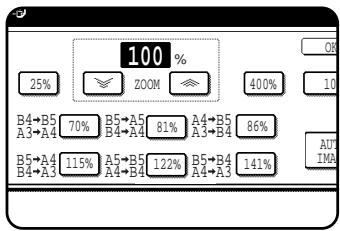
If the message “IMAGE IS LARGER THAN THE COPY PAPER.” appears, image loss will occur. In this case either continue with image loss or change the copy paper size or copy ratio.
4 Ensure that the desired paper size has been automatically selected based on the selected copy ratio or select another size as needed.
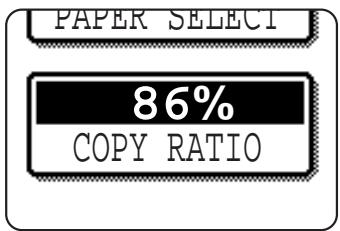
If another size paper is selected, the auto paper select display will be cleared.
5 Make all other desired settings such as exposure or the number of copies and press the [START] key.
natural_image
Hand cursor clicking a circular button with a diamond symbol (no text or labels)When copying from the document glass in the sort mode, touch the [READ-END] key after all originals have been scanned. (step 7 on page 13)
SPECIAL PAPERS
If a bypass tray and a duplex module, a duplex module/bypass tray or a multi purpose drawer ^1 is installed, special papers can be fed. These include transparency film, postcards, labels, envelopes ^2 , and plain paper.
*1 The upper tray of a stand/3 x 500 sheet paper drawer or a stand/MPD & 2000 sheet paper drawer is equivalent to the multi purpose drawer.
*2 Envelopes can be set in the multi purpose drawer and in the upper tray of a stand/paper drawer.
1 Place the original in the document feeder tray or on the document glass. (page 7)
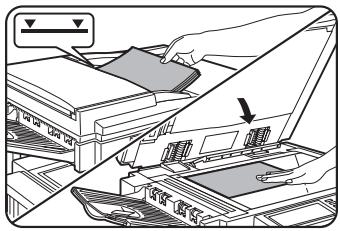
2 Load the special paper in the bypass tray or in the multi purpose drawer.
For the paper loading instructions see “Loading paper in the bypass tray” (page 5-3) of the “Operation manual (for printer operation and general information)” or “Loading paper in the multi purpose drawer” (page 1-21) of the “Operation manual (for printer operation and general information)”.
3 Touch the [PAPER SELECT] key and then select the bypass tray or the multi purpose drawer.
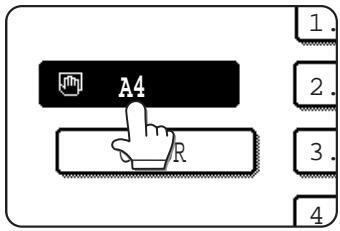
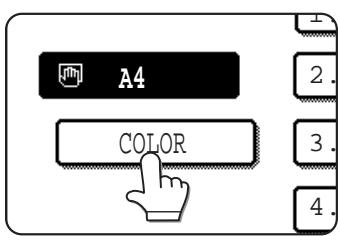
When loading paper in the bypass tray, the desired paper type can be set by touching the [PAPER TYPE] key.
4 Make all other desired settings such as exposure or the number of copies, and press the [START] key.
![SAGEM MF 9535/MF 9545 - Make all other desired settings such as exposure or the number of copies, and press the [START] key. - 1](/content/2025/01/120019/images/3b3ce6a5916a8585fab0e1de354ffcd5b9f9101e966f03e799e599a3db7e03d0.jpg)
natural_image
Hand cursor clicking a circular button with a diamond symbol (no text or labels)When copying from the document glass in the sort mode, touch the [READ-END] key after all originals have been scanned. (step 7 on page 13)
SPECIAL MODE
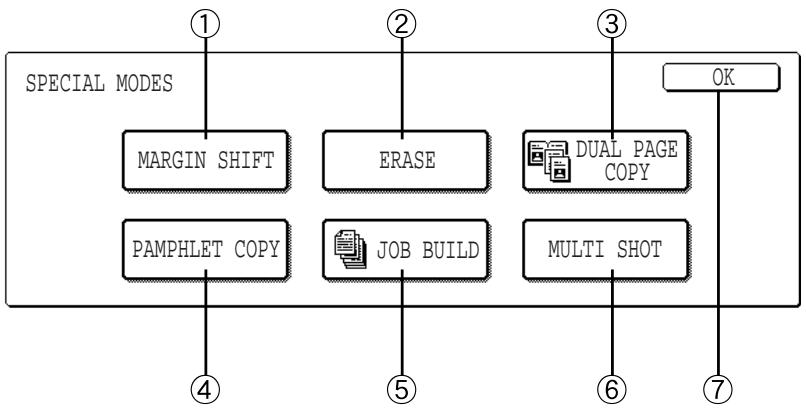
When the [SPECIAL MODES] key on the basic screen of the copy mode is touched, the special modes screen containing six special function touch keys will appear. These functions are shown below.
flowchart
graph TD
    A["SPECIAL MODES"] --> B["MARGIN SHIFT"]
    A --> C["ERASE"]
    A --> D["DUAL PAGE COPY"]
    A --> E["PAMPHLET COPY"]
    A --> F["JOB BUILD"]
    A --> G["MULTI SHOT"]
    H["OK"] --> I
    I --> J
    style A fill:#f9f,stroke:#333
① Margin shift: page 20
② Erase: page 21
③ Dual page copy: page 22
④ Pamphlet copy: page 23
⑤ Job build: page 24
⑥ Multi shot: page 25
When using the multi shot function, set the original, select the desired paper, and select one-sided or two-sided copying before selecting the multi shot function on the special modes screen.
⑦ [OK] key on the special modes screen
Touch the [OK] key, to return to the basic screen of the copy mode.
Common operation procedure for using the special functions
1 Touch the [SPECIAL MODES] key.
2 Touch the key for the desired special mode.
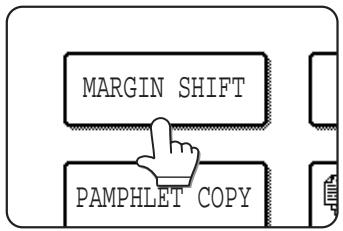
flowchart
graph TD
    A["MARGIN SHIFT"] --> B["PAMPHLET COPY"]
Example: To set the margin shift function:
Setting procedures for modes requiring setting screens start on the next page. The dual page copy and job build functions do not require setting screens.
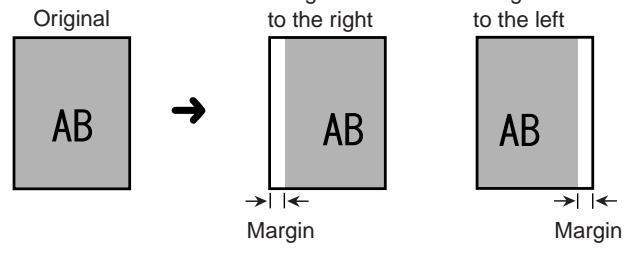
Margin shift
The margin shift function will automatically shift the text or image on the copy paper approximately 1/2" (10 mm) in its initial setting.
One-sided copying
Two-sided copying
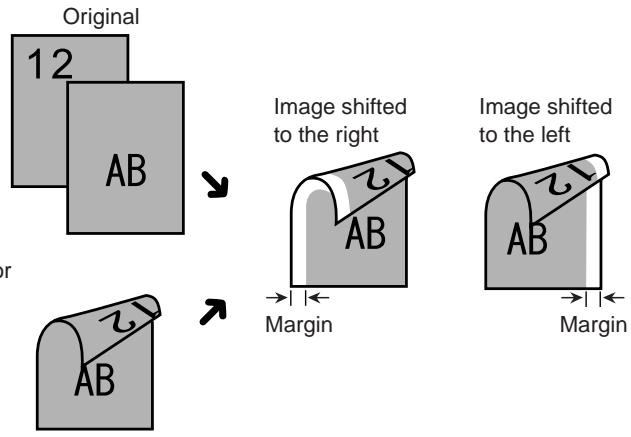
or
Image shifted to the left
1 Touch the [MARGIN SHIFT] key on the SPECIAL MODES screen.
![SAGEM MF 9535/MF 9545 - Touch the [MARGIN SHIFT] key on the SPECIAL MODES screen. - 1](/content/2025/01/120019/images/84446ecc1d511505467c47b829c980b5ec47296930c2e1e4807c5601e8b5849c.jpg)
flowchart
graph TD
    A["MARGIN SHIFT"] --> B["PAMPHLET COPY"]
The margin shift setting screen will appear.
2 Select the shift direction.
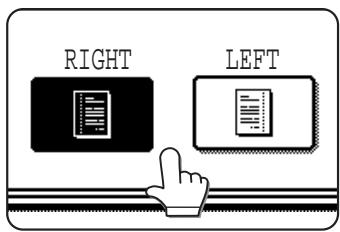
Touch a shift direction key to select right or left. The selected key will be highlighted.
- The shift direction can be selected from right or left shift as shown in the illustration.
3 Set the shift amount as needed and touch the [OK] key.
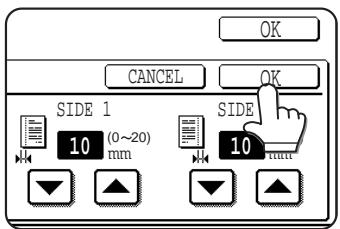
Use the ▼ key and the ▲ keys to set the shift amount. The shift amount can be set from 0" to 1" in 1/8" increments (0 mm to 20 mm in 1 mm increments for the AB system). If a duplex module is not installed, the shift amount setting for the reverse side is not displayed.
4 Touch the [OK] key on the special modes screen.
After adjusting the exposure, follow any of the copying procedures.
To cancel the margin shift function, touch the [CANCEL] key on the margin shift setting screen.
Erase
The erase function is used to erase the shadow lines on copies produced when copying thick originals or books. The erase modes that can be selected are shown below. The erase width is approximately 1/2" (10 mm) in its initial setting.
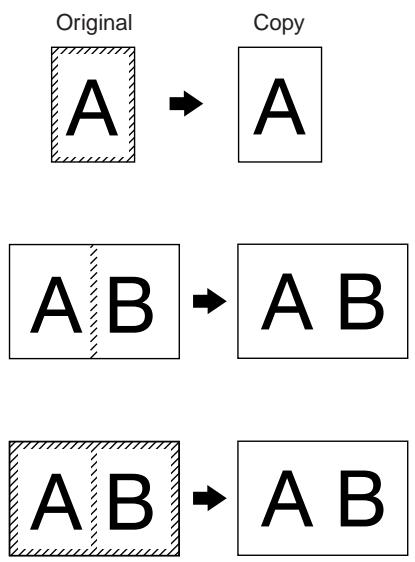
flowchart
graph TD
    A["Original A"] --> B["Copy A"]
    C["A B"] --> D["A B"]
    E["A B"] --> F["A B"]
Edge erase
Eliminates shadow lines around the edges of copies caused when thick paper or a book is used as an original.
Center erase
Eliminates shadow lines produced by the bindings of bound documents.
Edge + center erase
Eliminates shadow lines around the edges of copies and eliminates the shadow at the center of copies.
1 Touch the [ERASE] key on the SPECIAL MODES screen.
![SAGEM MF 9535/MF 9545 - Touch the [ERASE] key on the SPECIAL MODES screen. - 1](/content/2025/01/120019/images/f9f00b6e832d52fb0984803b03a6680949fceccf29b6726d7e084f397da23e62.jpg)
flowchart
graph TD
    A["ERASE"] --> B["JOB BUILD"]
    B --> C["Next Step"]
The erase setting screen will appear.
2 Select the desired erase mode.
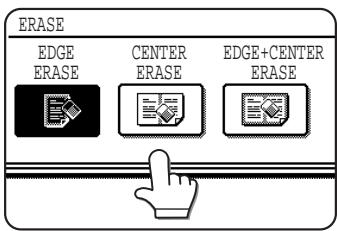
Select one of the three erase modes. The selected key will be highlighted.
3 Adjust the amount of erase and touch the [OK] key.
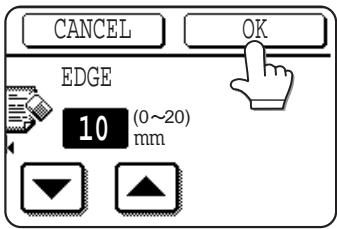
Use the ▼ and ▲ keys to adjust the erase width and then touch the [OK] key.
4 Touch the [OK] key on the special modes screen.
After adjusting the exposure, follow any of the copying procedures.
To cancel the erase function, touch the [CANCEL] key on the erase setting screen.
Dual page copy
The dual page copy function produces separate copies of two documents placed side by side on the document glass. It is especially useful when copying books and other bound documents.
[Example] Copying right and left pages of a book
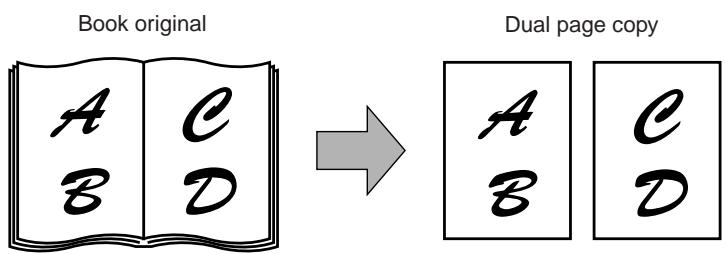
- The dual page copy function can be used with reduction copying but cannot be used with enlargement copying.
- The dual page copy function can be done only from the document glass. The automatic document feeder cannot be used with this function.
- Only 8-1/2" x 11" or A4 paper can be used.
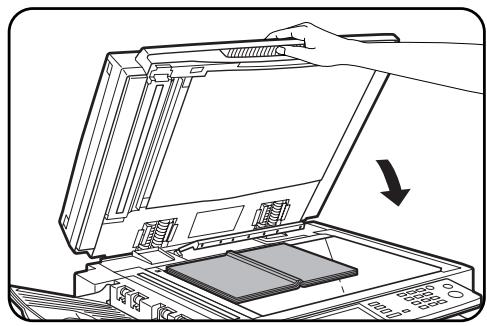
When copying book originals:
natural_image
Illustration of a hand opening a computer monitor with an arrow indicating the process (no text or symbols present)When copying a thick book, press down lightly on the document cover.
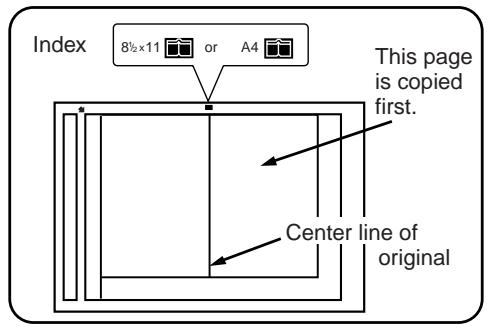
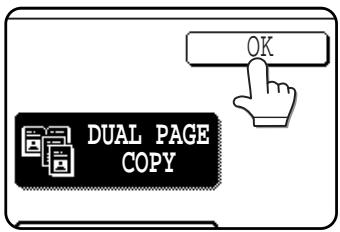
1 Touch the [DUAL PAGE COPY] key on the SPECIAL MODES screen.
![SAGEM MF 9535/MF 9545 - Touch the [DUAL PAGE COPY] key on the SPECIAL MODES screen. - 1](/content/2025/01/120019/images/b6346283e0fe2ed9161d5fac9001f2ecfea4c39d6899949eb2c23bd6d9302daa.jpg)
flowchart
graph TD
    A["DUAL PAGE COPY"] --> B["MULTI SHOT"]
The [DUAL PAGE COPY] key will be highlighted.
2 Touch the [OK] key on the special modes screen.
3 Place the originals on the document glass.
4 Ensure that 8-1/2" x 11" or A4 size paper is selected.
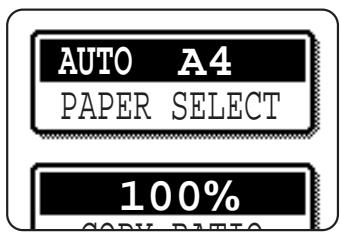
If 8-1/2" x 11" or A4 size paper is not selected, touch the [PAPER SELECT] key to select 8-1/2" x 11" or A4 size paper.
After adjusting the exposure, follow any of the copying procedures. When copying onto two sides of paper, follow steps 2 to 4 on page 14 and then follow steps 4 to 7 on page 13.
When copying onto one side of paper, follow steps 4 to 7 on page 13.
To cancel the dual page copy function, touch the [DUAL PAGE COPY] key on the special modes screen (step 1). (The highlighted display will be canceled.)
NOTE
To erase shadows caused by document binding, use the edge erase function (page 21).
Pamphlet copy
The pamphlet copy function is used to arrange copies in proper order for eventual center-stapling and folding into a booklet. Two original pages are copied onto each side of copy paper. Four pages are, therefore, copied onto one sheet.
[Example] Copying eight originals in the pamphlet copy mode
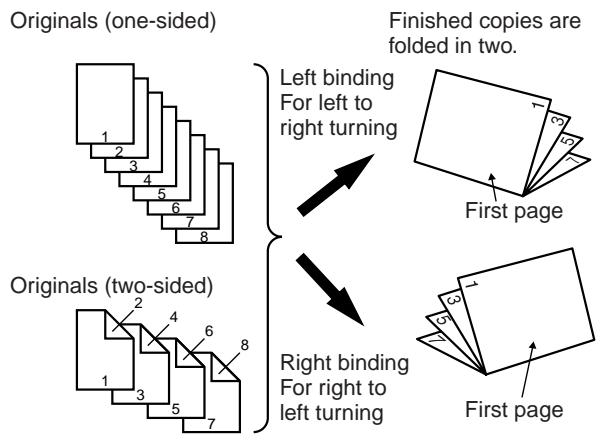
flowchart
graph TD
    A["Originals (one-sided)"] --> B["Left binding\nFor left to right turning"]
    B --> C["Finished copies are folded in two. First page"]
    D["Originals (two-sided)"] --> E["Right binding\nFor right to left turning"]
    E --> F["Finished copies are folded in two. First page"]
1 Touch the [PAMPHLET COPY] key on the SPECIAL MODES screen.
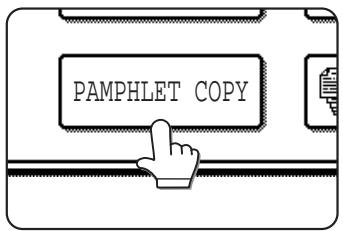
The pamphlet copy setting screen will appear.
2 Designate the type of originals to be copied: 1-sided or 2-sided.
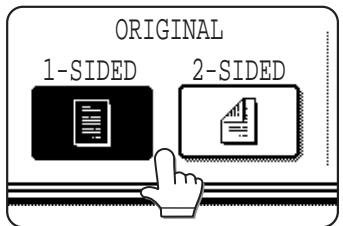
The [2-SIDED] key appears when a B/W scanner module/DSPF (SG-SSM) is installed. Touch this key to perform automatic two-sided scanning of an original.
3 Select the binding position (left binding or right binding) and touch the [OK] key.
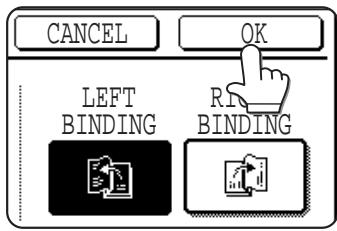
4 Touch the [OK] key on the special modes screen.
5 Copy from the first page to the last page from either the document feeder or the document glass.
- Scan the originals from the first page to the last page. The order of copying will be automatically adjusted by the machine.
- Either left binding (right to left turning) or right binding (left to right turning) can be selected.
- Four originals will be copied onto one sheet. Blank pages may be automatically produced at the end depending on the number of the originals.
- When using this function, a duplex module must be installed.
- If a saddle stitch finisher is installed, copies can be stapled in two positions along the center of copies and folded at the center.
6 Ensure that the desired paper size has been automatically selected based on the original size.
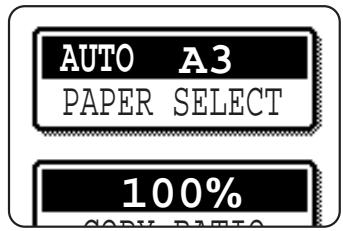
To select another size paper, select the desired size and touch the [AUTO IMAGE] key. The appropriate copy ratio will be selected automatically based on the original size and the paper size. (See steps 2 and 3 on page 16.)
7 Make all other desired settings such as exposure or the number of copies, and press the [START] key.
8 [When using the automatic document feeder:] Copying will start after all originals have been scanned. (The next step is not needed.)
[When using the document glass:]
Replace the original with the next original and press the [START] key. Repeat this operation until all originals have been scanned.
9 Touch the [READ-END] key. (only if the document glass is used)
![PLACE NEXT ORIGINAL. PRESS [START]. WHEN FINISHED, PRESS [READ-END]. READ-END](/content/2025/01/120019/images/14c6b7971d952bf6f8dcafa6f3a3a157bd68f4e9e7da73452bd9cddd80c4e9dc.jpg)
When the pamphlet copy function is set, the two-sided copying mode will be automatically selected and cannot be changed.
To cancel the pamphlet copy function, touch the [CANCEL] key on the pamphlet copy setting screen.
Job build
The number of originals that can be copied into a set of copies in a single run is limited by the capacity of the memory available ^1 for scanned originals. Normally the number of originals is further limited by the number of originals that can be set into the document feeder tray ^2 .
The job build function allows scanning and copying of up to 100 originals. For scanning more than 50 originals, the originals must be separated into sections not exceeding 50 originals, scanned in sections and stored in memory. After all sections are in memory, they can be copied as a continuous set.
*1 The number of originals that can be copied into a set of copies in a single run is limited by the capacity of the memory available for scanned originals.
*2 Up to 50 sheets (30 sheets for 8-1/2" x 14" or larger) can be set into the document feeder tray at one time.
[Example] Copying 100 pages of 8-1/2" x 11" or A4 originals
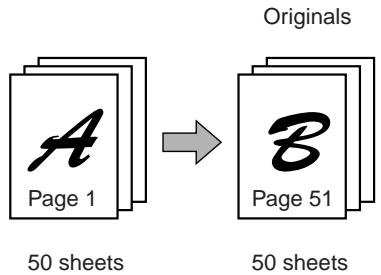
* Divide the originals in sections of 50 sheets and scan the originals starting from the first page of section A and then scan section B. Be sure to keep the correct page order when setting section B.
1 Touch the [JOB BUILD] key on the SPECIAL MODES screen.
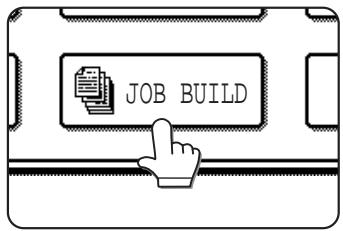
The [JOB BUILD] key will be highlighted.
2 Touch the [OK] key on the special modes screen while JOB BUILD is highlighted.
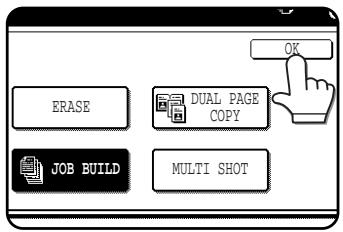
3 Place the first section originals in the document feeder tray. (page 7)
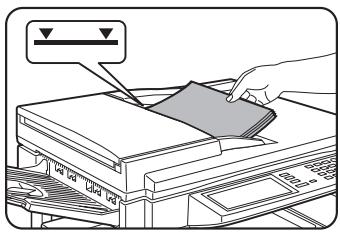
4 Make all other desired settings such as the number of copies, and press the [START] key.
![SAGEM MF 9535/MF 9545 - Make all other desired settings such as the number of copies, and press the [START] key. - 1](/content/2025/01/120019/images/ce275e90e52bb6d04268560f51215053432ed26ef08b1b91a8ccd9ab08ca6857.jpg)
natural_image
Hand cursor clicking a circular button with a diamond symbol (no text or labels)Scanning of originals will start. After scanning of the first section of originals ("A in the example above) is completed, remove the scanned originals, place the next section of originals (section B in the example) and press the [START] key. Repeat this operation until all blocks of originals have been scanned.
5 Touch the [READ-END] key after the last section of originals has been scanned.
![PLACE NEXT ORIGINAL. PRESS [START]. WHEN FINISHED, PRESS [READ-END]. READ-END](/content/2025/01/120019/images/2d1882172ed89f5601acfc54ad2d4bfca6eebab4c1df9a332d0ec470776a8a85.jpg)
To cancel the job build function, touch the [JOB BUILD] key on the special modes screen as in step 1. The highlighted display will be canceled.
Multi shot
The multi shot function is used to copy up to four originals, collectively in a specified order, per sheet of copy paper in any one of four layout patterns.
[Example] Copying seven originals using the 4 in 1 MULTI SHOT selection in a layout pattern starting from the upper left to lower right.
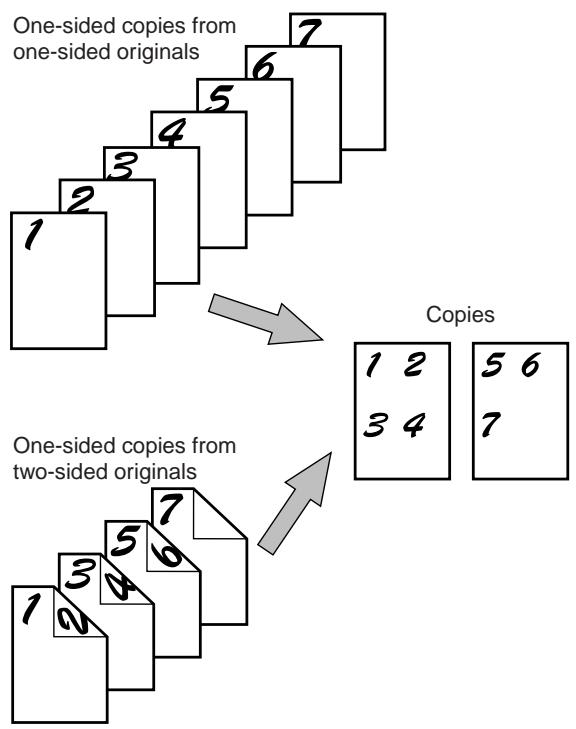
flowchart
graph TD
    A["One-sided copies from one-sided originals"] --> B["Copies"]
    C["One-sided copies from two-sided originals"] --> D["Copies"]
    style A fill:#f9f,stroke:#333
    style C fill:#f9f,stroke:#333
    style B fill:#ccf,stroke:#333
    style D fill:#ccf,stroke:#333
- When using the multi shot function, place the originals, select the desired paper size, and select the copying mode (page 9) before selecting the multi shot function on the special modes screen.
- When using the multi shot function, the appropriate copy ratio will be automatically set based on the original size, paper size, and the number of originals to be copied onto one sheet. The minimum reduction ratio is 25%. Depending on the original size, paper size, and the number of originals to be copied onto one sheet, the appropriate copy ratio may be smaller than 25%. In this case, portions of original images may not be copied.
1 Touch the [MULTI SHOT] key on the SPECIAL MODES screen.
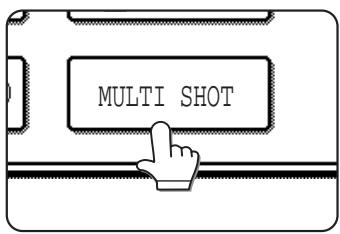
The multi shot setting screen will appear.
2 Select the number of originals to be copied onto one sheet of copy paper on the multi shot selection screen.
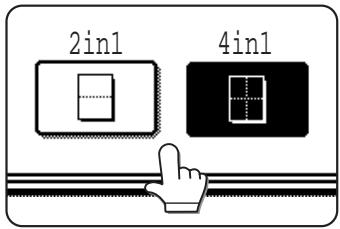
The orientation of copy paper and the image of the originals may be rotated as needed.
3 Select the layout.
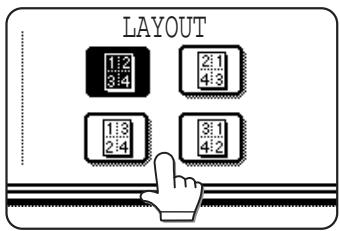
Select the order in which the originals will be arranged on the copy.
4 [When using the automatic document feeder:]
Copying will start after all originals have been scanned. (The next step is not needed.)
[When using the document glass:]
Replace the original with the next original and press the [START] key. Repeat this operation until all originals have been scanned.
5 If scanning is being done from the document glass, touch the [READ-END] key after the last original has been scanned to start copying.
![PLACE NEXT ORIGINAL. PRESS [START]. WHEN FINISHED, PRESS [READ-END]. READ-END](/content/2025/01/120019/images/6786fbb0b7524a23815c0f91b222bbb7568c831520ee7fb4509f66cee5407ec9.jpg)
To cancel the multi shot function, touch the [CANCEL] key on the multi shot setting screen.
JOB PROGRAM MEMORY
Frequently used job programs can be stored in each of ten storage registers. This is convenient for quick job recall without losing time manually reprogramming each aspect of a job.
- Selection for functions stored as part of a job program, will not be recalled as part of the program if the function has been disabled or changed by a key operator program.
- To exit the job memory mode, press the [CA] (clear all) key on the operation panel or touch the [EXIT] key on the touch panel.
Storing a job program
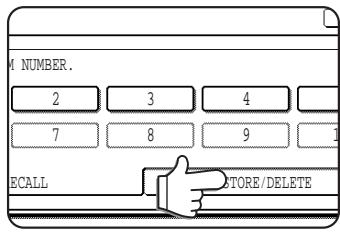
1 Press the [#/P] key on the operation panel to display the [STORE/DELETE] selection screen.
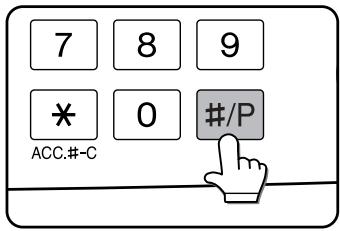
2 Touch the [STORE/DELETE] key to obtain the storage register screen.
3 Touch a number key from 1 to 10 on the storage register screen.
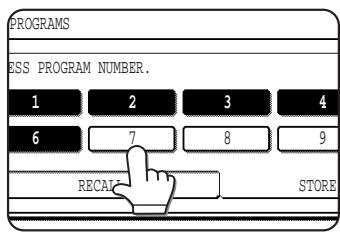
Highlighted storage register numbers are registers which already have programs stored. If a highlighted number is selected, a screen will appear with selections for deleting the selected program, storing (replacing the selected program with a new one) or canceling to go back to the STORE/DELETE screen to select a different storage register.
4 Make all copier selections to be stored.
![TO STORE, MAKE SELECTIONS AND PRESS [OK], TO DELETE, PRESS [CANCEL]. SPECIAL MODES 2-SIDED COPY OUTPUT A4 1.A4 2.A4 3.A3 4.A4R](/content/2025/01/120019/images/83f66c82abb5ca958fc282cad82ce1306b8276ba53cf8ddec14f93c8a07b7beb.jpg)
The number of copies cannot be stored.
5 Touch the [OK] key.
![PRESS [OK]. CANCEL OK EXPO AUTO A4 PAPER SELECT 100% COPY RATIO](/content/2025/01/120019/images/cd549a0069018a7fbf3d326cd2a8d815ce15a5d2bcbf8679da370861c2abdea5.jpg)
The selected settings will be stored under the register number selected in step 3.
Recalling a job program
1 Press the [#/P] key.
2 Touch the desired storage register number key to recall the job from memory.
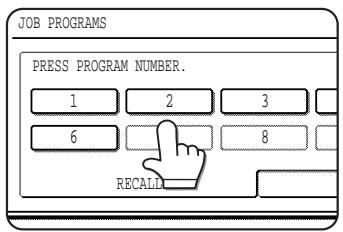
When a number key is touched, the selection screen will be closed and the stored job program will be recalled. A number for which no job program has been stored cannot be selected.
3 Set the number of copies as needed and press the [START] key.
![SAGEM MF 9535/MF 9545 - Set the number of copies as needed and press the [START] key. - 1](/content/2025/01/120019/images/d29ca7898d4c65385090cad506c8caa9b9e39a9b522872ac56d9d72f919fcdae.jpg)
natural_image
Hand cursor clicking a circular button with a diamond symbol (no text or labels)Copying will start with the settings of the recalled job program.
Deleting a stored job program
1 Follow steps 1 and 2 in "Storing a job program" on the previous page.
2 Select a storage register number of the program to be deleted.
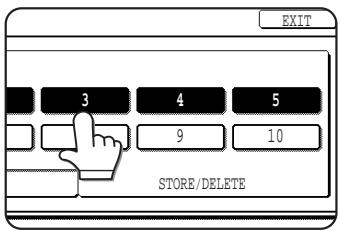
If a number key for which no job program has been stored is selected, the screen will change to the screen of step 4 on the previous page (for storing a program). The message "TO STORE, SELECT AND PRESS [OK]. TO DELETE, PRESS [CANCEL]." will appear. When [CANCEL] is pressed, the screen will return to the selection screen shown to the left.
3 Touch the [DELETE] key.
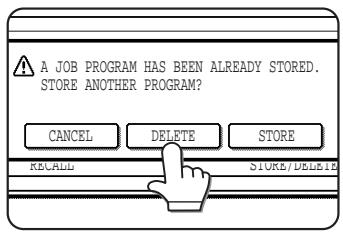
When the [DELETE] key is touched, the screen in step 2 will return and the program will be deleted. If the [CANCEL] key is touched, the screen in step 2 will return but the program will not be deleted. If no other programs are to be deleted, touch the [EXIT] key on the screen displayed in step 2 to exit the job program mode.
INTERRUPTING A PRINT OR COPY RUN
INTERRUPT can be used to temporarily stop a long print or copy job so that another copy job can be run. Only copy jobs can be run during interrupt.
1 Place the original in the document feeder tray or on the document glass. (page 7)
2 Touch the [INTERRUPT] key.
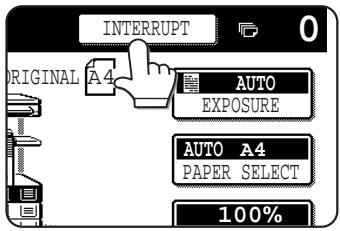
When it is possible to interrupt a print or copy job in progress, the [INTERRUPT] key will appear as shown in the illustration.
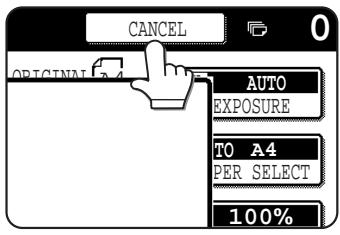
When the [INTERRUPT] key is touched in step 2, the [INTERRUPT] touch key will be replaced by the [CANCEL] key as shown in the illustration. To cancel interrupt copying at any time, touch the [CANCEL] key.
3 Make all other desired settings such as exposure, paper size and number of copies and then press the [START] key.
![SAGEM MF 9535/MF 9545 - Make all other desired settings such as exposure, paper size and number of copies and then press the [START] key. - 1](/content/2025/01/120019/images/7720c219d74f4e785ff8a96df059a23c1efec5844495c65f4fc1f44b946ef90e.jpg)
natural_image
Illustration of a hand pressing a button with a diamond symbol (no text or labels)When using the document glass, replace the original with the next original and press the [START] key. Repeat this operation until all originals have been scanned. Then, touch the [READ-END] key.
![PLACE NEXT ORIGINAL. PRESS [START]. WHEN FINISHED, PRESS [READ-END]. READ-END](/content/2025/01/120019/images/829b886f3a7dd45dcf6d13cbaf59b716ad5f9e874af8c2c7b8271df5bdbcf353.jpg)
When step 3 is completed, a copy job icon will appear at the top of the job icon queue at the left side of the screen and interrupt copying will start. After the interrupt job is completed, the interrupted job will automatically resume.
MISFEED REMOVAL
Misfeed in scanner module
When an original has misfed in the scanner module, remove the misfed original following the procedure below.
NOTES
- For misfeed removal in the main unit and other peripheral devices, see the “Operation manual (for printer operation and general information)”.
- If you press the [INFORMATION] key, detailed information for misfeed removal will be displayed on the touch panel.
1 Open the document feeding area cover and remove any misfed originals.
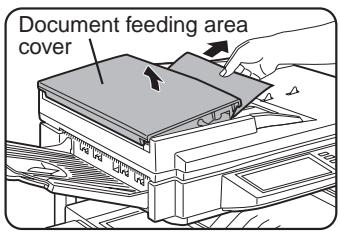
A message may appear indicating the number of originals which must be returned to the document feeder tray. Return the originals to the document feeder tray and press the [START] key.
2 Close the document feeding area cover.
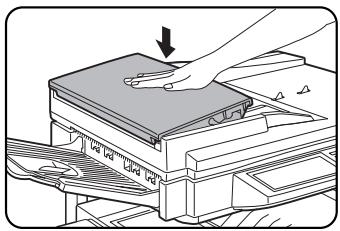
natural_image
Illustration of a hand pressing down on a stack of books or documents (no text or symbols visible)Close the cover securely so that cover clicks into place.
3 Open the document cover and turn the green rotating knob in the direction of the arrow to remove any misfed originals.
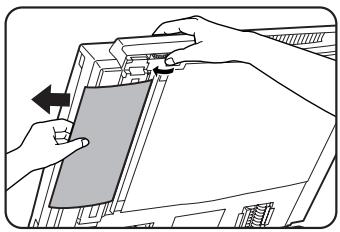
natural_image
Illustration of hands installing or adjusting a mechanical component with a directional arrow (no text or symbols)4 Close the document cover.
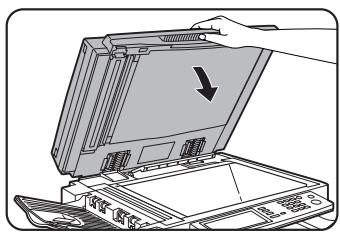
natural_image
Diagram of a computer monitor with an open lid and a hand holding the screen (no text or symbols visible)TROUBLESHOOTING
Whenever the machine stops or operation is not possible, check the operation panel display for messages. In most cases, these messages will give sufficient information to return the machine to an operating condition. In cases where this information is not enough, check the list below for more information. This section describes problems concerning copier features. For troubleshooting specific problems related to printer, facsimile, or network scanner features, see the separate manuals provided for them. For problems related to other peripheral devices, see chapter 5 of the "Operation manual (for printer operation and general information)".
| Problem | Check | Solution or cause |
| Machine does not operate. | ● Is the START key indicator off? | If the indicator is not on, the machine may be warming up. Warm-up should be completed in approximately 80 seconds. |
| Copies are too dark or too light. | ● Is the original image too dark or too light? | Adjust the exposure in the manual mode. (See page 15.) |
| ● Is the exposure mode set to AUTO? | The exposure level in the AUTO mode can be adjusted using a key operator program. Contact your key operator. (See page 33.) | |
| ● Is the exposure mode set to PHOTO? | Cancel the PHOTO exposure mode. (See page 15.) | |
| Smudges appear on copies. | ● Document glass or document transport area dirty? | Clean regularly. (See page 4-12 of the “Operation manual (for printer operation and general information)”.) |
| ● Black stripes on copies when the document feeder is used? | Clean the original scanning window. (See page 4-12 of the “Operation manual (for printer operation and general information)”.) | |
| ● Original smudged or blotchy? | Use a clean original. | |
| Image cannot be rotated. | ● Is the auto paper select or auto image function set? | Rotation copy functions only if the machine is either in the auto paper select mode or in the auto image mode. (See pages 8 and 16.) |
| Part of original image is not copied. | ● Is the original positioned correctly? | Set the original properly. (page 7) |
| ● Is the copy ratio proper for the original and paper sizes? | Use the auto image function to select the appropriate copy ratio based on the original and copy sizes. (See page 16.) | |
| Blank copies | ● Is the original placed face down? | Place the original face down in the document feeder tray or on the document glass. (See page 7.) |
| Order of copies incorrect | ● Is the order of originals correct? | When using the document glass, set the originals from the first page one sheet at a time.When using the automatic document feeder, set the originals with the first page down. |
| Job cancellation needed | ● Is a message requesting cancelation of job displayed? | Press the [CA] (clear all) key to cancel the current job. |
| Scanning of originals is incomplete. | ● Is a message indicating memory is full displayed? | If the data amount exceeds the limit when using the pamphlet copy or multi shot copy which requires scanning of all originals, scanning will be canceled and copying will not be performed. If you install a hard disk drive, the storage capacity will increase. |
SPECIFICATIONS
Copier
| Resolution | Scan: 600 dpi or 300 dpi, output: 600 dpi |
| Gradation | Scan: 256 levels, output: 2 levels |
| Originals | Sheets, bound documentsMaximum size: 11" x 17" or A3 |
| Copy sizes | Max. 11" x 17" or A3, min. 5-1/2" x 8-1/2" or A5Image loss: Max 21/64" or 8 mm (leading edge and trailing edge in total), max. 21/64" or 8 mm (along all other edges in total) |
| Warm-up time | Approx. 80 seconds |
| First-copy time* | 35 copy/min. type: 5.3 seconds45 copy/min. type: 4.6 seconds* Paper is fed from paper tray 1, quick scan from document glass (page 33) is set, the original scanning resolution on the document glass is set to 600 x 300 dpi and no optional hard disk drive is installed. |
| Copy ratio | Variable: 25 to 400% in 1% increments, total 376 stepsFixed presets: 25%, 64%, 77%, 100%, 121%, 129%, and 400% for inch system, 25%, 70%, 81%, 86%, 100%, 115%, 122%, 141%, and 400% for AB system |
| Continuous copy | 999 copies; subtractive counter |
Copying speed
| 35 copy/min. type | 45 copy/min. type | |
| 11" x 17" or A3 | 17 copies/min. | 20 copies/min. |
| 8-1/2" x 14" or B4 | 20 copies/min. | 22 copies/min. |
| 8-1/2" x 11" or A4 | 35 copies/min. | 45 copies/min. |
| 8-1/2" x 11"R or A4R | 25 copies/min. | 30 copies/min |
Scanner module
| Name | B/W scanner module/DSPF or B/W scanner module/SPF |
| Type | Two-side simultaneous scanning system from the document feeder.One-sided scanning from the document feeder.One-sided scanning from the document glass. |
| Original feed system | Automatic continuous feeding |
| Original exit system | Face down output |
| Original transport system | DSPF and SPF: sheet through type (reference position: center), document glass: reference position is left rear |
| Original setting direction | Face down |
| Original sizes | 5-1/2" x 8-1/2" to 11" x 17" or A5 to A3 |
| Original weight | 14 to 34 lbs. or 50 to 128 g/m2 |
| Capacity | Up to 50 sheets (30 sheets*1 for 8-1/2" x 14" or B4 or larger originals) provided the total aggregate thickness does not exceed 1/4" or 6.5 mm (14 to 20 lbs. or 50 to 80 g/m2) or 3/16" or 5 mm (21 to 34 lbs. or 80 to 128 g/m2) |
| Power supply | Drawn from the main unit |
| Dimensions | 31-13/16" (W) x 24-3/8" (D) x 7-3/32" (H) or 808 mm (W) x 619 mm (D) x 180 mm (H) |
| Weight | Approx. 43 lbs. or 19.5 kg |
*1 For paper heavier than 28 lbs. (105 g/m ^2 ), only a stack of up to 15 sheets can be set. If 16 or more sheets are set, image can not be scanned properly and scanned image can be expanded compared with original itself.
KEY OPERATOR PROGRAMS
This section describes all key operator programs relating only to the copier and facsimile functions. For the key operator programs which relate to copier, printer and facsimile functions, see the “Operation manual (for printer operation and general information)”.
Key operator program list
| Program name | Page |
| Copy function settings | |
| Initial status settings | 33 |
| Exposure adjustment | 33 |
| Rotation copy setting | 33 |
| Auto paper selection setting | 33 |
| 600dpi x 600dpi scanning mode | 33 |
| Quick scan from document glass | 33 |
| Device control | |
| Original size detector setting | 34 |
| Disabling of document feeder | 34 |
Using the key operator programs
To use of the key operator programs, follow the procedures described in the “Operation manual (for printer operation and general information)” on page 6-6. Also read “Supplementary explanation of key operation for key operator programs” on page 6-6.
Setting programs
This section describes the setting of programs common to copier, facsimile and network scanning features. For programs dedicated to facsimile, network scanning and programs common to both the copier and printer features, see their respective manuals.
Copy function settings
The following programs can be set in "Copy function settings".
- Initial status settings
● Exposure adjustment - Rotation copy setting
● Auto paper selection setting - 600dpi x 600dpi scanning mode
- Quick scan from document glass
Initial status settings
The copier settings will be reset when the main switch is turned off, when the [CA] key is pressed or when the auto clear interval has elapsed. Use this program to establish new initial settings or to return the initial settings to the factory default settings. Paper tray, exposure mode, copy ratio, duplex mode, and output mode default settings can be made.
NOTE
If a duplex mode other than 1-sided to 1-sided is set as the default and either the duplex or scanner mode is disabled*, the default will change to the 1-sided to 1-sided mode.
* Disable duplex unit (page 6-10 of the “Operation manual (for printer operation and general information)”)
* Disabling of document feeder (page 34)
Exposure adjustment
Use this program to lighten or darken copies in the automatic exposure mode. The factory setting is "5". "1" indicates lighter density and "9" indicates darker density on the touch panel.
Rotation copy setting
If this program is set, the image of originals will rotate when the orientation of the originals does not match that of the copy paper.
(Rotation copy will function only if the auto paper select or auto image mode has been selected.)
NOTE
For copying from 5-1/2 x 8-1/2 or A5 size originals onto 5-1/2 x 8-1/2R or A5R paper, this program must be set.
Auto paper selection setting
Use this program to set the paper type* for the auto paper select mode to "Plain paper" or "Plain paper and recycle paper".
* Paper type specified in Tray setting of the custom setting function (page 1-20 of “Operation manual (for printer operation and general information)”)
600dpi x 600dpi scanning mode
Use this program to change the original scanning resolution of the automatic document feeder from 600 x 300 dpi to 600 x 600 dpi.
If this mode is set, the copy quality for fine characters and fine lines will be improved but the original scanning speed will be slower.
NOTE
If the original scanning speed is more important than higher resolution, do not set this program.
Quick scan from document glass
Use this program to change the original scanning resolution on the document glass from 600 x 600dpi to 600 x 300 dpi.
If you set this program, the first copy time will be shorter but the copy image will become a little more coarse.
NOTE
If the copy image quality is more important than first copy time, do not set this program.
Device control
Original size detection and disabling of the document feeder can be set.
Original size detector setting
This program is used to select the group of original sizes to be detected. Original size detection from the document glass can be disabled using the program CANCEL DETECTION AT DOCUMENT GLASS.
| Group | Detectable original sizes | ||
| Document feeder tray (for automatic document feeding) | |||
| Document glass | |||
| 1 | INCH - 1 | 11 x 17, 8-1/2 x 14,8-1/2 x 11, 8-1/2 x 11R,5-1/2 x 8-1/2 | A4 |
| 2 | INCH - 2 | 11 x 17, 8-1/2 x 13,8-1/2 x 11,8-1/2 x 11R,5-1/2 x 8-1/2 | A4 |
| 3 | AB - 1 | A3, A4, A4R, A5,B4, B5, B5R | 8-1/2 x 11,216 x 330 |
| 4 | AB - 2 | A3, A4, A4R, A5,B5, B5R, 216 x 330 | 8-1/2 x 11,B4 |
If CANCEL DETECTION AT DOCUMENT GLASS is set, originals will be regarded as EXTRA for all copier functions and no original size will be displayed.
Disabling of document feeder
This program is used to prevent use of the automatic document feeder when the scanner module malfunctions. In this case scanning can still be done off the document glass.
- INTRODUCTION
- NOTE
- Original and paper sizes
- CONTENTS
- Page
- PART NAMES AND FUNCTIONS
- PART NAMES AND FUNCTIONS (B/W scanner module/DSPF or SPF)
- Exterior
- Operation Panel
- Touch Panel (basic screen of copy mode)
- AUTOMATIC DOCUMENT FEEDER
- Acceptable originals
- ■ Size and weight of acceptable originals
- ■ Total amount of originals that can be set in the document feeder tray
- Notes on use of the automatic document feeder
- SETTING ORIGINALS
- ■ When using the automatic document feeder
- ■ When using the document glass
- ■ Standard original setting orientation
- ■ Automatic copy image rotation - rotation copying
- NORMAL COPYING
- Copying from the automatic document feeder
- ■ 1-sided copies of 1-sided originals
- Select the desired output mode (see below).
- Use the numeric keys to set the desired number of copies.
- Press the [START] key.
- Output modes (sort mode and group mode)
- [Example] Five sets of copies from three originals
- - Sort copy
- ● Group copy
- Automatic two-sided copying from the automatic document feeder
- Copying from the document glass
- 1-sided copies of 1-sided originals
- Set an original on the document glass. (page 7)
- Ensure that the 1-sided to 1-sided copy mode is selected.
- Ensure that paper of the same size as the original is automatically selected. (\*Note)
- Select the desired output mode (see below).
- Use the numeric keys to set the desired number of copies.
- Press the [START] key.
- Touch the [READ-END] key.
- Output mode (sort copy and group copy)
- - Group copy
- Automatic two-sided copying from the document glass
- EXPOSURE ADJUSTMENTS
- ■ Automatic exposure adjustment
- ■ Exposure mode selection and manual exposure adjustment
- Exposure mode selection
- Exposure levels in the text mode
- REDUCTION/ENLARGEMENT/ZOOM
- Automatic selection (auto image)
- Place the original in the document feeder tray or on the document glass. (page 7)
- Touch the [PAPER SELECT] key and then select the desired paper size.
- Touch the [AUTO IMAGE] key.
- Make all other desired settings such as exposure or the number of copies, and press the [START] key.
- Manual selection
- SPECIAL PAPERS
- Load the special paper in the bypass tray or in the multi purpose drawer.
- Touch the [PAPER SELECT] key and then select the bypass tray or the multi purpose drawer.
- SPECIAL MODE
- Common operation procedure for using the special functions
- Touch the [SPECIAL MODES] key.
- Touch the key for the desired special mode.
- Margin shift
- Touch the [MARGIN SHIFT] key on the SPECIAL MODES screen.
- Select the shift direction.
- Set the shift amount as needed and touch the [OK] key.
- Touch the [OK] key on the special modes screen.
- Erase
- Edge erase
- Center erase
- Edge + center erase
- Touch the [ERASE] key on the SPECIAL MODES screen.
- Select the desired erase mode.
- Adjust the amount of erase and touch the [OK] key.
- Dual page copy
- Touch the [DUAL PAGE COPY] key on the SPECIAL MODES screen.
- Touch the [OK] key on the special modes screen.
- Place the originals on the document glass.
- Ensure that 8-1/2" x 11" or A4 size paper is selected.
- Pamphlet copy
- Job build
- Touch the [JOB BUILD] key on the SPECIAL MODES screen.
- Touch the [OK] key on the special modes screen while JOB BUILD is highlighted.
- Place the first section originals in the document feeder tray. (page 7)
- Make all other desired settings such as the number of copies, and press the [START] key.
- Touch the [READ-END] key after the last section of originals has been scanned.
- Multi shot
- JOB PROGRAM MEMORY
- Storing a job program
- Recalling a job program
- Press the [#/P] key.
- Touch the desired storage register number key to recall the job from memory.
- Set the number of copies as needed and press the [START] key.
- Deleting a stored job program
- Touch the [DELETE] key.
- INTERRUPTING A PRINT OR COPY RUN
- Touch the [INTERRUPT] key.
- Make all other desired settings such as exposure, paper size and number of copies and then press the [START] key.
- MISFEED REMOVAL
- Misfeed in scanner module
- NOTES
- Open the document feeding area cover and remove any misfed originals.
- Close the document feeding area cover.
- Open the document cover and turn the green rotating knob in the direction of the arrow to remove any misfed originals.
- Close the document cover.
- TROUBLESHOOTING
- SPECIFICATIONS
- KEY OPERATOR PROGRAMS
- Using the key operator programs
- Setting programs
- Copy function settings
- Initial status settings
- Exposure adjustment
- Rotation copy setting
- Auto paper selection setting
- 600dpi x 600dpi scanning mode
- Quick scan from document glass
- Device control
- Original size detector setting
- Disabling of document feeder
Marque : SAGEM
Modèle : MF 9535/MF 9545
Catégorie : Imprimante multifonction