
DDJ-ERGO-K - Contrôleur DJ PIONEER - Notice d'utilisation et mode d'emploi gratuit
Retrouvez gratuitement la notice de l'appareil DDJ-ERGO-K PIONEER au format PDF.


| Type de produit | Contrôleur DJ |
| Marque | PIONEER |
| Modèle | DDJ-ERGO-K |
| Dimensions (L x H x P) | 554,8 mm x 103,2 mm x 279,8 mm |
| Poids | 2,9 kg |
| Alimentation | 5 V CC, 500 mA (USB bus power) |
| Température de fonctionnement | +5 °C à +35 °C |
| Humidité de fonctionnement | 5 % à 85 % (sans condensation) |
| Fonctions principales | PULSE CONTROL (Mix Pulse, Beat Pulse, Launch Pulse, FX Pulse), LAPTOP DOCK, compatible TRAKTOR LE 2/TRAKTOR PRO 2, jog dials avec illumination LED, faders avec LED intégrées, filtre, effets, boucleur |
| Connecteurs d'entrée/sortie | USB type B, MASTER OUT 1 (TRS 6,3 mm), MASTER OUT 2 (RCA), PHONES (stéréo 6,3 mm et mini 3,5 mm), AUX IN (RCA), MIC (6,3 mm) |
| Sortie audio | MASTER OUT 1 : 4,2 Vrms, MASTER OUT 2 : 2,1 Vrms |
| Rapport signal/bruit | 101 dB (MASTER OUT 1 et 2) |
| Logiciel inclus | TRAKTOR LE 2 (CD-ROM), pilote ASIO pour Windows |
| Compatibilité système d'exploitation | Windows 7, Vista, XP (32/64 bits) ; Mac OS X 10.6/10.7 (sans pilote) |
| Entretien et nettoyage | Nettoyer avec un chiffon sec et doux. Ne pas utiliser de solvants. |
| Sécurité | Utiliser uniquement le câble USB fourni. Ne pas exposer à l'humidité. Débrancher en cas de problème. |
| Accessoires fournis | Câble USB, CD-ROM du logiciel TRAKTOR LE 2, CD-ROM du pilote, guide de démarrage rapide, carte de garantie |
FOIRE AUX QUESTIONS - DDJ-ERGO-K PIONEER
Questions des utilisateurs sur DDJ-ERGO-K PIONEER
0 question sur cet appareil. Repondez a celles que vous connaissez ou posez la votre.
Poser une nouvelle question sur cet appareil
Téléchargez la notice de votre Contrôleur DJ au format PDF gratuitement ! Retrouvez votre notice DDJ-ERGO-K - PIONEER et reprennez votre appareil électronique en main. Sur cette page sont publiés tous les documents nécessaires à l'utilisation de votre appareil DDJ-ERGO-K de la marque PIONEER.
MODE D'EMPLOI DDJ-ERGO-K PIONEER
DJ Controller
DDJ-ERGO-K
DDJ-ERGOLIMITED
http://pioneerdj.com/support/
The Pioneer website shown above offers FAQs, information on software and various other types of information and services to allow you to use your product in greater comfort.
Operating Instructions
Contents
How to read this manual
- In this manual, names of screens and menus displayed on the computer screen, as well as names of buttons and terminals on the product, etc., are indicated within brackets. (e.g.: [RECORD] panel, [Preferences] menu, [CUE] button, [VINYL] mode, [AUX IN] terminals)
- Explanations of TRAKTOR PRO 2 functions are indicated
TRAKTOR PRO 2
Before start
Features 3
System setup example 3
What's in the box. 4
Using the LAPTOP DOCK 4
Using with the feet removed. 4
12 Before you start
About the driver software (Windows) 5
About the TRAKTOR LE 2 software 7
Launching TRAKTOR 2 . 8
Performing product activation 8
Updating the TRAKTOR 2 software. 10
Initial settings. 10
03 Connections
Names of terminals 12
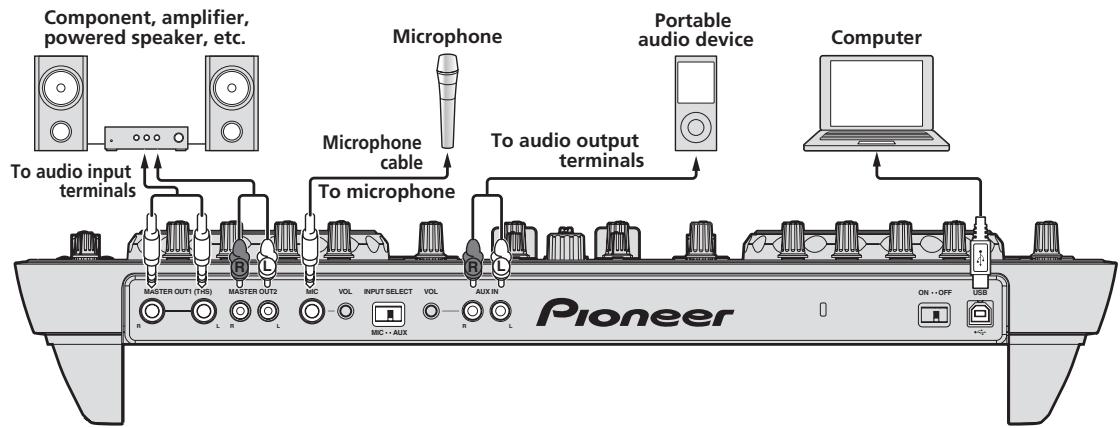
Connecting the input/output terminals. 13
Part names and functions
Control panel. 14
1 Browser. 15
2 Deck 15
3 Mixer 17
4 Effect 18
5 Loop recorder 18
05 Basic Operation
Starting the system. 19
Loading tracks and playing them 19
Outputting sound 19
Mixing 19
Inputting the sound of an external device or microphone. 20
Quitting the system 20
06 Advanced Operation
Using the CUE function. 21
Using the LOOP function. 21
Using the EFFECT function 21
Switching the jog dials' illumination mode 21
07 List of MIDI Messages
1 Browser 22
2 Deck 23
3 Mixer 26
4 Effect 27
5 Loop recorder 29
08 Additional information
Troubleshooting 30
Using as a controller for other DJ software. 31
About trademarks and registered trademarks 31
Cautions on copyrights 31
Specifications 31
Before start
Features
This unit, while using the same operation panel layout as Pioneer's professional DJ equipment, has a rounded, amiable form. It is designed to allow a wide range of users – from those at the start of their DJing experience to those who have already begun DJ performances in their home and elsewhere – to enjoy DJ performances in a variety of situations.
PULSE CONTROL
Thanks to the use of the newly developed "Pure Platter" jog dials with four white LEDs and channel faders with built-in LEDs, the illumination changes in conjunction with DJ operations, effects, etc., adding brilliance to DJ performances.
- Mix Pulse: The offset of the tempo on the two decks is expressed by the white illumination of the jog dials. The white illumination is lit brightly when the tempos on the two decks are synchronized, and the more the tempos are apart, the dimmer the white illumination.
- Beat Pulse: The illumination of the channel faders flashes according to the decks' audio levels.
- Launch Pulse: The deck's illumination changes when a track is loaded.
FX Pulse: The jog dial's illumination changes in response to effect operations.
TRAKTOR PRO 2
DESIGN
This unit is designed with a rounded body, making it suitable to a wide variety of lifestyles and harmonizing with all types of interiors. In addition, the basically black design not only harmonizes with interiors but also gives it a professional look.
Furthermore, the buttons and controls on the operation panel have the same layout as Pioneer's professional DJ devices.
LAPTOP DOCK
This unit uses a new "Laptop Dock" structure by which, when installed at an angle, the keyboard section of a notebook computer slides under the controller.
Not only can the controller be installed in small spaces, it can be set at an angle with the feet still on and operated while seated in a chair, or the feet can be removed and the controller operated while standing, allowing users to enjoy a wide range of DJ performance styles.
TRAKTOR LE 2
The "TRAKTOR LE 2" DJ software offering a full range of basic functions for DJ performances is included.
Also, upgrading to TRAKTOR PRO 2 makes it possible not only to operate a multitude of functions but also to control various other DJ software programs.
USB BUS POWER
This product supports USB bus power. It can be used simply by connecting it to a computer with a USB cable.
HIGH SOUND QUALITY
This product inherits the sound quality technology developed over the years for Pioneer DJ hardware to achieve the top level of sound quality in its class.
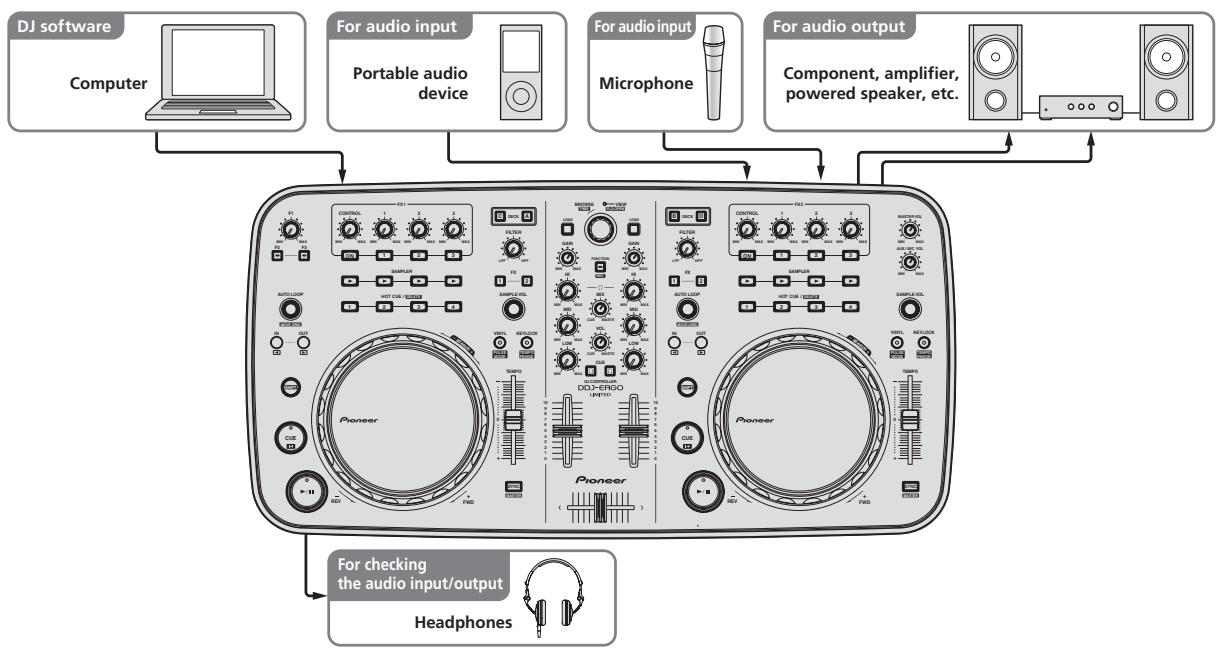
System setup example
A DJ system like the one on the diagram below can be created by combining this unit with a computer and peripherals.
What's in the box
- TRAKTOR LE 2 software CD-ROM
- Driver software/operating instructions CD-ROM
USB cable - Read Before Use (Important)
Quick Start Guide
Service Center Guide (for Japanese customers)
Warranty card
Using the LAPTOP DOCK
The computer's keyboard section can be stowed under this unit.
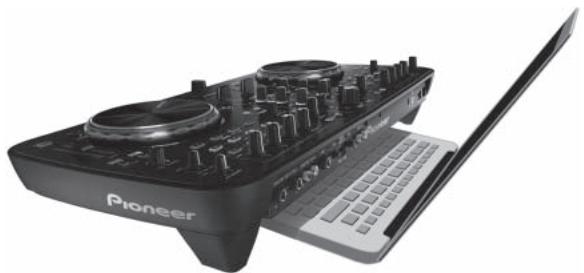
Depending on the size of your (notebook) computer, the keyboard section may not fit in the LAPTOP DOCK.
Install in such a way that the computer unit does not touch this unit.
- Install in such a way that the cables connected to the computer are not stuck under this unit.
Using with the feet removed
This unit's two feet can be removed.
Use a Phillips screwdriver to remove the screws from the left and right feet.
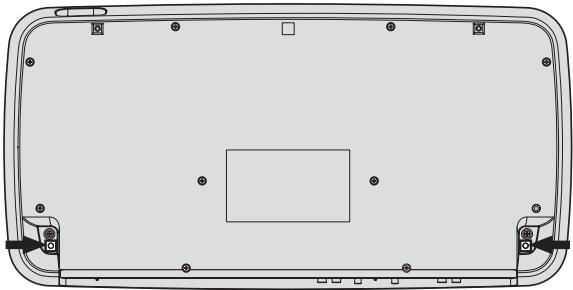
- The screws you have removed will be needed when mounting the feet. Be careful not to lose them. The feet cannot be properly mounted using other screws.
Before you start
About the driver software (Windows)
This driver software is an exclusive ASIO driver for outputting audio signals from the computer.
There is no need to install the driver software when using Mac OS X.
Software end user license agreement
This Software End User License Agreement ("Agreement") is between you (both the individual installing the Program and any single legal entity for which the individual is acting) ("You" or "Your") and PIONEER CORPORATION ("Pioneer").
TAKING ANY STEP TO SET UP OR INSTALL THE PROGRAM MEANS THAT YOU ACCEPT ALL OF THE TERMS OF THIS LICENSE AGREEMENT. PERMISSION TO DOWNLOAD AND/OR USE THE PROGRAM IS EXPRESSLY CONDITIONED ON YOUR FOLLOWING THESE TERMS. WRITTEN OR ELECTRONIC APPROVAL IS NOT REQUIRED TO MAKE THIS AGREEMENT VALID AND ENFORCEABLE. IF YOU DO NOT AGREE TO ALL OF THE TERMS OF THIS AGREEMENT, YOU ARE NOT AUTHORIZED TO USE THE PROGRAM AND MUST STOP INSTALLING IT OR UNINSTALL IT, AS APPLICABLE.
1 DEFINITIONS
1 "Documentation" means written documentation, specifications and help content made generally available by Pioneer to aid in installing and using the Program.
2 "Program" means all or any part of Pioneer's software licensed to You by Pioneer under this Agreement.
2 PROGRAM LICENSE
1 Limited License. Subject to this Agreement's restrictions, Pioneer grants to You a limited, non-exclusive, non-transferable, license (without the right to sublicense):
a To install a single copy of the Program in Your computer or mobile device, to use the Program only for Your personal purpose complying with this Agreement and the Documentation ("Authorized Use");
b To use the Documentation in support of Your Authorized Use; and
c To make one copy of the Program solely for backup purposes, provided that all titles and trademark, copyright and restricted rights notices are reproduced on the copy.
2 Restrictions. You will not copy or use the Program or Documentation except as expressly permitted by this Agreement. You will not transfer, sublicense, rent, lease or lend the Program, or use it for third-party training, commercial time-sharing or service bureau use. You will not Yourself or through any third party modify, reverse engineer, disassemble or decompile the Program, except to the extent expressly permitted by applicable law, and then only after You have notified Pioneer in writing of Your intended activities.
Ownership. Pioneer or its licensor retains all right, title and interest in and to all patent, copyright, trademark, trade secret and other intellectual property rights in the Program and Documentation, and any derivative works thereof. You do not acquire any other rights, express or implied, beyond the limited license set forth in this Agreement.
4 No Support. Pioneer has no obligation to provide support, maintenance, upgrades, modifications or new releases for the Program or Documentation under this Agreement.
3 WARRANTY DISCLAIMER
THE PROGRAM AND DOCUMENTATION ARE PROVIDED "AS IS" WITHOUT ANY REPRESENTATIONS OR WARRANTYES, AND YOU AGREE TO USE THEM AT YOUR SOLE RISK. TO THE FULlest EXTENT PERMISSIBLE BY LAW, PIONEER EXPRESSLY DISCLAIMS ALL WARRANTYES OF ANY KIND WITH RESPECT TO THE PROGRAM AND
DOCUMENTATION, WHETHER EXPRESS, IMPLIED, STATUTORY, ORARISINGOUTOF COURSE OFPERFORMANCE,COURSEOF DEALINGORUSAGEOF TRADE,INCLUDINGANYWARRANTIES OFMERCHANTABILITY,FITNESSFORAPARTICULARPURPOSE,SATISFACTORYQUALITY,ACCURACY,TITLEORNON-INFRINGEMENT.
4 DAMAGES AND REMEDIES FOR BREACH
You agree that any breach of this Agreement's restrictions would cause Pioneer irreparable harm for which money damages alone would be inadequate. In addition to damages and any other remedies to which Pioneer may be entitled, You agree that Pioneer may seek injunctive relief to prevent the actual, threatened or continued breach of this Agreement.
5 TERMINATION
Pioneer may terminate this Agreement at any time upon Your breach of any provision. If this Agreement is terminated, You will stop using the Program, permanently delete it from your computer or mobile device where it resides, and destroy all copies of the Program and Documentation in Your possession, confirming to Pioneer in writing that You have done so. Sections 2.2, 2.3, 2.4, 3, 4, 5 and 6 will continue in effect after this Agreement's termination.
6 GENERAL TERMS
1 Limitation of Liability. In no event will Pioneer or its subsidiaries be liable in connection with this Agreement or its subject matter, under any theory of liability, for any indirect, incidental, special, consequential or punitive damages, or damages for lost profits, revenue, business, savings, data, use, or cost of substitute procurement, even if advised of the possibility of such damages or if such damages are foreseeable. In no event will Pioneer's liability for all damages exceed the amounts actually paid by You to Pioneer or its subsidiaries for the Program. The parties acknowledge that the liability limits and risk allocation in this Agreement are reflected in the Program price and are essential elements of the bargain between the parties, without which Pioneer would not have provided the Program or entered into this Agreement.
2 The limitations or exclusions of warranties and liability contained in this Agreement do not affect or prejudice Your statutory rights as consumer and shall apply to You only to the extent such limitations or exclusions are permitted under the laws of the jurisdiction where You are located.
Severability and Waiver. If any provision of this Agreement is held to be illegal, invalid or otherwise unenforceable, that provision will be enforced to the extent possible or, if incapable of enforcement, deemed to be severed and deleted from this Agreement, and the remainder will continue in full force and effect. The waiver by either party of any default or breach of this Agreement will not waive any other or subsequent default or breach.
4 No Assignment. You may not assign, sell, transfer, delegate or otherwise dispose of this Agreement or any rights or obligations under it, whether voluntarily or involuntarily, by operation of law or otherwise, without Pioneer's prior written consent. Any purported assignment, transfer or delegation by You will be null and void. Subject to the foregoing, this Agreement will be binding upon and will inure to the benefit of the parties and their respective successors and assigns.
5 Entire Agreement. This Agreement constitutes the entire agreement between the parties and supersedes all prior or contemporaneous agreements or representations, whether written or oral, concerning its subject matter. This Agreement may not be modified or amended without Pioneer's prior and express written consent, and no other act, document, usage or custom will be deemed to amend or modify this Agreement.
6 You agree that this Agreement shall be governed and construed by and under the laws of Japan.
Installing the driver software
There is no need to install the driver software when using Mac OS X.
Operating environment
| Supported operating systems2 | ||
| Windows® 7 Home Premium/Professional/Ultimate | 32-bit version | ✓ |
| 64-bit version | ✓1 | |
| Windows Vista® Home Basic/Home Premium/Business/Ultimate | 32-bit version | ✓ |
| 64-bit version | ✓1 | |
| Windows® XP Home Edition/Professional(SP2 or later) | 32-bit version | ✓ |
When using a 64-bit version of Windows, the driver software can only be used for 32-bit applications.
2 Windows 7 or greater is required to use in combination with TRAKTOR 2.
Before installing the driver software
- Read Software end user license agreement carefully.
- Turn off this unit's power switch, then disconnect the USB cable connecting this unit and the computer.
If any other programs are running on the computer, quit them. - To install or uninstall the driver software, you need to be authorized by the administrator of your computer. Log on as the administrator of your computer before proceeding with the installation.
- If you connect this unit to your computer without installing the driver software first, an error may occur on your computer depending on the system environment.
- If installation of the driver software is interrupted after it has started, start the installation procedure over again from the beginning.
1 Turn on the computer's power.
2 Insert the included driver software CD-ROM into the computer's CD drive.
3 Once the CD-ROM's menu is displayed, double-click [Pioneer_DDJ_Driver_XXXXX.exe].
4 Proceed with installation according to the instructions on the screen.
If [Windows Security] appears on the screen while the installation is in progress, click [Install this driver software anyway] and continue with the installation.
- When installing on Windows XP
- If [Hardware Installation] appears on the screen while the installation is in progress, click [Continue Anyway] and continue with the installation.
- When the installation program is completed, a completion message appears.
Connecting this unit and computer
1 Connect this unit to your computer via a USB cable.
For instructions on connections, see Connecting the input/output terminals on page 13.
2 Slide this unit's [ON/OFF] switch to the [ON] position.
Turn on the power of this unit.
- The message [Installing device driver software] may appear when this unit is first connected to the computer or when it is connected to a different USB port on the computer. Wait a while until the message [Your devices are ready for use] appears.
Adjusting the buffer size
This unit functions as an audio device conforming to the ASIO standards.
- If an application using this unit as the default audio device (DJ software, etc.) is running, quit that application before adjusting the buffer size.
Click the Windows [Start] menu>[All Programs]>[Pioneer ]> [DDJ] > [Pioneer DDJ ASIO Settings Utility].
![PIONEER DDJ-ERGO-K - Click the Windows [Start] menu>[All Programs]>[Pioneer ]> [DDJ] > [Pioneer DDJ ASIO Settings Utility]. - 1](/content/2025/01/119072/images/bb6cf90b71ebce3786eb45d2d03a3650eb452a9d3fd63ee440bc355e4d72a379.jpg)
- If the buffer size is made large, drops in audio data (breaks in the sound) occur less easily, but the time lag due to the delay in the transfer of the audio data (latency) increases.
- If the kernel buffer number is made large, breaks in the sound occur less easily, but the time lag due to latency increases.
- Operate referring to the procedure below to adjust the buffer size and kernel buffer.
If there are no interruptions in the sound with the default settings
① Gradually decrease the buffer size, setting it to the minimum value at which there are no interruptions in the sound.
② Set the kernel buffer size to [2] and check whether there are interruptions in the sound.
If there are interruptions in the sound, set the kernel buffer size to [3].
If there are interruptions in the sound with the default settings
① Set the kernel buffer size to [4], then set the buffer size to the minimum value at which there are no interruptions in the sound.
Checking the version of the driver software
Click the Windows [Start] menu> [All Programs] > [Pioneer] >[DDJ] > [Pioneer DDJ Version Display Utility].
![PIONEER DDJ-ERGO-K - Click the Windows [Start] menu> [All Programs] > [Pioneer] >[DDJ] > [Pioneer DDJ Version Display Utility]. - 1](/content/2025/01/119072/images/3d8721f85ca30cd4a7158ffee1fa4ec94c4d5c6c860157f08dcb16972348ea90.jpg)
- You can check the firmware version of this unit on the screen.
- The firmware version is not displayed when this unit is not connected to the computer or when this unit and computer are not properly communicating.
Checking the latest information on the driver software
For the latest information on the driver software for exclusive use with this unit, visit our website shown below. http://pioneerdj.com/support/
About the TRAKTOR LE 2 software
TRAKTOR LE 2 is a DJ software application by Native Instruments. DJ performances are possible by connecting the computer on which this software is installed to this unit.
- For a comparison of the functions of the various versions of TRAKTOR LE 2 and TRAKTOR 2, see the website below. http://pioneerdj.com/support/
- The DDJ-ERGO-K supports TRAKTOR PRO 2 and TRAKTOR SCRATCH PRO 2. If you own TRAKTOR PRO 2 and TRAKTOR SCRATCH PRO 2, update to the latest version of the software before using it.
Minimum operating environment
| Supported operating systems | CPU and required memory | |
| Mac OS X 10.6.x | Intel® Core™ 2 Duo | |
| 2 GB or more of RAM | ||
| Windows® 7 | PC/AT-compatible computer with Intel® | |
| Home Premium/ Professional/ Ultimate | 32-bit version | Core™ 2 Duo 2.0 GHz or greater or AMD Athlon™ 64 x 2 |
| 2 GB or more of RAM | ||
| Others | |
| Hard disk | Free space of 1 GB or greater |
| Optical drive | Optical disc drive on which the CD-ROM can be read |
| USB port | A USB 2.0 port is required to connect the computer with this unit. |
| Display resolution | Resolution of 1 024 x 768 or greater |
| Internet connection | An Internet connection environment is required for user registration with Native Instruments, to update the TRAKTOR software, etc. |
Recommended operating environment
| Supported operating systems | CPU and required memory | |
| Mac OS X 10.7.x | Intel® Core™ 2 Duo | |
| 4 GB or more of RAM | ||
| Windows® 7 | 64-bit | Intel® Core™ 2 or AMD Athlon™ X2 processor |
| Professional | version | |
| 4 GB or more of RAM | ||
Full functionality is not guaranteed on all computers, even those meeting the operating environment requirements described above.
- Even with the required memory indicated for the operating environment above, lack of memory due to resident programs, the number of services, etc., could prevent the software from offering optimal functionality and performance. In such cases, free up sufficient memory. We recommend installing additional memory for stable operation.
- Depending on the computer's power-saving settings, etc., the CPU and hard disk may not provide sufficient processing capabilities. For notebook computers in particular, make sure the computer is in the proper conditions to provide constant high performance (for example by keeping the AC power connected) when using TRAKTOR LE 2.
Note that problems may arise with the functionality of TRAKTOR LE 2 depending on other software running on your computer.
- A separate contract with and payment to a provider offering Internet services is required.
Installing the TRAKTOR LE 2 software
About the installation procedure (Windows)
1 Insert the included TRAKTOR LE 2 software CD-ROM into the computer's CD drive.
2 From the Windows [Start] menu, double-click the [Computer (or My Computer)] > [Traktor 2] icon.
The contents of the CD-ROM are displayed.
3 Double-click [Traktor 2 Setup.exe].
The TRAKTOR 2 installer is launched.
4 Once the TRAKTOR 2 installer is launched, click [Next].
To return to the previous screen: Click [Back].
To cancel installation: Click [Cancel].
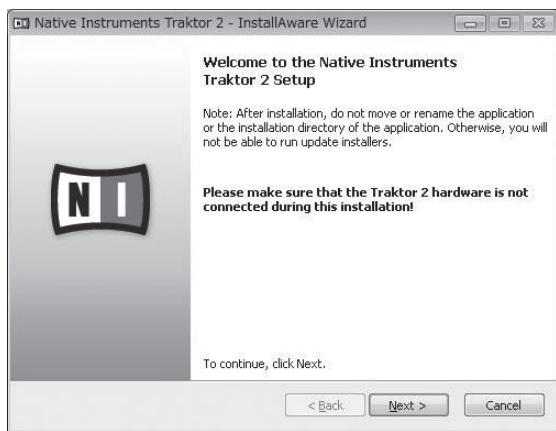
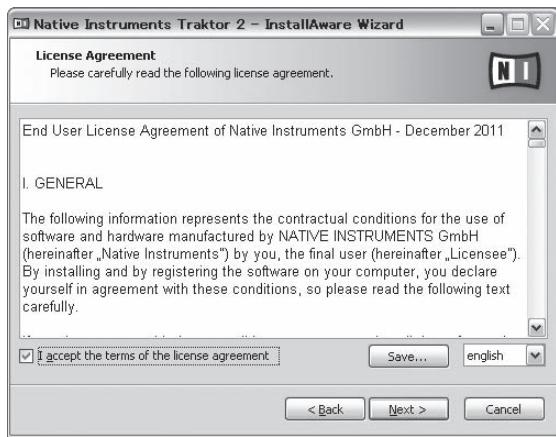
5 Read the contents of the [License Agreement] carefully, and if you agree, check [I accept the terms of the license agreement], then click [Next].
If you do not agree to the terms of the [License Agreement], click [Cancel] to cancel installation.
6 A screen for selecting the type of installation for TRAKTOR 2 appears. Click [Next].
7 Choose where to install TRAKTOR 2, then click [Next].
To choose the normal place of installation, simply click [Next].
To install in a different location, click [Change...], choose the place of installation, then click [Next].
8 Select the Native Instruments hardware driver, then click [Next].
Check the check box for your hardware.
9 To install the Traktor Kontrol X1 or Traktor Kontrol S4 driver, check the check box, then click [Next].
10 When the following screen appears, click [Next].
Installation begins.
The installation completed screen appears once installation is completed.
![PIONEER DDJ-ERGO-K - When the following screen appears, click [Next]. - 1](/content/2025/01/119072/images/7e2660669b14801041802634a304087a97763bc8ec7e319d8ca2dde60fcf5dc8.jpg)
11 Click [Finish].
This completes the installation procedure.
About the installation procedure (Mac OS X)
1 Insert the included TRAKTOR LE 2 software CD-ROM into the computer's CD drive.
The [Traktor 2] icon appears on the screen.
2 Double-click the [Traktor 2] icon.
The contents of the CD-ROM are displayed.
3 Double-click [Traktor 2 Installer.mpkg].
The TRAKTOR 2 installer is launched.
4 Once the TRAKTOR 2 installer is launched, click [Continue].
5 Read the contents of the license agreement carefully, then click [Continue].
6 If you agree to the contents of the usage agreement, click [Agree].
If you do not agree to the contents of the usage agreement, click [Disagree] to cancel installation.
7 Select the Native Instruments hardware driver, then click [Continue].
Check the check box for your hardware.
8 Choose where to install TRAKTOR 2, then click [Install].
To choose the normal place of installation, simply click [Install].
To install in a different location, click [Change Install Location...], choose the place of installation, then click [Install]. Installation begins.
The installation completed screen appears once installation is completed.
9 Click [Restart].
This completes the installation procedure.
Launching TRAKTOR 2
For Windows
From the Windows [Start] menu, open [All Programs] > [Native Instruments] > [Traktor 2], then click the [Traktor 2] icon.
For Mac OS X
In Finder, open the [Application] folder, next open [Native Instruments] > [Traktor 2], then double-click the [Traktor] icon.
Performing product activation
To use TRAKTOR LE 2, first perform product activation (referred to simply as "activation" below) using Native Instruments SERVICE CENTER (referred to simply as "SERVICE CENTER" below).
Launching the SERVICE CENTER
There are three ways to do this:
- Launching from the dialog displayed when TRAKTOR 2 is started up
- Launching from the TRAKTOR 2 [Help] menu
- Launching SERVICE CENTER directly
To launch from the dialog displayed when TRAKTOR 2 is started up
1 Launch the TRAKTOR 2.
The screen below appears.
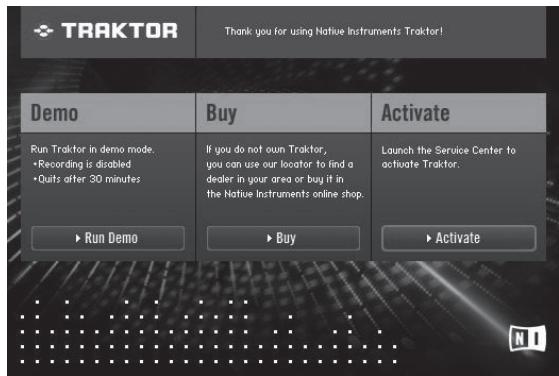
- Until activation is complete at the SERVICE CENTER, this dialog is displayed each time TRAKTOR 2 is launched.
2 Select [Activate] and click.
— [Run Demo]: Launch TRAKTOR 2 in the demo mode.
- [Buy]: Purchase TRAKTOR 2 from the Native Instruments online shop.
- [Activate]: SERVICE CENTER is launched.
To launch from the TRAKTOR 2 [Help] menu
From the TRAKTOR 2 [Help] menu, click [Launch Service Center].
To launch the SERVICE CENTER directly
For Windows
From the Windows [Start] menu, click the [Native Instruments] >
[Service Center] > [Service Center] icons.
For Mac OS X
In Finder, open the [Application] folder, then double-click the [Service
Center] > [Service Center] icons.
Activation procedure
Online activation: When your computer is connected to the Internet
Offline activation: When your computer is not connected to the Internet
Online activation
1 Launch the SERVICE CENTER.
The log-in screen is displayed.
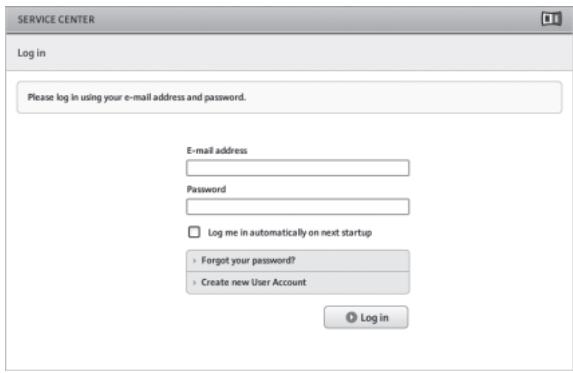
2 Input your e-mail address and password, then click [Log in].
- When logging in for the first time, you must create a new user account.
When [Create new User Account] is clicked, the new user account registration screen appears.
Input the required items (e-mail address, first and last names), select your country/region, then click [Next].
When the registration information confirmation screen appears, check the contents, then click [OK].
A password is sent to the e-mail address input on the form. Return to the log-in screen and log in.
- The personal information input when registering a new user account may be collected, processed and used based on the privacy policy on the Native Instruments website.
PIONEER CORPORATION does not collect, process or use this personal information.
3 Input the serial number indicated on the package of the TRAKTOR LE 2 software CD-ROM, then click [Activate].
![PIONEER DDJ-ERGO-K - Input the serial number indicated on the package of the TRAKTOR LE 2 software CD-ROM, then click [Activate]. - 1](/content/2025/01/119072/images/5931e2c63e70c3b55cfdc150d3794d06f83b8c8822545564ad923b8811e3f576.jpg)
4 Once "Activated" is displayed, click [Exit].
Offline activation
To activate TRAKTOR LE 2 installed on a computer that is not connected to the Internet, use SERVICE CENTER in the offline mode.
With this procedure, a second computer that can be connected to the Internet is required.
1 Launch the SERVICE CENTER on the computer on which TRAKTOR LE 2 is to be installed.
2 Click [Offline] at
[Continue without connecting to the internet].
3 Click [Create] at [Create Activation Request File].
![PIONEER DDJ-ERGO-K - Click [Create] at [Create Activation Request File]. - 1](/content/2025/01/119072/images/80493c45342bd7a46ac9d619ebe8f2fb402c9f7625b28ba04926902419dcc4c1.jpg)
4 Input the serial number indicated on the package of the TRAKTOR LE 2 software CD-ROM, then click [Create].
A launch request file is created. Save this file on a USB device, etc.
5 Connect the USB device on which the launch request file is saved to the computer that can be connected to the Internet.
6 Double-click the launch request file on the computer that can be connected to the Internet.
The web browser is launched.
7 Once the product activation screen appears, click [Send].
8 Input your e-mail address and password, then click [SUBMIT].
- When logging in for the first time, you must create a new user account.
When [No - I do not have an NI account.] is checked and [SUBMIT]
is clicked, the new user account registration screen appears.
Input the required items (e-mail address, first and last names, street address, city and postal code), select your country/region, then click [NEXT].
When a survey screen appears, select answers to the various questions, then click [SUBMIT].
A password is sent to the e-mail address input on the form. Return to the log-in screen and log in.
- The personal information input when registering a new user account may be collected, processed and used based on the privacy policy on the Native Instruments website.
PIONEER CORPORATION does not collect, process or use this personal information.
9 When the [Service Center Activation Page] appears, click [NEXT].
10 Check that [Product] is [TRAKTOR LE 2] and [Status] is [OK], then click [NEXT].
A launch return file is created. Save this file on a USB device, etc.
11 Launch the SERVICE CENTER on the computer on which TRAKTOR LE 2 is to be installed.
12 Click [Offline] at
[Continue without connecting to the internet].
13 Click [Open] at [Open Activation Return File].
The launch return file is loaded.
14 Check in the SERVICE CENTER that product activation has completed.
Updating the TRAKTOR 2 software
When the computer is connected to the Internet, TRAKTOR 2 software can be updated by accessing the Native Instruments SERVICE CENTER (referred to simply as "SERVICE CENTER" below).
1 Launch the SERVICE CENTER and log in.
For instructions on launching the SERVICE CENTER and logging in, see Launching the SERVICE CENTER on page 8.
2 Click the [Update] tab.
Available updates are checked.
3 Check the check box.
Specify the update to be downloaded.
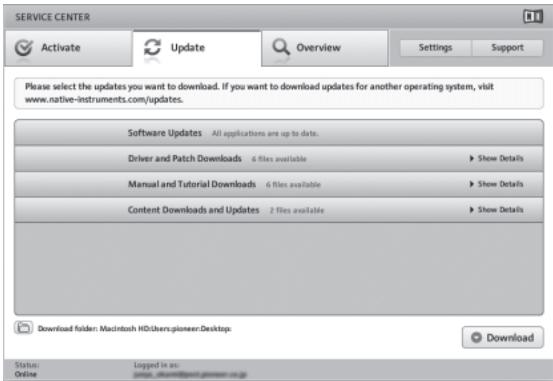
4 Click [Download].
Updating begins.
Initial settings
The initial settings for TRAKTOR LE 2 can be made using the setup wizard (Setup Wizard).
Cautions
- For Windows users, this unit's driver software must be installed in advance.
All of TRAKTOR LE 2's settings are reset to their defaults.
Before using, perform the following:
- Update this unit to the latest firmware version.
For Windows users
Be sure to turn this unit's power on before launching TRAKTOR LE 2. If this unit's power is turned on after launching TRAKTOR LE 2, the DDJ-ASIO driver may not be recognized.
If the DDJ-ASIO driver is not recognized, close TRAKTOR LE 2 then restart this unit.
Setting procedure
1 Connect this unit and the computer by USB cable, then slide the [ON/OFF] switch to the [ON] side.
2 Once this unit starts up, launch TRAKTOR LE 2.
- Be sure to start up this unit before launching TRAKTOR LE 2.
3 From the [Help] menu on the upper left of the screen, open [Start Setup Wizard], then click [Next].
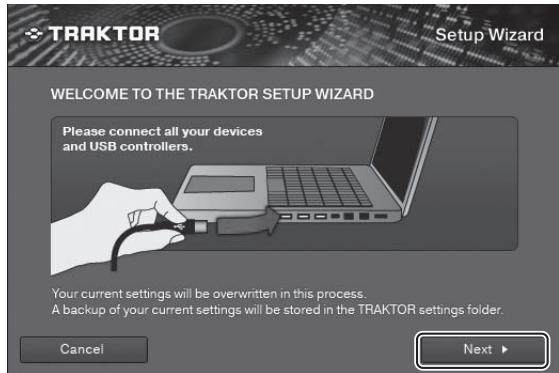
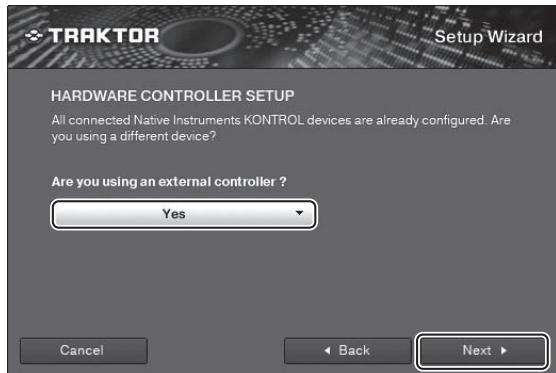
4 At the [Are you using an external controller?] item, select [Yes], then click [Next].
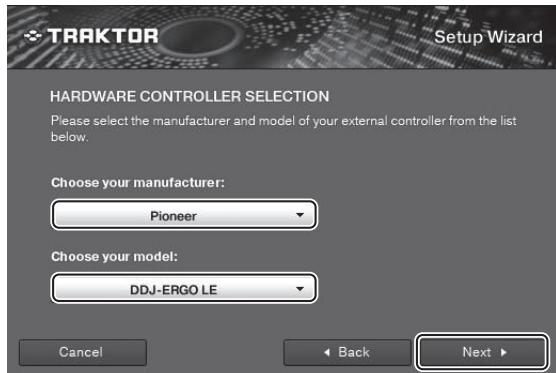
5 Select [Pioneer] at the [Choose your manufacturer] item and [DDJ-ERGO LE] at the [Choose your model] item, then click [Next].
- When using TRAKTOR PRO 2, select [DDJ-ERGO].
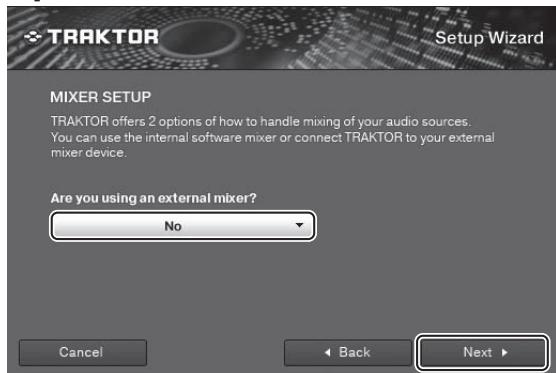
6 At the [Are you using an external mixer?] item, select [Yes] if using an external mixer, [No] if not, then click [Next].
7 Click [Finish] at the bottom right to complete the setup wizard settings.
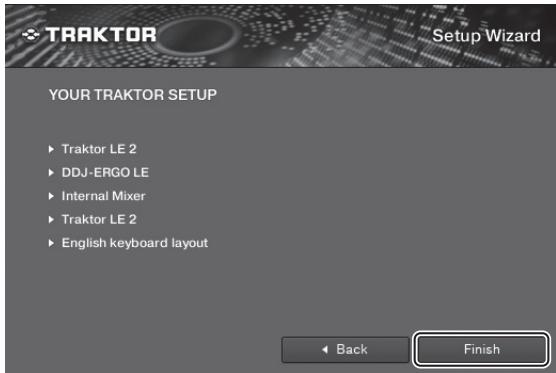
Cautions
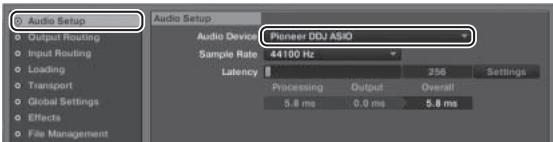
The preferences are reset after the setup wizard settings are made. When using the DDJ-ERGO-K, note that the audio settings below are required at a minimum.
Audio Setup
Audio Device:
Pioneer DDJ ASIO (Windows 7)
PIONEER DDJ-ERGO (Mac OS X 10.6/10.7)
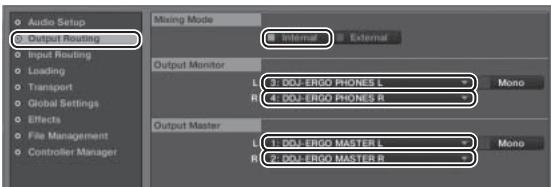
Output Routing
- Mixing Mode:Internal
Output Monitor
L 3:DDJ-ERGO PHONES L
R 4:DDJ-ERGO PHONES R
Output Master:
L 1:DDJ-ERGO MASTER L
R 2:DDJ-ERGO MASTER R
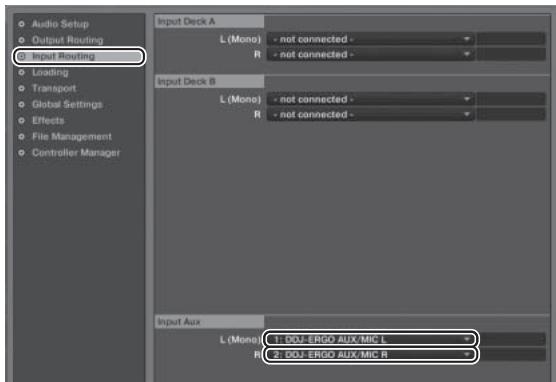
Input Routing
The initial settings for TRAKTOR LE 2 are shown below.
To use external inputs with the initial settings, make the settings below.
These settings are not required when not using external inputs.
Input Aux:
L(Mono) 1:DDJ-ERGO AUX/MIC L
R 2:DDJ-ERGO AUX/MIC R
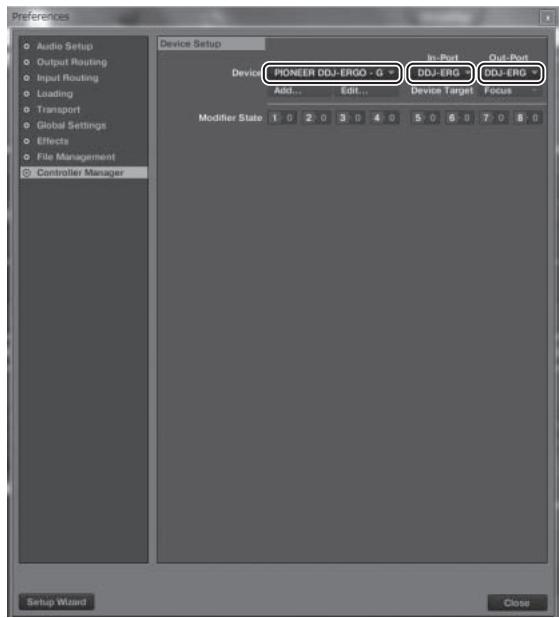
8 Open [File]>[Controller Manager...] if using windows, [Traktor]>[Preferences]>[Controller Manager] if using Mac OS X, then from [Device] under [Device Setup], select [PIONEER DDJ-ERGO - Generic MIDI] and set the device corresponding to this unit for [In-port] and [Out-port].
9 Close TRAKTOR 2, turn this unit's power off then back on, then relaunch TRAKTOR 2.
This completes all of the settings.
Connections
Be sure the power is off when connecting equipment and changing connections.
Be sure to use the USB cable included with this product.
Refer to the operating instructions for the component to be connected.
With this unit, the power is supplied by USB bus power. The unit can be used simply by connecting it to a computer using the USB cable.
- Connect this unit and the computer directly using the included USB cable.
- Connect the computer to which this unit is to be connected to an AC power supply.
- A USB hub cannot be used.
-
In cases like the ones below, the power may be insufficient and this unit may not operate on USB bus power.
-
When the computer's USB power supply capacity is insufficient.
- When other USB devices are connected to the computer.
- When headphones with an impedance of less than 32 are connected.
-
When headphones are simultaneously connected to the stereo phone jack and the stereo mini-phone jack.
-
When a monaural jack is connected to the [PHONES] terminal.
-
If this unit cannot be operated on USB bus power, it may operate in the emergency mode (with limited functions).
The following limitations apply in the emergency mode:
The volume of the headphones will be lower.
The [DECK] button on the selected deck flashes.
Names of terminals
Rear panel

1 MASTER OUT 1 terminals
Connect powered speakers, etc., here.
This is a TRS phone jack, so both balanced and unbalanced outputs are supported.
- The sound will be distorted if the level is raised too high when using unbalanced outputs.
2 MASTER OUT 2 terminals
Connect to a power amplifier, etc.
3 MIC terminal
Connects a microphone here.
4 MIC VOL control
Adjusts the audio level input to the [MIC] terminal.
5 AUX/MIC selector switch
Switches the audio input between the external device and the microphone.
- [AUX]: The external device connected to the [AUX] terminals is selected.
- [MIC]: The microphone connected to the [MIC] terminal is selected.
- The sound input to the [MIC] and [AUX] terminals is mixed to the [MASTER OUT] sound.
6 AUX IN VOL control
Adjusts the audio level input to the [AUX IN] terminals.
7 AUX IN terminals
Connect to the output terminal of an external device (sampler, portable audio device, etc.)
8 Kensington security slot
9 ON/OFF switch
Turns this unit's power on and off.
10 USB terminal
Connects to a computer.
- Connect this unit and the computer directly using the included USB cable.
- A USB hub cannot be used.
Front panel
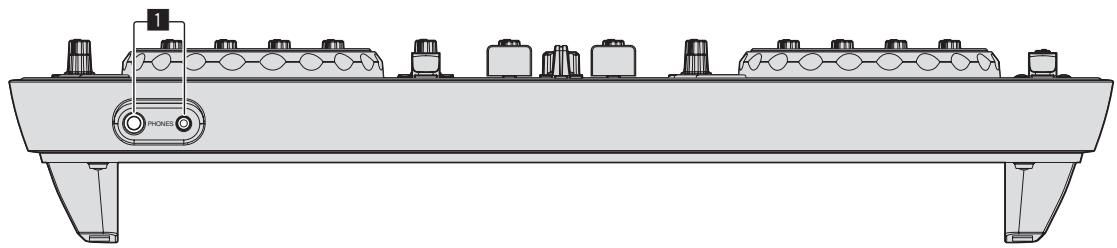
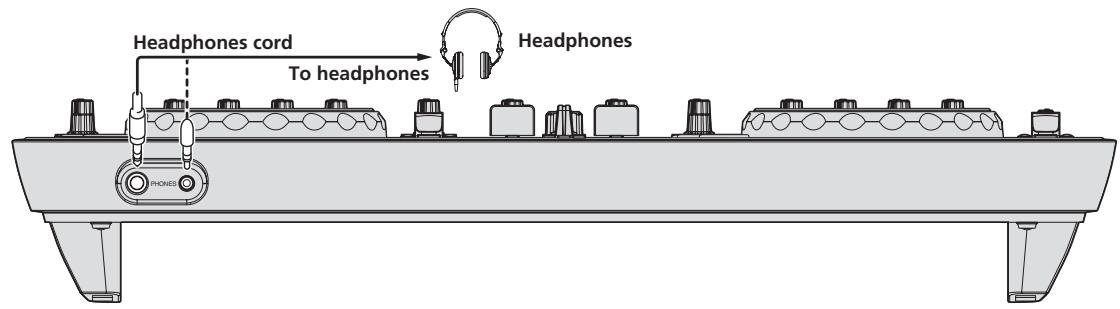
1 PHONES terminals
Connect headphones here.
Both stereo phone plugs ( 6.3mm) and stereo mini phone plugs (
3.5mm) can be used.
- Connect headphones with an impedance of 32 or more. Headphones with an impedance of less than 32 are not supported.
- Do not connect headphones simultaneously to the stereo phone jack and the stereo mini-phone jack.
Connecting the input/output terminals
Rear panel
Front panel
Part names and functions
The part functions and screen images given here are based on TRAKTOR PRO 2 functions.
Explanations of TRAKTOR PRO 2 functions are indicated TRAKTOR PRO 2
Also refer to the TRAKTOR 2 operating instructions. The TRAKTOR 2 operating instructions can be viewed from the TRAKTOR PRO 2 help menu.
2-deck displays are used for the included TRAKTOR LE 2.
Control panel
When TRAKTOR PRO 2 is launched for the first time, the display layout is set to [Essential].
To display all of the parts described below, select [Mixer] with the layout selector.
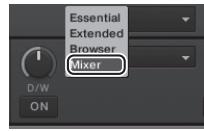
Layout selector
1 Browser (page 15)
2 Deck (page 15)
3 Mixer (page 17)
4 Effect (page 18)
5 Loop recorder (page 18)
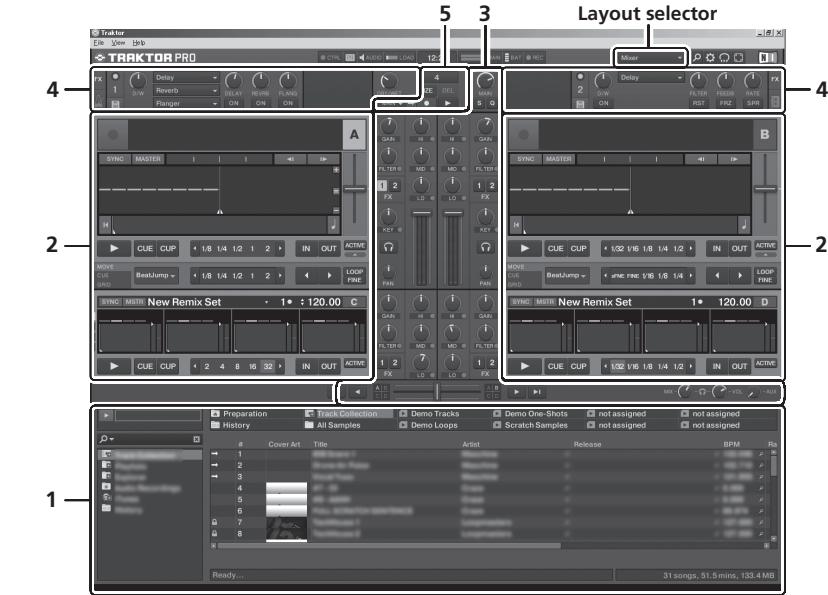
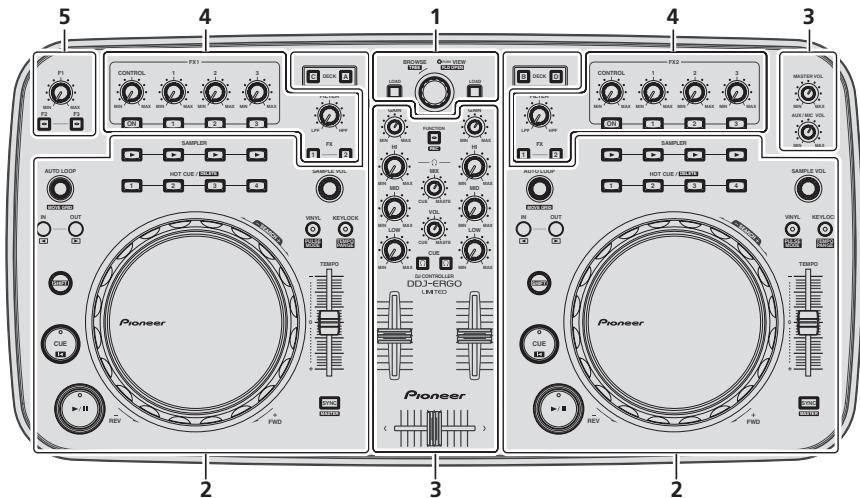
1 Browser
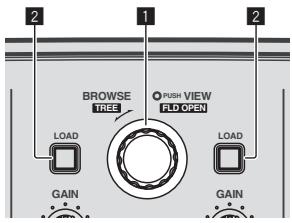
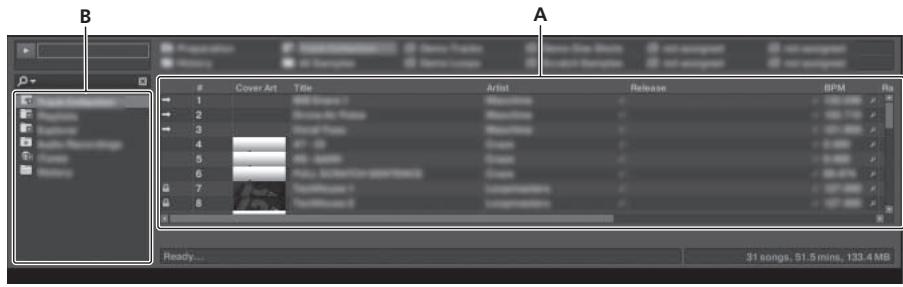
1 Rotary selector
- Turn: The cursor moves in section A of the above diagram.
Press: The [BROWSE] area's magnified display turns on and off. -
[SHIFT] + turn: The cursor moves in section B of the above diagram.
-
[SHIFT] + press:
- Folders in section B of the above diagram open and close.
2 LOAD button
Loads the track selected with the cursor in each of the decks.
2 Deck
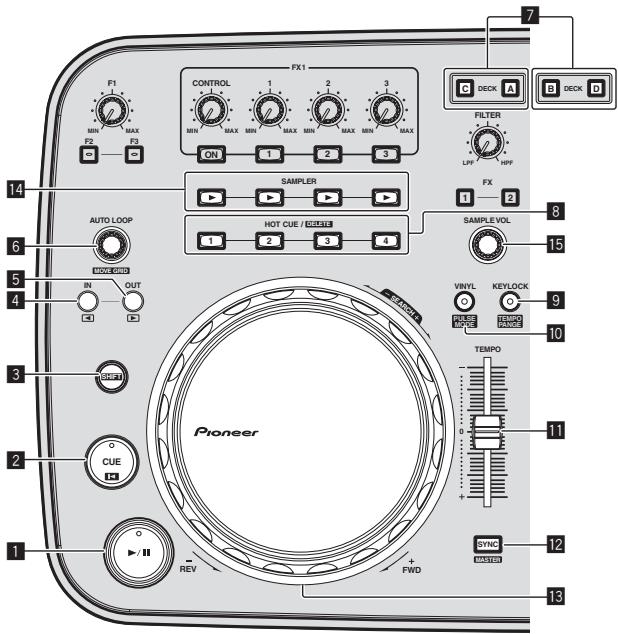
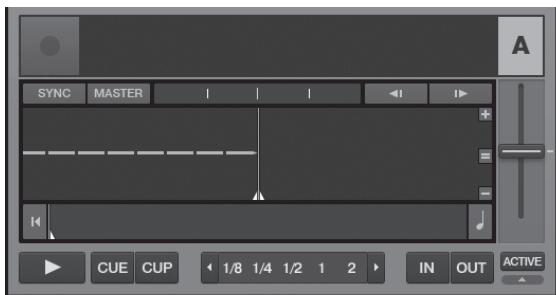
- The TRAKTOR 2 decks consist of the TRACK DECK and the REMIX DECK.
- Initially, TRACK DECK is assigned to DECK A(B), REMIX DECK to DECK C(D), but this can be changed as desired.
- With TRAKTOR LE 2, the REMIX DECK cannot be used.
- The REMIX DECK can be used if you upgrade to TRAKTOR PRO 2 (for a fee).
TRACK DECK
1 /II button
Uses this to play/pause tracks.
2 CUE button
- Press: Sets a cue point or moves the cue point.
- [SHIFT] + press: The playing position moves to the beginning of the track.
3 SHIFT button
When another button is pressed while pressing the [SHIFT] button, a different function is called out.
4 IN button
- Press: Sets the position at which loop playback starts (the loop in point).
- [SHIFT] + press:
TRAKTOR PRO 2
Moves the loop playback section one beat towards the beginning of the track.
5 OUT button
- Press: Sets the position at which loop playback ends (the loop out point).
[SHIFT] + press: TRAKTOR PRO 2
Moves the loop playback section one beat towards the end of the track.
6 AUTO LOOP (MOVE GRID) control
- Turn: Changes the width of the loop playback section.
Press: Turns loop playback on and off. - [SHIFT] + turn: Moves the beat grid position.
- [SHIFT] + press: Switches loop playback on/off.
7 DECK buttons
TRAKTOR PRO 2
Switch the deck to be operated.
8 HOT CUE/DELETE buttons
TRAKTOR PRO 2
- Press: Set hot cue points and calls out hot cues.
- [SHIFT] + press:
- Delete the hot cue set for that button.
9 KEYLOCK (TEMPOR RANGE) button
Press: Turns the key lock function on and off.
- [SHIFT] + press: The [TEMPO] slider's range of variation switches each time this is pressed.
10 VINYL (PULSE MODE) button
Press: This switches the [VINYL] mode on/off.
- [SHIFT] + press: Switches the jog dials' illumination mode (Pulse Mode).
TEMPO slider
Adjusts the playing speed.
SYNC (MASTER) button
Press: Synchronizes to the master deck's tempo.
- [SHIFT] + press: Sets the master deck for synchronization.
Jog dial
- Scratch When the [VINYL] mode is turned on and the jog dial is turned while pressing on its top, the track is played according to the direction and speed at which the jog dial is turned.
- Pitch bend
- The playing speed can be adjusted by turning the outer part of the jog dial during playback.
The top of the jog dial has an embedded switch. Do not place objects on the jog dial or subject it to strong forces. Also note that water or other liquids getting into the set will lead to malfunction.
REMIX DECK
TRAKTOR PRO 2
The maximum number of sample slots that can be operated with this unit is 4 per REMIX DECK.
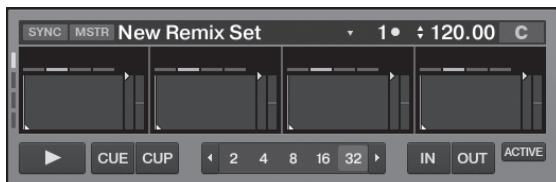
1 /II button
Plays all sample slots at once. When pressed during playback, stops playback of all sample slots.
2 CUE button
Triggers all samples at once.
3 SHIFT button
When another button is pressed while pressing the [SHIFT] button, a different function is called out.
4 IN button
Sets sample playback to the one-shot mode for all samples at once. After the samples are played once, sample playback stops.
5 OUT button
Sets sample playback to the loop mode for all samples at once. The samples are played in a loop.
6 AUTO LOOP (MOVE GRID) control
- Turn: Halves or doubles the length of all the samples at once.
Press: Resets the loop size for all samples at once.
7 DECK buttons
Switches the deck to be operated.
8 HOT CUE/DELETE buttons
- Press: When pressed during playback, playback starts from the beginning.
- [SHIFT] + press:
Turn the sample slot individual control mode on and off.
Only slots whose indicators are flashing can be controlled.
9 KEYLOCK (TEMPO RANGE) button
Turns the key lock function on and off for all sample slots at once.
TEMPO slider
Adjusts the playing speed of all samples at once.
SYNC (MASTER) button
Synchronizes the phase of all samples at once.
Jog dial
During playback, turn the jog dial while pressing down on its top.
- Scratch When the [VINYL] mode is on, the source is played according to the direction and speed at which the jog dial is turned.
- Pitch bend When the [VINYL] mode is off, the playing speed can be adjusted.
14 SAMPLER button
- Press:
Starts/stops playback of the sample.
The sample is loaded from the TRACK DECK with the REMIX DECK starting from empty.
When the sample is playing, playback returns to the beginning of the sample and continues.
During loop playback, mutes and unmutes the sound. - [SHIFT] + press:
When a sample is playing, playback returns to the beginning of the sample and stops.
The sample is loaded from the list with the REMIX DECK starting from empty. When pressed again, the sample is deleted from the REMIX DECK.
15 SAMPLE VOL control
- Turn: Adjusts the audio level of all the sample slots.
Press: Resets the audio level of all the sample slots. - [SHIFT] + turn:
- Applies the filter to all the sample slots.
- [SHIFT] + press: Resets the filter for all the sample slots.
3 Mixer
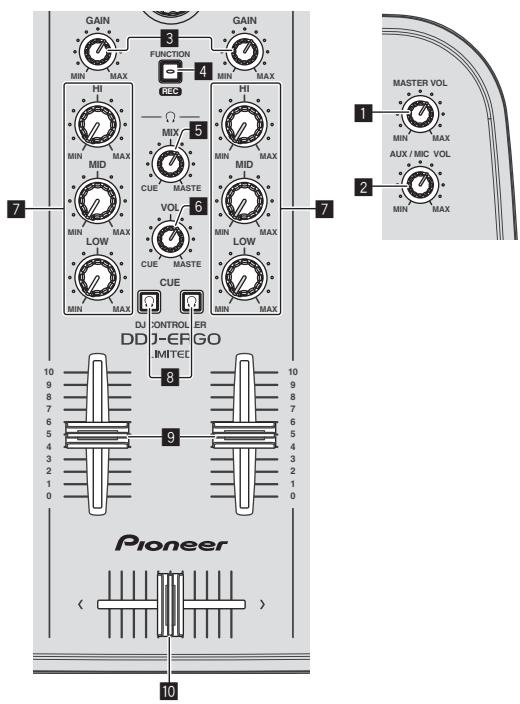
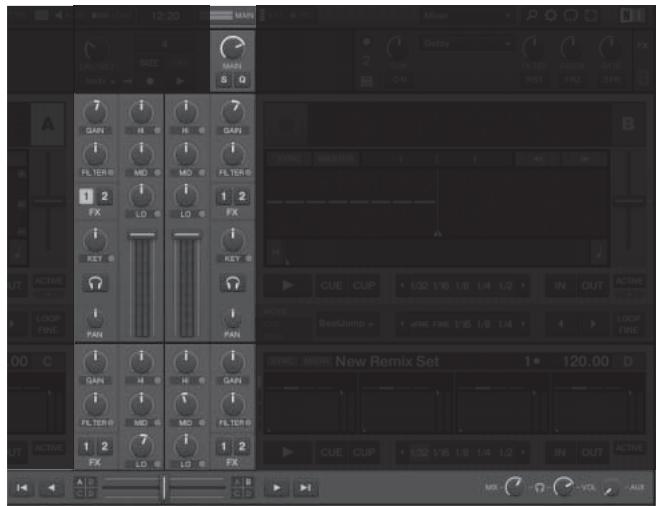
1 MASTER VOL control
Adjusts the sound level output from the master.
2 AUX/MIC VOL control
Adjusts the audio output level of the [AUX IN] and [MIC] terminals.
3 GAIN controls
Adjust the sound level input to the various decks.
4 FUNCTION (REC) button
Press:
Loads the track selected with the cursor into the preview player and plays it.
- [SHIFT] + press:
TRAKTOR PRO 2
Clicks this to start/stop recording.
5 HEADPHONES MIX control
Adjusts the balance of the monitor volume between the sound of the deck whose [CUE] button is pressed and the master sound.
6 HEADPHONES VOL control
Adjusts the audio level output from the [PHONES] terminal.
7 EQ (HI, MID, LOW) controls
These adjust the sound quality input to the various decks. [HI] (treble range), [MID] (middle range), [LOW] (low range)
3 CUE (Headphones cue buttons)
Use this to monitor the sound of the respective decks over the headphones.
9 Channel faders
Adjust the sound level output from the various decks.
10 Crossfader
Switches the sound of the decks assigned to the left and right sides of the crossfader for output.
Do not pull on the channel fader and crossfader knobs with excessive force. The knobs have a structure by which they cannot be pulled off easily. Pulling the knobs strongly may result in damaging the unit.
4 Effect
With TRAKTOR LE 2, [FX1-1] and [FX2-1] can be used, with [FX1-1] fixed to deck A, [FX2-1] fixed to deck B. [FX1-2], [FX1-3], [FX2-2] and [FX2-3] cannot be used.
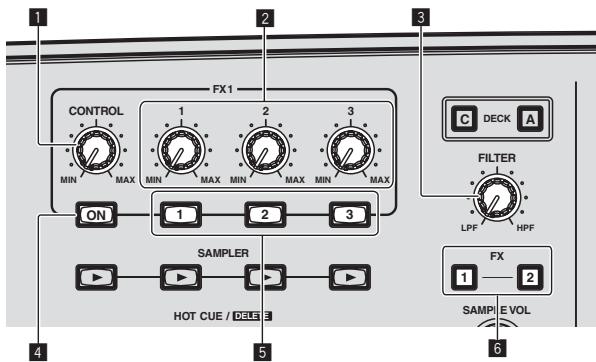
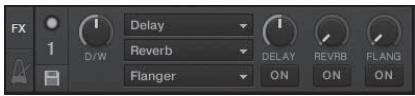
[Group] mode effect panel
For TRAKTOR LE 2
Only one effect can be controlled.
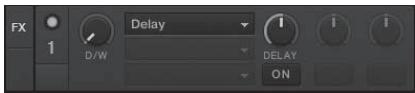
For TRAKTOR PRO 2
Three effects can be controlled simultaneously.
[Single] mode effect panel
TRAKTOR PRO 2
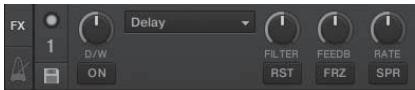
- TRAKTOR 2 effects include the [Group] mode and [Single] mode.
- With TRAKTOR LE 2, the [Single] mode cannot be selected.
- When you upgrade to TRAKTOR PRO 2 (for a fee), the effect panel can be switched to the [Single] mode.
1 CONTROL dial
Changes the balance between the effect sound and original sound.
- [SHIFT] + turn:
TRAKTOR PRO 2
In the [Single] mode, switches the effect type.
2 Effect parameter controls
The associated functions differ according to the TRAKTOR 2 effect panel mode.
- [Group] mode: Adjusts the parameters of the various effects.
[Single] mode:
TRAKTOR PRO 2
Adjusts the various parameters of the selected effect.
- [SHIFT] + turn:
In the [Group] mode, switches the effect type.
3 FILTER control
Turns clockwise to apply the high pass filter.
Turns counterclockwise to apply the low pass filter.
4 FX ON button
TRAKTOR PRO 2
This button is for switching the effects exclusively for the [Single] mode on and off.
- [SHIFT] + press:
Switches to the [Group] or [Single] mode for the effects.
5 Effect parameter buttons
The associated functions differ according to the TRAKTOR 2 effect panel mode.
- [Group] mode: Switches the various effects on/off.
[Single] mode:
TRAKTOR PRO 2
When the effect control [1] button is pressed, all the effect setting values return to the default setting values.
When effect control buttons [2] and [3] are pressed, the various parameters switch between on and off. The types of parameters differ according to the effect.
6 Effect assign buttons
TRAKTOR PRO 2
Press the [1] or [2] button to assign TRAKTOR PRO 2 effect unit [FX1] or [FX2] to the deck.
- With TRAKTOR LE 2, the effect assignments cannot be changed.
5 Loop recorder
TRAKTOR PRO 2
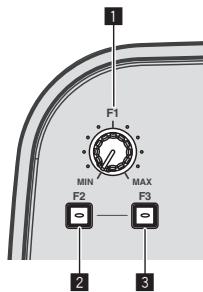
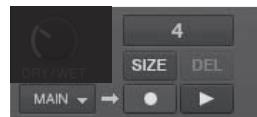
- The loop recorder function cannot be used with TRAKTOR LE 2. When you upgrade to TRAKTOR PRO 2 (for a fee), the loop recorder function can be used.
F1 control
Adjusts the balance of the volume between the loop sound and main sound.
2 F2 button
Press:
Starts/stops loop recording.
When pressed during playback, overdubbing is possible.
- [SHIFT] + press:
Switches the recorded loop size.

3 F3 button
Press:
Starts/stops playback of the recorded loop.
- [SHIFT] + press:
When pressed while the loop recorder is recording, the recording is canceled and started over (UNDO). When pressed again at this time, the loop recorder returns to the recording mode (REDO).
When pressed while the loop recorder is stopped, all of the contents are deleted (DEL).
Basic Operation
Starting the system
Starting this unit
1 Connect this unit to your computer via a USB cable.
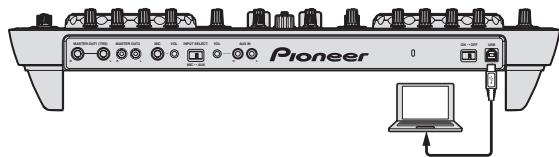
2 Boot up the connected computer.
3 Slide this unit's [ON/OFF] switch to the [ON] position.
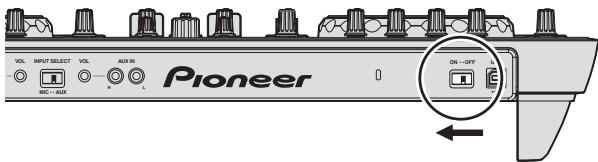
Turn on the power of this unit.
- The message [Installing device driver software] may appear when this unit is first connected to the computer or when it is connected to a different USB port on the computer. Wait a while until the message [Your devices are ready for use] appears.
4 Turn on the connected microphone and external equipment.
Launching TRAKTOR LE 2
When this unit has just started, wait for the illumination to stop before launching TRAKTOR LE 2.
For Windows
From the Windows [Start] menu, open [All Programs] > [Native Instruments] > [Traktor 2], then click the [Traktor 2] icon.
For Mac OS X
In Finder, open the [Application] folder, next open [Native Instruments] > [Traktor 2], then double-click the [Traktor] icon.
Loading tracks and playing them
The following example describes the procedure for playing tracks with a 2-deck layout.
1 Turn the rotary selector while pressing the [SHIFT] button to select a folder or item.
- When a folder or item with the [+] mark is selected and the rotary selector is pressed while pressing the [SHIFT] button, that folder or item is opened or closed.
2 Release the [SHIFT] button then turn the rotary selector to select the track.
3 Press the [LOAD] button to load the selected track onto the deck.
4 Press the [ /II] button to play the track.
- When this button is pressed again during playback, playback pauses.
Outputting sound
-
Set the volume of the power amplifiers connected to the [MASTER OUT 1] and [MASTER OUT 2] terminals to an appropriate level. Note that if the volume is set too high, the output sound could be very loud.
1 Operate the [GAIN] control and the channel faders to adjust the audio level output from the respective decks.
2 Operate the crossfader to switch the deck whose sound is output from the speakers. -
Left edge: Sound is output from deck [A] or [C].
Center: The sound of all the decks is mixed and output.
Right edge:Sound is output from deck [B] or [D].
3 Turn the [MASTER VOL] control to adjust the audio level of the speakers.
Monitoring sound with headphones
1 Connect headphones to the [PHONES] terminal.
2 Press the headphones [CUE] button for the deck you want to monitor.
3 Turn the [HEADPHONES MIX] control.
Turn counterclockwise: The sound of the deck for which the headphones [CUE] button is pressed becomes relatively louder.
Center position: The sound of the deck for which the headphones [CUE] button is pressed and the [MASTER OUT 1, MASTER OUT 2] sound have the same volume.
- When turned clockwise: The volume of [MASTER OUT 1] and [MASTER OUT 2] become relatively louder.
4 Turn the [HEADPHONES VOL] control.
The sound of the deck for which the headphones [CUE] button is pressed is output from the headphones.
- When the headphones [CUE] button is pressed again, monitoring is canceled.
Mixing
-
Operate the [TEMPO] slider to match the playing speed on one deck to the playing speed on the other deck.
-
Move towards the + (front) side: The playing speed increases.
- Move towards the - (back) side: The playing speed decreases.
2 If the beats of the two decks are off, use the jog dial's pitch bend function to correct for this offset.
The playing speed can be adjusted by turning the outer part of the jog dial during playback.
Spin clockwise: The playing speed increases.
Spin counterclockwise: The playing speed decreases.
- Stop spinning: Playback at the normal speed resumes.
-
When the [VINYL] mode is off, the playing speed can also be adjusted by turning the jog dial while pressing on its top.
-
When the [SYNC (MASTER)] button is pressed, the playing speeds and beats of the two decks are synchronized instantaneously.
3 Operate the channel faders or crossfader to mix the sound of the two decks and switch between them.
Inputting the sound of an external device or microphone
The sound of the external device connected to the [AUX IN] terminals or the sound of the microphone connected to the [MIC] terminal can be mixed.
1 Connect the external device to the [AUX IN] or [MIC] terminal.
2 Switch the [AUX, MIC] selector switch.
[AUX]: Selects the external device connected to the [AUX IN] terminals.
- [MIC]: Selects the microphone connected to the [MIC] terminal.
3 Make the TRAKTOR LE 2 software's [Preferences] > [Input Routing] setting.
Set [Input Aux] as shown below.
— [L(Mono)]:DDJ-ERGO AUX/MIC L
— [R]:DDJ-ERGO AUX/MIC R
4 Adjust the audio level input to the [AUX IN] or [MIC] terminals.
Turn the [MIC VOL] control on the main unit's rear panel: The [MIC] terminals' input audio level is adjusted.
Turn the [AUX IN VOL] control on the main unit's rear panel: The [AUX IN] terminals' input audio level is adjusted.
Pioneer DJ player: Set near the center position.
Portable audio player or other device with low volume: Set clockwise of the center position.
5 Turn this unit's [AUX/MIC VOL] control.
Turn this unit's [AUX/MIC VOL] control to set the volume to a suitable level.
Quitting the system
1 Quit TRAKTOR LE 2.
2 Slide this unit's [ON/OFF] switch to the [OFF] position.
3 Disconnect the USB cable from your computer.
4 Turn off the connected microphone and external equipment.
Advanced Operation
Using the CUE function
1 In the pause mode, press the [CUE] button to set a cue point at the position at which playback is paused.
2 When the [CUE] button is pressed during playback, playback returns to the cue point that was set directly before and pauses (Back Cue).
3 After returning to the cue point, keep pressing the [CUE] button to continue playing (Cue Sampler).
Using the LOOP function
Manual looping
1 During playback, press the [IN] button to set the loop in point.
2 Press the [OUT] button to set the loop out point and start loop playback.
- When the [OUT] button is pressed during loop playback, loop playback is canceled.
Auto looping
1 During playback, turn the [AUTO LOOP] control to set the length for loop playback in number of beats.
2 Press the [AUTO LOOP] control to start loop playback.
- The length of the loop can be changed by turning the [AUTO LOOP] control during loop playback.
- When the [AUTO LOOP] control is pressed during loop playback, loop playback is canceled.
Using the EFFECT function
Separate audio effects can be applied to the respective decks.
1 Turn an effect parameter control while pressing the [SHIFT] button to select the effect type.
2 Press an effect parameter button.
3 Turn the effect parameter controls to adjust the parameters of the respective effects.
Switching the jog dials' illumination mode
This unit is equipped with two types of illumination modes for the jog dials.
Press the [VINYL (PULSE MODE)] button while pressing the [SHIFT] button to switch the illumination mode.
Pulse Mode Active: The offset of the beat grid is indicated by the white illumination of the jog dials. The illumination is brightest for the master deck and decks for which the beat grid matches. The jog dials' illumination also lights in association with the operation of the [FILTER] control.
Pulse Mode Normal: The white illumination lights when the top of the jog dial is pressed.
- The illumination mode setting is not cleared when this unit's power is turned off. When the power is next turned on, the unit starts in the mode that was set before the power was turned off.
List of MIDI Messages
With TRAKTOR 2, MIDI messages for assigning TRAKTOR 2 functions to the MIDI are expressed "Note ^1 + English scale ^2 " or "CC ^3 + control number".
On the table below, the MIDI messages output from this unit's buttons and controls are indicated in the same way as in TRAKTOR 2.
1 "Note" is a MIDI term used when pressing or releasing notes on a piano or other keyboard.
2 The English scale indicates the tones using letters C, D, E, F, G, A and B and "#" indicating halftones.
"CC" is the abbreviation of "control change". A control change is a type of MIDI signal used to transmit various types of control information, such as timbre, volume, etc.
On this unit, values from 0 to 127 are output as CC mainly when controls and faders are operated. CC are also output when certain buttons are operated.
- When operated while pressing the [SHIFT] button, the code for when the [SHIFT] button is on is set.
- MIDI messages cannot be assigned to the [SHIFT] button.
With this unit, the various sections are connected to the MIDI channels shown below.
| MIDI channel | |
| Deck A | 1 |
| Deck B | 2 |
| Deck C | 3 |
| Deck D | 4 |
| Effect A/C | 5 |
| Effect B/D | 6 |
| Browser, mixer, global section | 7 |
| Sample slot 1 | 8 |
| Sample slot 2 | 9 |
| Sample slot 3 | 10 |
| Sample slot 4 | 11 |
We do not recommend using MIDI channels 12 and 13.
1 Browser
| SW Name | Deck type | MIDI message (this unit to computer) | Notes | |||||
| When SHIFT button is off | When SHIFT button is on | |||||||
| Ch | CC/Note | Number | Ch | CC/Note | Number | |||
| Rotary selector (turn) | TRACK/SAMPLE | 07 | CC | 64 | 07 | CC | 100 | Difference count value from when previously operated • Turn clockwise: 1 - (max) 30 • Turn counterclockwise: 127 - (min) 98 |
| Rotary selector (press) | TRACK/SAMPLE | 07 | Note | F4 | 07 | Note | F#4 | OFF=0, ON=127 |
| LOAD button (deck A) | TRACK | 07 | Note | A#4 | 07 | Note | E6 | OFF=0, ON=127 |
| LOAD button (deck B) | TRACK | 07 | Note | B4 | 07 | Note | F6 | OFF=0, ON=127 |
| LOAD button (deck C) | TRACK | 07 | Note | C5 | 07 | Note | F#6 | OFF=0, ON=127 |
| LOAD button (deck D) | TRACK | 07 | Note | C#5 | 07 | Note | G6 | OFF=0, ON=127 |
| LOAD button | SAMPLE | 08, 09, 10, 11 | Note | A#5 | — | — | — | OFF=0, ON=127① |
| 08, 09, 10, 11 | Note | D6 | — | — | — | |||
| 08, 09, 10, 11 | Note | F#6 | — | — | — | |||
| 08, 09, 10, 11 | Note | A#6 | — | — | — | |||
Only sent if slot is empty.
2 Deck
| SW Name | Deck type | MIDI message (this unit to computer) | Notes | |||||
| When SHIFT button is off | When SHIFT button is on | |||||||
| Ch | CC/Note | Number | Ch | CC/Note | Number | |||
| ■/II button | TRACK | 01, 02, 03, 04 | Note | B1 | 01, 02, 03, 04 | Note | B4 | OFF=0, ON=127 |
| SAMPLE | 08, 09, 10, 11 | Note | A#0 | 08, 09, 10, 11 | Note | G#0 | OFF=0, ON=1272 | |
| 08, 09, 10, 11 | Note | B0 | 08, 09, 10, 11 | Note | A0 | |||
| 08, 09, 10, 11 | Note | C1 | 08, 09, 10, 11 | Note | D1 | |||
| 08, 09, 10, 11 | Note | C#1 | 08, 09, 10, 11 | Note | D#1 | |||
| 08, 09, 10, 11 | Note | D9 | — | — | — | OFF=0, ON=1273 | ||
| CUE button | TRACK | 01, 02, 03, 04 | Note | C0 | 01, 02, 03, 04 | Note | C5 | OFF=0, ON=127 |
| SAMPLE | 08, 09, 10, 11 | Note | A#4 | 08, 09, 10, 11 | Note | E1 | OFF=0, ON=1272 | |
| 08, 09, 10, 11 | Note | C5 | 08, 09, 10, 11 | Note | F1 | |||
| 08, 09, 10, 11 | Note | D5 | 08, 09, 10, 11 | Note | F#1 | |||
| 08, 09, 10, 11 | Note | E5 | 08, 09, 10, 11 | Note | G1 | |||
| IN button | TRACK | 01, 02, 03, 04 | Note | E0 | 01, 02, 03, 04 | Note | E5 | OFF=0, ON=127 |
| SAMPLE | 08, 09, 10, 11 | Note | C4 | 08, 09, 10, 11 | Note | F#5 | OFF=0, ON=1272 | |
| 08, 09, 10, 11 | Note | C#4 | 08, 09, 10, 11 | Note | G5 | |||
| 08, 09, 10, 11 | Note | D4 | 08, 09, 10, 11 | Note | G#5 | |||
| 08, 09, 10, 11 | Note | D#4 | 08, 09, 10, 11 | Note | A5 | |||
| OUT button | TRACK | 01, 02, 03, 04 | Note | F0 | 01, 02, 03, 04 | Note | F5 | OFF=0, ON=127 |
| SAMPLE | 08, 09, 10, 11 | Note | E7 | 08, 09, 10, 11 | Note | A#7 | OFF=0, ON=1272 | |
| 08, 09, 10, 11 | Note | F7 | 08, 09, 10, 11 | Note | B7 | |||
| 08, 09, 10, 11 | Note | F#7 | 08, 09, 10, 11 | Note | C8 | |||
| 08, 09, 10, 11 | Note | G7 | 08, 09, 10, 11 | Note | C#8 | |||
| AUTO LOOP control (turn) | TRACK | 01, 02, 03, 04 | CC | 19 | 01, 02, 03, 04 | 79 | G5 | Difference count value from when previously operatedTurn clockwise: 1-(max)30Turn counterclockwise: 127-(min)98 |
| AUTO LOOP control (turned clockwise) | SAMPLE | 08, 09, 10, 11 | Note | C3 | 08, 09, 10, 11 | CC | 68 | Difference count value from when previously operated2Turn clockwise: 1-(max)30 |
| 08, 09, 10, 11 | Note | C#3 | 08, 09, 10, 11 | CC | 69 | |||
| 08, 09, 10, 11 | Note | D3 | 08, 09, 10, 11 | CC | 126 | |||
| 08, 09, 10, 11 | Note | D#3 | 08, 09, 10, 11 | CC | 127 | |||
| AUTO LOOP control (turned counterclockwise) | SAMPLE | 08, 09, 10, 11 | Note | E3 | 08, 09, 10, 11 | CC | 68 | Difference count value from when previously operated2Turn counterclockwise: 127-(min)98 |
| 08, 09, 10, 11 | Note | F3 | 08, 09, 10, 11 | CC | 69 | |||
| 08, 09, 10, 11 | Note | F#3 | 08, 09, 10, 11 | CC | 126 | |||
| 08, 09, 10, 11 | Note | G3 | 08, 09, 10, 11 | CC | 127 | |||
| AUTO LOOP control (press) | TRACK | 01, 02, 03, 04 | Note | G#0 | 01, 02, 03, 04 | Note | G#5 | OFF=0, ON=127 |
| SAMPLE | 08, 09, 10, 11 | Note | G#3 | 08, 09, 10, 11 | Note | C2 | OFF=0, ON=1272 | |
| 08, 09, 10, 11 | Note | A3 | 08, 09, 10, 11 | Note | C#2 | |||
| 08, 09, 10, 11 | Note | A#3 | 08, 09, 10, 11 | Note | D2 | |||
| 08, 09, 10, 11 | Note | B3 | 08, 09, 10, 11 | Note | D#2 | |||
| DECK button | TRACK/SAMPLE | 01, 02, 03, 04 | Note | F#8 | — | — | — | OFF=0, ON=127 |
| HOT CUE/DELETE 1 button | TRACK | 01, 02, 03, 04 | Note | A#2 | 01, 02, 03, 04 | Note | B6 | OFF=0, ON=127 |
| SAMPLE | 08, 09, 10, 11 | Note | A#4 | — | — | — | OFF=0, ON=127 | |
| HOT CUE/DELETE 2 button | TRACK | 01, 02, 03, 04 | Note | B2 | 01, 02, 03, 04 | Note | C7 | OFF=0, ON=127 |
| SAMPLE | 08, 09, 10, 11 | Note | C5 | — | — | — | OFF=0, ON=127 | |
| HOT CUE/DELETE 3 button | TRACK | 01, 02, 03, 04 | Note | C3 | 01, 02, 03, 04 | Note | C#7 | OFF=0, ON=127 |
| SAMPLE | 08, 09, 10, 11 | Note | D5 | — | — | — | OFF=0, ON=127 | |
| HOT CUE/DELETE 4 button | TRACK | 01, 02, 03, 04 | Note | C#3 | 01, 02, 03, 04 | Note | D7 | OFF=0, ON=127 |
| SAMPLE | 08, 09, 10, 11 | Note | E5 | — | — | — | OFF=0, ON=127 | |
| KEYLOCK (TEMPORO RANGE) button | TRACK | 01, 02, 03, 04 | Note | D1 | 01, 02, 03, 04 | Note | D#1 | OFF=0, ON=1274 |
| Note | E1 | |||||||
| Note | F1 | |||||||
| Note | F#1 | |||||||
| SAMPLE | 08, 09, 10, 11 | Note | G#1 | — | — | — | OFF=0, ON=1272 | |
| 08, 09, 10, 11 | Note | A1 | — | — | — | |||
| 08, 09, 10, 11 | Note | A#1 | — | — | — | |||
| 08, 09, 10, 11 | Note | B1 | — | — | — | |||
| VINYL (PULSE MODE) button | TRACK | — | — | — | — | — | ||
| When SHIFT button is off | When SHIFT button is on | |||||||
| Ch | CC/Note | Number | Ch | CC/Note | Number | |||
| TEMPO slider | TRACK | 01, 02, 03, 04 | CC | 0 | 01, 02, 03, 04 | CC | 5 | 0-16383 |
| CC | 32 | CC | 37 | 0 at back, 16383 at front | ||||
| SYNC (MASTER) button | TRACK | 01, 02, 03, 04 | Note | E6 | 01, 02, 03, 04 | Note | G#6 | OFF=0, ON=127 |
| 08, 09, 10, 11 | Note | D8 | — | — | — | OFF=0, ON=127[2] | ||
| 08, 09, 10, 11 | Note | D#8 | — | — | — | |||
| 08, 09, 10, 11 | Note | E8 | — | — | — | |||
| 08, 09, 10, 11 | Note | F8 | — | — | — | |||
| Jog dial (when outer section turned) | TRACK | 01, 02, 03, 04 | CC | 33 | 01, 02, 03, 04 | CC | 38 | Difference count value from when previously operated |
| • Turned clockwise: Count up from 64 | ||||||||
| • Turned counterclockwise: Count down from 64 | ||||||||
| SAMPLE | 08, 09, 10, 11 | CC | 0 | — | — | — | Difference count value from when previously operated[2] | |
| 08, 09, 10, 11 | CC | 1 | — | — | — | |||
| 08, 09, 10, 11 | CC | 2 | — | — | — | • Turned clockwise: Count up from 64 | ||
| 08, 09, 10, 11 | CC | 3 | — | — | — | • Turned counterclockwise: Count down from 64 | ||
| Jog dial (when top section turned: [VINYL] mode on) | TRACK | 01, 02, 03, 04 | CC | 34 | 01, 02, 03, 04 | CC | 39 | Difference count value from when previously operated |
| • Turned clockwise: Count up from 64 | ||||||||
| • Turned counterclockwise: Count down from 64 | ||||||||
| SAMPLE | 08, 09, 10, 11 | CC | 8 | — | — | — | Difference count value from when previously operated[2] | |
| 08, 09, 10, 11 | CC | 9 | — | — | — | |||
| 08, 09, 10, 11 | CC | 10 | — | — | — | • Turned clockwise: Count up from 64 | ||
| 08, 09, 10, 11 | CC | 11 | — | — | — | • Turned counterclockwise: Count down from 64 | ||
| Jog dial (when top section turned: [VINYL] mode off) | TRACK | 01, 02, 03, 04 | CC | 35 | 01, 02, 03, 04 | CC | 39 | Difference count value from when previously operated |
| • Turned clockwise: Count up from 64 | ||||||||
| • Turned counterclockwise: Count down from 64 | ||||||||
| SAMPLE | 08, 09, 10, 11 | CC | 12 | — | — | — | Difference count value from when previously operated[2] | |
| 08, 09, 10, 11 | CC | 13 | — | — | — | |||
| 08, 09, 10, 11 | CC | 14 | — | — | — | • Turned clockwise: Count up from 64 | ||
| 08, 09, 10, 11 | CC | 15 | — | — | — | • Turned counterclockwise: Count down from 64 | ||
| Jog dial (when top section pressed: [VINYL] mode on) | TRACK | 01, 02, 03, 04 | Note | F#3 | 01, 02, 03, 04 | Note | G7 | OFF=0, ON=127 |
| 08, 09, 10, 11 | Note | E1 | — | — | — | |||
| 08, 09, 10, 11 | Note | F1 | — | — | — | |||
| 08, 09, 10, 11 | Note | F#1 | — | — | — | |||
| 08, 09, 10, 11 | Note | G1 | — | — | — | |||
| Jog dial (when top section pressed: [VINYL] mode off) | TRACK | 01, 02, 03, 04 | Note | G3 | 01, 02, 03, 04 | Note | G7 | OFF=0, ON=127 |
| 08, 09, 10, 11 | Note | E0 | — | — | — | |||
| 08, 09, 10, 11 | Note | F#0 | — | — | — | |||
| 08, 09, 10, 11 | Note | F0 | — | — | — | |||
| 08, 09, 10, 11 | Note | G0 | — | — | — | |||
| SAMPLER 1 button | TRACK | 01, 02, 03, 04 | Note | C4 | 01, 02, 03, 04 | Note | C#4 | OFF=0, ON=127 |
| 08, 09, 10, 11 | Note | A#5 | 08, 09, 10, 11 | Note | B5 | OFF=0, ON=127[1] | ||
| 08, 09, 10, 11 | Note | C6 | 08, 09, 10, 11 | Note | C#6 | OFF=0, ON=127 | ||
| 08, 09, 10, 11 | Note | E2 | — | — | — | OFF=0, ON=127[5] | ||
| SAMPLER 2 button | TRACK | 01, 02, 03, 04 | Note | D4 | 01, 02, 03, 04 | Note | D#4 | OFF=0, ON=127 |
| 08, 09, 10, 11 | Note | D6 | 08, 09, 10, 11 | Note | D#6 | OFF=0, ON=127[1] | ||
| 08, 09, 10, 11 | Note | E6 | 08, 09, 10, 11 | Note | F6 | OFF=0, ON=127 | ||
| 08, 09, 10, 11 | Note | F2 | — | — | — | OFF=0, ON=127[5] | ||
| SAMPLER 3 button | TRACK | 01, 02, 03, 04 | Note | E4 | 01, 02, 03, 04 | Note | F4 | OFF=0, ON=127 |
| 08, 09, 10, 11 | Note | F#6 | 08, 09, 10, 11 | Note | G6 | OFF=0, ON=127[1] | ||
| 08, 09, 10, 11 | Note | G#6 | 08, 09, 10, 11 | Note | A6 | OFF=0, ON=127 | ||
| 08, 09, 10, 11 | Note | F#2 | — | — | — | OFF=0, ON=127[5] | ||
| SAMPLER 4 button | TRACK | 01, 02, 03, 04 | Note | F#4 | 01, 02, 03, 04 | Note | G4 | OFF=0, ON=127 |
| 08, 09, 10, 11 | Note | A#6 | 08, 09, 10, 11 | Note | B6 | OFF=0, ON=127[1] | ||
| 08, 09, 10, 11 | Note | C7 | 08, 09, 10, 11 | Note | C#7 | OFF=0, ON=127 | ||
| 08, 09, 10, 11 | Note | G2 | — | — | — | OFF=0, ON=127[5] | ||
| SAMPLE VOL control (turn) | TRACK | 01, 02, 03, 04 | CC | 68 | 01, 02, 03, 04 | CC | 73 | Difference count value from when previously operated • Turn clockwise: 1 - (max) 30 • Turn counterclockwise: 127 - (min) 98 |
| SAMPLE | 08, 09, 10, 11 | CC | 98 | 08, 09, 10, 11 | CC | 114 | Difference count value from when previously operated² • Turn clockwise: 1 - (max) 30 • Turn counterclockwise: 127 - (min) 98 | |
| 08, 09, 10, 11 | CC | 99 | 08, 09, 10, 11 | CC | 115 | |||
| 08, 09, 10, 11 | CC | 100 | 08, 09, 10, 11 | CC | 116 | |||
| 08, 09, 10, 11 | CC | 101 | 08, 09, 10, 11 | CC | 117 | |||
| SAMPLE VOL control (press) | TRACK | 01, 02, 03, 04 | Note | A4 | 01, 02, 03, 04 | Note | D5 | OFF=0, ON=127 |
| SAMPLE | 08, 09, 10, 11 | Note | F#7 | 08, 09, 10, 11 | Note | A#8 | OFF=0, ON=127² | |
| 08, 09, 10, 11 | Note | G7 | 08, 09, 10, 11 | Note | B8 | |||
| 08, 09, 10, 11 | Note | G#7 | 08, 09, 10, 11 | Note | C9 | |||
| 08, 09, 10, 11 | Note | A7 | 08, 09, 10, 11 | Note | C#9 | |||
1 Only sent if slot is empty.
2 Sent to selected slot (Individual Control Mode).
3 Sent when not in the Individual Control Mode.
4 When the [SHIFT] button is pressed, the four MIDI-IN messages are toggled and sent.
5 Only sent during playback in the one-shot mode.
| Indicator name | Deck type | MIDI message (computer to this unit) | Indicator color | Notes | |||||
| When SHIFT button is off | When SHIFT button is on | ||||||||
| Ch | CC/Note | Number | Ch | CC/Note | Number | ||||
| ▶/II button | TRACK | 01, 02, 03, 04 | Note | B1 | 01, 02, 03, 04 | Note | B4 | Red | Off = 0, lit = 127 |
| CUE button | TRACK | 01, 02, 03, 04 | Note | C0 | 01, 02, 03, 04 | Note | C5 | Red | Off = 0, lit = 127 |
| IN button | TRACK | 01, 02, 03, 04 | Note | E0 | 01, 02, 03, 04 | Note | E5 | Red | Off = 0, lit = 127 |
| OUT button | TRACK | 01, 02, 03, 04 | Note | F0 | 01, 02, 03, 04 | Note | F5 | Red | Off = 0, lit = 127 |
| DECK button | TRACK/SAMPLE | 01, 02, 03, 04 | Note | F#8 | — | — | — | Decks A/B - red, decks C/D - orange | Off = 0, lit = 127 |
| HOT CUE/DELETE 1 button | TRACK | 01, 02, 03, 04 | Note | A#2 | 01, 02, 03, 04 | Note | B6 | Red | Off = 0, lit = 127 |
| HOT CUE/DELETE 2 button | TRACK | 01, 02, 03, 04 | Note | B2 | 01, 02, 03, 04 | Note | C7 | Red | Off = 0, lit = 127 |
| HOT CUE/DELETE 3 button | TRACK | 01, 02, 03, 04 | Note | C3 | 01, 02, 03, 04 | Note | C#7 | Red | Off = 0, lit = 127 |
| HOT CUE/DELETE 4 button | TRACK | 01, 02, 03, 04 | Note | C#3 | 01, 02, 03, 04 | Note | D7 | Red | Off = 0, lit = 127 |
| KEYLOCK (TEMPO RANGE) button | TRACK | 01, 02, 03, 04 | Note | D1 | 01, 02, 03, 04 | Note | D#1 | Red | Off = 0, lit = 127 |
| VINYL (PULSE MODE) button | TRACK | — | — | — | — | — | |||
| SYNC (MASTER) button | TRACK | 01, 02, 03, 04 | Note | E6 | 01, 02, 03, 04 | Note | G#6 | Red | Off = 0, lit = 127 |
| SAMPLE | 08, 09, 10, 11 | Note | D8 | — | — | — | Red | Off = 0, lit = 127 | |
| SAMPLER1 button | TRACK | 01, 02, 03, 04 | Note | C4 | 01, 02, 03, 04 | Note | C#4 | Red | Off = 0, lit = 127 |
| SAMPLER2 button | TRACK | 01, 02, 03, 04 | Note | D4 | 01, 02, 03, 04 | Note | D#4 | Red | Off = 0, lit = 127 |
| SAMPLER3 button | TRACK | 01, 02, 03, 04 | Note | E4 | 01, 02, 03, 04 | Note | F4 | Red | Off = 0, lit = 127 |
| SAMPLER4 button | TRACK | 01, 02, 03, 04 | Note | F#4 | 01, 02, 03, 04 | Note | G4 | Red | Off = 0, lit = 127 |
3 Mixer
| SW Name | MIDI message (this unit to computer) | Notes | ||||||
| When SHIFT button is off | When SHIFT button is on | |||||||
| Ch | CC/Note | Number | Ch | CC/Note | Number | |||
| MASTER VOL control | 07 | CC | 0 | — | — | — | 0-16383When turned fully counterclockwise: 0 / When turned fully clockwise: 16383 | |
| CC | 32 | — | — | — | ||||
| AUX/MIC VOL control | 07 | CC | 20 | — | — | — | 0-16383When turned fully counterclockwise: 0 / When turned fully clockwise: 16383 | |
| CC | 52 | — | — | — | ||||
| GAIN control | Deck A | 07 | CC | 3 | — | — | — | 0-16383When turned fully counterclockwise: 0 / When turned fully clockwise: 16383 |
| Deck B | 07 | CC | 4 | — | — | — | 0-16383When turned fully counterclockwise: 0 / When turned fully clockwise: 16383 | |
| Deck C | 07 | CC | 5 | — | — | — | 0-16383When turned fully counterclockwise: 0 / When turned fully clockwise: 16383 | |
| Deck D | 07 | CC | 6 | — | — | — | 0-16383When turned fully counterclockwise: 0 / When turned fully clockwise: 16383 | |
| FUNCTION (REC) button | 07 | Note | F7 | 07 | Note | F#7 | OFF=0, ON=127 | |
| HEADPHONES MIX control | 07 | CC | 1 | — | — | — | 0-16383When turned fully counterclockwise: 0 / When turned fully clockwise: 16383 | |
| CC | 33 | — | — | — | ||||
| HEADPHONES VOL control | 07 | CC | 2 | — | — | — | 0-16383When turned fully counterclockwise: 0 / When turned fully clockwise: 16383 | |
| CC | 34 | — | — | — | ||||
| EQ [HI] control | Deck A | 07 | CC | 7 | — | — | — | 0-16383When turned fully counterclockwise: 0 / When turned fully clockwise: 16383 |
| CC | 39 | — | — | — | ||||
| Deck B | 07 | CC | 8 | — | — | — | 0-16383When turned fully counterclockwise: 0 / When turned fully clockwise: 16383 | |
| CC | 40 | — | — | — | ||||
| Deck C | 07 | CC | 9 | — | — | — | 0-16383When turned fully counterclockwise: 0 / When turned fully clockwise: 16383 | |
| CC | 41 | — | — | — | ||||
| Deck D | 07 | CC | 10 | — | — | — | 0-16383When turned fully counterclockwise: 0 / When turned fully clockwise: 16383 | |
| CC | 42 | — | — | — | ||||
| EQ [MID] control | Deck A | 07 | CC | 11 | — | — | — | 0-16383When turned fully counterclockwise: 0 / When turned fully clockwise: 16383 |
| CC | 43 | — | — | — | ||||
| Deck B | 07 | CC | 12 | — | — | — | 0-16383When turned fully counterclockwise: 0 / When turned fully clockwise: 16383 | |
| CC | 44 | — | — | — | ||||
| Deck C | 07 | CC | 13 | — | — | — | 0-16383When turned fully counterclockwise: 0 / When turned fully clockwise: 16383 | |
| CC | 45 | — | — | — | ||||
| Deck D | 07 | CC | 14 | — | — | — | 0-16383When turned fully counterclockwise: 0 / When turned fully clockwise: 16383 | |
| CC | 46 | — | — | — | ||||
| EQ [LOW] control | Deck A | 07 | CC | 15 | — | — | — | 0-16383When turned fully counterclockwise: 0 / When turned fully clockwise: 16383 |
| CC | 47 | — | — | — | ||||
| Deck B | 07 | CC | 16 | — | — | — | 0-16383When turned fully counterclockwise: 0 / When turned fully clockwise: 16383 | |
| CC | 48 | — | — | — | ||||
| Deck C | 07 | CC | 17 | — | — | — | 0-16383When turned fully counterclockwise: 0 / When turned fully clockwise: 16383 | |
| CC | 49 | — | — | — | ||||
| Deck D | 07 | CC | 18 | — | — | — | 0-16383When turned fully counterclockwise: 0 / When turned fully clockwise: 16383 | |
| CC | 50 | — | — | — | ||||
| CUE (Headphones cue button) | Deck A | 07 | Note | C6 | — | — | — | OFF=0, ON=127 |
| Deck B | 07 | Note | C#6 | — | — | — | OFF=0, ON=127 | |
| Deck C | 07 | Note | D6 | — | — | — | OFF=0, ON=127 | |
| Deck D | 07 | Note | D#6 | — | — | — | OFF=0, ON=127 | |
| When SHIFT button is off | When SHIFT button is on | |||||||
| Ch | CC/Note | Number | Ch | CC/Note | Number | |||
| Channel fader | Deck A | 07 | CC | 19 | — | — | — | 0-16383When turned fully counterclockwise: 0 / When turned fully clockwise: 16383 |
| CC | 51 | — | — | — | ||||
| Deck B | 07 | CC | 21 | — | — | — | 0-16383When turned fully counterclockwise: 0 / When turned fully clockwise: 16383 | |
| CC | 53 | — | — | — | ||||
| Deck C | 07 | CC | 23 | — | — | — | 0-16383When turned fully counterclockwise: 0 / When turned fully clockwise: 16383 | |
| CC | 55 | — | — | — | ||||
| Deck D | 07 | CC | 25 | — | — | — | 0-16383When turned fully counterclockwise: 0 / When turned fully clockwise: 16383 | |
| CC | 57 | — | — | — | ||||
| Crossfader | 07 | CC | 31 | — | — | — | 0-163830 at left side, 16383 at right side | |
| CC | 63 | — | — | — | ||||
| Indicator name | MIDI message (computer to this unit) | Indicator color | Notes | ||||||
| When SHIFT button is off | When SHIFT button is on | ||||||||
| Ch | CC/Note | Number | Ch | CC/Note | Number | ||||
| FUNCTION (REC) button | 07 | Note | F7 | 07 | Note | F#7 | Red | Off = 0, lit = 127 | |
| CUE (Headphones cue button) | Deck A | 07 | Note | C6 | — | — | — | Red | Off = 0, lit = 127 |
| Deck B | 07 | Note | C#6 | — | — | — | Red | Off = 0, lit = 127 | |
| Deck C | 07 | Note | D6 | — | — | — | Red | Off = 0, lit = 127 | |
| Deck D | 07 | Note | D#6 | — | — | — | Red | Off = 0, lit = 127 | |
4 Effect
| SW Name | MIDI message (this unit to computer) | Notes | ||||||
| When SHIFT button is off | When SHIFT button is on | |||||||
| Ch | CC/Note | Number | Ch | CC/Note | Number | |||
| CONTROL dial | Group | 05 | CC | 0 | 05 | CC | 16 | 0-16383When turned fully counterclockwise: 0 / When turned fully clockwise: 16383 |
| 06 | CC | 32 | CC | |||||
| CC | 0 | 06 | CC | 16 | 0-16383When turned fully counterclockwise: 0 / When turned fully clockwise: 16383 | |||
| CC | 32 | CC | ||||||
| Single | 05 | CC | 8 | 05 | CC | 24 | 0-16383When turned fully counterclockwise: 0 / When turned fully clockwise: 16383 | |
| 06 | CC | 40 | CC | |||||
| CC | 8 | 06 | CC | 24 | 0-16383When turned fully counterclockwise: 0 / When turned fully clockwise: 16383 | |||
| CC | 40 | CC | ||||||
| Effect parameter control 1 | Group | 05 | CC | 2 | 05 | CC | 18 | 0-16383When turned fully counterclockwise: 0 / When turned fully clockwise: 16383 |
| 06 | CC | 34 | CC | |||||
| CC | 2 | 06 | CC | 18 | 0-16383When turned fully counterclockwise: 0 / When turned fully clockwise: 16383 | |||
| CC | 34 | CC | ||||||
| Single | 05 | CC | 10 | 05 | CC | 26 | 0-16383When turned fully counterclockwise: 0 / When turned fully clockwise: 16383 | |
| 06 | CC | 42 | CC | |||||
| CC | 10 | 06 | CC | 26 | 0-16383When turned fully counterclockwise: 0 / When turned fully clockwise: 16383 | |||
| CC | 42 | CC | ||||||
| Effect parameter control 2 | Group | 05 | CC | 4 | 05 | CC | 20 | 0-16383When turned fully counterclockwise: 0 / When turned fully clockwise: 16383 |
| 06 | CC | 36 | CC | |||||
| CC | 4 | 06 | CC | 20 | 0-16383When turned fully counterclockwise: 0 / When turned fully clockwise: 16383 | |||
| CC | 36 | CC | ||||||
| Single | 05 | CC | 12 | 05 | CC | 28 | 0-16383When turned fully counterclockwise: 0 / When turned fully clockwise: 16383 | |
| 06 | CC | 44 | CC | |||||
| CC | 12 | 06 | CC | 28 | 0-16383When turned fully counterclockwise: 0 / When turned fully clockwise: 16383 | |||
| CC | 44 | CC | ||||||
| Effect parameter control 3 | Group | 05 | CC | 6 | 05 | CC | 22 | 0-16383When turned fully counterclockwise: 0 / When turned fully clockwise: 16383 |
| 06 | CC | 6 | 06 | CC | 22 | 0-16383When turned fully counterclockwise: 0 / When turned fully clockwise: 16383 | ||
| Single | 05 | CC | 14 | 05 | CC | 30 | 0-16383When turned fully counterclockwise: 0 / When turned fully clockwise: 16383 | |
| 06 | CC | 14 | 06 | CC | 30 | 0-16383When turned fully counterclockwise: 0 / When turned fully clockwise: 16383 | ||
| FILTER control | Deck A | 07 | CC | 27 | — | — | — | 0-16383When turned fully counterclockwise: 0 / When turned fully clockwise: 16383 |
| CC | 59 | — | — | — | Other than at center position: Note On sent At center position: Note Off sent | |||
| Note | G#8 | — | — | — | ||||
| Deck B | 07 | CC | 28 | — | — | — | 0-16383When turned fully counterclockwise: 0 / When turned fully clockwise: 16383 | |
| CC | 60 | — | — | — | ||||
| Note | A8 | — | — | — | Other than at center position: Note On sent At center position: Note Off sent | |||
| Deck C | 07 | CC | 29 | — | — | — | 0-16383When turned fully counterclockwise: 0 / When turned fully clockwise: 16383 | |
| CC | 61 | — | — | — | ||||
| Note | A#8 | — | — | — | Other than at center position: Note On sent At center position: Note Off sent | |||
| Deck D | 07 | CC | 30 | — | — | — | 0-16383When turned fully counterclockwise: 0 / When turned fully clockwise: 16383 | |
| CC | 62 | — | — | — | ||||
| Note | B8 | — | — | — | Other than at center position: Note On sent At center position: Note Off sent | |||
| FX ON button | Group | 05 | Note | G4 | 05 | Note | E4 | OFF=0, ON=127 |
| 06 | Note | G4 | 06 | Note | E4 | OFF=0, ON=127 | ||
| Single | 05 | Note | D5 | 05 | Note | F#7 | OFF=0, ON=127 | |
| 06 | Note | D5 | 06 | Note | F#7 | OFF=0, ON=127 | ||
| Effect parameter button 1 | Group | 05 | Note | B4 | 05 | Note | D#7 | OFF=0, ON=127 |
| 06 | Note | B4 | 06 | Note | D#7 | OFF=0, ON=127 | ||
| Single | 05 | Note | D#5 | 05 | Note | G7 | OFF=0, ON=127 | |
| 06 | Note | D#5 | 06 | Note | G7 | OFF=0, ON=127 | ||
| Effect parameter button 2 | Group | 05 | Note | C5 | 05 | Note | E7 | OFF=0, ON=127 |
| 06 | Note | C5 | 06 | Note | E7 | OFF=0, ON=127 | ||
| Single | 05 | Note | E5 | 05 | Note | G#7 | OFF=0, ON=127 | |
| 06 | Note | E5 | 06 | Note | G#7 | OFF=0, ON=127 | ||
| Effect parameter button 3 | Group | 05 | Note | C#5 | 05 | Note | F7 | OFF=0, ON=127 |
| 06 | Note | C#5 | 06 | Note | F7 | OFF=0, ON=127 | ||
| Single | 05 | Note | F5 | 05 | Note | A7 | OFF=0, ON=127 | |
| 06 | Note | F5 | 06 | Note | A7 | OFF=0, ON=127 | ||
| FX1 button | Deck A | 07 | Note | E5 | — | — | — | OFF=0, ON=127 |
| Deck B | 07 | Note | F5 | — | — | — | OFF=0, ON=127 | |
| Deck C | 07 | Note | F#5 | — | — | — | OFF=0, ON=127 | |
| Deck D | 07 | Note | G5 | — | — | — | OFF=0, ON=127 | |
| FX2 button | Deck A | 07 | Note | G#5 | — | — | — | OFF=0, ON=127 |
| Deck B | 07 | Note | A5 | — | — | — | OFF=0, ON=127 | |
| Deck C | 07 | Note | A#5 | — | — | — | OFF=0, ON=127 | |
| Deck D | 07 | Note | B5 | — | — | — | OFF=0, ON=127 | |
| Indicator name | MIDI message (computer to this unit) | Indicator color | Notes | ||||||
| When SHIFT button is off | When SHIFT button is on | ||||||||
| Ch | CC/Note | Number | Ch | CC/Note | Number | ||||
| FX ON button | Group | 05 | Note | G4 | 05 | Note | E4 | Red | Off = 0, lit = 127 |
| 06 | Note | G4 | 06 | Note | E4 | Red | Off = 0, lit = 127 | ||
| Single | 05 | Note | D5 | 05 | Note | F#7 | Red | Off = 0, lit = 127 | |
| 06 | Note | D5 | 06 | Note | F#7 | Red | Off = 0, lit = 127 | ||
| Effect parameter button 1 | Group | 05 | Note | B4 | 05 | Note | D#7 | Red | Off = 0, lit = 127 |
| 06 | Note | B4 | 06 | Note | D#7 | Red | Off = 0, lit = 127 | ||
| Single | 05 | Note | D#5 | 05 | Note | G7 | Red | Off = 0, lit = 127 | |
| 06 | Note | D#5 | 06 | Note | G7 | Red | Off = 0, lit = 127 | ||
| Effect parameter button 2 | Group | 05 | Note | C5 | 05 | Note | E7 | Red | Off = 0, lit = 127 |
| 06 | Note | C5 | 06 | Note | E7 | Red | Off = 0, lit = 127 | ||
| Single | 05 | Note | E5 | 05 | Note | G#7 | Red | Off = 0, lit = 127 | |
| 06 | Note | E5 | 06 | Note | G#7 | Red | Off = 0, lit = 127 | ||
| Effect parameter button 3 | Group | 05 | Note | C#5 | 05 | Note | F7 | Red | Off = 0, lit = 127 |
| 06 | Note | C#5 | 06 | Note | F7 | Red | Off = 0, lit = 127 | ||
| Single | 05 | Note | F5 | 05 | Note | A7 | Red | Off = 0, lit = 127 | |
| 06 | Note | F5 | 06 | Note | A7 | Red | Off = 0, lit = 127 | ||
| FX1 button | Deck A | 07 | Note | E5 | — | — | — | Red | Off = 0, lit = 127 |
| Deck B | 07 | Note | F5 | — | — | — | Red | Off = 0, lit = 127 | |
| Deck C | 07 | Note | F#5 | — | — | — | Red | Off = 0, lit = 127 | |
| Deck D | 07 | Note | G5 | — | — | — | Red | Off = 0, lit = 127 | |
| FX2 button | Deck A | 07 | Note | G#5 | — | — | — | Red | Off = 0, lit = 127 |
| Deck B | 07 | Note | A5 | — | — | — | Red | Off = 0, lit = 127 | |
| Deck C | 07 | Note | A#5 | — | — | — | Red | Off = 0, lit = 127 | |
| Deck D | 07 | Note | B5 | — | — | — | Red | Off = 0, lit = 127 | |
5 Loop recorder
| SW Name | MIDI message (this unit to computer) | Notes | |||||
| When SHIFT button is off | When SHIFT button is on | ||||||
| Ch | CC/Note | Number | Ch | CC/Note | Number | ||
| F1 control | 07 | CC | 22 | — | — | — | 0-16383When turned fully counterclockwise: 0 / When turned fully clockwise: 16383 |
| CC | 54 | — | — | — | |||
| F2 button | 07 | Note | A7 | 07 | Note | A#7 | OFF=0, ON=127 |
| F3 button | 07 | Note | B7 | 07 | Note | C8 | OFF=0, ON=127\(^{[1]}\) |
| 07 | Note | C#8 | OFF=0, ON=127\(^{[2]}\) | ||||
1 Sent when the loop recorder is stopped.
2 Sent when the loop recorder is playing.
| Indicator name | MIDI message (computer to this unit) | Indicator color | Notes | |||||
| When SHIFT button is off | When SHIFT button is on | |||||||
| Ch | CC/Note | Number | Ch | CC/Note | Number | |||
| F2 button | 07 | Note | A7 | 07 | Note | A#7 | Red | Off = 0, lit = 127 |
| F3 button | 07 | Note | B7 | 07 | Note | C8 | Red | Off = 0, lit = 127 |
Additional information
Troubleshooting
Incorrect operation is often mistaken for trouble or malfunction. If you think that there is something wrong with this component, check the points below. Sometimes the trouble may lie in another component. Inspect the other components and electrical appliances being used. If the trouble cannot be rectified after checking the items below, ask your nearest Pioneer authorized service center or your dealer to carry out repair work.
This unit may not operate properly due to static electricity or other external influences. In this case, proper operation may be restored by turning the power off, waiting 1 minute, then turning the power back on.
| Problem | Check | Remedy |
| This unit is not recognized. | Is the [ON/OFF] switch for power supply set to [ON]? | Set the [ON/OFF] switch for power supply to [ON]. |
| Is the included USB cable properly connected? | Connect the included USB cable properly. (page 13) | |
| Are you using a USB hub? | USB hubs cannot be used. Connect the computer and this unit directly using the included USB cable. (page 13) | |
| — | When using Windows, press the TRAKTOR LE 2 icon ([Preferences] button) and check that [Pioneer DDJ ASIO] is set at [Audio Setup]. (page 11) | |
| — | When using Mac OS X, press the TRAKTOR LE 2 icon ([Preferences] button) and check that [PIONEER DDJ-ERGO] is set at [Audio Setup]. (page 11) | |
| Was TRAKTOR LE 2 launched before this unit was completed started up? | Quit TRAKTOR LE 2 and turn off this unit's power. Turn this unit's power back on, check that the startup illumination has completed, then launch TRAKTOR LE 2. | |
| Is the ASIO driver installed? | When using Windows, the ASIO driver must be installed. (page 6) | |
| Positions of controls and sliders on this unit and TRAKTOR LE 2 differ. | — | When controls and sliders on this unit are moved, the controls and sliders on TRAKTOR LE 2 are synchronized. |
| Music files cannot be played. | Are the music files damaged? | Play music files that are not damaged. |
| Distorted sound. | Is the [GAIN] control set to the proper position? | Adjust the [GAIN] control while watching the level meter in TRAKTOR LE 2. |
| Is the audio level being input to the [AUX IN] and [MIC] terminals set to a suitable level? | Set the audio level input to the terminals to a suitable level for the connected devices. | |
| Are the [MASTER OUT 1] terminals set to unbalanced output with a monaural cable? | With an unbalanced output, the sound will be distorted unless the output is set to a suitable level. Use the [MASTER VOL] control to set the output to a suitable level. | |
| Sound being played is interrupted when using DJ software. | Is the computer connected to this unit connected to an AC power supply? | When using a notebook computer on battery power, the power management system may set the battery energy saving mode, decreasing the CPU's clock frequency. If this happens, noise may be generated and operation may become slower. Connect the computer to which this unit is to be connected to an AC power supply. |
| Is the driver software's buffer size appropriate? | Set the driver software's buffer size appropriately. (page 6) | |
| Sound of an external device or microphone cannot be output. | Is the [AUX, MIC] selector switch set to the proper position? | Set the [AUX, MIC] selector switch to the proper position for the device whose sound is to be output. (page 20) |
| Is this unit's volume set appropriately? | Set the respective [AUX IN] and [MIC] terminals' dedicated [VOL] controls appropriately. (page 20) | |
| Is TRAKTOR 2 properly set? | Press the TRAKTOR LE 2 icon ([Preferences] button) and check that [DDJ-ERGO AUX/MIC] is set at [Input Aux] on the [Input Routing] screen. (page 11) | |
| Volume of headphones is low. | Is [DECK] button [A], [B], [C] or [D] flashing? | The unit is operating in the emergency mode (with limited functions). Check your computer or headphones. (Page 12) |
| No sound is produced. | Is the included USB cable properly connected? | Connect the computer and this unit directly using the included USB cable. USB hubs cannot be used. (page 13) |
| Are terminals or plugs dirty? | Wipe any dirt off terminals and plugs before connecting. | |
| Is the driver software properly set? | Set the driver software properly. (page 6) | |
| Are the connected components and amplifiers properly set? | Set the external input selection and volume on the components and amplifiers properly. | |
| Is this unit's volume set appropriately? | Set the channel faders, crossfader and master volume appropriately. (page 19) | |
| [SYNC] function does not work properly. | Have the music files been properly analyzed? | If the results of analysis of the music files are not correct, edit the beat grid manually. |
| Sound is interrupted when the ASIO driver is set. | Has the ASIO driver been set with TRAKTOR LE 2 running? | Set the ASIO driver before launching TRAKTOR LE 2. (page 6) |
| Operation buttons do not work. | Are you using TRAKTOR LE 2? With TRAKTOR LE 2, some buttons cannot be operated. (page 9) | The buttons can be used when you upgrade to TRAKTOR PRO 2 (for a fee). |
Using as a controller for other DJ software
This unit also outputs the operating data for the buttons and dials in MIDl format. If you connect a computer with a built-in MIDI-compatible DJ software via a USB cable, you can operate the DJ software on this unit. The sound of music files being played on the computer can also be output from the DDJ-ERGO-K.
To use as a controller for other DJ software, first make the DJ software's audio and MIDI related settings.
For details, see your DJ software's operating instructions.
About trademarks and registered trademarks
- Pioneer is a registered trademark of PIONEER CORPORATION.
- Microsoft®, Windows Vista®, Windows® and Internet Explorer® are either registered trademarks or trademarks of Microsoft Corporation in the United States and/or other countries.
Apple, Macintosh, Mac OS, Safari, iTunes, and Finder are trademarks of Apple Inc., registered in the U.S. and other countries. - Intel, Intel Core, and Pentium are trademarks of Intel Corporation in the U.S. and other countries.
AMD Athlon is a trademark of Advanced Micro Devices, Inc.
ASIO is a trademark of Steinberg Media Technologies GmbH. - TRAKTOR is a registered trademark of Native Instruments.
The names of companies and products mentioned herein are the trademarks of their respective owners.
This product has been licensed for nonprofit use. This product has not been licensed for commercial purposes (for profit-making use), such as broadcasting (terrestrial, satellite, cable or other types of broadcasting), streaming on the Internet, Intranet (a corporate network) or other types of networks or distributing of electronic information (online digital music distribution service). You need to acquire the corresponding licenses for such uses. For details, see http://www.mp3licensing.com.
Cautions on copyrights
Recordings you have made are for your personal enjoyment and according to copyright laws may not be used without the consent of the copyright holder.
- Music recorded from CDs, etc., is protected by the copyright laws of individual countries and by international treaties. It is the full responsibility of the person who has recorded the music to ensure that it is used legally.
- When handling music downloaded from the Internet, etc., it is the full responsibility of the person who has downloaded the music to ensure that it is used in accordance with the contract concluded with the download site.
Specifications
General - Main Unit
Power supply. DC 5 V
Power consumption. 500 mA
Main unit weight 2.9 kg (6.4 lb)
Max. dimensions. 554.8 mm (W) × 103.2 mm (H) × 279.8 mm (D)
(21.8 in. (W) × 4.1 in. (H) × 11 in. (D))
Tolerable operating temperature. +5^ to +35^ (+41^ to +95^)
Tolerable operating humidity. 5% to 85% (no condensation)
Audio Section
Rated output level
MASTER OUT 1.4.2 Vrms
MASTER OUT 2.2.1 Vrms
Total harmonic distortion
MASTER OUT 1.0.006%
MASTER OUT 2 .0.006%
Frequency characteristic
MASTER OUT 1. 20Hz to 20kHz
MASTER OUT 2. 20 Hz to 20 kHz
S/N ratio (when playing on computer)
MASTER OUT 1. 101 dB (at rated output)
MASTER OUT 2. 101 dB (at rated output)
Input impedance
AUX 24 kΩ
MIC 11 kΩ
Output impedance
MASTER OUT 1. 1k or less
MASTER OUT 2. 1k or less
PHONES 10 Ω or less
Input/Output terminals
USB terminal B type. 1 set
MASTER OUT 1 output terminal TRS phone jack (6.3 mm) .1 set
MASTER OUT 2 output terminal
RCA pin jacks. 1 set
PHONES output terminal
Stereo phone jack (6.3 mm) 1 set
Stereo mini phone jack (Ø 3.5 mm)............1 set
AUX input terminal
RCA pin jacks. 1 set
MIC input terminal
Phone jack (6.3 mm) 1 set
For improvement purposes, specifications and design of this unit and the included software are subject to change without notice.
© 2012 PIONEER CORPORATION.
All rights reserved.
PIONEER CORPORATION
1-1, Shin-ogura, Saiwai-ku, Kawasaki-shi, Kanagawa 212-0031, Japan
- DDJ-ERGO-K
- DDJ-ERGOLIMITED
- http://pioneerdj.com/support/
- Contents
- How to read this manual
- TRAKTOR PRO 2
- Before start
- Before you start
- Connections
- Part names and functions
- Basic Operation
- Advanced Operation
- List of MIDI Messages
- Additional information
- Features
- PULSE CONTROL
- DESIGN
- LAPTOP DOCK
- TRAKTOR LE 2
- USB BUS POWER
- HIGH SOUND QUALITY
- System setup example
- What's in the box
- Using the LAPTOP DOCK
- Using with the feet removed
- Use a Phillips screwdriver to remove the screws from the left and right feet.
- Before you start
- About the driver software (Windows)
- Software end user license agreement
- DEFINITIONS
- PROGRAM LICENSE
- WARRANTY DISCLAIMER
- DAMAGES AND REMEDIES FOR BREACH
- TERMINATION
- GENERAL TERMS
- Installing the driver software
- Before installing the driver software
- Turn on the computer's power.
- Insert the included driver software CD-ROM into the computer's CD drive.
- Once the CD-ROM's menu is displayed, double-click [Pioneer_DDJ_Driver_XXXXX.exe].
- Proceed with installation according to the instructions on the screen.
- Connecting this unit and computer
- Connect this unit to your computer via a USB cable.
- Slide this unit's [ON/OFF] switch to the [ON] position.
- Adjusting the buffer size
- Click the Windows [Start] menu>[All Programs]>[Pioneer ]> [DDJ] > [Pioneer DDJ ASIO Settings Utility].
- If there are no interruptions in the sound with the default settings
- If there are interruptions in the sound with the default settings
- Checking the version of the driver software
- Click the Windows [Start] menu> [All Programs] > [Pioneer] >[DDJ] > [Pioneer DDJ Version Display Utility].
- Checking the latest information on the driver software
- About the TRAKTOR LE 2 software
- Installing the TRAKTOR LE 2 software
- About the installation procedure (Windows)
- When the following screen appears, click [Next].
- Click [Finish].
- About the installation procedure (Mac OS X)
- Insert the included TRAKTOR LE 2 software CD-ROM into the computer's CD drive.
- Double-click the [Traktor 2] icon.
- Double-click [Traktor 2 Installer.mpkg].
- Once the TRAKTOR 2 installer is launched, click [Continue].
- If you agree to the contents of the usage agreement, click [Agree].
- Select the Native Instruments hardware driver, then click [Continue].
- Choose where to install TRAKTOR 2, then click [Install].
- Click [Restart].
- Launching TRAKTOR 2
- For Windows
- For Mac OS X
- Performing product activation
- Launching the SERVICE CENTER
- To launch from the dialog displayed when TRAKTOR 2 is started up
- Launch the TRAKTOR 2.
- Select [Activate] and click.
- To launch from the TRAKTOR 2 [Help] menu
- To launch the SERVICE CENTER directly
- Activation procedure
- Online activation
- Launch the SERVICE CENTER.
- Input your e-mail address and password, then click [Log in].
- Input the serial number indicated on the package of the TRAKTOR LE 2 software CD-ROM, then click [Activate].
- Once "Activated" is displayed, click [Exit].
- Offline activation
- Launch the SERVICE CENTER on the computer on which TRAKTOR LE 2 is to be installed.
- Click [Offline] at
- [Continue without connecting to the internet].
- Click [Create] at [Create Activation Request File].
- Input the serial number indicated on the package of the TRAKTOR LE 2 software CD-ROM, then click [Create].
- Connect the USB device on which the launch request file is saved to the computer that can be connected to the Internet.
- Double-click the launch request file on the computer that can be connected to the Internet.
- Once the product activation screen appears, click [Send].
- Input your e-mail address and password, then click [SUBMIT].
- When the [Service Center Activation Page] appears, click [NEXT].
- Check that [Product] is [TRAKTOR LE 2] and [Status] is [OK], then click [NEXT].
- Launch the SERVICE CENTER on the computer on which TRAKTOR LE 2 is to be installed.
- Click [Offline] at
- Updating the TRAKTOR 2 software
- Launch the SERVICE CENTER and log in.
- Click the [Update] tab.
- Check the check box.
- Click [Download].
- Initial settings
- Cautions
- Before using, perform the following:
- Setting procedure
- Audio Setup
- Output Routing
- Input Routing
- Input Aux:
- Connections
- Names of terminals
- Rear panel
- MASTER OUT 1 terminals
- MASTER OUT 2 terminals
- MIC terminal
- MIC VOL control
- AUX/MIC selector switch
- AUX IN VOL control
- AUX IN terminals
- Kensington security slot
- ON/OFF switch
- USB terminal
- Front panel
- PHONES terminals
- Connecting the input/output terminals
- Control panel
- Browser
- Rotary selector
- LOAD button
- Deck
- TRACK DECK
- /II button
- CUE button
- SHIFT button
- IN button
- OUT button
- AUTO LOOP (MOVE GRID) control
- DECK buttons
- HOT CUE/DELETE buttons
- KEYLOCK (TEMPOR RANGE) button
- VINYL (PULSE MODE) button
- TEMPO slider
- SYNC (MASTER) button
- Jog dial
- REMIX DECK
- KEYLOCK (TEMPO RANGE) button
- SAMPLER button
- SAMPLE VOL control
- Mixer
- MASTER VOL control
- AUX/MIC VOL control
- GAIN controls
- FUNCTION (REC) button
- HEADPHONES MIX control
- HEADPHONES VOL control
- EQ (HI, MID, LOW) controls
- CUE (Headphones cue buttons)
- Channel faders
- Crossfader
- Effect
- CONTROL dial
- Effect parameter controls
- FILTER control
- FX ON button
- Effect parameter buttons
- Effect assign buttons
- Loop recorder
- F1 control
- F2 button
- F3 button
- Basic Operation
- Starting the system
- Starting this unit
- Launching TRAKTOR LE 2
- Loading tracks and playing them
- Outputting sound
- Monitoring sound with headphones
- Mixing
- Inputting the sound of an external device or microphone
- Quitting the system
- Advanced Operation
- Using the CUE function
- Using the LOOP function
- Manual looping
- Auto looping
- Using the EFFECT function
- Switching the jog dials' illumination mode
- List of MIDI Messages
- Additional information
- Troubleshooting
- Using as a controller for other DJ software
- About trademarks and registered trademarks
- Cautions on copyrights
- Specifications
- General - Main Unit
- Audio Section
Marque : PIONEER
Modèle : DDJ-ERGO-K
Catégorie : Contrôleur DJ